How to make great photocopies 
Now you can make your own copies that will give copy centres a run 
for their money, with clearer results and less mechanical problems
STEP-BY-STEP PROCEDURE
Select the correct paper 
There’s a reason why different paper types 
exist. 
It is because they are made to complement 
the type of document you are producing.
General copies (home use or rough drafts) can be printed on 20 
lb paper. Choose inkjet paper for inkjet copiers and laser paper 
for laser machines. 
Multi-purpose paper can work with several types of machines. 
24 lb paper is good for more professional or business 
documents. Photo or glossy paper is best for photos. Paper 
weights or thicknesses are 20, 22, 24, 28, 32, 50-60 lb+.
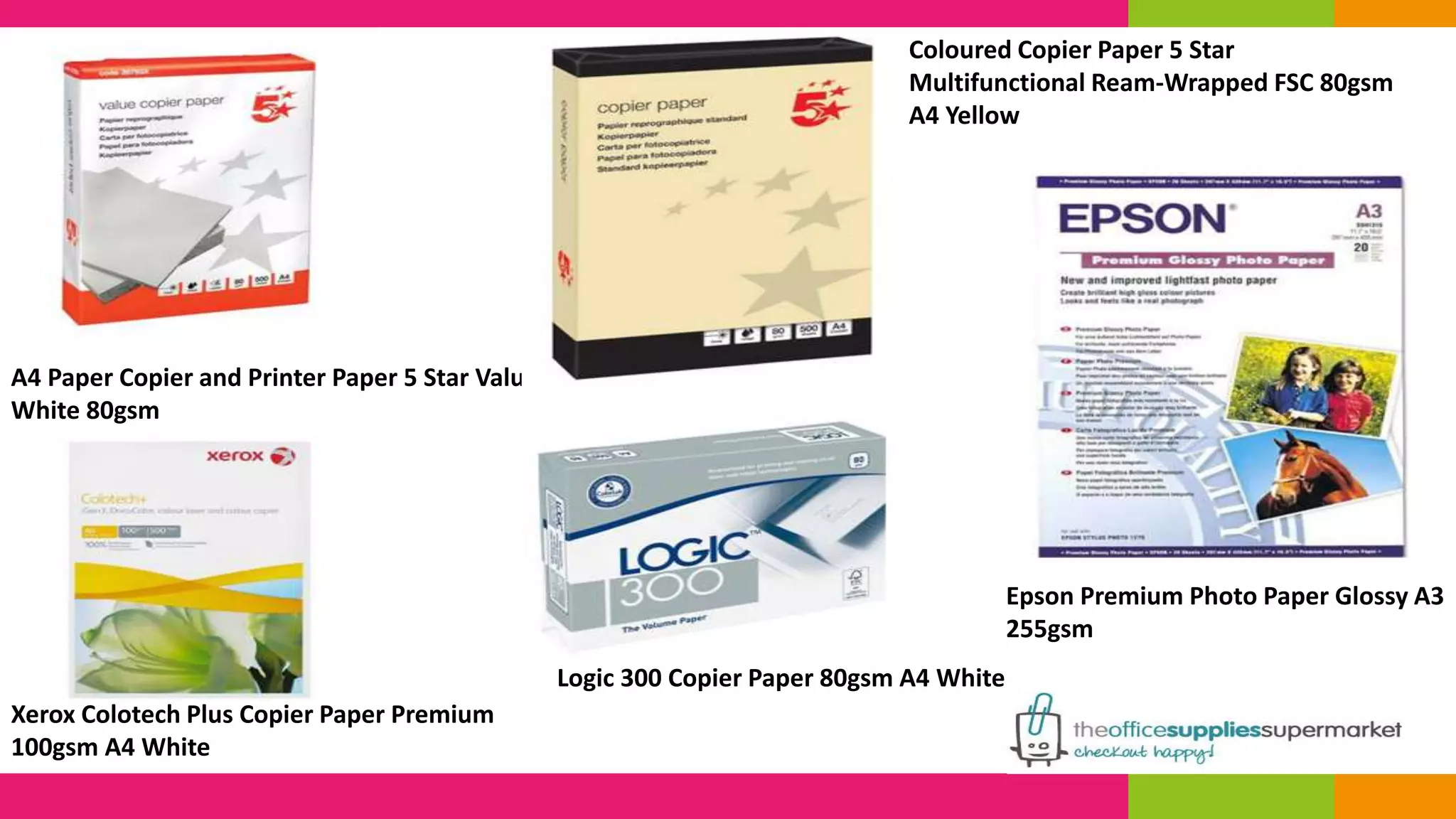
A4 Paper Copier and Printer Paper 5 Star Value 
White 80gsm 
Xerox Colotech Plus Copier Paper Premium 
100gsm A4 White 
Coloured Copier Paper 5 Star 
Multifunctional Ream-Wrapped FSC 80gsm 
A4 Yellow 
Logic 300 Copier Paper 80gsm A4 White 
Epson Premium Photo Paper Glossy A3 
255gsm
To get the whitest paper, select one with the 
highest brightness number on its package 
The brightness numbers range from about 84 brightness up to 
over 100. Many papers manufactured nowadays are free of 
acid, but check the label just the same to be sure.
Prepare the papers to be used for copying 
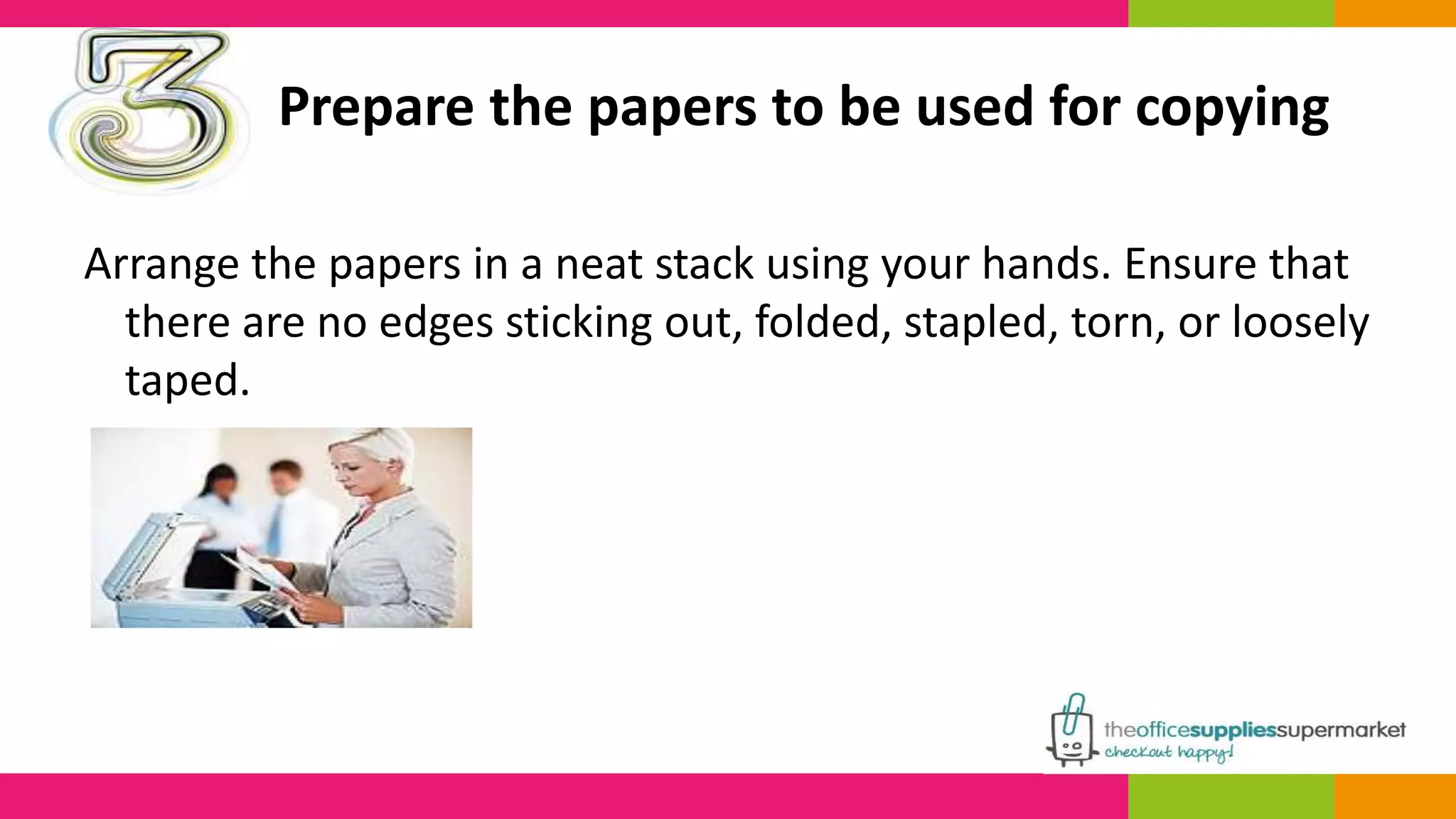
Arrange the papers in a neat stack using your hands. Ensure that 
there are no edges sticking out, folded, stapled, torn, or loosely 
taped.
This is important as smooth paper easily goes 
through the machine, reducing the chance of 
jamming or damage due to paper being stuck.
The correct placement of copies 
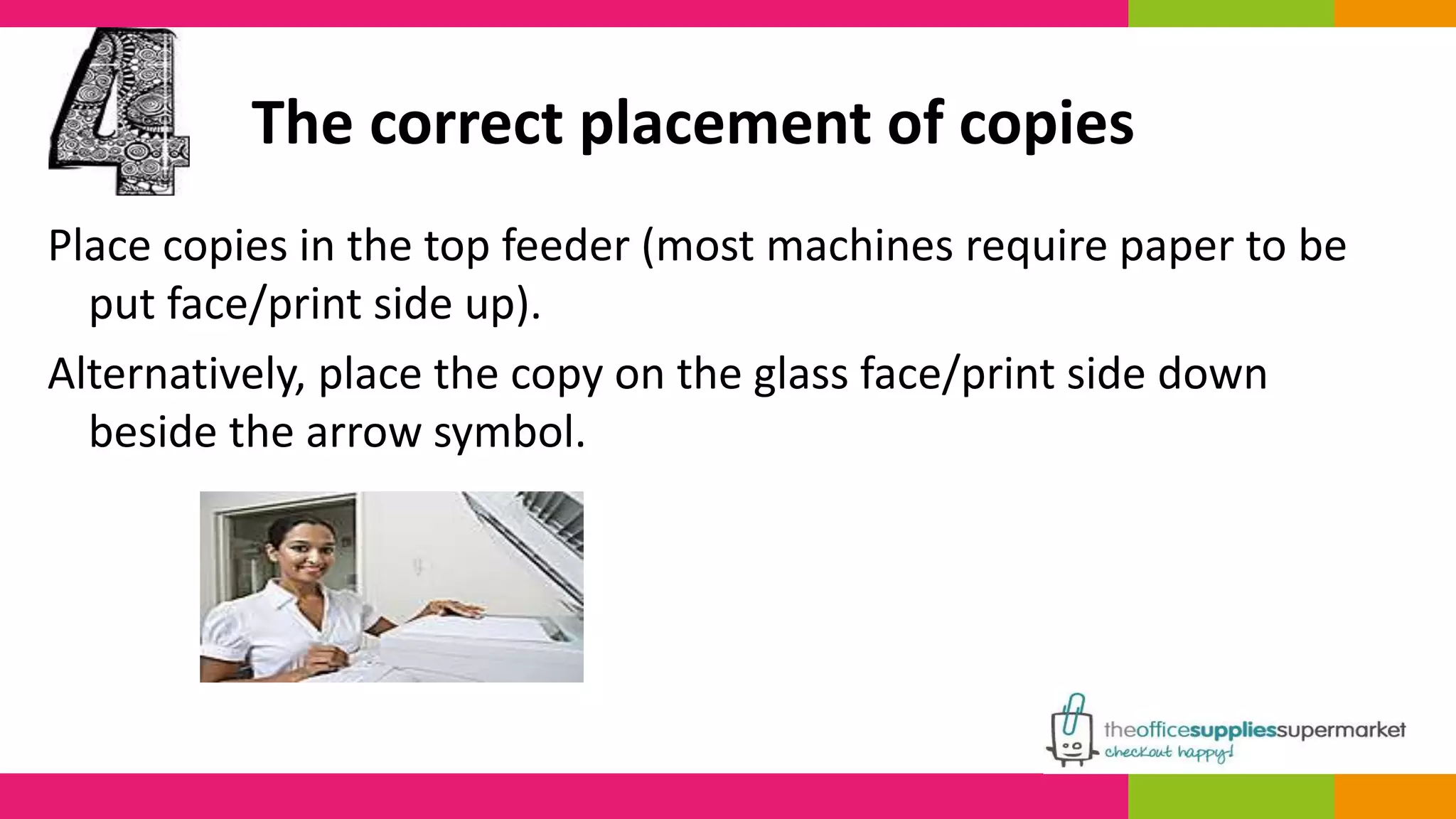
Place copies in the top feeder (most machines require paper to be 
put face/print side up). 
Alternatively, place the copy on the glass face/print side down 
beside the arrow symbol.
Your machine should have paper size guides on the sides (check 
the product manual if you can’t see it). 
Adjust the trays to fit the paper size you’re putting. If you have a 
rather small item to be copied, put a white sheet behind the 
item. This will prevent any excess ink being used, as well as 
gray or black shadows in your copies.
Select the right tray or drawer where the paper 
will be pulled from 
Most copiers have trays for letter, (8.5x11) legal (8.5x14) or 
ledger (11x17) sizes. There is also a side feeder tray intended 
for heavy weight paper such as photo paper or greeting card 
stock.
DO NOT put this kind of paper in the bottom trays as it can jam 
and damage the machine. Instead, run it through slowly and 
use settings for heavyweight, glossy or stock card. 
The same tray can also be used by transparent mediums, and 
have a special machine setting. Due to the clear nature of 
transparent mediums, the machine may have difficulty reading 
them unless a transparency setting is selected.
Set your preferred lightness or darkness 
Some document types such as news print (typically in black and 
white) or photos will need to be lightened a bit when copied. 
Similarly light text, print in bright colours, or pencil drawings will 
need to be darkened so its details are copied as much as 
possible.
Use the machine’s photo setting 
This setting gives the most detail on a copy.
Check the settings if you want to avail of 
features beyond copying 
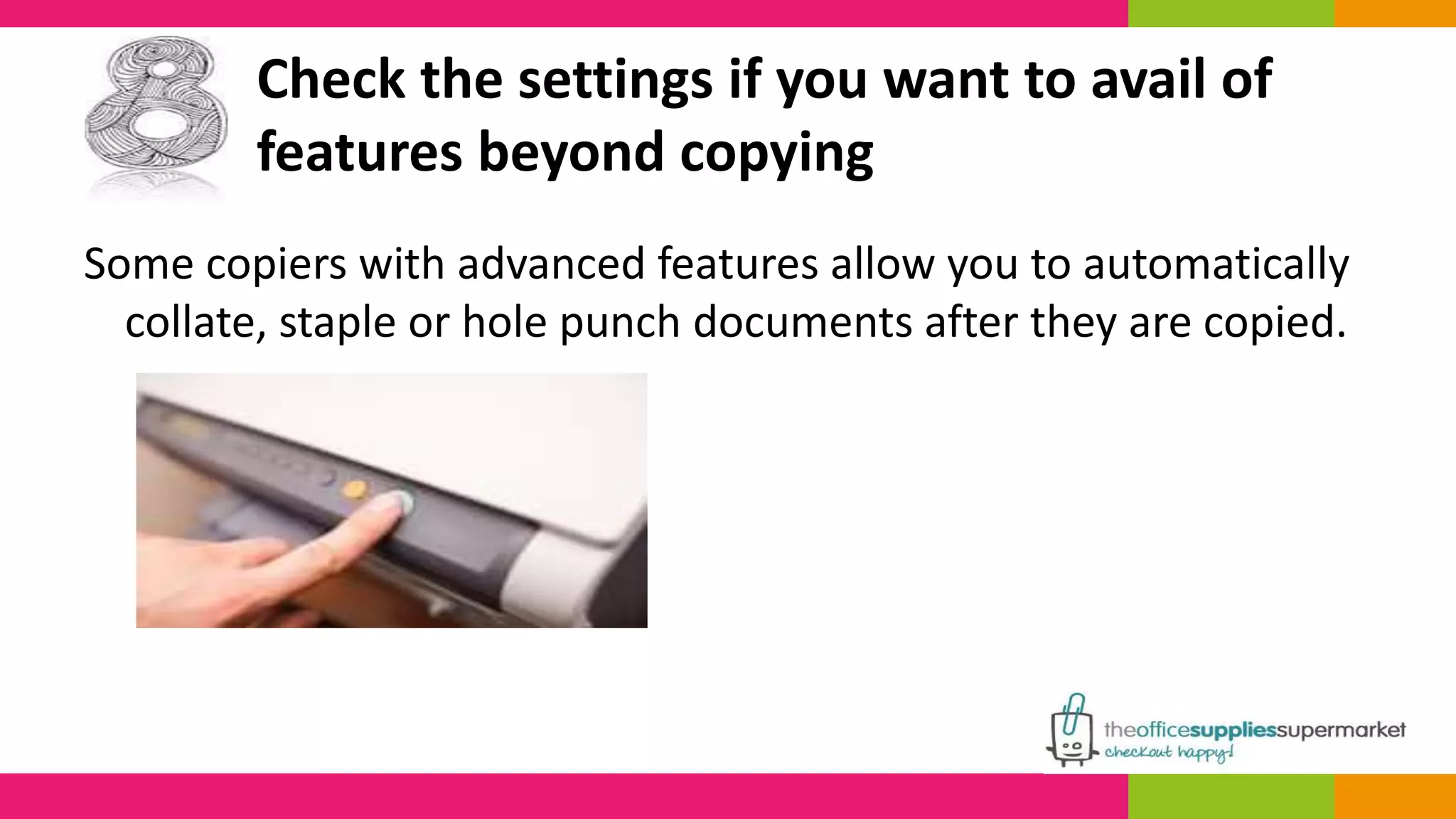
Some copiers with advanced features allow you to automatically 
collate, staple or hole punch documents after they are copied.
Remember that the best printed copies come from a 
document whose original colour is white or light pastel 
Original documents printed in deep colours such as red, green, 
purple or blue will translate to a pale grey copy and may even 
be unreadable. 
Printing with colour paper will have greater success when the 
original document is white.
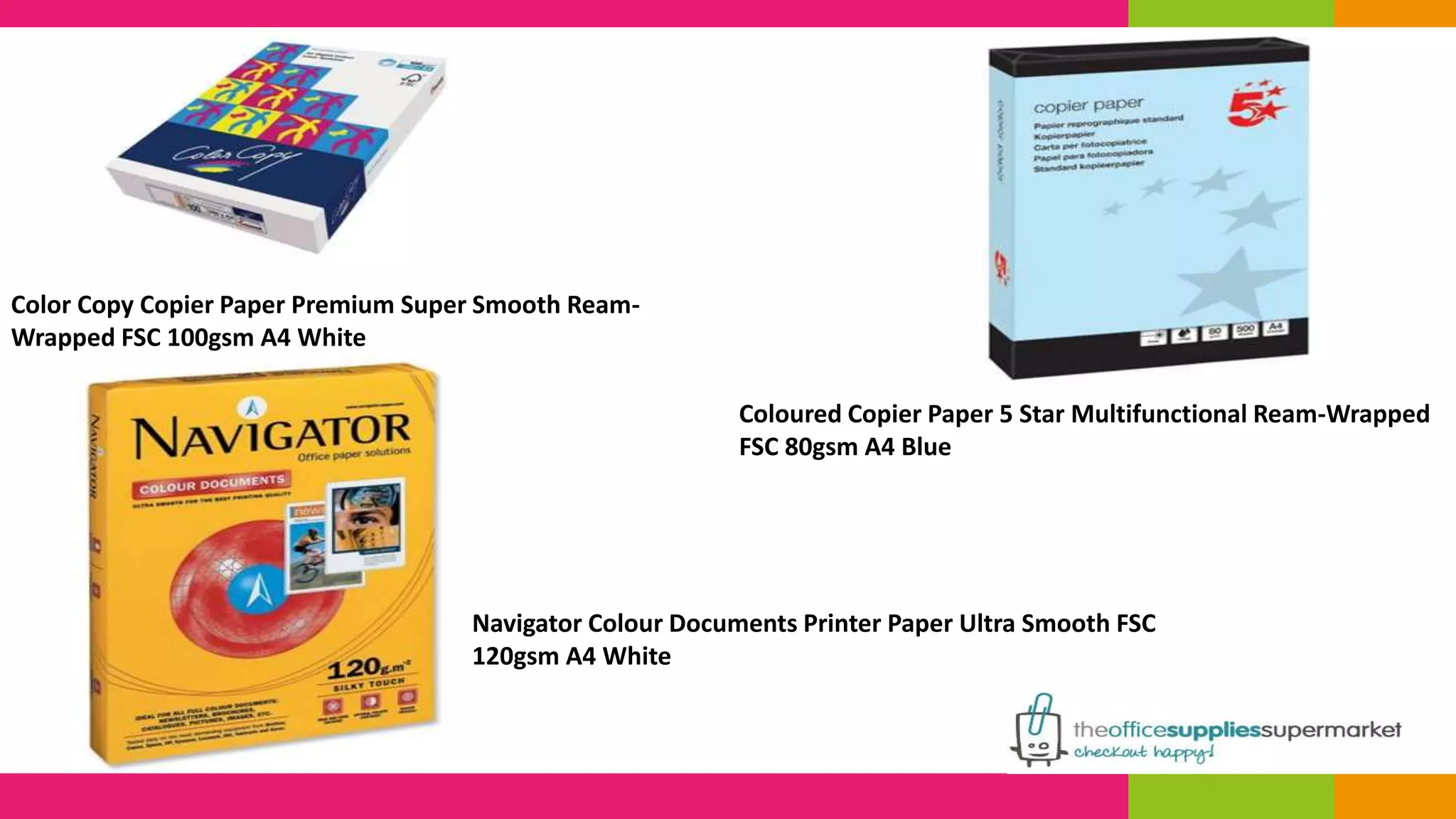
Coloured Copier Paper 5 Star Multifunctional Ream-Wrapped 
FSC 80gsm A4 Blue 
Color Copy Copier Paper Premium Super Smooth Ream- 
Wrapped FSC 100gsm A4 White 
Navigator Colour Documents Printer Paper Ultra Smooth FSC 
120gsm A4 White
Avoid ink spots or smudges on your copies 
Wipe the glass on the copier or sort unsightly marks on the 
original document with correction fluid before copying to avoid 
having spots or smudges on the copy.
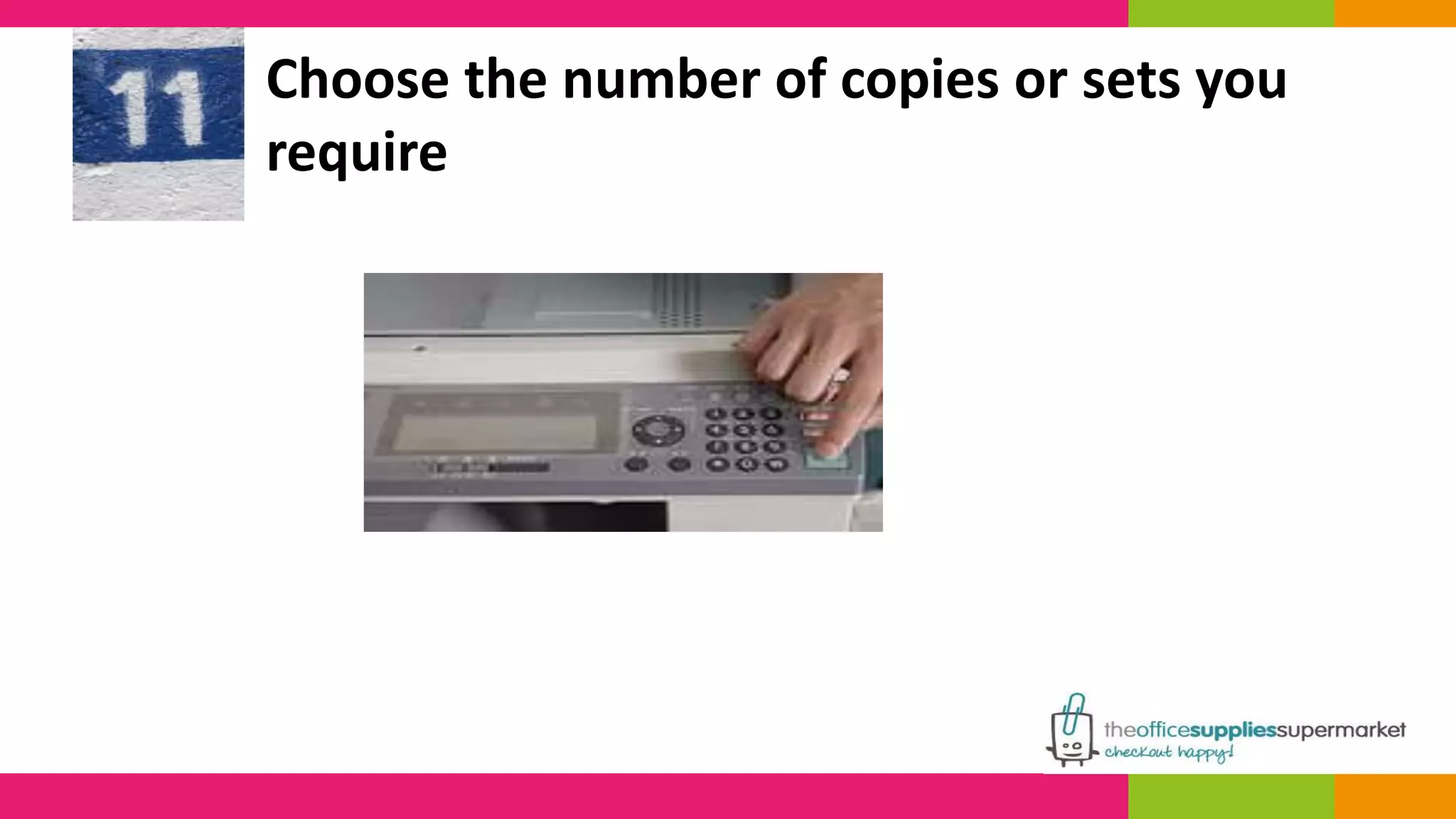
Choose the number of copies or sets you 
require
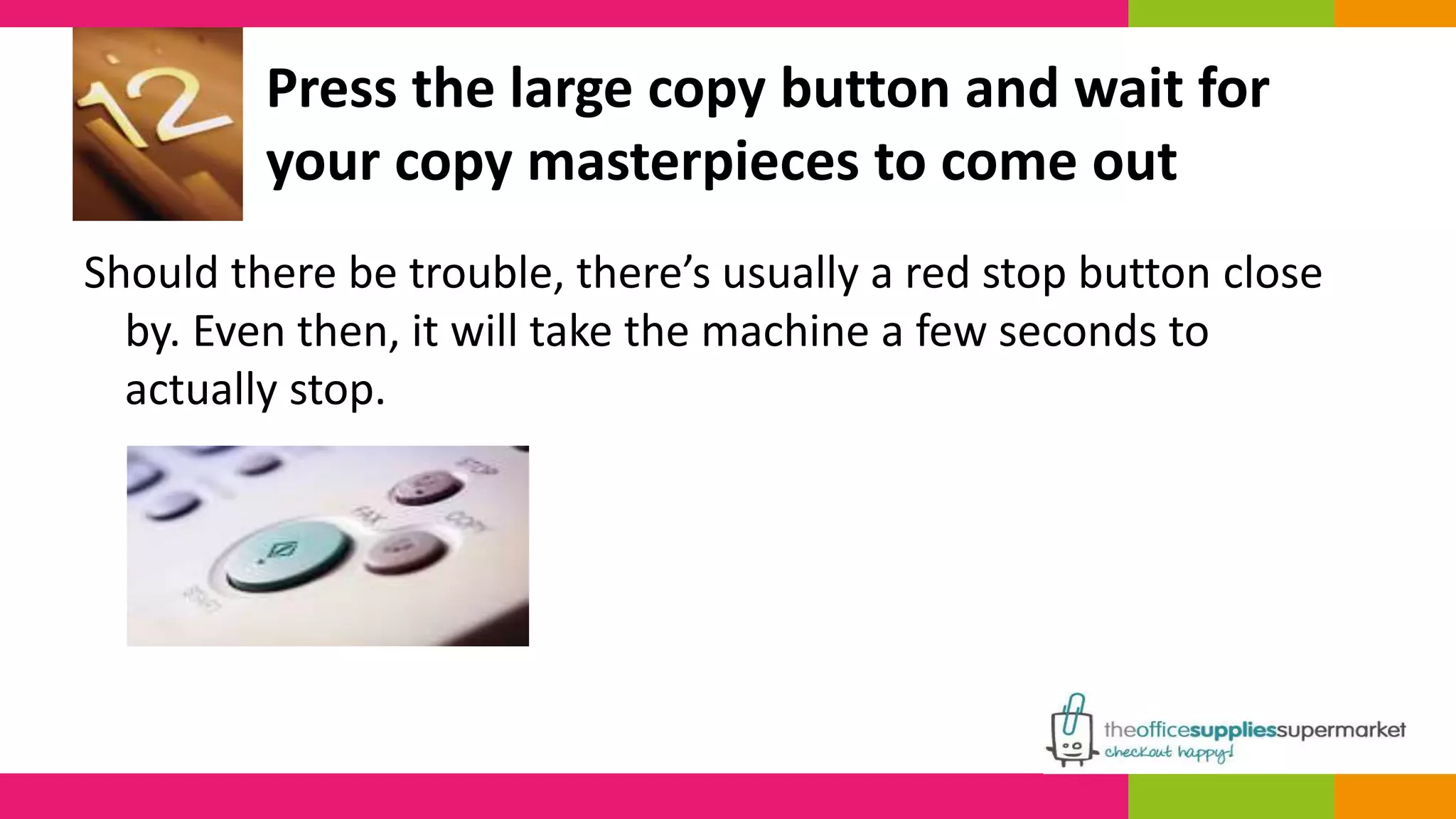
Press the large copy button and wait for 
your copy masterpieces to come out 
Should there be trouble, there’s usually a red stop button close 
by. Even then, it will take the machine a few seconds to 
actually stop.
If the machine requires clarification, an error message will pop 
and blink. 
If the paper gets jammed, the machine will advise the area and 
additional steps to clear the trapped page so you can continue.
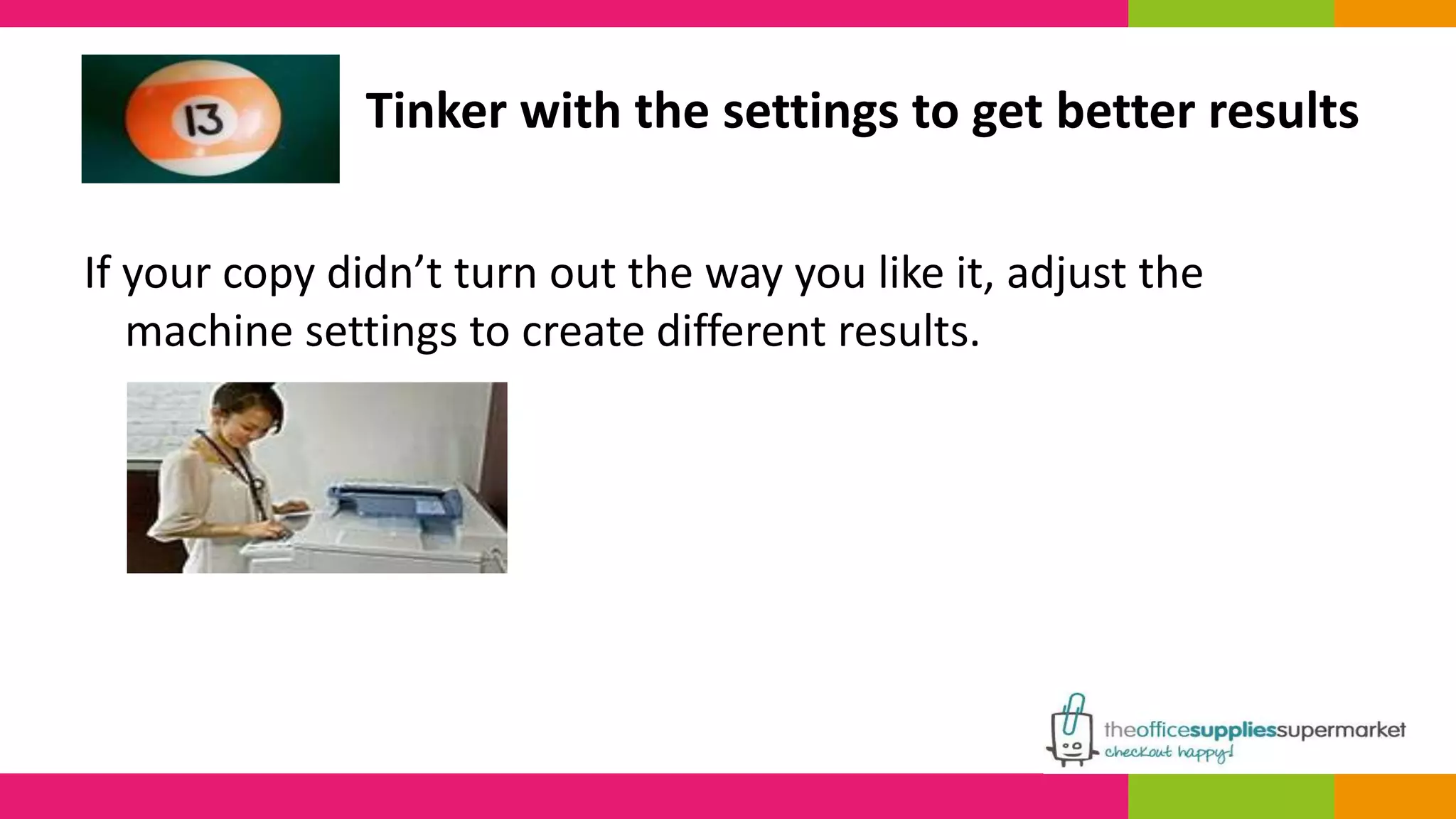
Tinker with the settings to get better results 
If your copy didn’t turn out the way you like it, adjust the 
machine settings to create different results.
For example, when copying pages ripped out of a notebook or 
torn off a book—these have uneven edges—move it over or 
use a margin shift button to create a better copy.
CONTACT US FOR A GREAT DEAL ON OFFICE 
SUPPLIES 
08451 701 601 
sales@theofficesuppliessupermarket.com 
http://www.theofficesuppliessupermarket.com

How to make great photocopies

  • 1.
    How to makegreat photocopies Now you can make your own copies that will give copy centres a run for their money, with clearer results and less mechanical problems
  • 2.
  • 3.
    Select the correctpaper There’s a reason why different paper types exist. It is because they are made to complement the type of document you are producing.
  • 4.
    General copies (homeuse or rough drafts) can be printed on 20 lb paper. Choose inkjet paper for inkjet copiers and laser paper for laser machines. Multi-purpose paper can work with several types of machines. 24 lb paper is good for more professional or business documents. Photo or glossy paper is best for photos. Paper weights or thicknesses are 20, 22, 24, 28, 32, 50-60 lb+.
  • 5.
    A4 Paper Copierand Printer Paper 5 Star Value White 80gsm Xerox Colotech Plus Copier Paper Premium 100gsm A4 White Coloured Copier Paper 5 Star Multifunctional Ream-Wrapped FSC 80gsm A4 Yellow Logic 300 Copier Paper 80gsm A4 White Epson Premium Photo Paper Glossy A3 255gsm
  • 6.
    To get thewhitest paper, select one with the highest brightness number on its package The brightness numbers range from about 84 brightness up to over 100. Many papers manufactured nowadays are free of acid, but check the label just the same to be sure.
  • 7.
    Prepare the papersto be used for copying Arrange the papers in a neat stack using your hands. Ensure that there are no edges sticking out, folded, stapled, torn, or loosely taped.
  • 8.
    This is importantas smooth paper easily goes through the machine, reducing the chance of jamming or damage due to paper being stuck.
  • 9.
    The correct placementof copies Place copies in the top feeder (most machines require paper to be put face/print side up). Alternatively, place the copy on the glass face/print side down beside the arrow symbol.
  • 10.
    Your machine shouldhave paper size guides on the sides (check the product manual if you can’t see it). Adjust the trays to fit the paper size you’re putting. If you have a rather small item to be copied, put a white sheet behind the item. This will prevent any excess ink being used, as well as gray or black shadows in your copies.
  • 11.
    Select the righttray or drawer where the paper will be pulled from Most copiers have trays for letter, (8.5x11) legal (8.5x14) or ledger (11x17) sizes. There is also a side feeder tray intended for heavy weight paper such as photo paper or greeting card stock.
  • 12.
    DO NOT putthis kind of paper in the bottom trays as it can jam and damage the machine. Instead, run it through slowly and use settings for heavyweight, glossy or stock card. The same tray can also be used by transparent mediums, and have a special machine setting. Due to the clear nature of transparent mediums, the machine may have difficulty reading them unless a transparency setting is selected.
  • 13.
    Set your preferredlightness or darkness Some document types such as news print (typically in black and white) or photos will need to be lightened a bit when copied. Similarly light text, print in bright colours, or pencil drawings will need to be darkened so its details are copied as much as possible.
  • 14.
    Use the machine’sphoto setting This setting gives the most detail on a copy.
  • 15.
    Check the settingsif you want to avail of features beyond copying Some copiers with advanced features allow you to automatically collate, staple or hole punch documents after they are copied.
  • 16.
    Remember that thebest printed copies come from a document whose original colour is white or light pastel Original documents printed in deep colours such as red, green, purple or blue will translate to a pale grey copy and may even be unreadable. Printing with colour paper will have greater success when the original document is white.
  • 17.
    Coloured Copier Paper5 Star Multifunctional Ream-Wrapped FSC 80gsm A4 Blue Color Copy Copier Paper Premium Super Smooth Ream- Wrapped FSC 100gsm A4 White Navigator Colour Documents Printer Paper Ultra Smooth FSC 120gsm A4 White
  • 18.
    Avoid ink spotsor smudges on your copies Wipe the glass on the copier or sort unsightly marks on the original document with correction fluid before copying to avoid having spots or smudges on the copy.
  • 19.
    Choose the numberof copies or sets you require
  • 20.
    Press the largecopy button and wait for your copy masterpieces to come out Should there be trouble, there’s usually a red stop button close by. Even then, it will take the machine a few seconds to actually stop.
  • 21.
    If the machinerequires clarification, an error message will pop and blink. If the paper gets jammed, the machine will advise the area and additional steps to clear the trapped page so you can continue.
  • 22.
    Tinker with thesettings to get better results If your copy didn’t turn out the way you like it, adjust the machine settings to create different results.
  • 23.
    For example, whencopying pages ripped out of a notebook or torn off a book—these have uneven edges—move it over or use a margin shift button to create a better copy.
  • 24.
    CONTACT US FORA GREAT DEAL ON OFFICE SUPPLIES 08451 701 601 sales@theofficesuppliessupermarket.com http://www.theofficesuppliessupermarket.com