Saving Your Data in SPSS
Tutorial 2
Saving a Data File
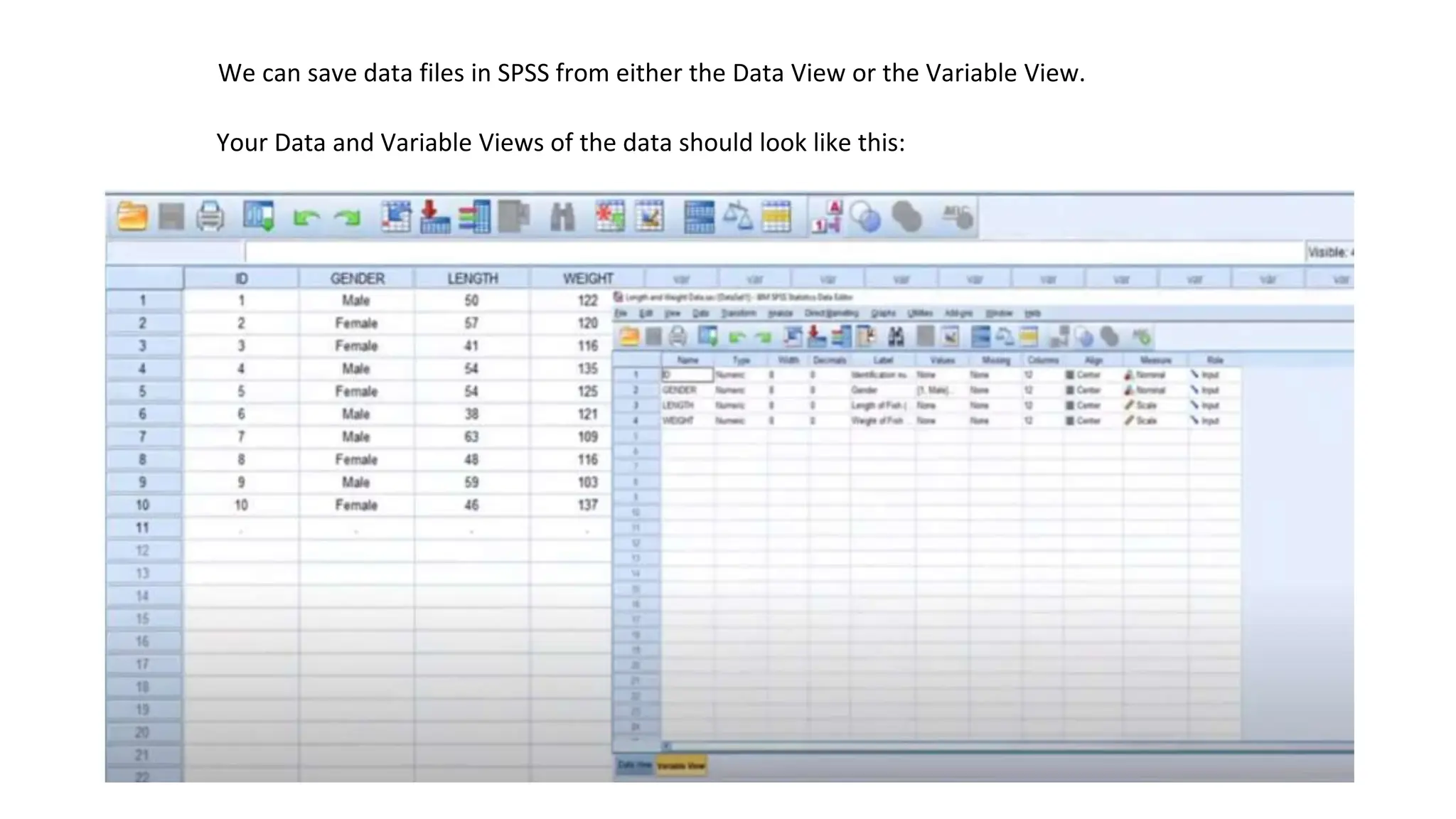
Your Data and Variable Views of the data should look like this:
We can save data files in SPSS from either the Data View or the Variable View.
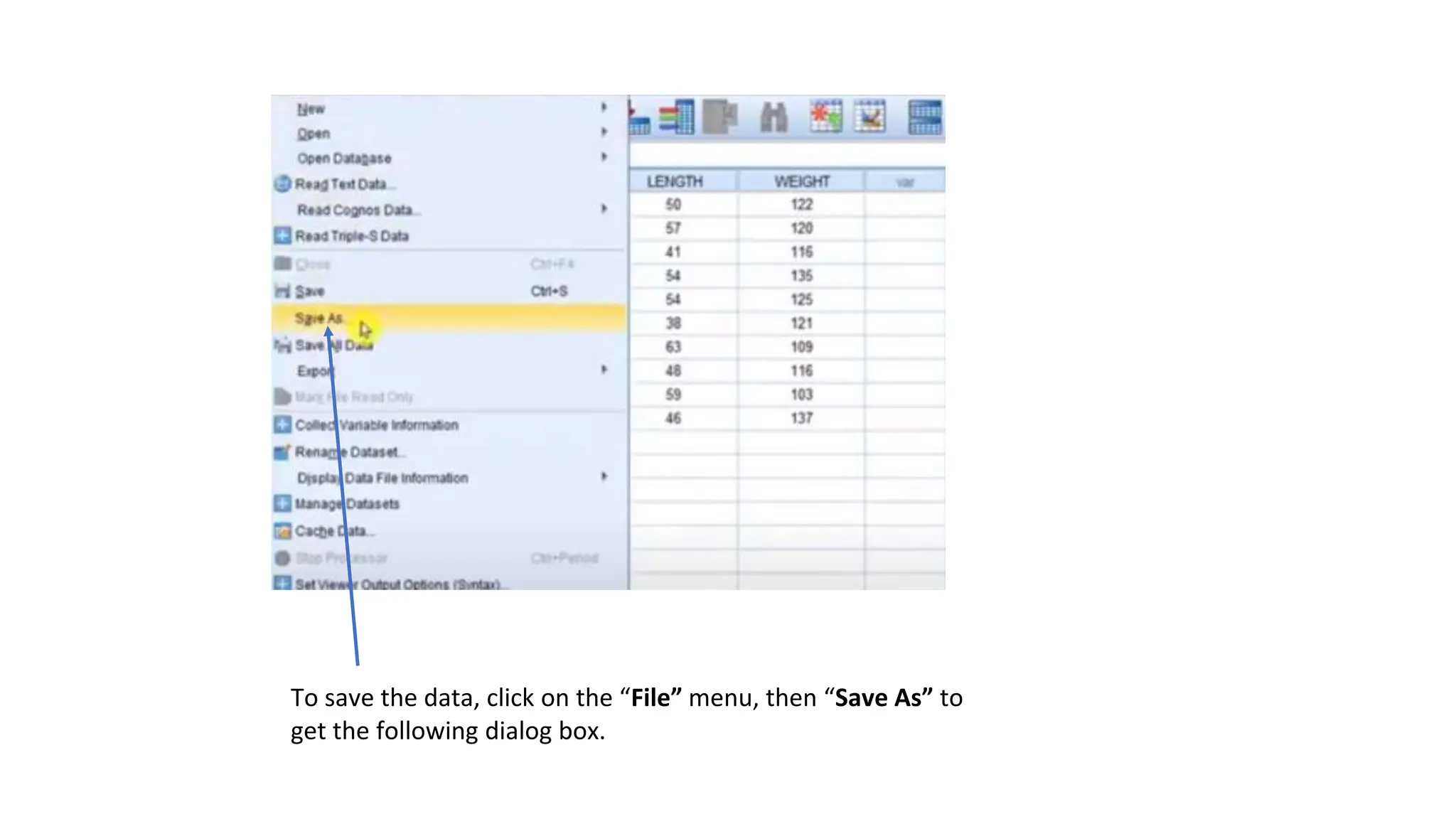
To save the data, click on the “File” menu, then “Save As” to
get the following dialog box.
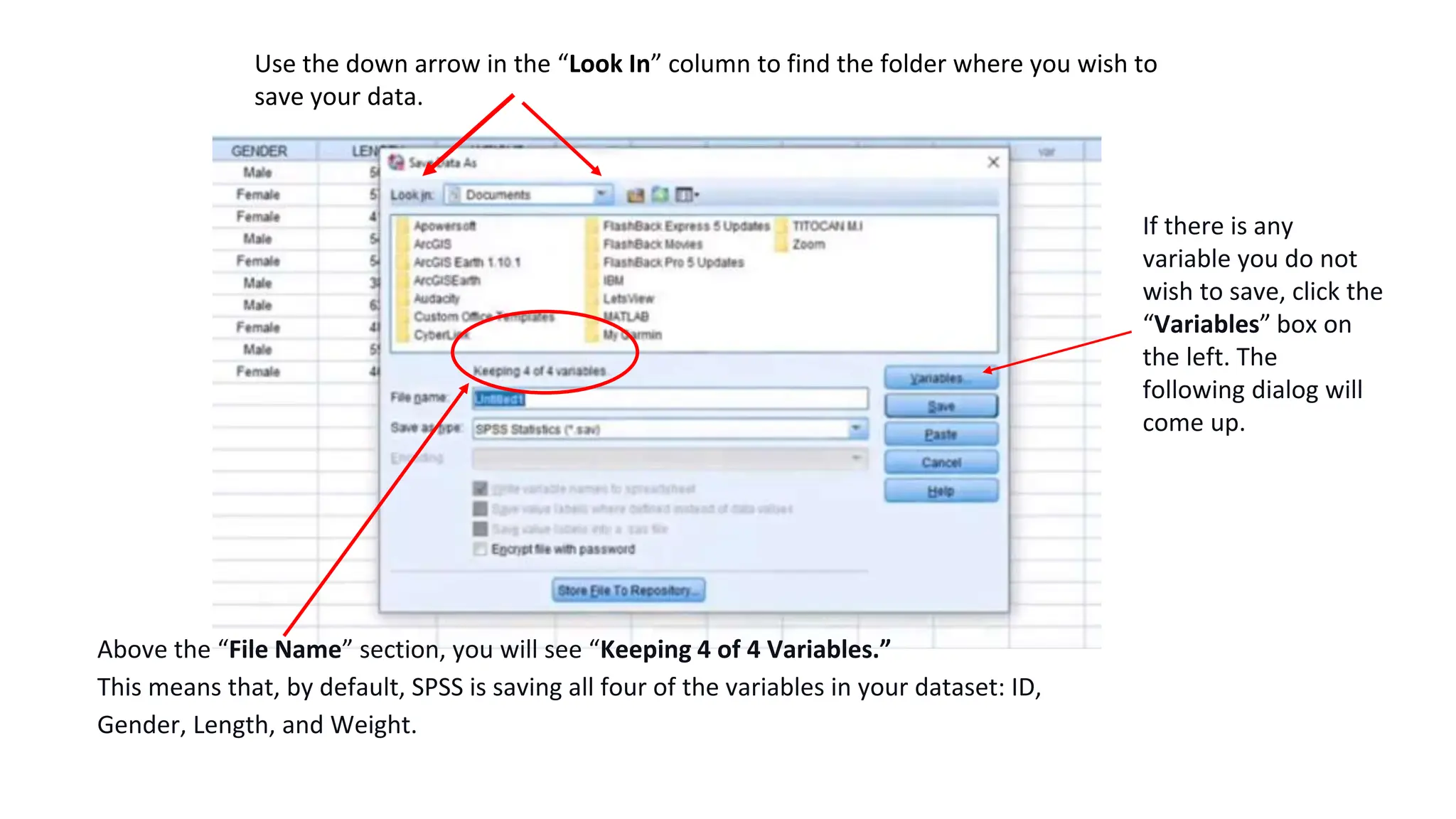
Use the down arrow in the “Look In” column to find the folder where you wish to
save your data.
Above the “File Name” section, you will see “Keeping 4 of 4 Variables.”
This means that, by default, SPSS is saving all four of the variables in your dataset: ID,
Gender, Length, and Weight.
If there is any
variable you do not
wish to save, click the
“Variables” box on
the left. The
following dialog will
come up.
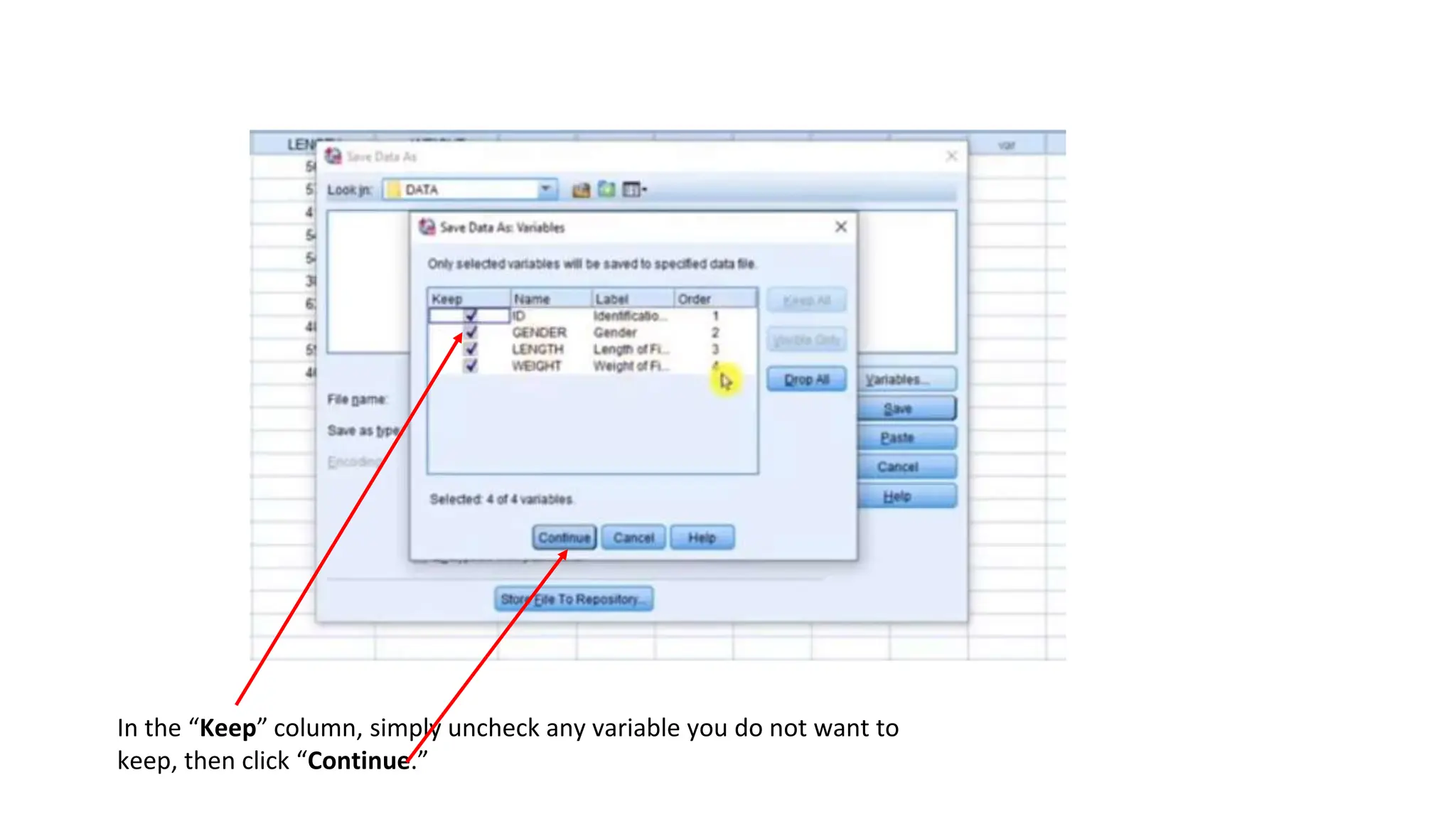
In the “Keep” column, simply uncheck any variable you do not want to
keep, then click “Continue.”
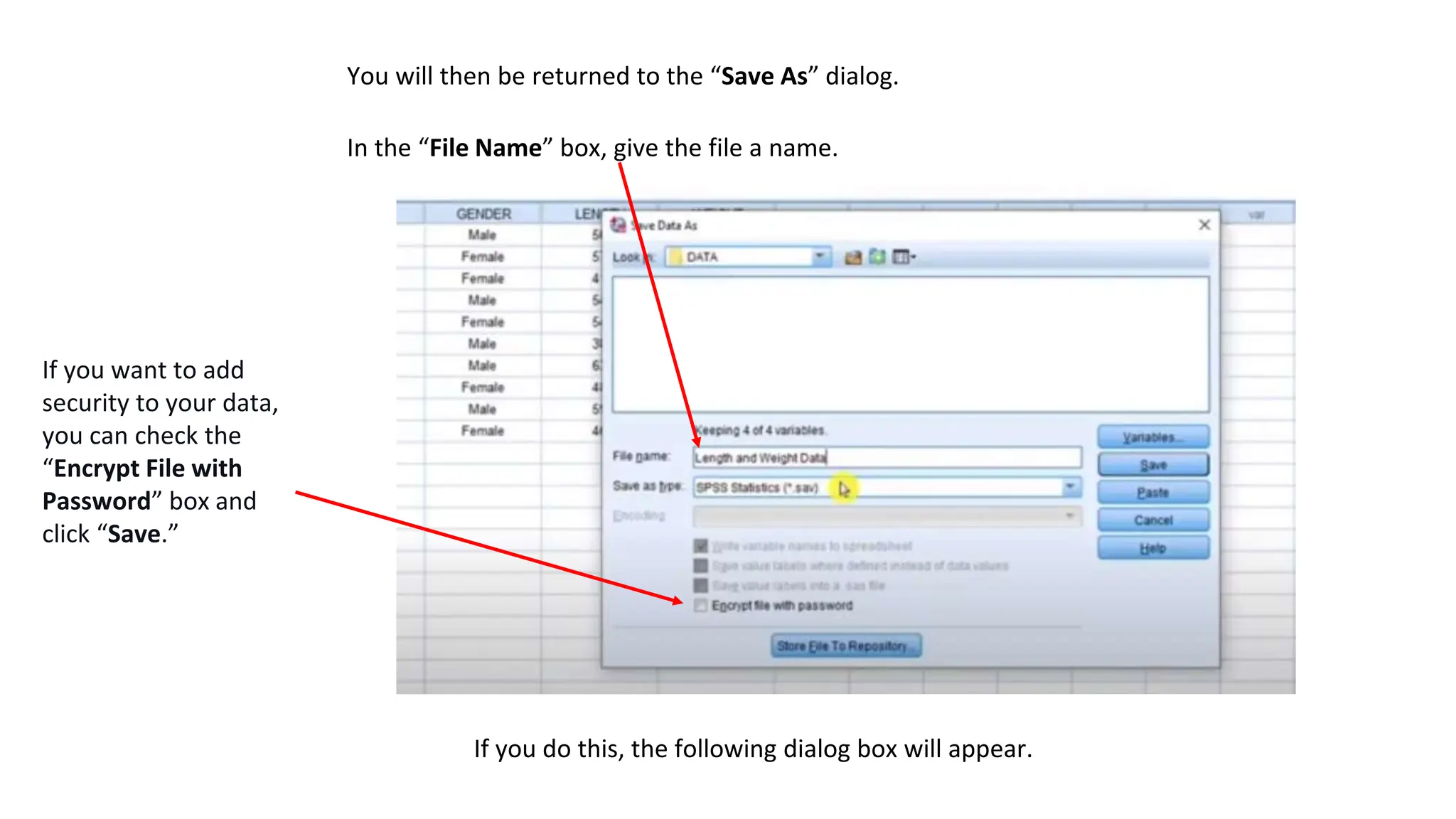
You will then be returned to the “Save As” dialog.
In the “File Name” box, give the file a name.
If you want to add
security to your data,
you can check the
“Encrypt File with
Password” box and
click “Save.”
If you do this, the following dialog box will appear.
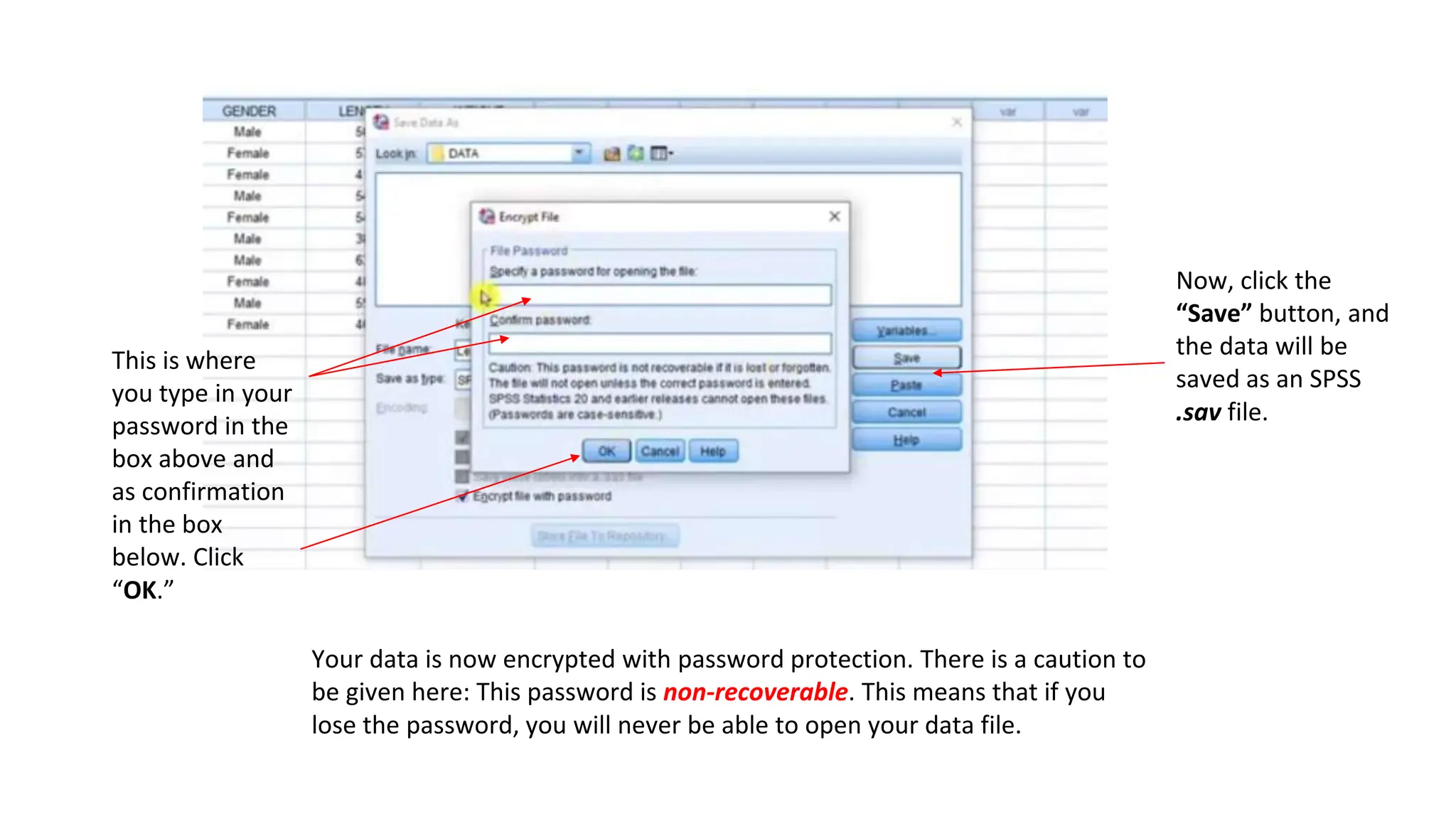
This is where
you type in your
password in the
box above and
as confirmation
in the box
below. Click
“OK.”
Your data is now encrypted with password protection. There is a caution to
be given here: This password is non-recoverable. This means that if you
lose the password, you will never be able to open your data file.
Now, click the
“Save” button, and
the data will be
saved as an SPSS
.sav file.
Opening a Saved File
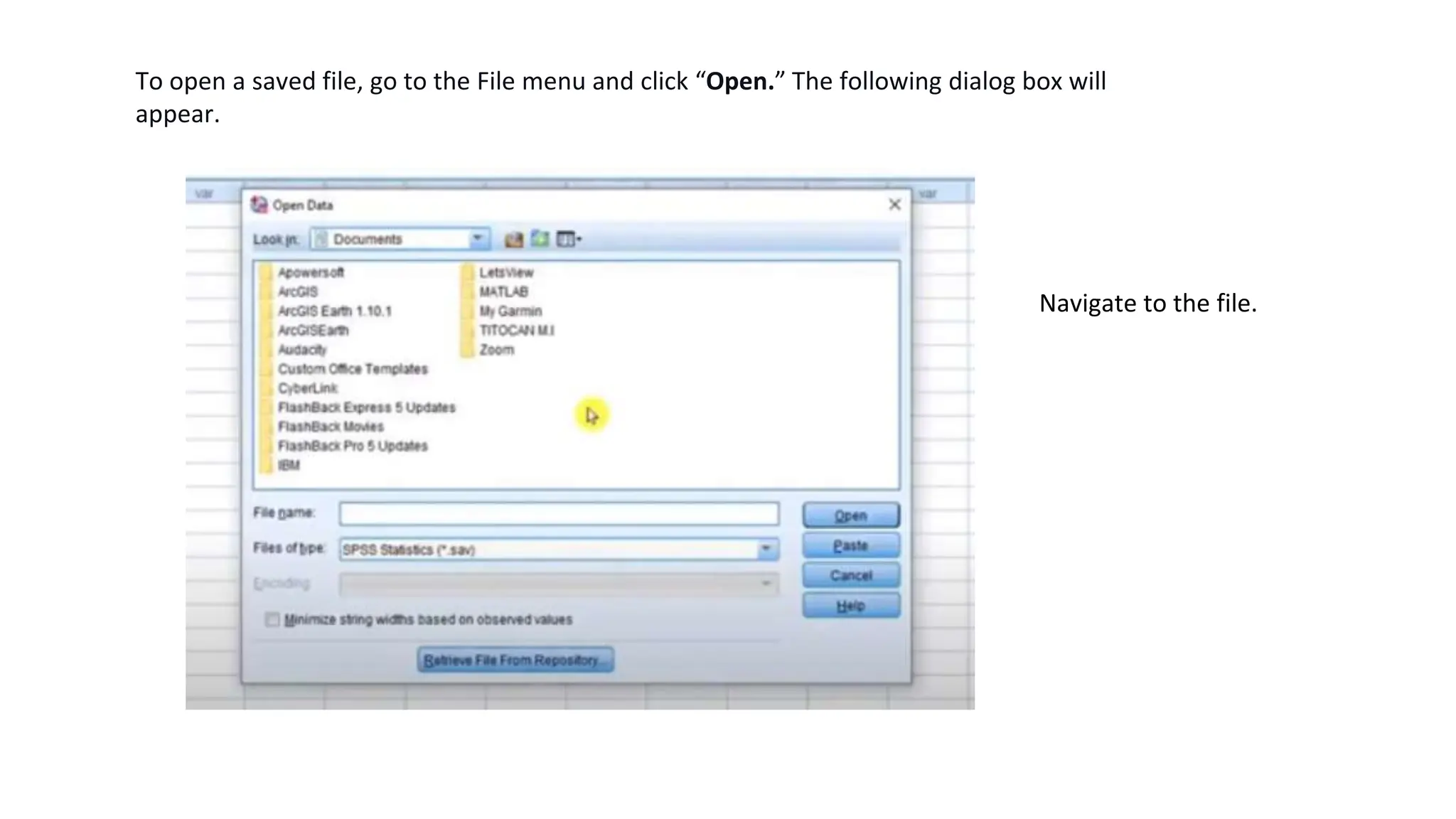
To open a saved file, go to the File menu and click “Open.” The following dialog box will
appear.
Navigate to the file.
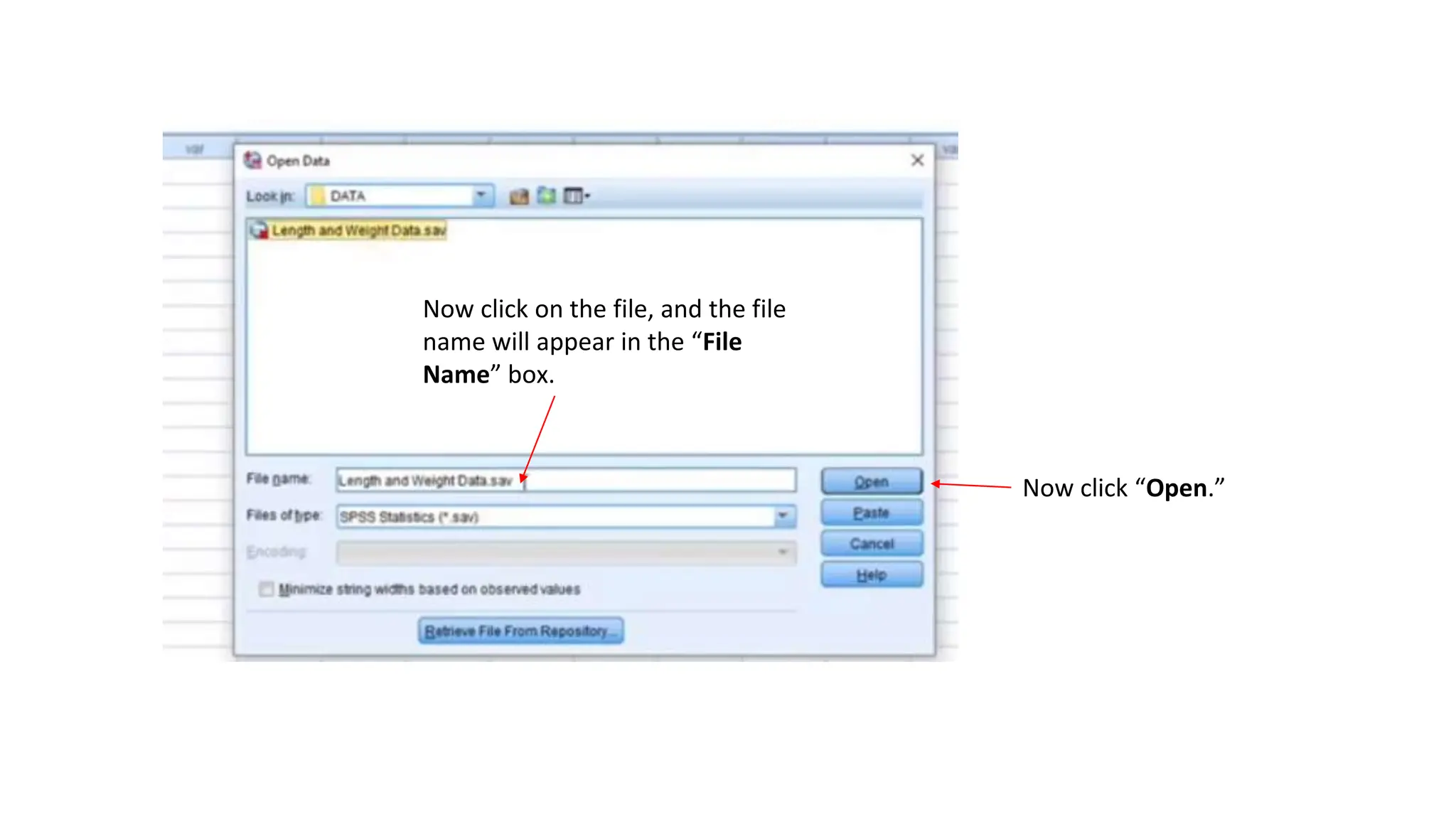
Now click on the file, and the file
name will appear in the “File
Name” box.
Now click “Open.”
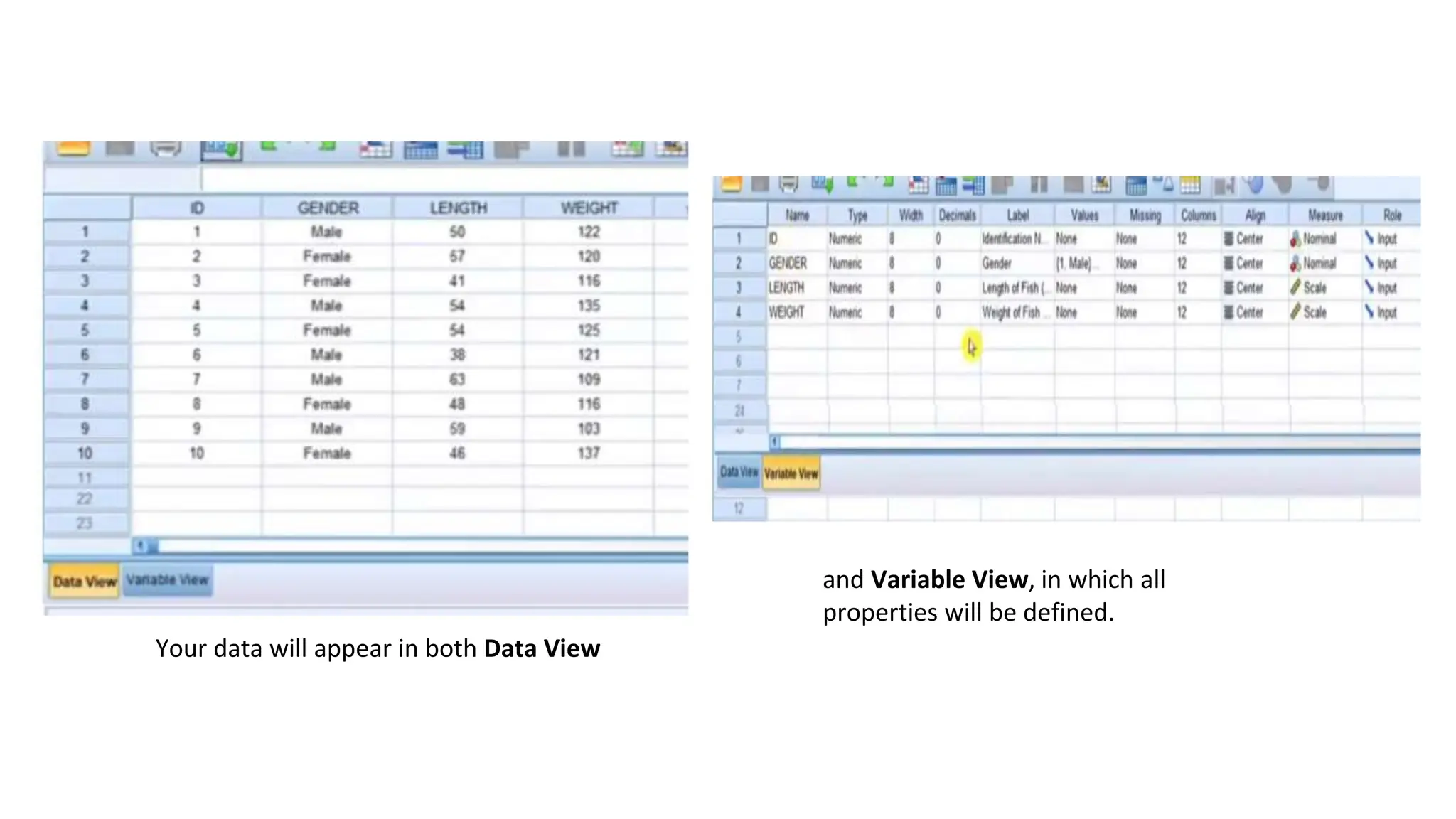
Your data will appear in both Data View
and Variable View, in which all
properties will be defined.
End of Tutorial 2: Saving Data in SPSS

How to make a spss data and Saving Your Data in SPSS.pptx

  • 1.
    Saving Your Datain SPSS Tutorial 2
  • 2.
  • 3.
    Your Data andVariable Views of the data should look like this: We can save data files in SPSS from either the Data View or the Variable View.
  • 4.
    To save thedata, click on the “File” menu, then “Save As” to get the following dialog box.
  • 5.
    Use the downarrow in the “Look In” column to find the folder where you wish to save your data. Above the “File Name” section, you will see “Keeping 4 of 4 Variables.” This means that, by default, SPSS is saving all four of the variables in your dataset: ID, Gender, Length, and Weight. If there is any variable you do not wish to save, click the “Variables” box on the left. The following dialog will come up.
  • 6.
    In the “Keep”column, simply uncheck any variable you do not want to keep, then click “Continue.”
  • 7.
    You will thenbe returned to the “Save As” dialog. In the “File Name” box, give the file a name. If you want to add security to your data, you can check the “Encrypt File with Password” box and click “Save.” If you do this, the following dialog box will appear.
  • 8.
    This is where youtype in your password in the box above and as confirmation in the box below. Click “OK.” Your data is now encrypted with password protection. There is a caution to be given here: This password is non-recoverable. This means that if you lose the password, you will never be able to open your data file. Now, click the “Save” button, and the data will be saved as an SPSS .sav file.
  • 9.
  • 10.
    To open asaved file, go to the File menu and click “Open.” The following dialog box will appear. Navigate to the file.
  • 11.
    Now click onthe file, and the file name will appear in the “File Name” box. Now click “Open.”
  • 12.
    Your data willappear in both Data View and Variable View, in which all properties will be defined.
  • 13.
    End of Tutorial2: Saving Data in SPSS