
By TOPS technologies
-http://www.tops-int.com
-http://www.tops-int.com/android-training.html

TOPS Technologies - Android training program.

UPDATED - HOW TO INSTALL
ANDROID SDK
HOW TO INSTALL THE ANDROID
DEVELOPMENT TOOLS : ANDROID
TRAINING :MODULE 1


This Power Point Presentation will describes how to
install and configure the Android development tools.
TOPS Technologies - Android training
program.
CONTENTS : ANDROID TRAINING
:MODULE 1
•
•

•
•
•
•

TOPS Technologies - Android training
program.

•

1. Installation of the Android development tools
2. Requirements
3. Install Android Developer Tools
4. Install Android SDK version
5. Accessing the Android SDK code in Eclipse
6. Android Studio
7. Updating an Eclipse IDE for Android
development
1. INSTALLATION OF THE ANDROID
DEVELOPMENT TOOLS
•

•
•

TOPS Technologies - Android training
program.

•

Google provides tools to develop Android applications. You
can choose between Eclipse or IntelliJ based tools.
This guide describes both approaches, but the focus is on the
Eclipse based tooling.
Tip
Selecting an IDE is primarily based on personal preferences.
The team at Google plans to support both the Eclipse as well
as the IntelliJ based tools. The author of this text is a long
term Eclipse user, contributor and committer and therefore
selects Eclipse as his primary tooling for Android
development.
2. REQUIREMENTS
•
•

TOPS Technologies - Android training
program.

•

2.1. System requirements
2.2. Requirements for using a 64-bit Linux
2.3. Linux and OpenGL - Failed to load libGL.so
2. REQUIREMENTS
•
•

TOPS Technologies - Android training
program.

2.1. System requirements
Development for Android can be done on a
reasonably sized computer. For a nice experience a
modern computer is recommended, for example, a
2.6 GHz CPU with at least 8 GB of memory. An
SSD speeds up the start of the Android emulator
significantly.
2. REQUIREMENTS
2.2. Requirements for using a 64-bit Linux
 The Android SDK is 32-bit, therefore on a 64-bit
Linux system you need to have the package ia32libs installed. For Ubuntu you can do this via the
following command.
 # Ubuntu 12.04 apt-get install ia32-libs # Ubuntu
13.04 sudo apt-get install libc6-i386 lib32stdc++6
lib32gcc1 lib32ncurses5 # Ubuntu 13.10 sudo aptget install libc6-i386 lib32stdc++6 lib32gcc1
lib32ncurses5 lib32z1
 Please check your distribution documentation if you
are using a different flavor of Linux.


TOPS Technologies - Android training
program.
2.3. LINUX AND OPENGL - FAILED TO 
LOAD LIBGL.SO
On Ubuntu 13.04 you also have to install the
OpenGL support. This can be done on Ubuntu
13.04 via following command.
 # install OpenGL support sudo apt-get install libgl1mesa-dev
 Please check your distribution documentation if you
are using a different flavor of Linux.


TOPS Technologies - Android training
program.
3. INSTALL ANDROID DEVELOPER 
TOOLS
3.1. Download packaged Android Developer 
Tools
 Google provides a packaged and configured
Android development environment based on the
Eclipse IDE calledAndroid Developer Tools. Under
the following URL you find an archive file which
includes all required tools for Android
development: Getting the Android SDK.


TOPS Technologies - Android training
program.
3. INSTALL ANDROID DEVELOPER 
TOOLS
3.2. Stand-alone ADT installation
 Extract the zip file and start the Android Developer
Tools (Eclipse) which are located in
the eclipse folder. You can do this by doubleclicking on the eclipse native launcher
(e.g., eclipse.exe under Windows).


TOPS Technologies - Android training
program.
3. INSTALL ANDROID DEVELOPER 
TOOLS
3.3. Update an existing Eclipse IDE
 See Section 7, “Updating an Eclipse IDE for 
Android development” for a description on how to
update your existing Eclipse IDE to perform Android
development.


TOPS Technologies - Android training
program.
4. INSTALL ANDROID SDK VERSION



Tip
If you chose the
packaged Android
Developer Tools download
based on the Eclipse IDE,
the Android SDK is located
in the sdk folder of the
extracted archive file.

TOPS Technologies - Android training
program.

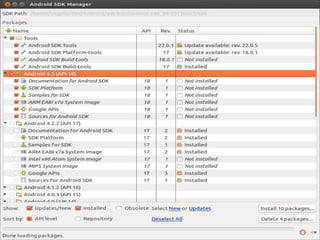
4.1. Using the Android SDK manager
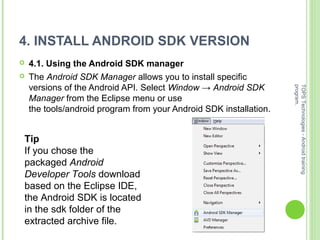
The Android SDK Manager allows you to install specific
versions of the Android API. Select Window → Android SDK
Manager from the Eclipse menu or use
the tools/android program from your Android SDK installation.
TOPS Technologies - Android training
program.
4.1. USING THE ANDROID SDK 
MANAGER
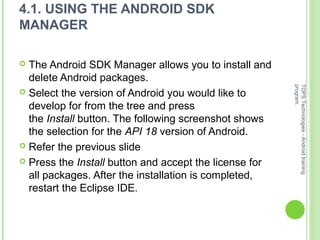
The Android SDK Manager allows you to install and
delete Android packages.
 Select the version of Android you would like to
develop for from the tree and press
the Install button. The following screenshot shows
the selection for the API 18 version of Android.
 Refer the previous slide
 Press the Install button and accept the license for
all packages. After the installation is completed,
restart the Eclipse IDE.


TOPS Technologies - Android training
program.
4.2. INSTALL SUPPORT LIBRARY
In the Android SDK Manager select Extras and
install the Android support library.
 Android currently has several versions of the library,
the v4, v7 and v13 version which are valid as of the
respective API level of Android. The usage of a
higher version of the support library is typically
based on the lower version. For example, the
support for the action bar for Android devices with
version API 7 is included in the support library v7.
This library requires the v4 library, too.


TOPS Technologies - Android training
program.
5. ACCESSING THE ANDROID SDK 
CODE IN ECLIPSE

TOPS Technologies - Android training
program.
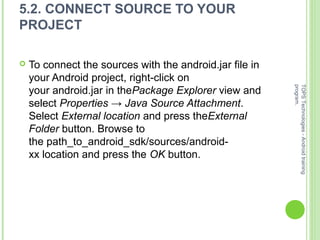
5.1. INSTALLATION
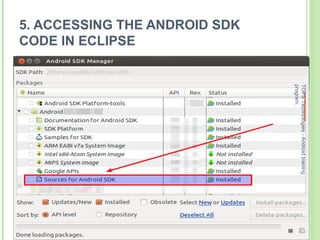
During Android development it is useful to have
access to the Android source code.
 You can download the Android source code via
the Android SDK Manager by selecting the Sources
for Android SDK.
 The sources are stored in
the path_to_android_sdk/sources/androidxx directory. where xx is the API level of Android,
e.g., 19 for the Android 4.4 version.


TOPS Technologies - Android training
program.
5.2. CONNECT SOURCE TO YOUR 
PROJECT


TOPS Technologies - Android training
program.

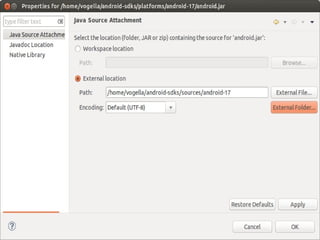
To connect the sources with the android.jar file in
your Android project, right-click on
your android.jar in thePackage Explorer view and
select Properties → Java Source Attachment.
Select External location and press theExternal
Folder button. Browse to
the path_to_android_sdk/sources/androidxx location and press the OK button.
5.3. VALIDATE


TOPS Technologies - Android training
program.

Validate that you can see the Android source code.
For example, open the View class via the Open
Type dialog (Ctrl+T) and ensure that you see the
source code.
TOPS Technologies - Android training
program.
6. ANDROID STUDIO
6.1. Android Studio based on IntelliJ IDEA
 Google also provides a modified version of the
IntelliJ IDE called Android Studio for developing
Android applications.
 6.2. Installation
 This book uses Eclipse for its description, but a
very similar functionality is available for Android
Studio. SeeInstalling Android Studio to learn how
to install and use it.


TOPS Technologies - Android training
program.
7. UPDATING AN ECLIPSE IDE FOR 
ANDROID DEVELOPMENT
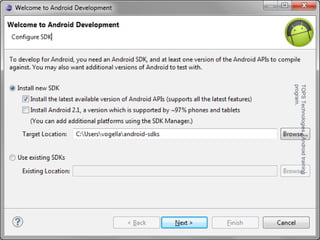
The following description assumes that you already
have a flavor of the Eclipse IDE installed which you
want to update to develop Android applications. Use
the Eclipse update manager via Help → Install new
software and start the android to install all available
components for the Android Development Tools
(ADT) from the following URL:
 https://dl-ssl.google.com/android/eclipse/
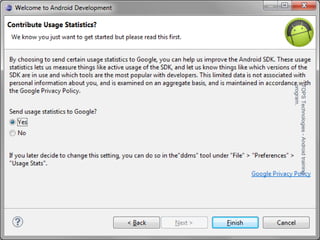
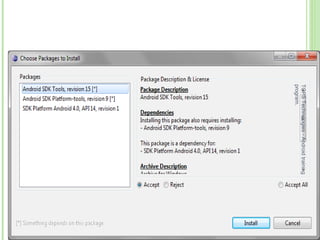
 After the new Android development components
are installed, you will be prompted to install the
Android SDK. You can use the following wizard or
go to the next section to learn how to do it
manually.


TOPS Technologies - Android training
program.
TOPS Technologies - Android training
program.
TOPS Technologies - Android training
program.
TOPS Technologies - Android training
program.





TOPS Technologies - Android training
program.



After the installation of the ADT the Eclipse tooling allows to
download the Android SDK automatically. Alternatively you
can also manually download the Android SDK from the
Android SDK download page.
http://developer.android.com/sdk/index.html
The download contains a zip file, which you can extract to any
place in your file system, e.g., on my Linux system I placed it
into the /home/vogella/android-sdks folder. Avoid using
spaces in the path name, otherwise you may experience
problems with the usage of the Android SDK.
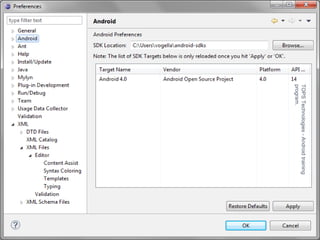
You also have to define the location of the Android SDK in the
Eclipse Preferences. In Eclipse open the Preferences dialog
via the menu Window → Preferences. Select Android and
enter the installation path of the Android SDK.
TOPS Technologies - Android training
program.
TOPS Technologies - Android training
program.

How to install android sdk

  • 1.
    By TOPS technologies -http://www.tops-int.com -http://www.tops-int.com/android-training.html TOPSTechnologies - Android training program. UPDATED - HOW TO INSTALL ANDROID SDK
  • 2.
    HOW TO INSTALLTHE ANDROID DEVELOPMENT TOOLS : ANDROID TRAINING :MODULE 1  This Power Point Presentation will describes how to install and configure the Android development tools. TOPS Technologies - Android training program.
  • 3.
    CONTENTS : ANDROIDTRAINING :MODULE 1 • • • • • • TOPS Technologies - Android training program. • 1. Installation of the Android development tools 2. Requirements 3. Install Android Developer Tools 4. Install Android SDK version 5. Accessing the Android SDK code in Eclipse 6. Android Studio 7. Updating an Eclipse IDE for Android development
  • 4.
    1. INSTALLATION OFTHE ANDROID DEVELOPMENT TOOLS • • • TOPS Technologies - Android training program. • Google provides tools to develop Android applications. You can choose between Eclipse or IntelliJ based tools. This guide describes both approaches, but the focus is on the Eclipse based tooling. Tip Selecting an IDE is primarily based on personal preferences. The team at Google plans to support both the Eclipse as well as the IntelliJ based tools. The author of this text is a long term Eclipse user, contributor and committer and therefore selects Eclipse as his primary tooling for Android development.
  • 5.
    2. REQUIREMENTS • • TOPS Technologies- Android training program. • 2.1. System requirements 2.2. Requirements for using a 64-bit Linux 2.3. Linux and OpenGL - Failed to load libGL.so
  • 6.
    2. REQUIREMENTS • • TOPS Technologies- Android training program. 2.1. System requirements Development for Android can be done on a reasonably sized computer. For a nice experience a modern computer is recommended, for example, a 2.6 GHz CPU with at least 8 GB of memory. An SSD speeds up the start of the Android emulator significantly.
  • 7.
    2. REQUIREMENTS 2.2. Requirementsfor using a 64-bit Linux  The Android SDK is 32-bit, therefore on a 64-bit Linux system you need to have the package ia32libs installed. For Ubuntu you can do this via the following command.  # Ubuntu 12.04 apt-get install ia32-libs # Ubuntu 13.04 sudo apt-get install libc6-i386 lib32stdc++6 lib32gcc1 lib32ncurses5 # Ubuntu 13.10 sudo aptget install libc6-i386 lib32stdc++6 lib32gcc1 lib32ncurses5 lib32z1  Please check your distribution documentation if you are using a different flavor of Linux.  TOPS Technologies - Android training program.
  • 8.
    2.3. LINUX AND OPENGL - FAILED TO  LOAD LIBGL.SO On Ubuntu 13.04you also have to install the OpenGL support. This can be done on Ubuntu 13.04 via following command.  # install OpenGL support sudo apt-get install libgl1mesa-dev  Please check your distribution documentation if you are using a different flavor of Linux.  TOPS Technologies - Android training program.
  • 9.
    3. INSTALL ANDROID DEVELOPER  TOOLS 3.1. Download packaged Android Developer  Tools  Google providesa packaged and configured Android development environment based on the Eclipse IDE calledAndroid Developer Tools. Under the following URL you find an archive file which includes all required tools for Android development: Getting the Android SDK.  TOPS Technologies - Android training program.
  • 10.
    3. INSTALL ANDROID DEVELOPER  TOOLS 3.2. Stand-alone ADT installation  Extract thezip file and start the Android Developer Tools (Eclipse) which are located in the eclipse folder. You can do this by doubleclicking on the eclipse native launcher (e.g., eclipse.exe under Windows).  TOPS Technologies - Android training program.
  • 11.
    3. INSTALL ANDROID DEVELOPER  TOOLS 3.3. Update an existing Eclipse IDE  See Section 7, “Updating an Eclipse IDE for  Android development”for a description on how to update your existing Eclipse IDE to perform Android development.  TOPS Technologies - Android training program.
  • 12.
    4. INSTALL ANDROID SDK VERSION   Tip If you chosethe packaged Android Developer Tools download based on the Eclipse IDE, the Android SDK is located in the sdk folder of the extracted archive file. TOPS Technologies - Android training program. 4.1. Using the Android SDK manager The Android SDK Manager allows you to install specific versions of the Android API. Select Window → Android SDK Manager from the Eclipse menu or use the tools/android program from your Android SDK installation.
  • 13.
    TOPS Technologies -Android training program.
  • 14.
    4.1. USING THE ANDROID SDK  MANAGER The Android SDKManager allows you to install and delete Android packages.  Select the version of Android you would like to develop for from the tree and press the Install button. The following screenshot shows the selection for the API 18 version of Android.  Refer the previous slide  Press the Install button and accept the license for all packages. After the installation is completed, restart the Eclipse IDE.  TOPS Technologies - Android training program.
  • 15.
    4.2. INSTALL SUPPORT LIBRARY In the AndroidSDK Manager select Extras and install the Android support library.  Android currently has several versions of the library, the v4, v7 and v13 version which are valid as of the respective API level of Android. The usage of a higher version of the support library is typically based on the lower version. For example, the support for the action bar for Android devices with version API 7 is included in the support library v7. This library requires the v4 library, too.  TOPS Technologies - Android training program.
  • 16.
  • 17.
    5.1. INSTALLATION During Android developmentit is useful to have access to the Android source code.  You can download the Android source code via the Android SDK Manager by selecting the Sources for Android SDK.  The sources are stored in the path_to_android_sdk/sources/androidxx directory. where xx is the API level of Android, e.g., 19 for the Android 4.4 version.  TOPS Technologies - Android training program.
  • 18.
    5.2. CONNECT SOURCE TO YOUR  PROJECT  TOPS Technologies -Android training program. To connect the sources with the android.jar file in your Android project, right-click on your android.jar in thePackage Explorer view and select Properties → Java Source Attachment. Select External location and press theExternal Folder button. Browse to the path_to_android_sdk/sources/androidxx location and press the OK button.
  • 19.
    5.3. VALIDATE  TOPS Technologies -Android training program. Validate that you can see the Android source code. For example, open the View class via the Open Type dialog (Ctrl+T) and ensure that you see the source code.
  • 20.
    TOPS Technologies -Android training program.
  • 21.
    6. ANDROID STUDIO 6.1. Android Studio based on IntelliJ IDEA  Google alsoprovides a modified version of the IntelliJ IDE called Android Studio for developing Android applications.  6.2. Installation  This book uses Eclipse for its description, but a very similar functionality is available for Android Studio. SeeInstalling Android Studio to learn how to install and use it.  TOPS Technologies - Android training program.
  • 22.
    7. UPDATING AN ECLIPSE IDE FOR  ANDROID DEVELOPMENT The following descriptionassumes that you already have a flavor of the Eclipse IDE installed which you want to update to develop Android applications. Use the Eclipse update manager via Help → Install new software and start the android to install all available components for the Android Development Tools (ADT) from the following URL:  https://dl-ssl.google.com/android/eclipse/  After the new Android development components are installed, you will be prompted to install the Android SDK. You can use the following wizard or go to the next section to learn how to do it manually.  TOPS Technologies - Android training program.
  • 23.
    TOPS Technologies -Android training program.
  • 24.
    TOPS Technologies -Android training program.
  • 25.
    TOPS Technologies -Android training program.
  • 26.
       TOPS Technologies -Android training program.  After the installation of the ADT the Eclipse tooling allows to download the Android SDK automatically. Alternatively you can also manually download the Android SDK from the Android SDK download page. http://developer.android.com/sdk/index.html The download contains a zip file, which you can extract to any place in your file system, e.g., on my Linux system I placed it into the /home/vogella/android-sdks folder. Avoid using spaces in the path name, otherwise you may experience problems with the usage of the Android SDK. You also have to define the location of the Android SDK in the Eclipse Preferences. In Eclipse open the Preferences dialog via the menu Window → Preferences. Select Android and enter the installation path of the Android SDK.
  • 27.
    TOPS Technologies -Android training program.
  • 28.
    TOPS Technologies -Android training program.