HowTo – Data Integrity
checks in batch processing
• We recently introduced our HowTo blog series, which is designed to
present simple use-case tutorials to help you as you evaluate
Mulesoft’s Anypoint Platform. This blog post is a follow up to our last
blog “How to ETL” using Mule. In that post, we demonstrated how
Anypoint Platform could be leveraged to read a large number of
messages, transform/enrich these messages, and then load them into
a target system/application.
• One of the biggest issues while processing multiple messages is
handling unclean data. Anypoint Platform is designed to ease the
burden of data integration; data integrity checks are a very important
component of the process. It’s crucial to have such a check in place so
as to avoid a proliferation of bad data to downstream applications.
In the previous blog post, we polled for all new
order records in a MySQL database table(extract).
For each order record, we do the following –
• Look up the product details for each SKUs using SKU number in the
record.
• Look up the order status for the order using Order ID in the record.
• Insert the merged data with product details and order status into
the Status Report table
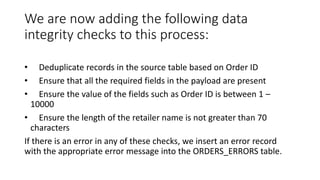
We are now adding the following data
integrity checks to this process:
• Deduplicate records in the source table based on Order ID
• Ensure that all the required fields in the payload are present
• Ensure the value of the fields such as Order ID is between 1 –
10000
• Ensure the length of the retailer name is not greater than 70
characters
If there is an error in any of these checks, we insert an error record
with the appropriate error message into the ORDERS_ERRORS table.
Pre-requisites:
• Anypoint Platform – MuleSoft Anypoint Studio.
• A database where we can create and load a sample table required for
this project. In this example, we will use an instance of the MySQL
database.
• Download the latest MySQL database driver jar file.
• The Mule project downloadable from Anypoint Exchange.
• To follow the example in this guide, run the SQL script order.sql to set up
the database and tables and load them with some sample data. You will
find the order_integrity.sql file in the project under the folder
src/main/resources
Data Integrity Check Steps:
• Start Mulesoft Anypoint Studio and point to a new workspace.
• Import the completed project from the previous ETL blog post. Click
on File -> Import -> Anypoint Studio Deployable Studio Archive ->
dbetl.zip. Rename the project to “data integrity”.
• Add the transform message transformer (DataWeave) from the
palette into the flow after the “Capture Changed Records” poller
component. Rename the component to “Deduplicate records using
Order ID”. Configure the DataWeave transformer by using the
following transform expression – “payload distinctBy $.OrderID”. You
can also optionally set the metadata for the output to define a map
object called Order as shown below –
• Add a batch step before the “Transform_QuerySKU” step. Rename it
to “DataIntegrityCheck” as shown below –
• Add the DataWeave transformer into this new batch step and rename
it “Transform to JSON”. This transformer is used to convert the map
object into a JSON string as shown below. You can also optionally set
the metadata for the output JSON structure.
• Copy the completed JSON schema file order_json_schema.json from
the src/main/resources folder of the downloaded project into the
corresponding folder in your project as shown below
• Search for the “Validate JSON Schema” component in the palette and
drop it into the Mule flow after the “Transform to JSON” component.
Configure it as shown below to use the JSON schema file –
• Drag and drop the “JSON to Object” transformer from the Palette into
the flow. This transformer converts the JSON back into a Hash map.
Configure it as shown below
• Insert a batch step at the end of the mule flow to handle and log
failed records. Configure it as shown below to accept
“ONLY_FAILURES”
• When the message enters the “FailedRecords” step, it comes as a
byte array. Insert the byte array to object transformer in the flow to
convert the message back to an object using the configuration as
shown below
• Insert a DataWeave transformer to convert the JSON object into a
Java hashmap so that we can extract individual values from the
payload. Rename the component to “Convert JSON to Object” and
configure it as shown below. You can also optionally set the metadata
for the source and target to show the Order map object.
• Insert a Variable component from the palette into the Mule flow after
the DataWeave transformer. Rename it to “Store exception” and
configure it to store the exception into a variable called “exception”.
Use the following MEL(Mule Expression Language) expression to store
the variable – “#[getStepExceptions()]”
• Insert a database connector from the palette after “Store Exception”.
Rename this to “Insert Error” as this would be used to insert the error
records into a separate table. Configure it as shown below with the
following SQL statement – “INSERT INTO
ORDERS_ERRORS(OrderID,RetailerName,SKUs,OrderDate,Message)
VALUES
(#[payload.OrderID],#[payload.RetailerName],#[payload.SKUs],#[payl
oad.OrderDate],#[flowVars.exception.DataIntegrityCheck.message])”
• As you can see from the above example, it is not only straightforward
to setup a variety of ETL scenarios using Anypoint Platform, but you
can also include a sophisticated data integrity component to weed
out the “bad” data. In this way, you can ensure that the downstream
systems only have good data. The error records which are persisted to
an error table can be fixed in the source system and then retried
again.

How to – data integrity checks in batch processing

  • 1.
    HowTo – DataIntegrity checks in batch processing
  • 2.
    • We recentlyintroduced our HowTo blog series, which is designed to present simple use-case tutorials to help you as you evaluate Mulesoft’s Anypoint Platform. This blog post is a follow up to our last blog “How to ETL” using Mule. In that post, we demonstrated how Anypoint Platform could be leveraged to read a large number of messages, transform/enrich these messages, and then load them into a target system/application.
  • 3.
    • One ofthe biggest issues while processing multiple messages is handling unclean data. Anypoint Platform is designed to ease the burden of data integration; data integrity checks are a very important component of the process. It’s crucial to have such a check in place so as to avoid a proliferation of bad data to downstream applications.
  • 4.
    In the previousblog post, we polled for all new order records in a MySQL database table(extract). For each order record, we do the following – • Look up the product details for each SKUs using SKU number in the record. • Look up the order status for the order using Order ID in the record. • Insert the merged data with product details and order status into the Status Report table
  • 5.
    We are nowadding the following data integrity checks to this process: • Deduplicate records in the source table based on Order ID • Ensure that all the required fields in the payload are present • Ensure the value of the fields such as Order ID is between 1 – 10000 • Ensure the length of the retailer name is not greater than 70 characters If there is an error in any of these checks, we insert an error record with the appropriate error message into the ORDERS_ERRORS table.
  • 6.
    Pre-requisites: • Anypoint Platform– MuleSoft Anypoint Studio. • A database where we can create and load a sample table required for this project. In this example, we will use an instance of the MySQL database. • Download the latest MySQL database driver jar file. • The Mule project downloadable from Anypoint Exchange. • To follow the example in this guide, run the SQL script order.sql to set up the database and tables and load them with some sample data. You will find the order_integrity.sql file in the project under the folder src/main/resources
  • 7.
    Data Integrity CheckSteps: • Start Mulesoft Anypoint Studio and point to a new workspace. • Import the completed project from the previous ETL blog post. Click on File -> Import -> Anypoint Studio Deployable Studio Archive -> dbetl.zip. Rename the project to “data integrity”.
  • 9.
    • Add thetransform message transformer (DataWeave) from the palette into the flow after the “Capture Changed Records” poller component. Rename the component to “Deduplicate records using Order ID”. Configure the DataWeave transformer by using the following transform expression – “payload distinctBy $.OrderID”. You can also optionally set the metadata for the output to define a map object called Order as shown below –
  • 10.
    • Add abatch step before the “Transform_QuerySKU” step. Rename it to “DataIntegrityCheck” as shown below –
  • 11.
    • Add theDataWeave transformer into this new batch step and rename it “Transform to JSON”. This transformer is used to convert the map object into a JSON string as shown below. You can also optionally set the metadata for the output JSON structure.
  • 12.
    • Copy thecompleted JSON schema file order_json_schema.json from the src/main/resources folder of the downloaded project into the corresponding folder in your project as shown below • Search for the “Validate JSON Schema” component in the palette and drop it into the Mule flow after the “Transform to JSON” component. Configure it as shown below to use the JSON schema file – • Drag and drop the “JSON to Object” transformer from the Palette into the flow. This transformer converts the JSON back into a Hash map. Configure it as shown below
  • 13.
    • Insert abatch step at the end of the mule flow to handle and log failed records. Configure it as shown below to accept “ONLY_FAILURES” • When the message enters the “FailedRecords” step, it comes as a byte array. Insert the byte array to object transformer in the flow to convert the message back to an object using the configuration as shown below
  • 14.
    • Insert aDataWeave transformer to convert the JSON object into a Java hashmap so that we can extract individual values from the payload. Rename the component to “Convert JSON to Object” and configure it as shown below. You can also optionally set the metadata for the source and target to show the Order map object. • Insert a Variable component from the palette into the Mule flow after the DataWeave transformer. Rename it to “Store exception” and configure it to store the exception into a variable called “exception”. Use the following MEL(Mule Expression Language) expression to store the variable – “#[getStepExceptions()]”
  • 15.
    • Insert adatabase connector from the palette after “Store Exception”. Rename this to “Insert Error” as this would be used to insert the error records into a separate table. Configure it as shown below with the following SQL statement – “INSERT INTO ORDERS_ERRORS(OrderID,RetailerName,SKUs,OrderDate,Message) VALUES (#[payload.OrderID],#[payload.RetailerName],#[payload.SKUs],#[payl oad.OrderDate],#[flowVars.exception.DataIntegrityCheck.message])”
  • 16.
    • As youcan see from the above example, it is not only straightforward to setup a variety of ETL scenarios using Anypoint Platform, but you can also include a sophisticated data integrity component to weed out the “bad” data. In this way, you can ensure that the downstream systems only have good data. The error records which are persisted to an error table can be fixed in the source system and then retried again.