How to Add Objects
in your PDF
2
IS ATTACHING DIFFICULT?
Any kind of image is relatively simple to insert into a
document, even a PDF. While inserting other objects
as attachments are more complex.
WHY IT’S COMPLEX
For instance, if you try to insert another multi-page
document using other source applications like MS
Word, it must be inserted as an object however, an
object cannot span more than a page. Others may
find a solution by separating the pages and
inserting them one by one or perhaps inserting it as
an image, but is there another way? Thankfully,
there is and there are options available.
3
UNDERSTANDING OBJECTS
What is an object and why do we call it such?
Insert Object is basically inserting any kind of
content into a document. It is called an “object” as
a general term for all types but not all applications
and programs can insert any kind of object though
as some may have limitations that support the kind
of embedded objects.
4
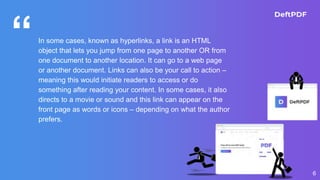
1. Links
“In some cases, known as hyperlinks, a link is an HTML
object that lets you jump from one page to another OR from
one document to another location. It can go to a web page
or another document. Links can also be your call to action –
meaning this would initiate readers to access or do
something after reading your content. In some cases, it also
directs to a movie or sound and this link can appear on the
front page as words or icons – depending on what the author
prefers.
6
“
7
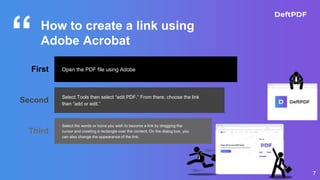
How to create a link using
Adobe Acrobat
First Open the PDF file using Adobe
Second Select Tools then select “edit PDF.” From there, choose the link
then “add or edit.”
Third
Select the words or icons you wish to become a link by dragging the
cursor and creating a rectangle over the content. On the dialog box, you
can also change the appearance of the link.
“HERE’S A DIFFERENT
WAY TO ATTACH
LINKS FOR FREE
8
“
9
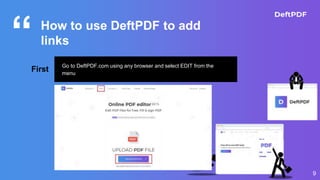
How to use DeftPDF to add
links
First
Go to DeftPDF.com using any browser and select EDIT from the
menu
“
10
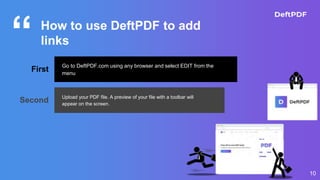
How to use DeftPDF to add
links
First
Go to DeftPDF.com using any browser and select EDIT from the
menu
Second Upload your PDF file. A preview of your file with a toolbar will
appear on the screen.
“
11
How to use DeftPDF to add
links
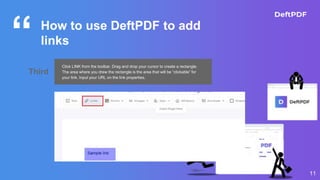
Third
Click LINK from the toolbar. Drag and drop your cursor to create a rectangle.
The area where you drew the rectangle is the area that will be “clickable” for
your link. Input your URL on the link properties.
2. Attachments
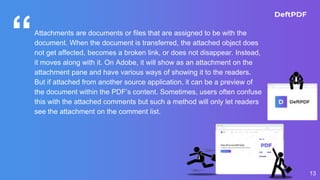
“Attachments are documents or files that are assigned to be with the
document. When the document is transferred, the attached object does
not get affected, becomes a broken link, or does not disappear. Instead,
it moves along with it. On Adobe, it will show as an attachment on the
attachment pane and have various ways of showing it to the readers.
But if attached from another source application, it can be a preview of
the document within the PDF’s content. Sometimes, users often confuse
this with the attached comments but such a method will only let readers
see the attachment on the comment list.
13
“
14
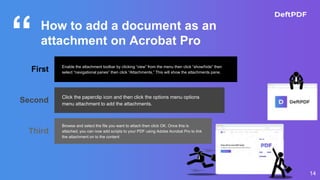
How to add a document as an
attachment on Acrobat Pro
First Enable the attachment toolbar by clicking “view” from the menu then click “show/hide” then
select “navigational panes” then click “Attachments.” This will show the attachments pane.
Second Click the paperclip icon and then click the options menu options
menu attachment to add the attachments.
Third
Browse and select the file you want to attach then click OK. Once this is
attached, you can now add scripts to your PDF using Adobe Acrobat Pro to link
the attachment on to the content
3. Add attachment as a
comment
“While attachments are found on the page, a file attached
comment will appear as an icon and in the comment list. It
can easily be attached using Adobe Acrobat Reader so you
don’t need the pro version. This method, however, will have
limited ways on how to be shown and cannot be modified by
script.
16
“
17
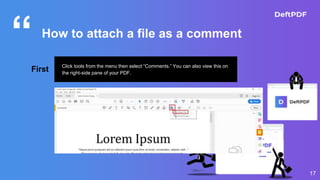
How to attach a file as a comment
First Click tools from the menu then select “Comments.” You can also view this on
the right-side pane of your PDF.
“
18
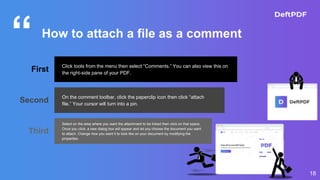
How to attach a file as a comment
First Click tools from the menu then select “Comments.” You can also view this on
the right-side pane of your PDF.
Second On the comment toolbar, click the paperclip icon then click “attach
file.” Your cursor will turn into a pin.
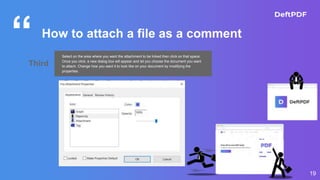
Third
Select on the area where you want the attachment to be linked then click on that space.
Once you click, a new dialog box will appear and let you choose the document you want
to attach. Change how you want it to look like on your document by modifying the
properties.
“
19
How to attach a file as a comment
Third
Select on the area where you want the attachment to be linked then click on that space.
Once you click, a new dialog box will appear and let you choose the document you want
to attach. Change how you want it to look like on your document by modifying the
properties.
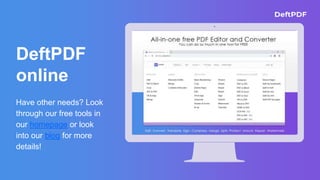
Have other needs? Look
through our free tools in
our homepage or look
into our blog for more
details!
DeftPDF
online
KEEP IN TOUCH!
You can always stay updated with us, just subscribe
or follow our social media channels!
Subscribe by registering to our site!
Watch our video tutorials in YouTube
 Follow us on Facebook
 Follow us on Instagram
 Follow us on LinkedIn
 Follow us on Twitter
Click on the yellow links to go to the social media page

How to add attachments to your PDF

  • 1.
    How to AddObjects in your PDF
  • 2.
    2 IS ATTACHING DIFFICULT? Anykind of image is relatively simple to insert into a document, even a PDF. While inserting other objects as attachments are more complex.
  • 3.
    WHY IT’S COMPLEX Forinstance, if you try to insert another multi-page document using other source applications like MS Word, it must be inserted as an object however, an object cannot span more than a page. Others may find a solution by separating the pages and inserting them one by one or perhaps inserting it as an image, but is there another way? Thankfully, there is and there are options available. 3
  • 4.
    UNDERSTANDING OBJECTS What isan object and why do we call it such? Insert Object is basically inserting any kind of content into a document. It is called an “object” as a general term for all types but not all applications and programs can insert any kind of object though as some may have limitations that support the kind of embedded objects. 4
  • 5.
  • 6.
    “In some cases,known as hyperlinks, a link is an HTML object that lets you jump from one page to another OR from one document to another location. It can go to a web page or another document. Links can also be your call to action – meaning this would initiate readers to access or do something after reading your content. In some cases, it also directs to a movie or sound and this link can appear on the front page as words or icons – depending on what the author prefers. 6
  • 7.
    “ 7 How to createa link using Adobe Acrobat First Open the PDF file using Adobe Second Select Tools then select “edit PDF.” From there, choose the link then “add or edit.” Third Select the words or icons you wish to become a link by dragging the cursor and creating a rectangle over the content. On the dialog box, you can also change the appearance of the link.
  • 8.
    “HERE’S A DIFFERENT WAYTO ATTACH LINKS FOR FREE 8
  • 9.
    “ 9 How to useDeftPDF to add links First Go to DeftPDF.com using any browser and select EDIT from the menu
  • 10.
    “ 10 How to useDeftPDF to add links First Go to DeftPDF.com using any browser and select EDIT from the menu Second Upload your PDF file. A preview of your file with a toolbar will appear on the screen.
  • 11.
    “ 11 How to useDeftPDF to add links Third Click LINK from the toolbar. Drag and drop your cursor to create a rectangle. The area where you drew the rectangle is the area that will be “clickable” for your link. Input your URL on the link properties.
  • 12.
  • 13.
    “Attachments are documentsor files that are assigned to be with the document. When the document is transferred, the attached object does not get affected, becomes a broken link, or does not disappear. Instead, it moves along with it. On Adobe, it will show as an attachment on the attachment pane and have various ways of showing it to the readers. But if attached from another source application, it can be a preview of the document within the PDF’s content. Sometimes, users often confuse this with the attached comments but such a method will only let readers see the attachment on the comment list. 13
  • 14.
    “ 14 How to adda document as an attachment on Acrobat Pro First Enable the attachment toolbar by clicking “view” from the menu then click “show/hide” then select “navigational panes” then click “Attachments.” This will show the attachments pane. Second Click the paperclip icon and then click the options menu options menu attachment to add the attachments. Third Browse and select the file you want to attach then click OK. Once this is attached, you can now add scripts to your PDF using Adobe Acrobat Pro to link the attachment on to the content
  • 15.
    3. Add attachmentas a comment
  • 16.
    “While attachments arefound on the page, a file attached comment will appear as an icon and in the comment list. It can easily be attached using Adobe Acrobat Reader so you don’t need the pro version. This method, however, will have limited ways on how to be shown and cannot be modified by script. 16
  • 17.
    “ 17 How to attacha file as a comment First Click tools from the menu then select “Comments.” You can also view this on the right-side pane of your PDF.
  • 18.
    “ 18 How to attacha file as a comment First Click tools from the menu then select “Comments.” You can also view this on the right-side pane of your PDF. Second On the comment toolbar, click the paperclip icon then click “attach file.” Your cursor will turn into a pin. Third Select on the area where you want the attachment to be linked then click on that space. Once you click, a new dialog box will appear and let you choose the document you want to attach. Change how you want it to look like on your document by modifying the properties.
  • 19.
    “ 19 How to attacha file as a comment Third Select on the area where you want the attachment to be linked then click on that space. Once you click, a new dialog box will appear and let you choose the document you want to attach. Change how you want it to look like on your document by modifying the properties.
  • 20.
    Have other needs?Look through our free tools in our homepage or look into our blog for more details! DeftPDF online
  • 21.
    KEEP IN TOUCH! Youcan always stay updated with us, just subscribe or follow our social media channels! Subscribe by registering to our site! Watch our video tutorials in YouTube  Follow us on Facebook  Follow us on Instagram  Follow us on LinkedIn  Follow us on Twitter Click on the yellow links to go to the social media page