Intro To PDF Files
  Presented By: The DigHumanities.Org Project


             Dr. Jason Thompson
                 Aaron Perrell
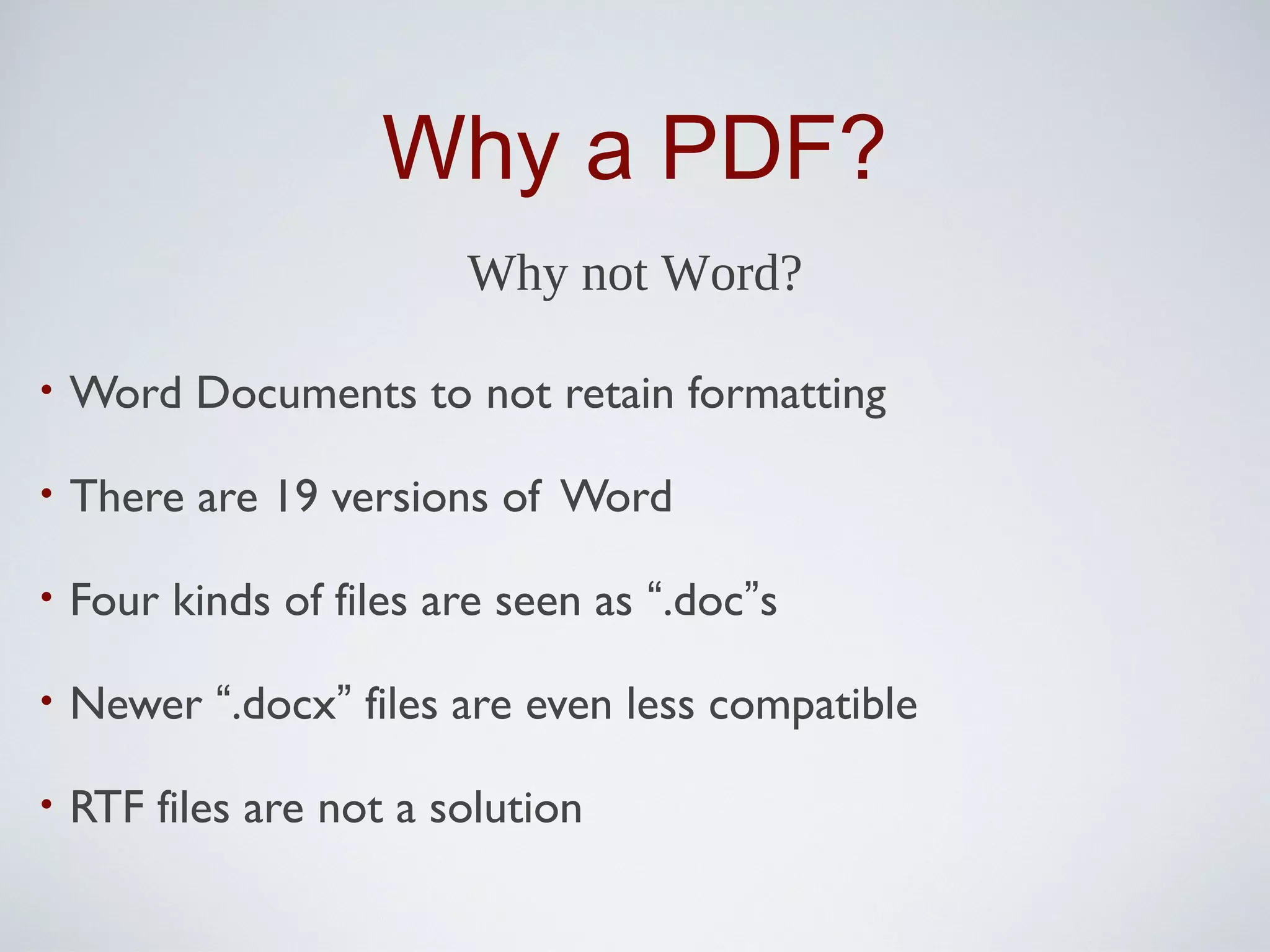
Why a PDF?
                         Why not Word?

•   Word Documents to not retain formatting

•   There are 19 versions of Word

•   Four kinds of files are seen as “.doc”s

•   Newer “.docx” files are even less compatible

•   RTF files are not a solution
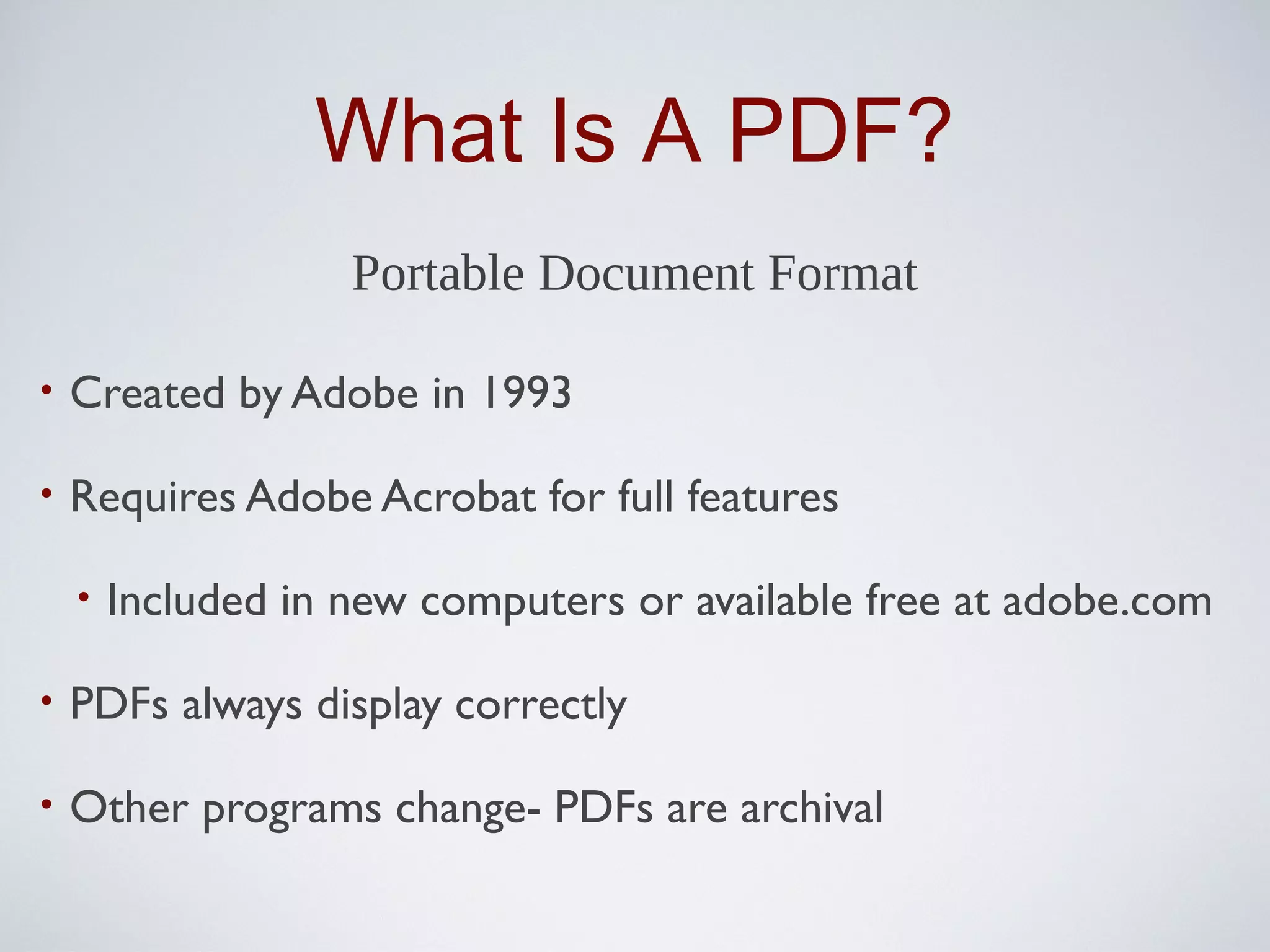
What Is A PDF?
                    Portable Document Format

•   Created by Adobe in 1993

•   Requires Adobe Acrobat for full features

    •   Included in new computers or available free at adobe.com

•   PDFs always display correctly

•   Other programs change- PDFs are archival
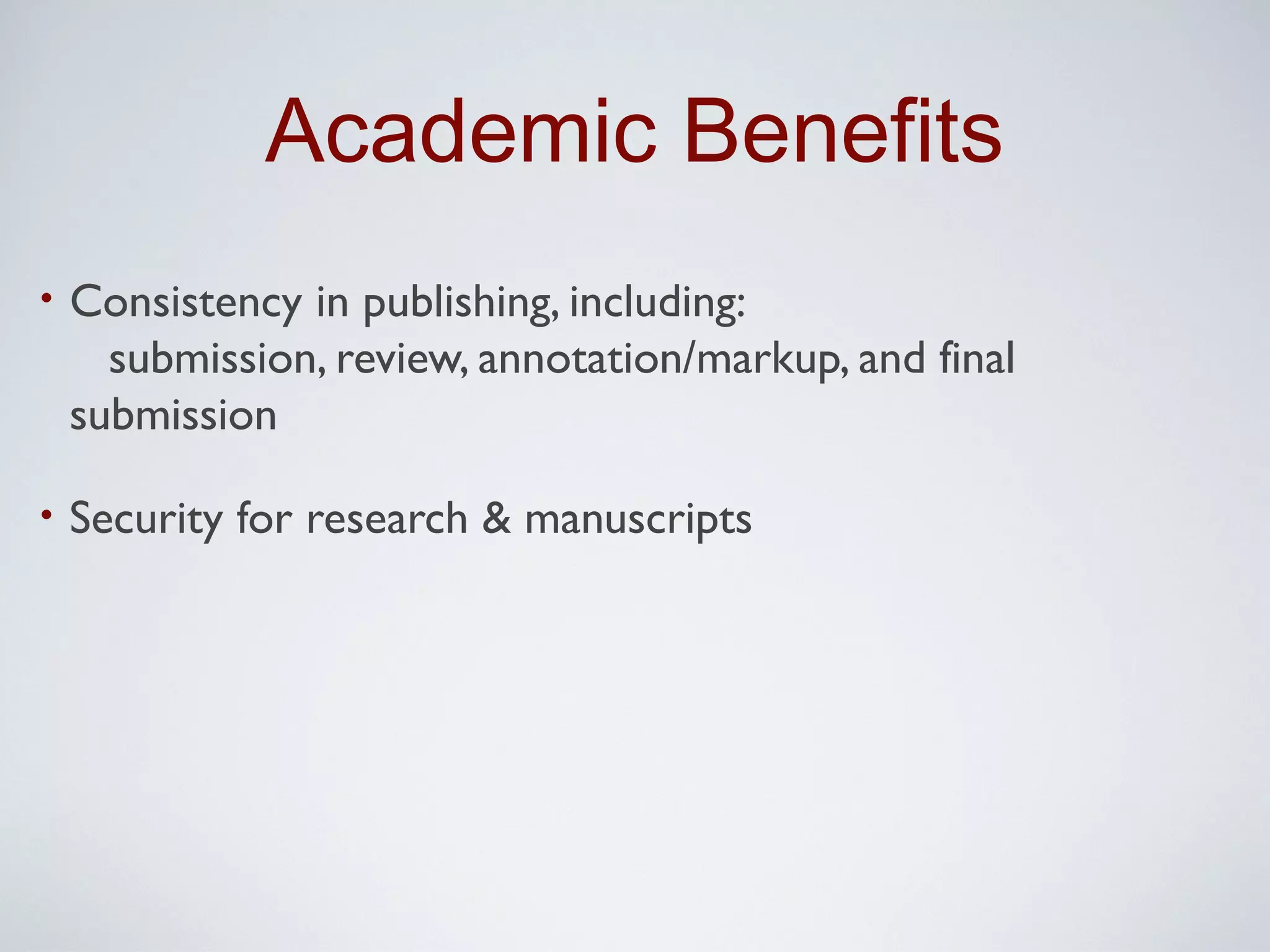
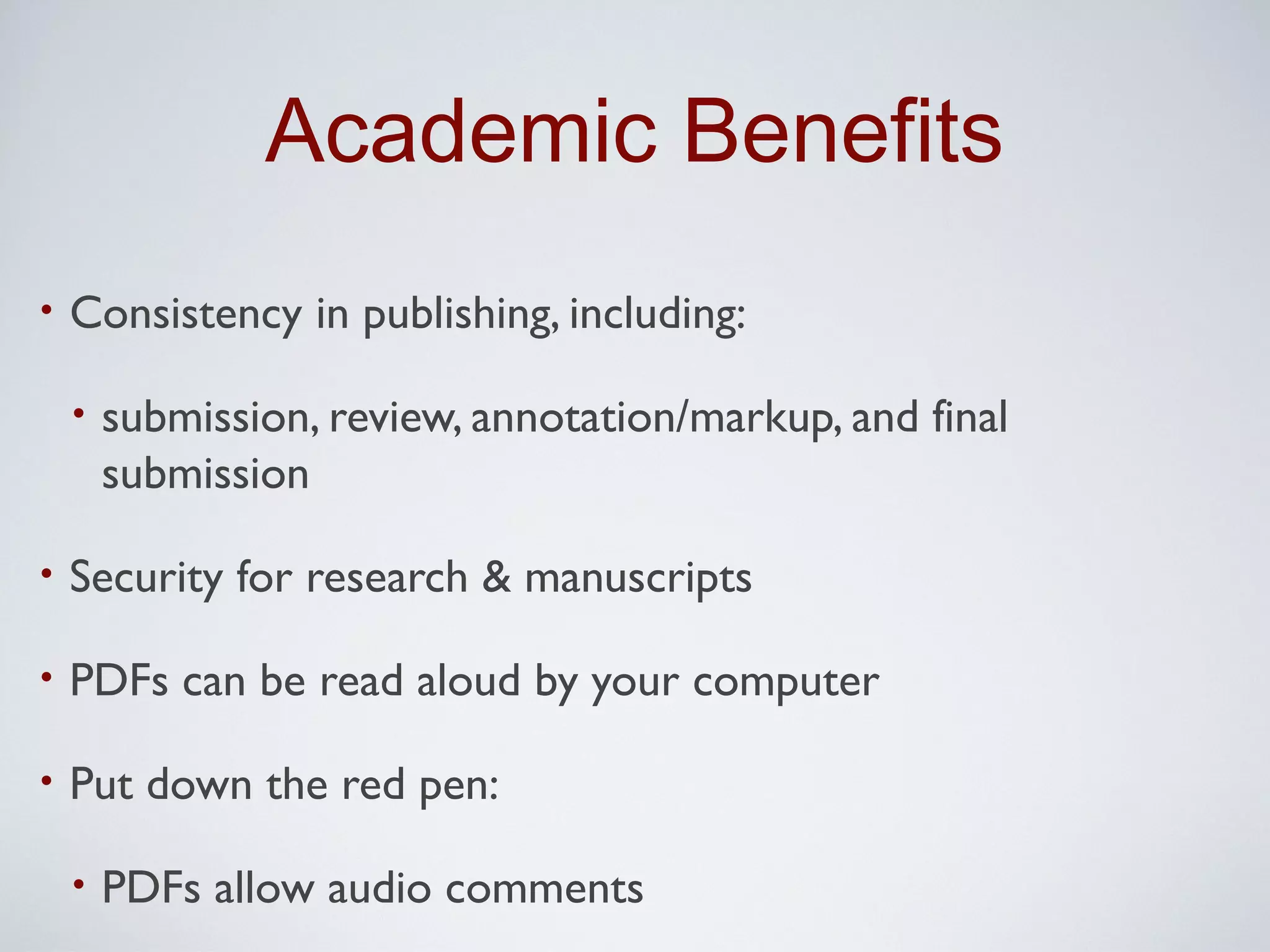
Academic Benefits
•   Consistency in publishing, including:
      submission, review, annotation/markup, and final
    submission

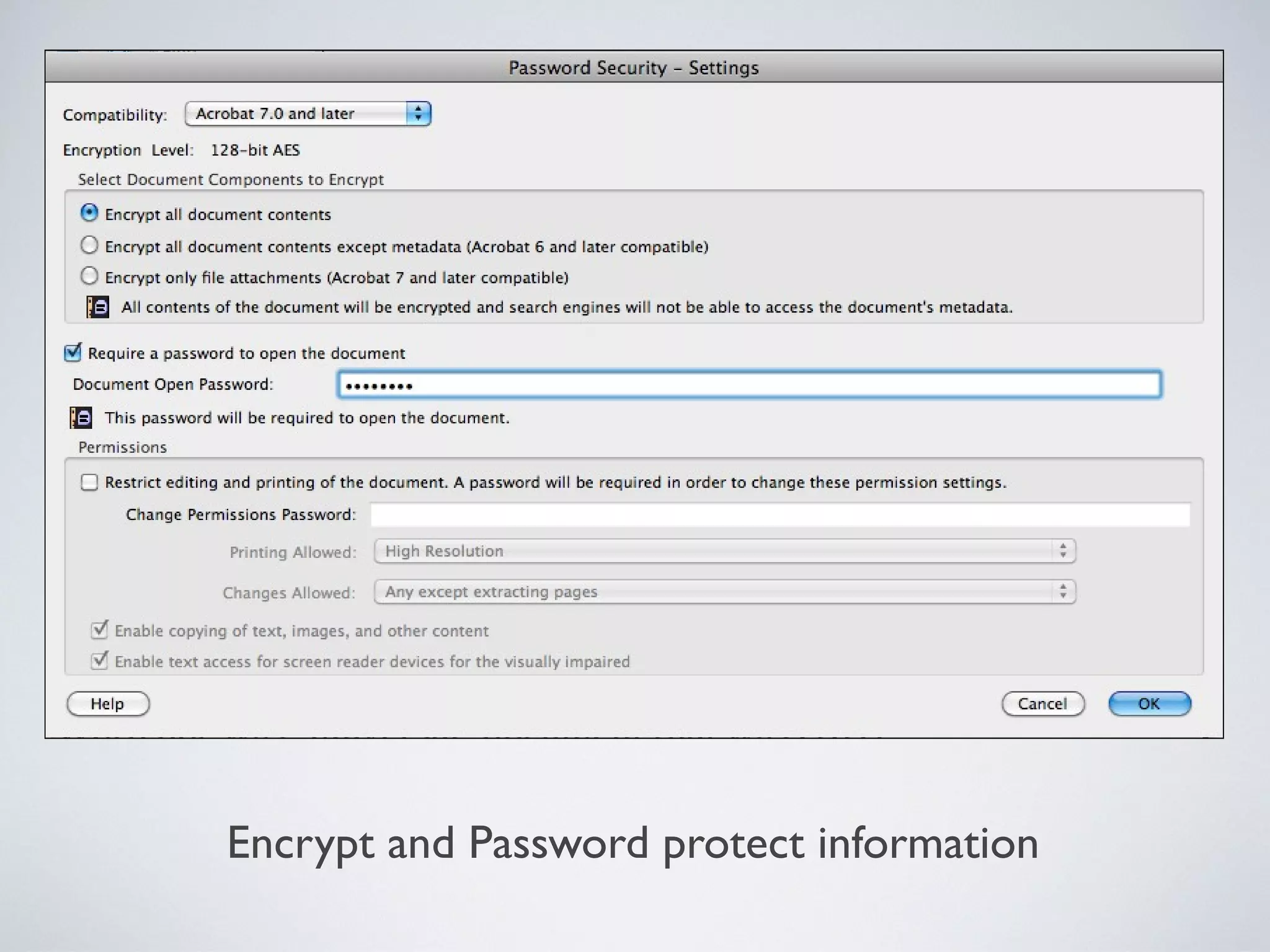
•   Security for research & manuscripts
Encrypt and Password protect information
Academic Benefits
•   Consistency in publishing, including:

    •   submission, review, annotation/markup, and final
        submission

•   Security for research & manuscripts

•   PDFs can be read aloud by your computer

•   Put down the red pen:

    •   PDFs allow audio comments
The Details
                examples, how-to’s, & more examples
•   No special skills required

•   Why .doc’s have problems

•   Questions so far

•   Creating a PDF:

    •   From a Word doc & from a handout

•   What to do with your PDF
Overview
                         You already have the tools

•   PDF creation does not require:

    •   New software

    •   Special skills

    •   Additional time

    •   Specific computer setup
Word Problems
                       What Word is- and isn’t
•   Word is:

    •   A powerful document editor

•   Word is not:

    •   A publishing tool

    •   Made for collaboration

    •   Capable of maintaining design
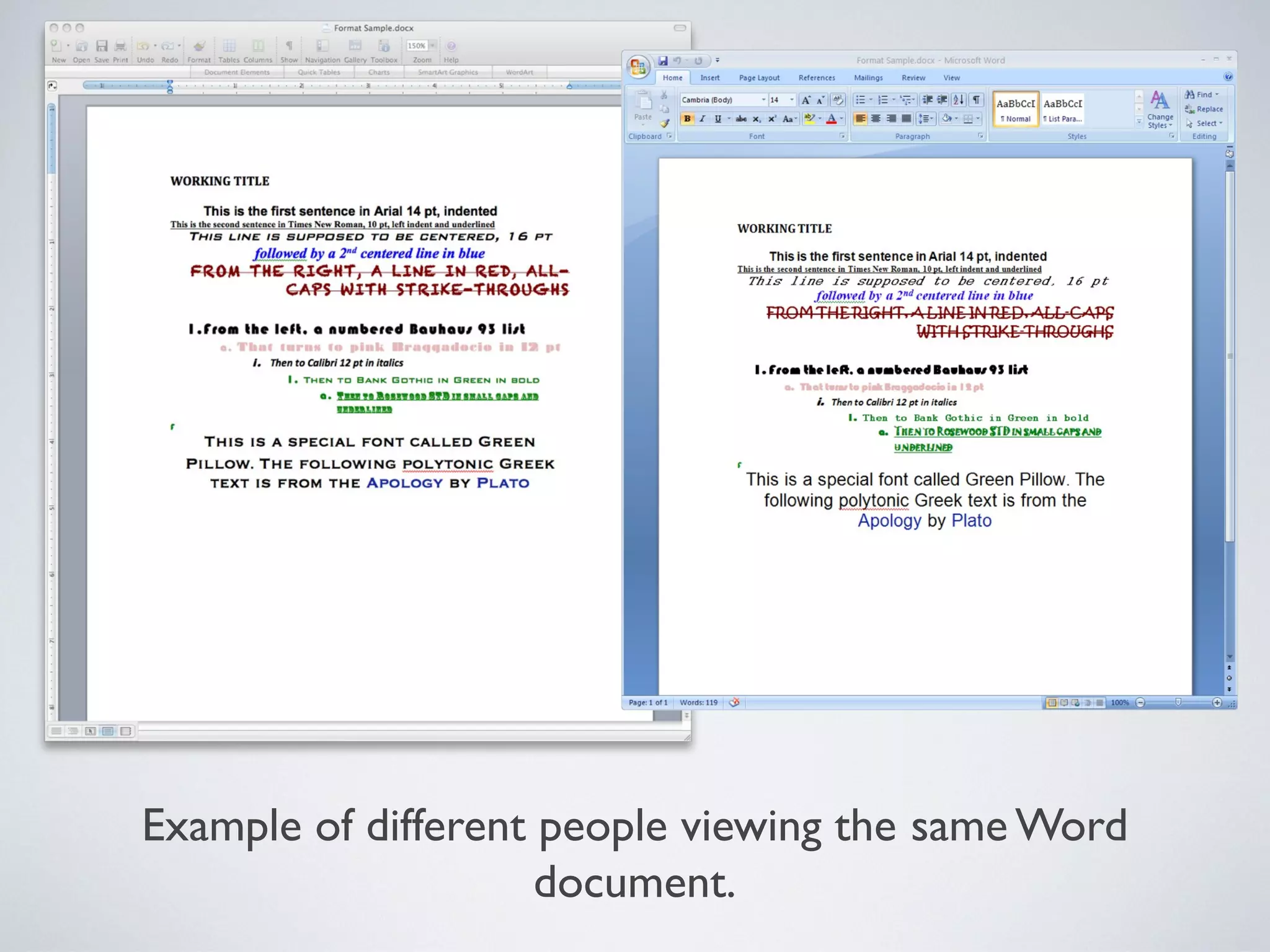
Example of different people viewing the same Word
                     document.
The PDF Fix
                     How PDFs fix the problem

•   PDFs are made for publishing

    •   PDF files include fonts and layout

•   PDFs include collaboration tools

•   PDFs always appear the same

    •   Regardless of system or location, a PDF is a PDF
Questions?
Before we begin the tutorials...
                         sy

                     ^
                       ea
Creating & Using
                      finally... the good stuff ;)
•   Creating PDFs from:

    •   Electronic documents with Word or online

    •   Paper documents with a scanner

        •   Searching scanned documents

•   Letting the computer read to you

•   Publishing your PDFs
PDF From Word
    PC Users:
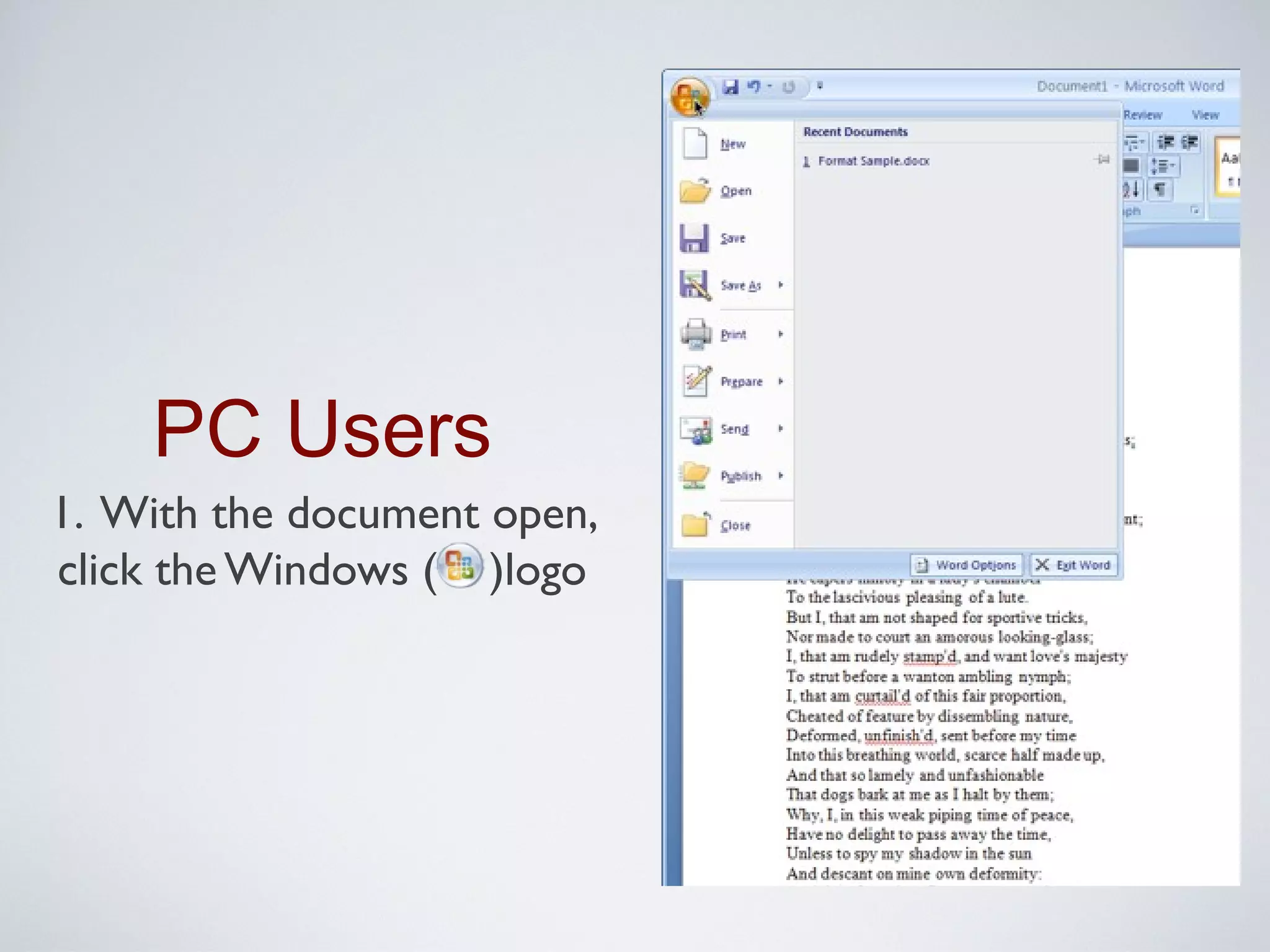
1. With the document open, click the Windows (    )
  logo

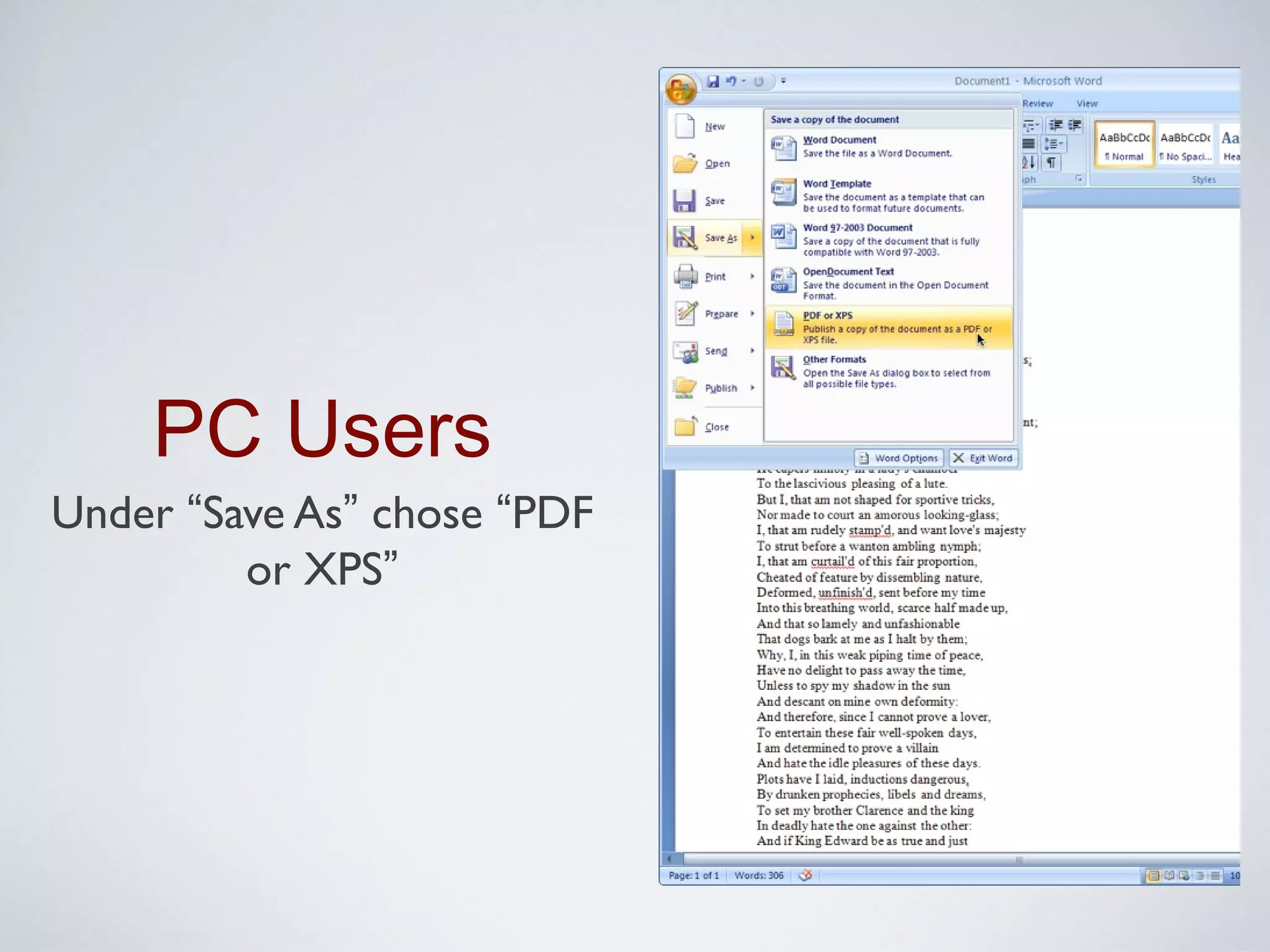
2. Under “Save As” chose “PDF or XPS”
     Mac Users:

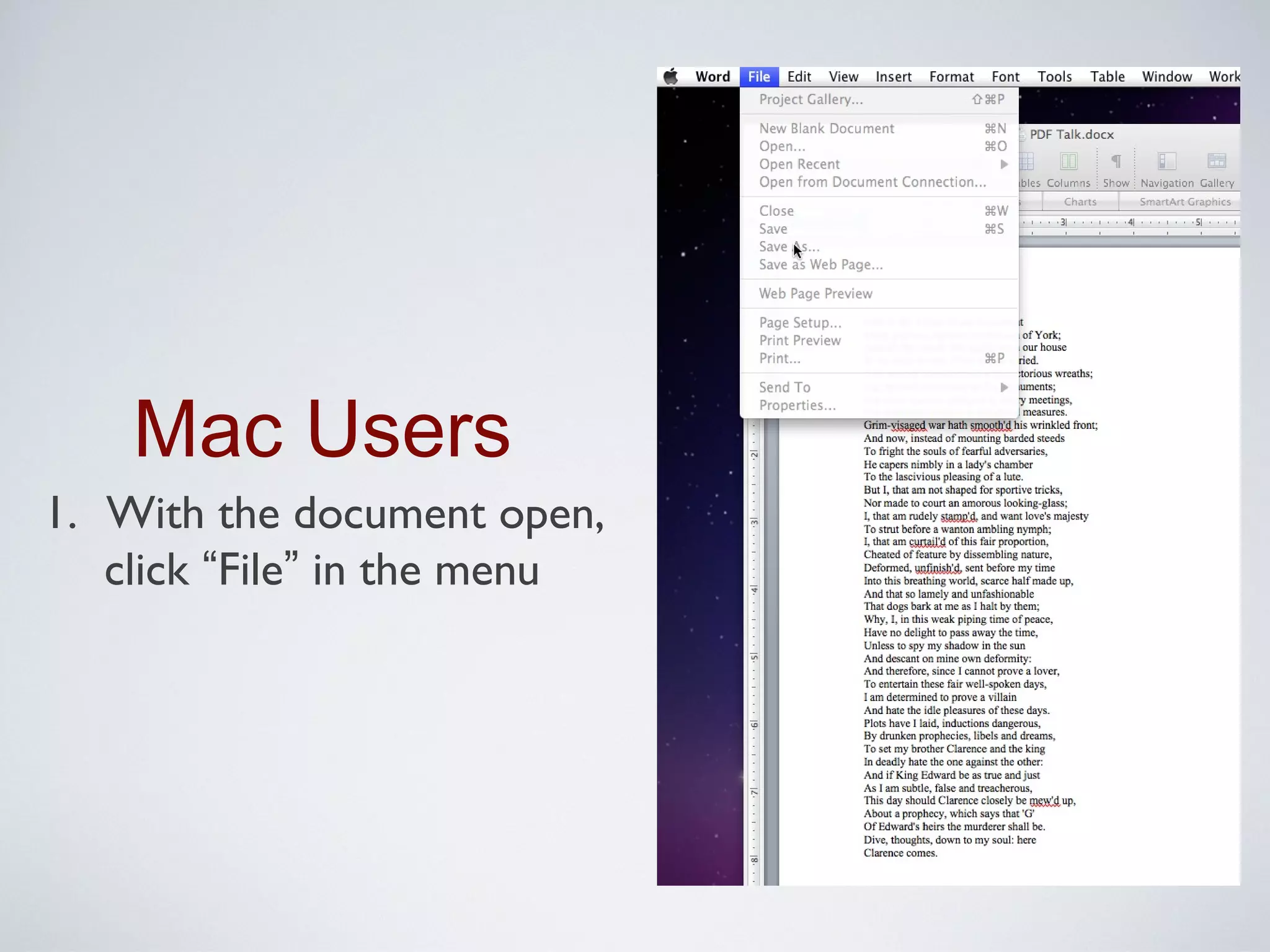
1. With the document open, click “File” in the menu

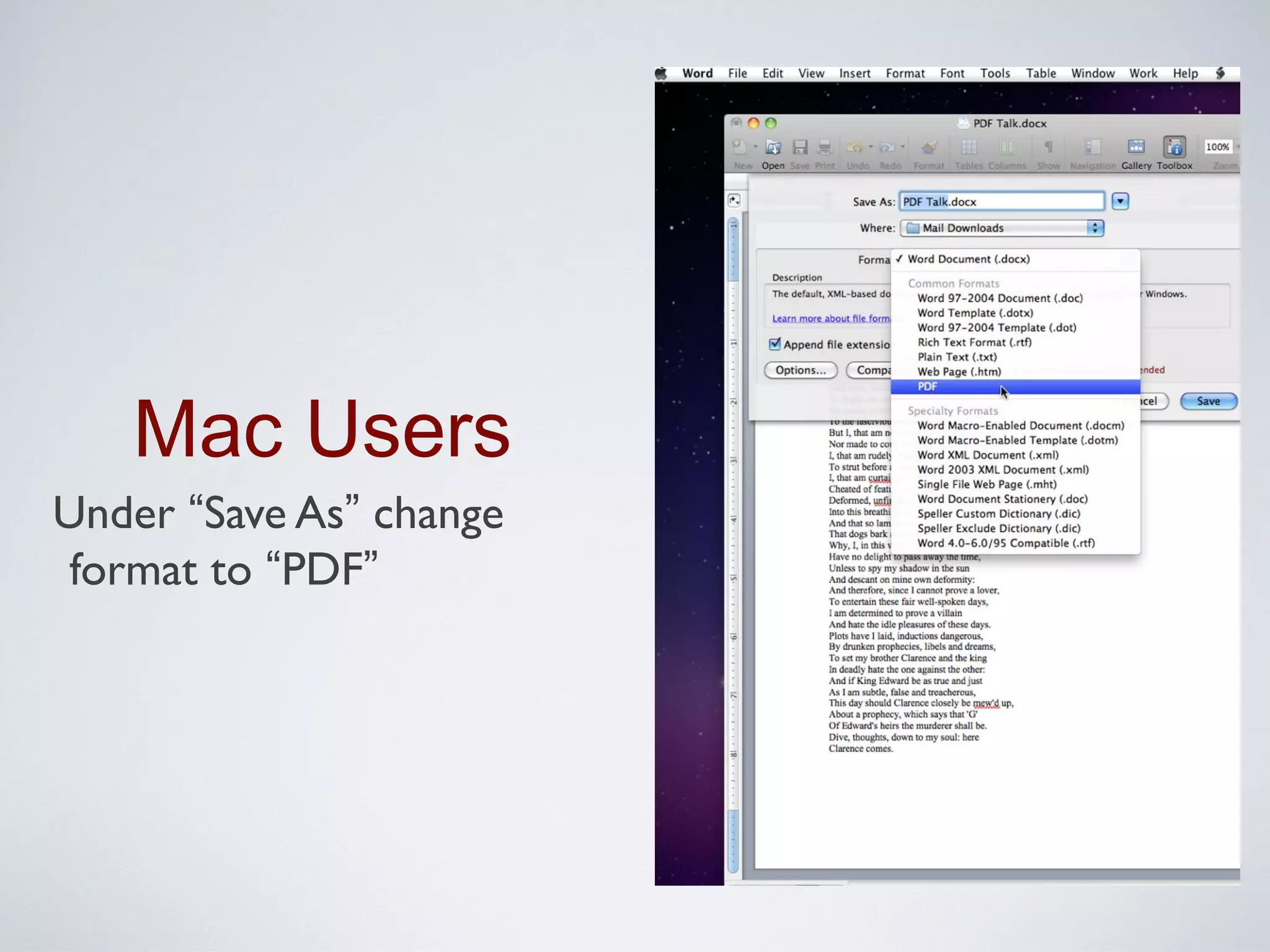
2. Under “Save As” change format to “PDF”
PC Users
1. With the document open,
click the Windows ( )logo
PC Users
Under “Save As” chose “PDF
         or XPS”
Mac Users
1. With the document open,
   click “File” in the menu
Mac Users
Under “Save As” change
 format to “PDF”
PDF From A Handout
        Either Pc or Mac

1. Open the software that came with your scanner

2. Choose the scan to PDF option

3. Save the file
PDF From A Handout
               Department Minolta scanner

1. Touch [Fax/Scan] fax/scan operations

2. Touch [Scan Settings] to specify settings for scanning

3. In Scan Settings > File Type, touch [PDF]

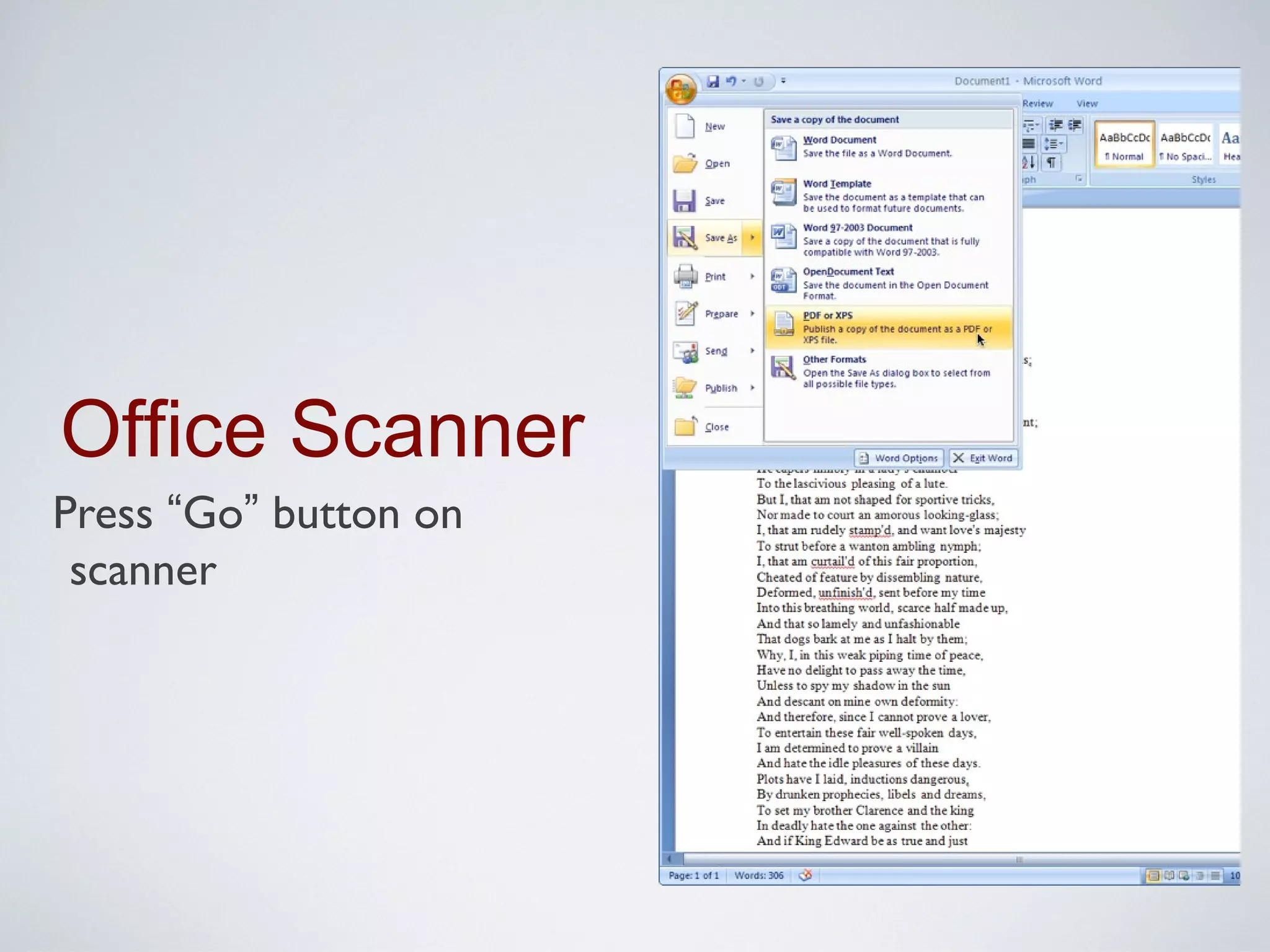
4. Press “Go” button on scanner
Office Scanner
Touch [Fax/Scan] fax/scan
 operations
Office Scanner
Touch [Scan Settings] to
 specify settings for scanning
Office Scanner
In Scan Settings > File Type,
 touch [PDF]
Office Scanner
Press “Go” button on
 scanner
Sharing PDFs
              to your students via wyoweb

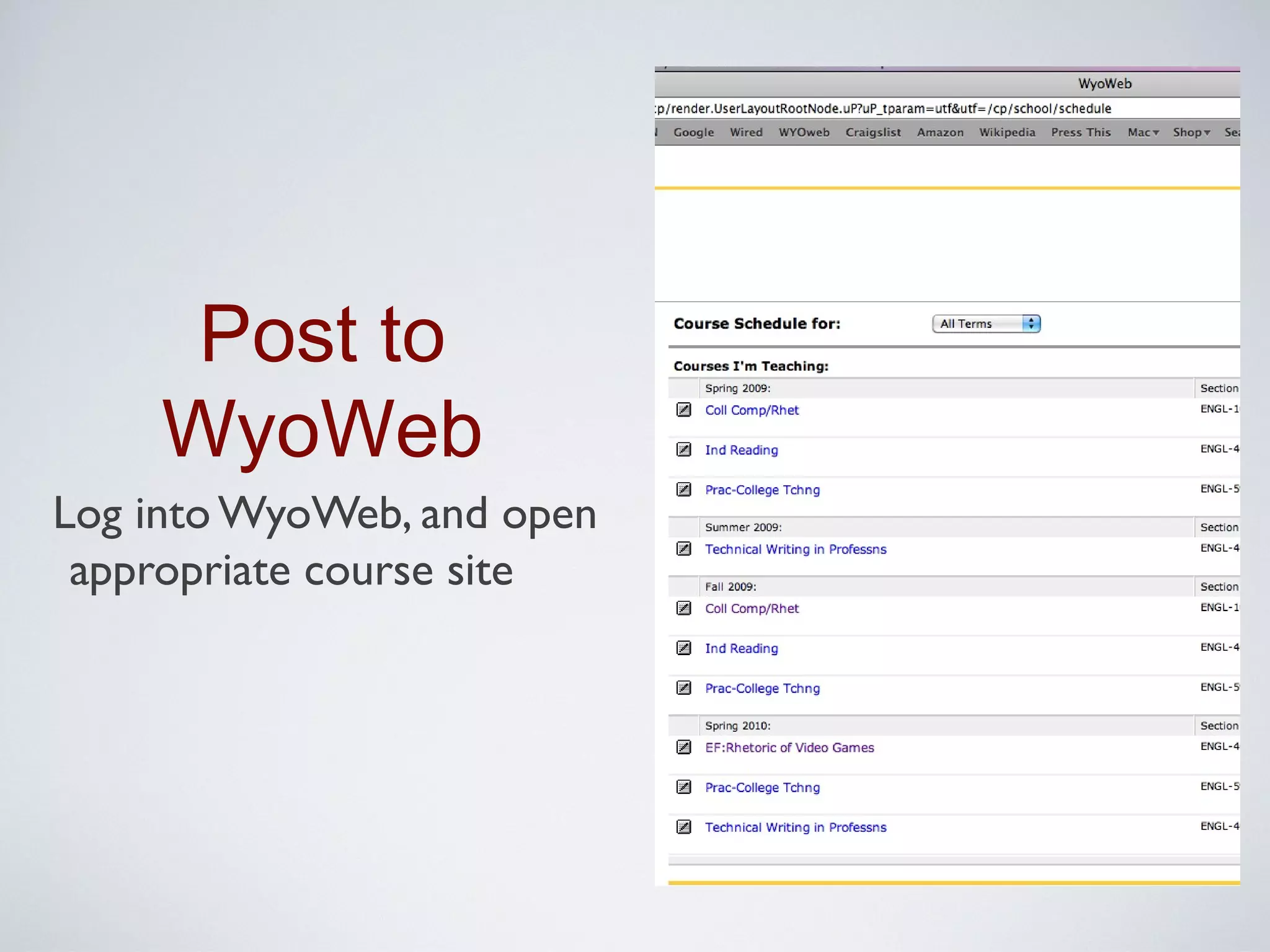
1. Log into WyoWeb, and open appropriate course site

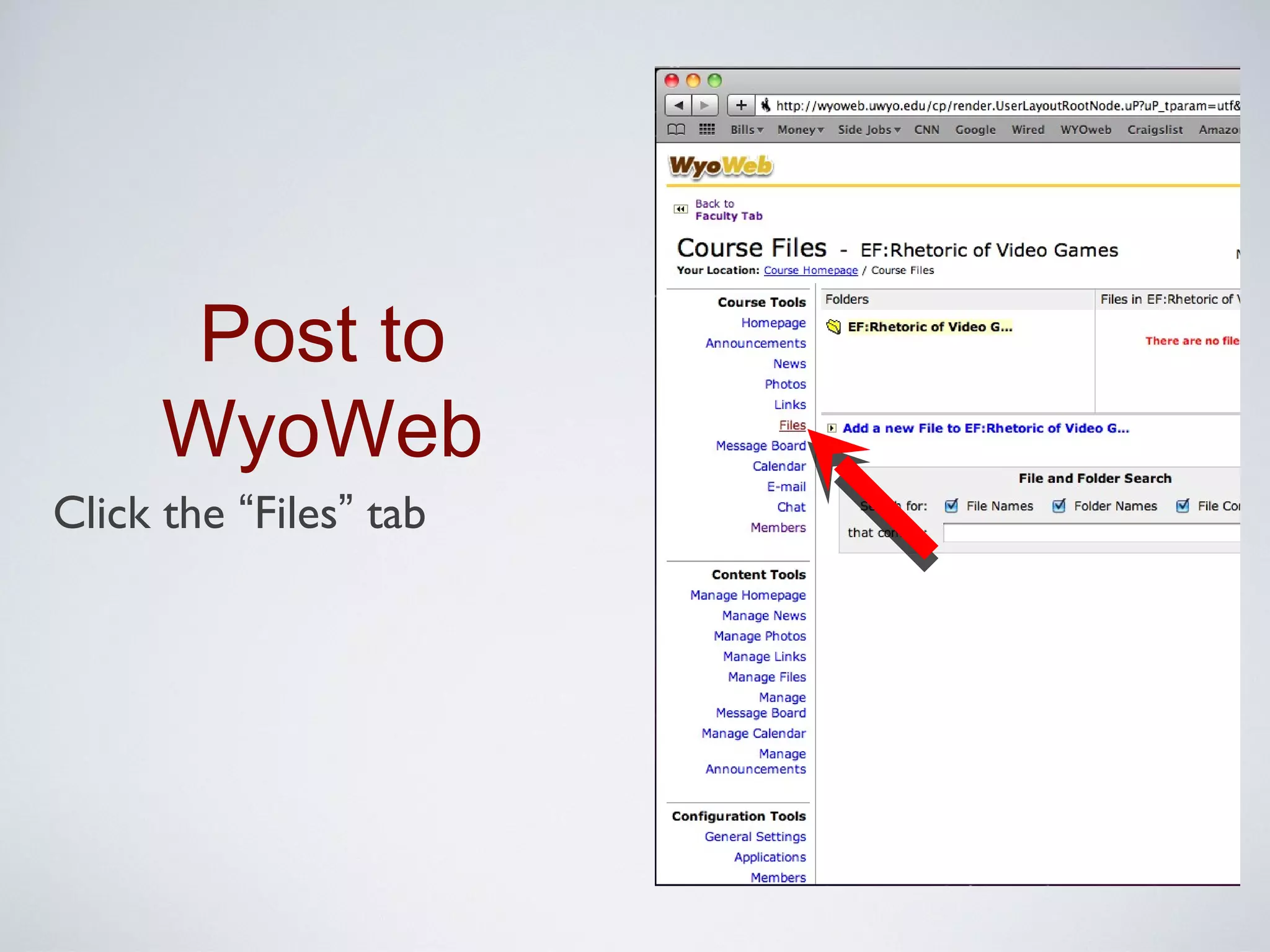
2. Click the “Files” tab

3. Click “Add a new File to [...]”

4. Select your file and click “Ok”

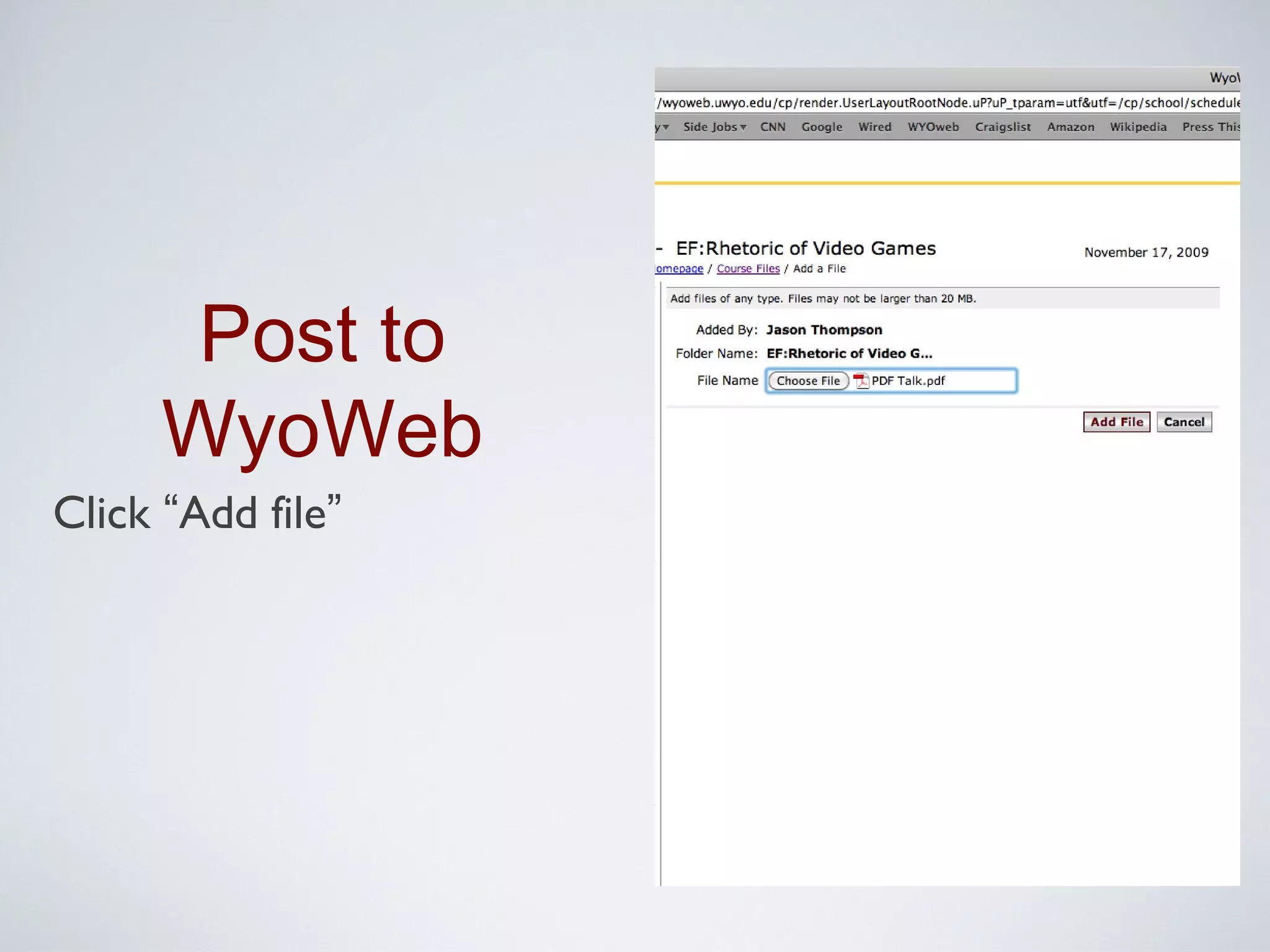
5. Click “Add file”
Post to
    WyoWeb
Log into WyoWeb, and open
 appropriate course site
Post to
      WyoWeb
Click the “Files” tab
Post to
      WyoWeb
Click “Add a new File to [...]”
Post to
     WyoWeb
Select your file and click “Ok”
 (or “Choose” on a Mac)
Post to
      WyoWeb
Click “Add file”
A Quick Demo
The scanning process on a standard PC computer
Other Options
                          You can also...
•   Send PDFs as e-mail attachments

•   Post them to personal websites

•   Share them on public e-reader sites like scribd.com

•   Search scanned PDFs

•   Annotate, cite, and track PDF information in almost every
    electronic bibliographic tool available
Questions?
          Thanks for attending!

Leave your email address as you exit and
we’ll send you the PDF of this talk, as well
   as a link to watch the video online.
                                                    as
                                                it w y ; )
                                              ya eas
                                         old be
                                       T to
                                       go ing

Pd ftalk

  • 1.
    Intro To PDFFiles Presented By: The DigHumanities.Org Project Dr. Jason Thompson Aaron Perrell
  • 2.
    Why a PDF? Why not Word? • Word Documents to not retain formatting • There are 19 versions of Word • Four kinds of files are seen as “.doc”s • Newer “.docx” files are even less compatible • RTF files are not a solution
  • 3.
    What Is APDF? Portable Document Format • Created by Adobe in 1993 • Requires Adobe Acrobat for full features • Included in new computers or available free at adobe.com • PDFs always display correctly • Other programs change- PDFs are archival
  • 4.
    Academic Benefits • Consistency in publishing, including: submission, review, annotation/markup, and final submission • Security for research & manuscripts
  • 5.
    Encrypt and Passwordprotect information
  • 6.
    Academic Benefits • Consistency in publishing, including: • submission, review, annotation/markup, and final submission • Security for research & manuscripts • PDFs can be read aloud by your computer • Put down the red pen: • PDFs allow audio comments
  • 7.
    The Details examples, how-to’s, & more examples • No special skills required • Why .doc’s have problems • Questions so far • Creating a PDF: • From a Word doc & from a handout • What to do with your PDF
  • 8.
    Overview You already have the tools • PDF creation does not require: • New software • Special skills • Additional time • Specific computer setup
  • 9.
    Word Problems What Word is- and isn’t • Word is: • A powerful document editor • Word is not: • A publishing tool • Made for collaboration • Capable of maintaining design
  • 10.
    Example of differentpeople viewing the same Word document.
  • 11.
    The PDF Fix How PDFs fix the problem • PDFs are made for publishing • PDF files include fonts and layout • PDFs include collaboration tools • PDFs always appear the same • Regardless of system or location, a PDF is a PDF
  • 12.
    Questions? Before we beginthe tutorials... sy ^ ea
  • 13.
    Creating & Using finally... the good stuff ;) • Creating PDFs from: • Electronic documents with Word or online • Paper documents with a scanner • Searching scanned documents • Letting the computer read to you • Publishing your PDFs
  • 14.
    PDF From Word PC Users: 1. With the document open, click the Windows ( ) logo 2. Under “Save As” chose “PDF or XPS” Mac Users: 1. With the document open, click “File” in the menu 2. Under “Save As” change format to “PDF”
  • 15.
    PC Users 1. Withthe document open, click the Windows ( )logo
  • 16.
    PC Users Under “SaveAs” chose “PDF or XPS”
  • 17.
    Mac Users 1. Withthe document open, click “File” in the menu
  • 18.
    Mac Users Under “SaveAs” change format to “PDF”
  • 19.
    PDF From AHandout Either Pc or Mac 1. Open the software that came with your scanner 2. Choose the scan to PDF option 3. Save the file
  • 20.
    PDF From AHandout Department Minolta scanner 1. Touch [Fax/Scan] fax/scan operations 2. Touch [Scan Settings] to specify settings for scanning 3. In Scan Settings > File Type, touch [PDF] 4. Press “Go” button on scanner
  • 21.
  • 22.
    Office Scanner Touch [ScanSettings] to specify settings for scanning
  • 23.
    Office Scanner In ScanSettings > File Type, touch [PDF]
  • 24.
  • 25.
    Sharing PDFs to your students via wyoweb 1. Log into WyoWeb, and open appropriate course site 2. Click the “Files” tab 3. Click “Add a new File to [...]” 4. Select your file and click “Ok” 5. Click “Add file”
  • 26.
    Post to WyoWeb Log into WyoWeb, and open appropriate course site
  • 27.
    Post to WyoWeb Click the “Files” tab
  • 28.
    Post to WyoWeb Click “Add a new File to [...]”
  • 29.
    Post to WyoWeb Select your file and click “Ok” (or “Choose” on a Mac)
  • 30.
    Post to WyoWeb Click “Add file”
  • 31.
    A Quick Demo Thescanning process on a standard PC computer
  • 32.
    Other Options You can also... • Send PDFs as e-mail attachments • Post them to personal websites • Share them on public e-reader sites like scribd.com • Search scanned PDFs • Annotate, cite, and track PDF information in almost every electronic bibliographic tool available
  • 33.
    Questions? Thanks for attending! Leave your email address as you exit and we’ll send you the PDF of this talk, as well as a link to watch the video online. as it w y ; ) ya eas old be T to go ing