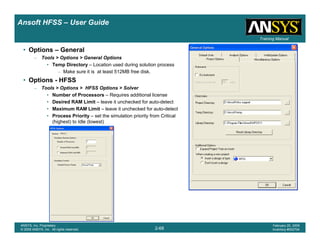
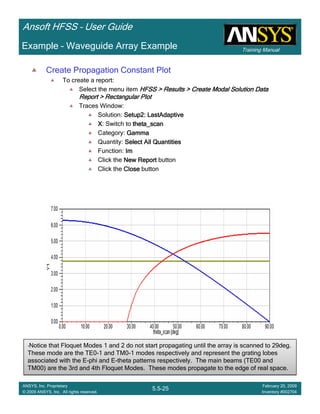
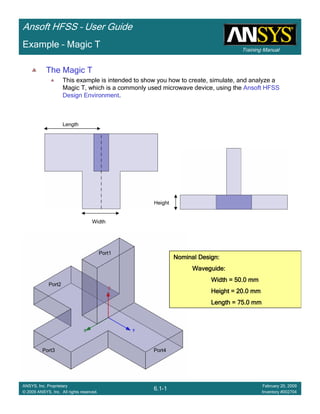
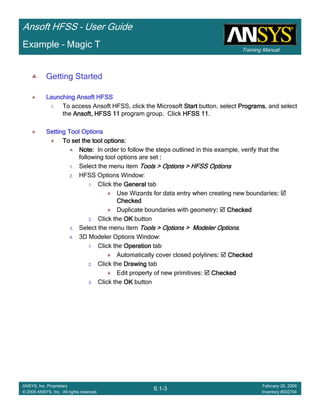
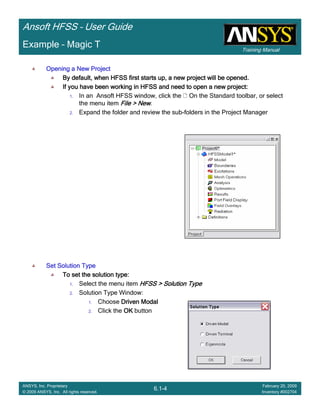
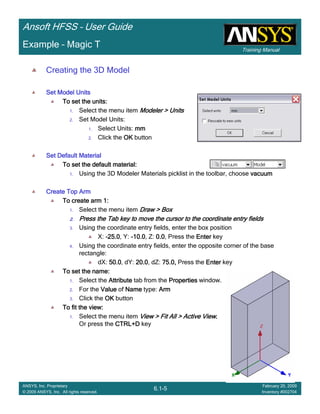
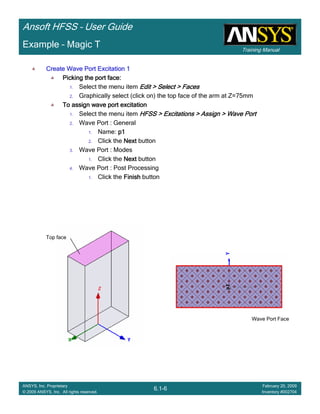
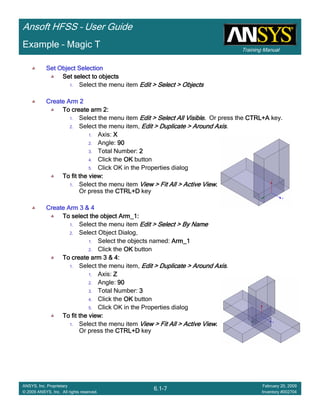
1-1
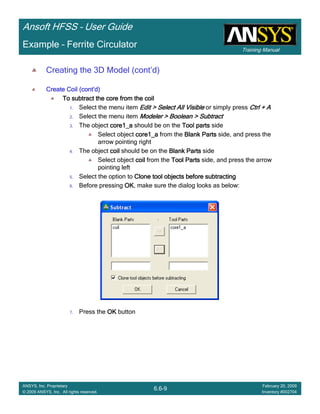
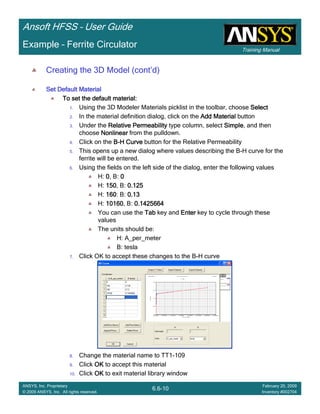
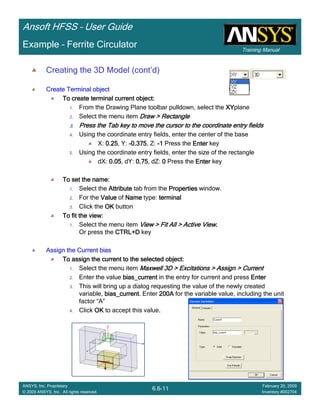
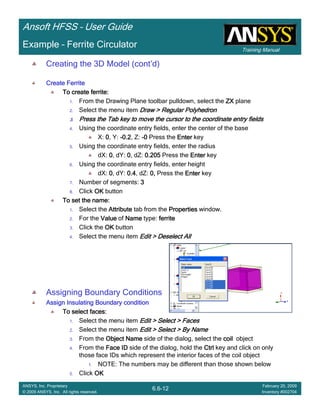
ANSYS, Inc. Proprietary
© 2009 ANSYS, Inc. All rights reserved.
February 23, 2009
Inventory #0025931-1
ANSYS, Inc. Proprietary
© 2009 ANSYS, Inc. All rights reserved.
February 20, 2009
Inventory #002704
Chapter 1 - Introduction
Ansoft HFSS – User Guide
Introduction
1-2
ANSYS, Inc. Proprietary
© 2009 ANSYS, Inc. All rights reserved.
February 23, 2009
Inventory #002593
Training ManualTraining Manual
1-2
ANSYS, Inc. Proprietary
© 2009 ANSYS, Inc. All rights reserved.
February 20, 2009
Inventory #002704
Ansoft HFSS – User Guide
Inventory Number: 002704
3rd Edition
HFSS Release: 11.1
Published Date: February 20, 2009
Registered Trademarks:
ANSYS® is a registered trademark of SAS IP Inc.
All other product names mentioned in this manual are trademarks or registered trademarks of their
respective manufacturers.
Disclaimer Notice:
This document has been reviewed and approved in accordance with the ANSYS, Inc.
Documentation Review and Approval Procedures. “This ANSYS Inc. software product (the
Program) and program documentation (Documentation) are furnished by ANSYS, Inc. under an
ANSYS Software License Agreement that contains provisions concerning non-disclosure, copying,
length and nature of use, warranties, disclaimers and remedies, and other provisions. The
Program and Documentation may be used or copied only in accordance with the terms of that
License Agreement.”
Copyright © 2008 SAS IP, Inc.
Proprietary data. Unauthorized use, distribution, or duplication is prohibited.
All Rights Reserved.
Training Manual
Ansoft HFSS for SI – User Guide
Introduction
1-3
ANSYS, Inc. Proprietary
© 2009 ANSYS, Inc. All rights reserved.
February 23, 2009
Inventory #002593
Training ManualTraining Manual
1-3
ANSYS, Inc. Proprietary
© 2009 ANSYS, Inc. All rights reserved.
February 20, 2009
Inventory #002704
Ansoft HFSS – User Guide
Table of Contents
1. Introduction 1-1
– Table of Contents 1-3
– Welcome to Ansoft HFSS 1-4
– Getting Help 1-7
– Ansoft Desktop 1-9
– Simulation Overview 1-18
2. Simulation Basics 2-1
3. Boundary Conditions 3-1
4. Appendix – Boundary Conditions 4-1
5. Examples – Antenna
– UHF Probe 5.1
– Conical Horn 5.2
– Probe Fed Patch 5.3
– Slot Coupled Patch 5.4
– Endfire Waveguide Array 5.5
6. Examples – Microwave
– Magic T 6.1
– Coax Connector 6.2
– 180° Ring Hybrid 6.3
– Coax Stub 6.4
– Microstrip – Wave Port 6.5
– Ferrite Circulator 6.6
7. Examples – Filters
– Bandpass Filter 7.1
8. Examples – Signal Integrity
– LVDS Differential Pair 8.1
– Segmented Return Path 8.2
– Non-ideal Planes 8.3
– Return Path 8.4
9. Examples – On-Chip
– Spiral Inductor 9.1
Introduction
1-4
ANSYS, Inc. Proprietary
© 2009 ANSYS, Inc. All rights reserved.
February 23, 2009
Inventory #002593
Training ManualTraining Manual
1-4
ANSYS, Inc. Proprietary
© 2009 ANSYS, Inc. All rights reserved.
February 20, 2009
Inventory #002704
Ansoft HFSS – User Guide
Welcome to Ansoft HFSS
• What is HFSS?
– HFSS is a high-performance full-wave electromagnetic(EM) field simulator for arbitrary 3D volumetric passive device
modeling that takes advantage of the familiar Microsoft Windows graphical user interface. It integrates simulation,
visualization, solid modeling, and automation in an easy-to-learn environment where solutions to your 3D EM problems
are quickly and accurately obtained. Ansoft HFSS employs the Finite Element Method(FEM), adaptive meshing, and
brilliant graphics to give you unparalleled performance and insight to all of your 3D EM problems. Ansoft HFSS can be
used to calculate parameters such as S-Parameters, Resonant Frequency, and Fields. Typical uses include:
• Package Modeling – BGA, QFP, Flip-Chip
• PCB Board Modeling – Power/Ground planes, Mesh Grid Grounds, Backplanes
• Silicon/GaAs - Spiral Inductors, Transformers
• EMC/EMI – Shield Enclosures, Coupling, Near- or Far-Field Radiation
• Antennas/Mobile Communications – Patches, Dipoles, Horns, Conformal Cell Phone Antennas, Quadrafilar Helix, Specific
Absorption Rate(SAR), Infinite Arrays, Radar Cross Section(RCS), Frequency Selective Surfaces(FSS)
• Connectors – Coax, SFP/XFP, Backplane, Transitions
• Waveguide – Filters, Resonators, Transitions, Couplers
• Filters – Cavity Filters, Microstrip, Dielectric
– HFSS is an interactive simulation system whose basic mesh element is a tetrahedron. This allows you to solve any
arbitrary 3D geometry, especially those with complex curves and shapes, in a fraction of the time it would take using
other techniques.
– The name HFSS stands for High Frequency Structure Simulator. Ansoft pioneered the use of the Finite Element
Method(FEM) for EM simulation by developing/implementing technologies such as tangential vector finite elements,
adaptive meshing, and Adaptive Lanczos-Pade Sweep(ALPS). Today, HFSS continues to lead the industry with
innovations such as Modes-to-Nodes and Full-Wave Spice™.
– Ansoft HFSS has evolved over a period of years with input from many users and industries. In industry, Ansoft HFSS
is the tool of choice for high-productivity research, development, and virtual prototyping.
Introduction
1-5
ANSYS, Inc. Proprietary
© 2009 ANSYS, Inc. All rights reserved.
February 23, 2009
Inventory #002593
Training ManualTraining Manual
1-5
ANSYS, Inc. Proprietary
© 2009 ANSYS, Inc. All rights reserved.
February 20, 2009
Inventory #002704
Ansoft HFSS – User Guide
Installing the Ansoft HFSS software
• System Requirements
– For up-to-date information, refer to the HFSS Installation Guide
• Installing the Ansoft HFSS Software
– For up-to-date information, refer to the HFSS Installation Guide
• Starting Ansoft HFSS
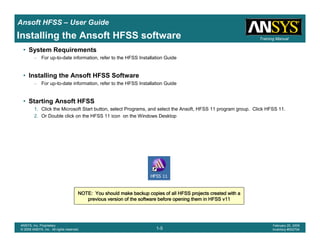
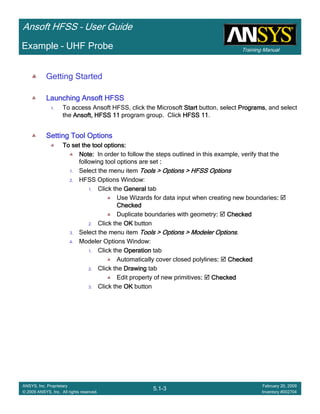
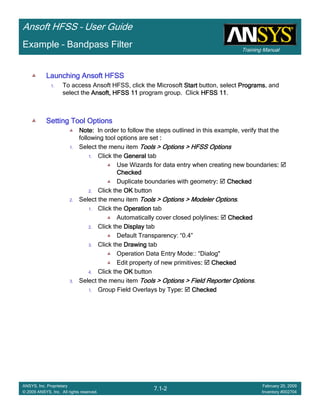
1. Click the Microsoft Start button, select Programs, and select the Ansoft, HFSS 11 program group. Click HFSS 11.
2. Or Double click on the HFSS 11 icon on the Windows Desktop
NOTE: You should make backup copies of all HFSS projects createNOTE: You should make backup copies of all HFSS projects createNOTE: You should make backup copies of all HFSS projects createNOTE: You should make backup copies of all HFSS projects created with ad with ad with ad with a
previous version of the software before opening them in HFSS v11previous version of the software before opening them in HFSS v11previous version of the software before opening them in HFSS v11previous version of the software before opening them in HFSS v11
Introduction
1-6
ANSYS, Inc. Proprietary
© 2009 ANSYS, Inc. All rights reserved.
February 23, 2009
Inventory #002593
Training ManualTraining Manual
1-6
ANSYS, Inc. Proprietary
© 2009 ANSYS, Inc. All rights reserved.
February 20, 2009
Inventory #002704
Ansoft HFSS – User Guide
Web Update
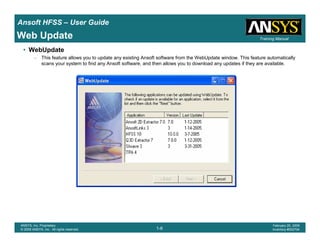
• WebUpdate
– This feature allows you to update any existing Ansoft software from the WebUpdate window. This feature automatically
scans your system to find any Ansoft software, and then allows you to download any updates if they are available.
Introduction
1-7
ANSYS, Inc. Proprietary
© 2009 ANSYS, Inc. All rights reserved.
February 23, 2009
Inventory #002593
Training ManualTraining Manual
1-7
ANSYS, Inc. Proprietary
© 2009 ANSYS, Inc. All rights reserved.
February 20, 2009
Inventory #002704
Ansoft HFSS – User Guide
Getting Help
• Getting Help
– If you have any questions while you are using Ansoft HFSS you can find answers in several ways:
• Ansoft HFSS Online Help provides assistance while you are working.
– To get help about a specific, active dialog box, click the Help button in the dialog box or press the F1 key.
– Select the menu item Help > Contents to access the online help system.
– Tooltips are available to provide information about tools on the toolbars or dialog boxes. When you hold the
pointer over a tool for a brief time, a tooltip appears to display the name of the tool.
– As you move the pointer over a tool or click a menu item, the Status Bar at the bottom of the Ansoft HFSS
window provides a brief description of the function of the tool or menu item.
– The Ansoft HFSS Getting Started guide provides detailed information about using HFSS to create and solve
3D EM projects.
• Ansoft Technical Support
– To contact Ansoft technical support staff in your geographical area, please log on to the Ansoft corporate
website, www.ansoft.com and select Contact.
• Your Ansoft sales engineer may also be contacted in order to obtain this information.
• Visiting the Ansoft Web Site
– If your computer is connected to the Internet, you can visit the Ansoft Web site to learn more about the Ansoft company
and products.
• From the Ansoft Desktop
– Select the menu item Help > Ansoft Corporate Website to access the Online Technical Support (OTS)
system.
• From your Internet browser
– Visit www.ansoft.com
Introduction
1-8
ANSYS, Inc. Proprietary
© 2009 ANSYS, Inc. All rights reserved.
February 23, 2009
Inventory #002593
Training ManualTraining Manual
1-8
ANSYS, Inc. Proprietary
© 2009 ANSYS, Inc. All rights reserved.
February 20, 2009
Inventory #002704
Ansoft HFSS – User Guide
Getting Help
• For Technical Support
– The following link will direct you to the Ansoft Support Page. The Ansoft Support Pages provide additional
documentation, training, and application notes.
• Web Site: http://www.ansoft.com/support.cfm
• Technical Support:
– 9-4 EST:
• Pittsburgh, PA
• (412) 261-3200 x0 – Ask for Technical Support
• Burlington, MA
• (781) 229-8900 x0 – Ask for Technical Support
– 9-4 PST:
• San Jose, CA
• (408) 261-9095 x0 – Ask for Technical Support
• Portland, OR
• (503) 906-7944
• Irvine, CA
• (714) 417-9311 x6
Introduction
1-9
ANSYS, Inc. Proprietary
© 2009 ANSYS, Inc. All rights reserved.
February 23, 2009
Inventory #002593
Training ManualTraining Manual
1-9
ANSYS, Inc. Proprietary
© 2009 ANSYS, Inc. All rights reserved.
February 20, 2009
Inventory #002704
Ansoft HFSS – User Guide
Ansoft Desktop Terms
• Ansoft Desktop Terms
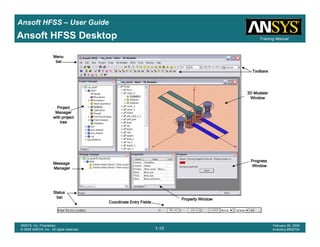
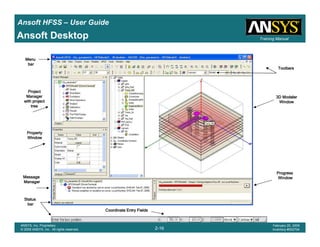
– The Ansoft HFSS Desktop has several optional panels:
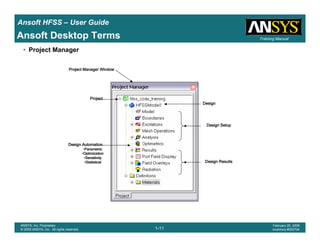
• A Project Manager which contains a design tree which lists the structure of the project.
• A Message Manager that allows you to view any errors or warnings that occur before you begin a simulation.
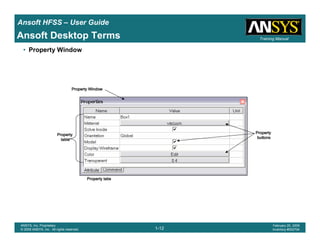
• A Property Window that displays and allows you to change model parameters or attributes.
• A Progress Window that displays solution progress.
• A 3D Modeler Window which contains the model and model tree for the active design.
Introduction
1-10
ANSYS, Inc. Proprietary
© 2009 ANSYS, Inc. All rights reserved.
February 23, 2009
Inventory #002593
Training ManualTraining Manual
1-10
ANSYS, Inc. Proprietary
© 2009 ANSYS, Inc. All rights reserved.
February 20, 2009
Inventory #002704
Ansoft HFSS – User Guide
Ansoft HFSS Desktop
MenuMenuMenuMenu
barbarbarbar
ProgressProgressProgressProgress
WindowWindowWindowWindow
Property WindowProperty WindowProperty WindowProperty Window
MessageMessageMessageMessage
ManagerManagerManagerManager
ProjectProjectProjectProject
ManagerManagerManagerManager
with projectwith projectwith projectwith project
treetreetreetree
StatusStatusStatusStatus
barbarbarbar
3D Modeler3D Modeler3D Modeler3D Modeler
WindowWindowWindowWindow
ToolbarsToolbarsToolbarsToolbars
Coordinate Entry FieldsCoordinate Entry FieldsCoordinate Entry FieldsCoordinate Entry Fields
Introduction
1-11
ANSYS, Inc. Proprietary
© 2009 ANSYS, Inc. All rights reserved.
February 23, 2009
Inventory #002593
Training ManualTraining Manual
1-11
ANSYS, Inc. Proprietary
© 2009 ANSYS, Inc. All rights reserved.
February 20, 2009
Inventory #002704
Ansoft HFSS – User Guide
Ansoft Desktop Terms
• Project Manager
ProjectProjectProjectProject
DesignDesignDesignDesign
Design ResultsDesign ResultsDesign ResultsDesign Results
Design SetupDesign SetupDesign SetupDesign Setup
Design AutomationDesign AutomationDesign AutomationDesign Automation
•ParametricParametricParametricParametric
•OptimizationOptimizationOptimizationOptimization
•SensitivitySensitivitySensitivitySensitivity
•StatisticalStatisticalStatisticalStatistical
Project Manager WindowProject Manager WindowProject Manager WindowProject Manager Window
Introduction
1-12
ANSYS, Inc. Proprietary
© 2009 ANSYS, Inc. All rights reserved.
February 23, 2009
Inventory #002593
Training ManualTraining Manual
1-12
ANSYS, Inc. Proprietary
© 2009 ANSYS, Inc. All rights reserved.
February 20, 2009
Inventory #002704
Ansoft HFSS – User Guide
Ansoft Desktop Terms
• Property Window
Property WindowProperty WindowProperty WindowProperty Window
Property tabsProperty tabsProperty tabsProperty tabs
PropertyPropertyPropertyProperty
buttonsbuttonsbuttonsbuttons
PropertyPropertyPropertyProperty
tabletabletabletable
Introduction
1-13
ANSYS, Inc. Proprietary
© 2009 ANSYS, Inc. All rights reserved.
February 23, 2009
Inventory #002593
Training ManualTraining Manual
1-13
ANSYS, Inc. Proprietary
© 2009 ANSYS, Inc. All rights reserved.
February 20, 2009
Inventory #002704
Ansoft HFSS – User Guide
Ansoft Desktop Terms
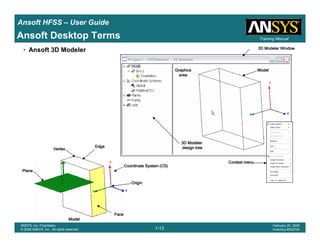
• Ansoft 3D Modeler
EdgeEdgeEdgeEdge
VertexVertexVertexVertex
PlanePlanePlanePlane
Coordinate System (CS)Coordinate System (CS)Coordinate System (CS)Coordinate System (CS)
OriginOriginOriginOrigin
FaceFaceFaceFace
ModelModelModelModel
3D Modeler Window3D Modeler Window3D Modeler Window3D Modeler Window
GraphicsGraphicsGraphicsGraphics
areaareaareaarea
ModelModelModelModel
3D Modeler3D Modeler3D Modeler3D Modeler
design treedesign treedesign treedesign tree
Context menuContext menuContext menuContext menu
Introduction
1-14
ANSYS, Inc. Proprietary
© 2009 ANSYS, Inc. All rights reserved.
February 23, 2009
Inventory #002593
Training ManualTraining Manual
1-14
ANSYS, Inc. Proprietary
© 2009 ANSYS, Inc. All rights reserved.
February 20, 2009
Inventory #002704
Ansoft HFSS – User Guide
Ansoft Desktop Terms
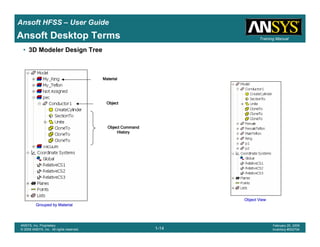
• 3D Modeler Design Tree
Grouped by MaterialGrouped by MaterialGrouped by MaterialGrouped by Material
Object ViewObject ViewObject ViewObject View
MaterialMaterialMaterialMaterial
ObjectObjectObjectObject
Object CommandObject CommandObject CommandObject Command
HistoryHistoryHistoryHistory
Introduction
1-15
ANSYS, Inc. Proprietary
© 2009 ANSYS, Inc. All rights reserved.
February 23, 2009
Inventory #002593
Training ManualTraining Manual
1-15
ANSYS, Inc. Proprietary
© 2009 ANSYS, Inc. All rights reserved.
February 20, 2009
Inventory #002704
Ansoft HFSS – User Guide
Design Windows
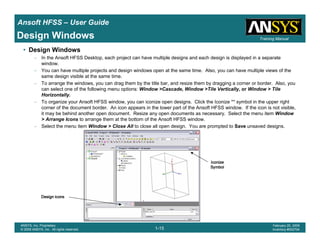
• Design Windows
– In the Ansoft HFSS Desktop, each project can have multiple designs and each design is displayed in a separate
window.
– You can have multiple projects and design windows open at the same time. Also, you can have multiple views of the
same design visible at the same time.
– To arrange the windows, you can drag them by the title bar, and resize them by dragging a corner or border. Also, you
can select one of the following menu options: Window >Cascade, Window >Tile Vertically, or Window > Tile
Horizontally.
– To organize your Ansoft HFSS window, you can iconize open designs. Click the Iconize ** symbol in the upper right
corner of the document border. An icon appears in the lower part of the Ansoft HFSS window. If the icon is not visible,
it may be behind another open document. Resize any open documents as necessary. Select the menu item Window
> Arrange Icons to arrange them at the bottom of the Ansoft HFSS window.
– Select the menu item Window > Close All to close all open design. You are prompted to Save unsaved designs.
Design iconsDesign iconsDesign iconsDesign icons
IconizeIconizeIconizeIconize
SymbolSymbolSymbolSymbol
Introduction
1-16
ANSYS, Inc. Proprietary
© 2009 ANSYS, Inc. All rights reserved.
February 23, 2009
Inventory #002593
Training ManualTraining Manual
1-16
ANSYS, Inc. Proprietary
© 2009 ANSYS, Inc. All rights reserved.
February 20, 2009
Inventory #002704
Ansoft HFSS – User Guide
Toolbars
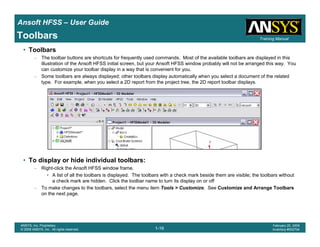
• Toolbars
– The toolbar buttons are shortcuts for frequently used commands. Most of the available toolbars are displayed in this
illustration of the Ansoft HFSS initial screen, but your Ansoft HFSS window probably will not be arranged this way. You
can customize your toolbar display in a way that is convenient for you.
– Some toolbars are always displayed; other toolbars display automatically when you select a document of the related
type. For example, when you select a 2D report from the project tree, the 2D report toolbar displays.
• To display or hide individual toolbars:
– Right-click the Ansoft HFSS window frame.
• A list of all the toolbars is displayed. The toolbars with a check mark beside them are visible; the toolbars without
a check mark are hidden. Click the toolbar name to turn its display on or off
– To make changes to the toolbars, select the menu item Tools > Customize. See Customize and Arrange Toolbars
on the next page.
Introduction
1-17
ANSYS, Inc. Proprietary
© 2009 ANSYS, Inc. All rights reserved.
February 23, 2009
Inventory #002593
Training ManualTraining Manual
1-17
ANSYS, Inc. Proprietary
© 2009 ANSYS, Inc. All rights reserved.
February 20, 2009
Inventory #002704
Ansoft HFSS – User Guide
Toolbars
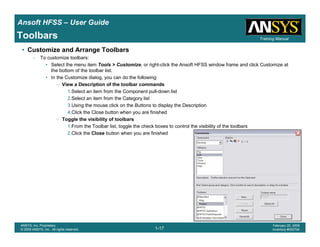
• Customize and Arrange Toolbars
– To customize toolbars:
• Select the menu item Tools > Customize, or right-click the Ansoft HFSS window frame and click Customize at
the bottom of the toolbar list.
• In the Customize dialog, you can do the following:
– View a Description of the toolbar commands
1.Select an item from the Component pull-down list
2.Select an item from the Category list
3.Using the mouse click on the Buttons to display the Description
4.Click the Close button when you are finished
– Toggle the visibility of toolbars
1.From the Toolbar list, toggle the check boxes to control the visibility of the toolbars
2.Click the Close button when you are finished
Introduction
1-18
ANSYS, Inc. Proprietary
© 2009 ANSYS, Inc. All rights reserved.
February 23, 2009
Inventory #002593
Training ManualTraining Manual
1-18
ANSYS, Inc. Proprietary
© 2009 ANSYS, Inc. All rights reserved.
February 20, 2009
Inventory #002704
Ansoft HFSS – User Guide
Overview
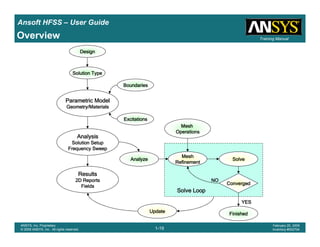
• Ansoft HFSS Desktop
– The Ansoft HFSS Desktop provides an intuitive, easy-to-use interface for developing passive RF device models.
Creating designs, involves the following:
1. Parametric Model Generation – creating the geometry, boundaries and excitations
2. Analysis Setup – defining solution setup and frequency sweeps
3. Results – creating 2D reports and field plots
4. Solve Loop - the solution process is fully automated
– To understand how these processes co-exist, examine the illustration shown on the next page.
Introduction
1-19
ANSYS, Inc. Proprietary
© 2009 ANSYS, Inc. All rights reserved.
February 23, 2009
Inventory #002593
Training ManualTraining Manual
1-19
ANSYS, Inc. Proprietary
© 2009 ANSYS, Inc. All rights reserved.
February 20, 2009
Inventory #002704
Ansoft HFSS – User Guide
Overview
DesignDesignDesignDesign
Solution TypeSolution TypeSolution TypeSolution Type
BoundariesBoundariesBoundariesBoundaries
ExcitationsExcitationsExcitationsExcitations
MeshMeshMeshMesh
OperationsOperationsOperationsOperations
AnalysisAnalysisAnalysisAnalysis
Solution SetupSolution SetupSolution SetupSolution Setup
Frequency SweepFrequency SweepFrequency SweepFrequency Sweep
Parametric ModelParametric ModelParametric ModelParametric Model
Geometry/MaterialsGeometry/MaterialsGeometry/MaterialsGeometry/Materials
ResultsResultsResultsResults
2D Reports2D Reports2D Reports2D Reports
FieldsFieldsFieldsFields
MeshMeshMeshMesh
RefinementRefinementRefinementRefinement
SolveSolveSolveSolve
UpdateUpdateUpdateUpdate
ConvergedConvergedConvergedConverged
AnalyzeAnalyzeAnalyzeAnalyze
FinishedFinishedFinishedFinished
Solve LoopSolve LoopSolve LoopSolve Loop
NONONONO
YESYESYESYES
Introduction
1-20
ANSYS, Inc. Proprietary
© 2009 ANSYS, Inc. All rights reserved.
February 23, 2009
Inventory #002593
Training ManualTraining Manual
1-20
ANSYS, Inc. Proprietary
© 2009 ANSYS, Inc. All rights reserved.
February 20, 2009
Inventory #002704
Ansoft HFSS – User Guide
Opening a Design
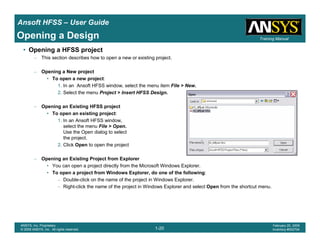
• Opening a HFSS project
– This section describes how to open a new or existing project.
– Opening a New project
• To open a new project:
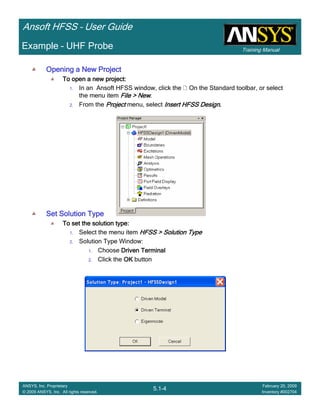
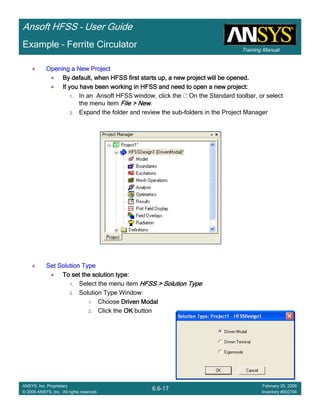
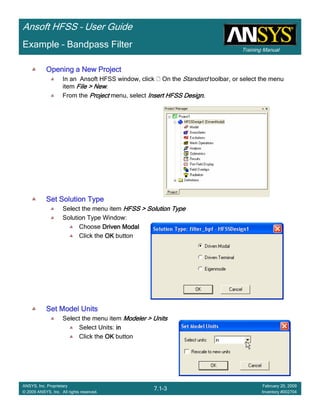
1. In an Ansoft HFSS window, select the menu item File > New.
2. Select the menu Project > Insert HFSS Design.
– Opening an Existing HFSS project
• To open an existing project:
1. In an Ansoft HFSS window,
select the menu File > Open.
Use the Open dialog to select
the project.
2. Click Open to open the project
– Opening an Existing Project from Explorer
• You can open a project directly from the Microsoft Windows Explorer.
• To open a project from Windows Explorer, do one of the following:
– Double-click on the name of the project in Windows Explorer.
– Right-click the name of the project in Windows Explorer and select Open from the shortcut menu.
Introduction
1-21
ANSYS, Inc. Proprietary
© 2009 ANSYS, Inc. All rights reserved.
February 23, 2009
Inventory #002593
Training ManualTraining Manual
1-21
ANSYS, Inc. Proprietary
© 2009 ANSYS, Inc. All rights reserved.
February 20, 2009
Inventory #002704
Ansoft HFSS – User Guide
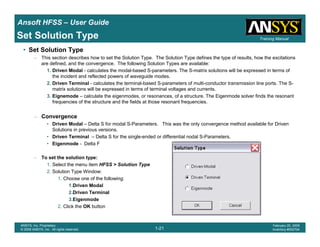
Set Solution Type
• Set Solution Type
– This section describes how to set the Solution Type. The Solution Type defines the type of results, how the excitations
are defined, and the convergence. The following Solution Types are available:
1. Driven Modal - calculates the modal-based S-parameters. The S-matrix solutions will be expressed in terms of
the incident and reflected powers of waveguide modes.
2. Driven Terminal - calculates the terminal-based S-parameters of multi-conductor transmission line ports. The S-
matrix solutions will be expressed in terms of terminal voltages and currents.
3. Eignemode – calculate the eigenmodes, or resonances, of a structure. The Eigenmode solver finds the resonant
frequencies of the structure and the fields at those resonant frequencies.
– Convergence
• Driven Modal – Delta S for modal S-Parameters. This was the only convergence method available for Driven
Solutions in previous versions.
• Driven Terminal – Delta S for the single-ended or differential nodal S-Parameters.
• Eigenmode - Delta F
– To set the solution type:
1. Select the menu item HFSS > Solution Type
2. Solution Type Window:
1. Choose one of the following:
1.Driven Modal
2.Driven Terminal
3.Eigenmode
2. Click the OK button
Introduction
1-22
ANSYS, Inc. Proprietary
© 2009 ANSYS, Inc. All rights reserved.
February 23, 2009
Inventory #002593
Training ManualTraining Manual
1-22
ANSYS, Inc. Proprietary
© 2009 ANSYS, Inc. All rights reserved.
February 20, 2009
Inventory #002704
Ansoft HFSS – User Guide
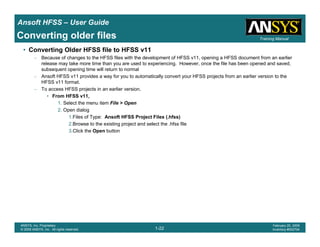
Converting older files
• Converting Older HFSS file to HFSS v11
– Because of changes to the HFSS files with the development of HFSS v11, opening a HFSS document from an earlier
release may take more time than you are used to experiencing. However, once the file has been opened and saved,
subsequent opening time will return to normal
– Ansoft HFSS v11 provides a way for you to automatically convert your HFSS projects from an earlier version to the
HFSS v11 format.
– To access HFSS projects in an earlier version.
• From HFSS v11,
1. Select the menu item File > Open
2. Open dialog
1.Files of Type: Ansoft HFSS Project Files (.hfss)
2.Browse to the existing project and select the .hfss file
3.Click the Open button
1-1
ANSYS, Inc. Proprietary
© 2009 ANSYS, Inc. All rights reserved.
February 23, 2009
Inventory #0025932-1
ANSYS, Inc. Proprietary
© 2009 ANSYS, Inc. All rights reserved.
February 20, 2009
Inventory #002704
Chapter 2 – Simulation Basics
Ansoft HFSS - User Guide
Introduction
1-2
ANSYS, Inc. Proprietary
© 2009 ANSYS, Inc. All rights reserved.
February 23, 2009
Inventory #002593
Training ManualTraining Manual
2-2
ANSYS, Inc. Proprietary
© 2009 ANSYS, Inc. All rights reserved.
February 20, 2009
Inventory #002704
Ansoft HFSS – User Guide
• What is HFSS (High Frequency Structure Simulator)?
– “HFSS is the industry-standard software for S-parameter, full-wave SPICE extraction and
electromagnetic simulation of high-frequency and high-speed components. HFSS is widely used for
the design of on-chip embedded passives, PCB interconnects, antennas, RF/microwave components,
and high-frequency IC packages.”
– “HFSS improves engineering productivity, reduces development time, and better assures first-pass
design success. The latest release of HFSS delivers significant productivity gains to Microwave/RF
engineers and expands electromagnetic co-design to a new segment of engineers working in the
areas of RF/analog IC and multi-gigabit designs as well as EMI/EMC.”
Introduction
1-3
ANSYS, Inc. Proprietary
© 2009 ANSYS, Inc. All rights reserved.
February 23, 2009
Inventory #002593
Training ManualTraining Manual
2-3
ANSYS, Inc. Proprietary
© 2009 ANSYS, Inc. All rights reserved.
February 20, 2009
Inventory #002704
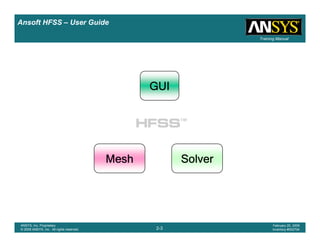
Ansoft HFSS – User Guide
GUIGUIGUIGUI
MeshMeshMeshMesh SolverSolverSolverSolver
Introduction
1-4
ANSYS, Inc. Proprietary
© 2009 ANSYS, Inc. All rights reserved.
February 23, 2009
Inventory #002593
Training ManualTraining Manual
2-4
ANSYS, Inc. Proprietary
© 2009 ANSYS, Inc. All rights reserved.
February 20, 2009
Inventory #002704
Ansoft HFSS – User Guide
HFSS – Methodology
• HFSS uses the Finite Element Method (FEM) to solve Maxwell‘s equations.
– The primary advantage of the FEM for solving partial differential equations lies in the ability of the basic building blocks
used to discretize the model to confrom to arbitrary geometry.
– The arbitrary shape of the basic building block (tetrahedron) also allows HFSS to generate a coarse mesh where fewer
cells are needed to yield an accuate solution, while creating a finely discretized mesh where the field is rapidly varying
or higher accuaracy is needed to obtain an accurate global solution.
• The FEM has been a standard for solving electromagnetic problems since the
inception of HFSS in 1990.
– The FEM has been a standard for solving problems in structure mechanics since the mid 1950‘s.
TetrahedronTetrahedronTetrahedronTetrahedron
Introduction
1-5
ANSYS, Inc. Proprietary
© 2009 ANSYS, Inc. All rights reserved.
February 23, 2009
Inventory #002593
Training ManualTraining Manual
2-5
ANSYS, Inc. Proprietary
© 2009 ANSYS, Inc. All rights reserved.
February 20, 2009
Inventory #002704
Ansoft HFSS – User Guide
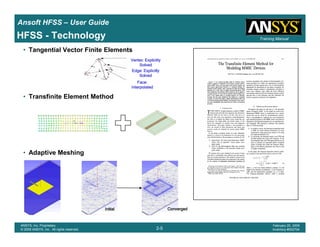
HFSS - Technology
• Tangential Vector Finite Elements
• Transfinite Element Method
• Adaptive Meshing
Vertex: ExplicitlyVertex: ExplicitlyVertex: ExplicitlyVertex: Explicitly
SolvedSolvedSolvedSolved
Edge: ExplicitlyEdge: ExplicitlyEdge: ExplicitlyEdge: Explicitly
SolvedSolvedSolvedSolved
Face:Face:Face:Face:
InterpolatedInterpolatedInterpolatedInterpolated
InitialInitialInitialInitial ConvergedConvergedConvergedConverged
Introduction
1-6
ANSYS, Inc. Proprietary
© 2009 ANSYS, Inc. All rights reserved.
February 23, 2009
Inventory #002593
Training ManualTraining Manual
2-6
ANSYS, Inc. Proprietary
© 2009 ANSYS, Inc. All rights reserved.
February 20, 2009
Inventory #002704
Ansoft HFSS – User Guide
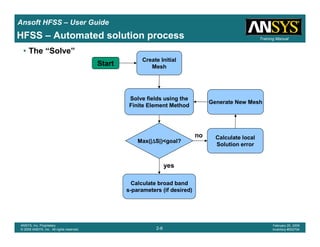
• The “Solve”
Create Initial
Mesh
Solve fields using the
Finite Element Method
Max(|∆∆∆∆S|)<goal?
Calculate local
Solution error
Generate New Mesh
Calculate broad band
s-parameters (if desired)
no
yes
Start
HFSS – Automated solution process
Introduction
1-7
ANSYS, Inc. Proprietary
© 2009 ANSYS, Inc. All rights reserved.
February 23, 2009
Inventory #002593
Training ManualTraining Manual
2-7
ANSYS, Inc. Proprietary
© 2009 ANSYS, Inc. All rights reserved.
February 20, 2009
Inventory #002704
Ansoft HFSS – User Guide
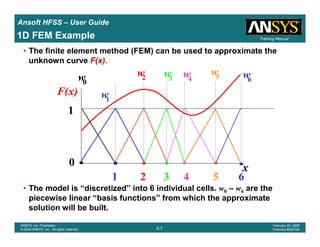
1D FEM Example
• The finite element method (FEM) can be used to approximate the
unknown curve F(x).
• The model is “discretized” into 6 individual cells. w0 – w6 are the
piecewise linear “basis functions” from which the approximate
solution will be built.
x
F(x)
1
w1
1
0
2
w2
3
w3
4
w4
5
w5
6
w6w0
Introduction
1-8
ANSYS, Inc. Proprietary
© 2009 ANSYS, Inc. All rights reserved.
February 23, 2009
Inventory #002593
Training ManualTraining Manual
2-8
ANSYS, Inc. Proprietary
© 2009 ANSYS, Inc. All rights reserved.
February 20, 2009
Inventory #002704
Ansoft HFSS – User Guide
1D FEM Example
• In the FEM, the unknown function is expressed as a weighted sum of the
piecewise continuous basis functions.
x
F(x)
1
Node 1 2 3 4 5 6
F’(x)=ΣΣΣΣa wi i
The approximate solution resulting from the FEMThe approximate solution resulting from the FEMThe approximate solution resulting from the FEMThe approximate solution resulting from the FEM
calculation iscalculation iscalculation iscalculation is F’(x) shown as a dotted line.shown as a dotted line.shown as a dotted line.shown as a dotted line.
Introduction
1-9
ANSYS, Inc. Proprietary
© 2009 ANSYS, Inc. All rights reserved.
February 23, 2009
Inventory #002593
Training ManualTraining Manual
2-9
ANSYS, Inc. Proprietary
© 2009 ANSYS, Inc. All rights reserved.
February 20, 2009
Inventory #002704
Ansoft HFSS – User Guide
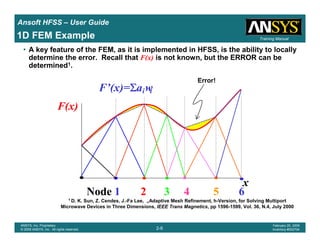
• A key feature of the FEM, as it is implemented in HFSS, is the ability to locally
determine the error. Recall that F(x) is not known, but the ERROR can be
determined1.
x
F(x)
Node 1 2 3 4 5 6
1D FEM Example
1 D. K. Sun, Z. Cendes, J.-Fa Lee, „Adaptive Mesh Refinement, h-Version, for Solving Multiport
Microwave Devices in Three Dimensions, IEEE Trans Magnetics, pp 1596-1599, Vol. 36, N.4, July 2000
Error!
F’(x)=ΣΣΣΣa wi i
Introduction
1-10
ANSYS, Inc. Proprietary
© 2009 ANSYS, Inc. All rights reserved.
February 23, 2009
Inventory #002593
Training ManualTraining Manual
2-10
ANSYS, Inc. Proprietary
© 2009 ANSYS, Inc. All rights reserved.
February 20, 2009
Inventory #002704
Ansoft HFSS – User Guide
1D FEM Example
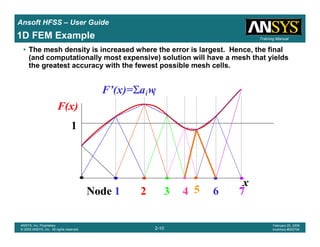
• The mesh density is increased where the error is largest. Hence, the final
(and computationally most expensive) solution will have a mesh that yields
the greatest accuracy with the fewest possible mesh cells.
x
F(x)
1
Node 1 2 3 4 5 6 7
F’(x)=ΣΣΣΣa wi i
Introduction
1-11
ANSYS, Inc. Proprietary
© 2009 ANSYS, Inc. All rights reserved.
February 23, 2009
Inventory #002593
Training ManualTraining Manual
2-11
ANSYS, Inc. Proprietary
© 2009 ANSYS, Inc. All rights reserved.
February 20, 2009
Inventory #002704
Ansoft HFSS – User Guide
The key to success
• Finite elements and adaptive meshing
– Optimal, geometrically conformal mesh created automatically by the
software
• Remove requirements for “meshing expertise”
Vertex: Explicitly SolvedVertex: Explicitly SolvedVertex: Explicitly SolvedVertex: Explicitly Solved
Edge: Explicitly SolvedEdge: Explicitly SolvedEdge: Explicitly SolvedEdge: Explicitly Solved
Face: InterpolatedFace: InterpolatedFace: InterpolatedFace: Interpolated
Introduction
1-12
ANSYS, Inc. Proprietary
© 2009 ANSYS, Inc. All rights reserved.
February 23, 2009
Inventory #002593
Training ManualTraining Manual
2-12
ANSYS, Inc. Proprietary
© 2009 ANSYS, Inc. All rights reserved.
February 20, 2009
Inventory #002704
Ansoft HFSS – User Guide
Adaptive Meshing - Example
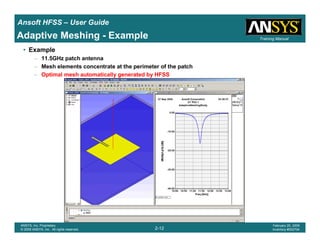
• Example
– 11.5GHz patch antenna
– Mesh elements concentrate at the perimeter of the patch
– Optimal mesh automatically generated by HFSS
Introduction
1-13
ANSYS, Inc. Proprietary
© 2009 ANSYS, Inc. All rights reserved.
February 23, 2009
Inventory #002593
Training ManualTraining Manual
2-13
ANSYS, Inc. Proprietary
© 2009 ANSYS, Inc. All rights reserved.
February 20, 2009
Inventory #002704
Ansoft HFSS – User Guide
Quick Start
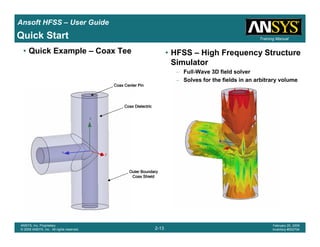
• Quick Example – Coax Tee • HFSS – High Frequency Structure
Simulator
– Full-Wave 3D field solver
– Solves for the fields in an arbitrary volume
Coax DielectricCoax DielectricCoax DielectricCoax Dielectric
Coax Center PinCoax Center PinCoax Center PinCoax Center Pin
Outer BoundaryOuter BoundaryOuter BoundaryOuter Boundary
Coax ShieldCoax ShieldCoax ShieldCoax Shield
Introduction
1-14
ANSYS, Inc. Proprietary
© 2009 ANSYS, Inc. All rights reserved.
February 23, 2009
Inventory #002593
Training ManualTraining Manual
2-14
ANSYS, Inc. Proprietary
© 2009 ANSYS, Inc. All rights reserved.
February 20, 2009
Inventory #002704
Ansoft HFSS – User Guide
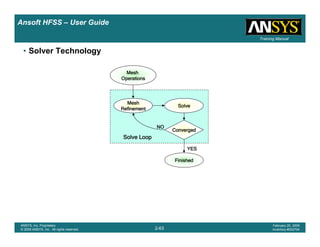
HFSS – Start to Finish
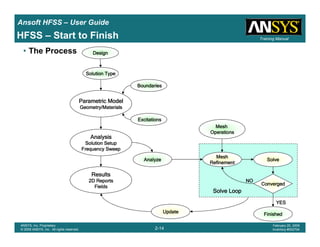
• The Process DesignDesignDesignDesign
Solution TypeSolution TypeSolution TypeSolution Type
BoundariesBoundariesBoundariesBoundaries
ExcitationsExcitationsExcitationsExcitations
MeshMeshMeshMesh
OperationsOperationsOperationsOperations
AnalysisAnalysisAnalysisAnalysis
Solution SetupSolution SetupSolution SetupSolution Setup
Frequency SweepFrequency SweepFrequency SweepFrequency Sweep
Parametric ModelParametric ModelParametric ModelParametric Model
Geometry/MaterialsGeometry/MaterialsGeometry/MaterialsGeometry/Materials
ResultsResultsResultsResults
2D Reports2D Reports2D Reports2D Reports
FieldsFieldsFieldsFields
MeshMeshMeshMesh
RefinementRefinementRefinementRefinement
SolveSolveSolveSolve
UpdateUpdateUpdateUpdate
ConvergedConvergedConvergedConverged
AnalyzeAnalyzeAnalyzeAnalyze
FinishedFinishedFinishedFinished
Solve LoopSolve LoopSolve LoopSolve Loop
NONONONO
YESYESYESYES
Introduction
1-15
ANSYS, Inc. Proprietary
© 2009 ANSYS, Inc. All rights reserved.
February 23, 2009
Inventory #002593
Training ManualTraining Manual
2-15
ANSYS, Inc. Proprietary
© 2009 ANSYS, Inc. All rights reserved.
February 20, 2009
Inventory #002704
Ansoft HFSS – User Guide
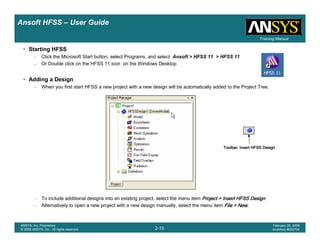
• Starting HFSS
– Click the Microsoft Start button, select Programs, and select Ansoft > HFSS 11 > HFSS 11
– Or Double click on the HFSS 11 icon on the Windows Desktop
• Adding a Design
– When you first start HFSS a new project with a new design will be automatically added to the Project Tree.
– To include additional designs into an existing project, select the menu item Project > Insert HFSS DesignProject > Insert HFSS DesignProject > Insert HFSS DesignProject > Insert HFSS Design
– Alternatively to open a new project with a new design manually, select the menu item File > NewFile > NewFile > NewFile > New....
Toolbar: Insert HFSS DesignToolbar: Insert HFSS DesignToolbar: Insert HFSS DesignToolbar: Insert HFSS Design
Introduction
1-16
ANSYS, Inc. Proprietary
© 2009 ANSYS, Inc. All rights reserved.
February 23, 2009
Inventory #002593
Training ManualTraining Manual
2-16
ANSYS, Inc. Proprietary
© 2009 ANSYS, Inc. All rights reserved.
February 20, 2009
Inventory #002704
Ansoft HFSS – User Guide
Ansoft Desktop
MenuMenuMenuMenu
barbarbarbar
ProgressProgressProgressProgress
WindowWindowWindowWindow
PropertyPropertyPropertyProperty
WindowWindowWindowWindow
MessageMessageMessageMessage
ManagerManagerManagerManager
ProjectProjectProjectProject
ManagerManagerManagerManager
with projectwith projectwith projectwith project
treetreetreetree
StatusStatusStatusStatus
barbarbarbar
3D Modeler3D Modeler3D Modeler3D Modeler
WindowWindowWindowWindow
ToolbarsToolbarsToolbarsToolbars
Coordinate Entry FieldsCoordinate Entry FieldsCoordinate Entry FieldsCoordinate Entry Fields
Introduction
1-17
ANSYS, Inc. Proprietary
© 2009 ANSYS, Inc. All rights reserved.
February 23, 2009
Inventory #002593
Training ManualTraining Manual
2-17
ANSYS, Inc. Proprietary
© 2009 ANSYS, Inc. All rights reserved.
February 20, 2009
Inventory #002704
Ansoft HFSS – User Guide
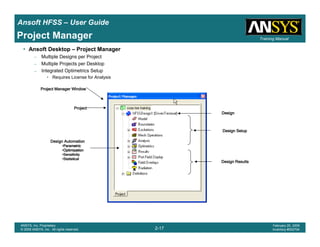
Project Manager
• Ansoft Desktop – Project Manager
– Multiple Designs per Project
– Multiple Projects per Desktop
– Integrated Optimetrics Setup
• Requires License for Analysis
ProjectProjectProjectProject
DesignDesignDesignDesign
Design ResultsDesign ResultsDesign ResultsDesign Results
Design SetupDesign SetupDesign SetupDesign Setup
Design AutomationDesign AutomationDesign AutomationDesign Automation
•ParametricParametricParametricParametric
•OptimizationOptimizationOptimizationOptimization
•SensitivitySensitivitySensitivitySensitivity
•StatisticalStatisticalStatisticalStatistical
Project Manager WindowProject Manager WindowProject Manager WindowProject Manager Window
Introduction
1-18
ANSYS, Inc. Proprietary
© 2009 ANSYS, Inc. All rights reserved.
February 23, 2009
Inventory #002593
Training ManualTraining Manual
2-18
ANSYS, Inc. Proprietary
© 2009 ANSYS, Inc. All rights reserved.
February 20, 2009
Inventory #002704
Ansoft HFSS – User Guide
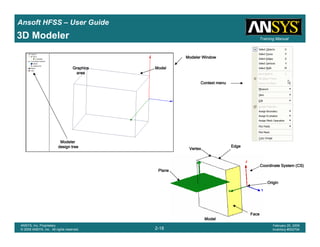
3D Modeler
EdgeEdgeEdgeEdge
VertexVertexVertexVertex
PlanePlanePlanePlane
Coordinate System (CS)Coordinate System (CS)Coordinate System (CS)Coordinate System (CS)
OriginOriginOriginOrigin
FaceFaceFaceFace
ModelModelModelModel
Modeler WindowModeler WindowModeler WindowModeler Window
GraphicsGraphicsGraphicsGraphics
areaareaareaarea
ModelModelModelModel
ModelerModelerModelerModeler
design treedesign treedesign treedesign tree
Context menuContext menuContext menuContext menu
Introduction
1-19
ANSYS, Inc. Proprietary
© 2009 ANSYS, Inc. All rights reserved.
February 23, 2009
Inventory #002593
Training ManualTraining Manual
2-19
ANSYS, Inc. Proprietary
© 2009 ANSYS, Inc. All rights reserved.
February 20, 2009
Inventory #002704
Ansoft HFSS – User Guide
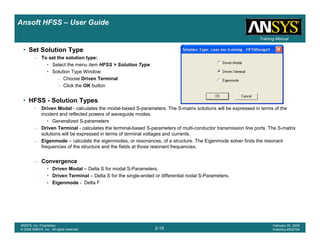
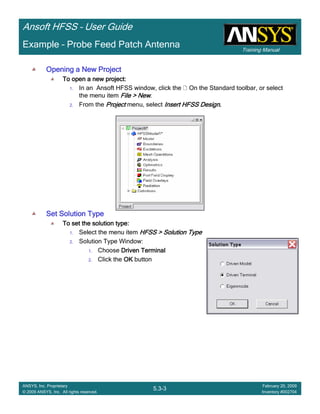
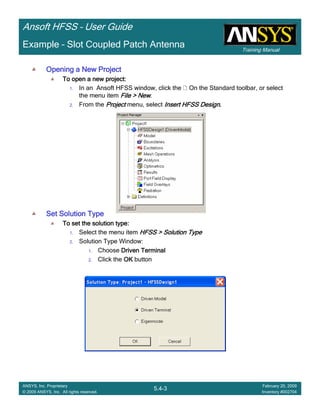
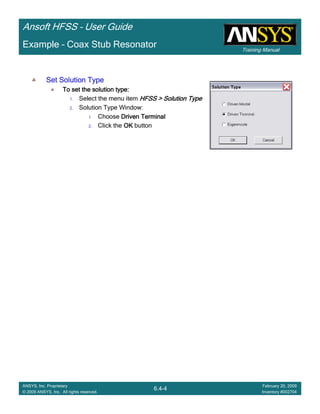
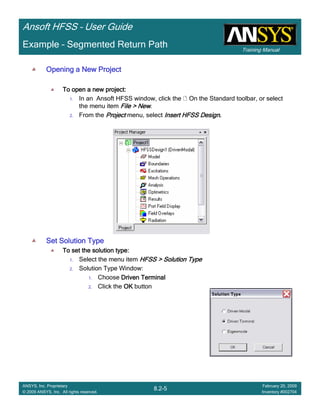
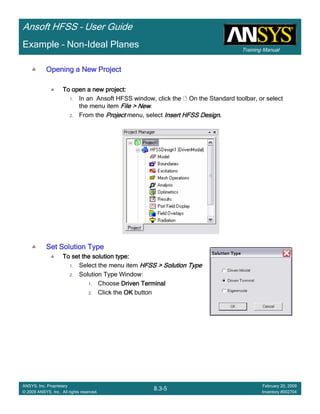
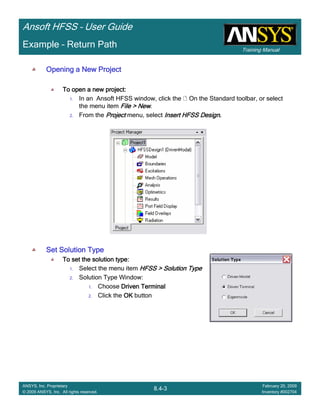
• Set Solution Type
– To set the solution type:
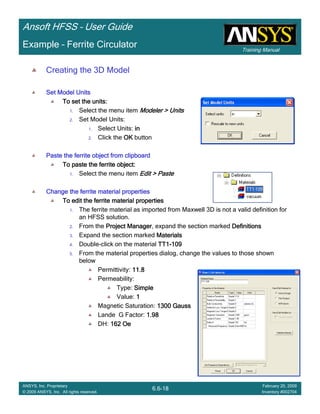
• Select the menu item HFSS > Solution Type
• Solution Type Window:
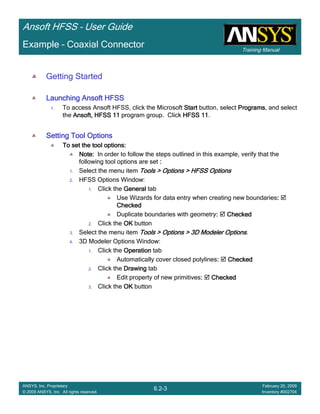
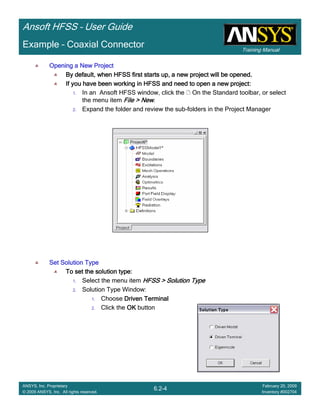
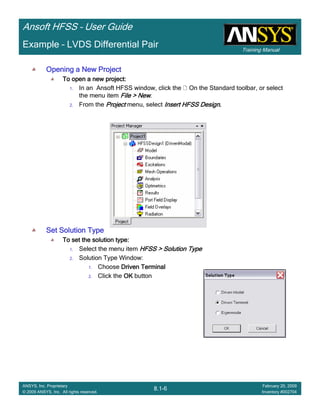
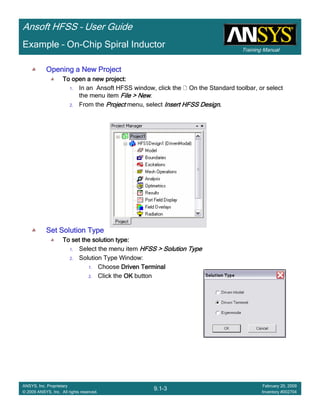
– Choose Driven Terminal
– Click the OK button
• HFSS - Solution Types
– Driven Modal - calculates the modal-based S-parameters. The S-matrix solutions will be expressed in terms of the
incident and reflected powers of waveguide modes.
• Generalized S-parameters
– Driven Terminal - calculates the terminal-based S-parameters of multi-conductor transmission line ports. The S-matrix
solutions will be expressed in terms of terminal voltages and currents.
– Eigenmode – calculate the eigenmodes, or resonances, of a structure. The Eigenmode solver finds the resonant
frequencies of the structure and the fields at those resonant frequencies.
– Convergence
• Driven Modal – Delta S for modal S-Parameters.
• Driven Terminal – Delta S for the single-ended or differential nodal S-Parameters.
• Eigenmode - Delta F
Introduction
1-20
ANSYS, Inc. Proprietary
© 2009 ANSYS, Inc. All rights reserved.
February 23, 2009
Inventory #002593
Training ManualTraining Manual
2-20
ANSYS, Inc. Proprietary
© 2009 ANSYS, Inc. All rights reserved.
February 20, 2009
Inventory #002704
Ansoft HFSS – User Guide
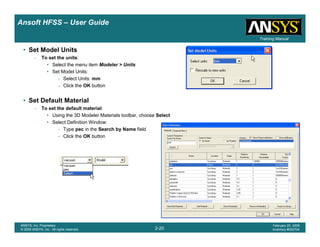
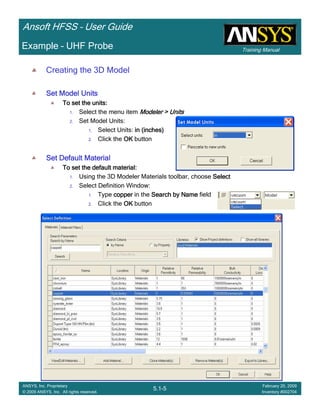
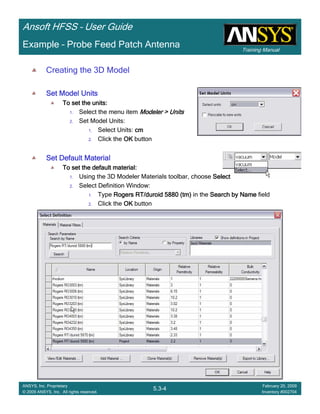
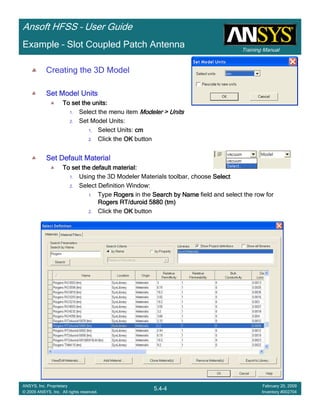
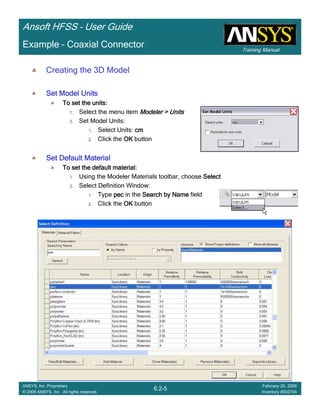
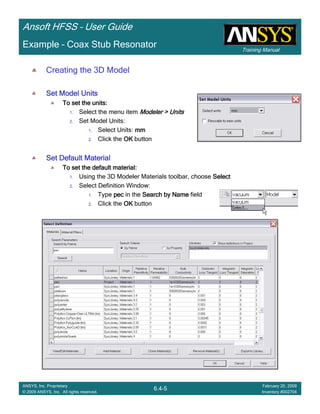
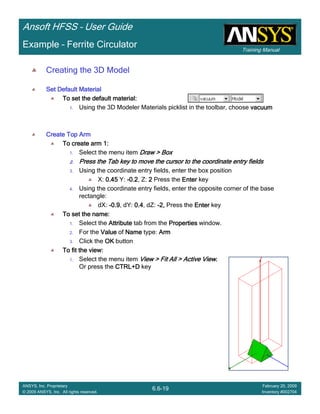
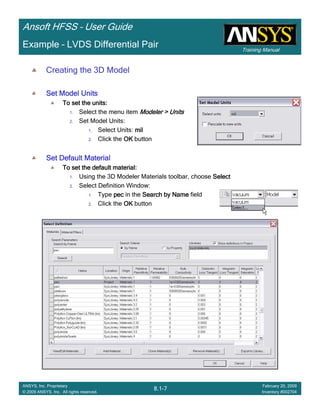
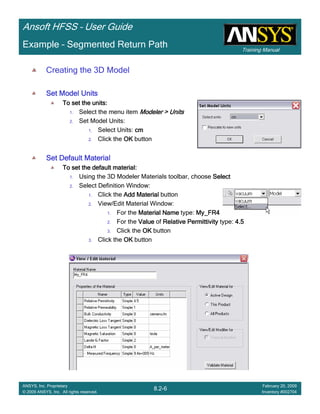
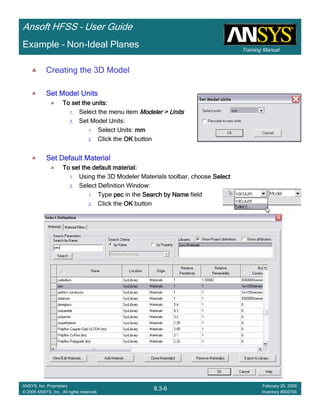
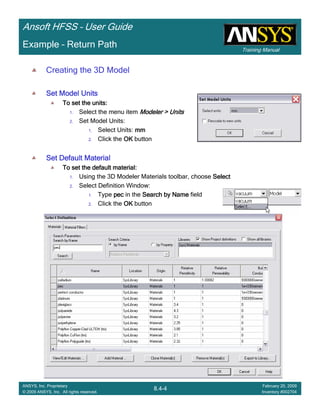
• Set Model Units
– To set the units:
• Select the menu item Modeler > Units
• Set Model Units:
– Select Units: mm
– Click the OK button
• Set Default Material
– To set the default material:
• Using the 3D Modeler Materials toolbar, choose Select
• Select Definition Window:
– Type pec in the Search by Name field
– Click the OK button
Introduction
1-21
ANSYS, Inc. Proprietary
© 2009 ANSYS, Inc. All rights reserved.
February 23, 2009
Inventory #002593
Training ManualTraining Manual
2-21
ANSYS, Inc. Proprietary
© 2009 ANSYS, Inc. All rights reserved.
February 20, 2009
Inventory #002704
Ansoft HFSS – User Guide
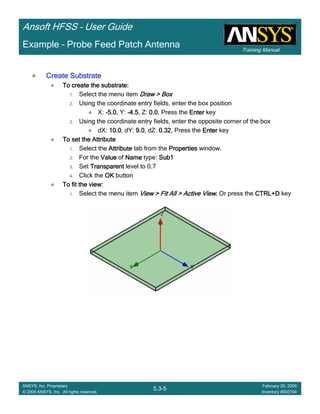
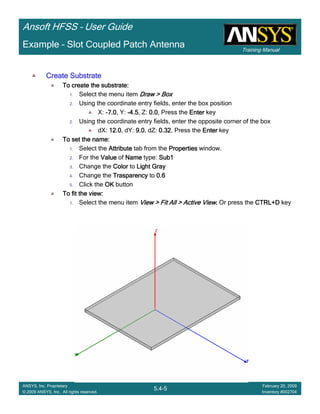
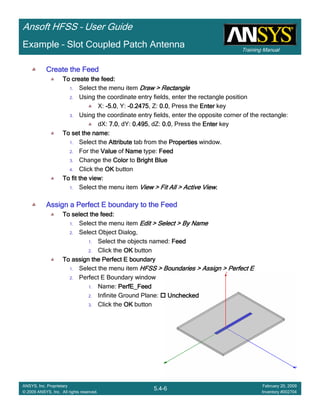
3D Modeler – Create a Primitive
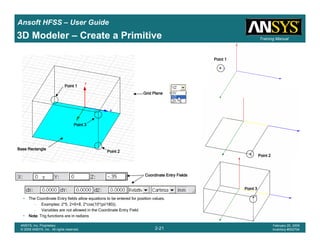
• The Coordinate Entry fields allow equations to be entered for position values.
– Examples: 2*5, 2+6+8, 2*cos(10*(pi/180)).
– Variables are not allowed in the Coordinate Entry Field
• NoteNoteNoteNote: Trig functions are in radians
Point 2Point 2Point 2Point 2
Point 3Point 3Point 3Point 3
Point 1Point 1Point 1Point 1
Grid PlaneGrid PlaneGrid PlaneGrid Plane
Base RectangleBase RectangleBase RectangleBase Rectangle
Point 1Point 1Point 1Point 1
Point 2Point 2Point 2Point 2
Point 3Point 3Point 3Point 3
Coordinate Entry FieldsCoordinate Entry FieldsCoordinate Entry FieldsCoordinate Entry Fields
Introduction
1-22
ANSYS, Inc. Proprietary
© 2009 ANSYS, Inc. All rights reserved.
February 23, 2009
Inventory #002593
Training ManualTraining Manual
2-22
ANSYS, Inc. Proprietary
© 2009 ANSYS, Inc. All rights reserved.
February 20, 2009
Inventory #002704
Ansoft HFSS – User Guide
3D Modeler – Object Properties
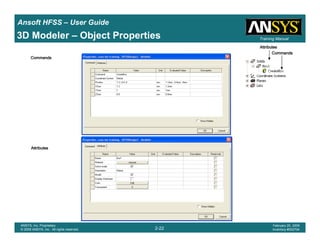
AttributesAttributesAttributesAttributes
CommandsCommandsCommandsCommands
AttributesAttributesAttributesAttributes
CommandsCommandsCommandsCommands
Introduction
1-23
ANSYS, Inc. Proprietary
© 2009 ANSYS, Inc. All rights reserved.
February 23, 2009
Inventory #002593
Training ManualTraining Manual
2-23
ANSYS, Inc. Proprietary
© 2009 ANSYS, Inc. All rights reserved.
February 20, 2009
Inventory #002704
Ansoft HFSS – User Guide
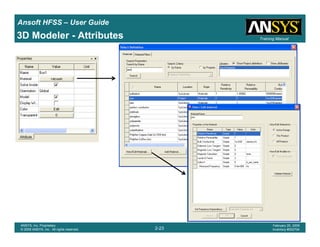
3D Modeler - Attributes
Introduction
1-24
ANSYS, Inc. Proprietary
© 2009 ANSYS, Inc. All rights reserved.
February 23, 2009
Inventory #002593
Training ManualTraining Manual
2-24
ANSYS, Inc. Proprietary
© 2009 ANSYS, Inc. All rights reserved.
February 20, 2009
Inventory #002704
Ansoft HFSS – User Guide
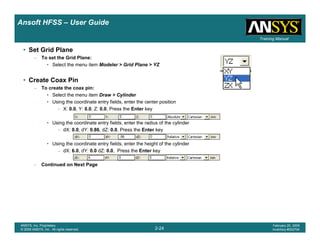
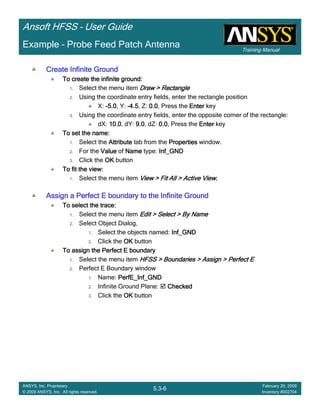
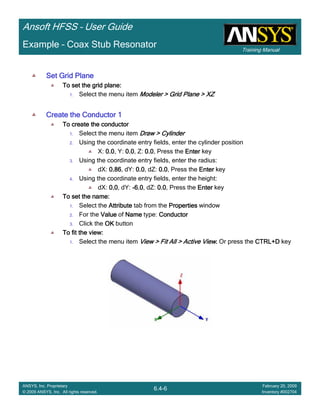
• Set Grid Plane
– To set the Grid Plane:
• Select the menu item Modeler > Grid Plane > YZ
• Create Coax Pin
– To create the coax pin:
• Select the menu item Draw > Cylinder
• Using the coordinate entry fields, enter the center position
– X: 0.0, Y: 0.0, Z: 0.0, Press the Enter key
• Using the coordinate entry fields, enter the radius of the cylinder
– dX: 0.0, dY: 0.86, dZ: 0.0, Press the Enter key
• Using the coordinate entry fields, enter the height of the cylinder
– dX: 6.0, dY: 0.0 dZ: 0.0, Press the Enter key
– Continued on Next Page
Introduction
1-25
ANSYS, Inc. Proprietary
© 2009 ANSYS, Inc. All rights reserved.
February 23, 2009
Inventory #002593
Training ManualTraining Manual
2-25
ANSYS, Inc. Proprietary
© 2009 ANSYS, Inc. All rights reserved.
February 20, 2009
Inventory #002704
Ansoft HFSS – User Guide
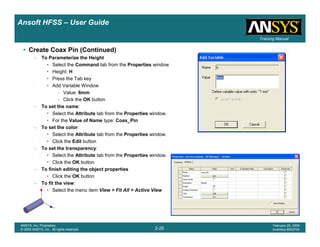
• Create Coax Pin (Continued)
– To Parameterize the Height
• Select the Command tab from the Properties window
• Height: H
• Press the Tab key
• Add Variable Window
– Value: 6mm
– Click the OK button
– To set the name:
• Select the Attribute tab from the Properties window.
• For the Value of Name type: Coax_Pin
– To set the color:
• Select the Attribute tab from the Properties window.
• Click the Edit button
– To set the transparency:
• Select the Attribute tab from the Properties window.
• Click the OK button
– To finish editing the object properties
• Click the OK button
– To fit the view:
• Select the menu item View > Fit All > Active View
Introduction
1-26
ANSYS, Inc. Proprietary
© 2009 ANSYS, Inc. All rights reserved.
February 23, 2009
Inventory #002593
Training ManualTraining Manual
2-26
ANSYS, Inc. Proprietary
© 2009 ANSYS, Inc. All rights reserved.
February 20, 2009
Inventory #002704
Ansoft HFSS – User Guide
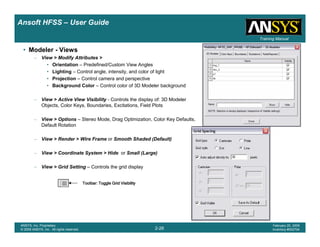
• Modeler - Views
– View > Modify Attributes >
• Orientation – Predefined/Custom View Angles
• Lighting – Control angle, intensity, and color of light
• Projection – Control camera and perspective
• Background Color – Control color of 3D Modeler background
– View > Active View Visibility - Controls the display of: 3D Modeler
Objects, Color Keys, Boundaries, Excitations, Field Plots
– View > Options – Stereo Mode, Drag Optimization, Color Key Defaults,
Default Rotation
– View > Render > Wire Frame or Smooth Shaded (Default)
– View > Coordinate System > Hide or Small (Large)
– View > Grid Setting – Controls the grid display
Toolbar: Toggle Grid VisibilityToolbar: Toggle Grid VisibilityToolbar: Toggle Grid VisibilityToolbar: Toggle Grid Visibility
Introduction
1-27
ANSYS, Inc. Proprietary
© 2009 ANSYS, Inc. All rights reserved.
February 23, 2009
Inventory #002593
Training ManualTraining Manual
2-27
ANSYS, Inc. Proprietary
© 2009 ANSYS, Inc. All rights reserved.
February 20, 2009
Inventory #002704
Ansoft HFSS – User Guide
Changing the View
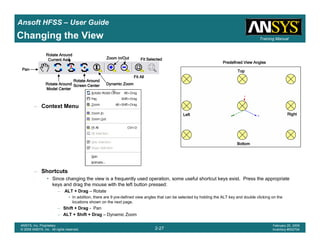
– Context Menu
– Shortcuts
• Since changing the view is a frequently used operation, some useful shortcut keys exist. Press the appropriate
keys and drag the mouse with the left button pressed:
– ALT + Drag – Rotate
• In addition, there are 9 pre-defined view angles that can be selected by holding the ALT key and double clicking on the
locations shown on the next page.
– Shift + Drag - Pan
– ALT + Shift + Drag – Dynamic Zoom
PanPanPanPan
Rotate AroundRotate AroundRotate AroundRotate Around
Model CenterModel CenterModel CenterModel Center
Dynamic ZoomDynamic ZoomDynamic ZoomDynamic Zoom
Zoom In/OutZoom In/OutZoom In/OutZoom In/Out
TopTopTopTop
BottomBottomBottomBottom
RightRightRightRight
Predefined View AnglesPredefined View AnglesPredefined View AnglesPredefined View Angles
LeftLeftLeftLeft
Rotate AroundRotate AroundRotate AroundRotate Around
Current AxisCurrent AxisCurrent AxisCurrent Axis
Rotate AroundRotate AroundRotate AroundRotate Around
Screen CenterScreen CenterScreen CenterScreen Center
Fit AllFit AllFit AllFit All
Fit SelectedFit SelectedFit SelectedFit Selected
Introduction
1-28
ANSYS, Inc. Proprietary
© 2009 ANSYS, Inc. All rights reserved.
February 23, 2009
Inventory #002593
Training ManualTraining Manual
2-28
ANSYS, Inc. Proprietary
© 2009 ANSYS, Inc. All rights reserved.
February 20, 2009
Inventory #002704
Ansoft HFSS – User Guide
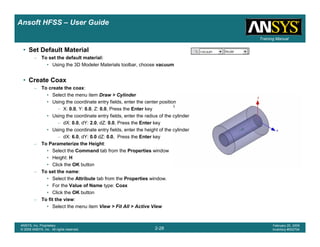
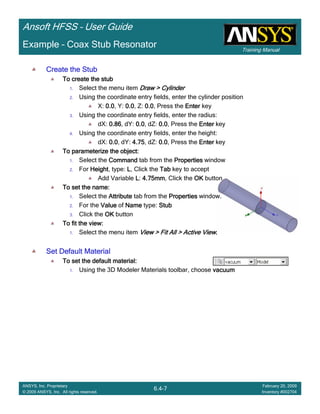
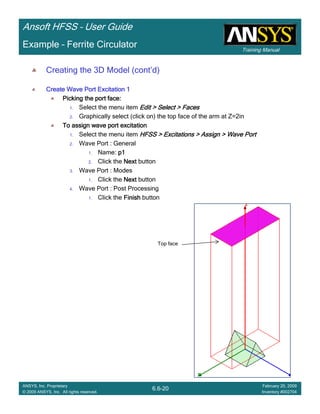
• Set Default Material
– To set the default material:
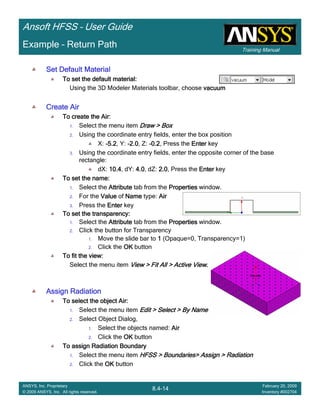
• Using the 3D Modeler Materials toolbar, choose vacuum
• Create Coax
– To create the coax:
• Select the menu item Draw > Cylinder
• Using the coordinate entry fields, enter the center position
– X: 0.0, Y: 0.0, Z: 0.0, Press the Enter key
• Using the coordinate entry fields, enter the radius of the cylinder
– dX: 0.0, dY: 2.0, dZ: 0.0, Press the Enter key
• Using the coordinate entry fields, enter the height of the cylinder
– dX: 6.0, dY: 0.0 dZ: 0.0, Press the Enter key
– To Parameterize the Height:
• Select the Command tab from the Properties window
• Height: H
• Click the OK button
– To set the name:
• Select the Attribute tab from the Properties window.
• For the Value of Name type: Coax
• Click the OK button
– To fit the view:
• Select the menu item View > Fit All > Active View
Introduction
1-29
ANSYS, Inc. Proprietary
© 2009 ANSYS, Inc. All rights reserved.
February 23, 2009
Inventory #002593
Training ManualTraining Manual
2-29
ANSYS, Inc. Proprietary
© 2009 ANSYS, Inc. All rights reserved.
February 20, 2009
Inventory #002704
Ansoft HFSS – User Guide
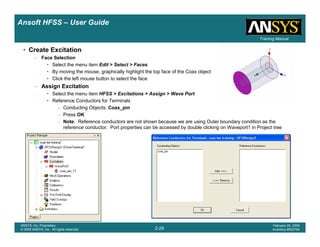
• Create Excitation
– Face Selection
• Select the menu item Edit > Select > Faces
• By moving the mouse, graphically highlight the top face of the Coax object
• Click the left mouse button to select the face
– Assign Excitation
• Select the menu item HFSS > Excitations > Assign > Wave Port
• Reference Conductors for Terminals
– Conducting Objects: Coax_pin
– Press OK
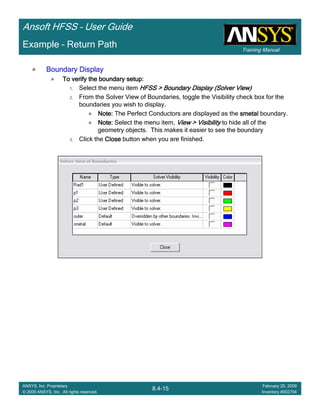
– Note: Reference conductors are not shown because we are using Outer boundary condition as the
reference conductor. Port properties can be accessed by double clicking on Waveport1 in Project tree
Introduction
1-30
ANSYS, Inc. Proprietary
© 2009 ANSYS, Inc. All rights reserved.
February 23, 2009
Inventory #002593
Training ManualTraining Manual
2-30
ANSYS, Inc. Proprietary
© 2009 ANSYS, Inc. All rights reserved.
February 20, 2009
Inventory #002704
Ansoft HFSS – User Guide
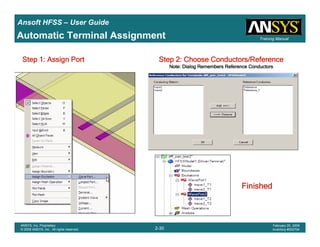
Automatic Terminal Assignment
Step 1: Assign PortStep 1: Assign PortStep 1: Assign PortStep 1: Assign Port Step 2: Choose Conductors/ReferenceStep 2: Choose Conductors/ReferenceStep 2: Choose Conductors/ReferenceStep 2: Choose Conductors/Reference
Note: Dialog Remembers Reference ConductorsNote: Dialog Remembers Reference ConductorsNote: Dialog Remembers Reference ConductorsNote: Dialog Remembers Reference Conductors
FinishedFinishedFinishedFinished
Introduction
1-31
ANSYS, Inc. Proprietary
© 2009 ANSYS, Inc. All rights reserved.
February 23, 2009
Inventory #002593
Training ManualTraining Manual
2-31
ANSYS, Inc. Proprietary
© 2009 ANSYS, Inc. All rights reserved.
February 20, 2009
Inventory #002704
Ansoft HFSS – User Guide
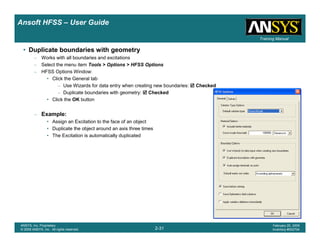
• Duplicate boundaries with geometry
– Works with all boundaries and excitations
– Select the menu item Tools > Options > HFSS Options
– HFSS Options Window:
• Click the General tab
– Use Wizards for data entry when creating new boundaries: Checked
– Duplicate boundaries with geometry: Checked
• Click the OK button
– Example:
• Assign an Excitation to the face of an object
• Duplicate the object around an axis three times
• The Excitation is automatically duplicated
Introduction
1-32
ANSYS, Inc. Proprietary
© 2009 ANSYS, Inc. All rights reserved.
February 23, 2009
Inventory #002593
Training ManualTraining Manual
2-32
ANSYS, Inc. Proprietary
© 2009 ANSYS, Inc. All rights reserved.
February 20, 2009
Inventory #002704
Ansoft HFSS – User Guide
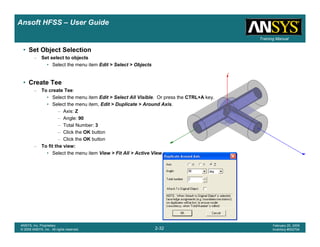
• Set Object Selection
– Set select to objects
• Select the menu item Edit > Select > Objects
• Create Tee
– To create Tee:
• Select the menu item Edit > Select All Visible. Or press the CTRL+A key.
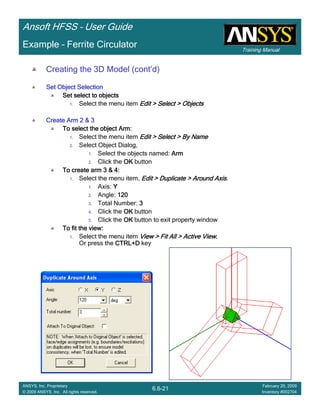
• Select the menu item, Edit > Duplicate > Around Axis.
– Axis: Z
– Angle: 90
– Total Number: 3
– Click the OK button
– To fit the view:
• Select the menu item View > Fit All > Active View.
Introduction
1-33
ANSYS, Inc. Proprietary
© 2009 ANSYS, Inc. All rights reserved.
February 23, 2009
Inventory #002593
Training ManualTraining Manual
2-33
ANSYS, Inc. Proprietary
© 2009 ANSYS, Inc. All rights reserved.
February 20, 2009
Inventory #002704
Ansoft HFSS – User Guide
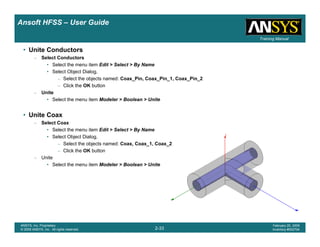
• Unite Conductors
– Select Conductors
• Select the menu item Edit > Select > By Name
• Select Object Dialog,
– Select the objects named: Coax_Pin, Coax_Pin_1, Coax_Pin_2
– Click the OK button
– Unite
• Select the menu item Modeler > Boolean > Unite
• Unite Coax
– Select Coax
• Select the menu item Edit > Select > By Name
• Select Object Dialog,
– Select the objects named: Coax, Coax_1, Coax_2
– Click the OK button
– Unite
• Select the menu item Modeler > Boolean > Unite
Introduction
1-34
ANSYS, Inc. Proprietary
© 2009 ANSYS, Inc. All rights reserved.
February 23, 2009
Inventory #002593
Training ManualTraining Manual
2-34
ANSYS, Inc. Proprietary
© 2009 ANSYS, Inc. All rights reserved.
February 20, 2009
Inventory #002704
Ansoft HFSS – User Guide
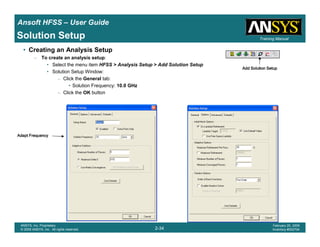
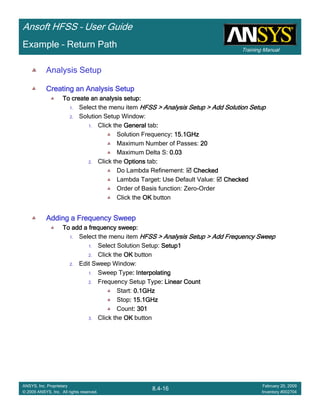
Solution Setup
• Creating an Analysis Setup
– To create an analysis setup:
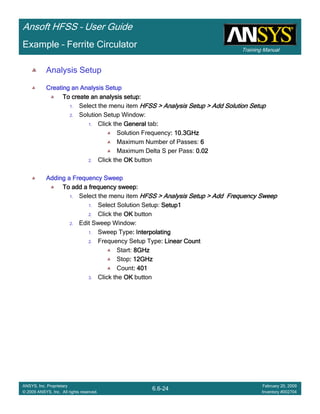
• Select the menu item HFSS > Analysis Setup > Add Solution Setup
• Solution Setup Window:
– Click the General tab:
• Solution Frequency: 10.0 GHz
– Click the OK button
Adapt FrequencyAdapt FrequencyAdapt FrequencyAdapt Frequency
Add Solution SetupAdd Solution SetupAdd Solution SetupAdd Solution Setup
Introduction
1-35
ANSYS, Inc. Proprietary
© 2009 ANSYS, Inc. All rights reserved.
February 23, 2009
Inventory #002593
Training ManualTraining Manual
2-35
ANSYS, Inc. Proprietary
© 2009 ANSYS, Inc. All rights reserved.
February 20, 2009
Inventory #002704
Ansoft HFSS – User Guide
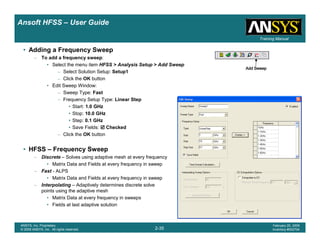
• Adding a Frequency Sweep
– To add a frequency sweep:
• Select the menu item HFSS > Analysis Setup > Add Sweep
– Select Solution Setup: Setup1
– Click the OK button
• Edit Sweep Window:
– Sweep Type: Fast
– Frequency Setup Type: Linear Step
• Start: 1.0 GHz
• Stop: 10.0 GHz
• Step: 0.1 GHz
• Save Fields: Checked
– Click the OK button
• HFSS – Frequency Sweep
– Discrete – Solves using adaptive mesh at every frequency
• Matrix Data and Fields at every frequency in sweep
– Fast - ALPS
• Matrix Data and Fields at every frequency in sweep
– Interpolating – Adaptively determines discrete solve
points using the adaptive mesh
• Matrix Data at every frequency in sweeps
• Fields at last adaptive solution
Add SweepAdd SweepAdd SweepAdd Sweep
Introduction
1-36
ANSYS, Inc. Proprietary
© 2009 ANSYS, Inc. All rights reserved.
February 23, 2009
Inventory #002593
Training ManualTraining Manual
2-36
ANSYS, Inc. Proprietary
© 2009 ANSYS, Inc. All rights reserved.
February 20, 2009
Inventory #002704
Ansoft HFSS – User Guide
See: IEEE Trans. Microwave Theory Tech., Vol. 46, No. 9, Sept. 1998
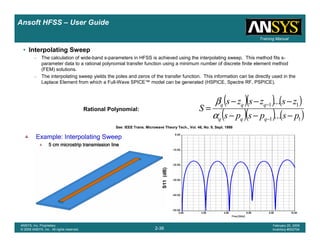
• Interpolating Sweep
– The calculation of wide-band s-parameters in HFSS is achieved using the interpolating sweep. This method fits s-
parameter data to a rational polynomial transfer function using a minimum number of discrete finite element method
(FEM) solutions.
– The interpolating sweep yields the poles and zeros of the transfer function. This information can be directly used in the
Laplace Element from which a Full-Wave SPICE™ model can be generated (HSPICE, Spectre RF, PSPICE).
( )( ) ( )
( )( ) ( )11
11
...
...
pspsps
zszszs
S
qqq
qqq
−−−
−−−
=
−
−
α
β
Rational Polynomial:
S11(dB)
Example: Interpolating SweepExample: Interpolating SweepExample: Interpolating SweepExample: Interpolating Sweep
5 cm microstrip transmission line5 cm microstrip transmission line5 cm microstrip transmission line5 cm microstrip transmission line
Introduction
1-37
ANSYS, Inc. Proprietary
© 2009 ANSYS, Inc. All rights reserved.
February 23, 2009
Inventory #002593
Training ManualTraining Manual
2-37
ANSYS, Inc. Proprietary
© 2009 ANSYS, Inc. All rights reserved.
February 20, 2009
Inventory #002704
Ansoft HFSS – User Guide
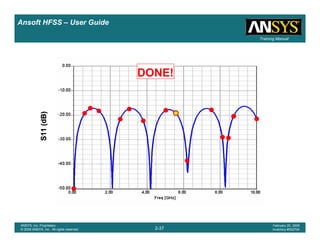
S11(dB)
Adaptive Frequency
S11(dB)S11(dB)S11(dB)S11(dB)S11(dB)S11(dB)S11(dB)S11(dB)S11(dB)S11(dB)S11(dB)S11(dB)
DONE!
Introduction
1-38
ANSYS, Inc. Proprietary
© 2009 ANSYS, Inc. All rights reserved.
February 23, 2009
Inventory #002593
Training ManualTraining Manual
2-38
ANSYS, Inc. Proprietary
© 2009 ANSYS, Inc. All rights reserved.
February 20, 2009
Inventory #002704
Ansoft HFSS – User Guide
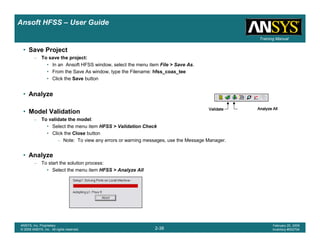
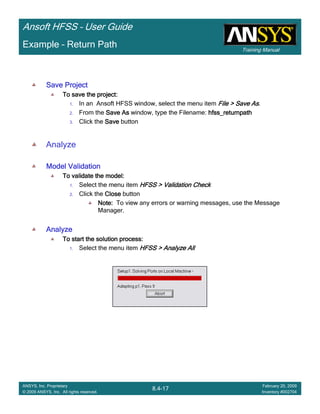
• Save Project
– To save the project:
• In an Ansoft HFSS window, select the menu item File > Save As.
• From the Save As window, type the Filename: hfss_coax_tee
• Click the Save button
• Analyze
• Model Validation
– To validate the model:
• Select the menu item HFSS > Validation Check
• Click the Close button
– Note: To view any errors or warning messages, use the Message Manager.
• Analyze
– To start the solution process:
• Select the menu item HFSS > Analyze All
ValidateValidateValidateValidate Analyze AllAnalyze AllAnalyze AllAnalyze All
Introduction
1-39
ANSYS, Inc. Proprietary
© 2009 ANSYS, Inc. All rights reserved.
February 23, 2009
Inventory #002593
Training ManualTraining Manual
2-39
ANSYS, Inc. Proprietary
© 2009 ANSYS, Inc. All rights reserved.
February 20, 2009
Inventory #002704
Ansoft HFSS – User Guide
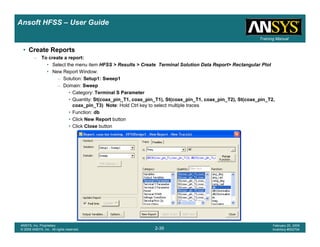
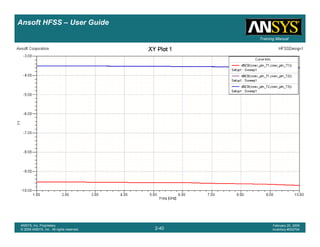
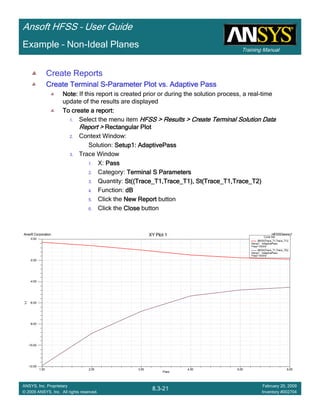
• Create Reports
– To create a report:
• Select the menu item HFSS > Results > Create Terminal Solution Data Report> Rectangular Plot
• New Report Window:
– Solution: Setup1: Sweep1
– Domain: Sweep
• Category: Terminal S Parameter
• Quantity: St(coax_pin_T1, coax_pin_T1), St(coax_pin_T1, coax_pin_T2), St(coax_pin_T2,
coax_pin_T3) Note: Hold Ctrl key to select multiple traces
• Function: db
• Click New Report button
• Click Close button
Introduction
1-40
ANSYS, Inc. Proprietary
© 2009 ANSYS, Inc. All rights reserved.
February 23, 2009
Inventory #002593
Training ManualTraining Manual
2-40
ANSYS, Inc. Proprietary
© 2009 ANSYS, Inc. All rights reserved.
February 20, 2009
Inventory #002704
Ansoft HFSS – User Guide
Introduction
1-41
ANSYS, Inc. Proprietary
© 2009 ANSYS, Inc. All rights reserved.
February 23, 2009
Inventory #002593
Training ManualTraining Manual
2-41
ANSYS, Inc. Proprietary
© 2009 ANSYS, Inc. All rights reserved.
February 20, 2009
Inventory #002704
Ansoft HFSS – User Guide
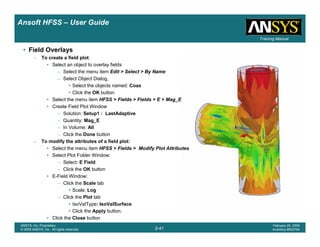
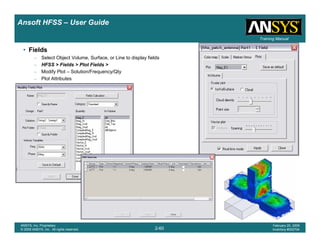
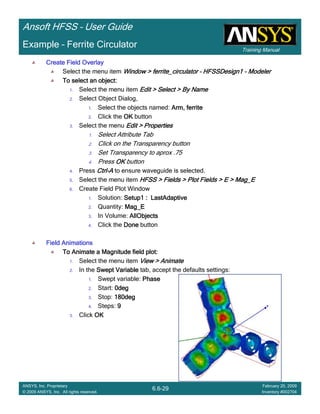
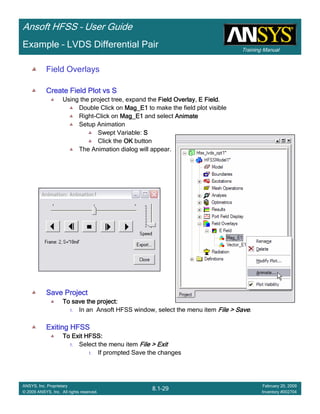
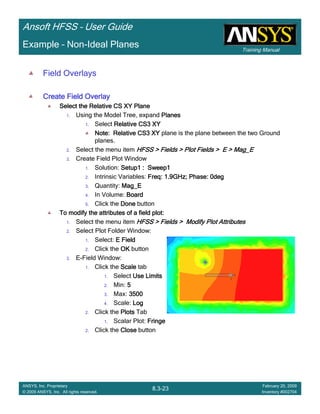
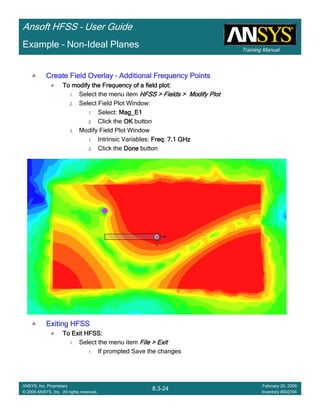
• Field Overlays
– To create a field plot:
• Select an object to overlay fields
– Select the menu item Edit > Select > By Name
– Select Object Dialog,
• Select the objects named: Coax
• Click the OK button
• Select the menu item HFSS > Fields > Fields > E > Mag_E
• Create Field Plot Window
– Solution: Setup1 : LastAdaptive
– Quantity: Mag_E
– In Volume: All
– Click the Done button
– To modify the attributes of a field plot:
• Select the menu item HFSS > Fields > Modify Plot Attributes
• Select Plot Folder Window:
– Select: E Field
– Click the OK button
• E-Field Window:
– Click the Scale tab
• Scale: Log
– Click the Plot tab
• IsoValType: IsoValSurface
• Click the Apply button.
• Click the Close button
Introduction
1-42
ANSYS, Inc. Proprietary
© 2009 ANSYS, Inc. All rights reserved.
February 23, 2009
Inventory #002593
Training ManualTraining Manual
2-42
ANSYS, Inc. Proprietary
© 2009 ANSYS, Inc. All rights reserved.
February 20, 2009
Inventory #002704
Ansoft HFSS – User Guide
Introduction
1-43
ANSYS, Inc. Proprietary
© 2009 ANSYS, Inc. All rights reserved.
February 23, 2009
Inventory #002593
Training ManualTraining Manual
2-43
ANSYS, Inc. Proprietary
© 2009 ANSYS, Inc. All rights reserved.
February 20, 2009
Inventory #002704
Ansoft HFSS – User Guide
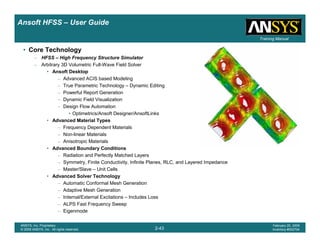
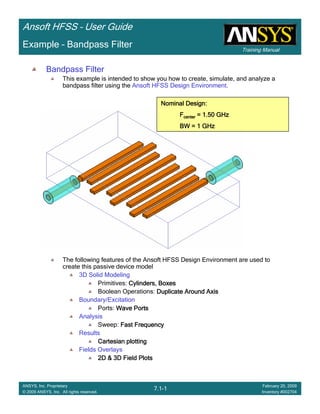
• Core Technology
– HFSS – High Frequency Structure Simulator
– Arbitrary 3D Volumetric Full-Wave Field Solver
• Ansoft Desktop
– Advanced ACIS based Modeling
– True Parametric Technology – Dynamic Editing
– Powerful Report Generation
– Dynamic Field Visualization
– Design Flow Automation
• Optimetrics/Ansoft Designer/AnsoftLinks
• Advanced Material Types
– Frequency Dependent Materials
– Non-linear Materials
– Anisotropic Materials
• Advanced Boundary Conditions
– Radiation and Perfectly Matched Layers
– Symmetry, Finite Conductivity, Infinite Planes, RLC, and Layered Impedance
– Master/Slave – Unit Cells
• Advanced Solver Technology
– Automatic Conformal Mesh Generation
– Adaptive Mesh Generation
– Internal/External Excitations – Includes Loss
– ALPS Fast Frequency Sweep
– Eigenmode
Introduction
1-44
ANSYS, Inc. Proprietary
© 2009 ANSYS, Inc. All rights reserved.
February 23, 2009
Inventory #002593
Training ManualTraining Manual
2-44
ANSYS, Inc. Proprietary
© 2009 ANSYS, Inc. All rights reserved.
February 20, 2009
Inventory #002704
Ansoft HFSS – User Guide
• Common HFSS Applications
– Antenna
• Planar Antennas - Patches, Dipoles, Horns, Conformal Cell Phone Antennas, Spirals
• Waveguide – Circular/Square Horns
• Wire – Dipole, Helix
• Arrays - Infinite Arrays, Frequency Selective Surfaces (FSS) & Photonic Band Gaps (PBG)
• Radar Cross Section (RCS)
– Microwave
• Filters – Cavity Filters, Microstrip, Dielectric
• EMC/EMI – Shield Enclosures, Coupling, Near- or Far-Field Radiation
• Connectors – Coax, SFP/XFP, Backplane, Transitions
• Waveguide – Filters, Resonators, Transitions, Couplers
• Silicon/GaSa - Spiral Inductors, Transformers
– Signal Integrity/High-Speed Digital
• Package Modeling – BGA, QFP, Flip-Chip
• PCB Board Modeling – Power/Ground planes, Mesh Grid Grounds, Backplanes
• Connectors – SFP/XFP, VHDM, GBX, NexLev, Coax
• Transitions – Differential/Single-ended Vias
Introduction
1-45
ANSYS, Inc. Proprietary
© 2009 ANSYS, Inc. All rights reserved.
February 23, 2009
Inventory #002593
Training ManualTraining Manual
2-45
ANSYS, Inc. Proprietary
© 2009 ANSYS, Inc. All rights reserved.
February 20, 2009
Inventory #002704
Ansoft HFSS – User Guide
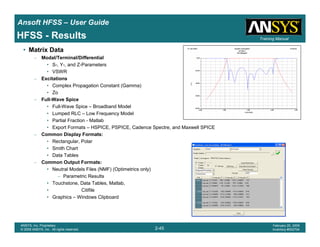
HFSS - Results
• Matrix Data
– Modal/Terminal/Differential
• S-, Y-, and Z-Parameters
• VSWR
– Excitations
• Complex Propagation Constant (Gamma)
• Zo
– Full-Wave Spice
• Full-Wave Spice – Broadband Model
• Lumped RLC – Low Frequency Model
• Partial Fraction - Matlab
• Export Formats – HSPICE, PSPICE, Cadence Spectre, and Maxwell SPICE
– Common Display Formats:
• Rectangular, Polar
• Smith Chart
• Data Tables
– Common Output Formats:
• Neutral Models Files (NMF) (Optimetrics only)
– Parametric Results
• Touchstone, Data Tables, Matlab,
• Citifile
• Graphics – Windows Clipboard
Introduction
1-46
ANSYS, Inc. Proprietary
© 2009 ANSYS, Inc. All rights reserved.
February 23, 2009
Inventory #002593
Training ManualTraining Manual
2-46
ANSYS, Inc. Proprietary
© 2009 ANSYS, Inc. All rights reserved.
February 20, 2009
Inventory #002704
Ansoft HFSS – User Guide
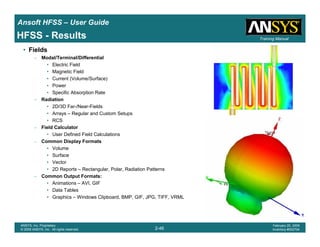
HFSS - Results
• Fields
– Modal/Terminal/Differential
• Electric Field
• Magnetic Field
• Current (Volume/Surface)
• Power
• Specific Absorption Rate
– Radiation
• 2D/3D Far-/Near-Fields
• Arrays – Regular and Custom Setups
• RCS
– Field Calculator
• User Defined Field Calculations
– Common Display Formats
• Volume
• Surface
• Vector
• 2D Reports – Rectangular, Polar, Radiation Patterns
– Common Output Formats:
• Animations – AVI, GIF
• Data Tables
• Graphics – Windows Clipboard, BMP, GIF, JPG, TIFF, VRML
Introduction
1-47
ANSYS, Inc. Proprietary
© 2009 ANSYS, Inc. All rights reserved.
February 23, 2009
Inventory #002593
Training ManualTraining Manual
2-47
ANSYS, Inc. Proprietary
© 2009 ANSYS, Inc. All rights reserved.
February 20, 2009
Inventory #002704
Ansoft HFSS – User Guide
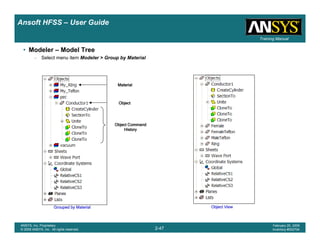
• Modeler – Model Tree
– Select menu item Modeler > Group by Material
Grouped by MaterialGrouped by MaterialGrouped by MaterialGrouped by Material Object ViewObject ViewObject ViewObject View
MaterialMaterialMaterialMaterial
ObjectObjectObjectObject
Object CommandObject CommandObject CommandObject Command
HistoryHistoryHistoryHistory
Introduction
1-48
ANSYS, Inc. Proprietary
© 2009 ANSYS, Inc. All rights reserved.
February 23, 2009
Inventory #002593
Training ManualTraining Manual
2-48
ANSYS, Inc. Proprietary
© 2009 ANSYS, Inc. All rights reserved.
February 20, 2009
Inventory #002704
Ansoft HFSS – User Guide
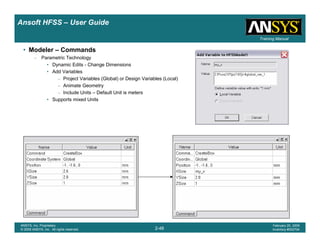
• Modeler – Commands
– Parametric Technology
• Dynamic Edits - Change Dimensions
• Add Variables
– Project Variables (Global) or Design Variables (Local)
– Animate Geometry
– Include Units – Default Unit is meters
• Supports mixed Units
Introduction
1-49
ANSYS, Inc. Proprietary
© 2009 ANSYS, Inc. All rights reserved.
February 23, 2009
Inventory #002593
Training ManualTraining Manual
2-49
ANSYS, Inc. Proprietary
© 2009 ANSYS, Inc. All rights reserved.
February 20, 2009
Inventory #002704
Ansoft HFSS – User Guide
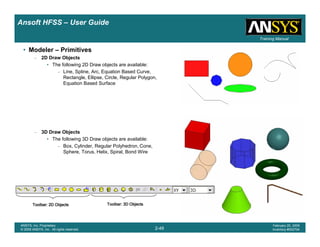
• Modeler – Primitives
– 2D Draw Objects
• The following 2D Draw objects are available:
– Line, Spline, Arc, Equation Based Curve,
Rectangle, Ellipse, Circle, Regular Polygon,
Equation Based Surface
– 3D Draw Objects
• The following 3D Draw objects are available:
– Box, Cylinder, Regular Polyhedron, Cone,
Sphere, Torus, Helix, Spiral, Bond Wire
Toolbar: 2D ObjectsToolbar: 2D ObjectsToolbar: 2D ObjectsToolbar: 2D Objects Toolbar: 3D ObjectsToolbar: 3D ObjectsToolbar: 3D ObjectsToolbar: 3D Objects
Introduction
1-50
ANSYS, Inc. Proprietary
© 2009 ANSYS, Inc. All rights reserved.
February 23, 2009
Inventory #002593
Training ManualTraining Manual
2-50
ANSYS, Inc. Proprietary
© 2009 ANSYS, Inc. All rights reserved.
February 20, 2009
Inventory #002704
Ansoft HFSS – User Guide
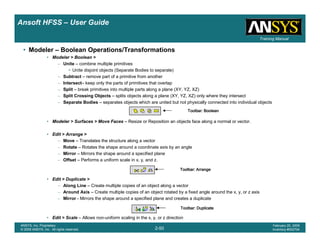
• Modeler – Boolean Operations/Transformations
• Modeler > Boolean >
– Unite – combine multiple primitives
• Unite disjoint objects (Separate Bodies to separate)
– Subtract – remove part of a primitive from another
– Intersect– keep only the parts of primitives that overlap
– Split – break primitives into multiple parts along a plane (XY, YZ, XZ)
– Split Crossing Objects – splits objects along a plane (XY, YZ, XZ) only where they intersect
– Separate Bodies – separates objects which are united but not physically connected into individual objects
• Modeler > Surfaces > Move Faces – Resize or Reposition an objects face along a normal or vector.
• Edit > Arrange >
– Move – Translates the structure along a vector
– Rotate – Rotates the shape around a coordinate axis by an angle
– Mirror – Mirrors the shape around a specified plane
– Offset – Performs a uniform scale in x, y, and z.
• Edit > Duplicate >
– Along Line – Create multiple copies of an object along a vector
– Around Axis – Create multiple copies of an object rotated by a fixed angle around the x, y, or z axis
– Mirror - Mirrors the shape around a specified plane and creates a duplicate
• Edit > Scale – Allows non-uniform scaling in the x, y, or z direction
Toolbar: BooleanToolbar: BooleanToolbar: BooleanToolbar: Boolean
Toolbar: ArrangeToolbar: ArrangeToolbar: ArrangeToolbar: Arrange
Toolbar: DuplicateToolbar: DuplicateToolbar: DuplicateToolbar: Duplicate
Introduction
1-51
ANSYS, Inc. Proprietary
© 2009 ANSYS, Inc. All rights reserved.
February 23, 2009
Inventory #002593
Training ManualTraining Manual
2-51
ANSYS, Inc. Proprietary
© 2009 ANSYS, Inc. All rights reserved.
February 20, 2009
Inventory #002704
Ansoft HFSS – User Guide
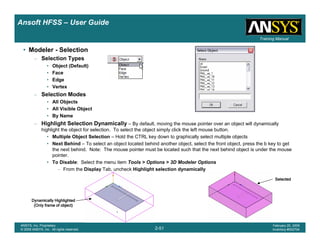
• Modeler - Selection
– Selection Types
• Object (Default)
• Face
• Edge
• Vertex
– Selection Modes
• All Objects
• All Visible Object
• By Name
– Highlight Selection Dynamically – By default, moving the mouse pointer over an object will dynamically
highlight the object for selection. To select the object simply click the left mouse button.
• Multiple Object Selection – Hold the CTRL key down to graphically select multiple objects
• Next Behind – To select an object located behind another object, select the front object, press the b key to get
the next behind. Note: The mouse pointer must be located such that the next behind object is under the mouse
pointer.
• To Disable: Select the menu item Tools > Options > 3D Modeler Options
– From the Display Tab, uncheck Highlight selection dynamically
Dynamically HighlightedDynamically HighlightedDynamically HighlightedDynamically Highlighted
(Only frame of object)(Only frame of object)(Only frame of object)(Only frame of object)
SelectedSelectedSelectedSelected
Introduction
1-52
ANSYS, Inc. Proprietary
© 2009 ANSYS, Inc. All rights reserved.
February 23, 2009
Inventory #002593
Training ManualTraining Manual
2-52
ANSYS, Inc. Proprietary
© 2009 ANSYS, Inc. All rights reserved.
February 20, 2009
Inventory #002704
Ansoft HFSS – User Guide
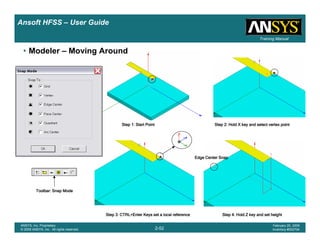
• Modeler – Moving Around
Step 1: Start PointStep 1: Start PointStep 1: Start PointStep 1: Start Point Step 2: Hold X key and select vertex pointStep 2: Hold X key and select vertex pointStep 2: Hold X key and select vertex pointStep 2: Hold X key and select vertex point
Step 3: CTRL+Enter Keys set a local referenceStep 3: CTRL+Enter Keys set a local referenceStep 3: CTRL+Enter Keys set a local referenceStep 3: CTRL+Enter Keys set a local reference Step 4: Hold Z key and set heightStep 4: Hold Z key and set heightStep 4: Hold Z key and set heightStep 4: Hold Z key and set height
Edge Center SnapEdge Center SnapEdge Center SnapEdge Center Snap
Toolbar: Snap ModeToolbar: Snap ModeToolbar: Snap ModeToolbar: Snap Mode
Introduction
1-53
ANSYS, Inc. Proprietary
© 2009 ANSYS, Inc. All rights reserved.
February 23, 2009
Inventory #002593
Training ManualTraining Manual
2-53
ANSYS, Inc. Proprietary
© 2009 ANSYS, Inc. All rights reserved.
February 20, 2009
Inventory #002704
Ansoft HFSS – User Guide
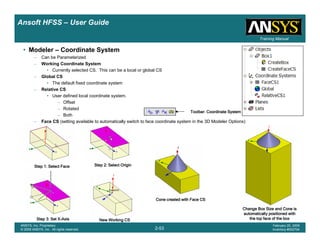
Step 1: Select FaceStep 1: Select FaceStep 1: Select FaceStep 1: Select Face Step 2: Select OriginStep 2: Select OriginStep 2: Select OriginStep 2: Select Origin
Step 3: Set XStep 3: Set XStep 3: Set XStep 3: Set X----AxisAxisAxisAxis New Working CSNew Working CSNew Working CSNew Working CS
• Modeler – Coordinate System
– Can be Parameterized
– Working Coordinate System
• Currently selected CS. This can be a local or global CS
– Global CS
• The default fixed coordinate system
– Relative CS
• User defined local coordinate system.
– Offset
– Rotated
– Both
– Face CS (setting available to automatically switch to face coordinate system in the 3D Modeler Options)
Cone created with Face CSCone created with Face CSCone created with Face CSCone created with Face CS
Change Box Size and Cone isChange Box Size and Cone isChange Box Size and Cone isChange Box Size and Cone is
automatically positioned withautomatically positioned withautomatically positioned withautomatically positioned with
the top face of the boxthe top face of the boxthe top face of the boxthe top face of the box
Toolbar: Coordinate SystemToolbar: Coordinate SystemToolbar: Coordinate SystemToolbar: Coordinate System
Introduction
1-54
ANSYS, Inc. Proprietary
© 2009 ANSYS, Inc. All rights reserved.
February 23, 2009
Inventory #002593
Training ManualTraining Manual
2-54
ANSYS, Inc. Proprietary
© 2009 ANSYS, Inc. All rights reserved.
February 20, 2009
Inventory #002704
Ansoft HFSS – User Guide
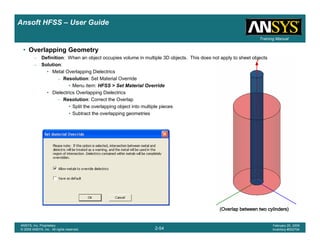
(Overlap between two cylinders)(Overlap between two cylinders)(Overlap between two cylinders)(Overlap between two cylinders)
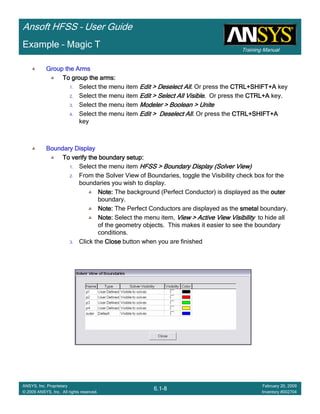
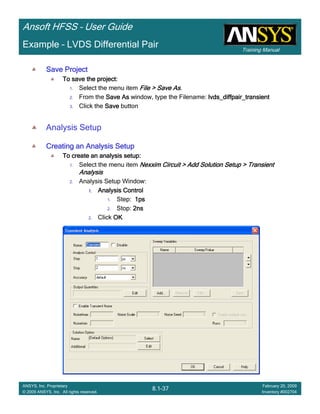
• Overlapping Geometry
– Definition: When an object occupies volume in multiple 3D objects. This does not apply to sheet objects
– Solution:
• Metal Overlapping Dielectrics
– Resolution: Set Material Override
• Menu item: HFSS > Set Material Override
• Dielectrics Overlapping Dielectrics
– Resolution: Correct the Overlap
• Split the overlapping object into multiple pieces
• Subtract the overlapping geometries
Introduction
1-55
ANSYS, Inc. Proprietary
© 2009 ANSYS, Inc. All rights reserved.
February 23, 2009
Inventory #002593
Training ManualTraining Manual
2-55
ANSYS, Inc. Proprietary
© 2009 ANSYS, Inc. All rights reserved.
February 20, 2009
Inventory #002704
Ansoft HFSS – User Guide
Automatic Feature Removal
HolesHolesHolesHoles
BlendsBlendsBlendsBlends
Step 1: Enter Feature Detection OptionsStep 1: Enter Feature Detection OptionsStep 1: Enter Feature Detection OptionsStep 1: Enter Feature Detection Options
Introduction
1-56
ANSYS, Inc. Proprietary
© 2009 ANSYS, Inc. All rights reserved.
February 23, 2009
Inventory #002593
Training ManualTraining Manual
2-56
ANSYS, Inc. Proprietary
© 2009 ANSYS, Inc. All rights reserved.
February 20, 2009
Inventory #002704
Ansoft HFSS – User Guide
Automatic Feature Removal
RemovedRemovedRemovedRemoved
Note:Note:Note:Note: There are two modes of operation for the feature removal: Healing
and Model Analysis. Model Analysis was used here and allows the user to
manually select which geometry features are removed. For healing, all
features that meet the user defined criteria are automatically removed.
Both options are found in the menu item Modeler > Model AnalysisModeler > Model AnalysisModeler > Model AnalysisModeler > Model Analysis
Step 2: Select Features to RemoveStep 2: Select Features to RemoveStep 2: Select Features to RemoveStep 2: Select Features to Remove
Introduction
1-57
ANSYS, Inc. Proprietary
© 2009 ANSYS, Inc. All rights reserved.
February 23, 2009
Inventory #002593
Training ManualTraining Manual
2-57
ANSYS, Inc. Proprietary
© 2009 ANSYS, Inc. All rights reserved.
February 20, 2009
Inventory #002704
Ansoft HFSS – User Guide
• HFSS – Matrix Data
– HFSS > Results > Solution Data
– Export
• NMF, Touchstone, Data Tables, Citifile, MATLAB (*.m)
• NOTE: Make sure the Simulation is set to a Sweep before exporting. The Adaptive Passes will only export a
single frequency point.
– Equivalent Circuit Export
• HSPICE, PSPICE, Spectre, Maxwell SPICE
Introduction
1-58
ANSYS, Inc. Proprietary
© 2009 ANSYS, Inc. All rights reserved.
February 23, 2009
Inventory #002593
Training ManualTraining Manual
2-58
ANSYS, Inc. Proprietary
© 2009 ANSYS, Inc. All rights reserved.
February 20, 2009
Inventory #002704
Ansoft HFSS – User Guide
• Results – Data Management
– HFSS > Results > Browse Solutions
• Solved model variations are retained.
Unless otherwise notified by HFSS.
– HFSS > Results > Clean Up Solutions
– HFSS > Results > Import Solutions
Introduction
1-59
ANSYS, Inc. Proprietary
© 2009 ANSYS, Inc. All rights reserved.
February 23, 2009
Inventory #002593
Training ManualTraining Manual
2-59
ANSYS, Inc. Proprietary
© 2009 ANSYS, Inc. All rights reserved.
February 20, 2009
Inventory #002704
Ansoft HFSS – User Guide
• Results – Create Reports
– HFSS > Results > Create Report
– Output Variables
• User Defined Equations
Introduction
1-60
ANSYS, Inc. Proprietary
© 2009 ANSYS, Inc. All rights reserved.
February 23, 2009
Inventory #002593
Training ManualTraining Manual
2-60
ANSYS, Inc. Proprietary
© 2009 ANSYS, Inc. All rights reserved.
February 20, 2009
Inventory #002704
Ansoft HFSS – User Guide
• Fields
– Select Object Volume, Surface, or Line to display fields
– HFSS > Fields > Plot Fields >
– Modify Plot – Solution/Frequency/Qty
– Plot Attributes
– Edit Sources – Change Excitation
Introduction
1-61
ANSYS, Inc. Proprietary
© 2009 ANSYS, Inc. All rights reserved.
February 23, 2009
Inventory #002593
Training ManualTraining Manual
2-61
ANSYS, Inc. Proprietary
© 2009 ANSYS, Inc. All rights reserved.
February 20, 2009
Inventory #002704
Ansoft HFSS – User Guide
• Mesh Display
– Field Overlay
• Select an object
• Select the menu item HFSS > Fields > Plot Mesh
Introduction
1-62
ANSYS, Inc. Proprietary
© 2009 ANSYS, Inc. All rights reserved.
February 23, 2009
Inventory #002593
Training ManualTraining Manual
2-62
ANSYS, Inc. Proprietary
© 2009 ANSYS, Inc. All rights reserved.
February 20, 2009
Inventory #002704
Ansoft HFSS – User Guide
• Measure
– Modeler > Measure >
• Position – Points and Distance
• Length – Edge Length
• Area – Surface Area
• Volume – Object Volume
Introduction
1-63
ANSYS, Inc. Proprietary
© 2009 ANSYS, Inc. All rights reserved.
February 23, 2009
Inventory #002593
Training ManualTraining Manual
2-63
ANSYS, Inc. Proprietary
© 2009 ANSYS, Inc. All rights reserved.
February 20, 2009
Inventory #002704
Ansoft HFSS – User Guide
• Solver Technology
MeshMeshMeshMesh
OperationsOperationsOperationsOperations
MeshMeshMeshMesh
RefinementRefinementRefinementRefinement
SolveSolveSolveSolve
ConvergedConvergedConvergedConverged
FinishedFinishedFinishedFinished
Solve LoopSolve LoopSolve LoopSolve Loop
NONONONO
YESYESYESYES
Introduction
1-64
ANSYS, Inc. Proprietary
© 2009 ANSYS, Inc. All rights reserved.
February 23, 2009
Inventory #002593
Training ManualTraining Manual
2-64
ANSYS, Inc. Proprietary
© 2009 ANSYS, Inc. All rights reserved.
February 20, 2009
Inventory #002704
Ansoft HFSS – User Guide
Higher-Order Basis Functions
• Solver - Higher-Order Basis Functions
– Basis functions are hierarchical
– Increased Accuracy with less elements
– Convergence is a function of basis order
H0(curl)
elements
H1(curl)
elements
H2(curl)
elements
1111stststst OrderOrderOrderOrder 2222ndndndnd OrderOrderOrderOrder
Introduction
1-65
ANSYS, Inc. Proprietary
© 2009 ANSYS, Inc. All rights reserved.
February 23, 2009
Inventory #002593
Training ManualTraining Manual
2-65
ANSYS, Inc. Proprietary
© 2009 ANSYS, Inc. All rights reserved.
February 20, 2009
Inventory #002704
Ansoft HFSS – User Guide
Iterative Solver
• How does it work?
– The Iterative Matrix Solver works by “guessing” a solution to the matrix of unknowns, and then
recursively updating the “guess” until an error tolerance has been reached
• What is the advantage?
– Reduced RAM and Simulation Time
• Where do you control the Iterative Solver?
– Options Tab from Solution Setup dialog
Initial guess
Preconditioner
Update solution and search
direction
Converges ?
yes
no
Introduction
1-66
ANSYS, Inc. Proprietary
© 2009 ANSYS, Inc. All rights reserved.
February 23, 2009
Inventory #002593
Training ManualTraining Manual
2-66
ANSYS, Inc. Proprietary
© 2009 ANSYS, Inc. All rights reserved.
February 20, 2009
Inventory #002704
Ansoft HFSS – User Guide
Example – Basis Functions & Iterative Solver
How many passes on computer w/8GB RAM?How many passes on computer w/8GB RAM?How many passes on computer w/8GB RAM?How many passes on computer w/8GB RAM?
• Direct: 3 PassesDirect: 3 PassesDirect: 3 PassesDirect: 3 Passes
• Iterative: 11 PassesIterative: 11 PassesIterative: 11 PassesIterative: 11 Passes
Copper WallCopper WallCopper WallCopper Wall
Increased Capacity (4x)Increased Capacity (4x)Increased Capacity (4x)Increased Capacity (4x)
IterativeIterativeIterativeIterativeDirectDirectDirectDirect
4x Capacity on Same Machine4x Capacity on Same Machine4x Capacity on Same Machine4x Capacity on Same Machine
2x Unknowns2x Unknowns2x Unknowns2x Unknowns –––– 2x Memory2x Memory2x Memory2x Memory
Volume: 447cubic wavelengths
Introduction
1-67
ANSYS, Inc. Proprietary
© 2009 ANSYS, Inc. All rights reserved.
February 23, 2009
Inventory #002593
Training ManualTraining Manual
2-67
ANSYS, Inc. Proprietary
© 2009 ANSYS, Inc. All rights reserved.
February 20, 2009
Inventory #002704
Ansoft HFSS – User Guide
IterativeIterativeIterativeIterative DirectDirectDirectDirect
3.2x Less RAM3.2x Less RAM3.2x Less RAM3.2x Less RAM
6.4x Faster6.4x Faster6.4x Faster6.4x Faster
Iterative and DirectIterative and DirectIterative and DirectIterative and Direct
Converge in 3 PassesConverge in 3 PassesConverge in 3 PassesConverge in 3 Passes
Introduction
1-68
ANSYS, Inc. Proprietary
© 2009 ANSYS, Inc. All rights reserved.
February 23, 2009
Inventory #002593
Training ManualTraining Manual
2-68
ANSYS, Inc. Proprietary
© 2009 ANSYS, Inc. All rights reserved.
February 20, 2009
Inventory #002704
Ansoft HFSS – User Guide
• Options – General
– Tools > Options > General Options
• Temp Directory – Location used during solution process
– Make sure it is at least 512MB free disk.
• Options - HFSS
– Tools > Options > HFSS Options > Solver
• Number of Processors – Requires additional license
• Desired RAM Limit – leave it unchecked for auto-detect
• Maximum RAM Limit – leave it unchecked for auto-detect
• Process Priority – set the simulation priority from Critical
(highest) to Idle (lowest)
Introduction
1-69
ANSYS, Inc. Proprietary
© 2009 ANSYS, Inc. All rights reserved.
February 23, 2009
Inventory #002593
Training ManualTraining Manual
2-69
ANSYS, Inc. Proprietary
© 2009 ANSYS, Inc. All rights reserved.
February 20, 2009
Inventory #002704
Ansoft HFSS – User Guide
• Project Files
– Everything regarding the project is stored in an ascii file
• File: <project_name>.hfss
• Double click from Windows Explorer will open and launch HFSS v11
– Results and Mesh are stored in a folder named <project_name>.hfssresults
– Lock file: <project_name>.lock.hfss
• Created when a project is opened
– Auto Save File: <project_name>.hfss.auto
• When recovering, software only checks date
– If an error occurred when saving the auto file, the date will be newer then the original
– Look at file size (provided in recover dialog)
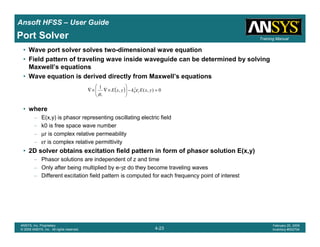
• Converting Older HFSS Projects HFSS v9 and HFSS v10 to HFSS v11
– From HFSS v11.0,
• Select the menu item File > Open
• Open dialog
– Files of Type: Ansoft HFSS Project Files (.hfss)
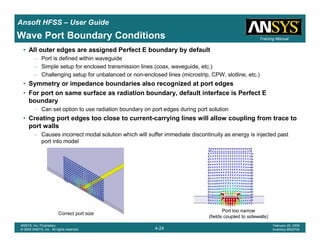
– Browse to the existing project and select the .hfss file
– Click the Open button
• Legacy License
– The v11 license allows users to run HFSS v9.2.1, v10.1.3 or 11.x.
• NOTE: Once a project is saved in v11 it can no longer be opened in previous versions
Introduction
1-70
ANSYS, Inc. Proprietary
© 2009 ANSYS, Inc. All rights reserved.
February 23, 2009
Inventory #002593
Training ManualTraining Manual
2-70
ANSYS, Inc. Proprietary
© 2009 ANSYS, Inc. All rights reserved.
February 20, 2009
Inventory #002704
Ansoft HFSS – User Guide
• Recommended Service Packs (SP) – PC only
– Microsoft Windows XP - SP2 or higher
• Memory allocation 32-bit Windows
– Since the release of HFSS v9.2 you can access sup to 3GB of Ram on a 32-bit PC
– All about 3GB switch, supported OS
• http://support.microsoft.com/default.aspx?scid=kb;en-us;291988
– How to use /3GB switch
• http://msdn.microsoft.com/library/default.asp?url=/library/en-us/ddtools/hh/ddtools/bootini_1fcj.asp
– Possible problems
• http://support.microsoft.com/default.aspx?scid=kb;en-us;328269
• Increasing Memory allocation HFSS v11
– Since the release of HFSS v10, the solver in HFSS is 64bit and can access a large memory footprint.
• Linux Operating Systems
– Red Hat Enterprise 3 and 4
– SUSE Linux Enterprise 9.x
– Note: Requires OpenGL
– Note: Please perform required OS updates outlined in readme file on the CD
Introduction
1-71
ANSYS, Inc. Proprietary
© 2009 ANSYS, Inc. All rights reserved.
February 23, 2009
Inventory #002593
Training ManualTraining Manual
2-71
ANSYS, Inc. Proprietary
© 2009 ANSYS, Inc. All rights reserved.
February 20, 2009
Inventory #002704
Ansoft HFSS – User Guide
Distributed Solve Option
• Distributed Analysis
– Automated parser management and reassembly of data
– Parametric tables and studies
– Frequency sweeps for discrete, fast, and interpolating
– Per license, distributed analysis allows up to 10 parallel simulations on remote machines, providing
near-linear reduction of simulation run times
Introduction
1-72
ANSYS, Inc. Proprietary
© 2009 ANSYS, Inc. All rights reserved.
February 23, 2009
Inventory #002593
Training ManualTraining Manual
2-72
ANSYS, Inc. Proprietary
© 2009 ANSYS, Inc. All rights reserved.
February 20, 2009
Inventory #002704
Ansoft HFSS – User Guide
• Scripts
– Default Script recorded in v11
• Visual Basic Script
• Distributed/Remote Solve
– Tools > Options > General Options > Analysis Options
• Uses Windows DCOM
LocalLocalLocalLocal RemoteRemoteRemoteRemote DistributedDistributedDistributedDistributed
Introduction
1-73
ANSYS, Inc. Proprietary
© 2009 ANSYS, Inc. All rights reserved.
February 23, 2009
Inventory #002593
Training ManualTraining Manual
2-73
ANSYS, Inc. Proprietary
© 2009 ANSYS, Inc. All rights reserved.
February 20, 2009
Inventory #002704
Ansoft HFSS – User Guide
• For Technical Support
– The following link will direct you to the Ansoft Support Page. The Ansoft Support Pages provide additional
documentation, training, and application notes. Web Site: http://www.ansoft.com/support.cfm
• Application Engineers for North America
– The names and numbers in this list may change without notice
• 9-4 EST:
– Pittsburgh, PA
• (412) 261-3200 x0 – Ask for Technical Support
– Burlington, MA
• (781) 229-8900 x0 – Ask for Technical Support
• 9-4 PST:
– San Jose, CA
• (408) 261-9095 x0 – Ask for Technical Support
– Portland, OR
• (503) 906-7947
– Irvine, CA
• (714) 417-9311 x6
1-1
ANSYS, Inc. Proprietary
© 2009 ANSYS, Inc. All rights reserved.
February 23, 2009
Inventory #0025933-1
ANSYS, Inc. Proprietary
© 2009 ANSYS, Inc. All rights reserved.
February 20, 2009
Inventory #002704
Chapter 3 – Boundary
Conditions
Ansoft HFSS – User Guide
Introduction
1-2
ANSYS, Inc. Proprietary
© 2009 ANSYS, Inc. All rights reserved.
February 23, 2009
Inventory #002593
Training ManualTraining Manual
3-2
ANSYS, Inc. Proprietary
© 2009 ANSYS, Inc. All rights reserved.
February 20, 2009
Inventory #002704
Ansoft HFSS – User Guide
• Why are They Critical?
– For most practical problems, the solution to Maxwell’s equations requires a
rigorous matrix approach such as the Finite Element Method (FEM) which
is used by Ansoft HFSS.
• The wave equation solved by Ansoft HFSS is derived from the
differential form of Maxwell’s equations.
– For these expressions to be valid, it is assumed that the field vectors are:
• single-valued,
• bounded, and have a
• continuous distribution (along with their derivatives)
– Along boundaries of media or at sources,
• Field vectors are discontinuous
• Derivatives of the field vectors have no meaning
Boundary Conditions
0=⋅∇
=⋅∇
∂
∂
+=×∇
∂
∂
−=×∇
B
D
t
D
JH
t
B
E
ρ
Boundary Conditions define the field behavior across discontinuoBoundary Conditions define the field behavior across discontinuoBoundary Conditions define the field behavior across discontinuoBoundary Conditions define the field behavior across discontinuous boundariesus boundariesus boundariesus boundaries
Introduction
1-3
ANSYS, Inc. Proprietary
© 2009 ANSYS, Inc. All rights reserved.
February 23, 2009
Inventory #002593
Training ManualTraining Manual
3-3
ANSYS, Inc. Proprietary
© 2009 ANSYS, Inc. All rights reserved.
February 20, 2009
Inventory #002704
Ansoft HFSS – User Guide
• Why do I Care?
– They Force the fields to align with the definition of the boundary condition
• As a user I should be asking
– What assumptions, about the fields, do the boundary conditions make?
– Are these assumptions appropriate for the structure being simulated?
– Model Scope
• To reduce the infinite space of the real world to a finite volume, Ansoft HFSS automatically
applies a boundary to the surface surrounding the geometric model
– Outer boundary
– Default Boundary: Perfect E
– Model Complexity
• To reduce the complexity of a model, the boundary conditions can be used to improve the:
– Solution Time
– Computer Resources
Failure to understand boundary conditions may lead to inconsisteFailure to understand boundary conditions may lead to inconsisteFailure to understand boundary conditions may lead to inconsisteFailure to understand boundary conditions may lead to inconsistent resultsnt resultsnt resultsnt results
Boundary Conditions
Introduction
1-4
ANSYS, Inc. Proprietary
© 2009 ANSYS, Inc. All rights reserved.
February 23, 2009
Inventory #002593
Training ManualTraining Manual
3-4
ANSYS, Inc. Proprietary
© 2009 ANSYS, Inc. All rights reserved.
February 20, 2009
Inventory #002704
Ansoft HFSS – User Guide
• What are Common Ansoft HFSS Boundary Conditions?
– Excitations
• Wave Ports (External)
• Lumped Ports (Internal)
– Surface Approximations
• Perfect E or Perfect H Surface
• Finite Conductivity Surface
• Impedance Surface
• Layered Impedance Surface
• Lumped RLC
• Symmetry Planes
• Radiation Surface
• Perfectly Matched Layer (PML)
– Strictly not a surface approximation
• Master/ Slave
– Material Properties
• Boundary between two dielectrics
• Finite Conductivity of a conductor
Largely the users responsibilityLargely the users responsibilityLargely the users responsibilityLargely the users responsibility
Transparent to the userTransparent to the userTransparent to the userTransparent to the user
Boundary Conditions
Introduction
1-5
ANSYS, Inc. Proprietary
© 2009 ANSYS, Inc. All rights reserved.
February 23, 2009
Inventory #002593
Training ManualTraining Manual
3-5
ANSYS, Inc. Proprietary
© 2009 ANSYS, Inc. All rights reserved.
February 20, 2009
Inventory #002704
Ansoft HFSS – User Guide
• Perfect E – Forces the electric field perpendicular to the surface
– Outer Surface – Default Boundary
– PEC/Perfect Conductor Material Property
– Model complexity: Reduced by eliminating conductor loss
• Perfect H – Forces the electric field tangent to the surface
• Finite Conductivity – Lossy electric conductor.
– Forces the tangential electric field at the surface to: Zs(n x Htan).
• The surface impedance (Zs) is equal to, (1+j)/(δσδσδσδσ),
• Model complexity: Reduced by eliminating conductor thickness
• Impedance Surface – Represent surfaces of a known impedance
– Forces the tangential electric field at the surface to: Zs(n x Htan).
• The surface impedance (Zs) is equal to, Rs + jXs (Ohms/Square)
– Layered Impedance – Models multiple thin layers in a structure as an Impedance Surface
– Lumped RLC – Parallel combination
Perfect E SurfacePerfect E SurfacePerfect E SurfacePerfect E Surface
Perfect H Surface
Boundary Conditions
Introduction
1-6
ANSYS, Inc. Proprietary
© 2009 ANSYS, Inc. All rights reserved.
February 23, 2009
Inventory #002593
Training ManualTraining Manual
3-6
ANSYS, Inc. Proprietary
© 2009 ANSYS, Inc. All rights reserved.
February 20, 2009
Inventory #002704
Ansoft HFSS – User Guide
• Symmetry Planes – Enable you to model only part of a structure
– Perfect E or Perfect H Symmetry Planes
• Must be exposed to the outer surface
• Must be on a planar surface
• Remember! Mechanical Symmetry does not Equal Electrical Symmetry
– Model complexity: Reduced by eliminating part of the solution volume
Full ModelFull ModelFull ModelFull Model
Perfect E SymmetryPerfect E SymmetryPerfect E SymmetryPerfect E Symmetry
Perfect H SymmetryPerfect H SymmetryPerfect H SymmetryPerfect H Symmetry
Boundary Conditions
Introduction
1-7
ANSYS, Inc. Proprietary
© 2009 ANSYS, Inc. All rights reserved.
February 23, 2009
Inventory #002593
Training ManualTraining Manual
3-7
ANSYS, Inc. Proprietary
© 2009 ANSYS, Inc. All rights reserved.
February 20, 2009
Inventory #002704
Ansoft HFSS – User Guide
• Radiation Surface – Allows waves to radiate infinitely far into space.
– The boundary absorbs wave at the radiation surface
– Can be placed on arbitrary surfaces
– Accuracy depends on
• The distance between the boundary and the radiating object
– The radiation boundary should be located at least one-quarter of a wavelength from a radiating structure. If
you are simulating a structure that does not radiate, the boundary can be located less then one-quarter of a
wave length (The validity of this assumption will require your engineering judgment).
• The incident angle
– The radiation boundary will reflect varying amounts of energy depending on the incidence angle. The best
performance is achieved at normal incidence. Avoid angles greater then ~30degrees. In addition, the
radiation boundary must remain convex relative to the wave.
• Perfectly Matched Layer (PML) – Allows waves to radiate infinitely far into space.
– Not a Boundary Condition.
– Fictitious materials that fully absorb the electromagnetic fields impinging upon them.
– These materials are complex anisotropic.
• Types
– Free Space Termination or Reflection Free Termination
• Can only be placed on planar surface
• Model complexity: They do not suffer from the distance or incident angle issues, but should be place at least
one-tenth of a wave length from strong radiators
Boundary Conditions
Introduction
1-8
ANSYS, Inc. Proprietary
© 2009 ANSYS, Inc. All rights reserved.
February 23, 2009
Inventory #002593
Training ManualTraining Manual
3-8
ANSYS, Inc. Proprietary
© 2009 ANSYS, Inc. All rights reserved.
February 20, 2009
Inventory #002704
Ansoft HFSS – User Guide
• Infinite Ground Planes – Simulate the effects of an infinite ground plane
– Only affects the calculation of near- or far-field radiation during post processing
– Types: Perfect E, Finite Conductivity, or Impedance Surface
• Frequency Dependent Boundary Conditions
– The following boundary parameters can be assigned an expression that includes Freq:
• Finite Conductivity
• Impedance
• Lumped RLC
• Layered Impedance
– Supported Frequency Sweeps
• Single Frequency
• Discrete Sweep
• Interpolating Sweep
Boundary Conditions
Introduction
1-9
ANSYS, Inc. Proprietary
© 2009 ANSYS, Inc. All rights reserved.
February 23, 2009
Inventory #002593
Training ManualTraining Manual
3-9
ANSYS, Inc. Proprietary
© 2009 ANSYS, Inc. All rights reserved.
February 20, 2009
Inventory #002704
Ansoft HFSS – User Guide
• Ports
– Unique type of boundary condition
• Allow energy to flow into and out of a structure.
• Defined on 2D planar surface
• Arbitrary port solver calculates the natural field patterns or modes
– Assumes semi-infinitely long waveguide
• Same cross-section and material properties as port surface
– 2D field patterns serve as boundary conditions for the full 3D problem
• Excitation Types
– Wave Port (Waveguide) – External
• Recommended only for surfaces exposed to the background
• Supports multiple modes (Example: Coupled Lines) and deembedding
• Compute Generalized S-Parameters
– Frequency dependent Characteristic Impedance (Zo)
– Perfectly matched at every frequency
– Lumped Port – Internal
• Recommended only for surfaces internal to geometric model
• Single mode (TEM) and no deembedding
• Normalized to a constant user defined Zo
Port 1Port 1Port 1Port 1
Port 2Port 2Port 2Port 2
Port 3Port 3Port 3Port 3
Port 4Port 4Port 4Port 4
Excitations
MeasurementsMeasurementsMeasurementsMeasurements
Constant ZoConstant ZoConstant ZoConstant Zo
Introduction
1-10
ANSYS, Inc. Proprietary
© 2009 ANSYS, Inc. All rights reserved.
February 23, 2009
Inventory #002593
Training ManualTraining Manual
3-10
ANSYS, Inc. Proprietary
© 2009 ANSYS, Inc. All rights reserved.
February 20, 2009
Inventory #002704
Ansoft HFSS – User Guide
Excitations
• Wave Equation
– The field pattern of a traveling wave inside a waveguide can be determined by solving Maxwell’s equations. The
following equation that is solved by the 2D solver is derived directly from Maxwell’s equation.
– where:
• E(x,y) is a phasor representing an oscillating electric field.
• k0 is the free space wave number,
• µr is the complex relative permeability.
• εr is the complex relative permittivity.
– To solve this equation, the 2D solver obtains an excitation field pattern in the form of a phasor solution, E(x,y). These
phasor solutions are independent of z and t; only after being multiplied by e-γz do they become traveling waves.
– Also note that the excitation field pattern computed is valid only at a single frequency. A different excitation field pattern
is computed for each frequency point of interest.
( ) 0),(,
1 2
0 =−





×∇×∇ yxEkyxE r
r
ε
µ
Introduction
1-11
ANSYS, Inc. Proprietary
© 2009 ANSYS, Inc. All rights reserved.
February 23, 2009
Inventory #002593
Training ManualTraining Manual
3-11
ANSYS, Inc. Proprietary
© 2009 ANSYS, Inc. All rights reserved.
February 20, 2009
Inventory #002704
Ansoft HFSS – User Guide
Excitations
• Modes, Reflections, and Propagation
– It is also possible for a 3D field solution generated by an excitation signal of one specific mode to contain reflections of
higher-order modes which arise due to discontinuities in a high frequency structure.
– If these higher-order modes are reflected back to the excitation port or transmitted onto another port, the S-parameters
associated with these modes should be calculated.
– If the higher-order mode decays before reaching any port—either because of attenuation due to losses or because it is
a non-propagating evanescent mode—there is no need to obtain the S-parameters for that mode.
• Wave Ports Require a Length of Uniform Cross Section
– Ansoft HFSS assumes that each port you define is connected to a semi-infinitely long waveguide that has the same
cross section as the Wave Port
no uniform cross sectionno uniform cross sectionno uniform cross sectionno uniform cross section
at Wave Portsat Wave Portsat Wave Portsat Wave Ports
uniform cross sectionuniform cross sectionuniform cross sectionuniform cross section
added for each Wave Portadded for each Wave Portadded for each Wave Portadded for each Wave Port
Introduction
1-12
ANSYS, Inc. Proprietary
© 2009 ANSYS, Inc. All rights reserved.
February 23, 2009
Inventory #002593
Training ManualTraining Manual
3-12
ANSYS, Inc. Proprietary
© 2009 ANSYS, Inc. All rights reserved.
February 20, 2009
Inventory #002704
Ansoft HFSS – User Guide
Excitations
• Wave Port Boundary Conditions
– Perfect E or Finite Conductivity
• Default: All outer edges are Perfect E boundary.
– Port is defined within a waveguide.
– Easy for enclosed transmission lines: Coax or Waveguide
– Challenging for unbalanced or non-enclosed lines: Microstrip, CPW, Slotline, etc.
– Symmetry or Impedance
• Recognized at the port edges
– Radiation
• Default interface is a Perfect E boundary
Introduction
1-13
ANSYS, Inc. Proprietary
© 2009 ANSYS, Inc. All rights reserved.
February 23, 2009
Inventory #002593
Training ManualTraining Manual
3-13
ANSYS, Inc. Proprietary
© 2009 ANSYS, Inc. All rights reserved.
February 20, 2009
Inventory #002704
Ansoft HFSS – User Guide
Excitations
• Lumped Port Boundary Conditions
– Perfect E or Finite Conductivity
• Any port edge that interfaces with a conductor or another port edge
– Perfect H
• All remaining port edges
Perfect H
Perfect H
Perfect E
Perfect E
Introduction
1-14
ANSYS, Inc. Proprietary
© 2009 ANSYS, Inc. All rights reserved.
February 23, 2009
Inventory #002593
Training ManualTraining Manual
3-14
ANSYS, Inc. Proprietary
© 2009 ANSYS, Inc. All rights reserved.
February 20, 2009
Inventory #002704
Ansoft HFSS – User Guide
Excitations
• Excitation – Calibration
– Ports must be calibrated to ensure consistent results. Determines:
• Direction and polarity of fields
• Voltage/ Current calculations.
– Solution Type: Driven Modal
• Expressed in terms of the incident and reflected powers of the waveguide modes.
– Definition not desirable for problems having several propagating quasi-TEM modes
• Coupled/Multi-Coupled Transmission Lines
• Always used by the solver
• Calibration: Integration Line
– Phase between Ports
– Modal voltage integration path: Zpi, Zpv, Zvi
– Solution Type: Driven Terminal
• Linear combination of nodal voltages and currents for the Wave Port.
– Equivalent transformation performed from Modal Solution
• Calibration: Terminal Assignments
– Polarity
– Nodal current integration path
Introduction
1-15
ANSYS, Inc. Proprietary
© 2009 ANSYS, Inc. All rights reserved.
February 23, 2009
Inventory #002593
Training ManualTraining Manual
3-15
ANSYS, Inc. Proprietary
© 2009 ANSYS, Inc. All rights reserved.
February 20, 2009
Inventory #002704
Ansoft HFSS – User Guide
• Example Solution Types:
T1T1T1T1 T2T2T2T2
Integration LineIntegration LineIntegration LineIntegration Line
Mode 1Mode 1Mode 1Mode 1
(Even Mode)(Even Mode)(Even Mode)(Even Mode)
Integration LineIntegration LineIntegration LineIntegration Line
Mode 2Mode 2Mode 2Mode 2
(Odd Mode)(Odd Mode)(Odd Mode)(Odd Mode)
Modes to NodesModes to NodesModes to NodesModes to Nodes
TransformationTransformationTransformationTransformation
SPICESPICESPICESPICE
Differential PairsDifferential PairsDifferential PairsDifferential Pairs
ModalModalModalModal
Port1Port1Port1Port1 Port2Port2Port2Port2
TerminalTerminalTerminalTerminalPort1Port1Port1Port1 Port2Port2Port2Port2
T1T1T1T1
T2T2T2T2
T1T1T1T1
T2T2T2T2
2 Modes2 Modes2 Modes2 Modes 2 Modes2 Modes2 Modes2 Modes
Excitations
Introduction
1-16
ANSYS, Inc. Proprietary
© 2009 ANSYS, Inc. All rights reserved.
February 23, 2009
Inventory #002593
Training ManualTraining Manual
3-16
ANSYS, Inc. Proprietary
© 2009 ANSYS, Inc. All rights reserved.
February 20, 2009
Inventory #002704
Ansoft HFSS – User Guide
Boundary Conditions Application
• Application of Boundary Conditions - Case 1
– Emulate laboratory measurements
• Verification/Validation before production
Picture courtesy of DelphiPicture courtesy of DelphiPicture courtesy of DelphiPicture courtesy of Delphi
Picture courtesy of TektronixPicture courtesy of TektronixPicture courtesy of TektronixPicture courtesy of Tektronix
Introduction
1-17
ANSYS, Inc. Proprietary
© 2009 ANSYS, Inc. All rights reserved.
February 23, 2009
Inventory #002593
Training ManualTraining Manual
3-17
ANSYS, Inc. Proprietary
© 2009 ANSYS, Inc. All rights reserved.
February 20, 2009
Inventory #002704
Ansoft HFSS – User Guide
• Application of Boundary Conditions - Case 2
– Isolate part of a structure (i.e. Exciting arbitrary transmission lines)
• Not physically possible to measure in the laboratory
• Full-Wave analysis not required for total system
– Or total system too complex
• Design work/Component level optimization
• Post production problem solving
Isolated ComponentIsolated ComponentIsolated ComponentIsolated Component –––– Via TransitionVia TransitionVia TransitionVia Transition
Total SystemTotal SystemTotal SystemTotal System
Boundary Conditions Application
Introduction
1-18
ANSYS, Inc. Proprietary
© 2009 ANSYS, Inc. All rights reserved.
February 23, 2009
Inventory #002593
Training ManualTraining Manual
3-18
ANSYS, Inc. Proprietary
© 2009 ANSYS, Inc. All rights reserved.
February 20, 2009
Inventory #002704
Ansoft HFSS – User Guide
• Example Structure
– Coax to Stripline
LAYER 2 (SIGNAL)LAYER 2 (SIGNAL)LAYER 2 (SIGNAL)LAYER 2 (SIGNAL)
LAYER 3 (BOTTOM SIDE)LAYER 3 (BOTTOM SIDE)LAYER 3 (BOTTOM SIDE)LAYER 3 (BOTTOM SIDE)
LAYER 1 (TOP SIDE)LAYER 1 (TOP SIDE)LAYER 1 (TOP SIDE)LAYER 1 (TOP SIDE)
Coax to Stripline Example
Introduction
1-19
ANSYS, Inc. Proprietary
© 2009 ANSYS, Inc. All rights reserved.
February 23, 2009
Inventory #002593
Training ManualTraining Manual
3-19
ANSYS, Inc. Proprietary
© 2009 ANSYS, Inc. All rights reserved.
February 20, 2009
Inventory #002704
Ansoft HFSS – User Guide
• Material Properties
– All 3D (Solid) objects have material definitions
• To complete the model shown previously we must include the air
that surrounds the structure.
airairairair
Note:Note:Note:Note: Substrate/Air boundarySubstrate/Air boundarySubstrate/Air boundarySubstrate/Air boundary
included in structureincluded in structureincluded in structureincluded in structure
Coax to Stripline Example
Introduction
1-20
ANSYS, Inc. Proprietary
© 2009 ANSYS, Inc. All rights reserved.
February 23, 2009
Inventory #002593
Training ManualTraining Manual
3-20
ANSYS, Inc. Proprietary
© 2009 ANSYS, Inc. All rights reserved.
February 20, 2009
Inventory #002704
Ansoft HFSS – User Guide
– Remember! Material Boundary conditions are transparent to the user
• They are not visible in the Project Tree
• Example Material Boundary: Conductors Surface Approximations
– Perfect Conductors Perfect E Boundary (Boundary Name: smetal)
• Forces E-Field perpendicular to surface
– Lossy Conductors Finite Conductivity Boundary
• Forces tangential E-Field to ((1+j)/(δσδσδσδσ))(n x Htan).
• Assumes one skin depth – User must manually force Ansoft HFSS to
solve inside lossy conductors that are ≤ a skin depth
smetalsmetalsmetalsmetal
Coax to Stripline Example
Introduction
1-21
ANSYS, Inc. Proprietary
© 2009 ANSYS, Inc. All rights reserved.
February 23, 2009
Inventory #002593
Training ManualTraining Manual
3-21
ANSYS, Inc. Proprietary
© 2009 ANSYS, Inc. All rights reserved.
February 20, 2009
Inventory #002704
Ansoft HFSS – User Guide
• Surface Approximations
– Background or Outer Boundary
• Not visible in the Project Tree
• Any object surface that touches it Perfect E Boundary
• Default boundary applied to the region surrounding the geometric model
– Model is encased in a thin metal layer that no fields propagate through
Override withOverride withOverride withOverride with
Radiation BoundaryRadiation BoundaryRadiation BoundaryRadiation Boundary
outerouterouterouter
Coax to Stripline Example
Introduction
1-22
ANSYS, Inc. Proprietary
© 2009 ANSYS, Inc. All rights reserved.
February 23, 2009
Inventory #002593
Training ManualTraining Manual
3-22
ANSYS, Inc. Proprietary
© 2009 ANSYS, Inc. All rights reserved.
February 20, 2009
Inventory #002704
Ansoft HFSS – User Guide
• What Port Type Should I Use?
– Example is easy decision
• Port touches background (External)
• Cross Section is Coax (Enclosed Transmission Line)
– Wave Port
• Solution Type: Driven Terminal
– SPICE Output
Identify Port Type &Identify Port Type &Identify Port Type &Identify Port Type &
Cross SectionCross SectionCross SectionCross Section
Assign Excitation &Assign Excitation &Assign Excitation &Assign Excitation &
Calibrate PortCalibrate PortCalibrate PortCalibrate Port
Define DefaultDefine DefaultDefine DefaultDefine Default
Post ProcessingPost ProcessingPost ProcessingPost Processing
Coax to Stripline Example
Introduction
1-23
ANSYS, Inc. Proprietary
© 2009 ANSYS, Inc. All rights reserved.
February 23, 2009
Inventory #002593
Training ManualTraining Manual
3-23
ANSYS, Inc. Proprietary
© 2009 ANSYS, Inc. All rights reserved.
February 20, 2009
Inventory #002704
Ansoft HFSS – User Guide
• Is it Really that Simple?
– Yes, but the geometric model was setup with several considerations
1.Only the face of the coax dielectric was selected for the port face
– Port Boundary conditions define outer conductor
– Material Definitions define inner conductor
2.Uniform port cross-section
– Only supports a single mode
– Higher-order modes caused by reflections would attenuate before port
• Modes attenuate as a function of e-ααααz, assuming propagation in the z-direction.
• Required distance (uniform port length) depends on modes propagation constant.
Uniform crossUniform crossUniform crossUniform cross----sectionsectionsectionsection
Rule of Thumb: 5xRule of Thumb: 5xRule of Thumb: 5xRule of Thumb: 5x
Critical DistanceCritical DistanceCritical DistanceCritical Distance
Coax to Stripline Example
Introduction
1-24
ANSYS, Inc. Proprietary
© 2009 ANSYS, Inc. All rights reserved.
February 23, 2009
Inventory #002593
Training ManualTraining Manual
3-24
ANSYS, Inc. Proprietary
© 2009 ANSYS, Inc. All rights reserved.
February 20, 2009
Inventory #002704
Ansoft HFSS – User Guide
• How often is the Setup that Simple?
– If you are emulating laboratory measurements? [Case 1 ]
• Most of the time!
– Laboratory equipment does not directly connect to arbitrary transmission
lines
• Exceptions
– Emulating Complex Probes with a Port Understanding of Probe
– If you are isolating part of a structure? [Case 2 ]
• For “real” designs - usually only by dumb luck!
– User Must Understand and/or Implement Correctly:
1.Port Boundary conditions and impact of boundary condition
2.Fields within the structure
3.Assumptions made by port solver
4.Return path
Coax to Stripline Example
Introduction
1-25
ANSYS, Inc. Proprietary
© 2009 ANSYS, Inc. All rights reserved.
February 23, 2009
Inventory #002593
Training ManualTraining Manual
3-25
ANSYS, Inc. Proprietary
© 2009 ANSYS, Inc. All rights reserved.
February 20, 2009
Inventory #002704
Ansoft HFSS – User Guide
• Side Note: Problems Associated with Correlating Results [Case 2]
– Can be broken into two categories of problems
1.Complex Structure
– BGA, Backplane, Antenna Feed, Waveguide “Plumbing”, etc
– Most common problems result from
• Measurement setup – Test fixtures, deembedding, etc.
• Failing to understand the fields in the structure Boundary Problem
• Return path problems – Model truncation
2.Simple Structures
– Uniform transmission lines
• Equations or Circuit Elements
– Most common problems result from
• Improper use of default or excitation boundary conditions
• Failure to understand the assumptions used by “correct” results
(Equations or Circuit Elements)
Coax to Stripline Example
Introduction
1-26
ANSYS, Inc. Proprietary
© 2009 ANSYS, Inc. All rights reserved.
February 23, 2009
Inventory #002593
Training ManualTraining Manual
3-26
ANSYS, Inc. Proprietary
© 2009 ANSYS, Inc. All rights reserved.
February 20, 2009
Inventory #002704
Ansoft HFSS – User Guide
• Why are they critical?
– Any current injected into a system must return to the source
• DC
– Chooses path of least resistance
• AC
– Chooses path of least inductance
– A signal propagates between the signal trace and its reference plane
– Reference plane is just as important as signal trace!
• Why do I care?
– Many real designs have nonideal return paths
• These effects are only captured by full-wave simulators
– Isolating parts of a structure
• Failure to maintain the correct return path will
– Limit correlation to measurements
– Mask or create design problems
• Port and Boundary setup is the most common source of error in model setup
Coax to Stripline Example
Introduction
1-27
ANSYS, Inc. Proprietary
© 2009 ANSYS, Inc. All rights reserved.
February 23, 2009
Inventory #002593
Training ManualTraining Manual
3-27
ANSYS, Inc. Proprietary
© 2009 ANSYS, Inc. All rights reserved.
February 20, 2009
Inventory #002704
Ansoft HFSS – User Guide
Port1Port1Port1Port1
Port2Port2Port2Port2 Port3Port3Port3Port3
No DCNo DCNo DCNo DC
Return PathReturn PathReturn PathReturn Path
No Return Path
Introduction
1-28
ANSYS, Inc. Proprietary
© 2009 ANSYS, Inc. All rights reserved.
February 23, 2009
Inventory #002593
Training ManualTraining Manual
3-28
ANSYS, Inc. Proprietary
© 2009 ANSYS, Inc. All rights reserved.
February 20, 2009
Inventory #002704
Ansoft HFSS – User Guide
Port1Port1Port1Port1
Port2Port2Port2Port2 Port3Port3Port3Port3
DCDCDCDC
Return PathReturn PathReturn PathReturn Path
DC Return Path
Introduction
1-29
ANSYS, Inc. Proprietary
© 2009 ANSYS, Inc. All rights reserved.
February 23, 2009
Inventory #002593
Training ManualTraining Manual
3-29
ANSYS, Inc. Proprietary
© 2009 ANSYS, Inc. All rights reserved.
February 20, 2009
Inventory #002704
Ansoft HFSS – User Guide
DC & RFDC & RFDC & RFDC & RF
Return PathReturn PathReturn PathReturn Path
S21S21S21S21
S11S11S11S11
S31S31S31S31
DC/AC Return Path
Introduction
1-30
ANSYS, Inc. Proprietary
© 2009 ANSYS, Inc. All rights reserved.
February 23, 2009
Inventory #002593
Training ManualTraining Manual
3-30
ANSYS, Inc. Proprietary
© 2009 ANSYS, Inc. All rights reserved.
February 20, 2009
Inventory #002704
Ansoft HFSS – User Guide
• Isolate part of structure - Case 2
– Isolate Transition
• Deembed
• Recombine using Ansoft Designer - Circuit
Wave PortWave PortWave PortWave Port
Coax to Stripline Example
Introduction
1-31
ANSYS, Inc. Proprietary
© 2009 ANSYS, Inc. All rights reserved.
February 23, 2009
Inventory #002593
Training ManualTraining Manual
3-31
ANSYS, Inc. Proprietary
© 2009 ANSYS, Inc. All rights reserved.
February 20, 2009
Inventory #002704
Ansoft HFSS – User Guide
Ansoft DesignerAnsoft DesignerAnsoft DesignerAnsoft Designer ---- CircuitCircuitCircuitCircuit
Coax to Stripline Example
Introduction
1-32
ANSYS, Inc. Proprietary
© 2009 ANSYS, Inc. All rights reserved.
February 23, 2009
Inventory #002593
Training ManualTraining Manual
3-32
ANSYS, Inc. Proprietary
© 2009 ANSYS, Inc. All rights reserved.
February 20, 2009
Inventory #002704
Ansoft HFSS – User Guide
Coax to Stripline Example
Introduction
1-33
ANSYS, Inc. Proprietary
© 2009 ANSYS, Inc. All rights reserved.
February 23, 2009
Inventory #002593
Training ManualTraining Manual
3-33
ANSYS, Inc. Proprietary
© 2009 ANSYS, Inc. All rights reserved.
February 20, 2009
Inventory #002704
Ansoft HFSS – User Guide
• What went wrong?
– Isolate Port from Discontinuity?
• Yes
– Uniform Cross-Section?
• NO – The cross section of the port (including its boundaries) is not maintained
– Maintain Return Path?
• NO – Boundary on port shorts the planes together at edges
– Identical to placing vias at port edge!
– All Modes Accounted for?
• NO – Did not consider Parallel Plate mode
– Even if we did, the via (port edge) cuts off mode Reason vias are used!
Coax to Stripline Example
Introduction
1-34
ANSYS, Inc. Proprietary
© 2009 ANSYS, Inc. All rights reserved.
February 23, 2009
Inventory #002593
Training ManualTraining Manual
3-34
ANSYS, Inc. Proprietary
© 2009 ANSYS, Inc. All rights reserved.
February 20, 2009
Inventory #002704
Ansoft HFSS – User Guide
StriplineStriplineStriplineStripline
ParallelParallelParallelParallel
PlatePlatePlatePlate
Ansoft DesignerAnsoft DesignerAnsoft DesignerAnsoft Designer ---- CircuitCircuitCircuitCircuit
Wave PortWave PortWave PortWave Port
2 Terminals2 Terminals2 Terminals2 Terminals
Coax to Stripline Example
Introduction
1-35
ANSYS, Inc. Proprietary
© 2009 ANSYS, Inc. All rights reserved.
February 23, 2009
Inventory #002593
Training ManualTraining Manual
3-35
ANSYS, Inc. Proprietary
© 2009 ANSYS, Inc. All rights reserved.
February 20, 2009
Inventory #002704
Ansoft HFSS – User Guide
No DCNo DCNo DCNo DC
Return PathReturn PathReturn PathReturn Path
Port InfluencesPort InfluencesPort InfluencesPort Influences
ResultsResultsResultsResults
Lumped PortLumped PortLumped PortLumped Port
Coax to Stripline Example
Introduction
1-36
ANSYS, Inc. Proprietary
© 2009 ANSYS, Inc. All rights reserved.
February 23, 2009
Inventory #002593
Training ManualTraining Manual
3-36
ANSYS, Inc. Proprietary
© 2009 ANSYS, Inc. All rights reserved.
February 20, 2009
Inventory #002704
Ansoft HFSS – User Guide
Coax to Stripline Example
Introduction
1-37
ANSYS, Inc. Proprietary
© 2009 ANSYS, Inc. All rights reserved.
February 23, 2009
Inventory #002593
Training ManualTraining Manual
3-37
ANSYS, Inc. Proprietary
© 2009 ANSYS, Inc. All rights reserved.
February 20, 2009
Inventory #002704
Ansoft HFSS – User Guide
TOP
T1T2
T3
Power
GND
BOTTOM
G
P
SIDE
Power
GND
Signal
Lumped Gap Port
Terminal Line
Introduction
1-38
ANSYS, Inc. Proprietary
© 2009 ANSYS, Inc. All rights reserved.
February 23, 2009
Inventory #002593
Training ManualTraining Manual
3-38
ANSYS, Inc. Proprietary
© 2009 ANSYS, Inc. All rights reserved.
February 20, 2009
Inventory #002704
Ansoft HFSS – User Guide
Lumped Gap Port
Introduction
1-39
ANSYS, Inc. Proprietary
© 2009 ANSYS, Inc. All rights reserved.
February 23, 2009
Inventory #002593
Training ManualTraining Manual
3-39
ANSYS, Inc. Proprietary
© 2009 ANSYS, Inc. All rights reserved.
February 20, 2009
Inventory #002704
Ansoft HFSS – User Guide
Differential Lumped Gap PortsDifferential Lumped Gap PortsDifferential Lumped Gap PortsDifferential Lumped Gap Ports
Introduction
1-40
ANSYS, Inc. Proprietary
© 2009 ANSYS, Inc. All rights reserved.
February 23, 2009
Inventory #002593
Training ManualTraining Manual
3-40
ANSYS, Inc. Proprietary
© 2009 ANSYS, Inc. All rights reserved.
February 20, 2009
Inventory #002704
Ansoft HFSS – User Guide
GGGG SSSS GGGG
PortPortPortPort
1-1
ANSYS, Inc. Proprietary
© 2009 ANSYS, Inc. All rights reserved.
February 23, 2009
Inventory #0025934-1
ANSYS, Inc. Proprietary
© 2009 ANSYS, Inc. All rights reserved.
February 20, 2009
Inventory #002704
Chapter 4 – Appendix:
Boundary Conditions
Ansoft HFSS – User Guide
Introduction
1-2
ANSYS, Inc. Proprietary
© 2009 ANSYS, Inc. All rights reserved.
February 23, 2009
Inventory #002593
Training ManualTraining Manual
4-2
ANSYS, Inc. Proprietary
© 2009 ANSYS, Inc. All rights reserved.
February 20, 2009
Inventory #002704
Ansoft HFSS – User Guide
Excitations and Boundary Conditions
• Majority of HFSS errors are related to improper usage of excitations and boundary conditions
• Boundary conditions are important because they significantly impact electromagnetic solution
• Determine model scope
– To truncate infinite space to finite volume, HFSS applies PEC boundary to surface surrounding
geometric model
• Can reduce model complexity
– Boundary conditions can be used to reduce solution time and computing resource demands
Perfect E
Symmetry Plane
Perfect H
Symmetry Plane
TE10 Cavity
Resonator Pyramidal
Horn
Antenna
Introduction
1-3
ANSYS, Inc. Proprietary
© 2009 ANSYS, Inc. All rights reserved.
February 23, 2009
Inventory #002593
Training ManualTraining Manual
4-3
ANSYS, Inc. Proprietary
© 2009 ANSYS, Inc. All rights reserved.
February 20, 2009
Inventory #002704
Ansoft HFSS – User Guide
• Surface approximations
– Perfect E surface
– Perfect H surface
– Finite conductivity surface
– Impedance surface
– Layered impedance
– Lumped RLC boundary
– Symmetry planes
– Radiation (absorbing) boundary surface
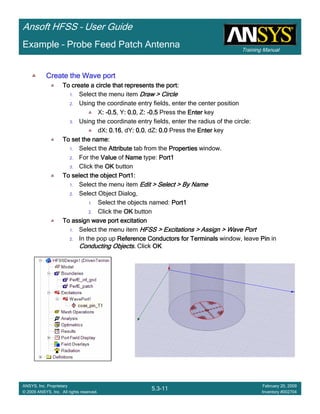
– Perfectly matched layer (PML)
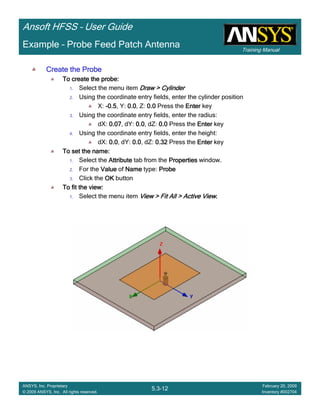
• Strictly not boundary condition, but effectively behaves like one
– Master/slave (linked or periodic) boundaries
– Screening impedance
• Excitations
– Wave ports (external)
– Lumped ports (internal)
User-Defined Boundary Conditions
0=⋅∇
=⋅∇
∂
∂
+=×∇
∂
∂
−=×∇
B
D
t
D
JH
t
B
E
ρ
Introduction
1-4
ANSYS, Inc. Proprietary
© 2009 ANSYS, Inc. All rights reserved.
February 23, 2009
Inventory #002593
Training ManualTraining Manual
4-4
ANSYS, Inc. Proprietary
© 2009 ANSYS, Inc. All rights reserved.
February 20, 2009
Inventory #002704
Ansoft HFSS – User Guide
Perfect E and Perfect H Boundaries
• Perfect E is perfect electrical conductor (PEC)
– Forces E-field perpendicular to surface
– Represents metal surfaces, ground planes, ideal cavity walls, etc.
– Infinite ground plane option simulates effects of infinite ground plane in post-processing radiated fields
• Perfect H is perfect magnetic conductor (PMC)
– Forces H-field perpendicular to surface and E-field tangential
– Does not exist in real world
– Useful boundary constraint for electromagnetic models
– Represents openings in metal surfaces, etc.
• Parameters
– None
Perfect E Boundary Perfect H Boundary
When you define a solid object as a
‘perf_conductor,’ a Perfect E boundary
condition is applied to its exterior surfaces.
E-field Parallel to surface
E-field Perpendicular to surface
Introduction
1-5
ANSYS, Inc. Proprietary
© 2009 ANSYS, Inc. All rights reserved.
February 23, 2009
Inventory #002593
Training ManualTraining Manual
4-5
ANSYS, Inc. Proprietary
© 2009 ANSYS, Inc. All rights reserved.
February 20, 2009
Inventory #002704
Ansoft HFSS – User Guide
• All methods utilize an equivalent surface impedance applied to the field as it travels across
the surface
Zs,input
Zs,Au
LAu
Zs,Ni
LNi
Zs,Cu
LCu
Zs,input
Zs,Au
LAu
Zs,Ni
LNi
Zs,Cu
LCu
Four Surface Loss Modeling Methods
σδ
j
Zs
+
=
1
ωσµ
δ
2
=
Zs specified as ΩΩΩΩ/sq
0.7mil Copper
500 µin Nickel 500 µin Gold
0.7mil Copper
500 µin Nickel 500 µin Gold
Finite Conductivity Impedance
Layered Impedance Lumped RLC
Parallel RLC Circuit
t >> δδδδ
Introduction
1-6
ANSYS, Inc. Proprietary
© 2009 ANSYS, Inc. All rights reserved.
February 23, 2009
Inventory #002593
Training ManualTraining Manual
4-6
ANSYS, Inc. Proprietary
© 2009 ANSYS, Inc. All rights reserved.
February 20, 2009
Inventory #002704
Ansoft HFSS – User Guide
Finite Conductivity Boundary
• Lossy electrical conductor
– Forces E-field perpendicular to surface
– Surface impedance includes resistive and reactive surface losses
• Used for non-ideal conductor analysis
• Infinite ground plane option simulates effects of infinite ground plane in post-
processing radiated fields
• Parameters
– Conductivity (S/m)
– Relative permeability (unitless)
When you define a solid object as a non-
ideal metal (e.g. copper or aluminum), and it
is set to ‘Solve Surface’, a finite conductivity
boundary is applied to its exterior faces.
ωσµ
δ
2
=
σδ
j
Zs
+
=
1
Surface ImpedanceSkin Depth Field Relationship
t >> δδδδ
Good conductor in
skin depth regime
Introduction
1-7
ANSYS, Inc. Proprietary
© 2009 ANSYS, Inc. All rights reserved.
February 23, 2009
Inventory #002593
Training ManualTraining Manual
4-7
ANSYS, Inc. Proprietary
© 2009 ANSYS, Inc. All rights reserved.
February 20, 2009
Inventory #002704
Ansoft HFSS – User Guide
Impedance Boundary
• User-defined surface impedance
– Represents thin film resistors or reactive loads
• Infinite ground plane option simulates effects of infinite surface in post-processing
radiated fields
• Calculate required impedance from desired lumped value, width, and length
– Length (in direction of current flow) ÷ width = number of “squares”
– Impedance per square = desired lumped impedance ÷ number of squares
• Parameters:
– Resistance (Ω/square)
– Reactance (Ω/square)
Example: Resistor in Wilkinson Power Divider
Resistor is 3.5 mils long (in direction of flow) and
4 mils wide. Desired lumped value is 35 ΩΩΩΩ.
square
N
R
R
N
lumped
sheet /40
875.0
35
875.0
4
5.3
Ω===
==
Introduction
1-8
ANSYS, Inc. Proprietary
© 2009 ANSYS, Inc. All rights reserved.
February 23, 2009
Inventory #002593
Training ManualTraining Manual
4-8
ANSYS, Inc. Proprietary
© 2009 ANSYS, Inc. All rights reserved.
February 20, 2009
Inventory #002704
Ansoft HFSS – User Guide
Layered Impedance Boundary
• Models multiple thin layers in a structure as single impedance surface
– Effect is same as impedance boundary, except that HFSS calculates surface impedance based on
data entered for layered structure
– Surface roughness can be included
– Plating layers can be modeled by using an equivalent surface impedance
• Not available for fast frequency sweeps
• Parameters
– Layer thicknesses
– Material properties
– Surface roughness (optional)
0.7mil Copper
500 µµµµin Nickel 500 µµµµin Gold Zs,input
Zs,Au
LAu
Zs,Ni
LNi
Zs,Cu
LCu
Impedance of the layered structure is calculated by
recursively calling the impedance calculation
formulation from transmission line theory
Introduction
1-9
ANSYS, Inc. Proprietary
© 2009 ANSYS, Inc. All rights reserved.
February 23, 2009
Inventory #002593
Training ManualTraining Manual
4-9
ANSYS, Inc. Proprietary
© 2009 ANSYS, Inc. All rights reserved.
February 20, 2009
Inventory #002704
Ansoft HFSS – User Guide
Lumped RLC Boundary
• Represents any combination of parallel-connected lumped RLC elements on surfaces
in terms of circuit definition
– Supply values for R, L, and C
– HFSS determines impedance per square of lumped RLC boundary at any frequency
• Fast frequency sweeps are supported
• Parameters
– Resistance
– Inductance
– Capacitance
– Line for current flow
Introduction
1-10
ANSYS, Inc. Proprietary
© 2009 ANSYS, Inc. All rights reserved.
February 23, 2009
Inventory #002593
Training ManualTraining Manual
4-10
ANSYS, Inc. Proprietary
© 2009 ANSYS, Inc. All rights reserved.
February 20, 2009
Inventory #002704
Ansoft HFSS – User Guide
• Allows for modeling portion of entire structure
• For Driven Modal solutions
• Two symmetry options are available
– Use perfect E when electric field is perpendicular to symmetry plane
– Use perfect H when electric field is tangential to symmetry plane
• Involve further implications to boundary manager and fields post-processing
– May need to specify impedance multiplier
– Existence of symmetry boundary allows for near- and far-field calculation of entire structure
• Parameters
– Type
– Impedance multiplier
Symmetry Plane
Conductive edges on
all four sides
Waveguide contains symmetric propagating
mode which could be modeled using half the
volume vertically or horizontally.
Perfect E Symmetry
(bottom)
Perfect H Symmetry
(left side)
Introduction
1-11
ANSYS, Inc. Proprietary
© 2009 ANSYS, Inc. All rights reserved.
February 23, 2009
Inventory #002593
Training ManualTraining Manual
4-11
ANSYS, Inc. Proprietary
© 2009 ANSYS, Inc. All rights reserved.
February 20, 2009
Inventory #002704
Ansoft HFSS – User Guide
• When symmetry is used, Zpi and impedance line-dependent Zpv and Zvi calculations
will be incorrect since entire port aperture is not represented
– Impedance is halved for model with Perfect E symmetry plane
– Impedance is doubled for model with Perfect H symmetry plane
• Port impedance multiplier is renormalizing factor used to obtain correct impedance
– Value applied to all ports
– Global parameter set during assignment of any port
Symmetry Plane Impedance Multiplier
Rectangular WG
(No Symmetry)
Half Rectangular WG
(Perfect E Symmetry)
Impedance Multiplier = 2
Half Rectangular WG
(Perfect H Symmetry)
Impedance Multiplier = 0.5
Introduction
1-12
ANSYS, Inc. Proprietary
© 2009 ANSYS, Inc. All rights reserved.
February 23, 2009
Inventory #002593
Training ManualTraining Manual
4-12
ANSYS, Inc. Proprietary
© 2009 ANSYS, Inc. All rights reserved.
February 20, 2009
Inventory #002704
Ansoft HFSS – User Guide
Perfect E Symmetry (top)
Perfect H Symmetry
(right side)
TE20 mode in full model
Properly represented
with Perfect E symmetry
Mode cannot occur
with Perfect H
symmetry
Symmetry Plane Mode Implications
• Geometric symmetry does not necessarily imply field symmetry for higher-order
modes
• Symmetry boundaries can act as mode filters
– Next higher propagating waveguide mode is not symmetric about vertical center plane of waveguide
– Therefore one symmetry case is valid while the other is not
• Use caution when using symmetry planes to assure that real behavior is not filtered
out by boundary conditions
Introduction
1-13
ANSYS, Inc. Proprietary
© 2009 ANSYS, Inc. All rights reserved.
February 23, 2009
Inventory #002593
Training ManualTraining Manual
4-13
ANSYS, Inc. Proprietary
© 2009 ANSYS, Inc. All rights reserved.
February 20, 2009
Inventory #002704
Ansoft HFSS – User Guide
Radiation Boundary
• Mimics continued propagation beyond boundary plane
– Absorption achieved via 2nd order radiation boundary
– Place at least λ/4 from strongly radiating structure
– Place at least λ/10 from weakly radiating structure
– Absorbs best when incident energy flow is normal to surface
– Must be concave to all incident fields from within modeled space
• Parameters
– Advanced options used for incident wave and HFSS DataLink problems
Boundary is λ/4 away from
horn aperture in all directions
Radiation boundary functions
well for incident angles less
than 25°-30°
Introduction
1-14
ANSYS, Inc. Proprietary
© 2009 ANSYS, Inc. All rights reserved.
February 23, 2009
Inventory #002593
Training ManualTraining Manual
4-14
ANSYS, Inc. Proprietary
© 2009 ANSYS, Inc. All rights reserved.
February 20, 2009
Inventory #002704
Ansoft HFSS – User Guide
• Fictitious lossy anisotropic material which fully absorbs electromagnetic fields
• Two types of PML applications
– “PML objects accept free radiation” if PML terminates free space
– “PML objects continue guided waves” if PML terminates transmission line
• Guidelines for assigning PML boundaries
– Use PML setup wizard for most cases
– Manually create a PML when base object is curved or inhomogeneous
• Parameters
– Uniform thickness
– Minimum frequency
– Minimum radiating distance (between PML and antenna)
Perfectly Matched Layer (PML)
PML functions well for
incident angles less
than 65°-70°
Introduction
1-15
ANSYS, Inc. Proprietary
© 2009 ANSYS, Inc. All rights reserved.
February 23, 2009
Inventory #002593
Training ManualTraining Manual
4-15
ANSYS, Inc. Proprietary
© 2009 ANSYS, Inc. All rights reserved.
February 20, 2009
Inventory #002704
Ansoft HFSS – User Guide
Radiation Boundary vs PML
Radiation Boundary PML
Type 2D 3D
(occupies volume)
Incident angle from normal < ~30° < ~70°
Distance from radiator > λ/4 > λ/10
Setup complexity Low Medium
Introduction
1-16
ANSYS, Inc. Proprietary
© 2009 ANSYS, Inc. All rights reserved.
February 23, 2009
Inventory #002593
Training ManualTraining Manual
4-16
ANSYS, Inc. Proprietary
© 2009 ANSYS, Inc. All rights reserved.
February 20, 2009
Inventory #002704
Ansoft HFSS – User Guide
Master/Slave Boundaries
• Used to model unit cell of periodic structure
– Also referred to as linked or periodic boundaries
• Master and slave boundaries are always paired
– Fields on master surface are mapped to slave surface with a phase shift
– Phase shift specified either as absolute phase value or using scan angle
• Constraints
– Master and slave surfaces must be identical in shape and size
– Coordinate systems must be created to identify point-to-point
correspondence
• Parameters
– Master/slave pairing
– UV coordinate systems
– Phase shift method
Unit Cell Model of Waveguide Array
WG Port
(bottom)
Ground Plane
PML (top)
Master
Boundary
Slave
Boundary
V-
axis
U-axis
Introduction
1-17
ANSYS, Inc. Proprietary
© 2009 ANSYS, Inc. All rights reserved.
February 23, 2009
Inventory #002593
Training ManualTraining Manual
4-17
ANSYS, Inc. Proprietary
© 2009 ANSYS, Inc. All rights reserved.
February 20, 2009
Inventory #002704
Ansoft HFSS – User Guide
Screening Impedance Boundary
• Used to efficiently represent periodic screens or grids with impedance boundary
condition
– Can be anisotropic (different values in x and y directions)
– Can be frequency-dependent
• Periodic grid characterized by unit cell
– Dynamic link support to import impedance values from unit cell
– Includes effects of polarization
• Parameters
– Resistance and reactance (Ω/square)
– Coordinate system if anisotropic
– HFSS design for dynamic link
Introduction
1-18
ANSYS, Inc. Proprietary
© 2009 ANSYS, Inc. All rights reserved.
February 23, 2009
Inventory #002593
Training ManualTraining Manual
4-18
ANSYS, Inc. Proprietary
© 2009 ANSYS, Inc. All rights reserved.
February 20, 2009
Inventory #002704
Ansoft HFSS – User Guide
Default Outer Boundary
• Any exterior face of modeled geometry not given user-defined boundary condition is
assumed to be Perfect E boundary
– Default boundary called “outer”
• Imagine entire model buried in solid metal unless HFSS is instructed otherwise
• Use HFSS →→→→ Boundary Display to view all boundary assignments
– Graphical window shows both user and auto-assigned boundaries
Introduction
1-19
ANSYS, Inc. Proprietary
© 2009 ANSYS, Inc. All rights reserved.
February 23, 2009
Inventory #002593
Training ManualTraining Manual
4-19
ANSYS, Inc. Proprietary
© 2009 ANSYS, Inc. All rights reserved.
February 20, 2009
Inventory #002704
Ansoft HFSS – User Guide
Excitations
• Provide means for energy to enter and exit model
• Types of excitations
– Ports
• Wave ports
• Lumped ports
• Floquet ports
– Voltage sources
– Current sources
– Magnetic biases
– Incident waves
• Plane waves
• Hertzian dipole
• Cylindrical wave
• Gaussian beam
• Linear antenna wave
• Far-field wave
• Near-field wave
• Only ports provide S-parameters
– This presentation will focus on this type of excitation
Introduction
1-20
ANSYS, Inc. Proprietary
© 2009 ANSYS, Inc. All rights reserved.
February 23, 2009
Inventory #002593
Training ManualTraining Manual
4-20
ANSYS, Inc. Proprietary
© 2009 ANSYS, Inc. All rights reserved.
February 20, 2009
Inventory #002704
Ansoft HFSS – User Guide
Driven Modal vs Driven Terminal Solutions
• Driven modal
– S-matrix solution expressed in terms of incident and reflected powers of waveguide modes
– Always used by wave solver
– Integration lines set phase between ports and modal voltage integration path (Zpv and Zvi)
– Use for modal-based S-parameters of passive, high-frequency structures such as microstrips,
waveguides, and transmission lines
• Driven terminal
– S-matrix solution expressed in terms of linear combination of nodal voltages and currents for wave
port
– Equivalent “modes-to-nodes” transformation performed from modal solution
– Use for terminal-based S-parameters of multi-conductor transmission line ports (with several quasi-
TEM modes, etc.)
Introduction
1-21
ANSYS, Inc. Proprietary
© 2009 ANSYS, Inc. All rights reserved.
February 23, 2009
Inventory #002593
Training ManualTraining Manual
4-21
ANSYS, Inc. Proprietary
© 2009 ANSYS, Inc. All rights reserved.
February 20, 2009
Inventory #002704
Ansoft HFSS – User Guide
Ports
• Ports are unique type of boundary condition
– Allow energy to flow into and out of structure
– Defined on 2D planar surface
– 2D field patterns serve as boundary conditions for full 3D problem
• Incorrect port setup will produce incorrect results
– If port fields are incorrect, then solution will be incorrect
– Assumed boundary condition on port edges should always be considered
Initial
Mesh
Seeding and
Lambda Refinement
(Single Frequency)
Port Solution
(Adaptive)
Full
Volumetric
Solution
Introduction
1-22
ANSYS, Inc. Proprietary
© 2009 ANSYS, Inc. All rights reserved.
February 23, 2009
Inventory #002593
Training ManualTraining Manual
4-22
ANSYS, Inc. Proprietary
© 2009 ANSYS, Inc. All rights reserved.
February 20, 2009
Inventory #002704
Ansoft HFSS – User Guide
• External port type
• Arbitrary port solver calculates natural waveguide field patterns (modes)
– Assumes semi-infinitely long waveguide with same cross-section and material properties as port
surface
• Recommended only for surfaces exposed to background object
• Supports multiple modes, de-embedding, and re-normalization
• Computes generalized S-parameters
– Frequency-dependent characteristic impedance
– Perfectly matched at every frequency
Port 1Port 1Port 1Port 1
Port 2Port 2Port 2Port 2
Port 3Port 3Port 3Port 3
Port 4Port 4Port 4Port 4
Wave Ports
Introduction
1-23
ANSYS, Inc. Proprietary
© 2009 ANSYS, Inc. All rights reserved.
February 23, 2009
Inventory #002593
Training ManualTraining Manual
4-23
ANSYS, Inc. Proprietary
© 2009 ANSYS, Inc. All rights reserved.
February 20, 2009
Inventory #002704
Ansoft HFSS – User Guide
Port Solver
• Wave port solver solves two-dimensional wave equation
• Field pattern of traveling wave inside waveguide can be determined by solving
Maxwell’s equations
• Wave equation is derived directly from Maxwell’s equations
• where
– E(x,y) is phasor representing oscillating electric field
– k0 is free space wave number
– µr is complex relative permeability
– εr is complex relative permittivity
• 2D solver obtains excitation field pattern in form of phasor solution E(x,y)
– Phasor solutions are independent of z and time
– Only after being multiplied by e-γz do they become traveling waves
– Different excitation field pattern is computed for each frequency point of interest
( ) 0),(,
1 2
0 =−





×∇×∇ yxEkyxE r
r
ε
µ
Introduction
1-24
ANSYS, Inc. Proprietary
© 2009 ANSYS, Inc. All rights reserved.
February 23, 2009
Inventory #002593
Training ManualTraining Manual
4-24
ANSYS, Inc. Proprietary
© 2009 ANSYS, Inc. All rights reserved.
February 20, 2009
Inventory #002704
Ansoft HFSS – User Guide
Wave Port Boundary Conditions
• All outer edges are assigned Perfect E boundary by default
– Port is defined within waveguide
– Simple setup for enclosed transmission lines (coax, waveguide, etc.)
– Challenging setup for unbalanced or non-enclosed lines (microstrip, CPW, slotline, etc.)
• Symmetry or impedance boundaries also recognized at port edges
• For port on same surface as radiation boundary, default interface is Perfect E
boundary
– Can set option to use radiation boundary on port edges during port solution
• Creating port edges too close to current-carrying lines will allow coupling from trace to
port walls
– Causes incorrect modal solution which will suffer immediate discontinuity as energy is injected past
port into model
Port too narrow
(fields coupled to sidewalls)
Correct port size
Introduction
1-25
ANSYS, Inc. Proprietary
© 2009 ANSYS, Inc. All rights reserved.
February 23, 2009
Inventory #002593
Training ManualTraining Manual
4-25
ANSYS, Inc. Proprietary
© 2009 ANSYS, Inc. All rights reserved.
February 20, 2009
Inventory #002704
Ansoft HFSS – User Guide
Wave Port Sizing Guidelines
• Microstrip port height between 6h and
10h
– Tend towards upper limit as dielectric
constant drops and fringing fields increase
– Make bottom edge of port co-planar with
upper face of ground plane
• Microstrip port width
– 10w for w ≥ h
– 5w, or on order of 3h to 4h, for w < h
• Extend stripline port height from upper
to lower groundplane (h)
• Stripline port width
– 8w for w ≥ h
– 5w, or on order of 3h to 4h, for w < h
• Can also make side walls of port Perfect
H boundaries
w
h
6h to
10h
10w, w ≥≥≥≥ h
or
5w (3h to 4h), w < h
Port sizing guidelines are not inviolable rules. If meeting height
and width requirements result in rectangular aperture larger than
λ/2 in one dimension, the substrate and trace may be ignored in
favor of a waveguide mode. When in doubt, run a ports-only
solution to determine which modes are propagating.
w
h
8w, w ≥≥≥≥ h
or
5w (3h to 4h), w < h
Introduction
1-26
ANSYS, Inc. Proprietary
© 2009 ANSYS, Inc. All rights reserved.
February 23, 2009
Inventory #002593
Training ManualTraining Manual
4-26
ANSYS, Inc. Proprietary
© 2009 ANSYS, Inc. All rights reserved.
February 20, 2009
Inventory #002704
Ansoft HFSS – User Guide
Wave Port Sizing Guidelines
• Slotline port height at least 4h or 4g
(whichever is larger)
– Include air above and below substrate
– If ground plane is present, port should
terminate at ground plane
• Port width should contain at least 3g to
either side of slot or 7g total minimum
– Port boundary must intersect both side
ground planes or they will ‘float’ and become
signal conductors
• Coplanar waveguide port height at least
4h or 4g (whichever is larger)
– Include air above and below substrate
– If ground plane is present, port should
terminate at ground plane
• Port width should contain 3-5g or 3-5s of
side grounds (whichever is larger)
– Total width ~10g or ~10s
– Port outline must intersect both side grounds
or they will ‘float’ and become signal
conductors
g
Approx 7g minimum
h
Larger of 4h or 4g
For Driven Modal solutions, use
Zpv for impedance calculation
Larger of approx. 10g or 10s
s
h
Larger of 4h or 4g
g
Introduction
1-27
ANSYS, Inc. Proprietary
© 2009 ANSYS, Inc. All rights reserved.
February 23, 2009
Inventory #002593
Training ManualTraining Manual
4-27
ANSYS, Inc. Proprietary
© 2009 ANSYS, Inc. All rights reserved.
February 20, 2009
Inventory #002704
Ansoft HFSS – User Guide
Uniform crossUniform crossUniform crossUniform cross----sectionsectionsectionsection
added for each wave portadded for each wave portadded for each wave portadded for each wave port
Wave Port Implications
• Modes, reflections, and propagation
– It is possible for 3D field solution generated by excitation signal of one specific mode to contain
reflections of higher-order modes which arise due to discontinuities
– If higher-order mode is reflected back to excitation port or transmitted onto another port, its S-
parameters should be calculated
– If higher-order mode decays before reaching any port (because of attenuation or because it is a non-
propagating evanescent mode), there is no need to obtain its S-parameters
• Wave ports require a length of uniform cross-section
– HFSS assumes that each port is connected to semi-infinitely long waveguide with same cross-section
as wave port
No uniform cross sectionNo uniform cross sectionNo uniform cross sectionNo uniform cross section
at wave portsat wave portsat wave portsat wave ports
Introduction
1-28
ANSYS, Inc. Proprietary
© 2009 ANSYS, Inc. All rights reserved.
February 23, 2009
Inventory #002593
Training ManualTraining Manual
4-28
ANSYS, Inc. Proprietary
© 2009 ANSYS, Inc. All rights reserved.
February 20, 2009
Inventory #002704
Ansoft HFSS – User Guide
• Wave ports can be placed internal to model by providing boundary condition normally
seen by external wave port
– Create PEC “cap” to back the wave port and enable excitation in proper direction
Example coax feed within solution volume
Coaxial antenna feed
with coaxial wave port
capped by PEC object
Internal Wave Ports
Introduction
1-29
ANSYS, Inc. Proprietary
© 2009 ANSYS, Inc. All rights reserved.
February 23, 2009
Inventory #002593
Training ManualTraining Manual
4-29
ANSYS, Inc. Proprietary
© 2009 ANSYS, Inc. All rights reserved.
February 20, 2009
Inventory #002704
Ansoft HFSS – User Guide
Integration Lines
• Applicable to driven modal solution types
• Port vector which can serve several purposes
• Calibration line which specifies direction of excitation electric field pattern at port
– Define separate integration line for each mode on multi-mode ports
• Impedance line along which to compute Zpv or Zvi port impedance
– Select two points with maximum voltage differential
Microstrip line
Waveguide
Slotline
Introduction
1-30
ANSYS, Inc. Proprietary
© 2009 ANSYS, Inc. All rights reserved.
February 23, 2009
Inventory #002593
Training ManualTraining Manual
4-30
ANSYS, Inc. Proprietary
© 2009 ANSYS, Inc. All rights reserved.
February 20, 2009
Inventory #002704
Ansoft HFSS – User Guide
Lumped Ports
• Recommended only for surfaces internal to model
– Single TEM mode with no de-embedding
– Uniform electric field on port surface
– Normalized to constant user-defined Z0
• Lumped port boundary conditions
– Perfect E or finite conductivity boundary for port edges which interface
with conductor or another port edge
– Perfect H for all remaining port edges
Uniform electric field
User-defined Zo
Zo
Dipole element
with lumped port
Introduction
1-31
ANSYS, Inc. Proprietary
© 2009 ANSYS, Inc. All rights reserved.
February 23, 2009
Inventory #002593
Training ManualTraining Manual
4-31
ANSYS, Inc. Proprietary
© 2009 ANSYS, Inc. All rights reserved.
February 20, 2009
Inventory #002704
Ansoft HFSS – User Guide
Wave Ports vs Lumped Ports
Wave port Lumped port
Accessibility External Faces Internal to Model
Higher order modes Yes No
De-embedding Yes No
Re-normalization Yes Yes
Setup complexity Moderate Low
Training Manual
Ansoft HFSS – User Guide
5.1-1
ANSYS, Inc. Proprietary
© 2009 ANSYS, Inc. All rights reserved.
February 20, 2009
Inventory #002704
Example – UHF Probe
The Ultra-High Frequency (UHF) Probe
This example is intended to show you how to create, simulate, and analyze a
UHF probe, using the Ansoft HFSS Design Environment.
Training Manual
Ansoft HFSS – User Guide
5.1-2
ANSYS, Inc. Proprietary
© 2009 ANSYS, Inc. All rights reserved.
February 20, 2009
Inventory #002704
Example – UHF Probe
Ansoft HFSS Design Environment
The following features of the Ansoft HFSS Design Environment are used to
create this passive device model
3D Solid Modeling
Primitives: Cylinders, BoxesCylinders, BoxesCylinders, BoxesCylinders, Boxes
Boolean Operations: Unite, SubtractUnite, SubtractUnite, SubtractUnite, Subtract
Boundaries/Excitations
Ports: Wave PortsWave PortsWave PortsWave Ports
Analysis
Sweep: Fast Frequency: Fast Frequency: Fast Frequency: Fast Frequency
Results
Cartesian plottingCartesian plottingCartesian plottingCartesian plotting
Field Overlays:
3D Far Field Plots3D Far Field Plots3D Far Field Plots3D Far Field Plots
Training Manual
Ansoft HFSS – User Guide
5.1-3
ANSYS, Inc. Proprietary
© 2009 ANSYS, Inc. All rights reserved.
February 20, 2009
Inventory #002704
Example – UHF Probe
Getting Started
Launching Ansoft HFSSLaunching Ansoft HFSSLaunching Ansoft HFSSLaunching Ansoft HFSS
1. To access Ansoft HFSS, click the Microsoft StartStartStartStart button, select ProgramsProgramsProgramsPrograms, and select
the Ansoft, HFSS 11Ansoft, HFSS 11Ansoft, HFSS 11Ansoft, HFSS 11 program group. Click HFSS 11HFSS 11HFSS 11HFSS 11.
Setting Tool OptionsSetting Tool OptionsSetting Tool OptionsSetting Tool Options
To set the tool options:To set the tool options:To set the tool options:To set the tool options:
Note:Note:Note:Note: In order to follow the steps outlined in this example, verify that the
following tool options are set ::::
1. Select the menu item Tools > Options > HFSS OptionsTools > Options > HFSS OptionsTools > Options > HFSS OptionsTools > Options > HFSS Options
2. HFSS Options Window:
1. Click the GeneralGeneralGeneralGeneral tab
Use Wizards for data input when creating new boundaries::::
CheckedCheckedCheckedChecked
Duplicate boundaries with geometry:::: CheckedCheckedCheckedChecked
2. Click the OKOKOKOK button
3. Select the menu item Tools > Options > Modeler OptionsTools > Options > Modeler OptionsTools > Options > Modeler OptionsTools > Options > Modeler Options.
4. Modeler Options Window:
1. Click the OperationOperationOperationOperation tab
Automatically cover closed polylines:::: CheckedCheckedCheckedChecked
2. Click the DrawingDrawingDrawingDrawing tab
Edit property of new primitives:::: CheckedCheckedCheckedChecked
3. Click the OKOKOKOK button
Training Manual
Ansoft HFSS – User Guide
5.1-4
ANSYS, Inc. Proprietary
© 2009 ANSYS, Inc. All rights reserved.
February 20, 2009
Inventory #002704
Example – UHF Probe
Opening a New ProjectOpening a New ProjectOpening a New ProjectOpening a New Project
To open a new project:To open a new project:To open a new project:To open a new project:
1. In an Ansoft HFSS window, click the On the Standard toolbar, or select
the menu item File > NewFile > NewFile > NewFile > New.
2. From the ProjectProjectProjectProject menu, select Insert HFSS DesignInsert HFSS DesignInsert HFSS DesignInsert HFSS Design....
Set Solution TypeSet Solution TypeSet Solution TypeSet Solution Type
To set the solution type:To set the solution type:To set the solution type:To set the solution type:
1. Select the menu item HFSS > Solution TypeHFSS > Solution TypeHFSS > Solution TypeHFSS > Solution Type
2. Solution Type Window:
1. Choose Driven TerminalDriven TerminalDriven TerminalDriven Terminal
2. Click the OKOKOKOK button
Training Manual
Ansoft HFSS – User Guide
5.1-5
ANSYS, Inc. Proprietary
© 2009 ANSYS, Inc. All rights reserved.
February 20, 2009
Inventory #002704
Example – UHF Probe
Creating the 3D Model
Set Model UnitsSet Model UnitsSet Model UnitsSet Model Units
To set the units:To set the units:To set the units:To set the units:
1. Select the menu item Modeler > UnitsModeler > UnitsModeler > UnitsModeler > Units
2. Set Model Units:
1. Select Units: in (inches)in (inches)in (inches)in (inches)
2. Click the OKOKOKOK button
Set Default MaterialSet Default MaterialSet Default MaterialSet Default Material
To set the default material:To set the default material:To set the default material:To set the default material:
1. Using the 3D Modeler Materials toolbar, choose SelectSelectSelectSelect
2. Select Definition Window:
1. Type coppercoppercoppercopper in the Search by NameSearch by NameSearch by NameSearch by Name field
2. Click the OKOKOKOK button
Training Manual
Ansoft HFSS – User Guide
5.1-6
ANSYS, Inc. Proprietary
© 2009 ANSYS, Inc. All rights reserved.
February 20, 2009
Inventory #002704
Example – UHF Probe
Creating Annular RingsCreating Annular RingsCreating Annular RingsCreating Annular Rings
Creating a ring is accomplished by creating a cylinder that represents the outer
radius and a cylinder that represents the inner radius. By performing a Boolean
subtraction, the resulting geometry is a ring.
For this model, two sets of rings are necessary. Instead of manually creating
both rings, we will create one ring, copy it, and edit the dimensions of the copy.
Create Ring 1Create Ring 1Create Ring 1Create Ring 1
1. Select the menu item Draw > CylinderDraw > CylinderDraw > CylinderDraw > Cylinder
2. Using the coordinate entry fields, enter the cylinder position
X: 0.00.00.00.0, Y: 0.00.00.00.0, Z: 0.00.00.00.0, Press the EnterEnterEnterEnter key
3. Using the coordinate entry fields, enter the radius:
dX: 0.310.310.310.31, dY: 0.00.00.00.0, dZ: 0.0,0.0,0.0,0.0, Press the EnterEnterEnterEnter key
4. Using the coordinate entry fields, enter the height:
dX: 0.00.00.00.0, dY: 0.00.00.00.0, dZ: 5.0,5.0,5.0,5.0, Press the EnterEnterEnterEnter key
To set the name:To set the name:To set the name:To set the name:
1. Select the AttributeAttributeAttributeAttribute tab from the PropertiesPropertiesPropertiesProperties window.
2. For the ValueValueValueValue of NameNameNameName type: ring_innerring_innerring_innerring_inner
3. Click the OKOKOKOK button
To fit the view:To fit the view:To fit the view:To fit the view:
1. Select the menu item View > Fit All > Active ViewView > Fit All > Active ViewView > Fit All > Active ViewView > Fit All > Active View.... Or press the CTRL+DCTRL+DCTRL+DCTRL+D
key
Training Manual
Ansoft HFSS – User Guide
5.1-7
ANSYS, Inc. Proprietary
© 2009 ANSYS, Inc. All rights reserved.
February 20, 2009
Inventory #002704
Example – UHF Probe
Creating Annular Rings (Continued)Creating Annular Rings (Continued)Creating Annular Rings (Continued)Creating Annular Rings (Continued)
Create Ring 1 (Continued)Create Ring 1 (Continued)Create Ring 1 (Continued)Create Ring 1 (Continued)
1. Select the menu item Draw > CylinderDraw > CylinderDraw > CylinderDraw > Cylinder
2. Using the coordinate entry fields, enter the cylinder position
X: 0.00.00.00.0, Y: 0.00.00.00.0, Z: 0.00.00.00.0, Press the EnterEnterEnterEnter key
3. Using the coordinate entry fields, enter the radius:
dX: 0.370.370.370.37, dY: 0.00.00.00.0, dZ: 0.00.00.00.0, Press the EnterEnterEnterEnter key
4. Using the coordinate entry fields, enter the height:
dX: 0.00.00.00.0, dY: 0.00.00.00.0, dZ: 5.05.05.05.0, Press the EnterEnterEnterEnter key
To set the name:To set the name:To set the name:To set the name:
1. Select the AttributeAttributeAttributeAttribute tab from the PropertiesPropertiesPropertiesProperties window.
2. For the ValueValueValueValue of NameNameNameName type: ring_1ring_1ring_1ring_1
3. Click the OKOKOKOK button
To select objects to be subtracted:To select objects to be subtracted:To select objects to be subtracted:To select objects to be subtracted:
1. Select the menu item Edit > Select > By NameEdit > Select > By NameEdit > Select > By NameEdit > Select > By Name
2. Select Object Dialog,
1. Select the objects named: ring_1, ring_innerring_1, ring_innerring_1, ring_innerring_1, ring_inner
2. Click the OKOKOKOK button
To subtract:To subtract:To subtract:To subtract:
1. Select the menu item Modeler > Boolean > SubtractModeler > Boolean > SubtractModeler > Boolean > SubtractModeler > Boolean > Subtract
2. Subtract Window
Blank Parts: ring_1ring_1ring_1ring_1
Tool Parts: ring_innerring_innerring_innerring_inner
Clone tool objects before subtract: UncheckedUncheckedUncheckedUnchecked
Click the OKOKOKOK button
Training Manual
Ansoft HFSS – User Guide
5.1-8
ANSYS, Inc. Proprietary
© 2009 ANSYS, Inc. All rights reserved.
February 20, 2009
Inventory #002704
Example – UHF Probe
Creating Annular Rings (Continued)Creating Annular Rings (Continued)Creating Annular Rings (Continued)Creating Annular Rings (Continued)
Create Ring 2Create Ring 2Create Ring 2Create Ring 2
1. Select the menu item Edit > Select > By NameEdit > Select > By NameEdit > Select > By NameEdit > Select > By Name
2. Select Object Dialog,
1. Select the objects named: ring_1ring_1ring_1ring_1
2. Click the OKOKOKOK button
3. Select the menu item Edit > CopyEdit > CopyEdit > CopyEdit > Copy
4. Select the menu item Edit > PasteEdit > PasteEdit > PasteEdit > Paste
Change the dimensions of Ring 2Change the dimensions of Ring 2Change the dimensions of Ring 2Change the dimensions of Ring 2
1. To change the dimensions of ring_2, expand the model tree as shown
below. It should be noted that order of the editing is important. If you make
the inner radius > then the outer radius, a invalid object will result and it will
be removed from the model.
2. Using the mouse, double click the left mouse button on the CreateCylinderCreateCylinderCreateCylinderCreateCylinder
command for ring_2ring_2ring_2ring_2
3. Properties dialog
1. Change the radius to: 0.5 in0.5 in0.5 in0.5 in
2. Click the OKOKOKOK button
4. Using the mouse, double click the left mouse button on the CreateCylinderCreateCylinderCreateCylinderCreateCylinder
command for the ring_inner1ring_inner1ring_inner1ring_inner1
5. Properties dialog
1. Change the radius to: 0.435 in0.435 in0.435 in0.435 in
2. Click the OKOKOKOK button
Training Manual
Ansoft HFSS – User Guide
5.1-9
ANSYS, Inc. Proprietary
© 2009 ANSYS, Inc. All rights reserved.
February 20, 2009
Inventory #002704
Example – UHF Probe
Create Arm_1Create Arm_1Create Arm_1Create Arm_1
To create Arm_1To create Arm_1To create Arm_1To create Arm_1
1. Select the menu item Draw > BoxDraw > BoxDraw > BoxDraw > Box
2. Using the coordinate entry fields, enter the box position
X: ----0.10.10.10.1, Y: ----0.310.310.310.31, Z: 5.05.05.05.0, Press the EnterEnterEnterEnter key
3. Using the coordinate entry fields, enter the opposite corner of the base
rectangle:
dX: 0.20.20.20.2, dY: ----4.694.694.694.69, dZ: ----0.0650.0650.0650.065, Press the EnterEnterEnterEnter key
To set the name:To set the name:To set the name:To set the name:
1. Select the AttributeAttributeAttributeAttribute tab from the PropertiesPropertiesPropertiesProperties window.
2. For the ValueValueValueValue of NameNameNameName type: Arm_1Arm_1Arm_1Arm_1
3. Click the OKOKOKOK button
To fit the view:To fit the view:To fit the view:To fit the view:
1. Select the menu item View > Fit All > Active ViewView > Fit All > Active ViewView > Fit All > Active ViewView > Fit All > Active View.... Or press the CTRL+DCTRL+DCTRL+DCTRL+D
key.
Group ConductorsGroup ConductorsGroup ConductorsGroup Conductors
To group the conductors:To group the conductors:To group the conductors:To group the conductors:
1. Select the menu item Edit > Select All VisibleEdit > Select All VisibleEdit > Select All VisibleEdit > Select All Visible.... Or press the CTRL+ACTRL+ACTRL+ACTRL+A key
2. Select the menu item, Modeler > Boolean > UniteModeler > Boolean > UniteModeler > Boolean > UniteModeler > Boolean > Unite
Training Manual
Ansoft HFSS – User Guide
5.1-10
ANSYS, Inc. Proprietary
© 2009 ANSYS, Inc. All rights reserved.
February 20, 2009
Inventory #002704
Example – UHF Probe
Create the Center pinCreate the Center pinCreate the Center pinCreate the Center pin
To create the center pinTo create the center pinTo create the center pinTo create the center pin
1. Select the menu item Draw > CylinderDraw > CylinderDraw > CylinderDraw > Cylinder
2. Using the coordinate entry fields, enter the cylinder position
X: 0.00.00.00.0, Y: 0.00.00.00.0, Z: 0.00.00.00.0, Press the EnterEnterEnterEnter key
3. Using the coordinate entry fields, enter the radius:
dX: 0.10.10.10.1, dY: 0.00.00.00.0, dZ: 0.00.00.00.0, Press the EnterEnterEnterEnter key
4. Using the coordinate entry fields, enter the height:
dX: 0.00.00.00.0, dY: 0.00.00.00.0, dZ: 5.15.15.15.1, Press the EnterEnterEnterEnter key
To set the name:To set the name:To set the name:To set the name:
1. Select the AttributeAttributeAttributeAttribute tab from the PropertiesPropertiesPropertiesProperties window.
2. For the ValueValueValueValue of NameNameNameName type: center_pincenter_pincenter_pincenter_pin
3. Click the OKOKOKOK button
Training Manual
Ansoft HFSS – User Guide
5.1-11
ANSYS, Inc. Proprietary
© 2009 ANSYS, Inc. All rights reserved.
February 20, 2009
Inventory #002704
Example – UHF Probe
Create Arm_2Create Arm_2Create Arm_2Create Arm_2
To create Arm_2To create Arm_2To create Arm_2To create Arm_2
1. Select the menu item Draw > BoxDraw > BoxDraw > BoxDraw > Box
2. Using the coordinate entry fields, enter the box position
X: ----0.10.10.10.1, Y: 0.00.00.00.0, Z: 5.15.15.15.1, Press the EnterEnterEnterEnter key
3. Using the coordinate entry fields, enter the opposite corner of the base
rectangle:
dX: 0.20.20.20.2, dY: 5.05.05.05.0, dZ: ----0.0650.0650.0650.065, Press the EnterEnterEnterEnter key
To set the name:To set the name:To set the name:To set the name:
1. Select the AttributeAttributeAttributeAttribute tab from the PropertiesPropertiesPropertiesProperties window.
2. For the ValueValueValueValue of NameNameNameName type: Arm_2Arm_2Arm_2Arm_2
3. Click the OKOKOKOK button
To fit the view:To fit the view:To fit the view:To fit the view:
1. Select the menu item View > Fit All > Active ViewView > Fit All > Active ViewView > Fit All > Active ViewView > Fit All > Active View....
Training Manual
Ansoft HFSS – User Guide
5.1-12
ANSYS, Inc. Proprietary
© 2009 ANSYS, Inc. All rights reserved.
February 20, 2009
Inventory #002704
Example – UHF Probe
Create the Grounding PinCreate the Grounding PinCreate the Grounding PinCreate the Grounding Pin
To create the grounding pinTo create the grounding pinTo create the grounding pinTo create the grounding pin
1. Select the menu item Draw > CylinderDraw > CylinderDraw > CylinderDraw > Cylinder
2. Using the coordinate entry fields, enter the cylinder position
X: 0.00.00.00.0, Y: 1.01.01.01.0, Z: 0.0,0.0,0.0,0.0, Press the EnterEnterEnterEnter key
3. Using the coordinate entry fields, enter the radius:
dX: 0.06250.06250.06250.0625, dY: 0.00.00.00.0, dZ: 0.00.00.00.0, Press the EnterEnterEnterEnter key
4. Using the coordinate entry fields, enter the height:
dX: 0.00.00.00.0, dY: 0.00.00.00.0, dZ: 5.15.15.15.1, Press the EnterEnterEnterEnter key
To set the name:To set the name:To set the name:To set the name:
1. Select the AttributeAttributeAttributeAttribute tab from the PropertiesPropertiesPropertiesProperties window.
2. For the ValueValueValueValue of NameNameNameName type: pinpinpinpin
3. Click the OKOKOKOK button
Group ConductorsGroup ConductorsGroup ConductorsGroup Conductors
To group the conductors:To group the conductors:To group the conductors:To group the conductors:
1. Select the menu item Edit > Select > By NameEdit > Select > By NameEdit > Select > By NameEdit > Select > By Name
2. Select Object Dialog,
1. Select the objects named: Arm_2, center_pin, pinArm_2, center_pin, pinArm_2, center_pin, pinArm_2, center_pin, pin
Note:Note:Note:Note: Use the Ctrl + Left mouse button to select multiple
objects
2. Click the OKOKOKOK button
3. Select the menu item, Modeler > Boolean > UniteModeler > Boolean > UniteModeler > Boolean > UniteModeler > Boolean > Unite
Training Manual
Ansoft HFSS – User Guide
5.1-13
ANSYS, Inc. Proprietary
© 2009 ANSYS, Inc. All rights reserved.
February 20, 2009
Inventory #002704
Example – UHF Probe
Create the Wave portCreate the Wave portCreate the Wave portCreate the Wave port
To create a circle that represents the port:To create a circle that represents the port:To create a circle that represents the port:To create a circle that represents the port:
1. Select the menu item Draw > CircleDraw > CircleDraw > CircleDraw > Circle
2. Using the coordinate entry fields, enter the center position
X: 0.00.00.00.0, Y: 0.00.00.00.0, Z: 0.00.00.00.0, Press the EnterEnterEnterEnter key
3. Using the coordinate entry fields, enter the radius of the circle:
dX: 0.310.310.310.31, dY: 0.00.00.00.0, dZ: 0.00.00.00.0, Press the EnterEnterEnterEnter key
To set the name:To set the name:To set the name:To set the name:
1. Select the AttributeAttributeAttributeAttribute tab from the PropertiesPropertiesPropertiesProperties window.
2. For the ValueValueValueValue of NameNameNameName type: p1p1p1p1
3. Click the OKOKOKOK button
Training Manual
Ansoft HFSS – User Guide
5.1-14
ANSYS, Inc. Proprietary
© 2009 ANSYS, Inc. All rights reserved.
February 20, 2009
Inventory #002704
Example – UHF Probe
Set Default MaterialSet Default MaterialSet Default MaterialSet Default Material
To set the default material:To set the default material:To set the default material:To set the default material:
Using the 3D Modeler Materials toolbar, choose vacuumvacuumvacuumvacuum
Create AirCreate AirCreate AirCreate Air
To create AirTo create AirTo create AirTo create Air
1. Select the menu item Draw > BoxDraw > BoxDraw > BoxDraw > Box
2. Using the coordinate entry fields, enter the box position
X: ----5.05.05.05.0, Y: ----10.010.010.010.0, Z: 0.0,0.0,0.0,0.0, Press the EnterEnterEnterEnter key
3. Using the coordinate entry fields, enter the opposite corner of the base
rectangle:
dX: 10.010.010.010.0, dY: 20.020.020.020.0, dZ: 12.012.012.012.0, Press the EnterEnterEnterEnter key
To set the name:To set the name:To set the name:To set the name:
1. Select the AttributeAttributeAttributeAttribute tab from the PropertiesPropertiesPropertiesProperties window.
2. For the ValueValueValueValue of NameNameNameName type: AirAirAirAir
3. Set the Display WireframeDisplay WireframeDisplay WireframeDisplay Wireframe option to CheckedCheckedCheckedChecked
4. Click the OKOKOKOK button
To fit the view:To fit the view:To fit the view:To fit the view:
1. Select the menu item View > Fit All > Active ViewView > Fit All > Active ViewView > Fit All > Active ViewView > Fit All > Active View....
To deselect all objects:To deselect all objects:To deselect all objects:To deselect all objects:
1. Select the menu item Edit > Deselect AllEdit > Deselect AllEdit > Deselect AllEdit > Deselect All....
Create Radiation BoundaryCreate Radiation BoundaryCreate Radiation BoundaryCreate Radiation Boundary
To create a radiation boundaryTo create a radiation boundaryTo create a radiation boundaryTo create a radiation boundary
1. Select the menu item Edit > Select > FacesEdit > Select > FacesEdit > Select > FacesEdit > Select > Faces
2. While holding the CTRLCTRLCTRLCTRL key, select all of the faces of the AirAirAirAir vacuum
object exceptexceptexceptexcept the face on the XY plane. Use the rotate button in between
selections to access the back side faces.
3. Once the 5 faces are selected, go to the menu item HFSS > BoundariesHFSS > BoundariesHFSS > BoundariesHFSS > Boundaries
>Assign> Radiation>Assign> Radiation>Assign> Radiation>Assign> Radiation
4. Radiation Boundary window
1. Name: Rad1Rad1Rad1Rad1
2. Click the OKOKOKOK button
Training Manual
Ansoft HFSS – User Guide
5.1-15
ANSYS, Inc. Proprietary
© 2009 ANSYS, Inc. All rights reserved.
February 20, 2009
Inventory #002704
Example – UHF Probe
Create Wave Port Excitation 1 (Continued)Create Wave Port Excitation 1 (Continued)Create Wave Port Excitation 1 (Continued)Create Wave Port Excitation 1 (Continued)
To select the object p1:To select the object p1:To select the object p1:To select the object p1:
1. Select the menu item Edit > Select > ObjectsEdit > Select > ObjectsEdit > Select > ObjectsEdit > Select > Objects
2. Select the menu item Edit > Select > By NameEdit > Select > By NameEdit > Select > By NameEdit > Select > By Name
3. Select Object Dialog,
1. Select the objects named: p1p1p1p1
2. Click the OKOKOKOK button
To assign wave port excitationTo assign wave port excitationTo assign wave port excitationTo assign wave port excitation
1. Select the menu item HFSS > Excitations > Assign > Wave PortHFSS > Excitations > Assign > Wave PortHFSS > Excitations > Assign > Wave PortHFSS > Excitations > Assign > Wave Port
2. Place Arm_2Arm_2Arm_2Arm_2 in the Conducting ObjectConducting ObjectConducting ObjectConducting Object list and Arm_1Arm_1Arm_1Arm_1 in the ReferenceReferenceReferenceReference
ConductorConductorConductorConductor list
3. Click the OKOKOKOK button
Rename the Wave Port and TerminalRename the Wave Port and TerminalRename the Wave Port and TerminalRename the Wave Port and Terminal
1. Double click on WavePort1WavePort1WavePort1WavePort1 under ExcitationsExcitationsExcitationsExcitations in the project tree.
2. Rename the port to p1p1p1p1
3. Click the OKOKOKOK button
4. Double click on the terminal named Arm_2_T1Arm_2_T1Arm_2_T1Arm_2_T1
5. Rename the terminal to T1T1T1T1
6. Click the OKOKOKOK button
Training Manual
Ansoft HFSS – User Guide
5.1-16
ANSYS, Inc. Proprietary
© 2009 ANSYS, Inc. All rights reserved.
February 20, 2009
Inventory #002704
Example – UHF Probe
Create Infinite Ground PlaneCreate Infinite Ground PlaneCreate Infinite Ground PlaneCreate Infinite Ground Plane
To create an Infinite groundTo create an Infinite groundTo create an Infinite groundTo create an Infinite ground
1. Select the menu item Edit > Select > FacesEdit > Select > FacesEdit > Select > FacesEdit > Select > Faces
2. Graphically select the face of the Air object at Z=0
3. Select the menu item HFSS > Boundaries > Assign> Finite ConductivityHFSS > Boundaries > Assign> Finite ConductivityHFSS > Boundaries > Assign> Finite ConductivityHFSS > Boundaries > Assign> Finite Conductivity
4. Finite Conductivity Boundary window
1. Name: gnd_planegnd_planegnd_planegnd_plane
2. Use Material: CheckedCheckedCheckedChecked
3. Click the vacuumvacuumvacuumvacuum button
4. Select Definition Window:
1. Type coppercoppercoppercopper in the SearchSearchSearchSearch
by Nameby Nameby Nameby Name field
2. Click the OKOKOKOK button
5. Infinite Ground Plane: CheckedCheckedCheckedChecked
6. Click the OKOKOKOK button
Create a Radiation SetupCreate a Radiation SetupCreate a Radiation SetupCreate a Radiation Setup
To define the radiation setupTo define the radiation setupTo define the radiation setupTo define the radiation setup
1. Select the menu item HFSS > Radiation > Insert Far Field Setup > InfiniteHFSS > Radiation > Insert Far Field Setup > InfiniteHFSS > Radiation > Insert Far Field Setup > InfiniteHFSS > Radiation > Insert Far Field Setup > Infinite
SphereSphereSphereSphere
2. Far Field Radiation Sphere Setup dialog
1.1.1.1. Infinite SphereInfinite SphereInfinite SphereInfinite Sphere Tab
1. Name: ff_2dff_2dff_2dff_2d
2. Phi: (Start: 0,0,0,0, Stop: 90,90,90,90, Step Size: 90)90)90)90)
3. Theta: (Start: ----180,180,180,180, Stop: 180,180,180,180, Step Size: 2)2)2)2)
2. Click the OKOKOKOK button
Training Manual
Ansoft HFSS – User Guide
5.1-17
ANSYS, Inc. Proprietary
© 2009 ANSYS, Inc. All rights reserved.
February 20, 2009
Inventory #002704
Example – UHF Probe
Add Length Based Mesh Operation to the Radiation BoundaryAdd Length Based Mesh Operation to the Radiation BoundaryAdd Length Based Mesh Operation to the Radiation BoundaryAdd Length Based Mesh Operation to the Radiation Boundary
Far fields are calculated by integrating the fields on the radiaFar fields are calculated by integrating the fields on the radiaFar fields are calculated by integrating the fields on the radiaFar fields are calculated by integrating the fields on the radiation surface. Totion surface. Totion surface. Totion surface. To
obtain accurate far fields for antenna problems, the integrationobtain accurate far fields for antenna problems, the integrationobtain accurate far fields for antenna problems, the integrationobtain accurate far fields for antenna problems, the integration surface should besurface should besurface should besurface should be
forced to have aforced to have aforced to have aforced to have a λλλλ/6 to/6 to/6 to/6 to λλλλ/8 maximum tetrahedra length./8 maximum tetrahedra length./8 maximum tetrahedra length./8 maximum tetrahedra length.
To create a length based seed on the radiation boundary:To create a length based seed on the radiation boundary:To create a length based seed on the radiation boundary:To create a length based seed on the radiation boundary:
Switch back to object selection by selecting the menu item Edit > SelectEdit > SelectEdit > SelectEdit > Select
ObjectsObjectsObjectsObjects
Select the AirAirAirAir object by left clicking it in the drawing window
While the AirAirAirAir object is selected, move the mouse to the project tree and
right click on Mesh OperationsMesh OperationsMesh OperationsMesh Operations >>>> AssignAssignAssignAssign >>>> On SelectionOn SelectionOn SelectionOn Selection >>>> Length BasedLength BasedLength BasedLength Based
Name: LengthOnRadiationLengthOnRadiationLengthOnRadiationLengthOnRadiation
Maximum Length of Elements: 3.5in3.5in3.5in3.5in (this is about λλλλ/6/6/6/6 at 0.55GHz0.55GHz0.55GHz0.55GHz)
Click the OKOKOKOK button
Training Manual
Ansoft HFSS – User Guide
5.1-18
ANSYS, Inc. Proprietary
© 2009 ANSYS, Inc. All rights reserved.
February 20, 2009
Inventory #002704
Example – UHF Probe
Analysis Setup
Creating an Analysis SetupCreating an Analysis SetupCreating an Analysis SetupCreating an Analysis Setup
To create an analysis setup:To create an analysis setup:To create an analysis setup:To create an analysis setup:
1. Select the menu item HFSS > Analysis Setup > Add Solution SetupHFSS > Analysis Setup > Add Solution SetupHFSS > Analysis Setup > Add Solution SetupHFSS > Analysis Setup > Add Solution Setup
2. Solution Setup Window:
1. Click the GeneralGeneralGeneralGeneral tab::::
Solution Frequency: 0.55 GHz: 0.55 GHz: 0.55 GHz: 0.55 GHz
Maximum Number of Passes: 10101010
Maximum Delta S per Pass: 0.020.020.020.02
2. Click the OptionsOptionsOptionsOptions tab:
Enable Iterative Solver: CheckedCheckedCheckedChecked
3. Maximum Click the OKOKOKOK button
Adding a Frequency SweepAdding a Frequency SweepAdding a Frequency SweepAdding a Frequency Sweep
To add a frequency sweep:To add a frequency sweep:To add a frequency sweep:To add a frequency sweep:
1. Select the menu item HFSS > Analysis Setup > Add Frequency SweepHFSS > Analysis Setup > Add Frequency SweepHFSS > Analysis Setup > Add Frequency SweepHFSS > Analysis Setup > Add Frequency Sweep
1. Select Solution Setup: Setup1Setup1Setup1Setup1
2. Click the OKOKOKOK button
2. Edit Sweep Window:
1. Sweep Type: Fast: Fast: Fast: Fast
2. Frequency Setup Type: Linear Count: Linear Count: Linear Count: Linear Count
Start: 0.35GHz0.35GHz0.35GHz0.35GHz
Stop: 0.75GHz: 0.75GHz: 0.75GHz: 0.75GHz
Count: 401: 401: 401: 401
Save Fields: CheckedCheckedCheckedChecked
3. Click the OKOKOKOK button
Training Manual
Ansoft HFSS – User Guide
5.1-19
ANSYS, Inc. Proprietary
© 2009 ANSYS, Inc. All rights reserved.
February 20, 2009
Inventory #002704
Example – UHF Probe
Save ProjectSave ProjectSave ProjectSave Project
To save the project:To save the project:To save the project:To save the project:
1. In an Ansoft HFSS window, select the menu item File > Save AsFile > Save AsFile > Save AsFile > Save As.
2. From the Save AsSave AsSave AsSave As window, type the Filename: hfss_uhf_probehfss_uhf_probehfss_uhf_probehfss_uhf_probe
3. Click the SaveSaveSaveSave button
Model ValidationModel ValidationModel ValidationModel Validation
To validate the model:To validate the model:To validate the model:To validate the model:
1. Select the menu item HFSS > Validation CheckHFSS > Validation CheckHFSS > Validation CheckHFSS > Validation Check
2. Click the CloseCloseCloseClose button
Note:Note:Note:Note: To view any errors or warning messages, use the Message
Manager.
AnalyzeAnalyzeAnalyzeAnalyze
To start the solution process:To start the solution process:To start the solution process:To start the solution process:
1. Select the menu item HFSS > Analyze AllHFSS > Analyze AllHFSS > Analyze AllHFSS > Analyze All
Training Manual
Ansoft HFSS – User Guide
5.1-20
ANSYS, Inc. Proprietary
© 2009 ANSYS, Inc. All rights reserved.
February 20, 2009
Inventory #002704
Example – UHF Probe
Solution DataSolution DataSolution DataSolution Data
To view the Solution Data:To view the Solution Data:To view the Solution Data:To view the Solution Data:
1. Select the menu item HFSS > Results > Solution DataHFSS > Results > Solution DataHFSS > Results > Solution DataHFSS > Results > Solution Data
To view the Profile:To view the Profile:To view the Profile:To view the Profile:
1. Click the ProfileProfileProfileProfile Tab.
To view the Convergence:To view the Convergence:To view the Convergence:To view the Convergence:
1. Click the ConvergenceConvergenceConvergenceConvergence Tab
Note:Note:Note:Note: The default view is for convergence is TableTableTableTable. Select
the PlotPlotPlotPlot radio button to view a graphical representations of
the convergence data.
To view the Matrix Data:To view the Matrix Data:To view the Matrix Data:To view the Matrix Data:
1. Click the Matrix DataMatrix DataMatrix DataMatrix Data Tab
Note:Note:Note:Note: To view a real-time update of the Matrix Data, set the
Simulation to Setup1, Last AdaptiveSetup1, Last AdaptiveSetup1, Last AdaptiveSetup1, Last Adaptive
To view the Mesh Statistics:To view the Mesh Statistics:To view the Mesh Statistics:To view the Mesh Statistics:
1. Click the Mesh StatisticsMesh StatisticsMesh StatisticsMesh Statistics Tab.
2. Click the CloseCloseCloseClose button
Training Manual
Ansoft HFSS – User Guide
5.1-21
ANSYS, Inc. Proprietary
© 2009 ANSYS, Inc. All rights reserved.
February 20, 2009
Inventory #002704
Example – UHF Probe
Create Reports
Create Terminal SCreate Terminal SCreate Terminal SCreate Terminal S----Parameter PlotParameter PlotParameter PlotParameter Plot ---- MagnitudeMagnitudeMagnitudeMagnitude
To create a report:To create a report:To create a report:To create a report:
1. Select the menu item HFSS > Results > Create Terminal Solution DataHFSS > Results > Create Terminal Solution DataHFSS > Results > Create Terminal Solution DataHFSS > Results > Create Terminal Solution Data
Report > Rectangular PlotReport > Rectangular PlotReport > Rectangular PlotReport > Rectangular Plot
2. Traces Window::::
1. Solution: Setup1: Sweep1Setup1: Sweep1Setup1: Sweep1Setup1: Sweep1
2. Domain: SweepSweepSweepSweep
3. Category: Terminal S ParameterTerminal S ParameterTerminal S ParameterTerminal S Parameter
4. Quantity: St(T1,T1)St(T1,T1)St(T1,T1)St(T1,T1)
5. Function: dBdBdBdB
6. Click the New ReportNew ReportNew ReportNew Report button
7. Click the CloseCloseCloseClose button
Change the xChange the xChange the xChange the x----axis label settings:axis label settings:axis label settings:axis label settings:
1. Double click on the numbers on the plot’s x-axis to bring up the properties
window
2. Change the Number FormatNumber FormatNumber FormatNumber Format from AutoAutoAutoAuto to DecimalDecimalDecimalDecimal
3. Change the Field PrecisionField PrecisionField PrecisionField Precision from 2222 to 0000
4. Click the OKOKOKOK button
Training Manual
Ansoft HFSS – User Guide
5.1-22
ANSYS, Inc. Proprietary
© 2009 ANSYS, Inc. All rights reserved.
February 20, 2009
Inventory #002704
Example – UHF Probe
Far Field Overlays
Create Far Field OverlayCreate Far Field OverlayCreate Far Field OverlayCreate Far Field Overlay
To create a 2D polar far field plot :To create a 2D polar far field plot :To create a 2D polar far field plot :To create a 2D polar far field plot :
1. Select the menu item HFSS > Results > Create Far Fields Report >HFSS > Results > Create Far Fields Report >HFSS > Results > Create Far Fields Report >HFSS > Results > Create Far Fields Report >
Radiation PatternRadiation PatternRadiation PatternRadiation Pattern
2. Traces Window::::
1. Solution: Setup1: LastAdaptiveSetup1: LastAdaptiveSetup1: LastAdaptiveSetup1: LastAdaptive
2. Geometry: ff_2dff_2dff_2dff_2d
3. In the Trace tabTrace tabTrace tabTrace tab
1. Category: GainGainGainGain
2. Quantity: GainTotalGainTotalGainTotalGainTotal
3. Function: dBdBdBdB
4. Click the New ReportNew ReportNew ReportNew Report button
5. Click the CloseCloseCloseClose button
Training Manual
Ansoft HFSS – User Guide
5.2-1
ANSYS, Inc. Proprietary
© 2009 ANSYS, Inc. All rights reserved.
February 20, 2009
Inventory #002704
Example – Conical Horn
Dual Mode Conical Horn
This example is intended to show you how to create, simulate, and analyze a
waveguide horn antenna using the Ansoft HFSS Design Environment.
Training Manual
Ansoft HFSS – User Guide
5.2-2
ANSYS, Inc. Proprietary
© 2009 ANSYS, Inc. All rights reserved.
February 20, 2009
Inventory #002704
Example – Conical Horn
Ansoft HFSS Design Environment
The following features of the Ansoft HFSS Design Environment are used to
create this passive device model:
3D Solid Modeling
Primitives: CylindersCylindersCylindersCylinders
Boolean: Union, Subtract, ConnectUnion, Subtract, ConnectUnion, Subtract, ConnectUnion, Subtract, Connect
Boundaries/Excitations
Excitations: Wave PortsWave PortsWave PortsWave Ports
Boundaries: RadiationRadiationRadiationRadiation
Results
Plotting: Radiation PatternRadiation PatternRadiation PatternRadiation Pattern
Training Manual
Ansoft HFSS – User Guide
5.2-3
ANSYS, Inc. Proprietary
© 2009 ANSYS, Inc. All rights reserved.
February 20, 2009
Inventory #002704
Example – Conical Horn
Design Review
Port Size/TypePort Size/TypePort Size/TypePort Size/Type
Since the port is external to the model we could use a Wave Port. The size
of the port is determined by the physical dimensions of the waveguide.
Because the waveguide is circular, we must Polarize the E-Field for the
port definition.
Free SpaceFree SpaceFree SpaceFree Space
Since we are evaluating a radiating structure, we need to create a free
space environment for the device to operate in. This can be achieved by
using the Radiation Boundary condition or a Perfectly Matched Layer
(PML). We will use a Radiation Boundary since the surface will be
cylindrical.
The Radiation Boundary needs to be placed at least λ/4 from radiating
devices. For our example we will assume that ~λ/4 (0.6in)
Training Manual
Ansoft HFSS – User Guide
5.2-4
ANSYS, Inc. Proprietary
© 2009 ANSYS, Inc. All rights reserved.
February 20, 2009
Inventory #002704
Example – Conical Horn
Getting Started
Launching Ansoft HFSSLaunching Ansoft HFSSLaunching Ansoft HFSSLaunching Ansoft HFSS
1. To access Ansoft HFSS, click the Microsoft StartStartStartStart button, select ProgramsProgramsProgramsPrograms, and
select the Ansoft, HFSS 11Ansoft, HFSS 11Ansoft, HFSS 11Ansoft, HFSS 11 program group. Click HFSS 11HFSS 11HFSS 11HFSS 11
Setting Tool OptionsSetting Tool OptionsSetting Tool OptionsSetting Tool Options
To set the tool options:To set the tool options:To set the tool options:To set the tool options:
Note:Note:Note:Note: In order to follow the steps outlined in this example, verify that the
following tool options are set ::::
1. Select the menu item Tools > Options > HFSS OptionsTools > Options > HFSS OptionsTools > Options > HFSS OptionsTools > Options > HFSS Options
2. HFSS Options Window:
1. Click the GeneralGeneralGeneralGeneral tab
Use Wizards for data entry when creating new boundaries::::
CheckedCheckedCheckedChecked
Duplicate boundaries with geometry:::: CheckedCheckedCheckedChecked
2. Click the OKOKOKOK button
3. Select the menu item Tools > Options > Modeler OptionsTools > Options > Modeler OptionsTools > Options > Modeler OptionsTools > Options > Modeler Options.
4. 3D Modeler Options Window:
1. Click the OperationOperationOperationOperation tab
Automatically cover closed polylines:::: CheckedCheckedCheckedChecked
2. Click the DrawingDrawingDrawingDrawing tab
Edit property of new primitives:::: CheckedCheckedCheckedChecked
3. Click the OKOKOKOK button
Training Manual
Ansoft HFSS – User Guide
5.2-5
ANSYS, Inc. Proprietary
© 2009 ANSYS, Inc. All rights reserved.
February 20, 2009
Inventory #002704
Example – Conical Horn
Opening a New ProjectOpening a New ProjectOpening a New ProjectOpening a New Project
To open a new project:To open a new project:To open a new project:To open a new project:
1. In the Ansoft HFSS desktop, a new project is automatically inserted.
2. When a new project is automatically opened, a new HFSS Design is also
automatically inserted into the project.
Set Solution TypeSet Solution TypeSet Solution TypeSet Solution Type
To set the solution type:To set the solution type:To set the solution type:To set the solution type:
1. Select the menu item HFSS > Solution TypeHFSS > Solution TypeHFSS > Solution TypeHFSS > Solution Type
2. Solution Type Window:
1. Choose Driven ModalDriven ModalDriven ModalDriven Modal
2. Click the OKOKOKOK button
Training Manual
Ansoft HFSS – User Guide
5.2-6
ANSYS, Inc. Proprietary
© 2009 ANSYS, Inc. All rights reserved.
February 20, 2009
Inventory #002704
Example – Conical Horn
Creating the 3D Model
Set Model UnitsSet Model UnitsSet Model UnitsSet Model Units
To set the units:To set the units:To set the units:To set the units:
1. Select the menu item Modeler > UnitsModeler > UnitsModeler > UnitsModeler > Units
2. Set Model Units:
1. Select Units: inininin
2. Click the OKOKOKOK button
Set Default MaterialSet Default MaterialSet Default MaterialSet Default Material
To set the default material:To set the default material:To set the default material:To set the default material:
Using the 3D Modeler Materials toolbar, choose vacuumvacuumvacuumvacuum
Create Circular WaveguideCreate Circular WaveguideCreate Circular WaveguideCreate Circular Waveguide
Create waveguideCreate waveguideCreate waveguideCreate waveguide
1. Select the menu item Draw > CylinderDraw > CylinderDraw > CylinderDraw > Cylinder
2. Using the coordinate entry fields, enter the cylinder position
X: 0.00.00.00.0, Y: 0.00.00.00.0, Z: 0.00.00.00.0 Press the EnterEnterEnterEnter key
3. Using the coordinate entry fields, enter the radius:
dX: 0.8380.8380.8380.838, dY: 0.00.00.00.0, dZ: 0.00.00.00.0 Press the EnterEnterEnterEnter key
4. Using the coordinate entry fields, enter the height:
dX: 0.00.00.00.0, dY: 0.00.00.00.0, dZ: 3.03.03.03.0 Press the EnterEnterEnterEnter key
To set the name:To set the name:To set the name:To set the name:
1. Select the AttributeAttributeAttributeAttribute tab from the PropertiesPropertiesPropertiesProperties window.
2. For the ValueValueValueValue of NameNameNameName type: WaveguideWaveguideWaveguideWaveguide
3. Click the OKOKOKOK button
To fit the view:To fit the view:To fit the view:To fit the view:
1. Select the menu item View > Fit All > Active ViewView > Fit All > Active ViewView > Fit All > Active ViewView > Fit All > Active View....
Or press the CTRL+DCTRL+DCTRL+DCTRL+D key
Training Manual
Ansoft HFSS – User Guide
5.2-7
ANSYS, Inc. Proprietary
© 2009 ANSYS, Inc. All rights reserved.
February 20, 2009
Inventory #002704
Example – Conical Horn
Create Offset Coordinate SystemCreate Offset Coordinate SystemCreate Offset Coordinate SystemCreate Offset Coordinate System
Create CSCreate CSCreate CSCreate CS
1. Select the menu item Modeler > Coordinate System > Create > RelativeModeler > Coordinate System > Create > RelativeModeler > Coordinate System > Create > RelativeModeler > Coordinate System > Create > Relative
CS > OffsetCS > OffsetCS > OffsetCS > Offset
2. Using the coordinate entry fields, enter the origin
X: 0.00.00.00.0, Y: 0.00.00.00.0, Z: 3.03.03.03.0 Press the EnterEnterEnterEnter key
Create Transition RegionCreate Transition RegionCreate Transition RegionCreate Transition Region
Create waveguide transitionCreate waveguide transitionCreate waveguide transitionCreate waveguide transition
1. Select the menu item Draw > ConeDraw > ConeDraw > ConeDraw > Cone
2. Using the coordinate entry fields, enter the center position
X: 0.00.00.00.0, Y: 0.00.00.00.0, Z: 0.00.00.00.0 Press the EnterEnterEnterEnter key
3. Using the coordinate entry fields, enter the lower radius:
dX: 0.8380.8380.8380.838, dY: 0.00.00.00.0, dZ: 0.00.00.00.0 Press the EnterEnterEnterEnter key
4. Using the coordinate entry fields, enter the upper radius:
dX: 0.7090.7090.7090.709, dY: 0.00.00.00.0, dZ: 0.00.00.00.0 Press the EnterEnterEnterEnter key
5. Using the coordinate entry fields, enter the height:
dX: 0.00.00.00.0, dY: 0.00.00.00.0, dZ: 1.2271.2271.2271.227 Press the EnterEnterEnterEnter key
To set the name:To set the name:To set the name:To set the name:
1. Select the AttributeAttributeAttributeAttribute tab from the PropertiesPropertiesPropertiesProperties window.
2. For the ValueValueValueValue of NameNameNameName type: TaperTaperTaperTaper
3. Click the OKOKOKOK button
Training Manual
Ansoft HFSS – User Guide
5.2-8
ANSYS, Inc. Proprietary
© 2009 ANSYS, Inc. All rights reserved.
February 20, 2009
Inventory #002704
Example – Conical Horn
Create Offset Coordinate SystemCreate Offset Coordinate SystemCreate Offset Coordinate SystemCreate Offset Coordinate System
Create CSCreate CSCreate CSCreate CS
1. Select the menu item Modeler > Coordinate System > Create > RelativeModeler > Coordinate System > Create > RelativeModeler > Coordinate System > Create > RelativeModeler > Coordinate System > Create > Relative
CS > OffsetCS > OffsetCS > OffsetCS > Offset
2. Using the coordinate entry fields, enter the origin
X: 0.00.00.00.0, Y: 0.00.00.00.0, Z: 1.2271.2271.2271.227 Press the EnterEnterEnterEnter key
Create the ThroatCreate the ThroatCreate the ThroatCreate the Throat
Create ThroatCreate ThroatCreate ThroatCreate Throat
1. Select the menu item Draw > CylinderDraw > CylinderDraw > CylinderDraw > Cylinder
2. Using the coordinate entry fields, enter the cylinder position
X: 0.00.00.00.0, Y: 0.00.00.00.0, Z: 0.00.00.00.0 Press the EnterEnterEnterEnter key
3. Using the coordinate entry fields, enter the radius:
dX: 1.5471.5471.5471.547, dY: 0.00.00.00.0, dZ: 0.00.00.00.0 Press the EnterEnterEnterEnter key
4. Using the coordinate entry fields, enter the height:
dX: 0.00.00.00.0, dY: 0.00.00.00.0, dZ: 3.2363.2363.2363.236 Press the EnterEnterEnterEnter key
To set the name:To set the name:To set the name:To set the name:
1. Select the AttributeAttributeAttributeAttribute tab from the PropertiesPropertiesPropertiesProperties window.
2. For the ValueValueValueValue of NameNameNameName type: ThroatThroatThroatThroat
3. Click the OKOKOKOK button
To fit the view:To fit the view:To fit the view:To fit the view:
1. Select the menu item View > Fit All > Active ViewView > Fit All > Active ViewView > Fit All > Active ViewView > Fit All > Active View....
Training Manual
Ansoft HFSS – User Guide
5.2-9
ANSYS, Inc. Proprietary
© 2009 ANSYS, Inc. All rights reserved.
February 20, 2009
Inventory #002704
Example – Conical Horn
Group ObjectsGroup ObjectsGroup ObjectsGroup Objects
To group the objects:To group the objects:To group the objects:To group the objects:
1. Select the menu item Edit > Select All VisibleEdit > Select All VisibleEdit > Select All VisibleEdit > Select All Visible.... Or press the CTRL+ACTRL+ACTRL+ACTRL+A key
2. Select the menu item, Modeler > Boolean > UniteModeler > Boolean > UniteModeler > Boolean > UniteModeler > Boolean > Unite
Rename groupRename groupRename groupRename group
To rename the group of objects:To rename the group of objects:To rename the group of objects:To rename the group of objects:
1. From the ModelModelModelModel tree, select the only object shown
2. Click the PropertiesPropertiesPropertiesProperties button
1. For the ValueValueValueValue of NameNameNameName type: Horn_AirHorn_AirHorn_AirHorn_Air
2. Click the OKOKOKOK button
3. Click the DoneDoneDoneDone button
Set Working Coordinate SystemSet Working Coordinate SystemSet Working Coordinate SystemSet Working Coordinate System
To set the working coordinate system:To set the working coordinate system:To set the working coordinate system:To set the working coordinate system:
1. Select the menu item Modeler > Coordinate System > Set Working CSModeler > Coordinate System > Set Working CSModeler > Coordinate System > Set Working CSModeler > Coordinate System > Set Working CS
2. Select Coordinate System Window,
1. From the list, select the CS: GlobalGlobalGlobalGlobal
2. Click the SelectSelectSelectSelect button
Set Default MaterialSet Default MaterialSet Default MaterialSet Default Material
To set the default material:To set the default material:To set the default material:To set the default material:
1. Using the 3D Modeler Materials toolbar, choose SelectSelectSelectSelect
2. Select Definition Window:
1. Type pecpecpecpec in the Search by NameSearch by NameSearch by NameSearch by Name field
2. Click the OKOKOKOK button
Training Manual
Ansoft HFSS – User Guide
5.2-10
ANSYS, Inc. Proprietary
© 2009 ANSYS, Inc. All rights reserved.
February 20, 2009
Inventory #002704
Example – Conical Horn
Create the Horn WallCreate the Horn WallCreate the Horn WallCreate the Horn Wall
Create hornCreate hornCreate hornCreate horn
1. Select the menu item Draw > CylinderDraw > CylinderDraw > CylinderDraw > Cylinder
2. Using the coordinate entry fields, enter the cylinder position
X: 0.00.00.00.0, Y: 0.00.00.00.0, Z: 0.00.00.00.0 Press the EnterEnterEnterEnter key
3. Using the coordinate entry fields, enter the radius:
dX: 1.6471.6471.6471.647, dY: 0.00.00.00.0, dZ: 0.0: 0.0: 0.0: 0.0 Press the EnterEnterEnterEnter key
4. Using the coordinate entry fields, enter the height:
dX: 0.0: 0.0: 0.0: 0.0, dY: 0.0: 0.0: 0.0: 0.0, dZ: 7.463: 7.463: 7.463: 7.463 Press the EnterEnterEnterEnter key
To set the name:To set the name:To set the name:To set the name:
1. Select the AttributeAttributeAttributeAttribute tab from the PropertiesPropertiesPropertiesProperties window.
2. For the ValueValueValueValue of NameNameNameName type: HornHornHornHorn
3. Click the OKOKOKOK button
To fit the view:To fit the view:To fit the view:To fit the view:
1. Select the menu item View > Fit All > Active ViewView > Fit All > Active ViewView > Fit All > Active ViewView > Fit All > Active View....
Complete the HornComplete the HornComplete the HornComplete the Horn
To select the objectTo select the objectTo select the objectTo select the object
Select the menu item Edit > Select All VisibleEdit > Select All VisibleEdit > Select All VisibleEdit > Select All Visible.... Or press the CTRL+ACTRL+ACTRL+ACTRL+A key
To complete the horn:To complete the horn:To complete the horn:To complete the horn:
1. Select the menu item Modeler > Boolean > SubtractModeler > Boolean > SubtractModeler > Boolean > SubtractModeler > Boolean > Subtract
2. Subtract Window
Blank Parts: HornHornHornHorn
Tool Parts: Horn_AirHorn_AirHorn_AirHorn_Air
Clone tool objects before subtract: UncheckedUncheckedUncheckedUnchecked
Click the OKOKOKOK button
Training Manual
Ansoft HFSS – User Guide
5.2-11
ANSYS, Inc. Proprietary
© 2009 ANSYS, Inc. All rights reserved.
February 20, 2009
Inventory #002704
Example – Conical Horn
Set Default MaterialSet Default MaterialSet Default MaterialSet Default Material
To set the default material:To set the default material:To set the default material:To set the default material:
Using the 3D Modeler Materials toolbar, choose vacuumvacuumvacuumvacuum
Create AirCreate AirCreate AirCreate Air
1. Select the menu item Draw > CylinderDraw > CylinderDraw > CylinderDraw > Cylinder
2. Using the coordinate entry fields, enter the cylinder position
X: 0.00.00.00.0, Y: 0.00.00.00.0, Z: 0.0: 0.0: 0.0: 0.0 Press the EnterEnterEnterEnter key
3. Using the coordinate entry fields, enter the radius:
dX: 2.2: 2.2: 2.2: 2.2, dY: 0.0: 0.0: 0.0: 0.0, dZ: 0.0: 0.0: 0.0: 0.0 Press the EnterEnterEnterEnter key
4. Using the coordinate entry fields, enter the height:
dX: 0.0: 0.0: 0.0: 0.0, dY: 0.0: 0.0: 0.0: 0.0, dZ: 8.2: 8.2: 8.2: 8.2 Press the EnterEnterEnterEnter key
To set the name:To set the name:To set the name:To set the name:
1. Select the AttributeAttributeAttributeAttribute tab from the PropertiesPropertiesPropertiesProperties window.
2. For the ValueValueValueValue of NameNameNameName type: AirAirAirAir
3. Click the OKOKOKOK button
To fit the view:To fit the view:To fit the view:To fit the view:
1. Select the menu item View > Fit All > Active ViewView > Fit All > Active ViewView > Fit All > Active ViewView > Fit All > Active View....
Create Radiation BoundaryCreate Radiation BoundaryCreate Radiation BoundaryCreate Radiation Boundary
To create a radiation boundaryTo create a radiation boundaryTo create a radiation boundaryTo create a radiation boundary
1. Select the menu item Edit > Select > By NameEdit > Select > By NameEdit > Select > By NameEdit > Select > By Name
2. Select Object Dialog,
1. Select the objects named: AirAirAirAir
2. Click the OKOKOKOK button
3. Select the menu item HFSS > Boundaries > Assign> RadiationHFSS > Boundaries > Assign> RadiationHFSS > Boundaries > Assign> RadiationHFSS > Boundaries > Assign> Radiation
4. Radiation Boundary window
1. Name: Rad1Rad1Rad1Rad1
2. Click the OKOKOKOK button
Training Manual
Ansoft HFSS – User Guide
5.2-12
ANSYS, Inc. Proprietary
© 2009 ANSYS, Inc. All rights reserved.
February 20, 2009
Inventory #002704
Example – Conical Horn
Create the Wave portCreate the Wave portCreate the Wave portCreate the Wave port
To create a circle that represents the port:To create a circle that represents the port:To create a circle that represents the port:To create a circle that represents the port:
1. Select the menu item Draw > CircleDraw > CircleDraw > CircleDraw > Circle
2. Using the coordinate entry fields, enter the center position
X: 0.0: 0.0: 0.0: 0.0, Y: 0.0: 0.0: 0.0: 0.0, Z: 0.0: 0.0: 0.0: 0.0 Press the EnterEnterEnterEnter key
3. Using the coordinate entry fields, enter the radius of the circle:
dX: 0.838: 0.838: 0.838: 0.838, dY: 0.0: 0.0: 0.0: 0.0, dZ: 0.0: 0.0: 0.0: 0.0 Press the EnterEnterEnterEnter key
To set the name:To set the name:To set the name:To set the name:
1. Select the AttributeAttributeAttributeAttribute tab from the PropertiesPropertiesPropertiesProperties window.
2. For the ValueValueValueValue of NameNameNameName type: p1p1p1p1
3. Click the OKOKOKOK button
To select the object p1:To select the object p1:To select the object p1:To select the object p1:
1. Select the menu item Edit > Select > By NameEdit > Select > By NameEdit > Select > By NameEdit > Select > By Name
2. Select Object Dialog,
1. Select the objects named: p1p1p1p1
2. Click the OKOKOKOK button
Training Manual
Ansoft HFSS – User Guide
5.2-13
ANSYS, Inc. Proprietary
© 2009 ANSYS, Inc. All rights reserved.
February 20, 2009
Inventory #002704
Example – Conical Horn
Create Wave Port Excitation 1 (Continued)Create Wave Port Excitation 1 (Continued)Create Wave Port Excitation 1 (Continued)Create Wave Port Excitation 1 (Continued)
To assign wave port excitationTo assign wave port excitationTo assign wave port excitationTo assign wave port excitation
1. Select the menu item HFSS > Excitations > Assign > Wave PortHFSS > Excitations > Assign > Wave PortHFSS > Excitations > Assign > Wave PortHFSS > Excitations > Assign > Wave Port
2. Wave Port : General
1. Name: p1p1p1p1
2. Click the NextNextNextNext button
3. Wave Port : Modes
1. Number of Modes: 2222
2. For Mode 1Mode 1Mode 1Mode 1, click the NoneNoneNoneNone under Integration LineIntegration LineIntegration LineIntegration Line column and select
New LineNew LineNew LineNew Line
3. Using the coordinate entry fields, enter the vector position
X:::: ----0.8380.8380.8380.838, Y: 0.0: 0.0: 0.0: 0.0, Z: 0.0: 0.0: 0.0: 0.0 Press the EnterEnterEnterEnter key
4. Using the coordinate entry fields, enter the vertex
dX: 1.676: 1.676: 1.676: 1.676, dY: 0.0: 0.0: 0.0: 0.0, dZ: 0.0: 0.0: 0.0: 0.0 Press the EnterEnterEnterEnter key
5. Polarize E Field: CheckedCheckedCheckedChecked
6. Click the NextNextNextNext button
4. Wave Port : Post Processing
5. Click the FinishFinishFinishFinish button
Training Manual
Ansoft HFSS – User Guide
5.2-14
ANSYS, Inc. Proprietary
© 2009 ANSYS, Inc. All rights reserved.
February 20, 2009
Inventory #002704
Example – Conical Horn
Create Offset Coordinate SystemCreate Offset Coordinate SystemCreate Offset Coordinate SystemCreate Offset Coordinate System
Create CSCreate CSCreate CSCreate CS
1. Select the menu item Modeler > Coordinate System > Create > RelativeModeler > Coordinate System > Create > RelativeModeler > Coordinate System > Create > RelativeModeler > Coordinate System > Create > Relative
CS > OffsetCS > OffsetCS > OffsetCS > Offset
2. Using the coordinate entry fields, enter the origin
X: 0.0: 0.0: 0.0: 0.0, Y: 0.0: 0.0: 0.0: 0.0, Z: 7.463: 7.463: 7.463: 7.463 Press the EnterEnterEnterEnter key
Create a Radiation SetupCreate a Radiation SetupCreate a Radiation SetupCreate a Radiation Setup
To define the radiation setupTo define the radiation setupTo define the radiation setupTo define the radiation setup
1. Select the menu item HFSS > Radiation > Insert Far Field Setup > InfiniteHFSS > Radiation > Insert Far Field Setup > InfiniteHFSS > Radiation > Insert Far Field Setup > InfiniteHFSS > Radiation > Insert Far Field Setup > Infinite
SphereSphereSphereSphere
2. Far Field Radiation Sphere Setup dialog
Infinite SphereInfinite SphereInfinite SphereInfinite Sphere Tab
1. Name: ff_2dff_2dff_2dff_2d
2. Phi: (Start: 0,0,0,0, Stop: 90,90,90,90, Step Size: 90)90)90)90)
3. Theta: (Start: ----180,180,180,180, Stop: 180,180,180,180, Step Size: 2)2)2)2)
1.1.1.1. Coordinate SystemCoordinate SystemCoordinate SystemCoordinate System Tab
1. Select Use local coordinate systemUse local coordinate systemUse local coordinate systemUse local coordinate system
2. Choose RelativeCS3RelativeCS3RelativeCS3RelativeCS3
2. Click the OKOKOKOK button
Training Manual
Ansoft HFSS – User Guide
5.2-15
ANSYS, Inc. Proprietary
© 2009 ANSYS, Inc. All rights reserved.
February 20, 2009
Inventory #002704
Example – Conical Horn
Analysis Setup
Creating an Analysis SetupCreating an Analysis SetupCreating an Analysis SetupCreating an Analysis Setup
To create an analysis setup:To create an analysis setup:To create an analysis setup:To create an analysis setup:
1. Select the menu item HFSS > Analysis Setup > Add Solution SetupHFSS > Analysis Setup > Add Solution SetupHFSS > Analysis Setup > Add Solution SetupHFSS > Analysis Setup > Add Solution Setup
2. Solution Setup Window:
1. Click the GeneralGeneralGeneralGeneral tab::::
Solution Frequency: 5.0 GHz: 5.0 GHz: 5.0 GHz: 5.0 GHz
Maximum Number of Passes: 10101010
Maximum Delta S per Pass: 0.020.020.020.02
2. Click the OKOKOKOK button
Save ProjectSave ProjectSave ProjectSave Project
To save the project:To save the project:To save the project:To save the project:
1. In an Ansoft HFSS window, select the menu item File > Save AsFile > Save AsFile > Save AsFile > Save As.
2. From the Save AsSave AsSave AsSave As window, type the Filename: hfss_chornhfss_chornhfss_chornhfss_chorn
3. Click the SaveSaveSaveSave button
Analyze
Model ValidationModel ValidationModel ValidationModel Validation
To validate the model:To validate the model:To validate the model:To validate the model:
1. Select the menu item HFSS > Validation CheckHFSS > Validation CheckHFSS > Validation CheckHFSS > Validation Check
2. Click the CloseCloseCloseClose button
Note:Note:Note:Note: To view any errors or warning messages, use the Message
Manager.
AnalyzeAnalyzeAnalyzeAnalyze
To start the solution process:To start the solution process:To start the solution process:To start the solution process:
1. Select the menu item HFSS > Analyze AllHFSS > Analyze AllHFSS > Analyze AllHFSS > Analyze All
Training Manual
Ansoft HFSS – User Guide
5.2-16
ANSYS, Inc. Proprietary
© 2009 ANSYS, Inc. All rights reserved.
February 20, 2009
Inventory #002704
Example – Conical Horn
Solution DataSolution DataSolution DataSolution Data
To view the Solution Data:To view the Solution Data:To view the Solution Data:To view the Solution Data:
1. Select the menu item HFSS > Results > Solution DataHFSS > Results > Solution DataHFSS > Results > Solution DataHFSS > Results > Solution Data
To view the Profile:To view the Profile:To view the Profile:To view the Profile:
1. Click the ProfileProfileProfileProfile Tab.
To view the Convergence:To view the Convergence:To view the Convergence:To view the Convergence:
1. Click the ConvergenceConvergenceConvergenceConvergence Tab
Note:Note:Note:Note: The default view is for convergence is TableTableTableTable. Select
the PlotPlotPlotPlot radio button to view a graphical representations of
the convergence data.
To view the Matrix Data:To view the Matrix Data:To view the Matrix Data:To view the Matrix Data:
1. Click the Matrix DataMatrix DataMatrix DataMatrix Data Tab
Note:Note:Note:Note: To view a real-time update of the Matrix Data, set the
Simulation to Setup1, Last AdaptiveSetup1, Last AdaptiveSetup1, Last AdaptiveSetup1, Last Adaptive
2. Click the CloseCloseCloseClose button
Training Manual
Ansoft HFSS – User Guide
5.2-17
ANSYS, Inc. Proprietary
© 2009 ANSYS, Inc. All rights reserved.
February 20, 2009
Inventory #002704
Example – Conical Horn
Far Field Overlays
Edit SourcesEdit SourcesEdit SourcesEdit Sources
To Modify a Terminal excitation:To Modify a Terminal excitation:To Modify a Terminal excitation:To Modify a Terminal excitation:
1. Select the menu item HFSS > Fields > Edit SourcesHFSS > Fields > Edit SourcesHFSS > Fields > Edit SourcesHFSS > Fields > Edit Sources
2. Edit Sources window
1. Source: p1:1p1:1p1:1p1:1
1. Scaling Factor: 1111
2. Offset: 0000
2. Source: p1:2p1:2p1:2p1:2
1. Scaling Factor: 1111
2. OffsetPhase: 90909090
3. Click the OKOKOKOK button
Create Far Field OverlayCreate Far Field OverlayCreate Far Field OverlayCreate Far Field Overlay
To create a 2D polar far field plot :To create a 2D polar far field plot :To create a 2D polar far field plot :To create a 2D polar far field plot :
1. Select the menu item HFSS > Results > Create Far Fields Report >HFSS > Results > Create Far Fields Report >HFSS > Results > Create Far Fields Report >HFSS > Results > Create Far Fields Report >
Radiation PatternRadiation PatternRadiation PatternRadiation Pattern
2. Traces Window::::
1. Solution: Setup1: LastAdaptiveSetup1: LastAdaptiveSetup1: LastAdaptiveSetup1: LastAdaptive
2. Geometry: ff_2dff_2dff_2dff_2d
3. Category: GainGainGainGain
4. Quantity: GainLHCP, GainRHCPGainLHCP, GainRHCPGainLHCP, GainRHCPGainLHCP, GainRHCP
5. Function: dBdBdBdB
6. Click the New ReportNew ReportNew ReportNew Report button
7. Click the CloseCloseCloseClose button
Training Manual
Ansoft HFSS – User Guide
5.2-18
ANSYS, Inc. Proprietary
© 2009 ANSYS, Inc. All rights reserved.
February 20, 2009
Inventory #002704
Example – Conical Horn
-36.00
-22.00
-8.00
6.00
90
60
30
0
-30
-60
-90
-120
-150
-180
150
120
Ansoft Corporation HFSSDesign1Radiation Pattern 1
Curve Info
dB(GainLHCP)
Setup1 : LastAdaptive
Freq='5GHz' Phi='0deg'
dB(GainLHCP)
Setup1 : LastAdaptive
Freq='5GHz' Phi='90deg'
dB(GainRHCP)
Setup1 : LastAdaptive
Freq='5GHz' Phi='0deg'
dB(GainRHCP)
Setup1 : LastAdaptive
Freq='5GHz' Phi='90deg'
Training Manual
Ansoft HFSS – User Guide
5.3-1
ANSYS, Inc. Proprietary
© 2009 ANSYS, Inc. All rights reserved.
February 20, 2009
Inventory #002704
Example – Probe Feed Patch Antenna
The Probe Feed Patch Antenna
This example is intended to show you how to create, simulate, and analyze a
probe feed patch antenna using the Ansoft HFSS Design Environment.
Infinite Ground
Sub1 (Dielectric)
Patch (Signal)
0.32cm
Training Manual
Ansoft HFSS – User Guide
5.3-2
ANSYS, Inc. Proprietary
© 2009 ANSYS, Inc. All rights reserved.
February 20, 2009
Inventory #002704
Example – Probe Feed Patch Antenna
Getting Started
Launching Ansoft HFSSLaunching Ansoft HFSSLaunching Ansoft HFSSLaunching Ansoft HFSS
1. To access Ansoft HFSS, click the Microsoft StartStartStartStart button, select ProgramsProgramsProgramsPrograms, and select
the Ansoft > HFSS 11Ansoft > HFSS 11Ansoft > HFSS 11Ansoft > HFSS 11 program group. Click HFSS 11HFSS 11HFSS 11HFSS 11.
Setting Tool OptionsSetting Tool OptionsSetting Tool OptionsSetting Tool Options
To set the tool options:To set the tool options:To set the tool options:To set the tool options:
Note:Note:Note:Note: In order to follow the steps outlined in this example, verify that the
following tool options are set ::::
1. Select the menu item Tools > Options > HFSS OptionsTools > Options > HFSS OptionsTools > Options > HFSS OptionsTools > Options > HFSS Options
2. HFSS Options Window:
1. Click the GeneralGeneralGeneralGeneral tab
Use Wizards for data entry when creating new boundaries::::
CheckedCheckedCheckedChecked
Duplicate boundaries with geometry:::: CheckedCheckedCheckedChecked
2. Click the OKOKOKOK button
3. Select the menu item Tools > Options > Modeler OptionsTools > Options > Modeler OptionsTools > Options > Modeler OptionsTools > Options > Modeler Options.
4. 3D Modeler Options Window:
1. Click the OperationOperationOperationOperation tab
Automatically cover closed polylines:::: CheckedCheckedCheckedChecked
2. Click the DrawingDrawingDrawingDrawing tab
Edit property of new primitives:::: CheckedCheckedCheckedChecked
3. Click the OKOKOKOK button
Training Manual
Ansoft HFSS – User Guide
5.3-3
ANSYS, Inc. Proprietary
© 2009 ANSYS, Inc. All rights reserved.
February 20, 2009
Inventory #002704
Example – Probe Feed Patch Antenna
Opening a New ProjectOpening a New ProjectOpening a New ProjectOpening a New Project
To open a new project:To open a new project:To open a new project:To open a new project:
1. In an Ansoft HFSS window, click the On the Standard toolbar, or select
the menu item File > NewFile > NewFile > NewFile > New.
2. From the ProjectProjectProjectProject menu, select Insert HFSS DesignInsert HFSS DesignInsert HFSS DesignInsert HFSS Design....
Set Solution TypeSet Solution TypeSet Solution TypeSet Solution Type
To set the solution type:To set the solution type:To set the solution type:To set the solution type:
1. Select the menu item HFSS > Solution TypeHFSS > Solution TypeHFSS > Solution TypeHFSS > Solution Type
2. Solution Type Window:
1. Choose Driven TerminalDriven TerminalDriven TerminalDriven Terminal
2. Click the OKOKOKOK button
Training Manual
Ansoft HFSS – User Guide
5.3-4
ANSYS, Inc. Proprietary
© 2009 ANSYS, Inc. All rights reserved.
February 20, 2009
Inventory #002704
Example – Probe Feed Patch Antenna
Creating the 3D Model
Set Model UnitsSet Model UnitsSet Model UnitsSet Model Units
To set the units:To set the units:To set the units:To set the units:
1. Select the menu item Modeler > UnitsModeler > UnitsModeler > UnitsModeler > Units
2. Set Model Units:
1. Select Units: cmcmcmcm
2. Click the OKOKOKOK button
Set Default MaterialSet Default MaterialSet Default MaterialSet Default Material
To set the default material:To set the default material:To set the default material:To set the default material:
1. Using the 3D Modeler Materials toolbar, choose SelectSelectSelectSelect
2. Select Definition Window:
1. Type Rogers RT/duroid 5880 (tm)Rogers RT/duroid 5880 (tm)Rogers RT/duroid 5880 (tm)Rogers RT/duroid 5880 (tm) in the Search by NameSearch by NameSearch by NameSearch by Name field
2. Click the OKOKOKOK button
Training Manual
Ansoft HFSS – User Guide
5.3-5
ANSYS, Inc. Proprietary
© 2009 ANSYS, Inc. All rights reserved.
February 20, 2009
Inventory #002704
Example – Probe Feed Patch Antenna
Create SubstrateCreate SubstrateCreate SubstrateCreate Substrate
To create the substrate:To create the substrate:To create the substrate:To create the substrate:
1. Select the menu item Draw > BoxDraw > BoxDraw > BoxDraw > Box
2. Using the coordinate entry fields, enter the box position
X: ----5.05.05.05.0, Y: ----4.54.54.54.5, Z: 0.00.00.00.0, Press the EnterEnterEnterEnter key
2. Using the coordinate entry fields, enter the opposite corner of the box
dX: 10.010.010.010.0, dY: 9.09.09.09.0, dZ: 0.320.320.320.32, Press the EnterEnterEnterEnter key
To set the AttributeTo set the AttributeTo set the AttributeTo set the Attribute
1. Select the AttributeAttributeAttributeAttribute tab from the PropertiesPropertiesPropertiesProperties window.
2. For the ValueValueValueValue of NameNameNameName type: Sub1Sub1Sub1Sub1
3. Set TransparentTransparentTransparentTransparent level to 0.7
4. Click the OKOKOKOK button
To fit the view:To fit the view:To fit the view:To fit the view:
1. Select the menu item View > Fit All > Active ViewView > Fit All > Active ViewView > Fit All > Active ViewView > Fit All > Active View.... Or press the CTRL+DCTRL+DCTRL+DCTRL+D key
Training Manual
Ansoft HFSS – User Guide
5.3-6
ANSYS, Inc. Proprietary
© 2009 ANSYS, Inc. All rights reserved.
February 20, 2009
Inventory #002704
Example – Probe Feed Patch Antenna
Create Infinite GroundCreate Infinite GroundCreate Infinite GroundCreate Infinite Ground
To create the infinite ground:To create the infinite ground:To create the infinite ground:To create the infinite ground:
1. Select the menu item Draw > RectangleDraw > RectangleDraw > RectangleDraw > Rectangle
2. Using the coordinate entry fields, enter the rectangle position
X: ----5.05.05.05.0, Y: ----4.54.54.54.5, Z: 0.00.00.00.0, Press the EnterEnterEnterEnter key
3. Using the coordinate entry fields, enter the opposite corner of the rectangle:
dX: 10.010.010.010.0, dY: 9.09.09.09.0, dZ: 0.00.00.00.0, Press the EnterEnterEnterEnter key
To set the name:To set the name:To set the name:To set the name:
1. Select the AttributeAttributeAttributeAttribute tab from the PropertiesPropertiesPropertiesProperties window.
2. For the ValueValueValueValue of NameNameNameName type: Inf_GNDInf_GNDInf_GNDInf_GND
3. Click the OKOKOKOK button
To fit the view:To fit the view:To fit the view:To fit the view:
1. Select the menu item View > Fit All > Active ViewView > Fit All > Active ViewView > Fit All > Active ViewView > Fit All > Active View....
Assign a Perfect E boundary to the Infinite GroundAssign a Perfect E boundary to the Infinite GroundAssign a Perfect E boundary to the Infinite GroundAssign a Perfect E boundary to the Infinite Ground
To select the trace:To select the trace:To select the trace:To select the trace:
1. Select the menu item Edit > Select > By NameEdit > Select > By NameEdit > Select > By NameEdit > Select > By Name
2. Select Object Dialog,
1. Select the objects named: Inf_GNDInf_GNDInf_GNDInf_GND
2. Click the OKOKOKOK button
To assign the Perfect E boundaryTo assign the Perfect E boundaryTo assign the Perfect E boundaryTo assign the Perfect E boundary
1. Select the menu item HFSS > Boundaries > Assign > Perfect EHFSS > Boundaries > Assign > Perfect EHFSS > Boundaries > Assign > Perfect EHFSS > Boundaries > Assign > Perfect E
2. Perfect E Boundary window
1. Name: PerfE_Inf_GNDPerfE_Inf_GNDPerfE_Inf_GNDPerfE_Inf_GND
2. Infinite Ground Plane: CheckedCheckedCheckedChecked
3. Click the OKOKOKOK button
Training Manual
Ansoft HFSS – User Guide
5.3-7
ANSYS, Inc. Proprietary
© 2009 ANSYS, Inc. All rights reserved.
February 20, 2009
Inventory #002704
Example – Probe Feed Patch Antenna
Create Infinite Ground Cut OutCreate Infinite Ground Cut OutCreate Infinite Ground Cut OutCreate Infinite Ground Cut Out
To create the cut out:To create the cut out:To create the cut out:To create the cut out:
1. Select the menu item Draw > CircleDraw > CircleDraw > CircleDraw > Circle
2. Using the coordinate entry fields, enter the center position
X: ----0.50.50.50.5, Y: 0.00.00.00.0, Z: 0.00.00.00.0, Press the EnterEnterEnterEnter key
3. Using the coordinate entry fields, enter the radius:
dX: 0.160.160.160.16, dY: 0.00.00.00.0, dZ: 0.00.00.00.0, Press the EnterEnterEnterEnter key
To set the name:To set the name:To set the name:To set the name:
1. Select the AttributeAttributeAttributeAttribute tab from the PropertiesPropertiesPropertiesProperties window.
2. For the ValueValueValueValue of NameNameNameName type: Cut_OutCut_OutCut_OutCut_Out
3. Click the OKOKOKOK button
To fit the view:To fit the view:To fit the view:To fit the view:
1. Select the menu item View > Fit All > Active ViewView > Fit All > Active ViewView > Fit All > Active ViewView > Fit All > Active View
Complete the Infinite GroundComplete the Infinite GroundComplete the Infinite GroundComplete the Infinite Ground
To select the objects Inf_GND & Cut_Out:To select the objects Inf_GND & Cut_Out:To select the objects Inf_GND & Cut_Out:To select the objects Inf_GND & Cut_Out:
1. Select the menu item Edit > Select > By NameEdit > Select > By NameEdit > Select > By NameEdit > Select > By Name
2. Select Object Dialog,
1. Select the objects named: Inf_GND, Cut_OutInf_GND, Cut_OutInf_GND, Cut_OutInf_GND, Cut_Out
2. Click the OKOKOKOK button
To complete the ring:To complete the ring:To complete the ring:To complete the ring:
1. Select the menu item Modeler > Boolean > SubtractModeler > Boolean > SubtractModeler > Boolean > SubtractModeler > Boolean > Subtract
2. Subtract Window
Blank Parts: Inf_GnDInf_GnDInf_GnDInf_GnD
Tool Parts: Cut_OutCut_OutCut_OutCut_Out
Clone tool objects before subtract: UncheckedUncheckedUncheckedUnchecked
Click the OKOKOKOK button
Training Manual
Ansoft HFSS – User Guide
5.3-8
ANSYS, Inc. Proprietary
© 2009 ANSYS, Inc. All rights reserved.
February 20, 2009
Inventory #002704
Example – Probe Feed Patch Antenna
Create PatchCreate PatchCreate PatchCreate Patch
To create the patch:To create the patch:To create the patch:To create the patch:
1. Select the menu item Draw > RectangleDraw > RectangleDraw > RectangleDraw > Rectangle
2. Using the coordinate entry fields, enter the rectangle position
X: ----2.02.02.02.0, Y: ----1.51.51.51.5, Z: 0.320.320.320.32, Press the EnterEnterEnterEnter key
3. Using the coordinate entry fields, enter the opposite corner of the rectangle:
dX: 4.04.04.04.0, dY: 3.03.03.03.0, dZ: 0.00.00.00.0, Press the EnterEnterEnterEnter key
To set the name:To set the name:To set the name:To set the name:
1. Select the AttributeAttributeAttributeAttribute tab from the PropertiesPropertiesPropertiesProperties window.
2. For the ValueValueValueValue of NameNameNameName type: PatchPatchPatchPatch
3. Click the OKOKOKOK button
To fit the view:To fit the view:To fit the view:To fit the view:
1. Select the menu item View > Fit All > Active ViewView > Fit All > Active ViewView > Fit All > Active ViewView > Fit All > Active View....
Assign a Perfect E boundary to the TraceAssign a Perfect E boundary to the TraceAssign a Perfect E boundary to the TraceAssign a Perfect E boundary to the Trace
To select the trace:To select the trace:To select the trace:To select the trace:
1. Select the menu item Edit > Select > By NameEdit > Select > By NameEdit > Select > By NameEdit > Select > By Name
2. Select Object Dialog,
1. Select the objects named: PatchPatchPatchPatch
2. Click the OKOKOKOK button
To assign the Perfect E boundaryTo assign the Perfect E boundaryTo assign the Perfect E boundaryTo assign the Perfect E boundary
1. Select the menu item HFSS > Boundaries > Assign > Perfect EHFSS > Boundaries > Assign > Perfect EHFSS > Boundaries > Assign > Perfect EHFSS > Boundaries > Assign > Perfect E
2. Perfect E Boundary window
1. Name: PerfE_PatchPerfE_PatchPerfE_PatchPerfE_Patch
2. Click the OKOKOKOK button
Training Manual
Ansoft HFSS – User Guide
5.3-9
ANSYS, Inc. Proprietary
© 2009 ANSYS, Inc. All rights reserved.
February 20, 2009
Inventory #002704
Example – Probe Feed Patch Antenna
Set Default MaterialSet Default MaterialSet Default MaterialSet Default Material
To set the default material:To set the default material:To set the default material:To set the default material:
1. Using the 3D Modeler Materials toolbar, choose vacuumvacuumvacuumvacuum
Create the CoaxCreate the CoaxCreate the CoaxCreate the Coax
To create the coax:To create the coax:To create the coax:To create the coax:
1. Select the menu item Draw > CylinderDraw > CylinderDraw > CylinderDraw > Cylinder
2. Using the coordinate entry fields, enter the cylinder position
X: ----0.50.50.50.5, Y: 0.00.00.00.0, Z: 0.00.00.00.0 Press the EnterEnterEnterEnter key
3. Using the coordinate entry fields, enter the radius:
dX: 0.160.160.160.16, dY: 0.00.00.00.0, dZ: 0.00.00.00.0 Press the EnterEnterEnterEnter key
4. Using the coordinate entry fields, enter the height:
dX: 0.00.00.00.0, dY: 0.00.00.00.0, dZ: ----0.50.50.50.5 Press the EnterEnterEnterEnter key
To set the name:To set the name:To set the name:To set the name:
1. Select the AttributeAttributeAttributeAttribute tab from the PropertiesPropertiesPropertiesProperties window.
2. For the ValueValueValueValue of NameNameNameName type: CoaxCoaxCoaxCoax
3. Click the OKOKOKOK button
To fit the view:To fit the view:To fit the view:To fit the view:
1. Select the menu item View > Fit All > Active ViewView > Fit All > Active ViewView > Fit All > Active ViewView > Fit All > Active View....
Training Manual
Ansoft HFSS – User Guide
5.3-10
ANSYS, Inc. Proprietary
© 2009 ANSYS, Inc. All rights reserved.
February 20, 2009
Inventory #002704
Example – Probe Feed Patch Antenna
Set Default MaterialSet Default MaterialSet Default MaterialSet Default Material
To set the default material:To set the default material:To set the default material:To set the default material:
1. Using the 3D Modeler Materials toolbar, choose SelectSelectSelectSelect
2. Select Definition Window:
1. Type pecpecpecpec in the Search by NameSearch by NameSearch by NameSearch by Name field
2. Click the OKOKOKOK button
Create the Coax PinCreate the Coax PinCreate the Coax PinCreate the Coax Pin
To create the coax pin:To create the coax pin:To create the coax pin:To create the coax pin:
1. Select the menu item Draw > CylinderDraw > CylinderDraw > CylinderDraw > Cylinder
2. Using the coordinate entry fields, enter the cylinder position
X: ----0.50.50.50.5, Y: 0.00.00.00.0, Z: 0.00.00.00.0 Press the EnterEnterEnterEnter key
3. Using the coordinate entry fields, enter the radius:
dX: 0.070.070.070.07, dY: 0.00.00.00.0, dZ: 0.00.00.00.0 Press the EnterEnterEnterEnter key
4. Using the coordinate entry fields, enter the height:
dX: 0.00.00.00.0, dY: 0.00.00.00.0, dZ: ----0.50.50.50.5 Press the EnterEnterEnterEnter key
To set the name:To set the name:To set the name:To set the name:
1. Select the AttributeAttributeAttributeAttribute tab from the PropertiesPropertiesPropertiesProperties window.
2. For the ValueValueValueValue of NameNameNameName type: Coax_PinCoax_PinCoax_PinCoax_Pin
3. Click the OKOKOKOK button
To fit the view:To fit the view:To fit the view:To fit the view:
1. Select the menu item View > Fit All > Active ViewView > Fit All > Active ViewView > Fit All > Active ViewView > Fit All > Active View....
Training Manual
Ansoft HFSS – User Guide
5.3-11
ANSYS, Inc. Proprietary
© 2009 ANSYS, Inc. All rights reserved.
February 20, 2009
Inventory #002704
Example – Probe Feed Patch Antenna
Create the Wave portCreate the Wave portCreate the Wave portCreate the Wave port
To create a circle that represents the port:To create a circle that represents the port:To create a circle that represents the port:To create a circle that represents the port:
1. Select the menu item Draw > CircleDraw > CircleDraw > CircleDraw > Circle
2. Using the coordinate entry fields, enter the center position
X:::: ----0.50.50.50.5, Y: 0.0: 0.0: 0.0: 0.0, Z:::: ----0.50.50.50.5 Press the EnterEnterEnterEnter key
3. Using the coordinate entry fields, enter the radius of the circle:
dX: 0.16: 0.16: 0.16: 0.16, dY: 0.0: 0.0: 0.0: 0.0, dZ: 0.0: 0.0: 0.0: 0.0 Press the EnterEnterEnterEnter key
To set the name:To set the name:To set the name:To set the name:
1. Select the AttributeAttributeAttributeAttribute tab from the PropertiesPropertiesPropertiesProperties window.
2. For the ValueValueValueValue of NameNameNameName type: Port1Port1Port1Port1
3. Click the OKOKOKOK button
To select the object Port1:To select the object Port1:To select the object Port1:To select the object Port1:
1. Select the menu item Edit > Select > By NameEdit > Select > By NameEdit > Select > By NameEdit > Select > By Name
2. Select Object Dialog,
1. Select the objects named: Port1Port1Port1Port1
2. Click the OKOKOKOK button
To assign wave port excitationTo assign wave port excitationTo assign wave port excitationTo assign wave port excitation
1. Select the menu item HFSS > Excitations > Assign > Wave PortHFSS > Excitations > Assign > Wave PortHFSS > Excitations > Assign > Wave PortHFSS > Excitations > Assign > Wave Port
2. In the pop up Reference Conductors for TerminalsReference Conductors for TerminalsReference Conductors for TerminalsReference Conductors for Terminals window, leave PinPinPinPin in
Conducting Objects.Conducting Objects.Conducting Objects.Conducting Objects. Click OKOKOKOK
Training Manual
Ansoft HFSS – User Guide
5.3-12
ANSYS, Inc. Proprietary
© 2009 ANSYS, Inc. All rights reserved.
February 20, 2009
Inventory #002704
Example – Probe Feed Patch Antenna
Create the ProbeCreate the ProbeCreate the ProbeCreate the Probe
To create the probe:To create the probe:To create the probe:To create the probe:
1. Select the menu item Draw > CylinderDraw > CylinderDraw > CylinderDraw > Cylinder
2. Using the coordinate entry fields, enter the cylinder position
X: ----0.50.50.50.5, Y: 0.00.00.00.0, Z: 0.00.00.00.0 Press the EnterEnterEnterEnter key
3. Using the coordinate entry fields, enter the radius:
dX: 0.070.070.070.07, dY: 0.00.00.00.0, dZ: 0.00.00.00.0 Press the EnterEnterEnterEnter key
4. Using the coordinate entry fields, enter the height:
dX: 0.00.00.00.0, dY: 0.00.00.00.0, dZ: 0.320.320.320.32 Press the EnterEnterEnterEnter key
To set the name:To set the name:To set the name:To set the name:
1. Select the AttributeAttributeAttributeAttribute tab from the PropertiesPropertiesPropertiesProperties window.
2. For the ValueValueValueValue of NameNameNameName type: ProbeProbeProbeProbe
3. Click the OKOKOKOK button
To fit the view:To fit the view:To fit the view:To fit the view:
1. Select the menu item View > Fit All > Active ViewView > Fit All > Active ViewView > Fit All > Active ViewView > Fit All > Active View....
Training Manual
Ansoft HFSS – User Guide
5.3-13
ANSYS, Inc. Proprietary
© 2009 ANSYS, Inc. All rights reserved.
February 20, 2009
Inventory #002704
Example – Probe Feed Patch Antenna
Set Default MaterialSet Default MaterialSet Default MaterialSet Default Material
To set the default material:To set the default material:To set the default material:To set the default material:
1. Using the 3D Modeler Materials toolbar, choose vacuumvacuumvacuumvacuum
Create AirCreate AirCreate AirCreate Air
To create the air:To create the air:To create the air:To create the air:
1. Select the menu item Draw > BoxDraw > BoxDraw > BoxDraw > Box
2. Using the coordinate entry fields, enter the box position
X: ----5.05.05.05.0, Y: ----4.54.54.54.5, Z: 0.00.00.00.0, Press the EnterEnterEnterEnter key
2. Using the coordinate entry fields, enter the opposite corner of the box
dX: 10.010.010.010.0, dY: 9.09.09.09.0, dZ: 3.323.323.323.32, Press the EnterEnterEnterEnter key
To set the Atttribute:To set the Atttribute:To set the Atttribute:To set the Atttribute:
1. Select the AttributeAttributeAttributeAttribute tab from the PropertiesPropertiesPropertiesProperties window.
2. For the ValueValueValueValue of NameNameNameName type: AirAirAirAir
3. Set TransparentTransparentTransparentTransparent level to 0.90.90.90.9
4. Click the OKOKOKOK button
To fit the view:To fit the view:To fit the view:To fit the view:
1. Select the menu item View > Fit All > Active ViewView > Fit All > Active ViewView > Fit All > Active ViewView > Fit All > Active View....
Training Manual
Ansoft HFSS – User Guide
5.3-14
ANSYS, Inc. Proprietary
© 2009 ANSYS, Inc. All rights reserved.
February 20, 2009
Inventory #002704
Example – Probe Feed Patch Antenna
Create Radiation BoundaryCreate Radiation BoundaryCreate Radiation BoundaryCreate Radiation Boundary
Picking the faces:Picking the faces:Picking the faces:Picking the faces:
1. Select the menu item Edit > Select > FacesEdit > Select > FacesEdit > Select > FacesEdit > Select > Faces
2. Graphically select allallallall of the facesfacesfacesfaces of the AirAirAirAir object exceptexceptexceptexcept the face at Z=0.0cmface at Z=0.0cmface at Z=0.0cmface at Z=0.0cm
To create a radiation boundaryTo create a radiation boundaryTo create a radiation boundaryTo create a radiation boundary
1. Select the menu item HFSS > Boundaries > Assign> RadiationHFSS > Boundaries > Assign> RadiationHFSS > Boundaries > Assign> RadiationHFSS > Boundaries > Assign> Radiation
2. Radiation Boundary window
1. Name: Rad1Rad1Rad1Rad1
2. Click the OKOKOKOK button
Create a Radiation SetupCreate a Radiation SetupCreate a Radiation SetupCreate a Radiation Setup
To define the radiation setupTo define the radiation setupTo define the radiation setupTo define the radiation setup
1. Select the menu item HFSS > Radiation > Insert Far Field Setup > InfiniteHFSS > Radiation > Insert Far Field Setup > InfiniteHFSS > Radiation > Insert Far Field Setup > InfiniteHFSS > Radiation > Insert Far Field Setup > Infinite
SphereSphereSphereSphere
2. Far Field Radiation Sphere Setup dialog
1. Select the Infinite SphereInfinite SphereInfinite SphereInfinite Sphere Tab
1. Name: ff_2dff_2dff_2dff_2d
2. Phi: (Start: 0,0,0,0, Stop: 90,90,90,90, Step Size: 90)90)90)90)
3. Theta: (Start: ----180,180,180,180, Stop: 180,180,180,180, Step Size: 2)2)2)2)
2. Click the OKOKOKOK button
Training Manual
Ansoft HFSS – User Guide
5.3-15
ANSYS, Inc. Proprietary
© 2009 ANSYS, Inc. All rights reserved.
February 20, 2009
Inventory #002704
Example – Probe Feed Patch Antenna
Analysis Setup
Creating an Analysis SetupCreating an Analysis SetupCreating an Analysis SetupCreating an Analysis Setup
To create an analysis setup:To create an analysis setup:To create an analysis setup:To create an analysis setup:
1. Select the menu item HFSS > Analysis Setup > Add Solution SetupHFSS > Analysis Setup > Add Solution SetupHFSS > Analysis Setup > Add Solution SetupHFSS > Analysis Setup > Add Solution Setup
2. Solution Setup Window:
1. Click the GeneralGeneralGeneralGeneral tab::::
Solution Frequency: 2.25 GHz: 2.25 GHz: 2.25 GHz: 2.25 GHz
Maximum Number of Passes: 20202020
Maximum Delta S per Pass: 0.020.020.020.02
2. Click the OptionOptionOptionOption tab:
Solution Operations/ Order of Basis Functions: Second OrderSecond OrderSecond OrderSecond Order
Enable Iterative Solver CheckedCheckedCheckedChecked
3. Click the OKOKOKOK button
Adding a Frequency SweepAdding a Frequency SweepAdding a Frequency SweepAdding a Frequency Sweep
To add a frequency sweep:To add a frequency sweep:To add a frequency sweep:To add a frequency sweep:
1. Select the menu item HFSS > Analysis Setup > Add SweepHFSS > Analysis Setup > Add SweepHFSS > Analysis Setup > Add SweepHFSS > Analysis Setup > Add Sweep
1. Select Solution Setup: Setup1Setup1Setup1Setup1
2. Click the OKOKOKOK button
2. Edit Sweep Window:
1. Sweep Type: Fast: Fast: Fast: Fast
2. Frequency Setup Type: Linear Count: Linear Count: Linear Count: Linear Count
Start: 1.0GHz1.0GHz1.0GHz1.0GHz
Stop: 3.5GHz: 3.5GHz: 3.5GHz: 3.5GHz
Count: 201: 201: 201: 201
Save Fields: CheckedCheckedCheckedChecked
3. Click the OKOKOKOK button
Training Manual
Ansoft HFSS – User Guide
5.3-16
ANSYS, Inc. Proprietary
© 2009 ANSYS, Inc. All rights reserved.
February 20, 2009
Inventory #002704
Example – Probe Feed Patch Antenna
Save ProjectSave ProjectSave ProjectSave Project
To save the project:To save the project:To save the project:To save the project:
1. In an Ansoft HFSS window, select the menu item File > Save AsFile > Save AsFile > Save AsFile > Save As.
2. From the Save AsSave AsSave AsSave As window, type the Filename: hfss_probepatchhfss_probepatchhfss_probepatchhfss_probepatch
3. Click the SaveSaveSaveSave button
Analyze
Model ValidationModel ValidationModel ValidationModel Validation
To validate the model:To validate the model:To validate the model:To validate the model:
1. Select the menu item HFSS > Validation CheckHFSS > Validation CheckHFSS > Validation CheckHFSS > Validation Check
2. Click the CloseCloseCloseClose button
Note:Note:Note:Note: To view any errors or warning messages, use the Message
Manager.
AnalyzeAnalyzeAnalyzeAnalyze
To start the solution process:To start the solution process:To start the solution process:To start the solution process:
1. Select the menu item HFSS > Analyze AllHFSS > Analyze AllHFSS > Analyze AllHFSS > Analyze All
Training Manual
Ansoft HFSS – User Guide
5.3-17
ANSYS, Inc. Proprietary
© 2009 ANSYS, Inc. All rights reserved.
February 20, 2009
Inventory #002704
Example – Probe Feed Patch Antenna
Solution DataSolution DataSolution DataSolution Data
To view the Solution Data:To view the Solution Data:To view the Solution Data:To view the Solution Data:
1. Select the menu item HFSS > Results > Solution DataHFSS > Results > Solution DataHFSS > Results > Solution DataHFSS > Results > Solution Data
To view the Profile:To view the Profile:To view the Profile:To view the Profile:
1. Click the ProfileProfileProfileProfile Tab.
To view the Convergence:To view the Convergence:To view the Convergence:To view the Convergence:
1. Click the ConvergenceConvergenceConvergenceConvergence Tab
Note:Note:Note:Note: The default view is for convergence is TableTableTableTable. Select
the PlotPlotPlotPlot radio button to view a graphical representations of
the convergence data.
To view the Matrix Data:To view the Matrix Data:To view the Matrix Data:To view the Matrix Data:
1. Click the Matrix DataMatrix DataMatrix DataMatrix Data Tab
Note:Note:Note:Note: To view a real-time update of the Matrix Data, set the
Simulation to Setup1, Last AdaptiveSetup1, Last AdaptiveSetup1, Last AdaptiveSetup1, Last Adaptive
To view the Mesh StatisticsTo view the Mesh StatisticsTo view the Mesh StatisticsTo view the Mesh Statistics
1. Click the Mesh StatisticsMesh StatisticsMesh StatisticsMesh Statistics Tab
2. Click the CloseCloseCloseClose button
Training Manual
Ansoft HFSS – User Guide
5.3-18
ANSYS, Inc. Proprietary
© 2009 ANSYS, Inc. All rights reserved.
February 20, 2009
Inventory #002704
Example – Probe Feed Patch Antenna
Create Reports
Create Terminal SCreate Terminal SCreate Terminal SCreate Terminal S----Parameter PlotParameter PlotParameter PlotParameter Plot ---- MagnitudeMagnitudeMagnitudeMagnitude
To create a report:To create a report:To create a report:To create a report:
1. Select the menu item HFSS > Results > Create Terminal Solution DataHFSS > Results > Create Terminal Solution DataHFSS > Results > Create Terminal Solution DataHFSS > Results > Create Terminal Solution Data
Report> Rectangular PlotReport> Rectangular PlotReport> Rectangular PlotReport> Rectangular Plot
2. Traces Window::::
1. Solution: Setup1: Sweep1Setup1: Sweep1Setup1: Sweep1Setup1: Sweep1
2. Domain: SweepSweepSweepSweep
3. Click the TraceTraceTraceTrace tab
1. Category: Terminal S ParameterTerminal S ParameterTerminal S ParameterTerminal S Parameter
2. Quantity: St(coax_pin_T1,coax_pin_T1)St(coax_pin_T1,coax_pin_T1)St(coax_pin_T1,coax_pin_T1)St(coax_pin_T1,coax_pin_T1) Function: dBdBdBdB
3. Click the New ReportNew ReportNew ReportNew Report button
4. Click the CloseCloseCloseClose button
Mark all tracesMark all tracesMark all tracesMark all traces
1. Select the menu item Edit > Select AllEdit > Select AllEdit > Select AllEdit > Select All
2. Select the menu item Report 2D > Marker > Add MinimumReport 2D > Marker > Add MinimumReport 2D > Marker > Add MinimumReport 2D > Marker > Add Minimum
3. When you are finished, select the menu item Report 2D > Marker > ClearReport 2D > Marker > ClearReport 2D > Marker > ClearReport 2D > Marker > Clear
AllAllAllAll to remove the marker.
1.00 1.50 2.00 2.50 3.00 3.50
Freq [GHz]
-25.00
-20.00
-15.00
-10.00
-5.00
0.00
dB(St(coax_pin_T1,coax_pin_T1))
Ansoft Corporation HFSSDesign1XY Plot 1
m1
Curve Info
dB(St(coax_pin_T1,coax_pin_T1))
Setup1 : Sweep1
Name X Y
m1 2.3625 -21.4575
Training Manual
Ansoft HFSS – User Guide
5.3-19
ANSYS, Inc. Proprietary
© 2009 ANSYS, Inc. All rights reserved.
February 20, 2009
Inventory #002704
Example – Probe Feed Patch Antenna
Far Field Overlays
Create Far Field OverlayCreate Far Field OverlayCreate Far Field OverlayCreate Far Field Overlay
To create a 2D polar far field plot :To create a 2D polar far field plot :To create a 2D polar far field plot :To create a 2D polar far field plot :
1. Select the menu item HFSS > Results > Create Far Fields Report >HFSS > Results > Create Far Fields Report >HFSS > Results > Create Far Fields Report >HFSS > Results > Create Far Fields Report >
Radiation PatternRadiation PatternRadiation PatternRadiation Pattern
2. Traces Window::::
1. Solution: Setup1: Sweep1Setup1: Sweep1Setup1: Sweep1Setup1: Sweep1
2. Geometry: ff_2dff_2dff_2dff_2d
3. In the FamiliesFamiliesFamiliesFamilies tab, change the frequency to 2.3625GHz2.3625GHz2.3625GHz2.3625GHz
4. In the Trace tabTrace tabTrace tabTrace tab
1. Primary Sweep: ThetaThetaThetaTheta
2. Category: GainGainGainGain
3. Quantity: GainTotalGainTotalGainTotalGainTotal
4. Function: dBdBdBdB
5. Click the New ReportNew ReportNew ReportNew Report button
6. Click the CloseCloseCloseClose button
-14.00
-8.00
-2.00
4.00
90
60
30
0
-30
-60
-90
-120
-150
-180
150
120
Ansoft Corporation HFSSDesign1Radiation Pattern 1
Curve Info
dB(GainTotal)
Setup1 : Sweep1
Phi='0deg'
dB(GainTotal)
Setup1 : Sweep1
Phi='90deg'
Training Manual
Ansoft HFSS – User Guide
5.4-1
ANSYS, Inc. Proprietary
© 2009 ANSYS, Inc. All rights reserved.
February 20, 2009
Inventory #002704
Example – Slot Coupled Patch Antenna
The Slot Coupled Patch Antenna
This example is intended to show you how to create, simulate, and analyze a
probe feed patch antenna using the Ansoft HFSS Design Environment.
Slot (Plane)
Feed (Signal)
Sub2 (Dielectric) 0.16cm
Sub1 (Dielectric)
Patch (Signal)
0.16cm
Training Manual
Ansoft HFSS – User Guide
5.4-2
ANSYS, Inc. Proprietary
© 2009 ANSYS, Inc. All rights reserved.
February 20, 2009
Inventory #002704
Example – Slot Coupled Patch Antenna
Getting Started
Launching Ansoft HFSSLaunching Ansoft HFSSLaunching Ansoft HFSSLaunching Ansoft HFSS
1. To access Ansoft HFSS, click the Microsoft StartStartStartStart button, select ProgramsProgramsProgramsPrograms, and select
the Ansoft > HFSS 11Ansoft > HFSS 11Ansoft > HFSS 11Ansoft > HFSS 11 program group. Click HFSS 11HFSS 11HFSS 11HFSS 11
Setting Tool OptionsSetting Tool OptionsSetting Tool OptionsSetting Tool Options
To set the tool options:To set the tool options:To set the tool options:To set the tool options:
Note:Note:Note:Note: In order to follow the steps outlined in this example, verify that the
following tool options are set ::::
1. Select the menu item Tools > Options > HFSS OptionsTools > Options > HFSS OptionsTools > Options > HFSS OptionsTools > Options > HFSS Options
2. HFSS Options Window:
1. Click the GeneralGeneralGeneralGeneral tab
Use Wizards for data input when creating new boundaries::::
CheckedCheckedCheckedChecked
Duplicate boundaries with geometry:::: CheckedCheckedCheckedChecked
2. Click the OKOKOKOK button
3. Select the menu item Tools > Options > Modeler OptionsTools > Options > Modeler OptionsTools > Options > Modeler OptionsTools > Options > Modeler Options.
4. 3D Modeler Options Window:
1. Click the OperationOperationOperationOperation tab
Automatically cover closed polylines:::: CheckedCheckedCheckedChecked
2. Click the DrawingDrawingDrawingDrawing tab
Edit property of new primitives:::: CheckedCheckedCheckedChecked
3. Click the OKOKOKOK button
Training Manual
Ansoft HFSS – User Guide
5.4-3
ANSYS, Inc. Proprietary
© 2009 ANSYS, Inc. All rights reserved.
February 20, 2009
Inventory #002704
Example – Slot Coupled Patch Antenna
Opening a New ProjectOpening a New ProjectOpening a New ProjectOpening a New Project
To open a new project:To open a new project:To open a new project:To open a new project:
1. In an Ansoft HFSS window, click the On the Standard toolbar, or select
the menu item File > NewFile > NewFile > NewFile > New.
2. From the ProjectProjectProjectProject menu, select Insert HFSS DesignInsert HFSS DesignInsert HFSS DesignInsert HFSS Design....
Set Solution TypeSet Solution TypeSet Solution TypeSet Solution Type
To set the solution type:To set the solution type:To set the solution type:To set the solution type:
1. Select the menu item HFSS > Solution TypeHFSS > Solution TypeHFSS > Solution TypeHFSS > Solution Type
2. Solution Type Window:
1. Choose Driven TerminalDriven TerminalDriven TerminalDriven Terminal
2. Click the OKOKOKOK button
Training Manual
Ansoft HFSS – User Guide
5.4-4
ANSYS, Inc. Proprietary
© 2009 ANSYS, Inc. All rights reserved.
February 20, 2009
Inventory #002704
Example – Slot Coupled Patch Antenna
Creating the 3D Model
Set Model UnitsSet Model UnitsSet Model UnitsSet Model Units
To set the units:To set the units:To set the units:To set the units:
1. Select the menu item Modeler > UnitsModeler > UnitsModeler > UnitsModeler > Units
2. Set Model Units:
1. Select Units: cmcmcmcm
2. Click the OKOKOKOK button
Set Default MaterialSet Default MaterialSet Default MaterialSet Default Material
To set the default material:To set the default material:To set the default material:To set the default material:
1. Using the 3D Modeler Materials toolbar, choose SelectSelectSelectSelect
2. Select Definition Window:
1. Type RogersRogersRogersRogers in the Search by NameSearch by NameSearch by NameSearch by Name field and select the row for
Rogers RT/duroid 5880 (tm)Rogers RT/duroid 5880 (tm)Rogers RT/duroid 5880 (tm)Rogers RT/duroid 5880 (tm)
2. Click the OKOKOKOK button
Training Manual
Ansoft HFSS – User Guide
5.4-5
ANSYS, Inc. Proprietary
© 2009 ANSYS, Inc. All rights reserved.
February 20, 2009
Inventory #002704
Example – Slot Coupled Patch Antenna
Create SubstrateCreate SubstrateCreate SubstrateCreate Substrate
To create the substrate:To create the substrate:To create the substrate:To create the substrate:
1. Select the menu item Draw > BoxDraw > BoxDraw > BoxDraw > Box
2. Using the coordinate entry fields, enter the box position
X: ----7.07.07.07.0, Y: ----4.54.54.54.5, Z: 0.00.00.00.0, Press the EnterEnterEnterEnter key
2. Using the coordinate entry fields, enter the opposite corner of the box
dX: 12.012.012.012.0, dY: 9.09.09.09.0, dZ: 0.320.320.320.32, Press the EnterEnterEnterEnter key
To set the name:To set the name:To set the name:To set the name:
1. Select the AttributeAttributeAttributeAttribute tab from the PropertiesPropertiesPropertiesProperties window.
2. For the ValueValueValueValue of NameNameNameName type: Sub1Sub1Sub1Sub1
3. Change the ColorColorColorColor to Light GrayLight GrayLight GrayLight Gray
4. Change the TrasparencyTrasparencyTrasparencyTrasparency to 0.60.60.60.6
5. Click the OKOKOKOK button
To fit the view:To fit the view:To fit the view:To fit the view:
1. Select the menu item View > Fit All > Active ViewView > Fit All > Active ViewView > Fit All > Active ViewView > Fit All > Active View.... Or press the CTRL+DCTRL+DCTRL+DCTRL+D key
Training Manual
Ansoft HFSS – User Guide
5.4-6
ANSYS, Inc. Proprietary
© 2009 ANSYS, Inc. All rights reserved.
February 20, 2009
Inventory #002704
Example – Slot Coupled Patch Antenna
Create the FeedCreate the FeedCreate the FeedCreate the Feed
To create the feed:To create the feed:To create the feed:To create the feed:
1. Select the menu item Draw > RectangleDraw > RectangleDraw > RectangleDraw > Rectangle
2. Using the coordinate entry fields, enter the rectangle position
X: ----5.05.05.05.0, Y: ----0.24750.24750.24750.2475, Z: 0.00.00.00.0, Press the EnterEnterEnterEnter key
3. Using the coordinate entry fields, enter the opposite corner of the rectangle:
dX: 7.07.07.07.0, dY: 0.4950.4950.4950.495, dZ: 0.00.00.00.0, Press the EnterEnterEnterEnter key
To set the name:To set the name:To set the name:To set the name:
1. Select the AttributeAttributeAttributeAttribute tab from the PropertiesPropertiesPropertiesProperties window.
2. For the ValueValueValueValue of NameNameNameName type: FeedFeedFeedFeed
3. Change the ColorColorColorColor to Bright BlueBright BlueBright BlueBright Blue
4. Click the OKOKOKOK button
To fit the view:To fit the view:To fit the view:To fit the view:
1. Select the menu item View > Fit All > Active ViewView > Fit All > Active ViewView > Fit All > Active ViewView > Fit All > Active View....
Assign a Perfect E boundary to the FeedAssign a Perfect E boundary to the FeedAssign a Perfect E boundary to the FeedAssign a Perfect E boundary to the Feed
To select the feed:To select the feed:To select the feed:To select the feed:
1. Select the menu item Edit > Select > By NameEdit > Select > By NameEdit > Select > By NameEdit > Select > By Name
2. Select Object Dialog,
1. Select the objects named: FeedFeedFeedFeed
2. Click the OKOKOKOK button
To assign the Perfect E boundaryTo assign the Perfect E boundaryTo assign the Perfect E boundaryTo assign the Perfect E boundary
1. Select the menu item HFSS > Boundaries > Assign > Perfect EHFSS > Boundaries > Assign > Perfect EHFSS > Boundaries > Assign > Perfect EHFSS > Boundaries > Assign > Perfect E
2. Perfect E Boundary window
1. Name: PerfE_FeedPerfE_FeedPerfE_FeedPerfE_Feed
2. Infinite Ground Plane: UncheckedUncheckedUncheckedUnchecked
3. Click the OKOKOKOK button
Training Manual
Ansoft HFSS – User Guide
5.4-7
ANSYS, Inc. Proprietary
© 2009 ANSYS, Inc. All rights reserved.
February 20, 2009
Inventory #002704
Example – Slot Coupled Patch Antenna
Create GroundCreate GroundCreate GroundCreate Ground
To create the ground:To create the ground:To create the ground:To create the ground:
1. Select the menu item Draw > RectangleDraw > RectangleDraw > RectangleDraw > Rectangle
2. Using the coordinate entry fields, enter the rectangle position
X: ----7.07.07.07.0, Y: ----4.54.54.54.5, Z: 0.160.160.160.16, Press the EnterEnterEnterEnter key
3. Using the coordinate entry fields, enter the opposite corner of the rectangle:
dX: 12.012.012.012.0, dY: 9.09.09.09.0, dZ: 0.00.00.00.0, Press the EnterEnterEnterEnter key
To set the name:To set the name:To set the name:To set the name:
1. Select the AttributeAttributeAttributeAttribute tab from the PropertiesPropertiesPropertiesProperties window.
2. For the ValueValueValueValue of NameNameNameName type: GroundGroundGroundGround
3. Change the ColorColorColorColor to RedRedRedRed
4. Change the TransparencyTransparencyTransparencyTransparency to 0.80.80.80.8
5. Click the OKOKOKOK button
To fit the view:To fit the view:To fit the view:To fit the view:
1. Select the menu item View > Fit All > Active ViewView > Fit All > Active ViewView > Fit All > Active ViewView > Fit All > Active View....
Assign a Perfect E boundary to the GroundAssign a Perfect E boundary to the GroundAssign a Perfect E boundary to the GroundAssign a Perfect E boundary to the Ground
To select the ground:To select the ground:To select the ground:To select the ground:
1. Select the menu item Edit > Select > By NameEdit > Select > By NameEdit > Select > By NameEdit > Select > By Name
2. Select Object Dialog,
1. Select the objects named: GroundGroundGroundGround
2. Click the OKOKOKOK button
To assign the Perfect E boundaryTo assign the Perfect E boundaryTo assign the Perfect E boundaryTo assign the Perfect E boundary
1. Select the menu item HFSS > Boundaries > Assign > Perfect EHFSS > Boundaries > Assign > Perfect EHFSS > Boundaries > Assign > Perfect EHFSS > Boundaries > Assign > Perfect E
2. Perfect E Boundary window
1. Name: PerfE_GroundPerfE_GroundPerfE_GroundPerfE_Ground
2. Infinite Ground Plane: UncheckedUncheckedUncheckedUnchecked
3. Click the OKOKOKOK button
Training Manual
Ansoft HFSS – User Guide
5.4-8
ANSYS, Inc. Proprietary
© 2009 ANSYS, Inc. All rights reserved.
February 20, 2009
Inventory #002704
Example – Slot Coupled Patch Antenna
Create Slot Cut OutCreate Slot Cut OutCreate Slot Cut OutCreate Slot Cut Out
To create the cut out:To create the cut out:To create the cut out:To create the cut out:
1. Select the menu item Draw > RectangleDraw > RectangleDraw > RectangleDraw > Rectangle
2. Using the coordinate entry fields, enter the rectangle position
X: ----0.07750.07750.07750.0775, Y: ----0.70.70.70.7, Z: 0.160.160.160.16, Press the EnterEnterEnterEnter key
3. Using the coordinate entry fields, enter the opposite corner of the rectangle:
dX: 0.1550.1550.1550.155, dY: 1.41.41.41.4, dZ: 0.00.00.00.0, Press the EnterEnterEnterEnter key
To set the name:To set the name:To set the name:To set the name:
1. Select the AttributeAttributeAttributeAttribute tab from the PropertiesPropertiesPropertiesProperties window.
2. For the ValueValueValueValue of NameNameNameName type: SlotSlotSlotSlot
3. Click the OKOKOKOK button
To fit the view:To fit the view:To fit the view:To fit the view:
1. Select the menu item View > Fit All > Active ViewView > Fit All > Active ViewView > Fit All > Active ViewView > Fit All > Active View
Complete the GroundComplete the GroundComplete the GroundComplete the Ground
To select the objects ground & slotTo select the objects ground & slotTo select the objects ground & slotTo select the objects ground & slot
1. Select the menu item Edit > Select > By NameEdit > Select > By NameEdit > Select > By NameEdit > Select > By Name
2. Select Object Dialog,
1. Select the objects named: Ground, SlotGround, SlotGround, SlotGround, Slot
2. Click the OKOKOKOK button
To perform the boolean subtraction:To perform the boolean subtraction:To perform the boolean subtraction:To perform the boolean subtraction:
1. Select the menu item Modeler > Boolean > SubtractModeler > Boolean > SubtractModeler > Boolean > SubtractModeler > Boolean > Subtract
2. Subtract Window
Blank Parts: GroundGroundGroundGround
Tool Parts: SlotSlotSlotSlot
Clone tool objects before subtract: UncheckedUncheckedUncheckedUnchecked
Click the OKOKOKOK button
Training Manual
Ansoft HFSS – User Guide
5.4-9
ANSYS, Inc. Proprietary
© 2009 ANSYS, Inc. All rights reserved.
February 20, 2009
Inventory #002704
Example – Slot Coupled Patch Antenna
Create PatchCreate PatchCreate PatchCreate Patch
To create the patch:To create the patch:To create the patch:To create the patch:
1. Select the menu item Draw > RectangleDraw > RectangleDraw > RectangleDraw > Rectangle
2. Using the coordinate entry fields, enter the rectangle position
X: ----2.02.02.02.0, Y: ----1.51.51.51.5, Z: 0.320.320.320.32, Press the EnterEnterEnterEnter key
3. Using the coordinate entry fields, enter the opposite corner of the rectangle:
dX: 4.04.04.04.0, dY: 3.03.03.03.0, dZ: 0.00.00.00.0, Press the EnterEnterEnterEnter key
To set the name:To set the name:To set the name:To set the name:
1. Select the AttributeAttributeAttributeAttribute tab from the PropertiesPropertiesPropertiesProperties window.
2. For the ValueValueValueValue of NameNameNameName type: PatchPatchPatchPatch
3. Change the ColorColorColorColor to OrangeOrangeOrangeOrange
4. Change the TransparencyTransparencyTransparencyTransparency to 0.40.40.40.4
5. Click the OKOKOKOK button
To fit the view:To fit the view:To fit the view:To fit the view:
1. Select the menu item View > Fit All > Active ViewView > Fit All > Active ViewView > Fit All > Active ViewView > Fit All > Active View....
Assign a Perfect E boundary to the TraceAssign a Perfect E boundary to the TraceAssign a Perfect E boundary to the TraceAssign a Perfect E boundary to the Trace
To select the patch:To select the patch:To select the patch:To select the patch:
1. Select the menu item Edit > Select > By NameEdit > Select > By NameEdit > Select > By NameEdit > Select > By Name
2. Select Object Dialog,
1. Select the objects named: PatchPatchPatchPatch
2. Click the OKOKOKOK button
To assign the Perfect E boundaryTo assign the Perfect E boundaryTo assign the Perfect E boundaryTo assign the Perfect E boundary
1. Select the menu item HFSS > Boundaries > Assign > Perfect EHFSS > Boundaries > Assign > Perfect EHFSS > Boundaries > Assign > Perfect EHFSS > Boundaries > Assign > Perfect E
2. Perfect E Boundary window
1. Name: PerfE_PatchPerfE_PatchPerfE_PatchPerfE_Patch
2. Click the OKOKOKOK button
Training Manual
Ansoft HFSS – User Guide
5.4-10
ANSYS, Inc. Proprietary
© 2009 ANSYS, Inc. All rights reserved.
February 20, 2009
Inventory #002704
Example – Slot Coupled Patch Antenna
Set Default MaterialSet Default MaterialSet Default MaterialSet Default Material
To set the default material:To set the default material:To set the default material:To set the default material:
1. Using the 3D Modeler Materials toolbar, choose vacuumvacuumvacuumvacuum
Create AirCreate AirCreate AirCreate Air
To create the air:To create the air:To create the air:To create the air:
1. Select the menu item Draw > BoxDraw > BoxDraw > BoxDraw > Box
2. Using the coordinate entry fields, enter the box position
X: ----7.07.07.07.0, Y: ----4.54.54.54.5, Z: ----2.02.02.02.0, Press the EnterEnterEnterEnter key
2. Using the coordinate entry fields, enter the opposite corner of the box
dX: 12.012.012.012.0, dY: 9.09.09.09.0, dZ: 4.324.324.324.32, Press the EnterEnterEnterEnter key
To set the name:To set the name:To set the name:To set the name:
1. Select the AttributeAttributeAttributeAttribute tab from the PropertiesPropertiesPropertiesProperties window.
2. For the ValueValueValueValue of NameNameNameName type: AirAirAirAir
3. Change the ColorColorColorColor to BlackBlackBlackBlack
4. Change Display WireframeDisplay WireframeDisplay WireframeDisplay Wireframe to CheckedCheckedCheckedChecked
5. Click the OKOKOKOK button
To fit the view:To fit the view:To fit the view:To fit the view:
1. Select the menu item View > Fit All > Active ViewView > Fit All > Active ViewView > Fit All > Active ViewView > Fit All > Active View
Training Manual
Ansoft HFSS – User Guide
5.4-11
ANSYS, Inc. Proprietary
© 2009 ANSYS, Inc. All rights reserved.
February 20, 2009
Inventory #002704
Example – Slot Coupled Patch Antenna
Create Radiation BoundaryCreate Radiation BoundaryCreate Radiation BoundaryCreate Radiation Boundary
Picking the faces:Picking the faces:Picking the faces:Picking the faces:
1. Select the menu item Edit > Select > By NameEdit > Select > By NameEdit > Select > By NameEdit > Select > By Name
2. Select Object Dialog,
1. Select the objects named: AirAirAirAir
2. Click the OKOKOKOK button
To create a radiation boundaryTo create a radiation boundaryTo create a radiation boundaryTo create a radiation boundary
1. Select the menu item HFSS > Boundaries > Assign > RadiationHFSS > Boundaries > Assign > RadiationHFSS > Boundaries > Assign > RadiationHFSS > Boundaries > Assign > Radiation
2. Radiation Boundary window
1. Name: Rad1Rad1Rad1Rad1
2. Click the OKOKOKOK button
Create a Radiation SetupCreate a Radiation SetupCreate a Radiation SetupCreate a Radiation Setup
To define the radiation setupTo define the radiation setupTo define the radiation setupTo define the radiation setup
1. Select the menu item HFSS > Radiation > Insert Far Field Setup > InfiniteHFSS > Radiation > Insert Far Field Setup > InfiniteHFSS > Radiation > Insert Far Field Setup > InfiniteHFSS > Radiation > Insert Far Field Setup > Infinite
SphereSphereSphereSphere
2. Far Field Radiation Sphere Setup dialog
1. Select the Infinite SphereInfinite SphereInfinite SphereInfinite Sphere Tab
1. Name: ff_2dff_2dff_2dff_2d
2. Phi: (Start: 0,0,0,0, Stop: 90,90,90,90, Step Size: 90)90)90)90)
3. Theta: (Start: ----180,180,180,180, Stop: 180,180,180,180, Step Size: 2)2)2)2)
2. Click the OKOKOKOK button
Training Manual
Ansoft HFSS – User Guide
5.4-12
ANSYS, Inc. Proprietary
© 2009 ANSYS, Inc. All rights reserved.
February 20, 2009
Inventory #002704
Example – Slot Coupled Patch Antenna
Add Length Based Mesh Operation to the Radiation BoundaryAdd Length Based Mesh Operation to the Radiation BoundaryAdd Length Based Mesh Operation to the Radiation BoundaryAdd Length Based Mesh Operation to the Radiation Boundary
Far fields are calculated by integrating the fields on the radiaFar fields are calculated by integrating the fields on the radiaFar fields are calculated by integrating the fields on the radiaFar fields are calculated by integrating the fields on the radiation surface. Totion surface. Totion surface. Totion surface. To
obtain accurate far fields for antenna problems, the integrationobtain accurate far fields for antenna problems, the integrationobtain accurate far fields for antenna problems, the integrationobtain accurate far fields for antenna problems, the integration surface should besurface should besurface should besurface should be
forced to have aforced to have aforced to have aforced to have a λλλλ/6 to/6 to/6 to/6 to λλλλ/8 maximum tetrahedra length./8 maximum tetrahedra length./8 maximum tetrahedra length./8 maximum tetrahedra length.
To create a length based seed on the radiation boundary:To create a length based seed on the radiation boundary:To create a length based seed on the radiation boundary:To create a length based seed on the radiation boundary:
1. Select the AirAirAirAir object by left clicking it in the drawing window
2. While the AirAirAirAir object is selected, move the mouse to the project tree and
right click on Mesh OperationsMesh OperationsMesh OperationsMesh Operations >>>> AssignAssignAssignAssign >>>> On SelectionOn SelectionOn SelectionOn Selection >>>> Length BasedLength BasedLength BasedLength Based
3. Name: LengthOnRadiationLengthOnRadiationLengthOnRadiationLengthOnRadiation
4. Maximum Length of Elements: 2cm2cm2cm2cm (this is about λλλλ/6/6/6/6 at 2.3GHz2.3GHz2.3GHz2.3GHz)
5. Click the OKOKOKOK button
Training Manual
Ansoft HFSS – User Guide
5.4-13
ANSYS, Inc. Proprietary
© 2009 ANSYS, Inc. All rights reserved.
February 20, 2009
Inventory #002704
Example – Slot Coupled Patch Antenna
Set Grid PlaneSet Grid PlaneSet Grid PlaneSet Grid Plane
To set the grid plane:To set the grid plane:To set the grid plane:To set the grid plane:
1. Select the menu item Modeler > Grid Plane > YZModeler > Grid Plane > YZModeler > Grid Plane > YZModeler > Grid Plane > YZ
Create SourceCreate SourceCreate SourceCreate Source
To create source:To create source:To create source:To create source:
1. Select the menu item Draw > RectangleDraw > RectangleDraw > RectangleDraw > Rectangle
2. Using the coordinate entry fields, enter the box position
X: ----5.05.05.05.0, Y: ----0.24750.24750.24750.2475, Z: 0.00.00.00.0, Press the EnterEnterEnterEnter key
3. Using the coordinate entry fields, enter the opposite corner of the base
rectangle:
dX: 0.00.00.00.0, dY: 0.4950.4950.4950.495, dZ: 0.160.160.160.16, Press the EnterEnterEnterEnter key
To set the name:To set the name:To set the name:To set the name:
1. Select the AttributeAttributeAttributeAttribute tab from the PropertiesPropertiesPropertiesProperties window.
2. For the ValueValueValueValue of NameNameNameName type: SourceSourceSourceSource
3. Change the ColorColorColorColor to Bright GreenBright GreenBright GreenBright Green
4. Click the OKOKOKOK button
To fit the view:To fit the view:To fit the view:To fit the view:
1. Select the menu item View > Fit All > Active ViewView > Fit All > Active ViewView > Fit All > Active ViewView > Fit All > Active View....
Training Manual
Ansoft HFSS – User Guide
5.4-14
ANSYS, Inc. Proprietary
© 2009 ANSYS, Inc. All rights reserved.
February 20, 2009
Inventory #002704
Example – Slot Coupled Patch Antenna
Assign ExcitationAssign ExcitationAssign ExcitationAssign Excitation
To select the object Source:To select the object Source:To select the object Source:To select the object Source:
1. Select the menu item Edit > Select > By NameEdit > Select > By NameEdit > Select > By NameEdit > Select > By Name
2. Select Object Dialog,
1. Select the objects named: SourceSourceSourceSource
2. Click the OKOKOKOK button
NoteNoteNoteNote: You can also select the object from the Model
Tree
To assign lumped port excitationTo assign lumped port excitationTo assign lumped port excitationTo assign lumped port excitation
1. Select the menu item HFSS > Excitations > Assign > Lumped PortHFSS > Excitations > Assign > Lumped PortHFSS > Excitations > Assign > Lumped PortHFSS > Excitations > Assign > Lumped Port
2. Place FeedFeedFeedFeed in the Conducting ObjectConducting ObjectConducting ObjectConducting Object list and GroundGroundGroundGround in the ReferenceReferenceReferenceReference
ConductorConductorConductorConductor list
3. Click the OKOKOKOK button
Rename the Lumped Port and TerminalRename the Lumped Port and TerminalRename the Lumped Port and TerminalRename the Lumped Port and Terminal
1. Double click on LumpPort1LumpPort1LumpPort1LumpPort1 under ExcitationsExcitationsExcitationsExcitations in the project tree.
2. Rename the port to p1p1p1p1
3. Click the OKOKOKOK button
4. Double click on the terminal named Feed_T1Feed_T1Feed_T1Feed_T1
5. Rename the terminal to T1T1T1T1
6. Click the OKOKOKOK button
Training Manual
Ansoft HFSS – User Guide
5.4-15
ANSYS, Inc. Proprietary
© 2009 ANSYS, Inc. All rights reserved.
February 20, 2009
Inventory #002704
Example – Slot Coupled Patch Antenna
Analysis Setup
Creating an Analysis SetupCreating an Analysis SetupCreating an Analysis SetupCreating an Analysis Setup
To create an analysis setup:To create an analysis setup:To create an analysis setup:To create an analysis setup:
1. Select the menu item HFSS > Analysis Setup > Add SolutionHFSS > Analysis Setup > Add SolutionHFSS > Analysis Setup > Add SolutionHFSS > Analysis Setup > Add Solution
SetupSetupSetupSetup
2. Solution Setup Window:
1. Click the GeneralGeneralGeneralGeneral tab::::
Solution Frequency: 2.25 GHz: 2.25 GHz: 2.25 GHz: 2.25 GHz
Maximum Number of Passes: 20202020
Maximum Delta S: 0.020.020.020.02
2. Click the OptionsOptionsOptionsOptions tab:
Enable Iterative Solver: CheckedCheckedCheckedChecked
3. Click the OKOKOKOK button
Adding a Frequency SweepAdding a Frequency SweepAdding a Frequency SweepAdding a Frequency Sweep
To add a frequency sweep:To add a frequency sweep:To add a frequency sweep:To add a frequency sweep:
1. Select the menu item HFSS > Analysis Setup > Add FrequencyHFSS > Analysis Setup > Add FrequencyHFSS > Analysis Setup > Add FrequencyHFSS > Analysis Setup > Add Frequency
SweepSweepSweepSweep
1. Select Solution Setup: Setup1Setup1Setup1Setup1
2. Click the OKOKOKOK button
2. Edit Sweep Window:
1. Sweep Type: Fast: Fast: Fast: Fast
2. Frequency Setup Type: Linear Count: Linear Count: Linear Count: Linear Count
Start: 1.0GHz1.0GHz1.0GHz1.0GHz
Stop: 3.5GHz: 3.5GHz: 3.5GHz: 3.5GHz
Count: 201: 201: 201: 201
Save Fields: CheckedCheckedCheckedChecked
3. Click the OKOKOKOK button
Training Manual
Ansoft HFSS – User Guide
5.4-16
ANSYS, Inc. Proprietary
© 2009 ANSYS, Inc. All rights reserved.
February 20, 2009
Inventory #002704
Example – Slot Coupled Patch Antenna
Save ProjectSave ProjectSave ProjectSave Project
To save the project:To save the project:To save the project:To save the project:
1. In an Ansoft HFSS window, select the menu item File > Save AsFile > Save AsFile > Save AsFile > Save As.
2. From the Save AsSave AsSave AsSave As window, type the Filename: hfss_slotpatchhfss_slotpatchhfss_slotpatchhfss_slotpatch
3. Click the SaveSaveSaveSave button
Model ValidationModel ValidationModel ValidationModel Validation
To validate the model:To validate the model:To validate the model:To validate the model:
1. Select the menu item HFSS > Validation CheckHFSS > Validation CheckHFSS > Validation CheckHFSS > Validation Check
2. Click the CloseCloseCloseClose button
Note:Note:Note:Note: To view any errors or warning messages, use the Message
Manager.
AnalyzeAnalyzeAnalyzeAnalyze
To start the solution process:To start the solution process:To start the solution process:To start the solution process:
1. Select the menu item HFSS > Analyze AllHFSS > Analyze AllHFSS > Analyze AllHFSS > Analyze All
Training Manual
Ansoft HFSS – User Guide
5.4-17
ANSYS, Inc. Proprietary
© 2009 ANSYS, Inc. All rights reserved.
February 20, 2009
Inventory #002704
Example – Slot Coupled Patch Antenna
Solution DataSolution DataSolution DataSolution Data
To view the Solution Data:To view the Solution Data:To view the Solution Data:To view the Solution Data:
1. Select the menu item HFSS > Results > Solution DataHFSS > Results > Solution DataHFSS > Results > Solution DataHFSS > Results > Solution Data
To view the Profile:To view the Profile:To view the Profile:To view the Profile:
1. Click the ProfileProfileProfileProfile Tab.
To view the Convergence:To view the Convergence:To view the Convergence:To view the Convergence:
1. Click the ConvergenceConvergenceConvergenceConvergence Tab
Note:Note:Note:Note: The default view is for convergence is TableTableTableTable. Select
the PlotPlotPlotPlot radio button to view a graphical representations of
the convergence data.
To view the Matrix Data:To view the Matrix Data:To view the Matrix Data:To view the Matrix Data:
1. Click the Matrix DataMatrix DataMatrix DataMatrix Data Tab
Note:Note:Note:Note: To view a real-time update of the Matrix Data, set the
Simulation to Setup1, Last AdaptiveSetup1, Last AdaptiveSetup1, Last AdaptiveSetup1, Last Adaptive
To view the Mesh Statistics:To view the Mesh Statistics:To view the Mesh Statistics:To view the Mesh Statistics:
1. Click the Mesh StatisticsMesh StatisticsMesh StatisticsMesh Statistics Tab.
2. Click the CloseCloseCloseClose button
Training Manual
Ansoft HFSS – User Guide
5.4-18
ANSYS, Inc. Proprietary
© 2009 ANSYS, Inc. All rights reserved.
February 20, 2009
Inventory #002704
Example – Slot Coupled Patch Antenna
Create Reports
Create Terminal SCreate Terminal SCreate Terminal SCreate Terminal S----Parameter PlotParameter PlotParameter PlotParameter Plot ---- MagnitudeMagnitudeMagnitudeMagnitude
To create a report:To create a report:To create a report:To create a report:
1. Select the menu item HFSS > Results > Create Terminal Solution DataHFSS > Results > Create Terminal Solution DataHFSS > Results > Create Terminal Solution DataHFSS > Results > Create Terminal Solution Data
Report > Rectangular PlotReport > Rectangular PlotReport > Rectangular PlotReport > Rectangular Plot
2. Traces Window::::
1. Solution: Setup1: Sweep1Setup1: Sweep1Setup1: Sweep1Setup1: Sweep1
2. Domain: SweepSweepSweepSweep
3. Category: Terminal S ParameterTerminal S ParameterTerminal S ParameterTerminal S Parameter
4. Quantity: St(T1,T1),St(T1,T1),St(T1,T1),St(T1,T1),
5. Function: dBdBdBdB
6. Click the New ReportNew ReportNew ReportNew Report button
7. Click the CloseCloseCloseClose button
3. Add a minimum marker to the trace
1. Select the trace by left clicking on it
2. Go to Report2DReport2DReport2DReport2D >>>> MarkerMarkerMarkerMarker >>>> Add MinimumAdd MinimumAdd MinimumAdd Minimum
1.00 1.50 2.00 2.50 3.00 3.50
Freq [GHz]
-12.00
-10.00
-8.00
-6.00
-4.00
-2.00
0.00
dB(St(p1,p1))
Ansoft Corporation HFSSModel1XY Plot 1
m1
Curve Info
dB(St(p1,p1))
Setup1 : Sweep1
Name X Y
m1 2.2875 -10.1263
Training Manual
Ansoft HFSS – User Guide
5.4-19
ANSYS, Inc. Proprietary
© 2009 ANSYS, Inc. All rights reserved.
February 20, 2009
Inventory #002704
Example – Slot Coupled Patch Antenna
Far Field Overlays
Create Far Field OverlayCreate Far Field OverlayCreate Far Field OverlayCreate Far Field Overlay
To create a 2D polar far field plot :To create a 2D polar far field plot :To create a 2D polar far field plot :To create a 2D polar far field plot :
1. Select the menu item HFSS > Results > Create Far Fields Report >HFSS > Results > Create Far Fields Report >HFSS > Results > Create Far Fields Report >HFSS > Results > Create Far Fields Report >
Radiation PatternRadiation PatternRadiation PatternRadiation Pattern
2. Traces Window::::
1. Solution: Setup1: Sweep1Setup1: Sweep1Setup1: Sweep1Setup1: Sweep1
2. Geometry: ff_2dff_2dff_2dff_2d
3. In the FamiliesFamiliesFamiliesFamilies tab, change the frequency to 2.2875GHz2.2875GHz2.2875GHz2.2875GHz
4. In the Trace tabTrace tabTrace tabTrace tab
1. Category: GainGainGainGain
2. Quantity: GainPhi, GainThetaGainPhi, GainThetaGainPhi, GainThetaGainPhi, GainTheta
3. Function: dBdBdBdB
5. Click the New ReportNew ReportNew ReportNew Report button
6. Click the CloseCloseCloseClose button
-60.00
-40.00
-20.00
0.00
90
60
30
0
-30
-60
-90
-120
-150
-180
150
120
Ansoft Corporation HFSSModel1Radiation Pattern 1
Curve Info
dB(GainPhi)
Setup1 : Sweep1
Freq='2.2875GHz' Phi='0deg'
dB(GainPhi)
Setup1 : Sweep1
Freq='2.2875GHz' Phi='90deg'
dB(GainTheta)
Setup1 : Sweep1
Freq='2.2875GHz' Phi='0deg'
dB(GainTheta)
Setup1 : Sweep1
Freq='2.2875GHz' Phi='90deg'
Training Manual
Ansoft HFSS – User Guide
5.5-1
ANSYS, Inc. Proprietary
© 2009 ANSYS, Inc. All rights reserved.
February 20, 2009
Inventory #002704
Example – Waveguide Array Example
The Waveguide Array
This example is intended to show you how to create, simulate, and analyze a
Waveguide array antenna using the Ansoft HFSS Design Environment
A WavePort will be used for the waveguide feed excitation
A Floquet Port will be used for the phased array’s free space excitation and
termination
Master/Slave boundary conditions will be used to create the array’s unit cell
Reference:
[1] N. Amitay, V. Galindo and C. Wu, “Theory and Analysis of Phased Array Antennas”, Wiley-Interscience,
1972, ISBN 0-471-02553-4, section5.2.1.
Training Manual
Ansoft HFSS – User Guide
5.5-2
ANSYS, Inc. Proprietary
© 2009 ANSYS, Inc. All rights reserved.
February 20, 2009
Inventory #002704
Design Review
Instead of modeling the entire array, we will make use of the master/slave
boundaries and only model a unit cell.
A Floquet Port will be used to excite and terminate the model from free space.
This port works in conjunction with the Master/Slave boundaries to enforce the
array’s periodicity and allow for a changing scan angle.
Ansoft HFSS Design Environment
The following features of the Ansoft HFSS Design Environment are used to
create this passive device model
3D Solid Modeling
Primitives: Box
Boundaries/Excitations
Ports: Wave Ports, Floquet Ports
Boundaries: Master/Slave
Analysis
Sweep: Interpolating
Results
Cartesian plotting
Optimetrics
Parametric sweep
Example – Waveguide Array Example
Training Manual
Ansoft HFSS – User Guide
5.5-3
ANSYS, Inc. Proprietary
© 2009 ANSYS, Inc. All rights reserved.
February 20, 2009
Inventory #002704
Example – Waveguide Array Example
Launching Ansoft HFSS
To access Ansoft HFSS, click the Microsoft Start button, select Programs, and
select the Ansoft > HFSS 11 program group. Click HFSS 11
Setting Tool Options
To set the tool options:
Note: In order to follow the steps outlined in this example, verify that the
following tool options are set :
Select the menu item Tools > Options > HFSS OptionsTools > Options > HFSS OptionsTools > Options > HFSS OptionsTools > Options > HFSS Options
HFSS Options Window:
Click the GeneralGeneralGeneralGeneral tab
Use Wizards for data entry when creating new boundaries:
CheckedCheckedCheckedChecked
Duplicate boundaries with geometry: CheckedCheckedCheckedChecked
Click the OKOKOKOK button
Select the menu item Tools > Options > Modeler OptionsTools > Options > Modeler OptionsTools > Options > Modeler OptionsTools > Options > Modeler Options.
3D Modeler Options Window:
Click the OperationOperationOperationOperation tab
Automatically cover closed polylines: CheckedCheckedCheckedChecked
Click the DrawingDrawingDrawingDrawing tab
Edit properties of new primitives: CheckedCheckedCheckedChecked
Click the OKOKOKOK button
Training Manual
Ansoft HFSS – User Guide
5.5-4
ANSYS, Inc. Proprietary
© 2009 ANSYS, Inc. All rights reserved.
February 20, 2009
Inventory #002704
Example – Waveguide Array Example
Opening a New Project
To open a new project:
When Ansoft HFSS opens it should automatically open a new project.
Set Solution Type
To set the solution type:
Select the menu item HFSS > Solution TypeHFSS > Solution TypeHFSS > Solution TypeHFSS > Solution Type
Solution Type Window:
Choose Driven ModalDriven ModalDriven ModalDriven Modal
Click the OKOKOKOK button
Creating the 3D Model
Set Model Units
To set the units:
Select the menu item Modeler > UnitsModeler > UnitsModeler > UnitsModeler > Units
Set Model Units:
Select Units: inininin
Click the OKOKOKOK button
Set Default Material
To set the default material:
Using the 3D Modeler Materials toolbar, make sure that vacuumvacuumvacuumvacuum is the
default material
Training Manual
Ansoft HFSS – User Guide
5.5-5
ANSYS, Inc. Proprietary
© 2009 ANSYS, Inc. All rights reserved.
February 20, 2009
Inventory #002704
Example – Waveguide Array Example
Create Waveguide
To create the waveguide:
Select the menu item Draw > BoxDraw > BoxDraw > BoxDraw > Box
Using the coordinate entry fields, enter the box position
X: ----12.2812.2812.2812.28, Y: ----12.2812.2812.2812.28, Z: ----55555555, Press the EnterEnterEnterEnter key
Using the coordinate entry fields, enter the opposite corner of the box
dX: 24.5624.5624.5624.56, dY: 24.56: 24.56: 24.56: 24.56, dZ: 55555555, Press the EnterEnterEnterEnter key
To set the name:
Select the AttributeAttributeAttributeAttribute tab from the Properties window.
For the Value of NameNameNameName type: waveguidewaveguidewaveguidewaveguide
Click on the Value of TransparentTransparentTransparentTransparent and change the Value to 0.80.80.80.8
Click the OKOKOKOK button to accept the transparency changes
Click the OKOKOKOK button
To fit the view:
Select the menu item View > Fit All > Active ViewView > Fit All > Active ViewView > Fit All > Active ViewView > Fit All > Active View or press the CTRL+DCTRL+DCTRL+DCTRL+D
keys
Training Manual
Ansoft HFSS – User Guide
5.5-6
ANSYS, Inc. Proprietary
© 2009 ANSYS, Inc. All rights reserved.
February 20, 2009
Inventory #002704
Example – Waveguide Array Example
Create Airbox
To create the airbox:
Select the menu item Draw > BoxDraw > BoxDraw > BoxDraw > Box
Using the coordinate entry fields, enter the box position
X: ----13.24613.24613.24613.246, Y: ----13.24613.24613.24613.246, Z: 0.00.00.00.0, Press the EnterEnterEnterEnter key
Using the coordinate entry fields, enter the opposite corner of the box
dX: 26.49226.49226.49226.492, dY: 26.49226.49226.49226.492, dZ: 55.055.055.055.0, Press the EnterEnterEnterEnter key
To set the name:
Select the AttributeAttributeAttributeAttribute tab from the Properties window.
For the Value of NameNameNameName type: AirboxAirboxAirboxAirbox
Click on the Value of TransparentTransparentTransparentTransparent and change the Value to 0.80.80.80.8
Click the OKOKOKOK button to accept the transparency changes
Click the OKOKOKOK button
To fit the view:
Select the menu item View > Fit All > Active ViewView > Fit All > Active ViewView > Fit All > Active ViewView > Fit All > Active View or press the CTRL+DCTRL+DCTRL+DCTRL+D
keys
To deselect all object:
Select the menu item Edit > Deselect AllEdit > Deselect AllEdit > Deselect AllEdit > Deselect All
Training Manual
Ansoft HFSS – User Guide
5.5-7
ANSYS, Inc. Proprietary
© 2009 ANSYS, Inc. All rights reserved.
February 20, 2009
Inventory #002704
Example – Waveguide Array Example
Create First Master Boundary
To select the Master boundary face
Select the menu item Edit > Select > FacesEdit > Select > FacesEdit > Select > FacesEdit > Select > Faces
Select the menu item Edit > Select > By NameEdit > Select > By NameEdit > Select > By NameEdit > Select > By Name
Select Face dialog: Select the object AirboxAirboxAirboxAirbox from the left column
SelectSelectSelectSelect different FaceIDsFaceIDsFaceIDsFaceIDs until the side face located on the
positive xpositive xpositive xpositive x----axisaxisaxisaxis of the AirboxAirboxAirboxAirbox is highlighted.
Click the OKOKOKOK button
To create the Master Boundary
Select the menu item HFSS > Boundaries > Assign > MasterHFSS > Boundaries > Assign > MasterHFSS > Boundaries > Assign > MasterHFSS > Boundaries > Assign > Master
Complete Master Boundary dialog window
Name: Master1Master1Master1Master1
Coordinate System: U VectorU VectorU VectorU Vector: Click the UndefinedUndefinedUndefinedUndefined pulldown and
selectselectselectselect New VectorNew VectorNew VectorNew Vector.
Using the coordinate entry fields, enter the start position
X:13.24613.24613.24613.246, Y: ----13.24613.24613.24613.246, Z:0.00.00.00.0, Press the EnterEnterEnterEnter key
Using the coordinate entry fields, enter the stop position of the
vector
dX: 0000, dY: 26.49226.49226.49226.492, dZ: 0000, Press the EnterEnterEnterEnter key
For the V vectorV vectorV vectorV vector, check the Reverse Direction:Reverse Direction:Reverse Direction:Reverse Direction: CheckedCheckedCheckedChecked
Click the OKOKOKOK button
Training Manual
Ansoft HFSS – User Guide
5.5-8
ANSYS, Inc. Proprietary
© 2009 ANSYS, Inc. All rights reserved.
February 20, 2009
Inventory #002704
Example – Waveguide Array Example
Create Second Master Boundary
To select the Master boundary face
Select the menu item Edit > Select > FacesEdit > Select > FacesEdit > Select > FacesEdit > Select > Faces
Select the menu item Edit > Select > By NameEdit > Select > By NameEdit > Select > By NameEdit > Select > By Name
Select Face dialog: Select the object AirboxAirboxAirboxAirbox from the left column
SelectSelectSelectSelect different FaceIDFaceIDFaceIDFaceIDs until the side face located on the
positive ypositive ypositive ypositive y----axisaxisaxisaxis of the AirboxAirboxAirboxAirbox is highlighted.
Click the OKOKOKOK button
To create the Master Boundary
Select the menu item HFSS > Boundaries > Assign > MasterHFSS > Boundaries > Assign > MasterHFSS > Boundaries > Assign > MasterHFSS > Boundaries > Assign > Master
Complete Master Boundary dialog window
Name: Master2Master2Master2Master2
Coordinate System: U VectoU VectoU VectoU Vector: click the UndefinedUndefinedUndefinedUndefined pulldown and
select New Vectorselect New Vectorselect New Vectorselect New Vector.
Using the coordinate entry fields, enter the start position
X:13.24613.24613.24613.246, Y: 13.24613.24613.24613.246, Z:0.00.00.00.0, Press the EnterEnterEnterEnter key
Using the coordinate entry fields, enter the stop position of the
vector
dX: ----26.49226.49226.49226.492, dY: 0.00.00.00.0, dZ: 0.00.00.00.0, Press the EnterEnterEnterEnter key
For the V vectorV vectorV vectorV vector, check the Reverse Direction:Reverse Direction:Reverse Direction:Reverse Direction: CheckedCheckedCheckedChecked
Click the OKOKOKOK button
Training Manual
Ansoft HFSS – User Guide
5.5-9
ANSYS, Inc. Proprietary
© 2009 ANSYS, Inc. All rights reserved.
February 20, 2009
Inventory #002704
Example – Waveguide Array Example
Create First Slave Boundary
To select the Slave boundary face
Select the menu item Edit > Select > FacesEdit > Select > FacesEdit > Select > FacesEdit > Select > Faces
Select the menu item Edit > Select > By NameEdit > Select > By NameEdit > Select > By NameEdit > Select > By Name
Select Face dialog: Select the object AirboxAirboxAirboxAirbox from the left column
SelectSelectSelectSelect different FaceIDFaceIDFaceIDFaceIDs until the side face located on the
negative xnegative xnegative xnegative x----axisaxisaxisaxis of the AirboxAirboxAirboxAirbox is highlighted.
Click the OKOKOKOK button
To create the Slave Boundary
Select the menu item HFSS > Boundaries > Assign > SlaveHFSS > Boundaries > Assign > SlaveHFSS > Boundaries > Assign > SlaveHFSS > Boundaries > Assign > Slave
Complete General Data Tab
Name: Slave1Slave1Slave1Slave1
Master Boundary: click on UndefinedUndefinedUndefinedUndefined pulldown and select: Master1Master1Master1Master1
Coordinate System: U VectoU VectoU VectoU Vector: click the UndefinedUndefinedUndefinedUndefined pulldown and
select New Vectorselect New Vectorselect New Vectorselect New Vector.
Using the coordinate entry fields, enter the start position
X: ----13.24613.24613.24613.246, Y: ----13.24613.24613.24613.246, Z:0.00.00.00.0, Press the EnterEnterEnterEnter key
Using the coordinate entry fields, enter the stop position of the
vector
dX: 0.00.00.00.0, dY: 26.49226.49226.49226.492, dZ: 0.00.00.00.0, Press the EnterEnterEnterEnter key
Click the NextNextNextNext button
Continued on next page
Training Manual
Ansoft HFSS – User Guide
5.5-10
ANSYS, Inc. Proprietary
© 2009 ANSYS, Inc. All rights reserved.
February 20, 2009
Inventory #002704
Example – Waveguide Array Example
To create the Slave Boundary (Continued)
Complete Phase Delay Tab
Make sure that Use Scan Angles To Calculate Phase DelayUse Scan Angles To Calculate Phase DelayUse Scan Angles To Calculate Phase DelayUse Scan Angles To Calculate Phase Delay is
checked
For PhiPhiPhiPhi, enter a variable name phi_scanphi_scanphi_scanphi_scan
For ThetaThetaThetaTheta, enter a variable name theta_scantheta_scantheta_scantheta_scan
Click the FinishFinishFinishFinish button
For the Add VariableAdd VariableAdd VariableAdd Variable dialog corresponding to phi_scanphi_scanphi_scanphi_scan,
Enter 90deg90deg90deg90deg
Click the OKOKOKOK button
For the Add VariableAdd VariableAdd VariableAdd Variable dialog corresponding to theta_scantheta_scantheta_scantheta_scan,
Enter 0deg0deg0deg0deg
Click the OKOKOKOK button
Create Second Slave Boundary
To select the Slave boundary face
Select the menu item Edit > Select > FacesEdit > Select > FacesEdit > Select > FacesEdit > Select > Faces
Select the menu item Edit > Select > By NameEdit > Select > By NameEdit > Select > By NameEdit > Select > By Name
Select Face dialog: Select the object AirboxAirboxAirboxAirbox from the left column
SelectSelectSelectSelect different FaceIDFaceIDFaceIDFaceIDs until the side face located on the negativenegativenegativenegative
yyyy----axisaxisaxisaxis of the AirboxAirboxAirboxAirbox is highlighted.
Click the OKOKOKOK button
Training Manual
Ansoft HFSS – User Guide
5.5-11
ANSYS, Inc. Proprietary
© 2009 ANSYS, Inc. All rights reserved.
February 20, 2009
Inventory #002704
Example – Waveguide Array Example
Create Second Slave Boundary (continued)
To create Slave boundary
Select the menu item HFSS > Boundaries > Assign > SlaveHFSS > Boundaries > Assign > SlaveHFSS > Boundaries > Assign > SlaveHFSS > Boundaries > Assign > Slave
Complete General Data Tab
Name: Slave2Slave2Slave2Slave2
Master Boundary: click on UndefinedUndefinedUndefinedUndefined pulldown and select: Master2Master2Master2Master2
Coordinate System: U VectorU VectorU VectorU Vector: click the UndefinedUndefinedUndefinedUndefined pulldown and
select New Vector.New Vector.New Vector.New Vector.
Using the coordinate entry fields, enter the start position
X: 13.24613.24613.24613.246, Y:::: ----13.24613.24613.24613.246, Z: 0.0, Press the Enter key
Using the coordinate entry fields, enter the stop position of the
vector
dX: ----26.49226.49226.49226.492, dY: 0.00.00.00.0, dZ: 0.00.00.00.0, Press the Enter key
Click the NextNextNextNext button
Complete Phase Delay Tab
Make sure that Use Scan Angles To Calculate Phase DelayUse Scan Angles To Calculate Phase DelayUse Scan Angles To Calculate Phase DelayUse Scan Angles To Calculate Phase Delay is
checked
For PhiPhiPhiPhi, enter a variable name phi_scanphi_scanphi_scanphi_scan
For ThetaThetaThetaTheta, enter a variable name theta_scantheta_scantheta_scantheta_scan
Click the FinishFinishFinishFinish button
Training Manual
Ansoft HFSS – User Guide
5.5-12
ANSYS, Inc. Proprietary
© 2009 ANSYS, Inc. All rights reserved.
February 20, 2009
Inventory #002704
Example – Waveguide Array Example
Create WavePort
To select the Waveport face
Select the menu item Edit > Select > FacesEdit > Select > FacesEdit > Select > FacesEdit > Select > Faces
Select the menu item Edit > Select > By NameEdit > Select > By NameEdit > Select > By NameEdit > Select > By Name
Select the object waveguidewaveguidewaveguidewaveguide from the left column
SelectSelectSelectSelect different FaceIDFaceIDFaceIDFaceIDs until the bottombottombottombottom face of the
waveguidewaveguidewaveguidewaveguide is highlighted.
Click the OKOKOKOK button
To create WavePort:
Select the menu item HFSS > Excitation > Assign > WavePortHFSS > Excitation > Assign > WavePortHFSS > Excitation > Assign > WavePortHFSS > Excitation > Assign > WavePort
Complete the General Tab
Name: p1p1p1p1
Click NextNextNextNext
Complete the Modes Tab
Number of Modes: 2222
Mode 1Mode 1Mode 1Mode 1: click on the NoneNoneNoneNone pulldown located under the IntegrationIntegrationIntegrationIntegration
Line ColumnLine ColumnLine ColumnLine Column and select New LineNew LineNew LineNew Line
Using the coordinate entry fields, enter the start position
X: ----12.2812.2812.2812.28, Y: 0.00.00.00.0, Z: ----55.055.055.055.0, Press the EnterEnterEnterEnter key
Using the coordinate entry fields, enter the stop position of the
vector
dX: 24.5624.5624.5624.56, dY: 0.00.00.00.0, dZ: 0.00.00.00.0, Press the EnterEnterEnterEnter key
Continued on next page
Training Manual
Ansoft HFSS – User Guide
5.5-13
ANSYS, Inc. Proprietary
© 2009 ANSYS, Inc. All rights reserved.
February 20, 2009
Inventory #002704
Example – Waveguide Array Example
To create WavePort (continued):
Complete Mode Tab (continued)
Mode 2: click on the NoneNoneNoneNone pulldown located under the IntegrationIntegrationIntegrationIntegration
Line ColumnLine ColumnLine ColumnLine Column and select New LineNew LineNew LineNew Line
Using the coordinate entry fields, enter the start position
X: 0.00.00.00.0, Y: ----12.2812.2812.2812.28, Z: ----55555555, Press the EnterEnterEnterEnter key
Using the coordinate entry fields, enter the stop position of the
vector
dX:0.00.00.00.0, dY: 24.5624.5624.5624.56, dZ: 0.00.00.00.0, Press the EnterEnterEnterEnter key
Polarize E Field: CheckedCheckedCheckedChecked
Checking Polarize E Field will cause HFSS to use the
analytical waveguide mode solutions to properly polarize the
electric field in the port. The analytical solution is only
invoked for canonical waveguide structures like rectangular
waveguide, circular waveguide and coaxial waveguide. For
all other port geometries HFSS will enforce the polarization
with out the analytical solution. HFSS still performs a
numerical solution of the port’s modes, but will orient the field
polarizations through its knowledge of the analytical solution.
Click the NextNextNextNext button
Complete the Post Processing Tab
Click FinishFinishFinishFinish
Training Manual
Ansoft HFSS – User Guide
5.5-14
ANSYS, Inc. Proprietary
© 2009 ANSYS, Inc. All rights reserved.
February 20, 2009
Inventory #002704
Example – Waveguide Array Example
Create FloquetPort
To select the FloquetPort face
Select the menu item Edit > Select > FacesEdit > Select > FacesEdit > Select > FacesEdit > Select > Faces
Select the menu item Edit > Select > By NameEdit > Select > By NameEdit > Select > By NameEdit > Select > By Name
Select the object AirboxAirboxAirboxAirbox from the left column
SelectSelectSelectSelect different FaceIDFaceIDFaceIDFaceIDs until the toptoptoptop face of the AirBoxAirBoxAirBoxAirBox is
highlighted.
Click the OKOKOKOK button
To create FloquetPort:
Select the menu item HFSS > Excitation > Assign > Floquet PortHFSS > Excitation > Assign > Floquet PortHFSS > Excitation > Assign > Floquet PortHFSS > Excitation > Assign > Floquet Port
Complete the General Tab
Name: FP1FP1FP1FP1
A Direction Lattice Coordinate: clickclickclickclick on the UndefinedUndefinedUndefinedUndefined pulldown
located and select New VectorNew VectorNew VectorNew Vector
Using the coordinate entry fields, enter the start position
X: ----13.24613.24613.24613.246, Y: ----13.24613.24613.24613.246, Z: 55555555, Press the EnterEnterEnterEnter key
Using the coordinate entry fields, enter the stop position of the
vector
dX: 26.49226.49226.49226.492, dY: 0.00.00.00.0, dZ: 0.00.00.00.0, Press the EnterEnterEnterEnter key
B Direction Lattice Coordinate: clickclickclickclick on the UndefinedUndefinedUndefinedUndefined pulldown
located and select New VectorNew VectorNew VectorNew Vector
Using the coordinate entry fields, enter the start position
X: ----13.24613.24613.24613.246, Y: ----13.24613.24613.24613.246, Z: 55555555, Press the EnterEnterEnterEnter key
Using the coordinate entry fields, enter the stop position of the
vector
dX:0.00.00.00.0, dY: 26.49226.49226.49226.492, dZ: 0.00.00.00.0, Press the EnterEnterEnterEnter key
Click NextNextNextNext
Continued on next page
Training Manual
Ansoft HFSS – User Guide
5.5-15
ANSYS, Inc. Proprietary
© 2009 ANSYS, Inc. All rights reserved.
February 20, 2009
Inventory #002704
Example – Waveguide Array Example
To create FloquetPort (continued):
Complete Phase Delay Tab
Make sure that Use Scan Angles To Calculate Phase DelayUse Scan Angles To Calculate Phase DelayUse Scan Angles To Calculate Phase DelayUse Scan Angles To Calculate Phase Delay is
checked
For PhiPhiPhiPhi, enter a variable name phi_scanphi_scanphi_scanphi_scan
For ThetaThetaThetaTheta, enter a variable name theta_scantheta_scantheta_scantheta_scan
Click the NextNextNextNext button
Click the Modes CalculatorModes CalculatorModes CalculatorModes Calculator button
Complete the Modes Setup Tab
Number of Modes: 10101010
Frequency: 299.79 MHz299.79 MHz299.79 MHz299.79 MHz
Make sure that Use Scan Angles To Calculate Phase DelayUse Scan Angles To Calculate Phase DelayUse Scan Angles To Calculate Phase DelayUse Scan Angles To Calculate Phase Delay is
checked
Phi: 90 deg90 deg90 deg90 deg
Theta: 90 deg90 deg90 deg90 deg
Click the OKOKOKOK button
•HFSS has a Modes Calculator to help determine the number of modes that should
be included in the Floquet Port. Any mode that is not defined in the Modes Setup
Tab will be short circuited at the port and reflected back toward the array. For
accurate results all modes that have a significant amount of energy at the port
must be included in the Modes Setup Tab.
• The Floquet Mode calculator is going to request the number of modes that should
be evaluated, a frequency and a scan angle to calculate each mode’s attenuation
constant. The modes with the least attenuation are going to occur at the highest
simulation frequency and at locations in the scan volume that are close to grating
lobes. Therefore, we are going to set these conditions in the Modes Calculator to
determine the attenuation in dB/length for each mode. We will then restrict the
number of modes to only include the modes with a significant contribution to the
array’s performance
•HFSS has a Modes Calculator to help determine the number of modes that should
be included in the Floquet Port. Any mode that is not defined in the Modes Setup
Tab will be short circuited at the port and reflected back toward the array. For
accurate results all modes that have a significant amount of energy at the port
must be included in the Modes Setup Tab.
• The Floquet Mode calculator is going to request the number of modes that should
be evaluated, a frequency and a scan angle to calculate each mode’s attenuation
constant. The modes with the least attenuation are going to occur at the highest
simulation frequency and at locations in the scan volume that are close to grating
lobes. Therefore, we are going to set these conditions in the Modes Calculator to
determine the attenuation in dB/length for each mode. We will then restrict the
number of modes to only include the modes with a significant contribution to the
array’s performance
Training Manual
Ansoft HFSS – User Guide
5.5-16
ANSYS, Inc. Proprietary
© 2009 ANSYS, Inc. All rights reserved.
February 20, 2009
Inventory #002704
•Notice that the first 4 modes have an attenuation of 0.00 dB/length. This indicates that they
are propagating modes. The TE00 and TM00 modes correspond to the main beams of the x
and y polarized patterns. respectively. The TE0-1 and TM0-1 modes correspond to the
grating lobes of x and y polarized patterns.
•Modes 5 through 10 have attenuation of 1.67 dB/length or 2.06 dB/length depending the
mode. The length portion of this attenuation is calculated in the model’s unit (inches for this
example). To calculate a mode’s total attenuation from the array to the Floquet Port, the
attenuation value displayed in the Modes Setup Tab needs to be multiplied by the distance
between the array face and the Floquet Port.
•For this example this distance is 55in. Therefore the TE-1-1 mode experiences 1.67*55 =
91.85dB of attenuation as it propagates from the array face to the Floquet Port.
•Likewise the TE10 mode experience 2.06*55 = 113.3dB of attenuation across this same
distance.
•It therefore is safe to only include the first 4 modes in the Floquet Port definition.
•Notice that the first 4 modes have an attenuation of 0.00 dB/length. This indicates that they
are propagating modes. The TE00 and TM00 modes correspond to the main beams of the x
and y polarized patterns. respectively. The TE0-1 and TM0-1 modes correspond to the
grating lobes of x and y polarized patterns.
•Modes 5 through 10 have attenuation of 1.67 dB/length or 2.06 dB/length depending the
mode. The length portion of this attenuation is calculated in the model’s unit (inches for this
example). To calculate a mode’s total attenuation from the array to the Floquet Port, the
attenuation value displayed in the Modes Setup Tab needs to be multiplied by the distance
between the array face and the Floquet Port.
•For this example this distance is 55in. Therefore the TE-1-1 mode experiences 1.67*55 =
91.85dB of attenuation as it propagates from the array face to the Floquet Port.
•Likewise the TE10 mode experience 2.06*55 = 113.3dB of attenuation across this same
distance.
•It therefore is safe to only include the first 4 modes in the Floquet Port definition.
Example – Waveguide Array Example
Training Manual
Ansoft HFSS – User Guide
5.5-17
ANSYS, Inc. Proprietary
© 2009 ANSYS, Inc. All rights reserved.
February 20, 2009
Inventory #002704
Example – Waveguide Array Example
To create FloquetPort (continued):
Change the Number of ModesNumber of ModesNumber of ModesNumber of Modes: 4444
Click the NextNextNextNext button
Complete the 3D Refinement Tab
Click the NextNextNextNext button
Complete the Post Processing Tab
Click the FinishFinishFinishFinish button
•For this example we only included the modes that propagate at the highest simulated
frequency for the largest scan angle in the plane corresponding the closest grating
lobe. Although these modes are propagating for this instance, they may not be
propagating for other cases where the frequency is lower or the scan angle as
extreme. The cases where any of these modes are heavily attenuated can cause an
unusually dense mesh concentrated at the port. This will significantly decrease the
simulation efficiency and in many phased array cases there is more interest in
terminating these modes than exciting them. To improve the simulation’s efficiency
HFSS allows you to determine which Floquet Modes are excited for the purposes of
refining the mesh during the adaptive meshing process. Which modes affect the
adaptive meshing process is controlled by checking the box under the Affects
Refinement column on the 3D Refinement Tab. This exercise is only interested in
exciting the problem from the waveguide side. Therefore none of the Floquet Modes
are going to be excited in the adaptive mesh refinement
•For this example we only included the modes that propagate at the highest simulated
frequency for the largest scan angle in the plane corresponding the closest grating
lobe. Although these modes are propagating for this instance, they may not be
propagating for other cases where the frequency is lower or the scan angle as
extreme. The cases where any of these modes are heavily attenuated can cause an
unusually dense mesh concentrated at the port. This will significantly decrease the
simulation efficiency and in many phased array cases there is more interest in
terminating these modes than exciting them. To improve the simulation’s efficiency
HFSS allows you to determine which Floquet Modes are excited for the purposes of
refining the mesh during the adaptive meshing process. Which modes affect the
adaptive meshing process is controlled by checking the box under the Affects
Refinement column on the 3D Refinement Tab. This exercise is only interested in
exciting the problem from the waveguide side. Therefore none of the Floquet Modes
are going to be excited in the adaptive mesh refinement
Training Manual
Ansoft HFSS – User Guide
5.5-18
ANSYS, Inc. Proprietary
© 2009 ANSYS, Inc. All rights reserved.
February 20, 2009
Inventory #002704
Example – Waveguide Array Example
Creating an Analysis Setup
To create an analysis setup:
Select the menu item HFSS > Analysis Setup > Add Solution SetupHFSS > Analysis Setup > Add Solution SetupHFSS > Analysis Setup > Add Solution SetupHFSS > Analysis Setup > Add Solution Setup
Solution Setup Window:
Click the GeneralGeneralGeneralGeneral tab:
Solution Frequency: 299.79 MHz299.79 MHz299.79 MHz299.79 MHz
Maximum Number of Passes: 6666
Maximum Delta S: 0.020.020.020.02
Click the OptionsOptionsOptionsOptions tab:
Minimum Number of Passes: 5555
Click the OKOKOKOK button
Creating a Frequency Sweep:
To create an analysis setup:
Select the menu item HFSS> Analysis Setup > Add Frequency SweepHFSS> Analysis Setup > Add Frequency SweepHFSS> Analysis Setup > Add Frequency SweepHFSS> Analysis Setup > Add Frequency Sweep
Choose Setup1Setup1Setup1Setup1 from pop-up window and click the OKOKOKOK button
Edit Sweep Window
Sweep Type: InterpolatingInterpolatingInterpolatingInterpolating
Frequency Setup Type: LinearStepLinearStepLinearStepLinearStep
Start: 200MHz200MHz200MHz200MHz
Stop: 300MHz300MHz300MHz300MHz
Step: 0.1MHz0.1MHz0.1MHz0.1MHz
Click the OKOKOKOK button
Training Manual
Ansoft HFSS – User Guide
5.5-19
ANSYS, Inc. Proprietary
© 2009 ANSYS, Inc. All rights reserved.
February 20, 2009
Inventory #002704
Example – Waveguide Array Example
Save Project
To save the project:
1. In an Ansoft HFSS window, select the menu item File > Save AsFile > Save AsFile > Save AsFile > Save As.
2. From the Save AsSave AsSave AsSave As window, type the Filename: hfss_arrayhfss_arrayhfss_arrayhfss_array
3. Click the SaveSaveSaveSave button
Analyze
Model Validation
To validate the model:
1. Select the menu item HFSS > Validation CheckHFSS > Validation CheckHFSS > Validation CheckHFSS > Validation Check
2. Click the CloseCloseCloseClose button
Note:Note:Note:Note: To view any errors or warning messages, use the Message
Manager.
Analyze
To start the solution process:
1. Select the menu item HFSS > Analyze AllHFSS > Analyze AllHFSS > Analyze AllHFSS > Analyze All
Training Manual
Ansoft HFSS – User Guide
5.5-20
ANSYS, Inc. Proprietary
© 2009 ANSYS, Inc. All rights reserved.
February 20, 2009
Inventory #002704
Example – Waveguide Array Example
Solution Data
To view the Solution Data:
Select the menu item HFSS > Results > Solution DataHFSS > Results > Solution DataHFSS > Results > Solution DataHFSS > Results > Solution Data
To view the Profile:
Click the ProfileProfileProfileProfile Tab.
To view the Convergence:
Click the ConvergenceConvergenceConvergenceConvergence Tab
NoteNoteNoteNote: The default view for convergence is Table. Select the
Plot radio button to view a graphical representations of the
convergence data.
To view the Matrix Data:
Click the Matrix DataMatrix DataMatrix DataMatrix Data Tab
NoteNoteNoteNote: To view a real-time update of the Matrix Data, set the
Simulation to Setup1, Last Adaptive during solution.
Click the CloseCloseCloseClose button when done viewing or simulation
complete.
Training Manual
Ansoft HFSS – User Guide
5.5-21
ANSYS, Inc. Proprietary
© 2009 ANSYS, Inc. All rights reserved.
February 20, 2009
Inventory #002704
Example – Waveguide Array Example
Create Floquet Mode Plot vs Frequency
To create a Rectangular plot :
Select the menu item HFSS > Results > Create Modal Solution DataHFSS > Results > Create Modal Solution DataHFSS > Results > Create Modal Solution DataHFSS > Results > Create Modal Solution Data
Report > Rectangular PlotReport > Rectangular PlotReport > Rectangular PlotReport > Rectangular Plot
New Report – New Traces Window:
Solution: Setup1: Sweep1Setup1: Sweep1Setup1: Sweep1Setup1: Sweep1
Category: SSSS----ParameterParameterParameterParameter
Quantity: S(FP1:3,P1:1), S(FP1:4,P1:1), S(P1:1,P1:1)S(FP1:3,P1:1), S(FP1:4,P1:1), S(P1:1,P1:1)S(FP1:3,P1:1), S(FP1:4,P1:1), S(P1:1,P1:1)S(FP1:3,P1:1), S(FP1:4,P1:1), S(P1:1,P1:1)
Function: dBdBdBdB
Click the New ReportNew ReportNew ReportNew Report button
Click the Close button
•This plot shows how the X-Polarized Waveguide mode couples into the TE00 and TM00
modes at boresight as frequency is swept from 200MHz to 300MHz.
•Notice that just above 240MHz the return loss spikes to 0dB and the coupling to both the TE00
and TM00 modes show a sharp discontinuity. This is caused by the TE10 waveguide mode
transitioning out from being cutoff.
•This plot shows how the X-Polarized Waveguide mode couples into the TE00 and TM00
modes at boresight as frequency is swept from 200MHz to 300MHz.
•Notice that just above 240MHz the return loss spikes to 0dB and the coupling to both the TE00
and TM00 modes show a sharp discontinuity. This is caused by the TE10 waveguide mode
transitioning out from being cutoff.
Training Manual
Ansoft HFSS – User Guide
5.5-22
ANSYS, Inc. Proprietary
© 2009 ANSYS, Inc. All rights reserved.
February 20, 2009
Inventory #002704
Example – Waveguide Array Example
Optimetrics Setup
For this array design, we want to see the effect of scan angle on the input match
of the antenna. To do this, we must sweep the scan angle with a parametric
sweep.
Add a Second Solution Setup
Create an analysis setup:
Select the menu item HFSS > Analysis Setup > Add Solution SetupHFSS > Analysis Setup > Add Solution SetupHFSS > Analysis Setup > Add Solution SetupHFSS > Analysis Setup > Add Solution Setup
Solution Setup Window:
Click the General tab:
Setup Name: Setup2Setup2Setup2Setup2
Solution Frequency: 299.79 MHz299.79 MHz299.79 MHz299.79 MHz
Maximum Number of Passes: 6666
Maximum Delta S: 0.020.020.020.02
Click the Options tab:
Minimum Number of Passes: 2222
Click the OKOKOKOK button
Training Manual
Ansoft HFSS – User Guide
5.5-23
ANSYS, Inc. Proprietary
© 2009 ANSYS, Inc. All rights reserved.
February 20, 2009
Inventory #002704
Example – Waveguide Array Example
Add a Parametric Sweep
To create a parametric setup
Select the menu item HFSS > Optimetrics Analysis > Add ParametricHFSS > Optimetrics Analysis > Add ParametricHFSS > Optimetrics Analysis > Add ParametricHFSS > Optimetrics Analysis > Add Parametric
Setup Sweep Analysis Window:
Click the Sweep Definitions tab:
Click the AddAddAddAdd button
Add/Edit Sweep Dialog
Select Variable: theta_scantheta_scantheta_scantheta_scan
Select Linear StepLinear StepLinear StepLinear Step
Start: 0deg0deg0deg0deg
Stop: 90deg90deg90deg90deg
Step: 10deg10deg10deg10deg
Click the Add >>Add >>Add >>Add >> button
Click the OKOKOKOK button
Click the GeneralGeneralGeneralGeneral tab:
Uncheck Setup1 IncludeSetup1 IncludeSetup1 IncludeSetup1 Include
Click the OptionsOptionsOptionsOptions tab:
Check Save Fields and MeshesSave Fields and MeshesSave Fields and MeshesSave Fields and Meshes
Check Copy geometrically equivalent meshesCopy geometrically equivalent meshesCopy geometrically equivalent meshesCopy geometrically equivalent meshes
Click OKOKOKOK to accept the Parametric Sweep settings
Note: The plots shown for the parametric sweep contain
an additional sweep for theta_scan to improve the plot
resolution:
•Type: Linear Step
•Start: 27.1deg
•Stop: 27.9deg
•Step: 0.1deg
Note: The plots shown for the parametric sweep contain
an additional sweep for theta_scan to improve the plot
resolution:
•Type: Linear Step
•Start: 27.1deg
•Stop: 27.9deg
•Step: 0.1deg
Training Manual
Ansoft HFSS – User Guide
5.5-24
ANSYS, Inc. Proprietary
© 2009 ANSYS, Inc. All rights reserved.
February 20, 2009
Inventory #002704
Example – Waveguide Array Example
Save Project
To save the project:
In an Ansoft HFSS window, select the menu item File > SaveFile > SaveFile > SaveFile > Save
Analyze Parametric Sweep
To start the solution process:
Expand the Project Tree to display the items listed under Optimetrics
Right-click the mouse on ParametricSetup1ParametricSetup1ParametricSetup1ParametricSetup1 and choose AnalyzeAnalyzeAnalyzeAnalyze
Optimetrics Results
To view the Optimetrics Results:
Select the menu item HFSS > Optimetrics Analysis > Optimetrics ResultsHFSS > Optimetrics Analysis > Optimetrics ResultsHFSS > Optimetrics Analysis > Optimetrics ResultsHFSS > Optimetrics Analysis > Optimetrics Results
Select the Profile Tab to view the solution progress for each setup.
Click the CloseCloseCloseClose button when you are finished viewing the results
Training Manual
Ansoft HFSS – User Guide
5.5-25
ANSYS, Inc. Proprietary
© 2009 ANSYS, Inc. All rights reserved.
February 20, 2009
Inventory #002704
Example – Waveguide Array Example
Create Propagation Constant Plot
To create a report:
Select the menu item HFSS > Results > Create Modal Solution DataHFSS > Results > Create Modal Solution DataHFSS > Results > Create Modal Solution DataHFSS > Results > Create Modal Solution Data
Report > Rectangular PlotReport > Rectangular PlotReport > Rectangular PlotReport > Rectangular Plot
Traces Window:
Solution: Setup2: LastAdaptiveSetup2: LastAdaptiveSetup2: LastAdaptiveSetup2: LastAdaptive
XXXX: Switch to theta_scantheta_scantheta_scantheta_scan
Category: GammaGammaGammaGamma
Quantity: Select All QuantitiesSelect All QuantitiesSelect All QuantitiesSelect All Quantities
Function: ImImImIm
Click the New ReportNew ReportNew ReportNew Report button
Click the CloseCloseCloseClose button
•Notice that Floquet Modes 1 and 2 do not start propagating until the array is scanned to 29deg.
These mode are the TE0-1 and TM0-1 modes respectively and represent the grating lobes
associated with the E-phi and E-theta patterns respectively. The main beams (TE00 and
TM00) are the 3rd and 4th Floquet Modes. These modes propagate to the edge of real space.
•Notice that Floquet Modes 1 and 2 do not start propagating until the array is scanned to 29deg.
These mode are the TE0-1 and TM0-1 modes respectively and represent the grating lobes
associated with the E-phi and E-theta patterns respectively. The main beams (TE00 and
TM00) are the 3rd and 4th Floquet Modes. These modes propagate to the edge of real space.
Training Manual
Ansoft HFSS – User Guide
5.5-26
ANSYS, Inc. Proprietary
© 2009 ANSYS, Inc. All rights reserved.
February 20, 2009
Inventory #002704
Example – Waveguide Array Example
Create S-Parameter Plot
To create a report:
1. Select the menu item HFSS > Results > Create Modal Solution DataHFSS > Results > Create Modal Solution DataHFSS > Results > Create Modal Solution DataHFSS > Results > Create Modal Solution Data
Report > Rectangular PlotReport > Rectangular PlotReport > Rectangular PlotReport > Rectangular Plot
2. Traces Window::::
1. Solution: Setup2: LastAdaptiveSetup2: LastAdaptiveSetup2: LastAdaptiveSetup2: LastAdaptive
2. X: Switch to theta_scantheta_scantheta_scantheta_scan
3. Category: S ParameterS ParameterS ParameterS Parameter
4. Quantity: S(FP1:2,p1:2), S(FP1:4,p1:2), S(p1:2,p1:2)S(FP1:2,p1:2), S(FP1:4,p1:2), S(p1:2,p1:2)S(FP1:2,p1:2), S(FP1:4,p1:2), S(p1:2,p1:2)S(FP1:2,p1:2), S(FP1:4,p1:2), S(p1:2,p1:2)
5. Function: magmagmagmag
6. Click the New ReportNew ReportNew ReportNew Report button
7. Click the CloseCloseCloseClose button
•Notice the transmission for the 1st Floquet Mode is not significant until just below 30deg scan.
This mode corresponds to the TM0-1 mode which doesn’t propagate until 29deg scan. At this
same scan angle a scan blindness is observed in the return loss and the transmission for the
4th Floquet Mode (TM00) drops sharply.
•Notice the transmission for the 1st Floquet Mode is not significant until just below 30deg scan.
This mode corresponds to the TM0-1 mode which doesn’t propagate until 29deg scan. At this
same scan angle a scan blindness is observed in the return loss and the transmission for the
4th Floquet Mode (TM00) drops sharply.
0.00 10.00 20.00 30.00 40.00 50.00 60.00 70.00 80.00 90.00
theta_scan [deg]
0.00
0.10
0.20
0.30
0.40
0.50
0.60
0.70
0.80
0.90
1.00
Y1
Ansoft Corporation HFSSDesign1XY Plot 5
Curve Info
mag(S(FP1:2,p1:1))
Setup2 : LastAdaptive
Freq='0.29979GHz'
mag(S(FP1:4,p1:1))
Setup2 : LastAdaptive
Freq='0.29979GHz'
mag(S(p1:1,p1:1))
Setup2 : LastAdaptive
Freq='0.29979GHz'
Training Manual
Ansoft HFSS – User Guide
5.5-27
ANSYS, Inc. Proprietary
© 2009 ANSYS, Inc. All rights reserved.
February 20, 2009
Inventory #002704
Example – Waveguide Array Example
Create Active Element Pattern
To create a report:
Select the menu item HFSS > Results > Create Modal Solution DataHFSS > Results > Create Modal Solution DataHFSS > Results > Create Modal Solution DataHFSS > Results > Create Modal Solution Data
Report > Rectangular PlotReport > Rectangular PlotReport > Rectangular PlotReport > Rectangular Plot
Traces Window:
Solution: Setup2: LastAdaptiveSetup2: LastAdaptiveSetup2: LastAdaptiveSetup2: LastAdaptive
X: Switch to theta_scantheta_scantheta_scantheta_scan
Y:
10*log(4*pi*701.8/39.361^2*mag(S(p1:2,FP1:4))^2*cos(theta_scan))10*log(4*pi*701.8/39.361^2*mag(S(p1:2,FP1:4))^2*cos(theta_scan))10*log(4*pi*701.8/39.361^2*mag(S(p1:2,FP1:4))^2*cos(theta_scan))10*log(4*pi*701.8/39.361^2*mag(S(p1:2,FP1:4))^2*cos(theta_scan))
701.8 is the unit cell area in square inches
39.361inches is the wavelength in free space
Click the New ReportNew ReportNew ReportNew Report button
Click the CloseCloseCloseClose button
Double click on the Y-axis of the plot
Click the Scale tab:
Specify Min: CheckedCheckedCheckedChecked
Min: ----60606060
Spacing: 10101010
0.00 10.00 20.00 30.00 40.00 50.00 60.00 70.00 80.00 90.00
theta_scan [deg]
-60.00
-50.00
-40.00
-30.00
-20.00
-10.00
0.00
10.00
20.00
10*log(4*pi*701.8/39.361^2*mag(S(p1:1,FP1:4))^2*cos(theta_scan))
Ansoft Corporation HFSSDesign1XY Plot 6
Curve Info
10*log(4*pi*701.8/39.361^2*mag(S(p1:1,FP1:4))^2*cos(theta_scan))
Setup2 : LastAdaptive
Freq='0.29979GHz'
Training Manual
Ansoft HFSS – User Guide
6.1-1
ANSYS, Inc. Proprietary
© 2009 ANSYS, Inc. All rights reserved.
February 20, 2009
Inventory #002704
Example – Magic T
The Magic T
This example is intended to show you how to create, simulate, and analyze a
Magic T, which is a commonly used microwave device, using the Ansoft HFSS
Design Environment.
Nominal Design:Nominal Design:Nominal Design:Nominal Design:
Waveguide:Waveguide:Waveguide:Waveguide:
Width = 50.0 mmWidth = 50.0 mmWidth = 50.0 mmWidth = 50.0 mm
Height = 20.0 mmHeight = 20.0 mmHeight = 20.0 mmHeight = 20.0 mm
Length =Length =Length =Length = 75.0 mm75.0 mm75.0 mm75.0 mm
Port1
Port2
Port3 Port4
Width
Length
Height
Training Manual
Ansoft HFSS – User Guide
6.1-2
ANSYS, Inc. Proprietary
© 2009 ANSYS, Inc. All rights reserved.
February 20, 2009
Inventory #002704
Example – Magic T
Ansoft HFSS Design Environment
The following features of the Ansoft HFSS Design Environment are used to create
this passive device model
3D Solid Modeling
Primitives: BoxBoxBoxBox
Boolean Operations: Unite, DuplicateUnite, DuplicateUnite, DuplicateUnite, Duplicate
Excitations
Ports: Wave PortsWave PortsWave PortsWave Ports
Analysis
Sweep: Interpolating Frequency: Interpolating Frequency: Interpolating Frequency: Interpolating Frequency
Results
Cartesian plottingCartesian plottingCartesian plottingCartesian plotting
Fields
3D Field Plots, Animations3D Field Plots, Animations3D Field Plots, Animations3D Field Plots, Animations
Training Manual
Ansoft HFSS – User Guide
6.1-3
ANSYS, Inc. Proprietary
© 2009 ANSYS, Inc. All rights reserved.
February 20, 2009
Inventory #002704
Example – Magic T
Getting Started
Launching Ansoft HFSSLaunching Ansoft HFSSLaunching Ansoft HFSSLaunching Ansoft HFSS
1. To access Ansoft HFSS, click the Microsoft StartStartStartStart button, select ProgramsProgramsProgramsPrograms, and select
the Ansoft, HFSS 11Ansoft, HFSS 11Ansoft, HFSS 11Ansoft, HFSS 11 program group. Click HFSS 11HFSS 11HFSS 11HFSS 11.
Setting Tool OptionsSetting Tool OptionsSetting Tool OptionsSetting Tool Options
To set the tool options:To set the tool options:To set the tool options:To set the tool options:
Note:Note:Note:Note: In order to follow the steps outlined in this example, verify that the
following tool options are set ::::
1. Select the menu item Tools > Options > HFSS OptionsTools > Options > HFSS OptionsTools > Options > HFSS OptionsTools > Options > HFSS Options
2. HFSS Options Window:
1. Click the GeneralGeneralGeneralGeneral tab
Use Wizards for data entry when creating new boundaries::::
CheckedCheckedCheckedChecked
Duplicate boundaries with geometry:::: CheckedCheckedCheckedChecked
2. Click the OKOKOKOK button
3. Select the menu item Tools > Options > Modeler OptionsTools > Options > Modeler OptionsTools > Options > Modeler OptionsTools > Options > Modeler Options.
4. 3D Modeler Options Window:
1. Click the OperationOperationOperationOperation tab
Automatically cover closed polylines:::: CheckedCheckedCheckedChecked
2. Click the DrawingDrawingDrawingDrawing tab
Edit property of new primitives:::: CheckedCheckedCheckedChecked
3. Click the OKOKOKOK button
Training Manual
Ansoft HFSS – User Guide
6.1-4
ANSYS, Inc. Proprietary
© 2009 ANSYS, Inc. All rights reserved.
February 20, 2009
Inventory #002704
Example – Magic T
Opening a New ProjectOpening a New ProjectOpening a New ProjectOpening a New Project
By default, when HFSS first starts up, a new project will be opeBy default, when HFSS first starts up, a new project will be opeBy default, when HFSS first starts up, a new project will be opeBy default, when HFSS first starts up, a new project will be opened.ned.ned.ned.
If you have been working in HFSS and need to open a new project:If you have been working in HFSS and need to open a new project:If you have been working in HFSS and need to open a new project:If you have been working in HFSS and need to open a new project:
1. In an Ansoft HFSS window, click the On the Standard toolbar, or select
the menu item File > NewFile > NewFile > NewFile > New.
2. Expand the folder and review the sub-folders in the Project Manager
Set Solution TypeSet Solution TypeSet Solution TypeSet Solution Type
To set the solution type:To set the solution type:To set the solution type:To set the solution type:
1. Select the menu item HFSS > Solution TypeHFSS > Solution TypeHFSS > Solution TypeHFSS > Solution Type
2. Solution Type Window:
1. Choose Driven ModalDriven ModalDriven ModalDriven Modal
2. Click the OKOKOKOK button
Training Manual
Ansoft HFSS – User Guide
6.1-5
ANSYS, Inc. Proprietary
© 2009 ANSYS, Inc. All rights reserved.
February 20, 2009
Inventory #002704
Example – Magic T
Creating the 3D Model
Set Model UnitsSet Model UnitsSet Model UnitsSet Model Units
To set the units:To set the units:To set the units:To set the units:
1. Select the menu item Modeler > UnitsModeler > UnitsModeler > UnitsModeler > Units
2. Set Model Units:
1. Select Units: mmmmmmmm
2. Click the OKOKOKOK button
Set Default MaterialSet Default MaterialSet Default MaterialSet Default Material
To set the default material:To set the default material:To set the default material:To set the default material:
1. Using the 3D Modeler Materials picklist in the toolbar, choose vacuumvacuumvacuumvacuum
Create Top ArmCreate Top ArmCreate Top ArmCreate Top Arm
To create arm 1:To create arm 1:To create arm 1:To create arm 1:
1. Select the menu item Draw > BoxDraw > BoxDraw > BoxDraw > Box
2.2.2.2. Press the Tab key to move the cursor to the coordinate entry fiePress the Tab key to move the cursor to the coordinate entry fiePress the Tab key to move the cursor to the coordinate entry fiePress the Tab key to move the cursor to the coordinate entry fieldsldsldslds
3. Using the coordinate entry fields, enter the box position
X: ----25.025.025.025.0, Y: ----10.010.010.010.0, Z: 0.00.00.00.0, Press the EnterEnterEnterEnter key
4. Using the coordinate entry fields, enter the opposite corner of the base
rectangle:
dX: 50.050.050.050.0, dY: 20.020.020.020.0, dZ: 75.0,75.0,75.0,75.0, Press the EnterEnterEnterEnter key
To set the name:To set the name:To set the name:To set the name:
1. Select the AttributeAttributeAttributeAttribute tab from the PropertiesPropertiesPropertiesProperties window.
2. For the ValueValueValueValue of NameNameNameName type: ArmArmArmArm
3. Click the OKOKOKOK button
To fit the view:To fit the view:To fit the view:To fit the view:
1. Select the menu item View > Fit All > Active ViewView > Fit All > Active ViewView > Fit All > Active ViewView > Fit All > Active View....
Or press the CTRL+DCTRL+DCTRL+DCTRL+D key
Training Manual
Ansoft HFSS – User Guide
6.1-6
ANSYS, Inc. Proprietary
© 2009 ANSYS, Inc. All rights reserved.
February 20, 2009
Inventory #002704
Example – Magic T
Create Wave Port Excitation 1Create Wave Port Excitation 1Create Wave Port Excitation 1Create Wave Port Excitation 1
Picking the port face:Picking the port face:Picking the port face:Picking the port face:
1. Select the menu item Edit > Select > FacesEdit > Select > FacesEdit > Select > FacesEdit > Select > Faces
2. Graphically select (click on) the top face of the arm at Z=75mm
To assign wave port excitationTo assign wave port excitationTo assign wave port excitationTo assign wave port excitation
1. Select the menu item HFSS > Excitations > Assign > Wave PortHFSS > Excitations > Assign > Wave PortHFSS > Excitations > Assign > Wave PortHFSS > Excitations > Assign > Wave Port
2. Wave Port : General
1. Name: p1p1p1p1
2. Click the NextNextNextNext button
3. Wave Port : Modes
1. Click the NextNextNextNext button
4. Wave Port : Post Processing
1. Click the FinishFinishFinishFinish button
Top face
Wave Port Face
Training Manual
Ansoft HFSS – User Guide
6.1-7
ANSYS, Inc. Proprietary
© 2009 ANSYS, Inc. All rights reserved.
February 20, 2009
Inventory #002704
Example – Magic T
Set Object SelectionSet Object SelectionSet Object SelectionSet Object Selection
Set select to objectsSet select to objectsSet select to objectsSet select to objects
1. Select the menu item Edit > Select > ObjectsEdit > Select > ObjectsEdit > Select > ObjectsEdit > Select > Objects
Create Arm 2Create Arm 2Create Arm 2Create Arm 2
To create arm 2:To create arm 2:To create arm 2:To create arm 2:
1. Select the menu item Edit > Select All VisibleEdit > Select All VisibleEdit > Select All VisibleEdit > Select All Visible.... Or press the CTRL+ACTRL+ACTRL+ACTRL+A key.
2. Select the menu item, Edit > Duplicate > Around AxisEdit > Duplicate > Around AxisEdit > Duplicate > Around AxisEdit > Duplicate > Around Axis.
1. Axis: XXXX
2. Angle: 90909090
3. Total Number: 2222
4. Click the OKOKOKOK button
5. Click OK in the Properties dialog
To fit the view:To fit the view:To fit the view:To fit the view:
1. Select the menu item View > Fit All > Active ViewView > Fit All > Active ViewView > Fit All > Active ViewView > Fit All > Active View....
Or press the CTRL+DCTRL+DCTRL+DCTRL+D key
Create Arm 3 & 4Create Arm 3 & 4Create Arm 3 & 4Create Arm 3 & 4
To select the object Arm_1:To select the object Arm_1:To select the object Arm_1:To select the object Arm_1:
1. Select the menu item Edit > Select > By NameEdit > Select > By NameEdit > Select > By NameEdit > Select > By Name
2. Select Object Dialog,
1. Select the objects named: Arm_1Arm_1Arm_1Arm_1
2. Click the OKOKOKOK button
To create arm 3 & 4:To create arm 3 & 4:To create arm 3 & 4:To create arm 3 & 4:
1. Select the menu item, Edit > Duplicate > Around AxisEdit > Duplicate > Around AxisEdit > Duplicate > Around AxisEdit > Duplicate > Around Axis.
1. Axis: ZZZZ
2. Angle: 90909090
3. Total Number: 3333
4. Click the OKOKOKOK button
5. Click OK in the Properties dialog
To fit the view:To fit the view:To fit the view:To fit the view:
1. Select the menu item View > Fit All > Active ViewView > Fit All > Active ViewView > Fit All > Active ViewView > Fit All > Active View....
Or press the CTRL+DCTRL+DCTRL+DCTRL+D key
Training Manual
Ansoft HFSS – User Guide
6.1-8
ANSYS, Inc. Proprietary
© 2009 ANSYS, Inc. All rights reserved.
February 20, 2009
Inventory #002704
Example – Magic T
Group the ArmsGroup the ArmsGroup the ArmsGroup the Arms
To group the arms:To group the arms:To group the arms:To group the arms:
1. Select the menu item Edit > Deselect All.Edit > Deselect All.Edit > Deselect All.Edit > Deselect All. Or press the CTRL+SHIFT+ACTRL+SHIFT+ACTRL+SHIFT+ACTRL+SHIFT+A key
2. Select the menu item Edit > Select All VisibleEdit > Select All VisibleEdit > Select All VisibleEdit > Select All Visible.... Or press the CTRL+ACTRL+ACTRL+ACTRL+A key.
3. Select the menu item Modeler > Boolean > UniteModeler > Boolean > UniteModeler > Boolean > UniteModeler > Boolean > Unite
4. Select the menu item Edit > Deselect All.Edit > Deselect All.Edit > Deselect All.Edit > Deselect All. Or press the CTRL+SHIFT+ACTRL+SHIFT+ACTRL+SHIFT+ACTRL+SHIFT+A
key
Boundary DisplayBoundary DisplayBoundary DisplayBoundary Display
To verify the boundary setup:To verify the boundary setup:To verify the boundary setup:To verify the boundary setup:
1. Select the menu item HFSS > Boundary DisplayHFSS > Boundary DisplayHFSS > Boundary DisplayHFSS > Boundary Display (Solver View)(Solver View)(Solver View)(Solver View)
2. From the Solver View of Boundaries, toggle the Visibility check box for the
boundaries you wish to display.
Note:Note:Note:Note: The background (Perfect Conductor) is displayed as the outerouterouterouter
boundary.
Note:Note:Note:Note: The Perfect Conductors are displayed as the smetalsmetalsmetalsmetal boundary.
Note:Note:Note:Note: Select the menu item, View > Active View VisibilityView > Active View VisibilityView > Active View VisibilityView > Active View Visibility to hide all
of the geometry objects. This makes it easier to see the boundary
conditions.
3. Click the CloseCloseCloseClose button when you are finished
Training Manual
Ansoft HFSS – User Guide
6.1-9
ANSYS, Inc. Proprietary
© 2009 ANSYS, Inc. All rights reserved.
February 20, 2009
Inventory #002704
Example – Magic T
Analysis Setup
Creating an Analysis SetupCreating an Analysis SetupCreating an Analysis SetupCreating an Analysis Setup
To create an analysis setup:To create an analysis setup:To create an analysis setup:To create an analysis setup:
1. Select the menu item HFSS > Analysis Setup > Add Solution SetupHFSS > Analysis Setup > Add Solution SetupHFSS > Analysis Setup > Add Solution SetupHFSS > Analysis Setup > Add Solution Setup
2. Solution Setup Window:
1. Click the GeneralGeneralGeneralGeneral tab::::
Solution Frequency: 4.0GHz: 4.0GHz: 4.0GHz: 4.0GHz
Maximum Number of Passes: 5555
Maximum Delta S per Pass: 0.020.020.020.02
2. Click the Options Tab
1. Minimum Converged Passes: 3333
3. Click the OKOKOKOK button
Adding a Frequency SweepAdding a Frequency SweepAdding a Frequency SweepAdding a Frequency Sweep
To add a frequency sweep:To add a frequency sweep:To add a frequency sweep:To add a frequency sweep:
1. Select the menu item HFSS > Analysis Setup > Add Frequency SweepHFSS > Analysis Setup > Add Frequency SweepHFSS > Analysis Setup > Add Frequency SweepHFSS > Analysis Setup > Add Frequency Sweep
1. Select Solution Setup: Setup1Setup1Setup1Setup1
2. Click the OKOKOKOK button
2. Edit Sweep Window:
1. Sweep Type: Interpolating: Interpolating: Interpolating: Interpolating
2. Frequency Setup Type: Linear Count: Linear Count: Linear Count: Linear Count
Start: 3.4GHz3.4GHz3.4GHz3.4GHz
Stop: 4.0GHz: 4.0GHz: 4.0GHz: 4.0GHz
Count: 1001: 1001: 1001: 1001
3. Click the OKOKOKOK button
Training Manual
Ansoft HFSS – User Guide
6.1-10
ANSYS, Inc. Proprietary
© 2009 ANSYS, Inc. All rights reserved.
February 20, 2009
Inventory #002704
Example – Magic T
Save ProjectSave ProjectSave ProjectSave Project
To save the project:To save the project:To save the project:To save the project:
1. In an Ansoft HFSS window, select the menu item File > Save AsFile > Save AsFile > Save AsFile > Save As.
2. From the Save AsSave AsSave AsSave As window, type the Filename: hfss_magic_thfss_magic_thfss_magic_thfss_magic_t
3. Click the SaveSaveSaveSave button
Analyze
Model ValidationModel ValidationModel ValidationModel Validation
To validate the model:To validate the model:To validate the model:To validate the model:
1. Select the menu item HFSS > Validation CheckHFSS > Validation CheckHFSS > Validation CheckHFSS > Validation Check
2. Click the CloseCloseCloseClose button
Note:Note:Note:Note: To view any errors or warning messages, use the Message
Manager.
AnalyzeAnalyzeAnalyzeAnalyze
To start the solution process:To start the solution process:To start the solution process:To start the solution process:
1. Select the menu item HFSS > Analyze AllHFSS > Analyze AllHFSS > Analyze AllHFSS > Analyze All
Training Manual
Ansoft HFSS – User Guide
6.1-11
ANSYS, Inc. Proprietary
© 2009 ANSYS, Inc. All rights reserved.
February 20, 2009
Inventory #002704
Example – Magic T
Solution DataSolution DataSolution DataSolution Data
To view the Solution Data:To view the Solution Data:To view the Solution Data:To view the Solution Data:
1. Select the menu item HFSS > Results > Solution DataHFSS > Results > Solution DataHFSS > Results > Solution DataHFSS > Results > Solution Data
To view the Profile:To view the Profile:To view the Profile:To view the Profile:
1. Click the ProfileProfileProfileProfile Tab.
To view the Convergence:To view the Convergence:To view the Convergence:To view the Convergence:
1. Click the ConvergenceConvergenceConvergenceConvergence Tab
Note:Note:Note:Note: The default view is for convergence is TableTableTableTable. Select
the PlotPlotPlotPlot radio button to view a graphical representations of
the convergence data.
To view the Matrix Data:To view the Matrix Data:To view the Matrix Data:To view the Matrix Data:
1. Click the Matrix DataMatrix DataMatrix DataMatrix Data Tab
Note:Note:Note:Note: To view a real-time update of the Matrix Data during
analysis, open this dialog and set the Simulation to Setup1,Setup1,Setup1,Setup1,
Last AdaptiveLast AdaptiveLast AdaptiveLast Adaptive
2. Click the CloseCloseCloseClose button
Training Manual
Ansoft HFSS – User Guide
6.1-12
ANSYS, Inc. Proprietary
© 2009 ANSYS, Inc. All rights reserved.
February 20, 2009
Inventory #002704
Example – Magic T
Create Reports
Create Modal SCreate Modal SCreate Modal SCreate Modal S----Parameter Plot vs. Adaptive PassParameter Plot vs. Adaptive PassParameter Plot vs. Adaptive PassParameter Plot vs. Adaptive Pass
Note:Note:Note:Note: If this report is created prior or during the solution process, a real-time
update of the results are displayed
To create a report:To create a report:To create a report:To create a report:
1. Select the menu item HFSS > Results > Create Modal Solution DataHFSS > Results > Create Modal Solution DataHFSS > Results > Create Modal Solution DataHFSS > Results > Create Modal Solution Data
Report > Rectangular PlotReport > Rectangular PlotReport > Rectangular PlotReport > Rectangular Plot
2. Report Dialog::::
1. Solution: Setup1:Setup1:Setup1:Setup1: AdaptivePassAdaptivePassAdaptivePassAdaptivePass
2. Click the TraceTraceTraceTrace tab
1. X: PassPassPassPass
2. Category: S ParameterS ParameterS ParameterS Parameter
3. Quantity: S(p1,p1), S(p1,p2), S(p1,p3), S(p1,p4)S(p1,p1), S(p1,p2), S(p1,p3), S(p1,p4)S(p1,p1), S(p1,p2), S(p1,p3), S(p1,p4)S(p1,p1), S(p1,p2), S(p1,p3), S(p1,p4) (Note: Hold
down the Ctrl key to select multiple Quantities)
4. Function: dBdBdBdB
3. Click the New ReportNew ReportNew ReportNew Report button
4. Click the CloseCloseCloseClose button
1 .0 0 1 .5 0 2 .0 0 2 .5 0 3 .0 0 3 .5 0 4 .0 0
P a s s
- 7 0 .0 0
- 6 0 .0 0
- 5 0 .0 0
- 4 0 .0 0
- 3 0 .0 0
- 2 0 .0 0
- 1 0 .0 0
0 .0 0
Y1
A n s o f t C o r p o r a tio n H F S S D e s ig n 1X Y P lo t 2
C u rve In fo
d B (S (p 1 , p 1 ))
S e t u p 1 : A d a p t ive P a s s
F re q = '4 G H z '
d B (S (p 1 , p 2 ))
S e t u p 1 : A d a p t ive P a s s
F re q = '4 G H z '
d B (S (p 1 , p 3 ))
S e t u p 1 : A d a p t ive P a s s
F re q = '4 G H z '
d B (S (p 1 , p 4 ))
Training Manual
Ansoft HFSS – User Guide
6.1-13
ANSYS, Inc. Proprietary
© 2009 ANSYS, Inc. All rights reserved.
February 20, 2009
Inventory #002704
Example – Magic T
Create Modal SCreate Modal SCreate Modal SCreate Modal S----Parameter Plot vs. FreqParameter Plot vs. FreqParameter Plot vs. FreqParameter Plot vs. Freq
Note:Note:Note:Note: If this report is created prior or during the solution process, a real-time
update of the results are displayed
To create a report:To create a report:To create a report:To create a report:
1. Select the menu item HFSS > Results > Create Modal Solution DataHFSS > Results > Create Modal Solution DataHFSS > Results > Create Modal Solution DataHFSS > Results > Create Modal Solution Data
Report > Rectangular PlotReport > Rectangular PlotReport > Rectangular PlotReport > Rectangular Plot
2. Report Dialog::::
1. Solution: Setup1: Sweep1Setup1: Sweep1Setup1: Sweep1Setup1: Sweep1
2.2.2.2. Domain: SweepDomain: SweepDomain: SweepDomain: Sweep
3. Click the TraceTraceTraceTrace tab
1. X: FreqFreqFreqFreq
2. Category: S ParameterS ParameterS ParameterS Parameter
3. Quantity: S(p1,p1), S(p1,p2), S(p1,p3), S(p1,p4)S(p1,p1), S(p1,p2), S(p1,p3), S(p1,p4)S(p1,p1), S(p1,p2), S(p1,p3), S(p1,p4)S(p1,p1), S(p1,p2), S(p1,p3), S(p1,p4) (Hold down
the Ctrl key to select multiple Quantities)
4. Function: dBdBdBdB
4. Click the New ReportNew ReportNew ReportNew Report button
5. Click the CloseCloseCloseClose button
Training Manual
Ansoft HFSS – User Guide
6.1-14
ANSYS, Inc. Proprietary
© 2009 ANSYS, Inc. All rights reserved.
February 20, 2009
Inventory #002704
Example – Magic T
Create Field OverlayCreate Field OverlayCreate Field OverlayCreate Field Overlay
To select an object:To select an object:To select an object:To select an object:
1. Select menu item Windows > hfss_magic_TWindows > hfss_magic_TWindows > hfss_magic_TWindows > hfss_magic_T----HFSSDesign1HFSSDesign1HFSSDesign1HFSSDesign1----ModelerModelerModelerModeler
2. Select the menu item Edit > Select > By NameEdit > Select > By NameEdit > Select > By NameEdit > Select > By Name
3. Select Object Dialog,
1. Select the objects named: ArmArmArmArm
2. Click the OKOKOKOK button
4. Select the menu Edit > PropertiesEdit > PropertiesEdit > PropertiesEdit > Properties
1. Select Attribute Tab
2. Click on the Transparency button
3. Set Transparency to aprox .75
4. Click OKOKOKOK button
5. Click OKOKOKOK button to exit properties window
5. Press CtrlCtrlCtrlCtrl----AAAA to ensure waveguide is selected.
6. Select the menu item HFSS > Fields > Plot Fields > E >HFSS > Fields > Plot Fields > E >HFSS > Fields > Plot Fields > E >HFSS > Fields > Plot Fields > E > Mag_EMag_EMag_EMag_E
7. Create Field Plot Window
1. Solution: Setup1 :Setup1 :Setup1 :Setup1 : LastAdaptiveLastAdaptiveLastAdaptiveLastAdaptive
2. Quantity: Mag_EMag_EMag_EMag_E
3. In Volume: All ObjectsAll ObjectsAll ObjectsAll Objects
4. Click the DoneDoneDoneDone button
Field AnimationsField AnimationsField AnimationsField Animations
To Animate a Magnitude field plot:To Animate a Magnitude field plot:To Animate a Magnitude field plot:To Animate a Magnitude field plot:
1. Select the menu item View > AnimateView > AnimateView > AnimateView > Animate
2. In the Swept VariableSwept VariableSwept VariableSwept Variable tab, accept the defaults settings:
1. Swept variable: PhasePhasePhasePhase
2. Start: 0deg0deg0deg0deg
3. Stop: 180deg180deg180deg180deg
4. Steps: 9999
3. Click OKOKOKOK
Training Manual
Ansoft HFSS – User Guide
6.2-1
ANSYS, Inc. Proprietary
© 2009 ANSYS, Inc. All rights reserved.
February 20, 2009
Inventory #002704
Example – Coaxial Connector
The Coaxial Connector
This example is intended to show you how to create, simulate, and analyze a
coaxial connector, using the Ansoft HFSS Design Environment.
Training Manual
Ansoft HFSS – User Guide
6.2-2
ANSYS, Inc. Proprietary
© 2009 ANSYS, Inc. All rights reserved.
February 20, 2009
Inventory #002704
Example – Coaxial Connector
Ansoft HFSS Design Environment
The following features of the Ansoft HFSS Design Environment are used to
create this passive device model
3D Solid Modeling
Primitives: Cylinders,Cylinders,Cylinders,Cylinders, PolylinesPolylinesPolylinesPolylines, Circles, Circles, Circles, Circles
Boolean Operations: Unite, Subtract, and SweepUnite, Subtract, and SweepUnite, Subtract, and SweepUnite, Subtract, and Sweep
Boundaries/Excitations
Ports: Wave Ports and Terminal LinesWave Ports and Terminal LinesWave Ports and Terminal LinesWave Ports and Terminal Lines
Analysis
Sweep: Fast Frequency: Fast Frequency: Fast Frequency: Fast Frequency
Results
Cartesian plottingCartesian plottingCartesian plottingCartesian plotting
Field Overlays:
3D Field Plots, Animations, Cut3D Field Plots, Animations, Cut3D Field Plots, Animations, Cut3D Field Plots, Animations, Cut----PlanesPlanesPlanesPlanes
Training Manual
Ansoft HFSS – User Guide
6.2-3
ANSYS, Inc. Proprietary
© 2009 ANSYS, Inc. All rights reserved.
February 20, 2009
Inventory #002704
Example – Coaxial Connector
Getting Started
Launching Ansoft HFSSLaunching Ansoft HFSSLaunching Ansoft HFSSLaunching Ansoft HFSS
1. To access Ansoft HFSS, click the Microsoft StartStartStartStart button, select ProgramsProgramsProgramsPrograms, and select
the Ansoft, HFSS 11Ansoft, HFSS 11Ansoft, HFSS 11Ansoft, HFSS 11 program group. Click HFSS 11HFSS 11HFSS 11HFSS 11.
Setting Tool OptionsSetting Tool OptionsSetting Tool OptionsSetting Tool Options
To set the tool options:To set the tool options:To set the tool options:To set the tool options:
Note:Note:Note:Note: In order to follow the steps outlined in this example, verify that the
following tool options are set ::::
1. Select the menu item Tools > Options > HFSS OptionsTools > Options > HFSS OptionsTools > Options > HFSS OptionsTools > Options > HFSS Options
2. HFSS Options Window:
1. Click the GeneralGeneralGeneralGeneral tab
Use Wizards for data entry when creating new boundaries::::
CheckedCheckedCheckedChecked
Duplicate boundaries with geometry:::: CheckedCheckedCheckedChecked
2. Click the OKOKOKOK button
3. Select the menu item Tools > Options > 3D Modeler OptionsTools > Options > 3D Modeler OptionsTools > Options > 3D Modeler OptionsTools > Options > 3D Modeler Options.
4. 3D Modeler Options Window:
1. Click the OperationOperationOperationOperation tab
Automatically cover closed polylines:::: CheckedCheckedCheckedChecked
2. Click the DrawingDrawingDrawingDrawing tab
Edit property of new primitives:::: CheckedCheckedCheckedChecked
3. Click the OKOKOKOK button
Training Manual
Ansoft HFSS – User Guide
6.2-4
ANSYS, Inc. Proprietary
© 2009 ANSYS, Inc. All rights reserved.
February 20, 2009
Inventory #002704
Example – Coaxial Connector
Opening a New ProjectOpening a New ProjectOpening a New ProjectOpening a New Project
By default, when HFSS first starts up, a new project will be opeBy default, when HFSS first starts up, a new project will be opeBy default, when HFSS first starts up, a new project will be opeBy default, when HFSS first starts up, a new project will be opened.ned.ned.ned.
If you have been working in HFSS and need to open a new project:If you have been working in HFSS and need to open a new project:If you have been working in HFSS and need to open a new project:If you have been working in HFSS and need to open a new project:
1. In an Ansoft HFSS window, click the On the Standard toolbar, or select
the menu item File > NewFile > NewFile > NewFile > New.
2. Expand the folder and review the sub-folders in the Project Manager
Set Solution TypeSet Solution TypeSet Solution TypeSet Solution Type
To set the solution type:To set the solution type:To set the solution type:To set the solution type:
1. Select the menu item HFSS > Solution TypeHFSS > Solution TypeHFSS > Solution TypeHFSS > Solution Type
2. Solution Type Window:
1. Choose Driven TerminalDriven TerminalDriven TerminalDriven Terminal
2. Click the OKOKOKOK button
Training Manual
Ansoft HFSS – User Guide
6.2-5
ANSYS, Inc. Proprietary
© 2009 ANSYS, Inc. All rights reserved.
February 20, 2009
Inventory #002704
Example – Coaxial Connector
Creating the 3D Model
Set Model UnitsSet Model UnitsSet Model UnitsSet Model Units
To set the units:To set the units:To set the units:To set the units:
1. Select the menu item Modeler > UnitsModeler > UnitsModeler > UnitsModeler > Units
2. Set Model Units:
1. Select Units: cmcmcmcm
2. Click the OKOKOKOK button
Set Default MaterialSet Default MaterialSet Default MaterialSet Default Material
To set the default material:To set the default material:To set the default material:To set the default material:
1. Using the Modeler Materials toolbar, choose SelectSelectSelectSelect
2. Select Definition Window:
1. Type pecpecpecpec in the Search by NameSearch by NameSearch by NameSearch by Name field
2. Click the OKOKOKOK button
Training Manual
Ansoft HFSS – User Guide
6.2-6
ANSYS, Inc. Proprietary
© 2009 ANSYS, Inc. All rights reserved.
February 20, 2009
Inventory #002704
Example – Coaxial Connector
Create the Conductor 1Create the Conductor 1Create the Conductor 1Create the Conductor 1
To create the conductorTo create the conductorTo create the conductorTo create the conductor
1. Select the menu item Draw > CylinderDraw > CylinderDraw > CylinderDraw > Cylinder
2. Using the coordinate entry fields, enter the cylinder position
X: 0.00.00.00.0, Y: 0.00.00.00.0, Z: 0.00.00.00.0, Press the EnterEnterEnterEnter key
3. Using the coordinate entry fields, enter the radius:
dX: 0.1520.1520.1520.152, dY: 0.00.00.00.0, dZ: 0.00.00.00.0, Press the EnterEnterEnterEnter key
4. Using the coordinate entry fields, enter the height:
dX: 0.00.00.00.0, dY: 0.00.00.00.0, dZ: 1.4481.4481.4481.448, Press the EnterEnterEnterEnter key
To set the name:To set the name:To set the name:To set the name:
1. Select the AttributeAttributeAttributeAttribute tab from the PropertiesPropertiesPropertiesProperties window.
2. For the ValueValueValueValue of NameNameNameName type: Conductor1Conductor1Conductor1Conductor1
3. Click the OKOKOKOK button
To fit the view:To fit the view:To fit the view:To fit the view:
1. Select the menu item View > Fit All > Active ViewView > Fit All > Active ViewView > Fit All > Active ViewView > Fit All > Active View....
Or press the CTRL+DCTRL+DCTRL+DCTRL+D key
Create Offset Coordinate SystemCreate Offset Coordinate SystemCreate Offset Coordinate SystemCreate Offset Coordinate System
To create an offset Coordinate System:To create an offset Coordinate System:To create an offset Coordinate System:To create an offset Coordinate System:
1. Select the menu item Modeler > Coordinate System > Create >Modeler > Coordinate System > Create >Modeler > Coordinate System > Create >Modeler > Coordinate System > Create >
Relative CS > OffsetRelative CS > OffsetRelative CS > OffsetRelative CS > Offset
2. Using the coordinate entry fields, enter the origin
X: 0.00.00.00.0, Y: 0.00.00.00.0, Z: 1.448,1.448,1.448,1.448, Press the EnterEnterEnterEnter key
Create a SectionCreate a SectionCreate a SectionCreate a Section
To section the conductorTo section the conductorTo section the conductorTo section the conductor
1. Select the menu item Edit > Select All VisibleEdit > Select All VisibleEdit > Select All VisibleEdit > Select All Visible.... Or press the CTRL+ACTRL+ACTRL+ACTRL+A key.
2. Select the menu item Modeler > Surface > SectionModeler > Surface > SectionModeler > Surface > SectionModeler > Surface > Section
3. Section Window
Section Plane: XYXYXYXY
Click the OKOKOKOK button
Training Manual
Ansoft HFSS – User Guide
6.2-7
ANSYS, Inc. Proprietary
© 2009 ANSYS, Inc. All rights reserved.
February 20, 2009
Inventory #002704
Example – Coaxial Connector
Rename the SectionRename the SectionRename the SectionRename the Section
To set the name:To set the name:To set the name:To set the name:
1. Select the menu item HFSS > ListHFSS > ListHFSS > ListHFSS > List
2. From the ModelModelModelModel tab, select the object named Conductor1_Section1Conductor1_Section1Conductor1_Section1Conductor1_Section1
3. Click the PropertiesPropertiesPropertiesProperties button in the bottom
1. For the ValueValueValueValue of NameNameNameName type: BendBendBendBend
2. Click the OKOKOKOK button
4. Click the DoneDoneDoneDone button
Set Grid PlaneSet Grid PlaneSet Grid PlaneSet Grid Plane
To set the grid plane:To set the grid plane:To set the grid plane:To set the grid plane:
1. Select the menu item Modeler > Grid Plane > YZModeler > Grid Plane > YZModeler > Grid Plane > YZModeler > Grid Plane > YZ
Create Conductor BendCreate Conductor BendCreate Conductor BendCreate Conductor Bend
To create the bend:To create the bend:To create the bend:To create the bend:
1. Select the menu item Draw > Arc > Center PointDraw > Arc > Center PointDraw > Arc > Center PointDraw > Arc > Center Point
2. Using the coordinate entry fields, enter the vertex point:
X: 0.00.00.00.0, Y: 0.40.40.40.4, Z: 0.00.00.00.0, Press the EnterEnterEnterEnter key
3. Using the coordinate entry fields, enter the radial point:
X: 0.00.00.00.0, Y: 0.00.00.00.0, Z: 0.00.00.00.0, Press the EnterEnterEnterEnter key
4. Using the coordinate entry fields, enter the sweep arc length:
X: 0.00.00.00.0, Y: 0.40.40.40.4, Z: 0.40.40.40.4, Press the EnterEnterEnterEnter key
5. Using the mouse, right-click and select DoneDoneDoneDone
6. Click the OKOKOKOK button when the Properties dialog appears
Sweep Bend:Sweep Bend:Sweep Bend:Sweep Bend:
1. Select the menu item Edit > Select > By NameEdit > Select > By NameEdit > Select > By NameEdit > Select > By Name
2. Select Object Dialog,
1. Select the objects named: Bend, Polyline1Bend, Polyline1Bend, Polyline1Bend, Polyline1
2. Click the OKOKOKOK button
3. Select the menu item Draw > Sweep > Along PathDraw > Sweep > Along PathDraw > Sweep > Along PathDraw > Sweep > Along Path
4. Sweep along path Window
Angle of twist: 0000
Draft Angle: 0000
Draft Type: RoundRoundRoundRound
Click the OKOKOKOK button
Training Manual
Ansoft HFSS – User Guide
6.2-8
ANSYS, Inc. Proprietary
© 2009 ANSYS, Inc. All rights reserved.
February 20, 2009
Inventory #002704
Example – Coaxial Connector
Set Grid PlaneSet Grid PlaneSet Grid PlaneSet Grid Plane
To set the grid plane:To set the grid plane:To set the grid plane:To set the grid plane:
1. Select the menu item Modeler > Grid Plane > XZModeler > Grid Plane > XZModeler > Grid Plane > XZModeler > Grid Plane > XZ
Create Offset Coordinate SystemCreate Offset Coordinate SystemCreate Offset Coordinate SystemCreate Offset Coordinate System
To create an offset Coordinate System:To create an offset Coordinate System:To create an offset Coordinate System:To create an offset Coordinate System:
1. Select the menu item Modeler > Coordinate System > Create >Modeler > Coordinate System > Create >Modeler > Coordinate System > Create >Modeler > Coordinate System > Create >
Relative CS > OffsetRelative CS > OffsetRelative CS > OffsetRelative CS > Offset
2. Using the coordinate entry fields, enter the origin
X: 0.00.00.00.0, Y: 0.40.40.40.4, Z: 0.4,0.4,0.4,0.4, Press the EnterEnterEnterEnter key
Create the Conductor 2Create the Conductor 2Create the Conductor 2Create the Conductor 2
To create the conductorTo create the conductorTo create the conductorTo create the conductor
1. Select the menu item Draw > CylinderDraw > CylinderDraw > CylinderDraw > Cylinder
2. Using the coordinate entry fields, enter the cylinder position
X: 0.00.00.00.0, Y: 0.00.00.00.0, Z: 0.00.00.00.0, Press the EnterEnterEnterEnter key
3. Using the coordinate entry fields, enter the radius:
dX: 0.1520.1520.1520.152, dY: 0.00.00.00.0, dZ: 0.00.00.00.0, Press the EnterEnterEnterEnter key
4. Using the coordinate entry fields, enter the height:
dX: 0.00.00.00.0, dY: 0.4360.4360.4360.436, dZ: 0.00.00.00.0, Press the EnterEnterEnterEnter key
To set the name:To set the name:To set the name:To set the name:
1. Select the AttributeAttributeAttributeAttribute tab from the PropertiesPropertiesPropertiesProperties window.
2. For the ValueValueValueValue of NameNameNameName type: Conductor2Conductor2Conductor2Conductor2
3. Click the OKOKOKOK button
To fit the view:To fit the view:To fit the view:To fit the view:
1. Select the menu item View > Fit All > Active ViewView > Fit All > Active ViewView > Fit All > Active ViewView > Fit All > Active View....
Create Offset Coordinate SystemCreate Offset Coordinate SystemCreate Offset Coordinate SystemCreate Offset Coordinate System
To create an offset Coordinate System:To create an offset Coordinate System:To create an offset Coordinate System:To create an offset Coordinate System:
1. Select the menu item Modeler > Coordinate System >Modeler > Coordinate System >Modeler > Coordinate System >Modeler > Coordinate System >
Create > Relative CS > OffsetCreate > Relative CS > OffsetCreate > Relative CS > OffsetCreate > Relative CS > Offset
2. Using the coordinate entry fields, enter the origin
X: 0.00.00.00.0, Y: 0.4360.4360.4360.436, Z: 0.00.00.00.0, Press the EnterEnterEnterEnter key
Training Manual
Ansoft HFSS – User Guide
6.2-9
ANSYS, Inc. Proprietary
© 2009 ANSYS, Inc. All rights reserved.
February 20, 2009
Inventory #002704
Example – Coaxial Connector
Create the Conductor 3Create the Conductor 3Create the Conductor 3Create the Conductor 3
To create the conductorTo create the conductorTo create the conductorTo create the conductor
1. Select the menu item Draw > CylinderDraw > CylinderDraw > CylinderDraw > Cylinder
2. Using the coordinate entry fields, enter the cylinder position
X: 0.00.00.00.0, Y: 0.00.00.00.0, Z: 0.00.00.00.0, Press the EnterEnterEnterEnter key
3. Using the coordinate entry fields, enter the radius:
dX: 0.2250.2250.2250.225, dY: 0.00.00.00.0, dZ: 0.00.00.00.0, Press the EnterEnterEnterEnter key
4. Using the coordinate entry fields, enter the height:
dX: 0.00.00.00.0, dY: 1.31.31.31.3, dZ: 0.00.00.00.0, Press the EnterEnterEnterEnter key
To set the name:To set the name:To set the name:To set the name:
1. Select the AttributeAttributeAttributeAttribute tab from the PropertiesPropertiesPropertiesProperties window.
2. For the ValueValueValueValue of NameNameNameName type: Conductor3Conductor3Conductor3Conductor3
3. Click the OKOKOKOK button
To fit the view:To fit the view:To fit the view:To fit the view:
1. Select the menu item View > Fit All > Active ViewView > Fit All > Active ViewView > Fit All > Active ViewView > Fit All > Active View....
Group the ConductorsGroup the ConductorsGroup the ConductorsGroup the Conductors
Select the menu item Edit > Deselect AllEdit > Deselect AllEdit > Deselect AllEdit > Deselect All
To group the conductors:To group the conductors:To group the conductors:To group the conductors:
1. Select the menu item Edit > Select All VisibleEdit > Select All VisibleEdit > Select All VisibleEdit > Select All Visible.... Or press the CTRL+ACTRL+ACTRL+ACTRL+A key.
2. Select the menu item, 3D Modeler > Boolean > Unite3D Modeler > Boolean > Unite3D Modeler > Boolean > Unite3D Modeler > Boolean > Unite
To fit the view:To fit the view:To fit the view:To fit the view:
1. Select the menu item View > Fit All > Active ViewView > Fit All > Active ViewView > Fit All > Active ViewView > Fit All > Active View....
Set Default MaterialSet Default MaterialSet Default MaterialSet Default Material
To set the default material:To set the default material:To set the default material:To set the default material:
1. Using the 3D Modeler Materials toolbar, choose vacuumvacuumvacuumvacuum
Training Manual
Ansoft HFSS – User Guide
6.2-10
ANSYS, Inc. Proprietary
© 2009 ANSYS, Inc. All rights reserved.
February 20, 2009
Inventory #002704
Example – Coaxial Connector
Create the Female EndCreate the Female EndCreate the Female EndCreate the Female End
To create the female end:To create the female end:To create the female end:To create the female end:
1. Select the menu item Draw > CylinderDraw > CylinderDraw > CylinderDraw > Cylinder
2. Using the coordinate entry fields, enter the cylinder position
X: 0.00.00.00.0, Y: 0.00.00.00.0, Z: 0.00.00.00.0, Press the EnterEnterEnterEnter key
3. Using the coordinate entry fields, enter the radius:
dX: 0.5110.5110.5110.511, dY: 0.00.00.00.0, dZ: 0.00.00.00.0, Press the EnterEnterEnterEnter key
4. Using the coordinate entry fields, enter the height:
dX: 0.00.00.00.0, dY: 1.31.31.31.3, dZ: 0.00.00.00.0, Press the EnterEnterEnterEnter key
To set the name:To set the name:To set the name:To set the name:
1. Select the AttributeAttributeAttributeAttribute tab from the PropertiesPropertiesPropertiesProperties window.
2. For the ValueValueValueValue of NameNameNameName type: FemaleFemaleFemaleFemale
3. Click the OKOKOKOK button
To fit the view:To fit the view:To fit the view:To fit the view:
1. Select the menu item View > Fit All > Active ViewView > Fit All > Active ViewView > Fit All > Active ViewView > Fit All > Active View....
Create the Female BendCreate the Female BendCreate the Female BendCreate the Female Bend
To create the bend:To create the bend:To create the bend:To create the bend:
1. Select the menu item Draw > CylinderDraw > CylinderDraw > CylinderDraw > Cylinder
2. Using the coordinate entry fields, enter the cylinder position
X: 0.0, Y: 0.0, Z: 0.0,X: 0.0, Y: 0.0, Z: 0.0,X: 0.0, Y: 0.0, Z: 0.0,X: 0.0, Y: 0.0, Z: 0.0, Press the Enter key
3. Using the coordinate entry fields, enter the radius:
dXdXdXdX: 0.351,: 0.351,: 0.351,: 0.351, dYdYdYdY: 0.0,: 0.0,: 0.0,: 0.0, dZdZdZdZ: 0.0,: 0.0,: 0.0,: 0.0, Press the Enter key
4. Using the coordinate entry fields, enter the height:
dXdXdXdX: 0.0,: 0.0,: 0.0,: 0.0, dYdYdYdY:::: ----1.236,1.236,1.236,1.236, dZdZdZdZ: 0.0,: 0.0,: 0.0,: 0.0, Press the Enter key
To set the name:To set the name:To set the name:To set the name:
1. Select the AttributeAttributeAttributeAttribute tab from the PropertiesPropertiesPropertiesProperties window.
2. For the ValueValueValueValue of NameNameNameName type: FemaleBendFemaleBendFemaleBendFemaleBend
3. Click the OKOKOKOK button
To fit the view:To fit the view:To fit the view:To fit the view:
1. Select the menu item View > Fit All > Active ViewView > Fit All > Active ViewView > Fit All > Active ViewView > Fit All > Active View....
Training Manual
Ansoft HFSS – User Guide
6.2-11
ANSYS, Inc. Proprietary
© 2009 ANSYS, Inc. All rights reserved.
February 20, 2009
Inventory #002704
Example – Coaxial Connector
Set Working Coordinate SystemSet Working Coordinate SystemSet Working Coordinate SystemSet Working Coordinate System
To set the working coordinate system:To set the working coordinate system:To set the working coordinate system:To set the working coordinate system:
1. Select the menu item Modeler > Coordinate System > Set Working CSModeler > Coordinate System > Set Working CSModeler > Coordinate System > Set Working CSModeler > Coordinate System > Set Working CS
2. Select Coordinate System Window,
1. From the list, select the CS: GlobalGlobalGlobalGlobal
2. Click the SelectSelectSelectSelect button
Set Grid PlaneSet Grid PlaneSet Grid PlaneSet Grid Plane
To set the grid plane:To set the grid plane:To set the grid plane:To set the grid plane:
1. Select the menu item Modeler > Grid Plane > XYModeler > Grid Plane > XYModeler > Grid Plane > XYModeler > Grid Plane > XY
Create the Male EndCreate the Male EndCreate the Male EndCreate the Male End
To create the male end:To create the male end:To create the male end:To create the male end:
1. Select the menu item Draw > CylinderDraw > CylinderDraw > CylinderDraw > Cylinder
2. Using the coordinate entry fields, enter the cylinder position
X: 0.0, Y: 0.0, Z: 0.0,X: 0.0, Y: 0.0, Z: 0.0,X: 0.0, Y: 0.0, Z: 0.0,X: 0.0, Y: 0.0, Z: 0.0, Press the Enter key
3. Using the coordinate entry fields, enter the radius:
dXdXdXdX: 0.351,: 0.351,: 0.351,: 0.351, dYdYdYdY: 0.0,: 0.0,: 0.0,: 0.0, dZdZdZdZ: 0.0,: 0.0,: 0.0,: 0.0, Press the Enter key
4. Using the coordinate entry fields, enter the height:
dXdXdXdX: 0.0,: 0.0,: 0.0,: 0.0, dYdYdYdY: 0.0,: 0.0,: 0.0,: 0.0, dZdZdZdZ: 2.348,: 2.348,: 2.348,: 2.348, Press the Enter key
To set the name:To set the name:To set the name:To set the name:
1. Select the AttributeAttributeAttributeAttribute tab from the PropertiesPropertiesPropertiesProperties window.
2. For the ValueValueValueValue of NameNameNameName type: MaleMaleMaleMale
3. Click the OKOKOKOK button
To fit the view:To fit the view:To fit the view:To fit the view:
1. Select the menu item View > Fit All > Active ViewView > Fit All > Active ViewView > Fit All > Active ViewView > Fit All > Active View....
Training Manual
Ansoft HFSS – User Guide
6.2-12
ANSYS, Inc. Proprietary
© 2009 ANSYS, Inc. All rights reserved.
February 20, 2009
Inventory #002704
Example – Coaxial Connector
Group the Vacuum ObjectsGroup the Vacuum ObjectsGroup the Vacuum ObjectsGroup the Vacuum Objects
To unite the objects Female,To unite the objects Female,To unite the objects Female,To unite the objects Female, FemaleBendFemaleBendFemaleBendFemaleBend and Male:and Male:and Male:and Male:
1. Select the menu item Edit > Deselect AllEdit > Deselect AllEdit > Deselect AllEdit > Deselect All
2. Select the menu item Edit > Select > By NameEdit > Select > By NameEdit > Select > By NameEdit > Select > By Name
3. Select Object Dialog,
1. Select the objects named: Female,Female,Female,Female, FemaleBendFemaleBendFemaleBendFemaleBend, Male, Male, Male, Male
2. Click the OKOKOKOK button
4. Select the menu item, Modeler > Boolean > UniteModeler > Boolean > UniteModeler > Boolean > UniteModeler > Boolean > Unite
To fit the view:To fit the view:To fit the view:To fit the view:
1. Select the menu item View > Fit All > Active ViewView > Fit All > Active ViewView > Fit All > Active ViewView > Fit All > Active View....
Add New MaterialAdd New MaterialAdd New MaterialAdd New Material
To add a new material:To add a new material:To add a new material:To add a new material:
1. Using the 3D Modeler Materials toolbar, choose SelectSelectSelectSelect
2. From the Select Definition window, click the Add MaterialAdd MaterialAdd MaterialAdd Material button
3. View/Edit Material Window:
1. For the Material NameMaterial NameMaterial NameMaterial Name type: My_RingMy_RingMy_RingMy_Ring
2. For the ValueValueValueValue of Relative PermittivityRelative PermittivityRelative PermittivityRelative Permittivity type: 3333
3. Click the OKOKOKOK button
4. Click the OKOKOKOK button
Training Manual
Ansoft HFSS – User Guide
6.2-13
ANSYS, Inc. Proprietary
© 2009 ANSYS, Inc. All rights reserved.
February 20, 2009
Inventory #002704
Example – Coaxial Connector
Create the RingCreate the RingCreate the RingCreate the Ring
To create the ring:To create the ring:To create the ring:To create the ring:
1. Select the menu item Draw > CylinderDraw > CylinderDraw > CylinderDraw > Cylinder
2. Using the coordinate entry fields, enter the cylinder position
X: 0.00.00.00.0, Y: 0.00.00.00.0, Z: 0.7360.7360.7360.736, Press the EnterEnterEnterEnter key
3. Using the coordinate entry fields, enter the radius:
dX: 0.5110.5110.5110.511, dY: 0.00.00.00.0, dZ: 0.00.00.00.0, Press the EnterEnterEnterEnter key
4. Using the coordinate entry fields, enter the height:
dX: 0.00.00.00.0, dY: 0.00.00.00.0, dZ: 0.2360.2360.2360.236, Press the EnterEnterEnterEnter key
To set the name:To set the name:To set the name:To set the name:
1. Select the AttributeAttributeAttributeAttribute tab from the PropertiesPropertiesPropertiesProperties window.
2. For the ValueValueValueValue of NameNameNameName type: RingRingRingRing
3. Click the OKOKOKOK button
To fit the view:To fit the view:To fit the view:To fit the view:
1. Select the menu item View > Fit All > Active ViewView > Fit All > Active ViewView > Fit All > Active ViewView > Fit All > Active View....
Complete the RingComplete the RingComplete the RingComplete the Ring
To select the objects Ring and Male:To select the objects Ring and Male:To select the objects Ring and Male:To select the objects Ring and Male:
1. Select the menu item Edit > Select > By NameEdit > Select > By NameEdit > Select > By NameEdit > Select > By Name
2. Select Object Dialog,
1. Select the objects named: Ring, FemaleRing, FemaleRing, FemaleRing, Female
2. Click the OKOKOKOK button
To complete the ring:To complete the ring:To complete the ring:To complete the ring:
1. Select the menu item 3D Modeler > Boolean > Subtract3D Modeler > Boolean > Subtract3D Modeler > Boolean > Subtract3D Modeler > Boolean > Subtract
2. Subtract Window
Blank Parts: RingRingRingRing
Tool Parts: FemaleFemaleFemaleFemale
Clone tool objects before subtract: CheckedCheckedCheckedChecked
Click the OKOKOKOK button
Training Manual
Ansoft HFSS – User Guide
6.2-14
ANSYS, Inc. Proprietary
© 2009 ANSYS, Inc. All rights reserved.
February 20, 2009
Inventory #002704
Example – Coaxial Connector
Add New MaterialAdd New MaterialAdd New MaterialAdd New Material
To add a new material:To add a new material:To add a new material:To add a new material:
1. Using the 3D Modeler Materials toolbar, choose SelectSelectSelectSelect
2. From the Select Definition window, click the Add MaterialAdd MaterialAdd MaterialAdd Material button
3. View/Edit Material Window:
1. For the Material NameMaterial NameMaterial NameMaterial Name type: My_TeflonMy_TeflonMy_TeflonMy_Teflon
2. For the ValueValueValueValue of Relative PermittivityRelative PermittivityRelative PermittivityRelative Permittivity type: 2.12.12.12.1
3. Click the OKOKOKOK button
4. Click the OKOKOKOK button
Create the Male TeflonCreate the Male TeflonCreate the Male TeflonCreate the Male Teflon
To create theTo create theTo create theTo create the teflonteflonteflonteflon::::
1. Select the menu item Draw > CylinderDraw > CylinderDraw > CylinderDraw > Cylinder
2. Using the coordinate entry fields, enter the cylinder position
X: 0.00.00.00.0, Y: 0.00.00.00.0, Z: 0.460.460.460.46, Press the EnterEnterEnterEnter key
3. Using the coordinate entry fields, enter the radius:
dX: 0.5110.5110.5110.511, dY: 0.00.00.00.0, dZ: 0.00.00.00.0, Press the EnterEnterEnterEnter key
4. Using the coordinate entry fields, enter the height:
dX: 0.00.00.00.0, dY: 0.00.00.00.0, dZ: 0.7880.7880.7880.788, Press the EnterEnterEnterEnter key
To set the name:To set the name:To set the name:To set the name:
1. Select the AttributeAttributeAttributeAttribute tab from the PropertiesPropertiesPropertiesProperties window.
2. For the ValueValueValueValue of NameNameNameName type: MaleTeflonMaleTeflonMaleTeflonMaleTeflon
3. Click the OKOKOKOK button
To fit the view:To fit the view:To fit the view:To fit the view:
1. Select the menu item View > Fit All > Active ViewView > Fit All > Active ViewView > Fit All > Active ViewView > Fit All > Active View....
Training Manual
Ansoft HFSS – User Guide
6.2-15
ANSYS, Inc. Proprietary
© 2009 ANSYS, Inc. All rights reserved.
February 20, 2009
Inventory #002704
Example – Coaxial Connector
Create Wave Port Excitation 1Create Wave Port Excitation 1Create Wave Port Excitation 1Create Wave Port Excitation 1
Note:Note:Note:Note: To simplify the instructions, a 2D object will be created to represent the
port. This is not a requirement for defining ports. Graphical face selection can
be used as an alternative.
To create a circle that represents the port:To create a circle that represents the port:To create a circle that represents the port:To create a circle that represents the port:
1. Select the menu item Draw > CircleDraw > CircleDraw > CircleDraw > Circle
2. Using the coordinate entry fields, enter the center position
X: 0.00.00.00.0, Y: 0.00.00.00.0, Z: 0.00.00.00.0, Press the EnterEnterEnterEnter key
3. Using the coordinate entry fields, enter the radius of the circle:
dX: 0.3510.3510.3510.351, dY: 0.00.00.00.0, dZ: 0.00.00.00.0, Press the EnterEnterEnterEnter key
To set the name:To set the name:To set the name:To set the name:
1. Select the AttributeAttributeAttributeAttribute tab from the PropertiesPropertiesPropertiesProperties window.
2. For the ValueValueValueValue of NameNameNameName type: p1p1p1p1
3. Click the OKOKOKOK button
To select the object p1:To select the object p1:To select the object p1:To select the object p1:
1. Select the menu item Edit > Select > By NameEdit > Select > By NameEdit > Select > By NameEdit > Select > By Name
2. Select Object Dialog,
1. Select the objects named: p1p1p1p1
2. Click the OKOKOKOK button
NoteNoteNoteNote: You can also select the object from the Model Tree
Training Manual
Ansoft HFSS – User Guide
6.2-16
ANSYS, Inc. Proprietary
© 2009 ANSYS, Inc. All rights reserved.
February 20, 2009
Inventory #002704
Example – Coaxial Connector
Create Wave Port Excitation 1 (Continued)Create Wave Port Excitation 1 (Continued)Create Wave Port Excitation 1 (Continued)Create Wave Port Excitation 1 (Continued)
To assign wave port excitationTo assign wave port excitationTo assign wave port excitationTo assign wave port excitation
1. Select the menu item HFSS > Excitations > Assign > Wave PortHFSS > Excitations > Assign > Wave PortHFSS > Excitations > Assign > Wave PortHFSS > Excitations > Assign > Wave Port
2. Reference Conductors for Terminals window
1. Conducting Objects: Conductor1Conductor1Conductor1Conductor1
2. Reference Conductors: blankblankblankblank
3. Click the OKOKOKOK button
3. Rename port and terminal names
1. Highlight WavePort1 under the project tree, right click mouse, and
click rename, type p1p1p1p1, and press EnterEnterEnterEnter key
2. Same steps apply to Conductor1_T1, and rename it to T1T1T1T1
Set Working Coordinate SystemSet Working Coordinate SystemSet Working Coordinate SystemSet Working Coordinate System
To set the working coordinate system:To set the working coordinate system:To set the working coordinate system:To set the working coordinate system:
1. Select the menu item Modeler > Coordinate System > Set Working CSModeler > Coordinate System > Set Working CSModeler > Coordinate System > Set Working CSModeler > Coordinate System > Set Working CS
2. Select Coordinate System Window,
1. From the list, select the CS: RelativeCS3RelativeCS3RelativeCS3RelativeCS3
2. Click the SelectSelectSelectSelect button
Set Grid PlaneSet Grid PlaneSet Grid PlaneSet Grid Plane
To set the grid plane:To set the grid plane:To set the grid plane:To set the grid plane:
1. Select the menu item Modeler > Grid Plane > XZModeler > Grid Plane > XZModeler > Grid Plane > XZModeler > Grid Plane > XZ
Training Manual
Ansoft HFSS – User Guide
6.2-17
ANSYS, Inc. Proprietary
© 2009 ANSYS, Inc. All rights reserved.
February 20, 2009
Inventory #002704
Example – Coaxial Connector
Create Wave Port Excitation 2Create Wave Port Excitation 2Create Wave Port Excitation 2Create Wave Port Excitation 2
Note:Note:Note:Note: To simplify the instructions, a 2D object will be created to represent the
port. This is not a requirement for defining ports. Graphical face selection can
be used as an alternative.
To create a circle that represents the port:To create a circle that represents the port:To create a circle that represents the port:To create a circle that represents the port:
1. Select the menu item Draw > CircleDraw > CircleDraw > CircleDraw > Circle
2. Using the coordinate entry fields, enter the center position
X: 0.00.00.00.0, Y: 1.31.31.31.3, Z: 0.00.00.00.0, Press the EnterEnterEnterEnter key
3. Using the coordinate entry fields, enter the radius of the circle:
dX: 0.5110.5110.5110.511, dY: 0.00.00.00.0, dZ: 0.00.00.00.0, Press the EnterEnterEnterEnter key
To set the name:To set the name:To set the name:To set the name:
1. Select the AttributeAttributeAttributeAttribute tab from the PropertiesPropertiesPropertiesProperties window.
2. For the ValueValueValueValue of NameNameNameName type: p2p2p2p2
3. Click the OKOKOKOK button
To select the object p2:To select the object p2:To select the object p2:To select the object p2:
1. Select Object Dialog,
1. Select the objects named: p2p2p2p2
2. Click the OKOKOKOK button
To assign wave port excitationTo assign wave port excitationTo assign wave port excitationTo assign wave port excitation
1. Select the menu item HFSS > Excitations > Assign > Wave PortHFSS > Excitations > Assign > Wave PortHFSS > Excitations > Assign > Wave PortHFSS > Excitations > Assign > Wave Port
2. Reference Conductors for Terminals window
1. Conducting Objects: Conductor1Conductor1Conductor1Conductor1
2. Reference Conductors: blankblankblankblank
3. Click the OKOKOKOK button
3. Rename port and terminal names
1. Highlight WavePort1 under the project tree, right click mouse, and
click rename, type p2p2p2p2, and press EnterEnterEnterEnter key
2. Same steps apply to Conductor1_T2, and rename it to T2T2T2T2
Training Manual
Ansoft HFSS – User Guide
6.2-18
ANSYS, Inc. Proprietary
© 2009 ANSYS, Inc. All rights reserved.
February 20, 2009
Inventory #002704
Example – Coaxial Connector
Create the Female TeflonCreate the Female TeflonCreate the Female TeflonCreate the Female Teflon
To create the Teflon:To create the Teflon:To create the Teflon:To create the Teflon:
1. Select the menu item Draw > CylinderDraw > CylinderDraw > CylinderDraw > Cylinder
2. Using the coordinate entry fields, enter the cylinder position
X: 0.0, Y: 0.0, Z: 0.0,X: 0.0, Y: 0.0, Z: 0.0,X: 0.0, Y: 0.0, Z: 0.0,X: 0.0, Y: 0.0, Z: 0.0, Press the Enter key
3. Using the coordinate entry fields, enter the radius:
dXdXdXdX: 0.511,: 0.511,: 0.511,: 0.511, dYdYdYdY: 0.0,: 0.0,: 0.0,: 0.0, dZdZdZdZ: 0.0,: 0.0,: 0.0,: 0.0, Press the Enter key
4. Using the coordinate entry fields, enter the height:
dXdXdXdX: 0.0,: 0.0,: 0.0,: 0.0, dYdYdYdY:::: ----0.236,0.236,0.236,0.236, dZdZdZdZ: 0.0,: 0.0,: 0.0,: 0.0, Press the Enter key
To set the name:To set the name:To set the name:To set the name:
1. Select the AttributeAttributeAttributeAttribute tab from the PropertiesPropertiesPropertiesProperties window.
2. For the ValueValueValueValue of NameNameNameName type: FemaleTeflonFemaleTeflonFemaleTeflonFemaleTeflon
3. Click the OKOKOKOK button
To fit the view:To fit the view:To fit the view:To fit the view:
1. Select the menu item View > Fit All > Active ViewView > Fit All > Active ViewView > Fit All > Active ViewView > Fit All > Active View....
Complete the Vacuum ObjectComplete the Vacuum ObjectComplete the Vacuum ObjectComplete the Vacuum Object
To select the objects Female,To select the objects Female,To select the objects Female,To select the objects Female, MaleTeflonMaleTeflonMaleTeflonMaleTeflon,,,, FemaleTeflonFemaleTeflonFemaleTeflonFemaleTeflon
1. Select the menu item Edit > Select > By NameEdit > Select > By NameEdit > Select > By NameEdit > Select > By Name
2. Select Object Dialog,
1. Select the objects named: Female,Female,Female,Female, MaleTeflonMaleTeflonMaleTeflonMaleTeflon,,,, FemaleTeflonFemaleTeflonFemaleTeflonFemaleTeflon
2. Click the OKOKOKOK button
To complete theTo complete theTo complete theTo complete the vacummvacummvacummvacumm objects:objects:objects:objects:
1. Select the menu item Modeler > Boolean > SubtractModeler > Boolean > SubtractModeler > Boolean > SubtractModeler > Boolean > Subtract
2. Subtract Window
Blank Parts: FemaleFemaleFemaleFemale
Tool Parts: MaleTeflonMaleTeflonMaleTeflonMaleTeflon,,,, FemaleTeflonFemaleTeflonFemaleTeflonFemaleTeflon
Clone tool objects before subtract: CheckedCheckedCheckedChecked
Click the OKOKOKOK button
Training Manual
Ansoft HFSS – User Guide
6.2-19
ANSYS, Inc. Proprietary
© 2009 ANSYS, Inc. All rights reserved.
February 20, 2009
Inventory #002704
Example – Coaxial Connector
Complete the ModelComplete the ModelComplete the ModelComplete the Model
To complete the model:To complete the model:To complete the model:To complete the model:
1. Select the menu item Edit > Select > By NameEdit > Select > By NameEdit > Select > By NameEdit > Select > By Name
2. Select Object Dialog,
1. Select the objects named: Conductor1, Female,Conductor1, Female,Conductor1, Female,Conductor1, Female, MaleTeflonMaleTeflonMaleTeflonMaleTeflon,,,,
FemaleTeflonFemaleTeflonFemaleTeflonFemaleTeflon
2. Click the OKOKOKOK button
3. Select the menu item Modeler > Boolean > SubtractModeler > Boolean > SubtractModeler > Boolean > SubtractModeler > Boolean > Subtract
4. Subtract Window
Blank Parts: Female,Female,Female,Female, FemaleTeflonFemaleTeflonFemaleTeflonFemaleTeflon,,,, MaleTeflonMaleTeflonMaleTeflonMaleTeflon
Tool Parts: Conductor1Conductor1Conductor1Conductor1
Clone tool objects before subtract: CheckedCheckedCheckedChecked
Click the OKOKOKOK button
Boundary DisplayBoundary DisplayBoundary DisplayBoundary Display
To verify the boundary setup:To verify the boundary setup:To verify the boundary setup:To verify the boundary setup:
1. Select the menu item HFSS > Boundary DisplayHFSS > Boundary DisplayHFSS > Boundary DisplayHFSS > Boundary Display (Solver View)(Solver View)(Solver View)(Solver View)
2. From the Solver View of Boundaries, toggle the Visibility check box for the
boundaries you wish to display.
Note:Note:Note:Note: The background (Perfect Conductor) is displayed as the outerouterouterouter
boundary.
Note:Note:Note:Note: The Perfect Conductors are displayed as the smetalsmetalsmetalsmetal boundary.
Note:Note:Note:Note: Select the menu item, View > VisibilityView > VisibilityView > VisibilityView > Visibility to hide all of the
geometry objects. This makes it easier to see the boundary
3. Click the CloseCloseCloseClose button when you are finished
Training Manual
Ansoft HFSS – User Guide
6.2-20
ANSYS, Inc. Proprietary
© 2009 ANSYS, Inc. All rights reserved.
February 20, 2009
Inventory #002704
Example – Coaxial Connector
Analysis Setup
Creating an Analysis SetupCreating an Analysis SetupCreating an Analysis SetupCreating an Analysis Setup
To create an analysis setup:To create an analysis setup:To create an analysis setup:To create an analysis setup:
1. Select the menu item HFSS > Analysis Setup > Add Solution SetupHFSS > Analysis Setup > Add Solution SetupHFSS > Analysis Setup > Add Solution SetupHFSS > Analysis Setup > Add Solution Setup
2. Solution Setup Window:
1. Click the GeneralGeneralGeneralGeneral tab::::
Solution Frequency: 8.1GHz: 8.1GHz: 8.1GHz: 8.1GHz
Maximum Number of Passes: 10101010
Maximum Delta S: 0.020.020.020.02
2. Click the OKOKOKOK button
3. Click the OptionsOptionsOptionsOptions tab::::
Minimum Converged Passes: 2222
4. Click the OKOKOKOK button
Adding a Frequency SweepAdding a Frequency SweepAdding a Frequency SweepAdding a Frequency Sweep
To add a frequency sweep:To add a frequency sweep:To add a frequency sweep:To add a frequency sweep:
1. Select the menu item HFSS > Analysis Setup > Add SweepHFSS > Analysis Setup > Add SweepHFSS > Analysis Setup > Add SweepHFSS > Analysis Setup > Add Sweep
1. Select Solution Setup: Setup1Setup1Setup1Setup1
2. Click the OKOKOKOK button
2. Edit Sweep Window:
1. Sweep Type: Fast: Fast: Fast: Fast
2. Frequency Setup Type: Linear Count: Linear Count: Linear Count: Linear Count
Start: 0.1GHz0.1GHz0.1GHz0.1GHz
Stop: 8.1GHz: 8.1GHz: 8.1GHz: 8.1GHz
Count: 801: 801: 801: 801
Save Fields: CheckedCheckedCheckedChecked
3. Click the OKOKOKOK button
Training Manual
Ansoft HFSS – User Guide
6.2-21
ANSYS, Inc. Proprietary
© 2009 ANSYS, Inc. All rights reserved.
February 20, 2009
Inventory #002704
Example – Coaxial Connector
Save ProjectSave ProjectSave ProjectSave Project
To save the project:To save the project:To save the project:To save the project:
1. In an Ansoft HFSS window, select the menu item File > Save AsFile > Save AsFile > Save AsFile > Save As.
2. From the Save AsSave AsSave AsSave As window, type the Filename: hfss_coaxhfss_coaxhfss_coaxhfss_coax
3. Click the SaveSaveSaveSave button
Analyze
Model ValidationModel ValidationModel ValidationModel Validation
To validate the model:To validate the model:To validate the model:To validate the model:
1. Select the menu item HFSS > Validation CheckHFSS > Validation CheckHFSS > Validation CheckHFSS > Validation Check
2. Click the CloseCloseCloseClose button
Note:Note:Note:Note: To view any errors or warning messages, use the Message
Manager.
AnalyzeAnalyzeAnalyzeAnalyze
To start the solution process:To start the solution process:To start the solution process:To start the solution process:
1. Select the menu item HFSS > AnalyzeHFSS > AnalyzeHFSS > AnalyzeHFSS > Analyze
Training Manual
Ansoft HFSS – User Guide
6.2-22
ANSYS, Inc. Proprietary
© 2009 ANSYS, Inc. All rights reserved.
February 20, 2009
Inventory #002704
Example – Coaxial Connector
Solution DataSolution DataSolution DataSolution Data
To view the Solution Data:To view the Solution Data:To view the Solution Data:To view the Solution Data:
1. Select the menu item HFSS > Results > Solution DataHFSS > Results > Solution DataHFSS > Results > Solution DataHFSS > Results > Solution Data
To view the Profile:To view the Profile:To view the Profile:To view the Profile:
1. Click the ProfileProfileProfileProfile Tab.
To view the Convergence:To view the Convergence:To view the Convergence:To view the Convergence:
1. Click the ConvergenceConvergenceConvergenceConvergence Tab
Note:Note:Note:Note: The default view is for convergence is TableTableTableTable. Select
the PlotPlotPlotPlot radio button to view a graphical representations of
the convergence data.
To view the Matrix Data:To view the Matrix Data:To view the Matrix Data:To view the Matrix Data:
1. Click the Matrix DataMatrix DataMatrix DataMatrix Data Tab
Note:Note:Note:Note: To view a real-time update of the Matrix Data, set the
Simulation to Setup1, Last AdaptiveSetup1, Last AdaptiveSetup1, Last AdaptiveSetup1, Last Adaptive
2. Click the CloseCloseCloseClose button
Training Manual
Ansoft HFSS – User Guide
6.2-23
ANSYS, Inc. Proprietary
© 2009 ANSYS, Inc. All rights reserved.
February 20, 2009
Inventory #002704
Example – Coaxial Connector
Create Reports
Create Terminal SCreate Terminal SCreate Terminal SCreate Terminal S----Parameter Plot vs. Adaptive PassParameter Plot vs. Adaptive PassParameter Plot vs. Adaptive PassParameter Plot vs. Adaptive Pass
Note:Note:Note:Note: If this report is created prior to or during the solution process, a
real-time update of the results are displayed
To create a report:To create a report:To create a report:To create a report:
1. Select the menu item HFSS > Results > Create TerminalHFSS > Results > Create TerminalHFSS > Results > Create TerminalHFSS > Results > Create Terminal
Solution Data Report > Rectangular PlotSolution Data Report > Rectangular PlotSolution Data Report > Rectangular PlotSolution Data Report > Rectangular Plot
2. Traces Window::::
1. Solution: Setup1: AdaptiveSetup1: AdaptiveSetup1: AdaptiveSetup1: Adaptive
2. Click the XXXX tab
1. X: Pass: Pass: Pass: Pass
3. Click the YYYY tab
1. Category: Terminal S ParameterTerminal S ParameterTerminal S ParameterTerminal S Parameter
2. Quantity: St(T1,T1), St(T1,T2),St(T1,T1), St(T1,T2),St(T1,T1), St(T1,T2),St(T1,T1), St(T1,T2),
3. Function: dBdBdBdB
4. Click the New ReportNew ReportNew ReportNew Report button
4. Click the CloseCloseCloseClose button
Training Manual
Ansoft HFSS – User Guide
6.2-24
ANSYS, Inc. Proprietary
© 2009 ANSYS, Inc. All rights reserved.
February 20, 2009
Inventory #002704
Example – Coaxial Connector
Create Terminal SCreate Terminal SCreate Terminal SCreate Terminal S----Parameter PlotParameter PlotParameter PlotParameter Plot ---- MagnitudeMagnitudeMagnitudeMagnitude
To create a report:To create a report:To create a report:To create a report:
1. Select the menu item HFSS > Results > Create TerminalHFSS > Results > Create TerminalHFSS > Results > Create TerminalHFSS > Results > Create Terminal
Solution Data Report > Rectangular PlotSolution Data Report > Rectangular PlotSolution Data Report > Rectangular PlotSolution Data Report > Rectangular Plot
2. Traces Window::::
1. Solution: Setup1: Sweep1Setup1: Sweep1Setup1: Sweep1Setup1: Sweep1
2. Click the XXXX tab
1. X: Freq: Freq: Freq: Freq
3. Click the YYYY tab
1. Category: Terminal S ParameterTerminal S ParameterTerminal S ParameterTerminal S Parameter
2. Quantity: St(T1,T1), St(T1,T2),St(T1,T1), St(T1,T2),St(T1,T1), St(T1,T2),St(T1,T1), St(T1,T2),
3. Function: dBdBdBdB
4. Click the New ReportNew ReportNew ReportNew Report button
4. Click the CloseCloseCloseClose button
Training Manual
Ansoft HFSS – User Guide
6.2-25
ANSYS, Inc. Proprietary
© 2009 ANSYS, Inc. All rights reserved.
February 20, 2009
Inventory #002704
Example – Coaxial Connector
Create Terminal SCreate Terminal SCreate Terminal SCreate Terminal S----Parameter PlotParameter PlotParameter PlotParameter Plot ---- PhasePhasePhasePhase
To create a report:To create a report:To create a report:To create a report:
1. Select the menu item HFSS > Results > Create TerminalHFSS > Results > Create TerminalHFSS > Results > Create TerminalHFSS > Results > Create Terminal
Solution Data Report > Rectangular PlotSolution Data Report > Rectangular PlotSolution Data Report > Rectangular PlotSolution Data Report > Rectangular Plot
2. Traces Window::::
1. Solution: Setup1: Sweep1Setup1: Sweep1Setup1: Sweep1Setup1: Sweep1
2. Click the XXXX tab
1. X: Freq: Freq: Freq: Freq
3. Click the YYYY tab
1. Category: Terminal S ParameterTerminal S ParameterTerminal S ParameterTerminal S Parameter
2. Quantity: St(T1,T1), St(T1,T2),St(T1,T1), St(T1,T2),St(T1,T1), St(T1,T2),St(T1,T1), St(T1,T2),
3. Function: ang_degang_degang_degang_deg
4. Click the New ReportNew ReportNew ReportNew Report button
4. Click the CloseCloseCloseClose button
Training Manual
Ansoft HFSS – User Guide
6.2-26
ANSYS, Inc. Proprietary
© 2009 ANSYS, Inc. All rights reserved.
February 20, 2009
Inventory #002704
Example – Coaxial Connector
Field Overlays
Select the menu item Window >Window >Window >Window > hfss_coaxhfss_coaxhfss_coaxhfss_coax –––– HFSSDesign1HFSSDesign1HFSSDesign1HFSSDesign1 ---- ModelerModelerModelerModeler
Create Field OverlayCreate Field OverlayCreate Field OverlayCreate Field Overlay
To create a field plot:To create a field plot:To create a field plot:To create a field plot:
1. Select the Global YZ Plane
1. Using the Model Tree, expand PlanesPlanesPlanesPlanes
2. Select Global:YZGlobal:YZGlobal:YZGlobal:YZ
2. Select the menu item HFSS > Fields > Plot Fields > E >HFSS > Fields > Plot Fields > E >HFSS > Fields > Plot Fields > E >HFSS > Fields > Plot Fields > E > Mag_EMag_EMag_EMag_E
3. Create Field Plot Window
1. Solution: Setup1 :Setup1 :Setup1 :Setup1 : LastAdaptiveLastAdaptiveLastAdaptiveLastAdaptive
2. Quantity: Mag_EMag_EMag_EMag_E
3. In Volume: All ObjectsAll ObjectsAll ObjectsAll Objects
4. Click the DoneDoneDoneDone button
To modify a Magnitude field plot:To modify a Magnitude field plot:To modify a Magnitude field plot:To modify a Magnitude field plot:
1. Select the menu item HFSS > Fields > Modify Plot AttributesHFSS > Fields > Modify Plot AttributesHFSS > Fields > Modify Plot AttributesHFSS > Fields > Modify Plot Attributes
2. Select Plot Folder Window:
1. Select: E FieldE FieldE FieldE Field
2. Click the OKOKOKOK button
3. E-Field Window:
1. Click the ScaleScaleScaleScale tab
1. Select Use LimitsUse LimitsUse LimitsUse Limits
2. Min: 1.01.01.01.0
3. Max: 1000.01000.01000.01000.0
4. Scale: LogLogLogLog
2. Click the CloseCloseCloseClose button
Training Manual
Ansoft HFSS – User Guide
6.2-27
ANSYS, Inc. Proprietary
© 2009 ANSYS, Inc. All rights reserved.
February 20, 2009
Inventory #002704
Example – Coaxial Connector
Edit SourcesEdit SourcesEdit SourcesEdit Sources
To Modify a Terminal excitation:To Modify a Terminal excitation:To Modify a Terminal excitation:To Modify a Terminal excitation:
1. Select the menu item HFSS > Fields > Edit SourcesHFSS > Fields > Edit SourcesHFSS > Fields > Edit SourcesHFSS > Fields > Edit Sources
2. Select T2T2T2T2 from the Edit Sources window
Check the TerminatedTerminatedTerminatedTerminated box
3. Click the OKOKOKOK button
To Select the Electric Field plot:To Select the Electric Field plot:To Select the Electric Field plot:To Select the Electric Field plot:
1. Expand the Project tree
2. Expand the Field OverlaysField OverlaysField OverlaysField Overlays
3. Click on the E FieldE FieldE FieldE Field or Mag_E1Mag_E1Mag_E1Mag_E1 to
display the field plot
Field AnimationsField AnimationsField AnimationsField Animations
To Animate a Magnitude field plot:To Animate a Magnitude field plot:To Animate a Magnitude field plot:To Animate a Magnitude field plot:
1. Select the menu item View > AnimateView > AnimateView > AnimateView > Animate
2. In the Swept VariableSwept VariableSwept VariableSwept Variable tab, accept defaults settings:
1. Swept variable: PhasePhasePhasePhase
2. Start: 0deg0deg0deg0deg
3. Stop: 180deg180deg180deg180deg
4. Steps: 9999
5. Click: OKOKOKOK
3. Click the CloseCloseCloseClose button
Training Manual
Ansoft HFSS – User Guide
6.3-1
ANSYS, Inc. Proprietary
© 2009 ANSYS, Inc. All rights reserved.
February 20, 2009
Inventory #002704
Example – 180° Ring Hybrid
The 180° Ring Hybrid
This example is intended to show you how to create, simulate, and analyze a ring
hybrid, using Ansoft HFSS.
Training Manual
Ansoft HFSS – User Guide
6.3-2
ANSYS, Inc. Proprietary
© 2009 ANSYS, Inc. All rights reserved.
February 20, 2009
Inventory #002704
Example – 180° Ring Hybrid
Getting Started
Launching Ansoft HFSSLaunching Ansoft HFSSLaunching Ansoft HFSSLaunching Ansoft HFSS
1. To access Ansoft HFSS, click the Microsoft StartStartStartStart button, select ProgramsProgramsProgramsPrograms, and
select the Ansoft, HFSS 11Ansoft, HFSS 11Ansoft, HFSS 11Ansoft, HFSS 11 program group. Click HFSS 11HFSS 11HFSS 11HFSS 11.
Setting Tool OptionsSetting Tool OptionsSetting Tool OptionsSetting Tool Options
To set the tool options:To set the tool options:To set the tool options:To set the tool options:
Note:Note:Note:Note: In order to follow the steps outlined in this example, verify that the
following tool options are set ::::
1. Select the menu item Tools > Options > HFSS OptionsTools > Options > HFSS OptionsTools > Options > HFSS OptionsTools > Options > HFSS Options
2. HFSS Options Window:
1. Click the GeneralGeneralGeneralGeneral tab
Use Wizards for data entry when creating new boundaries::::
CheckedCheckedCheckedChecked
Duplicate boundaries with geometry:::: CheckedCheckedCheckedChecked
Auto-assign terminals on ports:::: CheckedCheckedCheckedChecked
2. Click the OKOKOKOK button
3. Select the menu item Tools > Options > Modeler OptionsTools > Options > Modeler OptionsTools > Options > Modeler OptionsTools > Options > Modeler Options.
4. Modeler Options Window:
1. Click the OperationOperationOperationOperation tab
Automatically cover closed polylines:::: CheckedCheckedCheckedChecked
2. Click the DrawingDrawingDrawingDrawing tab
Edit property of new primitives:::: CheckedCheckedCheckedChecked
3. Click the OKOKOKOK button
Training Manual
Ansoft HFSS – User Guide
6.3-3
ANSYS, Inc. Proprietary
© 2009 ANSYS, Inc. All rights reserved.
February 20, 2009
Inventory #002704
Example – 180° Ring Hybrid
Opening a New ProjectOpening a New ProjectOpening a New ProjectOpening a New Project
To open a new project:To open a new project:To open a new project:To open a new project:
1. In an Ansoft HFSS window, click the On the Standard toolbar, or select
the menu item File > NewFile > NewFile > NewFile > New.
2. From the ProjectProjectProjectProject menu, select Insert HFSS DesignInsert HFSS DesignInsert HFSS DesignInsert HFSS Design....
Set Solution TypeSet Solution TypeSet Solution TypeSet Solution Type
To set the solution type:To set the solution type:To set the solution type:To set the solution type:
1. Select the menu item HFSS > Solution TypeHFSS > Solution TypeHFSS > Solution TypeHFSS > Solution Type
2. Solution Type Window:
1. Choose Driven TerminalDriven TerminalDriven TerminalDriven Terminal
2. Click the OKOKOKOK button
Training Manual
Ansoft HFSS – User Guide
6.3-4
ANSYS, Inc. Proprietary
© 2009 ANSYS, Inc. All rights reserved.
February 20, 2009
Inventory #002704
Example – 180° Ring Hybrid
Creating the 3D Model
Set Model UnitsSet Model UnitsSet Model UnitsSet Model Units
To set the units:To set the units:To set the units:To set the units:
1. Select the menu item Modeler > UnitsModeler > UnitsModeler > UnitsModeler > Units
2. Set Model Units:
1. Select Units: mmmmmmmm
2. Click the OKOKOKOK button
Set Default MaterialSet Default MaterialSet Default MaterialSet Default Material
To set the default material:To set the default material:To set the default material:To set the default material:
1. Using the Modeler Materials picklist in the toolbar, choose SelectSelectSelectSelect
2. Select Definition Window:
1. Click the Add MaterialAdd MaterialAdd MaterialAdd Material button
2. View/Edit Material Window:
1. For the Material NameMaterial NameMaterial NameMaterial Name type: My_SubMy_SubMy_SubMy_Sub
2. For the ValueValueValueValue of Relative PermittivityRelative PermittivityRelative PermittivityRelative Permittivity type: 2.332.332.332.33
3. For the ValueValueValueValue of Dielectric Loss TangentDielectric Loss TangentDielectric Loss TangentDielectric Loss Tangent type: 4.29e4.29e4.29e4.29e----4444
4. Click the OKOKOKOK button
3. Click the OKOKOKOK button
Training Manual
Ansoft HFSS – User Guide
6.3-5
ANSYS, Inc. Proprietary
© 2009 ANSYS, Inc. All rights reserved.
February 20, 2009
Inventory #002704
Example – 180° Ring Hybrid
Create SubstrateCreate SubstrateCreate SubstrateCreate Substrate
To create the substrate:To create the substrate:To create the substrate:To create the substrate:
1. Select the menu item Draw > Regular PolyhedronDraw > Regular PolyhedronDraw > Regular PolyhedronDraw > Regular Polyhedron
2. Press the TabTabTabTab key to move the cursor to the coordinate entry fields
3. Using the coordinate entry fields, enter the center position
X: 0.00.00.00.0, Y: 0.00.00.00.0, Z: ----1.1431.1431.1431.143, Press the EnterEnterEnterEnter key
4. Using the coordinate entry fields, enter the radius:
dX: 22.345mm/cos(30*pi/180),22.345mm/cos(30*pi/180),22.345mm/cos(30*pi/180),22.345mm/cos(30*pi/180), dY: 0.00.00.00.0, dZ: 0.00.00.00.0, Press the EnterEnterEnterEnter key
5. Using the coordinate entry fields, enter the height
dX: 0.00.00.00.0 dY: 0.00.00.00.0, dZ: 2.2862.2862.2862.286, Press the EnterEnterEnterEnter key
6. Segment Number Window
Number of Segments: 6666
Click the OKOKOKOK button
To set the name:To set the name:To set the name:To set the name:
1. Select the AttributeAttributeAttributeAttribute tab from the PropertiesPropertiesPropertiesProperties window.
2. For the ValueValueValueValue of NameNameNameName type: SubstrateSubstrateSubstrateSubstrate
To change the transparency of the substrate object:To change the transparency of the substrate object:To change the transparency of the substrate object:To change the transparency of the substrate object:
1. Click the button labeled 0000 next to the TransparentTransparentTransparentTransparent attribute.
2. Change the value to 0.80.80.80.8
3. Click OKOKOKOK to dismiss the Transparency
4. Click OKOKOKOK
To fit the view:To fit the view:To fit the view:To fit the view:
1. Select the menu item View > Fit All > Active ViewView > Fit All > Active ViewView > Fit All > Active ViewView > Fit All > Active View....
Or press the CTRL+DCTRL+DCTRL+DCTRL+D key
Training Manual
Ansoft HFSS – User Guide
6.3-6
ANSYS, Inc. Proprietary
© 2009 ANSYS, Inc. All rights reserved.
February 20, 2009
Inventory #002704
Example – 180° Ring Hybrid
Create TraceCreate TraceCreate TraceCreate Trace
To create the trace:To create the trace:To create the trace:To create the trace:
1. Select the menu item Draw > RectangleDraw > RectangleDraw > RectangleDraw > Rectangle
2. Using the coordinate entry fields, enter the rectangle position
X: ----0.891540.891540.891540.89154, Y: 0.00.00.00.0, Z: 0.00.00.00.0, Press the EnterEnterEnterEnter key
3. Using the coordinate entry fields, enter the opposite corner of the rectangle:
dX: 1.783081.783081.783081.78308, dY: 22.34522.34522.34522.345, dZ: 0.00.00.00.0, Press the EnterEnterEnterEnter key
To set the name:To set the name:To set the name:To set the name:
1. Select the AttributeAttributeAttributeAttribute tab from the PropertiesPropertiesPropertiesProperties window.
2. For the ValueValueValueValue of NameNameNameName type: TraceTraceTraceTrace
3. Click the OKOKOKOK button
To fit the view:To fit the view:To fit the view:To fit the view:
1. Select the menu item View > Fit All > Active ViewView > Fit All > Active ViewView > Fit All > Active ViewView > Fit All > Active View....
Assign a Perfect E boundary to the TraceAssign a Perfect E boundary to the TraceAssign a Perfect E boundary to the TraceAssign a Perfect E boundary to the Trace
To select the trace:To select the trace:To select the trace:To select the trace:
1. Select the menu item Edit > Select > By NameEdit > Select > By NameEdit > Select > By NameEdit > Select > By Name
2. Select Object Dialog,
1. Select the objects named: TraceTraceTraceTrace
2. Click the OKOKOKOK button
To assign the Perfect E boundaryTo assign the Perfect E boundaryTo assign the Perfect E boundaryTo assign the Perfect E boundary
1. Select the menu item HFSS > Boundaries > Assign > Perfect EHFSS > Boundaries > Assign > Perfect EHFSS > Boundaries > Assign > Perfect EHFSS > Boundaries > Assign > Perfect E
2. Perfect E Boundary window
1. Name: PerfE_TracePerfE_TracePerfE_TracePerfE_Trace
2. Click the OKOKOKOK button
Training Manual
Ansoft HFSS – User Guide
6.3-7
ANSYS, Inc. Proprietary
© 2009 ANSYS, Inc. All rights reserved.
February 20, 2009
Inventory #002704
Example – 180° Ring Hybrid
Create Wave Port Excitation 1Create Wave Port Excitation 1Create Wave Port Excitation 1Create Wave Port Excitation 1
Note:Note:Note:Note: This structure requires 4 ports with 1 terminal lines per port. We could use
face selection to select the ends of the substrate that represent the port, define
terminal lines, assign excitation, and repeat for port2-4. Since we can duplicate
port definitions, it is more efficient to define a rectangle with the appropriate port
definition and copy it to the location of ports 2-4. The second method is
described here:
To set grid planeTo set grid planeTo set grid planeTo set grid plane
1. Select the menu item Modeler > Grid Plane > XZModeler > Grid Plane > XZModeler > Grid Plane > XZModeler > Grid Plane > XZ
To set the viewTo set the viewTo set the viewTo set the view
Select the menu item View > Modify Attributes > OrientationView > Modify Attributes > OrientationView > Modify Attributes > OrientationView > Modify Attributes > Orientation
Select Viewing Direction form the List Window
1. From the list select the view name: RightRightRightRight
2. Click the ApplyApplyApplyApply button
3. Click the CloseCloseCloseClose button
To create the rectangle graphically:To create the rectangle graphically:To create the rectangle graphically:To create the rectangle graphically:
1. Select the menu item Draw > RectangleDraw > RectangleDraw > RectangleDraw > Rectangle
2. Using the mouse, position the active position indicator such that it snaps to
the vertex of the lower left corner of the substrate face. The shape of the
active position indicator will change to a square when it snaps to the vertex
3. Click the left mouse button to select this point as the start position.
4. Continued on next page…
Training Manual
Ansoft HFSS – User Guide
6.3-8
ANSYS, Inc. Proprietary
© 2009 ANSYS, Inc. All rights reserved.
February 20, 2009
Inventory #002704
Example – 180° Ring Hybrid
Create Wave Port Excitation 1 (Continued)Create Wave Port Excitation 1 (Continued)Create Wave Port Excitation 1 (Continued)Create Wave Port Excitation 1 (Continued)
4. Using the mouse, position the active position indicator such that it snaps to
the vertex of the upper right corner of the substrate face. The shape of the
active position indicator will change to a square when it snaps to the vertex
5. Click the left mouse button to set the opposite corner of the rectangle.
To set the name:To set the name:To set the name:To set the name:
1. Select the AttributeAttributeAttributeAttribute tab from the PropertiesPropertiesPropertiesProperties window.
2. For the ValueValueValueValue of NameNameNameName type: PortPortPortPort
3. Click the OKOKOKOK button
To fit the view:To fit the view:To fit the view:To fit the view:
1. Select the menu item View > Fit All > Active ViewView > Fit All > Active ViewView > Fit All > Active ViewView > Fit All > Active View....
Training Manual
Ansoft HFSS – User Guide
6.3-9
ANSYS, Inc. Proprietary
© 2009 ANSYS, Inc. All rights reserved.
February 20, 2009
Inventory #002704
Example – 180° Ring Hybrid
Create Wave Port Excitation 1 (Continued)Create Wave Port Excitation 1 (Continued)Create Wave Port Excitation 1 (Continued)Create Wave Port Excitation 1 (Continued)
To assign wave port excitationTo assign wave port excitationTo assign wave port excitationTo assign wave port excitation
To select the trace:To select the trace:To select the trace:To select the trace:
1. Select the menu item Edit > Select > By NameEdit > Select > By NameEdit > Select > By NameEdit > Select > By Name
2. Select Object Dialog,
1. Select the objects named: PortPortPortPort
2. Click the OKOKOKOK button
3. Select the menu item HFSS > Excitations > Assign > Wave PortHFSS > Excitations > Assign > Wave PortHFSS > Excitations > Assign > Wave PortHFSS > Excitations > Assign > Wave Port
4. Reference Conductors Dialog
1. Conducting Objects: Trace
2. Reference Conductors: <Empty>
5. Click the OKOKOKOK button
Trace Object
Wave Port Face
Training Manual
Ansoft HFSS – User Guide
6.3-10
ANSYS, Inc. Proprietary
© 2009 ANSYS, Inc. All rights reserved.
February 20, 2009
Inventory #002704
Example – 180° Ring Hybrid
Create the remaining Traces and Wave PortsCreate the remaining Traces and Wave PortsCreate the remaining Traces and Wave PortsCreate the remaining Traces and Wave Ports
To select objects:To select objects:To select objects:To select objects:
1. Select the menu item Edit > Select > By NameEdit > Select > By NameEdit > Select > By NameEdit > Select > By Name
2. Select Object Dialog,
1. Select the objects named: Trace, PortTrace, PortTrace, PortTrace, Port
2. Click the OKOKOKOK button
To duplicate the objects:To duplicate the objects:To duplicate the objects:To duplicate the objects:
1. Select the menu item, Edit > Duplicate > Around AxisEdit > Duplicate > Around AxisEdit > Duplicate > Around AxisEdit > Duplicate > Around Axis
2. Duplicate Around Axis Window
1. Axis: ZZZZ
2. Angle: 60deg60deg60deg60deg
3. Total Number: 4444
4. Click the OKOKOKOK button
Create Outer RingCreate Outer RingCreate Outer RingCreate Outer Ring
To set grid planeTo set grid planeTo set grid planeTo set grid plane
1. Select the menu item Modeler > Grid Plane > XYModeler > Grid Plane > XYModeler > Grid Plane > XYModeler > Grid Plane > XY
To create the ring:To create the ring:To create the ring:To create the ring:
1. Select the menu item Draw > CircleDraw > CircleDraw > CircleDraw > Circle
2. Using the coordinate entry fields, enter the position
X: 0.00.00.00.0, Y: 0.00.00.00.0, Z: 0.00.00.00.0, Press the EnterEnterEnterEnter key
3. Using the coordinate entry fields, enter the radius:
dX: 11.79511.79511.79511.795, dY: 0.00.00.00.0, dZ: 0.00.00.00.0, Press the EnterEnterEnterEnter key
To set the name:To set the name:To set the name:To set the name:
1. Select the AttributeAttributeAttributeAttribute tab from the PropertiesPropertiesPropertiesProperties window.
2. For the ValueValueValueValue of NameNameNameName type: OuterOuterOuterOuter
3. Click the OKOKOKOK button
To fit the view:To fit the view:To fit the view:To fit the view:
1. Select the menu item View > Fit DrawingView > Fit DrawingView > Fit DrawingView > Fit Drawing....
Training Manual
Ansoft HFSS – User Guide
6.3-11
ANSYS, Inc. Proprietary
© 2009 ANSYS, Inc. All rights reserved.
February 20, 2009
Inventory #002704
Example – 180° Ring Hybrid
Group the ConductorsGroup the ConductorsGroup the ConductorsGroup the Conductors
To group the conductors:To group the conductors:To group the conductors:To group the conductors:
1. Deselect all objects by selecting the menu item Edit > Deselect AllEdit > Deselect AllEdit > Deselect AllEdit > Deselect All
2. Using the model tree, while holding down the CtrlCtrlCtrlCtrl key, select the following
objects in this order: Trace, Trace_1, Trace_2, Trace_3, OuterTrace, Trace_1, Trace_2, Trace_3, OuterTrace, Trace_1, Trace_2, Trace_3, OuterTrace, Trace_1, Trace_2, Trace_3, Outer
1. The Trace object needs to be selected first as the Boolean
operations are order dependent, and the Perfect E boundary should
propagate to the other objects.
3. Select the menu item, Modeler > Boolean > UniteModeler > Boolean > UniteModeler > Boolean > UniteModeler > Boolean > Unite
To fit the view:To fit the view:To fit the view:To fit the view:
1. Select the menu item View > Fit DrawingView > Fit DrawingView > Fit DrawingView > Fit Drawing....
Create Inner RingCreate Inner RingCreate Inner RingCreate Inner Ring
To create the ring:To create the ring:To create the ring:To create the ring:
1. Select the menu item Draw > CircleDraw > CircleDraw > CircleDraw > Circle
2. Using the coordinate entry fields, enter the position
X: 0.00.00.00.0, Y: 0.00.00.00.0, Z: 0.00.00.00.0, Press the EnterEnterEnterEnter key
3. Using the coordinate entry fields, enter the radius:
dX: 10.79510.79510.79510.795, dY: 0.00.00.00.0, dZ: 0.00.00.00.0, Press the EnterEnterEnterEnter key
To set the name:To set the name:To set the name:To set the name:
1. Select the AttributeAttributeAttributeAttribute tab from the PropertiesPropertiesPropertiesProperties window.
2. For the ValueValueValueValue of NameNameNameName type: InnerInnerInnerInner
3. Click the OKOKOKOK button
Select objects:Select objects:Select objects:Select objects:
1. Deselect all objects by selecting the menu item Edit > Deselect AllEdit > Deselect AllEdit > Deselect AllEdit > Deselect All
2. Using the model tree, while holding down the CtrlCtrlCtrlCtrl key, select the following
objects in this order: Trace, InnerTrace, InnerTrace, InnerTrace, Inner
3. Select the menu item, Modeler > Boolean > SubtractModeler > Boolean > SubtractModeler > Boolean > SubtractModeler > Boolean > Subtract
4. Subtract Window
1. Blank Parts: TraceTraceTraceTrace
2. Tool Parts: InnerInnerInnerInner
3. Clone tool objects before subtracting:::: UncheckedUncheckedUncheckedUnchecked
4. Click the OKOKOKOK button
To fit the view:To fit the view:To fit the view:To fit the view:
1. Select the menu item View > Fit DrawingView > Fit DrawingView > Fit DrawingView > Fit Drawing.... Or press the CTRL+DCTRL+DCTRL+DCTRL+D key
Training Manual
Ansoft HFSS – User Guide
6.3-12
ANSYS, Inc. Proprietary
© 2009 ANSYS, Inc. All rights reserved.
February 20, 2009
Inventory #002704
Example – 180° Ring Hybrid
Analysis Setup
Creating an Analysis SetupCreating an Analysis SetupCreating an Analysis SetupCreating an Analysis Setup
To create an analysis setup:To create an analysis setup:To create an analysis setup:To create an analysis setup:
1. Select the menu item HFSS > Analysis Setup > Add Solution SetupHFSS > Analysis Setup > Add Solution SetupHFSS > Analysis Setup > Add Solution SetupHFSS > Analysis Setup > Add Solution Setup
2. Solution Setup Window:
1. Click the GeneralGeneralGeneralGeneral tab::::
Solution Frequency: 4.0 GHz: 4.0 GHz: 4.0 GHz: 4.0 GHz
Maximum Number of Passes: 20202020
Maximum Delta S: 0.010.010.010.01
2. Click the OKOKOKOK button
Adding a Frequency SweepAdding a Frequency SweepAdding a Frequency SweepAdding a Frequency Sweep
To add a frequency sweep:To add a frequency sweep:To add a frequency sweep:To add a frequency sweep:
1. Select the menu item HFSS > Analysis Setup > Add Frequency SweepHFSS > Analysis Setup > Add Frequency SweepHFSS > Analysis Setup > Add Frequency SweepHFSS > Analysis Setup > Add Frequency Sweep
1. Select Solution Setup: Setup1Setup1Setup1Setup1
2. Click the OKOKOKOK button
2. Edit Sweep Window:
1. Sweep Type: Fast: Fast: Fast: Fast
2. Frequency Setup Type: Linear Step: Linear Step: Linear Step: Linear Step
Start: 2.0 GHz2.0 GHz2.0 GHz2.0 GHz
Stop: 7.0 GHz: 7.0 GHz: 7.0 GHz: 7.0 GHz
Step: 0.05 GHz: 0.05 GHz: 0.05 GHz: 0.05 GHz
Save Fields: CheckedCheckedCheckedChecked
3. Click the OKOKOKOK button
Training Manual
Ansoft HFSS – User Guide
6.3-13
ANSYS, Inc. Proprietary
© 2009 ANSYS, Inc. All rights reserved.
February 20, 2009
Inventory #002704
Example – 180° Ring Hybrid
Create Reports
Create Terminal SCreate Terminal SCreate Terminal SCreate Terminal S----Parameter Plot vs. Adaptive PassParameter Plot vs. Adaptive PassParameter Plot vs. Adaptive PassParameter Plot vs. Adaptive Pass
Note:Note:Note:Note: If this report is created prior or during the solution process, a real-time
update of the results are displayed
To create a report:To create a report:To create a report:To create a report:
1. Select the menu item HFSS > Results > Create Terminal Solution DataHFSS > Results > Create Terminal Solution DataHFSS > Results > Create Terminal Solution DataHFSS > Results > Create Terminal Solution Data
Report > Rectangular PlotReport > Rectangular PlotReport > Rectangular PlotReport > Rectangular Plot
2. Traces Window::::
1. Solution: Setup1: AdaptivePassSetup1: AdaptivePassSetup1: AdaptivePassSetup1: AdaptivePass
2. Click the TraceTraceTraceTrace tab
1. X: PassPassPassPass
2. Category: Terminal S ParameterTerminal S ParameterTerminal S ParameterTerminal S Parameter
3. Quantity: St(Trace_T1,Trace_T1), St(Trace_T1,Trace_T2),St(Trace_T1,Trace_T1), St(Trace_T1,Trace_T2),St(Trace_T1,Trace_T1), St(Trace_T1,Trace_T2),St(Trace_T1,Trace_T1), St(Trace_T1,Trace_T2),
St(Trace_T1,Trace_T3), St(Trace_T1,Trace_T4)St(Trace_T1,Trace_T3), St(Trace_T1,Trace_T4)St(Trace_T1,Trace_T3), St(Trace_T1,Trace_T4)St(Trace_T1,Trace_T3), St(Trace_T1,Trace_T4) (hold down
the CtrlCtrlCtrlCtrl key to select multiple quantities)
4. Function: dBdBdBdB
3. Click the New ReportNew ReportNew ReportNew Report button
4. Click the CloseCloseCloseClose button
Training Manual
Ansoft HFSS – User Guide
6.3-14
ANSYS, Inc. Proprietary
© 2009 ANSYS, Inc. All rights reserved.
February 20, 2009
Inventory #002704
Example – 180° Ring Hybrid
Create Terminal SCreate Terminal SCreate Terminal SCreate Terminal S----Parameter PlotParameter PlotParameter PlotParameter Plot ---- MagnitudeMagnitudeMagnitudeMagnitude
To create a report:To create a report:To create a report:To create a report:
1. Select the menu item HFSS > Results > Create Terminal Solution DataHFSS > Results > Create Terminal Solution DataHFSS > Results > Create Terminal Solution DataHFSS > Results > Create Terminal Solution Data
Report > Rectangular PlotReport > Rectangular PlotReport > Rectangular PlotReport > Rectangular Plot
2. Traces Window::::
1. Solution: Setup1: Sweep1Setup1: Sweep1Setup1: Sweep1Setup1: Sweep1
2. Domain: SweepSweepSweepSweep
3. Click the TraceTraceTraceTrace tab
1. X: FreqFreqFreqFreq
2. Category: Terminal S ParameterTerminal S ParameterTerminal S ParameterTerminal S Parameter
3. Quantity: St(Trace_T1,Trace_T1), St(Trace_T1,Trace_T2),St(Trace_T1,Trace_T1), St(Trace_T1,Trace_T2),St(Trace_T1,Trace_T1), St(Trace_T1,Trace_T2),St(Trace_T1,Trace_T1), St(Trace_T1,Trace_T2),
St(Trace_T1,Trace_T3), St(Trace_T1,Trace_T4)St(Trace_T1,Trace_T3), St(Trace_T1,Trace_T4)St(Trace_T1,Trace_T3), St(Trace_T1,Trace_T4)St(Trace_T1,Trace_T3), St(Trace_T1,Trace_T4) (hold down
the CtrlCtrlCtrlCtrl key to select multiple quantities)
4. Function: dBdBdBdB
4. Click the New ReportNew ReportNew ReportNew Report button
5. Click the CloseCloseCloseClose button
Training Manual
Ansoft HFSS – User Guide
6.3-15
ANSYS, Inc. Proprietary
© 2009 ANSYS, Inc. All rights reserved.
February 20, 2009
Inventory #002704
Example – 180° Ring Hybrid
Save ProjectSave ProjectSave ProjectSave Project
To save the project:To save the project:To save the project:To save the project:
1. In an Ansoft HFSS window, select the menu item File > Save AsFile > Save AsFile > Save AsFile > Save As.
2. From the Save AsSave AsSave AsSave As window, type the Filename: hfss_ringhybridhfss_ringhybridhfss_ringhybridhfss_ringhybrid
3. Click the SaveSaveSaveSave button
Analyze
Model ValidationModel ValidationModel ValidationModel Validation
To validate the model:To validate the model:To validate the model:To validate the model:
1. Select the menu item HFSS > Validation CheckHFSS > Validation CheckHFSS > Validation CheckHFSS > Validation Check
2. Click the CloseCloseCloseClose button
Note:Note:Note:Note: To view any errors or warning messages, use the Message
Manager.
AnalyzeAnalyzeAnalyzeAnalyze
To start the solution process:To start the solution process:To start the solution process:To start the solution process:
1. Select the menu item HFSS > Analyze AllHFSS > Analyze AllHFSS > Analyze AllHFSS > Analyze All
Training Manual
Ansoft HFSS – User Guide
6.3-16
ANSYS, Inc. Proprietary
© 2009 ANSYS, Inc. All rights reserved.
February 20, 2009
Inventory #002704
Example – 180° Ring Hybrid
Solution DataSolution DataSolution DataSolution Data
To view the Solution Data:To view the Solution Data:To view the Solution Data:To view the Solution Data:
1. Select the menu item HFSS > Results > Solution DataHFSS > Results > Solution DataHFSS > Results > Solution DataHFSS > Results > Solution Data
To view the Profile:To view the Profile:To view the Profile:To view the Profile:
1. Click the ProfileProfileProfileProfile Tab.
To view the Convergence:To view the Convergence:To view the Convergence:To view the Convergence:
1. Click the ConvergenceConvergenceConvergenceConvergence Tab
Note:Note:Note:Note: The default view is for convergence is TableTableTableTable. Select
the PlotPlotPlotPlot radio button to view a graphical representations of
the convergence data.
To view the Matrix Data:To view the Matrix Data:To view the Matrix Data:To view the Matrix Data:
1. Click the Matrix DataMatrix DataMatrix DataMatrix Data Tab
Note:Note:Note:Note: To view a real-time update of the Matrix Data, set the
Simulation to Setup1, Last AdaptiveSetup1, Last AdaptiveSetup1, Last AdaptiveSetup1, Last Adaptive
2. Click the CloseCloseCloseClose button
Training Manual
Ansoft HFSS – User Guide
6.3-17
ANSYS, Inc. Proprietary
© 2009 ANSYS, Inc. All rights reserved.
February 20, 2009
Inventory #002704
Example – 180° Ring Hybrid
Terminal STerminal STerminal STerminal S----Parameter Plot vs. Adaptive PassParameter Plot vs. Adaptive PassParameter Plot vs. Adaptive PassParameter Plot vs. Adaptive Pass
Terminal STerminal STerminal STerminal S----Parameter PlotParameter PlotParameter PlotParameter Plot ---- MagnitudeMagnitudeMagnitudeMagnitude
Training Manual
Ansoft HFSS – User Guide
6.4-1
ANSYS, Inc. Proprietary
© 2009 ANSYS, Inc. All rights reserved.
February 20, 2009
Inventory #002704
Example – Coax Stub Resonator
The Coaxial Stub Resonator
This example is intended to show you how to create, simulate, and optimize a
coaxial stub resonator, using the Ansoft HFSS Design Environment.
Training Manual
Ansoft HFSS – User Guide
6.4-2
ANSYS, Inc. Proprietary
© 2009 ANSYS, Inc. All rights reserved.
February 20, 2009
Inventory #002704
Example – Coax Stub Resonator
Ansoft HFSS Design Environment
The following features of the Ansoft HFSS Design Environment are used to
create this passive device model:
3D Solid Modeling
Primitives: CylindersCylindersCylindersCylinders
Boolean: UniteUniteUniteUnite
Duplicate: Around AxisAround AxisAround AxisAround Axis
Boundaries/Excitations
Excitations: Wave PortsWave PortsWave PortsWave Ports
Analysis
Sweep: Fast FrequencyFast FrequencyFast FrequencyFast Frequency
Optimization
ParametricsParametricsParametricsParametrics SetupSetupSetupSetup
OptimetricsOptimetricsOptimetricsOptimetrics SetupSetupSetupSetup
Results
Data: TabularTabularTabularTabular
Plotting: CartesianCartesianCartesianCartesian
Training Manual
Ansoft HFSS – User Guide
6.4-3
ANSYS, Inc. Proprietary
© 2009 ANSYS, Inc. All rights reserved.
February 20, 2009
Inventory #002704
Example – Coax Stub Resonator
Getting Started
Launching Ansoft HFSSLaunching Ansoft HFSSLaunching Ansoft HFSSLaunching Ansoft HFSS
1. To access Ansoft HFSS, click the Microsoft StartStartStartStart button, select ProgramsProgramsProgramsPrograms, and select
the Ansoft, HFSS 11Ansoft, HFSS 11Ansoft, HFSS 11Ansoft, HFSS 11 program group. Click HFSS 11HFSS 11HFSS 11HFSS 11.
Setting Tool OptionsSetting Tool OptionsSetting Tool OptionsSetting Tool Options
To set the tool options:To set the tool options:To set the tool options:To set the tool options:
Note:Note:Note:Note: In order to follow the steps outlined in this example, verify that the
following tool options are set ::::
1. Select the menu item Tools > Options > HFSS OptionsTools > Options > HFSS OptionsTools > Options > HFSS OptionsTools > Options > HFSS Options
2. HFSS Options Window:
1. Click the GeneralGeneralGeneralGeneral tab
Use Wizards for data entry when creating new boundaries::::
CheckedCheckedCheckedChecked
Duplicate boundaries with geometry:::: CheckedCheckedCheckedChecked
2. Click the OKOKOKOK button
3. Select the menu item Tools > Options > Modeler OptionsTools > Options > Modeler OptionsTools > Options > Modeler OptionsTools > Options > Modeler Options.
4. Modeler Options Window:
1. Click the OperationOperationOperationOperation tab
Automatically cover closed polylines:::: CheckedCheckedCheckedChecked
2. Click the DrawingDrawingDrawingDrawing tab
Edit property of new primitives:::: CheckedCheckedCheckedChecked
3. Click the OKOKOKOK button
Training Manual
Ansoft HFSS – User Guide
6.4-4
ANSYS, Inc. Proprietary
© 2009 ANSYS, Inc. All rights reserved.
February 20, 2009
Inventory #002704
Example – Coax Stub Resonator
Set Solution TypeSet Solution TypeSet Solution TypeSet Solution Type
To set the solution type:To set the solution type:To set the solution type:To set the solution type:
1. Select the menu item HFSS > Solution TypeHFSS > Solution TypeHFSS > Solution TypeHFSS > Solution Type
2. Solution Type Window:
1. Choose Driven TerminalDriven TerminalDriven TerminalDriven Terminal
2. Click the OKOKOKOK button
Training Manual
Ansoft HFSS – User Guide
6.4-5
ANSYS, Inc. Proprietary
© 2009 ANSYS, Inc. All rights reserved.
February 20, 2009
Inventory #002704
Example – Coax Stub Resonator
Creating the 3D Model
Set Model UnitsSet Model UnitsSet Model UnitsSet Model Units
To set the units:To set the units:To set the units:To set the units:
1. Select the menu item Modeler > UnitsModeler > UnitsModeler > UnitsModeler > Units
2. Set Model Units:
1. Select Units: mmmmmmmm
2. Click the OKOKOKOK button
Set Default MaterialSet Default MaterialSet Default MaterialSet Default Material
To set the default material:To set the default material:To set the default material:To set the default material:
1. Using the 3D Modeler Materials toolbar, choose SelectSelectSelectSelect
2. Select Definition Window:
1. Type pecpecpecpec in the Search by NameSearch by NameSearch by NameSearch by Name field
2. Click the OKOKOKOK button
Training Manual
Ansoft HFSS – User Guide
6.4-6
ANSYS, Inc. Proprietary
© 2009 ANSYS, Inc. All rights reserved.
February 20, 2009
Inventory #002704
Example – Coax Stub Resonator
Set Grid PlaneSet Grid PlaneSet Grid PlaneSet Grid Plane
To set the grid plane:To set the grid plane:To set the grid plane:To set the grid plane:
1. Select the menu item Modeler > Grid Plane > XZModeler > Grid Plane > XZModeler > Grid Plane > XZModeler > Grid Plane > XZ
Create the Conductor 1Create the Conductor 1Create the Conductor 1Create the Conductor 1
To create the conductorTo create the conductorTo create the conductorTo create the conductor
1. Select the menu item Draw > CylinderDraw > CylinderDraw > CylinderDraw > Cylinder
2. Using the coordinate entry fields, enter the cylinder position
X: 0.00.00.00.0, Y: 0.00.00.00.0, Z: 0.00.00.00.0, Press the EnterEnterEnterEnter key
3. Using the coordinate entry fields, enter the radius:
dX: 0.860.860.860.86, dY: 0.00.00.00.0, dZ: 0.00.00.00.0, Press the EnterEnterEnterEnter key
4. Using the coordinate entry fields, enter the height:
dX: 0.00.00.00.0, dY: ----6.06.06.06.0, dZ: 0.00.00.00.0, Press the EnterEnterEnterEnter key
To set the name:To set the name:To set the name:To set the name:
1. Select the AttributeAttributeAttributeAttribute tab from the PropertiesPropertiesPropertiesProperties window
2. For the ValueValueValueValue of NameNameNameName type: ConductorConductorConductorConductor
3. Click the OKOKOKOK button
To fit the view:To fit the view:To fit the view:To fit the view:
1. Select the menu item View > Fit All > Active ViewView > Fit All > Active ViewView > Fit All > Active ViewView > Fit All > Active View.... Or press the CTRL+DCTRL+DCTRL+DCTRL+D key
Training Manual
Ansoft HFSS – User Guide
6.4-7
ANSYS, Inc. Proprietary
© 2009 ANSYS, Inc. All rights reserved.
February 20, 2009
Inventory #002704
Example – Coax Stub Resonator
Create the StubCreate the StubCreate the StubCreate the Stub
To create the stubTo create the stubTo create the stubTo create the stub
1. Select the menu item Draw > CylinderDraw > CylinderDraw > CylinderDraw > Cylinder
2. Using the coordinate entry fields, enter the cylinder position
X: 0.00.00.00.0, Y: 0.00.00.00.0, Z: 0.00.00.00.0, Press the EnterEnterEnterEnter key
3. Using the coordinate entry fields, enter the radius:
dX: 0.860.860.860.86, dY: 0.00.00.00.0, dZ: 0.00.00.00.0, Press the EnterEnterEnterEnter key
4. Using the coordinate entry fields, enter the height:
dX: 0.00.00.00.0, dY: 4.754.754.754.75, dZ: 0.00.00.00.0, Press the EnterEnterEnterEnter key
To parameterize the object:To parameterize the object:To parameterize the object:To parameterize the object:
1. Select the CommandCommandCommandCommand tab from the PropertiesPropertiesPropertiesProperties window
2. For HeightHeightHeightHeight, type: LLLL, Click the TabTabTabTab key to accept
Add Variable LLLL: 4.75mm4.75mm4.75mm4.75mm, Click the OKOKOKOK button
To set the name:To set the name:To set the name:To set the name:
1. Select the AttributeAttributeAttributeAttribute tab from the PropertiesPropertiesPropertiesProperties window.
2. For the ValueValueValueValue of NameNameNameName type: StubStubStubStub
3. Click the OKOKOKOK button
To fit the view:To fit the view:To fit the view:To fit the view:
1. Select the menu item View > Fit All > Active ViewView > Fit All > Active ViewView > Fit All > Active ViewView > Fit All > Active View....
Set Default MaterialSet Default MaterialSet Default MaterialSet Default Material
To set the default material:To set the default material:To set the default material:To set the default material:
1. Using the 3D Modeler Materials toolbar, choose vacuumvacuumvacuumvacuum
Training Manual
Ansoft HFSS – User Guide
6.4-8
ANSYS, Inc. Proprietary
© 2009 ANSYS, Inc. All rights reserved.
February 20, 2009
Inventory #002704
Example – Coax Stub Resonator
Create the BodyCreate the BodyCreate the BodyCreate the Body
To create the bodyTo create the bodyTo create the bodyTo create the body
1. Select the menu item Draw > CylinderDraw > CylinderDraw > CylinderDraw > Cylinder
2. Using the coordinate entry fields, enter the cylinder position
X: 0.00.00.00.0, Y: 0.00.00.00.0, Z: 0.00.00.00.0, Press the EnterEnterEnterEnter key
3. Using the coordinate entry fields, enter the radius:
dX: 2.02.02.02.0, dY: 0.00.00.00.0, dZ: 0.00.00.00.0, Press the EnterEnterEnterEnter key
4. Using the coordinate entry fields, enter the height:
dX: 0.00.00.00.0, dY: ----6.06.06.06.0, dZ: 0.00.00.00.0, Press the EnterEnterEnterEnter key
To set the name:To set the name:To set the name:To set the name:
1. Select the AttributeAttributeAttributeAttribute tab from the PropertiesPropertiesPropertiesProperties window.
2. For the ValueValueValueValue of NameNameNameName type: BodyBodyBodyBody
3. Click the OKOKOKOK button
Create Wave Port Excitation 1Create Wave Port Excitation 1Create Wave Port Excitation 1Create Wave Port Excitation 1
To select surface for Wave Port 1To select surface for Wave Port 1To select surface for Wave Port 1To select surface for Wave Port 1
1. Press the FFFF key on keyboard ( Select Faces mode)
2. Click on the end surface of BodyBodyBodyBody as shown
To assign reference conductors for TerminalsTo assign reference conductors for TerminalsTo assign reference conductors for TerminalsTo assign reference conductors for Terminals
1. Select the menu item HFSS>Excitations>Assign>Wave PortHFSS>Excitations>Assign>Wave PortHFSS>Excitations>Assign>Wave PortHFSS>Excitations>Assign>Wave Port
2. In the pop up Reference Conductors for TerminalsReference Conductors for TerminalsReference Conductors for TerminalsReference Conductors for Terminals window, leave
ConductorConductorConductorConductor in Conducting Objects.Conducting Objects.Conducting Objects.Conducting Objects. Click OKOKOKOK
Training Manual
Ansoft HFSS – User Guide
6.4-9
ANSYS, Inc. Proprietary
© 2009 ANSYS, Inc. All rights reserved.
February 20, 2009
Inventory #002704
Example – Coax Stub Resonator
Create Port 2 ArmCreate Port 2 ArmCreate Port 2 ArmCreate Port 2 Arm
To select the objects Conductor & BodyTo select the objects Conductor & BodyTo select the objects Conductor & BodyTo select the objects Conductor & Body
1. Select the menu item Edit > Select > ObjectsEdit > Select > ObjectsEdit > Select > ObjectsEdit > Select > Objects
2. Select the menu item Edit > Select > By NameEdit > Select > By NameEdit > Select > By NameEdit > Select > By Name
3. Select Object Dialog,
1. Select the objects named: Body, ConductorBody, ConductorBody, ConductorBody, Conductor
Note:Note:Note:Note: Use the Ctrl + Left mouse button to select multiple objects
2. Click the OKOKOKOK button
To create the port 2 arm:To create the port 2 arm:To create the port 2 arm:To create the port 2 arm:
1. Select the menu item, Edit > Duplicate > Around AxisEdit > Duplicate > Around AxisEdit > Duplicate > Around AxisEdit > Duplicate > Around Axis.
1. Axis: XXXX
2. Angle: -90909090
3. Total Number: 2222
4. Click the OKOKOKOK button
5. Click the OKOKOKOK button
To fit the view:To fit the view:To fit the view:To fit the view:
1. Select the menu item View > Fit All > Active ViewView > Fit All > Active ViewView > Fit All > Active ViewView > Fit All > Active View....
Create Stub BodyCreate Stub BodyCreate Stub BodyCreate Stub Body
To set the tool options:To set the tool options:To set the tool options:To set the tool options:
1. Select the menu item Tools > Options > HFSS OptionsTools > Options > HFSS OptionsTools > Options > HFSS OptionsTools > Options > HFSS Options
2. HFSS Options Window:
1. Click the GeneralGeneralGeneralGeneral tab
Duplicate boundaries with geometry:::: UncheckedUncheckedUncheckedUnchecked
2. Click the OKOKOKOK button
To select the objects Body:To select the objects Body:To select the objects Body:To select the objects Body:
1. Select the menu item Edit > Select > By NameEdit > Select > By NameEdit > Select > By NameEdit > Select > By Name
2. Select Object Dialog,
1. Select the objects named: BodyBodyBodyBody
2. Click the OKOKOKOK button
Training Manual
Ansoft HFSS – User Guide
6.4-10
ANSYS, Inc. Proprietary
© 2009 ANSYS, Inc. All rights reserved.
February 20, 2009
Inventory #002704
Example – Coax Stub Resonator
To create the stub body:To create the stub body:To create the stub body:To create the stub body:
1. Select the menu Select the menu item, Edit > Duplicate > Around AxisEdit > Duplicate > Around AxisEdit > Duplicate > Around AxisEdit > Duplicate > Around Axis.
1. Axis: XXXX
2. Angle: 180180180180
3. Total Number: 2222
4. Click the OKOKOKOK button
5. Click the OKOKOKOK button
To fit the view:To fit the view:To fit the view:To fit the view:
1. Select the menu item View > Fit All > Active ViewView > Fit All > Active ViewView > Fit All > Active ViewView > Fit All > Active View....
Group the Body ObjectsGroup the Body ObjectsGroup the Body ObjectsGroup the Body Objects
To select the objects Body, Body_1, Body_2:To select the objects Body, Body_1, Body_2:To select the objects Body, Body_1, Body_2:To select the objects Body, Body_1, Body_2:
1. Select the menu item Edit > Select > By NameEdit > Select > By NameEdit > Select > By NameEdit > Select > By Name
2. Select Object Dialog,
1. Select the objects named: Body, Body_1, Body_2Body, Body_1, Body_2Body, Body_1, Body_2Body, Body_1, Body_2
2. Click the OKOKOKOK button
3. Select the menu item, Modeler > Boolean > UniteModeler > Boolean > UniteModeler > Boolean > UniteModeler > Boolean > Unite
To fit the view:To fit the view:To fit the view:To fit the view:
1. Select the menu item View > Fit All > Active ViewView > Fit All > Active ViewView > Fit All > Active ViewView > Fit All > Active View....
Group the Conductor & Stub ObjectsGroup the Conductor & Stub ObjectsGroup the Conductor & Stub ObjectsGroup the Conductor & Stub Objects
To select the objects Conductor, Conductor_1, Stub:To select the objects Conductor, Conductor_1, Stub:To select the objects Conductor, Conductor_1, Stub:To select the objects Conductor, Conductor_1, Stub:
1. Select the menu item Edit > Select > By NameEdit > Select > By NameEdit > Select > By NameEdit > Select > By Name
2. Select Object Dialog,
1. Select the objects named: Conductor, Conductor_1, StubConductor, Conductor_1, StubConductor, Conductor_1, StubConductor, Conductor_1, Stub
2. Click the OKOKOKOK button
3. Select the menu item, Modeler > Boolean > UniteModeler > Boolean > UniteModeler > Boolean > UniteModeler > Boolean > Unite
To fit the view:To fit the view:To fit the view:To fit the view:
1. Select the menu item View > Fit All > Active ViewView > Fit All > Active ViewView > Fit All > Active ViewView > Fit All > Active View....
Training Manual
Ansoft HFSS – User Guide
6.4-11
ANSYS, Inc. Proprietary
© 2009 ANSYS, Inc. All rights reserved.
February 20, 2009
Inventory #002704
Example – Coax Stub Resonator
Boundary DisplayBoundary DisplayBoundary DisplayBoundary Display
To verify the boundary setup:To verify the boundary setup:To verify the boundary setup:To verify the boundary setup:
1. Select the menu item HFSS > Boundary DisplayHFSS > Boundary DisplayHFSS > Boundary DisplayHFSS > Boundary Display (Solver View)(Solver View)(Solver View)(Solver View)
2. From the Solver View of Boundaries, toggle the Visibility check box for the
boundaries you wish to display.
Note:Note:Note:Note: The background (Perfect Conductor) is displayed as the outerouterouterouter
boundary.
Note:Note:Note:Note: The Perfect Conductors are displayed as the smetalsmetalsmetalsmetal boundary.
Note:Note:Note:Note: Select the menu item, View > VisibilityView > VisibilityView > VisibilityView > Visibility to hide all of the
geometry objects. This makes it easier to see the boundary
3. Click the CloseCloseCloseClose button when you are finished
Mesh OperationsMesh OperationsMesh OperationsMesh Operations
To select the object BodyTo select the object BodyTo select the object BodyTo select the object Body
1. Select the menu item Edit > Select > By NameEdit > Select > By NameEdit > Select > By NameEdit > Select > By Name
2. Select Object Dialog,
1. Select the objects named: BodyBodyBodyBody
2. Click the OKOKOKOK button
To create a mesh operation:To create a mesh operation:To create a mesh operation:To create a mesh operation:
1. Select the menu item HFSS > Mesh Operations > Assign > InsideHFSS > Mesh Operations > Assign > InsideHFSS > Mesh Operations > Assign > InsideHFSS > Mesh Operations > Assign > Inside
Selection > Length basedSelection > Length basedSelection > Length basedSelection > Length based
2. Element Length Based Refinement Window:
1. Name: Body_Mesh: Body_Mesh: Body_Mesh: Body_Mesh
2. Restrict Length of Elements:::: UncheckedUncheckedUncheckedUnchecked
3. Restrict the Number of Elements: CheckedCheckedCheckedChecked
1. Maximum Number of Elements: 2000200020002000
4. Click the OKOKOKOK button
Training Manual
Ansoft HFSS – User Guide
6.4-12
ANSYS, Inc. Proprietary
© 2009 ANSYS, Inc. All rights reserved.
February 20, 2009
Inventory #002704
Example – Coax Stub Resonator
Analysis Setup
Creating an Analysis SetupCreating an Analysis SetupCreating an Analysis SetupCreating an Analysis Setup
To create an analysis setup:To create an analysis setup:To create an analysis setup:To create an analysis setup:
1. Select the menu item HFSS > Analysis Setup > Add Solution SetupHFSS > Analysis Setup > Add Solution SetupHFSS > Analysis Setup > Add Solution SetupHFSS > Analysis Setup > Add Solution Setup
2. Solution Setup Window:
1. Click the GeneralGeneralGeneralGeneral tab::::
Solution Frequency: 13.0 GHz: 13.0 GHz: 13.0 GHz: 13.0 GHz
Maximum Number of Passes: 10101010
Maximum Delta S: 0.020.020.020.02
2. Click the OKOKOKOK button
Adding a Frequency SweepAdding a Frequency SweepAdding a Frequency SweepAdding a Frequency Sweep
To add a frequency sweep:To add a frequency sweep:To add a frequency sweep:To add a frequency sweep:
1. Select the menu item HFSS > Analysis Setup > Add SweepHFSS > Analysis Setup > Add SweepHFSS > Analysis Setup > Add SweepHFSS > Analysis Setup > Add Sweep
1. Select Solution Setup: Setup1Setup1Setup1Setup1
2. Click the OKOKOKOK button
2. Edit Sweep Window:
1. Sweep Type: Fast: Fast: Fast: Fast
2. Frequency Setup Type: Linear Step: Linear Step: Linear Step: Linear Step
Start: 5.0 GHz5.0 GHz5.0 GHz5.0 GHz
Stop: 20.0 GHz: 20.0 GHz: 20.0 GHz: 20.0 GHz
Step: 0.01 GHz: 0.01 GHz: 0.01 GHz: 0.01 GHz
Save Fields: CheckedCheckedCheckedChecked
3. Click the OKOKOKOK button
Training Manual
Ansoft HFSS – User Guide
6.4-13
ANSYS, Inc. Proprietary
© 2009 ANSYS, Inc. All rights reserved.
February 20, 2009
Inventory #002704
Example – Coax Stub Resonator
Save ProjectSave ProjectSave ProjectSave Project
To save the project:To save the project:To save the project:To save the project:
1. In an Ansoft HFSS window, select the menu item File > Save AsFile > Save AsFile > Save AsFile > Save As.
2. From the Save AsSave AsSave AsSave As window, type the Filename: hfss_stub_resonatorhfss_stub_resonatorhfss_stub_resonatorhfss_stub_resonator
3. Click the SaveSaveSaveSave button
Analyze
Model ValidationModel ValidationModel ValidationModel Validation
To validate the model:To validate the model:To validate the model:To validate the model:
1. Select the menu item HFSS > Validation CheckHFSS > Validation CheckHFSS > Validation CheckHFSS > Validation Check
2. Click the CloseCloseCloseClose button
Note:Note:Note:Note: To view any errors or warning messages, use the Message
Manager.
AnalyzeAnalyzeAnalyzeAnalyze
To start the solution process:To start the solution process:To start the solution process:To start the solution process:
1. Select the menu item HFSS > Analyze allHFSS > Analyze allHFSS > Analyze allHFSS > Analyze all
Training Manual
Ansoft HFSS – User Guide
6.4-14
ANSYS, Inc. Proprietary
© 2009 ANSYS, Inc. All rights reserved.
February 20, 2009
Inventory #002704
Example – Coax Stub Resonator
Solution DataSolution DataSolution DataSolution Data
To view the Solution Data:To view the Solution Data:To view the Solution Data:To view the Solution Data:
1. Select the menu item HFSS > Results > Solution DataHFSS > Results > Solution DataHFSS > Results > Solution DataHFSS > Results > Solution Data
To view the Profile:To view the Profile:To view the Profile:To view the Profile:
1. Click the ProfileProfileProfileProfile Tab.
To view the Convergence:To view the Convergence:To view the Convergence:To view the Convergence:
1. Click the ConvergenceConvergenceConvergenceConvergence Tab
Note:Note:Note:Note: The default view is for convergence is TableTableTableTable. Select
the PlotPlotPlotPlot radio button to view a graphical representations of
the convergence data.
To view the Matrix Data:To view the Matrix Data:To view the Matrix Data:To view the Matrix Data:
1. Click the Matrix DataMatrix DataMatrix DataMatrix Data Tab
Note:Note:Note:Note: To view a real-time update of the Matrix Data, set the
Simulation to Setup1, Last AdaptiveSetup1, Last AdaptiveSetup1, Last AdaptiveSetup1, Last Adaptive
2. Click the CloseCloseCloseClose button
Training Manual
Ansoft HFSS – User Guide
6.4-15
ANSYS, Inc. Proprietary
© 2009 ANSYS, Inc. All rights reserved.
February 20, 2009
Inventory #002704
Example – Coax Stub Resonator
Create Terminal SCreate Terminal SCreate Terminal SCreate Terminal S----Parameter PlotParameter PlotParameter PlotParameter Plot ---- MagnitudeMagnitudeMagnitudeMagnitude
To create a report:To create a report:To create a report:To create a report:
1. Select the menu item HFSS > Results > Create Terminal Solution DataHFSS > Results > Create Terminal Solution DataHFSS > Results > Create Terminal Solution DataHFSS > Results > Create Terminal Solution Data
Report> Rectangular PlotReport> Rectangular PlotReport> Rectangular PlotReport> Rectangular Plot
2. Traces Window::::
1. Solution: Setup1: Sweep1Setup1: Sweep1Setup1: Sweep1Setup1: Sweep1
2. Domain: SweepSweepSweepSweep
3. Click the TraceTraceTraceTrace tab
1. Category: Terminal S ParameterTerminal S ParameterTerminal S ParameterTerminal S Parameter
2. Quantity: St(Conductor_T1,Conductor_T1),St(Conductor_T1,Conductor_T1),St(Conductor_T1,Conductor_T1),St(Conductor_T1,Conductor_T1),
St(Conductor_T1,Conductor_T2)St(Conductor_T1,Conductor_T2)St(Conductor_T1,Conductor_T2)St(Conductor_T1,Conductor_T2)
3. Function: dBdBdBdB
4. Click the New ReportNew ReportNew ReportNew Report button
4. Click the CloseCloseCloseClose button
Data MarkersData MarkersData MarkersData Markers
Mark All TracesMark All TracesMark All TracesMark All Traces
1. Select the menu item Edit > Select AllEdit > Select AllEdit > Select AllEdit > Select All
2. Select the menu item Report 2D > Marker > Add MinimumReport 2D > Marker > Add MinimumReport 2D > Marker > Add MinimumReport 2D > Marker > Add Minimum
3. When you are finished, select the menu item Report 2D > Marker > ClearReport 2D > Marker > ClearReport 2D > Marker > ClearReport 2D > Marker > Clear
AllAllAllAll to remove the marker.
Training Manual
Ansoft HFSS – User Guide
6.4-16
ANSYS, Inc. Proprietary
© 2009 ANSYS, Inc. All rights reserved.
February 20, 2009
Inventory #002704
Example – Coax Stub Resonator
Optimetrics Setup – Parametric Sweep
During the design of a microwave device, it is common practice to develop
design trends based on swept parameters. Ansoft HFSS with Optimetrics
Parametric Sweep can automatically create these design curves.
Add a Parametric SweepAdd a Parametric SweepAdd a Parametric SweepAdd a Parametric Sweep
1. Select the menu item HFSS > Optimetrics Analysis > Add ParametricHFSS > Optimetrics Analysis > Add ParametricHFSS > Optimetrics Analysis > Add ParametricHFSS > Optimetrics Analysis > Add Parametric
2. Setup Sweep AnalysisSweep AnalysisSweep AnalysisSweep Analysis Window:
1. Click the Sweep DefinitionsSweep DefinitionsSweep DefinitionsSweep Definitions tab::::
1. Click the AddAddAddAdd button
2. Add/Edit Sweep Dialog
1. Select Variable: LLLL
2. Select Linear CountLinear CountLinear CountLinear Count
3. Start: 4.0mm4.0mm4.0mm4.0mm
4. Stop: 5.5mm5.5mm5.5mm5.5mm
5. Count: 5555
6. Click the AddAddAddAdd button
7. Click the OKOKOKOK button
2. Click the OptionsOptionsOptionsOptions tab::::
1. Save Fields and Mesh: CheckedCheckedCheckedChecked
3. Click the OKOKOKOK button
Analyze Parametric SweepAnalyze Parametric SweepAnalyze Parametric SweepAnalyze Parametric Sweep
To start the solution process:To start the solution process:To start the solution process:To start the solution process:
1. Expand the Project Tree to display the items listed under OptimetricsOptimetricsOptimetricsOptimetrics
2. Right-click the mouse on ParametricSetup1ParametricSetup1ParametricSetup1ParametricSetup1 and choose AnalyzeAnalyzeAnalyzeAnalyze
Optimetrics ResultsOptimetrics ResultsOptimetrics ResultsOptimetrics Results
To view the Optimetrics Results:To view the Optimetrics Results:To view the Optimetrics Results:To view the Optimetrics Results:
1. Select the menu item HFSS > Optimetrics Analysis > Optimetrics ResultsHFSS > Optimetrics Analysis > Optimetrics ResultsHFSS > Optimetrics Analysis > Optimetrics ResultsHFSS > Optimetrics Analysis > Optimetrics Results
2. Select the ProfileProfileProfileProfile Tab to view the solution progress for each setup.
3. Click the CloseCloseCloseClose button when you are finished viewing the results
Training Manual
Ansoft HFSS – User Guide
6.4-17
ANSYS, Inc. Proprietary
© 2009 ANSYS, Inc. All rights reserved.
February 20, 2009
Inventory #002704
Example – Coax Stub Resonator
Create Terminal SCreate Terminal SCreate Terminal SCreate Terminal S----Parameter PlotParameter PlotParameter PlotParameter Plot –––– S12 at each LS12 at each LS12 at each LS12 at each L
To create a report:To create a report:To create a report:To create a report:
1. Select the menu item HFSS > Results > Create Terminal Solution DataHFSS > Results > Create Terminal Solution DataHFSS > Results > Create Terminal Solution DataHFSS > Results > Create Terminal Solution Data
Report> Rectangular PlotReport> Rectangular PlotReport> Rectangular PlotReport> Rectangular Plot
2. Traces Window::::
1. Solution: Setup1: Sweep1Setup1: Sweep1Setup1: Sweep1Setup1: Sweep1
2. Domain: SweepSweepSweepSweep
3. Click the FamiliesFamiliesFamiliesFamilies tab
1. Sweeps: Variable LLLL will Value AllAllAllAll
4. Click the TraceTraceTraceTrace tab
1. Primary Sweep: Freq: AllFreq: AllFreq: AllFreq: All
2. Category: Terminal S ParameterTerminal S ParameterTerminal S ParameterTerminal S Parameter
3. Quantity: St(Conductor_T1,Conductor_T2)St(Conductor_T1,Conductor_T2)St(Conductor_T1,Conductor_T2)St(Conductor_T1,Conductor_T2)
4. Function: dBdBdBdB
5. Click the New ReportNew ReportNew ReportNew Report button
5. Click the CloseCloseCloseClose button
Training Manual
Ansoft HFSS – User Guide
6.4-18
ANSYS, Inc. Proprietary
© 2009 ANSYS, Inc. All rights reserved.
February 20, 2009
Inventory #002704
Example – Coax Stub Resonator
Optimetrics Setup – Optimization
The Parametric Sweep was useful for generating design curves. For this simple
design with only a single variable we could use the design curves to make
educated guesses at performance targets that are not contained in the
Parametric Sweep. Ansoft HFSS and Optimetrics with Optimization takes the
guess work out of achieving performance targets. To demonstrate this we will
target a minimum S12 at 13GHz. Since this device has a very high Q, we will
consider anything <= -40dB at 13GHz to be a minimum. From the Parametric
Sweep, we can see that the search range can be limited to the range 4.7-5.1mm.
Since we are only interested in obtaining an optimum solution for 13GHz, we will
add an additional Solution Setup that does not include the frequency sweep.
This will reduce the amount of simulation time required to achieve the
performance goal.
Add an Analysis SetupAdd an Analysis SetupAdd an Analysis SetupAdd an Analysis Setup
To create an analysis setup:To create an analysis setup:To create an analysis setup:To create an analysis setup:
1. Select the menu item HFSS > Analysis Setup > Add Solution SetupHFSS > Analysis Setup > Add Solution SetupHFSS > Analysis Setup > Add Solution SetupHFSS > Analysis Setup > Add Solution Setup
2. Solution Setup Window:
1. Click the GeneralGeneralGeneralGeneral tab::::
Solution Frequency: 13.0 GHz: 13.0 GHz: 13.0 GHz: 13.0 GHz
Maximum Number of Passes: 10101010
Maximum Delta S per Pass: 0.020.020.020.02
2. Click the OKOKOKOK button
Define Optimization Design VariablesDefine Optimization Design VariablesDefine Optimization Design VariablesDefine Optimization Design Variables
To Define Optimization Design VariableTo Define Optimization Design VariableTo Define Optimization Design VariableTo Define Optimization Design Variable
1. Select the menu item HFSS > Design PropertiesHFSS > Design PropertiesHFSS > Design PropertiesHFSS > Design Properties
2. Click the OptimizationOptimizationOptimizationOptimization radio button::::
1. Name: LLLL
2. Include: CheckedCheckedCheckedChecked
3. Min: 4.0 mm4.0 mm4.0 mm4.0 mm
4. Max: 5.5 mm5.5 mm5.5 mm5.5 mm
3. Click the OKOKOKOK button
Training Manual
Ansoft HFSS – User Guide
6.4-19
ANSYS, Inc. Proprietary
© 2009 ANSYS, Inc. All rights reserved.
February 20, 2009
Inventory #002704
Example – Coax Stub Resonator
Add Optimization SetupAdd Optimization SetupAdd Optimization SetupAdd Optimization Setup
1. Select the menu item HFSS > Optimetrics Analysis > Add OptimizationHFSS > Optimetrics Analysis > Add OptimizationHFSS > Optimetrics Analysis > Add OptimizationHFSS > Optimetrics Analysis > Add Optimization
2. Setup Optimization Window:
1. Click the GoalsGoalsGoalsGoals tab:
2. Optimizer: QuasiQuasiQuasiQuasi----NewtonNewtonNewtonNewton
3. Max. No. of Iterations: 10101010
4. Click the Setup CalculationsSetup CalculationsSetup CalculationsSetup Calculations button
5. Setup Output Variables dialog:
1. Category: Terminal S ParameterTerminal S ParameterTerminal S ParameterTerminal S Parameter
2. Quantity: St(Conductor_T1,Conductor_T2)St(Conductor_T1,Conductor_T2)St(Conductor_T1,Conductor_T2)St(Conductor_T1,Conductor_T2)
3. Function: magmagmagmag
4. Click the Add CalculationAdd CalculationAdd CalculationAdd Calculation button
5. Click the DoneDoneDoneDone button
6. From the Solution Column, click on the Setup1:Sweep1Setup1:Sweep1Setup1:Sweep1Setup1:Sweep1 and select
Setup2:LastAdaptiveSetup2:LastAdaptiveSetup2:LastAdaptiveSetup2:LastAdaptive from the list of solutions
7. Condition: <=<=<=<=
8. Click on Edit Goal/WeightEdit Goal/WeightEdit Goal/WeightEdit Goal/Weight button
1. Goal Value:0.010.010.010.01
2. Click on WeightWeightWeightWeight tab,
3. Set All Weight to 1,1,1,1,
4. Click on SetSetSetSet button
5. Click OKOKOKOK button
9. Acceptable Cost: 0000
10. Click the VariablesVariablesVariablesVariables tab:
1. Min: 4.7 mm4.7 mm4.7 mm4.7 mm
2. Max: 5.1mm5.1mm5.1mm5.1mm
11. Click the GeneralGeneralGeneralGeneral tab
1. Parametrics Analysis: click on N/AN/AN/AN/A and select ParamatricParamatricParamatricParamatric
Setup1Setup1Setup1Setup1
2. Select Parametric Sweep before OptimizationParametric Sweep before OptimizationParametric Sweep before OptimizationParametric Sweep before Optimization
12. Click the OKOKOKOK button
Training Manual
Ansoft HFSS – User Guide
6.4-20
ANSYS, Inc. Proprietary
© 2009 ANSYS, Inc. All rights reserved.
February 20, 2009
Inventory #002704
Example – Coax Stub Resonator
Analyze OptimizationAnalyze OptimizationAnalyze OptimizationAnalyze Optimization
To start the solution process:To start the solution process:To start the solution process:To start the solution process:
1. Expand the Project Tree to display the items listed under OptimetricsOptimetricsOptimetricsOptimetrics
2. Right-click the mouse on OptimizationSetup1OptimizationSetup1OptimizationSetup1OptimizationSetup1 and choose AnalyzeAnalyzeAnalyzeAnalyze
Optimetrics ResultsOptimetrics ResultsOptimetrics ResultsOptimetrics Results
To view the Optimetrics Results:To view the Optimetrics Results:To view the Optimetrics Results:To view the Optimetrics Results:
1. Select the menu item HFSS > Optimetrics Analysis > Optimetrics ResultsHFSS > Optimetrics Analysis > Optimetrics ResultsHFSS > Optimetrics Analysis > Optimetrics ResultsHFSS > Optimetrics Analysis > Optimetrics Results
2. Click the CloseCloseCloseClose button when you are finished viewing the results
Training Manual
Ansoft HFSS – User Guide
6.4-21
ANSYS, Inc. Proprietary
© 2009 ANSYS, Inc. All rights reserved.
February 20, 2009
Inventory #002704
Create Terminal SCreate Terminal SCreate Terminal SCreate Terminal S----Parameter Plot of Optimum ResultParameter Plot of Optimum ResultParameter Plot of Optimum ResultParameter Plot of Optimum Result
Select the menu HFSS>HFSS>HFSS>HFSS> OptimetricsOptimetricsOptimetricsOptimetrics Analysis >Analysis >Analysis >Analysis > OptimericsOptimericsOptimericsOptimerics ResultsResultsResultsResults
View: select TableTableTableTable
Select the iteration with optimal result: the lowest cost (cost =0)
Click on ApplyApplyApplyApply button
To analyze the optimum designTo analyze the optimum designTo analyze the optimum designTo analyze the optimum design
1. Right click Setup1Setup1Setup1Setup1 under AnalysisAnalysisAnalysisAnalysis in the project tree, and click AnalyzeAnalyzeAnalyzeAnalyze
To view the plotTo view the plotTo view the plotTo view the plot
The existing XY Plot 1XY Plot 1XY Plot 1XY Plot 1 will automatically be updated when the solution
completes.
To change to the XY Plot 1 window, select the menu item Window > XYWindow > XYWindow > XYWindow > XY
Plot 1.Plot 1.Plot 1.Plot 1.
Training Manual
Ansoft HFSS – User Guide
6.5-1
ANSYS, Inc. Proprietary
© 2009 ANSYS, Inc. All rights reserved.
February 20, 2009
Inventory #002704
Example – Microstrip Wave Port
Microstrip Wave Port
This example is intended to show you how wave port size can influence the
results of any simulation using the Ansoft HFSS Version Design Environment.
Training Manual
Ansoft HFSS – User Guide
6.5-2
ANSYS, Inc. Proprietary
© 2009 ANSYS, Inc. All rights reserved.
February 20, 2009
Inventory #002704
Example – Microstrip Wave Port
Ansoft Design Environment
The following features of the Ansoft HFSS Design Environment are used to
create this passive device model
3D Solid Modeling
Primitives: Boxes, RectangleBoxes, RectangleBoxes, RectangleBoxes, Rectangle
Boolean Operations: Duplicate Along LineDuplicate Along LineDuplicate Along LineDuplicate Along Line
Boundary/Excitation
Ports: Wave Ports and Integration LinesWave Ports and Integration LinesWave Ports and Integration LinesWave Ports and Integration Lines
Analysis
Solution: Ports OnlyPorts OnlyPorts OnlyPorts Only
Sweep: InterpolatingInterpolatingInterpolatingInterpolating
Results
Cartesian plottingCartesian plottingCartesian plottingCartesian plotting
Fields Overlays
Port Field DisplayPort Field DisplayPort Field DisplayPort Field Display
Training Manual
Ansoft HFSS – User Guide
6.5-3
ANSYS, Inc. Proprietary
© 2009 ANSYS, Inc. All rights reserved.
February 20, 2009
Inventory #002704
Example – Microstrip Wave Port
Getting Started
Launching Ansoft HFSSLaunching Ansoft HFSSLaunching Ansoft HFSSLaunching Ansoft HFSS
1. To access Ansoft HFSS, click the Microsoft StartStartStartStart button, select ProgramsProgramsProgramsPrograms, and
select the Ansoft, HFSS 11Ansoft, HFSS 11Ansoft, HFSS 11Ansoft, HFSS 11 program group. Click HFSS 11HFSS 11HFSS 11HFSS 11.
Setting Tool OptionsSetting Tool OptionsSetting Tool OptionsSetting Tool Options
To set the tool options:To set the tool options:To set the tool options:To set the tool options:
Note:Note:Note:Note: In order to follow the steps outlined in this example, verify that the
following tool options are set ::::
1. Select the menu item Tools > Options > HFSS OptionsTools > Options > HFSS OptionsTools > Options > HFSS OptionsTools > Options > HFSS Options
2. HFSS Options Window:
1. Click the GeneralGeneralGeneralGeneral tab
Use Wizards for data entry when creating new boundaries::::
CheckedCheckedCheckedChecked
Duplicate boundaries with geometry:::: CheckedCheckedCheckedChecked
2. Click the OKOKOKOK button
3. Select the menu item Tools > Options > Modeler OptionsTools > Options > Modeler OptionsTools > Options > Modeler OptionsTools > Options > Modeler Options.
4. 3D Modeler Options Window:
1. Click the OperationOperationOperationOperation tab
Automatically cover closed polylines:::: CheckedCheckedCheckedChecked
2. Click the DrawingDrawingDrawingDrawing tab
Edit property of new primitives:::: CheckedCheckedCheckedChecked
3. Click the OKOKOKOK button
Training Manual
Ansoft HFSS – User Guide
6.5-4
ANSYS, Inc. Proprietary
© 2009 ANSYS, Inc. All rights reserved.
February 20, 2009
Inventory #002704
Example – Microstrip Wave Port
Design Review
Generally speaking when we assign a wave port to a microstrip line, or any
quasi-TEM line, we need to include some area around the actual transmission
line. The big question is, “how much area?”
Below you will see the cross section of a simple microstrip line with naming
conventions shown.
As a rule of thumb, we typically create a 2D rectangle to represent the wave port
stimulus for this type of structure. The dimensions of the rectangle are roughly
ten times the width of the transmission line by eight times the height of the
substrate.
REMEMBER: These are only guidelines !!!
The height of the port will be affected by the permittivity of the substrate. The
higher the permittivity, the less the fields will propagate in the air, and the shorter
the port can be made.
~10w
w
h
~8h
The width of the port will affect the port impedance and
propagating modes. The narrower the width (image on
right), the more the fields will couple to the side walls of
the port. This effect may not be physical. The wider the
port, the greater chance that a higher frequency
waveguide mode can propagate.
This example will explore this last phenomenon.
Training Manual
Ansoft HFSS – User Guide
6.5-5
ANSYS, Inc. Proprietary
© 2009 ANSYS, Inc. All rights reserved.
February 20, 2009
Inventory #002704
Example – Microstrip Wave Port
Opening a New ProjectOpening a New ProjectOpening a New ProjectOpening a New Project
To open a new project:To open a new project:To open a new project:To open a new project:
1. In the Ansoft HFSS desktop, a new project is automatically inserted.
2. When a new project is automatically opened, a new HFSS Design is also
automatically inserted into the project.
Set Solution TypeSet Solution TypeSet Solution TypeSet Solution Type
To set the solution type:To set the solution type:To set the solution type:To set the solution type:
1. Select the menu item HFSS > Solution TypeHFSS > Solution TypeHFSS > Solution TypeHFSS > Solution Type
2. Solution Type Window:
1. Choose Driven ModalDriven ModalDriven ModalDriven Modal
2. Click the OKOKOKOK button
Set Model UnitsSet Model UnitsSet Model UnitsSet Model Units
To set the units:To set the units:To set the units:To set the units:
1. Select the menu item Modeler > UnitsModeler > UnitsModeler > UnitsModeler > Units
2. Set Model Units:
1. Select Units: milmilmilmil
2. Click the OKOKOKOK button
Training Manual
Ansoft HFSS – User Guide
6.5-6
ANSYS, Inc. Proprietary
© 2009 ANSYS, Inc. All rights reserved.
February 20, 2009
Inventory #002704
Example – Microstrip Wave Port
Add New MaterialAdd New MaterialAdd New MaterialAdd New Material
To add a new material:To add a new material:To add a new material:To add a new material:
1. Using the 3D Modeler Materials toolbar, choose SelectSelectSelectSelect
2. From the Select Definition window, click the Add MaterialAdd MaterialAdd MaterialAdd Material button
3. View/Edit Material Window:
1. Material Name: My_RogersMy_RogersMy_RogersMy_Rogers
2. Relative Permittivity: 3.383.383.383.38
3. Click the OKOKOKOK button
4. Click the OKOKOKOK button
Training Manual
Ansoft HFSS – User Guide
6.5-7
ANSYS, Inc. Proprietary
© 2009 ANSYS, Inc. All rights reserved.
February 20, 2009
Inventory #002704
Example – Microstrip Wave Port
Create SubstrateCreate SubstrateCreate SubstrateCreate Substrate
To create the substrate:To create the substrate:To create the substrate:To create the substrate:
1. Select the menu item Draw > BoxDraw > BoxDraw > BoxDraw > Box
2. Using the coordinate entry fields, enter the box position
X: 0.00.00.00.0, Y: ----400.0400.0400.0400.0, Z: 0.00.00.00.0, Press the EnterEnterEnterEnter key
3. Using the coordinate entry fields, enter the opposite corner of the box:
dX: 200.0200.0200.0200.0, dY: 800.0800.0800.0800.0, dZ: 8.08.08.08.0, Press the EnterEnterEnterEnter key
To set the name:To set the name:To set the name:To set the name:
1. Select the AttributeAttributeAttributeAttribute tab from the PropertiesPropertiesPropertiesProperties window.
2. For the ValueValueValueValue of NameNameNameName type: SubstrateSubstrateSubstrateSubstrate
3. Click the OKOKOKOK button
To fit the view:To fit the view:To fit the view:To fit the view:
1. Select the menu item View > Fit All > Active ViewView > Fit All > Active ViewView > Fit All > Active ViewView > Fit All > Active View....
Set Default MaterialSet Default MaterialSet Default MaterialSet Default Material
To set the default material:To set the default material:To set the default material:To set the default material:
1. Using the 3D Modeler Materials toolbar, choose SelectSelectSelectSelect
2. Select Definition Window:
1. Type pecpecpecpec in the Search by NameSearch by NameSearch by NameSearch by Name field
2. Click the OKOKOKOK button
Training Manual
Ansoft HFSS – User Guide
6.5-8
ANSYS, Inc. Proprietary
© 2009 ANSYS, Inc. All rights reserved.
February 20, 2009
Inventory #002704
Example – Microstrip Wave Port
Create TraceCreate TraceCreate TraceCreate Trace
To create the trace:To create the trace:To create the trace:To create the trace:
1. Select the menu item Draw > BoxDraw > BoxDraw > BoxDraw > Box
2. Using the coordinate entry fields, enter the box position
X: 0.00.00.00.0, Y: ----9.259.259.259.25, Z: 8.08.08.08.0, Press the EnterEnterEnterEnter key
3. Using the coordinate entry fields, enter the opposite corner of the box:
dX: 200.0200.0200.0200.0, dY: 18.518.518.518.5, dZ: 1.41.41.41.4, Press the EnterEnterEnterEnter key
To set the name:To set the name:To set the name:To set the name:
1. Select the AttributeAttributeAttributeAttribute tab from the PropertiesPropertiesPropertiesProperties window.
2. For the ValueValueValueValue of NameNameNameName type: TraceTraceTraceTrace
3. Click the OKOKOKOK button
To fit the view:To fit the view:To fit the view:To fit the view:
1. Select the menu item View > Fit All > Active ViewView > Fit All > Active ViewView > Fit All > Active ViewView > Fit All > Active View....
Create GroundCreate GroundCreate GroundCreate Ground
To create the ground:To create the ground:To create the ground:To create the ground:
1. Select the menu item Draw > BoxDraw > BoxDraw > BoxDraw > Box
2. Using the coordinate entry fields, enter the box position
X: 0.00.00.00.0, Y: ----400.0400.0400.0400.0, Z: 0.00.00.00.0, Press the EnterEnterEnterEnter key
3. Using the coordinate entry fields, enter the opposite corner of the box:
dX: 200.0200.0200.0200.0, dY: 800.0800.0800.0800.0, dZ: ----1.41.41.41.4, Press the EnterEnterEnterEnter key
To set the name:To set the name:To set the name:To set the name:
1. Select the AttributeAttributeAttributeAttribute tab from the PropertiesPropertiesPropertiesProperties window.
2. For the ValueValueValueValue of NameNameNameName type: GroundGroundGroundGround
3. Click the OKOKOKOK button
To fit the view:To fit the view:To fit the view:To fit the view:
1. Select the menu item View > Fit All > Active ViewView > Fit All > Active ViewView > Fit All > Active ViewView > Fit All > Active View....
Training Manual
Ansoft HFSS – User Guide
6.5-9
ANSYS, Inc. Proprietary
© 2009 ANSYS, Inc. All rights reserved.
February 20, 2009
Inventory #002704
Example – Microstrip Wave Port
Set Default MaterialSet Default MaterialSet Default MaterialSet Default Material
To set the default material:To set the default material:To set the default material:To set the default material:
1. Using the 3D Modeler Materials toolbar, choose vacuumvacuumvacuumvacuum
Create AirCreate AirCreate AirCreate Air
To create the Air:To create the Air:To create the Air:To create the Air:
1. Select the menu item Draw > BoxDraw > BoxDraw > BoxDraw > Box
2. Using the coordinate entry fields, enter the box position
X: 0.00.00.00.0, Y: ----400.0400.0400.0400.0, Z: ----1.41.41.41.4, Press the EnterEnterEnterEnter key
3. Using the coordinate entry fields, enter the opposite corner of the box:
dX: 200.0200.0200.0200.0, dY: 800.0800.0800.0800.0, dZ: 200.0200.0200.0200.0, Press the EnterEnterEnterEnter key
To set the name:To set the name:To set the name:To set the name:
1. Select the AttributeAttributeAttributeAttribute tab from the PropertiesPropertiesPropertiesProperties window.
2. For the ValueValueValueValue of NameNameNameName type: AirAirAirAir
3. Click the OKOKOKOK button
To fit the view:To fit the view:To fit the view:To fit the view:
1. Select the menu item View > Fit All > Active ViewView > Fit All > Active ViewView > Fit All > Active ViewView > Fit All > Active View....
Create Radiation BoundaryCreate Radiation BoundaryCreate Radiation BoundaryCreate Radiation Boundary
To select the object Air:To select the object Air:To select the object Air:To select the object Air:
1. Select the menu item Edit > Select > By NameEdit > Select > By NameEdit > Select > By NameEdit > Select > By Name
2. Select Object Dialog,
1. Select the objects named: AirAirAirAir
2. Click the OKOKOKOK button
To create a radiation boundaryTo create a radiation boundaryTo create a radiation boundaryTo create a radiation boundary
1. Select the menu item HFSS > Boundaries > Assign > RadiationHFSS > Boundaries > Assign > RadiationHFSS > Boundaries > Assign > RadiationHFSS > Boundaries > Assign > Radiation
2. Radiation Boundary Window
Name: Rad1Rad1Rad1Rad1
Click the OKOKOKOK button
Training Manual
Ansoft HFSS – User Guide
6.5-10
ANSYS, Inc. Proprietary
© 2009 ANSYS, Inc. All rights reserved.
February 20, 2009
Inventory #002704
Example – Microstrip Wave Port
Set Grid PlaneSet Grid PlaneSet Grid PlaneSet Grid Plane
To set the grid plane:To set the grid plane:To set the grid plane:To set the grid plane:
1. Select the menu item Modeler > Grid Plane > YZModeler > Grid Plane > YZModeler > Grid Plane > YZModeler > Grid Plane > YZ
Create the Wave PortCreate the Wave PortCreate the Wave PortCreate the Wave Port
To create a rectangle that represents the port:To create a rectangle that represents the port:To create a rectangle that represents the port:To create a rectangle that represents the port:
1. Select the menu item Draw > RectangleDraw > RectangleDraw > RectangleDraw > Rectangle
2. Using the coordinate entry fields, enter the center position
X: 0.0: 0.0: 0.0: 0.0, Y:::: ----200.0200.0200.0200.0, Z: 0.0,: 0.0,: 0.0,: 0.0, Press the EnterEnterEnterEnter key
3. Using the coordinate entry fields, enter the opposite corner of the rectangle:
dX: 0.0: 0.0: 0.0: 0.0, dY: 400.0: 400.0: 400.0: 400.0, dZ: 50: 50: 50: 50.0000, Press the EnterEnterEnterEnter key
To parameterize the object:To parameterize the object:To parameterize the object:To parameterize the object:
1. Select the CommandCommandCommandCommand tab from the PropertiesPropertiesPropertiesProperties window
2. For PositionPositionPositionPosition, type: 0mil,0mil,0mil,0mil, ----Port_Width/2, 0milPort_Width/2, 0milPort_Width/2, 0milPort_Width/2, 0mil, Click the TabTabTabTab key to accept
Add Variable Port_WidthPort_WidthPort_WidthPort_Width: 400mil400mil400mil400mil, Click the OKOKOKOK button
3. For YSizeYSizeYSizeYSize, type: Port_WidthPort_WidthPort_WidthPort_Width, Click the TabTabTabTab key to accept
To set the name:To set the name:To set the name:To set the name:
1. Select the AttributeAttributeAttributeAttribute tab from the PropertiesPropertiesPropertiesProperties window.
2. For the ValueValueValueValue of NameNameNameName type: Port1Port1Port1Port1
3. Click the OKOKOKOK button
Training Manual
Ansoft HFSS – User Guide
6.5-11
ANSYS, Inc. Proprietary
© 2009 ANSYS, Inc. All rights reserved.
February 20, 2009
Inventory #002704
Example – Microstrip Wave Port
Assign the Excitation 1Assign the Excitation 1Assign the Excitation 1Assign the Excitation 1
To select the object p1:To select the object p1:To select the object p1:To select the object p1:
1. Select the menu item Edit > Select > By NameEdit > Select > By NameEdit > Select > By NameEdit > Select > By Name
2. Select Object Dialog,
1. Select the objects named: Port1Port1Port1Port1
2. Click the OKOKOKOK button
To assign wave port excitationTo assign wave port excitationTo assign wave port excitationTo assign wave port excitation
1. Select the menu item HFSS > Excitations > Assign > Wave PortHFSS > Excitations > Assign > Wave PortHFSS > Excitations > Assign > Wave PortHFSS > Excitations > Assign > Wave Port
2. Wave Port : General
1. Name: p1p1p1p1,
2. Click the NextNextNextNext button
3. Wave Port : Modes
1. Number of Modes: 5555
2. For Mode 1111, click the NoneNoneNoneNone in the IntegrationIntegrationIntegrationIntegration LineLineLineLine column and
select New LineNew LineNew LineNew Line
3. Using the coordinate entry fields, enter the vector position
X: 0.00.00.00.0, Y: 0.00.00.00.0, Z: 0.0,0.0,0.0,0.0, Press the EnterEnterEnterEnter key
4. Using the coordinate entry fields, enter the vertex
dX: 0.0, dY: 0.0: 0.0, dY: 0.0: 0.0, dY: 0.0: 0.0, dY: 0.0, dZ: 8.0,8.0,8.0,8.0, Press the EnterEnterEnterEnter key
For Mode 1111, click the ZpiZpiZpiZpi column and select ZpvZpvZpvZpv
1. Click the NextNextNextNext button
4. Wave Port : Post Processing
1. Click the NextNextNextNext button
5. Click the FinishFinishFinishFinish button
Training Manual
Ansoft HFSS – User Guide
6.5-12
ANSYS, Inc. Proprietary
© 2009 ANSYS, Inc. All rights reserved.
February 20, 2009
Inventory #002704
Example – Microstrip Wave Port
Create Wave Port Excitation 2Create Wave Port Excitation 2Create Wave Port Excitation 2Create Wave Port Excitation 2
To select the object Port1:To select the object Port1:To select the object Port1:To select the object Port1:
1. Select the menu item Edit > Select > By NameEdit > Select > By NameEdit > Select > By NameEdit > Select > By Name
2. Select Object Dialog,
1. Select the objects named: Port1Port1Port1Port1
2. Click the OKOKOKOK button
To duplicate the port:To duplicate the port:To duplicate the port:To duplicate the port:
1. Select the menu item, Edit > Duplicate > Along LineEdit > Duplicate > Along LineEdit > Duplicate > Along LineEdit > Duplicate > Along Line
2. Using the coordinate entry fields, enter the first point of the duplicate vector
X: 0.00.00.00.0, Y: 0.00.00.00.0, Z: 0.00.00.00.0, Press the EnterEnterEnterEnter key
3. Using the coordinate entry fields, enter the second point of the duplicate
vector
dX: 200.0200.0200.0200.0, dY: 0.00.00.00.0, dZ: 0.0,0.0,0.0,0.0, Press the EnterEnterEnterEnter key
4. Duplicate Along Line Windows
1. Total Number: 2222
2. Click the OKOKOKOK button
5. Click the OKOKOKOK button
Training Manual
Ansoft HFSS – User Guide
6.5-13
ANSYS, Inc. Proprietary
© 2009 ANSYS, Inc. All rights reserved.
February 20, 2009
Inventory #002704
Example – Microstrip Wave Port
Boundary DisplayBoundary DisplayBoundary DisplayBoundary Display
To verify the boundary setup:To verify the boundary setup:To verify the boundary setup:To verify the boundary setup:
1. Select the menu item HFSS > Boundary DisplayHFSS > Boundary DisplayHFSS > Boundary DisplayHFSS > Boundary Display (Solver View)(Solver View)(Solver View)(Solver View)
2. From the Solver View of Boundaries, toggle the Visibility check box for the
boundaries you wish to display.
Note:Note:Note:Note: The background (Perfect Conductor) is displayed as the outerouterouterouter
boundary.
Note:Note:Note:Note: The Perfect Conductors are displayed as the smetalsmetalsmetalsmetal boundary.
Note:Note:Note:Note: Select the menu item, View > VisibilityView > VisibilityView > VisibilityView > Visibility to hide all of the
geometry objects. This makes it easier to see the boundary
3. Click the CloseCloseCloseClose button when you are finished
Training Manual
Ansoft HFSS – User Guide
6.5-14
ANSYS, Inc. Proprietary
© 2009 ANSYS, Inc. All rights reserved.
February 20, 2009
Inventory #002704
Example – Microstrip Wave Port
Analysis Setup
Creating an Analysis SetupCreating an Analysis SetupCreating an Analysis SetupCreating an Analysis Setup
To create an analysis setup:To create an analysis setup:To create an analysis setup:To create an analysis setup:
1. Select the menu item HFSS > Analysis Setup > Add Solution SetupHFSS > Analysis Setup > Add Solution SetupHFSS > Analysis Setup > Add Solution SetupHFSS > Analysis Setup > Add Solution Setup
2. Solution Setup Window:
1. Click the GeneralGeneralGeneralGeneral tab::::
Solution Frequency: 20GHz: 20GHz: 20GHz: 20GHz
2. Check Solve Ports OnlySolve Ports OnlySolve Ports OnlySolve Ports Only
3. Click the OKOKOKOK button
Adding a Frequency SweepAdding a Frequency SweepAdding a Frequency SweepAdding a Frequency Sweep
To add a frequency sweep:To add a frequency sweep:To add a frequency sweep:To add a frequency sweep:
1. Select the menu item HFSS > Analysis Setup > Add Frequency SweepHFSS > Analysis Setup > Add Frequency SweepHFSS > Analysis Setup > Add Frequency SweepHFSS > Analysis Setup > Add Frequency Sweep
1. Select Solution Setup: Setup1Setup1Setup1Setup1
2. Click the OKOKOKOK button
2. Edit Sweep Window:
1. Sweep Type: Interpolating
2. Frequency Setup Type: Linear Count: Linear Count: Linear Count: Linear Count
Start: 0.1GHz0.1GHz0.1GHz0.1GHz
Stop: 50.1GHz: 50.1GHz: 50.1GHz: 50.1GHz
Count: 81: 81: 81: 81
3. Click the OKOKOKOK button
Training Manual
Ansoft HFSS – User Guide
6.5-15
ANSYS, Inc. Proprietary
© 2009 ANSYS, Inc. All rights reserved.
February 20, 2009
Inventory #002704
Example – Microstrip Wave Port
Save ProjectSave ProjectSave ProjectSave Project
To save the project:To save the project:To save the project:To save the project:
1. In an Ansoft HFSS window, select the menu item File > Save AsFile > Save AsFile > Save AsFile > Save As.
2. From the Save AsSave AsSave AsSave As window, type the Filename: hfss_waveportshfss_waveportshfss_waveportshfss_waveports
3. Click the SaveSaveSaveSave button
Analyze
Model ValidationModel ValidationModel ValidationModel Validation
To validate the model:To validate the model:To validate the model:To validate the model:
1. Select the menu item HFSS > Validation CheckHFSS > Validation CheckHFSS > Validation CheckHFSS > Validation Check
2. Click the CloseCloseCloseClose button
Note:Note:Note:Note: To view any errors or warning messages, use the Message
Manager.
AnalyzeAnalyzeAnalyzeAnalyze
To start the solution process:To start the solution process:To start the solution process:To start the solution process:
1. Select the menu item HFSS > Analyze AllHFSS > Analyze AllHFSS > Analyze AllHFSS > Analyze All
Training Manual
Ansoft HFSS – User Guide
6.5-16
ANSYS, Inc. Proprietary
© 2009 ANSYS, Inc. All rights reserved.
February 20, 2009
Inventory #002704
Example – Microstrip Wave Port
Solution DataSolution DataSolution DataSolution Data
To view the Solution Data:To view the Solution Data:To view the Solution Data:To view the Solution Data:
1. Select the menu item HFSS > Results > Solution DataHFSS > Results > Solution DataHFSS > Results > Solution DataHFSS > Results > Solution Data
To view the Profile:To view the Profile:To view the Profile:To view the Profile:
1. Click the ProfileProfileProfileProfile Tab.
To view the Matrix Data:To view the Matrix Data:To view the Matrix Data:To view the Matrix Data:
1. Click the Matrix DataMatrix DataMatrix DataMatrix Data Tab
1. Check the GammaGammaGammaGamma radio button
2. Uncheck the ZoZoZoZo radio button
3. Click the pulldown that displays Sweep1Sweep1Sweep1Sweep1, and change to PortOnlyPortOnlyPortOnlyPortOnly
2. Click the CloseCloseCloseClose button
Training Manual
Ansoft HFSS – User Guide
6.5-17
ANSYS, Inc. Proprietary
© 2009 ANSYS, Inc. All rights reserved.
February 20, 2009
Inventory #002704
Example – Microstrip Wave Port
Create Reports
Create Propagation Constant vs. FrequencyCreate Propagation Constant vs. FrequencyCreate Propagation Constant vs. FrequencyCreate Propagation Constant vs. Frequency
To Create a report:To Create a report:To Create a report:To Create a report:
1. Select the menu item HFSS > Results > Create Modal Solution DataHFSS > Results > Create Modal Solution DataHFSS > Results > Create Modal Solution DataHFSS > Results > Create Modal Solution Data
Report > Rectangular PlotReport > Rectangular PlotReport > Rectangular PlotReport > Rectangular Plot
2. New Traces Window::::
1. Solution: Setup1: Sweep1Setup1: Sweep1Setup1: Sweep1Setup1: Sweep1
2. Domain: SweepSweepSweepSweep
3. Category: GammaGammaGammaGamma
4. Quantity: Gamma(p1:1),Gamma(p1:2), Gamma(p1:3),Gamma(p1:1),Gamma(p1:2), Gamma(p1:3),Gamma(p1:1),Gamma(p1:2), Gamma(p1:3),Gamma(p1:1),Gamma(p1:2), Gamma(p1:3),
Gamma(p1:4), Gamma(p1:5)Gamma(p1:4), Gamma(p1:5)Gamma(p1:4), Gamma(p1:5)Gamma(p1:4), Gamma(p1:5)
5. Function: imimimim
6. Click the New ReportNew ReportNew ReportNew Report button
7. Click the CloseCloseCloseClose button
8. See next page for plot and discussion of results
Training Manual
Ansoft HFSS – User Guide
6.5-18
ANSYS, Inc. Proprietary
© 2009 ANSYS, Inc. All rights reserved.
February 20, 2009
Inventory #002704
Example – Microstrip Wave Port
Create Reports
DiscussionDiscussionDiscussionDiscussion
What does this plot tell us?
Given the physical size of the wave port object that we created, the fundamental
mode (p2:1) is a quasi-TEM mode that propagates from DC on up.
This also shows that higher order modes can propagate (β>0) at a high enough
frequency. The second modes starts propagating at ~14 GHz.
Therefore, if we only needed to simulate up to 10 GHz, we wouldn’t need to size
our port any different, however, if we need to simulate up to 50 GHz, then we
need to resize our port to eliminate the higher order propagating modes.
The last part of the exercise will explore this.
Training Manual
Ansoft HFSS – User Guide
6.5-19
ANSYS, Inc. Proprietary
© 2009 ANSYS, Inc. All rights reserved.
February 20, 2009
Inventory #002704
Example – Microstrip Wave Port
Field Pattern Plots
Select the menu item Window >Window >Window >Window > hfss_waveportshfss_waveportshfss_waveportshfss_waveports –––– HFSSdesign1HFSSdesign1HFSSdesign1HFSSdesign1 ---- ModelerModelerModelerModeler
It might be illuminating to look at the field patterns at the port to discover which
modes are excited.
To display the Mode field patterns in the modeler:To display the Mode field patterns in the modeler:To display the Mode field patterns in the modeler:To display the Mode field patterns in the modeler:
1. From within the project manager, expand the section Port Field DisplayPort Field DisplayPort Field DisplayPort Field Display
2. Expand p1p1p1p1, and select Mode 2Mode 2Mode 2Mode 2
1. The field pattern will be overlaid on the 3D model. From the plot
below, Mode 2 is clearly not a microstrip mode, but a TE10-like
waveguide mode.
Training Manual
Ansoft HFSS – User Guide
6.5-20
ANSYS, Inc. Proprietary
© 2009 ANSYS, Inc. All rights reserved.
February 20, 2009
Inventory #002704
Example – Microstrip Wave Port
Optimetrics Setup – Parametric Sweep
Add a Parametric SweepAdd a Parametric SweepAdd a Parametric SweepAdd a Parametric Sweep
1. Select the menu item HFSS > Optimetrics Analysis > Add ParametricHFSS > Optimetrics Analysis > Add ParametricHFSS > Optimetrics Analysis > Add ParametricHFSS > Optimetrics Analysis > Add Parametric
2. Setup Sweep AnalysisSweep AnalysisSweep AnalysisSweep Analysis Window:
1. Click the Sweep DefinitionsSweep DefinitionsSweep DefinitionsSweep Definitions tab::::
1. Click the AddAddAddAdd button
2. Add/Edit Sweep Dialog
1. Variable: Port_WidthPort_WidthPort_WidthPort_Width
2. Select Linear StepLinear StepLinear StepLinear Step
3. Start: 200mil200mil200mil200mil
4. Stop: 600mil600mil600mil600mil
5. Step: 100mil100mil100mil100mil
6. Click the AddAddAddAdd >>>>>>>> button
7. Click the OKOKOKOK button
2. Click the OKOKOKOK button
Training Manual
Ansoft HFSS – User Guide
6.5-21
ANSYS, Inc. Proprietary
© 2009 ANSYS, Inc. All rights reserved.
February 20, 2009
Inventory #002704
Example – Microstrip Wave Port
Save ProjectSave ProjectSave ProjectSave Project
To save the project:To save the project:To save the project:To save the project:
1. In an Ansoft HFSS window, select the menu item File > SaveFile > SaveFile > SaveFile > Save.
Analyze
Model ValidationModel ValidationModel ValidationModel Validation
To validate the model:To validate the model:To validate the model:To validate the model:
1. Select the menu item HFSS > Validation CheckHFSS > Validation CheckHFSS > Validation CheckHFSS > Validation Check
2. Click the CloseCloseCloseClose button
Note:Note:Note:Note: To view any errors or warning messages, use the Message
Manager.
AnalyzeAnalyzeAnalyzeAnalyze
To start the solution process:To start the solution process:To start the solution process:To start the solution process:
1. Expand the Project Tree to display the items listed under OptimetricsOptimetricsOptimetricsOptimetrics
2. Right-click the mouse on ParametricSetup1ParametricSetup1ParametricSetup1ParametricSetup1 and choose AnalyzeAnalyzeAnalyzeAnalyze
Training Manual
Ansoft HFSS – User Guide
6.5-22
ANSYS, Inc. Proprietary
© 2009 ANSYS, Inc. All rights reserved.
February 20, 2009
Inventory #002704
Example – Microstrip Wave Port
Create Reports
Create Propagation Constant vs. Frequency vs. Port_WidthCreate Propagation Constant vs. Frequency vs. Port_WidthCreate Propagation Constant vs. Frequency vs. Port_WidthCreate Propagation Constant vs. Frequency vs. Port_Width
To Create a report:To Create a report:To Create a report:To Create a report:
1. Select the menu item HFSS > Results > Create Modal Solution DataHFSS > Results > Create Modal Solution DataHFSS > Results > Create Modal Solution DataHFSS > Results > Create Modal Solution Data
Report > Rectangular PlotReport > Rectangular PlotReport > Rectangular PlotReport > Rectangular Plot
2. Traces Window::::
1. Solution: Setup1: Sweep1Setup1: Sweep1Setup1: Sweep1Setup1: Sweep1
2. Domain: SweepSweepSweepSweep
3. Category: GammaGammaGammaGamma
4. Quantity: Gamma(p1:2),Gamma(p1:2),Gamma(p1:2),Gamma(p1:2),
5. Function: imimimim
6. Click the New ReportNew ReportNew ReportNew Report button
7. Click the CloseCloseCloseClose button
8. See next page for plot and discussion of results
Training Manual
Ansoft HFSS – User Guide
6.5-23
ANSYS, Inc. Proprietary
© 2009 ANSYS, Inc. All rights reserved.
February 20, 2009
Inventory #002704
Example – Microstrip Wave Port
Create Reports
DiscussionDiscussionDiscussionDiscussion
What does this plot tell us?
This shows that as we decrease the width of the port, the frequency at which the
higher order mode starts to propagate increases.
Therefore, by properly sizing the wave port, you can eliminate any higher order
propagating modes if you believe that they do not exist.
You need to use caution if you are simulating very high frequencies, i.e.,
millimeter wavelengths, as you may not be able to make the ports small enough
to eliminate these modes. You probably shouldn’t even try as the higher order
modes might represent real world effects.
Training Manual
Ansoft HFSS – User Guide
6.5-24
ANSYS, Inc. Proprietary
© 2009 ANSYS, Inc. All rights reserved.
February 20, 2009
Inventory #002704
Example – Microstrip Wave Port
Create Reports
Create Propagation Constant vs. Port Width at a fixed frequencyCreate Propagation Constant vs. Port Width at a fixed frequencyCreate Propagation Constant vs. Port Width at a fixed frequencyCreate Propagation Constant vs. Port Width at a fixed frequency
To Create a report:To Create a report:To Create a report:To Create a report:
1. Select the menu item HFSS > Results > Create Modal Solution DataHFSS > Results > Create Modal Solution DataHFSS > Results > Create Modal Solution DataHFSS > Results > Create Modal Solution Data
Report > Rectangular PlotReport > Rectangular PlotReport > Rectangular PlotReport > Rectangular Plot
2. Traces Window::::
1. Solution: Setup1: PortOnlySetup1: PortOnlySetup1: PortOnlySetup1: PortOnly
2. Domain: SweepSweepSweepSweep
3. X: PortWidthPortWidthPortWidthPortWidth
4. Category: GammaGammaGammaGamma
5. Quantity: Gamma(p1:2),Gamma(p1:2),Gamma(p1:2),Gamma(p1:2),
6. Function: imimimim
7. Click the New ReportNew ReportNew ReportNew Report button
8. Click the CloseCloseCloseClose button
Training Manual
Ansoft HFSS – User Guide
6.5-25
ANSYS, Inc. Proprietary
© 2009 ANSYS, Inc. All rights reserved.
February 20, 2009
Inventory #002704
Example – Microstrip Wave Port
Create Reports
Training Manual
Ansoft HFSS – User Guide
6.6-1
ANSYS, Inc. Proprietary
© 2009 ANSYS, Inc. All rights reserved.
February 20, 2009
Inventory #002704
Example – Ferrite Circulator
The Waveguide Circulator
This example is intended to show you how to create, simulate, and analyze a
waveguide ferrite circulator, using the Ansoft HFSS Design Environment, and
Ansoft Maxwell Design Environment.
This example will utilize Maxwell to calculate the magnetic field bias in the ferrite
core, and then HFSS will utilize this non-uniform bias distribution to solve the
microwave circulator.
We will start off by creating the ferrite object and electro-magnet in Maxwell, and
then adding the circulator objects within HFSS.
Nominal Design:Nominal Design:Nominal Design:Nominal Design:
Waveguide:Waveguide:Waveguide:Waveguide:
Width = 0.9 inWidth = 0.9 inWidth = 0.9 inWidth = 0.9 in
Height = 0.4 inHeight = 0.4 inHeight = 0.4 inHeight = 0.4 in
Length =Length =Length =Length = 2 in2 in2 in2 in
Training Manual
Ansoft HFSS – User Guide
6.6-2
ANSYS, Inc. Proprietary
© 2009 ANSYS, Inc. All rights reserved.
February 20, 2009
Inventory #002704
Example – Ferrite Circulator
Ansoft HFSS Design Environment
The following features of the Ansoft HFSS Design Environment are used to create
this passive device model
3D Solid Modeling
Primitives: BoxBoxBoxBox
Boolean Operations: Unite, DuplicateUnite, DuplicateUnite, DuplicateUnite, Duplicate
Excitations
Ports: Wave PortsWave PortsWave PortsWave Ports
Analysis
Sweep: Interpolating Frequency: Interpolating Frequency: Interpolating Frequency: Interpolating Frequency
Results
Cartesian plottingCartesian plottingCartesian plottingCartesian plotting
Fields
3D Field Plots, Animations3D Field Plots, Animations3D Field Plots, Animations3D Field Plots, Animations
Ansoft Maxwell Design Environment
The following features of the Ansoft Maxwell Design Environment are used to
create this passive device model
3D Solid Modeling
Primitives: BoxBoxBoxBox
Boolean Operations: Unite, Duplicate, SubtractUnite, Duplicate, SubtractUnite, Duplicate, SubtractUnite, Duplicate, Subtract
Excitations
Terminal: CurrentCurrentCurrentCurrent
Analysis
Magnetostatic
Fields
3D Field Plots3D Field Plots3D Field Plots3D Field Plots
Training Manual
Ansoft HFSS – User Guide
6.6-3
ANSYS, Inc. Proprietary
© 2009 ANSYS, Inc. All rights reserved.
February 20, 2009
Inventory #002704
Example – Ferrite Circulator
Getting Started
Launching Ansoft MaxwellLaunching Ansoft MaxwellLaunching Ansoft MaxwellLaunching Ansoft Maxwell
1. To access Ansoft Maxwell, click the Microsoft StartStartStartStart button, select ProgramsProgramsProgramsPrograms, and
select the Ansoft, Maxwell 12Ansoft, Maxwell 12Ansoft, Maxwell 12Ansoft, Maxwell 12 program group. Click Maxwell 12Maxwell 12Maxwell 12Maxwell 12.
Opening a New ProjectOpening a New ProjectOpening a New ProjectOpening a New Project
By default, when Maxwell first starts up, a new project will beBy default, when Maxwell first starts up, a new project will beBy default, when Maxwell first starts up, a new project will beBy default, when Maxwell first starts up, a new project will be opened.opened.opened.opened.
If you have been working in Maxwell and need to open a new projeIf you have been working in Maxwell and need to open a new projeIf you have been working in Maxwell and need to open a new projeIf you have been working in Maxwell and need to open a new project:ct:ct:ct:
1. In an Ansoft Maxwell window, click the On the Standard toolbar, or
select the menu item File > NewFile > NewFile > NewFile > New.
2. Expand the folder and review the sub-folders in the Project Manager
Inserting a New DesignInserting a New DesignInserting a New DesignInserting a New Design
We need to insert a new 3D design for the ferrite bias model.
Select Project > Insert Maxwell 3D DesignProject > Insert Maxwell 3D DesignProject > Insert Maxwell 3D DesignProject > Insert Maxwell 3D Design
Set Solution TypeSet Solution TypeSet Solution TypeSet Solution Type
To set the solution type:To set the solution type:To set the solution type:To set the solution type:
1. Select the menu item Maxwell 3D > Solution TypeMaxwell 3D > Solution TypeMaxwell 3D > Solution TypeMaxwell 3D > Solution Type
2. Solution Type Window:
1. Choose MagnetostaticMagnetostaticMagnetostaticMagnetostatic
2. Click the OKOKOKOK button
Training Manual
Ansoft HFSS – User Guide
6.6-4
ANSYS, Inc. Proprietary
© 2009 ANSYS, Inc. All rights reserved.
February 20, 2009
Inventory #002704
Example – Ferrite Circulator
Creating the 3D Model
Set Model UnitsSet Model UnitsSet Model UnitsSet Model Units
To set the units:To set the units:To set the units:To set the units:
1. Select the menu item Modeler > UnitsModeler > UnitsModeler > UnitsModeler > Units
2. Set Model Units:
1. Select Units: inininin
2. Click the OKOKOKOK button
Set Default MaterialSet Default MaterialSet Default MaterialSet Default Material
To set the default material:To set the default material:To set the default material:To set the default material:
1. Using the 3D Modeler Materials picklist in the toolbar, choose SelectSelectSelectSelect
2. In the material definition dialog, enter steelsteelsteelsteel in the search box, and select
the steel_1010steel_1010steel_1010steel_1010 material from the list.
3. Click the OKOKOKOK button
Create Magnet CoreCreate Magnet CoreCreate Magnet CoreCreate Magnet Core
To create side1:To create side1:To create side1:To create side1:
1. Select the menu item Draw > BoxDraw > BoxDraw > BoxDraw > Box
2.2.2.2. Press the Tab key to move the cursor to the coordinate entry fiePress the Tab key to move the cursor to the coordinate entry fiePress the Tab key to move the cursor to the coordinate entry fiePress the Tab key to move the cursor to the coordinate entry fieldsldsldslds
3. Using the coordinate entry fields, enter the box position
X: 0.250.250.250.25, Y: 0.250.250.250.25, Z: 0.250.250.250.25, Press the EnterEnterEnterEnter key
4. Using the coordinate entry fields, enter the opposite corner of the base
rectangle:
dX: ----0.50.50.50.5, dY: 0.50.50.50.5, dZ: -0.5,0.5,0.5,0.5, Press the EnterEnterEnterEnter key
To set the name:To set the name:To set the name:To set the name:
1. Select the AttributeAttributeAttributeAttribute tab from the PropertiesPropertiesPropertiesProperties window.
2. For the ValueValueValueValue of NameNameNameName type: core1_acore1_acore1_acore1_a
3. Click the OKOKOKOK button
To fit the view:To fit the view:To fit the view:To fit the view:
1. Select the menu item View > Fit All > Active ViewView > Fit All > Active ViewView > Fit All > Active ViewView > Fit All > Active View....
Or press the CTRL+DCTRL+DCTRL+DCTRL+D key
Training Manual
Ansoft HFSS – User Guide
6.6-5
ANSYS, Inc. Proprietary
© 2009 ANSYS, Inc. All rights reserved.
February 20, 2009
Inventory #002704
Example – Ferrite Circulator
Creating the 3D Model (cont’d)
Create Magnet CoreCreate Magnet CoreCreate Magnet CoreCreate Magnet Core
To continue side1:To continue side1:To continue side1:To continue side1:
1. Select the menu item Draw > BoxDraw > BoxDraw > BoxDraw > Box
2.2.2.2. Press the Tab key to move the cursor to the coordinate entry fiePress the Tab key to move the cursor to the coordinate entry fiePress the Tab key to move the cursor to the coordinate entry fiePress the Tab key to move the cursor to the coordinate entry fieldsldsldslds
3. Using the coordinate entry fields, enter the box position
X: 0.250.250.250.25, Y: 0.750.750.750.75, Z: 0.250.250.250.25, Press the EnterEnterEnterEnter key
4. Using the coordinate entry fields, enter the opposite corner of the base
rectangle:
dX: ----0.50.50.50.5, dY: 0.50.50.50.5, dZ: ----1.5,1.5,1.5,1.5, Press the EnterEnterEnterEnter key
To set the name:To set the name:To set the name:To set the name:
1. Select the AttributeAttributeAttributeAttribute tab from the PropertiesPropertiesPropertiesProperties window.
2. For the ValueValueValueValue of NameNameNameName type: core1_bcore1_bcore1_bcore1_b
3. Click the OKOKOKOK button
To fit the view:To fit the view:To fit the view:To fit the view:
1. Select the menu item View > Fit All > Active ViewView > Fit All > Active ViewView > Fit All > Active ViewView > Fit All > Active View....
Or press the CTRL+DCTRL+DCTRL+DCTRL+D key
Training Manual
Ansoft HFSS – User Guide
6.6-6
ANSYS, Inc. Proprietary
© 2009 ANSYS, Inc. All rights reserved.
February 20, 2009
Inventory #002704
Example – Ferrite Circulator
Creating the 3D Model (cont’d)
Create Magnet CoreCreate Magnet CoreCreate Magnet CoreCreate Magnet Core
To duplicate side1:To duplicate side1:To duplicate side1:To duplicate side1:
1. Select the menu item Edit > Select All VisibleEdit > Select All VisibleEdit > Select All VisibleEdit > Select All Visible or simply press Ctrl + ACtrl + ACtrl + ACtrl + A
2. Select Edit > Duplicate > Around AxisEdit > Duplicate > Around AxisEdit > Duplicate > Around AxisEdit > Duplicate > Around Axis
Axis: ZZZZ,
Angle: 180 degrees: 180 degrees: 180 degrees: 180 degrees
Total Number: 2222
Press the OKOKOKOK key
Training Manual
Ansoft HFSS – User Guide
6.6-7
ANSYS, Inc. Proprietary
© 2009 ANSYS, Inc. All rights reserved.
February 20, 2009
Inventory #002704
Example – Ferrite Circulator
Creating the 3D Model (cont’d)
Create Magnet CoreCreate Magnet CoreCreate Magnet CoreCreate Magnet Core
To create base:To create base:To create base:To create base:
1. Select the menu item Draw > BoxDraw > BoxDraw > BoxDraw > Box
2.2.2.2. Press the Tab key to move the cursor to the coordinate entry fiePress the Tab key to move the cursor to the coordinate entry fiePress the Tab key to move the cursor to the coordinate entry fiePress the Tab key to move the cursor to the coordinate entry fieldsldsldslds
3. Using the coordinate entry fields, enter the box position
X: ----0.250.250.250.25, Y: ----0.750.750.750.75, Z: ----1.251.251.251.25 Press the EnterEnterEnterEnter key
4. Using the coordinate entry fields, enter the opposite corner of the base
rectangle:
dX: 0.50.50.50.5, dY: 1.51.51.51.5, dZ: 0.5,0.5,0.5,0.5, Press the EnterEnterEnterEnter key
To set the name:To set the name:To set the name:To set the name:
1. Select the AttributeAttributeAttributeAttribute tab from the PropertiesPropertiesPropertiesProperties window.
2. For the ValueValueValueValue of NameNameNameName type: core_basecore_basecore_basecore_base
3. Click the OKOKOKOK button
To fit the view:To fit the view:To fit the view:To fit the view:
1. Select the menu item View > Fit All > Active ViewView > Fit All > Active ViewView > Fit All > Active ViewView > Fit All > Active View....
Or press the CTRL+DCTRL+DCTRL+DCTRL+D key
2. Select the menu item Edit > Deselect AllEdit > Deselect AllEdit > Deselect AllEdit > Deselect All
Training Manual
Ansoft HFSS – User Guide
6.6-8
ANSYS, Inc. Proprietary
© 2009 ANSYS, Inc. All rights reserved.
February 20, 2009
Inventory #002704
Example – Ferrite Circulator
Creating the 3D Model (cont’d)
Create Magnet CoreCreate Magnet CoreCreate Magnet CoreCreate Magnet Core
To unite objects:To unite objects:To unite objects:To unite objects:
1. Select the menu item Edit > Select All VisibleEdit > Select All VisibleEdit > Select All VisibleEdit > Select All Visible or simply press Ctrl + ACtrl + ACtrl + ACtrl + A
2. Select Modeler > Boolean > UniteModeler > Boolean > UniteModeler > Boolean > UniteModeler > Boolean > Unite
Set Default MaterialSet Default MaterialSet Default MaterialSet Default Material
To set the default material:To set the default material:To set the default material:To set the default material:
1. Using the 3D Modeler Materials picklist in the toolbar, choose SelectSelectSelectSelect
2. In the material definition dialog, enter coppercoppercoppercopper in the search box, and select
the coppercoppercoppercopper material from the list.
3. Click the OKOKOKOK button
Create CoilCreate CoilCreate CoilCreate Coil
To create coil:To create coil:To create coil:To create coil:
1. Select the menu item Draw > BoxDraw > BoxDraw > BoxDraw > Box
2.2.2.2. Press the Tab key to move the cursor to the coordinate entry fiePress the Tab key to move the cursor to the coordinate entry fiePress the Tab key to move the cursor to the coordinate entry fiePress the Tab key to move the cursor to the coordinate entry fieldsldsldslds
3. Using the coordinate entry fields, enter the box position
X: 0.30.30.30.3, Y: ----0.3750.3750.3750.375, Z: ----0.70.70.70.7 Press the EnterEnterEnterEnter key
4. Using the coordinate entry fields, enter the opposite corner of the base
rectangle:
dX: ----0.60.60.60.6 dY: 0.750.750.750.75, dZ: ----0.6,0.6,0.6,0.6, Press the EnterEnterEnterEnter key
To set the name:To set the name:To set the name:To set the name:
1. Select the AttributeAttributeAttributeAttribute tab from the PropertiesPropertiesPropertiesProperties window.
2. For the ValueValueValueValue of NameNameNameName type: coilcoilcoilcoil
3. Click the OKOKOKOK button
To fit the view:To fit the view:To fit the view:To fit the view:
1. Select the menu item View > Fit All > Active ViewView > Fit All > Active ViewView > Fit All > Active ViewView > Fit All > Active View....
Or press the CTRL+DCTRL+DCTRL+DCTRL+D key
Training Manual
Ansoft HFSS – User Guide
6.6-9
ANSYS, Inc. Proprietary
© 2009 ANSYS, Inc. All rights reserved.
February 20, 2009
Inventory #002704
Example – Ferrite Circulator
Creating the 3D Model (cont’d)
Create Coil (contCreate Coil (contCreate Coil (contCreate Coil (cont’’’’d)d)d)d)
To subtract the core from the coilTo subtract the core from the coilTo subtract the core from the coilTo subtract the core from the coil
1. Select the menu item Edit > Select All VisibleEdit > Select All VisibleEdit > Select All VisibleEdit > Select All Visible or simply press Ctrl + ACtrl + ACtrl + ACtrl + A
2. Select the menu item Modeler > Boolean > SubtractModeler > Boolean > SubtractModeler > Boolean > SubtractModeler > Boolean > Subtract
3. The object core1_acore1_acore1_acore1_a should be on the Tool partsTool partsTool partsTool parts side
Select object core1_acore1_acore1_acore1_a from the Blank PartsBlank PartsBlank PartsBlank Parts side, and press the
arrow pointing right
4. The object coilcoilcoilcoil should be on the Blank PartsBlank PartsBlank PartsBlank Parts side
Select object coilcoilcoilcoil from the Tool PartsTool PartsTool PartsTool Parts side, and press the arrow
pointing left
5. Select the option to Clone tool objects before subtractingClone tool objects before subtractingClone tool objects before subtractingClone tool objects before subtracting
6. Before pressing OKOKOKOK, make sure the dialog looks as below:
7. Press the OKOKOKOK button
Training Manual
Ansoft HFSS – User Guide
6.6-10
ANSYS, Inc. Proprietary
© 2009 ANSYS, Inc. All rights reserved.
February 20, 2009
Inventory #002704
Example – Ferrite Circulator
Creating the 3D Model (cont’d)
Set Default MaterialSet Default MaterialSet Default MaterialSet Default Material
To set the default material:To set the default material:To set the default material:To set the default material:
1. Using the 3D Modeler Materials picklist in the toolbar, choose SelectSelectSelectSelect
2. In the material definition dialog, click on the Add MaterialAdd MaterialAdd MaterialAdd Material button
3. Under the Relative PermeabilityRelative PermeabilityRelative PermeabilityRelative Permeability type column, select SimpleSimpleSimpleSimple, and then
choose NonlinearNonlinearNonlinearNonlinear from the pulldown.
4. Click on the BBBB----H CurveH CurveH CurveH Curve button for the Relative Permeability
5. This opens up a new dialog where values describing the B-H curve for the
ferrite will be entered.
6. Using the fields on the left side of the dialog, enter the following values
H: 0000, B: 0000
H: 150150150150, B: 0.1250.1250.1250.125
H: 160160160160: B: 0.130.130.130.13
H: 10160101601016010160, B: 0.14256640.14256640.14256640.1425664
You can use the TabTabTabTab key and EnterEnterEnterEnter key to cycle through these
values
The units should be:
H: A_per_meter
B: tesla
7. Click OK to accept these changes to the B-H curve
8. Change the material name to TT1-109
9. Click OKOKOKOK to accept this material
10. Click OKOKOKOK to exit material library window
Training Manual
Ansoft HFSS – User Guide
6.6-11
ANSYS, Inc. Proprietary
© 2009 ANSYS, Inc. All rights reserved.
February 20, 2009
Inventory #002704
Example – Ferrite Circulator
Creating the 3D Model (cont’d)
Create Terminal objectCreate Terminal objectCreate Terminal objectCreate Terminal object
To create terminal current object:To create terminal current object:To create terminal current object:To create terminal current object:
1. From the Drawing Plane toolbar pulldown, select the XYXYXYXYplane
2. Select the menu item Draw > RectangleDraw > RectangleDraw > RectangleDraw > Rectangle
3.3.3.3. Press the Tab key to move the cursor to the coordinate entry fiePress the Tab key to move the cursor to the coordinate entry fiePress the Tab key to move the cursor to the coordinate entry fiePress the Tab key to move the cursor to the coordinate entry fieldsldsldslds
4. Using the coordinate entry fields, enter the center of the base
X: 0.250.250.250.25, Y: ----0.3750.3750.3750.375, Z: ----1111 Press the EnterEnterEnterEnter key
5. Using the coordinate entry fields, enter the size of the rectangle
dX: 0.050.050.050.05, dY: 0.750.750.750.75, dZ: 0000 Press the EnterEnterEnterEnter key
To set the name:To set the name:To set the name:To set the name:
1. Select the AttributeAttributeAttributeAttribute tab from the PropertiesPropertiesPropertiesProperties window.
2. For the ValueValueValueValue of NameNameNameName type: terminalterminalterminalterminal
3. Click the OKOKOKOK button
To fit the view:To fit the view:To fit the view:To fit the view:
1. Select the menu item View > Fit All > Active ViewView > Fit All > Active ViewView > Fit All > Active ViewView > Fit All > Active View....
Or press the CTRL+DCTRL+DCTRL+DCTRL+D key
Assign the Current biasAssign the Current biasAssign the Current biasAssign the Current bias
To assign the current to the selected object:To assign the current to the selected object:To assign the current to the selected object:To assign the current to the selected object:
1. Select the menu item Maxwell 3D > Excitations > Assign > CurrentMaxwell 3D > Excitations > Assign > CurrentMaxwell 3D > Excitations > Assign > CurrentMaxwell 3D > Excitations > Assign > Current
2. Enter the value bias_currentbias_currentbias_currentbias_current in the entry for current and press EnterEnterEnterEnter
3. This will bring up a dialog requesting the value of the newly created
variable, bias_currentbias_currentbias_currentbias_current. Enter 200A200A200A200A for the variable value, including the unit
factor “A”
4. Click OKOKOKOK to accept this value.
Training Manual
Ansoft HFSS – User Guide
6.6-12
ANSYS, Inc. Proprietary
© 2009 ANSYS, Inc. All rights reserved.
February 20, 2009
Inventory #002704
Example – Ferrite Circulator
Creating the 3D Model (cont’d)
Create FerriteCreate FerriteCreate FerriteCreate Ferrite
To create ferrite:To create ferrite:To create ferrite:To create ferrite:
1. From the Drawing Plane toolbar pulldown, select the ZXZXZXZX plane
2. Select the menu item Draw > Regular PolyhedronDraw > Regular PolyhedronDraw > Regular PolyhedronDraw > Regular Polyhedron
3.3.3.3. Press the Tab key to move the cursor to the coordinate entry fiePress the Tab key to move the cursor to the coordinate entry fiePress the Tab key to move the cursor to the coordinate entry fiePress the Tab key to move the cursor to the coordinate entry fieldsldsldslds
4. Using the coordinate entry fields, enter the center of the base
X: 0000, Y: ----0.20.20.20.2, Z: ----0000 Press the EnterEnterEnterEnter key
5. Using the coordinate entry fields, enter the radius
dX: 0000, dY: 0000, dZ: 0.2050.2050.2050.205 Press the EnterEnterEnterEnter key
6. Using the coordinate entry fields, enter height
dX: 0000, dY: 0.40.40.40.4, dZ: 0,0,0,0, Press the EnterEnterEnterEnter key
7. Number of segments: 3333
8. Click OKOKOKOK button
To set the name:To set the name:To set the name:To set the name:
1. Select the AttributeAttributeAttributeAttribute tab from the PropertiesPropertiesPropertiesProperties window.
2. For the ValueValueValueValue of NameNameNameName type: ferriteferriteferriteferrite
3. Click the OKOKOKOK button
4. Select the menu item Edit > Deselect AllEdit > Deselect AllEdit > Deselect AllEdit > Deselect All
Assigning Boundary Conditions
Assign Insulating Boundary conditionAssign Insulating Boundary conditionAssign Insulating Boundary conditionAssign Insulating Boundary condition
To select faces:To select faces:To select faces:To select faces:
1. Select the menu item Edit > Select > FacesEdit > Select > FacesEdit > Select > FacesEdit > Select > Faces
2. Select the menu item Edit > Select > By NameEdit > Select > By NameEdit > Select > By NameEdit > Select > By Name
3. From the Object NameObject NameObject NameObject Name side of the dialog, select the coilcoilcoilcoil object
4. From the Face IDFace IDFace IDFace ID side of the dialog, hold the CtrlCtrlCtrlCtrl key and click on only
those face IDs which represent the interior faces of the coil object
1. NOTE: The numbers may be different than those shown below
5. Click OKOKOKOK
Training Manual
Ansoft HFSS – User Guide
6.6-13
ANSYS, Inc. Proprietary
© 2009 ANSYS, Inc. All rights reserved.
February 20, 2009
Inventory #002704
Example – Ferrite Circulator
Assigning Boundary Conditions (cont’d)
Assign Insulating Boundary condition (contAssign Insulating Boundary condition (contAssign Insulating Boundary condition (contAssign Insulating Boundary condition (cont’’’’d)d)d)d)
To assign boundary form selected faces:To assign boundary form selected faces:To assign boundary form selected faces:To assign boundary form selected faces:
1. Select the menu item Maxwell 3D > Boundaries > Assign > InsulatingMaxwell 3D > Boundaries > Assign > InsulatingMaxwell 3D > Boundaries > Assign > InsulatingMaxwell 3D > Boundaries > Assign > Insulating
2. Click OKOKOKOK
Create airbox
Select the menu item Draw > Region
Type 300300300300 into Padding Percentage box
Click OKOKOKOK button
Setup solution
To setup solution for analysis:To setup solution for analysis:To setup solution for analysis:To setup solution for analysis:
1. Select the menu item Maxwell 3D > Analysis Setup > Add Solution SetupMaxwell 3D > Analysis Setup > Add Solution SetupMaxwell 3D > Analysis Setup > Add Solution SetupMaxwell 3D > Analysis Setup > Add Solution Setup
2. Accept all defaults, and click OKOKOKOK
Save Project
To save the project:To save the project:To save the project:To save the project:
1. Select the menu item File > SaveFile > SaveFile > SaveFile > Save
2. Enter the name bias_magnetbias_magnetbias_magnetbias_magnet
Training Manual
Ansoft HFSS – User Guide
6.6-14
ANSYS, Inc. Proprietary
© 2009 ANSYS, Inc. All rights reserved.
February 20, 2009
Inventory #002704
Example – Ferrite Circulator
Run Analysis
To run project validation before simulation:To run project validation before simulation:To run project validation before simulation:To run project validation before simulation:
1. Select the menu item Maxwell 3D > Validation CheckMaxwell 3D > Validation CheckMaxwell 3D > Validation CheckMaxwell 3D > Validation Check
2. If all entries come back with a green checkmark, then the project is ready to
analyze.
To run project:To run project:To run project:To run project:
1. Select the menu item Maxwell 3D > Analyze AllMaxwell 3D > Analyze AllMaxwell 3D > Analyze AllMaxwell 3D > Analyze All
Training Manual
Ansoft HFSS – User Guide
6.6-15
ANSYS, Inc. Proprietary
© 2009 ANSYS, Inc. All rights reserved.
February 20, 2009
Inventory #002704
Example – Ferrite Circulator
Post-Process Field Data
To create a field overlay plot of the static bias field:To create a field overlay plot of the static bias field:To create a field overlay plot of the static bias field:To create a field overlay plot of the static bias field:
1. From the Model history tree, expand the section marked Planes,Planes,Planes,Planes, and select
the plane marked Global:YZGlobal:YZGlobal:YZGlobal:YZ
2. Select the menu item Maxwell 3D > Fields > Fields > H > Mag HMaxwell 3D > Fields > Fields > H > Mag HMaxwell 3D > Fields > Fields > H > Mag HMaxwell 3D > Fields > Fields > H > Mag H
3. Accept the defaults for the field overlay plot.
4. By zooming into the ferrite object, we can see the magnitude of the static H
field is around 7000 A/m.
Training Manual
Ansoft HFSS – User Guide
6.6-16
ANSYS, Inc. Proprietary
© 2009 ANSYS, Inc. All rights reserved.
February 20, 2009
Inventory #002704
Example – Ferrite Circulator
Copy ferrite to clipboard
To copy an object to the clipboardTo copy an object to the clipboardTo copy an object to the clipboardTo copy an object to the clipboard
1. We want to use the ferrite object in its exact location in the HFSS project.
To accomplish this, we simply copy the object to the clipboard.
2. Select the menu item Edit > Select > ObjectEdit > Select > ObjectEdit > Select > ObjectEdit > Select > Object
3. Select the menu item Edit > Select > By NameEdit > Select > By NameEdit > Select > By NameEdit > Select > By Name
4. Select the object ferriteferriteferriteferrite
5. Click OKOKOKOK
6. Select the menu item Edit > CopyEdit > CopyEdit > CopyEdit > Copy
Getting Started
Launching Ansoft HFSSLaunching Ansoft HFSSLaunching Ansoft HFSSLaunching Ansoft HFSS
1. To access Ansoft HFSS, click the Microsoft StartStartStartStart button, select ProgramsProgramsProgramsPrograms, and
select the Ansoft, HFSS 11Ansoft, HFSS 11Ansoft, HFSS 11Ansoft, HFSS 11 program group. Click HFSS 11HFSS 11HFSS 11HFSS 11.
Setting Tool OptionsSetting Tool OptionsSetting Tool OptionsSetting Tool Options
To set the tool options:To set the tool options:To set the tool options:To set the tool options:
Note:Note:Note:Note: In order to follow the steps outlined in this example, verify that the
following tool options are set ::::
1. Select the menu item Tools > Options > HFSS OptionsTools > Options > HFSS OptionsTools > Options > HFSS OptionsTools > Options > HFSS Options
2. HFSS Options Window:
1. Click the GeneralGeneralGeneralGeneral tab
Use Wizards for data entry when creating new boundaries::::
CheckedCheckedCheckedChecked
Duplicate boundaries with geometry:::: CheckedCheckedCheckedChecked
2. Click the OKOKOKOK button
3. Select the menu item Tools > Options > Modeler OptionsTools > Options > Modeler OptionsTools > Options > Modeler OptionsTools > Options > Modeler Options.
4. 3D Modeler Options Window:
1. Click the OperationOperationOperationOperation tab
Automatically cover closed polylines:::: CheckedCheckedCheckedChecked
2. Click the DrawingDrawingDrawingDrawing tab
Edit property of new primitives:::: CheckedCheckedCheckedChecked
3. Click the OKOKOKOK button
Training Manual
Ansoft HFSS – User Guide
6.6-17
ANSYS, Inc. Proprietary
© 2009 ANSYS, Inc. All rights reserved.
February 20, 2009
Inventory #002704
Example – Ferrite Circulator
Opening a New ProjectOpening a New ProjectOpening a New ProjectOpening a New Project
By default, when HFSS first starts up, a new project will be opeBy default, when HFSS first starts up, a new project will be opeBy default, when HFSS first starts up, a new project will be opeBy default, when HFSS first starts up, a new project will be opened.ned.ned.ned.
If you have been working in HFSS and need to open a new project:If you have been working in HFSS and need to open a new project:If you have been working in HFSS and need to open a new project:If you have been working in HFSS and need to open a new project:
1. In an Ansoft HFSS window, click the On the Standard toolbar, or select
the menu item File > NewFile > NewFile > NewFile > New.
2. Expand the folder and review the sub-folders in the Project Manager
Set Solution TypeSet Solution TypeSet Solution TypeSet Solution Type
To set the solution type:To set the solution type:To set the solution type:To set the solution type:
1. Select the menu item HFSS > Solution TypeHFSS > Solution TypeHFSS > Solution TypeHFSS > Solution Type
2. Solution Type Window:
1. Choose Driven ModalDriven ModalDriven ModalDriven Modal
2. Click the OKOKOKOK button
Training Manual
Ansoft HFSS – User Guide
6.6-18
ANSYS, Inc. Proprietary
© 2009 ANSYS, Inc. All rights reserved.
February 20, 2009
Inventory #002704
Example – Ferrite Circulator
Creating the 3D Model
Set Model UnitsSet Model UnitsSet Model UnitsSet Model Units
To set the units:To set the units:To set the units:To set the units:
1. Select the menu item Modeler > UnitsModeler > UnitsModeler > UnitsModeler > Units
2. Set Model Units:
1. Select Units: inininin
2. Click the OKOKOKOK button
Paste the ferrite object from clipboardPaste the ferrite object from clipboardPaste the ferrite object from clipboardPaste the ferrite object from clipboard
To paste the ferrite object:To paste the ferrite object:To paste the ferrite object:To paste the ferrite object:
1. Select the menu item Edit > PasteEdit > PasteEdit > PasteEdit > Paste
Change the ferrite material propertiesChange the ferrite material propertiesChange the ferrite material propertiesChange the ferrite material properties
To edit the ferrite material propertiesTo edit the ferrite material propertiesTo edit the ferrite material propertiesTo edit the ferrite material properties
1. The ferrite material as imported from Maxwell 3D is not a valid definition for
an HFSS solution.
2. From the Project ManagerProject ManagerProject ManagerProject Manager, expand the section marked DefinitionsDefinitionsDefinitionsDefinitions
3. Expand the section marked MaterialsMaterialsMaterialsMaterials
4. Double-click on the material TT1TT1TT1TT1----109109109109
5. From the material properties dialog, change the values to those shown
below
Permittivity: 11.811.811.811.8
Permeability:
Type: SimpleSimpleSimpleSimple
Value: 1111
Magnetic Saturation: 1300 Gauss1300 Gauss1300 Gauss1300 Gauss
Lande G Factor: 1.981.981.981.98
DH: 162 Oe162 Oe162 Oe162 Oe
Training Manual
Ansoft HFSS – User Guide
6.6-19
ANSYS, Inc. Proprietary
© 2009 ANSYS, Inc. All rights reserved.
February 20, 2009
Inventory #002704
Example – Ferrite Circulator
Creating the 3D Model
Set Default MaterialSet Default MaterialSet Default MaterialSet Default Material
To set the default material:To set the default material:To set the default material:To set the default material:
1. Using the 3D Modeler Materials picklist in the toolbar, choose vacuumvacuumvacuumvacuum
Create Top ArmCreate Top ArmCreate Top ArmCreate Top Arm
To create arm 1:To create arm 1:To create arm 1:To create arm 1:
1. Select the menu item Draw > BoxDraw > BoxDraw > BoxDraw > Box
2.2.2.2. Press the Tab key to move the cursor to the coordinate entry fiePress the Tab key to move the cursor to the coordinate entry fiePress the Tab key to move the cursor to the coordinate entry fiePress the Tab key to move the cursor to the coordinate entry fieldsldsldslds
3. Using the coordinate entry fields, enter the box position
X: 0.450.450.450.45 Y: ----0.20.20.20.2, Z: 2222 Press the EnterEnterEnterEnter key
4. Using the coordinate entry fields, enter the opposite corner of the base
rectangle:
dX: ----0.90.90.90.9, dY: 0.40.40.40.4, dZ: ----2,2,2,2, Press the EnterEnterEnterEnter key
To set the name:To set the name:To set the name:To set the name:
1. Select the AttributeAttributeAttributeAttribute tab from the PropertiesPropertiesPropertiesProperties window.
2. For the ValueValueValueValue of NameNameNameName type: ArmArmArmArm
3. Click the OKOKOKOK button
To fit the view:To fit the view:To fit the view:To fit the view:
1. Select the menu item View > Fit All > Active ViewView > Fit All > Active ViewView > Fit All > Active ViewView > Fit All > Active View....
Or press the CTRL+DCTRL+DCTRL+DCTRL+D key
Training Manual
Ansoft HFSS – User Guide
6.6-20
ANSYS, Inc. Proprietary
© 2009 ANSYS, Inc. All rights reserved.
February 20, 2009
Inventory #002704
Example – Ferrite Circulator
Creating the 3D Model (cont’d)
Create Wave Port Excitation 1Create Wave Port Excitation 1Create Wave Port Excitation 1Create Wave Port Excitation 1
Picking the port face:Picking the port face:Picking the port face:Picking the port face:
1. Select the menu item Edit > Select > FacesEdit > Select > FacesEdit > Select > FacesEdit > Select > Faces
2. Graphically select (click on) the top face of the arm at Z=2in
To assign wave port excitationTo assign wave port excitationTo assign wave port excitationTo assign wave port excitation
1. Select the menu item HFSS > Excitations > Assign > Wave PortHFSS > Excitations > Assign > Wave PortHFSS > Excitations > Assign > Wave PortHFSS > Excitations > Assign > Wave Port
2. Wave Port : General
1. Name: p1p1p1p1
2. Click the NextNextNextNext button
3. Wave Port : Modes
1. Click the NextNextNextNext button
4. Wave Port : Post Processing
1. Click the FinishFinishFinishFinish button
Top face
Training Manual
Ansoft HFSS – User Guide
6.6-21
ANSYS, Inc. Proprietary
© 2009 ANSYS, Inc. All rights reserved.
February 20, 2009
Inventory #002704
Example – Ferrite Circulator
Creating the 3D Model (cont’d)
Set Object SelectionSet Object SelectionSet Object SelectionSet Object Selection
Set select to objectsSet select to objectsSet select to objectsSet select to objects
1. Select the menu item Edit > Select > ObjectsEdit > Select > ObjectsEdit > Select > ObjectsEdit > Select > Objects
Create Arm 2 & 3Create Arm 2 & 3Create Arm 2 & 3Create Arm 2 & 3
To select the object Arm:To select the object Arm:To select the object Arm:To select the object Arm:
1. Select the menu item Edit > Select > By NameEdit > Select > By NameEdit > Select > By NameEdit > Select > By Name
2. Select Object Dialog,
1. Select the objects named: ArmArmArmArm
2. Click the OKOKOKOK button
To create arm 3 & 4:To create arm 3 & 4:To create arm 3 & 4:To create arm 3 & 4:
1. Select the menu item, Edit > Duplicate > Around AxisEdit > Duplicate > Around AxisEdit > Duplicate > Around AxisEdit > Duplicate > Around Axis.
1. Axis: YYYY
2. Angle: 120120120120
3. Total Number: 3333
4. Click the OKOKOKOK button
5. Click the OKOKOKOK button to exit property window
To fit the view:To fit the view:To fit the view:To fit the view:
1. Select the menu item View > Fit All > Active ViewView > Fit All > Active ViewView > Fit All > Active ViewView > Fit All > Active View....
Or press the CTRL+DCTRL+DCTRL+DCTRL+D key
Training Manual
Ansoft HFSS – User Guide
6.6-22
ANSYS, Inc. Proprietary
© 2009 ANSYS, Inc. All rights reserved.
February 20, 2009
Inventory #002704
Example – Ferrite Circulator
Creating the 3D Model (cont’d)
Group the ArmsGroup the ArmsGroup the ArmsGroup the Arms
To group the arms:To group the arms:To group the arms:To group the arms:
1. Select the menu item Edit > Select > By NameEdit > Select > By NameEdit > Select > By NameEdit > Select > By Name
2. In the field below the object list, you can enter a search term. Enter Arm*Arm*Arm*Arm*
and press EnterEnterEnterEnter
3. Click OKOKOKOK
4. Select the menu item Modeler > Boolean > UniteModeler > Boolean > UniteModeler > Boolean > UniteModeler > Boolean > Unite
Assigning the Excitations
Select the Ferrite objectSelect the Ferrite objectSelect the Ferrite objectSelect the Ferrite object
Set select to objectsSet select to objectsSet select to objectsSet select to objects
1. Select the menu item Edit > Select > ObjectsEdit > Select > ObjectsEdit > Select > ObjectsEdit > Select > Objects
2. Select the menu item Edit > Select > By NameEdit > Select > By NameEdit > Select > By NameEdit > Select > By Name
3. Select the object ferriteferriteferriteferrite
4. Click OKOKOKOK
Assign the Magnetic bias to the ferrite objectAssign the Magnetic bias to the ferrite objectAssign the Magnetic bias to the ferrite objectAssign the Magnetic bias to the ferrite object
To assign the magnetic bias:To assign the magnetic bias:To assign the magnetic bias:To assign the magnetic bias:
1. Select the menu item HFSS > Excitations > Assign > Magnetic BiasHFSS > Excitations > Assign > Magnetic BiasHFSS > Excitations > Assign > Magnetic BiasHFSS > Excitations > Assign > Magnetic Bias
2. In the excitation setup, select the Non-Uniform radio button
3. Click the Setup LinkSetup LinkSetup LinkSetup Link button
4.4.4.4. GeneralGeneralGeneralGeneral Tab
1. Save Source path relative to: This ProjectThis ProjectThis ProjectThis Project
2. Click on button to browse to location of saved Maxwell
project
5.5.5.5. ParametersParametersParametersParameters Tab
1. In the field that is populated under the heading ValueValueValueValue, enter the
variable name bias_currentbias_currentbias_currentbias_current., and press EnterEnterEnterEnter
2. Enter a value of 200A for this variable, and click OKOKOKOK.
3. Even though the Parameter shows bias_currentbias_currentbias_currentbias_current, we need to create
an HFSS-specific variable that can change the value in the Maxwell
project.
6. Click OKOKOKOK
7. Click FinishFinishFinishFinish
Training Manual
Ansoft HFSS – User Guide
6.6-23
ANSYS, Inc. Proprietary
© 2009 ANSYS, Inc. All rights reserved.
February 20, 2009
Inventory #002704
Example – Ferrite Circulator
Boundary DisplayBoundary DisplayBoundary DisplayBoundary Display
To verify the boundary setup:To verify the boundary setup:To verify the boundary setup:To verify the boundary setup:
1. Select the menu item HFSS > Boundary DisplayHFSS > Boundary DisplayHFSS > Boundary DisplayHFSS > Boundary Display (Solver View)(Solver View)(Solver View)(Solver View)
2. From the Solver View of Boundaries, toggle the Visibility check box for the
boundaries you wish to display.
Note:Note:Note:Note: The background (Perfect Conductor) is displayed as the outerouterouterouter
boundary.
Note:Note:Note:Note: Select the menu item, View > Active View VisibilityView > Active View VisibilityView > Active View VisibilityView > Active View Visibility to hide all
of the geometry objects. This makes it easier to see the boundary
conditions.
3. Click the CloseCloseCloseClose button when you are finished
Training Manual
Ansoft HFSS – User Guide
6.6-24
ANSYS, Inc. Proprietary
© 2009 ANSYS, Inc. All rights reserved.
February 20, 2009
Inventory #002704
Example – Ferrite Circulator
Analysis Setup
Creating an Analysis SetupCreating an Analysis SetupCreating an Analysis SetupCreating an Analysis Setup
To create an analysis setup:To create an analysis setup:To create an analysis setup:To create an analysis setup:
1. Select the menu item HFSS > Analysis Setup > Add Solution SetupHFSS > Analysis Setup > Add Solution SetupHFSS > Analysis Setup > Add Solution SetupHFSS > Analysis Setup > Add Solution Setup
2. Solution Setup Window:
1. Click the GeneralGeneralGeneralGeneral tab::::
Solution Frequency: 10.3GHz: 10.3GHz: 10.3GHz: 10.3GHz
Maximum Number of Passes: 6666
Maximum Delta S per Pass: 0.020.020.020.02
2. Click the OKOKOKOK button
Adding a Frequency SweepAdding a Frequency SweepAdding a Frequency SweepAdding a Frequency Sweep
To add a frequency sweep:To add a frequency sweep:To add a frequency sweep:To add a frequency sweep:
1. Select the menu item HFSS > Analysis Setup > Add Frequency SweepHFSS > Analysis Setup > Add Frequency SweepHFSS > Analysis Setup > Add Frequency SweepHFSS > Analysis Setup > Add Frequency Sweep
1. Select Solution Setup: Setup1Setup1Setup1Setup1
2. Click the OKOKOKOK button
2. Edit Sweep Window:
1. Sweep Type: Interpolating: Interpolating: Interpolating: Interpolating
2. Frequency Setup Type: Linear Count: Linear Count: Linear Count: Linear Count
Start: 8GHz8GHz8GHz8GHz
Stop: 12GHz: 12GHz: 12GHz: 12GHz
Count: 401: 401: 401: 401
3. Click the OKOKOKOK button
Training Manual
Ansoft HFSS – User Guide
6.6-25
ANSYS, Inc. Proprietary
© 2009 ANSYS, Inc. All rights reserved.
February 20, 2009
Inventory #002704
Example – Ferrite Circulator
Save ProjectSave ProjectSave ProjectSave Project
To save the project:To save the project:To save the project:To save the project:
1. In an Ansoft HFSS window, select the menu item File > Save AsFile > Save AsFile > Save AsFile > Save As.
2. From the Save AsSave AsSave AsSave As window, type the Filename: ferrite_circulatorferrite_circulatorferrite_circulatorferrite_circulator
3. Click the SaveSaveSaveSave button
Analyze
Model ValidationModel ValidationModel ValidationModel Validation
To validate the model:To validate the model:To validate the model:To validate the model:
1. Select the menu item HFSS > Validation CheckHFSS > Validation CheckHFSS > Validation CheckHFSS > Validation Check
2. Click the CloseCloseCloseClose button
Note:Note:Note:Note: To view any errors or warning messages, use the Message
Manager.
AnalyzeAnalyzeAnalyzeAnalyze
To start the solution process:To start the solution process:To start the solution process:To start the solution process:
1. Select the menu item HFSS > Analyze AllHFSS > Analyze AllHFSS > Analyze AllHFSS > Analyze All
Training Manual
Ansoft HFSS – User Guide
6.6-26
ANSYS, Inc. Proprietary
© 2009 ANSYS, Inc. All rights reserved.
February 20, 2009
Inventory #002704
Example – Ferrite Circulator
Solution DataSolution DataSolution DataSolution Data
To view the Solution Data:To view the Solution Data:To view the Solution Data:To view the Solution Data:
1. Select the menu item HFSS > Results > Solution DataHFSS > Results > Solution DataHFSS > Results > Solution DataHFSS > Results > Solution Data
To view the Profile:To view the Profile:To view the Profile:To view the Profile:
1. Click the ProfileProfileProfileProfile Tab.
To view the Convergence:To view the Convergence:To view the Convergence:To view the Convergence:
1. Click the ConvergenceConvergenceConvergenceConvergence Tab
Note:Note:Note:Note: The default view is for convergence is TableTableTableTable. Select
the PlotPlotPlotPlot radio button to view a graphical representations of
the convergence data.
To view the Matrix Data:To view the Matrix Data:To view the Matrix Data:To view the Matrix Data:
1. Click the Matrix DataMatrix DataMatrix DataMatrix Data Tab
Note:Note:Note:Note: To view a real-time update of the Matrix Data during
analysis, open this dialog and set the Simulation to Setup1,Setup1,Setup1,Setup1,
Last AdaptiveLast AdaptiveLast AdaptiveLast Adaptive
2. Click the CloseCloseCloseClose button
Training Manual
Ansoft HFSS – User Guide
6.6-27
ANSYS, Inc. Proprietary
© 2009 ANSYS, Inc. All rights reserved.
February 20, 2009
Inventory #002704
Example – Ferrite Circulator
Create Reports
Create Modal SCreate Modal SCreate Modal SCreate Modal S----Parameter Plot vs. Adaptive PassParameter Plot vs. Adaptive PassParameter Plot vs. Adaptive PassParameter Plot vs. Adaptive Pass
Note:Note:Note:Note: If this report is created prior or during the solution process, a real-time
update of the results are displayed
To create a report:To create a report:To create a report:To create a report:
1. Select the menu item HFSS > Results > Create Modal Solution DataHFSS > Results > Create Modal Solution DataHFSS > Results > Create Modal Solution DataHFSS > Results > Create Modal Solution Data
Report > Rectangular PlotReport > Rectangular PlotReport > Rectangular PlotReport > Rectangular Plot
2. Report Dialog::::
1. Solution: Setup1:Setup1:Setup1:Setup1: AdaptivePassAdaptivePassAdaptivePassAdaptivePass
2. Click the TraceTraceTraceTrace tab
1. X: PassPassPassPass
2. Category: S ParameterS ParameterS ParameterS Parameter
3. Quantity: S(p1,p1), S(p1,p2), S(p1,p3)S(p1,p1), S(p1,p2), S(p1,p3)S(p1,p1), S(p1,p2), S(p1,p3)S(p1,p1), S(p1,p2), S(p1,p3) (Note: Hold down the
Ctrl key to select multiple Quantities)
4. Function: dBdBdBdB
3. Click the New ReportNew ReportNew ReportNew Report button
4. Click the CloseCloseCloseClose button
Training Manual
Ansoft HFSS – User Guide
6.6-28
ANSYS, Inc. Proprietary
© 2009 ANSYS, Inc. All rights reserved.
February 20, 2009
Inventory #002704
Example – Ferrite Circulator
Create Modal SCreate Modal SCreate Modal SCreate Modal S----Parameter Plot vs. FreqParameter Plot vs. FreqParameter Plot vs. FreqParameter Plot vs. Freq
Note:Note:Note:Note: If this report is created prior or during the solution process, a real-time
update of the results are displayed
To create a report:To create a report:To create a report:To create a report:
1. Select the menu item HFSS > Results > Create Modal Solution DataHFSS > Results > Create Modal Solution DataHFSS > Results > Create Modal Solution DataHFSS > Results > Create Modal Solution Data
Report > Rectangular PlotReport > Rectangular PlotReport > Rectangular PlotReport > Rectangular Plot
2. Report Dialog::::
1. Solution: Setup1: Sweep1Setup1: Sweep1Setup1: Sweep1Setup1: Sweep1
2.2.2.2. Domain: SweepDomain: SweepDomain: SweepDomain: Sweep
3. Click the TraceTraceTraceTrace tab
1. X: FreqFreqFreqFreq
2. Category: S ParameterS ParameterS ParameterS Parameter
3. Quantity: S(p1,p1), S(p2,p1), S(p3,p1),S(p1,p1), S(p2,p1), S(p3,p1),S(p1,p1), S(p2,p1), S(p3,p1),S(p1,p1), S(p2,p1), S(p3,p1), (Hold down the Ctrl
key to select multiple Quantities)
4. Function: dBdBdBdB
4. Click the New ReportNew ReportNew ReportNew Report button
5. Click the CloseCloseCloseClose button
3. NOTE: The S21 of the circulator represents the insertion loss of the
through port, while the S31 represents the isolation characteristics.
Training Manual
Ansoft HFSS – User Guide
6.6-29
ANSYS, Inc. Proprietary
© 2009 ANSYS, Inc. All rights reserved.
February 20, 2009
Inventory #002704
Example – Ferrite Circulator
Create Field OverlayCreate Field OverlayCreate Field OverlayCreate Field Overlay
Select the menu item Window >Window >Window >Window > ferrite_circulatorferrite_circulatorferrite_circulatorferrite_circulator –––– HFSSDesign1HFSSDesign1HFSSDesign1HFSSDesign1 ---- ModelerModelerModelerModeler
To select an object:To select an object:To select an object:To select an object:
1. Select the menu item Edit > Select > By NameEdit > Select > By NameEdit > Select > By NameEdit > Select > By Name
2. Select Object Dialog,
1. Select the objects named: Arm, ferriteArm, ferriteArm, ferriteArm, ferrite
2. Click the OKOKOKOK button
3. Select the menu Edit > PropertiesEdit > PropertiesEdit > PropertiesEdit > Properties
1. Select Attribute Tab
2. Click on the Transparency button
3. Set Transparency to aprox .75
4. Press OKOKOKOK button
4. Press CtrlCtrlCtrlCtrl----AAAA to ensure waveguide is selected.
5. Select the menu item HFSS > Fields > Plot Fields > E >HFSS > Fields > Plot Fields > E >HFSS > Fields > Plot Fields > E >HFSS > Fields > Plot Fields > E > Mag_EMag_EMag_EMag_E
6. Create Field Plot Window
1. Solution: Setup1 :Setup1 :Setup1 :Setup1 : LastAdaptiveLastAdaptiveLastAdaptiveLastAdaptive
2. Quantity: Mag_EMag_EMag_EMag_E
3. In Volume: AllObjectsAllObjectsAllObjectsAllObjects
4. Click the DoneDoneDoneDone button
Field AnimationsField AnimationsField AnimationsField Animations
To Animate a Magnitude field plot:To Animate a Magnitude field plot:To Animate a Magnitude field plot:To Animate a Magnitude field plot:
1. Select the menu item View > AnimateView > AnimateView > AnimateView > Animate
2. In the Swept VariableSwept VariableSwept VariableSwept Variable tab, accept the defaults settings:
1. Swept variable: PhasePhasePhasePhase
2. Start: 0deg0deg0deg0deg
3. Stop: 180deg180deg180deg180deg
4. Steps: 9999
3. Click OKOKOKOK
Training Manual
Ansoft HFSS – User Guide
7.1-1
ANSYS, Inc. Proprietary
© 2009 ANSYS, Inc. All rights reserved.
February 20, 2009
Inventory #002704
Example – Bandpass Filter
Bandpass Filter
This example is intended to show you how to create, simulate, and analyze a
bandpass filter using the Ansoft HFSS Design Environment.
The following features of the Ansoft HFSS Design Environment are used to
create this passive device model
3D Solid Modeling
Primitives: Cylinders, BoxesCylinders, BoxesCylinders, BoxesCylinders, Boxes
Boolean Operations: Duplicate Around AxisDuplicate Around AxisDuplicate Around AxisDuplicate Around Axis
Boundary/Excitation
Ports: Wave PortsWave PortsWave PortsWave Ports
Analysis
Sweep: Fast FrequencyFast FrequencyFast FrequencyFast Frequency
Results
Cartesian plottingCartesian plottingCartesian plottingCartesian plotting
Fields Overlays
2D & 3D Field Plots2D & 3D Field Plots2D & 3D Field Plots2D & 3D Field Plots
Nominal Design:Nominal Design:Nominal Design:Nominal Design:
FFFFcentercentercentercenter = 1.50 GHz= 1.50 GHz= 1.50 GHz= 1.50 GHz
BW = 1 GHzBW = 1 GHzBW = 1 GHzBW = 1 GHz
Training Manual
Ansoft HFSS – User Guide
7.1-2
ANSYS, Inc. Proprietary
© 2009 ANSYS, Inc. All rights reserved.
February 20, 2009
Inventory #002704
Example – Bandpass Filter
Launching Ansoft HFSSLaunching Ansoft HFSSLaunching Ansoft HFSSLaunching Ansoft HFSS
1. To access Ansoft HFSS, click the Microsoft StartStartStartStart button, select ProgramsProgramsProgramsPrograms, and
select the Ansoft, HFSS 11Ansoft, HFSS 11Ansoft, HFSS 11Ansoft, HFSS 11 program group. Click HFSS 11HFSS 11HFSS 11HFSS 11.
Setting Tool OptionsSetting Tool OptionsSetting Tool OptionsSetting Tool Options
Note:Note:Note:Note: In order to follow the steps outlined in this example, verify that the
following tool options are set ::::
1. Select the menu item Tools > Options > HFSS OptionsTools > Options > HFSS OptionsTools > Options > HFSS OptionsTools > Options > HFSS Options
1. Click the GeneralGeneralGeneralGeneral tab
Use Wizards for data entry when creating new boundaries::::
CheckedCheckedCheckedChecked
Duplicate boundaries with geometry:::: CheckedCheckedCheckedChecked
2. Click the OKOKOKOK button
2. Select the menu item Tools > Options > Modeler OptionsTools > Options > Modeler OptionsTools > Options > Modeler OptionsTools > Options > Modeler Options.
1. Click the OperationOperationOperationOperation tab
Automatically cover closed polylines:::: CheckedCheckedCheckedChecked
2. Click the DisplayDisplayDisplayDisplay tab
Default Transparency: “0.4”
3. Click the DrawingDrawingDrawingDrawing tab
Operation Data Entry Mode:: “Dialog"
Edit property of new primitives:::: CheckedCheckedCheckedChecked
4. Click the OKOKOKOK button
3. Select the menu item Tools > Options > Field Reporter OptionsTools > Options > Field Reporter OptionsTools > Options > Field Reporter OptionsTools > Options > Field Reporter Options.
1. Group Field Overlays by Type:::: CheckedCheckedCheckedChecked
Training Manual
Ansoft HFSS – User Guide
7.1-3
ANSYS, Inc. Proprietary
© 2009 ANSYS, Inc. All rights reserved.
February 20, 2009
Inventory #002704
Example – Bandpass Filter
Opening a New ProjectOpening a New ProjectOpening a New ProjectOpening a New Project
In an Ansoft HFSS window, click On the Standard toolbar, or select the menu
item File > NewFile > NewFile > NewFile > New.
From the ProjectProjectProjectProject menu, select Insert HFSS DesignInsert HFSS DesignInsert HFSS DesignInsert HFSS Design....
Set Solution TypeSet Solution TypeSet Solution TypeSet Solution Type
Select the menu item HFSS > Solution TypeHFSS > Solution TypeHFSS > Solution TypeHFSS > Solution Type
Solution Type Window:
Choose Driven ModalDriven ModalDriven ModalDriven Modal
Click the OKOKOKOK button
Set Model UnitsSet Model UnitsSet Model UnitsSet Model Units
Select the menu item Modeler > UnitsModeler > UnitsModeler > UnitsModeler > Units
Select Units: inininin
Click the OKOKOKOK button
Training Manual
Ansoft HFSS – User Guide
7.1-4
ANSYS, Inc. Proprietary
© 2009 ANSYS, Inc. All rights reserved.
February 20, 2009
Inventory #002704
Example – Bandpass Filter
Create cavityCreate cavityCreate cavityCreate cavity
Select the menu item Draw > BoxDraw > BoxDraw > BoxDraw > Box
In CreateBox dialog box edit the Command and Attribute tabs as shown below.
Click the OK button
To fit the view:To fit the view:To fit the view:To fit the view:
1. Select the menu item View > Fit All > Active ViewView > Fit All > Active ViewView > Fit All > Active ViewView > Fit All > Active View.... Or press CTRL+DCTRL+DCTRL+DCTRL+D
Training Manual
Ansoft HFSS – User Guide
7.1-5
ANSYS, Inc. Proprietary
© 2009 ANSYS, Inc. All rights reserved.
February 20, 2009
Inventory #002704
Example – Bandpass Filter
Create coax outer diameterCreate coax outer diameterCreate coax outer diameterCreate coax outer diameter
Select the menu item Draw > CylinderDraw > CylinderDraw > CylinderDraw > Cylinder
In CreateCylinder dialog edit the Command and Attribute tabs as shown below.
Click the OKOKOKOK button
Fit the View with CTRLCTRLCTRLCTRL----DDDD
Training Manual
Ansoft HFSS – User Guide
7.1-6
ANSYS, Inc. Proprietary
© 2009 ANSYS, Inc. All rights reserved.
February 20, 2009
Inventory #002704
Example – Bandpass Filter
Define new default materialDefine new default materialDefine new default materialDefine new default material
Using the 3D Modeler Materials toolbar, choose Select
Select Definition Window:
Type pecpecpecpec in the Search by Name field
Click the OKOKOKOK button
Training Manual
Ansoft HFSS – User Guide
7.1-7
ANSYS, Inc. Proprietary
© 2009 ANSYS, Inc. All rights reserved.
February 20, 2009
Inventory #002704
Example – Bandpass Filter
Create coax inner diameterCreate coax inner diameterCreate coax inner diameterCreate coax inner diameter
Select the menu item Draw > CylinderDraw > CylinderDraw > CylinderDraw > Cylinder
In CreateCylinder dialog edit the Command and Attribute tabs as
shown below.
Click the OKOKOKOK button
Fit the View with CTRLCTRLCTRLCTRL----DDDD
Training Manual
Ansoft HFSS – User Guide
7.1-8
ANSYS, Inc. Proprietary
© 2009 ANSYS, Inc. All rights reserved.
February 20, 2009
Inventory #002704
Example – Bandpass Filter
Create the coax feed probe with copy/pasteCreate the coax feed probe with copy/pasteCreate the coax feed probe with copy/pasteCreate the coax feed probe with copy/paste
Select the object feedin1 from the model tree.
Type CTRLCTRLCTRLCTRL----C/CTRLC/CTRLC/CTRLC/CTRL----VVVV to create a copy.
In the model tree, double click on the resulting object feedin2.
In the Attribute tab change the name to feedprobe1.
In the model tree expand the feedprobe1 branch.
Double click on the command CreateCylinder
In the Command tab change the Height to “-0.15”.
Training Manual
Ansoft HFSS – User Guide
7.1-9
ANSYS, Inc. Proprietary
© 2009 ANSYS, Inc. All rights reserved.
February 20, 2009
Inventory #002704
Example – Bandpass Filter
Create first resonatorCreate first resonatorCreate first resonatorCreate first resonator
Select the menu item Draw > BoxDraw > BoxDraw > BoxDraw > Box
In CreateBox dialog edit the Command and Attribute tabs as shown
below.
Click the OKOKOKOK button
Fit the View with CTRLCTRLCTRLCTRL----DDDD
Training Manual
Ansoft HFSS – User Guide
7.1-10
ANSYS, Inc. Proprietary
© 2009 ANSYS, Inc. All rights reserved.
February 20, 2009
Inventory #002704
Example – Bandpass Filter
Create second resonatorCreate second resonatorCreate second resonatorCreate second resonator
Select the menu item Draw > BoxDraw > BoxDraw > BoxDraw > Box
In CreateBox dialog edit the Command and Attribute tabs as shown
below.
Click the OKOKOKOK button
Fit the View with CTRLCTRLCTRLCTRL----DDDD
Training Manual
Ansoft HFSS – User Guide
7.1-11
ANSYS, Inc. Proprietary
© 2009 ANSYS, Inc. All rights reserved.
February 20, 2009
Inventory #002704
Example – Bandpass Filter
Create third resonatorCreate third resonatorCreate third resonatorCreate third resonator
Select the menu item Draw > BoxDraw > BoxDraw > BoxDraw > Box
In CreateBox dialog edit the Command and Attribute tabs as shown
below.
Click the OKOKOKOK button
Fit the View with CTRLCTRLCTRLCTRL----DDDD
Training Manual
Ansoft HFSS – User Guide
7.1-12
ANSYS, Inc. Proprietary
© 2009 ANSYS, Inc. All rights reserved.
February 20, 2009
Inventory #002704
Example – Bandpass Filter
Create fourth resonatorCreate fourth resonatorCreate fourth resonatorCreate fourth resonator
Select the menu item Draw > BoxDraw > BoxDraw > BoxDraw > Box
In CreateBox dialog edit the Command and Attribute tabs as shown
below.
Click the OKOKOKOK button
Fit the View with CTRLCTRLCTRLCTRL----DDDD
Training Manual
Ansoft HFSS – User Guide
7.1-13
ANSYS, Inc. Proprietary
© 2009 ANSYS, Inc. All rights reserved.
February 20, 2009
Inventory #002704
Example – Bandpass Filter
Create the Wave portCreate the Wave portCreate the Wave portCreate the Wave port
Picking the port face:Picking the port face:Picking the port face:Picking the port face:
1. Select the menu item Edit > Select > FacesEdit > Select > FacesEdit > Select > FacesEdit > Select > Faces
2. Graphically select the end face of the coax line at X=1.75in
To assign the wave port excitation:To assign the wave port excitation:To assign the wave port excitation:To assign the wave port excitation:
1. Select the menu item HFSS > Excitations > Assign > Wave PortHFSS > Excitations > Assign > Wave PortHFSS > Excitations > Assign > Wave PortHFSS > Excitations > Assign > Wave Port
2. Wave Port: General
Name: p1p1p1p1
Click the NextNextNextNext button
3. Wave Port: Modes
Accept the default settings for modes.
Click the NextNextNextNext button
4. Wave Port: Post Processing
Accept the default settings for post processing
Click the FinishFinishFinishFinish button
Note the addition of the port definition to the project tree
Training Manual
Ansoft HFSS – User Guide
7.1-14
ANSYS, Inc. Proprietary
© 2009 ANSYS, Inc. All rights reserved.
February 20, 2009
Inventory #002704
Example – Bandpass Filter
Create remainder of model withCreate remainder of model withCreate remainder of model withCreate remainder of model with ““““DuplicateAroundAxisDuplicateAroundAxisDuplicateAroundAxisDuplicateAroundAxis””””
Return Selection mode toReturn Selection mode toReturn Selection mode toReturn Selection mode to ““““ObjectObjectObjectObject””””
1. Select the menu item Edit > Select > ObjectEdit > Select > ObjectEdit > Select > ObjectEdit > Select > Object
To select objects to be duplicated:To select objects to be duplicated:To select objects to be duplicated:To select objects to be duplicated:
1. Select the menu item Edit > Select > By NameEdit > Select > By NameEdit > Select > By NameEdit > Select > By Name
2. Select Object Dialog,
1. Select the objects named: feed1, feedpin1, feedprobe1, l1, l2, l3, l4feed1, feedpin1, feedprobe1, l1, l2, l3, l4feed1, feedpin1, feedprobe1, l1, l2, l3, l4feed1, feedpin1, feedprobe1, l1, l2, l3, l4
Note:Note:Note:Note: Use the Ctrl + Left mouse button to select multiple
objects
2. Click the OKOKOKOK button
To create rest of model:To create rest of model:To create rest of model:To create rest of model:
1. Select the menu item Edit > Duplicate > Around AxisEdit > Duplicate > Around AxisEdit > Duplicate > Around AxisEdit > Duplicate > Around Axis
Axis: ZZZZ
Angle: 180180180180
Total Number: 2222
Click the OKOKOKOK button
Click OKOKOKOK when the Properties window appears
Fit the view with CTRL-D
Note the addition of the “p2” port definition to the project tree.
Training Manual
Ansoft HFSS – User Guide
7.1-15
ANSYS, Inc. Proprietary
© 2009 ANSYS, Inc. All rights reserved.
February 20, 2009
Inventory #002704
Example – Bandpass Filter
Boundary DisplayBoundary DisplayBoundary DisplayBoundary Display
To verify the boundary setup:To verify the boundary setup:To verify the boundary setup:To verify the boundary setup:
1. Select the menu item HFSS > Boundary DisplayHFSS > Boundary DisplayHFSS > Boundary DisplayHFSS > Boundary Display (Solver View)(Solver View)(Solver View)(Solver View)
2. From the Solver View of Boundaries, toggle the Visibility check box for the
boundaries you wish to display.
Note:Note:Note:Note: The background (Perfect Conductor) is displayed as the outerouterouterouter
boundary.
Note:Note:Note:Note: The Perfect Conductors are displayed as the smetalsmetalsmetalsmetal boundary.
Note:Note:Note:Note: Select the menu item, View > VisibilityView > VisibilityView > VisibilityView > Visibility to hide all of the
geometry objects. This makes it easier to see the boundary
Note:Note:Note:Note: You may need to expand the window size to see all the
boundaries listed below.
3. Click the CloseCloseCloseClose button when you are finished
Training Manual
Ansoft HFSS – User Guide
7.1-16
ANSYS, Inc. Proprietary
© 2009 ANSYS, Inc. All rights reserved.
February 20, 2009
Inventory #002704
Example – Bandpass Filter
Setup an HFSS Driven Modal Analysis
Creating a Solution SetupCreating a Solution SetupCreating a Solution SetupCreating a Solution Setup
1. Select the menu item HFSS > Analysis Setup >HFSS > Analysis Setup >HFSS > Analysis Setup >HFSS > Analysis Setup >
Add Solution SetupAdd Solution SetupAdd Solution SetupAdd Solution Setup…………
2. Solution Setup Window:
1. Click the GeneralGeneralGeneralGeneral tab::::
Solution Frequency: 1.5GHz: 1.5GHz: 1.5GHz: 1.5GHz
Maximum Number of Passes: 15151515
Maximum Delta S per Pass: 0.020.020.020.02
2. Click the OKOKOKOK button
Adding a Frequency SweepAdding a Frequency SweepAdding a Frequency SweepAdding a Frequency Sweep
1. In the project tree right-click on “setup1” under
the Analysis branch
1. Select “Add Frequency Sweep”
2. Edit Sweep Window:
1. Sweep Type Pulldown: Fast: Fast: Fast: Fast
2. Frequency Setup Type: Linear Count: Linear Count: Linear Count: Linear Count
Start: 0.6GHz0.6GHz0.6GHz0.6GHz
Stop: 2.4GHz: 2.4GHz: 2.4GHz: 2.4GHz
Count: 513: 513: 513: 513
Save Fields: CheckedCheckedCheckedChecked
3. Click the OKOKOKOK button
Training Manual
Ansoft HFSS – User Guide
7.1-17
ANSYS, Inc. Proprietary
© 2009 ANSYS, Inc. All rights reserved.
February 20, 2009
Inventory #002704
Example – Bandpass Filter
Save ProjectSave ProjectSave ProjectSave Project
To save the project:To save the project:To save the project:To save the project:
1. In an Ansoft HFSS window, select the menu item File > Save AsFile > Save AsFile > Save AsFile > Save As.
2. From the Save AsSave AsSave AsSave As window, type the Filename: Filter_bpfFilter_bpfFilter_bpfFilter_bpf
3. Click the SaveSaveSaveSave button
Analyze
Model ValidationModel ValidationModel ValidationModel Validation
To validate the model:To validate the model:To validate the model:To validate the model:
1. Select the menu item HFSS > Validation CheckHFSS > Validation CheckHFSS > Validation CheckHFSS > Validation Check
2. Click the CloseCloseCloseClose button
Note:Note:Note:Note: To view any errors or warning messages, use the Message
Manager.
AnalyzeAnalyzeAnalyzeAnalyze
To start the solution process:To start the solution process:To start the solution process:To start the solution process:
1. Select the menu item HFSS > Analyze AllHFSS > Analyze AllHFSS > Analyze AllHFSS > Analyze All
Training Manual
Ansoft HFSS – User Guide
7.1-18
ANSYS, Inc. Proprietary
© 2009 ANSYS, Inc. All rights reserved.
February 20, 2009
Inventory #002704
Example – Bandpass Filter
Solution DataSolution DataSolution DataSolution Data
1. Select the menu item HFSS > Results > Solution DataHFSS > Results > Solution DataHFSS > Results > Solution DataHFSS > Results > Solution Data…………
To view the Profile:To view the Profile:To view the Profile:To view the Profile:
1. Click the ProfileProfileProfileProfile Tab.
To view the Convergence:To view the Convergence:To view the Convergence:To view the Convergence:
1. Click the ConvergenceConvergenceConvergenceConvergence Tab
Note:Note:Note:Note: The default view is for convergence is TableTableTableTable. Select the PlotPlotPlotPlot
radio button to view a graphical representations of the convergence
data. See below.
To view the Matrix Data:To view the Matrix Data:To view the Matrix Data:To view the Matrix Data:
1. Click the Matrix DataMatrix DataMatrix DataMatrix Data Tab
Note:Note:Note:Note: To view a real-time update of the Matrix Data, set the
Simulation to Setup1, Last AdaptiveSetup1, Last AdaptiveSetup1, Last AdaptiveSetup1, Last Adaptive
2. Click the CloseCloseCloseClose button
Training Manual
Ansoft HFSS – User Guide
7.1-19
ANSYS, Inc. Proprietary
© 2009 ANSYS, Inc. All rights reserved.
February 20, 2009
Inventory #002704
Example – Bandpass Filter
Create Reports
Create SCreate SCreate SCreate S----parameter vs. Frequencyparameter vs. Frequencyparameter vs. Frequencyparameter vs. Frequency
To Create a report:To Create a report:To Create a report:To Create a report:
1. Select the menu item HFSS > Results > Create Modal Solution DataHFSS > Results > Create Modal Solution DataHFSS > Results > Create Modal Solution DataHFSS > Results > Create Modal Solution Data
Report > Rectangular PlotReport > Rectangular PlotReport > Rectangular PlotReport > Rectangular Plot
2. Edit Report Window::::
1. Solution: Setup1 : Sweep1
2. Domain: Sweep
3. Category: S-parameters
4. Quantity: S(p1,p1) and S(p2,p1)
Note:Note:Note:Note: Use CtrlCtrlCtrlCtrl key for multiple selection
5. Function: dB
6. Click New ReportNew ReportNew ReportNew Report
7. Click CloseCloseCloseClose
Training Manual
Ansoft HFSS – User Guide
7.1-20
ANSYS, Inc. Proprietary
© 2009 ANSYS, Inc. All rights reserved.
February 20, 2009
Inventory #002704
Example – Bandpass Filter
0.60 0.80 1.00 1.20 1.40 1.60 1.80 2.00 2.20 2.40
Freq [GHz]
-70.00
-60.00
-50.00
-40.00
-30.00
-20.00
-10.00
0.00
Y1
Ansoft Corporation HFSSDesign1XY Plot 1
Curve Info
dB(S(p1,p1))
Setup1 : Sweep1
dB(S(p2,p1))
Setup1 : Sweep1
Note new plot “XY Plot 1” in project
tree
Training Manual
Ansoft HFSS – User Guide
7.1-21
ANSYS, Inc. Proprietary
© 2009 ANSYS, Inc. All rights reserved.
February 20, 2009
Inventory #002704
Example – Bandpass Filter
Add a Separate YAdd a Separate YAdd a Separate YAdd a Separate Y----axis and Change Plot Scaleaxis and Change Plot Scaleaxis and Change Plot Scaleaxis and Change Plot Scale
In the Project tree left-click once on the branch HFSSDesign1 > Results > XYHFSSDesign1 > Results > XYHFSSDesign1 > Results > XYHFSSDesign1 > Results > XY
Plot 1 > dB(S(p2,p1))Plot 1 > dB(S(p2,p1))Plot 1 > dB(S(p2,p1))Plot 1 > dB(S(p2,p1)).
In the Properties window in the Y-axis row click on Y1 and change to Y2
Double left click on a number of the resulting Y2 axis to the right side of XY Plot 1
Edit the Scaling tab as shown
Press OKOKOKOK
Training Manual
Ansoft HFSS – User Guide
7.1-22
ANSYS, Inc. Proprietary
© 2009 ANSYS, Inc. All rights reserved.
February 20, 2009
Inventory #002704
Example – Bandpass Filter
Rename PlotRename PlotRename PlotRename Plot
In the Project tree right-click on the branch HFSSDesign1 > Results > XY Plot 1HFSSDesign1 > Results > XY Plot 1HFSSDesign1 > Results > XY Plot 1HFSSDesign1 > Results > XY Plot 1
Select Rename
Change name to S-params
<return>
0.60 0.80 1.00 1.20 1.40 1.60 1.80 2.00 2.20 2.40
Freq [GHz]
-60.00
-50.00
-40.00
-30.00
-20.00
-10.00
0.00
dB(S(p1,p1))
-1.00
-0.90
-0.80
-0.70
-0.60
-0.50
-0.40
-0.30
-0.20
-0.10
0.00
dB(S(p2,p1))
Ansoft Corporation HFSSDesign1S-params
Curve Info
dB(S(p1,p1))
Setup1 : Sweep1
dB(S(p2,p1))
Setup1 : Sweep1
Training Manual
Ansoft HFSS – User Guide
7.1-23
ANSYS, Inc. Proprietary
© 2009 ANSYS, Inc. All rights reserved.
February 20, 2009
Inventory #002704
Example – Bandpass Filter
Field OverlaysField OverlaysField OverlaysField Overlays
Select the Menu item Window>Window>Window>Window> filter_bpffilter_bpffilter_bpffilter_bpf ---- HFSSDesign1HFSSDesign1HFSSDesign1HFSSDesign1 ---- ModelerModelerModelerModeler
In the Model tree select the branch Planes >Planes >Planes >Planes > Global:XYGlobal:XYGlobal:XYGlobal:XY
Move the mouse pointer into the model window
Right-click and select Plot Fields > E >Plot Fields > E >Plot Fields > E >Plot Fields > E > Mag_EMag_EMag_EMag_E
Click DoneDoneDoneDone
Training Manual
Ansoft HFSS – User Guide
7.1-24
ANSYS, Inc. Proprietary
© 2009 ANSYS, Inc. All rights reserved.
February 20, 2009
Inventory #002704
Example – Bandpass Filter
Rescale and Animate Field OverlayRescale and Animate Field OverlayRescale and Animate Field OverlayRescale and Animate Field Overlay
In the model window right-click on the color scale and select Modify
Edit the Scale tab as shown
Press CloseCloseCloseClose
In the project tree right-click in the branch HFSSDesign1 > FieldHFSSDesign1 > FieldHFSSDesign1 > FieldHFSSDesign1 > Field
Overlays > EOverlays > EOverlays > EOverlays > E----field > Mag_E1field > Mag_E1field > Mag_E1field > Mag_E1 and select Animate
Click the OKOKOKOK button.
Training Manual
Ansoft HFSS – User Guide
8.1-1
ANSYS, Inc. Proprietary
© 2009 ANSYS, Inc. All rights reserved.
February 20, 2009
Inventory #002704
Example – LVDS Differential Pair
LVDS Differential Pair
This differential pair example is intended to show you how to create, simulate,
and analyze a differential pair using the Ansoft HFSS Design Environment.
Low Voltage Differential Signaling (LVDS) technology is used for high-
performance backplanes. The LVDS technology is used for multi-point
communications and uses a bus similar to the system shown below. The
following illustrations detail the passive device you will be creating.
LAYER 1 (TOP SIDE)
LAYER 2 (SIGNAL 1)
LAYER 3 (BOTTOM SIDE)
26mil
Nominal Design:Nominal Design:Nominal Design:Nominal Design:
Traces:Traces:Traces:Traces:
Width= 6milWidth= 6milWidth= 6milWidth= 6mil
Spacing= 18milSpacing= 18milSpacing= 18milSpacing= 18mil
Thickness=0.7milThickness=0.7milThickness=0.7milThickness=0.7mil
Length: 1000milLength: 1000milLength: 1000milLength: 1000mil
Substrate:Substrate:Substrate:Substrate:
Thickness=26milThickness=26milThickness=26milThickness=26mil
εεεεrrrr= 4.4= 4.4= 4.4= 4.4
Training Manual
Ansoft HFSS – User Guide
8.1-2
ANSYS, Inc. Proprietary
© 2009 ANSYS, Inc. All rights reserved.
February 20, 2009
Inventory #002704
Example – LVDS Differential Pair
Ansoft HFSS Design Environment
The following features of the Ansoft HFSS Design Environment are used to
create this passive device model.
3D Solid Modeling
Primitives: Box, RectanglesBox, RectanglesBox, RectanglesBox, Rectangles
Boolean Operations: Duplicate Along Line, Sweep Along VectorDuplicate Along Line, Sweep Along VectorDuplicate Along Line, Sweep Along VectorDuplicate Along Line, Sweep Along Vector
Boundaries/Excitations
Ports: Wave PortsWave PortsWave PortsWave Ports
Analysis
Sweep: InterpolatingInterpolatingInterpolatingInterpolating
Results
Cartesian and Smith Chart plottingCartesian and Smith Chart plottingCartesian and Smith Chart plottingCartesian and Smith Chart plotting
Field Overlays
3D Field Plots3D Field Plots3D Field Plots3D Field Plots
Training Manual
Ansoft HFSS – User Guide
8.1-3
ANSYS, Inc. Proprietary
© 2009 ANSYS, Inc. All rights reserved.
February 20, 2009
Inventory #002704
Example – LVDS Differential Pair
Design Review
Before we jump into setting up this device lets review the design.
Trace Width = 6mils
Trace Length= 1000mils
Dielectric Height= 13mils x 2
1/2oz copper Traces/Grounds= 0.7mils
Port Size= ???
Port Width
The port width should be at least 3-5 times the stackup(78-130mils). Since
the traces are not centered, lets use 5x and add the pair spacing(18mils)
for a total port/model width of 220mils.
Trace Length
Since we are modeling a uniform transmission line, we do not need to
simulate the 1000mils length. Lets reduce the model to 100 mils and use
de-embedding to add the extra length.
Material Properties
To start with, lets make an engineering assumption that the material
properties are constant over frequency. In addition, we will assume that
modeling the traces as perfect conductors will not have an impact on the
performance of the device. This will speed up the simulation. As an
additional exercise, the model can be modified to include frequency
dependent materials and lossy conductors.
Ground Planes
Since we are ignoring the metal conductivity, we do not need to create
objects for the ground planes. Instead, we will utilize the background
(Perfect Conductor) boundary. If we need to investigate the effects of
copper, a finite conductivity boundary condition can be used to simulate the
copper ground planes.
Training Manual
Ansoft HFSS – User Guide
8.1-4
ANSYS, Inc. Proprietary
© 2009 ANSYS, Inc. All rights reserved.
February 20, 2009
Inventory #002704
Example – LVDS Differential Pair
Solution Setup
Since we are going to use the model for SPICE simulation, the frequency range
of interest is going to be determined by the rise-time(tr) of the input signal. The
maximum frequency is calculated by taking 0.5/tr, or the knee frequency, and
multiplying it by the number of samples per tr. The minimum frequency should
be selected as close to DC as possible.
The following values will be used for the Solution Setup
Rise-Time(tr): 330ps
Number of Samples: 5
Upper Frequency: (0.5/330ps)*5 ~ 7.58GHz or 8.0GHz
Lower Frequency: 0.01GHz
Frequency Spacing: 0.01GHz
Single(Adaptive) Frequency: 8.0GHz
Adaptive Passes: 10
Delta S: 0.02
Sweep Type: Interpolating
Training Manual
Ansoft HFSS – User Guide
8.1-5
ANSYS, Inc. Proprietary
© 2009 ANSYS, Inc. All rights reserved.
February 20, 2009
Inventory #002704
Example – LVDS Differential Pair
Getting Started
Launching Ansoft HFSSLaunching Ansoft HFSSLaunching Ansoft HFSSLaunching Ansoft HFSS
1. To access Ansoft HFSS, click the Microsoft StartStartStartStart button, select ProgramsProgramsProgramsPrograms, and select
the Ansoft, HFSS 11Ansoft, HFSS 11Ansoft, HFSS 11Ansoft, HFSS 11 program group. Click HFSS 11HFSS 11HFSS 11HFSS 11.
Setting Tool OptionsSetting Tool OptionsSetting Tool OptionsSetting Tool Options
To set the tool options:To set the tool options:To set the tool options:To set the tool options:
Note:Note:Note:Note: In order to follow the steps outlined in this example, verify that the
following tool options are set ::::
1. Select the menu item Tools > Options > HFSS OptionsTools > Options > HFSS OptionsTools > Options > HFSS OptionsTools > Options > HFSS Options
2. HFSS Options Window:
1. Click the GeneralGeneralGeneralGeneral tab
Use Wizards for data entry when creating new boundaries::::
CheckedCheckedCheckedChecked
Duplicate boundaries with geometry:::: CheckedCheckedCheckedChecked
Auto-assign terminals on ports::::: CheckedCheckedCheckedChecked
2. Click the OKOKOKOK button
3. Select the menu item Tools > Options > Modeler OptionsTools > Options > Modeler OptionsTools > Options > Modeler OptionsTools > Options > Modeler Options.
4. Modeler Options Window:
1. Click the OperationOperationOperationOperation tab
Automatically cover closed polylines:::: CheckedCheckedCheckedChecked
2. Click the DrawingDrawingDrawingDrawing tab
Edit property of new primitives:::: CheckedCheckedCheckedChecked
3. Click the OKOKOKOK button
Training Manual
Ansoft HFSS – User Guide
8.1-6
ANSYS, Inc. Proprietary
© 2009 ANSYS, Inc. All rights reserved.
February 20, 2009
Inventory #002704
Example – LVDS Differential Pair
Opening a New ProjectOpening a New ProjectOpening a New ProjectOpening a New Project
To open a new project:To open a new project:To open a new project:To open a new project:
1. In an Ansoft HFSS window, click the On the Standard toolbar, or select
the menu item File > NewFile > NewFile > NewFile > New.
2. From the ProjectProjectProjectProject menu, select Insert HFSS DesignInsert HFSS DesignInsert HFSS DesignInsert HFSS Design....
Set Solution TypeSet Solution TypeSet Solution TypeSet Solution Type
To set the solution type:To set the solution type:To set the solution type:To set the solution type:
1. Select the menu item HFSS > Solution TypeHFSS > Solution TypeHFSS > Solution TypeHFSS > Solution Type
2. Solution Type Window:
1. Choose Driven TerminalDriven TerminalDriven TerminalDriven Terminal
2. Click the OKOKOKOK button
Training Manual
Ansoft HFSS – User Guide
8.1-7
ANSYS, Inc. Proprietary
© 2009 ANSYS, Inc. All rights reserved.
February 20, 2009
Inventory #002704
Example – LVDS Differential Pair
Creating the 3D Model
Set Model UnitsSet Model UnitsSet Model UnitsSet Model Units
To set the units:To set the units:To set the units:To set the units:
1. Select the menu item Modeler > UnitsModeler > UnitsModeler > UnitsModeler > Units
2. Set Model Units:
1. Select Units: milmilmilmil
2. Click the OKOKOKOK button
Set Default MaterialSet Default MaterialSet Default MaterialSet Default Material
To set the default material:To set the default material:To set the default material:To set the default material:
1. Using the 3D Modeler Materials toolbar, choose SelectSelectSelectSelect
2. Select Definition Window:
1. Type pecpecpecpec in the Search by NameSearch by NameSearch by NameSearch by Name field
2. Click the OKOKOKOK button
Training Manual
Ansoft HFSS – User Guide
8.1-8
ANSYS, Inc. Proprietary
© 2009 ANSYS, Inc. All rights reserved.
February 20, 2009
Inventory #002704
Example – LVDS Differential Pair
Create Trace 1Create Trace 1Create Trace 1Create Trace 1
To create trace 1:To create trace 1:To create trace 1:To create trace 1:
1.Select the menu item Draw > BoxDraw > BoxDraw > BoxDraw > Box
2. Using the coordinate entry fields, enter the box position
X: 0.00.00.00.0, Y: 9.09.09.09.0, Z: ----0.350.350.350.35, Press the EnterEnterEnterEnter key
3. Using the coordinate entry fields, enter the opposite corner of the base
rectangle:
dX: 100.0100.0100.0100.0, dY: 6.06.06.06.0, dZ: 0.7,0.7,0.7,0.7, Press the EnterEnterEnterEnter key
To parameterize the object:To parameterize the object:To parameterize the object:To parameterize the object:
1. Select the CommandCommandCommandCommand tab from the PropertiesPropertiesPropertiesProperties window
2. For PositionPositionPositionPosition, type: 0.0mil, S/2,0.0mil, S/2,0.0mil, S/2,0.0mil, S/2, ----0.35mil0.35mil0.35mil0.35mil, Click the TabTabTabTab key to accept
Add Variable SSSS: 18mil18mil18mil18mil, Click the OKOKOKOK button
3. For YSizeYSizeYSizeYSize, type: WWWW, Click the TabTabTabTab key to accept
Add Variable WWWW: 6mil6mil6mil6mil, Click the OKOKOKOK button
To set the name:To set the name:To set the name:To set the name:
1. Select the AttributeAttributeAttributeAttribute tab from the PropertiesPropertiesPropertiesProperties window.
2. For the ValueValueValueValue of NameNameNameName type: trace1trace1trace1trace1
3. Click the OKOKOKOK button
To fit the view:To fit the view:To fit the view:To fit the view:
Select the menu item View > Fit All > Active ViewView > Fit All > Active ViewView > Fit All > Active ViewView > Fit All > Active View....
Or press the CTRL+DCTRL+DCTRL+DCTRL+D key
Training Manual
Ansoft HFSS – User Guide
8.1-9
ANSYS, Inc. Proprietary
© 2009 ANSYS, Inc. All rights reserved.
February 20, 2009
Inventory #002704
Example – LVDS Differential Pair
Create Trace 2Create Trace 2Create Trace 2Create Trace 2
To create trace 2:To create trace 2:To create trace 2:To create trace 2:
1. Select the menu item Edit > Select All VisibleEdit > Select All VisibleEdit > Select All VisibleEdit > Select All Visible.... Or press the CTRL+ACTRL+ACTRL+ACTRL+A key.
2. Select the menu item, Edit > Duplicate > MirrorEdit > Duplicate > MirrorEdit > Duplicate > MirrorEdit > Duplicate > Mirror.
1. Input the anchor point of the mirror plane:
X: 0.00.00.00.0, Y: 0.00.00.00.0, Z: 0.00.00.00.0, Press the EnterEnterEnterEnter key
2. Input the target point of the vector normal to the mirror plane:
dX: 0.00.00.00.0, dY: ----1.01.01.01.0, dZ: 0.00.00.00.0, Press the EnterEnterEnterEnter key
3. Click OKOKOKOK when the Property WindowProperty WindowProperty WindowProperty Window appears
To set the name:To set the name:To set the name:To set the name:
1. Select the menu item HFSS > ListHFSS > ListHFSS > ListHFSS > List
2. From the ModelModelModelModel tab, select the object named trace1_1trace1_1trace1_1trace1_1
3. Click the PropertiesPropertiesPropertiesProperties button
1. For the ValueValueValueValue of NameNameNameName type: trace2trace2trace2trace2
2. Click the OKOKOKOK button
4. Click the DoneDoneDoneDone button
To fit the view:To fit the view:To fit the view:To fit the view:
1. Select the menu item View > Fit All > Active ViewView > Fit All > Active ViewView > Fit All > Active ViewView > Fit All > Active View....
Or press the CTRL+DCTRL+DCTRL+DCTRL+D key
Training Manual
Ansoft HFSS – User Guide
8.1-10
ANSYS, Inc. Proprietary
© 2009 ANSYS, Inc. All rights reserved.
February 20, 2009
Inventory #002704
Example – LVDS Differential Pair
Add New MaterialAdd New MaterialAdd New MaterialAdd New Material
To add a new material:To add a new material:To add a new material:To add a new material:
1. Using the 3D Modeler Materials toolbar, choose SelectSelectSelectSelect
2. From the Select Definition window, click the Add MaterialAdd MaterialAdd MaterialAdd Material button
3. View/Edit Material Window:
1. Material Name: My_FR4My_FR4My_FR4My_FR4
2. Relative Permittivity: 4.44.44.44.4
3. Click the OKOKOKOK button
4. Click the OKOKOKOK button
Training Manual
Ansoft HFSS – User Guide
8.1-11
ANSYS, Inc. Proprietary
© 2009 ANSYS, Inc. All rights reserved.
February 20, 2009
Inventory #002704
Example – LVDS Differential Pair
Create SubstrateCreate SubstrateCreate SubstrateCreate Substrate
To create substrate:To create substrate:To create substrate:To create substrate:
1. Select the menu item Draw > BoxDraw > BoxDraw > BoxDraw > Box
2. Using the coordinate entry fields, enter the box position
X: 0.00.00.00.0, Y: ----100.0100.0100.0100.0, Z: ----13.0,13.0,13.0,13.0, Press the EnterEnterEnterEnter key
3. Using the coordinate entry fields, enter the opposite corner of the base
rectangle:
dX: 100.0100.0100.0100.0, dY: 200.0200.0200.0200.0, dZ: 26.0,26.0,26.0,26.0, Press the EnterEnterEnterEnter key
To set the name:To set the name:To set the name:To set the name:
1. Select the AttributeAttributeAttributeAttribute tab from the PropertiesPropertiesPropertiesProperties window.
2. For the ValueValueValueValue of NameNameNameName type: substratesubstratesubstratesubstrate
To set the transparency:To set the transparency:To set the transparency:To set the transparency:
1. Select the AttributeAttributeAttributeAttribute tab from the PropertiesPropertiesPropertiesProperties window.
2. Click the button for Transparency
1. Move the slide bar to 0.80.80.80.8 (Opaque=0, Transparency=1)
2. Click the OKOKOKOK button
3. Click the OKOKOKOK button
To fit the view:To fit the view:To fit the view:To fit the view:
1. Select the menu item View > Fit All > Active ViewView > Fit All > Active ViewView > Fit All > Active ViewView > Fit All > Active View....
Or press the CTRL+DCTRL+DCTRL+DCTRL+D key
Training Manual
Ansoft HFSS – User Guide
8.1-12
ANSYS, Inc. Proprietary
© 2009 ANSYS, Inc. All rights reserved.
February 20, 2009
Inventory #002704
Example – LVDS Differential Pair
Create Wave Port ExcitationCreate Wave Port ExcitationCreate Wave Port ExcitationCreate Wave Port Excitation
To set grid planeTo set grid planeTo set grid planeTo set grid plane
Select the menu item Modeler > Grid Plane > YZModeler > Grid Plane > YZModeler > Grid Plane > YZModeler > Grid Plane > YZ
To create a rectangle that represents the port:To create a rectangle that represents the port:To create a rectangle that represents the port:To create a rectangle that represents the port:
1. Select the menu item Draw > RectangleDraw > RectangleDraw > RectangleDraw > Rectangle
2. Using the coordinate entry fields, enter the rectangle position
X: 0.00.00.00.0, Y: ----100.0100.0100.0100.0, Z: ----13.013.013.013.0, Press the EnterEnterEnterEnter key
3. Using the coordinate entry fields, enter the opposite corner of the rectangle:
dX: 0.00.00.00.0, dY: 200.0200.0200.0200.0, dZ: 26.026.026.026.0, Press the EnterEnterEnterEnter key
To set the name:To set the name:To set the name:To set the name:
1. Select the AttributeAttributeAttributeAttribute tab from the PropertiesPropertiesPropertiesProperties window.
2. For the ValueValueValueValue of NameNameNameName type: Port1Port1Port1Port1
3. Click the OKOKOKOK button
To select the object Port1:To select the object Port1:To select the object Port1:To select the object Port1:
1. Select the menu item Edit > Select > By NameEdit > Select > By NameEdit > Select > By NameEdit > Select > By Name
2. Select Object Dialog,
1. Select the objects named: Port1Port1Port1Port1
2. Click the OKOKOKOK button
NoteNoteNoteNote: You can also select the object from the
Model Tree
To duplicate the object Port1:To duplicate the object Port1:To duplicate the object Port1:To duplicate the object Port1:
1. Select the menu item, Edit > Duplicate > Along LineEdit > Duplicate > Along LineEdit > Duplicate > Along LineEdit > Duplicate > Along Line
2. Using the coordinate entry fields, enter the first point of the duplicate vector
X: 0.00.00.00.0, Y: 0.00.00.00.0, Z: 0.00.00.00.0, Press the EnterEnterEnterEnter key
3. Using the coordinate entry fields, enter the second point of the duplicate
vector
dX: 100.0100.0100.0100.0, dY: 0.00.00.00.0, dZ: 0.0,0.0,0.0,0.0, Press the EnterEnterEnterEnter key
4. Duplicate Along Line Windows
1. Total Number: 2222
2. Click the OKOKOKOK button
3. Click OKOKOKOK when the Property WindowProperty WindowProperty WindowProperty Window appears
5. From the Model tree select the object Port1_1Port1_1Port1_1Port1_1.
6. In the Property window for the ValueValueValueValue of NameNameNameName type: Port2Port2Port2Port2
Training Manual
Ansoft HFSS – User Guide
8.1-13
ANSYS, Inc. Proprietary
© 2009 ANSYS, Inc. All rights reserved.
February 20, 2009
Inventory #002704
Example – LVDS Differential Pair
Create Wave Port Excitation (Continued)Create Wave Port Excitation (Continued)Create Wave Port Excitation (Continued)Create Wave Port Excitation (Continued)
Select the object Port1.Port1.Port1.Port1. Select the menu item HFSS > Excitations > Assign >HFSS > Excitations > Assign >HFSS > Excitations > Assign >HFSS > Excitations > Assign >
Wave Port,Wave Port,Wave Port,Wave Port, a window appears and click OKOKOKOK. The wave port and terminals are
automatically assigned.
Note:Note:Note:Note: Reference Conductors are not shown
because we are using the Outer
boundary condition as the Reference Conductor
Set the name for excitations:Set the name for excitations:Set the name for excitations:Set the name for excitations:
• Expand the ExcitationsExcitationsExcitationsExcitations in
Project ManagerProject ManagerProject ManagerProject Manager
• Click on WavePort1.WavePort1.WavePort1.WavePort1.
• Change the namenamenamename in the
PropertiesPropertiesPropertiesProperties window: P1P1P1P1
Set Differential pairsSet Differential pairsSet Differential pairsSet Differential pairs
• Select the menu item HFSS > Excitations > Differential pairsHFSS > Excitations > Differential pairsHFSS > Excitations > Differential pairsHFSS > Excitations > Differential pairs
• Click the New PairNew PairNew PairNew Pair button
• Click OKOKOKOK
Repeat the above stepsRepeat the above stepsRepeat the above stepsRepeat the above steps to assign an excitation for the object Port2Port2Port2Port2
and set the excitation name as P2.P2.P2.P2. Then add a new diff pair.
Training Manual
Ansoft HFSS – User Guide
8.1-14
ANSYS, Inc. Proprietary
© 2009 ANSYS, Inc. All rights reserved.
February 20, 2009
Inventory #002704
Example – LVDS Differential Pair
Create Wave Port Excitation (Continued)Create Wave Port Excitation (Continued)Create Wave Port Excitation (Continued)Create Wave Port Excitation (Continued)
To set deembedding:To set deembedding:To set deembedding:To set deembedding:
1. From the Project ManagerProject ManagerProject ManagerProject Manager, select the excitation named P2P2P2P2
2. In the PropertiesPropertiesPropertiesProperties window:
1. Deembed Distance: ----900mil900mil900mil900mil (Positive Values are into the Port)
2. Deembed: CheckedCheckedCheckedChecked
Training Manual
Ansoft HFSS – User Guide
8.1-15
ANSYS, Inc. Proprietary
© 2009 ANSYS, Inc. All rights reserved.
February 20, 2009
Inventory #002704
Example – LVDS Differential Pair
Boundary DisplayBoundary DisplayBoundary DisplayBoundary Display
To verify the boundary setup:To verify the boundary setup:To verify the boundary setup:To verify the boundary setup:
1. Select the menu item HFSS > Boundary DisplayHFSS > Boundary DisplayHFSS > Boundary DisplayHFSS > Boundary Display (Solver View)(Solver View)(Solver View)(Solver View)
2. From the Solver View of Boundaries, toggle the Visibility check box for the
boundaries you wish to display.
Note:Note:Note:Note: The background (Perfect Conductor) is displayed as the outerouterouterouter
boundary.
Note:Note:Note:Note: The Perfect Conductors are displayed as the smetalsmetalsmetalsmetal boundary.
Note:Note:Note:Note: Select the menu item, View > VisibilityView > VisibilityView > VisibilityView > Visibility to hide all of the
geometry objects. This makes it easier to see the boundary
3. Click the CloseCloseCloseClose button when you are finished.
Training Manual
Ansoft HFSS – User Guide
8.1-16
ANSYS, Inc. Proprietary
© 2009 ANSYS, Inc. All rights reserved.
February 20, 2009
Inventory #002704
Example – LVDS Differential Pair
Analysis Setup
Creating an Analysis SetupCreating an Analysis SetupCreating an Analysis SetupCreating an Analysis Setup
To create an analysis setup:To create an analysis setup:To create an analysis setup:To create an analysis setup:
1. Select the menu item HFSS > Analysis Setup > Add Solution SetupHFSS > Analysis Setup > Add Solution SetupHFSS > Analysis Setup > Add Solution SetupHFSS > Analysis Setup > Add Solution Setup
2. Solution Setup Window:
1. Click the GeneralGeneralGeneralGeneral tab::::
Solution Frequency: 8.0GHz: 8.0GHz: 8.0GHz: 8.0GHz
Maximum Number of Passes: 20202020
Maximum Delta S: 0.020.020.020.02
2. Click the OptionsOptionsOptionsOptions tab::::
Do Lambda Refinement: CheckedCheckedCheckedChecked
Lambda Target: Use Default Value: CheckedCheckedCheckedChecked
Order of basis function: Zero order.: Zero order.: Zero order.: Zero order.
3. Click the OKOKOKOK button
Adding a Frequency SweepAdding a Frequency SweepAdding a Frequency SweepAdding a Frequency Sweep
To add a frequency sweep:To add a frequency sweep:To add a frequency sweep:To add a frequency sweep:
1. Select the menu item HFSS > Analysis Setup > Add Frequency SweepHFSS > Analysis Setup > Add Frequency SweepHFSS > Analysis Setup > Add Frequency SweepHFSS > Analysis Setup > Add Frequency Sweep
1. Select Solution Setup: Setup1Setup1Setup1Setup1
2. Click the OKOKOKOK button
2. Edit Sweep Window:
1. Sweep Type: Interpolating: Interpolating: Interpolating: Interpolating
2. Frequency Setup:
Type: Linear Step: Linear Step: Linear Step: Linear Step
Start: 0.0GHz0.0GHz0.0GHz0.0GHz
Stop: 8.0GHz: 8.0GHz: 8.0GHz: 8.0GHz
Step: 0.01GHz: 0.01GHz: 0.01GHz: 0.01GHz
3. Interpolating Sweep Options:
Max Solutions: 50: 50: 50: 50
Error Tolerance: 0.5%: 0.5%: 0.5%: 0.5%
4. Extrapolate to DC:::: CheckedCheckedCheckedChecked
Minimum Solve Frequency: 0.01 GHz: 0.01 GHz: 0.01 GHz: 0.01 GHz
5. Click the OKOKOKOK button
Training Manual
Ansoft HFSS – User Guide
8.1-17
ANSYS, Inc. Proprietary
© 2009 ANSYS, Inc. All rights reserved.
February 20, 2009
Inventory #002704
Example – LVDS Differential Pair
Save ProjectSave ProjectSave ProjectSave Project
To save the project:To save the project:To save the project:To save the project:
1. In an Ansoft HFSS window, select the menu item File > Save AsFile > Save AsFile > Save AsFile > Save As.
2. From the Save AsSave AsSave AsSave As window, type the Filename: hfss_lvds_diffpairhfss_lvds_diffpairhfss_lvds_diffpairhfss_lvds_diffpair
3. Click the SaveSaveSaveSave button
Analyze
Model ValidationModel ValidationModel ValidationModel Validation
To validate the model:To validate the model:To validate the model:To validate the model:
1. Select the menu item HFSS > Validation CheckHFSS > Validation CheckHFSS > Validation CheckHFSS > Validation Check
2. Click the CloseCloseCloseClose button
Note:Note:Note:Note: To view any errors or warning messages, see the Message
Manager.
AnalyzeAnalyzeAnalyzeAnalyze
To start the solution process:To start the solution process:To start the solution process:To start the solution process:
1. Select the menu item HFSS > AnalyzeHFSS > AnalyzeHFSS > AnalyzeHFSS > Analyze Or click the icon
on the tool bar.
Training Manual
Ansoft HFSS – User Guide
8.1-18
ANSYS, Inc. Proprietary
© 2009 ANSYS, Inc. All rights reserved.
February 20, 2009
Inventory #002704
Example – LVDS Differential Pair
Solution DataSolution DataSolution DataSolution Data
To view the Solution Data:To view the Solution Data:To view the Solution Data:To view the Solution Data:
1. Select the menu item HFSS > Results > Solution DataHFSS > Results > Solution DataHFSS > Results > Solution DataHFSS > Results > Solution Data
To view the Profile:To view the Profile:To view the Profile:To view the Profile:
1. Click the ProfileProfileProfileProfile Tab.
To view the Convergence:To view the Convergence:To view the Convergence:To view the Convergence:
1. Click the ConvergenceConvergenceConvergenceConvergence Tab
Note:Note:Note:Note: The default view is for convergence is TableTableTableTable. Select
the PlotPlotPlotPlot radio button to view a graphical representations of
the convergence data.
To view the Matrix Data:To view the Matrix Data:To view the Matrix Data:To view the Matrix Data:
1. Click the Matrix DataMatrix DataMatrix DataMatrix Data Tab
Note:Note:Note:Note: To view a real-time update of the Matrix Data, set the
Simulation to Setup1, Last AdaptiveSetup1, Last AdaptiveSetup1, Last AdaptiveSetup1, Last Adaptive
2. Click the CloseCloseCloseClose button
Training Manual
Ansoft HFSS – User Guide
8.1-19
ANSYS, Inc. Proprietary
© 2009 ANSYS, Inc. All rights reserved.
February 20, 2009
Inventory #002704
Example – LVDS Differential Pair
0.00 1.00 2.00 3.00 4.00 5.00 6.00 7.00 8.00
Freq [GHz]
-100.00
-80.00
-60.00
-40.00
-20.00
0.00
Y1
Ansoft Corporation HFSSModel1XY Plot 1
Curve Info
dB(St(Diff1,Diff1))
Setup1 : Sweep1
dB(St(Diff1,Comm1))
Setup1 : Sweep1
dB(St(Diff1,p2_Diff1))
Setup1 : Sweep1
Create Reports
Create Differential Pair SCreate Differential Pair SCreate Differential Pair SCreate Differential Pair S----Parameter PlotParameter PlotParameter PlotParameter Plot
To create a report:To create a report:To create a report:To create a report:
1. Select the menu item HFSS > Results > Create Terminal Solution DataHFSS > Results > Create Terminal Solution DataHFSS > Results > Create Terminal Solution DataHFSS > Results > Create Terminal Solution Data
Report > Rectangular PlotReport > Rectangular PlotReport > Rectangular PlotReport > Rectangular Plot
2. Context Window:
1. Solution: Setup1: Sweep1Setup1: Sweep1Setup1: Sweep1Setup1: Sweep1
2. Domain: SweepSweepSweepSweep
3. Trace Window
1. Category: Terminal S ParametersTerminal S ParametersTerminal S ParametersTerminal S Parameters
2. Quantity: St(Diff1,Diff1), St(Diff1,Comm1), St(Diff1, Diff2St(Diff1,Diff1), St(Diff1,Comm1), St(Diff1, Diff2St(Diff1,Diff1), St(Diff1,Comm1), St(Diff1, Diff2St(Diff1,Diff1), St(Diff1,Comm1), St(Diff1, Diff2)
3. Function: dBdBdBdB
4. Click the New ReportNew ReportNew ReportNew Report button
5. Click the CloseCloseCloseClose button
Training Manual
Ansoft HFSS – User Guide
8.1-20
ANSYS, Inc. Proprietary
© 2009 ANSYS, Inc. All rights reserved.
February 20, 2009
Inventory #002704
Example – LVDS Differential Pair
Create Differential and Common Pair Impedances Data TableCreate Differential and Common Pair Impedances Data TableCreate Differential and Common Pair Impedances Data TableCreate Differential and Common Pair Impedances Data Table
To create a report:To create a report:To create a report:To create a report:
1. Select the menu item HFSS > Results > Create Terminal Solution DataHFSS > Results > Create Terminal Solution DataHFSS > Results > Create Terminal Solution DataHFSS > Results > Create Terminal Solution Data
Report > Data TableReport > Data TableReport > Data TableReport > Data Table
2. Context Window: Solution: Setup1:Setup1:Setup1:Setup1: LastAdaptiveLastAdaptiveLastAdaptiveLastAdaptive
3. Trace Window
1. Category: Terminal PortTerminal PortTerminal PortTerminal Port ZoZoZoZo
2. Quantity: Zot(Diff1,Diff1), Zot(Comm1,Comm1)Zot(Diff1,Diff1), Zot(Comm1,Comm1)Zot(Diff1,Diff1), Zot(Comm1,Comm1)Zot(Diff1,Diff1), Zot(Comm1,Comm1)
3. Function: magmagmagmag
4. Click the New ReportNew ReportNew ReportNew Report button
Matrix DataMatrix DataMatrix DataMatrix Data ---- Export SExport SExport SExport S----parameters to a fileparameters to a fileparameters to a fileparameters to a file
To view the Matrix Data:To view the Matrix Data:To view the Matrix Data:To view the Matrix Data:
1.Select the menu item HFSS > Results > Solution Data,HFSS > Results > Solution Data,HFSS > Results > Solution Data,HFSS > Results > Solution Data,
2.Solution Data dialog
1.Click the Matrix DataMatrix DataMatrix DataMatrix Data Tab
2.Simulation: Setup1, Sweep1Setup1, Sweep1Setup1, Sweep1Setup1, Sweep1
3.Click the ExportExportExportExport button.
1.Filename: hfss_lvds_diffpairhfss_lvds_diffpairhfss_lvds_diffpairhfss_lvds_diffpair
2.Save as Type: TouchstoneTouchstoneTouchstoneTouchstone
3.Click the SaveSaveSaveSave button
4.Click the OKOKOKOK button to accept 50 ohm
reference impedance
4.Click the CloseCloseCloseClose button
Training Manual
Ansoft HFSS – User Guide
8.1-21
ANSYS, Inc. Proprietary
© 2009 ANSYS, Inc. All rights reserved.
February 20, 2009
Inventory #002704
Example – LVDS Differential Pair
Field Overlays
Set Sources: CommonSet Sources: CommonSet Sources: CommonSet Sources: Common
To set the field excitation:To set the field excitation:To set the field excitation:To set the field excitation:
1. Select the menu item HFSS > Fields > Edit SourcesHFSS > Fields > Edit SourcesHFSS > Fields > Edit SourcesHFSS > Fields > Edit Sources
2. Edit Sources Window::::
1. For Trace1_T1: Use the default value
2. For Trace2_T1: Scaling Factor: 1111
3. For Trace1_T2: Terminated:::: CheckedCheckedCheckedChecked
4. For Trace2_T2: Terminated:::: CheckedCheckedCheckedChecked
5. Click the OKOKOKOK button
Training Manual
Ansoft HFSS – User Guide
8.1-22
ANSYS, Inc. Proprietary
© 2009 ANSYS, Inc. All rights reserved.
February 20, 2009
Inventory #002704
Create Field OverlayCreate Field OverlayCreate Field OverlayCreate Field Overlay
Select the menu item Window>Window>Window>Window> hfss_diff_pairhfss_diff_pairhfss_diff_pairhfss_diff_pair –––– HFSSDesign1HFSSDesign1HFSSDesign1HFSSDesign1---- ModelerModelerModelerModeler
To create a field plot:To create a field plot:To create a field plot:To create a field plot:
1. Select the menu item Edit > Select > By NameEdit > Select > By NameEdit > Select > By NameEdit > Select > By Name
2. Select Object Dialog,
1. Select the objects named: Port1Port1Port1Port1
2. Click the OKOKOKOK button
3. Select the menu item HFSS > Fields > Plot Fields > E >HFSS > Fields > Plot Fields > E >HFSS > Fields > Plot Fields > E >HFSS > Fields > Plot Fields > E > Mag_EMag_EMag_EMag_E
4. Create Field Plot Window
1. Solution: Setup1 :Setup1 :Setup1 :Setup1 : LastAdaptiveLastAdaptiveLastAdaptiveLastAdaptive
2. Quantity: Mag_EMag_EMag_EMag_E
3. In Volume: AllObjectsAllObjectsAllObjectsAllObjects
4. Click the DoneDoneDoneDone button
To modify the attributes of a field plot:To modify the attributes of a field plot:To modify the attributes of a field plot:To modify the attributes of a field plot:
1. Select the menu item HFSS > Fields > Modify Plot AttributesHFSS > Fields > Modify Plot AttributesHFSS > Fields > Modify Plot AttributesHFSS > Fields > Modify Plot Attributes
2. Select Plot Folder Window, Click the OKOKOKOK button
3. E-Field Window:
1. Click the ScaleScaleScaleScale tab
1. Select Use LimitsUse LimitsUse LimitsUse Limits
2. Min: 5555
3. Max: 10000100001000010000
4. Scale: LogLogLogLog
2. Click the PlotPlotPlotPlot tab
1. IsoValType: FringeFringeFringeFringe
2. If real time modereal time modereal time modereal time mode is not checked, click the ApplyApplyApplyApply button.
Training Manual
Ansoft HFSS – User Guide
8.1-23
ANSYS, Inc. Proprietary
© 2009 ANSYS, Inc. All rights reserved.
February 20, 2009
Inventory #002704
Create Field Overlay (Cont. )Create Field Overlay (Cont. )Create Field Overlay (Cont. )Create Field Overlay (Cont. )
To create a field plot:To create a field plot:To create a field plot:To create a field plot:
1. Select the menu item Edit > Select > By NameEdit > Select > By NameEdit > Select > By NameEdit > Select > By Name
2. Select Object Dialog,
1. Select the objects named: Port1Port1Port1Port1
2. Click the OKOKOKOK button
3. Select the menu item HFSS > Fields > Plot Fields > E > Vector_EHFSS > Fields > Plot Fields > E > Vector_EHFSS > Fields > Plot Fields > E > Vector_EHFSS > Fields > Plot Fields > E > Vector_E
4. Create Field Plot Window
1. Solution: Setup1 : LastAdaptiveSetup1 : LastAdaptiveSetup1 : LastAdaptiveSetup1 : LastAdaptive
2. Quantity: Vector_EVector_EVector_EVector_E
3. In Volume: AllAllAllAll
4. Click the DoneDoneDoneDone button
To modify the attributes of a field plot:To modify the attributes of a field plot:To modify the attributes of a field plot:To modify the attributes of a field plot:
1. Select the menu item HFSS > Fields > Modify Plot AttributesHFSS > Fields > Modify Plot AttributesHFSS > Fields > Modify Plot AttributesHFSS > Fields > Modify Plot Attributes
2. Select Plot Folder Window:
1. Select: E FieldE FieldE FieldE Field
2. Click the OKOKOKOK button
3. E-Field Window:
1. Click the Marker/ArrowMarker/ArrowMarker/ArrowMarker/Arrow tab
1. Type: CylinderCylinderCylinderCylinder
2. Map Size: UncheckedUncheckedUncheckedUnchecked
3. Arrow Tale: UncheckedUncheckedUncheckedUnchecked
Training Manual
Ansoft HFSS – User Guide
8.1-24
ANSYS, Inc. Proprietary
© 2009 ANSYS, Inc. All rights reserved.
February 20, 2009
Inventory #002704
Example – LVDS Differential Pair
Set Differential Mode Field ExcitationSet Differential Mode Field ExcitationSet Differential Mode Field ExcitationSet Differential Mode Field Excitation
To set the field excitation:To set the field excitation:To set the field excitation:To set the field excitation:
1. Select the menu item HFSS > Fields > Edit SourcesHFSS > Fields > Edit SourcesHFSS > Fields > Edit SourcesHFSS > Fields > Edit Sources
2. Edit Sources Window::::
1. For Trace2_T1: Offset Phase: 180 Deg.
2. Click the OKOKOKOK button
The field plots will automatically be updated to reflect the changes.
Training Manual
Ansoft HFSS – User Guide
8.1-25
ANSYS, Inc. Proprietary
© 2009 ANSYS, Inc. All rights reserved.
February 20, 2009
Inventory #002704
Example – LVDS Differential Pair
Optimetrics Setup – Parametric Sweep
During the design of a device, it is common practice to develop design trends based on
swept parameters. Ansoft HFSS with Optimetrics Parametric Sweep can automatically
create these design curves.
We will parameterize this design using two variables:
1. Variable W will vary the width of traces: 6 ≤ W ≤ 12 mils
2. Variable S will vary the spacing between traces: 15 ≤ S ≤ 21 mils
In the post processor you will able to display results and see how Differential impedance
changes with the respect to trace width and spacing between traces.
6666 ≤≤≤≤ WWWW ≤≤≤≤ 12 mils12 mils12 mils12 mils
15151515 ≤≤≤≤ SSSS ≤≤≤≤ 21 mils21 mils21 mils21 mils
WWWW
SSSS
Training Manual
Ansoft HFSS – User Guide
8.1-26
ANSYS, Inc. Proprietary
© 2009 ANSYS, Inc. All rights reserved.
February 20, 2009
Inventory #002704
Example – LVDS Differential Pair
Optimetrics Setup – Parametric Sweep
Add a Parametric SweepAdd a Parametric SweepAdd a Parametric SweepAdd a Parametric Sweep
1. Select the menu item HFSS > Optimetrics Analysis > Add ParametricHFSS > Optimetrics Analysis > Add ParametricHFSS > Optimetrics Analysis > Add ParametricHFSS > Optimetrics Analysis > Add Parametric
2. Setup Sweep AnalysisSweep AnalysisSweep AnalysisSweep Analysis Window:
1. Click the Sweep DefinitionsSweep DefinitionsSweep DefinitionsSweep Definitions tab::::
1. Click the AddAddAddAdd button
2. Add/Edit Sweep Dialog
1. Variable: SSSS
2. Select Linear CountLinear CountLinear CountLinear Count
3. Start: 15mil15mil15mil15mil
4. Stop: 21mil21mil21mil21mil
5. Count: 3333
6. Click the Add >>Add >>Add >>Add >> button
7. Variable: WWWW
8. Select Linear CountLinear CountLinear CountLinear Count
9. Start: 6mil6mil6mil6mil
10. Stop: 12mil12mil12mil12mil
11. Count: 3333
12. Click the AddAddAddAdd >>>>>>>> button
13. Click the OKOKOKOK button
2. Click on the OptionsOptionsOptionsOptions tab::::
1. Save Fields And Mesh:::: CheckedCheckedCheckedChecked
3. Click the OKOKOKOK button
Training Manual
Ansoft HFSS – User Guide
8.1-27
ANSYS, Inc. Proprietary
© 2009 ANSYS, Inc. All rights reserved.
February 20, 2009
Inventory #002704
Example – LVDS Differential Pair
Save ProjectSave ProjectSave ProjectSave Project
To save the project:To save the project:To save the project:To save the project:
1. In an Ansoft HFSS window, select the menu item File > SaveFile > SaveFile > SaveFile > Save.
Analyze
Model ValidationModel ValidationModel ValidationModel Validation
To validate the model:To validate the model:To validate the model:To validate the model:
1. Select the menu item HFSS > Validation CheckHFSS > Validation CheckHFSS > Validation CheckHFSS > Validation Check
2. Click the CloseCloseCloseClose button
Note:Note:Note:Note: To view any errors or warning messages, use the Message
Manager.
AnalyzeAnalyzeAnalyzeAnalyze
To start the solution process:To start the solution process:To start the solution process:To start the solution process:
1. Expand the Project Tree to display the items listed under OptimetricsOptimetricsOptimetricsOptimetrics
2. Right-click the mouse on ParametricSetup1ParametricSetup1ParametricSetup1ParametricSetup1 and choose AnalyzeAnalyzeAnalyzeAnalyze
Training Manual
Ansoft HFSS – User Guide
8.1-28
ANSYS, Inc. Proprietary
© 2009 ANSYS, Inc. All rights reserved.
February 20, 2009
Inventory #002704
Example – LVDS Differential Pair
Create Reports
Create Terminal Port Zo vs SCreate Terminal Port Zo vs SCreate Terminal Port Zo vs SCreate Terminal Port Zo vs S
To Create a report:To Create a report:To Create a report:To Create a report:
1. Select the menu item HFSS > Results > Create Terminal Solution DataHFSS > Results > Create Terminal Solution DataHFSS > Results > Create Terminal Solution DataHFSS > Results > Create Terminal Solution Data
Report >Report >Report >Report > Rectangular PlotRectangular PlotRectangular PlotRectangular Plot
2. Context Window:
1. Solution: Setup1: LastAdaptiveSetup1: LastAdaptiveSetup1: LastAdaptiveSetup1: LastAdaptive
3. Trace Window
1. X: S
2. Category: Terminal Port ZoTerminal Port ZoTerminal Port ZoTerminal Port Zo
3. Quantity: Zot(Diff1,Diff1), Zot(Comm1,Comm1)Zot(Diff1,Diff1), Zot(Comm1,Comm1)Zot(Diff1,Diff1), Zot(Comm1,Comm1)Zot(Diff1,Diff1), Zot(Comm1,Comm1)
4. Function: MagMagMagMag
5. Click the New ReportNew ReportNew ReportNew Report button
6. Click the CloseCloseCloseClose button
15.00 16.00 17.00 18.00 19.00 20.00 21.00
S[mil]
0.00
20.00
40.00
60.00
80.00
100.00
120.00
Y1
Ansoft Corporation HFSSDesign1XYPlot 3
CurveInfo
mag(Zot(Comm1,C
Setup1: LastAdaptive
Freq='8GHz' W='6mil'
mag(Zot(Comm1,C
Setup1: LastAdaptive
Freq='8GHz' W='9mil'
mag(Zot(Comm1,C
Setup1: LastAdaptive
Freq='8GHz' W='12mil'
mag(Zot(Diff1,Diff1
Setup1: LastAdaptive
Freq='8GHz' W='6mil'
mag(Zot(Diff1,Diff1
Setup1: LastAdaptive
Freq='8GHz' W='9mil'
mag(Zot(Diff1,Diff1
Setup1: LastAdaptive
Freq='8GHz' W='12mil'
Training Manual
Ansoft HFSS – User Guide
8.1-29
ANSYS, Inc. Proprietary
© 2009 ANSYS, Inc. All rights reserved.
February 20, 2009
Inventory #002704
Example – LVDS Differential Pair
Field Overlays
Create Field Plot vs SCreate Field Plot vs SCreate Field Plot vs SCreate Field Plot vs S
Using the project tree, expand the Field OverlayField OverlayField OverlayField Overlay, E FieldE FieldE FieldE Field.
Double Click on Mag_E1Mag_E1Mag_E1Mag_E1 to make the field plot visible
Right-Click on Mag_E1Mag_E1Mag_E1Mag_E1 and select AnimateAnimateAnimateAnimate
Setup Animation
Swept Variable: SSSS
Click the OKOKOKOK button
The Animation dialog will appear.
Save ProjectSave ProjectSave ProjectSave Project
To save the project:To save the project:To save the project:To save the project:
1. In an Ansoft HFSS window, select the menu item File > SaveFile > SaveFile > SaveFile > Save.
Exiting HFSSExiting HFSSExiting HFSSExiting HFSS
To Exit HFSS:To Exit HFSS:To Exit HFSS:To Exit HFSS:
1. Select the menu item File > ExitFile > ExitFile > ExitFile > Exit
1. If prompted Save the changes
Training Manual
Ansoft HFSS – User Guide
8.1-30
ANSYS, Inc. Proprietary
© 2009 ANSYS, Inc. All rights reserved.
February 20, 2009
Inventory #002704
Example – LVDS Differential Pair
Launching Ansoft Designer
To access Ansoft Designer, click the Microsoft StartStartStartStart button, select ProgramsProgramsProgramsPrograms, select
AnsoftAnsoftAnsoftAnsoft and select the Designer 4Designer 4Designer 4Designer 4 program group. Click Ansoft Designer 4Ansoft Designer 4Ansoft Designer 4Ansoft Designer 4.
Opening a New Project
To create a new project:To create a new project:To create a new project:To create a new project:
From the ProjectProjectProjectProject menu, select Insert Nexxim Circuit DesignInsert Nexxim Circuit DesignInsert Nexxim Circuit DesignInsert Nexxim Circuit Design
Choose Layout Technology Window
Click NoneNoneNoneNone
Training Manual
Ansoft HFSS – User Guide
8.1-31
ANSYS, Inc. Proprietary
© 2009 ANSYS, Inc. All rights reserved.
February 20, 2009
Inventory #002704
Example – LVDS Differential Pair
Adding an HFSS Design – LVDS Diff Pair Model
To insert an HFSS Design select the menu item Project> Add Model> Add HFSSProject> Add Model> Add HFSSProject> Add Model> Add HFSSProject> Add Model> Add HFSS
Model..Model..Model..Model..
The HFSS Dynamic LinkHFSS Dynamic LinkHFSS Dynamic LinkHFSS Dynamic Link window will appear
Change Name to: Diff_pairDiff_pairDiff_pairDiff_pair
File name: Click on the ............ browse button
The OpenOpenOpenOpen window will appear
Browse to the location of hfss_lvds_diffpair.hfsshfss_lvds_diffpair.hfsshfss_lvds_diffpair.hfsshfss_lvds_diffpair.hfss
Click OpenOpenOpenOpen
Click on the Link DescriptionLink DescriptionLink DescriptionLink Description tab
Transmission Line Model (Waveport1): CheckedCheckedCheckedChecked
Click OKOKOKOK to close the HFSS Dynamic Link window
Browse button
Training Manual
Ansoft HFSS – User Guide
8.1-32
ANSYS, Inc. Proprietary
© 2009 ANSYS, Inc. All rights reserved.
February 20, 2009
Inventory #002704
Example – LVDS Differential Pair
Placing Components
Place the HFSS model in the schematic
1. Click the ProjectProjectProjectProject tab in the Project ManagerProject ManagerProject ManagerProject Manager
2.2.2.2. Expand DefinitionsDefinitionsDefinitionsDefinitions then expand ModelsModelsModelsModels
3. Select diff_pairdiff_pairdiff_pairdiff_pair, right click and select Place New ComponentPlace New ComponentPlace New ComponentPlace New Component…………
4. Click NoNoNoNo for Show Common Reference Port?Show Common Reference Port?Show Common Reference Port?Show Common Reference Port?
5.5.5.5. Left mouse click to place on the schematic. To finish hit Esc key.
Edit the Diff Pair component
1. Right mouse click on the Diff Pair component in the schematic and select
PropertiesPropertiesPropertiesProperties
2. For the Value of HFSSLineLengthHFSSLineLengthHFSSLineLengthHFSSLineLength type 1000mil1000mil1000mil1000mil.
3. Press OKOKOKOK
Training Manual
Ansoft HFSS – User Guide
8.1-33
ANSYS, Inc. Proprietary
© 2009 ANSYS, Inc. All rights reserved.
February 20, 2009
Inventory #002704
Example – LVDS Differential Pair
Component PlacementComponent PlacementComponent PlacementComponent Placement –––– continuedcontinuedcontinuedcontinued
Place 3 Resistors in the schematic
1. In the Components TabComponents TabComponents TabComponents Tab, under LumpedLumpedLumpedLumped ----> Resistors> Resistors> Resistors> Resistors, double click
ResistorsResistorsResistorsResistors
2. Click the left mouse button 3 times to place 3 resistors in the
schematic.
3. To end the placement, click the right mouse button and select
FinishFinishFinishFinish. (You can also end the placement by pressing the space bar)
Note:Note:Note:Note: Before placing a component on the schematic use the RRRR key to
rotate. If a component is already placed, use the <ctrl> R<ctrl> R<ctrl> R<ctrl> R key to rotate.
Change the value of the third resistor
1. Right mouse click the resistor shown on the right hand side of the
schematic and then select Properties in the pull down menu
2. Change the value of RRRR from 50 to 100100100100, then hit EnterEnterEnterEnter
Note: alternatively, you can double left mouse button click on the
resistor to bring up the PropertiesPropertiesPropertiesProperties window (shown below) and
change the value from 100 to 50505050, then hit EnterEnterEnterEnter
Training Manual
Ansoft HFSS – User Guide
8.1-34
ANSYS, Inc. Proprietary
© 2009 ANSYS, Inc. All rights reserved.
February 20, 2009
Inventory #002704
Example – LVDS Differential Pair
Component PlacementComponent PlacementComponent PlacementComponent Placement –––– continuedcontinuedcontinuedcontinued
Place Piecewise Linear Source
1. In the Components Tab, under Independent SourcesIndependent SourcesIndependent SourcesIndependent Sources, double click
on VPWL Piecewise LinearVPWL Piecewise LinearVPWL Piecewise LinearVPWL Piecewise Linear Voltage SourceVoltage SourceVoltage SourceVoltage Source.
2. Left mouse click to place the source in the schematic
3. Press the space barspace barspace barspace bar to finish the placement
Edit Properties of Voltage Source
1. Right mouse click on the source PropertiesPropertiesPropertiesProperties in the pull down menu
2. Change value of Time2Time2Time2Time2 to 330ps330ps330ps330ps
3. Change value of Val2Val2Val2Val2 to 1V1V1V1V
Training Manual
Ansoft HFSS – User Guide
8.1-35
ANSYS, Inc. Proprietary
© 2009 ANSYS, Inc. All rights reserved.
February 20, 2009
Inventory #002704
Example – LVDS Differential Pair
Component PlacementComponent PlacementComponent PlacementComponent Placement –––– continuedcontinuedcontinuedcontinued
Place Second Piecewise Linear Source
1. In the Components Tab, under Independent SourcesIndependent SourcesIndependent SourcesIndependent Sources, double click
on VPWL Piecewise LinearVPWL Piecewise LinearVPWL Piecewise LinearVPWL Piecewise Linear Voltage SourceVoltage SourceVoltage SourceVoltage Source.
2. Left mouse click to place the source in the schematic
3. Press the space barspace barspace barspace bar to finish the placement
Edit Properties of Voltage Source
1. Right mouse click on the source PropertiesPropertiesPropertiesProperties in the pull down menu
2. Change value of Time2Time2Time2Time2 to 330ps330ps330ps330ps
3. Change value of Val2Val2Val2Val2 to -1V1V1V1V
Training Manual
Ansoft HFSS – User Guide
8.1-36
ANSYS, Inc. Proprietary
© 2009 ANSYS, Inc. All rights reserved.
February 20, 2009
Inventory #002704
Example – LVDS Differential Pair
Component PlacementComponent PlacementComponent PlacementComponent Placement –––– continuedcontinuedcontinuedcontinued
Adding Wiring to connect componentsAdding Wiring to connect componentsAdding Wiring to connect componentsAdding Wiring to connect components
1. Select the menu item DrawDrawDrawDraw ----> Wire> Wire> Wire> Wire
2. Place the cursor (which is now an X) over a node and left mouse click once
3. Drag the mouse to the connection node and left mouse click once.
4. Repeat this procedure until the connections below are made
Adding Ground ConnectionsAdding Ground ConnectionsAdding Ground ConnectionsAdding Ground Connections
1. Select the menu item Draw > GroundDraw > GroundDraw > GroundDraw > Ground (alternatively you can select the
toolbar icon)
2. Place 2 ground connections on the ends of the voltage sources as shown
below
Adding Voltage ProbesAdding Voltage ProbesAdding Voltage ProbesAdding Voltage Probes
1. In the ComponentsComponentsComponentsComponents tab, expand the Probes.Probes.Probes.Probes.
2. Place 4 Voltage ProbesVoltage ProbesVoltage ProbesVoltage Probes and name them Vin1, Vin2, Vout1, Vout2 as shown
below.
3. Place a Differential Voltage ProbeDifferential Voltage ProbeDifferential Voltage ProbeDifferential Voltage Probe across the 100 Ohm resistor and name it
VdiffVdiffVdiffVdiff as shown below....
Training Manual
Ansoft HFSS – User Guide
8.1-37
ANSYS, Inc. Proprietary
© 2009 ANSYS, Inc. All rights reserved.
February 20, 2009
Inventory #002704
Example – LVDS Differential Pair
Save ProjectSave ProjectSave ProjectSave Project
To save the project:To save the project:To save the project:To save the project:
1. Select the menu item File > Save AsFile > Save AsFile > Save AsFile > Save As.
2. From the Save AsSave AsSave AsSave As window, type the Filename: lvds_diffpair_transientlvds_diffpair_transientlvds_diffpair_transientlvds_diffpair_transient
3. Click the SaveSaveSaveSave button
Analysis Setup
Creating an Analysis SetupCreating an Analysis SetupCreating an Analysis SetupCreating an Analysis Setup
To create an analysis setup:To create an analysis setup:To create an analysis setup:To create an analysis setup:
1. Select the menu item Nexxim Circuit > Add Solution Setup > TransientNexxim Circuit > Add Solution Setup > TransientNexxim Circuit > Add Solution Setup > TransientNexxim Circuit > Add Solution Setup > Transient
AnalysisAnalysisAnalysisAnalysis
2. Analysis Setup Window:
1.1.1.1. Analysis ControlAnalysis ControlAnalysis ControlAnalysis Control
1. Step: 1ps1ps1ps1ps
2. Stop: 2ns2ns2ns2ns
2. Click OKOKOKOK
3. Select the menu item Nexxim Circuit > AnalyzeNexxim Circuit > AnalyzeNexxim Circuit > AnalyzeNexxim Circuit > Analyze
Training Manual
Ansoft HFSS – User Guide
8.1-38
ANSYS, Inc. Proprietary
© 2009 ANSYS, Inc. All rights reserved.
February 20, 2009
Inventory #002704
Example – LVDS Differential Pair
Create Reports
Plot Input, Output and Difference waveformsPlot Input, Output and Difference waveformsPlot Input, Output and Difference waveformsPlot Input, Output and Difference waveforms
Create ReportCreate ReportCreate ReportCreate Report
1. Select the menu item Nexxim Circuit> Results > Create Standard Report>Nexxim Circuit> Results > Create Standard Report>Nexxim Circuit> Results > Create Standard Report>Nexxim Circuit> Results > Create Standard Report>
Rectangular PlotRectangular PlotRectangular PlotRectangular Plot
2. Traces Window::::
1. Category: VoltageVoltageVoltageVoltage
2. Quantity: V(Vin1), V(Vin2), V(Vout1), V(Vout2)V(Vin1), V(Vin2), V(Vout1), V(Vout2)V(Vin1), V(Vin2), V(Vout1), V(Vout2)V(Vin1), V(Vin2), V(Vout1), V(Vout2)
3. Function: <none><none><none><none>
4. Click the New ReportNew ReportNew ReportNew Report button
5. Click the CloseCloseCloseClose button
Training Manual
Ansoft HFSS – User Guide
8.2-1
ANSYS, Inc. Proprietary
© 2009 ANSYS, Inc. All rights reserved.
February 20, 2009
Inventory #002704
Example – Segmented Return Path
Segmented Return Path
This example is intended to show you how to create, simulate, and analyze a
trace over a slot in the ground plant using the Ansoft HFSS Design Environment.
LAYER 1 (SIGNAL 1)
LAYER 2 (BOTTOM SIDE)
1.3mm
Nominal Design:Nominal Design:Nominal Design:Nominal Design:
Board:Board:Board:Board:
Thickness= 1.3mmThickness= 1.3mmThickness= 1.3mmThickness= 1.3mm
εεεεrrrr= 4.5= 4.5= 4.5= 4.5
Trace:Trace:Trace:Trace:
Length= 8.2cmLength= 8.2cmLength= 8.2cmLength= 8.2cm
Termination: 47Termination: 47Termination: 47Termination: 47ΩΩΩΩ
8 mm
4 cm
5 cm 6 mm 3.4 cm 1 cm
1 cm
3mm
6 cm
Training Manual
Ansoft HFSS – User Guide
8.2-2
ANSYS, Inc. Proprietary
© 2009 ANSYS, Inc. All rights reserved.
February 20, 2009
Inventory #002704
Example – Segmented Return Path
Ansoft HFSS Design Environment
The following features of the Ansoft HFSS Design Environment are used to create
this passive device model
3D Solid Modeling
Primitives: Box, RectanglesBox, RectanglesBox, RectanglesBox, Rectangles
Boolean Operations: SubtractSubtractSubtractSubtract
Boundaries/Excitations
Ports: Lumped PortLumped PortLumped PortLumped Port
Boundary Conditions: Lumped RLC, PMLLumped RLC, PMLLumped RLC, PMLLumped RLC, PML
Analysis
Sweep: Interpolating SweepInterpolating SweepInterpolating SweepInterpolating Sweep
Results
Cartesian and Smith Chart plottingCartesian and Smith Chart plottingCartesian and Smith Chart plottingCartesian and Smith Chart plotting
Field Overlays
Magnitude and Vector Field PlottingMagnitude and Vector Field PlottingMagnitude and Vector Field PlottingMagnitude and Vector Field Plotting
AnimationAnimationAnimationAnimation
Training Manual
Ansoft HFSS – User Guide
8.2-3
ANSYS, Inc. Proprietary
© 2009 ANSYS, Inc. All rights reserved.
February 20, 2009
Inventory #002704
Example – Segmented Return Path
Design Review
Before we jump into setting up this device lets review the design.
Trace Width = 3mm
Trace Length= 8.2cm
Dielectric Height= 1.3mm
Port Size/Type= ???
Free Space= PML or Radiation Boundary
Port Size/Type
Since the trace is internal to the model, let’s use a lumped gap source port
Trace Thickness/Material Properties
To start let’s make an engineering assumption that the trace thickness and
conductivity will not have an impact on the performance of the device. This
will speed up the simulation.
Free Space
We should expect some radiation to occur because of the slot in the ground,
however, it should not be very strong. Because there is limited radiation the
separation from the device and the free-space boundary can be kept to a
minimum. The incidence angle of the radiation is unknown, therefore we
should use a PML. The maximum spacing will be ~λ/20 @ 1GHz or about
1.5cm
Training Manual
Ansoft HFSS – User Guide
8.2-4
ANSYS, Inc. Proprietary
© 2009 ANSYS, Inc. All rights reserved.
February 20, 2009
Inventory #002704
Example – Segmented Return Path
Getting Started
Launching Ansoft HFSSLaunching Ansoft HFSSLaunching Ansoft HFSSLaunching Ansoft HFSS
1. To access Ansoft HFSS, click the Microsoft StartStartStartStart button, select ProgramsProgramsProgramsPrograms, and select
the Ansoft, HFSS 11Ansoft, HFSS 11Ansoft, HFSS 11Ansoft, HFSS 11 program group. Click HFSS 11HFSS 11HFSS 11HFSS 11.
Setting Tool OptionsSetting Tool OptionsSetting Tool OptionsSetting Tool Options
To set the tool options:To set the tool options:To set the tool options:To set the tool options:
Note:Note:Note:Note: In order to follow the steps outlined in this example, verify that the
following tool options are set ::::
1. Select the menu item Tools > Options > HFSS OptionsTools > Options > HFSS OptionsTools > Options > HFSS OptionsTools > Options > HFSS Options
2. HFSS Options Window:
1. Click the GeneralGeneralGeneralGeneral tab
Use Wizards for data entry when creating new boundaries::::
CheckedCheckedCheckedChecked
Duplicate boundaries with geometry:::: CheckedCheckedCheckedChecked
Auto-assign terminals on ports: CheckedCheckedCheckedChecked
2. Click the OKOKOKOK button
3. Select the menu item Tools > Options > Modeler OptionsTools > Options > Modeler OptionsTools > Options > Modeler OptionsTools > Options > Modeler Options.
4. Modeler Options Window:
1. Click the OperationOperationOperationOperation tab
Automatically cover closed polylines:::: CheckedCheckedCheckedChecked
2. Click the DrawingDrawingDrawingDrawing tab
Edit property of new primitives:::: CheckedCheckedCheckedChecked
3. Click the OKOKOKOK button
Training Manual
Ansoft HFSS – User Guide
8.2-5
ANSYS, Inc. Proprietary
© 2009 ANSYS, Inc. All rights reserved.
February 20, 2009
Inventory #002704
Example – Segmented Return Path
Opening a New ProjectOpening a New ProjectOpening a New ProjectOpening a New Project
To open a new project:To open a new project:To open a new project:To open a new project:
1. In an Ansoft HFSS window, click the On the Standard toolbar, or select
the menu item File > NewFile > NewFile > NewFile > New.
2. From the ProjectProjectProjectProject menu, select Insert HFSS DesignInsert HFSS DesignInsert HFSS DesignInsert HFSS Design....
Set Solution TypeSet Solution TypeSet Solution TypeSet Solution Type
To set the solution type:To set the solution type:To set the solution type:To set the solution type:
1. Select the menu item HFSS > Solution TypeHFSS > Solution TypeHFSS > Solution TypeHFSS > Solution Type
2. Solution Type Window:
1. Choose Driven TerminalDriven TerminalDriven TerminalDriven Terminal
2. Click the OKOKOKOK button
Training Manual
Ansoft HFSS – User Guide
8.2-6
ANSYS, Inc. Proprietary
© 2009 ANSYS, Inc. All rights reserved.
February 20, 2009
Inventory #002704
Example – Segmented Return Path
Creating the 3D Model
Set Model UnitsSet Model UnitsSet Model UnitsSet Model Units
To set the units:To set the units:To set the units:To set the units:
1. Select the menu item Modeler > UnitsModeler > UnitsModeler > UnitsModeler > Units
2. Set Model Units:
1. Select Units: cmcmcmcm
2. Click the OKOKOKOK button
Set Default MaterialSet Default MaterialSet Default MaterialSet Default Material
To set the default material:To set the default material:To set the default material:To set the default material:
1. Using the 3D Modeler Materials toolbar, choose SelectSelectSelectSelect
2. Select Definition Window:
1. Click the Add MaterialAdd MaterialAdd MaterialAdd Material button
2. View/Edit Material Window:
1. For the Material NameMaterial NameMaterial NameMaterial Name type: My_FR4My_FR4My_FR4My_FR4
2. For the ValueValueValueValue of Relative PermittivityRelative PermittivityRelative PermittivityRelative Permittivity type: 4.54.54.54.5
3. Click the OKOKOKOK button
Training Manual
Ansoft HFSS – User Guide
8.2-7
ANSYS, Inc. Proprietary
© 2009 ANSYS, Inc. All rights reserved.
February 20, 2009
Inventory #002704
Example – Segmented Return Path
Create BoardCreate BoardCreate BoardCreate Board
To create the board:To create the board:To create the board:To create the board:
1. Select the menu item Draw > BoxDraw > BoxDraw > BoxDraw > Box
2. Using the coordinate entry fields, enter the box position
X: 0.00.00.00.0, Y: 0.00.00.00.0, Z: 0.00.00.00.0, Press the EnterEnterEnterEnter key
3. Using the coordinate entry fields, enter the opposite corner of the base
rectangle:
dX: 6.06.06.06.0, dY: 10.010.010.010.0, dZ: ----1.3mm1.3mm1.3mm1.3mm, Press the EnterEnterEnterEnter key
To set the name:To set the name:To set the name:To set the name:
1. Select the AttributeAttributeAttributeAttribute tab from the PropertiesPropertiesPropertiesProperties window.
2. For the ValueValueValueValue of NameNameNameName type: BoardBoardBoardBoard
3. Click the OKOKOKOK button
To fit the view:To fit the view:To fit the view:To fit the view:
Select the menu item View > Fit All > Active ViewView > Fit All > Active ViewView > Fit All > Active ViewView > Fit All > Active View.... Or press the CTRL+DCTRL+DCTRL+DCTRL+D key
Create GroundCreate GroundCreate GroundCreate Ground
To create ground:To create ground:To create ground:To create ground:
1. Select the menu item Draw > RectangleDraw > RectangleDraw > RectangleDraw > Rectangle
2. Using the coordinate entry fields, enter the box position
X: 0.00.00.00.0, Y: 0.00.00.00.0, Z: ----1.3mm1.3mm1.3mm1.3mm, Press the EnterEnterEnterEnter key
3. Using the coordinate entry fields, enter the opposite corner of the base
rectangle:
dX: 6.06.06.06.0, dY: 10.010.010.010.0, dZ: 0.00.00.00.0, Press the EnterEnterEnterEnter key
To set the name:To set the name:To set the name:To set the name:
1. Select the AttributeAttributeAttributeAttribute tab from the PropertiesPropertiesPropertiesProperties window.
2. For the ValueValueValueValue of NameNameNameName type: GroundGroundGroundGround
3. Click the OKOKOKOK button
To fit the view:To fit the view:To fit the view:To fit the view:
1. Select the menu item View > Fit All > Active ViewView > Fit All > Active ViewView > Fit All > Active ViewView > Fit All > Active View....
Training Manual
Ansoft HFSS – User Guide
8.2-8
ANSYS, Inc. Proprietary
© 2009 ANSYS, Inc. All rights reserved.
February 20, 2009
Inventory #002704
Example – Segmented Return Path
Create Offset Coordinate SystemCreate Offset Coordinate SystemCreate Offset Coordinate SystemCreate Offset Coordinate System
To create an offset Coordinate System:To create an offset Coordinate System:To create an offset Coordinate System:To create an offset Coordinate System:
1. Select the menu item Modeler > Coordinate System > Create >Modeler > Coordinate System > Create >Modeler > Coordinate System > Create >Modeler > Coordinate System > Create >
Relative CS > OffsetRelative CS > OffsetRelative CS > OffsetRelative CS > Offset
2. Using the coordinate entry fields, enter the origin
X: 0.00.00.00.0, Y: 5.05.05.05.0, Z: ----1.3mm1.3mm1.3mm1.3mm, Press the EnterEnterEnterEnter key
Create Ground Cut OutCreate Ground Cut OutCreate Ground Cut OutCreate Ground Cut Out
To create cut out:To create cut out:To create cut out:To create cut out:
1. Select the menu item Draw > RectangleDraw > RectangleDraw > RectangleDraw > Rectangle
2. Using the coordinate entry fields, enter the box position
X: 0.00.00.00.0, Y: 0.00.00.00.0, Z: 0.00.00.00.0, Press the EnterEnterEnterEnter key
3. Using the coordinate entry fields, enter the opposite corner of the base
rectangle:
dX: 4.04.04.04.0, dY: 6.0mm6.0mm6.0mm6.0mm, dZ: 0.00.00.00.0, Press the EnterEnterEnterEnter key
4. Press OKOKOKOK when the Properties window appears
Select Ground & Rectangle1:Select Ground & Rectangle1:Select Ground & Rectangle1:Select Ground & Rectangle1:
1. Select the menu item Edit > Select > By NameEdit > Select > By NameEdit > Select > By NameEdit > Select > By Name
2. Select Object Dialog,
1. Select the objects named: Ground, Rectangle1Ground, Rectangle1Ground, Rectangle1Ground, Rectangle1
2. Click the OKOKOKOK button
To complete the ground object:To complete the ground object:To complete the ground object:To complete the ground object:
1. Select the menu item Modeler > Boolean > SubtractModeler > Boolean > SubtractModeler > Boolean > SubtractModeler > Boolean > Subtract
2. Subtract Window
Blank Parts: GroundGroundGroundGround
Tool Parts: Rectangle1Rectangle1Rectangle1Rectangle1
Clone tool objects before subtract: UncheckedUncheckedUncheckedUnchecked
Click the OKOKOKOK button
Training Manual
Ansoft HFSS – User Guide
8.2-9
ANSYS, Inc. Proprietary
© 2009 ANSYS, Inc. All rights reserved.
February 20, 2009
Inventory #002704
Example – Segmented Return Path
Assign a Perfect E boundary to the GroundAssign a Perfect E boundary to the GroundAssign a Perfect E boundary to the GroundAssign a Perfect E boundary to the Ground
To select the ground:To select the ground:To select the ground:To select the ground:
1. Select the menu item Edit > Select > By NameEdit > Select > By NameEdit > Select > By NameEdit > Select > By Name
2. Select Object Dialog,
1. Select the objects named: GroundGroundGroundGround
2. Click the OKOKOKOK button
To assign the Perfect E boundaryTo assign the Perfect E boundaryTo assign the Perfect E boundaryTo assign the Perfect E boundary
1. Select the menu item HFSS > Boundaries > Assign > Perfect EHFSS > Boundaries > Assign > Perfect EHFSS > Boundaries > Assign > Perfect EHFSS > Boundaries > Assign > Perfect E
2. Perfect E Boundary window
1. Name: PerfE_GroundPerfE_GroundPerfE_GroundPerfE_Ground
2. Click the OKOKOKOK button
Set Working Coordinate SystemSet Working Coordinate SystemSet Working Coordinate SystemSet Working Coordinate System
To set the working coordinate system:To set the working coordinate system:To set the working coordinate system:To set the working coordinate system:
1. Select the menu item Modeler > Coordinate System > Set Working CSModeler > Coordinate System > Set Working CSModeler > Coordinate System > Set Working CSModeler > Coordinate System > Set Working CS
2. Select Coordinate System Window,
1. From the list, select the CS: GlobalGlobalGlobalGlobal
2. Click the SelectSelectSelectSelect button
Create Offset Coordinate SystemCreate Offset Coordinate SystemCreate Offset Coordinate SystemCreate Offset Coordinate System
To create an offset Coordinate System:To create an offset Coordinate System:To create an offset Coordinate System:To create an offset Coordinate System:
1. Select the menu item Modeler > Coordinate System > Create >Modeler > Coordinate System > Create >Modeler > Coordinate System > Create >Modeler > Coordinate System > Create >
Relative CS > OffsetRelative CS > OffsetRelative CS > OffsetRelative CS > Offset
2. Using the coordinate entry fields, enter the origin
X: 1.01.01.01.0, Y: 8.0mm8.0mm8.0mm8.0mm, Z: 0.00.00.00.0, Press the EnterEnterEnterEnter key
Training Manual
Ansoft HFSS – User Guide
8.2-10
ANSYS, Inc. Proprietary
© 2009 ANSYS, Inc. All rights reserved.
February 20, 2009
Inventory #002704
Example – Segmented Return Path
Create TraceCreate TraceCreate TraceCreate Trace
To create trace:To create trace:To create trace:To create trace:
1. Select the menu item Draw > RectangleDraw > RectangleDraw > RectangleDraw > Rectangle
2. Using the coordinate entry fields, enter the box position
X: 0.00.00.00.0, Y: 0.00.00.00.0, Z: 0.00.00.00.0, Press the EnterEnterEnterEnter key
3. Using the coordinate entry fields, enter the opposite corner of the base
rectangle:
dX: 3.0mm3.0mm3.0mm3.0mm, dY: 8.28.28.28.2, dZ: 0.00.00.00.0, Press the EnterEnterEnterEnter key
To set the name:To set the name:To set the name:To set the name:
1. Select the AttributeAttributeAttributeAttribute tab from the PropertiesPropertiesPropertiesProperties window.
2. For the ValueValueValueValue of NameNameNameName type: TraceTraceTraceTrace
3. Click the OKOKOKOK button
To fit the view:To fit the view:To fit the view:To fit the view:
1. Select the menu item View > Fit All > Active ViewView > Fit All > Active ViewView > Fit All > Active ViewView > Fit All > Active View....
Assign a Perfect E boundary to the TraceAssign a Perfect E boundary to the TraceAssign a Perfect E boundary to the TraceAssign a Perfect E boundary to the Trace
To select the trace:To select the trace:To select the trace:To select the trace:
1. Select the menu item Edit > Select > By NameEdit > Select > By NameEdit > Select > By NameEdit > Select > By Name
2. Select Object Dialog,
1. Select the objects named: TraceTraceTraceTrace
2. Click the OKOKOKOK button
To assign the Perfect E boundaryTo assign the Perfect E boundaryTo assign the Perfect E boundaryTo assign the Perfect E boundary
1. Select the menu item HFSS > Boundaries > Assign > Perfect EHFSS > Boundaries > Assign > Perfect EHFSS > Boundaries > Assign > Perfect EHFSS > Boundaries > Assign > Perfect E
2. Perfect E Boundary window
1. Name: PerfE_TracePerfE_TracePerfE_TracePerfE_Trace
2. Click the OKOKOKOK button
Training Manual
Ansoft HFSS – User Guide
8.2-11
ANSYS, Inc. Proprietary
© 2009 ANSYS, Inc. All rights reserved.
February 20, 2009
Inventory #002704
Example – Segmented Return Path
Set Grid PlaneSet Grid PlaneSet Grid PlaneSet Grid Plane
Select the menu item Modeler > Grid Plane > XZModeler > Grid Plane > XZModeler > Grid Plane > XZModeler > Grid Plane > XZ
Create SourceCreate SourceCreate SourceCreate Source
To create source:To create source:To create source:To create source:
1. Select the menu item Draw > RectangleDraw > RectangleDraw > RectangleDraw > Rectangle
2. Using the coordinate entry fields, enter the box position
X: 0.00.00.00.0, Y: 0.00.00.00.0, Z: 0.00.00.00.0, Press the EnterEnterEnterEnter key
3. Using the coordinate entry fields, enter the opposite corner of the base
rectangle:
dX: 3.0mm3.0mm3.0mm3.0mm, dY: 0.00.00.00.0, dZ: ----1.3mm1.3mm1.3mm1.3mm, Press the EnterEnterEnterEnter key
To set the name:To set the name:To set the name:To set the name:
1. Select the AttributeAttributeAttributeAttribute tab from the PropertiesPropertiesPropertiesProperties window.
2. For the ValueValueValueValue of NameNameNameName type: SourceSourceSourceSource
3. Click the OKOKOKOK button
To fit the view:To fit the view:To fit the view:To fit the view:
1. Select the menu item View > Fit All > Active ViewView > Fit All > Active ViewView > Fit All > Active ViewView > Fit All > Active View....
Training Manual
Ansoft HFSS – User Guide
8.2-12
ANSYS, Inc. Proprietary
© 2009 ANSYS, Inc. All rights reserved.
February 20, 2009
Inventory #002704
Example – Segmented Return Path
Assign ExcitationAssign ExcitationAssign ExcitationAssign Excitation
To select the object Source:To select the object Source:To select the object Source:To select the object Source:
1. Select the menu item Edit > Select > By NameEdit > Select > By NameEdit > Select > By NameEdit > Select > By Name
2. Select Object Dialog,
1. Select the objects named: SourceSourceSourceSource
2. Click the OKOKOKOK button
NoteNoteNoteNote: You can also select the object from the Model Tree
To assign lumped port excitationTo assign lumped port excitationTo assign lumped port excitationTo assign lumped port excitation
1. Select the menu item HFSS > Excitations > Assign > Lumped PortHFSS > Excitations > Assign > Lumped PortHFSS > Excitations > Assign > Lumped PortHFSS > Excitations > Assign > Lumped Port
2. Conducting Object: TraceTraceTraceTrace
3. Reference Conductors: GroundGroundGroundGround
4. Click OKOKOKOK
Set the name for excitations:Set the name for excitations:Set the name for excitations:Set the name for excitations:
1. Expand the ExcitationsExcitationsExcitationsExcitations in Project ManagerProject ManagerProject ManagerProject Manager
2. Click on LumpPort1.LumpPort1.LumpPort1.LumpPort1.
3. Change the NameNameNameName in the PropertiesPropertiesPropertiesProperties window: p1p1p1p1
Training Manual
Ansoft HFSS – User Guide
8.2-13
ANSYS, Inc. Proprietary
© 2009 ANSYS, Inc. All rights reserved.
February 20, 2009
Inventory #002704
Example – Segmented Return Path
Create Offset Coordinate SystemCreate Offset Coordinate SystemCreate Offset Coordinate SystemCreate Offset Coordinate System
1. Select the menu item Modeler > Coordinate System > Create >Modeler > Coordinate System > Create >Modeler > Coordinate System > Create >Modeler > Coordinate System > Create >
Relative CS > OffsetRelative CS > OffsetRelative CS > OffsetRelative CS > Offset
2. Using the coordinate entry fields, enter the origin
X: 0.00.00.00.0, Y: 8.28.28.28.2, Z: 0.00.00.00.0, Press the EnterEnterEnterEnter key
Create ResistorCreate ResistorCreate ResistorCreate Resistor
To create source:To create source:To create source:To create source:
1. Select the menu item Draw > RectangleDraw > RectangleDraw > RectangleDraw > Rectangle
2. Using the coordinate entry fields, enter the box position
X: 0.00.00.00.0, Y: 0.00.00.00.0, Z: 0.00.00.00.0, Press the EnterEnterEnterEnter key
3. Using the coordinate entry fields, enter the opposite corner of the base
rectangle:
dX: 3.0mm3.0mm3.0mm3.0mm, dY: 0.00.00.00.0, dZ: ----1.3mm1.3mm1.3mm1.3mm, Press the EnterEnterEnterEnter key
To set the name:To set the name:To set the name:To set the name:
1. Select the AttributeAttributeAttributeAttribute tab from the PropertiesPropertiesPropertiesProperties window.
2. For the ValueValueValueValue of NameNameNameName type: ResistorResistorResistorResistor
3. Click the OKOKOKOK button
To fit the view:To fit the view:To fit the view:To fit the view:
1. Select the menu item View > Fit All > Active ViewView > Fit All > Active ViewView > Fit All > Active ViewView > Fit All > Active View....
Training Manual
Ansoft HFSS – User Guide
8.2-14
ANSYS, Inc. Proprietary
© 2009 ANSYS, Inc. All rights reserved.
February 20, 2009
Inventory #002704
Example – Segmented Return Path
Assign Lumped RLCAssign Lumped RLCAssign Lumped RLCAssign Lumped RLC
To select the object Resistor:To select the object Resistor:To select the object Resistor:To select the object Resistor:
1.Select the menu item Edit > Select > By NameEdit > Select > By NameEdit > Select > By NameEdit > Select > By Name
2.Select Object Dialog,
1.Select the objects named: ResistorResistorResistorResistor
2.Click the OKOKOKOK button
To assign lumped RLC boundaryTo assign lumped RLC boundaryTo assign lumped RLC boundaryTo assign lumped RLC boundary
1.Select the menu item HFSS > Boundaries> Assign > Lumped RLCHFSS > Boundaries> Assign > Lumped RLCHFSS > Boundaries> Assign > Lumped RLCHFSS > Boundaries> Assign > Lumped RLC
2.Lumped RLC Boundary
1.Name: RRRR
2.Resistance: CheckedCheckedCheckedChecked
3.Resistance: 47 Ohm47 Ohm47 Ohm47 Ohm
4.For Current Flow LineCurrent Flow LineCurrent Flow LineCurrent Flow Line, click UndefinedUndefinedUndefinedUndefined and select New LineNew LineNew LineNew Line
5.Using the coordinate entry fields, enter the vector position
X: 1.5mm1.5mm1.5mm1.5mm, Y: 0.00.00.00.0, Z: ----1.3mm1.3mm1.3mm1.3mm, Press the EnterEnterEnterEnter key
6.Using the coordinate entry fields, enter the vertex
dX: 0.00.00.00.0, dY: 0.00.00.00.0, dZ: 1.3mm1.3mm1.3mm1.3mm, Press the EnterEnterEnterEnter key
7.Click the OKOKOKOK button
Training Manual
Ansoft HFSS – User Guide
8.2-15
ANSYS, Inc. Proprietary
© 2009 ANSYS, Inc. All rights reserved.
February 20, 2009
Inventory #002704
Example – Segmented Return Path
Set Working Coordinate SystemSet Working Coordinate SystemSet Working Coordinate SystemSet Working Coordinate System
To set the working coordinate system:To set the working coordinate system:To set the working coordinate system:To set the working coordinate system:
1. Select the menu item Modeler > Coordinate System > Set Working CSModeler > Coordinate System > Set Working CSModeler > Coordinate System > Set Working CSModeler > Coordinate System > Set Working CS
2. Select Coordinate System Window,
1. From the list, select the CS: GlobalGlobalGlobalGlobal
2. Click the SelectSelectSelectSelect button
Create AirCreate AirCreate AirCreate Air
To set the default material as AirTo set the default material as AirTo set the default material as AirTo set the default material as Air
Using the 3D Modeler Materials toolbar, choose vacuumvacuumvacuumvacuum
To create the air:To create the air:To create the air:To create the air:
1. Select the menu item Draw > BoxDraw > BoxDraw > BoxDraw > Box
2. Using the coordinate entry fields, enter the box position
X: ----1.51.51.51.5, Y: ----1.51.51.51.5, Z: ----1.51.51.51.5, Press the EnterEnterEnterEnter key
3. Using the coordinate entry fields, enter the opposite corner of the base
rectangle:
dX: 9.09.09.09.0, dY: 13.013.013.013.0, dZ: 3.03.03.03.0, Press the EnterEnterEnterEnter key
To set the name:To set the name:To set the name:To set the name:
1. Select the AttributeAttributeAttributeAttribute tab from the PropertiesPropertiesPropertiesProperties window.
2. For the ValueValueValueValue of NameNameNameName type: AirAirAirAir
3. Click the OKOKOKOK button
To fit the view:To fit the view:To fit the view:To fit the view:
1. Select the menu item View > Fit All > Active ViewView > Fit All > Active ViewView > Fit All > Active ViewView > Fit All > Active View....
Training Manual
Ansoft HFSS – User Guide
8.2-16
ANSYS, Inc. Proprietary
© 2009 ANSYS, Inc. All rights reserved.
February 20, 2009
Inventory #002704
Example – Segmented Return Path
Assign a Perfectly Matched Layer (PML)Assign a Perfectly Matched Layer (PML)Assign a Perfectly Matched Layer (PML)Assign a Perfectly Matched Layer (PML)
To select the air:To select the air:To select the air:To select the air:
1. Select the menu item Edit > Select by nameEdit > Select by nameEdit > Select by nameEdit > Select by name
2. Object Name: AirAirAirAir
1. Click the OKOKOKOK button
To assign the PML boundaryTo assign the PML boundaryTo assign the PML boundaryTo assign the PML boundary
1. Select the menu item HFSS > Boundaries > PML Setup WizardHFSS > Boundaries > PML Setup WizardHFSS > Boundaries > PML Setup WizardHFSS > Boundaries > PML Setup Wizard
2. PML Setup Wizard: Cover Objects
1. Select: Create PML Cover Objects on Selected FacesCreate PML Cover Objects on Selected FacesCreate PML Cover Objects on Selected FacesCreate PML Cover Objects on Selected Faces
2. Uniform Layer Thickness: 1cm1cm1cm1cm
3. Create joining corner and edge objects: CheckedCheckedCheckedChecked
4. Click the NextNextNextNext button
3. PML Setup Wizard: Material Parameters
1. Select: PMLPMLPMLPML Objects acceptObjects acceptObjects acceptObjects accept Free RadiationFree RadiationFree RadiationFree Radiation
1. Min Frequency: 0.01 GHz: 0.01 GHz: 0.01 GHz: 0.01 GHz
2. Minimum Radiating Distance: 56.33mm: 56.33mm: 56.33mm: 56.33mm
3. Click the NextNextNextNext button
2. Review settings on the PML Setup Wizard: Summary page.
3. Click the FinishFinishFinishFinish button
Training Manual
Ansoft HFSS – User Guide
8.2-17
ANSYS, Inc. Proprietary
© 2009 ANSYS, Inc. All rights reserved.
February 20, 2009
Inventory #002704
Example – Segmented Return Path
Create a Face ListCreate a Face ListCreate a Face ListCreate a Face List
Since we are using the PML, we need to create a face list that will be used for the
radiation calculation.
To create a face listTo create a face listTo create a face listTo create a face list
1. Select the menu item Edit > Select > FacesEdit > Select > FacesEdit > Select > FacesEdit > Select > Faces
2. Select the menu item Edit > Select > By NameEdit > Select > By NameEdit > Select > By NameEdit > Select > By Name
3. Select Object Dialog,
1. Select the objects named: AirAirAirAir
2. FaceID: <Select All>: <Select All>: <Select All>: <Select All>
3. Click the OKOKOKOK button
4. Select the menu item Modeler > List > Create > Face ListModeler > List > Create > Face ListModeler > List > Create > Face ListModeler > List > Create > Face List
Create a Radiation SetupCreate a Radiation SetupCreate a Radiation SetupCreate a Radiation Setup
1. Select the menu item HFSS > Radiation > Insert Far Field Setup > InfiniteHFSS > Radiation > Insert Far Field Setup > InfiniteHFSS > Radiation > Insert Far Field Setup > InfiniteHFSS > Radiation > Insert Far Field Setup > Infinite
SphereSphereSphereSphere
2. Far Field Radiation Sphere Setup dialog
Infinite SphereInfinite SphereInfinite SphereInfinite Sphere Tab
1. Name: RadiationRadiationRadiationRadiation
2. Phi: (Start: 0,0,0,0, Stop: 360,360,360,360, Step Size: 10)10)10)10)
3. Theta: (Start: ----180,180,180,180, Stop: 180,180,180,180, Step Size: 2)2)2)2)
4. Click the OKOKOKOK button
Training Manual
Ansoft HFSS – User Guide
8.2-18
ANSYS, Inc. Proprietary
© 2009 ANSYS, Inc. All rights reserved.
February 20, 2009
Inventory #002704
Example – Segmented Return Path
Boundary DisplayBoundary DisplayBoundary DisplayBoundary Display
1. Select the menu item HFSS > Boundary DisplayHFSS > Boundary DisplayHFSS > Boundary DisplayHFSS > Boundary Display (Solver View)(Solver View)(Solver View)(Solver View)
2. From the Solver View of Boundaries, toggle the Visibility check box for the
boundaries you wish to display.
Note:Note:Note:Note: The background (Perfect Conductor) is displayed as the outerouterouterouter
boundary.
Note:Note:Note:Note: The Perfect Conductors are displayed as the smetalsmetalsmetalsmetal boundary.
Note:Note:Note:Note: Select the menu item, View > VisibilityView > VisibilityView > VisibilityView > Visibility to hide all of the
geometry objects. This makes it easier to see the boundary
3. Click the CloseCloseCloseClose button when you are finished.
Training Manual
Ansoft HFSS – User Guide
8.2-19
ANSYS, Inc. Proprietary
© 2009 ANSYS, Inc. All rights reserved.
February 20, 2009
Inventory #002704
Example – Segmented Return Path
Analysis Setup
Creating an Analysis SetupCreating an Analysis SetupCreating an Analysis SetupCreating an Analysis Setup
To create an analysis setup:To create an analysis setup:To create an analysis setup:To create an analysis setup:
1. Select the menu item HFSS > Analysis Setup > Add Solution SetupHFSS > Analysis Setup > Add Solution SetupHFSS > Analysis Setup > Add Solution SetupHFSS > Analysis Setup > Add Solution Setup
2. Solution Setup Window:
1. Click the GeneralGeneralGeneralGeneral tab::::
Solution Frequency: 2.5GHz: 2.5GHz: 2.5GHz: 2.5GHz
Maximum Number of Passes: 20202020
Maximum Delta S: 0.020.020.020.02
2. Click the OptionsOptionsOptionsOptions tab::::
Do Lambda Refinement: CheckedCheckedCheckedChecked
Lambda Target: Use Default Value CheckedCheckedCheckedChecked
Order of Basis function: FirstFirstFirstFirst----OrderOrderOrderOrder
Click the OKOKOKOK button
Adding a Frequency SweepAdding a Frequency SweepAdding a Frequency SweepAdding a Frequency Sweep
To add a frequency sweep:To add a frequency sweep:To add a frequency sweep:To add a frequency sweep:
1. Select the menu item HFSS > Analysis Setup > Add Frequency SweepHFSS > Analysis Setup > Add Frequency SweepHFSS > Analysis Setup > Add Frequency SweepHFSS > Analysis Setup > Add Frequency Sweep
1. Select Solution Setup: Setup1Setup1Setup1Setup1
2. Click the OKOKOKOK button
2. Edit Sweep Window:
1. Sweep Type: Interpolating: Interpolating: Interpolating: Interpolating
2. Frequency Setup:
Type: Linear Step: Linear Step: Linear Step: Linear Step
Start: 0.0GHz0.0GHz0.0GHz0.0GHz
Stop: 2.5GHz: 2.5GHz: 2.5GHz: 2.5GHz
Step: 0.01GHz: 0.01GHz: 0.01GHz: 0.01GHz
3. Interpolating Sweep Options:
Max Solutions: 20: 20: 20: 20
Error Tolerance: 0.5%: 0.5%: 0.5%: 0.5%
4. Extrapolate to DC:::: CheckedCheckedCheckedChecked
Minimum Solve Frequency: 0.01 GHz: 0.01 GHz: 0.01 GHz: 0.01 GHz
5. Click the OKOKOKOK button
Training Manual
Ansoft HFSS – User Guide
8.2-20
ANSYS, Inc. Proprietary
© 2009 ANSYS, Inc. All rights reserved.
February 20, 2009
Inventory #002704
Example – Segmented Return Path
Save ProjectSave ProjectSave ProjectSave Project
To save the project:To save the project:To save the project:To save the project:
1. In an Ansoft HFSS window, select the menu item File > Save AsFile > Save AsFile > Save AsFile > Save As.
2. From the Save AsSave AsSave AsSave As window, type the Filename: hfss_seg_gplanehfss_seg_gplanehfss_seg_gplanehfss_seg_gplane
3. Click the SaveSaveSaveSave button
Analyze
Model ValidationModel ValidationModel ValidationModel Validation
To validate the model:To validate the model:To validate the model:To validate the model:
1. Select the menu item HFSS > Validation CheckHFSS > Validation CheckHFSS > Validation CheckHFSS > Validation Check
2. Click the CloseCloseCloseClose button
Note:Note:Note:Note: To view any errors or warning messages, use the Message
Manager.
AnalyzeAnalyzeAnalyzeAnalyze
To start the solution process:To start the solution process:To start the solution process:To start the solution process:
1. Select the menu item HFSS > AnalyzeHFSS > AnalyzeHFSS > AnalyzeHFSS > Analyze
Training Manual
Ansoft HFSS – User Guide
8.2-21
ANSYS, Inc. Proprietary
© 2009 ANSYS, Inc. All rights reserved.
February 20, 2009
Inventory #002704
Example – Segmented Return Path
Solution DataSolution DataSolution DataSolution Data
To view the Solution Data:To view the Solution Data:To view the Solution Data:To view the Solution Data:
1. Select the menu item HFSS > Results > Solution DataHFSS > Results > Solution DataHFSS > Results > Solution DataHFSS > Results > Solution Data
To view the Profile:To view the Profile:To view the Profile:To view the Profile:
1. Click the ProfileProfileProfileProfile Tab.
To view the Convergence:To view the Convergence:To view the Convergence:To view the Convergence:
1. Click the ConvergenceConvergenceConvergenceConvergence Tab
Note:Note:Note:Note: The default view is for convergence is TableTableTableTable. Select
the PlotPlotPlotPlot radio button to view a graphical representations of
the convergence data.
To view the Matrix Data:To view the Matrix Data:To view the Matrix Data:To view the Matrix Data:
1. Click the Matrix DataMatrix DataMatrix DataMatrix Data Tab
Note:Note:Note:Note: To view a real-time update of the Matrix Data, set the
Simulation to Setup1, Last AdaptiveSetup1, Last AdaptiveSetup1, Last AdaptiveSetup1, Last Adaptive
2. Click the CloseCloseCloseClose button
Training Manual
Ansoft HFSS – User Guide
8.2-22
ANSYS, Inc. Proprietary
© 2009 ANSYS, Inc. All rights reserved.
February 20, 2009
Inventory #002704
Example – Segmented Return Path
Create Reports
Create Terminal SCreate Terminal SCreate Terminal SCreate Terminal S----Parameter Plot vs. Adaptive PassParameter Plot vs. Adaptive PassParameter Plot vs. Adaptive PassParameter Plot vs. Adaptive Pass
Note:Note:Note:Note: If this report is created prior or during the solution process, a real-time
update of the results are displayed
To create a report:To create a report:To create a report:To create a report:
1. Select the menu item HFSS > Results > Create Terminal Solution DataHFSS > Results > Create Terminal Solution DataHFSS > Results > Create Terminal Solution DataHFSS > Results > Create Terminal Solution Data
Report >Report >Report >Report > Rectangular PlotRectangular PlotRectangular PlotRectangular Plot
2. Context Window:
1. Solution: Setup1: AdaptivePassSetup1: AdaptivePassSetup1: AdaptivePassSetup1: AdaptivePass
3. Trace Window
1. Category: Terminal S ParametersTerminal S ParametersTerminal S ParametersTerminal S Parameters
2. Quantity: St(Trace_T1, Trace_T1)St(Trace_T1, Trace_T1)St(Trace_T1, Trace_T1)St(Trace_T1, Trace_T1)
3. Function: dBdBdBdB
4. Click the New ReportNew ReportNew ReportNew Report button
5. Click the CloseCloseCloseClose button
Training Manual
Ansoft HFSS – User Guide
8.2-23
ANSYS, Inc. Proprietary
© 2009 ANSYS, Inc. All rights reserved.
February 20, 2009
Inventory #002704
Example – Segmented Return Path
Create ZCreate ZCreate ZCreate Z----Parameter PlotParameter PlotParameter PlotParameter Plot –––– Real/ImaginaryReal/ImaginaryReal/ImaginaryReal/Imaginary
1. Select the menu item HFSS > Results > Create Terminal Solution DataHFSS > Results > Create Terminal Solution DataHFSS > Results > Create Terminal Solution DataHFSS > Results > Create Terminal Solution Data
Report >Report >Report >Report > Rectangular PlotRectangular PlotRectangular PlotRectangular Plot
2. Context Window:
1. Solution: Setup1: Sweep1Setup1: Sweep1Setup1: Sweep1Setup1: Sweep1
2. Domain: SweepSweepSweepSweep
3. Trace Window
1. Category: TerminalTerminalTerminalTerminal Z ParameterZ ParameterZ ParameterZ Parameter
2. Quantity: Zt(Trace_T1,Trace_T1)Zt(Trace_T1,Trace_T1)Zt(Trace_T1,Trace_T1)Zt(Trace_T1,Trace_T1)
3. Function: Re, ImRe, ImRe, ImRe, Im
4. Click the New ReportNew ReportNew ReportNew Report button
5. Click the CloseCloseCloseClose button
4.4.4.4. To add an additional YTo add an additional YTo add an additional YTo add an additional Y----AxisAxisAxisAxis
for im(Z(p1,p1))for im(Z(p1,p1))for im(Z(p1,p1))for im(Z(p1,p1))
1. Click Im(Z) in Project ManagerProject ManagerProject ManagerProject Manager
2. In the Properties window:
Select Y1 in Y Axis column
and toggle it to Y2Y2Y2Y2
Training Manual
Ansoft HFSS – User Guide
8.2-24
ANSYS, Inc. Proprietary
© 2009 ANSYS, Inc. All rights reserved.
February 20, 2009
Inventory #002704
Example – Segmented Return Path
Create Terminal SCreate Terminal SCreate Terminal SCreate Terminal S----Parameter PlotParameter PlotParameter PlotParameter Plot –––– Smith ChartSmith ChartSmith ChartSmith Chart
1. Select the menu item HFSS > Results > Create Terminal Solution DataHFSS > Results > Create Terminal Solution DataHFSS > Results > Create Terminal Solution DataHFSS > Results > Create Terminal Solution Data
Report >Report >Report >Report > Smith ChartSmith ChartSmith ChartSmith Chart
2. Context Window:
1. Solution: Setup1: Sweep1Setup1: Sweep1Setup1: Sweep1Setup1: Sweep1
3. Trace Window
1. Category: Terminal S ParametersTerminal S ParametersTerminal S ParametersTerminal S Parameters
2. Quantity: St(Trace_T1, Trace_T1)St(Trace_T1, Trace_T1)St(Trace_T1, Trace_T1)St(Trace_T1, Trace_T1)
3. Function: <none><none><none><none>
4. Click the New ReportNew ReportNew ReportNew Report button
5. Click the CloseCloseCloseClose button
Training Manual
Ansoft HFSS – User Guide
8.2-25
ANSYS, Inc. Proprietary
© 2009 ANSYS, Inc. All rights reserved.
February 20, 2009
Inventory #002704
Example – Segmented Return Path
Create 3D Polar Far Field PlotCreate 3D Polar Far Field PlotCreate 3D Polar Far Field PlotCreate 3D Polar Far Field Plot
To create a 3D Far Field PlotTo create a 3D Far Field PlotTo create a 3D Far Field PlotTo create a 3D Far Field Plot
1. Select the menu item HFSS > Results > Create Far Fields Report >3DHFSS > Results > Create Far Fields Report >3DHFSS > Results > Create Far Fields Report >3DHFSS > Results > Create Far Fields Report >3D
Polar PlotPolar PlotPolar PlotPolar Plot
2. Context Window:
1. Solution: Setup1: LastAdaptiveSetup1: LastAdaptiveSetup1: LastAdaptiveSetup1: LastAdaptive
2. Geometry: Radiation: Radiation: Radiation: Radiation
3. Traces Window::::
1. Category: rErErErE
2. Quantity: rETotalrETotalrETotalrETotal
3. Function: dBdBdBdB
4. Click the New ReportNew ReportNew ReportNew Report button
5. Click the CloseCloseCloseClose button
Training Manual
Ansoft HFSS – User Guide
8.2-26
ANSYS, Inc. Proprietary
© 2009 ANSYS, Inc. All rights reserved.
February 20, 2009
Inventory #002704
Example – Segmented Return Path
Field Overlays
Create Field OverlayCreate Field OverlayCreate Field OverlayCreate Field Overlay
To create a field plot:To create a field plot:To create a field plot:To create a field plot:
1. Confirm you are in Object SelectObject SelectObject SelectObject Select mode by right-clicking in the geometry
window, and selecting from context menu if necessary.
2. Select the menu item Edit > Select > By NameEdit > Select > By NameEdit > Select > By NameEdit > Select > By Name
3. Select Object Dialog,
1. Select the objects named: BoardBoardBoardBoard
2. Click the OKOKOKOK button
4. Select the menu item HFSS > Fields > Plot Fields > E > Mag_EHFSS > Fields > Plot Fields > E > Mag_EHFSS > Fields > Plot Fields > E > Mag_EHFSS > Fields > Plot Fields > E > Mag_E
5. Create Field Plot Window
1. Solution: Setup1 : LastAdaptiveSetup1 : LastAdaptiveSetup1 : LastAdaptiveSetup1 : LastAdaptive
2. Quantity: Mag_EMag_EMag_EMag_E
3. In Volume: AllAllAllAll
4. Click the DoneDoneDoneDone button
To modify a Magnitude field plot:To modify a Magnitude field plot:To modify a Magnitude field plot:To modify a Magnitude field plot:
1. Select the menu item HFSS > Fields > Modify Plot AttributesHFSS > Fields > Modify Plot AttributesHFSS > Fields > Modify Plot AttributesHFSS > Fields > Modify Plot Attributes
2. Select Plot Folder Window:
1. Select: E FieldE FieldE FieldE Field
2. Click the OKOKOKOK button
3. E-Field Window:
1. Click the ScaleScaleScaleScale tab
1. Select Use LimitsUse LimitsUse LimitsUse Limits
2. Min: 1111
3. Max: 4500450045004500
4. Scale: LogLogLogLog
2. Click the PlotsPlotsPlotsPlots Tab
1. Scalar Plot: IsoValSurfaceIsoValSurfaceIsoValSurfaceIsoValSurface
2. Click the CloseCloseCloseClose button
Training Manual
Ansoft HFSS – User Guide
8.2-27
ANSYS, Inc. Proprietary
© 2009 ANSYS, Inc. All rights reserved.
February 20, 2009
Inventory #002704
Example – Segmented Return Path
Create Field OverlayCreate Field OverlayCreate Field OverlayCreate Field Overlay
To create a field plot:To create a field plot:To create a field plot:To create a field plot:
1. Select the menu item Edit > Select > By NameEdit > Select > By NameEdit > Select > By NameEdit > Select > By Name
2. Select Object Dialog,
1. Select the objects named: GroundGroundGroundGround
2. Click the OKOKOKOK button
3. Select the menu item HFSS > Fields > Plot Fields > Other >HFSS > Fields > Plot Fields > Other >HFSS > Fields > Plot Fields > Other >HFSS > Fields > Plot Fields > Other >
Vector_RealPoyntingVector_RealPoyntingVector_RealPoyntingVector_RealPoynting
4. Create Field Plot Window
1. Solution: Setup1 : LastAdaptiveSetup1 : LastAdaptiveSetup1 : LastAdaptiveSetup1 : LastAdaptive
2. Quantity: Vector_RealPoyntingVector_RealPoyntingVector_RealPoyntingVector_RealPoynting
3. In Volume: AllAllAllAll
4. Click the DoneDoneDoneDone button
To modify the attributes of a field plot:To modify the attributes of a field plot:To modify the attributes of a field plot:To modify the attributes of a field plot:
1. Select the menu item HFSS > Fields > Modify Plot AttributesHFSS > Fields > Modify Plot AttributesHFSS > Fields > Modify Plot AttributesHFSS > Fields > Modify Plot Attributes
2. Select Plot Folder Window:
1. Select: PoyntingPoyntingPoyntingPoynting
2. Click the OKOKOKOK button
3. Poynting Window:
1. Click the ScaleScaleScaleScale tab
1. Select Use LimitsUse LimitsUse LimitsUse Limits
2. Min: 0.010.010.010.01
3. Max: 2500250025002500
4. Scale: LogLogLogLog
2. Click the Marker/ArrowMarker/ArrowMarker/ArrowMarker/Arrow tab, in the Arrow OptionArrow OptionArrow OptionArrow Option window
1. Type: CylinderCylinderCylinderCylinder
2. Map Size: UncheckedUncheckedUncheckedUnchecked
3. Arrow Tale: UncheckedUncheckedUncheckedUnchecked
4. If real time modereal time modereal time modereal time mode is not checked, click the ApplyApplyApplyApply button.
4. Click the CloseCloseCloseClose button
Training Manual
Ansoft HFSS – User Guide
8.2-28
ANSYS, Inc. Proprietary
© 2009 ANSYS, Inc. All rights reserved.
February 20, 2009
Inventory #002704
Example – Segmented Return Path
Training Manual
Ansoft HFSS – User Guide
8.2-29
ANSYS, Inc. Proprietary
© 2009 ANSYS, Inc. All rights reserved.
February 20, 2009
Inventory #002704
Example – Segmented Return Path
Create ZCreate ZCreate ZCreate Z----Parameter PlotParameter PlotParameter PlotParameter Plot –––– Time Domain Response (TDR)Time Domain Response (TDR)Time Domain Response (TDR)Time Domain Response (TDR)
1. Select the menu item HFSS > Results > Create Terminal Solution DataHFSS > Results > Create Terminal Solution DataHFSS > Results > Create Terminal Solution DataHFSS > Results > Create Terminal Solution Data
Report >Report >Report >Report > Rectangular PlotRectangular PlotRectangular PlotRectangular Plot
2. Context Window:
1. Solution: Setup1: Sweep1Setup1: Sweep1Setup1: Sweep1Setup1: Sweep1
2. Domain: TimeTimeTimeTime
3. Click TDR OptionsTDR OptionsTDR OptionsTDR Options, OptionsOptionsOptionsOptions Window appears:
1. Input Signal: Step.Step.Step.Step. Rise time: 1ns1ns1ns1ns
2. Maximum Plot time: 6ns.6ns.6ns.6ns.
3. Delta time: 0.1ns0.1ns0.1ns0.1ns
4. Click OKOKOKOK
4. Trace Window
1. X: TimeTimeTimeTime
2. Category: TerminalTerminalTerminalTerminal TDR ImpedanceTDR ImpedanceTDR ImpedanceTDR Impedance
3. Quantity: TDRZt(Trace_T1)TDRZt(Trace_T1)TDRZt(Trace_T1)TDRZt(Trace_T1)
4. Function: NoneNoneNoneNone
5. Click the New ResultNew ResultNew ResultNew Result button
6. Click the CloseCloseCloseClose button
Training Manual
Ansoft HFSS – User Guide
8.2-30
ANSYS, Inc. Proprietary
© 2009 ANSYS, Inc. All rights reserved.
February 20, 2009
Inventory #002704
Example – Segmented Return Path
Launching Ansoft Designer
To access Ansoft Designer, click the Microsoft StartStartStartStart button, select ProgramsProgramsProgramsPrograms, select
AnsoftAnsoftAnsoftAnsoft and select the Designer 4Designer 4Designer 4Designer 4 program group. Click Ansoft Designer 4Ansoft Designer 4Ansoft Designer 4Ansoft Designer 4.
Opening a New Project
To create a new project:To create a new project:To create a new project:To create a new project:
From the ProjectProjectProjectProject menu, select Insert Nexxim Circuit DesignInsert Nexxim Circuit DesignInsert Nexxim Circuit DesignInsert Nexxim Circuit Design
Choose Layout Technology Window
Click NoneNoneNoneNone
Training Manual
Ansoft HFSS – User Guide
8.2-31
ANSYS, Inc. Proprietary
© 2009 ANSYS, Inc. All rights reserved.
February 20, 2009
Inventory #002704
Example – Segmented Return Path
Adding an HFSS Design – Segmented Ground Plane Model
To insert an HFSS Design select the menu item Project> Add Model> Add HFSSProject> Add Model> Add HFSSProject> Add Model> Add HFSSProject> Add Model> Add HFSS
Model..Model..Model..Model..
The HFSS Dynamic LinkHFSS Dynamic LinkHFSS Dynamic LinkHFSS Dynamic Link window will appear
Change Name to: Seg_gplaneSeg_gplaneSeg_gplaneSeg_gplane
File name: Click on the ............ browse button
The OpenOpenOpenOpen window will appear
Browse to the location of hfss_seg_gplane.hfsshfss_seg_gplane.hfsshfss_seg_gplane.hfsshfss_seg_gplane.hfss
Click OpenOpenOpenOpen
Click OKOKOKOK to close the HFSS Dynamic Link window
Browse button
Training Manual
Ansoft HFSS – User Guide
8.2-32
ANSYS, Inc. Proprietary
© 2009 ANSYS, Inc. All rights reserved.
February 20, 2009
Inventory #002704
Example – Segmented Return Path
Placing Components
Place the HFSS model in the schematic
1. Click the ProjectProjectProjectProject tab in the Project ManagerProject ManagerProject ManagerProject Manager
2.2.2.2. Expand DefinitionsDefinitionsDefinitionsDefinitions then expand ModelsModelsModelsModels
3. Select seg_gplaneseg_gplaneseg_gplaneseg_gplane, right click and select Place New ComponentPlace New ComponentPlace New ComponentPlace New Component…………
4. Click NoNoNoNo for Show Common Reference Port?Show Common Reference Port?Show Common Reference Port?Show Common Reference Port?
5.5.5.5. Left mouse click to place on the schematic. To finish hit Esc key.
Training Manual
Ansoft HFSS – User Guide
8.2-33
ANSYS, Inc. Proprietary
© 2009 ANSYS, Inc. All rights reserved.
February 20, 2009
Inventory #002704
Example – Segmented Return Path
Component PlacementComponent PlacementComponent PlacementComponent Placement –––– continuedcontinuedcontinuedcontinued
Place a Resistor in the schematic
1. In the Components TabComponents TabComponents TabComponents Tab, under ResistorsResistorsResistorsResistors, double click ResistorResistorResistorResistor
2. Click the left mouse button once to place a resistor in the schematic.
3. To end the placement, click the right mouse button and select
FinishFinishFinishFinish. (You can also end the placement by pressing the space bar)
Component PlacementComponent PlacementComponent PlacementComponent Placement –––– continuedcontinuedcontinuedcontinued
Place a Coaxial Cable in the schematic
1. In the Components TabComponents TabComponents TabComponents Tab, under Ideal DistributedIdeal DistributedIdeal DistributedIdeal Distributed, double click
Transmission Line, Time DelayTransmission Line, Time DelayTransmission Line, Time DelayTransmission Line, Time Delay
2. Click the left mouse button once to place a coaxial cable in the
schematic.
3. Press the space barspace barspace barspace bar to finish the placement
Change the physical length of the coaxial cable
1. Right mouse click the component and then select Properties in the
pull down menu
2. Change the value of TDTDTDTD to 1ns1ns1ns1ns, then hit OKOKOKOK
Training Manual
Ansoft HFSS – User Guide
8.2-34
ANSYS, Inc. Proprietary
© 2009 ANSYS, Inc. All rights reserved.
February 20, 2009
Inventory #002704
Example – Segmented Return Path
Component PlacementComponent PlacementComponent PlacementComponent Placement –––– continuedcontinuedcontinuedcontinued
Place Piecewise Linear Source
1. In the Components Tab, under Independent SourcesIndependent SourcesIndependent SourcesIndependent Sources, double click
on VPWL Piecewise LinearVPWL Piecewise LinearVPWL Piecewise LinearVPWL Piecewise Linear Voltage SourceVoltage SourceVoltage SourceVoltage Source.
2. Left mouse click to place the source in the schematic
3. Press the space barspace barspace barspace bar to finish the placement
Edit Properties of Voltage Source
1. Right mouse click on the source PropertiesPropertiesPropertiesProperties in the pull down menu
2. Change value of Time2Time2Time2Time2 to 1ns1ns1ns1ns
3. Change value of Val2Val2Val2Val2 to 1V1V1V1V
4. Press OKOKOKOK
Training Manual
Ansoft HFSS – User Guide
8.2-35
ANSYS, Inc. Proprietary
© 2009 ANSYS, Inc. All rights reserved.
February 20, 2009
Inventory #002704
Example – Segmented Return Path
Component PlacementComponent PlacementComponent PlacementComponent Placement –––– continuedcontinuedcontinuedcontinued
Adding Wiring to connect componentsAdding Wiring to connect componentsAdding Wiring to connect componentsAdding Wiring to connect components
1. Select the menu item DrawDrawDrawDraw ----> Wire> Wire> Wire> Wire
2. Place the cursor (which is now an X) over a node and left mouse click once
3. Drag the mouse to the connection node and left mouse click once.
4. Repeat this procedure until the connections below are made
Adding Ground ConnectionsAdding Ground ConnectionsAdding Ground ConnectionsAdding Ground Connections
1. Select the menu item Draw > GroundDraw > GroundDraw > GroundDraw > Ground (alternatively you can select the
toolbar icon)
2. Place a ground connection on the end of the voltage source
Adding Voltage ProbesAdding Voltage ProbesAdding Voltage ProbesAdding Voltage Probes
1. In the ComponentsComponentsComponentsComponents tab, expand the Probes.Probes.Probes.Probes.
2. Place 2 Voltage ProbesVoltage ProbesVoltage ProbesVoltage Probes as shown below and name them v1, v2.
Training Manual
Ansoft HFSS – User Guide
8.2-36
ANSYS, Inc. Proprietary
© 2009 ANSYS, Inc. All rights reserved.
February 20, 2009
Inventory #002704
Example – Segmented Return Path
Save ProjectSave ProjectSave ProjectSave Project
To save the project:To save the project:To save the project:To save the project:
1. Select the menu item File > Save AsFile > Save AsFile > Save AsFile > Save As.
2. From the Save AsSave AsSave AsSave As window, type the Filename: seg_gplane_transientseg_gplane_transientseg_gplane_transientseg_gplane_transient
3. Click the SaveSaveSaveSave button
Analysis Setup
Creating an Analysis SetupCreating an Analysis SetupCreating an Analysis SetupCreating an Analysis Setup
To create an analysis setup:To create an analysis setup:To create an analysis setup:To create an analysis setup:
1. Select the menu item Nexxim Circuit > Add Solution Setup > TransientNexxim Circuit > Add Solution Setup > TransientNexxim Circuit > Add Solution Setup > TransientNexxim Circuit > Add Solution Setup > Transient
AnalysisAnalysisAnalysisAnalysis
2. Analysis Setup Window:
1.1.1.1. Analysis ControlAnalysis ControlAnalysis ControlAnalysis Control
1. Step: .1ns.1ns.1ns.1ns
2. Stop: 7ns7ns7ns7ns
2. Click OKOKOKOK
3. Select the menu item Nexxim Circuit > AnalyzeNexxim Circuit > AnalyzeNexxim Circuit > AnalyzeNexxim Circuit > Analyze
Training Manual
Ansoft HFSS – User Guide
8.2-37
ANSYS, Inc. Proprietary
© 2009 ANSYS, Inc. All rights reserved.
February 20, 2009
Inventory #002704
Example – Segmented Return Path
Create Reports
Plot Input, Output and Difference waveformsPlot Input, Output and Difference waveformsPlot Input, Output and Difference waveformsPlot Input, Output and Difference waveforms
Create ReportCreate ReportCreate ReportCreate Report
1. Select the menu item Nexxim Circuit> Results > Create Standard Report>Nexxim Circuit> Results > Create Standard Report>Nexxim Circuit> Results > Create Standard Report>Nexxim Circuit> Results > Create Standard Report>
Rectangular PlotRectangular PlotRectangular PlotRectangular Plot
2. Traces Window::::
1. Category: VoltageVoltageVoltageVoltage
2. Quantity: V(V1), V(V2)V(V1), V(V2)V(V1), V(V2)V(V1), V(V2)
3. Function: <none><none><none><none>
4. Click the New ReportNew ReportNew ReportNew Report button
5. Click the CloseCloseCloseClose button
Training Manual
Ansoft HFSS – User Guide
8.2-38
ANSYS, Inc. Proprietary
© 2009 ANSYS, Inc. All rights reserved.
February 20, 2009
Inventory #002704
Example – Segmented Return Path
Create Reports
Plot TDRPlot TDRPlot TDRPlot TDR
To create a report:To create a report:To create a report:To create a report:
1. Select the menu item Nexxim Circuit> Results > Create Standard Report>Nexxim Circuit> Results > Create Standard Report>Nexxim Circuit> Results > Create Standard Report>Nexxim Circuit> Results > Create Standard Report>
Rectangular PlotRectangular PlotRectangular PlotRectangular Plot
2. Click on Output VariablesOutput VariablesOutput VariablesOutput Variables button to create TDR equation
1. Name: type TDRTDRTDRTDR
2. Expression: V(V2)/(V(V1)V(V2)/(V(V1)V(V2)/(V(V1)V(V2)/(V(V1)----V(V2))*50V(V2))*50V(V2))*50V(V2))*50
Note:Note:Note:Note: To create the above expression, follow these steps:
1. Category: VoltageVoltageVoltageVoltage
2. Quantity: V(V2)V(V2)V(V2)V(V2)
3. Click Insert Quantity into ExpressionInsert Quantity into ExpressionInsert Quantity into ExpressionInsert Quantity into Expression button
4. Type //// then type ((((
5. Quantity: V(V1)V(V1)V(V1)V(V1)
6. Click Insert Quantity into ExpressionInsert Quantity into ExpressionInsert Quantity into ExpressionInsert Quantity into Expression button
7. Type ----
8. Quantity: V(V2)V(V2)V(V2)V(V2)
9. Click Insert Quantity into ExpressionInsert Quantity into ExpressionInsert Quantity into ExpressionInsert Quantity into Expression button
10. Type ))))
11. Type * 50* 50* 50* 50
3. Click the AddAddAddAdd button
4. Click the DoneDoneDoneDone button
Traces Window::::
Category: Output VariablesOutput VariablesOutput VariablesOutput Variables
Quantity: TDRTDRTDRTDR
Function: <none><none><none><none>
Click the Add TraceAdd TraceAdd TraceAdd Trace button
Click the New ReportNew ReportNew ReportNew Report button (see next page for TDR plot)
Training Manual
Ansoft HFSS – User Guide
8.2-39
ANSYS, Inc. Proprietary
© 2009 ANSYS, Inc. All rights reserved.
February 20, 2009
Inventory #002704
Example – Segmented Return Path
Training Manual
Ansoft HFSS – User Guide
8.3-1
ANSYS, Inc. Proprietary
© 2009 ANSYS, Inc. All rights reserved.
February 20, 2009
Inventory #002704
Example – Non-Ideal Planes
Non-Ideal Ground Plane
This example is intended to show you how to create, simulate, and analyze non-
ideal ground planes using the Ansoft HFSS Design Environment.
Nominal Design:Nominal Design:Nominal Design:Nominal Design:
Ground:Ground:Ground:Ground:
Thickness = 0.1 mmThickness = 0.1 mmThickness = 0.1 mmThickness = 0.1 mm
Board:Board:Board:Board:
Thickness = 0.9 mmThickness = 0.9 mmThickness = 0.9 mmThickness = 0.9 mm
εεεεrrrr = 1= 1= 1= 1
Trace:Trace:Trace:Trace:
Length = 10 mmLength = 10 mmLength = 10 mmLength = 10 mm
Width = 1 mmWidth = 1 mmWidth = 1 mmWidth = 1 mm
Thickness = 0.1 mmThickness = 0.1 mmThickness = 0.1 mmThickness = 0.1 mm
Via:Via:Via:Via:
Diameter = 1 mmDiameter = 1 mmDiameter = 1 mmDiameter = 1 mm
Height = 0.9 mmHeight = 0.9 mmHeight = 0.9 mmHeight = 0.9 mm
bot_gndbot_gndbot_gndbot_gnd
top_gndtop_gndtop_gndtop_gnd
trace1trace1trace1trace1
ViaViaViaVia
trace2trace2trace2trace2
Training Manual
Ansoft HFSS – User Guide
8.3-2
ANSYS, Inc. Proprietary
© 2009 ANSYS, Inc. All rights reserved.
February 20, 2009
Inventory #002704
Example – Non-Ideal Planes
Ansoft HFSS Design Environment
The following features of the Ansoft HFSS Design Environment are used to
create this passive device model
3D Solid Modeling
Primitives: Box, Rectangles, CylindersBox, Rectangles, CylindersBox, Rectangles, CylindersBox, Rectangles, Cylinders
Boolean Operations: Subtract, Unite, DuplicateSubtract, Unite, DuplicateSubtract, Unite, DuplicateSubtract, Unite, Duplicate
Boundary
Boundary Conditions: Perfect H/NaturalPerfect H/NaturalPerfect H/NaturalPerfect H/Natural
Excitations
Ports: Lumped Gap Source PortLumped Gap Source PortLumped Gap Source PortLumped Gap Source Port
Analysis
Sweep: Fast Frequency: Fast Frequency: Fast Frequency: Fast Frequency
Results
Cartesian plottingCartesian plottingCartesian plottingCartesian plotting
Fields
Fast Frequency Sweep/Field PlotsFast Frequency Sweep/Field PlotsFast Frequency Sweep/Field PlotsFast Frequency Sweep/Field Plots
Training Manual
Ansoft HFSS – User Guide
8.3-3
ANSYS, Inc. Proprietary
© 2009 ANSYS, Inc. All rights reserved.
February 20, 2009
Inventory #002704
Example – Non-Ideal Planes
Design Review
Before we jump into setting up this device lets review the design.
Port Size/Type= ???
Free Space= ???
Port Size/Type
Since the trace is internal to the model, lets use a lumped gap source port
Trace Thickness/Material Properties
To start with perfect conductor, lets make an engineering assumption that the
trace conductivity will not have an impact on the performance of the device.
This will speed up the simulation.
Free Space
Since we are only interested in the modes that occur between the ground
planes, we can use a Perfect H or open boundary condition. We should
expect to get the same answer using an Open(Perfect H) or
matched(Radiation) boundary. The radiation boundary takes longer to solve
since it requires a complex solve.
You do need to use some caution when using Perfect H boundary
conditions in place of radiation boundaries. The Perfect H and
Symmetry Perfect H are mathematically equivalent. Therefore if you
are simulating a subsection of a larger geometry, you have the
potential to create modes that are the result of the boundary condition
or non-physical. In our example, the Perfect H is applied to the outside
of the model and not along any symmetry planes.
It should be noted that the Perfect H boundary condition can be used
with the Driven and Eigenmode solver. The Radiation boundary is
only supported by the Driven Solution.
Training Manual
Ansoft HFSS – User Guide
8.3-4
ANSYS, Inc. Proprietary
© 2009 ANSYS, Inc. All rights reserved.
February 20, 2009
Inventory #002704
Example – Non-Ideal Planes
Getting Started
Launching Ansoft HFSSLaunching Ansoft HFSSLaunching Ansoft HFSSLaunching Ansoft HFSS
1. To access Ansoft HFSS, click the Microsoft StartStartStartStart button, select ProgramsProgramsProgramsPrograms, and select
the Ansoft, HFSS 11Ansoft, HFSS 11Ansoft, HFSS 11Ansoft, HFSS 11 program group. Click HFSS 11HFSS 11HFSS 11HFSS 11.
Setting Tool OptionsSetting Tool OptionsSetting Tool OptionsSetting Tool Options
To set the tool options:To set the tool options:To set the tool options:To set the tool options:
Note:Note:Note:Note: In order to follow the steps outlined in this example, verify that the
following tool options are set ::::
1. Select the menu item Tools > Options > HFSS OptionsTools > Options > HFSS OptionsTools > Options > HFSS OptionsTools > Options > HFSS Options
2. HFSS Options Window:
1. Click the GeneralGeneralGeneralGeneral tab
Use Wizards for data entry when creating new boundaries::::
CheckedCheckedCheckedChecked
Duplicate boundaries with geometry:::: CheckedCheckedCheckedChecked
Auto-assign terminals on ports::::: CheckedCheckedCheckedChecked
2. Click the OKOKOKOK button
3. Select the menu item Tools > Options > Modeler OptionsTools > Options > Modeler OptionsTools > Options > Modeler OptionsTools > Options > Modeler Options.
4. Modeler Options Window:
1. Click the OperationOperationOperationOperation tab
Automatically cover closed polylines:::: CheckedCheckedCheckedChecked
2. Click the DrawingDrawingDrawingDrawing tab
Edit property of new primitives:::: CheckedCheckedCheckedChecked
3. Click the OKOKOKOK button
Training Manual
Ansoft HFSS – User Guide
8.3-5
ANSYS, Inc. Proprietary
© 2009 ANSYS, Inc. All rights reserved.
February 20, 2009
Inventory #002704
Example – Non-Ideal Planes
Opening a New ProjectOpening a New ProjectOpening a New ProjectOpening a New Project
To open a new project:To open a new project:To open a new project:To open a new project:
1. In an Ansoft HFSS window, click the On the Standard toolbar, or select
the menu item File > NewFile > NewFile > NewFile > New.
2. From the ProjectProjectProjectProject menu, select Insert HFSS DesignInsert HFSS DesignInsert HFSS DesignInsert HFSS Design....
Set Solution TypeSet Solution TypeSet Solution TypeSet Solution Type
To set the solution type:To set the solution type:To set the solution type:To set the solution type:
1. Select the menu item HFSS > Solution TypeHFSS > Solution TypeHFSS > Solution TypeHFSS > Solution Type
2. Solution Type Window:
1. Choose Driven TerminalDriven TerminalDriven TerminalDriven Terminal
2. Click the OKOKOKOK button
Training Manual
Ansoft HFSS – User Guide
8.3-6
ANSYS, Inc. Proprietary
© 2009 ANSYS, Inc. All rights reserved.
February 20, 2009
Inventory #002704
Example – Non-Ideal Planes
Creating the 3D Model
Set Model UnitsSet Model UnitsSet Model UnitsSet Model Units
To set the units:To set the units:To set the units:To set the units:
1. Select the menu item Modeler > UnitsModeler > UnitsModeler > UnitsModeler > Units
2. Set Model Units:
1. Select Units: mmmmmmmm
2. Click the OKOKOKOK button
Set Default MaterialSet Default MaterialSet Default MaterialSet Default Material
To set the default material:To set the default material:To set the default material:To set the default material:
1. Using the 3D Modeler Materials toolbar, choose SelectSelectSelectSelect
2. Select Definition Window:
1. Type pecpecpecpec in the Search by NameSearch by NameSearch by NameSearch by Name field
2. Click the OKOKOKOK button
Training Manual
Ansoft HFSS – User Guide
8.3-7
ANSYS, Inc. Proprietary
© 2009 ANSYS, Inc. All rights reserved.
February 20, 2009
Inventory #002704
Example – Non-Ideal Planes
Create TraceCreate TraceCreate TraceCreate Trace
To create the trace:To create the trace:To create the trace:To create the trace:
1. Select the menu item Draw > BoxDraw > BoxDraw > BoxDraw > Box
2. Using the coordinate entry fields, enter the box position
X: ----0.50.50.50.5, Y: 0.00.00.00.0, Z: 0.00.00.00.0, Press the EnterEnterEnterEnter key
3. Using the coordinate entry fields, enter the opposite corner of the base
rectangle:
dX: 1.01.01.01.0, dY: ----10.010.010.010.0, dZ: 0.10.10.10.1, Press the EnterEnterEnterEnter key
To set the name:To set the name:To set the name:To set the name:
1. Select the AttributeAttributeAttributeAttribute tab from the PropertiesPropertiesPropertiesProperties window.
2. For the ValueValueValueValue of NameNameNameName type: TraceTraceTraceTrace
3. Press OKOKOKOK
To fit the view:To fit the view:To fit the view:To fit the view:
Select the menu item View > Fit All > Active ViewView > Fit All > Active ViewView > Fit All > Active ViewView > Fit All > Active View....
Or press the CTRL+DCTRL+DCTRL+DCTRL+D key
Create Via PadCreate Via PadCreate Via PadCreate Via Pad
To create the via pad:To create the via pad:To create the via pad:To create the via pad:
1. Select the menu item Draw > CylinderDraw > CylinderDraw > CylinderDraw > Cylinder
2. Using the coordinate entry fields, enter the cylinder position
X: 0.00.00.00.0, Y: 0.00.00.00.0, Z: 0.00.00.00.0, Press EnterEnterEnterEnter key
3. Using the coordinate entry fields, enter the radius:
dX: 0.750.750.750.75, dY: 0.00.00.00.0, dZ: 0.00.00.00.0, Press EnterEnterEnterEnter
4. Using the coordinate entry fields, enter the height:
dX: 0.00.00.00.0, dY: 0.00.00.00.0, dZ: 0.10.10.10.1, Press EnterEnterEnterEnter
To set the name:To set the name:To set the name:To set the name:
1. Select the AttributeAttributeAttributeAttribute tab from PropertiesPropertiesPropertiesProperties window.
2. For the ValueValueValueValue of NameNameNameName type: Via_padVia_padVia_padVia_pad
3. Press OKOKOKOK
To fit the view:To fit the view:To fit the view:To fit the view:
1. Select the menu item View > Fit All > Active ViewView > Fit All > Active ViewView > Fit All > Active ViewView > Fit All > Active View....
Training Manual
Ansoft HFSS – User Guide
8.3-8
ANSYS, Inc. Proprietary
© 2009 ANSYS, Inc. All rights reserved.
February 20, 2009
Inventory #002704
Example – Non-Ideal Planes
Group the Trace & Via PadGroup the Trace & Via PadGroup the Trace & Via PadGroup the Trace & Via Pad
1. Select the menu item Edit > Select All VisibleEdit > Select All VisibleEdit > Select All VisibleEdit > Select All Visible.... Or press the CTRL+ACTRL+ACTRL+ACTRL+A key.
2. Select the menu item, Modeler > Boolean > UniteModeler > Boolean > UniteModeler > Boolean > UniteModeler > Boolean > Unite
Create Offset Coordinate SystemCreate Offset Coordinate SystemCreate Offset Coordinate SystemCreate Offset Coordinate System
1. Select the menu item Modeler > Coordinate System > Create >Modeler > Coordinate System > Create >Modeler > Coordinate System > Create >Modeler > Coordinate System > Create >
Relative CS > OffsetRelative CS > OffsetRelative CS > OffsetRelative CS > Offset
2. Using the coordinate entry fields, enter the origin
X: 0.00.00.00.0, Y: 0.00.00.00.0, Z: ----0.20.20.20.2, Press the EnterEnterEnterEnter key
Create GroundCreate GroundCreate GroundCreate Ground
To draw the ground:To draw the ground:To draw the ground:To draw the ground:
1. Select the menu item Draw > BoxDraw > BoxDraw > BoxDraw > Box
2. Using the coordinate entry fields, enter the box position
X: ----10.010.010.010.0, Y: ----20.020.020.020.0, Z: 0.00.00.00.0, Press the EnterEnterEnterEnter key
3. Using the coordinate entry fields, enter the opposite corner of the base
rectangle:
dX: 20.020.020.020.0, dY: 40.040.040.040.0, dZ: 0.10.10.10.1, Press the EnterEnterEnterEnter key
To set the AttributeTo set the AttributeTo set the AttributeTo set the Attribute
1. Select the AttributeAttributeAttributeAttribute tab from the PropertiesPropertiesPropertiesProperties window.
2. For the ValueValueValueValue of NameNameNameName type: GroundGroundGroundGround
3. Set TransparentTransparentTransparentTransparent level to 0.70.70.70.7
4. Press OKOKOKOK
To fit the viewTo fit the viewTo fit the viewTo fit the view:
1. Select the menu item View > Fit All > Active ViewView > Fit All > Active ViewView > Fit All > Active ViewView > Fit All > Active View....
Training Manual
Ansoft HFSS – User Guide
8.3-9
ANSYS, Inc. Proprietary
© 2009 ANSYS, Inc. All rights reserved.
February 20, 2009
Inventory #002704
Example – Non-Ideal Planes
Create AntiCreate AntiCreate AntiCreate Anti----PadPadPadPad
To create the antiTo create the antiTo create the antiTo create the anti----pad:pad:pad:pad:
1. Select the menu item Draw > CylinderDraw > CylinderDraw > CylinderDraw > Cylinder
2. Using the coordinate entry fields, enter the cylinder position
X: 0.00.00.00.0, Y: 0.00.00.00.0, Z: 0.00.00.00.0, Press the EnterEnterEnterEnter key
3. Using the coordinate entry fields, enter the radius:
dX: 1.01.01.01.0, dY: 0.00.00.00.0, dZ: 0.00.00.00.0, Press the EnterEnterEnterEnter key
4. Using the coordinate entry fields, enter the height:
dX: 0.00.00.00.0, dY: 0.00.00.00.0, dZ: 0.10.10.10.1, Press the EnterEnterEnterEnter key
To set the name:To set the name:To set the name:To set the name:
1. Select the AttributeAttributeAttributeAttribute tab from the PropertiesPropertiesPropertiesProperties window.
2. For the ValueValueValueValue of NameNameNameName type: AntipadAntipadAntipadAntipad
3. Press OKOKOKOK
Select Ground & Antipad:Select Ground & Antipad:Select Ground & Antipad:Select Ground & Antipad:
1. Select the menu item Edit > Select > By NameEdit > Select > By NameEdit > Select > By NameEdit > Select > By Name
2. Select Object Dialog,
1. Select the objects named: GroundGroundGroundGround , AntipadAntipadAntipadAntipad
2. Click the OKOKOKOK button
To complete the ground object:To complete the ground object:To complete the ground object:To complete the ground object:
1. Select the menu item Modeler > Boolean > SubtractModeler > Boolean > SubtractModeler > Boolean > SubtractModeler > Boolean > Subtract
2. Subtract Window
Blank Parts: GroundGroundGroundGround
Tool Parts: AntipadAntipadAntipadAntipad
Clone tool objects before subtract: UncheckedUncheckedUncheckedUnchecked
Click the OKOKOKOK button
Training Manual
Ansoft HFSS – User Guide
8.3-10
ANSYS, Inc. Proprietary
© 2009 ANSYS, Inc. All rights reserved.
February 20, 2009
Inventory #002704
Example – Non-Ideal Planes
Set Working Coordinate SystemSet Working Coordinate SystemSet Working Coordinate SystemSet Working Coordinate System
1. Select the menu item Modeler > Coordinate System > Set Working CSModeler > Coordinate System > Set Working CSModeler > Coordinate System > Set Working CSModeler > Coordinate System > Set Working CS
2. Select Coordinate System Window,
1. From the list, select the CS: GlobalGlobalGlobalGlobal
2. Click the SelectSelectSelectSelect button
Create Offset Coordinate SystemCreate Offset Coordinate SystemCreate Offset Coordinate SystemCreate Offset Coordinate System
1. Select the menu item Modeler > Coordinate System > Create >Modeler > Coordinate System > Create >Modeler > Coordinate System > Create >Modeler > Coordinate System > Create >
Relative CS > OffsetRelative CS > OffsetRelative CS > OffsetRelative CS > Offset
2. Using the coordinate entry fields, enter the origin
X: ----0.50.50.50.5, Y: ----10.010.010.010.0, Z: 0.00.00.00.0, Press the EnterEnterEnterEnter key
Set Grid PlaneSet Grid PlaneSet Grid PlaneSet Grid Plane
Select the menu item Modeler > Grid Plane > XZModeler > Grid Plane > XZModeler > Grid Plane > XZModeler > Grid Plane > XZ
Training Manual
Ansoft HFSS – User Guide
8.3-11
ANSYS, Inc. Proprietary
© 2009 ANSYS, Inc. All rights reserved.
February 20, 2009
Inventory #002704
Example – Non-Ideal Planes
Create SourceCreate SourceCreate SourceCreate Source
To create source:To create source:To create source:To create source:
1. Select the menu item Draw > RectangleDraw > RectangleDraw > RectangleDraw > Rectangle
2. Using the coordinate entry fields, enter the box position
X: 0.00.00.00.0, Y: 0.00.00.00.0, Z: 0.00.00.00.0, Press the EnterEnterEnterEnter key
3. Using the coordinate entry fields, enter the opposite corner of the base
rectangle:
dX: 1.01.01.01.0, dY: 0.00.00.00.0, dZ: ----0.10.10.10.1, Press the EnterEnterEnterEnter key
To set the name:To set the name:To set the name:To set the name:
1. Select the AttributeAttributeAttributeAttribute tab from the PropertiesPropertiesPropertiesProperties window.
2. For the ValueValueValueValue of NameNameNameName type: SourceSourceSourceSource
3. Click the OKOKOKOK button
To zoom inTo zoom inTo zoom inTo zoom in
1. Select the menu item View > Fit All > Active ViewView > Fit All > Active ViewView > Fit All > Active ViewView > Fit All > Active View....
Training Manual
Ansoft HFSS – User Guide
8.3-12
ANSYS, Inc. Proprietary
© 2009 ANSYS, Inc. All rights reserved.
February 20, 2009
Inventory #002704
Example – Non-Ideal Planes
Assign ExcitationAssign ExcitationAssign ExcitationAssign Excitation
To select the object Source:To select the object Source:To select the object Source:To select the object Source:
1. Select the menu item Edit > Select > By NameEdit > Select > By NameEdit > Select > By NameEdit > Select > By Name
2. Select Object Dialog,
1. Select the objects named: SourceSourceSourceSource
2. Click the OKOKOKOK button
NoteNoteNoteNote: You can also select the object from the Model Tree
To assign lumped port excitationTo assign lumped port excitationTo assign lumped port excitationTo assign lumped port excitation
1. Select the menu item HFSS > Excitations > Assign > Lumped PortHFSS > Excitations > Assign > Lumped PortHFSS > Excitations > Assign > Lumped PortHFSS > Excitations > Assign > Lumped Port
2. Conducting Object: Via_pad (or Trace)Via_pad (or Trace)Via_pad (or Trace)Via_pad (or Trace)
3. Reference Conductors: GroundGroundGroundGround
4. Click OKOKOKOK
Set the name for excitations:Set the name for excitations:Set the name for excitations:Set the name for excitations:
1. Expand the ExcitationsExcitationsExcitationsExcitations in Project ManagerProject ManagerProject ManagerProject Manager
2. Click on LumpPort1.LumpPort1.LumpPort1.LumpPort1.
3. Change the NameNameNameName in the PropertiesPropertiesPropertiesProperties window: p1p1p1p1
Training Manual
Ansoft HFSS – User Guide
8.3-13
ANSYS, Inc. Proprietary
© 2009 ANSYS, Inc. All rights reserved.
February 20, 2009
Inventory #002704
Example – Non-Ideal Planes
Set Working Coordinate SystemSet Working Coordinate SystemSet Working Coordinate SystemSet Working Coordinate System
1. Select the menu item Modeler > Coordinate System > Set Working CSModeler > Coordinate System > Set Working CSModeler > Coordinate System > Set Working CSModeler > Coordinate System > Set Working CS
2. Select Coordinate System Window,
1. From the list, select the CS: GlobalGlobalGlobalGlobal
2. Click the SelectSelectSelectSelect button
Create Offset Coordinate SystemCreate Offset Coordinate SystemCreate Offset Coordinate SystemCreate Offset Coordinate System
1. Select the menu item Modeler > Coordinate System > Create >Modeler > Coordinate System > Create >Modeler > Coordinate System > Create >Modeler > Coordinate System > Create >
Relative CS > OffsetRelative CS > OffsetRelative CS > OffsetRelative CS > Offset
2. Using the coordinate entry fields, enter the origin
X: 0.00.00.00.0, Y: 0.00.00.00.0, Z: ----0.450.450.450.45, Press the EnterEnterEnterEnter key
Duplicate ObjectsDuplicate ObjectsDuplicate ObjectsDuplicate Objects
To duplicate the existing objects:To duplicate the existing objects:To duplicate the existing objects:To duplicate the existing objects:
1. Select the menu item Edit > Select All VisibleEdit > Select All VisibleEdit > Select All VisibleEdit > Select All Visible.... Or press the CTRL+ACTRL+ACTRL+ACTRL+A key.
2. Select the menu item, Edit > Duplicate > Around AxisEdit > Duplicate > Around AxisEdit > Duplicate > Around AxisEdit > Duplicate > Around Axis.
1. Axis: XXXX
2. Angle: 180180180180
3. Total Number: 2222
4. Click the OKOKOKOK button
Training Manual
Ansoft HFSS – User Guide
8.3-14
ANSYS, Inc. Proprietary
© 2009 ANSYS, Inc. All rights reserved.
February 20, 2009
Inventory #002704
Example – Non-Ideal Planes
Set Working Coordinate SystemSet Working Coordinate SystemSet Working Coordinate SystemSet Working Coordinate System
To set the working coordinate system:To set the working coordinate system:To set the working coordinate system:To set the working coordinate system:
1. Select the menu item Modeler > Coordinate System > Set Working CSModeler > Coordinate System > Set Working CSModeler > Coordinate System > Set Working CSModeler > Coordinate System > Set Working CS
2. Select Coordinate System Window,
1. From the list, select the CS: GlobalGlobalGlobalGlobal
2. Click the SelectSelectSelectSelect button
Set Grid PlaneSet Grid PlaneSet Grid PlaneSet Grid Plane
Select the menu item Modeler > Grid Plane > XYModeler > Grid Plane > XYModeler > Grid Plane > XYModeler > Grid Plane > XY
Create ViaCreate ViaCreate ViaCreate Via
To create the via:To create the via:To create the via:To create the via:
1. Select the menu item Draw > CylinderDraw > CylinderDraw > CylinderDraw > Cylinder
2. Using the coordinate entry fields, enter the cylinder position
X: 0.00.00.00.0, Y: 0.00.00.00.0, Z: 0.00.00.00.0, Press the EnterEnterEnterEnter key
3. Using the coordinate entry fields, enter the radius:
dX: 0.50.50.50.5, dY: 0.00.00.00.0, dZ: 0.00.00.00.0, Press the EnterEnterEnterEnter key
4. Using the coordinate entry fields, enter the height:
dX: 0.00.00.00.0, dY: 0.00.00.00.0, dZ: ----0.90.90.90.9, Press the EnterEnterEnterEnter key
To set the name:To set the name:To set the name:To set the name:
1. Select the AttributeAttributeAttributeAttribute tab from the PropertiesPropertiesPropertiesProperties window.
2. For the ValueValueValueValue of NameNameNameName type: ViaViaViaVia
3. Press the OKOKOKOK button
To fit the view:To fit the view:To fit the view:To fit the view:
1. Select the menu item View > Fit All > Active ViewView > Fit All > Active ViewView > Fit All > Active ViewView > Fit All > Active View....
Create Offset Coordinate SystemCreate Offset Coordinate SystemCreate Offset Coordinate SystemCreate Offset Coordinate System
1. Select the menu item Modeler > Coordinate System > Create >Modeler > Coordinate System > Create >Modeler > Coordinate System > Create >Modeler > Coordinate System > Create >
Relative CS > OffsetRelative CS > OffsetRelative CS > OffsetRelative CS > Offset
2. Using the coordinate entry fields, enter the origin
X: ----5.05.05.05.0, Y: ----10.010.010.010.0, Z: ----0.20.20.20.2, Press the EnterEnterEnterEnter key
Training Manual
Ansoft HFSS – User Guide
8.3-15
ANSYS, Inc. Proprietary
© 2009 ANSYS, Inc. All rights reserved.
February 20, 2009
Inventory #002704
Example – Non-Ideal Planes
Create Ground ViaCreate Ground ViaCreate Ground ViaCreate Ground Via
To create the Ground Via:To create the Ground Via:To create the Ground Via:To create the Ground Via:
1. Select the menu item Draw > CylinderDraw > CylinderDraw > CylinderDraw > Cylinder
2. Using the coordinate entry fields, enter the cylinder position
X: 0.00.00.00.0, Y: 0.00.00.00.0, Z: 0.00.00.00.0, Press the EnterEnterEnterEnter key
3. Using the coordinate entry fields, enter the radius:
dX: 0.50.50.50.5, dY: 0.00.00.00.0, dZ: 0.00.00.00.0, Press the EnterEnterEnterEnter key
4. Using the coordinate entry fields, enter the height:
dX: 0.00.00.00.0, dY: 0.00.00.00.0, dZ: ----0.50.50.50.5, Press the EnterEnterEnterEnter key
To set the name:To set the name:To set the name:To set the name:
1. Select the AttributeAttributeAttributeAttribute tab from the PropertiesPropertiesPropertiesProperties window.
2. For the ValueValueValueValue of NameNameNameName type: Via_GNDVia_GNDVia_GNDVia_GND
3. Press the OKOKOKOK button
To fit the view:To fit the view:To fit the view:To fit the view:
1. Select the menu item View > Fit All > Active ViewView > Fit All > Active ViewView > Fit All > Active ViewView > Fit All > Active View....
Set Working Coordinate SystemSet Working Coordinate SystemSet Working Coordinate SystemSet Working Coordinate System
1. Select the menu item Modeler > Coordinate System > Set Working CSModeler > Coordinate System > Set Working CSModeler > Coordinate System > Set Working CSModeler > Coordinate System > Set Working CS
2. Select Coordinate System Window,
1. From the list, select the CS: GlobalGlobalGlobalGlobal
2. Click the SelectSelectSelectSelect button
Set Default MaterialSet Default MaterialSet Default MaterialSet Default Material
Using the 3D Modeler Materials toolbar, choose vacuumvacuumvacuumvacuum
Training Manual
Ansoft HFSS – User Guide
8.3-16
ANSYS, Inc. Proprietary
© 2009 ANSYS, Inc. All rights reserved.
February 20, 2009
Inventory #002704
Example – Non-Ideal Planes
Create BoardCreate BoardCreate BoardCreate Board
To create the board:To create the board:To create the board:To create the board:
1. Select the menu item Draw > BoxDraw > BoxDraw > BoxDraw > Box
2. Using the coordinate entry fields, enter the box position
X: ----10.010.010.010.0, Y: ----20.020.020.020.0, Z: 0.00.00.00.0, Press the EnterEnterEnterEnter key
3. Using the coordinate entry fields, enter the opposite corner of the base
rectangle:
dX: 20.020.020.020.0, dY: 40.040.040.040.0, dZ: ----0.90.90.90.9, Press the EnterEnterEnterEnter key
To set the Attribute:To set the Attribute:To set the Attribute:To set the Attribute:
1. Select the AttributeAttributeAttributeAttribute tab from the PropertiesPropertiesPropertiesProperties window.
2. For the ValueValueValueValue of NameNameNameName type: BoardBoardBoardBoard
3. Set TransparentTransparentTransparentTransparent to 0.80.80.80.8
4. Press the OKOKOKOK
To fit the view:To fit the view:To fit the view:To fit the view:
1. Select the menu item View > Fit All > Active ViewView > Fit All > Active ViewView > Fit All > Active ViewView > Fit All > Active View....
Create AirCreate AirCreate AirCreate Air
To create the Air:To create the Air:To create the Air:To create the Air:
1. Select the menu item Draw > BoxDraw > BoxDraw > BoxDraw > Box
2. Using the coordinate entry fields, enter the box position
X: ----15.015.015.015.0, Y: ----25.025.025.025.0, Z: ----5.05.05.05.0, Press the EnterEnterEnterEnter key
3. Using the coordinate entry fields, enter the opposite corner of the base
rectangle:
dX: 30.030.030.030.0, dY: 50.050.050.050.0, dZ: 10.010.010.010.0, Press the EnterEnterEnterEnter key
To set the name:To set the name:To set the name:To set the name:
1. Select the AttributeAttributeAttributeAttribute tab from the PropertiesPropertiesPropertiesProperties window.
2. For the ValueValueValueValue of NameNameNameName type: AirAirAirAir
3.3.3.3. Display WireframeDisplay WireframeDisplay WireframeDisplay Wireframe CheckedCheckedCheckedChecked
4. Press the OKOKOKOK
To fit the view:To fit the view:To fit the view:To fit the view:
1. Select the menu item View > Fit All > Active ViewView > Fit All > Active ViewView > Fit All > Active ViewView > Fit All > Active View....
Training Manual
Ansoft HFSS – User Guide
8.3-17
ANSYS, Inc. Proprietary
© 2009 ANSYS, Inc. All rights reserved.
February 20, 2009
Inventory #002704
Example – Non-Ideal Planes
Assign Perfect H/Natural BoundariesAssign Perfect H/Natural BoundariesAssign Perfect H/Natural BoundariesAssign Perfect H/Natural Boundaries
To select the object Air:To select the object Air:To select the object Air:To select the object Air:
1. Select the menu item Edit > Select > By NameEdit > Select > By NameEdit > Select > By NameEdit > Select > By Name
2. Select Object Dialog,
1. Select the objects named: AirAirAirAir
2. Click the OKOKOKOK button
To assign Perfect H BoundaryTo assign Perfect H BoundaryTo assign Perfect H BoundaryTo assign Perfect H Boundary
1. Select the menu item HFSS > Boundaries> Assign > Perfect HHFSS > Boundaries> Assign > Perfect HHFSS > Boundaries> Assign > Perfect HHFSS > Boundaries> Assign > Perfect H…………
2. Click the OKOKOKOK button
Boundary DisplayBoundary DisplayBoundary DisplayBoundary Display
To verify the boundary setup:To verify the boundary setup:To verify the boundary setup:To verify the boundary setup:
1. Select the menu item HFSS > Boundary DisplayHFSS > Boundary DisplayHFSS > Boundary DisplayHFSS > Boundary Display (Solver View)(Solver View)(Solver View)(Solver View)
2. From the Solver View of Boundaries, toggle the Visibility check box for the
boundaries you wish to display.
Note:Note:Note:Note: The Perfect Conductors are displayed as the smetalsmetalsmetalsmetal boundary.
Note:Note:Note:Note: Select the menu item, View > VisibilityView > VisibilityView > VisibilityView > Visibility to hide all of the
geometry objects. This makes it easier to see the boundary
3. Click the CloseCloseCloseClose button when you are finished.
Training Manual
Ansoft HFSS – User Guide
8.3-18
ANSYS, Inc. Proprietary
© 2009 ANSYS, Inc. All rights reserved.
February 20, 2009
Inventory #002704
Example – Non-Ideal Planes
Analysis Setup
Creating an Analysis SetupCreating an Analysis SetupCreating an Analysis SetupCreating an Analysis Setup
To create an analysis setup:To create an analysis setup:To create an analysis setup:To create an analysis setup:
1. Select the menu item HFSS > Analysis Setup > Add Solution SetupHFSS > Analysis Setup > Add Solution SetupHFSS > Analysis Setup > Add Solution SetupHFSS > Analysis Setup > Add Solution Setup
2. Solution Setup Window:
1. Click the GeneralGeneralGeneralGeneral tab::::
Solution Frequency: 10.0GHz: 10.0GHz: 10.0GHz: 10.0GHz
Maximum Number of Passes: 20202020
Maximum Delta S: 0.020.020.020.02
2. Click the OptionsOptionsOptionsOptions tab::::
Do Lambda Refinement: CheckedCheckedCheckedChecked
Lambda Target: Use Default Value: CheckedCheckedCheckedChecked
Order of Basis function: Zero OrderZero OrderZero OrderZero Order
Click the OKOKOKOK button
Adding a Frequency SweepAdding a Frequency SweepAdding a Frequency SweepAdding a Frequency Sweep
To add a frequency sweep:To add a frequency sweep:To add a frequency sweep:To add a frequency sweep:
1. Select the menu item HFSS > Analysis Setup > Add Frequency SweepHFSS > Analysis Setup > Add Frequency SweepHFSS > Analysis Setup > Add Frequency SweepHFSS > Analysis Setup > Add Frequency Sweep
1. Select Solution Setup: Setup1Setup1Setup1Setup1
2. Click the OKOKOKOK button
2. Edit Sweep Window:
1. Sweep Type: Fast: Fast: Fast: Fast
2. Frequency Setup Type: Linear Count: Linear Count: Linear Count: Linear Count
Start: 0.1GHz0.1GHz0.1GHz0.1GHz
Stop: 10.0GHz: 10.0GHz: 10.0GHz: 10.0GHz
Count: 991: 991: 991: 991
Save Fields: CheckedCheckedCheckedChecked
3. Click the OKOKOKOK button
Training Manual
Ansoft HFSS – User Guide
8.3-19
ANSYS, Inc. Proprietary
© 2009 ANSYS, Inc. All rights reserved.
February 20, 2009
Inventory #002704
Example – Non-Ideal Planes
Save ProjectSave ProjectSave ProjectSave Project
To save the project:To save the project:To save the project:To save the project:
1. In an Ansoft HFSS window, select the menu item File > Save AsFile > Save AsFile > Save AsFile > Save As.
2. From the Save AsSave AsSave AsSave As window, type the Filename: hfss_nonidealgndhfss_nonidealgndhfss_nonidealgndhfss_nonidealgnd
3. Click the SaveSaveSaveSave button
Analyze
Model ValidationModel ValidationModel ValidationModel Validation
To validate the model:To validate the model:To validate the model:To validate the model:
1. Select the menu item HFSS > Validation CheckHFSS > Validation CheckHFSS > Validation CheckHFSS > Validation Check
2. Click the CloseCloseCloseClose button
Note:Note:Note:Note: To view any errors or warning messages, use the Message
Manager.
AnalyzeAnalyzeAnalyzeAnalyze
To start the solution process:To start the solution process:To start the solution process:To start the solution process:
1. Click
2. Select the menu item HFSS > AnalyzeHFSS > AnalyzeHFSS > AnalyzeHFSS > Analyze
Training Manual
Ansoft HFSS – User Guide
8.3-20
ANSYS, Inc. Proprietary
© 2009 ANSYS, Inc. All rights reserved.
February 20, 2009
Inventory #002704
Example – Non-Ideal Planes
Solution DataSolution DataSolution DataSolution Data
To view the Solution Data:To view the Solution Data:To view the Solution Data:To view the Solution Data:
1. Select the menu item HFSS > Results > Solution DataHFSS > Results > Solution DataHFSS > Results > Solution DataHFSS > Results > Solution Data
To view the Profile:To view the Profile:To view the Profile:To view the Profile:
1. Click the ProfileProfileProfileProfile Tab.
To view the Convergence:To view the Convergence:To view the Convergence:To view the Convergence:
1. Click the ConvergenceConvergenceConvergenceConvergence Tab
Note:Note:Note:Note: The default view is for convergence is TableTableTableTable. Select
the PlotPlotPlotPlot radio button to view a graphical representations of
the convergence data.
To view the Matrix Data:To view the Matrix Data:To view the Matrix Data:To view the Matrix Data:
1. Click the Matrix DataMatrix DataMatrix DataMatrix Data Tab
Note:Note:Note:Note: To view a real-time update of the Matrix Data, set the
Simulation to Setup1, Last AdaptiveSetup1, Last AdaptiveSetup1, Last AdaptiveSetup1, Last Adaptive
2. Click the CloseCloseCloseClose button
Training Manual
Ansoft HFSS – User Guide
8.3-21
ANSYS, Inc. Proprietary
© 2009 ANSYS, Inc. All rights reserved.
February 20, 2009
Inventory #002704
Example – Non-Ideal Planes
Create Reports
Create Terminal SCreate Terminal SCreate Terminal SCreate Terminal S----Parameter Plot vs. Adaptive PassParameter Plot vs. Adaptive PassParameter Plot vs. Adaptive PassParameter Plot vs. Adaptive Pass
Note:Note:Note:Note: If this report is created prior or during the solution process, a real-time
update of the results are displayed
To create a report:To create a report:To create a report:To create a report:
1. Select the menu item HFSS > Results > Create Terminal Solution DataHFSS > Results > Create Terminal Solution DataHFSS > Results > Create Terminal Solution DataHFSS > Results > Create Terminal Solution Data
Report >Report >Report >Report > Rectangular PlotRectangular PlotRectangular PlotRectangular Plot
2. Context Window:
Solution: Setup1: AdaptivePassSetup1: AdaptivePassSetup1: AdaptivePassSetup1: AdaptivePass
3. Trace Window
1. X: PassPassPassPass
2. Category: Terminal S ParametersTerminal S ParametersTerminal S ParametersTerminal S Parameters
3. Quantity: St((Trace_T1,Trace_T1), St(Trace_T1,Trace_T2)St((Trace_T1,Trace_T1), St(Trace_T1,Trace_T2)St((Trace_T1,Trace_T1), St(Trace_T1,Trace_T2)St((Trace_T1,Trace_T1), St(Trace_T1,Trace_T2)
4. Function: dBdBdBdB
5. Click the New ReportNew ReportNew ReportNew Report button
6. Click the CloseCloseCloseClose button
1.00 2.00 3.00 4.00 5.00 6.00
Pass
-12.00
-10.00
-8.00
-6.00
-4.00
-2.00
0.00
Y1
Ansoft Corporation HFSSDesign1XY Plot 1 Curve Info
dB(St(Trace_T1,Trace_T1))
Setup1 : AdaptivePass
Freq='10GHz'
dB(St(Trace_T1,Trace_T2))
Setup1 : AdaptivePass
Freq='10GHz'
Training Manual
Ansoft HFSS – User Guide
8.3-22
ANSYS, Inc. Proprietary
© 2009 ANSYS, Inc. All rights reserved.
February 20, 2009
Inventory #002704
Example – Non-Ideal Planes
CreateCreateCreateCreate TerminalTerminalTerminalTerminal S Plot vs FrequencyS Plot vs FrequencyS Plot vs FrequencyS Plot vs Frequency
To create a report:To create a report:To create a report:To create a report:
1. Select the menu item HFSS > Results > Create Terminal Solution DataHFSS > Results > Create Terminal Solution DataHFSS > Results > Create Terminal Solution DataHFSS > Results > Create Terminal Solution Data
Report >Report >Report >Report > Rectangular PlotRectangular PlotRectangular PlotRectangular Plot
2. Context Window:
1. Solution: Setup1: Sweep1Setup1: Sweep1Setup1: Sweep1Setup1: Sweep1
2. Domain: SweepSweepSweepSweep
3. Trace Window
1. Category: Terminal S ParametersTerminal S ParametersTerminal S ParametersTerminal S Parameters
2. Quantity: St(Trace_T1,Trace_T1), St(Trace_T1,Trace_T2)St(Trace_T1,Trace_T1), St(Trace_T1,Trace_T2)St(Trace_T1,Trace_T1), St(Trace_T1,Trace_T2)St(Trace_T1,Trace_T1), St(Trace_T1,Trace_T2)
3. Function: dBdBdBdB
4. Click the New ReportNew ReportNew ReportNew Report button
5. Click the CloseCloseCloseClose button
To add data marker to the PlotsTo add data marker to the PlotsTo add data marker to the PlotsTo add data marker to the Plots
1. Select the menu item Report2D > Marker > Add MarkerReport2D > Marker > Add MarkerReport2D > Marker > Add MarkerReport2D > Marker > Add Marker
2. Move cursor to the resonant points on the plotting curve and click the left
mouse button
3. When you are finished placing markers at the resonances, Press ESCESCESCESC Or
right-click the mouse and select Exit Marker ModeExit Marker ModeExit Marker ModeExit Marker Mode.
0.00 1.00 2.00 3.00 4.00 5.00 6.00 7.00 8.00 9.00 10.00
Freq [GHz]
-50.00
-40.00
-30.00
-20.00
-10.00
0.00
Y1
Ansoft Corporation HFSSDesign1XY Plot 2
m1
m2
m3
m4 m5
m6
Curve Info
dB(St(Trace_T1,Trace_T1))
Setup1 : Sweep1
dB(St(Trace_T1,Trace_T2))
Setup1 : Sweep1
Name X Y
m1 1.7700 -40.0894
m2 4.2900 -36.3371
m3 5.2500 -49.4293
m4 7.1200 -45.5499
m5 7.5100 -46.0011
m6 8.0900 -21.9133
Training Manual
Ansoft HFSS – User Guide
8.3-23
ANSYS, Inc. Proprietary
© 2009 ANSYS, Inc. All rights reserved.
February 20, 2009
Inventory #002704
Example – Non-Ideal Planes
Field Overlays
Create Field OverlayCreate Field OverlayCreate Field OverlayCreate Field Overlay
Select the Relative CS XY PlaneSelect the Relative CS XY PlaneSelect the Relative CS XY PlaneSelect the Relative CS XY Plane
1. Using the Model Tree, expand PlanesPlanesPlanesPlanes
1. Select Relative CS3 XYRelative CS3 XYRelative CS3 XYRelative CS3 XY
Note:Note:Note:Note: Relative CS3 XYRelative CS3 XYRelative CS3 XYRelative CS3 XY plane is the plane between the two Ground
planes.
2. Select the menu item HFSS > Fields > Plot Fields > E > Mag_EHFSS > Fields > Plot Fields > E > Mag_EHFSS > Fields > Plot Fields > E > Mag_EHFSS > Fields > Plot Fields > E > Mag_E
3. Create Field Plot Window
1. Solution: Setup1 : Sweep1Setup1 : Sweep1Setup1 : Sweep1Setup1 : Sweep1
2. Intrinsic Variables: Freq: 1.9GHz; Phase: 0degFreq: 1.9GHz; Phase: 0degFreq: 1.9GHz; Phase: 0degFreq: 1.9GHz; Phase: 0deg
3. Quantity: Mag_EMag_EMag_EMag_E
4. In Volume: BoardBoardBoardBoard
5. Click the DoneDoneDoneDone button
To modify the attributes of a field plot:To modify the attributes of a field plot:To modify the attributes of a field plot:To modify the attributes of a field plot:
1. Select the menu item HFSS > Fields > Modify Plot AttributesHFSS > Fields > Modify Plot AttributesHFSS > Fields > Modify Plot AttributesHFSS > Fields > Modify Plot Attributes
2. Select Plot Folder Window:
1. Select: E FieldE FieldE FieldE Field
2. Click the OKOKOKOK button
3. E-Field Window:
1. Click the ScaleScaleScaleScale tab
1. Select Use LimitsUse LimitsUse LimitsUse Limits
2. Min: 5555
3. Max: 3500350035003500
4. Scale: LogLogLogLog
2. Click the PlotsPlotsPlotsPlots Tab
1. Scalar Plot: FringeFringeFringeFringe
2. Click the CloseCloseCloseClose button
Training Manual
Ansoft HFSS – User Guide
8.3-24
ANSYS, Inc. Proprietary
© 2009 ANSYS, Inc. All rights reserved.
February 20, 2009
Inventory #002704
Example – Non-Ideal Planes
Create Field OverlayCreate Field OverlayCreate Field OverlayCreate Field Overlay –––– Additional Frequency PointsAdditional Frequency PointsAdditional Frequency PointsAdditional Frequency Points
To modify the Frequency of a field plot:To modify the Frequency of a field plot:To modify the Frequency of a field plot:To modify the Frequency of a field plot:
1. Select the menu item HFSS > Fields > Modify PlotHFSS > Fields > Modify PlotHFSS > Fields > Modify PlotHFSS > Fields > Modify Plot
2. Select Field Plot Window:
1. Select: Mag_E1Mag_E1Mag_E1Mag_E1
2. Click the OKOKOKOK button
3. Modify Field Plot Window
1. Intrinsic Variables: FreqFreqFreqFreq: 7.1 GHz7.1 GHz7.1 GHz7.1 GHz
2. Click the DoneDoneDoneDone button
Exiting HFSSExiting HFSSExiting HFSSExiting HFSS
To Exit HFSS:To Exit HFSS:To Exit HFSS:To Exit HFSS:
1. Select the menu item File > ExitFile > ExitFile > ExitFile > Exit
1. If prompted Save the changes
Training Manual
Ansoft HFSS – User Guide
8.4-1
ANSYS, Inc. Proprietary
© 2009 ANSYS, Inc. All rights reserved.
February 20, 2009
Inventory #002704
Example – Return Path
Return Path
This example is intended to show you how to create, simulate, and analyze the
return path examples used in the Boundary/Excitations Overview for the Ansoft
HFSS Design Environment.
Port1Port1Port1Port1
Port2Port2Port2Port2 Port3Port3Port3Port3
Training Manual
Ansoft HFSS – User Guide
8.4-2
ANSYS, Inc. Proprietary
© 2009 ANSYS, Inc. All rights reserved.
February 20, 2009
Inventory #002704
Example – Return Path
Getting Started
Launching Ansoft HFSSLaunching Ansoft HFSSLaunching Ansoft HFSSLaunching Ansoft HFSS
1. To access Ansoft HFSS, click the Microsoft StartStartStartStart button, select ProgramsProgramsProgramsPrograms, and select
the Ansoft, HFSS 11Ansoft, HFSS 11Ansoft, HFSS 11Ansoft, HFSS 11 program group. Click HFSS 11HFSS 11HFSS 11HFSS 11.
Setting Tool OptionsSetting Tool OptionsSetting Tool OptionsSetting Tool Options
To set the tool options:To set the tool options:To set the tool options:To set the tool options:
Note:Note:Note:Note: In order to follow the steps outlined in this example, verify that the
following tool options are set ::::
1. Select the menu item Tools > Options > HFSS OptionsTools > Options > HFSS OptionsTools > Options > HFSS OptionsTools > Options > HFSS Options
2. HFSS Options Window:
1. Click the GeneralGeneralGeneralGeneral tab
Use Wizards for data entry when creating new boundaries::::
CheckedCheckedCheckedChecked
Duplicate boundaries with geometry:::: CheckedCheckedCheckedChecked
Auto-assign terminals on ports::::: CheckedCheckedCheckedChecked
2. Click the OKOKOKOK button
3. Select the menu item Tools > Options > Modeler OptionsTools > Options > Modeler OptionsTools > Options > Modeler OptionsTools > Options > Modeler Options.
4. Modeler Options Window:
1. Click the OperationOperationOperationOperation tab
Automatically cover closed polylines:::: CheckedCheckedCheckedChecked
2. Click the DrawingDrawingDrawingDrawing tab
Edit property of new primitives:::: CheckedCheckedCheckedChecked
3. Click the OKOKOKOK button
Training Manual
Ansoft HFSS – User Guide
8.4-3
ANSYS, Inc. Proprietary
© 2009 ANSYS, Inc. All rights reserved.
February 20, 2009
Inventory #002704
Example – Return Path
Opening a New ProjectOpening a New ProjectOpening a New ProjectOpening a New Project
To open a new project:To open a new project:To open a new project:To open a new project:
1. In an Ansoft HFSS window, click the On the Standard toolbar, or select
the menu item File > NewFile > NewFile > NewFile > New.
2. From the ProjectProjectProjectProject menu, select Insert HFSS DesignInsert HFSS DesignInsert HFSS DesignInsert HFSS Design....
Set Solution TypeSet Solution TypeSet Solution TypeSet Solution Type
To set the solution type:To set the solution type:To set the solution type:To set the solution type:
1. Select the menu item HFSS > Solution TypeHFSS > Solution TypeHFSS > Solution TypeHFSS > Solution Type
2. Solution Type Window:
1. Choose Driven TerminalDriven TerminalDriven TerminalDriven Terminal
2. Click the OKOKOKOK button
Training Manual
Ansoft HFSS – User Guide
8.4-4
ANSYS, Inc. Proprietary
© 2009 ANSYS, Inc. All rights reserved.
February 20, 2009
Inventory #002704
Example – Return Path
Creating the 3D Model
Set Model UnitsSet Model UnitsSet Model UnitsSet Model Units
To set the units:To set the units:To set the units:To set the units:
1. Select the menu item Modeler > UnitsModeler > UnitsModeler > UnitsModeler > Units
2. Set Model Units:
1. Select Units: mmmmmmmm
2. Click the OKOKOKOK button
Set Default MaterialSet Default MaterialSet Default MaterialSet Default Material
To set the default material:To set the default material:To set the default material:To set the default material:
1. Using the 3D Modeler Materials toolbar, choose SelectSelectSelectSelect
2. Select Definition Window:
1. Type pecpecpecpec in the Search by NameSearch by NameSearch by NameSearch by Name field
2. Click the OKOKOKOK button
Training Manual
Ansoft HFSS – User Guide
8.4-5
ANSYS, Inc. Proprietary
© 2009 ANSYS, Inc. All rights reserved.
February 20, 2009
Inventory #002704
Example – Return Path
Create ConductorCreate ConductorCreate ConductorCreate Conductor
To create the conductor:To create the conductor:To create the conductor:To create the conductor:
1. Select the menu item Draw > LineDraw > LineDraw > LineDraw > Line
2. Using the coordinate entry fields, enter the vertex point:
X: ----5.05.05.05.0, Y: ----0.240.240.240.24, Z: 0.10.10.10.1, Press the EnterEnterEnterEnter key
3. Using the coordinate entry fields, enter the vertex point:
X: ----1.01.01.01.0, Y: ----0.240.240.240.24, Z: 0.10.10.10.1, Press the EnterEnterEnterEnter key
4. Using the coordinate entry fields, enter the vertex point:
X: ----1.01.01.01.0, Y: ----0.240.240.240.24, Z: 1.11.11.11.1, Press the EnterEnterEnterEnter key
5. Using the coordinate entry fields, enter the vertex point:
X: 0.00.00.00.0, Y: ----0.240.240.240.24, Z: 1.11.11.11.1, Press the EnterEnterEnterEnter key
6. Using the mouse, right-click and select DoneDoneDoneDone
7. Click the OKOKOKOK button when the Properties dialog appears
To set the grid plane:To set the grid plane:To set the grid plane:To set the grid plane:
1. Select the menu item Modeler > Grid Plane > YZModeler > Grid Plane > YZModeler > Grid Plane > YZModeler > Grid Plane > YZ
To create conductor profile:To create conductor profile:To create conductor profile:To create conductor profile:
1. Select the menu item Draw > RectangleDraw > RectangleDraw > RectangleDraw > Rectangle
2. Using the coordinate entry fields, enter the box position
X: ----5.05.05.05.0, Y: ----0.30.30.30.3, Z: 0.10.10.10.1, Press the EnterEnterEnterEnter key
3. Using the coordinate entry fields, enter the opposite corner of the base rectangle:
dX: 0.00.00.00.0, dY: 0.120.120.120.12, dZ: 0.020.020.020.02, Press the EnterEnterEnterEnter key
To set the name:To set the name:To set the name:To set the name:
1. Select the AttributeAttributeAttributeAttribute tab from the PropertiesPropertiesPropertiesProperties window.
2. For the ValueValueValueValue of NameNameNameName type: CondCondCondCond
3. Press the OKOKOKOK
To Sweep the profile:To Sweep the profile:To Sweep the profile:To Sweep the profile:
1. Select the menu item Edit > Select All VisibleEdit > Select All VisibleEdit > Select All VisibleEdit > Select All Visible.... Or press the CTRL+ACTRL+ACTRL+ACTRL+A key
2. Select the menu item Draw > Sweep > Along PathDraw > Sweep > Along PathDraw > Sweep > Along PathDraw > Sweep > Along Path
3. Click the OKOKOKOK button when the Sweep along path dialog appears
To fit the view:To fit the view:To fit the view:To fit the view:
Select the menu item View > Fit All > Active ViewView > Fit All > Active ViewView > Fit All > Active ViewView > Fit All > Active View....
Or press the CTRL+DCTRL+DCTRL+DCTRL+D key
Or click the icon on the toolbar
Training Manual
Ansoft HFSS – User Guide
8.4-6
ANSYS, Inc. Proprietary
© 2009 ANSYS, Inc. All rights reserved.
February 20, 2009
Inventory #002704
Example – Return Path
Duplicate ConductorDuplicate ConductorDuplicate ConductorDuplicate Conductor
To select the object:To select the object:To select the object:To select the object:
1. Select the menu item Edit > Select All VisibleEdit > Select All VisibleEdit > Select All VisibleEdit > Select All Visible....
To duplicate the conductor:To duplicate the conductor:To duplicate the conductor:To duplicate the conductor:
1. Select the menu item, Edit > Duplicate > Along LineEdit > Duplicate > Along LineEdit > Duplicate > Along LineEdit > Duplicate > Along Line.
1. Click CloseCloseCloseClose in Measure Data Window
2. First Point: X: 0.0,: 0.0,: 0.0,: 0.0, Y: 0.0,: 0.0,: 0.0,: 0.0, Z: 0.0: 0.0: 0.0: 0.0 Press the EnterEnterEnterEnter key
3. Second Point: dX: 0.0: 0.0: 0.0: 0.0, dY: 0.24: 0.24: 0.24: 0.24, dZ: 0.0: 0.0: 0.0: 0.0 Press the EnterEnterEnterEnter key
4. Total Number: 3333
5. Click the OKOKOKOK button
6. Click OKOKOKOK to exit from property window
Mirror ConductorMirror ConductorMirror ConductorMirror Conductor
To duplicate the existing objects:To duplicate the existing objects:To duplicate the existing objects:To duplicate the existing objects:
1. Select the menu item Edit > Select All VisibleEdit > Select All VisibleEdit > Select All VisibleEdit > Select All Visible.... Or press the CTRL+ACTRL+ACTRL+ACTRL+A key.
2. Select the menu item, Edit > Duplicate > MirrorEdit > Duplicate > MirrorEdit > Duplicate > MirrorEdit > Duplicate > Mirror.
1. Input the anchor point of the mirror plane:
X: 0.00.00.00.0, Y: 0.00.00.00.0, Z: 0.00.00.00.0, Press the EnterEnterEnterEnter key
2. Input the target point of the vector normal to the mirror plane:
dX: 1.01.01.01.0, dY: 0.00.00.00.0, dZ: 0.00.00.00.0, Press the EnterEnterEnterEnter key
3. Click OKOKOKOK to exit from property window
Group ConductorsGroup ConductorsGroup ConductorsGroup Conductors
To group the conductors:To group the conductors:To group the conductors:To group the conductors:
1. Select the menu item Edit > Select All VisibleEdit > Select All VisibleEdit > Select All VisibleEdit > Select All Visible....
2. Select the menu item Modeler > Boolean > UniteModeler > Boolean > UniteModeler > Boolean > UniteModeler > Boolean > Unite
Training Manual
Ansoft HFSS – User Guide
8.4-7
ANSYS, Inc. Proprietary
© 2009 ANSYS, Inc. All rights reserved.
February 20, 2009
Inventory #002704
Example – Return Path
Create GroundCreate GroundCreate GroundCreate Ground
To create the ground:To create the ground:To create the ground:To create the ground:
1. Select the menu item Draw > BoxDraw > BoxDraw > BoxDraw > Box
2. Using the coordinate entry fields, enter the box position
X: ----5.05.05.05.0, Y: ----1.01.01.01.0, Z: 0.00.00.00.0, Press the EnterEnterEnterEnter key
3. Using the coordinate entry fields, enter the opposite corner of the base
rectangle:
dX: 4.04.04.04.0, dY: 2.02.02.02.0, dZ: -0.020.020.020.02, Press the EnterEnterEnterEnter key
To set the name:To set the name:To set the name:To set the name:
1. Select the AttributeAttributeAttributeAttribute tab from the PropertiesPropertiesPropertiesProperties window.
2. For the ValueValueValueValue of NameNameNameName type: GNDGNDGNDGND
3. Click the OKOKOKOK button
To fit the view:To fit the view:To fit the view:To fit the view:
1. Select the menu item View > Fit All > Active ViewView > Fit All > Active ViewView > Fit All > Active ViewView > Fit All > Active View....
Mirror GroundMirror GroundMirror GroundMirror Ground
To select the object GND:To select the object GND:To select the object GND:To select the object GND:
1. Select the menu item Edit > Select > By NameEdit > Select > By NameEdit > Select > By NameEdit > Select > By Name
2. Select Object Dialog,
1. Select the objects named: GNDGNDGNDGND
2. Click the OKOKOKOK button
To mirror the ground:To mirror the ground:To mirror the ground:To mirror the ground:
1. Select the menu item, Edit > Duplicate > MirrorEdit > Duplicate > MirrorEdit > Duplicate > MirrorEdit > Duplicate > Mirror.
1. Input the anchor point of the mirror plane:
X: 0.00.00.00.0, Y: 0.00.00.00.0, Z: 0.00.00.00.0, Press the EnterEnterEnterEnter key
2. Input the target point of the vector normal to the mirror plane:
dX: 1.01.01.01.0, dY: 0.00.00.00.0, dZ: 0.00.00.00.0, Press the EnterEnterEnterEnter key
3. Click OKOKOKOK to exit from property window
Training Manual
Ansoft HFSS – User Guide
8.4-8
ANSYS, Inc. Proprietary
© 2009 ANSYS, Inc. All rights reserved.
February 20, 2009
Inventory #002704
Example – Return Path
Set Grid PlaneSet Grid PlaneSet Grid PlaneSet Grid Plane
To set the grid plane:To set the grid plane:To set the grid plane:To set the grid plane:
1. Select the menu item 3D Modeler > Grid Plane > YZ3D Modeler > Grid Plane > YZ3D Modeler > Grid Plane > YZ3D Modeler > Grid Plane > YZ
Create SourceCreate SourceCreate SourceCreate Source
To create source:To create source:To create source:To create source:
1. Select the menu item Draw > RectangleDraw > RectangleDraw > RectangleDraw > Rectangle
2. Using the coordinate entry fields, enter the box position
X: 5.05.05.05.0, Y: -0.060.060.060.06, Z: 0.10.10.10.1, Press the EnterEnterEnterEnter key
3. Using the coordinate entry fields, enter the opposite corner of the base
rectangle:
dX: 0.00.00.00.0, dY: 0.120.120.120.12, dZ: ----0.10.10.10.1, Press the EnterEnterEnterEnter key
To set the name:To set the name:To set the name:To set the name:
1. Select the AttributeAttributeAttributeAttribute tab from the PropertiesPropertiesPropertiesProperties window.
2. For the ValueValueValueValue of NameNameNameName type: SourceSourceSourceSource
3. Press the OKOKOKOK button
To fit the view:To fit the view:To fit the view:To fit the view:
1. Select the menu item View > Fit All > Active ViewView > Fit All > Active ViewView > Fit All > Active ViewView > Fit All > Active View....
Training Manual
Ansoft HFSS – User Guide
8.4-9
ANSYS, Inc. Proprietary
© 2009 ANSYS, Inc. All rights reserved.
February 20, 2009
Inventory #002704
Example – Return Path
Assign ExcitationAssign ExcitationAssign ExcitationAssign Excitation
To select the object Source:To select the object Source:To select the object Source:To select the object Source:
1. Select the menu item Edit > Select > By NameEdit > Select > By NameEdit > Select > By NameEdit > Select > By Name
2. Select Object Dialog,
1. Select the objects named: SourceSourceSourceSource
2. Press the EnterEnterEnterEnter key
NoteNoteNoteNote: You can also select the object from the Model Tree
To assign lumped port excitationTo assign lumped port excitationTo assign lumped port excitationTo assign lumped port excitation
1. Select the menu item HFSS > Excitations > Assign > Lumped PortHFSS > Excitations > Assign > Lumped PortHFSS > Excitations > Assign > Lumped PortHFSS > Excitations > Assign > Lumped Port
2. Conducting Object: CondCondCondCond
3. Reference Conductors: GND_1GND_1GND_1GND_1
4. Click OKOKOKOK
Set the name for excitations:Set the name for excitations:Set the name for excitations:Set the name for excitations:
1. Expand the ExcitationsExcitationsExcitationsExcitations in Project ManagerProject ManagerProject ManagerProject Manager
2. Click on LumpPort1.LumpPort1.LumpPort1.LumpPort1.
3. The PropertiesPropertiesPropertiesProperties window: NameNameNameName : p1p1p1p1
Training Manual
Ansoft HFSS – User Guide
8.4-10
ANSYS, Inc. Proprietary
© 2009 ANSYS, Inc. All rights reserved.
February 20, 2009
Inventory #002704
Example – Return Path
Create Source2Create Source2Create Source2Create Source2
To select Source:To select Source:To select Source:To select Source:
1. Select the menu item Edit > Select > By NameEdit > Select > By NameEdit > Select > By NameEdit > Select > By Name
2. Select Object Dialog,
1. Select the objects named: SourceSourceSourceSource
2. Click the OKOKOKOK button
To mirror the source:To mirror the source:To mirror the source:To mirror the source:
1. Select the menu item, Edit > Duplicate > MirrorEdit > Duplicate > MirrorEdit > Duplicate > MirrorEdit > Duplicate > Mirror.
1. Input the anchor point of the mirror plane:
X: 0.00.00.00.0, Y: 0.00.00.00.0, Z: 0.00.00.00.0, Press the EnterEnterEnterEnter key
2. Input the target point of the vector normal to the mirror plane:
dX: 1.01.01.01.0, dY: 0.00.00.00.0, dZ: 0.00.00.00.0, Press the EnterEnterEnterEnter key
3. Click OKOKOKOK to exit from property window
Create Source3Create Source3Create Source3Create Source3
To select Source:To select Source:To select Source:To select Source:
1. Select the menu item Edit > Select > By NameEdit > Select > By NameEdit > Select > By NameEdit > Select > By Name
2. Select Object Dialog,
1. Select the objects named: Source_1Source_1Source_1Source_1
2. Click the OKOKOKOK button
To mirror the source:To mirror the source:To mirror the source:To mirror the source:
1. Select the menu item, Edit > Duplicate > MirrorEdit > Duplicate > MirrorEdit > Duplicate > MirrorEdit > Duplicate > Mirror.
1. Input the anchor point of the mirror plane:
X: 0.00.00.00.0, Y: 0.120.120.120.12, Z: 0.00.00.00.0, Press the EnterEnterEnterEnter key
2. Input the target point of the vector normal to the mirror plane:
dX: 0.00.00.00.0, dY: 1.01.01.01.0, dZ: 0.00.00.00.0, Press the EnterEnterEnterEnter key
3. Click OKOKOKOK to exit from property window
Training Manual
Ansoft HFSS – User Guide
8.4-11
ANSYS, Inc. Proprietary
© 2009 ANSYS, Inc. All rights reserved.
February 20, 2009
Inventory #002704
Example – Return Path
Assign Excitation (Cont.)Assign Excitation (Cont.)Assign Excitation (Cont.)Assign Excitation (Cont.)
Note:Note:Note:Note: Although ports have been duplicated, terminals need to be assigned using
“Auto Assign Terminals”
Auto Assign Terminals for Port 2Auto Assign Terminals for Port 2Auto Assign Terminals for Port 2Auto Assign Terminals for Port 2
1. Select p2p2p2p2 from the project managerproject managerproject managerproject manager window.
2. Right click p2. Choose Auto assign TerminalsAuto assign TerminalsAuto assign TerminalsAuto assign Terminals
3. Conducting Object: CondCondCondCond
4. Reference Conductors: GNDGNDGNDGND
5. Click OKOKOKOK
Auto Assign Terminals for Port 3Auto Assign Terminals for Port 3Auto Assign Terminals for Port 3Auto Assign Terminals for Port 3
1. Select p3p3p3p3 from the project managerproject managerproject managerproject manager window.
2. Right click p3. Choose Auto assign TerminalsAuto assign TerminalsAuto assign TerminalsAuto assign Terminals
3. Conducting Object: CondCondCondCond
4. Reference Conductors: GNDGNDGNDGND
5. Click OKOKOKOK
Training Manual
Ansoft HFSS – User Guide
8.4-12
ANSYS, Inc. Proprietary
© 2009 ANSYS, Inc. All rights reserved.
February 20, 2009
Inventory #002704
Example – Return Path
Add New MaterialAdd New MaterialAdd New MaterialAdd New Material
To add a new material:To add a new material:To add a new material:To add a new material:
1. Using the 3D Modeler Materials toolbar, choose SelectSelectSelectSelect
2. From the Select Definition window, click the Add MaterialAdd MaterialAdd MaterialAdd Material button
3. View/Edit Material Window:
1. Material Name: My_FR4My_FR4My_FR4My_FR4
2. Relative Permittivity: 4.44.44.44.4
3. Click the OKOKOKOK button
4. Click the OKOKOKOK button
Training Manual
Ansoft HFSS – User Guide
8.4-13
ANSYS, Inc. Proprietary
© 2009 ANSYS, Inc. All rights reserved.
February 20, 2009
Inventory #002704
Example – Return Path
Set Grid PlaneSet Grid PlaneSet Grid PlaneSet Grid Plane
To set the grid plane:To set the grid plane:To set the grid plane:To set the grid plane:
1. Select the menu item 3D Modeler > Grid Plane > XY3D Modeler > Grid Plane > XY3D Modeler > Grid Plane > XY3D Modeler > Grid Plane > XY
Create SubstrateCreate SubstrateCreate SubstrateCreate Substrate
To create substrate:To create substrate:To create substrate:To create substrate:
1. Select the menu item Draw > BoxDraw > BoxDraw > BoxDraw > Box
2. Using the coordinate entry fields, enter the box position
X: ----5.05.05.05.0, Y: ----1.01.01.01.0, Z: 0.0,0.0,0.0,0.0, Press the EnterEnterEnterEnter key
3. Using the coordinate entry fields, enter the opposite corner of the base rectangle:
dX: 4.04.04.04.0, dY: 2.02.02.02.0, dZ: 0.1,0.1,0.1,0.1, Press the EnterEnterEnterEnter key
To set the name:To set the name:To set the name:To set the name:
1. Select the AttributeAttributeAttributeAttribute tab from the PropertiesPropertiesPropertiesProperties window.
2. For the ValueValueValueValue of NameNameNameName type: SubstrateSubstrateSubstrateSubstrate
To set the transparency:To set the transparency:To set the transparency:To set the transparency:
1. Select the AttributeAttributeAttributeAttribute tab from the PropertiesPropertiesPropertiesProperties window.
2. Click the button for Transparency
1. Move the slide bar to 0.80.80.80.8 (Opaque=0, Transparency=1)
2. Click the OKOKOKOK button
Mirror SubstrateMirror SubstrateMirror SubstrateMirror Substrate
To select the object substrate:To select the object substrate:To select the object substrate:To select the object substrate:
1. Select the menu item Edit > Select > By NameEdit > Select > By NameEdit > Select > By NameEdit > Select > By Name
2. Select Object Dialog,
1. Select the objects named: SubstrateSubstrateSubstrateSubstrate
2. Click the OKOKOKOK button
To mirror the ground:To mirror the ground:To mirror the ground:To mirror the ground:
1. Select the menu item, Edit > Duplicate > MirrorEdit > Duplicate > MirrorEdit > Duplicate > MirrorEdit > Duplicate > Mirror.
1. Input the anchor point of the mirror plane:
X: 0.00.00.00.0, Y: 0.00.00.00.0, Z: 0.00.00.00.0, Press EnterEnterEnterEnter
2. Input the target point of the vector normal to the mirror plane:
dX: 1.01.01.01.0, dY: 0.00.00.00.0, dZ: 0.00.00.00.0,
3. Press the EnterEnterEnterEnter key
4. Click OKOKOKOK to exit from property window
Training Manual
Ansoft HFSS – User Guide
8.4-14
ANSYS, Inc. Proprietary
© 2009 ANSYS, Inc. All rights reserved.
February 20, 2009
Inventory #002704
Example – Return Path
Set Default MaterialSet Default MaterialSet Default MaterialSet Default Material
To set the default material:To set the default material:To set the default material:To set the default material:
Using the 3D Modeler Materials toolbar, choose vacuumvacuumvacuumvacuum
Create AirCreate AirCreate AirCreate Air
To create the Air:To create the Air:To create the Air:To create the Air:
1. Select the menu item Draw > BoxDraw > BoxDraw > BoxDraw > Box
2. Using the coordinate entry fields, enter the box position
X: ----5.25.25.25.2, Y: ----2.02.02.02.0, Z: ----0.20.20.20.2, Press the EnterEnterEnterEnter key
3. Using the coordinate entry fields, enter the opposite corner of the base
rectangle:
dX: 10.410.410.410.4, dY: 4.04.04.04.0, dZ: 2.02.02.02.0, Press the EnterEnterEnterEnter key
To set the name:To set the name:To set the name:To set the name:
1. Select the AttributeAttributeAttributeAttribute tab from the PropertiesPropertiesPropertiesProperties window.
2. For the ValueValueValueValue of NameNameNameName type: AirAirAirAir
3. Press the EnterEnterEnterEnter key
To set the transparency:To set the transparency:To set the transparency:To set the transparency:
1. Select the AttributeAttributeAttributeAttribute tab from the PropertiesPropertiesPropertiesProperties window.
2. Click the button for Transparency
1. Move the slide bar to 1111 (Opaque=0, Transparency=1)
2. Click the OKOKOKOK button
To fit the view:To fit the view:To fit the view:To fit the view:
Select the menu item View > Fit All > Active ViewView > Fit All > Active ViewView > Fit All > Active ViewView > Fit All > Active View....
Assign RadiationAssign RadiationAssign RadiationAssign Radiation
To select the object Air:To select the object Air:To select the object Air:To select the object Air:
1. Select the menu item Edit > Select > By NameEdit > Select > By NameEdit > Select > By NameEdit > Select > By Name
2. Select Object Dialog,
1. Select the objects named: AirAirAirAir
2. Click the OKOKOKOK button
To assign Radiation BoundaryTo assign Radiation BoundaryTo assign Radiation BoundaryTo assign Radiation Boundary
1. Select the menu item HFSS > Boundaries> Assign > RadiationHFSS > Boundaries> Assign > RadiationHFSS > Boundaries> Assign > RadiationHFSS > Boundaries> Assign > Radiation
2. Click the OKOKOKOK button
Training Manual
Ansoft HFSS – User Guide
8.4-15
ANSYS, Inc. Proprietary
© 2009 ANSYS, Inc. All rights reserved.
February 20, 2009
Inventory #002704
Example – Return Path
Boundary DisplayBoundary DisplayBoundary DisplayBoundary Display
To verify the boundary setup:To verify the boundary setup:To verify the boundary setup:To verify the boundary setup:
1. Select the menu item HFSS > Boundary DisplayHFSS > Boundary DisplayHFSS > Boundary DisplayHFSS > Boundary Display (Solver View)(Solver View)(Solver View)(Solver View)
2. From the Solver View of Boundaries, toggle the Visibility check box for the
boundaries you wish to display.
Note:Note:Note:Note: The Perfect Conductors are displayed as the smetalsmetalsmetalsmetal boundary.
Note:Note:Note:Note: Select the menu item, View > VisibilityView > VisibilityView > VisibilityView > Visibility to hide all of the
geometry objects. This makes it easier to see the boundary
3. Click the CloseCloseCloseClose button when you are finished.
Training Manual
Ansoft HFSS – User Guide
8.4-16
ANSYS, Inc. Proprietary
© 2009 ANSYS, Inc. All rights reserved.
February 20, 2009
Inventory #002704
Example – Return Path
Analysis Setup
Creating an Analysis SetupCreating an Analysis SetupCreating an Analysis SetupCreating an Analysis Setup
To create an analysis setup:To create an analysis setup:To create an analysis setup:To create an analysis setup:
1. Select the menu item HFSS > Analysis Setup > Add Solution SetupHFSS > Analysis Setup > Add Solution SetupHFSS > Analysis Setup > Add Solution SetupHFSS > Analysis Setup > Add Solution Setup
2. Solution Setup Window:
1. Click the GeneralGeneralGeneralGeneral tab::::
Solution Frequency: 15.1GHz: 15.1GHz: 15.1GHz: 15.1GHz
Maximum Number of Passes: 20202020
Maximum Delta S: 0.030.030.030.03
2. Click the OptionsOptionsOptionsOptions tab::::
Do Lambda Refinement: CheckedCheckedCheckedChecked
Lambda Target:::: Use Default Value: CheckedCheckedCheckedChecked
Order of Basis function: Zero-Order
Click the OKOKOKOK button
Adding a Frequency SweepAdding a Frequency SweepAdding a Frequency SweepAdding a Frequency Sweep
To add a frequency sweep:To add a frequency sweep:To add a frequency sweep:To add a frequency sweep:
1. Select the menu item HFSS > Analysis Setup > Add Frequency SweepHFSS > Analysis Setup > Add Frequency SweepHFSS > Analysis Setup > Add Frequency SweepHFSS > Analysis Setup > Add Frequency Sweep
1. Select Solution Setup: Setup1Setup1Setup1Setup1
2. Click the OKOKOKOK button
2. Edit Sweep Window:
1. Sweep Type: Interpolating: Interpolating: Interpolating: Interpolating
2. Frequency Setup Type: Linear Count: Linear Count: Linear Count: Linear Count
Start: 0.1GHz0.1GHz0.1GHz0.1GHz
Stop: 15.1GHz: 15.1GHz: 15.1GHz: 15.1GHz
Count: 301: 301: 301: 301
3. Click the OKOKOKOK button
Training Manual
Ansoft HFSS – User Guide
8.4-17
ANSYS, Inc. Proprietary
© 2009 ANSYS, Inc. All rights reserved.
February 20, 2009
Inventory #002704
Example – Return Path
Save ProjectSave ProjectSave ProjectSave Project
To save the project:To save the project:To save the project:To save the project:
1. In an Ansoft HFSS window, select the menu item File > Save AsFile > Save AsFile > Save AsFile > Save As.
2. From the Save AsSave AsSave AsSave As window, type the Filename: hfss_returnpathhfss_returnpathhfss_returnpathhfss_returnpath
3. Click the SaveSaveSaveSave button
Analyze
Model ValidationModel ValidationModel ValidationModel Validation
To validate the model:To validate the model:To validate the model:To validate the model:
1. Select the menu item HFSS > Validation CheckHFSS > Validation CheckHFSS > Validation CheckHFSS > Validation Check
2. Click the CloseCloseCloseClose button
Note:Note:Note:Note: To view any errors or warning messages, use the Message
Manager.
AnalyzeAnalyzeAnalyzeAnalyze
To start the solution process:To start the solution process:To start the solution process:To start the solution process:
1. Select the menu item HFSS > Analyze AllHFSS > Analyze AllHFSS > Analyze AllHFSS > Analyze All
Training Manual
Ansoft HFSS – User Guide
8.4-18
ANSYS, Inc. Proprietary
© 2009 ANSYS, Inc. All rights reserved.
February 20, 2009
Inventory #002704
Example – Return Path
Solution DataSolution DataSolution DataSolution Data
To view the Solution Data:To view the Solution Data:To view the Solution Data:To view the Solution Data:
1. Select the menu item HFSS > Results > Solution DataHFSS > Results > Solution DataHFSS > Results > Solution DataHFSS > Results > Solution Data
To view the Profile:To view the Profile:To view the Profile:To view the Profile:
1. Click the ProfileProfileProfileProfile Tab.
To view the Convergence:To view the Convergence:To view the Convergence:To view the Convergence:
1. Click the ConvergenceConvergenceConvergenceConvergence Tab
Note:Note:Note:Note: The default view is for convergence is TableTableTableTable. Select
the PlotPlotPlotPlot radio button to view a graphical representations of
the convergence data.
To view the Matrix Data:To view the Matrix Data:To view the Matrix Data:To view the Matrix Data:
1. Click the Matrix DataMatrix DataMatrix DataMatrix Data Tab
Note:Note:Note:Note: To view a real-time update of the Matrix Data, set the
Simulation to Setup1, Last AdaptiveSetup1, Last AdaptiveSetup1, Last AdaptiveSetup1, Last Adaptive
2. Click the CloseCloseCloseClose button
Training Manual
Ansoft HFSS – User Guide
8.4-19
ANSYS, Inc. Proprietary
© 2009 ANSYS, Inc. All rights reserved.
February 20, 2009
Inventory #002704
Example – Return Path
Create Reports
Create Terminal SCreate Terminal SCreate Terminal SCreate Terminal S----Parameter Plot vs. Adaptive PassParameter Plot vs. Adaptive PassParameter Plot vs. Adaptive PassParameter Plot vs. Adaptive Pass
Note:Note:Note:Note: If this report is created prior or during the solution process, a real-time
update of the results are displayed
To create a report:To create a report:To create a report:To create a report:
1. Select the menu item HFSS > Results > Create Terminal Solution DataHFSS > Results > Create Terminal Solution DataHFSS > Results > Create Terminal Solution DataHFSS > Results > Create Terminal Solution Data
Report >Report >Report >Report > Rectangular PlotRectangular PlotRectangular PlotRectangular Plot
2. Context Window:
Solution: Setup1: AdaptivePassSetup1: AdaptivePassSetup1: AdaptivePassSetup1: AdaptivePass
3. Trace Window
1. X: PassPassPassPass
2. Category: Terminal S ParametersTerminal S ParametersTerminal S ParametersTerminal S Parameters
3. Quantity: St(Cond_T1, Cond_T1) , St(Cond_T1, Cond_T2) andSt(Cond_T1, Cond_T1) , St(Cond_T1, Cond_T2) andSt(Cond_T1, Cond_T1) , St(Cond_T1, Cond_T2) andSt(Cond_T1, Cond_T1) , St(Cond_T1, Cond_T2) and
St(Cond_T1, Cond_T3)St(Cond_T1, Cond_T3)St(Cond_T1, Cond_T3)St(Cond_T1, Cond_T3)
4. Function: dBdBdBdB
5. Click the New ReportNew ReportNew ReportNew Report button
6. Click the CloseCloseCloseClose button
1.00 2.00 3.00 4.00 5.00 6.00 7.00 8.00
Pass
-40.00
-35.00
-30.00
-25.00
-20.00
-15.00
-10.00
-5.00
0.00
Y1
Ansoft Corporation HFSSDesign1XY Plot 1
Curve Info
dB(St(Cond_T1,Cond_T1))
Setup1 : AdaptivePass
Freq='15.1GHz'
dB(St(Cond_T1,Cond_T2))
Setup1 : AdaptivePass
Freq='15.1GHz'
dB(St(Cond_T1,Cond_T3))
Setup1 : AdaptivePass
Freq='15.1GHz'
Training Manual
Ansoft HFSS – User Guide
8.4-20
ANSYS, Inc. Proprietary
© 2009 ANSYS, Inc. All rights reserved.
February 20, 2009
Inventory #002704
Example – Return Path
0.00 2.00 4.00 6.00 8.00 10.00 12.00 14.00 16.00
Freq [GHz]
-40.00
-35.00
-30.00
-25.00
-20.00
-15.00
-10.00
-5.00
0.00
Y1
Ansoft Corporation HFSSDesign1XY Plot 2
Curve Info
dB(St(Cond_T1,Cond_T1))
Setup1 : Sweep1
dB(St(Cond_T1,Cond_T2))
Setup1 : Sweep1
dB(St(Cond_T1,Cond_T3))
Setup1 : Sweep1
Create TerminalCreate TerminalCreate TerminalCreate Terminal SSSS----Parameter Plot vs FrequencyParameter Plot vs FrequencyParameter Plot vs FrequencyParameter Plot vs Frequency
1. Select the menu item HFSS > Results > Create Terminal Solution DataHFSS > Results > Create Terminal Solution DataHFSS > Results > Create Terminal Solution DataHFSS > Results > Create Terminal Solution Data
Report >Report >Report >Report > Rectangular PlotRectangular PlotRectangular PlotRectangular Plot
2. Context Window:
1. Solution: Setup1: Sweep1Setup1: Sweep1Setup1: Sweep1Setup1: Sweep1
2. Domain: SweepSweepSweepSweep
3. Trace Window
1. Category: Terminal S ParametersTerminal S ParametersTerminal S ParametersTerminal S Parameters
2. Quantity: St(Cond_T1, Cond_T1) , St(Cond_T1, Cond_T2) andSt(Cond_T1, Cond_T1) , St(Cond_T1, Cond_T2) andSt(Cond_T1, Cond_T1) , St(Cond_T1, Cond_T2) andSt(Cond_T1, Cond_T1) , St(Cond_T1, Cond_T2) and
St(Cond_T1, Cond_T3)St(Cond_T1, Cond_T3)St(Cond_T1, Cond_T3)St(Cond_T1, Cond_T3)
3. Function: dBdBdBdB
4. Click the New ReportNew ReportNew ReportNew Report button
5. Click the CloseCloseCloseClose button
No DCNo DCNo DCNo DC
Return PathReturn PathReturn PathReturn Path
Training Manual
Ansoft HFSS – User Guide
8.4-21
ANSYS, Inc. Proprietary
© 2009 ANSYS, Inc. All rights reserved.
February 20, 2009
Inventory #002704
Example – Return Path
Return Path – Add a DC Return Path
We will continue our investigation by adding a connection between the two
ground planes. The DC return path will be the path of least resistance.
DCDCDCDC
Return PathReturn PathReturn PathReturn Path
Training Manual
Ansoft HFSS – User Guide
8.4-22
ANSYS, Inc. Proprietary
© 2009 ANSYS, Inc. All rights reserved.
February 20, 2009
Inventory #002704
Example – Return Path
Copy the DesignCopy the DesignCopy the DesignCopy the Design
To copy the entire design:To copy the entire design:To copy the entire design:To copy the entire design:
1. Using the project manager,
1. Right-click on HFSSDesign1HFSSDesign1HFSSDesign1HFSSDesign1, and choose CopyCopyCopyCopy
2. Using the project manager,
1. Right-click on hfss_returnpathhfss_returnpathhfss_returnpathhfss_returnpath, and choose PastePastePastePaste
Open the 3D Model EditorOpen the 3D Model EditorOpen the 3D Model EditorOpen the 3D Model Editor
To open the 3D Model Editor:To open the 3D Model Editor:To open the 3D Model Editor:To open the 3D Model Editor:
1. Using the project manager,
1. Right-click on HFSSDesign2HFSSDesign2HFSSDesign2HFSSDesign2
and choose 3D Model Editor3D Model Editor3D Model Editor3D Model Editor
Set Default MaterialSet Default MaterialSet Default MaterialSet Default Material
To set the default material:To set the default material:To set the default material:To set the default material:
Choose pecpecpecpec in Materials toolbar
Training Manual
Ansoft HFSS – User Guide
8.4-23
ANSYS, Inc. Proprietary
© 2009 ANSYS, Inc. All rights reserved.
February 20, 2009
Inventory #002704
Example – Return Path
Create DC PathCreate DC PathCreate DC PathCreate DC Path
To create the DC path:To create the DC path:To create the DC path:To create the DC path:
1. Select the menu item Draw > BoxDraw > BoxDraw > BoxDraw > Box
2. Using the coordinate entry fields, enter the box position
X: ----1.01.01.01.0, Y: 1.01.01.01.0, Z: 0.00.00.00.0, Press the EnterEnterEnterEnter key
3. Using the coordinate entry fields, enter the opposite corner of the base
rectangle:
dX: 2.02.02.02.0, dY: ----0.120.120.120.12, dZ: 0.020.020.020.02, Press the EnterEnterEnterEnter key
To set the name:To set the name:To set the name:To set the name:
1. Select the AttributeAttributeAttributeAttribute tab from the PropertiesPropertiesPropertiesProperties window.
2. For the ValueValueValueValue of NameNameNameName type: DCPathDCPathDCPathDCPath
3. Press the OKOKOKOK button
Training Manual
Ansoft HFSS – User Guide
8.4-24
ANSYS, Inc. Proprietary
© 2009 ANSYS, Inc. All rights reserved.
February 20, 2009
Inventory #002704
Example – Return Path
Save ProjectSave ProjectSave ProjectSave Project
To save the project:To save the project:To save the project:To save the project:
1. In an Ansoft HFSS window, select the menu item File > SaveFile > SaveFile > SaveFile > Save
Analyze
Model ValidationModel ValidationModel ValidationModel Validation
To validate the model:To validate the model:To validate the model:To validate the model:
1. Select the menu item HFSS > Validation CheckHFSS > Validation CheckHFSS > Validation CheckHFSS > Validation Check
2. Click the CloseCloseCloseClose button
AnalyzeAnalyzeAnalyzeAnalyze
To start the solution process:To start the solution process:To start the solution process:To start the solution process:
1. Select the menu item HFSS > Analyze AllHFSS > Analyze AllHFSS > Analyze AllHFSS > Analyze All
To Open All Existing ReportTo Open All Existing ReportTo Open All Existing ReportTo Open All Existing Report
To open all reports:To open all reports:To open all reports:To open all reports:
1. Select the menu item HFSS > Results > Open All ReportsHFSS > Results > Open All ReportsHFSS > Results > Open All ReportsHFSS > Results > Open All Reports
0.00 2.00 4.00 6.00 8.00 10.00 12.00 14.00 16.00
Freq [GHz]
-45.00
-40.00
-35.00
-30.00
-25.00
-20.00
-15.00
-10.00
-5.00
0.00
Y1
Ansoft Corporation HFSSDesign2XY Plot 2
Curve Info
dB(St(Cond_T1,Cond_T1))
Setup1 : Sweep1
dB(St(Cond_T1,Cond_T2))
Setup1 : Sweep1
dB(St(Cond_T1,Cond_T3))
Setup1 : Sweep1
Training Manual
Ansoft HFSS – User Guide
8.4-25
ANSYS, Inc. Proprietary
© 2009 ANSYS, Inc. All rights reserved.
February 20, 2009
Inventory #002704
Example – Return Path
Return Path – Add a RF Return Path
We will continue our investigation by adding an RF return path between the two
ground planes. The RF return path will be the path of least inductance.
Copy the DesignCopy the DesignCopy the DesignCopy the Design
To copy the entire design:To copy the entire design:To copy the entire design:To copy the entire design:
1. Using the project manager,
1. Right-click on HFSSDesign1HFSSDesign1HFSSDesign1HFSSDesign1, and choose CopyCopyCopyCopy
2. Using the project manager,
1. Right-click on hfss_returnpathhfss_returnpathhfss_returnpathhfss_returnpath, and choose PastePastePastePaste
Open the 3D Model EditorOpen the 3D Model EditorOpen the 3D Model EditorOpen the 3D Model Editor
To open the 3D Model Editor:To open the 3D Model Editor:To open the 3D Model Editor:To open the 3D Model Editor:
Click on HFSSDesign3HFSSDesign3HFSSDesign3HFSSDesign3 in the project manager
Set Default MaterialSet Default MaterialSet Default MaterialSet Default Material
To set the default material:To set the default material:To set the default material:To set the default material:
1. Using the 3D Modeler Materials toolbar, choose pecpecpecpec
RF Return PathRF Return PathRF Return PathRF Return Path
Training Manual
Ansoft HFSS – User Guide
8.4-26
ANSYS, Inc. Proprietary
© 2009 ANSYS, Inc. All rights reserved.
February 20, 2009
Inventory #002704
Example – Return Path
Create RF PathCreate RF PathCreate RF PathCreate RF Path
To create the RF path:To create the RF path:To create the RF path:To create the RF path:
1. Select the menu item Draw > LineDraw > LineDraw > LineDraw > Line
2. Using the coordinate entry fields, enter the vertex point:
X: ----1.01.01.01.0, Y: 0.00.00.00.0, Z: 0.00.00.00.0, Press the EnterEnterEnterEnter key
3. Using the coordinate entry fields, enter the radial point:
X: ----0.9720.9720.9720.972, Y: 0.00.00.00.0, Z: 0.00.00.00.0, Press the EnterEnterEnterEnter key
4. Using the coordinate entry fields, enter the sweep arc length:
X: ----0.9720.9720.9720.972, Y: 0.00.00.00.0, Z: 1.0721.0721.0721.072, Press the EnterEnterEnterEnter key
5. Using the coordinate entry fields, enter the sweep arc length:
X: 0.00.00.00.0, Y: 0.00.00.00.0, Z: 1.0721.0721.0721.072, Press the EnterEnterEnterEnter key
6. Using the mouse, right-click and select DoneDoneDoneDone
7. Click the OKOKOKOK button
To set the grid plane:To set the grid plane:To set the grid plane:To set the grid plane:
1. Select the menu item Modeler > Grid Plane > YZModeler > Grid Plane > YZModeler > Grid Plane > YZModeler > Grid Plane > YZ
To create the profile:To create the profile:To create the profile:To create the profile:
1. Select the menu item Draw > RectangleDraw > RectangleDraw > RectangleDraw > Rectangle
2. Using the coordinate entry fields, enter the box position
X: ----1.01.01.01.0, Y: ----0.060.060.060.06, Z: 0.00.00.00.0, Press the EnterEnterEnterEnter key
3. Using the coordinate entry fields, enter the opposite corner of the base
rectangle:
dX: 0.00.00.00.0, dY: 0.120.120.120.12, dZ: -0.020.020.020.02, Press the EnterEnterEnterEnter key
4. Click OKOKOKOK button
To set the name:To set the name:To set the name:To set the name:
1. Select the AttributeAttributeAttributeAttribute tab from the PropertiesPropertiesPropertiesProperties window.
2. For the ValueValueValueValue of NameNameNameName type: RFPathRFPathRFPathRFPath
3. Press the EnterEnterEnterEnter key
To Sweep the profile:To Sweep the profile:To Sweep the profile:To Sweep the profile:
1. Select the menu item Edit > Select > By NameEdit > Select > By NameEdit > Select > By NameEdit > Select > By Name
2. Select Object Dialog,
1. Select the objects named: Polyline2, RFPathPolyline2, RFPathPolyline2, RFPathPolyline2, RFPath
2. Click the OKOKOKOK button
3. Select the menu item Draw > Sweep > Along PathDraw > Sweep > Along PathDraw > Sweep > Along PathDraw > Sweep > Along Path
4. Click the OKOKOKOK button when the Sweep along path dialog appears
Training Manual
Ansoft HFSS – User Guide
8.4-27
ANSYS, Inc. Proprietary
© 2009 ANSYS, Inc. All rights reserved.
February 20, 2009
Inventory #002704
Example – Return Path
Mirror ConductorMirror ConductorMirror ConductorMirror Conductor
To duplicate the existing objects:To duplicate the existing objects:To duplicate the existing objects:To duplicate the existing objects:
1. Select the menu item Edit > Select > By NameEdit > Select > By NameEdit > Select > By NameEdit > Select > By Name
2. Select Object Dialog,
1. Select the objects named: RFPathRFPathRFPathRFPath
2. Click the OKOKOKOK button
3. Select the menu item, Edit > Duplicate > MirrorEdit > Duplicate > MirrorEdit > Duplicate > MirrorEdit > Duplicate > Mirror.
1. Input the anchor point of the mirror plane:
X: 0.00.00.00.0, Y: 0.00.00.00.0, Z: 0.00.00.00.0, Press the EnterEnterEnterEnter key
2. Input the target point of the vector normal to the mirror plane:
dX: 1.01.01.01.0, dY: 0.00.00.00.0, dZ: 0.00.00.00.0, Press the EnterEnterEnterEnter key
3. Click the OKOKOKOK button
Group ConductorsGroup ConductorsGroup ConductorsGroup Conductors
To group the conductors:To group the conductors:To group the conductors:To group the conductors:
1. Select the menu item Edit > Select > By NameEdit > Select > By NameEdit > Select > By NameEdit > Select > By Name
2. Select Object Dialog,
1. Select the objects named: RFPath, RFPath_1RFPath, RFPath_1RFPath, RFPath_1RFPath, RFPath_1
2. Click the OKOKOKOK button
3. Select the menu item, 3D Modeler > Boolean > Unite3D Modeler > Boolean > Unite3D Modeler > Boolean > Unite3D Modeler > Boolean > Unite
Training Manual
Ansoft HFSS – User Guide
8.4-28
ANSYS, Inc. Proprietary
© 2009 ANSYS, Inc. All rights reserved.
February 20, 2009
Inventory #002704
Example – Return Path
Save ProjectSave ProjectSave ProjectSave Project
To save the project:To save the project:To save the project:To save the project:
1. In an Ansoft HFSS window, select the menu item File > SaveFile > SaveFile > SaveFile > Save
Analyze
Model ValidationModel ValidationModel ValidationModel Validation
To validate the model:To validate the model:To validate the model:To validate the model:
1. Select the menu item HFSS > Validation CheckHFSS > Validation CheckHFSS > Validation CheckHFSS > Validation Check
2. Click the CloseCloseCloseClose button
AnalyzeAnalyzeAnalyzeAnalyze
To start the solution process:To start the solution process:To start the solution process:To start the solution process:
1. Select the menu item HFSS > AnalyzeHFSS > AnalyzeHFSS > AnalyzeHFSS > Analyze
To Open All Existing ReportTo Open All Existing ReportTo Open All Existing ReportTo Open All Existing Report
To open all reports:To open all reports:To open all reports:To open all reports:
1. Select the menu item HFSS > Results > Open All ReportsHFSS > Results > Open All ReportsHFSS > Results > Open All ReportsHFSS > Results > Open All Reports
Exiting HFSSExiting HFSSExiting HFSSExiting HFSS
To Exit HFSS:To Exit HFSS:To Exit HFSS:To Exit HFSS:
1. Select the menu item File > ExitFile > ExitFile > ExitFile > Exit
1. If prompted Save the changes
0.00 5.00 10.00 15.00
Freq[GHz]
-60.00
-50.00
-40.00
-30.00
-20.00
-10.00
0.00
Y1
Ansoft Corporation HFSSDesign4XYPlot 2
CurveInfo
dB(St(Cond_T1,Cond_T1))
Setup1: Sweep1
dB(St(Cond_T1,Cond_T2))
Setup1: Sweep1
dB(St(Cond_T1,Cond_T3))
Setup1: Sweep1
Training Manual
Ansoft HFSS – User Guide
9.1-1
ANSYS, Inc. Proprietary
© 2009 ANSYS, Inc. All rights reserved.
February 20, 2009
Inventory #002704
Example – On-Chip Spiral Inductor
OnOnOnOn----Chip Passive ExampleChip Passive ExampleChip Passive ExampleChip Passive Example
This example is intended to show you how to create, simulate, and analyze a 2.5
turn spiral inductor using the Ansoft HFSS Design Environment.
Training Manual
Ansoft HFSS – User Guide
9.1-2
ANSYS, Inc. Proprietary
© 2009 ANSYS, Inc. All rights reserved.
February 20, 2009
Inventory #002704
Example – On-Chip Spiral Inductor
Getting Started
Launching Ansoft HFSSLaunching Ansoft HFSSLaunching Ansoft HFSSLaunching Ansoft HFSS
1. To access Ansoft HFSS, click the Microsoft StartStartStartStart button, select ProgramsProgramsProgramsPrograms, and select
the Ansoft, HFSS 11Ansoft, HFSS 11Ansoft, HFSS 11Ansoft, HFSS 11 program group. Click HFSS 11HFSS 11HFSS 11HFSS 11.
Setting Tool OptionsSetting Tool OptionsSetting Tool OptionsSetting Tool Options
To set the tool options:To set the tool options:To set the tool options:To set the tool options:
Note:Note:Note:Note: In order to follow the steps outlined in this example, verify that the
following tool options are set ::::
1. Select the menu item Tools > Options > HFSS OptionsTools > Options > HFSS OptionsTools > Options > HFSS OptionsTools > Options > HFSS Options
2. HFSS Options Window:
1. Click the GeneralGeneralGeneralGeneral tab
Use Wizards for data entry when creating new boundaries::::
CheckedCheckedCheckedChecked
Duplicate boundaries with geometry:::: CheckedCheckedCheckedChecked
Auto-assign terminals on ports::::: CheckedCheckedCheckedChecked
2. Click the OKOKOKOK button
3. Select the menu item Tools > Options > Modeler OptionsTools > Options > Modeler OptionsTools > Options > Modeler OptionsTools > Options > Modeler Options.
4. Modeler Options Window:
1. Click the OperationOperationOperationOperation tab
Automatically cover closed polylines:::: CheckedCheckedCheckedChecked
2. Click the DrawingDrawingDrawingDrawing tab
Edit property of new primitives:::: CheckedCheckedCheckedChecked
3. Click the OKOKOKOK button
Training Manual
Ansoft HFSS – User Guide
9.1-3
ANSYS, Inc. Proprietary
© 2009 ANSYS, Inc. All rights reserved.
February 20, 2009
Inventory #002704
Example – On-Chip Spiral Inductor
Opening a New ProjectOpening a New ProjectOpening a New ProjectOpening a New Project
To open a new project:To open a new project:To open a new project:To open a new project:
1. In an Ansoft HFSS window, click the On the Standard toolbar, or select
the menu item File > NewFile > NewFile > NewFile > New.
2. From the ProjectProjectProjectProject menu, select Insert HFSS DesignInsert HFSS DesignInsert HFSS DesignInsert HFSS Design....
Set Solution TypeSet Solution TypeSet Solution TypeSet Solution Type
To set the solution type:To set the solution type:To set the solution type:To set the solution type:
1. Select the menu item HFSS > Solution TypeHFSS > Solution TypeHFSS > Solution TypeHFSS > Solution Type
2. Solution Type Window:
1. Choose Driven TerminalDriven TerminalDriven TerminalDriven Terminal
2. Click the OKOKOKOK button
Training Manual
Ansoft HFSS – User Guide
9.1-4
ANSYS, Inc. Proprietary
© 2009 ANSYS, Inc. All rights reserved.
February 20, 2009
Inventory #002704
Example – On-Chip Spiral Inductor
Creating the 3D Model
Set Model UnitsSet Model UnitsSet Model UnitsSet Model Units
To set the units:To set the units:To set the units:To set the units:
1. Select the menu item Modeler > UnitsModeler > UnitsModeler > UnitsModeler > Units
2. Set Model Units:
1. Select Units: umumumum
2. Click the OKOKOKOK button
Set Default MaterialSet Default MaterialSet Default MaterialSet Default Material
To set the default material:To set the default material:To set the default material:To set the default material:
1. Using the 3D Modeler Materials toolbar, choose SelectSelectSelectSelect
2. Select Definition Window:
1. Click the Add MaterialAdd MaterialAdd MaterialAdd Material button
2. View/Edit Material Window:
1. For the Material NameMaterial NameMaterial NameMaterial Name type: My_SubMy_SubMy_SubMy_Sub
2. For the ValueValueValueValue of Relative PermittivityRelative PermittivityRelative PermittivityRelative Permittivity type: 11.911.911.911.9
3. For the ValueValueValueValue of Bulk ConductivityBulk ConductivityBulk ConductivityBulk Conductivity type: 10101010
4. Click the OKOKOKOK button
3. Click the OKOKOKOK button
Training Manual
Ansoft HFSS – User Guide
9.1-5
ANSYS, Inc. Proprietary
© 2009 ANSYS, Inc. All rights reserved.
February 20, 2009
Inventory #002704
Example – On-Chip Spiral Inductor
Create SubstrateCreate SubstrateCreate SubstrateCreate Substrate
To create the substrate:To create the substrate:To create the substrate:To create the substrate:
1.Select the menu item Draw > BoxDraw > BoxDraw > BoxDraw > Box
2. Using the coordinate entry fields, enter the box position
X: ----270.0270.0270.0270.0, Y: ----270.0270.0270.0270.0, Z: 0.00.00.00.0, Press the EnterEnterEnterEnter key
3. Using the coordinate entry fields, enter the opposite corner of the box:
dX: 540.0540.0540.0540.0, dY: 540.0540.0540.0540.0, dZ: 300.0,300.0,300.0,300.0, Press the EnterEnterEnterEnter key
To set the name:To set the name:To set the name:To set the name:
1. Select the AttributeAttributeAttributeAttribute tab from the PropertiesPropertiesPropertiesProperties windows
2. For the ValueValueValueValue of NameNameNameName type: SubSubSubSub
3. Click the OKOKOKOK button
To fit the viewTo fit the viewTo fit the viewTo fit the view
1. Select the menu item View > Fit All > Active ViewView > Fit All > Active ViewView > Fit All > Active ViewView > Fit All > Active View
Set the default material:Set the default material:Set the default material:Set the default material:
1. Using the Modeler Materials toolbar, choose SelectSelectSelectSelect
2. Select Definition Window:
1. Click the Add MaterialAdd MaterialAdd MaterialAdd Material button
2. View/Edit Material Window:
1. For the Material NameMaterial NameMaterial NameMaterial Name type: My_OxideMy_OxideMy_OxideMy_Oxide
2. For the ValueValueValueValue of Relative PermittivityRelative PermittivityRelative PermittivityRelative Permittivity type: 4.04.04.04.0
3. Click the OKOKOKOK button
Training Manual
Ansoft HFSS – User Guide
9.1-6
ANSYS, Inc. Proprietary
© 2009 ANSYS, Inc. All rights reserved.
February 20, 2009
Inventory #002704
Example – On-Chip Spiral Inductor
Create OxideCreate OxideCreate OxideCreate Oxide
To create the oxide layer:To create the oxide layer:To create the oxide layer:To create the oxide layer:
1.Select the menu item Draw > BoxDraw > BoxDraw > BoxDraw > Box
2. Using the coordinate entry fields, enter the box position
X: ----270.0270.0270.0270.0, Y: ----270.0270.0270.0270.0, Z: 300.0300.0300.0300.0, Press the EnterEnterEnterEnter key
3. Using the coordinate entry fields, enter the opposite corner of the box:
dX: 540.0540.0540.0540.0, dY: 540.0540.0540.0540.0, dZ: 9.8,9.8,9.8,9.8, Press the EnterEnterEnterEnter key
To set the name:To set the name:To set the name:To set the name:
1. Select the AttributeAttributeAttributeAttribute tab from the PropertiesPropertiesPropertiesProperties windows
2. For the ValueValueValueValue of NameNameNameName type: OxideOxideOxideOxide
3. Click the OKOKOKOK button
To fit the viewTo fit the viewTo fit the viewTo fit the view
1. Select the menu item View > Fit All > Active ViewView > Fit All > Active ViewView > Fit All > Active ViewView > Fit All > Active View
Set the default material:Set the default material:Set the default material:Set the default material:
1. Using the Modeler Materials toolbar, choose SelectSelectSelectSelect
2. Select Definition Window:
1. Click the Add MaterialAdd MaterialAdd MaterialAdd Material button
2. View/Edit Material Window:
1. For the Material NameMaterial NameMaterial NameMaterial Name type: My_PassMy_PassMy_PassMy_Pass
2. For the ValueValueValueValue of Relative PermittivityRelative PermittivityRelative PermittivityRelative Permittivity type: 7.97.97.97.9
3. Click the OKOKOKOK button
Training Manual
Ansoft HFSS – User Guide
9.1-7
ANSYS, Inc. Proprietary
© 2009 ANSYS, Inc. All rights reserved.
February 20, 2009
Inventory #002704
Example – On-Chip Spiral Inductor
Create PassivationCreate PassivationCreate PassivationCreate Passivation
To create the passivation layer:To create the passivation layer:To create the passivation layer:To create the passivation layer:
1.Select the menu item Draw > BoxDraw > BoxDraw > BoxDraw > Box
2. Using the coordinate entry fields, enter the box position
X: ----270.0270.0270.0270.0, Y: ----270.0270.0270.0270.0, Z: 309.8309.8309.8309.8, Press the EnterEnterEnterEnter key
3. Using the coordinate entry fields, enter the opposite corner of the box:
dX: 540.0540.0540.0540.0, dY: 540.0540.0540.0540.0, dZ: 0.7,0.7,0.7,0.7, Press the EnterEnterEnterEnter key
To set the name:To set the name:To set the name:To set the name:
1. Select the AttributeAttributeAttributeAttribute tab from the PropertiesPropertiesPropertiesProperties windows
2. For the ValueValueValueValue of NameNameNameName type: PassPassPassPass
3. Click the OKOKOKOK button
To fit the viewTo fit the viewTo fit the viewTo fit the view
1. Select the menu item View > Fit All > Active ViewView > Fit All > Active ViewView > Fit All > Active ViewView > Fit All > Active View
To set the default material:To set the default material:To set the default material:To set the default material:
1. Using the Modeler Materials toolbar, choose vacuumvacuumvacuumvacuum
Create Air BoxCreate Air BoxCreate Air BoxCreate Air Box
To create the airbox:To create the airbox:To create the airbox:To create the airbox:
1.Select the menu item Draw > BoxDraw > BoxDraw > BoxDraw > Box
2. Using the coordinate entry fields, enter the box position
X: ----270.0270.0270.0270.0, Y: ----270.0270.0270.0270.0, Z: 0.00.00.00.0, Press the EnterEnterEnterEnter key
3. Using the coordinate entry fields, enter the opposite corner of the box:
dX: 540.0540.0540.0540.0, dY: 540.0540.0540.0540.0, dZ: 600.0,600.0,600.0,600.0, Press the EnterEnterEnterEnter key
To set the name:To set the name:To set the name:To set the name:
1. Select the AttributeAttributeAttributeAttribute tab from the PropertiesPropertiesPropertiesProperties windows
2. For the ValueValueValueValue of NameNameNameName type: AirAirAirAir
3. Click the OKOKOKOK button
To fit the viewTo fit the viewTo fit the viewTo fit the view
1. Select the menu item View > Fit All > Active ViewView > Fit All > Active ViewView > Fit All > Active ViewView > Fit All > Active View
Training Manual
Ansoft HFSS – User Guide
9.1-8
ANSYS, Inc. Proprietary
© 2009 ANSYS, Inc. All rights reserved.
February 20, 2009
Inventory #002704
Example – On-Chip Spiral Inductor
Create Radiation BoundaryCreate Radiation BoundaryCreate Radiation BoundaryCreate Radiation Boundary
To select the object Air:To select the object Air:To select the object Air:To select the object Air:
1. Select the menu item Edit > Select > By NameEdit > Select > By NameEdit > Select > By NameEdit > Select > By Name
2. Select Object Dialog
Select the Object named: AirAirAirAir
Click the OKOKOKOK button
To create a radiation Boundary:To create a radiation Boundary:To create a radiation Boundary:To create a radiation Boundary:
1. Select the menu item HFSS > Boundaries > Assign > RadiationHFSS > Boundaries > Assign > RadiationHFSS > Boundaries > Assign > RadiationHFSS > Boundaries > Assign > Radiation
2. Radiation Boundary Window
1. Name: Rad1Rad1Rad1Rad1
2. Click the OKOKOKOK button
Create GroundCreate GroundCreate GroundCreate Ground
To create the ground:To create the ground:To create the ground:To create the ground:
1.Select the menu item Draw > RectangularDraw > RectangularDraw > RectangularDraw > Rectangular
2. Using the coordinate entry fields, enter the box position
X: ----270.0270.0270.0270.0, Y: ----270.0270.0270.0270.0, Z: 0.00.00.00.0, Press the EnterEnterEnterEnter key
3. Using the coordinate entry fields, enter the opposite corner of the box:
dX: 540.0540.0540.0540.0, dY: 540.0540.0540.0540.0, dZ: 0.0,0.0,0.0,0.0, Press the EnterEnterEnterEnter key
To set the name:To set the name:To set the name:To set the name:
1. Select the AttributeAttributeAttributeAttribute tab from the PropertiesPropertiesPropertiesProperties windows
2. For the ValueValueValueValue of NameNameNameName type: GroundGroundGroundGround
3. Click the OKOKOKOK button
To fit the viewTo fit the viewTo fit the viewTo fit the view
1. Select the menu item View > Fit All > Active ViewView > Fit All > Active ViewView > Fit All > Active ViewView > Fit All > Active View
Training Manual
Ansoft HFSS – User Guide
9.1-9
ANSYS, Inc. Proprietary
© 2009 ANSYS, Inc. All rights reserved.
February 20, 2009
Inventory #002704
Example – On-Chip Spiral Inductor
Assign a Perfect E boundary to the GroundAssign a Perfect E boundary to the GroundAssign a Perfect E boundary to the GroundAssign a Perfect E boundary to the Ground
To select the groundTo select the groundTo select the groundTo select the ground
1. Select the menu item Edit > Select > By NameEdit > Select > By NameEdit > Select > By NameEdit > Select > By Name
2. Select Object Dialog
1. Select the object named: GroundGroundGroundGround
2. Click OKOKOKOK button
To assign the Perfect E boundaryTo assign the Perfect E boundaryTo assign the Perfect E boundaryTo assign the Perfect E boundary
1. Select the menu item HFSS > Boundaries > Assign > Perfect EHFSS > Boundaries > Assign > Perfect EHFSS > Boundaries > Assign > Perfect EHFSS > Boundaries > Assign > Perfect E
2. Perfect E Boundary window
1. Name: PerfE_GroundPerfE_GroundPerfE_GroundPerfE_Ground
2. Click OKOKOKOK button
Hide DielectricsHide DielectricsHide DielectricsHide Dielectrics
To hide the dielectrics:To hide the dielectrics:To hide the dielectrics:To hide the dielectrics:
1. Select the menu item Edit > Select All VisibleEdit > Select All VisibleEdit > Select All VisibleEdit > Select All Visible
2. Select the menu item View > Hide Selection > All ViewsView > Hide Selection > All ViewsView > Hide Selection > All ViewsView > Hide Selection > All Views
Set the default material:Set the default material:Set the default material:Set the default material:
1. Using the Modeler Materials toolbar, choose SelectSelectSelectSelect
2. Select Definition Window:
1. Click the Add MaterialAdd MaterialAdd MaterialAdd Material button
2. View/Edit Material Window:
1. For the Material NameMaterial NameMaterial NameMaterial Name type: My_MetMy_MetMy_MetMy_Met
2. For the ValueValueValueValue of Bulk ConductivityBulk ConductivityBulk ConductivityBulk Conductivity type: 2.8e72.8e72.8e72.8e7
3. Click the OKOKOKOK button
Create Offset Coordinate SystemCreate Offset Coordinate SystemCreate Offset Coordinate SystemCreate Offset Coordinate System
Select the menu item Modeler > Coordinate Systems > Create > Relative CS >Modeler > Coordinate Systems > Create > Relative CS >Modeler > Coordinate Systems > Create > Relative CS >Modeler > Coordinate Systems > Create > Relative CS >
OffsetOffsetOffsetOffset
Using the coordinate entry fields, enter the origin
1.1.1.1. X: 0.0, Y: 0.0, Z: 304.8,X: 0.0, Y: 0.0, Z: 304.8,X: 0.0, Y: 0.0, Z: 304.8,X: 0.0, Y: 0.0, Z: 304.8, Press the EnterEnterEnterEnter key
Training Manual
Ansoft HFSS – User Guide
9.1-10
ANSYS, Inc. Proprietary
© 2009 ANSYS, Inc. All rights reserved.
February 20, 2009
Inventory #002704
Example – On-Chip Spiral Inductor
Training Manual
Ansoft HFSS – User Guide
9.1-11
ANSYS, Inc. Proprietary
© 2009 ANSYS, Inc. All rights reserved.
February 20, 2009
Inventory #002704
Example – On-Chip Spiral Inductor
Training Manual
Ansoft HFSS – User Guide
9.1-12
ANSYS, Inc. Proprietary
© 2009 ANSYS, Inc. All rights reserved.
February 20, 2009
Inventory #002704
Example – On-Chip Spiral Inductor
Training Manual
Ansoft HFSS – User Guide
9.1-13
ANSYS, Inc. Proprietary
© 2009 ANSYS, Inc. All rights reserved.
February 20, 2009
Inventory #002704
Example – On-Chip Spiral Inductor
Training Manual
Ansoft HFSS – User Guide
9.1-14
ANSYS, Inc. Proprietary
© 2009 ANSYS, Inc. All rights reserved.
February 20, 2009
Inventory #002704
Example – On-Chip Spiral Inductor
Training Manual
Ansoft HFSS – User Guide
9.1-15
ANSYS, Inc. Proprietary
© 2009 ANSYS, Inc. All rights reserved.
February 20, 2009
Inventory #002704
Example – On-Chip Spiral Inductor
Training Manual
Ansoft HFSS – User Guide
9.1-16
ANSYS, Inc. Proprietary
© 2009 ANSYS, Inc. All rights reserved.
February 20, 2009
Inventory #002704
Example – On-Chip Spiral Inductor
Training Manual
Ansoft HFSS – User Guide
9.1-17
ANSYS, Inc. Proprietary
© 2009 ANSYS, Inc. All rights reserved.
February 20, 2009
Inventory #002704
Example – On-Chip Spiral Inductor
Training Manual
Ansoft HFSS – User Guide
9.1-18
ANSYS, Inc. Proprietary
© 2009 ANSYS, Inc. All rights reserved.
February 20, 2009
Inventory #002704
Example – On-Chip Spiral Inductor
Create Source 1Create Source 1Create Source 1Create Source 1
To create source:To create source:To create source:To create source:
1. Select the menu item Draw > RectangleDraw > RectangleDraw > RectangleDraw > Rectangle
2. Using the coordinate entry fields, enter the box position
1.1.1.1. X: 142.0, Y: 7.5, Z: 1.0,X: 142.0, Y: 7.5, Z: 1.0,X: 142.0, Y: 7.5, Z: 1.0,X: 142.0, Y: 7.5, Z: 1.0, Press the EnterEnterEnterEnter Key
3. Using the coordinate entry fields, enter the opposite corner of the base
rectangle
1.1.1.1. dX:dX:dX:dX: ----15.0, dY:15.0, dY:15.0, dY:15.0, dY: ----15.0, dZ: 0.0,15.0, dZ: 0.0,15.0, dZ: 0.0,15.0, dZ: 0.0, Press the EnterEnterEnterEnter Key
To set the name:To set the name:To set the name:To set the name:
1. Select the AttributeAttributeAttributeAttribute tab from the PropertiesPropertiesPropertiesProperties window
2. For the ValueValueValueValue of NameNameNameName type: Source1Source1Source1Source1
3. Click the OKOKOKOK button
Assign ExcitationAssign ExcitationAssign ExcitationAssign Excitation
To select the object Source:To select the object Source:To select the object Source:To select the object Source:
1. Select the menu item Edit > Select > By NameEdit > Select > By NameEdit > Select > By NameEdit > Select > By Name
2. Select Object Dialog
1. Select the object named: Source1Source1Source1Source1
2. Click OKOKOKOK button
Note:Note:Note:Note: You can also select the object fom the Model Tree
To assign lumped port excitationTo assign lumped port excitationTo assign lumped port excitationTo assign lumped port excitation
1. Select the menu item HFSS > Excitations > Assign > Lumped Port,HFSS > Excitations > Assign > Lumped Port,HFSS > Excitations > Assign > Lumped Port,HFSS > Excitations > Assign > Lumped Port, a
window appears, highlight RingRingRingRing and click Add ==>>Add ==>>Add ==>>Add ==>>, then click OKOKOKOK. The
lumped port and terminal are automatically assigned.
Training Manual
Ansoft HFSS – User Guide
9.1-19
ANSYS, Inc. Proprietary
© 2009 ANSYS, Inc. All rights reserved.
February 20, 2009
Inventory #002704
Example – On-Chip Spiral Inductor
Assign Excitation (Continued)Assign Excitation (Continued)Assign Excitation (Continued)Assign Excitation (Continued)
Set the name for excitations:Set the name for excitations:Set the name for excitations:Set the name for excitations:
1. Expand the ExcitationsExcitationsExcitationsExcitations in Project ManagerProject ManagerProject ManagerProject Manager
2. Click on LumpPort1.LumpPort1.LumpPort1.LumpPort1.
3. Change the namenamenamename in the
PropertiesPropertiesPropertiesProperties window: p1p1p1p1
Set the name for the pinSet the name for the pinSet the name for the pinSet the name for the pin
1. Expand the ExcitationsExcitationsExcitationsExcitations in Project ManagerProject ManagerProject ManagerProject Manager
2. Expand p1p1p1p1, highlight Source1_T1Source1_T1Source1_T1Source1_T1
3. Change the namenamenamename in the
PropertiesPropertiesPropertiesProperties window: 1111
Training Manual
Ansoft HFSS – User Guide
9.1-20
ANSYS, Inc. Proprietary
© 2009 ANSYS, Inc. All rights reserved.
February 20, 2009
Inventory #002704
Example – On-Chip Spiral Inductor
Create Source 2Create Source 2Create Source 2Create Source 2
To create source:To create source:To create source:To create source:
1. Select the menu item Draw > RectangleDraw > RectangleDraw > RectangleDraw > Rectangle
2. Using the coordinate entry fields, enter the box position
1.1.1.1. X: 131.0, Y: 7.5, Z: 1.0,X: 131.0, Y: 7.5, Z: 1.0,X: 131.0, Y: 7.5, Z: 1.0,X: 131.0, Y: 7.5, Z: 1.0, Press the EnterEnterEnterEnter Key
3. Using the coordinate entry fields, enter the opposite corner of the base
rectangle
1.1.1.1. dX: 15.0, dY:dX: 15.0, dY:dX: 15.0, dY:dX: 15.0, dY: ----15.0, dZ: 0.0,15.0, dZ: 0.0,15.0, dZ: 0.0,15.0, dZ: 0.0, Press the EnterEnterEnterEnter Key
To set the name:To set the name:To set the name:To set the name:
1. Select the AttributeAttributeAttributeAttribute tab from the PropertiesPropertiesPropertiesProperties window
2. For the ValueValueValueValue of NameNameNameName type: Source2Source2Source2Source2
3. Click the OKOKOKOK button
Assign ExcitationAssign ExcitationAssign ExcitationAssign Excitation
To select the object Source:To select the object Source:To select the object Source:To select the object Source:
1. Select the menu item Edit > Select > By NameEdit > Select > By NameEdit > Select > By NameEdit > Select > By Name
2. Select Object Dialog
1. Select the object named: Source2Source2Source2Source2
2. Click OKOKOKOK button
Note:Note:Note:Note: You can also select the object fom the Model Tree
To assign lumped port excitationTo assign lumped port excitationTo assign lumped port excitationTo assign lumped port excitation
1. Select the menu item HFSS > Excitations > Assign > Lumped Port,HFSS > Excitations > Assign > Lumped Port,HFSS > Excitations > Assign > Lumped Port,HFSS > Excitations > Assign > Lumped Port, a
window appears, and click OKOKOKOK. The lumped port and terminal are
automatically assigned.
Training Manual
Ansoft HFSS – User Guide
9.1-21
ANSYS, Inc. Proprietary
© 2009 ANSYS, Inc. All rights reserved.
February 20, 2009
Inventory #002704
Example – On-Chip Spiral Inductor
Assign Excitation (Continued)Assign Excitation (Continued)Assign Excitation (Continued)Assign Excitation (Continued)
Set the name for excitations:Set the name for excitations:Set the name for excitations:Set the name for excitations:
1. Expand the ExcitationsExcitationsExcitationsExcitations in Project ManagerProject ManagerProject ManagerProject Manager
2. Click on LumpPort2.LumpPort2.LumpPort2.LumpPort2.
3. Change the namenamenamename in the
PropertiesPropertiesPropertiesProperties window: p2p2p2p2
Set the name for the pinSet the name for the pinSet the name for the pinSet the name for the pin
1. Expand the ExcitationsExcitationsExcitationsExcitations in Project ManagerProject ManagerProject ManagerProject Manager
2. Expand p1p1p1p1, highlight Source1_T2Source1_T2Source1_T2Source1_T2
3. Change the namenamenamename in the
PropertiesPropertiesPropertiesProperties window: 2222
Training Manual
Ansoft HFSS – User Guide
9.1-22
ANSYS, Inc. Proprietary
© 2009 ANSYS, Inc. All rights reserved.
February 20, 2009
Inventory #002704
Example – On-Chip Spiral Inductor
Show AllShow AllShow AllShow All
To Show all objectsTo Show all objectsTo Show all objectsTo Show all objects
1. Select the menu item View > Show All > All ViewsView > Show All > All ViewsView > Show All > All ViewsView > Show All > All Views
Boundary DisplayBoundary DisplayBoundary DisplayBoundary Display
To verify the boundary setup:To verify the boundary setup:To verify the boundary setup:To verify the boundary setup:
1. Select the menu item HFSS > Boundary DisplayHFSS > Boundary DisplayHFSS > Boundary DisplayHFSS > Boundary Display (Solver View)(Solver View)(Solver View)(Solver View)
2. From the Solver View of Boundaries, toggle the Visibility check box for the
boundaries you wish to display.
Note:Note:Note:Note: The background (Perfect Conductor) is displayed as the outerouterouterouter
boundary.
Note:Note:Note:Note: The Perfect Conductors are displayed as the smetalsmetalsmetalsmetal boundary.
Note:Note:Note:Note: Select the menu item, View > VisibilityView > VisibilityView > VisibilityView > Visibility to hide all of the
geometry objects. This makes it easier to see the boundary
3. Click the CloseCloseCloseClose button when you are finished.
Training Manual
Ansoft HFSS – User Guide
9.1-23
ANSYS, Inc. Proprietary
© 2009 ANSYS, Inc. All rights reserved.
February 20, 2009
Inventory #002704
Example – On-Chip Spiral Inductor
Analysis Setup
Creating an Analysis SetupCreating an Analysis SetupCreating an Analysis SetupCreating an Analysis Setup
To create an analysis setup:To create an analysis setup:To create an analysis setup:To create an analysis setup:
1. Select the menu item HFSS > Analysis Setup > Add Solution SetupHFSS > Analysis Setup > Add Solution SetupHFSS > Analysis Setup > Add Solution SetupHFSS > Analysis Setup > Add Solution Setup
2. Solution Setup Window:
1. Click the GeneralGeneralGeneralGeneral tab::::
Solution Frequency: 12.0GHz: 12.0GHz: 12.0GHz: 12.0GHz
Maximum Number of Passes: 20202020
Maximum Delta S: 0.020.020.020.02
2. Click the OptionsOptionsOptionsOptions tab::::
Do Lambda Refinement: CheckedCheckedCheckedChecked
Lambda Target: Use Default Value: CheckedCheckedCheckedChecked
Order of bases function: Zero order.: Zero order.: Zero order.: Zero order.
3. Click the OKOKOKOK button
Adding a Frequency SweepAdding a Frequency SweepAdding a Frequency SweepAdding a Frequency Sweep
To add a frequency sweep:To add a frequency sweep:To add a frequency sweep:To add a frequency sweep:
1. Select the menu item HFSS > Analysis Setup > Add Frequency SweepHFSS > Analysis Setup > Add Frequency SweepHFSS > Analysis Setup > Add Frequency SweepHFSS > Analysis Setup > Add Frequency Sweep
1. Select Solution Setup: Setup1Setup1Setup1Setup1
2. Click the OKOKOKOK button
2. Edit Sweep Window:
1. Sweep Type: Interpolating: Interpolating: Interpolating: Interpolating
2. Frequency Setup:
Type: Linear Step: Linear Step: Linear Step: Linear Step
Start: 0.1GHz0.1GHz0.1GHz0.1GHz
Stop: 20.0GHz: 20.0GHz: 20.0GHz: 20.0GHz
Step: 0.1GHz: 0.1GHz: 0.1GHz: 0.1GHz
3. Interpolating Sweep Options:
Max Solutions: 20: 20: 20: 20
Error Tolerance: 0.5%: 0.5%: 0.5%: 0.5%
4. Click the OKOKOKOK button
Training Manual
Ansoft HFSS – User Guide
9.1-24
ANSYS, Inc. Proprietary
© 2009 ANSYS, Inc. All rights reserved.
February 20, 2009
Inventory #002704
Example – On-Chip Spiral Inductor
Save ProjectSave ProjectSave ProjectSave Project
To save the project:To save the project:To save the project:To save the project:
1. In an Ansoft HFSS window, select the menu item File > Save AsFile > Save AsFile > Save AsFile > Save As.
2. From the Save AsSave AsSave AsSave As window, type the Filename: hfss_spiral_inductorhfss_spiral_inductorhfss_spiral_inductorhfss_spiral_inductor
3. Click the SaveSaveSaveSave button
Analyze
Model ValidationModel ValidationModel ValidationModel Validation
To validate the model:To validate the model:To validate the model:To validate the model:
1. Select the menu item HFSS > Validation CheckHFSS > Validation CheckHFSS > Validation CheckHFSS > Validation Check
2. Click the CloseCloseCloseClose button
Note:Note:Note:Note: To view any errors or warning messages, see the Message
Manager.
AnalyzeAnalyzeAnalyzeAnalyze
To start the solution process:To start the solution process:To start the solution process:To start the solution process:
1. Select the menu item HFSS > Analyze AllHFSS > Analyze AllHFSS > Analyze AllHFSS > Analyze All Or click the icon
on the tool bar.
Training Manual
Ansoft HFSS – User Guide
9.1-25
ANSYS, Inc. Proprietary
© 2009 ANSYS, Inc. All rights reserved.
February 20, 2009
Inventory #002704
Example – On-Chip Spiral Inductor
Solution DataSolution DataSolution DataSolution Data
To view the Solution Data:To view the Solution Data:To view the Solution Data:To view the Solution Data:
1. Select the menu item HFSS > Results > Solution DataHFSS > Results > Solution DataHFSS > Results > Solution DataHFSS > Results > Solution Data
To view the Profile:To view the Profile:To view the Profile:To view the Profile:
1. Click the ProfileProfileProfileProfile Tab.
To view the Convergence:To view the Convergence:To view the Convergence:To view the Convergence:
1. Click the ConvergenceConvergenceConvergenceConvergence Tab
Note:Note:Note:Note: The default view is for convergence is TableTableTableTable. Select
the PlotPlotPlotPlot radio button to view a graphical representations of
the convergence data.
To view the Matrix Data:To view the Matrix Data:To view the Matrix Data:To view the Matrix Data:
1. Click the Matrix DataMatrix DataMatrix DataMatrix Data Tab
Note:Note:Note:Note: To view a real-time update of the Matrix Data, set the
Simulation to Setup1, Last AdaptiveSetup1, Last AdaptiveSetup1, Last AdaptiveSetup1, Last Adaptive
2. Click the CloseCloseCloseClose button
Training Manual
Ansoft HFSS – User Guide
9.1-26
ANSYS, Inc. Proprietary
© 2009 ANSYS, Inc. All rights reserved.
February 20, 2009
Inventory #002704
Example – On-Chip Spiral Inductor
Create Reports
Create Differential Pair SCreate Differential Pair SCreate Differential Pair SCreate Differential Pair S----Parameter PlotParameter PlotParameter PlotParameter Plot
To create a report:To create a report:To create a report:To create a report:
1. Select the menu item HFSS > Results > Create Terminal Solution DataHFSS > Results > Create Terminal Solution DataHFSS > Results > Create Terminal Solution DataHFSS > Results > Create Terminal Solution Data
Report >Report >Report >Report > Rectangular PlotRectangular PlotRectangular PlotRectangular Plot
2. Context Window:
1. Solution: Setup1: Sweep1Setup1: Sweep1Setup1: Sweep1Setup1: Sweep1
2. Domain: SweepSweepSweepSweep
3. Trace Window
1. Category: Terminal S ParametersTerminal S ParametersTerminal S ParametersTerminal S Parameters
2. Quantity: St(1,1), St(2,1)St(1,1), St(2,1)St(1,1), St(2,1)St(1,1), St(2,1)
3. Function: dBdBdBdB
4. Click the New ReportNew ReportNew ReportNew Report button
5. Click the CloseCloseCloseClose button
Training Manual
Ansoft HFSS – User Guide
9.1-27
ANSYS, Inc. Proprietary
© 2009 ANSYS, Inc. All rights reserved.
February 20, 2009
Inventory #002704
Example – On-Chip Spiral Inductor
0.00 5.00 10.00 15.00 20.00
Freq [GHz]
0.00
1.00
2.00
3.00
4.00
5.00
6.00
7.00
8.00
9.00
Y1
Ansoft Corporation HFSSDesign1Q Plot
Curve Info
abs(Q11)
Setup1 : Sweep1
abs(Q22)
Setup1 : Sweep1
Custom EquationsCustom EquationsCustom EquationsCustom Equations –––– Output VariablesOutput VariablesOutput VariablesOutput Variables
Select the menu item HFSS > Results > Create Terminal Solution Data Report >HFSS > Results > Create Terminal Solution Data Report >HFSS > Results > Create Terminal Solution Data Report >HFSS > Results > Create Terminal Solution Data Report >
Rectangular PlotRectangular PlotRectangular PlotRectangular Plot
Trace Window
1.1.1.1. Click the Output VariablesOutput VariablesOutput VariablesOutput Variables button
2. Output Variables dialog
1. Name: Q11Q11Q11Q11
2. Expression:
1. Category: Terminal Y ParametersTerminal Y ParametersTerminal Y ParametersTerminal Y Parameters
2. Quantity: Yt(1,1)Yt(1,1)Yt(1,1)Yt(1,1)
3. Function: imimimim
4. Click the Insert into ExpressionInsert into ExpressionInsert into ExpressionInsert into Expression button
5. Type: ////
6. Quantity: Yt(1,1)Yt(1,1)Yt(1,1)Yt(1,1)
7. Function: rererere
8. Click the Insert into ExpressionInsert into ExpressionInsert into ExpressionInsert into Expression button
3. Click the AddAddAddAdd button
4. Repeat for Q22Q22Q22Q22, by replacing Yt(1,1)Yt(1,1)Yt(1,1)Yt(1,1) with Yt(2,2)Yt(2,2)Yt(2,2)Yt(2,2)
3. Solution: Setup1: Sweep1Setup1: Sweep1Setup1: Sweep1Setup1: Sweep1
4. Domain: SweepSweepSweepSweep
5. Click YYYY tab
Category: Output VariablesOutput VariablesOutput VariablesOutput Variables
Quantity: Q11, Q22Q11, Q22Q11, Q22Q11, Q22
Function: absabsabsabs
Click the New ReportNew ReportNew ReportNew Report button
6. Click the CloseCloseCloseClose button
Training Manual
Ansoft HFSS – User Guide
9.1-28
ANSYS, Inc. Proprietary
© 2009 ANSYS, Inc. All rights reserved.
February 20, 2009
Inventory #002704
Example – On-Chip Spiral Inductor
( ) ( )( )22
1,1(Yt1,1(Yt***2/())1,1(Yt(11 imrefpiimL +−=
10.1-
28
Create Reports (Continued)
Custom EquationsCustom EquationsCustom EquationsCustom Equations –––– Output VariablesOutput VariablesOutput VariablesOutput Variables
Select the menu item HFSS > Results > Create Terminal Solution Data Report >HFSS > Results > Create Terminal Solution Data Report >HFSS > Results > Create Terminal Solution Data Report >HFSS > Results > Create Terminal Solution Data Report >
Rectangular PlotRectangular PlotRectangular PlotRectangular Plot
Trace Window
1.1.1.1. Click the Output VariablesOutput VariablesOutput VariablesOutput Variables button
2. Output Variables dialog
1. Name: L11L11L11L11
2. Expression:
1. Category: Terminal Y ParametersTerminal Y ParametersTerminal Y ParametersTerminal Y Parameters
2. Quantity: Yt(1,1)Yt(1,1)Yt(1,1)Yt(1,1)
3. Function: imimimim
4. Click the Insert into ExpressionInsert into ExpressionInsert into ExpressionInsert into Expression button
5. Type: *(----1)/(2*pi*freq*(1)/(2*pi*freq*(1)/(2*pi*freq*(1)/(2*pi*freq*(
6. Category: Terminal Y ParametersTerminal Y ParametersTerminal Y ParametersTerminal Y Parameters
7. Quantity: Yt(1,1)Yt(1,1)Yt(1,1)Yt(1,1)
8. Function: imimimim
9. Click the Insert into ExpressionInsert into ExpressionInsert into ExpressionInsert into Expression button
10. Type: )*)*)*)*
11. Category: Terminal Y ParametersTerminal Y ParametersTerminal Y ParametersTerminal Y Parameters
12. Quantity: Yt(1,1)Yt(1,1)Yt(1,1)Yt(1,1)
13. Function: imimimim
14. Click the Insert into ExpressionInsert into ExpressionInsert into ExpressionInsert into Expression button
15. Type: )+)+)+)+
16. Category: Terminal Y ParametersTerminal Y ParametersTerminal Y ParametersTerminal Y Parameters
17. Quantity: Yt(1,1)Yt(1,1)Yt(1,1)Yt(1,1)
18. Function: rererere
19. Click the Insert into ExpressionInsert into ExpressionInsert into ExpressionInsert into Expression button
20. Type: )*)*)*)*
21. Category: Terminal Y ParametersTerminal Y ParametersTerminal Y ParametersTerminal Y Parameters
22. Quantity: Yt(1,1)Yt(1,1)Yt(1,1)Yt(1,1)
23. Function: rererere
24. Click the Insert into ExpressionInsert into ExpressionInsert into ExpressionInsert into Expression button
25. Type: ))))))))
3. Click the AddAddAddAdd button
3. Solution: Setup1: Sweep1Setup1: Sweep1Setup1: Sweep1Setup1: Sweep1
4. Domain: SweepSweepSweepSweep
5. Click YYYY tab
Category: Output VariablesOutput VariablesOutput VariablesOutput Variables
Quantity: L11L11L11L11
Function: nonenonenonenone
Click the New ReportNew ReportNew ReportNew Report button
6. Click the CloseCloseCloseClose button
Training Manual
Ansoft HFSS – User Guide
9.1-29
ANSYS, Inc. Proprietary
© 2009 ANSYS, Inc. All rights reserved.
February 20, 2009
Inventory #002704
Example – On-Chip Spiral Inductor
Training Manual
Ansoft HFSS – User Guide
9.1-30
ANSYS, Inc. Proprietary
© 2009 ANSYS, Inc. All rights reserved.
February 20, 2009
Inventory #002704
Example – On-Chip Spiral Inductor
Training Manual
Ansoft HFSS – User Guide
9.1-31
ANSYS, Inc. Proprietary
© 2009 ANSYS, Inc. All rights reserved.
February 20, 2009
Inventory #002704
Example – On-Chip Spiral Inductor
Hfss user guide

Hfss user guide

  • 1.
    1-1 ANSYS, Inc. Proprietary ©2009 ANSYS, Inc. All rights reserved. February 23, 2009 Inventory #0025931-1 ANSYS, Inc. Proprietary © 2009 ANSYS, Inc. All rights reserved. February 20, 2009 Inventory #002704 Chapter 1 - Introduction Ansoft HFSS – User Guide
  • 2.
    Introduction 1-2 ANSYS, Inc. Proprietary ©2009 ANSYS, Inc. All rights reserved. February 23, 2009 Inventory #002593 Training ManualTraining Manual 1-2 ANSYS, Inc. Proprietary © 2009 ANSYS, Inc. All rights reserved. February 20, 2009 Inventory #002704 Ansoft HFSS – User Guide Inventory Number: 002704 3rd Edition HFSS Release: 11.1 Published Date: February 20, 2009 Registered Trademarks: ANSYS® is a registered trademark of SAS IP Inc. All other product names mentioned in this manual are trademarks or registered trademarks of their respective manufacturers. Disclaimer Notice: This document has been reviewed and approved in accordance with the ANSYS, Inc. Documentation Review and Approval Procedures. “This ANSYS Inc. software product (the Program) and program documentation (Documentation) are furnished by ANSYS, Inc. under an ANSYS Software License Agreement that contains provisions concerning non-disclosure, copying, length and nature of use, warranties, disclaimers and remedies, and other provisions. The Program and Documentation may be used or copied only in accordance with the terms of that License Agreement.” Copyright © 2008 SAS IP, Inc. Proprietary data. Unauthorized use, distribution, or duplication is prohibited. All Rights Reserved. Training Manual Ansoft HFSS for SI – User Guide
  • 3.
    Introduction 1-3 ANSYS, Inc. Proprietary ©2009 ANSYS, Inc. All rights reserved. February 23, 2009 Inventory #002593 Training ManualTraining Manual 1-3 ANSYS, Inc. Proprietary © 2009 ANSYS, Inc. All rights reserved. February 20, 2009 Inventory #002704 Ansoft HFSS – User Guide Table of Contents 1. Introduction 1-1 – Table of Contents 1-3 – Welcome to Ansoft HFSS 1-4 – Getting Help 1-7 – Ansoft Desktop 1-9 – Simulation Overview 1-18 2. Simulation Basics 2-1 3. Boundary Conditions 3-1 4. Appendix – Boundary Conditions 4-1 5. Examples – Antenna – UHF Probe 5.1 – Conical Horn 5.2 – Probe Fed Patch 5.3 – Slot Coupled Patch 5.4 – Endfire Waveguide Array 5.5 6. Examples – Microwave – Magic T 6.1 – Coax Connector 6.2 – 180° Ring Hybrid 6.3 – Coax Stub 6.4 – Microstrip – Wave Port 6.5 – Ferrite Circulator 6.6 7. Examples – Filters – Bandpass Filter 7.1 8. Examples – Signal Integrity – LVDS Differential Pair 8.1 – Segmented Return Path 8.2 – Non-ideal Planes 8.3 – Return Path 8.4 9. Examples – On-Chip – Spiral Inductor 9.1
  • 4.
    Introduction 1-4 ANSYS, Inc. Proprietary ©2009 ANSYS, Inc. All rights reserved. February 23, 2009 Inventory #002593 Training ManualTraining Manual 1-4 ANSYS, Inc. Proprietary © 2009 ANSYS, Inc. All rights reserved. February 20, 2009 Inventory #002704 Ansoft HFSS – User Guide Welcome to Ansoft HFSS • What is HFSS? – HFSS is a high-performance full-wave electromagnetic(EM) field simulator for arbitrary 3D volumetric passive device modeling that takes advantage of the familiar Microsoft Windows graphical user interface. It integrates simulation, visualization, solid modeling, and automation in an easy-to-learn environment where solutions to your 3D EM problems are quickly and accurately obtained. Ansoft HFSS employs the Finite Element Method(FEM), adaptive meshing, and brilliant graphics to give you unparalleled performance and insight to all of your 3D EM problems. Ansoft HFSS can be used to calculate parameters such as S-Parameters, Resonant Frequency, and Fields. Typical uses include: • Package Modeling – BGA, QFP, Flip-Chip • PCB Board Modeling – Power/Ground planes, Mesh Grid Grounds, Backplanes • Silicon/GaAs - Spiral Inductors, Transformers • EMC/EMI – Shield Enclosures, Coupling, Near- or Far-Field Radiation • Antennas/Mobile Communications – Patches, Dipoles, Horns, Conformal Cell Phone Antennas, Quadrafilar Helix, Specific Absorption Rate(SAR), Infinite Arrays, Radar Cross Section(RCS), Frequency Selective Surfaces(FSS) • Connectors – Coax, SFP/XFP, Backplane, Transitions • Waveguide – Filters, Resonators, Transitions, Couplers • Filters – Cavity Filters, Microstrip, Dielectric – HFSS is an interactive simulation system whose basic mesh element is a tetrahedron. This allows you to solve any arbitrary 3D geometry, especially those with complex curves and shapes, in a fraction of the time it would take using other techniques. – The name HFSS stands for High Frequency Structure Simulator. Ansoft pioneered the use of the Finite Element Method(FEM) for EM simulation by developing/implementing technologies such as tangential vector finite elements, adaptive meshing, and Adaptive Lanczos-Pade Sweep(ALPS). Today, HFSS continues to lead the industry with innovations such as Modes-to-Nodes and Full-Wave Spice™. – Ansoft HFSS has evolved over a period of years with input from many users and industries. In industry, Ansoft HFSS is the tool of choice for high-productivity research, development, and virtual prototyping.
  • 5.
    Introduction 1-5 ANSYS, Inc. Proprietary ©2009 ANSYS, Inc. All rights reserved. February 23, 2009 Inventory #002593 Training ManualTraining Manual 1-5 ANSYS, Inc. Proprietary © 2009 ANSYS, Inc. All rights reserved. February 20, 2009 Inventory #002704 Ansoft HFSS – User Guide Installing the Ansoft HFSS software • System Requirements – For up-to-date information, refer to the HFSS Installation Guide • Installing the Ansoft HFSS Software – For up-to-date information, refer to the HFSS Installation Guide • Starting Ansoft HFSS 1. Click the Microsoft Start button, select Programs, and select the Ansoft, HFSS 11 program group. Click HFSS 11. 2. Or Double click on the HFSS 11 icon on the Windows Desktop NOTE: You should make backup copies of all HFSS projects createNOTE: You should make backup copies of all HFSS projects createNOTE: You should make backup copies of all HFSS projects createNOTE: You should make backup copies of all HFSS projects created with ad with ad with ad with a previous version of the software before opening them in HFSS v11previous version of the software before opening them in HFSS v11previous version of the software before opening them in HFSS v11previous version of the software before opening them in HFSS v11
  • 6.
    Introduction 1-6 ANSYS, Inc. Proprietary ©2009 ANSYS, Inc. All rights reserved. February 23, 2009 Inventory #002593 Training ManualTraining Manual 1-6 ANSYS, Inc. Proprietary © 2009 ANSYS, Inc. All rights reserved. February 20, 2009 Inventory #002704 Ansoft HFSS – User Guide Web Update • WebUpdate – This feature allows you to update any existing Ansoft software from the WebUpdate window. This feature automatically scans your system to find any Ansoft software, and then allows you to download any updates if they are available.
  • 7.
    Introduction 1-7 ANSYS, Inc. Proprietary ©2009 ANSYS, Inc. All rights reserved. February 23, 2009 Inventory #002593 Training ManualTraining Manual 1-7 ANSYS, Inc. Proprietary © 2009 ANSYS, Inc. All rights reserved. February 20, 2009 Inventory #002704 Ansoft HFSS – User Guide Getting Help • Getting Help – If you have any questions while you are using Ansoft HFSS you can find answers in several ways: • Ansoft HFSS Online Help provides assistance while you are working. – To get help about a specific, active dialog box, click the Help button in the dialog box or press the F1 key. – Select the menu item Help > Contents to access the online help system. – Tooltips are available to provide information about tools on the toolbars or dialog boxes. When you hold the pointer over a tool for a brief time, a tooltip appears to display the name of the tool. – As you move the pointer over a tool or click a menu item, the Status Bar at the bottom of the Ansoft HFSS window provides a brief description of the function of the tool or menu item. – The Ansoft HFSS Getting Started guide provides detailed information about using HFSS to create and solve 3D EM projects. • Ansoft Technical Support – To contact Ansoft technical support staff in your geographical area, please log on to the Ansoft corporate website, www.ansoft.com and select Contact. • Your Ansoft sales engineer may also be contacted in order to obtain this information. • Visiting the Ansoft Web Site – If your computer is connected to the Internet, you can visit the Ansoft Web site to learn more about the Ansoft company and products. • From the Ansoft Desktop – Select the menu item Help > Ansoft Corporate Website to access the Online Technical Support (OTS) system. • From your Internet browser – Visit www.ansoft.com
  • 8.
    Introduction 1-8 ANSYS, Inc. Proprietary ©2009 ANSYS, Inc. All rights reserved. February 23, 2009 Inventory #002593 Training ManualTraining Manual 1-8 ANSYS, Inc. Proprietary © 2009 ANSYS, Inc. All rights reserved. February 20, 2009 Inventory #002704 Ansoft HFSS – User Guide Getting Help • For Technical Support – The following link will direct you to the Ansoft Support Page. The Ansoft Support Pages provide additional documentation, training, and application notes. • Web Site: http://www.ansoft.com/support.cfm • Technical Support: – 9-4 EST: • Pittsburgh, PA • (412) 261-3200 x0 – Ask for Technical Support • Burlington, MA • (781) 229-8900 x0 – Ask for Technical Support – 9-4 PST: • San Jose, CA • (408) 261-9095 x0 – Ask for Technical Support • Portland, OR • (503) 906-7944 • Irvine, CA • (714) 417-9311 x6
  • 9.
    Introduction 1-9 ANSYS, Inc. Proprietary ©2009 ANSYS, Inc. All rights reserved. February 23, 2009 Inventory #002593 Training ManualTraining Manual 1-9 ANSYS, Inc. Proprietary © 2009 ANSYS, Inc. All rights reserved. February 20, 2009 Inventory #002704 Ansoft HFSS – User Guide Ansoft Desktop Terms • Ansoft Desktop Terms – The Ansoft HFSS Desktop has several optional panels: • A Project Manager which contains a design tree which lists the structure of the project. • A Message Manager that allows you to view any errors or warnings that occur before you begin a simulation. • A Property Window that displays and allows you to change model parameters or attributes. • A Progress Window that displays solution progress. • A 3D Modeler Window which contains the model and model tree for the active design.
  • 10.
    Introduction 1-10 ANSYS, Inc. Proprietary ©2009 ANSYS, Inc. All rights reserved. February 23, 2009 Inventory #002593 Training ManualTraining Manual 1-10 ANSYS, Inc. Proprietary © 2009 ANSYS, Inc. All rights reserved. February 20, 2009 Inventory #002704 Ansoft HFSS – User Guide Ansoft HFSS Desktop MenuMenuMenuMenu barbarbarbar ProgressProgressProgressProgress WindowWindowWindowWindow Property WindowProperty WindowProperty WindowProperty Window MessageMessageMessageMessage ManagerManagerManagerManager ProjectProjectProjectProject ManagerManagerManagerManager with projectwith projectwith projectwith project treetreetreetree StatusStatusStatusStatus barbarbarbar 3D Modeler3D Modeler3D Modeler3D Modeler WindowWindowWindowWindow ToolbarsToolbarsToolbarsToolbars Coordinate Entry FieldsCoordinate Entry FieldsCoordinate Entry FieldsCoordinate Entry Fields
  • 11.
    Introduction 1-11 ANSYS, Inc. Proprietary ©2009 ANSYS, Inc. All rights reserved. February 23, 2009 Inventory #002593 Training ManualTraining Manual 1-11 ANSYS, Inc. Proprietary © 2009 ANSYS, Inc. All rights reserved. February 20, 2009 Inventory #002704 Ansoft HFSS – User Guide Ansoft Desktop Terms • Project Manager ProjectProjectProjectProject DesignDesignDesignDesign Design ResultsDesign ResultsDesign ResultsDesign Results Design SetupDesign SetupDesign SetupDesign Setup Design AutomationDesign AutomationDesign AutomationDesign Automation •ParametricParametricParametricParametric •OptimizationOptimizationOptimizationOptimization •SensitivitySensitivitySensitivitySensitivity •StatisticalStatisticalStatisticalStatistical Project Manager WindowProject Manager WindowProject Manager WindowProject Manager Window
  • 12.
    Introduction 1-12 ANSYS, Inc. Proprietary ©2009 ANSYS, Inc. All rights reserved. February 23, 2009 Inventory #002593 Training ManualTraining Manual 1-12 ANSYS, Inc. Proprietary © 2009 ANSYS, Inc. All rights reserved. February 20, 2009 Inventory #002704 Ansoft HFSS – User Guide Ansoft Desktop Terms • Property Window Property WindowProperty WindowProperty WindowProperty Window Property tabsProperty tabsProperty tabsProperty tabs PropertyPropertyPropertyProperty buttonsbuttonsbuttonsbuttons PropertyPropertyPropertyProperty tabletabletabletable
  • 13.
    Introduction 1-13 ANSYS, Inc. Proprietary ©2009 ANSYS, Inc. All rights reserved. February 23, 2009 Inventory #002593 Training ManualTraining Manual 1-13 ANSYS, Inc. Proprietary © 2009 ANSYS, Inc. All rights reserved. February 20, 2009 Inventory #002704 Ansoft HFSS – User Guide Ansoft Desktop Terms • Ansoft 3D Modeler EdgeEdgeEdgeEdge VertexVertexVertexVertex PlanePlanePlanePlane Coordinate System (CS)Coordinate System (CS)Coordinate System (CS)Coordinate System (CS) OriginOriginOriginOrigin FaceFaceFaceFace ModelModelModelModel 3D Modeler Window3D Modeler Window3D Modeler Window3D Modeler Window GraphicsGraphicsGraphicsGraphics areaareaareaarea ModelModelModelModel 3D Modeler3D Modeler3D Modeler3D Modeler design treedesign treedesign treedesign tree Context menuContext menuContext menuContext menu
  • 14.
    Introduction 1-14 ANSYS, Inc. Proprietary ©2009 ANSYS, Inc. All rights reserved. February 23, 2009 Inventory #002593 Training ManualTraining Manual 1-14 ANSYS, Inc. Proprietary © 2009 ANSYS, Inc. All rights reserved. February 20, 2009 Inventory #002704 Ansoft HFSS – User Guide Ansoft Desktop Terms • 3D Modeler Design Tree Grouped by MaterialGrouped by MaterialGrouped by MaterialGrouped by Material Object ViewObject ViewObject ViewObject View MaterialMaterialMaterialMaterial ObjectObjectObjectObject Object CommandObject CommandObject CommandObject Command HistoryHistoryHistoryHistory
  • 15.
    Introduction 1-15 ANSYS, Inc. Proprietary ©2009 ANSYS, Inc. All rights reserved. February 23, 2009 Inventory #002593 Training ManualTraining Manual 1-15 ANSYS, Inc. Proprietary © 2009 ANSYS, Inc. All rights reserved. February 20, 2009 Inventory #002704 Ansoft HFSS – User Guide Design Windows • Design Windows – In the Ansoft HFSS Desktop, each project can have multiple designs and each design is displayed in a separate window. – You can have multiple projects and design windows open at the same time. Also, you can have multiple views of the same design visible at the same time. – To arrange the windows, you can drag them by the title bar, and resize them by dragging a corner or border. Also, you can select one of the following menu options: Window >Cascade, Window >Tile Vertically, or Window > Tile Horizontally. – To organize your Ansoft HFSS window, you can iconize open designs. Click the Iconize ** symbol in the upper right corner of the document border. An icon appears in the lower part of the Ansoft HFSS window. If the icon is not visible, it may be behind another open document. Resize any open documents as necessary. Select the menu item Window > Arrange Icons to arrange them at the bottom of the Ansoft HFSS window. – Select the menu item Window > Close All to close all open design. You are prompted to Save unsaved designs. Design iconsDesign iconsDesign iconsDesign icons IconizeIconizeIconizeIconize SymbolSymbolSymbolSymbol
  • 16.
    Introduction 1-16 ANSYS, Inc. Proprietary ©2009 ANSYS, Inc. All rights reserved. February 23, 2009 Inventory #002593 Training ManualTraining Manual 1-16 ANSYS, Inc. Proprietary © 2009 ANSYS, Inc. All rights reserved. February 20, 2009 Inventory #002704 Ansoft HFSS – User Guide Toolbars • Toolbars – The toolbar buttons are shortcuts for frequently used commands. Most of the available toolbars are displayed in this illustration of the Ansoft HFSS initial screen, but your Ansoft HFSS window probably will not be arranged this way. You can customize your toolbar display in a way that is convenient for you. – Some toolbars are always displayed; other toolbars display automatically when you select a document of the related type. For example, when you select a 2D report from the project tree, the 2D report toolbar displays. • To display or hide individual toolbars: – Right-click the Ansoft HFSS window frame. • A list of all the toolbars is displayed. The toolbars with a check mark beside them are visible; the toolbars without a check mark are hidden. Click the toolbar name to turn its display on or off – To make changes to the toolbars, select the menu item Tools > Customize. See Customize and Arrange Toolbars on the next page.
  • 17.
    Introduction 1-17 ANSYS, Inc. Proprietary ©2009 ANSYS, Inc. All rights reserved. February 23, 2009 Inventory #002593 Training ManualTraining Manual 1-17 ANSYS, Inc. Proprietary © 2009 ANSYS, Inc. All rights reserved. February 20, 2009 Inventory #002704 Ansoft HFSS – User Guide Toolbars • Customize and Arrange Toolbars – To customize toolbars: • Select the menu item Tools > Customize, or right-click the Ansoft HFSS window frame and click Customize at the bottom of the toolbar list. • In the Customize dialog, you can do the following: – View a Description of the toolbar commands 1.Select an item from the Component pull-down list 2.Select an item from the Category list 3.Using the mouse click on the Buttons to display the Description 4.Click the Close button when you are finished – Toggle the visibility of toolbars 1.From the Toolbar list, toggle the check boxes to control the visibility of the toolbars 2.Click the Close button when you are finished
  • 18.
    Introduction 1-18 ANSYS, Inc. Proprietary ©2009 ANSYS, Inc. All rights reserved. February 23, 2009 Inventory #002593 Training ManualTraining Manual 1-18 ANSYS, Inc. Proprietary © 2009 ANSYS, Inc. All rights reserved. February 20, 2009 Inventory #002704 Ansoft HFSS – User Guide Overview • Ansoft HFSS Desktop – The Ansoft HFSS Desktop provides an intuitive, easy-to-use interface for developing passive RF device models. Creating designs, involves the following: 1. Parametric Model Generation – creating the geometry, boundaries and excitations 2. Analysis Setup – defining solution setup and frequency sweeps 3. Results – creating 2D reports and field plots 4. Solve Loop - the solution process is fully automated – To understand how these processes co-exist, examine the illustration shown on the next page.
  • 19.
    Introduction 1-19 ANSYS, Inc. Proprietary ©2009 ANSYS, Inc. All rights reserved. February 23, 2009 Inventory #002593 Training ManualTraining Manual 1-19 ANSYS, Inc. Proprietary © 2009 ANSYS, Inc. All rights reserved. February 20, 2009 Inventory #002704 Ansoft HFSS – User Guide Overview DesignDesignDesignDesign Solution TypeSolution TypeSolution TypeSolution Type BoundariesBoundariesBoundariesBoundaries ExcitationsExcitationsExcitationsExcitations MeshMeshMeshMesh OperationsOperationsOperationsOperations AnalysisAnalysisAnalysisAnalysis Solution SetupSolution SetupSolution SetupSolution Setup Frequency SweepFrequency SweepFrequency SweepFrequency Sweep Parametric ModelParametric ModelParametric ModelParametric Model Geometry/MaterialsGeometry/MaterialsGeometry/MaterialsGeometry/Materials ResultsResultsResultsResults 2D Reports2D Reports2D Reports2D Reports FieldsFieldsFieldsFields MeshMeshMeshMesh RefinementRefinementRefinementRefinement SolveSolveSolveSolve UpdateUpdateUpdateUpdate ConvergedConvergedConvergedConverged AnalyzeAnalyzeAnalyzeAnalyze FinishedFinishedFinishedFinished Solve LoopSolve LoopSolve LoopSolve Loop NONONONO YESYESYESYES
  • 20.
    Introduction 1-20 ANSYS, Inc. Proprietary ©2009 ANSYS, Inc. All rights reserved. February 23, 2009 Inventory #002593 Training ManualTraining Manual 1-20 ANSYS, Inc. Proprietary © 2009 ANSYS, Inc. All rights reserved. February 20, 2009 Inventory #002704 Ansoft HFSS – User Guide Opening a Design • Opening a HFSS project – This section describes how to open a new or existing project. – Opening a New project • To open a new project: 1. In an Ansoft HFSS window, select the menu item File > New. 2. Select the menu Project > Insert HFSS Design. – Opening an Existing HFSS project • To open an existing project: 1. In an Ansoft HFSS window, select the menu File > Open. Use the Open dialog to select the project. 2. Click Open to open the project – Opening an Existing Project from Explorer • You can open a project directly from the Microsoft Windows Explorer. • To open a project from Windows Explorer, do one of the following: – Double-click on the name of the project in Windows Explorer. – Right-click the name of the project in Windows Explorer and select Open from the shortcut menu.
  • 21.
    Introduction 1-21 ANSYS, Inc. Proprietary ©2009 ANSYS, Inc. All rights reserved. February 23, 2009 Inventory #002593 Training ManualTraining Manual 1-21 ANSYS, Inc. Proprietary © 2009 ANSYS, Inc. All rights reserved. February 20, 2009 Inventory #002704 Ansoft HFSS – User Guide Set Solution Type • Set Solution Type – This section describes how to set the Solution Type. The Solution Type defines the type of results, how the excitations are defined, and the convergence. The following Solution Types are available: 1. Driven Modal - calculates the modal-based S-parameters. The S-matrix solutions will be expressed in terms of the incident and reflected powers of waveguide modes. 2. Driven Terminal - calculates the terminal-based S-parameters of multi-conductor transmission line ports. The S- matrix solutions will be expressed in terms of terminal voltages and currents. 3. Eignemode – calculate the eigenmodes, or resonances, of a structure. The Eigenmode solver finds the resonant frequencies of the structure and the fields at those resonant frequencies. – Convergence • Driven Modal – Delta S for modal S-Parameters. This was the only convergence method available for Driven Solutions in previous versions. • Driven Terminal – Delta S for the single-ended or differential nodal S-Parameters. • Eigenmode - Delta F – To set the solution type: 1. Select the menu item HFSS > Solution Type 2. Solution Type Window: 1. Choose one of the following: 1.Driven Modal 2.Driven Terminal 3.Eigenmode 2. Click the OK button
  • 22.
    Introduction 1-22 ANSYS, Inc. Proprietary ©2009 ANSYS, Inc. All rights reserved. February 23, 2009 Inventory #002593 Training ManualTraining Manual 1-22 ANSYS, Inc. Proprietary © 2009 ANSYS, Inc. All rights reserved. February 20, 2009 Inventory #002704 Ansoft HFSS – User Guide Converting older files • Converting Older HFSS file to HFSS v11 – Because of changes to the HFSS files with the development of HFSS v11, opening a HFSS document from an earlier release may take more time than you are used to experiencing. However, once the file has been opened and saved, subsequent opening time will return to normal – Ansoft HFSS v11 provides a way for you to automatically convert your HFSS projects from an earlier version to the HFSS v11 format. – To access HFSS projects in an earlier version. • From HFSS v11, 1. Select the menu item File > Open 2. Open dialog 1.Files of Type: Ansoft HFSS Project Files (.hfss) 2.Browse to the existing project and select the .hfss file 3.Click the Open button
  • 23.
    1-1 ANSYS, Inc. Proprietary ©2009 ANSYS, Inc. All rights reserved. February 23, 2009 Inventory #0025932-1 ANSYS, Inc. Proprietary © 2009 ANSYS, Inc. All rights reserved. February 20, 2009 Inventory #002704 Chapter 2 – Simulation Basics Ansoft HFSS - User Guide
  • 24.
    Introduction 1-2 ANSYS, Inc. Proprietary ©2009 ANSYS, Inc. All rights reserved. February 23, 2009 Inventory #002593 Training ManualTraining Manual 2-2 ANSYS, Inc. Proprietary © 2009 ANSYS, Inc. All rights reserved. February 20, 2009 Inventory #002704 Ansoft HFSS – User Guide • What is HFSS (High Frequency Structure Simulator)? – “HFSS is the industry-standard software for S-parameter, full-wave SPICE extraction and electromagnetic simulation of high-frequency and high-speed components. HFSS is widely used for the design of on-chip embedded passives, PCB interconnects, antennas, RF/microwave components, and high-frequency IC packages.” – “HFSS improves engineering productivity, reduces development time, and better assures first-pass design success. The latest release of HFSS delivers significant productivity gains to Microwave/RF engineers and expands electromagnetic co-design to a new segment of engineers working in the areas of RF/analog IC and multi-gigabit designs as well as EMI/EMC.”
  • 25.
    Introduction 1-3 ANSYS, Inc. Proprietary ©2009 ANSYS, Inc. All rights reserved. February 23, 2009 Inventory #002593 Training ManualTraining Manual 2-3 ANSYS, Inc. Proprietary © 2009 ANSYS, Inc. All rights reserved. February 20, 2009 Inventory #002704 Ansoft HFSS – User Guide GUIGUIGUIGUI MeshMeshMeshMesh SolverSolverSolverSolver
  • 26.
    Introduction 1-4 ANSYS, Inc. Proprietary ©2009 ANSYS, Inc. All rights reserved. February 23, 2009 Inventory #002593 Training ManualTraining Manual 2-4 ANSYS, Inc. Proprietary © 2009 ANSYS, Inc. All rights reserved. February 20, 2009 Inventory #002704 Ansoft HFSS – User Guide HFSS – Methodology • HFSS uses the Finite Element Method (FEM) to solve Maxwell‘s equations. – The primary advantage of the FEM for solving partial differential equations lies in the ability of the basic building blocks used to discretize the model to confrom to arbitrary geometry. – The arbitrary shape of the basic building block (tetrahedron) also allows HFSS to generate a coarse mesh where fewer cells are needed to yield an accuate solution, while creating a finely discretized mesh where the field is rapidly varying or higher accuaracy is needed to obtain an accurate global solution. • The FEM has been a standard for solving electromagnetic problems since the inception of HFSS in 1990. – The FEM has been a standard for solving problems in structure mechanics since the mid 1950‘s. TetrahedronTetrahedronTetrahedronTetrahedron
  • 27.
    Introduction 1-5 ANSYS, Inc. Proprietary ©2009 ANSYS, Inc. All rights reserved. February 23, 2009 Inventory #002593 Training ManualTraining Manual 2-5 ANSYS, Inc. Proprietary © 2009 ANSYS, Inc. All rights reserved. February 20, 2009 Inventory #002704 Ansoft HFSS – User Guide HFSS - Technology • Tangential Vector Finite Elements • Transfinite Element Method • Adaptive Meshing Vertex: ExplicitlyVertex: ExplicitlyVertex: ExplicitlyVertex: Explicitly SolvedSolvedSolvedSolved Edge: ExplicitlyEdge: ExplicitlyEdge: ExplicitlyEdge: Explicitly SolvedSolvedSolvedSolved Face:Face:Face:Face: InterpolatedInterpolatedInterpolatedInterpolated InitialInitialInitialInitial ConvergedConvergedConvergedConverged
  • 28.
    Introduction 1-6 ANSYS, Inc. Proprietary ©2009 ANSYS, Inc. All rights reserved. February 23, 2009 Inventory #002593 Training ManualTraining Manual 2-6 ANSYS, Inc. Proprietary © 2009 ANSYS, Inc. All rights reserved. February 20, 2009 Inventory #002704 Ansoft HFSS – User Guide • The “Solve” Create Initial Mesh Solve fields using the Finite Element Method Max(|∆∆∆∆S|)<goal? Calculate local Solution error Generate New Mesh Calculate broad band s-parameters (if desired) no yes Start HFSS – Automated solution process
  • 29.
    Introduction 1-7 ANSYS, Inc. Proprietary ©2009 ANSYS, Inc. All rights reserved. February 23, 2009 Inventory #002593 Training ManualTraining Manual 2-7 ANSYS, Inc. Proprietary © 2009 ANSYS, Inc. All rights reserved. February 20, 2009 Inventory #002704 Ansoft HFSS – User Guide 1D FEM Example • The finite element method (FEM) can be used to approximate the unknown curve F(x). • The model is “discretized” into 6 individual cells. w0 – w6 are the piecewise linear “basis functions” from which the approximate solution will be built. x F(x) 1 w1 1 0 2 w2 3 w3 4 w4 5 w5 6 w6w0
  • 30.
    Introduction 1-8 ANSYS, Inc. Proprietary ©2009 ANSYS, Inc. All rights reserved. February 23, 2009 Inventory #002593 Training ManualTraining Manual 2-8 ANSYS, Inc. Proprietary © 2009 ANSYS, Inc. All rights reserved. February 20, 2009 Inventory #002704 Ansoft HFSS – User Guide 1D FEM Example • In the FEM, the unknown function is expressed as a weighted sum of the piecewise continuous basis functions. x F(x) 1 Node 1 2 3 4 5 6 F’(x)=ΣΣΣΣa wi i The approximate solution resulting from the FEMThe approximate solution resulting from the FEMThe approximate solution resulting from the FEMThe approximate solution resulting from the FEM calculation iscalculation iscalculation iscalculation is F’(x) shown as a dotted line.shown as a dotted line.shown as a dotted line.shown as a dotted line.
  • 31.
    Introduction 1-9 ANSYS, Inc. Proprietary ©2009 ANSYS, Inc. All rights reserved. February 23, 2009 Inventory #002593 Training ManualTraining Manual 2-9 ANSYS, Inc. Proprietary © 2009 ANSYS, Inc. All rights reserved. February 20, 2009 Inventory #002704 Ansoft HFSS – User Guide • A key feature of the FEM, as it is implemented in HFSS, is the ability to locally determine the error. Recall that F(x) is not known, but the ERROR can be determined1. x F(x) Node 1 2 3 4 5 6 1D FEM Example 1 D. K. Sun, Z. Cendes, J.-Fa Lee, „Adaptive Mesh Refinement, h-Version, for Solving Multiport Microwave Devices in Three Dimensions, IEEE Trans Magnetics, pp 1596-1599, Vol. 36, N.4, July 2000 Error! F’(x)=ΣΣΣΣa wi i
  • 32.
    Introduction 1-10 ANSYS, Inc. Proprietary ©2009 ANSYS, Inc. All rights reserved. February 23, 2009 Inventory #002593 Training ManualTraining Manual 2-10 ANSYS, Inc. Proprietary © 2009 ANSYS, Inc. All rights reserved. February 20, 2009 Inventory #002704 Ansoft HFSS – User Guide 1D FEM Example • The mesh density is increased where the error is largest. Hence, the final (and computationally most expensive) solution will have a mesh that yields the greatest accuracy with the fewest possible mesh cells. x F(x) 1 Node 1 2 3 4 5 6 7 F’(x)=ΣΣΣΣa wi i
  • 33.
    Introduction 1-11 ANSYS, Inc. Proprietary ©2009 ANSYS, Inc. All rights reserved. February 23, 2009 Inventory #002593 Training ManualTraining Manual 2-11 ANSYS, Inc. Proprietary © 2009 ANSYS, Inc. All rights reserved. February 20, 2009 Inventory #002704 Ansoft HFSS – User Guide The key to success • Finite elements and adaptive meshing – Optimal, geometrically conformal mesh created automatically by the software • Remove requirements for “meshing expertise” Vertex: Explicitly SolvedVertex: Explicitly SolvedVertex: Explicitly SolvedVertex: Explicitly Solved Edge: Explicitly SolvedEdge: Explicitly SolvedEdge: Explicitly SolvedEdge: Explicitly Solved Face: InterpolatedFace: InterpolatedFace: InterpolatedFace: Interpolated
  • 34.
    Introduction 1-12 ANSYS, Inc. Proprietary ©2009 ANSYS, Inc. All rights reserved. February 23, 2009 Inventory #002593 Training ManualTraining Manual 2-12 ANSYS, Inc. Proprietary © 2009 ANSYS, Inc. All rights reserved. February 20, 2009 Inventory #002704 Ansoft HFSS – User Guide Adaptive Meshing - Example • Example – 11.5GHz patch antenna – Mesh elements concentrate at the perimeter of the patch – Optimal mesh automatically generated by HFSS
  • 35.
    Introduction 1-13 ANSYS, Inc. Proprietary ©2009 ANSYS, Inc. All rights reserved. February 23, 2009 Inventory #002593 Training ManualTraining Manual 2-13 ANSYS, Inc. Proprietary © 2009 ANSYS, Inc. All rights reserved. February 20, 2009 Inventory #002704 Ansoft HFSS – User Guide Quick Start • Quick Example – Coax Tee • HFSS – High Frequency Structure Simulator – Full-Wave 3D field solver – Solves for the fields in an arbitrary volume Coax DielectricCoax DielectricCoax DielectricCoax Dielectric Coax Center PinCoax Center PinCoax Center PinCoax Center Pin Outer BoundaryOuter BoundaryOuter BoundaryOuter Boundary Coax ShieldCoax ShieldCoax ShieldCoax Shield
  • 36.
    Introduction 1-14 ANSYS, Inc. Proprietary ©2009 ANSYS, Inc. All rights reserved. February 23, 2009 Inventory #002593 Training ManualTraining Manual 2-14 ANSYS, Inc. Proprietary © 2009 ANSYS, Inc. All rights reserved. February 20, 2009 Inventory #002704 Ansoft HFSS – User Guide HFSS – Start to Finish • The Process DesignDesignDesignDesign Solution TypeSolution TypeSolution TypeSolution Type BoundariesBoundariesBoundariesBoundaries ExcitationsExcitationsExcitationsExcitations MeshMeshMeshMesh OperationsOperationsOperationsOperations AnalysisAnalysisAnalysisAnalysis Solution SetupSolution SetupSolution SetupSolution Setup Frequency SweepFrequency SweepFrequency SweepFrequency Sweep Parametric ModelParametric ModelParametric ModelParametric Model Geometry/MaterialsGeometry/MaterialsGeometry/MaterialsGeometry/Materials ResultsResultsResultsResults 2D Reports2D Reports2D Reports2D Reports FieldsFieldsFieldsFields MeshMeshMeshMesh RefinementRefinementRefinementRefinement SolveSolveSolveSolve UpdateUpdateUpdateUpdate ConvergedConvergedConvergedConverged AnalyzeAnalyzeAnalyzeAnalyze FinishedFinishedFinishedFinished Solve LoopSolve LoopSolve LoopSolve Loop NONONONO YESYESYESYES
  • 37.
    Introduction 1-15 ANSYS, Inc. Proprietary ©2009 ANSYS, Inc. All rights reserved. February 23, 2009 Inventory #002593 Training ManualTraining Manual 2-15 ANSYS, Inc. Proprietary © 2009 ANSYS, Inc. All rights reserved. February 20, 2009 Inventory #002704 Ansoft HFSS – User Guide • Starting HFSS – Click the Microsoft Start button, select Programs, and select Ansoft > HFSS 11 > HFSS 11 – Or Double click on the HFSS 11 icon on the Windows Desktop • Adding a Design – When you first start HFSS a new project with a new design will be automatically added to the Project Tree. – To include additional designs into an existing project, select the menu item Project > Insert HFSS DesignProject > Insert HFSS DesignProject > Insert HFSS DesignProject > Insert HFSS Design – Alternatively to open a new project with a new design manually, select the menu item File > NewFile > NewFile > NewFile > New.... Toolbar: Insert HFSS DesignToolbar: Insert HFSS DesignToolbar: Insert HFSS DesignToolbar: Insert HFSS Design
  • 38.
    Introduction 1-16 ANSYS, Inc. Proprietary ©2009 ANSYS, Inc. All rights reserved. February 23, 2009 Inventory #002593 Training ManualTraining Manual 2-16 ANSYS, Inc. Proprietary © 2009 ANSYS, Inc. All rights reserved. February 20, 2009 Inventory #002704 Ansoft HFSS – User Guide Ansoft Desktop MenuMenuMenuMenu barbarbarbar ProgressProgressProgressProgress WindowWindowWindowWindow PropertyPropertyPropertyProperty WindowWindowWindowWindow MessageMessageMessageMessage ManagerManagerManagerManager ProjectProjectProjectProject ManagerManagerManagerManager with projectwith projectwith projectwith project treetreetreetree StatusStatusStatusStatus barbarbarbar 3D Modeler3D Modeler3D Modeler3D Modeler WindowWindowWindowWindow ToolbarsToolbarsToolbarsToolbars Coordinate Entry FieldsCoordinate Entry FieldsCoordinate Entry FieldsCoordinate Entry Fields
  • 39.
    Introduction 1-17 ANSYS, Inc. Proprietary ©2009 ANSYS, Inc. All rights reserved. February 23, 2009 Inventory #002593 Training ManualTraining Manual 2-17 ANSYS, Inc. Proprietary © 2009 ANSYS, Inc. All rights reserved. February 20, 2009 Inventory #002704 Ansoft HFSS – User Guide Project Manager • Ansoft Desktop – Project Manager – Multiple Designs per Project – Multiple Projects per Desktop – Integrated Optimetrics Setup • Requires License for Analysis ProjectProjectProjectProject DesignDesignDesignDesign Design ResultsDesign ResultsDesign ResultsDesign Results Design SetupDesign SetupDesign SetupDesign Setup Design AutomationDesign AutomationDesign AutomationDesign Automation •ParametricParametricParametricParametric •OptimizationOptimizationOptimizationOptimization •SensitivitySensitivitySensitivitySensitivity •StatisticalStatisticalStatisticalStatistical Project Manager WindowProject Manager WindowProject Manager WindowProject Manager Window
  • 40.
    Introduction 1-18 ANSYS, Inc. Proprietary ©2009 ANSYS, Inc. All rights reserved. February 23, 2009 Inventory #002593 Training ManualTraining Manual 2-18 ANSYS, Inc. Proprietary © 2009 ANSYS, Inc. All rights reserved. February 20, 2009 Inventory #002704 Ansoft HFSS – User Guide 3D Modeler EdgeEdgeEdgeEdge VertexVertexVertexVertex PlanePlanePlanePlane Coordinate System (CS)Coordinate System (CS)Coordinate System (CS)Coordinate System (CS) OriginOriginOriginOrigin FaceFaceFaceFace ModelModelModelModel Modeler WindowModeler WindowModeler WindowModeler Window GraphicsGraphicsGraphicsGraphics areaareaareaarea ModelModelModelModel ModelerModelerModelerModeler design treedesign treedesign treedesign tree Context menuContext menuContext menuContext menu
  • 41.
    Introduction 1-19 ANSYS, Inc. Proprietary ©2009 ANSYS, Inc. All rights reserved. February 23, 2009 Inventory #002593 Training ManualTraining Manual 2-19 ANSYS, Inc. Proprietary © 2009 ANSYS, Inc. All rights reserved. February 20, 2009 Inventory #002704 Ansoft HFSS – User Guide • Set Solution Type – To set the solution type: • Select the menu item HFSS > Solution Type • Solution Type Window: – Choose Driven Terminal – Click the OK button • HFSS - Solution Types – Driven Modal - calculates the modal-based S-parameters. The S-matrix solutions will be expressed in terms of the incident and reflected powers of waveguide modes. • Generalized S-parameters – Driven Terminal - calculates the terminal-based S-parameters of multi-conductor transmission line ports. The S-matrix solutions will be expressed in terms of terminal voltages and currents. – Eigenmode – calculate the eigenmodes, or resonances, of a structure. The Eigenmode solver finds the resonant frequencies of the structure and the fields at those resonant frequencies. – Convergence • Driven Modal – Delta S for modal S-Parameters. • Driven Terminal – Delta S for the single-ended or differential nodal S-Parameters. • Eigenmode - Delta F
  • 42.
    Introduction 1-20 ANSYS, Inc. Proprietary ©2009 ANSYS, Inc. All rights reserved. February 23, 2009 Inventory #002593 Training ManualTraining Manual 2-20 ANSYS, Inc. Proprietary © 2009 ANSYS, Inc. All rights reserved. February 20, 2009 Inventory #002704 Ansoft HFSS – User Guide • Set Model Units – To set the units: • Select the menu item Modeler > Units • Set Model Units: – Select Units: mm – Click the OK button • Set Default Material – To set the default material: • Using the 3D Modeler Materials toolbar, choose Select • Select Definition Window: – Type pec in the Search by Name field – Click the OK button
  • 43.
    Introduction 1-21 ANSYS, Inc. Proprietary ©2009 ANSYS, Inc. All rights reserved. February 23, 2009 Inventory #002593 Training ManualTraining Manual 2-21 ANSYS, Inc. Proprietary © 2009 ANSYS, Inc. All rights reserved. February 20, 2009 Inventory #002704 Ansoft HFSS – User Guide 3D Modeler – Create a Primitive • The Coordinate Entry fields allow equations to be entered for position values. – Examples: 2*5, 2+6+8, 2*cos(10*(pi/180)). – Variables are not allowed in the Coordinate Entry Field • NoteNoteNoteNote: Trig functions are in radians Point 2Point 2Point 2Point 2 Point 3Point 3Point 3Point 3 Point 1Point 1Point 1Point 1 Grid PlaneGrid PlaneGrid PlaneGrid Plane Base RectangleBase RectangleBase RectangleBase Rectangle Point 1Point 1Point 1Point 1 Point 2Point 2Point 2Point 2 Point 3Point 3Point 3Point 3 Coordinate Entry FieldsCoordinate Entry FieldsCoordinate Entry FieldsCoordinate Entry Fields
  • 44.
    Introduction 1-22 ANSYS, Inc. Proprietary ©2009 ANSYS, Inc. All rights reserved. February 23, 2009 Inventory #002593 Training ManualTraining Manual 2-22 ANSYS, Inc. Proprietary © 2009 ANSYS, Inc. All rights reserved. February 20, 2009 Inventory #002704 Ansoft HFSS – User Guide 3D Modeler – Object Properties AttributesAttributesAttributesAttributes CommandsCommandsCommandsCommands AttributesAttributesAttributesAttributes CommandsCommandsCommandsCommands
  • 45.
    Introduction 1-23 ANSYS, Inc. Proprietary ©2009 ANSYS, Inc. All rights reserved. February 23, 2009 Inventory #002593 Training ManualTraining Manual 2-23 ANSYS, Inc. Proprietary © 2009 ANSYS, Inc. All rights reserved. February 20, 2009 Inventory #002704 Ansoft HFSS – User Guide 3D Modeler - Attributes
  • 46.
    Introduction 1-24 ANSYS, Inc. Proprietary ©2009 ANSYS, Inc. All rights reserved. February 23, 2009 Inventory #002593 Training ManualTraining Manual 2-24 ANSYS, Inc. Proprietary © 2009 ANSYS, Inc. All rights reserved. February 20, 2009 Inventory #002704 Ansoft HFSS – User Guide • Set Grid Plane – To set the Grid Plane: • Select the menu item Modeler > Grid Plane > YZ • Create Coax Pin – To create the coax pin: • Select the menu item Draw > Cylinder • Using the coordinate entry fields, enter the center position – X: 0.0, Y: 0.0, Z: 0.0, Press the Enter key • Using the coordinate entry fields, enter the radius of the cylinder – dX: 0.0, dY: 0.86, dZ: 0.0, Press the Enter key • Using the coordinate entry fields, enter the height of the cylinder – dX: 6.0, dY: 0.0 dZ: 0.0, Press the Enter key – Continued on Next Page
  • 47.
    Introduction 1-25 ANSYS, Inc. Proprietary ©2009 ANSYS, Inc. All rights reserved. February 23, 2009 Inventory #002593 Training ManualTraining Manual 2-25 ANSYS, Inc. Proprietary © 2009 ANSYS, Inc. All rights reserved. February 20, 2009 Inventory #002704 Ansoft HFSS – User Guide • Create Coax Pin (Continued) – To Parameterize the Height • Select the Command tab from the Properties window • Height: H • Press the Tab key • Add Variable Window – Value: 6mm – Click the OK button – To set the name: • Select the Attribute tab from the Properties window. • For the Value of Name type: Coax_Pin – To set the color: • Select the Attribute tab from the Properties window. • Click the Edit button – To set the transparency: • Select the Attribute tab from the Properties window. • Click the OK button – To finish editing the object properties • Click the OK button – To fit the view: • Select the menu item View > Fit All > Active View
  • 48.
    Introduction 1-26 ANSYS, Inc. Proprietary ©2009 ANSYS, Inc. All rights reserved. February 23, 2009 Inventory #002593 Training ManualTraining Manual 2-26 ANSYS, Inc. Proprietary © 2009 ANSYS, Inc. All rights reserved. February 20, 2009 Inventory #002704 Ansoft HFSS – User Guide • Modeler - Views – View > Modify Attributes > • Orientation – Predefined/Custom View Angles • Lighting – Control angle, intensity, and color of light • Projection – Control camera and perspective • Background Color – Control color of 3D Modeler background – View > Active View Visibility - Controls the display of: 3D Modeler Objects, Color Keys, Boundaries, Excitations, Field Plots – View > Options – Stereo Mode, Drag Optimization, Color Key Defaults, Default Rotation – View > Render > Wire Frame or Smooth Shaded (Default) – View > Coordinate System > Hide or Small (Large) – View > Grid Setting – Controls the grid display Toolbar: Toggle Grid VisibilityToolbar: Toggle Grid VisibilityToolbar: Toggle Grid VisibilityToolbar: Toggle Grid Visibility
  • 49.
    Introduction 1-27 ANSYS, Inc. Proprietary ©2009 ANSYS, Inc. All rights reserved. February 23, 2009 Inventory #002593 Training ManualTraining Manual 2-27 ANSYS, Inc. Proprietary © 2009 ANSYS, Inc. All rights reserved. February 20, 2009 Inventory #002704 Ansoft HFSS – User Guide Changing the View – Context Menu – Shortcuts • Since changing the view is a frequently used operation, some useful shortcut keys exist. Press the appropriate keys and drag the mouse with the left button pressed: – ALT + Drag – Rotate • In addition, there are 9 pre-defined view angles that can be selected by holding the ALT key and double clicking on the locations shown on the next page. – Shift + Drag - Pan – ALT + Shift + Drag – Dynamic Zoom PanPanPanPan Rotate AroundRotate AroundRotate AroundRotate Around Model CenterModel CenterModel CenterModel Center Dynamic ZoomDynamic ZoomDynamic ZoomDynamic Zoom Zoom In/OutZoom In/OutZoom In/OutZoom In/Out TopTopTopTop BottomBottomBottomBottom RightRightRightRight Predefined View AnglesPredefined View AnglesPredefined View AnglesPredefined View Angles LeftLeftLeftLeft Rotate AroundRotate AroundRotate AroundRotate Around Current AxisCurrent AxisCurrent AxisCurrent Axis Rotate AroundRotate AroundRotate AroundRotate Around Screen CenterScreen CenterScreen CenterScreen Center Fit AllFit AllFit AllFit All Fit SelectedFit SelectedFit SelectedFit Selected
  • 50.
    Introduction 1-28 ANSYS, Inc. Proprietary ©2009 ANSYS, Inc. All rights reserved. February 23, 2009 Inventory #002593 Training ManualTraining Manual 2-28 ANSYS, Inc. Proprietary © 2009 ANSYS, Inc. All rights reserved. February 20, 2009 Inventory #002704 Ansoft HFSS – User Guide • Set Default Material – To set the default material: • Using the 3D Modeler Materials toolbar, choose vacuum • Create Coax – To create the coax: • Select the menu item Draw > Cylinder • Using the coordinate entry fields, enter the center position – X: 0.0, Y: 0.0, Z: 0.0, Press the Enter key • Using the coordinate entry fields, enter the radius of the cylinder – dX: 0.0, dY: 2.0, dZ: 0.0, Press the Enter key • Using the coordinate entry fields, enter the height of the cylinder – dX: 6.0, dY: 0.0 dZ: 0.0, Press the Enter key – To Parameterize the Height: • Select the Command tab from the Properties window • Height: H • Click the OK button – To set the name: • Select the Attribute tab from the Properties window. • For the Value of Name type: Coax • Click the OK button – To fit the view: • Select the menu item View > Fit All > Active View
  • 51.
    Introduction 1-29 ANSYS, Inc. Proprietary ©2009 ANSYS, Inc. All rights reserved. February 23, 2009 Inventory #002593 Training ManualTraining Manual 2-29 ANSYS, Inc. Proprietary © 2009 ANSYS, Inc. All rights reserved. February 20, 2009 Inventory #002704 Ansoft HFSS – User Guide • Create Excitation – Face Selection • Select the menu item Edit > Select > Faces • By moving the mouse, graphically highlight the top face of the Coax object • Click the left mouse button to select the face – Assign Excitation • Select the menu item HFSS > Excitations > Assign > Wave Port • Reference Conductors for Terminals – Conducting Objects: Coax_pin – Press OK – Note: Reference conductors are not shown because we are using Outer boundary condition as the reference conductor. Port properties can be accessed by double clicking on Waveport1 in Project tree
  • 52.
    Introduction 1-30 ANSYS, Inc. Proprietary ©2009 ANSYS, Inc. All rights reserved. February 23, 2009 Inventory #002593 Training ManualTraining Manual 2-30 ANSYS, Inc. Proprietary © 2009 ANSYS, Inc. All rights reserved. February 20, 2009 Inventory #002704 Ansoft HFSS – User Guide Automatic Terminal Assignment Step 1: Assign PortStep 1: Assign PortStep 1: Assign PortStep 1: Assign Port Step 2: Choose Conductors/ReferenceStep 2: Choose Conductors/ReferenceStep 2: Choose Conductors/ReferenceStep 2: Choose Conductors/Reference Note: Dialog Remembers Reference ConductorsNote: Dialog Remembers Reference ConductorsNote: Dialog Remembers Reference ConductorsNote: Dialog Remembers Reference Conductors FinishedFinishedFinishedFinished
  • 53.
    Introduction 1-31 ANSYS, Inc. Proprietary ©2009 ANSYS, Inc. All rights reserved. February 23, 2009 Inventory #002593 Training ManualTraining Manual 2-31 ANSYS, Inc. Proprietary © 2009 ANSYS, Inc. All rights reserved. February 20, 2009 Inventory #002704 Ansoft HFSS – User Guide • Duplicate boundaries with geometry – Works with all boundaries and excitations – Select the menu item Tools > Options > HFSS Options – HFSS Options Window: • Click the General tab – Use Wizards for data entry when creating new boundaries: Checked – Duplicate boundaries with geometry: Checked • Click the OK button – Example: • Assign an Excitation to the face of an object • Duplicate the object around an axis three times • The Excitation is automatically duplicated
  • 54.
    Introduction 1-32 ANSYS, Inc. Proprietary ©2009 ANSYS, Inc. All rights reserved. February 23, 2009 Inventory #002593 Training ManualTraining Manual 2-32 ANSYS, Inc. Proprietary © 2009 ANSYS, Inc. All rights reserved. February 20, 2009 Inventory #002704 Ansoft HFSS – User Guide • Set Object Selection – Set select to objects • Select the menu item Edit > Select > Objects • Create Tee – To create Tee: • Select the menu item Edit > Select All Visible. Or press the CTRL+A key. • Select the menu item, Edit > Duplicate > Around Axis. – Axis: Z – Angle: 90 – Total Number: 3 – Click the OK button – Click the OK button – To fit the view: • Select the menu item View > Fit All > Active View.
  • 55.
    Introduction 1-33 ANSYS, Inc. Proprietary ©2009 ANSYS, Inc. All rights reserved. February 23, 2009 Inventory #002593 Training ManualTraining Manual 2-33 ANSYS, Inc. Proprietary © 2009 ANSYS, Inc. All rights reserved. February 20, 2009 Inventory #002704 Ansoft HFSS – User Guide • Unite Conductors – Select Conductors • Select the menu item Edit > Select > By Name • Select Object Dialog, – Select the objects named: Coax_Pin, Coax_Pin_1, Coax_Pin_2 – Click the OK button – Unite • Select the menu item Modeler > Boolean > Unite • Unite Coax – Select Coax • Select the menu item Edit > Select > By Name • Select Object Dialog, – Select the objects named: Coax, Coax_1, Coax_2 – Click the OK button – Unite • Select the menu item Modeler > Boolean > Unite
  • 56.
    Introduction 1-34 ANSYS, Inc. Proprietary ©2009 ANSYS, Inc. All rights reserved. February 23, 2009 Inventory #002593 Training ManualTraining Manual 2-34 ANSYS, Inc. Proprietary © 2009 ANSYS, Inc. All rights reserved. February 20, 2009 Inventory #002704 Ansoft HFSS – User Guide Solution Setup • Creating an Analysis Setup – To create an analysis setup: • Select the menu item HFSS > Analysis Setup > Add Solution Setup • Solution Setup Window: – Click the General tab: • Solution Frequency: 10.0 GHz – Click the OK button Adapt FrequencyAdapt FrequencyAdapt FrequencyAdapt Frequency Add Solution SetupAdd Solution SetupAdd Solution SetupAdd Solution Setup
  • 57.
    Introduction 1-35 ANSYS, Inc. Proprietary ©2009 ANSYS, Inc. All rights reserved. February 23, 2009 Inventory #002593 Training ManualTraining Manual 2-35 ANSYS, Inc. Proprietary © 2009 ANSYS, Inc. All rights reserved. February 20, 2009 Inventory #002704 Ansoft HFSS – User Guide • Adding a Frequency Sweep – To add a frequency sweep: • Select the menu item HFSS > Analysis Setup > Add Sweep – Select Solution Setup: Setup1 – Click the OK button • Edit Sweep Window: – Sweep Type: Fast – Frequency Setup Type: Linear Step • Start: 1.0 GHz • Stop: 10.0 GHz • Step: 0.1 GHz • Save Fields: Checked – Click the OK button • HFSS – Frequency Sweep – Discrete – Solves using adaptive mesh at every frequency • Matrix Data and Fields at every frequency in sweep – Fast - ALPS • Matrix Data and Fields at every frequency in sweep – Interpolating – Adaptively determines discrete solve points using the adaptive mesh • Matrix Data at every frequency in sweeps • Fields at last adaptive solution Add SweepAdd SweepAdd SweepAdd Sweep
  • 58.
    Introduction 1-36 ANSYS, Inc. Proprietary ©2009 ANSYS, Inc. All rights reserved. February 23, 2009 Inventory #002593 Training ManualTraining Manual 2-36 ANSYS, Inc. Proprietary © 2009 ANSYS, Inc. All rights reserved. February 20, 2009 Inventory #002704 Ansoft HFSS – User Guide See: IEEE Trans. Microwave Theory Tech., Vol. 46, No. 9, Sept. 1998 • Interpolating Sweep – The calculation of wide-band s-parameters in HFSS is achieved using the interpolating sweep. This method fits s- parameter data to a rational polynomial transfer function using a minimum number of discrete finite element method (FEM) solutions. – The interpolating sweep yields the poles and zeros of the transfer function. This information can be directly used in the Laplace Element from which a Full-Wave SPICE™ model can be generated (HSPICE, Spectre RF, PSPICE). ( )( ) ( ) ( )( ) ( )11 11 ... ... pspsps zszszs S qqq qqq −−− −−− = − − α β Rational Polynomial: S11(dB) Example: Interpolating SweepExample: Interpolating SweepExample: Interpolating SweepExample: Interpolating Sweep 5 cm microstrip transmission line5 cm microstrip transmission line5 cm microstrip transmission line5 cm microstrip transmission line
  • 59.
    Introduction 1-37 ANSYS, Inc. Proprietary ©2009 ANSYS, Inc. All rights reserved. February 23, 2009 Inventory #002593 Training ManualTraining Manual 2-37 ANSYS, Inc. Proprietary © 2009 ANSYS, Inc. All rights reserved. February 20, 2009 Inventory #002704 Ansoft HFSS – User Guide S11(dB) Adaptive Frequency S11(dB)S11(dB)S11(dB)S11(dB)S11(dB)S11(dB)S11(dB)S11(dB)S11(dB)S11(dB)S11(dB)S11(dB) DONE!
  • 60.
    Introduction 1-38 ANSYS, Inc. Proprietary ©2009 ANSYS, Inc. All rights reserved. February 23, 2009 Inventory #002593 Training ManualTraining Manual 2-38 ANSYS, Inc. Proprietary © 2009 ANSYS, Inc. All rights reserved. February 20, 2009 Inventory #002704 Ansoft HFSS – User Guide • Save Project – To save the project: • In an Ansoft HFSS window, select the menu item File > Save As. • From the Save As window, type the Filename: hfss_coax_tee • Click the Save button • Analyze • Model Validation – To validate the model: • Select the menu item HFSS > Validation Check • Click the Close button – Note: To view any errors or warning messages, use the Message Manager. • Analyze – To start the solution process: • Select the menu item HFSS > Analyze All ValidateValidateValidateValidate Analyze AllAnalyze AllAnalyze AllAnalyze All
  • 61.
    Introduction 1-39 ANSYS, Inc. Proprietary ©2009 ANSYS, Inc. All rights reserved. February 23, 2009 Inventory #002593 Training ManualTraining Manual 2-39 ANSYS, Inc. Proprietary © 2009 ANSYS, Inc. All rights reserved. February 20, 2009 Inventory #002704 Ansoft HFSS – User Guide • Create Reports – To create a report: • Select the menu item HFSS > Results > Create Terminal Solution Data Report> Rectangular Plot • New Report Window: – Solution: Setup1: Sweep1 – Domain: Sweep • Category: Terminal S Parameter • Quantity: St(coax_pin_T1, coax_pin_T1), St(coax_pin_T1, coax_pin_T2), St(coax_pin_T2, coax_pin_T3) Note: Hold Ctrl key to select multiple traces • Function: db • Click New Report button • Click Close button
  • 62.
    Introduction 1-40 ANSYS, Inc. Proprietary ©2009 ANSYS, Inc. All rights reserved. February 23, 2009 Inventory #002593 Training ManualTraining Manual 2-40 ANSYS, Inc. Proprietary © 2009 ANSYS, Inc. All rights reserved. February 20, 2009 Inventory #002704 Ansoft HFSS – User Guide
  • 63.
    Introduction 1-41 ANSYS, Inc. Proprietary ©2009 ANSYS, Inc. All rights reserved. February 23, 2009 Inventory #002593 Training ManualTraining Manual 2-41 ANSYS, Inc. Proprietary © 2009 ANSYS, Inc. All rights reserved. February 20, 2009 Inventory #002704 Ansoft HFSS – User Guide • Field Overlays – To create a field plot: • Select an object to overlay fields – Select the menu item Edit > Select > By Name – Select Object Dialog, • Select the objects named: Coax • Click the OK button • Select the menu item HFSS > Fields > Fields > E > Mag_E • Create Field Plot Window – Solution: Setup1 : LastAdaptive – Quantity: Mag_E – In Volume: All – Click the Done button – To modify the attributes of a field plot: • Select the menu item HFSS > Fields > Modify Plot Attributes • Select Plot Folder Window: – Select: E Field – Click the OK button • E-Field Window: – Click the Scale tab • Scale: Log – Click the Plot tab • IsoValType: IsoValSurface • Click the Apply button. • Click the Close button
  • 64.
    Introduction 1-42 ANSYS, Inc. Proprietary ©2009 ANSYS, Inc. All rights reserved. February 23, 2009 Inventory #002593 Training ManualTraining Manual 2-42 ANSYS, Inc. Proprietary © 2009 ANSYS, Inc. All rights reserved. February 20, 2009 Inventory #002704 Ansoft HFSS – User Guide
  • 65.
    Introduction 1-43 ANSYS, Inc. Proprietary ©2009 ANSYS, Inc. All rights reserved. February 23, 2009 Inventory #002593 Training ManualTraining Manual 2-43 ANSYS, Inc. Proprietary © 2009 ANSYS, Inc. All rights reserved. February 20, 2009 Inventory #002704 Ansoft HFSS – User Guide • Core Technology – HFSS – High Frequency Structure Simulator – Arbitrary 3D Volumetric Full-Wave Field Solver • Ansoft Desktop – Advanced ACIS based Modeling – True Parametric Technology – Dynamic Editing – Powerful Report Generation – Dynamic Field Visualization – Design Flow Automation • Optimetrics/Ansoft Designer/AnsoftLinks • Advanced Material Types – Frequency Dependent Materials – Non-linear Materials – Anisotropic Materials • Advanced Boundary Conditions – Radiation and Perfectly Matched Layers – Symmetry, Finite Conductivity, Infinite Planes, RLC, and Layered Impedance – Master/Slave – Unit Cells • Advanced Solver Technology – Automatic Conformal Mesh Generation – Adaptive Mesh Generation – Internal/External Excitations – Includes Loss – ALPS Fast Frequency Sweep – Eigenmode
  • 66.
    Introduction 1-44 ANSYS, Inc. Proprietary ©2009 ANSYS, Inc. All rights reserved. February 23, 2009 Inventory #002593 Training ManualTraining Manual 2-44 ANSYS, Inc. Proprietary © 2009 ANSYS, Inc. All rights reserved. February 20, 2009 Inventory #002704 Ansoft HFSS – User Guide • Common HFSS Applications – Antenna • Planar Antennas - Patches, Dipoles, Horns, Conformal Cell Phone Antennas, Spirals • Waveguide – Circular/Square Horns • Wire – Dipole, Helix • Arrays - Infinite Arrays, Frequency Selective Surfaces (FSS) & Photonic Band Gaps (PBG) • Radar Cross Section (RCS) – Microwave • Filters – Cavity Filters, Microstrip, Dielectric • EMC/EMI – Shield Enclosures, Coupling, Near- or Far-Field Radiation • Connectors – Coax, SFP/XFP, Backplane, Transitions • Waveguide – Filters, Resonators, Transitions, Couplers • Silicon/GaSa - Spiral Inductors, Transformers – Signal Integrity/High-Speed Digital • Package Modeling – BGA, QFP, Flip-Chip • PCB Board Modeling – Power/Ground planes, Mesh Grid Grounds, Backplanes • Connectors – SFP/XFP, VHDM, GBX, NexLev, Coax • Transitions – Differential/Single-ended Vias
  • 67.
    Introduction 1-45 ANSYS, Inc. Proprietary ©2009 ANSYS, Inc. All rights reserved. February 23, 2009 Inventory #002593 Training ManualTraining Manual 2-45 ANSYS, Inc. Proprietary © 2009 ANSYS, Inc. All rights reserved. February 20, 2009 Inventory #002704 Ansoft HFSS – User Guide HFSS - Results • Matrix Data – Modal/Terminal/Differential • S-, Y-, and Z-Parameters • VSWR – Excitations • Complex Propagation Constant (Gamma) • Zo – Full-Wave Spice • Full-Wave Spice – Broadband Model • Lumped RLC – Low Frequency Model • Partial Fraction - Matlab • Export Formats – HSPICE, PSPICE, Cadence Spectre, and Maxwell SPICE – Common Display Formats: • Rectangular, Polar • Smith Chart • Data Tables – Common Output Formats: • Neutral Models Files (NMF) (Optimetrics only) – Parametric Results • Touchstone, Data Tables, Matlab, • Citifile • Graphics – Windows Clipboard
  • 68.
    Introduction 1-46 ANSYS, Inc. Proprietary ©2009 ANSYS, Inc. All rights reserved. February 23, 2009 Inventory #002593 Training ManualTraining Manual 2-46 ANSYS, Inc. Proprietary © 2009 ANSYS, Inc. All rights reserved. February 20, 2009 Inventory #002704 Ansoft HFSS – User Guide HFSS - Results • Fields – Modal/Terminal/Differential • Electric Field • Magnetic Field • Current (Volume/Surface) • Power • Specific Absorption Rate – Radiation • 2D/3D Far-/Near-Fields • Arrays – Regular and Custom Setups • RCS – Field Calculator • User Defined Field Calculations – Common Display Formats • Volume • Surface • Vector • 2D Reports – Rectangular, Polar, Radiation Patterns – Common Output Formats: • Animations – AVI, GIF • Data Tables • Graphics – Windows Clipboard, BMP, GIF, JPG, TIFF, VRML
  • 69.
    Introduction 1-47 ANSYS, Inc. Proprietary ©2009 ANSYS, Inc. All rights reserved. February 23, 2009 Inventory #002593 Training ManualTraining Manual 2-47 ANSYS, Inc. Proprietary © 2009 ANSYS, Inc. All rights reserved. February 20, 2009 Inventory #002704 Ansoft HFSS – User Guide • Modeler – Model Tree – Select menu item Modeler > Group by Material Grouped by MaterialGrouped by MaterialGrouped by MaterialGrouped by Material Object ViewObject ViewObject ViewObject View MaterialMaterialMaterialMaterial ObjectObjectObjectObject Object CommandObject CommandObject CommandObject Command HistoryHistoryHistoryHistory
  • 70.
    Introduction 1-48 ANSYS, Inc. Proprietary ©2009 ANSYS, Inc. All rights reserved. February 23, 2009 Inventory #002593 Training ManualTraining Manual 2-48 ANSYS, Inc. Proprietary © 2009 ANSYS, Inc. All rights reserved. February 20, 2009 Inventory #002704 Ansoft HFSS – User Guide • Modeler – Commands – Parametric Technology • Dynamic Edits - Change Dimensions • Add Variables – Project Variables (Global) or Design Variables (Local) – Animate Geometry – Include Units – Default Unit is meters • Supports mixed Units
  • 71.
    Introduction 1-49 ANSYS, Inc. Proprietary ©2009 ANSYS, Inc. All rights reserved. February 23, 2009 Inventory #002593 Training ManualTraining Manual 2-49 ANSYS, Inc. Proprietary © 2009 ANSYS, Inc. All rights reserved. February 20, 2009 Inventory #002704 Ansoft HFSS – User Guide • Modeler – Primitives – 2D Draw Objects • The following 2D Draw objects are available: – Line, Spline, Arc, Equation Based Curve, Rectangle, Ellipse, Circle, Regular Polygon, Equation Based Surface – 3D Draw Objects • The following 3D Draw objects are available: – Box, Cylinder, Regular Polyhedron, Cone, Sphere, Torus, Helix, Spiral, Bond Wire Toolbar: 2D ObjectsToolbar: 2D ObjectsToolbar: 2D ObjectsToolbar: 2D Objects Toolbar: 3D ObjectsToolbar: 3D ObjectsToolbar: 3D ObjectsToolbar: 3D Objects
  • 72.
    Introduction 1-50 ANSYS, Inc. Proprietary ©2009 ANSYS, Inc. All rights reserved. February 23, 2009 Inventory #002593 Training ManualTraining Manual 2-50 ANSYS, Inc. Proprietary © 2009 ANSYS, Inc. All rights reserved. February 20, 2009 Inventory #002704 Ansoft HFSS – User Guide • Modeler – Boolean Operations/Transformations • Modeler > Boolean > – Unite – combine multiple primitives • Unite disjoint objects (Separate Bodies to separate) – Subtract – remove part of a primitive from another – Intersect– keep only the parts of primitives that overlap – Split – break primitives into multiple parts along a plane (XY, YZ, XZ) – Split Crossing Objects – splits objects along a plane (XY, YZ, XZ) only where they intersect – Separate Bodies – separates objects which are united but not physically connected into individual objects • Modeler > Surfaces > Move Faces – Resize or Reposition an objects face along a normal or vector. • Edit > Arrange > – Move – Translates the structure along a vector – Rotate – Rotates the shape around a coordinate axis by an angle – Mirror – Mirrors the shape around a specified plane – Offset – Performs a uniform scale in x, y, and z. • Edit > Duplicate > – Along Line – Create multiple copies of an object along a vector – Around Axis – Create multiple copies of an object rotated by a fixed angle around the x, y, or z axis – Mirror - Mirrors the shape around a specified plane and creates a duplicate • Edit > Scale – Allows non-uniform scaling in the x, y, or z direction Toolbar: BooleanToolbar: BooleanToolbar: BooleanToolbar: Boolean Toolbar: ArrangeToolbar: ArrangeToolbar: ArrangeToolbar: Arrange Toolbar: DuplicateToolbar: DuplicateToolbar: DuplicateToolbar: Duplicate
  • 73.
    Introduction 1-51 ANSYS, Inc. Proprietary ©2009 ANSYS, Inc. All rights reserved. February 23, 2009 Inventory #002593 Training ManualTraining Manual 2-51 ANSYS, Inc. Proprietary © 2009 ANSYS, Inc. All rights reserved. February 20, 2009 Inventory #002704 Ansoft HFSS – User Guide • Modeler - Selection – Selection Types • Object (Default) • Face • Edge • Vertex – Selection Modes • All Objects • All Visible Object • By Name – Highlight Selection Dynamically – By default, moving the mouse pointer over an object will dynamically highlight the object for selection. To select the object simply click the left mouse button. • Multiple Object Selection – Hold the CTRL key down to graphically select multiple objects • Next Behind – To select an object located behind another object, select the front object, press the b key to get the next behind. Note: The mouse pointer must be located such that the next behind object is under the mouse pointer. • To Disable: Select the menu item Tools > Options > 3D Modeler Options – From the Display Tab, uncheck Highlight selection dynamically Dynamically HighlightedDynamically HighlightedDynamically HighlightedDynamically Highlighted (Only frame of object)(Only frame of object)(Only frame of object)(Only frame of object) SelectedSelectedSelectedSelected
  • 74.
    Introduction 1-52 ANSYS, Inc. Proprietary ©2009 ANSYS, Inc. All rights reserved. February 23, 2009 Inventory #002593 Training ManualTraining Manual 2-52 ANSYS, Inc. Proprietary © 2009 ANSYS, Inc. All rights reserved. February 20, 2009 Inventory #002704 Ansoft HFSS – User Guide • Modeler – Moving Around Step 1: Start PointStep 1: Start PointStep 1: Start PointStep 1: Start Point Step 2: Hold X key and select vertex pointStep 2: Hold X key and select vertex pointStep 2: Hold X key and select vertex pointStep 2: Hold X key and select vertex point Step 3: CTRL+Enter Keys set a local referenceStep 3: CTRL+Enter Keys set a local referenceStep 3: CTRL+Enter Keys set a local referenceStep 3: CTRL+Enter Keys set a local reference Step 4: Hold Z key and set heightStep 4: Hold Z key and set heightStep 4: Hold Z key and set heightStep 4: Hold Z key and set height Edge Center SnapEdge Center SnapEdge Center SnapEdge Center Snap Toolbar: Snap ModeToolbar: Snap ModeToolbar: Snap ModeToolbar: Snap Mode
  • 75.
    Introduction 1-53 ANSYS, Inc. Proprietary ©2009 ANSYS, Inc. All rights reserved. February 23, 2009 Inventory #002593 Training ManualTraining Manual 2-53 ANSYS, Inc. Proprietary © 2009 ANSYS, Inc. All rights reserved. February 20, 2009 Inventory #002704 Ansoft HFSS – User Guide Step 1: Select FaceStep 1: Select FaceStep 1: Select FaceStep 1: Select Face Step 2: Select OriginStep 2: Select OriginStep 2: Select OriginStep 2: Select Origin Step 3: Set XStep 3: Set XStep 3: Set XStep 3: Set X----AxisAxisAxisAxis New Working CSNew Working CSNew Working CSNew Working CS • Modeler – Coordinate System – Can be Parameterized – Working Coordinate System • Currently selected CS. This can be a local or global CS – Global CS • The default fixed coordinate system – Relative CS • User defined local coordinate system. – Offset – Rotated – Both – Face CS (setting available to automatically switch to face coordinate system in the 3D Modeler Options) Cone created with Face CSCone created with Face CSCone created with Face CSCone created with Face CS Change Box Size and Cone isChange Box Size and Cone isChange Box Size and Cone isChange Box Size and Cone is automatically positioned withautomatically positioned withautomatically positioned withautomatically positioned with the top face of the boxthe top face of the boxthe top face of the boxthe top face of the box Toolbar: Coordinate SystemToolbar: Coordinate SystemToolbar: Coordinate SystemToolbar: Coordinate System
  • 76.
    Introduction 1-54 ANSYS, Inc. Proprietary ©2009 ANSYS, Inc. All rights reserved. February 23, 2009 Inventory #002593 Training ManualTraining Manual 2-54 ANSYS, Inc. Proprietary © 2009 ANSYS, Inc. All rights reserved. February 20, 2009 Inventory #002704 Ansoft HFSS – User Guide (Overlap between two cylinders)(Overlap between two cylinders)(Overlap between two cylinders)(Overlap between two cylinders) • Overlapping Geometry – Definition: When an object occupies volume in multiple 3D objects. This does not apply to sheet objects – Solution: • Metal Overlapping Dielectrics – Resolution: Set Material Override • Menu item: HFSS > Set Material Override • Dielectrics Overlapping Dielectrics – Resolution: Correct the Overlap • Split the overlapping object into multiple pieces • Subtract the overlapping geometries
  • 77.
    Introduction 1-55 ANSYS, Inc. Proprietary ©2009 ANSYS, Inc. All rights reserved. February 23, 2009 Inventory #002593 Training ManualTraining Manual 2-55 ANSYS, Inc. Proprietary © 2009 ANSYS, Inc. All rights reserved. February 20, 2009 Inventory #002704 Ansoft HFSS – User Guide Automatic Feature Removal HolesHolesHolesHoles BlendsBlendsBlendsBlends Step 1: Enter Feature Detection OptionsStep 1: Enter Feature Detection OptionsStep 1: Enter Feature Detection OptionsStep 1: Enter Feature Detection Options
  • 78.
    Introduction 1-56 ANSYS, Inc. Proprietary ©2009 ANSYS, Inc. All rights reserved. February 23, 2009 Inventory #002593 Training ManualTraining Manual 2-56 ANSYS, Inc. Proprietary © 2009 ANSYS, Inc. All rights reserved. February 20, 2009 Inventory #002704 Ansoft HFSS – User Guide Automatic Feature Removal RemovedRemovedRemovedRemoved Note:Note:Note:Note: There are two modes of operation for the feature removal: Healing and Model Analysis. Model Analysis was used here and allows the user to manually select which geometry features are removed. For healing, all features that meet the user defined criteria are automatically removed. Both options are found in the menu item Modeler > Model AnalysisModeler > Model AnalysisModeler > Model AnalysisModeler > Model Analysis Step 2: Select Features to RemoveStep 2: Select Features to RemoveStep 2: Select Features to RemoveStep 2: Select Features to Remove
  • 79.
    Introduction 1-57 ANSYS, Inc. Proprietary ©2009 ANSYS, Inc. All rights reserved. February 23, 2009 Inventory #002593 Training ManualTraining Manual 2-57 ANSYS, Inc. Proprietary © 2009 ANSYS, Inc. All rights reserved. February 20, 2009 Inventory #002704 Ansoft HFSS – User Guide • HFSS – Matrix Data – HFSS > Results > Solution Data – Export • NMF, Touchstone, Data Tables, Citifile, MATLAB (*.m) • NOTE: Make sure the Simulation is set to a Sweep before exporting. The Adaptive Passes will only export a single frequency point. – Equivalent Circuit Export • HSPICE, PSPICE, Spectre, Maxwell SPICE
  • 80.
    Introduction 1-58 ANSYS, Inc. Proprietary ©2009 ANSYS, Inc. All rights reserved. February 23, 2009 Inventory #002593 Training ManualTraining Manual 2-58 ANSYS, Inc. Proprietary © 2009 ANSYS, Inc. All rights reserved. February 20, 2009 Inventory #002704 Ansoft HFSS – User Guide • Results – Data Management – HFSS > Results > Browse Solutions • Solved model variations are retained. Unless otherwise notified by HFSS. – HFSS > Results > Clean Up Solutions – HFSS > Results > Import Solutions
  • 81.
    Introduction 1-59 ANSYS, Inc. Proprietary ©2009 ANSYS, Inc. All rights reserved. February 23, 2009 Inventory #002593 Training ManualTraining Manual 2-59 ANSYS, Inc. Proprietary © 2009 ANSYS, Inc. All rights reserved. February 20, 2009 Inventory #002704 Ansoft HFSS – User Guide • Results – Create Reports – HFSS > Results > Create Report – Output Variables • User Defined Equations
  • 82.
    Introduction 1-60 ANSYS, Inc. Proprietary ©2009 ANSYS, Inc. All rights reserved. February 23, 2009 Inventory #002593 Training ManualTraining Manual 2-60 ANSYS, Inc. Proprietary © 2009 ANSYS, Inc. All rights reserved. February 20, 2009 Inventory #002704 Ansoft HFSS – User Guide • Fields – Select Object Volume, Surface, or Line to display fields – HFSS > Fields > Plot Fields > – Modify Plot – Solution/Frequency/Qty – Plot Attributes – Edit Sources – Change Excitation
  • 83.
    Introduction 1-61 ANSYS, Inc. Proprietary ©2009 ANSYS, Inc. All rights reserved. February 23, 2009 Inventory #002593 Training ManualTraining Manual 2-61 ANSYS, Inc. Proprietary © 2009 ANSYS, Inc. All rights reserved. February 20, 2009 Inventory #002704 Ansoft HFSS – User Guide • Mesh Display – Field Overlay • Select an object • Select the menu item HFSS > Fields > Plot Mesh
  • 84.
    Introduction 1-62 ANSYS, Inc. Proprietary ©2009 ANSYS, Inc. All rights reserved. February 23, 2009 Inventory #002593 Training ManualTraining Manual 2-62 ANSYS, Inc. Proprietary © 2009 ANSYS, Inc. All rights reserved. February 20, 2009 Inventory #002704 Ansoft HFSS – User Guide • Measure – Modeler > Measure > • Position – Points and Distance • Length – Edge Length • Area – Surface Area • Volume – Object Volume
  • 85.
    Introduction 1-63 ANSYS, Inc. Proprietary ©2009 ANSYS, Inc. All rights reserved. February 23, 2009 Inventory #002593 Training ManualTraining Manual 2-63 ANSYS, Inc. Proprietary © 2009 ANSYS, Inc. All rights reserved. February 20, 2009 Inventory #002704 Ansoft HFSS – User Guide • Solver Technology MeshMeshMeshMesh OperationsOperationsOperationsOperations MeshMeshMeshMesh RefinementRefinementRefinementRefinement SolveSolveSolveSolve ConvergedConvergedConvergedConverged FinishedFinishedFinishedFinished Solve LoopSolve LoopSolve LoopSolve Loop NONONONO YESYESYESYES
  • 86.
    Introduction 1-64 ANSYS, Inc. Proprietary ©2009 ANSYS, Inc. All rights reserved. February 23, 2009 Inventory #002593 Training ManualTraining Manual 2-64 ANSYS, Inc. Proprietary © 2009 ANSYS, Inc. All rights reserved. February 20, 2009 Inventory #002704 Ansoft HFSS – User Guide Higher-Order Basis Functions • Solver - Higher-Order Basis Functions – Basis functions are hierarchical – Increased Accuracy with less elements – Convergence is a function of basis order H0(curl) elements H1(curl) elements H2(curl) elements 1111stststst OrderOrderOrderOrder 2222ndndndnd OrderOrderOrderOrder
  • 87.
    Introduction 1-65 ANSYS, Inc. Proprietary ©2009 ANSYS, Inc. All rights reserved. February 23, 2009 Inventory #002593 Training ManualTraining Manual 2-65 ANSYS, Inc. Proprietary © 2009 ANSYS, Inc. All rights reserved. February 20, 2009 Inventory #002704 Ansoft HFSS – User Guide Iterative Solver • How does it work? – The Iterative Matrix Solver works by “guessing” a solution to the matrix of unknowns, and then recursively updating the “guess” until an error tolerance has been reached • What is the advantage? – Reduced RAM and Simulation Time • Where do you control the Iterative Solver? – Options Tab from Solution Setup dialog Initial guess Preconditioner Update solution and search direction Converges ? yes no
  • 88.
    Introduction 1-66 ANSYS, Inc. Proprietary ©2009 ANSYS, Inc. All rights reserved. February 23, 2009 Inventory #002593 Training ManualTraining Manual 2-66 ANSYS, Inc. Proprietary © 2009 ANSYS, Inc. All rights reserved. February 20, 2009 Inventory #002704 Ansoft HFSS – User Guide Example – Basis Functions & Iterative Solver How many passes on computer w/8GB RAM?How many passes on computer w/8GB RAM?How many passes on computer w/8GB RAM?How many passes on computer w/8GB RAM? • Direct: 3 PassesDirect: 3 PassesDirect: 3 PassesDirect: 3 Passes • Iterative: 11 PassesIterative: 11 PassesIterative: 11 PassesIterative: 11 Passes Copper WallCopper WallCopper WallCopper Wall Increased Capacity (4x)Increased Capacity (4x)Increased Capacity (4x)Increased Capacity (4x) IterativeIterativeIterativeIterativeDirectDirectDirectDirect 4x Capacity on Same Machine4x Capacity on Same Machine4x Capacity on Same Machine4x Capacity on Same Machine 2x Unknowns2x Unknowns2x Unknowns2x Unknowns –––– 2x Memory2x Memory2x Memory2x Memory Volume: 447cubic wavelengths
  • 89.
    Introduction 1-67 ANSYS, Inc. Proprietary ©2009 ANSYS, Inc. All rights reserved. February 23, 2009 Inventory #002593 Training ManualTraining Manual 2-67 ANSYS, Inc. Proprietary © 2009 ANSYS, Inc. All rights reserved. February 20, 2009 Inventory #002704 Ansoft HFSS – User Guide IterativeIterativeIterativeIterative DirectDirectDirectDirect IterativeIterativeIterativeIterative DirectDirectDirectDirect 3.2x Less RAM3.2x Less RAM3.2x Less RAM3.2x Less RAM 6.4x Faster6.4x Faster6.4x Faster6.4x Faster Iterative and DirectIterative and DirectIterative and DirectIterative and Direct Converge in 3 PassesConverge in 3 PassesConverge in 3 PassesConverge in 3 Passes
  • 90.
    Introduction 1-68 ANSYS, Inc. Proprietary ©2009 ANSYS, Inc. All rights reserved. February 23, 2009 Inventory #002593 Training ManualTraining Manual 2-68 ANSYS, Inc. Proprietary © 2009 ANSYS, Inc. All rights reserved. February 20, 2009 Inventory #002704 Ansoft HFSS – User Guide • Options – General – Tools > Options > General Options • Temp Directory – Location used during solution process – Make sure it is at least 512MB free disk. • Options - HFSS – Tools > Options > HFSS Options > Solver • Number of Processors – Requires additional license • Desired RAM Limit – leave it unchecked for auto-detect • Maximum RAM Limit – leave it unchecked for auto-detect • Process Priority – set the simulation priority from Critical (highest) to Idle (lowest)
  • 91.
    Introduction 1-69 ANSYS, Inc. Proprietary ©2009 ANSYS, Inc. All rights reserved. February 23, 2009 Inventory #002593 Training ManualTraining Manual 2-69 ANSYS, Inc. Proprietary © 2009 ANSYS, Inc. All rights reserved. February 20, 2009 Inventory #002704 Ansoft HFSS – User Guide • Project Files – Everything regarding the project is stored in an ascii file • File: <project_name>.hfss • Double click from Windows Explorer will open and launch HFSS v11 – Results and Mesh are stored in a folder named <project_name>.hfssresults – Lock file: <project_name>.lock.hfss • Created when a project is opened – Auto Save File: <project_name>.hfss.auto • When recovering, software only checks date – If an error occurred when saving the auto file, the date will be newer then the original – Look at file size (provided in recover dialog) • Converting Older HFSS Projects HFSS v9 and HFSS v10 to HFSS v11 – From HFSS v11.0, • Select the menu item File > Open • Open dialog – Files of Type: Ansoft HFSS Project Files (.hfss) – Browse to the existing project and select the .hfss file – Click the Open button • Legacy License – The v11 license allows users to run HFSS v9.2.1, v10.1.3 or 11.x. • NOTE: Once a project is saved in v11 it can no longer be opened in previous versions
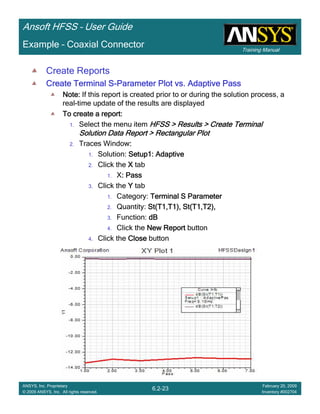
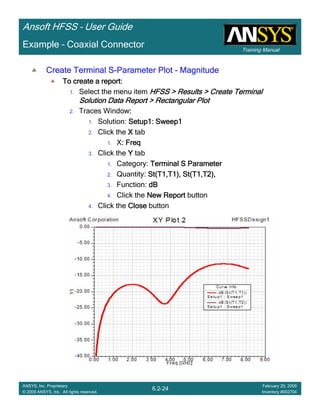
  • 92.
    Introduction 1-70 ANSYS, Inc. Proprietary ©2009 ANSYS, Inc. All rights reserved. February 23, 2009 Inventory #002593 Training ManualTraining Manual 2-70 ANSYS, Inc. Proprietary © 2009 ANSYS, Inc. All rights reserved. February 20, 2009 Inventory #002704 Ansoft HFSS – User Guide • Recommended Service Packs (SP) – PC only – Microsoft Windows XP - SP2 or higher • Memory allocation 32-bit Windows – Since the release of HFSS v9.2 you can access sup to 3GB of Ram on a 32-bit PC – All about 3GB switch, supported OS • http://support.microsoft.com/default.aspx?scid=kb;en-us;291988 – How to use /3GB switch • http://msdn.microsoft.com/library/default.asp?url=/library/en-us/ddtools/hh/ddtools/bootini_1fcj.asp – Possible problems • http://support.microsoft.com/default.aspx?scid=kb;en-us;328269 • Increasing Memory allocation HFSS v11 – Since the release of HFSS v10, the solver in HFSS is 64bit and can access a large memory footprint. • Linux Operating Systems – Red Hat Enterprise 3 and 4 – SUSE Linux Enterprise 9.x – Note: Requires OpenGL – Note: Please perform required OS updates outlined in readme file on the CD
  • 93.
    Introduction 1-71 ANSYS, Inc. Proprietary ©2009 ANSYS, Inc. All rights reserved. February 23, 2009 Inventory #002593 Training ManualTraining Manual 2-71 ANSYS, Inc. Proprietary © 2009 ANSYS, Inc. All rights reserved. February 20, 2009 Inventory #002704 Ansoft HFSS – User Guide Distributed Solve Option • Distributed Analysis – Automated parser management and reassembly of data – Parametric tables and studies – Frequency sweeps for discrete, fast, and interpolating – Per license, distributed analysis allows up to 10 parallel simulations on remote machines, providing near-linear reduction of simulation run times
  • 94.
    Introduction 1-72 ANSYS, Inc. Proprietary ©2009 ANSYS, Inc. All rights reserved. February 23, 2009 Inventory #002593 Training ManualTraining Manual 2-72 ANSYS, Inc. Proprietary © 2009 ANSYS, Inc. All rights reserved. February 20, 2009 Inventory #002704 Ansoft HFSS – User Guide • Scripts – Default Script recorded in v11 • Visual Basic Script • Distributed/Remote Solve – Tools > Options > General Options > Analysis Options • Uses Windows DCOM LocalLocalLocalLocal RemoteRemoteRemoteRemote DistributedDistributedDistributedDistributed
  • 95.
    Introduction 1-73 ANSYS, Inc. Proprietary ©2009 ANSYS, Inc. All rights reserved. February 23, 2009 Inventory #002593 Training ManualTraining Manual 2-73 ANSYS, Inc. Proprietary © 2009 ANSYS, Inc. All rights reserved. February 20, 2009 Inventory #002704 Ansoft HFSS – User Guide • For Technical Support – The following link will direct you to the Ansoft Support Page. The Ansoft Support Pages provide additional documentation, training, and application notes. Web Site: http://www.ansoft.com/support.cfm • Application Engineers for North America – The names and numbers in this list may change without notice • 9-4 EST: – Pittsburgh, PA • (412) 261-3200 x0 – Ask for Technical Support – Burlington, MA • (781) 229-8900 x0 – Ask for Technical Support • 9-4 PST: – San Jose, CA • (408) 261-9095 x0 – Ask for Technical Support – Portland, OR • (503) 906-7947 – Irvine, CA • (714) 417-9311 x6
  • 97.
    1-1 ANSYS, Inc. Proprietary ©2009 ANSYS, Inc. All rights reserved. February 23, 2009 Inventory #0025933-1 ANSYS, Inc. Proprietary © 2009 ANSYS, Inc. All rights reserved. February 20, 2009 Inventory #002704 Chapter 3 – Boundary Conditions Ansoft HFSS – User Guide
  • 98.
    Introduction 1-2 ANSYS, Inc. Proprietary ©2009 ANSYS, Inc. All rights reserved. February 23, 2009 Inventory #002593 Training ManualTraining Manual 3-2 ANSYS, Inc. Proprietary © 2009 ANSYS, Inc. All rights reserved. February 20, 2009 Inventory #002704 Ansoft HFSS – User Guide • Why are They Critical? – For most practical problems, the solution to Maxwell’s equations requires a rigorous matrix approach such as the Finite Element Method (FEM) which is used by Ansoft HFSS. • The wave equation solved by Ansoft HFSS is derived from the differential form of Maxwell’s equations. – For these expressions to be valid, it is assumed that the field vectors are: • single-valued, • bounded, and have a • continuous distribution (along with their derivatives) – Along boundaries of media or at sources, • Field vectors are discontinuous • Derivatives of the field vectors have no meaning Boundary Conditions 0=⋅∇ =⋅∇ ∂ ∂ +=×∇ ∂ ∂ −=×∇ B D t D JH t B E ρ Boundary Conditions define the field behavior across discontinuoBoundary Conditions define the field behavior across discontinuoBoundary Conditions define the field behavior across discontinuoBoundary Conditions define the field behavior across discontinuous boundariesus boundariesus boundariesus boundaries
  • 99.
    Introduction 1-3 ANSYS, Inc. Proprietary ©2009 ANSYS, Inc. All rights reserved. February 23, 2009 Inventory #002593 Training ManualTraining Manual 3-3 ANSYS, Inc. Proprietary © 2009 ANSYS, Inc. All rights reserved. February 20, 2009 Inventory #002704 Ansoft HFSS – User Guide • Why do I Care? – They Force the fields to align with the definition of the boundary condition • As a user I should be asking – What assumptions, about the fields, do the boundary conditions make? – Are these assumptions appropriate for the structure being simulated? – Model Scope • To reduce the infinite space of the real world to a finite volume, Ansoft HFSS automatically applies a boundary to the surface surrounding the geometric model – Outer boundary – Default Boundary: Perfect E – Model Complexity • To reduce the complexity of a model, the boundary conditions can be used to improve the: – Solution Time – Computer Resources Failure to understand boundary conditions may lead to inconsisteFailure to understand boundary conditions may lead to inconsisteFailure to understand boundary conditions may lead to inconsisteFailure to understand boundary conditions may lead to inconsistent resultsnt resultsnt resultsnt results Boundary Conditions
  • 100.
    Introduction 1-4 ANSYS, Inc. Proprietary ©2009 ANSYS, Inc. All rights reserved. February 23, 2009 Inventory #002593 Training ManualTraining Manual 3-4 ANSYS, Inc. Proprietary © 2009 ANSYS, Inc. All rights reserved. February 20, 2009 Inventory #002704 Ansoft HFSS – User Guide • What are Common Ansoft HFSS Boundary Conditions? – Excitations • Wave Ports (External) • Lumped Ports (Internal) – Surface Approximations • Perfect E or Perfect H Surface • Finite Conductivity Surface • Impedance Surface • Layered Impedance Surface • Lumped RLC • Symmetry Planes • Radiation Surface • Perfectly Matched Layer (PML) – Strictly not a surface approximation • Master/ Slave – Material Properties • Boundary between two dielectrics • Finite Conductivity of a conductor Largely the users responsibilityLargely the users responsibilityLargely the users responsibilityLargely the users responsibility Transparent to the userTransparent to the userTransparent to the userTransparent to the user Boundary Conditions
  • 101.
    Introduction 1-5 ANSYS, Inc. Proprietary ©2009 ANSYS, Inc. All rights reserved. February 23, 2009 Inventory #002593 Training ManualTraining Manual 3-5 ANSYS, Inc. Proprietary © 2009 ANSYS, Inc. All rights reserved. February 20, 2009 Inventory #002704 Ansoft HFSS – User Guide • Perfect E – Forces the electric field perpendicular to the surface – Outer Surface – Default Boundary – PEC/Perfect Conductor Material Property – Model complexity: Reduced by eliminating conductor loss • Perfect H – Forces the electric field tangent to the surface • Finite Conductivity – Lossy electric conductor. – Forces the tangential electric field at the surface to: Zs(n x Htan). • The surface impedance (Zs) is equal to, (1+j)/(δσδσδσδσ), • Model complexity: Reduced by eliminating conductor thickness • Impedance Surface – Represent surfaces of a known impedance – Forces the tangential electric field at the surface to: Zs(n x Htan). • The surface impedance (Zs) is equal to, Rs + jXs (Ohms/Square) – Layered Impedance – Models multiple thin layers in a structure as an Impedance Surface – Lumped RLC – Parallel combination Perfect E SurfacePerfect E SurfacePerfect E SurfacePerfect E Surface Perfect H Surface Boundary Conditions
  • 102.
    Introduction 1-6 ANSYS, Inc. Proprietary ©2009 ANSYS, Inc. All rights reserved. February 23, 2009 Inventory #002593 Training ManualTraining Manual 3-6 ANSYS, Inc. Proprietary © 2009 ANSYS, Inc. All rights reserved. February 20, 2009 Inventory #002704 Ansoft HFSS – User Guide • Symmetry Planes – Enable you to model only part of a structure – Perfect E or Perfect H Symmetry Planes • Must be exposed to the outer surface • Must be on a planar surface • Remember! Mechanical Symmetry does not Equal Electrical Symmetry – Model complexity: Reduced by eliminating part of the solution volume Full ModelFull ModelFull ModelFull Model Perfect E SymmetryPerfect E SymmetryPerfect E SymmetryPerfect E Symmetry Perfect H SymmetryPerfect H SymmetryPerfect H SymmetryPerfect H Symmetry Boundary Conditions
  • 103.
    Introduction 1-7 ANSYS, Inc. Proprietary ©2009 ANSYS, Inc. All rights reserved. February 23, 2009 Inventory #002593 Training ManualTraining Manual 3-7 ANSYS, Inc. Proprietary © 2009 ANSYS, Inc. All rights reserved. February 20, 2009 Inventory #002704 Ansoft HFSS – User Guide • Radiation Surface – Allows waves to radiate infinitely far into space. – The boundary absorbs wave at the radiation surface – Can be placed on arbitrary surfaces – Accuracy depends on • The distance between the boundary and the radiating object – The radiation boundary should be located at least one-quarter of a wavelength from a radiating structure. If you are simulating a structure that does not radiate, the boundary can be located less then one-quarter of a wave length (The validity of this assumption will require your engineering judgment). • The incident angle – The radiation boundary will reflect varying amounts of energy depending on the incidence angle. The best performance is achieved at normal incidence. Avoid angles greater then ~30degrees. In addition, the radiation boundary must remain convex relative to the wave. • Perfectly Matched Layer (PML) – Allows waves to radiate infinitely far into space. – Not a Boundary Condition. – Fictitious materials that fully absorb the electromagnetic fields impinging upon them. – These materials are complex anisotropic. • Types – Free Space Termination or Reflection Free Termination • Can only be placed on planar surface • Model complexity: They do not suffer from the distance or incident angle issues, but should be place at least one-tenth of a wave length from strong radiators Boundary Conditions
  • 104.
    Introduction 1-8 ANSYS, Inc. Proprietary ©2009 ANSYS, Inc. All rights reserved. February 23, 2009 Inventory #002593 Training ManualTraining Manual 3-8 ANSYS, Inc. Proprietary © 2009 ANSYS, Inc. All rights reserved. February 20, 2009 Inventory #002704 Ansoft HFSS – User Guide • Infinite Ground Planes – Simulate the effects of an infinite ground plane – Only affects the calculation of near- or far-field radiation during post processing – Types: Perfect E, Finite Conductivity, or Impedance Surface • Frequency Dependent Boundary Conditions – The following boundary parameters can be assigned an expression that includes Freq: • Finite Conductivity • Impedance • Lumped RLC • Layered Impedance – Supported Frequency Sweeps • Single Frequency • Discrete Sweep • Interpolating Sweep Boundary Conditions
  • 105.
    Introduction 1-9 ANSYS, Inc. Proprietary ©2009 ANSYS, Inc. All rights reserved. February 23, 2009 Inventory #002593 Training ManualTraining Manual 3-9 ANSYS, Inc. Proprietary © 2009 ANSYS, Inc. All rights reserved. February 20, 2009 Inventory #002704 Ansoft HFSS – User Guide • Ports – Unique type of boundary condition • Allow energy to flow into and out of a structure. • Defined on 2D planar surface • Arbitrary port solver calculates the natural field patterns or modes – Assumes semi-infinitely long waveguide • Same cross-section and material properties as port surface – 2D field patterns serve as boundary conditions for the full 3D problem • Excitation Types – Wave Port (Waveguide) – External • Recommended only for surfaces exposed to the background • Supports multiple modes (Example: Coupled Lines) and deembedding • Compute Generalized S-Parameters – Frequency dependent Characteristic Impedance (Zo) – Perfectly matched at every frequency – Lumped Port – Internal • Recommended only for surfaces internal to geometric model • Single mode (TEM) and no deembedding • Normalized to a constant user defined Zo Port 1Port 1Port 1Port 1 Port 2Port 2Port 2Port 2 Port 3Port 3Port 3Port 3 Port 4Port 4Port 4Port 4 Excitations MeasurementsMeasurementsMeasurementsMeasurements Constant ZoConstant ZoConstant ZoConstant Zo
  • 106.
    Introduction 1-10 ANSYS, Inc. Proprietary ©2009 ANSYS, Inc. All rights reserved. February 23, 2009 Inventory #002593 Training ManualTraining Manual 3-10 ANSYS, Inc. Proprietary © 2009 ANSYS, Inc. All rights reserved. February 20, 2009 Inventory #002704 Ansoft HFSS – User Guide Excitations • Wave Equation – The field pattern of a traveling wave inside a waveguide can be determined by solving Maxwell’s equations. The following equation that is solved by the 2D solver is derived directly from Maxwell’s equation. – where: • E(x,y) is a phasor representing an oscillating electric field. • k0 is the free space wave number, • µr is the complex relative permeability. • εr is the complex relative permittivity. – To solve this equation, the 2D solver obtains an excitation field pattern in the form of a phasor solution, E(x,y). These phasor solutions are independent of z and t; only after being multiplied by e-γz do they become traveling waves. – Also note that the excitation field pattern computed is valid only at a single frequency. A different excitation field pattern is computed for each frequency point of interest. ( ) 0),(, 1 2 0 =−      ×∇×∇ yxEkyxE r r ε µ
  • 107.
    Introduction 1-11 ANSYS, Inc. Proprietary ©2009 ANSYS, Inc. All rights reserved. February 23, 2009 Inventory #002593 Training ManualTraining Manual 3-11 ANSYS, Inc. Proprietary © 2009 ANSYS, Inc. All rights reserved. February 20, 2009 Inventory #002704 Ansoft HFSS – User Guide Excitations • Modes, Reflections, and Propagation – It is also possible for a 3D field solution generated by an excitation signal of one specific mode to contain reflections of higher-order modes which arise due to discontinuities in a high frequency structure. – If these higher-order modes are reflected back to the excitation port or transmitted onto another port, the S-parameters associated with these modes should be calculated. – If the higher-order mode decays before reaching any port—either because of attenuation due to losses or because it is a non-propagating evanescent mode—there is no need to obtain the S-parameters for that mode. • Wave Ports Require a Length of Uniform Cross Section – Ansoft HFSS assumes that each port you define is connected to a semi-infinitely long waveguide that has the same cross section as the Wave Port no uniform cross sectionno uniform cross sectionno uniform cross sectionno uniform cross section at Wave Portsat Wave Portsat Wave Portsat Wave Ports uniform cross sectionuniform cross sectionuniform cross sectionuniform cross section added for each Wave Portadded for each Wave Portadded for each Wave Portadded for each Wave Port
  • 108.
    Introduction 1-12 ANSYS, Inc. Proprietary ©2009 ANSYS, Inc. All rights reserved. February 23, 2009 Inventory #002593 Training ManualTraining Manual 3-12 ANSYS, Inc. Proprietary © 2009 ANSYS, Inc. All rights reserved. February 20, 2009 Inventory #002704 Ansoft HFSS – User Guide Excitations • Wave Port Boundary Conditions – Perfect E or Finite Conductivity • Default: All outer edges are Perfect E boundary. – Port is defined within a waveguide. – Easy for enclosed transmission lines: Coax or Waveguide – Challenging for unbalanced or non-enclosed lines: Microstrip, CPW, Slotline, etc. – Symmetry or Impedance • Recognized at the port edges – Radiation • Default interface is a Perfect E boundary
  • 109.
    Introduction 1-13 ANSYS, Inc. Proprietary ©2009 ANSYS, Inc. All rights reserved. February 23, 2009 Inventory #002593 Training ManualTraining Manual 3-13 ANSYS, Inc. Proprietary © 2009 ANSYS, Inc. All rights reserved. February 20, 2009 Inventory #002704 Ansoft HFSS – User Guide Excitations • Lumped Port Boundary Conditions – Perfect E or Finite Conductivity • Any port edge that interfaces with a conductor or another port edge – Perfect H • All remaining port edges Perfect H Perfect H Perfect E Perfect E
  • 110.
    Introduction 1-14 ANSYS, Inc. Proprietary ©2009 ANSYS, Inc. All rights reserved. February 23, 2009 Inventory #002593 Training ManualTraining Manual 3-14 ANSYS, Inc. Proprietary © 2009 ANSYS, Inc. All rights reserved. February 20, 2009 Inventory #002704 Ansoft HFSS – User Guide Excitations • Excitation – Calibration – Ports must be calibrated to ensure consistent results. Determines: • Direction and polarity of fields • Voltage/ Current calculations. – Solution Type: Driven Modal • Expressed in terms of the incident and reflected powers of the waveguide modes. – Definition not desirable for problems having several propagating quasi-TEM modes • Coupled/Multi-Coupled Transmission Lines • Always used by the solver • Calibration: Integration Line – Phase between Ports – Modal voltage integration path: Zpi, Zpv, Zvi – Solution Type: Driven Terminal • Linear combination of nodal voltages and currents for the Wave Port. – Equivalent transformation performed from Modal Solution • Calibration: Terminal Assignments – Polarity – Nodal current integration path
  • 111.
    Introduction 1-15 ANSYS, Inc. Proprietary ©2009 ANSYS, Inc. All rights reserved. February 23, 2009 Inventory #002593 Training ManualTraining Manual 3-15 ANSYS, Inc. Proprietary © 2009 ANSYS, Inc. All rights reserved. February 20, 2009 Inventory #002704 Ansoft HFSS – User Guide • Example Solution Types: T1T1T1T1 T2T2T2T2 Integration LineIntegration LineIntegration LineIntegration Line Mode 1Mode 1Mode 1Mode 1 (Even Mode)(Even Mode)(Even Mode)(Even Mode) Integration LineIntegration LineIntegration LineIntegration Line Mode 2Mode 2Mode 2Mode 2 (Odd Mode)(Odd Mode)(Odd Mode)(Odd Mode) Modes to NodesModes to NodesModes to NodesModes to Nodes TransformationTransformationTransformationTransformation SPICESPICESPICESPICE Differential PairsDifferential PairsDifferential PairsDifferential Pairs ModalModalModalModal Port1Port1Port1Port1 Port2Port2Port2Port2 TerminalTerminalTerminalTerminalPort1Port1Port1Port1 Port2Port2Port2Port2 T1T1T1T1 T2T2T2T2 T1T1T1T1 T2T2T2T2 2 Modes2 Modes2 Modes2 Modes 2 Modes2 Modes2 Modes2 Modes Excitations
  • 112.
    Introduction 1-16 ANSYS, Inc. Proprietary ©2009 ANSYS, Inc. All rights reserved. February 23, 2009 Inventory #002593 Training ManualTraining Manual 3-16 ANSYS, Inc. Proprietary © 2009 ANSYS, Inc. All rights reserved. February 20, 2009 Inventory #002704 Ansoft HFSS – User Guide Boundary Conditions Application • Application of Boundary Conditions - Case 1 – Emulate laboratory measurements • Verification/Validation before production Picture courtesy of DelphiPicture courtesy of DelphiPicture courtesy of DelphiPicture courtesy of Delphi Picture courtesy of TektronixPicture courtesy of TektronixPicture courtesy of TektronixPicture courtesy of Tektronix
  • 113.
    Introduction 1-17 ANSYS, Inc. Proprietary ©2009 ANSYS, Inc. All rights reserved. February 23, 2009 Inventory #002593 Training ManualTraining Manual 3-17 ANSYS, Inc. Proprietary © 2009 ANSYS, Inc. All rights reserved. February 20, 2009 Inventory #002704 Ansoft HFSS – User Guide • Application of Boundary Conditions - Case 2 – Isolate part of a structure (i.e. Exciting arbitrary transmission lines) • Not physically possible to measure in the laboratory • Full-Wave analysis not required for total system – Or total system too complex • Design work/Component level optimization • Post production problem solving Isolated ComponentIsolated ComponentIsolated ComponentIsolated Component –––– Via TransitionVia TransitionVia TransitionVia Transition Total SystemTotal SystemTotal SystemTotal System Boundary Conditions Application
  • 114.
    Introduction 1-18 ANSYS, Inc. Proprietary ©2009 ANSYS, Inc. All rights reserved. February 23, 2009 Inventory #002593 Training ManualTraining Manual 3-18 ANSYS, Inc. Proprietary © 2009 ANSYS, Inc. All rights reserved. February 20, 2009 Inventory #002704 Ansoft HFSS – User Guide • Example Structure – Coax to Stripline LAYER 2 (SIGNAL)LAYER 2 (SIGNAL)LAYER 2 (SIGNAL)LAYER 2 (SIGNAL) LAYER 3 (BOTTOM SIDE)LAYER 3 (BOTTOM SIDE)LAYER 3 (BOTTOM SIDE)LAYER 3 (BOTTOM SIDE) LAYER 1 (TOP SIDE)LAYER 1 (TOP SIDE)LAYER 1 (TOP SIDE)LAYER 1 (TOP SIDE) Coax to Stripline Example
  • 115.
    Introduction 1-19 ANSYS, Inc. Proprietary ©2009 ANSYS, Inc. All rights reserved. February 23, 2009 Inventory #002593 Training ManualTraining Manual 3-19 ANSYS, Inc. Proprietary © 2009 ANSYS, Inc. All rights reserved. February 20, 2009 Inventory #002704 Ansoft HFSS – User Guide • Material Properties – All 3D (Solid) objects have material definitions • To complete the model shown previously we must include the air that surrounds the structure. airairairair Note:Note:Note:Note: Substrate/Air boundarySubstrate/Air boundarySubstrate/Air boundarySubstrate/Air boundary included in structureincluded in structureincluded in structureincluded in structure Coax to Stripline Example
  • 116.
    Introduction 1-20 ANSYS, Inc. Proprietary ©2009 ANSYS, Inc. All rights reserved. February 23, 2009 Inventory #002593 Training ManualTraining Manual 3-20 ANSYS, Inc. Proprietary © 2009 ANSYS, Inc. All rights reserved. February 20, 2009 Inventory #002704 Ansoft HFSS – User Guide – Remember! Material Boundary conditions are transparent to the user • They are not visible in the Project Tree • Example Material Boundary: Conductors Surface Approximations – Perfect Conductors Perfect E Boundary (Boundary Name: smetal) • Forces E-Field perpendicular to surface – Lossy Conductors Finite Conductivity Boundary • Forces tangential E-Field to ((1+j)/(δσδσδσδσ))(n x Htan). • Assumes one skin depth – User must manually force Ansoft HFSS to solve inside lossy conductors that are ≤ a skin depth smetalsmetalsmetalsmetal Coax to Stripline Example
  • 117.
    Introduction 1-21 ANSYS, Inc. Proprietary ©2009 ANSYS, Inc. All rights reserved. February 23, 2009 Inventory #002593 Training ManualTraining Manual 3-21 ANSYS, Inc. Proprietary © 2009 ANSYS, Inc. All rights reserved. February 20, 2009 Inventory #002704 Ansoft HFSS – User Guide • Surface Approximations – Background or Outer Boundary • Not visible in the Project Tree • Any object surface that touches it Perfect E Boundary • Default boundary applied to the region surrounding the geometric model – Model is encased in a thin metal layer that no fields propagate through Override withOverride withOverride withOverride with Radiation BoundaryRadiation BoundaryRadiation BoundaryRadiation Boundary outerouterouterouter Coax to Stripline Example
  • 118.
    Introduction 1-22 ANSYS, Inc. Proprietary ©2009 ANSYS, Inc. All rights reserved. February 23, 2009 Inventory #002593 Training ManualTraining Manual 3-22 ANSYS, Inc. Proprietary © 2009 ANSYS, Inc. All rights reserved. February 20, 2009 Inventory #002704 Ansoft HFSS – User Guide • What Port Type Should I Use? – Example is easy decision • Port touches background (External) • Cross Section is Coax (Enclosed Transmission Line) – Wave Port • Solution Type: Driven Terminal – SPICE Output Identify Port Type &Identify Port Type &Identify Port Type &Identify Port Type & Cross SectionCross SectionCross SectionCross Section Assign Excitation &Assign Excitation &Assign Excitation &Assign Excitation & Calibrate PortCalibrate PortCalibrate PortCalibrate Port Define DefaultDefine DefaultDefine DefaultDefine Default Post ProcessingPost ProcessingPost ProcessingPost Processing Coax to Stripline Example
  • 119.
    Introduction 1-23 ANSYS, Inc. Proprietary ©2009 ANSYS, Inc. All rights reserved. February 23, 2009 Inventory #002593 Training ManualTraining Manual 3-23 ANSYS, Inc. Proprietary © 2009 ANSYS, Inc. All rights reserved. February 20, 2009 Inventory #002704 Ansoft HFSS – User Guide • Is it Really that Simple? – Yes, but the geometric model was setup with several considerations 1.Only the face of the coax dielectric was selected for the port face – Port Boundary conditions define outer conductor – Material Definitions define inner conductor 2.Uniform port cross-section – Only supports a single mode – Higher-order modes caused by reflections would attenuate before port • Modes attenuate as a function of e-ααααz, assuming propagation in the z-direction. • Required distance (uniform port length) depends on modes propagation constant. Uniform crossUniform crossUniform crossUniform cross----sectionsectionsectionsection Rule of Thumb: 5xRule of Thumb: 5xRule of Thumb: 5xRule of Thumb: 5x Critical DistanceCritical DistanceCritical DistanceCritical Distance Coax to Stripline Example
  • 120.
    Introduction 1-24 ANSYS, Inc. Proprietary ©2009 ANSYS, Inc. All rights reserved. February 23, 2009 Inventory #002593 Training ManualTraining Manual 3-24 ANSYS, Inc. Proprietary © 2009 ANSYS, Inc. All rights reserved. February 20, 2009 Inventory #002704 Ansoft HFSS – User Guide • How often is the Setup that Simple? – If you are emulating laboratory measurements? [Case 1 ] • Most of the time! – Laboratory equipment does not directly connect to arbitrary transmission lines • Exceptions – Emulating Complex Probes with a Port Understanding of Probe – If you are isolating part of a structure? [Case 2 ] • For “real” designs - usually only by dumb luck! – User Must Understand and/or Implement Correctly: 1.Port Boundary conditions and impact of boundary condition 2.Fields within the structure 3.Assumptions made by port solver 4.Return path Coax to Stripline Example
  • 121.
    Introduction 1-25 ANSYS, Inc. Proprietary ©2009 ANSYS, Inc. All rights reserved. February 23, 2009 Inventory #002593 Training ManualTraining Manual 3-25 ANSYS, Inc. Proprietary © 2009 ANSYS, Inc. All rights reserved. February 20, 2009 Inventory #002704 Ansoft HFSS – User Guide • Side Note: Problems Associated with Correlating Results [Case 2] – Can be broken into two categories of problems 1.Complex Structure – BGA, Backplane, Antenna Feed, Waveguide “Plumbing”, etc – Most common problems result from • Measurement setup – Test fixtures, deembedding, etc. • Failing to understand the fields in the structure Boundary Problem • Return path problems – Model truncation 2.Simple Structures – Uniform transmission lines • Equations or Circuit Elements – Most common problems result from • Improper use of default or excitation boundary conditions • Failure to understand the assumptions used by “correct” results (Equations or Circuit Elements) Coax to Stripline Example
  • 122.
    Introduction 1-26 ANSYS, Inc. Proprietary ©2009 ANSYS, Inc. All rights reserved. February 23, 2009 Inventory #002593 Training ManualTraining Manual 3-26 ANSYS, Inc. Proprietary © 2009 ANSYS, Inc. All rights reserved. February 20, 2009 Inventory #002704 Ansoft HFSS – User Guide • Why are they critical? – Any current injected into a system must return to the source • DC – Chooses path of least resistance • AC – Chooses path of least inductance – A signal propagates between the signal trace and its reference plane – Reference plane is just as important as signal trace! • Why do I care? – Many real designs have nonideal return paths • These effects are only captured by full-wave simulators – Isolating parts of a structure • Failure to maintain the correct return path will – Limit correlation to measurements – Mask or create design problems • Port and Boundary setup is the most common source of error in model setup Coax to Stripline Example
  • 123.
    Introduction 1-27 ANSYS, Inc. Proprietary ©2009 ANSYS, Inc. All rights reserved. February 23, 2009 Inventory #002593 Training ManualTraining Manual 3-27 ANSYS, Inc. Proprietary © 2009 ANSYS, Inc. All rights reserved. February 20, 2009 Inventory #002704 Ansoft HFSS – User Guide Port1Port1Port1Port1 Port2Port2Port2Port2 Port3Port3Port3Port3 No DCNo DCNo DCNo DC Return PathReturn PathReturn PathReturn Path No Return Path
  • 124.
    Introduction 1-28 ANSYS, Inc. Proprietary ©2009 ANSYS, Inc. All rights reserved. February 23, 2009 Inventory #002593 Training ManualTraining Manual 3-28 ANSYS, Inc. Proprietary © 2009 ANSYS, Inc. All rights reserved. February 20, 2009 Inventory #002704 Ansoft HFSS – User Guide Port1Port1Port1Port1 Port2Port2Port2Port2 Port3Port3Port3Port3 DCDCDCDC Return PathReturn PathReturn PathReturn Path DC Return Path
  • 125.
    Introduction 1-29 ANSYS, Inc. Proprietary ©2009 ANSYS, Inc. All rights reserved. February 23, 2009 Inventory #002593 Training ManualTraining Manual 3-29 ANSYS, Inc. Proprietary © 2009 ANSYS, Inc. All rights reserved. February 20, 2009 Inventory #002704 Ansoft HFSS – User Guide DC & RFDC & RFDC & RFDC & RF Return PathReturn PathReturn PathReturn Path S21S21S21S21 S11S11S11S11 S31S31S31S31 DC/AC Return Path
  • 126.
    Introduction 1-30 ANSYS, Inc. Proprietary ©2009 ANSYS, Inc. All rights reserved. February 23, 2009 Inventory #002593 Training ManualTraining Manual 3-30 ANSYS, Inc. Proprietary © 2009 ANSYS, Inc. All rights reserved. February 20, 2009 Inventory #002704 Ansoft HFSS – User Guide • Isolate part of structure - Case 2 – Isolate Transition • Deembed • Recombine using Ansoft Designer - Circuit Wave PortWave PortWave PortWave Port Coax to Stripline Example
  • 127.
    Introduction 1-31 ANSYS, Inc. Proprietary ©2009 ANSYS, Inc. All rights reserved. February 23, 2009 Inventory #002593 Training ManualTraining Manual 3-31 ANSYS, Inc. Proprietary © 2009 ANSYS, Inc. All rights reserved. February 20, 2009 Inventory #002704 Ansoft HFSS – User Guide Ansoft DesignerAnsoft DesignerAnsoft DesignerAnsoft Designer ---- CircuitCircuitCircuitCircuit Coax to Stripline Example
  • 128.
    Introduction 1-32 ANSYS, Inc. Proprietary ©2009 ANSYS, Inc. All rights reserved. February 23, 2009 Inventory #002593 Training ManualTraining Manual 3-32 ANSYS, Inc. Proprietary © 2009 ANSYS, Inc. All rights reserved. February 20, 2009 Inventory #002704 Ansoft HFSS – User Guide Coax to Stripline Example
  • 129.
    Introduction 1-33 ANSYS, Inc. Proprietary ©2009 ANSYS, Inc. All rights reserved. February 23, 2009 Inventory #002593 Training ManualTraining Manual 3-33 ANSYS, Inc. Proprietary © 2009 ANSYS, Inc. All rights reserved. February 20, 2009 Inventory #002704 Ansoft HFSS – User Guide • What went wrong? – Isolate Port from Discontinuity? • Yes – Uniform Cross-Section? • NO – The cross section of the port (including its boundaries) is not maintained – Maintain Return Path? • NO – Boundary on port shorts the planes together at edges – Identical to placing vias at port edge! – All Modes Accounted for? • NO – Did not consider Parallel Plate mode – Even if we did, the via (port edge) cuts off mode Reason vias are used! Coax to Stripline Example
  • 130.
    Introduction 1-34 ANSYS, Inc. Proprietary ©2009 ANSYS, Inc. All rights reserved. February 23, 2009 Inventory #002593 Training ManualTraining Manual 3-34 ANSYS, Inc. Proprietary © 2009 ANSYS, Inc. All rights reserved. February 20, 2009 Inventory #002704 Ansoft HFSS – User Guide StriplineStriplineStriplineStripline ParallelParallelParallelParallel PlatePlatePlatePlate Ansoft DesignerAnsoft DesignerAnsoft DesignerAnsoft Designer ---- CircuitCircuitCircuitCircuit Wave PortWave PortWave PortWave Port 2 Terminals2 Terminals2 Terminals2 Terminals Coax to Stripline Example
  • 131.
    Introduction 1-35 ANSYS, Inc. Proprietary ©2009 ANSYS, Inc. All rights reserved. February 23, 2009 Inventory #002593 Training ManualTraining Manual 3-35 ANSYS, Inc. Proprietary © 2009 ANSYS, Inc. All rights reserved. February 20, 2009 Inventory #002704 Ansoft HFSS – User Guide No DCNo DCNo DCNo DC Return PathReturn PathReturn PathReturn Path Port InfluencesPort InfluencesPort InfluencesPort Influences ResultsResultsResultsResults Lumped PortLumped PortLumped PortLumped Port Coax to Stripline Example
  • 132.
    Introduction 1-36 ANSYS, Inc. Proprietary ©2009 ANSYS, Inc. All rights reserved. February 23, 2009 Inventory #002593 Training ManualTraining Manual 3-36 ANSYS, Inc. Proprietary © 2009 ANSYS, Inc. All rights reserved. February 20, 2009 Inventory #002704 Ansoft HFSS – User Guide Coax to Stripline Example
  • 133.
    Introduction 1-37 ANSYS, Inc. Proprietary ©2009 ANSYS, Inc. All rights reserved. February 23, 2009 Inventory #002593 Training ManualTraining Manual 3-37 ANSYS, Inc. Proprietary © 2009 ANSYS, Inc. All rights reserved. February 20, 2009 Inventory #002704 Ansoft HFSS – User Guide TOP T1T2 T3 Power GND BOTTOM G P SIDE Power GND Signal Lumped Gap Port Terminal Line
  • 134.
    Introduction 1-38 ANSYS, Inc. Proprietary ©2009 ANSYS, Inc. All rights reserved. February 23, 2009 Inventory #002593 Training ManualTraining Manual 3-38 ANSYS, Inc. Proprietary © 2009 ANSYS, Inc. All rights reserved. February 20, 2009 Inventory #002704 Ansoft HFSS – User Guide Lumped Gap Port
  • 135.
    Introduction 1-39 ANSYS, Inc. Proprietary ©2009 ANSYS, Inc. All rights reserved. February 23, 2009 Inventory #002593 Training ManualTraining Manual 3-39 ANSYS, Inc. Proprietary © 2009 ANSYS, Inc. All rights reserved. February 20, 2009 Inventory #002704 Ansoft HFSS – User Guide Differential Lumped Gap PortsDifferential Lumped Gap PortsDifferential Lumped Gap PortsDifferential Lumped Gap Ports
  • 136.
    Introduction 1-40 ANSYS, Inc. Proprietary ©2009 ANSYS, Inc. All rights reserved. February 23, 2009 Inventory #002593 Training ManualTraining Manual 3-40 ANSYS, Inc. Proprietary © 2009 ANSYS, Inc. All rights reserved. February 20, 2009 Inventory #002704 Ansoft HFSS – User Guide GGGG SSSS GGGG PortPortPortPort
  • 137.
    1-1 ANSYS, Inc. Proprietary ©2009 ANSYS, Inc. All rights reserved. February 23, 2009 Inventory #0025934-1 ANSYS, Inc. Proprietary © 2009 ANSYS, Inc. All rights reserved. February 20, 2009 Inventory #002704 Chapter 4 – Appendix: Boundary Conditions Ansoft HFSS – User Guide
  • 138.
    Introduction 1-2 ANSYS, Inc. Proprietary ©2009 ANSYS, Inc. All rights reserved. February 23, 2009 Inventory #002593 Training ManualTraining Manual 4-2 ANSYS, Inc. Proprietary © 2009 ANSYS, Inc. All rights reserved. February 20, 2009 Inventory #002704 Ansoft HFSS – User Guide Excitations and Boundary Conditions • Majority of HFSS errors are related to improper usage of excitations and boundary conditions • Boundary conditions are important because they significantly impact electromagnetic solution • Determine model scope – To truncate infinite space to finite volume, HFSS applies PEC boundary to surface surrounding geometric model • Can reduce model complexity – Boundary conditions can be used to reduce solution time and computing resource demands Perfect E Symmetry Plane Perfect H Symmetry Plane TE10 Cavity Resonator Pyramidal Horn Antenna
  • 139.
    Introduction 1-3 ANSYS, Inc. Proprietary ©2009 ANSYS, Inc. All rights reserved. February 23, 2009 Inventory #002593 Training ManualTraining Manual 4-3 ANSYS, Inc. Proprietary © 2009 ANSYS, Inc. All rights reserved. February 20, 2009 Inventory #002704 Ansoft HFSS – User Guide • Surface approximations – Perfect E surface – Perfect H surface – Finite conductivity surface – Impedance surface – Layered impedance – Lumped RLC boundary – Symmetry planes – Radiation (absorbing) boundary surface – Perfectly matched layer (PML) • Strictly not boundary condition, but effectively behaves like one – Master/slave (linked or periodic) boundaries – Screening impedance • Excitations – Wave ports (external) – Lumped ports (internal) User-Defined Boundary Conditions 0=⋅∇ =⋅∇ ∂ ∂ +=×∇ ∂ ∂ −=×∇ B D t D JH t B E ρ
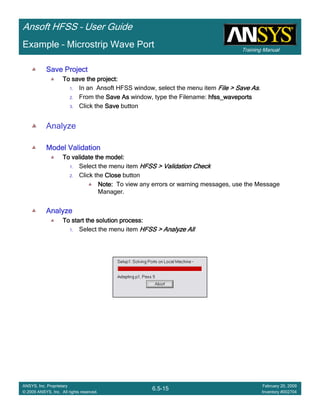
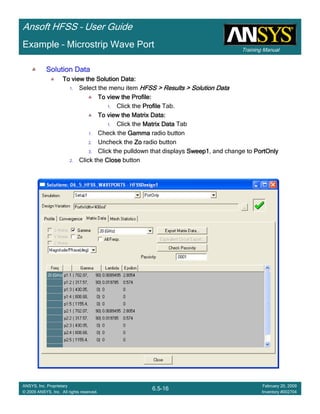
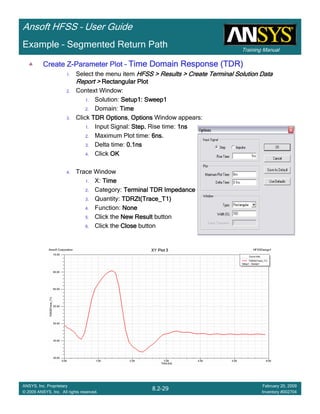
  • 140.
    Introduction 1-4 ANSYS, Inc. Proprietary ©2009 ANSYS, Inc. All rights reserved. February 23, 2009 Inventory #002593 Training ManualTraining Manual 4-4 ANSYS, Inc. Proprietary © 2009 ANSYS, Inc. All rights reserved. February 20, 2009 Inventory #002704 Ansoft HFSS – User Guide Perfect E and Perfect H Boundaries • Perfect E is perfect electrical conductor (PEC) – Forces E-field perpendicular to surface – Represents metal surfaces, ground planes, ideal cavity walls, etc. – Infinite ground plane option simulates effects of infinite ground plane in post-processing radiated fields • Perfect H is perfect magnetic conductor (PMC) – Forces H-field perpendicular to surface and E-field tangential – Does not exist in real world – Useful boundary constraint for electromagnetic models – Represents openings in metal surfaces, etc. • Parameters – None Perfect E Boundary Perfect H Boundary When you define a solid object as a ‘perf_conductor,’ a Perfect E boundary condition is applied to its exterior surfaces. E-field Parallel to surface E-field Perpendicular to surface
  • 141.
    Introduction 1-5 ANSYS, Inc. Proprietary ©2009 ANSYS, Inc. All rights reserved. February 23, 2009 Inventory #002593 Training ManualTraining Manual 4-5 ANSYS, Inc. Proprietary © 2009 ANSYS, Inc. All rights reserved. February 20, 2009 Inventory #002704 Ansoft HFSS – User Guide • All methods utilize an equivalent surface impedance applied to the field as it travels across the surface Zs,input Zs,Au LAu Zs,Ni LNi Zs,Cu LCu Zs,input Zs,Au LAu Zs,Ni LNi Zs,Cu LCu Four Surface Loss Modeling Methods σδ j Zs + = 1 ωσµ δ 2 = Zs specified as ΩΩΩΩ/sq 0.7mil Copper 500 µin Nickel 500 µin Gold 0.7mil Copper 500 µin Nickel 500 µin Gold Finite Conductivity Impedance Layered Impedance Lumped RLC Parallel RLC Circuit t >> δδδδ
  • 142.
    Introduction 1-6 ANSYS, Inc. Proprietary ©2009 ANSYS, Inc. All rights reserved. February 23, 2009 Inventory #002593 Training ManualTraining Manual 4-6 ANSYS, Inc. Proprietary © 2009 ANSYS, Inc. All rights reserved. February 20, 2009 Inventory #002704 Ansoft HFSS – User Guide Finite Conductivity Boundary • Lossy electrical conductor – Forces E-field perpendicular to surface – Surface impedance includes resistive and reactive surface losses • Used for non-ideal conductor analysis • Infinite ground plane option simulates effects of infinite ground plane in post- processing radiated fields • Parameters – Conductivity (S/m) – Relative permeability (unitless) When you define a solid object as a non- ideal metal (e.g. copper or aluminum), and it is set to ‘Solve Surface’, a finite conductivity boundary is applied to its exterior faces. ωσµ δ 2 = σδ j Zs + = 1 Surface ImpedanceSkin Depth Field Relationship t >> δδδδ Good conductor in skin depth regime
  • 143.
    Introduction 1-7 ANSYS, Inc. Proprietary ©2009 ANSYS, Inc. All rights reserved. February 23, 2009 Inventory #002593 Training ManualTraining Manual 4-7 ANSYS, Inc. Proprietary © 2009 ANSYS, Inc. All rights reserved. February 20, 2009 Inventory #002704 Ansoft HFSS – User Guide Impedance Boundary • User-defined surface impedance – Represents thin film resistors or reactive loads • Infinite ground plane option simulates effects of infinite surface in post-processing radiated fields • Calculate required impedance from desired lumped value, width, and length – Length (in direction of current flow) ÷ width = number of “squares” – Impedance per square = desired lumped impedance ÷ number of squares • Parameters: – Resistance (Ω/square) – Reactance (Ω/square) Example: Resistor in Wilkinson Power Divider Resistor is 3.5 mils long (in direction of flow) and 4 mils wide. Desired lumped value is 35 ΩΩΩΩ. square N R R N lumped sheet /40 875.0 35 875.0 4 5.3 Ω=== ==
  • 144.
    Introduction 1-8 ANSYS, Inc. Proprietary ©2009 ANSYS, Inc. All rights reserved. February 23, 2009 Inventory #002593 Training ManualTraining Manual 4-8 ANSYS, Inc. Proprietary © 2009 ANSYS, Inc. All rights reserved. February 20, 2009 Inventory #002704 Ansoft HFSS – User Guide Layered Impedance Boundary • Models multiple thin layers in a structure as single impedance surface – Effect is same as impedance boundary, except that HFSS calculates surface impedance based on data entered for layered structure – Surface roughness can be included – Plating layers can be modeled by using an equivalent surface impedance • Not available for fast frequency sweeps • Parameters – Layer thicknesses – Material properties – Surface roughness (optional) 0.7mil Copper 500 µµµµin Nickel 500 µµµµin Gold Zs,input Zs,Au LAu Zs,Ni LNi Zs,Cu LCu Impedance of the layered structure is calculated by recursively calling the impedance calculation formulation from transmission line theory
  • 145.
    Introduction 1-9 ANSYS, Inc. Proprietary ©2009 ANSYS, Inc. All rights reserved. February 23, 2009 Inventory #002593 Training ManualTraining Manual 4-9 ANSYS, Inc. Proprietary © 2009 ANSYS, Inc. All rights reserved. February 20, 2009 Inventory #002704 Ansoft HFSS – User Guide Lumped RLC Boundary • Represents any combination of parallel-connected lumped RLC elements on surfaces in terms of circuit definition – Supply values for R, L, and C – HFSS determines impedance per square of lumped RLC boundary at any frequency • Fast frequency sweeps are supported • Parameters – Resistance – Inductance – Capacitance – Line for current flow
  • 146.
    Introduction 1-10 ANSYS, Inc. Proprietary ©2009 ANSYS, Inc. All rights reserved. February 23, 2009 Inventory #002593 Training ManualTraining Manual 4-10 ANSYS, Inc. Proprietary © 2009 ANSYS, Inc. All rights reserved. February 20, 2009 Inventory #002704 Ansoft HFSS – User Guide • Allows for modeling portion of entire structure • For Driven Modal solutions • Two symmetry options are available – Use perfect E when electric field is perpendicular to symmetry plane – Use perfect H when electric field is tangential to symmetry plane • Involve further implications to boundary manager and fields post-processing – May need to specify impedance multiplier – Existence of symmetry boundary allows for near- and far-field calculation of entire structure • Parameters – Type – Impedance multiplier Symmetry Plane Conductive edges on all four sides Waveguide contains symmetric propagating mode which could be modeled using half the volume vertically or horizontally. Perfect E Symmetry (bottom) Perfect H Symmetry (left side)
  • 147.
    Introduction 1-11 ANSYS, Inc. Proprietary ©2009 ANSYS, Inc. All rights reserved. February 23, 2009 Inventory #002593 Training ManualTraining Manual 4-11 ANSYS, Inc. Proprietary © 2009 ANSYS, Inc. All rights reserved. February 20, 2009 Inventory #002704 Ansoft HFSS – User Guide • When symmetry is used, Zpi and impedance line-dependent Zpv and Zvi calculations will be incorrect since entire port aperture is not represented – Impedance is halved for model with Perfect E symmetry plane – Impedance is doubled for model with Perfect H symmetry plane • Port impedance multiplier is renormalizing factor used to obtain correct impedance – Value applied to all ports – Global parameter set during assignment of any port Symmetry Plane Impedance Multiplier Rectangular WG (No Symmetry) Half Rectangular WG (Perfect E Symmetry) Impedance Multiplier = 2 Half Rectangular WG (Perfect H Symmetry) Impedance Multiplier = 0.5
  • 148.
    Introduction 1-12 ANSYS, Inc. Proprietary ©2009 ANSYS, Inc. All rights reserved. February 23, 2009 Inventory #002593 Training ManualTraining Manual 4-12 ANSYS, Inc. Proprietary © 2009 ANSYS, Inc. All rights reserved. February 20, 2009 Inventory #002704 Ansoft HFSS – User Guide Perfect E Symmetry (top) Perfect H Symmetry (right side) TE20 mode in full model Properly represented with Perfect E symmetry Mode cannot occur with Perfect H symmetry Symmetry Plane Mode Implications • Geometric symmetry does not necessarily imply field symmetry for higher-order modes • Symmetry boundaries can act as mode filters – Next higher propagating waveguide mode is not symmetric about vertical center plane of waveguide – Therefore one symmetry case is valid while the other is not • Use caution when using symmetry planes to assure that real behavior is not filtered out by boundary conditions
  • 149.
    Introduction 1-13 ANSYS, Inc. Proprietary ©2009 ANSYS, Inc. All rights reserved. February 23, 2009 Inventory #002593 Training ManualTraining Manual 4-13 ANSYS, Inc. Proprietary © 2009 ANSYS, Inc. All rights reserved. February 20, 2009 Inventory #002704 Ansoft HFSS – User Guide Radiation Boundary • Mimics continued propagation beyond boundary plane – Absorption achieved via 2nd order radiation boundary – Place at least λ/4 from strongly radiating structure – Place at least λ/10 from weakly radiating structure – Absorbs best when incident energy flow is normal to surface – Must be concave to all incident fields from within modeled space • Parameters – Advanced options used for incident wave and HFSS DataLink problems Boundary is λ/4 away from horn aperture in all directions Radiation boundary functions well for incident angles less than 25°-30°
  • 150.
    Introduction 1-14 ANSYS, Inc. Proprietary ©2009 ANSYS, Inc. All rights reserved. February 23, 2009 Inventory #002593 Training ManualTraining Manual 4-14 ANSYS, Inc. Proprietary © 2009 ANSYS, Inc. All rights reserved. February 20, 2009 Inventory #002704 Ansoft HFSS – User Guide • Fictitious lossy anisotropic material which fully absorbs electromagnetic fields • Two types of PML applications – “PML objects accept free radiation” if PML terminates free space – “PML objects continue guided waves” if PML terminates transmission line • Guidelines for assigning PML boundaries – Use PML setup wizard for most cases – Manually create a PML when base object is curved or inhomogeneous • Parameters – Uniform thickness – Minimum frequency – Minimum radiating distance (between PML and antenna) Perfectly Matched Layer (PML) PML functions well for incident angles less than 65°-70°
  • 151.
    Introduction 1-15 ANSYS, Inc. Proprietary ©2009 ANSYS, Inc. All rights reserved. February 23, 2009 Inventory #002593 Training ManualTraining Manual 4-15 ANSYS, Inc. Proprietary © 2009 ANSYS, Inc. All rights reserved. February 20, 2009 Inventory #002704 Ansoft HFSS – User Guide Radiation Boundary vs PML Radiation Boundary PML Type 2D 3D (occupies volume) Incident angle from normal < ~30° < ~70° Distance from radiator > λ/4 > λ/10 Setup complexity Low Medium
  • 152.
    Introduction 1-16 ANSYS, Inc. Proprietary ©2009 ANSYS, Inc. All rights reserved. February 23, 2009 Inventory #002593 Training ManualTraining Manual 4-16 ANSYS, Inc. Proprietary © 2009 ANSYS, Inc. All rights reserved. February 20, 2009 Inventory #002704 Ansoft HFSS – User Guide Master/Slave Boundaries • Used to model unit cell of periodic structure – Also referred to as linked or periodic boundaries • Master and slave boundaries are always paired – Fields on master surface are mapped to slave surface with a phase shift – Phase shift specified either as absolute phase value or using scan angle • Constraints – Master and slave surfaces must be identical in shape and size – Coordinate systems must be created to identify point-to-point correspondence • Parameters – Master/slave pairing – UV coordinate systems – Phase shift method Unit Cell Model of Waveguide Array WG Port (bottom) Ground Plane PML (top) Master Boundary Slave Boundary V- axis U-axis
  • 153.
    Introduction 1-17 ANSYS, Inc. Proprietary ©2009 ANSYS, Inc. All rights reserved. February 23, 2009 Inventory #002593 Training ManualTraining Manual 4-17 ANSYS, Inc. Proprietary © 2009 ANSYS, Inc. All rights reserved. February 20, 2009 Inventory #002704 Ansoft HFSS – User Guide Screening Impedance Boundary • Used to efficiently represent periodic screens or grids with impedance boundary condition – Can be anisotropic (different values in x and y directions) – Can be frequency-dependent • Periodic grid characterized by unit cell – Dynamic link support to import impedance values from unit cell – Includes effects of polarization • Parameters – Resistance and reactance (Ω/square) – Coordinate system if anisotropic – HFSS design for dynamic link
  • 154.
    Introduction 1-18 ANSYS, Inc. Proprietary ©2009 ANSYS, Inc. All rights reserved. February 23, 2009 Inventory #002593 Training ManualTraining Manual 4-18 ANSYS, Inc. Proprietary © 2009 ANSYS, Inc. All rights reserved. February 20, 2009 Inventory #002704 Ansoft HFSS – User Guide Default Outer Boundary • Any exterior face of modeled geometry not given user-defined boundary condition is assumed to be Perfect E boundary – Default boundary called “outer” • Imagine entire model buried in solid metal unless HFSS is instructed otherwise • Use HFSS →→→→ Boundary Display to view all boundary assignments – Graphical window shows both user and auto-assigned boundaries
  • 155.
    Introduction 1-19 ANSYS, Inc. Proprietary ©2009 ANSYS, Inc. All rights reserved. February 23, 2009 Inventory #002593 Training ManualTraining Manual 4-19 ANSYS, Inc. Proprietary © 2009 ANSYS, Inc. All rights reserved. February 20, 2009 Inventory #002704 Ansoft HFSS – User Guide Excitations • Provide means for energy to enter and exit model • Types of excitations – Ports • Wave ports • Lumped ports • Floquet ports – Voltage sources – Current sources – Magnetic biases – Incident waves • Plane waves • Hertzian dipole • Cylindrical wave • Gaussian beam • Linear antenna wave • Far-field wave • Near-field wave • Only ports provide S-parameters – This presentation will focus on this type of excitation
  • 156.
    Introduction 1-20 ANSYS, Inc. Proprietary ©2009 ANSYS, Inc. All rights reserved. February 23, 2009 Inventory #002593 Training ManualTraining Manual 4-20 ANSYS, Inc. Proprietary © 2009 ANSYS, Inc. All rights reserved. February 20, 2009 Inventory #002704 Ansoft HFSS – User Guide Driven Modal vs Driven Terminal Solutions • Driven modal – S-matrix solution expressed in terms of incident and reflected powers of waveguide modes – Always used by wave solver – Integration lines set phase between ports and modal voltage integration path (Zpv and Zvi) – Use for modal-based S-parameters of passive, high-frequency structures such as microstrips, waveguides, and transmission lines • Driven terminal – S-matrix solution expressed in terms of linear combination of nodal voltages and currents for wave port – Equivalent “modes-to-nodes” transformation performed from modal solution – Use for terminal-based S-parameters of multi-conductor transmission line ports (with several quasi- TEM modes, etc.)
  • 157.
    Introduction 1-21 ANSYS, Inc. Proprietary ©2009 ANSYS, Inc. All rights reserved. February 23, 2009 Inventory #002593 Training ManualTraining Manual 4-21 ANSYS, Inc. Proprietary © 2009 ANSYS, Inc. All rights reserved. February 20, 2009 Inventory #002704 Ansoft HFSS – User Guide Ports • Ports are unique type of boundary condition – Allow energy to flow into and out of structure – Defined on 2D planar surface – 2D field patterns serve as boundary conditions for full 3D problem • Incorrect port setup will produce incorrect results – If port fields are incorrect, then solution will be incorrect – Assumed boundary condition on port edges should always be considered Initial Mesh Seeding and Lambda Refinement (Single Frequency) Port Solution (Adaptive) Full Volumetric Solution
  • 158.
    Introduction 1-22 ANSYS, Inc. Proprietary ©2009 ANSYS, Inc. All rights reserved. February 23, 2009 Inventory #002593 Training ManualTraining Manual 4-22 ANSYS, Inc. Proprietary © 2009 ANSYS, Inc. All rights reserved. February 20, 2009 Inventory #002704 Ansoft HFSS – User Guide • External port type • Arbitrary port solver calculates natural waveguide field patterns (modes) – Assumes semi-infinitely long waveguide with same cross-section and material properties as port surface • Recommended only for surfaces exposed to background object • Supports multiple modes, de-embedding, and re-normalization • Computes generalized S-parameters – Frequency-dependent characteristic impedance – Perfectly matched at every frequency Port 1Port 1Port 1Port 1 Port 2Port 2Port 2Port 2 Port 3Port 3Port 3Port 3 Port 4Port 4Port 4Port 4 Wave Ports
  • 159.
    Introduction 1-23 ANSYS, Inc. Proprietary ©2009 ANSYS, Inc. All rights reserved. February 23, 2009 Inventory #002593 Training ManualTraining Manual 4-23 ANSYS, Inc. Proprietary © 2009 ANSYS, Inc. All rights reserved. February 20, 2009 Inventory #002704 Ansoft HFSS – User Guide Port Solver • Wave port solver solves two-dimensional wave equation • Field pattern of traveling wave inside waveguide can be determined by solving Maxwell’s equations • Wave equation is derived directly from Maxwell’s equations • where – E(x,y) is phasor representing oscillating electric field – k0 is free space wave number – µr is complex relative permeability – εr is complex relative permittivity • 2D solver obtains excitation field pattern in form of phasor solution E(x,y) – Phasor solutions are independent of z and time – Only after being multiplied by e-γz do they become traveling waves – Different excitation field pattern is computed for each frequency point of interest ( ) 0),(, 1 2 0 =−      ×∇×∇ yxEkyxE r r ε µ
  • 160.
    Introduction 1-24 ANSYS, Inc. Proprietary ©2009 ANSYS, Inc. All rights reserved. February 23, 2009 Inventory #002593 Training ManualTraining Manual 4-24 ANSYS, Inc. Proprietary © 2009 ANSYS, Inc. All rights reserved. February 20, 2009 Inventory #002704 Ansoft HFSS – User Guide Wave Port Boundary Conditions • All outer edges are assigned Perfect E boundary by default – Port is defined within waveguide – Simple setup for enclosed transmission lines (coax, waveguide, etc.) – Challenging setup for unbalanced or non-enclosed lines (microstrip, CPW, slotline, etc.) • Symmetry or impedance boundaries also recognized at port edges • For port on same surface as radiation boundary, default interface is Perfect E boundary – Can set option to use radiation boundary on port edges during port solution • Creating port edges too close to current-carrying lines will allow coupling from trace to port walls – Causes incorrect modal solution which will suffer immediate discontinuity as energy is injected past port into model Port too narrow (fields coupled to sidewalls) Correct port size
  • 161.
    Introduction 1-25 ANSYS, Inc. Proprietary ©2009 ANSYS, Inc. All rights reserved. February 23, 2009 Inventory #002593 Training ManualTraining Manual 4-25 ANSYS, Inc. Proprietary © 2009 ANSYS, Inc. All rights reserved. February 20, 2009 Inventory #002704 Ansoft HFSS – User Guide Wave Port Sizing Guidelines • Microstrip port height between 6h and 10h – Tend towards upper limit as dielectric constant drops and fringing fields increase – Make bottom edge of port co-planar with upper face of ground plane • Microstrip port width – 10w for w ≥ h – 5w, or on order of 3h to 4h, for w < h • Extend stripline port height from upper to lower groundplane (h) • Stripline port width – 8w for w ≥ h – 5w, or on order of 3h to 4h, for w < h • Can also make side walls of port Perfect H boundaries w h 6h to 10h 10w, w ≥≥≥≥ h or 5w (3h to 4h), w < h Port sizing guidelines are not inviolable rules. If meeting height and width requirements result in rectangular aperture larger than λ/2 in one dimension, the substrate and trace may be ignored in favor of a waveguide mode. When in doubt, run a ports-only solution to determine which modes are propagating. w h 8w, w ≥≥≥≥ h or 5w (3h to 4h), w < h
  • 162.
    Introduction 1-26 ANSYS, Inc. Proprietary ©2009 ANSYS, Inc. All rights reserved. February 23, 2009 Inventory #002593 Training ManualTraining Manual 4-26 ANSYS, Inc. Proprietary © 2009 ANSYS, Inc. All rights reserved. February 20, 2009 Inventory #002704 Ansoft HFSS – User Guide Wave Port Sizing Guidelines • Slotline port height at least 4h or 4g (whichever is larger) – Include air above and below substrate – If ground plane is present, port should terminate at ground plane • Port width should contain at least 3g to either side of slot or 7g total minimum – Port boundary must intersect both side ground planes or they will ‘float’ and become signal conductors • Coplanar waveguide port height at least 4h or 4g (whichever is larger) – Include air above and below substrate – If ground plane is present, port should terminate at ground plane • Port width should contain 3-5g or 3-5s of side grounds (whichever is larger) – Total width ~10g or ~10s – Port outline must intersect both side grounds or they will ‘float’ and become signal conductors g Approx 7g minimum h Larger of 4h or 4g For Driven Modal solutions, use Zpv for impedance calculation Larger of approx. 10g or 10s s h Larger of 4h or 4g g
  • 163.
    Introduction 1-27 ANSYS, Inc. Proprietary ©2009 ANSYS, Inc. All rights reserved. February 23, 2009 Inventory #002593 Training ManualTraining Manual 4-27 ANSYS, Inc. Proprietary © 2009 ANSYS, Inc. All rights reserved. February 20, 2009 Inventory #002704 Ansoft HFSS – User Guide Uniform crossUniform crossUniform crossUniform cross----sectionsectionsectionsection added for each wave portadded for each wave portadded for each wave portadded for each wave port Wave Port Implications • Modes, reflections, and propagation – It is possible for 3D field solution generated by excitation signal of one specific mode to contain reflections of higher-order modes which arise due to discontinuities – If higher-order mode is reflected back to excitation port or transmitted onto another port, its S- parameters should be calculated – If higher-order mode decays before reaching any port (because of attenuation or because it is a non- propagating evanescent mode), there is no need to obtain its S-parameters • Wave ports require a length of uniform cross-section – HFSS assumes that each port is connected to semi-infinitely long waveguide with same cross-section as wave port No uniform cross sectionNo uniform cross sectionNo uniform cross sectionNo uniform cross section at wave portsat wave portsat wave portsat wave ports
  • 164.
    Introduction 1-28 ANSYS, Inc. Proprietary ©2009 ANSYS, Inc. All rights reserved. February 23, 2009 Inventory #002593 Training ManualTraining Manual 4-28 ANSYS, Inc. Proprietary © 2009 ANSYS, Inc. All rights reserved. February 20, 2009 Inventory #002704 Ansoft HFSS – User Guide • Wave ports can be placed internal to model by providing boundary condition normally seen by external wave port – Create PEC “cap” to back the wave port and enable excitation in proper direction Example coax feed within solution volume Coaxial antenna feed with coaxial wave port capped by PEC object Internal Wave Ports
  • 165.
    Introduction 1-29 ANSYS, Inc. Proprietary ©2009 ANSYS, Inc. All rights reserved. February 23, 2009 Inventory #002593 Training ManualTraining Manual 4-29 ANSYS, Inc. Proprietary © 2009 ANSYS, Inc. All rights reserved. February 20, 2009 Inventory #002704 Ansoft HFSS – User Guide Integration Lines • Applicable to driven modal solution types • Port vector which can serve several purposes • Calibration line which specifies direction of excitation electric field pattern at port – Define separate integration line for each mode on multi-mode ports • Impedance line along which to compute Zpv or Zvi port impedance – Select two points with maximum voltage differential Microstrip line Waveguide Slotline
  • 166.
    Introduction 1-30 ANSYS, Inc. Proprietary ©2009 ANSYS, Inc. All rights reserved. February 23, 2009 Inventory #002593 Training ManualTraining Manual 4-30 ANSYS, Inc. Proprietary © 2009 ANSYS, Inc. All rights reserved. February 20, 2009 Inventory #002704 Ansoft HFSS – User Guide Lumped Ports • Recommended only for surfaces internal to model – Single TEM mode with no de-embedding – Uniform electric field on port surface – Normalized to constant user-defined Z0 • Lumped port boundary conditions – Perfect E or finite conductivity boundary for port edges which interface with conductor or another port edge – Perfect H for all remaining port edges Uniform electric field User-defined Zo Zo Dipole element with lumped port
  • 167.
    Introduction 1-31 ANSYS, Inc. Proprietary ©2009 ANSYS, Inc. All rights reserved. February 23, 2009 Inventory #002593 Training ManualTraining Manual 4-31 ANSYS, Inc. Proprietary © 2009 ANSYS, Inc. All rights reserved. February 20, 2009 Inventory #002704 Ansoft HFSS – User Guide Wave Ports vs Lumped Ports Wave port Lumped port Accessibility External Faces Internal to Model Higher order modes Yes No De-embedding Yes No Re-normalization Yes Yes Setup complexity Moderate Low
  • 169.
    Training Manual Ansoft HFSS– User Guide 5.1-1 ANSYS, Inc. Proprietary © 2009 ANSYS, Inc. All rights reserved. February 20, 2009 Inventory #002704 Example – UHF Probe The Ultra-High Frequency (UHF) Probe This example is intended to show you how to create, simulate, and analyze a UHF probe, using the Ansoft HFSS Design Environment.
  • 170.
    Training Manual Ansoft HFSS– User Guide 5.1-2 ANSYS, Inc. Proprietary © 2009 ANSYS, Inc. All rights reserved. February 20, 2009 Inventory #002704 Example – UHF Probe Ansoft HFSS Design Environment The following features of the Ansoft HFSS Design Environment are used to create this passive device model 3D Solid Modeling Primitives: Cylinders, BoxesCylinders, BoxesCylinders, BoxesCylinders, Boxes Boolean Operations: Unite, SubtractUnite, SubtractUnite, SubtractUnite, Subtract Boundaries/Excitations Ports: Wave PortsWave PortsWave PortsWave Ports Analysis Sweep: Fast Frequency: Fast Frequency: Fast Frequency: Fast Frequency Results Cartesian plottingCartesian plottingCartesian plottingCartesian plotting Field Overlays: 3D Far Field Plots3D Far Field Plots3D Far Field Plots3D Far Field Plots
  • 171.
    Training Manual Ansoft HFSS– User Guide 5.1-3 ANSYS, Inc. Proprietary © 2009 ANSYS, Inc. All rights reserved. February 20, 2009 Inventory #002704 Example – UHF Probe Getting Started Launching Ansoft HFSSLaunching Ansoft HFSSLaunching Ansoft HFSSLaunching Ansoft HFSS 1. To access Ansoft HFSS, click the Microsoft StartStartStartStart button, select ProgramsProgramsProgramsPrograms, and select the Ansoft, HFSS 11Ansoft, HFSS 11Ansoft, HFSS 11Ansoft, HFSS 11 program group. Click HFSS 11HFSS 11HFSS 11HFSS 11. Setting Tool OptionsSetting Tool OptionsSetting Tool OptionsSetting Tool Options To set the tool options:To set the tool options:To set the tool options:To set the tool options: Note:Note:Note:Note: In order to follow the steps outlined in this example, verify that the following tool options are set :::: 1. Select the menu item Tools > Options > HFSS OptionsTools > Options > HFSS OptionsTools > Options > HFSS OptionsTools > Options > HFSS Options 2. HFSS Options Window: 1. Click the GeneralGeneralGeneralGeneral tab Use Wizards for data input when creating new boundaries:::: CheckedCheckedCheckedChecked Duplicate boundaries with geometry:::: CheckedCheckedCheckedChecked 2. Click the OKOKOKOK button 3. Select the menu item Tools > Options > Modeler OptionsTools > Options > Modeler OptionsTools > Options > Modeler OptionsTools > Options > Modeler Options. 4. Modeler Options Window: 1. Click the OperationOperationOperationOperation tab Automatically cover closed polylines:::: CheckedCheckedCheckedChecked 2. Click the DrawingDrawingDrawingDrawing tab Edit property of new primitives:::: CheckedCheckedCheckedChecked 3. Click the OKOKOKOK button
  • 172.
    Training Manual Ansoft HFSS– User Guide 5.1-4 ANSYS, Inc. Proprietary © 2009 ANSYS, Inc. All rights reserved. February 20, 2009 Inventory #002704 Example – UHF Probe Opening a New ProjectOpening a New ProjectOpening a New ProjectOpening a New Project To open a new project:To open a new project:To open a new project:To open a new project: 1. In an Ansoft HFSS window, click the On the Standard toolbar, or select the menu item File > NewFile > NewFile > NewFile > New. 2. From the ProjectProjectProjectProject menu, select Insert HFSS DesignInsert HFSS DesignInsert HFSS DesignInsert HFSS Design.... Set Solution TypeSet Solution TypeSet Solution TypeSet Solution Type To set the solution type:To set the solution type:To set the solution type:To set the solution type: 1. Select the menu item HFSS > Solution TypeHFSS > Solution TypeHFSS > Solution TypeHFSS > Solution Type 2. Solution Type Window: 1. Choose Driven TerminalDriven TerminalDriven TerminalDriven Terminal 2. Click the OKOKOKOK button
  • 173.
    Training Manual Ansoft HFSS– User Guide 5.1-5 ANSYS, Inc. Proprietary © 2009 ANSYS, Inc. All rights reserved. February 20, 2009 Inventory #002704 Example – UHF Probe Creating the 3D Model Set Model UnitsSet Model UnitsSet Model UnitsSet Model Units To set the units:To set the units:To set the units:To set the units: 1. Select the menu item Modeler > UnitsModeler > UnitsModeler > UnitsModeler > Units 2. Set Model Units: 1. Select Units: in (inches)in (inches)in (inches)in (inches) 2. Click the OKOKOKOK button Set Default MaterialSet Default MaterialSet Default MaterialSet Default Material To set the default material:To set the default material:To set the default material:To set the default material: 1. Using the 3D Modeler Materials toolbar, choose SelectSelectSelectSelect 2. Select Definition Window: 1. Type coppercoppercoppercopper in the Search by NameSearch by NameSearch by NameSearch by Name field 2. Click the OKOKOKOK button
  • 174.
    Training Manual Ansoft HFSS– User Guide 5.1-6 ANSYS, Inc. Proprietary © 2009 ANSYS, Inc. All rights reserved. February 20, 2009 Inventory #002704 Example – UHF Probe Creating Annular RingsCreating Annular RingsCreating Annular RingsCreating Annular Rings Creating a ring is accomplished by creating a cylinder that represents the outer radius and a cylinder that represents the inner radius. By performing a Boolean subtraction, the resulting geometry is a ring. For this model, two sets of rings are necessary. Instead of manually creating both rings, we will create one ring, copy it, and edit the dimensions of the copy. Create Ring 1Create Ring 1Create Ring 1Create Ring 1 1. Select the menu item Draw > CylinderDraw > CylinderDraw > CylinderDraw > Cylinder 2. Using the coordinate entry fields, enter the cylinder position X: 0.00.00.00.0, Y: 0.00.00.00.0, Z: 0.00.00.00.0, Press the EnterEnterEnterEnter key 3. Using the coordinate entry fields, enter the radius: dX: 0.310.310.310.31, dY: 0.00.00.00.0, dZ: 0.0,0.0,0.0,0.0, Press the EnterEnterEnterEnter key 4. Using the coordinate entry fields, enter the height: dX: 0.00.00.00.0, dY: 0.00.00.00.0, dZ: 5.0,5.0,5.0,5.0, Press the EnterEnterEnterEnter key To set the name:To set the name:To set the name:To set the name: 1. Select the AttributeAttributeAttributeAttribute tab from the PropertiesPropertiesPropertiesProperties window. 2. For the ValueValueValueValue of NameNameNameName type: ring_innerring_innerring_innerring_inner 3. Click the OKOKOKOK button To fit the view:To fit the view:To fit the view:To fit the view: 1. Select the menu item View > Fit All > Active ViewView > Fit All > Active ViewView > Fit All > Active ViewView > Fit All > Active View.... Or press the CTRL+DCTRL+DCTRL+DCTRL+D key
  • 175.
    Training Manual Ansoft HFSS– User Guide 5.1-7 ANSYS, Inc. Proprietary © 2009 ANSYS, Inc. All rights reserved. February 20, 2009 Inventory #002704 Example – UHF Probe Creating Annular Rings (Continued)Creating Annular Rings (Continued)Creating Annular Rings (Continued)Creating Annular Rings (Continued) Create Ring 1 (Continued)Create Ring 1 (Continued)Create Ring 1 (Continued)Create Ring 1 (Continued) 1. Select the menu item Draw > CylinderDraw > CylinderDraw > CylinderDraw > Cylinder 2. Using the coordinate entry fields, enter the cylinder position X: 0.00.00.00.0, Y: 0.00.00.00.0, Z: 0.00.00.00.0, Press the EnterEnterEnterEnter key 3. Using the coordinate entry fields, enter the radius: dX: 0.370.370.370.37, dY: 0.00.00.00.0, dZ: 0.00.00.00.0, Press the EnterEnterEnterEnter key 4. Using the coordinate entry fields, enter the height: dX: 0.00.00.00.0, dY: 0.00.00.00.0, dZ: 5.05.05.05.0, Press the EnterEnterEnterEnter key To set the name:To set the name:To set the name:To set the name: 1. Select the AttributeAttributeAttributeAttribute tab from the PropertiesPropertiesPropertiesProperties window. 2. For the ValueValueValueValue of NameNameNameName type: ring_1ring_1ring_1ring_1 3. Click the OKOKOKOK button To select objects to be subtracted:To select objects to be subtracted:To select objects to be subtracted:To select objects to be subtracted: 1. Select the menu item Edit > Select > By NameEdit > Select > By NameEdit > Select > By NameEdit > Select > By Name 2. Select Object Dialog, 1. Select the objects named: ring_1, ring_innerring_1, ring_innerring_1, ring_innerring_1, ring_inner 2. Click the OKOKOKOK button To subtract:To subtract:To subtract:To subtract: 1. Select the menu item Modeler > Boolean > SubtractModeler > Boolean > SubtractModeler > Boolean > SubtractModeler > Boolean > Subtract 2. Subtract Window Blank Parts: ring_1ring_1ring_1ring_1 Tool Parts: ring_innerring_innerring_innerring_inner Clone tool objects before subtract: UncheckedUncheckedUncheckedUnchecked Click the OKOKOKOK button
  • 176.
    Training Manual Ansoft HFSS– User Guide 5.1-8 ANSYS, Inc. Proprietary © 2009 ANSYS, Inc. All rights reserved. February 20, 2009 Inventory #002704 Example – UHF Probe Creating Annular Rings (Continued)Creating Annular Rings (Continued)Creating Annular Rings (Continued)Creating Annular Rings (Continued) Create Ring 2Create Ring 2Create Ring 2Create Ring 2 1. Select the menu item Edit > Select > By NameEdit > Select > By NameEdit > Select > By NameEdit > Select > By Name 2. Select Object Dialog, 1. Select the objects named: ring_1ring_1ring_1ring_1 2. Click the OKOKOKOK button 3. Select the menu item Edit > CopyEdit > CopyEdit > CopyEdit > Copy 4. Select the menu item Edit > PasteEdit > PasteEdit > PasteEdit > Paste Change the dimensions of Ring 2Change the dimensions of Ring 2Change the dimensions of Ring 2Change the dimensions of Ring 2 1. To change the dimensions of ring_2, expand the model tree as shown below. It should be noted that order of the editing is important. If you make the inner radius > then the outer radius, a invalid object will result and it will be removed from the model. 2. Using the mouse, double click the left mouse button on the CreateCylinderCreateCylinderCreateCylinderCreateCylinder command for ring_2ring_2ring_2ring_2 3. Properties dialog 1. Change the radius to: 0.5 in0.5 in0.5 in0.5 in 2. Click the OKOKOKOK button 4. Using the mouse, double click the left mouse button on the CreateCylinderCreateCylinderCreateCylinderCreateCylinder command for the ring_inner1ring_inner1ring_inner1ring_inner1 5. Properties dialog 1. Change the radius to: 0.435 in0.435 in0.435 in0.435 in 2. Click the OKOKOKOK button
  • 177.
    Training Manual Ansoft HFSS– User Guide 5.1-9 ANSYS, Inc. Proprietary © 2009 ANSYS, Inc. All rights reserved. February 20, 2009 Inventory #002704 Example – UHF Probe Create Arm_1Create Arm_1Create Arm_1Create Arm_1 To create Arm_1To create Arm_1To create Arm_1To create Arm_1 1. Select the menu item Draw > BoxDraw > BoxDraw > BoxDraw > Box 2. Using the coordinate entry fields, enter the box position X: ----0.10.10.10.1, Y: ----0.310.310.310.31, Z: 5.05.05.05.0, Press the EnterEnterEnterEnter key 3. Using the coordinate entry fields, enter the opposite corner of the base rectangle: dX: 0.20.20.20.2, dY: ----4.694.694.694.69, dZ: ----0.0650.0650.0650.065, Press the EnterEnterEnterEnter key To set the name:To set the name:To set the name:To set the name: 1. Select the AttributeAttributeAttributeAttribute tab from the PropertiesPropertiesPropertiesProperties window. 2. For the ValueValueValueValue of NameNameNameName type: Arm_1Arm_1Arm_1Arm_1 3. Click the OKOKOKOK button To fit the view:To fit the view:To fit the view:To fit the view: 1. Select the menu item View > Fit All > Active ViewView > Fit All > Active ViewView > Fit All > Active ViewView > Fit All > Active View.... Or press the CTRL+DCTRL+DCTRL+DCTRL+D key. Group ConductorsGroup ConductorsGroup ConductorsGroup Conductors To group the conductors:To group the conductors:To group the conductors:To group the conductors: 1. Select the menu item Edit > Select All VisibleEdit > Select All VisibleEdit > Select All VisibleEdit > Select All Visible.... Or press the CTRL+ACTRL+ACTRL+ACTRL+A key 2. Select the menu item, Modeler > Boolean > UniteModeler > Boolean > UniteModeler > Boolean > UniteModeler > Boolean > Unite
  • 178.
    Training Manual Ansoft HFSS– User Guide 5.1-10 ANSYS, Inc. Proprietary © 2009 ANSYS, Inc. All rights reserved. February 20, 2009 Inventory #002704 Example – UHF Probe Create the Center pinCreate the Center pinCreate the Center pinCreate the Center pin To create the center pinTo create the center pinTo create the center pinTo create the center pin 1. Select the menu item Draw > CylinderDraw > CylinderDraw > CylinderDraw > Cylinder 2. Using the coordinate entry fields, enter the cylinder position X: 0.00.00.00.0, Y: 0.00.00.00.0, Z: 0.00.00.00.0, Press the EnterEnterEnterEnter key 3. Using the coordinate entry fields, enter the radius: dX: 0.10.10.10.1, dY: 0.00.00.00.0, dZ: 0.00.00.00.0, Press the EnterEnterEnterEnter key 4. Using the coordinate entry fields, enter the height: dX: 0.00.00.00.0, dY: 0.00.00.00.0, dZ: 5.15.15.15.1, Press the EnterEnterEnterEnter key To set the name:To set the name:To set the name:To set the name: 1. Select the AttributeAttributeAttributeAttribute tab from the PropertiesPropertiesPropertiesProperties window. 2. For the ValueValueValueValue of NameNameNameName type: center_pincenter_pincenter_pincenter_pin 3. Click the OKOKOKOK button
  • 179.
    Training Manual Ansoft HFSS– User Guide 5.1-11 ANSYS, Inc. Proprietary © 2009 ANSYS, Inc. All rights reserved. February 20, 2009 Inventory #002704 Example – UHF Probe Create Arm_2Create Arm_2Create Arm_2Create Arm_2 To create Arm_2To create Arm_2To create Arm_2To create Arm_2 1. Select the menu item Draw > BoxDraw > BoxDraw > BoxDraw > Box 2. Using the coordinate entry fields, enter the box position X: ----0.10.10.10.1, Y: 0.00.00.00.0, Z: 5.15.15.15.1, Press the EnterEnterEnterEnter key 3. Using the coordinate entry fields, enter the opposite corner of the base rectangle: dX: 0.20.20.20.2, dY: 5.05.05.05.0, dZ: ----0.0650.0650.0650.065, Press the EnterEnterEnterEnter key To set the name:To set the name:To set the name:To set the name: 1. Select the AttributeAttributeAttributeAttribute tab from the PropertiesPropertiesPropertiesProperties window. 2. For the ValueValueValueValue of NameNameNameName type: Arm_2Arm_2Arm_2Arm_2 3. Click the OKOKOKOK button To fit the view:To fit the view:To fit the view:To fit the view: 1. Select the menu item View > Fit All > Active ViewView > Fit All > Active ViewView > Fit All > Active ViewView > Fit All > Active View....
  • 180.
    Training Manual Ansoft HFSS– User Guide 5.1-12 ANSYS, Inc. Proprietary © 2009 ANSYS, Inc. All rights reserved. February 20, 2009 Inventory #002704 Example – UHF Probe Create the Grounding PinCreate the Grounding PinCreate the Grounding PinCreate the Grounding Pin To create the grounding pinTo create the grounding pinTo create the grounding pinTo create the grounding pin 1. Select the menu item Draw > CylinderDraw > CylinderDraw > CylinderDraw > Cylinder 2. Using the coordinate entry fields, enter the cylinder position X: 0.00.00.00.0, Y: 1.01.01.01.0, Z: 0.0,0.0,0.0,0.0, Press the EnterEnterEnterEnter key 3. Using the coordinate entry fields, enter the radius: dX: 0.06250.06250.06250.0625, dY: 0.00.00.00.0, dZ: 0.00.00.00.0, Press the EnterEnterEnterEnter key 4. Using the coordinate entry fields, enter the height: dX: 0.00.00.00.0, dY: 0.00.00.00.0, dZ: 5.15.15.15.1, Press the EnterEnterEnterEnter key To set the name:To set the name:To set the name:To set the name: 1. Select the AttributeAttributeAttributeAttribute tab from the PropertiesPropertiesPropertiesProperties window. 2. For the ValueValueValueValue of NameNameNameName type: pinpinpinpin 3. Click the OKOKOKOK button Group ConductorsGroup ConductorsGroup ConductorsGroup Conductors To group the conductors:To group the conductors:To group the conductors:To group the conductors: 1. Select the menu item Edit > Select > By NameEdit > Select > By NameEdit > Select > By NameEdit > Select > By Name 2. Select Object Dialog, 1. Select the objects named: Arm_2, center_pin, pinArm_2, center_pin, pinArm_2, center_pin, pinArm_2, center_pin, pin Note:Note:Note:Note: Use the Ctrl + Left mouse button to select multiple objects 2. Click the OKOKOKOK button 3. Select the menu item, Modeler > Boolean > UniteModeler > Boolean > UniteModeler > Boolean > UniteModeler > Boolean > Unite
  • 181.
    Training Manual Ansoft HFSS– User Guide 5.1-13 ANSYS, Inc. Proprietary © 2009 ANSYS, Inc. All rights reserved. February 20, 2009 Inventory #002704 Example – UHF Probe Create the Wave portCreate the Wave portCreate the Wave portCreate the Wave port To create a circle that represents the port:To create a circle that represents the port:To create a circle that represents the port:To create a circle that represents the port: 1. Select the menu item Draw > CircleDraw > CircleDraw > CircleDraw > Circle 2. Using the coordinate entry fields, enter the center position X: 0.00.00.00.0, Y: 0.00.00.00.0, Z: 0.00.00.00.0, Press the EnterEnterEnterEnter key 3. Using the coordinate entry fields, enter the radius of the circle: dX: 0.310.310.310.31, dY: 0.00.00.00.0, dZ: 0.00.00.00.0, Press the EnterEnterEnterEnter key To set the name:To set the name:To set the name:To set the name: 1. Select the AttributeAttributeAttributeAttribute tab from the PropertiesPropertiesPropertiesProperties window. 2. For the ValueValueValueValue of NameNameNameName type: p1p1p1p1 3. Click the OKOKOKOK button
  • 182.
    Training Manual Ansoft HFSS– User Guide 5.1-14 ANSYS, Inc. Proprietary © 2009 ANSYS, Inc. All rights reserved. February 20, 2009 Inventory #002704 Example – UHF Probe Set Default MaterialSet Default MaterialSet Default MaterialSet Default Material To set the default material:To set the default material:To set the default material:To set the default material: Using the 3D Modeler Materials toolbar, choose vacuumvacuumvacuumvacuum Create AirCreate AirCreate AirCreate Air To create AirTo create AirTo create AirTo create Air 1. Select the menu item Draw > BoxDraw > BoxDraw > BoxDraw > Box 2. Using the coordinate entry fields, enter the box position X: ----5.05.05.05.0, Y: ----10.010.010.010.0, Z: 0.0,0.0,0.0,0.0, Press the EnterEnterEnterEnter key 3. Using the coordinate entry fields, enter the opposite corner of the base rectangle: dX: 10.010.010.010.0, dY: 20.020.020.020.0, dZ: 12.012.012.012.0, Press the EnterEnterEnterEnter key To set the name:To set the name:To set the name:To set the name: 1. Select the AttributeAttributeAttributeAttribute tab from the PropertiesPropertiesPropertiesProperties window. 2. For the ValueValueValueValue of NameNameNameName type: AirAirAirAir 3. Set the Display WireframeDisplay WireframeDisplay WireframeDisplay Wireframe option to CheckedCheckedCheckedChecked 4. Click the OKOKOKOK button To fit the view:To fit the view:To fit the view:To fit the view: 1. Select the menu item View > Fit All > Active ViewView > Fit All > Active ViewView > Fit All > Active ViewView > Fit All > Active View.... To deselect all objects:To deselect all objects:To deselect all objects:To deselect all objects: 1. Select the menu item Edit > Deselect AllEdit > Deselect AllEdit > Deselect AllEdit > Deselect All.... Create Radiation BoundaryCreate Radiation BoundaryCreate Radiation BoundaryCreate Radiation Boundary To create a radiation boundaryTo create a radiation boundaryTo create a radiation boundaryTo create a radiation boundary 1. Select the menu item Edit > Select > FacesEdit > Select > FacesEdit > Select > FacesEdit > Select > Faces 2. While holding the CTRLCTRLCTRLCTRL key, select all of the faces of the AirAirAirAir vacuum object exceptexceptexceptexcept the face on the XY plane. Use the rotate button in between selections to access the back side faces. 3. Once the 5 faces are selected, go to the menu item HFSS > BoundariesHFSS > BoundariesHFSS > BoundariesHFSS > Boundaries >Assign> Radiation>Assign> Radiation>Assign> Radiation>Assign> Radiation 4. Radiation Boundary window 1. Name: Rad1Rad1Rad1Rad1 2. Click the OKOKOKOK button
  • 183.
    Training Manual Ansoft HFSS– User Guide 5.1-15 ANSYS, Inc. Proprietary © 2009 ANSYS, Inc. All rights reserved. February 20, 2009 Inventory #002704 Example – UHF Probe Create Wave Port Excitation 1 (Continued)Create Wave Port Excitation 1 (Continued)Create Wave Port Excitation 1 (Continued)Create Wave Port Excitation 1 (Continued) To select the object p1:To select the object p1:To select the object p1:To select the object p1: 1. Select the menu item Edit > Select > ObjectsEdit > Select > ObjectsEdit > Select > ObjectsEdit > Select > Objects 2. Select the menu item Edit > Select > By NameEdit > Select > By NameEdit > Select > By NameEdit > Select > By Name 3. Select Object Dialog, 1. Select the objects named: p1p1p1p1 2. Click the OKOKOKOK button To assign wave port excitationTo assign wave port excitationTo assign wave port excitationTo assign wave port excitation 1. Select the menu item HFSS > Excitations > Assign > Wave PortHFSS > Excitations > Assign > Wave PortHFSS > Excitations > Assign > Wave PortHFSS > Excitations > Assign > Wave Port 2. Place Arm_2Arm_2Arm_2Arm_2 in the Conducting ObjectConducting ObjectConducting ObjectConducting Object list and Arm_1Arm_1Arm_1Arm_1 in the ReferenceReferenceReferenceReference ConductorConductorConductorConductor list 3. Click the OKOKOKOK button Rename the Wave Port and TerminalRename the Wave Port and TerminalRename the Wave Port and TerminalRename the Wave Port and Terminal 1. Double click on WavePort1WavePort1WavePort1WavePort1 under ExcitationsExcitationsExcitationsExcitations in the project tree. 2. Rename the port to p1p1p1p1 3. Click the OKOKOKOK button 4. Double click on the terminal named Arm_2_T1Arm_2_T1Arm_2_T1Arm_2_T1 5. Rename the terminal to T1T1T1T1 6. Click the OKOKOKOK button
  • 184.
    Training Manual Ansoft HFSS– User Guide 5.1-16 ANSYS, Inc. Proprietary © 2009 ANSYS, Inc. All rights reserved. February 20, 2009 Inventory #002704 Example – UHF Probe Create Infinite Ground PlaneCreate Infinite Ground PlaneCreate Infinite Ground PlaneCreate Infinite Ground Plane To create an Infinite groundTo create an Infinite groundTo create an Infinite groundTo create an Infinite ground 1. Select the menu item Edit > Select > FacesEdit > Select > FacesEdit > Select > FacesEdit > Select > Faces 2. Graphically select the face of the Air object at Z=0 3. Select the menu item HFSS > Boundaries > Assign> Finite ConductivityHFSS > Boundaries > Assign> Finite ConductivityHFSS > Boundaries > Assign> Finite ConductivityHFSS > Boundaries > Assign> Finite Conductivity 4. Finite Conductivity Boundary window 1. Name: gnd_planegnd_planegnd_planegnd_plane 2. Use Material: CheckedCheckedCheckedChecked 3. Click the vacuumvacuumvacuumvacuum button 4. Select Definition Window: 1. Type coppercoppercoppercopper in the SearchSearchSearchSearch by Nameby Nameby Nameby Name field 2. Click the OKOKOKOK button 5. Infinite Ground Plane: CheckedCheckedCheckedChecked 6. Click the OKOKOKOK button Create a Radiation SetupCreate a Radiation SetupCreate a Radiation SetupCreate a Radiation Setup To define the radiation setupTo define the radiation setupTo define the radiation setupTo define the radiation setup 1. Select the menu item HFSS > Radiation > Insert Far Field Setup > InfiniteHFSS > Radiation > Insert Far Field Setup > InfiniteHFSS > Radiation > Insert Far Field Setup > InfiniteHFSS > Radiation > Insert Far Field Setup > Infinite SphereSphereSphereSphere 2. Far Field Radiation Sphere Setup dialog 1.1.1.1. Infinite SphereInfinite SphereInfinite SphereInfinite Sphere Tab 1. Name: ff_2dff_2dff_2dff_2d 2. Phi: (Start: 0,0,0,0, Stop: 90,90,90,90, Step Size: 90)90)90)90) 3. Theta: (Start: ----180,180,180,180, Stop: 180,180,180,180, Step Size: 2)2)2)2) 2. Click the OKOKOKOK button
  • 185.
    Training Manual Ansoft HFSS– User Guide 5.1-17 ANSYS, Inc. Proprietary © 2009 ANSYS, Inc. All rights reserved. February 20, 2009 Inventory #002704 Example – UHF Probe Add Length Based Mesh Operation to the Radiation BoundaryAdd Length Based Mesh Operation to the Radiation BoundaryAdd Length Based Mesh Operation to the Radiation BoundaryAdd Length Based Mesh Operation to the Radiation Boundary Far fields are calculated by integrating the fields on the radiaFar fields are calculated by integrating the fields on the radiaFar fields are calculated by integrating the fields on the radiaFar fields are calculated by integrating the fields on the radiation surface. Totion surface. Totion surface. Totion surface. To obtain accurate far fields for antenna problems, the integrationobtain accurate far fields for antenna problems, the integrationobtain accurate far fields for antenna problems, the integrationobtain accurate far fields for antenna problems, the integration surface should besurface should besurface should besurface should be forced to have aforced to have aforced to have aforced to have a λλλλ/6 to/6 to/6 to/6 to λλλλ/8 maximum tetrahedra length./8 maximum tetrahedra length./8 maximum tetrahedra length./8 maximum tetrahedra length. To create a length based seed on the radiation boundary:To create a length based seed on the radiation boundary:To create a length based seed on the radiation boundary:To create a length based seed on the radiation boundary: Switch back to object selection by selecting the menu item Edit > SelectEdit > SelectEdit > SelectEdit > Select ObjectsObjectsObjectsObjects Select the AirAirAirAir object by left clicking it in the drawing window While the AirAirAirAir object is selected, move the mouse to the project tree and right click on Mesh OperationsMesh OperationsMesh OperationsMesh Operations >>>> AssignAssignAssignAssign >>>> On SelectionOn SelectionOn SelectionOn Selection >>>> Length BasedLength BasedLength BasedLength Based Name: LengthOnRadiationLengthOnRadiationLengthOnRadiationLengthOnRadiation Maximum Length of Elements: 3.5in3.5in3.5in3.5in (this is about λλλλ/6/6/6/6 at 0.55GHz0.55GHz0.55GHz0.55GHz) Click the OKOKOKOK button
  • 186.
    Training Manual Ansoft HFSS– User Guide 5.1-18 ANSYS, Inc. Proprietary © 2009 ANSYS, Inc. All rights reserved. February 20, 2009 Inventory #002704 Example – UHF Probe Analysis Setup Creating an Analysis SetupCreating an Analysis SetupCreating an Analysis SetupCreating an Analysis Setup To create an analysis setup:To create an analysis setup:To create an analysis setup:To create an analysis setup: 1. Select the menu item HFSS > Analysis Setup > Add Solution SetupHFSS > Analysis Setup > Add Solution SetupHFSS > Analysis Setup > Add Solution SetupHFSS > Analysis Setup > Add Solution Setup 2. Solution Setup Window: 1. Click the GeneralGeneralGeneralGeneral tab:::: Solution Frequency: 0.55 GHz: 0.55 GHz: 0.55 GHz: 0.55 GHz Maximum Number of Passes: 10101010 Maximum Delta S per Pass: 0.020.020.020.02 2. Click the OptionsOptionsOptionsOptions tab: Enable Iterative Solver: CheckedCheckedCheckedChecked 3. Maximum Click the OKOKOKOK button Adding a Frequency SweepAdding a Frequency SweepAdding a Frequency SweepAdding a Frequency Sweep To add a frequency sweep:To add a frequency sweep:To add a frequency sweep:To add a frequency sweep: 1. Select the menu item HFSS > Analysis Setup > Add Frequency SweepHFSS > Analysis Setup > Add Frequency SweepHFSS > Analysis Setup > Add Frequency SweepHFSS > Analysis Setup > Add Frequency Sweep 1. Select Solution Setup: Setup1Setup1Setup1Setup1 2. Click the OKOKOKOK button 2. Edit Sweep Window: 1. Sweep Type: Fast: Fast: Fast: Fast 2. Frequency Setup Type: Linear Count: Linear Count: Linear Count: Linear Count Start: 0.35GHz0.35GHz0.35GHz0.35GHz Stop: 0.75GHz: 0.75GHz: 0.75GHz: 0.75GHz Count: 401: 401: 401: 401 Save Fields: CheckedCheckedCheckedChecked 3. Click the OKOKOKOK button
  • 187.
    Training Manual Ansoft HFSS– User Guide 5.1-19 ANSYS, Inc. Proprietary © 2009 ANSYS, Inc. All rights reserved. February 20, 2009 Inventory #002704 Example – UHF Probe Save ProjectSave ProjectSave ProjectSave Project To save the project:To save the project:To save the project:To save the project: 1. In an Ansoft HFSS window, select the menu item File > Save AsFile > Save AsFile > Save AsFile > Save As. 2. From the Save AsSave AsSave AsSave As window, type the Filename: hfss_uhf_probehfss_uhf_probehfss_uhf_probehfss_uhf_probe 3. Click the SaveSaveSaveSave button Model ValidationModel ValidationModel ValidationModel Validation To validate the model:To validate the model:To validate the model:To validate the model: 1. Select the menu item HFSS > Validation CheckHFSS > Validation CheckHFSS > Validation CheckHFSS > Validation Check 2. Click the CloseCloseCloseClose button Note:Note:Note:Note: To view any errors or warning messages, use the Message Manager. AnalyzeAnalyzeAnalyzeAnalyze To start the solution process:To start the solution process:To start the solution process:To start the solution process: 1. Select the menu item HFSS > Analyze AllHFSS > Analyze AllHFSS > Analyze AllHFSS > Analyze All
  • 188.
    Training Manual Ansoft HFSS– User Guide 5.1-20 ANSYS, Inc. Proprietary © 2009 ANSYS, Inc. All rights reserved. February 20, 2009 Inventory #002704 Example – UHF Probe Solution DataSolution DataSolution DataSolution Data To view the Solution Data:To view the Solution Data:To view the Solution Data:To view the Solution Data: 1. Select the menu item HFSS > Results > Solution DataHFSS > Results > Solution DataHFSS > Results > Solution DataHFSS > Results > Solution Data To view the Profile:To view the Profile:To view the Profile:To view the Profile: 1. Click the ProfileProfileProfileProfile Tab. To view the Convergence:To view the Convergence:To view the Convergence:To view the Convergence: 1. Click the ConvergenceConvergenceConvergenceConvergence Tab Note:Note:Note:Note: The default view is for convergence is TableTableTableTable. Select the PlotPlotPlotPlot radio button to view a graphical representations of the convergence data. To view the Matrix Data:To view the Matrix Data:To view the Matrix Data:To view the Matrix Data: 1. Click the Matrix DataMatrix DataMatrix DataMatrix Data Tab Note:Note:Note:Note: To view a real-time update of the Matrix Data, set the Simulation to Setup1, Last AdaptiveSetup1, Last AdaptiveSetup1, Last AdaptiveSetup1, Last Adaptive To view the Mesh Statistics:To view the Mesh Statistics:To view the Mesh Statistics:To view the Mesh Statistics: 1. Click the Mesh StatisticsMesh StatisticsMesh StatisticsMesh Statistics Tab. 2. Click the CloseCloseCloseClose button
  • 189.
    Training Manual Ansoft HFSS– User Guide 5.1-21 ANSYS, Inc. Proprietary © 2009 ANSYS, Inc. All rights reserved. February 20, 2009 Inventory #002704 Example – UHF Probe Create Reports Create Terminal SCreate Terminal SCreate Terminal SCreate Terminal S----Parameter PlotParameter PlotParameter PlotParameter Plot ---- MagnitudeMagnitudeMagnitudeMagnitude To create a report:To create a report:To create a report:To create a report: 1. Select the menu item HFSS > Results > Create Terminal Solution DataHFSS > Results > Create Terminal Solution DataHFSS > Results > Create Terminal Solution DataHFSS > Results > Create Terminal Solution Data Report > Rectangular PlotReport > Rectangular PlotReport > Rectangular PlotReport > Rectangular Plot 2. Traces Window:::: 1. Solution: Setup1: Sweep1Setup1: Sweep1Setup1: Sweep1Setup1: Sweep1 2. Domain: SweepSweepSweepSweep 3. Category: Terminal S ParameterTerminal S ParameterTerminal S ParameterTerminal S Parameter 4. Quantity: St(T1,T1)St(T1,T1)St(T1,T1)St(T1,T1) 5. Function: dBdBdBdB 6. Click the New ReportNew ReportNew ReportNew Report button 7. Click the CloseCloseCloseClose button Change the xChange the xChange the xChange the x----axis label settings:axis label settings:axis label settings:axis label settings: 1. Double click on the numbers on the plot’s x-axis to bring up the properties window 2. Change the Number FormatNumber FormatNumber FormatNumber Format from AutoAutoAutoAuto to DecimalDecimalDecimalDecimal 3. Change the Field PrecisionField PrecisionField PrecisionField Precision from 2222 to 0000 4. Click the OKOKOKOK button
  • 190.
    Training Manual Ansoft HFSS– User Guide 5.1-22 ANSYS, Inc. Proprietary © 2009 ANSYS, Inc. All rights reserved. February 20, 2009 Inventory #002704 Example – UHF Probe Far Field Overlays Create Far Field OverlayCreate Far Field OverlayCreate Far Field OverlayCreate Far Field Overlay To create a 2D polar far field plot :To create a 2D polar far field plot :To create a 2D polar far field plot :To create a 2D polar far field plot : 1. Select the menu item HFSS > Results > Create Far Fields Report >HFSS > Results > Create Far Fields Report >HFSS > Results > Create Far Fields Report >HFSS > Results > Create Far Fields Report > Radiation PatternRadiation PatternRadiation PatternRadiation Pattern 2. Traces Window:::: 1. Solution: Setup1: LastAdaptiveSetup1: LastAdaptiveSetup1: LastAdaptiveSetup1: LastAdaptive 2. Geometry: ff_2dff_2dff_2dff_2d 3. In the Trace tabTrace tabTrace tabTrace tab 1. Category: GainGainGainGain 2. Quantity: GainTotalGainTotalGainTotalGainTotal 3. Function: dBdBdBdB 4. Click the New ReportNew ReportNew ReportNew Report button 5. Click the CloseCloseCloseClose button
  • 191.
    Training Manual Ansoft HFSS– User Guide 5.2-1 ANSYS, Inc. Proprietary © 2009 ANSYS, Inc. All rights reserved. February 20, 2009 Inventory #002704 Example – Conical Horn Dual Mode Conical Horn This example is intended to show you how to create, simulate, and analyze a waveguide horn antenna using the Ansoft HFSS Design Environment.
  • 192.
    Training Manual Ansoft HFSS– User Guide 5.2-2 ANSYS, Inc. Proprietary © 2009 ANSYS, Inc. All rights reserved. February 20, 2009 Inventory #002704 Example – Conical Horn Ansoft HFSS Design Environment The following features of the Ansoft HFSS Design Environment are used to create this passive device model: 3D Solid Modeling Primitives: CylindersCylindersCylindersCylinders Boolean: Union, Subtract, ConnectUnion, Subtract, ConnectUnion, Subtract, ConnectUnion, Subtract, Connect Boundaries/Excitations Excitations: Wave PortsWave PortsWave PortsWave Ports Boundaries: RadiationRadiationRadiationRadiation Results Plotting: Radiation PatternRadiation PatternRadiation PatternRadiation Pattern
  • 193.
    Training Manual Ansoft HFSS– User Guide 5.2-3 ANSYS, Inc. Proprietary © 2009 ANSYS, Inc. All rights reserved. February 20, 2009 Inventory #002704 Example – Conical Horn Design Review Port Size/TypePort Size/TypePort Size/TypePort Size/Type Since the port is external to the model we could use a Wave Port. The size of the port is determined by the physical dimensions of the waveguide. Because the waveguide is circular, we must Polarize the E-Field for the port definition. Free SpaceFree SpaceFree SpaceFree Space Since we are evaluating a radiating structure, we need to create a free space environment for the device to operate in. This can be achieved by using the Radiation Boundary condition or a Perfectly Matched Layer (PML). We will use a Radiation Boundary since the surface will be cylindrical. The Radiation Boundary needs to be placed at least λ/4 from radiating devices. For our example we will assume that ~λ/4 (0.6in)
  • 194.
    Training Manual Ansoft HFSS– User Guide 5.2-4 ANSYS, Inc. Proprietary © 2009 ANSYS, Inc. All rights reserved. February 20, 2009 Inventory #002704 Example – Conical Horn Getting Started Launching Ansoft HFSSLaunching Ansoft HFSSLaunching Ansoft HFSSLaunching Ansoft HFSS 1. To access Ansoft HFSS, click the Microsoft StartStartStartStart button, select ProgramsProgramsProgramsPrograms, and select the Ansoft, HFSS 11Ansoft, HFSS 11Ansoft, HFSS 11Ansoft, HFSS 11 program group. Click HFSS 11HFSS 11HFSS 11HFSS 11 Setting Tool OptionsSetting Tool OptionsSetting Tool OptionsSetting Tool Options To set the tool options:To set the tool options:To set the tool options:To set the tool options: Note:Note:Note:Note: In order to follow the steps outlined in this example, verify that the following tool options are set :::: 1. Select the menu item Tools > Options > HFSS OptionsTools > Options > HFSS OptionsTools > Options > HFSS OptionsTools > Options > HFSS Options 2. HFSS Options Window: 1. Click the GeneralGeneralGeneralGeneral tab Use Wizards for data entry when creating new boundaries:::: CheckedCheckedCheckedChecked Duplicate boundaries with geometry:::: CheckedCheckedCheckedChecked 2. Click the OKOKOKOK button 3. Select the menu item Tools > Options > Modeler OptionsTools > Options > Modeler OptionsTools > Options > Modeler OptionsTools > Options > Modeler Options. 4. 3D Modeler Options Window: 1. Click the OperationOperationOperationOperation tab Automatically cover closed polylines:::: CheckedCheckedCheckedChecked 2. Click the DrawingDrawingDrawingDrawing tab Edit property of new primitives:::: CheckedCheckedCheckedChecked 3. Click the OKOKOKOK button
  • 195.
    Training Manual Ansoft HFSS– User Guide 5.2-5 ANSYS, Inc. Proprietary © 2009 ANSYS, Inc. All rights reserved. February 20, 2009 Inventory #002704 Example – Conical Horn Opening a New ProjectOpening a New ProjectOpening a New ProjectOpening a New Project To open a new project:To open a new project:To open a new project:To open a new project: 1. In the Ansoft HFSS desktop, a new project is automatically inserted. 2. When a new project is automatically opened, a new HFSS Design is also automatically inserted into the project. Set Solution TypeSet Solution TypeSet Solution TypeSet Solution Type To set the solution type:To set the solution type:To set the solution type:To set the solution type: 1. Select the menu item HFSS > Solution TypeHFSS > Solution TypeHFSS > Solution TypeHFSS > Solution Type 2. Solution Type Window: 1. Choose Driven ModalDriven ModalDriven ModalDriven Modal 2. Click the OKOKOKOK button
  • 196.
    Training Manual Ansoft HFSS– User Guide 5.2-6 ANSYS, Inc. Proprietary © 2009 ANSYS, Inc. All rights reserved. February 20, 2009 Inventory #002704 Example – Conical Horn Creating the 3D Model Set Model UnitsSet Model UnitsSet Model UnitsSet Model Units To set the units:To set the units:To set the units:To set the units: 1. Select the menu item Modeler > UnitsModeler > UnitsModeler > UnitsModeler > Units 2. Set Model Units: 1. Select Units: inininin 2. Click the OKOKOKOK button Set Default MaterialSet Default MaterialSet Default MaterialSet Default Material To set the default material:To set the default material:To set the default material:To set the default material: Using the 3D Modeler Materials toolbar, choose vacuumvacuumvacuumvacuum Create Circular WaveguideCreate Circular WaveguideCreate Circular WaveguideCreate Circular Waveguide Create waveguideCreate waveguideCreate waveguideCreate waveguide 1. Select the menu item Draw > CylinderDraw > CylinderDraw > CylinderDraw > Cylinder 2. Using the coordinate entry fields, enter the cylinder position X: 0.00.00.00.0, Y: 0.00.00.00.0, Z: 0.00.00.00.0 Press the EnterEnterEnterEnter key 3. Using the coordinate entry fields, enter the radius: dX: 0.8380.8380.8380.838, dY: 0.00.00.00.0, dZ: 0.00.00.00.0 Press the EnterEnterEnterEnter key 4. Using the coordinate entry fields, enter the height: dX: 0.00.00.00.0, dY: 0.00.00.00.0, dZ: 3.03.03.03.0 Press the EnterEnterEnterEnter key To set the name:To set the name:To set the name:To set the name: 1. Select the AttributeAttributeAttributeAttribute tab from the PropertiesPropertiesPropertiesProperties window. 2. For the ValueValueValueValue of NameNameNameName type: WaveguideWaveguideWaveguideWaveguide 3. Click the OKOKOKOK button To fit the view:To fit the view:To fit the view:To fit the view: 1. Select the menu item View > Fit All > Active ViewView > Fit All > Active ViewView > Fit All > Active ViewView > Fit All > Active View.... Or press the CTRL+DCTRL+DCTRL+DCTRL+D key
  • 197.
    Training Manual Ansoft HFSS– User Guide 5.2-7 ANSYS, Inc. Proprietary © 2009 ANSYS, Inc. All rights reserved. February 20, 2009 Inventory #002704 Example – Conical Horn Create Offset Coordinate SystemCreate Offset Coordinate SystemCreate Offset Coordinate SystemCreate Offset Coordinate System Create CSCreate CSCreate CSCreate CS 1. Select the menu item Modeler > Coordinate System > Create > RelativeModeler > Coordinate System > Create > RelativeModeler > Coordinate System > Create > RelativeModeler > Coordinate System > Create > Relative CS > OffsetCS > OffsetCS > OffsetCS > Offset 2. Using the coordinate entry fields, enter the origin X: 0.00.00.00.0, Y: 0.00.00.00.0, Z: 3.03.03.03.0 Press the EnterEnterEnterEnter key Create Transition RegionCreate Transition RegionCreate Transition RegionCreate Transition Region Create waveguide transitionCreate waveguide transitionCreate waveguide transitionCreate waveguide transition 1. Select the menu item Draw > ConeDraw > ConeDraw > ConeDraw > Cone 2. Using the coordinate entry fields, enter the center position X: 0.00.00.00.0, Y: 0.00.00.00.0, Z: 0.00.00.00.0 Press the EnterEnterEnterEnter key 3. Using the coordinate entry fields, enter the lower radius: dX: 0.8380.8380.8380.838, dY: 0.00.00.00.0, dZ: 0.00.00.00.0 Press the EnterEnterEnterEnter key 4. Using the coordinate entry fields, enter the upper radius: dX: 0.7090.7090.7090.709, dY: 0.00.00.00.0, dZ: 0.00.00.00.0 Press the EnterEnterEnterEnter key 5. Using the coordinate entry fields, enter the height: dX: 0.00.00.00.0, dY: 0.00.00.00.0, dZ: 1.2271.2271.2271.227 Press the EnterEnterEnterEnter key To set the name:To set the name:To set the name:To set the name: 1. Select the AttributeAttributeAttributeAttribute tab from the PropertiesPropertiesPropertiesProperties window. 2. For the ValueValueValueValue of NameNameNameName type: TaperTaperTaperTaper 3. Click the OKOKOKOK button
  • 198.
    Training Manual Ansoft HFSS– User Guide 5.2-8 ANSYS, Inc. Proprietary © 2009 ANSYS, Inc. All rights reserved. February 20, 2009 Inventory #002704 Example – Conical Horn Create Offset Coordinate SystemCreate Offset Coordinate SystemCreate Offset Coordinate SystemCreate Offset Coordinate System Create CSCreate CSCreate CSCreate CS 1. Select the menu item Modeler > Coordinate System > Create > RelativeModeler > Coordinate System > Create > RelativeModeler > Coordinate System > Create > RelativeModeler > Coordinate System > Create > Relative CS > OffsetCS > OffsetCS > OffsetCS > Offset 2. Using the coordinate entry fields, enter the origin X: 0.00.00.00.0, Y: 0.00.00.00.0, Z: 1.2271.2271.2271.227 Press the EnterEnterEnterEnter key Create the ThroatCreate the ThroatCreate the ThroatCreate the Throat Create ThroatCreate ThroatCreate ThroatCreate Throat 1. Select the menu item Draw > CylinderDraw > CylinderDraw > CylinderDraw > Cylinder 2. Using the coordinate entry fields, enter the cylinder position X: 0.00.00.00.0, Y: 0.00.00.00.0, Z: 0.00.00.00.0 Press the EnterEnterEnterEnter key 3. Using the coordinate entry fields, enter the radius: dX: 1.5471.5471.5471.547, dY: 0.00.00.00.0, dZ: 0.00.00.00.0 Press the EnterEnterEnterEnter key 4. Using the coordinate entry fields, enter the height: dX: 0.00.00.00.0, dY: 0.00.00.00.0, dZ: 3.2363.2363.2363.236 Press the EnterEnterEnterEnter key To set the name:To set the name:To set the name:To set the name: 1. Select the AttributeAttributeAttributeAttribute tab from the PropertiesPropertiesPropertiesProperties window. 2. For the ValueValueValueValue of NameNameNameName type: ThroatThroatThroatThroat 3. Click the OKOKOKOK button To fit the view:To fit the view:To fit the view:To fit the view: 1. Select the menu item View > Fit All > Active ViewView > Fit All > Active ViewView > Fit All > Active ViewView > Fit All > Active View....
  • 199.
    Training Manual Ansoft HFSS– User Guide 5.2-9 ANSYS, Inc. Proprietary © 2009 ANSYS, Inc. All rights reserved. February 20, 2009 Inventory #002704 Example – Conical Horn Group ObjectsGroup ObjectsGroup ObjectsGroup Objects To group the objects:To group the objects:To group the objects:To group the objects: 1. Select the menu item Edit > Select All VisibleEdit > Select All VisibleEdit > Select All VisibleEdit > Select All Visible.... Or press the CTRL+ACTRL+ACTRL+ACTRL+A key 2. Select the menu item, Modeler > Boolean > UniteModeler > Boolean > UniteModeler > Boolean > UniteModeler > Boolean > Unite Rename groupRename groupRename groupRename group To rename the group of objects:To rename the group of objects:To rename the group of objects:To rename the group of objects: 1. From the ModelModelModelModel tree, select the only object shown 2. Click the PropertiesPropertiesPropertiesProperties button 1. For the ValueValueValueValue of NameNameNameName type: Horn_AirHorn_AirHorn_AirHorn_Air 2. Click the OKOKOKOK button 3. Click the DoneDoneDoneDone button Set Working Coordinate SystemSet Working Coordinate SystemSet Working Coordinate SystemSet Working Coordinate System To set the working coordinate system:To set the working coordinate system:To set the working coordinate system:To set the working coordinate system: 1. Select the menu item Modeler > Coordinate System > Set Working CSModeler > Coordinate System > Set Working CSModeler > Coordinate System > Set Working CSModeler > Coordinate System > Set Working CS 2. Select Coordinate System Window, 1. From the list, select the CS: GlobalGlobalGlobalGlobal 2. Click the SelectSelectSelectSelect button Set Default MaterialSet Default MaterialSet Default MaterialSet Default Material To set the default material:To set the default material:To set the default material:To set the default material: 1. Using the 3D Modeler Materials toolbar, choose SelectSelectSelectSelect 2. Select Definition Window: 1. Type pecpecpecpec in the Search by NameSearch by NameSearch by NameSearch by Name field 2. Click the OKOKOKOK button
  • 200.
    Training Manual Ansoft HFSS– User Guide 5.2-10 ANSYS, Inc. Proprietary © 2009 ANSYS, Inc. All rights reserved. February 20, 2009 Inventory #002704 Example – Conical Horn Create the Horn WallCreate the Horn WallCreate the Horn WallCreate the Horn Wall Create hornCreate hornCreate hornCreate horn 1. Select the menu item Draw > CylinderDraw > CylinderDraw > CylinderDraw > Cylinder 2. Using the coordinate entry fields, enter the cylinder position X: 0.00.00.00.0, Y: 0.00.00.00.0, Z: 0.00.00.00.0 Press the EnterEnterEnterEnter key 3. Using the coordinate entry fields, enter the radius: dX: 1.6471.6471.6471.647, dY: 0.00.00.00.0, dZ: 0.0: 0.0: 0.0: 0.0 Press the EnterEnterEnterEnter key 4. Using the coordinate entry fields, enter the height: dX: 0.0: 0.0: 0.0: 0.0, dY: 0.0: 0.0: 0.0: 0.0, dZ: 7.463: 7.463: 7.463: 7.463 Press the EnterEnterEnterEnter key To set the name:To set the name:To set the name:To set the name: 1. Select the AttributeAttributeAttributeAttribute tab from the PropertiesPropertiesPropertiesProperties window. 2. For the ValueValueValueValue of NameNameNameName type: HornHornHornHorn 3. Click the OKOKOKOK button To fit the view:To fit the view:To fit the view:To fit the view: 1. Select the menu item View > Fit All > Active ViewView > Fit All > Active ViewView > Fit All > Active ViewView > Fit All > Active View.... Complete the HornComplete the HornComplete the HornComplete the Horn To select the objectTo select the objectTo select the objectTo select the object Select the menu item Edit > Select All VisibleEdit > Select All VisibleEdit > Select All VisibleEdit > Select All Visible.... Or press the CTRL+ACTRL+ACTRL+ACTRL+A key To complete the horn:To complete the horn:To complete the horn:To complete the horn: 1. Select the menu item Modeler > Boolean > SubtractModeler > Boolean > SubtractModeler > Boolean > SubtractModeler > Boolean > Subtract 2. Subtract Window Blank Parts: HornHornHornHorn Tool Parts: Horn_AirHorn_AirHorn_AirHorn_Air Clone tool objects before subtract: UncheckedUncheckedUncheckedUnchecked Click the OKOKOKOK button
  • 201.
    Training Manual Ansoft HFSS– User Guide 5.2-11 ANSYS, Inc. Proprietary © 2009 ANSYS, Inc. All rights reserved. February 20, 2009 Inventory #002704 Example – Conical Horn Set Default MaterialSet Default MaterialSet Default MaterialSet Default Material To set the default material:To set the default material:To set the default material:To set the default material: Using the 3D Modeler Materials toolbar, choose vacuumvacuumvacuumvacuum Create AirCreate AirCreate AirCreate Air Create AirCreate AirCreate AirCreate Air 1. Select the menu item Draw > CylinderDraw > CylinderDraw > CylinderDraw > Cylinder 2. Using the coordinate entry fields, enter the cylinder position X: 0.00.00.00.0, Y: 0.00.00.00.0, Z: 0.0: 0.0: 0.0: 0.0 Press the EnterEnterEnterEnter key 3. Using the coordinate entry fields, enter the radius: dX: 2.2: 2.2: 2.2: 2.2, dY: 0.0: 0.0: 0.0: 0.0, dZ: 0.0: 0.0: 0.0: 0.0 Press the EnterEnterEnterEnter key 4. Using the coordinate entry fields, enter the height: dX: 0.0: 0.0: 0.0: 0.0, dY: 0.0: 0.0: 0.0: 0.0, dZ: 8.2: 8.2: 8.2: 8.2 Press the EnterEnterEnterEnter key To set the name:To set the name:To set the name:To set the name: 1. Select the AttributeAttributeAttributeAttribute tab from the PropertiesPropertiesPropertiesProperties window. 2. For the ValueValueValueValue of NameNameNameName type: AirAirAirAir 3. Click the OKOKOKOK button To fit the view:To fit the view:To fit the view:To fit the view: 1. Select the menu item View > Fit All > Active ViewView > Fit All > Active ViewView > Fit All > Active ViewView > Fit All > Active View.... Create Radiation BoundaryCreate Radiation BoundaryCreate Radiation BoundaryCreate Radiation Boundary To create a radiation boundaryTo create a radiation boundaryTo create a radiation boundaryTo create a radiation boundary 1. Select the menu item Edit > Select > By NameEdit > Select > By NameEdit > Select > By NameEdit > Select > By Name 2. Select Object Dialog, 1. Select the objects named: AirAirAirAir 2. Click the OKOKOKOK button 3. Select the menu item HFSS > Boundaries > Assign> RadiationHFSS > Boundaries > Assign> RadiationHFSS > Boundaries > Assign> RadiationHFSS > Boundaries > Assign> Radiation 4. Radiation Boundary window 1. Name: Rad1Rad1Rad1Rad1 2. Click the OKOKOKOK button
  • 202.
    Training Manual Ansoft HFSS– User Guide 5.2-12 ANSYS, Inc. Proprietary © 2009 ANSYS, Inc. All rights reserved. February 20, 2009 Inventory #002704 Example – Conical Horn Create the Wave portCreate the Wave portCreate the Wave portCreate the Wave port To create a circle that represents the port:To create a circle that represents the port:To create a circle that represents the port:To create a circle that represents the port: 1. Select the menu item Draw > CircleDraw > CircleDraw > CircleDraw > Circle 2. Using the coordinate entry fields, enter the center position X: 0.0: 0.0: 0.0: 0.0, Y: 0.0: 0.0: 0.0: 0.0, Z: 0.0: 0.0: 0.0: 0.0 Press the EnterEnterEnterEnter key 3. Using the coordinate entry fields, enter the radius of the circle: dX: 0.838: 0.838: 0.838: 0.838, dY: 0.0: 0.0: 0.0: 0.0, dZ: 0.0: 0.0: 0.0: 0.0 Press the EnterEnterEnterEnter key To set the name:To set the name:To set the name:To set the name: 1. Select the AttributeAttributeAttributeAttribute tab from the PropertiesPropertiesPropertiesProperties window. 2. For the ValueValueValueValue of NameNameNameName type: p1p1p1p1 3. Click the OKOKOKOK button To select the object p1:To select the object p1:To select the object p1:To select the object p1: 1. Select the menu item Edit > Select > By NameEdit > Select > By NameEdit > Select > By NameEdit > Select > By Name 2. Select Object Dialog, 1. Select the objects named: p1p1p1p1 2. Click the OKOKOKOK button
  • 203.
    Training Manual Ansoft HFSS– User Guide 5.2-13 ANSYS, Inc. Proprietary © 2009 ANSYS, Inc. All rights reserved. February 20, 2009 Inventory #002704 Example – Conical Horn Create Wave Port Excitation 1 (Continued)Create Wave Port Excitation 1 (Continued)Create Wave Port Excitation 1 (Continued)Create Wave Port Excitation 1 (Continued) To assign wave port excitationTo assign wave port excitationTo assign wave port excitationTo assign wave port excitation 1. Select the menu item HFSS > Excitations > Assign > Wave PortHFSS > Excitations > Assign > Wave PortHFSS > Excitations > Assign > Wave PortHFSS > Excitations > Assign > Wave Port 2. Wave Port : General 1. Name: p1p1p1p1 2. Click the NextNextNextNext button 3. Wave Port : Modes 1. Number of Modes: 2222 2. For Mode 1Mode 1Mode 1Mode 1, click the NoneNoneNoneNone under Integration LineIntegration LineIntegration LineIntegration Line column and select New LineNew LineNew LineNew Line 3. Using the coordinate entry fields, enter the vector position X:::: ----0.8380.8380.8380.838, Y: 0.0: 0.0: 0.0: 0.0, Z: 0.0: 0.0: 0.0: 0.0 Press the EnterEnterEnterEnter key 4. Using the coordinate entry fields, enter the vertex dX: 1.676: 1.676: 1.676: 1.676, dY: 0.0: 0.0: 0.0: 0.0, dZ: 0.0: 0.0: 0.0: 0.0 Press the EnterEnterEnterEnter key 5. Polarize E Field: CheckedCheckedCheckedChecked 6. Click the NextNextNextNext button 4. Wave Port : Post Processing 5. Click the FinishFinishFinishFinish button
  • 204.
    Training Manual Ansoft HFSS– User Guide 5.2-14 ANSYS, Inc. Proprietary © 2009 ANSYS, Inc. All rights reserved. February 20, 2009 Inventory #002704 Example – Conical Horn Create Offset Coordinate SystemCreate Offset Coordinate SystemCreate Offset Coordinate SystemCreate Offset Coordinate System Create CSCreate CSCreate CSCreate CS 1. Select the menu item Modeler > Coordinate System > Create > RelativeModeler > Coordinate System > Create > RelativeModeler > Coordinate System > Create > RelativeModeler > Coordinate System > Create > Relative CS > OffsetCS > OffsetCS > OffsetCS > Offset 2. Using the coordinate entry fields, enter the origin X: 0.0: 0.0: 0.0: 0.0, Y: 0.0: 0.0: 0.0: 0.0, Z: 7.463: 7.463: 7.463: 7.463 Press the EnterEnterEnterEnter key Create a Radiation SetupCreate a Radiation SetupCreate a Radiation SetupCreate a Radiation Setup To define the radiation setupTo define the radiation setupTo define the radiation setupTo define the radiation setup 1. Select the menu item HFSS > Radiation > Insert Far Field Setup > InfiniteHFSS > Radiation > Insert Far Field Setup > InfiniteHFSS > Radiation > Insert Far Field Setup > InfiniteHFSS > Radiation > Insert Far Field Setup > Infinite SphereSphereSphereSphere 2. Far Field Radiation Sphere Setup dialog Infinite SphereInfinite SphereInfinite SphereInfinite Sphere Tab 1. Name: ff_2dff_2dff_2dff_2d 2. Phi: (Start: 0,0,0,0, Stop: 90,90,90,90, Step Size: 90)90)90)90) 3. Theta: (Start: ----180,180,180,180, Stop: 180,180,180,180, Step Size: 2)2)2)2) 1.1.1.1. Coordinate SystemCoordinate SystemCoordinate SystemCoordinate System Tab 1. Select Use local coordinate systemUse local coordinate systemUse local coordinate systemUse local coordinate system 2. Choose RelativeCS3RelativeCS3RelativeCS3RelativeCS3 2. Click the OKOKOKOK button
  • 205.
    Training Manual Ansoft HFSS– User Guide 5.2-15 ANSYS, Inc. Proprietary © 2009 ANSYS, Inc. All rights reserved. February 20, 2009 Inventory #002704 Example – Conical Horn Analysis Setup Creating an Analysis SetupCreating an Analysis SetupCreating an Analysis SetupCreating an Analysis Setup To create an analysis setup:To create an analysis setup:To create an analysis setup:To create an analysis setup: 1. Select the menu item HFSS > Analysis Setup > Add Solution SetupHFSS > Analysis Setup > Add Solution SetupHFSS > Analysis Setup > Add Solution SetupHFSS > Analysis Setup > Add Solution Setup 2. Solution Setup Window: 1. Click the GeneralGeneralGeneralGeneral tab:::: Solution Frequency: 5.0 GHz: 5.0 GHz: 5.0 GHz: 5.0 GHz Maximum Number of Passes: 10101010 Maximum Delta S per Pass: 0.020.020.020.02 2. Click the OKOKOKOK button Save ProjectSave ProjectSave ProjectSave Project To save the project:To save the project:To save the project:To save the project: 1. In an Ansoft HFSS window, select the menu item File > Save AsFile > Save AsFile > Save AsFile > Save As. 2. From the Save AsSave AsSave AsSave As window, type the Filename: hfss_chornhfss_chornhfss_chornhfss_chorn 3. Click the SaveSaveSaveSave button Analyze Model ValidationModel ValidationModel ValidationModel Validation To validate the model:To validate the model:To validate the model:To validate the model: 1. Select the menu item HFSS > Validation CheckHFSS > Validation CheckHFSS > Validation CheckHFSS > Validation Check 2. Click the CloseCloseCloseClose button Note:Note:Note:Note: To view any errors or warning messages, use the Message Manager. AnalyzeAnalyzeAnalyzeAnalyze To start the solution process:To start the solution process:To start the solution process:To start the solution process: 1. Select the menu item HFSS > Analyze AllHFSS > Analyze AllHFSS > Analyze AllHFSS > Analyze All
  • 206.
    Training Manual Ansoft HFSS– User Guide 5.2-16 ANSYS, Inc. Proprietary © 2009 ANSYS, Inc. All rights reserved. February 20, 2009 Inventory #002704 Example – Conical Horn Solution DataSolution DataSolution DataSolution Data To view the Solution Data:To view the Solution Data:To view the Solution Data:To view the Solution Data: 1. Select the menu item HFSS > Results > Solution DataHFSS > Results > Solution DataHFSS > Results > Solution DataHFSS > Results > Solution Data To view the Profile:To view the Profile:To view the Profile:To view the Profile: 1. Click the ProfileProfileProfileProfile Tab. To view the Convergence:To view the Convergence:To view the Convergence:To view the Convergence: 1. Click the ConvergenceConvergenceConvergenceConvergence Tab Note:Note:Note:Note: The default view is for convergence is TableTableTableTable. Select the PlotPlotPlotPlot radio button to view a graphical representations of the convergence data. To view the Matrix Data:To view the Matrix Data:To view the Matrix Data:To view the Matrix Data: 1. Click the Matrix DataMatrix DataMatrix DataMatrix Data Tab Note:Note:Note:Note: To view a real-time update of the Matrix Data, set the Simulation to Setup1, Last AdaptiveSetup1, Last AdaptiveSetup1, Last AdaptiveSetup1, Last Adaptive 2. Click the CloseCloseCloseClose button
  • 207.
    Training Manual Ansoft HFSS– User Guide 5.2-17 ANSYS, Inc. Proprietary © 2009 ANSYS, Inc. All rights reserved. February 20, 2009 Inventory #002704 Example – Conical Horn Far Field Overlays Edit SourcesEdit SourcesEdit SourcesEdit Sources To Modify a Terminal excitation:To Modify a Terminal excitation:To Modify a Terminal excitation:To Modify a Terminal excitation: 1. Select the menu item HFSS > Fields > Edit SourcesHFSS > Fields > Edit SourcesHFSS > Fields > Edit SourcesHFSS > Fields > Edit Sources 2. Edit Sources window 1. Source: p1:1p1:1p1:1p1:1 1. Scaling Factor: 1111 2. Offset: 0000 2. Source: p1:2p1:2p1:2p1:2 1. Scaling Factor: 1111 2. OffsetPhase: 90909090 3. Click the OKOKOKOK button Create Far Field OverlayCreate Far Field OverlayCreate Far Field OverlayCreate Far Field Overlay To create a 2D polar far field plot :To create a 2D polar far field plot :To create a 2D polar far field plot :To create a 2D polar far field plot : 1. Select the menu item HFSS > Results > Create Far Fields Report >HFSS > Results > Create Far Fields Report >HFSS > Results > Create Far Fields Report >HFSS > Results > Create Far Fields Report > Radiation PatternRadiation PatternRadiation PatternRadiation Pattern 2. Traces Window:::: 1. Solution: Setup1: LastAdaptiveSetup1: LastAdaptiveSetup1: LastAdaptiveSetup1: LastAdaptive 2. Geometry: ff_2dff_2dff_2dff_2d 3. Category: GainGainGainGain 4. Quantity: GainLHCP, GainRHCPGainLHCP, GainRHCPGainLHCP, GainRHCPGainLHCP, GainRHCP 5. Function: dBdBdBdB 6. Click the New ReportNew ReportNew ReportNew Report button 7. Click the CloseCloseCloseClose button
  • 208.
    Training Manual Ansoft HFSS– User Guide 5.2-18 ANSYS, Inc. Proprietary © 2009 ANSYS, Inc. All rights reserved. February 20, 2009 Inventory #002704 Example – Conical Horn -36.00 -22.00 -8.00 6.00 90 60 30 0 -30 -60 -90 -120 -150 -180 150 120 Ansoft Corporation HFSSDesign1Radiation Pattern 1 Curve Info dB(GainLHCP) Setup1 : LastAdaptive Freq='5GHz' Phi='0deg' dB(GainLHCP) Setup1 : LastAdaptive Freq='5GHz' Phi='90deg' dB(GainRHCP) Setup1 : LastAdaptive Freq='5GHz' Phi='0deg' dB(GainRHCP) Setup1 : LastAdaptive Freq='5GHz' Phi='90deg'
  • 209.
    Training Manual Ansoft HFSS– User Guide 5.3-1 ANSYS, Inc. Proprietary © 2009 ANSYS, Inc. All rights reserved. February 20, 2009 Inventory #002704 Example – Probe Feed Patch Antenna The Probe Feed Patch Antenna This example is intended to show you how to create, simulate, and analyze a probe feed patch antenna using the Ansoft HFSS Design Environment. Infinite Ground Sub1 (Dielectric) Patch (Signal) 0.32cm
  • 210.
    Training Manual Ansoft HFSS– User Guide 5.3-2 ANSYS, Inc. Proprietary © 2009 ANSYS, Inc. All rights reserved. February 20, 2009 Inventory #002704 Example – Probe Feed Patch Antenna Getting Started Launching Ansoft HFSSLaunching Ansoft HFSSLaunching Ansoft HFSSLaunching Ansoft HFSS 1. To access Ansoft HFSS, click the Microsoft StartStartStartStart button, select ProgramsProgramsProgramsPrograms, and select the Ansoft > HFSS 11Ansoft > HFSS 11Ansoft > HFSS 11Ansoft > HFSS 11 program group. Click HFSS 11HFSS 11HFSS 11HFSS 11. Setting Tool OptionsSetting Tool OptionsSetting Tool OptionsSetting Tool Options To set the tool options:To set the tool options:To set the tool options:To set the tool options: Note:Note:Note:Note: In order to follow the steps outlined in this example, verify that the following tool options are set :::: 1. Select the menu item Tools > Options > HFSS OptionsTools > Options > HFSS OptionsTools > Options > HFSS OptionsTools > Options > HFSS Options 2. HFSS Options Window: 1. Click the GeneralGeneralGeneralGeneral tab Use Wizards for data entry when creating new boundaries:::: CheckedCheckedCheckedChecked Duplicate boundaries with geometry:::: CheckedCheckedCheckedChecked 2. Click the OKOKOKOK button 3. Select the menu item Tools > Options > Modeler OptionsTools > Options > Modeler OptionsTools > Options > Modeler OptionsTools > Options > Modeler Options. 4. 3D Modeler Options Window: 1. Click the OperationOperationOperationOperation tab Automatically cover closed polylines:::: CheckedCheckedCheckedChecked 2. Click the DrawingDrawingDrawingDrawing tab Edit property of new primitives:::: CheckedCheckedCheckedChecked 3. Click the OKOKOKOK button
  • 211.
    Training Manual Ansoft HFSS– User Guide 5.3-3 ANSYS, Inc. Proprietary © 2009 ANSYS, Inc. All rights reserved. February 20, 2009 Inventory #002704 Example – Probe Feed Patch Antenna Opening a New ProjectOpening a New ProjectOpening a New ProjectOpening a New Project To open a new project:To open a new project:To open a new project:To open a new project: 1. In an Ansoft HFSS window, click the On the Standard toolbar, or select the menu item File > NewFile > NewFile > NewFile > New. 2. From the ProjectProjectProjectProject menu, select Insert HFSS DesignInsert HFSS DesignInsert HFSS DesignInsert HFSS Design.... Set Solution TypeSet Solution TypeSet Solution TypeSet Solution Type To set the solution type:To set the solution type:To set the solution type:To set the solution type: 1. Select the menu item HFSS > Solution TypeHFSS > Solution TypeHFSS > Solution TypeHFSS > Solution Type 2. Solution Type Window: 1. Choose Driven TerminalDriven TerminalDriven TerminalDriven Terminal 2. Click the OKOKOKOK button
  • 212.
    Training Manual Ansoft HFSS– User Guide 5.3-4 ANSYS, Inc. Proprietary © 2009 ANSYS, Inc. All rights reserved. February 20, 2009 Inventory #002704 Example – Probe Feed Patch Antenna Creating the 3D Model Set Model UnitsSet Model UnitsSet Model UnitsSet Model Units To set the units:To set the units:To set the units:To set the units: 1. Select the menu item Modeler > UnitsModeler > UnitsModeler > UnitsModeler > Units 2. Set Model Units: 1. Select Units: cmcmcmcm 2. Click the OKOKOKOK button Set Default MaterialSet Default MaterialSet Default MaterialSet Default Material To set the default material:To set the default material:To set the default material:To set the default material: 1. Using the 3D Modeler Materials toolbar, choose SelectSelectSelectSelect 2. Select Definition Window: 1. Type Rogers RT/duroid 5880 (tm)Rogers RT/duroid 5880 (tm)Rogers RT/duroid 5880 (tm)Rogers RT/duroid 5880 (tm) in the Search by NameSearch by NameSearch by NameSearch by Name field 2. Click the OKOKOKOK button
  • 213.
    Training Manual Ansoft HFSS– User Guide 5.3-5 ANSYS, Inc. Proprietary © 2009 ANSYS, Inc. All rights reserved. February 20, 2009 Inventory #002704 Example – Probe Feed Patch Antenna Create SubstrateCreate SubstrateCreate SubstrateCreate Substrate To create the substrate:To create the substrate:To create the substrate:To create the substrate: 1. Select the menu item Draw > BoxDraw > BoxDraw > BoxDraw > Box 2. Using the coordinate entry fields, enter the box position X: ----5.05.05.05.0, Y: ----4.54.54.54.5, Z: 0.00.00.00.0, Press the EnterEnterEnterEnter key 2. Using the coordinate entry fields, enter the opposite corner of the box dX: 10.010.010.010.0, dY: 9.09.09.09.0, dZ: 0.320.320.320.32, Press the EnterEnterEnterEnter key To set the AttributeTo set the AttributeTo set the AttributeTo set the Attribute 1. Select the AttributeAttributeAttributeAttribute tab from the PropertiesPropertiesPropertiesProperties window. 2. For the ValueValueValueValue of NameNameNameName type: Sub1Sub1Sub1Sub1 3. Set TransparentTransparentTransparentTransparent level to 0.7 4. Click the OKOKOKOK button To fit the view:To fit the view:To fit the view:To fit the view: 1. Select the menu item View > Fit All > Active ViewView > Fit All > Active ViewView > Fit All > Active ViewView > Fit All > Active View.... Or press the CTRL+DCTRL+DCTRL+DCTRL+D key
  • 214.
    Training Manual Ansoft HFSS– User Guide 5.3-6 ANSYS, Inc. Proprietary © 2009 ANSYS, Inc. All rights reserved. February 20, 2009 Inventory #002704 Example – Probe Feed Patch Antenna Create Infinite GroundCreate Infinite GroundCreate Infinite GroundCreate Infinite Ground To create the infinite ground:To create the infinite ground:To create the infinite ground:To create the infinite ground: 1. Select the menu item Draw > RectangleDraw > RectangleDraw > RectangleDraw > Rectangle 2. Using the coordinate entry fields, enter the rectangle position X: ----5.05.05.05.0, Y: ----4.54.54.54.5, Z: 0.00.00.00.0, Press the EnterEnterEnterEnter key 3. Using the coordinate entry fields, enter the opposite corner of the rectangle: dX: 10.010.010.010.0, dY: 9.09.09.09.0, dZ: 0.00.00.00.0, Press the EnterEnterEnterEnter key To set the name:To set the name:To set the name:To set the name: 1. Select the AttributeAttributeAttributeAttribute tab from the PropertiesPropertiesPropertiesProperties window. 2. For the ValueValueValueValue of NameNameNameName type: Inf_GNDInf_GNDInf_GNDInf_GND 3. Click the OKOKOKOK button To fit the view:To fit the view:To fit the view:To fit the view: 1. Select the menu item View > Fit All > Active ViewView > Fit All > Active ViewView > Fit All > Active ViewView > Fit All > Active View.... Assign a Perfect E boundary to the Infinite GroundAssign a Perfect E boundary to the Infinite GroundAssign a Perfect E boundary to the Infinite GroundAssign a Perfect E boundary to the Infinite Ground To select the trace:To select the trace:To select the trace:To select the trace: 1. Select the menu item Edit > Select > By NameEdit > Select > By NameEdit > Select > By NameEdit > Select > By Name 2. Select Object Dialog, 1. Select the objects named: Inf_GNDInf_GNDInf_GNDInf_GND 2. Click the OKOKOKOK button To assign the Perfect E boundaryTo assign the Perfect E boundaryTo assign the Perfect E boundaryTo assign the Perfect E boundary 1. Select the menu item HFSS > Boundaries > Assign > Perfect EHFSS > Boundaries > Assign > Perfect EHFSS > Boundaries > Assign > Perfect EHFSS > Boundaries > Assign > Perfect E 2. Perfect E Boundary window 1. Name: PerfE_Inf_GNDPerfE_Inf_GNDPerfE_Inf_GNDPerfE_Inf_GND 2. Infinite Ground Plane: CheckedCheckedCheckedChecked 3. Click the OKOKOKOK button
  • 215.
    Training Manual Ansoft HFSS– User Guide 5.3-7 ANSYS, Inc. Proprietary © 2009 ANSYS, Inc. All rights reserved. February 20, 2009 Inventory #002704 Example – Probe Feed Patch Antenna Create Infinite Ground Cut OutCreate Infinite Ground Cut OutCreate Infinite Ground Cut OutCreate Infinite Ground Cut Out To create the cut out:To create the cut out:To create the cut out:To create the cut out: 1. Select the menu item Draw > CircleDraw > CircleDraw > CircleDraw > Circle 2. Using the coordinate entry fields, enter the center position X: ----0.50.50.50.5, Y: 0.00.00.00.0, Z: 0.00.00.00.0, Press the EnterEnterEnterEnter key 3. Using the coordinate entry fields, enter the radius: dX: 0.160.160.160.16, dY: 0.00.00.00.0, dZ: 0.00.00.00.0, Press the EnterEnterEnterEnter key To set the name:To set the name:To set the name:To set the name: 1. Select the AttributeAttributeAttributeAttribute tab from the PropertiesPropertiesPropertiesProperties window. 2. For the ValueValueValueValue of NameNameNameName type: Cut_OutCut_OutCut_OutCut_Out 3. Click the OKOKOKOK button To fit the view:To fit the view:To fit the view:To fit the view: 1. Select the menu item View > Fit All > Active ViewView > Fit All > Active ViewView > Fit All > Active ViewView > Fit All > Active View Complete the Infinite GroundComplete the Infinite GroundComplete the Infinite GroundComplete the Infinite Ground To select the objects Inf_GND & Cut_Out:To select the objects Inf_GND & Cut_Out:To select the objects Inf_GND & Cut_Out:To select the objects Inf_GND & Cut_Out: 1. Select the menu item Edit > Select > By NameEdit > Select > By NameEdit > Select > By NameEdit > Select > By Name 2. Select Object Dialog, 1. Select the objects named: Inf_GND, Cut_OutInf_GND, Cut_OutInf_GND, Cut_OutInf_GND, Cut_Out 2. Click the OKOKOKOK button To complete the ring:To complete the ring:To complete the ring:To complete the ring: 1. Select the menu item Modeler > Boolean > SubtractModeler > Boolean > SubtractModeler > Boolean > SubtractModeler > Boolean > Subtract 2. Subtract Window Blank Parts: Inf_GnDInf_GnDInf_GnDInf_GnD Tool Parts: Cut_OutCut_OutCut_OutCut_Out Clone tool objects before subtract: UncheckedUncheckedUncheckedUnchecked Click the OKOKOKOK button
  • 216.
    Training Manual Ansoft HFSS– User Guide 5.3-8 ANSYS, Inc. Proprietary © 2009 ANSYS, Inc. All rights reserved. February 20, 2009 Inventory #002704 Example – Probe Feed Patch Antenna Create PatchCreate PatchCreate PatchCreate Patch To create the patch:To create the patch:To create the patch:To create the patch: 1. Select the menu item Draw > RectangleDraw > RectangleDraw > RectangleDraw > Rectangle 2. Using the coordinate entry fields, enter the rectangle position X: ----2.02.02.02.0, Y: ----1.51.51.51.5, Z: 0.320.320.320.32, Press the EnterEnterEnterEnter key 3. Using the coordinate entry fields, enter the opposite corner of the rectangle: dX: 4.04.04.04.0, dY: 3.03.03.03.0, dZ: 0.00.00.00.0, Press the EnterEnterEnterEnter key To set the name:To set the name:To set the name:To set the name: 1. Select the AttributeAttributeAttributeAttribute tab from the PropertiesPropertiesPropertiesProperties window. 2. For the ValueValueValueValue of NameNameNameName type: PatchPatchPatchPatch 3. Click the OKOKOKOK button To fit the view:To fit the view:To fit the view:To fit the view: 1. Select the menu item View > Fit All > Active ViewView > Fit All > Active ViewView > Fit All > Active ViewView > Fit All > Active View.... Assign a Perfect E boundary to the TraceAssign a Perfect E boundary to the TraceAssign a Perfect E boundary to the TraceAssign a Perfect E boundary to the Trace To select the trace:To select the trace:To select the trace:To select the trace: 1. Select the menu item Edit > Select > By NameEdit > Select > By NameEdit > Select > By NameEdit > Select > By Name 2. Select Object Dialog, 1. Select the objects named: PatchPatchPatchPatch 2. Click the OKOKOKOK button To assign the Perfect E boundaryTo assign the Perfect E boundaryTo assign the Perfect E boundaryTo assign the Perfect E boundary 1. Select the menu item HFSS > Boundaries > Assign > Perfect EHFSS > Boundaries > Assign > Perfect EHFSS > Boundaries > Assign > Perfect EHFSS > Boundaries > Assign > Perfect E 2. Perfect E Boundary window 1. Name: PerfE_PatchPerfE_PatchPerfE_PatchPerfE_Patch 2. Click the OKOKOKOK button
  • 217.
    Training Manual Ansoft HFSS– User Guide 5.3-9 ANSYS, Inc. Proprietary © 2009 ANSYS, Inc. All rights reserved. February 20, 2009 Inventory #002704 Example – Probe Feed Patch Antenna Set Default MaterialSet Default MaterialSet Default MaterialSet Default Material To set the default material:To set the default material:To set the default material:To set the default material: 1. Using the 3D Modeler Materials toolbar, choose vacuumvacuumvacuumvacuum Create the CoaxCreate the CoaxCreate the CoaxCreate the Coax To create the coax:To create the coax:To create the coax:To create the coax: 1. Select the menu item Draw > CylinderDraw > CylinderDraw > CylinderDraw > Cylinder 2. Using the coordinate entry fields, enter the cylinder position X: ----0.50.50.50.5, Y: 0.00.00.00.0, Z: 0.00.00.00.0 Press the EnterEnterEnterEnter key 3. Using the coordinate entry fields, enter the radius: dX: 0.160.160.160.16, dY: 0.00.00.00.0, dZ: 0.00.00.00.0 Press the EnterEnterEnterEnter key 4. Using the coordinate entry fields, enter the height: dX: 0.00.00.00.0, dY: 0.00.00.00.0, dZ: ----0.50.50.50.5 Press the EnterEnterEnterEnter key To set the name:To set the name:To set the name:To set the name: 1. Select the AttributeAttributeAttributeAttribute tab from the PropertiesPropertiesPropertiesProperties window. 2. For the ValueValueValueValue of NameNameNameName type: CoaxCoaxCoaxCoax 3. Click the OKOKOKOK button To fit the view:To fit the view:To fit the view:To fit the view: 1. Select the menu item View > Fit All > Active ViewView > Fit All > Active ViewView > Fit All > Active ViewView > Fit All > Active View....
  • 218.
    Training Manual Ansoft HFSS– User Guide 5.3-10 ANSYS, Inc. Proprietary © 2009 ANSYS, Inc. All rights reserved. February 20, 2009 Inventory #002704 Example – Probe Feed Patch Antenna Set Default MaterialSet Default MaterialSet Default MaterialSet Default Material To set the default material:To set the default material:To set the default material:To set the default material: 1. Using the 3D Modeler Materials toolbar, choose SelectSelectSelectSelect 2. Select Definition Window: 1. Type pecpecpecpec in the Search by NameSearch by NameSearch by NameSearch by Name field 2. Click the OKOKOKOK button Create the Coax PinCreate the Coax PinCreate the Coax PinCreate the Coax Pin To create the coax pin:To create the coax pin:To create the coax pin:To create the coax pin: 1. Select the menu item Draw > CylinderDraw > CylinderDraw > CylinderDraw > Cylinder 2. Using the coordinate entry fields, enter the cylinder position X: ----0.50.50.50.5, Y: 0.00.00.00.0, Z: 0.00.00.00.0 Press the EnterEnterEnterEnter key 3. Using the coordinate entry fields, enter the radius: dX: 0.070.070.070.07, dY: 0.00.00.00.0, dZ: 0.00.00.00.0 Press the EnterEnterEnterEnter key 4. Using the coordinate entry fields, enter the height: dX: 0.00.00.00.0, dY: 0.00.00.00.0, dZ: ----0.50.50.50.5 Press the EnterEnterEnterEnter key To set the name:To set the name:To set the name:To set the name: 1. Select the AttributeAttributeAttributeAttribute tab from the PropertiesPropertiesPropertiesProperties window. 2. For the ValueValueValueValue of NameNameNameName type: Coax_PinCoax_PinCoax_PinCoax_Pin 3. Click the OKOKOKOK button To fit the view:To fit the view:To fit the view:To fit the view: 1. Select the menu item View > Fit All > Active ViewView > Fit All > Active ViewView > Fit All > Active ViewView > Fit All > Active View....
  • 219.
    Training Manual Ansoft HFSS– User Guide 5.3-11 ANSYS, Inc. Proprietary © 2009 ANSYS, Inc. All rights reserved. February 20, 2009 Inventory #002704 Example – Probe Feed Patch Antenna Create the Wave portCreate the Wave portCreate the Wave portCreate the Wave port To create a circle that represents the port:To create a circle that represents the port:To create a circle that represents the port:To create a circle that represents the port: 1. Select the menu item Draw > CircleDraw > CircleDraw > CircleDraw > Circle 2. Using the coordinate entry fields, enter the center position X:::: ----0.50.50.50.5, Y: 0.0: 0.0: 0.0: 0.0, Z:::: ----0.50.50.50.5 Press the EnterEnterEnterEnter key 3. Using the coordinate entry fields, enter the radius of the circle: dX: 0.16: 0.16: 0.16: 0.16, dY: 0.0: 0.0: 0.0: 0.0, dZ: 0.0: 0.0: 0.0: 0.0 Press the EnterEnterEnterEnter key To set the name:To set the name:To set the name:To set the name: 1. Select the AttributeAttributeAttributeAttribute tab from the PropertiesPropertiesPropertiesProperties window. 2. For the ValueValueValueValue of NameNameNameName type: Port1Port1Port1Port1 3. Click the OKOKOKOK button To select the object Port1:To select the object Port1:To select the object Port1:To select the object Port1: 1. Select the menu item Edit > Select > By NameEdit > Select > By NameEdit > Select > By NameEdit > Select > By Name 2. Select Object Dialog, 1. Select the objects named: Port1Port1Port1Port1 2. Click the OKOKOKOK button To assign wave port excitationTo assign wave port excitationTo assign wave port excitationTo assign wave port excitation 1. Select the menu item HFSS > Excitations > Assign > Wave PortHFSS > Excitations > Assign > Wave PortHFSS > Excitations > Assign > Wave PortHFSS > Excitations > Assign > Wave Port 2. In the pop up Reference Conductors for TerminalsReference Conductors for TerminalsReference Conductors for TerminalsReference Conductors for Terminals window, leave PinPinPinPin in Conducting Objects.Conducting Objects.Conducting Objects.Conducting Objects. Click OKOKOKOK
  • 220.
    Training Manual Ansoft HFSS– User Guide 5.3-12 ANSYS, Inc. Proprietary © 2009 ANSYS, Inc. All rights reserved. February 20, 2009 Inventory #002704 Example – Probe Feed Patch Antenna Create the ProbeCreate the ProbeCreate the ProbeCreate the Probe To create the probe:To create the probe:To create the probe:To create the probe: 1. Select the menu item Draw > CylinderDraw > CylinderDraw > CylinderDraw > Cylinder 2. Using the coordinate entry fields, enter the cylinder position X: ----0.50.50.50.5, Y: 0.00.00.00.0, Z: 0.00.00.00.0 Press the EnterEnterEnterEnter key 3. Using the coordinate entry fields, enter the radius: dX: 0.070.070.070.07, dY: 0.00.00.00.0, dZ: 0.00.00.00.0 Press the EnterEnterEnterEnter key 4. Using the coordinate entry fields, enter the height: dX: 0.00.00.00.0, dY: 0.00.00.00.0, dZ: 0.320.320.320.32 Press the EnterEnterEnterEnter key To set the name:To set the name:To set the name:To set the name: 1. Select the AttributeAttributeAttributeAttribute tab from the PropertiesPropertiesPropertiesProperties window. 2. For the ValueValueValueValue of NameNameNameName type: ProbeProbeProbeProbe 3. Click the OKOKOKOK button To fit the view:To fit the view:To fit the view:To fit the view: 1. Select the menu item View > Fit All > Active ViewView > Fit All > Active ViewView > Fit All > Active ViewView > Fit All > Active View....
  • 221.
    Training Manual Ansoft HFSS– User Guide 5.3-13 ANSYS, Inc. Proprietary © 2009 ANSYS, Inc. All rights reserved. February 20, 2009 Inventory #002704 Example – Probe Feed Patch Antenna Set Default MaterialSet Default MaterialSet Default MaterialSet Default Material To set the default material:To set the default material:To set the default material:To set the default material: 1. Using the 3D Modeler Materials toolbar, choose vacuumvacuumvacuumvacuum Create AirCreate AirCreate AirCreate Air To create the air:To create the air:To create the air:To create the air: 1. Select the menu item Draw > BoxDraw > BoxDraw > BoxDraw > Box 2. Using the coordinate entry fields, enter the box position X: ----5.05.05.05.0, Y: ----4.54.54.54.5, Z: 0.00.00.00.0, Press the EnterEnterEnterEnter key 2. Using the coordinate entry fields, enter the opposite corner of the box dX: 10.010.010.010.0, dY: 9.09.09.09.0, dZ: 3.323.323.323.32, Press the EnterEnterEnterEnter key To set the Atttribute:To set the Atttribute:To set the Atttribute:To set the Atttribute: 1. Select the AttributeAttributeAttributeAttribute tab from the PropertiesPropertiesPropertiesProperties window. 2. For the ValueValueValueValue of NameNameNameName type: AirAirAirAir 3. Set TransparentTransparentTransparentTransparent level to 0.90.90.90.9 4. Click the OKOKOKOK button To fit the view:To fit the view:To fit the view:To fit the view: 1. Select the menu item View > Fit All > Active ViewView > Fit All > Active ViewView > Fit All > Active ViewView > Fit All > Active View....
  • 222.
    Training Manual Ansoft HFSS– User Guide 5.3-14 ANSYS, Inc. Proprietary © 2009 ANSYS, Inc. All rights reserved. February 20, 2009 Inventory #002704 Example – Probe Feed Patch Antenna Create Radiation BoundaryCreate Radiation BoundaryCreate Radiation BoundaryCreate Radiation Boundary Picking the faces:Picking the faces:Picking the faces:Picking the faces: 1. Select the menu item Edit > Select > FacesEdit > Select > FacesEdit > Select > FacesEdit > Select > Faces 2. Graphically select allallallall of the facesfacesfacesfaces of the AirAirAirAir object exceptexceptexceptexcept the face at Z=0.0cmface at Z=0.0cmface at Z=0.0cmface at Z=0.0cm To create a radiation boundaryTo create a radiation boundaryTo create a radiation boundaryTo create a radiation boundary 1. Select the menu item HFSS > Boundaries > Assign> RadiationHFSS > Boundaries > Assign> RadiationHFSS > Boundaries > Assign> RadiationHFSS > Boundaries > Assign> Radiation 2. Radiation Boundary window 1. Name: Rad1Rad1Rad1Rad1 2. Click the OKOKOKOK button Create a Radiation SetupCreate a Radiation SetupCreate a Radiation SetupCreate a Radiation Setup To define the radiation setupTo define the radiation setupTo define the radiation setupTo define the radiation setup 1. Select the menu item HFSS > Radiation > Insert Far Field Setup > InfiniteHFSS > Radiation > Insert Far Field Setup > InfiniteHFSS > Radiation > Insert Far Field Setup > InfiniteHFSS > Radiation > Insert Far Field Setup > Infinite SphereSphereSphereSphere 2. Far Field Radiation Sphere Setup dialog 1. Select the Infinite SphereInfinite SphereInfinite SphereInfinite Sphere Tab 1. Name: ff_2dff_2dff_2dff_2d 2. Phi: (Start: 0,0,0,0, Stop: 90,90,90,90, Step Size: 90)90)90)90) 3. Theta: (Start: ----180,180,180,180, Stop: 180,180,180,180, Step Size: 2)2)2)2) 2. Click the OKOKOKOK button
  • 223.
    Training Manual Ansoft HFSS– User Guide 5.3-15 ANSYS, Inc. Proprietary © 2009 ANSYS, Inc. All rights reserved. February 20, 2009 Inventory #002704 Example – Probe Feed Patch Antenna Analysis Setup Creating an Analysis SetupCreating an Analysis SetupCreating an Analysis SetupCreating an Analysis Setup To create an analysis setup:To create an analysis setup:To create an analysis setup:To create an analysis setup: 1. Select the menu item HFSS > Analysis Setup > Add Solution SetupHFSS > Analysis Setup > Add Solution SetupHFSS > Analysis Setup > Add Solution SetupHFSS > Analysis Setup > Add Solution Setup 2. Solution Setup Window: 1. Click the GeneralGeneralGeneralGeneral tab:::: Solution Frequency: 2.25 GHz: 2.25 GHz: 2.25 GHz: 2.25 GHz Maximum Number of Passes: 20202020 Maximum Delta S per Pass: 0.020.020.020.02 2. Click the OptionOptionOptionOption tab: Solution Operations/ Order of Basis Functions: Second OrderSecond OrderSecond OrderSecond Order Enable Iterative Solver CheckedCheckedCheckedChecked 3. Click the OKOKOKOK button Adding a Frequency SweepAdding a Frequency SweepAdding a Frequency SweepAdding a Frequency Sweep To add a frequency sweep:To add a frequency sweep:To add a frequency sweep:To add a frequency sweep: 1. Select the menu item HFSS > Analysis Setup > Add SweepHFSS > Analysis Setup > Add SweepHFSS > Analysis Setup > Add SweepHFSS > Analysis Setup > Add Sweep 1. Select Solution Setup: Setup1Setup1Setup1Setup1 2. Click the OKOKOKOK button 2. Edit Sweep Window: 1. Sweep Type: Fast: Fast: Fast: Fast 2. Frequency Setup Type: Linear Count: Linear Count: Linear Count: Linear Count Start: 1.0GHz1.0GHz1.0GHz1.0GHz Stop: 3.5GHz: 3.5GHz: 3.5GHz: 3.5GHz Count: 201: 201: 201: 201 Save Fields: CheckedCheckedCheckedChecked 3. Click the OKOKOKOK button
  • 224.
    Training Manual Ansoft HFSS– User Guide 5.3-16 ANSYS, Inc. Proprietary © 2009 ANSYS, Inc. All rights reserved. February 20, 2009 Inventory #002704 Example – Probe Feed Patch Antenna Save ProjectSave ProjectSave ProjectSave Project To save the project:To save the project:To save the project:To save the project: 1. In an Ansoft HFSS window, select the menu item File > Save AsFile > Save AsFile > Save AsFile > Save As. 2. From the Save AsSave AsSave AsSave As window, type the Filename: hfss_probepatchhfss_probepatchhfss_probepatchhfss_probepatch 3. Click the SaveSaveSaveSave button Analyze Model ValidationModel ValidationModel ValidationModel Validation To validate the model:To validate the model:To validate the model:To validate the model: 1. Select the menu item HFSS > Validation CheckHFSS > Validation CheckHFSS > Validation CheckHFSS > Validation Check 2. Click the CloseCloseCloseClose button Note:Note:Note:Note: To view any errors or warning messages, use the Message Manager. AnalyzeAnalyzeAnalyzeAnalyze To start the solution process:To start the solution process:To start the solution process:To start the solution process: 1. Select the menu item HFSS > Analyze AllHFSS > Analyze AllHFSS > Analyze AllHFSS > Analyze All
  • 225.
    Training Manual Ansoft HFSS– User Guide 5.3-17 ANSYS, Inc. Proprietary © 2009 ANSYS, Inc. All rights reserved. February 20, 2009 Inventory #002704 Example – Probe Feed Patch Antenna Solution DataSolution DataSolution DataSolution Data To view the Solution Data:To view the Solution Data:To view the Solution Data:To view the Solution Data: 1. Select the menu item HFSS > Results > Solution DataHFSS > Results > Solution DataHFSS > Results > Solution DataHFSS > Results > Solution Data To view the Profile:To view the Profile:To view the Profile:To view the Profile: 1. Click the ProfileProfileProfileProfile Tab. To view the Convergence:To view the Convergence:To view the Convergence:To view the Convergence: 1. Click the ConvergenceConvergenceConvergenceConvergence Tab Note:Note:Note:Note: The default view is for convergence is TableTableTableTable. Select the PlotPlotPlotPlot radio button to view a graphical representations of the convergence data. To view the Matrix Data:To view the Matrix Data:To view the Matrix Data:To view the Matrix Data: 1. Click the Matrix DataMatrix DataMatrix DataMatrix Data Tab Note:Note:Note:Note: To view a real-time update of the Matrix Data, set the Simulation to Setup1, Last AdaptiveSetup1, Last AdaptiveSetup1, Last AdaptiveSetup1, Last Adaptive To view the Mesh StatisticsTo view the Mesh StatisticsTo view the Mesh StatisticsTo view the Mesh Statistics 1. Click the Mesh StatisticsMesh StatisticsMesh StatisticsMesh Statistics Tab 2. Click the CloseCloseCloseClose button
  • 226.
    Training Manual Ansoft HFSS– User Guide 5.3-18 ANSYS, Inc. Proprietary © 2009 ANSYS, Inc. All rights reserved. February 20, 2009 Inventory #002704 Example – Probe Feed Patch Antenna Create Reports Create Terminal SCreate Terminal SCreate Terminal SCreate Terminal S----Parameter PlotParameter PlotParameter PlotParameter Plot ---- MagnitudeMagnitudeMagnitudeMagnitude To create a report:To create a report:To create a report:To create a report: 1. Select the menu item HFSS > Results > Create Terminal Solution DataHFSS > Results > Create Terminal Solution DataHFSS > Results > Create Terminal Solution DataHFSS > Results > Create Terminal Solution Data Report> Rectangular PlotReport> Rectangular PlotReport> Rectangular PlotReport> Rectangular Plot 2. Traces Window:::: 1. Solution: Setup1: Sweep1Setup1: Sweep1Setup1: Sweep1Setup1: Sweep1 2. Domain: SweepSweepSweepSweep 3. Click the TraceTraceTraceTrace tab 1. Category: Terminal S ParameterTerminal S ParameterTerminal S ParameterTerminal S Parameter 2. Quantity: St(coax_pin_T1,coax_pin_T1)St(coax_pin_T1,coax_pin_T1)St(coax_pin_T1,coax_pin_T1)St(coax_pin_T1,coax_pin_T1) Function: dBdBdBdB 3. Click the New ReportNew ReportNew ReportNew Report button 4. Click the CloseCloseCloseClose button Mark all tracesMark all tracesMark all tracesMark all traces 1. Select the menu item Edit > Select AllEdit > Select AllEdit > Select AllEdit > Select All 2. Select the menu item Report 2D > Marker > Add MinimumReport 2D > Marker > Add MinimumReport 2D > Marker > Add MinimumReport 2D > Marker > Add Minimum 3. When you are finished, select the menu item Report 2D > Marker > ClearReport 2D > Marker > ClearReport 2D > Marker > ClearReport 2D > Marker > Clear AllAllAllAll to remove the marker. 1.00 1.50 2.00 2.50 3.00 3.50 Freq [GHz] -25.00 -20.00 -15.00 -10.00 -5.00 0.00 dB(St(coax_pin_T1,coax_pin_T1)) Ansoft Corporation HFSSDesign1XY Plot 1 m1 Curve Info dB(St(coax_pin_T1,coax_pin_T1)) Setup1 : Sweep1 Name X Y m1 2.3625 -21.4575
  • 227.
    Training Manual Ansoft HFSS– User Guide 5.3-19 ANSYS, Inc. Proprietary © 2009 ANSYS, Inc. All rights reserved. February 20, 2009 Inventory #002704 Example – Probe Feed Patch Antenna Far Field Overlays Create Far Field OverlayCreate Far Field OverlayCreate Far Field OverlayCreate Far Field Overlay To create a 2D polar far field plot :To create a 2D polar far field plot :To create a 2D polar far field plot :To create a 2D polar far field plot : 1. Select the menu item HFSS > Results > Create Far Fields Report >HFSS > Results > Create Far Fields Report >HFSS > Results > Create Far Fields Report >HFSS > Results > Create Far Fields Report > Radiation PatternRadiation PatternRadiation PatternRadiation Pattern 2. Traces Window:::: 1. Solution: Setup1: Sweep1Setup1: Sweep1Setup1: Sweep1Setup1: Sweep1 2. Geometry: ff_2dff_2dff_2dff_2d 3. In the FamiliesFamiliesFamiliesFamilies tab, change the frequency to 2.3625GHz2.3625GHz2.3625GHz2.3625GHz 4. In the Trace tabTrace tabTrace tabTrace tab 1. Primary Sweep: ThetaThetaThetaTheta 2. Category: GainGainGainGain 3. Quantity: GainTotalGainTotalGainTotalGainTotal 4. Function: dBdBdBdB 5. Click the New ReportNew ReportNew ReportNew Report button 6. Click the CloseCloseCloseClose button -14.00 -8.00 -2.00 4.00 90 60 30 0 -30 -60 -90 -120 -150 -180 150 120 Ansoft Corporation HFSSDesign1Radiation Pattern 1 Curve Info dB(GainTotal) Setup1 : Sweep1 Phi='0deg' dB(GainTotal) Setup1 : Sweep1 Phi='90deg'
  • 229.
    Training Manual Ansoft HFSS– User Guide 5.4-1 ANSYS, Inc. Proprietary © 2009 ANSYS, Inc. All rights reserved. February 20, 2009 Inventory #002704 Example – Slot Coupled Patch Antenna The Slot Coupled Patch Antenna This example is intended to show you how to create, simulate, and analyze a probe feed patch antenna using the Ansoft HFSS Design Environment. Slot (Plane) Feed (Signal) Sub2 (Dielectric) 0.16cm Sub1 (Dielectric) Patch (Signal) 0.16cm
  • 230.
    Training Manual Ansoft HFSS– User Guide 5.4-2 ANSYS, Inc. Proprietary © 2009 ANSYS, Inc. All rights reserved. February 20, 2009 Inventory #002704 Example – Slot Coupled Patch Antenna Getting Started Launching Ansoft HFSSLaunching Ansoft HFSSLaunching Ansoft HFSSLaunching Ansoft HFSS 1. To access Ansoft HFSS, click the Microsoft StartStartStartStart button, select ProgramsProgramsProgramsPrograms, and select the Ansoft > HFSS 11Ansoft > HFSS 11Ansoft > HFSS 11Ansoft > HFSS 11 program group. Click HFSS 11HFSS 11HFSS 11HFSS 11 Setting Tool OptionsSetting Tool OptionsSetting Tool OptionsSetting Tool Options To set the tool options:To set the tool options:To set the tool options:To set the tool options: Note:Note:Note:Note: In order to follow the steps outlined in this example, verify that the following tool options are set :::: 1. Select the menu item Tools > Options > HFSS OptionsTools > Options > HFSS OptionsTools > Options > HFSS OptionsTools > Options > HFSS Options 2. HFSS Options Window: 1. Click the GeneralGeneralGeneralGeneral tab Use Wizards for data input when creating new boundaries:::: CheckedCheckedCheckedChecked Duplicate boundaries with geometry:::: CheckedCheckedCheckedChecked 2. Click the OKOKOKOK button 3. Select the menu item Tools > Options > Modeler OptionsTools > Options > Modeler OptionsTools > Options > Modeler OptionsTools > Options > Modeler Options. 4. 3D Modeler Options Window: 1. Click the OperationOperationOperationOperation tab Automatically cover closed polylines:::: CheckedCheckedCheckedChecked 2. Click the DrawingDrawingDrawingDrawing tab Edit property of new primitives:::: CheckedCheckedCheckedChecked 3. Click the OKOKOKOK button
  • 231.
    Training Manual Ansoft HFSS– User Guide 5.4-3 ANSYS, Inc. Proprietary © 2009 ANSYS, Inc. All rights reserved. February 20, 2009 Inventory #002704 Example – Slot Coupled Patch Antenna Opening a New ProjectOpening a New ProjectOpening a New ProjectOpening a New Project To open a new project:To open a new project:To open a new project:To open a new project: 1. In an Ansoft HFSS window, click the On the Standard toolbar, or select the menu item File > NewFile > NewFile > NewFile > New. 2. From the ProjectProjectProjectProject menu, select Insert HFSS DesignInsert HFSS DesignInsert HFSS DesignInsert HFSS Design.... Set Solution TypeSet Solution TypeSet Solution TypeSet Solution Type To set the solution type:To set the solution type:To set the solution type:To set the solution type: 1. Select the menu item HFSS > Solution TypeHFSS > Solution TypeHFSS > Solution TypeHFSS > Solution Type 2. Solution Type Window: 1. Choose Driven TerminalDriven TerminalDriven TerminalDriven Terminal 2. Click the OKOKOKOK button
  • 232.
    Training Manual Ansoft HFSS– User Guide 5.4-4 ANSYS, Inc. Proprietary © 2009 ANSYS, Inc. All rights reserved. February 20, 2009 Inventory #002704 Example – Slot Coupled Patch Antenna Creating the 3D Model Set Model UnitsSet Model UnitsSet Model UnitsSet Model Units To set the units:To set the units:To set the units:To set the units: 1. Select the menu item Modeler > UnitsModeler > UnitsModeler > UnitsModeler > Units 2. Set Model Units: 1. Select Units: cmcmcmcm 2. Click the OKOKOKOK button Set Default MaterialSet Default MaterialSet Default MaterialSet Default Material To set the default material:To set the default material:To set the default material:To set the default material: 1. Using the 3D Modeler Materials toolbar, choose SelectSelectSelectSelect 2. Select Definition Window: 1. Type RogersRogersRogersRogers in the Search by NameSearch by NameSearch by NameSearch by Name field and select the row for Rogers RT/duroid 5880 (tm)Rogers RT/duroid 5880 (tm)Rogers RT/duroid 5880 (tm)Rogers RT/duroid 5880 (tm) 2. Click the OKOKOKOK button
  • 233.
    Training Manual Ansoft HFSS– User Guide 5.4-5 ANSYS, Inc. Proprietary © 2009 ANSYS, Inc. All rights reserved. February 20, 2009 Inventory #002704 Example – Slot Coupled Patch Antenna Create SubstrateCreate SubstrateCreate SubstrateCreate Substrate To create the substrate:To create the substrate:To create the substrate:To create the substrate: 1. Select the menu item Draw > BoxDraw > BoxDraw > BoxDraw > Box 2. Using the coordinate entry fields, enter the box position X: ----7.07.07.07.0, Y: ----4.54.54.54.5, Z: 0.00.00.00.0, Press the EnterEnterEnterEnter key 2. Using the coordinate entry fields, enter the opposite corner of the box dX: 12.012.012.012.0, dY: 9.09.09.09.0, dZ: 0.320.320.320.32, Press the EnterEnterEnterEnter key To set the name:To set the name:To set the name:To set the name: 1. Select the AttributeAttributeAttributeAttribute tab from the PropertiesPropertiesPropertiesProperties window. 2. For the ValueValueValueValue of NameNameNameName type: Sub1Sub1Sub1Sub1 3. Change the ColorColorColorColor to Light GrayLight GrayLight GrayLight Gray 4. Change the TrasparencyTrasparencyTrasparencyTrasparency to 0.60.60.60.6 5. Click the OKOKOKOK button To fit the view:To fit the view:To fit the view:To fit the view: 1. Select the menu item View > Fit All > Active ViewView > Fit All > Active ViewView > Fit All > Active ViewView > Fit All > Active View.... Or press the CTRL+DCTRL+DCTRL+DCTRL+D key
  • 234.
    Training Manual Ansoft HFSS– User Guide 5.4-6 ANSYS, Inc. Proprietary © 2009 ANSYS, Inc. All rights reserved. February 20, 2009 Inventory #002704 Example – Slot Coupled Patch Antenna Create the FeedCreate the FeedCreate the FeedCreate the Feed To create the feed:To create the feed:To create the feed:To create the feed: 1. Select the menu item Draw > RectangleDraw > RectangleDraw > RectangleDraw > Rectangle 2. Using the coordinate entry fields, enter the rectangle position X: ----5.05.05.05.0, Y: ----0.24750.24750.24750.2475, Z: 0.00.00.00.0, Press the EnterEnterEnterEnter key 3. Using the coordinate entry fields, enter the opposite corner of the rectangle: dX: 7.07.07.07.0, dY: 0.4950.4950.4950.495, dZ: 0.00.00.00.0, Press the EnterEnterEnterEnter key To set the name:To set the name:To set the name:To set the name: 1. Select the AttributeAttributeAttributeAttribute tab from the PropertiesPropertiesPropertiesProperties window. 2. For the ValueValueValueValue of NameNameNameName type: FeedFeedFeedFeed 3. Change the ColorColorColorColor to Bright BlueBright BlueBright BlueBright Blue 4. Click the OKOKOKOK button To fit the view:To fit the view:To fit the view:To fit the view: 1. Select the menu item View > Fit All > Active ViewView > Fit All > Active ViewView > Fit All > Active ViewView > Fit All > Active View.... Assign a Perfect E boundary to the FeedAssign a Perfect E boundary to the FeedAssign a Perfect E boundary to the FeedAssign a Perfect E boundary to the Feed To select the feed:To select the feed:To select the feed:To select the feed: 1. Select the menu item Edit > Select > By NameEdit > Select > By NameEdit > Select > By NameEdit > Select > By Name 2. Select Object Dialog, 1. Select the objects named: FeedFeedFeedFeed 2. Click the OKOKOKOK button To assign the Perfect E boundaryTo assign the Perfect E boundaryTo assign the Perfect E boundaryTo assign the Perfect E boundary 1. Select the menu item HFSS > Boundaries > Assign > Perfect EHFSS > Boundaries > Assign > Perfect EHFSS > Boundaries > Assign > Perfect EHFSS > Boundaries > Assign > Perfect E 2. Perfect E Boundary window 1. Name: PerfE_FeedPerfE_FeedPerfE_FeedPerfE_Feed 2. Infinite Ground Plane: UncheckedUncheckedUncheckedUnchecked 3. Click the OKOKOKOK button
  • 235.
    Training Manual Ansoft HFSS– User Guide 5.4-7 ANSYS, Inc. Proprietary © 2009 ANSYS, Inc. All rights reserved. February 20, 2009 Inventory #002704 Example – Slot Coupled Patch Antenna Create GroundCreate GroundCreate GroundCreate Ground To create the ground:To create the ground:To create the ground:To create the ground: 1. Select the menu item Draw > RectangleDraw > RectangleDraw > RectangleDraw > Rectangle 2. Using the coordinate entry fields, enter the rectangle position X: ----7.07.07.07.0, Y: ----4.54.54.54.5, Z: 0.160.160.160.16, Press the EnterEnterEnterEnter key 3. Using the coordinate entry fields, enter the opposite corner of the rectangle: dX: 12.012.012.012.0, dY: 9.09.09.09.0, dZ: 0.00.00.00.0, Press the EnterEnterEnterEnter key To set the name:To set the name:To set the name:To set the name: 1. Select the AttributeAttributeAttributeAttribute tab from the PropertiesPropertiesPropertiesProperties window. 2. For the ValueValueValueValue of NameNameNameName type: GroundGroundGroundGround 3. Change the ColorColorColorColor to RedRedRedRed 4. Change the TransparencyTransparencyTransparencyTransparency to 0.80.80.80.8 5. Click the OKOKOKOK button To fit the view:To fit the view:To fit the view:To fit the view: 1. Select the menu item View > Fit All > Active ViewView > Fit All > Active ViewView > Fit All > Active ViewView > Fit All > Active View.... Assign a Perfect E boundary to the GroundAssign a Perfect E boundary to the GroundAssign a Perfect E boundary to the GroundAssign a Perfect E boundary to the Ground To select the ground:To select the ground:To select the ground:To select the ground: 1. Select the menu item Edit > Select > By NameEdit > Select > By NameEdit > Select > By NameEdit > Select > By Name 2. Select Object Dialog, 1. Select the objects named: GroundGroundGroundGround 2. Click the OKOKOKOK button To assign the Perfect E boundaryTo assign the Perfect E boundaryTo assign the Perfect E boundaryTo assign the Perfect E boundary 1. Select the menu item HFSS > Boundaries > Assign > Perfect EHFSS > Boundaries > Assign > Perfect EHFSS > Boundaries > Assign > Perfect EHFSS > Boundaries > Assign > Perfect E 2. Perfect E Boundary window 1. Name: PerfE_GroundPerfE_GroundPerfE_GroundPerfE_Ground 2. Infinite Ground Plane: UncheckedUncheckedUncheckedUnchecked 3. Click the OKOKOKOK button
  • 236.
    Training Manual Ansoft HFSS– User Guide 5.4-8 ANSYS, Inc. Proprietary © 2009 ANSYS, Inc. All rights reserved. February 20, 2009 Inventory #002704 Example – Slot Coupled Patch Antenna Create Slot Cut OutCreate Slot Cut OutCreate Slot Cut OutCreate Slot Cut Out To create the cut out:To create the cut out:To create the cut out:To create the cut out: 1. Select the menu item Draw > RectangleDraw > RectangleDraw > RectangleDraw > Rectangle 2. Using the coordinate entry fields, enter the rectangle position X: ----0.07750.07750.07750.0775, Y: ----0.70.70.70.7, Z: 0.160.160.160.16, Press the EnterEnterEnterEnter key 3. Using the coordinate entry fields, enter the opposite corner of the rectangle: dX: 0.1550.1550.1550.155, dY: 1.41.41.41.4, dZ: 0.00.00.00.0, Press the EnterEnterEnterEnter key To set the name:To set the name:To set the name:To set the name: 1. Select the AttributeAttributeAttributeAttribute tab from the PropertiesPropertiesPropertiesProperties window. 2. For the ValueValueValueValue of NameNameNameName type: SlotSlotSlotSlot 3. Click the OKOKOKOK button To fit the view:To fit the view:To fit the view:To fit the view: 1. Select the menu item View > Fit All > Active ViewView > Fit All > Active ViewView > Fit All > Active ViewView > Fit All > Active View Complete the GroundComplete the GroundComplete the GroundComplete the Ground To select the objects ground & slotTo select the objects ground & slotTo select the objects ground & slotTo select the objects ground & slot 1. Select the menu item Edit > Select > By NameEdit > Select > By NameEdit > Select > By NameEdit > Select > By Name 2. Select Object Dialog, 1. Select the objects named: Ground, SlotGround, SlotGround, SlotGround, Slot 2. Click the OKOKOKOK button To perform the boolean subtraction:To perform the boolean subtraction:To perform the boolean subtraction:To perform the boolean subtraction: 1. Select the menu item Modeler > Boolean > SubtractModeler > Boolean > SubtractModeler > Boolean > SubtractModeler > Boolean > Subtract 2. Subtract Window Blank Parts: GroundGroundGroundGround Tool Parts: SlotSlotSlotSlot Clone tool objects before subtract: UncheckedUncheckedUncheckedUnchecked Click the OKOKOKOK button
  • 237.
    Training Manual Ansoft HFSS– User Guide 5.4-9 ANSYS, Inc. Proprietary © 2009 ANSYS, Inc. All rights reserved. February 20, 2009 Inventory #002704 Example – Slot Coupled Patch Antenna Create PatchCreate PatchCreate PatchCreate Patch To create the patch:To create the patch:To create the patch:To create the patch: 1. Select the menu item Draw > RectangleDraw > RectangleDraw > RectangleDraw > Rectangle 2. Using the coordinate entry fields, enter the rectangle position X: ----2.02.02.02.0, Y: ----1.51.51.51.5, Z: 0.320.320.320.32, Press the EnterEnterEnterEnter key 3. Using the coordinate entry fields, enter the opposite corner of the rectangle: dX: 4.04.04.04.0, dY: 3.03.03.03.0, dZ: 0.00.00.00.0, Press the EnterEnterEnterEnter key To set the name:To set the name:To set the name:To set the name: 1. Select the AttributeAttributeAttributeAttribute tab from the PropertiesPropertiesPropertiesProperties window. 2. For the ValueValueValueValue of NameNameNameName type: PatchPatchPatchPatch 3. Change the ColorColorColorColor to OrangeOrangeOrangeOrange 4. Change the TransparencyTransparencyTransparencyTransparency to 0.40.40.40.4 5. Click the OKOKOKOK button To fit the view:To fit the view:To fit the view:To fit the view: 1. Select the menu item View > Fit All > Active ViewView > Fit All > Active ViewView > Fit All > Active ViewView > Fit All > Active View.... Assign a Perfect E boundary to the TraceAssign a Perfect E boundary to the TraceAssign a Perfect E boundary to the TraceAssign a Perfect E boundary to the Trace To select the patch:To select the patch:To select the patch:To select the patch: 1. Select the menu item Edit > Select > By NameEdit > Select > By NameEdit > Select > By NameEdit > Select > By Name 2. Select Object Dialog, 1. Select the objects named: PatchPatchPatchPatch 2. Click the OKOKOKOK button To assign the Perfect E boundaryTo assign the Perfect E boundaryTo assign the Perfect E boundaryTo assign the Perfect E boundary 1. Select the menu item HFSS > Boundaries > Assign > Perfect EHFSS > Boundaries > Assign > Perfect EHFSS > Boundaries > Assign > Perfect EHFSS > Boundaries > Assign > Perfect E 2. Perfect E Boundary window 1. Name: PerfE_PatchPerfE_PatchPerfE_PatchPerfE_Patch 2. Click the OKOKOKOK button
  • 238.
    Training Manual Ansoft HFSS– User Guide 5.4-10 ANSYS, Inc. Proprietary © 2009 ANSYS, Inc. All rights reserved. February 20, 2009 Inventory #002704 Example – Slot Coupled Patch Antenna Set Default MaterialSet Default MaterialSet Default MaterialSet Default Material To set the default material:To set the default material:To set the default material:To set the default material: 1. Using the 3D Modeler Materials toolbar, choose vacuumvacuumvacuumvacuum Create AirCreate AirCreate AirCreate Air To create the air:To create the air:To create the air:To create the air: 1. Select the menu item Draw > BoxDraw > BoxDraw > BoxDraw > Box 2. Using the coordinate entry fields, enter the box position X: ----7.07.07.07.0, Y: ----4.54.54.54.5, Z: ----2.02.02.02.0, Press the EnterEnterEnterEnter key 2. Using the coordinate entry fields, enter the opposite corner of the box dX: 12.012.012.012.0, dY: 9.09.09.09.0, dZ: 4.324.324.324.32, Press the EnterEnterEnterEnter key To set the name:To set the name:To set the name:To set the name: 1. Select the AttributeAttributeAttributeAttribute tab from the PropertiesPropertiesPropertiesProperties window. 2. For the ValueValueValueValue of NameNameNameName type: AirAirAirAir 3. Change the ColorColorColorColor to BlackBlackBlackBlack 4. Change Display WireframeDisplay WireframeDisplay WireframeDisplay Wireframe to CheckedCheckedCheckedChecked 5. Click the OKOKOKOK button To fit the view:To fit the view:To fit the view:To fit the view: 1. Select the menu item View > Fit All > Active ViewView > Fit All > Active ViewView > Fit All > Active ViewView > Fit All > Active View
  • 239.
    Training Manual Ansoft HFSS– User Guide 5.4-11 ANSYS, Inc. Proprietary © 2009 ANSYS, Inc. All rights reserved. February 20, 2009 Inventory #002704 Example – Slot Coupled Patch Antenna Create Radiation BoundaryCreate Radiation BoundaryCreate Radiation BoundaryCreate Radiation Boundary Picking the faces:Picking the faces:Picking the faces:Picking the faces: 1. Select the menu item Edit > Select > By NameEdit > Select > By NameEdit > Select > By NameEdit > Select > By Name 2. Select Object Dialog, 1. Select the objects named: AirAirAirAir 2. Click the OKOKOKOK button To create a radiation boundaryTo create a radiation boundaryTo create a radiation boundaryTo create a radiation boundary 1. Select the menu item HFSS > Boundaries > Assign > RadiationHFSS > Boundaries > Assign > RadiationHFSS > Boundaries > Assign > RadiationHFSS > Boundaries > Assign > Radiation 2. Radiation Boundary window 1. Name: Rad1Rad1Rad1Rad1 2. Click the OKOKOKOK button Create a Radiation SetupCreate a Radiation SetupCreate a Radiation SetupCreate a Radiation Setup To define the radiation setupTo define the radiation setupTo define the radiation setupTo define the radiation setup 1. Select the menu item HFSS > Radiation > Insert Far Field Setup > InfiniteHFSS > Radiation > Insert Far Field Setup > InfiniteHFSS > Radiation > Insert Far Field Setup > InfiniteHFSS > Radiation > Insert Far Field Setup > Infinite SphereSphereSphereSphere 2. Far Field Radiation Sphere Setup dialog 1. Select the Infinite SphereInfinite SphereInfinite SphereInfinite Sphere Tab 1. Name: ff_2dff_2dff_2dff_2d 2. Phi: (Start: 0,0,0,0, Stop: 90,90,90,90, Step Size: 90)90)90)90) 3. Theta: (Start: ----180,180,180,180, Stop: 180,180,180,180, Step Size: 2)2)2)2) 2. Click the OKOKOKOK button
  • 240.
    Training Manual Ansoft HFSS– User Guide 5.4-12 ANSYS, Inc. Proprietary © 2009 ANSYS, Inc. All rights reserved. February 20, 2009 Inventory #002704 Example – Slot Coupled Patch Antenna Add Length Based Mesh Operation to the Radiation BoundaryAdd Length Based Mesh Operation to the Radiation BoundaryAdd Length Based Mesh Operation to the Radiation BoundaryAdd Length Based Mesh Operation to the Radiation Boundary Far fields are calculated by integrating the fields on the radiaFar fields are calculated by integrating the fields on the radiaFar fields are calculated by integrating the fields on the radiaFar fields are calculated by integrating the fields on the radiation surface. Totion surface. Totion surface. Totion surface. To obtain accurate far fields for antenna problems, the integrationobtain accurate far fields for antenna problems, the integrationobtain accurate far fields for antenna problems, the integrationobtain accurate far fields for antenna problems, the integration surface should besurface should besurface should besurface should be forced to have aforced to have aforced to have aforced to have a λλλλ/6 to/6 to/6 to/6 to λλλλ/8 maximum tetrahedra length./8 maximum tetrahedra length./8 maximum tetrahedra length./8 maximum tetrahedra length. To create a length based seed on the radiation boundary:To create a length based seed on the radiation boundary:To create a length based seed on the radiation boundary:To create a length based seed on the radiation boundary: 1. Select the AirAirAirAir object by left clicking it in the drawing window 2. While the AirAirAirAir object is selected, move the mouse to the project tree and right click on Mesh OperationsMesh OperationsMesh OperationsMesh Operations >>>> AssignAssignAssignAssign >>>> On SelectionOn SelectionOn SelectionOn Selection >>>> Length BasedLength BasedLength BasedLength Based 3. Name: LengthOnRadiationLengthOnRadiationLengthOnRadiationLengthOnRadiation 4. Maximum Length of Elements: 2cm2cm2cm2cm (this is about λλλλ/6/6/6/6 at 2.3GHz2.3GHz2.3GHz2.3GHz) 5. Click the OKOKOKOK button
  • 241.
    Training Manual Ansoft HFSS– User Guide 5.4-13 ANSYS, Inc. Proprietary © 2009 ANSYS, Inc. All rights reserved. February 20, 2009 Inventory #002704 Example – Slot Coupled Patch Antenna Set Grid PlaneSet Grid PlaneSet Grid PlaneSet Grid Plane To set the grid plane:To set the grid plane:To set the grid plane:To set the grid plane: 1. Select the menu item Modeler > Grid Plane > YZModeler > Grid Plane > YZModeler > Grid Plane > YZModeler > Grid Plane > YZ Create SourceCreate SourceCreate SourceCreate Source To create source:To create source:To create source:To create source: 1. Select the menu item Draw > RectangleDraw > RectangleDraw > RectangleDraw > Rectangle 2. Using the coordinate entry fields, enter the box position X: ----5.05.05.05.0, Y: ----0.24750.24750.24750.2475, Z: 0.00.00.00.0, Press the EnterEnterEnterEnter key 3. Using the coordinate entry fields, enter the opposite corner of the base rectangle: dX: 0.00.00.00.0, dY: 0.4950.4950.4950.495, dZ: 0.160.160.160.16, Press the EnterEnterEnterEnter key To set the name:To set the name:To set the name:To set the name: 1. Select the AttributeAttributeAttributeAttribute tab from the PropertiesPropertiesPropertiesProperties window. 2. For the ValueValueValueValue of NameNameNameName type: SourceSourceSourceSource 3. Change the ColorColorColorColor to Bright GreenBright GreenBright GreenBright Green 4. Click the OKOKOKOK button To fit the view:To fit the view:To fit the view:To fit the view: 1. Select the menu item View > Fit All > Active ViewView > Fit All > Active ViewView > Fit All > Active ViewView > Fit All > Active View....
  • 242.
    Training Manual Ansoft HFSS– User Guide 5.4-14 ANSYS, Inc. Proprietary © 2009 ANSYS, Inc. All rights reserved. February 20, 2009 Inventory #002704 Example – Slot Coupled Patch Antenna Assign ExcitationAssign ExcitationAssign ExcitationAssign Excitation To select the object Source:To select the object Source:To select the object Source:To select the object Source: 1. Select the menu item Edit > Select > By NameEdit > Select > By NameEdit > Select > By NameEdit > Select > By Name 2. Select Object Dialog, 1. Select the objects named: SourceSourceSourceSource 2. Click the OKOKOKOK button NoteNoteNoteNote: You can also select the object from the Model Tree To assign lumped port excitationTo assign lumped port excitationTo assign lumped port excitationTo assign lumped port excitation 1. Select the menu item HFSS > Excitations > Assign > Lumped PortHFSS > Excitations > Assign > Lumped PortHFSS > Excitations > Assign > Lumped PortHFSS > Excitations > Assign > Lumped Port 2. Place FeedFeedFeedFeed in the Conducting ObjectConducting ObjectConducting ObjectConducting Object list and GroundGroundGroundGround in the ReferenceReferenceReferenceReference ConductorConductorConductorConductor list 3. Click the OKOKOKOK button Rename the Lumped Port and TerminalRename the Lumped Port and TerminalRename the Lumped Port and TerminalRename the Lumped Port and Terminal 1. Double click on LumpPort1LumpPort1LumpPort1LumpPort1 under ExcitationsExcitationsExcitationsExcitations in the project tree. 2. Rename the port to p1p1p1p1 3. Click the OKOKOKOK button 4. Double click on the terminal named Feed_T1Feed_T1Feed_T1Feed_T1 5. Rename the terminal to T1T1T1T1 6. Click the OKOKOKOK button
  • 243.
    Training Manual Ansoft HFSS– User Guide 5.4-15 ANSYS, Inc. Proprietary © 2009 ANSYS, Inc. All rights reserved. February 20, 2009 Inventory #002704 Example – Slot Coupled Patch Antenna Analysis Setup Creating an Analysis SetupCreating an Analysis SetupCreating an Analysis SetupCreating an Analysis Setup To create an analysis setup:To create an analysis setup:To create an analysis setup:To create an analysis setup: 1. Select the menu item HFSS > Analysis Setup > Add SolutionHFSS > Analysis Setup > Add SolutionHFSS > Analysis Setup > Add SolutionHFSS > Analysis Setup > Add Solution SetupSetupSetupSetup 2. Solution Setup Window: 1. Click the GeneralGeneralGeneralGeneral tab:::: Solution Frequency: 2.25 GHz: 2.25 GHz: 2.25 GHz: 2.25 GHz Maximum Number of Passes: 20202020 Maximum Delta S: 0.020.020.020.02 2. Click the OptionsOptionsOptionsOptions tab: Enable Iterative Solver: CheckedCheckedCheckedChecked 3. Click the OKOKOKOK button Adding a Frequency SweepAdding a Frequency SweepAdding a Frequency SweepAdding a Frequency Sweep To add a frequency sweep:To add a frequency sweep:To add a frequency sweep:To add a frequency sweep: 1. Select the menu item HFSS > Analysis Setup > Add FrequencyHFSS > Analysis Setup > Add FrequencyHFSS > Analysis Setup > Add FrequencyHFSS > Analysis Setup > Add Frequency SweepSweepSweepSweep 1. Select Solution Setup: Setup1Setup1Setup1Setup1 2. Click the OKOKOKOK button 2. Edit Sweep Window: 1. Sweep Type: Fast: Fast: Fast: Fast 2. Frequency Setup Type: Linear Count: Linear Count: Linear Count: Linear Count Start: 1.0GHz1.0GHz1.0GHz1.0GHz Stop: 3.5GHz: 3.5GHz: 3.5GHz: 3.5GHz Count: 201: 201: 201: 201 Save Fields: CheckedCheckedCheckedChecked 3. Click the OKOKOKOK button
  • 244.
    Training Manual Ansoft HFSS– User Guide 5.4-16 ANSYS, Inc. Proprietary © 2009 ANSYS, Inc. All rights reserved. February 20, 2009 Inventory #002704 Example – Slot Coupled Patch Antenna Save ProjectSave ProjectSave ProjectSave Project To save the project:To save the project:To save the project:To save the project: 1. In an Ansoft HFSS window, select the menu item File > Save AsFile > Save AsFile > Save AsFile > Save As. 2. From the Save AsSave AsSave AsSave As window, type the Filename: hfss_slotpatchhfss_slotpatchhfss_slotpatchhfss_slotpatch 3. Click the SaveSaveSaveSave button Model ValidationModel ValidationModel ValidationModel Validation To validate the model:To validate the model:To validate the model:To validate the model: 1. Select the menu item HFSS > Validation CheckHFSS > Validation CheckHFSS > Validation CheckHFSS > Validation Check 2. Click the CloseCloseCloseClose button Note:Note:Note:Note: To view any errors or warning messages, use the Message Manager. AnalyzeAnalyzeAnalyzeAnalyze To start the solution process:To start the solution process:To start the solution process:To start the solution process: 1. Select the menu item HFSS > Analyze AllHFSS > Analyze AllHFSS > Analyze AllHFSS > Analyze All
  • 245.
    Training Manual Ansoft HFSS– User Guide 5.4-17 ANSYS, Inc. Proprietary © 2009 ANSYS, Inc. All rights reserved. February 20, 2009 Inventory #002704 Example – Slot Coupled Patch Antenna Solution DataSolution DataSolution DataSolution Data To view the Solution Data:To view the Solution Data:To view the Solution Data:To view the Solution Data: 1. Select the menu item HFSS > Results > Solution DataHFSS > Results > Solution DataHFSS > Results > Solution DataHFSS > Results > Solution Data To view the Profile:To view the Profile:To view the Profile:To view the Profile: 1. Click the ProfileProfileProfileProfile Tab. To view the Convergence:To view the Convergence:To view the Convergence:To view the Convergence: 1. Click the ConvergenceConvergenceConvergenceConvergence Tab Note:Note:Note:Note: The default view is for convergence is TableTableTableTable. Select the PlotPlotPlotPlot radio button to view a graphical representations of the convergence data. To view the Matrix Data:To view the Matrix Data:To view the Matrix Data:To view the Matrix Data: 1. Click the Matrix DataMatrix DataMatrix DataMatrix Data Tab Note:Note:Note:Note: To view a real-time update of the Matrix Data, set the Simulation to Setup1, Last AdaptiveSetup1, Last AdaptiveSetup1, Last AdaptiveSetup1, Last Adaptive To view the Mesh Statistics:To view the Mesh Statistics:To view the Mesh Statistics:To view the Mesh Statistics: 1. Click the Mesh StatisticsMesh StatisticsMesh StatisticsMesh Statistics Tab. 2. Click the CloseCloseCloseClose button
  • 246.
    Training Manual Ansoft HFSS– User Guide 5.4-18 ANSYS, Inc. Proprietary © 2009 ANSYS, Inc. All rights reserved. February 20, 2009 Inventory #002704 Example – Slot Coupled Patch Antenna Create Reports Create Terminal SCreate Terminal SCreate Terminal SCreate Terminal S----Parameter PlotParameter PlotParameter PlotParameter Plot ---- MagnitudeMagnitudeMagnitudeMagnitude To create a report:To create a report:To create a report:To create a report: 1. Select the menu item HFSS > Results > Create Terminal Solution DataHFSS > Results > Create Terminal Solution DataHFSS > Results > Create Terminal Solution DataHFSS > Results > Create Terminal Solution Data Report > Rectangular PlotReport > Rectangular PlotReport > Rectangular PlotReport > Rectangular Plot 2. Traces Window:::: 1. Solution: Setup1: Sweep1Setup1: Sweep1Setup1: Sweep1Setup1: Sweep1 2. Domain: SweepSweepSweepSweep 3. Category: Terminal S ParameterTerminal S ParameterTerminal S ParameterTerminal S Parameter 4. Quantity: St(T1,T1),St(T1,T1),St(T1,T1),St(T1,T1), 5. Function: dBdBdBdB 6. Click the New ReportNew ReportNew ReportNew Report button 7. Click the CloseCloseCloseClose button 3. Add a minimum marker to the trace 1. Select the trace by left clicking on it 2. Go to Report2DReport2DReport2DReport2D >>>> MarkerMarkerMarkerMarker >>>> Add MinimumAdd MinimumAdd MinimumAdd Minimum 1.00 1.50 2.00 2.50 3.00 3.50 Freq [GHz] -12.00 -10.00 -8.00 -6.00 -4.00 -2.00 0.00 dB(St(p1,p1)) Ansoft Corporation HFSSModel1XY Plot 1 m1 Curve Info dB(St(p1,p1)) Setup1 : Sweep1 Name X Y m1 2.2875 -10.1263
  • 247.
    Training Manual Ansoft HFSS– User Guide 5.4-19 ANSYS, Inc. Proprietary © 2009 ANSYS, Inc. All rights reserved. February 20, 2009 Inventory #002704 Example – Slot Coupled Patch Antenna Far Field Overlays Create Far Field OverlayCreate Far Field OverlayCreate Far Field OverlayCreate Far Field Overlay To create a 2D polar far field plot :To create a 2D polar far field plot :To create a 2D polar far field plot :To create a 2D polar far field plot : 1. Select the menu item HFSS > Results > Create Far Fields Report >HFSS > Results > Create Far Fields Report >HFSS > Results > Create Far Fields Report >HFSS > Results > Create Far Fields Report > Radiation PatternRadiation PatternRadiation PatternRadiation Pattern 2. Traces Window:::: 1. Solution: Setup1: Sweep1Setup1: Sweep1Setup1: Sweep1Setup1: Sweep1 2. Geometry: ff_2dff_2dff_2dff_2d 3. In the FamiliesFamiliesFamiliesFamilies tab, change the frequency to 2.2875GHz2.2875GHz2.2875GHz2.2875GHz 4. In the Trace tabTrace tabTrace tabTrace tab 1. Category: GainGainGainGain 2. Quantity: GainPhi, GainThetaGainPhi, GainThetaGainPhi, GainThetaGainPhi, GainTheta 3. Function: dBdBdBdB 5. Click the New ReportNew ReportNew ReportNew Report button 6. Click the CloseCloseCloseClose button -60.00 -40.00 -20.00 0.00 90 60 30 0 -30 -60 -90 -120 -150 -180 150 120 Ansoft Corporation HFSSModel1Radiation Pattern 1 Curve Info dB(GainPhi) Setup1 : Sweep1 Freq='2.2875GHz' Phi='0deg' dB(GainPhi) Setup1 : Sweep1 Freq='2.2875GHz' Phi='90deg' dB(GainTheta) Setup1 : Sweep1 Freq='2.2875GHz' Phi='0deg' dB(GainTheta) Setup1 : Sweep1 Freq='2.2875GHz' Phi='90deg'
  • 249.
    Training Manual Ansoft HFSS– User Guide 5.5-1 ANSYS, Inc. Proprietary © 2009 ANSYS, Inc. All rights reserved. February 20, 2009 Inventory #002704 Example – Waveguide Array Example The Waveguide Array This example is intended to show you how to create, simulate, and analyze a Waveguide array antenna using the Ansoft HFSS Design Environment A WavePort will be used for the waveguide feed excitation A Floquet Port will be used for the phased array’s free space excitation and termination Master/Slave boundary conditions will be used to create the array’s unit cell Reference: [1] N. Amitay, V. Galindo and C. Wu, “Theory and Analysis of Phased Array Antennas”, Wiley-Interscience, 1972, ISBN 0-471-02553-4, section5.2.1.
  • 250.
    Training Manual Ansoft HFSS– User Guide 5.5-2 ANSYS, Inc. Proprietary © 2009 ANSYS, Inc. All rights reserved. February 20, 2009 Inventory #002704 Design Review Instead of modeling the entire array, we will make use of the master/slave boundaries and only model a unit cell. A Floquet Port will be used to excite and terminate the model from free space. This port works in conjunction with the Master/Slave boundaries to enforce the array’s periodicity and allow for a changing scan angle. Ansoft HFSS Design Environment The following features of the Ansoft HFSS Design Environment are used to create this passive device model 3D Solid Modeling Primitives: Box Boundaries/Excitations Ports: Wave Ports, Floquet Ports Boundaries: Master/Slave Analysis Sweep: Interpolating Results Cartesian plotting Optimetrics Parametric sweep Example – Waveguide Array Example
  • 251.
    Training Manual Ansoft HFSS– User Guide 5.5-3 ANSYS, Inc. Proprietary © 2009 ANSYS, Inc. All rights reserved. February 20, 2009 Inventory #002704 Example – Waveguide Array Example Launching Ansoft HFSS To access Ansoft HFSS, click the Microsoft Start button, select Programs, and select the Ansoft > HFSS 11 program group. Click HFSS 11 Setting Tool Options To set the tool options: Note: In order to follow the steps outlined in this example, verify that the following tool options are set : Select the menu item Tools > Options > HFSS OptionsTools > Options > HFSS OptionsTools > Options > HFSS OptionsTools > Options > HFSS Options HFSS Options Window: Click the GeneralGeneralGeneralGeneral tab Use Wizards for data entry when creating new boundaries: CheckedCheckedCheckedChecked Duplicate boundaries with geometry: CheckedCheckedCheckedChecked Click the OKOKOKOK button Select the menu item Tools > Options > Modeler OptionsTools > Options > Modeler OptionsTools > Options > Modeler OptionsTools > Options > Modeler Options. 3D Modeler Options Window: Click the OperationOperationOperationOperation tab Automatically cover closed polylines: CheckedCheckedCheckedChecked Click the DrawingDrawingDrawingDrawing tab Edit properties of new primitives: CheckedCheckedCheckedChecked Click the OKOKOKOK button
  • 252.
    Training Manual Ansoft HFSS– User Guide 5.5-4 ANSYS, Inc. Proprietary © 2009 ANSYS, Inc. All rights reserved. February 20, 2009 Inventory #002704 Example – Waveguide Array Example Opening a New Project To open a new project: When Ansoft HFSS opens it should automatically open a new project. Set Solution Type To set the solution type: Select the menu item HFSS > Solution TypeHFSS > Solution TypeHFSS > Solution TypeHFSS > Solution Type Solution Type Window: Choose Driven ModalDriven ModalDriven ModalDriven Modal Click the OKOKOKOK button Creating the 3D Model Set Model Units To set the units: Select the menu item Modeler > UnitsModeler > UnitsModeler > UnitsModeler > Units Set Model Units: Select Units: inininin Click the OKOKOKOK button Set Default Material To set the default material: Using the 3D Modeler Materials toolbar, make sure that vacuumvacuumvacuumvacuum is the default material
  • 253.
    Training Manual Ansoft HFSS– User Guide 5.5-5 ANSYS, Inc. Proprietary © 2009 ANSYS, Inc. All rights reserved. February 20, 2009 Inventory #002704 Example – Waveguide Array Example Create Waveguide To create the waveguide: Select the menu item Draw > BoxDraw > BoxDraw > BoxDraw > Box Using the coordinate entry fields, enter the box position X: ----12.2812.2812.2812.28, Y: ----12.2812.2812.2812.28, Z: ----55555555, Press the EnterEnterEnterEnter key Using the coordinate entry fields, enter the opposite corner of the box dX: 24.5624.5624.5624.56, dY: 24.56: 24.56: 24.56: 24.56, dZ: 55555555, Press the EnterEnterEnterEnter key To set the name: Select the AttributeAttributeAttributeAttribute tab from the Properties window. For the Value of NameNameNameName type: waveguidewaveguidewaveguidewaveguide Click on the Value of TransparentTransparentTransparentTransparent and change the Value to 0.80.80.80.8 Click the OKOKOKOK button to accept the transparency changes Click the OKOKOKOK button To fit the view: Select the menu item View > Fit All > Active ViewView > Fit All > Active ViewView > Fit All > Active ViewView > Fit All > Active View or press the CTRL+DCTRL+DCTRL+DCTRL+D keys
  • 254.
    Training Manual Ansoft HFSS– User Guide 5.5-6 ANSYS, Inc. Proprietary © 2009 ANSYS, Inc. All rights reserved. February 20, 2009 Inventory #002704 Example – Waveguide Array Example Create Airbox To create the airbox: Select the menu item Draw > BoxDraw > BoxDraw > BoxDraw > Box Using the coordinate entry fields, enter the box position X: ----13.24613.24613.24613.246, Y: ----13.24613.24613.24613.246, Z: 0.00.00.00.0, Press the EnterEnterEnterEnter key Using the coordinate entry fields, enter the opposite corner of the box dX: 26.49226.49226.49226.492, dY: 26.49226.49226.49226.492, dZ: 55.055.055.055.0, Press the EnterEnterEnterEnter key To set the name: Select the AttributeAttributeAttributeAttribute tab from the Properties window. For the Value of NameNameNameName type: AirboxAirboxAirboxAirbox Click on the Value of TransparentTransparentTransparentTransparent and change the Value to 0.80.80.80.8 Click the OKOKOKOK button to accept the transparency changes Click the OKOKOKOK button To fit the view: Select the menu item View > Fit All > Active ViewView > Fit All > Active ViewView > Fit All > Active ViewView > Fit All > Active View or press the CTRL+DCTRL+DCTRL+DCTRL+D keys To deselect all object: Select the menu item Edit > Deselect AllEdit > Deselect AllEdit > Deselect AllEdit > Deselect All
  • 255.
    Training Manual Ansoft HFSS– User Guide 5.5-7 ANSYS, Inc. Proprietary © 2009 ANSYS, Inc. All rights reserved. February 20, 2009 Inventory #002704 Example – Waveguide Array Example Create First Master Boundary To select the Master boundary face Select the menu item Edit > Select > FacesEdit > Select > FacesEdit > Select > FacesEdit > Select > Faces Select the menu item Edit > Select > By NameEdit > Select > By NameEdit > Select > By NameEdit > Select > By Name Select Face dialog: Select the object AirboxAirboxAirboxAirbox from the left column SelectSelectSelectSelect different FaceIDsFaceIDsFaceIDsFaceIDs until the side face located on the positive xpositive xpositive xpositive x----axisaxisaxisaxis of the AirboxAirboxAirboxAirbox is highlighted. Click the OKOKOKOK button To create the Master Boundary Select the menu item HFSS > Boundaries > Assign > MasterHFSS > Boundaries > Assign > MasterHFSS > Boundaries > Assign > MasterHFSS > Boundaries > Assign > Master Complete Master Boundary dialog window Name: Master1Master1Master1Master1 Coordinate System: U VectorU VectorU VectorU Vector: Click the UndefinedUndefinedUndefinedUndefined pulldown and selectselectselectselect New VectorNew VectorNew VectorNew Vector. Using the coordinate entry fields, enter the start position X:13.24613.24613.24613.246, Y: ----13.24613.24613.24613.246, Z:0.00.00.00.0, Press the EnterEnterEnterEnter key Using the coordinate entry fields, enter the stop position of the vector dX: 0000, dY: 26.49226.49226.49226.492, dZ: 0000, Press the EnterEnterEnterEnter key For the V vectorV vectorV vectorV vector, check the Reverse Direction:Reverse Direction:Reverse Direction:Reverse Direction: CheckedCheckedCheckedChecked Click the OKOKOKOK button
  • 256.
    Training Manual Ansoft HFSS– User Guide 5.5-8 ANSYS, Inc. Proprietary © 2009 ANSYS, Inc. All rights reserved. February 20, 2009 Inventory #002704 Example – Waveguide Array Example Create Second Master Boundary To select the Master boundary face Select the menu item Edit > Select > FacesEdit > Select > FacesEdit > Select > FacesEdit > Select > Faces Select the menu item Edit > Select > By NameEdit > Select > By NameEdit > Select > By NameEdit > Select > By Name Select Face dialog: Select the object AirboxAirboxAirboxAirbox from the left column SelectSelectSelectSelect different FaceIDFaceIDFaceIDFaceIDs until the side face located on the positive ypositive ypositive ypositive y----axisaxisaxisaxis of the AirboxAirboxAirboxAirbox is highlighted. Click the OKOKOKOK button To create the Master Boundary Select the menu item HFSS > Boundaries > Assign > MasterHFSS > Boundaries > Assign > MasterHFSS > Boundaries > Assign > MasterHFSS > Boundaries > Assign > Master Complete Master Boundary dialog window Name: Master2Master2Master2Master2 Coordinate System: U VectoU VectoU VectoU Vector: click the UndefinedUndefinedUndefinedUndefined pulldown and select New Vectorselect New Vectorselect New Vectorselect New Vector. Using the coordinate entry fields, enter the start position X:13.24613.24613.24613.246, Y: 13.24613.24613.24613.246, Z:0.00.00.00.0, Press the EnterEnterEnterEnter key Using the coordinate entry fields, enter the stop position of the vector dX: ----26.49226.49226.49226.492, dY: 0.00.00.00.0, dZ: 0.00.00.00.0, Press the EnterEnterEnterEnter key For the V vectorV vectorV vectorV vector, check the Reverse Direction:Reverse Direction:Reverse Direction:Reverse Direction: CheckedCheckedCheckedChecked Click the OKOKOKOK button
  • 257.
    Training Manual Ansoft HFSS– User Guide 5.5-9 ANSYS, Inc. Proprietary © 2009 ANSYS, Inc. All rights reserved. February 20, 2009 Inventory #002704 Example – Waveguide Array Example Create First Slave Boundary To select the Slave boundary face Select the menu item Edit > Select > FacesEdit > Select > FacesEdit > Select > FacesEdit > Select > Faces Select the menu item Edit > Select > By NameEdit > Select > By NameEdit > Select > By NameEdit > Select > By Name Select Face dialog: Select the object AirboxAirboxAirboxAirbox from the left column SelectSelectSelectSelect different FaceIDFaceIDFaceIDFaceIDs until the side face located on the negative xnegative xnegative xnegative x----axisaxisaxisaxis of the AirboxAirboxAirboxAirbox is highlighted. Click the OKOKOKOK button To create the Slave Boundary Select the menu item HFSS > Boundaries > Assign > SlaveHFSS > Boundaries > Assign > SlaveHFSS > Boundaries > Assign > SlaveHFSS > Boundaries > Assign > Slave Complete General Data Tab Name: Slave1Slave1Slave1Slave1 Master Boundary: click on UndefinedUndefinedUndefinedUndefined pulldown and select: Master1Master1Master1Master1 Coordinate System: U VectoU VectoU VectoU Vector: click the UndefinedUndefinedUndefinedUndefined pulldown and select New Vectorselect New Vectorselect New Vectorselect New Vector. Using the coordinate entry fields, enter the start position X: ----13.24613.24613.24613.246, Y: ----13.24613.24613.24613.246, Z:0.00.00.00.0, Press the EnterEnterEnterEnter key Using the coordinate entry fields, enter the stop position of the vector dX: 0.00.00.00.0, dY: 26.49226.49226.49226.492, dZ: 0.00.00.00.0, Press the EnterEnterEnterEnter key Click the NextNextNextNext button Continued on next page
  • 258.
    Training Manual Ansoft HFSS– User Guide 5.5-10 ANSYS, Inc. Proprietary © 2009 ANSYS, Inc. All rights reserved. February 20, 2009 Inventory #002704 Example – Waveguide Array Example To create the Slave Boundary (Continued) Complete Phase Delay Tab Make sure that Use Scan Angles To Calculate Phase DelayUse Scan Angles To Calculate Phase DelayUse Scan Angles To Calculate Phase DelayUse Scan Angles To Calculate Phase Delay is checked For PhiPhiPhiPhi, enter a variable name phi_scanphi_scanphi_scanphi_scan For ThetaThetaThetaTheta, enter a variable name theta_scantheta_scantheta_scantheta_scan Click the FinishFinishFinishFinish button For the Add VariableAdd VariableAdd VariableAdd Variable dialog corresponding to phi_scanphi_scanphi_scanphi_scan, Enter 90deg90deg90deg90deg Click the OKOKOKOK button For the Add VariableAdd VariableAdd VariableAdd Variable dialog corresponding to theta_scantheta_scantheta_scantheta_scan, Enter 0deg0deg0deg0deg Click the OKOKOKOK button Create Second Slave Boundary To select the Slave boundary face Select the menu item Edit > Select > FacesEdit > Select > FacesEdit > Select > FacesEdit > Select > Faces Select the menu item Edit > Select > By NameEdit > Select > By NameEdit > Select > By NameEdit > Select > By Name Select Face dialog: Select the object AirboxAirboxAirboxAirbox from the left column SelectSelectSelectSelect different FaceIDFaceIDFaceIDFaceIDs until the side face located on the negativenegativenegativenegative yyyy----axisaxisaxisaxis of the AirboxAirboxAirboxAirbox is highlighted. Click the OKOKOKOK button
  • 259.
    Training Manual Ansoft HFSS– User Guide 5.5-11 ANSYS, Inc. Proprietary © 2009 ANSYS, Inc. All rights reserved. February 20, 2009 Inventory #002704 Example – Waveguide Array Example Create Second Slave Boundary (continued) To create Slave boundary Select the menu item HFSS > Boundaries > Assign > SlaveHFSS > Boundaries > Assign > SlaveHFSS > Boundaries > Assign > SlaveHFSS > Boundaries > Assign > Slave Complete General Data Tab Name: Slave2Slave2Slave2Slave2 Master Boundary: click on UndefinedUndefinedUndefinedUndefined pulldown and select: Master2Master2Master2Master2 Coordinate System: U VectorU VectorU VectorU Vector: click the UndefinedUndefinedUndefinedUndefined pulldown and select New Vector.New Vector.New Vector.New Vector. Using the coordinate entry fields, enter the start position X: 13.24613.24613.24613.246, Y:::: ----13.24613.24613.24613.246, Z: 0.0, Press the Enter key Using the coordinate entry fields, enter the stop position of the vector dX: ----26.49226.49226.49226.492, dY: 0.00.00.00.0, dZ: 0.00.00.00.0, Press the Enter key Click the NextNextNextNext button Complete Phase Delay Tab Make sure that Use Scan Angles To Calculate Phase DelayUse Scan Angles To Calculate Phase DelayUse Scan Angles To Calculate Phase DelayUse Scan Angles To Calculate Phase Delay is checked For PhiPhiPhiPhi, enter a variable name phi_scanphi_scanphi_scanphi_scan For ThetaThetaThetaTheta, enter a variable name theta_scantheta_scantheta_scantheta_scan Click the FinishFinishFinishFinish button
  • 260.
    Training Manual Ansoft HFSS– User Guide 5.5-12 ANSYS, Inc. Proprietary © 2009 ANSYS, Inc. All rights reserved. February 20, 2009 Inventory #002704 Example – Waveguide Array Example Create WavePort To select the Waveport face Select the menu item Edit > Select > FacesEdit > Select > FacesEdit > Select > FacesEdit > Select > Faces Select the menu item Edit > Select > By NameEdit > Select > By NameEdit > Select > By NameEdit > Select > By Name Select the object waveguidewaveguidewaveguidewaveguide from the left column SelectSelectSelectSelect different FaceIDFaceIDFaceIDFaceIDs until the bottombottombottombottom face of the waveguidewaveguidewaveguidewaveguide is highlighted. Click the OKOKOKOK button To create WavePort: Select the menu item HFSS > Excitation > Assign > WavePortHFSS > Excitation > Assign > WavePortHFSS > Excitation > Assign > WavePortHFSS > Excitation > Assign > WavePort Complete the General Tab Name: p1p1p1p1 Click NextNextNextNext Complete the Modes Tab Number of Modes: 2222 Mode 1Mode 1Mode 1Mode 1: click on the NoneNoneNoneNone pulldown located under the IntegrationIntegrationIntegrationIntegration Line ColumnLine ColumnLine ColumnLine Column and select New LineNew LineNew LineNew Line Using the coordinate entry fields, enter the start position X: ----12.2812.2812.2812.28, Y: 0.00.00.00.0, Z: ----55.055.055.055.0, Press the EnterEnterEnterEnter key Using the coordinate entry fields, enter the stop position of the vector dX: 24.5624.5624.5624.56, dY: 0.00.00.00.0, dZ: 0.00.00.00.0, Press the EnterEnterEnterEnter key Continued on next page
  • 261.
    Training Manual Ansoft HFSS– User Guide 5.5-13 ANSYS, Inc. Proprietary © 2009 ANSYS, Inc. All rights reserved. February 20, 2009 Inventory #002704 Example – Waveguide Array Example To create WavePort (continued): Complete Mode Tab (continued) Mode 2: click on the NoneNoneNoneNone pulldown located under the IntegrationIntegrationIntegrationIntegration Line ColumnLine ColumnLine ColumnLine Column and select New LineNew LineNew LineNew Line Using the coordinate entry fields, enter the start position X: 0.00.00.00.0, Y: ----12.2812.2812.2812.28, Z: ----55555555, Press the EnterEnterEnterEnter key Using the coordinate entry fields, enter the stop position of the vector dX:0.00.00.00.0, dY: 24.5624.5624.5624.56, dZ: 0.00.00.00.0, Press the EnterEnterEnterEnter key Polarize E Field: CheckedCheckedCheckedChecked Checking Polarize E Field will cause HFSS to use the analytical waveguide mode solutions to properly polarize the electric field in the port. The analytical solution is only invoked for canonical waveguide structures like rectangular waveguide, circular waveguide and coaxial waveguide. For all other port geometries HFSS will enforce the polarization with out the analytical solution. HFSS still performs a numerical solution of the port’s modes, but will orient the field polarizations through its knowledge of the analytical solution. Click the NextNextNextNext button Complete the Post Processing Tab Click FinishFinishFinishFinish
  • 262.
    Training Manual Ansoft HFSS– User Guide 5.5-14 ANSYS, Inc. Proprietary © 2009 ANSYS, Inc. All rights reserved. February 20, 2009 Inventory #002704 Example – Waveguide Array Example Create FloquetPort To select the FloquetPort face Select the menu item Edit > Select > FacesEdit > Select > FacesEdit > Select > FacesEdit > Select > Faces Select the menu item Edit > Select > By NameEdit > Select > By NameEdit > Select > By NameEdit > Select > By Name Select the object AirboxAirboxAirboxAirbox from the left column SelectSelectSelectSelect different FaceIDFaceIDFaceIDFaceIDs until the toptoptoptop face of the AirBoxAirBoxAirBoxAirBox is highlighted. Click the OKOKOKOK button To create FloquetPort: Select the menu item HFSS > Excitation > Assign > Floquet PortHFSS > Excitation > Assign > Floquet PortHFSS > Excitation > Assign > Floquet PortHFSS > Excitation > Assign > Floquet Port Complete the General Tab Name: FP1FP1FP1FP1 A Direction Lattice Coordinate: clickclickclickclick on the UndefinedUndefinedUndefinedUndefined pulldown located and select New VectorNew VectorNew VectorNew Vector Using the coordinate entry fields, enter the start position X: ----13.24613.24613.24613.246, Y: ----13.24613.24613.24613.246, Z: 55555555, Press the EnterEnterEnterEnter key Using the coordinate entry fields, enter the stop position of the vector dX: 26.49226.49226.49226.492, dY: 0.00.00.00.0, dZ: 0.00.00.00.0, Press the EnterEnterEnterEnter key B Direction Lattice Coordinate: clickclickclickclick on the UndefinedUndefinedUndefinedUndefined pulldown located and select New VectorNew VectorNew VectorNew Vector Using the coordinate entry fields, enter the start position X: ----13.24613.24613.24613.246, Y: ----13.24613.24613.24613.246, Z: 55555555, Press the EnterEnterEnterEnter key Using the coordinate entry fields, enter the stop position of the vector dX:0.00.00.00.0, dY: 26.49226.49226.49226.492, dZ: 0.00.00.00.0, Press the EnterEnterEnterEnter key Click NextNextNextNext Continued on next page
  • 263.
    Training Manual Ansoft HFSS– User Guide 5.5-15 ANSYS, Inc. Proprietary © 2009 ANSYS, Inc. All rights reserved. February 20, 2009 Inventory #002704 Example – Waveguide Array Example To create FloquetPort (continued): Complete Phase Delay Tab Make sure that Use Scan Angles To Calculate Phase DelayUse Scan Angles To Calculate Phase DelayUse Scan Angles To Calculate Phase DelayUse Scan Angles To Calculate Phase Delay is checked For PhiPhiPhiPhi, enter a variable name phi_scanphi_scanphi_scanphi_scan For ThetaThetaThetaTheta, enter a variable name theta_scantheta_scantheta_scantheta_scan Click the NextNextNextNext button Click the Modes CalculatorModes CalculatorModes CalculatorModes Calculator button Complete the Modes Setup Tab Number of Modes: 10101010 Frequency: 299.79 MHz299.79 MHz299.79 MHz299.79 MHz Make sure that Use Scan Angles To Calculate Phase DelayUse Scan Angles To Calculate Phase DelayUse Scan Angles To Calculate Phase DelayUse Scan Angles To Calculate Phase Delay is checked Phi: 90 deg90 deg90 deg90 deg Theta: 90 deg90 deg90 deg90 deg Click the OKOKOKOK button •HFSS has a Modes Calculator to help determine the number of modes that should be included in the Floquet Port. Any mode that is not defined in the Modes Setup Tab will be short circuited at the port and reflected back toward the array. For accurate results all modes that have a significant amount of energy at the port must be included in the Modes Setup Tab. • The Floquet Mode calculator is going to request the number of modes that should be evaluated, a frequency and a scan angle to calculate each mode’s attenuation constant. The modes with the least attenuation are going to occur at the highest simulation frequency and at locations in the scan volume that are close to grating lobes. Therefore, we are going to set these conditions in the Modes Calculator to determine the attenuation in dB/length for each mode. We will then restrict the number of modes to only include the modes with a significant contribution to the array’s performance •HFSS has a Modes Calculator to help determine the number of modes that should be included in the Floquet Port. Any mode that is not defined in the Modes Setup Tab will be short circuited at the port and reflected back toward the array. For accurate results all modes that have a significant amount of energy at the port must be included in the Modes Setup Tab. • The Floquet Mode calculator is going to request the number of modes that should be evaluated, a frequency and a scan angle to calculate each mode’s attenuation constant. The modes with the least attenuation are going to occur at the highest simulation frequency and at locations in the scan volume that are close to grating lobes. Therefore, we are going to set these conditions in the Modes Calculator to determine the attenuation in dB/length for each mode. We will then restrict the number of modes to only include the modes with a significant contribution to the array’s performance
  • 264.
    Training Manual Ansoft HFSS– User Guide 5.5-16 ANSYS, Inc. Proprietary © 2009 ANSYS, Inc. All rights reserved. February 20, 2009 Inventory #002704 •Notice that the first 4 modes have an attenuation of 0.00 dB/length. This indicates that they are propagating modes. The TE00 and TM00 modes correspond to the main beams of the x and y polarized patterns. respectively. The TE0-1 and TM0-1 modes correspond to the grating lobes of x and y polarized patterns. •Modes 5 through 10 have attenuation of 1.67 dB/length or 2.06 dB/length depending the mode. The length portion of this attenuation is calculated in the model’s unit (inches for this example). To calculate a mode’s total attenuation from the array to the Floquet Port, the attenuation value displayed in the Modes Setup Tab needs to be multiplied by the distance between the array face and the Floquet Port. •For this example this distance is 55in. Therefore the TE-1-1 mode experiences 1.67*55 = 91.85dB of attenuation as it propagates from the array face to the Floquet Port. •Likewise the TE10 mode experience 2.06*55 = 113.3dB of attenuation across this same distance. •It therefore is safe to only include the first 4 modes in the Floquet Port definition. •Notice that the first 4 modes have an attenuation of 0.00 dB/length. This indicates that they are propagating modes. The TE00 and TM00 modes correspond to the main beams of the x and y polarized patterns. respectively. The TE0-1 and TM0-1 modes correspond to the grating lobes of x and y polarized patterns. •Modes 5 through 10 have attenuation of 1.67 dB/length or 2.06 dB/length depending the mode. The length portion of this attenuation is calculated in the model’s unit (inches for this example). To calculate a mode’s total attenuation from the array to the Floquet Port, the attenuation value displayed in the Modes Setup Tab needs to be multiplied by the distance between the array face and the Floquet Port. •For this example this distance is 55in. Therefore the TE-1-1 mode experiences 1.67*55 = 91.85dB of attenuation as it propagates from the array face to the Floquet Port. •Likewise the TE10 mode experience 2.06*55 = 113.3dB of attenuation across this same distance. •It therefore is safe to only include the first 4 modes in the Floquet Port definition. Example – Waveguide Array Example
  • 265.
    Training Manual Ansoft HFSS– User Guide 5.5-17 ANSYS, Inc. Proprietary © 2009 ANSYS, Inc. All rights reserved. February 20, 2009 Inventory #002704 Example – Waveguide Array Example To create FloquetPort (continued): Change the Number of ModesNumber of ModesNumber of ModesNumber of Modes: 4444 Click the NextNextNextNext button Complete the 3D Refinement Tab Click the NextNextNextNext button Complete the Post Processing Tab Click the FinishFinishFinishFinish button •For this example we only included the modes that propagate at the highest simulated frequency for the largest scan angle in the plane corresponding the closest grating lobe. Although these modes are propagating for this instance, they may not be propagating for other cases where the frequency is lower or the scan angle as extreme. The cases where any of these modes are heavily attenuated can cause an unusually dense mesh concentrated at the port. This will significantly decrease the simulation efficiency and in many phased array cases there is more interest in terminating these modes than exciting them. To improve the simulation’s efficiency HFSS allows you to determine which Floquet Modes are excited for the purposes of refining the mesh during the adaptive meshing process. Which modes affect the adaptive meshing process is controlled by checking the box under the Affects Refinement column on the 3D Refinement Tab. This exercise is only interested in exciting the problem from the waveguide side. Therefore none of the Floquet Modes are going to be excited in the adaptive mesh refinement •For this example we only included the modes that propagate at the highest simulated frequency for the largest scan angle in the plane corresponding the closest grating lobe. Although these modes are propagating for this instance, they may not be propagating for other cases where the frequency is lower or the scan angle as extreme. The cases where any of these modes are heavily attenuated can cause an unusually dense mesh concentrated at the port. This will significantly decrease the simulation efficiency and in many phased array cases there is more interest in terminating these modes than exciting them. To improve the simulation’s efficiency HFSS allows you to determine which Floquet Modes are excited for the purposes of refining the mesh during the adaptive meshing process. Which modes affect the adaptive meshing process is controlled by checking the box under the Affects Refinement column on the 3D Refinement Tab. This exercise is only interested in exciting the problem from the waveguide side. Therefore none of the Floquet Modes are going to be excited in the adaptive mesh refinement
  • 266.
    Training Manual Ansoft HFSS– User Guide 5.5-18 ANSYS, Inc. Proprietary © 2009 ANSYS, Inc. All rights reserved. February 20, 2009 Inventory #002704 Example – Waveguide Array Example Creating an Analysis Setup To create an analysis setup: Select the menu item HFSS > Analysis Setup > Add Solution SetupHFSS > Analysis Setup > Add Solution SetupHFSS > Analysis Setup > Add Solution SetupHFSS > Analysis Setup > Add Solution Setup Solution Setup Window: Click the GeneralGeneralGeneralGeneral tab: Solution Frequency: 299.79 MHz299.79 MHz299.79 MHz299.79 MHz Maximum Number of Passes: 6666 Maximum Delta S: 0.020.020.020.02 Click the OptionsOptionsOptionsOptions tab: Minimum Number of Passes: 5555 Click the OKOKOKOK button Creating a Frequency Sweep: To create an analysis setup: Select the menu item HFSS> Analysis Setup > Add Frequency SweepHFSS> Analysis Setup > Add Frequency SweepHFSS> Analysis Setup > Add Frequency SweepHFSS> Analysis Setup > Add Frequency Sweep Choose Setup1Setup1Setup1Setup1 from pop-up window and click the OKOKOKOK button Edit Sweep Window Sweep Type: InterpolatingInterpolatingInterpolatingInterpolating Frequency Setup Type: LinearStepLinearStepLinearStepLinearStep Start: 200MHz200MHz200MHz200MHz Stop: 300MHz300MHz300MHz300MHz Step: 0.1MHz0.1MHz0.1MHz0.1MHz Click the OKOKOKOK button
  • 267.
    Training Manual Ansoft HFSS– User Guide 5.5-19 ANSYS, Inc. Proprietary © 2009 ANSYS, Inc. All rights reserved. February 20, 2009 Inventory #002704 Example – Waveguide Array Example Save Project To save the project: 1. In an Ansoft HFSS window, select the menu item File > Save AsFile > Save AsFile > Save AsFile > Save As. 2. From the Save AsSave AsSave AsSave As window, type the Filename: hfss_arrayhfss_arrayhfss_arrayhfss_array 3. Click the SaveSaveSaveSave button Analyze Model Validation To validate the model: 1. Select the menu item HFSS > Validation CheckHFSS > Validation CheckHFSS > Validation CheckHFSS > Validation Check 2. Click the CloseCloseCloseClose button Note:Note:Note:Note: To view any errors or warning messages, use the Message Manager. Analyze To start the solution process: 1. Select the menu item HFSS > Analyze AllHFSS > Analyze AllHFSS > Analyze AllHFSS > Analyze All
  • 268.
    Training Manual Ansoft HFSS– User Guide 5.5-20 ANSYS, Inc. Proprietary © 2009 ANSYS, Inc. All rights reserved. February 20, 2009 Inventory #002704 Example – Waveguide Array Example Solution Data To view the Solution Data: Select the menu item HFSS > Results > Solution DataHFSS > Results > Solution DataHFSS > Results > Solution DataHFSS > Results > Solution Data To view the Profile: Click the ProfileProfileProfileProfile Tab. To view the Convergence: Click the ConvergenceConvergenceConvergenceConvergence Tab NoteNoteNoteNote: The default view for convergence is Table. Select the Plot radio button to view a graphical representations of the convergence data. To view the Matrix Data: Click the Matrix DataMatrix DataMatrix DataMatrix Data Tab NoteNoteNoteNote: To view a real-time update of the Matrix Data, set the Simulation to Setup1, Last Adaptive during solution. Click the CloseCloseCloseClose button when done viewing or simulation complete.
  • 269.
    Training Manual Ansoft HFSS– User Guide 5.5-21 ANSYS, Inc. Proprietary © 2009 ANSYS, Inc. All rights reserved. February 20, 2009 Inventory #002704 Example – Waveguide Array Example Create Floquet Mode Plot vs Frequency To create a Rectangular plot : Select the menu item HFSS > Results > Create Modal Solution DataHFSS > Results > Create Modal Solution DataHFSS > Results > Create Modal Solution DataHFSS > Results > Create Modal Solution Data Report > Rectangular PlotReport > Rectangular PlotReport > Rectangular PlotReport > Rectangular Plot New Report – New Traces Window: Solution: Setup1: Sweep1Setup1: Sweep1Setup1: Sweep1Setup1: Sweep1 Category: SSSS----ParameterParameterParameterParameter Quantity: S(FP1:3,P1:1), S(FP1:4,P1:1), S(P1:1,P1:1)S(FP1:3,P1:1), S(FP1:4,P1:1), S(P1:1,P1:1)S(FP1:3,P1:1), S(FP1:4,P1:1), S(P1:1,P1:1)S(FP1:3,P1:1), S(FP1:4,P1:1), S(P1:1,P1:1) Function: dBdBdBdB Click the New ReportNew ReportNew ReportNew Report button Click the Close button •This plot shows how the X-Polarized Waveguide mode couples into the TE00 and TM00 modes at boresight as frequency is swept from 200MHz to 300MHz. •Notice that just above 240MHz the return loss spikes to 0dB and the coupling to both the TE00 and TM00 modes show a sharp discontinuity. This is caused by the TE10 waveguide mode transitioning out from being cutoff. •This plot shows how the X-Polarized Waveguide mode couples into the TE00 and TM00 modes at boresight as frequency is swept from 200MHz to 300MHz. •Notice that just above 240MHz the return loss spikes to 0dB and the coupling to both the TE00 and TM00 modes show a sharp discontinuity. This is caused by the TE10 waveguide mode transitioning out from being cutoff.
  • 270.
    Training Manual Ansoft HFSS– User Guide 5.5-22 ANSYS, Inc. Proprietary © 2009 ANSYS, Inc. All rights reserved. February 20, 2009 Inventory #002704 Example – Waveguide Array Example Optimetrics Setup For this array design, we want to see the effect of scan angle on the input match of the antenna. To do this, we must sweep the scan angle with a parametric sweep. Add a Second Solution Setup Create an analysis setup: Select the menu item HFSS > Analysis Setup > Add Solution SetupHFSS > Analysis Setup > Add Solution SetupHFSS > Analysis Setup > Add Solution SetupHFSS > Analysis Setup > Add Solution Setup Solution Setup Window: Click the General tab: Setup Name: Setup2Setup2Setup2Setup2 Solution Frequency: 299.79 MHz299.79 MHz299.79 MHz299.79 MHz Maximum Number of Passes: 6666 Maximum Delta S: 0.020.020.020.02 Click the Options tab: Minimum Number of Passes: 2222 Click the OKOKOKOK button
  • 271.
    Training Manual Ansoft HFSS– User Guide 5.5-23 ANSYS, Inc. Proprietary © 2009 ANSYS, Inc. All rights reserved. February 20, 2009 Inventory #002704 Example – Waveguide Array Example Add a Parametric Sweep To create a parametric setup Select the menu item HFSS > Optimetrics Analysis > Add ParametricHFSS > Optimetrics Analysis > Add ParametricHFSS > Optimetrics Analysis > Add ParametricHFSS > Optimetrics Analysis > Add Parametric Setup Sweep Analysis Window: Click the Sweep Definitions tab: Click the AddAddAddAdd button Add/Edit Sweep Dialog Select Variable: theta_scantheta_scantheta_scantheta_scan Select Linear StepLinear StepLinear StepLinear Step Start: 0deg0deg0deg0deg Stop: 90deg90deg90deg90deg Step: 10deg10deg10deg10deg Click the Add >>Add >>Add >>Add >> button Click the OKOKOKOK button Click the OKOKOKOK button Click the GeneralGeneralGeneralGeneral tab: Uncheck Setup1 IncludeSetup1 IncludeSetup1 IncludeSetup1 Include Click the OptionsOptionsOptionsOptions tab: Check Save Fields and MeshesSave Fields and MeshesSave Fields and MeshesSave Fields and Meshes Check Copy geometrically equivalent meshesCopy geometrically equivalent meshesCopy geometrically equivalent meshesCopy geometrically equivalent meshes Click OKOKOKOK to accept the Parametric Sweep settings Note: The plots shown for the parametric sweep contain an additional sweep for theta_scan to improve the plot resolution: •Type: Linear Step •Start: 27.1deg •Stop: 27.9deg •Step: 0.1deg Note: The plots shown for the parametric sweep contain an additional sweep for theta_scan to improve the plot resolution: •Type: Linear Step •Start: 27.1deg •Stop: 27.9deg •Step: 0.1deg
  • 272.
    Training Manual Ansoft HFSS– User Guide 5.5-24 ANSYS, Inc. Proprietary © 2009 ANSYS, Inc. All rights reserved. February 20, 2009 Inventory #002704 Example – Waveguide Array Example Save Project To save the project: In an Ansoft HFSS window, select the menu item File > SaveFile > SaveFile > SaveFile > Save Analyze Parametric Sweep To start the solution process: Expand the Project Tree to display the items listed under Optimetrics Right-click the mouse on ParametricSetup1ParametricSetup1ParametricSetup1ParametricSetup1 and choose AnalyzeAnalyzeAnalyzeAnalyze Optimetrics Results To view the Optimetrics Results: Select the menu item HFSS > Optimetrics Analysis > Optimetrics ResultsHFSS > Optimetrics Analysis > Optimetrics ResultsHFSS > Optimetrics Analysis > Optimetrics ResultsHFSS > Optimetrics Analysis > Optimetrics Results Select the Profile Tab to view the solution progress for each setup. Click the CloseCloseCloseClose button when you are finished viewing the results
  • 273.
    Training Manual Ansoft HFSS– User Guide 5.5-25 ANSYS, Inc. Proprietary © 2009 ANSYS, Inc. All rights reserved. February 20, 2009 Inventory #002704 Example – Waveguide Array Example Create Propagation Constant Plot To create a report: Select the menu item HFSS > Results > Create Modal Solution DataHFSS > Results > Create Modal Solution DataHFSS > Results > Create Modal Solution DataHFSS > Results > Create Modal Solution Data Report > Rectangular PlotReport > Rectangular PlotReport > Rectangular PlotReport > Rectangular Plot Traces Window: Solution: Setup2: LastAdaptiveSetup2: LastAdaptiveSetup2: LastAdaptiveSetup2: LastAdaptive XXXX: Switch to theta_scantheta_scantheta_scantheta_scan Category: GammaGammaGammaGamma Quantity: Select All QuantitiesSelect All QuantitiesSelect All QuantitiesSelect All Quantities Function: ImImImIm Click the New ReportNew ReportNew ReportNew Report button Click the CloseCloseCloseClose button •Notice that Floquet Modes 1 and 2 do not start propagating until the array is scanned to 29deg. These mode are the TE0-1 and TM0-1 modes respectively and represent the grating lobes associated with the E-phi and E-theta patterns respectively. The main beams (TE00 and TM00) are the 3rd and 4th Floquet Modes. These modes propagate to the edge of real space. •Notice that Floquet Modes 1 and 2 do not start propagating until the array is scanned to 29deg. These mode are the TE0-1 and TM0-1 modes respectively and represent the grating lobes associated with the E-phi and E-theta patterns respectively. The main beams (TE00 and TM00) are the 3rd and 4th Floquet Modes. These modes propagate to the edge of real space.
  • 274.
    Training Manual Ansoft HFSS– User Guide 5.5-26 ANSYS, Inc. Proprietary © 2009 ANSYS, Inc. All rights reserved. February 20, 2009 Inventory #002704 Example – Waveguide Array Example Create S-Parameter Plot To create a report: 1. Select the menu item HFSS > Results > Create Modal Solution DataHFSS > Results > Create Modal Solution DataHFSS > Results > Create Modal Solution DataHFSS > Results > Create Modal Solution Data Report > Rectangular PlotReport > Rectangular PlotReport > Rectangular PlotReport > Rectangular Plot 2. Traces Window:::: 1. Solution: Setup2: LastAdaptiveSetup2: LastAdaptiveSetup2: LastAdaptiveSetup2: LastAdaptive 2. X: Switch to theta_scantheta_scantheta_scantheta_scan 3. Category: S ParameterS ParameterS ParameterS Parameter 4. Quantity: S(FP1:2,p1:2), S(FP1:4,p1:2), S(p1:2,p1:2)S(FP1:2,p1:2), S(FP1:4,p1:2), S(p1:2,p1:2)S(FP1:2,p1:2), S(FP1:4,p1:2), S(p1:2,p1:2)S(FP1:2,p1:2), S(FP1:4,p1:2), S(p1:2,p1:2) 5. Function: magmagmagmag 6. Click the New ReportNew ReportNew ReportNew Report button 7. Click the CloseCloseCloseClose button •Notice the transmission for the 1st Floquet Mode is not significant until just below 30deg scan. This mode corresponds to the TM0-1 mode which doesn’t propagate until 29deg scan. At this same scan angle a scan blindness is observed in the return loss and the transmission for the 4th Floquet Mode (TM00) drops sharply. •Notice the transmission for the 1st Floquet Mode is not significant until just below 30deg scan. This mode corresponds to the TM0-1 mode which doesn’t propagate until 29deg scan. At this same scan angle a scan blindness is observed in the return loss and the transmission for the 4th Floquet Mode (TM00) drops sharply. 0.00 10.00 20.00 30.00 40.00 50.00 60.00 70.00 80.00 90.00 theta_scan [deg] 0.00 0.10 0.20 0.30 0.40 0.50 0.60 0.70 0.80 0.90 1.00 Y1 Ansoft Corporation HFSSDesign1XY Plot 5 Curve Info mag(S(FP1:2,p1:1)) Setup2 : LastAdaptive Freq='0.29979GHz' mag(S(FP1:4,p1:1)) Setup2 : LastAdaptive Freq='0.29979GHz' mag(S(p1:1,p1:1)) Setup2 : LastAdaptive Freq='0.29979GHz'
  • 275.
    Training Manual Ansoft HFSS– User Guide 5.5-27 ANSYS, Inc. Proprietary © 2009 ANSYS, Inc. All rights reserved. February 20, 2009 Inventory #002704 Example – Waveguide Array Example Create Active Element Pattern To create a report: Select the menu item HFSS > Results > Create Modal Solution DataHFSS > Results > Create Modal Solution DataHFSS > Results > Create Modal Solution DataHFSS > Results > Create Modal Solution Data Report > Rectangular PlotReport > Rectangular PlotReport > Rectangular PlotReport > Rectangular Plot Traces Window: Solution: Setup2: LastAdaptiveSetup2: LastAdaptiveSetup2: LastAdaptiveSetup2: LastAdaptive X: Switch to theta_scantheta_scantheta_scantheta_scan Y: 10*log(4*pi*701.8/39.361^2*mag(S(p1:2,FP1:4))^2*cos(theta_scan))10*log(4*pi*701.8/39.361^2*mag(S(p1:2,FP1:4))^2*cos(theta_scan))10*log(4*pi*701.8/39.361^2*mag(S(p1:2,FP1:4))^2*cos(theta_scan))10*log(4*pi*701.8/39.361^2*mag(S(p1:2,FP1:4))^2*cos(theta_scan)) 701.8 is the unit cell area in square inches 39.361inches is the wavelength in free space Click the New ReportNew ReportNew ReportNew Report button Click the CloseCloseCloseClose button Double click on the Y-axis of the plot Click the Scale tab: Specify Min: CheckedCheckedCheckedChecked Min: ----60606060 Spacing: 10101010 0.00 10.00 20.00 30.00 40.00 50.00 60.00 70.00 80.00 90.00 theta_scan [deg] -60.00 -50.00 -40.00 -30.00 -20.00 -10.00 0.00 10.00 20.00 10*log(4*pi*701.8/39.361^2*mag(S(p1:1,FP1:4))^2*cos(theta_scan)) Ansoft Corporation HFSSDesign1XY Plot 6 Curve Info 10*log(4*pi*701.8/39.361^2*mag(S(p1:1,FP1:4))^2*cos(theta_scan)) Setup2 : LastAdaptive Freq='0.29979GHz'
  • 277.
    Training Manual Ansoft HFSS– User Guide 6.1-1 ANSYS, Inc. Proprietary © 2009 ANSYS, Inc. All rights reserved. February 20, 2009 Inventory #002704 Example – Magic T The Magic T This example is intended to show you how to create, simulate, and analyze a Magic T, which is a commonly used microwave device, using the Ansoft HFSS Design Environment. Nominal Design:Nominal Design:Nominal Design:Nominal Design: Waveguide:Waveguide:Waveguide:Waveguide: Width = 50.0 mmWidth = 50.0 mmWidth = 50.0 mmWidth = 50.0 mm Height = 20.0 mmHeight = 20.0 mmHeight = 20.0 mmHeight = 20.0 mm Length =Length =Length =Length = 75.0 mm75.0 mm75.0 mm75.0 mm Port1 Port2 Port3 Port4 Width Length Height
  • 278.
    Training Manual Ansoft HFSS– User Guide 6.1-2 ANSYS, Inc. Proprietary © 2009 ANSYS, Inc. All rights reserved. February 20, 2009 Inventory #002704 Example – Magic T Ansoft HFSS Design Environment The following features of the Ansoft HFSS Design Environment are used to create this passive device model 3D Solid Modeling Primitives: BoxBoxBoxBox Boolean Operations: Unite, DuplicateUnite, DuplicateUnite, DuplicateUnite, Duplicate Excitations Ports: Wave PortsWave PortsWave PortsWave Ports Analysis Sweep: Interpolating Frequency: Interpolating Frequency: Interpolating Frequency: Interpolating Frequency Results Cartesian plottingCartesian plottingCartesian plottingCartesian plotting Fields 3D Field Plots, Animations3D Field Plots, Animations3D Field Plots, Animations3D Field Plots, Animations
  • 279.
    Training Manual Ansoft HFSS– User Guide 6.1-3 ANSYS, Inc. Proprietary © 2009 ANSYS, Inc. All rights reserved. February 20, 2009 Inventory #002704 Example – Magic T Getting Started Launching Ansoft HFSSLaunching Ansoft HFSSLaunching Ansoft HFSSLaunching Ansoft HFSS 1. To access Ansoft HFSS, click the Microsoft StartStartStartStart button, select ProgramsProgramsProgramsPrograms, and select the Ansoft, HFSS 11Ansoft, HFSS 11Ansoft, HFSS 11Ansoft, HFSS 11 program group. Click HFSS 11HFSS 11HFSS 11HFSS 11. Setting Tool OptionsSetting Tool OptionsSetting Tool OptionsSetting Tool Options To set the tool options:To set the tool options:To set the tool options:To set the tool options: Note:Note:Note:Note: In order to follow the steps outlined in this example, verify that the following tool options are set :::: 1. Select the menu item Tools > Options > HFSS OptionsTools > Options > HFSS OptionsTools > Options > HFSS OptionsTools > Options > HFSS Options 2. HFSS Options Window: 1. Click the GeneralGeneralGeneralGeneral tab Use Wizards for data entry when creating new boundaries:::: CheckedCheckedCheckedChecked Duplicate boundaries with geometry:::: CheckedCheckedCheckedChecked 2. Click the OKOKOKOK button 3. Select the menu item Tools > Options > Modeler OptionsTools > Options > Modeler OptionsTools > Options > Modeler OptionsTools > Options > Modeler Options. 4. 3D Modeler Options Window: 1. Click the OperationOperationOperationOperation tab Automatically cover closed polylines:::: CheckedCheckedCheckedChecked 2. Click the DrawingDrawingDrawingDrawing tab Edit property of new primitives:::: CheckedCheckedCheckedChecked 3. Click the OKOKOKOK button
  • 280.
    Training Manual Ansoft HFSS– User Guide 6.1-4 ANSYS, Inc. Proprietary © 2009 ANSYS, Inc. All rights reserved. February 20, 2009 Inventory #002704 Example – Magic T Opening a New ProjectOpening a New ProjectOpening a New ProjectOpening a New Project By default, when HFSS first starts up, a new project will be opeBy default, when HFSS first starts up, a new project will be opeBy default, when HFSS first starts up, a new project will be opeBy default, when HFSS first starts up, a new project will be opened.ned.ned.ned. If you have been working in HFSS and need to open a new project:If you have been working in HFSS and need to open a new project:If you have been working in HFSS and need to open a new project:If you have been working in HFSS and need to open a new project: 1. In an Ansoft HFSS window, click the On the Standard toolbar, or select the menu item File > NewFile > NewFile > NewFile > New. 2. Expand the folder and review the sub-folders in the Project Manager Set Solution TypeSet Solution TypeSet Solution TypeSet Solution Type To set the solution type:To set the solution type:To set the solution type:To set the solution type: 1. Select the menu item HFSS > Solution TypeHFSS > Solution TypeHFSS > Solution TypeHFSS > Solution Type 2. Solution Type Window: 1. Choose Driven ModalDriven ModalDriven ModalDriven Modal 2. Click the OKOKOKOK button
  • 281.
    Training Manual Ansoft HFSS– User Guide 6.1-5 ANSYS, Inc. Proprietary © 2009 ANSYS, Inc. All rights reserved. February 20, 2009 Inventory #002704 Example – Magic T Creating the 3D Model Set Model UnitsSet Model UnitsSet Model UnitsSet Model Units To set the units:To set the units:To set the units:To set the units: 1. Select the menu item Modeler > UnitsModeler > UnitsModeler > UnitsModeler > Units 2. Set Model Units: 1. Select Units: mmmmmmmm 2. Click the OKOKOKOK button Set Default MaterialSet Default MaterialSet Default MaterialSet Default Material To set the default material:To set the default material:To set the default material:To set the default material: 1. Using the 3D Modeler Materials picklist in the toolbar, choose vacuumvacuumvacuumvacuum Create Top ArmCreate Top ArmCreate Top ArmCreate Top Arm To create arm 1:To create arm 1:To create arm 1:To create arm 1: 1. Select the menu item Draw > BoxDraw > BoxDraw > BoxDraw > Box 2.2.2.2. Press the Tab key to move the cursor to the coordinate entry fiePress the Tab key to move the cursor to the coordinate entry fiePress the Tab key to move the cursor to the coordinate entry fiePress the Tab key to move the cursor to the coordinate entry fieldsldsldslds 3. Using the coordinate entry fields, enter the box position X: ----25.025.025.025.0, Y: ----10.010.010.010.0, Z: 0.00.00.00.0, Press the EnterEnterEnterEnter key 4. Using the coordinate entry fields, enter the opposite corner of the base rectangle: dX: 50.050.050.050.0, dY: 20.020.020.020.0, dZ: 75.0,75.0,75.0,75.0, Press the EnterEnterEnterEnter key To set the name:To set the name:To set the name:To set the name: 1. Select the AttributeAttributeAttributeAttribute tab from the PropertiesPropertiesPropertiesProperties window. 2. For the ValueValueValueValue of NameNameNameName type: ArmArmArmArm 3. Click the OKOKOKOK button To fit the view:To fit the view:To fit the view:To fit the view: 1. Select the menu item View > Fit All > Active ViewView > Fit All > Active ViewView > Fit All > Active ViewView > Fit All > Active View.... Or press the CTRL+DCTRL+DCTRL+DCTRL+D key
  • 282.
    Training Manual Ansoft HFSS– User Guide 6.1-6 ANSYS, Inc. Proprietary © 2009 ANSYS, Inc. All rights reserved. February 20, 2009 Inventory #002704 Example – Magic T Create Wave Port Excitation 1Create Wave Port Excitation 1Create Wave Port Excitation 1Create Wave Port Excitation 1 Picking the port face:Picking the port face:Picking the port face:Picking the port face: 1. Select the menu item Edit > Select > FacesEdit > Select > FacesEdit > Select > FacesEdit > Select > Faces 2. Graphically select (click on) the top face of the arm at Z=75mm To assign wave port excitationTo assign wave port excitationTo assign wave port excitationTo assign wave port excitation 1. Select the menu item HFSS > Excitations > Assign > Wave PortHFSS > Excitations > Assign > Wave PortHFSS > Excitations > Assign > Wave PortHFSS > Excitations > Assign > Wave Port 2. Wave Port : General 1. Name: p1p1p1p1 2. Click the NextNextNextNext button 3. Wave Port : Modes 1. Click the NextNextNextNext button 4. Wave Port : Post Processing 1. Click the FinishFinishFinishFinish button Top face Wave Port Face
  • 283.
    Training Manual Ansoft HFSS– User Guide 6.1-7 ANSYS, Inc. Proprietary © 2009 ANSYS, Inc. All rights reserved. February 20, 2009 Inventory #002704 Example – Magic T Set Object SelectionSet Object SelectionSet Object SelectionSet Object Selection Set select to objectsSet select to objectsSet select to objectsSet select to objects 1. Select the menu item Edit > Select > ObjectsEdit > Select > ObjectsEdit > Select > ObjectsEdit > Select > Objects Create Arm 2Create Arm 2Create Arm 2Create Arm 2 To create arm 2:To create arm 2:To create arm 2:To create arm 2: 1. Select the menu item Edit > Select All VisibleEdit > Select All VisibleEdit > Select All VisibleEdit > Select All Visible.... Or press the CTRL+ACTRL+ACTRL+ACTRL+A key. 2. Select the menu item, Edit > Duplicate > Around AxisEdit > Duplicate > Around AxisEdit > Duplicate > Around AxisEdit > Duplicate > Around Axis. 1. Axis: XXXX 2. Angle: 90909090 3. Total Number: 2222 4. Click the OKOKOKOK button 5. Click OK in the Properties dialog To fit the view:To fit the view:To fit the view:To fit the view: 1. Select the menu item View > Fit All > Active ViewView > Fit All > Active ViewView > Fit All > Active ViewView > Fit All > Active View.... Or press the CTRL+DCTRL+DCTRL+DCTRL+D key Create Arm 3 & 4Create Arm 3 & 4Create Arm 3 & 4Create Arm 3 & 4 To select the object Arm_1:To select the object Arm_1:To select the object Arm_1:To select the object Arm_1: 1. Select the menu item Edit > Select > By NameEdit > Select > By NameEdit > Select > By NameEdit > Select > By Name 2. Select Object Dialog, 1. Select the objects named: Arm_1Arm_1Arm_1Arm_1 2. Click the OKOKOKOK button To create arm 3 & 4:To create arm 3 & 4:To create arm 3 & 4:To create arm 3 & 4: 1. Select the menu item, Edit > Duplicate > Around AxisEdit > Duplicate > Around AxisEdit > Duplicate > Around AxisEdit > Duplicate > Around Axis. 1. Axis: ZZZZ 2. Angle: 90909090 3. Total Number: 3333 4. Click the OKOKOKOK button 5. Click OK in the Properties dialog To fit the view:To fit the view:To fit the view:To fit the view: 1. Select the menu item View > Fit All > Active ViewView > Fit All > Active ViewView > Fit All > Active ViewView > Fit All > Active View.... Or press the CTRL+DCTRL+DCTRL+DCTRL+D key
  • 284.
    Training Manual Ansoft HFSS– User Guide 6.1-8 ANSYS, Inc. Proprietary © 2009 ANSYS, Inc. All rights reserved. February 20, 2009 Inventory #002704 Example – Magic T Group the ArmsGroup the ArmsGroup the ArmsGroup the Arms To group the arms:To group the arms:To group the arms:To group the arms: 1. Select the menu item Edit > Deselect All.Edit > Deselect All.Edit > Deselect All.Edit > Deselect All. Or press the CTRL+SHIFT+ACTRL+SHIFT+ACTRL+SHIFT+ACTRL+SHIFT+A key 2. Select the menu item Edit > Select All VisibleEdit > Select All VisibleEdit > Select All VisibleEdit > Select All Visible.... Or press the CTRL+ACTRL+ACTRL+ACTRL+A key. 3. Select the menu item Modeler > Boolean > UniteModeler > Boolean > UniteModeler > Boolean > UniteModeler > Boolean > Unite 4. Select the menu item Edit > Deselect All.Edit > Deselect All.Edit > Deselect All.Edit > Deselect All. Or press the CTRL+SHIFT+ACTRL+SHIFT+ACTRL+SHIFT+ACTRL+SHIFT+A key Boundary DisplayBoundary DisplayBoundary DisplayBoundary Display To verify the boundary setup:To verify the boundary setup:To verify the boundary setup:To verify the boundary setup: 1. Select the menu item HFSS > Boundary DisplayHFSS > Boundary DisplayHFSS > Boundary DisplayHFSS > Boundary Display (Solver View)(Solver View)(Solver View)(Solver View) 2. From the Solver View of Boundaries, toggle the Visibility check box for the boundaries you wish to display. Note:Note:Note:Note: The background (Perfect Conductor) is displayed as the outerouterouterouter boundary. Note:Note:Note:Note: The Perfect Conductors are displayed as the smetalsmetalsmetalsmetal boundary. Note:Note:Note:Note: Select the menu item, View > Active View VisibilityView > Active View VisibilityView > Active View VisibilityView > Active View Visibility to hide all of the geometry objects. This makes it easier to see the boundary conditions. 3. Click the CloseCloseCloseClose button when you are finished
  • 285.
    Training Manual Ansoft HFSS– User Guide 6.1-9 ANSYS, Inc. Proprietary © 2009 ANSYS, Inc. All rights reserved. February 20, 2009 Inventory #002704 Example – Magic T Analysis Setup Creating an Analysis SetupCreating an Analysis SetupCreating an Analysis SetupCreating an Analysis Setup To create an analysis setup:To create an analysis setup:To create an analysis setup:To create an analysis setup: 1. Select the menu item HFSS > Analysis Setup > Add Solution SetupHFSS > Analysis Setup > Add Solution SetupHFSS > Analysis Setup > Add Solution SetupHFSS > Analysis Setup > Add Solution Setup 2. Solution Setup Window: 1. Click the GeneralGeneralGeneralGeneral tab:::: Solution Frequency: 4.0GHz: 4.0GHz: 4.0GHz: 4.0GHz Maximum Number of Passes: 5555 Maximum Delta S per Pass: 0.020.020.020.02 2. Click the Options Tab 1. Minimum Converged Passes: 3333 3. Click the OKOKOKOK button Adding a Frequency SweepAdding a Frequency SweepAdding a Frequency SweepAdding a Frequency Sweep To add a frequency sweep:To add a frequency sweep:To add a frequency sweep:To add a frequency sweep: 1. Select the menu item HFSS > Analysis Setup > Add Frequency SweepHFSS > Analysis Setup > Add Frequency SweepHFSS > Analysis Setup > Add Frequency SweepHFSS > Analysis Setup > Add Frequency Sweep 1. Select Solution Setup: Setup1Setup1Setup1Setup1 2. Click the OKOKOKOK button 2. Edit Sweep Window: 1. Sweep Type: Interpolating: Interpolating: Interpolating: Interpolating 2. Frequency Setup Type: Linear Count: Linear Count: Linear Count: Linear Count Start: 3.4GHz3.4GHz3.4GHz3.4GHz Stop: 4.0GHz: 4.0GHz: 4.0GHz: 4.0GHz Count: 1001: 1001: 1001: 1001 3. Click the OKOKOKOK button
  • 286.
    Training Manual Ansoft HFSS– User Guide 6.1-10 ANSYS, Inc. Proprietary © 2009 ANSYS, Inc. All rights reserved. February 20, 2009 Inventory #002704 Example – Magic T Save ProjectSave ProjectSave ProjectSave Project To save the project:To save the project:To save the project:To save the project: 1. In an Ansoft HFSS window, select the menu item File > Save AsFile > Save AsFile > Save AsFile > Save As. 2. From the Save AsSave AsSave AsSave As window, type the Filename: hfss_magic_thfss_magic_thfss_magic_thfss_magic_t 3. Click the SaveSaveSaveSave button Analyze Model ValidationModel ValidationModel ValidationModel Validation To validate the model:To validate the model:To validate the model:To validate the model: 1. Select the menu item HFSS > Validation CheckHFSS > Validation CheckHFSS > Validation CheckHFSS > Validation Check 2. Click the CloseCloseCloseClose button Note:Note:Note:Note: To view any errors or warning messages, use the Message Manager. AnalyzeAnalyzeAnalyzeAnalyze To start the solution process:To start the solution process:To start the solution process:To start the solution process: 1. Select the menu item HFSS > Analyze AllHFSS > Analyze AllHFSS > Analyze AllHFSS > Analyze All
  • 287.
    Training Manual Ansoft HFSS– User Guide 6.1-11 ANSYS, Inc. Proprietary © 2009 ANSYS, Inc. All rights reserved. February 20, 2009 Inventory #002704 Example – Magic T Solution DataSolution DataSolution DataSolution Data To view the Solution Data:To view the Solution Data:To view the Solution Data:To view the Solution Data: 1. Select the menu item HFSS > Results > Solution DataHFSS > Results > Solution DataHFSS > Results > Solution DataHFSS > Results > Solution Data To view the Profile:To view the Profile:To view the Profile:To view the Profile: 1. Click the ProfileProfileProfileProfile Tab. To view the Convergence:To view the Convergence:To view the Convergence:To view the Convergence: 1. Click the ConvergenceConvergenceConvergenceConvergence Tab Note:Note:Note:Note: The default view is for convergence is TableTableTableTable. Select the PlotPlotPlotPlot radio button to view a graphical representations of the convergence data. To view the Matrix Data:To view the Matrix Data:To view the Matrix Data:To view the Matrix Data: 1. Click the Matrix DataMatrix DataMatrix DataMatrix Data Tab Note:Note:Note:Note: To view a real-time update of the Matrix Data during analysis, open this dialog and set the Simulation to Setup1,Setup1,Setup1,Setup1, Last AdaptiveLast AdaptiveLast AdaptiveLast Adaptive 2. Click the CloseCloseCloseClose button
  • 288.
    Training Manual Ansoft HFSS– User Guide 6.1-12 ANSYS, Inc. Proprietary © 2009 ANSYS, Inc. All rights reserved. February 20, 2009 Inventory #002704 Example – Magic T Create Reports Create Modal SCreate Modal SCreate Modal SCreate Modal S----Parameter Plot vs. Adaptive PassParameter Plot vs. Adaptive PassParameter Plot vs. Adaptive PassParameter Plot vs. Adaptive Pass Note:Note:Note:Note: If this report is created prior or during the solution process, a real-time update of the results are displayed To create a report:To create a report:To create a report:To create a report: 1. Select the menu item HFSS > Results > Create Modal Solution DataHFSS > Results > Create Modal Solution DataHFSS > Results > Create Modal Solution DataHFSS > Results > Create Modal Solution Data Report > Rectangular PlotReport > Rectangular PlotReport > Rectangular PlotReport > Rectangular Plot 2. Report Dialog:::: 1. Solution: Setup1:Setup1:Setup1:Setup1: AdaptivePassAdaptivePassAdaptivePassAdaptivePass 2. Click the TraceTraceTraceTrace tab 1. X: PassPassPassPass 2. Category: S ParameterS ParameterS ParameterS Parameter 3. Quantity: S(p1,p1), S(p1,p2), S(p1,p3), S(p1,p4)S(p1,p1), S(p1,p2), S(p1,p3), S(p1,p4)S(p1,p1), S(p1,p2), S(p1,p3), S(p1,p4)S(p1,p1), S(p1,p2), S(p1,p3), S(p1,p4) (Note: Hold down the Ctrl key to select multiple Quantities) 4. Function: dBdBdBdB 3. Click the New ReportNew ReportNew ReportNew Report button 4. Click the CloseCloseCloseClose button 1 .0 0 1 .5 0 2 .0 0 2 .5 0 3 .0 0 3 .5 0 4 .0 0 P a s s - 7 0 .0 0 - 6 0 .0 0 - 5 0 .0 0 - 4 0 .0 0 - 3 0 .0 0 - 2 0 .0 0 - 1 0 .0 0 0 .0 0 Y1 A n s o f t C o r p o r a tio n H F S S D e s ig n 1X Y P lo t 2 C u rve In fo d B (S (p 1 , p 1 )) S e t u p 1 : A d a p t ive P a s s F re q = '4 G H z ' d B (S (p 1 , p 2 )) S e t u p 1 : A d a p t ive P a s s F re q = '4 G H z ' d B (S (p 1 , p 3 )) S e t u p 1 : A d a p t ive P a s s F re q = '4 G H z ' d B (S (p 1 , p 4 ))
  • 289.
    Training Manual Ansoft HFSS– User Guide 6.1-13 ANSYS, Inc. Proprietary © 2009 ANSYS, Inc. All rights reserved. February 20, 2009 Inventory #002704 Example – Magic T Create Modal SCreate Modal SCreate Modal SCreate Modal S----Parameter Plot vs. FreqParameter Plot vs. FreqParameter Plot vs. FreqParameter Plot vs. Freq Note:Note:Note:Note: If this report is created prior or during the solution process, a real-time update of the results are displayed To create a report:To create a report:To create a report:To create a report: 1. Select the menu item HFSS > Results > Create Modal Solution DataHFSS > Results > Create Modal Solution DataHFSS > Results > Create Modal Solution DataHFSS > Results > Create Modal Solution Data Report > Rectangular PlotReport > Rectangular PlotReport > Rectangular PlotReport > Rectangular Plot 2. Report Dialog:::: 1. Solution: Setup1: Sweep1Setup1: Sweep1Setup1: Sweep1Setup1: Sweep1 2.2.2.2. Domain: SweepDomain: SweepDomain: SweepDomain: Sweep 3. Click the TraceTraceTraceTrace tab 1. X: FreqFreqFreqFreq 2. Category: S ParameterS ParameterS ParameterS Parameter 3. Quantity: S(p1,p1), S(p1,p2), S(p1,p3), S(p1,p4)S(p1,p1), S(p1,p2), S(p1,p3), S(p1,p4)S(p1,p1), S(p1,p2), S(p1,p3), S(p1,p4)S(p1,p1), S(p1,p2), S(p1,p3), S(p1,p4) (Hold down the Ctrl key to select multiple Quantities) 4. Function: dBdBdBdB 4. Click the New ReportNew ReportNew ReportNew Report button 5. Click the CloseCloseCloseClose button
  • 290.
    Training Manual Ansoft HFSS– User Guide 6.1-14 ANSYS, Inc. Proprietary © 2009 ANSYS, Inc. All rights reserved. February 20, 2009 Inventory #002704 Example – Magic T Create Field OverlayCreate Field OverlayCreate Field OverlayCreate Field Overlay To select an object:To select an object:To select an object:To select an object: 1. Select menu item Windows > hfss_magic_TWindows > hfss_magic_TWindows > hfss_magic_TWindows > hfss_magic_T----HFSSDesign1HFSSDesign1HFSSDesign1HFSSDesign1----ModelerModelerModelerModeler 2. Select the menu item Edit > Select > By NameEdit > Select > By NameEdit > Select > By NameEdit > Select > By Name 3. Select Object Dialog, 1. Select the objects named: ArmArmArmArm 2. Click the OKOKOKOK button 4. Select the menu Edit > PropertiesEdit > PropertiesEdit > PropertiesEdit > Properties 1. Select Attribute Tab 2. Click on the Transparency button 3. Set Transparency to aprox .75 4. Click OKOKOKOK button 5. Click OKOKOKOK button to exit properties window 5. Press CtrlCtrlCtrlCtrl----AAAA to ensure waveguide is selected. 6. Select the menu item HFSS > Fields > Plot Fields > E >HFSS > Fields > Plot Fields > E >HFSS > Fields > Plot Fields > E >HFSS > Fields > Plot Fields > E > Mag_EMag_EMag_EMag_E 7. Create Field Plot Window 1. Solution: Setup1 :Setup1 :Setup1 :Setup1 : LastAdaptiveLastAdaptiveLastAdaptiveLastAdaptive 2. Quantity: Mag_EMag_EMag_EMag_E 3. In Volume: All ObjectsAll ObjectsAll ObjectsAll Objects 4. Click the DoneDoneDoneDone button Field AnimationsField AnimationsField AnimationsField Animations To Animate a Magnitude field plot:To Animate a Magnitude field plot:To Animate a Magnitude field plot:To Animate a Magnitude field plot: 1. Select the menu item View > AnimateView > AnimateView > AnimateView > Animate 2. In the Swept VariableSwept VariableSwept VariableSwept Variable tab, accept the defaults settings: 1. Swept variable: PhasePhasePhasePhase 2. Start: 0deg0deg0deg0deg 3. Stop: 180deg180deg180deg180deg 4. Steps: 9999 3. Click OKOKOKOK
  • 291.
    Training Manual Ansoft HFSS– User Guide 6.2-1 ANSYS, Inc. Proprietary © 2009 ANSYS, Inc. All rights reserved. February 20, 2009 Inventory #002704 Example – Coaxial Connector The Coaxial Connector This example is intended to show you how to create, simulate, and analyze a coaxial connector, using the Ansoft HFSS Design Environment.
  • 292.
    Training Manual Ansoft HFSS– User Guide 6.2-2 ANSYS, Inc. Proprietary © 2009 ANSYS, Inc. All rights reserved. February 20, 2009 Inventory #002704 Example – Coaxial Connector Ansoft HFSS Design Environment The following features of the Ansoft HFSS Design Environment are used to create this passive device model 3D Solid Modeling Primitives: Cylinders,Cylinders,Cylinders,Cylinders, PolylinesPolylinesPolylinesPolylines, Circles, Circles, Circles, Circles Boolean Operations: Unite, Subtract, and SweepUnite, Subtract, and SweepUnite, Subtract, and SweepUnite, Subtract, and Sweep Boundaries/Excitations Ports: Wave Ports and Terminal LinesWave Ports and Terminal LinesWave Ports and Terminal LinesWave Ports and Terminal Lines Analysis Sweep: Fast Frequency: Fast Frequency: Fast Frequency: Fast Frequency Results Cartesian plottingCartesian plottingCartesian plottingCartesian plotting Field Overlays: 3D Field Plots, Animations, Cut3D Field Plots, Animations, Cut3D Field Plots, Animations, Cut3D Field Plots, Animations, Cut----PlanesPlanesPlanesPlanes
  • 293.
    Training Manual Ansoft HFSS– User Guide 6.2-3 ANSYS, Inc. Proprietary © 2009 ANSYS, Inc. All rights reserved. February 20, 2009 Inventory #002704 Example – Coaxial Connector Getting Started Launching Ansoft HFSSLaunching Ansoft HFSSLaunching Ansoft HFSSLaunching Ansoft HFSS 1. To access Ansoft HFSS, click the Microsoft StartStartStartStart button, select ProgramsProgramsProgramsPrograms, and select the Ansoft, HFSS 11Ansoft, HFSS 11Ansoft, HFSS 11Ansoft, HFSS 11 program group. Click HFSS 11HFSS 11HFSS 11HFSS 11. Setting Tool OptionsSetting Tool OptionsSetting Tool OptionsSetting Tool Options To set the tool options:To set the tool options:To set the tool options:To set the tool options: Note:Note:Note:Note: In order to follow the steps outlined in this example, verify that the following tool options are set :::: 1. Select the menu item Tools > Options > HFSS OptionsTools > Options > HFSS OptionsTools > Options > HFSS OptionsTools > Options > HFSS Options 2. HFSS Options Window: 1. Click the GeneralGeneralGeneralGeneral tab Use Wizards for data entry when creating new boundaries:::: CheckedCheckedCheckedChecked Duplicate boundaries with geometry:::: CheckedCheckedCheckedChecked 2. Click the OKOKOKOK button 3. Select the menu item Tools > Options > 3D Modeler OptionsTools > Options > 3D Modeler OptionsTools > Options > 3D Modeler OptionsTools > Options > 3D Modeler Options. 4. 3D Modeler Options Window: 1. Click the OperationOperationOperationOperation tab Automatically cover closed polylines:::: CheckedCheckedCheckedChecked 2. Click the DrawingDrawingDrawingDrawing tab Edit property of new primitives:::: CheckedCheckedCheckedChecked 3. Click the OKOKOKOK button
  • 294.
    Training Manual Ansoft HFSS– User Guide 6.2-4 ANSYS, Inc. Proprietary © 2009 ANSYS, Inc. All rights reserved. February 20, 2009 Inventory #002704 Example – Coaxial Connector Opening a New ProjectOpening a New ProjectOpening a New ProjectOpening a New Project By default, when HFSS first starts up, a new project will be opeBy default, when HFSS first starts up, a new project will be opeBy default, when HFSS first starts up, a new project will be opeBy default, when HFSS first starts up, a new project will be opened.ned.ned.ned. If you have been working in HFSS and need to open a new project:If you have been working in HFSS and need to open a new project:If you have been working in HFSS and need to open a new project:If you have been working in HFSS and need to open a new project: 1. In an Ansoft HFSS window, click the On the Standard toolbar, or select the menu item File > NewFile > NewFile > NewFile > New. 2. Expand the folder and review the sub-folders in the Project Manager Set Solution TypeSet Solution TypeSet Solution TypeSet Solution Type To set the solution type:To set the solution type:To set the solution type:To set the solution type: 1. Select the menu item HFSS > Solution TypeHFSS > Solution TypeHFSS > Solution TypeHFSS > Solution Type 2. Solution Type Window: 1. Choose Driven TerminalDriven TerminalDriven TerminalDriven Terminal 2. Click the OKOKOKOK button
  • 295.
    Training Manual Ansoft HFSS– User Guide 6.2-5 ANSYS, Inc. Proprietary © 2009 ANSYS, Inc. All rights reserved. February 20, 2009 Inventory #002704 Example – Coaxial Connector Creating the 3D Model Set Model UnitsSet Model UnitsSet Model UnitsSet Model Units To set the units:To set the units:To set the units:To set the units: 1. Select the menu item Modeler > UnitsModeler > UnitsModeler > UnitsModeler > Units 2. Set Model Units: 1. Select Units: cmcmcmcm 2. Click the OKOKOKOK button Set Default MaterialSet Default MaterialSet Default MaterialSet Default Material To set the default material:To set the default material:To set the default material:To set the default material: 1. Using the Modeler Materials toolbar, choose SelectSelectSelectSelect 2. Select Definition Window: 1. Type pecpecpecpec in the Search by NameSearch by NameSearch by NameSearch by Name field 2. Click the OKOKOKOK button
  • 296.
    Training Manual Ansoft HFSS– User Guide 6.2-6 ANSYS, Inc. Proprietary © 2009 ANSYS, Inc. All rights reserved. February 20, 2009 Inventory #002704 Example – Coaxial Connector Create the Conductor 1Create the Conductor 1Create the Conductor 1Create the Conductor 1 To create the conductorTo create the conductorTo create the conductorTo create the conductor 1. Select the menu item Draw > CylinderDraw > CylinderDraw > CylinderDraw > Cylinder 2. Using the coordinate entry fields, enter the cylinder position X: 0.00.00.00.0, Y: 0.00.00.00.0, Z: 0.00.00.00.0, Press the EnterEnterEnterEnter key 3. Using the coordinate entry fields, enter the radius: dX: 0.1520.1520.1520.152, dY: 0.00.00.00.0, dZ: 0.00.00.00.0, Press the EnterEnterEnterEnter key 4. Using the coordinate entry fields, enter the height: dX: 0.00.00.00.0, dY: 0.00.00.00.0, dZ: 1.4481.4481.4481.448, Press the EnterEnterEnterEnter key To set the name:To set the name:To set the name:To set the name: 1. Select the AttributeAttributeAttributeAttribute tab from the PropertiesPropertiesPropertiesProperties window. 2. For the ValueValueValueValue of NameNameNameName type: Conductor1Conductor1Conductor1Conductor1 3. Click the OKOKOKOK button To fit the view:To fit the view:To fit the view:To fit the view: 1. Select the menu item View > Fit All > Active ViewView > Fit All > Active ViewView > Fit All > Active ViewView > Fit All > Active View.... Or press the CTRL+DCTRL+DCTRL+DCTRL+D key Create Offset Coordinate SystemCreate Offset Coordinate SystemCreate Offset Coordinate SystemCreate Offset Coordinate System To create an offset Coordinate System:To create an offset Coordinate System:To create an offset Coordinate System:To create an offset Coordinate System: 1. Select the menu item Modeler > Coordinate System > Create >Modeler > Coordinate System > Create >Modeler > Coordinate System > Create >Modeler > Coordinate System > Create > Relative CS > OffsetRelative CS > OffsetRelative CS > OffsetRelative CS > Offset 2. Using the coordinate entry fields, enter the origin X: 0.00.00.00.0, Y: 0.00.00.00.0, Z: 1.448,1.448,1.448,1.448, Press the EnterEnterEnterEnter key Create a SectionCreate a SectionCreate a SectionCreate a Section To section the conductorTo section the conductorTo section the conductorTo section the conductor 1. Select the menu item Edit > Select All VisibleEdit > Select All VisibleEdit > Select All VisibleEdit > Select All Visible.... Or press the CTRL+ACTRL+ACTRL+ACTRL+A key. 2. Select the menu item Modeler > Surface > SectionModeler > Surface > SectionModeler > Surface > SectionModeler > Surface > Section 3. Section Window Section Plane: XYXYXYXY Click the OKOKOKOK button
  • 297.
    Training Manual Ansoft HFSS– User Guide 6.2-7 ANSYS, Inc. Proprietary © 2009 ANSYS, Inc. All rights reserved. February 20, 2009 Inventory #002704 Example – Coaxial Connector Rename the SectionRename the SectionRename the SectionRename the Section To set the name:To set the name:To set the name:To set the name: 1. Select the menu item HFSS > ListHFSS > ListHFSS > ListHFSS > List 2. From the ModelModelModelModel tab, select the object named Conductor1_Section1Conductor1_Section1Conductor1_Section1Conductor1_Section1 3. Click the PropertiesPropertiesPropertiesProperties button in the bottom 1. For the ValueValueValueValue of NameNameNameName type: BendBendBendBend 2. Click the OKOKOKOK button 4. Click the DoneDoneDoneDone button Set Grid PlaneSet Grid PlaneSet Grid PlaneSet Grid Plane To set the grid plane:To set the grid plane:To set the grid plane:To set the grid plane: 1. Select the menu item Modeler > Grid Plane > YZModeler > Grid Plane > YZModeler > Grid Plane > YZModeler > Grid Plane > YZ Create Conductor BendCreate Conductor BendCreate Conductor BendCreate Conductor Bend To create the bend:To create the bend:To create the bend:To create the bend: 1. Select the menu item Draw > Arc > Center PointDraw > Arc > Center PointDraw > Arc > Center PointDraw > Arc > Center Point 2. Using the coordinate entry fields, enter the vertex point: X: 0.00.00.00.0, Y: 0.40.40.40.4, Z: 0.00.00.00.0, Press the EnterEnterEnterEnter key 3. Using the coordinate entry fields, enter the radial point: X: 0.00.00.00.0, Y: 0.00.00.00.0, Z: 0.00.00.00.0, Press the EnterEnterEnterEnter key 4. Using the coordinate entry fields, enter the sweep arc length: X: 0.00.00.00.0, Y: 0.40.40.40.4, Z: 0.40.40.40.4, Press the EnterEnterEnterEnter key 5. Using the mouse, right-click and select DoneDoneDoneDone 6. Click the OKOKOKOK button when the Properties dialog appears Sweep Bend:Sweep Bend:Sweep Bend:Sweep Bend: 1. Select the menu item Edit > Select > By NameEdit > Select > By NameEdit > Select > By NameEdit > Select > By Name 2. Select Object Dialog, 1. Select the objects named: Bend, Polyline1Bend, Polyline1Bend, Polyline1Bend, Polyline1 2. Click the OKOKOKOK button 3. Select the menu item Draw > Sweep > Along PathDraw > Sweep > Along PathDraw > Sweep > Along PathDraw > Sweep > Along Path 4. Sweep along path Window Angle of twist: 0000 Draft Angle: 0000 Draft Type: RoundRoundRoundRound Click the OKOKOKOK button
  • 298.
    Training Manual Ansoft HFSS– User Guide 6.2-8 ANSYS, Inc. Proprietary © 2009 ANSYS, Inc. All rights reserved. February 20, 2009 Inventory #002704 Example – Coaxial Connector Set Grid PlaneSet Grid PlaneSet Grid PlaneSet Grid Plane To set the grid plane:To set the grid plane:To set the grid plane:To set the grid plane: 1. Select the menu item Modeler > Grid Plane > XZModeler > Grid Plane > XZModeler > Grid Plane > XZModeler > Grid Plane > XZ Create Offset Coordinate SystemCreate Offset Coordinate SystemCreate Offset Coordinate SystemCreate Offset Coordinate System To create an offset Coordinate System:To create an offset Coordinate System:To create an offset Coordinate System:To create an offset Coordinate System: 1. Select the menu item Modeler > Coordinate System > Create >Modeler > Coordinate System > Create >Modeler > Coordinate System > Create >Modeler > Coordinate System > Create > Relative CS > OffsetRelative CS > OffsetRelative CS > OffsetRelative CS > Offset 2. Using the coordinate entry fields, enter the origin X: 0.00.00.00.0, Y: 0.40.40.40.4, Z: 0.4,0.4,0.4,0.4, Press the EnterEnterEnterEnter key Create the Conductor 2Create the Conductor 2Create the Conductor 2Create the Conductor 2 To create the conductorTo create the conductorTo create the conductorTo create the conductor 1. Select the menu item Draw > CylinderDraw > CylinderDraw > CylinderDraw > Cylinder 2. Using the coordinate entry fields, enter the cylinder position X: 0.00.00.00.0, Y: 0.00.00.00.0, Z: 0.00.00.00.0, Press the EnterEnterEnterEnter key 3. Using the coordinate entry fields, enter the radius: dX: 0.1520.1520.1520.152, dY: 0.00.00.00.0, dZ: 0.00.00.00.0, Press the EnterEnterEnterEnter key 4. Using the coordinate entry fields, enter the height: dX: 0.00.00.00.0, dY: 0.4360.4360.4360.436, dZ: 0.00.00.00.0, Press the EnterEnterEnterEnter key To set the name:To set the name:To set the name:To set the name: 1. Select the AttributeAttributeAttributeAttribute tab from the PropertiesPropertiesPropertiesProperties window. 2. For the ValueValueValueValue of NameNameNameName type: Conductor2Conductor2Conductor2Conductor2 3. Click the OKOKOKOK button To fit the view:To fit the view:To fit the view:To fit the view: 1. Select the menu item View > Fit All > Active ViewView > Fit All > Active ViewView > Fit All > Active ViewView > Fit All > Active View.... Create Offset Coordinate SystemCreate Offset Coordinate SystemCreate Offset Coordinate SystemCreate Offset Coordinate System To create an offset Coordinate System:To create an offset Coordinate System:To create an offset Coordinate System:To create an offset Coordinate System: 1. Select the menu item Modeler > Coordinate System >Modeler > Coordinate System >Modeler > Coordinate System >Modeler > Coordinate System > Create > Relative CS > OffsetCreate > Relative CS > OffsetCreate > Relative CS > OffsetCreate > Relative CS > Offset 2. Using the coordinate entry fields, enter the origin X: 0.00.00.00.0, Y: 0.4360.4360.4360.436, Z: 0.00.00.00.0, Press the EnterEnterEnterEnter key
  • 299.
    Training Manual Ansoft HFSS– User Guide 6.2-9 ANSYS, Inc. Proprietary © 2009 ANSYS, Inc. All rights reserved. February 20, 2009 Inventory #002704 Example – Coaxial Connector Create the Conductor 3Create the Conductor 3Create the Conductor 3Create the Conductor 3 To create the conductorTo create the conductorTo create the conductorTo create the conductor 1. Select the menu item Draw > CylinderDraw > CylinderDraw > CylinderDraw > Cylinder 2. Using the coordinate entry fields, enter the cylinder position X: 0.00.00.00.0, Y: 0.00.00.00.0, Z: 0.00.00.00.0, Press the EnterEnterEnterEnter key 3. Using the coordinate entry fields, enter the radius: dX: 0.2250.2250.2250.225, dY: 0.00.00.00.0, dZ: 0.00.00.00.0, Press the EnterEnterEnterEnter key 4. Using the coordinate entry fields, enter the height: dX: 0.00.00.00.0, dY: 1.31.31.31.3, dZ: 0.00.00.00.0, Press the EnterEnterEnterEnter key To set the name:To set the name:To set the name:To set the name: 1. Select the AttributeAttributeAttributeAttribute tab from the PropertiesPropertiesPropertiesProperties window. 2. For the ValueValueValueValue of NameNameNameName type: Conductor3Conductor3Conductor3Conductor3 3. Click the OKOKOKOK button To fit the view:To fit the view:To fit the view:To fit the view: 1. Select the menu item View > Fit All > Active ViewView > Fit All > Active ViewView > Fit All > Active ViewView > Fit All > Active View.... Group the ConductorsGroup the ConductorsGroup the ConductorsGroup the Conductors Select the menu item Edit > Deselect AllEdit > Deselect AllEdit > Deselect AllEdit > Deselect All To group the conductors:To group the conductors:To group the conductors:To group the conductors: 1. Select the menu item Edit > Select All VisibleEdit > Select All VisibleEdit > Select All VisibleEdit > Select All Visible.... Or press the CTRL+ACTRL+ACTRL+ACTRL+A key. 2. Select the menu item, 3D Modeler > Boolean > Unite3D Modeler > Boolean > Unite3D Modeler > Boolean > Unite3D Modeler > Boolean > Unite To fit the view:To fit the view:To fit the view:To fit the view: 1. Select the menu item View > Fit All > Active ViewView > Fit All > Active ViewView > Fit All > Active ViewView > Fit All > Active View.... Set Default MaterialSet Default MaterialSet Default MaterialSet Default Material To set the default material:To set the default material:To set the default material:To set the default material: 1. Using the 3D Modeler Materials toolbar, choose vacuumvacuumvacuumvacuum
  • 300.
    Training Manual Ansoft HFSS– User Guide 6.2-10 ANSYS, Inc. Proprietary © 2009 ANSYS, Inc. All rights reserved. February 20, 2009 Inventory #002704 Example – Coaxial Connector Create the Female EndCreate the Female EndCreate the Female EndCreate the Female End To create the female end:To create the female end:To create the female end:To create the female end: 1. Select the menu item Draw > CylinderDraw > CylinderDraw > CylinderDraw > Cylinder 2. Using the coordinate entry fields, enter the cylinder position X: 0.00.00.00.0, Y: 0.00.00.00.0, Z: 0.00.00.00.0, Press the EnterEnterEnterEnter key 3. Using the coordinate entry fields, enter the radius: dX: 0.5110.5110.5110.511, dY: 0.00.00.00.0, dZ: 0.00.00.00.0, Press the EnterEnterEnterEnter key 4. Using the coordinate entry fields, enter the height: dX: 0.00.00.00.0, dY: 1.31.31.31.3, dZ: 0.00.00.00.0, Press the EnterEnterEnterEnter key To set the name:To set the name:To set the name:To set the name: 1. Select the AttributeAttributeAttributeAttribute tab from the PropertiesPropertiesPropertiesProperties window. 2. For the ValueValueValueValue of NameNameNameName type: FemaleFemaleFemaleFemale 3. Click the OKOKOKOK button To fit the view:To fit the view:To fit the view:To fit the view: 1. Select the menu item View > Fit All > Active ViewView > Fit All > Active ViewView > Fit All > Active ViewView > Fit All > Active View.... Create the Female BendCreate the Female BendCreate the Female BendCreate the Female Bend To create the bend:To create the bend:To create the bend:To create the bend: 1. Select the menu item Draw > CylinderDraw > CylinderDraw > CylinderDraw > Cylinder 2. Using the coordinate entry fields, enter the cylinder position X: 0.0, Y: 0.0, Z: 0.0,X: 0.0, Y: 0.0, Z: 0.0,X: 0.0, Y: 0.0, Z: 0.0,X: 0.0, Y: 0.0, Z: 0.0, Press the Enter key 3. Using the coordinate entry fields, enter the radius: dXdXdXdX: 0.351,: 0.351,: 0.351,: 0.351, dYdYdYdY: 0.0,: 0.0,: 0.0,: 0.0, dZdZdZdZ: 0.0,: 0.0,: 0.0,: 0.0, Press the Enter key 4. Using the coordinate entry fields, enter the height: dXdXdXdX: 0.0,: 0.0,: 0.0,: 0.0, dYdYdYdY:::: ----1.236,1.236,1.236,1.236, dZdZdZdZ: 0.0,: 0.0,: 0.0,: 0.0, Press the Enter key To set the name:To set the name:To set the name:To set the name: 1. Select the AttributeAttributeAttributeAttribute tab from the PropertiesPropertiesPropertiesProperties window. 2. For the ValueValueValueValue of NameNameNameName type: FemaleBendFemaleBendFemaleBendFemaleBend 3. Click the OKOKOKOK button To fit the view:To fit the view:To fit the view:To fit the view: 1. Select the menu item View > Fit All > Active ViewView > Fit All > Active ViewView > Fit All > Active ViewView > Fit All > Active View....
  • 301.
    Training Manual Ansoft HFSS– User Guide 6.2-11 ANSYS, Inc. Proprietary © 2009 ANSYS, Inc. All rights reserved. February 20, 2009 Inventory #002704 Example – Coaxial Connector Set Working Coordinate SystemSet Working Coordinate SystemSet Working Coordinate SystemSet Working Coordinate System To set the working coordinate system:To set the working coordinate system:To set the working coordinate system:To set the working coordinate system: 1. Select the menu item Modeler > Coordinate System > Set Working CSModeler > Coordinate System > Set Working CSModeler > Coordinate System > Set Working CSModeler > Coordinate System > Set Working CS 2. Select Coordinate System Window, 1. From the list, select the CS: GlobalGlobalGlobalGlobal 2. Click the SelectSelectSelectSelect button Set Grid PlaneSet Grid PlaneSet Grid PlaneSet Grid Plane To set the grid plane:To set the grid plane:To set the grid plane:To set the grid plane: 1. Select the menu item Modeler > Grid Plane > XYModeler > Grid Plane > XYModeler > Grid Plane > XYModeler > Grid Plane > XY Create the Male EndCreate the Male EndCreate the Male EndCreate the Male End To create the male end:To create the male end:To create the male end:To create the male end: 1. Select the menu item Draw > CylinderDraw > CylinderDraw > CylinderDraw > Cylinder 2. Using the coordinate entry fields, enter the cylinder position X: 0.0, Y: 0.0, Z: 0.0,X: 0.0, Y: 0.0, Z: 0.0,X: 0.0, Y: 0.0, Z: 0.0,X: 0.0, Y: 0.0, Z: 0.0, Press the Enter key 3. Using the coordinate entry fields, enter the radius: dXdXdXdX: 0.351,: 0.351,: 0.351,: 0.351, dYdYdYdY: 0.0,: 0.0,: 0.0,: 0.0, dZdZdZdZ: 0.0,: 0.0,: 0.0,: 0.0, Press the Enter key 4. Using the coordinate entry fields, enter the height: dXdXdXdX: 0.0,: 0.0,: 0.0,: 0.0, dYdYdYdY: 0.0,: 0.0,: 0.0,: 0.0, dZdZdZdZ: 2.348,: 2.348,: 2.348,: 2.348, Press the Enter key To set the name:To set the name:To set the name:To set the name: 1. Select the AttributeAttributeAttributeAttribute tab from the PropertiesPropertiesPropertiesProperties window. 2. For the ValueValueValueValue of NameNameNameName type: MaleMaleMaleMale 3. Click the OKOKOKOK button To fit the view:To fit the view:To fit the view:To fit the view: 1. Select the menu item View > Fit All > Active ViewView > Fit All > Active ViewView > Fit All > Active ViewView > Fit All > Active View....
  • 302.
    Training Manual Ansoft HFSS– User Guide 6.2-12 ANSYS, Inc. Proprietary © 2009 ANSYS, Inc. All rights reserved. February 20, 2009 Inventory #002704 Example – Coaxial Connector Group the Vacuum ObjectsGroup the Vacuum ObjectsGroup the Vacuum ObjectsGroup the Vacuum Objects To unite the objects Female,To unite the objects Female,To unite the objects Female,To unite the objects Female, FemaleBendFemaleBendFemaleBendFemaleBend and Male:and Male:and Male:and Male: 1. Select the menu item Edit > Deselect AllEdit > Deselect AllEdit > Deselect AllEdit > Deselect All 2. Select the menu item Edit > Select > By NameEdit > Select > By NameEdit > Select > By NameEdit > Select > By Name 3. Select Object Dialog, 1. Select the objects named: Female,Female,Female,Female, FemaleBendFemaleBendFemaleBendFemaleBend, Male, Male, Male, Male 2. Click the OKOKOKOK button 4. Select the menu item, Modeler > Boolean > UniteModeler > Boolean > UniteModeler > Boolean > UniteModeler > Boolean > Unite To fit the view:To fit the view:To fit the view:To fit the view: 1. Select the menu item View > Fit All > Active ViewView > Fit All > Active ViewView > Fit All > Active ViewView > Fit All > Active View.... Add New MaterialAdd New MaterialAdd New MaterialAdd New Material To add a new material:To add a new material:To add a new material:To add a new material: 1. Using the 3D Modeler Materials toolbar, choose SelectSelectSelectSelect 2. From the Select Definition window, click the Add MaterialAdd MaterialAdd MaterialAdd Material button 3. View/Edit Material Window: 1. For the Material NameMaterial NameMaterial NameMaterial Name type: My_RingMy_RingMy_RingMy_Ring 2. For the ValueValueValueValue of Relative PermittivityRelative PermittivityRelative PermittivityRelative Permittivity type: 3333 3. Click the OKOKOKOK button 4. Click the OKOKOKOK button
  • 303.
    Training Manual Ansoft HFSS– User Guide 6.2-13 ANSYS, Inc. Proprietary © 2009 ANSYS, Inc. All rights reserved. February 20, 2009 Inventory #002704 Example – Coaxial Connector Create the RingCreate the RingCreate the RingCreate the Ring To create the ring:To create the ring:To create the ring:To create the ring: 1. Select the menu item Draw > CylinderDraw > CylinderDraw > CylinderDraw > Cylinder 2. Using the coordinate entry fields, enter the cylinder position X: 0.00.00.00.0, Y: 0.00.00.00.0, Z: 0.7360.7360.7360.736, Press the EnterEnterEnterEnter key 3. Using the coordinate entry fields, enter the radius: dX: 0.5110.5110.5110.511, dY: 0.00.00.00.0, dZ: 0.00.00.00.0, Press the EnterEnterEnterEnter key 4. Using the coordinate entry fields, enter the height: dX: 0.00.00.00.0, dY: 0.00.00.00.0, dZ: 0.2360.2360.2360.236, Press the EnterEnterEnterEnter key To set the name:To set the name:To set the name:To set the name: 1. Select the AttributeAttributeAttributeAttribute tab from the PropertiesPropertiesPropertiesProperties window. 2. For the ValueValueValueValue of NameNameNameName type: RingRingRingRing 3. Click the OKOKOKOK button To fit the view:To fit the view:To fit the view:To fit the view: 1. Select the menu item View > Fit All > Active ViewView > Fit All > Active ViewView > Fit All > Active ViewView > Fit All > Active View.... Complete the RingComplete the RingComplete the RingComplete the Ring To select the objects Ring and Male:To select the objects Ring and Male:To select the objects Ring and Male:To select the objects Ring and Male: 1. Select the menu item Edit > Select > By NameEdit > Select > By NameEdit > Select > By NameEdit > Select > By Name 2. Select Object Dialog, 1. Select the objects named: Ring, FemaleRing, FemaleRing, FemaleRing, Female 2. Click the OKOKOKOK button To complete the ring:To complete the ring:To complete the ring:To complete the ring: 1. Select the menu item 3D Modeler > Boolean > Subtract3D Modeler > Boolean > Subtract3D Modeler > Boolean > Subtract3D Modeler > Boolean > Subtract 2. Subtract Window Blank Parts: RingRingRingRing Tool Parts: FemaleFemaleFemaleFemale Clone tool objects before subtract: CheckedCheckedCheckedChecked Click the OKOKOKOK button
  • 304.
    Training Manual Ansoft HFSS– User Guide 6.2-14 ANSYS, Inc. Proprietary © 2009 ANSYS, Inc. All rights reserved. February 20, 2009 Inventory #002704 Example – Coaxial Connector Add New MaterialAdd New MaterialAdd New MaterialAdd New Material To add a new material:To add a new material:To add a new material:To add a new material: 1. Using the 3D Modeler Materials toolbar, choose SelectSelectSelectSelect 2. From the Select Definition window, click the Add MaterialAdd MaterialAdd MaterialAdd Material button 3. View/Edit Material Window: 1. For the Material NameMaterial NameMaterial NameMaterial Name type: My_TeflonMy_TeflonMy_TeflonMy_Teflon 2. For the ValueValueValueValue of Relative PermittivityRelative PermittivityRelative PermittivityRelative Permittivity type: 2.12.12.12.1 3. Click the OKOKOKOK button 4. Click the OKOKOKOK button Create the Male TeflonCreate the Male TeflonCreate the Male TeflonCreate the Male Teflon To create theTo create theTo create theTo create the teflonteflonteflonteflon:::: 1. Select the menu item Draw > CylinderDraw > CylinderDraw > CylinderDraw > Cylinder 2. Using the coordinate entry fields, enter the cylinder position X: 0.00.00.00.0, Y: 0.00.00.00.0, Z: 0.460.460.460.46, Press the EnterEnterEnterEnter key 3. Using the coordinate entry fields, enter the radius: dX: 0.5110.5110.5110.511, dY: 0.00.00.00.0, dZ: 0.00.00.00.0, Press the EnterEnterEnterEnter key 4. Using the coordinate entry fields, enter the height: dX: 0.00.00.00.0, dY: 0.00.00.00.0, dZ: 0.7880.7880.7880.788, Press the EnterEnterEnterEnter key To set the name:To set the name:To set the name:To set the name: 1. Select the AttributeAttributeAttributeAttribute tab from the PropertiesPropertiesPropertiesProperties window. 2. For the ValueValueValueValue of NameNameNameName type: MaleTeflonMaleTeflonMaleTeflonMaleTeflon 3. Click the OKOKOKOK button To fit the view:To fit the view:To fit the view:To fit the view: 1. Select the menu item View > Fit All > Active ViewView > Fit All > Active ViewView > Fit All > Active ViewView > Fit All > Active View....
  • 305.
    Training Manual Ansoft HFSS– User Guide 6.2-15 ANSYS, Inc. Proprietary © 2009 ANSYS, Inc. All rights reserved. February 20, 2009 Inventory #002704 Example – Coaxial Connector Create Wave Port Excitation 1Create Wave Port Excitation 1Create Wave Port Excitation 1Create Wave Port Excitation 1 Note:Note:Note:Note: To simplify the instructions, a 2D object will be created to represent the port. This is not a requirement for defining ports. Graphical face selection can be used as an alternative. To create a circle that represents the port:To create a circle that represents the port:To create a circle that represents the port:To create a circle that represents the port: 1. Select the menu item Draw > CircleDraw > CircleDraw > CircleDraw > Circle 2. Using the coordinate entry fields, enter the center position X: 0.00.00.00.0, Y: 0.00.00.00.0, Z: 0.00.00.00.0, Press the EnterEnterEnterEnter key 3. Using the coordinate entry fields, enter the radius of the circle: dX: 0.3510.3510.3510.351, dY: 0.00.00.00.0, dZ: 0.00.00.00.0, Press the EnterEnterEnterEnter key To set the name:To set the name:To set the name:To set the name: 1. Select the AttributeAttributeAttributeAttribute tab from the PropertiesPropertiesPropertiesProperties window. 2. For the ValueValueValueValue of NameNameNameName type: p1p1p1p1 3. Click the OKOKOKOK button To select the object p1:To select the object p1:To select the object p1:To select the object p1: 1. Select the menu item Edit > Select > By NameEdit > Select > By NameEdit > Select > By NameEdit > Select > By Name 2. Select Object Dialog, 1. Select the objects named: p1p1p1p1 2. Click the OKOKOKOK button NoteNoteNoteNote: You can also select the object from the Model Tree
  • 306.
    Training Manual Ansoft HFSS– User Guide 6.2-16 ANSYS, Inc. Proprietary © 2009 ANSYS, Inc. All rights reserved. February 20, 2009 Inventory #002704 Example – Coaxial Connector Create Wave Port Excitation 1 (Continued)Create Wave Port Excitation 1 (Continued)Create Wave Port Excitation 1 (Continued)Create Wave Port Excitation 1 (Continued) To assign wave port excitationTo assign wave port excitationTo assign wave port excitationTo assign wave port excitation 1. Select the menu item HFSS > Excitations > Assign > Wave PortHFSS > Excitations > Assign > Wave PortHFSS > Excitations > Assign > Wave PortHFSS > Excitations > Assign > Wave Port 2. Reference Conductors for Terminals window 1. Conducting Objects: Conductor1Conductor1Conductor1Conductor1 2. Reference Conductors: blankblankblankblank 3. Click the OKOKOKOK button 3. Rename port and terminal names 1. Highlight WavePort1 under the project tree, right click mouse, and click rename, type p1p1p1p1, and press EnterEnterEnterEnter key 2. Same steps apply to Conductor1_T1, and rename it to T1T1T1T1 Set Working Coordinate SystemSet Working Coordinate SystemSet Working Coordinate SystemSet Working Coordinate System To set the working coordinate system:To set the working coordinate system:To set the working coordinate system:To set the working coordinate system: 1. Select the menu item Modeler > Coordinate System > Set Working CSModeler > Coordinate System > Set Working CSModeler > Coordinate System > Set Working CSModeler > Coordinate System > Set Working CS 2. Select Coordinate System Window, 1. From the list, select the CS: RelativeCS3RelativeCS3RelativeCS3RelativeCS3 2. Click the SelectSelectSelectSelect button Set Grid PlaneSet Grid PlaneSet Grid PlaneSet Grid Plane To set the grid plane:To set the grid plane:To set the grid plane:To set the grid plane: 1. Select the menu item Modeler > Grid Plane > XZModeler > Grid Plane > XZModeler > Grid Plane > XZModeler > Grid Plane > XZ
  • 307.
    Training Manual Ansoft HFSS– User Guide 6.2-17 ANSYS, Inc. Proprietary © 2009 ANSYS, Inc. All rights reserved. February 20, 2009 Inventory #002704 Example – Coaxial Connector Create Wave Port Excitation 2Create Wave Port Excitation 2Create Wave Port Excitation 2Create Wave Port Excitation 2 Note:Note:Note:Note: To simplify the instructions, a 2D object will be created to represent the port. This is not a requirement for defining ports. Graphical face selection can be used as an alternative. To create a circle that represents the port:To create a circle that represents the port:To create a circle that represents the port:To create a circle that represents the port: 1. Select the menu item Draw > CircleDraw > CircleDraw > CircleDraw > Circle 2. Using the coordinate entry fields, enter the center position X: 0.00.00.00.0, Y: 1.31.31.31.3, Z: 0.00.00.00.0, Press the EnterEnterEnterEnter key 3. Using the coordinate entry fields, enter the radius of the circle: dX: 0.5110.5110.5110.511, dY: 0.00.00.00.0, dZ: 0.00.00.00.0, Press the EnterEnterEnterEnter key To set the name:To set the name:To set the name:To set the name: 1. Select the AttributeAttributeAttributeAttribute tab from the PropertiesPropertiesPropertiesProperties window. 2. For the ValueValueValueValue of NameNameNameName type: p2p2p2p2 3. Click the OKOKOKOK button To select the object p2:To select the object p2:To select the object p2:To select the object p2: 1. Select Object Dialog, 1. Select the objects named: p2p2p2p2 2. Click the OKOKOKOK button To assign wave port excitationTo assign wave port excitationTo assign wave port excitationTo assign wave port excitation 1. Select the menu item HFSS > Excitations > Assign > Wave PortHFSS > Excitations > Assign > Wave PortHFSS > Excitations > Assign > Wave PortHFSS > Excitations > Assign > Wave Port 2. Reference Conductors for Terminals window 1. Conducting Objects: Conductor1Conductor1Conductor1Conductor1 2. Reference Conductors: blankblankblankblank 3. Click the OKOKOKOK button 3. Rename port and terminal names 1. Highlight WavePort1 under the project tree, right click mouse, and click rename, type p2p2p2p2, and press EnterEnterEnterEnter key 2. Same steps apply to Conductor1_T2, and rename it to T2T2T2T2
  • 308.
    Training Manual Ansoft HFSS– User Guide 6.2-18 ANSYS, Inc. Proprietary © 2009 ANSYS, Inc. All rights reserved. February 20, 2009 Inventory #002704 Example – Coaxial Connector Create the Female TeflonCreate the Female TeflonCreate the Female TeflonCreate the Female Teflon To create the Teflon:To create the Teflon:To create the Teflon:To create the Teflon: 1. Select the menu item Draw > CylinderDraw > CylinderDraw > CylinderDraw > Cylinder 2. Using the coordinate entry fields, enter the cylinder position X: 0.0, Y: 0.0, Z: 0.0,X: 0.0, Y: 0.0, Z: 0.0,X: 0.0, Y: 0.0, Z: 0.0,X: 0.0, Y: 0.0, Z: 0.0, Press the Enter key 3. Using the coordinate entry fields, enter the radius: dXdXdXdX: 0.511,: 0.511,: 0.511,: 0.511, dYdYdYdY: 0.0,: 0.0,: 0.0,: 0.0, dZdZdZdZ: 0.0,: 0.0,: 0.0,: 0.0, Press the Enter key 4. Using the coordinate entry fields, enter the height: dXdXdXdX: 0.0,: 0.0,: 0.0,: 0.0, dYdYdYdY:::: ----0.236,0.236,0.236,0.236, dZdZdZdZ: 0.0,: 0.0,: 0.0,: 0.0, Press the Enter key To set the name:To set the name:To set the name:To set the name: 1. Select the AttributeAttributeAttributeAttribute tab from the PropertiesPropertiesPropertiesProperties window. 2. For the ValueValueValueValue of NameNameNameName type: FemaleTeflonFemaleTeflonFemaleTeflonFemaleTeflon 3. Click the OKOKOKOK button To fit the view:To fit the view:To fit the view:To fit the view: 1. Select the menu item View > Fit All > Active ViewView > Fit All > Active ViewView > Fit All > Active ViewView > Fit All > Active View.... Complete the Vacuum ObjectComplete the Vacuum ObjectComplete the Vacuum ObjectComplete the Vacuum Object To select the objects Female,To select the objects Female,To select the objects Female,To select the objects Female, MaleTeflonMaleTeflonMaleTeflonMaleTeflon,,,, FemaleTeflonFemaleTeflonFemaleTeflonFemaleTeflon 1. Select the menu item Edit > Select > By NameEdit > Select > By NameEdit > Select > By NameEdit > Select > By Name 2. Select Object Dialog, 1. Select the objects named: Female,Female,Female,Female, MaleTeflonMaleTeflonMaleTeflonMaleTeflon,,,, FemaleTeflonFemaleTeflonFemaleTeflonFemaleTeflon 2. Click the OKOKOKOK button To complete theTo complete theTo complete theTo complete the vacummvacummvacummvacumm objects:objects:objects:objects: 1. Select the menu item Modeler > Boolean > SubtractModeler > Boolean > SubtractModeler > Boolean > SubtractModeler > Boolean > Subtract 2. Subtract Window Blank Parts: FemaleFemaleFemaleFemale Tool Parts: MaleTeflonMaleTeflonMaleTeflonMaleTeflon,,,, FemaleTeflonFemaleTeflonFemaleTeflonFemaleTeflon Clone tool objects before subtract: CheckedCheckedCheckedChecked Click the OKOKOKOK button
  • 309.
    Training Manual Ansoft HFSS– User Guide 6.2-19 ANSYS, Inc. Proprietary © 2009 ANSYS, Inc. All rights reserved. February 20, 2009 Inventory #002704 Example – Coaxial Connector Complete the ModelComplete the ModelComplete the ModelComplete the Model To complete the model:To complete the model:To complete the model:To complete the model: 1. Select the menu item Edit > Select > By NameEdit > Select > By NameEdit > Select > By NameEdit > Select > By Name 2. Select Object Dialog, 1. Select the objects named: Conductor1, Female,Conductor1, Female,Conductor1, Female,Conductor1, Female, MaleTeflonMaleTeflonMaleTeflonMaleTeflon,,,, FemaleTeflonFemaleTeflonFemaleTeflonFemaleTeflon 2. Click the OKOKOKOK button 3. Select the menu item Modeler > Boolean > SubtractModeler > Boolean > SubtractModeler > Boolean > SubtractModeler > Boolean > Subtract 4. Subtract Window Blank Parts: Female,Female,Female,Female, FemaleTeflonFemaleTeflonFemaleTeflonFemaleTeflon,,,, MaleTeflonMaleTeflonMaleTeflonMaleTeflon Tool Parts: Conductor1Conductor1Conductor1Conductor1 Clone tool objects before subtract: CheckedCheckedCheckedChecked Click the OKOKOKOK button Boundary DisplayBoundary DisplayBoundary DisplayBoundary Display To verify the boundary setup:To verify the boundary setup:To verify the boundary setup:To verify the boundary setup: 1. Select the menu item HFSS > Boundary DisplayHFSS > Boundary DisplayHFSS > Boundary DisplayHFSS > Boundary Display (Solver View)(Solver View)(Solver View)(Solver View) 2. From the Solver View of Boundaries, toggle the Visibility check box for the boundaries you wish to display. Note:Note:Note:Note: The background (Perfect Conductor) is displayed as the outerouterouterouter boundary. Note:Note:Note:Note: The Perfect Conductors are displayed as the smetalsmetalsmetalsmetal boundary. Note:Note:Note:Note: Select the menu item, View > VisibilityView > VisibilityView > VisibilityView > Visibility to hide all of the geometry objects. This makes it easier to see the boundary 3. Click the CloseCloseCloseClose button when you are finished
  • 310.
    Training Manual Ansoft HFSS– User Guide 6.2-20 ANSYS, Inc. Proprietary © 2009 ANSYS, Inc. All rights reserved. February 20, 2009 Inventory #002704 Example – Coaxial Connector Analysis Setup Creating an Analysis SetupCreating an Analysis SetupCreating an Analysis SetupCreating an Analysis Setup To create an analysis setup:To create an analysis setup:To create an analysis setup:To create an analysis setup: 1. Select the menu item HFSS > Analysis Setup > Add Solution SetupHFSS > Analysis Setup > Add Solution SetupHFSS > Analysis Setup > Add Solution SetupHFSS > Analysis Setup > Add Solution Setup 2. Solution Setup Window: 1. Click the GeneralGeneralGeneralGeneral tab:::: Solution Frequency: 8.1GHz: 8.1GHz: 8.1GHz: 8.1GHz Maximum Number of Passes: 10101010 Maximum Delta S: 0.020.020.020.02 2. Click the OKOKOKOK button 3. Click the OptionsOptionsOptionsOptions tab:::: Minimum Converged Passes: 2222 4. Click the OKOKOKOK button Adding a Frequency SweepAdding a Frequency SweepAdding a Frequency SweepAdding a Frequency Sweep To add a frequency sweep:To add a frequency sweep:To add a frequency sweep:To add a frequency sweep: 1. Select the menu item HFSS > Analysis Setup > Add SweepHFSS > Analysis Setup > Add SweepHFSS > Analysis Setup > Add SweepHFSS > Analysis Setup > Add Sweep 1. Select Solution Setup: Setup1Setup1Setup1Setup1 2. Click the OKOKOKOK button 2. Edit Sweep Window: 1. Sweep Type: Fast: Fast: Fast: Fast 2. Frequency Setup Type: Linear Count: Linear Count: Linear Count: Linear Count Start: 0.1GHz0.1GHz0.1GHz0.1GHz Stop: 8.1GHz: 8.1GHz: 8.1GHz: 8.1GHz Count: 801: 801: 801: 801 Save Fields: CheckedCheckedCheckedChecked 3. Click the OKOKOKOK button
  • 311.
    Training Manual Ansoft HFSS– User Guide 6.2-21 ANSYS, Inc. Proprietary © 2009 ANSYS, Inc. All rights reserved. February 20, 2009 Inventory #002704 Example – Coaxial Connector Save ProjectSave ProjectSave ProjectSave Project To save the project:To save the project:To save the project:To save the project: 1. In an Ansoft HFSS window, select the menu item File > Save AsFile > Save AsFile > Save AsFile > Save As. 2. From the Save AsSave AsSave AsSave As window, type the Filename: hfss_coaxhfss_coaxhfss_coaxhfss_coax 3. Click the SaveSaveSaveSave button Analyze Model ValidationModel ValidationModel ValidationModel Validation To validate the model:To validate the model:To validate the model:To validate the model: 1. Select the menu item HFSS > Validation CheckHFSS > Validation CheckHFSS > Validation CheckHFSS > Validation Check 2. Click the CloseCloseCloseClose button Note:Note:Note:Note: To view any errors or warning messages, use the Message Manager. AnalyzeAnalyzeAnalyzeAnalyze To start the solution process:To start the solution process:To start the solution process:To start the solution process: 1. Select the menu item HFSS > AnalyzeHFSS > AnalyzeHFSS > AnalyzeHFSS > Analyze
  • 312.
    Training Manual Ansoft HFSS– User Guide 6.2-22 ANSYS, Inc. Proprietary © 2009 ANSYS, Inc. All rights reserved. February 20, 2009 Inventory #002704 Example – Coaxial Connector Solution DataSolution DataSolution DataSolution Data To view the Solution Data:To view the Solution Data:To view the Solution Data:To view the Solution Data: 1. Select the menu item HFSS > Results > Solution DataHFSS > Results > Solution DataHFSS > Results > Solution DataHFSS > Results > Solution Data To view the Profile:To view the Profile:To view the Profile:To view the Profile: 1. Click the ProfileProfileProfileProfile Tab. To view the Convergence:To view the Convergence:To view the Convergence:To view the Convergence: 1. Click the ConvergenceConvergenceConvergenceConvergence Tab Note:Note:Note:Note: The default view is for convergence is TableTableTableTable. Select the PlotPlotPlotPlot radio button to view a graphical representations of the convergence data. To view the Matrix Data:To view the Matrix Data:To view the Matrix Data:To view the Matrix Data: 1. Click the Matrix DataMatrix DataMatrix DataMatrix Data Tab Note:Note:Note:Note: To view a real-time update of the Matrix Data, set the Simulation to Setup1, Last AdaptiveSetup1, Last AdaptiveSetup1, Last AdaptiveSetup1, Last Adaptive 2. Click the CloseCloseCloseClose button
  • 313.
    Training Manual Ansoft HFSS– User Guide 6.2-23 ANSYS, Inc. Proprietary © 2009 ANSYS, Inc. All rights reserved. February 20, 2009 Inventory #002704 Example – Coaxial Connector Create Reports Create Terminal SCreate Terminal SCreate Terminal SCreate Terminal S----Parameter Plot vs. Adaptive PassParameter Plot vs. Adaptive PassParameter Plot vs. Adaptive PassParameter Plot vs. Adaptive Pass Note:Note:Note:Note: If this report is created prior to or during the solution process, a real-time update of the results are displayed To create a report:To create a report:To create a report:To create a report: 1. Select the menu item HFSS > Results > Create TerminalHFSS > Results > Create TerminalHFSS > Results > Create TerminalHFSS > Results > Create Terminal Solution Data Report > Rectangular PlotSolution Data Report > Rectangular PlotSolution Data Report > Rectangular PlotSolution Data Report > Rectangular Plot 2. Traces Window:::: 1. Solution: Setup1: AdaptiveSetup1: AdaptiveSetup1: AdaptiveSetup1: Adaptive 2. Click the XXXX tab 1. X: Pass: Pass: Pass: Pass 3. Click the YYYY tab 1. Category: Terminal S ParameterTerminal S ParameterTerminal S ParameterTerminal S Parameter 2. Quantity: St(T1,T1), St(T1,T2),St(T1,T1), St(T1,T2),St(T1,T1), St(T1,T2),St(T1,T1), St(T1,T2), 3. Function: dBdBdBdB 4. Click the New ReportNew ReportNew ReportNew Report button 4. Click the CloseCloseCloseClose button
  • 314.
    Training Manual Ansoft HFSS– User Guide 6.2-24 ANSYS, Inc. Proprietary © 2009 ANSYS, Inc. All rights reserved. February 20, 2009 Inventory #002704 Example – Coaxial Connector Create Terminal SCreate Terminal SCreate Terminal SCreate Terminal S----Parameter PlotParameter PlotParameter PlotParameter Plot ---- MagnitudeMagnitudeMagnitudeMagnitude To create a report:To create a report:To create a report:To create a report: 1. Select the menu item HFSS > Results > Create TerminalHFSS > Results > Create TerminalHFSS > Results > Create TerminalHFSS > Results > Create Terminal Solution Data Report > Rectangular PlotSolution Data Report > Rectangular PlotSolution Data Report > Rectangular PlotSolution Data Report > Rectangular Plot 2. Traces Window:::: 1. Solution: Setup1: Sweep1Setup1: Sweep1Setup1: Sweep1Setup1: Sweep1 2. Click the XXXX tab 1. X: Freq: Freq: Freq: Freq 3. Click the YYYY tab 1. Category: Terminal S ParameterTerminal S ParameterTerminal S ParameterTerminal S Parameter 2. Quantity: St(T1,T1), St(T1,T2),St(T1,T1), St(T1,T2),St(T1,T1), St(T1,T2),St(T1,T1), St(T1,T2), 3. Function: dBdBdBdB 4. Click the New ReportNew ReportNew ReportNew Report button 4. Click the CloseCloseCloseClose button
  • 315.
    Training Manual Ansoft HFSS– User Guide 6.2-25 ANSYS, Inc. Proprietary © 2009 ANSYS, Inc. All rights reserved. February 20, 2009 Inventory #002704 Example – Coaxial Connector Create Terminal SCreate Terminal SCreate Terminal SCreate Terminal S----Parameter PlotParameter PlotParameter PlotParameter Plot ---- PhasePhasePhasePhase To create a report:To create a report:To create a report:To create a report: 1. Select the menu item HFSS > Results > Create TerminalHFSS > Results > Create TerminalHFSS > Results > Create TerminalHFSS > Results > Create Terminal Solution Data Report > Rectangular PlotSolution Data Report > Rectangular PlotSolution Data Report > Rectangular PlotSolution Data Report > Rectangular Plot 2. Traces Window:::: 1. Solution: Setup1: Sweep1Setup1: Sweep1Setup1: Sweep1Setup1: Sweep1 2. Click the XXXX tab 1. X: Freq: Freq: Freq: Freq 3. Click the YYYY tab 1. Category: Terminal S ParameterTerminal S ParameterTerminal S ParameterTerminal S Parameter 2. Quantity: St(T1,T1), St(T1,T2),St(T1,T1), St(T1,T2),St(T1,T1), St(T1,T2),St(T1,T1), St(T1,T2), 3. Function: ang_degang_degang_degang_deg 4. Click the New ReportNew ReportNew ReportNew Report button 4. Click the CloseCloseCloseClose button
  • 316.
    Training Manual Ansoft HFSS– User Guide 6.2-26 ANSYS, Inc. Proprietary © 2009 ANSYS, Inc. All rights reserved. February 20, 2009 Inventory #002704 Example – Coaxial Connector Field Overlays Select the menu item Window >Window >Window >Window > hfss_coaxhfss_coaxhfss_coaxhfss_coax –––– HFSSDesign1HFSSDesign1HFSSDesign1HFSSDesign1 ---- ModelerModelerModelerModeler Create Field OverlayCreate Field OverlayCreate Field OverlayCreate Field Overlay To create a field plot:To create a field plot:To create a field plot:To create a field plot: 1. Select the Global YZ Plane 1. Using the Model Tree, expand PlanesPlanesPlanesPlanes 2. Select Global:YZGlobal:YZGlobal:YZGlobal:YZ 2. Select the menu item HFSS > Fields > Plot Fields > E >HFSS > Fields > Plot Fields > E >HFSS > Fields > Plot Fields > E >HFSS > Fields > Plot Fields > E > Mag_EMag_EMag_EMag_E 3. Create Field Plot Window 1. Solution: Setup1 :Setup1 :Setup1 :Setup1 : LastAdaptiveLastAdaptiveLastAdaptiveLastAdaptive 2. Quantity: Mag_EMag_EMag_EMag_E 3. In Volume: All ObjectsAll ObjectsAll ObjectsAll Objects 4. Click the DoneDoneDoneDone button To modify a Magnitude field plot:To modify a Magnitude field plot:To modify a Magnitude field plot:To modify a Magnitude field plot: 1. Select the menu item HFSS > Fields > Modify Plot AttributesHFSS > Fields > Modify Plot AttributesHFSS > Fields > Modify Plot AttributesHFSS > Fields > Modify Plot Attributes 2. Select Plot Folder Window: 1. Select: E FieldE FieldE FieldE Field 2. Click the OKOKOKOK button 3. E-Field Window: 1. Click the ScaleScaleScaleScale tab 1. Select Use LimitsUse LimitsUse LimitsUse Limits 2. Min: 1.01.01.01.0 3. Max: 1000.01000.01000.01000.0 4. Scale: LogLogLogLog 2. Click the CloseCloseCloseClose button
  • 317.
    Training Manual Ansoft HFSS– User Guide 6.2-27 ANSYS, Inc. Proprietary © 2009 ANSYS, Inc. All rights reserved. February 20, 2009 Inventory #002704 Example – Coaxial Connector Edit SourcesEdit SourcesEdit SourcesEdit Sources To Modify a Terminal excitation:To Modify a Terminal excitation:To Modify a Terminal excitation:To Modify a Terminal excitation: 1. Select the menu item HFSS > Fields > Edit SourcesHFSS > Fields > Edit SourcesHFSS > Fields > Edit SourcesHFSS > Fields > Edit Sources 2. Select T2T2T2T2 from the Edit Sources window Check the TerminatedTerminatedTerminatedTerminated box 3. Click the OKOKOKOK button To Select the Electric Field plot:To Select the Electric Field plot:To Select the Electric Field plot:To Select the Electric Field plot: 1. Expand the Project tree 2. Expand the Field OverlaysField OverlaysField OverlaysField Overlays 3. Click on the E FieldE FieldE FieldE Field or Mag_E1Mag_E1Mag_E1Mag_E1 to display the field plot Field AnimationsField AnimationsField AnimationsField Animations To Animate a Magnitude field plot:To Animate a Magnitude field plot:To Animate a Magnitude field plot:To Animate a Magnitude field plot: 1. Select the menu item View > AnimateView > AnimateView > AnimateView > Animate 2. In the Swept VariableSwept VariableSwept VariableSwept Variable tab, accept defaults settings: 1. Swept variable: PhasePhasePhasePhase 2. Start: 0deg0deg0deg0deg 3. Stop: 180deg180deg180deg180deg 4. Steps: 9999 5. Click: OKOKOKOK 3. Click the CloseCloseCloseClose button
  • 319.
    Training Manual Ansoft HFSS– User Guide 6.3-1 ANSYS, Inc. Proprietary © 2009 ANSYS, Inc. All rights reserved. February 20, 2009 Inventory #002704 Example – 180° Ring Hybrid The 180° Ring Hybrid This example is intended to show you how to create, simulate, and analyze a ring hybrid, using Ansoft HFSS.
  • 320.
    Training Manual Ansoft HFSS– User Guide 6.3-2 ANSYS, Inc. Proprietary © 2009 ANSYS, Inc. All rights reserved. February 20, 2009 Inventory #002704 Example – 180° Ring Hybrid Getting Started Launching Ansoft HFSSLaunching Ansoft HFSSLaunching Ansoft HFSSLaunching Ansoft HFSS 1. To access Ansoft HFSS, click the Microsoft StartStartStartStart button, select ProgramsProgramsProgramsPrograms, and select the Ansoft, HFSS 11Ansoft, HFSS 11Ansoft, HFSS 11Ansoft, HFSS 11 program group. Click HFSS 11HFSS 11HFSS 11HFSS 11. Setting Tool OptionsSetting Tool OptionsSetting Tool OptionsSetting Tool Options To set the tool options:To set the tool options:To set the tool options:To set the tool options: Note:Note:Note:Note: In order to follow the steps outlined in this example, verify that the following tool options are set :::: 1. Select the menu item Tools > Options > HFSS OptionsTools > Options > HFSS OptionsTools > Options > HFSS OptionsTools > Options > HFSS Options 2. HFSS Options Window: 1. Click the GeneralGeneralGeneralGeneral tab Use Wizards for data entry when creating new boundaries:::: CheckedCheckedCheckedChecked Duplicate boundaries with geometry:::: CheckedCheckedCheckedChecked Auto-assign terminals on ports:::: CheckedCheckedCheckedChecked 2. Click the OKOKOKOK button 3. Select the menu item Tools > Options > Modeler OptionsTools > Options > Modeler OptionsTools > Options > Modeler OptionsTools > Options > Modeler Options. 4. Modeler Options Window: 1. Click the OperationOperationOperationOperation tab Automatically cover closed polylines:::: CheckedCheckedCheckedChecked 2. Click the DrawingDrawingDrawingDrawing tab Edit property of new primitives:::: CheckedCheckedCheckedChecked 3. Click the OKOKOKOK button
  • 321.
    Training Manual Ansoft HFSS– User Guide 6.3-3 ANSYS, Inc. Proprietary © 2009 ANSYS, Inc. All rights reserved. February 20, 2009 Inventory #002704 Example – 180° Ring Hybrid Opening a New ProjectOpening a New ProjectOpening a New ProjectOpening a New Project To open a new project:To open a new project:To open a new project:To open a new project: 1. In an Ansoft HFSS window, click the On the Standard toolbar, or select the menu item File > NewFile > NewFile > NewFile > New. 2. From the ProjectProjectProjectProject menu, select Insert HFSS DesignInsert HFSS DesignInsert HFSS DesignInsert HFSS Design.... Set Solution TypeSet Solution TypeSet Solution TypeSet Solution Type To set the solution type:To set the solution type:To set the solution type:To set the solution type: 1. Select the menu item HFSS > Solution TypeHFSS > Solution TypeHFSS > Solution TypeHFSS > Solution Type 2. Solution Type Window: 1. Choose Driven TerminalDriven TerminalDriven TerminalDriven Terminal 2. Click the OKOKOKOK button
  • 322.
    Training Manual Ansoft HFSS– User Guide 6.3-4 ANSYS, Inc. Proprietary © 2009 ANSYS, Inc. All rights reserved. February 20, 2009 Inventory #002704 Example – 180° Ring Hybrid Creating the 3D Model Set Model UnitsSet Model UnitsSet Model UnitsSet Model Units To set the units:To set the units:To set the units:To set the units: 1. Select the menu item Modeler > UnitsModeler > UnitsModeler > UnitsModeler > Units 2. Set Model Units: 1. Select Units: mmmmmmmm 2. Click the OKOKOKOK button Set Default MaterialSet Default MaterialSet Default MaterialSet Default Material To set the default material:To set the default material:To set the default material:To set the default material: 1. Using the Modeler Materials picklist in the toolbar, choose SelectSelectSelectSelect 2. Select Definition Window: 1. Click the Add MaterialAdd MaterialAdd MaterialAdd Material button 2. View/Edit Material Window: 1. For the Material NameMaterial NameMaterial NameMaterial Name type: My_SubMy_SubMy_SubMy_Sub 2. For the ValueValueValueValue of Relative PermittivityRelative PermittivityRelative PermittivityRelative Permittivity type: 2.332.332.332.33 3. For the ValueValueValueValue of Dielectric Loss TangentDielectric Loss TangentDielectric Loss TangentDielectric Loss Tangent type: 4.29e4.29e4.29e4.29e----4444 4. Click the OKOKOKOK button 3. Click the OKOKOKOK button
  • 323.
    Training Manual Ansoft HFSS– User Guide 6.3-5 ANSYS, Inc. Proprietary © 2009 ANSYS, Inc. All rights reserved. February 20, 2009 Inventory #002704 Example – 180° Ring Hybrid Create SubstrateCreate SubstrateCreate SubstrateCreate Substrate To create the substrate:To create the substrate:To create the substrate:To create the substrate: 1. Select the menu item Draw > Regular PolyhedronDraw > Regular PolyhedronDraw > Regular PolyhedronDraw > Regular Polyhedron 2. Press the TabTabTabTab key to move the cursor to the coordinate entry fields 3. Using the coordinate entry fields, enter the center position X: 0.00.00.00.0, Y: 0.00.00.00.0, Z: ----1.1431.1431.1431.143, Press the EnterEnterEnterEnter key 4. Using the coordinate entry fields, enter the radius: dX: 22.345mm/cos(30*pi/180),22.345mm/cos(30*pi/180),22.345mm/cos(30*pi/180),22.345mm/cos(30*pi/180), dY: 0.00.00.00.0, dZ: 0.00.00.00.0, Press the EnterEnterEnterEnter key 5. Using the coordinate entry fields, enter the height dX: 0.00.00.00.0 dY: 0.00.00.00.0, dZ: 2.2862.2862.2862.286, Press the EnterEnterEnterEnter key 6. Segment Number Window Number of Segments: 6666 Click the OKOKOKOK button To set the name:To set the name:To set the name:To set the name: 1. Select the AttributeAttributeAttributeAttribute tab from the PropertiesPropertiesPropertiesProperties window. 2. For the ValueValueValueValue of NameNameNameName type: SubstrateSubstrateSubstrateSubstrate To change the transparency of the substrate object:To change the transparency of the substrate object:To change the transparency of the substrate object:To change the transparency of the substrate object: 1. Click the button labeled 0000 next to the TransparentTransparentTransparentTransparent attribute. 2. Change the value to 0.80.80.80.8 3. Click OKOKOKOK to dismiss the Transparency 4. Click OKOKOKOK To fit the view:To fit the view:To fit the view:To fit the view: 1. Select the menu item View > Fit All > Active ViewView > Fit All > Active ViewView > Fit All > Active ViewView > Fit All > Active View.... Or press the CTRL+DCTRL+DCTRL+DCTRL+D key
  • 324.
    Training Manual Ansoft HFSS– User Guide 6.3-6 ANSYS, Inc. Proprietary © 2009 ANSYS, Inc. All rights reserved. February 20, 2009 Inventory #002704 Example – 180° Ring Hybrid Create TraceCreate TraceCreate TraceCreate Trace To create the trace:To create the trace:To create the trace:To create the trace: 1. Select the menu item Draw > RectangleDraw > RectangleDraw > RectangleDraw > Rectangle 2. Using the coordinate entry fields, enter the rectangle position X: ----0.891540.891540.891540.89154, Y: 0.00.00.00.0, Z: 0.00.00.00.0, Press the EnterEnterEnterEnter key 3. Using the coordinate entry fields, enter the opposite corner of the rectangle: dX: 1.783081.783081.783081.78308, dY: 22.34522.34522.34522.345, dZ: 0.00.00.00.0, Press the EnterEnterEnterEnter key To set the name:To set the name:To set the name:To set the name: 1. Select the AttributeAttributeAttributeAttribute tab from the PropertiesPropertiesPropertiesProperties window. 2. For the ValueValueValueValue of NameNameNameName type: TraceTraceTraceTrace 3. Click the OKOKOKOK button To fit the view:To fit the view:To fit the view:To fit the view: 1. Select the menu item View > Fit All > Active ViewView > Fit All > Active ViewView > Fit All > Active ViewView > Fit All > Active View.... Assign a Perfect E boundary to the TraceAssign a Perfect E boundary to the TraceAssign a Perfect E boundary to the TraceAssign a Perfect E boundary to the Trace To select the trace:To select the trace:To select the trace:To select the trace: 1. Select the menu item Edit > Select > By NameEdit > Select > By NameEdit > Select > By NameEdit > Select > By Name 2. Select Object Dialog, 1. Select the objects named: TraceTraceTraceTrace 2. Click the OKOKOKOK button To assign the Perfect E boundaryTo assign the Perfect E boundaryTo assign the Perfect E boundaryTo assign the Perfect E boundary 1. Select the menu item HFSS > Boundaries > Assign > Perfect EHFSS > Boundaries > Assign > Perfect EHFSS > Boundaries > Assign > Perfect EHFSS > Boundaries > Assign > Perfect E 2. Perfect E Boundary window 1. Name: PerfE_TracePerfE_TracePerfE_TracePerfE_Trace 2. Click the OKOKOKOK button
  • 325.
    Training Manual Ansoft HFSS– User Guide 6.3-7 ANSYS, Inc. Proprietary © 2009 ANSYS, Inc. All rights reserved. February 20, 2009 Inventory #002704 Example – 180° Ring Hybrid Create Wave Port Excitation 1Create Wave Port Excitation 1Create Wave Port Excitation 1Create Wave Port Excitation 1 Note:Note:Note:Note: This structure requires 4 ports with 1 terminal lines per port. We could use face selection to select the ends of the substrate that represent the port, define terminal lines, assign excitation, and repeat for port2-4. Since we can duplicate port definitions, it is more efficient to define a rectangle with the appropriate port definition and copy it to the location of ports 2-4. The second method is described here: To set grid planeTo set grid planeTo set grid planeTo set grid plane 1. Select the menu item Modeler > Grid Plane > XZModeler > Grid Plane > XZModeler > Grid Plane > XZModeler > Grid Plane > XZ To set the viewTo set the viewTo set the viewTo set the view Select the menu item View > Modify Attributes > OrientationView > Modify Attributes > OrientationView > Modify Attributes > OrientationView > Modify Attributes > Orientation Select Viewing Direction form the List Window 1. From the list select the view name: RightRightRightRight 2. Click the ApplyApplyApplyApply button 3. Click the CloseCloseCloseClose button To create the rectangle graphically:To create the rectangle graphically:To create the rectangle graphically:To create the rectangle graphically: 1. Select the menu item Draw > RectangleDraw > RectangleDraw > RectangleDraw > Rectangle 2. Using the mouse, position the active position indicator such that it snaps to the vertex of the lower left corner of the substrate face. The shape of the active position indicator will change to a square when it snaps to the vertex 3. Click the left mouse button to select this point as the start position. 4. Continued on next page…
  • 326.
    Training Manual Ansoft HFSS– User Guide 6.3-8 ANSYS, Inc. Proprietary © 2009 ANSYS, Inc. All rights reserved. February 20, 2009 Inventory #002704 Example – 180° Ring Hybrid Create Wave Port Excitation 1 (Continued)Create Wave Port Excitation 1 (Continued)Create Wave Port Excitation 1 (Continued)Create Wave Port Excitation 1 (Continued) 4. Using the mouse, position the active position indicator such that it snaps to the vertex of the upper right corner of the substrate face. The shape of the active position indicator will change to a square when it snaps to the vertex 5. Click the left mouse button to set the opposite corner of the rectangle. To set the name:To set the name:To set the name:To set the name: 1. Select the AttributeAttributeAttributeAttribute tab from the PropertiesPropertiesPropertiesProperties window. 2. For the ValueValueValueValue of NameNameNameName type: PortPortPortPort 3. Click the OKOKOKOK button To fit the view:To fit the view:To fit the view:To fit the view: 1. Select the menu item View > Fit All > Active ViewView > Fit All > Active ViewView > Fit All > Active ViewView > Fit All > Active View....
  • 327.
    Training Manual Ansoft HFSS– User Guide 6.3-9 ANSYS, Inc. Proprietary © 2009 ANSYS, Inc. All rights reserved. February 20, 2009 Inventory #002704 Example – 180° Ring Hybrid Create Wave Port Excitation 1 (Continued)Create Wave Port Excitation 1 (Continued)Create Wave Port Excitation 1 (Continued)Create Wave Port Excitation 1 (Continued) To assign wave port excitationTo assign wave port excitationTo assign wave port excitationTo assign wave port excitation To select the trace:To select the trace:To select the trace:To select the trace: 1. Select the menu item Edit > Select > By NameEdit > Select > By NameEdit > Select > By NameEdit > Select > By Name 2. Select Object Dialog, 1. Select the objects named: PortPortPortPort 2. Click the OKOKOKOK button 3. Select the menu item HFSS > Excitations > Assign > Wave PortHFSS > Excitations > Assign > Wave PortHFSS > Excitations > Assign > Wave PortHFSS > Excitations > Assign > Wave Port 4. Reference Conductors Dialog 1. Conducting Objects: Trace 2. Reference Conductors: <Empty> 5. Click the OKOKOKOK button Trace Object Wave Port Face
  • 328.
    Training Manual Ansoft HFSS– User Guide 6.3-10 ANSYS, Inc. Proprietary © 2009 ANSYS, Inc. All rights reserved. February 20, 2009 Inventory #002704 Example – 180° Ring Hybrid Create the remaining Traces and Wave PortsCreate the remaining Traces and Wave PortsCreate the remaining Traces and Wave PortsCreate the remaining Traces and Wave Ports To select objects:To select objects:To select objects:To select objects: 1. Select the menu item Edit > Select > By NameEdit > Select > By NameEdit > Select > By NameEdit > Select > By Name 2. Select Object Dialog, 1. Select the objects named: Trace, PortTrace, PortTrace, PortTrace, Port 2. Click the OKOKOKOK button To duplicate the objects:To duplicate the objects:To duplicate the objects:To duplicate the objects: 1. Select the menu item, Edit > Duplicate > Around AxisEdit > Duplicate > Around AxisEdit > Duplicate > Around AxisEdit > Duplicate > Around Axis 2. Duplicate Around Axis Window 1. Axis: ZZZZ 2. Angle: 60deg60deg60deg60deg 3. Total Number: 4444 4. Click the OKOKOKOK button Create Outer RingCreate Outer RingCreate Outer RingCreate Outer Ring To set grid planeTo set grid planeTo set grid planeTo set grid plane 1. Select the menu item Modeler > Grid Plane > XYModeler > Grid Plane > XYModeler > Grid Plane > XYModeler > Grid Plane > XY To create the ring:To create the ring:To create the ring:To create the ring: 1. Select the menu item Draw > CircleDraw > CircleDraw > CircleDraw > Circle 2. Using the coordinate entry fields, enter the position X: 0.00.00.00.0, Y: 0.00.00.00.0, Z: 0.00.00.00.0, Press the EnterEnterEnterEnter key 3. Using the coordinate entry fields, enter the radius: dX: 11.79511.79511.79511.795, dY: 0.00.00.00.0, dZ: 0.00.00.00.0, Press the EnterEnterEnterEnter key To set the name:To set the name:To set the name:To set the name: 1. Select the AttributeAttributeAttributeAttribute tab from the PropertiesPropertiesPropertiesProperties window. 2. For the ValueValueValueValue of NameNameNameName type: OuterOuterOuterOuter 3. Click the OKOKOKOK button To fit the view:To fit the view:To fit the view:To fit the view: 1. Select the menu item View > Fit DrawingView > Fit DrawingView > Fit DrawingView > Fit Drawing....
  • 329.
    Training Manual Ansoft HFSS– User Guide 6.3-11 ANSYS, Inc. Proprietary © 2009 ANSYS, Inc. All rights reserved. February 20, 2009 Inventory #002704 Example – 180° Ring Hybrid Group the ConductorsGroup the ConductorsGroup the ConductorsGroup the Conductors To group the conductors:To group the conductors:To group the conductors:To group the conductors: 1. Deselect all objects by selecting the menu item Edit > Deselect AllEdit > Deselect AllEdit > Deselect AllEdit > Deselect All 2. Using the model tree, while holding down the CtrlCtrlCtrlCtrl key, select the following objects in this order: Trace, Trace_1, Trace_2, Trace_3, OuterTrace, Trace_1, Trace_2, Trace_3, OuterTrace, Trace_1, Trace_2, Trace_3, OuterTrace, Trace_1, Trace_2, Trace_3, Outer 1. The Trace object needs to be selected first as the Boolean operations are order dependent, and the Perfect E boundary should propagate to the other objects. 3. Select the menu item, Modeler > Boolean > UniteModeler > Boolean > UniteModeler > Boolean > UniteModeler > Boolean > Unite To fit the view:To fit the view:To fit the view:To fit the view: 1. Select the menu item View > Fit DrawingView > Fit DrawingView > Fit DrawingView > Fit Drawing.... Create Inner RingCreate Inner RingCreate Inner RingCreate Inner Ring To create the ring:To create the ring:To create the ring:To create the ring: 1. Select the menu item Draw > CircleDraw > CircleDraw > CircleDraw > Circle 2. Using the coordinate entry fields, enter the position X: 0.00.00.00.0, Y: 0.00.00.00.0, Z: 0.00.00.00.0, Press the EnterEnterEnterEnter key 3. Using the coordinate entry fields, enter the radius: dX: 10.79510.79510.79510.795, dY: 0.00.00.00.0, dZ: 0.00.00.00.0, Press the EnterEnterEnterEnter key To set the name:To set the name:To set the name:To set the name: 1. Select the AttributeAttributeAttributeAttribute tab from the PropertiesPropertiesPropertiesProperties window. 2. For the ValueValueValueValue of NameNameNameName type: InnerInnerInnerInner 3. Click the OKOKOKOK button Select objects:Select objects:Select objects:Select objects: 1. Deselect all objects by selecting the menu item Edit > Deselect AllEdit > Deselect AllEdit > Deselect AllEdit > Deselect All 2. Using the model tree, while holding down the CtrlCtrlCtrlCtrl key, select the following objects in this order: Trace, InnerTrace, InnerTrace, InnerTrace, Inner 3. Select the menu item, Modeler > Boolean > SubtractModeler > Boolean > SubtractModeler > Boolean > SubtractModeler > Boolean > Subtract 4. Subtract Window 1. Blank Parts: TraceTraceTraceTrace 2. Tool Parts: InnerInnerInnerInner 3. Clone tool objects before subtracting:::: UncheckedUncheckedUncheckedUnchecked 4. Click the OKOKOKOK button To fit the view:To fit the view:To fit the view:To fit the view: 1. Select the menu item View > Fit DrawingView > Fit DrawingView > Fit DrawingView > Fit Drawing.... Or press the CTRL+DCTRL+DCTRL+DCTRL+D key
  • 330.
    Training Manual Ansoft HFSS– User Guide 6.3-12 ANSYS, Inc. Proprietary © 2009 ANSYS, Inc. All rights reserved. February 20, 2009 Inventory #002704 Example – 180° Ring Hybrid Analysis Setup Creating an Analysis SetupCreating an Analysis SetupCreating an Analysis SetupCreating an Analysis Setup To create an analysis setup:To create an analysis setup:To create an analysis setup:To create an analysis setup: 1. Select the menu item HFSS > Analysis Setup > Add Solution SetupHFSS > Analysis Setup > Add Solution SetupHFSS > Analysis Setup > Add Solution SetupHFSS > Analysis Setup > Add Solution Setup 2. Solution Setup Window: 1. Click the GeneralGeneralGeneralGeneral tab:::: Solution Frequency: 4.0 GHz: 4.0 GHz: 4.0 GHz: 4.0 GHz Maximum Number of Passes: 20202020 Maximum Delta S: 0.010.010.010.01 2. Click the OKOKOKOK button Adding a Frequency SweepAdding a Frequency SweepAdding a Frequency SweepAdding a Frequency Sweep To add a frequency sweep:To add a frequency sweep:To add a frequency sweep:To add a frequency sweep: 1. Select the menu item HFSS > Analysis Setup > Add Frequency SweepHFSS > Analysis Setup > Add Frequency SweepHFSS > Analysis Setup > Add Frequency SweepHFSS > Analysis Setup > Add Frequency Sweep 1. Select Solution Setup: Setup1Setup1Setup1Setup1 2. Click the OKOKOKOK button 2. Edit Sweep Window: 1. Sweep Type: Fast: Fast: Fast: Fast 2. Frequency Setup Type: Linear Step: Linear Step: Linear Step: Linear Step Start: 2.0 GHz2.0 GHz2.0 GHz2.0 GHz Stop: 7.0 GHz: 7.0 GHz: 7.0 GHz: 7.0 GHz Step: 0.05 GHz: 0.05 GHz: 0.05 GHz: 0.05 GHz Save Fields: CheckedCheckedCheckedChecked 3. Click the OKOKOKOK button
  • 331.
    Training Manual Ansoft HFSS– User Guide 6.3-13 ANSYS, Inc. Proprietary © 2009 ANSYS, Inc. All rights reserved. February 20, 2009 Inventory #002704 Example – 180° Ring Hybrid Create Reports Create Terminal SCreate Terminal SCreate Terminal SCreate Terminal S----Parameter Plot vs. Adaptive PassParameter Plot vs. Adaptive PassParameter Plot vs. Adaptive PassParameter Plot vs. Adaptive Pass Note:Note:Note:Note: If this report is created prior or during the solution process, a real-time update of the results are displayed To create a report:To create a report:To create a report:To create a report: 1. Select the menu item HFSS > Results > Create Terminal Solution DataHFSS > Results > Create Terminal Solution DataHFSS > Results > Create Terminal Solution DataHFSS > Results > Create Terminal Solution Data Report > Rectangular PlotReport > Rectangular PlotReport > Rectangular PlotReport > Rectangular Plot 2. Traces Window:::: 1. Solution: Setup1: AdaptivePassSetup1: AdaptivePassSetup1: AdaptivePassSetup1: AdaptivePass 2. Click the TraceTraceTraceTrace tab 1. X: PassPassPassPass 2. Category: Terminal S ParameterTerminal S ParameterTerminal S ParameterTerminal S Parameter 3. Quantity: St(Trace_T1,Trace_T1), St(Trace_T1,Trace_T2),St(Trace_T1,Trace_T1), St(Trace_T1,Trace_T2),St(Trace_T1,Trace_T1), St(Trace_T1,Trace_T2),St(Trace_T1,Trace_T1), St(Trace_T1,Trace_T2), St(Trace_T1,Trace_T3), St(Trace_T1,Trace_T4)St(Trace_T1,Trace_T3), St(Trace_T1,Trace_T4)St(Trace_T1,Trace_T3), St(Trace_T1,Trace_T4)St(Trace_T1,Trace_T3), St(Trace_T1,Trace_T4) (hold down the CtrlCtrlCtrlCtrl key to select multiple quantities) 4. Function: dBdBdBdB 3. Click the New ReportNew ReportNew ReportNew Report button 4. Click the CloseCloseCloseClose button
  • 332.
    Training Manual Ansoft HFSS– User Guide 6.3-14 ANSYS, Inc. Proprietary © 2009 ANSYS, Inc. All rights reserved. February 20, 2009 Inventory #002704 Example – 180° Ring Hybrid Create Terminal SCreate Terminal SCreate Terminal SCreate Terminal S----Parameter PlotParameter PlotParameter PlotParameter Plot ---- MagnitudeMagnitudeMagnitudeMagnitude To create a report:To create a report:To create a report:To create a report: 1. Select the menu item HFSS > Results > Create Terminal Solution DataHFSS > Results > Create Terminal Solution DataHFSS > Results > Create Terminal Solution DataHFSS > Results > Create Terminal Solution Data Report > Rectangular PlotReport > Rectangular PlotReport > Rectangular PlotReport > Rectangular Plot 2. Traces Window:::: 1. Solution: Setup1: Sweep1Setup1: Sweep1Setup1: Sweep1Setup1: Sweep1 2. Domain: SweepSweepSweepSweep 3. Click the TraceTraceTraceTrace tab 1. X: FreqFreqFreqFreq 2. Category: Terminal S ParameterTerminal S ParameterTerminal S ParameterTerminal S Parameter 3. Quantity: St(Trace_T1,Trace_T1), St(Trace_T1,Trace_T2),St(Trace_T1,Trace_T1), St(Trace_T1,Trace_T2),St(Trace_T1,Trace_T1), St(Trace_T1,Trace_T2),St(Trace_T1,Trace_T1), St(Trace_T1,Trace_T2), St(Trace_T1,Trace_T3), St(Trace_T1,Trace_T4)St(Trace_T1,Trace_T3), St(Trace_T1,Trace_T4)St(Trace_T1,Trace_T3), St(Trace_T1,Trace_T4)St(Trace_T1,Trace_T3), St(Trace_T1,Trace_T4) (hold down the CtrlCtrlCtrlCtrl key to select multiple quantities) 4. Function: dBdBdBdB 4. Click the New ReportNew ReportNew ReportNew Report button 5. Click the CloseCloseCloseClose button
  • 333.
    Training Manual Ansoft HFSS– User Guide 6.3-15 ANSYS, Inc. Proprietary © 2009 ANSYS, Inc. All rights reserved. February 20, 2009 Inventory #002704 Example – 180° Ring Hybrid Save ProjectSave ProjectSave ProjectSave Project To save the project:To save the project:To save the project:To save the project: 1. In an Ansoft HFSS window, select the menu item File > Save AsFile > Save AsFile > Save AsFile > Save As. 2. From the Save AsSave AsSave AsSave As window, type the Filename: hfss_ringhybridhfss_ringhybridhfss_ringhybridhfss_ringhybrid 3. Click the SaveSaveSaveSave button Analyze Model ValidationModel ValidationModel ValidationModel Validation To validate the model:To validate the model:To validate the model:To validate the model: 1. Select the menu item HFSS > Validation CheckHFSS > Validation CheckHFSS > Validation CheckHFSS > Validation Check 2. Click the CloseCloseCloseClose button Note:Note:Note:Note: To view any errors or warning messages, use the Message Manager. AnalyzeAnalyzeAnalyzeAnalyze To start the solution process:To start the solution process:To start the solution process:To start the solution process: 1. Select the menu item HFSS > Analyze AllHFSS > Analyze AllHFSS > Analyze AllHFSS > Analyze All
  • 334.
    Training Manual Ansoft HFSS– User Guide 6.3-16 ANSYS, Inc. Proprietary © 2009 ANSYS, Inc. All rights reserved. February 20, 2009 Inventory #002704 Example – 180° Ring Hybrid Solution DataSolution DataSolution DataSolution Data To view the Solution Data:To view the Solution Data:To view the Solution Data:To view the Solution Data: 1. Select the menu item HFSS > Results > Solution DataHFSS > Results > Solution DataHFSS > Results > Solution DataHFSS > Results > Solution Data To view the Profile:To view the Profile:To view the Profile:To view the Profile: 1. Click the ProfileProfileProfileProfile Tab. To view the Convergence:To view the Convergence:To view the Convergence:To view the Convergence: 1. Click the ConvergenceConvergenceConvergenceConvergence Tab Note:Note:Note:Note: The default view is for convergence is TableTableTableTable. Select the PlotPlotPlotPlot radio button to view a graphical representations of the convergence data. To view the Matrix Data:To view the Matrix Data:To view the Matrix Data:To view the Matrix Data: 1. Click the Matrix DataMatrix DataMatrix DataMatrix Data Tab Note:Note:Note:Note: To view a real-time update of the Matrix Data, set the Simulation to Setup1, Last AdaptiveSetup1, Last AdaptiveSetup1, Last AdaptiveSetup1, Last Adaptive 2. Click the CloseCloseCloseClose button
  • 335.
    Training Manual Ansoft HFSS– User Guide 6.3-17 ANSYS, Inc. Proprietary © 2009 ANSYS, Inc. All rights reserved. February 20, 2009 Inventory #002704 Example – 180° Ring Hybrid Terminal STerminal STerminal STerminal S----Parameter Plot vs. Adaptive PassParameter Plot vs. Adaptive PassParameter Plot vs. Adaptive PassParameter Plot vs. Adaptive Pass Terminal STerminal STerminal STerminal S----Parameter PlotParameter PlotParameter PlotParameter Plot ---- MagnitudeMagnitudeMagnitudeMagnitude
  • 337.
    Training Manual Ansoft HFSS– User Guide 6.4-1 ANSYS, Inc. Proprietary © 2009 ANSYS, Inc. All rights reserved. February 20, 2009 Inventory #002704 Example – Coax Stub Resonator The Coaxial Stub Resonator This example is intended to show you how to create, simulate, and optimize a coaxial stub resonator, using the Ansoft HFSS Design Environment.
  • 338.
    Training Manual Ansoft HFSS– User Guide 6.4-2 ANSYS, Inc. Proprietary © 2009 ANSYS, Inc. All rights reserved. February 20, 2009 Inventory #002704 Example – Coax Stub Resonator Ansoft HFSS Design Environment The following features of the Ansoft HFSS Design Environment are used to create this passive device model: 3D Solid Modeling Primitives: CylindersCylindersCylindersCylinders Boolean: UniteUniteUniteUnite Duplicate: Around AxisAround AxisAround AxisAround Axis Boundaries/Excitations Excitations: Wave PortsWave PortsWave PortsWave Ports Analysis Sweep: Fast FrequencyFast FrequencyFast FrequencyFast Frequency Optimization ParametricsParametricsParametricsParametrics SetupSetupSetupSetup OptimetricsOptimetricsOptimetricsOptimetrics SetupSetupSetupSetup Results Data: TabularTabularTabularTabular Plotting: CartesianCartesianCartesianCartesian
  • 339.
    Training Manual Ansoft HFSS– User Guide 6.4-3 ANSYS, Inc. Proprietary © 2009 ANSYS, Inc. All rights reserved. February 20, 2009 Inventory #002704 Example – Coax Stub Resonator Getting Started Launching Ansoft HFSSLaunching Ansoft HFSSLaunching Ansoft HFSSLaunching Ansoft HFSS 1. To access Ansoft HFSS, click the Microsoft StartStartStartStart button, select ProgramsProgramsProgramsPrograms, and select the Ansoft, HFSS 11Ansoft, HFSS 11Ansoft, HFSS 11Ansoft, HFSS 11 program group. Click HFSS 11HFSS 11HFSS 11HFSS 11. Setting Tool OptionsSetting Tool OptionsSetting Tool OptionsSetting Tool Options To set the tool options:To set the tool options:To set the tool options:To set the tool options: Note:Note:Note:Note: In order to follow the steps outlined in this example, verify that the following tool options are set :::: 1. Select the menu item Tools > Options > HFSS OptionsTools > Options > HFSS OptionsTools > Options > HFSS OptionsTools > Options > HFSS Options 2. HFSS Options Window: 1. Click the GeneralGeneralGeneralGeneral tab Use Wizards for data entry when creating new boundaries:::: CheckedCheckedCheckedChecked Duplicate boundaries with geometry:::: CheckedCheckedCheckedChecked 2. Click the OKOKOKOK button 3. Select the menu item Tools > Options > Modeler OptionsTools > Options > Modeler OptionsTools > Options > Modeler OptionsTools > Options > Modeler Options. 4. Modeler Options Window: 1. Click the OperationOperationOperationOperation tab Automatically cover closed polylines:::: CheckedCheckedCheckedChecked 2. Click the DrawingDrawingDrawingDrawing tab Edit property of new primitives:::: CheckedCheckedCheckedChecked 3. Click the OKOKOKOK button
  • 340.
    Training Manual Ansoft HFSS– User Guide 6.4-4 ANSYS, Inc. Proprietary © 2009 ANSYS, Inc. All rights reserved. February 20, 2009 Inventory #002704 Example – Coax Stub Resonator Set Solution TypeSet Solution TypeSet Solution TypeSet Solution Type To set the solution type:To set the solution type:To set the solution type:To set the solution type: 1. Select the menu item HFSS > Solution TypeHFSS > Solution TypeHFSS > Solution TypeHFSS > Solution Type 2. Solution Type Window: 1. Choose Driven TerminalDriven TerminalDriven TerminalDriven Terminal 2. Click the OKOKOKOK button
  • 341.
    Training Manual Ansoft HFSS– User Guide 6.4-5 ANSYS, Inc. Proprietary © 2009 ANSYS, Inc. All rights reserved. February 20, 2009 Inventory #002704 Example – Coax Stub Resonator Creating the 3D Model Set Model UnitsSet Model UnitsSet Model UnitsSet Model Units To set the units:To set the units:To set the units:To set the units: 1. Select the menu item Modeler > UnitsModeler > UnitsModeler > UnitsModeler > Units 2. Set Model Units: 1. Select Units: mmmmmmmm 2. Click the OKOKOKOK button Set Default MaterialSet Default MaterialSet Default MaterialSet Default Material To set the default material:To set the default material:To set the default material:To set the default material: 1. Using the 3D Modeler Materials toolbar, choose SelectSelectSelectSelect 2. Select Definition Window: 1. Type pecpecpecpec in the Search by NameSearch by NameSearch by NameSearch by Name field 2. Click the OKOKOKOK button
  • 342.
    Training Manual Ansoft HFSS– User Guide 6.4-6 ANSYS, Inc. Proprietary © 2009 ANSYS, Inc. All rights reserved. February 20, 2009 Inventory #002704 Example – Coax Stub Resonator Set Grid PlaneSet Grid PlaneSet Grid PlaneSet Grid Plane To set the grid plane:To set the grid plane:To set the grid plane:To set the grid plane: 1. Select the menu item Modeler > Grid Plane > XZModeler > Grid Plane > XZModeler > Grid Plane > XZModeler > Grid Plane > XZ Create the Conductor 1Create the Conductor 1Create the Conductor 1Create the Conductor 1 To create the conductorTo create the conductorTo create the conductorTo create the conductor 1. Select the menu item Draw > CylinderDraw > CylinderDraw > CylinderDraw > Cylinder 2. Using the coordinate entry fields, enter the cylinder position X: 0.00.00.00.0, Y: 0.00.00.00.0, Z: 0.00.00.00.0, Press the EnterEnterEnterEnter key 3. Using the coordinate entry fields, enter the radius: dX: 0.860.860.860.86, dY: 0.00.00.00.0, dZ: 0.00.00.00.0, Press the EnterEnterEnterEnter key 4. Using the coordinate entry fields, enter the height: dX: 0.00.00.00.0, dY: ----6.06.06.06.0, dZ: 0.00.00.00.0, Press the EnterEnterEnterEnter key To set the name:To set the name:To set the name:To set the name: 1. Select the AttributeAttributeAttributeAttribute tab from the PropertiesPropertiesPropertiesProperties window 2. For the ValueValueValueValue of NameNameNameName type: ConductorConductorConductorConductor 3. Click the OKOKOKOK button To fit the view:To fit the view:To fit the view:To fit the view: 1. Select the menu item View > Fit All > Active ViewView > Fit All > Active ViewView > Fit All > Active ViewView > Fit All > Active View.... Or press the CTRL+DCTRL+DCTRL+DCTRL+D key
  • 343.
    Training Manual Ansoft HFSS– User Guide 6.4-7 ANSYS, Inc. Proprietary © 2009 ANSYS, Inc. All rights reserved. February 20, 2009 Inventory #002704 Example – Coax Stub Resonator Create the StubCreate the StubCreate the StubCreate the Stub To create the stubTo create the stubTo create the stubTo create the stub 1. Select the menu item Draw > CylinderDraw > CylinderDraw > CylinderDraw > Cylinder 2. Using the coordinate entry fields, enter the cylinder position X: 0.00.00.00.0, Y: 0.00.00.00.0, Z: 0.00.00.00.0, Press the EnterEnterEnterEnter key 3. Using the coordinate entry fields, enter the radius: dX: 0.860.860.860.86, dY: 0.00.00.00.0, dZ: 0.00.00.00.0, Press the EnterEnterEnterEnter key 4. Using the coordinate entry fields, enter the height: dX: 0.00.00.00.0, dY: 4.754.754.754.75, dZ: 0.00.00.00.0, Press the EnterEnterEnterEnter key To parameterize the object:To parameterize the object:To parameterize the object:To parameterize the object: 1. Select the CommandCommandCommandCommand tab from the PropertiesPropertiesPropertiesProperties window 2. For HeightHeightHeightHeight, type: LLLL, Click the TabTabTabTab key to accept Add Variable LLLL: 4.75mm4.75mm4.75mm4.75mm, Click the OKOKOKOK button To set the name:To set the name:To set the name:To set the name: 1. Select the AttributeAttributeAttributeAttribute tab from the PropertiesPropertiesPropertiesProperties window. 2. For the ValueValueValueValue of NameNameNameName type: StubStubStubStub 3. Click the OKOKOKOK button To fit the view:To fit the view:To fit the view:To fit the view: 1. Select the menu item View > Fit All > Active ViewView > Fit All > Active ViewView > Fit All > Active ViewView > Fit All > Active View.... Set Default MaterialSet Default MaterialSet Default MaterialSet Default Material To set the default material:To set the default material:To set the default material:To set the default material: 1. Using the 3D Modeler Materials toolbar, choose vacuumvacuumvacuumvacuum
  • 344.
    Training Manual Ansoft HFSS– User Guide 6.4-8 ANSYS, Inc. Proprietary © 2009 ANSYS, Inc. All rights reserved. February 20, 2009 Inventory #002704 Example – Coax Stub Resonator Create the BodyCreate the BodyCreate the BodyCreate the Body To create the bodyTo create the bodyTo create the bodyTo create the body 1. Select the menu item Draw > CylinderDraw > CylinderDraw > CylinderDraw > Cylinder 2. Using the coordinate entry fields, enter the cylinder position X: 0.00.00.00.0, Y: 0.00.00.00.0, Z: 0.00.00.00.0, Press the EnterEnterEnterEnter key 3. Using the coordinate entry fields, enter the radius: dX: 2.02.02.02.0, dY: 0.00.00.00.0, dZ: 0.00.00.00.0, Press the EnterEnterEnterEnter key 4. Using the coordinate entry fields, enter the height: dX: 0.00.00.00.0, dY: ----6.06.06.06.0, dZ: 0.00.00.00.0, Press the EnterEnterEnterEnter key To set the name:To set the name:To set the name:To set the name: 1. Select the AttributeAttributeAttributeAttribute tab from the PropertiesPropertiesPropertiesProperties window. 2. For the ValueValueValueValue of NameNameNameName type: BodyBodyBodyBody 3. Click the OKOKOKOK button Create Wave Port Excitation 1Create Wave Port Excitation 1Create Wave Port Excitation 1Create Wave Port Excitation 1 To select surface for Wave Port 1To select surface for Wave Port 1To select surface for Wave Port 1To select surface for Wave Port 1 1. Press the FFFF key on keyboard ( Select Faces mode) 2. Click on the end surface of BodyBodyBodyBody as shown To assign reference conductors for TerminalsTo assign reference conductors for TerminalsTo assign reference conductors for TerminalsTo assign reference conductors for Terminals 1. Select the menu item HFSS>Excitations>Assign>Wave PortHFSS>Excitations>Assign>Wave PortHFSS>Excitations>Assign>Wave PortHFSS>Excitations>Assign>Wave Port 2. In the pop up Reference Conductors for TerminalsReference Conductors for TerminalsReference Conductors for TerminalsReference Conductors for Terminals window, leave ConductorConductorConductorConductor in Conducting Objects.Conducting Objects.Conducting Objects.Conducting Objects. Click OKOKOKOK
  • 345.
    Training Manual Ansoft HFSS– User Guide 6.4-9 ANSYS, Inc. Proprietary © 2009 ANSYS, Inc. All rights reserved. February 20, 2009 Inventory #002704 Example – Coax Stub Resonator Create Port 2 ArmCreate Port 2 ArmCreate Port 2 ArmCreate Port 2 Arm To select the objects Conductor & BodyTo select the objects Conductor & BodyTo select the objects Conductor & BodyTo select the objects Conductor & Body 1. Select the menu item Edit > Select > ObjectsEdit > Select > ObjectsEdit > Select > ObjectsEdit > Select > Objects 2. Select the menu item Edit > Select > By NameEdit > Select > By NameEdit > Select > By NameEdit > Select > By Name 3. Select Object Dialog, 1. Select the objects named: Body, ConductorBody, ConductorBody, ConductorBody, Conductor Note:Note:Note:Note: Use the Ctrl + Left mouse button to select multiple objects 2. Click the OKOKOKOK button To create the port 2 arm:To create the port 2 arm:To create the port 2 arm:To create the port 2 arm: 1. Select the menu item, Edit > Duplicate > Around AxisEdit > Duplicate > Around AxisEdit > Duplicate > Around AxisEdit > Duplicate > Around Axis. 1. Axis: XXXX 2. Angle: -90909090 3. Total Number: 2222 4. Click the OKOKOKOK button 5. Click the OKOKOKOK button To fit the view:To fit the view:To fit the view:To fit the view: 1. Select the menu item View > Fit All > Active ViewView > Fit All > Active ViewView > Fit All > Active ViewView > Fit All > Active View.... Create Stub BodyCreate Stub BodyCreate Stub BodyCreate Stub Body To set the tool options:To set the tool options:To set the tool options:To set the tool options: 1. Select the menu item Tools > Options > HFSS OptionsTools > Options > HFSS OptionsTools > Options > HFSS OptionsTools > Options > HFSS Options 2. HFSS Options Window: 1. Click the GeneralGeneralGeneralGeneral tab Duplicate boundaries with geometry:::: UncheckedUncheckedUncheckedUnchecked 2. Click the OKOKOKOK button To select the objects Body:To select the objects Body:To select the objects Body:To select the objects Body: 1. Select the menu item Edit > Select > By NameEdit > Select > By NameEdit > Select > By NameEdit > Select > By Name 2. Select Object Dialog, 1. Select the objects named: BodyBodyBodyBody 2. Click the OKOKOKOK button
  • 346.
    Training Manual Ansoft HFSS– User Guide 6.4-10 ANSYS, Inc. Proprietary © 2009 ANSYS, Inc. All rights reserved. February 20, 2009 Inventory #002704 Example – Coax Stub Resonator To create the stub body:To create the stub body:To create the stub body:To create the stub body: 1. Select the menu Select the menu item, Edit > Duplicate > Around AxisEdit > Duplicate > Around AxisEdit > Duplicate > Around AxisEdit > Duplicate > Around Axis. 1. Axis: XXXX 2. Angle: 180180180180 3. Total Number: 2222 4. Click the OKOKOKOK button 5. Click the OKOKOKOK button To fit the view:To fit the view:To fit the view:To fit the view: 1. Select the menu item View > Fit All > Active ViewView > Fit All > Active ViewView > Fit All > Active ViewView > Fit All > Active View.... Group the Body ObjectsGroup the Body ObjectsGroup the Body ObjectsGroup the Body Objects To select the objects Body, Body_1, Body_2:To select the objects Body, Body_1, Body_2:To select the objects Body, Body_1, Body_2:To select the objects Body, Body_1, Body_2: 1. Select the menu item Edit > Select > By NameEdit > Select > By NameEdit > Select > By NameEdit > Select > By Name 2. Select Object Dialog, 1. Select the objects named: Body, Body_1, Body_2Body, Body_1, Body_2Body, Body_1, Body_2Body, Body_1, Body_2 2. Click the OKOKOKOK button 3. Select the menu item, Modeler > Boolean > UniteModeler > Boolean > UniteModeler > Boolean > UniteModeler > Boolean > Unite To fit the view:To fit the view:To fit the view:To fit the view: 1. Select the menu item View > Fit All > Active ViewView > Fit All > Active ViewView > Fit All > Active ViewView > Fit All > Active View.... Group the Conductor & Stub ObjectsGroup the Conductor & Stub ObjectsGroup the Conductor & Stub ObjectsGroup the Conductor & Stub Objects To select the objects Conductor, Conductor_1, Stub:To select the objects Conductor, Conductor_1, Stub:To select the objects Conductor, Conductor_1, Stub:To select the objects Conductor, Conductor_1, Stub: 1. Select the menu item Edit > Select > By NameEdit > Select > By NameEdit > Select > By NameEdit > Select > By Name 2. Select Object Dialog, 1. Select the objects named: Conductor, Conductor_1, StubConductor, Conductor_1, StubConductor, Conductor_1, StubConductor, Conductor_1, Stub 2. Click the OKOKOKOK button 3. Select the menu item, Modeler > Boolean > UniteModeler > Boolean > UniteModeler > Boolean > UniteModeler > Boolean > Unite To fit the view:To fit the view:To fit the view:To fit the view: 1. Select the menu item View > Fit All > Active ViewView > Fit All > Active ViewView > Fit All > Active ViewView > Fit All > Active View....
  • 347.
    Training Manual Ansoft HFSS– User Guide 6.4-11 ANSYS, Inc. Proprietary © 2009 ANSYS, Inc. All rights reserved. February 20, 2009 Inventory #002704 Example – Coax Stub Resonator Boundary DisplayBoundary DisplayBoundary DisplayBoundary Display To verify the boundary setup:To verify the boundary setup:To verify the boundary setup:To verify the boundary setup: 1. Select the menu item HFSS > Boundary DisplayHFSS > Boundary DisplayHFSS > Boundary DisplayHFSS > Boundary Display (Solver View)(Solver View)(Solver View)(Solver View) 2. From the Solver View of Boundaries, toggle the Visibility check box for the boundaries you wish to display. Note:Note:Note:Note: The background (Perfect Conductor) is displayed as the outerouterouterouter boundary. Note:Note:Note:Note: The Perfect Conductors are displayed as the smetalsmetalsmetalsmetal boundary. Note:Note:Note:Note: Select the menu item, View > VisibilityView > VisibilityView > VisibilityView > Visibility to hide all of the geometry objects. This makes it easier to see the boundary 3. Click the CloseCloseCloseClose button when you are finished Mesh OperationsMesh OperationsMesh OperationsMesh Operations To select the object BodyTo select the object BodyTo select the object BodyTo select the object Body 1. Select the menu item Edit > Select > By NameEdit > Select > By NameEdit > Select > By NameEdit > Select > By Name 2. Select Object Dialog, 1. Select the objects named: BodyBodyBodyBody 2. Click the OKOKOKOK button To create a mesh operation:To create a mesh operation:To create a mesh operation:To create a mesh operation: 1. Select the menu item HFSS > Mesh Operations > Assign > InsideHFSS > Mesh Operations > Assign > InsideHFSS > Mesh Operations > Assign > InsideHFSS > Mesh Operations > Assign > Inside Selection > Length basedSelection > Length basedSelection > Length basedSelection > Length based 2. Element Length Based Refinement Window: 1. Name: Body_Mesh: Body_Mesh: Body_Mesh: Body_Mesh 2. Restrict Length of Elements:::: UncheckedUncheckedUncheckedUnchecked 3. Restrict the Number of Elements: CheckedCheckedCheckedChecked 1. Maximum Number of Elements: 2000200020002000 4. Click the OKOKOKOK button
  • 348.
    Training Manual Ansoft HFSS– User Guide 6.4-12 ANSYS, Inc. Proprietary © 2009 ANSYS, Inc. All rights reserved. February 20, 2009 Inventory #002704 Example – Coax Stub Resonator Analysis Setup Creating an Analysis SetupCreating an Analysis SetupCreating an Analysis SetupCreating an Analysis Setup To create an analysis setup:To create an analysis setup:To create an analysis setup:To create an analysis setup: 1. Select the menu item HFSS > Analysis Setup > Add Solution SetupHFSS > Analysis Setup > Add Solution SetupHFSS > Analysis Setup > Add Solution SetupHFSS > Analysis Setup > Add Solution Setup 2. Solution Setup Window: 1. Click the GeneralGeneralGeneralGeneral tab:::: Solution Frequency: 13.0 GHz: 13.0 GHz: 13.0 GHz: 13.0 GHz Maximum Number of Passes: 10101010 Maximum Delta S: 0.020.020.020.02 2. Click the OKOKOKOK button Adding a Frequency SweepAdding a Frequency SweepAdding a Frequency SweepAdding a Frequency Sweep To add a frequency sweep:To add a frequency sweep:To add a frequency sweep:To add a frequency sweep: 1. Select the menu item HFSS > Analysis Setup > Add SweepHFSS > Analysis Setup > Add SweepHFSS > Analysis Setup > Add SweepHFSS > Analysis Setup > Add Sweep 1. Select Solution Setup: Setup1Setup1Setup1Setup1 2. Click the OKOKOKOK button 2. Edit Sweep Window: 1. Sweep Type: Fast: Fast: Fast: Fast 2. Frequency Setup Type: Linear Step: Linear Step: Linear Step: Linear Step Start: 5.0 GHz5.0 GHz5.0 GHz5.0 GHz Stop: 20.0 GHz: 20.0 GHz: 20.0 GHz: 20.0 GHz Step: 0.01 GHz: 0.01 GHz: 0.01 GHz: 0.01 GHz Save Fields: CheckedCheckedCheckedChecked 3. Click the OKOKOKOK button
  • 349.
    Training Manual Ansoft HFSS– User Guide 6.4-13 ANSYS, Inc. Proprietary © 2009 ANSYS, Inc. All rights reserved. February 20, 2009 Inventory #002704 Example – Coax Stub Resonator Save ProjectSave ProjectSave ProjectSave Project To save the project:To save the project:To save the project:To save the project: 1. In an Ansoft HFSS window, select the menu item File > Save AsFile > Save AsFile > Save AsFile > Save As. 2. From the Save AsSave AsSave AsSave As window, type the Filename: hfss_stub_resonatorhfss_stub_resonatorhfss_stub_resonatorhfss_stub_resonator 3. Click the SaveSaveSaveSave button Analyze Model ValidationModel ValidationModel ValidationModel Validation To validate the model:To validate the model:To validate the model:To validate the model: 1. Select the menu item HFSS > Validation CheckHFSS > Validation CheckHFSS > Validation CheckHFSS > Validation Check 2. Click the CloseCloseCloseClose button Note:Note:Note:Note: To view any errors or warning messages, use the Message Manager. AnalyzeAnalyzeAnalyzeAnalyze To start the solution process:To start the solution process:To start the solution process:To start the solution process: 1. Select the menu item HFSS > Analyze allHFSS > Analyze allHFSS > Analyze allHFSS > Analyze all
  • 350.
    Training Manual Ansoft HFSS– User Guide 6.4-14 ANSYS, Inc. Proprietary © 2009 ANSYS, Inc. All rights reserved. February 20, 2009 Inventory #002704 Example – Coax Stub Resonator Solution DataSolution DataSolution DataSolution Data To view the Solution Data:To view the Solution Data:To view the Solution Data:To view the Solution Data: 1. Select the menu item HFSS > Results > Solution DataHFSS > Results > Solution DataHFSS > Results > Solution DataHFSS > Results > Solution Data To view the Profile:To view the Profile:To view the Profile:To view the Profile: 1. Click the ProfileProfileProfileProfile Tab. To view the Convergence:To view the Convergence:To view the Convergence:To view the Convergence: 1. Click the ConvergenceConvergenceConvergenceConvergence Tab Note:Note:Note:Note: The default view is for convergence is TableTableTableTable. Select the PlotPlotPlotPlot radio button to view a graphical representations of the convergence data. To view the Matrix Data:To view the Matrix Data:To view the Matrix Data:To view the Matrix Data: 1. Click the Matrix DataMatrix DataMatrix DataMatrix Data Tab Note:Note:Note:Note: To view a real-time update of the Matrix Data, set the Simulation to Setup1, Last AdaptiveSetup1, Last AdaptiveSetup1, Last AdaptiveSetup1, Last Adaptive 2. Click the CloseCloseCloseClose button
  • 351.
    Training Manual Ansoft HFSS– User Guide 6.4-15 ANSYS, Inc. Proprietary © 2009 ANSYS, Inc. All rights reserved. February 20, 2009 Inventory #002704 Example – Coax Stub Resonator Create Terminal SCreate Terminal SCreate Terminal SCreate Terminal S----Parameter PlotParameter PlotParameter PlotParameter Plot ---- MagnitudeMagnitudeMagnitudeMagnitude To create a report:To create a report:To create a report:To create a report: 1. Select the menu item HFSS > Results > Create Terminal Solution DataHFSS > Results > Create Terminal Solution DataHFSS > Results > Create Terminal Solution DataHFSS > Results > Create Terminal Solution Data Report> Rectangular PlotReport> Rectangular PlotReport> Rectangular PlotReport> Rectangular Plot 2. Traces Window:::: 1. Solution: Setup1: Sweep1Setup1: Sweep1Setup1: Sweep1Setup1: Sweep1 2. Domain: SweepSweepSweepSweep 3. Click the TraceTraceTraceTrace tab 1. Category: Terminal S ParameterTerminal S ParameterTerminal S ParameterTerminal S Parameter 2. Quantity: St(Conductor_T1,Conductor_T1),St(Conductor_T1,Conductor_T1),St(Conductor_T1,Conductor_T1),St(Conductor_T1,Conductor_T1), St(Conductor_T1,Conductor_T2)St(Conductor_T1,Conductor_T2)St(Conductor_T1,Conductor_T2)St(Conductor_T1,Conductor_T2) 3. Function: dBdBdBdB 4. Click the New ReportNew ReportNew ReportNew Report button 4. Click the CloseCloseCloseClose button Data MarkersData MarkersData MarkersData Markers Mark All TracesMark All TracesMark All TracesMark All Traces 1. Select the menu item Edit > Select AllEdit > Select AllEdit > Select AllEdit > Select All 2. Select the menu item Report 2D > Marker > Add MinimumReport 2D > Marker > Add MinimumReport 2D > Marker > Add MinimumReport 2D > Marker > Add Minimum 3. When you are finished, select the menu item Report 2D > Marker > ClearReport 2D > Marker > ClearReport 2D > Marker > ClearReport 2D > Marker > Clear AllAllAllAll to remove the marker.
  • 352.
    Training Manual Ansoft HFSS– User Guide 6.4-16 ANSYS, Inc. Proprietary © 2009 ANSYS, Inc. All rights reserved. February 20, 2009 Inventory #002704 Example – Coax Stub Resonator Optimetrics Setup – Parametric Sweep During the design of a microwave device, it is common practice to develop design trends based on swept parameters. Ansoft HFSS with Optimetrics Parametric Sweep can automatically create these design curves. Add a Parametric SweepAdd a Parametric SweepAdd a Parametric SweepAdd a Parametric Sweep 1. Select the menu item HFSS > Optimetrics Analysis > Add ParametricHFSS > Optimetrics Analysis > Add ParametricHFSS > Optimetrics Analysis > Add ParametricHFSS > Optimetrics Analysis > Add Parametric 2. Setup Sweep AnalysisSweep AnalysisSweep AnalysisSweep Analysis Window: 1. Click the Sweep DefinitionsSweep DefinitionsSweep DefinitionsSweep Definitions tab:::: 1. Click the AddAddAddAdd button 2. Add/Edit Sweep Dialog 1. Select Variable: LLLL 2. Select Linear CountLinear CountLinear CountLinear Count 3. Start: 4.0mm4.0mm4.0mm4.0mm 4. Stop: 5.5mm5.5mm5.5mm5.5mm 5. Count: 5555 6. Click the AddAddAddAdd button 7. Click the OKOKOKOK button 2. Click the OptionsOptionsOptionsOptions tab:::: 1. Save Fields and Mesh: CheckedCheckedCheckedChecked 3. Click the OKOKOKOK button Analyze Parametric SweepAnalyze Parametric SweepAnalyze Parametric SweepAnalyze Parametric Sweep To start the solution process:To start the solution process:To start the solution process:To start the solution process: 1. Expand the Project Tree to display the items listed under OptimetricsOptimetricsOptimetricsOptimetrics 2. Right-click the mouse on ParametricSetup1ParametricSetup1ParametricSetup1ParametricSetup1 and choose AnalyzeAnalyzeAnalyzeAnalyze Optimetrics ResultsOptimetrics ResultsOptimetrics ResultsOptimetrics Results To view the Optimetrics Results:To view the Optimetrics Results:To view the Optimetrics Results:To view the Optimetrics Results: 1. Select the menu item HFSS > Optimetrics Analysis > Optimetrics ResultsHFSS > Optimetrics Analysis > Optimetrics ResultsHFSS > Optimetrics Analysis > Optimetrics ResultsHFSS > Optimetrics Analysis > Optimetrics Results 2. Select the ProfileProfileProfileProfile Tab to view the solution progress for each setup. 3. Click the CloseCloseCloseClose button when you are finished viewing the results
  • 353.
    Training Manual Ansoft HFSS– User Guide 6.4-17 ANSYS, Inc. Proprietary © 2009 ANSYS, Inc. All rights reserved. February 20, 2009 Inventory #002704 Example – Coax Stub Resonator Create Terminal SCreate Terminal SCreate Terminal SCreate Terminal S----Parameter PlotParameter PlotParameter PlotParameter Plot –––– S12 at each LS12 at each LS12 at each LS12 at each L To create a report:To create a report:To create a report:To create a report: 1. Select the menu item HFSS > Results > Create Terminal Solution DataHFSS > Results > Create Terminal Solution DataHFSS > Results > Create Terminal Solution DataHFSS > Results > Create Terminal Solution Data Report> Rectangular PlotReport> Rectangular PlotReport> Rectangular PlotReport> Rectangular Plot 2. Traces Window:::: 1. Solution: Setup1: Sweep1Setup1: Sweep1Setup1: Sweep1Setup1: Sweep1 2. Domain: SweepSweepSweepSweep 3. Click the FamiliesFamiliesFamiliesFamilies tab 1. Sweeps: Variable LLLL will Value AllAllAllAll 4. Click the TraceTraceTraceTrace tab 1. Primary Sweep: Freq: AllFreq: AllFreq: AllFreq: All 2. Category: Terminal S ParameterTerminal S ParameterTerminal S ParameterTerminal S Parameter 3. Quantity: St(Conductor_T1,Conductor_T2)St(Conductor_T1,Conductor_T2)St(Conductor_T1,Conductor_T2)St(Conductor_T1,Conductor_T2) 4. Function: dBdBdBdB 5. Click the New ReportNew ReportNew ReportNew Report button 5. Click the CloseCloseCloseClose button
  • 354.
    Training Manual Ansoft HFSS– User Guide 6.4-18 ANSYS, Inc. Proprietary © 2009 ANSYS, Inc. All rights reserved. February 20, 2009 Inventory #002704 Example – Coax Stub Resonator Optimetrics Setup – Optimization The Parametric Sweep was useful for generating design curves. For this simple design with only a single variable we could use the design curves to make educated guesses at performance targets that are not contained in the Parametric Sweep. Ansoft HFSS and Optimetrics with Optimization takes the guess work out of achieving performance targets. To demonstrate this we will target a minimum S12 at 13GHz. Since this device has a very high Q, we will consider anything <= -40dB at 13GHz to be a minimum. From the Parametric Sweep, we can see that the search range can be limited to the range 4.7-5.1mm. Since we are only interested in obtaining an optimum solution for 13GHz, we will add an additional Solution Setup that does not include the frequency sweep. This will reduce the amount of simulation time required to achieve the performance goal. Add an Analysis SetupAdd an Analysis SetupAdd an Analysis SetupAdd an Analysis Setup To create an analysis setup:To create an analysis setup:To create an analysis setup:To create an analysis setup: 1. Select the menu item HFSS > Analysis Setup > Add Solution SetupHFSS > Analysis Setup > Add Solution SetupHFSS > Analysis Setup > Add Solution SetupHFSS > Analysis Setup > Add Solution Setup 2. Solution Setup Window: 1. Click the GeneralGeneralGeneralGeneral tab:::: Solution Frequency: 13.0 GHz: 13.0 GHz: 13.0 GHz: 13.0 GHz Maximum Number of Passes: 10101010 Maximum Delta S per Pass: 0.020.020.020.02 2. Click the OKOKOKOK button Define Optimization Design VariablesDefine Optimization Design VariablesDefine Optimization Design VariablesDefine Optimization Design Variables To Define Optimization Design VariableTo Define Optimization Design VariableTo Define Optimization Design VariableTo Define Optimization Design Variable 1. Select the menu item HFSS > Design PropertiesHFSS > Design PropertiesHFSS > Design PropertiesHFSS > Design Properties 2. Click the OptimizationOptimizationOptimizationOptimization radio button:::: 1. Name: LLLL 2. Include: CheckedCheckedCheckedChecked 3. Min: 4.0 mm4.0 mm4.0 mm4.0 mm 4. Max: 5.5 mm5.5 mm5.5 mm5.5 mm 3. Click the OKOKOKOK button
  • 355.
    Training Manual Ansoft HFSS– User Guide 6.4-19 ANSYS, Inc. Proprietary © 2009 ANSYS, Inc. All rights reserved. February 20, 2009 Inventory #002704 Example – Coax Stub Resonator Add Optimization SetupAdd Optimization SetupAdd Optimization SetupAdd Optimization Setup 1. Select the menu item HFSS > Optimetrics Analysis > Add OptimizationHFSS > Optimetrics Analysis > Add OptimizationHFSS > Optimetrics Analysis > Add OptimizationHFSS > Optimetrics Analysis > Add Optimization 2. Setup Optimization Window: 1. Click the GoalsGoalsGoalsGoals tab: 2. Optimizer: QuasiQuasiQuasiQuasi----NewtonNewtonNewtonNewton 3. Max. No. of Iterations: 10101010 4. Click the Setup CalculationsSetup CalculationsSetup CalculationsSetup Calculations button 5. Setup Output Variables dialog: 1. Category: Terminal S ParameterTerminal S ParameterTerminal S ParameterTerminal S Parameter 2. Quantity: St(Conductor_T1,Conductor_T2)St(Conductor_T1,Conductor_T2)St(Conductor_T1,Conductor_T2)St(Conductor_T1,Conductor_T2) 3. Function: magmagmagmag 4. Click the Add CalculationAdd CalculationAdd CalculationAdd Calculation button 5. Click the DoneDoneDoneDone button 6. From the Solution Column, click on the Setup1:Sweep1Setup1:Sweep1Setup1:Sweep1Setup1:Sweep1 and select Setup2:LastAdaptiveSetup2:LastAdaptiveSetup2:LastAdaptiveSetup2:LastAdaptive from the list of solutions 7. Condition: <=<=<=<= 8. Click on Edit Goal/WeightEdit Goal/WeightEdit Goal/WeightEdit Goal/Weight button 1. Goal Value:0.010.010.010.01 2. Click on WeightWeightWeightWeight tab, 3. Set All Weight to 1,1,1,1, 4. Click on SetSetSetSet button 5. Click OKOKOKOK button 9. Acceptable Cost: 0000 10. Click the VariablesVariablesVariablesVariables tab: 1. Min: 4.7 mm4.7 mm4.7 mm4.7 mm 2. Max: 5.1mm5.1mm5.1mm5.1mm 11. Click the GeneralGeneralGeneralGeneral tab 1. Parametrics Analysis: click on N/AN/AN/AN/A and select ParamatricParamatricParamatricParamatric Setup1Setup1Setup1Setup1 2. Select Parametric Sweep before OptimizationParametric Sweep before OptimizationParametric Sweep before OptimizationParametric Sweep before Optimization 12. Click the OKOKOKOK button
  • 356.
    Training Manual Ansoft HFSS– User Guide 6.4-20 ANSYS, Inc. Proprietary © 2009 ANSYS, Inc. All rights reserved. February 20, 2009 Inventory #002704 Example – Coax Stub Resonator Analyze OptimizationAnalyze OptimizationAnalyze OptimizationAnalyze Optimization To start the solution process:To start the solution process:To start the solution process:To start the solution process: 1. Expand the Project Tree to display the items listed under OptimetricsOptimetricsOptimetricsOptimetrics 2. Right-click the mouse on OptimizationSetup1OptimizationSetup1OptimizationSetup1OptimizationSetup1 and choose AnalyzeAnalyzeAnalyzeAnalyze Optimetrics ResultsOptimetrics ResultsOptimetrics ResultsOptimetrics Results To view the Optimetrics Results:To view the Optimetrics Results:To view the Optimetrics Results:To view the Optimetrics Results: 1. Select the menu item HFSS > Optimetrics Analysis > Optimetrics ResultsHFSS > Optimetrics Analysis > Optimetrics ResultsHFSS > Optimetrics Analysis > Optimetrics ResultsHFSS > Optimetrics Analysis > Optimetrics Results 2. Click the CloseCloseCloseClose button when you are finished viewing the results
  • 357.
    Training Manual Ansoft HFSS– User Guide 6.4-21 ANSYS, Inc. Proprietary © 2009 ANSYS, Inc. All rights reserved. February 20, 2009 Inventory #002704 Create Terminal SCreate Terminal SCreate Terminal SCreate Terminal S----Parameter Plot of Optimum ResultParameter Plot of Optimum ResultParameter Plot of Optimum ResultParameter Plot of Optimum Result Select the menu HFSS>HFSS>HFSS>HFSS> OptimetricsOptimetricsOptimetricsOptimetrics Analysis >Analysis >Analysis >Analysis > OptimericsOptimericsOptimericsOptimerics ResultsResultsResultsResults View: select TableTableTableTable Select the iteration with optimal result: the lowest cost (cost =0) Click on ApplyApplyApplyApply button To analyze the optimum designTo analyze the optimum designTo analyze the optimum designTo analyze the optimum design 1. Right click Setup1Setup1Setup1Setup1 under AnalysisAnalysisAnalysisAnalysis in the project tree, and click AnalyzeAnalyzeAnalyzeAnalyze To view the plotTo view the plotTo view the plotTo view the plot The existing XY Plot 1XY Plot 1XY Plot 1XY Plot 1 will automatically be updated when the solution completes. To change to the XY Plot 1 window, select the menu item Window > XYWindow > XYWindow > XYWindow > XY Plot 1.Plot 1.Plot 1.Plot 1.
  • 359.
    Training Manual Ansoft HFSS– User Guide 6.5-1 ANSYS, Inc. Proprietary © 2009 ANSYS, Inc. All rights reserved. February 20, 2009 Inventory #002704 Example – Microstrip Wave Port Microstrip Wave Port This example is intended to show you how wave port size can influence the results of any simulation using the Ansoft HFSS Version Design Environment.
  • 360.
    Training Manual Ansoft HFSS– User Guide 6.5-2 ANSYS, Inc. Proprietary © 2009 ANSYS, Inc. All rights reserved. February 20, 2009 Inventory #002704 Example – Microstrip Wave Port Ansoft Design Environment The following features of the Ansoft HFSS Design Environment are used to create this passive device model 3D Solid Modeling Primitives: Boxes, RectangleBoxes, RectangleBoxes, RectangleBoxes, Rectangle Boolean Operations: Duplicate Along LineDuplicate Along LineDuplicate Along LineDuplicate Along Line Boundary/Excitation Ports: Wave Ports and Integration LinesWave Ports and Integration LinesWave Ports and Integration LinesWave Ports and Integration Lines Analysis Solution: Ports OnlyPorts OnlyPorts OnlyPorts Only Sweep: InterpolatingInterpolatingInterpolatingInterpolating Results Cartesian plottingCartesian plottingCartesian plottingCartesian plotting Fields Overlays Port Field DisplayPort Field DisplayPort Field DisplayPort Field Display
  • 361.
    Training Manual Ansoft HFSS– User Guide 6.5-3 ANSYS, Inc. Proprietary © 2009 ANSYS, Inc. All rights reserved. February 20, 2009 Inventory #002704 Example – Microstrip Wave Port Getting Started Launching Ansoft HFSSLaunching Ansoft HFSSLaunching Ansoft HFSSLaunching Ansoft HFSS 1. To access Ansoft HFSS, click the Microsoft StartStartStartStart button, select ProgramsProgramsProgramsPrograms, and select the Ansoft, HFSS 11Ansoft, HFSS 11Ansoft, HFSS 11Ansoft, HFSS 11 program group. Click HFSS 11HFSS 11HFSS 11HFSS 11. Setting Tool OptionsSetting Tool OptionsSetting Tool OptionsSetting Tool Options To set the tool options:To set the tool options:To set the tool options:To set the tool options: Note:Note:Note:Note: In order to follow the steps outlined in this example, verify that the following tool options are set :::: 1. Select the menu item Tools > Options > HFSS OptionsTools > Options > HFSS OptionsTools > Options > HFSS OptionsTools > Options > HFSS Options 2. HFSS Options Window: 1. Click the GeneralGeneralGeneralGeneral tab Use Wizards for data entry when creating new boundaries:::: CheckedCheckedCheckedChecked Duplicate boundaries with geometry:::: CheckedCheckedCheckedChecked 2. Click the OKOKOKOK button 3. Select the menu item Tools > Options > Modeler OptionsTools > Options > Modeler OptionsTools > Options > Modeler OptionsTools > Options > Modeler Options. 4. 3D Modeler Options Window: 1. Click the OperationOperationOperationOperation tab Automatically cover closed polylines:::: CheckedCheckedCheckedChecked 2. Click the DrawingDrawingDrawingDrawing tab Edit property of new primitives:::: CheckedCheckedCheckedChecked 3. Click the OKOKOKOK button
  • 362.
    Training Manual Ansoft HFSS– User Guide 6.5-4 ANSYS, Inc. Proprietary © 2009 ANSYS, Inc. All rights reserved. February 20, 2009 Inventory #002704 Example – Microstrip Wave Port Design Review Generally speaking when we assign a wave port to a microstrip line, or any quasi-TEM line, we need to include some area around the actual transmission line. The big question is, “how much area?” Below you will see the cross section of a simple microstrip line with naming conventions shown. As a rule of thumb, we typically create a 2D rectangle to represent the wave port stimulus for this type of structure. The dimensions of the rectangle are roughly ten times the width of the transmission line by eight times the height of the substrate. REMEMBER: These are only guidelines !!! The height of the port will be affected by the permittivity of the substrate. The higher the permittivity, the less the fields will propagate in the air, and the shorter the port can be made. ~10w w h ~8h The width of the port will affect the port impedance and propagating modes. The narrower the width (image on right), the more the fields will couple to the side walls of the port. This effect may not be physical. The wider the port, the greater chance that a higher frequency waveguide mode can propagate. This example will explore this last phenomenon.
  • 363.
    Training Manual Ansoft HFSS– User Guide 6.5-5 ANSYS, Inc. Proprietary © 2009 ANSYS, Inc. All rights reserved. February 20, 2009 Inventory #002704 Example – Microstrip Wave Port Opening a New ProjectOpening a New ProjectOpening a New ProjectOpening a New Project To open a new project:To open a new project:To open a new project:To open a new project: 1. In the Ansoft HFSS desktop, a new project is automatically inserted. 2. When a new project is automatically opened, a new HFSS Design is also automatically inserted into the project. Set Solution TypeSet Solution TypeSet Solution TypeSet Solution Type To set the solution type:To set the solution type:To set the solution type:To set the solution type: 1. Select the menu item HFSS > Solution TypeHFSS > Solution TypeHFSS > Solution TypeHFSS > Solution Type 2. Solution Type Window: 1. Choose Driven ModalDriven ModalDriven ModalDriven Modal 2. Click the OKOKOKOK button Set Model UnitsSet Model UnitsSet Model UnitsSet Model Units To set the units:To set the units:To set the units:To set the units: 1. Select the menu item Modeler > UnitsModeler > UnitsModeler > UnitsModeler > Units 2. Set Model Units: 1. Select Units: milmilmilmil 2. Click the OKOKOKOK button
  • 364.
    Training Manual Ansoft HFSS– User Guide 6.5-6 ANSYS, Inc. Proprietary © 2009 ANSYS, Inc. All rights reserved. February 20, 2009 Inventory #002704 Example – Microstrip Wave Port Add New MaterialAdd New MaterialAdd New MaterialAdd New Material To add a new material:To add a new material:To add a new material:To add a new material: 1. Using the 3D Modeler Materials toolbar, choose SelectSelectSelectSelect 2. From the Select Definition window, click the Add MaterialAdd MaterialAdd MaterialAdd Material button 3. View/Edit Material Window: 1. Material Name: My_RogersMy_RogersMy_RogersMy_Rogers 2. Relative Permittivity: 3.383.383.383.38 3. Click the OKOKOKOK button 4. Click the OKOKOKOK button
  • 365.
    Training Manual Ansoft HFSS– User Guide 6.5-7 ANSYS, Inc. Proprietary © 2009 ANSYS, Inc. All rights reserved. February 20, 2009 Inventory #002704 Example – Microstrip Wave Port Create SubstrateCreate SubstrateCreate SubstrateCreate Substrate To create the substrate:To create the substrate:To create the substrate:To create the substrate: 1. Select the menu item Draw > BoxDraw > BoxDraw > BoxDraw > Box 2. Using the coordinate entry fields, enter the box position X: 0.00.00.00.0, Y: ----400.0400.0400.0400.0, Z: 0.00.00.00.0, Press the EnterEnterEnterEnter key 3. Using the coordinate entry fields, enter the opposite corner of the box: dX: 200.0200.0200.0200.0, dY: 800.0800.0800.0800.0, dZ: 8.08.08.08.0, Press the EnterEnterEnterEnter key To set the name:To set the name:To set the name:To set the name: 1. Select the AttributeAttributeAttributeAttribute tab from the PropertiesPropertiesPropertiesProperties window. 2. For the ValueValueValueValue of NameNameNameName type: SubstrateSubstrateSubstrateSubstrate 3. Click the OKOKOKOK button To fit the view:To fit the view:To fit the view:To fit the view: 1. Select the menu item View > Fit All > Active ViewView > Fit All > Active ViewView > Fit All > Active ViewView > Fit All > Active View.... Set Default MaterialSet Default MaterialSet Default MaterialSet Default Material To set the default material:To set the default material:To set the default material:To set the default material: 1. Using the 3D Modeler Materials toolbar, choose SelectSelectSelectSelect 2. Select Definition Window: 1. Type pecpecpecpec in the Search by NameSearch by NameSearch by NameSearch by Name field 2. Click the OKOKOKOK button
  • 366.
    Training Manual Ansoft HFSS– User Guide 6.5-8 ANSYS, Inc. Proprietary © 2009 ANSYS, Inc. All rights reserved. February 20, 2009 Inventory #002704 Example – Microstrip Wave Port Create TraceCreate TraceCreate TraceCreate Trace To create the trace:To create the trace:To create the trace:To create the trace: 1. Select the menu item Draw > BoxDraw > BoxDraw > BoxDraw > Box 2. Using the coordinate entry fields, enter the box position X: 0.00.00.00.0, Y: ----9.259.259.259.25, Z: 8.08.08.08.0, Press the EnterEnterEnterEnter key 3. Using the coordinate entry fields, enter the opposite corner of the box: dX: 200.0200.0200.0200.0, dY: 18.518.518.518.5, dZ: 1.41.41.41.4, Press the EnterEnterEnterEnter key To set the name:To set the name:To set the name:To set the name: 1. Select the AttributeAttributeAttributeAttribute tab from the PropertiesPropertiesPropertiesProperties window. 2. For the ValueValueValueValue of NameNameNameName type: TraceTraceTraceTrace 3. Click the OKOKOKOK button To fit the view:To fit the view:To fit the view:To fit the view: 1. Select the menu item View > Fit All > Active ViewView > Fit All > Active ViewView > Fit All > Active ViewView > Fit All > Active View.... Create GroundCreate GroundCreate GroundCreate Ground To create the ground:To create the ground:To create the ground:To create the ground: 1. Select the menu item Draw > BoxDraw > BoxDraw > BoxDraw > Box 2. Using the coordinate entry fields, enter the box position X: 0.00.00.00.0, Y: ----400.0400.0400.0400.0, Z: 0.00.00.00.0, Press the EnterEnterEnterEnter key 3. Using the coordinate entry fields, enter the opposite corner of the box: dX: 200.0200.0200.0200.0, dY: 800.0800.0800.0800.0, dZ: ----1.41.41.41.4, Press the EnterEnterEnterEnter key To set the name:To set the name:To set the name:To set the name: 1. Select the AttributeAttributeAttributeAttribute tab from the PropertiesPropertiesPropertiesProperties window. 2. For the ValueValueValueValue of NameNameNameName type: GroundGroundGroundGround 3. Click the OKOKOKOK button To fit the view:To fit the view:To fit the view:To fit the view: 1. Select the menu item View > Fit All > Active ViewView > Fit All > Active ViewView > Fit All > Active ViewView > Fit All > Active View....
  • 367.
    Training Manual Ansoft HFSS– User Guide 6.5-9 ANSYS, Inc. Proprietary © 2009 ANSYS, Inc. All rights reserved. February 20, 2009 Inventory #002704 Example – Microstrip Wave Port Set Default MaterialSet Default MaterialSet Default MaterialSet Default Material To set the default material:To set the default material:To set the default material:To set the default material: 1. Using the 3D Modeler Materials toolbar, choose vacuumvacuumvacuumvacuum Create AirCreate AirCreate AirCreate Air To create the Air:To create the Air:To create the Air:To create the Air: 1. Select the menu item Draw > BoxDraw > BoxDraw > BoxDraw > Box 2. Using the coordinate entry fields, enter the box position X: 0.00.00.00.0, Y: ----400.0400.0400.0400.0, Z: ----1.41.41.41.4, Press the EnterEnterEnterEnter key 3. Using the coordinate entry fields, enter the opposite corner of the box: dX: 200.0200.0200.0200.0, dY: 800.0800.0800.0800.0, dZ: 200.0200.0200.0200.0, Press the EnterEnterEnterEnter key To set the name:To set the name:To set the name:To set the name: 1. Select the AttributeAttributeAttributeAttribute tab from the PropertiesPropertiesPropertiesProperties window. 2. For the ValueValueValueValue of NameNameNameName type: AirAirAirAir 3. Click the OKOKOKOK button To fit the view:To fit the view:To fit the view:To fit the view: 1. Select the menu item View > Fit All > Active ViewView > Fit All > Active ViewView > Fit All > Active ViewView > Fit All > Active View.... Create Radiation BoundaryCreate Radiation BoundaryCreate Radiation BoundaryCreate Radiation Boundary To select the object Air:To select the object Air:To select the object Air:To select the object Air: 1. Select the menu item Edit > Select > By NameEdit > Select > By NameEdit > Select > By NameEdit > Select > By Name 2. Select Object Dialog, 1. Select the objects named: AirAirAirAir 2. Click the OKOKOKOK button To create a radiation boundaryTo create a radiation boundaryTo create a radiation boundaryTo create a radiation boundary 1. Select the menu item HFSS > Boundaries > Assign > RadiationHFSS > Boundaries > Assign > RadiationHFSS > Boundaries > Assign > RadiationHFSS > Boundaries > Assign > Radiation 2. Radiation Boundary Window Name: Rad1Rad1Rad1Rad1 Click the OKOKOKOK button
  • 368.
    Training Manual Ansoft HFSS– User Guide 6.5-10 ANSYS, Inc. Proprietary © 2009 ANSYS, Inc. All rights reserved. February 20, 2009 Inventory #002704 Example – Microstrip Wave Port Set Grid PlaneSet Grid PlaneSet Grid PlaneSet Grid Plane To set the grid plane:To set the grid plane:To set the grid plane:To set the grid plane: 1. Select the menu item Modeler > Grid Plane > YZModeler > Grid Plane > YZModeler > Grid Plane > YZModeler > Grid Plane > YZ Create the Wave PortCreate the Wave PortCreate the Wave PortCreate the Wave Port To create a rectangle that represents the port:To create a rectangle that represents the port:To create a rectangle that represents the port:To create a rectangle that represents the port: 1. Select the menu item Draw > RectangleDraw > RectangleDraw > RectangleDraw > Rectangle 2. Using the coordinate entry fields, enter the center position X: 0.0: 0.0: 0.0: 0.0, Y:::: ----200.0200.0200.0200.0, Z: 0.0,: 0.0,: 0.0,: 0.0, Press the EnterEnterEnterEnter key 3. Using the coordinate entry fields, enter the opposite corner of the rectangle: dX: 0.0: 0.0: 0.0: 0.0, dY: 400.0: 400.0: 400.0: 400.0, dZ: 50: 50: 50: 50.0000, Press the EnterEnterEnterEnter key To parameterize the object:To parameterize the object:To parameterize the object:To parameterize the object: 1. Select the CommandCommandCommandCommand tab from the PropertiesPropertiesPropertiesProperties window 2. For PositionPositionPositionPosition, type: 0mil,0mil,0mil,0mil, ----Port_Width/2, 0milPort_Width/2, 0milPort_Width/2, 0milPort_Width/2, 0mil, Click the TabTabTabTab key to accept Add Variable Port_WidthPort_WidthPort_WidthPort_Width: 400mil400mil400mil400mil, Click the OKOKOKOK button 3. For YSizeYSizeYSizeYSize, type: Port_WidthPort_WidthPort_WidthPort_Width, Click the TabTabTabTab key to accept To set the name:To set the name:To set the name:To set the name: 1. Select the AttributeAttributeAttributeAttribute tab from the PropertiesPropertiesPropertiesProperties window. 2. For the ValueValueValueValue of NameNameNameName type: Port1Port1Port1Port1 3. Click the OKOKOKOK button
  • 369.
    Training Manual Ansoft HFSS– User Guide 6.5-11 ANSYS, Inc. Proprietary © 2009 ANSYS, Inc. All rights reserved. February 20, 2009 Inventory #002704 Example – Microstrip Wave Port Assign the Excitation 1Assign the Excitation 1Assign the Excitation 1Assign the Excitation 1 To select the object p1:To select the object p1:To select the object p1:To select the object p1: 1. Select the menu item Edit > Select > By NameEdit > Select > By NameEdit > Select > By NameEdit > Select > By Name 2. Select Object Dialog, 1. Select the objects named: Port1Port1Port1Port1 2. Click the OKOKOKOK button To assign wave port excitationTo assign wave port excitationTo assign wave port excitationTo assign wave port excitation 1. Select the menu item HFSS > Excitations > Assign > Wave PortHFSS > Excitations > Assign > Wave PortHFSS > Excitations > Assign > Wave PortHFSS > Excitations > Assign > Wave Port 2. Wave Port : General 1. Name: p1p1p1p1, 2. Click the NextNextNextNext button 3. Wave Port : Modes 1. Number of Modes: 5555 2. For Mode 1111, click the NoneNoneNoneNone in the IntegrationIntegrationIntegrationIntegration LineLineLineLine column and select New LineNew LineNew LineNew Line 3. Using the coordinate entry fields, enter the vector position X: 0.00.00.00.0, Y: 0.00.00.00.0, Z: 0.0,0.0,0.0,0.0, Press the EnterEnterEnterEnter key 4. Using the coordinate entry fields, enter the vertex dX: 0.0, dY: 0.0: 0.0, dY: 0.0: 0.0, dY: 0.0: 0.0, dY: 0.0, dZ: 8.0,8.0,8.0,8.0, Press the EnterEnterEnterEnter key For Mode 1111, click the ZpiZpiZpiZpi column and select ZpvZpvZpvZpv 1. Click the NextNextNextNext button 4. Wave Port : Post Processing 1. Click the NextNextNextNext button 5. Click the FinishFinishFinishFinish button
  • 370.
    Training Manual Ansoft HFSS– User Guide 6.5-12 ANSYS, Inc. Proprietary © 2009 ANSYS, Inc. All rights reserved. February 20, 2009 Inventory #002704 Example – Microstrip Wave Port Create Wave Port Excitation 2Create Wave Port Excitation 2Create Wave Port Excitation 2Create Wave Port Excitation 2 To select the object Port1:To select the object Port1:To select the object Port1:To select the object Port1: 1. Select the menu item Edit > Select > By NameEdit > Select > By NameEdit > Select > By NameEdit > Select > By Name 2. Select Object Dialog, 1. Select the objects named: Port1Port1Port1Port1 2. Click the OKOKOKOK button To duplicate the port:To duplicate the port:To duplicate the port:To duplicate the port: 1. Select the menu item, Edit > Duplicate > Along LineEdit > Duplicate > Along LineEdit > Duplicate > Along LineEdit > Duplicate > Along Line 2. Using the coordinate entry fields, enter the first point of the duplicate vector X: 0.00.00.00.0, Y: 0.00.00.00.0, Z: 0.00.00.00.0, Press the EnterEnterEnterEnter key 3. Using the coordinate entry fields, enter the second point of the duplicate vector dX: 200.0200.0200.0200.0, dY: 0.00.00.00.0, dZ: 0.0,0.0,0.0,0.0, Press the EnterEnterEnterEnter key 4. Duplicate Along Line Windows 1. Total Number: 2222 2. Click the OKOKOKOK button 5. Click the OKOKOKOK button
  • 371.
    Training Manual Ansoft HFSS– User Guide 6.5-13 ANSYS, Inc. Proprietary © 2009 ANSYS, Inc. All rights reserved. February 20, 2009 Inventory #002704 Example – Microstrip Wave Port Boundary DisplayBoundary DisplayBoundary DisplayBoundary Display To verify the boundary setup:To verify the boundary setup:To verify the boundary setup:To verify the boundary setup: 1. Select the menu item HFSS > Boundary DisplayHFSS > Boundary DisplayHFSS > Boundary DisplayHFSS > Boundary Display (Solver View)(Solver View)(Solver View)(Solver View) 2. From the Solver View of Boundaries, toggle the Visibility check box for the boundaries you wish to display. Note:Note:Note:Note: The background (Perfect Conductor) is displayed as the outerouterouterouter boundary. Note:Note:Note:Note: The Perfect Conductors are displayed as the smetalsmetalsmetalsmetal boundary. Note:Note:Note:Note: Select the menu item, View > VisibilityView > VisibilityView > VisibilityView > Visibility to hide all of the geometry objects. This makes it easier to see the boundary 3. Click the CloseCloseCloseClose button when you are finished
  • 372.
    Training Manual Ansoft HFSS– User Guide 6.5-14 ANSYS, Inc. Proprietary © 2009 ANSYS, Inc. All rights reserved. February 20, 2009 Inventory #002704 Example – Microstrip Wave Port Analysis Setup Creating an Analysis SetupCreating an Analysis SetupCreating an Analysis SetupCreating an Analysis Setup To create an analysis setup:To create an analysis setup:To create an analysis setup:To create an analysis setup: 1. Select the menu item HFSS > Analysis Setup > Add Solution SetupHFSS > Analysis Setup > Add Solution SetupHFSS > Analysis Setup > Add Solution SetupHFSS > Analysis Setup > Add Solution Setup 2. Solution Setup Window: 1. Click the GeneralGeneralGeneralGeneral tab:::: Solution Frequency: 20GHz: 20GHz: 20GHz: 20GHz 2. Check Solve Ports OnlySolve Ports OnlySolve Ports OnlySolve Ports Only 3. Click the OKOKOKOK button Adding a Frequency SweepAdding a Frequency SweepAdding a Frequency SweepAdding a Frequency Sweep To add a frequency sweep:To add a frequency sweep:To add a frequency sweep:To add a frequency sweep: 1. Select the menu item HFSS > Analysis Setup > Add Frequency SweepHFSS > Analysis Setup > Add Frequency SweepHFSS > Analysis Setup > Add Frequency SweepHFSS > Analysis Setup > Add Frequency Sweep 1. Select Solution Setup: Setup1Setup1Setup1Setup1 2. Click the OKOKOKOK button 2. Edit Sweep Window: 1. Sweep Type: Interpolating 2. Frequency Setup Type: Linear Count: Linear Count: Linear Count: Linear Count Start: 0.1GHz0.1GHz0.1GHz0.1GHz Stop: 50.1GHz: 50.1GHz: 50.1GHz: 50.1GHz Count: 81: 81: 81: 81 3. Click the OKOKOKOK button
  • 373.
    Training Manual Ansoft HFSS– User Guide 6.5-15 ANSYS, Inc. Proprietary © 2009 ANSYS, Inc. All rights reserved. February 20, 2009 Inventory #002704 Example – Microstrip Wave Port Save ProjectSave ProjectSave ProjectSave Project To save the project:To save the project:To save the project:To save the project: 1. In an Ansoft HFSS window, select the menu item File > Save AsFile > Save AsFile > Save AsFile > Save As. 2. From the Save AsSave AsSave AsSave As window, type the Filename: hfss_waveportshfss_waveportshfss_waveportshfss_waveports 3. Click the SaveSaveSaveSave button Analyze Model ValidationModel ValidationModel ValidationModel Validation To validate the model:To validate the model:To validate the model:To validate the model: 1. Select the menu item HFSS > Validation CheckHFSS > Validation CheckHFSS > Validation CheckHFSS > Validation Check 2. Click the CloseCloseCloseClose button Note:Note:Note:Note: To view any errors or warning messages, use the Message Manager. AnalyzeAnalyzeAnalyzeAnalyze To start the solution process:To start the solution process:To start the solution process:To start the solution process: 1. Select the menu item HFSS > Analyze AllHFSS > Analyze AllHFSS > Analyze AllHFSS > Analyze All
  • 374.
    Training Manual Ansoft HFSS– User Guide 6.5-16 ANSYS, Inc. Proprietary © 2009 ANSYS, Inc. All rights reserved. February 20, 2009 Inventory #002704 Example – Microstrip Wave Port Solution DataSolution DataSolution DataSolution Data To view the Solution Data:To view the Solution Data:To view the Solution Data:To view the Solution Data: 1. Select the menu item HFSS > Results > Solution DataHFSS > Results > Solution DataHFSS > Results > Solution DataHFSS > Results > Solution Data To view the Profile:To view the Profile:To view the Profile:To view the Profile: 1. Click the ProfileProfileProfileProfile Tab. To view the Matrix Data:To view the Matrix Data:To view the Matrix Data:To view the Matrix Data: 1. Click the Matrix DataMatrix DataMatrix DataMatrix Data Tab 1. Check the GammaGammaGammaGamma radio button 2. Uncheck the ZoZoZoZo radio button 3. Click the pulldown that displays Sweep1Sweep1Sweep1Sweep1, and change to PortOnlyPortOnlyPortOnlyPortOnly 2. Click the CloseCloseCloseClose button
  • 375.
    Training Manual Ansoft HFSS– User Guide 6.5-17 ANSYS, Inc. Proprietary © 2009 ANSYS, Inc. All rights reserved. February 20, 2009 Inventory #002704 Example – Microstrip Wave Port Create Reports Create Propagation Constant vs. FrequencyCreate Propagation Constant vs. FrequencyCreate Propagation Constant vs. FrequencyCreate Propagation Constant vs. Frequency To Create a report:To Create a report:To Create a report:To Create a report: 1. Select the menu item HFSS > Results > Create Modal Solution DataHFSS > Results > Create Modal Solution DataHFSS > Results > Create Modal Solution DataHFSS > Results > Create Modal Solution Data Report > Rectangular PlotReport > Rectangular PlotReport > Rectangular PlotReport > Rectangular Plot 2. New Traces Window:::: 1. Solution: Setup1: Sweep1Setup1: Sweep1Setup1: Sweep1Setup1: Sweep1 2. Domain: SweepSweepSweepSweep 3. Category: GammaGammaGammaGamma 4. Quantity: Gamma(p1:1),Gamma(p1:2), Gamma(p1:3),Gamma(p1:1),Gamma(p1:2), Gamma(p1:3),Gamma(p1:1),Gamma(p1:2), Gamma(p1:3),Gamma(p1:1),Gamma(p1:2), Gamma(p1:3), Gamma(p1:4), Gamma(p1:5)Gamma(p1:4), Gamma(p1:5)Gamma(p1:4), Gamma(p1:5)Gamma(p1:4), Gamma(p1:5) 5. Function: imimimim 6. Click the New ReportNew ReportNew ReportNew Report button 7. Click the CloseCloseCloseClose button 8. See next page for plot and discussion of results
  • 376.
    Training Manual Ansoft HFSS– User Guide 6.5-18 ANSYS, Inc. Proprietary © 2009 ANSYS, Inc. All rights reserved. February 20, 2009 Inventory #002704 Example – Microstrip Wave Port Create Reports DiscussionDiscussionDiscussionDiscussion What does this plot tell us? Given the physical size of the wave port object that we created, the fundamental mode (p2:1) is a quasi-TEM mode that propagates from DC on up. This also shows that higher order modes can propagate (β>0) at a high enough frequency. The second modes starts propagating at ~14 GHz. Therefore, if we only needed to simulate up to 10 GHz, we wouldn’t need to size our port any different, however, if we need to simulate up to 50 GHz, then we need to resize our port to eliminate the higher order propagating modes. The last part of the exercise will explore this.
  • 377.
    Training Manual Ansoft HFSS– User Guide 6.5-19 ANSYS, Inc. Proprietary © 2009 ANSYS, Inc. All rights reserved. February 20, 2009 Inventory #002704 Example – Microstrip Wave Port Field Pattern Plots Select the menu item Window >Window >Window >Window > hfss_waveportshfss_waveportshfss_waveportshfss_waveports –––– HFSSdesign1HFSSdesign1HFSSdesign1HFSSdesign1 ---- ModelerModelerModelerModeler It might be illuminating to look at the field patterns at the port to discover which modes are excited. To display the Mode field patterns in the modeler:To display the Mode field patterns in the modeler:To display the Mode field patterns in the modeler:To display the Mode field patterns in the modeler: 1. From within the project manager, expand the section Port Field DisplayPort Field DisplayPort Field DisplayPort Field Display 2. Expand p1p1p1p1, and select Mode 2Mode 2Mode 2Mode 2 1. The field pattern will be overlaid on the 3D model. From the plot below, Mode 2 is clearly not a microstrip mode, but a TE10-like waveguide mode.
  • 378.
    Training Manual Ansoft HFSS– User Guide 6.5-20 ANSYS, Inc. Proprietary © 2009 ANSYS, Inc. All rights reserved. February 20, 2009 Inventory #002704 Example – Microstrip Wave Port Optimetrics Setup – Parametric Sweep Add a Parametric SweepAdd a Parametric SweepAdd a Parametric SweepAdd a Parametric Sweep 1. Select the menu item HFSS > Optimetrics Analysis > Add ParametricHFSS > Optimetrics Analysis > Add ParametricHFSS > Optimetrics Analysis > Add ParametricHFSS > Optimetrics Analysis > Add Parametric 2. Setup Sweep AnalysisSweep AnalysisSweep AnalysisSweep Analysis Window: 1. Click the Sweep DefinitionsSweep DefinitionsSweep DefinitionsSweep Definitions tab:::: 1. Click the AddAddAddAdd button 2. Add/Edit Sweep Dialog 1. Variable: Port_WidthPort_WidthPort_WidthPort_Width 2. Select Linear StepLinear StepLinear StepLinear Step 3. Start: 200mil200mil200mil200mil 4. Stop: 600mil600mil600mil600mil 5. Step: 100mil100mil100mil100mil 6. Click the AddAddAddAdd >>>>>>>> button 7. Click the OKOKOKOK button 2. Click the OKOKOKOK button
  • 379.
    Training Manual Ansoft HFSS– User Guide 6.5-21 ANSYS, Inc. Proprietary © 2009 ANSYS, Inc. All rights reserved. February 20, 2009 Inventory #002704 Example – Microstrip Wave Port Save ProjectSave ProjectSave ProjectSave Project To save the project:To save the project:To save the project:To save the project: 1. In an Ansoft HFSS window, select the menu item File > SaveFile > SaveFile > SaveFile > Save. Analyze Model ValidationModel ValidationModel ValidationModel Validation To validate the model:To validate the model:To validate the model:To validate the model: 1. Select the menu item HFSS > Validation CheckHFSS > Validation CheckHFSS > Validation CheckHFSS > Validation Check 2. Click the CloseCloseCloseClose button Note:Note:Note:Note: To view any errors or warning messages, use the Message Manager. AnalyzeAnalyzeAnalyzeAnalyze To start the solution process:To start the solution process:To start the solution process:To start the solution process: 1. Expand the Project Tree to display the items listed under OptimetricsOptimetricsOptimetricsOptimetrics 2. Right-click the mouse on ParametricSetup1ParametricSetup1ParametricSetup1ParametricSetup1 and choose AnalyzeAnalyzeAnalyzeAnalyze
  • 380.
    Training Manual Ansoft HFSS– User Guide 6.5-22 ANSYS, Inc. Proprietary © 2009 ANSYS, Inc. All rights reserved. February 20, 2009 Inventory #002704 Example – Microstrip Wave Port Create Reports Create Propagation Constant vs. Frequency vs. Port_WidthCreate Propagation Constant vs. Frequency vs. Port_WidthCreate Propagation Constant vs. Frequency vs. Port_WidthCreate Propagation Constant vs. Frequency vs. Port_Width To Create a report:To Create a report:To Create a report:To Create a report: 1. Select the menu item HFSS > Results > Create Modal Solution DataHFSS > Results > Create Modal Solution DataHFSS > Results > Create Modal Solution DataHFSS > Results > Create Modal Solution Data Report > Rectangular PlotReport > Rectangular PlotReport > Rectangular PlotReport > Rectangular Plot 2. Traces Window:::: 1. Solution: Setup1: Sweep1Setup1: Sweep1Setup1: Sweep1Setup1: Sweep1 2. Domain: SweepSweepSweepSweep 3. Category: GammaGammaGammaGamma 4. Quantity: Gamma(p1:2),Gamma(p1:2),Gamma(p1:2),Gamma(p1:2), 5. Function: imimimim 6. Click the New ReportNew ReportNew ReportNew Report button 7. Click the CloseCloseCloseClose button 8. See next page for plot and discussion of results
  • 381.
    Training Manual Ansoft HFSS– User Guide 6.5-23 ANSYS, Inc. Proprietary © 2009 ANSYS, Inc. All rights reserved. February 20, 2009 Inventory #002704 Example – Microstrip Wave Port Create Reports DiscussionDiscussionDiscussionDiscussion What does this plot tell us? This shows that as we decrease the width of the port, the frequency at which the higher order mode starts to propagate increases. Therefore, by properly sizing the wave port, you can eliminate any higher order propagating modes if you believe that they do not exist. You need to use caution if you are simulating very high frequencies, i.e., millimeter wavelengths, as you may not be able to make the ports small enough to eliminate these modes. You probably shouldn’t even try as the higher order modes might represent real world effects.
  • 382.
    Training Manual Ansoft HFSS– User Guide 6.5-24 ANSYS, Inc. Proprietary © 2009 ANSYS, Inc. All rights reserved. February 20, 2009 Inventory #002704 Example – Microstrip Wave Port Create Reports Create Propagation Constant vs. Port Width at a fixed frequencyCreate Propagation Constant vs. Port Width at a fixed frequencyCreate Propagation Constant vs. Port Width at a fixed frequencyCreate Propagation Constant vs. Port Width at a fixed frequency To Create a report:To Create a report:To Create a report:To Create a report: 1. Select the menu item HFSS > Results > Create Modal Solution DataHFSS > Results > Create Modal Solution DataHFSS > Results > Create Modal Solution DataHFSS > Results > Create Modal Solution Data Report > Rectangular PlotReport > Rectangular PlotReport > Rectangular PlotReport > Rectangular Plot 2. Traces Window:::: 1. Solution: Setup1: PortOnlySetup1: PortOnlySetup1: PortOnlySetup1: PortOnly 2. Domain: SweepSweepSweepSweep 3. X: PortWidthPortWidthPortWidthPortWidth 4. Category: GammaGammaGammaGamma 5. Quantity: Gamma(p1:2),Gamma(p1:2),Gamma(p1:2),Gamma(p1:2), 6. Function: imimimim 7. Click the New ReportNew ReportNew ReportNew Report button 8. Click the CloseCloseCloseClose button
  • 383.
    Training Manual Ansoft HFSS– User Guide 6.5-25 ANSYS, Inc. Proprietary © 2009 ANSYS, Inc. All rights reserved. February 20, 2009 Inventory #002704 Example – Microstrip Wave Port Create Reports
  • 385.
    Training Manual Ansoft HFSS– User Guide 6.6-1 ANSYS, Inc. Proprietary © 2009 ANSYS, Inc. All rights reserved. February 20, 2009 Inventory #002704 Example – Ferrite Circulator The Waveguide Circulator This example is intended to show you how to create, simulate, and analyze a waveguide ferrite circulator, using the Ansoft HFSS Design Environment, and Ansoft Maxwell Design Environment. This example will utilize Maxwell to calculate the magnetic field bias in the ferrite core, and then HFSS will utilize this non-uniform bias distribution to solve the microwave circulator. We will start off by creating the ferrite object and electro-magnet in Maxwell, and then adding the circulator objects within HFSS. Nominal Design:Nominal Design:Nominal Design:Nominal Design: Waveguide:Waveguide:Waveguide:Waveguide: Width = 0.9 inWidth = 0.9 inWidth = 0.9 inWidth = 0.9 in Height = 0.4 inHeight = 0.4 inHeight = 0.4 inHeight = 0.4 in Length =Length =Length =Length = 2 in2 in2 in2 in
  • 386.
    Training Manual Ansoft HFSS– User Guide 6.6-2 ANSYS, Inc. Proprietary © 2009 ANSYS, Inc. All rights reserved. February 20, 2009 Inventory #002704 Example – Ferrite Circulator Ansoft HFSS Design Environment The following features of the Ansoft HFSS Design Environment are used to create this passive device model 3D Solid Modeling Primitives: BoxBoxBoxBox Boolean Operations: Unite, DuplicateUnite, DuplicateUnite, DuplicateUnite, Duplicate Excitations Ports: Wave PortsWave PortsWave PortsWave Ports Analysis Sweep: Interpolating Frequency: Interpolating Frequency: Interpolating Frequency: Interpolating Frequency Results Cartesian plottingCartesian plottingCartesian plottingCartesian plotting Fields 3D Field Plots, Animations3D Field Plots, Animations3D Field Plots, Animations3D Field Plots, Animations Ansoft Maxwell Design Environment The following features of the Ansoft Maxwell Design Environment are used to create this passive device model 3D Solid Modeling Primitives: BoxBoxBoxBox Boolean Operations: Unite, Duplicate, SubtractUnite, Duplicate, SubtractUnite, Duplicate, SubtractUnite, Duplicate, Subtract Excitations Terminal: CurrentCurrentCurrentCurrent Analysis Magnetostatic Fields 3D Field Plots3D Field Plots3D Field Plots3D Field Plots
  • 387.
    Training Manual Ansoft HFSS– User Guide 6.6-3 ANSYS, Inc. Proprietary © 2009 ANSYS, Inc. All rights reserved. February 20, 2009 Inventory #002704 Example – Ferrite Circulator Getting Started Launching Ansoft MaxwellLaunching Ansoft MaxwellLaunching Ansoft MaxwellLaunching Ansoft Maxwell 1. To access Ansoft Maxwell, click the Microsoft StartStartStartStart button, select ProgramsProgramsProgramsPrograms, and select the Ansoft, Maxwell 12Ansoft, Maxwell 12Ansoft, Maxwell 12Ansoft, Maxwell 12 program group. Click Maxwell 12Maxwell 12Maxwell 12Maxwell 12. Opening a New ProjectOpening a New ProjectOpening a New ProjectOpening a New Project By default, when Maxwell first starts up, a new project will beBy default, when Maxwell first starts up, a new project will beBy default, when Maxwell first starts up, a new project will beBy default, when Maxwell first starts up, a new project will be opened.opened.opened.opened. If you have been working in Maxwell and need to open a new projeIf you have been working in Maxwell and need to open a new projeIf you have been working in Maxwell and need to open a new projeIf you have been working in Maxwell and need to open a new project:ct:ct:ct: 1. In an Ansoft Maxwell window, click the On the Standard toolbar, or select the menu item File > NewFile > NewFile > NewFile > New. 2. Expand the folder and review the sub-folders in the Project Manager Inserting a New DesignInserting a New DesignInserting a New DesignInserting a New Design We need to insert a new 3D design for the ferrite bias model. Select Project > Insert Maxwell 3D DesignProject > Insert Maxwell 3D DesignProject > Insert Maxwell 3D DesignProject > Insert Maxwell 3D Design Set Solution TypeSet Solution TypeSet Solution TypeSet Solution Type To set the solution type:To set the solution type:To set the solution type:To set the solution type: 1. Select the menu item Maxwell 3D > Solution TypeMaxwell 3D > Solution TypeMaxwell 3D > Solution TypeMaxwell 3D > Solution Type 2. Solution Type Window: 1. Choose MagnetostaticMagnetostaticMagnetostaticMagnetostatic 2. Click the OKOKOKOK button
  • 388.
    Training Manual Ansoft HFSS– User Guide 6.6-4 ANSYS, Inc. Proprietary © 2009 ANSYS, Inc. All rights reserved. February 20, 2009 Inventory #002704 Example – Ferrite Circulator Creating the 3D Model Set Model UnitsSet Model UnitsSet Model UnitsSet Model Units To set the units:To set the units:To set the units:To set the units: 1. Select the menu item Modeler > UnitsModeler > UnitsModeler > UnitsModeler > Units 2. Set Model Units: 1. Select Units: inininin 2. Click the OKOKOKOK button Set Default MaterialSet Default MaterialSet Default MaterialSet Default Material To set the default material:To set the default material:To set the default material:To set the default material: 1. Using the 3D Modeler Materials picklist in the toolbar, choose SelectSelectSelectSelect 2. In the material definition dialog, enter steelsteelsteelsteel in the search box, and select the steel_1010steel_1010steel_1010steel_1010 material from the list. 3. Click the OKOKOKOK button Create Magnet CoreCreate Magnet CoreCreate Magnet CoreCreate Magnet Core To create side1:To create side1:To create side1:To create side1: 1. Select the menu item Draw > BoxDraw > BoxDraw > BoxDraw > Box 2.2.2.2. Press the Tab key to move the cursor to the coordinate entry fiePress the Tab key to move the cursor to the coordinate entry fiePress the Tab key to move the cursor to the coordinate entry fiePress the Tab key to move the cursor to the coordinate entry fieldsldsldslds 3. Using the coordinate entry fields, enter the box position X: 0.250.250.250.25, Y: 0.250.250.250.25, Z: 0.250.250.250.25, Press the EnterEnterEnterEnter key 4. Using the coordinate entry fields, enter the opposite corner of the base rectangle: dX: ----0.50.50.50.5, dY: 0.50.50.50.5, dZ: -0.5,0.5,0.5,0.5, Press the EnterEnterEnterEnter key To set the name:To set the name:To set the name:To set the name: 1. Select the AttributeAttributeAttributeAttribute tab from the PropertiesPropertiesPropertiesProperties window. 2. For the ValueValueValueValue of NameNameNameName type: core1_acore1_acore1_acore1_a 3. Click the OKOKOKOK button To fit the view:To fit the view:To fit the view:To fit the view: 1. Select the menu item View > Fit All > Active ViewView > Fit All > Active ViewView > Fit All > Active ViewView > Fit All > Active View.... Or press the CTRL+DCTRL+DCTRL+DCTRL+D key
  • 389.
    Training Manual Ansoft HFSS– User Guide 6.6-5 ANSYS, Inc. Proprietary © 2009 ANSYS, Inc. All rights reserved. February 20, 2009 Inventory #002704 Example – Ferrite Circulator Creating the 3D Model (cont’d) Create Magnet CoreCreate Magnet CoreCreate Magnet CoreCreate Magnet Core To continue side1:To continue side1:To continue side1:To continue side1: 1. Select the menu item Draw > BoxDraw > BoxDraw > BoxDraw > Box 2.2.2.2. Press the Tab key to move the cursor to the coordinate entry fiePress the Tab key to move the cursor to the coordinate entry fiePress the Tab key to move the cursor to the coordinate entry fiePress the Tab key to move the cursor to the coordinate entry fieldsldsldslds 3. Using the coordinate entry fields, enter the box position X: 0.250.250.250.25, Y: 0.750.750.750.75, Z: 0.250.250.250.25, Press the EnterEnterEnterEnter key 4. Using the coordinate entry fields, enter the opposite corner of the base rectangle: dX: ----0.50.50.50.5, dY: 0.50.50.50.5, dZ: ----1.5,1.5,1.5,1.5, Press the EnterEnterEnterEnter key To set the name:To set the name:To set the name:To set the name: 1. Select the AttributeAttributeAttributeAttribute tab from the PropertiesPropertiesPropertiesProperties window. 2. For the ValueValueValueValue of NameNameNameName type: core1_bcore1_bcore1_bcore1_b 3. Click the OKOKOKOK button To fit the view:To fit the view:To fit the view:To fit the view: 1. Select the menu item View > Fit All > Active ViewView > Fit All > Active ViewView > Fit All > Active ViewView > Fit All > Active View.... Or press the CTRL+DCTRL+DCTRL+DCTRL+D key
  • 390.
    Training Manual Ansoft HFSS– User Guide 6.6-6 ANSYS, Inc. Proprietary © 2009 ANSYS, Inc. All rights reserved. February 20, 2009 Inventory #002704 Example – Ferrite Circulator Creating the 3D Model (cont’d) Create Magnet CoreCreate Magnet CoreCreate Magnet CoreCreate Magnet Core To duplicate side1:To duplicate side1:To duplicate side1:To duplicate side1: 1. Select the menu item Edit > Select All VisibleEdit > Select All VisibleEdit > Select All VisibleEdit > Select All Visible or simply press Ctrl + ACtrl + ACtrl + ACtrl + A 2. Select Edit > Duplicate > Around AxisEdit > Duplicate > Around AxisEdit > Duplicate > Around AxisEdit > Duplicate > Around Axis Axis: ZZZZ, Angle: 180 degrees: 180 degrees: 180 degrees: 180 degrees Total Number: 2222 Press the OKOKOKOK key
  • 391.
    Training Manual Ansoft HFSS– User Guide 6.6-7 ANSYS, Inc. Proprietary © 2009 ANSYS, Inc. All rights reserved. February 20, 2009 Inventory #002704 Example – Ferrite Circulator Creating the 3D Model (cont’d) Create Magnet CoreCreate Magnet CoreCreate Magnet CoreCreate Magnet Core To create base:To create base:To create base:To create base: 1. Select the menu item Draw > BoxDraw > BoxDraw > BoxDraw > Box 2.2.2.2. Press the Tab key to move the cursor to the coordinate entry fiePress the Tab key to move the cursor to the coordinate entry fiePress the Tab key to move the cursor to the coordinate entry fiePress the Tab key to move the cursor to the coordinate entry fieldsldsldslds 3. Using the coordinate entry fields, enter the box position X: ----0.250.250.250.25, Y: ----0.750.750.750.75, Z: ----1.251.251.251.25 Press the EnterEnterEnterEnter key 4. Using the coordinate entry fields, enter the opposite corner of the base rectangle: dX: 0.50.50.50.5, dY: 1.51.51.51.5, dZ: 0.5,0.5,0.5,0.5, Press the EnterEnterEnterEnter key To set the name:To set the name:To set the name:To set the name: 1. Select the AttributeAttributeAttributeAttribute tab from the PropertiesPropertiesPropertiesProperties window. 2. For the ValueValueValueValue of NameNameNameName type: core_basecore_basecore_basecore_base 3. Click the OKOKOKOK button To fit the view:To fit the view:To fit the view:To fit the view: 1. Select the menu item View > Fit All > Active ViewView > Fit All > Active ViewView > Fit All > Active ViewView > Fit All > Active View.... Or press the CTRL+DCTRL+DCTRL+DCTRL+D key 2. Select the menu item Edit > Deselect AllEdit > Deselect AllEdit > Deselect AllEdit > Deselect All
  • 392.
    Training Manual Ansoft HFSS– User Guide 6.6-8 ANSYS, Inc. Proprietary © 2009 ANSYS, Inc. All rights reserved. February 20, 2009 Inventory #002704 Example – Ferrite Circulator Creating the 3D Model (cont’d) Create Magnet CoreCreate Magnet CoreCreate Magnet CoreCreate Magnet Core To unite objects:To unite objects:To unite objects:To unite objects: 1. Select the menu item Edit > Select All VisibleEdit > Select All VisibleEdit > Select All VisibleEdit > Select All Visible or simply press Ctrl + ACtrl + ACtrl + ACtrl + A 2. Select Modeler > Boolean > UniteModeler > Boolean > UniteModeler > Boolean > UniteModeler > Boolean > Unite Set Default MaterialSet Default MaterialSet Default MaterialSet Default Material To set the default material:To set the default material:To set the default material:To set the default material: 1. Using the 3D Modeler Materials picklist in the toolbar, choose SelectSelectSelectSelect 2. In the material definition dialog, enter coppercoppercoppercopper in the search box, and select the coppercoppercoppercopper material from the list. 3. Click the OKOKOKOK button Create CoilCreate CoilCreate CoilCreate Coil To create coil:To create coil:To create coil:To create coil: 1. Select the menu item Draw > BoxDraw > BoxDraw > BoxDraw > Box 2.2.2.2. Press the Tab key to move the cursor to the coordinate entry fiePress the Tab key to move the cursor to the coordinate entry fiePress the Tab key to move the cursor to the coordinate entry fiePress the Tab key to move the cursor to the coordinate entry fieldsldsldslds 3. Using the coordinate entry fields, enter the box position X: 0.30.30.30.3, Y: ----0.3750.3750.3750.375, Z: ----0.70.70.70.7 Press the EnterEnterEnterEnter key 4. Using the coordinate entry fields, enter the opposite corner of the base rectangle: dX: ----0.60.60.60.6 dY: 0.750.750.750.75, dZ: ----0.6,0.6,0.6,0.6, Press the EnterEnterEnterEnter key To set the name:To set the name:To set the name:To set the name: 1. Select the AttributeAttributeAttributeAttribute tab from the PropertiesPropertiesPropertiesProperties window. 2. For the ValueValueValueValue of NameNameNameName type: coilcoilcoilcoil 3. Click the OKOKOKOK button To fit the view:To fit the view:To fit the view:To fit the view: 1. Select the menu item View > Fit All > Active ViewView > Fit All > Active ViewView > Fit All > Active ViewView > Fit All > Active View.... Or press the CTRL+DCTRL+DCTRL+DCTRL+D key
  • 393.
    Training Manual Ansoft HFSS– User Guide 6.6-9 ANSYS, Inc. Proprietary © 2009 ANSYS, Inc. All rights reserved. February 20, 2009 Inventory #002704 Example – Ferrite Circulator Creating the 3D Model (cont’d) Create Coil (contCreate Coil (contCreate Coil (contCreate Coil (cont’’’’d)d)d)d) To subtract the core from the coilTo subtract the core from the coilTo subtract the core from the coilTo subtract the core from the coil 1. Select the menu item Edit > Select All VisibleEdit > Select All VisibleEdit > Select All VisibleEdit > Select All Visible or simply press Ctrl + ACtrl + ACtrl + ACtrl + A 2. Select the menu item Modeler > Boolean > SubtractModeler > Boolean > SubtractModeler > Boolean > SubtractModeler > Boolean > Subtract 3. The object core1_acore1_acore1_acore1_a should be on the Tool partsTool partsTool partsTool parts side Select object core1_acore1_acore1_acore1_a from the Blank PartsBlank PartsBlank PartsBlank Parts side, and press the arrow pointing right 4. The object coilcoilcoilcoil should be on the Blank PartsBlank PartsBlank PartsBlank Parts side Select object coilcoilcoilcoil from the Tool PartsTool PartsTool PartsTool Parts side, and press the arrow pointing left 5. Select the option to Clone tool objects before subtractingClone tool objects before subtractingClone tool objects before subtractingClone tool objects before subtracting 6. Before pressing OKOKOKOK, make sure the dialog looks as below: 7. Press the OKOKOKOK button
  • 394.
    Training Manual Ansoft HFSS– User Guide 6.6-10 ANSYS, Inc. Proprietary © 2009 ANSYS, Inc. All rights reserved. February 20, 2009 Inventory #002704 Example – Ferrite Circulator Creating the 3D Model (cont’d) Set Default MaterialSet Default MaterialSet Default MaterialSet Default Material To set the default material:To set the default material:To set the default material:To set the default material: 1. Using the 3D Modeler Materials picklist in the toolbar, choose SelectSelectSelectSelect 2. In the material definition dialog, click on the Add MaterialAdd MaterialAdd MaterialAdd Material button 3. Under the Relative PermeabilityRelative PermeabilityRelative PermeabilityRelative Permeability type column, select SimpleSimpleSimpleSimple, and then choose NonlinearNonlinearNonlinearNonlinear from the pulldown. 4. Click on the BBBB----H CurveH CurveH CurveH Curve button for the Relative Permeability 5. This opens up a new dialog where values describing the B-H curve for the ferrite will be entered. 6. Using the fields on the left side of the dialog, enter the following values H: 0000, B: 0000 H: 150150150150, B: 0.1250.1250.1250.125 H: 160160160160: B: 0.130.130.130.13 H: 10160101601016010160, B: 0.14256640.14256640.14256640.1425664 You can use the TabTabTabTab key and EnterEnterEnterEnter key to cycle through these values The units should be: H: A_per_meter B: tesla 7. Click OK to accept these changes to the B-H curve 8. Change the material name to TT1-109 9. Click OKOKOKOK to accept this material 10. Click OKOKOKOK to exit material library window
  • 395.
    Training Manual Ansoft HFSS– User Guide 6.6-11 ANSYS, Inc. Proprietary © 2009 ANSYS, Inc. All rights reserved. February 20, 2009 Inventory #002704 Example – Ferrite Circulator Creating the 3D Model (cont’d) Create Terminal objectCreate Terminal objectCreate Terminal objectCreate Terminal object To create terminal current object:To create terminal current object:To create terminal current object:To create terminal current object: 1. From the Drawing Plane toolbar pulldown, select the XYXYXYXYplane 2. Select the menu item Draw > RectangleDraw > RectangleDraw > RectangleDraw > Rectangle 3.3.3.3. Press the Tab key to move the cursor to the coordinate entry fiePress the Tab key to move the cursor to the coordinate entry fiePress the Tab key to move the cursor to the coordinate entry fiePress the Tab key to move the cursor to the coordinate entry fieldsldsldslds 4. Using the coordinate entry fields, enter the center of the base X: 0.250.250.250.25, Y: ----0.3750.3750.3750.375, Z: ----1111 Press the EnterEnterEnterEnter key 5. Using the coordinate entry fields, enter the size of the rectangle dX: 0.050.050.050.05, dY: 0.750.750.750.75, dZ: 0000 Press the EnterEnterEnterEnter key To set the name:To set the name:To set the name:To set the name: 1. Select the AttributeAttributeAttributeAttribute tab from the PropertiesPropertiesPropertiesProperties window. 2. For the ValueValueValueValue of NameNameNameName type: terminalterminalterminalterminal 3. Click the OKOKOKOK button To fit the view:To fit the view:To fit the view:To fit the view: 1. Select the menu item View > Fit All > Active ViewView > Fit All > Active ViewView > Fit All > Active ViewView > Fit All > Active View.... Or press the CTRL+DCTRL+DCTRL+DCTRL+D key Assign the Current biasAssign the Current biasAssign the Current biasAssign the Current bias To assign the current to the selected object:To assign the current to the selected object:To assign the current to the selected object:To assign the current to the selected object: 1. Select the menu item Maxwell 3D > Excitations > Assign > CurrentMaxwell 3D > Excitations > Assign > CurrentMaxwell 3D > Excitations > Assign > CurrentMaxwell 3D > Excitations > Assign > Current 2. Enter the value bias_currentbias_currentbias_currentbias_current in the entry for current and press EnterEnterEnterEnter 3. This will bring up a dialog requesting the value of the newly created variable, bias_currentbias_currentbias_currentbias_current. Enter 200A200A200A200A for the variable value, including the unit factor “A” 4. Click OKOKOKOK to accept this value.
  • 396.
    Training Manual Ansoft HFSS– User Guide 6.6-12 ANSYS, Inc. Proprietary © 2009 ANSYS, Inc. All rights reserved. February 20, 2009 Inventory #002704 Example – Ferrite Circulator Creating the 3D Model (cont’d) Create FerriteCreate FerriteCreate FerriteCreate Ferrite To create ferrite:To create ferrite:To create ferrite:To create ferrite: 1. From the Drawing Plane toolbar pulldown, select the ZXZXZXZX plane 2. Select the menu item Draw > Regular PolyhedronDraw > Regular PolyhedronDraw > Regular PolyhedronDraw > Regular Polyhedron 3.3.3.3. Press the Tab key to move the cursor to the coordinate entry fiePress the Tab key to move the cursor to the coordinate entry fiePress the Tab key to move the cursor to the coordinate entry fiePress the Tab key to move the cursor to the coordinate entry fieldsldsldslds 4. Using the coordinate entry fields, enter the center of the base X: 0000, Y: ----0.20.20.20.2, Z: ----0000 Press the EnterEnterEnterEnter key 5. Using the coordinate entry fields, enter the radius dX: 0000, dY: 0000, dZ: 0.2050.2050.2050.205 Press the EnterEnterEnterEnter key 6. Using the coordinate entry fields, enter height dX: 0000, dY: 0.40.40.40.4, dZ: 0,0,0,0, Press the EnterEnterEnterEnter key 7. Number of segments: 3333 8. Click OKOKOKOK button To set the name:To set the name:To set the name:To set the name: 1. Select the AttributeAttributeAttributeAttribute tab from the PropertiesPropertiesPropertiesProperties window. 2. For the ValueValueValueValue of NameNameNameName type: ferriteferriteferriteferrite 3. Click the OKOKOKOK button 4. Select the menu item Edit > Deselect AllEdit > Deselect AllEdit > Deselect AllEdit > Deselect All Assigning Boundary Conditions Assign Insulating Boundary conditionAssign Insulating Boundary conditionAssign Insulating Boundary conditionAssign Insulating Boundary condition To select faces:To select faces:To select faces:To select faces: 1. Select the menu item Edit > Select > FacesEdit > Select > FacesEdit > Select > FacesEdit > Select > Faces 2. Select the menu item Edit > Select > By NameEdit > Select > By NameEdit > Select > By NameEdit > Select > By Name 3. From the Object NameObject NameObject NameObject Name side of the dialog, select the coilcoilcoilcoil object 4. From the Face IDFace IDFace IDFace ID side of the dialog, hold the CtrlCtrlCtrlCtrl key and click on only those face IDs which represent the interior faces of the coil object 1. NOTE: The numbers may be different than those shown below 5. Click OKOKOKOK
  • 397.
    Training Manual Ansoft HFSS– User Guide 6.6-13 ANSYS, Inc. Proprietary © 2009 ANSYS, Inc. All rights reserved. February 20, 2009 Inventory #002704 Example – Ferrite Circulator Assigning Boundary Conditions (cont’d) Assign Insulating Boundary condition (contAssign Insulating Boundary condition (contAssign Insulating Boundary condition (contAssign Insulating Boundary condition (cont’’’’d)d)d)d) To assign boundary form selected faces:To assign boundary form selected faces:To assign boundary form selected faces:To assign boundary form selected faces: 1. Select the menu item Maxwell 3D > Boundaries > Assign > InsulatingMaxwell 3D > Boundaries > Assign > InsulatingMaxwell 3D > Boundaries > Assign > InsulatingMaxwell 3D > Boundaries > Assign > Insulating 2. Click OKOKOKOK Create airbox Select the menu item Draw > Region Type 300300300300 into Padding Percentage box Click OKOKOKOK button Setup solution To setup solution for analysis:To setup solution for analysis:To setup solution for analysis:To setup solution for analysis: 1. Select the menu item Maxwell 3D > Analysis Setup > Add Solution SetupMaxwell 3D > Analysis Setup > Add Solution SetupMaxwell 3D > Analysis Setup > Add Solution SetupMaxwell 3D > Analysis Setup > Add Solution Setup 2. Accept all defaults, and click OKOKOKOK Save Project To save the project:To save the project:To save the project:To save the project: 1. Select the menu item File > SaveFile > SaveFile > SaveFile > Save 2. Enter the name bias_magnetbias_magnetbias_magnetbias_magnet
  • 398.
    Training Manual Ansoft HFSS– User Guide 6.6-14 ANSYS, Inc. Proprietary © 2009 ANSYS, Inc. All rights reserved. February 20, 2009 Inventory #002704 Example – Ferrite Circulator Run Analysis To run project validation before simulation:To run project validation before simulation:To run project validation before simulation:To run project validation before simulation: 1. Select the menu item Maxwell 3D > Validation CheckMaxwell 3D > Validation CheckMaxwell 3D > Validation CheckMaxwell 3D > Validation Check 2. If all entries come back with a green checkmark, then the project is ready to analyze. To run project:To run project:To run project:To run project: 1. Select the menu item Maxwell 3D > Analyze AllMaxwell 3D > Analyze AllMaxwell 3D > Analyze AllMaxwell 3D > Analyze All
  • 399.
    Training Manual Ansoft HFSS– User Guide 6.6-15 ANSYS, Inc. Proprietary © 2009 ANSYS, Inc. All rights reserved. February 20, 2009 Inventory #002704 Example – Ferrite Circulator Post-Process Field Data To create a field overlay plot of the static bias field:To create a field overlay plot of the static bias field:To create a field overlay plot of the static bias field:To create a field overlay plot of the static bias field: 1. From the Model history tree, expand the section marked Planes,Planes,Planes,Planes, and select the plane marked Global:YZGlobal:YZGlobal:YZGlobal:YZ 2. Select the menu item Maxwell 3D > Fields > Fields > H > Mag HMaxwell 3D > Fields > Fields > H > Mag HMaxwell 3D > Fields > Fields > H > Mag HMaxwell 3D > Fields > Fields > H > Mag H 3. Accept the defaults for the field overlay plot. 4. By zooming into the ferrite object, we can see the magnitude of the static H field is around 7000 A/m.
  • 400.
    Training Manual Ansoft HFSS– User Guide 6.6-16 ANSYS, Inc. Proprietary © 2009 ANSYS, Inc. All rights reserved. February 20, 2009 Inventory #002704 Example – Ferrite Circulator Copy ferrite to clipboard To copy an object to the clipboardTo copy an object to the clipboardTo copy an object to the clipboardTo copy an object to the clipboard 1. We want to use the ferrite object in its exact location in the HFSS project. To accomplish this, we simply copy the object to the clipboard. 2. Select the menu item Edit > Select > ObjectEdit > Select > ObjectEdit > Select > ObjectEdit > Select > Object 3. Select the menu item Edit > Select > By NameEdit > Select > By NameEdit > Select > By NameEdit > Select > By Name 4. Select the object ferriteferriteferriteferrite 5. Click OKOKOKOK 6. Select the menu item Edit > CopyEdit > CopyEdit > CopyEdit > Copy Getting Started Launching Ansoft HFSSLaunching Ansoft HFSSLaunching Ansoft HFSSLaunching Ansoft HFSS 1. To access Ansoft HFSS, click the Microsoft StartStartStartStart button, select ProgramsProgramsProgramsPrograms, and select the Ansoft, HFSS 11Ansoft, HFSS 11Ansoft, HFSS 11Ansoft, HFSS 11 program group. Click HFSS 11HFSS 11HFSS 11HFSS 11. Setting Tool OptionsSetting Tool OptionsSetting Tool OptionsSetting Tool Options To set the tool options:To set the tool options:To set the tool options:To set the tool options: Note:Note:Note:Note: In order to follow the steps outlined in this example, verify that the following tool options are set :::: 1. Select the menu item Tools > Options > HFSS OptionsTools > Options > HFSS OptionsTools > Options > HFSS OptionsTools > Options > HFSS Options 2. HFSS Options Window: 1. Click the GeneralGeneralGeneralGeneral tab Use Wizards for data entry when creating new boundaries:::: CheckedCheckedCheckedChecked Duplicate boundaries with geometry:::: CheckedCheckedCheckedChecked 2. Click the OKOKOKOK button 3. Select the menu item Tools > Options > Modeler OptionsTools > Options > Modeler OptionsTools > Options > Modeler OptionsTools > Options > Modeler Options. 4. 3D Modeler Options Window: 1. Click the OperationOperationOperationOperation tab Automatically cover closed polylines:::: CheckedCheckedCheckedChecked 2. Click the DrawingDrawingDrawingDrawing tab Edit property of new primitives:::: CheckedCheckedCheckedChecked 3. Click the OKOKOKOK button
  • 401.
    Training Manual Ansoft HFSS– User Guide 6.6-17 ANSYS, Inc. Proprietary © 2009 ANSYS, Inc. All rights reserved. February 20, 2009 Inventory #002704 Example – Ferrite Circulator Opening a New ProjectOpening a New ProjectOpening a New ProjectOpening a New Project By default, when HFSS first starts up, a new project will be opeBy default, when HFSS first starts up, a new project will be opeBy default, when HFSS first starts up, a new project will be opeBy default, when HFSS first starts up, a new project will be opened.ned.ned.ned. If you have been working in HFSS and need to open a new project:If you have been working in HFSS and need to open a new project:If you have been working in HFSS and need to open a new project:If you have been working in HFSS and need to open a new project: 1. In an Ansoft HFSS window, click the On the Standard toolbar, or select the menu item File > NewFile > NewFile > NewFile > New. 2. Expand the folder and review the sub-folders in the Project Manager Set Solution TypeSet Solution TypeSet Solution TypeSet Solution Type To set the solution type:To set the solution type:To set the solution type:To set the solution type: 1. Select the menu item HFSS > Solution TypeHFSS > Solution TypeHFSS > Solution TypeHFSS > Solution Type 2. Solution Type Window: 1. Choose Driven ModalDriven ModalDriven ModalDriven Modal 2. Click the OKOKOKOK button
  • 402.
    Training Manual Ansoft HFSS– User Guide 6.6-18 ANSYS, Inc. Proprietary © 2009 ANSYS, Inc. All rights reserved. February 20, 2009 Inventory #002704 Example – Ferrite Circulator Creating the 3D Model Set Model UnitsSet Model UnitsSet Model UnitsSet Model Units To set the units:To set the units:To set the units:To set the units: 1. Select the menu item Modeler > UnitsModeler > UnitsModeler > UnitsModeler > Units 2. Set Model Units: 1. Select Units: inininin 2. Click the OKOKOKOK button Paste the ferrite object from clipboardPaste the ferrite object from clipboardPaste the ferrite object from clipboardPaste the ferrite object from clipboard To paste the ferrite object:To paste the ferrite object:To paste the ferrite object:To paste the ferrite object: 1. Select the menu item Edit > PasteEdit > PasteEdit > PasteEdit > Paste Change the ferrite material propertiesChange the ferrite material propertiesChange the ferrite material propertiesChange the ferrite material properties To edit the ferrite material propertiesTo edit the ferrite material propertiesTo edit the ferrite material propertiesTo edit the ferrite material properties 1. The ferrite material as imported from Maxwell 3D is not a valid definition for an HFSS solution. 2. From the Project ManagerProject ManagerProject ManagerProject Manager, expand the section marked DefinitionsDefinitionsDefinitionsDefinitions 3. Expand the section marked MaterialsMaterialsMaterialsMaterials 4. Double-click on the material TT1TT1TT1TT1----109109109109 5. From the material properties dialog, change the values to those shown below Permittivity: 11.811.811.811.8 Permeability: Type: SimpleSimpleSimpleSimple Value: 1111 Magnetic Saturation: 1300 Gauss1300 Gauss1300 Gauss1300 Gauss Lande G Factor: 1.981.981.981.98 DH: 162 Oe162 Oe162 Oe162 Oe
  • 403.
    Training Manual Ansoft HFSS– User Guide 6.6-19 ANSYS, Inc. Proprietary © 2009 ANSYS, Inc. All rights reserved. February 20, 2009 Inventory #002704 Example – Ferrite Circulator Creating the 3D Model Set Default MaterialSet Default MaterialSet Default MaterialSet Default Material To set the default material:To set the default material:To set the default material:To set the default material: 1. Using the 3D Modeler Materials picklist in the toolbar, choose vacuumvacuumvacuumvacuum Create Top ArmCreate Top ArmCreate Top ArmCreate Top Arm To create arm 1:To create arm 1:To create arm 1:To create arm 1: 1. Select the menu item Draw > BoxDraw > BoxDraw > BoxDraw > Box 2.2.2.2. Press the Tab key to move the cursor to the coordinate entry fiePress the Tab key to move the cursor to the coordinate entry fiePress the Tab key to move the cursor to the coordinate entry fiePress the Tab key to move the cursor to the coordinate entry fieldsldsldslds 3. Using the coordinate entry fields, enter the box position X: 0.450.450.450.45 Y: ----0.20.20.20.2, Z: 2222 Press the EnterEnterEnterEnter key 4. Using the coordinate entry fields, enter the opposite corner of the base rectangle: dX: ----0.90.90.90.9, dY: 0.40.40.40.4, dZ: ----2,2,2,2, Press the EnterEnterEnterEnter key To set the name:To set the name:To set the name:To set the name: 1. Select the AttributeAttributeAttributeAttribute tab from the PropertiesPropertiesPropertiesProperties window. 2. For the ValueValueValueValue of NameNameNameName type: ArmArmArmArm 3. Click the OKOKOKOK button To fit the view:To fit the view:To fit the view:To fit the view: 1. Select the menu item View > Fit All > Active ViewView > Fit All > Active ViewView > Fit All > Active ViewView > Fit All > Active View.... Or press the CTRL+DCTRL+DCTRL+DCTRL+D key
  • 404.
    Training Manual Ansoft HFSS– User Guide 6.6-20 ANSYS, Inc. Proprietary © 2009 ANSYS, Inc. All rights reserved. February 20, 2009 Inventory #002704 Example – Ferrite Circulator Creating the 3D Model (cont’d) Create Wave Port Excitation 1Create Wave Port Excitation 1Create Wave Port Excitation 1Create Wave Port Excitation 1 Picking the port face:Picking the port face:Picking the port face:Picking the port face: 1. Select the menu item Edit > Select > FacesEdit > Select > FacesEdit > Select > FacesEdit > Select > Faces 2. Graphically select (click on) the top face of the arm at Z=2in To assign wave port excitationTo assign wave port excitationTo assign wave port excitationTo assign wave port excitation 1. Select the menu item HFSS > Excitations > Assign > Wave PortHFSS > Excitations > Assign > Wave PortHFSS > Excitations > Assign > Wave PortHFSS > Excitations > Assign > Wave Port 2. Wave Port : General 1. Name: p1p1p1p1 2. Click the NextNextNextNext button 3. Wave Port : Modes 1. Click the NextNextNextNext button 4. Wave Port : Post Processing 1. Click the FinishFinishFinishFinish button Top face
  • 405.
    Training Manual Ansoft HFSS– User Guide 6.6-21 ANSYS, Inc. Proprietary © 2009 ANSYS, Inc. All rights reserved. February 20, 2009 Inventory #002704 Example – Ferrite Circulator Creating the 3D Model (cont’d) Set Object SelectionSet Object SelectionSet Object SelectionSet Object Selection Set select to objectsSet select to objectsSet select to objectsSet select to objects 1. Select the menu item Edit > Select > ObjectsEdit > Select > ObjectsEdit > Select > ObjectsEdit > Select > Objects Create Arm 2 & 3Create Arm 2 & 3Create Arm 2 & 3Create Arm 2 & 3 To select the object Arm:To select the object Arm:To select the object Arm:To select the object Arm: 1. Select the menu item Edit > Select > By NameEdit > Select > By NameEdit > Select > By NameEdit > Select > By Name 2. Select Object Dialog, 1. Select the objects named: ArmArmArmArm 2. Click the OKOKOKOK button To create arm 3 & 4:To create arm 3 & 4:To create arm 3 & 4:To create arm 3 & 4: 1. Select the menu item, Edit > Duplicate > Around AxisEdit > Duplicate > Around AxisEdit > Duplicate > Around AxisEdit > Duplicate > Around Axis. 1. Axis: YYYY 2. Angle: 120120120120 3. Total Number: 3333 4. Click the OKOKOKOK button 5. Click the OKOKOKOK button to exit property window To fit the view:To fit the view:To fit the view:To fit the view: 1. Select the menu item View > Fit All > Active ViewView > Fit All > Active ViewView > Fit All > Active ViewView > Fit All > Active View.... Or press the CTRL+DCTRL+DCTRL+DCTRL+D key
  • 406.
    Training Manual Ansoft HFSS– User Guide 6.6-22 ANSYS, Inc. Proprietary © 2009 ANSYS, Inc. All rights reserved. February 20, 2009 Inventory #002704 Example – Ferrite Circulator Creating the 3D Model (cont’d) Group the ArmsGroup the ArmsGroup the ArmsGroup the Arms To group the arms:To group the arms:To group the arms:To group the arms: 1. Select the menu item Edit > Select > By NameEdit > Select > By NameEdit > Select > By NameEdit > Select > By Name 2. In the field below the object list, you can enter a search term. Enter Arm*Arm*Arm*Arm* and press EnterEnterEnterEnter 3. Click OKOKOKOK 4. Select the menu item Modeler > Boolean > UniteModeler > Boolean > UniteModeler > Boolean > UniteModeler > Boolean > Unite Assigning the Excitations Select the Ferrite objectSelect the Ferrite objectSelect the Ferrite objectSelect the Ferrite object Set select to objectsSet select to objectsSet select to objectsSet select to objects 1. Select the menu item Edit > Select > ObjectsEdit > Select > ObjectsEdit > Select > ObjectsEdit > Select > Objects 2. Select the menu item Edit > Select > By NameEdit > Select > By NameEdit > Select > By NameEdit > Select > By Name 3. Select the object ferriteferriteferriteferrite 4. Click OKOKOKOK Assign the Magnetic bias to the ferrite objectAssign the Magnetic bias to the ferrite objectAssign the Magnetic bias to the ferrite objectAssign the Magnetic bias to the ferrite object To assign the magnetic bias:To assign the magnetic bias:To assign the magnetic bias:To assign the magnetic bias: 1. Select the menu item HFSS > Excitations > Assign > Magnetic BiasHFSS > Excitations > Assign > Magnetic BiasHFSS > Excitations > Assign > Magnetic BiasHFSS > Excitations > Assign > Magnetic Bias 2. In the excitation setup, select the Non-Uniform radio button 3. Click the Setup LinkSetup LinkSetup LinkSetup Link button 4.4.4.4. GeneralGeneralGeneralGeneral Tab 1. Save Source path relative to: This ProjectThis ProjectThis ProjectThis Project 2. Click on button to browse to location of saved Maxwell project 5.5.5.5. ParametersParametersParametersParameters Tab 1. In the field that is populated under the heading ValueValueValueValue, enter the variable name bias_currentbias_currentbias_currentbias_current., and press EnterEnterEnterEnter 2. Enter a value of 200A for this variable, and click OKOKOKOK. 3. Even though the Parameter shows bias_currentbias_currentbias_currentbias_current, we need to create an HFSS-specific variable that can change the value in the Maxwell project. 6. Click OKOKOKOK 7. Click FinishFinishFinishFinish
  • 407.
    Training Manual Ansoft HFSS– User Guide 6.6-23 ANSYS, Inc. Proprietary © 2009 ANSYS, Inc. All rights reserved. February 20, 2009 Inventory #002704 Example – Ferrite Circulator Boundary DisplayBoundary DisplayBoundary DisplayBoundary Display To verify the boundary setup:To verify the boundary setup:To verify the boundary setup:To verify the boundary setup: 1. Select the menu item HFSS > Boundary DisplayHFSS > Boundary DisplayHFSS > Boundary DisplayHFSS > Boundary Display (Solver View)(Solver View)(Solver View)(Solver View) 2. From the Solver View of Boundaries, toggle the Visibility check box for the boundaries you wish to display. Note:Note:Note:Note: The background (Perfect Conductor) is displayed as the outerouterouterouter boundary. Note:Note:Note:Note: Select the menu item, View > Active View VisibilityView > Active View VisibilityView > Active View VisibilityView > Active View Visibility to hide all of the geometry objects. This makes it easier to see the boundary conditions. 3. Click the CloseCloseCloseClose button when you are finished
  • 408.
    Training Manual Ansoft HFSS– User Guide 6.6-24 ANSYS, Inc. Proprietary © 2009 ANSYS, Inc. All rights reserved. February 20, 2009 Inventory #002704 Example – Ferrite Circulator Analysis Setup Creating an Analysis SetupCreating an Analysis SetupCreating an Analysis SetupCreating an Analysis Setup To create an analysis setup:To create an analysis setup:To create an analysis setup:To create an analysis setup: 1. Select the menu item HFSS > Analysis Setup > Add Solution SetupHFSS > Analysis Setup > Add Solution SetupHFSS > Analysis Setup > Add Solution SetupHFSS > Analysis Setup > Add Solution Setup 2. Solution Setup Window: 1. Click the GeneralGeneralGeneralGeneral tab:::: Solution Frequency: 10.3GHz: 10.3GHz: 10.3GHz: 10.3GHz Maximum Number of Passes: 6666 Maximum Delta S per Pass: 0.020.020.020.02 2. Click the OKOKOKOK button Adding a Frequency SweepAdding a Frequency SweepAdding a Frequency SweepAdding a Frequency Sweep To add a frequency sweep:To add a frequency sweep:To add a frequency sweep:To add a frequency sweep: 1. Select the menu item HFSS > Analysis Setup > Add Frequency SweepHFSS > Analysis Setup > Add Frequency SweepHFSS > Analysis Setup > Add Frequency SweepHFSS > Analysis Setup > Add Frequency Sweep 1. Select Solution Setup: Setup1Setup1Setup1Setup1 2. Click the OKOKOKOK button 2. Edit Sweep Window: 1. Sweep Type: Interpolating: Interpolating: Interpolating: Interpolating 2. Frequency Setup Type: Linear Count: Linear Count: Linear Count: Linear Count Start: 8GHz8GHz8GHz8GHz Stop: 12GHz: 12GHz: 12GHz: 12GHz Count: 401: 401: 401: 401 3. Click the OKOKOKOK button
  • 409.
    Training Manual Ansoft HFSS– User Guide 6.6-25 ANSYS, Inc. Proprietary © 2009 ANSYS, Inc. All rights reserved. February 20, 2009 Inventory #002704 Example – Ferrite Circulator Save ProjectSave ProjectSave ProjectSave Project To save the project:To save the project:To save the project:To save the project: 1. In an Ansoft HFSS window, select the menu item File > Save AsFile > Save AsFile > Save AsFile > Save As. 2. From the Save AsSave AsSave AsSave As window, type the Filename: ferrite_circulatorferrite_circulatorferrite_circulatorferrite_circulator 3. Click the SaveSaveSaveSave button Analyze Model ValidationModel ValidationModel ValidationModel Validation To validate the model:To validate the model:To validate the model:To validate the model: 1. Select the menu item HFSS > Validation CheckHFSS > Validation CheckHFSS > Validation CheckHFSS > Validation Check 2. Click the CloseCloseCloseClose button Note:Note:Note:Note: To view any errors or warning messages, use the Message Manager. AnalyzeAnalyzeAnalyzeAnalyze To start the solution process:To start the solution process:To start the solution process:To start the solution process: 1. Select the menu item HFSS > Analyze AllHFSS > Analyze AllHFSS > Analyze AllHFSS > Analyze All
  • 410.
    Training Manual Ansoft HFSS– User Guide 6.6-26 ANSYS, Inc. Proprietary © 2009 ANSYS, Inc. All rights reserved. February 20, 2009 Inventory #002704 Example – Ferrite Circulator Solution DataSolution DataSolution DataSolution Data To view the Solution Data:To view the Solution Data:To view the Solution Data:To view the Solution Data: 1. Select the menu item HFSS > Results > Solution DataHFSS > Results > Solution DataHFSS > Results > Solution DataHFSS > Results > Solution Data To view the Profile:To view the Profile:To view the Profile:To view the Profile: 1. Click the ProfileProfileProfileProfile Tab. To view the Convergence:To view the Convergence:To view the Convergence:To view the Convergence: 1. Click the ConvergenceConvergenceConvergenceConvergence Tab Note:Note:Note:Note: The default view is for convergence is TableTableTableTable. Select the PlotPlotPlotPlot radio button to view a graphical representations of the convergence data. To view the Matrix Data:To view the Matrix Data:To view the Matrix Data:To view the Matrix Data: 1. Click the Matrix DataMatrix DataMatrix DataMatrix Data Tab Note:Note:Note:Note: To view a real-time update of the Matrix Data during analysis, open this dialog and set the Simulation to Setup1,Setup1,Setup1,Setup1, Last AdaptiveLast AdaptiveLast AdaptiveLast Adaptive 2. Click the CloseCloseCloseClose button
  • 411.
    Training Manual Ansoft HFSS– User Guide 6.6-27 ANSYS, Inc. Proprietary © 2009 ANSYS, Inc. All rights reserved. February 20, 2009 Inventory #002704 Example – Ferrite Circulator Create Reports Create Modal SCreate Modal SCreate Modal SCreate Modal S----Parameter Plot vs. Adaptive PassParameter Plot vs. Adaptive PassParameter Plot vs. Adaptive PassParameter Plot vs. Adaptive Pass Note:Note:Note:Note: If this report is created prior or during the solution process, a real-time update of the results are displayed To create a report:To create a report:To create a report:To create a report: 1. Select the menu item HFSS > Results > Create Modal Solution DataHFSS > Results > Create Modal Solution DataHFSS > Results > Create Modal Solution DataHFSS > Results > Create Modal Solution Data Report > Rectangular PlotReport > Rectangular PlotReport > Rectangular PlotReport > Rectangular Plot 2. Report Dialog:::: 1. Solution: Setup1:Setup1:Setup1:Setup1: AdaptivePassAdaptivePassAdaptivePassAdaptivePass 2. Click the TraceTraceTraceTrace tab 1. X: PassPassPassPass 2. Category: S ParameterS ParameterS ParameterS Parameter 3. Quantity: S(p1,p1), S(p1,p2), S(p1,p3)S(p1,p1), S(p1,p2), S(p1,p3)S(p1,p1), S(p1,p2), S(p1,p3)S(p1,p1), S(p1,p2), S(p1,p3) (Note: Hold down the Ctrl key to select multiple Quantities) 4. Function: dBdBdBdB 3. Click the New ReportNew ReportNew ReportNew Report button 4. Click the CloseCloseCloseClose button
  • 412.
    Training Manual Ansoft HFSS– User Guide 6.6-28 ANSYS, Inc. Proprietary © 2009 ANSYS, Inc. All rights reserved. February 20, 2009 Inventory #002704 Example – Ferrite Circulator Create Modal SCreate Modal SCreate Modal SCreate Modal S----Parameter Plot vs. FreqParameter Plot vs. FreqParameter Plot vs. FreqParameter Plot vs. Freq Note:Note:Note:Note: If this report is created prior or during the solution process, a real-time update of the results are displayed To create a report:To create a report:To create a report:To create a report: 1. Select the menu item HFSS > Results > Create Modal Solution DataHFSS > Results > Create Modal Solution DataHFSS > Results > Create Modal Solution DataHFSS > Results > Create Modal Solution Data Report > Rectangular PlotReport > Rectangular PlotReport > Rectangular PlotReport > Rectangular Plot 2. Report Dialog:::: 1. Solution: Setup1: Sweep1Setup1: Sweep1Setup1: Sweep1Setup1: Sweep1 2.2.2.2. Domain: SweepDomain: SweepDomain: SweepDomain: Sweep 3. Click the TraceTraceTraceTrace tab 1. X: FreqFreqFreqFreq 2. Category: S ParameterS ParameterS ParameterS Parameter 3. Quantity: S(p1,p1), S(p2,p1), S(p3,p1),S(p1,p1), S(p2,p1), S(p3,p1),S(p1,p1), S(p2,p1), S(p3,p1),S(p1,p1), S(p2,p1), S(p3,p1), (Hold down the Ctrl key to select multiple Quantities) 4. Function: dBdBdBdB 4. Click the New ReportNew ReportNew ReportNew Report button 5. Click the CloseCloseCloseClose button 3. NOTE: The S21 of the circulator represents the insertion loss of the through port, while the S31 represents the isolation characteristics.
  • 413.
    Training Manual Ansoft HFSS– User Guide 6.6-29 ANSYS, Inc. Proprietary © 2009 ANSYS, Inc. All rights reserved. February 20, 2009 Inventory #002704 Example – Ferrite Circulator Create Field OverlayCreate Field OverlayCreate Field OverlayCreate Field Overlay Select the menu item Window >Window >Window >Window > ferrite_circulatorferrite_circulatorferrite_circulatorferrite_circulator –––– HFSSDesign1HFSSDesign1HFSSDesign1HFSSDesign1 ---- ModelerModelerModelerModeler To select an object:To select an object:To select an object:To select an object: 1. Select the menu item Edit > Select > By NameEdit > Select > By NameEdit > Select > By NameEdit > Select > By Name 2. Select Object Dialog, 1. Select the objects named: Arm, ferriteArm, ferriteArm, ferriteArm, ferrite 2. Click the OKOKOKOK button 3. Select the menu Edit > PropertiesEdit > PropertiesEdit > PropertiesEdit > Properties 1. Select Attribute Tab 2. Click on the Transparency button 3. Set Transparency to aprox .75 4. Press OKOKOKOK button 4. Press CtrlCtrlCtrlCtrl----AAAA to ensure waveguide is selected. 5. Select the menu item HFSS > Fields > Plot Fields > E >HFSS > Fields > Plot Fields > E >HFSS > Fields > Plot Fields > E >HFSS > Fields > Plot Fields > E > Mag_EMag_EMag_EMag_E 6. Create Field Plot Window 1. Solution: Setup1 :Setup1 :Setup1 :Setup1 : LastAdaptiveLastAdaptiveLastAdaptiveLastAdaptive 2. Quantity: Mag_EMag_EMag_EMag_E 3. In Volume: AllObjectsAllObjectsAllObjectsAllObjects 4. Click the DoneDoneDoneDone button Field AnimationsField AnimationsField AnimationsField Animations To Animate a Magnitude field plot:To Animate a Magnitude field plot:To Animate a Magnitude field plot:To Animate a Magnitude field plot: 1. Select the menu item View > AnimateView > AnimateView > AnimateView > Animate 2. In the Swept VariableSwept VariableSwept VariableSwept Variable tab, accept the defaults settings: 1. Swept variable: PhasePhasePhasePhase 2. Start: 0deg0deg0deg0deg 3. Stop: 180deg180deg180deg180deg 4. Steps: 9999 3. Click OKOKOKOK
  • 415.
    Training Manual Ansoft HFSS– User Guide 7.1-1 ANSYS, Inc. Proprietary © 2009 ANSYS, Inc. All rights reserved. February 20, 2009 Inventory #002704 Example – Bandpass Filter Bandpass Filter This example is intended to show you how to create, simulate, and analyze a bandpass filter using the Ansoft HFSS Design Environment. The following features of the Ansoft HFSS Design Environment are used to create this passive device model 3D Solid Modeling Primitives: Cylinders, BoxesCylinders, BoxesCylinders, BoxesCylinders, Boxes Boolean Operations: Duplicate Around AxisDuplicate Around AxisDuplicate Around AxisDuplicate Around Axis Boundary/Excitation Ports: Wave PortsWave PortsWave PortsWave Ports Analysis Sweep: Fast FrequencyFast FrequencyFast FrequencyFast Frequency Results Cartesian plottingCartesian plottingCartesian plottingCartesian plotting Fields Overlays 2D & 3D Field Plots2D & 3D Field Plots2D & 3D Field Plots2D & 3D Field Plots Nominal Design:Nominal Design:Nominal Design:Nominal Design: FFFFcentercentercentercenter = 1.50 GHz= 1.50 GHz= 1.50 GHz= 1.50 GHz BW = 1 GHzBW = 1 GHzBW = 1 GHzBW = 1 GHz
  • 416.
    Training Manual Ansoft HFSS– User Guide 7.1-2 ANSYS, Inc. Proprietary © 2009 ANSYS, Inc. All rights reserved. February 20, 2009 Inventory #002704 Example – Bandpass Filter Launching Ansoft HFSSLaunching Ansoft HFSSLaunching Ansoft HFSSLaunching Ansoft HFSS 1. To access Ansoft HFSS, click the Microsoft StartStartStartStart button, select ProgramsProgramsProgramsPrograms, and select the Ansoft, HFSS 11Ansoft, HFSS 11Ansoft, HFSS 11Ansoft, HFSS 11 program group. Click HFSS 11HFSS 11HFSS 11HFSS 11. Setting Tool OptionsSetting Tool OptionsSetting Tool OptionsSetting Tool Options Note:Note:Note:Note: In order to follow the steps outlined in this example, verify that the following tool options are set :::: 1. Select the menu item Tools > Options > HFSS OptionsTools > Options > HFSS OptionsTools > Options > HFSS OptionsTools > Options > HFSS Options 1. Click the GeneralGeneralGeneralGeneral tab Use Wizards for data entry when creating new boundaries:::: CheckedCheckedCheckedChecked Duplicate boundaries with geometry:::: CheckedCheckedCheckedChecked 2. Click the OKOKOKOK button 2. Select the menu item Tools > Options > Modeler OptionsTools > Options > Modeler OptionsTools > Options > Modeler OptionsTools > Options > Modeler Options. 1. Click the OperationOperationOperationOperation tab Automatically cover closed polylines:::: CheckedCheckedCheckedChecked 2. Click the DisplayDisplayDisplayDisplay tab Default Transparency: “0.4” 3. Click the DrawingDrawingDrawingDrawing tab Operation Data Entry Mode:: “Dialog" Edit property of new primitives:::: CheckedCheckedCheckedChecked 4. Click the OKOKOKOK button 3. Select the menu item Tools > Options > Field Reporter OptionsTools > Options > Field Reporter OptionsTools > Options > Field Reporter OptionsTools > Options > Field Reporter Options. 1. Group Field Overlays by Type:::: CheckedCheckedCheckedChecked
  • 417.
    Training Manual Ansoft HFSS– User Guide 7.1-3 ANSYS, Inc. Proprietary © 2009 ANSYS, Inc. All rights reserved. February 20, 2009 Inventory #002704 Example – Bandpass Filter Opening a New ProjectOpening a New ProjectOpening a New ProjectOpening a New Project In an Ansoft HFSS window, click On the Standard toolbar, or select the menu item File > NewFile > NewFile > NewFile > New. From the ProjectProjectProjectProject menu, select Insert HFSS DesignInsert HFSS DesignInsert HFSS DesignInsert HFSS Design.... Set Solution TypeSet Solution TypeSet Solution TypeSet Solution Type Select the menu item HFSS > Solution TypeHFSS > Solution TypeHFSS > Solution TypeHFSS > Solution Type Solution Type Window: Choose Driven ModalDriven ModalDriven ModalDriven Modal Click the OKOKOKOK button Set Model UnitsSet Model UnitsSet Model UnitsSet Model Units Select the menu item Modeler > UnitsModeler > UnitsModeler > UnitsModeler > Units Select Units: inininin Click the OKOKOKOK button
  • 418.
    Training Manual Ansoft HFSS– User Guide 7.1-4 ANSYS, Inc. Proprietary © 2009 ANSYS, Inc. All rights reserved. February 20, 2009 Inventory #002704 Example – Bandpass Filter Create cavityCreate cavityCreate cavityCreate cavity Select the menu item Draw > BoxDraw > BoxDraw > BoxDraw > Box In CreateBox dialog box edit the Command and Attribute tabs as shown below. Click the OK button To fit the view:To fit the view:To fit the view:To fit the view: 1. Select the menu item View > Fit All > Active ViewView > Fit All > Active ViewView > Fit All > Active ViewView > Fit All > Active View.... Or press CTRL+DCTRL+DCTRL+DCTRL+D
  • 419.
    Training Manual Ansoft HFSS– User Guide 7.1-5 ANSYS, Inc. Proprietary © 2009 ANSYS, Inc. All rights reserved. February 20, 2009 Inventory #002704 Example – Bandpass Filter Create coax outer diameterCreate coax outer diameterCreate coax outer diameterCreate coax outer diameter Select the menu item Draw > CylinderDraw > CylinderDraw > CylinderDraw > Cylinder In CreateCylinder dialog edit the Command and Attribute tabs as shown below. Click the OKOKOKOK button Fit the View with CTRLCTRLCTRLCTRL----DDDD
  • 420.
    Training Manual Ansoft HFSS– User Guide 7.1-6 ANSYS, Inc. Proprietary © 2009 ANSYS, Inc. All rights reserved. February 20, 2009 Inventory #002704 Example – Bandpass Filter Define new default materialDefine new default materialDefine new default materialDefine new default material Using the 3D Modeler Materials toolbar, choose Select Select Definition Window: Type pecpecpecpec in the Search by Name field Click the OKOKOKOK button
  • 421.
    Training Manual Ansoft HFSS– User Guide 7.1-7 ANSYS, Inc. Proprietary © 2009 ANSYS, Inc. All rights reserved. February 20, 2009 Inventory #002704 Example – Bandpass Filter Create coax inner diameterCreate coax inner diameterCreate coax inner diameterCreate coax inner diameter Select the menu item Draw > CylinderDraw > CylinderDraw > CylinderDraw > Cylinder In CreateCylinder dialog edit the Command and Attribute tabs as shown below. Click the OKOKOKOK button Fit the View with CTRLCTRLCTRLCTRL----DDDD
  • 422.
    Training Manual Ansoft HFSS– User Guide 7.1-8 ANSYS, Inc. Proprietary © 2009 ANSYS, Inc. All rights reserved. February 20, 2009 Inventory #002704 Example – Bandpass Filter Create the coax feed probe with copy/pasteCreate the coax feed probe with copy/pasteCreate the coax feed probe with copy/pasteCreate the coax feed probe with copy/paste Select the object feedin1 from the model tree. Type CTRLCTRLCTRLCTRL----C/CTRLC/CTRLC/CTRLC/CTRL----VVVV to create a copy. In the model tree, double click on the resulting object feedin2. In the Attribute tab change the name to feedprobe1. In the model tree expand the feedprobe1 branch. Double click on the command CreateCylinder In the Command tab change the Height to “-0.15”.
  • 423.
    Training Manual Ansoft HFSS– User Guide 7.1-9 ANSYS, Inc. Proprietary © 2009 ANSYS, Inc. All rights reserved. February 20, 2009 Inventory #002704 Example – Bandpass Filter Create first resonatorCreate first resonatorCreate first resonatorCreate first resonator Select the menu item Draw > BoxDraw > BoxDraw > BoxDraw > Box In CreateBox dialog edit the Command and Attribute tabs as shown below. Click the OKOKOKOK button Fit the View with CTRLCTRLCTRLCTRL----DDDD
  • 424.
    Training Manual Ansoft HFSS– User Guide 7.1-10 ANSYS, Inc. Proprietary © 2009 ANSYS, Inc. All rights reserved. February 20, 2009 Inventory #002704 Example – Bandpass Filter Create second resonatorCreate second resonatorCreate second resonatorCreate second resonator Select the menu item Draw > BoxDraw > BoxDraw > BoxDraw > Box In CreateBox dialog edit the Command and Attribute tabs as shown below. Click the OKOKOKOK button Fit the View with CTRLCTRLCTRLCTRL----DDDD
  • 425.
    Training Manual Ansoft HFSS– User Guide 7.1-11 ANSYS, Inc. Proprietary © 2009 ANSYS, Inc. All rights reserved. February 20, 2009 Inventory #002704 Example – Bandpass Filter Create third resonatorCreate third resonatorCreate third resonatorCreate third resonator Select the menu item Draw > BoxDraw > BoxDraw > BoxDraw > Box In CreateBox dialog edit the Command and Attribute tabs as shown below. Click the OKOKOKOK button Fit the View with CTRLCTRLCTRLCTRL----DDDD
  • 426.
    Training Manual Ansoft HFSS– User Guide 7.1-12 ANSYS, Inc. Proprietary © 2009 ANSYS, Inc. All rights reserved. February 20, 2009 Inventory #002704 Example – Bandpass Filter Create fourth resonatorCreate fourth resonatorCreate fourth resonatorCreate fourth resonator Select the menu item Draw > BoxDraw > BoxDraw > BoxDraw > Box In CreateBox dialog edit the Command and Attribute tabs as shown below. Click the OKOKOKOK button Fit the View with CTRLCTRLCTRLCTRL----DDDD
  • 427.
    Training Manual Ansoft HFSS– User Guide 7.1-13 ANSYS, Inc. Proprietary © 2009 ANSYS, Inc. All rights reserved. February 20, 2009 Inventory #002704 Example – Bandpass Filter Create the Wave portCreate the Wave portCreate the Wave portCreate the Wave port Picking the port face:Picking the port face:Picking the port face:Picking the port face: 1. Select the menu item Edit > Select > FacesEdit > Select > FacesEdit > Select > FacesEdit > Select > Faces 2. Graphically select the end face of the coax line at X=1.75in To assign the wave port excitation:To assign the wave port excitation:To assign the wave port excitation:To assign the wave port excitation: 1. Select the menu item HFSS > Excitations > Assign > Wave PortHFSS > Excitations > Assign > Wave PortHFSS > Excitations > Assign > Wave PortHFSS > Excitations > Assign > Wave Port 2. Wave Port: General Name: p1p1p1p1 Click the NextNextNextNext button 3. Wave Port: Modes Accept the default settings for modes. Click the NextNextNextNext button 4. Wave Port: Post Processing Accept the default settings for post processing Click the FinishFinishFinishFinish button Note the addition of the port definition to the project tree
  • 428.
    Training Manual Ansoft HFSS– User Guide 7.1-14 ANSYS, Inc. Proprietary © 2009 ANSYS, Inc. All rights reserved. February 20, 2009 Inventory #002704 Example – Bandpass Filter Create remainder of model withCreate remainder of model withCreate remainder of model withCreate remainder of model with ““““DuplicateAroundAxisDuplicateAroundAxisDuplicateAroundAxisDuplicateAroundAxis”””” Return Selection mode toReturn Selection mode toReturn Selection mode toReturn Selection mode to ““““ObjectObjectObjectObject”””” 1. Select the menu item Edit > Select > ObjectEdit > Select > ObjectEdit > Select > ObjectEdit > Select > Object To select objects to be duplicated:To select objects to be duplicated:To select objects to be duplicated:To select objects to be duplicated: 1. Select the menu item Edit > Select > By NameEdit > Select > By NameEdit > Select > By NameEdit > Select > By Name 2. Select Object Dialog, 1. Select the objects named: feed1, feedpin1, feedprobe1, l1, l2, l3, l4feed1, feedpin1, feedprobe1, l1, l2, l3, l4feed1, feedpin1, feedprobe1, l1, l2, l3, l4feed1, feedpin1, feedprobe1, l1, l2, l3, l4 Note:Note:Note:Note: Use the Ctrl + Left mouse button to select multiple objects 2. Click the OKOKOKOK button To create rest of model:To create rest of model:To create rest of model:To create rest of model: 1. Select the menu item Edit > Duplicate > Around AxisEdit > Duplicate > Around AxisEdit > Duplicate > Around AxisEdit > Duplicate > Around Axis Axis: ZZZZ Angle: 180180180180 Total Number: 2222 Click the OKOKOKOK button Click OKOKOKOK when the Properties window appears Fit the view with CTRL-D Note the addition of the “p2” port definition to the project tree.
  • 429.
    Training Manual Ansoft HFSS– User Guide 7.1-15 ANSYS, Inc. Proprietary © 2009 ANSYS, Inc. All rights reserved. February 20, 2009 Inventory #002704 Example – Bandpass Filter Boundary DisplayBoundary DisplayBoundary DisplayBoundary Display To verify the boundary setup:To verify the boundary setup:To verify the boundary setup:To verify the boundary setup: 1. Select the menu item HFSS > Boundary DisplayHFSS > Boundary DisplayHFSS > Boundary DisplayHFSS > Boundary Display (Solver View)(Solver View)(Solver View)(Solver View) 2. From the Solver View of Boundaries, toggle the Visibility check box for the boundaries you wish to display. Note:Note:Note:Note: The background (Perfect Conductor) is displayed as the outerouterouterouter boundary. Note:Note:Note:Note: The Perfect Conductors are displayed as the smetalsmetalsmetalsmetal boundary. Note:Note:Note:Note: Select the menu item, View > VisibilityView > VisibilityView > VisibilityView > Visibility to hide all of the geometry objects. This makes it easier to see the boundary Note:Note:Note:Note: You may need to expand the window size to see all the boundaries listed below. 3. Click the CloseCloseCloseClose button when you are finished
  • 430.
    Training Manual Ansoft HFSS– User Guide 7.1-16 ANSYS, Inc. Proprietary © 2009 ANSYS, Inc. All rights reserved. February 20, 2009 Inventory #002704 Example – Bandpass Filter Setup an HFSS Driven Modal Analysis Creating a Solution SetupCreating a Solution SetupCreating a Solution SetupCreating a Solution Setup 1. Select the menu item HFSS > Analysis Setup >HFSS > Analysis Setup >HFSS > Analysis Setup >HFSS > Analysis Setup > Add Solution SetupAdd Solution SetupAdd Solution SetupAdd Solution Setup………… 2. Solution Setup Window: 1. Click the GeneralGeneralGeneralGeneral tab:::: Solution Frequency: 1.5GHz: 1.5GHz: 1.5GHz: 1.5GHz Maximum Number of Passes: 15151515 Maximum Delta S per Pass: 0.020.020.020.02 2. Click the OKOKOKOK button Adding a Frequency SweepAdding a Frequency SweepAdding a Frequency SweepAdding a Frequency Sweep 1. In the project tree right-click on “setup1” under the Analysis branch 1. Select “Add Frequency Sweep” 2. Edit Sweep Window: 1. Sweep Type Pulldown: Fast: Fast: Fast: Fast 2. Frequency Setup Type: Linear Count: Linear Count: Linear Count: Linear Count Start: 0.6GHz0.6GHz0.6GHz0.6GHz Stop: 2.4GHz: 2.4GHz: 2.4GHz: 2.4GHz Count: 513: 513: 513: 513 Save Fields: CheckedCheckedCheckedChecked 3. Click the OKOKOKOK button
  • 431.
    Training Manual Ansoft HFSS– User Guide 7.1-17 ANSYS, Inc. Proprietary © 2009 ANSYS, Inc. All rights reserved. February 20, 2009 Inventory #002704 Example – Bandpass Filter Save ProjectSave ProjectSave ProjectSave Project To save the project:To save the project:To save the project:To save the project: 1. In an Ansoft HFSS window, select the menu item File > Save AsFile > Save AsFile > Save AsFile > Save As. 2. From the Save AsSave AsSave AsSave As window, type the Filename: Filter_bpfFilter_bpfFilter_bpfFilter_bpf 3. Click the SaveSaveSaveSave button Analyze Model ValidationModel ValidationModel ValidationModel Validation To validate the model:To validate the model:To validate the model:To validate the model: 1. Select the menu item HFSS > Validation CheckHFSS > Validation CheckHFSS > Validation CheckHFSS > Validation Check 2. Click the CloseCloseCloseClose button Note:Note:Note:Note: To view any errors or warning messages, use the Message Manager. AnalyzeAnalyzeAnalyzeAnalyze To start the solution process:To start the solution process:To start the solution process:To start the solution process: 1. Select the menu item HFSS > Analyze AllHFSS > Analyze AllHFSS > Analyze AllHFSS > Analyze All
  • 432.
    Training Manual Ansoft HFSS– User Guide 7.1-18 ANSYS, Inc. Proprietary © 2009 ANSYS, Inc. All rights reserved. February 20, 2009 Inventory #002704 Example – Bandpass Filter Solution DataSolution DataSolution DataSolution Data 1. Select the menu item HFSS > Results > Solution DataHFSS > Results > Solution DataHFSS > Results > Solution DataHFSS > Results > Solution Data………… To view the Profile:To view the Profile:To view the Profile:To view the Profile: 1. Click the ProfileProfileProfileProfile Tab. To view the Convergence:To view the Convergence:To view the Convergence:To view the Convergence: 1. Click the ConvergenceConvergenceConvergenceConvergence Tab Note:Note:Note:Note: The default view is for convergence is TableTableTableTable. Select the PlotPlotPlotPlot radio button to view a graphical representations of the convergence data. See below. To view the Matrix Data:To view the Matrix Data:To view the Matrix Data:To view the Matrix Data: 1. Click the Matrix DataMatrix DataMatrix DataMatrix Data Tab Note:Note:Note:Note: To view a real-time update of the Matrix Data, set the Simulation to Setup1, Last AdaptiveSetup1, Last AdaptiveSetup1, Last AdaptiveSetup1, Last Adaptive 2. Click the CloseCloseCloseClose button
  • 433.
    Training Manual Ansoft HFSS– User Guide 7.1-19 ANSYS, Inc. Proprietary © 2009 ANSYS, Inc. All rights reserved. February 20, 2009 Inventory #002704 Example – Bandpass Filter Create Reports Create SCreate SCreate SCreate S----parameter vs. Frequencyparameter vs. Frequencyparameter vs. Frequencyparameter vs. Frequency To Create a report:To Create a report:To Create a report:To Create a report: 1. Select the menu item HFSS > Results > Create Modal Solution DataHFSS > Results > Create Modal Solution DataHFSS > Results > Create Modal Solution DataHFSS > Results > Create Modal Solution Data Report > Rectangular PlotReport > Rectangular PlotReport > Rectangular PlotReport > Rectangular Plot 2. Edit Report Window:::: 1. Solution: Setup1 : Sweep1 2. Domain: Sweep 3. Category: S-parameters 4. Quantity: S(p1,p1) and S(p2,p1) Note:Note:Note:Note: Use CtrlCtrlCtrlCtrl key for multiple selection 5. Function: dB 6. Click New ReportNew ReportNew ReportNew Report 7. Click CloseCloseCloseClose
  • 434.
    Training Manual Ansoft HFSS– User Guide 7.1-20 ANSYS, Inc. Proprietary © 2009 ANSYS, Inc. All rights reserved. February 20, 2009 Inventory #002704 Example – Bandpass Filter 0.60 0.80 1.00 1.20 1.40 1.60 1.80 2.00 2.20 2.40 Freq [GHz] -70.00 -60.00 -50.00 -40.00 -30.00 -20.00 -10.00 0.00 Y1 Ansoft Corporation HFSSDesign1XY Plot 1 Curve Info dB(S(p1,p1)) Setup1 : Sweep1 dB(S(p2,p1)) Setup1 : Sweep1 Note new plot “XY Plot 1” in project tree
  • 435.
    Training Manual Ansoft HFSS– User Guide 7.1-21 ANSYS, Inc. Proprietary © 2009 ANSYS, Inc. All rights reserved. February 20, 2009 Inventory #002704 Example – Bandpass Filter Add a Separate YAdd a Separate YAdd a Separate YAdd a Separate Y----axis and Change Plot Scaleaxis and Change Plot Scaleaxis and Change Plot Scaleaxis and Change Plot Scale In the Project tree left-click once on the branch HFSSDesign1 > Results > XYHFSSDesign1 > Results > XYHFSSDesign1 > Results > XYHFSSDesign1 > Results > XY Plot 1 > dB(S(p2,p1))Plot 1 > dB(S(p2,p1))Plot 1 > dB(S(p2,p1))Plot 1 > dB(S(p2,p1)). In the Properties window in the Y-axis row click on Y1 and change to Y2 Double left click on a number of the resulting Y2 axis to the right side of XY Plot 1 Edit the Scaling tab as shown Press OKOKOKOK
  • 436.
    Training Manual Ansoft HFSS– User Guide 7.1-22 ANSYS, Inc. Proprietary © 2009 ANSYS, Inc. All rights reserved. February 20, 2009 Inventory #002704 Example – Bandpass Filter Rename PlotRename PlotRename PlotRename Plot In the Project tree right-click on the branch HFSSDesign1 > Results > XY Plot 1HFSSDesign1 > Results > XY Plot 1HFSSDesign1 > Results > XY Plot 1HFSSDesign1 > Results > XY Plot 1 Select Rename Change name to S-params <return> 0.60 0.80 1.00 1.20 1.40 1.60 1.80 2.00 2.20 2.40 Freq [GHz] -60.00 -50.00 -40.00 -30.00 -20.00 -10.00 0.00 dB(S(p1,p1)) -1.00 -0.90 -0.80 -0.70 -0.60 -0.50 -0.40 -0.30 -0.20 -0.10 0.00 dB(S(p2,p1)) Ansoft Corporation HFSSDesign1S-params Curve Info dB(S(p1,p1)) Setup1 : Sweep1 dB(S(p2,p1)) Setup1 : Sweep1
  • 437.
    Training Manual Ansoft HFSS– User Guide 7.1-23 ANSYS, Inc. Proprietary © 2009 ANSYS, Inc. All rights reserved. February 20, 2009 Inventory #002704 Example – Bandpass Filter Field OverlaysField OverlaysField OverlaysField Overlays Select the Menu item Window>Window>Window>Window> filter_bpffilter_bpffilter_bpffilter_bpf ---- HFSSDesign1HFSSDesign1HFSSDesign1HFSSDesign1 ---- ModelerModelerModelerModeler In the Model tree select the branch Planes >Planes >Planes >Planes > Global:XYGlobal:XYGlobal:XYGlobal:XY Move the mouse pointer into the model window Right-click and select Plot Fields > E >Plot Fields > E >Plot Fields > E >Plot Fields > E > Mag_EMag_EMag_EMag_E Click DoneDoneDoneDone
  • 438.
    Training Manual Ansoft HFSS– User Guide 7.1-24 ANSYS, Inc. Proprietary © 2009 ANSYS, Inc. All rights reserved. February 20, 2009 Inventory #002704 Example – Bandpass Filter Rescale and Animate Field OverlayRescale and Animate Field OverlayRescale and Animate Field OverlayRescale and Animate Field Overlay In the model window right-click on the color scale and select Modify Edit the Scale tab as shown Press CloseCloseCloseClose In the project tree right-click in the branch HFSSDesign1 > FieldHFSSDesign1 > FieldHFSSDesign1 > FieldHFSSDesign1 > Field Overlays > EOverlays > EOverlays > EOverlays > E----field > Mag_E1field > Mag_E1field > Mag_E1field > Mag_E1 and select Animate Click the OKOKOKOK button.
  • 439.
    Training Manual Ansoft HFSS– User Guide 8.1-1 ANSYS, Inc. Proprietary © 2009 ANSYS, Inc. All rights reserved. February 20, 2009 Inventory #002704 Example – LVDS Differential Pair LVDS Differential Pair This differential pair example is intended to show you how to create, simulate, and analyze a differential pair using the Ansoft HFSS Design Environment. Low Voltage Differential Signaling (LVDS) technology is used for high- performance backplanes. The LVDS technology is used for multi-point communications and uses a bus similar to the system shown below. The following illustrations detail the passive device you will be creating. LAYER 1 (TOP SIDE) LAYER 2 (SIGNAL 1) LAYER 3 (BOTTOM SIDE) 26mil Nominal Design:Nominal Design:Nominal Design:Nominal Design: Traces:Traces:Traces:Traces: Width= 6milWidth= 6milWidth= 6milWidth= 6mil Spacing= 18milSpacing= 18milSpacing= 18milSpacing= 18mil Thickness=0.7milThickness=0.7milThickness=0.7milThickness=0.7mil Length: 1000milLength: 1000milLength: 1000milLength: 1000mil Substrate:Substrate:Substrate:Substrate: Thickness=26milThickness=26milThickness=26milThickness=26mil εεεεrrrr= 4.4= 4.4= 4.4= 4.4
  • 440.
    Training Manual Ansoft HFSS– User Guide 8.1-2 ANSYS, Inc. Proprietary © 2009 ANSYS, Inc. All rights reserved. February 20, 2009 Inventory #002704 Example – LVDS Differential Pair Ansoft HFSS Design Environment The following features of the Ansoft HFSS Design Environment are used to create this passive device model. 3D Solid Modeling Primitives: Box, RectanglesBox, RectanglesBox, RectanglesBox, Rectangles Boolean Operations: Duplicate Along Line, Sweep Along VectorDuplicate Along Line, Sweep Along VectorDuplicate Along Line, Sweep Along VectorDuplicate Along Line, Sweep Along Vector Boundaries/Excitations Ports: Wave PortsWave PortsWave PortsWave Ports Analysis Sweep: InterpolatingInterpolatingInterpolatingInterpolating Results Cartesian and Smith Chart plottingCartesian and Smith Chart plottingCartesian and Smith Chart plottingCartesian and Smith Chart plotting Field Overlays 3D Field Plots3D Field Plots3D Field Plots3D Field Plots
  • 441.
    Training Manual Ansoft HFSS– User Guide 8.1-3 ANSYS, Inc. Proprietary © 2009 ANSYS, Inc. All rights reserved. February 20, 2009 Inventory #002704 Example – LVDS Differential Pair Design Review Before we jump into setting up this device lets review the design. Trace Width = 6mils Trace Length= 1000mils Dielectric Height= 13mils x 2 1/2oz copper Traces/Grounds= 0.7mils Port Size= ??? Port Width The port width should be at least 3-5 times the stackup(78-130mils). Since the traces are not centered, lets use 5x and add the pair spacing(18mils) for a total port/model width of 220mils. Trace Length Since we are modeling a uniform transmission line, we do not need to simulate the 1000mils length. Lets reduce the model to 100 mils and use de-embedding to add the extra length. Material Properties To start with, lets make an engineering assumption that the material properties are constant over frequency. In addition, we will assume that modeling the traces as perfect conductors will not have an impact on the performance of the device. This will speed up the simulation. As an additional exercise, the model can be modified to include frequency dependent materials and lossy conductors. Ground Planes Since we are ignoring the metal conductivity, we do not need to create objects for the ground planes. Instead, we will utilize the background (Perfect Conductor) boundary. If we need to investigate the effects of copper, a finite conductivity boundary condition can be used to simulate the copper ground planes.
  • 442.
    Training Manual Ansoft HFSS– User Guide 8.1-4 ANSYS, Inc. Proprietary © 2009 ANSYS, Inc. All rights reserved. February 20, 2009 Inventory #002704 Example – LVDS Differential Pair Solution Setup Since we are going to use the model for SPICE simulation, the frequency range of interest is going to be determined by the rise-time(tr) of the input signal. The maximum frequency is calculated by taking 0.5/tr, or the knee frequency, and multiplying it by the number of samples per tr. The minimum frequency should be selected as close to DC as possible. The following values will be used for the Solution Setup Rise-Time(tr): 330ps Number of Samples: 5 Upper Frequency: (0.5/330ps)*5 ~ 7.58GHz or 8.0GHz Lower Frequency: 0.01GHz Frequency Spacing: 0.01GHz Single(Adaptive) Frequency: 8.0GHz Adaptive Passes: 10 Delta S: 0.02 Sweep Type: Interpolating
  • 443.
    Training Manual Ansoft HFSS– User Guide 8.1-5 ANSYS, Inc. Proprietary © 2009 ANSYS, Inc. All rights reserved. February 20, 2009 Inventory #002704 Example – LVDS Differential Pair Getting Started Launching Ansoft HFSSLaunching Ansoft HFSSLaunching Ansoft HFSSLaunching Ansoft HFSS 1. To access Ansoft HFSS, click the Microsoft StartStartStartStart button, select ProgramsProgramsProgramsPrograms, and select the Ansoft, HFSS 11Ansoft, HFSS 11Ansoft, HFSS 11Ansoft, HFSS 11 program group. Click HFSS 11HFSS 11HFSS 11HFSS 11. Setting Tool OptionsSetting Tool OptionsSetting Tool OptionsSetting Tool Options To set the tool options:To set the tool options:To set the tool options:To set the tool options: Note:Note:Note:Note: In order to follow the steps outlined in this example, verify that the following tool options are set :::: 1. Select the menu item Tools > Options > HFSS OptionsTools > Options > HFSS OptionsTools > Options > HFSS OptionsTools > Options > HFSS Options 2. HFSS Options Window: 1. Click the GeneralGeneralGeneralGeneral tab Use Wizards for data entry when creating new boundaries:::: CheckedCheckedCheckedChecked Duplicate boundaries with geometry:::: CheckedCheckedCheckedChecked Auto-assign terminals on ports::::: CheckedCheckedCheckedChecked 2. Click the OKOKOKOK button 3. Select the menu item Tools > Options > Modeler OptionsTools > Options > Modeler OptionsTools > Options > Modeler OptionsTools > Options > Modeler Options. 4. Modeler Options Window: 1. Click the OperationOperationOperationOperation tab Automatically cover closed polylines:::: CheckedCheckedCheckedChecked 2. Click the DrawingDrawingDrawingDrawing tab Edit property of new primitives:::: CheckedCheckedCheckedChecked 3. Click the OKOKOKOK button
  • 444.
    Training Manual Ansoft HFSS– User Guide 8.1-6 ANSYS, Inc. Proprietary © 2009 ANSYS, Inc. All rights reserved. February 20, 2009 Inventory #002704 Example – LVDS Differential Pair Opening a New ProjectOpening a New ProjectOpening a New ProjectOpening a New Project To open a new project:To open a new project:To open a new project:To open a new project: 1. In an Ansoft HFSS window, click the On the Standard toolbar, or select the menu item File > NewFile > NewFile > NewFile > New. 2. From the ProjectProjectProjectProject menu, select Insert HFSS DesignInsert HFSS DesignInsert HFSS DesignInsert HFSS Design.... Set Solution TypeSet Solution TypeSet Solution TypeSet Solution Type To set the solution type:To set the solution type:To set the solution type:To set the solution type: 1. Select the menu item HFSS > Solution TypeHFSS > Solution TypeHFSS > Solution TypeHFSS > Solution Type 2. Solution Type Window: 1. Choose Driven TerminalDriven TerminalDriven TerminalDriven Terminal 2. Click the OKOKOKOK button
  • 445.
    Training Manual Ansoft HFSS– User Guide 8.1-7 ANSYS, Inc. Proprietary © 2009 ANSYS, Inc. All rights reserved. February 20, 2009 Inventory #002704 Example – LVDS Differential Pair Creating the 3D Model Set Model UnitsSet Model UnitsSet Model UnitsSet Model Units To set the units:To set the units:To set the units:To set the units: 1. Select the menu item Modeler > UnitsModeler > UnitsModeler > UnitsModeler > Units 2. Set Model Units: 1. Select Units: milmilmilmil 2. Click the OKOKOKOK button Set Default MaterialSet Default MaterialSet Default MaterialSet Default Material To set the default material:To set the default material:To set the default material:To set the default material: 1. Using the 3D Modeler Materials toolbar, choose SelectSelectSelectSelect 2. Select Definition Window: 1. Type pecpecpecpec in the Search by NameSearch by NameSearch by NameSearch by Name field 2. Click the OKOKOKOK button
  • 446.
    Training Manual Ansoft HFSS– User Guide 8.1-8 ANSYS, Inc. Proprietary © 2009 ANSYS, Inc. All rights reserved. February 20, 2009 Inventory #002704 Example – LVDS Differential Pair Create Trace 1Create Trace 1Create Trace 1Create Trace 1 To create trace 1:To create trace 1:To create trace 1:To create trace 1: 1.Select the menu item Draw > BoxDraw > BoxDraw > BoxDraw > Box 2. Using the coordinate entry fields, enter the box position X: 0.00.00.00.0, Y: 9.09.09.09.0, Z: ----0.350.350.350.35, Press the EnterEnterEnterEnter key 3. Using the coordinate entry fields, enter the opposite corner of the base rectangle: dX: 100.0100.0100.0100.0, dY: 6.06.06.06.0, dZ: 0.7,0.7,0.7,0.7, Press the EnterEnterEnterEnter key To parameterize the object:To parameterize the object:To parameterize the object:To parameterize the object: 1. Select the CommandCommandCommandCommand tab from the PropertiesPropertiesPropertiesProperties window 2. For PositionPositionPositionPosition, type: 0.0mil, S/2,0.0mil, S/2,0.0mil, S/2,0.0mil, S/2, ----0.35mil0.35mil0.35mil0.35mil, Click the TabTabTabTab key to accept Add Variable SSSS: 18mil18mil18mil18mil, Click the OKOKOKOK button 3. For YSizeYSizeYSizeYSize, type: WWWW, Click the TabTabTabTab key to accept Add Variable WWWW: 6mil6mil6mil6mil, Click the OKOKOKOK button To set the name:To set the name:To set the name:To set the name: 1. Select the AttributeAttributeAttributeAttribute tab from the PropertiesPropertiesPropertiesProperties window. 2. For the ValueValueValueValue of NameNameNameName type: trace1trace1trace1trace1 3. Click the OKOKOKOK button To fit the view:To fit the view:To fit the view:To fit the view: Select the menu item View > Fit All > Active ViewView > Fit All > Active ViewView > Fit All > Active ViewView > Fit All > Active View.... Or press the CTRL+DCTRL+DCTRL+DCTRL+D key
  • 447.
    Training Manual Ansoft HFSS– User Guide 8.1-9 ANSYS, Inc. Proprietary © 2009 ANSYS, Inc. All rights reserved. February 20, 2009 Inventory #002704 Example – LVDS Differential Pair Create Trace 2Create Trace 2Create Trace 2Create Trace 2 To create trace 2:To create trace 2:To create trace 2:To create trace 2: 1. Select the menu item Edit > Select All VisibleEdit > Select All VisibleEdit > Select All VisibleEdit > Select All Visible.... Or press the CTRL+ACTRL+ACTRL+ACTRL+A key. 2. Select the menu item, Edit > Duplicate > MirrorEdit > Duplicate > MirrorEdit > Duplicate > MirrorEdit > Duplicate > Mirror. 1. Input the anchor point of the mirror plane: X: 0.00.00.00.0, Y: 0.00.00.00.0, Z: 0.00.00.00.0, Press the EnterEnterEnterEnter key 2. Input the target point of the vector normal to the mirror plane: dX: 0.00.00.00.0, dY: ----1.01.01.01.0, dZ: 0.00.00.00.0, Press the EnterEnterEnterEnter key 3. Click OKOKOKOK when the Property WindowProperty WindowProperty WindowProperty Window appears To set the name:To set the name:To set the name:To set the name: 1. Select the menu item HFSS > ListHFSS > ListHFSS > ListHFSS > List 2. From the ModelModelModelModel tab, select the object named trace1_1trace1_1trace1_1trace1_1 3. Click the PropertiesPropertiesPropertiesProperties button 1. For the ValueValueValueValue of NameNameNameName type: trace2trace2trace2trace2 2. Click the OKOKOKOK button 4. Click the DoneDoneDoneDone button To fit the view:To fit the view:To fit the view:To fit the view: 1. Select the menu item View > Fit All > Active ViewView > Fit All > Active ViewView > Fit All > Active ViewView > Fit All > Active View.... Or press the CTRL+DCTRL+DCTRL+DCTRL+D key
  • 448.
    Training Manual Ansoft HFSS– User Guide 8.1-10 ANSYS, Inc. Proprietary © 2009 ANSYS, Inc. All rights reserved. February 20, 2009 Inventory #002704 Example – LVDS Differential Pair Add New MaterialAdd New MaterialAdd New MaterialAdd New Material To add a new material:To add a new material:To add a new material:To add a new material: 1. Using the 3D Modeler Materials toolbar, choose SelectSelectSelectSelect 2. From the Select Definition window, click the Add MaterialAdd MaterialAdd MaterialAdd Material button 3. View/Edit Material Window: 1. Material Name: My_FR4My_FR4My_FR4My_FR4 2. Relative Permittivity: 4.44.44.44.4 3. Click the OKOKOKOK button 4. Click the OKOKOKOK button
  • 449.
    Training Manual Ansoft HFSS– User Guide 8.1-11 ANSYS, Inc. Proprietary © 2009 ANSYS, Inc. All rights reserved. February 20, 2009 Inventory #002704 Example – LVDS Differential Pair Create SubstrateCreate SubstrateCreate SubstrateCreate Substrate To create substrate:To create substrate:To create substrate:To create substrate: 1. Select the menu item Draw > BoxDraw > BoxDraw > BoxDraw > Box 2. Using the coordinate entry fields, enter the box position X: 0.00.00.00.0, Y: ----100.0100.0100.0100.0, Z: ----13.0,13.0,13.0,13.0, Press the EnterEnterEnterEnter key 3. Using the coordinate entry fields, enter the opposite corner of the base rectangle: dX: 100.0100.0100.0100.0, dY: 200.0200.0200.0200.0, dZ: 26.0,26.0,26.0,26.0, Press the EnterEnterEnterEnter key To set the name:To set the name:To set the name:To set the name: 1. Select the AttributeAttributeAttributeAttribute tab from the PropertiesPropertiesPropertiesProperties window. 2. For the ValueValueValueValue of NameNameNameName type: substratesubstratesubstratesubstrate To set the transparency:To set the transparency:To set the transparency:To set the transparency: 1. Select the AttributeAttributeAttributeAttribute tab from the PropertiesPropertiesPropertiesProperties window. 2. Click the button for Transparency 1. Move the slide bar to 0.80.80.80.8 (Opaque=0, Transparency=1) 2. Click the OKOKOKOK button 3. Click the OKOKOKOK button To fit the view:To fit the view:To fit the view:To fit the view: 1. Select the menu item View > Fit All > Active ViewView > Fit All > Active ViewView > Fit All > Active ViewView > Fit All > Active View.... Or press the CTRL+DCTRL+DCTRL+DCTRL+D key
  • 450.
    Training Manual Ansoft HFSS– User Guide 8.1-12 ANSYS, Inc. Proprietary © 2009 ANSYS, Inc. All rights reserved. February 20, 2009 Inventory #002704 Example – LVDS Differential Pair Create Wave Port ExcitationCreate Wave Port ExcitationCreate Wave Port ExcitationCreate Wave Port Excitation To set grid planeTo set grid planeTo set grid planeTo set grid plane Select the menu item Modeler > Grid Plane > YZModeler > Grid Plane > YZModeler > Grid Plane > YZModeler > Grid Plane > YZ To create a rectangle that represents the port:To create a rectangle that represents the port:To create a rectangle that represents the port:To create a rectangle that represents the port: 1. Select the menu item Draw > RectangleDraw > RectangleDraw > RectangleDraw > Rectangle 2. Using the coordinate entry fields, enter the rectangle position X: 0.00.00.00.0, Y: ----100.0100.0100.0100.0, Z: ----13.013.013.013.0, Press the EnterEnterEnterEnter key 3. Using the coordinate entry fields, enter the opposite corner of the rectangle: dX: 0.00.00.00.0, dY: 200.0200.0200.0200.0, dZ: 26.026.026.026.0, Press the EnterEnterEnterEnter key To set the name:To set the name:To set the name:To set the name: 1. Select the AttributeAttributeAttributeAttribute tab from the PropertiesPropertiesPropertiesProperties window. 2. For the ValueValueValueValue of NameNameNameName type: Port1Port1Port1Port1 3. Click the OKOKOKOK button To select the object Port1:To select the object Port1:To select the object Port1:To select the object Port1: 1. Select the menu item Edit > Select > By NameEdit > Select > By NameEdit > Select > By NameEdit > Select > By Name 2. Select Object Dialog, 1. Select the objects named: Port1Port1Port1Port1 2. Click the OKOKOKOK button NoteNoteNoteNote: You can also select the object from the Model Tree To duplicate the object Port1:To duplicate the object Port1:To duplicate the object Port1:To duplicate the object Port1: 1. Select the menu item, Edit > Duplicate > Along LineEdit > Duplicate > Along LineEdit > Duplicate > Along LineEdit > Duplicate > Along Line 2. Using the coordinate entry fields, enter the first point of the duplicate vector X: 0.00.00.00.0, Y: 0.00.00.00.0, Z: 0.00.00.00.0, Press the EnterEnterEnterEnter key 3. Using the coordinate entry fields, enter the second point of the duplicate vector dX: 100.0100.0100.0100.0, dY: 0.00.00.00.0, dZ: 0.0,0.0,0.0,0.0, Press the EnterEnterEnterEnter key 4. Duplicate Along Line Windows 1. Total Number: 2222 2. Click the OKOKOKOK button 3. Click OKOKOKOK when the Property WindowProperty WindowProperty WindowProperty Window appears 5. From the Model tree select the object Port1_1Port1_1Port1_1Port1_1. 6. In the Property window for the ValueValueValueValue of NameNameNameName type: Port2Port2Port2Port2
  • 451.
    Training Manual Ansoft HFSS– User Guide 8.1-13 ANSYS, Inc. Proprietary © 2009 ANSYS, Inc. All rights reserved. February 20, 2009 Inventory #002704 Example – LVDS Differential Pair Create Wave Port Excitation (Continued)Create Wave Port Excitation (Continued)Create Wave Port Excitation (Continued)Create Wave Port Excitation (Continued) Select the object Port1.Port1.Port1.Port1. Select the menu item HFSS > Excitations > Assign >HFSS > Excitations > Assign >HFSS > Excitations > Assign >HFSS > Excitations > Assign > Wave Port,Wave Port,Wave Port,Wave Port, a window appears and click OKOKOKOK. The wave port and terminals are automatically assigned. Note:Note:Note:Note: Reference Conductors are not shown because we are using the Outer boundary condition as the Reference Conductor Set the name for excitations:Set the name for excitations:Set the name for excitations:Set the name for excitations: • Expand the ExcitationsExcitationsExcitationsExcitations in Project ManagerProject ManagerProject ManagerProject Manager • Click on WavePort1.WavePort1.WavePort1.WavePort1. • Change the namenamenamename in the PropertiesPropertiesPropertiesProperties window: P1P1P1P1 Set Differential pairsSet Differential pairsSet Differential pairsSet Differential pairs • Select the menu item HFSS > Excitations > Differential pairsHFSS > Excitations > Differential pairsHFSS > Excitations > Differential pairsHFSS > Excitations > Differential pairs • Click the New PairNew PairNew PairNew Pair button • Click OKOKOKOK Repeat the above stepsRepeat the above stepsRepeat the above stepsRepeat the above steps to assign an excitation for the object Port2Port2Port2Port2 and set the excitation name as P2.P2.P2.P2. Then add a new diff pair.
  • 452.
    Training Manual Ansoft HFSS– User Guide 8.1-14 ANSYS, Inc. Proprietary © 2009 ANSYS, Inc. All rights reserved. February 20, 2009 Inventory #002704 Example – LVDS Differential Pair Create Wave Port Excitation (Continued)Create Wave Port Excitation (Continued)Create Wave Port Excitation (Continued)Create Wave Port Excitation (Continued) To set deembedding:To set deembedding:To set deembedding:To set deembedding: 1. From the Project ManagerProject ManagerProject ManagerProject Manager, select the excitation named P2P2P2P2 2. In the PropertiesPropertiesPropertiesProperties window: 1. Deembed Distance: ----900mil900mil900mil900mil (Positive Values are into the Port) 2. Deembed: CheckedCheckedCheckedChecked
  • 453.
    Training Manual Ansoft HFSS– User Guide 8.1-15 ANSYS, Inc. Proprietary © 2009 ANSYS, Inc. All rights reserved. February 20, 2009 Inventory #002704 Example – LVDS Differential Pair Boundary DisplayBoundary DisplayBoundary DisplayBoundary Display To verify the boundary setup:To verify the boundary setup:To verify the boundary setup:To verify the boundary setup: 1. Select the menu item HFSS > Boundary DisplayHFSS > Boundary DisplayHFSS > Boundary DisplayHFSS > Boundary Display (Solver View)(Solver View)(Solver View)(Solver View) 2. From the Solver View of Boundaries, toggle the Visibility check box for the boundaries you wish to display. Note:Note:Note:Note: The background (Perfect Conductor) is displayed as the outerouterouterouter boundary. Note:Note:Note:Note: The Perfect Conductors are displayed as the smetalsmetalsmetalsmetal boundary. Note:Note:Note:Note: Select the menu item, View > VisibilityView > VisibilityView > VisibilityView > Visibility to hide all of the geometry objects. This makes it easier to see the boundary 3. Click the CloseCloseCloseClose button when you are finished.
  • 454.
    Training Manual Ansoft HFSS– User Guide 8.1-16 ANSYS, Inc. Proprietary © 2009 ANSYS, Inc. All rights reserved. February 20, 2009 Inventory #002704 Example – LVDS Differential Pair Analysis Setup Creating an Analysis SetupCreating an Analysis SetupCreating an Analysis SetupCreating an Analysis Setup To create an analysis setup:To create an analysis setup:To create an analysis setup:To create an analysis setup: 1. Select the menu item HFSS > Analysis Setup > Add Solution SetupHFSS > Analysis Setup > Add Solution SetupHFSS > Analysis Setup > Add Solution SetupHFSS > Analysis Setup > Add Solution Setup 2. Solution Setup Window: 1. Click the GeneralGeneralGeneralGeneral tab:::: Solution Frequency: 8.0GHz: 8.0GHz: 8.0GHz: 8.0GHz Maximum Number of Passes: 20202020 Maximum Delta S: 0.020.020.020.02 2. Click the OptionsOptionsOptionsOptions tab:::: Do Lambda Refinement: CheckedCheckedCheckedChecked Lambda Target: Use Default Value: CheckedCheckedCheckedChecked Order of basis function: Zero order.: Zero order.: Zero order.: Zero order. 3. Click the OKOKOKOK button Adding a Frequency SweepAdding a Frequency SweepAdding a Frequency SweepAdding a Frequency Sweep To add a frequency sweep:To add a frequency sweep:To add a frequency sweep:To add a frequency sweep: 1. Select the menu item HFSS > Analysis Setup > Add Frequency SweepHFSS > Analysis Setup > Add Frequency SweepHFSS > Analysis Setup > Add Frequency SweepHFSS > Analysis Setup > Add Frequency Sweep 1. Select Solution Setup: Setup1Setup1Setup1Setup1 2. Click the OKOKOKOK button 2. Edit Sweep Window: 1. Sweep Type: Interpolating: Interpolating: Interpolating: Interpolating 2. Frequency Setup: Type: Linear Step: Linear Step: Linear Step: Linear Step Start: 0.0GHz0.0GHz0.0GHz0.0GHz Stop: 8.0GHz: 8.0GHz: 8.0GHz: 8.0GHz Step: 0.01GHz: 0.01GHz: 0.01GHz: 0.01GHz 3. Interpolating Sweep Options: Max Solutions: 50: 50: 50: 50 Error Tolerance: 0.5%: 0.5%: 0.5%: 0.5% 4. Extrapolate to DC:::: CheckedCheckedCheckedChecked Minimum Solve Frequency: 0.01 GHz: 0.01 GHz: 0.01 GHz: 0.01 GHz 5. Click the OKOKOKOK button
  • 455.
    Training Manual Ansoft HFSS– User Guide 8.1-17 ANSYS, Inc. Proprietary © 2009 ANSYS, Inc. All rights reserved. February 20, 2009 Inventory #002704 Example – LVDS Differential Pair Save ProjectSave ProjectSave ProjectSave Project To save the project:To save the project:To save the project:To save the project: 1. In an Ansoft HFSS window, select the menu item File > Save AsFile > Save AsFile > Save AsFile > Save As. 2. From the Save AsSave AsSave AsSave As window, type the Filename: hfss_lvds_diffpairhfss_lvds_diffpairhfss_lvds_diffpairhfss_lvds_diffpair 3. Click the SaveSaveSaveSave button Analyze Model ValidationModel ValidationModel ValidationModel Validation To validate the model:To validate the model:To validate the model:To validate the model: 1. Select the menu item HFSS > Validation CheckHFSS > Validation CheckHFSS > Validation CheckHFSS > Validation Check 2. Click the CloseCloseCloseClose button Note:Note:Note:Note: To view any errors or warning messages, see the Message Manager. AnalyzeAnalyzeAnalyzeAnalyze To start the solution process:To start the solution process:To start the solution process:To start the solution process: 1. Select the menu item HFSS > AnalyzeHFSS > AnalyzeHFSS > AnalyzeHFSS > Analyze Or click the icon on the tool bar.
  • 456.
    Training Manual Ansoft HFSS– User Guide 8.1-18 ANSYS, Inc. Proprietary © 2009 ANSYS, Inc. All rights reserved. February 20, 2009 Inventory #002704 Example – LVDS Differential Pair Solution DataSolution DataSolution DataSolution Data To view the Solution Data:To view the Solution Data:To view the Solution Data:To view the Solution Data: 1. Select the menu item HFSS > Results > Solution DataHFSS > Results > Solution DataHFSS > Results > Solution DataHFSS > Results > Solution Data To view the Profile:To view the Profile:To view the Profile:To view the Profile: 1. Click the ProfileProfileProfileProfile Tab. To view the Convergence:To view the Convergence:To view the Convergence:To view the Convergence: 1. Click the ConvergenceConvergenceConvergenceConvergence Tab Note:Note:Note:Note: The default view is for convergence is TableTableTableTable. Select the PlotPlotPlotPlot radio button to view a graphical representations of the convergence data. To view the Matrix Data:To view the Matrix Data:To view the Matrix Data:To view the Matrix Data: 1. Click the Matrix DataMatrix DataMatrix DataMatrix Data Tab Note:Note:Note:Note: To view a real-time update of the Matrix Data, set the Simulation to Setup1, Last AdaptiveSetup1, Last AdaptiveSetup1, Last AdaptiveSetup1, Last Adaptive 2. Click the CloseCloseCloseClose button
  • 457.
    Training Manual Ansoft HFSS– User Guide 8.1-19 ANSYS, Inc. Proprietary © 2009 ANSYS, Inc. All rights reserved. February 20, 2009 Inventory #002704 Example – LVDS Differential Pair 0.00 1.00 2.00 3.00 4.00 5.00 6.00 7.00 8.00 Freq [GHz] -100.00 -80.00 -60.00 -40.00 -20.00 0.00 Y1 Ansoft Corporation HFSSModel1XY Plot 1 Curve Info dB(St(Diff1,Diff1)) Setup1 : Sweep1 dB(St(Diff1,Comm1)) Setup1 : Sweep1 dB(St(Diff1,p2_Diff1)) Setup1 : Sweep1 Create Reports Create Differential Pair SCreate Differential Pair SCreate Differential Pair SCreate Differential Pair S----Parameter PlotParameter PlotParameter PlotParameter Plot To create a report:To create a report:To create a report:To create a report: 1. Select the menu item HFSS > Results > Create Terminal Solution DataHFSS > Results > Create Terminal Solution DataHFSS > Results > Create Terminal Solution DataHFSS > Results > Create Terminal Solution Data Report > Rectangular PlotReport > Rectangular PlotReport > Rectangular PlotReport > Rectangular Plot 2. Context Window: 1. Solution: Setup1: Sweep1Setup1: Sweep1Setup1: Sweep1Setup1: Sweep1 2. Domain: SweepSweepSweepSweep 3. Trace Window 1. Category: Terminal S ParametersTerminal S ParametersTerminal S ParametersTerminal S Parameters 2. Quantity: St(Diff1,Diff1), St(Diff1,Comm1), St(Diff1, Diff2St(Diff1,Diff1), St(Diff1,Comm1), St(Diff1, Diff2St(Diff1,Diff1), St(Diff1,Comm1), St(Diff1, Diff2St(Diff1,Diff1), St(Diff1,Comm1), St(Diff1, Diff2) 3. Function: dBdBdBdB 4. Click the New ReportNew ReportNew ReportNew Report button 5. Click the CloseCloseCloseClose button
  • 458.
    Training Manual Ansoft HFSS– User Guide 8.1-20 ANSYS, Inc. Proprietary © 2009 ANSYS, Inc. All rights reserved. February 20, 2009 Inventory #002704 Example – LVDS Differential Pair Create Differential and Common Pair Impedances Data TableCreate Differential and Common Pair Impedances Data TableCreate Differential and Common Pair Impedances Data TableCreate Differential and Common Pair Impedances Data Table To create a report:To create a report:To create a report:To create a report: 1. Select the menu item HFSS > Results > Create Terminal Solution DataHFSS > Results > Create Terminal Solution DataHFSS > Results > Create Terminal Solution DataHFSS > Results > Create Terminal Solution Data Report > Data TableReport > Data TableReport > Data TableReport > Data Table 2. Context Window: Solution: Setup1:Setup1:Setup1:Setup1: LastAdaptiveLastAdaptiveLastAdaptiveLastAdaptive 3. Trace Window 1. Category: Terminal PortTerminal PortTerminal PortTerminal Port ZoZoZoZo 2. Quantity: Zot(Diff1,Diff1), Zot(Comm1,Comm1)Zot(Diff1,Diff1), Zot(Comm1,Comm1)Zot(Diff1,Diff1), Zot(Comm1,Comm1)Zot(Diff1,Diff1), Zot(Comm1,Comm1) 3. Function: magmagmagmag 4. Click the New ReportNew ReportNew ReportNew Report button Matrix DataMatrix DataMatrix DataMatrix Data ---- Export SExport SExport SExport S----parameters to a fileparameters to a fileparameters to a fileparameters to a file To view the Matrix Data:To view the Matrix Data:To view the Matrix Data:To view the Matrix Data: 1.Select the menu item HFSS > Results > Solution Data,HFSS > Results > Solution Data,HFSS > Results > Solution Data,HFSS > Results > Solution Data, 2.Solution Data dialog 1.Click the Matrix DataMatrix DataMatrix DataMatrix Data Tab 2.Simulation: Setup1, Sweep1Setup1, Sweep1Setup1, Sweep1Setup1, Sweep1 3.Click the ExportExportExportExport button. 1.Filename: hfss_lvds_diffpairhfss_lvds_diffpairhfss_lvds_diffpairhfss_lvds_diffpair 2.Save as Type: TouchstoneTouchstoneTouchstoneTouchstone 3.Click the SaveSaveSaveSave button 4.Click the OKOKOKOK button to accept 50 ohm reference impedance 4.Click the CloseCloseCloseClose button
  • 459.
    Training Manual Ansoft HFSS– User Guide 8.1-21 ANSYS, Inc. Proprietary © 2009 ANSYS, Inc. All rights reserved. February 20, 2009 Inventory #002704 Example – LVDS Differential Pair Field Overlays Set Sources: CommonSet Sources: CommonSet Sources: CommonSet Sources: Common To set the field excitation:To set the field excitation:To set the field excitation:To set the field excitation: 1. Select the menu item HFSS > Fields > Edit SourcesHFSS > Fields > Edit SourcesHFSS > Fields > Edit SourcesHFSS > Fields > Edit Sources 2. Edit Sources Window:::: 1. For Trace1_T1: Use the default value 2. For Trace2_T1: Scaling Factor: 1111 3. For Trace1_T2: Terminated:::: CheckedCheckedCheckedChecked 4. For Trace2_T2: Terminated:::: CheckedCheckedCheckedChecked 5. Click the OKOKOKOK button
  • 460.
    Training Manual Ansoft HFSS– User Guide 8.1-22 ANSYS, Inc. Proprietary © 2009 ANSYS, Inc. All rights reserved. February 20, 2009 Inventory #002704 Create Field OverlayCreate Field OverlayCreate Field OverlayCreate Field Overlay Select the menu item Window>Window>Window>Window> hfss_diff_pairhfss_diff_pairhfss_diff_pairhfss_diff_pair –––– HFSSDesign1HFSSDesign1HFSSDesign1HFSSDesign1---- ModelerModelerModelerModeler To create a field plot:To create a field plot:To create a field plot:To create a field plot: 1. Select the menu item Edit > Select > By NameEdit > Select > By NameEdit > Select > By NameEdit > Select > By Name 2. Select Object Dialog, 1. Select the objects named: Port1Port1Port1Port1 2. Click the OKOKOKOK button 3. Select the menu item HFSS > Fields > Plot Fields > E >HFSS > Fields > Plot Fields > E >HFSS > Fields > Plot Fields > E >HFSS > Fields > Plot Fields > E > Mag_EMag_EMag_EMag_E 4. Create Field Plot Window 1. Solution: Setup1 :Setup1 :Setup1 :Setup1 : LastAdaptiveLastAdaptiveLastAdaptiveLastAdaptive 2. Quantity: Mag_EMag_EMag_EMag_E 3. In Volume: AllObjectsAllObjectsAllObjectsAllObjects 4. Click the DoneDoneDoneDone button To modify the attributes of a field plot:To modify the attributes of a field plot:To modify the attributes of a field plot:To modify the attributes of a field plot: 1. Select the menu item HFSS > Fields > Modify Plot AttributesHFSS > Fields > Modify Plot AttributesHFSS > Fields > Modify Plot AttributesHFSS > Fields > Modify Plot Attributes 2. Select Plot Folder Window, Click the OKOKOKOK button 3. E-Field Window: 1. Click the ScaleScaleScaleScale tab 1. Select Use LimitsUse LimitsUse LimitsUse Limits 2. Min: 5555 3. Max: 10000100001000010000 4. Scale: LogLogLogLog 2. Click the PlotPlotPlotPlot tab 1. IsoValType: FringeFringeFringeFringe 2. If real time modereal time modereal time modereal time mode is not checked, click the ApplyApplyApplyApply button.
  • 461.
    Training Manual Ansoft HFSS– User Guide 8.1-23 ANSYS, Inc. Proprietary © 2009 ANSYS, Inc. All rights reserved. February 20, 2009 Inventory #002704 Create Field Overlay (Cont. )Create Field Overlay (Cont. )Create Field Overlay (Cont. )Create Field Overlay (Cont. ) To create a field plot:To create a field plot:To create a field plot:To create a field plot: 1. Select the menu item Edit > Select > By NameEdit > Select > By NameEdit > Select > By NameEdit > Select > By Name 2. Select Object Dialog, 1. Select the objects named: Port1Port1Port1Port1 2. Click the OKOKOKOK button 3. Select the menu item HFSS > Fields > Plot Fields > E > Vector_EHFSS > Fields > Plot Fields > E > Vector_EHFSS > Fields > Plot Fields > E > Vector_EHFSS > Fields > Plot Fields > E > Vector_E 4. Create Field Plot Window 1. Solution: Setup1 : LastAdaptiveSetup1 : LastAdaptiveSetup1 : LastAdaptiveSetup1 : LastAdaptive 2. Quantity: Vector_EVector_EVector_EVector_E 3. In Volume: AllAllAllAll 4. Click the DoneDoneDoneDone button To modify the attributes of a field plot:To modify the attributes of a field plot:To modify the attributes of a field plot:To modify the attributes of a field plot: 1. Select the menu item HFSS > Fields > Modify Plot AttributesHFSS > Fields > Modify Plot AttributesHFSS > Fields > Modify Plot AttributesHFSS > Fields > Modify Plot Attributes 2. Select Plot Folder Window: 1. Select: E FieldE FieldE FieldE Field 2. Click the OKOKOKOK button 3. E-Field Window: 1. Click the Marker/ArrowMarker/ArrowMarker/ArrowMarker/Arrow tab 1. Type: CylinderCylinderCylinderCylinder 2. Map Size: UncheckedUncheckedUncheckedUnchecked 3. Arrow Tale: UncheckedUncheckedUncheckedUnchecked
  • 462.
    Training Manual Ansoft HFSS– User Guide 8.1-24 ANSYS, Inc. Proprietary © 2009 ANSYS, Inc. All rights reserved. February 20, 2009 Inventory #002704 Example – LVDS Differential Pair Set Differential Mode Field ExcitationSet Differential Mode Field ExcitationSet Differential Mode Field ExcitationSet Differential Mode Field Excitation To set the field excitation:To set the field excitation:To set the field excitation:To set the field excitation: 1. Select the menu item HFSS > Fields > Edit SourcesHFSS > Fields > Edit SourcesHFSS > Fields > Edit SourcesHFSS > Fields > Edit Sources 2. Edit Sources Window:::: 1. For Trace2_T1: Offset Phase: 180 Deg. 2. Click the OKOKOKOK button The field plots will automatically be updated to reflect the changes.
  • 463.
    Training Manual Ansoft HFSS– User Guide 8.1-25 ANSYS, Inc. Proprietary © 2009 ANSYS, Inc. All rights reserved. February 20, 2009 Inventory #002704 Example – LVDS Differential Pair Optimetrics Setup – Parametric Sweep During the design of a device, it is common practice to develop design trends based on swept parameters. Ansoft HFSS with Optimetrics Parametric Sweep can automatically create these design curves. We will parameterize this design using two variables: 1. Variable W will vary the width of traces: 6 ≤ W ≤ 12 mils 2. Variable S will vary the spacing between traces: 15 ≤ S ≤ 21 mils In the post processor you will able to display results and see how Differential impedance changes with the respect to trace width and spacing between traces. 6666 ≤≤≤≤ WWWW ≤≤≤≤ 12 mils12 mils12 mils12 mils 15151515 ≤≤≤≤ SSSS ≤≤≤≤ 21 mils21 mils21 mils21 mils WWWW SSSS
  • 464.
    Training Manual Ansoft HFSS– User Guide 8.1-26 ANSYS, Inc. Proprietary © 2009 ANSYS, Inc. All rights reserved. February 20, 2009 Inventory #002704 Example – LVDS Differential Pair Optimetrics Setup – Parametric Sweep Add a Parametric SweepAdd a Parametric SweepAdd a Parametric SweepAdd a Parametric Sweep 1. Select the menu item HFSS > Optimetrics Analysis > Add ParametricHFSS > Optimetrics Analysis > Add ParametricHFSS > Optimetrics Analysis > Add ParametricHFSS > Optimetrics Analysis > Add Parametric 2. Setup Sweep AnalysisSweep AnalysisSweep AnalysisSweep Analysis Window: 1. Click the Sweep DefinitionsSweep DefinitionsSweep DefinitionsSweep Definitions tab:::: 1. Click the AddAddAddAdd button 2. Add/Edit Sweep Dialog 1. Variable: SSSS 2. Select Linear CountLinear CountLinear CountLinear Count 3. Start: 15mil15mil15mil15mil 4. Stop: 21mil21mil21mil21mil 5. Count: 3333 6. Click the Add >>Add >>Add >>Add >> button 7. Variable: WWWW 8. Select Linear CountLinear CountLinear CountLinear Count 9. Start: 6mil6mil6mil6mil 10. Stop: 12mil12mil12mil12mil 11. Count: 3333 12. Click the AddAddAddAdd >>>>>>>> button 13. Click the OKOKOKOK button 2. Click on the OptionsOptionsOptionsOptions tab:::: 1. Save Fields And Mesh:::: CheckedCheckedCheckedChecked 3. Click the OKOKOKOK button
  • 465.
    Training Manual Ansoft HFSS– User Guide 8.1-27 ANSYS, Inc. Proprietary © 2009 ANSYS, Inc. All rights reserved. February 20, 2009 Inventory #002704 Example – LVDS Differential Pair Save ProjectSave ProjectSave ProjectSave Project To save the project:To save the project:To save the project:To save the project: 1. In an Ansoft HFSS window, select the menu item File > SaveFile > SaveFile > SaveFile > Save. Analyze Model ValidationModel ValidationModel ValidationModel Validation To validate the model:To validate the model:To validate the model:To validate the model: 1. Select the menu item HFSS > Validation CheckHFSS > Validation CheckHFSS > Validation CheckHFSS > Validation Check 2. Click the CloseCloseCloseClose button Note:Note:Note:Note: To view any errors or warning messages, use the Message Manager. AnalyzeAnalyzeAnalyzeAnalyze To start the solution process:To start the solution process:To start the solution process:To start the solution process: 1. Expand the Project Tree to display the items listed under OptimetricsOptimetricsOptimetricsOptimetrics 2. Right-click the mouse on ParametricSetup1ParametricSetup1ParametricSetup1ParametricSetup1 and choose AnalyzeAnalyzeAnalyzeAnalyze
  • 466.
    Training Manual Ansoft HFSS– User Guide 8.1-28 ANSYS, Inc. Proprietary © 2009 ANSYS, Inc. All rights reserved. February 20, 2009 Inventory #002704 Example – LVDS Differential Pair Create Reports Create Terminal Port Zo vs SCreate Terminal Port Zo vs SCreate Terminal Port Zo vs SCreate Terminal Port Zo vs S To Create a report:To Create a report:To Create a report:To Create a report: 1. Select the menu item HFSS > Results > Create Terminal Solution DataHFSS > Results > Create Terminal Solution DataHFSS > Results > Create Terminal Solution DataHFSS > Results > Create Terminal Solution Data Report >Report >Report >Report > Rectangular PlotRectangular PlotRectangular PlotRectangular Plot 2. Context Window: 1. Solution: Setup1: LastAdaptiveSetup1: LastAdaptiveSetup1: LastAdaptiveSetup1: LastAdaptive 3. Trace Window 1. X: S 2. Category: Terminal Port ZoTerminal Port ZoTerminal Port ZoTerminal Port Zo 3. Quantity: Zot(Diff1,Diff1), Zot(Comm1,Comm1)Zot(Diff1,Diff1), Zot(Comm1,Comm1)Zot(Diff1,Diff1), Zot(Comm1,Comm1)Zot(Diff1,Diff1), Zot(Comm1,Comm1) 4. Function: MagMagMagMag 5. Click the New ReportNew ReportNew ReportNew Report button 6. Click the CloseCloseCloseClose button 15.00 16.00 17.00 18.00 19.00 20.00 21.00 S[mil] 0.00 20.00 40.00 60.00 80.00 100.00 120.00 Y1 Ansoft Corporation HFSSDesign1XYPlot 3 CurveInfo mag(Zot(Comm1,C Setup1: LastAdaptive Freq='8GHz' W='6mil' mag(Zot(Comm1,C Setup1: LastAdaptive Freq='8GHz' W='9mil' mag(Zot(Comm1,C Setup1: LastAdaptive Freq='8GHz' W='12mil' mag(Zot(Diff1,Diff1 Setup1: LastAdaptive Freq='8GHz' W='6mil' mag(Zot(Diff1,Diff1 Setup1: LastAdaptive Freq='8GHz' W='9mil' mag(Zot(Diff1,Diff1 Setup1: LastAdaptive Freq='8GHz' W='12mil'
  • 467.
    Training Manual Ansoft HFSS– User Guide 8.1-29 ANSYS, Inc. Proprietary © 2009 ANSYS, Inc. All rights reserved. February 20, 2009 Inventory #002704 Example – LVDS Differential Pair Field Overlays Create Field Plot vs SCreate Field Plot vs SCreate Field Plot vs SCreate Field Plot vs S Using the project tree, expand the Field OverlayField OverlayField OverlayField Overlay, E FieldE FieldE FieldE Field. Double Click on Mag_E1Mag_E1Mag_E1Mag_E1 to make the field plot visible Right-Click on Mag_E1Mag_E1Mag_E1Mag_E1 and select AnimateAnimateAnimateAnimate Setup Animation Swept Variable: SSSS Click the OKOKOKOK button The Animation dialog will appear. Save ProjectSave ProjectSave ProjectSave Project To save the project:To save the project:To save the project:To save the project: 1. In an Ansoft HFSS window, select the menu item File > SaveFile > SaveFile > SaveFile > Save. Exiting HFSSExiting HFSSExiting HFSSExiting HFSS To Exit HFSS:To Exit HFSS:To Exit HFSS:To Exit HFSS: 1. Select the menu item File > ExitFile > ExitFile > ExitFile > Exit 1. If prompted Save the changes
  • 468.
    Training Manual Ansoft HFSS– User Guide 8.1-30 ANSYS, Inc. Proprietary © 2009 ANSYS, Inc. All rights reserved. February 20, 2009 Inventory #002704 Example – LVDS Differential Pair Launching Ansoft Designer To access Ansoft Designer, click the Microsoft StartStartStartStart button, select ProgramsProgramsProgramsPrograms, select AnsoftAnsoftAnsoftAnsoft and select the Designer 4Designer 4Designer 4Designer 4 program group. Click Ansoft Designer 4Ansoft Designer 4Ansoft Designer 4Ansoft Designer 4. Opening a New Project To create a new project:To create a new project:To create a new project:To create a new project: From the ProjectProjectProjectProject menu, select Insert Nexxim Circuit DesignInsert Nexxim Circuit DesignInsert Nexxim Circuit DesignInsert Nexxim Circuit Design Choose Layout Technology Window Click NoneNoneNoneNone
  • 469.
    Training Manual Ansoft HFSS– User Guide 8.1-31 ANSYS, Inc. Proprietary © 2009 ANSYS, Inc. All rights reserved. February 20, 2009 Inventory #002704 Example – LVDS Differential Pair Adding an HFSS Design – LVDS Diff Pair Model To insert an HFSS Design select the menu item Project> Add Model> Add HFSSProject> Add Model> Add HFSSProject> Add Model> Add HFSSProject> Add Model> Add HFSS Model..Model..Model..Model.. The HFSS Dynamic LinkHFSS Dynamic LinkHFSS Dynamic LinkHFSS Dynamic Link window will appear Change Name to: Diff_pairDiff_pairDiff_pairDiff_pair File name: Click on the ............ browse button The OpenOpenOpenOpen window will appear Browse to the location of hfss_lvds_diffpair.hfsshfss_lvds_diffpair.hfsshfss_lvds_diffpair.hfsshfss_lvds_diffpair.hfss Click OpenOpenOpenOpen Click on the Link DescriptionLink DescriptionLink DescriptionLink Description tab Transmission Line Model (Waveport1): CheckedCheckedCheckedChecked Click OKOKOKOK to close the HFSS Dynamic Link window Browse button
  • 470.
    Training Manual Ansoft HFSS– User Guide 8.1-32 ANSYS, Inc. Proprietary © 2009 ANSYS, Inc. All rights reserved. February 20, 2009 Inventory #002704 Example – LVDS Differential Pair Placing Components Place the HFSS model in the schematic 1. Click the ProjectProjectProjectProject tab in the Project ManagerProject ManagerProject ManagerProject Manager 2.2.2.2. Expand DefinitionsDefinitionsDefinitionsDefinitions then expand ModelsModelsModelsModels 3. Select diff_pairdiff_pairdiff_pairdiff_pair, right click and select Place New ComponentPlace New ComponentPlace New ComponentPlace New Component………… 4. Click NoNoNoNo for Show Common Reference Port?Show Common Reference Port?Show Common Reference Port?Show Common Reference Port? 5.5.5.5. Left mouse click to place on the schematic. To finish hit Esc key. Edit the Diff Pair component 1. Right mouse click on the Diff Pair component in the schematic and select PropertiesPropertiesPropertiesProperties 2. For the Value of HFSSLineLengthHFSSLineLengthHFSSLineLengthHFSSLineLength type 1000mil1000mil1000mil1000mil. 3. Press OKOKOKOK
  • 471.
    Training Manual Ansoft HFSS– User Guide 8.1-33 ANSYS, Inc. Proprietary © 2009 ANSYS, Inc. All rights reserved. February 20, 2009 Inventory #002704 Example – LVDS Differential Pair Component PlacementComponent PlacementComponent PlacementComponent Placement –––– continuedcontinuedcontinuedcontinued Place 3 Resistors in the schematic 1. In the Components TabComponents TabComponents TabComponents Tab, under LumpedLumpedLumpedLumped ----> Resistors> Resistors> Resistors> Resistors, double click ResistorsResistorsResistorsResistors 2. Click the left mouse button 3 times to place 3 resistors in the schematic. 3. To end the placement, click the right mouse button and select FinishFinishFinishFinish. (You can also end the placement by pressing the space bar) Note:Note:Note:Note: Before placing a component on the schematic use the RRRR key to rotate. If a component is already placed, use the <ctrl> R<ctrl> R<ctrl> R<ctrl> R key to rotate. Change the value of the third resistor 1. Right mouse click the resistor shown on the right hand side of the schematic and then select Properties in the pull down menu 2. Change the value of RRRR from 50 to 100100100100, then hit EnterEnterEnterEnter Note: alternatively, you can double left mouse button click on the resistor to bring up the PropertiesPropertiesPropertiesProperties window (shown below) and change the value from 100 to 50505050, then hit EnterEnterEnterEnter
  • 472.
    Training Manual Ansoft HFSS– User Guide 8.1-34 ANSYS, Inc. Proprietary © 2009 ANSYS, Inc. All rights reserved. February 20, 2009 Inventory #002704 Example – LVDS Differential Pair Component PlacementComponent PlacementComponent PlacementComponent Placement –––– continuedcontinuedcontinuedcontinued Place Piecewise Linear Source 1. In the Components Tab, under Independent SourcesIndependent SourcesIndependent SourcesIndependent Sources, double click on VPWL Piecewise LinearVPWL Piecewise LinearVPWL Piecewise LinearVPWL Piecewise Linear Voltage SourceVoltage SourceVoltage SourceVoltage Source. 2. Left mouse click to place the source in the schematic 3. Press the space barspace barspace barspace bar to finish the placement Edit Properties of Voltage Source 1. Right mouse click on the source PropertiesPropertiesPropertiesProperties in the pull down menu 2. Change value of Time2Time2Time2Time2 to 330ps330ps330ps330ps 3. Change value of Val2Val2Val2Val2 to 1V1V1V1V
  • 473.
    Training Manual Ansoft HFSS– User Guide 8.1-35 ANSYS, Inc. Proprietary © 2009 ANSYS, Inc. All rights reserved. February 20, 2009 Inventory #002704 Example – LVDS Differential Pair Component PlacementComponent PlacementComponent PlacementComponent Placement –––– continuedcontinuedcontinuedcontinued Place Second Piecewise Linear Source 1. In the Components Tab, under Independent SourcesIndependent SourcesIndependent SourcesIndependent Sources, double click on VPWL Piecewise LinearVPWL Piecewise LinearVPWL Piecewise LinearVPWL Piecewise Linear Voltage SourceVoltage SourceVoltage SourceVoltage Source. 2. Left mouse click to place the source in the schematic 3. Press the space barspace barspace barspace bar to finish the placement Edit Properties of Voltage Source 1. Right mouse click on the source PropertiesPropertiesPropertiesProperties in the pull down menu 2. Change value of Time2Time2Time2Time2 to 330ps330ps330ps330ps 3. Change value of Val2Val2Val2Val2 to -1V1V1V1V
  • 474.
    Training Manual Ansoft HFSS– User Guide 8.1-36 ANSYS, Inc. Proprietary © 2009 ANSYS, Inc. All rights reserved. February 20, 2009 Inventory #002704 Example – LVDS Differential Pair Component PlacementComponent PlacementComponent PlacementComponent Placement –––– continuedcontinuedcontinuedcontinued Adding Wiring to connect componentsAdding Wiring to connect componentsAdding Wiring to connect componentsAdding Wiring to connect components 1. Select the menu item DrawDrawDrawDraw ----> Wire> Wire> Wire> Wire 2. Place the cursor (which is now an X) over a node and left mouse click once 3. Drag the mouse to the connection node and left mouse click once. 4. Repeat this procedure until the connections below are made Adding Ground ConnectionsAdding Ground ConnectionsAdding Ground ConnectionsAdding Ground Connections 1. Select the menu item Draw > GroundDraw > GroundDraw > GroundDraw > Ground (alternatively you can select the toolbar icon) 2. Place 2 ground connections on the ends of the voltage sources as shown below Adding Voltage ProbesAdding Voltage ProbesAdding Voltage ProbesAdding Voltage Probes 1. In the ComponentsComponentsComponentsComponents tab, expand the Probes.Probes.Probes.Probes. 2. Place 4 Voltage ProbesVoltage ProbesVoltage ProbesVoltage Probes and name them Vin1, Vin2, Vout1, Vout2 as shown below. 3. Place a Differential Voltage ProbeDifferential Voltage ProbeDifferential Voltage ProbeDifferential Voltage Probe across the 100 Ohm resistor and name it VdiffVdiffVdiffVdiff as shown below....
  • 475.
    Training Manual Ansoft HFSS– User Guide 8.1-37 ANSYS, Inc. Proprietary © 2009 ANSYS, Inc. All rights reserved. February 20, 2009 Inventory #002704 Example – LVDS Differential Pair Save ProjectSave ProjectSave ProjectSave Project To save the project:To save the project:To save the project:To save the project: 1. Select the menu item File > Save AsFile > Save AsFile > Save AsFile > Save As. 2. From the Save AsSave AsSave AsSave As window, type the Filename: lvds_diffpair_transientlvds_diffpair_transientlvds_diffpair_transientlvds_diffpair_transient 3. Click the SaveSaveSaveSave button Analysis Setup Creating an Analysis SetupCreating an Analysis SetupCreating an Analysis SetupCreating an Analysis Setup To create an analysis setup:To create an analysis setup:To create an analysis setup:To create an analysis setup: 1. Select the menu item Nexxim Circuit > Add Solution Setup > TransientNexxim Circuit > Add Solution Setup > TransientNexxim Circuit > Add Solution Setup > TransientNexxim Circuit > Add Solution Setup > Transient AnalysisAnalysisAnalysisAnalysis 2. Analysis Setup Window: 1.1.1.1. Analysis ControlAnalysis ControlAnalysis ControlAnalysis Control 1. Step: 1ps1ps1ps1ps 2. Stop: 2ns2ns2ns2ns 2. Click OKOKOKOK 3. Select the menu item Nexxim Circuit > AnalyzeNexxim Circuit > AnalyzeNexxim Circuit > AnalyzeNexxim Circuit > Analyze
  • 476.
    Training Manual Ansoft HFSS– User Guide 8.1-38 ANSYS, Inc. Proprietary © 2009 ANSYS, Inc. All rights reserved. February 20, 2009 Inventory #002704 Example – LVDS Differential Pair Create Reports Plot Input, Output and Difference waveformsPlot Input, Output and Difference waveformsPlot Input, Output and Difference waveformsPlot Input, Output and Difference waveforms Create ReportCreate ReportCreate ReportCreate Report 1. Select the menu item Nexxim Circuit> Results > Create Standard Report>Nexxim Circuit> Results > Create Standard Report>Nexxim Circuit> Results > Create Standard Report>Nexxim Circuit> Results > Create Standard Report> Rectangular PlotRectangular PlotRectangular PlotRectangular Plot 2. Traces Window:::: 1. Category: VoltageVoltageVoltageVoltage 2. Quantity: V(Vin1), V(Vin2), V(Vout1), V(Vout2)V(Vin1), V(Vin2), V(Vout1), V(Vout2)V(Vin1), V(Vin2), V(Vout1), V(Vout2)V(Vin1), V(Vin2), V(Vout1), V(Vout2) 3. Function: <none><none><none><none> 4. Click the New ReportNew ReportNew ReportNew Report button 5. Click the CloseCloseCloseClose button
  • 477.
    Training Manual Ansoft HFSS– User Guide 8.2-1 ANSYS, Inc. Proprietary © 2009 ANSYS, Inc. All rights reserved. February 20, 2009 Inventory #002704 Example – Segmented Return Path Segmented Return Path This example is intended to show you how to create, simulate, and analyze a trace over a slot in the ground plant using the Ansoft HFSS Design Environment. LAYER 1 (SIGNAL 1) LAYER 2 (BOTTOM SIDE) 1.3mm Nominal Design:Nominal Design:Nominal Design:Nominal Design: Board:Board:Board:Board: Thickness= 1.3mmThickness= 1.3mmThickness= 1.3mmThickness= 1.3mm εεεεrrrr= 4.5= 4.5= 4.5= 4.5 Trace:Trace:Trace:Trace: Length= 8.2cmLength= 8.2cmLength= 8.2cmLength= 8.2cm Termination: 47Termination: 47Termination: 47Termination: 47ΩΩΩΩ 8 mm 4 cm 5 cm 6 mm 3.4 cm 1 cm 1 cm 3mm 6 cm
  • 478.
    Training Manual Ansoft HFSS– User Guide 8.2-2 ANSYS, Inc. Proprietary © 2009 ANSYS, Inc. All rights reserved. February 20, 2009 Inventory #002704 Example – Segmented Return Path Ansoft HFSS Design Environment The following features of the Ansoft HFSS Design Environment are used to create this passive device model 3D Solid Modeling Primitives: Box, RectanglesBox, RectanglesBox, RectanglesBox, Rectangles Boolean Operations: SubtractSubtractSubtractSubtract Boundaries/Excitations Ports: Lumped PortLumped PortLumped PortLumped Port Boundary Conditions: Lumped RLC, PMLLumped RLC, PMLLumped RLC, PMLLumped RLC, PML Analysis Sweep: Interpolating SweepInterpolating SweepInterpolating SweepInterpolating Sweep Results Cartesian and Smith Chart plottingCartesian and Smith Chart plottingCartesian and Smith Chart plottingCartesian and Smith Chart plotting Field Overlays Magnitude and Vector Field PlottingMagnitude and Vector Field PlottingMagnitude and Vector Field PlottingMagnitude and Vector Field Plotting AnimationAnimationAnimationAnimation
  • 479.
    Training Manual Ansoft HFSS– User Guide 8.2-3 ANSYS, Inc. Proprietary © 2009 ANSYS, Inc. All rights reserved. February 20, 2009 Inventory #002704 Example – Segmented Return Path Design Review Before we jump into setting up this device lets review the design. Trace Width = 3mm Trace Length= 8.2cm Dielectric Height= 1.3mm Port Size/Type= ??? Free Space= PML or Radiation Boundary Port Size/Type Since the trace is internal to the model, let’s use a lumped gap source port Trace Thickness/Material Properties To start let’s make an engineering assumption that the trace thickness and conductivity will not have an impact on the performance of the device. This will speed up the simulation. Free Space We should expect some radiation to occur because of the slot in the ground, however, it should not be very strong. Because there is limited radiation the separation from the device and the free-space boundary can be kept to a minimum. The incidence angle of the radiation is unknown, therefore we should use a PML. The maximum spacing will be ~λ/20 @ 1GHz or about 1.5cm
  • 480.
    Training Manual Ansoft HFSS– User Guide 8.2-4 ANSYS, Inc. Proprietary © 2009 ANSYS, Inc. All rights reserved. February 20, 2009 Inventory #002704 Example – Segmented Return Path Getting Started Launching Ansoft HFSSLaunching Ansoft HFSSLaunching Ansoft HFSSLaunching Ansoft HFSS 1. To access Ansoft HFSS, click the Microsoft StartStartStartStart button, select ProgramsProgramsProgramsPrograms, and select the Ansoft, HFSS 11Ansoft, HFSS 11Ansoft, HFSS 11Ansoft, HFSS 11 program group. Click HFSS 11HFSS 11HFSS 11HFSS 11. Setting Tool OptionsSetting Tool OptionsSetting Tool OptionsSetting Tool Options To set the tool options:To set the tool options:To set the tool options:To set the tool options: Note:Note:Note:Note: In order to follow the steps outlined in this example, verify that the following tool options are set :::: 1. Select the menu item Tools > Options > HFSS OptionsTools > Options > HFSS OptionsTools > Options > HFSS OptionsTools > Options > HFSS Options 2. HFSS Options Window: 1. Click the GeneralGeneralGeneralGeneral tab Use Wizards for data entry when creating new boundaries:::: CheckedCheckedCheckedChecked Duplicate boundaries with geometry:::: CheckedCheckedCheckedChecked Auto-assign terminals on ports: CheckedCheckedCheckedChecked 2. Click the OKOKOKOK button 3. Select the menu item Tools > Options > Modeler OptionsTools > Options > Modeler OptionsTools > Options > Modeler OptionsTools > Options > Modeler Options. 4. Modeler Options Window: 1. Click the OperationOperationOperationOperation tab Automatically cover closed polylines:::: CheckedCheckedCheckedChecked 2. Click the DrawingDrawingDrawingDrawing tab Edit property of new primitives:::: CheckedCheckedCheckedChecked 3. Click the OKOKOKOK button
  • 481.
    Training Manual Ansoft HFSS– User Guide 8.2-5 ANSYS, Inc. Proprietary © 2009 ANSYS, Inc. All rights reserved. February 20, 2009 Inventory #002704 Example – Segmented Return Path Opening a New ProjectOpening a New ProjectOpening a New ProjectOpening a New Project To open a new project:To open a new project:To open a new project:To open a new project: 1. In an Ansoft HFSS window, click the On the Standard toolbar, or select the menu item File > NewFile > NewFile > NewFile > New. 2. From the ProjectProjectProjectProject menu, select Insert HFSS DesignInsert HFSS DesignInsert HFSS DesignInsert HFSS Design.... Set Solution TypeSet Solution TypeSet Solution TypeSet Solution Type To set the solution type:To set the solution type:To set the solution type:To set the solution type: 1. Select the menu item HFSS > Solution TypeHFSS > Solution TypeHFSS > Solution TypeHFSS > Solution Type 2. Solution Type Window: 1. Choose Driven TerminalDriven TerminalDriven TerminalDriven Terminal 2. Click the OKOKOKOK button
  • 482.
    Training Manual Ansoft HFSS– User Guide 8.2-6 ANSYS, Inc. Proprietary © 2009 ANSYS, Inc. All rights reserved. February 20, 2009 Inventory #002704 Example – Segmented Return Path Creating the 3D Model Set Model UnitsSet Model UnitsSet Model UnitsSet Model Units To set the units:To set the units:To set the units:To set the units: 1. Select the menu item Modeler > UnitsModeler > UnitsModeler > UnitsModeler > Units 2. Set Model Units: 1. Select Units: cmcmcmcm 2. Click the OKOKOKOK button Set Default MaterialSet Default MaterialSet Default MaterialSet Default Material To set the default material:To set the default material:To set the default material:To set the default material: 1. Using the 3D Modeler Materials toolbar, choose SelectSelectSelectSelect 2. Select Definition Window: 1. Click the Add MaterialAdd MaterialAdd MaterialAdd Material button 2. View/Edit Material Window: 1. For the Material NameMaterial NameMaterial NameMaterial Name type: My_FR4My_FR4My_FR4My_FR4 2. For the ValueValueValueValue of Relative PermittivityRelative PermittivityRelative PermittivityRelative Permittivity type: 4.54.54.54.5 3. Click the OKOKOKOK button 3. Click the OKOKOKOK button
  • 483.
    Training Manual Ansoft HFSS– User Guide 8.2-7 ANSYS, Inc. Proprietary © 2009 ANSYS, Inc. All rights reserved. February 20, 2009 Inventory #002704 Example – Segmented Return Path Create BoardCreate BoardCreate BoardCreate Board To create the board:To create the board:To create the board:To create the board: 1. Select the menu item Draw > BoxDraw > BoxDraw > BoxDraw > Box 2. Using the coordinate entry fields, enter the box position X: 0.00.00.00.0, Y: 0.00.00.00.0, Z: 0.00.00.00.0, Press the EnterEnterEnterEnter key 3. Using the coordinate entry fields, enter the opposite corner of the base rectangle: dX: 6.06.06.06.0, dY: 10.010.010.010.0, dZ: ----1.3mm1.3mm1.3mm1.3mm, Press the EnterEnterEnterEnter key To set the name:To set the name:To set the name:To set the name: 1. Select the AttributeAttributeAttributeAttribute tab from the PropertiesPropertiesPropertiesProperties window. 2. For the ValueValueValueValue of NameNameNameName type: BoardBoardBoardBoard 3. Click the OKOKOKOK button To fit the view:To fit the view:To fit the view:To fit the view: Select the menu item View > Fit All > Active ViewView > Fit All > Active ViewView > Fit All > Active ViewView > Fit All > Active View.... Or press the CTRL+DCTRL+DCTRL+DCTRL+D key Create GroundCreate GroundCreate GroundCreate Ground To create ground:To create ground:To create ground:To create ground: 1. Select the menu item Draw > RectangleDraw > RectangleDraw > RectangleDraw > Rectangle 2. Using the coordinate entry fields, enter the box position X: 0.00.00.00.0, Y: 0.00.00.00.0, Z: ----1.3mm1.3mm1.3mm1.3mm, Press the EnterEnterEnterEnter key 3. Using the coordinate entry fields, enter the opposite corner of the base rectangle: dX: 6.06.06.06.0, dY: 10.010.010.010.0, dZ: 0.00.00.00.0, Press the EnterEnterEnterEnter key To set the name:To set the name:To set the name:To set the name: 1. Select the AttributeAttributeAttributeAttribute tab from the PropertiesPropertiesPropertiesProperties window. 2. For the ValueValueValueValue of NameNameNameName type: GroundGroundGroundGround 3. Click the OKOKOKOK button To fit the view:To fit the view:To fit the view:To fit the view: 1. Select the menu item View > Fit All > Active ViewView > Fit All > Active ViewView > Fit All > Active ViewView > Fit All > Active View....
  • 484.
    Training Manual Ansoft HFSS– User Guide 8.2-8 ANSYS, Inc. Proprietary © 2009 ANSYS, Inc. All rights reserved. February 20, 2009 Inventory #002704 Example – Segmented Return Path Create Offset Coordinate SystemCreate Offset Coordinate SystemCreate Offset Coordinate SystemCreate Offset Coordinate System To create an offset Coordinate System:To create an offset Coordinate System:To create an offset Coordinate System:To create an offset Coordinate System: 1. Select the menu item Modeler > Coordinate System > Create >Modeler > Coordinate System > Create >Modeler > Coordinate System > Create >Modeler > Coordinate System > Create > Relative CS > OffsetRelative CS > OffsetRelative CS > OffsetRelative CS > Offset 2. Using the coordinate entry fields, enter the origin X: 0.00.00.00.0, Y: 5.05.05.05.0, Z: ----1.3mm1.3mm1.3mm1.3mm, Press the EnterEnterEnterEnter key Create Ground Cut OutCreate Ground Cut OutCreate Ground Cut OutCreate Ground Cut Out To create cut out:To create cut out:To create cut out:To create cut out: 1. Select the menu item Draw > RectangleDraw > RectangleDraw > RectangleDraw > Rectangle 2. Using the coordinate entry fields, enter the box position X: 0.00.00.00.0, Y: 0.00.00.00.0, Z: 0.00.00.00.0, Press the EnterEnterEnterEnter key 3. Using the coordinate entry fields, enter the opposite corner of the base rectangle: dX: 4.04.04.04.0, dY: 6.0mm6.0mm6.0mm6.0mm, dZ: 0.00.00.00.0, Press the EnterEnterEnterEnter key 4. Press OKOKOKOK when the Properties window appears Select Ground & Rectangle1:Select Ground & Rectangle1:Select Ground & Rectangle1:Select Ground & Rectangle1: 1. Select the menu item Edit > Select > By NameEdit > Select > By NameEdit > Select > By NameEdit > Select > By Name 2. Select Object Dialog, 1. Select the objects named: Ground, Rectangle1Ground, Rectangle1Ground, Rectangle1Ground, Rectangle1 2. Click the OKOKOKOK button To complete the ground object:To complete the ground object:To complete the ground object:To complete the ground object: 1. Select the menu item Modeler > Boolean > SubtractModeler > Boolean > SubtractModeler > Boolean > SubtractModeler > Boolean > Subtract 2. Subtract Window Blank Parts: GroundGroundGroundGround Tool Parts: Rectangle1Rectangle1Rectangle1Rectangle1 Clone tool objects before subtract: UncheckedUncheckedUncheckedUnchecked Click the OKOKOKOK button
  • 485.
    Training Manual Ansoft HFSS– User Guide 8.2-9 ANSYS, Inc. Proprietary © 2009 ANSYS, Inc. All rights reserved. February 20, 2009 Inventory #002704 Example – Segmented Return Path Assign a Perfect E boundary to the GroundAssign a Perfect E boundary to the GroundAssign a Perfect E boundary to the GroundAssign a Perfect E boundary to the Ground To select the ground:To select the ground:To select the ground:To select the ground: 1. Select the menu item Edit > Select > By NameEdit > Select > By NameEdit > Select > By NameEdit > Select > By Name 2. Select Object Dialog, 1. Select the objects named: GroundGroundGroundGround 2. Click the OKOKOKOK button To assign the Perfect E boundaryTo assign the Perfect E boundaryTo assign the Perfect E boundaryTo assign the Perfect E boundary 1. Select the menu item HFSS > Boundaries > Assign > Perfect EHFSS > Boundaries > Assign > Perfect EHFSS > Boundaries > Assign > Perfect EHFSS > Boundaries > Assign > Perfect E 2. Perfect E Boundary window 1. Name: PerfE_GroundPerfE_GroundPerfE_GroundPerfE_Ground 2. Click the OKOKOKOK button Set Working Coordinate SystemSet Working Coordinate SystemSet Working Coordinate SystemSet Working Coordinate System To set the working coordinate system:To set the working coordinate system:To set the working coordinate system:To set the working coordinate system: 1. Select the menu item Modeler > Coordinate System > Set Working CSModeler > Coordinate System > Set Working CSModeler > Coordinate System > Set Working CSModeler > Coordinate System > Set Working CS 2. Select Coordinate System Window, 1. From the list, select the CS: GlobalGlobalGlobalGlobal 2. Click the SelectSelectSelectSelect button Create Offset Coordinate SystemCreate Offset Coordinate SystemCreate Offset Coordinate SystemCreate Offset Coordinate System To create an offset Coordinate System:To create an offset Coordinate System:To create an offset Coordinate System:To create an offset Coordinate System: 1. Select the menu item Modeler > Coordinate System > Create >Modeler > Coordinate System > Create >Modeler > Coordinate System > Create >Modeler > Coordinate System > Create > Relative CS > OffsetRelative CS > OffsetRelative CS > OffsetRelative CS > Offset 2. Using the coordinate entry fields, enter the origin X: 1.01.01.01.0, Y: 8.0mm8.0mm8.0mm8.0mm, Z: 0.00.00.00.0, Press the EnterEnterEnterEnter key
  • 486.
    Training Manual Ansoft HFSS– User Guide 8.2-10 ANSYS, Inc. Proprietary © 2009 ANSYS, Inc. All rights reserved. February 20, 2009 Inventory #002704 Example – Segmented Return Path Create TraceCreate TraceCreate TraceCreate Trace To create trace:To create trace:To create trace:To create trace: 1. Select the menu item Draw > RectangleDraw > RectangleDraw > RectangleDraw > Rectangle 2. Using the coordinate entry fields, enter the box position X: 0.00.00.00.0, Y: 0.00.00.00.0, Z: 0.00.00.00.0, Press the EnterEnterEnterEnter key 3. Using the coordinate entry fields, enter the opposite corner of the base rectangle: dX: 3.0mm3.0mm3.0mm3.0mm, dY: 8.28.28.28.2, dZ: 0.00.00.00.0, Press the EnterEnterEnterEnter key To set the name:To set the name:To set the name:To set the name: 1. Select the AttributeAttributeAttributeAttribute tab from the PropertiesPropertiesPropertiesProperties window. 2. For the ValueValueValueValue of NameNameNameName type: TraceTraceTraceTrace 3. Click the OKOKOKOK button To fit the view:To fit the view:To fit the view:To fit the view: 1. Select the menu item View > Fit All > Active ViewView > Fit All > Active ViewView > Fit All > Active ViewView > Fit All > Active View.... Assign a Perfect E boundary to the TraceAssign a Perfect E boundary to the TraceAssign a Perfect E boundary to the TraceAssign a Perfect E boundary to the Trace To select the trace:To select the trace:To select the trace:To select the trace: 1. Select the menu item Edit > Select > By NameEdit > Select > By NameEdit > Select > By NameEdit > Select > By Name 2. Select Object Dialog, 1. Select the objects named: TraceTraceTraceTrace 2. Click the OKOKOKOK button To assign the Perfect E boundaryTo assign the Perfect E boundaryTo assign the Perfect E boundaryTo assign the Perfect E boundary 1. Select the menu item HFSS > Boundaries > Assign > Perfect EHFSS > Boundaries > Assign > Perfect EHFSS > Boundaries > Assign > Perfect EHFSS > Boundaries > Assign > Perfect E 2. Perfect E Boundary window 1. Name: PerfE_TracePerfE_TracePerfE_TracePerfE_Trace 2. Click the OKOKOKOK button
  • 487.
    Training Manual Ansoft HFSS– User Guide 8.2-11 ANSYS, Inc. Proprietary © 2009 ANSYS, Inc. All rights reserved. February 20, 2009 Inventory #002704 Example – Segmented Return Path Set Grid PlaneSet Grid PlaneSet Grid PlaneSet Grid Plane Select the menu item Modeler > Grid Plane > XZModeler > Grid Plane > XZModeler > Grid Plane > XZModeler > Grid Plane > XZ Create SourceCreate SourceCreate SourceCreate Source To create source:To create source:To create source:To create source: 1. Select the menu item Draw > RectangleDraw > RectangleDraw > RectangleDraw > Rectangle 2. Using the coordinate entry fields, enter the box position X: 0.00.00.00.0, Y: 0.00.00.00.0, Z: 0.00.00.00.0, Press the EnterEnterEnterEnter key 3. Using the coordinate entry fields, enter the opposite corner of the base rectangle: dX: 3.0mm3.0mm3.0mm3.0mm, dY: 0.00.00.00.0, dZ: ----1.3mm1.3mm1.3mm1.3mm, Press the EnterEnterEnterEnter key To set the name:To set the name:To set the name:To set the name: 1. Select the AttributeAttributeAttributeAttribute tab from the PropertiesPropertiesPropertiesProperties window. 2. For the ValueValueValueValue of NameNameNameName type: SourceSourceSourceSource 3. Click the OKOKOKOK button To fit the view:To fit the view:To fit the view:To fit the view: 1. Select the menu item View > Fit All > Active ViewView > Fit All > Active ViewView > Fit All > Active ViewView > Fit All > Active View....
  • 488.
    Training Manual Ansoft HFSS– User Guide 8.2-12 ANSYS, Inc. Proprietary © 2009 ANSYS, Inc. All rights reserved. February 20, 2009 Inventory #002704 Example – Segmented Return Path Assign ExcitationAssign ExcitationAssign ExcitationAssign Excitation To select the object Source:To select the object Source:To select the object Source:To select the object Source: 1. Select the menu item Edit > Select > By NameEdit > Select > By NameEdit > Select > By NameEdit > Select > By Name 2. Select Object Dialog, 1. Select the objects named: SourceSourceSourceSource 2. Click the OKOKOKOK button NoteNoteNoteNote: You can also select the object from the Model Tree To assign lumped port excitationTo assign lumped port excitationTo assign lumped port excitationTo assign lumped port excitation 1. Select the menu item HFSS > Excitations > Assign > Lumped PortHFSS > Excitations > Assign > Lumped PortHFSS > Excitations > Assign > Lumped PortHFSS > Excitations > Assign > Lumped Port 2. Conducting Object: TraceTraceTraceTrace 3. Reference Conductors: GroundGroundGroundGround 4. Click OKOKOKOK Set the name for excitations:Set the name for excitations:Set the name for excitations:Set the name for excitations: 1. Expand the ExcitationsExcitationsExcitationsExcitations in Project ManagerProject ManagerProject ManagerProject Manager 2. Click on LumpPort1.LumpPort1.LumpPort1.LumpPort1. 3. Change the NameNameNameName in the PropertiesPropertiesPropertiesProperties window: p1p1p1p1
  • 489.
    Training Manual Ansoft HFSS– User Guide 8.2-13 ANSYS, Inc. Proprietary © 2009 ANSYS, Inc. All rights reserved. February 20, 2009 Inventory #002704 Example – Segmented Return Path Create Offset Coordinate SystemCreate Offset Coordinate SystemCreate Offset Coordinate SystemCreate Offset Coordinate System 1. Select the menu item Modeler > Coordinate System > Create >Modeler > Coordinate System > Create >Modeler > Coordinate System > Create >Modeler > Coordinate System > Create > Relative CS > OffsetRelative CS > OffsetRelative CS > OffsetRelative CS > Offset 2. Using the coordinate entry fields, enter the origin X: 0.00.00.00.0, Y: 8.28.28.28.2, Z: 0.00.00.00.0, Press the EnterEnterEnterEnter key Create ResistorCreate ResistorCreate ResistorCreate Resistor To create source:To create source:To create source:To create source: 1. Select the menu item Draw > RectangleDraw > RectangleDraw > RectangleDraw > Rectangle 2. Using the coordinate entry fields, enter the box position X: 0.00.00.00.0, Y: 0.00.00.00.0, Z: 0.00.00.00.0, Press the EnterEnterEnterEnter key 3. Using the coordinate entry fields, enter the opposite corner of the base rectangle: dX: 3.0mm3.0mm3.0mm3.0mm, dY: 0.00.00.00.0, dZ: ----1.3mm1.3mm1.3mm1.3mm, Press the EnterEnterEnterEnter key To set the name:To set the name:To set the name:To set the name: 1. Select the AttributeAttributeAttributeAttribute tab from the PropertiesPropertiesPropertiesProperties window. 2. For the ValueValueValueValue of NameNameNameName type: ResistorResistorResistorResistor 3. Click the OKOKOKOK button To fit the view:To fit the view:To fit the view:To fit the view: 1. Select the menu item View > Fit All > Active ViewView > Fit All > Active ViewView > Fit All > Active ViewView > Fit All > Active View....
  • 490.
    Training Manual Ansoft HFSS– User Guide 8.2-14 ANSYS, Inc. Proprietary © 2009 ANSYS, Inc. All rights reserved. February 20, 2009 Inventory #002704 Example – Segmented Return Path Assign Lumped RLCAssign Lumped RLCAssign Lumped RLCAssign Lumped RLC To select the object Resistor:To select the object Resistor:To select the object Resistor:To select the object Resistor: 1.Select the menu item Edit > Select > By NameEdit > Select > By NameEdit > Select > By NameEdit > Select > By Name 2.Select Object Dialog, 1.Select the objects named: ResistorResistorResistorResistor 2.Click the OKOKOKOK button To assign lumped RLC boundaryTo assign lumped RLC boundaryTo assign lumped RLC boundaryTo assign lumped RLC boundary 1.Select the menu item HFSS > Boundaries> Assign > Lumped RLCHFSS > Boundaries> Assign > Lumped RLCHFSS > Boundaries> Assign > Lumped RLCHFSS > Boundaries> Assign > Lumped RLC 2.Lumped RLC Boundary 1.Name: RRRR 2.Resistance: CheckedCheckedCheckedChecked 3.Resistance: 47 Ohm47 Ohm47 Ohm47 Ohm 4.For Current Flow LineCurrent Flow LineCurrent Flow LineCurrent Flow Line, click UndefinedUndefinedUndefinedUndefined and select New LineNew LineNew LineNew Line 5.Using the coordinate entry fields, enter the vector position X: 1.5mm1.5mm1.5mm1.5mm, Y: 0.00.00.00.0, Z: ----1.3mm1.3mm1.3mm1.3mm, Press the EnterEnterEnterEnter key 6.Using the coordinate entry fields, enter the vertex dX: 0.00.00.00.0, dY: 0.00.00.00.0, dZ: 1.3mm1.3mm1.3mm1.3mm, Press the EnterEnterEnterEnter key 7.Click the OKOKOKOK button
  • 491.
    Training Manual Ansoft HFSS– User Guide 8.2-15 ANSYS, Inc. Proprietary © 2009 ANSYS, Inc. All rights reserved. February 20, 2009 Inventory #002704 Example – Segmented Return Path Set Working Coordinate SystemSet Working Coordinate SystemSet Working Coordinate SystemSet Working Coordinate System To set the working coordinate system:To set the working coordinate system:To set the working coordinate system:To set the working coordinate system: 1. Select the menu item Modeler > Coordinate System > Set Working CSModeler > Coordinate System > Set Working CSModeler > Coordinate System > Set Working CSModeler > Coordinate System > Set Working CS 2. Select Coordinate System Window, 1. From the list, select the CS: GlobalGlobalGlobalGlobal 2. Click the SelectSelectSelectSelect button Create AirCreate AirCreate AirCreate Air To set the default material as AirTo set the default material as AirTo set the default material as AirTo set the default material as Air Using the 3D Modeler Materials toolbar, choose vacuumvacuumvacuumvacuum To create the air:To create the air:To create the air:To create the air: 1. Select the menu item Draw > BoxDraw > BoxDraw > BoxDraw > Box 2. Using the coordinate entry fields, enter the box position X: ----1.51.51.51.5, Y: ----1.51.51.51.5, Z: ----1.51.51.51.5, Press the EnterEnterEnterEnter key 3. Using the coordinate entry fields, enter the opposite corner of the base rectangle: dX: 9.09.09.09.0, dY: 13.013.013.013.0, dZ: 3.03.03.03.0, Press the EnterEnterEnterEnter key To set the name:To set the name:To set the name:To set the name: 1. Select the AttributeAttributeAttributeAttribute tab from the PropertiesPropertiesPropertiesProperties window. 2. For the ValueValueValueValue of NameNameNameName type: AirAirAirAir 3. Click the OKOKOKOK button To fit the view:To fit the view:To fit the view:To fit the view: 1. Select the menu item View > Fit All > Active ViewView > Fit All > Active ViewView > Fit All > Active ViewView > Fit All > Active View....
  • 492.
    Training Manual Ansoft HFSS– User Guide 8.2-16 ANSYS, Inc. Proprietary © 2009 ANSYS, Inc. All rights reserved. February 20, 2009 Inventory #002704 Example – Segmented Return Path Assign a Perfectly Matched Layer (PML)Assign a Perfectly Matched Layer (PML)Assign a Perfectly Matched Layer (PML)Assign a Perfectly Matched Layer (PML) To select the air:To select the air:To select the air:To select the air: 1. Select the menu item Edit > Select by nameEdit > Select by nameEdit > Select by nameEdit > Select by name 2. Object Name: AirAirAirAir 1. Click the OKOKOKOK button To assign the PML boundaryTo assign the PML boundaryTo assign the PML boundaryTo assign the PML boundary 1. Select the menu item HFSS > Boundaries > PML Setup WizardHFSS > Boundaries > PML Setup WizardHFSS > Boundaries > PML Setup WizardHFSS > Boundaries > PML Setup Wizard 2. PML Setup Wizard: Cover Objects 1. Select: Create PML Cover Objects on Selected FacesCreate PML Cover Objects on Selected FacesCreate PML Cover Objects on Selected FacesCreate PML Cover Objects on Selected Faces 2. Uniform Layer Thickness: 1cm1cm1cm1cm 3. Create joining corner and edge objects: CheckedCheckedCheckedChecked 4. Click the NextNextNextNext button 3. PML Setup Wizard: Material Parameters 1. Select: PMLPMLPMLPML Objects acceptObjects acceptObjects acceptObjects accept Free RadiationFree RadiationFree RadiationFree Radiation 1. Min Frequency: 0.01 GHz: 0.01 GHz: 0.01 GHz: 0.01 GHz 2. Minimum Radiating Distance: 56.33mm: 56.33mm: 56.33mm: 56.33mm 3. Click the NextNextNextNext button 2. Review settings on the PML Setup Wizard: Summary page. 3. Click the FinishFinishFinishFinish button
  • 493.
    Training Manual Ansoft HFSS– User Guide 8.2-17 ANSYS, Inc. Proprietary © 2009 ANSYS, Inc. All rights reserved. February 20, 2009 Inventory #002704 Example – Segmented Return Path Create a Face ListCreate a Face ListCreate a Face ListCreate a Face List Since we are using the PML, we need to create a face list that will be used for the radiation calculation. To create a face listTo create a face listTo create a face listTo create a face list 1. Select the menu item Edit > Select > FacesEdit > Select > FacesEdit > Select > FacesEdit > Select > Faces 2. Select the menu item Edit > Select > By NameEdit > Select > By NameEdit > Select > By NameEdit > Select > By Name 3. Select Object Dialog, 1. Select the objects named: AirAirAirAir 2. FaceID: <Select All>: <Select All>: <Select All>: <Select All> 3. Click the OKOKOKOK button 4. Select the menu item Modeler > List > Create > Face ListModeler > List > Create > Face ListModeler > List > Create > Face ListModeler > List > Create > Face List Create a Radiation SetupCreate a Radiation SetupCreate a Radiation SetupCreate a Radiation Setup 1. Select the menu item HFSS > Radiation > Insert Far Field Setup > InfiniteHFSS > Radiation > Insert Far Field Setup > InfiniteHFSS > Radiation > Insert Far Field Setup > InfiniteHFSS > Radiation > Insert Far Field Setup > Infinite SphereSphereSphereSphere 2. Far Field Radiation Sphere Setup dialog Infinite SphereInfinite SphereInfinite SphereInfinite Sphere Tab 1. Name: RadiationRadiationRadiationRadiation 2. Phi: (Start: 0,0,0,0, Stop: 360,360,360,360, Step Size: 10)10)10)10) 3. Theta: (Start: ----180,180,180,180, Stop: 180,180,180,180, Step Size: 2)2)2)2) 4. Click the OKOKOKOK button
  • 494.
    Training Manual Ansoft HFSS– User Guide 8.2-18 ANSYS, Inc. Proprietary © 2009 ANSYS, Inc. All rights reserved. February 20, 2009 Inventory #002704 Example – Segmented Return Path Boundary DisplayBoundary DisplayBoundary DisplayBoundary Display 1. Select the menu item HFSS > Boundary DisplayHFSS > Boundary DisplayHFSS > Boundary DisplayHFSS > Boundary Display (Solver View)(Solver View)(Solver View)(Solver View) 2. From the Solver View of Boundaries, toggle the Visibility check box for the boundaries you wish to display. Note:Note:Note:Note: The background (Perfect Conductor) is displayed as the outerouterouterouter boundary. Note:Note:Note:Note: The Perfect Conductors are displayed as the smetalsmetalsmetalsmetal boundary. Note:Note:Note:Note: Select the menu item, View > VisibilityView > VisibilityView > VisibilityView > Visibility to hide all of the geometry objects. This makes it easier to see the boundary 3. Click the CloseCloseCloseClose button when you are finished.
  • 495.
    Training Manual Ansoft HFSS– User Guide 8.2-19 ANSYS, Inc. Proprietary © 2009 ANSYS, Inc. All rights reserved. February 20, 2009 Inventory #002704 Example – Segmented Return Path Analysis Setup Creating an Analysis SetupCreating an Analysis SetupCreating an Analysis SetupCreating an Analysis Setup To create an analysis setup:To create an analysis setup:To create an analysis setup:To create an analysis setup: 1. Select the menu item HFSS > Analysis Setup > Add Solution SetupHFSS > Analysis Setup > Add Solution SetupHFSS > Analysis Setup > Add Solution SetupHFSS > Analysis Setup > Add Solution Setup 2. Solution Setup Window: 1. Click the GeneralGeneralGeneralGeneral tab:::: Solution Frequency: 2.5GHz: 2.5GHz: 2.5GHz: 2.5GHz Maximum Number of Passes: 20202020 Maximum Delta S: 0.020.020.020.02 2. Click the OptionsOptionsOptionsOptions tab:::: Do Lambda Refinement: CheckedCheckedCheckedChecked Lambda Target: Use Default Value CheckedCheckedCheckedChecked Order of Basis function: FirstFirstFirstFirst----OrderOrderOrderOrder Click the OKOKOKOK button Adding a Frequency SweepAdding a Frequency SweepAdding a Frequency SweepAdding a Frequency Sweep To add a frequency sweep:To add a frequency sweep:To add a frequency sweep:To add a frequency sweep: 1. Select the menu item HFSS > Analysis Setup > Add Frequency SweepHFSS > Analysis Setup > Add Frequency SweepHFSS > Analysis Setup > Add Frequency SweepHFSS > Analysis Setup > Add Frequency Sweep 1. Select Solution Setup: Setup1Setup1Setup1Setup1 2. Click the OKOKOKOK button 2. Edit Sweep Window: 1. Sweep Type: Interpolating: Interpolating: Interpolating: Interpolating 2. Frequency Setup: Type: Linear Step: Linear Step: Linear Step: Linear Step Start: 0.0GHz0.0GHz0.0GHz0.0GHz Stop: 2.5GHz: 2.5GHz: 2.5GHz: 2.5GHz Step: 0.01GHz: 0.01GHz: 0.01GHz: 0.01GHz 3. Interpolating Sweep Options: Max Solutions: 20: 20: 20: 20 Error Tolerance: 0.5%: 0.5%: 0.5%: 0.5% 4. Extrapolate to DC:::: CheckedCheckedCheckedChecked Minimum Solve Frequency: 0.01 GHz: 0.01 GHz: 0.01 GHz: 0.01 GHz 5. Click the OKOKOKOK button
  • 496.
    Training Manual Ansoft HFSS– User Guide 8.2-20 ANSYS, Inc. Proprietary © 2009 ANSYS, Inc. All rights reserved. February 20, 2009 Inventory #002704 Example – Segmented Return Path Save ProjectSave ProjectSave ProjectSave Project To save the project:To save the project:To save the project:To save the project: 1. In an Ansoft HFSS window, select the menu item File > Save AsFile > Save AsFile > Save AsFile > Save As. 2. From the Save AsSave AsSave AsSave As window, type the Filename: hfss_seg_gplanehfss_seg_gplanehfss_seg_gplanehfss_seg_gplane 3. Click the SaveSaveSaveSave button Analyze Model ValidationModel ValidationModel ValidationModel Validation To validate the model:To validate the model:To validate the model:To validate the model: 1. Select the menu item HFSS > Validation CheckHFSS > Validation CheckHFSS > Validation CheckHFSS > Validation Check 2. Click the CloseCloseCloseClose button Note:Note:Note:Note: To view any errors or warning messages, use the Message Manager. AnalyzeAnalyzeAnalyzeAnalyze To start the solution process:To start the solution process:To start the solution process:To start the solution process: 1. Select the menu item HFSS > AnalyzeHFSS > AnalyzeHFSS > AnalyzeHFSS > Analyze
  • 497.
    Training Manual Ansoft HFSS– User Guide 8.2-21 ANSYS, Inc. Proprietary © 2009 ANSYS, Inc. All rights reserved. February 20, 2009 Inventory #002704 Example – Segmented Return Path Solution DataSolution DataSolution DataSolution Data To view the Solution Data:To view the Solution Data:To view the Solution Data:To view the Solution Data: 1. Select the menu item HFSS > Results > Solution DataHFSS > Results > Solution DataHFSS > Results > Solution DataHFSS > Results > Solution Data To view the Profile:To view the Profile:To view the Profile:To view the Profile: 1. Click the ProfileProfileProfileProfile Tab. To view the Convergence:To view the Convergence:To view the Convergence:To view the Convergence: 1. Click the ConvergenceConvergenceConvergenceConvergence Tab Note:Note:Note:Note: The default view is for convergence is TableTableTableTable. Select the PlotPlotPlotPlot radio button to view a graphical representations of the convergence data. To view the Matrix Data:To view the Matrix Data:To view the Matrix Data:To view the Matrix Data: 1. Click the Matrix DataMatrix DataMatrix DataMatrix Data Tab Note:Note:Note:Note: To view a real-time update of the Matrix Data, set the Simulation to Setup1, Last AdaptiveSetup1, Last AdaptiveSetup1, Last AdaptiveSetup1, Last Adaptive 2. Click the CloseCloseCloseClose button
  • 498.
    Training Manual Ansoft HFSS– User Guide 8.2-22 ANSYS, Inc. Proprietary © 2009 ANSYS, Inc. All rights reserved. February 20, 2009 Inventory #002704 Example – Segmented Return Path Create Reports Create Terminal SCreate Terminal SCreate Terminal SCreate Terminal S----Parameter Plot vs. Adaptive PassParameter Plot vs. Adaptive PassParameter Plot vs. Adaptive PassParameter Plot vs. Adaptive Pass Note:Note:Note:Note: If this report is created prior or during the solution process, a real-time update of the results are displayed To create a report:To create a report:To create a report:To create a report: 1. Select the menu item HFSS > Results > Create Terminal Solution DataHFSS > Results > Create Terminal Solution DataHFSS > Results > Create Terminal Solution DataHFSS > Results > Create Terminal Solution Data Report >Report >Report >Report > Rectangular PlotRectangular PlotRectangular PlotRectangular Plot 2. Context Window: 1. Solution: Setup1: AdaptivePassSetup1: AdaptivePassSetup1: AdaptivePassSetup1: AdaptivePass 3. Trace Window 1. Category: Terminal S ParametersTerminal S ParametersTerminal S ParametersTerminal S Parameters 2. Quantity: St(Trace_T1, Trace_T1)St(Trace_T1, Trace_T1)St(Trace_T1, Trace_T1)St(Trace_T1, Trace_T1) 3. Function: dBdBdBdB 4. Click the New ReportNew ReportNew ReportNew Report button 5. Click the CloseCloseCloseClose button
  • 499.
    Training Manual Ansoft HFSS– User Guide 8.2-23 ANSYS, Inc. Proprietary © 2009 ANSYS, Inc. All rights reserved. February 20, 2009 Inventory #002704 Example – Segmented Return Path Create ZCreate ZCreate ZCreate Z----Parameter PlotParameter PlotParameter PlotParameter Plot –––– Real/ImaginaryReal/ImaginaryReal/ImaginaryReal/Imaginary 1. Select the menu item HFSS > Results > Create Terminal Solution DataHFSS > Results > Create Terminal Solution DataHFSS > Results > Create Terminal Solution DataHFSS > Results > Create Terminal Solution Data Report >Report >Report >Report > Rectangular PlotRectangular PlotRectangular PlotRectangular Plot 2. Context Window: 1. Solution: Setup1: Sweep1Setup1: Sweep1Setup1: Sweep1Setup1: Sweep1 2. Domain: SweepSweepSweepSweep 3. Trace Window 1. Category: TerminalTerminalTerminalTerminal Z ParameterZ ParameterZ ParameterZ Parameter 2. Quantity: Zt(Trace_T1,Trace_T1)Zt(Trace_T1,Trace_T1)Zt(Trace_T1,Trace_T1)Zt(Trace_T1,Trace_T1) 3. Function: Re, ImRe, ImRe, ImRe, Im 4. Click the New ReportNew ReportNew ReportNew Report button 5. Click the CloseCloseCloseClose button 4.4.4.4. To add an additional YTo add an additional YTo add an additional YTo add an additional Y----AxisAxisAxisAxis for im(Z(p1,p1))for im(Z(p1,p1))for im(Z(p1,p1))for im(Z(p1,p1)) 1. Click Im(Z) in Project ManagerProject ManagerProject ManagerProject Manager 2. In the Properties window: Select Y1 in Y Axis column and toggle it to Y2Y2Y2Y2
  • 500.
    Training Manual Ansoft HFSS– User Guide 8.2-24 ANSYS, Inc. Proprietary © 2009 ANSYS, Inc. All rights reserved. February 20, 2009 Inventory #002704 Example – Segmented Return Path Create Terminal SCreate Terminal SCreate Terminal SCreate Terminal S----Parameter PlotParameter PlotParameter PlotParameter Plot –––– Smith ChartSmith ChartSmith ChartSmith Chart 1. Select the menu item HFSS > Results > Create Terminal Solution DataHFSS > Results > Create Terminal Solution DataHFSS > Results > Create Terminal Solution DataHFSS > Results > Create Terminal Solution Data Report >Report >Report >Report > Smith ChartSmith ChartSmith ChartSmith Chart 2. Context Window: 1. Solution: Setup1: Sweep1Setup1: Sweep1Setup1: Sweep1Setup1: Sweep1 3. Trace Window 1. Category: Terminal S ParametersTerminal S ParametersTerminal S ParametersTerminal S Parameters 2. Quantity: St(Trace_T1, Trace_T1)St(Trace_T1, Trace_T1)St(Trace_T1, Trace_T1)St(Trace_T1, Trace_T1) 3. Function: <none><none><none><none> 4. Click the New ReportNew ReportNew ReportNew Report button 5. Click the CloseCloseCloseClose button
  • 501.
    Training Manual Ansoft HFSS– User Guide 8.2-25 ANSYS, Inc. Proprietary © 2009 ANSYS, Inc. All rights reserved. February 20, 2009 Inventory #002704 Example – Segmented Return Path Create 3D Polar Far Field PlotCreate 3D Polar Far Field PlotCreate 3D Polar Far Field PlotCreate 3D Polar Far Field Plot To create a 3D Far Field PlotTo create a 3D Far Field PlotTo create a 3D Far Field PlotTo create a 3D Far Field Plot 1. Select the menu item HFSS > Results > Create Far Fields Report >3DHFSS > Results > Create Far Fields Report >3DHFSS > Results > Create Far Fields Report >3DHFSS > Results > Create Far Fields Report >3D Polar PlotPolar PlotPolar PlotPolar Plot 2. Context Window: 1. Solution: Setup1: LastAdaptiveSetup1: LastAdaptiveSetup1: LastAdaptiveSetup1: LastAdaptive 2. Geometry: Radiation: Radiation: Radiation: Radiation 3. Traces Window:::: 1. Category: rErErErE 2. Quantity: rETotalrETotalrETotalrETotal 3. Function: dBdBdBdB 4. Click the New ReportNew ReportNew ReportNew Report button 5. Click the CloseCloseCloseClose button
  • 502.
    Training Manual Ansoft HFSS– User Guide 8.2-26 ANSYS, Inc. Proprietary © 2009 ANSYS, Inc. All rights reserved. February 20, 2009 Inventory #002704 Example – Segmented Return Path Field Overlays Create Field OverlayCreate Field OverlayCreate Field OverlayCreate Field Overlay To create a field plot:To create a field plot:To create a field plot:To create a field plot: 1. Confirm you are in Object SelectObject SelectObject SelectObject Select mode by right-clicking in the geometry window, and selecting from context menu if necessary. 2. Select the menu item Edit > Select > By NameEdit > Select > By NameEdit > Select > By NameEdit > Select > By Name 3. Select Object Dialog, 1. Select the objects named: BoardBoardBoardBoard 2. Click the OKOKOKOK button 4. Select the menu item HFSS > Fields > Plot Fields > E > Mag_EHFSS > Fields > Plot Fields > E > Mag_EHFSS > Fields > Plot Fields > E > Mag_EHFSS > Fields > Plot Fields > E > Mag_E 5. Create Field Plot Window 1. Solution: Setup1 : LastAdaptiveSetup1 : LastAdaptiveSetup1 : LastAdaptiveSetup1 : LastAdaptive 2. Quantity: Mag_EMag_EMag_EMag_E 3. In Volume: AllAllAllAll 4. Click the DoneDoneDoneDone button To modify a Magnitude field plot:To modify a Magnitude field plot:To modify a Magnitude field plot:To modify a Magnitude field plot: 1. Select the menu item HFSS > Fields > Modify Plot AttributesHFSS > Fields > Modify Plot AttributesHFSS > Fields > Modify Plot AttributesHFSS > Fields > Modify Plot Attributes 2. Select Plot Folder Window: 1. Select: E FieldE FieldE FieldE Field 2. Click the OKOKOKOK button 3. E-Field Window: 1. Click the ScaleScaleScaleScale tab 1. Select Use LimitsUse LimitsUse LimitsUse Limits 2. Min: 1111 3. Max: 4500450045004500 4. Scale: LogLogLogLog 2. Click the PlotsPlotsPlotsPlots Tab 1. Scalar Plot: IsoValSurfaceIsoValSurfaceIsoValSurfaceIsoValSurface 2. Click the CloseCloseCloseClose button
  • 503.
    Training Manual Ansoft HFSS– User Guide 8.2-27 ANSYS, Inc. Proprietary © 2009 ANSYS, Inc. All rights reserved. February 20, 2009 Inventory #002704 Example – Segmented Return Path Create Field OverlayCreate Field OverlayCreate Field OverlayCreate Field Overlay To create a field plot:To create a field plot:To create a field plot:To create a field plot: 1. Select the menu item Edit > Select > By NameEdit > Select > By NameEdit > Select > By NameEdit > Select > By Name 2. Select Object Dialog, 1. Select the objects named: GroundGroundGroundGround 2. Click the OKOKOKOK button 3. Select the menu item HFSS > Fields > Plot Fields > Other >HFSS > Fields > Plot Fields > Other >HFSS > Fields > Plot Fields > Other >HFSS > Fields > Plot Fields > Other > Vector_RealPoyntingVector_RealPoyntingVector_RealPoyntingVector_RealPoynting 4. Create Field Plot Window 1. Solution: Setup1 : LastAdaptiveSetup1 : LastAdaptiveSetup1 : LastAdaptiveSetup1 : LastAdaptive 2. Quantity: Vector_RealPoyntingVector_RealPoyntingVector_RealPoyntingVector_RealPoynting 3. In Volume: AllAllAllAll 4. Click the DoneDoneDoneDone button To modify the attributes of a field plot:To modify the attributes of a field plot:To modify the attributes of a field plot:To modify the attributes of a field plot: 1. Select the menu item HFSS > Fields > Modify Plot AttributesHFSS > Fields > Modify Plot AttributesHFSS > Fields > Modify Plot AttributesHFSS > Fields > Modify Plot Attributes 2. Select Plot Folder Window: 1. Select: PoyntingPoyntingPoyntingPoynting 2. Click the OKOKOKOK button 3. Poynting Window: 1. Click the ScaleScaleScaleScale tab 1. Select Use LimitsUse LimitsUse LimitsUse Limits 2. Min: 0.010.010.010.01 3. Max: 2500250025002500 4. Scale: LogLogLogLog 2. Click the Marker/ArrowMarker/ArrowMarker/ArrowMarker/Arrow tab, in the Arrow OptionArrow OptionArrow OptionArrow Option window 1. Type: CylinderCylinderCylinderCylinder 2. Map Size: UncheckedUncheckedUncheckedUnchecked 3. Arrow Tale: UncheckedUncheckedUncheckedUnchecked 4. If real time modereal time modereal time modereal time mode is not checked, click the ApplyApplyApplyApply button. 4. Click the CloseCloseCloseClose button
  • 504.
    Training Manual Ansoft HFSS– User Guide 8.2-28 ANSYS, Inc. Proprietary © 2009 ANSYS, Inc. All rights reserved. February 20, 2009 Inventory #002704 Example – Segmented Return Path
  • 505.
    Training Manual Ansoft HFSS– User Guide 8.2-29 ANSYS, Inc. Proprietary © 2009 ANSYS, Inc. All rights reserved. February 20, 2009 Inventory #002704 Example – Segmented Return Path Create ZCreate ZCreate ZCreate Z----Parameter PlotParameter PlotParameter PlotParameter Plot –––– Time Domain Response (TDR)Time Domain Response (TDR)Time Domain Response (TDR)Time Domain Response (TDR) 1. Select the menu item HFSS > Results > Create Terminal Solution DataHFSS > Results > Create Terminal Solution DataHFSS > Results > Create Terminal Solution DataHFSS > Results > Create Terminal Solution Data Report >Report >Report >Report > Rectangular PlotRectangular PlotRectangular PlotRectangular Plot 2. Context Window: 1. Solution: Setup1: Sweep1Setup1: Sweep1Setup1: Sweep1Setup1: Sweep1 2. Domain: TimeTimeTimeTime 3. Click TDR OptionsTDR OptionsTDR OptionsTDR Options, OptionsOptionsOptionsOptions Window appears: 1. Input Signal: Step.Step.Step.Step. Rise time: 1ns1ns1ns1ns 2. Maximum Plot time: 6ns.6ns.6ns.6ns. 3. Delta time: 0.1ns0.1ns0.1ns0.1ns 4. Click OKOKOKOK 4. Trace Window 1. X: TimeTimeTimeTime 2. Category: TerminalTerminalTerminalTerminal TDR ImpedanceTDR ImpedanceTDR ImpedanceTDR Impedance 3. Quantity: TDRZt(Trace_T1)TDRZt(Trace_T1)TDRZt(Trace_T1)TDRZt(Trace_T1) 4. Function: NoneNoneNoneNone 5. Click the New ResultNew ResultNew ResultNew Result button 6. Click the CloseCloseCloseClose button
  • 506.
    Training Manual Ansoft HFSS– User Guide 8.2-30 ANSYS, Inc. Proprietary © 2009 ANSYS, Inc. All rights reserved. February 20, 2009 Inventory #002704 Example – Segmented Return Path Launching Ansoft Designer To access Ansoft Designer, click the Microsoft StartStartStartStart button, select ProgramsProgramsProgramsPrograms, select AnsoftAnsoftAnsoftAnsoft and select the Designer 4Designer 4Designer 4Designer 4 program group. Click Ansoft Designer 4Ansoft Designer 4Ansoft Designer 4Ansoft Designer 4. Opening a New Project To create a new project:To create a new project:To create a new project:To create a new project: From the ProjectProjectProjectProject menu, select Insert Nexxim Circuit DesignInsert Nexxim Circuit DesignInsert Nexxim Circuit DesignInsert Nexxim Circuit Design Choose Layout Technology Window Click NoneNoneNoneNone
  • 507.
    Training Manual Ansoft HFSS– User Guide 8.2-31 ANSYS, Inc. Proprietary © 2009 ANSYS, Inc. All rights reserved. February 20, 2009 Inventory #002704 Example – Segmented Return Path Adding an HFSS Design – Segmented Ground Plane Model To insert an HFSS Design select the menu item Project> Add Model> Add HFSSProject> Add Model> Add HFSSProject> Add Model> Add HFSSProject> Add Model> Add HFSS Model..Model..Model..Model.. The HFSS Dynamic LinkHFSS Dynamic LinkHFSS Dynamic LinkHFSS Dynamic Link window will appear Change Name to: Seg_gplaneSeg_gplaneSeg_gplaneSeg_gplane File name: Click on the ............ browse button The OpenOpenOpenOpen window will appear Browse to the location of hfss_seg_gplane.hfsshfss_seg_gplane.hfsshfss_seg_gplane.hfsshfss_seg_gplane.hfss Click OpenOpenOpenOpen Click OKOKOKOK to close the HFSS Dynamic Link window Browse button
  • 508.
    Training Manual Ansoft HFSS– User Guide 8.2-32 ANSYS, Inc. Proprietary © 2009 ANSYS, Inc. All rights reserved. February 20, 2009 Inventory #002704 Example – Segmented Return Path Placing Components Place the HFSS model in the schematic 1. Click the ProjectProjectProjectProject tab in the Project ManagerProject ManagerProject ManagerProject Manager 2.2.2.2. Expand DefinitionsDefinitionsDefinitionsDefinitions then expand ModelsModelsModelsModels 3. Select seg_gplaneseg_gplaneseg_gplaneseg_gplane, right click and select Place New ComponentPlace New ComponentPlace New ComponentPlace New Component………… 4. Click NoNoNoNo for Show Common Reference Port?Show Common Reference Port?Show Common Reference Port?Show Common Reference Port? 5.5.5.5. Left mouse click to place on the schematic. To finish hit Esc key.
  • 509.
    Training Manual Ansoft HFSS– User Guide 8.2-33 ANSYS, Inc. Proprietary © 2009 ANSYS, Inc. All rights reserved. February 20, 2009 Inventory #002704 Example – Segmented Return Path Component PlacementComponent PlacementComponent PlacementComponent Placement –––– continuedcontinuedcontinuedcontinued Place a Resistor in the schematic 1. In the Components TabComponents TabComponents TabComponents Tab, under ResistorsResistorsResistorsResistors, double click ResistorResistorResistorResistor 2. Click the left mouse button once to place a resistor in the schematic. 3. To end the placement, click the right mouse button and select FinishFinishFinishFinish. (You can also end the placement by pressing the space bar) Component PlacementComponent PlacementComponent PlacementComponent Placement –––– continuedcontinuedcontinuedcontinued Place a Coaxial Cable in the schematic 1. In the Components TabComponents TabComponents TabComponents Tab, under Ideal DistributedIdeal DistributedIdeal DistributedIdeal Distributed, double click Transmission Line, Time DelayTransmission Line, Time DelayTransmission Line, Time DelayTransmission Line, Time Delay 2. Click the left mouse button once to place a coaxial cable in the schematic. 3. Press the space barspace barspace barspace bar to finish the placement Change the physical length of the coaxial cable 1. Right mouse click the component and then select Properties in the pull down menu 2. Change the value of TDTDTDTD to 1ns1ns1ns1ns, then hit OKOKOKOK
  • 510.
    Training Manual Ansoft HFSS– User Guide 8.2-34 ANSYS, Inc. Proprietary © 2009 ANSYS, Inc. All rights reserved. February 20, 2009 Inventory #002704 Example – Segmented Return Path Component PlacementComponent PlacementComponent PlacementComponent Placement –––– continuedcontinuedcontinuedcontinued Place Piecewise Linear Source 1. In the Components Tab, under Independent SourcesIndependent SourcesIndependent SourcesIndependent Sources, double click on VPWL Piecewise LinearVPWL Piecewise LinearVPWL Piecewise LinearVPWL Piecewise Linear Voltage SourceVoltage SourceVoltage SourceVoltage Source. 2. Left mouse click to place the source in the schematic 3. Press the space barspace barspace barspace bar to finish the placement Edit Properties of Voltage Source 1. Right mouse click on the source PropertiesPropertiesPropertiesProperties in the pull down menu 2. Change value of Time2Time2Time2Time2 to 1ns1ns1ns1ns 3. Change value of Val2Val2Val2Val2 to 1V1V1V1V 4. Press OKOKOKOK
  • 511.
    Training Manual Ansoft HFSS– User Guide 8.2-35 ANSYS, Inc. Proprietary © 2009 ANSYS, Inc. All rights reserved. February 20, 2009 Inventory #002704 Example – Segmented Return Path Component PlacementComponent PlacementComponent PlacementComponent Placement –––– continuedcontinuedcontinuedcontinued Adding Wiring to connect componentsAdding Wiring to connect componentsAdding Wiring to connect componentsAdding Wiring to connect components 1. Select the menu item DrawDrawDrawDraw ----> Wire> Wire> Wire> Wire 2. Place the cursor (which is now an X) over a node and left mouse click once 3. Drag the mouse to the connection node and left mouse click once. 4. Repeat this procedure until the connections below are made Adding Ground ConnectionsAdding Ground ConnectionsAdding Ground ConnectionsAdding Ground Connections 1. Select the menu item Draw > GroundDraw > GroundDraw > GroundDraw > Ground (alternatively you can select the toolbar icon) 2. Place a ground connection on the end of the voltage source Adding Voltage ProbesAdding Voltage ProbesAdding Voltage ProbesAdding Voltage Probes 1. In the ComponentsComponentsComponentsComponents tab, expand the Probes.Probes.Probes.Probes. 2. Place 2 Voltage ProbesVoltage ProbesVoltage ProbesVoltage Probes as shown below and name them v1, v2.
  • 512.
    Training Manual Ansoft HFSS– User Guide 8.2-36 ANSYS, Inc. Proprietary © 2009 ANSYS, Inc. All rights reserved. February 20, 2009 Inventory #002704 Example – Segmented Return Path Save ProjectSave ProjectSave ProjectSave Project To save the project:To save the project:To save the project:To save the project: 1. Select the menu item File > Save AsFile > Save AsFile > Save AsFile > Save As. 2. From the Save AsSave AsSave AsSave As window, type the Filename: seg_gplane_transientseg_gplane_transientseg_gplane_transientseg_gplane_transient 3. Click the SaveSaveSaveSave button Analysis Setup Creating an Analysis SetupCreating an Analysis SetupCreating an Analysis SetupCreating an Analysis Setup To create an analysis setup:To create an analysis setup:To create an analysis setup:To create an analysis setup: 1. Select the menu item Nexxim Circuit > Add Solution Setup > TransientNexxim Circuit > Add Solution Setup > TransientNexxim Circuit > Add Solution Setup > TransientNexxim Circuit > Add Solution Setup > Transient AnalysisAnalysisAnalysisAnalysis 2. Analysis Setup Window: 1.1.1.1. Analysis ControlAnalysis ControlAnalysis ControlAnalysis Control 1. Step: .1ns.1ns.1ns.1ns 2. Stop: 7ns7ns7ns7ns 2. Click OKOKOKOK 3. Select the menu item Nexxim Circuit > AnalyzeNexxim Circuit > AnalyzeNexxim Circuit > AnalyzeNexxim Circuit > Analyze
  • 513.
    Training Manual Ansoft HFSS– User Guide 8.2-37 ANSYS, Inc. Proprietary © 2009 ANSYS, Inc. All rights reserved. February 20, 2009 Inventory #002704 Example – Segmented Return Path Create Reports Plot Input, Output and Difference waveformsPlot Input, Output and Difference waveformsPlot Input, Output and Difference waveformsPlot Input, Output and Difference waveforms Create ReportCreate ReportCreate ReportCreate Report 1. Select the menu item Nexxim Circuit> Results > Create Standard Report>Nexxim Circuit> Results > Create Standard Report>Nexxim Circuit> Results > Create Standard Report>Nexxim Circuit> Results > Create Standard Report> Rectangular PlotRectangular PlotRectangular PlotRectangular Plot 2. Traces Window:::: 1. Category: VoltageVoltageVoltageVoltage 2. Quantity: V(V1), V(V2)V(V1), V(V2)V(V1), V(V2)V(V1), V(V2) 3. Function: <none><none><none><none> 4. Click the New ReportNew ReportNew ReportNew Report button 5. Click the CloseCloseCloseClose button
  • 514.
    Training Manual Ansoft HFSS– User Guide 8.2-38 ANSYS, Inc. Proprietary © 2009 ANSYS, Inc. All rights reserved. February 20, 2009 Inventory #002704 Example – Segmented Return Path Create Reports Plot TDRPlot TDRPlot TDRPlot TDR To create a report:To create a report:To create a report:To create a report: 1. Select the menu item Nexxim Circuit> Results > Create Standard Report>Nexxim Circuit> Results > Create Standard Report>Nexxim Circuit> Results > Create Standard Report>Nexxim Circuit> Results > Create Standard Report> Rectangular PlotRectangular PlotRectangular PlotRectangular Plot 2. Click on Output VariablesOutput VariablesOutput VariablesOutput Variables button to create TDR equation 1. Name: type TDRTDRTDRTDR 2. Expression: V(V2)/(V(V1)V(V2)/(V(V1)V(V2)/(V(V1)V(V2)/(V(V1)----V(V2))*50V(V2))*50V(V2))*50V(V2))*50 Note:Note:Note:Note: To create the above expression, follow these steps: 1. Category: VoltageVoltageVoltageVoltage 2. Quantity: V(V2)V(V2)V(V2)V(V2) 3. Click Insert Quantity into ExpressionInsert Quantity into ExpressionInsert Quantity into ExpressionInsert Quantity into Expression button 4. Type //// then type (((( 5. Quantity: V(V1)V(V1)V(V1)V(V1) 6. Click Insert Quantity into ExpressionInsert Quantity into ExpressionInsert Quantity into ExpressionInsert Quantity into Expression button 7. Type ---- 8. Quantity: V(V2)V(V2)V(V2)V(V2) 9. Click Insert Quantity into ExpressionInsert Quantity into ExpressionInsert Quantity into ExpressionInsert Quantity into Expression button 10. Type )))) 11. Type * 50* 50* 50* 50 3. Click the AddAddAddAdd button 4. Click the DoneDoneDoneDone button Traces Window:::: Category: Output VariablesOutput VariablesOutput VariablesOutput Variables Quantity: TDRTDRTDRTDR Function: <none><none><none><none> Click the Add TraceAdd TraceAdd TraceAdd Trace button Click the New ReportNew ReportNew ReportNew Report button (see next page for TDR plot)
  • 515.
    Training Manual Ansoft HFSS– User Guide 8.2-39 ANSYS, Inc. Proprietary © 2009 ANSYS, Inc. All rights reserved. February 20, 2009 Inventory #002704 Example – Segmented Return Path
  • 517.
    Training Manual Ansoft HFSS– User Guide 8.3-1 ANSYS, Inc. Proprietary © 2009 ANSYS, Inc. All rights reserved. February 20, 2009 Inventory #002704 Example – Non-Ideal Planes Non-Ideal Ground Plane This example is intended to show you how to create, simulate, and analyze non- ideal ground planes using the Ansoft HFSS Design Environment. Nominal Design:Nominal Design:Nominal Design:Nominal Design: Ground:Ground:Ground:Ground: Thickness = 0.1 mmThickness = 0.1 mmThickness = 0.1 mmThickness = 0.1 mm Board:Board:Board:Board: Thickness = 0.9 mmThickness = 0.9 mmThickness = 0.9 mmThickness = 0.9 mm εεεεrrrr = 1= 1= 1= 1 Trace:Trace:Trace:Trace: Length = 10 mmLength = 10 mmLength = 10 mmLength = 10 mm Width = 1 mmWidth = 1 mmWidth = 1 mmWidth = 1 mm Thickness = 0.1 mmThickness = 0.1 mmThickness = 0.1 mmThickness = 0.1 mm Via:Via:Via:Via: Diameter = 1 mmDiameter = 1 mmDiameter = 1 mmDiameter = 1 mm Height = 0.9 mmHeight = 0.9 mmHeight = 0.9 mmHeight = 0.9 mm bot_gndbot_gndbot_gndbot_gnd top_gndtop_gndtop_gndtop_gnd trace1trace1trace1trace1 ViaViaViaVia trace2trace2trace2trace2
  • 518.
    Training Manual Ansoft HFSS– User Guide 8.3-2 ANSYS, Inc. Proprietary © 2009 ANSYS, Inc. All rights reserved. February 20, 2009 Inventory #002704 Example – Non-Ideal Planes Ansoft HFSS Design Environment The following features of the Ansoft HFSS Design Environment are used to create this passive device model 3D Solid Modeling Primitives: Box, Rectangles, CylindersBox, Rectangles, CylindersBox, Rectangles, CylindersBox, Rectangles, Cylinders Boolean Operations: Subtract, Unite, DuplicateSubtract, Unite, DuplicateSubtract, Unite, DuplicateSubtract, Unite, Duplicate Boundary Boundary Conditions: Perfect H/NaturalPerfect H/NaturalPerfect H/NaturalPerfect H/Natural Excitations Ports: Lumped Gap Source PortLumped Gap Source PortLumped Gap Source PortLumped Gap Source Port Analysis Sweep: Fast Frequency: Fast Frequency: Fast Frequency: Fast Frequency Results Cartesian plottingCartesian plottingCartesian plottingCartesian plotting Fields Fast Frequency Sweep/Field PlotsFast Frequency Sweep/Field PlotsFast Frequency Sweep/Field PlotsFast Frequency Sweep/Field Plots
  • 519.
    Training Manual Ansoft HFSS– User Guide 8.3-3 ANSYS, Inc. Proprietary © 2009 ANSYS, Inc. All rights reserved. February 20, 2009 Inventory #002704 Example – Non-Ideal Planes Design Review Before we jump into setting up this device lets review the design. Port Size/Type= ??? Free Space= ??? Port Size/Type Since the trace is internal to the model, lets use a lumped gap source port Trace Thickness/Material Properties To start with perfect conductor, lets make an engineering assumption that the trace conductivity will not have an impact on the performance of the device. This will speed up the simulation. Free Space Since we are only interested in the modes that occur between the ground planes, we can use a Perfect H or open boundary condition. We should expect to get the same answer using an Open(Perfect H) or matched(Radiation) boundary. The radiation boundary takes longer to solve since it requires a complex solve. You do need to use some caution when using Perfect H boundary conditions in place of radiation boundaries. The Perfect H and Symmetry Perfect H are mathematically equivalent. Therefore if you are simulating a subsection of a larger geometry, you have the potential to create modes that are the result of the boundary condition or non-physical. In our example, the Perfect H is applied to the outside of the model and not along any symmetry planes. It should be noted that the Perfect H boundary condition can be used with the Driven and Eigenmode solver. The Radiation boundary is only supported by the Driven Solution.
  • 520.
    Training Manual Ansoft HFSS– User Guide 8.3-4 ANSYS, Inc. Proprietary © 2009 ANSYS, Inc. All rights reserved. February 20, 2009 Inventory #002704 Example – Non-Ideal Planes Getting Started Launching Ansoft HFSSLaunching Ansoft HFSSLaunching Ansoft HFSSLaunching Ansoft HFSS 1. To access Ansoft HFSS, click the Microsoft StartStartStartStart button, select ProgramsProgramsProgramsPrograms, and select the Ansoft, HFSS 11Ansoft, HFSS 11Ansoft, HFSS 11Ansoft, HFSS 11 program group. Click HFSS 11HFSS 11HFSS 11HFSS 11. Setting Tool OptionsSetting Tool OptionsSetting Tool OptionsSetting Tool Options To set the tool options:To set the tool options:To set the tool options:To set the tool options: Note:Note:Note:Note: In order to follow the steps outlined in this example, verify that the following tool options are set :::: 1. Select the menu item Tools > Options > HFSS OptionsTools > Options > HFSS OptionsTools > Options > HFSS OptionsTools > Options > HFSS Options 2. HFSS Options Window: 1. Click the GeneralGeneralGeneralGeneral tab Use Wizards for data entry when creating new boundaries:::: CheckedCheckedCheckedChecked Duplicate boundaries with geometry:::: CheckedCheckedCheckedChecked Auto-assign terminals on ports::::: CheckedCheckedCheckedChecked 2. Click the OKOKOKOK button 3. Select the menu item Tools > Options > Modeler OptionsTools > Options > Modeler OptionsTools > Options > Modeler OptionsTools > Options > Modeler Options. 4. Modeler Options Window: 1. Click the OperationOperationOperationOperation tab Automatically cover closed polylines:::: CheckedCheckedCheckedChecked 2. Click the DrawingDrawingDrawingDrawing tab Edit property of new primitives:::: CheckedCheckedCheckedChecked 3. Click the OKOKOKOK button
  • 521.
    Training Manual Ansoft HFSS– User Guide 8.3-5 ANSYS, Inc. Proprietary © 2009 ANSYS, Inc. All rights reserved. February 20, 2009 Inventory #002704 Example – Non-Ideal Planes Opening a New ProjectOpening a New ProjectOpening a New ProjectOpening a New Project To open a new project:To open a new project:To open a new project:To open a new project: 1. In an Ansoft HFSS window, click the On the Standard toolbar, or select the menu item File > NewFile > NewFile > NewFile > New. 2. From the ProjectProjectProjectProject menu, select Insert HFSS DesignInsert HFSS DesignInsert HFSS DesignInsert HFSS Design.... Set Solution TypeSet Solution TypeSet Solution TypeSet Solution Type To set the solution type:To set the solution type:To set the solution type:To set the solution type: 1. Select the menu item HFSS > Solution TypeHFSS > Solution TypeHFSS > Solution TypeHFSS > Solution Type 2. Solution Type Window: 1. Choose Driven TerminalDriven TerminalDriven TerminalDriven Terminal 2. Click the OKOKOKOK button
  • 522.
    Training Manual Ansoft HFSS– User Guide 8.3-6 ANSYS, Inc. Proprietary © 2009 ANSYS, Inc. All rights reserved. February 20, 2009 Inventory #002704 Example – Non-Ideal Planes Creating the 3D Model Set Model UnitsSet Model UnitsSet Model UnitsSet Model Units To set the units:To set the units:To set the units:To set the units: 1. Select the menu item Modeler > UnitsModeler > UnitsModeler > UnitsModeler > Units 2. Set Model Units: 1. Select Units: mmmmmmmm 2. Click the OKOKOKOK button Set Default MaterialSet Default MaterialSet Default MaterialSet Default Material To set the default material:To set the default material:To set the default material:To set the default material: 1. Using the 3D Modeler Materials toolbar, choose SelectSelectSelectSelect 2. Select Definition Window: 1. Type pecpecpecpec in the Search by NameSearch by NameSearch by NameSearch by Name field 2. Click the OKOKOKOK button
  • 523.
    Training Manual Ansoft HFSS– User Guide 8.3-7 ANSYS, Inc. Proprietary © 2009 ANSYS, Inc. All rights reserved. February 20, 2009 Inventory #002704 Example – Non-Ideal Planes Create TraceCreate TraceCreate TraceCreate Trace To create the trace:To create the trace:To create the trace:To create the trace: 1. Select the menu item Draw > BoxDraw > BoxDraw > BoxDraw > Box 2. Using the coordinate entry fields, enter the box position X: ----0.50.50.50.5, Y: 0.00.00.00.0, Z: 0.00.00.00.0, Press the EnterEnterEnterEnter key 3. Using the coordinate entry fields, enter the opposite corner of the base rectangle: dX: 1.01.01.01.0, dY: ----10.010.010.010.0, dZ: 0.10.10.10.1, Press the EnterEnterEnterEnter key To set the name:To set the name:To set the name:To set the name: 1. Select the AttributeAttributeAttributeAttribute tab from the PropertiesPropertiesPropertiesProperties window. 2. For the ValueValueValueValue of NameNameNameName type: TraceTraceTraceTrace 3. Press OKOKOKOK To fit the view:To fit the view:To fit the view:To fit the view: Select the menu item View > Fit All > Active ViewView > Fit All > Active ViewView > Fit All > Active ViewView > Fit All > Active View.... Or press the CTRL+DCTRL+DCTRL+DCTRL+D key Create Via PadCreate Via PadCreate Via PadCreate Via Pad To create the via pad:To create the via pad:To create the via pad:To create the via pad: 1. Select the menu item Draw > CylinderDraw > CylinderDraw > CylinderDraw > Cylinder 2. Using the coordinate entry fields, enter the cylinder position X: 0.00.00.00.0, Y: 0.00.00.00.0, Z: 0.00.00.00.0, Press EnterEnterEnterEnter key 3. Using the coordinate entry fields, enter the radius: dX: 0.750.750.750.75, dY: 0.00.00.00.0, dZ: 0.00.00.00.0, Press EnterEnterEnterEnter 4. Using the coordinate entry fields, enter the height: dX: 0.00.00.00.0, dY: 0.00.00.00.0, dZ: 0.10.10.10.1, Press EnterEnterEnterEnter To set the name:To set the name:To set the name:To set the name: 1. Select the AttributeAttributeAttributeAttribute tab from PropertiesPropertiesPropertiesProperties window. 2. For the ValueValueValueValue of NameNameNameName type: Via_padVia_padVia_padVia_pad 3. Press OKOKOKOK To fit the view:To fit the view:To fit the view:To fit the view: 1. Select the menu item View > Fit All > Active ViewView > Fit All > Active ViewView > Fit All > Active ViewView > Fit All > Active View....
  • 524.
    Training Manual Ansoft HFSS– User Guide 8.3-8 ANSYS, Inc. Proprietary © 2009 ANSYS, Inc. All rights reserved. February 20, 2009 Inventory #002704 Example – Non-Ideal Planes Group the Trace & Via PadGroup the Trace & Via PadGroup the Trace & Via PadGroup the Trace & Via Pad 1. Select the menu item Edit > Select All VisibleEdit > Select All VisibleEdit > Select All VisibleEdit > Select All Visible.... Or press the CTRL+ACTRL+ACTRL+ACTRL+A key. 2. Select the menu item, Modeler > Boolean > UniteModeler > Boolean > UniteModeler > Boolean > UniteModeler > Boolean > Unite Create Offset Coordinate SystemCreate Offset Coordinate SystemCreate Offset Coordinate SystemCreate Offset Coordinate System 1. Select the menu item Modeler > Coordinate System > Create >Modeler > Coordinate System > Create >Modeler > Coordinate System > Create >Modeler > Coordinate System > Create > Relative CS > OffsetRelative CS > OffsetRelative CS > OffsetRelative CS > Offset 2. Using the coordinate entry fields, enter the origin X: 0.00.00.00.0, Y: 0.00.00.00.0, Z: ----0.20.20.20.2, Press the EnterEnterEnterEnter key Create GroundCreate GroundCreate GroundCreate Ground To draw the ground:To draw the ground:To draw the ground:To draw the ground: 1. Select the menu item Draw > BoxDraw > BoxDraw > BoxDraw > Box 2. Using the coordinate entry fields, enter the box position X: ----10.010.010.010.0, Y: ----20.020.020.020.0, Z: 0.00.00.00.0, Press the EnterEnterEnterEnter key 3. Using the coordinate entry fields, enter the opposite corner of the base rectangle: dX: 20.020.020.020.0, dY: 40.040.040.040.0, dZ: 0.10.10.10.1, Press the EnterEnterEnterEnter key To set the AttributeTo set the AttributeTo set the AttributeTo set the Attribute 1. Select the AttributeAttributeAttributeAttribute tab from the PropertiesPropertiesPropertiesProperties window. 2. For the ValueValueValueValue of NameNameNameName type: GroundGroundGroundGround 3. Set TransparentTransparentTransparentTransparent level to 0.70.70.70.7 4. Press OKOKOKOK To fit the viewTo fit the viewTo fit the viewTo fit the view: 1. Select the menu item View > Fit All > Active ViewView > Fit All > Active ViewView > Fit All > Active ViewView > Fit All > Active View....
  • 525.
    Training Manual Ansoft HFSS– User Guide 8.3-9 ANSYS, Inc. Proprietary © 2009 ANSYS, Inc. All rights reserved. February 20, 2009 Inventory #002704 Example – Non-Ideal Planes Create AntiCreate AntiCreate AntiCreate Anti----PadPadPadPad To create the antiTo create the antiTo create the antiTo create the anti----pad:pad:pad:pad: 1. Select the menu item Draw > CylinderDraw > CylinderDraw > CylinderDraw > Cylinder 2. Using the coordinate entry fields, enter the cylinder position X: 0.00.00.00.0, Y: 0.00.00.00.0, Z: 0.00.00.00.0, Press the EnterEnterEnterEnter key 3. Using the coordinate entry fields, enter the radius: dX: 1.01.01.01.0, dY: 0.00.00.00.0, dZ: 0.00.00.00.0, Press the EnterEnterEnterEnter key 4. Using the coordinate entry fields, enter the height: dX: 0.00.00.00.0, dY: 0.00.00.00.0, dZ: 0.10.10.10.1, Press the EnterEnterEnterEnter key To set the name:To set the name:To set the name:To set the name: 1. Select the AttributeAttributeAttributeAttribute tab from the PropertiesPropertiesPropertiesProperties window. 2. For the ValueValueValueValue of NameNameNameName type: AntipadAntipadAntipadAntipad 3. Press OKOKOKOK Select Ground & Antipad:Select Ground & Antipad:Select Ground & Antipad:Select Ground & Antipad: 1. Select the menu item Edit > Select > By NameEdit > Select > By NameEdit > Select > By NameEdit > Select > By Name 2. Select Object Dialog, 1. Select the objects named: GroundGroundGroundGround , AntipadAntipadAntipadAntipad 2. Click the OKOKOKOK button To complete the ground object:To complete the ground object:To complete the ground object:To complete the ground object: 1. Select the menu item Modeler > Boolean > SubtractModeler > Boolean > SubtractModeler > Boolean > SubtractModeler > Boolean > Subtract 2. Subtract Window Blank Parts: GroundGroundGroundGround Tool Parts: AntipadAntipadAntipadAntipad Clone tool objects before subtract: UncheckedUncheckedUncheckedUnchecked Click the OKOKOKOK button
  • 526.
    Training Manual Ansoft HFSS– User Guide 8.3-10 ANSYS, Inc. Proprietary © 2009 ANSYS, Inc. All rights reserved. February 20, 2009 Inventory #002704 Example – Non-Ideal Planes Set Working Coordinate SystemSet Working Coordinate SystemSet Working Coordinate SystemSet Working Coordinate System 1. Select the menu item Modeler > Coordinate System > Set Working CSModeler > Coordinate System > Set Working CSModeler > Coordinate System > Set Working CSModeler > Coordinate System > Set Working CS 2. Select Coordinate System Window, 1. From the list, select the CS: GlobalGlobalGlobalGlobal 2. Click the SelectSelectSelectSelect button Create Offset Coordinate SystemCreate Offset Coordinate SystemCreate Offset Coordinate SystemCreate Offset Coordinate System 1. Select the menu item Modeler > Coordinate System > Create >Modeler > Coordinate System > Create >Modeler > Coordinate System > Create >Modeler > Coordinate System > Create > Relative CS > OffsetRelative CS > OffsetRelative CS > OffsetRelative CS > Offset 2. Using the coordinate entry fields, enter the origin X: ----0.50.50.50.5, Y: ----10.010.010.010.0, Z: 0.00.00.00.0, Press the EnterEnterEnterEnter key Set Grid PlaneSet Grid PlaneSet Grid PlaneSet Grid Plane Select the menu item Modeler > Grid Plane > XZModeler > Grid Plane > XZModeler > Grid Plane > XZModeler > Grid Plane > XZ
  • 527.
    Training Manual Ansoft HFSS– User Guide 8.3-11 ANSYS, Inc. Proprietary © 2009 ANSYS, Inc. All rights reserved. February 20, 2009 Inventory #002704 Example – Non-Ideal Planes Create SourceCreate SourceCreate SourceCreate Source To create source:To create source:To create source:To create source: 1. Select the menu item Draw > RectangleDraw > RectangleDraw > RectangleDraw > Rectangle 2. Using the coordinate entry fields, enter the box position X: 0.00.00.00.0, Y: 0.00.00.00.0, Z: 0.00.00.00.0, Press the EnterEnterEnterEnter key 3. Using the coordinate entry fields, enter the opposite corner of the base rectangle: dX: 1.01.01.01.0, dY: 0.00.00.00.0, dZ: ----0.10.10.10.1, Press the EnterEnterEnterEnter key To set the name:To set the name:To set the name:To set the name: 1. Select the AttributeAttributeAttributeAttribute tab from the PropertiesPropertiesPropertiesProperties window. 2. For the ValueValueValueValue of NameNameNameName type: SourceSourceSourceSource 3. Click the OKOKOKOK button To zoom inTo zoom inTo zoom inTo zoom in 1. Select the menu item View > Fit All > Active ViewView > Fit All > Active ViewView > Fit All > Active ViewView > Fit All > Active View....
  • 528.
    Training Manual Ansoft HFSS– User Guide 8.3-12 ANSYS, Inc. Proprietary © 2009 ANSYS, Inc. All rights reserved. February 20, 2009 Inventory #002704 Example – Non-Ideal Planes Assign ExcitationAssign ExcitationAssign ExcitationAssign Excitation To select the object Source:To select the object Source:To select the object Source:To select the object Source: 1. Select the menu item Edit > Select > By NameEdit > Select > By NameEdit > Select > By NameEdit > Select > By Name 2. Select Object Dialog, 1. Select the objects named: SourceSourceSourceSource 2. Click the OKOKOKOK button NoteNoteNoteNote: You can also select the object from the Model Tree To assign lumped port excitationTo assign lumped port excitationTo assign lumped port excitationTo assign lumped port excitation 1. Select the menu item HFSS > Excitations > Assign > Lumped PortHFSS > Excitations > Assign > Lumped PortHFSS > Excitations > Assign > Lumped PortHFSS > Excitations > Assign > Lumped Port 2. Conducting Object: Via_pad (or Trace)Via_pad (or Trace)Via_pad (or Trace)Via_pad (or Trace) 3. Reference Conductors: GroundGroundGroundGround 4. Click OKOKOKOK Set the name for excitations:Set the name for excitations:Set the name for excitations:Set the name for excitations: 1. Expand the ExcitationsExcitationsExcitationsExcitations in Project ManagerProject ManagerProject ManagerProject Manager 2. Click on LumpPort1.LumpPort1.LumpPort1.LumpPort1. 3. Change the NameNameNameName in the PropertiesPropertiesPropertiesProperties window: p1p1p1p1
  • 529.
    Training Manual Ansoft HFSS– User Guide 8.3-13 ANSYS, Inc. Proprietary © 2009 ANSYS, Inc. All rights reserved. February 20, 2009 Inventory #002704 Example – Non-Ideal Planes Set Working Coordinate SystemSet Working Coordinate SystemSet Working Coordinate SystemSet Working Coordinate System 1. Select the menu item Modeler > Coordinate System > Set Working CSModeler > Coordinate System > Set Working CSModeler > Coordinate System > Set Working CSModeler > Coordinate System > Set Working CS 2. Select Coordinate System Window, 1. From the list, select the CS: GlobalGlobalGlobalGlobal 2. Click the SelectSelectSelectSelect button Create Offset Coordinate SystemCreate Offset Coordinate SystemCreate Offset Coordinate SystemCreate Offset Coordinate System 1. Select the menu item Modeler > Coordinate System > Create >Modeler > Coordinate System > Create >Modeler > Coordinate System > Create >Modeler > Coordinate System > Create > Relative CS > OffsetRelative CS > OffsetRelative CS > OffsetRelative CS > Offset 2. Using the coordinate entry fields, enter the origin X: 0.00.00.00.0, Y: 0.00.00.00.0, Z: ----0.450.450.450.45, Press the EnterEnterEnterEnter key Duplicate ObjectsDuplicate ObjectsDuplicate ObjectsDuplicate Objects To duplicate the existing objects:To duplicate the existing objects:To duplicate the existing objects:To duplicate the existing objects: 1. Select the menu item Edit > Select All VisibleEdit > Select All VisibleEdit > Select All VisibleEdit > Select All Visible.... Or press the CTRL+ACTRL+ACTRL+ACTRL+A key. 2. Select the menu item, Edit > Duplicate > Around AxisEdit > Duplicate > Around AxisEdit > Duplicate > Around AxisEdit > Duplicate > Around Axis. 1. Axis: XXXX 2. Angle: 180180180180 3. Total Number: 2222 4. Click the OKOKOKOK button
  • 530.
    Training Manual Ansoft HFSS– User Guide 8.3-14 ANSYS, Inc. Proprietary © 2009 ANSYS, Inc. All rights reserved. February 20, 2009 Inventory #002704 Example – Non-Ideal Planes Set Working Coordinate SystemSet Working Coordinate SystemSet Working Coordinate SystemSet Working Coordinate System To set the working coordinate system:To set the working coordinate system:To set the working coordinate system:To set the working coordinate system: 1. Select the menu item Modeler > Coordinate System > Set Working CSModeler > Coordinate System > Set Working CSModeler > Coordinate System > Set Working CSModeler > Coordinate System > Set Working CS 2. Select Coordinate System Window, 1. From the list, select the CS: GlobalGlobalGlobalGlobal 2. Click the SelectSelectSelectSelect button Set Grid PlaneSet Grid PlaneSet Grid PlaneSet Grid Plane Select the menu item Modeler > Grid Plane > XYModeler > Grid Plane > XYModeler > Grid Plane > XYModeler > Grid Plane > XY Create ViaCreate ViaCreate ViaCreate Via To create the via:To create the via:To create the via:To create the via: 1. Select the menu item Draw > CylinderDraw > CylinderDraw > CylinderDraw > Cylinder 2. Using the coordinate entry fields, enter the cylinder position X: 0.00.00.00.0, Y: 0.00.00.00.0, Z: 0.00.00.00.0, Press the EnterEnterEnterEnter key 3. Using the coordinate entry fields, enter the radius: dX: 0.50.50.50.5, dY: 0.00.00.00.0, dZ: 0.00.00.00.0, Press the EnterEnterEnterEnter key 4. Using the coordinate entry fields, enter the height: dX: 0.00.00.00.0, dY: 0.00.00.00.0, dZ: ----0.90.90.90.9, Press the EnterEnterEnterEnter key To set the name:To set the name:To set the name:To set the name: 1. Select the AttributeAttributeAttributeAttribute tab from the PropertiesPropertiesPropertiesProperties window. 2. For the ValueValueValueValue of NameNameNameName type: ViaViaViaVia 3. Press the OKOKOKOK button To fit the view:To fit the view:To fit the view:To fit the view: 1. Select the menu item View > Fit All > Active ViewView > Fit All > Active ViewView > Fit All > Active ViewView > Fit All > Active View.... Create Offset Coordinate SystemCreate Offset Coordinate SystemCreate Offset Coordinate SystemCreate Offset Coordinate System 1. Select the menu item Modeler > Coordinate System > Create >Modeler > Coordinate System > Create >Modeler > Coordinate System > Create >Modeler > Coordinate System > Create > Relative CS > OffsetRelative CS > OffsetRelative CS > OffsetRelative CS > Offset 2. Using the coordinate entry fields, enter the origin X: ----5.05.05.05.0, Y: ----10.010.010.010.0, Z: ----0.20.20.20.2, Press the EnterEnterEnterEnter key
  • 531.
    Training Manual Ansoft HFSS– User Guide 8.3-15 ANSYS, Inc. Proprietary © 2009 ANSYS, Inc. All rights reserved. February 20, 2009 Inventory #002704 Example – Non-Ideal Planes Create Ground ViaCreate Ground ViaCreate Ground ViaCreate Ground Via To create the Ground Via:To create the Ground Via:To create the Ground Via:To create the Ground Via: 1. Select the menu item Draw > CylinderDraw > CylinderDraw > CylinderDraw > Cylinder 2. Using the coordinate entry fields, enter the cylinder position X: 0.00.00.00.0, Y: 0.00.00.00.0, Z: 0.00.00.00.0, Press the EnterEnterEnterEnter key 3. Using the coordinate entry fields, enter the radius: dX: 0.50.50.50.5, dY: 0.00.00.00.0, dZ: 0.00.00.00.0, Press the EnterEnterEnterEnter key 4. Using the coordinate entry fields, enter the height: dX: 0.00.00.00.0, dY: 0.00.00.00.0, dZ: ----0.50.50.50.5, Press the EnterEnterEnterEnter key To set the name:To set the name:To set the name:To set the name: 1. Select the AttributeAttributeAttributeAttribute tab from the PropertiesPropertiesPropertiesProperties window. 2. For the ValueValueValueValue of NameNameNameName type: Via_GNDVia_GNDVia_GNDVia_GND 3. Press the OKOKOKOK button To fit the view:To fit the view:To fit the view:To fit the view: 1. Select the menu item View > Fit All > Active ViewView > Fit All > Active ViewView > Fit All > Active ViewView > Fit All > Active View.... Set Working Coordinate SystemSet Working Coordinate SystemSet Working Coordinate SystemSet Working Coordinate System 1. Select the menu item Modeler > Coordinate System > Set Working CSModeler > Coordinate System > Set Working CSModeler > Coordinate System > Set Working CSModeler > Coordinate System > Set Working CS 2. Select Coordinate System Window, 1. From the list, select the CS: GlobalGlobalGlobalGlobal 2. Click the SelectSelectSelectSelect button Set Default MaterialSet Default MaterialSet Default MaterialSet Default Material Using the 3D Modeler Materials toolbar, choose vacuumvacuumvacuumvacuum
  • 532.
    Training Manual Ansoft HFSS– User Guide 8.3-16 ANSYS, Inc. Proprietary © 2009 ANSYS, Inc. All rights reserved. February 20, 2009 Inventory #002704 Example – Non-Ideal Planes Create BoardCreate BoardCreate BoardCreate Board To create the board:To create the board:To create the board:To create the board: 1. Select the menu item Draw > BoxDraw > BoxDraw > BoxDraw > Box 2. Using the coordinate entry fields, enter the box position X: ----10.010.010.010.0, Y: ----20.020.020.020.0, Z: 0.00.00.00.0, Press the EnterEnterEnterEnter key 3. Using the coordinate entry fields, enter the opposite corner of the base rectangle: dX: 20.020.020.020.0, dY: 40.040.040.040.0, dZ: ----0.90.90.90.9, Press the EnterEnterEnterEnter key To set the Attribute:To set the Attribute:To set the Attribute:To set the Attribute: 1. Select the AttributeAttributeAttributeAttribute tab from the PropertiesPropertiesPropertiesProperties window. 2. For the ValueValueValueValue of NameNameNameName type: BoardBoardBoardBoard 3. Set TransparentTransparentTransparentTransparent to 0.80.80.80.8 4. Press the OKOKOKOK To fit the view:To fit the view:To fit the view:To fit the view: 1. Select the menu item View > Fit All > Active ViewView > Fit All > Active ViewView > Fit All > Active ViewView > Fit All > Active View.... Create AirCreate AirCreate AirCreate Air To create the Air:To create the Air:To create the Air:To create the Air: 1. Select the menu item Draw > BoxDraw > BoxDraw > BoxDraw > Box 2. Using the coordinate entry fields, enter the box position X: ----15.015.015.015.0, Y: ----25.025.025.025.0, Z: ----5.05.05.05.0, Press the EnterEnterEnterEnter key 3. Using the coordinate entry fields, enter the opposite corner of the base rectangle: dX: 30.030.030.030.0, dY: 50.050.050.050.0, dZ: 10.010.010.010.0, Press the EnterEnterEnterEnter key To set the name:To set the name:To set the name:To set the name: 1. Select the AttributeAttributeAttributeAttribute tab from the PropertiesPropertiesPropertiesProperties window. 2. For the ValueValueValueValue of NameNameNameName type: AirAirAirAir 3.3.3.3. Display WireframeDisplay WireframeDisplay WireframeDisplay Wireframe CheckedCheckedCheckedChecked 4. Press the OKOKOKOK To fit the view:To fit the view:To fit the view:To fit the view: 1. Select the menu item View > Fit All > Active ViewView > Fit All > Active ViewView > Fit All > Active ViewView > Fit All > Active View....
  • 533.
    Training Manual Ansoft HFSS– User Guide 8.3-17 ANSYS, Inc. Proprietary © 2009 ANSYS, Inc. All rights reserved. February 20, 2009 Inventory #002704 Example – Non-Ideal Planes Assign Perfect H/Natural BoundariesAssign Perfect H/Natural BoundariesAssign Perfect H/Natural BoundariesAssign Perfect H/Natural Boundaries To select the object Air:To select the object Air:To select the object Air:To select the object Air: 1. Select the menu item Edit > Select > By NameEdit > Select > By NameEdit > Select > By NameEdit > Select > By Name 2. Select Object Dialog, 1. Select the objects named: AirAirAirAir 2. Click the OKOKOKOK button To assign Perfect H BoundaryTo assign Perfect H BoundaryTo assign Perfect H BoundaryTo assign Perfect H Boundary 1. Select the menu item HFSS > Boundaries> Assign > Perfect HHFSS > Boundaries> Assign > Perfect HHFSS > Boundaries> Assign > Perfect HHFSS > Boundaries> Assign > Perfect H………… 2. Click the OKOKOKOK button Boundary DisplayBoundary DisplayBoundary DisplayBoundary Display To verify the boundary setup:To verify the boundary setup:To verify the boundary setup:To verify the boundary setup: 1. Select the menu item HFSS > Boundary DisplayHFSS > Boundary DisplayHFSS > Boundary DisplayHFSS > Boundary Display (Solver View)(Solver View)(Solver View)(Solver View) 2. From the Solver View of Boundaries, toggle the Visibility check box for the boundaries you wish to display. Note:Note:Note:Note: The Perfect Conductors are displayed as the smetalsmetalsmetalsmetal boundary. Note:Note:Note:Note: Select the menu item, View > VisibilityView > VisibilityView > VisibilityView > Visibility to hide all of the geometry objects. This makes it easier to see the boundary 3. Click the CloseCloseCloseClose button when you are finished.
  • 534.
    Training Manual Ansoft HFSS– User Guide 8.3-18 ANSYS, Inc. Proprietary © 2009 ANSYS, Inc. All rights reserved. February 20, 2009 Inventory #002704 Example – Non-Ideal Planes Analysis Setup Creating an Analysis SetupCreating an Analysis SetupCreating an Analysis SetupCreating an Analysis Setup To create an analysis setup:To create an analysis setup:To create an analysis setup:To create an analysis setup: 1. Select the menu item HFSS > Analysis Setup > Add Solution SetupHFSS > Analysis Setup > Add Solution SetupHFSS > Analysis Setup > Add Solution SetupHFSS > Analysis Setup > Add Solution Setup 2. Solution Setup Window: 1. Click the GeneralGeneralGeneralGeneral tab:::: Solution Frequency: 10.0GHz: 10.0GHz: 10.0GHz: 10.0GHz Maximum Number of Passes: 20202020 Maximum Delta S: 0.020.020.020.02 2. Click the OptionsOptionsOptionsOptions tab:::: Do Lambda Refinement: CheckedCheckedCheckedChecked Lambda Target: Use Default Value: CheckedCheckedCheckedChecked Order of Basis function: Zero OrderZero OrderZero OrderZero Order Click the OKOKOKOK button Adding a Frequency SweepAdding a Frequency SweepAdding a Frequency SweepAdding a Frequency Sweep To add a frequency sweep:To add a frequency sweep:To add a frequency sweep:To add a frequency sweep: 1. Select the menu item HFSS > Analysis Setup > Add Frequency SweepHFSS > Analysis Setup > Add Frequency SweepHFSS > Analysis Setup > Add Frequency SweepHFSS > Analysis Setup > Add Frequency Sweep 1. Select Solution Setup: Setup1Setup1Setup1Setup1 2. Click the OKOKOKOK button 2. Edit Sweep Window: 1. Sweep Type: Fast: Fast: Fast: Fast 2. Frequency Setup Type: Linear Count: Linear Count: Linear Count: Linear Count Start: 0.1GHz0.1GHz0.1GHz0.1GHz Stop: 10.0GHz: 10.0GHz: 10.0GHz: 10.0GHz Count: 991: 991: 991: 991 Save Fields: CheckedCheckedCheckedChecked 3. Click the OKOKOKOK button
  • 535.
    Training Manual Ansoft HFSS– User Guide 8.3-19 ANSYS, Inc. Proprietary © 2009 ANSYS, Inc. All rights reserved. February 20, 2009 Inventory #002704 Example – Non-Ideal Planes Save ProjectSave ProjectSave ProjectSave Project To save the project:To save the project:To save the project:To save the project: 1. In an Ansoft HFSS window, select the menu item File > Save AsFile > Save AsFile > Save AsFile > Save As. 2. From the Save AsSave AsSave AsSave As window, type the Filename: hfss_nonidealgndhfss_nonidealgndhfss_nonidealgndhfss_nonidealgnd 3. Click the SaveSaveSaveSave button Analyze Model ValidationModel ValidationModel ValidationModel Validation To validate the model:To validate the model:To validate the model:To validate the model: 1. Select the menu item HFSS > Validation CheckHFSS > Validation CheckHFSS > Validation CheckHFSS > Validation Check 2. Click the CloseCloseCloseClose button Note:Note:Note:Note: To view any errors or warning messages, use the Message Manager. AnalyzeAnalyzeAnalyzeAnalyze To start the solution process:To start the solution process:To start the solution process:To start the solution process: 1. Click 2. Select the menu item HFSS > AnalyzeHFSS > AnalyzeHFSS > AnalyzeHFSS > Analyze
  • 536.
    Training Manual Ansoft HFSS– User Guide 8.3-20 ANSYS, Inc. Proprietary © 2009 ANSYS, Inc. All rights reserved. February 20, 2009 Inventory #002704 Example – Non-Ideal Planes Solution DataSolution DataSolution DataSolution Data To view the Solution Data:To view the Solution Data:To view the Solution Data:To view the Solution Data: 1. Select the menu item HFSS > Results > Solution DataHFSS > Results > Solution DataHFSS > Results > Solution DataHFSS > Results > Solution Data To view the Profile:To view the Profile:To view the Profile:To view the Profile: 1. Click the ProfileProfileProfileProfile Tab. To view the Convergence:To view the Convergence:To view the Convergence:To view the Convergence: 1. Click the ConvergenceConvergenceConvergenceConvergence Tab Note:Note:Note:Note: The default view is for convergence is TableTableTableTable. Select the PlotPlotPlotPlot radio button to view a graphical representations of the convergence data. To view the Matrix Data:To view the Matrix Data:To view the Matrix Data:To view the Matrix Data: 1. Click the Matrix DataMatrix DataMatrix DataMatrix Data Tab Note:Note:Note:Note: To view a real-time update of the Matrix Data, set the Simulation to Setup1, Last AdaptiveSetup1, Last AdaptiveSetup1, Last AdaptiveSetup1, Last Adaptive 2. Click the CloseCloseCloseClose button
  • 537.
    Training Manual Ansoft HFSS– User Guide 8.3-21 ANSYS, Inc. Proprietary © 2009 ANSYS, Inc. All rights reserved. February 20, 2009 Inventory #002704 Example – Non-Ideal Planes Create Reports Create Terminal SCreate Terminal SCreate Terminal SCreate Terminal S----Parameter Plot vs. Adaptive PassParameter Plot vs. Adaptive PassParameter Plot vs. Adaptive PassParameter Plot vs. Adaptive Pass Note:Note:Note:Note: If this report is created prior or during the solution process, a real-time update of the results are displayed To create a report:To create a report:To create a report:To create a report: 1. Select the menu item HFSS > Results > Create Terminal Solution DataHFSS > Results > Create Terminal Solution DataHFSS > Results > Create Terminal Solution DataHFSS > Results > Create Terminal Solution Data Report >Report >Report >Report > Rectangular PlotRectangular PlotRectangular PlotRectangular Plot 2. Context Window: Solution: Setup1: AdaptivePassSetup1: AdaptivePassSetup1: AdaptivePassSetup1: AdaptivePass 3. Trace Window 1. X: PassPassPassPass 2. Category: Terminal S ParametersTerminal S ParametersTerminal S ParametersTerminal S Parameters 3. Quantity: St((Trace_T1,Trace_T1), St(Trace_T1,Trace_T2)St((Trace_T1,Trace_T1), St(Trace_T1,Trace_T2)St((Trace_T1,Trace_T1), St(Trace_T1,Trace_T2)St((Trace_T1,Trace_T1), St(Trace_T1,Trace_T2) 4. Function: dBdBdBdB 5. Click the New ReportNew ReportNew ReportNew Report button 6. Click the CloseCloseCloseClose button 1.00 2.00 3.00 4.00 5.00 6.00 Pass -12.00 -10.00 -8.00 -6.00 -4.00 -2.00 0.00 Y1 Ansoft Corporation HFSSDesign1XY Plot 1 Curve Info dB(St(Trace_T1,Trace_T1)) Setup1 : AdaptivePass Freq='10GHz' dB(St(Trace_T1,Trace_T2)) Setup1 : AdaptivePass Freq='10GHz'
  • 538.
    Training Manual Ansoft HFSS– User Guide 8.3-22 ANSYS, Inc. Proprietary © 2009 ANSYS, Inc. All rights reserved. February 20, 2009 Inventory #002704 Example – Non-Ideal Planes CreateCreateCreateCreate TerminalTerminalTerminalTerminal S Plot vs FrequencyS Plot vs FrequencyS Plot vs FrequencyS Plot vs Frequency To create a report:To create a report:To create a report:To create a report: 1. Select the menu item HFSS > Results > Create Terminal Solution DataHFSS > Results > Create Terminal Solution DataHFSS > Results > Create Terminal Solution DataHFSS > Results > Create Terminal Solution Data Report >Report >Report >Report > Rectangular PlotRectangular PlotRectangular PlotRectangular Plot 2. Context Window: 1. Solution: Setup1: Sweep1Setup1: Sweep1Setup1: Sweep1Setup1: Sweep1 2. Domain: SweepSweepSweepSweep 3. Trace Window 1. Category: Terminal S ParametersTerminal S ParametersTerminal S ParametersTerminal S Parameters 2. Quantity: St(Trace_T1,Trace_T1), St(Trace_T1,Trace_T2)St(Trace_T1,Trace_T1), St(Trace_T1,Trace_T2)St(Trace_T1,Trace_T1), St(Trace_T1,Trace_T2)St(Trace_T1,Trace_T1), St(Trace_T1,Trace_T2) 3. Function: dBdBdBdB 4. Click the New ReportNew ReportNew ReportNew Report button 5. Click the CloseCloseCloseClose button To add data marker to the PlotsTo add data marker to the PlotsTo add data marker to the PlotsTo add data marker to the Plots 1. Select the menu item Report2D > Marker > Add MarkerReport2D > Marker > Add MarkerReport2D > Marker > Add MarkerReport2D > Marker > Add Marker 2. Move cursor to the resonant points on the plotting curve and click the left mouse button 3. When you are finished placing markers at the resonances, Press ESCESCESCESC Or right-click the mouse and select Exit Marker ModeExit Marker ModeExit Marker ModeExit Marker Mode. 0.00 1.00 2.00 3.00 4.00 5.00 6.00 7.00 8.00 9.00 10.00 Freq [GHz] -50.00 -40.00 -30.00 -20.00 -10.00 0.00 Y1 Ansoft Corporation HFSSDesign1XY Plot 2 m1 m2 m3 m4 m5 m6 Curve Info dB(St(Trace_T1,Trace_T1)) Setup1 : Sweep1 dB(St(Trace_T1,Trace_T2)) Setup1 : Sweep1 Name X Y m1 1.7700 -40.0894 m2 4.2900 -36.3371 m3 5.2500 -49.4293 m4 7.1200 -45.5499 m5 7.5100 -46.0011 m6 8.0900 -21.9133
  • 539.
    Training Manual Ansoft HFSS– User Guide 8.3-23 ANSYS, Inc. Proprietary © 2009 ANSYS, Inc. All rights reserved. February 20, 2009 Inventory #002704 Example – Non-Ideal Planes Field Overlays Create Field OverlayCreate Field OverlayCreate Field OverlayCreate Field Overlay Select the Relative CS XY PlaneSelect the Relative CS XY PlaneSelect the Relative CS XY PlaneSelect the Relative CS XY Plane 1. Using the Model Tree, expand PlanesPlanesPlanesPlanes 1. Select Relative CS3 XYRelative CS3 XYRelative CS3 XYRelative CS3 XY Note:Note:Note:Note: Relative CS3 XYRelative CS3 XYRelative CS3 XYRelative CS3 XY plane is the plane between the two Ground planes. 2. Select the menu item HFSS > Fields > Plot Fields > E > Mag_EHFSS > Fields > Plot Fields > E > Mag_EHFSS > Fields > Plot Fields > E > Mag_EHFSS > Fields > Plot Fields > E > Mag_E 3. Create Field Plot Window 1. Solution: Setup1 : Sweep1Setup1 : Sweep1Setup1 : Sweep1Setup1 : Sweep1 2. Intrinsic Variables: Freq: 1.9GHz; Phase: 0degFreq: 1.9GHz; Phase: 0degFreq: 1.9GHz; Phase: 0degFreq: 1.9GHz; Phase: 0deg 3. Quantity: Mag_EMag_EMag_EMag_E 4. In Volume: BoardBoardBoardBoard 5. Click the DoneDoneDoneDone button To modify the attributes of a field plot:To modify the attributes of a field plot:To modify the attributes of a field plot:To modify the attributes of a field plot: 1. Select the menu item HFSS > Fields > Modify Plot AttributesHFSS > Fields > Modify Plot AttributesHFSS > Fields > Modify Plot AttributesHFSS > Fields > Modify Plot Attributes 2. Select Plot Folder Window: 1. Select: E FieldE FieldE FieldE Field 2. Click the OKOKOKOK button 3. E-Field Window: 1. Click the ScaleScaleScaleScale tab 1. Select Use LimitsUse LimitsUse LimitsUse Limits 2. Min: 5555 3. Max: 3500350035003500 4. Scale: LogLogLogLog 2. Click the PlotsPlotsPlotsPlots Tab 1. Scalar Plot: FringeFringeFringeFringe 2. Click the CloseCloseCloseClose button
  • 540.
    Training Manual Ansoft HFSS– User Guide 8.3-24 ANSYS, Inc. Proprietary © 2009 ANSYS, Inc. All rights reserved. February 20, 2009 Inventory #002704 Example – Non-Ideal Planes Create Field OverlayCreate Field OverlayCreate Field OverlayCreate Field Overlay –––– Additional Frequency PointsAdditional Frequency PointsAdditional Frequency PointsAdditional Frequency Points To modify the Frequency of a field plot:To modify the Frequency of a field plot:To modify the Frequency of a field plot:To modify the Frequency of a field plot: 1. Select the menu item HFSS > Fields > Modify PlotHFSS > Fields > Modify PlotHFSS > Fields > Modify PlotHFSS > Fields > Modify Plot 2. Select Field Plot Window: 1. Select: Mag_E1Mag_E1Mag_E1Mag_E1 2. Click the OKOKOKOK button 3. Modify Field Plot Window 1. Intrinsic Variables: FreqFreqFreqFreq: 7.1 GHz7.1 GHz7.1 GHz7.1 GHz 2. Click the DoneDoneDoneDone button Exiting HFSSExiting HFSSExiting HFSSExiting HFSS To Exit HFSS:To Exit HFSS:To Exit HFSS:To Exit HFSS: 1. Select the menu item File > ExitFile > ExitFile > ExitFile > Exit 1. If prompted Save the changes
  • 541.
    Training Manual Ansoft HFSS– User Guide 8.4-1 ANSYS, Inc. Proprietary © 2009 ANSYS, Inc. All rights reserved. February 20, 2009 Inventory #002704 Example – Return Path Return Path This example is intended to show you how to create, simulate, and analyze the return path examples used in the Boundary/Excitations Overview for the Ansoft HFSS Design Environment. Port1Port1Port1Port1 Port2Port2Port2Port2 Port3Port3Port3Port3
  • 542.
    Training Manual Ansoft HFSS– User Guide 8.4-2 ANSYS, Inc. Proprietary © 2009 ANSYS, Inc. All rights reserved. February 20, 2009 Inventory #002704 Example – Return Path Getting Started Launching Ansoft HFSSLaunching Ansoft HFSSLaunching Ansoft HFSSLaunching Ansoft HFSS 1. To access Ansoft HFSS, click the Microsoft StartStartStartStart button, select ProgramsProgramsProgramsPrograms, and select the Ansoft, HFSS 11Ansoft, HFSS 11Ansoft, HFSS 11Ansoft, HFSS 11 program group. Click HFSS 11HFSS 11HFSS 11HFSS 11. Setting Tool OptionsSetting Tool OptionsSetting Tool OptionsSetting Tool Options To set the tool options:To set the tool options:To set the tool options:To set the tool options: Note:Note:Note:Note: In order to follow the steps outlined in this example, verify that the following tool options are set :::: 1. Select the menu item Tools > Options > HFSS OptionsTools > Options > HFSS OptionsTools > Options > HFSS OptionsTools > Options > HFSS Options 2. HFSS Options Window: 1. Click the GeneralGeneralGeneralGeneral tab Use Wizards for data entry when creating new boundaries:::: CheckedCheckedCheckedChecked Duplicate boundaries with geometry:::: CheckedCheckedCheckedChecked Auto-assign terminals on ports::::: CheckedCheckedCheckedChecked 2. Click the OKOKOKOK button 3. Select the menu item Tools > Options > Modeler OptionsTools > Options > Modeler OptionsTools > Options > Modeler OptionsTools > Options > Modeler Options. 4. Modeler Options Window: 1. Click the OperationOperationOperationOperation tab Automatically cover closed polylines:::: CheckedCheckedCheckedChecked 2. Click the DrawingDrawingDrawingDrawing tab Edit property of new primitives:::: CheckedCheckedCheckedChecked 3. Click the OKOKOKOK button
  • 543.
    Training Manual Ansoft HFSS– User Guide 8.4-3 ANSYS, Inc. Proprietary © 2009 ANSYS, Inc. All rights reserved. February 20, 2009 Inventory #002704 Example – Return Path Opening a New ProjectOpening a New ProjectOpening a New ProjectOpening a New Project To open a new project:To open a new project:To open a new project:To open a new project: 1. In an Ansoft HFSS window, click the On the Standard toolbar, or select the menu item File > NewFile > NewFile > NewFile > New. 2. From the ProjectProjectProjectProject menu, select Insert HFSS DesignInsert HFSS DesignInsert HFSS DesignInsert HFSS Design.... Set Solution TypeSet Solution TypeSet Solution TypeSet Solution Type To set the solution type:To set the solution type:To set the solution type:To set the solution type: 1. Select the menu item HFSS > Solution TypeHFSS > Solution TypeHFSS > Solution TypeHFSS > Solution Type 2. Solution Type Window: 1. Choose Driven TerminalDriven TerminalDriven TerminalDriven Terminal 2. Click the OKOKOKOK button
  • 544.
    Training Manual Ansoft HFSS– User Guide 8.4-4 ANSYS, Inc. Proprietary © 2009 ANSYS, Inc. All rights reserved. February 20, 2009 Inventory #002704 Example – Return Path Creating the 3D Model Set Model UnitsSet Model UnitsSet Model UnitsSet Model Units To set the units:To set the units:To set the units:To set the units: 1. Select the menu item Modeler > UnitsModeler > UnitsModeler > UnitsModeler > Units 2. Set Model Units: 1. Select Units: mmmmmmmm 2. Click the OKOKOKOK button Set Default MaterialSet Default MaterialSet Default MaterialSet Default Material To set the default material:To set the default material:To set the default material:To set the default material: 1. Using the 3D Modeler Materials toolbar, choose SelectSelectSelectSelect 2. Select Definition Window: 1. Type pecpecpecpec in the Search by NameSearch by NameSearch by NameSearch by Name field 2. Click the OKOKOKOK button
  • 545.
    Training Manual Ansoft HFSS– User Guide 8.4-5 ANSYS, Inc. Proprietary © 2009 ANSYS, Inc. All rights reserved. February 20, 2009 Inventory #002704 Example – Return Path Create ConductorCreate ConductorCreate ConductorCreate Conductor To create the conductor:To create the conductor:To create the conductor:To create the conductor: 1. Select the menu item Draw > LineDraw > LineDraw > LineDraw > Line 2. Using the coordinate entry fields, enter the vertex point: X: ----5.05.05.05.0, Y: ----0.240.240.240.24, Z: 0.10.10.10.1, Press the EnterEnterEnterEnter key 3. Using the coordinate entry fields, enter the vertex point: X: ----1.01.01.01.0, Y: ----0.240.240.240.24, Z: 0.10.10.10.1, Press the EnterEnterEnterEnter key 4. Using the coordinate entry fields, enter the vertex point: X: ----1.01.01.01.0, Y: ----0.240.240.240.24, Z: 1.11.11.11.1, Press the EnterEnterEnterEnter key 5. Using the coordinate entry fields, enter the vertex point: X: 0.00.00.00.0, Y: ----0.240.240.240.24, Z: 1.11.11.11.1, Press the EnterEnterEnterEnter key 6. Using the mouse, right-click and select DoneDoneDoneDone 7. Click the OKOKOKOK button when the Properties dialog appears To set the grid plane:To set the grid plane:To set the grid plane:To set the grid plane: 1. Select the menu item Modeler > Grid Plane > YZModeler > Grid Plane > YZModeler > Grid Plane > YZModeler > Grid Plane > YZ To create conductor profile:To create conductor profile:To create conductor profile:To create conductor profile: 1. Select the menu item Draw > RectangleDraw > RectangleDraw > RectangleDraw > Rectangle 2. Using the coordinate entry fields, enter the box position X: ----5.05.05.05.0, Y: ----0.30.30.30.3, Z: 0.10.10.10.1, Press the EnterEnterEnterEnter key 3. Using the coordinate entry fields, enter the opposite corner of the base rectangle: dX: 0.00.00.00.0, dY: 0.120.120.120.12, dZ: 0.020.020.020.02, Press the EnterEnterEnterEnter key To set the name:To set the name:To set the name:To set the name: 1. Select the AttributeAttributeAttributeAttribute tab from the PropertiesPropertiesPropertiesProperties window. 2. For the ValueValueValueValue of NameNameNameName type: CondCondCondCond 3. Press the OKOKOKOK To Sweep the profile:To Sweep the profile:To Sweep the profile:To Sweep the profile: 1. Select the menu item Edit > Select All VisibleEdit > Select All VisibleEdit > Select All VisibleEdit > Select All Visible.... Or press the CTRL+ACTRL+ACTRL+ACTRL+A key 2. Select the menu item Draw > Sweep > Along PathDraw > Sweep > Along PathDraw > Sweep > Along PathDraw > Sweep > Along Path 3. Click the OKOKOKOK button when the Sweep along path dialog appears To fit the view:To fit the view:To fit the view:To fit the view: Select the menu item View > Fit All > Active ViewView > Fit All > Active ViewView > Fit All > Active ViewView > Fit All > Active View.... Or press the CTRL+DCTRL+DCTRL+DCTRL+D key Or click the icon on the toolbar
  • 546.
    Training Manual Ansoft HFSS– User Guide 8.4-6 ANSYS, Inc. Proprietary © 2009 ANSYS, Inc. All rights reserved. February 20, 2009 Inventory #002704 Example – Return Path Duplicate ConductorDuplicate ConductorDuplicate ConductorDuplicate Conductor To select the object:To select the object:To select the object:To select the object: 1. Select the menu item Edit > Select All VisibleEdit > Select All VisibleEdit > Select All VisibleEdit > Select All Visible.... To duplicate the conductor:To duplicate the conductor:To duplicate the conductor:To duplicate the conductor: 1. Select the menu item, Edit > Duplicate > Along LineEdit > Duplicate > Along LineEdit > Duplicate > Along LineEdit > Duplicate > Along Line. 1. Click CloseCloseCloseClose in Measure Data Window 2. First Point: X: 0.0,: 0.0,: 0.0,: 0.0, Y: 0.0,: 0.0,: 0.0,: 0.0, Z: 0.0: 0.0: 0.0: 0.0 Press the EnterEnterEnterEnter key 3. Second Point: dX: 0.0: 0.0: 0.0: 0.0, dY: 0.24: 0.24: 0.24: 0.24, dZ: 0.0: 0.0: 0.0: 0.0 Press the EnterEnterEnterEnter key 4. Total Number: 3333 5. Click the OKOKOKOK button 6. Click OKOKOKOK to exit from property window Mirror ConductorMirror ConductorMirror ConductorMirror Conductor To duplicate the existing objects:To duplicate the existing objects:To duplicate the existing objects:To duplicate the existing objects: 1. Select the menu item Edit > Select All VisibleEdit > Select All VisibleEdit > Select All VisibleEdit > Select All Visible.... Or press the CTRL+ACTRL+ACTRL+ACTRL+A key. 2. Select the menu item, Edit > Duplicate > MirrorEdit > Duplicate > MirrorEdit > Duplicate > MirrorEdit > Duplicate > Mirror. 1. Input the anchor point of the mirror plane: X: 0.00.00.00.0, Y: 0.00.00.00.0, Z: 0.00.00.00.0, Press the EnterEnterEnterEnter key 2. Input the target point of the vector normal to the mirror plane: dX: 1.01.01.01.0, dY: 0.00.00.00.0, dZ: 0.00.00.00.0, Press the EnterEnterEnterEnter key 3. Click OKOKOKOK to exit from property window Group ConductorsGroup ConductorsGroup ConductorsGroup Conductors To group the conductors:To group the conductors:To group the conductors:To group the conductors: 1. Select the menu item Edit > Select All VisibleEdit > Select All VisibleEdit > Select All VisibleEdit > Select All Visible.... 2. Select the menu item Modeler > Boolean > UniteModeler > Boolean > UniteModeler > Boolean > UniteModeler > Boolean > Unite
  • 547.
    Training Manual Ansoft HFSS– User Guide 8.4-7 ANSYS, Inc. Proprietary © 2009 ANSYS, Inc. All rights reserved. February 20, 2009 Inventory #002704 Example – Return Path Create GroundCreate GroundCreate GroundCreate Ground To create the ground:To create the ground:To create the ground:To create the ground: 1. Select the menu item Draw > BoxDraw > BoxDraw > BoxDraw > Box 2. Using the coordinate entry fields, enter the box position X: ----5.05.05.05.0, Y: ----1.01.01.01.0, Z: 0.00.00.00.0, Press the EnterEnterEnterEnter key 3. Using the coordinate entry fields, enter the opposite corner of the base rectangle: dX: 4.04.04.04.0, dY: 2.02.02.02.0, dZ: -0.020.020.020.02, Press the EnterEnterEnterEnter key To set the name:To set the name:To set the name:To set the name: 1. Select the AttributeAttributeAttributeAttribute tab from the PropertiesPropertiesPropertiesProperties window. 2. For the ValueValueValueValue of NameNameNameName type: GNDGNDGNDGND 3. Click the OKOKOKOK button To fit the view:To fit the view:To fit the view:To fit the view: 1. Select the menu item View > Fit All > Active ViewView > Fit All > Active ViewView > Fit All > Active ViewView > Fit All > Active View.... Mirror GroundMirror GroundMirror GroundMirror Ground To select the object GND:To select the object GND:To select the object GND:To select the object GND: 1. Select the menu item Edit > Select > By NameEdit > Select > By NameEdit > Select > By NameEdit > Select > By Name 2. Select Object Dialog, 1. Select the objects named: GNDGNDGNDGND 2. Click the OKOKOKOK button To mirror the ground:To mirror the ground:To mirror the ground:To mirror the ground: 1. Select the menu item, Edit > Duplicate > MirrorEdit > Duplicate > MirrorEdit > Duplicate > MirrorEdit > Duplicate > Mirror. 1. Input the anchor point of the mirror plane: X: 0.00.00.00.0, Y: 0.00.00.00.0, Z: 0.00.00.00.0, Press the EnterEnterEnterEnter key 2. Input the target point of the vector normal to the mirror plane: dX: 1.01.01.01.0, dY: 0.00.00.00.0, dZ: 0.00.00.00.0, Press the EnterEnterEnterEnter key 3. Click OKOKOKOK to exit from property window
  • 548.
    Training Manual Ansoft HFSS– User Guide 8.4-8 ANSYS, Inc. Proprietary © 2009 ANSYS, Inc. All rights reserved. February 20, 2009 Inventory #002704 Example – Return Path Set Grid PlaneSet Grid PlaneSet Grid PlaneSet Grid Plane To set the grid plane:To set the grid plane:To set the grid plane:To set the grid plane: 1. Select the menu item 3D Modeler > Grid Plane > YZ3D Modeler > Grid Plane > YZ3D Modeler > Grid Plane > YZ3D Modeler > Grid Plane > YZ Create SourceCreate SourceCreate SourceCreate Source To create source:To create source:To create source:To create source: 1. Select the menu item Draw > RectangleDraw > RectangleDraw > RectangleDraw > Rectangle 2. Using the coordinate entry fields, enter the box position X: 5.05.05.05.0, Y: -0.060.060.060.06, Z: 0.10.10.10.1, Press the EnterEnterEnterEnter key 3. Using the coordinate entry fields, enter the opposite corner of the base rectangle: dX: 0.00.00.00.0, dY: 0.120.120.120.12, dZ: ----0.10.10.10.1, Press the EnterEnterEnterEnter key To set the name:To set the name:To set the name:To set the name: 1. Select the AttributeAttributeAttributeAttribute tab from the PropertiesPropertiesPropertiesProperties window. 2. For the ValueValueValueValue of NameNameNameName type: SourceSourceSourceSource 3. Press the OKOKOKOK button To fit the view:To fit the view:To fit the view:To fit the view: 1. Select the menu item View > Fit All > Active ViewView > Fit All > Active ViewView > Fit All > Active ViewView > Fit All > Active View....
  • 549.
    Training Manual Ansoft HFSS– User Guide 8.4-9 ANSYS, Inc. Proprietary © 2009 ANSYS, Inc. All rights reserved. February 20, 2009 Inventory #002704 Example – Return Path Assign ExcitationAssign ExcitationAssign ExcitationAssign Excitation To select the object Source:To select the object Source:To select the object Source:To select the object Source: 1. Select the menu item Edit > Select > By NameEdit > Select > By NameEdit > Select > By NameEdit > Select > By Name 2. Select Object Dialog, 1. Select the objects named: SourceSourceSourceSource 2. Press the EnterEnterEnterEnter key NoteNoteNoteNote: You can also select the object from the Model Tree To assign lumped port excitationTo assign lumped port excitationTo assign lumped port excitationTo assign lumped port excitation 1. Select the menu item HFSS > Excitations > Assign > Lumped PortHFSS > Excitations > Assign > Lumped PortHFSS > Excitations > Assign > Lumped PortHFSS > Excitations > Assign > Lumped Port 2. Conducting Object: CondCondCondCond 3. Reference Conductors: GND_1GND_1GND_1GND_1 4. Click OKOKOKOK Set the name for excitations:Set the name for excitations:Set the name for excitations:Set the name for excitations: 1. Expand the ExcitationsExcitationsExcitationsExcitations in Project ManagerProject ManagerProject ManagerProject Manager 2. Click on LumpPort1.LumpPort1.LumpPort1.LumpPort1. 3. The PropertiesPropertiesPropertiesProperties window: NameNameNameName : p1p1p1p1
  • 550.
    Training Manual Ansoft HFSS– User Guide 8.4-10 ANSYS, Inc. Proprietary © 2009 ANSYS, Inc. All rights reserved. February 20, 2009 Inventory #002704 Example – Return Path Create Source2Create Source2Create Source2Create Source2 To select Source:To select Source:To select Source:To select Source: 1. Select the menu item Edit > Select > By NameEdit > Select > By NameEdit > Select > By NameEdit > Select > By Name 2. Select Object Dialog, 1. Select the objects named: SourceSourceSourceSource 2. Click the OKOKOKOK button To mirror the source:To mirror the source:To mirror the source:To mirror the source: 1. Select the menu item, Edit > Duplicate > MirrorEdit > Duplicate > MirrorEdit > Duplicate > MirrorEdit > Duplicate > Mirror. 1. Input the anchor point of the mirror plane: X: 0.00.00.00.0, Y: 0.00.00.00.0, Z: 0.00.00.00.0, Press the EnterEnterEnterEnter key 2. Input the target point of the vector normal to the mirror plane: dX: 1.01.01.01.0, dY: 0.00.00.00.0, dZ: 0.00.00.00.0, Press the EnterEnterEnterEnter key 3. Click OKOKOKOK to exit from property window Create Source3Create Source3Create Source3Create Source3 To select Source:To select Source:To select Source:To select Source: 1. Select the menu item Edit > Select > By NameEdit > Select > By NameEdit > Select > By NameEdit > Select > By Name 2. Select Object Dialog, 1. Select the objects named: Source_1Source_1Source_1Source_1 2. Click the OKOKOKOK button To mirror the source:To mirror the source:To mirror the source:To mirror the source: 1. Select the menu item, Edit > Duplicate > MirrorEdit > Duplicate > MirrorEdit > Duplicate > MirrorEdit > Duplicate > Mirror. 1. Input the anchor point of the mirror plane: X: 0.00.00.00.0, Y: 0.120.120.120.12, Z: 0.00.00.00.0, Press the EnterEnterEnterEnter key 2. Input the target point of the vector normal to the mirror plane: dX: 0.00.00.00.0, dY: 1.01.01.01.0, dZ: 0.00.00.00.0, Press the EnterEnterEnterEnter key 3. Click OKOKOKOK to exit from property window
  • 551.
    Training Manual Ansoft HFSS– User Guide 8.4-11 ANSYS, Inc. Proprietary © 2009 ANSYS, Inc. All rights reserved. February 20, 2009 Inventory #002704 Example – Return Path Assign Excitation (Cont.)Assign Excitation (Cont.)Assign Excitation (Cont.)Assign Excitation (Cont.) Note:Note:Note:Note: Although ports have been duplicated, terminals need to be assigned using “Auto Assign Terminals” Auto Assign Terminals for Port 2Auto Assign Terminals for Port 2Auto Assign Terminals for Port 2Auto Assign Terminals for Port 2 1. Select p2p2p2p2 from the project managerproject managerproject managerproject manager window. 2. Right click p2. Choose Auto assign TerminalsAuto assign TerminalsAuto assign TerminalsAuto assign Terminals 3. Conducting Object: CondCondCondCond 4. Reference Conductors: GNDGNDGNDGND 5. Click OKOKOKOK Auto Assign Terminals for Port 3Auto Assign Terminals for Port 3Auto Assign Terminals for Port 3Auto Assign Terminals for Port 3 1. Select p3p3p3p3 from the project managerproject managerproject managerproject manager window. 2. Right click p3. Choose Auto assign TerminalsAuto assign TerminalsAuto assign TerminalsAuto assign Terminals 3. Conducting Object: CondCondCondCond 4. Reference Conductors: GNDGNDGNDGND 5. Click OKOKOKOK
  • 552.
    Training Manual Ansoft HFSS– User Guide 8.4-12 ANSYS, Inc. Proprietary © 2009 ANSYS, Inc. All rights reserved. February 20, 2009 Inventory #002704 Example – Return Path Add New MaterialAdd New MaterialAdd New MaterialAdd New Material To add a new material:To add a new material:To add a new material:To add a new material: 1. Using the 3D Modeler Materials toolbar, choose SelectSelectSelectSelect 2. From the Select Definition window, click the Add MaterialAdd MaterialAdd MaterialAdd Material button 3. View/Edit Material Window: 1. Material Name: My_FR4My_FR4My_FR4My_FR4 2. Relative Permittivity: 4.44.44.44.4 3. Click the OKOKOKOK button 4. Click the OKOKOKOK button
  • 553.
    Training Manual Ansoft HFSS– User Guide 8.4-13 ANSYS, Inc. Proprietary © 2009 ANSYS, Inc. All rights reserved. February 20, 2009 Inventory #002704 Example – Return Path Set Grid PlaneSet Grid PlaneSet Grid PlaneSet Grid Plane To set the grid plane:To set the grid plane:To set the grid plane:To set the grid plane: 1. Select the menu item 3D Modeler > Grid Plane > XY3D Modeler > Grid Plane > XY3D Modeler > Grid Plane > XY3D Modeler > Grid Plane > XY Create SubstrateCreate SubstrateCreate SubstrateCreate Substrate To create substrate:To create substrate:To create substrate:To create substrate: 1. Select the menu item Draw > BoxDraw > BoxDraw > BoxDraw > Box 2. Using the coordinate entry fields, enter the box position X: ----5.05.05.05.0, Y: ----1.01.01.01.0, Z: 0.0,0.0,0.0,0.0, Press the EnterEnterEnterEnter key 3. Using the coordinate entry fields, enter the opposite corner of the base rectangle: dX: 4.04.04.04.0, dY: 2.02.02.02.0, dZ: 0.1,0.1,0.1,0.1, Press the EnterEnterEnterEnter key To set the name:To set the name:To set the name:To set the name: 1. Select the AttributeAttributeAttributeAttribute tab from the PropertiesPropertiesPropertiesProperties window. 2. For the ValueValueValueValue of NameNameNameName type: SubstrateSubstrateSubstrateSubstrate To set the transparency:To set the transparency:To set the transparency:To set the transparency: 1. Select the AttributeAttributeAttributeAttribute tab from the PropertiesPropertiesPropertiesProperties window. 2. Click the button for Transparency 1. Move the slide bar to 0.80.80.80.8 (Opaque=0, Transparency=1) 2. Click the OKOKOKOK button Mirror SubstrateMirror SubstrateMirror SubstrateMirror Substrate To select the object substrate:To select the object substrate:To select the object substrate:To select the object substrate: 1. Select the menu item Edit > Select > By NameEdit > Select > By NameEdit > Select > By NameEdit > Select > By Name 2. Select Object Dialog, 1. Select the objects named: SubstrateSubstrateSubstrateSubstrate 2. Click the OKOKOKOK button To mirror the ground:To mirror the ground:To mirror the ground:To mirror the ground: 1. Select the menu item, Edit > Duplicate > MirrorEdit > Duplicate > MirrorEdit > Duplicate > MirrorEdit > Duplicate > Mirror. 1. Input the anchor point of the mirror plane: X: 0.00.00.00.0, Y: 0.00.00.00.0, Z: 0.00.00.00.0, Press EnterEnterEnterEnter 2. Input the target point of the vector normal to the mirror plane: dX: 1.01.01.01.0, dY: 0.00.00.00.0, dZ: 0.00.00.00.0, 3. Press the EnterEnterEnterEnter key 4. Click OKOKOKOK to exit from property window
  • 554.
    Training Manual Ansoft HFSS– User Guide 8.4-14 ANSYS, Inc. Proprietary © 2009 ANSYS, Inc. All rights reserved. February 20, 2009 Inventory #002704 Example – Return Path Set Default MaterialSet Default MaterialSet Default MaterialSet Default Material To set the default material:To set the default material:To set the default material:To set the default material: Using the 3D Modeler Materials toolbar, choose vacuumvacuumvacuumvacuum Create AirCreate AirCreate AirCreate Air To create the Air:To create the Air:To create the Air:To create the Air: 1. Select the menu item Draw > BoxDraw > BoxDraw > BoxDraw > Box 2. Using the coordinate entry fields, enter the box position X: ----5.25.25.25.2, Y: ----2.02.02.02.0, Z: ----0.20.20.20.2, Press the EnterEnterEnterEnter key 3. Using the coordinate entry fields, enter the opposite corner of the base rectangle: dX: 10.410.410.410.4, dY: 4.04.04.04.0, dZ: 2.02.02.02.0, Press the EnterEnterEnterEnter key To set the name:To set the name:To set the name:To set the name: 1. Select the AttributeAttributeAttributeAttribute tab from the PropertiesPropertiesPropertiesProperties window. 2. For the ValueValueValueValue of NameNameNameName type: AirAirAirAir 3. Press the EnterEnterEnterEnter key To set the transparency:To set the transparency:To set the transparency:To set the transparency: 1. Select the AttributeAttributeAttributeAttribute tab from the PropertiesPropertiesPropertiesProperties window. 2. Click the button for Transparency 1. Move the slide bar to 1111 (Opaque=0, Transparency=1) 2. Click the OKOKOKOK button To fit the view:To fit the view:To fit the view:To fit the view: Select the menu item View > Fit All > Active ViewView > Fit All > Active ViewView > Fit All > Active ViewView > Fit All > Active View.... Assign RadiationAssign RadiationAssign RadiationAssign Radiation To select the object Air:To select the object Air:To select the object Air:To select the object Air: 1. Select the menu item Edit > Select > By NameEdit > Select > By NameEdit > Select > By NameEdit > Select > By Name 2. Select Object Dialog, 1. Select the objects named: AirAirAirAir 2. Click the OKOKOKOK button To assign Radiation BoundaryTo assign Radiation BoundaryTo assign Radiation BoundaryTo assign Radiation Boundary 1. Select the menu item HFSS > Boundaries> Assign > RadiationHFSS > Boundaries> Assign > RadiationHFSS > Boundaries> Assign > RadiationHFSS > Boundaries> Assign > Radiation 2. Click the OKOKOKOK button
  • 555.
    Training Manual Ansoft HFSS– User Guide 8.4-15 ANSYS, Inc. Proprietary © 2009 ANSYS, Inc. All rights reserved. February 20, 2009 Inventory #002704 Example – Return Path Boundary DisplayBoundary DisplayBoundary DisplayBoundary Display To verify the boundary setup:To verify the boundary setup:To verify the boundary setup:To verify the boundary setup: 1. Select the menu item HFSS > Boundary DisplayHFSS > Boundary DisplayHFSS > Boundary DisplayHFSS > Boundary Display (Solver View)(Solver View)(Solver View)(Solver View) 2. From the Solver View of Boundaries, toggle the Visibility check box for the boundaries you wish to display. Note:Note:Note:Note: The Perfect Conductors are displayed as the smetalsmetalsmetalsmetal boundary. Note:Note:Note:Note: Select the menu item, View > VisibilityView > VisibilityView > VisibilityView > Visibility to hide all of the geometry objects. This makes it easier to see the boundary 3. Click the CloseCloseCloseClose button when you are finished.
  • 556.
    Training Manual Ansoft HFSS– User Guide 8.4-16 ANSYS, Inc. Proprietary © 2009 ANSYS, Inc. All rights reserved. February 20, 2009 Inventory #002704 Example – Return Path Analysis Setup Creating an Analysis SetupCreating an Analysis SetupCreating an Analysis SetupCreating an Analysis Setup To create an analysis setup:To create an analysis setup:To create an analysis setup:To create an analysis setup: 1. Select the menu item HFSS > Analysis Setup > Add Solution SetupHFSS > Analysis Setup > Add Solution SetupHFSS > Analysis Setup > Add Solution SetupHFSS > Analysis Setup > Add Solution Setup 2. Solution Setup Window: 1. Click the GeneralGeneralGeneralGeneral tab:::: Solution Frequency: 15.1GHz: 15.1GHz: 15.1GHz: 15.1GHz Maximum Number of Passes: 20202020 Maximum Delta S: 0.030.030.030.03 2. Click the OptionsOptionsOptionsOptions tab:::: Do Lambda Refinement: CheckedCheckedCheckedChecked Lambda Target:::: Use Default Value: CheckedCheckedCheckedChecked Order of Basis function: Zero-Order Click the OKOKOKOK button Adding a Frequency SweepAdding a Frequency SweepAdding a Frequency SweepAdding a Frequency Sweep To add a frequency sweep:To add a frequency sweep:To add a frequency sweep:To add a frequency sweep: 1. Select the menu item HFSS > Analysis Setup > Add Frequency SweepHFSS > Analysis Setup > Add Frequency SweepHFSS > Analysis Setup > Add Frequency SweepHFSS > Analysis Setup > Add Frequency Sweep 1. Select Solution Setup: Setup1Setup1Setup1Setup1 2. Click the OKOKOKOK button 2. Edit Sweep Window: 1. Sweep Type: Interpolating: Interpolating: Interpolating: Interpolating 2. Frequency Setup Type: Linear Count: Linear Count: Linear Count: Linear Count Start: 0.1GHz0.1GHz0.1GHz0.1GHz Stop: 15.1GHz: 15.1GHz: 15.1GHz: 15.1GHz Count: 301: 301: 301: 301 3. Click the OKOKOKOK button
  • 557.
    Training Manual Ansoft HFSS– User Guide 8.4-17 ANSYS, Inc. Proprietary © 2009 ANSYS, Inc. All rights reserved. February 20, 2009 Inventory #002704 Example – Return Path Save ProjectSave ProjectSave ProjectSave Project To save the project:To save the project:To save the project:To save the project: 1. In an Ansoft HFSS window, select the menu item File > Save AsFile > Save AsFile > Save AsFile > Save As. 2. From the Save AsSave AsSave AsSave As window, type the Filename: hfss_returnpathhfss_returnpathhfss_returnpathhfss_returnpath 3. Click the SaveSaveSaveSave button Analyze Model ValidationModel ValidationModel ValidationModel Validation To validate the model:To validate the model:To validate the model:To validate the model: 1. Select the menu item HFSS > Validation CheckHFSS > Validation CheckHFSS > Validation CheckHFSS > Validation Check 2. Click the CloseCloseCloseClose button Note:Note:Note:Note: To view any errors or warning messages, use the Message Manager. AnalyzeAnalyzeAnalyzeAnalyze To start the solution process:To start the solution process:To start the solution process:To start the solution process: 1. Select the menu item HFSS > Analyze AllHFSS > Analyze AllHFSS > Analyze AllHFSS > Analyze All
  • 558.
    Training Manual Ansoft HFSS– User Guide 8.4-18 ANSYS, Inc. Proprietary © 2009 ANSYS, Inc. All rights reserved. February 20, 2009 Inventory #002704 Example – Return Path Solution DataSolution DataSolution DataSolution Data To view the Solution Data:To view the Solution Data:To view the Solution Data:To view the Solution Data: 1. Select the menu item HFSS > Results > Solution DataHFSS > Results > Solution DataHFSS > Results > Solution DataHFSS > Results > Solution Data To view the Profile:To view the Profile:To view the Profile:To view the Profile: 1. Click the ProfileProfileProfileProfile Tab. To view the Convergence:To view the Convergence:To view the Convergence:To view the Convergence: 1. Click the ConvergenceConvergenceConvergenceConvergence Tab Note:Note:Note:Note: The default view is for convergence is TableTableTableTable. Select the PlotPlotPlotPlot radio button to view a graphical representations of the convergence data. To view the Matrix Data:To view the Matrix Data:To view the Matrix Data:To view the Matrix Data: 1. Click the Matrix DataMatrix DataMatrix DataMatrix Data Tab Note:Note:Note:Note: To view a real-time update of the Matrix Data, set the Simulation to Setup1, Last AdaptiveSetup1, Last AdaptiveSetup1, Last AdaptiveSetup1, Last Adaptive 2. Click the CloseCloseCloseClose button
  • 559.
    Training Manual Ansoft HFSS– User Guide 8.4-19 ANSYS, Inc. Proprietary © 2009 ANSYS, Inc. All rights reserved. February 20, 2009 Inventory #002704 Example – Return Path Create Reports Create Terminal SCreate Terminal SCreate Terminal SCreate Terminal S----Parameter Plot vs. Adaptive PassParameter Plot vs. Adaptive PassParameter Plot vs. Adaptive PassParameter Plot vs. Adaptive Pass Note:Note:Note:Note: If this report is created prior or during the solution process, a real-time update of the results are displayed To create a report:To create a report:To create a report:To create a report: 1. Select the menu item HFSS > Results > Create Terminal Solution DataHFSS > Results > Create Terminal Solution DataHFSS > Results > Create Terminal Solution DataHFSS > Results > Create Terminal Solution Data Report >Report >Report >Report > Rectangular PlotRectangular PlotRectangular PlotRectangular Plot 2. Context Window: Solution: Setup1: AdaptivePassSetup1: AdaptivePassSetup1: AdaptivePassSetup1: AdaptivePass 3. Trace Window 1. X: PassPassPassPass 2. Category: Terminal S ParametersTerminal S ParametersTerminal S ParametersTerminal S Parameters 3. Quantity: St(Cond_T1, Cond_T1) , St(Cond_T1, Cond_T2) andSt(Cond_T1, Cond_T1) , St(Cond_T1, Cond_T2) andSt(Cond_T1, Cond_T1) , St(Cond_T1, Cond_T2) andSt(Cond_T1, Cond_T1) , St(Cond_T1, Cond_T2) and St(Cond_T1, Cond_T3)St(Cond_T1, Cond_T3)St(Cond_T1, Cond_T3)St(Cond_T1, Cond_T3) 4. Function: dBdBdBdB 5. Click the New ReportNew ReportNew ReportNew Report button 6. Click the CloseCloseCloseClose button 1.00 2.00 3.00 4.00 5.00 6.00 7.00 8.00 Pass -40.00 -35.00 -30.00 -25.00 -20.00 -15.00 -10.00 -5.00 0.00 Y1 Ansoft Corporation HFSSDesign1XY Plot 1 Curve Info dB(St(Cond_T1,Cond_T1)) Setup1 : AdaptivePass Freq='15.1GHz' dB(St(Cond_T1,Cond_T2)) Setup1 : AdaptivePass Freq='15.1GHz' dB(St(Cond_T1,Cond_T3)) Setup1 : AdaptivePass Freq='15.1GHz'
  • 560.
    Training Manual Ansoft HFSS– User Guide 8.4-20 ANSYS, Inc. Proprietary © 2009 ANSYS, Inc. All rights reserved. February 20, 2009 Inventory #002704 Example – Return Path 0.00 2.00 4.00 6.00 8.00 10.00 12.00 14.00 16.00 Freq [GHz] -40.00 -35.00 -30.00 -25.00 -20.00 -15.00 -10.00 -5.00 0.00 Y1 Ansoft Corporation HFSSDesign1XY Plot 2 Curve Info dB(St(Cond_T1,Cond_T1)) Setup1 : Sweep1 dB(St(Cond_T1,Cond_T2)) Setup1 : Sweep1 dB(St(Cond_T1,Cond_T3)) Setup1 : Sweep1 Create TerminalCreate TerminalCreate TerminalCreate Terminal SSSS----Parameter Plot vs FrequencyParameter Plot vs FrequencyParameter Plot vs FrequencyParameter Plot vs Frequency 1. Select the menu item HFSS > Results > Create Terminal Solution DataHFSS > Results > Create Terminal Solution DataHFSS > Results > Create Terminal Solution DataHFSS > Results > Create Terminal Solution Data Report >Report >Report >Report > Rectangular PlotRectangular PlotRectangular PlotRectangular Plot 2. Context Window: 1. Solution: Setup1: Sweep1Setup1: Sweep1Setup1: Sweep1Setup1: Sweep1 2. Domain: SweepSweepSweepSweep 3. Trace Window 1. Category: Terminal S ParametersTerminal S ParametersTerminal S ParametersTerminal S Parameters 2. Quantity: St(Cond_T1, Cond_T1) , St(Cond_T1, Cond_T2) andSt(Cond_T1, Cond_T1) , St(Cond_T1, Cond_T2) andSt(Cond_T1, Cond_T1) , St(Cond_T1, Cond_T2) andSt(Cond_T1, Cond_T1) , St(Cond_T1, Cond_T2) and St(Cond_T1, Cond_T3)St(Cond_T1, Cond_T3)St(Cond_T1, Cond_T3)St(Cond_T1, Cond_T3) 3. Function: dBdBdBdB 4. Click the New ReportNew ReportNew ReportNew Report button 5. Click the CloseCloseCloseClose button No DCNo DCNo DCNo DC Return PathReturn PathReturn PathReturn Path
  • 561.
    Training Manual Ansoft HFSS– User Guide 8.4-21 ANSYS, Inc. Proprietary © 2009 ANSYS, Inc. All rights reserved. February 20, 2009 Inventory #002704 Example – Return Path Return Path – Add a DC Return Path We will continue our investigation by adding a connection between the two ground planes. The DC return path will be the path of least resistance. DCDCDCDC Return PathReturn PathReturn PathReturn Path
  • 562.
    Training Manual Ansoft HFSS– User Guide 8.4-22 ANSYS, Inc. Proprietary © 2009 ANSYS, Inc. All rights reserved. February 20, 2009 Inventory #002704 Example – Return Path Copy the DesignCopy the DesignCopy the DesignCopy the Design To copy the entire design:To copy the entire design:To copy the entire design:To copy the entire design: 1. Using the project manager, 1. Right-click on HFSSDesign1HFSSDesign1HFSSDesign1HFSSDesign1, and choose CopyCopyCopyCopy 2. Using the project manager, 1. Right-click on hfss_returnpathhfss_returnpathhfss_returnpathhfss_returnpath, and choose PastePastePastePaste Open the 3D Model EditorOpen the 3D Model EditorOpen the 3D Model EditorOpen the 3D Model Editor To open the 3D Model Editor:To open the 3D Model Editor:To open the 3D Model Editor:To open the 3D Model Editor: 1. Using the project manager, 1. Right-click on HFSSDesign2HFSSDesign2HFSSDesign2HFSSDesign2 and choose 3D Model Editor3D Model Editor3D Model Editor3D Model Editor Set Default MaterialSet Default MaterialSet Default MaterialSet Default Material To set the default material:To set the default material:To set the default material:To set the default material: Choose pecpecpecpec in Materials toolbar
  • 563.
    Training Manual Ansoft HFSS– User Guide 8.4-23 ANSYS, Inc. Proprietary © 2009 ANSYS, Inc. All rights reserved. February 20, 2009 Inventory #002704 Example – Return Path Create DC PathCreate DC PathCreate DC PathCreate DC Path To create the DC path:To create the DC path:To create the DC path:To create the DC path: 1. Select the menu item Draw > BoxDraw > BoxDraw > BoxDraw > Box 2. Using the coordinate entry fields, enter the box position X: ----1.01.01.01.0, Y: 1.01.01.01.0, Z: 0.00.00.00.0, Press the EnterEnterEnterEnter key 3. Using the coordinate entry fields, enter the opposite corner of the base rectangle: dX: 2.02.02.02.0, dY: ----0.120.120.120.12, dZ: 0.020.020.020.02, Press the EnterEnterEnterEnter key To set the name:To set the name:To set the name:To set the name: 1. Select the AttributeAttributeAttributeAttribute tab from the PropertiesPropertiesPropertiesProperties window. 2. For the ValueValueValueValue of NameNameNameName type: DCPathDCPathDCPathDCPath 3. Press the OKOKOKOK button
  • 564.
    Training Manual Ansoft HFSS– User Guide 8.4-24 ANSYS, Inc. Proprietary © 2009 ANSYS, Inc. All rights reserved. February 20, 2009 Inventory #002704 Example – Return Path Save ProjectSave ProjectSave ProjectSave Project To save the project:To save the project:To save the project:To save the project: 1. In an Ansoft HFSS window, select the menu item File > SaveFile > SaveFile > SaveFile > Save Analyze Model ValidationModel ValidationModel ValidationModel Validation To validate the model:To validate the model:To validate the model:To validate the model: 1. Select the menu item HFSS > Validation CheckHFSS > Validation CheckHFSS > Validation CheckHFSS > Validation Check 2. Click the CloseCloseCloseClose button AnalyzeAnalyzeAnalyzeAnalyze To start the solution process:To start the solution process:To start the solution process:To start the solution process: 1. Select the menu item HFSS > Analyze AllHFSS > Analyze AllHFSS > Analyze AllHFSS > Analyze All To Open All Existing ReportTo Open All Existing ReportTo Open All Existing ReportTo Open All Existing Report To open all reports:To open all reports:To open all reports:To open all reports: 1. Select the menu item HFSS > Results > Open All ReportsHFSS > Results > Open All ReportsHFSS > Results > Open All ReportsHFSS > Results > Open All Reports 0.00 2.00 4.00 6.00 8.00 10.00 12.00 14.00 16.00 Freq [GHz] -45.00 -40.00 -35.00 -30.00 -25.00 -20.00 -15.00 -10.00 -5.00 0.00 Y1 Ansoft Corporation HFSSDesign2XY Plot 2 Curve Info dB(St(Cond_T1,Cond_T1)) Setup1 : Sweep1 dB(St(Cond_T1,Cond_T2)) Setup1 : Sweep1 dB(St(Cond_T1,Cond_T3)) Setup1 : Sweep1
  • 565.
    Training Manual Ansoft HFSS– User Guide 8.4-25 ANSYS, Inc. Proprietary © 2009 ANSYS, Inc. All rights reserved. February 20, 2009 Inventory #002704 Example – Return Path Return Path – Add a RF Return Path We will continue our investigation by adding an RF return path between the two ground planes. The RF return path will be the path of least inductance. Copy the DesignCopy the DesignCopy the DesignCopy the Design To copy the entire design:To copy the entire design:To copy the entire design:To copy the entire design: 1. Using the project manager, 1. Right-click on HFSSDesign1HFSSDesign1HFSSDesign1HFSSDesign1, and choose CopyCopyCopyCopy 2. Using the project manager, 1. Right-click on hfss_returnpathhfss_returnpathhfss_returnpathhfss_returnpath, and choose PastePastePastePaste Open the 3D Model EditorOpen the 3D Model EditorOpen the 3D Model EditorOpen the 3D Model Editor To open the 3D Model Editor:To open the 3D Model Editor:To open the 3D Model Editor:To open the 3D Model Editor: Click on HFSSDesign3HFSSDesign3HFSSDesign3HFSSDesign3 in the project manager Set Default MaterialSet Default MaterialSet Default MaterialSet Default Material To set the default material:To set the default material:To set the default material:To set the default material: 1. Using the 3D Modeler Materials toolbar, choose pecpecpecpec RF Return PathRF Return PathRF Return PathRF Return Path
  • 566.
    Training Manual Ansoft HFSS– User Guide 8.4-26 ANSYS, Inc. Proprietary © 2009 ANSYS, Inc. All rights reserved. February 20, 2009 Inventory #002704 Example – Return Path Create RF PathCreate RF PathCreate RF PathCreate RF Path To create the RF path:To create the RF path:To create the RF path:To create the RF path: 1. Select the menu item Draw > LineDraw > LineDraw > LineDraw > Line 2. Using the coordinate entry fields, enter the vertex point: X: ----1.01.01.01.0, Y: 0.00.00.00.0, Z: 0.00.00.00.0, Press the EnterEnterEnterEnter key 3. Using the coordinate entry fields, enter the radial point: X: ----0.9720.9720.9720.972, Y: 0.00.00.00.0, Z: 0.00.00.00.0, Press the EnterEnterEnterEnter key 4. Using the coordinate entry fields, enter the sweep arc length: X: ----0.9720.9720.9720.972, Y: 0.00.00.00.0, Z: 1.0721.0721.0721.072, Press the EnterEnterEnterEnter key 5. Using the coordinate entry fields, enter the sweep arc length: X: 0.00.00.00.0, Y: 0.00.00.00.0, Z: 1.0721.0721.0721.072, Press the EnterEnterEnterEnter key 6. Using the mouse, right-click and select DoneDoneDoneDone 7. Click the OKOKOKOK button To set the grid plane:To set the grid plane:To set the grid plane:To set the grid plane: 1. Select the menu item Modeler > Grid Plane > YZModeler > Grid Plane > YZModeler > Grid Plane > YZModeler > Grid Plane > YZ To create the profile:To create the profile:To create the profile:To create the profile: 1. Select the menu item Draw > RectangleDraw > RectangleDraw > RectangleDraw > Rectangle 2. Using the coordinate entry fields, enter the box position X: ----1.01.01.01.0, Y: ----0.060.060.060.06, Z: 0.00.00.00.0, Press the EnterEnterEnterEnter key 3. Using the coordinate entry fields, enter the opposite corner of the base rectangle: dX: 0.00.00.00.0, dY: 0.120.120.120.12, dZ: -0.020.020.020.02, Press the EnterEnterEnterEnter key 4. Click OKOKOKOK button To set the name:To set the name:To set the name:To set the name: 1. Select the AttributeAttributeAttributeAttribute tab from the PropertiesPropertiesPropertiesProperties window. 2. For the ValueValueValueValue of NameNameNameName type: RFPathRFPathRFPathRFPath 3. Press the EnterEnterEnterEnter key To Sweep the profile:To Sweep the profile:To Sweep the profile:To Sweep the profile: 1. Select the menu item Edit > Select > By NameEdit > Select > By NameEdit > Select > By NameEdit > Select > By Name 2. Select Object Dialog, 1. Select the objects named: Polyline2, RFPathPolyline2, RFPathPolyline2, RFPathPolyline2, RFPath 2. Click the OKOKOKOK button 3. Select the menu item Draw > Sweep > Along PathDraw > Sweep > Along PathDraw > Sweep > Along PathDraw > Sweep > Along Path 4. Click the OKOKOKOK button when the Sweep along path dialog appears
  • 567.
    Training Manual Ansoft HFSS– User Guide 8.4-27 ANSYS, Inc. Proprietary © 2009 ANSYS, Inc. All rights reserved. February 20, 2009 Inventory #002704 Example – Return Path Mirror ConductorMirror ConductorMirror ConductorMirror Conductor To duplicate the existing objects:To duplicate the existing objects:To duplicate the existing objects:To duplicate the existing objects: 1. Select the menu item Edit > Select > By NameEdit > Select > By NameEdit > Select > By NameEdit > Select > By Name 2. Select Object Dialog, 1. Select the objects named: RFPathRFPathRFPathRFPath 2. Click the OKOKOKOK button 3. Select the menu item, Edit > Duplicate > MirrorEdit > Duplicate > MirrorEdit > Duplicate > MirrorEdit > Duplicate > Mirror. 1. Input the anchor point of the mirror plane: X: 0.00.00.00.0, Y: 0.00.00.00.0, Z: 0.00.00.00.0, Press the EnterEnterEnterEnter key 2. Input the target point of the vector normal to the mirror plane: dX: 1.01.01.01.0, dY: 0.00.00.00.0, dZ: 0.00.00.00.0, Press the EnterEnterEnterEnter key 3. Click the OKOKOKOK button Group ConductorsGroup ConductorsGroup ConductorsGroup Conductors To group the conductors:To group the conductors:To group the conductors:To group the conductors: 1. Select the menu item Edit > Select > By NameEdit > Select > By NameEdit > Select > By NameEdit > Select > By Name 2. Select Object Dialog, 1. Select the objects named: RFPath, RFPath_1RFPath, RFPath_1RFPath, RFPath_1RFPath, RFPath_1 2. Click the OKOKOKOK button 3. Select the menu item, 3D Modeler > Boolean > Unite3D Modeler > Boolean > Unite3D Modeler > Boolean > Unite3D Modeler > Boolean > Unite
  • 568.
    Training Manual Ansoft HFSS– User Guide 8.4-28 ANSYS, Inc. Proprietary © 2009 ANSYS, Inc. All rights reserved. February 20, 2009 Inventory #002704 Example – Return Path Save ProjectSave ProjectSave ProjectSave Project To save the project:To save the project:To save the project:To save the project: 1. In an Ansoft HFSS window, select the menu item File > SaveFile > SaveFile > SaveFile > Save Analyze Model ValidationModel ValidationModel ValidationModel Validation To validate the model:To validate the model:To validate the model:To validate the model: 1. Select the menu item HFSS > Validation CheckHFSS > Validation CheckHFSS > Validation CheckHFSS > Validation Check 2. Click the CloseCloseCloseClose button AnalyzeAnalyzeAnalyzeAnalyze To start the solution process:To start the solution process:To start the solution process:To start the solution process: 1. Select the menu item HFSS > AnalyzeHFSS > AnalyzeHFSS > AnalyzeHFSS > Analyze To Open All Existing ReportTo Open All Existing ReportTo Open All Existing ReportTo Open All Existing Report To open all reports:To open all reports:To open all reports:To open all reports: 1. Select the menu item HFSS > Results > Open All ReportsHFSS > Results > Open All ReportsHFSS > Results > Open All ReportsHFSS > Results > Open All Reports Exiting HFSSExiting HFSSExiting HFSSExiting HFSS To Exit HFSS:To Exit HFSS:To Exit HFSS:To Exit HFSS: 1. Select the menu item File > ExitFile > ExitFile > ExitFile > Exit 1. If prompted Save the changes 0.00 5.00 10.00 15.00 Freq[GHz] -60.00 -50.00 -40.00 -30.00 -20.00 -10.00 0.00 Y1 Ansoft Corporation HFSSDesign4XYPlot 2 CurveInfo dB(St(Cond_T1,Cond_T1)) Setup1: Sweep1 dB(St(Cond_T1,Cond_T2)) Setup1: Sweep1 dB(St(Cond_T1,Cond_T3)) Setup1: Sweep1
  • 569.
    Training Manual Ansoft HFSS– User Guide 9.1-1 ANSYS, Inc. Proprietary © 2009 ANSYS, Inc. All rights reserved. February 20, 2009 Inventory #002704 Example – On-Chip Spiral Inductor OnOnOnOn----Chip Passive ExampleChip Passive ExampleChip Passive ExampleChip Passive Example This example is intended to show you how to create, simulate, and analyze a 2.5 turn spiral inductor using the Ansoft HFSS Design Environment.
  • 570.
    Training Manual Ansoft HFSS– User Guide 9.1-2 ANSYS, Inc. Proprietary © 2009 ANSYS, Inc. All rights reserved. February 20, 2009 Inventory #002704 Example – On-Chip Spiral Inductor Getting Started Launching Ansoft HFSSLaunching Ansoft HFSSLaunching Ansoft HFSSLaunching Ansoft HFSS 1. To access Ansoft HFSS, click the Microsoft StartStartStartStart button, select ProgramsProgramsProgramsPrograms, and select the Ansoft, HFSS 11Ansoft, HFSS 11Ansoft, HFSS 11Ansoft, HFSS 11 program group. Click HFSS 11HFSS 11HFSS 11HFSS 11. Setting Tool OptionsSetting Tool OptionsSetting Tool OptionsSetting Tool Options To set the tool options:To set the tool options:To set the tool options:To set the tool options: Note:Note:Note:Note: In order to follow the steps outlined in this example, verify that the following tool options are set :::: 1. Select the menu item Tools > Options > HFSS OptionsTools > Options > HFSS OptionsTools > Options > HFSS OptionsTools > Options > HFSS Options 2. HFSS Options Window: 1. Click the GeneralGeneralGeneralGeneral tab Use Wizards for data entry when creating new boundaries:::: CheckedCheckedCheckedChecked Duplicate boundaries with geometry:::: CheckedCheckedCheckedChecked Auto-assign terminals on ports::::: CheckedCheckedCheckedChecked 2. Click the OKOKOKOK button 3. Select the menu item Tools > Options > Modeler OptionsTools > Options > Modeler OptionsTools > Options > Modeler OptionsTools > Options > Modeler Options. 4. Modeler Options Window: 1. Click the OperationOperationOperationOperation tab Automatically cover closed polylines:::: CheckedCheckedCheckedChecked 2. Click the DrawingDrawingDrawingDrawing tab Edit property of new primitives:::: CheckedCheckedCheckedChecked 3. Click the OKOKOKOK button
  • 571.
    Training Manual Ansoft HFSS– User Guide 9.1-3 ANSYS, Inc. Proprietary © 2009 ANSYS, Inc. All rights reserved. February 20, 2009 Inventory #002704 Example – On-Chip Spiral Inductor Opening a New ProjectOpening a New ProjectOpening a New ProjectOpening a New Project To open a new project:To open a new project:To open a new project:To open a new project: 1. In an Ansoft HFSS window, click the On the Standard toolbar, or select the menu item File > NewFile > NewFile > NewFile > New. 2. From the ProjectProjectProjectProject menu, select Insert HFSS DesignInsert HFSS DesignInsert HFSS DesignInsert HFSS Design.... Set Solution TypeSet Solution TypeSet Solution TypeSet Solution Type To set the solution type:To set the solution type:To set the solution type:To set the solution type: 1. Select the menu item HFSS > Solution TypeHFSS > Solution TypeHFSS > Solution TypeHFSS > Solution Type 2. Solution Type Window: 1. Choose Driven TerminalDriven TerminalDriven TerminalDriven Terminal 2. Click the OKOKOKOK button
  • 572.
    Training Manual Ansoft HFSS– User Guide 9.1-4 ANSYS, Inc. Proprietary © 2009 ANSYS, Inc. All rights reserved. February 20, 2009 Inventory #002704 Example – On-Chip Spiral Inductor Creating the 3D Model Set Model UnitsSet Model UnitsSet Model UnitsSet Model Units To set the units:To set the units:To set the units:To set the units: 1. Select the menu item Modeler > UnitsModeler > UnitsModeler > UnitsModeler > Units 2. Set Model Units: 1. Select Units: umumumum 2. Click the OKOKOKOK button Set Default MaterialSet Default MaterialSet Default MaterialSet Default Material To set the default material:To set the default material:To set the default material:To set the default material: 1. Using the 3D Modeler Materials toolbar, choose SelectSelectSelectSelect 2. Select Definition Window: 1. Click the Add MaterialAdd MaterialAdd MaterialAdd Material button 2. View/Edit Material Window: 1. For the Material NameMaterial NameMaterial NameMaterial Name type: My_SubMy_SubMy_SubMy_Sub 2. For the ValueValueValueValue of Relative PermittivityRelative PermittivityRelative PermittivityRelative Permittivity type: 11.911.911.911.9 3. For the ValueValueValueValue of Bulk ConductivityBulk ConductivityBulk ConductivityBulk Conductivity type: 10101010 4. Click the OKOKOKOK button 3. Click the OKOKOKOK button
  • 573.
    Training Manual Ansoft HFSS– User Guide 9.1-5 ANSYS, Inc. Proprietary © 2009 ANSYS, Inc. All rights reserved. February 20, 2009 Inventory #002704 Example – On-Chip Spiral Inductor Create SubstrateCreate SubstrateCreate SubstrateCreate Substrate To create the substrate:To create the substrate:To create the substrate:To create the substrate: 1.Select the menu item Draw > BoxDraw > BoxDraw > BoxDraw > Box 2. Using the coordinate entry fields, enter the box position X: ----270.0270.0270.0270.0, Y: ----270.0270.0270.0270.0, Z: 0.00.00.00.0, Press the EnterEnterEnterEnter key 3. Using the coordinate entry fields, enter the opposite corner of the box: dX: 540.0540.0540.0540.0, dY: 540.0540.0540.0540.0, dZ: 300.0,300.0,300.0,300.0, Press the EnterEnterEnterEnter key To set the name:To set the name:To set the name:To set the name: 1. Select the AttributeAttributeAttributeAttribute tab from the PropertiesPropertiesPropertiesProperties windows 2. For the ValueValueValueValue of NameNameNameName type: SubSubSubSub 3. Click the OKOKOKOK button To fit the viewTo fit the viewTo fit the viewTo fit the view 1. Select the menu item View > Fit All > Active ViewView > Fit All > Active ViewView > Fit All > Active ViewView > Fit All > Active View Set the default material:Set the default material:Set the default material:Set the default material: 1. Using the Modeler Materials toolbar, choose SelectSelectSelectSelect 2. Select Definition Window: 1. Click the Add MaterialAdd MaterialAdd MaterialAdd Material button 2. View/Edit Material Window: 1. For the Material NameMaterial NameMaterial NameMaterial Name type: My_OxideMy_OxideMy_OxideMy_Oxide 2. For the ValueValueValueValue of Relative PermittivityRelative PermittivityRelative PermittivityRelative Permittivity type: 4.04.04.04.0 3. Click the OKOKOKOK button 3. Click the OKOKOKOK button
  • 574.
    Training Manual Ansoft HFSS– User Guide 9.1-6 ANSYS, Inc. Proprietary © 2009 ANSYS, Inc. All rights reserved. February 20, 2009 Inventory #002704 Example – On-Chip Spiral Inductor Create OxideCreate OxideCreate OxideCreate Oxide To create the oxide layer:To create the oxide layer:To create the oxide layer:To create the oxide layer: 1.Select the menu item Draw > BoxDraw > BoxDraw > BoxDraw > Box 2. Using the coordinate entry fields, enter the box position X: ----270.0270.0270.0270.0, Y: ----270.0270.0270.0270.0, Z: 300.0300.0300.0300.0, Press the EnterEnterEnterEnter key 3. Using the coordinate entry fields, enter the opposite corner of the box: dX: 540.0540.0540.0540.0, dY: 540.0540.0540.0540.0, dZ: 9.8,9.8,9.8,9.8, Press the EnterEnterEnterEnter key To set the name:To set the name:To set the name:To set the name: 1. Select the AttributeAttributeAttributeAttribute tab from the PropertiesPropertiesPropertiesProperties windows 2. For the ValueValueValueValue of NameNameNameName type: OxideOxideOxideOxide 3. Click the OKOKOKOK button To fit the viewTo fit the viewTo fit the viewTo fit the view 1. Select the menu item View > Fit All > Active ViewView > Fit All > Active ViewView > Fit All > Active ViewView > Fit All > Active View Set the default material:Set the default material:Set the default material:Set the default material: 1. Using the Modeler Materials toolbar, choose SelectSelectSelectSelect 2. Select Definition Window: 1. Click the Add MaterialAdd MaterialAdd MaterialAdd Material button 2. View/Edit Material Window: 1. For the Material NameMaterial NameMaterial NameMaterial Name type: My_PassMy_PassMy_PassMy_Pass 2. For the ValueValueValueValue of Relative PermittivityRelative PermittivityRelative PermittivityRelative Permittivity type: 7.97.97.97.9 3. Click the OKOKOKOK button 3. Click the OKOKOKOK button
  • 575.
    Training Manual Ansoft HFSS– User Guide 9.1-7 ANSYS, Inc. Proprietary © 2009 ANSYS, Inc. All rights reserved. February 20, 2009 Inventory #002704 Example – On-Chip Spiral Inductor Create PassivationCreate PassivationCreate PassivationCreate Passivation To create the passivation layer:To create the passivation layer:To create the passivation layer:To create the passivation layer: 1.Select the menu item Draw > BoxDraw > BoxDraw > BoxDraw > Box 2. Using the coordinate entry fields, enter the box position X: ----270.0270.0270.0270.0, Y: ----270.0270.0270.0270.0, Z: 309.8309.8309.8309.8, Press the EnterEnterEnterEnter key 3. Using the coordinate entry fields, enter the opposite corner of the box: dX: 540.0540.0540.0540.0, dY: 540.0540.0540.0540.0, dZ: 0.7,0.7,0.7,0.7, Press the EnterEnterEnterEnter key To set the name:To set the name:To set the name:To set the name: 1. Select the AttributeAttributeAttributeAttribute tab from the PropertiesPropertiesPropertiesProperties windows 2. For the ValueValueValueValue of NameNameNameName type: PassPassPassPass 3. Click the OKOKOKOK button To fit the viewTo fit the viewTo fit the viewTo fit the view 1. Select the menu item View > Fit All > Active ViewView > Fit All > Active ViewView > Fit All > Active ViewView > Fit All > Active View To set the default material:To set the default material:To set the default material:To set the default material: 1. Using the Modeler Materials toolbar, choose vacuumvacuumvacuumvacuum Create Air BoxCreate Air BoxCreate Air BoxCreate Air Box To create the airbox:To create the airbox:To create the airbox:To create the airbox: 1.Select the menu item Draw > BoxDraw > BoxDraw > BoxDraw > Box 2. Using the coordinate entry fields, enter the box position X: ----270.0270.0270.0270.0, Y: ----270.0270.0270.0270.0, Z: 0.00.00.00.0, Press the EnterEnterEnterEnter key 3. Using the coordinate entry fields, enter the opposite corner of the box: dX: 540.0540.0540.0540.0, dY: 540.0540.0540.0540.0, dZ: 600.0,600.0,600.0,600.0, Press the EnterEnterEnterEnter key To set the name:To set the name:To set the name:To set the name: 1. Select the AttributeAttributeAttributeAttribute tab from the PropertiesPropertiesPropertiesProperties windows 2. For the ValueValueValueValue of NameNameNameName type: AirAirAirAir 3. Click the OKOKOKOK button To fit the viewTo fit the viewTo fit the viewTo fit the view 1. Select the menu item View > Fit All > Active ViewView > Fit All > Active ViewView > Fit All > Active ViewView > Fit All > Active View
  • 576.
    Training Manual Ansoft HFSS– User Guide 9.1-8 ANSYS, Inc. Proprietary © 2009 ANSYS, Inc. All rights reserved. February 20, 2009 Inventory #002704 Example – On-Chip Spiral Inductor Create Radiation BoundaryCreate Radiation BoundaryCreate Radiation BoundaryCreate Radiation Boundary To select the object Air:To select the object Air:To select the object Air:To select the object Air: 1. Select the menu item Edit > Select > By NameEdit > Select > By NameEdit > Select > By NameEdit > Select > By Name 2. Select Object Dialog Select the Object named: AirAirAirAir Click the OKOKOKOK button To create a radiation Boundary:To create a radiation Boundary:To create a radiation Boundary:To create a radiation Boundary: 1. Select the menu item HFSS > Boundaries > Assign > RadiationHFSS > Boundaries > Assign > RadiationHFSS > Boundaries > Assign > RadiationHFSS > Boundaries > Assign > Radiation 2. Radiation Boundary Window 1. Name: Rad1Rad1Rad1Rad1 2. Click the OKOKOKOK button Create GroundCreate GroundCreate GroundCreate Ground To create the ground:To create the ground:To create the ground:To create the ground: 1.Select the menu item Draw > RectangularDraw > RectangularDraw > RectangularDraw > Rectangular 2. Using the coordinate entry fields, enter the box position X: ----270.0270.0270.0270.0, Y: ----270.0270.0270.0270.0, Z: 0.00.00.00.0, Press the EnterEnterEnterEnter key 3. Using the coordinate entry fields, enter the opposite corner of the box: dX: 540.0540.0540.0540.0, dY: 540.0540.0540.0540.0, dZ: 0.0,0.0,0.0,0.0, Press the EnterEnterEnterEnter key To set the name:To set the name:To set the name:To set the name: 1. Select the AttributeAttributeAttributeAttribute tab from the PropertiesPropertiesPropertiesProperties windows 2. For the ValueValueValueValue of NameNameNameName type: GroundGroundGroundGround 3. Click the OKOKOKOK button To fit the viewTo fit the viewTo fit the viewTo fit the view 1. Select the menu item View > Fit All > Active ViewView > Fit All > Active ViewView > Fit All > Active ViewView > Fit All > Active View
  • 577.
    Training Manual Ansoft HFSS– User Guide 9.1-9 ANSYS, Inc. Proprietary © 2009 ANSYS, Inc. All rights reserved. February 20, 2009 Inventory #002704 Example – On-Chip Spiral Inductor Assign a Perfect E boundary to the GroundAssign a Perfect E boundary to the GroundAssign a Perfect E boundary to the GroundAssign a Perfect E boundary to the Ground To select the groundTo select the groundTo select the groundTo select the ground 1. Select the menu item Edit > Select > By NameEdit > Select > By NameEdit > Select > By NameEdit > Select > By Name 2. Select Object Dialog 1. Select the object named: GroundGroundGroundGround 2. Click OKOKOKOK button To assign the Perfect E boundaryTo assign the Perfect E boundaryTo assign the Perfect E boundaryTo assign the Perfect E boundary 1. Select the menu item HFSS > Boundaries > Assign > Perfect EHFSS > Boundaries > Assign > Perfect EHFSS > Boundaries > Assign > Perfect EHFSS > Boundaries > Assign > Perfect E 2. Perfect E Boundary window 1. Name: PerfE_GroundPerfE_GroundPerfE_GroundPerfE_Ground 2. Click OKOKOKOK button Hide DielectricsHide DielectricsHide DielectricsHide Dielectrics To hide the dielectrics:To hide the dielectrics:To hide the dielectrics:To hide the dielectrics: 1. Select the menu item Edit > Select All VisibleEdit > Select All VisibleEdit > Select All VisibleEdit > Select All Visible 2. Select the menu item View > Hide Selection > All ViewsView > Hide Selection > All ViewsView > Hide Selection > All ViewsView > Hide Selection > All Views Set the default material:Set the default material:Set the default material:Set the default material: 1. Using the Modeler Materials toolbar, choose SelectSelectSelectSelect 2. Select Definition Window: 1. Click the Add MaterialAdd MaterialAdd MaterialAdd Material button 2. View/Edit Material Window: 1. For the Material NameMaterial NameMaterial NameMaterial Name type: My_MetMy_MetMy_MetMy_Met 2. For the ValueValueValueValue of Bulk ConductivityBulk ConductivityBulk ConductivityBulk Conductivity type: 2.8e72.8e72.8e72.8e7 3. Click the OKOKOKOK button 3. Click the OKOKOKOK button Create Offset Coordinate SystemCreate Offset Coordinate SystemCreate Offset Coordinate SystemCreate Offset Coordinate System Select the menu item Modeler > Coordinate Systems > Create > Relative CS >Modeler > Coordinate Systems > Create > Relative CS >Modeler > Coordinate Systems > Create > Relative CS >Modeler > Coordinate Systems > Create > Relative CS > OffsetOffsetOffsetOffset Using the coordinate entry fields, enter the origin 1.1.1.1. X: 0.0, Y: 0.0, Z: 304.8,X: 0.0, Y: 0.0, Z: 304.8,X: 0.0, Y: 0.0, Z: 304.8,X: 0.0, Y: 0.0, Z: 304.8, Press the EnterEnterEnterEnter key
  • 578.
    Training Manual Ansoft HFSS– User Guide 9.1-10 ANSYS, Inc. Proprietary © 2009 ANSYS, Inc. All rights reserved. February 20, 2009 Inventory #002704 Example – On-Chip Spiral Inductor
  • 579.
    Training Manual Ansoft HFSS– User Guide 9.1-11 ANSYS, Inc. Proprietary © 2009 ANSYS, Inc. All rights reserved. February 20, 2009 Inventory #002704 Example – On-Chip Spiral Inductor
  • 580.
    Training Manual Ansoft HFSS– User Guide 9.1-12 ANSYS, Inc. Proprietary © 2009 ANSYS, Inc. All rights reserved. February 20, 2009 Inventory #002704 Example – On-Chip Spiral Inductor
  • 581.
    Training Manual Ansoft HFSS– User Guide 9.1-13 ANSYS, Inc. Proprietary © 2009 ANSYS, Inc. All rights reserved. February 20, 2009 Inventory #002704 Example – On-Chip Spiral Inductor
  • 582.
    Training Manual Ansoft HFSS– User Guide 9.1-14 ANSYS, Inc. Proprietary © 2009 ANSYS, Inc. All rights reserved. February 20, 2009 Inventory #002704 Example – On-Chip Spiral Inductor
  • 583.
    Training Manual Ansoft HFSS– User Guide 9.1-15 ANSYS, Inc. Proprietary © 2009 ANSYS, Inc. All rights reserved. February 20, 2009 Inventory #002704 Example – On-Chip Spiral Inductor
  • 584.
    Training Manual Ansoft HFSS– User Guide 9.1-16 ANSYS, Inc. Proprietary © 2009 ANSYS, Inc. All rights reserved. February 20, 2009 Inventory #002704 Example – On-Chip Spiral Inductor
  • 585.
    Training Manual Ansoft HFSS– User Guide 9.1-17 ANSYS, Inc. Proprietary © 2009 ANSYS, Inc. All rights reserved. February 20, 2009 Inventory #002704 Example – On-Chip Spiral Inductor
  • 586.
    Training Manual Ansoft HFSS– User Guide 9.1-18 ANSYS, Inc. Proprietary © 2009 ANSYS, Inc. All rights reserved. February 20, 2009 Inventory #002704 Example – On-Chip Spiral Inductor Create Source 1Create Source 1Create Source 1Create Source 1 To create source:To create source:To create source:To create source: 1. Select the menu item Draw > RectangleDraw > RectangleDraw > RectangleDraw > Rectangle 2. Using the coordinate entry fields, enter the box position 1.1.1.1. X: 142.0, Y: 7.5, Z: 1.0,X: 142.0, Y: 7.5, Z: 1.0,X: 142.0, Y: 7.5, Z: 1.0,X: 142.0, Y: 7.5, Z: 1.0, Press the EnterEnterEnterEnter Key 3. Using the coordinate entry fields, enter the opposite corner of the base rectangle 1.1.1.1. dX:dX:dX:dX: ----15.0, dY:15.0, dY:15.0, dY:15.0, dY: ----15.0, dZ: 0.0,15.0, dZ: 0.0,15.0, dZ: 0.0,15.0, dZ: 0.0, Press the EnterEnterEnterEnter Key To set the name:To set the name:To set the name:To set the name: 1. Select the AttributeAttributeAttributeAttribute tab from the PropertiesPropertiesPropertiesProperties window 2. For the ValueValueValueValue of NameNameNameName type: Source1Source1Source1Source1 3. Click the OKOKOKOK button Assign ExcitationAssign ExcitationAssign ExcitationAssign Excitation To select the object Source:To select the object Source:To select the object Source:To select the object Source: 1. Select the menu item Edit > Select > By NameEdit > Select > By NameEdit > Select > By NameEdit > Select > By Name 2. Select Object Dialog 1. Select the object named: Source1Source1Source1Source1 2. Click OKOKOKOK button Note:Note:Note:Note: You can also select the object fom the Model Tree To assign lumped port excitationTo assign lumped port excitationTo assign lumped port excitationTo assign lumped port excitation 1. Select the menu item HFSS > Excitations > Assign > Lumped Port,HFSS > Excitations > Assign > Lumped Port,HFSS > Excitations > Assign > Lumped Port,HFSS > Excitations > Assign > Lumped Port, a window appears, highlight RingRingRingRing and click Add ==>>Add ==>>Add ==>>Add ==>>, then click OKOKOKOK. The lumped port and terminal are automatically assigned.
  • 587.
    Training Manual Ansoft HFSS– User Guide 9.1-19 ANSYS, Inc. Proprietary © 2009 ANSYS, Inc. All rights reserved. February 20, 2009 Inventory #002704 Example – On-Chip Spiral Inductor Assign Excitation (Continued)Assign Excitation (Continued)Assign Excitation (Continued)Assign Excitation (Continued) Set the name for excitations:Set the name for excitations:Set the name for excitations:Set the name for excitations: 1. Expand the ExcitationsExcitationsExcitationsExcitations in Project ManagerProject ManagerProject ManagerProject Manager 2. Click on LumpPort1.LumpPort1.LumpPort1.LumpPort1. 3. Change the namenamenamename in the PropertiesPropertiesPropertiesProperties window: p1p1p1p1 Set the name for the pinSet the name for the pinSet the name for the pinSet the name for the pin 1. Expand the ExcitationsExcitationsExcitationsExcitations in Project ManagerProject ManagerProject ManagerProject Manager 2. Expand p1p1p1p1, highlight Source1_T1Source1_T1Source1_T1Source1_T1 3. Change the namenamenamename in the PropertiesPropertiesPropertiesProperties window: 1111
  • 588.
    Training Manual Ansoft HFSS– User Guide 9.1-20 ANSYS, Inc. Proprietary © 2009 ANSYS, Inc. All rights reserved. February 20, 2009 Inventory #002704 Example – On-Chip Spiral Inductor Create Source 2Create Source 2Create Source 2Create Source 2 To create source:To create source:To create source:To create source: 1. Select the menu item Draw > RectangleDraw > RectangleDraw > RectangleDraw > Rectangle 2. Using the coordinate entry fields, enter the box position 1.1.1.1. X: 131.0, Y: 7.5, Z: 1.0,X: 131.0, Y: 7.5, Z: 1.0,X: 131.0, Y: 7.5, Z: 1.0,X: 131.0, Y: 7.5, Z: 1.0, Press the EnterEnterEnterEnter Key 3. Using the coordinate entry fields, enter the opposite corner of the base rectangle 1.1.1.1. dX: 15.0, dY:dX: 15.0, dY:dX: 15.0, dY:dX: 15.0, dY: ----15.0, dZ: 0.0,15.0, dZ: 0.0,15.0, dZ: 0.0,15.0, dZ: 0.0, Press the EnterEnterEnterEnter Key To set the name:To set the name:To set the name:To set the name: 1. Select the AttributeAttributeAttributeAttribute tab from the PropertiesPropertiesPropertiesProperties window 2. For the ValueValueValueValue of NameNameNameName type: Source2Source2Source2Source2 3. Click the OKOKOKOK button Assign ExcitationAssign ExcitationAssign ExcitationAssign Excitation To select the object Source:To select the object Source:To select the object Source:To select the object Source: 1. Select the menu item Edit > Select > By NameEdit > Select > By NameEdit > Select > By NameEdit > Select > By Name 2. Select Object Dialog 1. Select the object named: Source2Source2Source2Source2 2. Click OKOKOKOK button Note:Note:Note:Note: You can also select the object fom the Model Tree To assign lumped port excitationTo assign lumped port excitationTo assign lumped port excitationTo assign lumped port excitation 1. Select the menu item HFSS > Excitations > Assign > Lumped Port,HFSS > Excitations > Assign > Lumped Port,HFSS > Excitations > Assign > Lumped Port,HFSS > Excitations > Assign > Lumped Port, a window appears, and click OKOKOKOK. The lumped port and terminal are automatically assigned.
  • 589.
    Training Manual Ansoft HFSS– User Guide 9.1-21 ANSYS, Inc. Proprietary © 2009 ANSYS, Inc. All rights reserved. February 20, 2009 Inventory #002704 Example – On-Chip Spiral Inductor Assign Excitation (Continued)Assign Excitation (Continued)Assign Excitation (Continued)Assign Excitation (Continued) Set the name for excitations:Set the name for excitations:Set the name for excitations:Set the name for excitations: 1. Expand the ExcitationsExcitationsExcitationsExcitations in Project ManagerProject ManagerProject ManagerProject Manager 2. Click on LumpPort2.LumpPort2.LumpPort2.LumpPort2. 3. Change the namenamenamename in the PropertiesPropertiesPropertiesProperties window: p2p2p2p2 Set the name for the pinSet the name for the pinSet the name for the pinSet the name for the pin 1. Expand the ExcitationsExcitationsExcitationsExcitations in Project ManagerProject ManagerProject ManagerProject Manager 2. Expand p1p1p1p1, highlight Source1_T2Source1_T2Source1_T2Source1_T2 3. Change the namenamenamename in the PropertiesPropertiesPropertiesProperties window: 2222
  • 590.
    Training Manual Ansoft HFSS– User Guide 9.1-22 ANSYS, Inc. Proprietary © 2009 ANSYS, Inc. All rights reserved. February 20, 2009 Inventory #002704 Example – On-Chip Spiral Inductor Show AllShow AllShow AllShow All To Show all objectsTo Show all objectsTo Show all objectsTo Show all objects 1. Select the menu item View > Show All > All ViewsView > Show All > All ViewsView > Show All > All ViewsView > Show All > All Views Boundary DisplayBoundary DisplayBoundary DisplayBoundary Display To verify the boundary setup:To verify the boundary setup:To verify the boundary setup:To verify the boundary setup: 1. Select the menu item HFSS > Boundary DisplayHFSS > Boundary DisplayHFSS > Boundary DisplayHFSS > Boundary Display (Solver View)(Solver View)(Solver View)(Solver View) 2. From the Solver View of Boundaries, toggle the Visibility check box for the boundaries you wish to display. Note:Note:Note:Note: The background (Perfect Conductor) is displayed as the outerouterouterouter boundary. Note:Note:Note:Note: The Perfect Conductors are displayed as the smetalsmetalsmetalsmetal boundary. Note:Note:Note:Note: Select the menu item, View > VisibilityView > VisibilityView > VisibilityView > Visibility to hide all of the geometry objects. This makes it easier to see the boundary 3. Click the CloseCloseCloseClose button when you are finished.
  • 591.
    Training Manual Ansoft HFSS– User Guide 9.1-23 ANSYS, Inc. Proprietary © 2009 ANSYS, Inc. All rights reserved. February 20, 2009 Inventory #002704 Example – On-Chip Spiral Inductor Analysis Setup Creating an Analysis SetupCreating an Analysis SetupCreating an Analysis SetupCreating an Analysis Setup To create an analysis setup:To create an analysis setup:To create an analysis setup:To create an analysis setup: 1. Select the menu item HFSS > Analysis Setup > Add Solution SetupHFSS > Analysis Setup > Add Solution SetupHFSS > Analysis Setup > Add Solution SetupHFSS > Analysis Setup > Add Solution Setup 2. Solution Setup Window: 1. Click the GeneralGeneralGeneralGeneral tab:::: Solution Frequency: 12.0GHz: 12.0GHz: 12.0GHz: 12.0GHz Maximum Number of Passes: 20202020 Maximum Delta S: 0.020.020.020.02 2. Click the OptionsOptionsOptionsOptions tab:::: Do Lambda Refinement: CheckedCheckedCheckedChecked Lambda Target: Use Default Value: CheckedCheckedCheckedChecked Order of bases function: Zero order.: Zero order.: Zero order.: Zero order. 3. Click the OKOKOKOK button Adding a Frequency SweepAdding a Frequency SweepAdding a Frequency SweepAdding a Frequency Sweep To add a frequency sweep:To add a frequency sweep:To add a frequency sweep:To add a frequency sweep: 1. Select the menu item HFSS > Analysis Setup > Add Frequency SweepHFSS > Analysis Setup > Add Frequency SweepHFSS > Analysis Setup > Add Frequency SweepHFSS > Analysis Setup > Add Frequency Sweep 1. Select Solution Setup: Setup1Setup1Setup1Setup1 2. Click the OKOKOKOK button 2. Edit Sweep Window: 1. Sweep Type: Interpolating: Interpolating: Interpolating: Interpolating 2. Frequency Setup: Type: Linear Step: Linear Step: Linear Step: Linear Step Start: 0.1GHz0.1GHz0.1GHz0.1GHz Stop: 20.0GHz: 20.0GHz: 20.0GHz: 20.0GHz Step: 0.1GHz: 0.1GHz: 0.1GHz: 0.1GHz 3. Interpolating Sweep Options: Max Solutions: 20: 20: 20: 20 Error Tolerance: 0.5%: 0.5%: 0.5%: 0.5% 4. Click the OKOKOKOK button
  • 592.
    Training Manual Ansoft HFSS– User Guide 9.1-24 ANSYS, Inc. Proprietary © 2009 ANSYS, Inc. All rights reserved. February 20, 2009 Inventory #002704 Example – On-Chip Spiral Inductor Save ProjectSave ProjectSave ProjectSave Project To save the project:To save the project:To save the project:To save the project: 1. In an Ansoft HFSS window, select the menu item File > Save AsFile > Save AsFile > Save AsFile > Save As. 2. From the Save AsSave AsSave AsSave As window, type the Filename: hfss_spiral_inductorhfss_spiral_inductorhfss_spiral_inductorhfss_spiral_inductor 3. Click the SaveSaveSaveSave button Analyze Model ValidationModel ValidationModel ValidationModel Validation To validate the model:To validate the model:To validate the model:To validate the model: 1. Select the menu item HFSS > Validation CheckHFSS > Validation CheckHFSS > Validation CheckHFSS > Validation Check 2. Click the CloseCloseCloseClose button Note:Note:Note:Note: To view any errors or warning messages, see the Message Manager. AnalyzeAnalyzeAnalyzeAnalyze To start the solution process:To start the solution process:To start the solution process:To start the solution process: 1. Select the menu item HFSS > Analyze AllHFSS > Analyze AllHFSS > Analyze AllHFSS > Analyze All Or click the icon on the tool bar.
  • 593.
    Training Manual Ansoft HFSS– User Guide 9.1-25 ANSYS, Inc. Proprietary © 2009 ANSYS, Inc. All rights reserved. February 20, 2009 Inventory #002704 Example – On-Chip Spiral Inductor Solution DataSolution DataSolution DataSolution Data To view the Solution Data:To view the Solution Data:To view the Solution Data:To view the Solution Data: 1. Select the menu item HFSS > Results > Solution DataHFSS > Results > Solution DataHFSS > Results > Solution DataHFSS > Results > Solution Data To view the Profile:To view the Profile:To view the Profile:To view the Profile: 1. Click the ProfileProfileProfileProfile Tab. To view the Convergence:To view the Convergence:To view the Convergence:To view the Convergence: 1. Click the ConvergenceConvergenceConvergenceConvergence Tab Note:Note:Note:Note: The default view is for convergence is TableTableTableTable. Select the PlotPlotPlotPlot radio button to view a graphical representations of the convergence data. To view the Matrix Data:To view the Matrix Data:To view the Matrix Data:To view the Matrix Data: 1. Click the Matrix DataMatrix DataMatrix DataMatrix Data Tab Note:Note:Note:Note: To view a real-time update of the Matrix Data, set the Simulation to Setup1, Last AdaptiveSetup1, Last AdaptiveSetup1, Last AdaptiveSetup1, Last Adaptive 2. Click the CloseCloseCloseClose button
  • 594.
    Training Manual Ansoft HFSS– User Guide 9.1-26 ANSYS, Inc. Proprietary © 2009 ANSYS, Inc. All rights reserved. February 20, 2009 Inventory #002704 Example – On-Chip Spiral Inductor Create Reports Create Differential Pair SCreate Differential Pair SCreate Differential Pair SCreate Differential Pair S----Parameter PlotParameter PlotParameter PlotParameter Plot To create a report:To create a report:To create a report:To create a report: 1. Select the menu item HFSS > Results > Create Terminal Solution DataHFSS > Results > Create Terminal Solution DataHFSS > Results > Create Terminal Solution DataHFSS > Results > Create Terminal Solution Data Report >Report >Report >Report > Rectangular PlotRectangular PlotRectangular PlotRectangular Plot 2. Context Window: 1. Solution: Setup1: Sweep1Setup1: Sweep1Setup1: Sweep1Setup1: Sweep1 2. Domain: SweepSweepSweepSweep 3. Trace Window 1. Category: Terminal S ParametersTerminal S ParametersTerminal S ParametersTerminal S Parameters 2. Quantity: St(1,1), St(2,1)St(1,1), St(2,1)St(1,1), St(2,1)St(1,1), St(2,1) 3. Function: dBdBdBdB 4. Click the New ReportNew ReportNew ReportNew Report button 5. Click the CloseCloseCloseClose button
  • 595.
    Training Manual Ansoft HFSS– User Guide 9.1-27 ANSYS, Inc. Proprietary © 2009 ANSYS, Inc. All rights reserved. February 20, 2009 Inventory #002704 Example – On-Chip Spiral Inductor 0.00 5.00 10.00 15.00 20.00 Freq [GHz] 0.00 1.00 2.00 3.00 4.00 5.00 6.00 7.00 8.00 9.00 Y1 Ansoft Corporation HFSSDesign1Q Plot Curve Info abs(Q11) Setup1 : Sweep1 abs(Q22) Setup1 : Sweep1 Custom EquationsCustom EquationsCustom EquationsCustom Equations –––– Output VariablesOutput VariablesOutput VariablesOutput Variables Select the menu item HFSS > Results > Create Terminal Solution Data Report >HFSS > Results > Create Terminal Solution Data Report >HFSS > Results > Create Terminal Solution Data Report >HFSS > Results > Create Terminal Solution Data Report > Rectangular PlotRectangular PlotRectangular PlotRectangular Plot Trace Window 1.1.1.1. Click the Output VariablesOutput VariablesOutput VariablesOutput Variables button 2. Output Variables dialog 1. Name: Q11Q11Q11Q11 2. Expression: 1. Category: Terminal Y ParametersTerminal Y ParametersTerminal Y ParametersTerminal Y Parameters 2. Quantity: Yt(1,1)Yt(1,1)Yt(1,1)Yt(1,1) 3. Function: imimimim 4. Click the Insert into ExpressionInsert into ExpressionInsert into ExpressionInsert into Expression button 5. Type: //// 6. Quantity: Yt(1,1)Yt(1,1)Yt(1,1)Yt(1,1) 7. Function: rererere 8. Click the Insert into ExpressionInsert into ExpressionInsert into ExpressionInsert into Expression button 3. Click the AddAddAddAdd button 4. Repeat for Q22Q22Q22Q22, by replacing Yt(1,1)Yt(1,1)Yt(1,1)Yt(1,1) with Yt(2,2)Yt(2,2)Yt(2,2)Yt(2,2) 3. Solution: Setup1: Sweep1Setup1: Sweep1Setup1: Sweep1Setup1: Sweep1 4. Domain: SweepSweepSweepSweep 5. Click YYYY tab Category: Output VariablesOutput VariablesOutput VariablesOutput Variables Quantity: Q11, Q22Q11, Q22Q11, Q22Q11, Q22 Function: absabsabsabs Click the New ReportNew ReportNew ReportNew Report button 6. Click the CloseCloseCloseClose button
  • 596.
    Training Manual Ansoft HFSS– User Guide 9.1-28 ANSYS, Inc. Proprietary © 2009 ANSYS, Inc. All rights reserved. February 20, 2009 Inventory #002704 Example – On-Chip Spiral Inductor ( ) ( )( )22 1,1(Yt1,1(Yt***2/())1,1(Yt(11 imrefpiimL +−= 10.1- 28 Create Reports (Continued) Custom EquationsCustom EquationsCustom EquationsCustom Equations –––– Output VariablesOutput VariablesOutput VariablesOutput Variables Select the menu item HFSS > Results > Create Terminal Solution Data Report >HFSS > Results > Create Terminal Solution Data Report >HFSS > Results > Create Terminal Solution Data Report >HFSS > Results > Create Terminal Solution Data Report > Rectangular PlotRectangular PlotRectangular PlotRectangular Plot Trace Window 1.1.1.1. Click the Output VariablesOutput VariablesOutput VariablesOutput Variables button 2. Output Variables dialog 1. Name: L11L11L11L11 2. Expression: 1. Category: Terminal Y ParametersTerminal Y ParametersTerminal Y ParametersTerminal Y Parameters 2. Quantity: Yt(1,1)Yt(1,1)Yt(1,1)Yt(1,1) 3. Function: imimimim 4. Click the Insert into ExpressionInsert into ExpressionInsert into ExpressionInsert into Expression button 5. Type: *(----1)/(2*pi*freq*(1)/(2*pi*freq*(1)/(2*pi*freq*(1)/(2*pi*freq*( 6. Category: Terminal Y ParametersTerminal Y ParametersTerminal Y ParametersTerminal Y Parameters 7. Quantity: Yt(1,1)Yt(1,1)Yt(1,1)Yt(1,1) 8. Function: imimimim 9. Click the Insert into ExpressionInsert into ExpressionInsert into ExpressionInsert into Expression button 10. Type: )*)*)*)* 11. Category: Terminal Y ParametersTerminal Y ParametersTerminal Y ParametersTerminal Y Parameters 12. Quantity: Yt(1,1)Yt(1,1)Yt(1,1)Yt(1,1) 13. Function: imimimim 14. Click the Insert into ExpressionInsert into ExpressionInsert into ExpressionInsert into Expression button 15. Type: )+)+)+)+ 16. Category: Terminal Y ParametersTerminal Y ParametersTerminal Y ParametersTerminal Y Parameters 17. Quantity: Yt(1,1)Yt(1,1)Yt(1,1)Yt(1,1) 18. Function: rererere 19. Click the Insert into ExpressionInsert into ExpressionInsert into ExpressionInsert into Expression button 20. Type: )*)*)*)* 21. Category: Terminal Y ParametersTerminal Y ParametersTerminal Y ParametersTerminal Y Parameters 22. Quantity: Yt(1,1)Yt(1,1)Yt(1,1)Yt(1,1) 23. Function: rererere 24. Click the Insert into ExpressionInsert into ExpressionInsert into ExpressionInsert into Expression button 25. Type: )))))))) 3. Click the AddAddAddAdd button 3. Solution: Setup1: Sweep1Setup1: Sweep1Setup1: Sweep1Setup1: Sweep1 4. Domain: SweepSweepSweepSweep 5. Click YYYY tab Category: Output VariablesOutput VariablesOutput VariablesOutput Variables Quantity: L11L11L11L11 Function: nonenonenonenone Click the New ReportNew ReportNew ReportNew Report button 6. Click the CloseCloseCloseClose button
  • 597.
    Training Manual Ansoft HFSS– User Guide 9.1-29 ANSYS, Inc. Proprietary © 2009 ANSYS, Inc. All rights reserved. February 20, 2009 Inventory #002704 Example – On-Chip Spiral Inductor
  • 598.
    Training Manual Ansoft HFSS– User Guide 9.1-30 ANSYS, Inc. Proprietary © 2009 ANSYS, Inc. All rights reserved. February 20, 2009 Inventory #002704 Example – On-Chip Spiral Inductor
  • 599.
    Training Manual Ansoft HFSS– User Guide 9.1-31 ANSYS, Inc. Proprietary © 2009 ANSYS, Inc. All rights reserved. February 20, 2009 Inventory #002704 Example – On-Chip Spiral Inductor