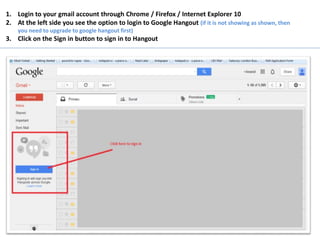
1. Login to your gmail account through Chrome / Firefox / Internet Explorer 10
2. At the left side you see the option to login to Google Hangout (if it is not showing as shown, then
you need to upgrade to google hangout first)
3. Click on the Sign in button to sign in to Hangout
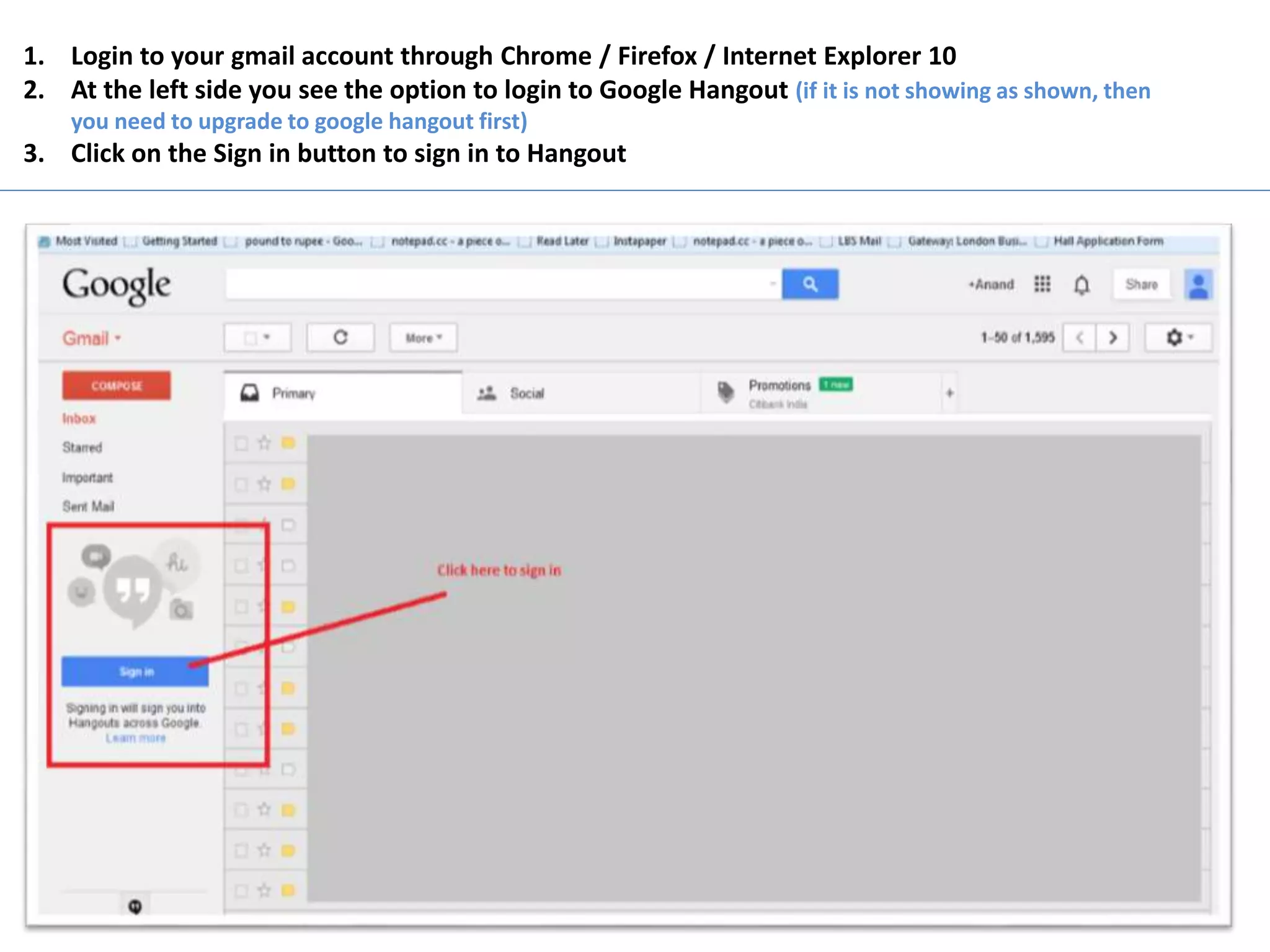
1. Once you login, you will see all the contacts who are using Hangout
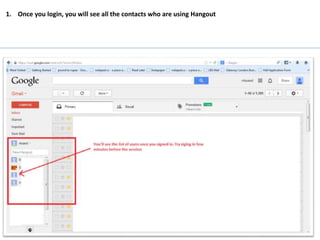
1. Just before the start of the conference you’ll receive a message like this from the conference
2. This is a simple chat message through which you will be video conferenced
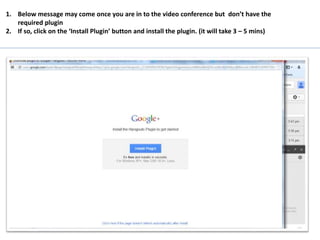
1. Below message may come once you are in to the video conference but don’t have the
required plugin
2. If so, click on the ‘Install Plugin’ button and install the plugin. (it will take 3 – 5 mins)
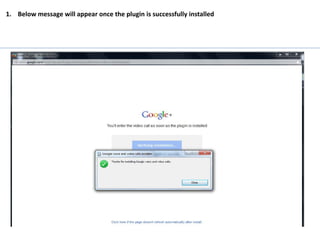
1. Below message will appear once the plugin is successfully installed
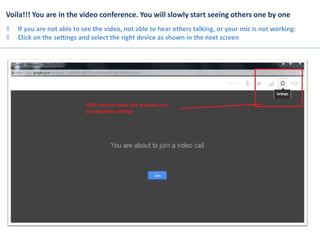
Voila!!! You are in the video conference. You will slowly start seeing others one by one
‼ If you are not able to see the video, not able to hear others talking, or your mic is not working:
‼ Click on the settings and select the right device as shown in the next screen
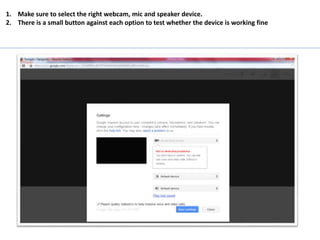
1. Make sure to select the right webcam, mic and speaker device.
2. There is a small button against each option to test whether the device is working fine

Hangout 1 0 1

  • 1.
    1. Login toyour gmail account through Chrome / Firefox / Internet Explorer 10 2. At the left side you see the option to login to Google Hangout (if it is not showing as shown, then you need to upgrade to google hangout first) 3. Click on the Sign in button to sign in to Hangout
  • 2.
    1. Once youlogin, you will see all the contacts who are using Hangout
  • 3.
    1. Just beforethe start of the conference you’ll receive a message like this from the conference 2. This is a simple chat message through which you will be video conferenced
  • 4.
    1. Below messagemay come once you are in to the video conference but don’t have the required plugin 2. If so, click on the ‘Install Plugin’ button and install the plugin. (it will take 3 – 5 mins)
  • 5.
    1. Below messagewill appear once the plugin is successfully installed
  • 6.
    Voila!!! You arein the video conference. You will slowly start seeing others one by one ‼ If you are not able to see the video, not able to hear others talking, or your mic is not working: ‼ Click on the settings and select the right device as shown in the next screen
  • 7.
    1. Make sureto select the right webcam, mic and speaker device. 2. There is a small button against each option to test whether the device is working fine