TLE 6: ICT & Entrepreneurship
Communicating & Collaborating
Using ICT
GLORIA A. MACAY
Teacher II
TLE-6
Guelew Integrated School
PREPARATION:
֍ Prayer
֍ Greeting the class
֍ Classroom policy
֍ Observing health and safety protocols
֍ Checking attendance
OBJECTIVES:
identify audio and video conferencing;
1
2
write guidelines regarding how to participate in video and audio conferences
in a safe and responsible manner
3
value the importance of communication through audio and video
conferencing
INTRODUCTION:
INTRODUCTION:
LESSON PROPER:
Audio Conferencing
is a meeting among three or more
persons in different locations that
typically uses handheld wired
telephones, speakerphones or mobile
phones. Since audio is used during this
conference, it is a must to have a clear
transmission of everyone's voice.
AUDIO AND VIDEO CONFERENCING
is a meeting among participants in
different locations that typically uses
computer networks to transmit both
audio, text and video data. In order to
participate in a video conference, you
must have a video camera,
microphone, speakers and video
conferencing software along with your
computer with internet access.
Video Conferencing
AUDIO AND VIDEO CONFERENCING
The main advantage of video conferencing over audio conferencing is that participants
can see each other which allows them to develop a stronger sense of familiarity. Thus,
video conferencing has the ability to facilitate collaboration without requiring face-to-
face communication.
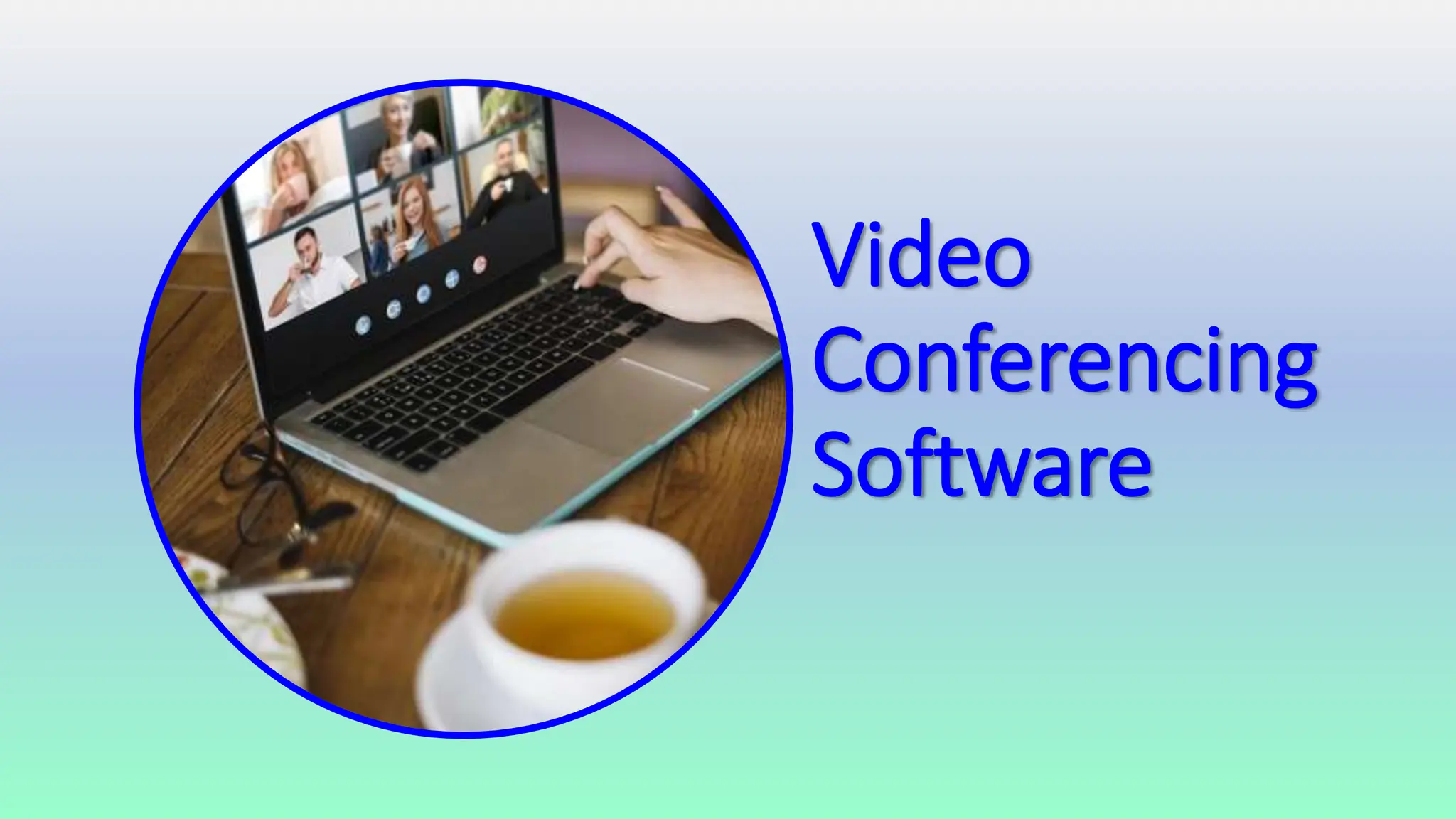
Video
Conferencing
Software
VIDEO CONFERENCING SOFTWARE
Skype – is a
telecommunications
application that specializes in
providing video chat and
voice calls between
computers, tablets, mobile
devices, and smart watches
over the Internet. Skype also
provides instant messaging
services. Users may transmit
text, video, audio and
images.
 Audio and HD video calling
 Smart messaging
 Screen sharing
 Call recording and Live subtitles
 Call phones
 Private conversations
 One Skype for all your devices
(Phone, Desktop, Tablet, Web, Alexa,
Xbox)
VIDEO CONFERENCING SOFTWARE
Google Meet - is a video
communication service
developed by Google. It is
one of two apps that
constitute the new version
of Google Hangouts, the
other being Google
Chat.  Unlimited number of meetings
 Live captioning during meetings
 Compatible across devices
 Video and audio preview screen
 Adjustable layouts & screen settings
 Controls for meeting hosts
 Screen sharing with participants
 Messaging with participants
 Integration with Google & Microsoft
Office apps
Facebook Messenger is an
American messaging app
and platform developed
by Facebook, Inc. Originally
developed as Facebook Chat
in 2008, the company
changed its messaging
service in 2010, and later
released standalone iOS and
android apps in August 2011
and standalone Facebook
Portal hardware for
Messenger based calling in
Q4 2018.
 Watch together with your friends
 Custom reactions
 Animated effects
 Chat themes
 Replies and forwarding
Room allows up to 50 people to be
on a group call at once.
 Messenger and Room have no time
limit
VIDEO CONFERENCING SOFTWARE
Zoom is a full video
conferencing suite aimed at
Enterprise level users, with
an attractive free option.
Zoom allows participants to
join via the web, dedicated
apps, browser extensions,
and mobile devices using
iPhone and Android apps.
Users can call in via phone if
needed to. Free users can
also record video or audio
locally and share screens
with other conference
participants.
 Collaboration
 Screen and application sharing
 Dynamic voice detection
 Scheduling.
 Recording
 Large room and webinar
VIDEO CONFERENCING SOFTWARE
Microsoft Teams is your hub
for teamwork, which brings
together everything a team
needs: chat and threaded
conversations, meetings &
video conferencing, calling,
content collaboration with
the power of Microsoft 365
applications, and the ability
to create and integrate apps
and workflows that your
business relies on.
 Teams and channels
 Conversations within channels &teams.
 A chat function.
 Document storage in SharePoint.
 Online video calling and screen sharing.
 Online meetings.
 Audio conferencing.
 Full telephony.
VIDEO CONFERENCING SOFTWARE
WhatsApp (officially WhatsApp
Messenger) is an instant
messaging (IM) and voice-over-
IP (VoIP) service owned by
technology conglomerate Meta.
It allows users to send text,
voice messages and video
messages, make voice and video
calls, and share images,
documents, user locations, and
other content.
Google Hangouts is a free communication
platform that allows users to make phone
calls, send messages, share photos, and video
chat. Hangouts allows users to video
conference with up to 30 people using a
computer, Android phone or tablet, iPhone,
iPad, or iPod Touch. Users can share screens
and collaborate in real-time. Hangouts can be
recorded as a video and archived for
distribution to others with Hangouts On Air
through YouTube.
TeamViewer Meeting keeps
you connected to your
contacts and teams through
secure videoconferencing
and VoIP calls, instant chat,
screen sharing, and more
across devices and
platforms — anywhere you
meet.
VIDEO CONFERENCING SOFTWARE
WebEx is a multi-functional
desktop Video/Audio
Conference call application. It
allows you to meet with anyone,
anywhere, in real time from
your office or home, as long as
you have Internet access on
your computer or have the
WebEx mobile app installed for
your iPhone, iPad, Android, or
Blackberry.
Zoho Meeting is a secure
online meeting platform and
webinar solution that helps
you connect, collaborate,
and work remotely with
efficacy. Schedule online
meetings, stream live
webinars and enhance your
remote collaboration
experience today with our
highly secure online
meeting software.
GoToMeeting, is a web conferencing tool
developed by GoTo. This software facilitates
online meeting, desktop sharing, and video
conferencing software package that enables
the user to meet with other participants via
the Internet in real time. GoTo Meeting is
designed to broadcast the desktop view of a
host computer to a group of computers
connected to the host through the Internet.
Transmissions are protected with high-
security encryption and optional passwords.
Audio and Video
Conferencing Guidelines
AUDIO AND VIDEO CONFERENCING GUIDELINES (BEFORE)
Look (for formal video conferencing) – be
concerned about your appearance especially
if the conference is formal. Dark or neutral
colors of clothing are recommended
Equipment - Make sure to setup your
equipment ahead of the scheduled
conference so you can do testing of your
camera, headset and microphone. Test also
the connection early on.
AUDIO AND VIDEO CONFERENCING GUIDELINES (BEFORE)
Preparations (for formal conferencing) - In
case the conference is formal, you must
prepare for the agenda of the meeting as
well as other materials needed such as
pictures, presentations, name tags and
others for video conferencing.
AUDIO AND VIDEO CONFERENCING GUIDELINES (BEFORE)
Venue (for formal conferencing) - In case the
conference is formal, you must ensure that
the venue is quiet. For video conferencing,
the overhead lights and reflections must not
be placed in the camera's view. Be aware of
the potential distractions.
AUDIO AND VIDEO CONFERENCING GUIDELINES (BEFORE)
AUDIO AND VIDEO CONFERENCING GUIDELINES (DURING & AFTER)
 Wait until the speaker is finished talking before you
respond since there will be a slight delay before you can
hear what the speaker is saying.
 Be courteous and respectful.
 Keep the microphone muted when you are not speaking.
 Avoid excessive movement during a video conference.
 Speak clearly.
 After the conference, leave the venue the way it was
setup when you arrived.
Virtual Meeting Etiquette
VIRTUAL MEETING ETIQUETTE
 Leave the keyboard alone.
 Dress appropriately.
 Be aware of your surroundings.
 Mute your microphone when you’re not talking.
 Speak up, but get a permission first.
 No food allowed.
 Stay seated and stay present.
Benefits of Using Audio & Video
Conferencing to Learners and
Teachers:
Benefits of using audio and video conferencing to learners
and teachers:
֍ Reduces travel expenses.
֍ Increases productivity.
֍ It’s effective communication.
֍ Builds good relationships with your clients.
֍ Keep connected to your learners.
֍ Improves teamwork.
GROUP ACTIVITY I: WE LEARN AS ONE
 Group yourselves into five. Each group will assign a representative and will go
to the front to draw lots.
 The topic will be about software used in audio-video conferencing. The
assigned topic will be described, explained and discussed by the group
through a presentation.
 Each group will present in front of the class.
GROUP ACTIVITY II
 Group yourselves into
five.
 Each group will be given a
task to work on.
 Each group will report the
result in front of the class.
Group 1:
Difference of audio
and audio-video
conferencing
Group 2:
Give four example of audio-
video conferencing software
and describe each.
Group 4:
What are the etiquettes
to be observed when
doing conference calls?
Group 5:
What are
benefits of doing
conference calls?
Group 3:
What are the
guidelines in
audio & audio-
video confe-
rencing calls?
EVALUATION
Direction:
Identify the following audio-video conferencing software. Write your answer on a
sheet of paper.
1. 2. 3. 4. 5.
6. 7. 8. 9. 10.
ASSIGNMENT
Direction:
Use 1 whole paper for your answer. List down your ideas about the advantages
and disadvantages of audio-video conferencing in our daily lives.
THANK YOU FOR LISTENING!

PPT-TLE 6-ICT and Entrepreneurship April 16, 2024.pptx

  • 1.
    TLE 6: ICT& Entrepreneurship Communicating & Collaborating Using ICT
  • 2.
    GLORIA A. MACAY TeacherII TLE-6 Guelew Integrated School
  • 3.
    PREPARATION: ֍ Prayer ֍ Greetingthe class ֍ Classroom policy ֍ Observing health and safety protocols ֍ Checking attendance
  • 4.
    OBJECTIVES: identify audio andvideo conferencing; 1 2 write guidelines regarding how to participate in video and audio conferences in a safe and responsible manner 3 value the importance of communication through audio and video conferencing
  • 5.
  • 6.
  • 7.
  • 8.
    Audio Conferencing is ameeting among three or more persons in different locations that typically uses handheld wired telephones, speakerphones or mobile phones. Since audio is used during this conference, it is a must to have a clear transmission of everyone's voice. AUDIO AND VIDEO CONFERENCING is a meeting among participants in different locations that typically uses computer networks to transmit both audio, text and video data. In order to participate in a video conference, you must have a video camera, microphone, speakers and video conferencing software along with your computer with internet access. Video Conferencing
  • 9.
    AUDIO AND VIDEOCONFERENCING The main advantage of video conferencing over audio conferencing is that participants can see each other which allows them to develop a stronger sense of familiarity. Thus, video conferencing has the ability to facilitate collaboration without requiring face-to- face communication.
  • 10.
  • 11.
    VIDEO CONFERENCING SOFTWARE Skype– is a telecommunications application that specializes in providing video chat and voice calls between computers, tablets, mobile devices, and smart watches over the Internet. Skype also provides instant messaging services. Users may transmit text, video, audio and images.  Audio and HD video calling  Smart messaging  Screen sharing  Call recording and Live subtitles  Call phones  Private conversations  One Skype for all your devices (Phone, Desktop, Tablet, Web, Alexa, Xbox)
  • 12.
    VIDEO CONFERENCING SOFTWARE GoogleMeet - is a video communication service developed by Google. It is one of two apps that constitute the new version of Google Hangouts, the other being Google Chat.  Unlimited number of meetings  Live captioning during meetings  Compatible across devices  Video and audio preview screen  Adjustable layouts & screen settings  Controls for meeting hosts  Screen sharing with participants  Messaging with participants  Integration with Google & Microsoft Office apps
  • 13.
    Facebook Messenger isan American messaging app and platform developed by Facebook, Inc. Originally developed as Facebook Chat in 2008, the company changed its messaging service in 2010, and later released standalone iOS and android apps in August 2011 and standalone Facebook Portal hardware for Messenger based calling in Q4 2018.  Watch together with your friends  Custom reactions  Animated effects  Chat themes  Replies and forwarding Room allows up to 50 people to be on a group call at once.  Messenger and Room have no time limit VIDEO CONFERENCING SOFTWARE
  • 14.
    VIDEO CONFERENCING SOFTWARE Zoomis a full video conferencing suite aimed at Enterprise level users, with an attractive free option. Zoom allows participants to join via the web, dedicated apps, browser extensions, and mobile devices using iPhone and Android apps. Users can call in via phone if needed to. Free users can also record video or audio locally and share screens with other conference participants.  Collaboration  Screen and application sharing  Dynamic voice detection  Scheduling.  Recording  Large room and webinar
  • 15.
    VIDEO CONFERENCING SOFTWARE MicrosoftTeams is your hub for teamwork, which brings together everything a team needs: chat and threaded conversations, meetings & video conferencing, calling, content collaboration with the power of Microsoft 365 applications, and the ability to create and integrate apps and workflows that your business relies on.  Teams and channels  Conversations within channels &teams.  A chat function.  Document storage in SharePoint.  Online video calling and screen sharing.  Online meetings.  Audio conferencing.  Full telephony.
  • 16.
    VIDEO CONFERENCING SOFTWARE WhatsApp(officially WhatsApp Messenger) is an instant messaging (IM) and voice-over- IP (VoIP) service owned by technology conglomerate Meta. It allows users to send text, voice messages and video messages, make voice and video calls, and share images, documents, user locations, and other content. Google Hangouts is a free communication platform that allows users to make phone calls, send messages, share photos, and video chat. Hangouts allows users to video conference with up to 30 people using a computer, Android phone or tablet, iPhone, iPad, or iPod Touch. Users can share screens and collaborate in real-time. Hangouts can be recorded as a video and archived for distribution to others with Hangouts On Air through YouTube. TeamViewer Meeting keeps you connected to your contacts and teams through secure videoconferencing and VoIP calls, instant chat, screen sharing, and more across devices and platforms — anywhere you meet.
  • 17.
    VIDEO CONFERENCING SOFTWARE WebExis a multi-functional desktop Video/Audio Conference call application. It allows you to meet with anyone, anywhere, in real time from your office or home, as long as you have Internet access on your computer or have the WebEx mobile app installed for your iPhone, iPad, Android, or Blackberry. Zoho Meeting is a secure online meeting platform and webinar solution that helps you connect, collaborate, and work remotely with efficacy. Schedule online meetings, stream live webinars and enhance your remote collaboration experience today with our highly secure online meeting software. GoToMeeting, is a web conferencing tool developed by GoTo. This software facilitates online meeting, desktop sharing, and video conferencing software package that enables the user to meet with other participants via the Internet in real time. GoTo Meeting is designed to broadcast the desktop view of a host computer to a group of computers connected to the host through the Internet. Transmissions are protected with high- security encryption and optional passwords.
  • 18.
  • 19.
    AUDIO AND VIDEOCONFERENCING GUIDELINES (BEFORE) Look (for formal video conferencing) – be concerned about your appearance especially if the conference is formal. Dark or neutral colors of clothing are recommended
  • 20.
    Equipment - Makesure to setup your equipment ahead of the scheduled conference so you can do testing of your camera, headset and microphone. Test also the connection early on. AUDIO AND VIDEO CONFERENCING GUIDELINES (BEFORE)
  • 21.
    Preparations (for formalconferencing) - In case the conference is formal, you must prepare for the agenda of the meeting as well as other materials needed such as pictures, presentations, name tags and others for video conferencing. AUDIO AND VIDEO CONFERENCING GUIDELINES (BEFORE)
  • 22.
    Venue (for formalconferencing) - In case the conference is formal, you must ensure that the venue is quiet. For video conferencing, the overhead lights and reflections must not be placed in the camera's view. Be aware of the potential distractions. AUDIO AND VIDEO CONFERENCING GUIDELINES (BEFORE)
  • 23.
    AUDIO AND VIDEOCONFERENCING GUIDELINES (DURING & AFTER)  Wait until the speaker is finished talking before you respond since there will be a slight delay before you can hear what the speaker is saying.  Be courteous and respectful.  Keep the microphone muted when you are not speaking.  Avoid excessive movement during a video conference.  Speak clearly.  After the conference, leave the venue the way it was setup when you arrived.
  • 24.
  • 25.
    VIRTUAL MEETING ETIQUETTE Leave the keyboard alone.  Dress appropriately.  Be aware of your surroundings.  Mute your microphone when you’re not talking.  Speak up, but get a permission first.  No food allowed.  Stay seated and stay present.
  • 26.
    Benefits of UsingAudio & Video Conferencing to Learners and Teachers:
  • 27.
    Benefits of usingaudio and video conferencing to learners and teachers: ֍ Reduces travel expenses. ֍ Increases productivity. ֍ It’s effective communication. ֍ Builds good relationships with your clients. ֍ Keep connected to your learners. ֍ Improves teamwork.
  • 28.
    GROUP ACTIVITY I:WE LEARN AS ONE  Group yourselves into five. Each group will assign a representative and will go to the front to draw lots.  The topic will be about software used in audio-video conferencing. The assigned topic will be described, explained and discussed by the group through a presentation.  Each group will present in front of the class.
  • 29.
    GROUP ACTIVITY II Group yourselves into five.  Each group will be given a task to work on.  Each group will report the result in front of the class. Group 1: Difference of audio and audio-video conferencing Group 2: Give four example of audio- video conferencing software and describe each. Group 4: What are the etiquettes to be observed when doing conference calls? Group 5: What are benefits of doing conference calls? Group 3: What are the guidelines in audio & audio- video confe- rencing calls?
  • 30.
    EVALUATION Direction: Identify the followingaudio-video conferencing software. Write your answer on a sheet of paper. 1. 2. 3. 4. 5. 6. 7. 8. 9. 10.
  • 31.
    ASSIGNMENT Direction: Use 1 wholepaper for your answer. List down your ideas about the advantages and disadvantages of audio-video conferencing in our daily lives.
  • 32.
    THANK YOU FORLISTENING!

Editor's Notes

  • #3 Good morning class. I am Teacher Glo, your TLE teacher. I request everyone to settle down because we will start our class in a short while.
  • #4 Before we start our discussion, let us all pray. (calls a student to lead a prayer) Good morning class. I would like to request everyone to settle down and to focus on our lesson for today. But before that, I will be discussing our policy in this class. First, all mobile phones and gadgets should be kept inside your bags. It should be put on silent mode. No talking with your classmates on non-related topics. If you want to raise a question or want to say something, raise your hand so I can acknowledge you. Is that clear? Ok, I would like to reiterate that your safety and health is our priority, thus if you are not feeling well, or if you are threatened by a certain topic, object, ideas or person, do not hesitate to call my attention immediately. At this point of time, we will be checking your attendance; if your name is called, raise your hand and say “present”. (conducts a roll call)
  • #5 Now, our objectives for todays lesson are as follows (reads and explains the objectives).
  • #6 To start our lesson, I would like you to check the pictures shown in front. Are you familiar with these pictures? What have you observed in the first picture? How about the second picture? The third? When do we use this application? Do you think it is important? Yes, or no?
  • #7 Now, I will be presenting you video. Please pay attention. (plays the video) What can you say about the video? Do you do the same as seen in the video? What do you think will happen if you do it regularly? How do you manage your time? Are you the kind of student, who keeps on calling or engaging in any video conferencing?
  • #8 Here is another video. Everyone should listen attentively because we will be having an activity related to the video. (plays the video)
  • #9 To go on the details, let us have a closer look on our topic. First, let us differentiate audio conferencing from video conferencing. Anybody from the class who can help us to differentiate the two from each other? (calls two to three students). Very good! (Reads the description for each).
  • #10 Now, what do you think is the advantage of video conferencing over audio conferencing? (Calls someone from the class.) How about the other way around?
  • #12 Now, let us proceed with some of the different audio-video software that we use or we can use to facilitate meetings, discussions or classes. First is a software called Skype. (discusses the item to the class) Who among the class have used this software? What can you say about the experience on using it?
  • #13 Next is a software called Google Meet. This is one of the most common software since it is a part of an ecosystem that we use daily; our android smartphones. (discusses the item to the class) Who among the class have used this software? What can you say about the experience on using it?
  • #14 The next one is probably the most popular one, Facebook Messenger. (discusses the item to the class) Who among the class have used this software? What can you say about the experience on using it?
  • #15 Next is a software called Zoom. This software is commonly used by business organizations. (discusses the item to the class) Who among the class have used this software? What can you say about the experience on using it?
  • #16 Microsoft Teams is another software embedded in the ecosystem of Microsoft. (discusses the item to the class) Who among the class have used this software? What can you say about the experience on using it?
  • #17 Other notable software are as follows: WhatsApp, Google Hangouts and TeamViewer Meetings. (discusses each item, may seek help from students to read the description for each item).
  • #18 Other audio-video conferencing are WebEx, GoToMeeting and Zoho Meeting. This software are not as popular here in our region but this doesn’t mean that they are inferior compared with the others. This software are mainly used for professional aspect due to each security. (discusses each item) Please remember that there are still many software that offers the same purpose. Some are free while others need subscription fees. What you should remember is that while engaging in audio-video conferencing/meeting/class, you must always observe proper etiquette and manners.
  • #20 Now let us proceed with the guidelines that we should abide before, during and after an audio-video conference/meeting/class. (discuss each item)
  • #21 (discuss each item)
  • #22 (discuss each item)
  • #24 (discuss each item)
  • #25 We will now discuss the etiquette to be observed during an audio-video conference/meeting/class.
  • #26 (read each item and explain)
  • #27 With all of these new knowledge, concepts and ideas, what are the benefits of this to us, as a teacher and learners? Let us dive into that.
  • #28 (discusses each item and explains)
  • #29 Now, we will be having a group activity, kindly read the directions as shown in the front and proceed accordingly. Group 1 will be…… Group 2 will be …… Group 3 will be ….. Group 4 will be ….. And group 5 will be the remaining student. You will be given 5 minutes. You may now proceed.
  • #30 Using the same groupings, we will be having another activity. Please refer to the direction shown in front.
  • #31 As a final activity, each of you, get a piece of paper and identify each software based on their logos. Write your answer on the paper.
  • #32 For your assignment, copy what is shown in front. Pass it on our next meeting.
  • #33 There ends our lesson for today. I hope that you learn something useful today. I hope that what you learn will be put into actual practice once an applicable situation arises. Thank you very much for listening and have a good day.