Setting up a
TeachMeetNZ Hangout
Sonya Van Schaijik
@vanschaijik 1
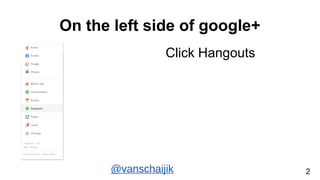
On the left side of google+
Click Hangouts
@vanschaijik 2
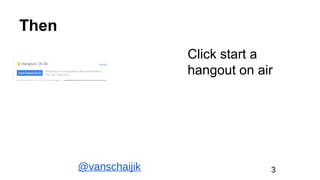
Then
Click start a
hangout on air
@vanschaijik 3
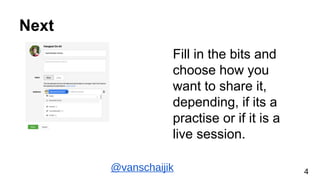
Next
Fill in the bits and
choose how you
want to share it,
depending, if its a
practise or if it is a
live session.
@vanschaijik 4
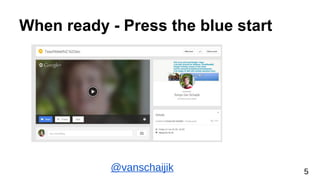
When ready - Press the blue start
@vanschaijik 5
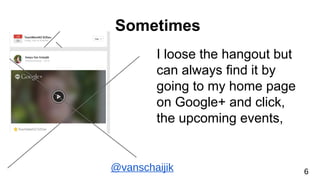
Sometimes
I loose the hangout but
can always find it by
going to my home page
on Google+ and click,
the upcoming events,
@vanschaijik 6
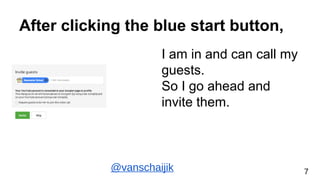
After clicking the blue start button,
I am in and can call my
guests.
So I go ahead and
invite them.
@vanschaijik 7
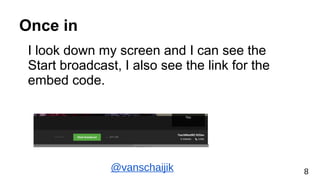
Once in
I look down my screen and I can see the
Start broadcast, I also see the link for the
embed code.
@vanschaijik 8
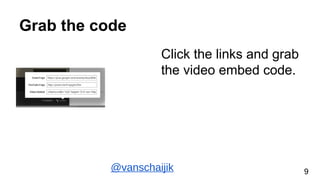
Grab the code
Click the links and grab
the video embed code.
@vanschaijik 9
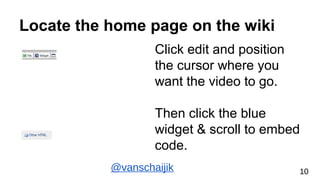
Locate the home page on the wiki
Click edit and position
the cursor where you
want the video to go.
Then click the blue
widget & scroll to embed
code.
@vanschaijik 10
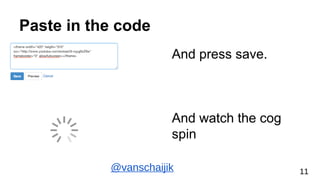
Paste in the code
And press save.
And watch the cog
spin
@vanschaijik 11
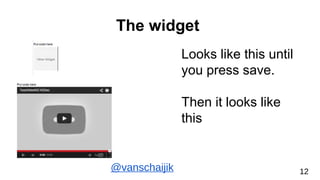
The widget
Looks like this until
you press save.
Then it looks like
this
@vanschaijik 12
Flick back to the hangout
Start the
broadcast and you
are away.
@vanschaijik 14
Thats it, if you are keen to have a go
Contact me and I will help you with organising.
Sonya @vanschaijik

Streaming a live hangout

  • 1.
    Setting up a TeachMeetNZHangout Sonya Van Schaijik @vanschaijik 1
  • 2.
    On the leftside of google+ Click Hangouts @vanschaijik 2
  • 3.
    Then Click start a hangouton air @vanschaijik 3
  • 4.
    Next Fill in thebits and choose how you want to share it, depending, if its a practise or if it is a live session. @vanschaijik 4
  • 5.
    When ready -Press the blue start @vanschaijik 5
  • 6.
    Sometimes I loose thehangout but can always find it by going to my home page on Google+ and click, the upcoming events, @vanschaijik 6
  • 7.
    After clicking theblue start button, I am in and can call my guests. So I go ahead and invite them. @vanschaijik 7
  • 8.
    Once in I lookdown my screen and I can see the Start broadcast, I also see the link for the embed code. @vanschaijik 8
  • 9.
    Grab the code Clickthe links and grab the video embed code. @vanschaijik 9
  • 10.
    Locate the homepage on the wiki Click edit and position the cursor where you want the video to go. Then click the blue widget & scroll to embed code. @vanschaijik 10
  • 11.
    Paste in thecode And press save. And watch the cog spin @vanschaijik 11
  • 12.
    The widget Looks likethis until you press save. Then it looks like this @vanschaijik 12
  • 13.
    Flick back tothe hangout Start the broadcast and you are away. @vanschaijik 14
  • 14.
    Thats it, ifyou are keen to have a go Contact me and I will help you with organising. Sonya @vanschaijik