Department of ETS
Unified Communications & Collaboration
          Allan Cummings and Summer Wasson
Hangouts Plugin for Google
Calendar
Hangouts plugin is a convenient calendar sidebar for
 Google Hangouts
Easily add video-conferencing/screen-share through
 Google+ Hangouts to Google Calendar Events
One-click access to start or schedule future Hangouts
How to add this plugin
Your Agency must be on the wyo.gov domain
If it is then go to the following url:


 www.solequin.com/help.html#
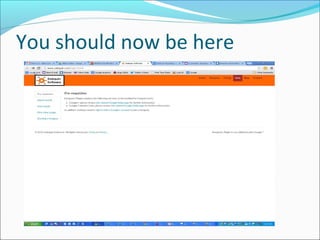
You should now be here
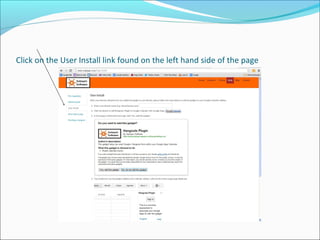
Click on the User Install link found on the left hand side of the page
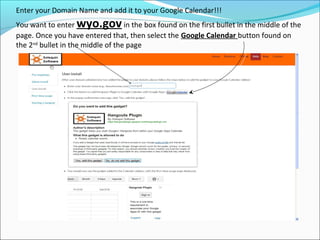
Enter your Domain Name and add it to your Google Calendar!!!
You want to enter  wyo.gov         in the box found on the first bullet in the middle of the
page. Once you have entered that, then select the Google Calendar button found on
the 2nd bullet in the middle of the page
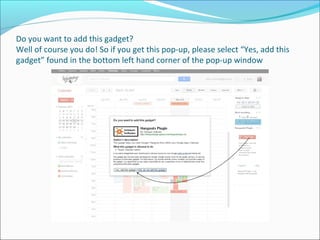
Do you want to add this gadget?
Well of course you do! So if you get this pop-up, please select “Yes, add this
gadget” found in the bottom left hand corner of the pop-up window
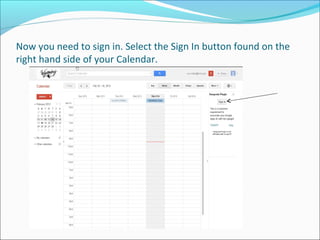
Now you need to sign in. Select the Sign In button found on the
right hand side of your Calendar.
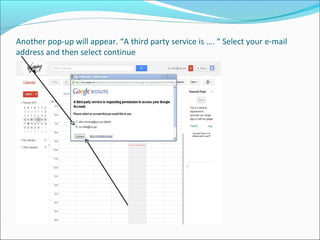
Another pop-up will appear. “A third party service is …. “ Select your e-mail
address and then select continue
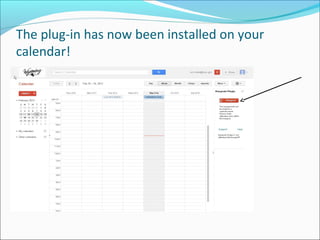
The plug-in has now been installed on your
calendar!
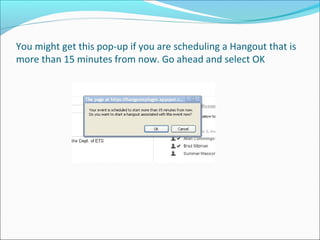
You might get this pop-up if you are scheduling a Hangout that is
more than 15 minutes from now. Go ahead and select OK
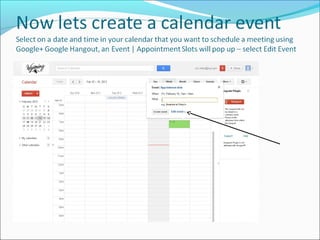
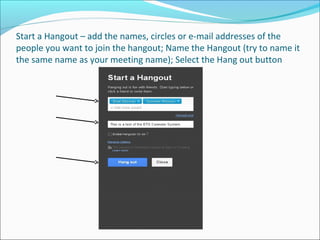
Start a Hangout – add the names, circles or e-mail addresses of the
people you want to join the hangout; Name the Hangout (try to name it
the same name as your meeting name); Select the Hang out button
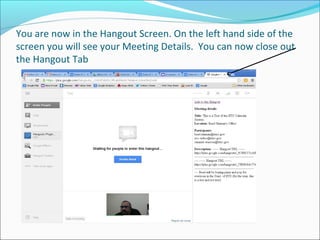
You are now in the Hangout Screen. On the left hand side of the
screen you will see your Meeting Details. You can now close out
the Hangout Tab
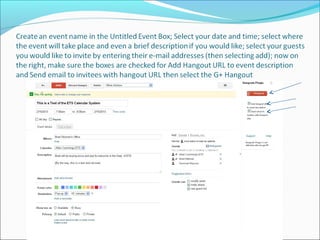
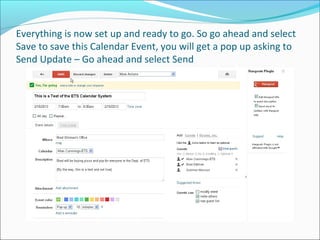
Everything is now set up and ready to go. So go ahead and select
Save to save this Calendar Event, you will get a pop up asking to
Send Update – Go ahead and select Send
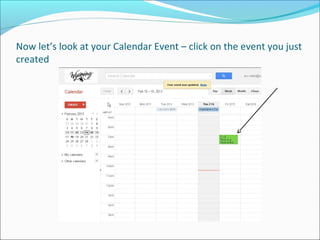
Now let’s look at your Calendar Event – click on the event you just
created
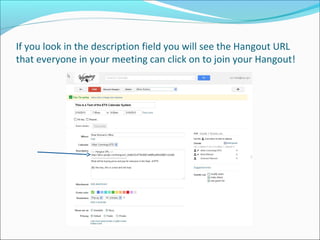
If you look in the description field you will see the Hangout URL
that everyone in your meeting can click on to join your Hangout!
Congratulations! You have created a Google Calendar
     Event and added a Google Hangout to it!

 If you have any questions or run into any troubles,
                    please call


           Allan Cummings at 777-6934

                         or

           Summer Wasson at 777-5318

Google hangouts plugin

  • 1.
    Department of ETS UnifiedCommunications & Collaboration Allan Cummings and Summer Wasson
  • 2.
    Hangouts Plugin forGoogle Calendar Hangouts plugin is a convenient calendar sidebar for Google Hangouts Easily add video-conferencing/screen-share through Google+ Hangouts to Google Calendar Events One-click access to start or schedule future Hangouts
  • 3.
    How to addthis plugin Your Agency must be on the wyo.gov domain If it is then go to the following url: www.solequin.com/help.html#
  • 4.
  • 5.
    Click on theUser Install link found on the left hand side of the page
  • 6.
    Enter your DomainName and add it to your Google Calendar!!! You want to enter wyo.gov in the box found on the first bullet in the middle of the page. Once you have entered that, then select the Google Calendar button found on the 2nd bullet in the middle of the page
  • 7.
    Do you wantto add this gadget? Well of course you do! So if you get this pop-up, please select “Yes, add this gadget” found in the bottom left hand corner of the pop-up window
  • 8.
    Now you needto sign in. Select the Sign In button found on the right hand side of your Calendar.
  • 9.
    Another pop-up willappear. “A third party service is …. “ Select your e-mail address and then select continue
  • 10.
    The plug-in hasnow been installed on your calendar!
  • 13.
    You might getthis pop-up if you are scheduling a Hangout that is more than 15 minutes from now. Go ahead and select OK
  • 14.
    Start a Hangout– add the names, circles or e-mail addresses of the people you want to join the hangout; Name the Hangout (try to name it the same name as your meeting name); Select the Hang out button
  • 15.
    You are nowin the Hangout Screen. On the left hand side of the screen you will see your Meeting Details. You can now close out the Hangout Tab
  • 16.
    Everything is nowset up and ready to go. So go ahead and select Save to save this Calendar Event, you will get a pop up asking to Send Update – Go ahead and select Send
  • 17.
    Now let’s lookat your Calendar Event – click on the event you just created
  • 18.
    If you lookin the description field you will see the Hangout URL that everyone in your meeting can click on to join your Hangout!
  • 19.
    Congratulations! You havecreated a Google Calendar Event and added a Google Hangout to it! If you have any questions or run into any troubles, please call Allan Cummings at 777-6934 or Summer Wasson at 777-5318