Hands-On Test (chapters 1-6) ITNET-112


Rev 1.0


Requirements:

This is based on chapters 1-6


For this activity you will need two clean installs of Server 2008. This can be done in Virtual PC, VMWare
or with the Virtual Online Machines. If you're using the online machines, send me an email and I can
reset your existing machines.


You will be expected to document each step below, with one or more screenshots. The screenshots will
serve as proof that you completed each step. You should only need one or two screnshots for each
activity. The best way to complete this is to copy this document into a Word document and add your
screenshots after each activity. Make sure to include a couple of sentences describing what each screen
shot is showing me. There are several questions that you will need to answer below as well. Make sure
to submit this in Blackboard.


  You can work on this with a partner.

  You will need two Server 2008 machines for this activity.

  Start with this document and add a screenshot to each item below, proving that you completed the
activity.


    You can use the Snipping Tool in Vista or Windows 7 to capture screenshots


  Make sure to answer any questions below as well.
Each step below is worth 5 points.


This activity requires two servers. Onc machine will eventually become a domain controller and the
second will become a member server.


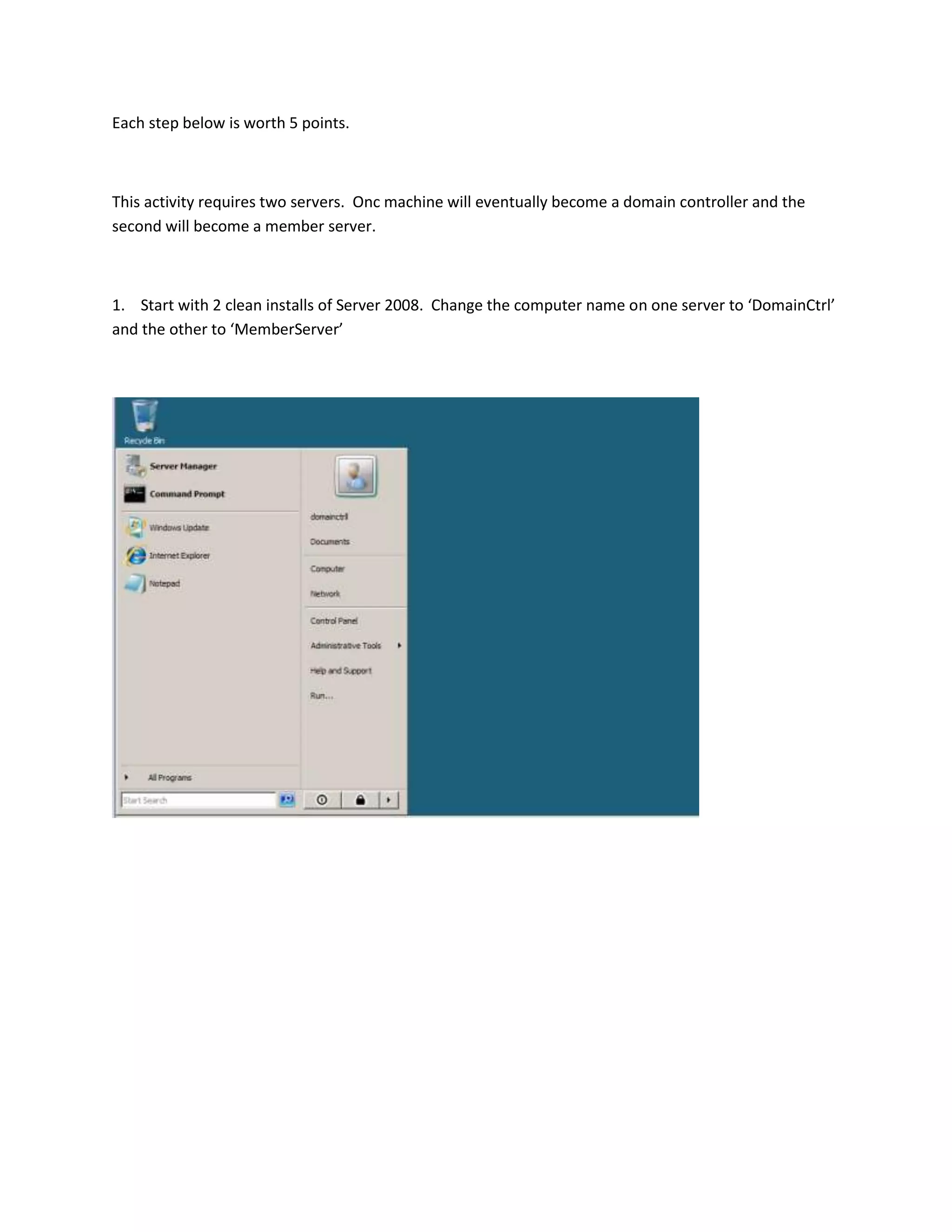
1. Start with 2 clean installs of Server 2008. Change the computer name on one server to ‘DomainCtrl’
and the other to ‘MemberServer’
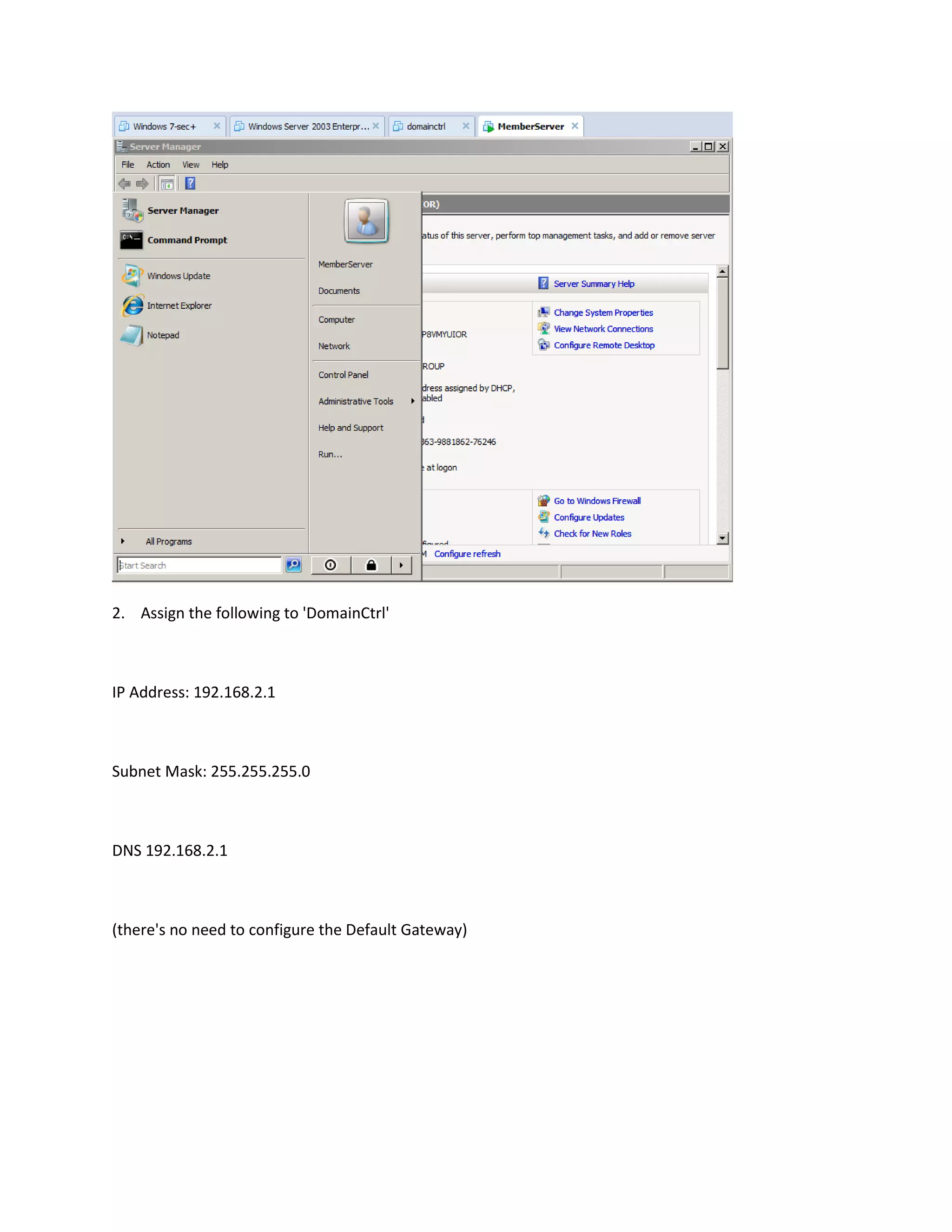
2. Assign the following to 'DomainCtrl'


IP Address: 192.168.2.1


Subnet Mask: 255.255.255.0


DNS 192.168.2.1


(there's no need to configure the Default Gateway)
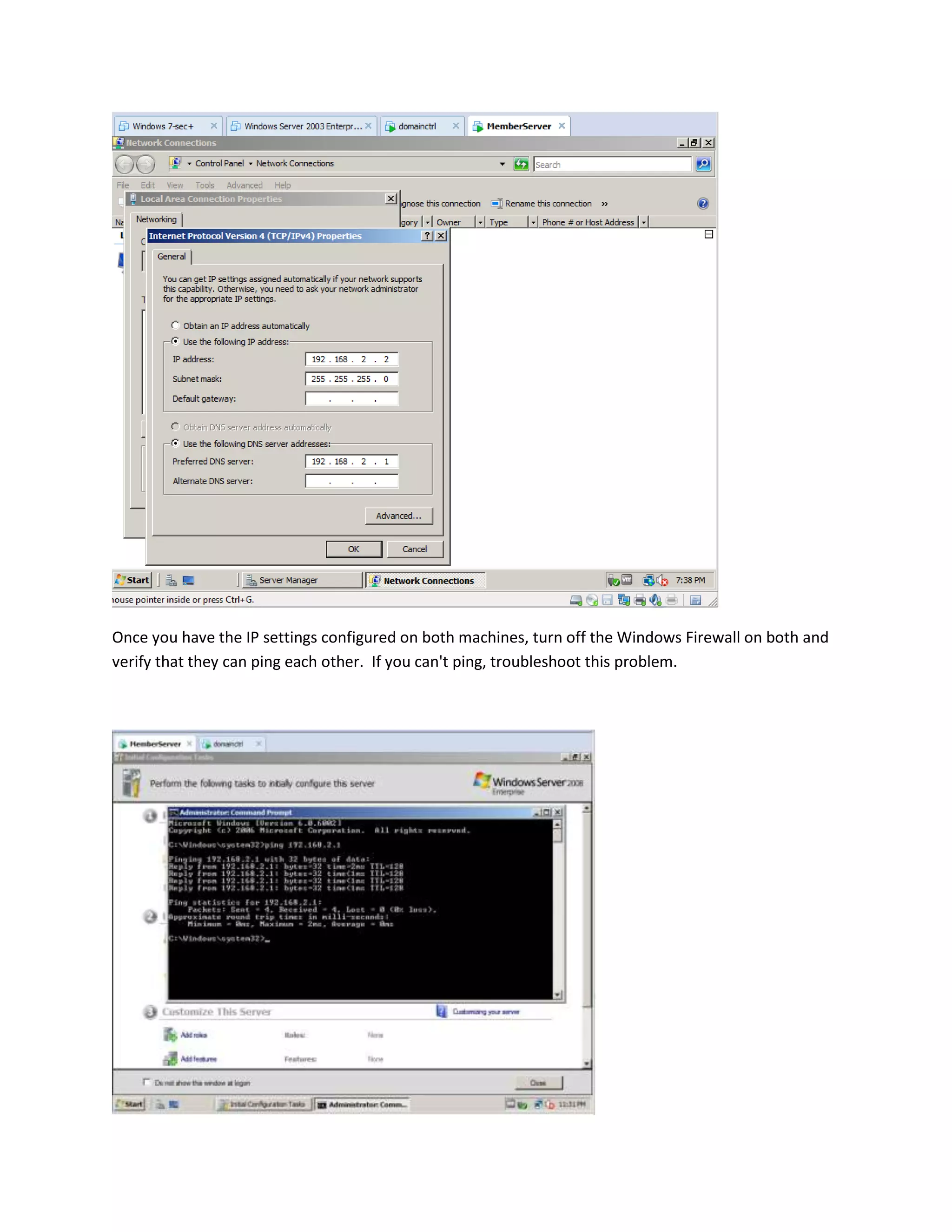
3. Assign the following to 'MemberServer'


IP Address: 192.168.2.2


Subnet Mask: 255.255.255.0


DNS 192.168.2.1


(there's no need to configure the Default Gateway)
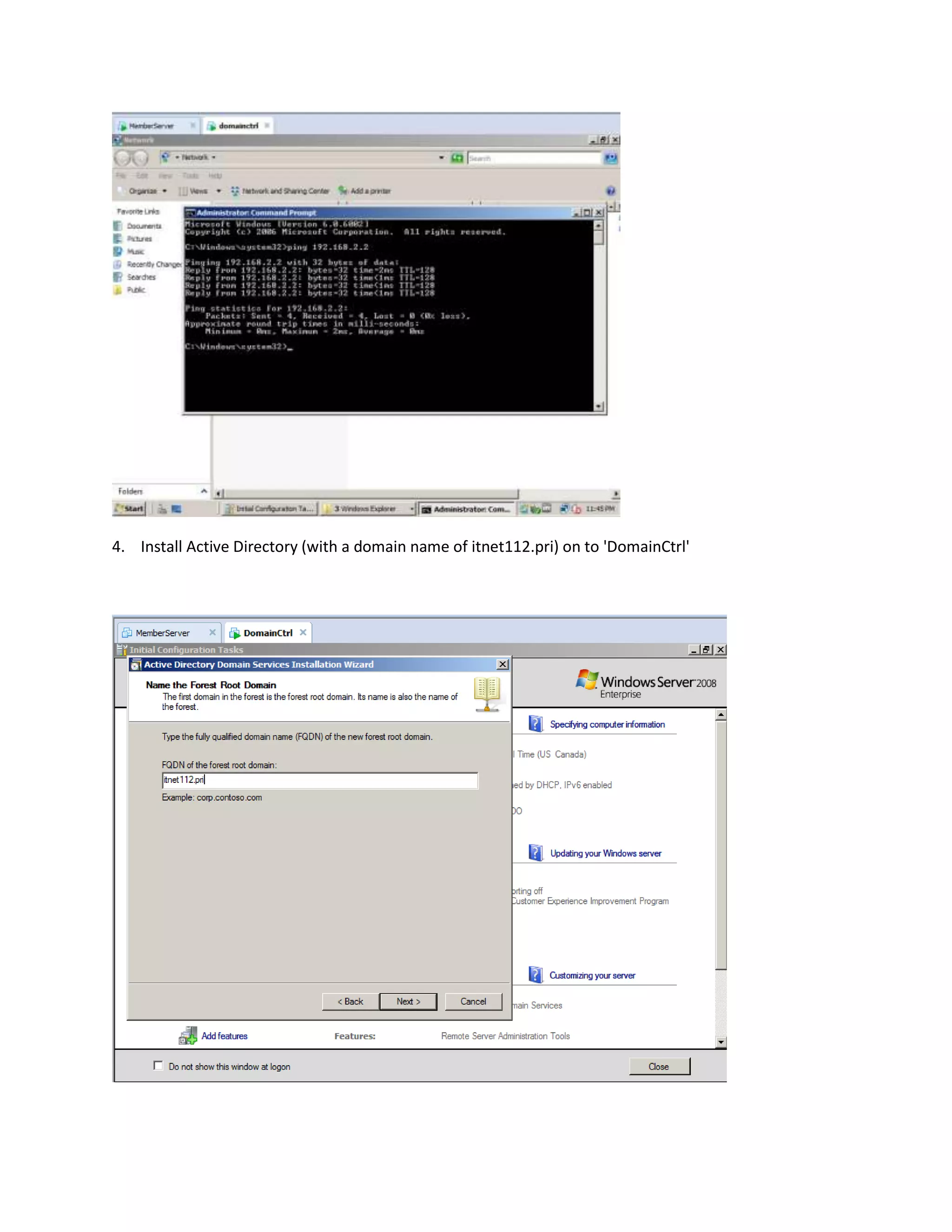
Once you have the IP settings configured on both machines, turn off the Windows Firewall on both and
verify that they can ping each other. If you can't ping, troubleshoot this problem.
4. Install Active Directory (with a domain name of itnet112.pri) on to 'DomainCtrl'
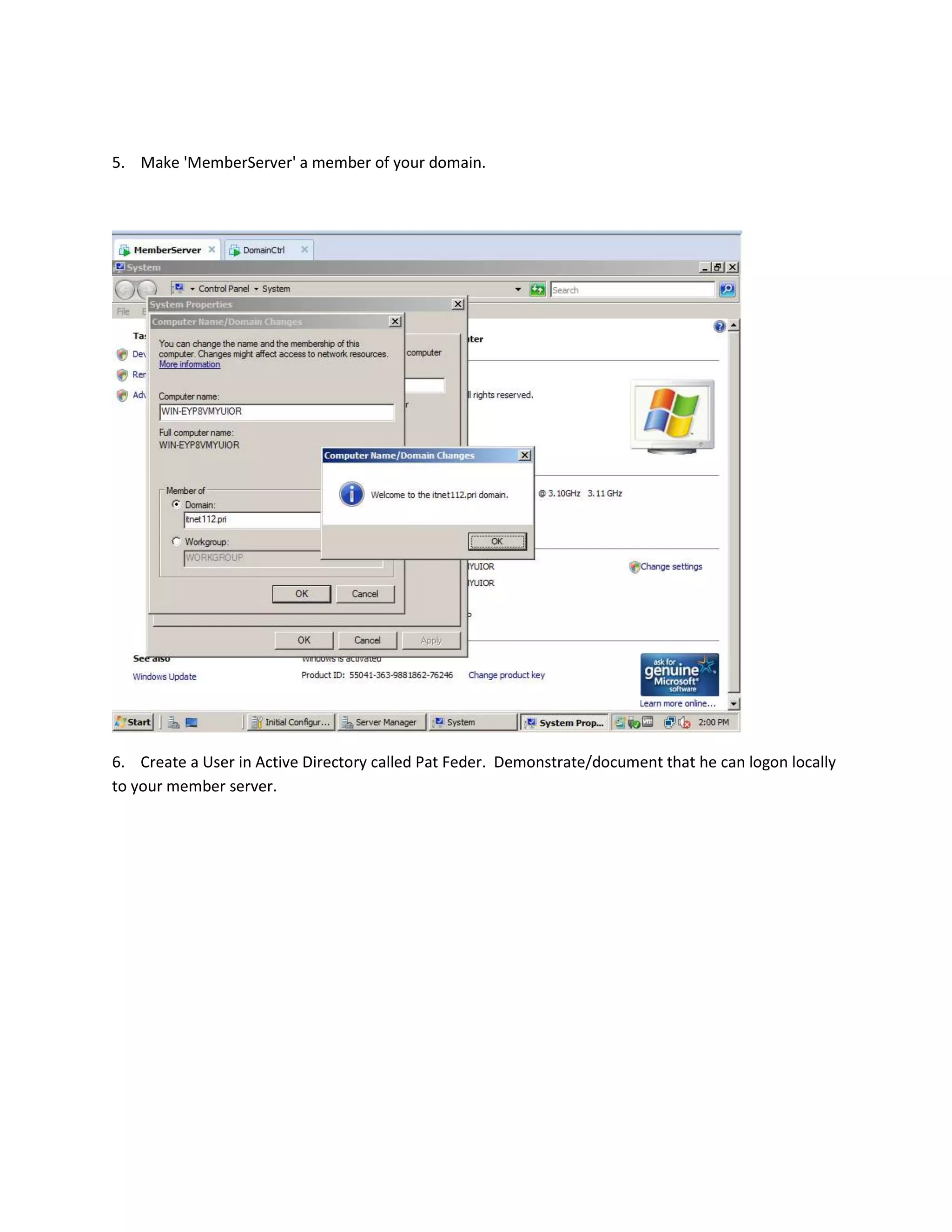
5. Make 'MemberServer' a member of your domain.


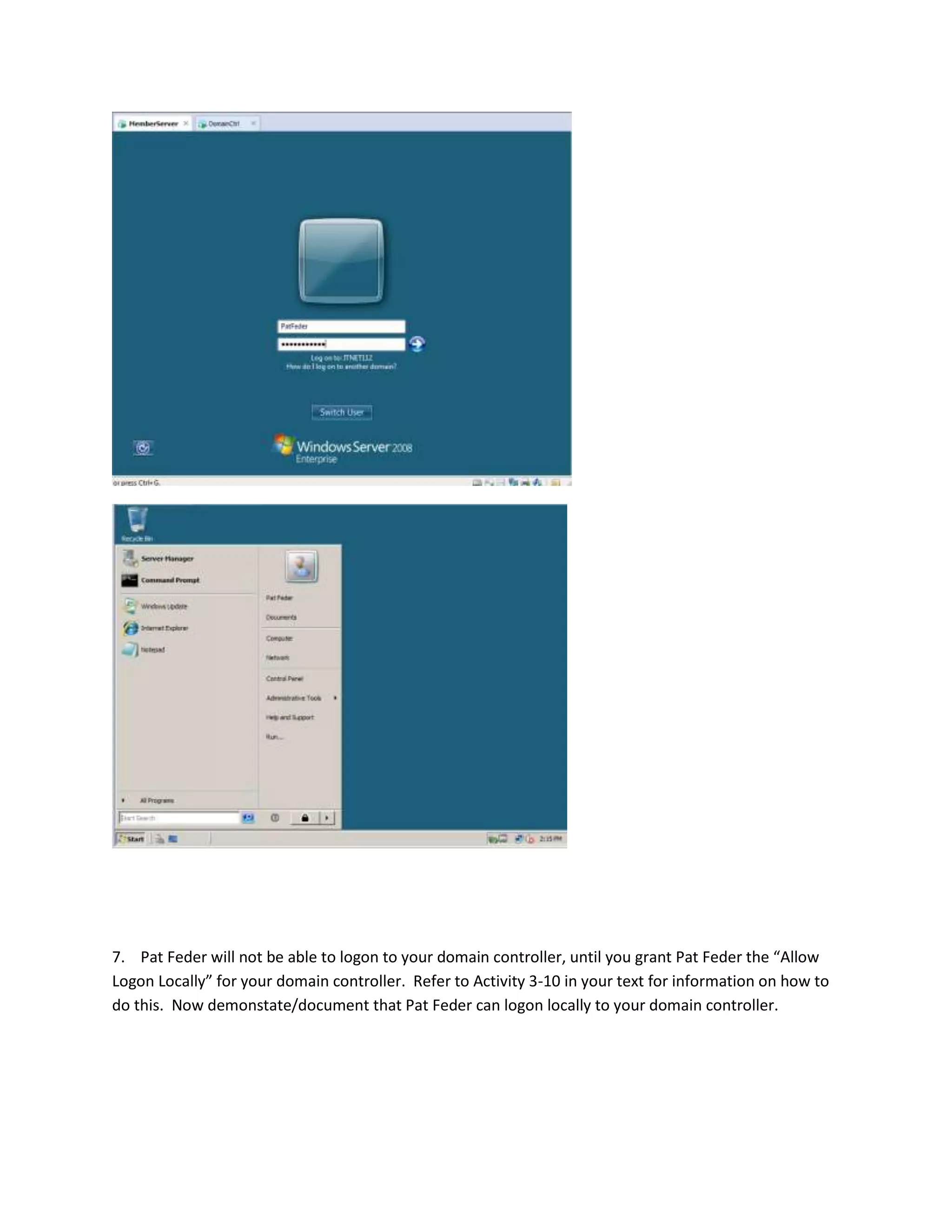
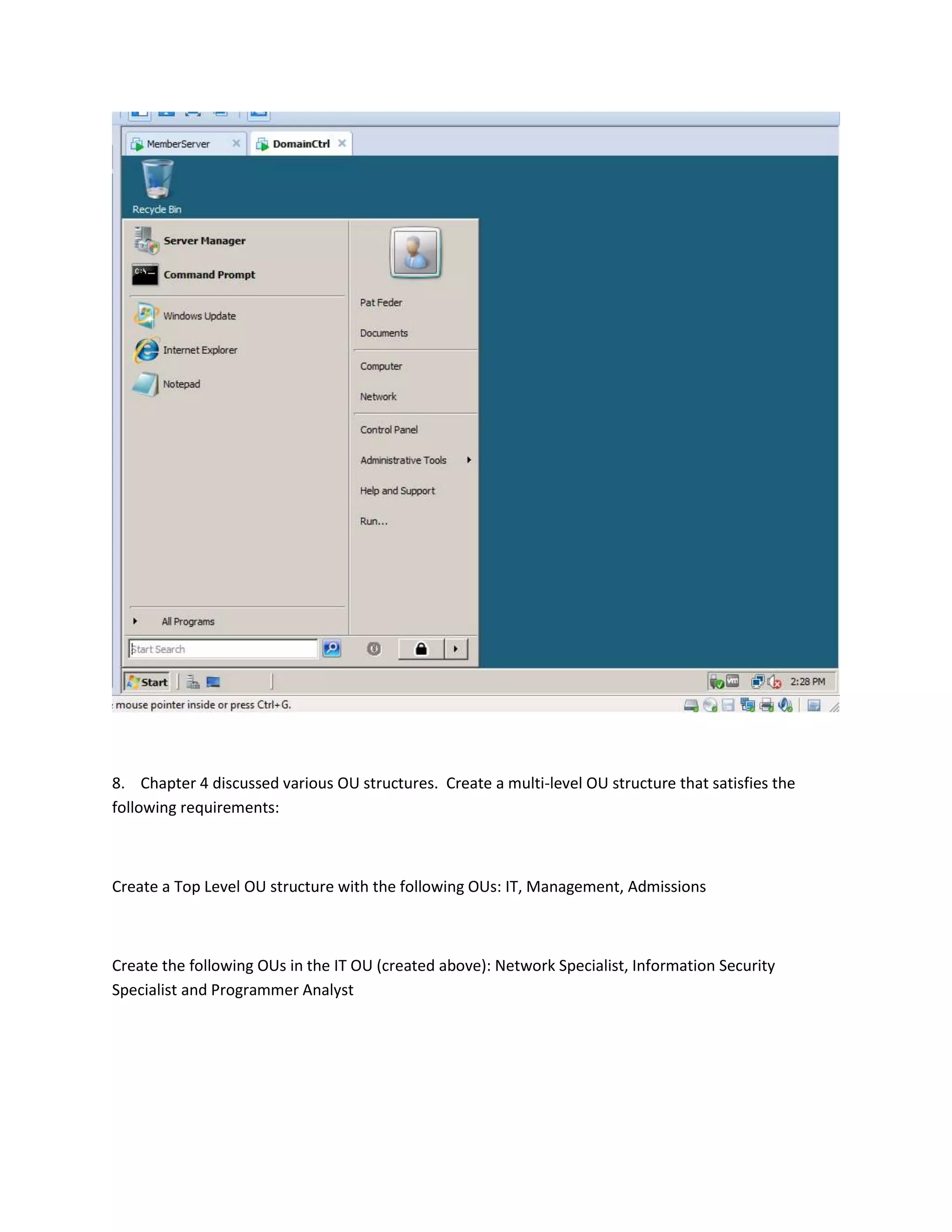
6. Create a User in Active Directory called Pat Feder. Demonstrate/document that he can logon locally
to your member server.
7. Pat Feder will not be able to logon to your domain controller, until you grant Pat Feder the “Allow
Logon Locally” for your domain controller. Refer to Activity 3-10 in your text for information on how to
do this. Now demonstate/document that Pat Feder can logon locally to your domain controller.
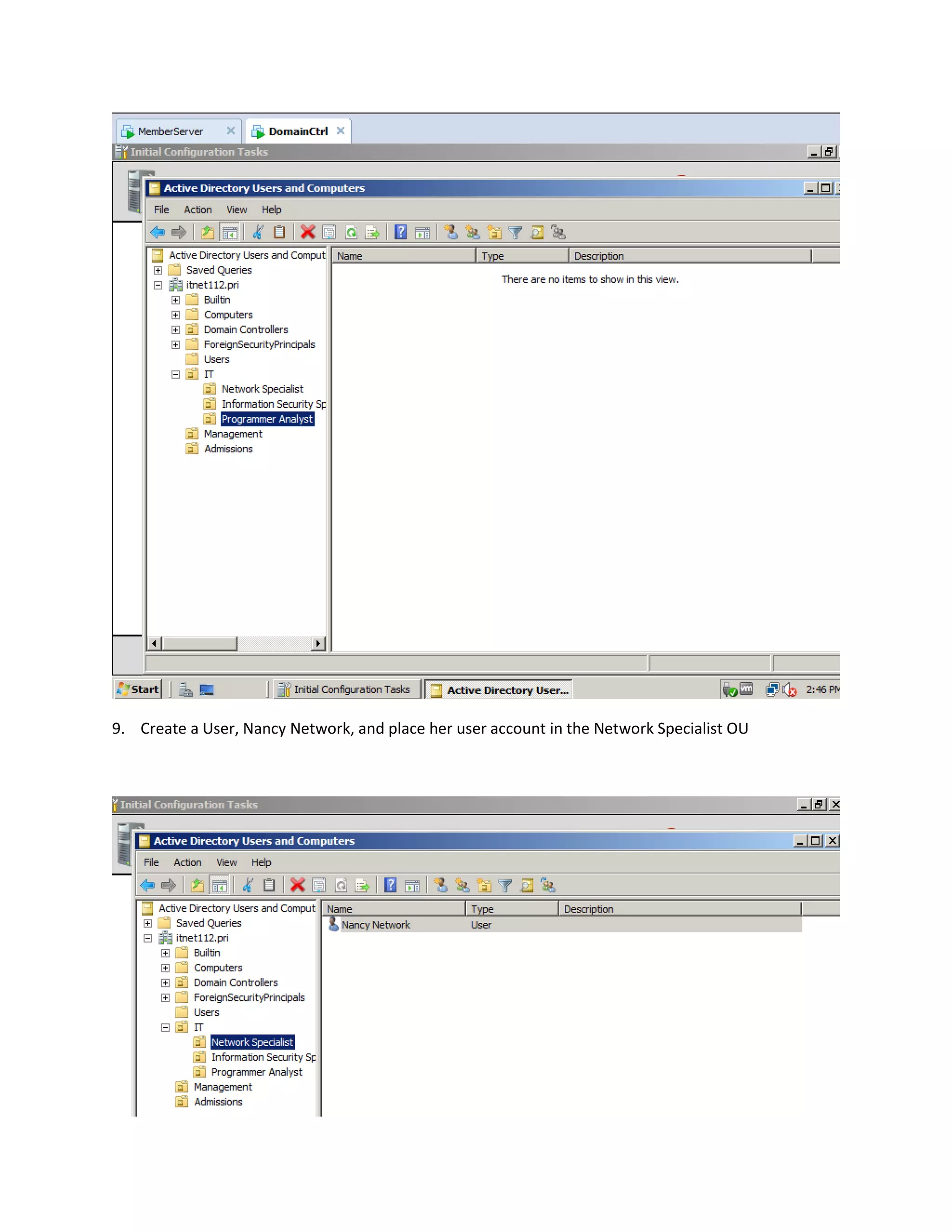
8. Chapter 4 discussed various OU structures. Create a multi-level OU structure that satisfies the
following requirements:


Create a Top Level OU structure with the following OUs: IT, Management, Admissions


Create the following OUs in the IT OU (created above): Network Specialist, Information Security
Specialist and Programmer Analyst
9. Create a User, Nancy Network, and place her user account in the Network Specialist OU
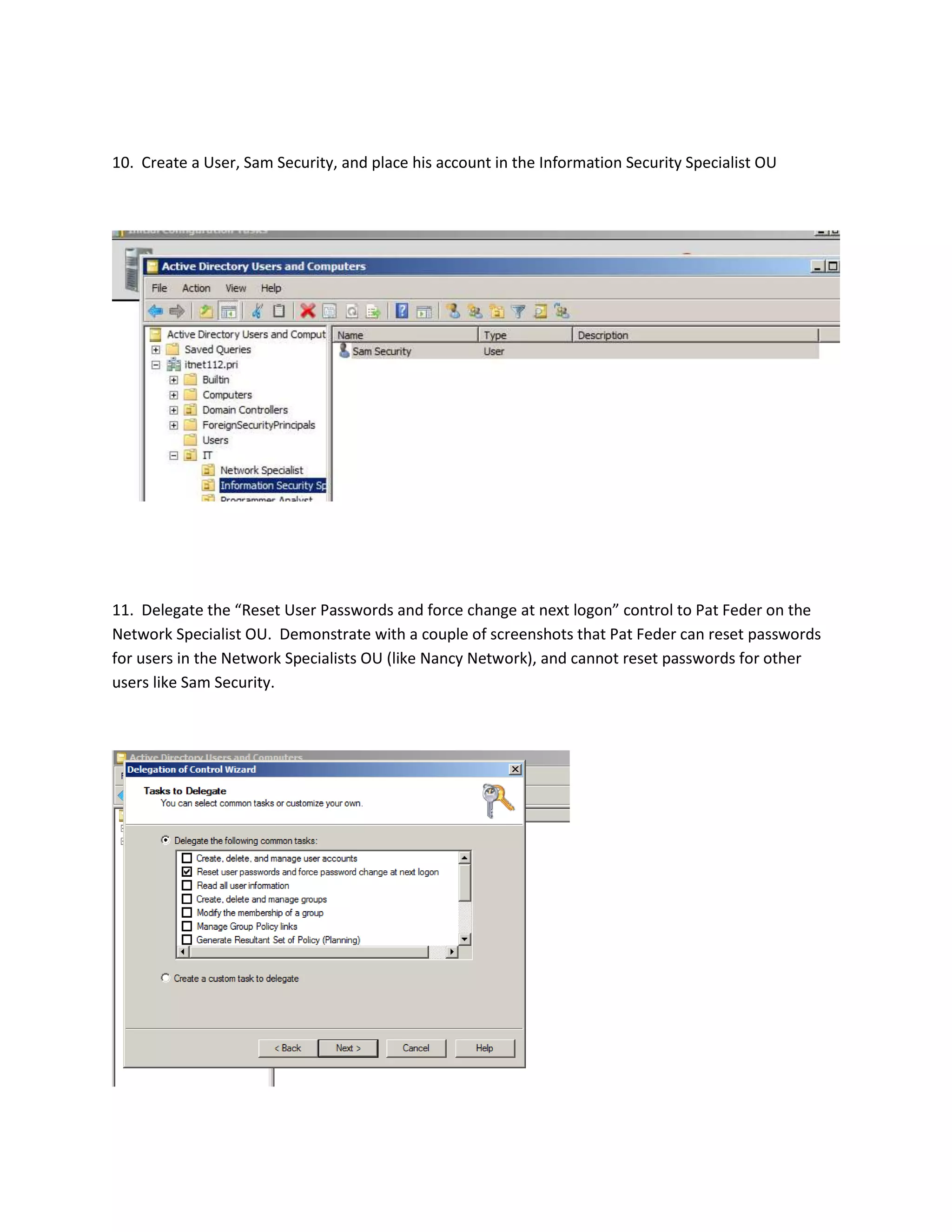
10. Create a User, Sam Security, and place his account in the Information Security Specialist OU


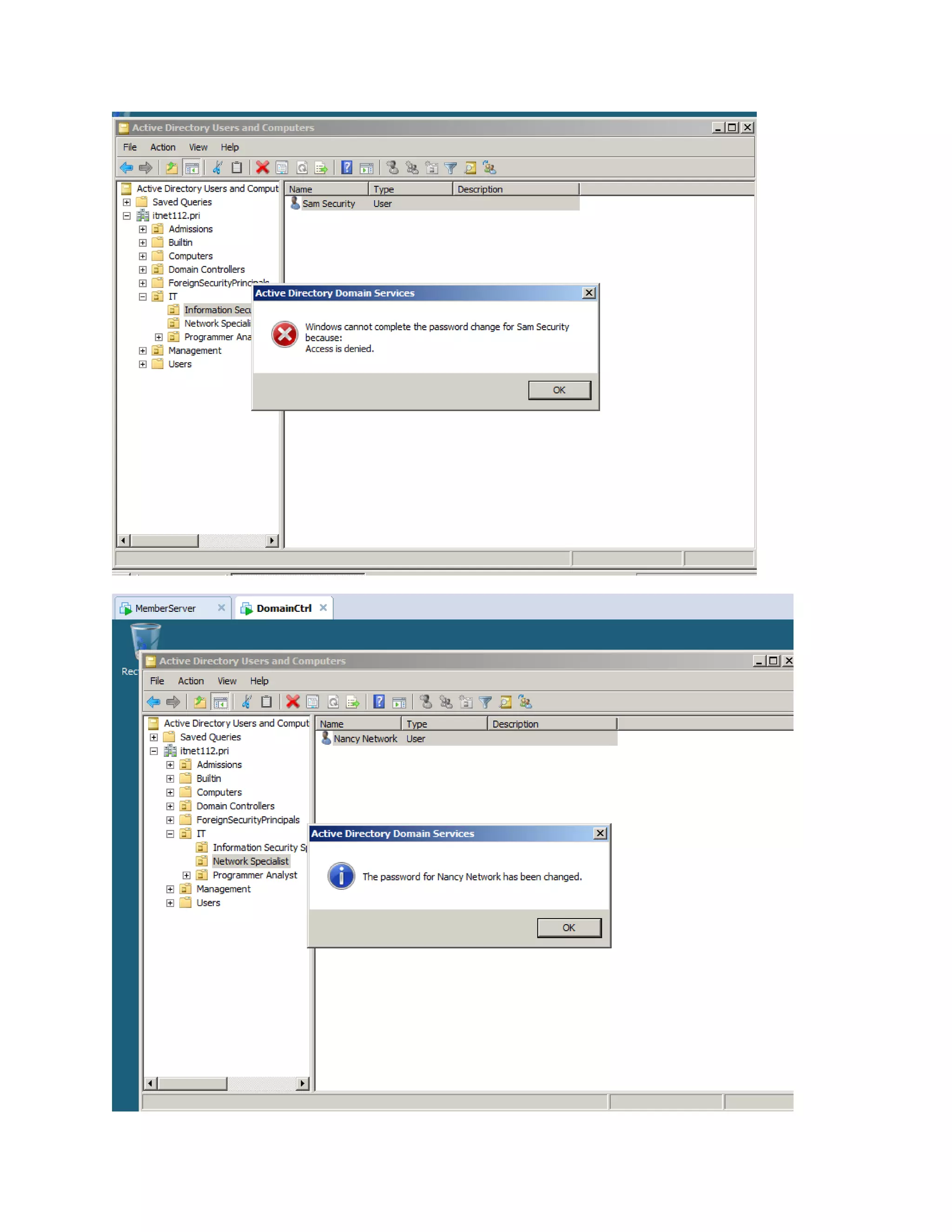
11. Delegate the “Reset User Passwords and force change at next logon” control to Pat Feder on the
Network Specialist OU. Demonstrate with a couple of screenshots that Pat Feder can reset passwords
for users in the Network Specialists OU (like Nancy Network), and cannot reset passwords for other
users like Sam Security.
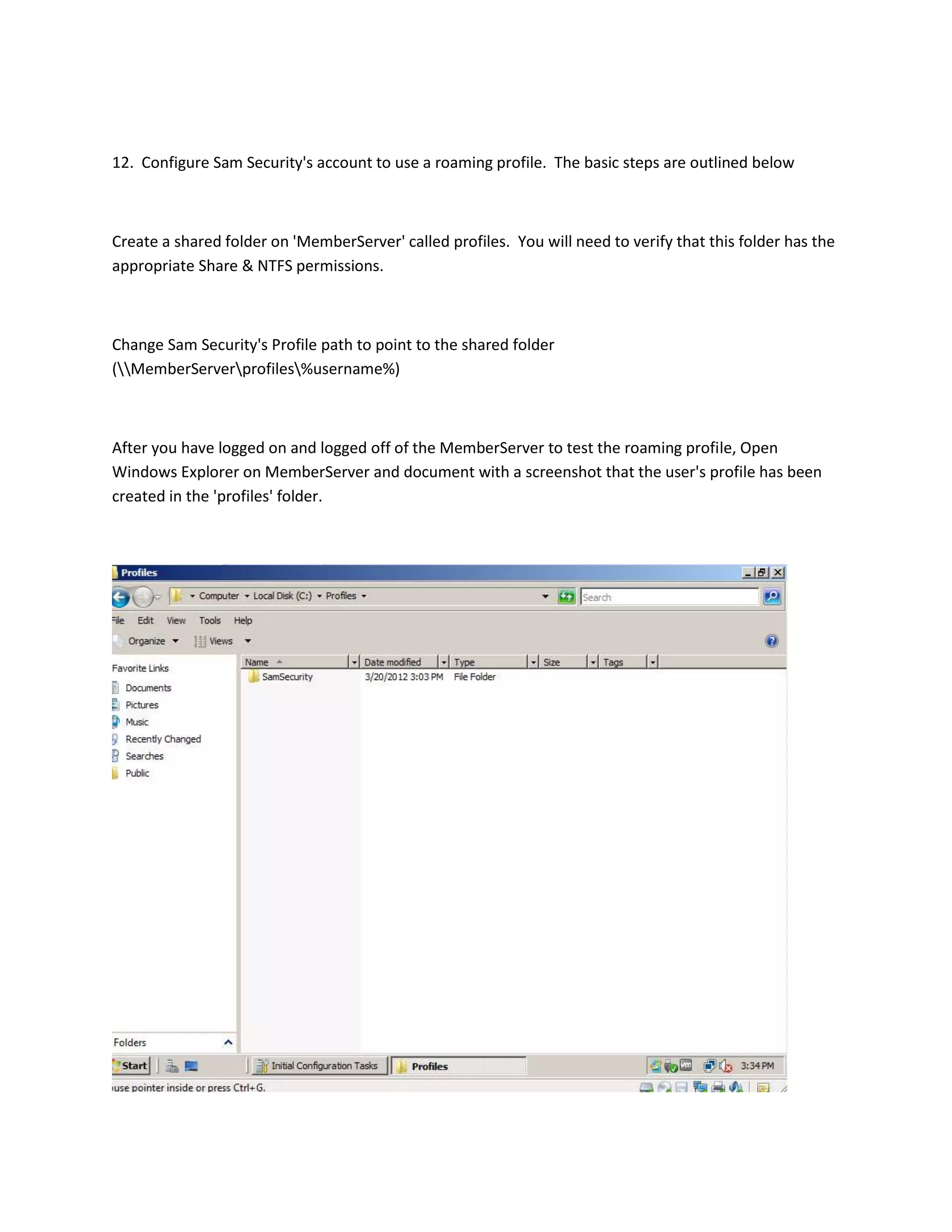
12. Configure Sam Security's account to use a roaming profile. The basic steps are outlined below


Create a shared folder on 'MemberServer' called profiles. You will need to verify that this folder has the
appropriate Share & NTFS permissions.


Change Sam Security's Profile path to point to the shared folder
(MemberServerprofiles%username%)


After you have logged on and logged off of the MemberServer to test the roaming profile, Open
Windows Explorer on MemberServer and document with a screenshot that the user's profile has been
created in the 'profiles' folder.
13. Can Sam Security logon to the Domain Controller with his roaming profile (Make sure to test/verify
your answer)? (Why/Why Not)


no, because the profile wasn’t delegated control to do so.


The following 3 questions are based on NTFS permissions, Share Permissions and the A-G-DL-P method.
There was a lot of content that we covered on this including chapter 5, chapter 6, the File Services Part 1
CBT Nugget in Exam Pack 70-642 and http://en.wikipedia.org/wiki/AGDLP


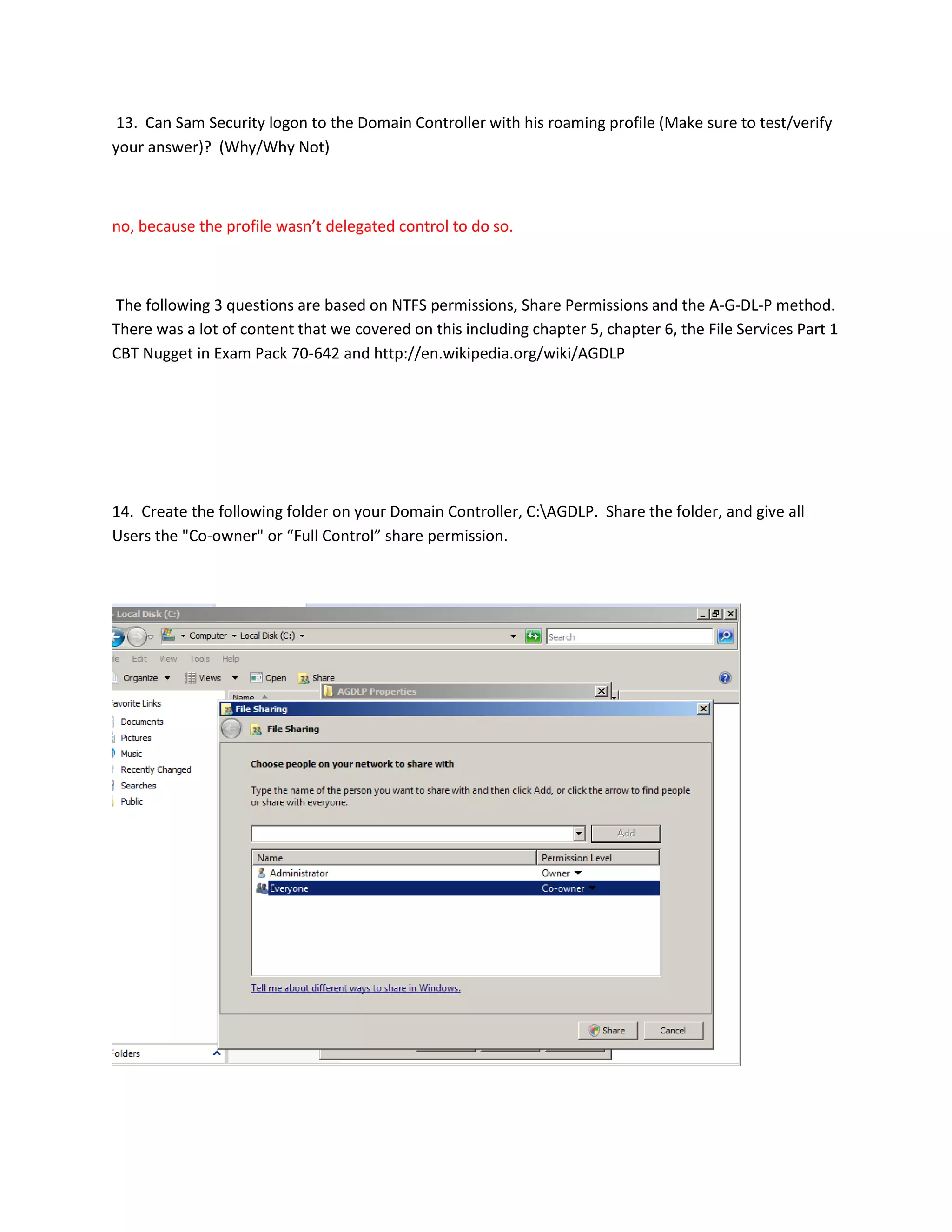
14. Create the following folder on your Domain Controller, C:AGDLP. Share the folder, and give all
Users the "Co-owner" or “Full Control” share permission.
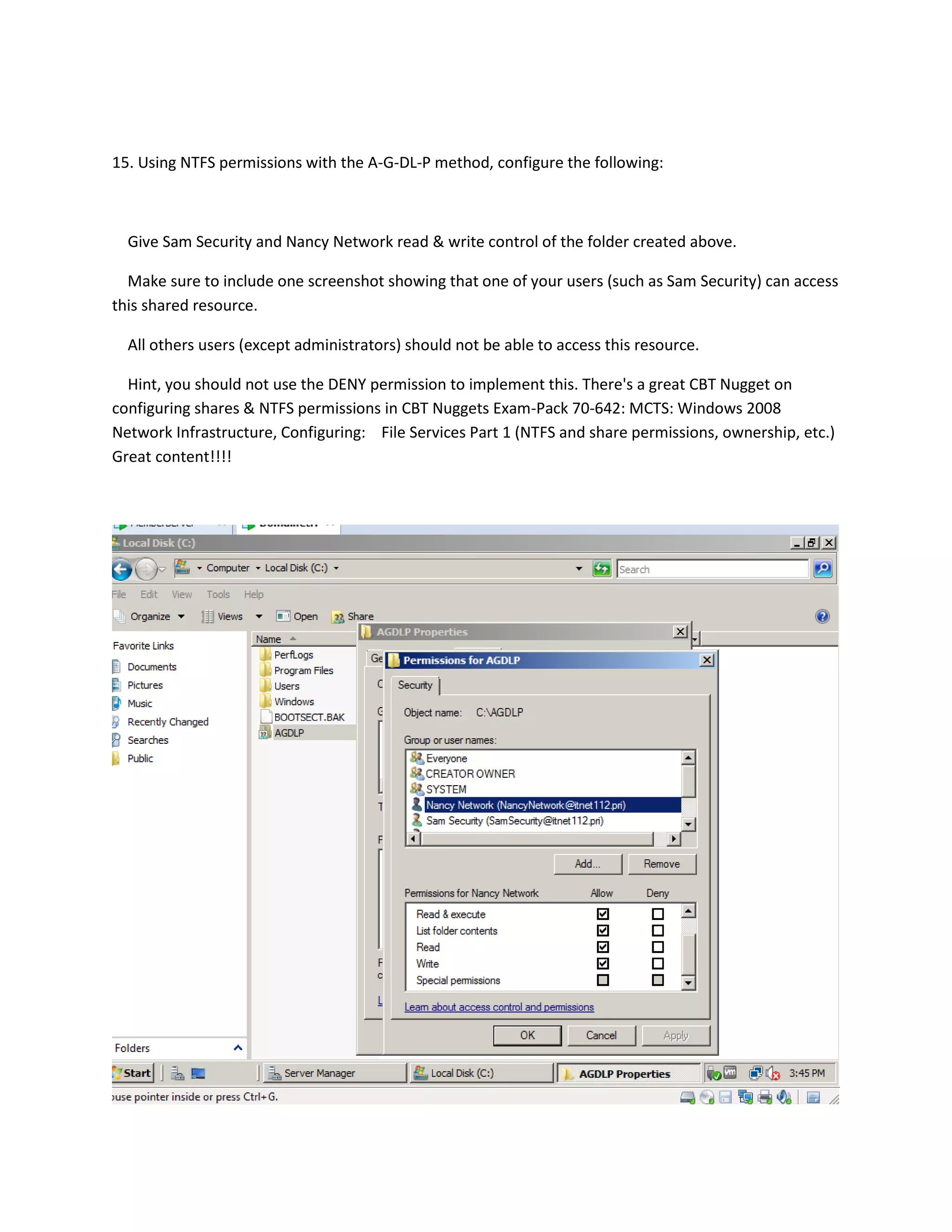
15. Using NTFS permissions with the A-G-DL-P method, configure the following:


  Give Sam Security and Nancy Network read & write control of the folder created above.

  Make sure to include one screenshot showing that one of your users (such as Sam Security) can access
this shared resource.

  All others users (except administrators) should not be able to access this resource.

  Hint, you should not use the DENY permission to implement this. There's a great CBT Nugget on
configuring shares & NTFS permissions in CBT Nuggets Exam-Pack 70-642: MCTS: Windows 2008
Network Infrastructure, Configuring: File Services Part 1 (NTFS and share permissions, ownership, etc.)
Great content!!!!
16. Explain how you used the A-G-DL-P method above to implement the scenario above. (i.e. what is
the A, G, DL and P in your implementation)

By changing the permissions to a group as a whole.

Handson1 6 federp

  • 1.
    Hands-On Test (chapters1-6) ITNET-112 Rev 1.0 Requirements: This is based on chapters 1-6 For this activity you will need two clean installs of Server 2008. This can be done in Virtual PC, VMWare or with the Virtual Online Machines. If you're using the online machines, send me an email and I can reset your existing machines. You will be expected to document each step below, with one or more screenshots. The screenshots will serve as proof that you completed each step. You should only need one or two screnshots for each activity. The best way to complete this is to copy this document into a Word document and add your screenshots after each activity. Make sure to include a couple of sentences describing what each screen shot is showing me. There are several questions that you will need to answer below as well. Make sure to submit this in Blackboard. You can work on this with a partner. You will need two Server 2008 machines for this activity. Start with this document and add a screenshot to each item below, proving that you completed the activity. You can use the Snipping Tool in Vista or Windows 7 to capture screenshots Make sure to answer any questions below as well.
  • 2.
    Each step belowis worth 5 points. This activity requires two servers. Onc machine will eventually become a domain controller and the second will become a member server. 1. Start with 2 clean installs of Server 2008. Change the computer name on one server to ‘DomainCtrl’ and the other to ‘MemberServer’
  • 3.
    2. Assign thefollowing to 'DomainCtrl' IP Address: 192.168.2.1 Subnet Mask: 255.255.255.0 DNS 192.168.2.1 (there's no need to configure the Default Gateway)
  • 4.
    3. Assign thefollowing to 'MemberServer' IP Address: 192.168.2.2 Subnet Mask: 255.255.255.0 DNS 192.168.2.1 (there's no need to configure the Default Gateway)
  • 5.
    Once you havethe IP settings configured on both machines, turn off the Windows Firewall on both and verify that they can ping each other. If you can't ping, troubleshoot this problem.
  • 6.
    4. Install ActiveDirectory (with a domain name of itnet112.pri) on to 'DomainCtrl'
  • 7.
    5. Make 'MemberServer'a member of your domain. 6. Create a User in Active Directory called Pat Feder. Demonstrate/document that he can logon locally to your member server.
  • 8.
    7. Pat Federwill not be able to logon to your domain controller, until you grant Pat Feder the “Allow Logon Locally” for your domain controller. Refer to Activity 3-10 in your text for information on how to do this. Now demonstate/document that Pat Feder can logon locally to your domain controller.
  • 9.
    8. Chapter 4discussed various OU structures. Create a multi-level OU structure that satisfies the following requirements: Create a Top Level OU structure with the following OUs: IT, Management, Admissions Create the following OUs in the IT OU (created above): Network Specialist, Information Security Specialist and Programmer Analyst
  • 10.
    9. Create aUser, Nancy Network, and place her user account in the Network Specialist OU
  • 11.
    10. Create aUser, Sam Security, and place his account in the Information Security Specialist OU 11. Delegate the “Reset User Passwords and force change at next logon” control to Pat Feder on the Network Specialist OU. Demonstrate with a couple of screenshots that Pat Feder can reset passwords for users in the Network Specialists OU (like Nancy Network), and cannot reset passwords for other users like Sam Security.
  • 13.
    12. Configure SamSecurity's account to use a roaming profile. The basic steps are outlined below Create a shared folder on 'MemberServer' called profiles. You will need to verify that this folder has the appropriate Share & NTFS permissions. Change Sam Security's Profile path to point to the shared folder (MemberServerprofiles%username%) After you have logged on and logged off of the MemberServer to test the roaming profile, Open Windows Explorer on MemberServer and document with a screenshot that the user's profile has been created in the 'profiles' folder.
  • 14.
    13. Can SamSecurity logon to the Domain Controller with his roaming profile (Make sure to test/verify your answer)? (Why/Why Not) no, because the profile wasn’t delegated control to do so. The following 3 questions are based on NTFS permissions, Share Permissions and the A-G-DL-P method. There was a lot of content that we covered on this including chapter 5, chapter 6, the File Services Part 1 CBT Nugget in Exam Pack 70-642 and http://en.wikipedia.org/wiki/AGDLP 14. Create the following folder on your Domain Controller, C:AGDLP. Share the folder, and give all Users the "Co-owner" or “Full Control” share permission.
  • 15.
    15. Using NTFSpermissions with the A-G-DL-P method, configure the following: Give Sam Security and Nancy Network read & write control of the folder created above. Make sure to include one screenshot showing that one of your users (such as Sam Security) can access this shared resource. All others users (except administrators) should not be able to access this resource. Hint, you should not use the DENY permission to implement this. There's a great CBT Nugget on configuring shares & NTFS permissions in CBT Nuggets Exam-Pack 70-642: MCTS: Windows 2008 Network Infrastructure, Configuring: File Services Part 1 (NTFS and share permissions, ownership, etc.) Great content!!!!
  • 16.
    16. Explain howyou used the A-G-DL-P method above to implement the scenario above. (i.e. what is the A, G, DL and P in your implementation) By changing the permissions to a group as a whole.