Dspace for Windows
Step-by-Step Guide
Ravindra S Bankar(8669155113)
Research Scholar
Shivaji University,Kolhapur.
Prerequisites For Dspace Windows Pack
1) Oracle Java 7 or greater[JAVA SDK]
(https://www.oracle.com/technetwork/java/javase/downloads/index.html)
2)Apache MAVEN
(maven.apache.org/download.cgi)
3)Apache ANT
(http://ant.apache.org/bindownload.cgi)
4)Apache TOMCAT
(http://tomcat.apache.org/download-70.cgi)
5)POSTGRESQL
(http://www.postgresql.org/download/windows)
6)Dspace (Latest stable 5.1 version)
(http://www.dspace.org/latestrelease/)
Installation Steps
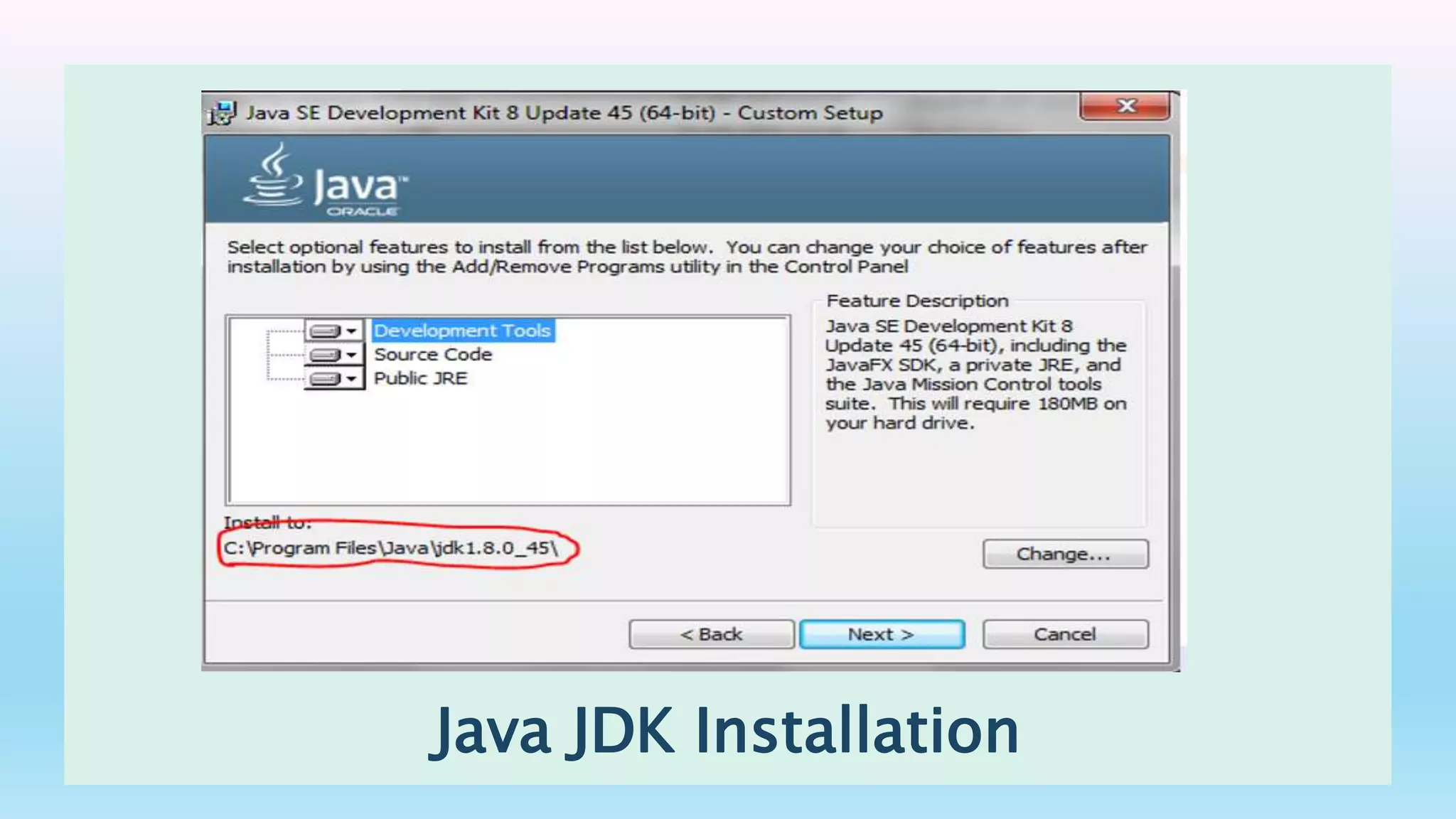
Step 1 (Java JDK Installation)
Installing Java, to do this , double click on the JAVA
Application file ‘i.e.,jdk-8u45-windows-x64’ and follow
the on screen instructions and accept the license
agreement.
Java JDK Installation
STEP 2
To install Apache Ant , create a new folder named “ANT” at
any convenient location , for demonstration purpose , we
have created the same in “C:” drive , Unzip (Expand)
contents of “apache-ant-1.9.4-bin.zip” in to C:ANT
To install Apache Maven create a new folder named
“MAVEN” at any convenient location, in our case it is
C:MAVEN unzip “apache-maven-3.3.1-bin.zip” in to that
folder.
STEP 3
Path setting, now you have to make your system aware of what you have installed,
this can be easily done by setting appropriate path in your system environment
Add followings to your PATH variable ;
1)C:Program FilesJavajdk1.8.0_45bin
2)C:ANTbin;
3)C:MAVENbin;
Setting JAVA_HOME as
C:Program FilesJavajdk1.8.0_45
Setting ANT_HOME as
C:ANT
To change your operating system’s environmental variables perform following
operation depending on your operating system
Right click “My Computer” >> Click Properties >> “Advance” tab >> Click on “Environment
Variable” Button
Similarly you have to add ‘JAVA_HOME’ and ‘ANT_HOME’ system variables by clicking on “New” button
as shown in following pictures
It is being advised to reboot your system after “Environmental Settings” of your operating system
to have suitable environment.
STEP 4
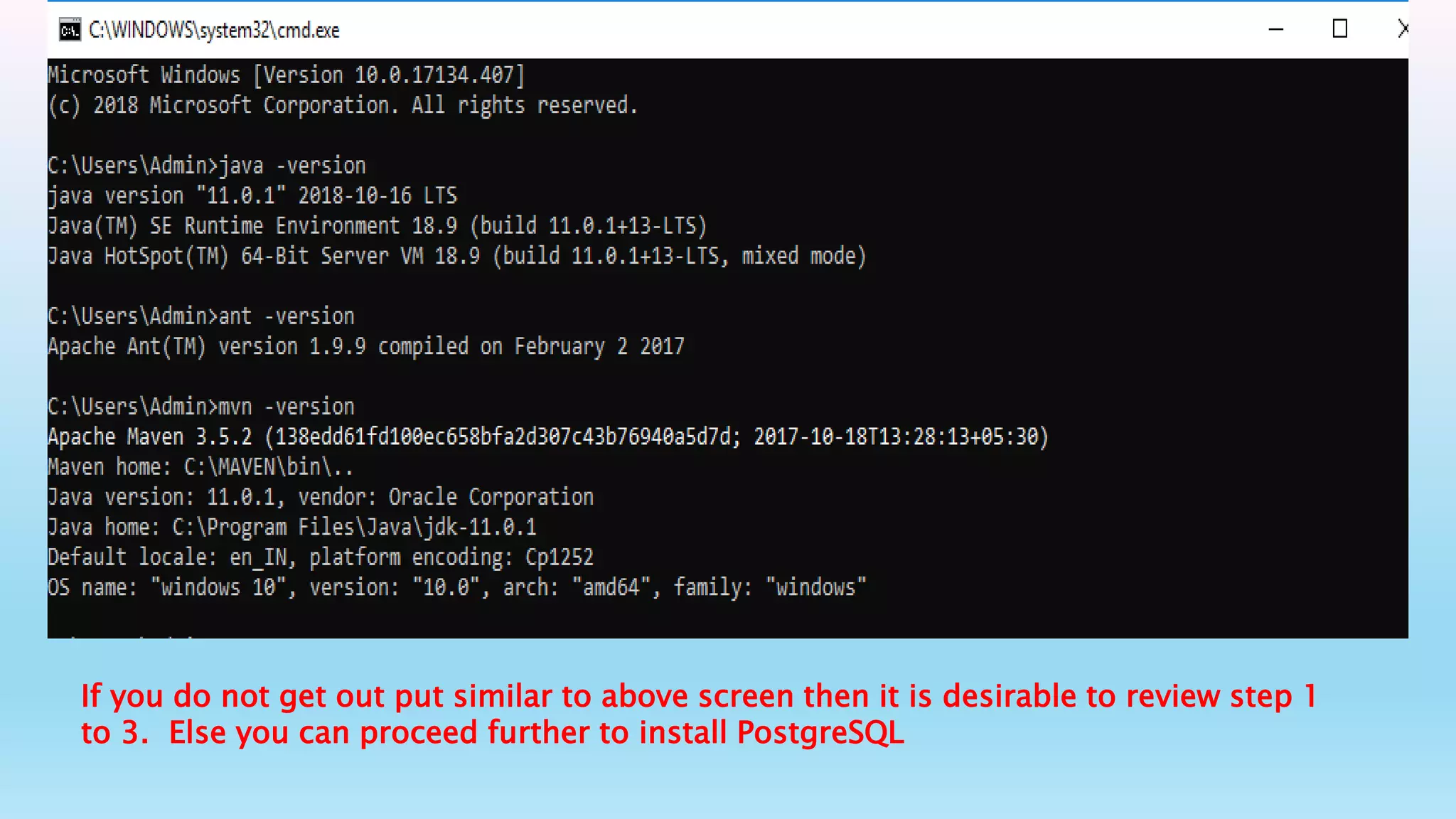
Now it is time to verify the platform,
to do this execute following
commands in to the command
prompt.
 > java –version
 > ant –version
 >mvn – version
If you do not get out put similar to above screen then it is desirable to review step 1
to 3. Else you can proceed further to install PostgreSQL
STEP 5
In this step covers installation of
PostgreSQL with database creation,
to install PostgreSQL double click on
“postgresql-9.4.1-3-windows-x64”.
Follow the on-screen instruction
given by installer.
You may be asked to “Launch Stack
Builder at Exit”
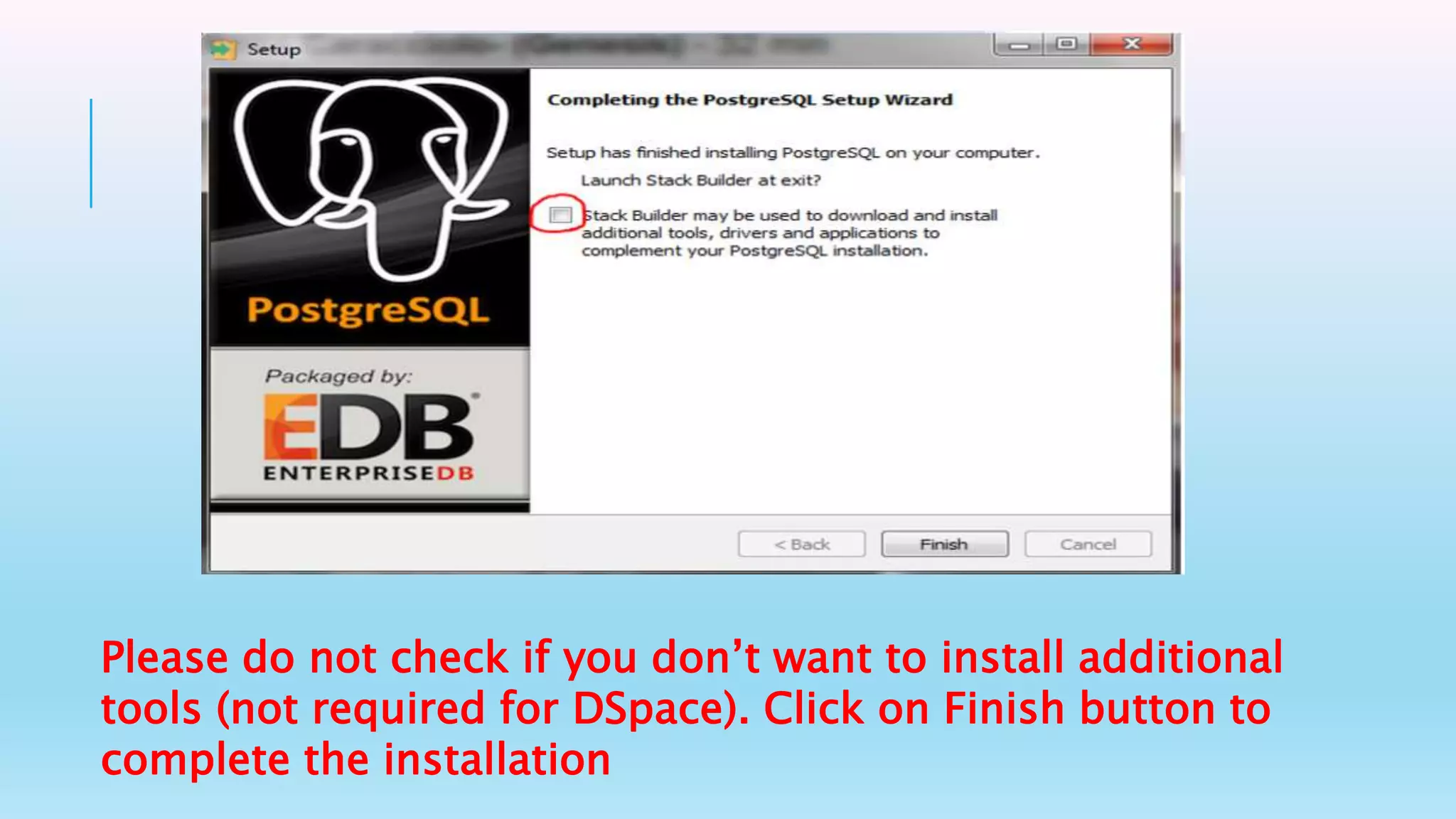
Please do not check if you don’t want to install additional
tools (not required for DSpace). Click on Finish button to
complete the installation
STEP 6
In this step we will create an empty database for
DSpace. To do this , perform following operation
Start >> Programs >> PostgreSQL 9.4 >> pgAdmin III
In this window right click on your server and click on
connect as shown below.
First of all we need to create user named ‘dspace’ to do this.
After connection expand your server by clicking “+”, Right click
on “Login Roles” and click on “New Login Role” as shown in
picture below
Now create a user named ‘dspace’ with your desired
password (in this case password is ‘dspace’) as shown
in following screen and click OK.
STEP 7
In this step installation of Apache
Tomcat will be attempted, to do this,
double click on “apache-tomcat-
7.0.61.exe” in your source, follow the
on screen instructions
you will be prompted for administrative user of
tomcat administration, enter your desired values and
Follow the default on screen instruction until the
installation is finished
STEP 8
In this step we will perform actual installation of
dspace.
Before doing this create an empty directory in
C: drive, where actual configuration, program
files and datafiles of dspace will reside. In our
case we will be using “C:DSpace”
Extract all the contents of ‘dspace-5.1-src-
release.zip’ to one folder and copy entire folder
to your C: drive as
C: dspace-5.1-src-release
Once the files are unzipped, go to “C: dspace-5.1-src-release”
, find out “build.properties” and open in notepad or any other
editor and atleast change the following parameters.
Use forward slashes `/` for path separators
dspace.dir = C:/Dspace.
dspace.name = "My Dspace Repository".
mail.server = mail.yourinstitute.ac.in
mail.from.address = you@yourinstitute.ac.in
feedback.recipient = you@yourinstitute.ac.in
mail.admin = you@yourinstitute.ac.in
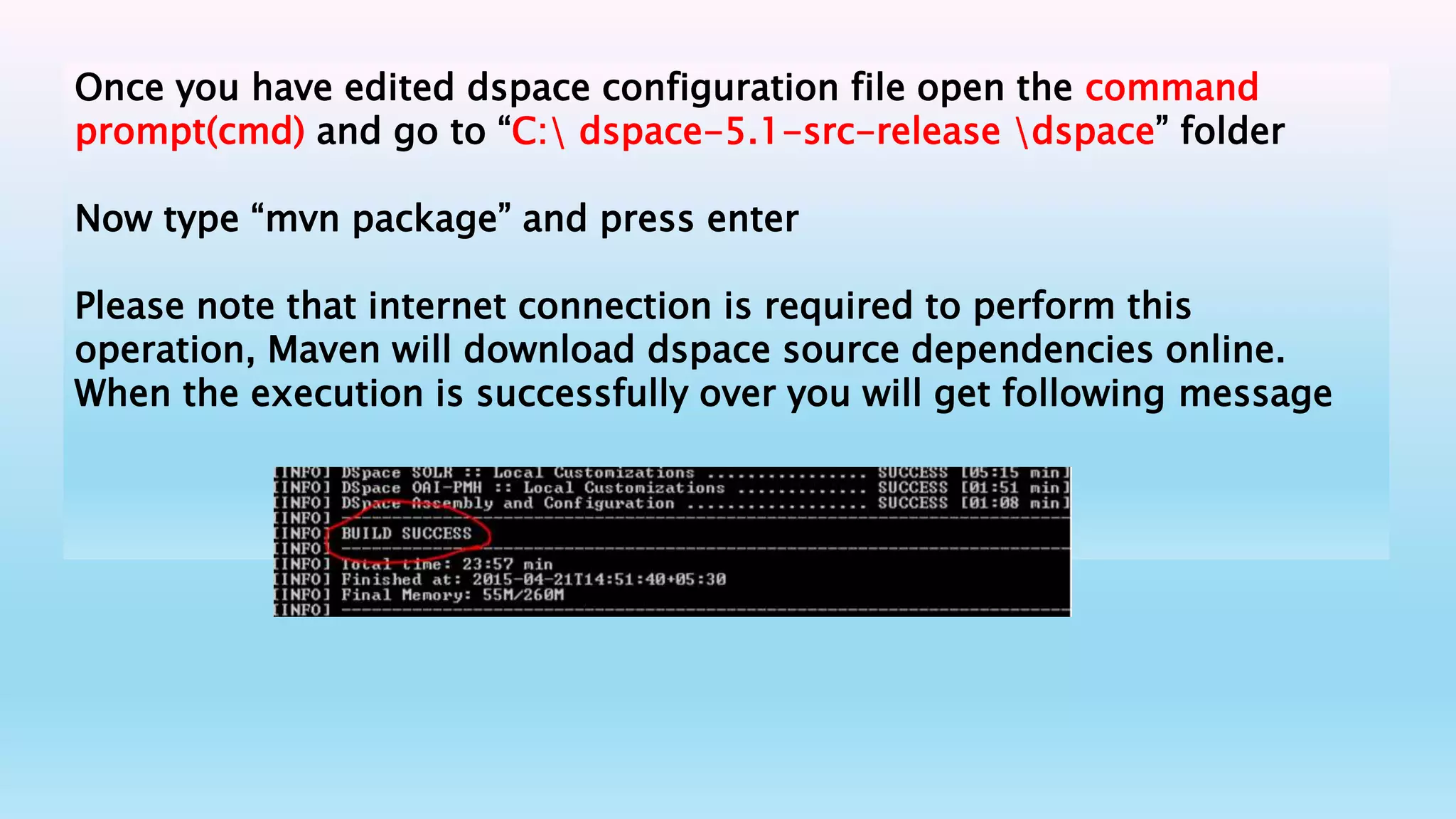
Once you have edited dspace configuration file open the command
prompt(cmd) and go to “C: dspace-5.1-src-release dspace” folder
Now type “mvn package” and press enter
Please note that internet connection is required to perform this
operation, Maven will download dspace source dependencies online.
When the execution is successfully over you will get following message
Now go to “C:dspace-5.1-src-
releasedspacetargetdspace-installer” on command
prompt
CD C:dspace-5.1-src-releasedspacetargetdspace-
installer
and execute command “ant fresh_install”.
After successful execution you will get following
message
Using your explorer browse through your C:dspacewebapps folder
Copy all folders to your tomcat installation’s webapps folder
STEP 10
Start tomcat service if it is already not running by
going in to Control Panel >> Administrative Tools
>> Services > Apache Tomcat 7 and clicking on
“Start”
Now it is time to create default system administrator.
To create administrator execute following command
C:dspacebindspace create-administrator
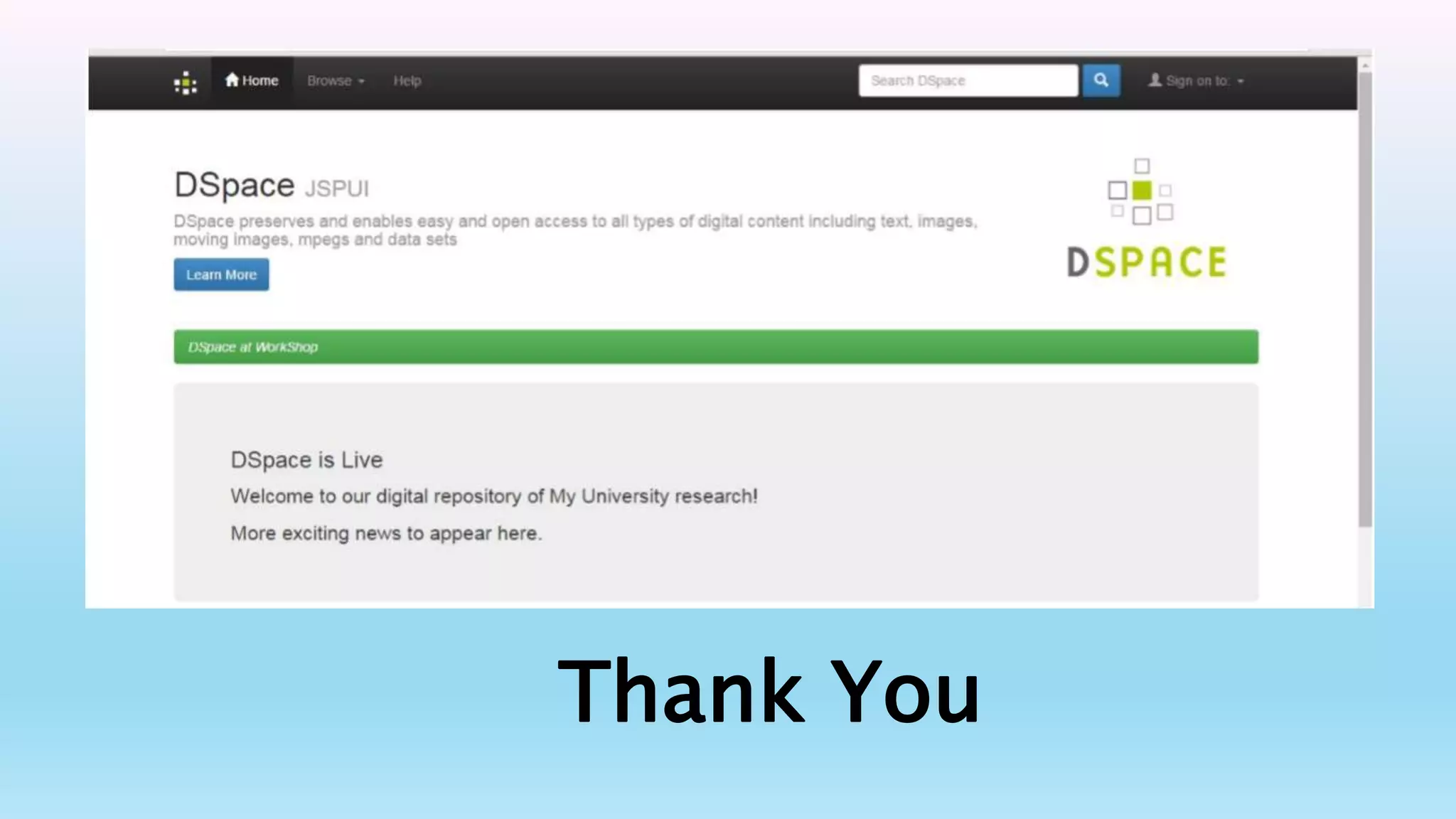
Point your browser to http://localhost:8080/jspui or
http://localhost:8080/xmlui
Thank You

Dspace for windows

  • 1.
    Dspace for Windows Step-by-StepGuide Ravindra S Bankar(8669155113) Research Scholar Shivaji University,Kolhapur.
  • 2.
    Prerequisites For DspaceWindows Pack 1) Oracle Java 7 or greater[JAVA SDK] (https://www.oracle.com/technetwork/java/javase/downloads/index.html) 2)Apache MAVEN (maven.apache.org/download.cgi) 3)Apache ANT (http://ant.apache.org/bindownload.cgi) 4)Apache TOMCAT (http://tomcat.apache.org/download-70.cgi) 5)POSTGRESQL (http://www.postgresql.org/download/windows) 6)Dspace (Latest stable 5.1 version) (http://www.dspace.org/latestrelease/)
  • 3.
    Installation Steps Step 1(Java JDK Installation) Installing Java, to do this , double click on the JAVA Application file ‘i.e.,jdk-8u45-windows-x64’ and follow the on screen instructions and accept the license agreement.
  • 4.
  • 5.
    STEP 2 To installApache Ant , create a new folder named “ANT” at any convenient location , for demonstration purpose , we have created the same in “C:” drive , Unzip (Expand) contents of “apache-ant-1.9.4-bin.zip” in to C:ANT To install Apache Maven create a new folder named “MAVEN” at any convenient location, in our case it is C:MAVEN unzip “apache-maven-3.3.1-bin.zip” in to that folder.
  • 7.
    STEP 3 Path setting,now you have to make your system aware of what you have installed, this can be easily done by setting appropriate path in your system environment Add followings to your PATH variable ; 1)C:Program FilesJavajdk1.8.0_45bin 2)C:ANTbin; 3)C:MAVENbin; Setting JAVA_HOME as C:Program FilesJavajdk1.8.0_45 Setting ANT_HOME as C:ANT To change your operating system’s environmental variables perform following operation depending on your operating system
  • 8.
    Right click “MyComputer” >> Click Properties >> “Advance” tab >> Click on “Environment Variable” Button
  • 9.
    Similarly you haveto add ‘JAVA_HOME’ and ‘ANT_HOME’ system variables by clicking on “New” button as shown in following pictures
  • 10.
    It is beingadvised to reboot your system after “Environmental Settings” of your operating system to have suitable environment.
  • 11.
    STEP 4 Now itis time to verify the platform, to do this execute following commands in to the command prompt.  > java –version  > ant –version  >mvn – version
  • 12.
    If you donot get out put similar to above screen then it is desirable to review step 1 to 3. Else you can proceed further to install PostgreSQL
  • 13.
    STEP 5 In thisstep covers installation of PostgreSQL with database creation, to install PostgreSQL double click on “postgresql-9.4.1-3-windows-x64”. Follow the on-screen instruction given by installer. You may be asked to “Launch Stack Builder at Exit”
  • 14.
    Please do notcheck if you don’t want to install additional tools (not required for DSpace). Click on Finish button to complete the installation
  • 15.
    STEP 6 In thisstep we will create an empty database for DSpace. To do this , perform following operation Start >> Programs >> PostgreSQL 9.4 >> pgAdmin III In this window right click on your server and click on connect as shown below.
  • 16.
    First of allwe need to create user named ‘dspace’ to do this. After connection expand your server by clicking “+”, Right click on “Login Roles” and click on “New Login Role” as shown in picture below
  • 17.
    Now create auser named ‘dspace’ with your desired password (in this case password is ‘dspace’) as shown in following screen and click OK.
  • 18.
    STEP 7 In thisstep installation of Apache Tomcat will be attempted, to do this, double click on “apache-tomcat- 7.0.61.exe” in your source, follow the on screen instructions
  • 19.
    you will beprompted for administrative user of tomcat administration, enter your desired values and Follow the default on screen instruction until the installation is finished
  • 20.
    STEP 8 In thisstep we will perform actual installation of dspace. Before doing this create an empty directory in C: drive, where actual configuration, program files and datafiles of dspace will reside. In our case we will be using “C:DSpace” Extract all the contents of ‘dspace-5.1-src- release.zip’ to one folder and copy entire folder to your C: drive as C: dspace-5.1-src-release
  • 22.
    Once the filesare unzipped, go to “C: dspace-5.1-src-release” , find out “build.properties” and open in notepad or any other editor and atleast change the following parameters. Use forward slashes `/` for path separators dspace.dir = C:/Dspace. dspace.name = "My Dspace Repository". mail.server = mail.yourinstitute.ac.in mail.from.address = you@yourinstitute.ac.in feedback.recipient = you@yourinstitute.ac.in mail.admin = you@yourinstitute.ac.in
  • 23.
    Once you haveedited dspace configuration file open the command prompt(cmd) and go to “C: dspace-5.1-src-release dspace” folder Now type “mvn package” and press enter Please note that internet connection is required to perform this operation, Maven will download dspace source dependencies online. When the execution is successfully over you will get following message
  • 24.
    Now go to“C:dspace-5.1-src- releasedspacetargetdspace-installer” on command prompt CD C:dspace-5.1-src-releasedspacetargetdspace- installer and execute command “ant fresh_install”. After successful execution you will get following message
  • 25.
    Using your explorerbrowse through your C:dspacewebapps folder Copy all folders to your tomcat installation’s webapps folder
  • 26.
    STEP 10 Start tomcatservice if it is already not running by going in to Control Panel >> Administrative Tools >> Services > Apache Tomcat 7 and clicking on “Start” Now it is time to create default system administrator. To create administrator execute following command C:dspacebindspace create-administrator Point your browser to http://localhost:8080/jspui or http://localhost:8080/xmlui
  • 27.