A guided tutorial of the 
Neuroscience Information 
Framework 
NIF Registry and Data Federation 
Genetics of Addiction Workshop 
Jackson Laboratories 
Aug 28-Sept 1 2014
This tutorial will go over... 
• Finding resources in the NIF Registry*: 
– A catalog of data, tools, materials, services and 
organizations available to biomedical researchers 
– Descriptions, keywords, organisms, resource type 
• Exploring the NIF Data Federation: 
– Contents of > 200 databases registered to the NIF 
Data Federation 
*Now sometimes referred to as the SciCrunch Registry
Part 1 
EXPLORING THE NIF RESOURCE 
REGISTRY
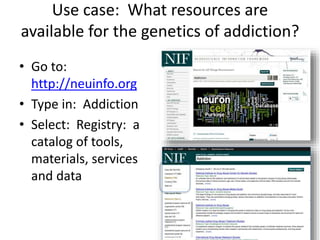
Use case: What resources are 
available for the genetics of addiction? 
• Go to: 
http://neuinfo.org 
• Type in: Addiction 
• Select: Registry: a 
catalog of tools, 
materials, services 
and data
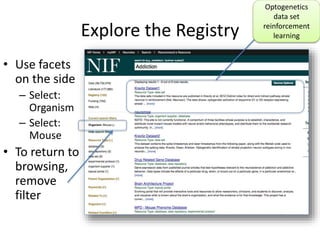
Explore the Registry 
• Use facets 
on the side 
– Select: 
Organism 
– Select: 
Mouse 
• To return to 
browsing, 
remove 
filter 
Optogenetics 
data set 
reinforcement 
learning
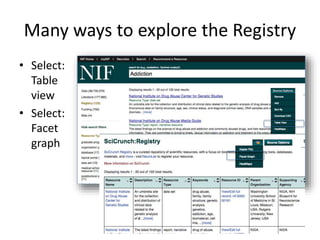
Many ways to explore the Registry 
• Select: 
Table 
view 
• Select: 
Facet 
graph
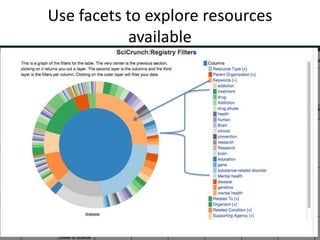
Use facets to explore resources 
available
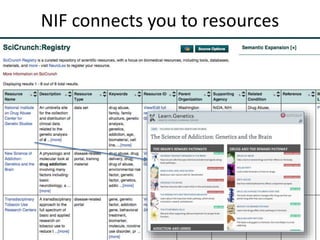
NIF connects you to resources
Part 2 
EXPLORING THE NIF DATA 
FEDERATION
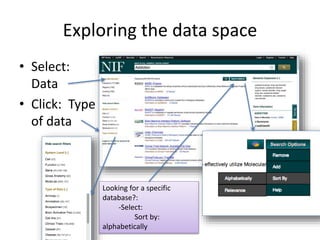
Exploring the data space 
• Select: 
Data 
• Click: Type 
of data 
Looking for a specific 
database?: 
-Select: 
Sort by: 
alphabetically
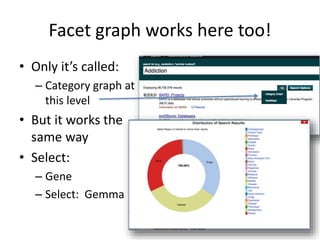
Facet graph works here too! 
• Only it’s called: 
– Category graph at 
this level 
• But it works the 
same way 
• Select: 
– Gene 
– Select: Gemma
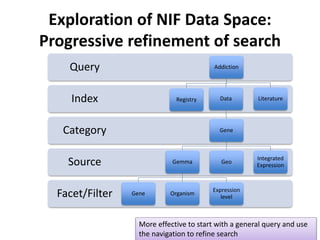
Exploration of NIF Data Space: 
Progressive refinement of search 
Query Addiction 
Index 
Category 
Source 
Facet/Filter 
Registry Data 
Gene 
Gemma 
Gene Organism 
Geo 
Expression 
level 
Literature 
Integrated 
Expression 
More effective to start with a general query and use 
the navigation to refine search
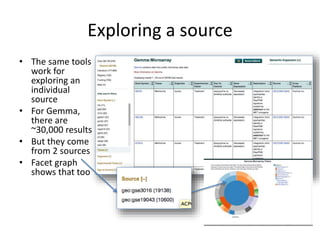
Exploring a source 
• The same tools 
work for 
exploring an 
individual 
source 
• For Gemma, 
there are 
~30,000 results 
• But they come 
from 2 sources 
• Facet graph 
shows that too
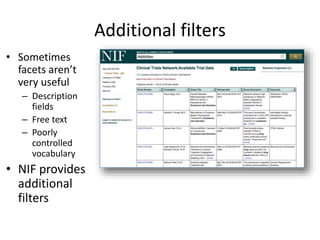
Additional filters 
• Sometimes 
facets aren’t 
very useful 
– Description 
fields 
– Free text 
– Poorly 
controlled 
vocabulary 
• NIF provides 
additional 
filters
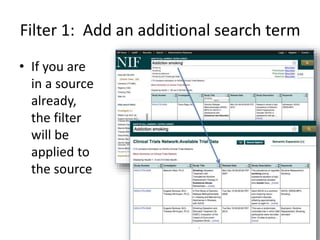
Filter 1: Add an additional search term 
• If you are 
in a source 
already, 
the filter 
will be 
applied to 
the source
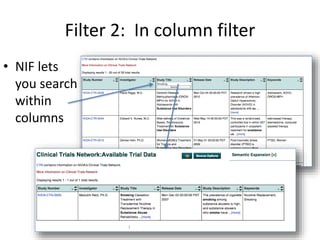
Filter 2: In column filter 
• NIF lets 
you search 
within 
columns
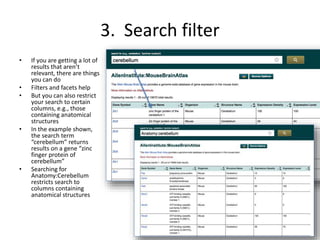
3. Search filter 
• If you are getting a lot of 
results that aren’t 
relevant, there are things 
you can do 
• Filters and facets help 
• But you can also restrict 
your search to certain 
columns, e.g., those 
containing anatomical 
structures 
• In the example shown, 
the search term 
“cerebellum” returns 
results on a gene “zinc 
finger protein of 
cerebellum” 
• Searching for 
Anatomy:Cerebellum 
restricts search to 
columns containing 
anatomical structures
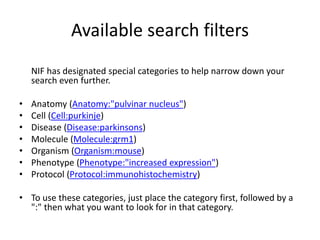
Available search filters 
NIF has designated special categories to help narrow down your 
search even further. 
• Anatomy (Anatomy:"pulvinar nucleus") 
• Cell (Cell:purkinje) 
• Disease (Disease:parkinsons) 
• Molecule (Molecule:grm1) 
• Organism (Organism:mouse) 
• Phenotype (Phenotype:"increased expression") 
• Protocol (Protocol:immunohistochemistry) 
• To use these categories, just place the category first, followed by a 
":" then what you want to look for in that category.
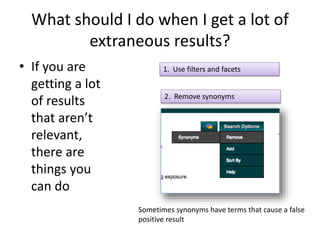
What should I do when I get a lot of 
extraneous results? 
• If you are 
getting a lot 
of results 
that aren’t 
relevant, 
there are 
things you 
can do 
1. Use filters and facets 
2. Remove synonyms 
Sometimes synonyms have terms that cause a false 
positive result
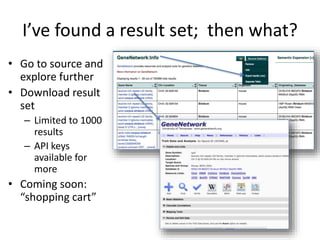
I’ve found a result set; then what? 
• Go to source and 
explore further 
• Download result 
set 
– Limited to 1000 
results 
– API keys 
available for 
more 
• Coming soon: 
“shopping cart”
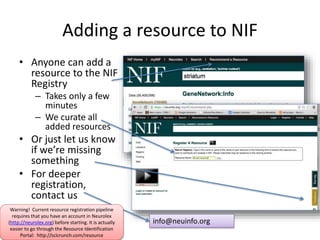
Adding a resource to NIF 
• Anyone can add a 
resource to the NIF 
Registry 
– Takes only a few 
minutes 
– We curate all 
added resources 
• Or just let us know 
if we’re missing 
something 
• For deeper 
registration, 
contact us 
info@neuinfo.org 
Warning! Current resource registration pipeline 
requires that you have an account in Neurolex 
(http://neurolex.org) before starting. It is actually 
easier to go through the Resource Identification 
Portal: http://scicrunch.com/resource

Guided tutorial of the Neuroscience Information Framework

  • 1.
    A guided tutorialof the Neuroscience Information Framework NIF Registry and Data Federation Genetics of Addiction Workshop Jackson Laboratories Aug 28-Sept 1 2014
  • 2.
    This tutorial willgo over... • Finding resources in the NIF Registry*: – A catalog of data, tools, materials, services and organizations available to biomedical researchers – Descriptions, keywords, organisms, resource type • Exploring the NIF Data Federation: – Contents of > 200 databases registered to the NIF Data Federation *Now sometimes referred to as the SciCrunch Registry
  • 3.
    Part 1 EXPLORINGTHE NIF RESOURCE REGISTRY
  • 4.
    Use case: Whatresources are available for the genetics of addiction? • Go to: http://neuinfo.org • Type in: Addiction • Select: Registry: a catalog of tools, materials, services and data
  • 5.
    Explore the Registry • Use facets on the side – Select: Organism – Select: Mouse • To return to browsing, remove filter Optogenetics data set reinforcement learning
  • 6.
    Many ways toexplore the Registry • Select: Table view • Select: Facet graph
  • 7.
    Use facets toexplore resources available
  • 8.
    NIF connects youto resources
  • 9.
    Part 2 EXPLORINGTHE NIF DATA FEDERATION
  • 10.
    Exploring the dataspace • Select: Data • Click: Type of data Looking for a specific database?: -Select: Sort by: alphabetically
  • 11.
    Facet graph workshere too! • Only it’s called: – Category graph at this level • But it works the same way • Select: – Gene – Select: Gemma
  • 12.
    Exploration of NIFData Space: Progressive refinement of search Query Addiction Index Category Source Facet/Filter Registry Data Gene Gemma Gene Organism Geo Expression level Literature Integrated Expression More effective to start with a general query and use the navigation to refine search
  • 13.
    Exploring a source • The same tools work for exploring an individual source • For Gemma, there are ~30,000 results • But they come from 2 sources • Facet graph shows that too
  • 14.
    Additional filters •Sometimes facets aren’t very useful – Description fields – Free text – Poorly controlled vocabulary • NIF provides additional filters
  • 15.
    Filter 1: Addan additional search term • If you are in a source already, the filter will be applied to the source
  • 16.
    Filter 2: Incolumn filter • NIF lets you search within columns
  • 17.
    3. Search filter • If you are getting a lot of results that aren’t relevant, there are things you can do • Filters and facets help • But you can also restrict your search to certain columns, e.g., those containing anatomical structures • In the example shown, the search term “cerebellum” returns results on a gene “zinc finger protein of cerebellum” • Searching for Anatomy:Cerebellum restricts search to columns containing anatomical structures
  • 18.
    Available search filters NIF has designated special categories to help narrow down your search even further. • Anatomy (Anatomy:"pulvinar nucleus") • Cell (Cell:purkinje) • Disease (Disease:parkinsons) • Molecule (Molecule:grm1) • Organism (Organism:mouse) • Phenotype (Phenotype:"increased expression") • Protocol (Protocol:immunohistochemistry) • To use these categories, just place the category first, followed by a ":" then what you want to look for in that category.
  • 19.
    What should Ido when I get a lot of extraneous results? • If you are getting a lot of results that aren’t relevant, there are things you can do 1. Use filters and facets 2. Remove synonyms Sometimes synonyms have terms that cause a false positive result
  • 20.
    I’ve found aresult set; then what? • Go to source and explore further • Download result set – Limited to 1000 results – API keys available for more • Coming soon: “shopping cart”
  • 21.
    Adding a resourceto NIF • Anyone can add a resource to the NIF Registry – Takes only a few minutes – We curate all added resources • Or just let us know if we’re missing something • For deeper registration, contact us info@neuinfo.org Warning! Current resource registration pipeline requires that you have an account in Neurolex (http://neurolex.org) before starting. It is actually easier to go through the Resource Identification Portal: http://scicrunch.com/resource