A desktop application for TwitterUsing TweetDeck
What is TweetDeck?A desktop application to manage more than one Twitter accountAlso can be used for Facebook, LinkedIn, Google Buzz
Why use it?For employees who have personal Twitter accounts, TweetDeck makes it easy to switch from one account to the other (or even use both simultaneously)You can see 3 important panels at once:TimelineRepliesDirect MessagesEasier to manage friends and followers
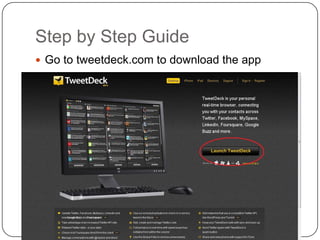
Step by Step GuideGo to tweetdeck.com to download the app
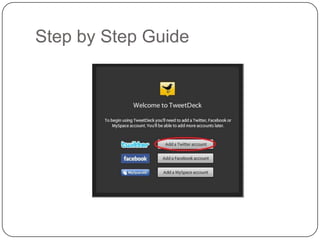
Step by Step Guide
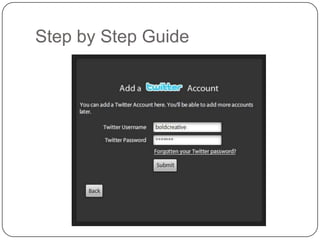
Step by Step Guide
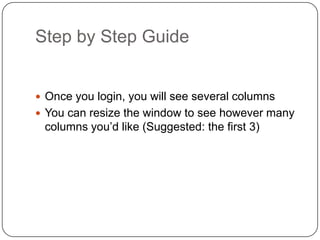
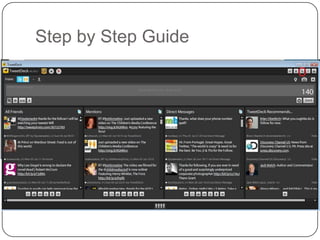
Step by Step GuideOnce you login, you will see several columnsYou can resize the window to see however many columns you’d like (Suggested: the first 3)
Step by Step GuideNext, go to “Settings” on the toolbar at the top right…
Step by Step Guide
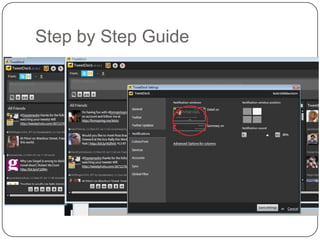
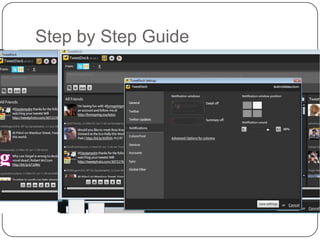
Step by Step GuideNext, go to “Settings” on the toolbar at the top right…And set your “Notifications” off so you won’t get an annoying popup on your screen ever few seconds!
Step by Step Guide
Step by Step Guide
Step by Step Guide	You can use the same “Settings” panel to change things like sound notifications, the color of TweetDeck, etc.
Step by Step Guide: Columns	What are the different columns for?
Step by Step Guide: Columns	The first column is your Friends’ TimelineIt shows a live update of everyone’s latest tweets
Step by Step Guide: Columns	The second column is called “Mentions”It is useful if you want to see what people are replying @ you(Note:  A “reply” is like a message sent to you through Twitter. It looks like this: @boldcreative)
Step by Step Guide: Columns	The third column is called “Direct Messages”In contrast to Replies, Direct Messages (or DMs) are private messages sent to youUsing DMs is useful if you don’t want to flood your own Twitter with replies to specific people
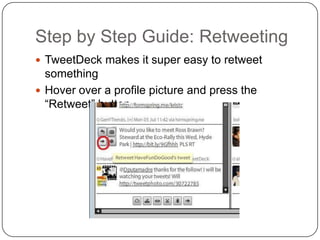
Step by Step Guide: RetweetingTweetDeck makes it super easy to retweet somethingHover over a profile picture and press the “Retweet” button…
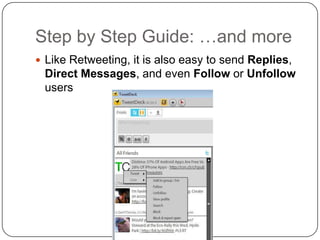
Step by Step Guide: …and moreLike Retweeting, it is also easy to send Replies, Direct Messages, and even Follow or Unfollow users
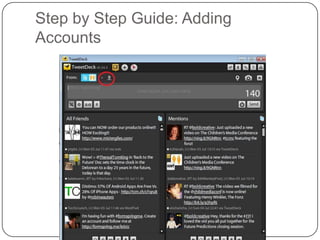
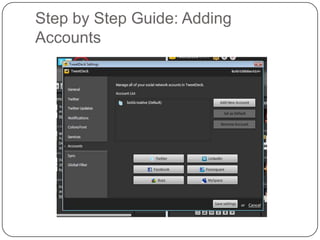
Step by Step Guide: Adding AccountsNext, you might want to add your own Twitter account (or Facebook…)This allows you to switch back and forth between accounts seamlesslyTo do so, click the plus “+” sign at the top next to your Twitter profile picture…
Step by Step Guide: Adding Accounts
Step by Step Guide: Adding AccountsAnd that’s it! You should now be able to select which account(s) you’d like to update from
ConclusionTweetDeck is simple and easy to use especially if you want to update every now and then and juggle more than one Twitter accountMost importantly it facilitates engagement with users and helps monitor that engagement

Guide to Using TweetDeck

  • 1.
    A desktop applicationfor TwitterUsing TweetDeck
  • 2.
    What is TweetDeck?Adesktop application to manage more than one Twitter accountAlso can be used for Facebook, LinkedIn, Google Buzz
  • 3.
    Why use it?Foremployees who have personal Twitter accounts, TweetDeck makes it easy to switch from one account to the other (or even use both simultaneously)You can see 3 important panels at once:TimelineRepliesDirect MessagesEasier to manage friends and followers
  • 4.
    Step by StepGuideGo to tweetdeck.com to download the app
  • 5.
  • 6.
  • 7.
    Step by StepGuideOnce you login, you will see several columnsYou can resize the window to see however many columns you’d like (Suggested: the first 3)
  • 8.
    Step by StepGuideNext, go to “Settings” on the toolbar at the top right…
  • 9.
  • 10.
    Step by StepGuideNext, go to “Settings” on the toolbar at the top right…And set your “Notifications” off so you won’t get an annoying popup on your screen ever few seconds!
  • 11.
  • 12.
  • 13.
    Step by StepGuide You can use the same “Settings” panel to change things like sound notifications, the color of TweetDeck, etc.
  • 14.
    Step by StepGuide: Columns What are the different columns for?
  • 15.
    Step by StepGuide: Columns The first column is your Friends’ TimelineIt shows a live update of everyone’s latest tweets
  • 16.
    Step by StepGuide: Columns The second column is called “Mentions”It is useful if you want to see what people are replying @ you(Note: A “reply” is like a message sent to you through Twitter. It looks like this: @boldcreative)
  • 17.
    Step by StepGuide: Columns The third column is called “Direct Messages”In contrast to Replies, Direct Messages (or DMs) are private messages sent to youUsing DMs is useful if you don’t want to flood your own Twitter with replies to specific people
  • 18.
    Step by StepGuide: RetweetingTweetDeck makes it super easy to retweet somethingHover over a profile picture and press the “Retweet” button…
  • 19.
    Step by StepGuide: …and moreLike Retweeting, it is also easy to send Replies, Direct Messages, and even Follow or Unfollow users
  • 20.
    Step by StepGuide: Adding AccountsNext, you might want to add your own Twitter account (or Facebook…)This allows you to switch back and forth between accounts seamlesslyTo do so, click the plus “+” sign at the top next to your Twitter profile picture…
  • 21.
    Step by StepGuide: Adding Accounts
  • 22.
    Step by StepGuide: Adding Accounts
  • 23.
    Step by StepGuide: Adding AccountsAnd that’s it! You should now be able to select which account(s) you’d like to update from
  • 24.
    ConclusionTweetDeck is simpleand easy to use especially if you want to update every now and then and juggle more than one Twitter accountMost importantly it facilitates engagement with users and helps monitor that engagement