IF THIS THEN THAT
How to use IFTTT?
open your browser
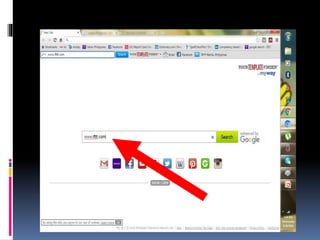
type in
www.ifttt.com
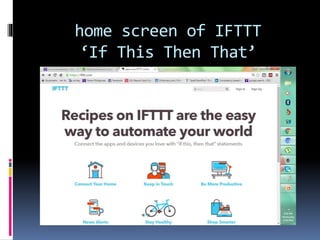
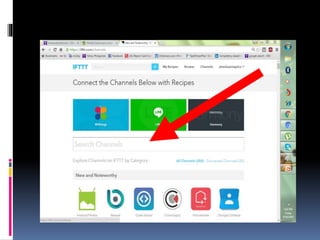
home screen of IFTTT
‘If This Then That’
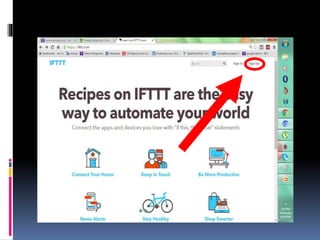
click ‘SIGN UP’ to
create an account
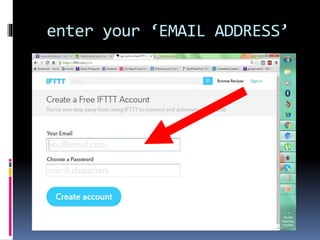
enter your ‘EMAIL ADDRESS’
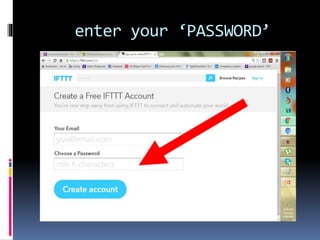
enter your ‘PASSWORD’
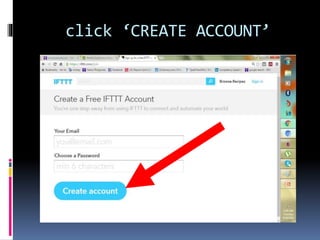
click ‘CREATE ACCOUNT’
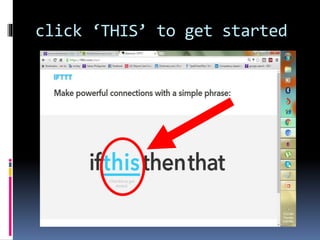
click ‘THIS’ to get started
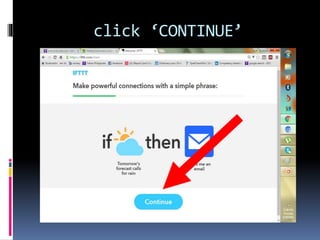
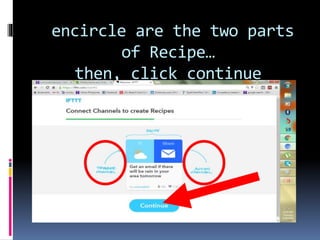
click ‘CONTINUE’
encircle are the two parts
of Recipe…
then, click continue
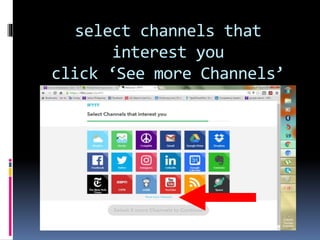
select channels that
interest you
click ‘See more Channels’
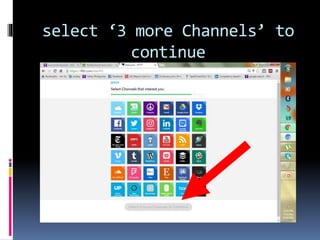
select ‘3 more Channels’ to
continue
by the way RECIPE is
your formula that
you use to connect…
emails, your gadgets
(laptop, iPhones,
android phones) and
more…
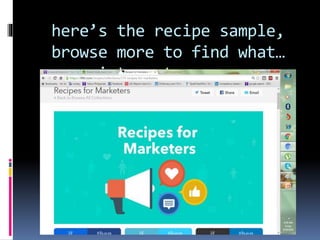
here’s the recipe sample,
browse more to find what…
interest you...
interest you more in
collections of
‘RECIPES’
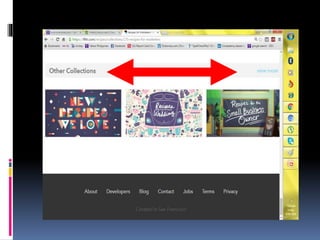
scroll down below
the collections to
see the…
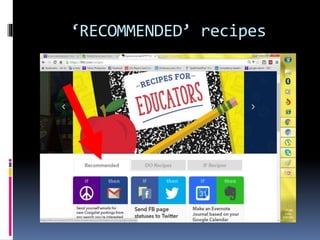
‘RECOMMENDED’ recipes
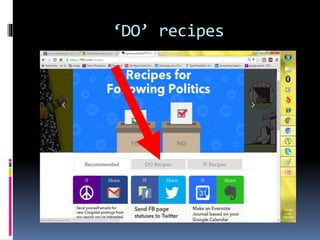
‘DO’ recipes
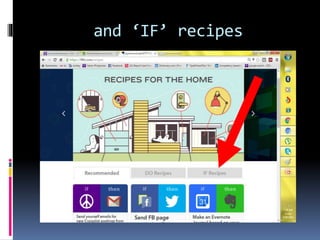
and ‘IF’ recipes
where you can find a
wide collections of
recipe
on the other hand,
scroll up…
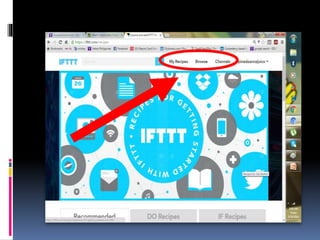
and you will see
helpful icons for
you
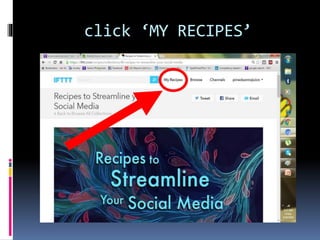
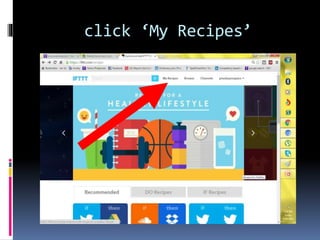
click ‘MY RECIPES’
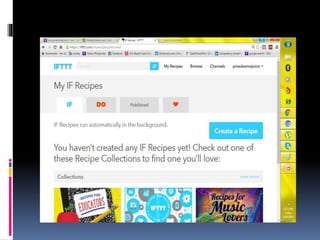
where you can see
all your created
recipes
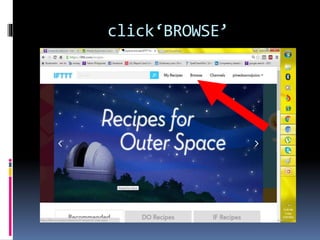
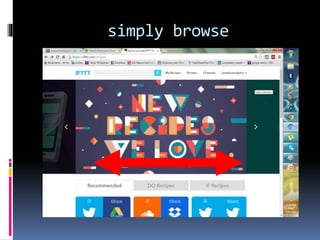
click‘BROWSE’
then search for
‘PUBLISHED RECIPES’
from collections
simply browse
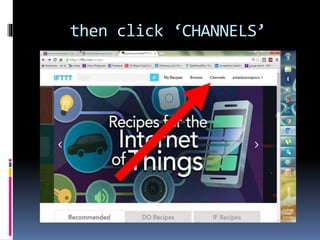
then click ‘CHANNELS’
where you can create
connections between
channels
now let’s start
creating a recipe
click ‘My Recipes’
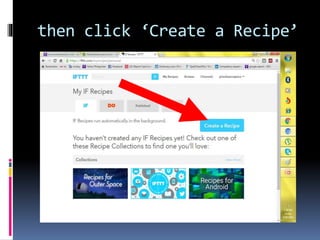
then click ‘Create a Recipe’
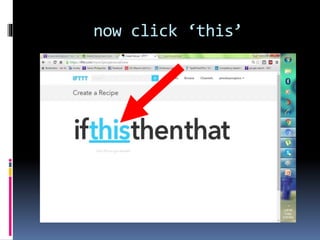
now click ‘this’
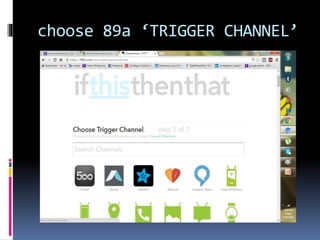
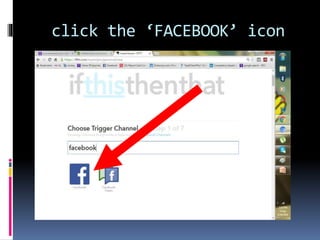
choose 89a ‘TRIGGER CHANNEL’
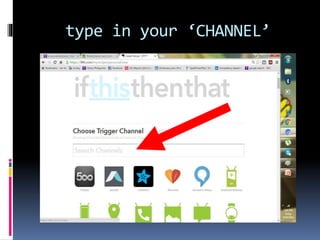
type in your ‘CHANNEL’
or scroll down to
search
for this will use
‘FACEBOOK’ as our
trigger channel
click the ‘FACEBOOK’ icon
when connecting to
IFTTT…
from a network to
another network you
will be asked to...
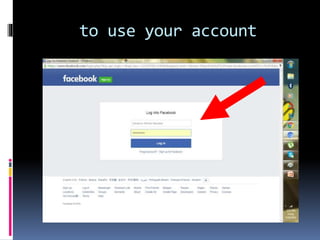
log in first to your
network account to
give IFTTT an
authorization
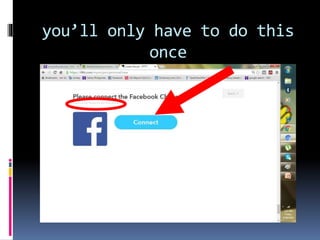
you’ll only have to do this
once
to use your account
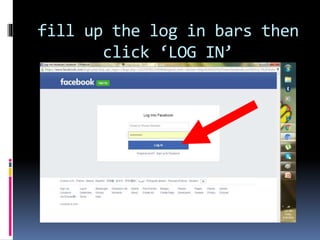
fill up the log in bars then
click ‘LOG IN’
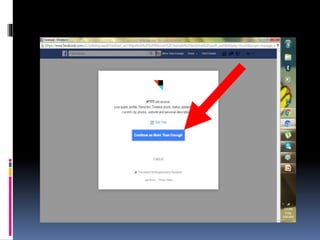
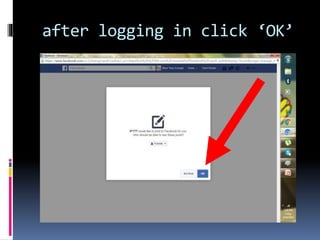
after logging in click ‘OK’
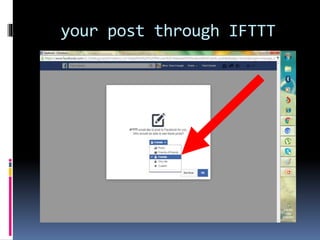
now choose to whom
you want to ‘SHARE’
your post through IFTTT
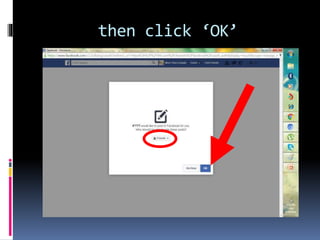
then click ‘OK’
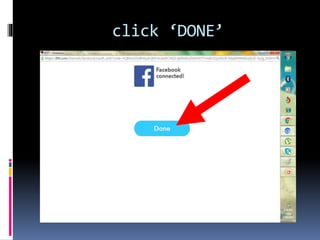
click ‘DONE’
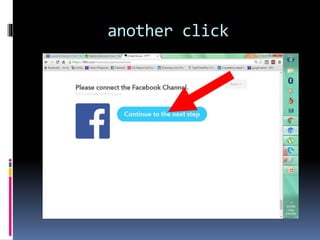
another click
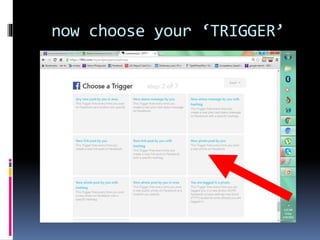
now choose your ‘TRIGGER’
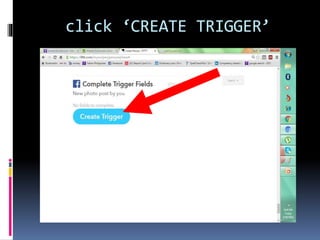
click ‘CREATE TRIGGER’
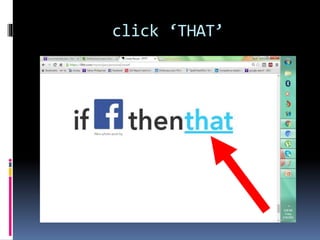
click ‘THAT’
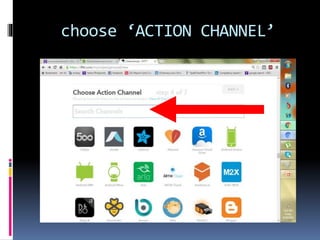
choose ‘ACTION CHANNEL’
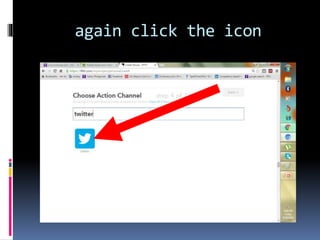
again click the icon
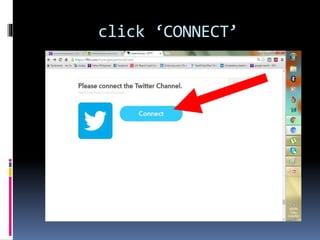
click ‘CONNECT’
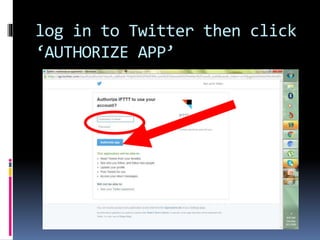
log in to Twitter then click
‘AUTHORIZE APP’
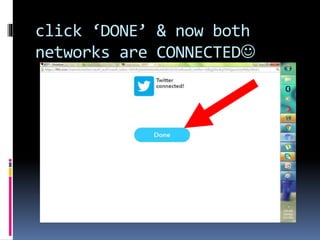
click ‘DONE’ & now both
networks are CONNECTED
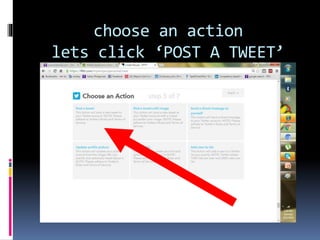
choose an action
lets click ‘POST A TWEET’
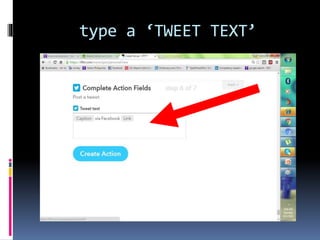
type a ‘TWEET TEXT’
which IFTTT is going
to post to Twitter
every time you have
a ‘NEW PHOTO POST’
update
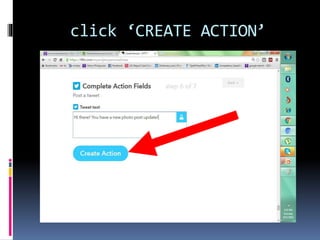
click ‘CREATE ACTION’
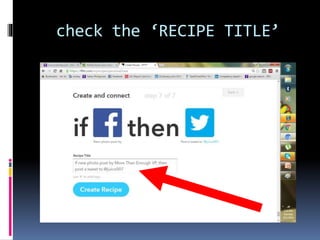
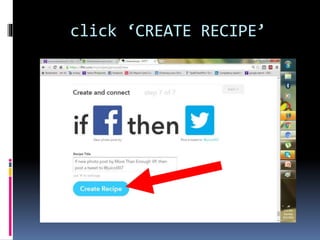
check the ‘RECIPE TITLE’
click ‘CREATE RECIPE’
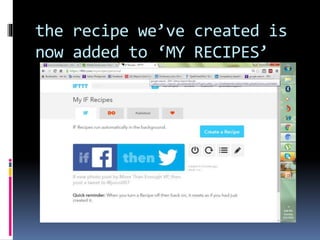
the recipe we’ve created is
now added to ‘MY RECIPES’
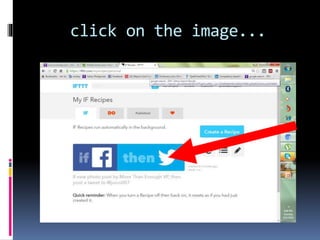
click on the image...
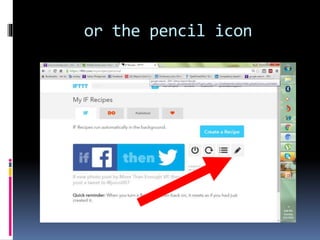
or the pencil icon
to edit or delete
the recipe
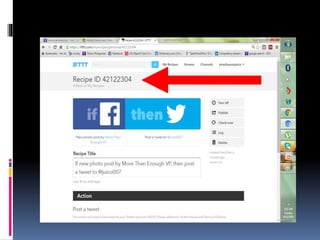
here you can see the
‘RECIPE ID’
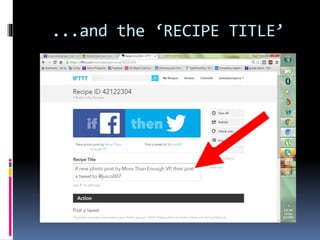
...and the ‘RECIPE TITLE’
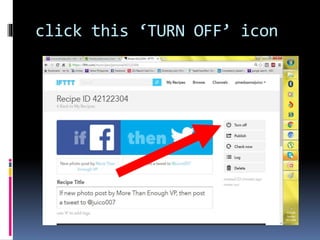
click this ‘TURN OFF’ icon
…if you decided to
stop using this
recipe
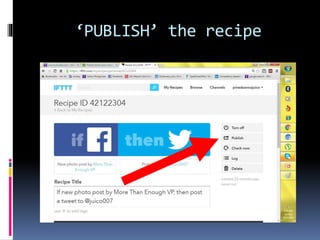
‘PUBLISH’ the recipe
…to put into
‘PUBLIC’ and can be
use by others
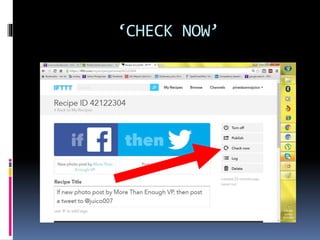
‘CHECK NOW’
…to check your
recipe
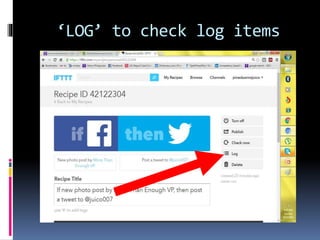
‘LOG’ to check log items
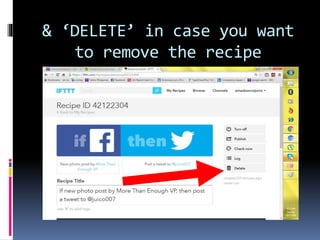
& ‘DELETE’ in case you want
to remove the recipe
scroll down to see
your ‘MESSAGE BOX’
…where you have type
the ‘TWEET TEXT’
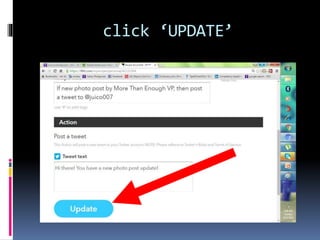
click ‘UPDATE’
…you want to change
or revised your
tweet text
now let’s try a
photo post to
Facebook
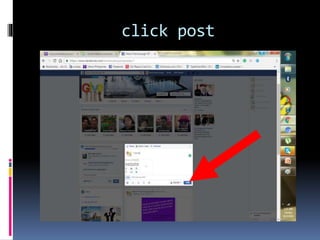
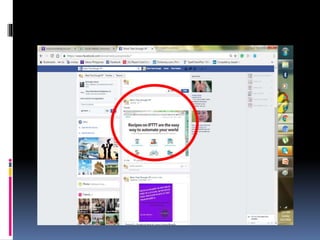
click post
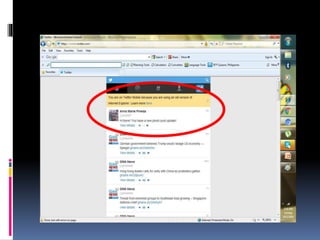
and then, let’s
‘CHECK’ my Twitter
account
see right after I’ve
posted to my
Facebook, the tweet
text was sent to my
Twitter account
“Ultimate automation
will make our modern
industry as primitive &
outdated as a stone age
man looks to us today.”
ALBERT EINSTEIN

If this then that