Objectives Install and configure a Web server Install and configure PHP Install and configure MySQL
Understanding Binary and Source Code Installations Binary format  (or  binaries ) refer to compiled files, such as executable installation programs Source code  is the original programming code in which an application was written Source code must be  compiled , or processed, and assembled into an executable format before it is used Compiled programs only need to be recompiled when their code changes
Installing and Configuring a Web Server Apache is the most popular Web server software used on the Internet Microsoft IIS for Windows is the second most popular server software.  In Windows, a  service  refers to a program that performs a specific function to support other programs
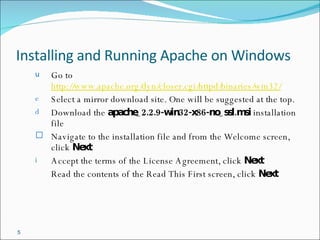
Installing and Running Apache on Windows Go to  http://www.apache.org/dyn/closer.cgi/httpd/binaries/win32/ Select a mirror download site. One will be suggested at the top. Download the  apache_2.2.9-win32-x86-no_ssl.msi  installation file  Navigate to the installation file and from the Welcome screen, click  Next Accept the terms of the License Agreement, click  Next Read the contents of the Read This First screen, click  Next
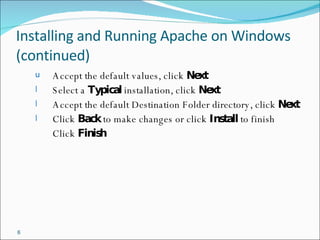
Installing and Running Apache on Windows (continued) Accept the default values, click  Next Select a  Typical  installation, click  Next Accept the default Destination Folder directory, click  Next Click  Back  to make changes or click  Install  to finish Click  Finish
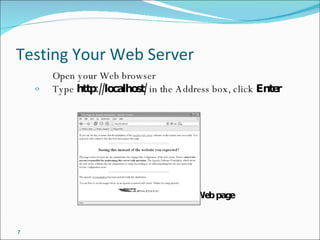
Testing Your Web Server Open your Web browser Type  http://localhost/  in the Address box, click  Enter       Figure 2-2  Apache’s default Web page
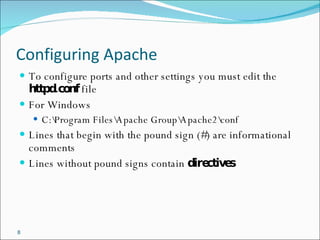
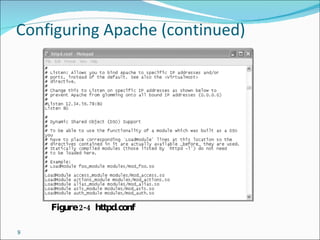
Configuring Apache To configure ports and other settings you must edit the  httpd.conf  file For Windows C:\Program Files\Apache Group\Apache2\conf Lines that begin with the pound sign (#) are informational comments Lines without pound signs contain  directives
Configuring Apache (continued) Figure 2-4  httpd.conf
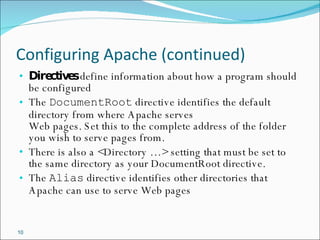
Configuring Apache (continued) Directives  define information about how a program should be configured The  DocumentRoot  directive identifies the default directory from where Apache serves  Web pages. Set this to the complete address of the folder you wish to serve pages from. There is also a <Directory …> setting that must be set to the same directory as your DocumentRoot directive. The  Alias  directive identifies other directories that Apache can use to serve Web pages
Installing PHP Windows Running Apache Go to  http://us.php.net/get/php-5.2.5-Win32.zip/from/a/mirror Select a mirror to download from. Save the file to your computer. Once downloaded, navigate to the installation file and from the Welcome screen, click  Next In the License Agreement screen, click  I Agree In the Installation Type screen, select  Standard , then click  Next Accept the default destination location, click  Next
Installing PHP Windows Running Apache (continued) In the Mail Configuration screen, accept the default values of  localhost , click  Next In the   Server Type screen, select the type of Web server that you want to use with PHP, click  Next In the Start Installation screen, click  Next  to begin installation Click  OK  to close the dialog box of the Web server you selected
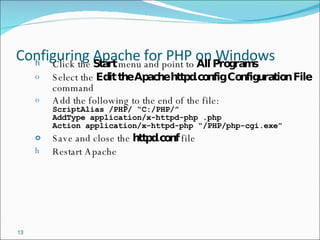
Configuring Apache for PHP on Windows Click the  Start  menu and point to  All Programs Select the  Edit the Apache httpd.config   Configuration File  command Add the following to the end of the file: ScriptAlias /PHP/ “C:/PHP/” AddType application/x-httpd-php .php Action application/x-httpd-php “/PHP/php-cgi.exe” Save and close the  httpd.conf  file Restart Apache
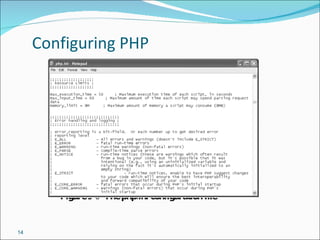
Configuring PHP   Figure 2-6  The php.ini configuration file

Guide

  • 1.
  • 2.
    Objectives Install andconfigure a Web server Install and configure PHP Install and configure MySQL
  • 3.
    Understanding Binary andSource Code Installations Binary format (or binaries ) refer to compiled files, such as executable installation programs Source code is the original programming code in which an application was written Source code must be compiled , or processed, and assembled into an executable format before it is used Compiled programs only need to be recompiled when their code changes
  • 4.
    Installing and Configuringa Web Server Apache is the most popular Web server software used on the Internet Microsoft IIS for Windows is the second most popular server software. In Windows, a service refers to a program that performs a specific function to support other programs
  • 5.
    Installing and RunningApache on Windows Go to http://www.apache.org/dyn/closer.cgi/httpd/binaries/win32/ Select a mirror download site. One will be suggested at the top. Download the apache_2.2.9-win32-x86-no_ssl.msi installation file Navigate to the installation file and from the Welcome screen, click Next Accept the terms of the License Agreement, click Next Read the contents of the Read This First screen, click Next
  • 6.
    Installing and RunningApache on Windows (continued) Accept the default values, click Next Select a Typical installation, click Next Accept the default Destination Folder directory, click Next Click Back to make changes or click Install to finish Click Finish
  • 7.
    Testing Your WebServer Open your Web browser Type http://localhost/ in the Address box, click Enter Figure 2-2 Apache’s default Web page
  • 8.
    Configuring Apache Toconfigure ports and other settings you must edit the httpd.conf file For Windows C:\Program Files\Apache Group\Apache2\conf Lines that begin with the pound sign (#) are informational comments Lines without pound signs contain directives
  • 9.
    Configuring Apache (continued)Figure 2-4 httpd.conf
  • 10.
    Configuring Apache (continued)Directives define information about how a program should be configured The DocumentRoot directive identifies the default directory from where Apache serves Web pages. Set this to the complete address of the folder you wish to serve pages from. There is also a <Directory …> setting that must be set to the same directory as your DocumentRoot directive. The Alias directive identifies other directories that Apache can use to serve Web pages
  • 11.
    Installing PHP WindowsRunning Apache Go to http://us.php.net/get/php-5.2.5-Win32.zip/from/a/mirror Select a mirror to download from. Save the file to your computer. Once downloaded, navigate to the installation file and from the Welcome screen, click Next In the License Agreement screen, click I Agree In the Installation Type screen, select Standard , then click Next Accept the default destination location, click Next
  • 12.
    Installing PHP WindowsRunning Apache (continued) In the Mail Configuration screen, accept the default values of localhost , click Next In the Server Type screen, select the type of Web server that you want to use with PHP, click Next In the Start Installation screen, click Next to begin installation Click OK to close the dialog box of the Web server you selected
  • 13.
    Configuring Apache forPHP on Windows Click the Start menu and point to All Programs Select the Edit the Apache httpd.config Configuration File command Add the following to the end of the file: ScriptAlias /PHP/ “C:/PHP/” AddType application/x-httpd-php .php Action application/x-httpd-php “/PHP/php-cgi.exe” Save and close the httpd.conf file Restart Apache
  • 14.
    Configuring PHP Figure 2-6 The php.ini configuration file