



GETTING	
  STARTED	
  WITH	
  
Google+	
  
Hangouts	
  
compliments	
  of	
  
What	
  is	
  a	
  Google+	
  Hangout?	
  
What	
  Does	
  it	
  Require?	
  
•  All	
  you	
  need	
  is	
  a	
  camera	
  
(if	
  you	
  want	
  to	
  be	
  seen)	
  
and	
  a	
  microphone.	
  	
  
•  It’s	
  easy	
  enough	
  for	
  even	
  
the	
  least	
  tech-­‐savvy	
  
person	
  to	
  figure	
  out.	
  	
  
What	
  Are	
  the	
  Benefits	
  of	
  Hangouts?	
  
•  Allows	
  you	
  to	
  seamlessly	
  start	
  a	
  video	
  chat	
  with	
  
up	
  to	
  10	
  different	
  people	
  and	
  text	
  chats	
  with	
  
MANY	
  more	
  at	
  a	
  Nme.	
  	
  
•  Enables	
  live	
  phone	
  calls	
  from	
  your	
  computer.	
  
Calls	
  within	
  the	
  United	
  States	
  and	
  Canada	
  are	
  
free	
  and	
  other	
  countries	
  are	
  at	
  an	
  
incredibly	
  low	
  rate.	
  	
  
•  Lets	
  you	
  broadcast	
  “Hangouts	
  on	
  Air,”	
  a	
  diverse	
  
public	
  video	
  sharing	
  hub,	
  to	
  both	
  watch	
  and	
  
produce	
  content	
  from,	
  or	
  for,	
  other	
  users.	
  And	
  it	
  
all	
  ends	
  up	
  right	
  on	
  YouTube!	
  	
  
What	
  Are	
  the	
  Benefits	
  of	
  Hangouts?	
  
•  Works	
  over	
  a	
  variety	
  of	
  
formats	
  and	
  easily	
  
combines	
  all	
  of	
  your	
  
contacts’	
  informaNon.	
  	
  
•  FuncNons	
  on	
  Android/
iPhone	
  phones	
  &	
  
tablets	
  	
  
Ge:ng	
  Started	
  with	
  Hangouts	
  
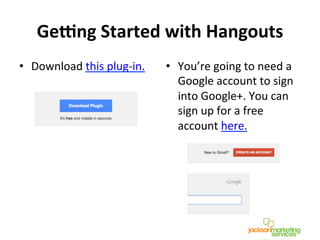
•  Download	
  this	
  plug-­‐in.	


•  You’re	
  going	
  to	
  need	
  a	
  
Google	
  account	
  to	
  sign	
  
into	
  Google+.	
  You	
  can	
  
sign	
  up	
  for	
  a	
  free	
  
account	
  here.	


!
!
Ge:ng	
  Started	
  with	
  Hangouts	
  
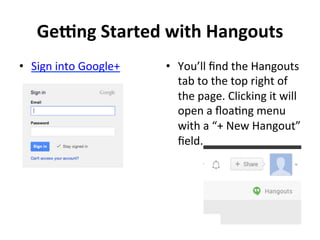
•  Sign	
  into	
  Google+ 	
  	
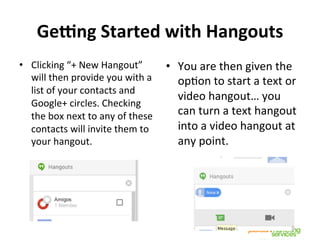
   •  You’ll	
  find	
  the	
  Hangouts	
  
tab	
  to	
  the	
  top	
  right	
  of	
  
the	
  page.	
  Clicking	
  it	
  will	
  
open	
  a	
  floaNng	
  menu	
  
with	
  a	
  “+	
  New	
  Hangout”	
  
field.	
  
!
!
Ge:ng	
  Started	
  with	
  Hangouts	
  
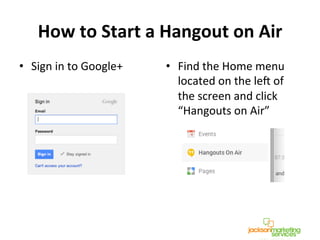
•  Clicking	
  “+	
  New	
  Hangout”	
  
will	
  then	
  provide	
  you	
  with	
  a	
  
list	
  of	
  your	
  contacts	
  and	
  
Google+	
  circles.	
  Checking	
  
the	
  box	
  next	
  to	
  any	
  of	
  these	
  
contacts	
  will	
  invite	
  them	
  to	
  
your	
  hangout.	
  
•  You	
  are	
  then	
  given	
  the	
  
opNon	
  to	
  start	
  a	
  text	
  or	
  
video	
  hangout…	
  you	
  
can	
  turn	
  a	
  text	
  hangout	
  
into	
  a	
  video	
  hangout	
  at	
  
any	
  point.	
  
!
!
How	
  to	
  Start	
  a	
  Hangout	
  on	
  Air	
  	
  
•  Sign	
  in	
  to	
  Google+	
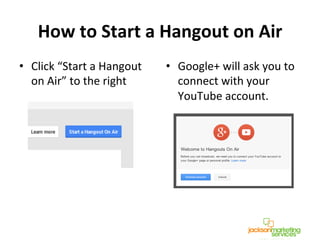
   •  Find	
  the	
  Home	
  menu	
  
located	
  on	
  the	
  le^	
  of	
  
the	
  screen	
  and	
  click	
  
“Hangouts	
  on	
  Air”	
  
!
!
How	
  to	
  Start	
  a	
  Hangout	
  on	
  Air	
  	
  
•  Click	
  “Start	
  a	
  Hangout	
  
on	
  Air”	
  to	
  the	
  right	
  
•  Google+	
  will	
  ask	
  you	
  to	
  
connect	
  with	
  your	
  
YouTube	
  account.	
  
!
How	
  to	
  Start	
  a	
  Hangout	
  on	
  Air	
  	
  
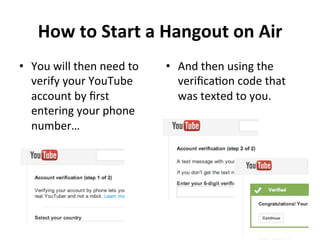
•  You	
  will	
  then	
  need	
  to	
  
verify	
  your	
  YouTube	
  
account	
  by	
  first	
  
entering	
  your	
  phone	
  
number…	
  
•  And	
  then	
  using	
  the	
  
verificaNon	
  code	
  that	
  
was	
  texted	
  to	
  you.	
  
!
!
!
How	
  to	
  Start	
  a	
  Hangout	
  on	
  Air	
  	
  
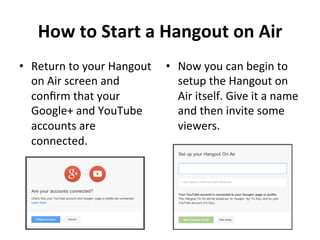
•  Return	
  to	
  your	
  Hangout	
  
on	
  Air	
  screen	
  and	
  
confirm	
  that	
  your	
  
Google+	
  and	
  YouTube	
  
accounts	
  are	
  
connected.	
  
•  Now	
  you	
  can	
  begin	
  to	
  
setup	
  the	
  Hangout	
  on	
  
Air	
  itself.	
  Give	
  it	
  a	
  name	
  
and	
  then	
  invite	
  some	
  
viewers.	
  
! !
How	
  to	
  Start	
  a	
  Hangout	
  on	
  Air	
  	
  
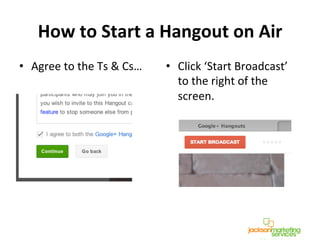
•  Agree	
  to	
  the	
  Ts	
  &	
  Cs…	
  	
   •  Click	
  ‘Start	
  Broadcast’	
  
to	
  the	
  right	
  of	
  the	
  
screen.	
  
!
!
How	
  to	
  Start	
  a	
  Hangout	
  on	
  Air	
  	
  
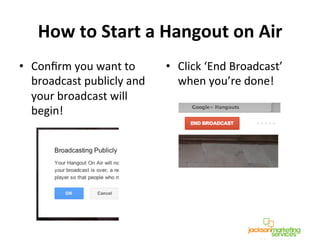
•  Confirm	
  you	
  want	
  to	
  
broadcast	
  publicly	
  and	
  
your	
  broadcast	
  will	
  
begin!	
  
•  Click	
  ‘End	
  Broadcast’	
  
when	
  you’re	
  done!	
  
!
!
Post	
  Broadcast	
  
•  Once	
  you’re	
  done,	
  your	
  broadcast	
  will	
  
automaNcally	
  be	
  converted	
  to	
  a	
  video	
  on	
  
YouTube	
  that	
  people	
  can	
  watch	
  and	
  comment	
  
on	
  at	
  any	
  Nme.	
  
•  You	
  can	
  also	
  use	
  YouTube’s	
  video	
  editor	
  to	
  
edit	
  your	
  Hangouts	
  on	
  Air	
  video.	
  	
  
•  You	
  can	
  even	
  download	
  it,	
  and	
  use	
  your	
  own	
  
ediNng	
  so^ware.	
  
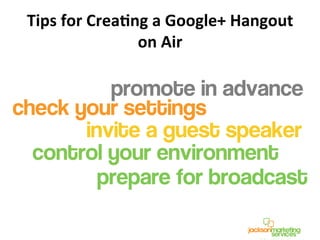
Tips	
  for	
  CreaCng	
  a	
  Google+	
  Hangout	
  
on	
  Air	
  
Other	
  Pointers	
  
•  Have	
  a	
  friend	
  or	
  colleague	
  try	
  hangouts	
  with	
  
you	
  first	
  so	
  you	
  can	
  get	
  the	
  hang	
  of	
  things.	
  
•  If	
  you’re	
  using	
  a	
  computer,	
  your	
  conversaNon	
  
could	
  be	
  heard	
  by	
  everyone	
  around	
  you.	
  Don’t	
  
forget	
  headphones!	
  
Other	
  Pointers	
  
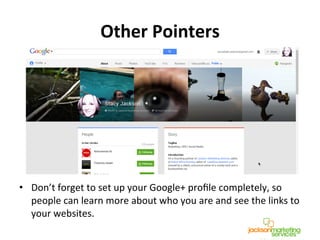
•  Don’t	
  forget	
  to	
  set	
  up	
  your	
  Google+	
  profile	
  completely,	
  so	
  
people	
  can	
  learn	
  more	
  about	
  who	
  you	
  are	
  and	
  see	
  the	
  links	
  to	
  
your	
  websites.	
  
•  If	
  you	
  join	
  a	
  hangout	
  with	
  a	
  
number	
  of	
  people	
  already	
  
present	
  you	
  will	
  enter	
  
muted…	
  don’t	
  forget	
  to	
  
unmute	
  so	
  people	
  can	
  hear	
  
you!	
  
Other	
  Pointers	
  
Other	
  Pointers	
  
•  Add	
  some	
  creaNve	
  apps	
  and	
  plug-­‐ins	
  to	
  hangouts	
  
to	
  make	
  the	
  experience	
  even	
  becer.	
  	
  
•  Popular	
  opNons	
  include…	
  
–  Screenshare	
  –	
  With	
  Screenshare,	
  you	
  can	
  share	
  
exactly	
  what	
  you	
  see	
  on	
  your	
  screen.	
  This	
  can	
  be	
  
fantasNc	
  for	
  long-­‐distance	
  training.	
  
–  Symphonical	
  –	
  Symphonical	
  is	
  a	
  project	
  management	
  
add-­‐on	
  that	
  allows	
  you	
  to	
  assign	
  tasks	
  to	
  hangout	
  
members	
  and	
  create	
  offline	
  project	
  boards.	
  
–  Cacoo	
  –	
  The	
  Cacoo	
  add-­‐on	
  gives	
  you	
  the	
  capability	
  to	
  
create	
  collaboraNve	
  diagrams	
  with	
  other	
  hangout	
  
members.	
  
Other	
  Pointers	
  
•  The	
  “Customize	
  New	
  Requests”	
  bucon	
  in	
  the	
  
drop	
  down	
  menu	
  of	
  Hangouts	
  allows	
  you	
  to	
  
alter	
  your	
  preferences	
  as	
  to	
  whom	
  gets	
  in	
  
touch	
  with	
  you	
  and	
  how.	
  	
  
•  If	
  you	
  make	
  sure	
  most	
  groups	
  are	
  set	
  to	
  “hang	
  
out	
  with	
  you”	
  as	
  opposed	
  to	
  “send	
  request,”	
  
you’ll	
  get	
  a	
  lot	
  less	
  noNficaNons.	
  
Take	
  Advantage	
  of	
  the	
  Bells	
  &	
  
Whistles	
  
•  Chat	
  –	
  Bring	
  up	
  the	
  chat	
  bar	
  to	
  the	
  right	
  so	
  
you	
  can	
  conNnue	
  to	
  communicate	
  via	
  text	
  as	
  
well	
  as	
  video	
  at	
  the	
  same	
  Nme.	
  
•  Screenshare	
  –	
  This	
  is	
  where	
  you	
  can	
  show	
  
whoever	
  else	
  is	
  present	
  what	
  you’re	
  working	
  
on.	
  
•  Capture	
  –	
  Take	
  a	
  snapshot	
  of	
  the	
  video	
  chat.	
  
•  YouTube	
  –	
  Create	
  a	
  ‘mini	
  YouTube	
  channel’	
  
and	
  watch	
  videos	
  with	
  those	
  present.	
  
Take	
  Advantage	
  of	
  the	
  Bells	
  &	
  
Whistles	
  
•  Google	
  effects	
  –	
  This	
  licle	
  extra	
  can	
  add	
  hours	
  
of	
  fun…	
  put	
  a	
  Nara	
  on	
  or	
  a	
  beard	
  and	
  watch	
  it	
  
sNck	
  to	
  you.	
  
Now	
  You’re	
  Ready!	
  
•  Start	
  test	
  driving	
  
Hangouts	
  today.	
  
•  Download	
  our	
  Hangouts	
  
and	
  Hangouts	
  on	
  Air	
  
checklists	
  to	
  help	
  you	
  
prep!	
  
About	
  Jackson	
  MarkeCng	
  Services	
  
Jackson	
  MarkeCng	
  Services	
  helps	
  clients	
  improve	
  reach	
  and	
  
increase	
  leads	
  &	
  sales	
  through	
  .	
  .	
  .	


•  Social	
  media	
  planning	
  &	
  implementaNon	
  
•  Social	
  sales	
  support	
  
•  Social	
  media	
  training	
  
•  Content	
  planning	
  &	
  creaNon	
  
•  SEO	
  (Search	
  Engine	
  OpNmizaNon)	
  
•  Google	
  Adwords/Microso^	
  Adcenter	
  
•  Email	
  markeNng	
  
Contact	
  Us	
  for	
  a	
  
ConsultaNon!	
  

Getting Started with Google+ Hangouts

  • 1.
    GETTING  STARTED  WITH   Google+   Hangouts   compliments  of  
  • 2.
    What  is  a  Google+  Hangout?  
  • 3.
    What  Does  it  Require?   •  All  you  need  is  a  camera   (if  you  want  to  be  seen)   and  a  microphone.     •  It’s  easy  enough  for  even   the  least  tech-­‐savvy   person  to  figure  out.    
  • 4.
    What  Are  the  Benefits  of  Hangouts?   •  Allows  you  to  seamlessly  start  a  video  chat  with   up  to  10  different  people  and  text  chats  with   MANY  more  at  a  Nme.     •  Enables  live  phone  calls  from  your  computer.   Calls  within  the  United  States  and  Canada  are   free  and  other  countries  are  at  an   incredibly  low  rate.     •  Lets  you  broadcast  “Hangouts  on  Air,”  a  diverse   public  video  sharing  hub,  to  both  watch  and   produce  content  from,  or  for,  other  users.  And  it   all  ends  up  right  on  YouTube!    
  • 5.
    What  Are  the  Benefits  of  Hangouts?   •  Works  over  a  variety  of   formats  and  easily   combines  all  of  your   contacts’  informaNon.     •  FuncNons  on  Android/ iPhone  phones  &   tablets    
  • 6.
    Ge:ng  Started  with  Hangouts   •  Download  this  plug-­‐in.       •  You’re  going  to  need  a   Google  account  to  sign   into  Google+.  You  can   sign  up  for  a  free   account  here.     ! !
  • 7.
    Ge:ng  Started  with  Hangouts   •  Sign  into  Google+     •  You’ll  find  the  Hangouts   tab  to  the  top  right  of   the  page.  Clicking  it  will   open  a  floaNng  menu   with  a  “+  New  Hangout”   field.   ! !
  • 8.
    Ge:ng  Started  with  Hangouts   •  Clicking  “+  New  Hangout”   will  then  provide  you  with  a   list  of  your  contacts  and   Google+  circles.  Checking   the  box  next  to  any  of  these   contacts  will  invite  them  to   your  hangout.   •  You  are  then  given  the   opNon  to  start  a  text  or   video  hangout…  you   can  turn  a  text  hangout   into  a  video  hangout  at   any  point.   ! !
  • 9.
    How  to  Start  a  Hangout  on  Air     •  Sign  in  to  Google+   •  Find  the  Home  menu   located  on  the  le^  of   the  screen  and  click   “Hangouts  on  Air”   ! !
  • 10.
    How  to  Start  a  Hangout  on  Air     •  Click  “Start  a  Hangout   on  Air”  to  the  right   •  Google+  will  ask  you  to   connect  with  your   YouTube  account.   !
  • 11.
    How  to  Start  a  Hangout  on  Air     •  You  will  then  need  to   verify  your  YouTube   account  by  first   entering  your  phone   number…   •  And  then  using  the   verificaNon  code  that   was  texted  to  you.   ! ! !
  • 12.
    How  to  Start  a  Hangout  on  Air     •  Return  to  your  Hangout   on  Air  screen  and   confirm  that  your   Google+  and  YouTube   accounts  are   connected.   •  Now  you  can  begin  to   setup  the  Hangout  on   Air  itself.  Give  it  a  name   and  then  invite  some   viewers.   ! !
  • 13.
    How  to  Start  a  Hangout  on  Air     •  Agree  to  the  Ts  &  Cs…     •  Click  ‘Start  Broadcast’   to  the  right  of  the   screen.   ! !
  • 14.
    How  to  Start  a  Hangout  on  Air     •  Confirm  you  want  to   broadcast  publicly  and   your  broadcast  will   begin!   •  Click  ‘End  Broadcast’   when  you’re  done!   ! !
  • 15.
    Post  Broadcast   • Once  you’re  done,  your  broadcast  will   automaNcally  be  converted  to  a  video  on   YouTube  that  people  can  watch  and  comment   on  at  any  Nme.   •  You  can  also  use  YouTube’s  video  editor  to   edit  your  Hangouts  on  Air  video.     •  You  can  even  download  it,  and  use  your  own   ediNng  so^ware.  
  • 16.
    Tips  for  CreaCng  a  Google+  Hangout   on  Air  
  • 17.
    Other  Pointers   • Have  a  friend  or  colleague  try  hangouts  with   you  first  so  you  can  get  the  hang  of  things.   •  If  you’re  using  a  computer,  your  conversaNon   could  be  heard  by  everyone  around  you.  Don’t   forget  headphones!  
  • 18.
    Other  Pointers   • Don’t  forget  to  set  up  your  Google+  profile  completely,  so   people  can  learn  more  about  who  you  are  and  see  the  links  to   your  websites.  
  • 19.
    •  If  you  join  a  hangout  with  a   number  of  people  already   present  you  will  enter   muted…  don’t  forget  to   unmute  so  people  can  hear   you!   Other  Pointers  
  • 20.
    Other  Pointers   • Add  some  creaNve  apps  and  plug-­‐ins  to  hangouts   to  make  the  experience  even  becer.     •  Popular  opNons  include…   –  Screenshare  –  With  Screenshare,  you  can  share   exactly  what  you  see  on  your  screen.  This  can  be   fantasNc  for  long-­‐distance  training.   –  Symphonical  –  Symphonical  is  a  project  management   add-­‐on  that  allows  you  to  assign  tasks  to  hangout   members  and  create  offline  project  boards.   –  Cacoo  –  The  Cacoo  add-­‐on  gives  you  the  capability  to   create  collaboraNve  diagrams  with  other  hangout   members.  
  • 21.
    Other  Pointers   • The  “Customize  New  Requests”  bucon  in  the   drop  down  menu  of  Hangouts  allows  you  to   alter  your  preferences  as  to  whom  gets  in   touch  with  you  and  how.     •  If  you  make  sure  most  groups  are  set  to  “hang   out  with  you”  as  opposed  to  “send  request,”   you’ll  get  a  lot  less  noNficaNons.  
  • 22.
    Take  Advantage  of  the  Bells  &   Whistles   •  Chat  –  Bring  up  the  chat  bar  to  the  right  so   you  can  conNnue  to  communicate  via  text  as   well  as  video  at  the  same  Nme.   •  Screenshare  –  This  is  where  you  can  show   whoever  else  is  present  what  you’re  working   on.   •  Capture  –  Take  a  snapshot  of  the  video  chat.   •  YouTube  –  Create  a  ‘mini  YouTube  channel’   and  watch  videos  with  those  present.  
  • 23.
    Take  Advantage  of  the  Bells  &   Whistles   •  Google  effects  –  This  licle  extra  can  add  hours   of  fun…  put  a  Nara  on  or  a  beard  and  watch  it   sNck  to  you.  
  • 24.
    Now  You’re  Ready!   •  Start  test  driving   Hangouts  today.   •  Download  our  Hangouts   and  Hangouts  on  Air   checklists  to  help  you   prep!  
  • 25.
    About  Jackson  MarkeCng  Services   Jackson  MarkeCng  Services  helps  clients  improve  reach  and   increase  leads  &  sales  through  .  .  .       •  Social  media  planning  &  implementaNon   •  Social  sales  support   •  Social  media  training   •  Content  planning  &  creaNon   •  SEO  (Search  Engine  OpNmizaNon)   •  Google  Adwords/Microso^  Adcenter   •  Email  markeNng   Contact  Us  for  a   ConsultaNon!