Google Forms
DEVELOPING A SURVEY
USING
By:
Christopher A. Rodriguez
Google Forms: Background
Tool to develop online forms & surveys
Collaborate with others
Background in survey development
or programming not needed
Flexible
Free
Use via Google Docs
Other platforms include: SurveyMonkey, Zoomerang, Access,
Qualtrics
Each with varying features, capabilities, costs, requisite technical
backgrounds. Consider:
Ability to collaborate with others in survey design
Desire to see data in real-time
Flexibility to customize messages, logos
Advanced skip patterns, if/then statements
Need for easily understood data outputs
Cost
Google Forms perfectly fine for our use
Getting Started
3-steps
Develop survey
Collect survey data
Analyze data
Today we will:
Briefly discuss each step using different survey examples
Demo an evaluation survey
Develop your teach-back evaluation
How to Get Started
Open your Google Docs folder
Select Forms
Select Go to Forms
By default, you will see a blank survey
As you develop a survey, it will auto-save
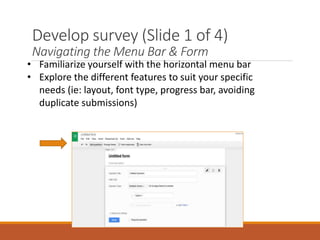
Develop survey (Slide 1 of 4)
Navigating the Menu Bar & Form
• Familiarize yourself with the horizontal menu bar
• Explore the different features to suit your specific
needs (ie: layout, font type, progress bar, avoiding
duplicate submissions)
Develop survey (Slide 2 of 4)
Question/Response Types
• Allocate time to developing strong questions &
response sets
Consider the question: “What is your favorite
animal?”
What response type best answers the question?
-Multiple choice (select only one) OR
-Checkboxes (select all that apply)
• Depending on your question, other types of
responses may be more appropriate:
-Text type, paragraph type, scale type, grid, time
& date
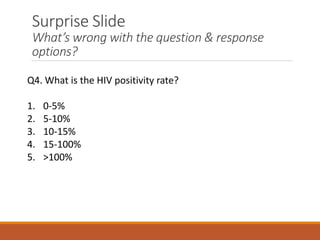
Surprise Slide
What’s wrong with the question & response
options?
Q4. What is the HIV positivity rate?
1. 0-5%
2. 5-10%
3. 10-15%
4. 15-100%
5. >100%
Surprise Slide - Answers
What’s wrong with the question & response
options?
Q4. What is the HIV positivity rate?
1. 0-5%
2. 5-10%
3. 10-15%
4. 15-100%
5. >100%
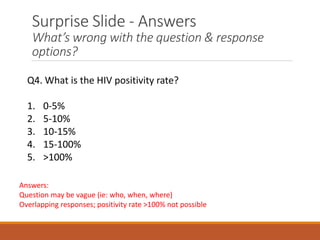
Answers:
Question may be vague (ie: who, when, where)
Overlapping responses; positivity rate >100% not possible
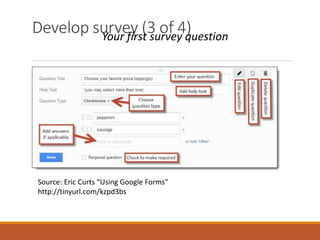
Develop survey (3 of 4)
Your first survey question
Source: Eric Curts “Using Google Forms”
http://tinyurl.com/kzpd3bs
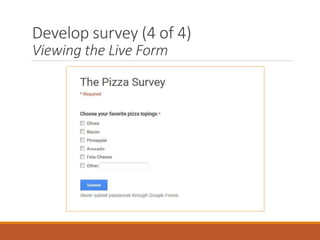
Develop survey (4 of 4)
Viewing the Live Form
Collect survey data
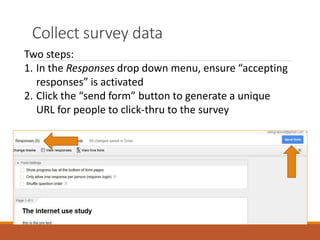
Two steps:
1. In the Responses drop down menu, ensure “accepting
responses” is activated
2. Click the “send form” button to generate a unique
URL for people to click-thru to the survey
End of Survey
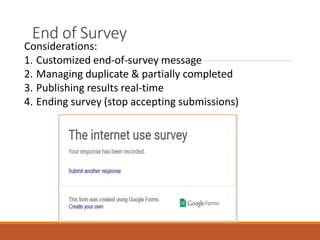
Considerations:
1. Customized end-of-survey message
2. Managing duplicate & partially completed
3. Publishing results real-time
4. Ending survey (stop accepting submissions)
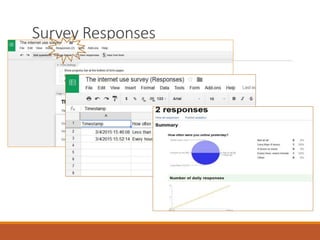
Survey Responses
More Advanced Functions
• Adding collaborators
• Add images & videos
• Utilization of section and page breaks
• Shuffling the question order
• Progress Bar
• Embed URL
• Shortened URL
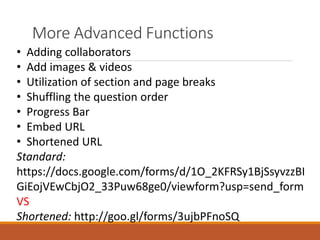
Standard:
https://docs.google.com/forms/d/1O_2KFRSy1BjSsyvzzBI
GiEojVEwCbjO2_33Puw68ge0/viewform?usp=send_form
VS
Shortened: http://goo.gl/forms/3ujbPFnoSQ
Demo an Evaluation Survey
LightningTalk
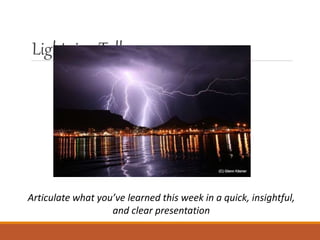
Articulate what you’ve learned this week in a quick, insightful,
and clear presentation
LightningTalk
Format:
--What & Why: Overview of Google Fusion Tables and why we
use it
--How: Demonstration of use
--Findings: Show results, interpretations and conclusion(s)
from data (>/= 1 output)
Time
â—¦ 15 minutes to speak & demonstrate what you learned this
week
â—¦ 5 minutes for Q&A
Present twice, receive twice
Develop your own evaluation
Given the suggested Talk components:
--What & Why: Overview of Google Fusion Tables and why we use it
--How: Demonstration of use
--Findings: Show results, interpretations and conclusion(s) from data (>/= 1 output)
Develop your evaluation in Google Forms
--Create your own evaluation which your (2) colleagues will complete
--The topic is…. “evaluation of teach-back”
--At least six questions; use at least three different question types,
encompassing the Talk components
--Include your (The presenter) name in the form description
--Meaningful feedback

Google forms presentation

  • 1.
    Google Forms DEVELOPING ASURVEY USING By: Christopher A. Rodriguez
  • 2.
    Google Forms: Background Toolto develop online forms & surveys Collaborate with others Background in survey development or programming not needed Flexible Free Use via Google Docs
  • 3.
    Other platforms include:SurveyMonkey, Zoomerang, Access, Qualtrics Each with varying features, capabilities, costs, requisite technical backgrounds. Consider: Ability to collaborate with others in survey design Desire to see data in real-time Flexibility to customize messages, logos Advanced skip patterns, if/then statements Need for easily understood data outputs Cost Google Forms perfectly fine for our use
  • 4.
    Getting Started 3-steps Develop survey Collectsurvey data Analyze data Today we will: Briefly discuss each step using different survey examples Demo an evaluation survey Develop your teach-back evaluation
  • 5.
    How to GetStarted Open your Google Docs folder Select Forms Select Go to Forms By default, you will see a blank survey As you develop a survey, it will auto-save
  • 6.
    Develop survey (Slide1 of 4) Navigating the Menu Bar & Form • Familiarize yourself with the horizontal menu bar • Explore the different features to suit your specific needs (ie: layout, font type, progress bar, avoiding duplicate submissions)
  • 7.
    Develop survey (Slide2 of 4) Question/Response Types • Allocate time to developing strong questions & response sets Consider the question: “What is your favorite animal?” What response type best answers the question? -Multiple choice (select only one) OR -Checkboxes (select all that apply) • Depending on your question, other types of responses may be more appropriate: -Text type, paragraph type, scale type, grid, time & date
  • 8.
    Surprise Slide What’s wrongwith the question & response options? Q4. What is the HIV positivity rate? 1. 0-5% 2. 5-10% 3. 10-15% 4. 15-100% 5. >100%
  • 9.
    Surprise Slide -Answers What’s wrong with the question & response options? Q4. What is the HIV positivity rate? 1. 0-5% 2. 5-10% 3. 10-15% 4. 15-100% 5. >100% Answers: Question may be vague (ie: who, when, where) Overlapping responses; positivity rate >100% not possible
  • 10.
    Develop survey (3of 4) Your first survey question Source: Eric Curts “Using Google Forms” http://tinyurl.com/kzpd3bs
  • 11.
    Develop survey (4of 4) Viewing the Live Form
  • 12.
    Collect survey data Twosteps: 1. In the Responses drop down menu, ensure “accepting responses” is activated 2. Click the “send form” button to generate a unique URL for people to click-thru to the survey
  • 13.
    End of Survey Considerations: 1.Customized end-of-survey message 2. Managing duplicate & partially completed 3. Publishing results real-time 4. Ending survey (stop accepting submissions)
  • 14.
  • 15.
    More Advanced Functions •Adding collaborators • Add images & videos • Utilization of section and page breaks • Shuffling the question order • Progress Bar • Embed URL • Shortened URL Standard: https://docs.google.com/forms/d/1O_2KFRSy1BjSsyvzzBI GiEojVEwCbjO2_33Puw68ge0/viewform?usp=send_form VS Shortened: http://goo.gl/forms/3ujbPFnoSQ
  • 16.
  • 17.
    LightningTalk Articulate what you’velearned this week in a quick, insightful, and clear presentation
  • 18.
    LightningTalk Format: --What & Why:Overview of Google Fusion Tables and why we use it --How: Demonstration of use --Findings: Show results, interpretations and conclusion(s) from data (>/= 1 output) Time â—¦ 15 minutes to speak & demonstrate what you learned this week â—¦ 5 minutes for Q&A Present twice, receive twice
  • 19.
    Develop your ownevaluation Given the suggested Talk components: --What & Why: Overview of Google Fusion Tables and why we use it --How: Demonstration of use --Findings: Show results, interpretations and conclusion(s) from data (>/= 1 output) Develop your evaluation in Google Forms --Create your own evaluation which your (2) colleagues will complete --The topic is…. “evaluation of teach-back” --At least six questions; use at least three different question types, encompassing the Talk components --Include your (The presenter) name in the form description --Meaningful feedback