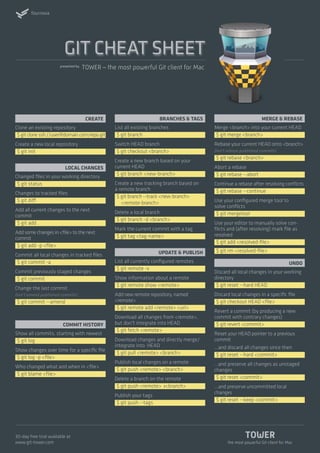
Tower – the most powerful Git client for Mac
the most powerful Git client for Mac
Create
Clone an existing repository	
$gitclonessh://user@domain.com/repo.git
Create a new local repository 	
$ git init
local Changes
Changed files in your working directory
$ git status
Changes to tracked files 	
$ git diff
Add all current changes to the next
commit
$ git add .
Add some changes in file to the next
commit
$ git add -p file
Commit all local changes in tracked files
$ git commit -a
Commit previously staged changes
$ git commit
Change the last commit
Don‘t amend published commits!
$ git commit --amend	
Commit History
Show all commits, starting with newest
$ git log
Show changes over time for a specific file
$ git log -p file
Who changed what and when in file
$ git blame file
Branches  Tags
List all existing branches
$ git branch
Switch HEAD branch
$ git checkout branch
Create a new branch based on your
current HEAD
$ git branch new-branch
Create a new tracking branch based on
a remote branch
$ git branch --track new-branch
remote-branch
Delete a local branch
$ git branch -d branch
Mark the current commit with a tag
$ git tag tag-name
Update  Publish
List all currently configured remotes
$ git remote -v
Show information about a remote
$ git remote show remote
Add new remote repository, named
remote 
$ git remote add remote url
Download all changes from remote,
but don‘t integrate into HEAD
$ git fetch remote
Download changes and directly merge/
integrate into HEAD
$ git pull remote branch
Publish local changes on a remote
$ git push remote branch
Delete a branch on the remote
$ git push remote :branch
Publish your tags
$ git push --tags
Merge  Rebase
Merge branch into your current HEAD
$ git merge branch
Rebase your current HEAD onto branch
Don‘t rebase published commits!
$ git rebase branch
Abort a rebase
$ git rebase --abort
Continue a rebase after resolving conflicts
$ git rebase --continue
Use your configured merge tool to
solve conflicts
$ git mergetool
Use your editor to manually solve con-
flicts and (after resolving) mark file as
resolved
$ git add resolved-file
$ git rm resolved-file
Undo
Discard all local changes in your working
directory	
$ git reset --hard HEAD
Discard local changes in a specific file
$ git checkout HEAD file
Revert a commit (by producing a new
commit with contrary changes)
$ git revert commit
Reset your HEAD pointer to a previous
commit
…and discard all changes since then
$ git reset --hard commit
…and preserve all changes as unstaged
changes
$ git reset commit
…and preserve uncommitted local
changes
$ git reset --keep commit
30-day free trial available at
www.git-tower.com
git cheat sheet
presented by
fournova
Commit Related Changes
A commit should be a wrapper for related
changes. For example, fixing two diffe-
rent bugs should produce two separate
commits. Small commits make it easier
for other developers to understand the
changes and roll them back if something
went wrong.
With tools like the staging area and the
ability to stage only parts of a file, Git
makes it easy to create very granular
commits.
Commit Often
Committing often keeps your commits
small and, again, helps you commit only
related changes. Moreover, it allows you
to share your code more frequently with
others. That way it‘s easier for everyone
to integrate changes regularly and avoid
having merge conflicts. Having few large
commits and sharing them rarely, in con-
trast, makes it hard to solve conflicts.
Don‘t Commit Half-Done Work
You should only commit code when
it‘s completed. This doesn‘t mean you
have to complete a whole, large feature
before committing. Quite the contrary:
split the feature‘s implementation into
logical chunks and remember to commit
early and often. But don‘t commit just to
have something in the repository before
leaving the office at the end of the day. If
you‘re tempted to commit just because
you need a clean working copy (to check
out a branch, pull in changes, etc.) consi-
der using Git‘s «Stash» feature instead.
Test Code Before You Commit
Resist the temptation to commit some-
thing that you «think» is completed. Test
it thoroughly to make sure it really is
completed and has no side effects (as far
as one can tell). While committing half-
baked things in your local repository only
requires you to forgive yourself, having
your code tested is even more important
when it comes to pushing/sharing your
code with others.
Write Good Commit Messages
Begin your message with a short sum-
mary of your changes (up to 50 charac-
ters as a guideline). Separate it from
the following body by including a blank
line. The body of your message should
provide detailed answers to the following
questions:
– What was the motivation for the change?
– How does it differ from the previous
implementation?
Use the imperative, present tense
(«change», not «changed» or «changes»)
to be consistent with generated messa-
ges from commands like git merge.
Version Control is not
a Backup System
Having your files backed up on a remote
server is a nice side effect of having a
version control system. But you should
not use your VCS like it was a backup
system. When doing version control, you
should pay attention to committing se-
mantically (see «related changes») - you
shouldn‘t just cram in files.
Use Branches
Branching is one of Git‘s most powerful
features - and this is not by accident:
quick and easy branching was a central
requirement from day one. Branches are
the perfect tool to help you avoid mixing
up different lines of development. You
should use branches extensively in your
development workflows: for new fea-
tures, bug fixes, ideas…
Agree on a Workflow
Git lets you pick from a lot of different
workflows: long-running branches, topic
branches, merge or rebase, git-flow…
Which one you choose depends on a
couple of factors: your project, your
overall development and deployment
workflows and (maybe most important-
ly) on your and your teammates‘ personal
preferences. However you choose to
work, just make sure to agree on a com-
mon workflow that everyone follows.
Help  Documentation
Get help on the command line
$ git help command
Official Git Website
http://www.git-scm.com/
Free online resources
http://progit.org
http://book.git-scm.org
http://gitref.org
fournova
best practices
version control
the most powerful Git client for Mac
30-day free trial available at
www.git-tower.com

Git cheat sheet_dark

  • 1.
    Tower – themost powerful Git client for Mac the most powerful Git client for Mac Create Clone an existing repository $gitclonessh://user@domain.com/repo.git Create a new local repository $ git init local Changes Changed files in your working directory $ git status Changes to tracked files $ git diff Add all current changes to the next commit $ git add . Add some changes in file to the next commit $ git add -p file Commit all local changes in tracked files $ git commit -a Commit previously staged changes $ git commit Change the last commit Don‘t amend published commits! $ git commit --amend Commit History Show all commits, starting with newest $ git log Show changes over time for a specific file $ git log -p file Who changed what and when in file $ git blame file Branches Tags List all existing branches $ git branch Switch HEAD branch $ git checkout branch Create a new branch based on your current HEAD $ git branch new-branch Create a new tracking branch based on a remote branch $ git branch --track new-branch remote-branch Delete a local branch $ git branch -d branch Mark the current commit with a tag $ git tag tag-name Update Publish List all currently configured remotes $ git remote -v Show information about a remote $ git remote show remote Add new remote repository, named remote $ git remote add remote url Download all changes from remote, but don‘t integrate into HEAD $ git fetch remote Download changes and directly merge/ integrate into HEAD $ git pull remote branch Publish local changes on a remote $ git push remote branch Delete a branch on the remote $ git push remote :branch Publish your tags $ git push --tags Merge Rebase Merge branch into your current HEAD $ git merge branch Rebase your current HEAD onto branch Don‘t rebase published commits! $ git rebase branch Abort a rebase $ git rebase --abort Continue a rebase after resolving conflicts $ git rebase --continue Use your configured merge tool to solve conflicts $ git mergetool Use your editor to manually solve con- flicts and (after resolving) mark file as resolved $ git add resolved-file $ git rm resolved-file Undo Discard all local changes in your working directory $ git reset --hard HEAD Discard local changes in a specific file $ git checkout HEAD file Revert a commit (by producing a new commit with contrary changes) $ git revert commit Reset your HEAD pointer to a previous commit …and discard all changes since then $ git reset --hard commit …and preserve all changes as unstaged changes $ git reset commit …and preserve uncommitted local changes $ git reset --keep commit 30-day free trial available at www.git-tower.com git cheat sheet presented by fournova
  • 2.
    Commit Related Changes Acommit should be a wrapper for related changes. For example, fixing two diffe- rent bugs should produce two separate commits. Small commits make it easier for other developers to understand the changes and roll them back if something went wrong. With tools like the staging area and the ability to stage only parts of a file, Git makes it easy to create very granular commits. Commit Often Committing often keeps your commits small and, again, helps you commit only related changes. Moreover, it allows you to share your code more frequently with others. That way it‘s easier for everyone to integrate changes regularly and avoid having merge conflicts. Having few large commits and sharing them rarely, in con- trast, makes it hard to solve conflicts. Don‘t Commit Half-Done Work You should only commit code when it‘s completed. This doesn‘t mean you have to complete a whole, large feature before committing. Quite the contrary: split the feature‘s implementation into logical chunks and remember to commit early and often. But don‘t commit just to have something in the repository before leaving the office at the end of the day. If you‘re tempted to commit just because you need a clean working copy (to check out a branch, pull in changes, etc.) consi- der using Git‘s «Stash» feature instead. Test Code Before You Commit Resist the temptation to commit some- thing that you «think» is completed. Test it thoroughly to make sure it really is completed and has no side effects (as far as one can tell). While committing half- baked things in your local repository only requires you to forgive yourself, having your code tested is even more important when it comes to pushing/sharing your code with others. Write Good Commit Messages Begin your message with a short sum- mary of your changes (up to 50 charac- ters as a guideline). Separate it from the following body by including a blank line. The body of your message should provide detailed answers to the following questions: – What was the motivation for the change? – How does it differ from the previous implementation? Use the imperative, present tense («change», not «changed» or «changes») to be consistent with generated messa- ges from commands like git merge. Version Control is not a Backup System Having your files backed up on a remote server is a nice side effect of having a version control system. But you should not use your VCS like it was a backup system. When doing version control, you should pay attention to committing se- mantically (see «related changes») - you shouldn‘t just cram in files. Use Branches Branching is one of Git‘s most powerful features - and this is not by accident: quick and easy branching was a central requirement from day one. Branches are the perfect tool to help you avoid mixing up different lines of development. You should use branches extensively in your development workflows: for new fea- tures, bug fixes, ideas… Agree on a Workflow Git lets you pick from a lot of different workflows: long-running branches, topic branches, merge or rebase, git-flow… Which one you choose depends on a couple of factors: your project, your overall development and deployment workflows and (maybe most important- ly) on your and your teammates‘ personal preferences. However you choose to work, just make sure to agree on a com- mon workflow that everyone follows. Help Documentation Get help on the command line $ git help command Official Git Website http://www.git-scm.com/ Free online resources http://progit.org http://book.git-scm.org http://gitref.org fournova best practices version control the most powerful Git client for Mac 30-day free trial available at www.git-tower.com