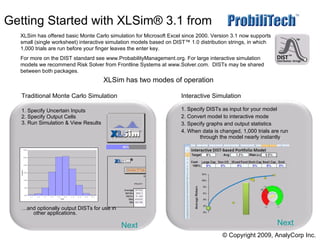
Getting Started with XLSim® 3.1 from   .  Traditional Monte Carlo Simulation 1. Specify Uncertain Inputs 2. Specify Output Cells 3. Run Simulation & View Results … and optionally output DISTs for use in other applications. Interactive Simulation 1. Specify DISTs as input for your model 2. Convert model to interactive mode  3. Specify graphs and output statistics  4. When data is changed, 1,000 trials are run through the model nearly instantly XLSim has two modes of operation Next Next © Copyright 2009, AnalyCorp Inc. XLSim has offered basic Monte Carlo simulation for Microsoft Excel since 2000. Version 3.1 now supports small (single worksheet) interactive simulation models based on DIST™ 1.0 distribution strings, in which 1,000 trials are run before your finger leaves the enter key.  For more on the DIST standard see www.ProbabilityManagement.org. For large interactive simulation models we recommend Risk Solver from Frontline Systems at www.Solver.com.  DISTs may be shared between both packages.
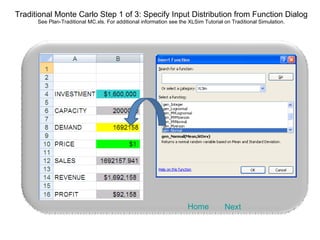
Traditional Monte Carlo Step 1 of 3: Specify Input Distribution from Function Dialog See Plan-Traditional MC.xls. For additional information see the XLSim Tutorial on Traditional Simulation. Next Home
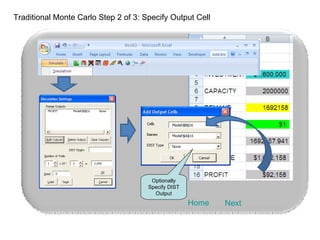
Traditional Monte Carlo Step 2 of 3: Specify Output Cell Next Home Optionally Specify DIST Output
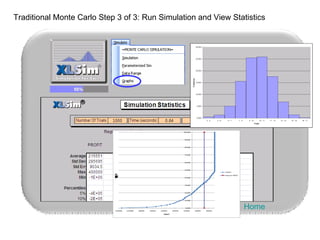
Traditional Monte Carlo Step 3 of 3: Run Simulation and View Statistics Home
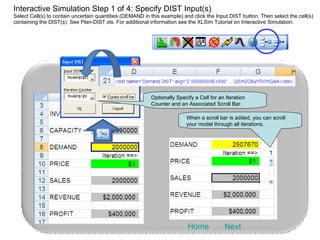
Interactive Simulation Step 1 of 4: Specify DIST Input(s) Select Cell(s) to contain uncertain quantities (DEMAND in this example) and click the Input DIST button. Then select the cell(s) containing the DIST(s). See Plan-DIST.xls. For additional information see the XLSim Tutorial on Interactive Simulation. Next Home When a scroll bar is added, you can scroll your model through all iterations. Optionally Specify a Cell for an Iteration Counter and an Associated Scroll Bar.
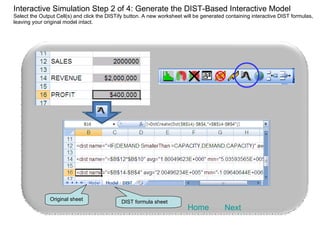
Interactive Simulation Step 2 of 4: Generate the DIST-Based Interactive Model Select the Output Cell(s) and click the DISTify button. A new worksheet will be generated containing interactive DIST formulas, leaving your original model intact. Next Home DIST formula sheet Original sheet
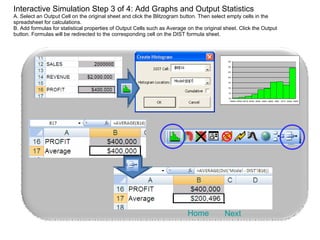
Interactive Simulation Step 3 of 4: Add Graphs and Output Statistics A. Select an Output Cell on the original sheet and click the Blitzogram button. Then select empty cells in the spreadsheet for calculations. B. Add formulas for statistical properties of Output Cells such as Average on the original sheet. Click the Output button. Formulas will be redirected to the corresponding cell on the DIST formula sheet. Next Home
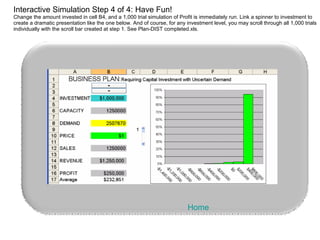
Interactive Simulation Step 4 of 4: Have Fun! Change the amount invested in cell B4, and a 1,000 trial simulation of Profit is immediately run. Link a spinner to investment to create a dramatic presentation like the one below. And of course, for any investment level, you may scroll through all 1,000 trials individually with the scroll bar created at step 1. See Plan-DIST completed.xls. Home

Getting Started With XLSIM

  • 1.
    Getting Started withXLSim® 3.1 from . Traditional Monte Carlo Simulation 1. Specify Uncertain Inputs 2. Specify Output Cells 3. Run Simulation & View Results … and optionally output DISTs for use in other applications. Interactive Simulation 1. Specify DISTs as input for your model 2. Convert model to interactive mode 3. Specify graphs and output statistics 4. When data is changed, 1,000 trials are run through the model nearly instantly XLSim has two modes of operation Next Next © Copyright 2009, AnalyCorp Inc. XLSim has offered basic Monte Carlo simulation for Microsoft Excel since 2000. Version 3.1 now supports small (single worksheet) interactive simulation models based on DIST™ 1.0 distribution strings, in which 1,000 trials are run before your finger leaves the enter key. For more on the DIST standard see www.ProbabilityManagement.org. For large interactive simulation models we recommend Risk Solver from Frontline Systems at www.Solver.com. DISTs may be shared between both packages.
  • 2.
    Traditional Monte CarloStep 1 of 3: Specify Input Distribution from Function Dialog See Plan-Traditional MC.xls. For additional information see the XLSim Tutorial on Traditional Simulation. Next Home
  • 3.
    Traditional Monte CarloStep 2 of 3: Specify Output Cell Next Home Optionally Specify DIST Output
  • 4.
    Traditional Monte CarloStep 3 of 3: Run Simulation and View Statistics Home
  • 5.
    Interactive Simulation Step1 of 4: Specify DIST Input(s) Select Cell(s) to contain uncertain quantities (DEMAND in this example) and click the Input DIST button. Then select the cell(s) containing the DIST(s). See Plan-DIST.xls. For additional information see the XLSim Tutorial on Interactive Simulation. Next Home When a scroll bar is added, you can scroll your model through all iterations. Optionally Specify a Cell for an Iteration Counter and an Associated Scroll Bar.
  • 6.
    Interactive Simulation Step2 of 4: Generate the DIST-Based Interactive Model Select the Output Cell(s) and click the DISTify button. A new worksheet will be generated containing interactive DIST formulas, leaving your original model intact. Next Home DIST formula sheet Original sheet
  • 7.
    Interactive Simulation Step3 of 4: Add Graphs and Output Statistics A. Select an Output Cell on the original sheet and click the Blitzogram button. Then select empty cells in the spreadsheet for calculations. B. Add formulas for statistical properties of Output Cells such as Average on the original sheet. Click the Output button. Formulas will be redirected to the corresponding cell on the DIST formula sheet. Next Home
  • 8.
    Interactive Simulation Step4 of 4: Have Fun! Change the amount invested in cell B4, and a 1,000 trial simulation of Profit is immediately run. Link a spinner to investment to create a dramatic presentation like the one below. And of course, for any investment level, you may scroll through all 1,000 trials individually with the scroll bar created at step 1. See Plan-DIST completed.xls. Home