
Genymotion with
Jenkins
Using genymotion device as
emulator for Jenkins test
Contents
• Quick intro to Genymotion
• Genymotion in Headless mode
– Implementation steps
– Challenges faced
– Workarounds
• Overview of final implementation
• Repository URL for working script
Quick intro to Genymotion
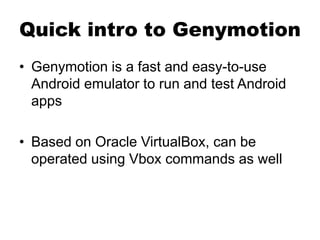
• Genymotion is a fast and easy-to-use
Android emulator to run and test Android
apps
• Based on Oracle VirtualBox, can be
operated using Vbox commands as well
Genymotion
& Jenkins
Implementation steps
1) Run Genymotion devices in a headless
mode
2) Retrieve IP addresses of GM devices
3) Connect adb to IP of device
4) Logic for selection of free/available
genymotion device for multiple build devices
5) Ensure test apk is installed on correct
devices even for multiple/concurrent builds
Starting genymotion in
headless mode
[Problem]
Using genymotion built-in player command throws Open-GL errors when used
with X-Forwarding
eglMakeCurrent failed FrameBuffer::post
eglMakeCurrent failed
zsh: segmentation fault
http://blog.genymobile.com/genymotion-jenkins-android-testing/
http://stackoverflow.com/questions/28871412/genymotion-device-boots-
up-and-disappears-after-showing-a-black-screen
[Workaround]
Use VBoxManage startvm <VM-UUID> --type headless command
Identifying IP address
[Problem]
• IP address of genymotion devices is required to
connect adb to device
• However, genymotion virtual device IP address does
not show up in usual system commands like “arp”
[Workaround]
VBoxManage guestproperty get $VM_SELECTED androvm_ip_management
This command shows the IP only when device is running
ADB port connection
[Problem]
• Adb start-server usually starts ADB server on
default port of 5037
• However for concurrent build if all servers start on
same port adb installation for test apk fails
[Workaround]
• set env variable
ANDROID_ADB_SERVER_PORT
• this changes the default adb server port to desired
value for that particular shell session
Setting default genymotion device
[Problem]
• Setting ADB server port is not enough since gradle
connectedCheck internally starts adb in default port 5037
• As a result, gradle does not find connected genymotion devices
when running tests. Installation of test apk fails with “No connected
devices”
[Workaround]
• Set env variable ANDRIOD_SERIAL to specify which genymotion
device to be used as default as test
• This was introduced as feature in android Gradle plugin 0.14.0 (AS
1.0)
https://code.google.com/p/android/issues/detail?id=59894
https://code.google.com/p/android/issues/detail?id=75407
https://android-review.googlesource.com/#/c/108985/1/build-
system/builder/src/main/java/com/android/builder/testing/ConnectedDe
viceProvider.java
Making builds thread safe (locking)
[Problem]
• For concurrent builds, the logic to select Genymotion
device must be thread safe
• Else more than one build would select the same
device and gradle tests would fail
[Workaround]
• Create temporary lock directory using mkdir command
• Name of lock directory same as that of genymotion
device
• mkdir being atomic in operation mkdir would fail for
concurrent build in case directory already exists
Handling build abort scenarios
[Problem]
• In case build is aborted in between using
Jenkins interfaces, its important to delete all
lock directories. Else, build would never run
on those geny motion devices
[Workaround]
• A simple workaround was to catch INT,
TERM trap signals in shell script and delete
all temp files
Overview of Final Implementation
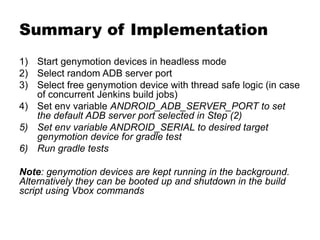
1) Start genymotion devices in headless mode
2) Select random ADB server port
3) Select free genymotion device with thread safe logic (in case
of concurrent Jenkins build jobs)
4) Set env variable ANDROID_ADB_SERVER_PORT to set
the default ADB server port selected in Step (2)
5) Set env variable ANDROID_SERIAL to desired target
genymotion device for gradle test
6) Run gradle tests
Note: genymotion devices are kept running in the background.
Alternatively they can be booted up and shutdown in the build
script using Vbox commands
Repository URL for working script
https://github.com/vishyrich/GenymotionJenkin
sBuild.git
THANK YOU!! 

Genymotion with Jenkins

  • 1.
    Genymotion with Jenkins Using genymotiondevice as emulator for Jenkins test
  • 2.
    Contents • Quick introto Genymotion • Genymotion in Headless mode – Implementation steps – Challenges faced – Workarounds • Overview of final implementation • Repository URL for working script
  • 3.
    Quick intro toGenymotion • Genymotion is a fast and easy-to-use Android emulator to run and test Android apps • Based on Oracle VirtualBox, can be operated using Vbox commands as well
  • 4.
  • 5.
    Implementation steps 1) RunGenymotion devices in a headless mode 2) Retrieve IP addresses of GM devices 3) Connect adb to IP of device 4) Logic for selection of free/available genymotion device for multiple build devices 5) Ensure test apk is installed on correct devices even for multiple/concurrent builds
  • 6.
    Starting genymotion in headlessmode [Problem] Using genymotion built-in player command throws Open-GL errors when used with X-Forwarding eglMakeCurrent failed FrameBuffer::post eglMakeCurrent failed zsh: segmentation fault http://blog.genymobile.com/genymotion-jenkins-android-testing/ http://stackoverflow.com/questions/28871412/genymotion-device-boots- up-and-disappears-after-showing-a-black-screen [Workaround] Use VBoxManage startvm <VM-UUID> --type headless command
  • 7.
    Identifying IP address [Problem] •IP address of genymotion devices is required to connect adb to device • However, genymotion virtual device IP address does not show up in usual system commands like “arp” [Workaround] VBoxManage guestproperty get $VM_SELECTED androvm_ip_management This command shows the IP only when device is running
  • 8.
    ADB port connection [Problem] •Adb start-server usually starts ADB server on default port of 5037 • However for concurrent build if all servers start on same port adb installation for test apk fails [Workaround] • set env variable ANDROID_ADB_SERVER_PORT • this changes the default adb server port to desired value for that particular shell session
  • 9.
    Setting default genymotiondevice [Problem] • Setting ADB server port is not enough since gradle connectedCheck internally starts adb in default port 5037 • As a result, gradle does not find connected genymotion devices when running tests. Installation of test apk fails with “No connected devices” [Workaround] • Set env variable ANDRIOD_SERIAL to specify which genymotion device to be used as default as test • This was introduced as feature in android Gradle plugin 0.14.0 (AS 1.0) https://code.google.com/p/android/issues/detail?id=59894 https://code.google.com/p/android/issues/detail?id=75407 https://android-review.googlesource.com/#/c/108985/1/build- system/builder/src/main/java/com/android/builder/testing/ConnectedDe viceProvider.java
  • 10.
    Making builds threadsafe (locking) [Problem] • For concurrent builds, the logic to select Genymotion device must be thread safe • Else more than one build would select the same device and gradle tests would fail [Workaround] • Create temporary lock directory using mkdir command • Name of lock directory same as that of genymotion device • mkdir being atomic in operation mkdir would fail for concurrent build in case directory already exists
  • 11.
    Handling build abortscenarios [Problem] • In case build is aborted in between using Jenkins interfaces, its important to delete all lock directories. Else, build would never run on those geny motion devices [Workaround] • A simple workaround was to catch INT, TERM trap signals in shell script and delete all temp files
  • 12.
    Overview of FinalImplementation 1) Start genymotion devices in headless mode 2) Select random ADB server port 3) Select free genymotion device with thread safe logic (in case of concurrent Jenkins build jobs) 4) Set env variable ANDROID_ADB_SERVER_PORT to set the default ADB server port selected in Step (2) 5) Set env variable ANDROID_SERIAL to desired target genymotion device for gradle test 6) Run gradle tests Note: genymotion devices are kept running in the background. Alternatively they can be booted up and shutdown in the build script using Vbox commands
  • 13.
    Repository URL forworking script https://github.com/vishyrich/GenymotionJenkin sBuild.git
  • 14.