


Dell World User Forum
UFIL514: Fundamentals of Service Desk
Erik Ragan, Senior Trainer
Ian Bolton, Learning Development
Dell World
User Forum
Dell World User Forum
Agenda
• What is Service Desk?
• Queues
• User Console Library
• Knowledge Base
• Q&A
Dell World User Forum
Big Picture
1. Do you currently use a ticketing system?
2. Do you currently use a Knowledge Base?
3. Do you currently use an on-demand software portal for users?
Dell World User Forum
Other Sessions of Interest
• This is an introduction course.
Here are some other sessions taking place this week that you might be interested in….
• User Console Essentials (Instructor Led)
• Service Desk 201 – The Power to do More (Instructor Led)
• Service Desk Processes (Self Paced Lab)
Dell World User Forum
What is Service Desk?
Dell World User Forum
What do you want to use the Service Desk for?
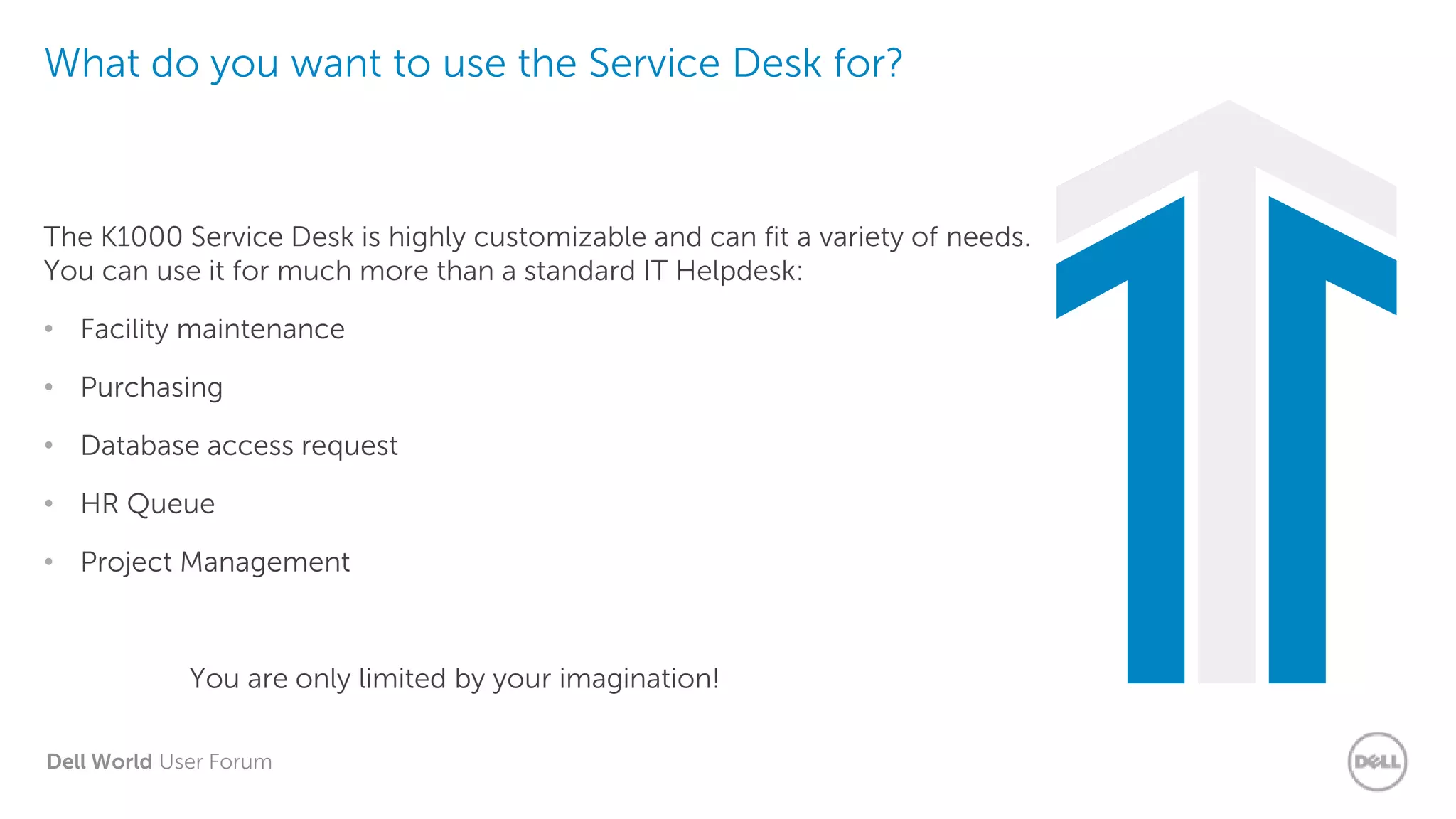
The K1000 Service Desk is highly customizable and can fit a variety of needs.
You can use it for much more than a standard IT Helpdesk:
• Facility maintenance
• Purchasing
• Database access request
• HR Queue
• Project Management
You are only limited by your imagination!
Dell World User Forum
Components
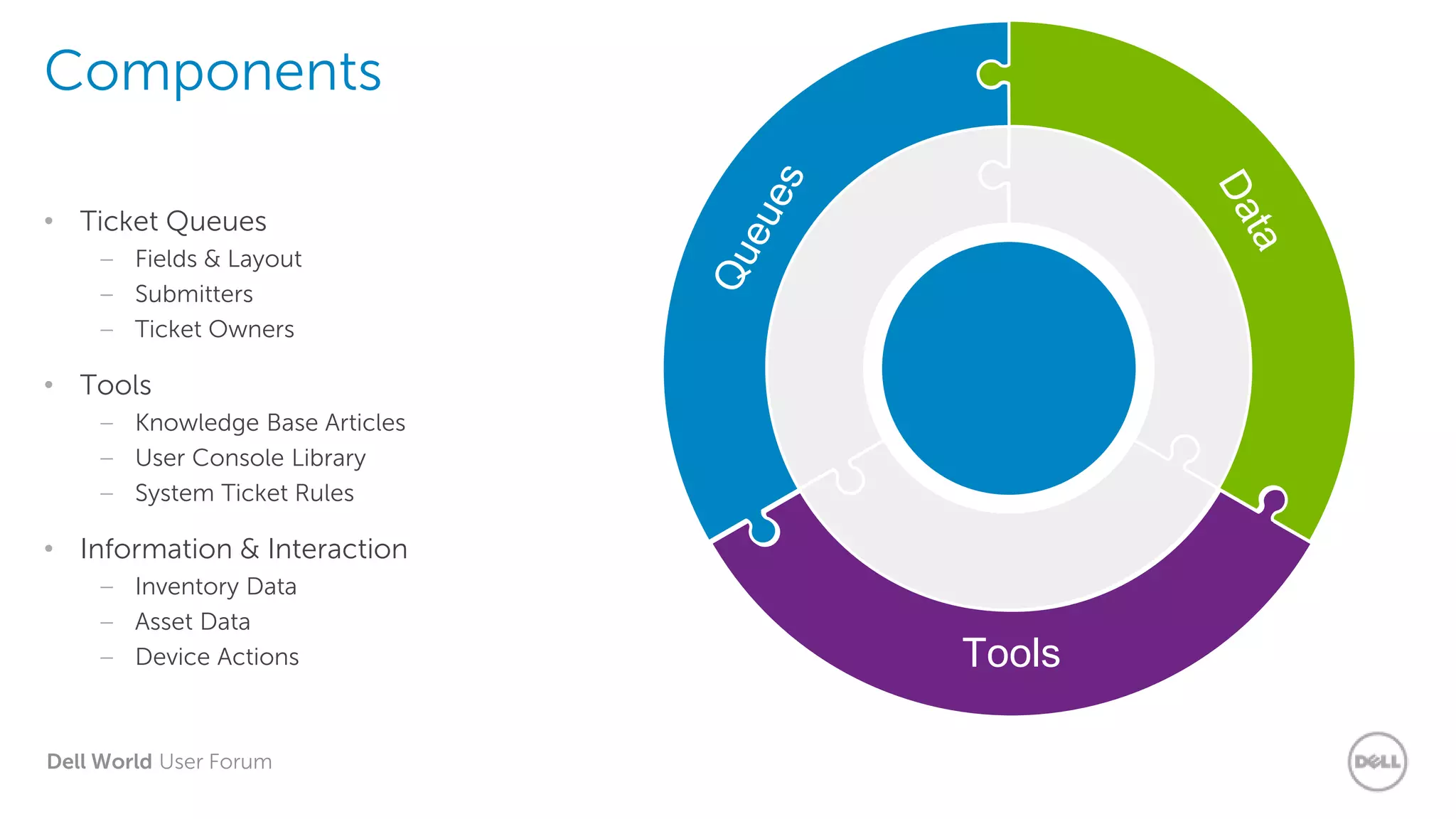
• Ticket Queues
– Fields & Layout
– Submitters
– Ticket Owners
• Tools
– Knowledge Base Articles
– User Console Library
– System Ticket Rules
• Information & Interaction
– Inventory Data
– Asset Data
– Device Actions Tools
Dell World User Forum
K1000 Service Desk
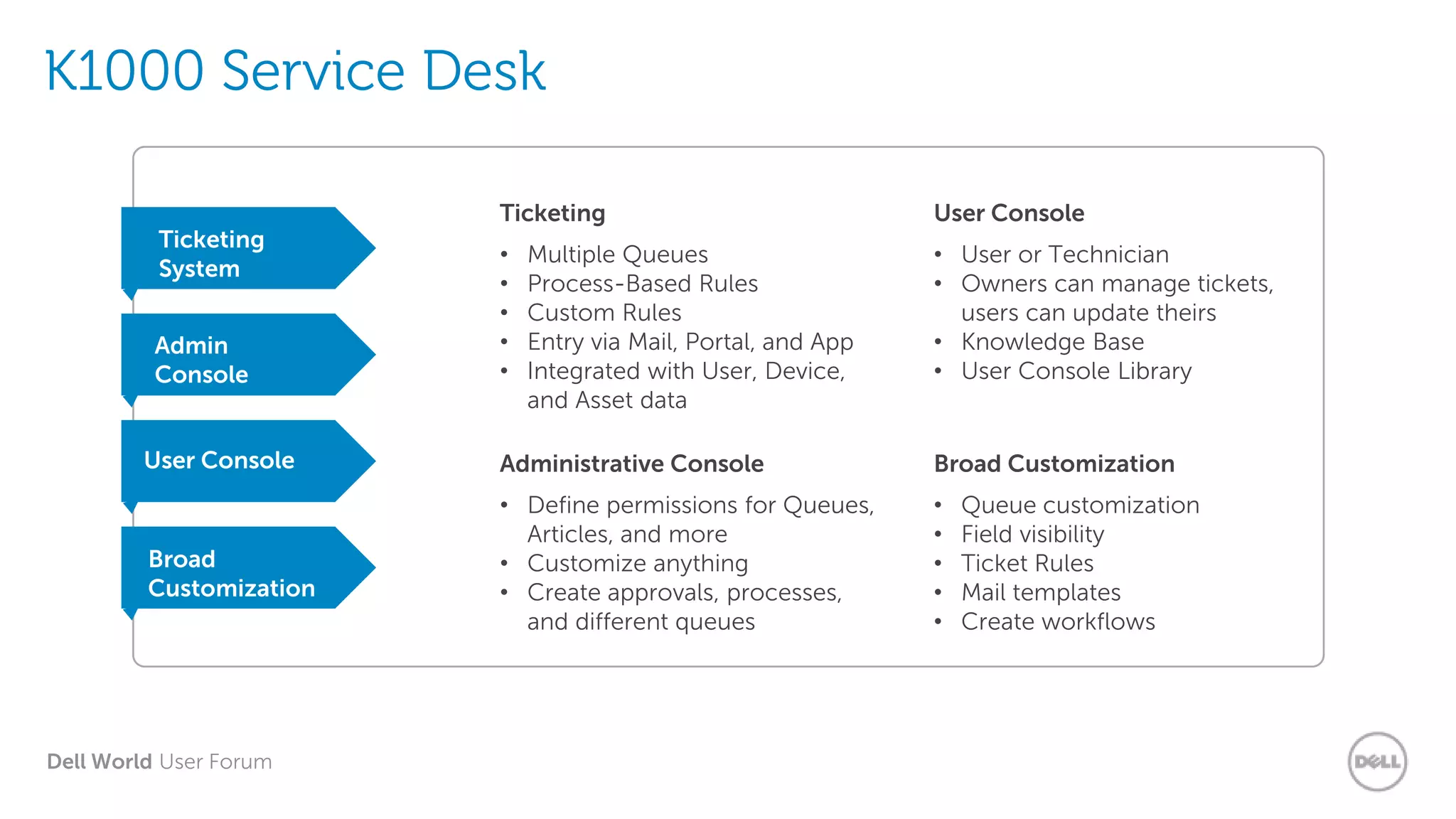
Ticketing
System
Ticketing
• Multiple Queues
• Process-Based Rules
• Custom Rules
• Entry via Mail, Portal, and App
• Integrated with User, Device,
and Asset data
Admin
Console
User Console
User Console
• User or Technician
• Owners can manage tickets,
users can update theirs
• Knowledge Base
• User Console Library
Broad
Customization
Administrative Console
• Define permissions for Queues,
Articles, and more
• Customize anything
• Create approvals, processes,
and different queues
Broad Customization
• Queue customization
• Field visibility
• Ticket Rules
• Mail templates
• Create workflows
Dell World User Forum
Users, Roles and the
Service Desk
Dell World User Forum
Who, What and How?
WHO
• Who will be Administrators?
• Who needs to be in User Groups,
and which ones?
• Who will be Queue Owners?
• What areas of the User Console
are users going to be able to
access?
• What Queues will be accessible
and by whom?
• What types of automation can be
used?
• How are your Users going to
submit tickets?
• How will technicians service
tickets?
• How will we report on usage and
service?
• How will users benefit?
WHAT HOW
Dell World User Forum
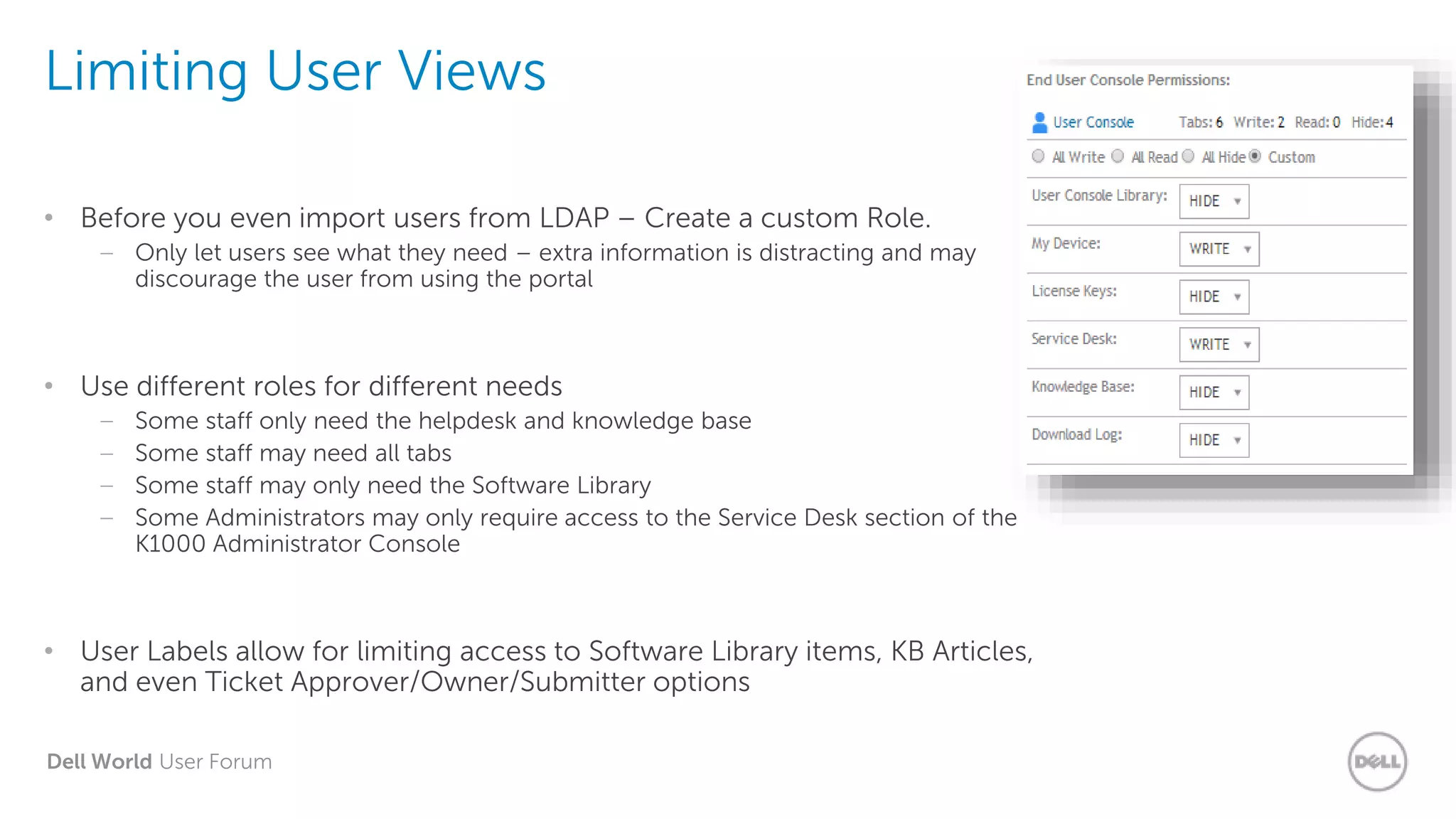
Limiting User Views
• Before you even import users from LDAP – Create a custom Role.
– Only let users see what they need – extra information is distracting and may
discourage the user from using the portal
• Use different roles for different needs
– Some staff only need the helpdesk and knowledge base
– Some staff may need all tabs
– Some staff may only need the Software Library
– Some Administrators may only require access to the Service Desk section of the
K1000 Administrator Console
• User Labels allow for limiting access to Software Library items, KB Articles,
and even Ticket Approver/Owner/Submitter options
Dell World User Forum
Exercise: Creating
Local Users and Roles
Dell World User Forum
Queues
Dell World User Forum
Queue = Helpdesk
Complete Customization
Fields
Submitters
Owners
Rules
Dell World User Forum
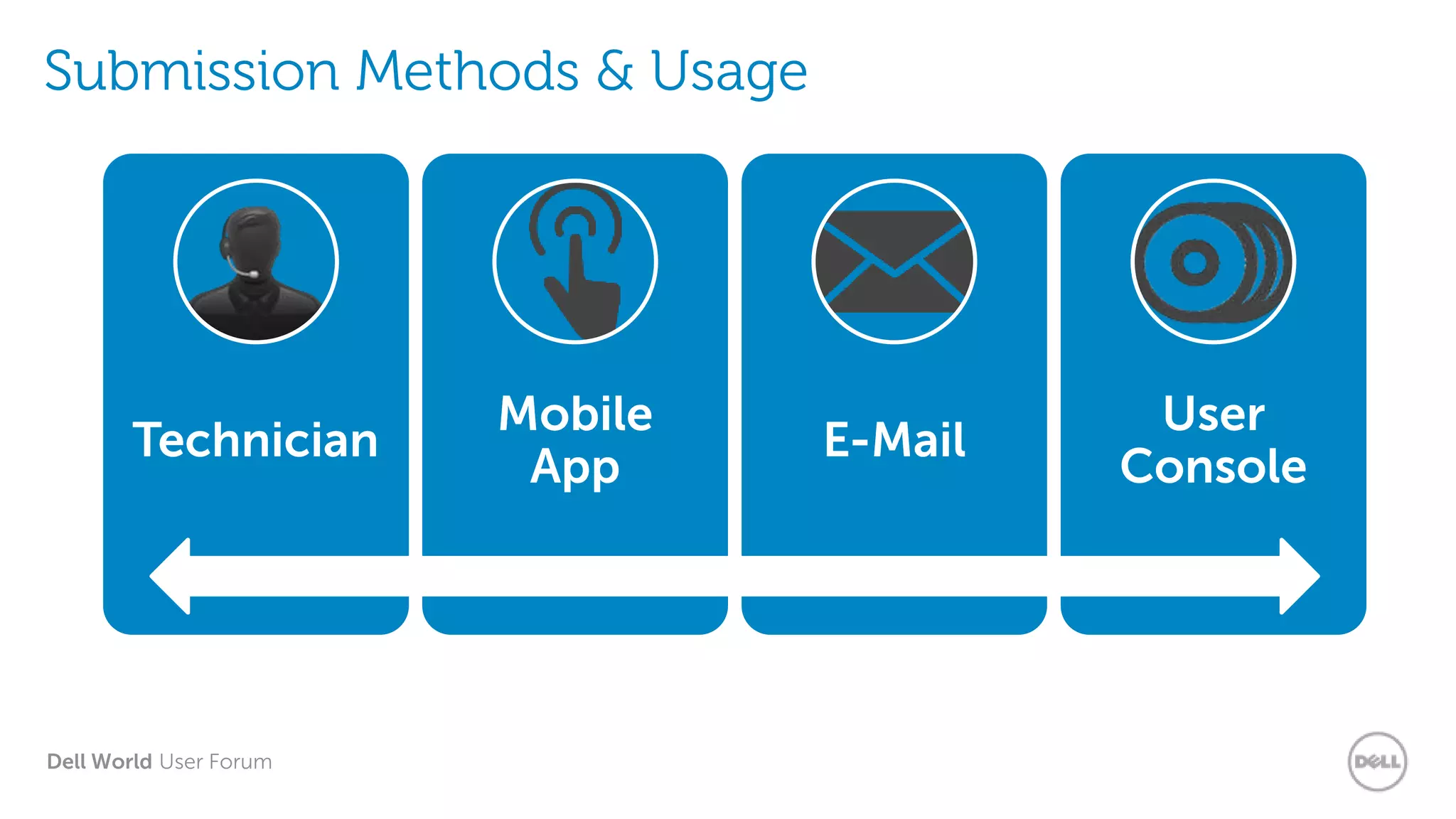
Submission Methods & Usage
Technician
Mobile
App
E-Mail
User
Console
Dell World User Forum
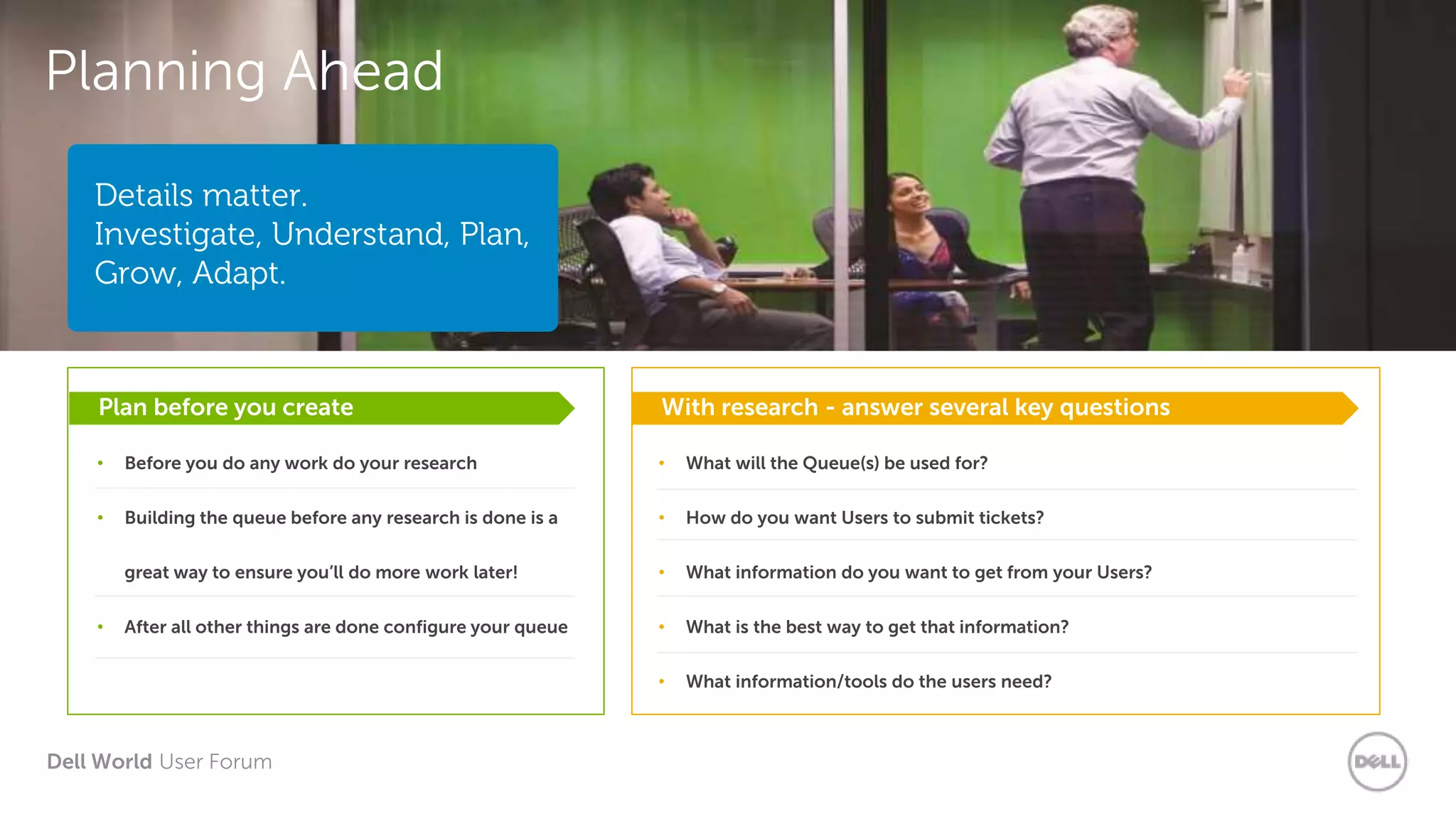
Planning Ahead
Plan before you create
• Before you do any work do your research
• Building the queue before any research is done is a
great way to ensure you’ll do more work later!
• After all other things are done configure your queue
With research - answer several key questions
• What will the Queue(s) be used for?
• How do you want Users to submit tickets?
• What information do you want to get from your Users?
• What is the best way to get that information?
• What information/tools do the users need?
Details matter.
Investigate, Understand, Plan,
Grow, Adapt.
Dell World User Forum
Exercise: Service
Desk Queue Creation
Dell World User Forum
Electronic Form Design
• Make it easy, by giving users simple drop-downs to choose from.
Restrict most choices to technicians
– Hide some Categories from users.
› PROC/RAM, Router/Firewall, Server/Switch,
etc.
– Use “Required on Close”
› You can enforce policies on techs, easier
than on users.
– Remember, after all, technicians know the most
about the issues.
Don’t overwhelm users with choices
• Category 
– Lots of levels, few choices on each level.
• Impact 
– Allow users to tell you how wide-spread the issue is.
• Location 
– Do you know where everyone sits?
• Department 
– So you can report on who is using the helpdesk.
Dell World User Forum
Submitting a Ticket via Email
• A user simply has to send an email to the mail address for the helpdesk
• For purpose of this example, we will be using ServiceDesk@Kace.Local
• Subject Line > Enter a description of your issue
• Email Body > Supply details of the issue within the body of the mail
• Send the email
• Ticket will be created on the K1000 Service Desk Queue and Subject, Body, Sender processed into the
ticket fields. Automation processes then kick in such as response to user their ticket is received.
Dell World User Forum
Updating Tickets via Email
› Reply to the email received from the K1000 Service Desk
› Delete all of the previous email contents to leave a blank mail
› Type the update comment for the ticket
› Send the response to the service desk email address
By removing all of the previous contents and typing the new update within the
mail, only that update will be added as a comment to the ticket.
If all the previous comments are left when replying with an update, the whole
contents are added each time to the ticket as a new comment.
• End Users
Dell World User Forum
Ticket Owners (IT Team)
• Remove all previous comments when replying with a new comment/update
• Update Ticket Fields by using special parameters:
• @<Field Name>=<Update>
• Examples:
• @Priority=Low
Set the priority of the ticket to Low
• @Category=Software
Set the Category to Software
• @Status=Closed
Set the Status of the ticket to Closed
Dell World User Forum
Exercise: Ticket
Layout Configuration
Dell World User Forum
Exercise: Ticket as
User vs. Technician
Dell World User Forum
User Console
Dell World User Forum
Empower Your People
• Give a man a fish and you feed him for a day.
Teach a man to fish and you feed him for a lifetime.
• User Console Library
– Provide people with access to approved software,
drivers or other items such as documents.
• Service Desk Tickets
– Ability to log and update tickets
• Knowledge Base
– The ability to look up information articles
themselves *Reduction in tickets logged*
• Additional features include:
– The ability to allow users view the inventory
details for their device.
– The ability to provide License Key information
to users.
– Download History details for items obtained
from the Console Library
Dell World User Forum
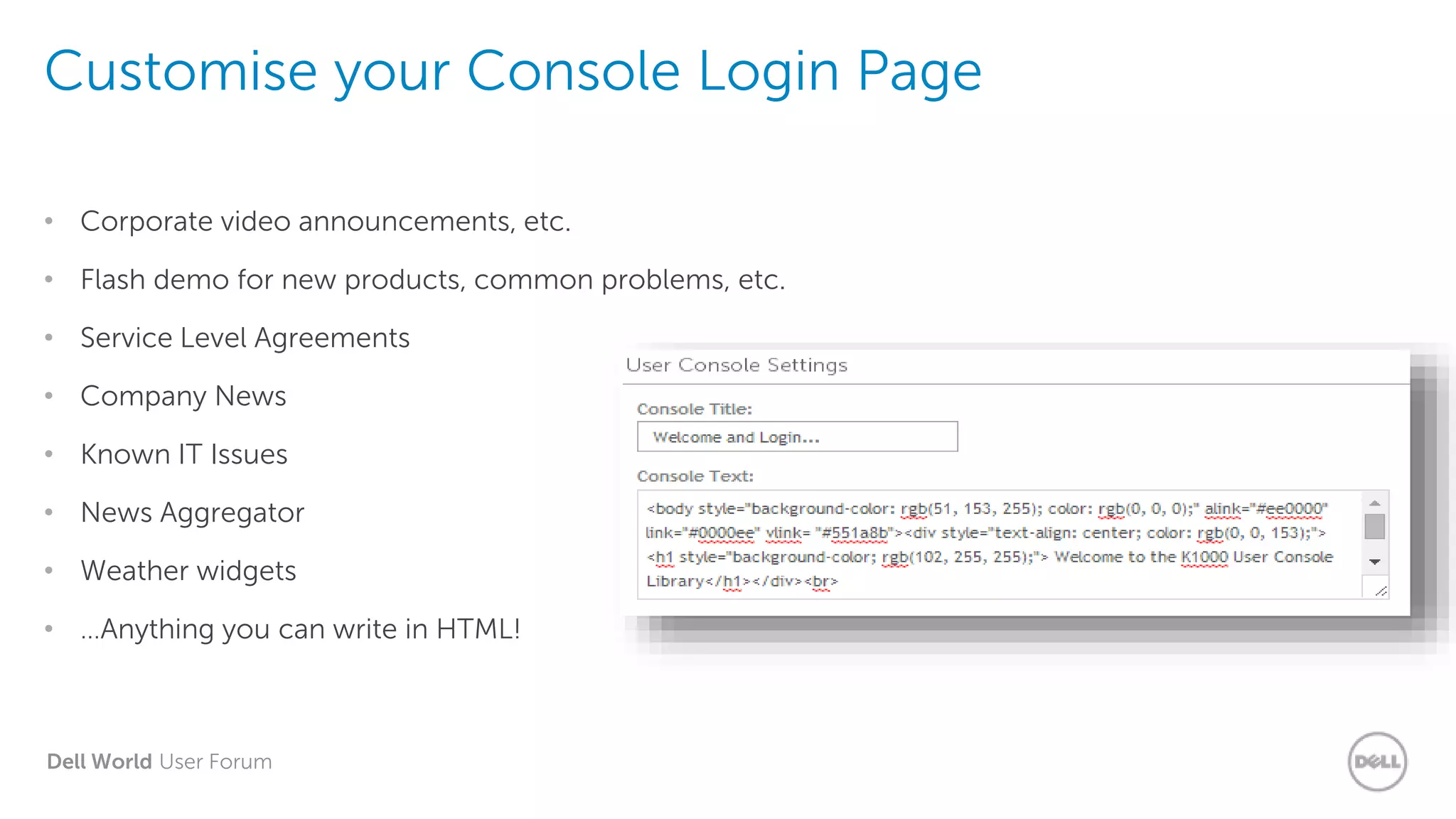
Customise your Console Login Page
• Corporate video announcements, etc.
• Flash demo for new products, common problems, etc.
• Service Level Agreements
• Company News
• Known IT Issues
• News Aggregator
• Weather widgets
• …Anything you can write in HTML!
Dell World User Forum
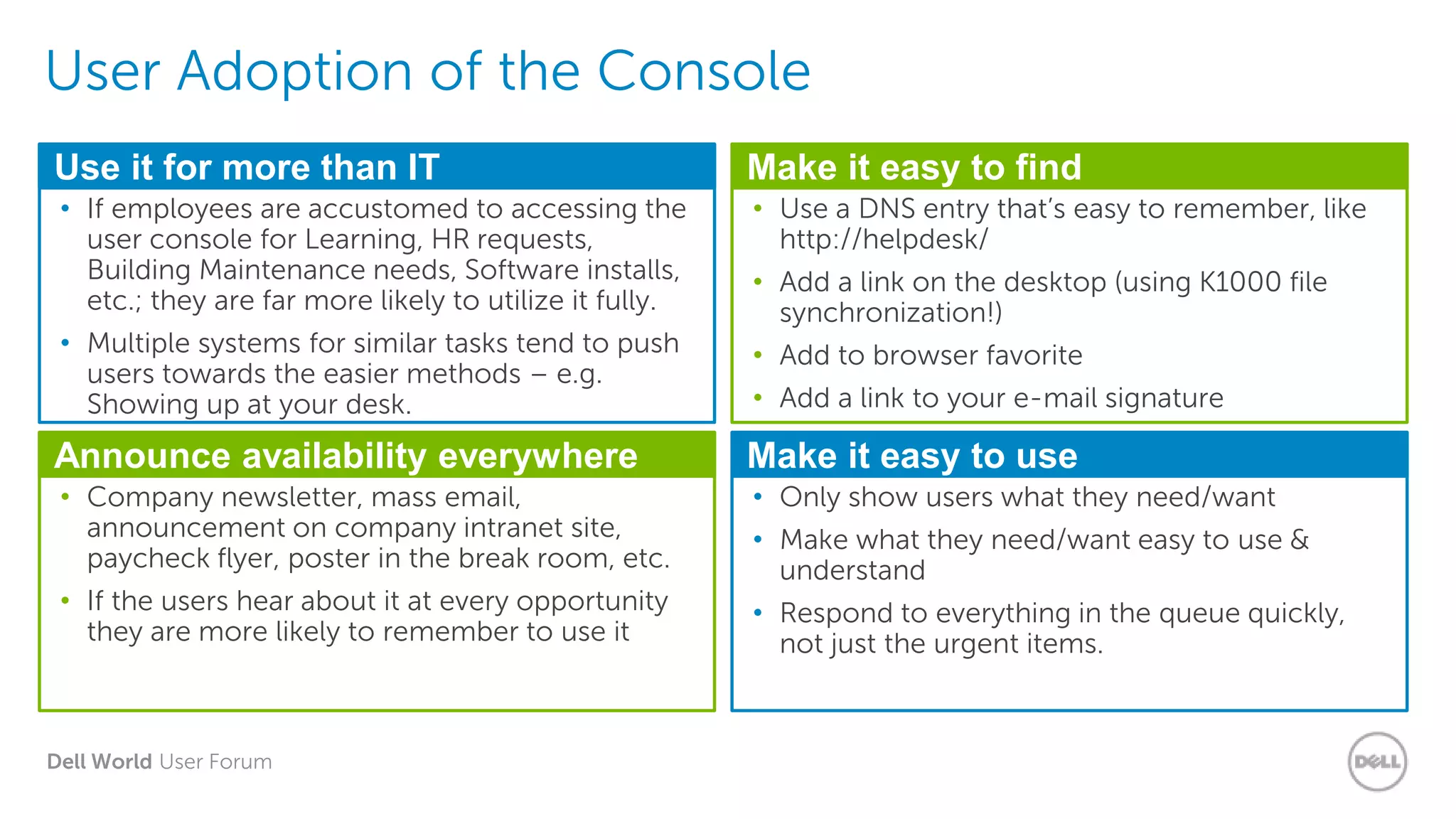
User Adoption of the Console
Use it for more than IT
• If employees are accustomed to accessing the
user console for Learning, HR requests,
Building Maintenance needs, Software installs,
etc.; they are far more likely to utilize it fully.
• Multiple systems for similar tasks tend to push
users towards the easier methods – e.g.
Showing up at your desk.
Make it easy to find
• Use a DNS entry that’s easy to remember, like
http://helpdesk/
• Add a link on the desktop (using K1000 file
synchronization!)
• Add to browser favorite
• Add a link to your e-mail signature
Announce availability everywhere
• Company newsletter, mass email,
announcement on company intranet site,
paycheck flyer, poster in the break room, etc.
• If the users hear about it at every opportunity
they are more likely to remember to use it
Make it easy to use
• Only show users what they need/want
• Make what they need/want easy to use &
understand
• Respond to everything in the queue quickly,
not just the urgent items.
Dell World User Forum
User Console Library
Dell World User Forum
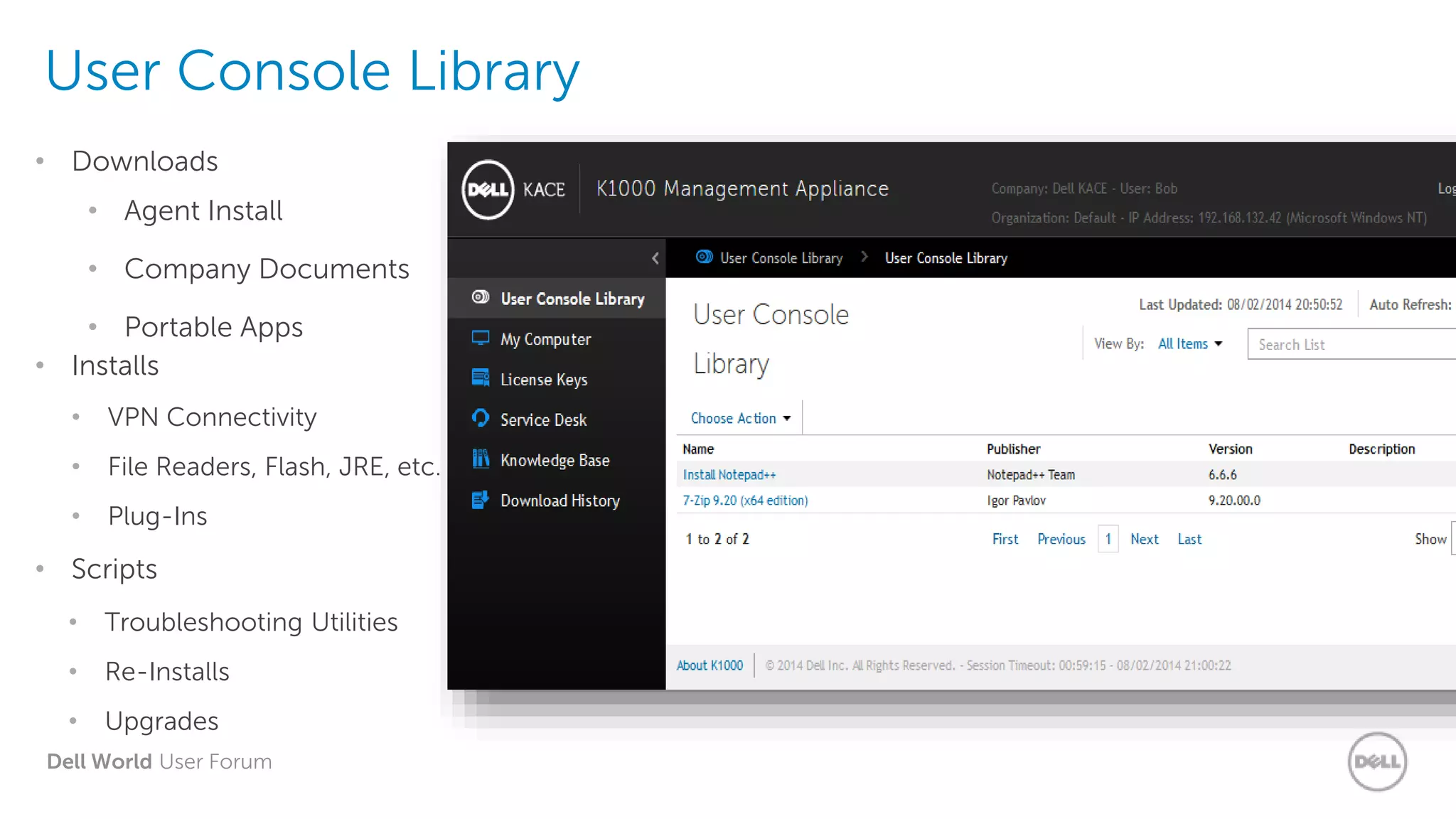
User Console Library
• Agent Install
• Company Documents
• Portable Apps
• Downloads
• VPN Connectivity
• File Readers, Flash, JRE, etc.
• Plug-Ins
• Installs
• Troubleshooting Utilities
• Re-Installs
• Upgrades
• Scripts
Dell World User Forum
Library Ideas
• Empower Your People to Resolve Issues!
Technicians
• Create scripts/installs for technicians’ favorite
tools and utilities
• One place for storage/retrieval
• One set of tools
– Train all techs on them
– Keep them up-to-date
– Consistent user-experience across no matter which
tech they get
Users
• Create K-Scripts that silently install/run
troubleshooting utilities.
• Tech directs user to them, collects results when
finished.
– No babysitting – Techs are busy elsewhere while
they’re running!
• Publish KB Articles that point to them!
– Drop them directly into a ticket comment!
• They use the Agent, so:
– Users don’t have to be Local Admins / Root Users!
– You can package them the way you want
Dell World User Forum
Exercise: User Console
Library Install
Dell World User Forum
Knowledge Base
Dell World User Forum
KB Articles
• Knowledge for Users
– Enable users to solve issues
– Explain processes and procedures
– Keep in touch
• Knowledge for Technicians
– Information-sharing
– Issue resolutions
– Known-issue talking points
• Turn Tickets into KB Articles
– One-click transfer
– Summarize transferred text
– Publish!
Dell World User Forum
Some won’t though…
• No Problem! Incorporate them
directly into a ticket!*
• Now, they’ll get the article, read
and use it.
• Create KB Articles restricted to just
technicians, to share solutions.
Less Time Per Ticket!
KB gives them the knowledge to do
so!
• Create KB Articles that all users can
access, for self-help.
• Create KB Articles for all User
Console Library postings.
• Some users will find, read, and use
them…
Fewer Tickets!
Empower Your People to Resolve Issues!
“When we engage & inform users and make information highly effective, helpdesk calls decrease.”
KB Ideas
* a note about plain-text vs. Markdown
Dell World User Forum
More Ideas
• Be Visual!
– Use video, flash demo and images to make your KB Articles really stand out.
– KB Articles don’t have to be static, embedding a video or an interactive walkthrough will greatly enhance
the User Experience.
• Use KB Articles for corporate training, not just for break/fix informational solutions.
Dell World User Forum
Exercise 6: Create KB
Article, Drop into Ticket
Dell World User Forum
Taking K1 Mobility to
the next level
Dell World User Forum
What is K1000 GO?
Lets take a look at the K1000 GO
App from Dell KACE, and how it will
allow you to K1 Mobile!
What does it do?
A closer look at what the K1000 GO
app has to offer from a feature
aspect.
Where can I get it?
Where to get it and how to install it!
K1000 GO
Dell World User Forum
K1000 GO – What is it?
• K1000 GO is a new management app for the K1000 appliance
• Introduced in the K1000 version 5.5 release.
– For supported iOS and Android Platforms
• Primarily focused on using the K1000 rather than configuration.
– Has been optimized to provide quick functionality across the modules.
Dell World User Forum
K1000 GO – What is it?
• Main Features
• Inventory
• Review and Search your inventoried machines.
• Have the ability to view detailed Inventory Information for machines.
• View tickets associated with a machine.
• Alerts
• Receive real-time alerts of ticket events through push notifications
• Managed Installations
• Search and Distribute active managed installs
Dell World User Forum
K1000 GO App
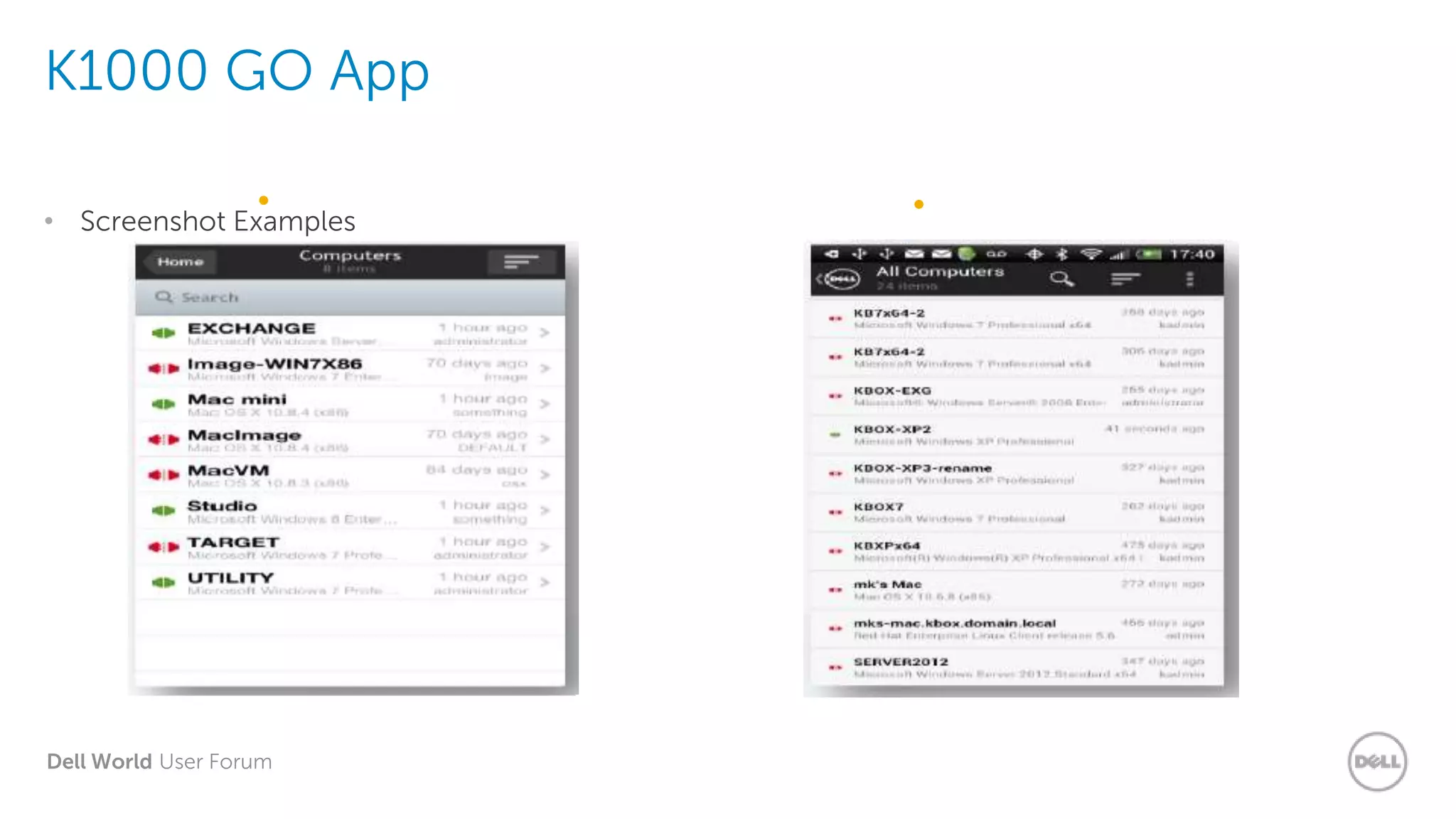
• Screenshot Examples
• iOS • Android
Dell World User Forum
K1000 GO – What is it?
• Main Features Continued.
• Service Desk
• View queues defined on your K1000
• Search for tickets
• Fully manage tickets – Create, Review, Update, Delete or Resolve a Ticket
• View attachments, Machine Inventory information or Ticket History
• Knowledge Base
• Search Knowledge Base Articles
• Include a Knowledge Base article while troubleshooting an issue.
Dell World User Forum
iOS
Download the K1000 GO App from the Apple
Store:
https://itunes.apple.com/us/app/k1000-
go/id680443651?mt=8
Android
Download from the Google Play Store:
https://play.google.com/store/apps/details?id=c
om.dell.kace.k1mobile
K1000 GO – How Do I Get It?
Dell World User Forum
Steps to install the K1000 GO App
• Step 1 – Configure the K1000 for use with the K1000 GO App
• Enable Mobile Device Access for the K1000
• Enable User Mobile Device Access on the K1000
• Step 2 – Download and Install the K1000 GO App
• iOS Devices from the Apple Store
• Android Devices from the Google Play Store
• Step 3 – Configure the K1000 GO App
• Connect to the K1000
• Login Account to access the K1000
Dell World User Forum
Thank you.
Dell World User Forum
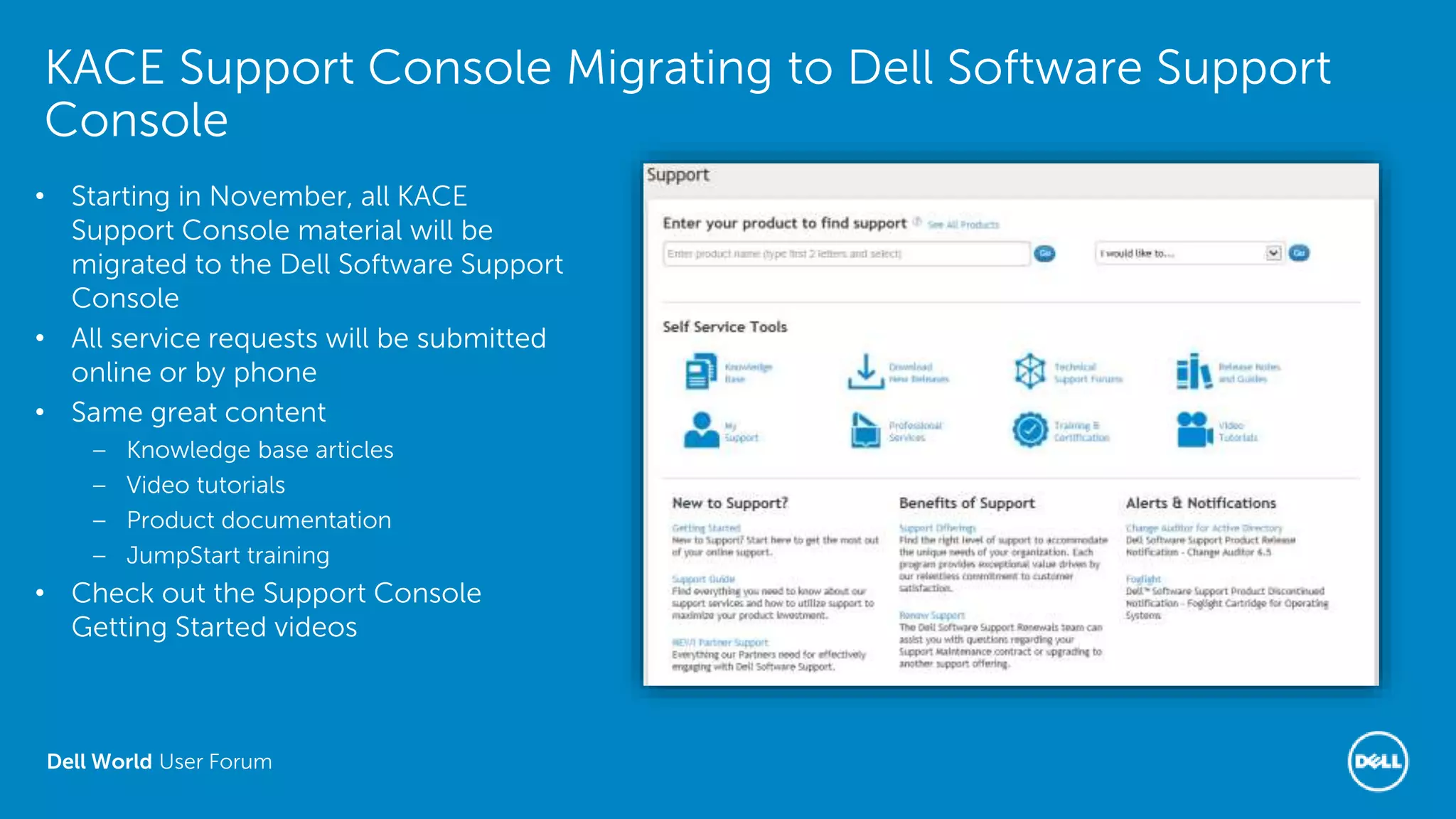
KACE Support Console Migrating to Dell Software Support
Console
• Starting in November, all KACE
Support Console material will be
migrated to the Dell Software Support
Console
• All service requests will be submitted
online or by phone
• Same great content
– Knowledge base articles
– Video tutorials
– Product documentation
– JumpStart training
• Check out the Support Console
Getting Started videos

Fundamentals of Service Desk (SD 101)

  • 1.
    Dell World UserForum UFIL514: Fundamentals of Service Desk Erik Ragan, Senior Trainer Ian Bolton, Learning Development Dell World User Forum
  • 2.
    Dell World UserForum Agenda • What is Service Desk? • Queues • User Console Library • Knowledge Base • Q&A
  • 3.
    Dell World UserForum Big Picture 1. Do you currently use a ticketing system? 2. Do you currently use a Knowledge Base? 3. Do you currently use an on-demand software portal for users?
  • 4.
    Dell World UserForum Other Sessions of Interest • This is an introduction course. Here are some other sessions taking place this week that you might be interested in…. • User Console Essentials (Instructor Led) • Service Desk 201 – The Power to do More (Instructor Led) • Service Desk Processes (Self Paced Lab)
  • 5.
    Dell World UserForum What is Service Desk?
  • 6.
    Dell World UserForum What do you want to use the Service Desk for? The K1000 Service Desk is highly customizable and can fit a variety of needs. You can use it for much more than a standard IT Helpdesk: • Facility maintenance • Purchasing • Database access request • HR Queue • Project Management You are only limited by your imagination!
  • 7.
    Dell World UserForum Components • Ticket Queues – Fields & Layout – Submitters – Ticket Owners • Tools – Knowledge Base Articles – User Console Library – System Ticket Rules • Information & Interaction – Inventory Data – Asset Data – Device Actions Tools
  • 8.
    Dell World UserForum K1000 Service Desk Ticketing System Ticketing • Multiple Queues • Process-Based Rules • Custom Rules • Entry via Mail, Portal, and App • Integrated with User, Device, and Asset data Admin Console User Console User Console • User or Technician • Owners can manage tickets, users can update theirs • Knowledge Base • User Console Library Broad Customization Administrative Console • Define permissions for Queues, Articles, and more • Customize anything • Create approvals, processes, and different queues Broad Customization • Queue customization • Field visibility • Ticket Rules • Mail templates • Create workflows
  • 9.
    Dell World UserForum Users, Roles and the Service Desk
  • 10.
    Dell World UserForum Who, What and How? WHO • Who will be Administrators? • Who needs to be in User Groups, and which ones? • Who will be Queue Owners? • What areas of the User Console are users going to be able to access? • What Queues will be accessible and by whom? • What types of automation can be used? • How are your Users going to submit tickets? • How will technicians service tickets? • How will we report on usage and service? • How will users benefit? WHAT HOW
  • 11.
    Dell World UserForum Limiting User Views • Before you even import users from LDAP – Create a custom Role. – Only let users see what they need – extra information is distracting and may discourage the user from using the portal • Use different roles for different needs – Some staff only need the helpdesk and knowledge base – Some staff may need all tabs – Some staff may only need the Software Library – Some Administrators may only require access to the Service Desk section of the K1000 Administrator Console • User Labels allow for limiting access to Software Library items, KB Articles, and even Ticket Approver/Owner/Submitter options
  • 12.
    Dell World UserForum Exercise: Creating Local Users and Roles
  • 13.
    Dell World UserForum Queues
  • 14.
    Dell World UserForum Queue = Helpdesk Complete Customization Fields Submitters Owners Rules
  • 15.
    Dell World UserForum Submission Methods & Usage Technician Mobile App E-Mail User Console
  • 16.
    Dell World UserForum Planning Ahead Plan before you create • Before you do any work do your research • Building the queue before any research is done is a great way to ensure you’ll do more work later! • After all other things are done configure your queue With research - answer several key questions • What will the Queue(s) be used for? • How do you want Users to submit tickets? • What information do you want to get from your Users? • What is the best way to get that information? • What information/tools do the users need? Details matter. Investigate, Understand, Plan, Grow, Adapt.
  • 17.
    Dell World UserForum Exercise: Service Desk Queue Creation
  • 18.
    Dell World UserForum Electronic Form Design • Make it easy, by giving users simple drop-downs to choose from. Restrict most choices to technicians – Hide some Categories from users. › PROC/RAM, Router/Firewall, Server/Switch, etc. – Use “Required on Close” › You can enforce policies on techs, easier than on users. – Remember, after all, technicians know the most about the issues. Don’t overwhelm users with choices • Category  – Lots of levels, few choices on each level. • Impact  – Allow users to tell you how wide-spread the issue is. • Location  – Do you know where everyone sits? • Department  – So you can report on who is using the helpdesk.
  • 19.
    Dell World UserForum Submitting a Ticket via Email • A user simply has to send an email to the mail address for the helpdesk • For purpose of this example, we will be using ServiceDesk@Kace.Local • Subject Line > Enter a description of your issue • Email Body > Supply details of the issue within the body of the mail • Send the email • Ticket will be created on the K1000 Service Desk Queue and Subject, Body, Sender processed into the ticket fields. Automation processes then kick in such as response to user their ticket is received.
  • 20.
    Dell World UserForum Updating Tickets via Email › Reply to the email received from the K1000 Service Desk › Delete all of the previous email contents to leave a blank mail › Type the update comment for the ticket › Send the response to the service desk email address By removing all of the previous contents and typing the new update within the mail, only that update will be added as a comment to the ticket. If all the previous comments are left when replying with an update, the whole contents are added each time to the ticket as a new comment. • End Users
  • 21.
    Dell World UserForum Ticket Owners (IT Team) • Remove all previous comments when replying with a new comment/update • Update Ticket Fields by using special parameters: • @<Field Name>=<Update> • Examples: • @Priority=Low Set the priority of the ticket to Low • @Category=Software Set the Category to Software • @Status=Closed Set the Status of the ticket to Closed
  • 22.
    Dell World UserForum Exercise: Ticket Layout Configuration
  • 23.
    Dell World UserForum Exercise: Ticket as User vs. Technician
  • 24.
    Dell World UserForum User Console
  • 25.
    Dell World UserForum Empower Your People • Give a man a fish and you feed him for a day. Teach a man to fish and you feed him for a lifetime. • User Console Library – Provide people with access to approved software, drivers or other items such as documents. • Service Desk Tickets – Ability to log and update tickets • Knowledge Base – The ability to look up information articles themselves *Reduction in tickets logged* • Additional features include: – The ability to allow users view the inventory details for their device. – The ability to provide License Key information to users. – Download History details for items obtained from the Console Library
  • 26.
    Dell World UserForum Customise your Console Login Page • Corporate video announcements, etc. • Flash demo for new products, common problems, etc. • Service Level Agreements • Company News • Known IT Issues • News Aggregator • Weather widgets • …Anything you can write in HTML!
  • 27.
    Dell World UserForum User Adoption of the Console Use it for more than IT • If employees are accustomed to accessing the user console for Learning, HR requests, Building Maintenance needs, Software installs, etc.; they are far more likely to utilize it fully. • Multiple systems for similar tasks tend to push users towards the easier methods – e.g. Showing up at your desk. Make it easy to find • Use a DNS entry that’s easy to remember, like http://helpdesk/ • Add a link on the desktop (using K1000 file synchronization!) • Add to browser favorite • Add a link to your e-mail signature Announce availability everywhere • Company newsletter, mass email, announcement on company intranet site, paycheck flyer, poster in the break room, etc. • If the users hear about it at every opportunity they are more likely to remember to use it Make it easy to use • Only show users what they need/want • Make what they need/want easy to use & understand • Respond to everything in the queue quickly, not just the urgent items.
  • 28.
    Dell World UserForum User Console Library
  • 29.
    Dell World UserForum User Console Library • Agent Install • Company Documents • Portable Apps • Downloads • VPN Connectivity • File Readers, Flash, JRE, etc. • Plug-Ins • Installs • Troubleshooting Utilities • Re-Installs • Upgrades • Scripts
  • 30.
    Dell World UserForum Library Ideas • Empower Your People to Resolve Issues! Technicians • Create scripts/installs for technicians’ favorite tools and utilities • One place for storage/retrieval • One set of tools – Train all techs on them – Keep them up-to-date – Consistent user-experience across no matter which tech they get Users • Create K-Scripts that silently install/run troubleshooting utilities. • Tech directs user to them, collects results when finished. – No babysitting – Techs are busy elsewhere while they’re running! • Publish KB Articles that point to them! – Drop them directly into a ticket comment! • They use the Agent, so: – Users don’t have to be Local Admins / Root Users! – You can package them the way you want
  • 31.
    Dell World UserForum Exercise: User Console Library Install
  • 32.
    Dell World UserForum Knowledge Base
  • 33.
    Dell World UserForum KB Articles • Knowledge for Users – Enable users to solve issues – Explain processes and procedures – Keep in touch • Knowledge for Technicians – Information-sharing – Issue resolutions – Known-issue talking points • Turn Tickets into KB Articles – One-click transfer – Summarize transferred text – Publish!
  • 34.
    Dell World UserForum Some won’t though… • No Problem! Incorporate them directly into a ticket!* • Now, they’ll get the article, read and use it. • Create KB Articles restricted to just technicians, to share solutions. Less Time Per Ticket! KB gives them the knowledge to do so! • Create KB Articles that all users can access, for self-help. • Create KB Articles for all User Console Library postings. • Some users will find, read, and use them… Fewer Tickets! Empower Your People to Resolve Issues! “When we engage & inform users and make information highly effective, helpdesk calls decrease.” KB Ideas * a note about plain-text vs. Markdown
  • 35.
    Dell World UserForum More Ideas • Be Visual! – Use video, flash demo and images to make your KB Articles really stand out. – KB Articles don’t have to be static, embedding a video or an interactive walkthrough will greatly enhance the User Experience. • Use KB Articles for corporate training, not just for break/fix informational solutions.
  • 36.
    Dell World UserForum Exercise 6: Create KB Article, Drop into Ticket
  • 37.
    Dell World UserForum Taking K1 Mobility to the next level
  • 38.
    Dell World UserForum What is K1000 GO? Lets take a look at the K1000 GO App from Dell KACE, and how it will allow you to K1 Mobile! What does it do? A closer look at what the K1000 GO app has to offer from a feature aspect. Where can I get it? Where to get it and how to install it! K1000 GO
  • 39.
    Dell World UserForum K1000 GO – What is it? • K1000 GO is a new management app for the K1000 appliance • Introduced in the K1000 version 5.5 release. – For supported iOS and Android Platforms • Primarily focused on using the K1000 rather than configuration. – Has been optimized to provide quick functionality across the modules.
  • 40.
    Dell World UserForum K1000 GO – What is it? • Main Features • Inventory • Review and Search your inventoried machines. • Have the ability to view detailed Inventory Information for machines. • View tickets associated with a machine. • Alerts • Receive real-time alerts of ticket events through push notifications • Managed Installations • Search and Distribute active managed installs
  • 41.
    Dell World UserForum K1000 GO App • Screenshot Examples • iOS • Android
  • 42.
    Dell World UserForum K1000 GO – What is it? • Main Features Continued. • Service Desk • View queues defined on your K1000 • Search for tickets • Fully manage tickets – Create, Review, Update, Delete or Resolve a Ticket • View attachments, Machine Inventory information or Ticket History • Knowledge Base • Search Knowledge Base Articles • Include a Knowledge Base article while troubleshooting an issue.
  • 43.
    Dell World UserForum iOS Download the K1000 GO App from the Apple Store: https://itunes.apple.com/us/app/k1000- go/id680443651?mt=8 Android Download from the Google Play Store: https://play.google.com/store/apps/details?id=c om.dell.kace.k1mobile K1000 GO – How Do I Get It?
  • 44.
    Dell World UserForum Steps to install the K1000 GO App • Step 1 – Configure the K1000 for use with the K1000 GO App • Enable Mobile Device Access for the K1000 • Enable User Mobile Device Access on the K1000 • Step 2 – Download and Install the K1000 GO App • iOS Devices from the Apple Store • Android Devices from the Google Play Store • Step 3 – Configure the K1000 GO App • Connect to the K1000 • Login Account to access the K1000
  • 45.
    Dell World UserForum Thank you.
  • 46.
    Dell World UserForum KACE Support Console Migrating to Dell Software Support Console • Starting in November, all KACE Support Console material will be migrated to the Dell Software Support Console • All service requests will be submitted online or by phone • Same great content – Knowledge base articles – Video tutorials – Product documentation – JumpStart training • Check out the Support Console Getting Started videos

Editor's Notes

  • #5 K1000 Service Desk Tools: Processes and Queues http://www.kace.com/support/training/kke/archive?id=116FC3DE-3434-4072-BC23-D4399A1C33D8&language=en User Portal Ideas: http://www.kace.com/support/training/kke/archive?id=0826E46E-F6B2-4885-8AC3-500077BCAFA5&language=en Service Desk Efficiency: http://www.kace.com/support/training/kke/archive?id=D504A365-A8D9-448C-88A2-51203B4C3978&language=en K1000 GO Mobile App: http://www.kace.com/support/training/kke/archive?id=B4109E1E-96D2-4E35-A11C-DA3216A4E8EA&language=en Technician Toolkits: http://www.kace.com/support/training/kke/archive?id=D8268070-B89D-45F4-BF95-EF2DBD721740&language=en
  • #9 Instructor’s notes: Overview: The K1000 service desk provides an easy-to-use solution which is integrated with the K1000 inventory and asset components. Separate Queues: K1000 service desk includes the ability to set up multiple support queues and configure process-based rules to govern the flow of tickets, whether they are incident-based or process based. Customization: K1000 service desk is fully customizable to each organization's unique requirements and processes. Fields, field values, defaults, escalation rules, e-mail notifications, queues, workflow rules, and the incident list and detail views can all be customized. Best feature: completely customizable Worst feature: completely customizable The Service Desk is used to allow user to submit tickets, manage tickets (for any type of task), and manage processes (checklists of sequenced tickets). Our Service Desk is based on SQL Select queries and Update queries, and email-based delivery.
  • #16 Instructor’s notes: Multiple methods of ticket submission exist, and the K1000 Service Desk enables you to handle all of them Technician Direct Entry: Users will call, visit, catch you in the halls, and so forth. Technicians can submit tickets on behalf of other users to identify the affected person as the submitter. Directed E-mail: Users are often quite comfortable using E-mail as a communication method. We can configure an email address for them to submit help requests to and the system will accept email directly and create or update tickets. User Self-Entry: The portal allows us to direct users to a web form that asks all the questions you need answers to, so that the ticket can be properly assigned and responded to. The portal option (K1000 User Portal) can be one of the most beneficial changes to any service desk, although it can also be the most difficult to get the users to adopt if they are resistant to change.
  • #48 Console: http://www.software.dell.com/support Ticket Entry: https://support.software.dell.com/create-service-request Videos: https://support.software.dell.com/essentials/getting-started