Dell Storage
Management
Troy Presler
Dell Storage Product Planning
2
Agenda:
What is Enterprise Manager (EM)?
How does it automate your Storage Center (SC) management?
• New functionality in EM 2015
What is Dell Storage Manager (DSM)?
• Direction/Strategy
How will DSM help facilitate SC/PS management?
• Thin Import (PS -> SC)
• Cross-platform Replication (PS <-> SC)
• EQL PS Group Management within DSM
What are some of the new aspects for DSM?
• Virtual Appliance
• Web Client (HTML5)
• Understand Enterprise Manager’s use cases
• Walk away with knowledge of Enterprise Manager functionality
• Understand how to use Enterprise Manager to optimize your SAN
• Understand the direction of Dell Storage Manager
3
Session Objectives
Enterprise Manager
5
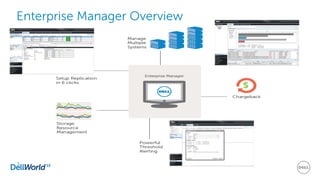
Enterprise Manager Overview
6
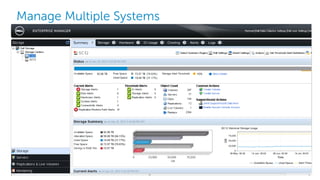
Manage Multiple Systems
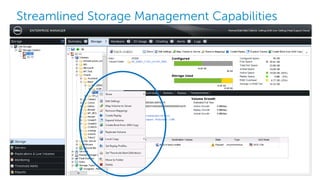
Streamlined Storage Management Capabilities
7
8
Historical Reporting Services
Stats for Storage Centers and FluidFS Clusters
– Selectable rates (1 minute, 5 minutes, 15 minutes, 30 minutes)
– IO, Storage, and Replication data
Stores data in your external database (SQL Server, MySQL) or built-in Flat File
– External database storage length is user-specified (up to one year)
– Flat File is an HSQL DB that stores data for 30 days
Storage Center (block) stats gathered:
– IO Usage for Volumes, Disks, Servers, Controllers (IO/Sec, MB/Sec, Latency)
– Storage Usage for Volumes, Disks, Servers, Storage Types (Total GB, Free GB, Used GB, etc.)
– Replication Usage (% Complete, Amount Remaining, IO/Sec, MB/Sec)
FluidFS (file) stats gathered:
– IO Usage for NAS Pools, NFS Exports, CIFS Shares (IO/Sec, MB/Sec, Latency)
– Storage Usage for NAS Pool, NAS Volumes (Total GB, Free GB, Used GB, etc)
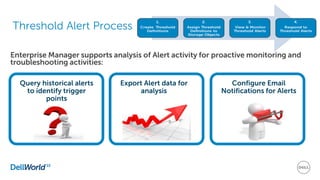
Enterprise Manager supports analysis of Alert activity for proactive monitoring and
troubleshooting activities:
Threshold Alert Process
Query historical alerts
to identify trigger
points
Configure Email
Notifications for Alerts
Export Alert data for
analysis
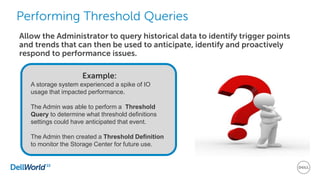
Performing Threshold Queries
Example:
A storage system experienced a spike of IO
usage that impacted performance.
The Admin was able to perform a Threshold
Query to determine what threshold definitions
settings could have anticipated that event.
The Admin then created a Threshold Definition
to monitor the Storage Center for future use.
Allow the Administrator to query historical data to identify trigger points
and trends that can then be used to anticipate, identify and proactively
respond to performance issues.
11
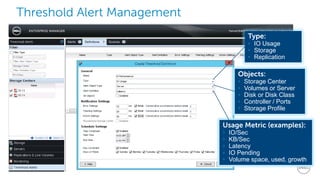
Threshold Alert Management
Type:
• IO Usage
• Storage
• Replication
Objects:
• Storage Center
• Volumes or Server
• Disk or Disk Class
• Controller / Ports
• Storage Profile
Usage Metric (examples):
• IO/Sec
• KB/Sec
• Latency
• IO Pending
• Volume space, used, growth
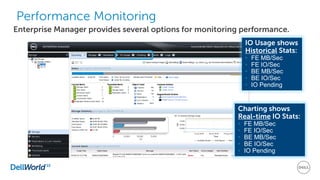
Performance Monitoring
Enterprise Manager provides several options for monitoring performance.
IO Usage shows
Historical Stats:
• FE MB/Sec
• FE IO/Sec
• BE MB/Sec
• BE IO/Sec
• IO Pending
Charting shows
Real-time IO Stats:
• FE MB/Sec
• FE IO/Sec
• BE MB/Sec
• BE IO/Sec
• IO Pending
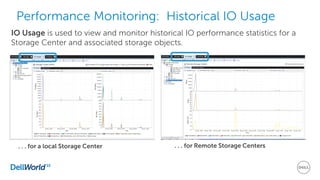
Performance Monitoring: Historical IO Usage
IO Usage is used to view and monitor historical IO performance statistics for a
Storage Center and associated storage objects.
. . . for a local Storage Center . . . for Remote Storage Centers
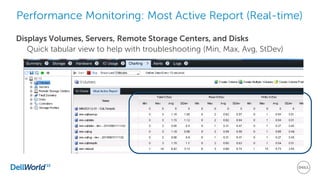
Performance Monitoring: Most Active Report (Real-time)
Displays Volumes, Servers, Remote Storage Centers, and Disks
Quick tabular view to help with troubleshooting (Min, Max, Avg, StDev)
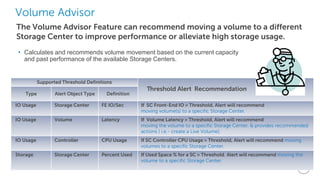
Volume Advisor
The Volume Advisor Feature can recommend moving a volume to a different
Storage Center to improve performance or alleviate high storage usage.
• Calculates and recommends volume movement based on the current capacity
and past performance of the available Storage Centers.
Supported Threshold Definitions
Threshold Alert Recommendation
Type Alert Object Type Definition
IO Usage Storage Center FE IO/Sec If SC Front-End IO > Threshold, Alert will recommend
moving volume(s) to a specific Storage Center.
IO Usage Volume Latency If Volume Latency > Threshold, Alert will recommend
moving the volume to a specific Storage Center, & provides recommended
actions ( i.e.- create a Live Volume).
IO Usage Controller CPU Usage If SC Controller CPU Usage > Threshold, Alert will recommend moving
volumes to a specific Storage Center.
Storage Storage Center Percent Used If Used Space % for a SC > Threshold, Alert will recommend moving the
volume to a specific Storage Center.
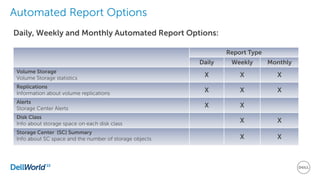
Automated Report Options
Daily, Weekly and Monthly Automated Report Options:
Report Type
Daily Weekly Monthly
Volume Storage
Volume Storage statistics
X X X
Replications
Information about volume replications
X X X
Alerts
Storage Center Alerts
X X
Disk Class
Info about storage space on each disk class
X X
Storage Center (SC) Summary
Info about SC space and the number of storage objects X X
17
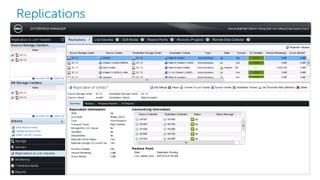
Replications
18
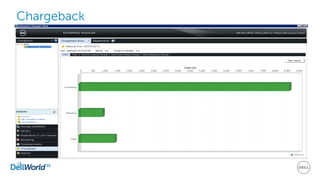
Chargeback
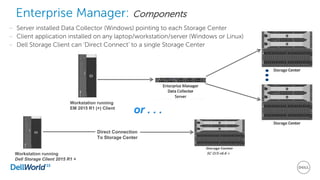
Enterprise Manager: Components
Workstation running
Dell Storage Client 2015 R1 +
Direct Connection
To Storage Center
SC O/S v6.6 +
– Server installed Data Collector (Windows) pointing to each Storage Center
– Client application installed on any laptop/workstation/server (Windows or Linux)
– Dell Storage Client can ‘Direct Connect’ to a single Storage Center
Workstation running
EM 2015 R1 (+) Client
or . . .
EM 2015 Changes
All SC Platforms:
• Host Setup Tool
– Selects Fault domains, Connects Hosts to
SC, Host MPIO driver, Creates Server on SC
– Lists best practices configured on behalf of
user and those still recommended.
• Localization (5 languages)
• Thin Import Migration from EQL PS to SC
SCv2000 only:
• EM Client is the only UI
– [SC GUI goes away for all platforms in 2016]
• Initial Setup
– Automates configuration: SC discovery, Fault
domains, initialization, etc.
Thin Import:
Migration from PS to SC
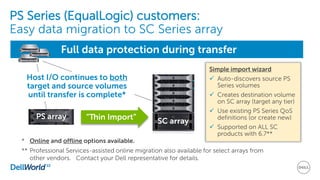
PS Series (EqualLogic) customers:
Easy data migration to SC Series array
Simple import wizard
 Auto-discovers source PS
Series volumes
 Creates destination volume
on SC array (target any tier)
 Use existing PS Series QoS
definitions (or create new)
 Supported on ALL SC
products with 6.7**
SC array
“Thin Import”
Full data protection during transfer
Host I/O continues to both
target and source volumes
until transfer is complete*
PS array
* Online and offline options available.
** Professional Services-assisted online migration also available for select arrays from
other vendors. Contact your Dell representative for details.
SC Series
Array
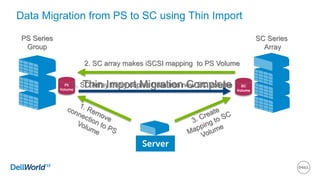
Data Migration from PS to SC using Thin Import
PS
Volume
SC
Volume
Server
2. SC array makes iSCSI mapping to PS Volume
4. SC Array thinly copies Data into new SC VolumeThin Import Migration Complete
PS Series
Group
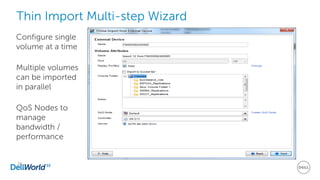
Thin Import Multi-step Wizard
24
Configure single
volume at a time
Multiple volumes
can be imported
in parallel
QoS Nodes to
manage
bandwidth /
performance
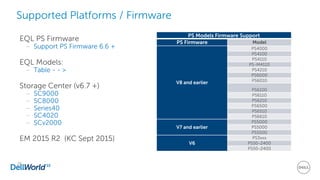
Supported Platforms / Firmware
EQL PS Firmware
– Support PS Firmware 6.6 +
EQL Models:
– Table - - >
Storage Center (v6.7 +)
– SC9000
– SC8000
– Series40
– SC4020
– SCv2000
EM 2015 R2 (KC Sept 2015)
25
PS Models Firmware Support
PS Firmware Model
V8 and earlier
PS4000
PS4100
PS4110
PS-M4110
PS4210
PS6000
PS6010
PS6100
PS6110
PS6210
PS6500
PS6510
PS6610
V7 and earlier
PS5000
PS5000
PS5500
V6
PS3xxx
PS50-2400
PS50-2400
Dell Storage Manager
(DSM)
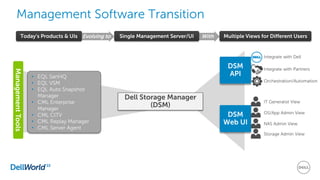
With
Management Software Transition
Today’s Products & UIs
ManagementTools
Single Management Server/UIEvolving to
DSM
Web UI
• EQL SanHQ
• EQL VSM
• EQL Auto Snapshot
Manager
• CML Enterprise
Manager
• CML CITV
• CML Replay Manager
• CML Server Agent
Multiple Views for Different Users
Dell Storage Manager
(DSM)
Storage Admin View
OS/App Admin View
IT Generalist View
NAS Admin View
DSM
API
Integrate with Dell
Integrate with Partners
Orchestration/Automation
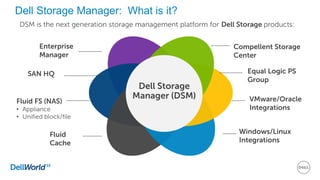
Dell Storage Manager: What is it?
Enterprise
Manager
Compellent Storage
Center
Fluid FS (NAS)
• Appliance
• Unified block/file
SAN HQ Equal Logic PS
Group
Windows/Linux
Integrations
Dell Storage
Manager (DSM)
Fluid
Cache
VMware/Oracle
Integrations
DSM is the next generation storage management platform for Dell Storage products:
Common Management:
Single Pane of Glass for
PS and SC
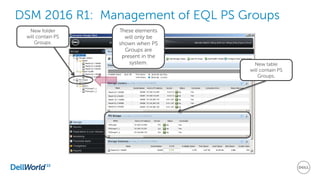
DSM 2016 R1: Management of EQL PS Groups
New folder
will contain PS
Groups.
These elements
will only be
shown when PS
Groups are
present in the
system. New table
will contain PS
Groups.
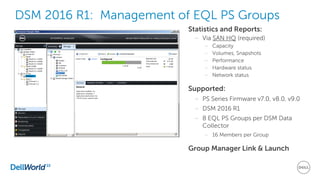
DSM 2016 R1: Management of EQL PS Groups
Statistics and Reports:
– Via SAN HQ (required)
– Capacity
– Volumes, Snapshots
– Performance
– Hardware status
– Network status
Supported:
– PS Series Firmware v7.0, v8.0, v9.0
– DSM 2016 R1
– 8 EQL PS Groups per DSM Data
Collector
– 16 Members per Group
Group Manager Link & Launch
Cross-Platform
Replication (XPR):
Protecting PS data with
SC or SC data with PS
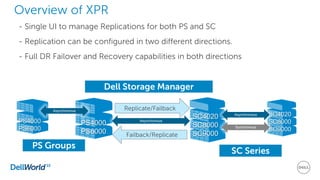
Overview of XPR
- Single UI to manage Replications for both PS and SC
- Replication can be configured in two different directions.
- Full DR Failover and Recovery capabilities in both directions
Dell Storage Manager
PS4000
PS6000
SC4020
SC8000
SC9000
Asynchronous
Synchronous
Asynchronous Replicate/Failback
Failback/Replicate
Asynchronous
SC4020
SC8000
SC9000
PS4000
PS6000
PS Groups
SC Series
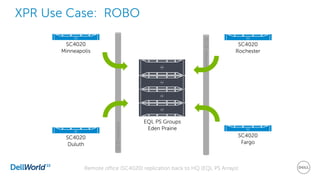
XPR Use Case: ROBO
SC4020
Minneapolis
SC4020
Rochester
SC4020
Duluth
EQL PS Groups
Eden Prairie
SC4020
Fargo
iSCSInetwork
iSCSInetwork
Remote office (SC4020) replication back to HQ (EQL PS Arrays)
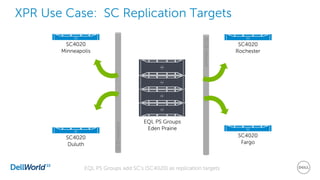
XPR Use Case: SC Replication Targets
SC4020
Minneapolis
SC4020
Rochester
SC4020
Duluth
EQL PS Groups
Eden Prairie
SC4020
Fargo
iSCSInetwork
iSCSInetwork
EQL PS Groups add SC’s (SC4020) as replication targets
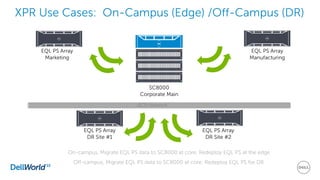
XPR Use Cases: On-Campus (Edge) /Off-Campus (DR)
EQL PS Array
Marketing
SC8000
Corporate Main
EQL PS Array
Manufacturing
iSCSI Network
EQL PS Array
DR Site #1
EQL PS Array
DR Site #2
On-campus, Migrate EQL PS data to SC8000 at core; Redeploy EQL PS at the edge
Off-campus, Migrate EQL PS data to SC8000 at core; Redeploy EQL PS for DR
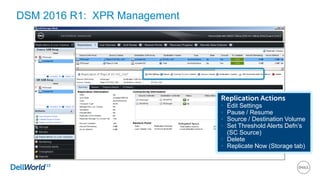
DSM 2016 R1: XPR Management
Replication Actions
• Edit Settings
• Pause / Resume
• Source / Destination Volume
• Set Threshold Alerts Defn’s
(SC Source)
• Delete
• Replicate Now (Storage tab)
Dell Storage Client:
Web UI
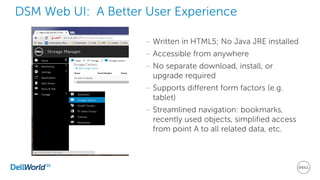
– Written in HTML5; No Java JRE installed
– Accessible from anywhere
– No separate download, install, or
upgrade required
– Supports different form factors (e.g.
tablet)
– Streamlined navigation: bookmarks,
recently used objects, simplified access
from point A to all related data, etc.
DSM Web UI: A Better User Experience
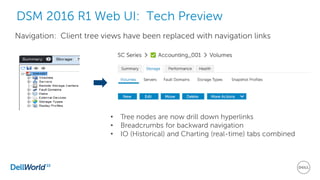
DSM 2016 R1 Web UI: Tech Preview
Navigation: Client tree views have been replaced with navigation links
• Tree nodes are now drill down hyperlinks
• Breadcrumbs for backward navigation
• IO (Historical) and Charting (real-time) tabs combined
Basic Guides (www.Support.dell.com and Knowledge Center)
– Enterprise Manager Administrator Guide(s)
– Enterprise Manager Install & Setup Guide
Advanced Guides (Knowledge Center)
– Enterprise Manager Reporting Tutorial
– Failover between sites with Enterprise Manager
– Disaster Recovery with Enterprise Manager
– Chargeback Tutorial
Videos (www.delltechcenter.com)
– PS to SC Series Data Migration via Thin Import
– Creating and Mapping Volumes
– Creating Threshold Definitions
– Recovering Data from a Replay
41
Resources Available
Thanks!
Dell Storage Management

Dell Storage Management

  • 1.
  • 2.
    2 Agenda: What is EnterpriseManager (EM)? How does it automate your Storage Center (SC) management? • New functionality in EM 2015 What is Dell Storage Manager (DSM)? • Direction/Strategy How will DSM help facilitate SC/PS management? • Thin Import (PS -> SC) • Cross-platform Replication (PS <-> SC) • EQL PS Group Management within DSM What are some of the new aspects for DSM? • Virtual Appliance • Web Client (HTML5)
  • 3.
    • Understand EnterpriseManager’s use cases • Walk away with knowledge of Enterprise Manager functionality • Understand how to use Enterprise Manager to optimize your SAN • Understand the direction of Dell Storage Manager 3 Session Objectives
  • 4.
  • 5.
  • 6.
  • 7.
  • 8.
    8 Historical Reporting Services Statsfor Storage Centers and FluidFS Clusters – Selectable rates (1 minute, 5 minutes, 15 minutes, 30 minutes) – IO, Storage, and Replication data Stores data in your external database (SQL Server, MySQL) or built-in Flat File – External database storage length is user-specified (up to one year) – Flat File is an HSQL DB that stores data for 30 days Storage Center (block) stats gathered: – IO Usage for Volumes, Disks, Servers, Controllers (IO/Sec, MB/Sec, Latency) – Storage Usage for Volumes, Disks, Servers, Storage Types (Total GB, Free GB, Used GB, etc.) – Replication Usage (% Complete, Amount Remaining, IO/Sec, MB/Sec) FluidFS (file) stats gathered: – IO Usage for NAS Pools, NFS Exports, CIFS Shares (IO/Sec, MB/Sec, Latency) – Storage Usage for NAS Pool, NAS Volumes (Total GB, Free GB, Used GB, etc)
  • 9.
    Enterprise Manager supportsanalysis of Alert activity for proactive monitoring and troubleshooting activities: Threshold Alert Process Query historical alerts to identify trigger points Configure Email Notifications for Alerts Export Alert data for analysis
  • 10.
    Performing Threshold Queries Example: Astorage system experienced a spike of IO usage that impacted performance. The Admin was able to perform a Threshold Query to determine what threshold definitions settings could have anticipated that event. The Admin then created a Threshold Definition to monitor the Storage Center for future use. Allow the Administrator to query historical data to identify trigger points and trends that can then be used to anticipate, identify and proactively respond to performance issues.
  • 11.
    11 Threshold Alert Management Type: •IO Usage • Storage • Replication Objects: • Storage Center • Volumes or Server • Disk or Disk Class • Controller / Ports • Storage Profile Usage Metric (examples): • IO/Sec • KB/Sec • Latency • IO Pending • Volume space, used, growth
  • 12.
    Performance Monitoring Enterprise Managerprovides several options for monitoring performance. IO Usage shows Historical Stats: • FE MB/Sec • FE IO/Sec • BE MB/Sec • BE IO/Sec • IO Pending Charting shows Real-time IO Stats: • FE MB/Sec • FE IO/Sec • BE MB/Sec • BE IO/Sec • IO Pending
  • 13.
    Performance Monitoring: HistoricalIO Usage IO Usage is used to view and monitor historical IO performance statistics for a Storage Center and associated storage objects. . . . for a local Storage Center . . . for Remote Storage Centers
  • 14.
    Performance Monitoring: MostActive Report (Real-time) Displays Volumes, Servers, Remote Storage Centers, and Disks Quick tabular view to help with troubleshooting (Min, Max, Avg, StDev)
  • 15.
    Volume Advisor The VolumeAdvisor Feature can recommend moving a volume to a different Storage Center to improve performance or alleviate high storage usage. • Calculates and recommends volume movement based on the current capacity and past performance of the available Storage Centers. Supported Threshold Definitions Threshold Alert Recommendation Type Alert Object Type Definition IO Usage Storage Center FE IO/Sec If SC Front-End IO > Threshold, Alert will recommend moving volume(s) to a specific Storage Center. IO Usage Volume Latency If Volume Latency > Threshold, Alert will recommend moving the volume to a specific Storage Center, & provides recommended actions ( i.e.- create a Live Volume). IO Usage Controller CPU Usage If SC Controller CPU Usage > Threshold, Alert will recommend moving volumes to a specific Storage Center. Storage Storage Center Percent Used If Used Space % for a SC > Threshold, Alert will recommend moving the volume to a specific Storage Center.
  • 16.
    Automated Report Options Daily,Weekly and Monthly Automated Report Options: Report Type Daily Weekly Monthly Volume Storage Volume Storage statistics X X X Replications Information about volume replications X X X Alerts Storage Center Alerts X X Disk Class Info about storage space on each disk class X X Storage Center (SC) Summary Info about SC space and the number of storage objects X X
  • 17.
  • 18.
  • 19.
    Enterprise Manager: Components Workstationrunning Dell Storage Client 2015 R1 + Direct Connection To Storage Center SC O/S v6.6 + – Server installed Data Collector (Windows) pointing to each Storage Center – Client application installed on any laptop/workstation/server (Windows or Linux) – Dell Storage Client can ‘Direct Connect’ to a single Storage Center Workstation running EM 2015 R1 (+) Client or . . .
  • 20.
    EM 2015 Changes AllSC Platforms: • Host Setup Tool – Selects Fault domains, Connects Hosts to SC, Host MPIO driver, Creates Server on SC – Lists best practices configured on behalf of user and those still recommended. • Localization (5 languages) • Thin Import Migration from EQL PS to SC SCv2000 only: • EM Client is the only UI – [SC GUI goes away for all platforms in 2016] • Initial Setup – Automates configuration: SC discovery, Fault domains, initialization, etc.
  • 21.
  • 22.
    PS Series (EqualLogic)customers: Easy data migration to SC Series array Simple import wizard  Auto-discovers source PS Series volumes  Creates destination volume on SC array (target any tier)  Use existing PS Series QoS definitions (or create new)  Supported on ALL SC products with 6.7** SC array “Thin Import” Full data protection during transfer Host I/O continues to both target and source volumes until transfer is complete* PS array * Online and offline options available. ** Professional Services-assisted online migration also available for select arrays from other vendors. Contact your Dell representative for details.
  • 23.
    SC Series Array Data Migrationfrom PS to SC using Thin Import PS Volume SC Volume Server 2. SC array makes iSCSI mapping to PS Volume 4. SC Array thinly copies Data into new SC VolumeThin Import Migration Complete PS Series Group
  • 24.
    Thin Import Multi-stepWizard 24 Configure single volume at a time Multiple volumes can be imported in parallel QoS Nodes to manage bandwidth / performance
  • 25.
    Supported Platforms /Firmware EQL PS Firmware – Support PS Firmware 6.6 + EQL Models: – Table - - > Storage Center (v6.7 +) – SC9000 – SC8000 – Series40 – SC4020 – SCv2000 EM 2015 R2 (KC Sept 2015) 25 PS Models Firmware Support PS Firmware Model V8 and earlier PS4000 PS4100 PS4110 PS-M4110 PS4210 PS6000 PS6010 PS6100 PS6110 PS6210 PS6500 PS6510 PS6610 V7 and earlier PS5000 PS5000 PS5500 V6 PS3xxx PS50-2400 PS50-2400
  • 26.
  • 27.
    With Management Software Transition Today’sProducts & UIs ManagementTools Single Management Server/UIEvolving to DSM Web UI • EQL SanHQ • EQL VSM • EQL Auto Snapshot Manager • CML Enterprise Manager • CML CITV • CML Replay Manager • CML Server Agent Multiple Views for Different Users Dell Storage Manager (DSM) Storage Admin View OS/App Admin View IT Generalist View NAS Admin View DSM API Integrate with Dell Integrate with Partners Orchestration/Automation
  • 28.
    Dell Storage Manager:What is it? Enterprise Manager Compellent Storage Center Fluid FS (NAS) • Appliance • Unified block/file SAN HQ Equal Logic PS Group Windows/Linux Integrations Dell Storage Manager (DSM) Fluid Cache VMware/Oracle Integrations DSM is the next generation storage management platform for Dell Storage products:
  • 29.
    Common Management: Single Paneof Glass for PS and SC
  • 30.
    DSM 2016 R1:Management of EQL PS Groups New folder will contain PS Groups. These elements will only be shown when PS Groups are present in the system. New table will contain PS Groups.
  • 31.
    DSM 2016 R1:Management of EQL PS Groups Statistics and Reports: – Via SAN HQ (required) – Capacity – Volumes, Snapshots – Performance – Hardware status – Network status Supported: – PS Series Firmware v7.0, v8.0, v9.0 – DSM 2016 R1 – 8 EQL PS Groups per DSM Data Collector – 16 Members per Group Group Manager Link & Launch
  • 32.
    Cross-Platform Replication (XPR): Protecting PSdata with SC or SC data with PS
  • 33.
    Overview of XPR -Single UI to manage Replications for both PS and SC - Replication can be configured in two different directions. - Full DR Failover and Recovery capabilities in both directions Dell Storage Manager PS4000 PS6000 SC4020 SC8000 SC9000 Asynchronous Synchronous Asynchronous Replicate/Failback Failback/Replicate Asynchronous SC4020 SC8000 SC9000 PS4000 PS6000 PS Groups SC Series
  • 34.
    XPR Use Case:ROBO SC4020 Minneapolis SC4020 Rochester SC4020 Duluth EQL PS Groups Eden Prairie SC4020 Fargo iSCSInetwork iSCSInetwork Remote office (SC4020) replication back to HQ (EQL PS Arrays)
  • 35.
    XPR Use Case:SC Replication Targets SC4020 Minneapolis SC4020 Rochester SC4020 Duluth EQL PS Groups Eden Prairie SC4020 Fargo iSCSInetwork iSCSInetwork EQL PS Groups add SC’s (SC4020) as replication targets
  • 36.
    XPR Use Cases:On-Campus (Edge) /Off-Campus (DR) EQL PS Array Marketing SC8000 Corporate Main EQL PS Array Manufacturing iSCSI Network EQL PS Array DR Site #1 EQL PS Array DR Site #2 On-campus, Migrate EQL PS data to SC8000 at core; Redeploy EQL PS at the edge Off-campus, Migrate EQL PS data to SC8000 at core; Redeploy EQL PS for DR
  • 37.
    DSM 2016 R1:XPR Management Replication Actions • Edit Settings • Pause / Resume • Source / Destination Volume • Set Threshold Alerts Defn’s (SC Source) • Delete • Replicate Now (Storage tab)
  • 38.
  • 39.
    – Written inHTML5; No Java JRE installed – Accessible from anywhere – No separate download, install, or upgrade required – Supports different form factors (e.g. tablet) – Streamlined navigation: bookmarks, recently used objects, simplified access from point A to all related data, etc. DSM Web UI: A Better User Experience
  • 40.
    DSM 2016 R1Web UI: Tech Preview Navigation: Client tree views have been replaced with navigation links • Tree nodes are now drill down hyperlinks • Breadcrumbs for backward navigation • IO (Historical) and Charting (real-time) tabs combined
  • 41.
    Basic Guides (www.Support.dell.comand Knowledge Center) – Enterprise Manager Administrator Guide(s) – Enterprise Manager Install & Setup Guide Advanced Guides (Knowledge Center) – Enterprise Manager Reporting Tutorial – Failover between sites with Enterprise Manager – Disaster Recovery with Enterprise Manager – Chargeback Tutorial Videos (www.delltechcenter.com) – PS to SC Series Data Migration via Thin Import – Creating and Mapping Volumes – Creating Threshold Definitions – Recovering Data from a Replay 41 Resources Available
  • 42.