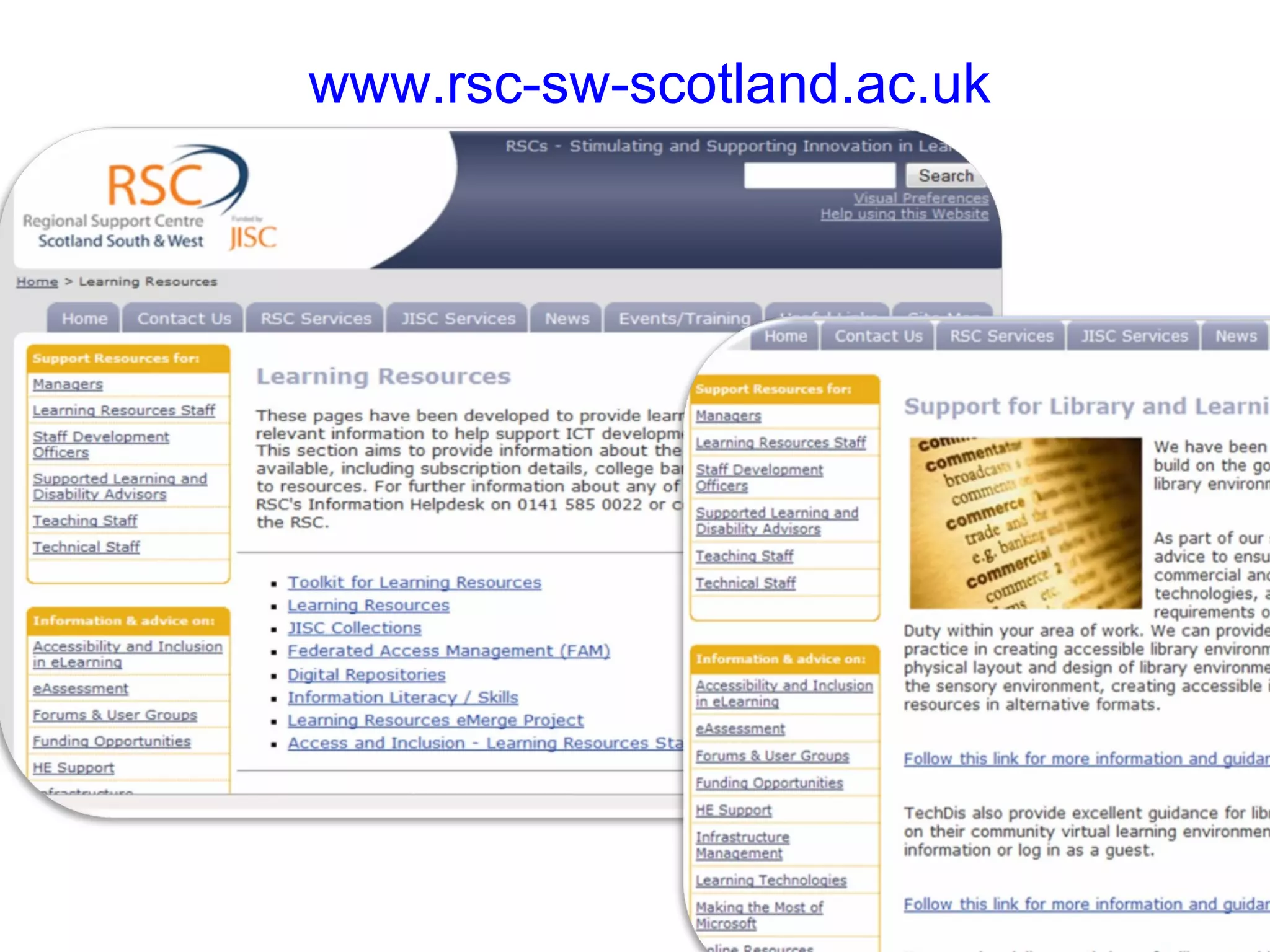
www.rsc-sw-scotland.ac.uk
RSC SW Scotland Services Scottish RSCs Inclusion Blog Inclusion in e-Learning Forum (sharing good practice) RSCtv  iTunes Podcasts Got a yearning for e-Learning? JISC Ask Events and Training www.rsc-sw-scotland.ac.uk
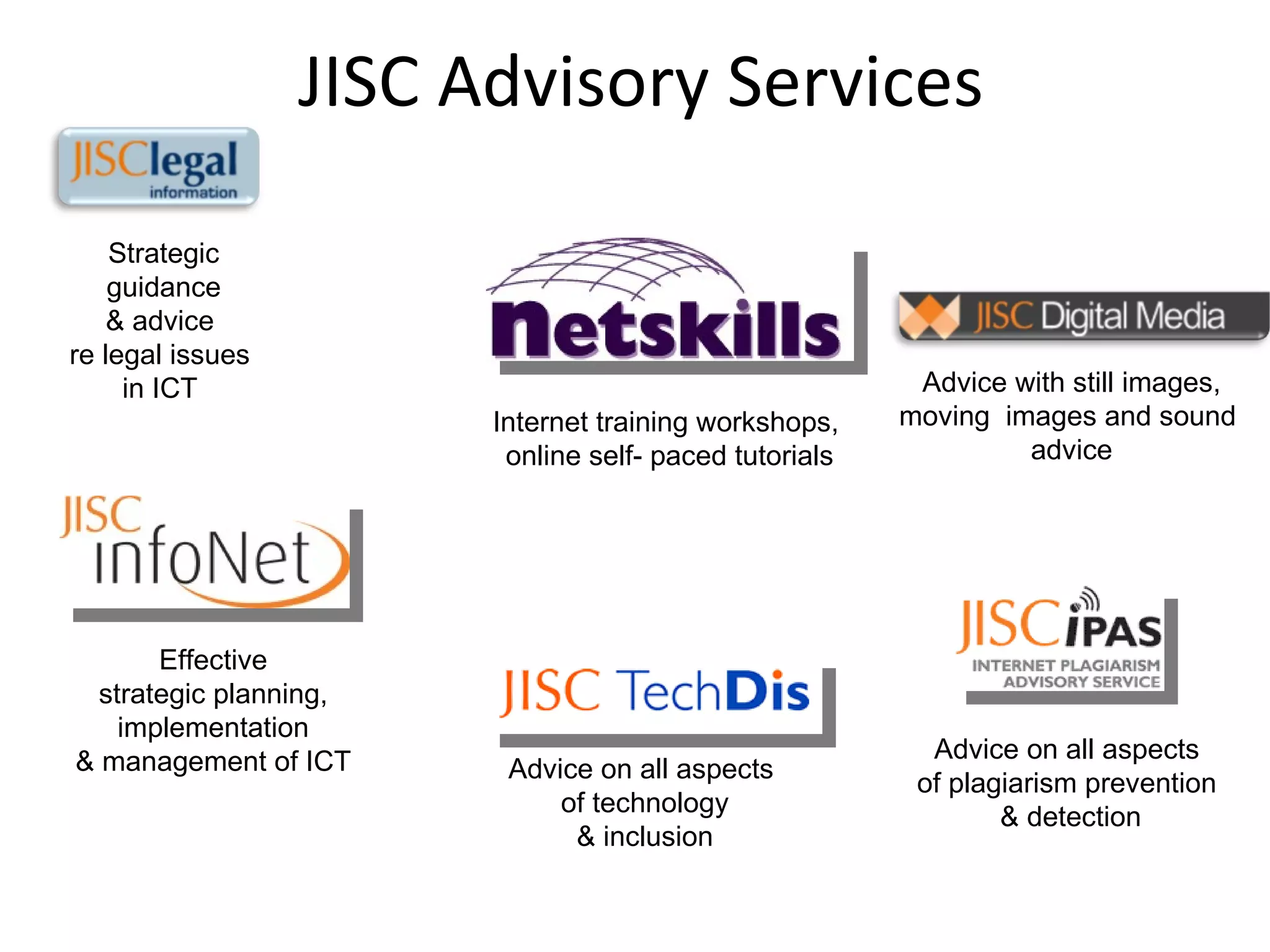
JISC Advisory Services Advice on all aspects  of plagiarism prevention  & detection Advice with still images, moving  images and sound  advice Advice on all aspects  of technology & inclusion Internet training workshops,  online self- paced tutorials Effective strategic planning, implementation  & management of ICT Strategic guidance & advice  re legal issues  in ICT
Techdis The JISC TechDis service advises on the use of technology to support inclusive practice in This includes advice and guidance for teaching and learning,  libraries & learner resources front line practitioners, policy makers , staff developers. a wide range of support roles including administration support and marketing.  
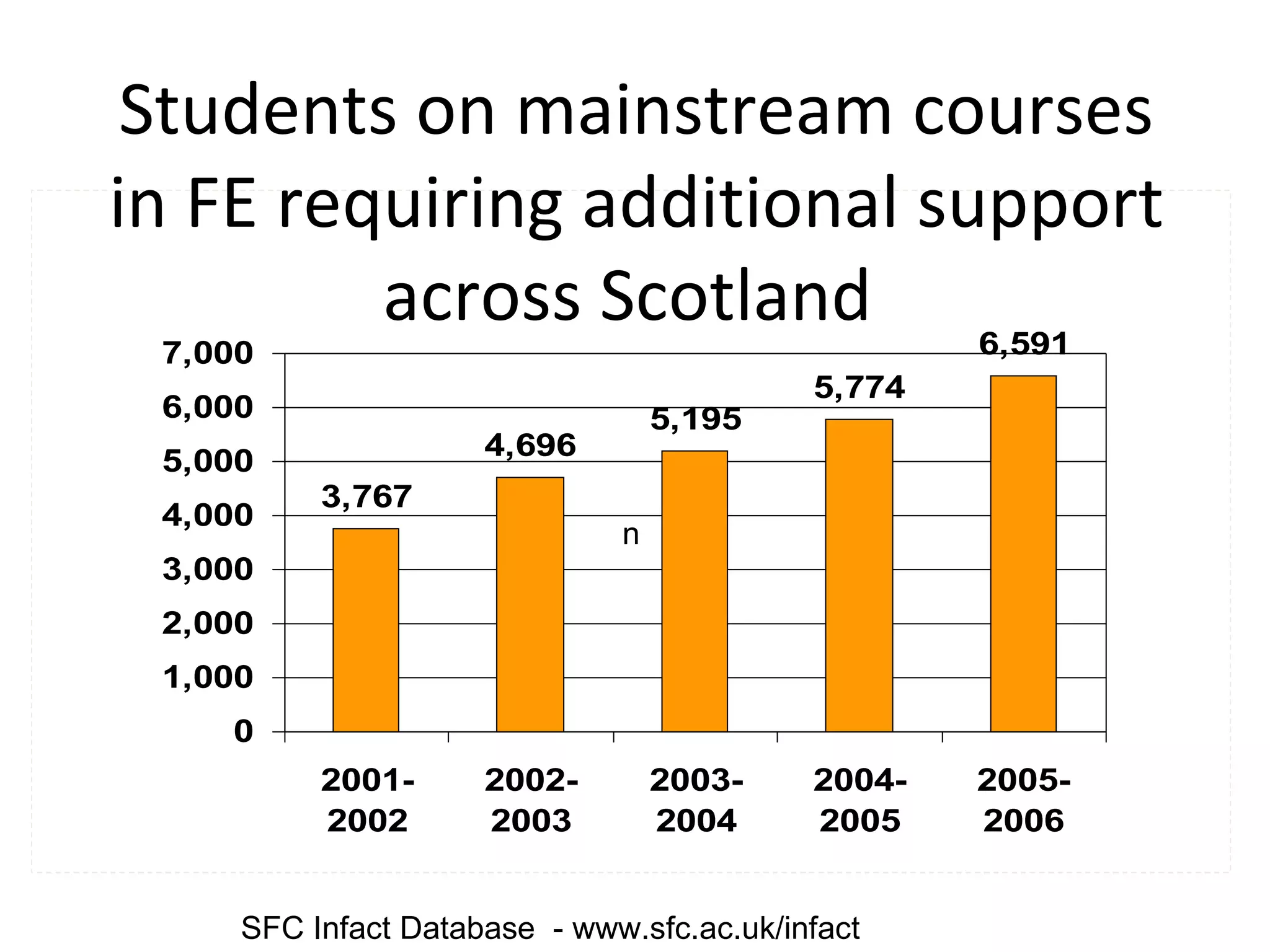
n Students on mainstream courses in FE requiring additional support across Scotland  SFC Infact Database  - www.sfc.ac.uk/infact
JISC TechDis has been working with library groups for several years. Libraries have a critical role in accessibility because  they are a key support for independent learning They play a significant role in signposting different types of resource to staff and learners They are instrumental in obtaining text books in alternative formats
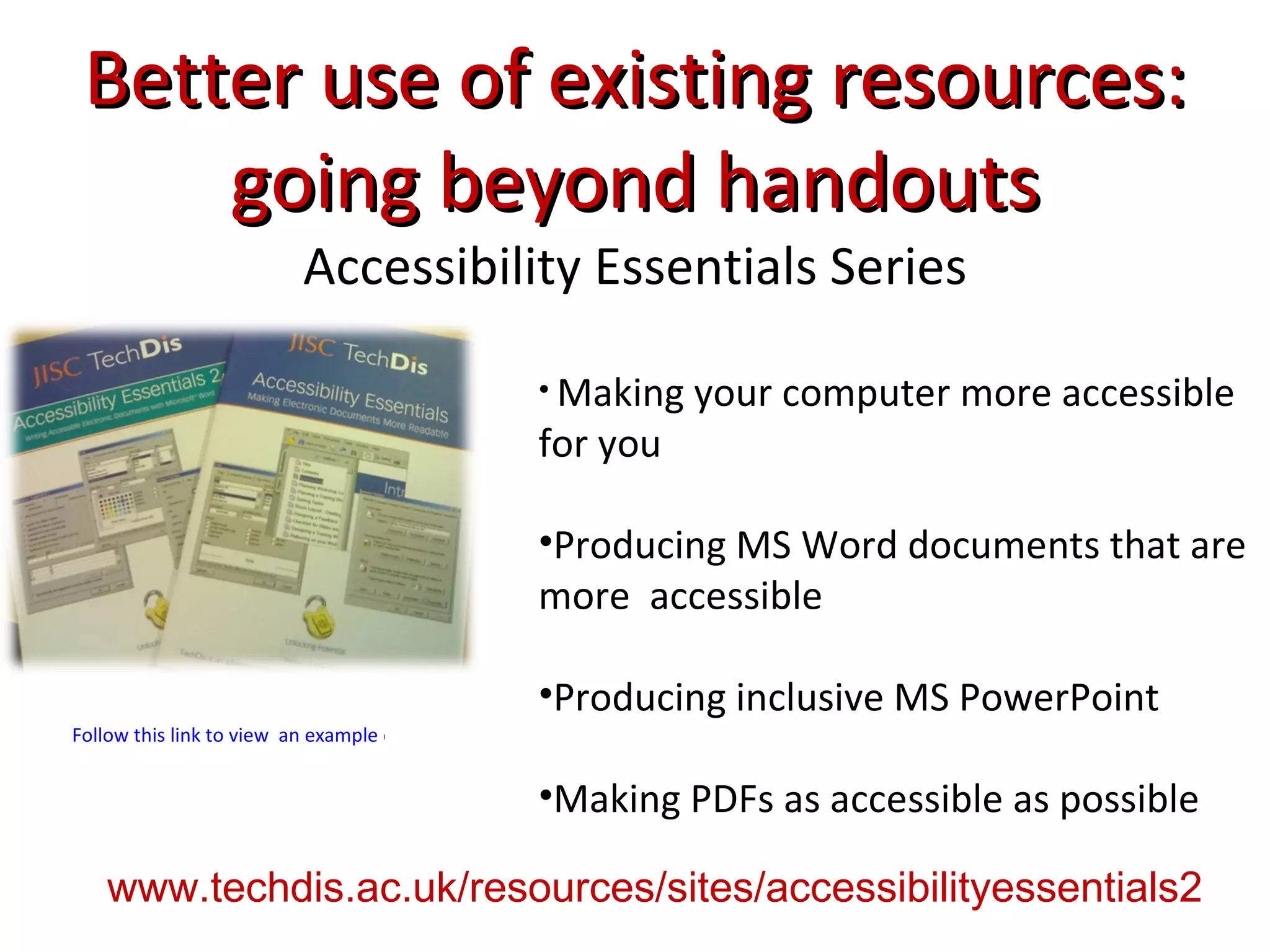
Better use of existing resources: going beyond handouts Accessibility Essentials Series Making your computer more accessible for you Producing MS Word documents that are more  accessible Producing inclusive MS PowerPoint Making PDFs as accessible as possible Follow this link to view  an example of guidelines from Accessibility Essentials www.techdis.ac.uk/resources/sites/accessibilityessentials2
‘ I cant read the information on the screen.’ ‘ The information on the screen is too small to see.’ ‘ I can’t adjust the font and colour backgrounds to  suit my personal preferences.’ ‘ The words keep jumping around the screen.’ ‘ I find it difficult to navigate.’ ‘I can’t click the mouse buttons.’ ‘ I can’t see the keys on the keyboard.’ ‘I keep miss-hitting the keyboard keys.’ Issues for students accessing learning resources
How can you support learners with access needs? In general, the main ways of supporting learners in a library/learning resources setting include: Promoting your services effectively. Communicating with users through appropriate media. Ensuring users can access space and information. Helping users access study tools. Providing alternative interfaces where required. Providing books in alternative formats. Creating coherent policies. Guidance on providing support in each of these areas is available at  www.techdis.ac.uk/getlibraryguides
Talk to 50 librarians… How do you support learner’s study skills? Read and write gold Inspiration Mind Mapping Tools to help with planning and organisation Where? How often? How many effective users? How many supported per £? What are they not trying?
Senior Management Briefing Series .  http://www.techdis.ac.uk/getfreesoftware  Saving £s and improving independence. JISC TechDis have created a resource giving tutorials in how to use  free and open source technologies in an educational context.  Some IT staff are reluctant to use software that isn’t supported by a helpdesk - this must be weighed alongside the other benefits that free software brings in terms of supporting non-traditional learners.
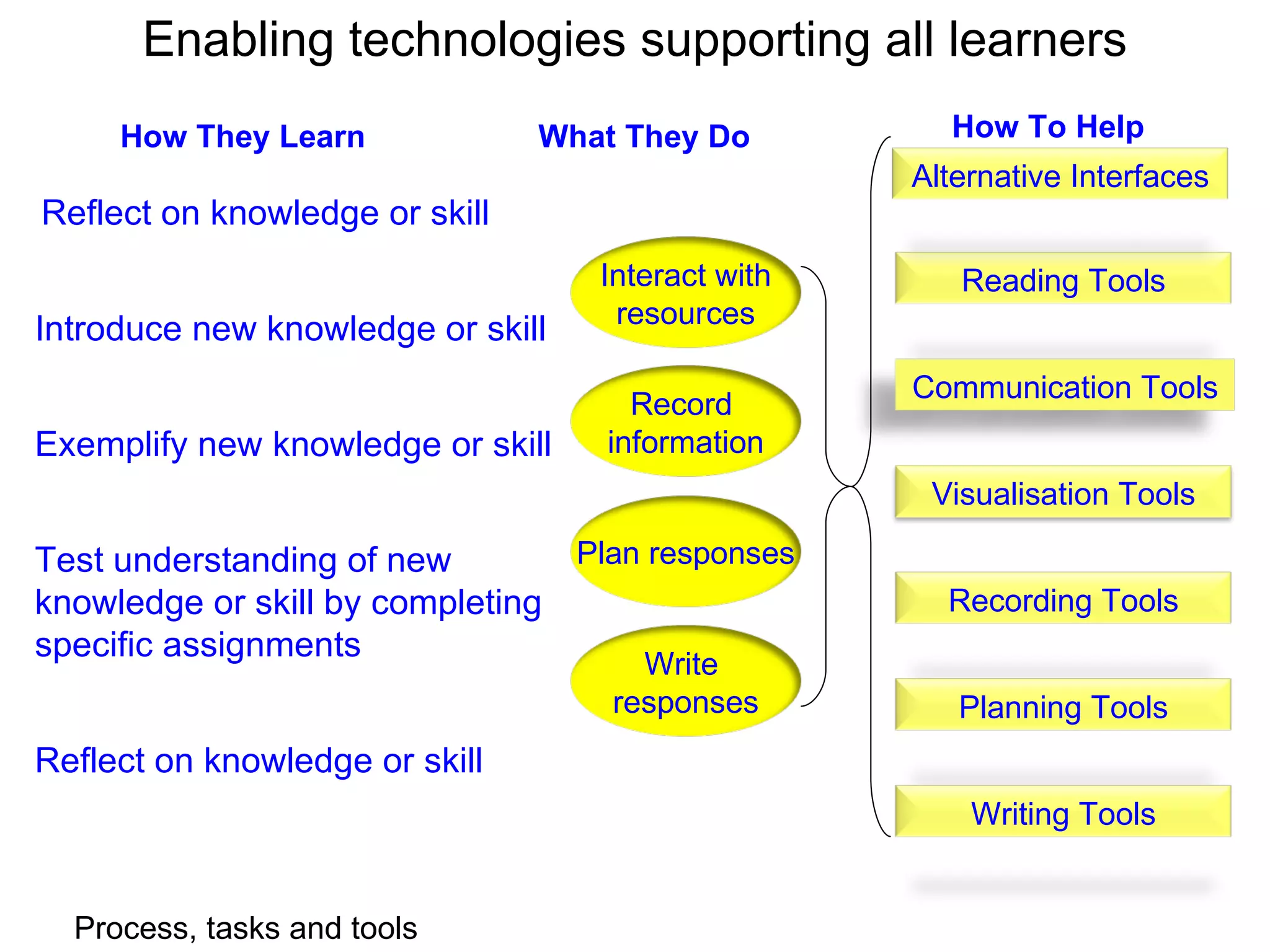
How They Learn Reflect on knowledge or skill What They Do How To Help Introduce new knowledge or skill Exemplify new knowledge or skill Test understanding of new knowledge or skill by completing specific assignments Reflect on knowledge or skill Enabling technologies supporting all learners Process, tasks and tools Write  responses Interact with resources Record  information Plan responses Reading Tools Alternative Interfaces Recording Tools Planning Tools Communication Tools Visualisation Tools Writing Tools
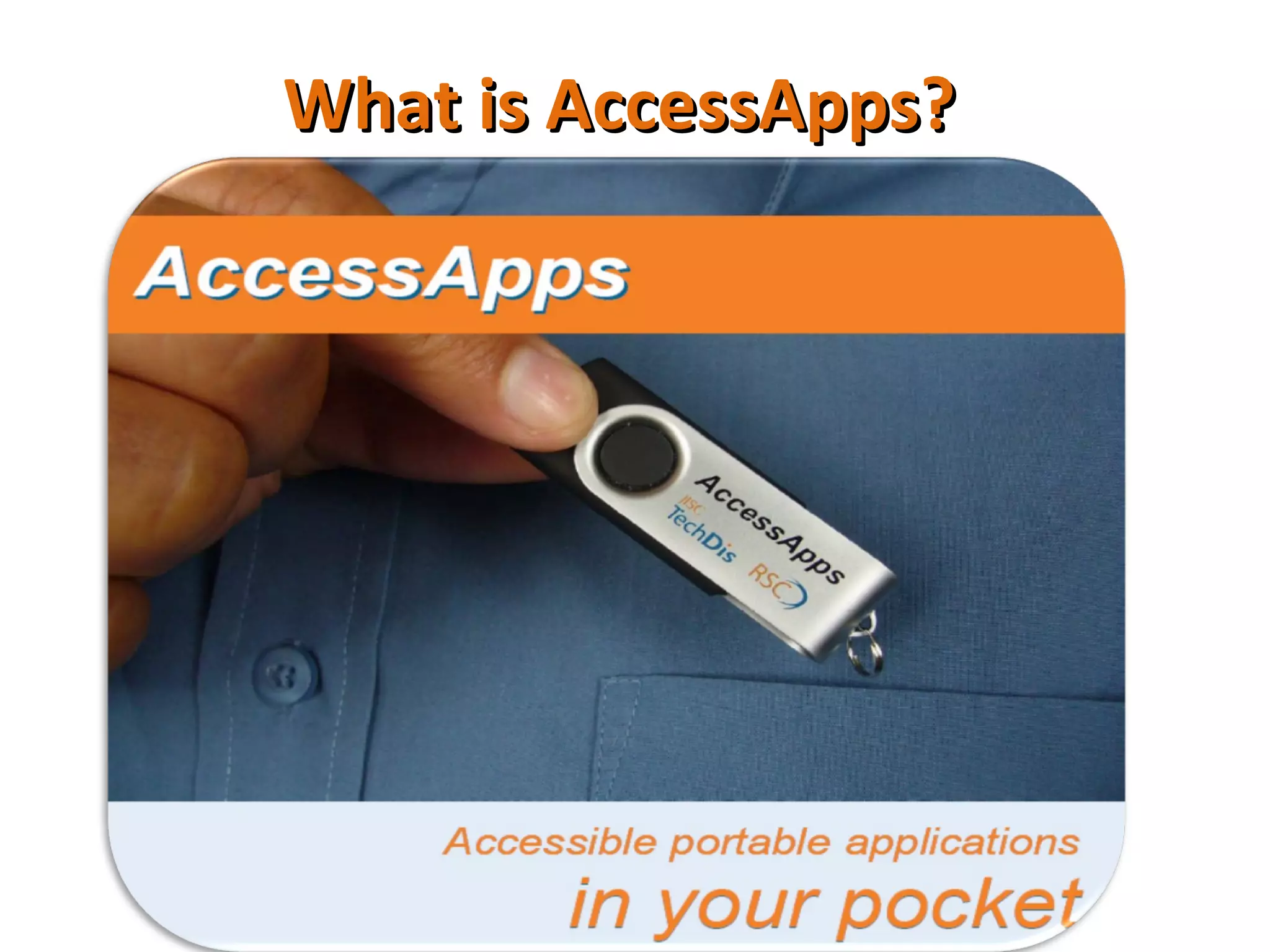
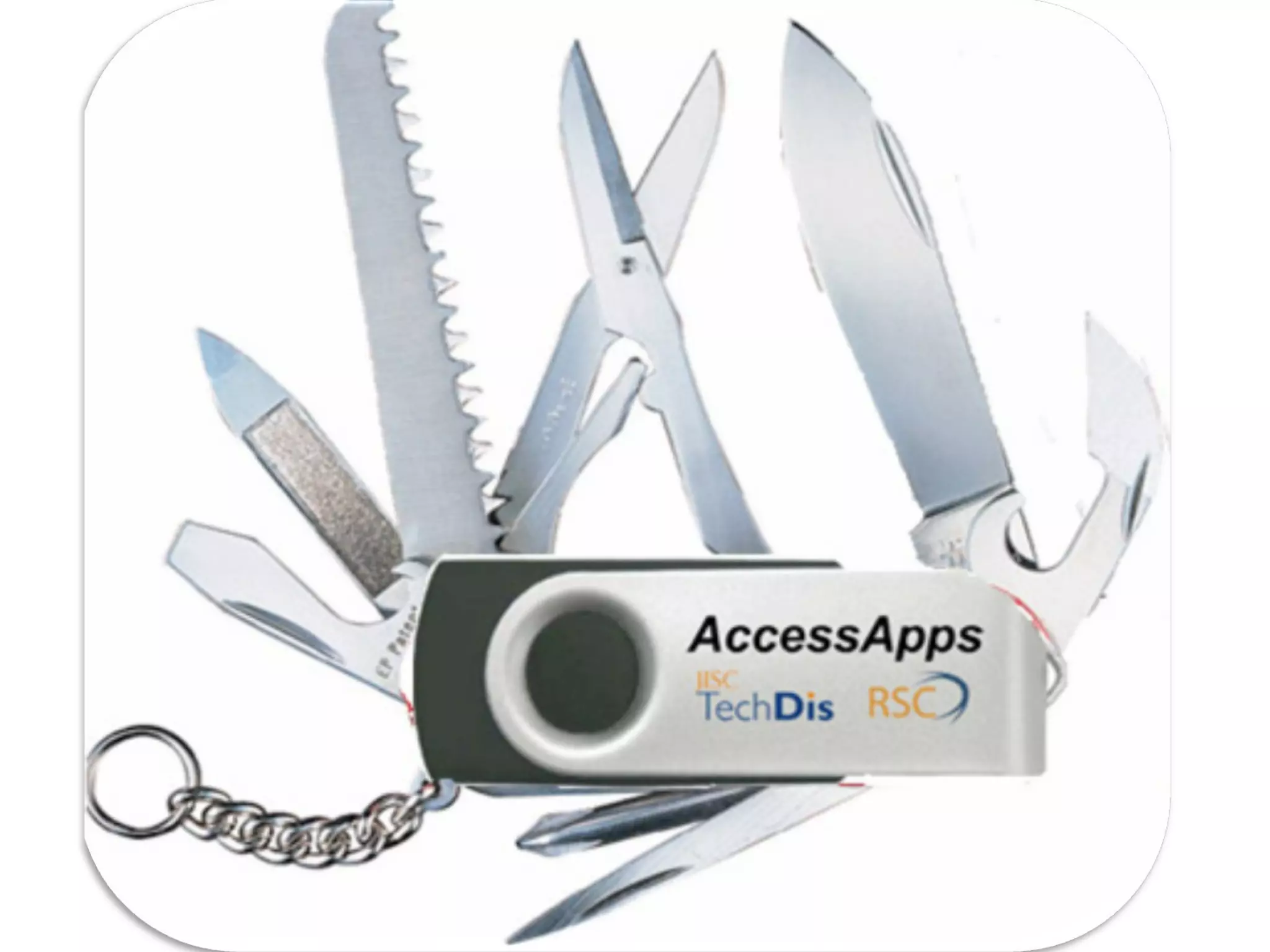
What is AccessApps?
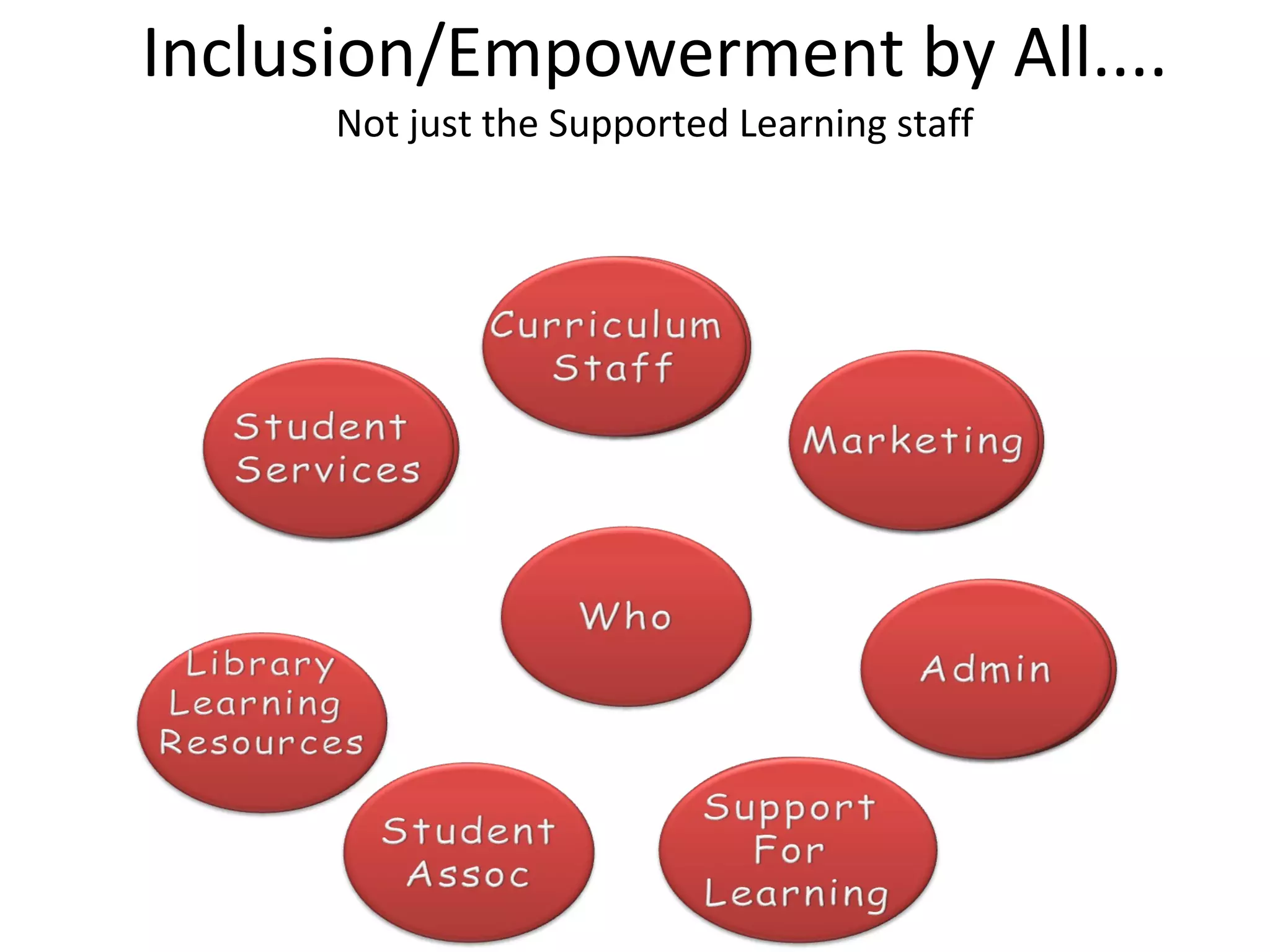
Inclusion/Empowerment by All.... Not just the Supported Learning staff
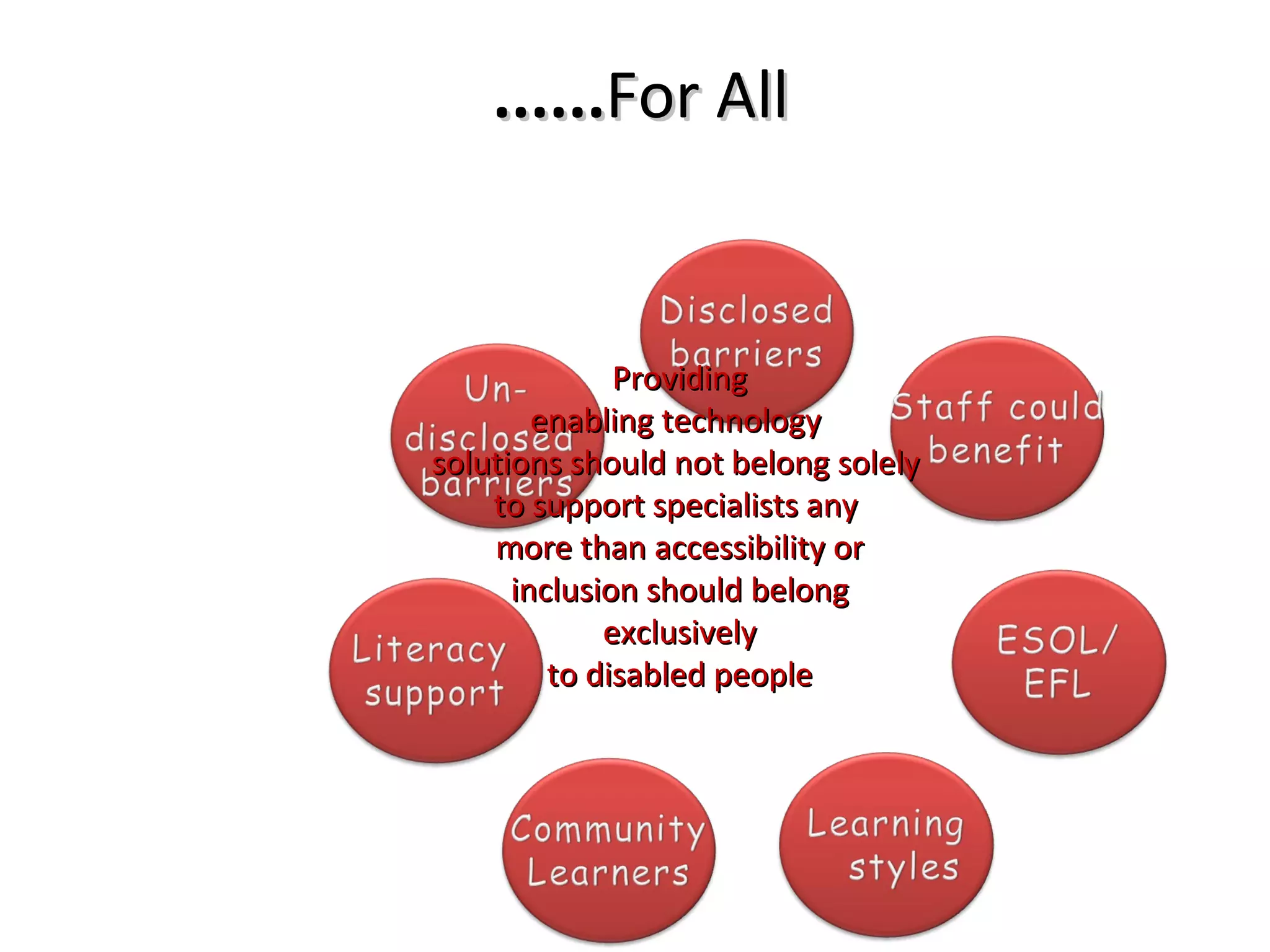
...... For All Providing enabling technology  solutions should not belong solely  to support specialists any  more than accessibility or inclusion should belong exclusively to disabled people
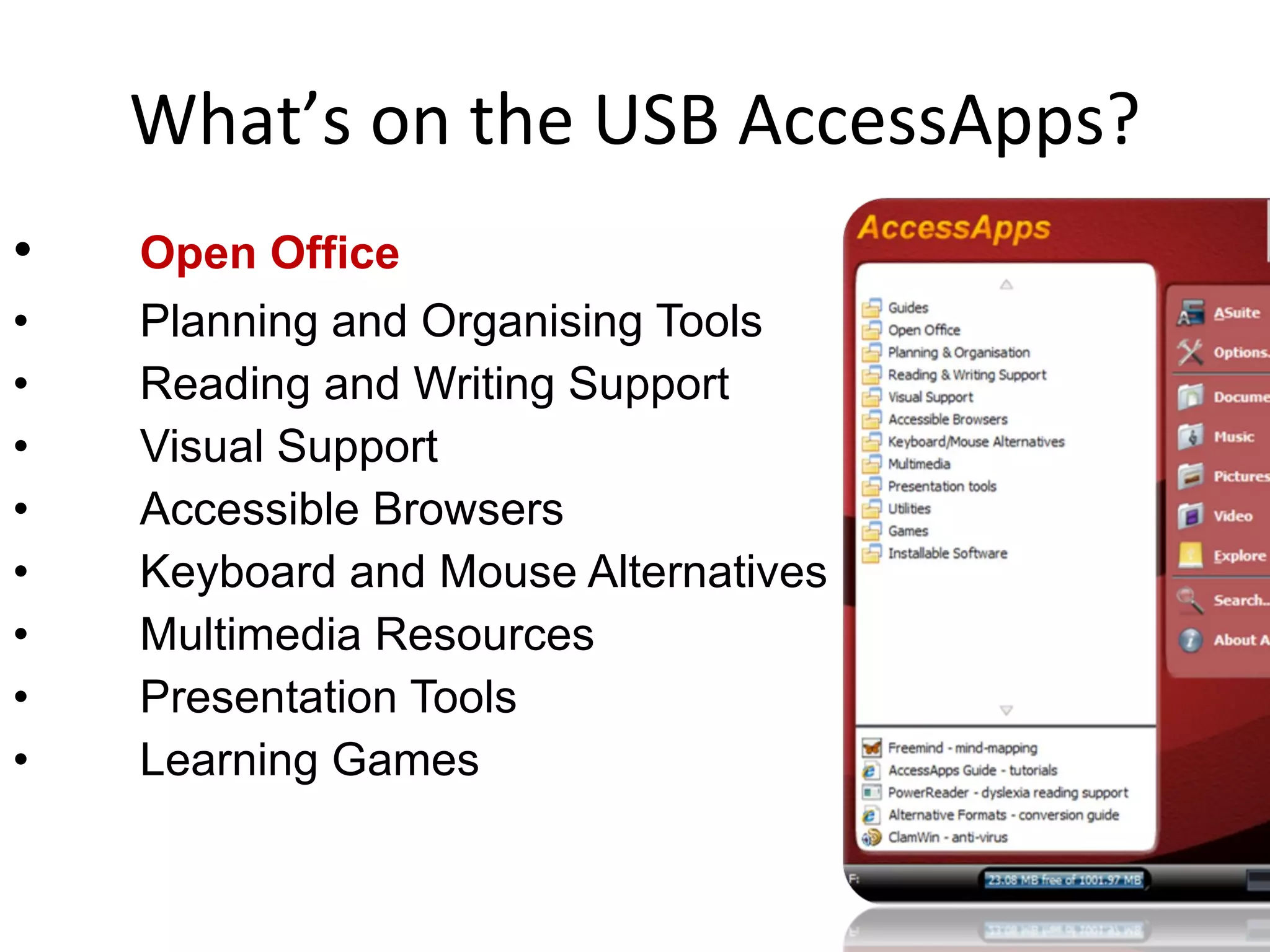
What’s on the USB AccessApps? Open Office Planning and Organising Tools Reading and Writing Support Visual Support Accessible Browsers Keyboard and Mouse Alternatives Multimedia Resources Presentation Tools Learning Games
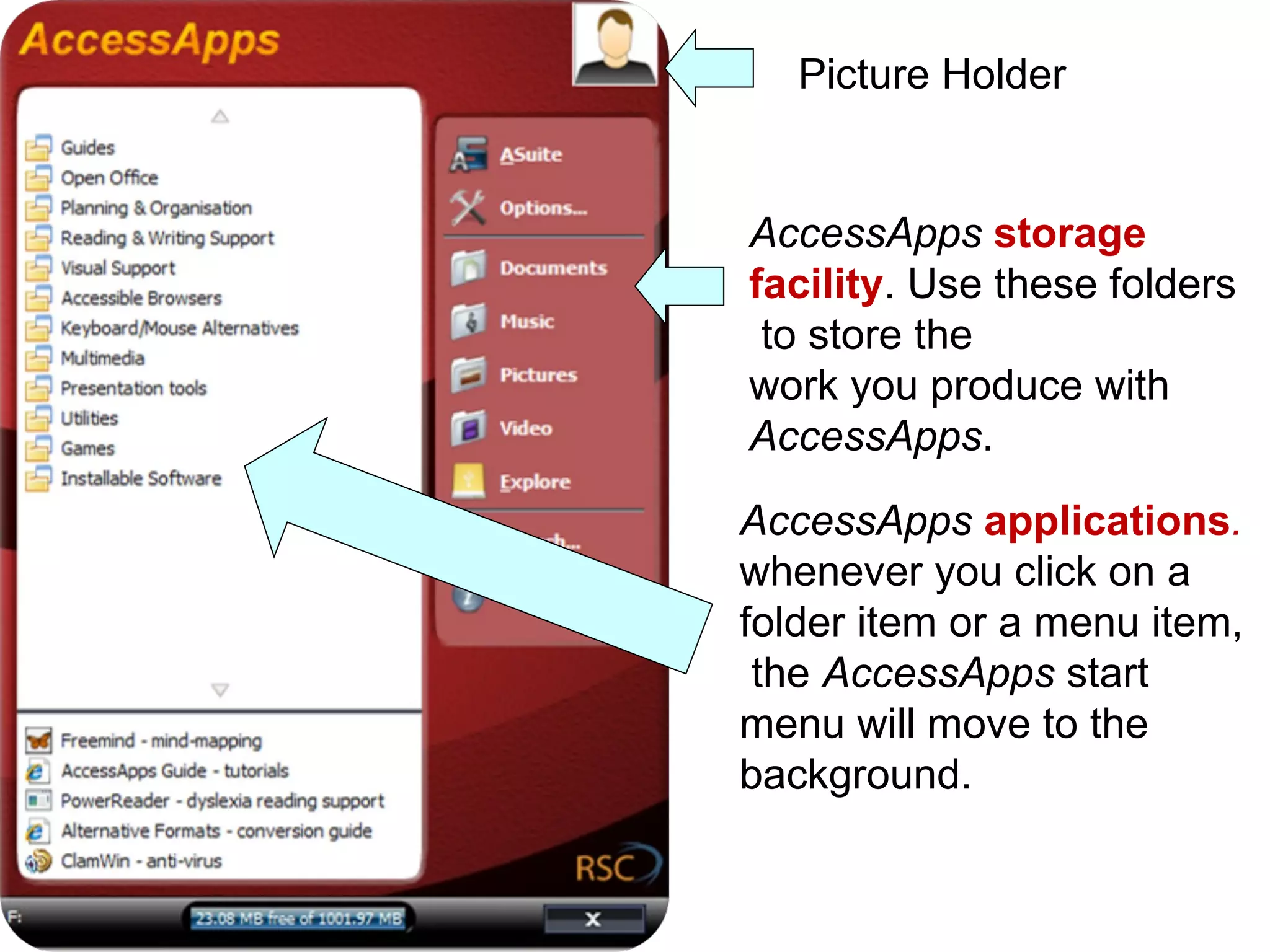
Picture Holder AccessApps   storage  facility . Use these folders to store the  work you produce with  AccessApps .  AccessApps   applications . whenever you click on a  folder item or a menu item, the  AccessApps  start  menu will move to the  background.
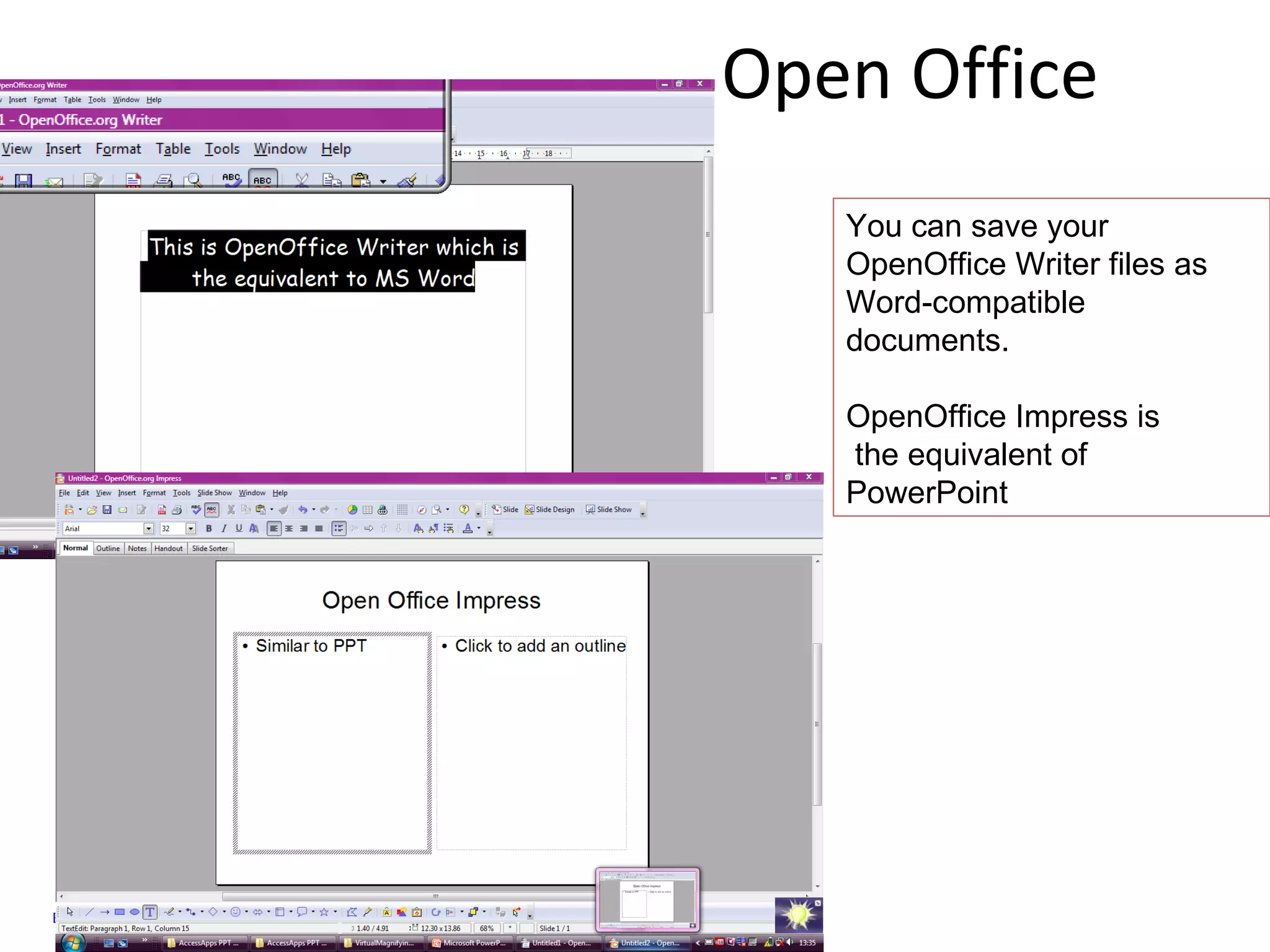
Open Office  Back You can save your OpenOffice Writer files as Word-compatible documents.  OpenOffice Impress is  the equivalent of PowerPoint
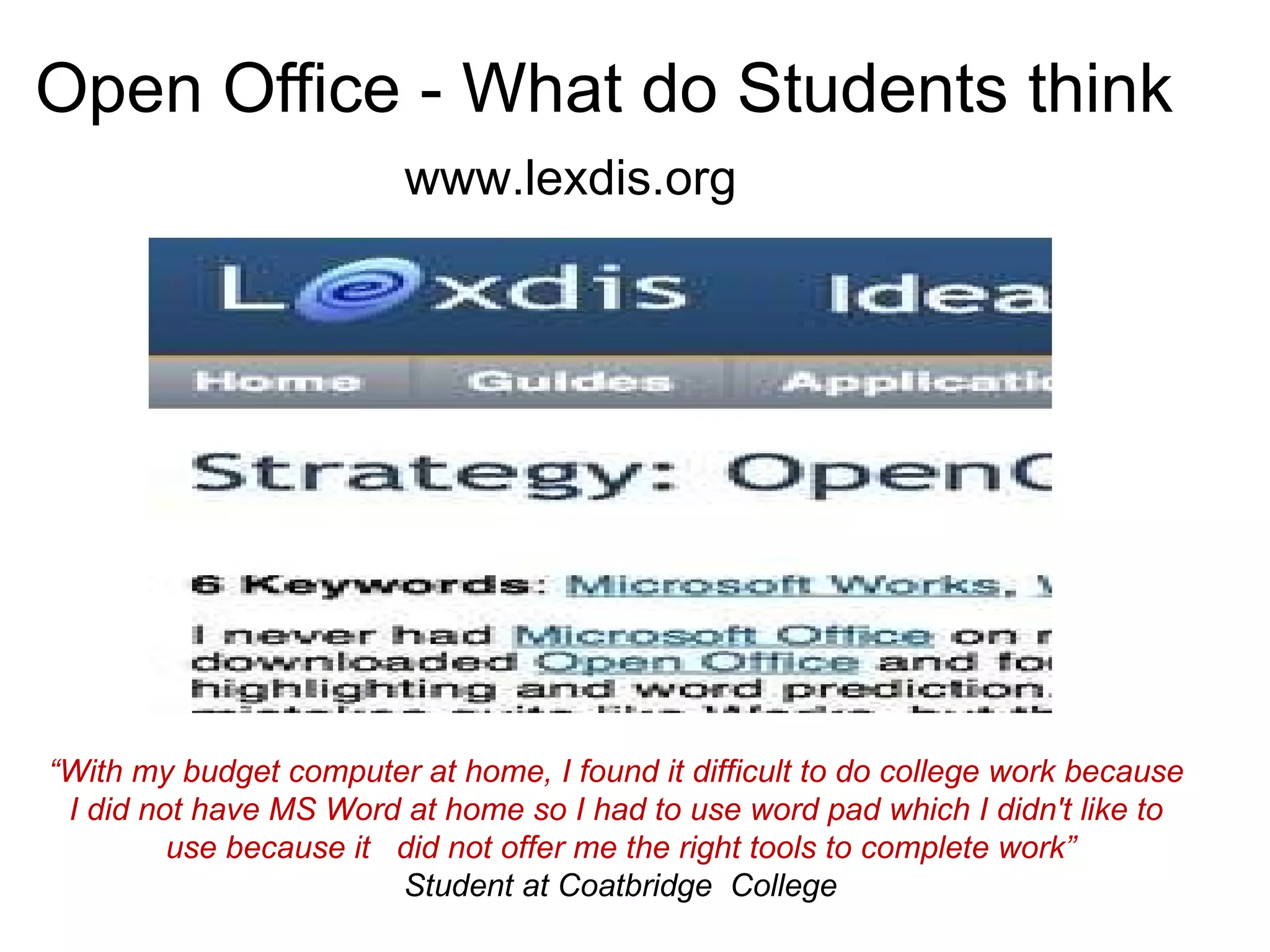
Open Office - What do Students think   www.lexdis.org “ With my budget computer at home, I found it difficult to do college work because  I did not have MS Word at home so I had to use word pad which I didn't like to  use because it  did not offer me the right tools to complete work” Student at Coatbridge  College
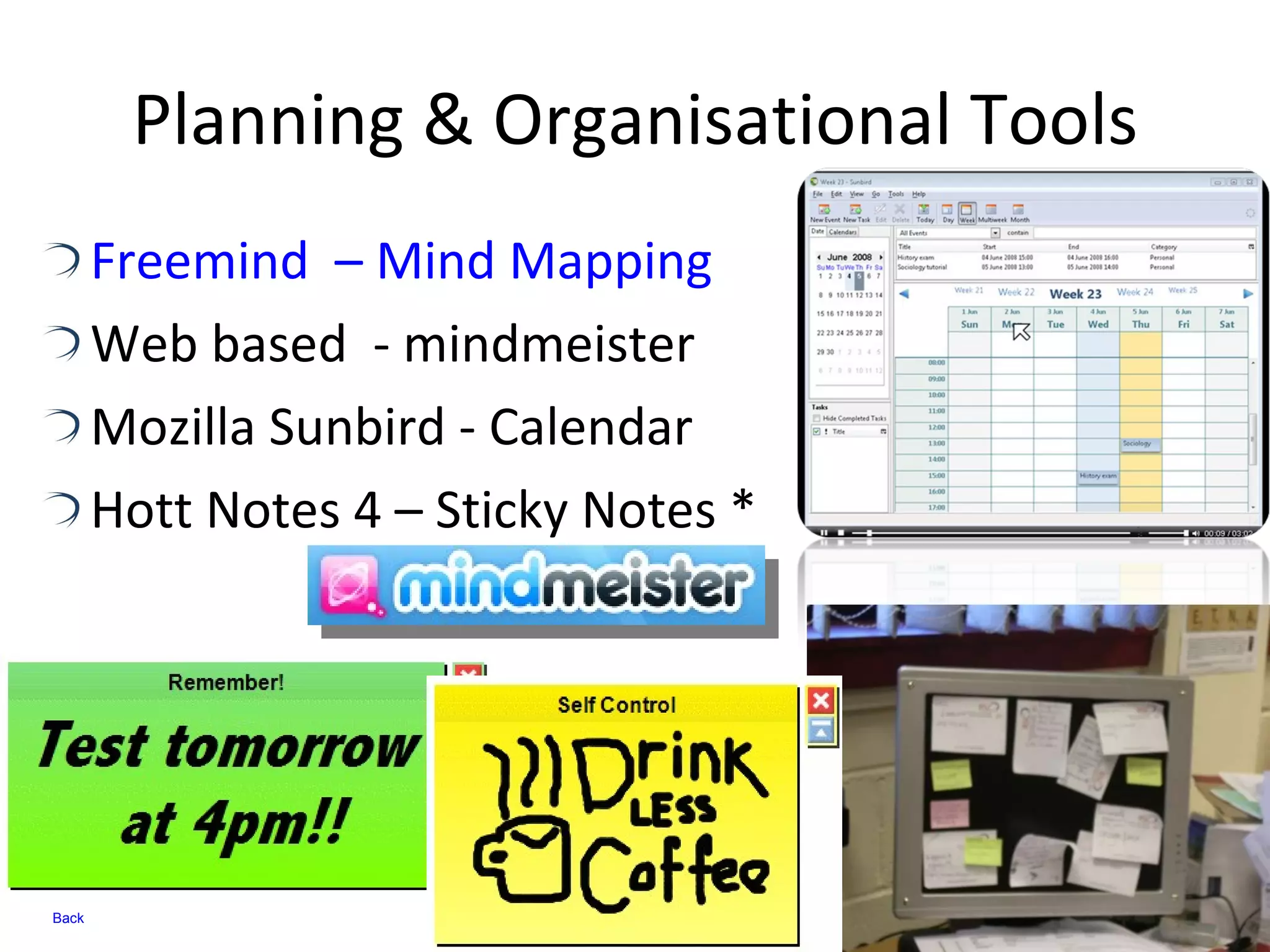
Planning & Organisational Tools Freemind  – Mind Mapping Web based  - mindmeister  Mozilla Sunbird - Calendar  Hott Notes 4 – Sticky Notes * Back
 
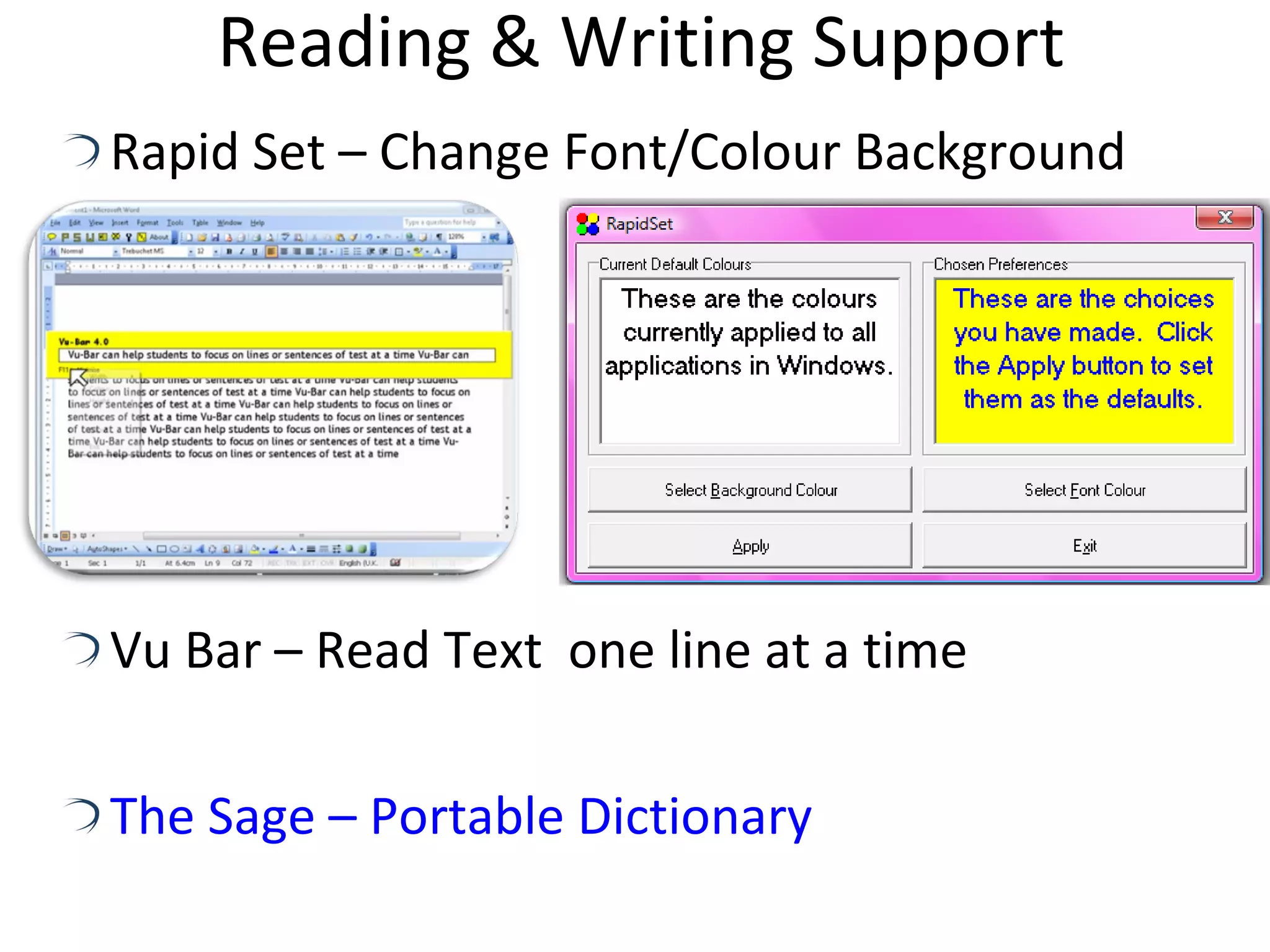
Reading & Writing Support Rapid Set – Change Font/Colour Background  Vu Bar – Read Text  one line at a time The Sage – Portable Dictionary
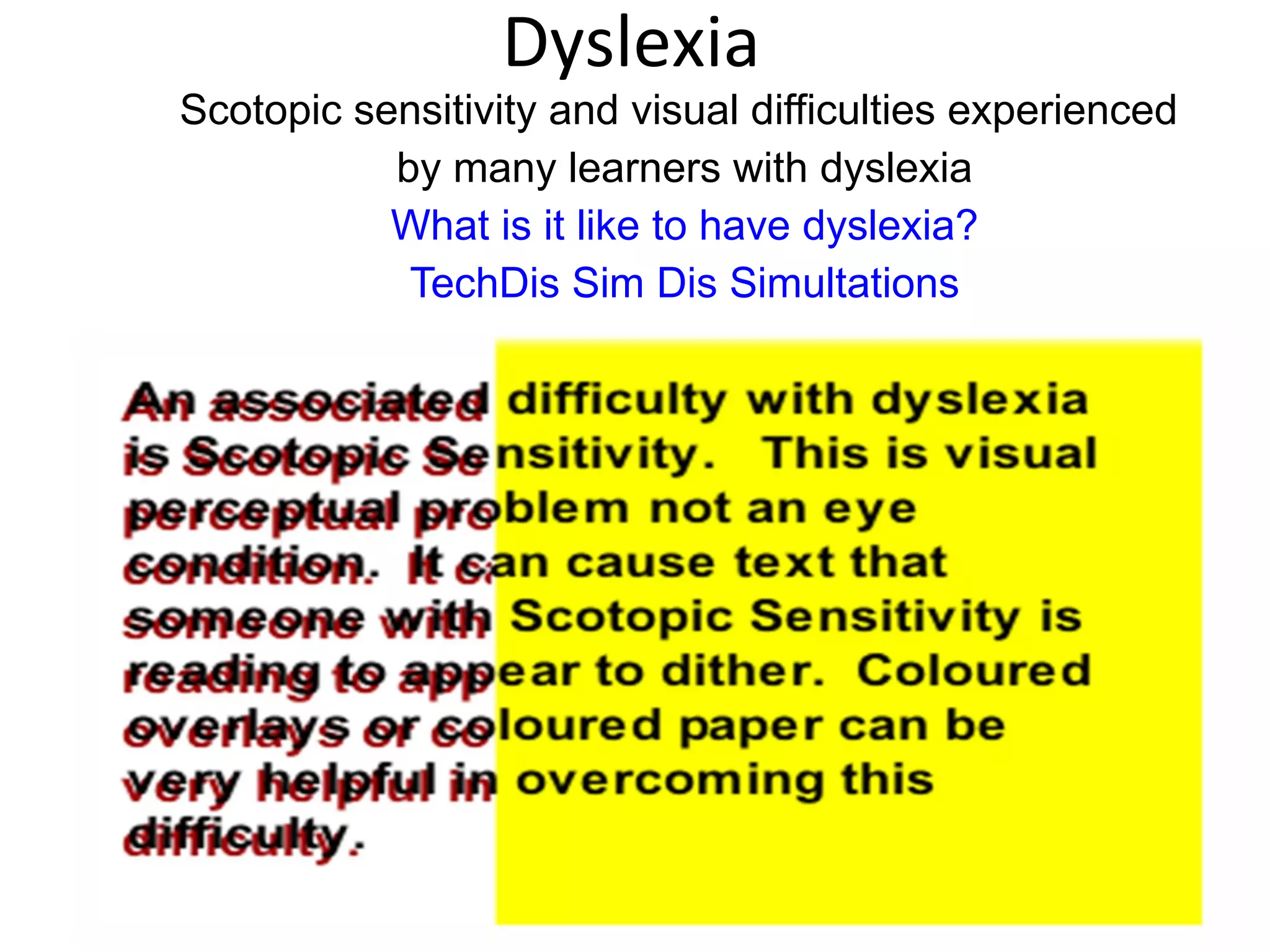
Dyslexia Scotopic sensitivity and visual difficulties experienced  by many learners with dyslexia What is it like to have dyslexia? TechDis Sim Dis Simultations
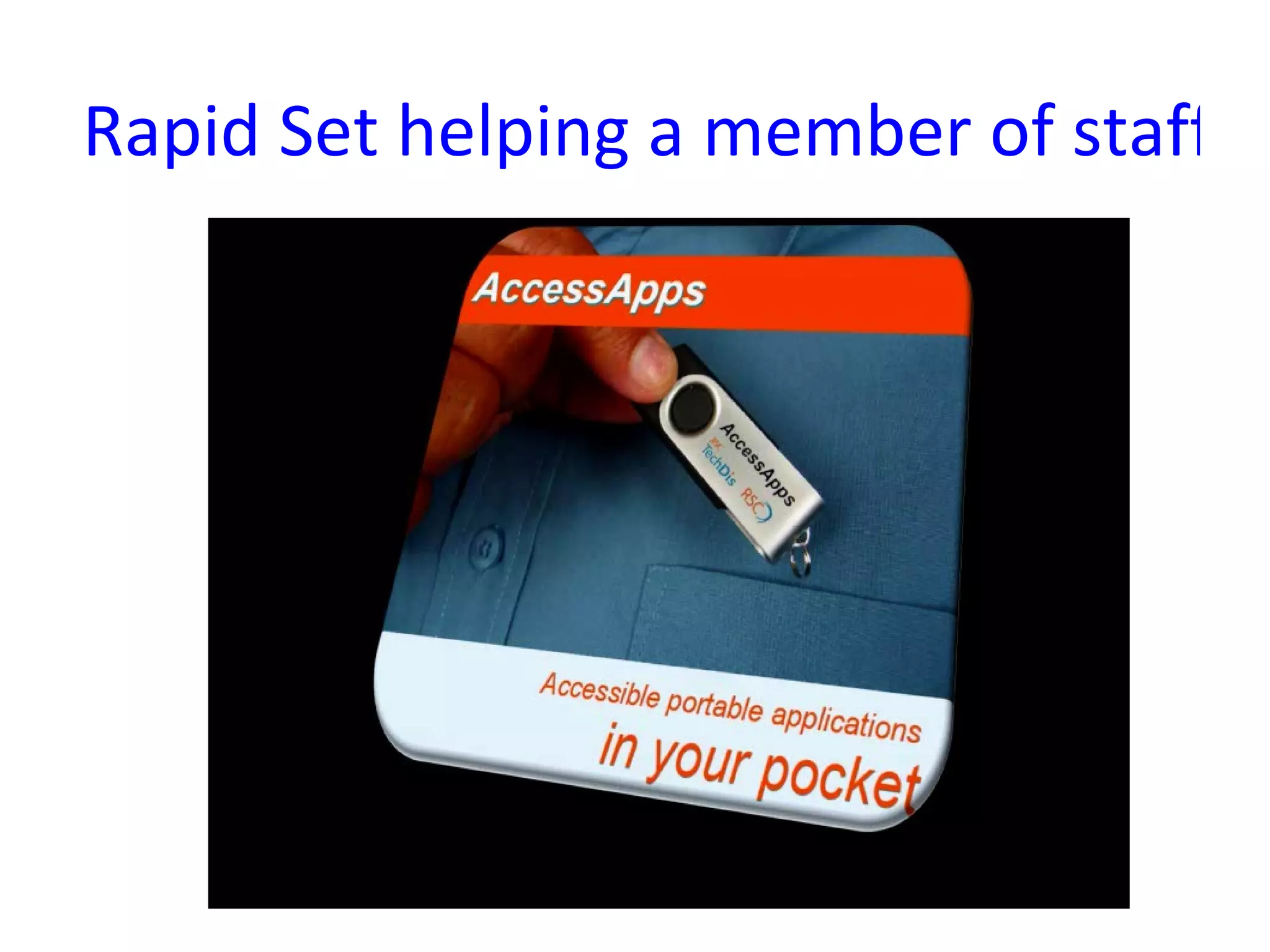
Rapid Set helping a member of staff in the workplace
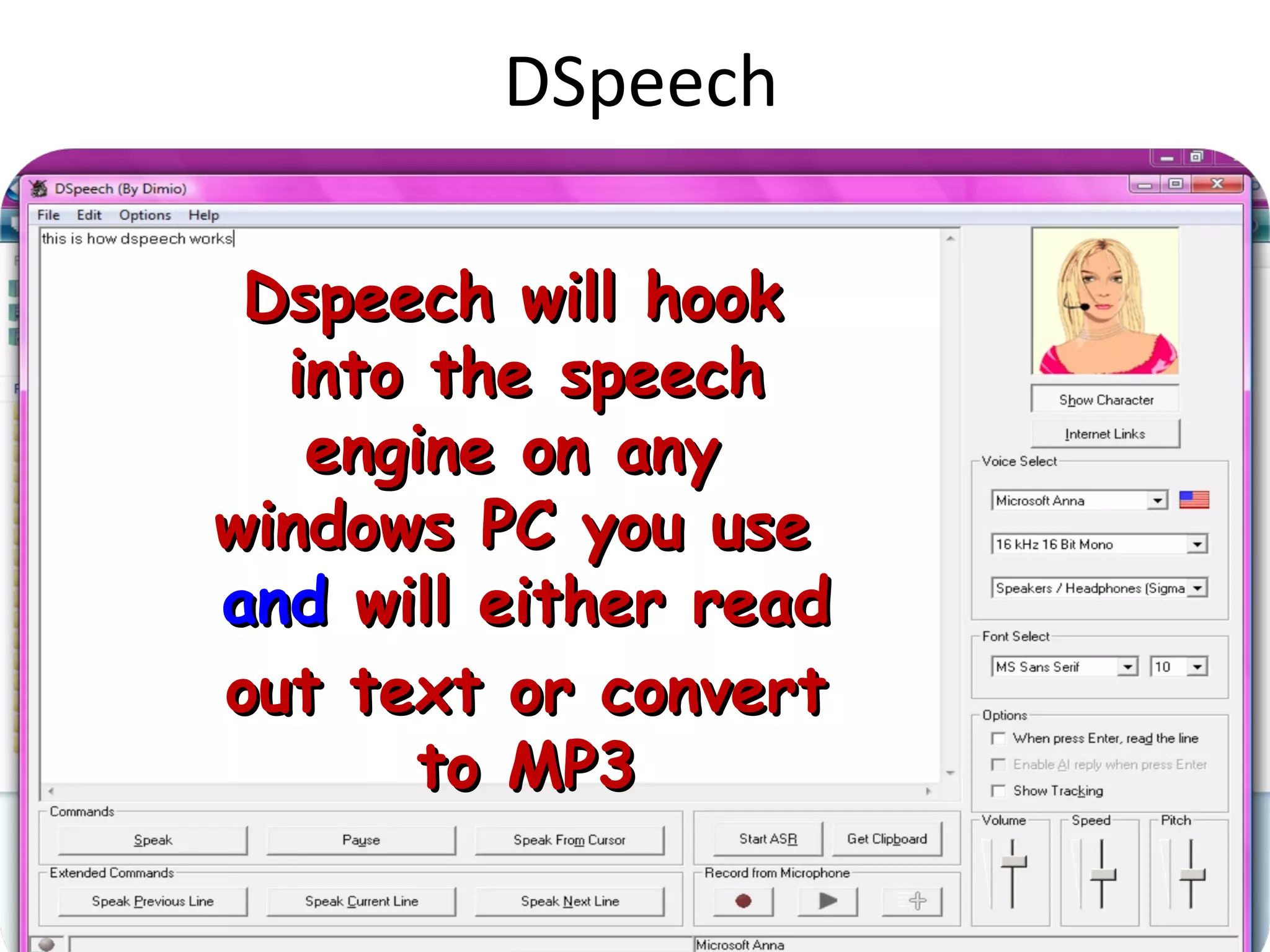
DSpeech Dspeech will hook  into the speech engine on any  windows PC you use  and  will either read out text or convert to MP3
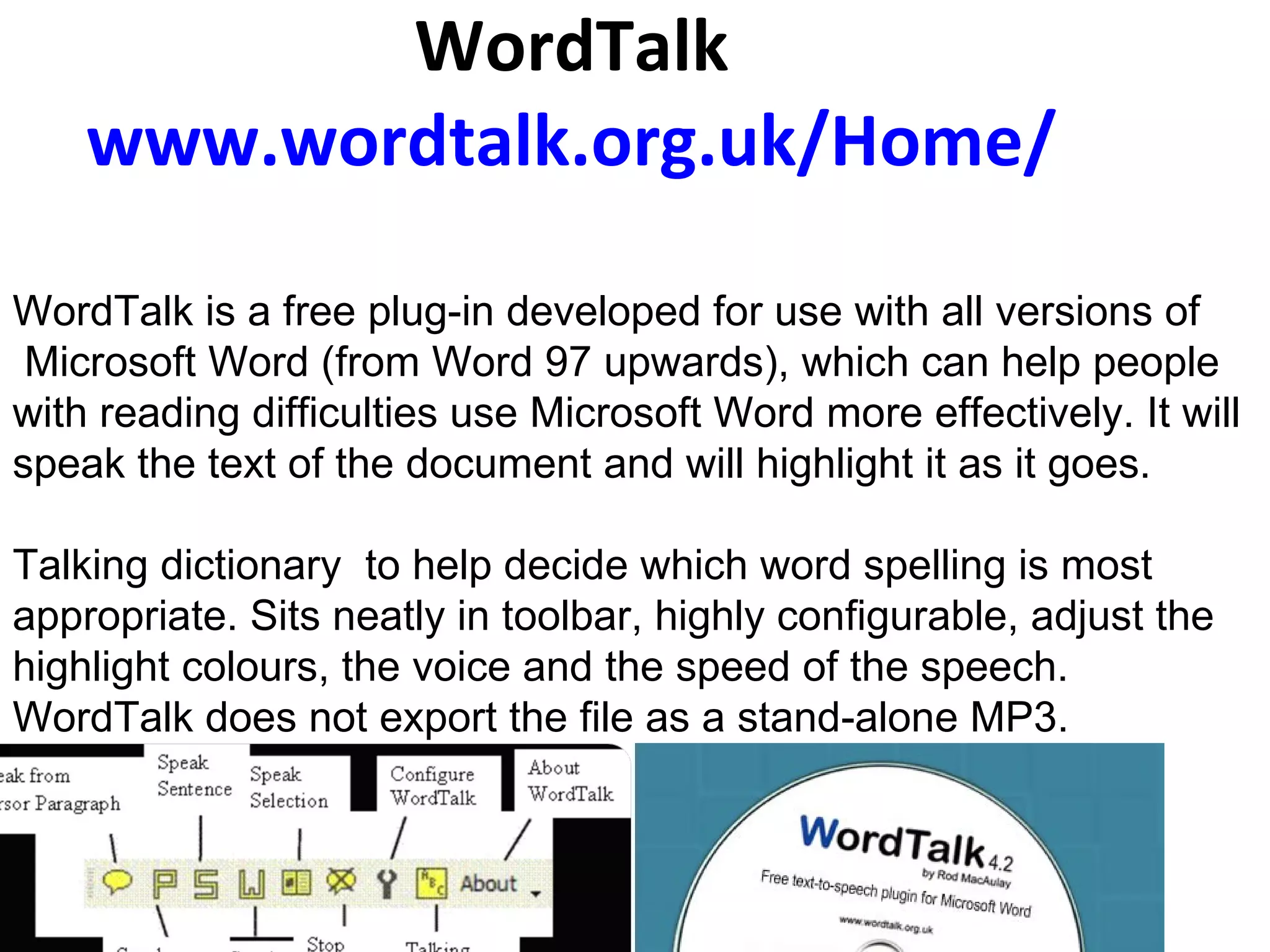
WordTalk www.wordtalk.org.uk/Home/       WordTalk is a free plug-in developed for use with all versions of Microsoft Word (from Word 97 upwards), which can help people  with reading difficulties use Microsoft Word more effectively. It will speak the text of the document and will highlight it as it goes.  Talking dictionary  to help decide which word spelling is most appropriate. Sits neatly in toolbar, highly configurable, adjust the highlight colours, the voice and the speed of the speech.  WordTalk does not export the file as a stand-alone MP3.        
Other web based text to speech converters Zamzar –  www.zamzar.com Read the Words -  www.readthewords.com/ Spoken Text -  http://www.spokentext.net/ RoboBraille -  www.robobraille.org/frontpage  
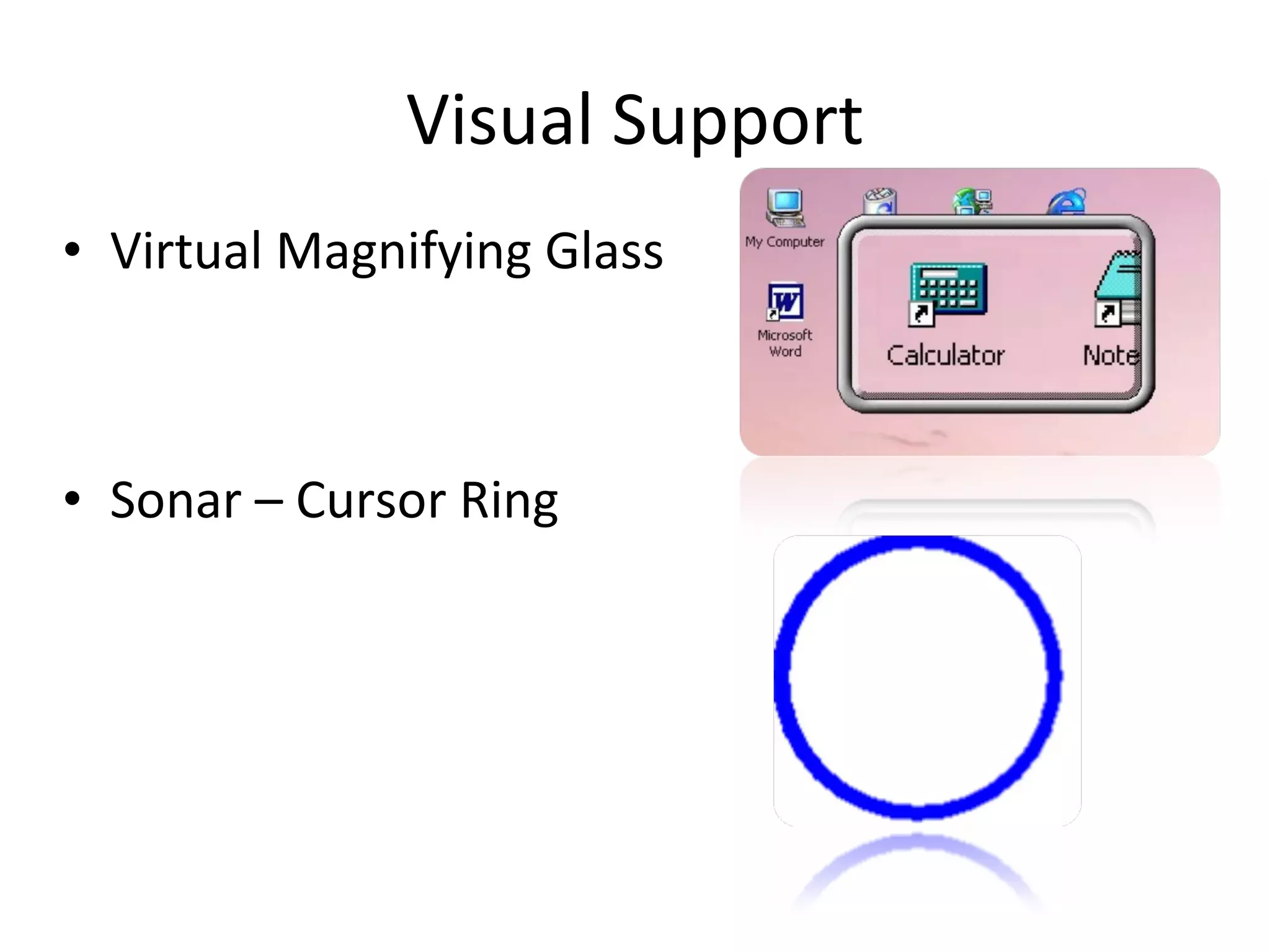
Visual Support Virtual Magnifying Glass  Sonar – Cursor Ring
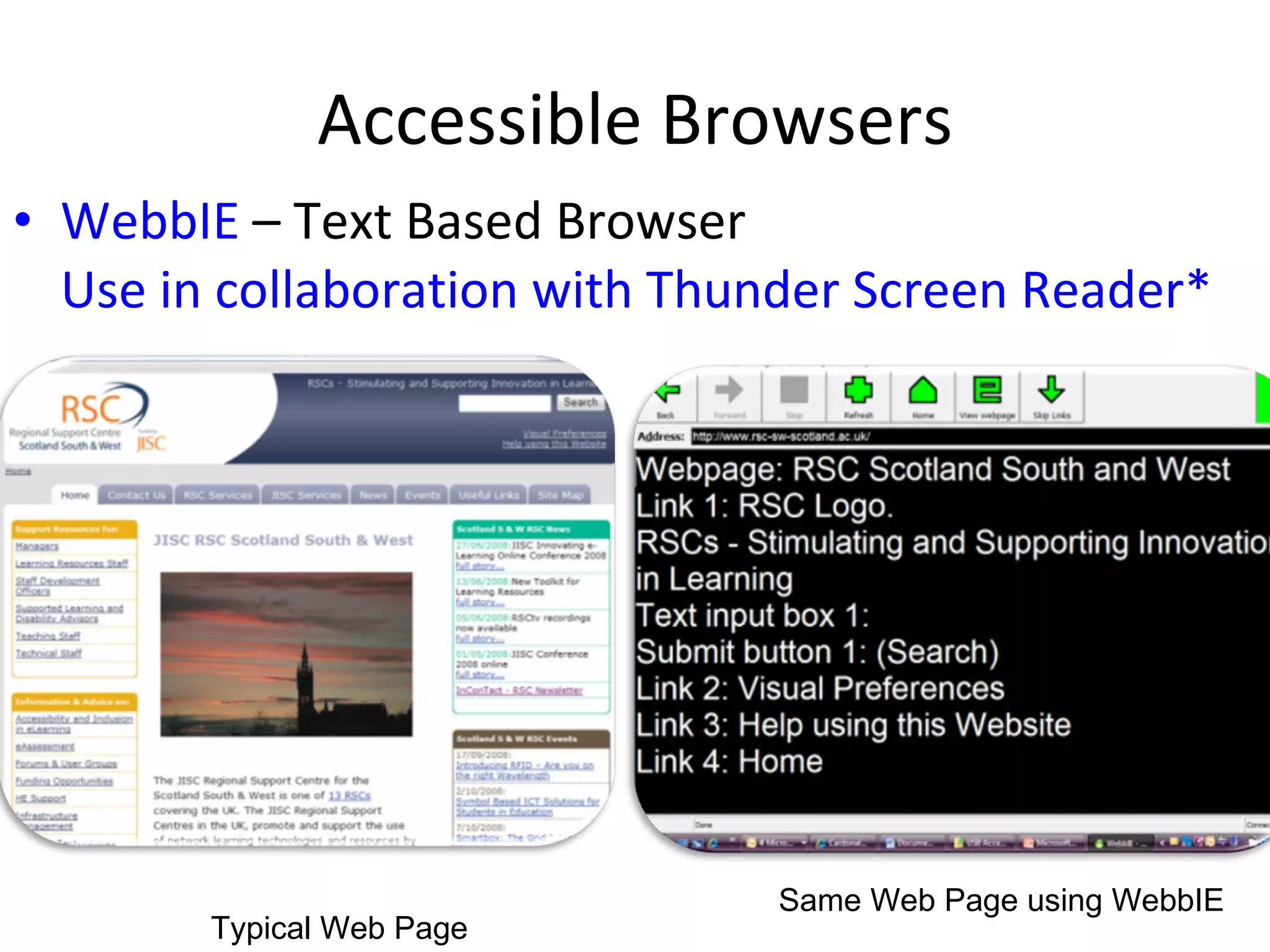
Accessible Browsers WebbIE  – Text Based Browser  Use in collaboration with Thunder Screen Reader* Typical Web Page Same Web Page using WebbIE
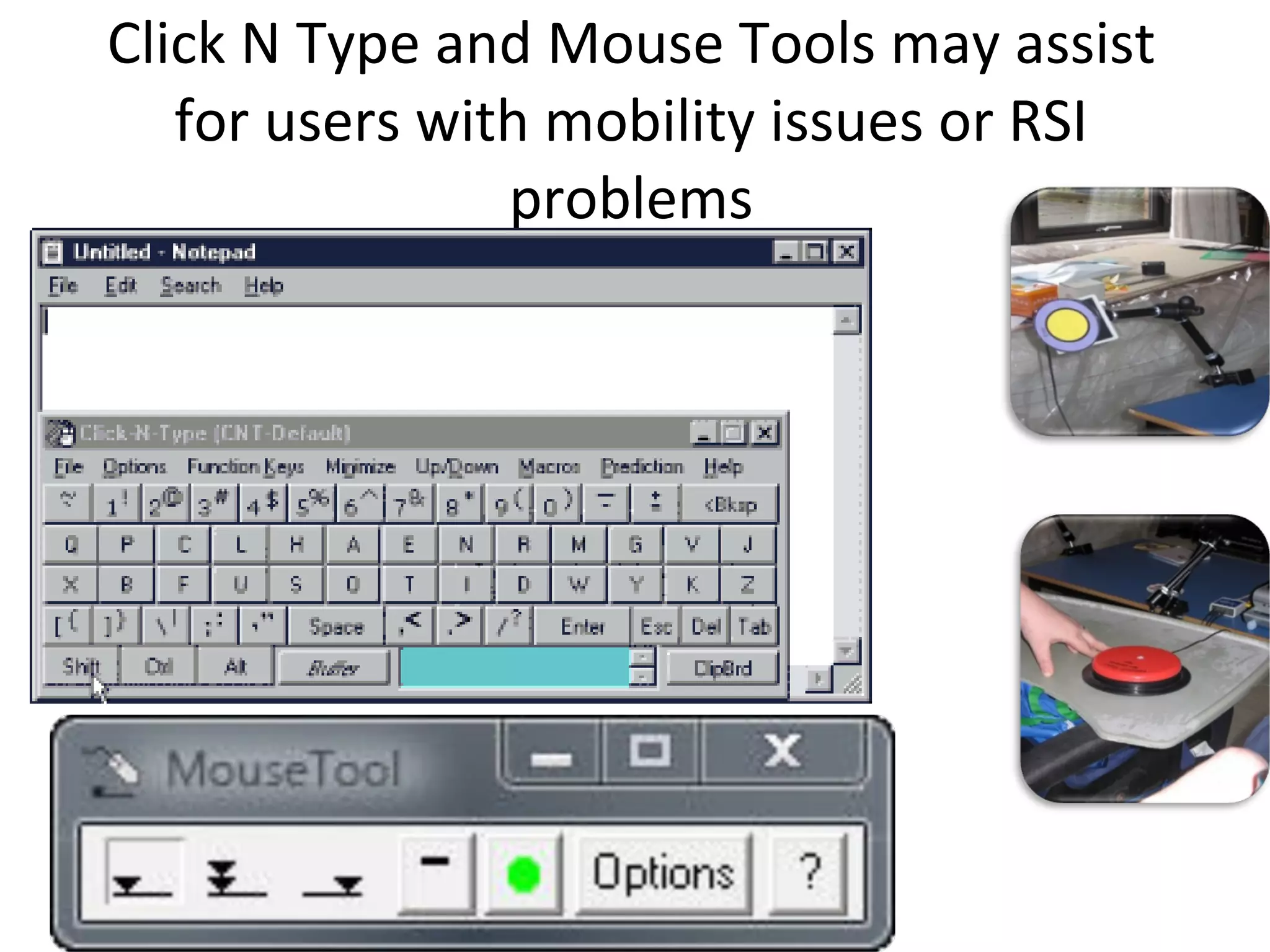
Click N Type and Mouse Tools may assist for users with mobility issues or RSI problems
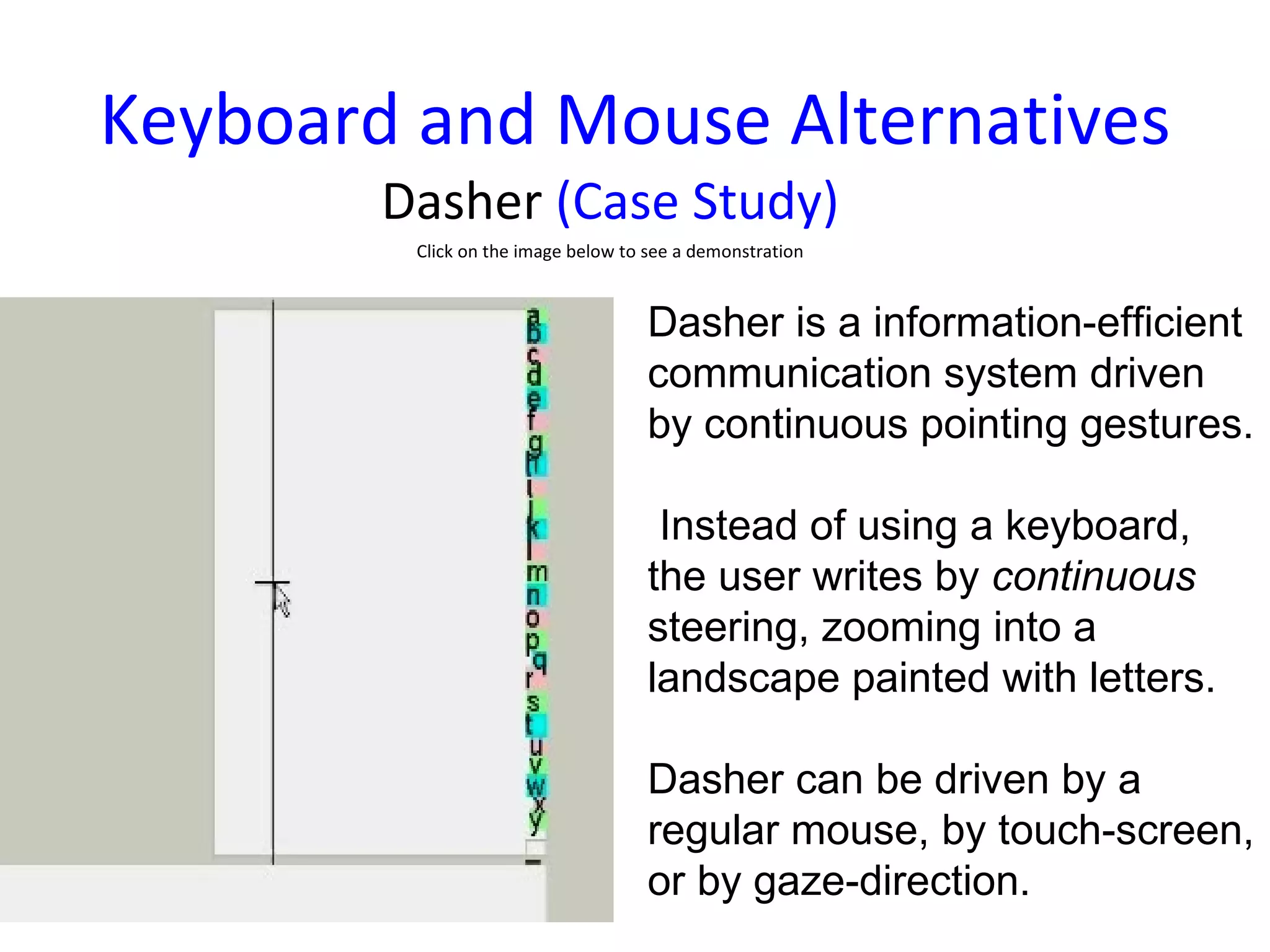
Keyboard and Mouse Alternatives Dasher  (Case Study) Click on the image below to see a demonstration Dasher is a information-efficient communication system driven by continuous pointing gestures. Instead of using a keyboard, the user writes by  continuous  steering, zooming into a landscape painted with letters.  Dasher can be driven by a regular mouse, by touch-screen, or by gaze-direction.
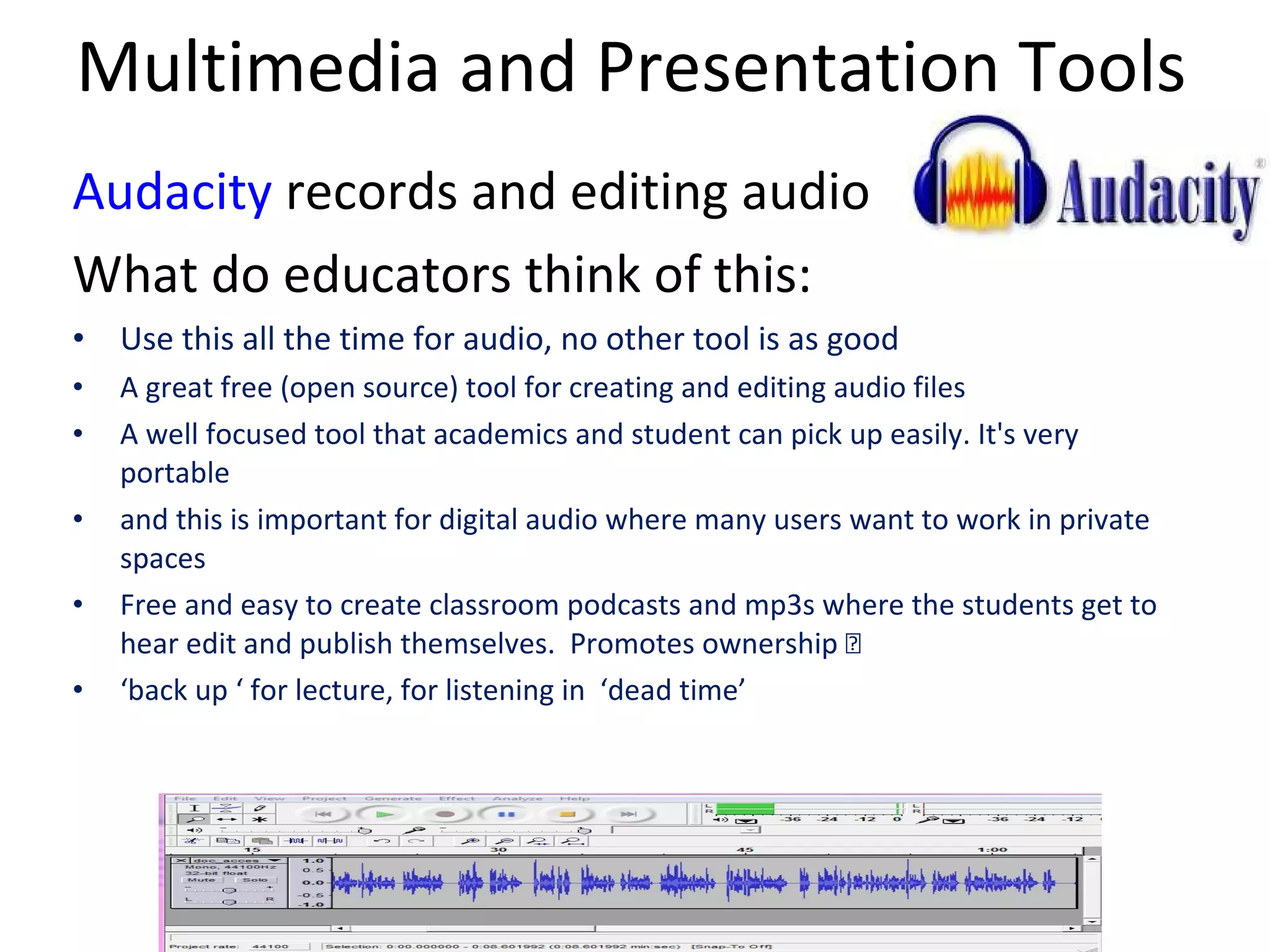
Multimedia and Presentation Tools Audacity  records and editing audio What do educators think of this: Use this all the time for audio, no other tool is as good A great free (open source) tool for creating and editing audio files A well focused tool that academics and student can pick up easily. It's very portable and this is important for digital audio where many users want to work in private spaces Free and easy to create classroom podcasts and mp3s where the students get to hear edit and publish themselves.  Promotes ownership – extremely motivating. ‘ back up ‘ for lecture, for listening in  ‘dead time’
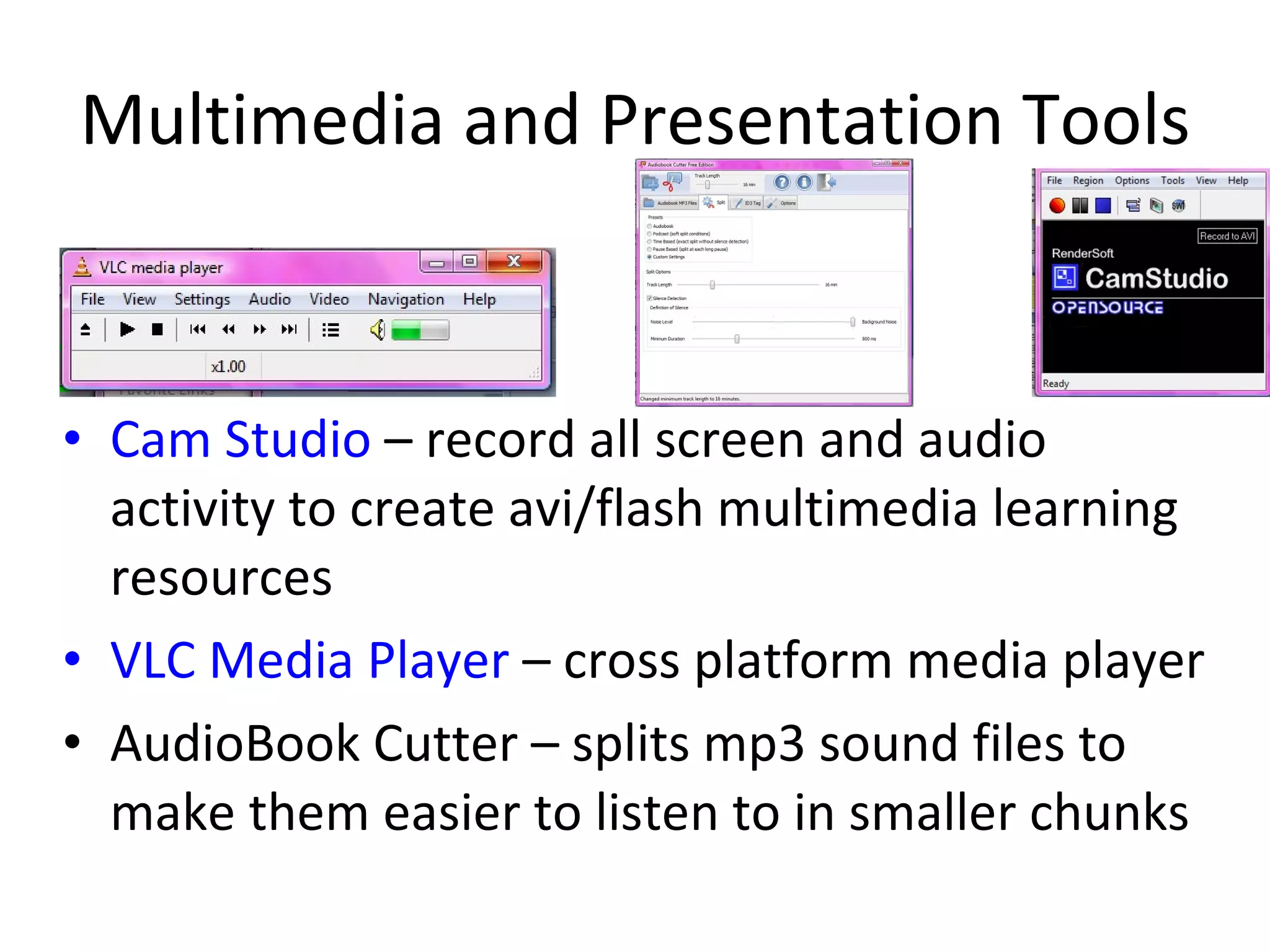
Multimedia and Presentation Tools Cam Studio  – record all screen and audio activity to create avi/flash multimedia learning resources VLC Media Player  – cross platform media player AudioBook Cutter – splits mp3 sound files to make them easier to listen to in smaller chunks
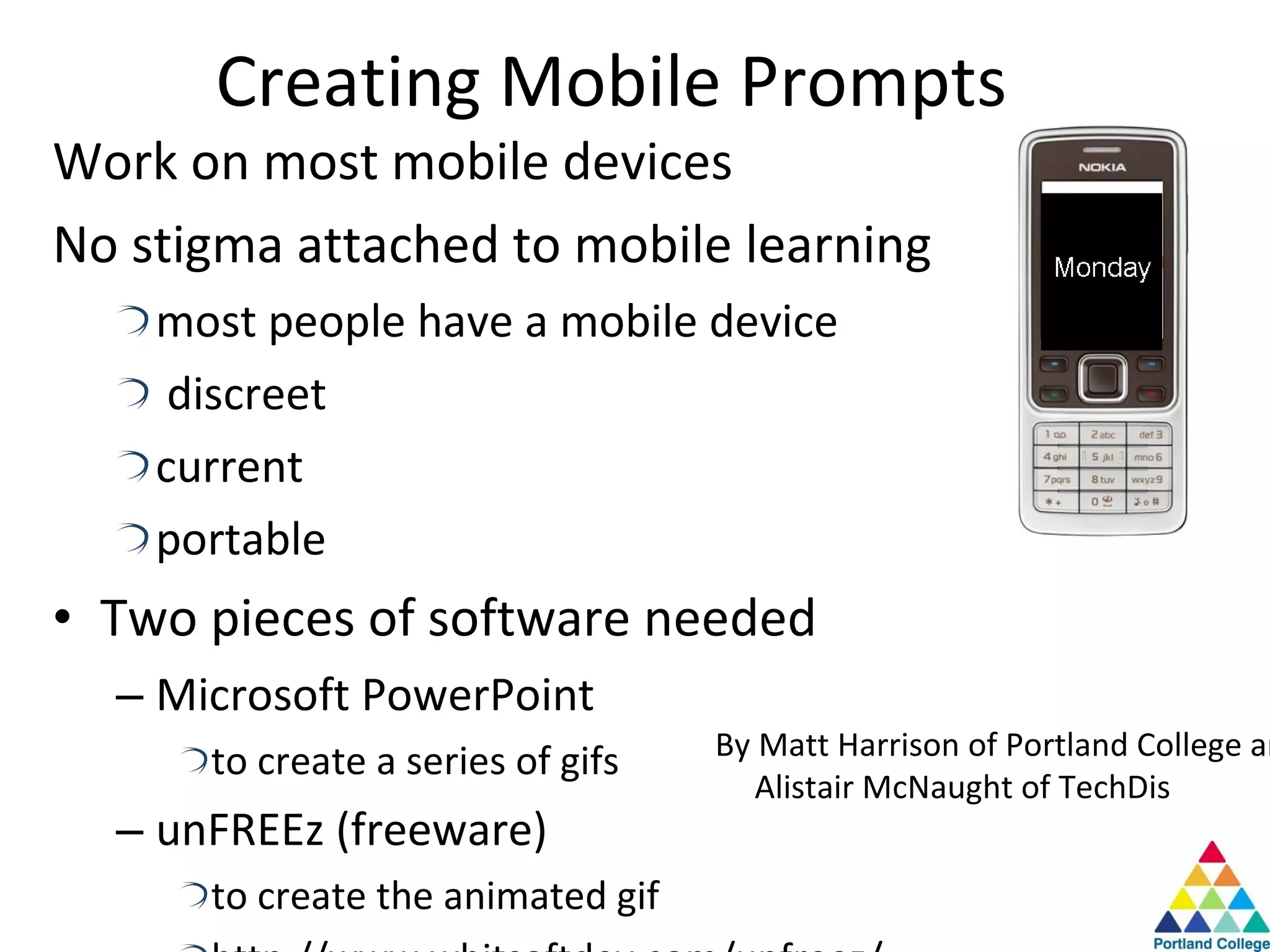
Creating Mobile Prompts Work on most mobile devices No stigma attached to mobile learning most people have a mobile device discreet current portable Two pieces of software needed Microsoft PowerPoint to create a series of gifs unFREEz (freeware) to create the animated gif http://www.whitsoftdev.com/unfreez/ By Matt Harrison of Portland College and Alistair McNaught of TechDis
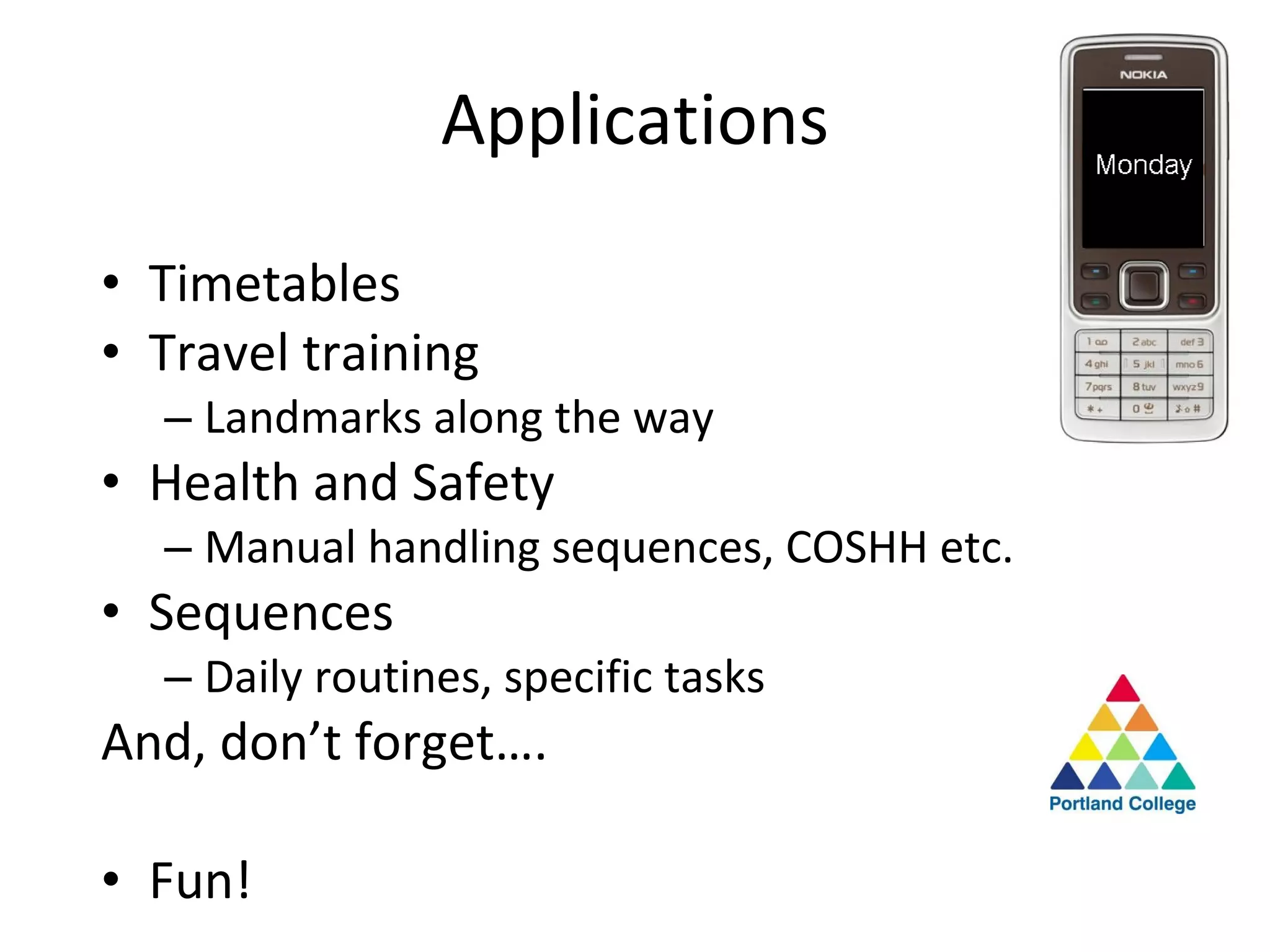
Applications Timetables Travel training Landmarks along the way Health and Safety Manual handling sequences, COSHH etc. Sequences Daily routines, specific tasks And, don’t forget…. Fun!
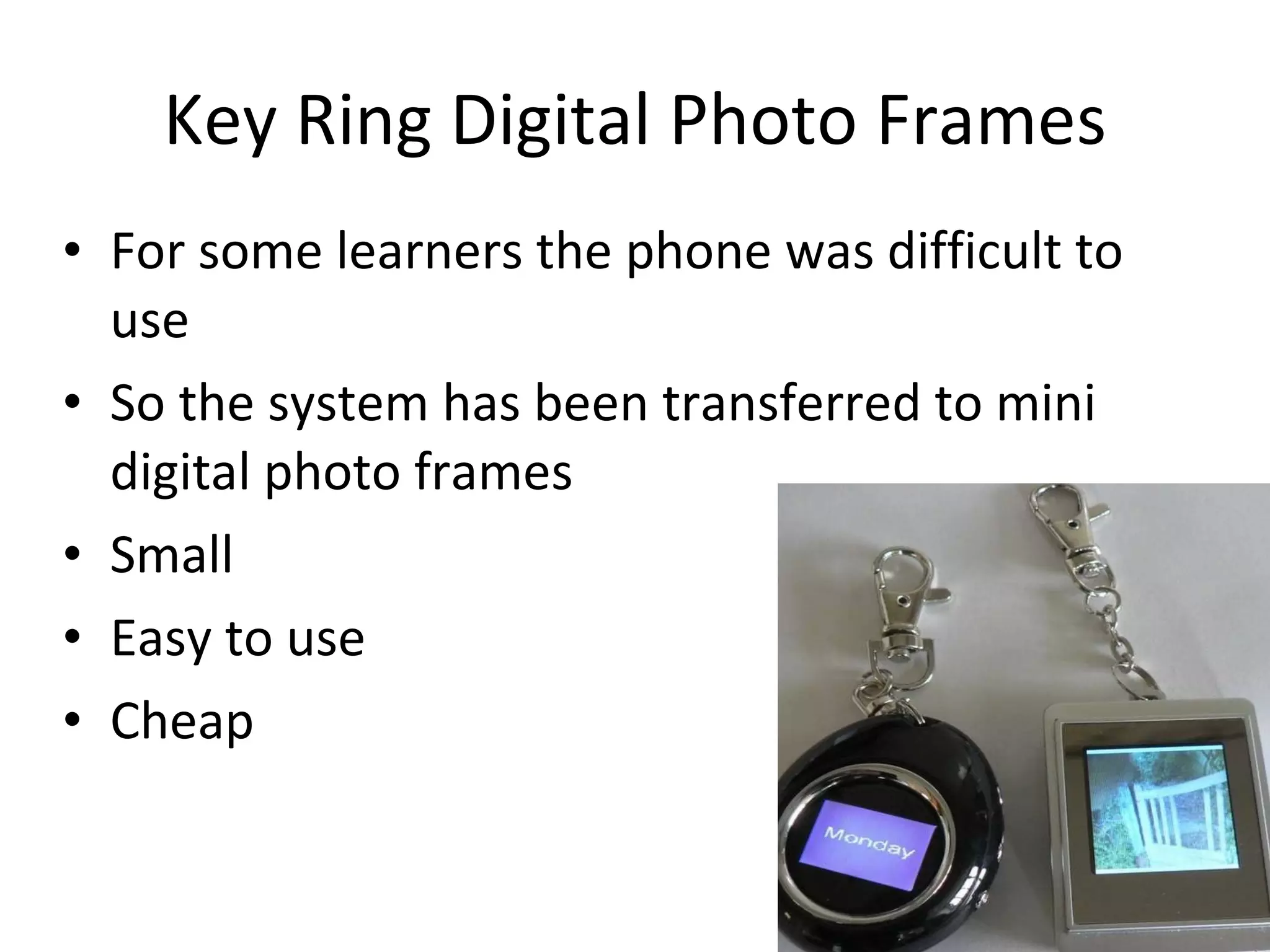
Key Ring Digital Photo Frames For some learners the phone was difficult to use So the system has been transferred to mini digital photo frames Small  Easy to use Cheap
Case Studies Find out how students at Coatbridge College have used free resources to support their activities at: www.rsc-sw-scotland.ac.uk/case_studies/docs/coatbridge_CS.pdf
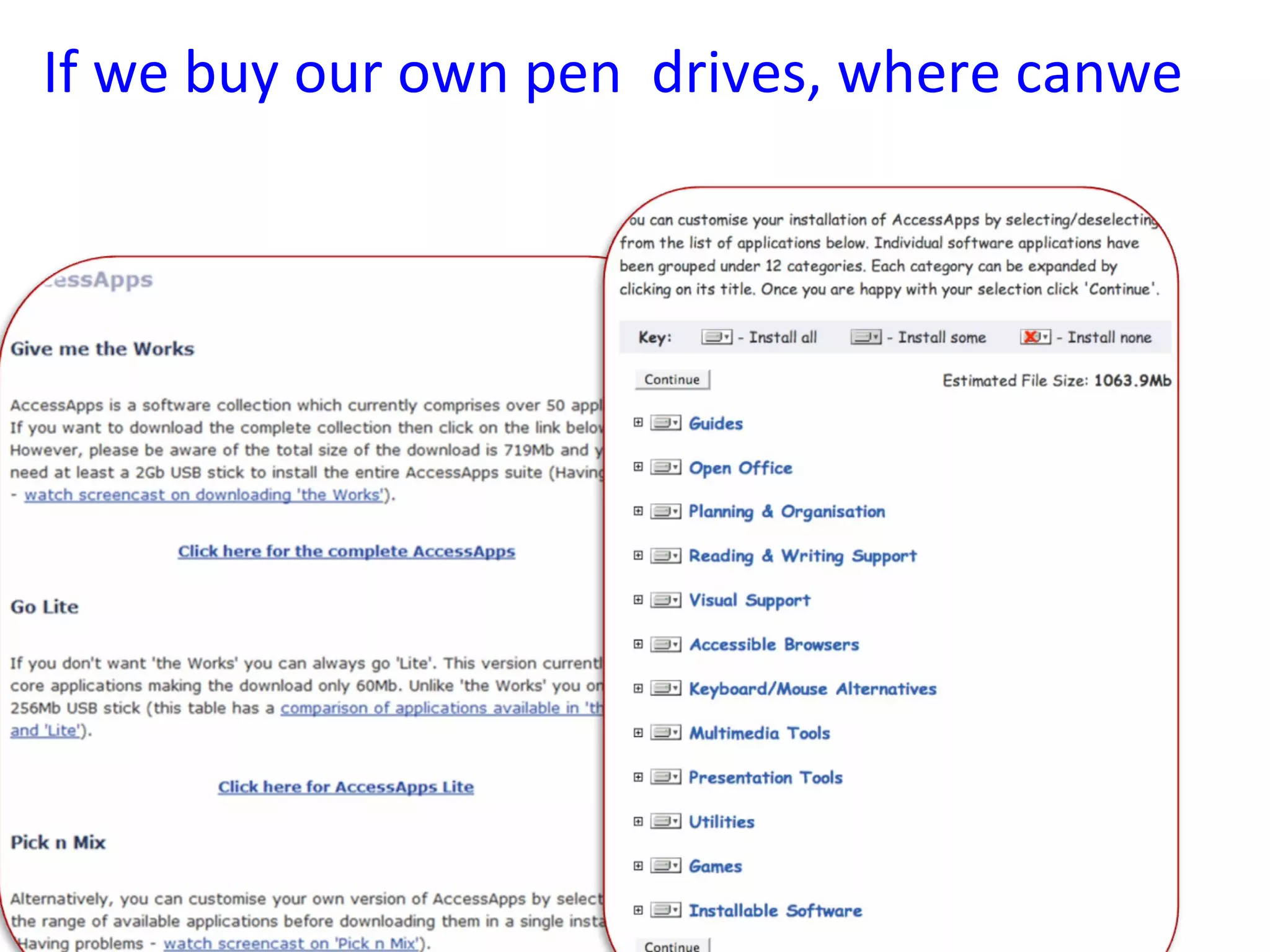
If we buy our own pen  drives, where canwe  get access to download the material?
  Other resources from JISC  to help you create inclusive environments for staff and students
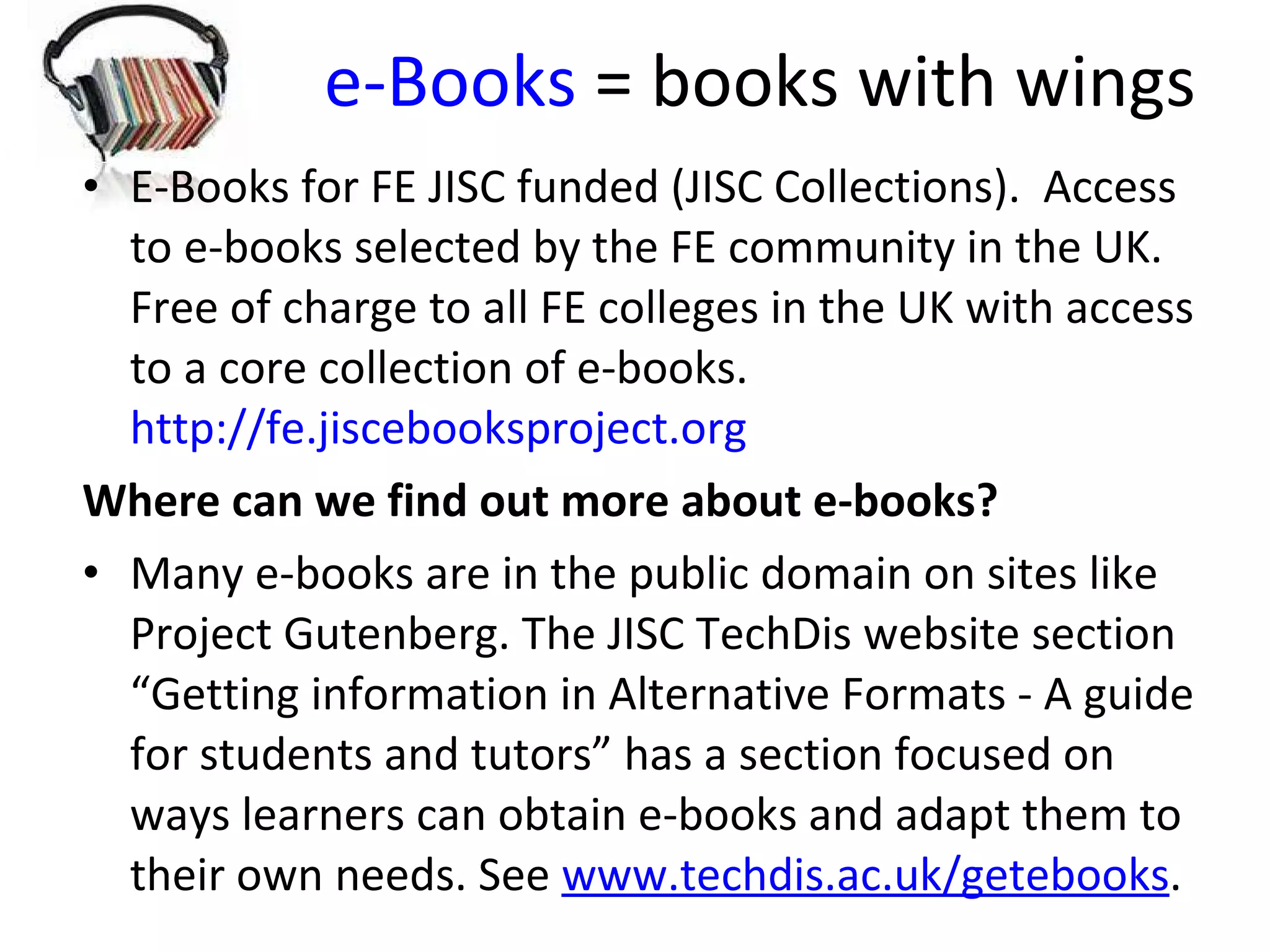
e-Books  = books with wings E-Books for FE JISC funded (JISC Collections).  Access to e-books selected by the FE community in the UK.  Free of charge to all FE colleges in the UK with access to a core collection of e-books.  http://fe.jiscebooksproject.org Where can we find out more about e-books? Many e-books are in the public domain on sites like Project Gutenberg. The JISC TechDis website section “Getting information in Alternative Formats - A guide for students and tutors” has a section focused on ways learners can obtain e-books and adapt them to their own needs. See  www.techdis.ac.uk/getebooks .
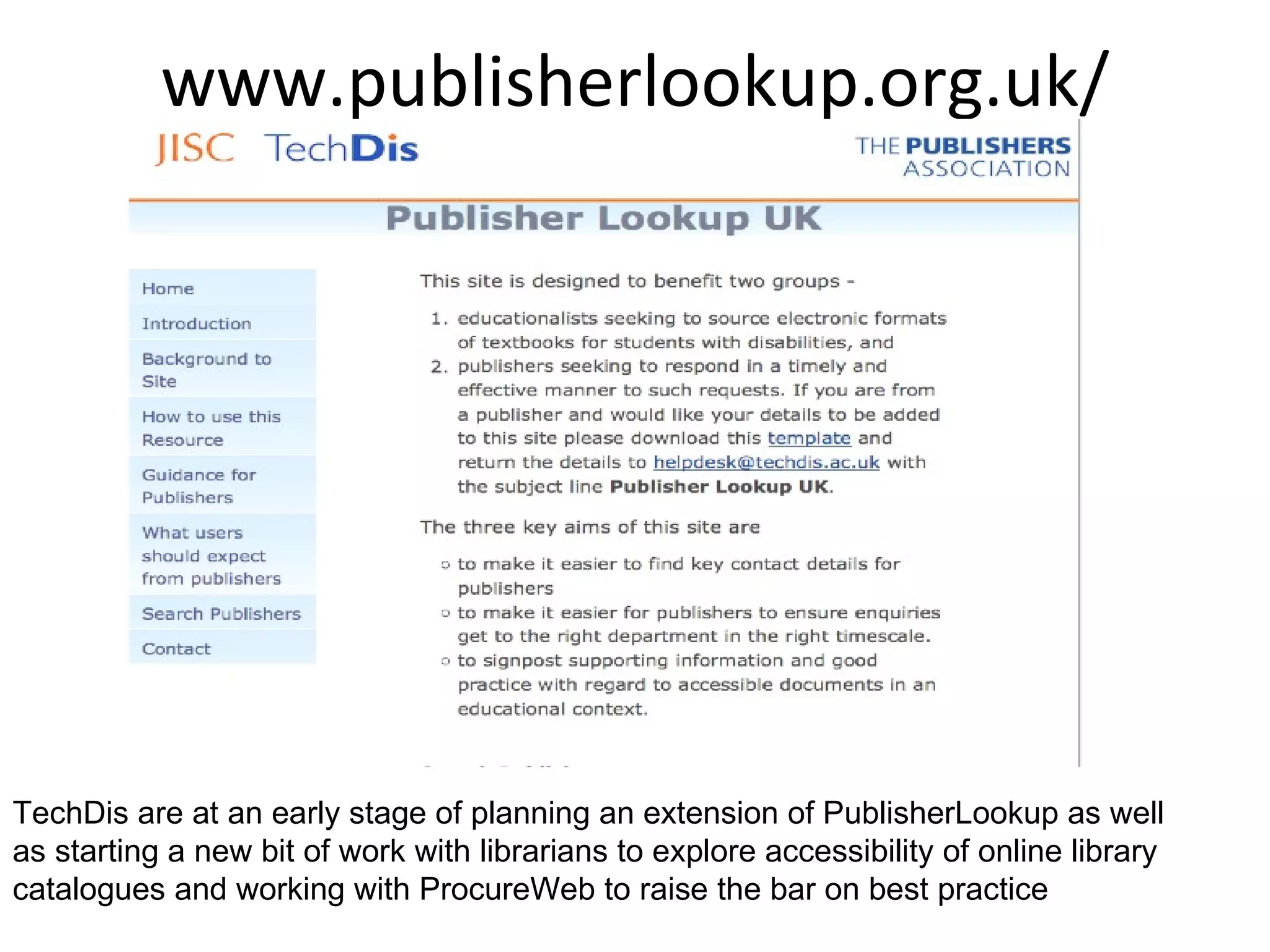
www.publisherlookup.org.uk/ TechDis are at an early stage of planning an extension of PublisherLookup as well as starting a new bit of work with librarians to explore accessibility of online library catalogues and working with ProcureWeb to raise the bar on best practice
Obtaining textbooks in alternative formats
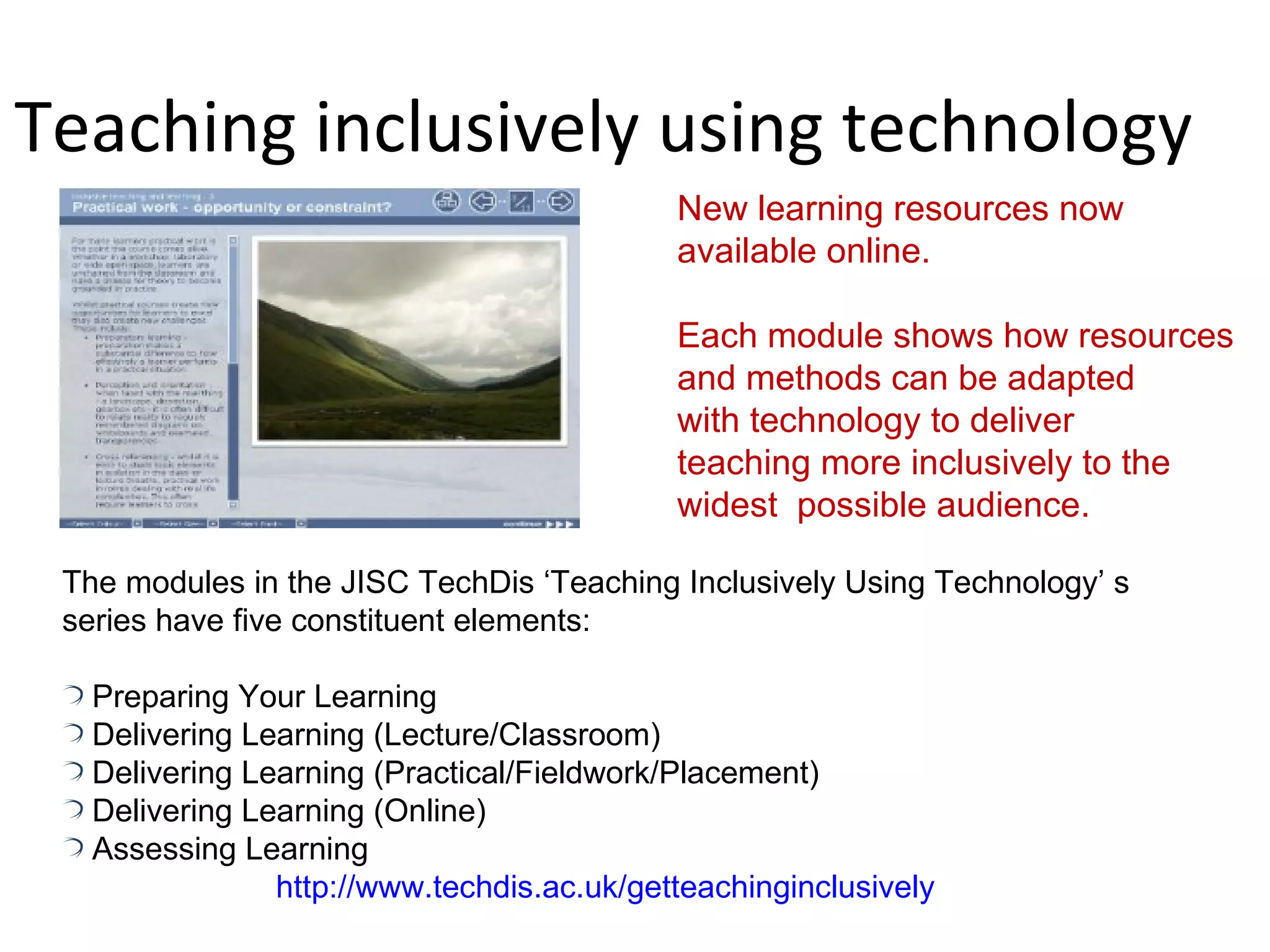
Teaching inclusively using technology New learning resources now  available online. Each module shows how resources and methods can be adapted  with technology to deliver  teaching more inclusively to the  widest  possible audience. The modules in the JISC TechDis ‘Teaching Inclusively Using Technology’ s series have five constituent elements: Preparing Your Learning Delivering Learning (Lecture/Classroom) Delivering Learning (Practical/Fieldwork/Placement) Delivering Learning (Online) Assessing Learning http://www.techdis.ac.uk/getteachinginclusively
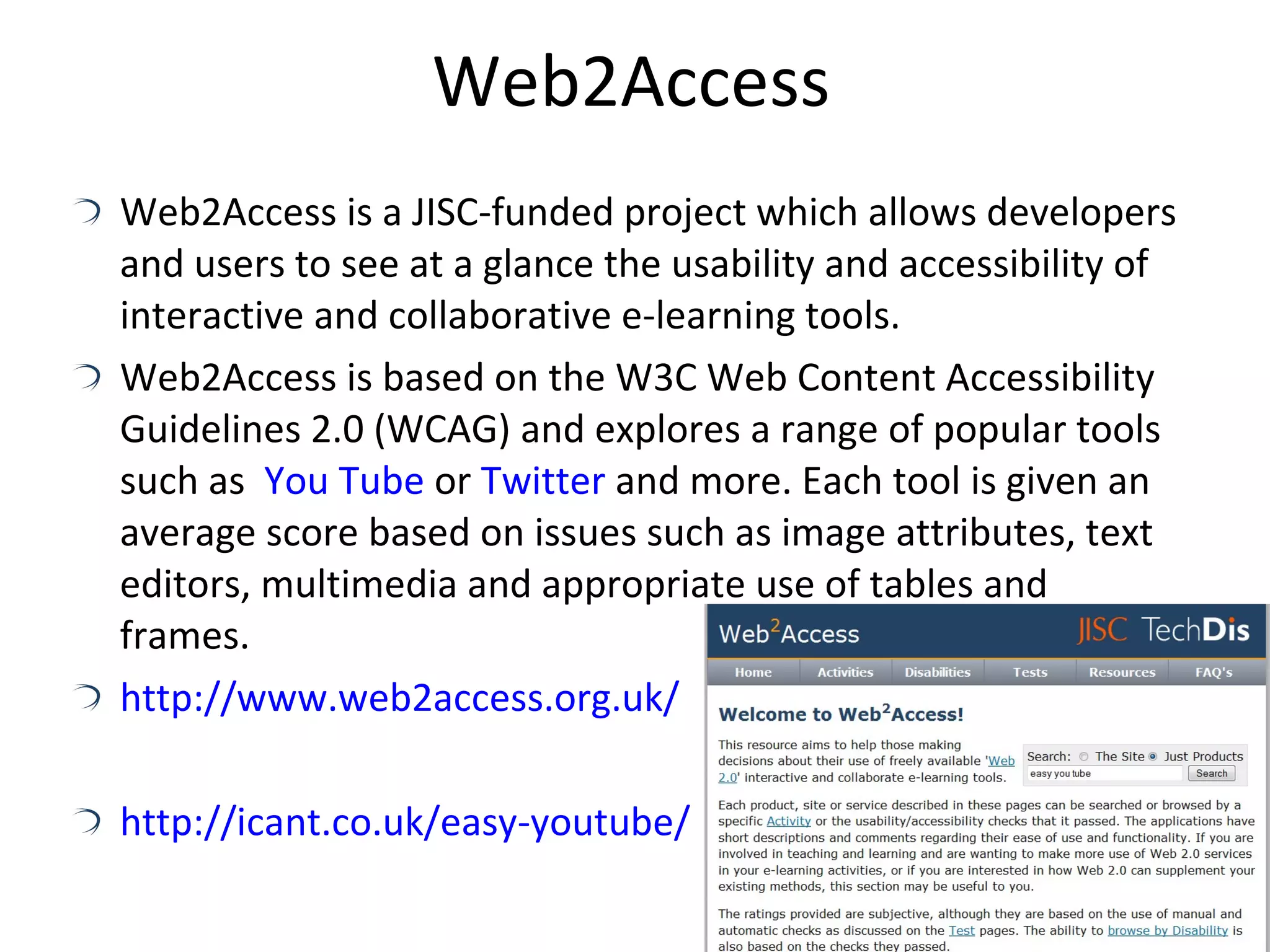
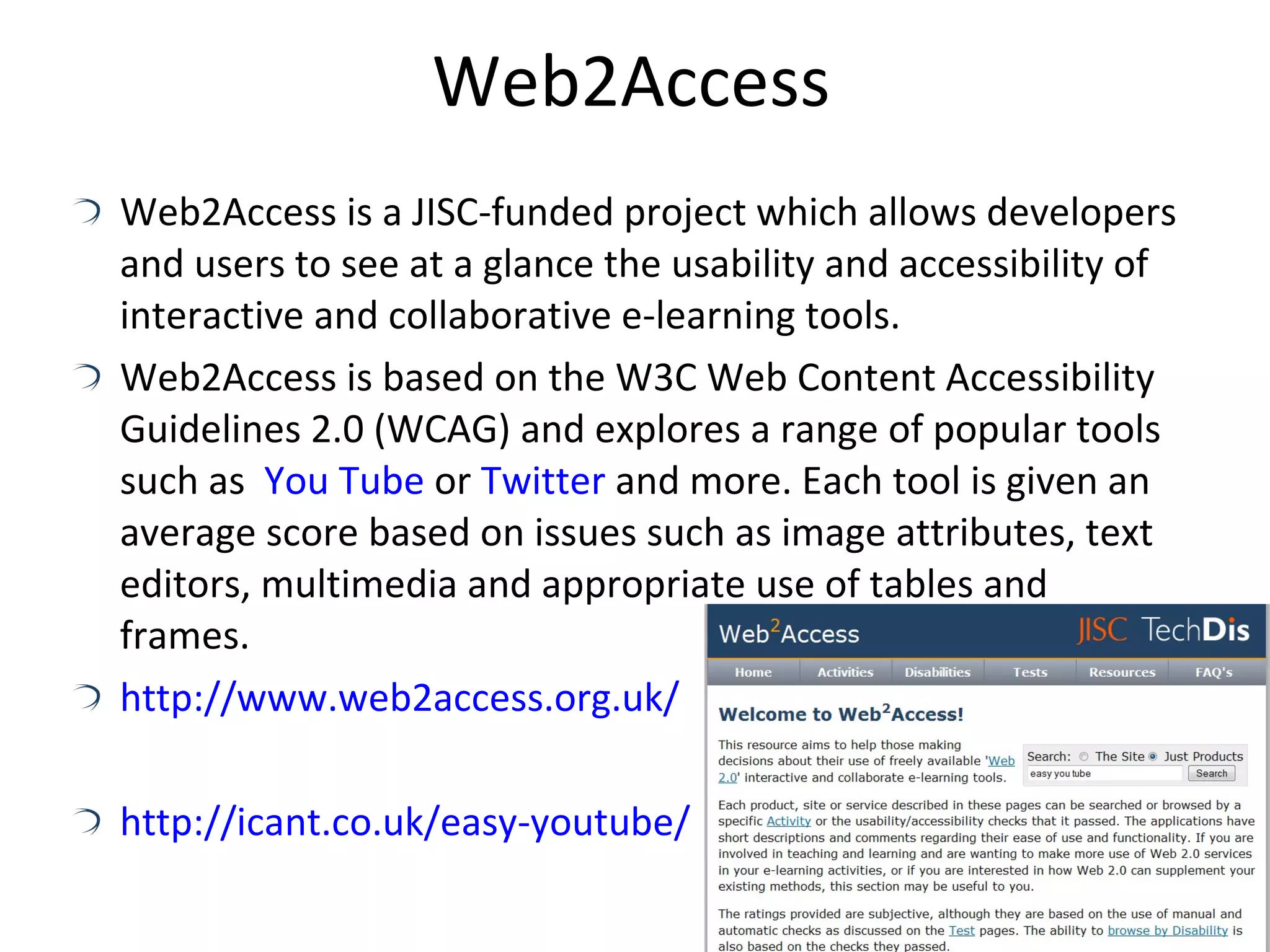
Web2Access Web2Access is a JISC-funded project which allows developers and users to see at a glance the usability and accessibility of interactive and collaborative e-learning tools. Web2Access is based on the W3C Web Content Accessibility Guidelines 2.0 (WCAG) and explores a range of popular tools such as  You Tube  or  Twitter  and more. Each tool is given an average score based on issues such as image attributes, text editors, multimedia and appropriate use of tables and frames. http://www.web2access.org.uk/ http://icant.co.uk/easy-youtube/
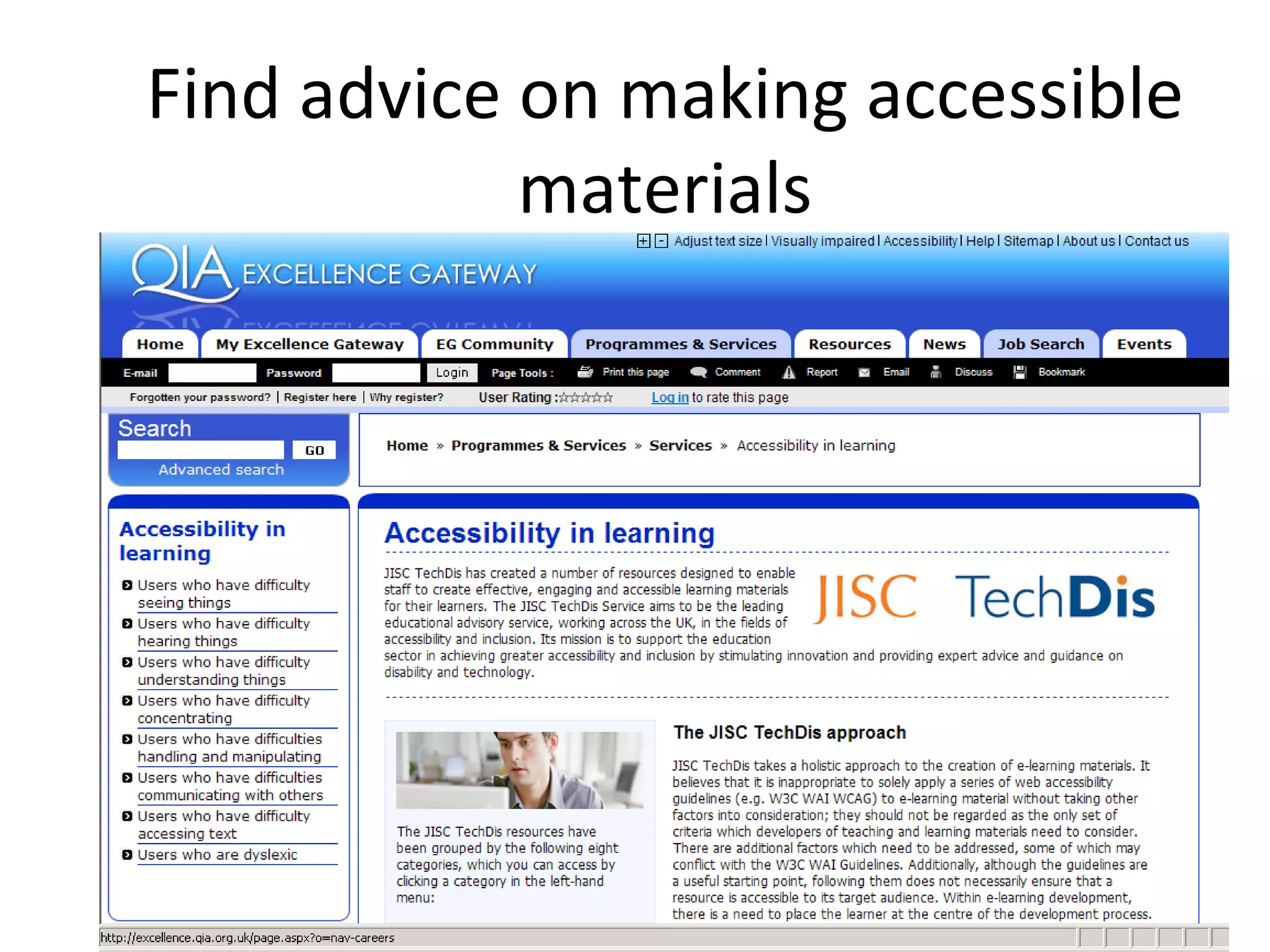
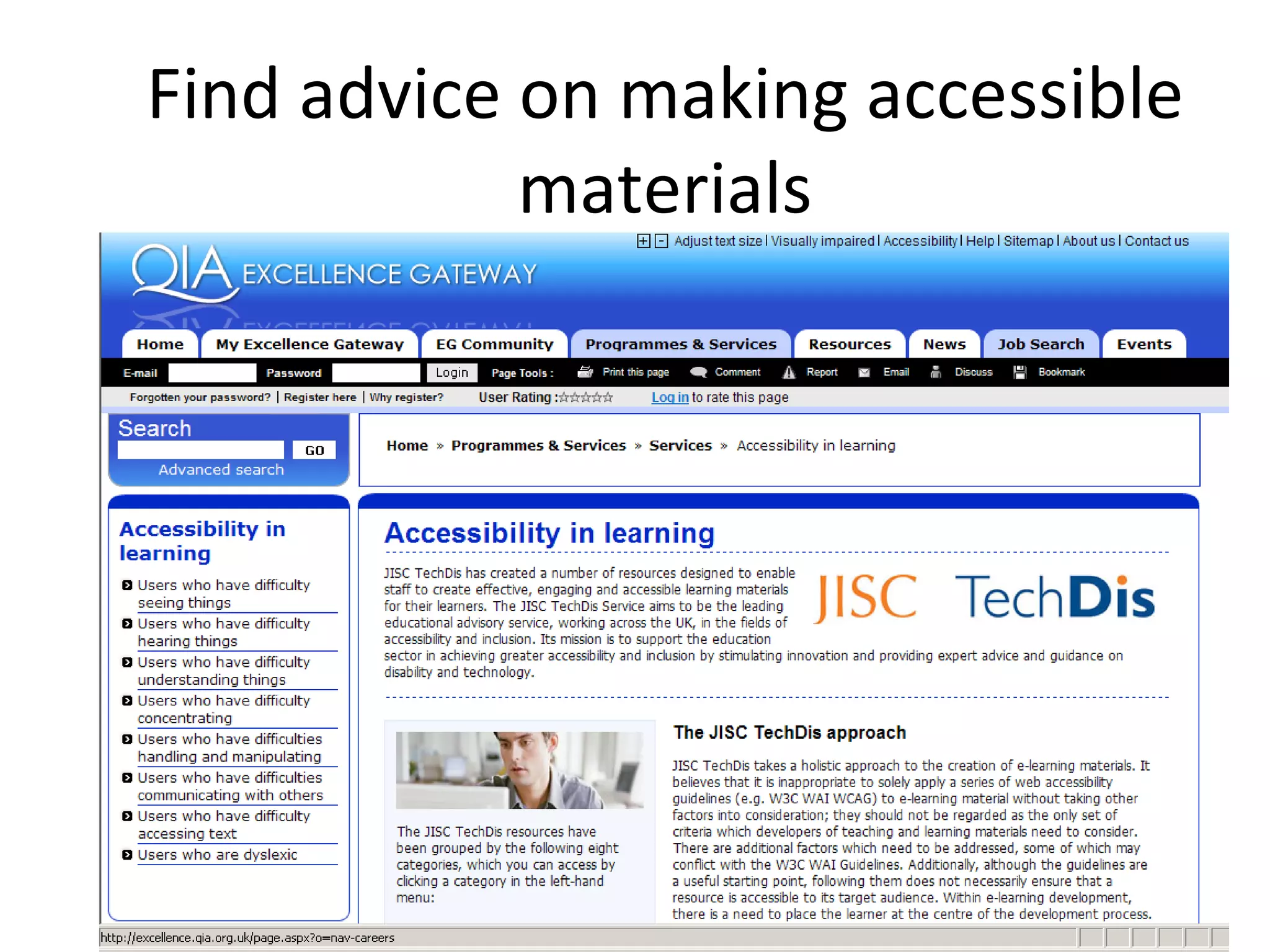
Find advice on making accessible materials
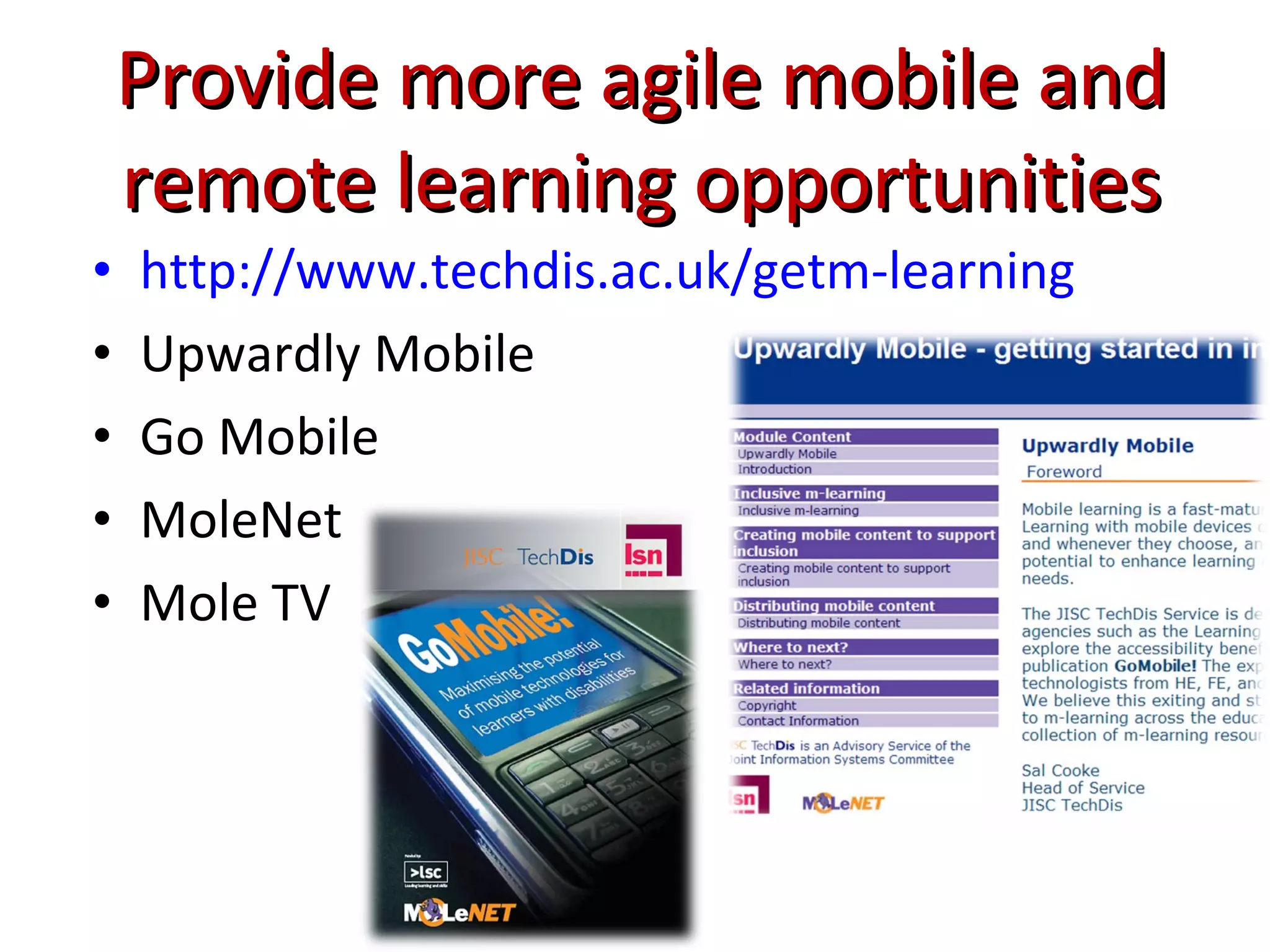
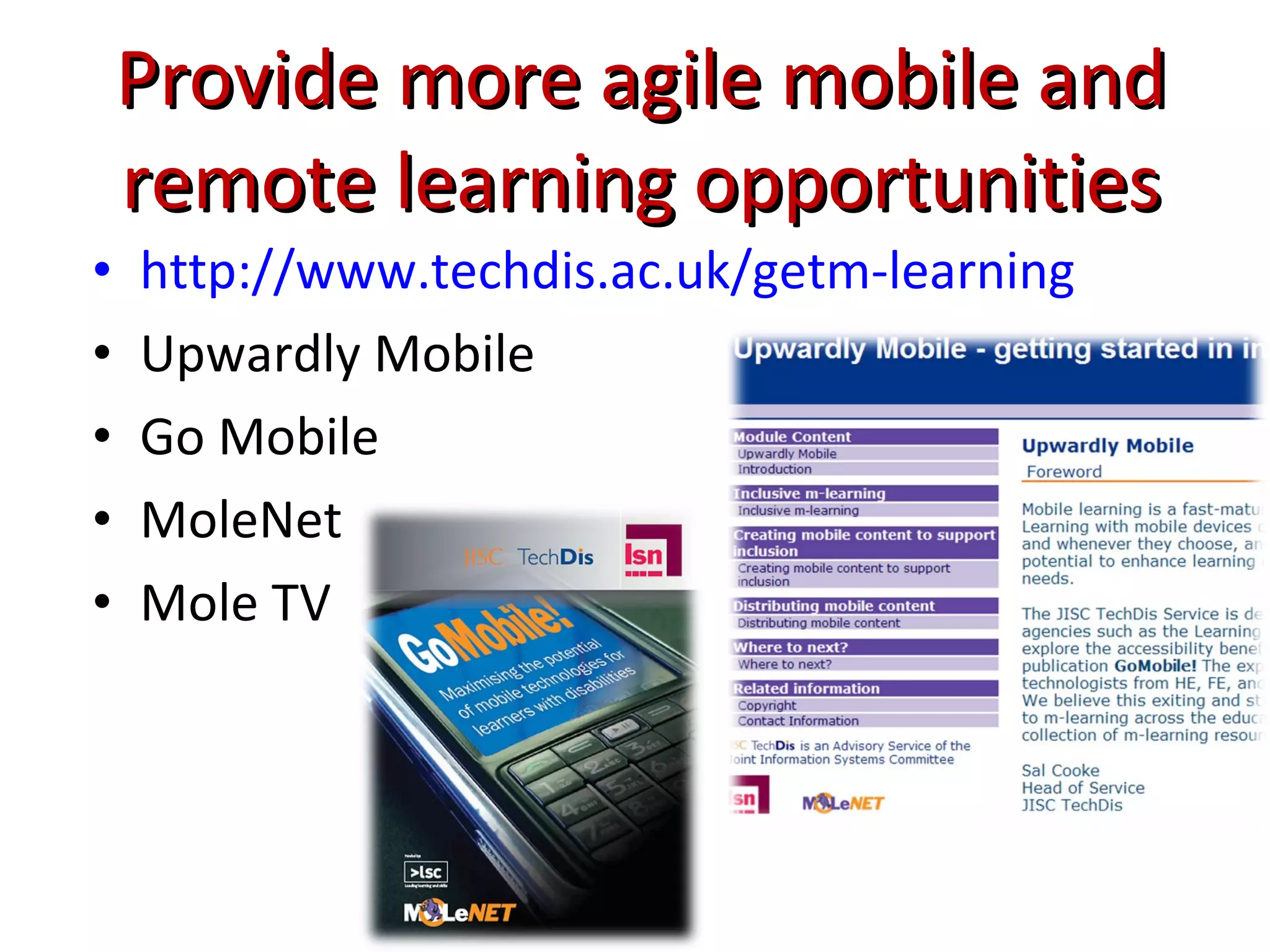
Provide more agile mobile and remote learning opportunities http://www.techdis.ac.uk/getm-learning Upwardly Mobile Go Mobile MoleNet Mole TV
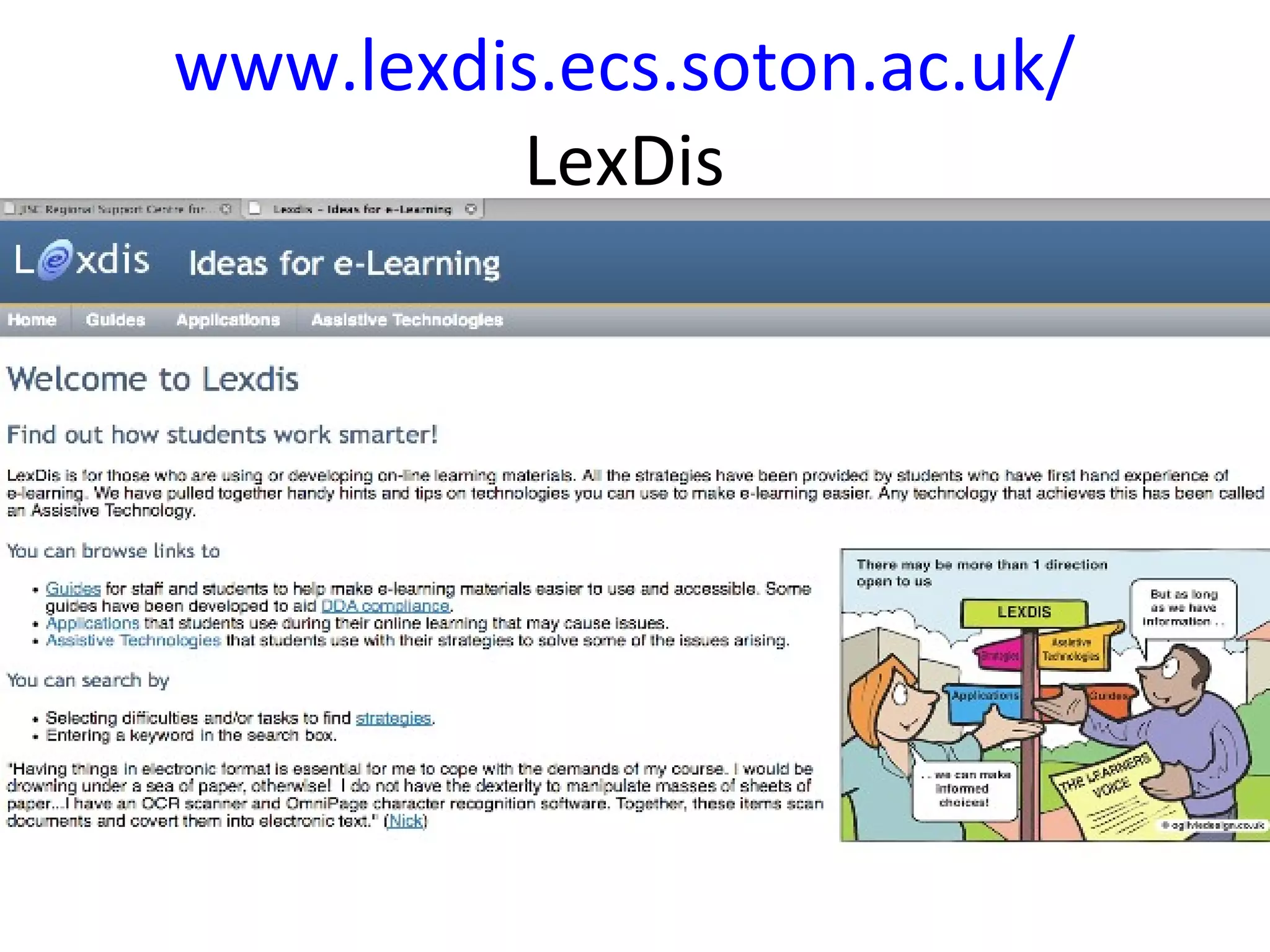
www.lexdis.ecs.soton.ac.uk/ LexDis
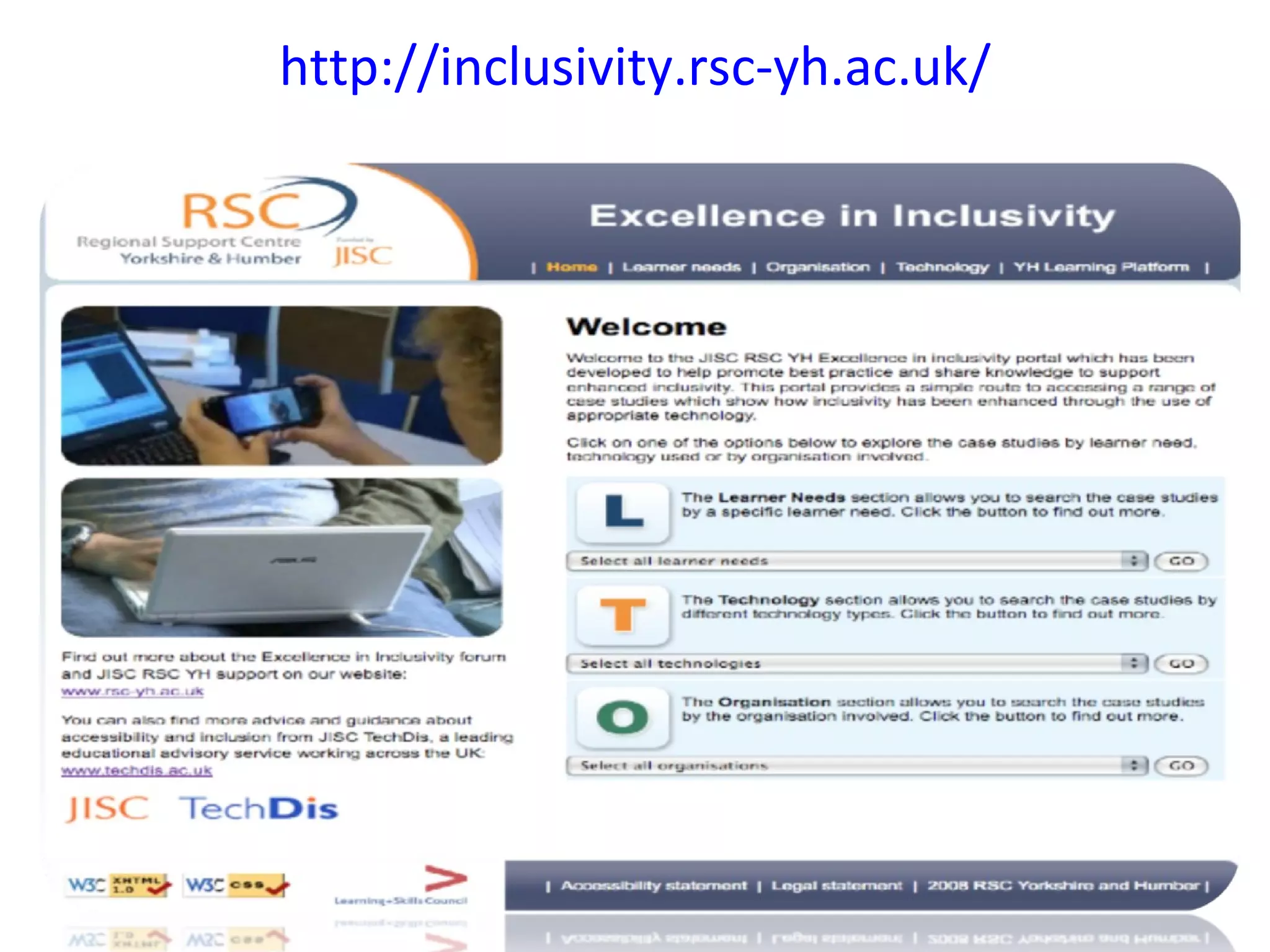
http://inclusivity.rsc-yh.ac.uk/
Teaching inclusively using technology New learning resources now  available online. Each module shows how resources and methods can be adapted  with technology to deliver  teaching more inclusively to the  widest  possible audience. The modules in the JISC TechDis ‘Teaching Inclusively Using Technology’ s series have five constituent elements: Preparing Your Learning Delivering Learning (Lecture/Classroom) Delivering Learning (Practical/Fieldwork/Placement) Delivering Learning (Online) Assessing Learning http://www.techdis.ac.uk/getteachinginclusively
Web2Access Web2Access is a JISC-funded project which allows developers and users to see at a glance the usability and accessibility of interactive and collaborative e-learning tools. Web2Access is based on the W3C Web Content Accessibility Guidelines 2.0 (WCAG) and explores a range of popular tools such as  You Tube  or  Twitter  and more. Each tool is given an average score based on issues such as image attributes, text editors, multimedia and appropriate use of tables and frames. http://www.web2access.org.uk/ http://icant.co.uk/easy-youtube/
Find advice on making accessible materials
Provide more agile mobile and remote learning opportunities http://www.techdis.ac.uk/getm-learning Upwardly Mobile Go Mobile MoleNet Mole TV
 

Resources To Support Library And Information Specialists Aug 09

  • 1.
  • 2.
  • 3.
    RSC SW ScotlandServices Scottish RSCs Inclusion Blog Inclusion in e-Learning Forum (sharing good practice) RSCtv iTunes Podcasts Got a yearning for e-Learning? JISC Ask Events and Training www.rsc-sw-scotland.ac.uk
  • 4.
    JISC Advisory ServicesAdvice on all aspects of plagiarism prevention & detection Advice with still images, moving images and sound advice Advice on all aspects of technology & inclusion Internet training workshops, online self- paced tutorials Effective strategic planning, implementation & management of ICT Strategic guidance & advice re legal issues in ICT
  • 5.
    Techdis The JISCTechDis service advises on the use of technology to support inclusive practice in This includes advice and guidance for teaching and learning, libraries & learner resources front line practitioners, policy makers , staff developers. a wide range of support roles including administration support and marketing.  
  • 6.
    n Students onmainstream courses in FE requiring additional support across Scotland SFC Infact Database - www.sfc.ac.uk/infact
  • 7.
    JISC TechDis hasbeen working with library groups for several years. Libraries have a critical role in accessibility because they are a key support for independent learning They play a significant role in signposting different types of resource to staff and learners They are instrumental in obtaining text books in alternative formats
  • 8.
    Better use ofexisting resources: going beyond handouts Accessibility Essentials Series Making your computer more accessible for you Producing MS Word documents that are more accessible Producing inclusive MS PowerPoint Making PDFs as accessible as possible Follow this link to view an example of guidelines from Accessibility Essentials www.techdis.ac.uk/resources/sites/accessibilityessentials2
  • 9.
    ‘ I cantread the information on the screen.’ ‘ The information on the screen is too small to see.’ ‘ I can’t adjust the font and colour backgrounds to suit my personal preferences.’ ‘ The words keep jumping around the screen.’ ‘ I find it difficult to navigate.’ ‘I can’t click the mouse buttons.’ ‘ I can’t see the keys on the keyboard.’ ‘I keep miss-hitting the keyboard keys.’ Issues for students accessing learning resources
  • 10.
    How can yousupport learners with access needs? In general, the main ways of supporting learners in a library/learning resources setting include: Promoting your services effectively. Communicating with users through appropriate media. Ensuring users can access space and information. Helping users access study tools. Providing alternative interfaces where required. Providing books in alternative formats. Creating coherent policies. Guidance on providing support in each of these areas is available at www.techdis.ac.uk/getlibraryguides
  • 11.
    Talk to 50librarians… How do you support learner’s study skills? Read and write gold Inspiration Mind Mapping Tools to help with planning and organisation Where? How often? How many effective users? How many supported per £? What are they not trying?
  • 12.
    Senior Management BriefingSeries . http://www.techdis.ac.uk/getfreesoftware Saving £s and improving independence. JISC TechDis have created a resource giving tutorials in how to use free and open source technologies in an educational context. Some IT staff are reluctant to use software that isn’t supported by a helpdesk - this must be weighed alongside the other benefits that free software brings in terms of supporting non-traditional learners.
  • 13.
    How They LearnReflect on knowledge or skill What They Do How To Help Introduce new knowledge or skill Exemplify new knowledge or skill Test understanding of new knowledge or skill by completing specific assignments Reflect on knowledge or skill Enabling technologies supporting all learners Process, tasks and tools Write responses Interact with resources Record information Plan responses Reading Tools Alternative Interfaces Recording Tools Planning Tools Communication Tools Visualisation Tools Writing Tools
  • 14.
  • 15.
    Inclusion/Empowerment by All....Not just the Supported Learning staff
  • 16.
    ...... For AllProviding enabling technology solutions should not belong solely to support specialists any more than accessibility or inclusion should belong exclusively to disabled people
  • 17.
    What’s on theUSB AccessApps? Open Office Planning and Organising Tools Reading and Writing Support Visual Support Accessible Browsers Keyboard and Mouse Alternatives Multimedia Resources Presentation Tools Learning Games
  • 18.
    Picture Holder AccessApps storage facility . Use these folders to store the work you produce with AccessApps . AccessApps applications . whenever you click on a folder item or a menu item, the AccessApps start menu will move to the background.
  • 19.
    Open Office Back You can save your OpenOffice Writer files as Word-compatible documents. OpenOffice Impress is the equivalent of PowerPoint
  • 20.
    Open Office -What do Students think   www.lexdis.org “ With my budget computer at home, I found it difficult to do college work because I did not have MS Word at home so I had to use word pad which I didn't like to use because it did not offer me the right tools to complete work” Student at Coatbridge College
  • 21.
    Planning & OrganisationalTools Freemind – Mind Mapping Web based - mindmeister Mozilla Sunbird - Calendar Hott Notes 4 – Sticky Notes * Back
  • 22.
  • 23.
    Reading & WritingSupport Rapid Set – Change Font/Colour Background Vu Bar – Read Text one line at a time The Sage – Portable Dictionary
  • 24.
    Dyslexia Scotopic sensitivityand visual difficulties experienced by many learners with dyslexia What is it like to have dyslexia? TechDis Sim Dis Simultations
  • 25.
    Rapid Set helpinga member of staff in the workplace
  • 26.
    DSpeech Dspeech willhook into the speech engine on any windows PC you use and will either read out text or convert to MP3
  • 27.
    WordTalk www.wordtalk.org.uk/Home/     WordTalk is a free plug-in developed for use with all versions of Microsoft Word (from Word 97 upwards), which can help people with reading difficulties use Microsoft Word more effectively. It will speak the text of the document and will highlight it as it goes. Talking dictionary to help decide which word spelling is most appropriate. Sits neatly in toolbar, highly configurable, adjust the highlight colours, the voice and the speed of the speech. WordTalk does not export the file as a stand-alone MP3.        
  • 28.
    Other web basedtext to speech converters Zamzar – www.zamzar.com Read the Words - www.readthewords.com/ Spoken Text - http://www.spokentext.net/ RoboBraille - www.robobraille.org/frontpage  
  • 29.
    Visual Support VirtualMagnifying Glass Sonar – Cursor Ring
  • 30.
    Accessible Browsers WebbIE – Text Based Browser Use in collaboration with Thunder Screen Reader* Typical Web Page Same Web Page using WebbIE
  • 31.
    Click N Typeand Mouse Tools may assist for users with mobility issues or RSI problems
  • 32.
    Keyboard and MouseAlternatives Dasher (Case Study) Click on the image below to see a demonstration Dasher is a information-efficient communication system driven by continuous pointing gestures. Instead of using a keyboard, the user writes by continuous steering, zooming into a landscape painted with letters. Dasher can be driven by a regular mouse, by touch-screen, or by gaze-direction.
  • 33.
    Multimedia and PresentationTools Audacity records and editing audio What do educators think of this: Use this all the time for audio, no other tool is as good A great free (open source) tool for creating and editing audio files A well focused tool that academics and student can pick up easily. It's very portable and this is important for digital audio where many users want to work in private spaces Free and easy to create classroom podcasts and mp3s where the students get to hear edit and publish themselves. Promotes ownership – extremely motivating. ‘ back up ‘ for lecture, for listening in ‘dead time’
  • 34.
    Multimedia and PresentationTools Cam Studio – record all screen and audio activity to create avi/flash multimedia learning resources VLC Media Player – cross platform media player AudioBook Cutter – splits mp3 sound files to make them easier to listen to in smaller chunks
  • 35.
    Creating Mobile PromptsWork on most mobile devices No stigma attached to mobile learning most people have a mobile device discreet current portable Two pieces of software needed Microsoft PowerPoint to create a series of gifs unFREEz (freeware) to create the animated gif http://www.whitsoftdev.com/unfreez/ By Matt Harrison of Portland College and Alistair McNaught of TechDis
  • 36.
    Applications Timetables Traveltraining Landmarks along the way Health and Safety Manual handling sequences, COSHH etc. Sequences Daily routines, specific tasks And, don’t forget…. Fun!
  • 37.
    Key Ring DigitalPhoto Frames For some learners the phone was difficult to use So the system has been transferred to mini digital photo frames Small Easy to use Cheap
  • 38.
    Case Studies Findout how students at Coatbridge College have used free resources to support their activities at: www.rsc-sw-scotland.ac.uk/case_studies/docs/coatbridge_CS.pdf
  • 39.
    If we buyour own pen drives, where canwe get access to download the material?
  • 40.
    Otherresources from JISC to help you create inclusive environments for staff and students
  • 41.
    e-Books =books with wings E-Books for FE JISC funded (JISC Collections). Access to e-books selected by the FE community in the UK. Free of charge to all FE colleges in the UK with access to a core collection of e-books. http://fe.jiscebooksproject.org Where can we find out more about e-books? Many e-books are in the public domain on sites like Project Gutenberg. The JISC TechDis website section “Getting information in Alternative Formats - A guide for students and tutors” has a section focused on ways learners can obtain e-books and adapt them to their own needs. See www.techdis.ac.uk/getebooks .
  • 42.
    www.publisherlookup.org.uk/ TechDis areat an early stage of planning an extension of PublisherLookup as well as starting a new bit of work with librarians to explore accessibility of online library catalogues and working with ProcureWeb to raise the bar on best practice
  • 43.
    Obtaining textbooks inalternative formats
  • 44.
    Teaching inclusively usingtechnology New learning resources now available online. Each module shows how resources and methods can be adapted with technology to deliver teaching more inclusively to the widest possible audience. The modules in the JISC TechDis ‘Teaching Inclusively Using Technology’ s series have five constituent elements: Preparing Your Learning Delivering Learning (Lecture/Classroom) Delivering Learning (Practical/Fieldwork/Placement) Delivering Learning (Online) Assessing Learning http://www.techdis.ac.uk/getteachinginclusively
  • 45.
    Web2Access Web2Access isa JISC-funded project which allows developers and users to see at a glance the usability and accessibility of interactive and collaborative e-learning tools. Web2Access is based on the W3C Web Content Accessibility Guidelines 2.0 (WCAG) and explores a range of popular tools such as You Tube or Twitter and more. Each tool is given an average score based on issues such as image attributes, text editors, multimedia and appropriate use of tables and frames. http://www.web2access.org.uk/ http://icant.co.uk/easy-youtube/
  • 46.
    Find advice onmaking accessible materials
  • 47.
    Provide more agilemobile and remote learning opportunities http://www.techdis.ac.uk/getm-learning Upwardly Mobile Go Mobile MoleNet Mole TV
  • 48.
  • 49.
  • 50.
    Teaching inclusively usingtechnology New learning resources now available online. Each module shows how resources and methods can be adapted with technology to deliver teaching more inclusively to the widest possible audience. The modules in the JISC TechDis ‘Teaching Inclusively Using Technology’ s series have five constituent elements: Preparing Your Learning Delivering Learning (Lecture/Classroom) Delivering Learning (Practical/Fieldwork/Placement) Delivering Learning (Online) Assessing Learning http://www.techdis.ac.uk/getteachinginclusively
  • 51.
    Web2Access Web2Access isa JISC-funded project which allows developers and users to see at a glance the usability and accessibility of interactive and collaborative e-learning tools. Web2Access is based on the W3C Web Content Accessibility Guidelines 2.0 (WCAG) and explores a range of popular tools such as You Tube or Twitter and more. Each tool is given an average score based on issues such as image attributes, text editors, multimedia and appropriate use of tables and frames. http://www.web2access.org.uk/ http://icant.co.uk/easy-youtube/
  • 52.
    Find advice onmaking accessible materials
  • 53.
    Provide more agilemobile and remote learning opportunities http://www.techdis.ac.uk/getm-learning Upwardly Mobile Go Mobile MoleNet Mole TV
  • 54.

Editor's Notes

  • #5 JISC Legal: Legal information in order to prevent legal issues from becoming a barrier to the adoption of information and communications technologies in learning, teaching and administration. TASI Technical Advisory Service for Images (TASI) provides advice and guidance on the creation and use of digital image collections in learning, teaching and research Netskills: Netskills provides high quality training and staff development. InfoNet JISC infoNet aims to be the UK's leading advisory service for managers in the post-compulsory education sector promoting the effective strategic planning, implementation and management of information and learning technology
  • #9 Accessibility Essentials series provides a wide range of guidance in creating accessible learning materials
  • #12 16/02/10 Key questions that need to be asked include: Where is the software available? On some machines or on all machines, in some rooms or in all IT rooms? how often is it used? How many users are using it effectively? How many users are being supported per pound invested? What software is not being tried whilst these products are being marketed?
  • #14 16/02/10 There are a number of ways of categorising assistive technologies but the one that has most direct relevance for teaching and learning is that developed by TechDis which maps the process of learning to the tasks needed to engage in the process to the tools needed to complete the tasks. When a student engages in learning a new subject they generally go through a learning process in which they first reflect on their current knowledge or skill, they then introduce and exemplify their new knowledge and skills. Students then test their new understanding by completing specific assignments. In order to go through this process of learning a student would have to interact with resources, record information and plan and write responses. Using this approach to learning we are able to identify seven genres of ‘Assistive Technology’ which may be used by the learner at any stage of the process. These genres include assistive technology ranging from traditional ‘Assistive Technologies’ such as alternative interfaces (tracker balls, adapted keyboards, screen readers) to less widely recognised (but much more widespread) assistive technologies such as visualisation tools – videos and animations. The full list includes reading tools, alternative interfaces, visualisation tools, recording tools, planning tools, communication tools and writing tools. The benefits of this approach are threefold: The focus is on learning not technology, disability or medical condition. A single category (for example read assist tools) may contain a wide range of alternative solutions ranging from high tech to low tech and even pedagogical solutions. A single technology may provide a solution for more than one accessibility need – for example the use of styles and outline in Microsoft Word can provide both a reading tool and a planning tool. Note the distinction between the traditional screen reader which we regard as an alternative interface, and text to speech which we regard as a reading aid. The former makes information on the monitor (including navigation, structural layout and text etc) accessible to a blind user. The latter makes the meaning of text more accessible to a print disabled user who can see the text but not make sense of the meaning. Note also that the same tool (for example alternative interfaces) may be used at more than one stage of the learning cycle.
  • #16 In many organisations accessibility is associated with a particular group of people (disabled learners) and a particular group of staff (learner support or disability officers). This perception is unhelpful for two reasons: It may fail to recognise the spectrum of accessibility needs which goes beyond learners with declared disabilities. It may fail to recognise the very significant role that well informed teaching and learning staff e.g. lecturers, trainer, tutors, librarians or technicians, can bring to the learner’s experience.
  • #17 In many organisations accessibility is associated with a particular group of people (disabled learners) and a particular group of staff (learner support or disability officers). This perception is unhelpful for two reasons: It may fail to recognise the spectrum of accessibility needs which goes beyond learners with declared disabilities. It may fail to recognise the very significant role that well informed teaching and learning staff e.g. lecturers, trainer, tutors, librarians or technicians, can bring to the learner’s experience.
  • #20 Open Office OpenOffice is a comprehensive suite of programs which includes OpenOffice Writer for word processing (similar to MS Word), OpenOffice Impress for creating and showing presentations (similar to PowerPoint) and OpenOffice Calc for creating spreadsheets (similar to Excel).   In addition, OpenOffice Base is a database program similar to Microsoft Access. A useful feature of OpenOffice, particularly OpenOffice Writer and OpenOffice Impress, is that it is nearly almost compatible with Microsoft Word and PowerPoint. One thing to keep in mind when using OpenOffice Writer is that when you save a file you can save your OpenOffice Writer files as Word-compatible documents. This means that you can open and close your files with OpenOffice Writer and Microsoft Word
  • #21 Open office accessibility http://ui.openoffice.org/accessibility/
  • #25 Impossible to cover every potential learning difficulty – highlight some of the more common issues Dyslexia – one of the more common barriers to learning.10 % of population (or more) show some signs of dyslexia More common in males than females As common as being left handed
  • #32 Click n Type – Guide to Its potential use with learners at: http://www.bltt/org/software/clickntype/index.htm MouseTool clicks the mouse for you. Carpal tunnel syndrome. Tendonitis. Who'd have thought that those tiny little mouse buttons could ruin your life? MouseTool: Clicks and drags the mouse Sends Left-, Double-, or Right clicks Knows which of these to send into which window Can be controlled by hotkeys you define Versions are available for Windows, and Linux. And, soon, for Mac OS X!
  • #34 Who would benefit? Audacity can help everyone. Audacity is free, open source software for recording and editing sounds. This could be useful to learners who record lectures and need to edit them at a later stage. For example, if you record lectures with a digital recorder you can download the recording into Audacity, and select and edit the important parts you want to keep. Audacity is a great tool for saving audio to multiple formats, including MP3 for creating Podcasts Comments from those who selected Audacity as one of their Top 10 Tools in 2008   * "Does everything you need to record and edit audio. Easy to use, another winner!" Karl Goddard * "who needs anything more complex or pricey?" Mary Cooch * "a wonderful user-friendly resource bringing podcasting to the people" Bill Miller * "open source Audio editing in an easy way. Gorgeous tool for all "sound experiments" Andreas Busing * "Audacity is still the best application I have found for simple recording and editing of audio. It just works." Jennifer Maddrell * "Audio is a versatile option for an elearning. With the free Audacity tool it is easy to produce, edit and publish audio as an MP3 or other file formats." Steve Rayson * "Audacity gave the PC community similar capabilities to Mac's GarageBand at no cost. I like having the ability to review and edit audio before I package it for podcasting" Britt Wattwood * "Audacity is easy to use for recording and editing sound files. It is a handy program for creating podcasts, especially for beginners in this area. " Patricia Donaghy * "Free and easy to create classroom podcasts and mp3s where the students get to hear, edit and publish themselves. Promotes ownership – extremely motivating." Kora Stoll * "In the past I used Sonic Foundry’s Sound Forge, but Audacity does everything I need. The large library of plugins add all the functionality I think I might ever need. It’s free and open source too" Charles Jennings * "I found it is very useful for sound editing. It supports variety of features for audio editing at no cost." N B Venkateswarlu Phil Bradley * "Why spend limited funds on a commercial tool that won't do all this free one does?" Ed Lamaster *." Pattie Mascaro * "Although I don’t use it very often, any time it comes to manipulating sound it quickly does the job." Kevin Jones * "Extremely useful and easy-to-use tool for editing audio. I have found it invaluable in the various multimedia projects I've worked on in college this year. I use the noise removal filter for reducing static on voiceovers that were recorded directly using the built in mic on my laptop - handy if you dont have a fancy audio recording booth. Of course using this method, you won't have superb audio quality, but for less formal requirements such as creating audio for college projects, it's ideal." Karen OBrien * "Amazingly powerful for such a small program. I use it almost everyday, even though I have access to much more powerful audio editing software packages." Jason Edwards * "a well focussed tool that academics and student can pick up easily. It's very portable and this is important for digital audio where many users want to work in private spaces" Andrew Middleton * "This easy to use FREE audio editing software is easy to use for podcasting and editing audio files. You will need the LAME Mp3 encoder if you want to export your audio files at MP3 instead of WAV - but it’s easy to download and install" Colette Cassinelli * "I use this tool whenever there is a requirement for audio recording or editing. It is such a useful tool and it's free!" Sathish Narayanan * "I recommend this open source tools to subject matter experts who wish to create podcasts and / or software demos when using a Rapid E-Learning approach. It's easy to install and use and enables SMEs and training professionals to create high quality audio quickly and efficiently." Michael Hanley * "I’m starting to do much more with audio, and Audacity really is a pretty incredible piece of free software." Jeff Cobb * " Free and powerful audio recorder and editor. Works with MP3's though you will need to download a copy the LAME MP3 encoder which will allow Audacity to import and export MP3 files." Rupert Russell
  • #35 Open cam studio, define recordable area, move cursor add commentary Volunteer required, save avi file, ope file in windows movie maker, add subtitles et voila!
  • #36 Mobile Prompts Inspired by Alistair McNaught Animated gif Work on most mobile devices No stigma attached to mobile learning most people have a mobile device discreet current portable 16/02/10
  • #37 Applications Timetables Travel training Landmarks along the way Health and Safety Manual handling sequences, COSHH etc. Sequences Daily routines, specific tasks And, don’t forget…. Fun! 16/02/10
  • #38 Key Ring Digital Photo Frames Small Easy to use Cheap 16/02/10
  • #48 MoLeTV which will be targeted primarily to colleges in England, under the auspices of the Learning and Skills Council. Use of this new digital media site will enable registered users to upload media in most of the common formats - AVI, MP4, MP3, Windows Media and Quicktime. The uploaded media will convert to Adobe Flash Video, Windows Media, MP4 and 3GP and will be available as a link or embed code which can be inserted into a VLE or web page. 'Uploaders' will be able to edit and delete their content at any time.http://www.moletv.org.uk/watch.aspx?v=MGBJZ
  • #54 MoLeTV which will be targeted primarily to colleges in England, under the auspices of the Learning and Skills Council. Use of this new digital media site will enable registered users to upload media in most of the common formats - AVI, MP4, MP3, Windows Media and Quicktime. The uploaded media will convert to Adobe Flash Video, Windows Media, MP4 and 3GP and will be available as a link or embed code which can be inserted into a VLE or web page. 'Uploaders' will be able to edit and delete their content at any time.http://www.moletv.org.uk/watch.aspx?v=MGBJZ