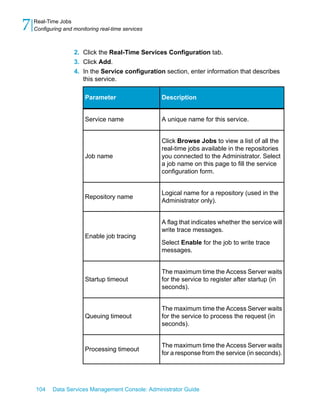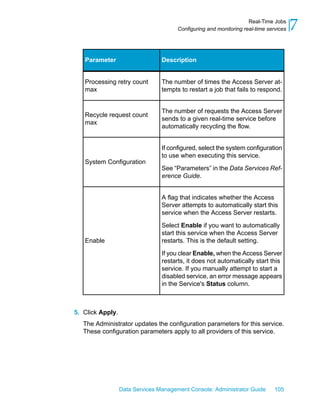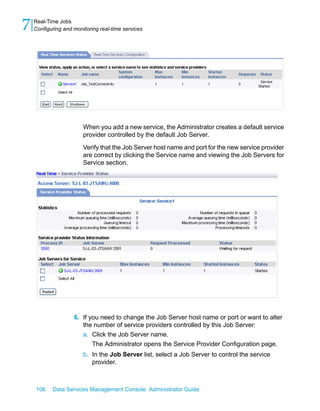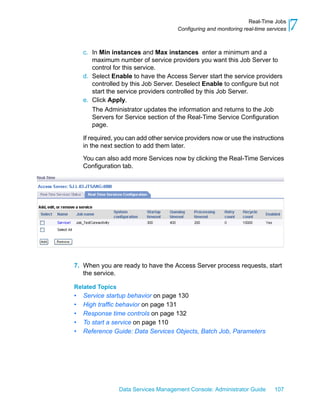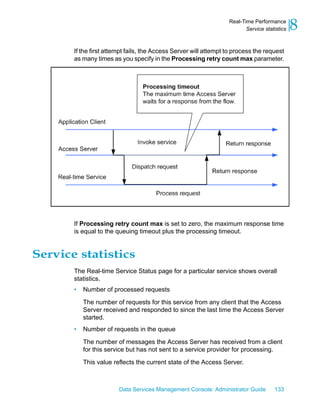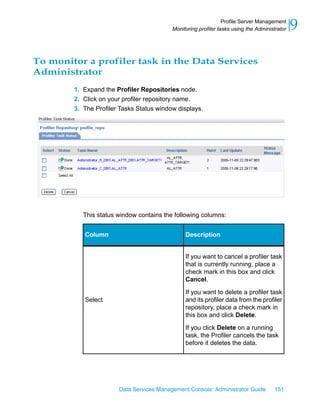



Data Services Management Console:
Administrator Guide


           BusinessObjects Data Services XI 3.0 (12.0.0)
Copyright      © 2008 Business Objects. All rights reserved. Business Objects owns the following
               U.S. patents, which may cover products that are offered and licensed by Business
               Objects: 5,555,403; 5,857,205; 6,289,352; 6,247,008; 6,490,593; 6,578,027;
               6,831,668; 6,768,986; 6,772,409; 6,882,998; 7,139,766; 7,299,419; 7,194,465;
               7,222,130; 7,181,440 and 7,181,435. Business Objects and the Business Objects
               logo, BusinessObjects, Business Objects Crystal Vision, Business Process On
               Demand, BusinessQuery, Crystal Analysis, Crystal Applications, Crystal Decisions,
               Crystal Enterprise, Crystal Insider, Crystal Reports, Desktop Intelligence, Inxight,
               the Inxight Logo, LinguistX, Star Tree, Table Lens, ThingFinder, Timewall, Let
               there be light, Metify, NSite, Rapid Marts, RapidMarts, the Spectrum Design, Web
               Intelligence, Workmail and Xcelsius are trademarks or registered trademarks in
               the United States and/or other countries of Business Objects and/or affiliated
               companies. All other names mentioned herein may be trademarks of their respective
               owners.


Third-party    Business Objects products in this release may contain redistributions of software
Contributors   licensed from third-party contributors. Some of these individual components may
               also be available under alternative licenses. A partial listing of third-party
               contributors that have requested or permitted acknowledgments, as well as required
               notices, can be found at: http://www.businessobjects.com/thirdparty


               2008-03-14
Contents
Chapter 1   Introduction                                                                                                9
            Welcome to Data Services........................................................................10
                Welcome..............................................................................................10
                Documentation set for Data Services...................................................10
                Accessing documentation....................................................................13
                Business Objects information resources..............................................14
            Overview of this guide...............................................................................16
                About this guide....................................................................................16
                Who should read this guide..................................................................17


Chapter 2   Administrator User Interface                                                                              19
            Installation and configuration.....................................................................20
            About the Management Console...............................................................22
                Logging in.............................................................................................23
                Management Console navigation.........................................................24
            Administrator navigation............................................................................25
                Navigation tree.....................................................................................25
                Pages...................................................................................................29


Chapter 3   Administrator Management                                                                                  31
            Adding repositories....................................................................................32
                Connecting repositories to the Administrator.......................................33
                Changing repository connection allocation..........................................36
                Adapter considerations.........................................................................36
            Managing user roles..................................................................................37
                To add users and their roles.................................................................38


                                 Data Services Management Console: Administrator Guide                                  3
Contents


                 Adding Access Servers..............................................................................39
                     To connect an Access Server to the Administrator..............................40
                 Centralizing administration........................................................................40
                     To group administration by job type.....................................................41
                 Setting the status interval..........................................................................41
                     To set the status interval.......................................................................41
                 Setting the log retention period..................................................................42
                     To delete log information......................................................................42
                 Managing database account changes.......................................................43
                     Updating local repository login parameters..........................................44
                     Updating datastore connection parameters.........................................45


    Chapter 4    Central Repository Management                                                                          47
                 Setting up users and groups......................................................................48
                     To add the secure central repository to the Administrator....................48
                     To add a group to a central repository..................................................49
                     To add users.........................................................................................49
                     To add or remove a user from a group.................................................51
                 Deleting groups..........................................................................................51
                     To delete a group..................................................................................52
                 Viewing reports..........................................................................................52
                     Object state report................................................................................52
                     Change report......................................................................................53


    Chapter 5    Server groups                                                                                          55
                 Server group architecture..........................................................................56
                     Load balance index..............................................................................58
                     Job execution.......................................................................................58
                     Job launcher.........................................................................................59
                     Working with server groups and Designer options...............................59


4   Data Services Management Console: Administrator Guide
Contents


              Editing and removing a server group.........................................................61
                  To edit a server group...........................................................................62
                  To remove a server group....................................................................62
              Monitoring Job Server status in a server group.........................................63
              Executing jobs using server groups...........................................................64


  Chapter 6   Batch Jobs                                                                                                 65
              Executing batch jobs..................................................................................66
                  To execute a job...................................................................................66
              Scheduling jobs.........................................................................................67
                  Using the Data Services job scheduler................................................67
                  Scheduling jobs in BusinessObjects Enterprise...................................79
                  Using a third-party scheduler...............................................................82
                  Data Services job launcher..................................................................88
              Monitoring jobs..........................................................................................91
                  Overall status.......................................................................................91
                  Statistics...............................................................................................93
                  Ignore error status................................................................................96
                  Deleting batch job history data.............................................................96
                  Stopping a running job.........................................................................97
                  Trace, monitor, and error logs..............................................................97


  Chapter 7   Real-Time Jobs                                                                                             99
              Supporting real-time jobs.........................................................................100
              Configuring and monitoring real-time services........................................103
                  Creating services and service providers............................................103
                  Starting and stopping services...........................................................109
                  Updating service providers.................................................................112
                  Monitoring services............................................................................113
              Creating and monitoring client interfaces................................................115


                                   Data Services Management Console: Administrator Guide                                   5
Contents


                     RFC clients.........................................................................................116
                     Adding IDoc configurations to an RFC client.....................................119
                     Message Broker clients......................................................................121
                     Monitoring clients...............................................................................121


    Chapter 8    Real-Time Performance                                                                                125
                 Configuring Access Server output...........................................................126
                     To configure an Access Server...........................................................127
                 Service configuration parameters............................................................129
                     Service startup behavior.....................................................................130
                     High traffic behavior...........................................................................131
                     Response time controls......................................................................132
                 Service statistics......................................................................................133
                 Service provider statistics........................................................................135
                 Using statistics and service parameters..................................................136


    Chapter 9    Profile Server Management                                                                            139
                 Defining the profiler repository.................................................................140
                     To define a profiler repository.............................................................140
                 Connecting repositories to the Administrator ..........................................141
                     To add a local, central, or profiler repository connection to the
                     Administrator......................................................................................141
                     To view the list of repositories connected to the Administrator..........143
                 Defining profiler users..............................................................................143
                     To define a profiler user......................................................................144
                 Configuring profiler task parameters.......................................................145
                     To configure profiler task parameters ................................................146
                     Task execution parameters................................................................146
                     Task management parameters...........................................................148
                 Monitoring profiler tasks using the Administrator ....................................150


6   Data Services Management Console: Administrator Guide
Contents


                   To monitor a profiler task in the Data Services Administrator............151


  Chapter 10   Adapters                                                                                               157
               Overview of adapters...............................................................................158
                   To create an adapter datastore connection in the Designer...............159
               Adding and configuring adapter instances..............................................160
                   To add an adapter instance................................................................160
                   To edit an adapter's configuration......................................................161
                   Adapter instance configuration information........................................161
               Starting and stopping adapter instances.................................................165
                   To start an adapter instance...............................................................165
                   To stop an adapter instance...............................................................165
                   To start or stop an adapter operation instance...................................165
               Monitoring adapter instances..................................................................166
                   To monitor the adapter instances and operations..............................166
                   To monitor adapter instance statistics................................................167


  Chapter 11   Support for Web Services                                                                               169


  Chapter 12   Support for HTTP                                                                                       171
               Overview..................................................................................................172
               Adapter installation and configuration.....................................................173
                   URL for HTTP requests to Data Services..........................................173
                   Configuring the HTTP adapter...........................................................173
                   Configuring an operation instance.....................................................176
                   Defining the HTTP adapter datastore................................................179
                   Configuring SSL with the HTTP adapter............................................182


  Chapter 13   Troubleshooting                                                                                        187
               Reestablishing network connections.......................................................188


                                     Data Services Management Console: Administrator Guide                                7
Contents


                     To reestablish network connections for your repository.....................188
                 Reinstalling the Web Server service........................................................188
                     To reinstall the Web Server service....................................................189
                 Finding problems.....................................................................................189
                     To determine which object is not operating properly..........................190
                     To determine the cause of the error...................................................191
                 Error and trace logs.................................................................................191
                     Batch job logs.....................................................................................191
                     Service provider logs..........................................................................193
                     Access Server logs.............................................................................195
                     Adapter logs.......................................................................................198
                 Resolving connectivity problems.............................................................198
                 Restarting the Access Server..................................................................200
                     To perform a controlled restart of the Access Server.........................201
                     To perform an abort and restart of the Access Server.......................201


    Index                                                                                                            203


8   Data Services Management Console: Administrator Guide
Introduction


               1
1   Introduction
    Welcome to Data Services


    Welcome to Data Services

    Welcome

                   Data Services XI Release 3 provides data integration and data quality
                   processes in one runtime environment, delivering enterprise performance
                   and scalability.

                   The data integration processes of Data Services allow organizations to easily
                   explore, extract, transform, and deliver any type of data anywhere across
                   the enterprise.

                   The data quality processes of Data Services allow organizations to easily
                   standardize, cleanse, and consolidate data anywhere, ensuring that end-users
                   are always working with information that's readily available, accurate, and
                   trusted.


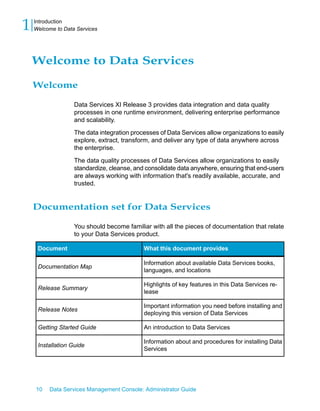
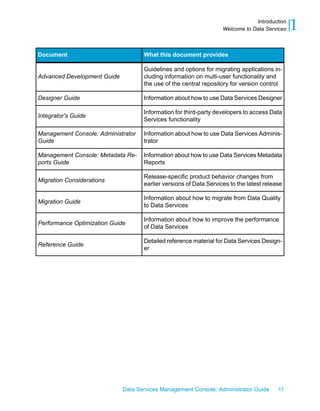
    Documentation set for Data Services

                   You should become familiar with all the pieces of documentation that relate
                   to your Data Services product.

     Document                               What this document provides

                                            Information about available Data Services books,
     Documentation Map
                                            languages, and locations

                                            Highlights of key features in this Data Services re-
     Release Summary
                                            lease

                                            Important information you need before installing and
     Release Notes
                                            deploying this version of Data Services

     Getting Started Guide                  An introduction to Data Services

                                            Information about and procedures for installing Data
     Installation Guide
                                            Services


    10   Data Services Management Console: Administrator Guide
Introduction
                                                                   Welcome to Data Services   1
Document                            What this document provides

                                    Guidelines and options for migrating applications in-
Advanced Development Guide          cluding information on multi-user functionality and
                                    the use of the central repository for version control

Designer Guide                      Information about how to use Data Services Designer

                                    Information for third-party developers to access Data
Integrator's Guide
                                    Services functionality

Management Console: Administrator   Information about how to use Data Services Adminis-
Guide                               trator

Management Console: Metadata Re-    Information about how to use Data Services Metadata
ports Guide                         Reports

                                    Release-specific product behavior changes from
Migration Considerations
                                    earlier versions of Data Services to the latest release

                                    Information about how to migrate from Data Quality
Migration Guide
                                    to Data Services

                                    Information about how to improve the performance
Performance Optimization Guide
                                    of Data Services

                                    Detailed reference material for Data Services Design-
Reference Guide
                                    er


                             Data Services Management Console: Administrator Guide       11
1   Introduction
    Welcome to Data Services


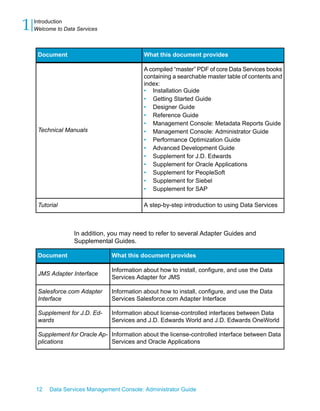
     Document                               What this document provides

                                            A compiled “master” PDF of core Data Services books
                                            containing a searchable master table of contents and
                                            index:
                                            • Installation Guide
                                            • Getting Started Guide
                                            • Designer Guide
                                            • Reference Guide
                                            • Management Console: Metadata Reports Guide
     Technical Manuals                      • Management Console: Administrator Guide
                                            • Performance Optimization Guide
                                            • Advanced Development Guide
                                            • Supplement for J.D. Edwards
                                            • Supplement for Oracle Applications
                                            • Supplement for PeopleSoft
                                            • Supplement for Siebel
                                            • Supplement for SAP

     Tutorial                               A step-by-step introduction to using Data Services


                   In addition, you may need to refer to several Adapter Guides and
                   Supplemental Guides.

     Document                   What this document provides

                                Information about how to install, configure, and use the Data
     JMS Adapter Interface
                                Services Adapter for JMS

     Salesforce.com Adapter     Information about how to install, configure, and use the Data
     Interface                  Services Salesforce.com Adapter Interface

     Supplement for J.D. Ed-    Information about license-controlled interfaces between Data
     wards                      Services and J.D. Edwards World and J.D. Edwards OneWorld

     Supplement for Oracle Ap- Information about the license-controlled interface between Data
     plications                Services and Oracle Applications


    12   Data Services Management Console: Administrator Guide
Introduction
                                                                     Welcome to Data Services   1
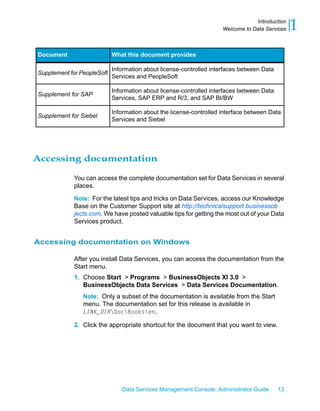
Document                    What this document provides

                            Information about license-controlled interfaces between Data
Supplement for PeopleSoft
                            Services and PeopleSoft

                            Information about license-controlled interfaces between Data
Supplement for SAP
                            Services, SAP ERP and R/3, and SAP BI/BW

                            Information about the license-controlled interface between Data
Supplement for Siebel
                            Services and Siebel


Accessing documentation

            You can access the complete documentation set for Data Services in several
            places.

            Note: For the latest tips and tricks on Data Services, access our Knowledge
            Base on the Customer Support site at http://technicalsupport.businessob
            jects.com. We have posted valuable tips for getting the most out of your Data
            Services product.


Accessing documentation on Windows

            After you install Data Services, you can access the documentation from the
            Start menu.
            1. Choose Start > Programs > BusinessObjects XI 3.0 >
               BusinessObjects Data Services > Data Services Documentation.
                Note: Only a subset of the documentation is available from the Start
                menu. The documentation set for this release is available in
                LINK_DIRDocBooksen.

            2. Click the appropriate shortcut for the document that you want to view.


                               Data Services Management Console: Administrator Guide       13
1   Introduction
    Welcome to Data Services


    Accessing documentation on UNIX

                   After you install Data Services, you can access the online documentation by
                   going to the directory where the printable PDF files were installed.
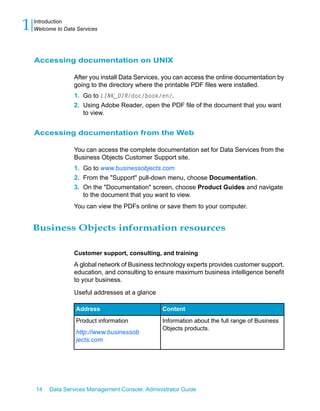
                   1. Go to LINK_DIR/doc/book/en/.
                   2. Using Adobe Reader, open the PDF file of the document that you want
                      to view.


    Accessing documentation from the Web

                   You can access the complete documentation set for Data Services from the
                   Business Objects Customer Support site.
                   1. Go to www.businessobjects.com
                   2. From the "Support" pull-down menu, choose Documentation.
                   3. On the "Documentation" screen, choose Product Guides and navigate
                      to the document that you want to view.
                   You can view the PDFs online or save them to your computer.


    Business Objects information resources

                   Customer support, consulting, and training
                   A global network of Business technology experts provides customer support,
                   education, and consulting to ensure maximum business intelligence benefit
                   to your business.

                   Useful addresses at a glance

                   Address                        Content
                   Product information            Information about the full range of Business
                                                  Objects products.
                   http://www.businessob
                   jects.com


    14   Data Services Management Console: Administrator Guide
Introduction
                                                        Welcome to Data Services   1
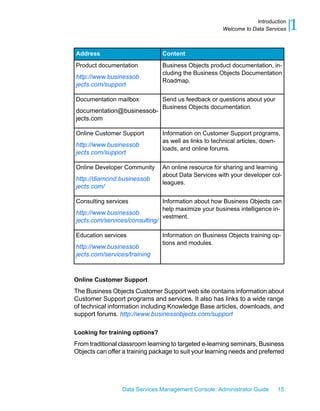
Address                          Content
Product documentation            Business Objects product documentation, in-
                                 cluding the Business Objects Documentation
http://www.businessob
                                 Roadmap.
jects.com/support

Documentation mailbox            Send us feedback or questions about your
                                 Business Objects documentation.
documentation@businessob-
jects.com

Online Customer Support          Information on Customer Support programs,
                                 as well as links to technical articles, down-
http://www.businessob
                                 loads, and online forums.
jects.com/support

Online Developer Community       An online resource for sharing and learning
                                 about Data Services with your developer col-
http://diamond.businessob
                                 leagues.
jects.com/

Consulting services              Information about how Business Objects can
                                 help maximize your business intelligence in-
http://www.businessob
                                 vestment.
jects.com/services/consulting/

Education services               Information on Business Objects training op-
                                 tions and modules.
http://www.businessob
jects.com/services/training


Online Customer Support
The Business Objects Customer Support web site contains information about
Customer Support programs and services. It also has links to a wide range
of technical information including Knowledge Base articles, downloads, and
support forums. http://www.businessobjects.com/support

Looking for training options?
From traditional classroom learning to targeted e-learning seminars, Business
Objects can offer a training package to suit your learning needs and preferred


                 Data Services Management Console: Administrator Guide      15
1   Introduction
    Overview of this guide


                    learning style. Find more information on the Business Objects Education
                    web site: http://www.businessobjects.com/services/training

                    Send us your feedback
                    Do you have a suggestion on how we can improve our documentation? Is
                    there something that you particularly like or have found useful? Drop us a
                    line, and we will do our best to ensure that your suggestion is considered for
                    the next release of our documentation: documentation@businessobjects.com.

                    Note: If your issue concerns a Business Objects product and not the
                    documentation, please contact our Customer Support experts.


    Overview of this guide

    About this guide

                    The guide covers the BusinessObjects™ Data Services Administrator, a
                    web-based application written entirely in Java. You can install the Data
                    Services Administrator on a separate computer from the other Data Services
                    components. It runs on the Data Services Web Server, which is supported
                    by the Data Services Web Server service. The Administrator uses a JDBC
                    connection to repositories.
                    Use the Administrator to:
                    •   Set up users and their roles
                    •   Add connections to Access Servers and repositories
                    •   Manage the retention of Job Server and Access Server logs
                    •   Access job data published for Web Services
                    •   Schedule and monitor batch jobs
                    •   Configure and monitor:
                        •    Access Server status
                        •    Real-time services
                        •    Client interfaces including SAP ERP and R/3 client interfaces (to read
                             IDocs) and message traffic moving in and out of an Access Server


    16    Data Services Management Console: Administrator Guide
Introduction
                                                                  Overview of this guide   1
           •   Adapter instances (a prerequisite for creating adapter datastores)


Who should read this guide

       This and other Data Services product documentation assume the following:
       •   You are an application developer, consultant or database administrator
           working on data extraction, data warehousing, data integration, or data
           quality.
       •   You understand your source and target data systems, DBMS, legacy
           systems, business intelligence, and messaging concepts.
       •   You understand your organization's data needs.
       •   You are familiar with SQL (Structured Query Language).
       •   If you are interested in using this product to design real-time processing
           you are familiar with:
           •   DTD and XML Schema formats for XML files
           •   Publishing Web Services (WSDL, HTTP/S and SOAP protocols, etc.)

       •   You are familiar with Data Services installation environments: Microsoft
           Windows or UNIX.


                         Data Services Management Console: Administrator Guide      17
1   Introduction
    Overview of this guide


    18    Data Services Management Console: Administrator Guide
Administrator User Interface


                       2
2   Administrator User Interface
    Installation and configuration


                     This section describes the Administrator and how to navigate through its
                     browser-based, graphical user interface.

                     Related Topics
                     •   Installation and configuration on page 20
                     •   About the Management Console on page 22
                     •   Administrator navigation on page 25


    Installation and configuration
                     •   General information about the components and architecture of Data
                         Services
                     •   Complete installation instructions for all Data Services components
                         including connectivity testing for Data Services real-time functionality.

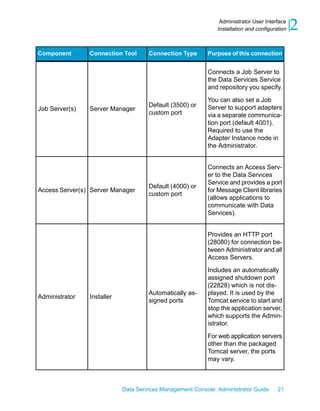
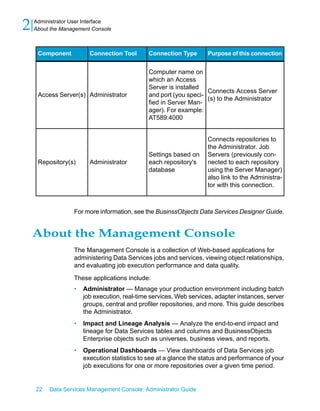
                     A summary of the connections used in Data Services is included here for
                     your reference. You must create the connections in the first four rows of the
                     following table before you can log in to the Administrator.

     Component              Connection Tool      Connection Type       Purpose of this connection

                                                                       •   Connects Designer and
                                                                           repositories.
                                                                       •   Provides location for
                                                                           storage of Data Ser-
                                                                           vices tables and job
     Repository(s)          Repository Manager Custom connection           metadata.
                                                                       •   Connection information
                                                                           is based on the
                                                                           database you use for a
                                                                           repository.


    20    Data Services Management Console: Administrator Guide
Administrator User Interface
                                                              Installation and configuration   2
Component       Connection Tool      Connection Type      Purpose of this connection


                                                          Connects a Job Server to
                                                          the Data Services Service
                                                          and repository you specify.

                                                          You can also set a Job
                                     Default (3500) or    Server to support adapters
Job Server(s)   Server Manager
                                     custom port          via a separate communica-
                                                          tion port (default 4001).
                                                          Required to use the
                                                          Adapter Instance node in
                                                          the Administrator.


                                                          Connects an Access Serv-
                                                          er to the Data Services
                                                          Service and provides a port
                                     Default (4000) or
Access Server(s) Server Manager                           for Message Client libraries
                                     custom port
                                                          (allows applications to
                                                          communicate with Data
                                                          Services).


                                                          Provides an HTTP port
                                                          (28080) for connection be-
                                                          tween Administrator and all
                                                          Access Servers.

                                                          Includes an automatically
                                                          assigned shutdown port
                                                          (22828) which is not dis-
                                     Automatically as-    played. It is used by the
Administrator   Installer
                                     signed ports         Tomcat service to start and
                                                          stop the application server,
                                                          which supports the Admin-
                                                          istrator.

                                                          For web application servers
                                                          other than the packaged
                                                          Tomcat server, the ports
                                                          may vary.


                            Data Services Management Console: Administrator Guide       21
2   Administrator User Interface
    About the Management Console


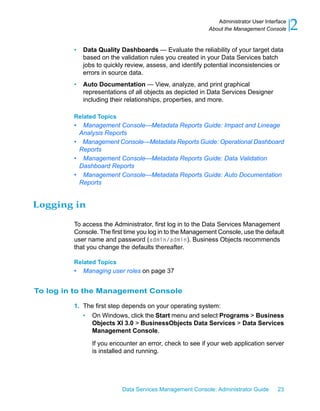
     Component          Connection Tool       Connection Type      Purpose of this connection


                                              Computer name on
                                              which an Access
                                              Server is installed
                                                                   Connects Access Server
     Access Server(s) Administrator           and port (you speci-
                                                                   (s) to the Administrator
                                              fied in Server Man-
                                              ager). For example:
                                              AT589:4000


                                                                   Connects repositories to
                                                                   the Administrator. Job
                                              Settings based on    Servers (previously con-
     Repository(s)      Administrator         each repository's    nected to each repository
                                              database             using the Server Manager)
                                                                   also link to the Administra-
                                                                   tor with this connection.


                  For more information, see the BusinssObjects Data Services Designer Guide.


    About the Management Console
                  The Management Console is a collection of Web-based applications for
                  administering Data Services jobs and services, viewing object relationships,
                  and evaluating job execution performance and data quality.

                  These applications include:
                  •   Administrator — Manage your production environment including batch
                      job execution, real-time services, Web services, adapter instances, server
                      groups, central and profiler repositories, and more. This guide describes
                      the Administrator.
                  •   Impact and Lineage Analysis — Analyze the end-to-end impact and
                      lineage for Data Services tables and columns and BusinessObjects
                      Enterprise objects such as universes, business views, and reports.
                  •   Operational Dashboards — View dashboards of Data Services job
                      execution statistics to see at a glance the status and performance of your
                      job executions for one or more repositories over a given time period.


    22   Data Services Management Console: Administrator Guide
Administrator User Interface
                                                          About the Management Console      2
         •   Data Quality Dashboards — Evaluate the reliability of your target data
             based on the validation rules you created in your Data Services batch
             jobs to quickly review, assess, and identify potential inconsistencies or
             errors in source data.
         •   Auto Documentation — View, analyze, and print graphical
             representations of all objects as depicted in Data Services Designer
             including their relationships, properties, and more.

         Related Topics
         • Management Console—Metadata Reports Guide: Impact and Lineage
          Analysis Reports
         • Management Console—Metadata Reports Guide: Operational Dashboard
          Reports
         • Management Console—Metadata Reports Guide: Data Validation
          Dashboard Reports
         • Management Console—Metadata Reports Guide: Auto Documentation
          Reports


Logging in

         To access the Administrator, first log in to the Data Services Management
         Console. The first time you log in to the Management Console, use the default
         user name and password (admin/admin). Business Objects recommends
         that you change the defaults thereafter.

         Related Topics
         •   Managing user roles on page 37


To log in to the Management Console

         1. The first step depends on your operating system:
            • On Windows, click the Start menu and select Programs > Business
              Objects XI 3.0 > BusinessObjects Data Services > Data Services
              Management Console.

                If you encounter an error, check to see if your web application server
                is installed and running.


                           Data Services Management Console: Administrator Guide     23
2   Administrator User Interface
    About the Management Console


                      •   On UNIX, open a browser, enter the following case-sensitive URL,
                          then press Enter:
                          http://hostname:28080/DataServices
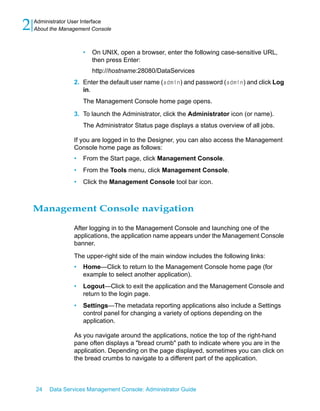
                  2. Enter the default user name (admin) and password (admin) and click Log
                     in.
                      The Management Console home page opens.

                  3. To launch the Administrator, click the Administrator icon (or name).
                      The Administrator Status page displays a status overview of all jobs.

                  If you are logged in to the Designer, you can also access the Management
                  Console home page as follows:
                  •   From the Start page, click Management Console.
                  •   From the Tools menu, click Management Console.
                  •   Click the Management Console tool bar icon.


    Management Console navigation

                  After logging in to the Management Console and launching one of the
                  applications, the application name appears under the Management Console
                  banner.

                  The upper-right side of the main window includes the following links:
                  •   Home—Click to return to the Management Console home page (for
                      example to select another application).
                  •   Logout—Click to exit the application and the Management Console and
                      return to the login page.
                  •   Settings—The metadata reporting applications also include a Settings
                      control panel for changing a variety of options depending on the
                      application.

                  As you navigate around the applications, notice the top of the right-hand
                  pane often displays a "bread crumb" path to indicate where you are in the
                  application. Depending on the page displayed, sometimes you can click on
                  the bread crumbs to navigate to a different part of the application.


    24   Data Services Management Console: Administrator Guide
Administrator User Interface
                                                                    Administrator navigation    2
         The Administrator, Impact and Lineage Analysis, and Auto Documentation
         applications also use a navigation tree in the left-hand pane.

         Data Services Management Console sessions time out after 120 minutes (2
         hours) of inactivity.


Administrator navigation
         The layout of the Data Services Administrator consists of a window with a
         navigation tree on the left and pages with tabs on the right.


Navigation tree

         The navigation tree is divided into nine nodes: Status, Batch, Real-Time,
         Web Services, Adapter Instances, Server Groups, Central Repositories,
         Profiler Repositories, and Management.


Status node

         When the Administrator opens, it displays the Status page. The Status page
         displays the status of the following items (after you have connected them to
         the Administrator). The red, green, and yellow icons indicate the overall
         status of each item based on the jobs, services, and other objects they
         support.
         •    Batch—Contains the name of the repository associated with Job Server
              on which you run the batch jobs. To see batch jobs status, connect the
              repository to the Administrator.

              Click the repository name to display a list of batch jobs and their status.
         •    Real-time—Contains the name of the Access Servers associated with a
              real-time service. To see real-time jobs status, connect the Access Server
              to the Administrator.

              Click the Access Server name to display a list of real-time services and
              their client interfaces.
         •    Adapters—Contains the name of the repository associated with Job
              Server on which you run the adapter. To see an adapter's status, enable


                            Data Services Management Console: Administrator Guide        25
2   Administrator User Interface
    Administrator navigation


                        a Job Server for adapters, then add the repository associated with that
                        Job Server.
                    •   Profiler—Contains the name of the repository associated with the Profiler
                        Server. To see a profiler repository, connect the profiling repository to the
                        Administrator.

                        Click the repository name to display a list of profiler tasks and their status.


    Batch node

                    After you add at least one repository connection to the Administrator, you
                    can expand the Batch node. Then click a repository name to display its Batch
                    Job Status page.

                    Click the All Repositories option to see jobs in all repositories connected
                    to this Administrator (only appears if more than one repository is connected).

                    Each repository under the Batch node includes the following tabs:
                    •   Batch Job Status—View the status of the last execution and in-depth
                        information about each job
                    •   Batch Job Configuration—Configure execution and scheduling options
                        for individual jobs
                    •   Repository Schedules—View and configure schedules for all jobs in the
                        repository
                    •   Datastore Configurations—Edit some options for a datastore or a
                        particular datastore configuration rather than using the Designer.
                    •   Resource Management—Manage data transfer and communication
                        resources that Data Services uses to distribute data flow execution.

                    Related Topics
                    •   Batch Jobs on page 65


    Real-Time node

                    After you add a connection to an Access Server in the Administrator, you
                    can expand the Real-Time node. Expand an Access Server name under the
                    Real-Time node to view the options.


    26    Data Services Management Console: Administrator Guide
Administrator User Interface
                                                                     Administrator navigation    2
         Access Server node
                                    Description
         options

                                    View status of real-time services and client interfaces
         Status                     supported by this Access Server. Control, restart, and
                                    set a service provider interval for this Access Server.

                                    View status for services and service providers, start
         Real-time Services         and stop services, add or remove a service, configure
                                    Job Servers for a service.

                                    View status for client interfaces, start and stop inter-
         Client Interfaces
                                    faces, add or remove an interface.

                                    View list of current Access Server logs, content of
                                    each log, clear logs, configure content of logs for
         Logs - Current
                                    display, enable or disable tracing for each Access
                                    Server.

                                    View list of historical Access Server logs, view content
         Logs - History
                                    of each log, delete logs.


        Related Topics
        •   Real-Time Jobs on page 99
        •   Real-Time Performance on page 125


Web Services node

        Use this node to select real-time and batch jobs that you want to publish as
        Web service operations and to monitor the status of those operations. You
        can also use the node to set security for jobs published as Web service
        operations and view the WSDL file that Data Services generates.

        Related Topics
        •   Support for Web Services on page 169


                             Data Services Management Console: Administrator Guide        27
2   Administrator User Interface
    Administrator navigation


    Adapter Instances node

                    Use this node to configure a connection between Data Services and an
                    external application by creating an adapter instance and dependent
                    operations. This is a prerequisite requirement for creating a datastore for
                    adapters in the Designer.

                    After you create a datastore, import data through the adapter and create
                    jobs. Then use this node to view the status of Adapter instances. Options
                    are listed by Job Server under the Adapter Instance node.

                    Related Topics
                    •   Adapters on page 157


    Server Groups node

                    The Server Groups node allows you to group Job Servers that are associated
                    with the same repository into a server group.

                    Use a server group if you want Data Services to automatically use the Job
                    Server on a computer with the lightest load when a batch job is executed.
                    This functionality improves load balancing (throughput) in production
                    environments and also provides a hot backup method. When a job is
                    launched, if a Job Server is down, another Job Server in the same group
                    executes the job.

                    Related Topics
                    •   Server groups on page 55


    Central Repositories node

                    The Central Repositories node has configuration options for secure central
                    repositories including:
                    •   Users and groups — Use to configure groups and users for secure
                        access to central repository objects
                    •   Reports — Use to generate reports about central repository objects such
                        as which objects a user currently has checked out or the changes made
                        to an object over a specified time frame


    28    Data Services Management Console: Administrator Guide
Administrator User Interface
                                                                Administrator navigation    2
         Related Topics
         •   Central Repository Management on page 47


Profiler Repositories node

         After you connect a profiler repository to the Administrator, you can expand
         Profiler Repositories node. Click a repository name to open the Profiler
         Tasks Status page.

         Related Topics
         •   Profile Server Management on page 139


Management node

         The Management node contains the configuration options for the
         Administrator application. Before you can use the Administrator, you must
         add connections to other Data Services components using the Management
         node. For example, expand the management node and:
         •   Click Repositories to add a connection to the repositories that contain
             the jobs and data profiler tables with which you want to work.
         •   Click Access Servers to add a connection to your Access Servers (for
             real-time jobs).

         Related Topics
         •   Administrator Management on page 31


Pages

         The top of the page indicates the currently selected node. Once you select
         a branch on the navigation tree to go to a page, use the tab row on the page
         to navigate further.

         As you drill into various pages, a "bread crumb" trail often indicates where
         you are in the Administrator application. Depending on the page displayed,
         sometimes you can click on the bread crumb links to navigate to a different
         page.


                           Data Services Management Console: Administrator Guide     29
2   Administrator User Interface
    Administrator navigation


                    A dark blue (shaded) tab signifies the active page. Click a light blue tab to
                    go to that page. Some pages do not include a tab row.


    30    Data Services Management Console: Administrator Guide
Administrator Management


                    3
3   Administrator Management
    Adding repositories


                  Configuring the Administrator
                  Use the Management features to configure the Data Services Administrator.

                  Related Topics
                  •   Adding repositories on page 32
                  •   Managing user roles on page 37
                  •   Adding Access Servers on page 39
                  •   Centralizing administration on page 40
                  •   Setting the status interval on page 41
                  •   Setting the log retention period on page 42


    Adding repositories
                  The Administrator allows you to manage batch jobs, real-time jobs, and
                  profiling tasks. You must first add a repository connection to the Administrator
                  so that you can view the jobs. Similarly, you must add a profiling repository
                  connection before you can view the tasks in that repository. After adding a
                  repository connection:
                  •   Jobs and logs (stored on a Job Server computer) appear in the
                      Administrator.
                  •   From the Batch Job Configuration page, you can execute batch jobs.
                  •   Repositories become available to Metadata Reports users.
                  •   From the Profiler Configuration page, change parameter settings for the
                      Data Profiler.
                  •   From the Profiler Task Status page, you can view and manage Profiler
                      tasks.

                  Related Topics
                  •   Connecting repositories to the Administrator on page 33
                  •   Changing repository connection allocation on page 36
                  •   Adapter considerations on page 36


    32   Data Services Management Console: Administrator Guide
Administrator Management
                                                                         Adding repositories   3

Connecting repositories to the Administrator

            Use the List of Repositories page to connect a repository to an Administrator.


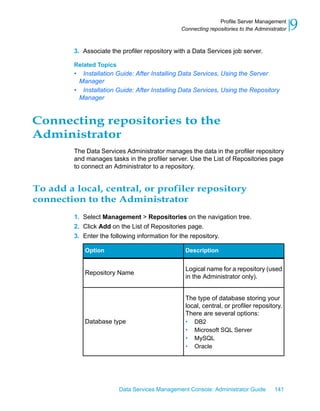
To add a local, central, or profiler repository connection to the
Administrator

            1. Select Management > Repositories on the navigation tree.
            2. Click Add on the List of Repositories page.
            3. Enter the following information for the repository.

 Option                         Description


                                Logical name for a repository (used in the Administrator
 Repository Name
                                only).


                                The type of database storing your local, central, or
                                profiler repository. Select one of the following database
                                types:
                                • DB2
 Database type                  • Informix
                                • Microsoft SQL Server
                                • Oracle
                                • Sybase ASE
                                • MySQL


                             Data Services Management Console: Administrator Guide      33
3   Administrator Management
    Adding repositories


     Option                           Description


                                      Select if your repository is an Oracle database that is
                                      part of an Oracle Real Application Clusters (RAC) sys-
                                      tem. If you select this option, specify the complete
                                      connection string that corresponds to the Oracle RAC
                                      in the Connection string option. Obtain this RAC
                                      connection information from the Oracle TNSNames.ora
                                      file, starting from (DESCRIPTION= until the end of the
                                      entry:
                                       ARMSTRONG.ACCT =
                                       (DESCRIPTION =
     Oracle RAC                         (ADDRESS_LIST=
                                         (FAILOVER = ON)
                                         (LOAD_BALANCE = ON)
                                         (ADDRESS= (PROTOCOL = TCP) (HOST = SERVER1)
                                       (PORT = 1521))
                                         (ADDRESS= (PROTOCOL = TCP) (HOST = SERVER2)
                                       (PORT = 1521))
                                         (ADDRESS= (PROTOCOL = TCP) (HOST = SERVER3)
                                       (PORT = 1521))
                                        )
                                        (CONNECT_DATA=
                                         (SERVICE_NAME = acct.us.yourcompany.com)
                                        )
                                       )


                                      Select to have Microsoft SQL Server validate the login
                                      account name and password using the information from
                                      the Windows operating system. Clear to use the existing
     Windows authentication           Microsoft SQL Server login account and password. For
                                      more information on how to use Windows authentication
                                      with Microsoft SQL Server, refer to the Microsoft SQL
                                      Server documentation.


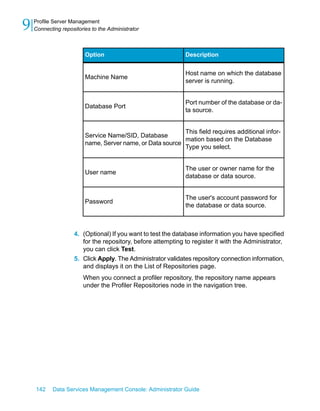
     Machine Name                     Host name on which the database server is running.


     Database Port                    Port number of the database or data source.


    34   Data Services Management Console: Administrator Guide
Administrator Management
                                                                              Adding repositories   3
 Option                            Description


 Service Name/SID, Database
                                   This field requires additional information based on the
 name, Server name, or Data
                                   Database Type you select.
 source


                                   The user or owner name for the database or data
 User name
                                   source.


                                   The user's account password for the database or data
 Password
                                   source.


             4. (Optional) If you want to test the database information you have specified
                for the repository, before attempting to register it with the Administrator,
                you can click Test.
             5. Click Apply.
                The Administrator validates repository connection information, and displays
                it on the List of Repositories page.


To view the list of repositories connected to the Administrator

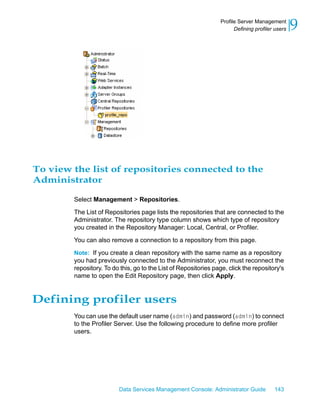
             Select Management > Repositories.

             The List of Repositories page lists the repositories that are connected to the
             Administrator. The repository type column shows which type of repository
             you created in the Repository Manager.

             You can also remove a connection to a repository from this page.

             Note: If you create a clean repository with the same name as a repository
             you had previously connected to the Administrator, you must reconnect the
             repository. To do this, go to the List of Repositories page, click the repository's
             name to open the Edit Repository page, then click Apply.


                                Data Services Management Console: Administrator Guide        35
3   Administrator Management
    Adding repositories


    Changing repository connection allocation

                  The Administrator allocates four repository connections per user as a default.
                  However, you can override the default value before starting the Administrator.

                  For Windows, modify the wrapper cmd_line section of LINK_DIR
                  /ext/WebServer/conf by adding DCNX_POOL_LIMIT:
                  wrapper.cmd_line=$ (wrapper.javabin)
                  -Dcatalina.home=$ (wrapper.tomcat_home)
                  -DLINK_DIR=$ (ACTAHOME) -DCNX_POOL_LIMIT=1
                  -classpath $ (wrapper.class_path)

                  For UNIX, modify the catalina.sh script found in LINK_DIR /ext/WebServer/bin
                  by adding -DCNX_POOL_LIMIT=1 in the 'start' section (not the 'security' section)
                  as follows:
                  if [ "$1" = "start" ] ; then
                  if [ "$1" = "-security" ] ; then
                  echo "Using Security Manager"
                  ...

                  else
                  "$_RUNJAVA" $JAVA_OPTS $CATALINA_OPTS 
                    -DCNX_POOL_LIMIT="1" 
                    -Djava.endorsed.dirs="$JAVA_


    Adapter considerations

                  To access adapter instances, you must associate a repository with a Job
                  Server that is:
                  •   Installed on the same computer as the adapter instance.
                  •   Configured with the following adapter-related properties: Support Adapter
                      and SNMP communication check box selected and the Communication
                      Port number set. Configure these properties using the Server Manager
                      utility.

                  If these conditions have not been met, you will not be able to use the Adapter
                  Instance node of the Administrator.


    36   Data Services Management Console: Administrator Guide
Administrator Management
                                                                Managing user roles    3
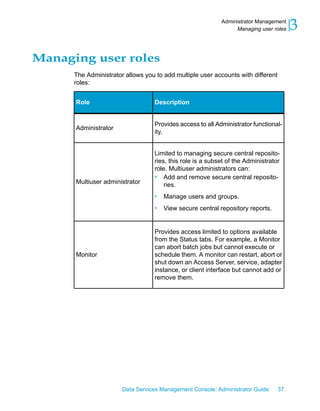
Managing user roles
      The Administrator allows you to add multiple user accounts with different
      roles:


      Role                        Description


                                  Provides access to all Administrator functional-
      Administrator
                                  ity.


                                  Limited to managing secure central reposito-
                                  ries, this role is a subset of the Administrator
                                  role. Multiuser administrators can:
                                  • Add and remove secure central reposito-
      Multiuser administrator         ries.
                                  •   Manage users and groups.
                                  •   View secure central repository reports.


                                  Provides access limited to options available
                                  from the Status tabs. For example, a Monitor
                                  can abort batch jobs but cannot execute or
      Monitor                     schedule them. A monitor can restart, abort or
                                  shut down an Access Server, service, adapter
                                  instance, or client interface but cannot add or
                                  remove them.


                       Data Services Management Console: Administrator Guide      37
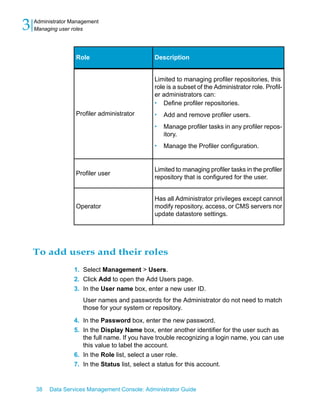
3   Administrator Management
    Managing user roles


                   Role                       Description


                                              Limited to managing profiler repositories, this
                                              role is a subset of the Administrator role. Profil-
                                              er administrators can:
                                              • Define profiler repositories.
                   Profiler administrator     •   Add and remove profiler users.
                                              •   Manage profiler tasks in any profiler repos-
                                                  itory.
                                              •   Manage the Profiler configuration.


                                              Limited to managing profiler tasks in the profiler
                   Profiler user
                                              repository that is configured for the user.


                                              Has all Administrator privileges except cannot
                   Operator                   modify repository, access, or CMS servers nor
                                              update datastore settings.


    To add users and their roles
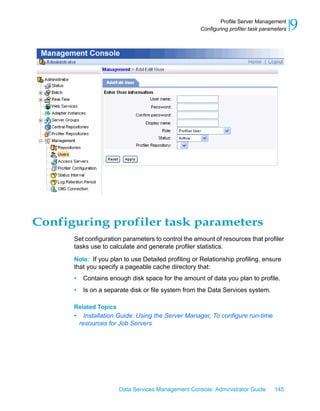
                  1. Select Management > Users.
                  2. Click Add to open the Add Users page.
                  3. In the User name box, enter a new user ID.
                      User names and passwords for the Administrator do not need to match
                      those for your system or repository.

                  4. In the Password box, enter the new password.
                  5. In the Display Name box, enter another identifier for the user such as
                     the full name. If you have trouble recognizing a login name, you can use
                     this value to label the account.
                  6. In the Role list, select a user role.
                  7. In the Status list, select a status for this account.


    38   Data Services Management Console: Administrator Guide
Administrator Management
                                                                  Adding Access Servers    3
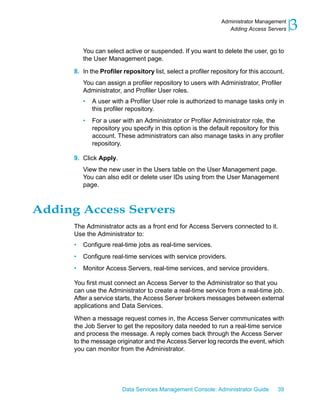
          You can select active or suspended. If you want to delete the user, go to
          the User Management page.

      8. In the Profiler repository list, select a profiler repository for this account.
          You can assign a profiler repository to users with Administrator, Profiler
          Administrator, and Profiler User roles.
          •   A user with a Profiler User role is authorized to manage tasks only in
              this profiler repository.
          •   For a user with an Administrator or Profiler Administrator role, the
              repository you specify in this option is the default repository for this
              account. These administrators can also manage tasks in any profiler
              repository.

      9. Click Apply.
          View the new user in the Users table on the User Management page.
          You can also edit or delete user IDs using from the User Management
          page.


Adding Access Servers
      The Administrator acts as a front end for Access Servers connected to it.
      Use the Administrator to:
      •   Configure real-time jobs as real-time services.
      •   Configure real-time services with service providers.
      •   Monitor Access Servers, real-time services, and service providers.

      You first must connect an Access Server to the Administrator so that you
      can use the Administrator to create a real-time service from a real-time job.
      After a service starts, the Access Server brokers messages between external
      applications and Data Services.

      When a message request comes in, the Access Server communicates with
      the Job Server to get the repository data needed to run a real-time service
      and process the message. A reply comes back through the Access Server
      to the message originator and the Access Server log records the event, which
      you can monitor from the Administrator.


                         Data Services Management Console: Administrator Guide       39
3   Administrator Management
    Centralizing administration


                    Use the List of Access Servers page to connect an Administrator to a
                    repository.


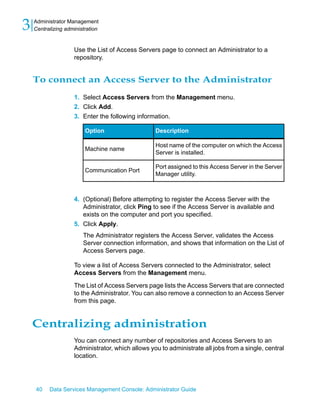
    To connect an Access Server to the Administrator
                    1. Select Access Servers from the Management menu.
                    2. Click Add.
                    3. Enter the following information.

                         Option                   Description

                                                  Host name of the computer on which the Access
                         Machine name
                                                  Server is installed.

                                                  Port assigned to this Access Server in the Server
                         Communication Port
                                                  Manager utility.


                    4. (Optional) Before attempting to register the Access Server with the
                       Administrator, click Ping to see if the Access Server is available and
                       exists on the computer and port you specified.
                    5. Click Apply.
                        The Administrator registers the Access Server, validates the Access
                        Server connection information, and shows that information on the List of
                        Access Servers page.

                    To view a list of Access Servers connected to the Administrator, select
                    Access Servers from the Management menu.

                    The List of Access Servers page lists the Access Servers that are connected
                    to the Administrator. You can also remove a connection to an Access Server
                    from this page.


    Centralizing administration
                    You can connect any number of repositories and Access Servers to an
                    Administrator, which allows you to administrate all jobs from a single, central
                    location.


    40    Data Services Management Console: Administrator Guide
Administrator Management
                                                                  Setting the status interval   3
         Alternatively, you can set up an Administrator to manage the jobs from an
         individual developer, the test repository, or different types of production jobs
         (batch and real-time). You can connect repositories to one Administrator,
         providing convenient access to a particular set of real-time jobs (for example,
         a set that serves a unique function such as development). However,
         Administrators cannot connect to each other.


To group administration by job type
         1. Configure Administrators that will process a particular type of job.
            For example, in your production environment you can configure one
            Administrator to process batch jobs and a different Administrator to
            process real-time jobs.
         2. Connect each Administrator to the repositories that contain that type of
            job.
            You might want to name repositories so that you can easily see the types
            of jobs stored on them.
         3. Connect Access Servers to any Administrators that process or manage
            real-time jobs.


Setting the status interval
         Use the Status Interval page to specify the time period for which the
         Administrator displays the status (using the red, yellow, and green status
         icons) on the Batch Job Status page.


To set the status interval
         1. Select Status Interval from the Management menu.
         2. On the Status Interval page, specify the time period.
            You can filter the information on this page in three ways:
            •   By the last execution of each job
            •   By number of days
            •   By range of dates


                           Data Services Management Console: Administrator Guide         41
3   Administrator Management
    Setting the log retention period


                     3. Click Apply.
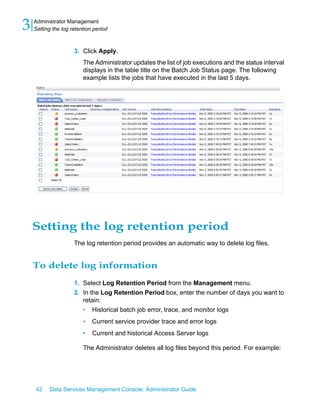
                         The Administrator updates the list of job executions and the status interval
                         displays in the table title on the Batch Job Status page. The following
                         example lists the jobs that have executed in the last 5 days.


    Setting the log retention period
                     The log retention period provides an automatic way to delete log files.


    To delete log information
                     1. Select Log Retention Period from the Management menu.
                     2. In the Log Retention Period box, enter the number of days you want to
                        retain:
                        • Historical batch job error, trace, and monitor logs
                         •   Current service provider trace and error logs
                         •   Current and historical Access Server logs

                         The Administrator deletes all log files beyond this period. For example:


    42    Data Services Management Console: Administrator Guide
Administrator Management
                                                    Managing database account changes   3
          •   If you enter 1 then the Administrator displays the logs for today only.
              After 12:00 AM, these logs clear and the Administrator begins saving
              logs for tomorrow.
          •   If you enter -1 Data Services will not delete logs.
          •   If you enter 1095 Data Services deletes logs older than approximately
              three years.

          You can also delete Access Server logs manually using the Access Server
          Current Logs and Access Server History Logs pages.

      3. Click Apply.
          Changes you make to the log retention period occur as a background
          clean-up process so they do not interrupt more important message
          processing. Therefore, you might not see logs deleted immediately when
          you select Apply. Changes can take up to an hour to take effect.

      4. Choose a repository to view a list of executed batch job logs. When you
         select repository name from the Batch Jobs menu, the Administrator
         lists the most recent job first, providing a link to each job's log.

      Related Topics
      •   Monitoring jobs on page 91


Managing database account changes
      Data Services uses several types of user accounts and associated
      passwords. For various reasons, database account parameters such as user
      names or passwords change. For example, perhaps your company's
      compliance and regulations policies require periodically changing account
      passwords for security.

      Related Topics
      •   Updating local repository login parameters on page 44
      •   Updating datastore connection parameters on page 45


                         Data Services Management Console: Administrator Guide    43
3   Administrator Management
    Managing database account changes


    Updating local repository login parameters

                  If the login information, particularly the password, for a repository has
                  changed, Data Services provides an optional password file that all schedules
                  or exported execution commands use. In other words, Data Services uses
                  this password file to store and update connection information in one location
                  that multiple schedules or exported execution commands share for that
                  repository.

                  Note: This description does not apply to central repositories.
                  The password file:
                  •   Specifies the connection information for the repository
                  •   Can be stored in a central location for access by others who run jobs in
                      that repository.
                  •   Gets created when you create or update a job schedule to minimize
                      associated maintenance

                  Related Topics
                  •   Using a third-party scheduler on page 82


    To update the repository connection information and use a
    password file

                  1. Expand the Management node.
                  2. Click Repositories.
                  3. Click the repository name to configure.
                      The "Add/Edit Repository" page displays.

                  4. Edit the connection information as necessary.
                  5. Click Apply.
                  6. Click Generate password file to create or update the password file.
                      The default name and location of the file are %LINK_DIR%confreposi
                      toryname.txt.


    44   Data Services Management Console: Administrator Guide
Administrator Management
                                                         Managing database account changes   3

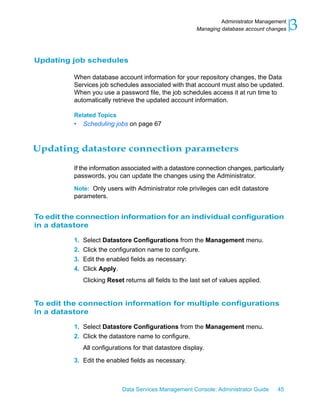
Updating job schedules

          When database account information for your repository changes, the Data
          Services job schedules associated with that account must also be updated.
          When you use a password file, the job schedules access it at run time to
          automatically retrieve the updated account information.

          Related Topics
          •   Scheduling jobs on page 67


Updating datastore connection parameters

          If the information associated with a datastore connection changes, particularly
          passwords, you can update the changes using the Administrator.

          Note: Only users with Administrator role privileges can edit datastore
          parameters.


To edit the connection information for an individual configuration
in a datastore

          1. Select Datastore Configurations from the Management menu.
          2. Click the configuration name to configure.
          3. Edit the enabled fields as necessary:
          4. Click Apply.
              Clicking Reset returns all fields to the last set of values applied.


To edit the connection information for multiple configurations
in a datastore

          1. Select Datastore Configurations from the Management menu.
          2. Click the datastore name to configure.
              All configurations for that datastore display.

          3. Edit the enabled fields as necessary.


                            Data Services Management Console: Administrator Guide     45
3   Administrator Management
    Managing database account changes


                      Click More to display the page for that individual configuration, which
                      includes more options specific to it.

                  4. Click Apply.
                      Clicking Reset returns all fields to the last set of values applied.


    46   Data Services Management Console: Administrator Guide
Central Repository
Management


                     4
4   Central Repository Management
    Setting up users and groups


                   About this section
                   This section describes how to manage your secure central repositories using
                   the Administrator.
                   When you create a secure central repository, the repository name appears
                   under the Central Repositories node. Links under this node include:
                   •    Users and groups — Use to add, remove, and configure users and groups
                        for secure object access.
                   •    Reports — Use to generate reports for central repository objects such as
                        viewing the change history of an object.


    Setting up users and groups
                   The process for setting up users and groups is as follows:
                   1.   Add the secure central repository to the Administrator.
                   2.   Add groups.
                   3.   Add users.
                   4.   Associate users with groups.
                   The following sections describes these procedures.

                   Note: The concept of users in the Administrator refers to setting up users
                   to access the Data Services Administrator application. By contrast, the Users
                   and Groups link under the Central Repositories node in the Administrator
                   is for setting up rights and access to a specific central repository.

                   Related Topics
                   •    Managing user roles on page 37
                   •    Advanced Development Guide: Implementing Central Repository Security


    To add the secure central repository to the
    Administrator
                   1. Log in to the Administrator.
                   2. Select Management > Central repositories.
                   3. Add the secure central repository.


    48   Data Services Management Console: Administrator Guide
Central Repository Management
                                                                Setting up users and groups   4
             The repository appears on the List of Repositories page.

        Related Topics
        •    Logging in on page 23
        •    Connecting repositories to the Administrator on page 33


To add a group to a central repository

        Groups are specific to a repository and are not visible in any other local or
        central repository.
        1. Expand the Central Repositories node in the navigation tree, expand
           the repository to configure, and click Users and Groups.
             The Groups and Users page displays.

        2.   On the Groups tab, click Add.
        3.   Type a Name for the group.
        4.   Optionally, type a Description for the group.
        5.   Click Apply.
        The group appears on the Groups tab.


To add users
        1. Expand the Central Repositories node in the navigation tree, expand
           the repository to configure, and click Users and Groups.
        2. Click the Users tab.
        3. Click Add.
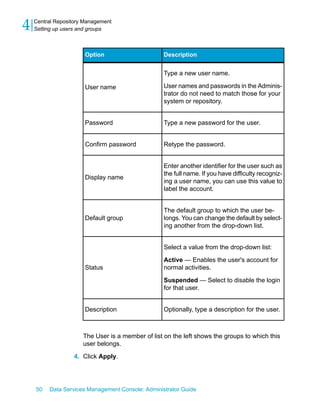
             On the Add/Edit User page, enter the following information.


                           Data Services Management Console: Administrator Guide       49
4   Central Repository Management
    Setting up users and groups


                       Option                      Description


                                                   Type a new user name.

                       User name                   User names and passwords in the Adminis-
                                                   trator do not need to match those for your
                                                   system or repository.


                       Password                    Type a new password for the user.


                       Confirm password            Retype the password.


                                                   Enter another identifier for the user such as
                                                   the full name. If you have difficulty recogniz-
                       Display name
                                                   ing a user name, you can use this value to
                                                   label the account.


                                                   The default group to which the user be-
                       Default group               longs. You can change the default by select-
                                                   ing another from the drop-down list.


                                                   Select a value from the drop-down list:

                                                   Active — Enables the user's account for
                       Status                      normal activities.

                                                   Suspended — Select to disable the login
                                                   for that user.


                       Description                 Optionally, type a description for the user.


                      The User is a member of list on the left shows the groups to which this
                      user belongs.

                   4. Click Apply.


    50   Data Services Management Console: Administrator Guide
Central Repository Management
                                                                            Deleting groups   4
            Clicking Reset returns all fields to the last set of values applied.


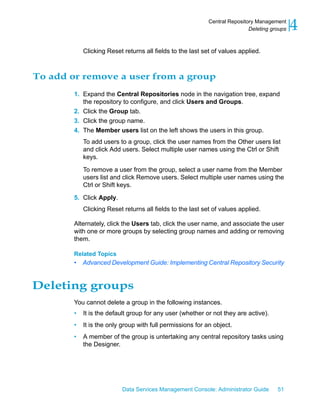
To add or remove a user from a group
        1. Expand the Central Repositories node in the navigation tree, expand
           the repository to configure, and click Users and Groups.
        2. Click the Group tab.
        3. Click the group name.
        4. The Member users list on the left shows the users in this group.
            To add users to a group, click the user names from the Other users list
            and click Add users. Select multiple user names using the Ctrl or Shift
            keys.

            To remove a user from the group, select a user name from the Member
            users list and click Remove users. Select multiple user names using the
            Ctrl or Shift keys.

        5. Click Apply.
            Clicking Reset returns all fields to the last set of values applied.

        Alternately, click the Users tab, click the user name, and associate the user
        with one or more groups by selecting group names and adding or removing
        them.

        Related Topics
        •   Advanced Development Guide: Implementing Central Repository Security


Deleting groups
        You cannot delete a group in the following instances.
        •   It is the default group for any user (whether or not they are active).
        •   It is the only group with full permissions for an object.
        •   A member of the group is untertaking any central repository tasks using
            the Designer.


                           Data Services Management Console: Administrator Guide       51
4   Central Repository Management
    Viewing reports


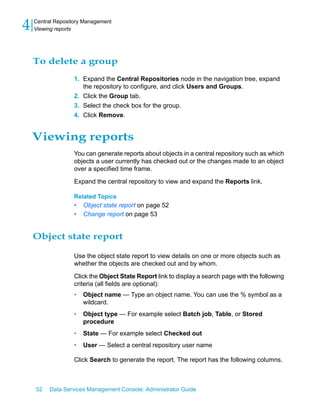
    To delete a group
                   1. Expand the Central Repositories node in the navigation tree, expand
                      the repository to configure, and click Users and Groups.
                   2. Click the Group tab.
                   3. Select the check box for the group.
                   4. Click Remove.


    Viewing reports
                   You can generate reports about objects in a central repository such as which
                   objects a user currently has checked out or the changes made to an object
                   over a specified time frame.

                   Expand the central repository to view and expand the Reports link.

                   Related Topics
                   •   Object state report on page 52
                   •   Change report on page 53


    Object state report

                   Use the object state report to view details on one or more objects such as
                   whether the objects are checked out and by whom.

                   Click the Object State Report link to display a search page with the following
                   criteria (all fields are optional):
                   •   Object name — Type an object name. You can use the % symbol as a
                       wildcard.
                   •   Object type — For example select Batch job, Table, or Stored
                       procedure
                   •   State — For example select Checked out
                   •   User — Select a central repository user name

                   Click Search to generate the report. The report has the following columns.


    52   Data Services Management Console: Administrator Guide
Central Repository Management
                                                                          Viewing reports   4
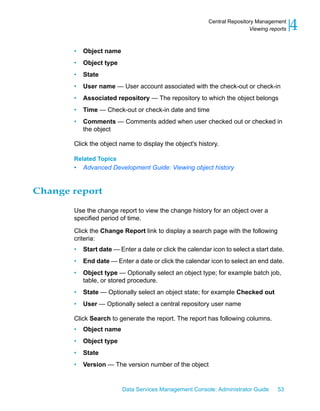
       •   Object name
       •   Object type
       •   State
       •   User name — User account associated with the check-out or check-in
       •   Associated repository — The repository to which the object belongs
       •   Time — Check-out or check-in date and time
       •   Comments — Comments added when user checked out or checked in
           the object

       Click the object name to display the object's history.

       Related Topics
       •   Advanced Development Guide: Viewing object history


Change report

       Use the change report to view the change history for an object over a
       specified period of time.

       Click the Change Report link to display a search page with the following
       criteria:
       •   Start date — Enter a date or click the calendar icon to select a start date.
       •   End date — Enter a date or click the calendar icon to select an end date.
       •   Object type — Optionally select an object type; for example batch job,
           table, or stored procedure.
       •   State — Optionally select an object state; for example Checked out
       •   User — Optionally select a central repository user name

       Click Search to generate the report. The report has following columns.
       •   Object name
       •   Object type
       •   State
       •   Version — The version number of the object


                         Data Services Management Console: Administrator Guide       53
4   Central Repository Management
    Viewing reports


                   •   User name — User account associated with the check-out or check-in
                   •   Associated repository — The repository to which the object belongs
                   •   Time — Check-out or check-in date and time
                   •   Comments — Comments added when user checked out or checked in
                       the object


    54   Data Services Management Console: Administrator Guide
Server groups


                5
5   Server groups
    Server group architecture


                    About this section
                    Use the Administrator to create and maintain server groups.

                    This section describes how to work with server groups.

                    Related Topics
                    •   Server group architecture on page 56
                    •   To add a server group on page 60
                    •   Editing and removing a server group on page 61
                    •   Monitoring Job Server status in a server group on page 63
                    •   Executing jobs using server groups on page 64


    Server group architecture
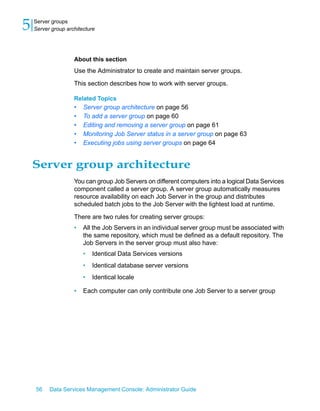
                    You can group Job Servers on different computers into a logical Data Services
                    component called a server group. A server group automatically measures
                    resource availability on each Job Server in the group and distributes
                    scheduled batch jobs to the Job Server with the lightest load at runtime.

                    There are two rules for creating server groups:
                    •   All the Job Servers in an individual server group must be associated with
                        the same repository, which must be defined as a default repository. The
                        Job Servers in the server group must also have:
                        •   Identical Data Services versions
                        •   Identical database server versions
                        •   Identical locale

                    •   Each computer can only contribute one Job Server to a server group


    56    Data Services Management Console: Administrator Guide
Server groups
                                                         Server group architecture   5


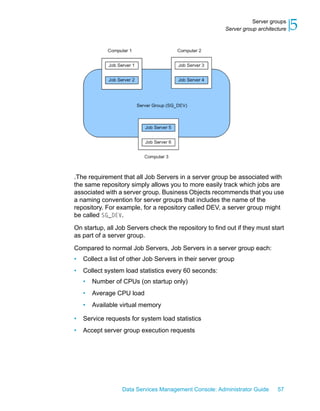
.The requirement that all Job Servers in a server group be associated with
the same repository simply allows you to more easily track which jobs are
associated with a server group. Business Objects recommends that you use
a naming convention for server groups that includes the name of the
repository. For example, for a repository called DEV, a server group might
be called SG_DEV.

On startup, all Job Servers check the repository to find out if they must start
as part of a server group.

Compared to normal Job Servers, Job Servers in a server group each:
•   Collect a list of other Job Servers in their server group
•   Collect system load statistics every 60 seconds:
    •   Number of CPUs (on startup only)
    •   Average CPU load
    •   Available virtual memory

•   Service requests for system load statistics
•   Accept server group execution requests


                  Data Services Management Console: Administrator Guide       57
5   Server groups
    Server group architecture


    Load balance index

                    All Job Servers in a server group collect and consolidate system load statistics
                    and convert them into a load balance index value for each Job Server. A Job
                    Server's load balance index value allows Data Services to normalize statistics
                    taken from different platforms. The Job Server with the lowest index value
                    is selected to execute the current job. Data Services polls all Job Server
                    computers every 60 seconds to refresh the load balance index.


    Job execution

                    After you create a server group, you can select a server group to execute a
                    job from the Designer's Execution Properties window or from the
                    Administrator's Execute Batch Job, Schedule Batch Job, and Export Batch
                    Job pages.

                    When you execute a job using a server group, the server group executes
                    the job on the Job Server in the group that is running on the computer that
                    has the lightest load. The Administrator will also resynchronize a Job Server
                    with its repository if there are changes made to the server group configuration
                    settings.

                    You can execute parts of your job on different Job Servers in a server group.
                    You can select the following distribution levels from the Designer's Execution
                    Properties window or from the Administrator's Execute Batch Job, Schedule
                    Batch Job, and Export Batch Job pages:
                    •    Job level - A job can execute on an available Job Server.
                    •    Data flow level - Each data flow within a job can execute on an available
                         Job Server.
                    •    Sub data flow level - A resource-intensive operation (such as a sort, table
                         comparison, or table lookup) within a data flow can execute on an available
                         Job Server.

                    Related Topics
                    •     Performance Optimization Guide: Using grid computing to distribute data
                        flows execution


    58    Data Services Management Console: Administrator Guide
Server groups
                                                                Server group architecture   5

Job launcher

        The Job Launcher, exported as part of a job's execution commands, includes
        a specific command line option for server groups. You can use this option
        to change the Job Servers in a server group.

        Related Topics
        •   Data Services job launcher on page 88


Working with server groups and Designer options

        Some Designer options assume paths are relative to a Job Server. If your
        Job Servers are on different machines from your Designer (typically the case
        in a production environment) you must ensure that connections and directory
        paths point to the Job Server host that will run the job. Such options include:
        •   Source and target directories for files
        •   Bulk load directories
        •   Source and target connection strings to databases
        •   Path to repositories
        When using server groups consider the additional layer of complexity for
        connections. For example, if you have three Job Servers in a server group:
        •   Use the same directory structure across your three host computers for
            source and target file operations and use relative paths for file names.
        •   Use the same connection strings to your databases for all three Job Server
            hosts.
        If you use job distribution levels, the Job Servers in the server group must
        have:
        •   Identical Data Services versions
        •   Identical database server versions
        •   dentical locale
        •   Identical operating systems
        Thoroughly test the Job Server job options when working with server groups.

        Adding a server group:


                          Data Services Management Console: Administrator Guide      59
5   Server groups
    Server group architecture


                    •   In the Administrator, use the Server Groups node to create and add a
                        server group.

    To add a server group

                    1. Select Server Groups > All Server Groups.


                    2. Click the Server Group Configuration tab.
                    3. Click Add.
                    4. Follow the instructions on the Add Server Group page to create a server
                       group.
                        •   When you select a repository, all Job Servers registered with that
                            repository display. You can create one server group per repository.
                        •   Notice that the Administrator provides a default server group name.
                            It is the name of your repository with the prefix SG_ (for server group).
                            You can change the default name, however, labeling a server group
                            with the repository name is recommended.
                        •   One Job Server on a computer can be added to a server group. Use
                            the Host and Port column to verify that the Job Servers you select
                            are each installed on a different host.

                        •   When you select a repository, all Job Servers registered with that
                            repository display. You can create one server group per repository.
                        •   Notice that the Administrator provides a default server group name.
                            It is the name of your repository with the prefix SG_ (for server group).


    60    Data Services Management Console: Administrator Guide
Server groups
                                                   Editing and removing a server group   5
              You can change the default name, however, labeling a server group
              with the repository name is recommended.
          •   One Job Server on a computer can be added to a server group. Use
              the Host and Port column to verify that the Job Servers you select
              are each installed on a different host.

      5. After you select the Job Servers for a server group, click Apply.


          The display returns to the Server Group Configuration page.

      Related Topics
      •   Monitoring Job Server status in a server group on page 63


Editing and removing a server group
      You can select a new set of Job Servers for an existing server group or
      remove a server group.
      Trace messages are written for a change in Job Server status when you
      create, edit, or remove server groups.


                        Data Services Management Console: Administrator Guide     61
5   Server groups
    Editing and removing a server group


                    •   When a Job Server is upgraded to membership in a server group, the
                        trace message is:
                        Collecting system load statistics, maintaining list of Job
                        Server(s) for this server group, and accepting Job Server
                        execution requests.

                    •   When a Job Server is downgraded out of a server group, the trace
                        message is:
                        Deleting current system load statistics, and not collecting
                         more. Not accepting job execution requests from a server
                        group.


    To edit a server group
                    1. In the Server Group Status page, click the Configuration tab.
                    2. In the Server Group Configuration page, click the server group that you
                       want to edit.
                    3. In the Edit Server Group page, select a new set of Job Servers.
                    4. Click Apply.
                        Your edited server group is saved and the display returns to the Server
                        Groups Configuration page.


    To remove a server group
                    1. In the Server Group Status page, click the Configuration tab.
                    2. In the Server Group Configuration page, select the check box for a the
                       server group(s) that you want to remove.
                    3. Click Remove.
                        The selected server group is removed as shown in the display.

                    Note: If you delete Job Servers from a repository, so as to delete all the Job
                    Servers in a server group, the Administrator displays an invalid status for
                    the server group.


    62    Data Services Management Console: Administrator Guide
Server groups
                                            Monitoring Job Server status in a server group   5
Monitoring Job Server status in a server
group
      If Job Servers are in a server group, you can view their status in the
      Administrator.
      •   To monitor the status of these Job Servers, select Server Groups > All
          Server Groups.

          The Server Group Status page opens. All existing server groups are
          displayed with the Job Servers they contain.

          Indicator      Description

                         A green indicator signifies that a Job Server is running.

                         A yellow indicator signifies that a Job Server is not running.

                         A red indicator signifies that the Job Server cannot connect
                         to the repository.


          If a server group contains Job Servers with a mix of green, yellow, or red
          indicators, then its indicator appears yellow:


          Otherwise, a server group indicator displays the same color indicator as
          its Job Servers.
      •   To view the status for a single server group, select its name.


                        Data Services Management Console: Administrator Guide         63
5   Server groups
    Executing jobs using server groups


    Executing jobs using server groups
                    After you create a server group, you can select a server group to execute a
                    job from the Designer's Execution Properties window or from the
                    Administrator's Execute Batch Job and Schedule Batch Job pages.

                    Related Topics
                    •   Batch Jobs on page 65


    64    Data Services Management Console: Administrator Guide
Batch Jobs


             6
6   Batch Jobs
    Executing batch jobs


                    About this section
                    This section describes how to execute, schedule, and monitor batch jobs
                    from the Administrator.
                    Before you can manage batch jobs with the Administrator, add repository
                    connections.

                    Related Topics
                    •   Executing batch jobs on page 66
                    •   Scheduling jobs on page 67
                    •   Monitoring jobs on page 91
                    •   Adding repositories on page 32


    Executing batch jobs
                    You can execute batch jobs from the Administrator if their repositories are
                    connected to the Administrator.


    To execute a job
                    1. Select Batch > repository.
                        The Administrator opens the Batch Job Status page, which lists all the
                        jobs in the repository you just selected.

                        To view jobs in all repositories from this page, select Batch > All
                        Repositories. (The All Repositories option appears under the Batch Job
                        node if more than one repository is connected to the Administrator.)

                    2. Click the Batch Job Configuration tab.
                    3. To the right of the job you want to run, click Execute.
                        The Administrator opens the Execute Batch Job page.

                    4. Under Execution options, set the parameters for the execution of this
                       job.
                    5. Under Trace options, set the trace properties for this execution of the
                       job.
                    6. Click Execute to run the job.


    66    Data Services Management Console: Administrator Guide
Batch Jobs
                                                                                Scheduling jobs   6
                 The Administrator returns to the Batch Job Status page.

             Related Topics
             •   Reference Guide: Data Services Objects, Batch Job, Parameters
             •   Reference Guide: Data Services Objects, Batch Job, Trace properties


Scheduling jobs
             There are three ways to manage job schedules.

             Related Topics
             •   Using the Data Services job scheduler on page 67
             •   Scheduling jobs in BusinessObjects Enterprise on page 79
             •   Using a third-party scheduler on page 82


Using the Data Services job scheduler

             When you schedule batch jobs using the Data Services job scheduler, it
             creates an entry in the operating system's scheduling utility on the Job Server
             computer. Windows uses the Task Scheduler and UNIX systems use the
             CRON utility. (Note that if you make changes to a schedule directly through
             these utilities, the Data Services job scheduler will not reflect those changes.)

             Related Topics
             •   Adding a job schedule on page 67
             •   Activating or deactivating job schedules on page 76
             •   Updating a job schedule on page 78
             •   Removing a job schedule on page 78
             •   Migration considerations on page 79


Adding a job schedule

To add a job schedule
            1. Select Batch > repository
            2. Click the Batch Job Configuration tab.
            3. For the job to configure, click Add Schedule.


                               Data Services Management Console: Administrator Guide       67
6   Batch Jobs
    Scheduling jobs


                      4. On the Schedule Batch Job page, enter the desired options

                         Option                            Description


                         Enter a job schedule


                                                           Enter a unique name that describes
                                                           this schedule.
                         Schedule name
                                                           Note: You cannot rename a sched-
                                                           ule after creating it.


                                                           Select this box to enable (activate)
                                                           this schedule; then click Apply.
                                                           This option allows you to create
                         Active
                                                           several schedules for a job and
                                                           then activate the one(s) you want
                                                           to run.


                         Select a scheduler


                                                           Select where to schedule the job:

                         Data Services scheduler           Data Services scheduler—Cre-
                                                           ates the schedule on the Job Serv-
                         or                                er computer

                         BOE scheduler                     BOE scheduler—Creates the
                                                           schedule on the selected central
                                                           management server (CMS)


                         Select scheduled day(s) for executing the job


    68    Data Services Management Console: Administrator Guide
Batch Jobs
                                                         Scheduling jobs   6
Option                            Description


                                  From the drop-down list on the cal-
                                  endar, select:
                                  • Day of Week to schedule the
                                     job by the day of the week. You
                                     can select one or more days.
                                     Click again to deselect.
                                  •   Day of Month to schedule the
                                      job by date. You can select one
                                      or more dates. Click again to
Calendar                              deselect.

                                      If Recurring is selected, then
                                      the Administrator schedules this
                                      job to repeat every week or
                                      month on the selected day. Note
                                      that if you select multiple days
                                      of the week or month, the job
                                      will run on a recurring basis by
                                      default.


Select scheduled time for executing the jobs


            Data Services Management Console: Administrator Guide   69
6   Batch Jobs
    Scheduling jobs


                      Option                               Description


                                                           Select the job execution frequency:
                                                           Only once a day—Enter the time
                                                           for the scheduler to start the job
                                                           (hours, minutes, and either AM or
                                                           PM).

                                                           Multiple times a day:
                                                           • For the Data Services sched-
                                                             uler, enter the time (hours, min-
                                                             utes, and either AM or PM) for
                                                             the scheduler to repeatedly run
                      Once a day at                          the job for the selected duration
                                                             (in minutes) at the selected inter-
                      or                                     val (in minutes).

                      Multiple times a day                 •   For the BOE scheduler, enter
                                                               (in minutes) the repeat interval
                                                               to run the job. You must also
                                                               select all days in the calendar
                                                               (for weekly or monthly).

                                                               Select a time when all of the re-
                                                               quired resources are available.
                                                               Typically, you want to schedule
                                                               jobs to ensure they finish before
                                                               the target database or data
                                                               warehouse must be available to
                                                               meet increased demand.


                      Select job execution parameters


    70    Data Services Management Console: Administrator Guide
Batch Jobs
                                                          Scheduling jobs   6
Option                            Description


                                  Select the system configuration to
                                  use when executing this job. A
                                  system configuration defines a set
                                  of datastore configurations, which
                                  define the datastore connections.

                                  For more information, see "Creating
                                  and managing multiple datastore
                                  configurations" in the Data Services
System configuration              Designer Guide.

                                  If a system configuration is not
                                  specified, Data Services uses the
                                  default datastore configuration for
                                  each datastore.

                                  This option is a run-time property.
                                  This option is only available if there
                                  are system configurations defined
                                  in the repository.


                                  Select the Job Server or a server
Job Server or server group
                                  group to execute this schedule.


                                  Select to create or update the
                                  password file that the job schedule
                                  accesses for current repository
Use password file
                                  connection information. Clear to
                                  generate the batch file with a hard-
                                  coded repository information.


            Data Services Management Console: Administrator Guide     71
6   Batch Jobs
    Scheduling jobs


                      Option                                Description


                                                            Clear this check box if you do not
                                                            want to collect audit statistics for
                                                            this specific job execution. (The
                      Enable auditing                       default is selected.)

                                                            For more information about audit-
                                                            ing, see “Using Auditing” in the Da-
                                                            ta Services Designer Guide.


                                                            Select this check box if you do not
                                                            want to collect data validation
                      Disable data validation statistics
                                                            statistics for any validation trans-
                      collection
                                                            forms in this job. (The default is
                                                            cleared.)


                                                            Select this check box to enable the
                      Enable recovery
                                                            Recovery mode when this job runs.


                                                         Select this check box if an execu-
                      Recover from last failed execution tion of this job has failed and you
                                                         want to enable the Recovery mode.


                                                            Select this check box if you want to
                                                            collect statistics that the Data Ser-
                                                            vices optimizer will use to choose
                                                            an optimal cache type (in-memory
                      Collect statistics for optimization   or pageable). This option is not se-
                                                            lected by default.

                                                            See “Using statistics for cache self-
                                                            tuning” in the Data Services Perfor-
                                                            mance Optimization Guide.


    72    Data Services Management Console: Administrator Guide
Batch Jobs
                                                            Scheduling jobs   6
Option                              Description


                                    Select this check box if you want to
                                    display cache statistics in the Per-
                                    formance Monitor in the Administra-
Collect statistics for monitoring   tor. (The default is cleared.)

                                    See “Monitoring and tuning cache
                                    types” in the Data Services Perfor-
                                    mance Optimization Guide.


                                    Select this check box if you want
                                    the Data Services optimizer to use
                                    the cache statistics collected on a
                                    previous execution of the job. (The
Use collected statistics            default is selected.)

                                    For more information, see “Using
                                    statistics for cache self-tuning” in
                                    the Data Services Performance
                                    Optimization Guide.


              Data Services Management Console: Administrator Guide    73
6   Batch Jobs
    Scheduling jobs


                          Option                               Description


                                                               Select the level within a job that you
                                                               want to distribute to multiple job
                                                               servers for processing:
                                                               • Job—The whole job will execute
                                                                  on an available Job Server.
                                                               •   Data flow—Each data flow
                                                                   within the job can execute on an
                                                                   available Job Server.

                          Distribution level                   •   Sub data flow—Each sub data
                                                                   flow (can be a separate trans-
                                                                   form or function) within a data
                                                                   flow can execute on an available
                                                                   Job Server.

                                                                   For more information, see “Us-
                                                                   ing grid computing to distribute
                                                                   data flows execution” in the Da-
                                                                   ta Services Performance Opti-
                                                                   mization Guide.


                      5. Click Apply. Clicking Reset returns all fields to the last set of values
                         applied.


    74    Data Services Management Console: Administrator Guide
Batch Jobs
                                                               Scheduling jobs   6


Related Topics
•    Designer Guide: Datastores, Creating and managing multiple datastore
    configurations


                  Data Services Management Console: Administrator Guide   75
6   Batch Jobs
    Scheduling jobs


                      •  Managing database account changes on page 43
                      •  Reference Guide: Data Services Objects, Batch Job, Parameters
                      •  Designer Guide: Data Assessment, Using Auditing
                      •  Management Console—Metadata Reports Guide: Data Validation
                       Dashboard Reports
                      • Performance Optimization Guide: Using Caches, Using statistics for cache
                       self-tuning
                      • Performance Optimization Guide: Using Caches, To monitor and tune
                       in-memory and pageable caches
                      • Performance Optimization Guide: Distributing Data Flow Execution, Using
                       grid computing to distribute data flows execution


    Activating or deactivating job schedules

                      In order for a job schedule to run, it must be active.

                      To change an existing job schedule, you must first deactivate it, make the
                      changes, then reactivate it.

                      Related Topics
                      •   Updating a job schedule on page 78
    To activate or deactivate one or more job schedules
                 1. Select Batch > repository
                 2. Click the Repository Schedules tab.
                          The Repository Schedules tab lists all schedules for all jobs in the
                          repository and you can remove, activate, or deactivate one or more
                          schedules.


    76    Data Services Management Console: Administrator Guide
Batch Jobs
                                                                Scheduling jobs   6


  Alternately, you can click the Batch Job Configuration tab, then for a
  particular job, click the Schedules link. The Batch Job Schedules tab lists
  all schedules for that particular job. Here you can add, remove, activate,
  or deactivate one or more schedules:

  The Job Server column listed next to each schedule indicates which Job
  Server will execute it.

  If there is a server group icon in the Job Server column, this indicates the
  schedule will be executed by the server group, and the schedule is stored
  on the indicated Job Server. To see which server group is associated
  with the schedule, roll your cursor over the server group icon.

  If there is CMS icon in the Job Server column, this indicates the job
  schedule is managed by a CMS.

  Click the System Configuration names, if configured, to open a page that
  lists the datastore configurations in that system configuration.

3. On either the Repository Schedules tab or the Batch Job Schedules
   tab, select one or more check boxes for a schedule.
4. Click Activate (or Deactivate).


                Data Services Management Console: Administrator Guide      77
6   Batch Jobs
    Scheduling jobs


    Updating a job schedule

                      To edit a job schedule, you must first deactivate it, make the changes, then
                      reactivate it.
    To update a job schedule
                1. Select Batch > repository
                2. Click the Batch Job Configuration tab.
                3. Click the Schedules link for the desired job.
                4. Click the schedule name to edit.
                5. The Schedule Batch Job page displays.
                6. If the schedule is currently active, deactivate it by clearing the Active
                   check box and click Apply.
                          Note: You do not need to deactivate the schedule to update most of the
                          job execution parameters at the bottom of the page. Only the
                          schedule-related parameters require deactivation in order to update them.

                      7. Edit the schedule parameters as required.
                      8. To reactivate the schedule now, select the Active check box.
                      9. Click Apply.
                          The status bar at the top of the page confirms that the schedule has been
                          created and/or activated.

                      Related Topics
                      •   Adding a job schedule on page 67


    Removing a job schedule

    To remove a job schedule
               1. Select Batch > repository
               2. Click the Repository Schedules tab.
               3. Select one or more check boxes for a schedule.
               4. Click Remove.
                          The Administrator deletes the information about this job schedule.


    78    Data Services Management Console: Administrator Guide
Batch Jobs
                                                                           Scheduling jobs   6

Migration considerations

         Changes made to the Job Server, such as an upgrade, do not affect
         schedules created in Data Services as long as:
         •   The new version of Data Services is installed in the same directory as
             the original version (Data Services schedulers use a hard-coded path to
             the Job Server).
         •   The new installation uses the Job Server name and port from the previous
             installation. (This occurs automatically when you install over the existing
             DSConfig file.)

         When you export a repository via an .atl file, jobs and their schedules (created
         in Data Services) automatically export as well.

         You can also import a repository .atl file including jobs and their associated
         schedules (previously created in Data Services) back in to Data Services.

         Remember that once imported, you must reactivate job schedules to use
         them. If the job schedule uses a password file, then reactivating it will
         automatically generate the password file.

         Related Topics
         •   Advanced Development Guide: Importing from a File


Scheduling jobs in BusinessObjects Enterprise

         If you are using BusinessObjects Enterprise and you want to manage your
         Data Services job schedules in that application, first create a connection to
         a Central Management Server (CMS), then configure the schedule to use
         that server.

         Related Topics
         •   To add a CMS connection on page 80
         •   To create a job schedule in BusinessObjects Enterprise on page 81
         •   To remove a CMS connection on page 82


                           Data Services Management Console: Administrator Guide      79
6   Batch Jobs
    Scheduling jobs


    To add a CMS connection

                      1. Select Management > CMS Connection.
                      2. Click Add.
                      3. On the CMS Connections page, enter the connection information.
                        The parameters in the top section are the same as when logging in to
                        BusinessObjects Central Management Console (CMC) or InfoView. For
                        details, refer to the BusinessObjects Enterprise InfoView User's Guide.

                        The parameters in the bottom section (User account credentials for
                        executing the program) depend on how the CMS server is set up. For
                        details, refer to "Authentication and program objects" in the
                        BusinessObjects Enterprise Administrator's Guide.


                         Option                      Description


                                                     Type the computer name that hosts the Cen-
                         System                      tral Management Server (CMS), a colon, and
                                                     the port number.


                         User name                   Type the CMC/InfoView user name.


                         Password                    Type the CMC/InfoView user password.


                         Authentication              Select the authentication type for the server


                         User account credentials for executing the program (optional)
                         Note: If you do not have the following option cleared in the Business Objects
                         Central Management Console, you will be required to enter user account
                         credentials in order for your schedules to run:
                         In the CMC, select Objects tab > Objects Settings button > Program
                         objects tab, clear the Use Impersonation option.


    80    Data Services Management Console: Administrator Guide
Batch Jobs
                                                                          Scheduling jobs    6

              Option                     Description


                                         The CMS computer might require operating
                                         system login credentials to run the schedule.
              User name
                                         If so, type the user name (and password) for
                                         the applicable account.


                                         The CMS computer might require operating
                                         system login credentials to run the schedule.
              Password
                                         If so, type the (user name and) password for
                                         the applicable account.


         4. Click Apply.


To create a job schedule in BusinessObjects Enterprise

         1. Select Batch > repository
         2. Click the Repository Schedules tab.
         3. Click the schedule name to configure.
         4. If the schedule is currently active, deactivate it by clearing the Active
            check box and click Apply.
         5. Edit the schedule parameters as necessary.
              Note: Time-sensitive parameters reflect the time zone of the computer
              where the Administrator is installed, not where the CMS is installed.

         6.   Under the Select a scheduler section, select BOE scheduler.
         7.   From the drop-down list, select a CMS name.
         8.   To reactivate the schedule now, select the Active check box.
         9.   Click Apply.
              The status bar at the top of the page confirms that the schedule has been
              created and/or activated.


                            Data Services Management Console: Administrator Guide       81
6   Batch Jobs
    Scheduling jobs


                          If it doesn't already exist, BusinessObjects Enterprise creates a folder
                          called Data Services and stores the schedule file and a parameters file
                          (called schedulename.txt).

                          For a BOE schedule with the option Use password file selected, then
                          Data Services also creates a password file in the Data Services folder
                          (called repositoryname.txt)

                      Note: When you deactivate a schedule created on a CMS, BusinessObjects
                      Enterprise deletes the object. Therefore, any changes made to the calendar,
                      etc. will be lost.


    To remove a CMS connection

                      1. Select Management > CMS Connection.
                      2. Select the check box for the connection to remove from the administrator.
                      3. Click Remove.


    Using a third-party scheduler

                      When you schedule jobs using third-party software:
                      •   The job initiates outside of Data Services.
                      •   The job runs from an executable batch file (or shell script for UNIX),
                          exported from Data Services.

                      Note: When a third-party scheduler invokes a job, the corresponding Job
                      Server must be running.

                      Related Topics
                      •   Data Services job launcher on page 88


    To execute a job with a third-party scheduler

                      1. Export the job's execution command to an executable batch file (.bat file
                         for Windows or .sh file for UNIX environments).
                      2. Ensure that the Data Services Service is running (for that job's Job Server)
                         when the job begins to execute.


    82    Data Services Management Console: Administrator Guide
Batch Jobs
                                                                           Scheduling jobs   6
              The Data Services Service automatically starts the Job Server when you
              restart the computer on which you installed the Job Server.
              •   You can also verify whether a Job Server is running at any given time
                  using the Designer. Log in to the repository that contains your job and
                  view the Designer's status bar to verify that the Job Server connected
                  to this repository is running.
              •   You can verify whether all Job Servers in a server group are running
                  using the Administrator. In the navigation tree select Server Groups
                  > All Server Groups to view the status of server groups and the Job
                  Servers they contain.

          3. Schedule the batch file from the third-party software.

          Note: To stop a Data Services job launched by a third-party scheduling
          application, press CTRL+C on the application's keyboard.

          Related Topics
          •   To export a job for scheduling on page 83
          •   Data Services job launcher on page 88


To export a job for scheduling

          1. Select Batch > repository.
          2. Click the Batch Job Configuration tab.
          3. For the batch job to configure, click the Export Execution Command
             link.
          4. On the Export Execution Command page, enter the desired options
             for the batch job command file you want the Administrator to create:


                             Data Services Management Console: Administrator Guide    83
6   Batch Jobs
    Scheduling jobs


                      Option                     Description


                                                 The name of the batch file or script containing
                                                 the job. The third-party scheduler executes
                                                 this file. The Administrator automatically ap-
                      File name                  pends the appropriate extension:
                                                 • .sh for UNIX
                                                 •   .bat for Windows


                                                 Select the system configuration to use when
                                                 executing this job. A system configuration
                                                 defines a set of datastore configurations,
                                                 which define the datastore connections.

                                                 For more information, see “Creating and
                                                 managing multiple datastore configurations”
                      System configuration       in the Data Services Designer Guide.

                                                 If a system configuration is not specified,
                                                 Data Services uses the default datastore
                                                 configuration for each datastore.

                                                 This option is a run-time property. This option
                                                 is only available if there are system configu-
                                                 rations defined in the repository.


                      Job Server or server       Select the Job Server or a server group to
                      group                      execute this schedule.


                                                 Clear this check box if you do not want to
                      Enable auditing            collect audit statistics for this specific job ex-
                                                 ecution. (The default is selected.)


    84    Data Services Management Console: Administrator Guide
Batch Jobs
                                                               Scheduling jobs   6

Option                     Description


                           Select this check box if you do not want to
Disable data validation    collect data validation statistics for any valida-
statistics collection      tion transforms in this job. (The default is
                           cleared.)


                           Select this check box to enable the automatic
                           recovery feature. When enabled, Data Ser-
                           vices saves the results from completed steps
Enable Recovery            and allows you to resume failed jobs.

                           See “Automatically recovering jobs” in the
                           Data Services Designer Guide for information
                           about the recovery options.


                           Select this check box to resume a failed job.
                           Data Services retrieves the results from any
                           steps that were previously executed success-
Recover from last failed   fully and re-executes any other steps. This
execution                  option is a run-time property. This option is
                           not available when a job has not yet been
                           executed or when recovery mode was dis-
                           abled during the previous run.


                           Select to create or update a password file
                           that automatically updates job schedules after
                           changes in database or repository parame-
Use password file
                           ters. Clear to generate the batch file with a
                           hard-coded repository user name and pass-
                           word.


             Data Services Management Console: Administrator Guide         85
6   Batch Jobs
    Scheduling jobs


                      Option                      Description


                                                   Select this check box if you want to collect
                                                   statistics that the Data Services optimizer will
                                                   use to choose an optimal cache type (in-
                      Collect statistics for opti- memory or pageable). This option is not se-
                      mization                     lected by default.

                                                  See “Using statistics for cache self-tuning” in
                                                  the Data Services Performance Optimization
                                                  Guide.


                                                   Select this check box if you want to display
                                                   cache statistics in the Performance Monitor
                      Collect statistics for moni- in the Administrator. (The default is cleared.)
                      toring                       For more information, see “Monitoring and
                                                  tuning cache types” in the Data Services
                                                  Performance Optimization Guide.


                                                  Select this check box if you want the Data
                                                  Services optimizer to use the cache statistics
                                                  collected on a previous execution of the job.
                      Use collected statistics    (The default is selected.)

                                                  See “Using statistics for cache self-tuning” in
                                                  the Data Services Performance Optimization
                                                  Guide.


    86    Data Services Management Console: Administrator Guide
Batch Jobs
                                                                  Scheduling jobs   6

    Option                      Description


                                Select the level within a job that you want to
                                distribute to multiple job servers for process-
                                ing:
                                • Job—The whole job will execute on one
                                    job server.
                                •   Data flow—Each data flow within the job
                                    will execute on a separate job server.
    Distribution level          •   Sub data flow—Each sub data flow (can
                                    be a separate transform or function) within
                                    a data flow will execute on a separate job
                                    server.

                                    For more information, see “Using grid
                                    computing to distribute data flows execu-
                                    tion” in the Data Services Performance
                                    Optimization Guide.


5. Click Export.
    The Administrator creates command files filename.txt (the default for
    filename is the job name) and a batch file for the job and writes them to
    the local LINK_DIRlog directory.

Note: You can relocate the password file from the LINK_DIRconf directory,
but you must edit the filename.txt file so that it refers to the new location
of the password file. Open the file in a text editor and add the relative or
absolute file path to the new location of the password file in the argument
-R " repositoryname.txt".

Related Topics
• Designer Guide: Datastores, Creating and managing multiple datastore
 configurations
• Reference Guide: Data Services Objects, Batch Job, Parameters
• Designer Guide: Data Assessment, Using Auditing


                   Data Services Management Console: Administrator Guide     87
6   Batch Jobs
    Scheduling jobs


                      •    Management Console—Metadata Reports Guide: Data Validation
                          Dashboard Reports
                      •    Managing database account changes on page 43
                      •    Performance Optimization Guide: Using Caches, Monitoring and tuning
                          cache types
                      •    Performance Optimization Guide: Using Caches, Using statistics for cache
                          self-tuning
                      •    Performance Optimization Guide: Distributing Data Flow Execution, Using
                          grid computing to distribute data flows execution


    Data Services job launcher

                      Data Services exports job execution command files as batch files on Windows
                      or CRON files on UNIX. These files pass parameters and call
                      AL_RWJobLauncher. Then, AL_RWJobLauncher executes the job, sends it to
                      the appropriate Data Services Job Server, and waits for the job to complete.

                      Caution: Do not modify the exported file without assistance from Business
                      Objects Customer Assurance.
                      The following shows a sample Windows NT batch file created when Data
                      Services exports a job. ROBOT is the host name of the Job Server computer.
                      All lines after inet:ROBOT:3513 are AL_Engine arguments, not
                      AL_RWJobLancher arguments.
                      D:Data ServicesbinAL_RWJobLauncher.exe
                      "inet:ROBOT:3513"
                      "-SrepositoryServer
                      -Uusername
                      -Ppassword
                      -G"b5751907_96c4_42be_a3b5_0aff44b8afc5"
                      -r100 -T14
                      -CTBatch -CmROBOT -CaROBOT
                      -CjROBOT -Cp3513"


    Job launcher flag values and arguments

                      The following table lists job launcher flags and their values.


    88    Data Services Management Console: Administrator Guide
Batch Jobs
                                                       Scheduling jobs   6

Flag   Value


       The job launcher starts the job(s) and then waits before
-w     passing back the job status. If -w is not specified, the
       launcher exits immediately after starting a job.


       The time, in milliseconds, that the Job Server waits before
-t     checking a job's status. This is a companion argument for
       -w.


       Status or return code. 0 indicates successful completion,
       non-zero indicates an error condition.
-s
       Combine -w, -t, and -s to execute the job, wait for comple-
       tion, and return the status.


       Name of the engine command file (path to a file which con-
-C
       tains the Command line arguments to be sent to the engine).


-v     Prints AL_RWJobLauncher version number.


       Lists the server group and Job Servers it contains using the
       following syntax:
       "SvrGroupName;JobSvr1Name:JobSvr1Host:Job
-S     Svr1Port;JobSvr2Name:JobSvr2Host:JobSvr2Port";

       For example:
       "SG_DEV;JS1:HPSVR1:3500;JS2:WINSVR4:3505";


       The location and name of the password file. Replaces the
-R     hard-coded repository connection values for -S, -N, -U,
       -P.


         Data Services Management Console: Administrator Guide     89
6   Batch Jobs
    Scheduling jobs


                      There are two arguments that do not use flags:
                      •   inet address—The host name and port number of the Job Server. The
                          string must be in quotes. For example:
                          "inet:HPSVR1:3500"
                          If you use a server group, inet addresses are automatically rewritten using
                          the -S flag arguments. On execution, the first Job Server in the group
                          checks with the others and the Job Server with the lightest load executes
                          the job.
                      •   server log path—The fully qualified path to the location of the log files.
                          The server log path must be in quotes. The server log path argument
                          does not appear on an exported batch job launch command file. It appears
                          only when Data Integrator generates a file for an active job schedule and
                          stores it in the following directory: LINK_DIR/Log/JobServerName/Repos
                          itoryName/JobInstanceName

                          You cannot manually edit server log paths.


    Job launcher error codes

                      The job launcher also provides error codes to help debug potential problems.
                      The error messages are:


                      Error number             Error message


                      180002                   Network failure.


                                               The service that will run the schedule has not start-
                      180003
                                               ed.


                      180004                   LINK_DIR is not defined.


                      180005                   The trace message file could not be created.


    90    Data Services Management Console: Administrator Guide
Batch Jobs
                                                                       Monitoring jobs   6

        Error number           Error message


        180006                 The error message file could not be created.


                               The GUID could not be found.
        180007
                               The status cannot be returned.


        180008                 No command line arguments were found.


        180009                 Invalid command line syntax.


        180010                 Cannot open the command file.


Monitoring jobs
        Using the Administrator, you can monitor job execution of any batch job in
        a connected repository. You can monitor jobs that you run from the
        Administrator or from the Designer.

        This section discusses how you can use the Administrator to view a batch
        job's overall status and statistics.

        Related Topics
        •   Overall status on page 91
        •   Statistics on page 93


Overall status

        The Batch Job Status page lists each batch job execution. Use this list to
        view the overall status of each execution and to access more detailed
        statistics and log files.


                         Data Services Management Console: Administrator Guide    91
6   Batch Jobs
    Monitoring jobs


    To view overall status of executed jobs

                      1. Select Batch > repository.
                         The Batch Job Status page shows each instance of job execution on the
                         selected repository. The list shows jobs that ran during the time period
                         specified in the table title.

                      2. Find the overall status of a batch job execution by examining the indicator
                         in the Status column.

                          Indicator           Description


                                              A green indicator means the batch job ran without
                                              error.


                                              A red indicator means the batch job experienced an
                                              error.


                         Check the End Time column to see if or when the job completed.

                      3. If a batch job execution has a red status, examine the trace, monitor, and
                         error logs for more information.
                      4. To view detailed information about a particular job execution, look at the
                         data on the Batch Job Status page.
                         If the job includes a server group icon in the Job Server column, this
                         indicates that the job was executed by a server group. You can roll your
                         cursor over the server group icon to view the name of the server group.
                         The Job Server listed is the Job Server in the server group that executed
                         the job.


    92    Data Services Management Console: Administrator Guide
Batch Jobs
                                                                               Monitoring jobs   6


              Note: All jobs can be executed by an explicitly selected Job Server or
              by a server group. If you choose to execute a job using a server group,
              you can use this page to see which Job Server actually executed the job.
              If you explicitly select a Job Server to execute a job, then even if it is also
              part of a server group, the server group icon does not appear for the job
              in the Job Server column on this page.

          Related Topics
          •   Setting the status interval on page 41


Statistics

          For each job execution, the Administrator shows statistics. Statistics quantify
          the activities of the components of the job. You can view the following types
          of statistics:
          •   Job statistics such as time spent in a given component of a job and the
              number of data rows that streamed through the component.
          •   Data flow object statistics such as the cache size used by a transform
              within a data flow.


Job statistics

          To help tune the performance of a job, review job statistics.


                             Data Services Management Console: Administrator Guide        93
6   Batch Jobs
    Monitoring jobs


    To view job statistics
                1. Select Batch > repository
                2. On the Batch Job Status page, find a job execution instance.
                         Identify an instance using the page sub-title (which provides the name of
                         the repository on which Data Services stores the job) and the following
                         column headings on this page:

                         Status                    See Overall Status.


                         Job Name                  Name you gave the job in the Designer


                                                   Name of a set of datastore configurations that
                                                   the job uses to connect to source and target
                                                   databases when it executes. Each value in
                                                   this column is a link. Click the link to view the
                         System Configuration      set of datastore configurations in the system
                                                   configuration. To change the system configu-
                                                   ration, click the Configuration tab, then use
                                                   the Execute, Add Schedule or Export Exe-
                                                   cution Command pages.


                         Job Server                Server that ran this job


                         Start Time                Date and time this instance started


                         End Time                  Date and time this instance stopped


                         Duration                  Time (in seconds) the job took to complete


                         Run #                     Times this instance ran before completing


                      3. Under Job Information for an instance, click Monitor.


    94    Data Services Management Console: Administrator Guide
Batch Jobs
                                                               Monitoring jobs   6
The Administrator opens the Job Server Monitor Log Viewer page. This
page shows several statistics about this instance of job execution starting
with the name of the monitor log file.

After the file name, each line in the log provides the following information:


•   Path Name — Indicates which object (step in a data flow) is executing.
•   State — Indicates the run time order of the processes in the execution
    of the transform object and the states of each process. These are not
    error status states. However, if a process state is Proceed and it never
    changes to Stop, this indicates the process ran with errors.
    •   Initializing — Job is initializing
    •   Optimizing — Job is optimizing
    •   Proceed — Process is executing
    •   Stop — Process ends without error

•   Row Count — Indicates the number of rows processed through this
    object. This value updates based on the Monitor sample rate (# of
    rows) set as an execution option on the Execute Batch Job page.


                Data Services Management Console: Administrator Guide     95
6   Batch Jobs
    Monitoring jobs


                          •   Elapsed Time — Indicates the time (in seconds) since this object
                              received its first row of data.
                          •   Absolute time — Indicates the time (in seconds) since the execution
                              of this entire data flow (including all of the transforms) began.

                      Related Topics
                      •   Overall status on page 91


    Data flow statistics

                      To help tune the performance of a data flow, review data flow statistics.

                      Related Topics
                      • Performance Optimization Guide: Measuring performance of Data Services
                       jobs


    Ignore error status

                      The Batch Job Status page includes an option to Ignore Error Status (button
                      at end of page). Use this option if you are working through jobs with warnings
                      or errors on this page and you want to mark a row so that you know you are
                      finished looking at its logs.


    To ignore error status

                      1. Select the job or jobs that you want to ignore.
                      2. Click the Ignore Error Status button.
                          The page refreshes and the rows you selected now display a green status
                          icon.


    Deleting batch job history data

                      The Batch Job Status page includes an option to delete information about
                      how a job ran. If you want to manually delete rows from this page, select the


    96    Data Services Management Console: Administrator Guide
Batch Jobs
                                                                            Monitoring jobs   6
          rows that you want to delete, then select Delete. You can also manage this
          information by setting the Administrator's log retention period.

          Note: When you delete this job information, it also clears data validation
          statistics from Data Validation Metadata Reports.


Stopping a running job

          The Batch Job Status page includes an option to abort batch jobs. If a batch
          job is running and you need to stop it, select the check box before the job
          name and click Abort.


Trace, monitor, and error logs

          You can view and delete trace, monitor, and error logs for job instances from
          the "Batch Job Status" page. The corresponding Job Server must be up and
          running to view or delete these logs.

          You can set trace log options on the "Execute Batch Job" page.

          You can use the Delete button on the "Batch Job Status" page to delete a
          set of batch log history files from a Job Server computer and its corresponding
          repository.

          Related Topics
          •   Batch job logs on page 191
          •   Statistics on page 93
          •   Reference Guide: Data Services Objects, Log


To delete trace, monitor, and error logs for a batch job

          1. Select Batch > repository.
          2. Select the job or jobs for which you want to delete logs.
              Alternately, you can click Select All.

          3. Click Delete.


                             Data Services Management Console: Administrator Guide     97
6   Batch Jobs
    Monitoring jobs


    98    Data Services Management Console: Administrator Guide
Real-Time Jobs


                 7
7   Real-Time Jobs
    Supporting real-time jobs


                    About this section
                    This section describes how to support real-time jobs using the Administrator.

                    Before configuring services, add real-time job repository and Access Server
                    connections to the Administrator.

                    Related Topics
                    •   Supporting real-time jobs on page 100
                    •   Configuring and monitoring real-time services on page 103
                    •   Creating and monitoring client interfaces on page 115


    Supporting real-time jobs
                    The Access Server manages real-time communication between Data Services
                    and external applications (such as ERP or web applications). The Access
                    Server determines how to process incoming and outgoing messages based
                    on the settings you choose for each real-time job in the Administrator.

                    In particular you use the Administrator to define:
                    •   Services — A service is a name that identifies a task. The Access Server
                        receives requests for a service. You associate a service with a real-time
                        job. The real-time job contains the real-time processing loop that can
                        process requests for this service and generate a response.
                    •   Service providers — A service provider is the computer process that
                        performs a service; the service provider completes the tasks in a real-time
                        job. A service provider is controlled by a Job Server. A Job Server can
                        control several service providers—each service provider is a unique
                        process or instance.
                    The Access Server uses services and service providers to process message
                    requests.
                    •   For example, suppose an external application sends a request to the
                        Access Server.
                    •   The Access Server determines the appropriate service for the request.
                    •   Next, the Access Server finds the associated service providers and
                        dispatches the request to the next available service provider.
                    •   Under the control of a Job Server, that service provider completes the
                        processing for the request. A different Job Server might control each
                        service provider.


    100    Data Services Management Console: Administrator Guide
Real-Time Jobs
                                                         Supporting real-time jobs   7


The Access Server manages the entire set of service providers, implementing
configuration changes and telling the appropriate Job Servers to start and
stop service providers. At a prescribed interval, the Access Server updates
service providers, balancing loads and implementing configuration changes.
To balance loads, the Access Server monitors requests for services to ensure
that no service provider is over-used or under-used. Based on the number
of requests for a service, the Access Server tells Job Servers to start or stop
service providers.

To support real-time jobs, you must:
•   Create any number of Access Servers using the Server Manager utility,
    then add a connection to each local or remote Access Server using the
    Management node in the Administrator.


                Data Services Management Console: Administrator Guide        101
7   Real-Time Jobs
    Supporting real-time jobs


                    •   In the Real-Time node of the Administrator, create a service for each
                        real-time job under each Access Server's node.


                    •   Create one or more service providers for each service.


    102    Data Services Management Console: Administrator Guide
Real-Time Jobs
                                               Configuring and monitoring real-time services   7
         •   Start the services.
         •   Monitor the services.

         Related Topics
         •   Creating services and service providers on page 103
         •   Starting and stopping services on page 109
         •   Monitoring services on page 113


Configuring and monitoring real-time
services
         To enable an Access Server to support real-time jobs, you must configure
         and monitor real-time services and service providers for it.
         •   Configure services by specifying a real-time job and other operational
             parameters.
         •   Configure service providers by specifying a Job Server and indicating the
             maximum and minimum number of instances you want the Job Server to
             control. Each service provider is a unique process or instance controlled
             by a Job Server.

         Related Topics
         •   Creating services and service providers on page 103
         •   Starting and stopping services on page 109
         •   Updating service providers on page 112
         •   Monitoring services on page 113


Creating services and service providers

         In the Administrator, you create a service that processes requests for each
         real-time job. You also create the service providers to perform that service.
         A service provider is the process that completes the tasks in a real-time job.


To add a service

         1. Select Real-time > Access Server > Real-Time Services.


                          Data Services Management Console: Administrator Guide        103
7   Real-Time Jobs
    Configuring and monitoring real-time services


                    2. Click the Real-Time Services Configuration tab.
                    3. Click Add.
                    4. In the Service configuration section, enter information that describes
                       this service.

                         Parameter                  Description


                         Service name               A unique name for this service.


                                                    Click Browse Jobs to view a list of all the
                                                    real-time jobs available in the repositories
                         Job name                   you connected to the Administrator. Select
                                                    a job name on this page to fill the service
                                                    configuration form.


                                                    Logical name for a repository (used in the
                         Repository name
                                                    Administrator only).


                                                    A flag that indicates whether the service will
                                                    write trace messages.
                         Enable job tracing
                                                    Select Enable for the job to write trace
                                                    messages.


                                                    The maximum time the Access Server waits
                         Startup timeout            for the service to register after startup (in
                                                    seconds).


                                                    The maximum time the Access Server waits
                         Queuing timeout            for the service to process the request (in
                                                    seconds).


                                                    The maximum time the Access Server waits
                         Processing timeout
                                                    for a response from the service (in seconds).


    104    Data Services Management Console: Administrator Guide
Real-Time Jobs
                                       Configuring and monitoring real-time services   7

   Parameter                     Description


   Processing retry count        The number of times the Access Server at-
   max                           tempts to restart a job that fails to respond.


                                 The number of requests the Access Server
   Recycle request count
                                 sends to a given real-time service before
   max
                                 automatically recycling the flow.


                                 If configured, select the system configuration
                                 to use when executing this service.
   System Configuration
                                 See “Parameters” in the Data Services Ref-
                                 erence Guide.


                                 A flag that indicates whether the Access
                                 Server attempts to automatically start this
                                 service when the Access Server restarts.

                                 Select Enable if you want to automatically
                                 start this service when the Access Server
   Enable                        restarts. This is the default setting.
                                 If you clear Enable, when the Access Server
                                 restarts, it does not automatically start this
                                 service. If you manually attempt to start a
                                 disabled service, an error message appears
                                 in the Service's Status column.


5. Click Apply.
   The Administrator updates the configuration parameters for this service.
   These configuration parameters apply to all providers of this service.


                  Data Services Management Console: Administrator Guide        105
7   Real-Time Jobs
    Configuring and monitoring real-time services


                        When you add a new service, the Administrator creates a default service
                        provider controlled by the default Job Server.

                        Verify that the Job Server host name and port for the new service provider
                        are correct by clicking the Service name and viewing the Job Servers for
                        Service section.


                    6. If you need to change the Job Server host name or port or want to alter
                       the number of service providers controlled by this Job Server:
                       a. Click the Job Server name.
                           The Administrator opens the Service Provider Configuration page.
                        b. In the Job Server list, select a Job Server to control the service
                           provider.


    106    Data Services Management Console: Administrator Guide
Real-Time Jobs
                                       Configuring and monitoring real-time services   7
    c. In Min instances and Max instances enter a minimum and a
       maximum number of service providers you want this Job Server to
       control for this service.
    d. Select Enable to have the Access Server start the service providers
       controlled by this Job Server. Deselect Enable to configure but not
       start the service providers controlled by this Job Server.
    e. Click Apply.
       The Administrator updates the information and returns to the Job
       Servers for Service section of the Real-Time Service Configuration
       page.

    If required, you can add other service providers now or use the instructions
    in the next section to add them later.

    You can also add more Services now by clicking the Real-Time Services
    Configuration tab.


7. When you are ready to have the Access Server process requests, start
   the service.

Related Topics
•   Service startup behavior on page 130
•   High traffic behavior on page 131
•   Response time controls on page 132
•   To start a service on page 110
•   Reference Guide: Data Services Objects, Batch Job, Parameters


                 Data Services Management Console: Administrator Guide         107
7   Real-Time Jobs
    Configuring and monitoring real-time services


    To add a new service provider for a service

                    1. Select Real-time > Access Server > Real-Time Services.
                    2. Click the Configuration tab.
                    3. Click the name of the service for which you want to add a service provider.
                    4. Click Job Servers for Service.
                    5. Click Add.
                    6. In the Job Server list, select the Job Server that will control the service
                       provider.
                    7. In Min instances and Max instances , enter a minimum and a maximum
                       number of service provider instances you want this Job Server to control.
                    8. Select Enable to have the Access Server start service providers controlled
                       by this Job Server. Deselect Enable to configure but not start the service
                       providers controlled by this Job Server.
                    9. Click Apply.
                         If the service has already started, the Access Server adds this service
                         provider to the available list when it next updates the service providers.

                         If the service has not yet started, the Access Server starts enabled service
                         providers when the service starts.

                    Related Topics
                    •    Updating service providers on page 112


    To set the service provider update interval

                    1. Select Real-time > Access Server > Status.
                    2. Click the Configuration tab.
                    3. Enter the desired Provider update interval.
                         This is the time interval, in seconds, between service provider updates.
                         Valid values range from 10 to 120 seconds. The default is 30 seconds.
                         When updating service providers, the Access Server balances loads and
                         implements any configuration changes you have applied to a service
                         provider.

                         If the provider update interval is too small, performance can decrease
                         because the Access Server must frequently check for events and collect


    108    Data Services Management Console: Administrator Guide
Real-Time Jobs
                                                  Configuring and monitoring real-time services   7
              statistics. Business Objects recommends that you set the Provider update
              interval to 30 seconds. On systems with heavy loads and production
              systems with fewer start and stop events, you can increase the interval.

         Related Topics
         •    Updating service providers on page 112


To change a Job Server that executes a service

         1.   Select Real-time > Access Server > Real-Time Services.
         2.   Click the Configuration tab.
         3.   Click the service name that you want to change.
         4.   Click the Job Servers for Service link.
         5.   In the Job Server list, select a Job Server to control the service providers.
              Job Servers are defined by host name and port number.

         6. Update the maximum and minimum number of service providers, if
            necessary.
         7. Select Enable to start service providers controlled by the changed Job
            Server when you apply this configuration. Deselect Enable to configure
            but not start service providers controlled by the Job Server when you
            apply this configuration.
         8. Click Apply.
              The Administrator updates the service provider configuration.

              The Access Server automatically implements the changed configuration
              at the next service provider update.

         Related Topics
         •    Updating service providers on page 112


Starting and stopping services

         After creating required services and service providers, you must start them.
         After you start a service or service provider, Data Services ensures that it
         continues to run. You can also use the Administrator to stop a service (such


                           Data Services Management Console: Administrator Guide          109
7   Real-Time Jobs
    Configuring and monitoring real-time services


                    as for maintenance). Similarly, use the Administrator to remove, enable, or
                    disable services and service providers.


    To start a service

                    1. Select Real-time > Access Server > Real-Time Services.
                    2. Select the check box next to the service or services that you want to start.
                    3. Click Start.
                        The Access Server starts the minimum number of service providers for
                        this service.


    To abort or shut down a service

                    1. Select Real-time > Access Server > Real-Time Services.
                    2. Select the check box next to the service or services that you want to abort
                       or shutdown.
                       • Abort — Shuts down all service providers for this service without
                           waiting for them to complete processing. The Access Server responds
                           to current and new requests for this service with an error.
                       • Shutdown — Shuts down all service providers for this service after
                           they complete processing any current requests. The Access Server
                           responds to new requests for this service with an error.
                    3. Click Abort or Shutdown.

                    Related Topics
                    •   To start a service on page 110
                    •   To disable a service on page 111


    To remove a service

                    1. Select Real-time > Access Server > Real-Time Services.
                    2. Click the Configuration tab.
                    3. Select the check box next to the service or services that you want to
                       remove.
                    4. Click Remove.


    110    Data Services Management Console: Administrator Guide
Real-Time Jobs
                                                Configuring and monitoring real-time services   7
               The Administrator stops processing this service. The Access Server shuts
               down each of the service providers defined for this service and removes
               the service from the list.


To disable a service

          1.   Select Real-time > Access Server > Real-Time Services.
          2.   Click the Configuration tab.
          3.   Click the service that you want to disable.
          4.   Deselect the Enable box.
          5.   Click Apply.
          This change does not have an immediate effect on the service. Instead, the
          service is disabled only when the Access Server attempts to restart this
          service, such as after the Access Server restarts.


To remove, enable, or disable a service provider

          1. Select Real-time > Access Server > Real-Time Services.
          2. Click the Configuration tab.
          3. Select the check box next to a Job Server if you want to change its service
             providers.
          4. Click one of the buttons below the list of Job Servers to perform the
             appropriate action:
             • Remove — Discontinue using the service providers controlled by the
                 selected Job Servers to process requests for this service. The Access
                 Server shuts down the service providers and removes the Job Server
                 from the list.
             • Enable — Start the service providers controlled by the selected Job
                 Servers. Each Job Server starts the minimum number of service
                 providers. The Access Server now includes the selected Job Servers
                 in the set of available service providers. If a Job Server is already
                 enabled, this choice has no effect.
          5. Shut down the service providers controlled by the selected Job Servers.
             The Access Server finishes processing any current requests and no longer
             includes the selected Job Servers in the set of service providers available
             to process requests for this service.


                            Data Services Management Console: Administrator Guide       111
7   Real-Time Jobs
    Configuring and monitoring real-time services


                        The Administrator completes this action during the next service provider
                        update.

                    Related Topics
                    •   Updating service providers on page 112


    To restart a service provider

                    1. Select Real-time > Access Server > Real-Time Services.
                    2. Select the check box next to a Job Server if you want to restart its service
                       providers.
                        Note: Only select Restart if the service providers controlled by this Job
                        Server are currently enabled. To check, select the Configuration tab and
                        view service provider status in the Job Servers for Service section.

                    3. Click Restart.
                        The Administrator completes this action during the next service provider
                        update. The Administrator shuts down any service providers controlled
                        by the selected Job Servers and immediately restarts the minimum number
                        of service providers. For example, you might restart a service provider
                        after a computer running its Job Server reboots following a crash.


    Updating service providers

                    At a specified provider update interval, the Access Server updates service
                    providers. When updating service providers, the Access Server balances
                    the work load—starting or stopping service providers as necessary—and
                    implements other events that you initiated since the last update.

                    When balancing the work load, the Access Server checks the number of
                    requests in a service queue and the minimum idle time for a service. If the
                    number of requests in a service queue is greater than the number of service
                    providers started, the Access Server tries to start a new service provider.
                    Conversely, if the minimum idle time for a service is more than 10 minutes,
                    the Access Server will shut down a service provider. However, the number
                    of service providers cannot exceed the maximum number of instances
                    configured nor can it be less than the minimum number of instances
                    configured.


    112    Data Services Management Console: Administrator Guide
Real-Time Jobs
                                                 Configuring and monitoring real-time services   7
        When implementing events that you initiated, the Access Server:
        •   Enables service providers
        •   Disables service providers
        •   Reconfigures service providers
        •   Restarts service providers
        •   Adds service providers
        •   Removes service providers

        Related Topics
        •   To set the service provider update interval on page 108


Monitoring services

        Use the Administrator to monitor services. With the Administrator you can:
        •   View service status — From the Access Server Status page or Real-Time
            Service Status page, view whether a service is running or not. Based on
            this information, you can begin troubleshooting problems.
        •   View service provider status — From the Real-Time Service Status page,
            click a service name to view:
            •   The statistics for a particular service.
            •   Detailed statistics about each service provider. Using this information,
                you can monitor and evaluate system performance.
            •   The status of all service providers in that service.

        •   View logs — The "Access Server" node provides access to current and
            historical service provider trace and error logs.

        Related Topics
        •   To view the status of services on page 114
        •   Service statistics on page 133
        •   Service provider statistics on page 135
        •   To view the statistics for a service provider on page 114
        •   To view the logs for a service provider on page 193


                          Data Services Management Console: Administrator Guide          113
7   Real-Time Jobs
    Configuring and monitoring real-time services


    To view the status of services

                    1. Select Real-time > Access Server > Real-Time Services.
                        The Administrator opens the Real-time Service Status page. For each
                        service, this page shows the overall status and statistics about the number
                        of service providers started and the number that is possible.

                    2. Verify that the services are working.

                         Indicator                  Description


                                                    A green indicator means the service is operating
                                                    properly.


                                                    A yellow indicator means that some aspect of the
                                                    service is not working, and that the Access Server
                                                    is attempting to reestablish the service using error
                                                    handling.


                                                    A red indicator means one or more aspects of the
                                                    service is not working, and the Access Server
                                                    cannot reestablish the service.


                    3. If a service shows a yellow or red status, click the service name to get
                       more information.

                    Related Topics
                    •   Service statistics on page 133
                    •   Troubleshooting on page 187


    To view the statistics for a service provider

                    1. Select Real-time > Access Server > Real-Time Services.
                    2. Click the name of the service.


    114    Data Services Management Console: Administrator Guide
Real-Time Jobs
                                                  Creating and monitoring client interfaces   7
          This page shows the overall statistics for the service, the service providers
          for the service (listed by Job Server), and the status of each service
          provider. Start a service to see its service provider status information.

      3. Under Service Provider Status Information, click the Process ID of a
         service provider to view its statistics.
          The Administrator opens the Service Provider Status page.

          Under Service Provider Status Information, the page shows the statistics
          for this service provider.

      Related Topics
      •   Service provider statistics on page 135
      •   To view the logs for a service provider on page 193


Creating and monitoring client interfaces
      A client is an external application that communicates with Data Services
      through the Access Server.

      There are two types of client interfaces in the Administrator:
      •   RFC clients
      •   Message broker clients

      Configure RFC clients in the Administrator for real-time jobs that use SAP
      ERP or R/3 IDocs. To support these jobs, create a remote function call (RFC)
      client interface and attach IDoc configuration information to it.

      Data Services creates message broker client interfaces when communication
      occurs between the Access Server and an external application that uses
      Data Services message client libraries. To monitor message statistics, view
      the message broker clients of each Access Server as needed.

      This section describes configuration and monitoring for each type of client.

      For more information about using the Message Client library, see the Data
      Services Integrator's Guide.


                        Data Services Management Console: Administrator Guide         115
7   Real-Time Jobs
    Creating and monitoring client interfaces


    RFC clients

                     Configure IDoc message sources in the Administrator as well as in Data
                     Services Designer. Other IDoc sources and targets need only be configured
                     using the Data Services Designer.

                     Note: Using the Administrator, create a service for your real-time job that
                     contains an IDoc as a message source before you configure an RFC Client.
                     An RFC client uses the SAP ERP and R/3 RFC protocol to communicate
                     with the Access Server. An RFC client requires connection information so
                     that an Access Server can register to receive IDocs from an SAP ERP or
                     R/3 application server. An RFC client can process one or more IDoc types.
                     An RFC client specifies which service will process a particular IDoc type and
                     whether or not the RFC client connection can process an IDoc type in parallel.

                     The process of creating an RFC client interface for IDocs has two parts:
                     •   Adding an RFC client
                     •   Adding IDoc configurations to an existing RFC client

                     Configure one RFC client per Access Server. This means that you can only
                     process IDocs from one instance of SAP ERP or R/3. To process IDocs from
                     more than one instance, configure more than one Access Server.

                     Note: SAP ERP and R/3 function modules are responsible for IDoc
                     processing. In Data Services, the RFC client might fail if multiple IDocs are
                     sent from SAP ERP or R/3 and you previously set SAP ERP or R/3's packet
                     size to 1. Therefore:
                     •   Do not enable the option of immediate IDoc dispatch in SAP ERP or R/3
                         unless the volume of produced IDocs is very light (no more than one IDoc
                         per minute).
                     •   For batch processing of IDocs, the packet size should never be smaller
                         than 5 or larger than 1000. The following numbers are rough estimates
                         for this parameter
                         :


    116    Data Services Management Console: Administrator Guide
Real-Time Jobs
                                                  Creating and monitoring client interfaces   7
            IDoc Processing Vol-
                                 IDocs per day                Packet size
            ume


            Light                    1 - 300                  5


            Medium                   301 - 1000               20


            Heavy                    301 - 1000               80


            Very Heavy               more than 5000           800


         For more information, see the BusinessObjects Data Services Supplement
         for SAP.


To add an RFC client

         1. Select Real-time > Access Server > Client Interfaces.
         2. Click the Configuration tab.
         3. Click Add.
            The Administrator opens the RFC Client Configuration page.

         4. Enter the client information in the Configuration section.
            All options, except the RFC program ID, SAP gateway host name, and
            SAP gateway service name must match SAP ERP or R/3 datastore
            settings. You might want to create a single SAP ERP or R/3 datastore
            for processing real-time jobs with IDoc message sources.


                         Data Services Management Console: Administrator Guide        117
7   Real-Time Jobs
    Creating and monitoring client interfaces


                         Field                             Description


                                                           This is the RFC Server registration
                                                           ID and is used as the Program ID
                         RFC program ID
                                                           in the ERP or R/3 Destination Con-
                                                           figuration.


                                                           User name through which Data
                                                           Services connects to this SAP ERP
                                                           or R/3 application server. Use the
                         ERP or R/3 user name              same user name used to create the
                                                           SAP ERP or R/3 datastore. You
                                                           created this datastore to design the
                                                           jobs that include this IDoc.


                                                           Password for the user account
                                                           through which Data Services con-
                         ERP or R/3 user password
                                                           nects to this SAP ERP or R/3 appli-
                                                           cation server.


                                                           The domain name of the computer
                         SAP application server name       where the SAP ERP or R/3 applica-
                                                           tion server is running.


                                                           The SAP ERP or R/3 application
                         ERP or R/3 client number
                                                           client number.


                                                           The SAP ERP or R/3 application
                         ERP or R/3 system number
                                                           system number.


                                                           The domain name of the computer
                         SAP gateway host name             where the SAP ERP or R/3 RFC
                                                           gateway is located.


    118    Data Services Management Console: Administrator Guide
Real-Time Jobs
                                                    Creating and monitoring client interfaces   7
            Field                                 Description


                                                  The TCP/IP service name for the
                                                  SAP ERP or R/3 application server
            SAP gateway service name
                                                  gateway. Typically, this value is
                                                  SAPGW and the system number.


         5. Click Apply.
            The Administrator adds this client definition and returns to the Client
            Interface Status page.

         For more information, see the BusinessObjects Data Services Supplement
         for SAP.


Adding IDoc configurations to an RFC client

         Once you have created an RFC client, you can list the IDoc types that you
         want to receive.


To add an IDoc configuration to an RFC client

         1. Select Real-time > Access Server > Client Interfaces.
         2. Click the Configuration tab.
         3. Click the name of an existing RFC client interface.
            The RFC Client Configuration page opens.

         4. Click the Supported IDocs link.
         5. Click Add.
         6. Enter IDoc information:
            a. In the IDoc Type box, enter the IDoc type that this SAP R/3 application
                server will send to the Access Server.
            b. In the Service Name box, enter the name of the service that will
                process this IDoc.
                The service identifies the job that processes this IDoc.


                           Data Services Management Console: Administrator Guide        119
7   Real-Time Jobs
    Creating and monitoring client interfaces


                         c. If you want the Access Server to read IDocs (of this type and from the
                            specified SAP ERP or R/3 source) in parallel, check the Parallel
                            Processing check box.
                            Real-time services that contain an IDoc message source can be
                            processed one at a time or in parallel. The Parallel Processing option
                            allows you to increase the number of IDoc source messages processed
                            per minute for the IDoc type specified. This option is disabled by
                            default. The Parallel Processing option allows the Access Server to
                            send an IDoc to a service queue (where it waits for a service provider)
                            and continue with the next IDoc without waiting for reply. The maximum
                            number of outstanding IDoc requests in the queue is the number of
                            IDocs received or four, whichever is smaller.
                            Note: Where a strict IDoc processing sequence is required, do not
                            use the Parallel Processing option.

                     7. Click Apply.
                     8. (Optional) Click Select Real-time > Access Server > Client Interfaces.
                     9. From the Client Interface Status page, select the check box next to the
                        new RFC client and click Start.
                         The Administrator starts the RFC client. A green indicator signifies that
                         the client is running. Detailed status information is provided in the Status
                         column.

                     Related Topics
                     •   Configuring and monitoring real-time services on page 103


    To close connections to an RFC client interface

                     1. Select Real-time > Access Server > Client Interfaces.
                     2. Select the check box next to the RFC client you want to disconnect.
                         If you choose Shutdown, the Access Server allows the clients to finish
                         processing any active requests before closing the connection. The Access
                         Server responds with an error to any new requests that arrive during that
                         interval.

                         If you choose Abort, the Access Server closes the connection to the client
                         without responding to requests currently being processed.

                     3. Click Shutdown or Abort.


    120     Data Services Management Console: Administrator Guide
Real-Time Jobs
                                                    Creating and monitoring client interfaces   7

Message Broker clients

          A Message Broker client uses an XML message to communicate with a Data
          Services Access Server.

          Message Broker clients include:
          •   External applications
          •   Adapters
          •   Service providers

          Use the Administrator to monitor Message Broker clients.


Monitoring clients

          From the Client Interface Status page, you can view the overall status of all
          client connections.


To view the overall status of client connections

          1. Select Real-time > Access Server > Client Interfaces.
          2. Verify that the RFC client connections are working.


                          Data Services Management Console: Administrator Guide         121
7   Real-Time Jobs
    Creating and monitoring client interfaces


                         Indicator        Description


                                          A green indicator means each client of this type has an
                                          open connection with Access Server.


                                          A yellow indicator means at least one client of this type is
                                          disconnecting.


                                          A red indicator means the Access Server could not reserve
                                          the specified port to listen for client requests.


                         If an RFC client interface has a red status:
                         a. View details in the Status column and click the name of the client to
                            view statistics about the particular client connection with a problem.
                         b. If you want to restart, abort, or shut down a client interface, click
                            in the navigation bar. The Administrator returns to the Client Interface
                            Status page.
                         c. Click Start, Abort, or Shutdown.

                     Related Topics
                     •   Finding problems on page 189


    To monitor Message Broker clients

                     Select Real-time > Access Server > Client Interfaces.

                     Under Message Broker Clients, this page lists each message broker client
                     that has registered with the Access Server along with statistics for that client.

                     Note: The first client in this list is the Administrator. You registered with the
                     Access Server when you added connection information to the Administrator.
                     Message broker client interface information includes:


    122     Data Services Management Console: Administrator Guide
Real-Time Jobs
                                      Creating and monitoring client interfaces   7

Name                      The name of the client


                          The total time that this client has been connect-
Time Connected
                          ed to the Access Server.


                          The length of time since the Access Server
Last Message Received
                          has received a message from this client.


                          The length of time since the Access Server
Last Message Sent
                          has sent a message to this client.


                          The number of messages the Access Server
Received Messages
                          has received from this client.


                          The number of messages that the Access
Sent Messages
                          Server has sent to this client.


             Data Services Management Console: Administrator Guide        123
7   Real-Time Jobs
    Creating and monitoring client interfaces


    124     Data Services Management Console: Administrator Guide
Real-Time Performance


                   8
8   Real-Time Performance
    Configuring Access Server output


                    About this section
                    This section discusses the Access Server parameters, statistics for services
                    and service providers, and how to tune the performance of services and
                    service providers.

                    Related Topics
                    •   Configuring Access Server output on page 126
                    •   Service configuration parameters on page 129
                    •   Service statistics on page 133
                    •   Service provider statistics on page 135
                    •   Using statistics and service parameters on page 136


    Configuring Access Server output
                    You can configure the Access Server to control its operation and output such
                    as sending specific event information to its trace log.

                    Data Services installation includes a server configuration utility called the
                    Server Manager. The Server Manager allows you to view and change the
                    following Access Server information:

                    Option                         Description


                                                   The location of the configuration and log files
                                                   for this instance of the Access Server.
                    Directory
                                                   Do not change this value after the initial con-
                                                   figuration.


                                                   The port on this computer the Access Server
                                                   uses to communicate with the Administrator
                                                   and through which you can add additional
                    Communication Port             configuration information to an Access Server.

                                                   Make sure that this port number is not used
                                                   by another application on this computer.


    126    Data Services Management Console: Administrator Guide
Real-Time Performance
                                                         Configuring Access Server output   8
        Option                         Description


                                       Command-line parameters used by the Data
                                       Services Service to start this Access Server.
                                       For development, consider including the fol-
                                       lowing parameters:
                                       -P -T16
        Parameters
                                       where -P indicates that trace messages are
                                       recorded, and -T16 indicates that the Access
                                       Server collects events for services and service
                                       providers.

                                       These parameters are described in the next
                                       table.


                                       An option to control the automatic start of the
        Enable Access Server           Access Server when the Data Services Ser-
                                       vice starts.


To configure an Access Server
        1. Select Start > Programs > Business Objects XI 3.0 > BusinessObjects
           Data Services > Data Services Server Manager.
        2. In the Data Services Server Manager, click Edit Access Server Config.
           The Access Server Configuration Editor opens.

        3. Click Add to configure a new Access Server or select an existing Access
           Server, then click Edit to change the configuration for that Access Server.
        4. Make the appropriate changes in the Access Server Properties window.
        5. Click OK to return to the Access Server Configuration Editor.
        6. Click OK to return to the Server Manager.
        7. Click Restart to stop and start the Data Services Service with the new
           Access Server configuration.


                        Data Services Management Console: Administrator Guide       127
8   Real-Time Performance
    Configuring Access Server output


                    The following parameters are available to control the operation and output
                    of an Access Server:

                    Parameter          Description


                                       Specifies the communication port for an Access Server.
                    -A
                                       The default value is -A4000.


                    -C                 Disables display output.


                    -H                 Prints the parameter list to the console.


                    -P                 Enables trace messages to the console and log.


                    -Rroot_directory Indicates the location of the Access Server directory.


                                       Determines the type of tracing information displayed in
                    -Tvalue            the console and the Access Server log. Use any value
                                       or any combination of values:


                                       1                                system


                                       2                                real-time service flow


                                       4                                client


                                       8                                transaction


                                       16                               service


                                       64                               administration


    128    Data Services Management Console: Administrator Guide
Real-Time Performance
                                                      Service configuration parameters   8
      Parameter         Description


                        128                              request


                        For example, to enable tracing for both system-level and
                        service-level operations, include the value 17 after the T
                        parameter.


      -V                Displays the version number of the Access Server.


      -VC               Displays communication protocol and version number.


                        Validates the Access Server configuration without
      -X
                        launching the Access Server.


      The -A and -R parameters can also be set using the Server Manager.

      The -P and -T parameters can be set using the Administrator. Select
      Real-Time > Access Server > Logs-Current then click the Configuration
      tab.


Service configuration parameters
      Each service contains configuration parameters that control how the Access
      Server dispatches requests to the assigned real-time job. These parameters
      determine how the system handles errors that occur during operation.

      Often, requirements during development differ from requirements during
      production. Therefore, the values of your configuration parameters differ
      during development and production. To ensure that the system works as
      expected, test the values before committing the Access Server configuration
      to production use.

      Parameters control different categories of Access Server operation:


                      Data Services Management Console: Administrator Guide      129
8   Real-Time Performance
    Service configuration parameters


                    Related Topics
                    •   To add a service on page 103
                    •   Service startup behavior on page 130
                    •   High traffic behavior on page 131
                    •   Response time controls on page 132


    Service startup behavior

                    Use two parameters to configure how the Access Server starts service
                    providers associated with a particular service:
                    •   Startup timeout — The maximum time the Access Server waits for a flow
                        (service and its providers) to register after startup.
                    •   Recycle request count max — The number of requests the Access Server
                        sends to a given flow before automatically recycling.

                    When the Access Server starts, it immediately starts the service providers
                    for each service. If you want the Access Server to start more than one
                    instance of a service to process a particular type of message, you must
                    define more than one service provider for the service.

                    The Job Servers launch the jobs, which in turn initiate their corresponding
                    real-time services. The first operation of each real-time service is to register
                    with the Access Server.

                    If an error occurs and a real-time service fails to register, the Access Server
                    instructs the Job Server to restart the job. The Access Server waits the length
                    of time that you configure as the Startup timeout before instructing the Job
                    Server to start the job again. The startup timeout is in seconds. The Access
                    Server continues to instruct the Job Server to restart the job until the real-time
                    service registers.


    130    Data Services Management Console: Administrator Guide
Real-Time Performance
                                                          Service configuration parameters   8


        You can also control how many requests a particular service provider
        processes. After a provider processes the number of requests specified by
        Recycle request count max , the Access Server automatically recycles the
        service provider—that is, the Access Server automatically stops the current
        instance of the real-time service and starts a new instance of that service.
        Setting this parameter to a higher value increases the time that the service
        provider is available to accept requests for processing. Setting this parameter
        to a lower value refreshes any data cached in the real-time service more
        often.


High traffic behavior

        Use the Queuing timeout parameter to specify the maximum amount of time
        the client application must wait for a request to be processed.

        If the number of requests the Access Server receives for a particular service
        exceeds the number of registered service providers that can process those
        requests, the Access Server queues the requests in the order they are
        received. When a service provider completes processing a request and
        responds to the Access Server, the Access Server dispatches the next
        request in the queue for that service to the open service provider.


                        Data Services Management Console: Administrator Guide        131
8   Real-Time Performance
    Service configuration parameters


                    If there are many requests and the queue causes requests to exceed the
                    queuing timeout, the Access Server removes the oldest request from the
                    queue and responds to the client with an error indicating that the request
                    failed. You can use the queueing timeout to ensure that the client receives
                    a timely response, even during high-traffic periods.

                    The queuing timeout is in seconds.


                    A service experiences high traffic when the available resources cannot
                    process the received requests efficiently. High traffic occurs when the time
                    messages wait to be processed exceeds the time required to process them.

                    Related Topics
                    •   Using statistics and service parameters on page 136


    Response time controls

                    Use two parameters to configure how long the Access Server waits for
                    responses from service providers for a particular service:
                    •   Processing timeout
                    •   Processing retry count max

                    After the Access Server sends a request to a service provider to process,
                    the Access Server waits for the response. If the response does not arrive
                    within the specified processing timeout, the Access Server sends the request
                    to another waiting service provider. The Processing timeout is in seconds.


    132    Data Services Management Console: Administrator Guide
Real-Time Performance
                                                                         Service statistics   8
       If the first attempt fails, the Access Server will attempt to process the request
       as many times as you specify in the Processing retry count max parameter.


       If Processing retry count max is set to zero, the maximum response time
       is equal to the queuing timeout plus the processing timeout.


Service statistics
       The Real-time Service Status page for a particular service shows overall
       statistics.
       •   Number of processed requests

           The number of requests for this service from any client that the Access
           Server received and responded to since the last time the Access Server
           started.
       •   Number of requests in the queue

           The number of messages the Access Server has received from a client
           for this service but has not sent to a service provider for processing.

           This value reflects the current state of the Access Server.


                        Data Services Management Console: Administrator Guide        133
8   Real-Time Performance
    Service statistics


                  •   Max queuing time (milliseconds)

                      The maximum time any request for this service waited after the Access
                      Server received the message and before the Access Server sent the
                      request to a service provider for processing.
                  •   Average queuing time (milliseconds)

                      The average time that requests for this service waited after the Access
                      Server received the request and before the Access Server sent the request
                      to a service provider for processing.
                  •   Queuing timeouts

                      The number of requests to which the Access Server replied to the client
                      with an error indicating that there was no service provider available to
                      process the request.
                  •   Max processing time (milliseconds)

                      The maximum time required to process a request for this service. It is the
                      difference between the time the Access Server sent the request to a
                      service provider and the time that the Access Server responded to the
                      client. The processing time does not include time the request spent in a
                      queue waiting to be sent to a service provider.
                  •   Average processing time (milliseconds)

                      The average time required to process a request for this service. It is the
                      difference between the time the Access Server sent the request to a
                      service provider and the time that the Access Server responded to the
                      client. The processing time does not include time the request spent in a
                      queue waiting to be sent to a service provider.
                  •   Processing timeouts

                      The number of requests that the Access Server sent to a service provider
                      and did not receive a response before exceeding the processing timeout.
                      These requests are either successfully processed by another service
                      provider, or if they are left unprocessed beyond the time indicated by the
                      queuing timeout parameter, the Access Server returns an error to the
                      client.


    134   Data Services Management Console: Administrator Guide
Real-Time Performance
                                                                    Service provider statistics   8
Service provider statistics
       The Service Provider Status page shows the statistics for an instance of a
       real-time service.
       When Data Services measures a statistic "from the start," the value does
       not restart when the Access Server restarts the service provider. The value
       restarts when the Access Server restarts.

       When Data Services measures a statistic "for the current service provider,"
       the value restarts when the Access Server restarts the service provider,
       either due to error or when the service provider reaches the maximum number
       of requests defined for the service.
       •   Max processing time (milliseconds)

           The longest time it took between when the Access Server sent a message
           to this service provider and when the service provider returned a response.
       •   Average processing time (milliseconds)

           The average time it took between when the Access Server sent a message
           to this service provider and when the service provider returned a response.

           If you are running more than one service provider for this service, compare
           this statistic with the same statistic from the other instances. If this instance
           is significantly different, look for processing constraints on the computer
           where this instance runs.
       •   Processed requests (for the current service provider)

           The number of requests that the Access Server sent to this service
           provider to which the service provider responded.
       •   Processed requests (since start)

           The number of requests that the Access Server sent to this service
           provider to which the service provider responded.
       •   Error replies received from the start

           The number of requests that the Access Server sent to this service
           provider to which the service provider responded with an error.
       •   Communication errors encountered from the start


                         Data Services Management Console: Administrator Guide           135
8   Real-Time Performance
    Using statistics and service parameters


                        The number times that the communication link between the Access Server
                        and this service provider failed.
                    •   Timeout errors encountered from the start

                        The number of times the Access Server sent requests to this service
                        provider and did not receive a response within the time specified by the
                        processing timeout.
                    •   Service provider connections (restarts) from the start

                        The number of times the Access Server restarted this service provider
                        when it did not receive a response from the service provider.
                    •   The last time of a successful flow launch

                        The system time when the Access Server last started the real-time service
                        associated with this service provider. If the Access Server never
                        successfully started an instance of this service provider, the value is "N/A."

                        This time is from the computer running the Access Server.
                    •   Time since start attempt

                        The amount of time since the Access Server last attempted to start this
                        service provider. This value reflects successful and unsuccessful attempts.
                    •   Time since last request start

                        The amount of time since the Access Server last sent a request to this
                        service provider. This value reflects successful and unsuccessful attempts.


    Using statistics and service parameters
                    You can use the statistics for a service to tune the service parameters.
                    •   Average and maximum processing time

                        If the average or maximum processing time for a service provider is equal
                        or close to the processing timeout value resulting in processing timeouts,
                        consider increasing the processing timeout parameter for the service.
                    •   Maximum queuing time

                        In a tuned system, the maximum and average queuing times should be
                        close together, the difference being an indication of the traffic distribution


    136    Data Services Management Console: Administrator Guide
Real-Time Performance
                                            Using statistics and service parameters   8
    for this service. Values should not approach the value of the queuing
    timeout parameter listed for the service.

    If the maximum queuing time for a service provider is equal or close to
    the queuing timeout parameter and there are queuing timeouts listed,
    consider the following changes:
    •   Increase the queuing timeout parameter for the service
    •   Increase the number of service providers available, either controlled
        by the same Job Server host or by a different Job Server

    If you find that the average time in the queue is longer than the average
    processing time, the traffic for this service is too high for the resources
    provided. Consider running multiple service providers to process the same
    message type. You can add the same job many times in the service list,
    or you can add the same job controlled by a different Job Server on a
    separate computer to the service list.

    If you find that the average queuing time is growing, consider increasing
    the queuing timeout or adding processing resources.
•   Processing timeouts

    If you see processing timeouts and service providers restarting
    successfully, consider increasing the number of processing retries allowed
    for the service.


                 Data Services Management Console: Administrator Guide        137
8   Real-Time Performance
    Using statistics and service parameters


    138    Data Services Management Console: Administrator Guide
Profile Server Management


                    9
9   Profile Server Management
    Defining the profiler repository


                     About this section
                     This section describes how to use the Administrator to manage the data in
                     the profiler repository and manage tasks on the profiler server.
                     The Data Profiler executes on a profiler server to provide the following data
                     profiler information that multiple users can view:
                     •   Column analysis—This information includes minimum value, maximum
                         value, average value, minimum string length, and maximum string length.
                         You can also generate detailed column analysis such as distinct count,
                         distinct percent, median, median string length, pattern count, and pattern
                         percent.
                     •   Relationship analysis—This information identifies data mismatches
                         between any two columns for which you define a relationship, including
                         columns that have an existing primary key and foreign key relationship.

                     You can execute the Data Profiler on data contained in databases and flat
                     files. Databases include DB2, Oracle, SQL Server, Sybase, and Attunity
                     Connector for mainframe databases. See the Data Services Release Notes
                     for the complete list of sources that the Data Profiler supports.

                     This section assumes that you have already installed Data Services which
                     includes the Data Profiler.

                     Related Topics
                     •   Designer Guide: Data Assessment, Using the Data Profiler


    Defining the profiler repository
                     The Data Profiler repository is a set of tables that holds information about
                     your data that the Data Profiler generates.


    To define a profiler repository
                     1. Create a database to use as your profiler repository. The profiler repository
                        can be one of the following database types: DB2, MySQL, Oracle, SQL
                        Server, or Sybase.
                     2. Create a profiler repository on the Repository Manager. Select Profiler
                        in the Repository type option.


    140     Data Services Management Console: Administrator Guide
Profile Server Management
                                                Connecting repositories to the Administrator   9
         3. Associate the profiler repository with a Data Services job server.

         Related Topics
         • Installation Guide: After Installing Data Services, Using the Server
          Manager
         • Installation Guide: After Installing Data Services, Using the Repository
          Manager


Connecting repositories to the
Administrator
         The Data Services Administrator manages the data in the profiler repository
         and manages tasks in the profiler server. Use the List of Repositories page
         to connect an Administrator to a repository.


To add a local, central, or profiler repository
connection to the Administrator
         1. Select Management > Repositories on the navigation tree.
         2. Click Add on the List of Repositories page.
         3. Enter the following information for the repository.

             Option                              Description


                                                 Logical name for a repository (used
             Repository Name
                                                 in the Administrator only).


                                                 The type of database storing your
                                                 local, central, or profiler repository.
                                                 There are several options:
             Database type                       • DB2
                                                 • Microsoft SQL Server
                                                 • MySQL
                                                 • Oracle


                          Data Services Management Console: Administrator Guide        141
9   Profile Server Management
    Connecting repositories to the Administrator


                         Option                              Description


                                                             Host name on which the database
                         Machine Name
                                                             server is running.


                                                             Port number of the database or da-
                         Database Port
                                                             ta source.


                                                           This field requires additional infor-
                         Service Name/SID, Database
                                                           mation based on the Database
                         name, Server name, or Data source
                                                           Type you select.


                                                             The user or owner name for the
                         User name
                                                             database or data source.


                                                             The user's account password for
                         Password
                                                             the database or data source.


                    4. (Optional) If you want to test the database information you have specified
                       for the repository, before attempting to register it with the Administrator,
                       you can click Test.
                    5. Click Apply. The Administrator validates repository connection information,
                       and displays it on the List of Repositories page.
                        When you connect a profiler repository, the repository name appears
                        under the Profiler Repositories node in the navigation tree.


    142    Data Services Management Console: Administrator Guide
Profile Server Management
                                                                       Defining profiler users   9


To view the list of repositories connected to the
Administrator

        Select Management > Repositories.

        The List of Repositories page lists the repositories that are connected to the
        Administrator. The repository type column shows which type of repository
        you created in the Repository Manager: Local, Central, or Profiler.

        You can also remove a connection to a repository from this page.

        Note: If you create a clean repository with the same name as a repository
        you had previously connected to the Administrator, you must reconnect the
        repository. To do this, go to the List of Repositories page, click the repository's
        name to open the Edit Repository page, then click Apply.


Defining profiler users
        You can use the default user name (admin) and password (admin) to connect
        to the Profiler Server. Use the following procedure to define more profiler
        users.


                         Data Services Management Console: Administrator Guide          143
9   Profile Server Management
    Defining profiler users


    To define a profiler user
                   1. Access the Add Users page and enter the user information:
                      a. Select Management > Users.
                      b. Click Add to open the Add Users page.
                      c. Enter a new user ID and new password.
                      d. In the Display Name box, enter another identifier for the user such
                         as the full name. If you have trouble recognizing a login name, you
                         can use this value to label the account.
                   2. In the Role list, select a Profiler Administrator, Profiler User, or
                      Administrator role.
                   3. In the Status list, keep the default value active.
                   4. In the Profiler repository list, select a profiler repository for this account.
                      • A user with a Profiler User role is authorized to manage tasks only in
                          this profiler repository.
                      •   For a user with an Administrator or Profiler Administrator role, the
                          repository you specify in this option is the default profiler repository
                          for this account. These administrators can also manage tasks in any
                          profiler repository.

                   5. Click Apply.


    144    Data Services Management Console: Administrator Guide
Profile Server Management
                                                     Configuring profiler task parameters   9


Configuring profiler task parameters
      Set configuration parameters to control the amount of resources that profiler
      tasks use to calculate and generate profiler statistics.

      Note: If you plan to use Detailed profiling or Relationship profiling, ensure
      that you specify a pageable cache directory that:
      •    Contains enough disk space for the amount of data you plan to profile.
      •    Is on a separate disk or file system from the Data Services system.

      Related Topics
      •     Installation Guide: Using the Server Manager, To configure run-time
          resources for Job Servers


                        Data Services Management Console: Administrator Guide       145
9   Profile Server Management
    Configuring profiler task parameters


    To configure profiler task parameters
                    1. Select Management > Profiler Configuration to access the Profiler
                       Configuration page.
                    2. Keep or change the parameters values listed on the Profiler Configuration
                       page.
                    The Profiler Configuration page groups the parameters into the following
                    categories:
                    •   Task execution parameters
                    •   Task management parameters

                    Related Topics
                    •   Task execution parameters on page 146
                    •   Task management parameters on page 148


    Task execution parameters
    The Profiler Configuration page groups the Task execution parameters into subcategories
    Reading Data, Saving Data, and Performance, as the following table shows.


     Task execution
                    Parameter                       Default value Description
     subcategory


                                                                   Maximum number of rows to
                                                                   profile.

                                                                   You might want to specify a
     Reading Data          Profiling size           All            maximum number of rows to
                                                                   profile if the tables you pro-
                                                                   file are very large and you
                                                                   want to reduce memory con-
                                                                   sumption.


    146    Data Services Management Console: Administrator Guide
Profile Server Management
                                                      Configuring profiler task parameters   9
Task execution
               Parameter                 Default value Description
subcategory


                                                       Profile the first row of the
                                                       specified number of sam-
                                                       pling rows.

                                                       For example, if you set Pro-
                                                       filing size to 1000000 and
                                                       set Sampling rows to 100,
Reading Data   Sampling rows             1             the Profiler profiles rows
                                                       number 1, 101, 201, and so
                                                       forth until 1000000 rows are
                                                       profiled. Sampling rows
                                                       throughout the table can give
                                                       you a more accurate repre-
                                                       sentation rather than profiling
                                                       just the first 1000000 rows.


                                                       Number of distinct values to
               Number of distinct val-
Saving Data                              100           save in the profiler reposito-
               ues
                                                       ry.


                                                       Number of patterns to save
Saving Data    Number of patterns        100
                                                       in the profiler repository.


                                                       Number of days to keep pro-
               Number of days to keep
Saving Data                           90               filer results in the profiler
               results
                                                       repository.


                                                       Number of records to save
               Number of records to
Saving Data                              100           in the profiler repository for
               save
                                                       each attribute.


                         Data Services Management Console: Administrator Guide       147
9   Profile Server Management
    Configuring profiler task parameters


     Task execution
                    Parameter                       Default value Description
     subcategory


                                                                   Number of rows to save be-
     Saving Data           Rows per commit          5000
                                                                   fore a commit is issued.


                                                                   Number of parallel process-
     Performance           Degree of Parallelism    2              ing threads that the profiler
                                                                   task can use.


                                                                   Number of file processing
     Performance           File processing threads 2
                                                                   threads for file sources.


    Task management parameters
    The Profiler Configuration page groups the Task management parameters into subcategories
    Basic and Advanced, as the following table shows


     Task manage-
     ment subcatego- Parameter                     Default value   Description
     ry


                           Maximum concurrent                      Maximum number of profiler
     Basic                                    10
                           tasks                                   tasks to run simultaneously.


    148    Data Services Management Console: Administrator Guide
Profile Server Management
                                                       Configuring profiler task parameters   9
Task manage-
ment subcatego- Parameter              Default value   Description
ry


                                                       Number of days that must
                                                       elapse before a profiler task
                                                       is rerun for the same table or
                                                       key columns when the user
                                                       clicks the Submit option. The
                                                       Submit option is on the Sub-
                                                       mit Column Profile Request
                                                       and Submit Relationship
                                                       Profile Request windows in
                                                       the Data Services Designer.

                                                       Default is 0 to always rerun
Basic          Refresh interval (days) 0
                                                       the profiler task when the us-
                                                       er clicks the Submit option.
                                                       In other words, there is no
                                                       limit to the number of Data
                                                       Profiler tasks that can be run
                                                       per day.

                                                       To override this interval, use
                                                       the Update option on the
                                                       Profile tab of the View Data
                                                       window in the Data Services
                                                       Designer.


                                                       Number of seconds to sleep
                                                       before the Data Profiler
                                                       checks for completion of an
               Invoke sleep interval                   invoked task.
Advanced                               5
               (seconds)                               Invoked tasks run syn-
                                                       chronously, and the Data
                                                       Profiler must check for their
                                                       completion.


                         Data Services Management Console: Administrator Guide        149
9   Profile Server Management
    Monitoring profiler tasks using the Administrator


     Task manage-
     ment subcatego- Parameter                          Default value   Description
     ry


                                                                        Number of seconds to sleep
                                                                        before the Data Profiler at-
                                                                        tempts to start pending tasks.
                            Submit sleep interval
     Advanced                                     10                    Pending tasks have not yet
                            (seconds)
                                                                        started because the maxi-
                                                                        mum number of concurrent
                                                                        tasks was reached.


                                                                        Number of minutes a profiling
                            Inactive interval (min-
     Advanced                                       1                   task can be inactive before
                            utes)
                                                                        the Data Profiler cancels it.


    Monitoring profiler tasks using the
    Administrator
                     You can monitor your profiler task by name in either the Data Services
                     Designer or the Data Services Administrator.

                     On the Data Services Administrator, you can see the status of profiler tasks,
                     cancel profiler tasks, or delete a profiler task with its generated profile
                     statistics.

                     Related Topics
                     •    Designer Guide: Data Assessment, Monitoring profiler tasks using the
                         Designer


    150     Data Services Management Console: Administrator Guide
Profile Server Management
                                          Monitoring profiler tasks using the Administrator   9

To monitor a profiler task in the Data Services
Administrator
        1. Expand the Profiler Repositories node.
        2. Click on your profiler repository name.
        3. The Profiler Tasks Status window displays.


           This status window contains the following columns:


           Column                              Description


                                               If you want to cancel a profiler task
                                               that is currently running, place a
                                               check mark in this box and click
                                               Cancel.

                                               If you want to delete a profiler task
           Select                              and its profiler data from the profiler
                                               repository, place a check mark in
                                               this box and click Delete.

                                               If you click Delete on a running
                                               task, the Profiler cancels the task
                                               before it deletes the data.


                       Data Services Management Console: Administrator Guide         151
9   Profile Server Management
    Monitoring profiler tasks using the Administrator


                          Column                           Description


                                                           The status of a profiler task can be:
                                                           • Done — The task completed
                                                             successfully.
                                                           •   Pending — The task is on the
                                                               wait queue because the maxi-
                                                               mum number of concurrent
                          Status                               tasks has been reached or an-
                                                               other task is profiling the same
                                                               table.
                                                           •   Running — The task is currently
                                                               executing.
                                                           •   Error — The task terminated
                                                               with an error.


                                                           Name of the profiler task. The name
                          Task Name                        is a link to the Profiler Task Items
                                                           report (see step 4 below).


                                                           The names of the tables on which
                          Description                      the profiler task was run.


                                                           The identification number for this
                          Run #
                                                           profiler task instance.


                                                           The date and time that this profiler
                                                           task last performed an action (such
                          Last Update
                                                           as submitted or attributes calcula-
                                                           tions completed for a column).


    152     Data Services Management Console: Administrator Guide
Profile Server Management
                                    Monitoring profiler tasks using the Administrator   9
    Column                               Description


                                         Blank if the profiler task completed
    Status Message                       successfully. Error message if the
                                         profiler task failed.


4. Click the task name to display the Profiler Task Items report that displays
   the profiling type that was done for each column:


   This Profiler Task Items report contains the following columns:


                Data Services Management Console: Administrator Guide          153
9   Profile Server Management
    Monitoring profiler tasks using the Administrator


                          Column                           Description


                                                           The status for each column on
                                                           which the profiler task executed.
                                                           The status can be:
                                                           • Done — The task completed
                                                              successfully.
                                                           •   Pending — The task is on the
                                                               wait queue because the maxi-
                          Status                               mum number of concurrent
                                                               tasks has been reached or an-
                                                               other task is profiling the same
                                                               table.
                                                           •   Running — The task is currently
                                                               executing.
                                                           •   Error — The task terminated
                                                               with an error.


                                                           The column number in the data
                          Item                             source on which this profiler task
                                                           executed.


                                                           The machine name and port num-
                          Job Server                       ber of the job server where the
                                                           profiler task executed.


                                                           The Data Services process ID that
                          Process ID
                                                           executed the profiler task.


    154     Data Services Management Console: Administrator Guide
Profile Server Management
                               Monitoring profiler tasks using the Administrator   9
Column                              Description


                                    Indicates what type of profiling was
                                    done on each column. The Profiling
                                    Type can be:
                                    • Single Table Basic — Column
                                       profile with default profile statis-
                                       tics
                                    •   Single Table Detailed — Col-
Profiling Type                          umn profile with detailed profile
                                        statistics
                                    •   Relational Basic — Relational
                                        profile with only key column data
                                    •   Relational Detailed — Relational
                                        profile with data saved from all
                                        columns


Datastore                           Name of the datastore


                                    Name of the data source (table, flat
Source
                                    file, or XML file)


                                    Name of the column on which the
Column
                                    profiler task executed.


                                    The date and time that this profiler
                                    task last performed an action (such
Last Update
                                    as submitted or profile calculations
                                    completed for a column).


                                    Blank if the profiler task completed
Status Message                      successfully. Error message if the
                                    profiler task failed.


            Data Services Management Console: Administrator Guide         155
9   Profile Server Management
    Monitoring profiler tasks using the Administrator


    156     Data Services Management Console: Administrator Guide
Adapters


           10
10   Adapters
     Overview of adapters


                    About this section
                    This section describes how to add an adapter to the Data Services system,
                    how to start an adapter instance, and how to monitor an adapter's operation
                    instances.

                    Related Topics
                    •   Overview of adapters on page 158
                    •   Adding and configuring adapter instances on page 160
                    •   Starting and stopping adapter instances on page 165
                    •   Monitoring adapter instances on page 166


     Overview of adapters
                    A Data Services adapter is a Java program that allows Data Services to
                    communicate with front-office and back-office applications. Depending on
                    the adapter implementation, Data Services adapter capabilities include the
                    ability to:
                    •   Browse application metadata
                    •   Import application metadata into the Data Services repository
                    •   Move batch and real-time data between Data Services and information
                        resource applications

                    Data Services adapters can handle the following types of metadata: tables,
                    documents, functions, outbound messages, and message functions. Each
                    of these can be used in real-time or batch jobs. Outbound messages and
                    message functions are the only objects that include operations.

                    An adapter can process several predefined operations. An operation is a
                    unit of work or set of tasks that the adapter completes. Operations include:
                    •   Taking messages from an application and send them to a real-time service
                        for processing, possibly returning a response to the application
                    •   Taking messages from a real-time service and send them to an application
                        for processing, possibly returning a response to the real-time service
                    •   Taking messages produced by a function call inside a real-time service,
                        send the messages to an application, and return responses to the function


     158    Data Services Management Console: Administrator Guide
Adapters
                                                                    Overview of adapters   10
        An adapter connects Data Services to a specific information resource
        application. You can create one or more instances of an adapter. Each
        adapter instance requires a configuration file. That configuration file defines
        the operations available.

        All adapters communicate with Data Services through a designated Job
        Server. You must first install an adapter on the Job Server's computer before
        you can use the Administrator and Designer to integrate the adapter with
        Data Services. See your specific adapter's documentation for its installation
        instructions.

        After installing the adapter, configure its instances and operations in the
        Administrator before creating adapter datastores in the Designer because
        you must select an adapter instance name as part of an adapter datastore
        configuration. It might help to think of the Adapter Instances node of the
        Administrator as part of your adapter datastore configuration.


To create an adapter datastore connection in the
Designer
        1. Use the Server Manager utility to configure a Job Server that supports
           adapters and an associated repository.
        2. Use the Administrator to:
           • Add a connection to the Job Server's associated repository by selecting
              Management > Repositories > Add.
           •   Add at least one instance of the adapter to the Data Services system
               by selecting Adapter Instances > Job Server > Configuration >
               Add.
           •   If the adapter instance includes operations, add at least one operation
               for each adapter instance.
           •   Start the adapter instance (operations start automatically)

        3. Second, use the Designer to create an adapter datastore and import
           metadata. Use the metadata accessed through the adapter to create
           batch and/or real-time jobs.
        When you are ready to administer jobs that include objects that use the
        adapter datastore, add the repository connection for the jobs to the


                        Data Services Management Console: Administrator Guide      159
10   Adapters
     Adding and configuring adapter instances


                     Administrator, open the Batch or Real-Time nodes, and use them as you
                     would for any job.

                     You can also monitor adapter instances and operations in the Adapter
                     Instances node of the Administrator.

                     Related Topics
                     •    Adapter considerations on page 36
                     •    Installation Guide: Using the Server Manager
                     •    Designer Guide: Datastores, Adapter datastores


     Adding and configuring adapter instances
                     Use the Administrator to add adapter instance configuration information to
                     the Data Services system and to edit an existing configuration.

                     Until you add an adapter interface using the Administrator, you cannot run
                     jobs using information from that adapter.


     To add an adapter instance
                     1.   Select Adapter Instances > Job Server.
                     2.   Click the Configuration tab.
                     3.   Click Add.
                     4.   Click an adapter from the list of those installed on the Job Server with
                          which you are working.
                          Note: The HTTP adapter and the Web Services adapter automatically
                          install with every Job Server. Both adapters allow you to call external
                          applications from Data Services, one using the HTTP or HTTPS protocol
                          and the other using the SOAP protocol. Use the Web Services adapter
                          to create outbound calls because it automatically configures and starts
                          when a Job Server is enabled for use with adapters. However, if you want
                          to use the HTTP adapter you can, but you must build it like any other
                          Data Services adapter.
                          For more information about the HTTP adapter see the Data Services
                          HTTP Adapter Guide.

                     5. Enter the required information to create an adapter instance.


     160    Data Services Management Console: Administrator Guide
Adapters
                                                  Adding and configuring adapter instances   10
        6. Click Apply.
            The Administrator adds the adapter instance to the list available to the
            Data Services system.

        Related Topics
        •   To create an adapter datastore connection in the Designer on page 159
        •   Support for Web Services on page 169
        •   Adapter instance configuration information on page 161


To edit an adapter's configuration
        1. Select Adapter Instances > Job Server.
        2. Click the Configuration tab.
        3. Click the name of the adapter instance that you want to edit.
            The Administrator displays the current configuration information.

        4. Edit the configuration information.
        5. Click Apply.
            The Administrator updates the information.

        Related Topics
        •   Adapter instance configuration information on page 161


Adapter instance configuration information

        Complete the following fields in the Administrator to set up an adapter
        instance in the Data Services system:

        Note: The Adapter Instance Name is the only option required if your adapter
        instance is for batch jobs.
        •   Adapter Instance Name

            A unique name that identifies this instance of the adapter.
        •   Access Server Host


                          Data Services Management Console: Administrator Guide      161
10   Adapters
     Adding and configuring adapter instances


                         To run an adapter instance in a real-time job, you must configure a service
                         that will be called from a given Access Server. Enter the host ID of the
                         computer running the Access Server for which you will configure a service
                         for a real-time job that contains this adapter instance.
                     •   Access Server Port

                         The communication port of the Access Server host is used to both connect
                         an Access Server to Data Services components and to broker messages
                         with external applications. After you log in to the Administrator, select
                         Real-time > Access Server > Client Interfaces to view an Access
                         Server's message broker port information.
                     •   Adapter Retry Count

                         Number of times to retry an adapter instance if it fails or crashes. Enter
                         0 to indicate no retries. Enter a negative number to retry the instance
                         indefinitely.
                     •   Adapter Retry Interval

                         Number of milliseconds to wait between adapter retry attempts.
                     •   Classpath

                         All adapter Java programs require specific jar files in the CLASSPATH
                         to use when starting the javaw.exe. For example:
                         •   LINK_DIRlibacta_adapter_sdk.jar
                         •   LINK_DIRlibacta_broker_client.jar
                         •   LINK_DIRlibacta_tool.jar
                         •   LINK_DIRextlibxerces.jar

                         Your adapter program might require different jar files.

                         You can change the system CLASSPATH environmental variable, or you
                         can use this option to enter a CLASSPATH parameter for the required
                         jar files. If you use this option, enter, for example:
                         C:Data Serviceslibacta_adapter_sdk.jar; Data Ser
                         viceslibacta_broker_client.jar;
                             Data Serviceslibacta_tool.jar;
                             Data Servicesextlibxerces.jar

                     •   Autostart

                         Enable the adapter interface to start automatically when Data Services
                         starts by setting this option to True.


     162    Data Services Management Console: Administrator Guide
Adapters
                                            Adding and configuring adapter instances   10
•   Trace mode

    A flag that controls the amount of trace messages the adapter writes.
    There are two settings:
    •   True— Select to have the adapter interface write additional information
        messages to help debug problems
    •   False — Select to have the adapter interface write only minimal
        information messages

    The adapter writes trace messages to the
    adapter_instance_name_trace.txt file in the LINK_DIRadapterslogs
    directory.
•   Additional java launcher options

    In addition to the classpath, you can use additional options when launching
    java processes (javaw.exe for Windows and java.exe for UNIX platforms).
    Here are some examples:
    •   If you do not define a value in this box, the default options, for memory
        usage, are: -Xms128m -Xmx256m.
    •   If you get an out-of-memory error from an adapter, then you can
        re-configure its instance by editing the additional java launcher options.
        For example: -Xms512m -Xmx1024m
    •   If an adapter requires that you define a system property, do so by
        editing the additional java launcher options: -Xms128m -Xmx256m
        foo="string"

•   Adapter type name

    (Read-only) The name of the adapter used to create this instance.
•   Adapter version

    (Read-only) The version of the adapter used to create this instance.
•   Adapter Class

    (Read-only) A name that identifies the adapter class. The name depends
    on the type of adapter:
    •   For prepackaged adapters, see the adapter documentation.


                  Data Services Management Console: Administrator Guide        163
10   Adapters
     Adding and configuring adapter instances


                          •   For custom adapters, this is the adapter's fully qualified Java class
                              name:
                              package_name.class_name
                              where:

                              package_name is the Java package name for the adapter as defined
                              in the adapter's Java file.

                              class_name is the Java class name for the adapter as defined in the
                              adapter's Java file.

                          For example, suppose the adapter's Java file contains these lines:
                          package com.acta.adapter.SiebelAdapter
                          public class SiebelAdapter implements
                          Then, the adapter class name is:
                          com.acta.adapter.SiebelAdapter.SiebelAdapter

                     •    Root Directory

                          Examine the adapter's root directory name. Edit this name as needed.


     To add operation instances to an adapter instance

                     1.   Select Adapter Instances > Job Server.
                     2.   Click the Configuration tab.
                     3.   Click Operations under Dependent Objects.
                     4.   Click Add to configure a new operation.
                          Here you can also click the link of an existing operation instance to edit
                          its configuration.

                     5. Select an operation type from the list.
                          The options that appear on this page depend on the adapter's specific
                          design.

                     6. Click Apply.
                     7. Complete the operation instance configuration page.
                          The options and descriptions that appear on this page depend on the
                          adapter's specific design. Consult your adapter-specific documentation
                          for details.


     164    Data Services Management Console: Administrator Guide
Adapters
                                                    Starting and stopping adapter instances   10
        8. Click Apply.


Starting and stopping adapter instances
        Use the Administrator to start and stop an adapter instance and its operations.
        •   After you configure an adapter instance, each time you stop and start the
            Access Server, you stop and start the adapter instance and its operations.
        •   After you restart an adapter instance, the service that uses it fails to
            process the next message it receives. Therefore, when you restart an
            adapter instance, also restart its associated services.


To start an adapter instance
        1. Select Adapter Instances > Job Server.
        2. Select the check box next to the adapter instance you want to start.
        3. Click Start.
            The Administrator starts the adapter instance and all of its operations.


To stop an adapter instance
        1. Select Adapter Instances > Job Server.
        2. Select the check box next to the adapter instance you want to stop.
        3. Click either Shutdown or Abort:
           • Select Shutdown to stop an adapter and all of its operations gracefully.
               The adapter will complete any pending operations before shutting
               down.
            •   Select Abort if you want to stop all operations immediately. Select
                Abort only if incomplete operations are acceptable.


To start or stop an adapter operation instance
        1. Select Adapter Instances > Job Server.


                          Data Services Management Console: Administrator Guide       165
10   Adapters
     Monitoring adapter instances


                     2. Select the check box next to the operation instance you want to start or
                        stop.
                        When you start an adapter instance, its operations will also start. However,
                        you can also start and stop individual operation instances manually using
                        this page.

                     3. Click either Start or Shutdown.


     Monitoring adapter instances
                     Use the Administrator to monitor adapters and their operations.


     To monitor the adapter instances and operations
                     1. Select Adapter Instances > Job Server
                        The Adapter Instance Status page lists each adapter instance and its
                        operations.

                     2. Find the overall status of a particular adapter instance or operation by
                        examining the indicators.

                         Indicator    Description


                                      A green indicator signifies that the adapter instance or op-
                                      eration has started and is currently running.


                                      A yellow indicator signifies that the adapter instance or op-
                                      eration is not currently running.


                                      A red indicator signifies that the adapter instance or opera-
                                      tion has experienced an error.


                        For each operation, this page lists four statistics:
                        •   Requests Processed


     166    Data Services Management Console: Administrator Guide
Adapters
                                                            Monitoring adapter instances   10
              The number of requests for this operation instance that were
              processed. Processing of these requests is complete.
          •   Requests Pending

              The number of requests for this operation instance that are still
              pending. Processing of these requests is not complete.
          •   Requests Failed

              The number of requests for this operation instance that have failed.
              The operation has stopped processing these requests.
          •   Status

              For operations, displays error text.

              You can also find more detailed adapter instance information in the
              Status column. Possible values include:
              •   Initialized
              •   Starting
              •   Started
              •   Shutting Down
              •   Shutdown
              •   Error text — Displays the last error message that occurred as the
                  adapter instance shut down or indicates that the configuration has
                  changed. To allow the adapter instance to use the changes, restart
                  the adapter instance.

          For more detailed information about the adapter instance, view the error
          and trace log files.


To monitor adapter instance statistics
        1. Select Adapter Instances > Job Server.
        2. Click the name of an adapter instance.
          The statistics for the instance appear. The options and descriptions that
          appear on this page depend on the adapter's specific design. Consult
          your adapter-specific documentation for details.


                         Data Services Management Console: Administrator Guide     167
10   Adapters
     Monitoring adapter instances


     168    Data Services Management Console: Administrator Guide
Support for Web Services


                11
11   Support for Web Services


                    For information about using Data Services as both a Web services server
                    and client, see the Data Services Integrator's Guide.


     170    Data Services Management Console: Administrator Guide
Support for HTTP


               12
12   Support for HTTP
     Overview


                    About this section
                    The HTTP functionality is installed with every Data Services Job Server. This
                    section describes how to configure and use this functionality with Data
                    Services. Topics include:

                    Related Topics
                    •   Overview on page 172
                    •   Adapter installation and configuration on page 173


     Overview
                    Hypertext Transfer Protocol (HTTP) is an application-level protocol for
                    distributed, collaborative, hypermedia information systems. HTTP has been
                    in use by the World-Wide Web global information initiative since 1990 and
                    its use has increased steadily over the years, mainly because it has proven
                    useful as a generic middleware protocol.

                    HTTP is a request/response protocol. A client sends a request to a server
                    specifying a "request method", a Universal Resource Identifier (URL), and
                    protocol version, followed by a message containing client information and
                    usually body content.

                    The server responds with a status line including the message's protocol
                    version and a success or error code, followed by a message containing
                    server information and usually body content.

                    HTTP communication usually takes place over TCP/IP connections. The
                    default port is TCP 80 [19], but other ports can be used. This does not
                    preclude HTTP from being implemented on top of any other protocol on the
                    Internet, or on other networks. HTTP only presumes a reliable transport; any
                    protocol that provides such a guarantee can be used.

                    HTTP can also utilize a Secure Socket Layer (SSL) to implement security
                    at the protocol level. In this manner, data exchange is protected from any
                    unscrupulous elements.

                    Business Objects Data Services supports HTTP in the following manner:
                    •   Data transfer can be done using either HTTP or HTTPS (HTTP with SSL)
                        protocols
                    •   The transport mechanism is always TCP/IP


     172    Data Services Management Console: Administrator Guide
Support for HTTP
                                                     Adapter installation and configuration   12
        •   Both batch and real-time jobs can request data from HTTP-enabled
            servers, acting as HTTP clients
        •   Real-time jobs can be executed via HTTP requests, therefore making
            Data Services act as an HTTP server


Adapter installation and configuration
        The ability to handle requests to execute real-time jobs as an HTTP server
        comes pre-configured with Data Services and it is implemented as a servlet
        deployed inside the Data Services Web Server. The ability to call other
        services as an HTTP client is implemented as an HTTP adapter and it
        requires further configuration, as explained in subsequent sections.


URL for HTTP requests to Data Services

        The Data Services server URL format is:
        http://host:port/DataServices/servlet/HTTP?ServiceName={GetSer
        vice}
        Where:
        •   host is the IP address/host name of the Data Services Access Server
        •   port is the port number of the Access server
        These values are the same as in the URL of the Data Services Administrator.


Configuring the HTTP adapter

        When you configure the HTTP adapter you must configure one or more
        instances of the adapter as well as one or more operation instances for each
        adapter instance.

        Adapter operations identify the integration operations available with the
        configured adapter instance.

        Operations provided with the HTTP Adapter include:
        •   Request/Reply Operation


                        Data Services Management Console: Administrator Guide        173
12   Support for HTTP
     Adapter installation and configuration


                           This operation is used to execute a remote HTTP service in the Request
                           Reply mode i.e. it makes the request to the remote machine where the
                           HTTP server is running and wait for the reply.
                      •    Request/Acknowledge Operation

                           This operation is used to execute a remote HTTP service in the Request
                           Acknowledge mode i.e. it makes the request to the remote machine where
                           the HTTP Adapter server is running and does not wait for the reply;
                           instead, it sends an acknowledgement if the operation is successful.

                      All Data Services adapters communicate with Data Services through a
                      designated Adapter Manager Job Server. Use the Server Manager utility to
                      configure adapter connections with the Adapter Manager Job Server.

                      Use the Administrator to add an HTTP adapter to the Data Services system
                      and to edit existing adapter configurations. Until you add the adapter in the
                      Administrator, you cannot run jobs using information from that adapter.

                      Related Topics
                      •    Installation Guide: Using the Server Manager, To configure Job Servers


     To add an adapter instance in the Administrator

                      1.   Select Adapter Instances > Job Server.
                      2.   Click the Configuration tab.
                      3.   Click Add.
                      4.   Select the HTTP adapter from the list of those available on this Job Server.
                      5.   Enter the required information to create an HTTP adapter instance.
                      6.   Click Apply.
                           The Administrator adds the adapter instance to the list of those available
                           to the Data Services system.

                      Related Topics
                      •    Adapter instance startup configuration on page 175


     174     Data Services Management Console: Administrator Guide
Support for HTTP
                                                        Adapter installation and configuration   12

Adapter instance startup configuration

         Complete the following fields in the Administrator to set up an HTTP adapter
         instance in the Data Services system:
         •   Adapter instance name — Enter a unique name that identifies this
             instance of the HTTP Adapter.
         •   Access Server Host — Enter the host ID of the computer running the
             Access Server that connects to this adapter instance. This information is
             used by the web application server.
         •   Access Server Port — The Access Server host's message broker port.
             After you log into the Administrator for this Access Server, select Config
             uration > Interfaces to view message broker port information.
         •   Adapter Retry Count — The number of times for Data Services to retry
             the adapter instance if it fails or crashes. Enter a negative number to retry
             indefinitely or enter 0 for no retries.
         •   Adapter Retry Interval — Sets the number of milliseconds between
             adapter retry attempts.
         •   Classpath — All adapter Java programs require specific jar files in the
             CLASSPATH to use when starting the javaw.exe. For example:
         LINK_DIR/lib/acta_adapter_sdk.jar
         LINK_DIR/lib/acta_broker_client.jar
         LINK_DIR/lib/acta_tool.jar
         LINK_DIR/ext/lib/xerces.jar
         LINK_DIR/lib/acta_http_adapter.jar
         LINK_DIR/lib/jcert.jar
         LINK_DIR/lib/jnet.jar
         LINK_DIR/lib/jsse.jar
         •   Autostart — When set to True, the adapter interface automatically starts
             when the Administrator starts.
         •   Trace mode — Set this flag to control the number of trace messages the
             adapter writes. There are two settings:
             •   True — The adapter interface writes additional information messages
                 to help debug problems.
             •   False — The adapter interface writes minimal information messages.
                 The adapter writes trace messages to the adapter_in


                          Data Services Management Console: Administrator Guide         175
12   Support for HTTP
     Adapter installation and configuration


                              stance_name_trace.txt file in the LINK_DIR/adapters/logs
                              directory.

                      •    Application command line parameters — Additional command line
                           parameters used for the javaw.exe command line and for the adapter
                           itself. See specific adapter documentation for details.
                      •    Adapter type name — (Read-only) the name of the adapter used to
                           create this instance.
                      •    Adapter version — (Read-only) the version of the adapter used to create
                           this instance.
                      •    Adapter Class — (Read-only) A name that identifies the adapter class.
                           The name depends on the type of adapter:
                      •    Keystore Password — Optional. Data Services checks the integrity of
                           the keystore data only if you enter a password. Without a password, Data
                           Services does not check the integrity of the keystore data. This value is
                           required if using HTTPS protocol to make requests.


     Configuring an operation instance

     To add an operation instance to an adapter instance

                      1. Select Adapter Instances > Job Server.
                      2. Click the Configuration tab.
                      3. Under Dependent Objects, click Operations.
                      4. Click Add to configure a new operation. Or, you can click the link of an
                         existing operation instance to edit its configuration.
                      5. Select an operation type from the list (Request/Reply or
                         Request/Acknowledge), then click Apply. The options that appear
                         depend on the operation specific design.
                      6. Complete the operation instance configuration form.
                      7. Click Apply.

                      Related Topics
                      •    Configuring a Request/Reply operation instance on page 177


     176     Data Services Management Console: Administrator Guide
Support for HTTP
                                                       Adapter installation and configuration   12

Configuring a Request/Reply operation instance

         When creating or editing a Request/Reply operation instance, you must
         complete the following fields:
         •   Operation Instance—Enter the unique operation instance name. In the
             Designer, Request/Reply operation metadata object will be imported with
             this name.
         •   Thread Count—Number of copies of Request/Reply operation to run in
             parallel. For parallel (asynchronous) processing of messages coming
             from a real-time service, use more than one copy. If the sequence of
             messages is important (synchronous processing), do not use more than
             one thread. (Multiple copies of real-time services must be supported by
             multiple copies of Request/Reply) Default is 1.
         •   Display Name—Enter the operation instance display name. This display
             name will be visible in the Data Services Designer's metadata browsing
             window.
         •   Description—Enter a description of the operation instance. This
             description will display in the Data Services Designer's metadata browsing
             window.
         •   Enable—True for the Adapter SDK to start this operation instance when
             adapter starts, otherwise, false.
         •   Target URL—URL where you want to send the HTTP request from Data
             Services (the HTTP server address).
         •   Request Method—The HTTP request method used to submit the request.
             Possible values are POST and GET.
         •   Content-Type—This is used to set the content type header of the request.
             It specifies the nature of the data by giving type and subtype identifiers.
         •   Content-Language—ISO code for the language in which the request
             document is written. For example: 'en' - means that the language is English
             in one of its forms.
         •   Content-Encoding—Specifies the encoding mechanism used for sending
             the request. Current valid entries are x-compress and x-gzip.


                          Data Services Management Console: Administrator Guide        177
12   Support for HTTP
     Adapter installation and configuration


                      •   Continue If Untrusted—Specifies whether to continue the operation with
                          an untrusted HTTP server. If True, the operation continues and if False,
                          the operation terminates.
                      •   Request DTD—DTD file name that defines Request XMLmessage used
                          in the operation.
                      •   Request XML Root Element—Name of the XML root element in the
                          Request DTD.
                      •   Reply DTD—DTD file name that defines Reply XML message used in
                          the operation.
                      •   Reply XML Root Element—Name of the XML root element in the Reply
                          DTD.


     Configuring a Request/Acknowledgement operation instance

                      When creating or editing a Request/Acknowledgement operation instance,
                      you must complete the following fields:
                      •   Operation Instance—Enter the unique operation instance name. In the
                          Designer, Request/Acknowledge operation metadata object is imported
                          with this name.
                      •   Thread Count—Number of copies of Request/Acknowledgement
                          operation to run in parallel. For parallel (asynchronous) processing of
                          messages coming from a real-time service, use more than one copy. If
                          the sequence of messages is important (synchronous processing), do
                          not use more than one thread. (Multiple copies of real-time services must
                          be supported by multiple copies of Request/Acknowledgement) Default
                          is 1.
                      •   Display Name—Enter the operation instance display name. This display
                          name will be visible in the Data Services Designer's metadata browsing
                          window.
                      •   Description—Enter a description of the operation instance. This
                          description will display in the Data Services Designer's metadata browsing
                          window.
                      •   Enable—True for the Adapter SDK to start this operation instance when
                          the adapter starts, otherwise, False.
                      •   Target URL—URL where you want to send the HTTP request.


     178     Data Services Management Console: Administrator Guide
Support for HTTP
                                                      Adapter installation and configuration   12
       •   Request Method—HTTP request method to be used for submitting the
           request. The possible values are POST, GET.
       •   Content-Type—This is used to set the content type header of the request.
           It specifies the nature of the data, by giving type and subtype identifiers.
       •   Content-Language—ISO code for the language in which the request
           document is written. For example: 'en' - means that the language is English
           in one of its forms.
       •   Content-Encoding—Specifies the encoding mechanism used for sending
           the request. Current valid entries are x-compress and x-gzip.
       •   Continue If Untrusted—Specifies whether to continue the operation
           instance with an untrusted HTTP server. If True, the operation instance
           continues and if False, the operation instance terminates.
       •   Request DTD—DTD file name that defines Request XML message used
           in this operation.
       •   Request XML Root Element—Name of the XML root element in the
           Request DTD.

       Restart the HTTP Adapter instance for the configuration changes to take
       effect.


Defining the HTTP adapter datastore

       You can use the HTTP adapter in a batch or real-time data flow by selecting
       one of the following objects:
       •   An Outbound message (for Request/Acknowledge operations)
       •   A Message Function (for Request/Reply operations)

       However before selecting these objects, you must first define an HTTP
       adapter datastore in the Data Services Designer, then import the operation
       instances defined for the HTTP adapter instance. A data flow can then pass
       a message to one of the adapter operation instances defined in the datastore.

       To define an adapter datastore, you must:
       •   Define a datastore object for each adapter instance


                        Data Services Management Console: Administrator Guide         179
12   Support for HTTP
     Adapter installation and configuration


                      •   Define one function or one outbound message for each operation instance
                          to which you want to pass a message.

                      The following sections summarize the Designer tasks for defining an adapter
                      datastore. For more details, see the Data Services Designer Guide.

                      Related Topics
                      •   Define a datastore object on page 180


     Define a datastore object

                      In the Designer object library, you must define a datastore object for each
                      adapter instance.
     To define an HTTP adapter datastore
                 1. Go to the Datastores tab in the object library, right-click and select New
                    from the menu.
                          The Create New Datastore Editor appears.

                      2. Name the datastore. Business Objects recommends you incorporate
                         "HTTP" into the name.
                      3. For Datastore type, select Adapter.
                          Note: Datastore configuration options change depending on the type of
                          datastore you are creating.

                      4. For Job Server, select the Job Server configured to handle your HTTP
                         adapter.
                      5. For Adapter instance name, choose the instance name you configured
                         in the Administrator. For example:


     180     Data Services Management Console: Administrator Guide
Support for HTTP
                                                      Adapter installation and configuration   12


         6. Click OK to save values and create the datastore.

         Related Topics
         •   Configuring the HTTP adapter on page 173


Importing message functions and outbound messages to the
datastore

         Data Services can pass messages from a data flow to an operation instance.
         You must import either a function or an outbound message (dependent on
         the type of operation involved) in the Designer datastore library for each
         operation instance.

         HTTP adapter operations contain the following invocation types:

         Operation                              Invocation Type


         Request/Reply                          Message Function


         Request/Acknowledge                    Outbound Message


                          Data Services Management Console: Administrator Guide       181
12   Support for HTTP
     Adapter installation and configuration


     To import message functions and outbound messages
                1. In the Data Services Designer, double-click the datastore associated with
                   your HTTP Adapter Instance.
                          The Adapter Metadata Browser window opens.
                      2. Right-click the operation instance you want to import and select Import
                         from the menu.
                          The operation instance you selected is added to the datastore.

                      You can use imported message functions and outbound messages in your
                      real-time data flows.


     Configuring SSL with the HTTP adapter

                      With Secure Socket Layer (SSL), the HTTP adapter can use secure transport
                      over TCP/IP networks.

                      To connect to an SSL-enabled web application server other than the
                      packaged Tomcat server, you must obtain the keystore and certificate from
                      that HTTP service provider. The following procedure describes how to
                      configure the client.


     To configure the client to access a public SSL-enabled Web
     server

                      1. Generate the client keystore.
                      2. Obtain a signed certificate from the SSL-enabled Web server.
                      3. Import the certificate into the client keystore.
                      To use Data Services' Web server, use the following procedure.


     To enable SSL on the Data Services Web server

                      1. Edit <JAVA_HOME>/jre/lib/security/java.security and add:
                          security.provider.<provider no.>=com.sun.net.ssl.inter
                          nal.ssl.Provider


     182     Data Services Management Console: Administrator Guide
Support for HTTP
                                              Adapter installation and configuration   12
2. At a command prompt, execute the command
   keytool -genkey -alias tomcat -keyalg RSA
   In the home directory of the user under which you run it, this command
   creates a new file named *.keystore.

   To specify a different location or file name, add to the keytool command
   the -keystore parameter followed by the complete path name to where
   you want to store the keystore file. You must also specify this new location
   in the server-di.xml configuration file (described in the next step).

   After executing the keytool command, a prompt appears requesting the
   keystore password. The default password used by Tomcat is changeit
   (all lower case); however, you can create a custom password. You will
   also need to specify the custom password in the server-di.xml
   configuration file (described in the next step).

   A second prompt requests First Name and Last Name. Enter the host
   name parameter value from the Target URL property of the operation
   instance.

   A third prompt requests general information about this certificate including
   organization and city. This information will display to users who attempt
   to access a secure page in your application. Therefore, you should be
   sure that the information provided here matches what you want users to
   see.

   A final prompt requests the key password, the password specifically
   associated with this certificate (as opposed to any other certificates stored
   in the same keystore file). You must use the same password here that
   was used for the keystore password. (The keytool prompt states that if
   you press ENTER, the password is automatically entered for you.)

   If you provided the correct information, you should have created a
   *.keystore file with a certificate that can be used by your server.

   Note: When configuring SSL on a HP-UX computer, copy the jsse.jar,
   jcert.jar and jnet.jar files from <LINK_DIR>/ext/lib to <JA
   VA_HOME>/jre/lib/ext. If the ext folder does not exist, then create it
   at this location, then copy the files.

3. Uncomment the following entry from the server-di.xml file. Find these
   files in TOMCAT_HOME/conf directory.
   <Connector className="org.apache.tomcat.service.PoolTcpCon
   nector">


                 Data Services Management Console: Administrator Guide        183
12   Support for HTTP
     Adapter installation and configuration


                          <Parameter name="handler"
                          value="org.apache.tomcat.service.http.HttpConnectionHan
                          dler"/>
                          <Parameter name="port" value="8443"/>
                          <Parameter name="socketFactory"
                          value="org.apache.tomcat.net.SSLSocketFactory" />
                          <Parameter name="keystore" value="<user.home>.keystore" />
                          <Parameter name="keypass" value="changeit" />
                          </Connector>

                      4. Inside the Connector tag, add/update the value of the keystore and
                         keypass parameters. The keystore parameter should contain the .keystore
                         file path created in step 2. The keypass parameter should contain the
                         password used to create the keystore in step 2.
                      5. After completing the configuration changes, restart the Data Services
                         Web server. If the Web server starts successfully, then you should be
                         able to access any Web application supported by Tomcat via SSL.
                      On the client side, the HTTP Adapter client internally handles the details of
                      certificate authentication by implementing the X509TrustManager interface
                      and using SSLSocketFactory classes from HttpsURLConnection class.

                      When a HTTPS request is made to the SSL-enabled Web server, the client
                      will request the server's certificate, which may be issued by some standard
                      authority such as VeriSign.

                      If the HTTP client determines that the Certificate is trusted (it checks from
                      its certificate store located in %LINK_DIR %extJrelibsecurity), the client
                      receives all the requested data from web server.
                      The HTTP client requires a password to query the local keystore for
                      verification. As part of the adapter configuration, enter this password as the
                      value of the keystorePassword parameter.

                      When encountering an untrusted certificate, the HTTP client throws the
                      SSLException to its caller and checks the value of the continueIfUntrusted
                      parameter. If the parameter is set to false, the SSLException displays with
                      an informative message and gets logged in Data Services trace files. Further,
                      the client does not receive any data from the server. If the parameter contin
                      ueIfUntrusted is set to true, then Data Services logs the SSLException in
                      error and trace files and the client receives data from the server. The
                      certificate file untrust.cer will be downloaded in the user's current working
                      directory or under LINK_DIR/bin directory.


     184     Data Services Management Console: Administrator Guide
Support for HTTP
                                              Adapter installation and configuration   12
You can import this certificate file to the JDK certificate keystore by using
the following command:
keytool -import -alias DESCRIPTION -file untrust.cer -keystore
 <Full path of Cacerts file in the <java.home>/lib/security/
directory> cacerts -storepass changeit
where DESCRIPTION can be any text in double quotes. The storepass
expects the same password with which you created the keystore in the Data
Services Web server.

You will also be prompted for a keystore password; type whatever password
you want. The keytool command will print out the certificate information and
ask you to verify it. Enter yes to complete the import process.


                Data Services Management Console: Administrator Guide         185
12   Support for HTTP
     Adapter installation and configuration


     186     Data Services Management Console: Administrator Guide
Troubleshooting


                  13
13   Troubleshooting
     Reestablishing network connections


                    About this section
                    The Data Services Administrator provides status and error information. Use
                    this information to discover problems with your implementation and to find
                    the source of those problems. This sectionsection describes how to reinstall
                    the Web Server service and how you can use the Administrator to find and
                    help resolve job processing issues.

                    Related Topics
                    •   Reestablishing network connections on page 188
                    •   Reinstalling the Web Server service on page 188
                    •   Finding problems on page 189
                    •   Error and trace logs on page 191
                    •   Resolving connectivity problems on page 198
                    •   Restarting the Access Server on page 200


     Reestablishing network connections
                    When you disconnect from your network and re-connect or otherwise change
                    an IP address (Dynamic IPs), the Administrator will encounter a database
                    connection error.


     To reestablish network connections for your
     repository

                    Either, rename the repository in the Administrator. This change forces the
                    Administrator to drop and recreate the connection to the database. Or, restart
                    the Administrator.


     Reinstalling the Web Server service
                    The error "Error: 500 Location: /jsp/signin.jsp" sometimes appears
                    when you try to start the Administrator even though the Data Services Web
                    Server service is running. This error is caused by an incomplete Web Server
                    installation.


     188    Data Services Management Console: Administrator Guide
Troubleshooting
                                                                            Finding problems   13

To reinstall the Web Server service
        1. Stop the Data Services Web Server service.
        2. Delete the following directories in the Data Services installation location:
           • /ext/webserver/webapps/acta_web_admin
           • /ext/webserver/webapps/acta_metadata_reports
        3. Restart the service.
           The service will re-expand the jar files and reinstall itself.


Finding problems
        The Data Services Administrator uses colored indicators to show the status
        of the various system components. Generally, the indicators mean the
        following:


                         Data Services Management Console: Administrator Guide         189
13   Troubleshooting
     Finding problems


                        Indicator   Description


                                    A green indicator means the object is running properly.


                                    A yellow indicator means some aspect of this object is not
                                    working. Either the Access Server is in the process of its error-
                                    handling efforts to reestablish an operation, or the Access
                                    Server is waiting for a manual intervention.

                                    For example, when you first add a service to the Access
                                    Server configuration, the service shows a yellow indicator
                                    until you manually start the service or until you restart the Ac-
                                    cess Server.


                                    A red indicator means one or more aspects of this object is
                                    not working, and the error handling efforts of Access Server
                                    were not able to reestablish the operation of the object.


                    When you see a yellow or red indicator, the system requires manual
                    intervention. You must:
                    •     Determine which object is not operating properly
                    •     Determine the cause of the problem
                    •     Fix the problem
                    •     Restart the affected service providers if necessary


     To determine which object is not operating properly
                    1. In the Data Services Administrator, click Home.
                          If there is an error anywhere in the system, you will see a red indicator
                          next to a repository or Access Server name.

                    2. If you see a red indicator, click a repository or Access Server name.
                          The page for that repository or Access Server appears.

                    3. Look for another red indicator on objects listed at this level.


     190    Data Services Management Console: Administrator Guide
Troubleshooting
                                                                      Error and trace logs   13
        4. If you can identify lower-level objects that have a red indicator, repeat the
           previous two steps.
           When you have identified the lowest level object with the error, you are
           ready to determine the cause of the error.


To determine the cause of the error
        1. Examine the error log for the affected subsystem, such as a batch job, a
           service provider, an adapter interface, or for the Access Server itself.
           Use the timestamp on the error entries to determine which error accounts
           for the problem that you are experiencing.

        2. Cross-reference the error to the trace information.
           When you identify the appropriate error message, you can use the
           timestamp to determine what other events occurred immediately before
           the error.

           For example, if an error occurred for a specific service provider, you can
           use the error timestamp in the service provider error log to look up Access
           Server activities that preceded the error.


Error and trace logs
        The Administrator provides access to trace and error log files for each service
        provider, each batch job that ran, and for the Access Server. Use these
        detailed log files to evaluate and determine the cause of errors.


Batch job logs

        The Batch Jobs Status page provides access to trace, monitor, and error log
        files for each batch job that ran during a specified period. For information
        about setting that period, see Setting the status interval.

        For information about monitor logs, deleting logs, and the Ignore Error
        Status button see Monitoring jobs.


                         Data Services Management Console: Administrator Guide       191
13   Troubleshooting
     Error and trace logs


                      Related Topics
                      •     Setting the status interval on page 41
                      •     Monitoring jobs on page 91


     Batch job trace logs

                      The trace log file lists the executed steps and the time execution began. Use
                      the trace log to determine where an execution failed, whether the execution
                      steps occurred in the order you expect, and which parts of the execution
                      were the most time-consuming.
     To view a trace log
                  1. Select Batch Jobs > repository.
                  2. Under Batch Job History, find the instance of the job execution in which
                     you are interested.
                            Identify an instance by the job name, start time, etc.

                      3. Under Job Information for that instance, click Trace.
                            The Administrator opens the Job Server Trace Log Viewer.


     Batch job error logs

                      The error log file shows the name of the object that was executing when a
                      Data Services error occurred and the text of the resulting error message. If
                      the job ran against SAP ERP or R/3 data, the error log might also include
                      ABAP errors.

                      Use the error log to determine how an execution failed. If the execution
                      completed without error, the error log is blank.
     To view an error log
                 1. Select Batch Jobs > repository.
                 2. Under Batch Job History, find the instance of the job execution in which
                    you are interested.
                            Identify an instance by the job name, start time, etc.

                      3. Under Job Information for that instance, click Error.
                            The Administrator opens the Job Server Error Log Viewer.


     192    Data Services Management Console: Administrator Guide
Troubleshooting
                                                                        Error and trace logs   13

Service provider logs

          The Service Provider Status page provides access to the error and trace log
          files for a service provider. These are the log files produced by the Job Server
          that controls the service provider.


To view the logs for a service provider

          1. Select Real-Time > Access Server > Real-time Services.
          2. Click the name of a service.
             The Administrator opens the Real-time Service Status page. This page
             shows a list of service providers for the service and overall statistics for
             the service.

          3. Click the name of the service provider process ID in which you are
             interested.
             The Administrator opens the Service Provider Status page.

          4. Click a link to view the desired service provider log.
             To delete these logs, set the log retention period. To filter the list of
             real-time services on the Real-time Service Status page by date, set the
             status interval. .


              Link              Description


                                Opens the Trace Log page for the current service
                                provider execution.
              Trace Log
                                This link appears only if the real-time service is regis-
                                tered with the Access Server.


                           Data Services Management Console: Administrator Guide       193
13   Troubleshooting
     Error and trace logs


                            Link            Description


                                            Opens the Error Log page for the current service
                                            provider execution.

                                            This page lists errors generated by Data Services, by
                                            the source or target DBMS, or the operating system
                            Error Log
                                            for job execution. If the error log is empty, the job has
                                            not encountered errors in message processing.

                                            This link appears only if the real-time service is regis-
                                            tered with the Access Server.


                      The computer running the Job Server stores text files containing the batch
                      and service provider trace, error and monitor logs. If you installed Data
                      Services in the default installation location, these files are located in the
                      following directory:

                      LINK_DIR/Logs/JobServerName/RepoName

                      The name of the log file describes the contents of the file:

                      type_timestamp_sequence_jobname.txt

                      where

                      type : Trace, monitor, or error.

                      timestamp : System date and time from when the job created the log.

                      sequence : Number of this job related to all jobs run by this Job Server
                      instance.

                      jobname : The name of the job instance.

                      Batch job trace and error logs are also available on the Log tab of the
                      Designer project area. To see the logs for jobs run on a particular Job Server,
                      log in to the repository associated with the Job Server when you start Data
                      Services Designer.


     194    Data Services Management Console: Administrator Guide
Troubleshooting
                                                                          Error and trace logs   13
          Related Topics
          •   Setting the log retention period on page 42
          •   Setting the status interval on page 41


Access Server logs

          Trace and error logs for each Access Server are available under Real-Time
          > Access Server > Logs-Current and Real-Time > Access Server >
          Logs-History. In addition, these files are located in the Access Server
          configuration location, which you specify when you configure the Access
          Server.

          Note: For remote troubleshooting, you can also connect to any Access
          Server through the Administrator.

          Related Topics
          •   Adding Access Servers on page 39


To view the current day's logs

          1. Select Real-time > Access Server > Logs-Current.
          2. This page lists the error log file followed by the trace log file.
              The date of the file is included in the name:
              •   error_MM_DD_YYYY.log
              •   trace_MM_DD_YYYY.log

          3. To view a file, click the name.
              The Administrator shows the last 100,000 bytes of the Access Server
              error log or trace log for the current date.

              The error log contains error information that the Access Server generates.

              The trace log contains a variety of system information. You can control
              the information the Access Server writes to the trace log.

          Related Topics
          •   To configure the trace log file on page 196


                           Data Services Management Console: Administrator Guide         195
13   Troubleshooting
     Error and trace logs


     To view the previous day's logs

                      1. Select Real-Time > Access Server > Logs-History.
                      2. This page lists error log files followed by trace log files. The date of the
                         file is included in the name:
                         • error_MM_DD_YYYY.log
                         • trace_MM_DD_YYYY.log
                      3. To view a file, click the name.


     To configure the trace log file

                      1. Select Real-Time > Access Server > Logs-Current.
                      2. Click the Configuration tab.
                      3. Under Log Contents, the Administrator lists several trace parameters
                         that control the information the Access Server writes to the trace file.

                            Name           Description


                                           Writes a message when an Access Server connection
                            Admin
                                           to the Administrator changes.


                                           Writes a message when an Access Server exchanges
                            Flow
                                           information with a real-time service.


                                           Writes a message when an Access Server receives
                            Request
                                           requests.


                                           Writes a message when an Access Server processes
                            Security       authentication information (IP addresses, user name,
                                           or password).


                                           Writes a message when an Access Server starts or
                            Service
                                           stops a service.


     196    Data Services Management Console: Administrator Guide
Troubleshooting
                                                                         Error and trace logs   13

             Name              Description


                               Writes a message when an Access Server initializes,
             System
                               activates, or terminates.


         4. Select the check box next to the name if you want the Access Server to
            write corresponding messages to the trace log file.
         5. Under Log > Tracing, select the Enabled check box.
         6. Click Apply.
             The Administrator will change the Access Server configuration. The
             Access Server will now write the selected trace messages to the trace
             log.

         Note: Until you set the parameters on this page, the Access Server uses
         the startup parameters to determine trace options. Each time you restart the
         Access Server, the startup parameters take precedence over parameters
         set on this page. You can control the content of this log by setting parameters
         when configuring the Access Server.

         Related Topics
         •   Restarting the Access Server on page 200
         •   Configuring Access Server output on page 126


To delete Access Server logs

         1. Select Real-Time > Access Server > Logs-Current or Real-Time >
            Access Server > Logs-History.
         2. Select the check box next to any log file that you want to delete.
             Alternatively, to delete all the log files, select the Select all check box.
         3. Click Clear or Delete.
             The Administrator clears the file size for current logs and deletes the
             selected history files from the display and from the Access Server log
             directory.


                           Data Services Management Console: Administrator Guide        197
13   Troubleshooting
     Resolving connectivity problems


     Adapter logs

                     For more detailed information about an adapter or an adapter's operations,
                     see the adapter's error and trace log files.


     To view log files for an adapter instance

                     1. Select Adapter Instance > Job Server.
                     2. Find the adapter instance for which you want to view logs and from the
                        Log Files column, click the Error Log or Trace Log link.
                     3. The corresponding page opens.
                         These log files are also found in the LINK_DIRadapterslog directory.
                         The error log file is named adapter_instance_name_error.txt and the
                         trace log file is named adapter_instance_name_trace.txt.


     Resolving connectivity problems
                     If you have determined that you have connectivity problems among your
                     real-time system components, consider the following possible failures:
                     •   Cannot log into the Administrator

                         This occurs only if the local system account, that the Administrator's
                         installer uses for the Web Server, does not have privileges to launch
                         executables.

                         Go into the Services panel and change the account used to start the Data
                         Services Web Server service. Set properties to a user account, instead
                         of a local system account, and add the privilege to log in as a service.
                         Then stop and restart the Data Services Web Server service.
                     •   Application client cannot connect to Access Server

                         For example, an error appears in the logs generated by your application
                         client or in the command prompt when executing the client test utility that
                         looks like this:

                         Error: unable to get host address


     198    Data Services Management Console: Administrator Guide
Troubleshooting
                                                    Resolving connectivity problems   13
    If you specified an IP address and received this error, your network might
    not support static IP address resolution. Try using the computer name
    instead.

    Match the port number you specified in the Client Test utility (or in the
    Message Client library call) to the Access Server's port number.

    Make sure that the port you specified is not in use by other applications
    on the computer where an Access Server is installed.
•   Access Server cannot connect to Job Server

    If this error occurs, you would see a red indicator for a service provider
    and an error log for the Access Server.

    Match the host name and port number of the Job Server for the service
    being called (configured in the Administrator) to the host name and port
    number that the Job Server is configured to use (as listed in the Server
    Manager).

    Make sure that the Job Server is running by checking the Windows NT
    Task Manager for the Al_jobserver.exe and Al_jobservice.exe
    processes or by opening the Designer, logging in to the repository that
    corresponds to the Job Server, and looking for the Job Server icon at the
    bottom of the window.
•   Job Server cannot start real-time service

    If this error occurs, the status for the related service and its service
    provider would be red and you would be able to open the error log file
    from the Service Provider Status page.

    Make sure that the job is properly indicated for the service called in the
    Real-Time Service Status page.

    Make sure that the real-time jobs are available in the repository associated
    with the Job Server.

    Make sure the repository and the Access Server are connected to the
    Administrator and that the repository is available.

    If you change the password for your repository database, the job server
    will not be able to start real-time services. To fix this problem, re-register
    your repository in the Administrator and reconfigure the real-time services.
•   Real-time service cannot register with Access Server


                 Data Services Management Console: Administrator Guide        199
13   Troubleshooting
     Restarting the Access Server


                         If this error occurs, you would see:
                         •   A red indicator for the service provider
                         •   An error log in the Logs-Current page (the startup timeout will
                             eventually be triggered)
                         •   An error log available from the Service Provider Status page.

                         Make sure the Access Server host name correctly identifies the computer
                         where the Access Server is running.
                     •   Access Server cannot connect back to application client

                         If this error occurs, you would see an error log under the Access Server's
                         Logs-Current node.

                         Make sure that the host name and port used by the message broker client
                         to communicate with the Access Server is correct.


     Restarting the Access Server
                     To restart the Access Server, you can use either of two choices:
                     •   Controlled Restart

                         The Access Server responds to new and queued messages with a
                         "shutdown" error. It waits for service providers to complete processing
                         existing messages, then returns the responses to those clients. Next, the
                         Access Server closes existing client connections (including adapters),
                         stops, and restarts itself. Finally, the Access Server reads the current
                         configuration settings and restarts services, service providers, and
                         adapters.

                         Restarting the Access Server this way requires as much time as it takes
                         to processes requests in the system.
                     •   Abort and Restart

                         The Access Server responds to new and queued messages with a
                         "shutdown" error. It shuts down existing service providers and responds
                         to these messages with a "shutdown" error. Next, the Access Server
                         closes existing client connections (including adapters), stops, and restarts
                         itself. Finally, the Access Server reads the current configuration settings
                         and restarts services, service providers, and adapters.


     200    Data Services Management Console: Administrator Guide
Troubleshooting
                                                            Restarting the Access Server   13

To perform a controlled restart of the Access Server
        1. Select Real-Time > Access Server > Status.
        2. Under Life Cycle Management, click Controlled Restart.
        3. Click Real-Time Services to verify that all services started properly.
           The Access Server allows running services to complete and returns
           incoming and queued messages to the client with a message that the
           Access Server has shut down. When all services have stopped, the
           Access Server stops and restarts itself. The Access Server reads the new
           configuration settings and starts services as indicated.

           If all service providers started properly, the Real-Time Service Status
           page shows a green indicator next to each service name. A red indicator
           signifies that a component of the service did not start.


To perform an abort and restart of the Access Server
        1. Select Real-Time > Access Server > Status.
        2. Under Life Cycle Management, click Abort and Restart.
        3. Click Real-Time Services to verify that all services started properly.


                        Data Services Management Console: Administrator Guide       201
13   Troubleshooting
     Restarting the Access Server


     202    Data Services Management Console: Administrator Guide
Index
A                                             adapter operations
                                                 adding 164
abort                                            starting 165
   adapter instance 165                          statistics 166
   RFC clients 120                               stopping 165
Access Server                                 Administrator
   add to the Administrator 40                   adding Access Servers, options 39
   configuring output 126                        connecting adapters 160
   connectivity problem 198                      display name 38, 144
   creating 127                                  errors, finding 189, 191
   high traffic behavior 131                     logging in 23
   log files, deleting 197                       navigation 25
   log files, viewing 195                        navigation tree 25
   monitoring clients 121                        password, changing 38
   parameters, startup 127                       password, defining 144
   response time 132                             Real-time node options 26
   restarting 200                                roles, changing 38, 144
   service request/response parameters 129,      status indicators, explanation 189
        132                                      Status page 25
   startup 130                                   user name, changing 38
   trace log file, configuring 196               user name, define for profiling 144
   troubleshooting remotely 195               average processing time, service provider
Adapter Instance node 28                         statistic 135
adapter instances
   adding connections to Administrator 160
   error logs 198
                                              B
   implementing, steps for 158                batch jobs
   operation instances, adding 164               debugging 91, 96
   starting 165                                  execution command files, for job launcher
   status of 166                                       88, 90
   stopping 165                                  execution options, in the Administrator 66
   trace logs 198                                execution status 25, 92
   updating configuration 161                    executions, statistics for 93
adapter operation                                initiated by third-party software 82
   status of 166                                 job launcher errors 90


                              Data Services Management Console: Administrator Guide       203
Index


batch jobs (continued)                             E
   logs, error 97
   logs, trace 97                                  enabling
   scheduling 67, 83                                   service, automatic restart 97
   stop a running job 97                               trace messages, adapters 161
Batch node,options 26                              error logs
                                                       Access Server, deleting 197
                                                       Access Server, viewing 195
C                                                      adapter instances 198
classpath 161                                          batch jobs, viewing 97, 192
clients                                                jobs, deleting automatically 42
    Message Broker 121, 122                            service provider 193
    RFC 116, 120                                   error replies, service provider statistic 135
communication errors, service provider statistic   errors
     135                                               connectivity 198
connectivity, errors 198                               finding 189, 191
                                                       job launcher 90
                                                       See also error logs 191
D                                                      service request/response parameters 129,
                                                             132
Data Profiler                                      exporting
    configuring task parameters 145                    atl file with job schedules 79
    data generated 140
    defining users 143
    repository for 38                              F
    task execution parameters 146
    task management parameters 148                 file processing threads, configuring Data Profiler
    tasks status 25                                      136
    users 29, 38
degree of parallelism, configuring Data Profiler   H
     136
deleting                                           high traffic behavior, Access Server, service
    batch job log files, automatically 42              131
    batch job log files, manually 96               Home 24
disabling                                          HTTP adapter 160
    display output, Access Server 122
    service, automatic restart 97, 111
    trace log messages, adapters 161
                                                   I
    trace messages for real-time jobs 97           IDocs
display name, changing in the Administrator 38        parallel processing 119
display name, defining in the Administrator 144       receiving from Access Server 116


204     Data Services Management Console: Administrator Guide
Index


importing                                          N
    atl files, including schedules 79
inactive interval, configuring Data Profiler 136   navigation in the Administrator 25
installation, testing 198                          number of days to keep results, configuring Data
invoke sleep interval, configuring Data Profiler      Profiler 136
     136                                           number of distinct values, configuring Data
                                                      Profiler 136
                                                   number of patterns, configuring Data Profiler
J                                                      136
job                                                number of records to save, configuring Data
   logs, deleting automatically 42                    Profiler 136
   scheduling 67
   scheduling options 64                           P
Job Server
   connectivity problem 198                        password, changing in Administrator 38
   log files, viewing 193                          password, defining in Administrator 144
   service provider, changing 109                  performance
   service provider, relation to 100, 103             batch job, statistics for 93
   service provider, specifying 103                   service, tuning 136
                                                   ports, Job Server, service provider 103, 109
                                                   processed requests, service provider statistic
L                                                       135
Logout 24                                          processing retry count max, service
logs                                                  request/response parameters 132
   monitor 94                                      processing timeout, service request/response
   See also error logs 191                           parameters 132
                                                   Profiler Repositories node,options 29
                                                   profiling size, configuring number of rows 136
M
Management Console                                 Q
  sessions 24
  starting 23                                      queuing timeout, service request/response
max processing time, service provider statistic       parameters 131
   135
maximum concurrent tasks, configuring Data         R
  Profiler 136
Message Broker clients, examples of 121            real-time jobs
monitor log 94                                         connectivity problem 198
                                                       execution status 25
                                                       Job Server for, changing 109
                                                       log files, viewing 193


                                  Data Services Management Console: Administrator Guide         205
Index


real-time jobs (continued)                        service (continued)
    See also service 100                            creating 103
    service and service provider 100                 disabling automatic restart 111
    service, specifying for 97                       IDoc, connecting to 119
    supporting, tasks for 100                        processing retry count max 132
Real-time node,options 26                            processing timeout 132
recycle request count max, service                   queues for 131
    request/response parameters 130                  queuing timeout 131
refresh interval, configuring Data Profiler 136      recycle request count max 130
removing services 110                                registration failure 130
repository                                           removing 110
    adding to Administrator, options 33, 141         request/response, parameters for 129, 132
    viewing from the Administrator 35, 143           response time controls 132
response time controls, service 132                  service provider, adding 108
restarting Access Server 200                         service provider, relation to 100
RFC clients                                          shutdown 110
    configuration options 117                        statistics for 133
    IDocs, adding 119                                statistics, tuning 136
    IDocs, parallel processing 119                service provider
    purpose of 116                                   adding to a service 108
    shutdown 120                                     error logs 182
    starting 119                                     Job Server for, specifying 103
rows per commit, configuring Data Profiler 136       Job Server, relation to 100, 103
                                                     log files, viewing 193
                                                     remove or shut down 111
S                                                    restarting automatically 130
sampling row, configuring Data Profiler 136          service, relation to 100
SAP ERP and R/3, receiving IDocs from Access         shutting down 111, 112
   Server 116                                        starting 110
scheduling jobs                                      statistics 114, 135
   creating a schedule 67                            trace logs 182
   deleting a schedule 78                         service provider[real-time jobs
   options for 64                                    aaa] 100
   using third-party scheduler 82                 session time out, Management Console 24
server group                                      Settings 24
   defined 28                                     shutdown
   determining which Job Server ran 92               Access Server 200
   job launcher flag for 64                          adapter instance 165
   using 56, 64                                      adapter operation 165
Server Manager, Access Server, options 126           RFC clients 120
service                                              service 110
   configuration parameters for 103                  service provider 111


206     Data Services Management Console: Administrator Guide
Index


starting the Management Console 23                 trace logs (continued)
startup timeout, service request/response              adapter instances 198
    parameters 130                                     adapter instances, enabling messages in
statistics                                                  161
    adapter operations 166                             batch jobs 97
    for service 133                                    batch jobs, viewing 192
    service provider 114, 135                          jobs, deleting automatically 42
    service, tuning 136                                real-time jobs 97
status                                                 service provider 193
    adapter instance 166                           trace logs[errors
    adapter operation 166                              aaa] 191
    batch job executions 92                        trace logs[log files
    client connections to an Access Server 121         aaa] 191
status interval, setting 41                        trace logs[troubleshooting
stop batch jobs 97                                     aaa] 191
submit sleep interval, configuring Data Profiler   troubleshooting
     136                                               Access Server, remotely 195
                                                       connectivity problems 198
                                                       See also error logs 191
T
testing service request/response parameters        U
     129
third party scheduler 82                           UNIX, executable batch file, for third party
timeout errors, service provider statistic 135        scheduler 82
timeouts                                           users and roles, adding to the Administrator 38
    processing 132                                 users, Administrator versus central repository
    queuing 131                                       access 48
    startup 130
trace logs
    Access Server, configuring 196
                                                   W
    Access Server, deleting 197                    Web Services adapter 160
    Access Server, viewing 195


                                  Data Services Management Console: Administrator Guide        207
Index


208     Data Services Management Console: Administrator Guide

Xi3 ds administrators_guide_en

  • 1.
    Data Services ManagementConsole: Administrator Guide BusinessObjects Data Services XI 3.0 (12.0.0)
  • 2.
    Copyright © 2008 Business Objects. All rights reserved. Business Objects owns the following U.S. patents, which may cover products that are offered and licensed by Business Objects: 5,555,403; 5,857,205; 6,289,352; 6,247,008; 6,490,593; 6,578,027; 6,831,668; 6,768,986; 6,772,409; 6,882,998; 7,139,766; 7,299,419; 7,194,465; 7,222,130; 7,181,440 and 7,181,435. Business Objects and the Business Objects logo, BusinessObjects, Business Objects Crystal Vision, Business Process On Demand, BusinessQuery, Crystal Analysis, Crystal Applications, Crystal Decisions, Crystal Enterprise, Crystal Insider, Crystal Reports, Desktop Intelligence, Inxight, the Inxight Logo, LinguistX, Star Tree, Table Lens, ThingFinder, Timewall, Let there be light, Metify, NSite, Rapid Marts, RapidMarts, the Spectrum Design, Web Intelligence, Workmail and Xcelsius are trademarks or registered trademarks in the United States and/or other countries of Business Objects and/or affiliated companies. All other names mentioned herein may be trademarks of their respective owners. Third-party Business Objects products in this release may contain redistributions of software Contributors licensed from third-party contributors. Some of these individual components may also be available under alternative licenses. A partial listing of third-party contributors that have requested or permitted acknowledgments, as well as required notices, can be found at: http://www.businessobjects.com/thirdparty 2008-03-14
  • 3.
    Contents Chapter 1 Introduction 9 Welcome to Data Services........................................................................10 Welcome..............................................................................................10 Documentation set for Data Services...................................................10 Accessing documentation....................................................................13 Business Objects information resources..............................................14 Overview of this guide...............................................................................16 About this guide....................................................................................16 Who should read this guide..................................................................17 Chapter 2 Administrator User Interface 19 Installation and configuration.....................................................................20 About the Management Console...............................................................22 Logging in.............................................................................................23 Management Console navigation.........................................................24 Administrator navigation............................................................................25 Navigation tree.....................................................................................25 Pages...................................................................................................29 Chapter 3 Administrator Management 31 Adding repositories....................................................................................32 Connecting repositories to the Administrator.......................................33 Changing repository connection allocation..........................................36 Adapter considerations.........................................................................36 Managing user roles..................................................................................37 To add users and their roles.................................................................38 Data Services Management Console: Administrator Guide 3
  • 4.
    Contents Adding Access Servers..............................................................................39 To connect an Access Server to the Administrator..............................40 Centralizing administration........................................................................40 To group administration by job type.....................................................41 Setting the status interval..........................................................................41 To set the status interval.......................................................................41 Setting the log retention period..................................................................42 To delete log information......................................................................42 Managing database account changes.......................................................43 Updating local repository login parameters..........................................44 Updating datastore connection parameters.........................................45 Chapter 4 Central Repository Management 47 Setting up users and groups......................................................................48 To add the secure central repository to the Administrator....................48 To add a group to a central repository..................................................49 To add users.........................................................................................49 To add or remove a user from a group.................................................51 Deleting groups..........................................................................................51 To delete a group..................................................................................52 Viewing reports..........................................................................................52 Object state report................................................................................52 Change report......................................................................................53 Chapter 5 Server groups 55 Server group architecture..........................................................................56 Load balance index..............................................................................58 Job execution.......................................................................................58 Job launcher.........................................................................................59 Working with server groups and Designer options...............................59 4 Data Services Management Console: Administrator Guide
  • 5.
    Contents Editing and removing a server group.........................................................61 To edit a server group...........................................................................62 To remove a server group....................................................................62 Monitoring Job Server status in a server group.........................................63 Executing jobs using server groups...........................................................64 Chapter 6 Batch Jobs 65 Executing batch jobs..................................................................................66 To execute a job...................................................................................66 Scheduling jobs.........................................................................................67 Using the Data Services job scheduler................................................67 Scheduling jobs in BusinessObjects Enterprise...................................79 Using a third-party scheduler...............................................................82 Data Services job launcher..................................................................88 Monitoring jobs..........................................................................................91 Overall status.......................................................................................91 Statistics...............................................................................................93 Ignore error status................................................................................96 Deleting batch job history data.............................................................96 Stopping a running job.........................................................................97 Trace, monitor, and error logs..............................................................97 Chapter 7 Real-Time Jobs 99 Supporting real-time jobs.........................................................................100 Configuring and monitoring real-time services........................................103 Creating services and service providers............................................103 Starting and stopping services...........................................................109 Updating service providers.................................................................112 Monitoring services............................................................................113 Creating and monitoring client interfaces................................................115 Data Services Management Console: Administrator Guide 5
  • 6.
    Contents RFC clients.........................................................................................116 Adding IDoc configurations to an RFC client.....................................119 Message Broker clients......................................................................121 Monitoring clients...............................................................................121 Chapter 8 Real-Time Performance 125 Configuring Access Server output...........................................................126 To configure an Access Server...........................................................127 Service configuration parameters............................................................129 Service startup behavior.....................................................................130 High traffic behavior...........................................................................131 Response time controls......................................................................132 Service statistics......................................................................................133 Service provider statistics........................................................................135 Using statistics and service parameters..................................................136 Chapter 9 Profile Server Management 139 Defining the profiler repository.................................................................140 To define a profiler repository.............................................................140 Connecting repositories to the Administrator ..........................................141 To add a local, central, or profiler repository connection to the Administrator......................................................................................141 To view the list of repositories connected to the Administrator..........143 Defining profiler users..............................................................................143 To define a profiler user......................................................................144 Configuring profiler task parameters.......................................................145 To configure profiler task parameters ................................................146 Task execution parameters................................................................146 Task management parameters...........................................................148 Monitoring profiler tasks using the Administrator ....................................150 6 Data Services Management Console: Administrator Guide
  • 7.
    Contents To monitor a profiler task in the Data Services Administrator............151 Chapter 10 Adapters 157 Overview of adapters...............................................................................158 To create an adapter datastore connection in the Designer...............159 Adding and configuring adapter instances..............................................160 To add an adapter instance................................................................160 To edit an adapter's configuration......................................................161 Adapter instance configuration information........................................161 Starting and stopping adapter instances.................................................165 To start an adapter instance...............................................................165 To stop an adapter instance...............................................................165 To start or stop an adapter operation instance...................................165 Monitoring adapter instances..................................................................166 To monitor the adapter instances and operations..............................166 To monitor adapter instance statistics................................................167 Chapter 11 Support for Web Services 169 Chapter 12 Support for HTTP 171 Overview..................................................................................................172 Adapter installation and configuration.....................................................173 URL for HTTP requests to Data Services..........................................173 Configuring the HTTP adapter...........................................................173 Configuring an operation instance.....................................................176 Defining the HTTP adapter datastore................................................179 Configuring SSL with the HTTP adapter............................................182 Chapter 13 Troubleshooting 187 Reestablishing network connections.......................................................188 Data Services Management Console: Administrator Guide 7
  • 8.
    Contents To reestablish network connections for your repository.....................188 Reinstalling the Web Server service........................................................188 To reinstall the Web Server service....................................................189 Finding problems.....................................................................................189 To determine which object is not operating properly..........................190 To determine the cause of the error...................................................191 Error and trace logs.................................................................................191 Batch job logs.....................................................................................191 Service provider logs..........................................................................193 Access Server logs.............................................................................195 Adapter logs.......................................................................................198 Resolving connectivity problems.............................................................198 Restarting the Access Server..................................................................200 To perform a controlled restart of the Access Server.........................201 To perform an abort and restart of the Access Server.......................201 Index 203 8 Data Services Management Console: Administrator Guide
  • 9.
  • 10.
    1 Introduction Welcome to Data Services Welcome to Data Services Welcome Data Services XI Release 3 provides data integration and data quality processes in one runtime environment, delivering enterprise performance and scalability. The data integration processes of Data Services allow organizations to easily explore, extract, transform, and deliver any type of data anywhere across the enterprise. The data quality processes of Data Services allow organizations to easily standardize, cleanse, and consolidate data anywhere, ensuring that end-users are always working with information that's readily available, accurate, and trusted. Documentation set for Data Services You should become familiar with all the pieces of documentation that relate to your Data Services product. Document What this document provides Information about available Data Services books, Documentation Map languages, and locations Highlights of key features in this Data Services re- Release Summary lease Important information you need before installing and Release Notes deploying this version of Data Services Getting Started Guide An introduction to Data Services Information about and procedures for installing Data Installation Guide Services 10 Data Services Management Console: Administrator Guide
  • 11.
    Introduction Welcome to Data Services 1 Document What this document provides Guidelines and options for migrating applications in- Advanced Development Guide cluding information on multi-user functionality and the use of the central repository for version control Designer Guide Information about how to use Data Services Designer Information for third-party developers to access Data Integrator's Guide Services functionality Management Console: Administrator Information about how to use Data Services Adminis- Guide trator Management Console: Metadata Re- Information about how to use Data Services Metadata ports Guide Reports Release-specific product behavior changes from Migration Considerations earlier versions of Data Services to the latest release Information about how to migrate from Data Quality Migration Guide to Data Services Information about how to improve the performance Performance Optimization Guide of Data Services Detailed reference material for Data Services Design- Reference Guide er Data Services Management Console: Administrator Guide 11
  • 12.
    1 Introduction Welcome to Data Services Document What this document provides A compiled “master” PDF of core Data Services books containing a searchable master table of contents and index: • Installation Guide • Getting Started Guide • Designer Guide • Reference Guide • Management Console: Metadata Reports Guide Technical Manuals • Management Console: Administrator Guide • Performance Optimization Guide • Advanced Development Guide • Supplement for J.D. Edwards • Supplement for Oracle Applications • Supplement for PeopleSoft • Supplement for Siebel • Supplement for SAP Tutorial A step-by-step introduction to using Data Services In addition, you may need to refer to several Adapter Guides and Supplemental Guides. Document What this document provides Information about how to install, configure, and use the Data JMS Adapter Interface Services Adapter for JMS Salesforce.com Adapter Information about how to install, configure, and use the Data Interface Services Salesforce.com Adapter Interface Supplement for J.D. Ed- Information about license-controlled interfaces between Data wards Services and J.D. Edwards World and J.D. Edwards OneWorld Supplement for Oracle Ap- Information about the license-controlled interface between Data plications Services and Oracle Applications 12 Data Services Management Console: Administrator Guide
  • 13.
    Introduction Welcome to Data Services 1 Document What this document provides Information about license-controlled interfaces between Data Supplement for PeopleSoft Services and PeopleSoft Information about license-controlled interfaces between Data Supplement for SAP Services, SAP ERP and R/3, and SAP BI/BW Information about the license-controlled interface between Data Supplement for Siebel Services and Siebel Accessing documentation You can access the complete documentation set for Data Services in several places. Note: For the latest tips and tricks on Data Services, access our Knowledge Base on the Customer Support site at http://technicalsupport.businessob jects.com. We have posted valuable tips for getting the most out of your Data Services product. Accessing documentation on Windows After you install Data Services, you can access the documentation from the Start menu. 1. Choose Start > Programs > BusinessObjects XI 3.0 > BusinessObjects Data Services > Data Services Documentation. Note: Only a subset of the documentation is available from the Start menu. The documentation set for this release is available in LINK_DIRDocBooksen. 2. Click the appropriate shortcut for the document that you want to view. Data Services Management Console: Administrator Guide 13
  • 14.
    1 Introduction Welcome to Data Services Accessing documentation on UNIX After you install Data Services, you can access the online documentation by going to the directory where the printable PDF files were installed. 1. Go to LINK_DIR/doc/book/en/. 2. Using Adobe Reader, open the PDF file of the document that you want to view. Accessing documentation from the Web You can access the complete documentation set for Data Services from the Business Objects Customer Support site. 1. Go to www.businessobjects.com 2. From the "Support" pull-down menu, choose Documentation. 3. On the "Documentation" screen, choose Product Guides and navigate to the document that you want to view. You can view the PDFs online or save them to your computer. Business Objects information resources Customer support, consulting, and training A global network of Business technology experts provides customer support, education, and consulting to ensure maximum business intelligence benefit to your business. Useful addresses at a glance Address Content Product information Information about the full range of Business Objects products. http://www.businessob jects.com 14 Data Services Management Console: Administrator Guide
  • 15.
    Introduction Welcome to Data Services 1 Address Content Product documentation Business Objects product documentation, in- cluding the Business Objects Documentation http://www.businessob Roadmap. jects.com/support Documentation mailbox Send us feedback or questions about your Business Objects documentation. documentation@businessob- jects.com Online Customer Support Information on Customer Support programs, as well as links to technical articles, down- http://www.businessob loads, and online forums. jects.com/support Online Developer Community An online resource for sharing and learning about Data Services with your developer col- http://diamond.businessob leagues. jects.com/ Consulting services Information about how Business Objects can help maximize your business intelligence in- http://www.businessob vestment. jects.com/services/consulting/ Education services Information on Business Objects training op- tions and modules. http://www.businessob jects.com/services/training Online Customer Support The Business Objects Customer Support web site contains information about Customer Support programs and services. It also has links to a wide range of technical information including Knowledge Base articles, downloads, and support forums. http://www.businessobjects.com/support Looking for training options? From traditional classroom learning to targeted e-learning seminars, Business Objects can offer a training package to suit your learning needs and preferred Data Services Management Console: Administrator Guide 15
  • 16.
    1 Introduction Overview of this guide learning style. Find more information on the Business Objects Education web site: http://www.businessobjects.com/services/training Send us your feedback Do you have a suggestion on how we can improve our documentation? Is there something that you particularly like or have found useful? Drop us a line, and we will do our best to ensure that your suggestion is considered for the next release of our documentation: documentation@businessobjects.com. Note: If your issue concerns a Business Objects product and not the documentation, please contact our Customer Support experts. Overview of this guide About this guide The guide covers the BusinessObjects™ Data Services Administrator, a web-based application written entirely in Java. You can install the Data Services Administrator on a separate computer from the other Data Services components. It runs on the Data Services Web Server, which is supported by the Data Services Web Server service. The Administrator uses a JDBC connection to repositories. Use the Administrator to: • Set up users and their roles • Add connections to Access Servers and repositories • Manage the retention of Job Server and Access Server logs • Access job data published for Web Services • Schedule and monitor batch jobs • Configure and monitor: • Access Server status • Real-time services • Client interfaces including SAP ERP and R/3 client interfaces (to read IDocs) and message traffic moving in and out of an Access Server 16 Data Services Management Console: Administrator Guide
  • 17.
    Introduction Overview of this guide 1 • Adapter instances (a prerequisite for creating adapter datastores) Who should read this guide This and other Data Services product documentation assume the following: • You are an application developer, consultant or database administrator working on data extraction, data warehousing, data integration, or data quality. • You understand your source and target data systems, DBMS, legacy systems, business intelligence, and messaging concepts. • You understand your organization's data needs. • You are familiar with SQL (Structured Query Language). • If you are interested in using this product to design real-time processing you are familiar with: • DTD and XML Schema formats for XML files • Publishing Web Services (WSDL, HTTP/S and SOAP protocols, etc.) • You are familiar with Data Services installation environments: Microsoft Windows or UNIX. Data Services Management Console: Administrator Guide 17
  • 18.
    1 Introduction Overview of this guide 18 Data Services Management Console: Administrator Guide
  • 19.
  • 20.
    2 Administrator User Interface Installation and configuration This section describes the Administrator and how to navigate through its browser-based, graphical user interface. Related Topics • Installation and configuration on page 20 • About the Management Console on page 22 • Administrator navigation on page 25 Installation and configuration • General information about the components and architecture of Data Services • Complete installation instructions for all Data Services components including connectivity testing for Data Services real-time functionality. A summary of the connections used in Data Services is included here for your reference. You must create the connections in the first four rows of the following table before you can log in to the Administrator. Component Connection Tool Connection Type Purpose of this connection • Connects Designer and repositories. • Provides location for storage of Data Ser- vices tables and job Repository(s) Repository Manager Custom connection metadata. • Connection information is based on the database you use for a repository. 20 Data Services Management Console: Administrator Guide
  • 21.
    Administrator User Interface Installation and configuration 2 Component Connection Tool Connection Type Purpose of this connection Connects a Job Server to the Data Services Service and repository you specify. You can also set a Job Default (3500) or Server to support adapters Job Server(s) Server Manager custom port via a separate communica- tion port (default 4001). Required to use the Adapter Instance node in the Administrator. Connects an Access Serv- er to the Data Services Service and provides a port Default (4000) or Access Server(s) Server Manager for Message Client libraries custom port (allows applications to communicate with Data Services). Provides an HTTP port (28080) for connection be- tween Administrator and all Access Servers. Includes an automatically assigned shutdown port (22828) which is not dis- Automatically as- played. It is used by the Administrator Installer signed ports Tomcat service to start and stop the application server, which supports the Admin- istrator. For web application servers other than the packaged Tomcat server, the ports may vary. Data Services Management Console: Administrator Guide 21
  • 22.
    2 Administrator User Interface About the Management Console Component Connection Tool Connection Type Purpose of this connection Computer name on which an Access Server is installed Connects Access Server Access Server(s) Administrator and port (you speci- (s) to the Administrator fied in Server Man- ager). For example: AT589:4000 Connects repositories to the Administrator. Job Settings based on Servers (previously con- Repository(s) Administrator each repository's nected to each repository database using the Server Manager) also link to the Administra- tor with this connection. For more information, see the BusinssObjects Data Services Designer Guide. About the Management Console The Management Console is a collection of Web-based applications for administering Data Services jobs and services, viewing object relationships, and evaluating job execution performance and data quality. These applications include: • Administrator — Manage your production environment including batch job execution, real-time services, Web services, adapter instances, server groups, central and profiler repositories, and more. This guide describes the Administrator. • Impact and Lineage Analysis — Analyze the end-to-end impact and lineage for Data Services tables and columns and BusinessObjects Enterprise objects such as universes, business views, and reports. • Operational Dashboards — View dashboards of Data Services job execution statistics to see at a glance the status and performance of your job executions for one or more repositories over a given time period. 22 Data Services Management Console: Administrator Guide
  • 23.
    Administrator User Interface About the Management Console 2 • Data Quality Dashboards — Evaluate the reliability of your target data based on the validation rules you created in your Data Services batch jobs to quickly review, assess, and identify potential inconsistencies or errors in source data. • Auto Documentation — View, analyze, and print graphical representations of all objects as depicted in Data Services Designer including their relationships, properties, and more. Related Topics • Management Console—Metadata Reports Guide: Impact and Lineage Analysis Reports • Management Console—Metadata Reports Guide: Operational Dashboard Reports • Management Console—Metadata Reports Guide: Data Validation Dashboard Reports • Management Console—Metadata Reports Guide: Auto Documentation Reports Logging in To access the Administrator, first log in to the Data Services Management Console. The first time you log in to the Management Console, use the default user name and password (admin/admin). Business Objects recommends that you change the defaults thereafter. Related Topics • Managing user roles on page 37 To log in to the Management Console 1. The first step depends on your operating system: • On Windows, click the Start menu and select Programs > Business Objects XI 3.0 > BusinessObjects Data Services > Data Services Management Console. If you encounter an error, check to see if your web application server is installed and running. Data Services Management Console: Administrator Guide 23
  • 24.
    2 Administrator User Interface About the Management Console • On UNIX, open a browser, enter the following case-sensitive URL, then press Enter: http://hostname:28080/DataServices 2. Enter the default user name (admin) and password (admin) and click Log in. The Management Console home page opens. 3. To launch the Administrator, click the Administrator icon (or name). The Administrator Status page displays a status overview of all jobs. If you are logged in to the Designer, you can also access the Management Console home page as follows: • From the Start page, click Management Console. • From the Tools menu, click Management Console. • Click the Management Console tool bar icon. Management Console navigation After logging in to the Management Console and launching one of the applications, the application name appears under the Management Console banner. The upper-right side of the main window includes the following links: • Home—Click to return to the Management Console home page (for example to select another application). • Logout—Click to exit the application and the Management Console and return to the login page. • Settings—The metadata reporting applications also include a Settings control panel for changing a variety of options depending on the application. As you navigate around the applications, notice the top of the right-hand pane often displays a "bread crumb" path to indicate where you are in the application. Depending on the page displayed, sometimes you can click on the bread crumbs to navigate to a different part of the application. 24 Data Services Management Console: Administrator Guide
  • 25.
    Administrator User Interface Administrator navigation 2 The Administrator, Impact and Lineage Analysis, and Auto Documentation applications also use a navigation tree in the left-hand pane. Data Services Management Console sessions time out after 120 minutes (2 hours) of inactivity. Administrator navigation The layout of the Data Services Administrator consists of a window with a navigation tree on the left and pages with tabs on the right. Navigation tree The navigation tree is divided into nine nodes: Status, Batch, Real-Time, Web Services, Adapter Instances, Server Groups, Central Repositories, Profiler Repositories, and Management. Status node When the Administrator opens, it displays the Status page. The Status page displays the status of the following items (after you have connected them to the Administrator). The red, green, and yellow icons indicate the overall status of each item based on the jobs, services, and other objects they support. • Batch—Contains the name of the repository associated with Job Server on which you run the batch jobs. To see batch jobs status, connect the repository to the Administrator. Click the repository name to display a list of batch jobs and their status. • Real-time—Contains the name of the Access Servers associated with a real-time service. To see real-time jobs status, connect the Access Server to the Administrator. Click the Access Server name to display a list of real-time services and their client interfaces. • Adapters—Contains the name of the repository associated with Job Server on which you run the adapter. To see an adapter's status, enable Data Services Management Console: Administrator Guide 25
  • 26.
    2 Administrator User Interface Administrator navigation a Job Server for adapters, then add the repository associated with that Job Server. • Profiler—Contains the name of the repository associated with the Profiler Server. To see a profiler repository, connect the profiling repository to the Administrator. Click the repository name to display a list of profiler tasks and their status. Batch node After you add at least one repository connection to the Administrator, you can expand the Batch node. Then click a repository name to display its Batch Job Status page. Click the All Repositories option to see jobs in all repositories connected to this Administrator (only appears if more than one repository is connected). Each repository under the Batch node includes the following tabs: • Batch Job Status—View the status of the last execution and in-depth information about each job • Batch Job Configuration—Configure execution and scheduling options for individual jobs • Repository Schedules—View and configure schedules for all jobs in the repository • Datastore Configurations—Edit some options for a datastore or a particular datastore configuration rather than using the Designer. • Resource Management—Manage data transfer and communication resources that Data Services uses to distribute data flow execution. Related Topics • Batch Jobs on page 65 Real-Time node After you add a connection to an Access Server in the Administrator, you can expand the Real-Time node. Expand an Access Server name under the Real-Time node to view the options. 26 Data Services Management Console: Administrator Guide
  • 27.
    Administrator User Interface Administrator navigation 2 Access Server node Description options View status of real-time services and client interfaces Status supported by this Access Server. Control, restart, and set a service provider interval for this Access Server. View status for services and service providers, start Real-time Services and stop services, add or remove a service, configure Job Servers for a service. View status for client interfaces, start and stop inter- Client Interfaces faces, add or remove an interface. View list of current Access Server logs, content of each log, clear logs, configure content of logs for Logs - Current display, enable or disable tracing for each Access Server. View list of historical Access Server logs, view content Logs - History of each log, delete logs. Related Topics • Real-Time Jobs on page 99 • Real-Time Performance on page 125 Web Services node Use this node to select real-time and batch jobs that you want to publish as Web service operations and to monitor the status of those operations. You can also use the node to set security for jobs published as Web service operations and view the WSDL file that Data Services generates. Related Topics • Support for Web Services on page 169 Data Services Management Console: Administrator Guide 27
  • 28.
    2 Administrator User Interface Administrator navigation Adapter Instances node Use this node to configure a connection between Data Services and an external application by creating an adapter instance and dependent operations. This is a prerequisite requirement for creating a datastore for adapters in the Designer. After you create a datastore, import data through the adapter and create jobs. Then use this node to view the status of Adapter instances. Options are listed by Job Server under the Adapter Instance node. Related Topics • Adapters on page 157 Server Groups node The Server Groups node allows you to group Job Servers that are associated with the same repository into a server group. Use a server group if you want Data Services to automatically use the Job Server on a computer with the lightest load when a batch job is executed. This functionality improves load balancing (throughput) in production environments and also provides a hot backup method. When a job is launched, if a Job Server is down, another Job Server in the same group executes the job. Related Topics • Server groups on page 55 Central Repositories node The Central Repositories node has configuration options for secure central repositories including: • Users and groups — Use to configure groups and users for secure access to central repository objects • Reports — Use to generate reports about central repository objects such as which objects a user currently has checked out or the changes made to an object over a specified time frame 28 Data Services Management Console: Administrator Guide
  • 29.
    Administrator User Interface Administrator navigation 2 Related Topics • Central Repository Management on page 47 Profiler Repositories node After you connect a profiler repository to the Administrator, you can expand Profiler Repositories node. Click a repository name to open the Profiler Tasks Status page. Related Topics • Profile Server Management on page 139 Management node The Management node contains the configuration options for the Administrator application. Before you can use the Administrator, you must add connections to other Data Services components using the Management node. For example, expand the management node and: • Click Repositories to add a connection to the repositories that contain the jobs and data profiler tables with which you want to work. • Click Access Servers to add a connection to your Access Servers (for real-time jobs). Related Topics • Administrator Management on page 31 Pages The top of the page indicates the currently selected node. Once you select a branch on the navigation tree to go to a page, use the tab row on the page to navigate further. As you drill into various pages, a "bread crumb" trail often indicates where you are in the Administrator application. Depending on the page displayed, sometimes you can click on the bread crumb links to navigate to a different page. Data Services Management Console: Administrator Guide 29
  • 30.
    2 Administrator User Interface Administrator navigation A dark blue (shaded) tab signifies the active page. Click a light blue tab to go to that page. Some pages do not include a tab row. 30 Data Services Management Console: Administrator Guide
  • 31.
  • 32.
    3 Administrator Management Adding repositories Configuring the Administrator Use the Management features to configure the Data Services Administrator. Related Topics • Adding repositories on page 32 • Managing user roles on page 37 • Adding Access Servers on page 39 • Centralizing administration on page 40 • Setting the status interval on page 41 • Setting the log retention period on page 42 Adding repositories The Administrator allows you to manage batch jobs, real-time jobs, and profiling tasks. You must first add a repository connection to the Administrator so that you can view the jobs. Similarly, you must add a profiling repository connection before you can view the tasks in that repository. After adding a repository connection: • Jobs and logs (stored on a Job Server computer) appear in the Administrator. • From the Batch Job Configuration page, you can execute batch jobs. • Repositories become available to Metadata Reports users. • From the Profiler Configuration page, change parameter settings for the Data Profiler. • From the Profiler Task Status page, you can view and manage Profiler tasks. Related Topics • Connecting repositories to the Administrator on page 33 • Changing repository connection allocation on page 36 • Adapter considerations on page 36 32 Data Services Management Console: Administrator Guide
  • 33.
    Administrator Management Adding repositories 3 Connecting repositories to the Administrator Use the List of Repositories page to connect a repository to an Administrator. To add a local, central, or profiler repository connection to the Administrator 1. Select Management > Repositories on the navigation tree. 2. Click Add on the List of Repositories page. 3. Enter the following information for the repository. Option Description Logical name for a repository (used in the Administrator Repository Name only). The type of database storing your local, central, or profiler repository. Select one of the following database types: • DB2 Database type • Informix • Microsoft SQL Server • Oracle • Sybase ASE • MySQL Data Services Management Console: Administrator Guide 33
  • 34.
    3 Administrator Management Adding repositories Option Description Select if your repository is an Oracle database that is part of an Oracle Real Application Clusters (RAC) sys- tem. If you select this option, specify the complete connection string that corresponds to the Oracle RAC in the Connection string option. Obtain this RAC connection information from the Oracle TNSNames.ora file, starting from (DESCRIPTION= until the end of the entry: ARMSTRONG.ACCT = (DESCRIPTION = Oracle RAC (ADDRESS_LIST= (FAILOVER = ON) (LOAD_BALANCE = ON) (ADDRESS= (PROTOCOL = TCP) (HOST = SERVER1) (PORT = 1521)) (ADDRESS= (PROTOCOL = TCP) (HOST = SERVER2) (PORT = 1521)) (ADDRESS= (PROTOCOL = TCP) (HOST = SERVER3) (PORT = 1521)) ) (CONNECT_DATA= (SERVICE_NAME = acct.us.yourcompany.com) ) ) Select to have Microsoft SQL Server validate the login account name and password using the information from the Windows operating system. Clear to use the existing Windows authentication Microsoft SQL Server login account and password. For more information on how to use Windows authentication with Microsoft SQL Server, refer to the Microsoft SQL Server documentation. Machine Name Host name on which the database server is running. Database Port Port number of the database or data source. 34 Data Services Management Console: Administrator Guide
  • 35.
    Administrator Management Adding repositories 3 Option Description Service Name/SID, Database This field requires additional information based on the name, Server name, or Data Database Type you select. source The user or owner name for the database or data User name source. The user's account password for the database or data Password source. 4. (Optional) If you want to test the database information you have specified for the repository, before attempting to register it with the Administrator, you can click Test. 5. Click Apply. The Administrator validates repository connection information, and displays it on the List of Repositories page. To view the list of repositories connected to the Administrator Select Management > Repositories. The List of Repositories page lists the repositories that are connected to the Administrator. The repository type column shows which type of repository you created in the Repository Manager. You can also remove a connection to a repository from this page. Note: If you create a clean repository with the same name as a repository you had previously connected to the Administrator, you must reconnect the repository. To do this, go to the List of Repositories page, click the repository's name to open the Edit Repository page, then click Apply. Data Services Management Console: Administrator Guide 35
  • 36.
    3 Administrator Management Adding repositories Changing repository connection allocation The Administrator allocates four repository connections per user as a default. However, you can override the default value before starting the Administrator. For Windows, modify the wrapper cmd_line section of LINK_DIR /ext/WebServer/conf by adding DCNX_POOL_LIMIT: wrapper.cmd_line=$ (wrapper.javabin) -Dcatalina.home=$ (wrapper.tomcat_home) -DLINK_DIR=$ (ACTAHOME) -DCNX_POOL_LIMIT=1 -classpath $ (wrapper.class_path) For UNIX, modify the catalina.sh script found in LINK_DIR /ext/WebServer/bin by adding -DCNX_POOL_LIMIT=1 in the 'start' section (not the 'security' section) as follows: if [ "$1" = "start" ] ; then if [ "$1" = "-security" ] ; then echo "Using Security Manager" ... else "$_RUNJAVA" $JAVA_OPTS $CATALINA_OPTS -DCNX_POOL_LIMIT="1" -Djava.endorsed.dirs="$JAVA_ Adapter considerations To access adapter instances, you must associate a repository with a Job Server that is: • Installed on the same computer as the adapter instance. • Configured with the following adapter-related properties: Support Adapter and SNMP communication check box selected and the Communication Port number set. Configure these properties using the Server Manager utility. If these conditions have not been met, you will not be able to use the Adapter Instance node of the Administrator. 36 Data Services Management Console: Administrator Guide
  • 37.
    Administrator Management Managing user roles 3 Managing user roles The Administrator allows you to add multiple user accounts with different roles: Role Description Provides access to all Administrator functional- Administrator ity. Limited to managing secure central reposito- ries, this role is a subset of the Administrator role. Multiuser administrators can: • Add and remove secure central reposito- Multiuser administrator ries. • Manage users and groups. • View secure central repository reports. Provides access limited to options available from the Status tabs. For example, a Monitor can abort batch jobs but cannot execute or Monitor schedule them. A monitor can restart, abort or shut down an Access Server, service, adapter instance, or client interface but cannot add or remove them. Data Services Management Console: Administrator Guide 37
  • 38.
    3 Administrator Management Managing user roles Role Description Limited to managing profiler repositories, this role is a subset of the Administrator role. Profil- er administrators can: • Define profiler repositories. Profiler administrator • Add and remove profiler users. • Manage profiler tasks in any profiler repos- itory. • Manage the Profiler configuration. Limited to managing profiler tasks in the profiler Profiler user repository that is configured for the user. Has all Administrator privileges except cannot Operator modify repository, access, or CMS servers nor update datastore settings. To add users and their roles 1. Select Management > Users. 2. Click Add to open the Add Users page. 3. In the User name box, enter a new user ID. User names and passwords for the Administrator do not need to match those for your system or repository. 4. In the Password box, enter the new password. 5. In the Display Name box, enter another identifier for the user such as the full name. If you have trouble recognizing a login name, you can use this value to label the account. 6. In the Role list, select a user role. 7. In the Status list, select a status for this account. 38 Data Services Management Console: Administrator Guide
  • 39.
    Administrator Management Adding Access Servers 3 You can select active or suspended. If you want to delete the user, go to the User Management page. 8. In the Profiler repository list, select a profiler repository for this account. You can assign a profiler repository to users with Administrator, Profiler Administrator, and Profiler User roles. • A user with a Profiler User role is authorized to manage tasks only in this profiler repository. • For a user with an Administrator or Profiler Administrator role, the repository you specify in this option is the default repository for this account. These administrators can also manage tasks in any profiler repository. 9. Click Apply. View the new user in the Users table on the User Management page. You can also edit or delete user IDs using from the User Management page. Adding Access Servers The Administrator acts as a front end for Access Servers connected to it. Use the Administrator to: • Configure real-time jobs as real-time services. • Configure real-time services with service providers. • Monitor Access Servers, real-time services, and service providers. You first must connect an Access Server to the Administrator so that you can use the Administrator to create a real-time service from a real-time job. After a service starts, the Access Server brokers messages between external applications and Data Services. When a message request comes in, the Access Server communicates with the Job Server to get the repository data needed to run a real-time service and process the message. A reply comes back through the Access Server to the message originator and the Access Server log records the event, which you can monitor from the Administrator. Data Services Management Console: Administrator Guide 39
  • 40.
    3 Administrator Management Centralizing administration Use the List of Access Servers page to connect an Administrator to a repository. To connect an Access Server to the Administrator 1. Select Access Servers from the Management menu. 2. Click Add. 3. Enter the following information. Option Description Host name of the computer on which the Access Machine name Server is installed. Port assigned to this Access Server in the Server Communication Port Manager utility. 4. (Optional) Before attempting to register the Access Server with the Administrator, click Ping to see if the Access Server is available and exists on the computer and port you specified. 5. Click Apply. The Administrator registers the Access Server, validates the Access Server connection information, and shows that information on the List of Access Servers page. To view a list of Access Servers connected to the Administrator, select Access Servers from the Management menu. The List of Access Servers page lists the Access Servers that are connected to the Administrator. You can also remove a connection to an Access Server from this page. Centralizing administration You can connect any number of repositories and Access Servers to an Administrator, which allows you to administrate all jobs from a single, central location. 40 Data Services Management Console: Administrator Guide
  • 41.
    Administrator Management Setting the status interval 3 Alternatively, you can set up an Administrator to manage the jobs from an individual developer, the test repository, or different types of production jobs (batch and real-time). You can connect repositories to one Administrator, providing convenient access to a particular set of real-time jobs (for example, a set that serves a unique function such as development). However, Administrators cannot connect to each other. To group administration by job type 1. Configure Administrators that will process a particular type of job. For example, in your production environment you can configure one Administrator to process batch jobs and a different Administrator to process real-time jobs. 2. Connect each Administrator to the repositories that contain that type of job. You might want to name repositories so that you can easily see the types of jobs stored on them. 3. Connect Access Servers to any Administrators that process or manage real-time jobs. Setting the status interval Use the Status Interval page to specify the time period for which the Administrator displays the status (using the red, yellow, and green status icons) on the Batch Job Status page. To set the status interval 1. Select Status Interval from the Management menu. 2. On the Status Interval page, specify the time period. You can filter the information on this page in three ways: • By the last execution of each job • By number of days • By range of dates Data Services Management Console: Administrator Guide 41
  • 42.
    3 Administrator Management Setting the log retention period 3. Click Apply. The Administrator updates the list of job executions and the status interval displays in the table title on the Batch Job Status page. The following example lists the jobs that have executed in the last 5 days. Setting the log retention period The log retention period provides an automatic way to delete log files. To delete log information 1. Select Log Retention Period from the Management menu. 2. In the Log Retention Period box, enter the number of days you want to retain: • Historical batch job error, trace, and monitor logs • Current service provider trace and error logs • Current and historical Access Server logs The Administrator deletes all log files beyond this period. For example: 42 Data Services Management Console: Administrator Guide
  • 43.
    Administrator Management Managing database account changes 3 • If you enter 1 then the Administrator displays the logs for today only. After 12:00 AM, these logs clear and the Administrator begins saving logs for tomorrow. • If you enter -1 Data Services will not delete logs. • If you enter 1095 Data Services deletes logs older than approximately three years. You can also delete Access Server logs manually using the Access Server Current Logs and Access Server History Logs pages. 3. Click Apply. Changes you make to the log retention period occur as a background clean-up process so they do not interrupt more important message processing. Therefore, you might not see logs deleted immediately when you select Apply. Changes can take up to an hour to take effect. 4. Choose a repository to view a list of executed batch job logs. When you select repository name from the Batch Jobs menu, the Administrator lists the most recent job first, providing a link to each job's log. Related Topics • Monitoring jobs on page 91 Managing database account changes Data Services uses several types of user accounts and associated passwords. For various reasons, database account parameters such as user names or passwords change. For example, perhaps your company's compliance and regulations policies require periodically changing account passwords for security. Related Topics • Updating local repository login parameters on page 44 • Updating datastore connection parameters on page 45 Data Services Management Console: Administrator Guide 43
  • 44.
    3 Administrator Management Managing database account changes Updating local repository login parameters If the login information, particularly the password, for a repository has changed, Data Services provides an optional password file that all schedules or exported execution commands use. In other words, Data Services uses this password file to store and update connection information in one location that multiple schedules or exported execution commands share for that repository. Note: This description does not apply to central repositories. The password file: • Specifies the connection information for the repository • Can be stored in a central location for access by others who run jobs in that repository. • Gets created when you create or update a job schedule to minimize associated maintenance Related Topics • Using a third-party scheduler on page 82 To update the repository connection information and use a password file 1. Expand the Management node. 2. Click Repositories. 3. Click the repository name to configure. The "Add/Edit Repository" page displays. 4. Edit the connection information as necessary. 5. Click Apply. 6. Click Generate password file to create or update the password file. The default name and location of the file are %LINK_DIR%confreposi toryname.txt. 44 Data Services Management Console: Administrator Guide
  • 45.
    Administrator Management Managing database account changes 3 Updating job schedules When database account information for your repository changes, the Data Services job schedules associated with that account must also be updated. When you use a password file, the job schedules access it at run time to automatically retrieve the updated account information. Related Topics • Scheduling jobs on page 67 Updating datastore connection parameters If the information associated with a datastore connection changes, particularly passwords, you can update the changes using the Administrator. Note: Only users with Administrator role privileges can edit datastore parameters. To edit the connection information for an individual configuration in a datastore 1. Select Datastore Configurations from the Management menu. 2. Click the configuration name to configure. 3. Edit the enabled fields as necessary: 4. Click Apply. Clicking Reset returns all fields to the last set of values applied. To edit the connection information for multiple configurations in a datastore 1. Select Datastore Configurations from the Management menu. 2. Click the datastore name to configure. All configurations for that datastore display. 3. Edit the enabled fields as necessary. Data Services Management Console: Administrator Guide 45
  • 46.
    3 Administrator Management Managing database account changes Click More to display the page for that individual configuration, which includes more options specific to it. 4. Click Apply. Clicking Reset returns all fields to the last set of values applied. 46 Data Services Management Console: Administrator Guide
  • 47.
  • 48.
    4 Central Repository Management Setting up users and groups About this section This section describes how to manage your secure central repositories using the Administrator. When you create a secure central repository, the repository name appears under the Central Repositories node. Links under this node include: • Users and groups — Use to add, remove, and configure users and groups for secure object access. • Reports — Use to generate reports for central repository objects such as viewing the change history of an object. Setting up users and groups The process for setting up users and groups is as follows: 1. Add the secure central repository to the Administrator. 2. Add groups. 3. Add users. 4. Associate users with groups. The following sections describes these procedures. Note: The concept of users in the Administrator refers to setting up users to access the Data Services Administrator application. By contrast, the Users and Groups link under the Central Repositories node in the Administrator is for setting up rights and access to a specific central repository. Related Topics • Managing user roles on page 37 • Advanced Development Guide: Implementing Central Repository Security To add the secure central repository to the Administrator 1. Log in to the Administrator. 2. Select Management > Central repositories. 3. Add the secure central repository. 48 Data Services Management Console: Administrator Guide
  • 49.
    Central Repository Management Setting up users and groups 4 The repository appears on the List of Repositories page. Related Topics • Logging in on page 23 • Connecting repositories to the Administrator on page 33 To add a group to a central repository Groups are specific to a repository and are not visible in any other local or central repository. 1. Expand the Central Repositories node in the navigation tree, expand the repository to configure, and click Users and Groups. The Groups and Users page displays. 2. On the Groups tab, click Add. 3. Type a Name for the group. 4. Optionally, type a Description for the group. 5. Click Apply. The group appears on the Groups tab. To add users 1. Expand the Central Repositories node in the navigation tree, expand the repository to configure, and click Users and Groups. 2. Click the Users tab. 3. Click Add. On the Add/Edit User page, enter the following information. Data Services Management Console: Administrator Guide 49
  • 50.
    4 Central Repository Management Setting up users and groups Option Description Type a new user name. User name User names and passwords in the Adminis- trator do not need to match those for your system or repository. Password Type a new password for the user. Confirm password Retype the password. Enter another identifier for the user such as the full name. If you have difficulty recogniz- Display name ing a user name, you can use this value to label the account. The default group to which the user be- Default group longs. You can change the default by select- ing another from the drop-down list. Select a value from the drop-down list: Active — Enables the user's account for Status normal activities. Suspended — Select to disable the login for that user. Description Optionally, type a description for the user. The User is a member of list on the left shows the groups to which this user belongs. 4. Click Apply. 50 Data Services Management Console: Administrator Guide
  • 51.
    Central Repository Management Deleting groups 4 Clicking Reset returns all fields to the last set of values applied. To add or remove a user from a group 1. Expand the Central Repositories node in the navigation tree, expand the repository to configure, and click Users and Groups. 2. Click the Group tab. 3. Click the group name. 4. The Member users list on the left shows the users in this group. To add users to a group, click the user names from the Other users list and click Add users. Select multiple user names using the Ctrl or Shift keys. To remove a user from the group, select a user name from the Member users list and click Remove users. Select multiple user names using the Ctrl or Shift keys. 5. Click Apply. Clicking Reset returns all fields to the last set of values applied. Alternately, click the Users tab, click the user name, and associate the user with one or more groups by selecting group names and adding or removing them. Related Topics • Advanced Development Guide: Implementing Central Repository Security Deleting groups You cannot delete a group in the following instances. • It is the default group for any user (whether or not they are active). • It is the only group with full permissions for an object. • A member of the group is untertaking any central repository tasks using the Designer. Data Services Management Console: Administrator Guide 51
  • 52.
    4 Central Repository Management Viewing reports To delete a group 1. Expand the Central Repositories node in the navigation tree, expand the repository to configure, and click Users and Groups. 2. Click the Group tab. 3. Select the check box for the group. 4. Click Remove. Viewing reports You can generate reports about objects in a central repository such as which objects a user currently has checked out or the changes made to an object over a specified time frame. Expand the central repository to view and expand the Reports link. Related Topics • Object state report on page 52 • Change report on page 53 Object state report Use the object state report to view details on one or more objects such as whether the objects are checked out and by whom. Click the Object State Report link to display a search page with the following criteria (all fields are optional): • Object name — Type an object name. You can use the % symbol as a wildcard. • Object type — For example select Batch job, Table, or Stored procedure • State — For example select Checked out • User — Select a central repository user name Click Search to generate the report. The report has the following columns. 52 Data Services Management Console: Administrator Guide
  • 53.
    Central Repository Management Viewing reports 4 • Object name • Object type • State • User name — User account associated with the check-out or check-in • Associated repository — The repository to which the object belongs • Time — Check-out or check-in date and time • Comments — Comments added when user checked out or checked in the object Click the object name to display the object's history. Related Topics • Advanced Development Guide: Viewing object history Change report Use the change report to view the change history for an object over a specified period of time. Click the Change Report link to display a search page with the following criteria: • Start date — Enter a date or click the calendar icon to select a start date. • End date — Enter a date or click the calendar icon to select an end date. • Object type — Optionally select an object type; for example batch job, table, or stored procedure. • State — Optionally select an object state; for example Checked out • User — Optionally select a central repository user name Click Search to generate the report. The report has following columns. • Object name • Object type • State • Version — The version number of the object Data Services Management Console: Administrator Guide 53
  • 54.
    4 Central Repository Management Viewing reports • User name — User account associated with the check-out or check-in • Associated repository — The repository to which the object belongs • Time — Check-out or check-in date and time • Comments — Comments added when user checked out or checked in the object 54 Data Services Management Console: Administrator Guide
  • 55.
  • 56.
    5 Server groups Server group architecture About this section Use the Administrator to create and maintain server groups. This section describes how to work with server groups. Related Topics • Server group architecture on page 56 • To add a server group on page 60 • Editing and removing a server group on page 61 • Monitoring Job Server status in a server group on page 63 • Executing jobs using server groups on page 64 Server group architecture You can group Job Servers on different computers into a logical Data Services component called a server group. A server group automatically measures resource availability on each Job Server in the group and distributes scheduled batch jobs to the Job Server with the lightest load at runtime. There are two rules for creating server groups: • All the Job Servers in an individual server group must be associated with the same repository, which must be defined as a default repository. The Job Servers in the server group must also have: • Identical Data Services versions • Identical database server versions • Identical locale • Each computer can only contribute one Job Server to a server group 56 Data Services Management Console: Administrator Guide
  • 57.
    Server groups Server group architecture 5 .The requirement that all Job Servers in a server group be associated with the same repository simply allows you to more easily track which jobs are associated with a server group. Business Objects recommends that you use a naming convention for server groups that includes the name of the repository. For example, for a repository called DEV, a server group might be called SG_DEV. On startup, all Job Servers check the repository to find out if they must start as part of a server group. Compared to normal Job Servers, Job Servers in a server group each: • Collect a list of other Job Servers in their server group • Collect system load statistics every 60 seconds: • Number of CPUs (on startup only) • Average CPU load • Available virtual memory • Service requests for system load statistics • Accept server group execution requests Data Services Management Console: Administrator Guide 57
  • 58.
    5 Server groups Server group architecture Load balance index All Job Servers in a server group collect and consolidate system load statistics and convert them into a load balance index value for each Job Server. A Job Server's load balance index value allows Data Services to normalize statistics taken from different platforms. The Job Server with the lowest index value is selected to execute the current job. Data Services polls all Job Server computers every 60 seconds to refresh the load balance index. Job execution After you create a server group, you can select a server group to execute a job from the Designer's Execution Properties window or from the Administrator's Execute Batch Job, Schedule Batch Job, and Export Batch Job pages. When you execute a job using a server group, the server group executes the job on the Job Server in the group that is running on the computer that has the lightest load. The Administrator will also resynchronize a Job Server with its repository if there are changes made to the server group configuration settings. You can execute parts of your job on different Job Servers in a server group. You can select the following distribution levels from the Designer's Execution Properties window or from the Administrator's Execute Batch Job, Schedule Batch Job, and Export Batch Job pages: • Job level - A job can execute on an available Job Server. • Data flow level - Each data flow within a job can execute on an available Job Server. • Sub data flow level - A resource-intensive operation (such as a sort, table comparison, or table lookup) within a data flow can execute on an available Job Server. Related Topics • Performance Optimization Guide: Using grid computing to distribute data flows execution 58 Data Services Management Console: Administrator Guide
  • 59.
    Server groups Server group architecture 5 Job launcher The Job Launcher, exported as part of a job's execution commands, includes a specific command line option for server groups. You can use this option to change the Job Servers in a server group. Related Topics • Data Services job launcher on page 88 Working with server groups and Designer options Some Designer options assume paths are relative to a Job Server. If your Job Servers are on different machines from your Designer (typically the case in a production environment) you must ensure that connections and directory paths point to the Job Server host that will run the job. Such options include: • Source and target directories for files • Bulk load directories • Source and target connection strings to databases • Path to repositories When using server groups consider the additional layer of complexity for connections. For example, if you have three Job Servers in a server group: • Use the same directory structure across your three host computers for source and target file operations and use relative paths for file names. • Use the same connection strings to your databases for all three Job Server hosts. If you use job distribution levels, the Job Servers in the server group must have: • Identical Data Services versions • Identical database server versions • dentical locale • Identical operating systems Thoroughly test the Job Server job options when working with server groups. Adding a server group: Data Services Management Console: Administrator Guide 59
  • 60.
    5 Server groups Server group architecture • In the Administrator, use the Server Groups node to create and add a server group. To add a server group 1. Select Server Groups > All Server Groups. 2. Click the Server Group Configuration tab. 3. Click Add. 4. Follow the instructions on the Add Server Group page to create a server group. • When you select a repository, all Job Servers registered with that repository display. You can create one server group per repository. • Notice that the Administrator provides a default server group name. It is the name of your repository with the prefix SG_ (for server group). You can change the default name, however, labeling a server group with the repository name is recommended. • One Job Server on a computer can be added to a server group. Use the Host and Port column to verify that the Job Servers you select are each installed on a different host. • When you select a repository, all Job Servers registered with that repository display. You can create one server group per repository. • Notice that the Administrator provides a default server group name. It is the name of your repository with the prefix SG_ (for server group). 60 Data Services Management Console: Administrator Guide
  • 61.
    Server groups Editing and removing a server group 5 You can change the default name, however, labeling a server group with the repository name is recommended. • One Job Server on a computer can be added to a server group. Use the Host and Port column to verify that the Job Servers you select are each installed on a different host. 5. After you select the Job Servers for a server group, click Apply. The display returns to the Server Group Configuration page. Related Topics • Monitoring Job Server status in a server group on page 63 Editing and removing a server group You can select a new set of Job Servers for an existing server group or remove a server group. Trace messages are written for a change in Job Server status when you create, edit, or remove server groups. Data Services Management Console: Administrator Guide 61
  • 62.
    5 Server groups Editing and removing a server group • When a Job Server is upgraded to membership in a server group, the trace message is: Collecting system load statistics, maintaining list of Job Server(s) for this server group, and accepting Job Server execution requests. • When a Job Server is downgraded out of a server group, the trace message is: Deleting current system load statistics, and not collecting more. Not accepting job execution requests from a server group. To edit a server group 1. In the Server Group Status page, click the Configuration tab. 2. In the Server Group Configuration page, click the server group that you want to edit. 3. In the Edit Server Group page, select a new set of Job Servers. 4. Click Apply. Your edited server group is saved and the display returns to the Server Groups Configuration page. To remove a server group 1. In the Server Group Status page, click the Configuration tab. 2. In the Server Group Configuration page, select the check box for a the server group(s) that you want to remove. 3. Click Remove. The selected server group is removed as shown in the display. Note: If you delete Job Servers from a repository, so as to delete all the Job Servers in a server group, the Administrator displays an invalid status for the server group. 62 Data Services Management Console: Administrator Guide
  • 63.
    Server groups Monitoring Job Server status in a server group 5 Monitoring Job Server status in a server group If Job Servers are in a server group, you can view their status in the Administrator. • To monitor the status of these Job Servers, select Server Groups > All Server Groups. The Server Group Status page opens. All existing server groups are displayed with the Job Servers they contain. Indicator Description A green indicator signifies that a Job Server is running. A yellow indicator signifies that a Job Server is not running. A red indicator signifies that the Job Server cannot connect to the repository. If a server group contains Job Servers with a mix of green, yellow, or red indicators, then its indicator appears yellow: Otherwise, a server group indicator displays the same color indicator as its Job Servers. • To view the status for a single server group, select its name. Data Services Management Console: Administrator Guide 63
  • 64.
    5 Server groups Executing jobs using server groups Executing jobs using server groups After you create a server group, you can select a server group to execute a job from the Designer's Execution Properties window or from the Administrator's Execute Batch Job and Schedule Batch Job pages. Related Topics • Batch Jobs on page 65 64 Data Services Management Console: Administrator Guide
  • 65.
  • 66.
    6 Batch Jobs Executing batch jobs About this section This section describes how to execute, schedule, and monitor batch jobs from the Administrator. Before you can manage batch jobs with the Administrator, add repository connections. Related Topics • Executing batch jobs on page 66 • Scheduling jobs on page 67 • Monitoring jobs on page 91 • Adding repositories on page 32 Executing batch jobs You can execute batch jobs from the Administrator if their repositories are connected to the Administrator. To execute a job 1. Select Batch > repository. The Administrator opens the Batch Job Status page, which lists all the jobs in the repository you just selected. To view jobs in all repositories from this page, select Batch > All Repositories. (The All Repositories option appears under the Batch Job node if more than one repository is connected to the Administrator.) 2. Click the Batch Job Configuration tab. 3. To the right of the job you want to run, click Execute. The Administrator opens the Execute Batch Job page. 4. Under Execution options, set the parameters for the execution of this job. 5. Under Trace options, set the trace properties for this execution of the job. 6. Click Execute to run the job. 66 Data Services Management Console: Administrator Guide
  • 67.
    Batch Jobs Scheduling jobs 6 The Administrator returns to the Batch Job Status page. Related Topics • Reference Guide: Data Services Objects, Batch Job, Parameters • Reference Guide: Data Services Objects, Batch Job, Trace properties Scheduling jobs There are three ways to manage job schedules. Related Topics • Using the Data Services job scheduler on page 67 • Scheduling jobs in BusinessObjects Enterprise on page 79 • Using a third-party scheduler on page 82 Using the Data Services job scheduler When you schedule batch jobs using the Data Services job scheduler, it creates an entry in the operating system's scheduling utility on the Job Server computer. Windows uses the Task Scheduler and UNIX systems use the CRON utility. (Note that if you make changes to a schedule directly through these utilities, the Data Services job scheduler will not reflect those changes.) Related Topics • Adding a job schedule on page 67 • Activating or deactivating job schedules on page 76 • Updating a job schedule on page 78 • Removing a job schedule on page 78 • Migration considerations on page 79 Adding a job schedule To add a job schedule 1. Select Batch > repository 2. Click the Batch Job Configuration tab. 3. For the job to configure, click Add Schedule. Data Services Management Console: Administrator Guide 67
  • 68.
    6 Batch Jobs Scheduling jobs 4. On the Schedule Batch Job page, enter the desired options Option Description Enter a job schedule Enter a unique name that describes this schedule. Schedule name Note: You cannot rename a sched- ule after creating it. Select this box to enable (activate) this schedule; then click Apply. This option allows you to create Active several schedules for a job and then activate the one(s) you want to run. Select a scheduler Select where to schedule the job: Data Services scheduler Data Services scheduler—Cre- ates the schedule on the Job Serv- or er computer BOE scheduler BOE scheduler—Creates the schedule on the selected central management server (CMS) Select scheduled day(s) for executing the job 68 Data Services Management Console: Administrator Guide
  • 69.
    Batch Jobs Scheduling jobs 6 Option Description From the drop-down list on the cal- endar, select: • Day of Week to schedule the job by the day of the week. You can select one or more days. Click again to deselect. • Day of Month to schedule the job by date. You can select one or more dates. Click again to Calendar deselect. If Recurring is selected, then the Administrator schedules this job to repeat every week or month on the selected day. Note that if you select multiple days of the week or month, the job will run on a recurring basis by default. Select scheduled time for executing the jobs Data Services Management Console: Administrator Guide 69
  • 70.
    6 Batch Jobs Scheduling jobs Option Description Select the job execution frequency: Only once a day—Enter the time for the scheduler to start the job (hours, minutes, and either AM or PM). Multiple times a day: • For the Data Services sched- uler, enter the time (hours, min- utes, and either AM or PM) for the scheduler to repeatedly run Once a day at the job for the selected duration (in minutes) at the selected inter- or val (in minutes). Multiple times a day • For the BOE scheduler, enter (in minutes) the repeat interval to run the job. You must also select all days in the calendar (for weekly or monthly). Select a time when all of the re- quired resources are available. Typically, you want to schedule jobs to ensure they finish before the target database or data warehouse must be available to meet increased demand. Select job execution parameters 70 Data Services Management Console: Administrator Guide
  • 71.
    Batch Jobs Scheduling jobs 6 Option Description Select the system configuration to use when executing this job. A system configuration defines a set of datastore configurations, which define the datastore connections. For more information, see "Creating and managing multiple datastore configurations" in the Data Services System configuration Designer Guide. If a system configuration is not specified, Data Services uses the default datastore configuration for each datastore. This option is a run-time property. This option is only available if there are system configurations defined in the repository. Select the Job Server or a server Job Server or server group group to execute this schedule. Select to create or update the password file that the job schedule accesses for current repository Use password file connection information. Clear to generate the batch file with a hard- coded repository information. Data Services Management Console: Administrator Guide 71
  • 72.
    6 Batch Jobs Scheduling jobs Option Description Clear this check box if you do not want to collect audit statistics for this specific job execution. (The Enable auditing default is selected.) For more information about audit- ing, see “Using Auditing” in the Da- ta Services Designer Guide. Select this check box if you do not want to collect data validation Disable data validation statistics statistics for any validation trans- collection forms in this job. (The default is cleared.) Select this check box to enable the Enable recovery Recovery mode when this job runs. Select this check box if an execu- Recover from last failed execution tion of this job has failed and you want to enable the Recovery mode. Select this check box if you want to collect statistics that the Data Ser- vices optimizer will use to choose an optimal cache type (in-memory Collect statistics for optimization or pageable). This option is not se- lected by default. See “Using statistics for cache self- tuning” in the Data Services Perfor- mance Optimization Guide. 72 Data Services Management Console: Administrator Guide
  • 73.
    Batch Jobs Scheduling jobs 6 Option Description Select this check box if you want to display cache statistics in the Per- formance Monitor in the Administra- Collect statistics for monitoring tor. (The default is cleared.) See “Monitoring and tuning cache types” in the Data Services Perfor- mance Optimization Guide. Select this check box if you want the Data Services optimizer to use the cache statistics collected on a previous execution of the job. (The Use collected statistics default is selected.) For more information, see “Using statistics for cache self-tuning” in the Data Services Performance Optimization Guide. Data Services Management Console: Administrator Guide 73
  • 74.
    6 Batch Jobs Scheduling jobs Option Description Select the level within a job that you want to distribute to multiple job servers for processing: • Job—The whole job will execute on an available Job Server. • Data flow—Each data flow within the job can execute on an available Job Server. Distribution level • Sub data flow—Each sub data flow (can be a separate trans- form or function) within a data flow can execute on an available Job Server. For more information, see “Us- ing grid computing to distribute data flows execution” in the Da- ta Services Performance Opti- mization Guide. 5. Click Apply. Clicking Reset returns all fields to the last set of values applied. 74 Data Services Management Console: Administrator Guide
  • 75.
    Batch Jobs Scheduling jobs 6 Related Topics • Designer Guide: Datastores, Creating and managing multiple datastore configurations Data Services Management Console: Administrator Guide 75
  • 76.
    6 Batch Jobs Scheduling jobs • Managing database account changes on page 43 • Reference Guide: Data Services Objects, Batch Job, Parameters • Designer Guide: Data Assessment, Using Auditing • Management Console—Metadata Reports Guide: Data Validation Dashboard Reports • Performance Optimization Guide: Using Caches, Using statistics for cache self-tuning • Performance Optimization Guide: Using Caches, To monitor and tune in-memory and pageable caches • Performance Optimization Guide: Distributing Data Flow Execution, Using grid computing to distribute data flows execution Activating or deactivating job schedules In order for a job schedule to run, it must be active. To change an existing job schedule, you must first deactivate it, make the changes, then reactivate it. Related Topics • Updating a job schedule on page 78 To activate or deactivate one or more job schedules 1. Select Batch > repository 2. Click the Repository Schedules tab. The Repository Schedules tab lists all schedules for all jobs in the repository and you can remove, activate, or deactivate one or more schedules. 76 Data Services Management Console: Administrator Guide
  • 77.
    Batch Jobs Scheduling jobs 6 Alternately, you can click the Batch Job Configuration tab, then for a particular job, click the Schedules link. The Batch Job Schedules tab lists all schedules for that particular job. Here you can add, remove, activate, or deactivate one or more schedules: The Job Server column listed next to each schedule indicates which Job Server will execute it. If there is a server group icon in the Job Server column, this indicates the schedule will be executed by the server group, and the schedule is stored on the indicated Job Server. To see which server group is associated with the schedule, roll your cursor over the server group icon. If there is CMS icon in the Job Server column, this indicates the job schedule is managed by a CMS. Click the System Configuration names, if configured, to open a page that lists the datastore configurations in that system configuration. 3. On either the Repository Schedules tab or the Batch Job Schedules tab, select one or more check boxes for a schedule. 4. Click Activate (or Deactivate). Data Services Management Console: Administrator Guide 77
  • 78.
    6 Batch Jobs Scheduling jobs Updating a job schedule To edit a job schedule, you must first deactivate it, make the changes, then reactivate it. To update a job schedule 1. Select Batch > repository 2. Click the Batch Job Configuration tab. 3. Click the Schedules link for the desired job. 4. Click the schedule name to edit. 5. The Schedule Batch Job page displays. 6. If the schedule is currently active, deactivate it by clearing the Active check box and click Apply. Note: You do not need to deactivate the schedule to update most of the job execution parameters at the bottom of the page. Only the schedule-related parameters require deactivation in order to update them. 7. Edit the schedule parameters as required. 8. To reactivate the schedule now, select the Active check box. 9. Click Apply. The status bar at the top of the page confirms that the schedule has been created and/or activated. Related Topics • Adding a job schedule on page 67 Removing a job schedule To remove a job schedule 1. Select Batch > repository 2. Click the Repository Schedules tab. 3. Select one or more check boxes for a schedule. 4. Click Remove. The Administrator deletes the information about this job schedule. 78 Data Services Management Console: Administrator Guide
  • 79.
    Batch Jobs Scheduling jobs 6 Migration considerations Changes made to the Job Server, such as an upgrade, do not affect schedules created in Data Services as long as: • The new version of Data Services is installed in the same directory as the original version (Data Services schedulers use a hard-coded path to the Job Server). • The new installation uses the Job Server name and port from the previous installation. (This occurs automatically when you install over the existing DSConfig file.) When you export a repository via an .atl file, jobs and their schedules (created in Data Services) automatically export as well. You can also import a repository .atl file including jobs and their associated schedules (previously created in Data Services) back in to Data Services. Remember that once imported, you must reactivate job schedules to use them. If the job schedule uses a password file, then reactivating it will automatically generate the password file. Related Topics • Advanced Development Guide: Importing from a File Scheduling jobs in BusinessObjects Enterprise If you are using BusinessObjects Enterprise and you want to manage your Data Services job schedules in that application, first create a connection to a Central Management Server (CMS), then configure the schedule to use that server. Related Topics • To add a CMS connection on page 80 • To create a job schedule in BusinessObjects Enterprise on page 81 • To remove a CMS connection on page 82 Data Services Management Console: Administrator Guide 79
  • 80.
    6 Batch Jobs Scheduling jobs To add a CMS connection 1. Select Management > CMS Connection. 2. Click Add. 3. On the CMS Connections page, enter the connection information. The parameters in the top section are the same as when logging in to BusinessObjects Central Management Console (CMC) or InfoView. For details, refer to the BusinessObjects Enterprise InfoView User's Guide. The parameters in the bottom section (User account credentials for executing the program) depend on how the CMS server is set up. For details, refer to "Authentication and program objects" in the BusinessObjects Enterprise Administrator's Guide. Option Description Type the computer name that hosts the Cen- System tral Management Server (CMS), a colon, and the port number. User name Type the CMC/InfoView user name. Password Type the CMC/InfoView user password. Authentication Select the authentication type for the server User account credentials for executing the program (optional) Note: If you do not have the following option cleared in the Business Objects Central Management Console, you will be required to enter user account credentials in order for your schedules to run: In the CMC, select Objects tab > Objects Settings button > Program objects tab, clear the Use Impersonation option. 80 Data Services Management Console: Administrator Guide
  • 81.
    Batch Jobs Scheduling jobs 6 Option Description The CMS computer might require operating system login credentials to run the schedule. User name If so, type the user name (and password) for the applicable account. The CMS computer might require operating system login credentials to run the schedule. Password If so, type the (user name and) password for the applicable account. 4. Click Apply. To create a job schedule in BusinessObjects Enterprise 1. Select Batch > repository 2. Click the Repository Schedules tab. 3. Click the schedule name to configure. 4. If the schedule is currently active, deactivate it by clearing the Active check box and click Apply. 5. Edit the schedule parameters as necessary. Note: Time-sensitive parameters reflect the time zone of the computer where the Administrator is installed, not where the CMS is installed. 6. Under the Select a scheduler section, select BOE scheduler. 7. From the drop-down list, select a CMS name. 8. To reactivate the schedule now, select the Active check box. 9. Click Apply. The status bar at the top of the page confirms that the schedule has been created and/or activated. Data Services Management Console: Administrator Guide 81
  • 82.
    6 Batch Jobs Scheduling jobs If it doesn't already exist, BusinessObjects Enterprise creates a folder called Data Services and stores the schedule file and a parameters file (called schedulename.txt). For a BOE schedule with the option Use password file selected, then Data Services also creates a password file in the Data Services folder (called repositoryname.txt) Note: When you deactivate a schedule created on a CMS, BusinessObjects Enterprise deletes the object. Therefore, any changes made to the calendar, etc. will be lost. To remove a CMS connection 1. Select Management > CMS Connection. 2. Select the check box for the connection to remove from the administrator. 3. Click Remove. Using a third-party scheduler When you schedule jobs using third-party software: • The job initiates outside of Data Services. • The job runs from an executable batch file (or shell script for UNIX), exported from Data Services. Note: When a third-party scheduler invokes a job, the corresponding Job Server must be running. Related Topics • Data Services job launcher on page 88 To execute a job with a third-party scheduler 1. Export the job's execution command to an executable batch file (.bat file for Windows or .sh file for UNIX environments). 2. Ensure that the Data Services Service is running (for that job's Job Server) when the job begins to execute. 82 Data Services Management Console: Administrator Guide
  • 83.
    Batch Jobs Scheduling jobs 6 The Data Services Service automatically starts the Job Server when you restart the computer on which you installed the Job Server. • You can also verify whether a Job Server is running at any given time using the Designer. Log in to the repository that contains your job and view the Designer's status bar to verify that the Job Server connected to this repository is running. • You can verify whether all Job Servers in a server group are running using the Administrator. In the navigation tree select Server Groups > All Server Groups to view the status of server groups and the Job Servers they contain. 3. Schedule the batch file from the third-party software. Note: To stop a Data Services job launched by a third-party scheduling application, press CTRL+C on the application's keyboard. Related Topics • To export a job for scheduling on page 83 • Data Services job launcher on page 88 To export a job for scheduling 1. Select Batch > repository. 2. Click the Batch Job Configuration tab. 3. For the batch job to configure, click the Export Execution Command link. 4. On the Export Execution Command page, enter the desired options for the batch job command file you want the Administrator to create: Data Services Management Console: Administrator Guide 83
  • 84.
    6 Batch Jobs Scheduling jobs Option Description The name of the batch file or script containing the job. The third-party scheduler executes this file. The Administrator automatically ap- File name pends the appropriate extension: • .sh for UNIX • .bat for Windows Select the system configuration to use when executing this job. A system configuration defines a set of datastore configurations, which define the datastore connections. For more information, see “Creating and managing multiple datastore configurations” System configuration in the Data Services Designer Guide. If a system configuration is not specified, Data Services uses the default datastore configuration for each datastore. This option is a run-time property. This option is only available if there are system configu- rations defined in the repository. Job Server or server Select the Job Server or a server group to group execute this schedule. Clear this check box if you do not want to Enable auditing collect audit statistics for this specific job ex- ecution. (The default is selected.) 84 Data Services Management Console: Administrator Guide
  • 85.
    Batch Jobs Scheduling jobs 6 Option Description Select this check box if you do not want to Disable data validation collect data validation statistics for any valida- statistics collection tion transforms in this job. (The default is cleared.) Select this check box to enable the automatic recovery feature. When enabled, Data Ser- vices saves the results from completed steps Enable Recovery and allows you to resume failed jobs. See “Automatically recovering jobs” in the Data Services Designer Guide for information about the recovery options. Select this check box to resume a failed job. Data Services retrieves the results from any steps that were previously executed success- Recover from last failed fully and re-executes any other steps. This execution option is a run-time property. This option is not available when a job has not yet been executed or when recovery mode was dis- abled during the previous run. Select to create or update a password file that automatically updates job schedules after changes in database or repository parame- Use password file ters. Clear to generate the batch file with a hard-coded repository user name and pass- word. Data Services Management Console: Administrator Guide 85
  • 86.
    6 Batch Jobs Scheduling jobs Option Description Select this check box if you want to collect statistics that the Data Services optimizer will use to choose an optimal cache type (in- Collect statistics for opti- memory or pageable). This option is not se- mization lected by default. See “Using statistics for cache self-tuning” in the Data Services Performance Optimization Guide. Select this check box if you want to display cache statistics in the Performance Monitor Collect statistics for moni- in the Administrator. (The default is cleared.) toring For more information, see “Monitoring and tuning cache types” in the Data Services Performance Optimization Guide. Select this check box if you want the Data Services optimizer to use the cache statistics collected on a previous execution of the job. Use collected statistics (The default is selected.) See “Using statistics for cache self-tuning” in the Data Services Performance Optimization Guide. 86 Data Services Management Console: Administrator Guide
  • 87.
    Batch Jobs Scheduling jobs 6 Option Description Select the level within a job that you want to distribute to multiple job servers for process- ing: • Job—The whole job will execute on one job server. • Data flow—Each data flow within the job will execute on a separate job server. Distribution level • Sub data flow—Each sub data flow (can be a separate transform or function) within a data flow will execute on a separate job server. For more information, see “Using grid computing to distribute data flows execu- tion” in the Data Services Performance Optimization Guide. 5. Click Export. The Administrator creates command files filename.txt (the default for filename is the job name) and a batch file for the job and writes them to the local LINK_DIRlog directory. Note: You can relocate the password file from the LINK_DIRconf directory, but you must edit the filename.txt file so that it refers to the new location of the password file. Open the file in a text editor and add the relative or absolute file path to the new location of the password file in the argument -R " repositoryname.txt". Related Topics • Designer Guide: Datastores, Creating and managing multiple datastore configurations • Reference Guide: Data Services Objects, Batch Job, Parameters • Designer Guide: Data Assessment, Using Auditing Data Services Management Console: Administrator Guide 87
  • 88.
    6 Batch Jobs Scheduling jobs • Management Console—Metadata Reports Guide: Data Validation Dashboard Reports • Managing database account changes on page 43 • Performance Optimization Guide: Using Caches, Monitoring and tuning cache types • Performance Optimization Guide: Using Caches, Using statistics for cache self-tuning • Performance Optimization Guide: Distributing Data Flow Execution, Using grid computing to distribute data flows execution Data Services job launcher Data Services exports job execution command files as batch files on Windows or CRON files on UNIX. These files pass parameters and call AL_RWJobLauncher. Then, AL_RWJobLauncher executes the job, sends it to the appropriate Data Services Job Server, and waits for the job to complete. Caution: Do not modify the exported file without assistance from Business Objects Customer Assurance. The following shows a sample Windows NT batch file created when Data Services exports a job. ROBOT is the host name of the Job Server computer. All lines after inet:ROBOT:3513 are AL_Engine arguments, not AL_RWJobLancher arguments. D:Data ServicesbinAL_RWJobLauncher.exe "inet:ROBOT:3513" "-SrepositoryServer -Uusername -Ppassword -G"b5751907_96c4_42be_a3b5_0aff44b8afc5" -r100 -T14 -CTBatch -CmROBOT -CaROBOT -CjROBOT -Cp3513" Job launcher flag values and arguments The following table lists job launcher flags and their values. 88 Data Services Management Console: Administrator Guide
  • 89.
    Batch Jobs Scheduling jobs 6 Flag Value The job launcher starts the job(s) and then waits before -w passing back the job status. If -w is not specified, the launcher exits immediately after starting a job. The time, in milliseconds, that the Job Server waits before -t checking a job's status. This is a companion argument for -w. Status or return code. 0 indicates successful completion, non-zero indicates an error condition. -s Combine -w, -t, and -s to execute the job, wait for comple- tion, and return the status. Name of the engine command file (path to a file which con- -C tains the Command line arguments to be sent to the engine). -v Prints AL_RWJobLauncher version number. Lists the server group and Job Servers it contains using the following syntax: "SvrGroupName;JobSvr1Name:JobSvr1Host:Job -S Svr1Port;JobSvr2Name:JobSvr2Host:JobSvr2Port"; For example: "SG_DEV;JS1:HPSVR1:3500;JS2:WINSVR4:3505"; The location and name of the password file. Replaces the -R hard-coded repository connection values for -S, -N, -U, -P. Data Services Management Console: Administrator Guide 89
  • 90.
    6 Batch Jobs Scheduling jobs There are two arguments that do not use flags: • inet address—The host name and port number of the Job Server. The string must be in quotes. For example: "inet:HPSVR1:3500" If you use a server group, inet addresses are automatically rewritten using the -S flag arguments. On execution, the first Job Server in the group checks with the others and the Job Server with the lightest load executes the job. • server log path—The fully qualified path to the location of the log files. The server log path must be in quotes. The server log path argument does not appear on an exported batch job launch command file. It appears only when Data Integrator generates a file for an active job schedule and stores it in the following directory: LINK_DIR/Log/JobServerName/Repos itoryName/JobInstanceName You cannot manually edit server log paths. Job launcher error codes The job launcher also provides error codes to help debug potential problems. The error messages are: Error number Error message 180002 Network failure. The service that will run the schedule has not start- 180003 ed. 180004 LINK_DIR is not defined. 180005 The trace message file could not be created. 90 Data Services Management Console: Administrator Guide
  • 91.
    Batch Jobs Monitoring jobs 6 Error number Error message 180006 The error message file could not be created. The GUID could not be found. 180007 The status cannot be returned. 180008 No command line arguments were found. 180009 Invalid command line syntax. 180010 Cannot open the command file. Monitoring jobs Using the Administrator, you can monitor job execution of any batch job in a connected repository. You can monitor jobs that you run from the Administrator or from the Designer. This section discusses how you can use the Administrator to view a batch job's overall status and statistics. Related Topics • Overall status on page 91 • Statistics on page 93 Overall status The Batch Job Status page lists each batch job execution. Use this list to view the overall status of each execution and to access more detailed statistics and log files. Data Services Management Console: Administrator Guide 91
  • 92.
    6 Batch Jobs Monitoring jobs To view overall status of executed jobs 1. Select Batch > repository. The Batch Job Status page shows each instance of job execution on the selected repository. The list shows jobs that ran during the time period specified in the table title. 2. Find the overall status of a batch job execution by examining the indicator in the Status column. Indicator Description A green indicator means the batch job ran without error. A red indicator means the batch job experienced an error. Check the End Time column to see if or when the job completed. 3. If a batch job execution has a red status, examine the trace, monitor, and error logs for more information. 4. To view detailed information about a particular job execution, look at the data on the Batch Job Status page. If the job includes a server group icon in the Job Server column, this indicates that the job was executed by a server group. You can roll your cursor over the server group icon to view the name of the server group. The Job Server listed is the Job Server in the server group that executed the job. 92 Data Services Management Console: Administrator Guide
  • 93.
    Batch Jobs Monitoring jobs 6 Note: All jobs can be executed by an explicitly selected Job Server or by a server group. If you choose to execute a job using a server group, you can use this page to see which Job Server actually executed the job. If you explicitly select a Job Server to execute a job, then even if it is also part of a server group, the server group icon does not appear for the job in the Job Server column on this page. Related Topics • Setting the status interval on page 41 Statistics For each job execution, the Administrator shows statistics. Statistics quantify the activities of the components of the job. You can view the following types of statistics: • Job statistics such as time spent in a given component of a job and the number of data rows that streamed through the component. • Data flow object statistics such as the cache size used by a transform within a data flow. Job statistics To help tune the performance of a job, review job statistics. Data Services Management Console: Administrator Guide 93
  • 94.
    6 Batch Jobs Monitoring jobs To view job statistics 1. Select Batch > repository 2. On the Batch Job Status page, find a job execution instance. Identify an instance using the page sub-title (which provides the name of the repository on which Data Services stores the job) and the following column headings on this page: Status See Overall Status. Job Name Name you gave the job in the Designer Name of a set of datastore configurations that the job uses to connect to source and target databases when it executes. Each value in this column is a link. Click the link to view the System Configuration set of datastore configurations in the system configuration. To change the system configu- ration, click the Configuration tab, then use the Execute, Add Schedule or Export Exe- cution Command pages. Job Server Server that ran this job Start Time Date and time this instance started End Time Date and time this instance stopped Duration Time (in seconds) the job took to complete Run # Times this instance ran before completing 3. Under Job Information for an instance, click Monitor. 94 Data Services Management Console: Administrator Guide
  • 95.
    Batch Jobs Monitoring jobs 6 The Administrator opens the Job Server Monitor Log Viewer page. This page shows several statistics about this instance of job execution starting with the name of the monitor log file. After the file name, each line in the log provides the following information: • Path Name — Indicates which object (step in a data flow) is executing. • State — Indicates the run time order of the processes in the execution of the transform object and the states of each process. These are not error status states. However, if a process state is Proceed and it never changes to Stop, this indicates the process ran with errors. • Initializing — Job is initializing • Optimizing — Job is optimizing • Proceed — Process is executing • Stop — Process ends without error • Row Count — Indicates the number of rows processed through this object. This value updates based on the Monitor sample rate (# of rows) set as an execution option on the Execute Batch Job page. Data Services Management Console: Administrator Guide 95
  • 96.
    6 Batch Jobs Monitoring jobs • Elapsed Time — Indicates the time (in seconds) since this object received its first row of data. • Absolute time — Indicates the time (in seconds) since the execution of this entire data flow (including all of the transforms) began. Related Topics • Overall status on page 91 Data flow statistics To help tune the performance of a data flow, review data flow statistics. Related Topics • Performance Optimization Guide: Measuring performance of Data Services jobs Ignore error status The Batch Job Status page includes an option to Ignore Error Status (button at end of page). Use this option if you are working through jobs with warnings or errors on this page and you want to mark a row so that you know you are finished looking at its logs. To ignore error status 1. Select the job or jobs that you want to ignore. 2. Click the Ignore Error Status button. The page refreshes and the rows you selected now display a green status icon. Deleting batch job history data The Batch Job Status page includes an option to delete information about how a job ran. If you want to manually delete rows from this page, select the 96 Data Services Management Console: Administrator Guide
  • 97.
    Batch Jobs Monitoring jobs 6 rows that you want to delete, then select Delete. You can also manage this information by setting the Administrator's log retention period. Note: When you delete this job information, it also clears data validation statistics from Data Validation Metadata Reports. Stopping a running job The Batch Job Status page includes an option to abort batch jobs. If a batch job is running and you need to stop it, select the check box before the job name and click Abort. Trace, monitor, and error logs You can view and delete trace, monitor, and error logs for job instances from the "Batch Job Status" page. The corresponding Job Server must be up and running to view or delete these logs. You can set trace log options on the "Execute Batch Job" page. You can use the Delete button on the "Batch Job Status" page to delete a set of batch log history files from a Job Server computer and its corresponding repository. Related Topics • Batch job logs on page 191 • Statistics on page 93 • Reference Guide: Data Services Objects, Log To delete trace, monitor, and error logs for a batch job 1. Select Batch > repository. 2. Select the job or jobs for which you want to delete logs. Alternately, you can click Select All. 3. Click Delete. Data Services Management Console: Administrator Guide 97
  • 98.
    6 Batch Jobs Monitoring jobs 98 Data Services Management Console: Administrator Guide
  • 99.
  • 100.
    7 Real-Time Jobs Supporting real-time jobs About this section This section describes how to support real-time jobs using the Administrator. Before configuring services, add real-time job repository and Access Server connections to the Administrator. Related Topics • Supporting real-time jobs on page 100 • Configuring and monitoring real-time services on page 103 • Creating and monitoring client interfaces on page 115 Supporting real-time jobs The Access Server manages real-time communication between Data Services and external applications (such as ERP or web applications). The Access Server determines how to process incoming and outgoing messages based on the settings you choose for each real-time job in the Administrator. In particular you use the Administrator to define: • Services — A service is a name that identifies a task. The Access Server receives requests for a service. You associate a service with a real-time job. The real-time job contains the real-time processing loop that can process requests for this service and generate a response. • Service providers — A service provider is the computer process that performs a service; the service provider completes the tasks in a real-time job. A service provider is controlled by a Job Server. A Job Server can control several service providers—each service provider is a unique process or instance. The Access Server uses services and service providers to process message requests. • For example, suppose an external application sends a request to the Access Server. • The Access Server determines the appropriate service for the request. • Next, the Access Server finds the associated service providers and dispatches the request to the next available service provider. • Under the control of a Job Server, that service provider completes the processing for the request. A different Job Server might control each service provider. 100 Data Services Management Console: Administrator Guide
  • 101.
    Real-Time Jobs Supporting real-time jobs 7 The Access Server manages the entire set of service providers, implementing configuration changes and telling the appropriate Job Servers to start and stop service providers. At a prescribed interval, the Access Server updates service providers, balancing loads and implementing configuration changes. To balance loads, the Access Server monitors requests for services to ensure that no service provider is over-used or under-used. Based on the number of requests for a service, the Access Server tells Job Servers to start or stop service providers. To support real-time jobs, you must: • Create any number of Access Servers using the Server Manager utility, then add a connection to each local or remote Access Server using the Management node in the Administrator. Data Services Management Console: Administrator Guide 101
  • 102.
    7 Real-Time Jobs Supporting real-time jobs • In the Real-Time node of the Administrator, create a service for each real-time job under each Access Server's node. • Create one or more service providers for each service. 102 Data Services Management Console: Administrator Guide
  • 103.
    Real-Time Jobs Configuring and monitoring real-time services 7 • Start the services. • Monitor the services. Related Topics • Creating services and service providers on page 103 • Starting and stopping services on page 109 • Monitoring services on page 113 Configuring and monitoring real-time services To enable an Access Server to support real-time jobs, you must configure and monitor real-time services and service providers for it. • Configure services by specifying a real-time job and other operational parameters. • Configure service providers by specifying a Job Server and indicating the maximum and minimum number of instances you want the Job Server to control. Each service provider is a unique process or instance controlled by a Job Server. Related Topics • Creating services and service providers on page 103 • Starting and stopping services on page 109 • Updating service providers on page 112 • Monitoring services on page 113 Creating services and service providers In the Administrator, you create a service that processes requests for each real-time job. You also create the service providers to perform that service. A service provider is the process that completes the tasks in a real-time job. To add a service 1. Select Real-time > Access Server > Real-Time Services. Data Services Management Console: Administrator Guide 103
  • 104.
    7 Real-Time Jobs Configuring and monitoring real-time services 2. Click the Real-Time Services Configuration tab. 3. Click Add. 4. In the Service configuration section, enter information that describes this service. Parameter Description Service name A unique name for this service. Click Browse Jobs to view a list of all the real-time jobs available in the repositories Job name you connected to the Administrator. Select a job name on this page to fill the service configuration form. Logical name for a repository (used in the Repository name Administrator only). A flag that indicates whether the service will write trace messages. Enable job tracing Select Enable for the job to write trace messages. The maximum time the Access Server waits Startup timeout for the service to register after startup (in seconds). The maximum time the Access Server waits Queuing timeout for the service to process the request (in seconds). The maximum time the Access Server waits Processing timeout for a response from the service (in seconds). 104 Data Services Management Console: Administrator Guide
  • 105.
    Real-Time Jobs Configuring and monitoring real-time services 7 Parameter Description Processing retry count The number of times the Access Server at- max tempts to restart a job that fails to respond. The number of requests the Access Server Recycle request count sends to a given real-time service before max automatically recycling the flow. If configured, select the system configuration to use when executing this service. System Configuration See “Parameters” in the Data Services Ref- erence Guide. A flag that indicates whether the Access Server attempts to automatically start this service when the Access Server restarts. Select Enable if you want to automatically start this service when the Access Server Enable restarts. This is the default setting. If you clear Enable, when the Access Server restarts, it does not automatically start this service. If you manually attempt to start a disabled service, an error message appears in the Service's Status column. 5. Click Apply. The Administrator updates the configuration parameters for this service. These configuration parameters apply to all providers of this service. Data Services Management Console: Administrator Guide 105
  • 106.
    7 Real-Time Jobs Configuring and monitoring real-time services When you add a new service, the Administrator creates a default service provider controlled by the default Job Server. Verify that the Job Server host name and port for the new service provider are correct by clicking the Service name and viewing the Job Servers for Service section. 6. If you need to change the Job Server host name or port or want to alter the number of service providers controlled by this Job Server: a. Click the Job Server name. The Administrator opens the Service Provider Configuration page. b. In the Job Server list, select a Job Server to control the service provider. 106 Data Services Management Console: Administrator Guide
  • 107.
    Real-Time Jobs Configuring and monitoring real-time services 7 c. In Min instances and Max instances enter a minimum and a maximum number of service providers you want this Job Server to control for this service. d. Select Enable to have the Access Server start the service providers controlled by this Job Server. Deselect Enable to configure but not start the service providers controlled by this Job Server. e. Click Apply. The Administrator updates the information and returns to the Job Servers for Service section of the Real-Time Service Configuration page. If required, you can add other service providers now or use the instructions in the next section to add them later. You can also add more Services now by clicking the Real-Time Services Configuration tab. 7. When you are ready to have the Access Server process requests, start the service. Related Topics • Service startup behavior on page 130 • High traffic behavior on page 131 • Response time controls on page 132 • To start a service on page 110 • Reference Guide: Data Services Objects, Batch Job, Parameters Data Services Management Console: Administrator Guide 107
  • 108.
    7 Real-Time Jobs Configuring and monitoring real-time services To add a new service provider for a service 1. Select Real-time > Access Server > Real-Time Services. 2. Click the Configuration tab. 3. Click the name of the service for which you want to add a service provider. 4. Click Job Servers for Service. 5. Click Add. 6. In the Job Server list, select the Job Server that will control the service provider. 7. In Min instances and Max instances , enter a minimum and a maximum number of service provider instances you want this Job Server to control. 8. Select Enable to have the Access Server start service providers controlled by this Job Server. Deselect Enable to configure but not start the service providers controlled by this Job Server. 9. Click Apply. If the service has already started, the Access Server adds this service provider to the available list when it next updates the service providers. If the service has not yet started, the Access Server starts enabled service providers when the service starts. Related Topics • Updating service providers on page 112 To set the service provider update interval 1. Select Real-time > Access Server > Status. 2. Click the Configuration tab. 3. Enter the desired Provider update interval. This is the time interval, in seconds, between service provider updates. Valid values range from 10 to 120 seconds. The default is 30 seconds. When updating service providers, the Access Server balances loads and implements any configuration changes you have applied to a service provider. If the provider update interval is too small, performance can decrease because the Access Server must frequently check for events and collect 108 Data Services Management Console: Administrator Guide
  • 109.
    Real-Time Jobs Configuring and monitoring real-time services 7 statistics. Business Objects recommends that you set the Provider update interval to 30 seconds. On systems with heavy loads and production systems with fewer start and stop events, you can increase the interval. Related Topics • Updating service providers on page 112 To change a Job Server that executes a service 1. Select Real-time > Access Server > Real-Time Services. 2. Click the Configuration tab. 3. Click the service name that you want to change. 4. Click the Job Servers for Service link. 5. In the Job Server list, select a Job Server to control the service providers. Job Servers are defined by host name and port number. 6. Update the maximum and minimum number of service providers, if necessary. 7. Select Enable to start service providers controlled by the changed Job Server when you apply this configuration. Deselect Enable to configure but not start service providers controlled by the Job Server when you apply this configuration. 8. Click Apply. The Administrator updates the service provider configuration. The Access Server automatically implements the changed configuration at the next service provider update. Related Topics • Updating service providers on page 112 Starting and stopping services After creating required services and service providers, you must start them. After you start a service or service provider, Data Services ensures that it continues to run. You can also use the Administrator to stop a service (such Data Services Management Console: Administrator Guide 109
  • 110.
    7 Real-Time Jobs Configuring and monitoring real-time services as for maintenance). Similarly, use the Administrator to remove, enable, or disable services and service providers. To start a service 1. Select Real-time > Access Server > Real-Time Services. 2. Select the check box next to the service or services that you want to start. 3. Click Start. The Access Server starts the minimum number of service providers for this service. To abort or shut down a service 1. Select Real-time > Access Server > Real-Time Services. 2. Select the check box next to the service or services that you want to abort or shutdown. • Abort — Shuts down all service providers for this service without waiting for them to complete processing. The Access Server responds to current and new requests for this service with an error. • Shutdown — Shuts down all service providers for this service after they complete processing any current requests. The Access Server responds to new requests for this service with an error. 3. Click Abort or Shutdown. Related Topics • To start a service on page 110 • To disable a service on page 111 To remove a service 1. Select Real-time > Access Server > Real-Time Services. 2. Click the Configuration tab. 3. Select the check box next to the service or services that you want to remove. 4. Click Remove. 110 Data Services Management Console: Administrator Guide
  • 111.
    Real-Time Jobs Configuring and monitoring real-time services 7 The Administrator stops processing this service. The Access Server shuts down each of the service providers defined for this service and removes the service from the list. To disable a service 1. Select Real-time > Access Server > Real-Time Services. 2. Click the Configuration tab. 3. Click the service that you want to disable. 4. Deselect the Enable box. 5. Click Apply. This change does not have an immediate effect on the service. Instead, the service is disabled only when the Access Server attempts to restart this service, such as after the Access Server restarts. To remove, enable, or disable a service provider 1. Select Real-time > Access Server > Real-Time Services. 2. Click the Configuration tab. 3. Select the check box next to a Job Server if you want to change its service providers. 4. Click one of the buttons below the list of Job Servers to perform the appropriate action: • Remove — Discontinue using the service providers controlled by the selected Job Servers to process requests for this service. The Access Server shuts down the service providers and removes the Job Server from the list. • Enable — Start the service providers controlled by the selected Job Servers. Each Job Server starts the minimum number of service providers. The Access Server now includes the selected Job Servers in the set of available service providers. If a Job Server is already enabled, this choice has no effect. 5. Shut down the service providers controlled by the selected Job Servers. The Access Server finishes processing any current requests and no longer includes the selected Job Servers in the set of service providers available to process requests for this service. Data Services Management Console: Administrator Guide 111
  • 112.
    7 Real-Time Jobs Configuring and monitoring real-time services The Administrator completes this action during the next service provider update. Related Topics • Updating service providers on page 112 To restart a service provider 1. Select Real-time > Access Server > Real-Time Services. 2. Select the check box next to a Job Server if you want to restart its service providers. Note: Only select Restart if the service providers controlled by this Job Server are currently enabled. To check, select the Configuration tab and view service provider status in the Job Servers for Service section. 3. Click Restart. The Administrator completes this action during the next service provider update. The Administrator shuts down any service providers controlled by the selected Job Servers and immediately restarts the minimum number of service providers. For example, you might restart a service provider after a computer running its Job Server reboots following a crash. Updating service providers At a specified provider update interval, the Access Server updates service providers. When updating service providers, the Access Server balances the work load—starting or stopping service providers as necessary—and implements other events that you initiated since the last update. When balancing the work load, the Access Server checks the number of requests in a service queue and the minimum idle time for a service. If the number of requests in a service queue is greater than the number of service providers started, the Access Server tries to start a new service provider. Conversely, if the minimum idle time for a service is more than 10 minutes, the Access Server will shut down a service provider. However, the number of service providers cannot exceed the maximum number of instances configured nor can it be less than the minimum number of instances configured. 112 Data Services Management Console: Administrator Guide
  • 113.
    Real-Time Jobs Configuring and monitoring real-time services 7 When implementing events that you initiated, the Access Server: • Enables service providers • Disables service providers • Reconfigures service providers • Restarts service providers • Adds service providers • Removes service providers Related Topics • To set the service provider update interval on page 108 Monitoring services Use the Administrator to monitor services. With the Administrator you can: • View service status — From the Access Server Status page or Real-Time Service Status page, view whether a service is running or not. Based on this information, you can begin troubleshooting problems. • View service provider status — From the Real-Time Service Status page, click a service name to view: • The statistics for a particular service. • Detailed statistics about each service provider. Using this information, you can monitor and evaluate system performance. • The status of all service providers in that service. • View logs — The "Access Server" node provides access to current and historical service provider trace and error logs. Related Topics • To view the status of services on page 114 • Service statistics on page 133 • Service provider statistics on page 135 • To view the statistics for a service provider on page 114 • To view the logs for a service provider on page 193 Data Services Management Console: Administrator Guide 113
  • 114.
    7 Real-Time Jobs Configuring and monitoring real-time services To view the status of services 1. Select Real-time > Access Server > Real-Time Services. The Administrator opens the Real-time Service Status page. For each service, this page shows the overall status and statistics about the number of service providers started and the number that is possible. 2. Verify that the services are working. Indicator Description A green indicator means the service is operating properly. A yellow indicator means that some aspect of the service is not working, and that the Access Server is attempting to reestablish the service using error handling. A red indicator means one or more aspects of the service is not working, and the Access Server cannot reestablish the service. 3. If a service shows a yellow or red status, click the service name to get more information. Related Topics • Service statistics on page 133 • Troubleshooting on page 187 To view the statistics for a service provider 1. Select Real-time > Access Server > Real-Time Services. 2. Click the name of the service. 114 Data Services Management Console: Administrator Guide
  • 115.
    Real-Time Jobs Creating and monitoring client interfaces 7 This page shows the overall statistics for the service, the service providers for the service (listed by Job Server), and the status of each service provider. Start a service to see its service provider status information. 3. Under Service Provider Status Information, click the Process ID of a service provider to view its statistics. The Administrator opens the Service Provider Status page. Under Service Provider Status Information, the page shows the statistics for this service provider. Related Topics • Service provider statistics on page 135 • To view the logs for a service provider on page 193 Creating and monitoring client interfaces A client is an external application that communicates with Data Services through the Access Server. There are two types of client interfaces in the Administrator: • RFC clients • Message broker clients Configure RFC clients in the Administrator for real-time jobs that use SAP ERP or R/3 IDocs. To support these jobs, create a remote function call (RFC) client interface and attach IDoc configuration information to it. Data Services creates message broker client interfaces when communication occurs between the Access Server and an external application that uses Data Services message client libraries. To monitor message statistics, view the message broker clients of each Access Server as needed. This section describes configuration and monitoring for each type of client. For more information about using the Message Client library, see the Data Services Integrator's Guide. Data Services Management Console: Administrator Guide 115
  • 116.
    7 Real-Time Jobs Creating and monitoring client interfaces RFC clients Configure IDoc message sources in the Administrator as well as in Data Services Designer. Other IDoc sources and targets need only be configured using the Data Services Designer. Note: Using the Administrator, create a service for your real-time job that contains an IDoc as a message source before you configure an RFC Client. An RFC client uses the SAP ERP and R/3 RFC protocol to communicate with the Access Server. An RFC client requires connection information so that an Access Server can register to receive IDocs from an SAP ERP or R/3 application server. An RFC client can process one or more IDoc types. An RFC client specifies which service will process a particular IDoc type and whether or not the RFC client connection can process an IDoc type in parallel. The process of creating an RFC client interface for IDocs has two parts: • Adding an RFC client • Adding IDoc configurations to an existing RFC client Configure one RFC client per Access Server. This means that you can only process IDocs from one instance of SAP ERP or R/3. To process IDocs from more than one instance, configure more than one Access Server. Note: SAP ERP and R/3 function modules are responsible for IDoc processing. In Data Services, the RFC client might fail if multiple IDocs are sent from SAP ERP or R/3 and you previously set SAP ERP or R/3's packet size to 1. Therefore: • Do not enable the option of immediate IDoc dispatch in SAP ERP or R/3 unless the volume of produced IDocs is very light (no more than one IDoc per minute). • For batch processing of IDocs, the packet size should never be smaller than 5 or larger than 1000. The following numbers are rough estimates for this parameter : 116 Data Services Management Console: Administrator Guide
  • 117.
    Real-Time Jobs Creating and monitoring client interfaces 7 IDoc Processing Vol- IDocs per day Packet size ume Light 1 - 300 5 Medium 301 - 1000 20 Heavy 301 - 1000 80 Very Heavy more than 5000 800 For more information, see the BusinessObjects Data Services Supplement for SAP. To add an RFC client 1. Select Real-time > Access Server > Client Interfaces. 2. Click the Configuration tab. 3. Click Add. The Administrator opens the RFC Client Configuration page. 4. Enter the client information in the Configuration section. All options, except the RFC program ID, SAP gateway host name, and SAP gateway service name must match SAP ERP or R/3 datastore settings. You might want to create a single SAP ERP or R/3 datastore for processing real-time jobs with IDoc message sources. Data Services Management Console: Administrator Guide 117
  • 118.
    7 Real-Time Jobs Creating and monitoring client interfaces Field Description This is the RFC Server registration ID and is used as the Program ID RFC program ID in the ERP or R/3 Destination Con- figuration. User name through which Data Services connects to this SAP ERP or R/3 application server. Use the ERP or R/3 user name same user name used to create the SAP ERP or R/3 datastore. You created this datastore to design the jobs that include this IDoc. Password for the user account through which Data Services con- ERP or R/3 user password nects to this SAP ERP or R/3 appli- cation server. The domain name of the computer SAP application server name where the SAP ERP or R/3 applica- tion server is running. The SAP ERP or R/3 application ERP or R/3 client number client number. The SAP ERP or R/3 application ERP or R/3 system number system number. The domain name of the computer SAP gateway host name where the SAP ERP or R/3 RFC gateway is located. 118 Data Services Management Console: Administrator Guide
  • 119.
    Real-Time Jobs Creating and monitoring client interfaces 7 Field Description The TCP/IP service name for the SAP ERP or R/3 application server SAP gateway service name gateway. Typically, this value is SAPGW and the system number. 5. Click Apply. The Administrator adds this client definition and returns to the Client Interface Status page. For more information, see the BusinessObjects Data Services Supplement for SAP. Adding IDoc configurations to an RFC client Once you have created an RFC client, you can list the IDoc types that you want to receive. To add an IDoc configuration to an RFC client 1. Select Real-time > Access Server > Client Interfaces. 2. Click the Configuration tab. 3. Click the name of an existing RFC client interface. The RFC Client Configuration page opens. 4. Click the Supported IDocs link. 5. Click Add. 6. Enter IDoc information: a. In the IDoc Type box, enter the IDoc type that this SAP R/3 application server will send to the Access Server. b. In the Service Name box, enter the name of the service that will process this IDoc. The service identifies the job that processes this IDoc. Data Services Management Console: Administrator Guide 119
  • 120.
    7 Real-Time Jobs Creating and monitoring client interfaces c. If you want the Access Server to read IDocs (of this type and from the specified SAP ERP or R/3 source) in parallel, check the Parallel Processing check box. Real-time services that contain an IDoc message source can be processed one at a time or in parallel. The Parallel Processing option allows you to increase the number of IDoc source messages processed per minute for the IDoc type specified. This option is disabled by default. The Parallel Processing option allows the Access Server to send an IDoc to a service queue (where it waits for a service provider) and continue with the next IDoc without waiting for reply. The maximum number of outstanding IDoc requests in the queue is the number of IDocs received or four, whichever is smaller. Note: Where a strict IDoc processing sequence is required, do not use the Parallel Processing option. 7. Click Apply. 8. (Optional) Click Select Real-time > Access Server > Client Interfaces. 9. From the Client Interface Status page, select the check box next to the new RFC client and click Start. The Administrator starts the RFC client. A green indicator signifies that the client is running. Detailed status information is provided in the Status column. Related Topics • Configuring and monitoring real-time services on page 103 To close connections to an RFC client interface 1. Select Real-time > Access Server > Client Interfaces. 2. Select the check box next to the RFC client you want to disconnect. If you choose Shutdown, the Access Server allows the clients to finish processing any active requests before closing the connection. The Access Server responds with an error to any new requests that arrive during that interval. If you choose Abort, the Access Server closes the connection to the client without responding to requests currently being processed. 3. Click Shutdown or Abort. 120 Data Services Management Console: Administrator Guide
  • 121.
    Real-Time Jobs Creating and monitoring client interfaces 7 Message Broker clients A Message Broker client uses an XML message to communicate with a Data Services Access Server. Message Broker clients include: • External applications • Adapters • Service providers Use the Administrator to monitor Message Broker clients. Monitoring clients From the Client Interface Status page, you can view the overall status of all client connections. To view the overall status of client connections 1. Select Real-time > Access Server > Client Interfaces. 2. Verify that the RFC client connections are working. Data Services Management Console: Administrator Guide 121
  • 122.
    7 Real-Time Jobs Creating and monitoring client interfaces Indicator Description A green indicator means each client of this type has an open connection with Access Server. A yellow indicator means at least one client of this type is disconnecting. A red indicator means the Access Server could not reserve the specified port to listen for client requests. If an RFC client interface has a red status: a. View details in the Status column and click the name of the client to view statistics about the particular client connection with a problem. b. If you want to restart, abort, or shut down a client interface, click in the navigation bar. The Administrator returns to the Client Interface Status page. c. Click Start, Abort, or Shutdown. Related Topics • Finding problems on page 189 To monitor Message Broker clients Select Real-time > Access Server > Client Interfaces. Under Message Broker Clients, this page lists each message broker client that has registered with the Access Server along with statistics for that client. Note: The first client in this list is the Administrator. You registered with the Access Server when you added connection information to the Administrator. Message broker client interface information includes: 122 Data Services Management Console: Administrator Guide
  • 123.
    Real-Time Jobs Creating and monitoring client interfaces 7 Name The name of the client The total time that this client has been connect- Time Connected ed to the Access Server. The length of time since the Access Server Last Message Received has received a message from this client. The length of time since the Access Server Last Message Sent has sent a message to this client. The number of messages the Access Server Received Messages has received from this client. The number of messages that the Access Sent Messages Server has sent to this client. Data Services Management Console: Administrator Guide 123
  • 124.
    7 Real-Time Jobs Creating and monitoring client interfaces 124 Data Services Management Console: Administrator Guide
  • 125.
  • 126.
    8 Real-Time Performance Configuring Access Server output About this section This section discusses the Access Server parameters, statistics for services and service providers, and how to tune the performance of services and service providers. Related Topics • Configuring Access Server output on page 126 • Service configuration parameters on page 129 • Service statistics on page 133 • Service provider statistics on page 135 • Using statistics and service parameters on page 136 Configuring Access Server output You can configure the Access Server to control its operation and output such as sending specific event information to its trace log. Data Services installation includes a server configuration utility called the Server Manager. The Server Manager allows you to view and change the following Access Server information: Option Description The location of the configuration and log files for this instance of the Access Server. Directory Do not change this value after the initial con- figuration. The port on this computer the Access Server uses to communicate with the Administrator and through which you can add additional Communication Port configuration information to an Access Server. Make sure that this port number is not used by another application on this computer. 126 Data Services Management Console: Administrator Guide
  • 127.
    Real-Time Performance Configuring Access Server output 8 Option Description Command-line parameters used by the Data Services Service to start this Access Server. For development, consider including the fol- lowing parameters: -P -T16 Parameters where -P indicates that trace messages are recorded, and -T16 indicates that the Access Server collects events for services and service providers. These parameters are described in the next table. An option to control the automatic start of the Enable Access Server Access Server when the Data Services Ser- vice starts. To configure an Access Server 1. Select Start > Programs > Business Objects XI 3.0 > BusinessObjects Data Services > Data Services Server Manager. 2. In the Data Services Server Manager, click Edit Access Server Config. The Access Server Configuration Editor opens. 3. Click Add to configure a new Access Server or select an existing Access Server, then click Edit to change the configuration for that Access Server. 4. Make the appropriate changes in the Access Server Properties window. 5. Click OK to return to the Access Server Configuration Editor. 6. Click OK to return to the Server Manager. 7. Click Restart to stop and start the Data Services Service with the new Access Server configuration. Data Services Management Console: Administrator Guide 127
  • 128.
    8 Real-Time Performance Configuring Access Server output The following parameters are available to control the operation and output of an Access Server: Parameter Description Specifies the communication port for an Access Server. -A The default value is -A4000. -C Disables display output. -H Prints the parameter list to the console. -P Enables trace messages to the console and log. -Rroot_directory Indicates the location of the Access Server directory. Determines the type of tracing information displayed in -Tvalue the console and the Access Server log. Use any value or any combination of values: 1 system 2 real-time service flow 4 client 8 transaction 16 service 64 administration 128 Data Services Management Console: Administrator Guide
  • 129.
    Real-Time Performance Service configuration parameters 8 Parameter Description 128 request For example, to enable tracing for both system-level and service-level operations, include the value 17 after the T parameter. -V Displays the version number of the Access Server. -VC Displays communication protocol and version number. Validates the Access Server configuration without -X launching the Access Server. The -A and -R parameters can also be set using the Server Manager. The -P and -T parameters can be set using the Administrator. Select Real-Time > Access Server > Logs-Current then click the Configuration tab. Service configuration parameters Each service contains configuration parameters that control how the Access Server dispatches requests to the assigned real-time job. These parameters determine how the system handles errors that occur during operation. Often, requirements during development differ from requirements during production. Therefore, the values of your configuration parameters differ during development and production. To ensure that the system works as expected, test the values before committing the Access Server configuration to production use. Parameters control different categories of Access Server operation: Data Services Management Console: Administrator Guide 129
  • 130.
    8 Real-Time Performance Service configuration parameters Related Topics • To add a service on page 103 • Service startup behavior on page 130 • High traffic behavior on page 131 • Response time controls on page 132 Service startup behavior Use two parameters to configure how the Access Server starts service providers associated with a particular service: • Startup timeout — The maximum time the Access Server waits for a flow (service and its providers) to register after startup. • Recycle request count max — The number of requests the Access Server sends to a given flow before automatically recycling. When the Access Server starts, it immediately starts the service providers for each service. If you want the Access Server to start more than one instance of a service to process a particular type of message, you must define more than one service provider for the service. The Job Servers launch the jobs, which in turn initiate their corresponding real-time services. The first operation of each real-time service is to register with the Access Server. If an error occurs and a real-time service fails to register, the Access Server instructs the Job Server to restart the job. The Access Server waits the length of time that you configure as the Startup timeout before instructing the Job Server to start the job again. The startup timeout is in seconds. The Access Server continues to instruct the Job Server to restart the job until the real-time service registers. 130 Data Services Management Console: Administrator Guide
  • 131.
    Real-Time Performance Service configuration parameters 8 You can also control how many requests a particular service provider processes. After a provider processes the number of requests specified by Recycle request count max , the Access Server automatically recycles the service provider—that is, the Access Server automatically stops the current instance of the real-time service and starts a new instance of that service. Setting this parameter to a higher value increases the time that the service provider is available to accept requests for processing. Setting this parameter to a lower value refreshes any data cached in the real-time service more often. High traffic behavior Use the Queuing timeout parameter to specify the maximum amount of time the client application must wait for a request to be processed. If the number of requests the Access Server receives for a particular service exceeds the number of registered service providers that can process those requests, the Access Server queues the requests in the order they are received. When a service provider completes processing a request and responds to the Access Server, the Access Server dispatches the next request in the queue for that service to the open service provider. Data Services Management Console: Administrator Guide 131
  • 132.
    8 Real-Time Performance Service configuration parameters If there are many requests and the queue causes requests to exceed the queuing timeout, the Access Server removes the oldest request from the queue and responds to the client with an error indicating that the request failed. You can use the queueing timeout to ensure that the client receives a timely response, even during high-traffic periods. The queuing timeout is in seconds. A service experiences high traffic when the available resources cannot process the received requests efficiently. High traffic occurs when the time messages wait to be processed exceeds the time required to process them. Related Topics • Using statistics and service parameters on page 136 Response time controls Use two parameters to configure how long the Access Server waits for responses from service providers for a particular service: • Processing timeout • Processing retry count max After the Access Server sends a request to a service provider to process, the Access Server waits for the response. If the response does not arrive within the specified processing timeout, the Access Server sends the request to another waiting service provider. The Processing timeout is in seconds. 132 Data Services Management Console: Administrator Guide
  • 133.
    Real-Time Performance Service statistics 8 If the first attempt fails, the Access Server will attempt to process the request as many times as you specify in the Processing retry count max parameter. If Processing retry count max is set to zero, the maximum response time is equal to the queuing timeout plus the processing timeout. Service statistics The Real-time Service Status page for a particular service shows overall statistics. • Number of processed requests The number of requests for this service from any client that the Access Server received and responded to since the last time the Access Server started. • Number of requests in the queue The number of messages the Access Server has received from a client for this service but has not sent to a service provider for processing. This value reflects the current state of the Access Server. Data Services Management Console: Administrator Guide 133
  • 134.
    8 Real-Time Performance Service statistics • Max queuing time (milliseconds) The maximum time any request for this service waited after the Access Server received the message and before the Access Server sent the request to a service provider for processing. • Average queuing time (milliseconds) The average time that requests for this service waited after the Access Server received the request and before the Access Server sent the request to a service provider for processing. • Queuing timeouts The number of requests to which the Access Server replied to the client with an error indicating that there was no service provider available to process the request. • Max processing time (milliseconds) The maximum time required to process a request for this service. It is the difference between the time the Access Server sent the request to a service provider and the time that the Access Server responded to the client. The processing time does not include time the request spent in a queue waiting to be sent to a service provider. • Average processing time (milliseconds) The average time required to process a request for this service. It is the difference between the time the Access Server sent the request to a service provider and the time that the Access Server responded to the client. The processing time does not include time the request spent in a queue waiting to be sent to a service provider. • Processing timeouts The number of requests that the Access Server sent to a service provider and did not receive a response before exceeding the processing timeout. These requests are either successfully processed by another service provider, or if they are left unprocessed beyond the time indicated by the queuing timeout parameter, the Access Server returns an error to the client. 134 Data Services Management Console: Administrator Guide
  • 135.
    Real-Time Performance Service provider statistics 8 Service provider statistics The Service Provider Status page shows the statistics for an instance of a real-time service. When Data Services measures a statistic "from the start," the value does not restart when the Access Server restarts the service provider. The value restarts when the Access Server restarts. When Data Services measures a statistic "for the current service provider," the value restarts when the Access Server restarts the service provider, either due to error or when the service provider reaches the maximum number of requests defined for the service. • Max processing time (milliseconds) The longest time it took between when the Access Server sent a message to this service provider and when the service provider returned a response. • Average processing time (milliseconds) The average time it took between when the Access Server sent a message to this service provider and when the service provider returned a response. If you are running more than one service provider for this service, compare this statistic with the same statistic from the other instances. If this instance is significantly different, look for processing constraints on the computer where this instance runs. • Processed requests (for the current service provider) The number of requests that the Access Server sent to this service provider to which the service provider responded. • Processed requests (since start) The number of requests that the Access Server sent to this service provider to which the service provider responded. • Error replies received from the start The number of requests that the Access Server sent to this service provider to which the service provider responded with an error. • Communication errors encountered from the start Data Services Management Console: Administrator Guide 135
  • 136.
    8 Real-Time Performance Using statistics and service parameters The number times that the communication link between the Access Server and this service provider failed. • Timeout errors encountered from the start The number of times the Access Server sent requests to this service provider and did not receive a response within the time specified by the processing timeout. • Service provider connections (restarts) from the start The number of times the Access Server restarted this service provider when it did not receive a response from the service provider. • The last time of a successful flow launch The system time when the Access Server last started the real-time service associated with this service provider. If the Access Server never successfully started an instance of this service provider, the value is "N/A." This time is from the computer running the Access Server. • Time since start attempt The amount of time since the Access Server last attempted to start this service provider. This value reflects successful and unsuccessful attempts. • Time since last request start The amount of time since the Access Server last sent a request to this service provider. This value reflects successful and unsuccessful attempts. Using statistics and service parameters You can use the statistics for a service to tune the service parameters. • Average and maximum processing time If the average or maximum processing time for a service provider is equal or close to the processing timeout value resulting in processing timeouts, consider increasing the processing timeout parameter for the service. • Maximum queuing time In a tuned system, the maximum and average queuing times should be close together, the difference being an indication of the traffic distribution 136 Data Services Management Console: Administrator Guide
  • 137.
    Real-Time Performance Using statistics and service parameters 8 for this service. Values should not approach the value of the queuing timeout parameter listed for the service. If the maximum queuing time for a service provider is equal or close to the queuing timeout parameter and there are queuing timeouts listed, consider the following changes: • Increase the queuing timeout parameter for the service • Increase the number of service providers available, either controlled by the same Job Server host or by a different Job Server If you find that the average time in the queue is longer than the average processing time, the traffic for this service is too high for the resources provided. Consider running multiple service providers to process the same message type. You can add the same job many times in the service list, or you can add the same job controlled by a different Job Server on a separate computer to the service list. If you find that the average queuing time is growing, consider increasing the queuing timeout or adding processing resources. • Processing timeouts If you see processing timeouts and service providers restarting successfully, consider increasing the number of processing retries allowed for the service. Data Services Management Console: Administrator Guide 137
  • 138.
    8 Real-Time Performance Using statistics and service parameters 138 Data Services Management Console: Administrator Guide
  • 139.
  • 140.
    9 Profile Server Management Defining the profiler repository About this section This section describes how to use the Administrator to manage the data in the profiler repository and manage tasks on the profiler server. The Data Profiler executes on a profiler server to provide the following data profiler information that multiple users can view: • Column analysis—This information includes minimum value, maximum value, average value, minimum string length, and maximum string length. You can also generate detailed column analysis such as distinct count, distinct percent, median, median string length, pattern count, and pattern percent. • Relationship analysis—This information identifies data mismatches between any two columns for which you define a relationship, including columns that have an existing primary key and foreign key relationship. You can execute the Data Profiler on data contained in databases and flat files. Databases include DB2, Oracle, SQL Server, Sybase, and Attunity Connector for mainframe databases. See the Data Services Release Notes for the complete list of sources that the Data Profiler supports. This section assumes that you have already installed Data Services which includes the Data Profiler. Related Topics • Designer Guide: Data Assessment, Using the Data Profiler Defining the profiler repository The Data Profiler repository is a set of tables that holds information about your data that the Data Profiler generates. To define a profiler repository 1. Create a database to use as your profiler repository. The profiler repository can be one of the following database types: DB2, MySQL, Oracle, SQL Server, or Sybase. 2. Create a profiler repository on the Repository Manager. Select Profiler in the Repository type option. 140 Data Services Management Console: Administrator Guide
  • 141.
    Profile Server Management Connecting repositories to the Administrator 9 3. Associate the profiler repository with a Data Services job server. Related Topics • Installation Guide: After Installing Data Services, Using the Server Manager • Installation Guide: After Installing Data Services, Using the Repository Manager Connecting repositories to the Administrator The Data Services Administrator manages the data in the profiler repository and manages tasks in the profiler server. Use the List of Repositories page to connect an Administrator to a repository. To add a local, central, or profiler repository connection to the Administrator 1. Select Management > Repositories on the navigation tree. 2. Click Add on the List of Repositories page. 3. Enter the following information for the repository. Option Description Logical name for a repository (used Repository Name in the Administrator only). The type of database storing your local, central, or profiler repository. There are several options: Database type • DB2 • Microsoft SQL Server • MySQL • Oracle Data Services Management Console: Administrator Guide 141
  • 142.
    9 Profile Server Management Connecting repositories to the Administrator Option Description Host name on which the database Machine Name server is running. Port number of the database or da- Database Port ta source. This field requires additional infor- Service Name/SID, Database mation based on the Database name, Server name, or Data source Type you select. The user or owner name for the User name database or data source. The user's account password for Password the database or data source. 4. (Optional) If you want to test the database information you have specified for the repository, before attempting to register it with the Administrator, you can click Test. 5. Click Apply. The Administrator validates repository connection information, and displays it on the List of Repositories page. When you connect a profiler repository, the repository name appears under the Profiler Repositories node in the navigation tree. 142 Data Services Management Console: Administrator Guide
  • 143.
    Profile Server Management Defining profiler users 9 To view the list of repositories connected to the Administrator Select Management > Repositories. The List of Repositories page lists the repositories that are connected to the Administrator. The repository type column shows which type of repository you created in the Repository Manager: Local, Central, or Profiler. You can also remove a connection to a repository from this page. Note: If you create a clean repository with the same name as a repository you had previously connected to the Administrator, you must reconnect the repository. To do this, go to the List of Repositories page, click the repository's name to open the Edit Repository page, then click Apply. Defining profiler users You can use the default user name (admin) and password (admin) to connect to the Profiler Server. Use the following procedure to define more profiler users. Data Services Management Console: Administrator Guide 143
  • 144.
    9 Profile Server Management Defining profiler users To define a profiler user 1. Access the Add Users page and enter the user information: a. Select Management > Users. b. Click Add to open the Add Users page. c. Enter a new user ID and new password. d. In the Display Name box, enter another identifier for the user such as the full name. If you have trouble recognizing a login name, you can use this value to label the account. 2. In the Role list, select a Profiler Administrator, Profiler User, or Administrator role. 3. In the Status list, keep the default value active. 4. In the Profiler repository list, select a profiler repository for this account. • A user with a Profiler User role is authorized to manage tasks only in this profiler repository. • For a user with an Administrator or Profiler Administrator role, the repository you specify in this option is the default profiler repository for this account. These administrators can also manage tasks in any profiler repository. 5. Click Apply. 144 Data Services Management Console: Administrator Guide
  • 145.
    Profile Server Management Configuring profiler task parameters 9 Configuring profiler task parameters Set configuration parameters to control the amount of resources that profiler tasks use to calculate and generate profiler statistics. Note: If you plan to use Detailed profiling or Relationship profiling, ensure that you specify a pageable cache directory that: • Contains enough disk space for the amount of data you plan to profile. • Is on a separate disk or file system from the Data Services system. Related Topics • Installation Guide: Using the Server Manager, To configure run-time resources for Job Servers Data Services Management Console: Administrator Guide 145
  • 146.
    9 Profile Server Management Configuring profiler task parameters To configure profiler task parameters 1. Select Management > Profiler Configuration to access the Profiler Configuration page. 2. Keep or change the parameters values listed on the Profiler Configuration page. The Profiler Configuration page groups the parameters into the following categories: • Task execution parameters • Task management parameters Related Topics • Task execution parameters on page 146 • Task management parameters on page 148 Task execution parameters The Profiler Configuration page groups the Task execution parameters into subcategories Reading Data, Saving Data, and Performance, as the following table shows. Task execution Parameter Default value Description subcategory Maximum number of rows to profile. You might want to specify a Reading Data Profiling size All maximum number of rows to profile if the tables you pro- file are very large and you want to reduce memory con- sumption. 146 Data Services Management Console: Administrator Guide
  • 147.
    Profile Server Management Configuring profiler task parameters 9 Task execution Parameter Default value Description subcategory Profile the first row of the specified number of sam- pling rows. For example, if you set Pro- filing size to 1000000 and set Sampling rows to 100, Reading Data Sampling rows 1 the Profiler profiles rows number 1, 101, 201, and so forth until 1000000 rows are profiled. Sampling rows throughout the table can give you a more accurate repre- sentation rather than profiling just the first 1000000 rows. Number of distinct values to Number of distinct val- Saving Data 100 save in the profiler reposito- ues ry. Number of patterns to save Saving Data Number of patterns 100 in the profiler repository. Number of days to keep pro- Number of days to keep Saving Data 90 filer results in the profiler results repository. Number of records to save Number of records to Saving Data 100 in the profiler repository for save each attribute. Data Services Management Console: Administrator Guide 147
  • 148.
    9 Profile Server Management Configuring profiler task parameters Task execution Parameter Default value Description subcategory Number of rows to save be- Saving Data Rows per commit 5000 fore a commit is issued. Number of parallel process- Performance Degree of Parallelism 2 ing threads that the profiler task can use. Number of file processing Performance File processing threads 2 threads for file sources. Task management parameters The Profiler Configuration page groups the Task management parameters into subcategories Basic and Advanced, as the following table shows Task manage- ment subcatego- Parameter Default value Description ry Maximum concurrent Maximum number of profiler Basic 10 tasks tasks to run simultaneously. 148 Data Services Management Console: Administrator Guide
  • 149.
    Profile Server Management Configuring profiler task parameters 9 Task manage- ment subcatego- Parameter Default value Description ry Number of days that must elapse before a profiler task is rerun for the same table or key columns when the user clicks the Submit option. The Submit option is on the Sub- mit Column Profile Request and Submit Relationship Profile Request windows in the Data Services Designer. Default is 0 to always rerun Basic Refresh interval (days) 0 the profiler task when the us- er clicks the Submit option. In other words, there is no limit to the number of Data Profiler tasks that can be run per day. To override this interval, use the Update option on the Profile tab of the View Data window in the Data Services Designer. Number of seconds to sleep before the Data Profiler checks for completion of an Invoke sleep interval invoked task. Advanced 5 (seconds) Invoked tasks run syn- chronously, and the Data Profiler must check for their completion. Data Services Management Console: Administrator Guide 149
  • 150.
    9 Profile Server Management Monitoring profiler tasks using the Administrator Task manage- ment subcatego- Parameter Default value Description ry Number of seconds to sleep before the Data Profiler at- tempts to start pending tasks. Submit sleep interval Advanced 10 Pending tasks have not yet (seconds) started because the maxi- mum number of concurrent tasks was reached. Number of minutes a profiling Inactive interval (min- Advanced 1 task can be inactive before utes) the Data Profiler cancels it. Monitoring profiler tasks using the Administrator You can monitor your profiler task by name in either the Data Services Designer or the Data Services Administrator. On the Data Services Administrator, you can see the status of profiler tasks, cancel profiler tasks, or delete a profiler task with its generated profile statistics. Related Topics • Designer Guide: Data Assessment, Monitoring profiler tasks using the Designer 150 Data Services Management Console: Administrator Guide
  • 151.
    Profile Server Management Monitoring profiler tasks using the Administrator 9 To monitor a profiler task in the Data Services Administrator 1. Expand the Profiler Repositories node. 2. Click on your profiler repository name. 3. The Profiler Tasks Status window displays. This status window contains the following columns: Column Description If you want to cancel a profiler task that is currently running, place a check mark in this box and click Cancel. If you want to delete a profiler task Select and its profiler data from the profiler repository, place a check mark in this box and click Delete. If you click Delete on a running task, the Profiler cancels the task before it deletes the data. Data Services Management Console: Administrator Guide 151
  • 152.
    9 Profile Server Management Monitoring profiler tasks using the Administrator Column Description The status of a profiler task can be: • Done — The task completed successfully. • Pending — The task is on the wait queue because the maxi- mum number of concurrent Status tasks has been reached or an- other task is profiling the same table. • Running — The task is currently executing. • Error — The task terminated with an error. Name of the profiler task. The name Task Name is a link to the Profiler Task Items report (see step 4 below). The names of the tables on which Description the profiler task was run. The identification number for this Run # profiler task instance. The date and time that this profiler task last performed an action (such Last Update as submitted or attributes calcula- tions completed for a column). 152 Data Services Management Console: Administrator Guide
  • 153.
    Profile Server Management Monitoring profiler tasks using the Administrator 9 Column Description Blank if the profiler task completed Status Message successfully. Error message if the profiler task failed. 4. Click the task name to display the Profiler Task Items report that displays the profiling type that was done for each column: This Profiler Task Items report contains the following columns: Data Services Management Console: Administrator Guide 153
  • 154.
    9 Profile Server Management Monitoring profiler tasks using the Administrator Column Description The status for each column on which the profiler task executed. The status can be: • Done — The task completed successfully. • Pending — The task is on the wait queue because the maxi- Status mum number of concurrent tasks has been reached or an- other task is profiling the same table. • Running — The task is currently executing. • Error — The task terminated with an error. The column number in the data Item source on which this profiler task executed. The machine name and port num- Job Server ber of the job server where the profiler task executed. The Data Services process ID that Process ID executed the profiler task. 154 Data Services Management Console: Administrator Guide
  • 155.
    Profile Server Management Monitoring profiler tasks using the Administrator 9 Column Description Indicates what type of profiling was done on each column. The Profiling Type can be: • Single Table Basic — Column profile with default profile statis- tics • Single Table Detailed — Col- Profiling Type umn profile with detailed profile statistics • Relational Basic — Relational profile with only key column data • Relational Detailed — Relational profile with data saved from all columns Datastore Name of the datastore Name of the data source (table, flat Source file, or XML file) Name of the column on which the Column profiler task executed. The date and time that this profiler task last performed an action (such Last Update as submitted or profile calculations completed for a column). Blank if the profiler task completed Status Message successfully. Error message if the profiler task failed. Data Services Management Console: Administrator Guide 155
  • 156.
    9 Profile Server Management Monitoring profiler tasks using the Administrator 156 Data Services Management Console: Administrator Guide
  • 157.
  • 158.
    10 Adapters Overview of adapters About this section This section describes how to add an adapter to the Data Services system, how to start an adapter instance, and how to monitor an adapter's operation instances. Related Topics • Overview of adapters on page 158 • Adding and configuring adapter instances on page 160 • Starting and stopping adapter instances on page 165 • Monitoring adapter instances on page 166 Overview of adapters A Data Services adapter is a Java program that allows Data Services to communicate with front-office and back-office applications. Depending on the adapter implementation, Data Services adapter capabilities include the ability to: • Browse application metadata • Import application metadata into the Data Services repository • Move batch and real-time data between Data Services and information resource applications Data Services adapters can handle the following types of metadata: tables, documents, functions, outbound messages, and message functions. Each of these can be used in real-time or batch jobs. Outbound messages and message functions are the only objects that include operations. An adapter can process several predefined operations. An operation is a unit of work or set of tasks that the adapter completes. Operations include: • Taking messages from an application and send them to a real-time service for processing, possibly returning a response to the application • Taking messages from a real-time service and send them to an application for processing, possibly returning a response to the real-time service • Taking messages produced by a function call inside a real-time service, send the messages to an application, and return responses to the function 158 Data Services Management Console: Administrator Guide
  • 159.
    Adapters Overview of adapters 10 An adapter connects Data Services to a specific information resource application. You can create one or more instances of an adapter. Each adapter instance requires a configuration file. That configuration file defines the operations available. All adapters communicate with Data Services through a designated Job Server. You must first install an adapter on the Job Server's computer before you can use the Administrator and Designer to integrate the adapter with Data Services. See your specific adapter's documentation for its installation instructions. After installing the adapter, configure its instances and operations in the Administrator before creating adapter datastores in the Designer because you must select an adapter instance name as part of an adapter datastore configuration. It might help to think of the Adapter Instances node of the Administrator as part of your adapter datastore configuration. To create an adapter datastore connection in the Designer 1. Use the Server Manager utility to configure a Job Server that supports adapters and an associated repository. 2. Use the Administrator to: • Add a connection to the Job Server's associated repository by selecting Management > Repositories > Add. • Add at least one instance of the adapter to the Data Services system by selecting Adapter Instances > Job Server > Configuration > Add. • If the adapter instance includes operations, add at least one operation for each adapter instance. • Start the adapter instance (operations start automatically) 3. Second, use the Designer to create an adapter datastore and import metadata. Use the metadata accessed through the adapter to create batch and/or real-time jobs. When you are ready to administer jobs that include objects that use the adapter datastore, add the repository connection for the jobs to the Data Services Management Console: Administrator Guide 159
  • 160.
    10 Adapters Adding and configuring adapter instances Administrator, open the Batch or Real-Time nodes, and use them as you would for any job. You can also monitor adapter instances and operations in the Adapter Instances node of the Administrator. Related Topics • Adapter considerations on page 36 • Installation Guide: Using the Server Manager • Designer Guide: Datastores, Adapter datastores Adding and configuring adapter instances Use the Administrator to add adapter instance configuration information to the Data Services system and to edit an existing configuration. Until you add an adapter interface using the Administrator, you cannot run jobs using information from that adapter. To add an adapter instance 1. Select Adapter Instances > Job Server. 2. Click the Configuration tab. 3. Click Add. 4. Click an adapter from the list of those installed on the Job Server with which you are working. Note: The HTTP adapter and the Web Services adapter automatically install with every Job Server. Both adapters allow you to call external applications from Data Services, one using the HTTP or HTTPS protocol and the other using the SOAP protocol. Use the Web Services adapter to create outbound calls because it automatically configures and starts when a Job Server is enabled for use with adapters. However, if you want to use the HTTP adapter you can, but you must build it like any other Data Services adapter. For more information about the HTTP adapter see the Data Services HTTP Adapter Guide. 5. Enter the required information to create an adapter instance. 160 Data Services Management Console: Administrator Guide
  • 161.
    Adapters Adding and configuring adapter instances 10 6. Click Apply. The Administrator adds the adapter instance to the list available to the Data Services system. Related Topics • To create an adapter datastore connection in the Designer on page 159 • Support for Web Services on page 169 • Adapter instance configuration information on page 161 To edit an adapter's configuration 1. Select Adapter Instances > Job Server. 2. Click the Configuration tab. 3. Click the name of the adapter instance that you want to edit. The Administrator displays the current configuration information. 4. Edit the configuration information. 5. Click Apply. The Administrator updates the information. Related Topics • Adapter instance configuration information on page 161 Adapter instance configuration information Complete the following fields in the Administrator to set up an adapter instance in the Data Services system: Note: The Adapter Instance Name is the only option required if your adapter instance is for batch jobs. • Adapter Instance Name A unique name that identifies this instance of the adapter. • Access Server Host Data Services Management Console: Administrator Guide 161
  • 162.
    10 Adapters Adding and configuring adapter instances To run an adapter instance in a real-time job, you must configure a service that will be called from a given Access Server. Enter the host ID of the computer running the Access Server for which you will configure a service for a real-time job that contains this adapter instance. • Access Server Port The communication port of the Access Server host is used to both connect an Access Server to Data Services components and to broker messages with external applications. After you log in to the Administrator, select Real-time > Access Server > Client Interfaces to view an Access Server's message broker port information. • Adapter Retry Count Number of times to retry an adapter instance if it fails or crashes. Enter 0 to indicate no retries. Enter a negative number to retry the instance indefinitely. • Adapter Retry Interval Number of milliseconds to wait between adapter retry attempts. • Classpath All adapter Java programs require specific jar files in the CLASSPATH to use when starting the javaw.exe. For example: • LINK_DIRlibacta_adapter_sdk.jar • LINK_DIRlibacta_broker_client.jar • LINK_DIRlibacta_tool.jar • LINK_DIRextlibxerces.jar Your adapter program might require different jar files. You can change the system CLASSPATH environmental variable, or you can use this option to enter a CLASSPATH parameter for the required jar files. If you use this option, enter, for example: C:Data Serviceslibacta_adapter_sdk.jar; Data Ser viceslibacta_broker_client.jar; Data Serviceslibacta_tool.jar; Data Servicesextlibxerces.jar • Autostart Enable the adapter interface to start automatically when Data Services starts by setting this option to True. 162 Data Services Management Console: Administrator Guide
  • 163.
    Adapters Adding and configuring adapter instances 10 • Trace mode A flag that controls the amount of trace messages the adapter writes. There are two settings: • True— Select to have the adapter interface write additional information messages to help debug problems • False — Select to have the adapter interface write only minimal information messages The adapter writes trace messages to the adapter_instance_name_trace.txt file in the LINK_DIRadapterslogs directory. • Additional java launcher options In addition to the classpath, you can use additional options when launching java processes (javaw.exe for Windows and java.exe for UNIX platforms). Here are some examples: • If you do not define a value in this box, the default options, for memory usage, are: -Xms128m -Xmx256m. • If you get an out-of-memory error from an adapter, then you can re-configure its instance by editing the additional java launcher options. For example: -Xms512m -Xmx1024m • If an adapter requires that you define a system property, do so by editing the additional java launcher options: -Xms128m -Xmx256m foo="string" • Adapter type name (Read-only) The name of the adapter used to create this instance. • Adapter version (Read-only) The version of the adapter used to create this instance. • Adapter Class (Read-only) A name that identifies the adapter class. The name depends on the type of adapter: • For prepackaged adapters, see the adapter documentation. Data Services Management Console: Administrator Guide 163
  • 164.
    10 Adapters Adding and configuring adapter instances • For custom adapters, this is the adapter's fully qualified Java class name: package_name.class_name where: package_name is the Java package name for the adapter as defined in the adapter's Java file. class_name is the Java class name for the adapter as defined in the adapter's Java file. For example, suppose the adapter's Java file contains these lines: package com.acta.adapter.SiebelAdapter public class SiebelAdapter implements Then, the adapter class name is: com.acta.adapter.SiebelAdapter.SiebelAdapter • Root Directory Examine the adapter's root directory name. Edit this name as needed. To add operation instances to an adapter instance 1. Select Adapter Instances > Job Server. 2. Click the Configuration tab. 3. Click Operations under Dependent Objects. 4. Click Add to configure a new operation. Here you can also click the link of an existing operation instance to edit its configuration. 5. Select an operation type from the list. The options that appear on this page depend on the adapter's specific design. 6. Click Apply. 7. Complete the operation instance configuration page. The options and descriptions that appear on this page depend on the adapter's specific design. Consult your adapter-specific documentation for details. 164 Data Services Management Console: Administrator Guide
  • 165.
    Adapters Starting and stopping adapter instances 10 8. Click Apply. Starting and stopping adapter instances Use the Administrator to start and stop an adapter instance and its operations. • After you configure an adapter instance, each time you stop and start the Access Server, you stop and start the adapter instance and its operations. • After you restart an adapter instance, the service that uses it fails to process the next message it receives. Therefore, when you restart an adapter instance, also restart its associated services. To start an adapter instance 1. Select Adapter Instances > Job Server. 2. Select the check box next to the adapter instance you want to start. 3. Click Start. The Administrator starts the adapter instance and all of its operations. To stop an adapter instance 1. Select Adapter Instances > Job Server. 2. Select the check box next to the adapter instance you want to stop. 3. Click either Shutdown or Abort: • Select Shutdown to stop an adapter and all of its operations gracefully. The adapter will complete any pending operations before shutting down. • Select Abort if you want to stop all operations immediately. Select Abort only if incomplete operations are acceptable. To start or stop an adapter operation instance 1. Select Adapter Instances > Job Server. Data Services Management Console: Administrator Guide 165
  • 166.
    10 Adapters Monitoring adapter instances 2. Select the check box next to the operation instance you want to start or stop. When you start an adapter instance, its operations will also start. However, you can also start and stop individual operation instances manually using this page. 3. Click either Start or Shutdown. Monitoring adapter instances Use the Administrator to monitor adapters and their operations. To monitor the adapter instances and operations 1. Select Adapter Instances > Job Server The Adapter Instance Status page lists each adapter instance and its operations. 2. Find the overall status of a particular adapter instance or operation by examining the indicators. Indicator Description A green indicator signifies that the adapter instance or op- eration has started and is currently running. A yellow indicator signifies that the adapter instance or op- eration is not currently running. A red indicator signifies that the adapter instance or opera- tion has experienced an error. For each operation, this page lists four statistics: • Requests Processed 166 Data Services Management Console: Administrator Guide
  • 167.
    Adapters Monitoring adapter instances 10 The number of requests for this operation instance that were processed. Processing of these requests is complete. • Requests Pending The number of requests for this operation instance that are still pending. Processing of these requests is not complete. • Requests Failed The number of requests for this operation instance that have failed. The operation has stopped processing these requests. • Status For operations, displays error text. You can also find more detailed adapter instance information in the Status column. Possible values include: • Initialized • Starting • Started • Shutting Down • Shutdown • Error text — Displays the last error message that occurred as the adapter instance shut down or indicates that the configuration has changed. To allow the adapter instance to use the changes, restart the adapter instance. For more detailed information about the adapter instance, view the error and trace log files. To monitor adapter instance statistics 1. Select Adapter Instances > Job Server. 2. Click the name of an adapter instance. The statistics for the instance appear. The options and descriptions that appear on this page depend on the adapter's specific design. Consult your adapter-specific documentation for details. Data Services Management Console: Administrator Guide 167
  • 168.
    10 Adapters Monitoring adapter instances 168 Data Services Management Console: Administrator Guide
  • 169.
    Support for WebServices 11
  • 170.
    11 Support for Web Services For information about using Data Services as both a Web services server and client, see the Data Services Integrator's Guide. 170 Data Services Management Console: Administrator Guide
  • 171.
  • 172.
    12 Support for HTTP Overview About this section The HTTP functionality is installed with every Data Services Job Server. This section describes how to configure and use this functionality with Data Services. Topics include: Related Topics • Overview on page 172 • Adapter installation and configuration on page 173 Overview Hypertext Transfer Protocol (HTTP) is an application-level protocol for distributed, collaborative, hypermedia information systems. HTTP has been in use by the World-Wide Web global information initiative since 1990 and its use has increased steadily over the years, mainly because it has proven useful as a generic middleware protocol. HTTP is a request/response protocol. A client sends a request to a server specifying a "request method", a Universal Resource Identifier (URL), and protocol version, followed by a message containing client information and usually body content. The server responds with a status line including the message's protocol version and a success or error code, followed by a message containing server information and usually body content. HTTP communication usually takes place over TCP/IP connections. The default port is TCP 80 [19], but other ports can be used. This does not preclude HTTP from being implemented on top of any other protocol on the Internet, or on other networks. HTTP only presumes a reliable transport; any protocol that provides such a guarantee can be used. HTTP can also utilize a Secure Socket Layer (SSL) to implement security at the protocol level. In this manner, data exchange is protected from any unscrupulous elements. Business Objects Data Services supports HTTP in the following manner: • Data transfer can be done using either HTTP or HTTPS (HTTP with SSL) protocols • The transport mechanism is always TCP/IP 172 Data Services Management Console: Administrator Guide
  • 173.
    Support for HTTP Adapter installation and configuration 12 • Both batch and real-time jobs can request data from HTTP-enabled servers, acting as HTTP clients • Real-time jobs can be executed via HTTP requests, therefore making Data Services act as an HTTP server Adapter installation and configuration The ability to handle requests to execute real-time jobs as an HTTP server comes pre-configured with Data Services and it is implemented as a servlet deployed inside the Data Services Web Server. The ability to call other services as an HTTP client is implemented as an HTTP adapter and it requires further configuration, as explained in subsequent sections. URL for HTTP requests to Data Services The Data Services server URL format is: http://host:port/DataServices/servlet/HTTP?ServiceName={GetSer vice} Where: • host is the IP address/host name of the Data Services Access Server • port is the port number of the Access server These values are the same as in the URL of the Data Services Administrator. Configuring the HTTP adapter When you configure the HTTP adapter you must configure one or more instances of the adapter as well as one or more operation instances for each adapter instance. Adapter operations identify the integration operations available with the configured adapter instance. Operations provided with the HTTP Adapter include: • Request/Reply Operation Data Services Management Console: Administrator Guide 173
  • 174.
    12 Support for HTTP Adapter installation and configuration This operation is used to execute a remote HTTP service in the Request Reply mode i.e. it makes the request to the remote machine where the HTTP server is running and wait for the reply. • Request/Acknowledge Operation This operation is used to execute a remote HTTP service in the Request Acknowledge mode i.e. it makes the request to the remote machine where the HTTP Adapter server is running and does not wait for the reply; instead, it sends an acknowledgement if the operation is successful. All Data Services adapters communicate with Data Services through a designated Adapter Manager Job Server. Use the Server Manager utility to configure adapter connections with the Adapter Manager Job Server. Use the Administrator to add an HTTP adapter to the Data Services system and to edit existing adapter configurations. Until you add the adapter in the Administrator, you cannot run jobs using information from that adapter. Related Topics • Installation Guide: Using the Server Manager, To configure Job Servers To add an adapter instance in the Administrator 1. Select Adapter Instances > Job Server. 2. Click the Configuration tab. 3. Click Add. 4. Select the HTTP adapter from the list of those available on this Job Server. 5. Enter the required information to create an HTTP adapter instance. 6. Click Apply. The Administrator adds the adapter instance to the list of those available to the Data Services system. Related Topics • Adapter instance startup configuration on page 175 174 Data Services Management Console: Administrator Guide
  • 175.
    Support for HTTP Adapter installation and configuration 12 Adapter instance startup configuration Complete the following fields in the Administrator to set up an HTTP adapter instance in the Data Services system: • Adapter instance name — Enter a unique name that identifies this instance of the HTTP Adapter. • Access Server Host — Enter the host ID of the computer running the Access Server that connects to this adapter instance. This information is used by the web application server. • Access Server Port — The Access Server host's message broker port. After you log into the Administrator for this Access Server, select Config uration > Interfaces to view message broker port information. • Adapter Retry Count — The number of times for Data Services to retry the adapter instance if it fails or crashes. Enter a negative number to retry indefinitely or enter 0 for no retries. • Adapter Retry Interval — Sets the number of milliseconds between adapter retry attempts. • Classpath — All adapter Java programs require specific jar files in the CLASSPATH to use when starting the javaw.exe. For example: LINK_DIR/lib/acta_adapter_sdk.jar LINK_DIR/lib/acta_broker_client.jar LINK_DIR/lib/acta_tool.jar LINK_DIR/ext/lib/xerces.jar LINK_DIR/lib/acta_http_adapter.jar LINK_DIR/lib/jcert.jar LINK_DIR/lib/jnet.jar LINK_DIR/lib/jsse.jar • Autostart — When set to True, the adapter interface automatically starts when the Administrator starts. • Trace mode — Set this flag to control the number of trace messages the adapter writes. There are two settings: • True — The adapter interface writes additional information messages to help debug problems. • False — The adapter interface writes minimal information messages. The adapter writes trace messages to the adapter_in Data Services Management Console: Administrator Guide 175
  • 176.
    12 Support for HTTP Adapter installation and configuration stance_name_trace.txt file in the LINK_DIR/adapters/logs directory. • Application command line parameters — Additional command line parameters used for the javaw.exe command line and for the adapter itself. See specific adapter documentation for details. • Adapter type name — (Read-only) the name of the adapter used to create this instance. • Adapter version — (Read-only) the version of the adapter used to create this instance. • Adapter Class — (Read-only) A name that identifies the adapter class. The name depends on the type of adapter: • Keystore Password — Optional. Data Services checks the integrity of the keystore data only if you enter a password. Without a password, Data Services does not check the integrity of the keystore data. This value is required if using HTTPS protocol to make requests. Configuring an operation instance To add an operation instance to an adapter instance 1. Select Adapter Instances > Job Server. 2. Click the Configuration tab. 3. Under Dependent Objects, click Operations. 4. Click Add to configure a new operation. Or, you can click the link of an existing operation instance to edit its configuration. 5. Select an operation type from the list (Request/Reply or Request/Acknowledge), then click Apply. The options that appear depend on the operation specific design. 6. Complete the operation instance configuration form. 7. Click Apply. Related Topics • Configuring a Request/Reply operation instance on page 177 176 Data Services Management Console: Administrator Guide
  • 177.
    Support for HTTP Adapter installation and configuration 12 Configuring a Request/Reply operation instance When creating or editing a Request/Reply operation instance, you must complete the following fields: • Operation Instance—Enter the unique operation instance name. In the Designer, Request/Reply operation metadata object will be imported with this name. • Thread Count—Number of copies of Request/Reply operation to run in parallel. For parallel (asynchronous) processing of messages coming from a real-time service, use more than one copy. If the sequence of messages is important (synchronous processing), do not use more than one thread. (Multiple copies of real-time services must be supported by multiple copies of Request/Reply) Default is 1. • Display Name—Enter the operation instance display name. This display name will be visible in the Data Services Designer's metadata browsing window. • Description—Enter a description of the operation instance. This description will display in the Data Services Designer's metadata browsing window. • Enable—True for the Adapter SDK to start this operation instance when adapter starts, otherwise, false. • Target URL—URL where you want to send the HTTP request from Data Services (the HTTP server address). • Request Method—The HTTP request method used to submit the request. Possible values are POST and GET. • Content-Type—This is used to set the content type header of the request. It specifies the nature of the data by giving type and subtype identifiers. • Content-Language—ISO code for the language in which the request document is written. For example: 'en' - means that the language is English in one of its forms. • Content-Encoding—Specifies the encoding mechanism used for sending the request. Current valid entries are x-compress and x-gzip. Data Services Management Console: Administrator Guide 177
  • 178.
    12 Support for HTTP Adapter installation and configuration • Continue If Untrusted—Specifies whether to continue the operation with an untrusted HTTP server. If True, the operation continues and if False, the operation terminates. • Request DTD—DTD file name that defines Request XMLmessage used in the operation. • Request XML Root Element—Name of the XML root element in the Request DTD. • Reply DTD—DTD file name that defines Reply XML message used in the operation. • Reply XML Root Element—Name of the XML root element in the Reply DTD. Configuring a Request/Acknowledgement operation instance When creating or editing a Request/Acknowledgement operation instance, you must complete the following fields: • Operation Instance—Enter the unique operation instance name. In the Designer, Request/Acknowledge operation metadata object is imported with this name. • Thread Count—Number of copies of Request/Acknowledgement operation to run in parallel. For parallel (asynchronous) processing of messages coming from a real-time service, use more than one copy. If the sequence of messages is important (synchronous processing), do not use more than one thread. (Multiple copies of real-time services must be supported by multiple copies of Request/Acknowledgement) Default is 1. • Display Name—Enter the operation instance display name. This display name will be visible in the Data Services Designer's metadata browsing window. • Description—Enter a description of the operation instance. This description will display in the Data Services Designer's metadata browsing window. • Enable—True for the Adapter SDK to start this operation instance when the adapter starts, otherwise, False. • Target URL—URL where you want to send the HTTP request. 178 Data Services Management Console: Administrator Guide
  • 179.
    Support for HTTP Adapter installation and configuration 12 • Request Method—HTTP request method to be used for submitting the request. The possible values are POST, GET. • Content-Type—This is used to set the content type header of the request. It specifies the nature of the data, by giving type and subtype identifiers. • Content-Language—ISO code for the language in which the request document is written. For example: 'en' - means that the language is English in one of its forms. • Content-Encoding—Specifies the encoding mechanism used for sending the request. Current valid entries are x-compress and x-gzip. • Continue If Untrusted—Specifies whether to continue the operation instance with an untrusted HTTP server. If True, the operation instance continues and if False, the operation instance terminates. • Request DTD—DTD file name that defines Request XML message used in this operation. • Request XML Root Element—Name of the XML root element in the Request DTD. Restart the HTTP Adapter instance for the configuration changes to take effect. Defining the HTTP adapter datastore You can use the HTTP adapter in a batch or real-time data flow by selecting one of the following objects: • An Outbound message (for Request/Acknowledge operations) • A Message Function (for Request/Reply operations) However before selecting these objects, you must first define an HTTP adapter datastore in the Data Services Designer, then import the operation instances defined for the HTTP adapter instance. A data flow can then pass a message to one of the adapter operation instances defined in the datastore. To define an adapter datastore, you must: • Define a datastore object for each adapter instance Data Services Management Console: Administrator Guide 179
  • 180.
    12 Support for HTTP Adapter installation and configuration • Define one function or one outbound message for each operation instance to which you want to pass a message. The following sections summarize the Designer tasks for defining an adapter datastore. For more details, see the Data Services Designer Guide. Related Topics • Define a datastore object on page 180 Define a datastore object In the Designer object library, you must define a datastore object for each adapter instance. To define an HTTP adapter datastore 1. Go to the Datastores tab in the object library, right-click and select New from the menu. The Create New Datastore Editor appears. 2. Name the datastore. Business Objects recommends you incorporate "HTTP" into the name. 3. For Datastore type, select Adapter. Note: Datastore configuration options change depending on the type of datastore you are creating. 4. For Job Server, select the Job Server configured to handle your HTTP adapter. 5. For Adapter instance name, choose the instance name you configured in the Administrator. For example: 180 Data Services Management Console: Administrator Guide
  • 181.
    Support for HTTP Adapter installation and configuration 12 6. Click OK to save values and create the datastore. Related Topics • Configuring the HTTP adapter on page 173 Importing message functions and outbound messages to the datastore Data Services can pass messages from a data flow to an operation instance. You must import either a function or an outbound message (dependent on the type of operation involved) in the Designer datastore library for each operation instance. HTTP adapter operations contain the following invocation types: Operation Invocation Type Request/Reply Message Function Request/Acknowledge Outbound Message Data Services Management Console: Administrator Guide 181
  • 182.
    12 Support for HTTP Adapter installation and configuration To import message functions and outbound messages 1. In the Data Services Designer, double-click the datastore associated with your HTTP Adapter Instance. The Adapter Metadata Browser window opens. 2. Right-click the operation instance you want to import and select Import from the menu. The operation instance you selected is added to the datastore. You can use imported message functions and outbound messages in your real-time data flows. Configuring SSL with the HTTP adapter With Secure Socket Layer (SSL), the HTTP adapter can use secure transport over TCP/IP networks. To connect to an SSL-enabled web application server other than the packaged Tomcat server, you must obtain the keystore and certificate from that HTTP service provider. The following procedure describes how to configure the client. To configure the client to access a public SSL-enabled Web server 1. Generate the client keystore. 2. Obtain a signed certificate from the SSL-enabled Web server. 3. Import the certificate into the client keystore. To use Data Services' Web server, use the following procedure. To enable SSL on the Data Services Web server 1. Edit <JAVA_HOME>/jre/lib/security/java.security and add: security.provider.<provider no.>=com.sun.net.ssl.inter nal.ssl.Provider 182 Data Services Management Console: Administrator Guide
  • 183.
    Support for HTTP Adapter installation and configuration 12 2. At a command prompt, execute the command keytool -genkey -alias tomcat -keyalg RSA In the home directory of the user under which you run it, this command creates a new file named *.keystore. To specify a different location or file name, add to the keytool command the -keystore parameter followed by the complete path name to where you want to store the keystore file. You must also specify this new location in the server-di.xml configuration file (described in the next step). After executing the keytool command, a prompt appears requesting the keystore password. The default password used by Tomcat is changeit (all lower case); however, you can create a custom password. You will also need to specify the custom password in the server-di.xml configuration file (described in the next step). A second prompt requests First Name and Last Name. Enter the host name parameter value from the Target URL property of the operation instance. A third prompt requests general information about this certificate including organization and city. This information will display to users who attempt to access a secure page in your application. Therefore, you should be sure that the information provided here matches what you want users to see. A final prompt requests the key password, the password specifically associated with this certificate (as opposed to any other certificates stored in the same keystore file). You must use the same password here that was used for the keystore password. (The keytool prompt states that if you press ENTER, the password is automatically entered for you.) If you provided the correct information, you should have created a *.keystore file with a certificate that can be used by your server. Note: When configuring SSL on a HP-UX computer, copy the jsse.jar, jcert.jar and jnet.jar files from <LINK_DIR>/ext/lib to <JA VA_HOME>/jre/lib/ext. If the ext folder does not exist, then create it at this location, then copy the files. 3. Uncomment the following entry from the server-di.xml file. Find these files in TOMCAT_HOME/conf directory. <Connector className="org.apache.tomcat.service.PoolTcpCon nector"> Data Services Management Console: Administrator Guide 183
  • 184.
    12 Support for HTTP Adapter installation and configuration <Parameter name="handler" value="org.apache.tomcat.service.http.HttpConnectionHan dler"/> <Parameter name="port" value="8443"/> <Parameter name="socketFactory" value="org.apache.tomcat.net.SSLSocketFactory" /> <Parameter name="keystore" value="<user.home>.keystore" /> <Parameter name="keypass" value="changeit" /> </Connector> 4. Inside the Connector tag, add/update the value of the keystore and keypass parameters. The keystore parameter should contain the .keystore file path created in step 2. The keypass parameter should contain the password used to create the keystore in step 2. 5. After completing the configuration changes, restart the Data Services Web server. If the Web server starts successfully, then you should be able to access any Web application supported by Tomcat via SSL. On the client side, the HTTP Adapter client internally handles the details of certificate authentication by implementing the X509TrustManager interface and using SSLSocketFactory classes from HttpsURLConnection class. When a HTTPS request is made to the SSL-enabled Web server, the client will request the server's certificate, which may be issued by some standard authority such as VeriSign. If the HTTP client determines that the Certificate is trusted (it checks from its certificate store located in %LINK_DIR %extJrelibsecurity), the client receives all the requested data from web server. The HTTP client requires a password to query the local keystore for verification. As part of the adapter configuration, enter this password as the value of the keystorePassword parameter. When encountering an untrusted certificate, the HTTP client throws the SSLException to its caller and checks the value of the continueIfUntrusted parameter. If the parameter is set to false, the SSLException displays with an informative message and gets logged in Data Services trace files. Further, the client does not receive any data from the server. If the parameter contin ueIfUntrusted is set to true, then Data Services logs the SSLException in error and trace files and the client receives data from the server. The certificate file untrust.cer will be downloaded in the user's current working directory or under LINK_DIR/bin directory. 184 Data Services Management Console: Administrator Guide
  • 185.
    Support for HTTP Adapter installation and configuration 12 You can import this certificate file to the JDK certificate keystore by using the following command: keytool -import -alias DESCRIPTION -file untrust.cer -keystore <Full path of Cacerts file in the <java.home>/lib/security/ directory> cacerts -storepass changeit where DESCRIPTION can be any text in double quotes. The storepass expects the same password with which you created the keystore in the Data Services Web server. You will also be prompted for a keystore password; type whatever password you want. The keytool command will print out the certificate information and ask you to verify it. Enter yes to complete the import process. Data Services Management Console: Administrator Guide 185
  • 186.
    12 Support for HTTP Adapter installation and configuration 186 Data Services Management Console: Administrator Guide
  • 187.
  • 188.
    13 Troubleshooting Reestablishing network connections About this section The Data Services Administrator provides status and error information. Use this information to discover problems with your implementation and to find the source of those problems. This sectionsection describes how to reinstall the Web Server service and how you can use the Administrator to find and help resolve job processing issues. Related Topics • Reestablishing network connections on page 188 • Reinstalling the Web Server service on page 188 • Finding problems on page 189 • Error and trace logs on page 191 • Resolving connectivity problems on page 198 • Restarting the Access Server on page 200 Reestablishing network connections When you disconnect from your network and re-connect or otherwise change an IP address (Dynamic IPs), the Administrator will encounter a database connection error. To reestablish network connections for your repository Either, rename the repository in the Administrator. This change forces the Administrator to drop and recreate the connection to the database. Or, restart the Administrator. Reinstalling the Web Server service The error "Error: 500 Location: /jsp/signin.jsp" sometimes appears when you try to start the Administrator even though the Data Services Web Server service is running. This error is caused by an incomplete Web Server installation. 188 Data Services Management Console: Administrator Guide
  • 189.
    Troubleshooting Finding problems 13 To reinstall the Web Server service 1. Stop the Data Services Web Server service. 2. Delete the following directories in the Data Services installation location: • /ext/webserver/webapps/acta_web_admin • /ext/webserver/webapps/acta_metadata_reports 3. Restart the service. The service will re-expand the jar files and reinstall itself. Finding problems The Data Services Administrator uses colored indicators to show the status of the various system components. Generally, the indicators mean the following: Data Services Management Console: Administrator Guide 189
  • 190.
    13 Troubleshooting Finding problems Indicator Description A green indicator means the object is running properly. A yellow indicator means some aspect of this object is not working. Either the Access Server is in the process of its error- handling efforts to reestablish an operation, or the Access Server is waiting for a manual intervention. For example, when you first add a service to the Access Server configuration, the service shows a yellow indicator until you manually start the service or until you restart the Ac- cess Server. A red indicator means one or more aspects of this object is not working, and the error handling efforts of Access Server were not able to reestablish the operation of the object. When you see a yellow or red indicator, the system requires manual intervention. You must: • Determine which object is not operating properly • Determine the cause of the problem • Fix the problem • Restart the affected service providers if necessary To determine which object is not operating properly 1. In the Data Services Administrator, click Home. If there is an error anywhere in the system, you will see a red indicator next to a repository or Access Server name. 2. If you see a red indicator, click a repository or Access Server name. The page for that repository or Access Server appears. 3. Look for another red indicator on objects listed at this level. 190 Data Services Management Console: Administrator Guide
  • 191.
    Troubleshooting Error and trace logs 13 4. If you can identify lower-level objects that have a red indicator, repeat the previous two steps. When you have identified the lowest level object with the error, you are ready to determine the cause of the error. To determine the cause of the error 1. Examine the error log for the affected subsystem, such as a batch job, a service provider, an adapter interface, or for the Access Server itself. Use the timestamp on the error entries to determine which error accounts for the problem that you are experiencing. 2. Cross-reference the error to the trace information. When you identify the appropriate error message, you can use the timestamp to determine what other events occurred immediately before the error. For example, if an error occurred for a specific service provider, you can use the error timestamp in the service provider error log to look up Access Server activities that preceded the error. Error and trace logs The Administrator provides access to trace and error log files for each service provider, each batch job that ran, and for the Access Server. Use these detailed log files to evaluate and determine the cause of errors. Batch job logs The Batch Jobs Status page provides access to trace, monitor, and error log files for each batch job that ran during a specified period. For information about setting that period, see Setting the status interval. For information about monitor logs, deleting logs, and the Ignore Error Status button see Monitoring jobs. Data Services Management Console: Administrator Guide 191
  • 192.
    13 Troubleshooting Error and trace logs Related Topics • Setting the status interval on page 41 • Monitoring jobs on page 91 Batch job trace logs The trace log file lists the executed steps and the time execution began. Use the trace log to determine where an execution failed, whether the execution steps occurred in the order you expect, and which parts of the execution were the most time-consuming. To view a trace log 1. Select Batch Jobs > repository. 2. Under Batch Job History, find the instance of the job execution in which you are interested. Identify an instance by the job name, start time, etc. 3. Under Job Information for that instance, click Trace. The Administrator opens the Job Server Trace Log Viewer. Batch job error logs The error log file shows the name of the object that was executing when a Data Services error occurred and the text of the resulting error message. If the job ran against SAP ERP or R/3 data, the error log might also include ABAP errors. Use the error log to determine how an execution failed. If the execution completed without error, the error log is blank. To view an error log 1. Select Batch Jobs > repository. 2. Under Batch Job History, find the instance of the job execution in which you are interested. Identify an instance by the job name, start time, etc. 3. Under Job Information for that instance, click Error. The Administrator opens the Job Server Error Log Viewer. 192 Data Services Management Console: Administrator Guide
  • 193.
    Troubleshooting Error and trace logs 13 Service provider logs The Service Provider Status page provides access to the error and trace log files for a service provider. These are the log files produced by the Job Server that controls the service provider. To view the logs for a service provider 1. Select Real-Time > Access Server > Real-time Services. 2. Click the name of a service. The Administrator opens the Real-time Service Status page. This page shows a list of service providers for the service and overall statistics for the service. 3. Click the name of the service provider process ID in which you are interested. The Administrator opens the Service Provider Status page. 4. Click a link to view the desired service provider log. To delete these logs, set the log retention period. To filter the list of real-time services on the Real-time Service Status page by date, set the status interval. . Link Description Opens the Trace Log page for the current service provider execution. Trace Log This link appears only if the real-time service is regis- tered with the Access Server. Data Services Management Console: Administrator Guide 193
  • 194.
    13 Troubleshooting Error and trace logs Link Description Opens the Error Log page for the current service provider execution. This page lists errors generated by Data Services, by the source or target DBMS, or the operating system Error Log for job execution. If the error log is empty, the job has not encountered errors in message processing. This link appears only if the real-time service is regis- tered with the Access Server. The computer running the Job Server stores text files containing the batch and service provider trace, error and monitor logs. If you installed Data Services in the default installation location, these files are located in the following directory: LINK_DIR/Logs/JobServerName/RepoName The name of the log file describes the contents of the file: type_timestamp_sequence_jobname.txt where type : Trace, monitor, or error. timestamp : System date and time from when the job created the log. sequence : Number of this job related to all jobs run by this Job Server instance. jobname : The name of the job instance. Batch job trace and error logs are also available on the Log tab of the Designer project area. To see the logs for jobs run on a particular Job Server, log in to the repository associated with the Job Server when you start Data Services Designer. 194 Data Services Management Console: Administrator Guide
  • 195.
    Troubleshooting Error and trace logs 13 Related Topics • Setting the log retention period on page 42 • Setting the status interval on page 41 Access Server logs Trace and error logs for each Access Server are available under Real-Time > Access Server > Logs-Current and Real-Time > Access Server > Logs-History. In addition, these files are located in the Access Server configuration location, which you specify when you configure the Access Server. Note: For remote troubleshooting, you can also connect to any Access Server through the Administrator. Related Topics • Adding Access Servers on page 39 To view the current day's logs 1. Select Real-time > Access Server > Logs-Current. 2. This page lists the error log file followed by the trace log file. The date of the file is included in the name: • error_MM_DD_YYYY.log • trace_MM_DD_YYYY.log 3. To view a file, click the name. The Administrator shows the last 100,000 bytes of the Access Server error log or trace log for the current date. The error log contains error information that the Access Server generates. The trace log contains a variety of system information. You can control the information the Access Server writes to the trace log. Related Topics • To configure the trace log file on page 196 Data Services Management Console: Administrator Guide 195
  • 196.
    13 Troubleshooting Error and trace logs To view the previous day's logs 1. Select Real-Time > Access Server > Logs-History. 2. This page lists error log files followed by trace log files. The date of the file is included in the name: • error_MM_DD_YYYY.log • trace_MM_DD_YYYY.log 3. To view a file, click the name. To configure the trace log file 1. Select Real-Time > Access Server > Logs-Current. 2. Click the Configuration tab. 3. Under Log Contents, the Administrator lists several trace parameters that control the information the Access Server writes to the trace file. Name Description Writes a message when an Access Server connection Admin to the Administrator changes. Writes a message when an Access Server exchanges Flow information with a real-time service. Writes a message when an Access Server receives Request requests. Writes a message when an Access Server processes Security authentication information (IP addresses, user name, or password). Writes a message when an Access Server starts or Service stops a service. 196 Data Services Management Console: Administrator Guide
  • 197.
    Troubleshooting Error and trace logs 13 Name Description Writes a message when an Access Server initializes, System activates, or terminates. 4. Select the check box next to the name if you want the Access Server to write corresponding messages to the trace log file. 5. Under Log > Tracing, select the Enabled check box. 6. Click Apply. The Administrator will change the Access Server configuration. The Access Server will now write the selected trace messages to the trace log. Note: Until you set the parameters on this page, the Access Server uses the startup parameters to determine trace options. Each time you restart the Access Server, the startup parameters take precedence over parameters set on this page. You can control the content of this log by setting parameters when configuring the Access Server. Related Topics • Restarting the Access Server on page 200 • Configuring Access Server output on page 126 To delete Access Server logs 1. Select Real-Time > Access Server > Logs-Current or Real-Time > Access Server > Logs-History. 2. Select the check box next to any log file that you want to delete. Alternatively, to delete all the log files, select the Select all check box. 3. Click Clear or Delete. The Administrator clears the file size for current logs and deletes the selected history files from the display and from the Access Server log directory. Data Services Management Console: Administrator Guide 197
  • 198.
    13 Troubleshooting Resolving connectivity problems Adapter logs For more detailed information about an adapter or an adapter's operations, see the adapter's error and trace log files. To view log files for an adapter instance 1. Select Adapter Instance > Job Server. 2. Find the adapter instance for which you want to view logs and from the Log Files column, click the Error Log or Trace Log link. 3. The corresponding page opens. These log files are also found in the LINK_DIRadapterslog directory. The error log file is named adapter_instance_name_error.txt and the trace log file is named adapter_instance_name_trace.txt. Resolving connectivity problems If you have determined that you have connectivity problems among your real-time system components, consider the following possible failures: • Cannot log into the Administrator This occurs only if the local system account, that the Administrator's installer uses for the Web Server, does not have privileges to launch executables. Go into the Services panel and change the account used to start the Data Services Web Server service. Set properties to a user account, instead of a local system account, and add the privilege to log in as a service. Then stop and restart the Data Services Web Server service. • Application client cannot connect to Access Server For example, an error appears in the logs generated by your application client or in the command prompt when executing the client test utility that looks like this: Error: unable to get host address 198 Data Services Management Console: Administrator Guide
  • 199.
    Troubleshooting Resolving connectivity problems 13 If you specified an IP address and received this error, your network might not support static IP address resolution. Try using the computer name instead. Match the port number you specified in the Client Test utility (or in the Message Client library call) to the Access Server's port number. Make sure that the port you specified is not in use by other applications on the computer where an Access Server is installed. • Access Server cannot connect to Job Server If this error occurs, you would see a red indicator for a service provider and an error log for the Access Server. Match the host name and port number of the Job Server for the service being called (configured in the Administrator) to the host name and port number that the Job Server is configured to use (as listed in the Server Manager). Make sure that the Job Server is running by checking the Windows NT Task Manager for the Al_jobserver.exe and Al_jobservice.exe processes or by opening the Designer, logging in to the repository that corresponds to the Job Server, and looking for the Job Server icon at the bottom of the window. • Job Server cannot start real-time service If this error occurs, the status for the related service and its service provider would be red and you would be able to open the error log file from the Service Provider Status page. Make sure that the job is properly indicated for the service called in the Real-Time Service Status page. Make sure that the real-time jobs are available in the repository associated with the Job Server. Make sure the repository and the Access Server are connected to the Administrator and that the repository is available. If you change the password for your repository database, the job server will not be able to start real-time services. To fix this problem, re-register your repository in the Administrator and reconfigure the real-time services. • Real-time service cannot register with Access Server Data Services Management Console: Administrator Guide 199
  • 200.
    13 Troubleshooting Restarting the Access Server If this error occurs, you would see: • A red indicator for the service provider • An error log in the Logs-Current page (the startup timeout will eventually be triggered) • An error log available from the Service Provider Status page. Make sure the Access Server host name correctly identifies the computer where the Access Server is running. • Access Server cannot connect back to application client If this error occurs, you would see an error log under the Access Server's Logs-Current node. Make sure that the host name and port used by the message broker client to communicate with the Access Server is correct. Restarting the Access Server To restart the Access Server, you can use either of two choices: • Controlled Restart The Access Server responds to new and queued messages with a "shutdown" error. It waits for service providers to complete processing existing messages, then returns the responses to those clients. Next, the Access Server closes existing client connections (including adapters), stops, and restarts itself. Finally, the Access Server reads the current configuration settings and restarts services, service providers, and adapters. Restarting the Access Server this way requires as much time as it takes to processes requests in the system. • Abort and Restart The Access Server responds to new and queued messages with a "shutdown" error. It shuts down existing service providers and responds to these messages with a "shutdown" error. Next, the Access Server closes existing client connections (including adapters), stops, and restarts itself. Finally, the Access Server reads the current configuration settings and restarts services, service providers, and adapters. 200 Data Services Management Console: Administrator Guide
  • 201.
    Troubleshooting Restarting the Access Server 13 To perform a controlled restart of the Access Server 1. Select Real-Time > Access Server > Status. 2. Under Life Cycle Management, click Controlled Restart. 3. Click Real-Time Services to verify that all services started properly. The Access Server allows running services to complete and returns incoming and queued messages to the client with a message that the Access Server has shut down. When all services have stopped, the Access Server stops and restarts itself. The Access Server reads the new configuration settings and starts services as indicated. If all service providers started properly, the Real-Time Service Status page shows a green indicator next to each service name. A red indicator signifies that a component of the service did not start. To perform an abort and restart of the Access Server 1. Select Real-Time > Access Server > Status. 2. Under Life Cycle Management, click Abort and Restart. 3. Click Real-Time Services to verify that all services started properly. Data Services Management Console: Administrator Guide 201
  • 202.
    13 Troubleshooting Restarting the Access Server 202 Data Services Management Console: Administrator Guide
  • 203.
    Index A adapter operations adding 164 abort starting 165 adapter instance 165 statistics 166 RFC clients 120 stopping 165 Access Server Administrator add to the Administrator 40 adding Access Servers, options 39 configuring output 126 connecting adapters 160 connectivity problem 198 display name 38, 144 creating 127 errors, finding 189, 191 high traffic behavior 131 logging in 23 log files, deleting 197 navigation 25 log files, viewing 195 navigation tree 25 monitoring clients 121 password, changing 38 parameters, startup 127 password, defining 144 response time 132 Real-time node options 26 restarting 200 roles, changing 38, 144 service request/response parameters 129, status indicators, explanation 189 132 Status page 25 startup 130 user name, changing 38 trace log file, configuring 196 user name, define for profiling 144 troubleshooting remotely 195 average processing time, service provider Adapter Instance node 28 statistic 135 adapter instances adding connections to Administrator 160 error logs 198 B implementing, steps for 158 batch jobs operation instances, adding 164 debugging 91, 96 starting 165 execution command files, for job launcher status of 166 88, 90 stopping 165 execution options, in the Administrator 66 trace logs 198 execution status 25, 92 updating configuration 161 executions, statistics for 93 adapter operation initiated by third-party software 82 status of 166 job launcher errors 90 Data Services Management Console: Administrator Guide 203
  • 204.
    Index batch jobs (continued) E logs, error 97 logs, trace 97 enabling scheduling 67, 83 service, automatic restart 97 stop a running job 97 trace messages, adapters 161 Batch node,options 26 error logs Access Server, deleting 197 Access Server, viewing 195 C adapter instances 198 classpath 161 batch jobs, viewing 97, 192 clients jobs, deleting automatically 42 Message Broker 121, 122 service provider 193 RFC 116, 120 error replies, service provider statistic 135 communication errors, service provider statistic errors 135 connectivity 198 connectivity, errors 198 finding 189, 191 job launcher 90 See also error logs 191 D service request/response parameters 129, 132 Data Profiler exporting configuring task parameters 145 atl file with job schedules 79 data generated 140 defining users 143 repository for 38 F task execution parameters 146 task management parameters 148 file processing threads, configuring Data Profiler tasks status 25 136 users 29, 38 degree of parallelism, configuring Data Profiler H 136 deleting high traffic behavior, Access Server, service batch job log files, automatically 42 131 batch job log files, manually 96 Home 24 disabling HTTP adapter 160 display output, Access Server 122 service, automatic restart 97, 111 trace log messages, adapters 161 I trace messages for real-time jobs 97 IDocs display name, changing in the Administrator 38 parallel processing 119 display name, defining in the Administrator 144 receiving from Access Server 116 204 Data Services Management Console: Administrator Guide
  • 205.
    Index importing N atl files, including schedules 79 inactive interval, configuring Data Profiler 136 navigation in the Administrator 25 installation, testing 198 number of days to keep results, configuring Data invoke sleep interval, configuring Data Profiler Profiler 136 136 number of distinct values, configuring Data Profiler 136 number of patterns, configuring Data Profiler J 136 job number of records to save, configuring Data logs, deleting automatically 42 Profiler 136 scheduling 67 scheduling options 64 P Job Server connectivity problem 198 password, changing in Administrator 38 log files, viewing 193 password, defining in Administrator 144 service provider, changing 109 performance service provider, relation to 100, 103 batch job, statistics for 93 service provider, specifying 103 service, tuning 136 ports, Job Server, service provider 103, 109 processed requests, service provider statistic L 135 Logout 24 processing retry count max, service logs request/response parameters 132 monitor 94 processing timeout, service request/response See also error logs 191 parameters 132 Profiler Repositories node,options 29 profiling size, configuring number of rows 136 M Management Console Q sessions 24 starting 23 queuing timeout, service request/response max processing time, service provider statistic parameters 131 135 maximum concurrent tasks, configuring Data R Profiler 136 Message Broker clients, examples of 121 real-time jobs monitor log 94 connectivity problem 198 execution status 25 Job Server for, changing 109 log files, viewing 193 Data Services Management Console: Administrator Guide 205
  • 206.
    Index real-time jobs (continued) service (continued) See also service 100 creating 103 service and service provider 100 disabling automatic restart 111 service, specifying for 97 IDoc, connecting to 119 supporting, tasks for 100 processing retry count max 132 Real-time node,options 26 processing timeout 132 recycle request count max, service queues for 131 request/response parameters 130 queuing timeout 131 refresh interval, configuring Data Profiler 136 recycle request count max 130 removing services 110 registration failure 130 repository removing 110 adding to Administrator, options 33, 141 request/response, parameters for 129, 132 viewing from the Administrator 35, 143 response time controls 132 response time controls, service 132 service provider, adding 108 restarting Access Server 200 service provider, relation to 100 RFC clients shutdown 110 configuration options 117 statistics for 133 IDocs, adding 119 statistics, tuning 136 IDocs, parallel processing 119 service provider purpose of 116 adding to a service 108 shutdown 120 error logs 182 starting 119 Job Server for, specifying 103 rows per commit, configuring Data Profiler 136 Job Server, relation to 100, 103 log files, viewing 193 remove or shut down 111 S restarting automatically 130 sampling row, configuring Data Profiler 136 service, relation to 100 SAP ERP and R/3, receiving IDocs from Access shutting down 111, 112 Server 116 starting 110 scheduling jobs statistics 114, 135 creating a schedule 67 trace logs 182 deleting a schedule 78 service provider[real-time jobs options for 64 aaa] 100 using third-party scheduler 82 session time out, Management Console 24 server group Settings 24 defined 28 shutdown determining which Job Server ran 92 Access Server 200 job launcher flag for 64 adapter instance 165 using 56, 64 adapter operation 165 Server Manager, Access Server, options 126 RFC clients 120 service service 110 configuration parameters for 103 service provider 111 206 Data Services Management Console: Administrator Guide
  • 207.
    Index starting the ManagementConsole 23 trace logs (continued) startup timeout, service request/response adapter instances 198 parameters 130 adapter instances, enabling messages in statistics 161 adapter operations 166 batch jobs 97 for service 133 batch jobs, viewing 192 service provider 114, 135 jobs, deleting automatically 42 service, tuning 136 real-time jobs 97 status service provider 193 adapter instance 166 trace logs[errors adapter operation 166 aaa] 191 batch job executions 92 trace logs[log files client connections to an Access Server 121 aaa] 191 status interval, setting 41 trace logs[troubleshooting stop batch jobs 97 aaa] 191 submit sleep interval, configuring Data Profiler troubleshooting 136 Access Server, remotely 195 connectivity problems 198 See also error logs 191 T testing service request/response parameters U 129 third party scheduler 82 UNIX, executable batch file, for third party timeout errors, service provider statistic 135 scheduler 82 timeouts users and roles, adding to the Administrator 38 processing 132 users, Administrator versus central repository queuing 131 access 48 startup 130 trace logs Access Server, configuring 196 W Access Server, deleting 197 Web Services adapter 160 Access Server, viewing 195 Data Services Management Console: Administrator Guide 207
  • 208.
    Index 208 Data Services Management Console: Administrator Guide