Name_____________________________ Period #_______
Excel Formulas Practice
Computer Technology
Part 1
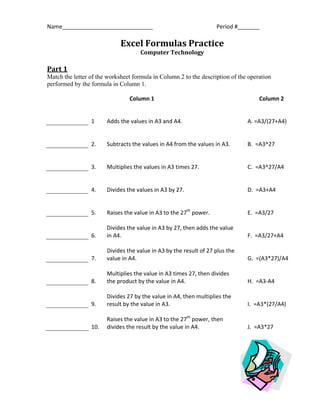
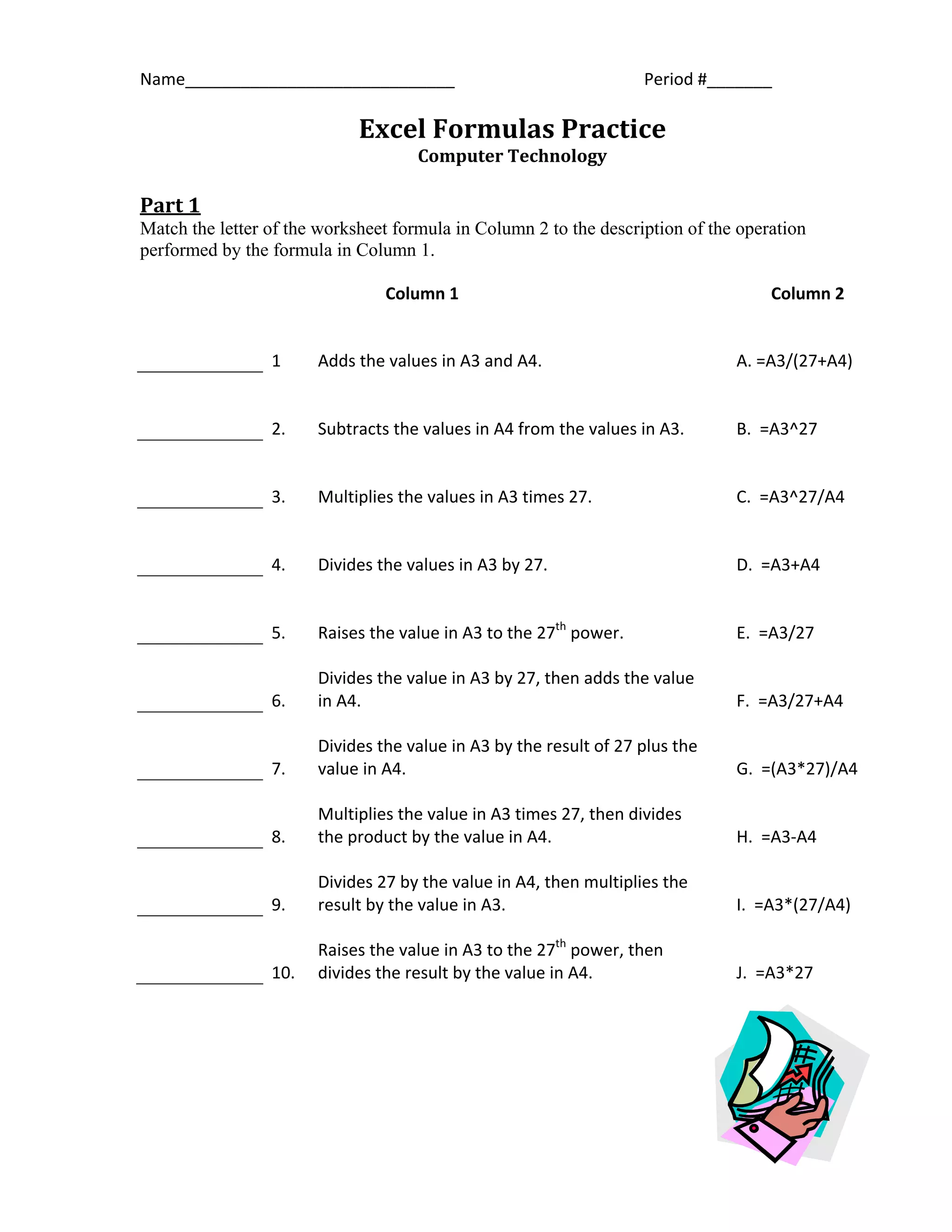
Match the letter of the worksheet formula in Column 2 to the description of the operation
performed by the formula in Column 1.
Column 1 Column 2
1 Adds the values in A3 and A4. A. =A3/(27+A4)
2. Subtracts the values in A4 from the values in A3. B. =A3^27
3. Multiplies the values in A3 times 27. C. =A3^27/A4
4. Divides the values in A3 by 27. D. =A3+A4
5. Raises the value in A3 to the 27th
power. E. =A3/27
6.
Divides the value in A3 by 27, then adds the value
in A4. F. =A3/27+A4
7.
Divides the value in A3 by the result of 27 plus the
value in A4. G. =(A3*27)/A4
8.
Multiplies the value in A3 times 27, then divides
the product by the value in A4. H. =A3-A4
9.
Divides 27 by the value in A4, then multiplies the
result by the value in A3. I. =A3*(27/A4)
10.
Raises the value in A3 to the 27th
power, then
divides the result by the value in A4. J. =A3*27
Part 2
1. Open a file called Formula Practice from the shared drive
2. Save the file as Formula Practice on your drive
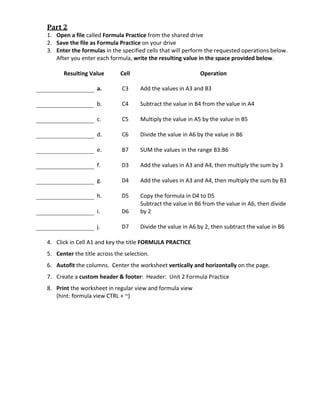
3. Enter the formulas in the specified cells that will perform the requested operations below.
After you enter each formula, write the resulting value in the space provided below.
Resulting Value Cell Operation
a. C3 Add the values in A3 and B3
b. C4 Subtract the value in B4 from the value in A4
c. C5 Multiply the value in A5 by the value in B5
d. C6 Divide the value in A6 by the value in B6
e. B7 SUM the values in the range B3:B6
f. D3 Add the values in A3 and A4, then multiply the sum by 3
g. D4 Add the values in A3 and A4, then multiply the sum by B3
h. D5 Copy the formula in D4 to D5
i. D6
Subtract the value in B6 from the value in A6, then divide
by 2
j. D7 Divide the value in A6 by 2, then subtract the value in B6
4. Click in Cell A1 and key the title FORMULA PRACTICE
5. Center the title across the selection.
6. Autofit the columns. Center the worksheet vertically and horizontally on the page.
7. Create a custom header & footer: Header: Unit 2 Formula Practice
8. Print the worksheet in regular view and formula view
(hint: formula view CTRL + ~)

Formula practice worksheet

  • 1.
    Name_____________________________ Period #_______ ExcelFormulas Practice Computer Technology Part 1 Match the letter of the worksheet formula in Column 2 to the description of the operation performed by the formula in Column 1. Column 1 Column 2 1 Adds the values in A3 and A4. A. =A3/(27+A4) 2. Subtracts the values in A4 from the values in A3. B. =A3^27 3. Multiplies the values in A3 times 27. C. =A3^27/A4 4. Divides the values in A3 by 27. D. =A3+A4 5. Raises the value in A3 to the 27th power. E. =A3/27 6. Divides the value in A3 by 27, then adds the value in A4. F. =A3/27+A4 7. Divides the value in A3 by the result of 27 plus the value in A4. G. =(A3*27)/A4 8. Multiplies the value in A3 times 27, then divides the product by the value in A4. H. =A3-A4 9. Divides 27 by the value in A4, then multiplies the result by the value in A3. I. =A3*(27/A4) 10. Raises the value in A3 to the 27th power, then divides the result by the value in A4. J. =A3*27
  • 2.
    Part 2 1. Opena file called Formula Practice from the shared drive 2. Save the file as Formula Practice on your drive 3. Enter the formulas in the specified cells that will perform the requested operations below. After you enter each formula, write the resulting value in the space provided below. Resulting Value Cell Operation a. C3 Add the values in A3 and B3 b. C4 Subtract the value in B4 from the value in A4 c. C5 Multiply the value in A5 by the value in B5 d. C6 Divide the value in A6 by the value in B6 e. B7 SUM the values in the range B3:B6 f. D3 Add the values in A3 and A4, then multiply the sum by 3 g. D4 Add the values in A3 and A4, then multiply the sum by B3 h. D5 Copy the formula in D4 to D5 i. D6 Subtract the value in B6 from the value in A6, then divide by 2 j. D7 Divide the value in A6 by 2, then subtract the value in B6 4. Click in Cell A1 and key the title FORMULA PRACTICE 5. Center the title across the selection. 6. Autofit the columns. Center the worksheet vertically and horizontally on the page. 7. Create a custom header & footer: Header: Unit 2 Formula Practice 8. Print the worksheet in regular view and formula view (hint: formula view CTRL + ~)