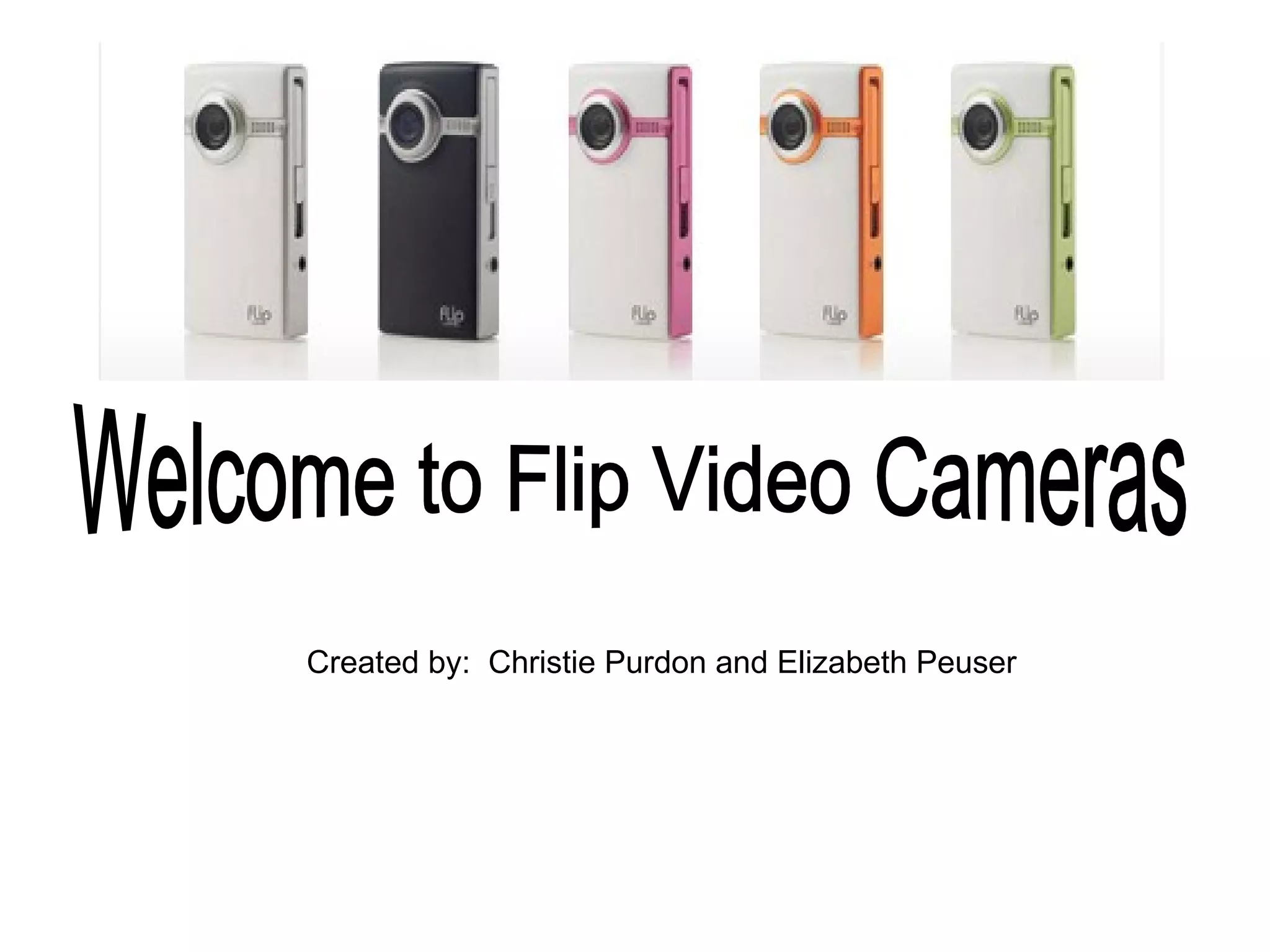
Welcome to Flip Video Cameras Created by:  Christie Purdon and Elizabeth Peuser
 
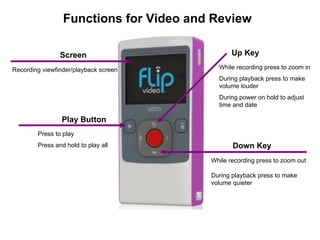
Screen Play Button Press to play Press and hold to play all Recording viewfinder/playback screen While recording press to zoom out  During playback press to make volume quieter  Down Key Functions for Video and Review Up Key While recording press to zoom in  During playback press to make volume louder  During power on hold to adjust time and date
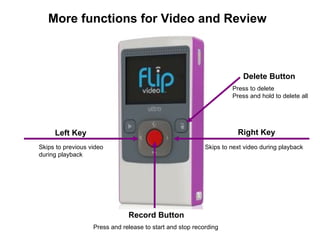
Left Key Right Key Skips to previous video during playback Skips to next video during playback Record Button Press and release to start and stop recording More functions for Video and Review Delete Button Press to delete Press and hold to delete all
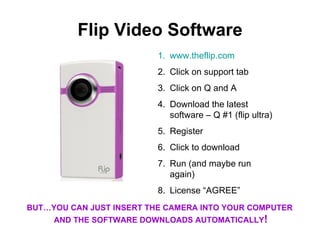
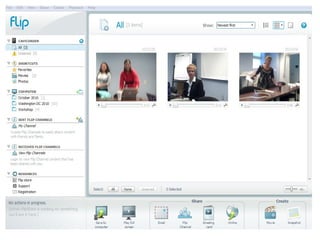
Flip Video Software www.theflip.com Click on support tab Click on Q and A Download the latest software – Q #1 (flip ultra) Register  Click to download Run (and maybe run again) License “AGREE” BUT…YOU CAN JUST INSERT THE CAMERA INTO YOUR COMPUTER AND THE SOFTWARE DOWNLOADS AUTOMATICALLY !
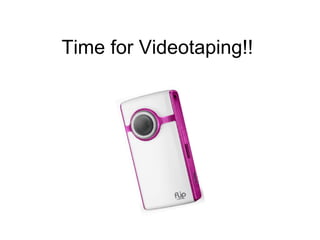
Time for Videotaping!!


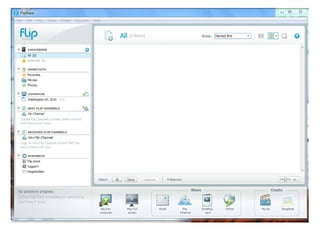
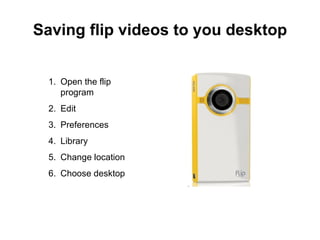
Saving flip videos to you desktop Open the flip program Edit Preferences Library Change location Choose desktop


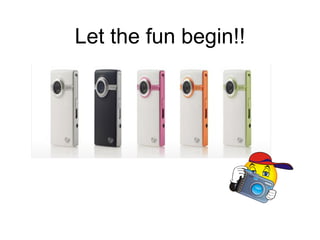
Let the fun begin!!

Flip Video Presentation

  • 1.
    Welcome to FlipVideo Cameras Created by: Christie Purdon and Elizabeth Peuser
  • 2.
  • 3.
    Screen Play ButtonPress to play Press and hold to play all Recording viewfinder/playback screen While recording press to zoom out During playback press to make volume quieter Down Key Functions for Video and Review Up Key While recording press to zoom in During playback press to make volume louder During power on hold to adjust time and date
  • 4.
    Left Key RightKey Skips to previous video during playback Skips to next video during playback Record Button Press and release to start and stop recording More functions for Video and Review Delete Button Press to delete Press and hold to delete all
  • 5.
    Flip Video Softwarewww.theflip.com Click on support tab Click on Q and A Download the latest software – Q #1 (flip ultra) Register Click to download Run (and maybe run again) License “AGREE” BUT…YOU CAN JUST INSERT THE CAMERA INTO YOUR COMPUTER AND THE SOFTWARE DOWNLOADS AUTOMATICALLY !
  • 6.
  • 7.
  • 8.
  • 9.
  • 10.
    Saving flip videosto you desktop Open the flip program Edit Preferences Library Change location Choose desktop
  • 11.
  • 12.
  • 13.
  • 14.
  • 15.
  • 16.
  • 17.
    Let the funbegin!!

Editor's Notes

  • #2 *Have participants get their computers up and going before beginning the welcome, introductions and overview.