Finishing Pieces – Fine tuning Training
Presentations
Christine Miles
By PresenterMedia.com
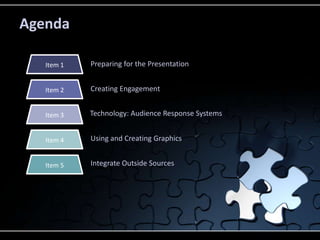
Agenda
Preparing for the Presentation
Creating Engagement
Using and Creating Graphics
Integrate Outside Sources
Item 1
Technology: Audience Response Systems
Item 2
Item 3
Item 4
Item 5
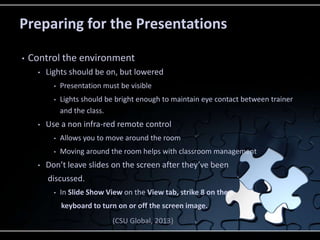
Preparing for the Presentations
• Control the environment
• Lights should be on, but lowered
• Presentation must be visible
• Lights should be bright enough to maintain eye contact between trainer
and the class.
• Use a non infra-red remote control
• Allows you to move around the room
• Moving around the room helps with classroom management
• Don’t leave slides on the screen after they’ve been
discussed.
• In Slide Show View on the View tab, strike 8 on the
keyboard to turn on or off the screen image.
(CSU Global, 2013)
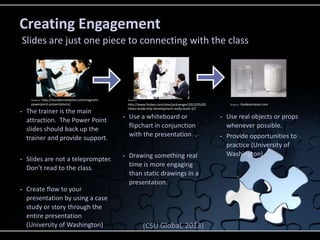
• The trainer is the main
attraction. The Power Point
slides should back up the
trainer and provide support.
• Slides are not a teleprompter.
Don’t read to the class.
• Create flow to your
presentation by using a case
study or story through the
entire presentation
(University of Washington)
• Use a whiteboard or
flipchart in conjunction
with the presentation.
• Drawing something real
time is more engaging
than static drawings in a
presentation.
• Use real objects or props
whenever possible.
• Provide opportunities to
practice (University of
Washington)
Creating Engagement
Slides are just one piece to connecting with the class
(CSU Global, 2013)
Source: http://laurakennedylive.com/magnetic-
powerpoint-presentations/
Source:
http://www.forbes.com/sites/jackzenger/2012/05/02
/does-leadership-development-really-work-2//
Source: thedeamteam.com
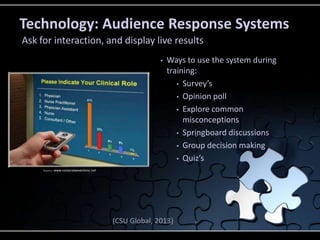
Technology: Audience Response Systems
Ask for interaction, and display live results
• Ways to use the system during
training:
• Survey’s
• Opinion poll
• Explore common
misconceptions
• Springboard discussions
• Group decision making
• Quiz’s
(CSU Global, 2013)
Source: www.corporateeventsinc.net
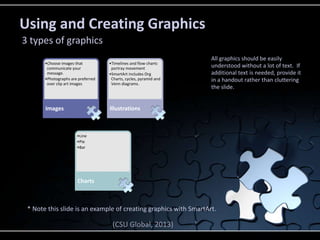
All graphics should be easily
understood without a lot of text. If
additional text is needed, provide it
in a handout rather than cluttering
the slide.
Using and Creating Graphics
•Choose images that
communicate your
message.
•Photographs are preferred
over clip art images
Images
•Timelines and flow charts
portray movement
•SmartArt includes Org
Charts, cycles, pyramid and
Venn diagrams.
Illustrations
•Line
•Pie
•Bar
Charts
3 types of graphics
* Note this slide is an example of creating graphics with SmartArt.
(CSU Global, 2013)
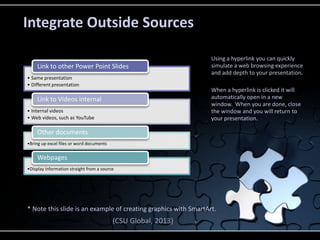
• Same presentation
• Different presentation
Link to other Power Point Slides
• Internal videos
• Web videos, such as YouTube
Link to Videos internal
•Bring up excel files or word documents
Other documents
•Display information straight from a source
Webpages
Using a hyperlink you can quickly
simulate a web browsing experience
and add depth to your presentation.
When a hyperlink is clicked it will
automatically open in a new
window. When you are done, close
the window and you will return to
your presentation.
Integrate Outside Sources
* Note this slide is an example of creating graphics with SmartArt.
(CSU Global, 2013)
Use of these tips will create a vibrant
and engaging training session.
Picture from PresenterMedia.com
REFERENCES
Colorado State University Global Campus. (2013). Module 6 – Eight
Steps in Making a Powerful Multimedia Presentation [Blackboard
ecourse]. In ORG 536 Contemporary Business Writing. Greenwood
Village, CO
University of Washington. (n.d.). Best Practices for Using PowerPoint
for Training. Retrieved from:
http://www.washington.edu/research/.SITEPARTS/.documents/.osp/
Best_Practices_for_Using_PowerPoint_for_Training.pdf

Finishing pieces – fine tuning training presentations

  • 1.
    Finishing Pieces –Fine tuning Training Presentations Christine Miles By PresenterMedia.com
  • 2.
    Agenda Preparing for thePresentation Creating Engagement Using and Creating Graphics Integrate Outside Sources Item 1 Technology: Audience Response Systems Item 2 Item 3 Item 4 Item 5
  • 3.
    Preparing for thePresentations • Control the environment • Lights should be on, but lowered • Presentation must be visible • Lights should be bright enough to maintain eye contact between trainer and the class. • Use a non infra-red remote control • Allows you to move around the room • Moving around the room helps with classroom management • Don’t leave slides on the screen after they’ve been discussed. • In Slide Show View on the View tab, strike 8 on the keyboard to turn on or off the screen image. (CSU Global, 2013)
  • 4.
    • The traineris the main attraction. The Power Point slides should back up the trainer and provide support. • Slides are not a teleprompter. Don’t read to the class. • Create flow to your presentation by using a case study or story through the entire presentation (University of Washington) • Use a whiteboard or flipchart in conjunction with the presentation. • Drawing something real time is more engaging than static drawings in a presentation. • Use real objects or props whenever possible. • Provide opportunities to practice (University of Washington) Creating Engagement Slides are just one piece to connecting with the class (CSU Global, 2013) Source: http://laurakennedylive.com/magnetic- powerpoint-presentations/ Source: http://www.forbes.com/sites/jackzenger/2012/05/02 /does-leadership-development-really-work-2// Source: thedeamteam.com
  • 5.
    Technology: Audience ResponseSystems Ask for interaction, and display live results • Ways to use the system during training: • Survey’s • Opinion poll • Explore common misconceptions • Springboard discussions • Group decision making • Quiz’s (CSU Global, 2013) Source: www.corporateeventsinc.net
  • 6.
    All graphics shouldbe easily understood without a lot of text. If additional text is needed, provide it in a handout rather than cluttering the slide. Using and Creating Graphics •Choose images that communicate your message. •Photographs are preferred over clip art images Images •Timelines and flow charts portray movement •SmartArt includes Org Charts, cycles, pyramid and Venn diagrams. Illustrations •Line •Pie •Bar Charts 3 types of graphics * Note this slide is an example of creating graphics with SmartArt. (CSU Global, 2013)
  • 7.
    • Same presentation •Different presentation Link to other Power Point Slides • Internal videos • Web videos, such as YouTube Link to Videos internal •Bring up excel files or word documents Other documents •Display information straight from a source Webpages Using a hyperlink you can quickly simulate a web browsing experience and add depth to your presentation. When a hyperlink is clicked it will automatically open in a new window. When you are done, close the window and you will return to your presentation. Integrate Outside Sources * Note this slide is an example of creating graphics with SmartArt. (CSU Global, 2013)
  • 8.
    Use of thesetips will create a vibrant and engaging training session. Picture from PresenterMedia.com
  • 9.
    REFERENCES Colorado State UniversityGlobal Campus. (2013). Module 6 – Eight Steps in Making a Powerful Multimedia Presentation [Blackboard ecourse]. In ORG 536 Contemporary Business Writing. Greenwood Village, CO University of Washington. (n.d.). Best Practices for Using PowerPoint for Training. Retrieved from: http://www.washington.edu/research/.SITEPARTS/.documents/.osp/ Best_Practices_for_Using_PowerPoint_for_Training.pdf