Accounting and FinancialClose (J58_US)
Purpose
PUBLIC
Error: Reference source not found 1
Test Script
SAP S/4HANA - 19-02-21
PUBLIC
Accounting and Financial Close (J58_US)
Table of Contents
1 Purpose
2 Prerequisites
2.1 System Access
2.2 Roles
2.3 Master Data and Organizational Data
2.4 Preliminary Steps
3 Overview Table
4 Test Procedures
4.1 Manage G/L Account Master Data
4.2 Define Financial Statement Versions
4.3 Manage Chart of Accounts
4.4 Synchronize G/L Account Master Data
4.5 G/L Account Changes
4.6 Manage Profit Center Group
2.
4.7 Manage ProfitCenters
4.8 Edit Profit Centers Collective
4.9 Edit Company Code Assignment Profit Centers
4.10 Where-Used List - Profit Centers
4.11 Change Log - Profit Centers
4.12 Manage Journal Entry Template
4.13 Post General Journal Entries
4.13.1 Post Manual Accruals and Deferrals
4.13.2 Post with Auto-Reverse
4.14 Upload General Journal Entries
4.15 Verify General Journal Entries
4.16 Approve Verify General Journal Entries (for Processor- Inbox)
4.17 Reject Verify General Journal Entries (for Processor- Inbox)
4.18 Edit a Rejected Verify General Journal Entry (Requester)
4.19 Manage Journal Entries
4.19.1 Open Correspondence
4.19.2 Reverse General Journal Entries
4.19.3 Reverse Manual Accruals and Deferrals
4.20 Display Document Flow
4.21 Display G/L Account Balances
4.22 Display Line Items in General Ledger
4.23 Display Line Item Entry
4.24 Manage Recurring Journal Entries
4.24.1 Create Recurring Journal Entry
4.24.2 Display Recurring Journal Entry
4.24.3 Edit Recurring Journal Entry
4.24.4 Copy Recurring Journal Entry
4.24.5 Post Recurring Journal Entry
4.24.6 Delete Recurring Journal Entry
Accounting and Financial Close (J58_US)
Purpose
PUBLIC
Error: Reference source not found 2
3.
4.25 Display Changesof Recurring Entry
4.26 Audit Journal
4.27 Journal Entry Analyzer
4.28 Clear G/L Accounts - Manual Clearing
4.29 Clear G/L Accounts
4.30 Reset Cleared Items
4.31 Clear Open Items Automatically
4.32 Currency Exchange Rates
4.33 Import Foreign Exchange Rates
4.34 Repost GR/IR Clearing
4.35 Enter Reference Interest Values
4.36 Enter Time Interest Terms
4.37 Run Balance Interest Calculation
4.38 Perform Foreign Currency Valuation
4.39 Post Currency Adjustments
4.40 Verify Currency Adjustments
4.41 Approve Verify Currency Adjustments (for Processor- Inbox)
4.42 Reject Verify Currency Adjustments (for Processor- Inbox)
4.43 Edit a Rejected Verify Currency Adjustment (Requester)
4.44 Verify Data Flow
4.45 Post Tax Payables
4.46 Regroup Receivables/Payables
4.47 Process Batch Input Session
4.48 Import Financial Plan Data
4.49 Balance Sheet / Income Statement
4.49.1 Financial Statement Download and Printing
4.50 Trial Balance
4.51 Carry Forward Balances
4.52 Analyze Unassigned Journal Entry ID’s Caused by Rollback Work Statements
Accounting and Financial Close (J58_US)
Purpose
PUBLIC
Error: Reference source not found 3
4.
4.53 Display JournalEntries - in T-Account View
4.54 Analyze Credit Loss Allowances
5 Appendix
5.1 Display Tax Information per Country
5.2 User Specific Settings for Alternative Chart of Account
5.3 Schedule General Ledger Jobs
Accounting and Financial Close (J58_US)
Purpose
PUBLIC
Error: Reference source not found 4
5.
1 Purpose
The centraltask of general ledger accounting is providing a comprehensive overview of external accounting and accounts. By recording all business transactions,
including primary postings and settlements from internal accounting, in a system that is fully integrated with all the other operational areas of a company, you ensure
accuracy and completeness for accounting data.
General Ledger Accounting serves as a complete record of all business transactions providing a centralized, up-to-date reference for the rendering of accounts. Actual
individual transactions are reviewed with real-time processing, displaying the original documents, line items, and transaction figures at various levels (such as account
information, journals, totals, transaction figures, and balance sheets).
This process describes all required period end-closing steps, related to performing local period-end closing and steps that are identical for local and parallel ledger.
This document provides a detailed procedure for testing this scope item after solution activation, reflecting the predefined scope of the solution. Each process step,
report, or item is covered in its own section, providing the system interactions (test steps) in a table view. Steps that are not in scope of the process but are needed for
testing are marked accordingly. Project-specific steps must be added.
Accounting and Financial Close (J58_US)
Purpose
PUBLIC
Error: Reference source not found 5
6.
2 Prerequisites
This sectionsummarizes all the prerequisites for conducting the test in terms of systems, users, master data, organizational data, other test data and business
conditions.
2.1 System Access
System Details
System Accessible via SAP Fiori launchpad. Your system administrator provides you with the URL to access the various apps assigned to your
role.
2.2 Roles
Assign the following business roles to your individual test users. Alternatively, if available, you can create business roles using the following spaces with pages and
predefined apps for the SAP Fiori launchpad and assign the business roles to your individual test users.
Note These roles or spaces are examples provided by SAP. You can use them as templates to create your own roles or spaces.
For more information about business roles, refer to Assigning business roles to a user in the Administration Guide to Implementation of SAP S/4HANA with SAP Best
Practices .
Name (Role) ID (Role) Description (Space) ID (Space) Log
on
General Ledger Accountant SAP_BR_GL_ACCOUNTANT General Ledger SAP_BR_GL_ACCOUNTANT
Divisional Accountant SAP_BR_DIVISION_ACCOUNTA
NT
Divisional Accounting SAP_BR_DIVISION_ACCOUNTA
NT
Country/Region-Specific Subrole: General Ledger
Accountant United States
SAP_BR_GL_ACCOUNTANT_US
Country/Region-Specific Subrole: SAP_BR_AP_MANAGER_US
Accounting and Financial Close (J58_US)
Purpose
PUBLIC
Error: Reference source not found 6
7.
Name (Role) ID(Role) Description (Space) ID (Space) Log
on
Accounts Payable Manager for USA
Business Process Specialist SAP_BR_BUSINESS_PROCESS_
SPEC
Business Process
Management
SAP_BR_BUSINESS_PROCESS_
SPEC
Configuration Expert - Business Process Configuration SAP_BR_BPC_EXPERT Business Process
Configuration
SAP_BR_BPC_EXPERT
2.3 Master Data and Organizational Data
Default Values
The organizational structure and master data of your company was created in your ERP system during implementation. The organizational structure reflects the
structure of your company. The master data represents materials, customers, and vendors, for example, depending on the operational focus of your company.
The business process is enabled with this organization-specific master data, examples are provided in the next section.
Additional Default Values
You can test the scope item with other SAP Best Practices default values that have the same characteristics.
Check your SAP ECC system to find out which other material master data exists.
Using Your Own Master Data
You can also use customized values for any material or organizational data for which you have created master data. For more information on how to create master data,
see the Master Data Procedures documentation.
Use the following master data in the process steps described in this document:
Master Data Sample
Value
Detail
s
Commen
t
Company Code 1710
Chart of
Accounts
YCOA
Controlling Area A000
Accounting and Financial Close (J58_US)
Purpose
PUBLIC
Error: Reference source not found 7
8.
Master Data Sample
Value
Detail
s
Commen
t
CostCenter 17101001
For more information on creating master data objects, see the following Master Data Scripts (MDS)
Table 1: Master Data Script Reference
Master Data
ID
Description
BNM Create Cost Center and Cost Center
Group
BNG Create G/L Account and Cost Element
BNH Create Profit Center
2.4 Preliminary Steps
Accounting and Financial Close (J58_US)
Purpose
PUBLIC
Error: Reference source not found 8
9.
3 Overview Table
TheAccounting and Financial Close scope item consists of several process steps provided in the following tables.
Process Step Business Role Transaction/App Expected Results
Manage G/L Account
Master Data [page ] 15
General Ledger
Accountant
Manage G/L Account Master
Data (F0731A)
The G/L Account is created in the chart of accounts and company code. The
G/L Account can be created, changed, copied in the chart of account and
company code. Multiple G/L accounts can be maintained through Mass
Change.
Define Financial Statement
Versions [page ] 18
General Ledger
Accountant
Manage Financial Statement
Versions (OB58)
You maintained the financial statement version.
Manage Chart of Accounts
[page ] 21
General Ledger
Accountant
Manage Chart of Accounts
(F0763A)
You managed the chart of accounts.
Synchronize G/L Account
Master Data [page ] 22
General Ledger
Accountant
Synchronize G/L Account Master
Data (OB_GLACC71)
You downloaded the changed master data into a text file.
G/L Account Changes [page
] 24
General Ledger
Accountant
G/L Account Changes - Central
View (FS04)
Display the changes to a G/L account master record.
Manage Profit Center
Group [page ] 25
Divisional
Accountant
Manage Profit Center Group
(FAC_PCG)
The Profit Center Group is maintained.
Manage Profit Centers
[page ] 27
General Ledger
Accountant or
Divisional
Accountant
Manage Profit Centers (F3516) The Profit Center Master is maintained.
Edit Profit Centers Collective
[page ] 28
Divisional
Accountant
Edit Profit Centers - Collective
(KE55)
Make changes to large quantities of profit center master data without having
to change the master data for each single profit center.
Edit Company Code
Assignment Profit Centers
[page ] 31
Divisional
Accountant
Edit Company Code Assignment
- Profit Centers (KE56)
Make changes to the company code assignments of a larger number of
profit centers without having to change the master data for each single
profit center.
Accounting and Financial Close (J58_US)
Purpose
PUBLIC
Error: Reference source not found 9
10.
Process Step BusinessRole Transaction/App Expected Results
Where-Used List - Profit
Centers [page ] 32
General Ledger
Accountant or
Divisional
Accountant
Where-Used List - Profit Centers
(F3751)
Change Log - Profit Centers
[page ] 33
General Ledger
Accountant or
Divisional
Accountant
Change Log - Profit Centers
(F3810)
Manage Journal Entry
Template [page ] 35
General Ledger
Accountant
Manage Journal Entry Templates
(F3803)
You created a template for general journal entries.
Post General Journal Entries
[page ] 37
General Ledger
Accountant
Post General Journal Entries
(F0718)
The General Ledger journal entry is posted. The system has automatically
added the Input tax amount.
Post Manual Accruals and
Deferrals [page ] 40
General Ledger
Accountant
Post General Journal Entries
(F0718)
The manual accruals and deferrals journal entry is posted.
Post with Auto-Reverse
[page ] 42
General Ledger
Accountant
Post General Journal Entries
(F0718)
You posted the journal entry with automatic reversal.
Upload General Journal
Entries [page ] 45
General Ledger
Accountant
Upload General Journal Entries
(F2548)
The G/L journal entries are posted.
Verify General Journal
Entries [page ] 47
General Ledger
Accountant
Verify General Journal Entries -
For Requester (F2547)
All journal entries submitted for checking are displayed.
Approve Verify General
Journal Entries (for
Processor- Inbox) [page ]
52
General Ledger
Accountant for USA
Verify Journal Entries in General
Ledger - For Processor (Inbox)
(F2728)
All journal entries received for approval are displayed.
Reject Verify General
Journal Entries (for
Processor- Inbox) [page ]
53
General Ledger
Accountant for USA
Verify Journal Entries in General
Ledger - For Processor (Inbox)
(F2728)
All journal entries checked by the user are displayed.
Edit a Rejected Verify General Ledger Verify General Journal Entries - All submitted journal entries are displayed.
Accounting and Financial Close (J58_US)
Purpose
PUBLIC
Error: Reference source not found 10
11.
Process Step BusinessRole Transaction/App Expected Results
General Journal Entry
(Requester) [page ] 54
Accountant For Requester (F2547)
Manage Journal Entries
[page ] 55
General Ledger
Accountant
Manage Journal Entries
(F0717)
The Journal Entry screen displays.
Open Correspondence
[page ] 57
General Ledger
Accountant
Manage Journal Entries
(F0717)
Correspondence is created according to the selected criteria.
Reverse General Journal
Entries [page ] 59
General Ledger
Accountant
Post General Journal Entries
(F0718)
The Post General Journal Entries (F0718) screen displays.
Reverse Manual Accruals
and Deferrals [page ] 62
General Ledger
Accountant
Post General Journal Entries
(F0718)
The Post General Journal Entries (F0718) screen displays.
Display Document Flow
[page ] 63
General Ledger
Accountant
Display Document Flow You displayed the document flow.
Display G/L Account
Balances [page ] 65
General Ledger
Accountant
Display G/L Account Balances
(F0707)
The G/L Account Balances screen displays.
Display Line Items in
General Ledger [page ] 66
General Ledger
Accountant
Display Line Items in General
Ledger (F2217)
A list of all relevant line items is displayed.
Display Line Item Entry
[page ] 67
General Ledger
Accountant
Display Line Item Entry (F2218) A list of all relevant line items is displayed.
Manage Recurring Journal Entries [page ] 69
Process Step Business Role Transaction/App Expected Results
Create Recurring Journal Entry [page
] 69
General Ledger
Accountant
Manage Recurring Journal Entries
(F1598)
The Manage Recurring Journal Entries: Header Data screen
displays.
Display Recurring Journal Entry
[page ] 71
General Ledger
Accountant
Manage Recurring Journal Entries
(F1598)
The Manage Recurring Journal Entries: Header Data screen
displays.
Edit Recurring Journal Entry [page ]
72
General Ledger
Accountant
Manage Recurring Journal Entries
(F1598)
The Manage Recurring Journal Entries: Header Data screen
displays.
Copy Recurring Journal Entry [page ] General Ledger Manage Recurring Journal Entries The Manage Recurring Journal Entries: Header Data screen
Accounting and Financial Close (J58_US)
Purpose
PUBLIC
Error: Reference source not found 11
12.
Process Step BusinessRole Transaction/App Expected Results
73 Accountant (F1598) displays.
Post Recurring Journal Entry [page ]
74
General Ledger
Accountant
Manage Recurring Journal Entries
(F1598)
The Manage Recurring Journal Entries: Header Data screen
displays.
Delete Recurring Journal Entry [page
] 75
General Ledger
Accountant
Manage Recurring Journal Entries
(F1598)
The Manage Recurring Journal Entries: Header Data screen
displays.
Process Step Business Role Transaction/App Expected Results
Display Changes of Recurring Entry
[page ] 76
General Ledger
Accountant
Display Changes of Recurring Entry (FBD4) The G/L Account Line Items - G/L View screen
displays.
Audit Journal [page ] 77 General Ledger
Accountant
Audit Journal (F0997)
Journal Entry Analyzer [page ] 79 General Ledger
Accountant
Journal Entry Analyzer (FIS_FPM_OVP_JEANA)
Clear G/L Accounts - Manual Clearing
[page ] 81
General Ledger
Accountant
Clear G/L Accounts - Manual Clearing (F1579) The Clear G/L Accounts (F1579) screen
displays.
Clear G/L Accounts [page ] 83 General Ledger
Accountant
Post General Journal Entries (F0718) The Post General Journal Entries (F0718)
screen displays.
Reset Cleared Items [page ] 86 General Ledger
Accountant
Reset Cleared Items (F2223)
Clear Open Items Automatically [page ]
87
General Ledger
Accountant
Post General Journal Entries (F0718) The Post General Journal Entries (F0718)
screen displays.
Currency Exchange Rates [page ] 89 General Ledger
Accountant
Maintain Exchange Rates (OB08) The Change View "Currency Exchange Rates";
Overview screen displays.
Import Foreign Exchange Rates [page ]
90
General Ledger
Accountant
Import Foreign Exchange Rates (F2092) The Import Foreign Exchange Rates (F2092)
screen displays.
Repost GR/IR Clearing [page ] 91 General Ledger
Accountant
Repost GR/IR Clearing (F.19) The Analyze GR/IR Clearing Accounts and
Display Acquisition Tax screen displays.
Enter Reference Interest Values [page ] General Ledger Enter Reference Interest Values (JBIRMC) The new Reference Interest Rate Values are
Accounting and Financial Close (J58_US)
Purpose
PUBLIC
Error: Reference source not found 12
13.
Process Step BusinessRole Transaction/App Expected Results
93 Accountant available in the system.
Enter Time Interest Terms [page ] 95 General Ledger
Accountant
Enter Time Interest Terms (S_ALR_87002510) The new Interest indicators are available in
the system.
Run Balance Interest Calculation [page ]
96
General Ledger
Accountant
Run Balance Interest Calculation (F.52) The G/L account interest scale report displays.
Perform Foreign Currency Valuation
[page ] 98
General Ledger
Accountant
Perform Foreign Currency Valuation
(FAGL_FCV)
The Foreign Currency Valuation screen
displays.
Post Currency Adjustments [page ] 100 General Ledger
Accountant
Post Currency Adjustments (F1606) Currency adjustments are posted.
Verify Currency Adjustments [page ] 102 General Ledger
Accountant
Verify Currency Adjustment - For Requester
(F2547)
You verified a currency adjustment.
Approve Verify Currency Adjustments (for
Processor- Inbox) [page ] 105
General Ledger
Accountant for USA
Verify Journal Entries in General Ledger - For
Processor (Inbox) (F2728)
You approved a currency adjustment.
Reject Verify Currency Adjustments (for
Processor- Inbox) [page ] 107
General Ledger
Accountant for USA
Verify Journal Entries in General Ledger - For
Processor (Inbox) (F2728)
You rejected a currency adjustment.
Edit a Rejected Verify Currency
Adjustment (Requester) [page ] 108
General Ledger
Accountant
Verify Currency Adjustment - For Requester
(F2547)
You edited a rejected currency adjustment.
Verify Data Flow [page ] 109 General Ledger
Accountant
Verify Data Flow (ACC_ECS_MAINTAIN)
Post Tax Payables [page ] 111 General Ledger
Accountant
Post Tax Payables (F1597) The Post Tax Payables: Header Data screen
displays.
Process Step Business Role Transaction/App Expected Results
Regroup Receivables/Payables [page
] 112
General Ledger
Accountant
Regroup Receivables / Payables
(FAGLF101)
The receivables and payables are regrouped, and
transfer postings are performed.
Process Batch Input Session [page ]
114
General Ledger
Accountant
Batch Input Sessions in My Area (SM35SA) Journal entries are posted and recurring documents are
updated with processing data.
Import Financial Plan Data [page ] General Ledger Import Financial Plan Data (F1711) The balance sheet and P&L accounts are planned.
Accounting and Financial Close (J58_US)
Purpose
PUBLIC
Error: Reference source not found 13
14.
Process Step BusinessRole Transaction/App Expected Results
116 Accountant
Balance Sheet / Income Statement
[page ] 118
General Ledger
Accountant
Balance Sheet/Income Statement (F0708) The financial statement is displayed.
Financial Statement Download and
Printing [page ] 119
General Ledger
Accountant
Balance Sheet / Income Statement -
Multidimensional (F3084)
The financial statement is downloaded in Excel format.
Process Step Business
Role
Transaction/App Expected Results
Trial Balance [page ] 121 General
Ledger
Accountant
Trial Balance (F0996A) The trial balance displays.
Carry Forward Balances [page ]
122
General
Ledger
Accountant
Carry Forward Balances (F1596) The profit and loss accounts are carried forward to one or more
retained earnings accounts. The balances on the balance sheet
accounts carry forward into the new fiscal year.
Analyze Unassigned Journal Entry
ID’s Caused by Rollback Work
Statements [page ] 124
General
Ledger
Accountant
Analyze Unassigned Journal Entry IDs -
Caused by Rollback Work Statements
(FINS_RSSNR0S1)
A report is displayed.
Process Step Business Role Transaction / App Expected Results
Display Journal Entries - in T-Account View
[page ] 125
General Ledger
Accountant
Display Journal Entries - In T-Account View
(F3664)
You viewed the accounting impact of the
document.
Analyze Credit Loss Allowances [page ] 127 General Ledger
Accountant
Analyze Credit Loss Allowances You analyzed the credit loss allowances.
Process Step Business Role Transaction/App Expected Results
Accounting and Financial Close (J58_US)
Purpose
PUBLIC
Error: Reference source not found 14
15.
4 Test Procedures
Thissection describes test procedures for each process step that belongs to this scope item.
4.1 Manage G/L Account Master Data
Test Administration
Customer project: Fill in the project-specific parts.
Test Case ID <X.XX> Tester Name Testing Date Enter a test date.
Business Role(s)
Responsibility <State the Service Provider, Customer or Joint Service Provider and Customer> Duration Enter a duration.
Purpose
In this activity, you create a new G/L account by copying an existing one from the chart of accounts view or the company code view. You can also use the Mass Change
function to modify one or more attributes of multiple G/L accounts.
Note Previously, you could only edit/mass change master data up to a maximum of 50 G/L accounts. This limit is now extended up to 5000 G/L accounts at a time.
Note The Manage G/L Account Master Data (F0731A) app can be executed by either the Configuration Expert - Business Process Configuration role or the General
Ledger Accountant role. You can only make changes in the Q system. In the P system, you can only display content.
Two procedures are shown below, one for each role.
Accounting and Financial Close (J58_US)
Purpose
PUBLIC
Error: Reference source not found 15
16.
Procedure - GeneralLedger Accountant
Test
Step #
Test Step Name Instruction Expected Result Pass / Fail /
Comment
1 Log On Log on to the SAP Fiori launchpad as a General Ledger Accountant.
2 Access App Open Manage G/L Account Master Data (F0731A).
3 Search for Your
Account
Make the following entries and choose Go:
Chart of Accounts: YCOA
G/L Account: For example, 12562000
View: Chart of Accounts View
The system displays a list of matching
G/L accounts.
4 Choose G/L
Account
To choose the G/L Account, choose Details (>). The G/L Account Master Data screen
appears.
5 Copy Account Choose Copy. The Copy of <G/L account
number>screen displays.
6 Create Account Make the following entries and choose OK:
Account Number: For example, 12562003
Description in Maintenance Language (EN): Deferred Income Oth.
Company Code Assignment: For example, 1710
Note This field is visible only when Consolidation is in the scope.
Data entered on the screen G/L
Account Master Data displays.
7 Save Make the following entries and choose Save:
Group Account Number: <account number>
The system confirms that account has
been saved successfully.
8 Back to the Entry
View
Choose Back twice. The Manage G/L Account Master Data
screen displays.
9 Multiple Copies Select the checkbox for the G/L Account (for example, 12562000) and choose
Copy (above the table).
The Copies of <account> dialog box is
displayed.
10 Multiple Copies Enter the new Account Number and Description in Maintenance Language
(EN): For example, 12562090 and Deferred Income Oth.
In the Company Code Assignment field, select Company Code 1710 and
An Information box displays.
Accounting and Financial Close (J58_US)
Purpose
PUBLIC
Error: Reference source not found 16
17.
Test
Step #
Test StepName Instruction Expected Result Pass / Fail /
Comment
choose Copy.
11 Mass Copy On the Manage G/L Account Master Data screen, make the following entries
and choose Go:
Chart of Accounts: YCOA
G/L Account: For example, 12562000
View: Company Code View
Company Code: 1710
12 Mass Copy Select the G/L Account and choose Copy to Company Code.
Enter another country Company Code and choose Copy.
The Copy Accounts to Company Code
dialog box is displayed.
An Information box displays.
13 View Application
Logs
Chose View Logs to see the Applications Logs. When you are done viewing the
logs, choose Back.
14 Search Multiple
G/L Accounts
In the G/L Account field, press the F4 key, make the following entries, and
then choose Go:
Search Field: For example, 1256*
Chart of Accounts: YCOA
Afterwards, select the relevant G/L Accounts and choose OK.
The search result of multiple G/L
accounts can be seen in the field G/L
Account.
15 Select View for
Chart of Account
From the View dropdown list, select Chart of Accounts View. The selected view displays.
16 Select Multiple
G/L Accounts
Choose Go and select multiple G/L Accounts to change. Multiple G/L Accounts are selected on
the screen.
17 Start Mass
Change
Select Mass Change and select Description Only from the dropdown menu. The Mass Change in Chart of Accounts
View - Description screen displays.
18 Make Mass
Change
In the Replace column, enter the short and long text to be replaced. In the By
column, enter the new descriptions and choose Apply. You can also change
the descriptions directly in the Items table.
Old values are updated with new
descriptions for all displayed G/L
accounts.
Accounting and Financial Close (J58_US)
Purpose
PUBLIC
Error: Reference source not found 17
18.
Test
Step #
Test StepName Instruction Expected Result Pass / Fail /
Comment
19 Save the Changes Choose Save. The system confirms that <X> G/L
accounts are changed.
20 Select View for
Company Code
From the View dropdown menu, choose the entry Company Code View.
Make the following entries and choose Go:
Company Code: 1710
21 Open Settings for
Mass Change
Choose Settings. The View Settings screen displays.
22 Change Settings
for Mass Change
Select one or multiple fields from the Settings list (for example: Sort Key) and
choose OK.
The screen is refreshed and the
selected fields display. For example:
Sort Key is visible.
23 Select Multiple
G/L Accounts
Choose Go and select multiple G/L Accounts to change. Multiple G/L Accounts are selected on
the screen.
24 Start Mass
Change
Choose Mass Change and select Other Attributes from the dropdown list. The Mass Change in Company Code
View screen is displayed.
25 Make Mass
Change
In the Replace column, enter the old value to be replaced. In the By column,
enter a new value (for example, 012 for Sort Key) and choose Apply.
The old values are replaced by new
values for all displayed G/L accounts.
26 Save the Changes Choose Save. The system confirms that <X> G/L
accounts are changed.
4.2 Define Financial Statement Versions
Test Administration
Customer project: Fill in the project-specific parts.
Accounting and Financial Close (J58_US)
Purpose
PUBLIC
Error: Reference source not found 18
19.
Test Case ID<X.XX> Tester Name Testing Date Enter a test date.
Business Role(s)
Responsibility <State the Service Provider, Customer or Joint Service Provider and Customer> Duration Enter a duration.
Purpose
In this activity, you manage the financial statement version.
Procedure
Test
Step #
Test Step Name Instruction Expected Result Pass / Fail /
Comment
1 Log On Log on to the SAP Fiori launchpad as a General Ledger
Accountant.
2 Access App Open Manage Financial Statement Versions (OB58).
3 Select Financial
Statement Version
Select the following financial statement version and choose
Copy As.
Financial Statement Version Name: $US2
The Change View "Financial Statement
Versions": Overview view is displayed.
4 Copy Financial
Statement Version
Make the following entries and choose Copy:
FS Version: for example, US99
Name: for example, Financial Statement Version
US99
Chart of Accounts: YCOA
The template financial statement version is
copied.
5 Select Financial
Statement Version
Select the following financial statement version and choose
the Financial Statement Items button.
Financial Statement Version Name: US99
The Change Financial Statement Version view
displays.
Accounting and Financial Close (J58_US)
Purpose
PUBLIC
Error: Reference source not found 19
20.
Test
Step #
Test StepName Instruction Expected Result Pass / Fail /
Comment
6 Delete Accounts Expand to the item that needs to be maintained, select the
account and choose the Delete button.
The account is deleted from the Financial
Statement.
7 Save Save your entries. The Financial Statement Version: Save &
Activate dialog box is displayed.
8 Replicate FSV Hierarchy Choose Activate. The replication of the FSV hierarchy starts.
9 Replicate FSV Hierarchy Choose Continue. The FSV hierarchy is replicated.
10 Replicate FSV Hierarchy Choose Continue. Data is saved.
11 Assign Accounts Select the item where the account should be added and
choose the Assign Accounts button.
The account cannot be in multiple items.
The Change Accounts entry view displays
12 Enter Account Make the following entries and choose Continue.
The account cannot be in multiple rows.
From Acct : <your account>
To Acct : <your account>
D: Selected
C: Selected
The account is assigned to the Financial
Statement.
13 Save Save your entries. The Financial Statement Version: Save &
Activate dialog box is displayed.
14 Replicate FSV Hierarchy Choose Activate. The replication of the FSV hierarchy starts.
15 Replicate FSV Hierarchy Choose Continue. The FSV hierarchy is replicated.
16 Replicate FSV Hierarchy Choose Continue. Data is saved.
Accounting and Financial Close (J58_US)
Purpose
PUBLIC
Error: Reference source not found 20
21.
4.3 Manage Chartof Accounts
Test Administration
Customer project: Fill in the project-specific parts.
Test Case ID <X.XX> Tester Name Testing Date Enter a test date.
Business Role(s)
Responsibility <State the Service Provider, Customer or Joint Service Provider and Customer> Duration Enter a duration.
Purpose
In this activity, you view the general ledger accounts for a chart of accounts in either hierarchical or flat list form.
Procedure
Test
Step #
Test Step Name Instruction Expected Result Pass / Fail /
Comment
1 Log On Log on to the SAP Fiori launchpad as a
General Ledger Accountant.
2 Access App Open Manage Chart of Accounts (F0763A)
3 Chart of Accounts Choose the Chart of Accounts tab.
4 Select Chart of Accounts For the chart of accounts to display (for
example YCOA), choose Details (>).
The list of G/L accounts in the selected chart of
account displays.
5 Manage Chart of Accounts in
Company Code View
Choose Company Code View.
Accounting and Financial Close (J58_US)
Purpose
PUBLIC
Error: Reference source not found 21
22.
Test
Step #
Test StepName Instruction Expected Result Pass / Fail /
Comment
6 Enter Company Code Make the following entries and press Enter:
Company Code: 1710
The system displays a list of G/L accounts that are
available in the selected company code.
4.4 Synchronize G/L Account Master Data
Test Administration
Customer project: Fill in the project-specific parts.
Test Case ID <X.XX> Tester Name Testing Date Enter a test date.
Business Role(s)
Responsibility <State the Service Provider, Customer or Joint Service Provider and Customer> Duration Enter a duration.
Context
Newly created G/L accounts and financial statement versions (FSV) or changes to G/L account master data are normally tranported from your quality system to the
production system with the currently open business change project (BCP). However, when a new or changed object is urgently needed in your production system and
you cannot wait for that BCP to be released and transported, the Synchronize G/L Account Master Data (OB_GLACC71) app helps you to copy these changes into your
production system earlier.
This topic includes procedures for the Q system (downloading the master data text file) and the P system (uploading the file).
Accounting and Financial Close (J58_US)
Purpose
PUBLIC
Error: Reference source not found 22
23.
Procedure - QSystem
Test
Step #
Test Step
Name
Instruction Expected Result Pass / Fail /
Comment
1 Log On Log onto the SAP Fiori launchpad for your Q
system as a General Ledger Accountant.
2 Access the SAP
Fiori App
Open Synchronize G/L Account Master Data
(OB_GLACC71).
The G/L Account Synchronization view is displayed.
3 Enter Details Make the following entries and choose Execute:
Process G/L Accounts: Selected
Chart of Accounts: YCOA
G/L Account: <range of G/L accounts>
(optional)
Test Run: Selected
You executed a test run of the G/L account synchronization. This is
useful to see what changes will be included in the download.
4 Update Run Repeat step 3 but change the following value:
Update Run: Selected
The system downloads the data into a text file.
Procedure - P System
Test Step
#
Test Step Name Instruction Expected Result Pass / Fail /
Comment
1 Log On Log onto the SAP Fiori launchpad for your P system as a
General Ledger Accountant.
2 Access the SAP
Fiori App
Open Synchronize G/L Account Master Data (OB_GLACC71). The G/L Account Synchronization view is
displayed.
3 Enter Details In the Processing Area section, make the following entries
and choose Execute:
Process G/L Accounts: Selected
The File Upload dialog box is displayed.
Accounting and Financial Close (J58_US)
Purpose
PUBLIC
Error: Reference source not found 23
24.
Test Step
#
Test StepName Instruction Expected Result Pass / Fail /
Comment
Processing Mode section:
Test Run: Selected
4 Upload File The system notifies you that it wants to upload a file. Choose
OK.
Browse for the file and choose Open.
You executed a test run of the G/L account
synchronization upload.
5 Update Run Repeat step 3 and 4 but change the following value:
Update Run: Selected
The system uploads the data from the text file
into the system.
4.5 G/L Account Changes
Test Administration
Customer project: Fill in the project-specific parts.
Test Case ID <X.XX> Tester Name Testing Date Enter a test date.
Business Role(s)
Responsibility <State the Service Provider, Customer or Joint Service Provider and Customer> Duration Enter a duration.
Purpose
The system logs all changes to G/L master records. For each field changed, it stores the time of change, the user's name, and the current and previous field contents.
This process step is used to display the changes done to the master data of G/L accounts.
Accounting and Financial Close (J58_US)
Purpose
PUBLIC
Error: Reference source not found 24
25.
Procedure
Test Step
#
Test Step
Name
InstructionExpected Result Pass / Fail /
Comment
1 Log On Log on to the SAP Fiori launchpad as a General Ledger
Accountant.
2 Access the
App
Open G/L Account Changes (S_ALR_87012308). The Display Changes to G/L Accounts is shown.
3 Display
Changes
Make the following entries in the Further Selections area and
choose Execute:
Chart of accounts data: Select
All G/L Accounts: Select
Company code data:Select
The system displays the changes for the selected
G/L accounts.
4.6 Manage Profit Center Group
Test Administration
Customer project: Fill in the project-specific parts.
Test Case ID <X.XX> Tester Name Testing Date Enter a test date.
Business Role(s)
Responsibility <State the Service Provider, Customer or Joint Service Provider and Customer> Duration Enter a duration.
Accounting and Financial Close (J58_US)
Purpose
PUBLIC
Error: Reference source not found 25
26.
Purpose
In this activity,you manage the profit center group.
Procedure
Test Step
#
Test Step Name Instruction Expected Result Pass / Fail /
Comment
1 Log On Log onto the SAP Fiori launchpad as a Divisional Accountant.
2 Access the SAP Fiori App Open Manage Profit Center Group (FAC_PCG). The Search: Profit Center Groups
screen displays.
3 Create New Profit Center
Group
In the Result List: Profit Center Group pane, choose the New
button.
The Profit Center Group: New screen
displays.
4 Group Details Make the following entries and choose Continue.
Controlling Area: A000
To create a Profit Center Group that does not exist, make the
following entries:
Name: <name>, for example, YBH125
The profit center group is created.
5 Save Choose Save. Your group is saved.
You can also create a profit center group by copying an existing profit center group:
Test Step
#
Test Step Name Instruction Expected Result Pass / Fail /
Comment
1 Access the SAP
Fiori App
Perform steps 1 and 2 above to enter the SAP Fiori App. The Search: Profit Center Groups screen displays.
2 Enter Selection
Criteria
Using the Search Criteria fields, enter an existing profit
center group and choose Go.
The Result List: Profit Center Group pane displays
any relevant groups.
Accounting and Financial Close (J58_US)
Purpose
PUBLIC
Error: Reference source not found 26
27.
Test Step
#
Test StepName Instruction Expected Result Pass / Fail /
Comment
3 Copy Group Select a group, choose the Copy button, then choose
Copy.
4 Enter Group Details Perform steps 4 to 6 from above.
4.7 Manage Profit Centers
Test Administration
Customer project: Fill in the project-specific parts.
Test Case ID <X.XX> Tester Name Testing Date Enter a test date.
Business Role(s)
Responsibility <State the Service Provider, Customer or Joint Service Provider and Customer> Duration Enter a duration.
Purpose
In this activity, you manage the profit center master data.
Prerequisites
On the Home page, choose Settings > Default values. Set Controlling Area to A000 .
Accounting and Financial Close (J58_US)
Purpose
PUBLIC
Error: Reference source not found 27
28.
Procedure
Test Step
#
Test StepName Instruction Expected Result Pass / Fail /
Comment
1 Log On Log onto the SAP Fiori launchpad as a General Ledger
Accountant.
Note You can also use the Divisional Accountant role.
2 Access the SAP Fiori
App
Open Manage Profit Centers (F3516).
3 Search Profit Center In the Search fields, make the following entries and
choose Go:
Profit Center: For example, YB900
4 Copy Profit Center Select the row for the profit center and choose Copy. The Profit Center: New screen displays.
5 Enter Profit Center Make the following entries and choose Save:
Controlling Area: For example, A000
Profit Center: For example, YB901
Valid From: For example, <Current date>
Valid To: For example, 12/31/9999
Profit Center Name: <name>
You copied a profit center and changed
its data.
4.8 Edit Profit Centers Collective
Test Administration
Customer project: Fill in the project-specific parts.
Test Case ID <X.XX> Tester Name Testing Date Enter a test date.
Accounting and Financial Close (J58_US)
Purpose
PUBLIC
Error: Reference source not found 28
29.
Business Role(s)
Responsibility <Statethe Service Provider, Customer or Joint Service Provider and Customer> Duration Enter a duration.
Purpose
In this activity, you make changes to large quantities of profit center master data without having to change the master data for each single profit center.
Prerequisite
Create at least two new profit centers, for which you can change the master data.
Test Step
#
Test Step Name Instruction Expected Result Pass / Fail /
Comment
1 Log On Log onto the SAP Fiori launchpad as a Divisional Accountant.
2 Access the App Open Manage Profit Centers (F3516).
3 Choose Options Choose the Options button (the button with your username)
and choose Set Controlling.
The Set Controlling Area (F1587)
dialog box displays.
4 Set Controlling Area Make the following entries and choose OK.
Controlling area: For example, A000
5 Search Profit Center In the Search fields, make the following entries and choose Go.
Profit Center: For example, YB900
6 Copy Profit Center Select the row for the profit center and choose Copy. The Profit Center: New screen displays.
7 Enter Profit Center
Details
Make the following entries and choose Continue:
Profit Center: For example, YB902
Valid From: For example, <Current date>
Valid To: For example, 12/31/9999
The Profit Center: YB902 screen
displays.
Accounting and Financial Close (J58_US)
Purpose
PUBLIC
Error: Reference source not found 29
30.
Test Step
#
Test StepName Instruction Expected Result Pass / Fail /
Comment
8 Name the Profit Center Make the following entries and choose Save.
Name: <name>
You copied a profit center and changed
its data.
9 Create Another Profit
Center
Repeat these steps to create another profit center (for example,
YB903).
Procedure
Test
Step #
Test Step Name Instruction Expected Result Pass / Fail /
Comment
1 Log On Log onto the SAP Fiori launchpad as a Divisional
Accountant.
2 Access the App Open Edit Profit Centers - Collective (KE55). The Mass Maintenance Profit Center displays.
3 Choose Profit Center to
be Edited
Make the following entries and choose Execute:
Controlling Area: For example, A000
Profit Center: For example, YB902 and YB903
The system displays a list of matching profit
centers.
4 Add Field to be Changed Choose the 'Profit Center Master Data Table” tab.
5 Add Field to be Changed Choose the Select fields button.
6 Add Field to be Changed Select Lock indicator and add it to the selection criteria,
then choose Continue.
The Lock Indicator column is added to the
selection criteria in the upper table.
7 Change Master Data of
Profit Centers
Make the following entry in the upper table, select the
column, and choose Perform Mass Change:
Lock indicator: x
The Lock Indicator indicator is set for the
selected profit centers.
8 Save Save your entries. The changes are saved.
Accounting and Financial Close (J58_US)
Purpose
PUBLIC
Error: Reference source not found 30
31.
4.9 Edit CompanyCode Assignment Profit Centers
Test Administration
Customer project: Fill in the project-specific parts.
Test Case ID <X.XX> Tester Name Testing Date Enter a test date.
Business Role(s)
Responsibility <State the Service Provider, Customer or Joint Service Provider and Customer> Duration Enter a duration.
Purpose
In this activity, you change the company code assignments of a larger number of profit centers without having to change the master data for each single profit center.
Prerequisite
This test step is only applicable if more than one company code is activated in the system.
Procedure
Test
Step #
Test Step Name Instruction Expected Result Pass / Fail /
Comment
1 Log On Log onto the SAP Fiori launchpad as a Divisional Accountant.
2 Access the SAP
Fiori App
Open Edit Company Code Assignment - Profit Centers (KE56). The Assignment of Profit Centers to
Company Codes - Change view displays.
3 Search Profit To display the profit center assignment for a company code, drill down The company code assignment is changed
Accounting and Financial Close (J58_US)
Purpose
PUBLIC
Error: Reference source not found 31
32.
Test
Step #
Test StepName Instruction Expected Result Pass / Fail /
Comment
Center to the profit center to be assigned to the company code.
For example, select or deselect the checkbox for assignment of profit
center YB902 and YB903 to company code 1710.
accordingly.
4 Save Save your entries.
5 Activate Choose Activate. The change is activated.
4.10 Where-Used List - Profit Centers
Test Administration
Customer project: Fill in the project-specific parts.
Test Case ID <X.XX> Tester Name Testing Date Enter a test date.
Business Role(s)
Responsibility <State the Service Provider, Customer or Joint Service Provider and Customer> Duration Enter a duration.
Use
In this activity, you view information on profit center usage.
Accounting and Financial Close (J58_US)
Purpose
PUBLIC
Error: Reference source not found 32
33.
Procedure
Test
Step #
Test Step
Name
InstructionExpected Result Pass / Fail /
Comment
1 Log On Log on to the SAP Fiori launchpad as a Divisional Accountant.
Note You can also use the General Ledger Accountant role.
2 Access the SAP
Fiori App
Open Where-Used List - Profit Centers (F3751).
3 Enter Data Make the following entries and choose Go:
Profit Center: <profit center>, for example, YB101
Valid On: <date>, for example, Today
The system displays object types that use the
profit center.
4 Select Object
Type
Choose the arrow at the right side of a row for one of the object
types (for example, Cost Centers).
The right pane expands, showing profit center
details for the selected object type.
5 Manage Profit
Centers
In the right pane, choose the hyperlink for the profit center (for
example, YB101), and from the dialog box, choose Manage Profit
Centers.
The Manage Profit Centers view displays.
6 More Links For the profit center, choose the arrow button at the right of the
row.
The Manage Profit Centers view is displayed.
7 Change Log Choose Change Log. The Change Log pane is displayed.
For more information on the Change Log activity,
see the Change Log - Profit Centers [page ] 33
topic.
4.11 Change Log - Profit Centers
Test Administration
Customer project: Fill in the project-specific parts.
Accounting and Financial Close (J58_US)
Purpose
PUBLIC
Error: Reference source not found 33
34.
Test Case ID<X.XX> Tester Name Testing Date Enter a test date.
Business Role(s)
Responsibility <State the Service Provider, Customer or Joint Service Provider and Customer> Duration Enter a duration.
Use
In this activity, you view a list of changes for a profit center.
Procedure
Test
Step #
Test Step Name Instruction Expected Result Pass / Fail /
Comment
1 Log On Log on to the SAP Fiori launchpad as a Divisional Accountant.
Note You can also use the General Ledger Accountant role.
2 Access the SAP
Fiori App
Open Change Log - Profit Centers (F3810).
3 Enter Data Make the following entries and choose Go:
Profit Center: <profit center>, for example, YB101
Note You can also use other fields to filter on specific change types,
the date of change, or who made the change.
The Items pane shows a list of changes for
the selected profit center.
Accounting and Financial Close (J58_US)
Purpose
PUBLIC
Error: Reference source not found 34
35.
4.12 Manage JournalEntry Template
Test Administration
Customer project: Fill in the project-specific parts.
Test Case ID <X.XX> Tester Name Testing Date Enter a test date.
Business Role(s)
Responsibility <State the Service Provider, Customer or Joint Service Provider and Customer> Duration Enter a duration.
Context
In this activity, you manage templates for general journal entries.
Procedure
Test
Step #
Test Step
Name
Instruction Expected Result Pass / Fail /
Comment
1 Log On Log onto the SAP Fiori launchpad as a General Ledger Accountant.
2 Access the SAP
Fiori App
Open Manage Journal Entry Templates (F3803).
Note If the app is not shown in the launchpad, you can either launch it
from the Search field, or add it to your launchpad via the App finder.
The Manage Journal Entry Templates view is
displayed. A list of available templates is
shown.
3 Create
Template
Choose Create. The Create Template dialog box is displayed.
4 Create
Template
Make the following entry and choose Create:
Apply Template In: for example, Post General Journal Entries
The Manage Journal Entry Templates view
displays.
Accounting and Financial Close (J58_US)
Purpose
PUBLIC
Error: Reference source not found 35
36.
Test
Step #
Test Step
Name
InstructionExpected Result Pass / Fail /
Comment
Note To create your own template to post with auto-reverse, choose
Post General Journal Entries with Auto-reverse.
5 Enter Details -
Step 1
Make the following entries and choose Step 2:
Template ID: for example, BANK_INT_ADJ
Description: for example, Bank interest adjustment
Access Level: for example, User Level
The Journal Entry Header: Select Fields view is
displayed.
6 Enter Details -
Step 2
Select the following fields (as either Mandatory or Read Only) and
choose Step 3:
● Header text
● Intercompany transaction
● Ledger group
● Net entry
● Posting Date
Note Ensure that you select the checkbox to the left of the field name,
as well as the Mandatory or Read-Only checkbox as needed.
The Journal Entry Header: Enter Values view is
displayed.
7 Enter Details -
Step 3
For the fields you selected in step 3, enter values for the fields, then
choose Step 4.
The Journal Entry Line Items: Select Fields view
is displayed.
8 Enter Details -
Step 4
Select the following fields (as either Mandatory or Read Only) and
choose Step 5:
● Company code
● G/L account
● Text
● House bank
● House bank account
● Cost center
● Profit center
The Journal Entry Line Items: Enter Values view
is displayed.
Accounting and Financial Close (J58_US)
Purpose
PUBLIC
Error: Reference source not found 36
37.
Test
Step #
Test Step
Name
InstructionExpected Result Pass / Fail /
Comment
9 Enter Details -
Step 5
For the fields you selected in step 4, enter values for the fields, then
choose Review.
The Manage Journal Entry Templates view is
displayed.
10 Save Template Review your entries. When you are done, choose Save. The General Journal entry template is saved
11 Access the SAP
Fiori App
Open Post General Journal Entries (F0718).
12 Select
Template
Choose the Select Templates button. A dialog box is displayed.
13 Template Use Select the template to use for posting (such as Bank interest
adjustment).
The general journal entry is posted using the
selected template.
4.13 Post General Journal Entries
Test Administration
Customer project: Fill in the project-specific parts.
Test Case ID <X.XX> Tester Name Testing Date Enter a test date.
Business Role(s)
Responsibility <State the Service Provider, Customer or Joint Service Provider and Customer> Duration Enter a duration.
Purpose
You receive G/L journal entries that must be posted manually in the SAP system.
Accounting and Financial Close (J58_US)
Purpose
PUBLIC
Error: Reference source not found 37
38.
Prerequisite
A global chartof accounts is assigned to all company codes. If a company code has an assigned country chart of accounts, you can use alternative (local) accounts in
journal entries. Unless there is a special note, we always use global accounts in the test scripts. To make sure that you have the correct setting, open the Edit Options for
Journal Entries - My Settings (F2130)" app and deselect the Use Alternative Acct. checkbox.
Procedure
Test
Step #
Test Step Name Instruction Expected Result Pass / Fail /
Comment
1 Log On Log onto the SAP Fiori launchpad as a General Ledger Accountant.
2 Access the SAP Fiori
App
Open Post General Journal Entries (F0718).
3 Enter Journal
Entries Header Data
In the Header pane, make the following entries:
Journal Entry Date: <current date>
Posting Date: <current date>
Period: <period>
Journal Entry Type: SA
Company Code: 1710
Document Currency: USD
Ledger Group: <empty>
4 Enter Line Item
Data
In the Line Items pane, make the following entries:
Line item 1:
G/L Account: For example, 63002000
Debit: 100
Tax Code: I0
If no third-party software is in place for tax calculation, use Tax
Jurisdiction of CA00000000.
Cost Center: 17101101
Accounting and Financial Close (J58_US)
Purpose
PUBLIC
Error: Reference source not found 38
39.
Test
Step #
Test StepName Instruction Expected Result Pass / Fail /
Comment
Line item 2:
G/L Account: For example, 10010000
Credit: <amount>.
5 Post Choose Post. The journal entry is posted. The system
automatically adds the input tax amount.
6 Restart the SAP
Fiori App
Go back to the SAP Fiori launchpad.
Open Post General Journal Entries (F0718).
7 Start Journal Entry
Excel Upload
Choose Upload New Entry at the bottom of the screen. The Upload General Journal Entries
(F2548) view displays.
8 Download Template Choose Download Template. Choose the MS Excel Workbook format
and the Template Language (for example, English) and choose
Download.
The Excel template file is downloaded.
9 Prepare the
Template
Make the following entries in the template file for all G/L account
journal entries to be posted and save it locally:
Header:
Company code: 1710
Journal Entry Type: <journal entry type>, for example, SA
Journal Entry Date: <current date>
Posting Date: <current date>
Document Currency: For example, USD
Line items - Line 1:
Company code: 1710
G/L Account: For example, 63003000
Debit: <amount>
Tax Code: I0
Cost Center: For example, 17101101
Accounting and Financial Close (J58_US)
Purpose
PUBLIC
Error: Reference source not found 39
40.
Test
Step #
Test StepName Instruction Expected Result Pass / Fail /
Comment
Line items - Line 2:
Company code: 1710
G/L Account: for example, 10010000
Credit: <amount>
10 Upload Excel File Choose the Browse button at top of the screen, select the prepared
Excel file, and choose Open.
The Excel file is uploaded and you can see
new held journal entries in the worklist.
If the uploaded file contains errors,
choose Show log to view details.
11 Post Select the held journal entries and choose Post. The journal entries are posted.
4.13.1 Post Manual Accruals and Deferrals
Test Administration
Customer project: Fill in the project-specific parts.
Test Case ID <X.XX> Tester Name Testing Date Enter a test date.
Business Role(s)
Responsibility <State the Service Provider, Customer or Joint Service Provider and Customer> Duration Enter a duration.
Purpose
In this step, you post manual accruals and deferrals.
Accounting and Financial Close (J58_US)
Purpose
PUBLIC
Error: Reference source not found 40
41.
Prerequisite
A global chartof accounts is assigned to all company codes. If a company code has an assigned country/region chart of accounts, you can use alternative (local) accounts
in journal entries. Unless there is a special note, we always use global accounts in the test scripts. To make sure that you have the correct setting, open the Edit Options
for Journal Entries - My Settings (F2130)" app and deselect the Use Alternative Acct. checkbox.
Procedure
Test Step # Test Step Name Instruction Expected Result Pass / Fail / Comment
1 Log On Log onto the SAP Fiori launchpad as a General Ledger
Accountant.
2 Access the SAP Fiori App Open Post General Journal Entries (F0718).
3 Enter Journal Entries Header
Data
In the Header pane, make the following entries:
Journal Entry Date: <current date>
Posting Date: <current date>
Period: <period>
Journal Entry Type: AD
Company Code: 1710
Document Currency: USD
Ledger Group: <empty>
4 Enter Line Item Data In the Line Items pane, make the following entries:
G/L Account: For example, 61060000
Debit: <amount>
Tax Code: <empty>
Cost Center: For example, 17101101
G/L Account: For example, 24090000
Credit: <amount>
5 Post Choose Post. The journal entry is
Accounting and Financial Close (J58_US)
Purpose
PUBLIC
Error: Reference source not found 41
42.
Test Step #Test Step Name Instruction Expected Result Pass / Fail / Comment
posted.
4.13.2 Post with Auto-Reverse
Test Administration
Customer project: Fill in the project-specific parts.
Test Case ID <X.XX> Tester Name Testing Date Enter a test date.
Business Role(s)
Responsibility <State the Service Provider, Customer or Joint Service Provider and Customer> Duration Enter a duration.
Purpose
In this activity, you post general journal entries with automatic reversal.
Prerequisite (Optional)
If your country or your specific business process requires reverse documents to be posted with a different document type or different number range than the original
document type, see the #unique_74 step in the Preliminary Steps section.
Accounting and Financial Close (J58_US)
Purpose
PUBLIC
Error: Reference source not found 42
43.
Procedure
Test
Step #
Test StepName Instruction Expected Result Pass / Fail /
Comment
1 Log On Log onto the SAP Fiori launchpad as a General Ledger Accountant.
2 Access the SAP Fiori
App
Open Post General Journal Entries (F0718).
3 Select Templates Choose Select Templates. The Templates dialog box is
displayed.
4 Locate Template In the search field, search for Post General Journal Entries with Auto-reverse.
When you locate the template in the search results, choose the template.
The screen updates with the
template.
5 Enter Journal Entries
Header Data
In the Header pane, make the following entries:
Journal Entry Date: <current date>
Posting Date: <current date>
Period: <period>
Journal Entry Type: SA
Company Code: 1710
Document Currency: USD
Ledger Group: <empty>
Choose the Auto-Reverse tab.
Reversal Reason: <reversal reason>, for example, 05
Reversal Date: <last day of next period>
6 Enter Line Item Data In the Line Items pane, make the following entries:
Line item 1:
G/L Account: For example, 63002000
Debit: 100
Tax Code: I0
Cost Center: 17101101
Accounting and Financial Close (J58_US)
Purpose
PUBLIC
Error: Reference source not found 43
44.
Test
Step #
Test StepName Instruction Expected Result Pass / Fail /
Comment
Line item 2:
G/L Account: For example, 10010000
Credit: <amount>
7 Post Choose Post. The journal entry is posted.
8 Access the SAP Fiori
App
Go back to the SAP Fiori launchpad.
Open Schedule General Ledger Jobs (F1927).
9 Reversal Reason Choose Create.
Make the following entries and choose Step 2:
Job Template: Post General Journal Entries with Auto-reverse
Job Name: Post General Journal Entries with Auto-reverse
Make the following entries and choose Step 3:
Start Immediately: Selected
Make the following entries and choose Schedule:
Company Code: 1710
Reverse posting date: date of reversal
The job is scheduled.
10 Access the SAP Fiori
App
Go back to the SAP Fiori launchpad.
Open Manage Journal Entries (F0717).
11 Adapt Filters Choose the Adapt Filters button. The Adapt Filters dialog box is
displayed.
12 Adapt Filters In the Document section, choose More Filters. The Select Filters dialog box is
displayed.
13 Adapt Filters Select Reversed With, Reversal Reason, and Reversal Type and choose OK.
14 Adapt Filters Choose Go.
15 Adapt Filters In the Journal Entries pane, choose Settings. The View Settings dialog box is
displayed.
Accounting and Financial Close (J58_US)
Purpose
PUBLIC
Error: Reference source not found 44
45.
Test
Step #
Test StepName Instruction Expected Result Pass / Fail /
Comment
16 Adapt Filters Select Reversed With, Reversal Reason, and Reversal Type and choose OK.
17 Reverse Entry Select your journal entry and choose Reverse.
18 Related Documents Choose the Related Documents tab. A reversal document should be
displayed in the Items pane.
4.14 Upload General Journal Entries
Test Administration
Customer project: Fill in the project-specific parts.
Test Case ID <X.XX> Tester Name Testing Date Enter a test date.
Business Role(s)
Responsibility <State the Service Provider, Customer or Joint Service Provider and Customer> Duration Enter a duration.
Purpose
You receive G/L account documents that must be posted manually in the SAP system. When posting to the balance sheet accounts only, you only need to make an entry
in the Segment field. If the field is left blank, segment 1000_C is defaulted and must be reconciled.
The app allows for multiple G/L account documents to be uploaded using a single upload file.
Accounting and Financial Close (J58_US)
Purpose
PUBLIC
Error: Reference source not found 45
46.
Procedure
Test
Step #
Test Step
Name
InstructionExpected Result Pass / Fail /
Comment
1 Log On Log onto the SAP Fiori launchpad as a General Ledger Accountant.
2 Access the
SAP Fiori App
Open Upload General Journal Entries (F2548).
3 Download
Template
Choose Download Template. Select the language and format Excel Workbook and then
choose Download.
The Excel template file is
downloaded.
4 Prepare the
Template
Make following entries in the template file for all G/L account documents to be posted
and save it locally:
Note If you wan to use Upload General Entries for Post with Auto-reverse, manually add
the STODT and STGRD fields at the end of the header column. STODT is Reverse Date, and
STGRD is Reverse Reason 05.
Header
Company Code: 1710
Journal Entry Type: <Journal Entry Type>, for example, SA
Journal Entry Date: <current date>
Posting Date: <current date>
Document Currency: <currency, for example USD
Line items - Line 1:
Company Code: 1710
G/L Account: for example, 63002000
Debit: <amount>
Tax Code: I0
Cost Center: For example, 17101101
Line items - Line 2:
Company Code: 1710
G/L Account: for example, 10010000
Accounting and Financial Close (J58_US)
Purpose
PUBLIC
Error: Reference source not found 46
47.
Test
Step #
Test Step
Name
InstructionExpected Result Pass / Fail /
Comment
Credit: <amount>
5 Upload Excel
File
Choose the Browse button at the top of the screen and select the prepared Excel file,
then choose Open.
The Excel file is uploaded and
you can see data entered in
the app.
6 Post Choose Post. The journal entries are posted.
4.15 Verify General Journal Entries
Test Administration
Customer project: Fill in the project-specific parts.
Test Case ID <X.XX> Tester Name Testing Date Enter a test date.
Business Role(s)
Responsibility <State the Service Provider, Customer or Joint Service Provider and Customer> Duration Enter a duration.
Purpose
In this activity, you can enter a journal entry to be checked before final posting.
You can check the status of the documents submitted for verification in various tabs: All, Submitted, Rejected and Others. For those rejected, you can edit and submit
again for approval to the processor.
Documents with status Submitted are not posted yet. Once approved by the processor, the document is posted automatically and can be seen in the Manage Journal
Entries (F0717) app.
Accounting and Financial Close (J58_US)
Purpose
PUBLIC
Error: Reference source not found 47
48.
Prerequisites
You must activateapproval workflows and define responsibility for rules used in workflow steps and assign users to responsibilities.
Prerequisite 1
Test
Step #
Test Step
Name
Instruction Expected Result Pass / Fail /
Comment
1 Log On Log on to the SAP Fiori launchpad as a General
Ledger Accountant.
2 Access SAP
Fiori App
Open Manage Workflows for General Journal
Entry Verification (F2720).
The Manage Workflow view displays.
3 Create
Workflow
Choose the Add button. The new workflow view displays.
4 Enter
Workflow
Details
Make the following entries and choose Save:
Header tab:
Name: for example, Journal entry
verification
Properties tab:
Description: for example, Company code =
1710 Amount >=100 Account Group =
FIN
Start Conditions tab: (add the following
preconditions)
Company Code: 1710
Threshold Amount in Company Code
Currency: for example, 100
Account Group: FIN
Journal Entry Type: For example, SA
Step Sequence tab: (choose Add to add the
You saved the workflow.
Accounting and Financial Close (J58_US)
Purpose
PUBLIC
Error: Reference source not found 48
49.
Test
Step #
Test Step
Name
InstructionExpected Result Pass / Fail /
Comment
first sequence step)
Type: Verify General Journal Entry
Recipients tab:
Role: Group 1 for Verifying G/L
Journal Entries
Choose Add.
Add a second sequence step.
Type: Post General Journal Entry
5 Activate Rule Choose Save, then choose Activate. The workflow journal entry verification is activated.
Note You can create and activate multiple approval level workflows for
G/L account groups, threshold amounts, and cost centers at the company
code level.
Prerequisite 2
Test Step
#
Test Step
Name
Instruction Expected Result Pass / Fail /
Comment
1 Log On Log on to the SAP Fiori launchpad as a General Ledger
Accountant.
The SAP Fiori launchpad displays.
2 Access SAP
Fiori App
Open Manage Team and Responsibilities - General Journal
Entries Verification (F3932).
3 Create Team Choose Create. The Team view displays.
4 Enter Team
Details
Make the following entries:
General Information tab:
Name: for example, General Journal Entry Verifier
Status: Ready to use
Accounting and Financial Close (J58_US)
Purpose
PUBLIC
Error: Reference source not found 49
50.
Test Step
#
Test Step
Name
InstructionExpected Result Pass / Fail /
Comment
Type: FGLVG (FI general journal entry
verification)
5 Enter Team
Details
Choose the Team Members tab.
6 Enter Team
Details
Choose the Create button. A blank field displays below Business Partner.
7 Enter Team
Details
Make the following entries and choose Save:
Business Partner: For example,the local
gl_accountant user
Function: FGJEV_L1 (Group 1 for Verifying G/L
journal entries)
The Responsibility for the general journal entries
approval workflow is defined
Procedure
Test
Step #
Test Step Name Instruction Expected Result Pass / Fail /
Comment
1 Log On Log onto the SAP Fiori launchpad as a
General Ledger Accountant.
2 Access SAP Fiori App Open Verify General Journal Entries - For
Requester (F2547).
3 Select Journal Entry Make the following entry and choose Go:
Company Code: 1710
All company code documents are displayed under different
tabs.
Note There are four tabs displaying documents in their
various states: all, submitted, rejected and others.
4 Access the Post General
Journal Entries App
Choose the Create button. The Post General Journal Entries (F0718) screen displays.
5 Enter Journal Entries Header In the Header pane, make the following
Accounting and Financial Close (J58_US)
Purpose
PUBLIC
Error: Reference source not found 50
51.
Test
Step #
Test StepName Instruction Expected Result Pass / Fail /
Comment
Data entries:
Journal Entry Date: <current date>
Posting Date: <current date>
Period: <period>
Journal Entry Type: SA
Company Code: 1710
Document Currency: USD
Ledger Group: <empty>
6 Enter Line Item Data In the Line Items pane, make the
following entries:
Line item 1:
G/L Account: for example, 63003000
Debit: 100
Tax Code: for example, I0
Cost Center: for example, 17101101
Line item 2
G/L Account: for example, 11002000
Credit: <amount>
Value Date: Today's date
In the Tax Items pane, make the
following entries:
Calculate Tax: Selected
7 Submit Choose Submit. The journal entry is submitted for verification.
8 Display Submitted Entry Choose the submitted document. The document is displayed.
9 Create a Second Document
to be Verified
Repeat steps 4 to 8. The journal entry is submitted for verification.
Accounting and Financial Close (J58_US)
Purpose
PUBLIC
Error: Reference source not found 51
52.
4.16 Approve VerifyGeneral Journal Entries (for Processor- Inbox)
Test Administration
Customer project: Fill in the project-specific parts.
Test Case ID <X.XX> Tester Name Testing Date Enter a test date.
Business Role(s)
Responsibility <State the Service Provider, Customer or Joint Service Provider and Customer> Duration Enter a duration.
Purpose
You receive G/L account documents that need to be checked before final posting. After checking the documents you can either approve or reject with a comment/
reason. Once a document has been selected and approved, it disappears from the list. If a document is approved, posting of FI document is automatically triggered.
Procedure
Test
Step #
Test Step
Name
Instruction Expected Result Pass / Fail /
Comment
1 Log On Log onto the SAP Fiori launchpad as a General
Ledger Accountant for USA General Ledger
Accountant role.
2 Access the SAP
Fiori App
Open Verify Journal Entries in General Ledger -
For Processor (Inbox) (F2728).
3 Approve
Documents
Select the document to be approved.
Choose Approve.
The document is approved and posted.
Note All approved documents are displayed in the Verify General
Journal Entries - For Processor (Outbox) (F0862) app as well as in the
Accounting and Financial Close (J58_US)
Purpose
PUBLIC
Error: Reference source not found 52
53.
Test
Step #
Test Step
Name
InstructionExpected Result Pass / Fail /
Comment
Verify Journal Entries app.
4 Display Posted
Document
Access the Manage Journal Entries (F0717) app,
make the following selections and choose GO:
Company Code: 1710
Ledger Group: <empty>
Journal Entry Type (optional): for example, SA
Journal Entry:
Document Date: (optional): <date>
Period (optional): <period>
Fiscal Year: <year of posting document>
Posting Date (optional): <date>
The approved document is listed.
4.17 Reject Verify General Journal Entries (for Processor- Inbox)
Test Administration
Customer project: Fill in the project-specific parts.
Test Case ID <X.XX> Tester Name Testing Date Enter a test date.
Business Role(s)
Responsibility <State the Service Provider, Customer or Joint Service Provider and Customer> Duration Enter a duration.
Accounting and Financial Close (J58_US)
Purpose
PUBLIC
Error: Reference source not found 53
54.
Purpose
You receive G/Laccount documents that need to be checked before final posting. After checking the documents you can either approve or reject with a comment/
reason. Once a document has been selected and rejected, it disappears from the list and goes back to the requester.
Procedure
Test Step # Test Step Name Instruction Expected Result Pass / Fail /
Comment
1 Log On Log onto the SAP Fiori launchpad as a General Ledger Accountant for
USA .
2 Access the SAP Fiori App Open Verify Journal Entries in General Ledger - For Processor (Inbox)
(F2728).
The My Inbox view
displays.
3 Reject Documents Select the document to be rejected.
Choose Reject and enter the reason for rejection, for example,
change G/L 10010000 to 12540000
The document is
rejected.
4.18 Edit a Rejected Verify General Journal Entry (Requester)
Test Administration
Customer project: Fill in the project-specific parts.
Test Case ID <X.XX> Tester Name Testing Date Enter a test date.
Business Role(s)
Responsibility <State the Service Provider, Customer or Joint Service Provider and Customer> Duration Enter a duration.
Accounting and Financial Close (J58_US)
Purpose
PUBLIC
Error: Reference source not found 54
55.
Purpose
The G/L journalentries must be checked before final posting. The journal entry you submitted is rejected. For it to be approved and posted, you must make the changes
requested by the approver.
Procedure
Test
Step #
Test Step Name Instruction Expected Result Pass / Fail /
Comment
1 Log On Log onto the SAP Fiori launchpad as a General Ledger Accountant. The SAP Fiori launchpad displays.
2 Access the SAP
Fiori App
Open Verify General Journal Entries for Requester. The Verify Journal Entries screen
displays.
3 Select Journal
Entry
Make the following entry and choose Go.
Company Code: 1710
The journal entries are listed.
4 Edit Rejected
Journal Entry
Choose the Rejected tab.
Select the journal entry to be edited.
Choose Edit.
Change the journal entry based on the comments entered, for example,
change G/L account 10010000 to 12540000.
Choose Submit.
The changed journal entry is
resubmitted for approval.
4.19 Manage Journal Entries
Test Administration
Customer project: Fill in the project-specific parts.
Accounting and Financial Close (J58_US)
Purpose
PUBLIC
Error: Reference source not found 55
56.
Test Case ID<X.XX> Tester Name Testing Date Enter a test date.
Business Role(s)
Responsibility <State the Service Provider, Customer or Joint Service Provider and Customer> Duration Enter a duration.
Purpose
In this activity, you can display, change, or reverse a journal entry. In the following procedure, it’s used to display a journal entry.
Procedure
Test
Step #
Test Step
Name
Instruction Expected Result Pass / Fail /
Comment
1 Log On Log on to the SAP Fiori launchpad as a General Ledger Accountant.
2 Access the SAP
Fiori App
Open Manage Journal Entries (F0717)
3 Select Journal
Entry
Make the following entries and choose Go:
Company Code: 1710
Ledger Group: empty
Journal Entry Type: (optional) For example, SA
Journal Entry: <empty>
Journal Entry Date: (optional) <date>
Period: (optional) <period>
Fiscal Year: <year of posting document>
Posting Date (optional): <date>
Selected journal entries are displayed
in the Journal Entries list.
4 Display Journal
Entry
Choose the link for the entry in the Journal Entry column. From the dialog
box, choose Display Journal Entries.
The Display Document Data Entry
View screen displays.
Accounting and Financial Close (J58_US)
Purpose
PUBLIC
Error: Reference source not found 56
57.
Test
Step #
Test Step
Name
InstructionExpected Result Pass / Fail /
Comment
5 Review Review the journal entries and choose Back.
6 Manage Journal
Entry
Select a journal entry number and choose Manage Journal Entry. Choose
Edit to edit a journal entry or choose New to create a journal entry.
The Journal Entry - Entry View screen
displays the document details.
4.19.1 Open Correspondence
Test Administration
Customer project: Fill in the project-specific parts.
Test Case ID <X.XX> Tester Name Testing Date Enter a test date.
Business Role(s)
Responsibility <State the Service Provider, Customer or Joint Service Provider and Customer> Duration Enter a duration.
Purpose
Open items correspondence is created.
Prerequisite
Invoices and payments are posted. The Business Partner (BP) master data (such as email address, and so on) is updated.
Accounting and Financial Close (J58_US)
Purpose
PUBLIC
Error: Reference source not found 57
58.
Procedure
Test Step
#
Test StepName Instruction Expected Result Pass / Fail /
Comment
1 Log On Log on to the SAP Fiori launchpad as an General
Ledger Accountant .
2 Access the SAP Fiori
App
Open Manage Journal Entries (F0717) The Manage Journal Entries view displays.
3 Select Journal Entry Make the following entries and choose Go.
Company Code: 1710
Ledger Group: empty
Journal Entry Type: (optional) For example, SA
Journal Entry: <empty>
Journal Entry Date: (optional) <date>
Period:
(optional) <period>
Fiscal Year: <year of posting document>
Posting Date
(optional): <date>
Selected journal entries are displayed in the Journal
Entries list.
4 Manage Journal
Entry
Select a journal entry number and choose Manage
Journal Entry.
The Journal Entry - Entry View view displays with the
document details.
5 Correspondence Choose Create Correspondence from the bottom of
the view.
The Create Correspondence view displays.
6 Entry View Select:
Correspondence: SAP09 (Internal Document)
Available fields display and are populated
automatically.
7 Actions Use the buttons to:
Preview
Print
Correspondence is created according to the selected
criteria.
Accounting and Financial Close (J58_US)
Purpose
PUBLIC
Error: Reference source not found 58
59.
Test Step
#
Test StepName Instruction Expected Result Pass / Fail /
Comment
Send Email.
8 Exit Choose Home to exit. SAP Fiori launchpad displays.
4.19.2 Reverse General Journal Entries
Test Administration
Customer project: Fill in the project-specific parts.
Test Case ID <X.XX> Tester Name Testing Date Enter a test date.
Business Role(s)
Responsibility <State the Service Provider, Customer or Joint Service Provider and Customer> Duration Enter a duration.
Purpose
In this activity, you can display, change, or reverse a document. Here, it is used to reverse a document.
Prerequisite (Optional)
If your country or your specific business process requires reverse documents to be posted with a different document type or different number range than the original
document type, see the #unique_74 step in the Preliminary Steps section.
Accounting and Financial Close (J58_US)
Purpose
PUBLIC
Error: Reference source not found 59
60.
Prerequisite
Test Step #Test Step Name Instruction Expected Result Pass / Fail /
Comment
1 Log On Log on to the SAP Fiori launchpad as a General Ledger
Accountant.
2 Access the SAP Fiori App Open Post General Journal Entries (F0718).
3 Enter Journal Entries Header
Data
Make the following entries in the Header pane:
General Journal Entry Date: <current date>
Posting Date: <current date>
Period <period>
Journal Entry Type: SA
Company Code: 1710
Document Currency: USD
Ledger Group: <empty>
4 Enter Line Item Data In the Line Items pane, make the following entries:
G/L Account: For example: 63003000
Debit: amount
Tax Code: I0
Tax Jurisdiction: For example, CA00000000
Cost Center: For example: 17101101
5 Enter Line Item Data In the Line Items pane, make the following entries:
G/L Account: For example, 10010000
Credit: <amount>
6 Post Choose Post. The journal entries are
posted.
Accounting and Financial Close (J58_US)
Purpose
PUBLIC
Error: Reference source not found 60
61.
Procedure
Test Step
#
Test StepName Instruction Expected Result Pass / Fail /
Comment
1 Log On Log on to the SAP Fiori launchpad as a General Ledger
Accountant.
2 Access the Fiori
App
Open Manage Journal Entries (F0717).
3 Select Journal
Entry
Make the following entries and choose Go.
Company Code: 1710
Ledger Group: <empty>
Journal Entry Type (optional): For example, SA
Journal Entry: <journal entry>
Document Date (optional): <date>
Period (optional): <period>
Fiscal Year: <year of posting document>
Posting Date (optional): <date>
4 Select Journal
Entry
Select a relevant document and choose Reverse. The Reverse Journal Entries Details dialog
box displays.
5 Enter Reversal
Data
Make the following entries and choose OK:
Reversal Reason: for example, Wrong posting
Posting Date: <date after posting date of document
to reverse>
The journal entry is reversed.
Accounting and Financial Close (J58_US)
Purpose
PUBLIC
Error: Reference source not found 61
62.
4.19.3 Reverse ManualAccruals and Deferrals
Test Administration
Customer project: Fill in the project-specific parts.
Test Case ID <X.XX> Tester Name Testing Date Enter a test date.
Business Role(s)
Responsibility <State the Service Provider, Customer or Joint Service Provider and Customer> Duration Enter a duration.
Purpose
In this activity, you can display, change, or reverse a document. Here, it is used to reverse an accruals and deferrals document.
Prerequisite (Optional)
If your country or your specific business process requires reverse documents to be posted with a different document type or different number range than the original
document type, see the #unique_74 step in the Preliminary Steps section.
Procedure
Test Step
#
Test Step Name Instruction Expected Result Pass / Fail /
Comment
1 Log On Log on to the SAP Fiori launchpad as a General Ledger
Accountant.
Accounting and Financial Close (J58_US)
Purpose
PUBLIC
Error: Reference source not found 62
63.
Test Step
#
Test StepName Instruction Expected Result Pass / Fail /
Comment
2 Access the Fiori
App
Open Manage Journal Entries (F0717).
3 Select Journal
Entry
Make the following entries and choose Go.
Company Code: 1710
Ledger Group: <empty>
Journal Entry Type (optional): For example, AD
Journal Entry: <journal entry>
Journal Entry Date (optional): <date>
Period (optional): <period>
Fiscal Year: <year of posting document>
Posting Date (optional): <date>
4 Select Journal
Entry
Select a relevant AD document and choose Reverse. The Reverse Journal Entries Details dialog
box displays.
5 Enter Reversal
Data
Make the following entries and choose OK.
Reversal Reason: for example, Wrong posting
Posting Date: <date>, select a date after posting date of the
document to be reversed.
The journal entry is reversed.
4.20 Display Document Flow
Test Administration
Customer project: Fill in the project-specific parts.
Test Case ID <X.XX> Tester Name Testing Date Enter a test date.
Accounting and Financial Close (J58_US)
Purpose
PUBLIC
Error: Reference source not found 63
64.
Business Role(s)
Responsibility <Statethe Service Provider, Customer or Joint Service Provider and Customer> Duration Enter a duration.
Context
This activity displays all documents that are part of a business transaction where the entry point is represented by a single starting document, displaying the operational
and accounting document flows that start from that document. The goal of the application is to provide a 360° view on the business transaction by displaying all the
operational and accounting documents (such as sales, delivery logistics, and billing) that precede and succeed the starting document. In addition, the journal entries are
displayed separately in a chronological flow that can be sliced through ledgers, fiscal years, and company codes. You can also drill down into the posting details.
This app displays all the relations between the various operational documents as well as offering the possibility to show directly the linked accounting document. The
operational flow offers the option to hide or show the documents by expanding or collapsing a category (such as sales). The accounting flow displays all accounting
documents that precede and succeed a starting document in chronological order. The documents can be displayed and filtered by ledger, company code, and fiscal year.
You can view the accounting impact of the documents with the Display as T-accounts option.
Procedure
Test
Step #
Test Step
Name
Instruction Expected Result Pass /
Fail /
Comment
1 Log On Log on to the SAP Fiori launchpad as a General Ledger Accountant.
2 Access SAP
Fiori App
Open Display Document Flow (F3665). The Display Document Flow screen
displays.
3 Select the
Starting
Document
Make the following entries and choose Go:
Document Type: for example, All Document Types
Document Number: for example, <10001010>
The starting document selection can be restricted by selecting one of the following
document types: Sales document, Billing document, Journal entry, or Delivery. If you
select a different value in the Document Type field, the label of the second field also
changes.
The Operational and G/L document
flows are displayed.
The documents are split and
displayed in two flows: Operational
Document flow and G/L Document
flow.
Accounting and Financial Close (J58_US)
Purpose
PUBLIC
Error: Reference source not found 64
65.
Test
Step #
Test Step
Name
InstructionExpected Result Pass /
Fail /
Comment
5 Display as T-
accounts
Select a document from the G/L document flow, select the checkbox and choose
Display as T-accounts.
The accounting document is
displayed in T-account view
4.21 Display G/L Account Balances
Test Administration
Customer project: Fill in the project-specific parts.
Test Case ID <X.XX> Tester Name Testing Date Enter a test date.
Business Role(s)
Responsibility <State the Service Provider, Customer or Joint Service Provider and Customer> Duration Enter a duration.
Context
General Ledger account balances are reported.
Procedure
Test
Step #
Test Step Name Instruction Expected Result Pass / Fail /
Comment
1 Log On Log onto the SAP Fiori launchpad as a
Accounting and Financial Close (J58_US)
Purpose
PUBLIC
Error: Reference source not found 65
66.
Test
Step #
Test StepName Instruction Expected Result Pass / Fail /
Comment
General Ledger Accountant.
2 Access the SAP
Fiori App
Open Display G/L Account Balances
(F0707).
3 Enter Account
Details
Make the following entries and choose Go:
Ledger: 0L for leading ledger with local
GAAP or 2L Ledger IFRS
Company Code: 1710
Account: for example, 10010000
Ledger Fiscal Year: <year of posting
document>
Period From: <from date>
Period To: <to date>
The account balances show in the Balances pane.
To change the currency used for the balances, select the desired
currency from the Currency dropdown.
4.22 Display Line Items in General Ledger
Test Administration
Customer project: Fill in the project-specific parts.
Test Case ID <X.XX> Tester Name Testing Date Enter a test date.
Business Role(s)
Responsibility <State the Service Provider, Customer or Joint Service Provider and Customer> Duration Enter a duration.
Accounting and Financial Close (J58_US)
Purpose
PUBLIC
Error: Reference source not found 66
67.
Purpose
In this activity,you display open, cleared, or all line items of G/L accounts in reporting view.
Additionally, the reporting view offers the following functions:
● Specify the ledger from which to display the line items. The line items displayed are combined from the documents in the entry view and the reporting view.
● With the custom selections, you can also make selections using general ledger account assignments (General Ledger Line Items).
Procedure
Test Step # Test Step Name Instruction Expected Result Pass / Fail / Comment
1 Log On Log onto the SAP Fiori launchpad as a General Ledger
Accountant.
2 Access the SAP Fiori App Open Display Line Items in General Ledger (F2217).
3 Enter Search Criteria Make the following entries and choose Go:
Ledger: 2L for IFRS ledger
Company Code: 1710
Account: an open item managed account, for example,
11001010
Status: <Open items>
Open on Key Date: <Current date>
A list of line items
displays.
4.23 Display Line Item Entry
Test Administration
Customer project: Fill in the project-specific parts.
Accounting and Financial Close (J58_US)
Purpose
PUBLIC
Error: Reference source not found 67
68.
Test Case ID<X.XX> Tester Name Testing Date Enter a test date.
Business Role(s)
Responsibility <State the Service Provider, Customer or Joint Service Provider and Customer> Duration Enter a duration.
Purpose
In this activity, you display and change line items in a General Ledger account.
Procedure
Test
Step #
Test Step
Name
Instruction Expected Result Pass / Fail /
Comment
1 Log On Log on to the SAP Fiori launchpad as a General Ledger Accountant.
2 Access the
SAP Fiori App
Open Display Line Item Entry (F2218).
3 Enter Search
Criteria
Make the following entries and choose Go:
Company Code: 1710
G/L Account: <open item managed account>, for example, 11001010
Item Type: Normal items
Status: <Open items>
Open on Key Date: <Current date>
Note You cannot change accounts, amounts, tax amounts, or tax codes. If
you receive an error regarding these document contents after posting the
document, you must reverse it.
A list of line items displays. You can select any
of the journal entry links to view or further
process the line item.
Accounting and Financial Close (J58_US)
Purpose
PUBLIC
Error: Reference source not found 68
69.
4.24 Manage RecurringJournal Entries
Purpose
This functionality supports postings that can be created on a regular basis. Recurring entries are similar to standing orders with banks for debiting rent, contribution
payments, or loan repayments directly. The postings are done by the recurring entry program on the basis of the recurring entry documents.
In the G/L accounting area, recurring entries can be used (for example, for periodic posting of deferrals and accruals) if there are fixed amounts to be posted.
The following data in a recurring entry document remains unchanged:
● Posting Key
● Account
● Amounts
You only need to enter the data that changes occasionally in a recurring entry document. This document doesn’t result in transaction figures being updated. The
recurring entry program uses this document to create a journal entry.
4.24.1 Create Recurring Journal Entry
Test Administration
Customer project: Fill in the project-specific parts.
Test Case ID <X.XX> Tester Name Testing Date Enter a test date.
Business Role(s)
Responsibility <State the Service Provider, Customer or Joint Service Provider and Customer> Duration Enter a duration.
Test
Step #
Test Step
Name
Instruction Expected Result Pass /
Fail /
Comment
1 Log On Log on to the SAP Fiori launchpad as a General Ledger Accountant.
Accounting and Financial Close (J58_US)
Purpose
PUBLIC
Error: Reference source not found 69
70.
Test
Step #
Test Step
Name
InstructionExpected Result Pass /
Fail /
Comment
2 Access the SAP
Fiori App
Open Manage Recurring Journal Entries (F1598).
3 Create New
Recurring
Journal Entry
Choose Create New Recurring Journal Entry.
4 Manage
Recurring
Journal Entries
Make the following entries and press Enter.
The Document Header Information pane contains the individual data for
the document to be posted. The data for a lease installment payment is
defined as an example.
Document Header Information
Journal Entry Type: SA
Company Code: 1710
Document Currency: USD
Conversion Rule for Foreign Currency Amounts: Use Current Exchange
Rate
Reference: <reference text> for example, Accruals
First Line Item
G/L Account: For example, 63003000
Debit/Credit: <amount>
Tax Code: I0
Tax Jurisdiction: Choose a valid tax jurisdiction code using search. For
example, if you use internal tax calculation, use CA00000000 . If you use
Vertex, use 0508525201. Valid values can also be user-defined.
Cost Center: For example, 17101101
Item Text: For example, Monthly accrual
Next Line Item
G/L Account: <G/L account> for example, 21720000
A recurring document is processed. The
document is entered as a recurring entry
document, but is not yet posted to the
accounts.
The Enter Recurring Entry Add G/L Account
Item screen displays.
Accounting and Financial Close (J58_US)
Purpose
PUBLIC
Error: Reference source not found 70
71.
Test
Step #
Test Step
Name
InstructionExpected Result Pass /
Fail /
Comment
Debit/Credit: <amount>
Recurrence Rule
Start Date: <date of the first run>
Recurrence Pattern: For example, Monthly
Every: For example, 1
End: For example, After
Occurrence(s): For example, 3
Tax Items:
Note If the section for tax items is not visible yet, choose Enter.
5 Save Save your entries. A recurring entry is saved. '
4.24.2 Display Recurring Journal Entry
Test Administration
Customer project: Fill in the project-specific parts.
Test Case ID <X.XX> Tester Name Testing Date Enter a test date.
Business Role(s)
Responsibility <State the Service Provider, Customer or Joint Service Provider and Customer> Duration Enter a duration.
Accounting and Financial Close (J58_US)
Purpose
PUBLIC
Error: Reference source not found 71
72.
Procedure
Test Step
#
Test StepName Instruction Expected Result Pass / Fail /
Comment
1 Log On Log onto the SAP Fiori launchpad as a General Ledger
Accountant.
2 Access the SAP Fiori App Open Manage Recurring Journal Entries (F1598).
Make the following entries and choose Go:
Company Code: 1710
3 Select Recurring Journal
Entry
Select a line for a recurring entry to display and
choose Display.
The Display Recurring Journal Entries
screen displays.
4.24.3 Edit Recurring Journal Entry
Test Administration
Customer project: Fill in the project-specific parts.
Test Case ID <X.XX> Tester Name Testing Date Enter a test date.
Business Role(s)
Responsibility <State the Service Provider, Customer or Joint Service Provider and Customer> Duration Enter a duration.
Accounting and Financial Close (J58_US)
Purpose
PUBLIC
Error: Reference source not found 72
73.
Procedure
Test Step
#
Test StepName Instruction Expected Result Pass / Fail /
Comment
1 Log On Log onto the SAP Fiori launchpad as a General Ledger
Accountant.
2 Access the SAP Fiori App Open Manage Recurring Journal Entries (F1598)
3 Company Code Make the following entries and choose Go:
Company Code: 1710
4 Select a Recurring Journal
Entry
Select the line for the recurring entry to edit and
choose Edit.
The Edit Recurring Journal Entry screen
displays.
5 Edit Recurring Journal Entry Change the value of any field. When you are done,
choose Save.
A confirmation is displayed.
4.24.4 Copy Recurring Journal Entry
Test Administration
Customer project: Fill in the project-specific parts.
Test Case ID <X.XX> Tester Name Testing Date Enter a test date.
Business Role(s)
Responsibility <State the Service Provider, Customer or Joint Service Provider and Customer> Duration Enter a duration.
Test Step
#
Test Step Name Instruction Expected Result Pass / Fail /
Comment
1 Log On Log on to the SAP Fiori launchpad as a General Ledger
Accounting and Financial Close (J58_US)
Purpose
PUBLIC
Error: Reference source not found 73
74.
Test Step
#
Test StepName Instruction Expected Result Pass / Fail /
Comment
Accountant.
2 Access the SAP Fiori App Open Manage Recurring Journal Entries (F1598)
3 Company Code Make the following entries and choose Go:
Company Code: For example, 1710
4 Select a Recurring Journal
Entry
Select the line for the recurring entry and choose
Copy.
The Copy Recurring Journal Entries screen
displays.
5 Copy Recurring Journal
Entry
Change the value of any fields and choose Save. A confirmation is displayed.
4.24.5 Post Recurring Journal Entry
Test Administration
Customer project: Fill in the project-specific parts.
Test Case ID <X.XX> Tester Name Testing Date Enter a test date.
Business Role(s)
Responsibility <State the Service Provider, Customer or Joint Service Provider and Customer> Duration Enter a duration.
Test Step
#
Test Step Name Instruction Expected Result Pass / Fail /
Comment
1 Log On Log onto the SAP Fiori launchpad as a General Ledger
Accountant.
2 Access the SAP Fiori App Open Manage Recurring Journal Entries (F1598).
Accounting and Financial Close (J58_US)
Purpose
PUBLIC
Error: Reference source not found 74
75.
Test Step
#
Test StepName Instruction Expected Result Pass / Fail /
Comment
3 Company Code Make the following entries and choose Go:
Company Code: For example, 1710
4 Select a Recurring Journal
Entry
Mark the line of the recurring entry and choose Post. The Posting Confirmation dialog box
displays.
5 Post Recurring Journal Entry Choose Post. A posting confirmation is displayed.
4.24.6 Delete Recurring Journal Entry
Test Administration
Customer project: Fill in the project-specific parts.
Test Case ID <X.XX> Tester Name Testing Date Enter a test date.
Business Role(s)
Responsibility <State the Service Provider, Customer or Joint Service Provider and Customer> Duration Enter a duration.
Test Step
#
Test Step Name Instruction Expected Result Pass / Fail /
Comment
1 Log On Log onto the SAP Fiori launchpad as a General Ledger
Accountant.
2 Access the SAP Fiori App Open Manage Recurring Journal Entries (F1598)
3 Company Code Make the following entries and choose Go:
Company Code: For example, 1710
4 Select a Recurring Journal Mark the line of the recurring entry to delete and choose The Confirmation dialog box
Accounting and Financial Close (J58_US)
Purpose
PUBLIC
Error: Reference source not found 75
76.
Test Step
#
Test StepName Instruction Expected Result Pass / Fail /
Comment
Entry Delete. displays.
5 Post Recurring Journal Entry Choose OK. A deletion confirmation displays.
4.25 Display Changes of Recurring Entry
Test Administration
Customer project: Fill in the project-specific parts.
Test Case ID <X.XX> Tester Name Testing Date Enter a test date.
Business Role(s)
Responsibility <State the Service Provider, Customer or Joint Service Provider and Customer> Duration Enter a duration.
Purpose
In this activity, you display changes made to a recurring entry.
Procedure
Test Step
#
Test Step Name Instruction Expected Result Pass / Fail /
Comment
1 Log On Log onto the SAP Fiori launchpad as a General Ledger
Accountant.
Accounting and Financial Close (J58_US)
Purpose
PUBLIC
Error: Reference source not found 76
77.
Test Step
#
Test StepName Instruction Expected Result Pass / Fail /
Comment
2 Access the SAP Fiori
App
Open Display Changes of Recurring Entry (FBD4). The Recurring Document Changes: Initial
Screen displays.
3 Enter Details Make the following entries and choose Continue:
Company Code: 1710
Document Number: 91XXXXXXXX
From Change Date: Optional <date of change>
Changed by: Optional
4 Select Changes Choose All Changes. The changes are displayed.
4.26 Audit Journal
Test Administration
Customer project: Fill in the project-specific parts.
Test Case ID <X.XX> Tester Name Testing Date Enter a test date.
Business Role(s)
Responsibility <State the Service Provider, Customer or Joint Service Provider and Customer> Duration Enter a duration.
Purpose
In this activity, you run various auditing reports to ensure the correctness of your journal.
Accounting and Financial Close (J58_US)
Purpose
PUBLIC
Error: Reference source not found 77
78.
Prerequisite
Key features forthis report:
● Run the Compact Journal report to provide an overview of journal entries that are entered within a given time period.
● Run the Journal report to list all journal entries that are entered within a given time period, and navigate to the Manage Journal Entries (F0717) app.
● Run the Display Journal Entry Changes report to show logs for changes that are made to journal entries since they are posted.
● Run the Check Multi-referenced Invoices report to list invoices if they are referenced in multiple journal entries.
● Run the Check Gaps in Document Numbers report to display all gaps that occur within a given time period.
● Run the Display Update Terminations report to display all system terminations that occur within a given time period.
Procedure
Test
Step #
Test Step Name Instruction Expected Result Pass / Fail /
Comment
1 Log On Log onto the SAP Fiori launchpad as a
General Ledger Accountant.
2 Access the SAP Fiori App Open Audit Journal (F0997).
3 Enter Selection Criteria Make the following entries and choose Go:
Company Code: 1710
Fiscal Year: <Current fiscal year>
Ledger: 0L for leading ledger with
local GAAP
The Compact Journal report is displayed.
Note You can switch to the Journal report to see the
documents per posting date.
4 Display Changes to Journal
Entries
Choose Display Journal Entry Changes.
Check the report and go back.
The report shows logs for changes that are made to
journal entries since they are posted
5 Check Multireferenced
Invoices
Choose Check Multi-Referenced Invoices.
Check the report and go back.
The report lists all documents in which the same
reference was maintained.
6 Check Gaps in Journal Entry
Numbering
Choose Check Gaps in Journal Entry
Numbering.
The report displays all gaps that occur within a given time
period
Accounting and Financial Close (J58_US)
Purpose
PUBLIC
Error: Reference source not found 78
79.
Test
Step #
Test StepName Instruction Expected Result Pass / Fail /
Comment
Check the report and go back.
7 Display Updated
Terminations
Choose Check Gaps in Journal Entry
Numbering.
On the next page, choose Display Update
Terminations.
Make the following entries:
Creation Date:Creation date
Check the report and go back.
The report displays all system terminations that occur
within a given time period.
Note The Display Update Terminations button is enabled
only if there are termination errors.
4.27 Journal Entry Analyzer
Test Administration
Customer project: Fill in the project-specific parts.
Test Case ID <X.XX> Tester Name Testing Date Enter a test date.
Business Role(s)
Responsibility <State the Service Provider, Customer or Joint Service Provider and Customer> Duration Enter a duration.
Purpose
The journal entry analyzer provides an overview of cumulated amounts of selected journal entries on G/L accounts. This can be grouped by various fields from the
header or line item segment, such as company code, fiscal year, posting date, business area, functional area, or profit center.
Accounting and Financial Close (J58_US)
Purpose
PUBLIC
Error: Reference source not found 79
80.
Prerequisite
Journal entries areposted to the G/L accounts and the posting period that is selected in the report.
Procedure
Test
Step #
Test Step
Name
Instruction Expected Result Pass /
Fail /
Comment
1 Log On Log onto the SAP Fiori launchpad as a General Ledger
Accountant.
2 Access the
SAP Fiori
App
Open Journal Entry Analyzer (F1035) The Prompts screen displays.
3 Enter
Selection
Criteria
Make the following entries and choose OK:
Ledger: 0L for leading ledger or 2L for IFRS
Company Code: 1710
Ledger Fiscal Year: <Current year>
Fiscal Period: for example, <current period>
Key Date: <key date>
The system displays cumulated amounts and quantity of
selected journal entries grouped by company code, G/L
account, and posting date. The amounts are listed in different
currencies.
4 Add Field From the Dimensions panel, select a specific dimension from
the list (for example, Cost Center), and choose the Add
field to column axis button or Add field to row axis button.
The list is refreshed and the new field is shown.
Accounting and Financial Close (J58_US)
Purpose
PUBLIC
Error: Reference source not found 80
81.
4.28 Clear G/LAccounts - Manual Clearing
Test Administration
Customer project: Fill in the project-specific parts.
Test Case ID <X.XX> Tester Name Testing Date Enter a test date.
Business Role(s)
Responsibility <State the Service Provider, Customer or Joint Service Provider and Customer> Duration Enter a duration.
Purpose
The transaction is used to post with clearing for open items.
Prerequisites
You have to post a Credit and Debit position to the account you want to clear. For example, use open item managed account 15200000 and post:
● Debit 61100000 (Payroll Exp. Salaries) with cost center 17101101 to Credit 15200000 (Salary and Wages Advances)
Caution Both postings must not contain a specific ledger group. See Post General Journal Entries (F0718) or a similar step.
Note The amounts for both postings should be the same, so that a clearing is possible.
Test Step # Test Step Name Instruction Expected Result Pass / Fail / Comment
1 Log On Log onto the Fiori Launchpad as a General Ledger
Accountant.
2 Access the Fiori App Open Post General Journal Entries (F0718).
3 Enter Journal Entries Make the following entries:
Header
Accounting and Financial Close (J58_US)
Purpose
PUBLIC
Error: Reference source not found 81
82.
Test Step #Test Step Name Instruction Expected Result Pass / Fail / Comment
Journal Entry Date: <current date>
Posting Date: <current date>
Period: <period>
Journal Entry Type: SA
Company Code: 1710
Document Currency: USD
Ledger Group: Must be empty!
Line 1
G/L Account: for example, 61100000
Currency: USD
Debit: <amount>, for example, 100
Cost Center: 17101101
Line 2
G/L Account: for example, 15200000
Credit: <amount>, for example 100
4 Post Choose Post. The journal entries are
posted.
Procedure
Make sure there is a posting to an account that is open item managed.
Test
Step #
Test Step
Name
Instruction Expected Result Pass / Fail /
Comment
1 Log On Log onto the SAP Fiori launchpad as a General Ledger Accountant.
2 Access the Fiori
App
Open Clear G/L Accounts - Manual Clearing (F1579).
Accounting and Financial Close (J58_US)
Purpose
PUBLIC
Error: Reference source not found 82
83.
Test
Step #
Test Step
Name
InstructionExpected Result Pass / Fail /
Comment
3 Enter Selection
Details
Make the following entries and choose Go:
Clear G/L Accounts: Without Ledger Groups
Company Code: 1710
G/L Account: For example, 15200000
Posted by: For example, today's date
The selected G/L account displays.
4 Account
Selection
Select the account to be cleared. The Clear G/L Accounts - Manual Clearing
(F1579) screen displays.
5 Enter Posting
Details
Choose the Post to G/L Accounts tab.
Make the following entries:
G/L Account: For example, 10010000
Credit Amount: For example, 100
6 Process Open
Items
Choose the Open Items tab.
Ensure that the relevant open item is activated.
In the Processing Status section, the Amount entered and Assigned
must match, and the Not assigned amount must be zero.
Items net to zero so that the document can
be posted with clearing.
7 Save Choose Post. A new document is posted and the open item
selected in the account is cleared.
4.29 Clear G/L Accounts
Test Administration
Customer project: Fill in the project-specific parts.
Test Case ID <X.XX> Tester Name Testing Date Enter a test date.
Accounting and Financial Close (J58_US)
Purpose
PUBLIC
Error: Reference source not found 83
84.
Business Role(s)
Responsibility <Statethe Service Provider, Customer or Joint Service Provider and Customer> Duration Enter a duration.
Purpose
The transaction is used to clear open items manually. If the balance of the items to be cleared is not 0, you can create a residual item for overpayments/underpayments.
Prerequisites
You must post a Credit and Debit position to the account you want to clear. For example, use open item managed account 15200000 and post:
a) Debit 61100000 (Payroll Exp Salaries) with cost center 17101101 to Credit 15200000 (Salary and Wages Advances) and
b) Debit 15200000 (Salary and Wages Advances) to Credit 10010000 (Petty Cash)
Caution Both postings must not contain a specific ledger group! See Post General Journal Entries (F0718) or a similar step.
Note The amounts for both postings should be the same, so that a clearing is possible.
Test Step # Test Step Name Instruction Expected Result Pass / Fail /
Comment
1 Log On Log onto the Fiori launchpad as a General Ledger Accountant.
2 Access the SAP Fiori
App
Open Post General Journal Entries (F0718).
3 Enter Journal Entries Make the following entries:
Header
Journal Entry Date: <current date>
Posting Date: <current date>
Period: <period>
Document Type: SA
Company Code: 1710
Transactions Currency: USD
Accounting and Financial Close (J58_US)
Purpose
PUBLIC
Error: Reference source not found 84
85.
Test Step #Test Step Name Instruction Expected Result Pass / Fail /
Comment
Ledger Group: Must be empty!
Line 1
G/L Account: for example, 61100000
Debit: <amount>, for example, 100
Cost Center: 17101101
Line 2
G/L Account: for example, 15200000
Credit: <amount>, for example, 100
4 Post Choose Post. The journal entries are
posted.
5 Enter Second Document Repeat Steps 3-4 for debit account 15200000 and credit account
10010000
The journal entries are
posted.
Procedure
Make sure there is a posting to an account that is open item managed.
Test
Step #
Test Step
Name
Instruction Expected Result Pass / Fail /
Comment
1 Log On Log onto the SAP Fiori launchpad as a General Ledger
Accountant.
2 Access the
SAP Fiori App
Open Clear G/L Accounts - Manual Clearing (F1579).
3 Account
Information
Enter the G/L account to clear and choose the Go button.
G/L Account: For example, 15200000
Accounting and Financial Close (J58_US)
Purpose
PUBLIC
Error: Reference source not found 85
86.
Test
Step #
Test Step
Name
InstructionExpected Result Pass / Fail /
Comment
Company Code: 1710
4 Clear Account Select the Account to be cleared by choosing the Clear
button for the account.
5 Select Open
Items
In the Header section, enter the Document Currency USD. In
the Open Items section, select items to be cleared by
choosing the Clear button.
In the Items to Be Cleared section, the selected items are
displayed.
6 Save Choose Post. The open items selected in the account are cleared. Make a
note of the cleared document number for later use in
resetting the cleared item: ______
4.30 Reset Cleared Items
Test Administration
Customer project: Fill in the project-specific parts.
Test Case ID <X.XX> Tester Name Testing Date Enter a test date.
Business Role(s)
Responsibility <State the Service Provider, Customer or Joint Service Provider and Customer> Duration Enter a duration.
Purpose
In this activity, you reset a document that was mistakenly cleared.
Accounting and Financial Close (J58_US)
Purpose
PUBLIC
Error: Reference source not found 86
87.
Procedure
Test Step
#
Test StepName Instruction Expected Result Pass / Fail /
Comment
1 Log On Log onto the SAP Fiori launchpad as a General Ledger Accountant.
2 Access the SAP Fiori
App
Open Reset Cleared Items (F2223).
3 Enter Selection Criteria Make the following entries and choose Go:
Clearing Entry: <document number>
Company Code: 1710
4 Reset Cleared Item On the row for the cleared item, choose the > button at the right
of the row.
The Clearing Entry view is
displayed.
5 Reset Choose Reset. The document is reset.
4.31 Clear Open Items Automatically
Test Administration
Customer project: Fill in the project-specific parts.
Test Case ID <X.XX> Tester Name Testing Date Enter a test date.
Business Role(s)
Responsibility <State the Service Provider, Customer or Joint Service Provider and Customer> Duration Enter a duration.
Accounting and Financial Close (J58_US)
Purpose
PUBLIC
Error: Reference source not found 87
88.
Purpose
In this activity,you periodically clear open G/L account items. The open items are posted as a result of normal postings to open-item-managed G/L accounts and reset
clearings. If the items have the same assignment and amount, they are cleared based on the G/L account. The clearing is posted on the clearing date entered in the
clearing run or on the date of the most recent document if selected.
Procedure
Test
Step #
Test Step
Name
Instruction Expected Result Pass / Fail /
Comment
1 Log on Log on to the SAP Fiori launchpad as a General
Ledger Accountant.
2 Access the SAP
Fiori App
Open Clear Open Items Automatically (F.13). The Automatic Clearing screen displays.
3 Clearing Data Make the following entries and choose Execute:
Company Code: 1710
Fiscal Year: <fiscal year>
Posting date: for example, from <one day in
current month to end of the month>
Select one of the following checkboxes:
● Select Vendor
● Select Customer
● Select G/L Accounts
Clearing date: for example, <last day of
current month>
Test Run: Deselect
A clearing document is generated for each pair of open items
cleared based on account, amount, and assignment.
Accounting and Financial Close (J58_US)
Purpose
PUBLIC
Error: Reference source not found 88
89.
4.32 Currency ExchangeRates
Test Administration
Customer project: Fill in the project-specific parts.
Test Case ID <X.XX> Tester Name Testing Date Enter a test date.
Business Role(s)
Responsibility <State the Service Provider, Customer or Joint Service Provider and Customer> Duration Enter a duration.
Purpose
In this activity, you update exchange rates. The exchange rates can be maintained each day or at the least, every month-end.
Procedure
Test Step
#
Test Step Name Instruction Expected Result Pass / Fail /
Comment
1 Log On Log onto the SAP Fiori launchpad as a General Ledger
Accountant.
2 Access the SAP Fiori App Open Currency Exchange Rates (F3616)
3 Add an Exchange Rate
Entry
Choose the + (Create Exchange Rate) button. The right pane expands to show the
entry fields.
4 Enter Data Make the following entries and choose Save:
Exchange Rate Type: M
From Currency: <foreign currency>, for example,
You entered a new exchange rate.
Accounting and Financial Close (J58_US)
Purpose
PUBLIC
Error: Reference source not found 89
90.
Test Step
#
Test StepName Instruction Expected Result Pass / Fail /
Comment
EUR
To Currency: <group currency>, for example, USD
Exchange Rate : <exchange rate>
Valid From: <validity date>
4.33 Import Foreign Exchange Rates
Test Administration
Customer project: Fill in the project-specific parts.
Test Case ID <X.XX> Tester Name Testing Date Enter a test date.
Business Role(s)
Responsibility <State the Service Provider, Customer or Joint Service Provider and Customer> Duration Enter a duration.
Purpose
In this activity, you can access market data reference interest rates directly from a spreadsheet file and transfer the data.
Prerequisite
A spreadsheet program that supports .xlsx format (for example, Microsoft Excel 2013) is installed on your computer.
Accounting and Financial Close (J58_US)
Purpose
PUBLIC
Error: Reference source not found 90
91.
Procedure
Test Step
#
Test StepName Instruction Expected Result Pass / Fail /
Comment
1 Log On Log onto the SAP Fiori launchpad as a General
Ledger Accountant.
2 Access the SAP
Fiori App
Open Import Foreign Exchange Rates (F2092).
3 Download
Template
Choose Download Template and choose OK. An XLSX file is downloaded.
4 Prepare the Import
File
Open the XLSX file, modify it as needed, and
save the file for upload.
5 Select File to
Import
Choose Browse… and select the upload file
(in .xlsx format)
Data from the test load file and a statistic of the records are
displayed.
The Status column displays any error or success symbols.
6 Start Import Choose Import. The system displays the message X entries have been
imported successfully.
4.34 Repost GR/IR Clearing
Test Administration
Customer project: Fill in the project-specific parts.
Test Case ID <X.XX> Tester Name Testing Date Enter a test date.
Business Role(s)
Accounting and Financial Close (J58_US)
Purpose
PUBLIC
Error: Reference source not found 91
92.
Responsibility <State theService Provider, Customer or Joint Service Provider and Customer> Duration Enter a duration.
Purpose
The app analyzes goods receipt/invoice receipt (GR/IR) clearing accounts at a specified key date, and generates adjustment postings if necessary. These are needed to
display the following business transactions correctly in the balance sheet:
● Goods delivered, but not invoiced
● Goods invoiced, but not delivered
Prerequisite
Data must be created by running the Procurement of Direct Materials (J45) test script, steps Post Goods Receipt for Purchase Order and Create Supplier Invoice with PO/GR
Relation or the Requisitioning (18J) test script, Confirm Receipt of Goods step and one of the Create Supplier Invoice steps.
Procedure
Test
Step #
Test Step Name Instruction Expected Result Pass / Fail /
Comment
1 Log On Log onto the SAP Fiori launchpad as a
General Ledger Accountant.
2 Access the SAP
Fiori App
Open Repost GR/IR Clearing (F.19) The Analyze GR/IR Clearing Accounts and Display Acquisition Tax
screen displays.
3 Enter Account
Selection
Make the following entries and choose
Execute:
G/L account: For example, 21120000
Company Code: 1710
Parameters tab:
Key Date: <end of period>
A report with line item information is displayed.
If a batch input session is created, process it as described in the
Process Batch Input Session section.
Accounting and Financial Close (J58_US)
Purpose
PUBLIC
Error: Reference source not found 92
93.
Test
Step #
Test StepName Instruction Expected Result Pass / Fail /
Comment
GR/IR clearing: selected
Postings tab:
Create Posting: selected
Name of batch input session: <name>
Document date: <end of period>
Document type: for example SA
Posting date: <end of period>
Reversal posting date: <beginning of the
next period>
4.35 Enter Reference Interest Values
Test Administration
Customer project: Fill in the project-specific parts.
Test Case ID <X.XX> Tester Name Testing Date Enter a test date.
Business Role(s)
Responsibility <State the Service Provider, Customer or Joint Service Provider and Customer> Duration Enter a duration.
Purpose
In this activity, you enter the G/L reference interest rate values.
Accounting and Financial Close (J58_US)
Purpose
PUBLIC
Error: Reference source not found 93
94.
Procedure
Test Step
#
Test StepName Instruction Expected Result Pass / Fail /
Comment
1 Log On Log onto the SAP Fiori launchpad as a General
Ledger Accountant.
2 Access the SAP Fiori
App
Open Enter Reference Interest Values (JBIRMC). The Field Selection dialog box displays.
3 Reference Interest
Rates
Select the Ref. interest rate checkbox and choose
Continue.
The Determine Work Area: Entry dialog box
displays.
4 Determine Work
Area
Choose Continue.
5 Edit Choose Edit.
6 New Entries Choose New Entries. The New Entries: Overview of Added Entries screen
displays.
7 Enter Data Make the following entries and choose Save:
Reference: GLCUSD for credit G/L account
Valid from: for example, <Current date>
Interest rate: for example, 1
and
Reference: GLDUSD for debit G/L account
Valid from: for example, <Current date>
Interest rate: for example, 1
The new reference interest rate values are
available in the system.
Accounting and Financial Close (J58_US)
Purpose
PUBLIC
Error: Reference source not found 94
95.
4.36 Enter TimeInterest Terms
Test Administration
Customer project: Fill in the project-specific parts.
Test Case ID <X.XX> Tester Name Testing Date Enter a test date.
Business Role(s)
Responsibility <State the Service Provider, Customer or Joint Service Provider and Customer> Duration Enter a duration.
Purpose
In this activity you define the interest calculation indicator.
Prerequisites
The G/L reference interest rate values must be created.
Procedure
Test Step
#
Test Step Name Instruction Expected Result Pass / Fail /
Comment
1 Log On Log onto the SAP Fiori launchpad as a General
Ledger Accountant.
2 Access the SAP
Fiori App
Open Enter Time Interest Terms
(S_ALR_87002510).
The Change View 'Time-Dependent Interest Terms':
Overview view is displayed.
Accounting and Financial Close (J58_US)
Purpose
PUBLIC
Error: Reference source not found 95
96.
Test Step
#
Test StepName Instruction Expected Result Pass / Fail /
Comment
3 New Entries Choose New Entries. The New Entries view is displayed.
4 Enter Data Make the following entries and choose Save:
Interest Indicator: 12
Currency Key: USD
Eff. from: for example, <Current date>
Sequential number: 1
Term: for example, Debit interest: balance
interest calc.
Ref. interest rate: for example, GLDUSD
The new interest indicators are available in the system.
Note The interest indicators are used in the G/L account
company code master data.
4.37 Run Balance Interest Calculation
Test Administration
Customer project: Fill in the project-specific parts.
Test Case ID <X.XX> Tester Name Testing Date Enter a test date.
Business Role(s)
Responsibility <State the Service Provider, Customer or Joint Service Provider and Customer> Duration Enter a duration.
Purpose
In this activity, you calculate the account balance interest for G/L accounts in local currency.
Accounting and Financial Close (J58_US)
Purpose
PUBLIC
Error: Reference source not found 96
97.
Prerequisites
The G/L referencevalue interest rate values and interest calculation indicator must be created.
Procedure
Test Step
#
Test Step Name Instruction Expected Result Pass / Fail /
Comment
1 Log On Log onto the SAP Fiori launchpad as a General Ledger
Accountant.
2 Access the SAP Fiori
App
Open Run Balance Interest Calculation (F.52). The G/L Account Interest Scale screen
displays.
3 Enter Data Make the following entries and choose Execute:
G/L account section
Chart of accounts: YCOA
G/L account: for example, 11001000
Company code: 1710
Further Selections
Calculation period: for example, <Current period>
Currency: USD
Interest calculation indicator: 12
Output control
Date of the last interest run: <End of previous month>
Reference date: 1
Additional date: 3
Standard interest calculation: Selected
Negative interest rates
Negative interest rates not allowed: Selected
Additional log
The G/L account interest scale report
displays.
Accounting and Financial Close (J58_US)
Purpose
PUBLIC
Error: Reference source not found 97
98.
Test Step
#
Test StepName Instruction Expected Result Pass / Fail /
Comment
Additional log: Selected
4.38 Perform Foreign Currency Valuation
Test Administration
Customer project: Fill in the project-specific parts.
Test Case ID <X.XX> Tester Name Testing Date Enter a test date.
Business Role(s)
Responsibility <State the Service Provider, Customer or Joint Service Provider and Customer> Duration Enter a duration.
Purpose
The total difference of all the open account items is posted to a balance sheet adjustment account, retaining the original account balance. The gains or losses from
exchange rate fluctuations from the valuation are entered as offsetting entries in separate expense and revenue accounts for exchange rate differences. If you perform
an update run and enter a session name for the batch input session, you can run the session after it is created.
Prerequisites
You must post a Credit and Debit position to an open item managed account using a foreign currency for which the exchange rate at the time of the posting is different
from the exchange rate at the month end (when you execute the foreign currency valuation). Open items must be available in a foreign currency, posted with a higher or
lower exchange rate that the one that is currently applicable. To post a customer invoice in a foreign currency, use the Create Outgoing Invoices (FB70) app, changing
the exchange rate in the document header.
Accounting and Financial Close (J58_US)
Purpose
PUBLIC
Error: Reference source not found 98
99.
To see theexchange rates, you may either use the Maintain Exchange Rates (OB08) app or enter the exchange rate manually in the document you are posting. For more
information about posting general journal entries, see the Post General Journal Entries [page ] 37 step.
Procedure
Test
Step #
Test Step
Name
Instruction Expected Result Pass /
Fail /
Comment
1 Log On Log onto the SAP Fiori launchpad
as a General Ledger Accountant.
2 Access the
SAP Fiori
App
Open Perform Foreign Currency
Valuation (FAGL_FCV).
3 Enter Data Make the following entries and
choose Execute:
General Selections
Company Code: 1710
Valuation Key Date: <Current
date>
Valuation Area: US
Posting Mode
Test Run (No Database Update)
Selected
Note If you do not want to execute
a test run, you can post the
valuation immediately.
Posting Parameters
Determine Automatically:
Selected
Open items: Subledger
Valuate Vendors: Selected
Foreign currency postings in the system are represented in the financial statements with
current date valuation. Two types of documents are posted:
1. Reporting period documents to represent revaluation
2. Next period documents to reverse the first postings.
The system generates a Foreign Currency Valuation report showing the details of what
accounts, by document, were revaluated. The document data includes Amount in FC,
Amount in loc. cur., Exch.rate (original), Exch.rate (new), Posting Date and New
Difference.
The Gain/Loss Unrealized Foreign Currency Revaluation account gets debits and credits
based on gain or loss determination. The Adjustment accounts for AR and AP (Domestic,
Foreign and Intercompany) get the off-set amount posted to the Gain/Loss account.
Accounting and Financial Close (J58_US)
Purpose
PUBLIC
Error: Reference source not found 99
100.
Test
Step #
Test Step
Name
InstructionExpected Result Pass /
Fail /
Comment
Valuate Customers: Selected
Open items: G/L Accounts
Valuate G/L Accounts: Selected
4.39 Post Currency Adjustments
Test Administration
Customer project: Fill in the project-specific parts.
Test Case ID <X.XX> Tester Name Testing Date Enter a test date.
Business Role(s)
Responsibility <State the Service Provider, Customer or Joint Service Provider and Customer> Duration Enter a duration.
Purpose
In this activity, you adjust account balances in foreign currencies. The app is useful, for example, in environments with volatile exchange rates. You adjust the account
balances by entering amounts for specific currencies directly.
If needed, you can find a parallel workflow for currency adjustments in the Appendix. For more information, see the subtopics there under Parallel Workflow - Currency
Adjustment.
Accounting and Financial Close (J58_US)
Purpose
PUBLIC
Error: Reference source not found 100
101.
Prerequisite
You posted journalentries in foreign currency (for example, to the foreign currency bank account 11001100) previously.
Procedure
Test
Step #
Test Step
Name
Instruction Expected Result Pass/Fail/
Comment
1 Log On Log onto the SAP Fiori launchpad as a General Ledger
Accountant.
2 Access the SAP
Fiori App
Open Post Currency Adjustments (F1606).
3 Enter
Document Data
Make the following entries and choose Post:
Header
Journal Entry Date: <Current date>
Company Code: 1710
Posting Date: <Current date>
Transaction Currency: a foreign currency, for example, EUR
Journal Entry Type: SA
Debits/Credits Cur.: Company Code Currency (10)
Line items 1
G/L Account: <account number>, for example, 11001000
Debit/Credit amount: <amount>, for example, 10 in the
Debit field
You may need to press Enter after entering a value in the
Debit or Credit fields to access the remaining fields.
House Bank /House Bank Account: <house bank> and
<house bank account>, for example USBK1/USAC1
Line items 2
The document shows a zero amount in foreign
currency and your entered amount in local
currency.
Accounting and Financial Close (J58_US)
Purpose
PUBLIC
Error: Reference source not found 101
102.
Test
Step #
Test Step
Name
InstructionExpected Result Pass/Fail/
Comment
G/L account: <account number>, for example, 71000000
Debit/Credit amount: <amount>, for example, credit 10
Tax code (If required): I0
4.40 Verify Currency Adjustments
Test Administration
Customer project: Fill in the project-specific parts.
Test Case ID <X.XX> Tester Name Testing Date Enter a test date.
Business Role(s)
Responsibility <State the Service Provider, Customer or Joint Service Provider and Customer> Duration Enter a duration.
Purpose
As a daily transaction requester, you verify the currency adjustments made in the Post Currency Adjustments [page ] 100 step. After you verify the adjustments, another
user approves or rejects the currency adjustments.
Prerequisites
Execute the following two procedures.
Accounting and Financial Close (J58_US)
Purpose
PUBLIC
Error: Reference source not found 102
103.
Table 2: ManageWorkflows
Test Step
#
Test Step Name Instruction Expected Result Pass / Fail /
Comment
1 Log On Log on to the SAP Fiori launchpad as a General Ledger
Accountant.
2 Access SAP Fiori App Open Manage Workflows for General Journal Entry
Verification (F2720)
The Manage Workflow view displays.
3 Choose Workflow
Type
In the Workflows field, select Currency Adjustment
Verification.
4 Create Workflow Choose Add. The new workflow view displays.
5 Enter Workflow
Details
Make the following entries and choose Save:
Header tab:
Workflow Name: for example, Currency adjustment
verification
Properties tab:
Description: For example, Company code = 1710
Start Conditions tab: (add the following preconditions)
Company Code: 1710
Journal Entry Type: For example, SA
Account Group: For example, FIN
Step Sequence tab: (choose Add to add the first sequence
step)
Step Name: Verify Currency Adjustment
Step Type: Verify Currency Adjustment
Recipients tab:
Role: for example, Group 1 for Verifying Currency
Adjustment
Choose Add.
Add a second sequence step.
You saved the workflow.
Accounting and Financial Close (J58_US)
Purpose
PUBLIC
Error: Reference source not found 103
104.
Step Name: PostCurrency Adjustment
Choose Add.
6 Activate Rule Choose Save, then choose Activate. The currency adjustment verification is
activated.
Table 3: Manage Teams and Responsibilities
Test
Step #
Test Step
Name
Instruction Expected Result Pass / Fail /
Comment
1 Log On Log on to the SAP Fiori launchpad as a General Ledger
Accountant.
2 Access SAP Fiori
App
Open Manage Team and Responsibilities for General
Journal Entries Verification (F3932).
3 Create Team Choose Create. The Team view displays.
4 Enter Team
Details
Make the following entries:
General Information tab:
Name: for example, Currency Adjustment Verifier
Global ID: for example, 123
Status: Enabled
Type: FGCAV (FI Verify Currency Adjustment Team)
5 Enter Team
Details
Choose the Team Members tab.
6 Enter Team
Details
Choose Create. A blank field displays below Business Partner.
7 Enter Team
Details
Make the following entries and choose Save:
Business Partner: For example, the local
gl_accountant user
Function: FGCAV_L1 (Group 1 for Verifying
Currency Adjustment)
The responsibility for the general journal entries
approval workflow is defined.
Accounting and Financial Close (J58_US)
Purpose
PUBLIC
Error: Reference source not found 104
105.
Procedure
Test
Step #
Test Step
Name
InstructionExpected Result Pass /
Fail /
Commen
t
1 Log On Log on to the SAP Fiori launchpad as a General Ledger Accountant.
2 Access App Open Verify Currency Adjustment - For Requester (F2547). The Verify Currency Adjustments view is
displayed.
3 Create
Adjustment
Posting
(Optional)
If an adjustment posting does not exist, you can create one. To do so, choose
Create.
The Post Currency Adjustment app is
opened. For more information on this
activity, see the Post Currency Adjustments
[page ] 100 step in this test script.
4 Enter Details Make the following entries and choose Go:
Company Code: 1710
The Journal Entries pane shows a list of
currency adjustment workflows. You can see
the status of the entries in the Status
column.
5 View History To show the history for a journal entry, choose the clock button in
the History column for that entry. A dialog box is displayed with the workflow
history. If a workflow is rejected, you can choose the Comments tab in the
dialog box to see the reason entered by the user who rejected it.
You can also view the processors. To do so, choose the processor button the
Processor column.
4.41 Approve Verify Currency Adjustments (for Processor- Inbox)
Test Administration
Customer project: Fill in the project-specific parts.
Accounting and Financial Close (J58_US)
Purpose
PUBLIC
Error: Reference source not found 105
106.
Test Case ID<X.XX> Tester Name Testing Date Enter a test date.
Business Role(s)
Responsibility <State the Service Provider, Customer or Joint Service Provider and Customer> Duration Enter a duration.
Purpose
You receive currency adjustments that must be checked before final posting. After checking the currency adjustments, you can either approve or reject with a comment/
reason. Once you select and approve an adjustment, it disappears from the list. If a document is approved, posting of the adjustment is automatically triggered.
Procedure
Test
Step #
Test Step
Name
Instruction Expected Result Pass / Fail /
Comment
1 Log On Log onto the SAP Fiori launchpad as a
General Ledger Accountant for USA General
Ledger Accountant role.
2 Access the
SAP Fiori App
Open Verify Journal Entries in General Ledger
- For Processor (Inbox) (F2728).
3 Approve
Documents
Select the Verify Currency Adjustments
document to be approved.
Choose Approve.
The document is approved and posted.
Note All approved documents are displayed in the Verify General Journal
Entries - For Processor (Outbox) (F0862) app as well as in the Verify
Currency Adjustments - For Requester (F4670) app.
4 Display
Posted
Document
Access the Manage Journal Entries (F0717)
app, make the following selections and
choose GO:
Company Code: 1710
Ledger Group: <empty>
The approved document is listed.
Accounting and Financial Close (J58_US)
Purpose
PUBLIC
Error: Reference source not found 106
107.
Test
Step #
Test Step
Name
InstructionExpected Result Pass / Fail /
Comment
Journal Entry Type (optional): for example, SA
Journal Entry:
Document Date: (optional): <date>
Period (optional): <period>
Fiscal Year: <year of posting document>
Posting Date (optional): <date>
4.42 Reject Verify Currency Adjustments (for Processor- Inbox)
Test Administration
Customer project: Fill in the project-specific parts.
Test Case ID <X.XX> Tester Name Testing Date Enter a test date.
Business Role(s)
Responsibility <State the Service Provider, Customer or Joint Service Provider and Customer> Duration Enter a duration.
Purpose
You receive currency adjustments that must be checked before final posting. After checking the adjustments, you can either approve or reject with a comment/ reason.
Once you select and reject an adjustment, it disappears from the list and goes back to the requester.
Accounting and Financial Close (J58_US)
Purpose
PUBLIC
Error: Reference source not found 107
108.
Procedure
Test Step #Test Step Name Instruction Expected Result Pass / Fail /
Comment
1 Log On Log onto the SAP Fiori launchpad as a General Ledger Accountant for
USA .
2 Access the SAP Fiori App Open Verify Journal Entries in General Ledger - For Processor (Inbox)
(F2728).
The My Inbox view
displays.
3 Reject Documents Select the document to be rejected.
Choose Reject and enter the reason for rejection, for example,
change G/L 10010000 to 12540000
The document is
rejected.
4.43 Edit a Rejected Verify Currency Adjustment (Requester)
Test Administration
Customer project: Fill in the project-specific parts.
Test Case ID <X.XX> Tester Name Testing Date Enter a test date.
Business Role(s)
Responsibility <State the Service Provider, Customer or Joint Service Provider and Customer> Duration Enter a duration.
Purpose
The currency adjustments must be checked before final posting. The adjustment you submitted is rejected. For it to be approved and posted, you must make the
changes requested by the approver.
Accounting and Financial Close (J58_US)
Purpose
PUBLIC
Error: Reference source not found 108
109.
Procedure
Test
Step #
Test StepName Instruction Expected Result Pass / Fail /
Comment
1 Log On Log onto the SAP Fiori launchpad as a General Ledger Accountant.
2 Access the SAP
Fiori App
Open Verify Currency Adjustment - For Requester (F2547).
3 Select Journal
Entry
Make the following entry and choose Go.
Company Code: 1710
The journal entries are listed.
4 Edit Rejected
Journal Entry
Choose the Rejected tab.
Select the journal entry to be edited.
Choose Edit.
Change the journal entry based on the comments entered, for example,
change G/L account 10010000 to 12540000.
Choose Submit.
The changed journal entry is
resubmitted for approval.
4.44 Verify Data Flow
Test Administration
Customer project: Fill in the project-specific parts.
Test Case ID <X.XX> Tester Name Testing Date Enter a test date.
Business Role(s)
Responsibility <State the Service Provider, Customer or Joint Service Provider and Customer> Duration Enter a duration.
Accounting and Financial Close (J58_US)
Purpose
PUBLIC
Error: Reference source not found 109
110.
Purpose
You use errorsuspense handling when direct postings through the Perform Foreign Currency Valuation (FAGL_FCV) app fail.
Prerequisite
You executed the Perform Foreign Currency Valuation (FAGL_FCV) app, but the postings indicate an error (for example, Cost Center is missing).
Procedure
Test Step
#
Test Step Name Instruction Expected Result Pass / Fail /
Comment
1 Log On Log onto the SAP Fiori launchpad as a General
Ledger Accountant.
2 Access the SAP Fiori
App
Open Verify Data Flow (ACC_ECS_MAINTAIN). The Error Correction and Suspense Accounting
Selection Screen displays.
3 Make Entries Make the following entries and choose Execute.
Co.Code of Pstd Doc.: 1710
If there are no documents with errors, the system
displays an empty list.
4 Process Error Select a line with an error and choose Start
Processing.
5 Show Detail Select the line and choose Detail Screen. The ECS Item: Detail View view displays.
6 Correct Additional
Fields
Choose Additional Input Fields. Make any necessary
corrections.
7 Post Choose Save.
Accounting and Financial Close (J58_US)
Purpose
PUBLIC
Error: Reference source not found 110
111.
4.45 Post TaxPayables
Test Administration
Customer project: Fill in the project-specific parts.
Test Case ID <X.XX> Tester Name Testing Date Enter a test date.
Business Role(s)
Responsibility <State the Service Provider, Customer or Joint Service Provider and Customer> Duration Enter a duration.
Purpose
The output tax account cannot normally be posted directly, which means that a transfer posting for the account balance cannot be made directly to the tax payable
account. You can use this app to pay tax amounts by posting the balances of input and output tax accounts to a tax payable account. The app does not require entry of a
tax code, enabling you to make manual adjustments to tax accounts directly. Postings can be made in all relevant ledgers for the accounts for which you are responsible.
Procedure
Test Step
#
Test Step Name Instruction Expected Result Pass / Fail /
Comment
1 Log On Log onto the SAP Fiori launchpad as a General
Ledger Accountant.
2 Access the SAP Fiori
App
Open Post Tax Payables (F1597).
3 Enter Header Details Make the following entries and press Enter:
Company Code: 1710
Journal Entry Date: <Current date>
Accounting and Financial Close (J58_US)
Purpose
PUBLIC
Error: Reference source not found 111
112.
Test Step
#
Test StepName Instruction Expected Result Pass / Fail /
Comment
Posting Date: <Current date>
Document Currency: USD
Journal Entry Type: <document type> for example
SA
4 Enter Line Item
Details
Make the following entries and press Enter:
G/L Account: for example, 21503000
Debit/Credit: <amount>
The Post Tax Payable: Add G/L Account Item
screen displays.
5 New Line Make the following entries and choose Enter:
G/L Account: For example, 21503000
Debit/Credit: <amount>
6 Post Choose Post. You posted the tax amounts to a tax payable
account manually.
4.46 Regroup Receivables/Payables
Test Administration
Customer project: Fill in the project-specific parts.
Test Case ID <X.XX> Tester Name Testing Date Enter a test date.
Business Role(s)
Responsibility <State the Service Provider, Customer or Joint Service Provider and Customer> Duration Enter a duration.
Accounting and Financial Close (J58_US)
Purpose
PUBLIC
Error: Reference source not found 112
113.
Purpose
You must carryout adjustment postings in the following cases:
● Sorted list according to remaining terms
● Vendors with a debit balance and customers with a credit balance
● Modified reconciliation accounts or partners (VBUND)
The system processes all accounts that are maintained by open item management. For each transfer posting created, a reset posting is also included in the session. For
customer or vendor reconciliation accounts, the system posts to an adjustment account.
The report regroups the receivables and payables in accordance with the required sort method (SAP, for example) and performs transfer postings.
Prerequisites
You posted open items to customers and vendors. At the end of a fiscal year (period), you noticed that some customers have a credit balance and some vendors have a
debit balance. During the posting period, the reconciliation account of some customers or some vendors or their status (affiliated, associated, or third party) has
changed.
Procedure
Test
Step #
Test Step Name Instruction Expected Result Pass / Fail /
Comment
1 Log On Log onto the SAP Fiori launchpad as a General
Ledger Accountant.
2 Access the SAP
Fiori App
Open Regroup Receivables / Payables
(FAGLF101).
The Balance Sheet Supplement - OI - Analysis screen displays.
3 Enter Selection
Criteria
Make the following entries:
Company Code: 1710
Balance Sheet Key Date: <date, such as
31.12.CurrentFY>
Sort Method: SAP (sorted list to 93 EU
directive)
Accounting and Financial Close (J58_US)
Purpose
PUBLIC
Error: Reference source not found 113
114.
Test
Step #
Test StepName Instruction Expected Result Pass / Fail /
Comment
Valuation Area: US for local GAAP
Postings
Generate Postings: Selected
Document Date: <date, such as
31.12.CurrentFY>
Journal Entry Type: SA
Posting Date: <date, such as
31.12.CurrentFY>
Posting Period: 12
Reversal Document Type: SA
Reversal Posting Date: <date, such as
01.01.CurrentFY + 1>
Reverse Posting Period: 01
Selections
Account Type: D to K
Customer: Customer ID
Supplier: Supplier ID
4 Execute Choose Execute. The receivables and payables are regrouped.
If a batch input session is created, process it as described in the
section Process Batch Input Session.
4.47 Process Batch Input Session
Test Administration
Customer project: Fill in the project-specific parts.
Accounting and Financial Close (J58_US)
Purpose
PUBLIC
Error: Reference source not found 114
115.
Test Case ID<X.XX> Tester Name Testing Date Enter a test date.
Business Role(s)
Responsibility <State the Service Provider, Customer or Joint Service Provider and Customer> Duration Enter a duration.
Purpose
This activity runs the batch input session.
Procedure
Test
Step #
Test Step Name Instruction Expected Result Pass / Fail /
Comment
1 Log On Log onto the SAP Fiori launchpad as a
General Ledger Accountant.
2 Access the SAP
Fiori App
Open Batch Input Sessions in My Area
(SM35SA).
The Batch Input: Session Overview view displays.
3 Select and Process
Session
Select the session to execute and choose
the Process button.
The Process Session XXXXX dialog box displays.
4 Selection Criteria Select one of the following options and
choose Process:
● Processing mode: Select one of the
options
● Additional functions: Select one or
more of the options
Journal entries are posted and recurring documents are updated with
processing data (next run on and number of runs).
Note You can filter the list of batch input sessions by choosing the
tabs above the list.
Accounting and Financial Close (J58_US)
Purpose
PUBLIC
Error: Reference source not found 115
116.
4.48 Import FinancialPlan Data
Test Administration
Customer project: Fill in the project-specific parts.
Test Case ID <X.XX> Tester Name Testing Date Enter a test date.
Business Role(s)
Responsibility <State the Service Provider, Customer or Joint Service Provider and Customer> Duration Enter a duration.
Purpose
In this activity, you plan the balance sheet and P&L accounts.
Note After running this process, if you want to upload a second Excel file, exit the app and refresh your browser cache before you run the process again with the second
file.
Procedure
Test
Step #
Test Step Name Instruction Expected Result Pass / Fail /
Comment
1 Log On Log onto the SAP Fiori launchpad as a General Ledger
Accountant.
2 Access the SAP Fiori
App
Open Import Financial Plan Data (F1711).
3 Download Template Choose Download Templates. The Download Templates dialog box displays.
4 File Parameters Make the following entries, then choose P&L Statement The Excel template file is downloaded.
Accounting and Financial Close (J58_US)
Purpose
PUBLIC
Error: Reference source not found 116
117.
Test
Step #
Test StepName Instruction Expected Result Pass / Fail /
Comment
Planning:
Separator for .csv file: <select a separator character>
Note Once you click the template link, the file is downloaded to
your PC. Choose Close on the dialog box.
Note Repeat this step with Balance Sheet Planning.
Note The P&L Statement Planning and
Balance Sheet Planning templates are
downloaded.
5 Prepare the P&L
Statement Planning
Template
Open the P&L Statement Planning template file in Excel, make
the following changes, and save it locally:
Plan Category; PLN
General Ledger Fiscal Year: <Current year>
Posting period: for example 4
Company code: 1710
G/L Account number: for example, 63003000
Amount in Global Currency: amount
Global Currency for example: USD
6 Prepare the Balance
Sheet Planning
Template
Open the Balance Sheet Planning Template file in Excel, make
the following entries in the Balance Sheet Planning template file,
and save it locally:
Plan Category: PLN
General Ledger Fiscal Year: <Current year>
Posting period: for example 4
Company code: 1710
G/L Account number: for example, 10010000
Amount in Company Code Currency: amount
Company Code Currency for example: USD
7 Upload Excel File In the Source File field, choose the Browse .csv files button and
choose the prepared Excel files. Afterward, choose Open.
Choose Import Source File.
The Excel file is uploaded and you can see
data entered in the app.
The uploaded plan data can be displayed
Accounting and Financial Close (J58_US)
Purpose
PUBLIC
Error: Reference source not found 117
118.
Test
Step #
Test StepName Instruction Expected Result Pass / Fail /
Comment
using the Balance Sheet/Income Statement
(F0708) app.
4.49 Balance Sheet / Income Statement
Test Administration
Customer project: Fill in the project-specific parts.
Test Case ID <X.XX> Tester Name Testing Date Enter a test date.
Business Role(s)
Responsibility <State the Service Provider, Customer or Joint Service Provider and Customer> Duration Enter a duration.
Purpose
In this activity, you display the financial statement.
Procedure
Test
Step #
Test Step Name Instruction Expected Result Pass / Fail /
Comment
1 Log On Log on to the SAP Fiori launchpad as a General
Ledger Accountant.
2 Access the SAP Fiori App Open Balance Sheet/Income Statement (F0708).
Accounting and Financial Close (J58_US)
Purpose
PUBLIC
Error: Reference source not found 118
119.
Test
Step #
Test StepName Instruction Expected Result Pass / Fail /
Comment
3 Enter Details Make the following entries and choose Go:
Company Code: 1710
Ledger: 0L
Statement version: $US3
Statement type: for example, Normal (Actual -
Actual)
End Period: <current period>
Comparison end period: <same period from
previous year>
Currency: USD
The financial statement for the selected
company code displays.
4 Display Financial Statement for
Multiple Company Codes
Repeat the test by entering more than one company
code into the Company Code field.
The financial statement for multiple
company codes displays.
5 Balance Sheet Choose the Balance Sheet tab.
6 Export to PDF Choose the Export to PDF button. The financial statement is exported to
PDF.
4.49.1 Financial Statement Download and Printing
Test Administration
Customer project: Fill in the project-specific parts.
Test Case ID <X.XX> Tester Name Testing Date Enter a test date.
Business Role(s)
Accounting and Financial Close (J58_US)
Purpose
PUBLIC
Error: Reference source not found 119
120.
Responsibility <State theService Provider, Customer or Joint Service Provider and Customer> Duration Enter a duration.
Purpose
In this activity, you download and print the financial statement.
Procedure
Test Step
#
Test Step Name Instruction Expected Result Pass/Fail/Comment
1 Log On Log on to the SAP Fiori launchpad as a General Ledger
Accountant.
2 Access the SAP Fiori
App
Open Balance Sheet / Income Statement -
Multidimensional (F3084).
The Prompts dialog box displays.
3 Enter Selection
Criteria
Make the following entries and choose Go:
Ledger: For example, 0L for Leading Ledger
Company Code: 1710
Hierarchy ID: $US3
From period: For example, 1
To period: For example, 10
Fiscal Year: <Current year>
Comparison ledger: For example, 0L for Leading
Ledger
Comparison from period: For example, 1
Comparison to period: For example, 10
Comparison fiscal year: <Previous year>
Currency type: 10 (Company Code Currency)
Plan Category: ACT01, Actual
The Financial Statement - Grid-based screen
displays.
Accounting and Financial Close (J58_US)
Purpose
PUBLIC
Error: Reference source not found 120
121.
Test Step
#
Test StepName Instruction Expected Result Pass/Fail/Comment
4 Export to Excel In the upper right corner, choose Export to MS Excel. The financial statement is exported locally as
an Excel file.
4.50 Trial Balance
Test Administration
Customer project: Fill in the project-specific parts.
Test Case ID <X.XX> Tester Name Testing Date Enter a test date.
Business Role(s)
Responsibility <State the Service Provider, Customer or Joint Service Provider and Customer> Duration Enter a duration.
Purpose
In this activity, the Trial Balance displays.
Procedure
Test
Step #
Test Step
Name
Instruction Expected
Result
Pass / Fail /
Comment
1 Log On Log onto the SAP Fiori launchpad as a General Ledger Accountant.
2 Access the SAP
Fiori App
Open Trial Balance (F0996A).
Accounting and Financial Close (J58_US)
Purpose
PUBLIC
Error: Reference source not found 121
122.
Test
Step #
Test Step
Name
InstructionExpected
Result
Pass / Fail /
Comment
3 Enter Details Make the following entries and choose OK:
Ledger: 0L for leading ledger with local GAAP
Company Code: 1710
Posting date from: for example, <First day of current period>
Posting date to: for example, <Last day of current period>
Note To display a readable amount of data in the chart, you can apply additional filters in the filter
bar for G/L Account. This ensures that a reasonable data set is selected for graphical display.
The trial balance
is shown.
4.51 Carry Forward Balances
Test Administration
Customer project: Fill in the project-specific parts.
Test Case ID <X.XX> Tester Name Testing Date Enter a test date.
Business Role(s)
Responsibility <State the Service Provider, Customer or Joint Service Provider and Customer> Duration Enter a duration.
Purpose
With this app, you can carry forward balances from one fiscal year to the next for a specific ledger in General Ledger Accounting to initiate opening balances, update
balance sheet data, and provide an accurate view of the company’s operating results and overall financial situation. You can see the number of documents posted after
you have carried forward a specific line item. The system automatically corrects the balance carryforward in case of subsequent postings to the previous year, but allows
you to run the application as often as necessary. We recommend that you run balance carry forward programs at the start of the new fiscal year. Once the balance carry
forward has been performed, the system automatically updates the new year with any financial postings that occur in a prior period.
Accounting and Financial Close (J58_US)
Purpose
PUBLIC
Error: Reference source not found 122
123.
Prerequisites
Before executing thisstep, check that the Confirm Takeover Date Information step in the Asset Accounting (J62) test script is completed.
Procedure
Test
Step #
Test Step
Name
Instruction Expected Result Pass / Fail
/
Comment
1 Log On Log onto the SAP Fiori launchpad as a General Ledger
Accountant.
2 Access the
Fiori App
Open Carry Forward Balances (F1596).
3 Enter
Selection
Criteria
Make the following entries and choose Go:
To Fiscal Year: <new year>
The above FY should be the current fiscal year. Do not
enter a future year unless you are closing the current year
in this system. Do not enter a future year unless you
understand the consequences.
Company Code: 1710
Ledger: 0L for leading ledger with local GAAP
The status of the item is displayed under the TO DO section.
If the balance carry-forward has been executed once before, the
item will be seen under the PREVIEW or DONE section (The Number
1 is displayed above the section name).
4 Start Select the following three sections to find out under which
section an entry is displayed. Execute the required steps
according to each section:
From the TO DO section:
● Select the items, choose Carry Forward and then
choose With Balances in Retained Earnings Account.
From the DONE section:
● If value of the field Posting after Carryforward is
greater than 0, select the items, choose Rerun Carry
Accounting and Financial Close (J58_US)
Purpose
PUBLIC
Error: Reference source not found 123
124.
Test
Step #
Test Step
Name
InstructionExpected Result Pass / Fail
/
Comment
Forward and then choose With Balances in Retained
Earnings Account.
● If the value is 0, select a different fiscal year or company
code and start the test again.
5 Preview Choose PREVIEW and then select Refresh. The status of the item displays under PREVIEW.
6 Execute Select the checkboxes for the items under Status PREVIEW
and then choose Execute.
The status of the item displays under DONE. During this process,
the profit and loss accounts are carried forward to one or more
retained earnings accounts. The balances on the balance sheet
accounts carry forward into the new fiscal year.
4.52 Analyze Unassigned Journal Entry ID’s Caused by Rollback Work Statements
Test Administration
Customer project: Fill in the project-specific parts.
Test Case ID <X.XX> Tester Name Testing Date Enter a test date.
Business Role(s)
Responsibility <State the Service Provider, Customer or Joint Service Provider and Customer> Duration Enter a duration.
Purpose
This report shows a list of unassigned journal entry IDs. With this list, you can explain gaps in the number ranges of journal entry IDs.
Accounting and Financial Close (J58_US)
Purpose
PUBLIC
Error: Reference source not found 124
125.
Prerequisite
Journal entries areposted to the G/L accounts and the posting periods that are selected in the report.
Procedure
Test
Step #
Test Step
Name
Instruction Expected Result Pass / Fail /
Comment
1 Log On Log onto the SAP Fiori launchpad as a General Ledger
Accountant.
2 Access the
SAP Fiori App
Open Analyze Unassigned Journal Entry IDs - Caused
by Rollback Work Statements (FINS_RSSNR0S1).
The Analysis of Non-Assigned Journal Entry IDs caused by
ROLLBACK WORK statements screen displays.
3 Enter
Selection
Criteria
Make the following optional entries and choose
Execute:
Company Code: 1710
To Fiscal Year: <Current fiscal year>
Number Range: <number range>
Note If the fields are left empty, the system selects all
available data.
The Analysis of Non-Assigned Journal Entry IDs caused by
Rollback Work statements report displays.
Note If all internal numbers are assigned, the system returns an
empty list.
Note If all internal numbers are assigned, the system displays the
following message: There are no internal numbers which have
not been assigned.
Note The list that the report displays is a generic list valid for all
kinds of number ranges, not only for journal entry IDs.
4.53 Display Journal Entries - in T-Account View
Test Administration
Customer project: Fill in the project-specific parts.
Accounting and Financial Close (J58_US)
Purpose
PUBLIC
Error: Reference source not found 125
126.
Test Case ID<X.XX> Tester Name Testing Date Enter a test date.
Business Role(s)
Responsibility <State the Service Provider, Customer or Joint Service Provider and Customer> Duration Enter a duration.
Purpose
This app uses t-account visualization control to help accountants to better understand the impact of a selected set of accounting documents that are typically related
(such as originating from the same business process).
Procedure
Test
Step #
Test Step Name Instruction Expected Result Pass / Fail /
Comment
1 Log On Log onto the SAP Fiori launchpad as a
General Ledger Accountant.
2 Access the SAP
Fiori App
Open Display Journal Entries - In T-
Account View (F3664).
The Display Accounting Impact view displays.
3 Enter Accounting
Document
Make the following entries and choose
Go:
Journal Entry: <accounting document
number>
The system displays the accounting document details in the left pane,
and shows the affected accounts in the right pane.
Accounting and Financial Close (J58_US)
Purpose
PUBLIC
Error: Reference source not found 126
127.
4.54 Analyze CreditLoss Allowances
Test Administration
Customer project: Fill in the project-specific parts.
Test Case ID <X.XX> Tester Name Testing Date Enter a test date.
Business Role(s)
Responsibility <State the Service Provider, Customer or Joint Service Provider and Customer> Duration Enter a duration.
Purpose
In this activity, you analyze a reconciliation of the loss allowance for receivables (from opening to closing balances). A table shows the changes during the period using a
simplified Expected Credit Loss model.
Procedure
Test
Step #
Test Step
Name
Instruction Expected Result Pass /
Fail /
Comment
1 Log On Log on to the SAP Fiori launchpad as a
General Ledger Accountant.
2 Access
App
Open Analyze Credit Loss Allowances. The Prompts dialog box displays.
3 Enter
Details
Make the following entries and choose OK:
Key Figure Layout: DEFAULT
Ledger: for example, 0L or 2L
The Analyze Credit Loss Allowance view displays.
Accounting and Financial Close (J58_US)
Purpose
PUBLIC
Error: Reference source not found 127
128.
Test
Step #
Test Step
Name
InstructionExpected Result Pass /
Fail /
Comment
Company Code: 1710
Fiscal year: <fiscal year>
To Period: <date>
Currency Type: 10 (Company code
currency)
4 Customiz
e Display
Drag a dimension (for example, Segment,
Profit Center, or Business Partner) from the
Dimensions pane to the Rows pane.
The view refreshes to show the information for the new dimension.
Note You can customize the display to add totals/subtotals per dimension. To do
this, right-click on the column heading and choose Totals > Show Totals . You can
also customize the view further with other options in the right-click menu.
5 Export to
Excel
Choose Export to MS Excel > Export to MS
Excel.
The content is exported to and opened in Microsoft Excel.
Accounting and Financial Close (J58_US)
Purpose
PUBLIC
Error: Reference source not found 128
129.
5 Appendix
5.1 DisplayTax Information per Country
Test Administration
Customer project: Fill in the project-specific parts.
Test Case ID <X.XX> Tester Name Testing Date Enter a test date.
Business Role(s)
Responsibility <State the Service Provider, Customer or Joint Service Provider and Customer> Duration Enter a duration.
Purpose
This activity displays the tax information for the selected country per each tax code and tax type.
Procedure
Test
Step #
Test Step Name Instruction Expected Result Pass / Fail /
Comment
1 Logon Logon to the SAP Fiori launchpad as a Configuration Expert -
Business Process Configuration.
The SAP Fiori launchpad displays.
2 Access the SAP
Fiori App
Open Display Tax Information per Country
(S_ALR_87012365).
The Tax information (Country) screen displays.
3 Enter Selection Make the following entries:
Accounting and Financial Close (J58_US)
Purpose
PUBLIC
Error: Reference source not found 129
130.
Test
Step #
Test StepName Instruction Expected Result Pass / Fail /
Comment
Criteria Country ID: US
Chart of accounts: YCOA
Tax grouping version: EDCL
Display details immediately: <Selected>
4 Execute Choose More > Program > Execute The tax information for the selected country is
displayed per each tax code.
5.2 User Specific Settings for Alternative Chart of Account
Test Administration
Customer project: Fill in the project-specific parts.
Test Case ID <X.XX> Tester Name Testing Date Enter a test date.
Business Role(s)
Responsibility <State the Service Provider, Customer or Joint Service Provider and Customer> Duration Enter a duration.
Purpose
This activity displays the user specific options for journal entries Use Alternative Chart of Account.
Accounting and Financial Close (J58_US)
Purpose
PUBLIC
Error: Reference source not found 130
131.
Procedure
Test
Step #
Test StepName Instruction Expected Result Pass / Fail /
Comment
1 Log On Log onto the SAP Fiori launchpad as a General Ledger Accountant.
2 Access the SAP
Fiori App
Open Edit Options for Journal Entries - My Settings (F2130). The Edit User-Specific Options for Journal
Entries screen displays.
3 Enter Selection
Criteria
Select the Use alternative Acct checkbox.
4 Choose Close Choose Close .
After you make the setting, you can use the Post General Journal
Entries (F0718) app to verify the effectiveness.
This change can take several minutes.
5.3 Schedule General Ledger Jobs
Test Administration
Customer project: Fill in the project-specific parts.
Test Case ID <X.XX> Tester Name Testing Date Enter a test date.
Business Role(s)
Responsibility <State the Service Provider, Customer or Joint Service Provider and Customer> Duration Enter a duration.
Accounting and Financial Close (J58_US)
Purpose
PUBLIC
Error: Reference source not found 131
132.
Purpose
To provide analternative approach to manual month end closing at the single app level, this app allows customer to create jobs to execute one or more month-end steps
sequentially to perform at the month end once.
Procedure
Test Step # Test Step Name Instruction Expected Result Pass / Fail /
Comment
1 Log On Log onto the SAP Fiori launchpad as a General Ledger
Accountant.
2 Access the SAP Fiori
App
Open Schedule General Ledger Jobs (F1240). The Application Jobs screen displays.
3 Create a new job Choose New. The New Job screen displays.
4 Enter data Make the following entries :
General Information
Job Template: Foreign currency valuation
Scheduling Options
Start immediately: selected
General Selections :
● Company Code:1710
● Valuation Key Date: <date>
● Valuation Area: US for local GAAP
● PostingsUpdate Run: Selected
● Determine Automatically: Selected
● Open Items: Subledger
● Valuate Vendors: Selected
● Valuate Customers: Selected
● Open Items: G/L Accounts
The job is created and started
immediately.
Accounting and Financial Close (J58_US)
Purpose
PUBLIC
Error: Reference source not found 132
133.
Test Step #Test Step Name Instruction Expected Result Pass / Fail /
Comment
● Valuate G/L Accounts: Selected Choose Schedule .
5 Check job status After the job is finished, Choose the Results button below. Job log is displayed.
Accounting and Financial Close (J58_US)
Purpose
PUBLIC
Error: Reference source not found 133

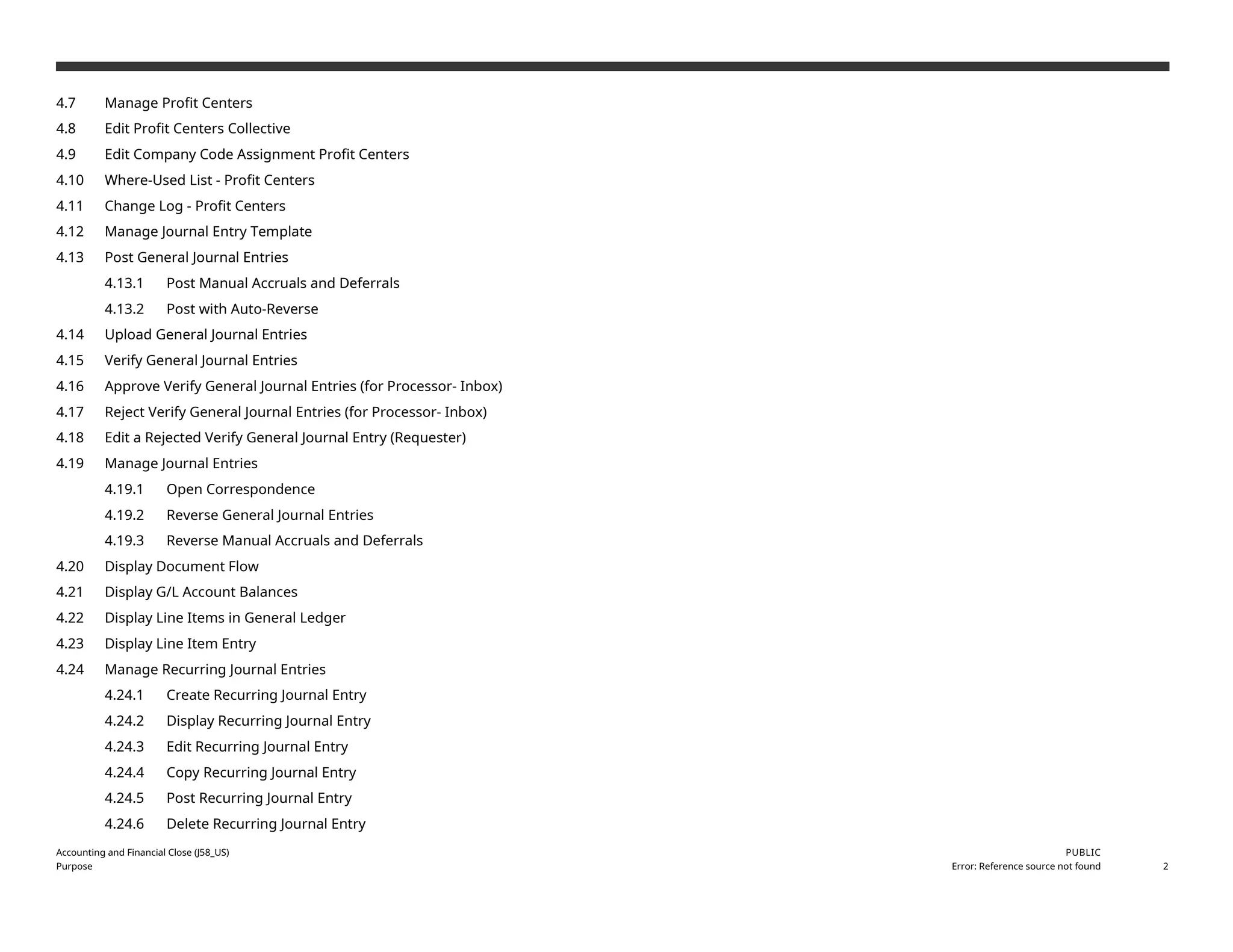
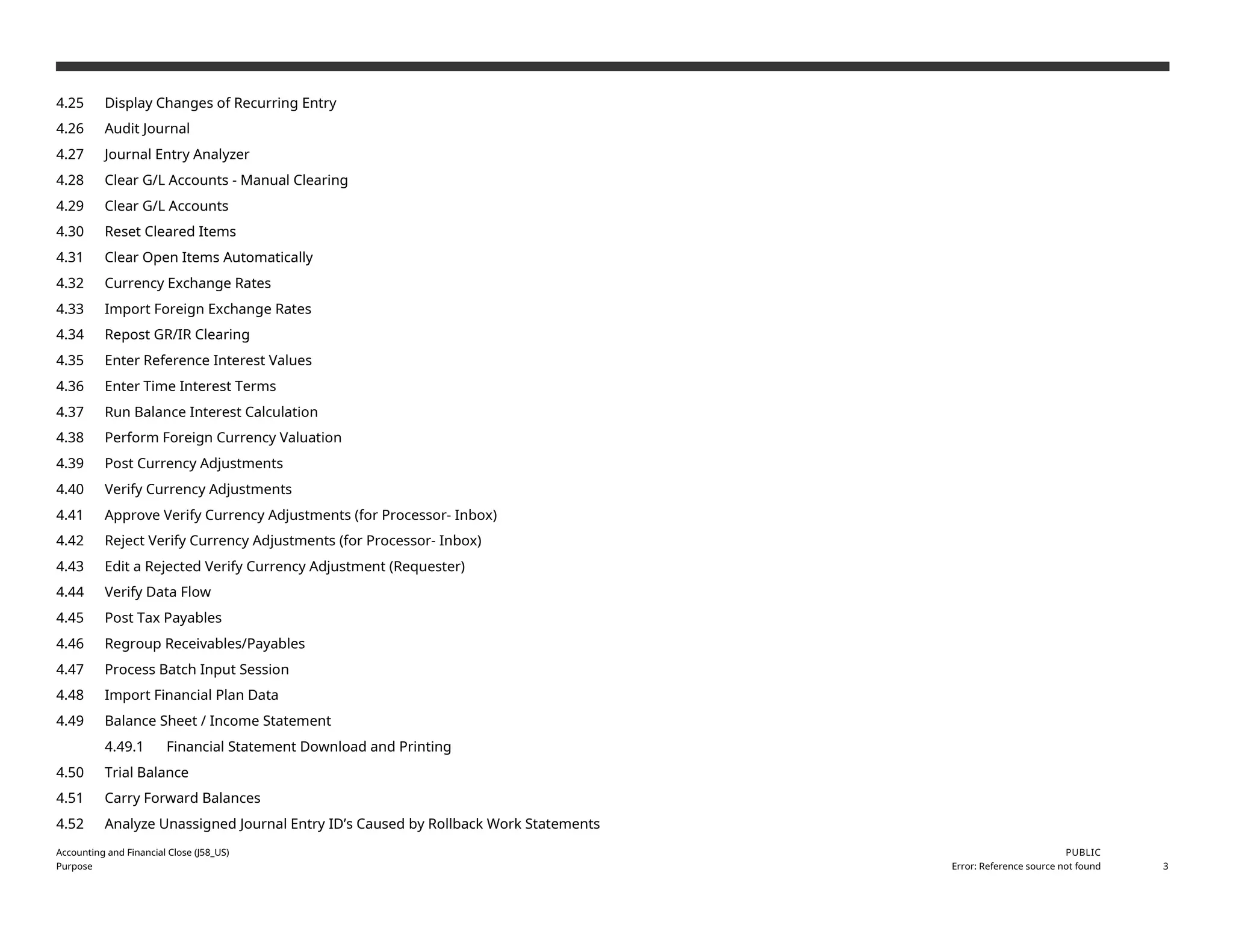
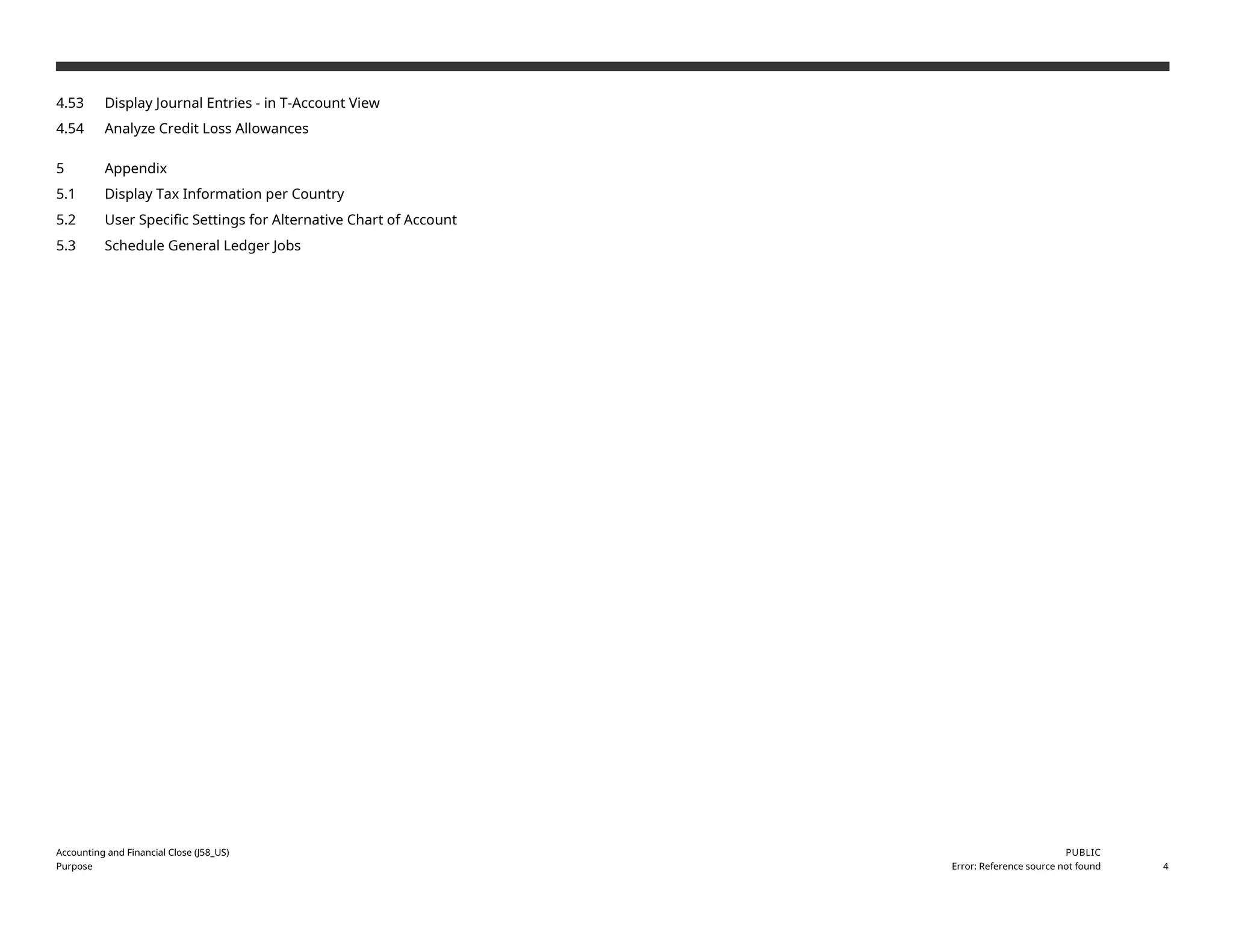

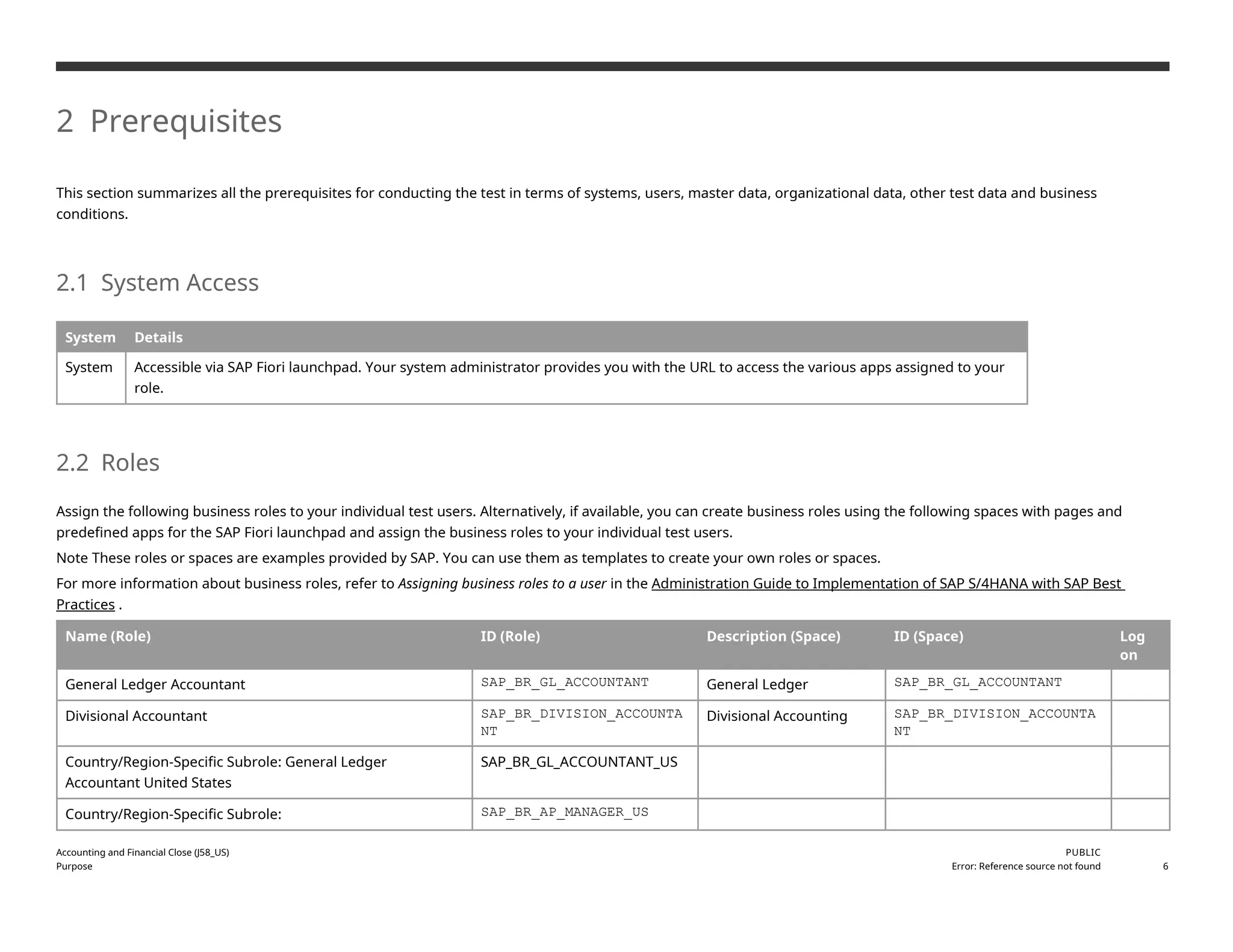
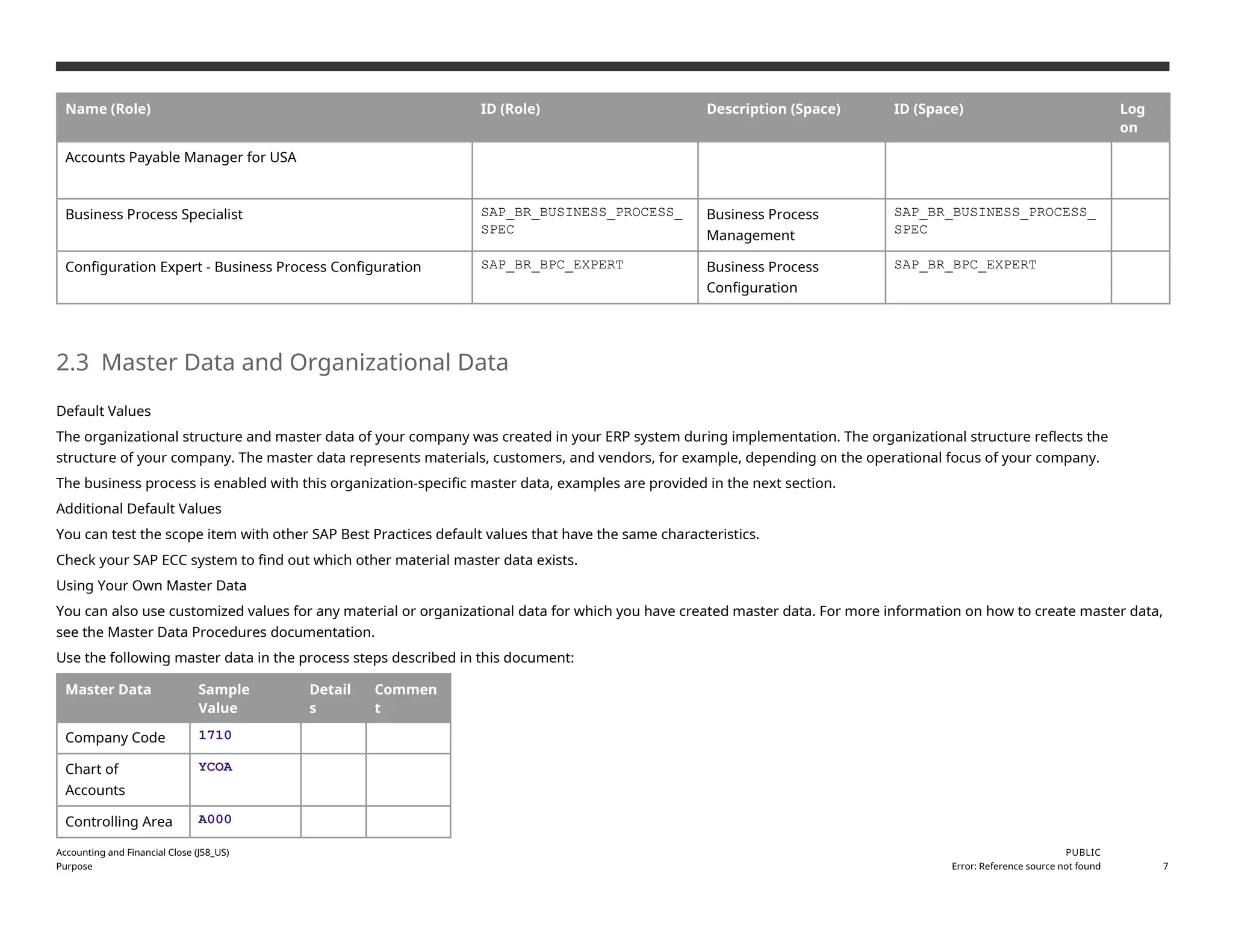

![3 Overview Table
The Accounting and Financial Close scope item consists of several process steps provided in the following tables.
Process Step Business Role Transaction/App Expected Results
Manage G/L Account
Master Data [page ] 15
General Ledger
Accountant
Manage G/L Account Master
Data (F0731A)
The G/L Account is created in the chart of accounts and company code. The
G/L Account can be created, changed, copied in the chart of account and
company code. Multiple G/L accounts can be maintained through Mass
Change.
Define Financial Statement
Versions [page ] 18
General Ledger
Accountant
Manage Financial Statement
Versions (OB58)
You maintained the financial statement version.
Manage Chart of Accounts
[page ] 21
General Ledger
Accountant
Manage Chart of Accounts
(F0763A)
You managed the chart of accounts.
Synchronize G/L Account
Master Data [page ] 22
General Ledger
Accountant
Synchronize G/L Account Master
Data (OB_GLACC71)
You downloaded the changed master data into a text file.
G/L Account Changes [page
] 24
General Ledger
Accountant
G/L Account Changes - Central
View (FS04)
Display the changes to a G/L account master record.
Manage Profit Center
Group [page ] 25
Divisional
Accountant
Manage Profit Center Group
(FAC_PCG)
The Profit Center Group is maintained.
Manage Profit Centers
[page ] 27
General Ledger
Accountant or
Divisional
Accountant
Manage Profit Centers (F3516) The Profit Center Master is maintained.
Edit Profit Centers Collective
[page ] 28
Divisional
Accountant
Edit Profit Centers - Collective
(KE55)
Make changes to large quantities of profit center master data without having
to change the master data for each single profit center.
Edit Company Code
Assignment Profit Centers
[page ] 31
Divisional
Accountant
Edit Company Code Assignment
- Profit Centers (KE56)
Make changes to the company code assignments of a larger number of
profit centers without having to change the master data for each single
profit center.
Accounting and Financial Close (J58_US)
Purpose
PUBLIC
Error: Reference source not found 9](https://image.slidesharecdn.com/j58s4hana2020bpdenus-250313105020-dfe504d2/75/J58_S4HANA2020_BPD_EN_USJ58_S4HANA2020_BPD_EN_US-docx-9-2048.jpg)
![Process Step Business Role Transaction/App Expected Results
Where-Used List - Profit
Centers [page ] 32
General Ledger
Accountant or
Divisional
Accountant
Where-Used List - Profit Centers
(F3751)
Change Log - Profit Centers
[page ] 33
General Ledger
Accountant or
Divisional
Accountant
Change Log - Profit Centers
(F3810)
Manage Journal Entry
Template [page ] 35
General Ledger
Accountant
Manage Journal Entry Templates
(F3803)
You created a template for general journal entries.
Post General Journal Entries
[page ] 37
General Ledger
Accountant
Post General Journal Entries
(F0718)
The General Ledger journal entry is posted. The system has automatically
added the Input tax amount.
Post Manual Accruals and
Deferrals [page ] 40
General Ledger
Accountant
Post General Journal Entries
(F0718)
The manual accruals and deferrals journal entry is posted.
Post with Auto-Reverse
[page ] 42
General Ledger
Accountant
Post General Journal Entries
(F0718)
You posted the journal entry with automatic reversal.
Upload General Journal
Entries [page ] 45
General Ledger
Accountant
Upload General Journal Entries
(F2548)
The G/L journal entries are posted.
Verify General Journal
Entries [page ] 47
General Ledger
Accountant
Verify General Journal Entries -
For Requester (F2547)
All journal entries submitted for checking are displayed.
Approve Verify General
Journal Entries (for
Processor- Inbox) [page ]
52
General Ledger
Accountant for USA
Verify Journal Entries in General
Ledger - For Processor (Inbox)
(F2728)
All journal entries received for approval are displayed.
Reject Verify General
Journal Entries (for
Processor- Inbox) [page ]
53
General Ledger
Accountant for USA
Verify Journal Entries in General
Ledger - For Processor (Inbox)
(F2728)
All journal entries checked by the user are displayed.
Edit a Rejected Verify General Ledger Verify General Journal Entries - All submitted journal entries are displayed.
Accounting and Financial Close (J58_US)
Purpose
PUBLIC
Error: Reference source not found 10](https://image.slidesharecdn.com/j58s4hana2020bpdenus-250313105020-dfe504d2/75/J58_S4HANA2020_BPD_EN_USJ58_S4HANA2020_BPD_EN_US-docx-10-2048.jpg)
![Process Step Business Role Transaction/App Expected Results
General Journal Entry
(Requester) [page ] 54
Accountant For Requester (F2547)
Manage Journal Entries
[page ] 55
General Ledger
Accountant
Manage Journal Entries
(F0717)
The Journal Entry screen displays.
Open Correspondence
[page ] 57
General Ledger
Accountant
Manage Journal Entries
(F0717)
Correspondence is created according to the selected criteria.
Reverse General Journal
Entries [page ] 59
General Ledger
Accountant
Post General Journal Entries
(F0718)
The Post General Journal Entries (F0718) screen displays.
Reverse Manual Accruals
and Deferrals [page ] 62
General Ledger
Accountant
Post General Journal Entries
(F0718)
The Post General Journal Entries (F0718) screen displays.
Display Document Flow
[page ] 63
General Ledger
Accountant
Display Document Flow You displayed the document flow.
Display G/L Account
Balances [page ] 65
General Ledger
Accountant
Display G/L Account Balances
(F0707)
The G/L Account Balances screen displays.
Display Line Items in
General Ledger [page ] 66
General Ledger
Accountant
Display Line Items in General
Ledger (F2217)
A list of all relevant line items is displayed.
Display Line Item Entry
[page ] 67
General Ledger
Accountant
Display Line Item Entry (F2218) A list of all relevant line items is displayed.
Manage Recurring Journal Entries [page ] 69
Process Step Business Role Transaction/App Expected Results
Create Recurring Journal Entry [page
] 69
General Ledger
Accountant
Manage Recurring Journal Entries
(F1598)
The Manage Recurring Journal Entries: Header Data screen
displays.
Display Recurring Journal Entry
[page ] 71
General Ledger
Accountant
Manage Recurring Journal Entries
(F1598)
The Manage Recurring Journal Entries: Header Data screen
displays.
Edit Recurring Journal Entry [page ]
72
General Ledger
Accountant
Manage Recurring Journal Entries
(F1598)
The Manage Recurring Journal Entries: Header Data screen
displays.
Copy Recurring Journal Entry [page ] General Ledger Manage Recurring Journal Entries The Manage Recurring Journal Entries: Header Data screen
Accounting and Financial Close (J58_US)
Purpose
PUBLIC
Error: Reference source not found 11](https://image.slidesharecdn.com/j58s4hana2020bpdenus-250313105020-dfe504d2/75/J58_S4HANA2020_BPD_EN_USJ58_S4HANA2020_BPD_EN_US-docx-11-2048.jpg)
![Process Step Business Role Transaction/App Expected Results
73 Accountant (F1598) displays.
Post Recurring Journal Entry [page ]
74
General Ledger
Accountant
Manage Recurring Journal Entries
(F1598)
The Manage Recurring Journal Entries: Header Data screen
displays.
Delete Recurring Journal Entry [page
] 75
General Ledger
Accountant
Manage Recurring Journal Entries
(F1598)
The Manage Recurring Journal Entries: Header Data screen
displays.
Process Step Business Role Transaction/App Expected Results
Display Changes of Recurring Entry
[page ] 76
General Ledger
Accountant
Display Changes of Recurring Entry (FBD4) The G/L Account Line Items - G/L View screen
displays.
Audit Journal [page ] 77 General Ledger
Accountant
Audit Journal (F0997)
Journal Entry Analyzer [page ] 79 General Ledger
Accountant
Journal Entry Analyzer (FIS_FPM_OVP_JEANA)
Clear G/L Accounts - Manual Clearing
[page ] 81
General Ledger
Accountant
Clear G/L Accounts - Manual Clearing (F1579) The Clear G/L Accounts (F1579) screen
displays.
Clear G/L Accounts [page ] 83 General Ledger
Accountant
Post General Journal Entries (F0718) The Post General Journal Entries (F0718)
screen displays.
Reset Cleared Items [page ] 86 General Ledger
Accountant
Reset Cleared Items (F2223)
Clear Open Items Automatically [page ]
87
General Ledger
Accountant
Post General Journal Entries (F0718) The Post General Journal Entries (F0718)
screen displays.
Currency Exchange Rates [page ] 89 General Ledger
Accountant
Maintain Exchange Rates (OB08) The Change View "Currency Exchange Rates";
Overview screen displays.
Import Foreign Exchange Rates [page ]
90
General Ledger
Accountant
Import Foreign Exchange Rates (F2092) The Import Foreign Exchange Rates (F2092)
screen displays.
Repost GR/IR Clearing [page ] 91 General Ledger
Accountant
Repost GR/IR Clearing (F.19) The Analyze GR/IR Clearing Accounts and
Display Acquisition Tax screen displays.
Enter Reference Interest Values [page ] General Ledger Enter Reference Interest Values (JBIRMC) The new Reference Interest Rate Values are
Accounting and Financial Close (J58_US)
Purpose
PUBLIC
Error: Reference source not found 12](https://image.slidesharecdn.com/j58s4hana2020bpdenus-250313105020-dfe504d2/75/J58_S4HANA2020_BPD_EN_USJ58_S4HANA2020_BPD_EN_US-docx-12-2048.jpg)
![Process Step Business Role Transaction/App Expected Results
93 Accountant available in the system.
Enter Time Interest Terms [page ] 95 General Ledger
Accountant
Enter Time Interest Terms (S_ALR_87002510) The new Interest indicators are available in
the system.
Run Balance Interest Calculation [page ]
96
General Ledger
Accountant
Run Balance Interest Calculation (F.52) The G/L account interest scale report displays.
Perform Foreign Currency Valuation
[page ] 98
General Ledger
Accountant
Perform Foreign Currency Valuation
(FAGL_FCV)
The Foreign Currency Valuation screen
displays.
Post Currency Adjustments [page ] 100 General Ledger
Accountant
Post Currency Adjustments (F1606) Currency adjustments are posted.
Verify Currency Adjustments [page ] 102 General Ledger
Accountant
Verify Currency Adjustment - For Requester
(F2547)
You verified a currency adjustment.
Approve Verify Currency Adjustments (for
Processor- Inbox) [page ] 105
General Ledger
Accountant for USA
Verify Journal Entries in General Ledger - For
Processor (Inbox) (F2728)
You approved a currency adjustment.
Reject Verify Currency Adjustments (for
Processor- Inbox) [page ] 107
General Ledger
Accountant for USA
Verify Journal Entries in General Ledger - For
Processor (Inbox) (F2728)
You rejected a currency adjustment.
Edit a Rejected Verify Currency
Adjustment (Requester) [page ] 108
General Ledger
Accountant
Verify Currency Adjustment - For Requester
(F2547)
You edited a rejected currency adjustment.
Verify Data Flow [page ] 109 General Ledger
Accountant
Verify Data Flow (ACC_ECS_MAINTAIN)
Post Tax Payables [page ] 111 General Ledger
Accountant
Post Tax Payables (F1597) The Post Tax Payables: Header Data screen
displays.
Process Step Business Role Transaction/App Expected Results
Regroup Receivables/Payables [page
] 112
General Ledger
Accountant
Regroup Receivables / Payables
(FAGLF101)
The receivables and payables are regrouped, and
transfer postings are performed.
Process Batch Input Session [page ]
114
General Ledger
Accountant
Batch Input Sessions in My Area (SM35SA) Journal entries are posted and recurring documents are
updated with processing data.
Import Financial Plan Data [page ] General Ledger Import Financial Plan Data (F1711) The balance sheet and P&L accounts are planned.
Accounting and Financial Close (J58_US)
Purpose
PUBLIC
Error: Reference source not found 13](https://image.slidesharecdn.com/j58s4hana2020bpdenus-250313105020-dfe504d2/75/J58_S4HANA2020_BPD_EN_USJ58_S4HANA2020_BPD_EN_US-docx-13-2048.jpg)
![Process Step Business Role Transaction/App Expected Results
116 Accountant
Balance Sheet / Income Statement
[page ] 118
General Ledger
Accountant
Balance Sheet/Income Statement (F0708) The financial statement is displayed.
Financial Statement Download and
Printing [page ] 119
General Ledger
Accountant
Balance Sheet / Income Statement -
Multidimensional (F3084)
The financial statement is downloaded in Excel format.
Process Step Business
Role
Transaction/App Expected Results
Trial Balance [page ] 121 General
Ledger
Accountant
Trial Balance (F0996A) The trial balance displays.
Carry Forward Balances [page ]
122
General
Ledger
Accountant
Carry Forward Balances (F1596) The profit and loss accounts are carried forward to one or more
retained earnings accounts. The balances on the balance sheet
accounts carry forward into the new fiscal year.
Analyze Unassigned Journal Entry
ID’s Caused by Rollback Work
Statements [page ] 124
General
Ledger
Accountant
Analyze Unassigned Journal Entry IDs -
Caused by Rollback Work Statements
(FINS_RSSNR0S1)
A report is displayed.
Process Step Business Role Transaction / App Expected Results
Display Journal Entries - in T-Account View
[page ] 125
General Ledger
Accountant
Display Journal Entries - In T-Account View
(F3664)
You viewed the accounting impact of the
document.
Analyze Credit Loss Allowances [page ] 127 General Ledger
Accountant
Analyze Credit Loss Allowances You analyzed the credit loss allowances.
Process Step Business Role Transaction/App Expected Results
Accounting and Financial Close (J58_US)
Purpose
PUBLIC
Error: Reference source not found 14](https://image.slidesharecdn.com/j58s4hana2020bpdenus-250313105020-dfe504d2/75/J58_S4HANA2020_BPD_EN_USJ58_S4HANA2020_BPD_EN_US-docx-14-2048.jpg)


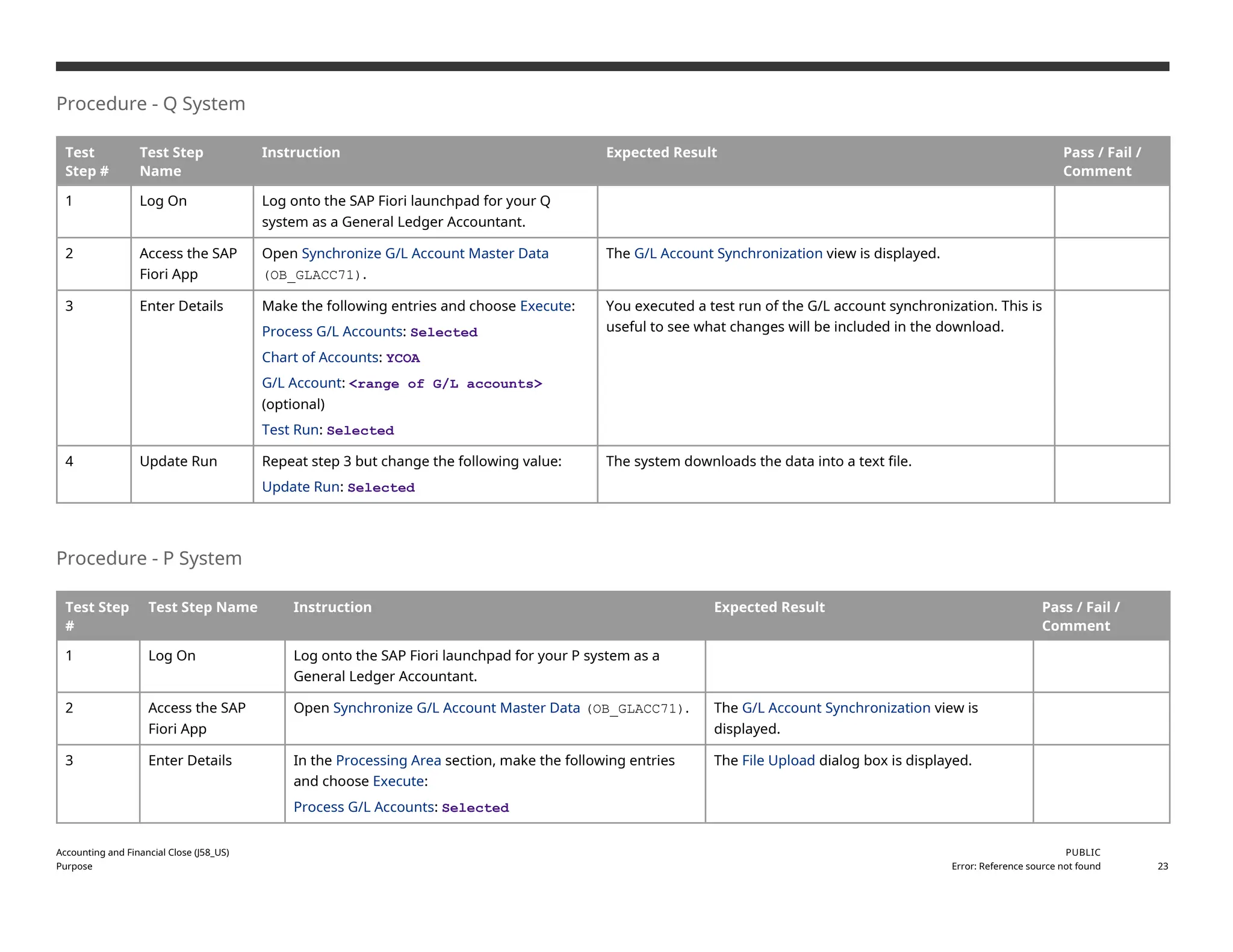


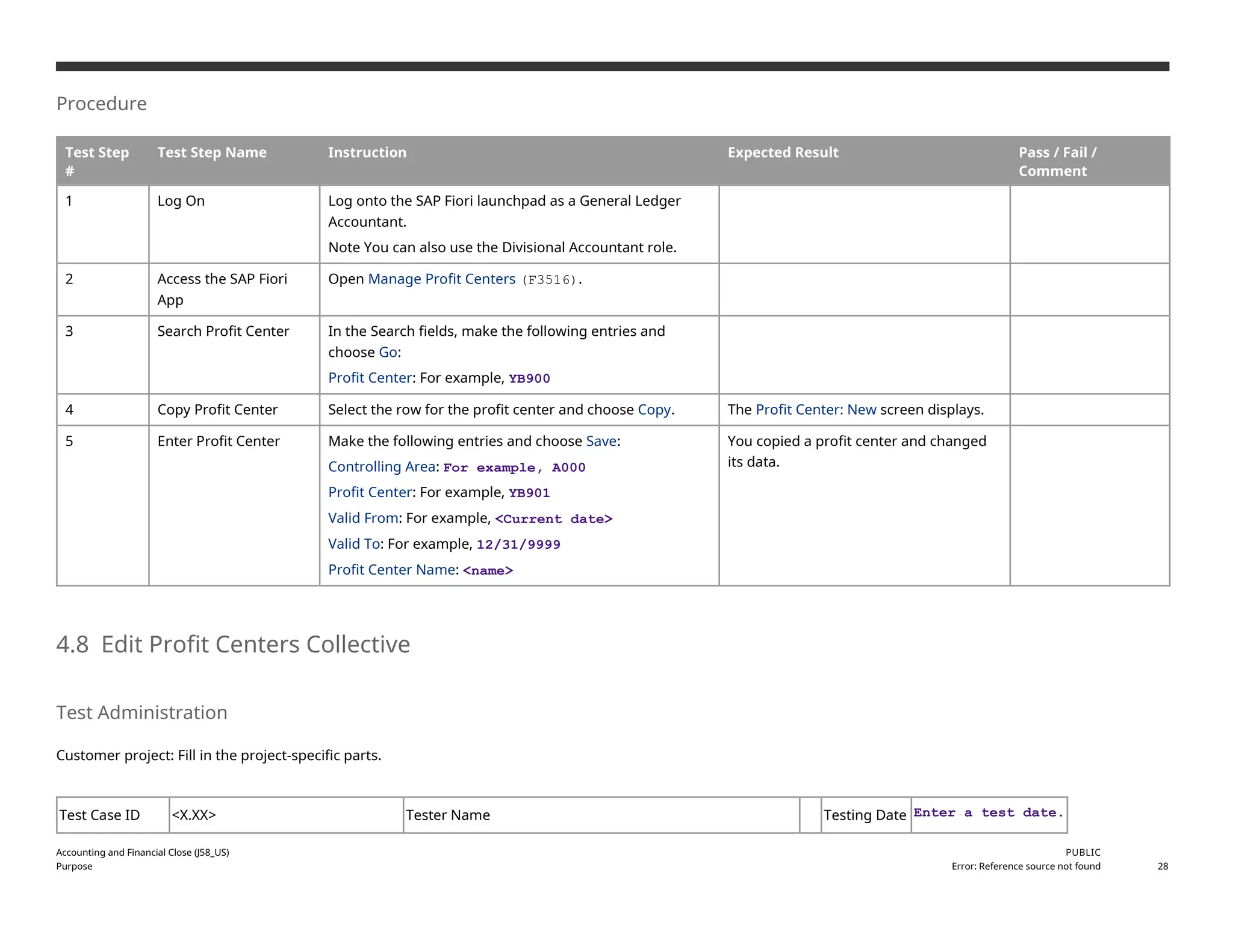


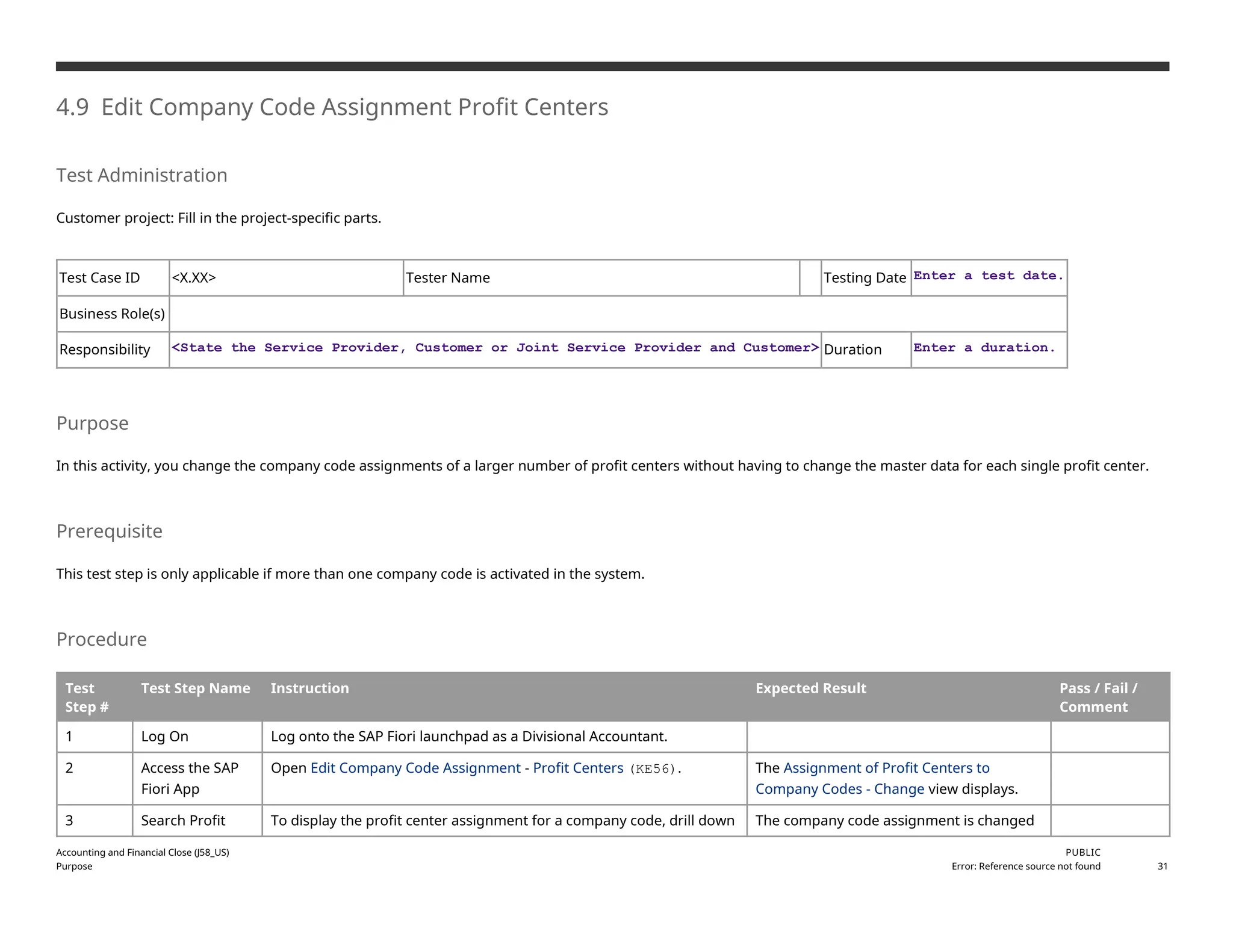
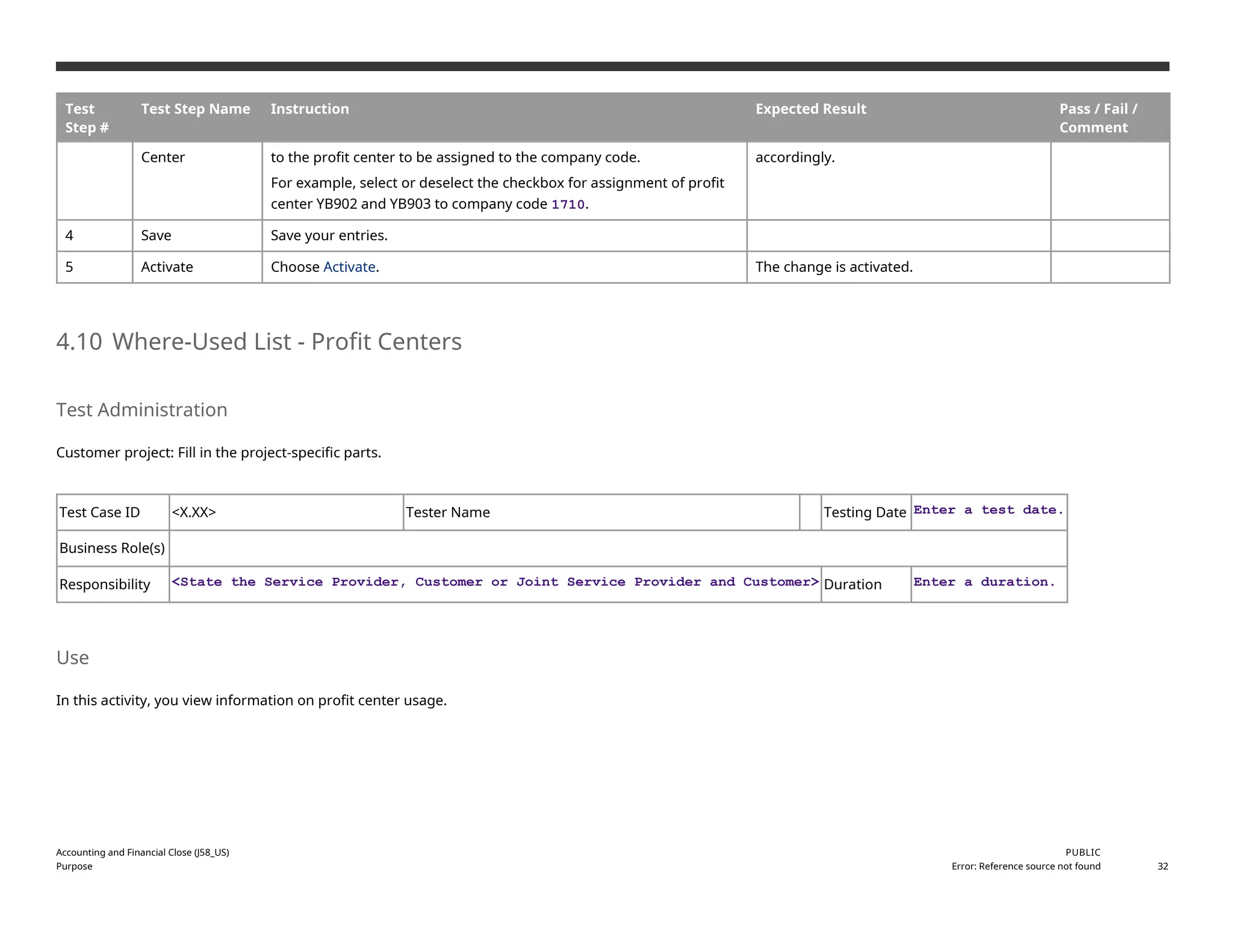
![Procedure
Test
Step #
Test Step
Name
Instruction Expected Result Pass / Fail /
Comment
1 Log On Log on to the SAP Fiori launchpad as a Divisional Accountant.
Note You can also use the General Ledger Accountant role.
2 Access the SAP
Fiori App
Open Where-Used List - Profit Centers (F3751).
3 Enter Data Make the following entries and choose Go:
Profit Center: <profit center>, for example, YB101
Valid On: <date>, for example, Today
The system displays object types that use the
profit center.
4 Select Object
Type
Choose the arrow at the right side of a row for one of the object
types (for example, Cost Centers).
The right pane expands, showing profit center
details for the selected object type.
5 Manage Profit
Centers
In the right pane, choose the hyperlink for the profit center (for
example, YB101), and from the dialog box, choose Manage Profit
Centers.
The Manage Profit Centers view displays.
6 More Links For the profit center, choose the arrow button at the right of the
row.
The Manage Profit Centers view is displayed.
7 Change Log Choose Change Log. The Change Log pane is displayed.
For more information on the Change Log activity,
see the Change Log - Profit Centers [page ] 33
topic.
4.11 Change Log - Profit Centers
Test Administration
Customer project: Fill in the project-specific parts.
Accounting and Financial Close (J58_US)
Purpose
PUBLIC
Error: Reference source not found 33](https://image.slidesharecdn.com/j58s4hana2020bpdenus-250313105020-dfe504d2/75/J58_S4HANA2020_BPD_EN_USJ58_S4HANA2020_BPD_EN_US-docx-33-2048.jpg)
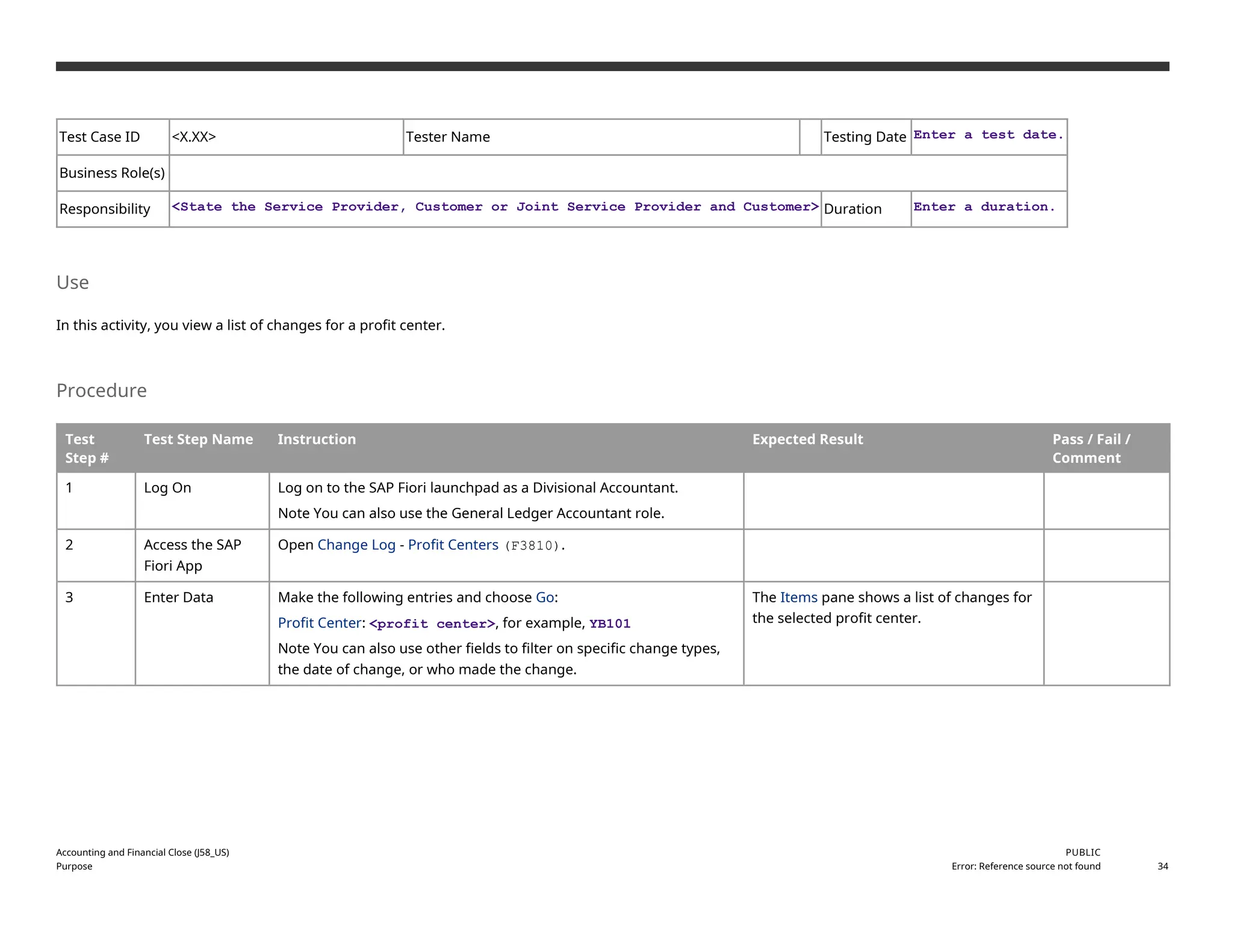
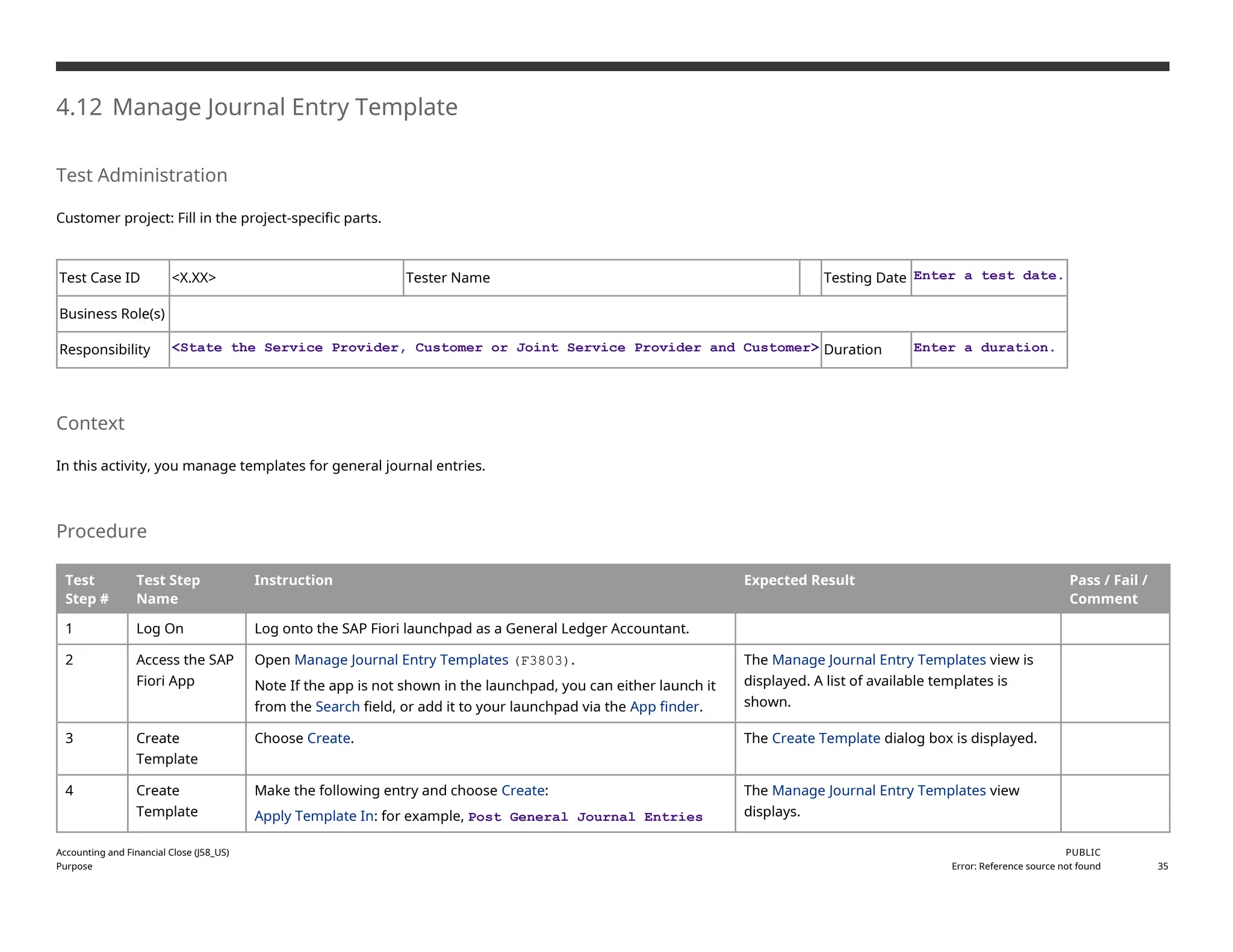


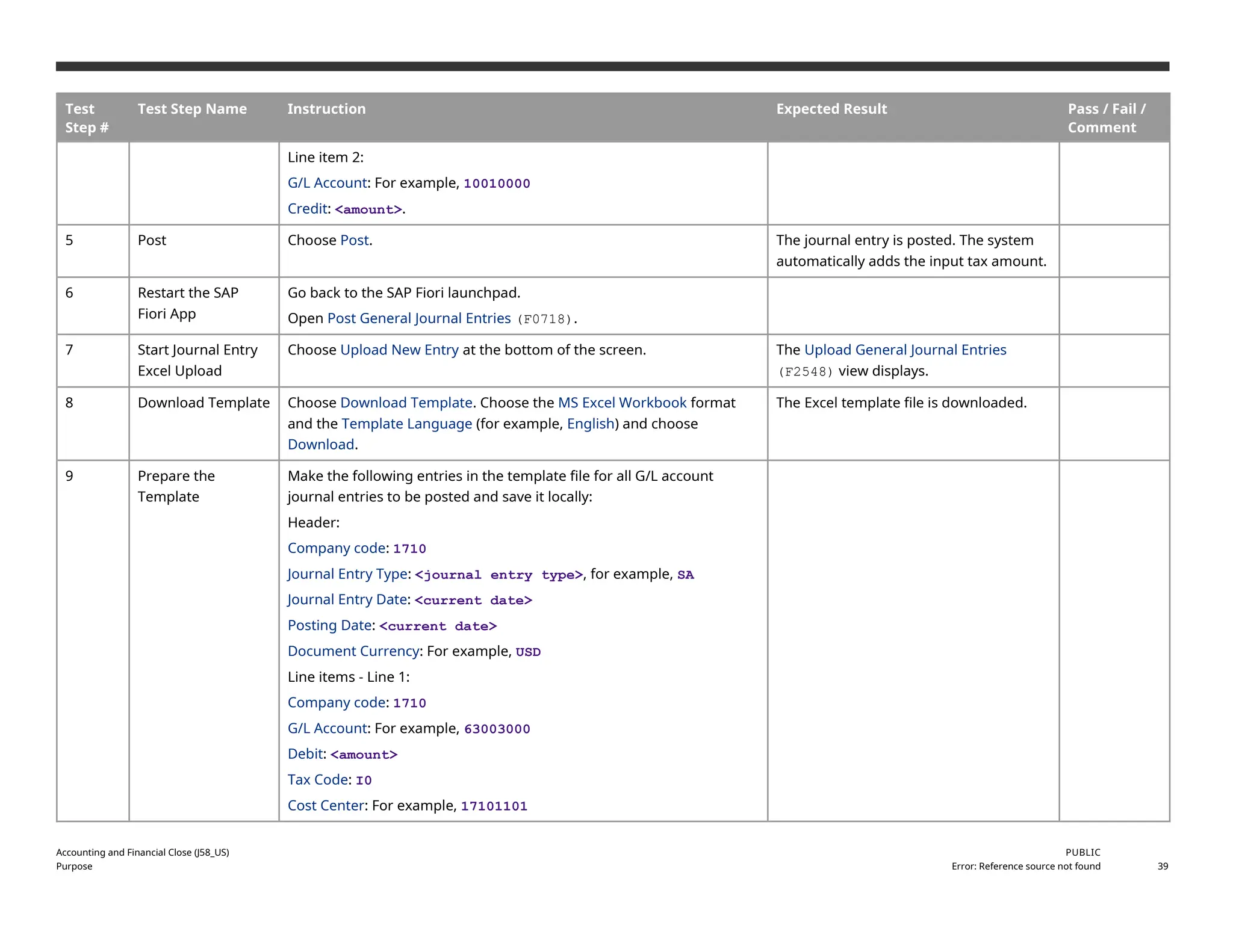


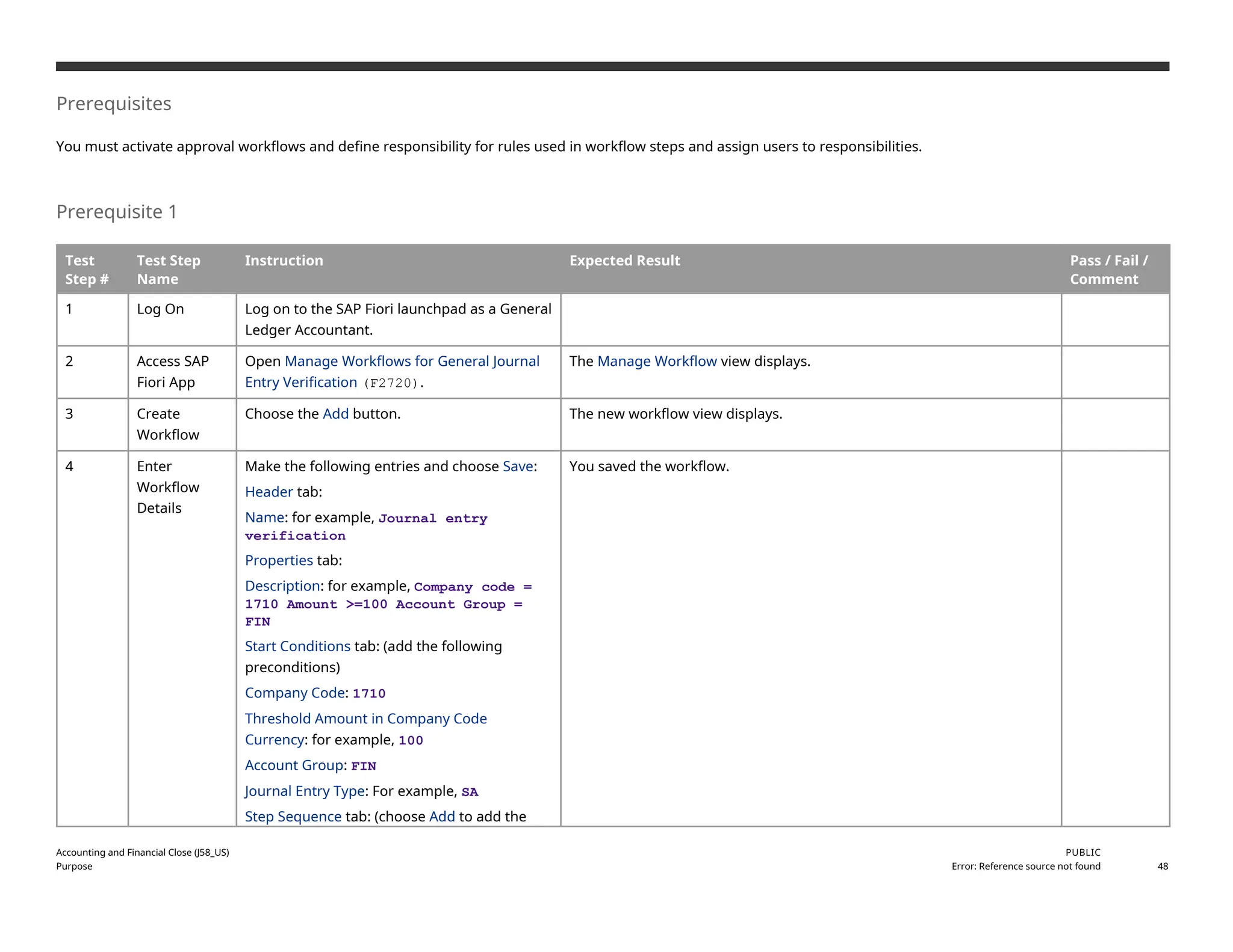


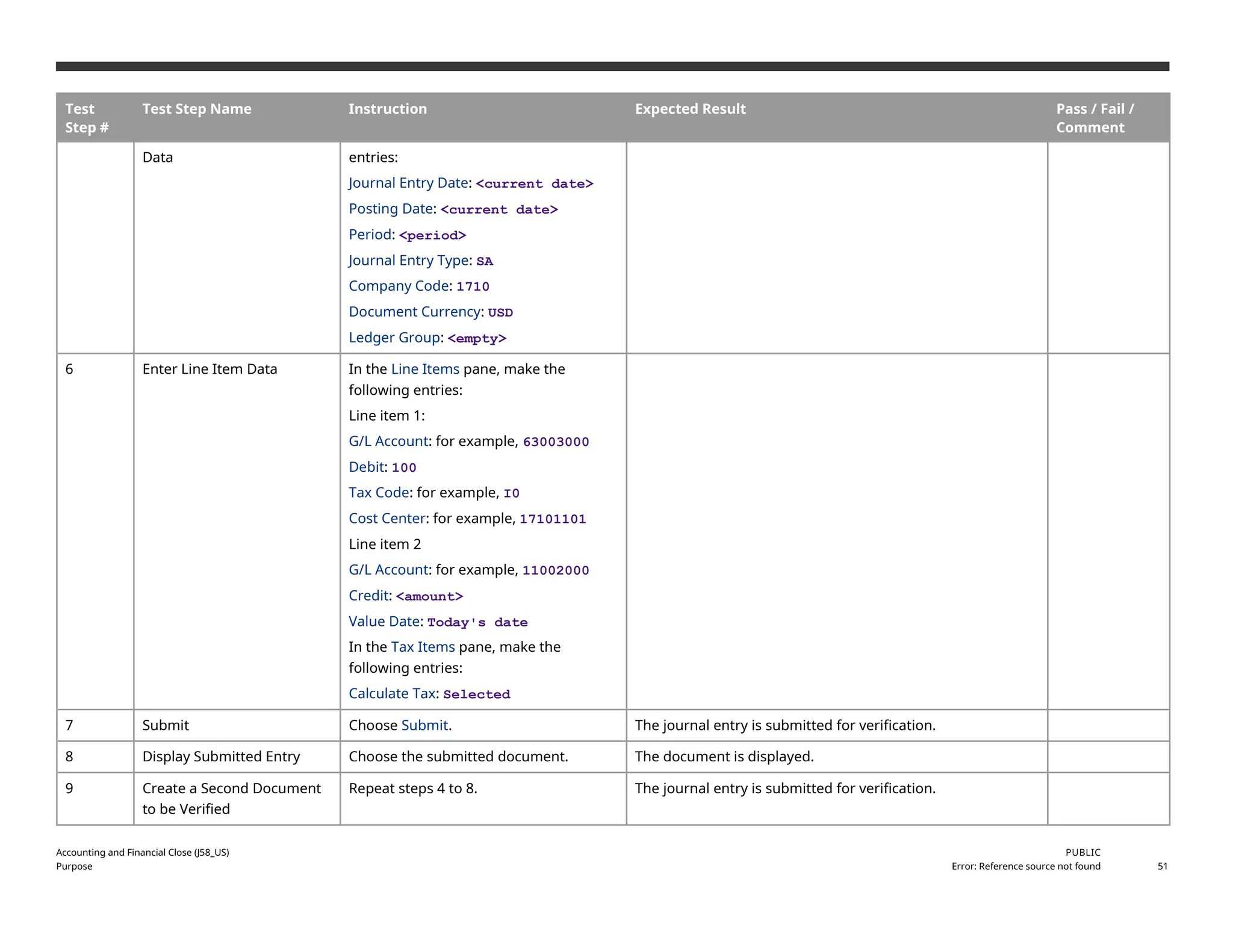


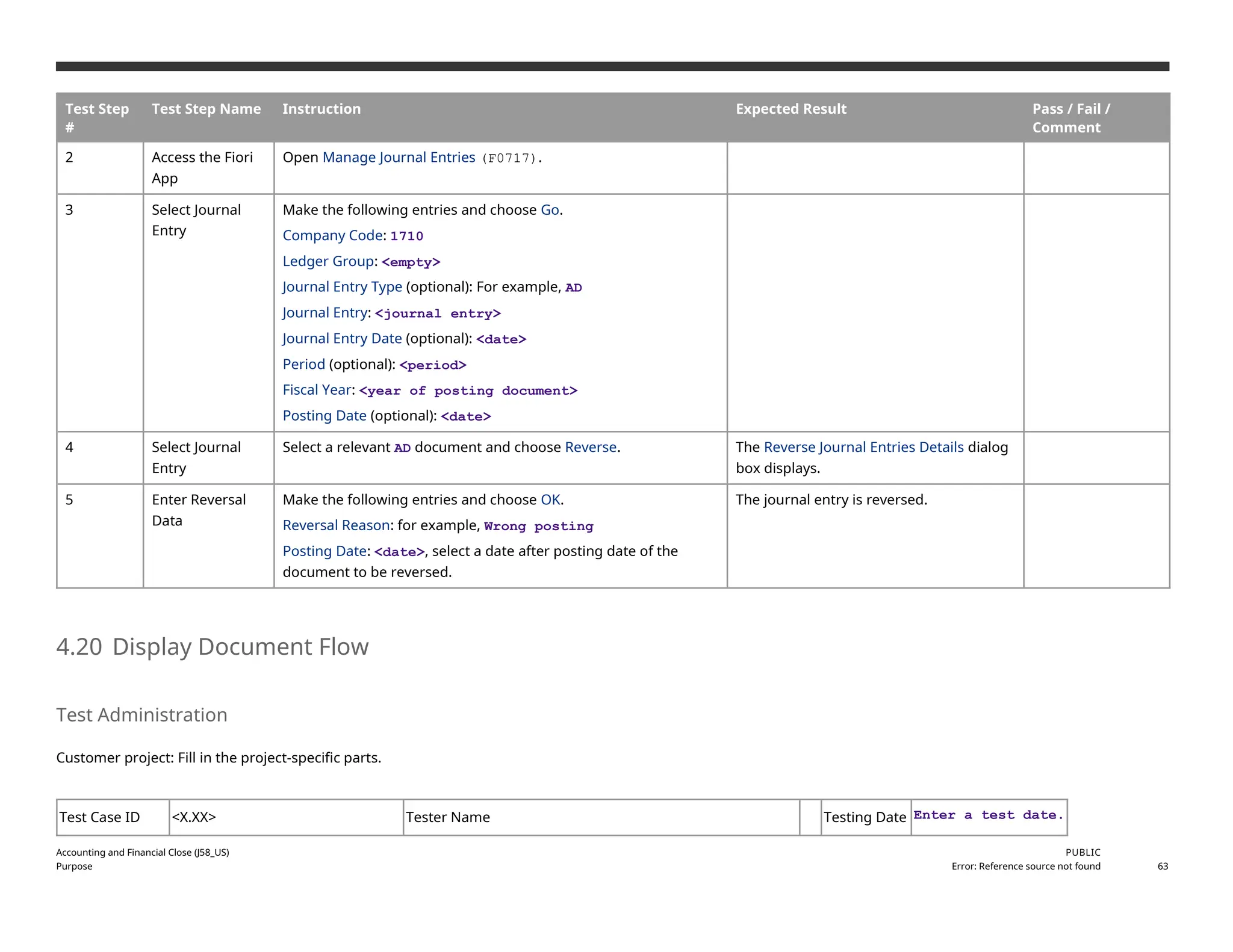
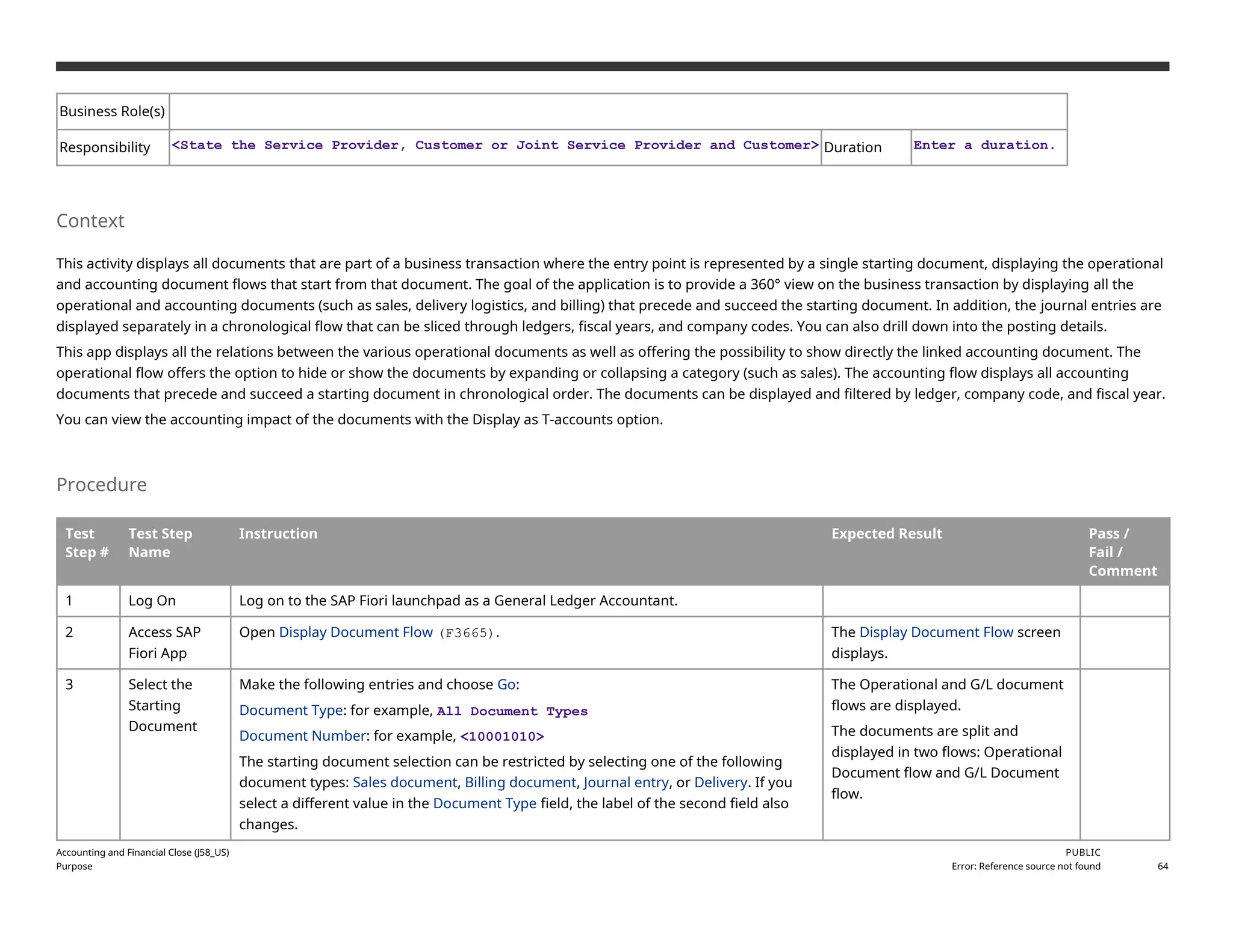

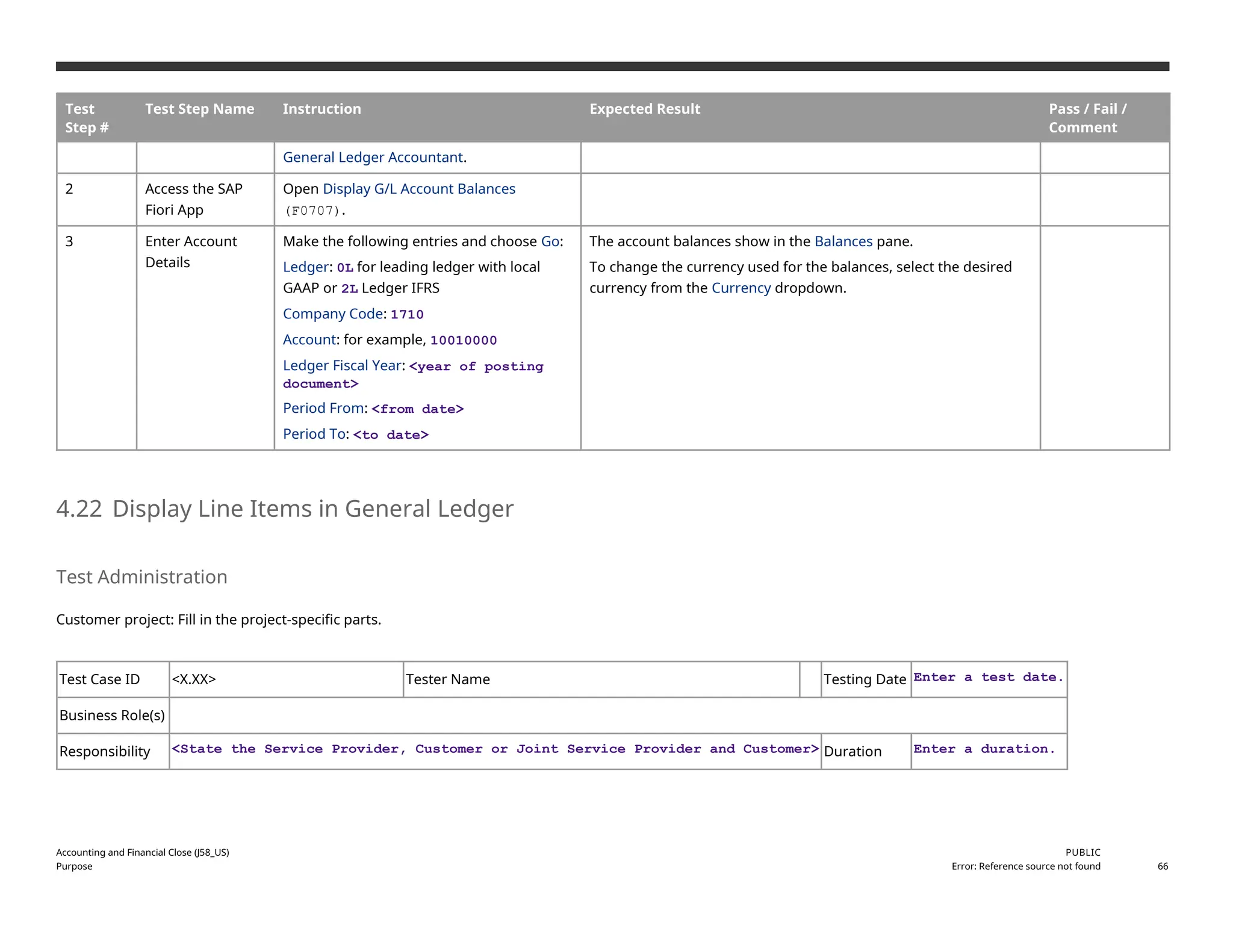
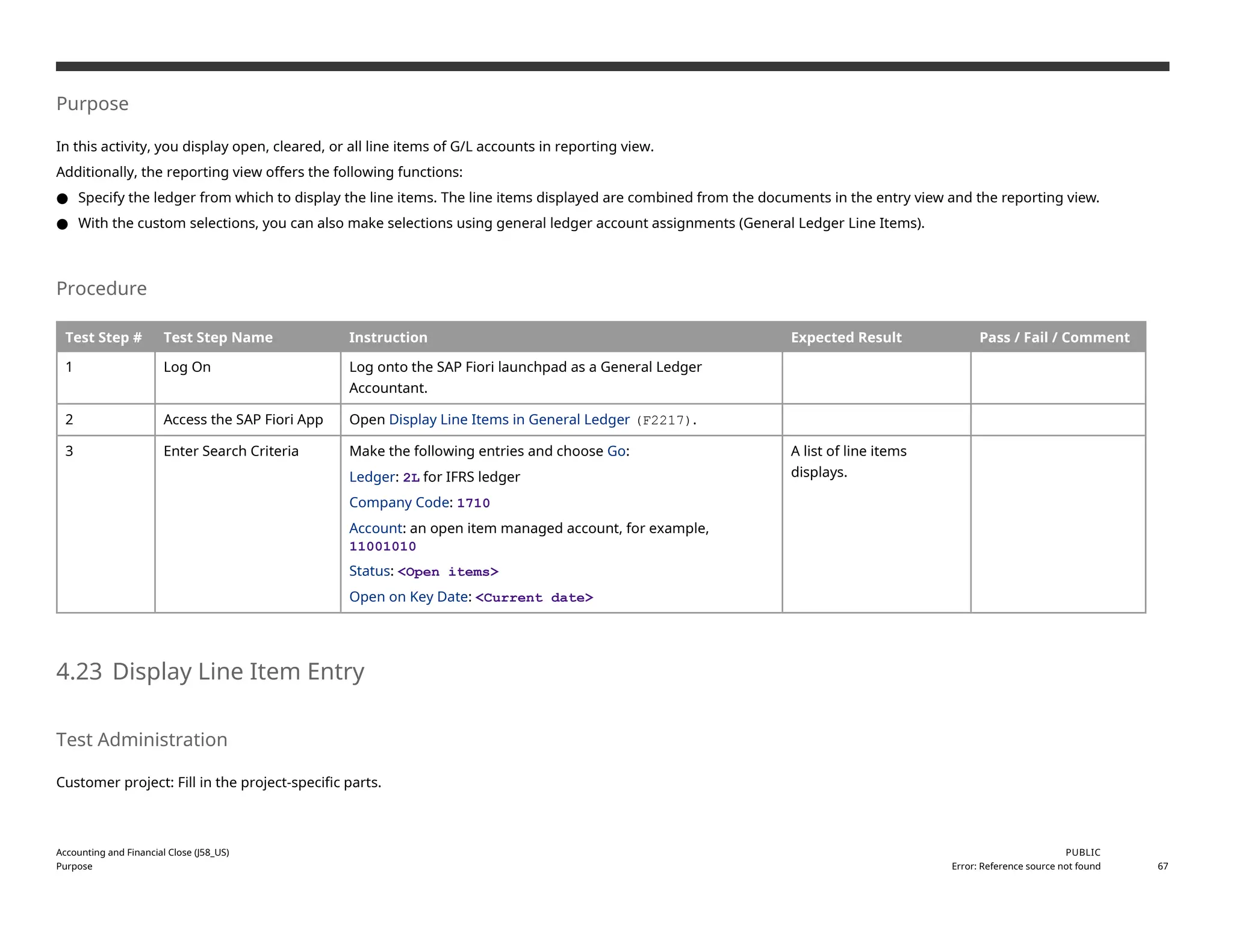
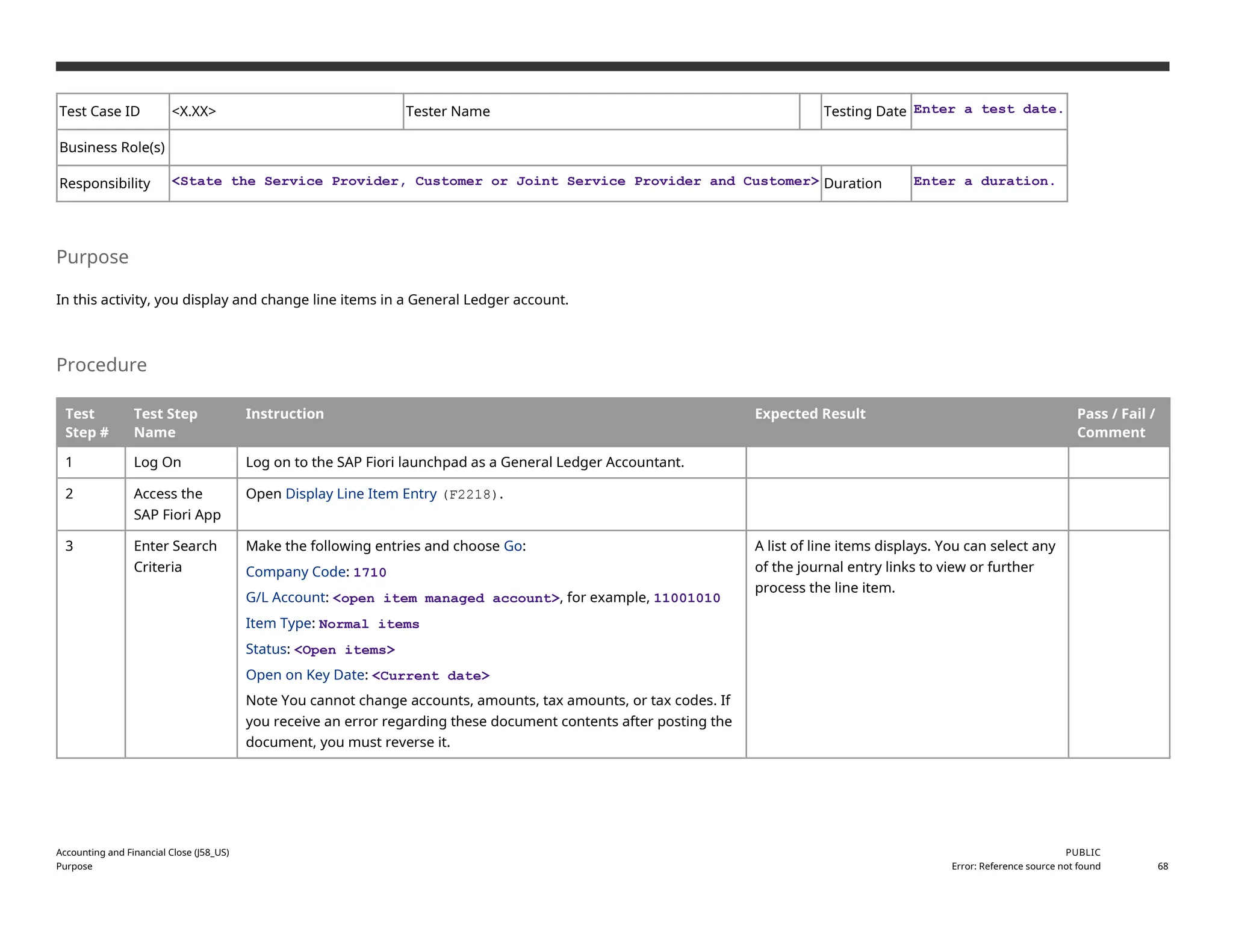
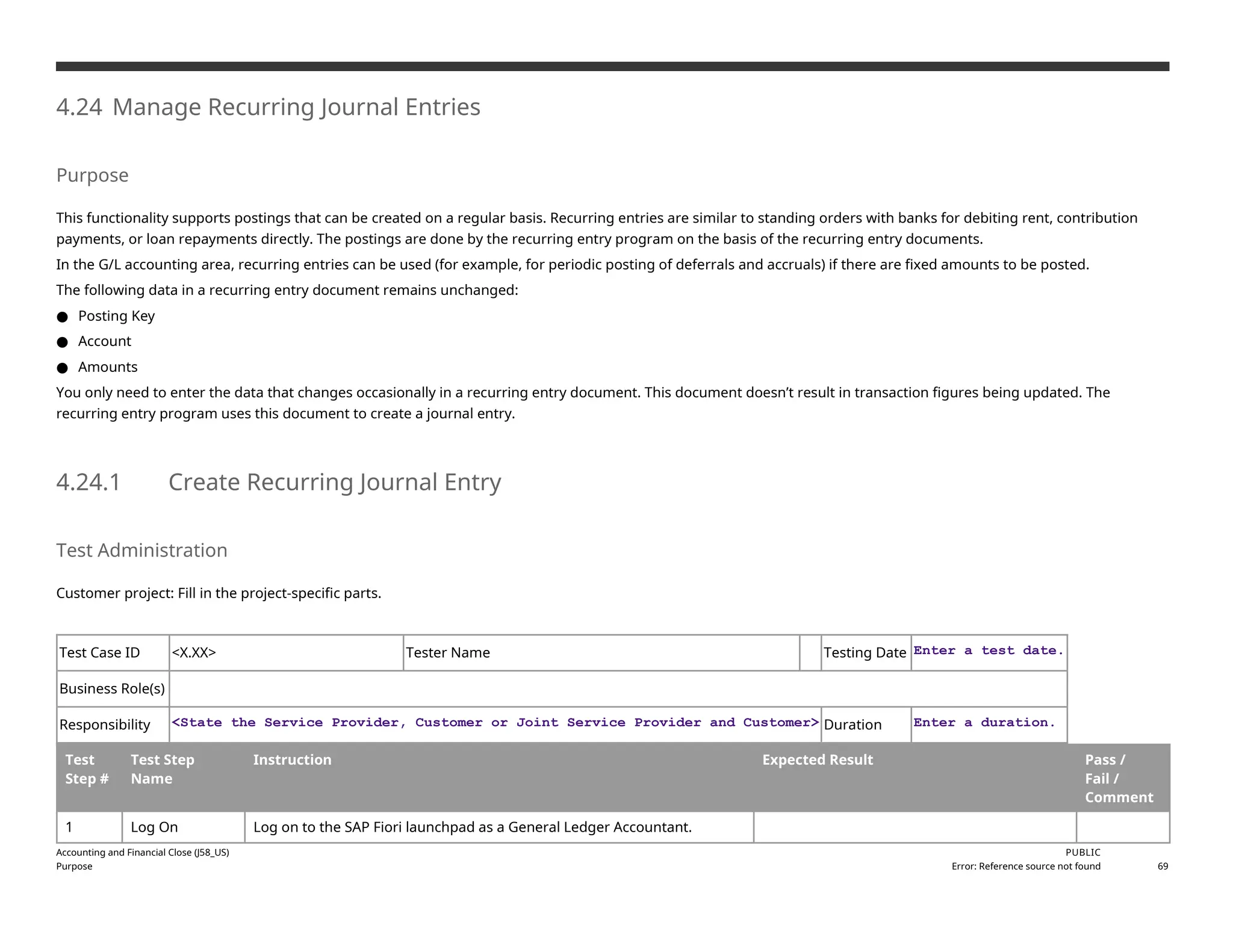
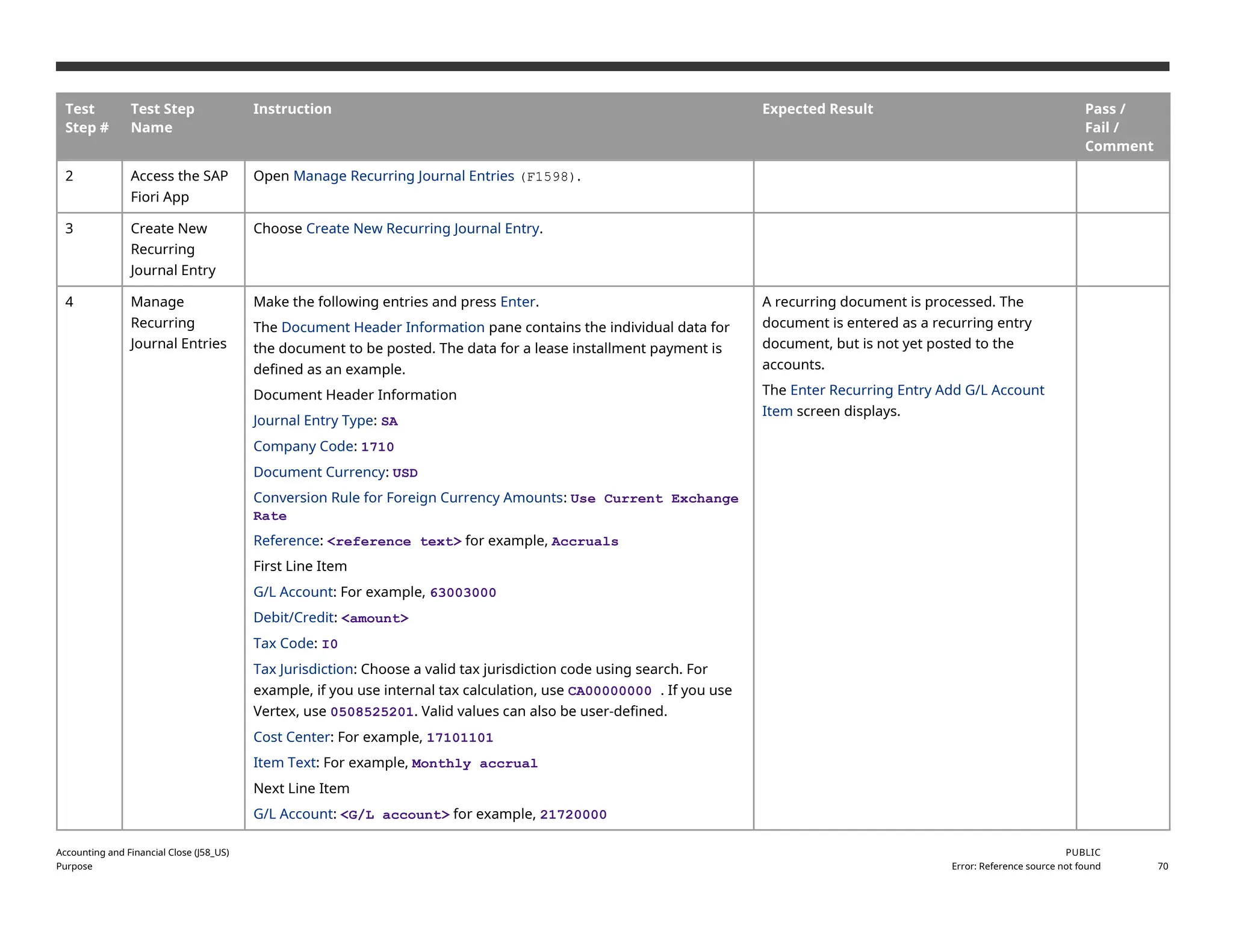


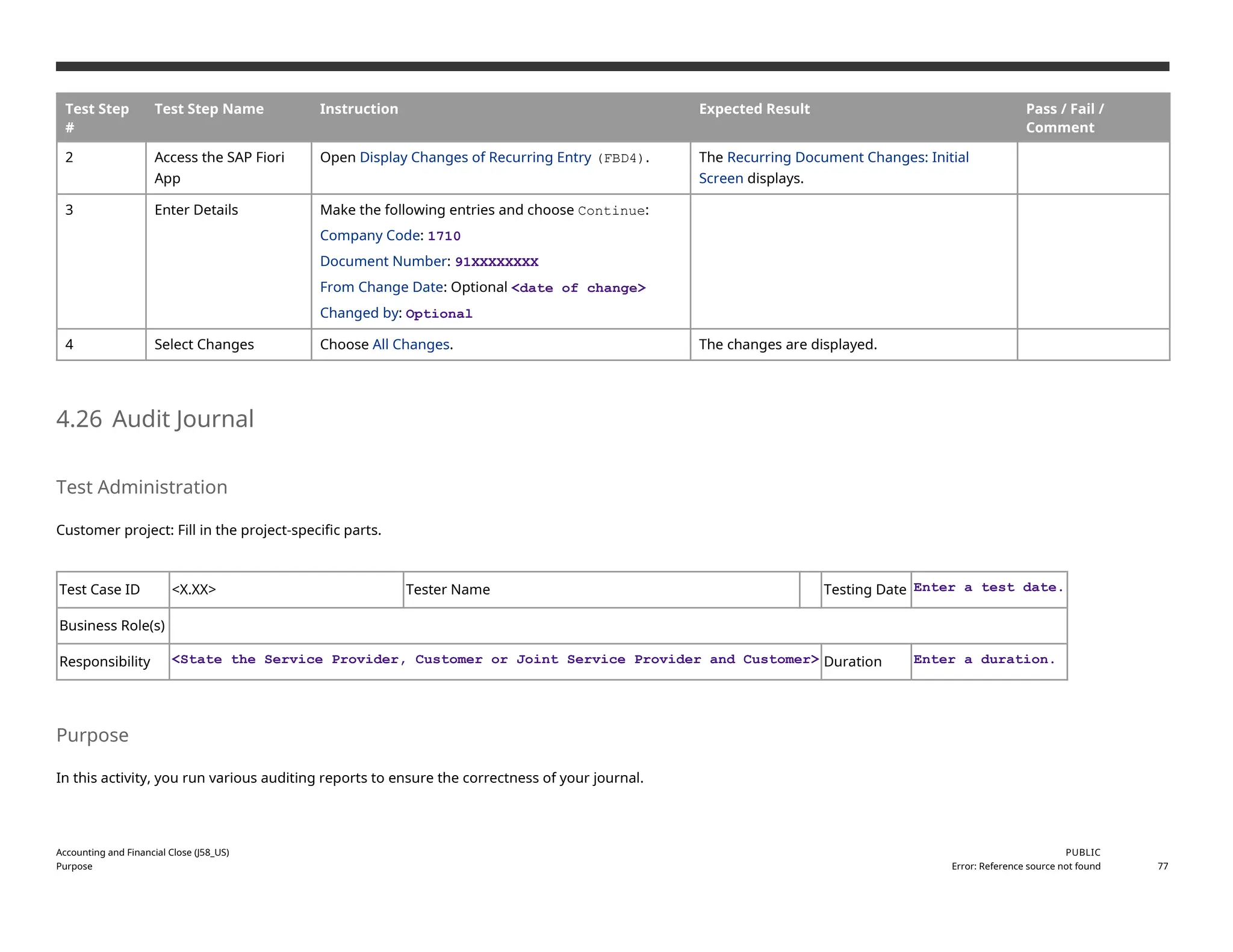


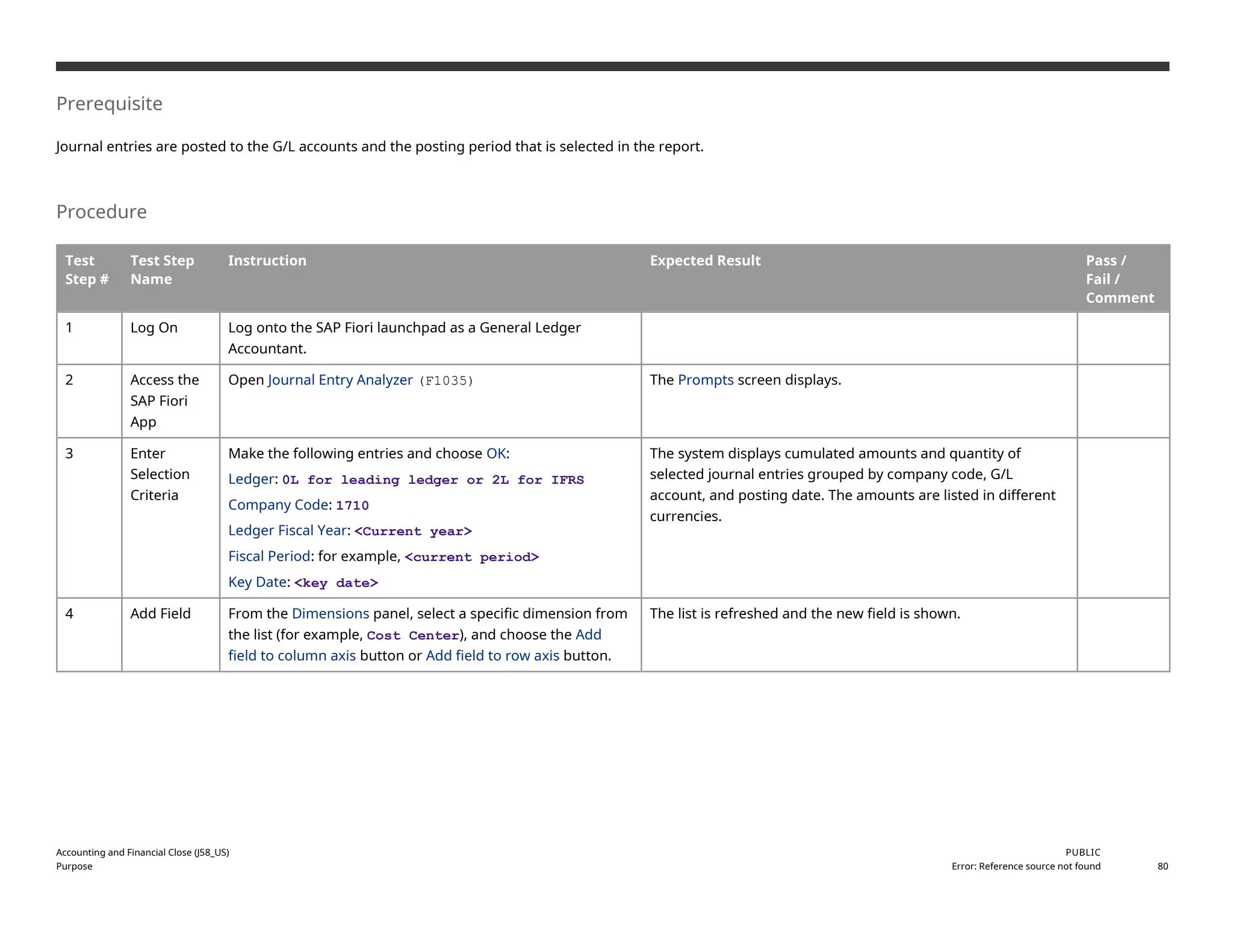

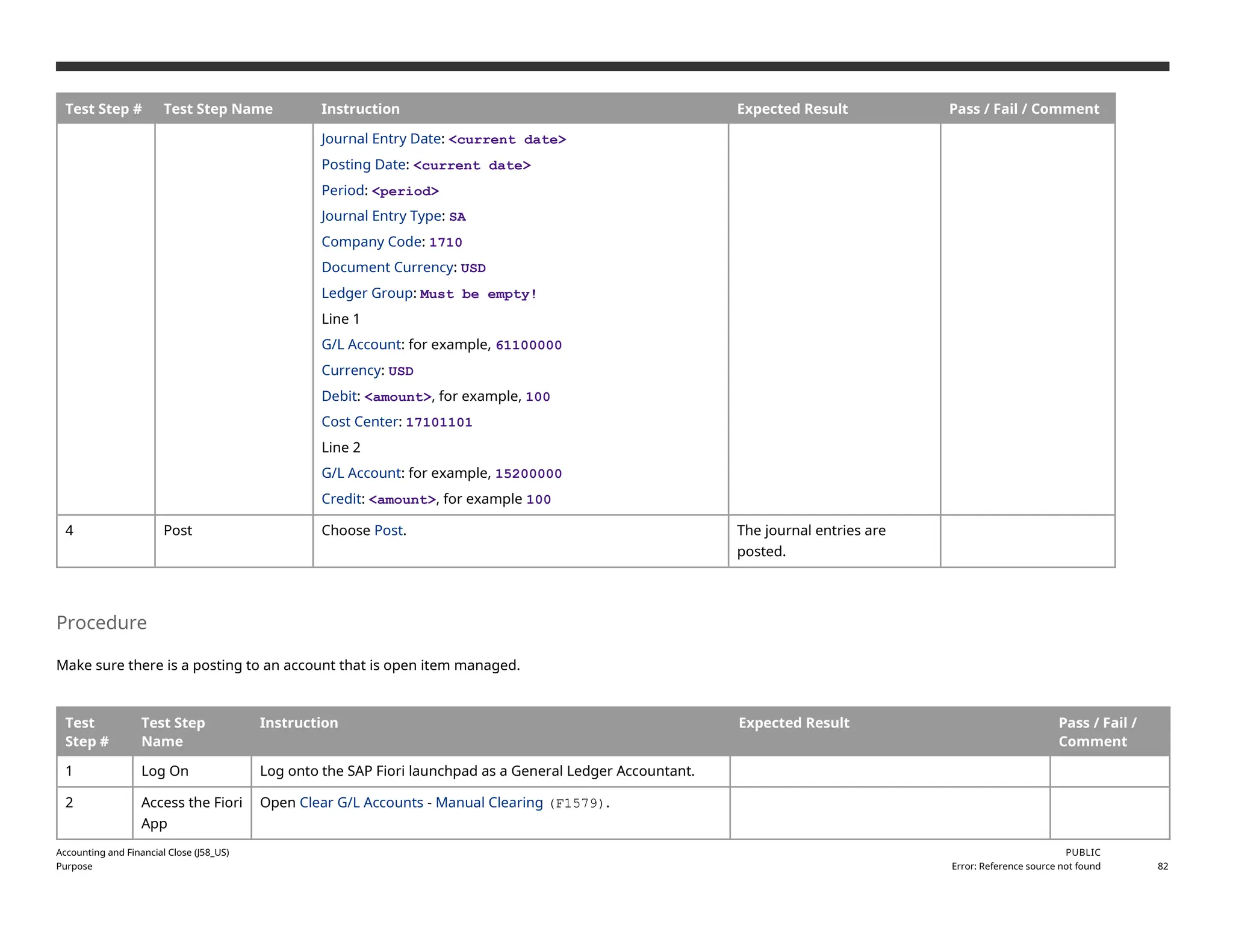
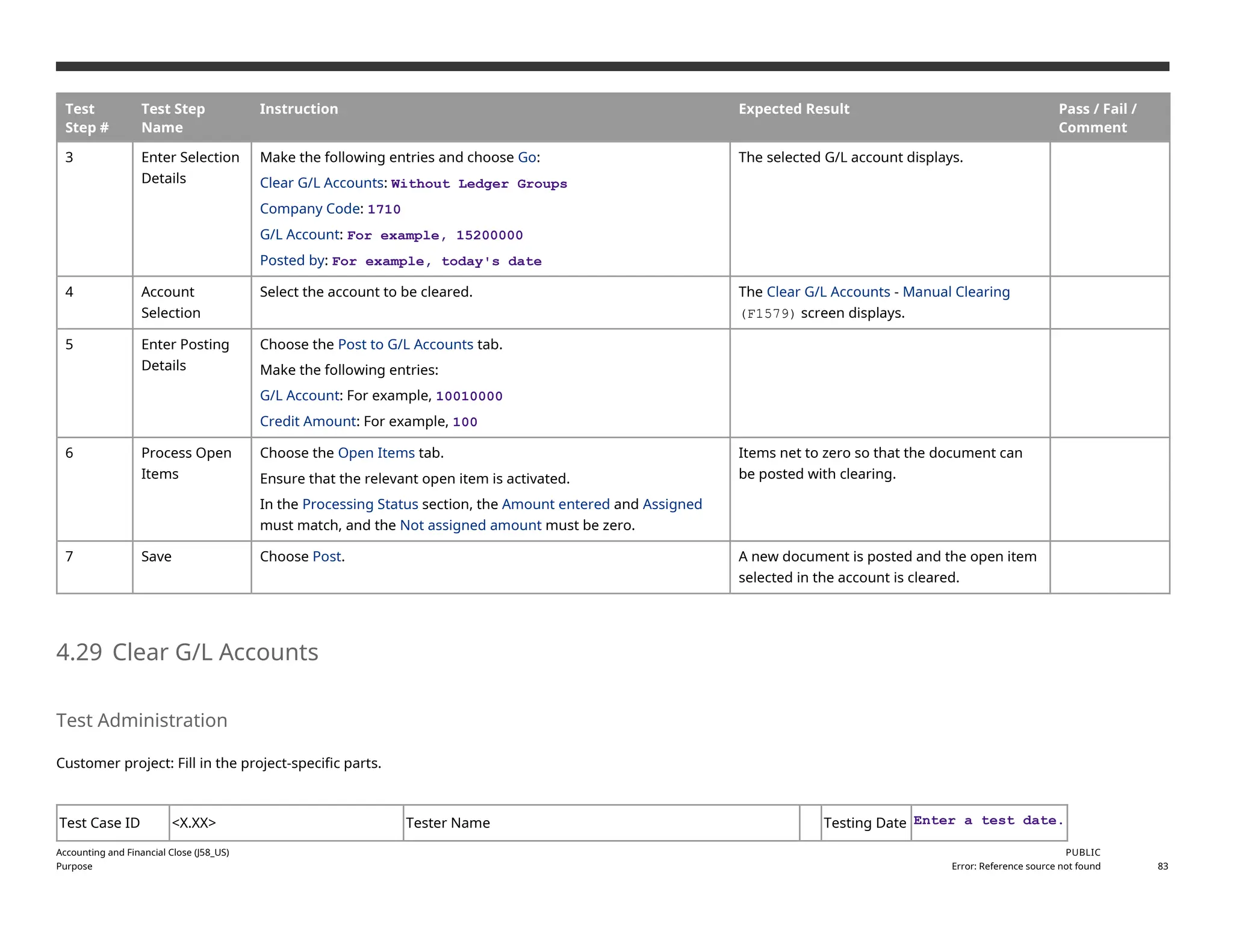


![To see the exchange rates, you may either use the Maintain Exchange Rates (OB08) app or enter the exchange rate manually in the document you are posting. For more
information about posting general journal entries, see the Post General Journal Entries [page ] 37 step.
Procedure
Test
Step #
Test Step
Name
Instruction Expected Result Pass /
Fail /
Comment
1 Log On Log onto the SAP Fiori launchpad
as a General Ledger Accountant.
2 Access the
SAP Fiori
App
Open Perform Foreign Currency
Valuation (FAGL_FCV).
3 Enter Data Make the following entries and
choose Execute:
General Selections
Company Code: 1710
Valuation Key Date: <Current
date>
Valuation Area: US
Posting Mode
Test Run (No Database Update)
Selected
Note If you do not want to execute
a test run, you can post the
valuation immediately.
Posting Parameters
Determine Automatically:
Selected
Open items: Subledger
Valuate Vendors: Selected
Foreign currency postings in the system are represented in the financial statements with
current date valuation. Two types of documents are posted:
1. Reporting period documents to represent revaluation
2. Next period documents to reverse the first postings.
The system generates a Foreign Currency Valuation report showing the details of what
accounts, by document, were revaluated. The document data includes Amount in FC,
Amount in loc. cur., Exch.rate (original), Exch.rate (new), Posting Date and New
Difference.
The Gain/Loss Unrealized Foreign Currency Revaluation account gets debits and credits
based on gain or loss determination. The Adjustment accounts for AR and AP (Domestic,
Foreign and Intercompany) get the off-set amount posted to the Gain/Loss account.
Accounting and Financial Close (J58_US)
Purpose
PUBLIC
Error: Reference source not found 99](https://image.slidesharecdn.com/j58s4hana2020bpdenus-250313105020-dfe504d2/75/J58_S4HANA2020_BPD_EN_USJ58_S4HANA2020_BPD_EN_US-docx-99-2048.jpg)


![Test
Step #
Test Step
Name
Instruction Expected Result Pass/Fail/
Comment
G/L account: <account number>, for example, 71000000
Debit/Credit amount: <amount>, for example, credit 10
Tax code (If required): I0
4.40 Verify Currency Adjustments
Test Administration
Customer project: Fill in the project-specific parts.
Test Case ID <X.XX> Tester Name Testing Date Enter a test date.
Business Role(s)
Responsibility <State the Service Provider, Customer or Joint Service Provider and Customer> Duration Enter a duration.
Purpose
As a daily transaction requester, you verify the currency adjustments made in the Post Currency Adjustments [page ] 100 step. After you verify the adjustments, another
user approves or rejects the currency adjustments.
Prerequisites
Execute the following two procedures.
Accounting and Financial Close (J58_US)
Purpose
PUBLIC
Error: Reference source not found 102](https://image.slidesharecdn.com/j58s4hana2020bpdenus-250313105020-dfe504d2/75/J58_S4HANA2020_BPD_EN_USJ58_S4HANA2020_BPD_EN_US-docx-102-2048.jpg)

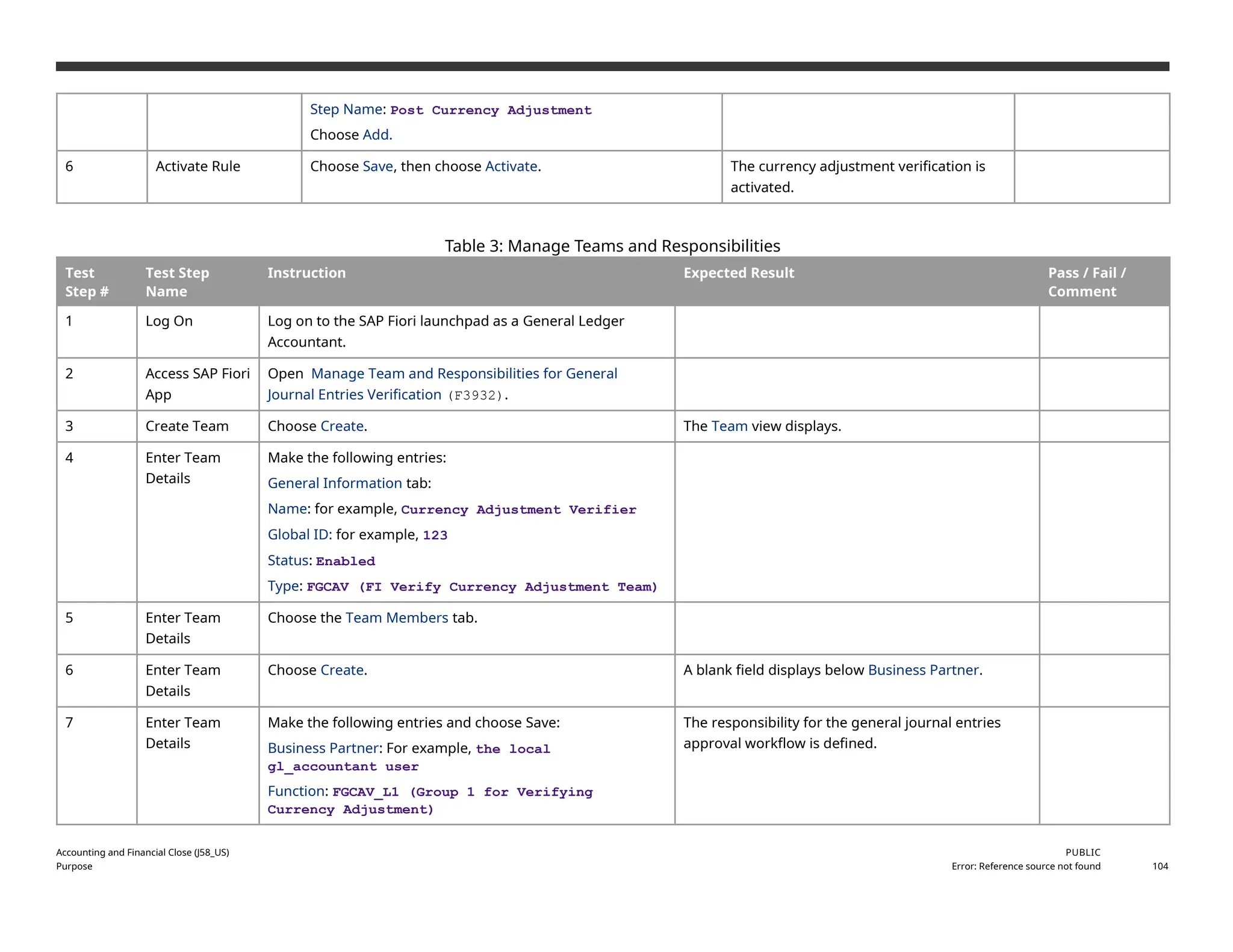
![Procedure
Test
Step #
Test Step
Name
Instruction Expected Result Pass /
Fail /
Commen
t
1 Log On Log on to the SAP Fiori launchpad as a General Ledger Accountant.
2 Access App Open Verify Currency Adjustment - For Requester (F2547). The Verify Currency Adjustments view is
displayed.
3 Create
Adjustment
Posting
(Optional)
If an adjustment posting does not exist, you can create one. To do so, choose
Create.
The Post Currency Adjustment app is
opened. For more information on this
activity, see the Post Currency Adjustments
[page ] 100 step in this test script.
4 Enter Details Make the following entries and choose Go:
Company Code: 1710
The Journal Entries pane shows a list of
currency adjustment workflows. You can see
the status of the entries in the Status
column.
5 View History To show the history for a journal entry, choose the clock button in
the History column for that entry. A dialog box is displayed with the workflow
history. If a workflow is rejected, you can choose the Comments tab in the
dialog box to see the reason entered by the user who rejected it.
You can also view the processors. To do so, choose the processor button the
Processor column.
4.41 Approve Verify Currency Adjustments (for Processor- Inbox)
Test Administration
Customer project: Fill in the project-specific parts.
Accounting and Financial Close (J58_US)
Purpose
PUBLIC
Error: Reference source not found 105](https://image.slidesharecdn.com/j58s4hana2020bpdenus-250313105020-dfe504d2/75/J58_S4HANA2020_BPD_EN_USJ58_S4HANA2020_BPD_EN_US-docx-105-2048.jpg)


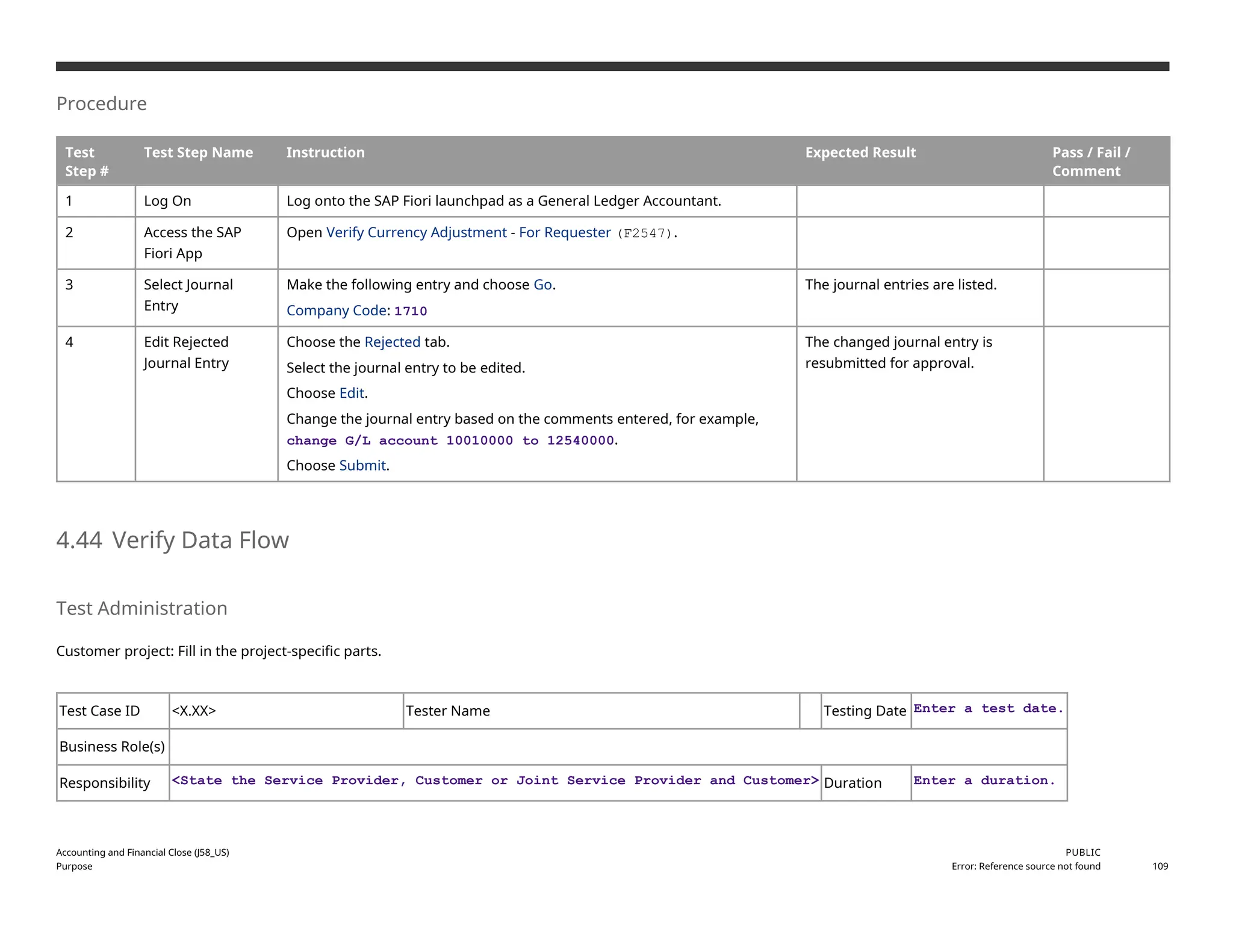


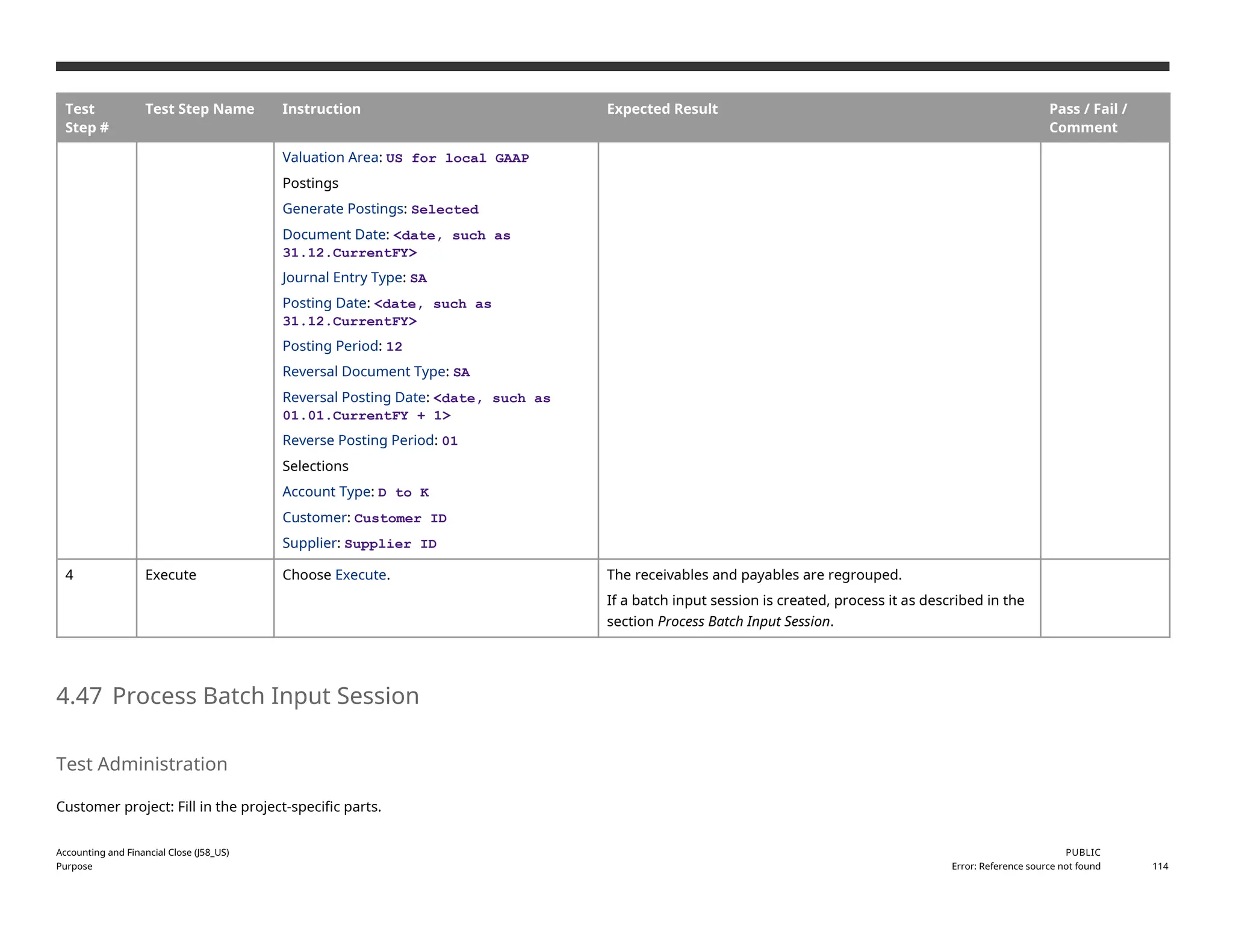

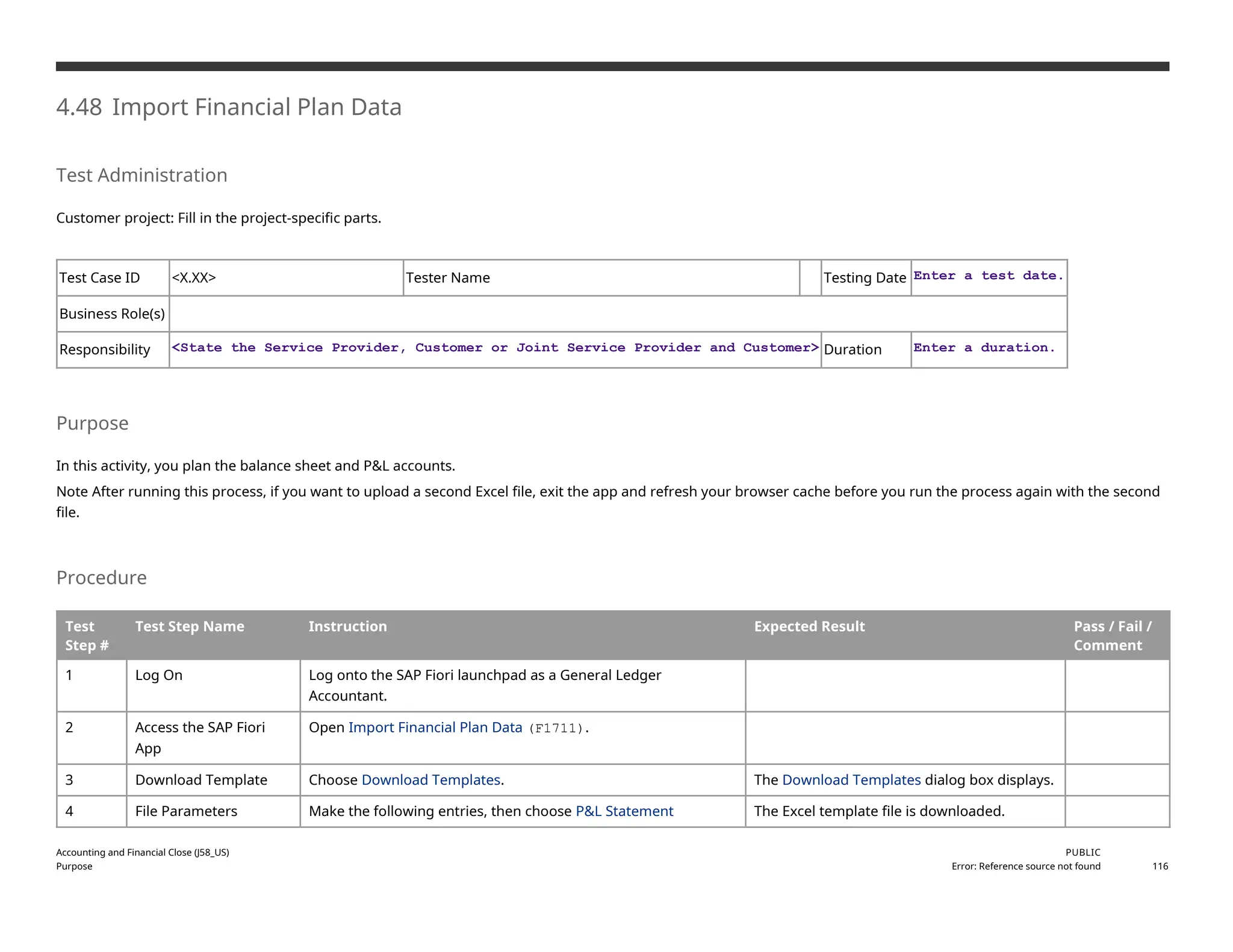


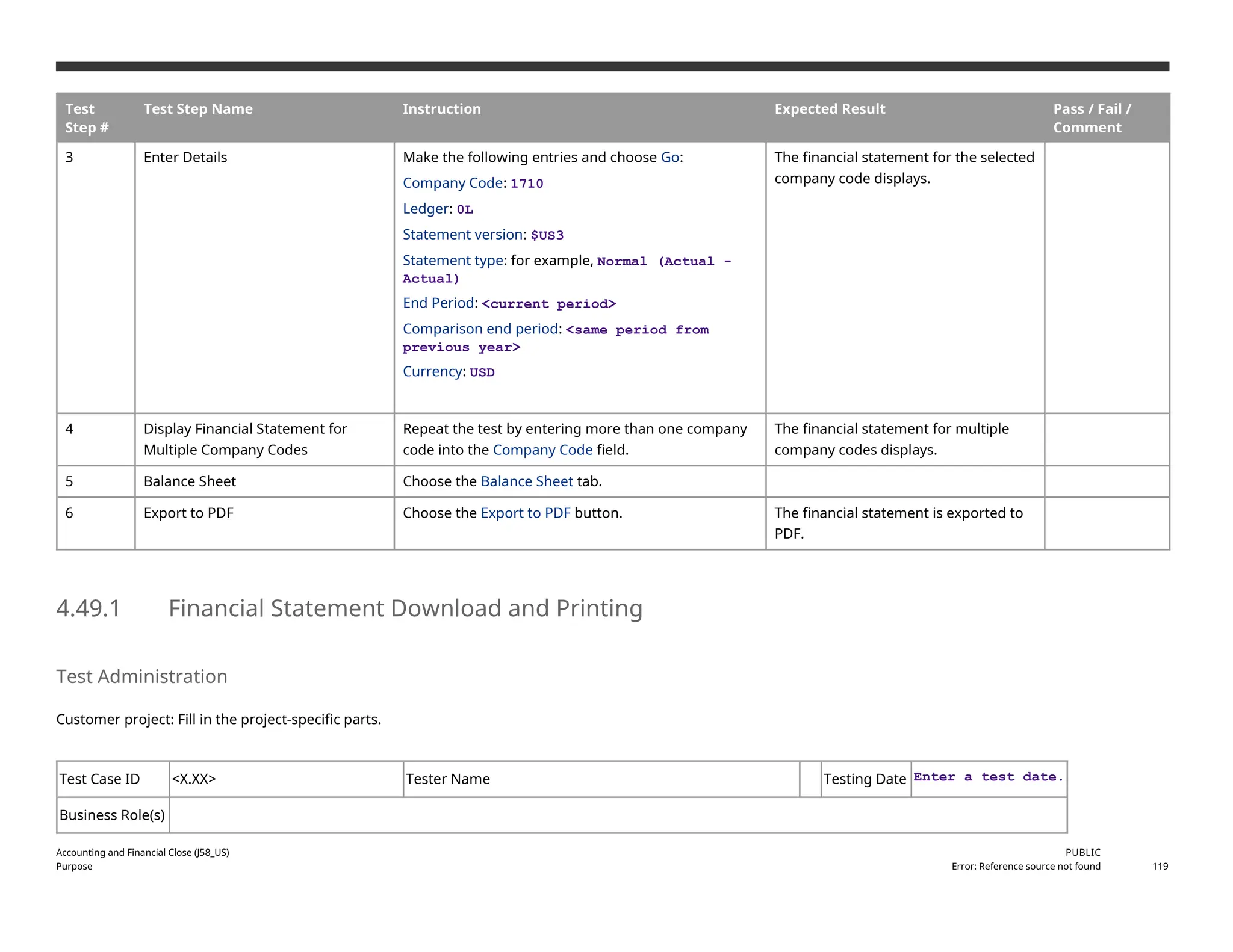
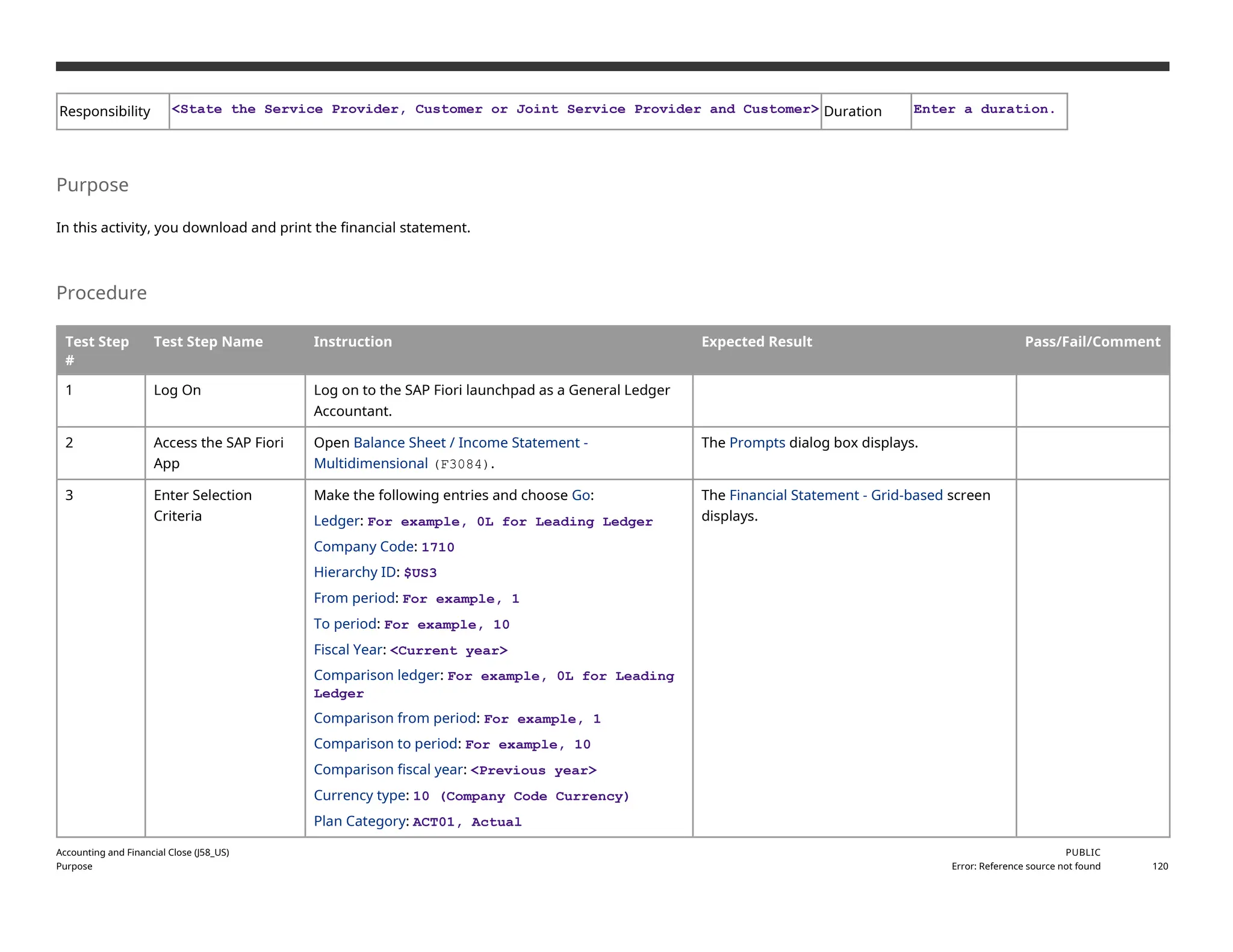


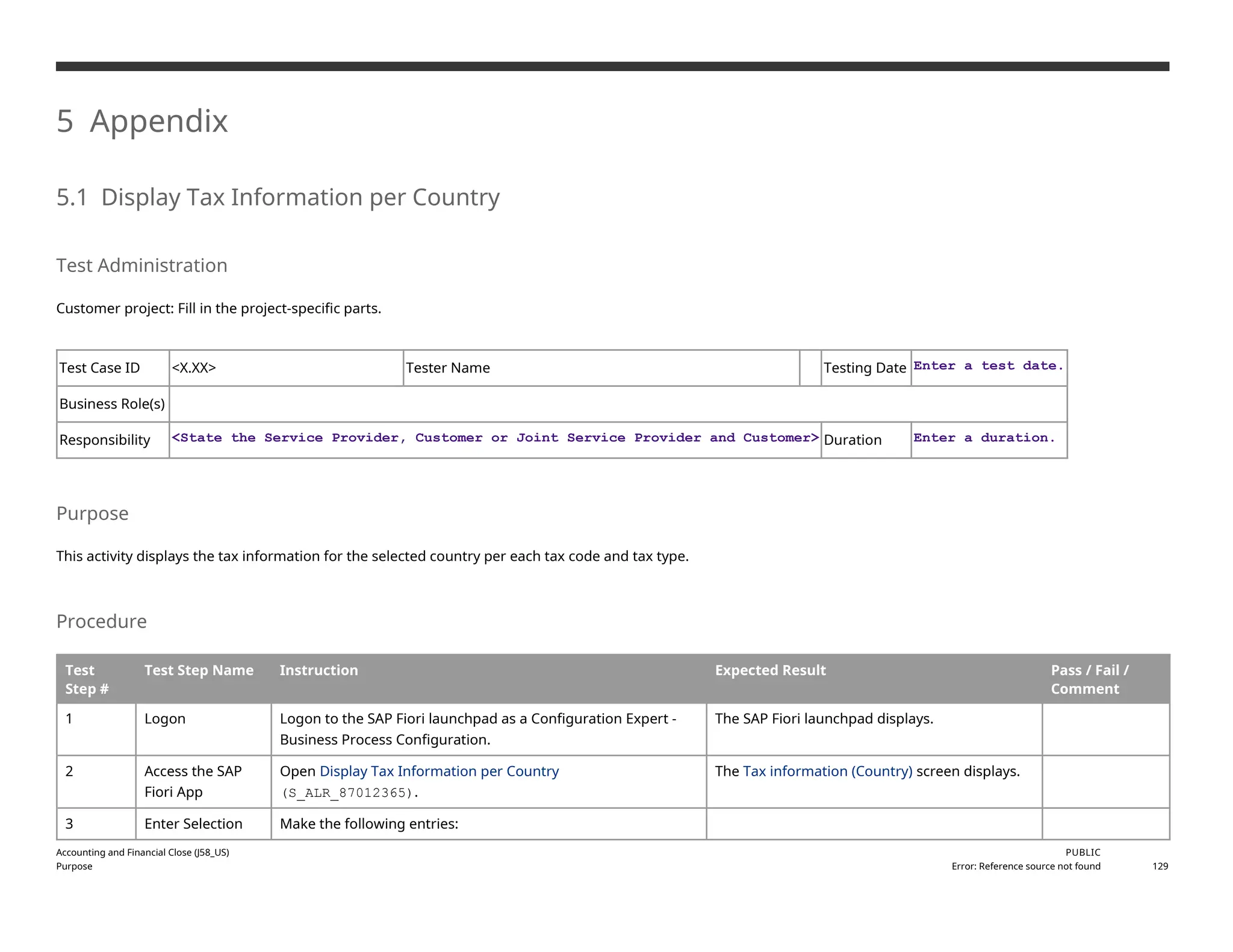
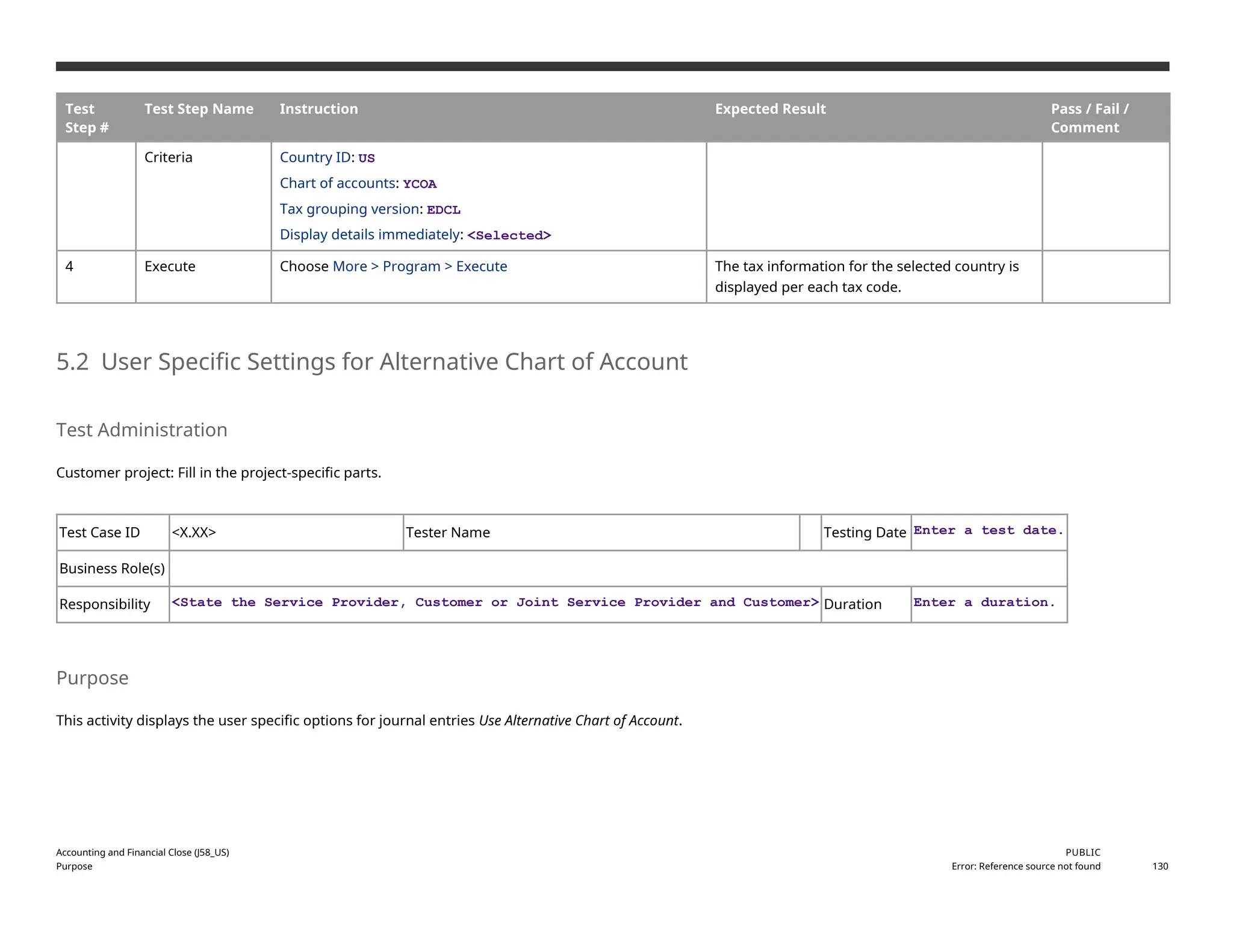

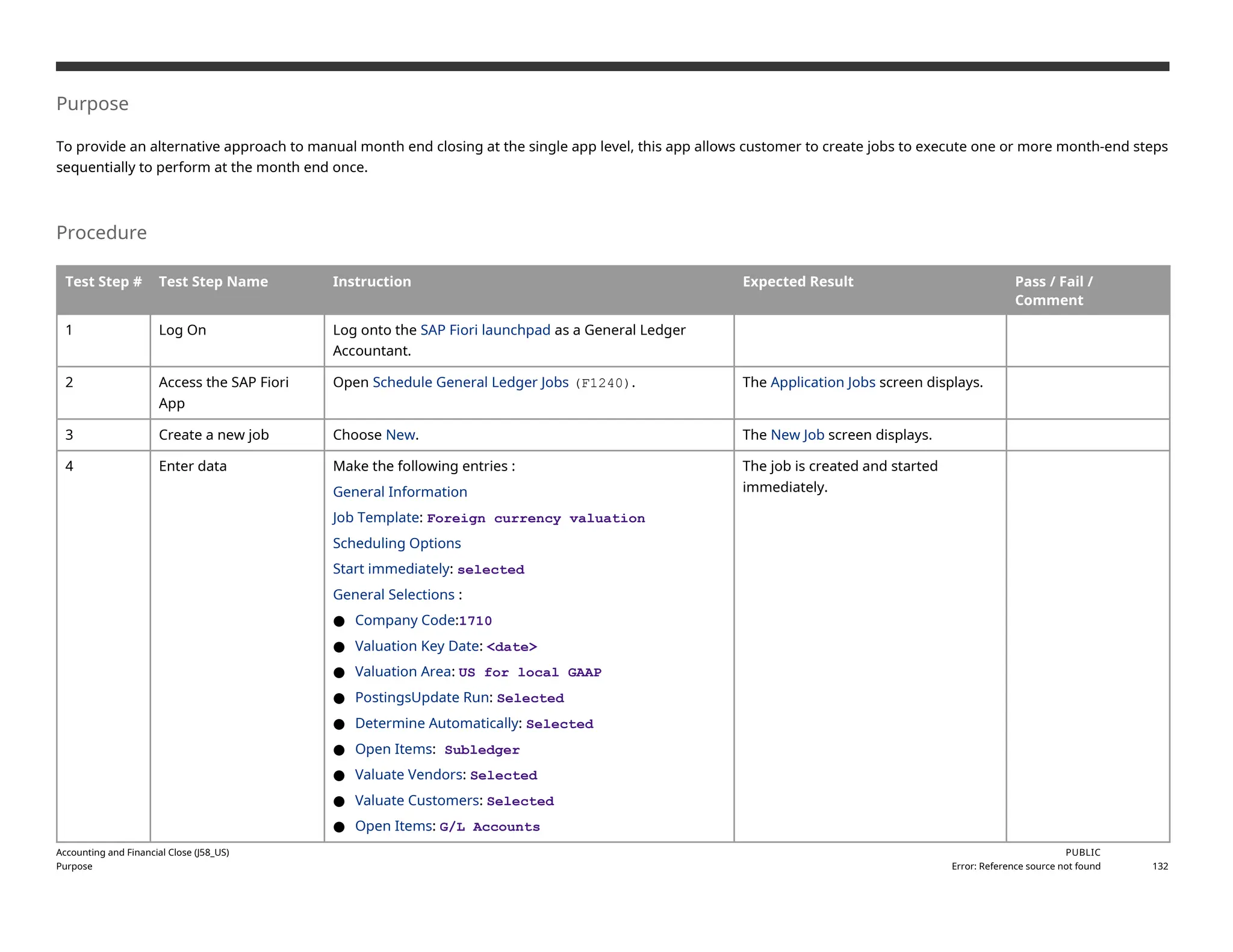


![APT_Finance_Architect_Brochure_A4_WEB[2]](https://cdn.slidesharecdn.com/ss_thumbnails/98eb63e5-21b9-43b7-8a41-a7a53f2b3494-150723130227-lva1-app6892-thumbnail.jpg?width=640&height=640&fit=bounds)


