How to prioritize and select
projects
TransparentChoice Software Tutorial
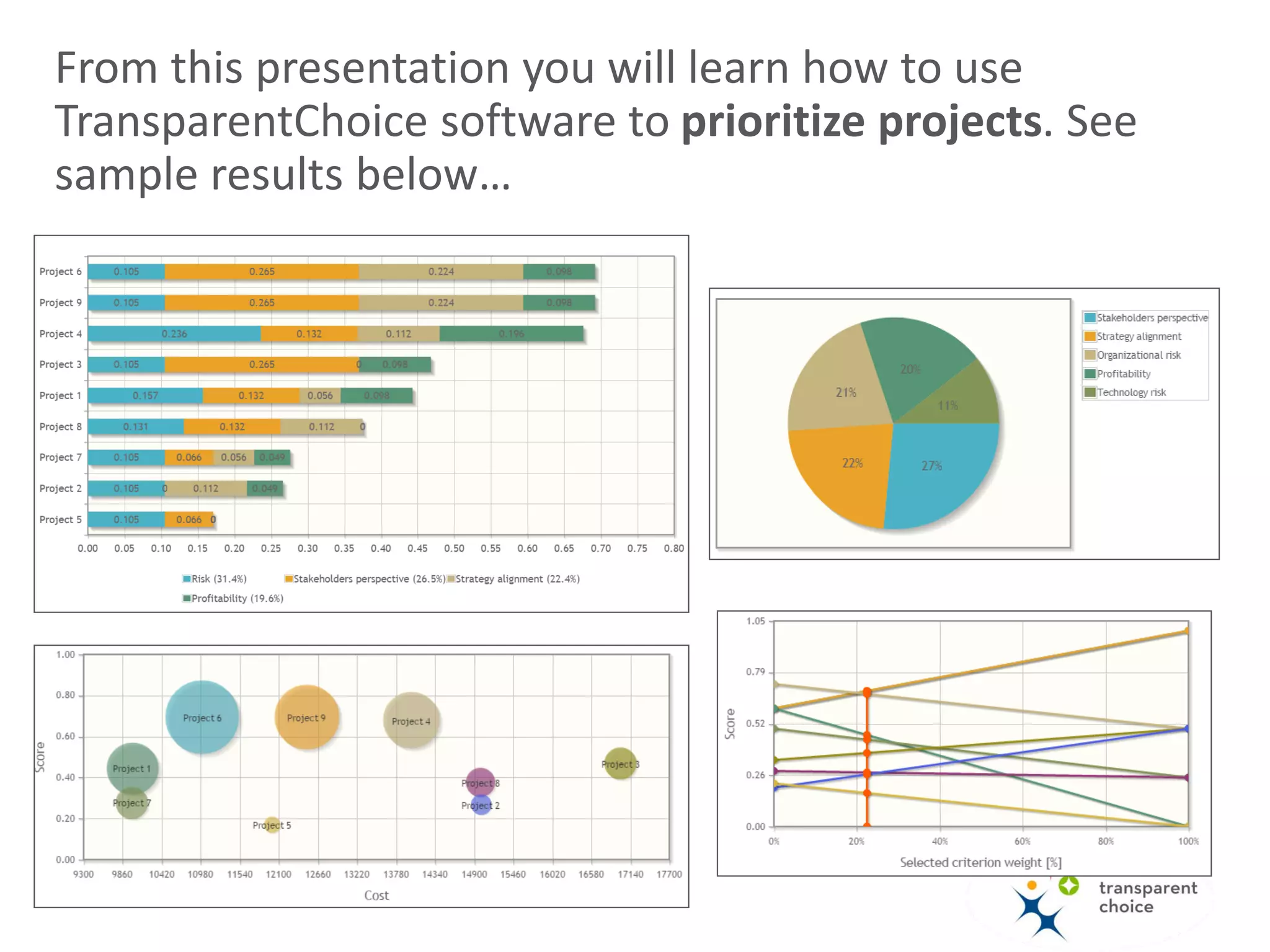
From this presentation you will learn how to use
TransparentChoice software to prioritize projects. See
sample results below…
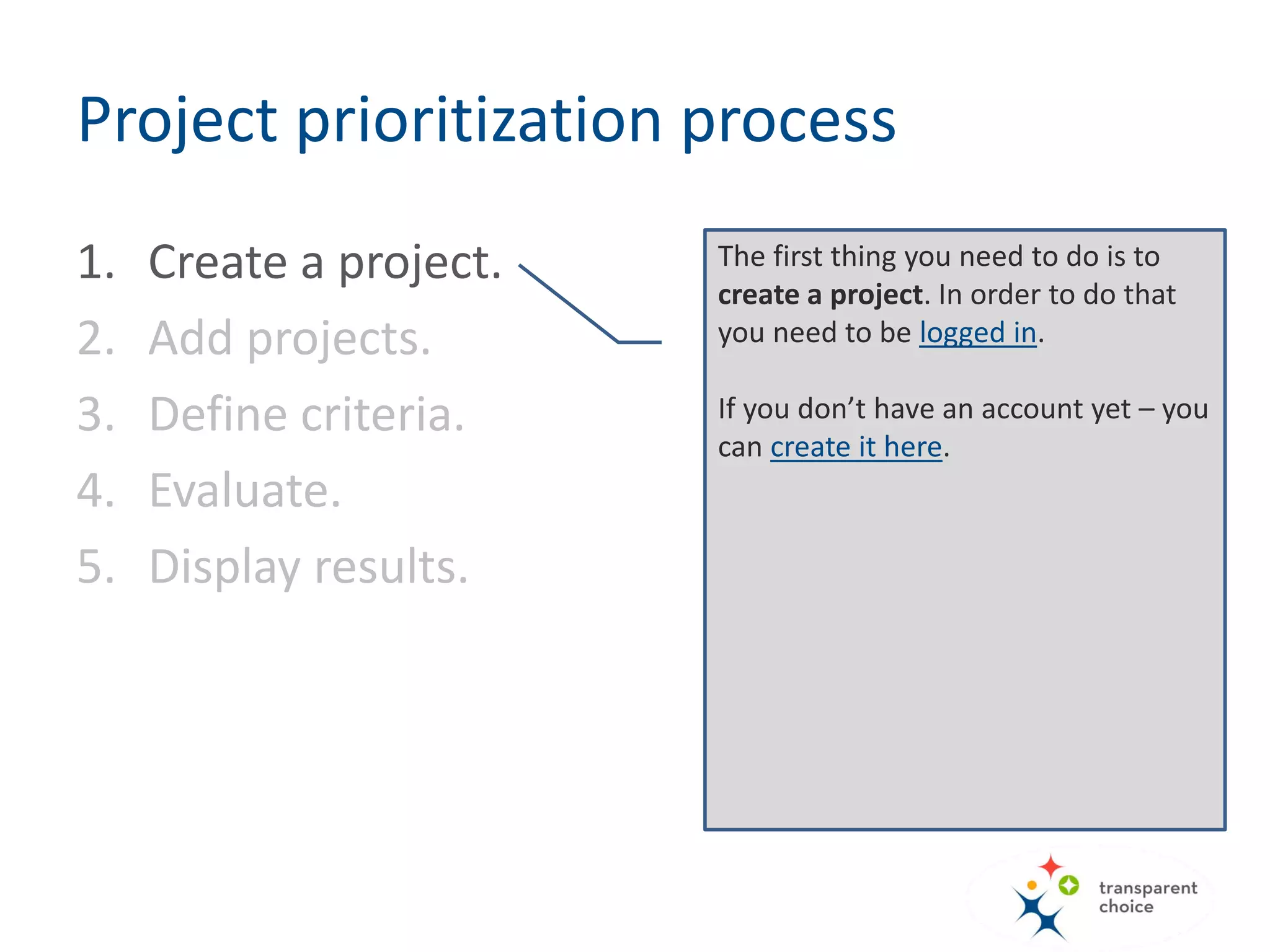
The first thing you need to do is to
create a project. In order to do that
you need to be logged in.
If you don’t have an account yet – you
can create it here.
Project prioritization process
1. Create a project.
2. Add projects.
3. Define criteria.
4. Evaluate.
5. Display results.
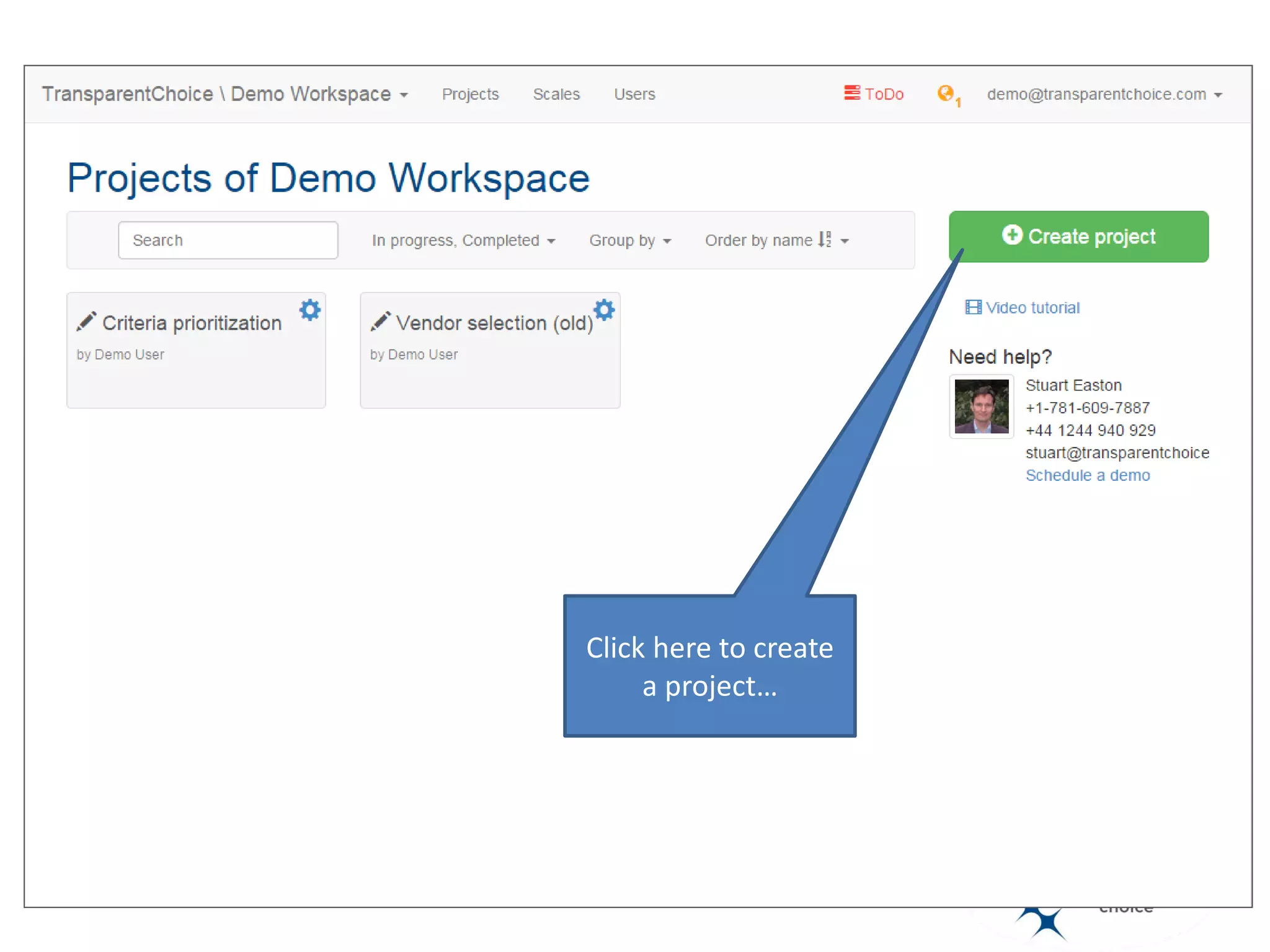
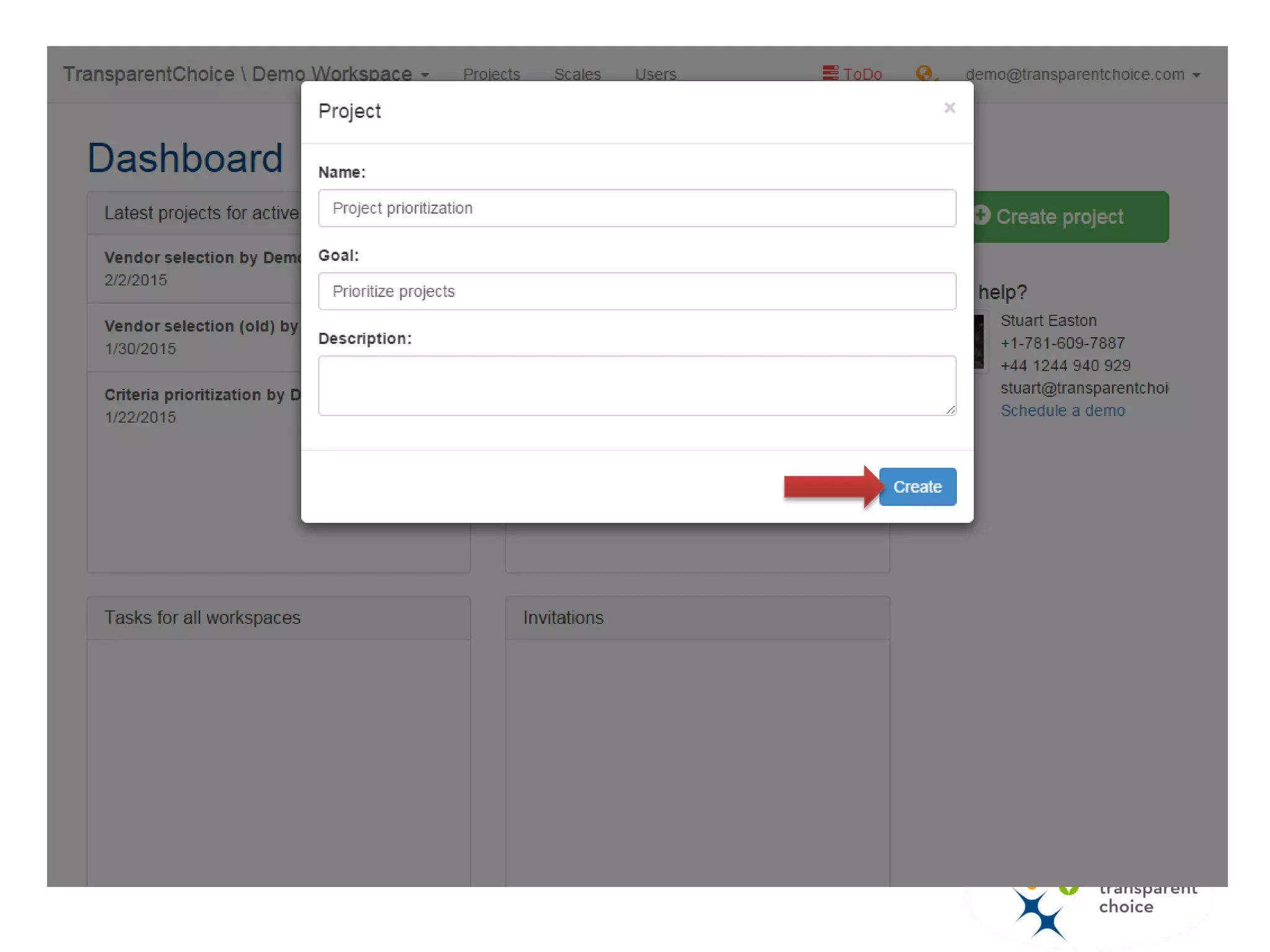
Click here to create
a project…
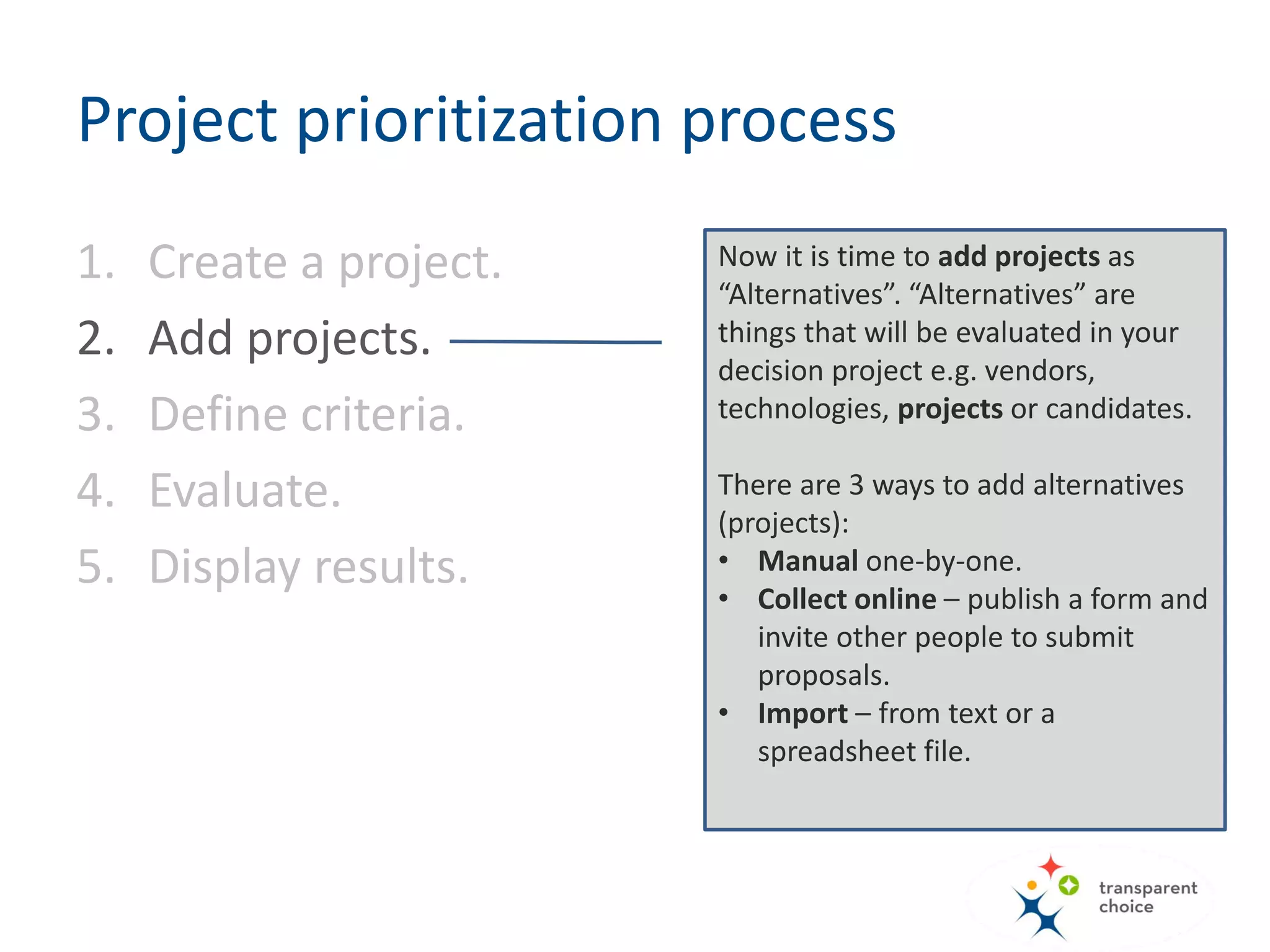
Now it is time to add projects as
“Alternatives”. “Alternatives” are things
that will be evaluated in your decision
project e.g. vendors, technologies,
projects or candidates.
So in this project Alternative = Project
There are 3 ways to add alternatives
(projects):
• Manual one-by-one.
• Collect online – publish a form and
invite other people to submit
proposals.
• Import – from text or a spreadsheet
file.
Project prioritization process
1. Create a project.
2. Add projects.
3. Define criteria.
4. Evaluate.
5. Display results.
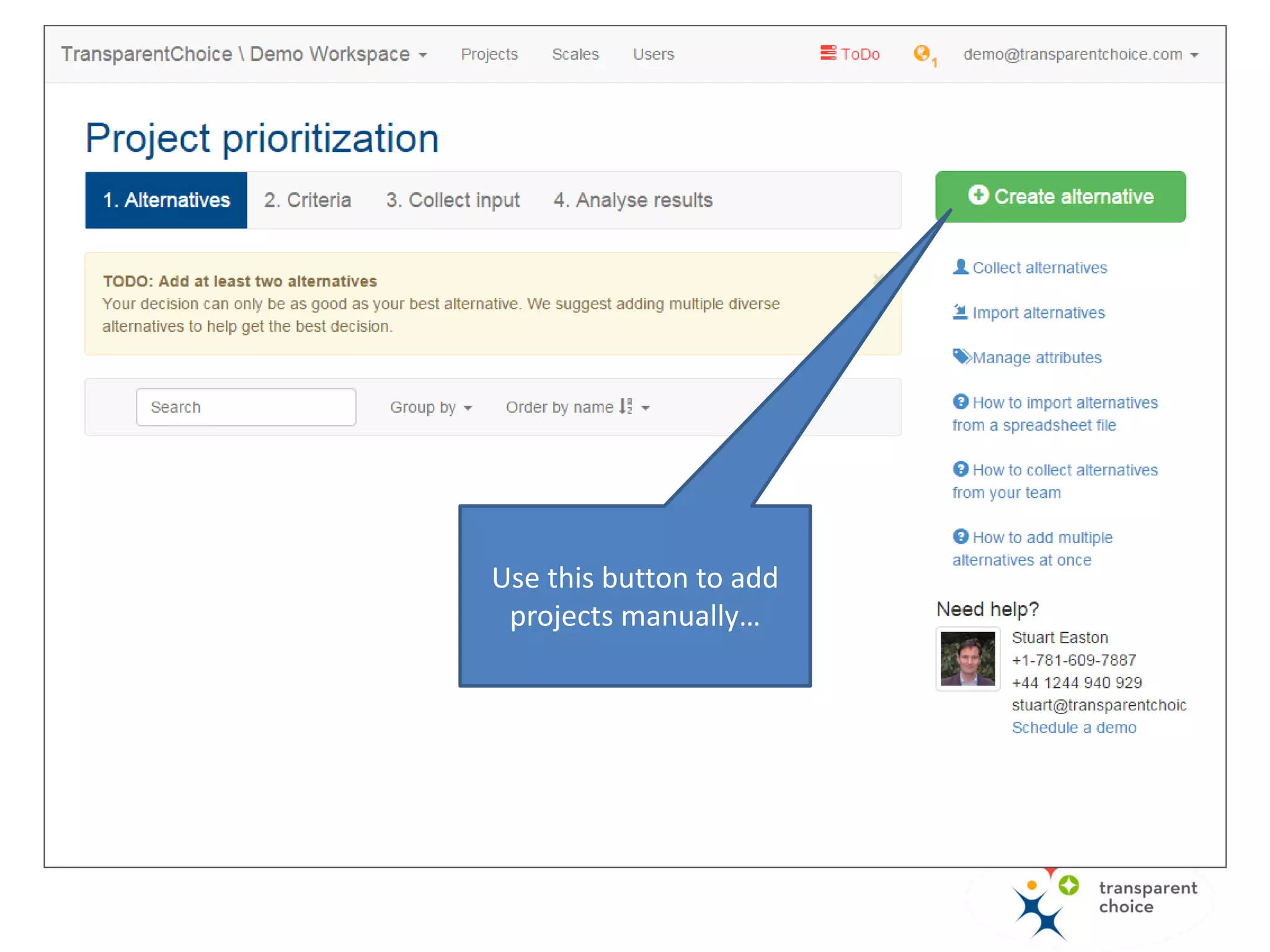
Use this button to add
projects manually…
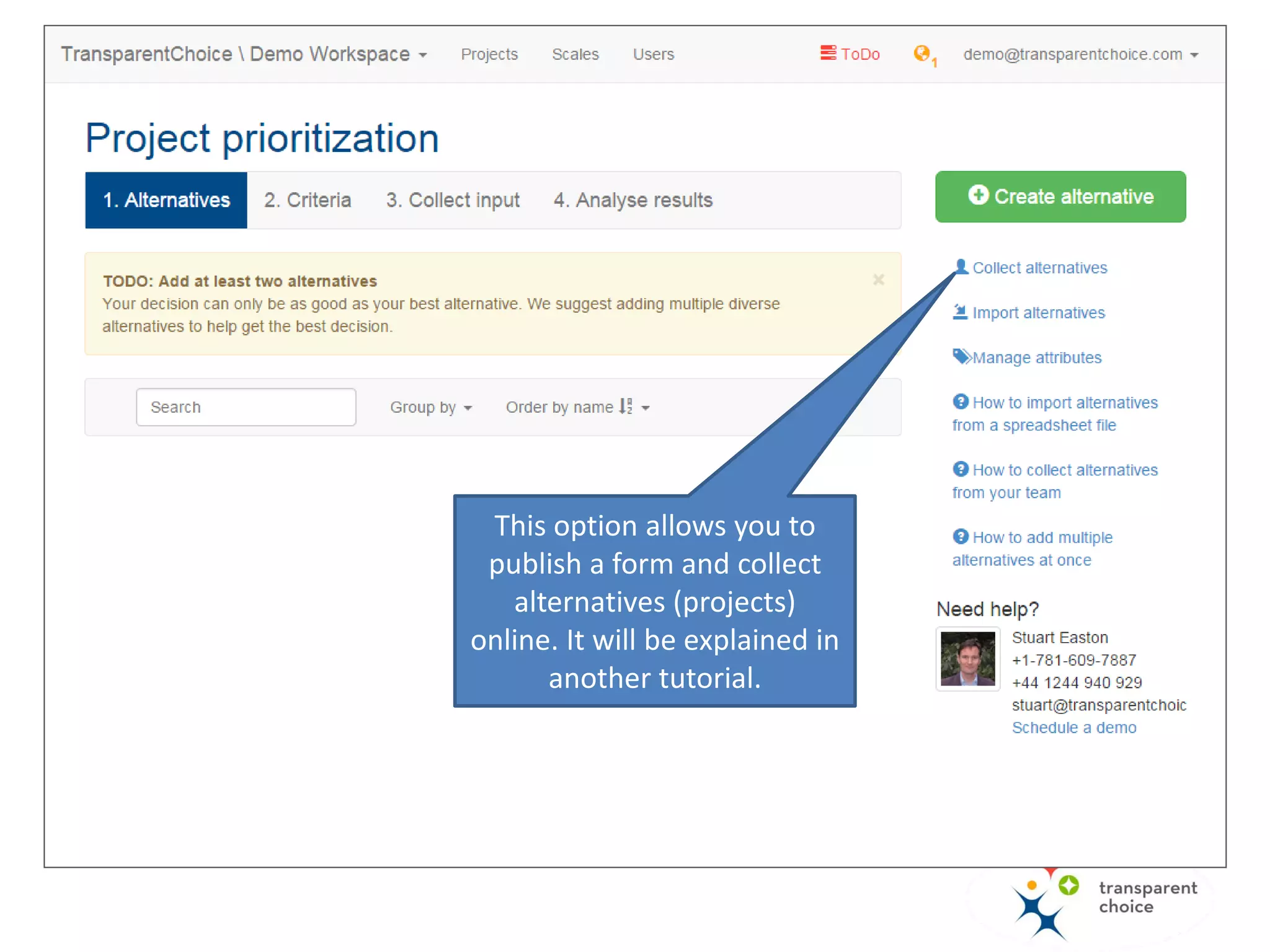
This option allows you to
publish a web-form with
which people in your
organization can nominate
projects. It will be explained
in another tutorial.
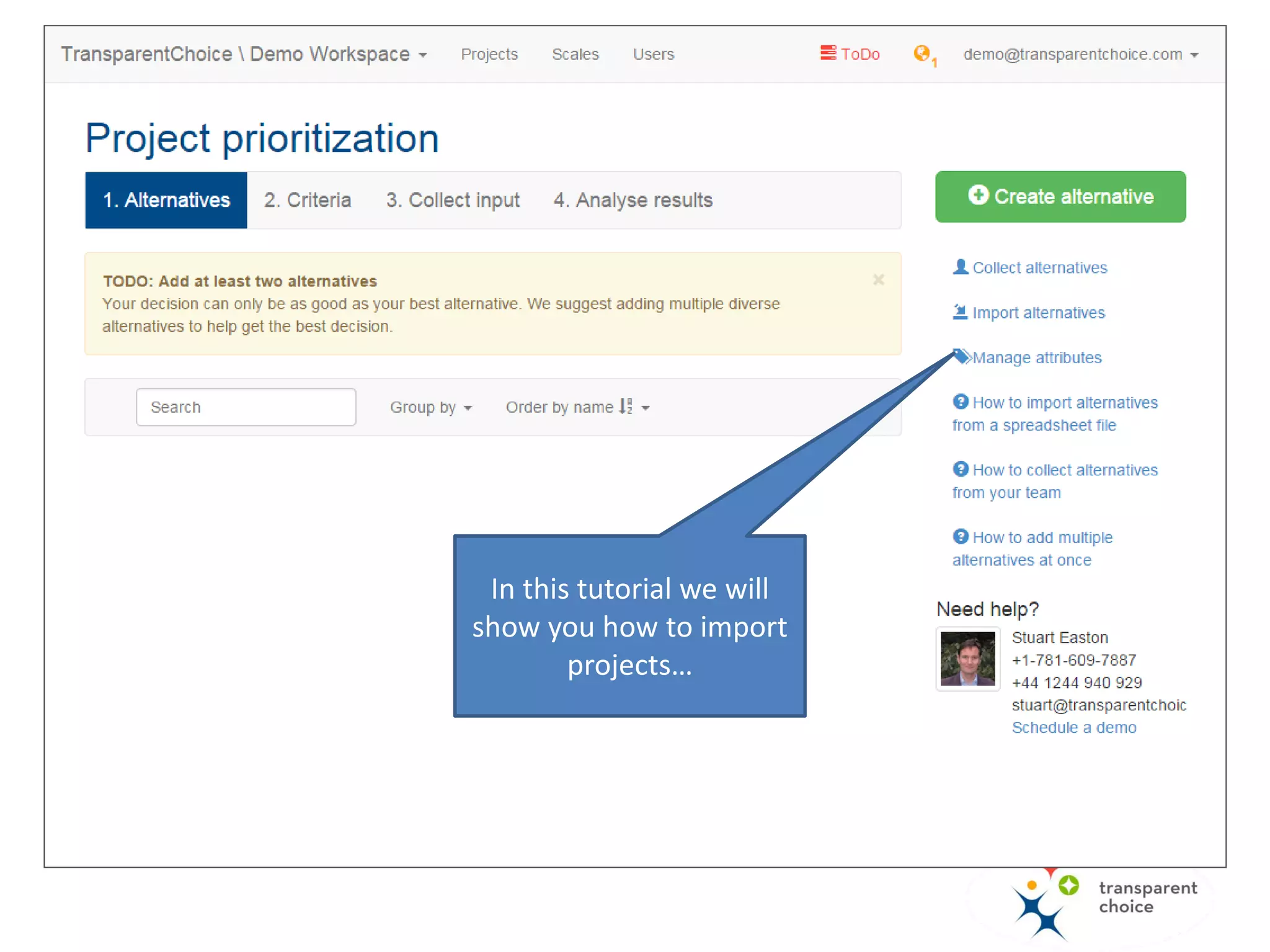
In this tutorial we will
show you how to import
projects…
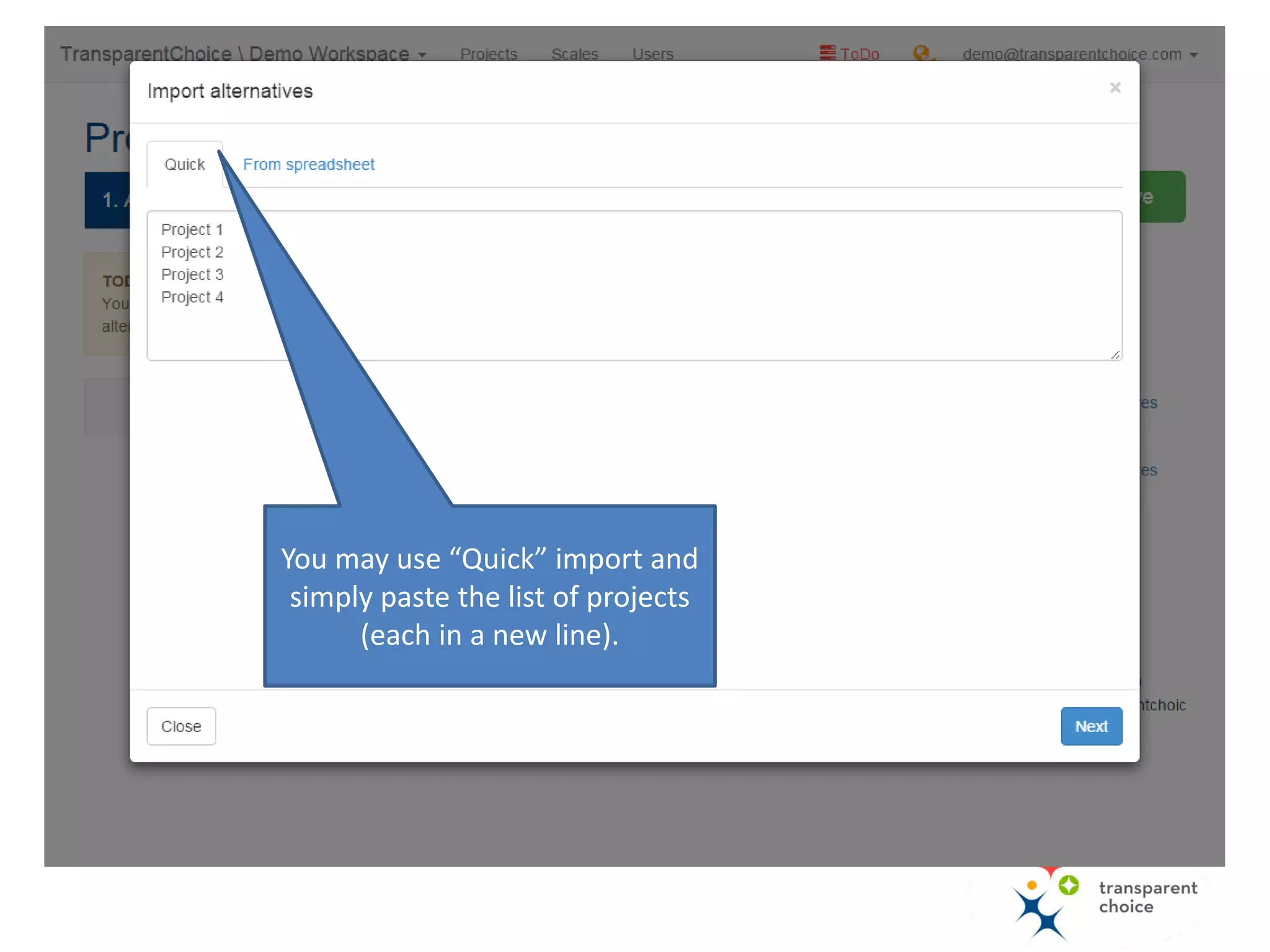
You may use “Quick” import and
simply paste the list of projects
(each in a new line).
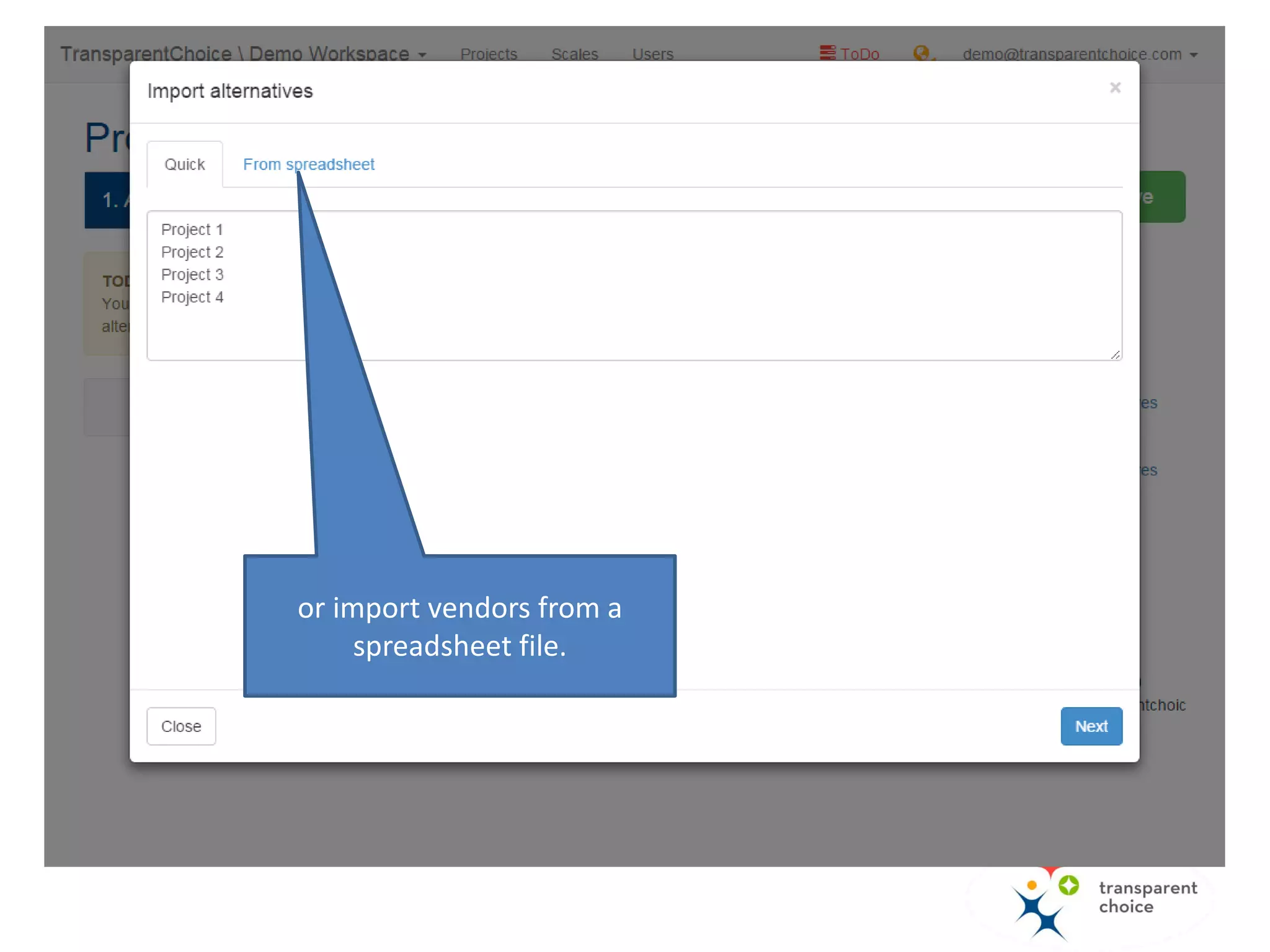
or import vendors from a
spreadsheet file.
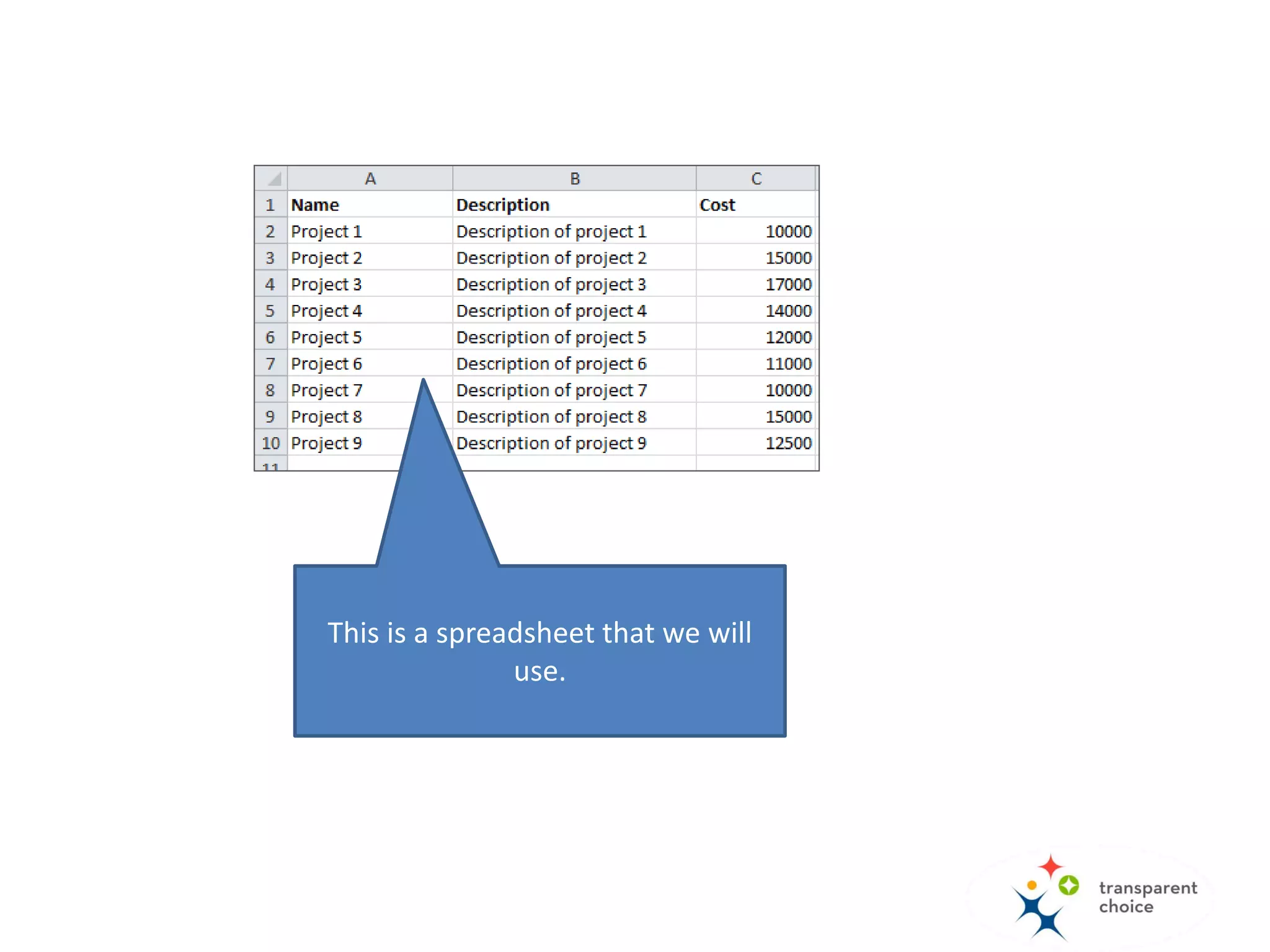
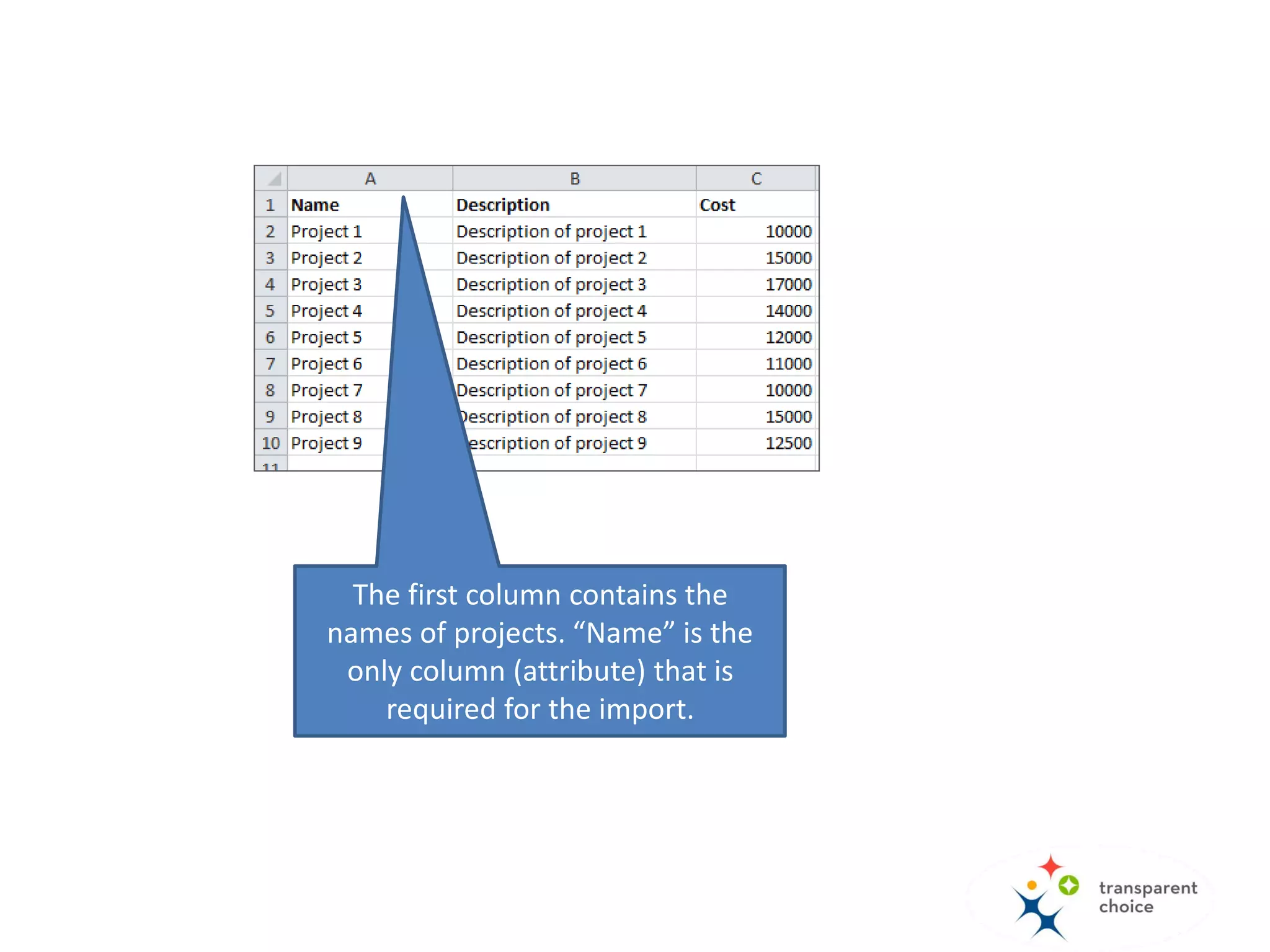
This is a spreadsheet that we will
use.
Requirements for the spreadsheet
• The file must be saved in xlsx or xls format.
• Data for the import must be in the first sheet.
• The first row must contain headers (names of
imported attributes).
• Headers must be unique.
• One of the columns must be populated with
alternatives’ names. Other columns are optional.
• Names of alternatives must be unique.
The first column contains the
names of projects. “Name” is the
only column (attribute) that is
required for the import.
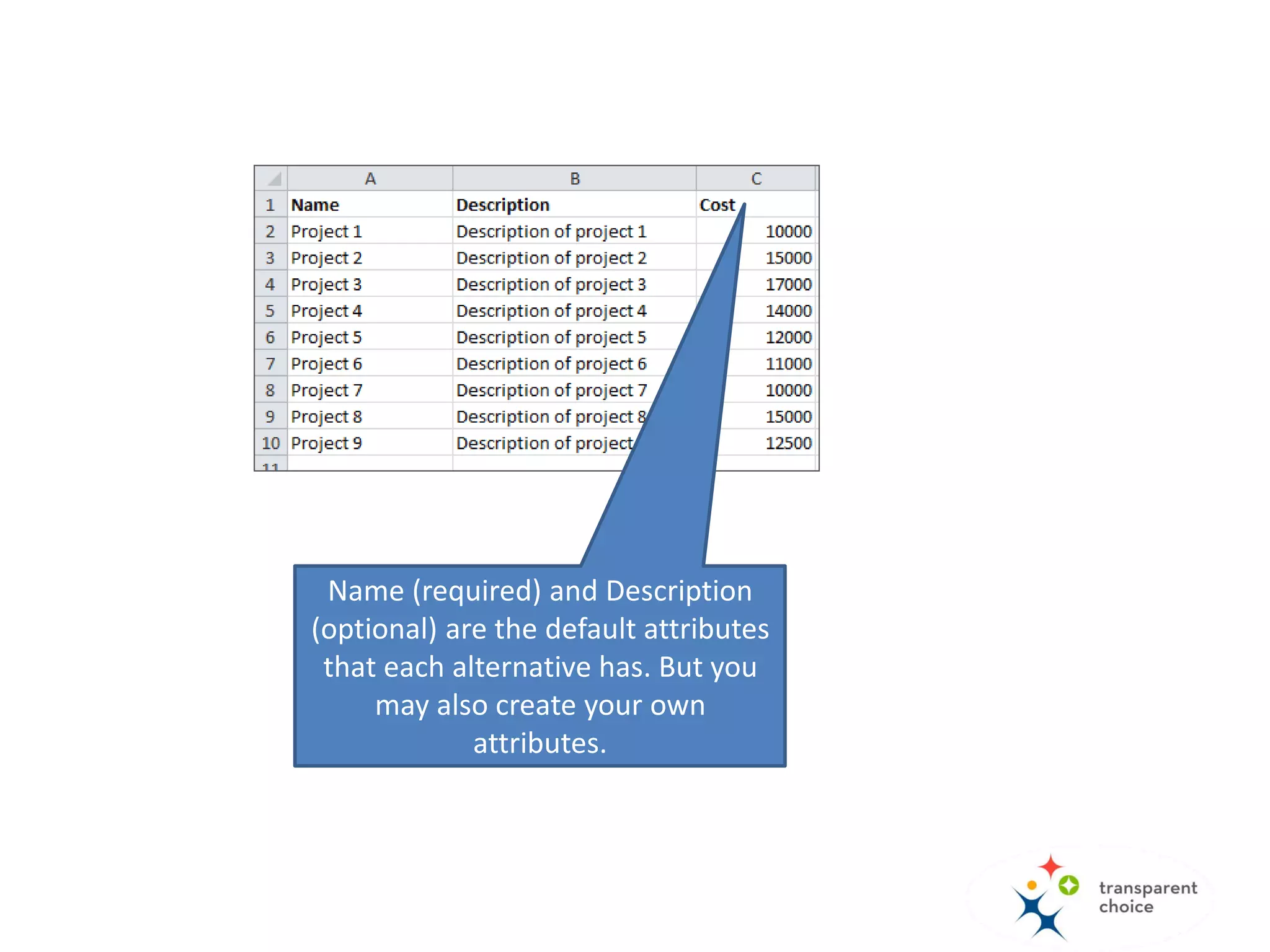
Name (required) and Description
(optional) are default attributes for
each alternative (project) you're
importing. You can add other
attributes (a fancy name for any
data you want to attach to a
alternative you're evaluating) such
as cost, risk, etc.
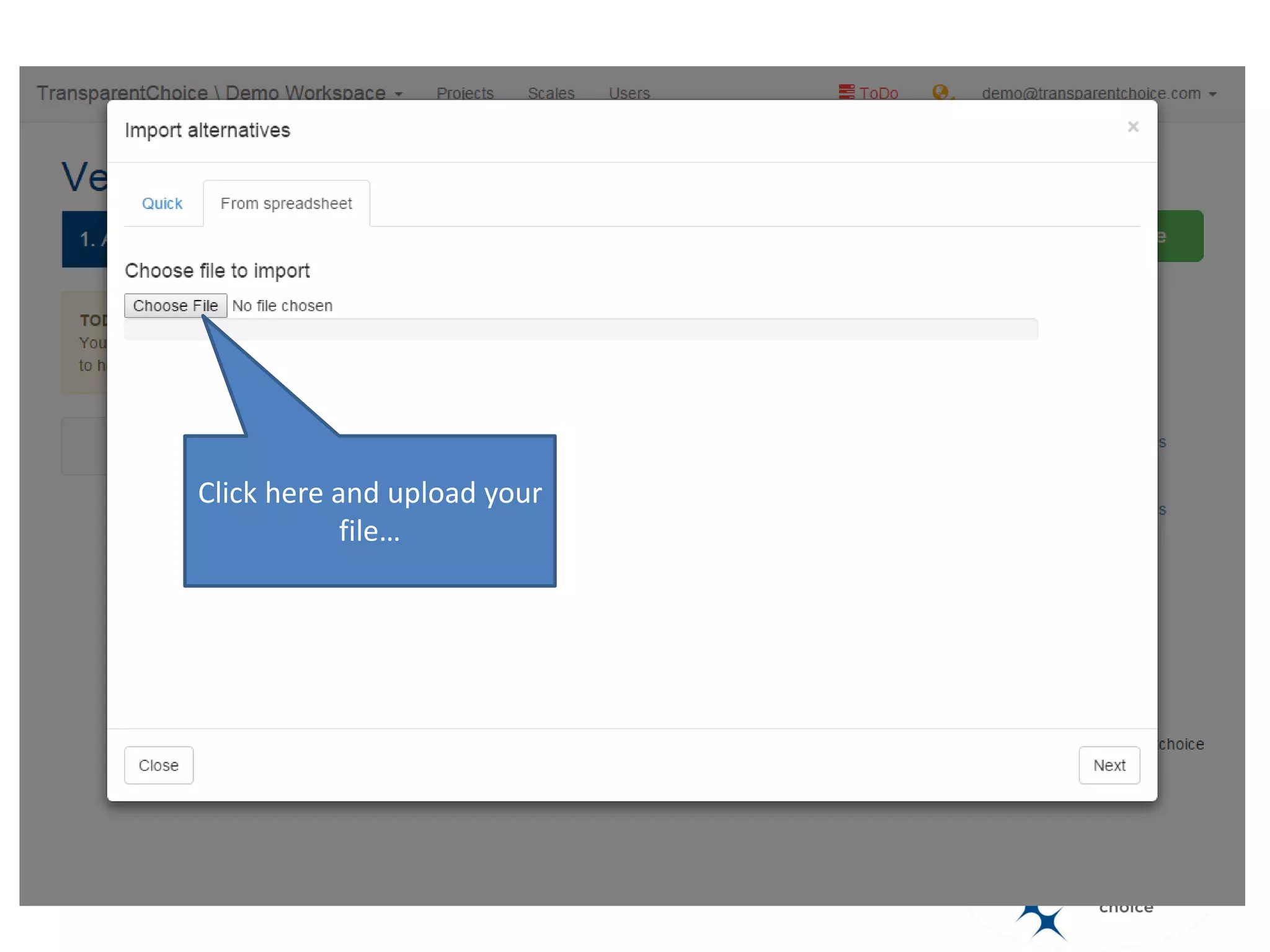
Click here and upload your
file…
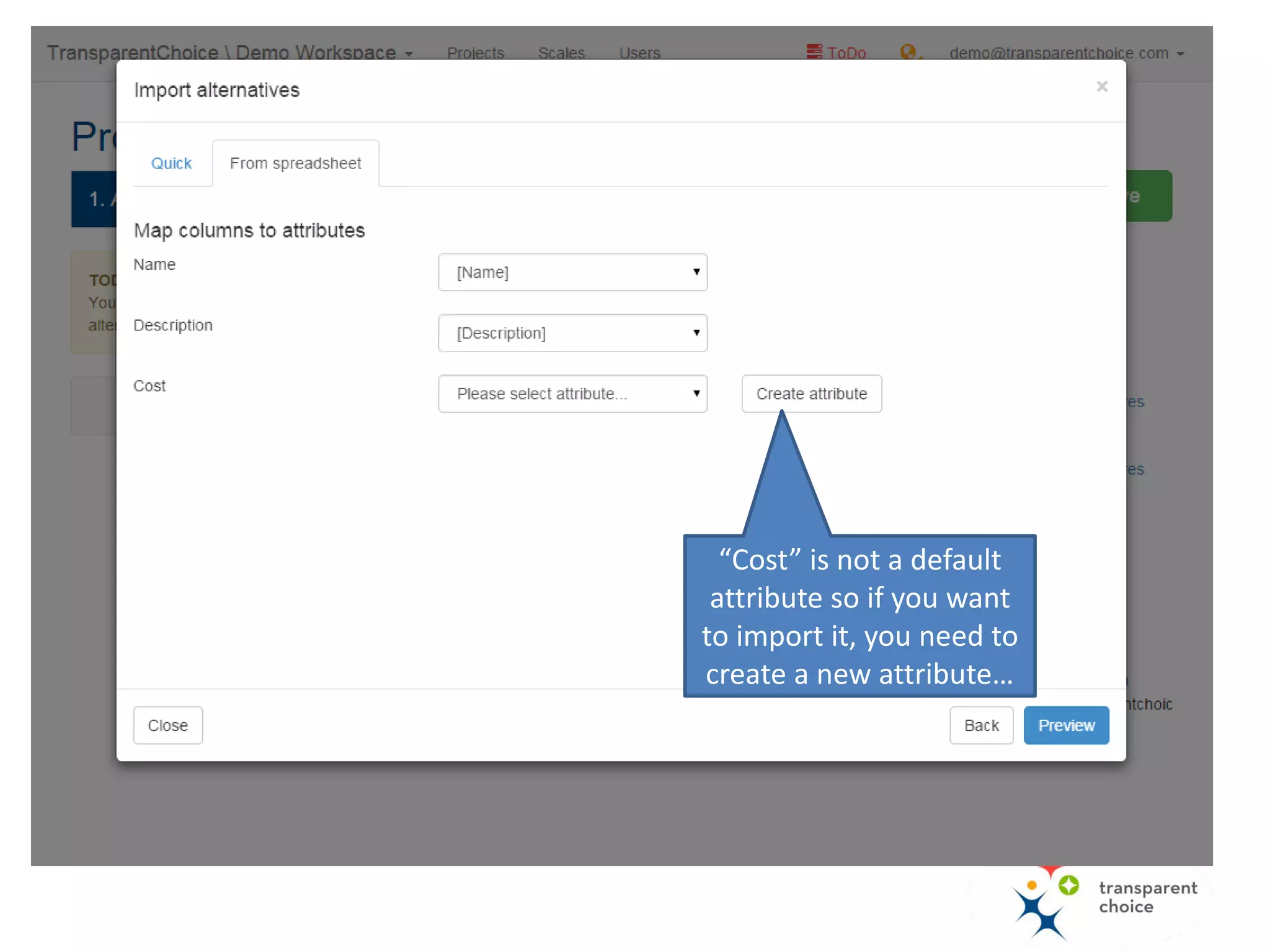
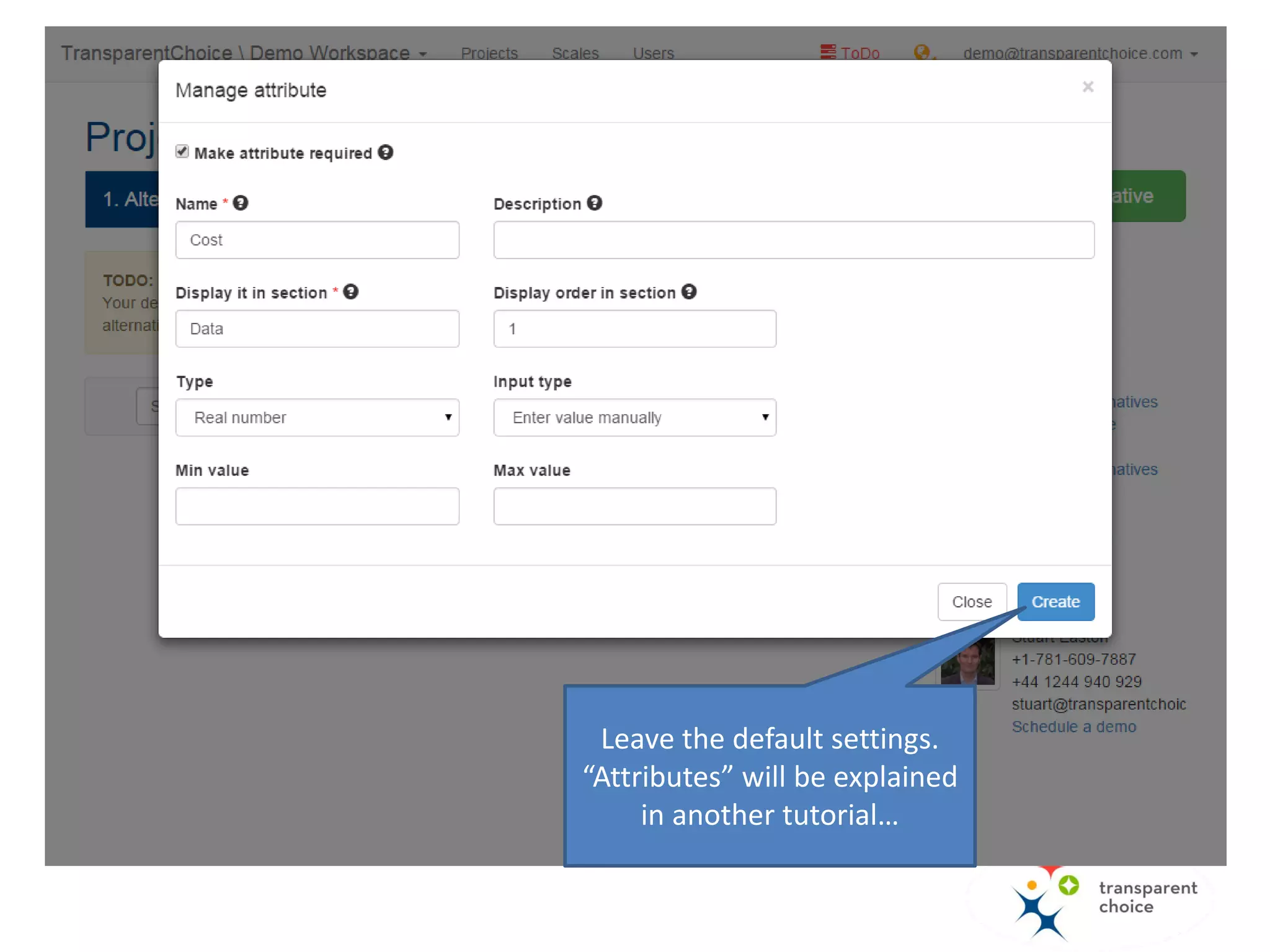
“Cost” is not a default
attribute so if you want
to import it, you need to
create a new attribute…
Leave the default settings.
“Attributes” will be explained
in another tutorial…
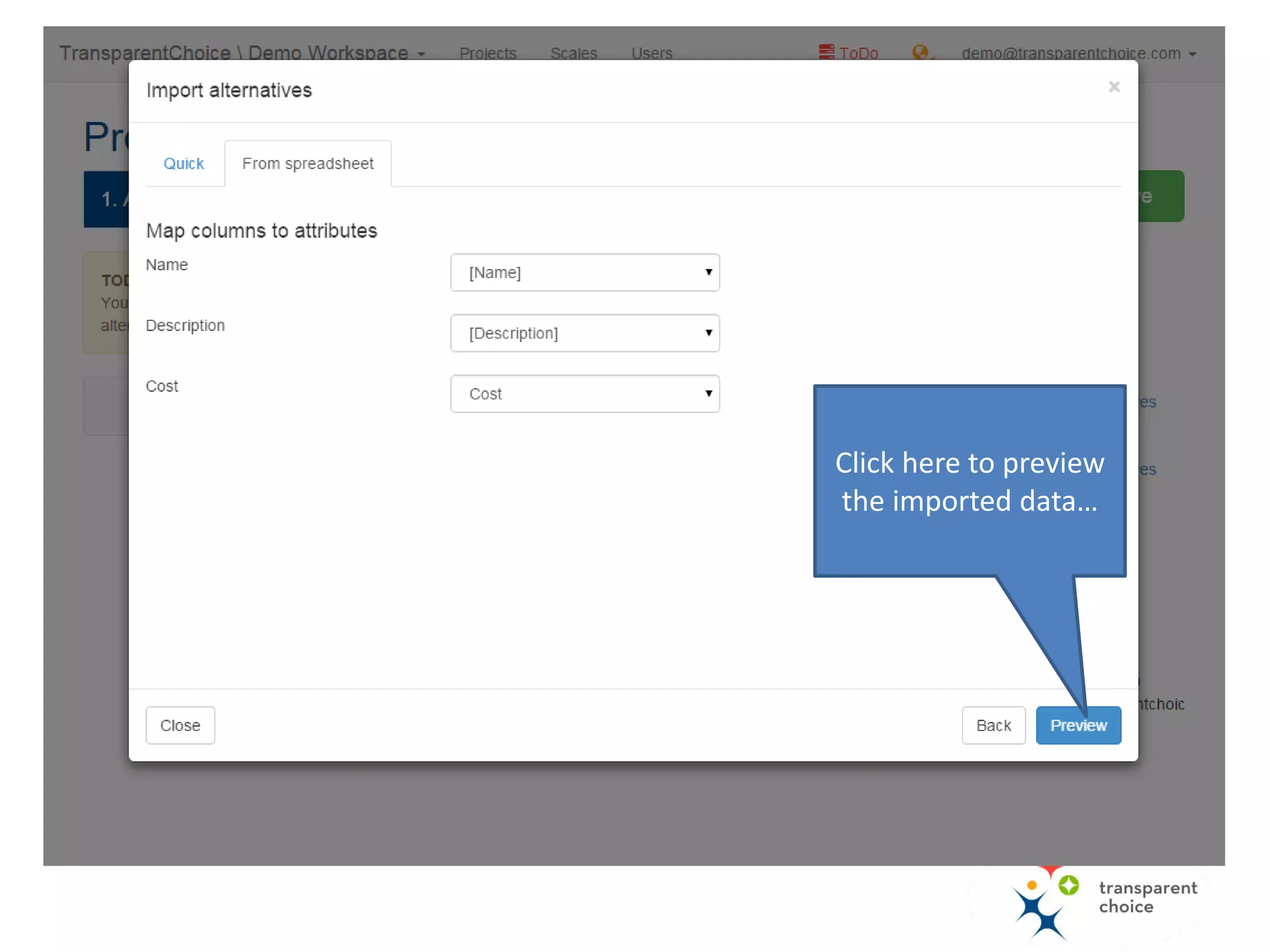
Click here to preview
the imported data…
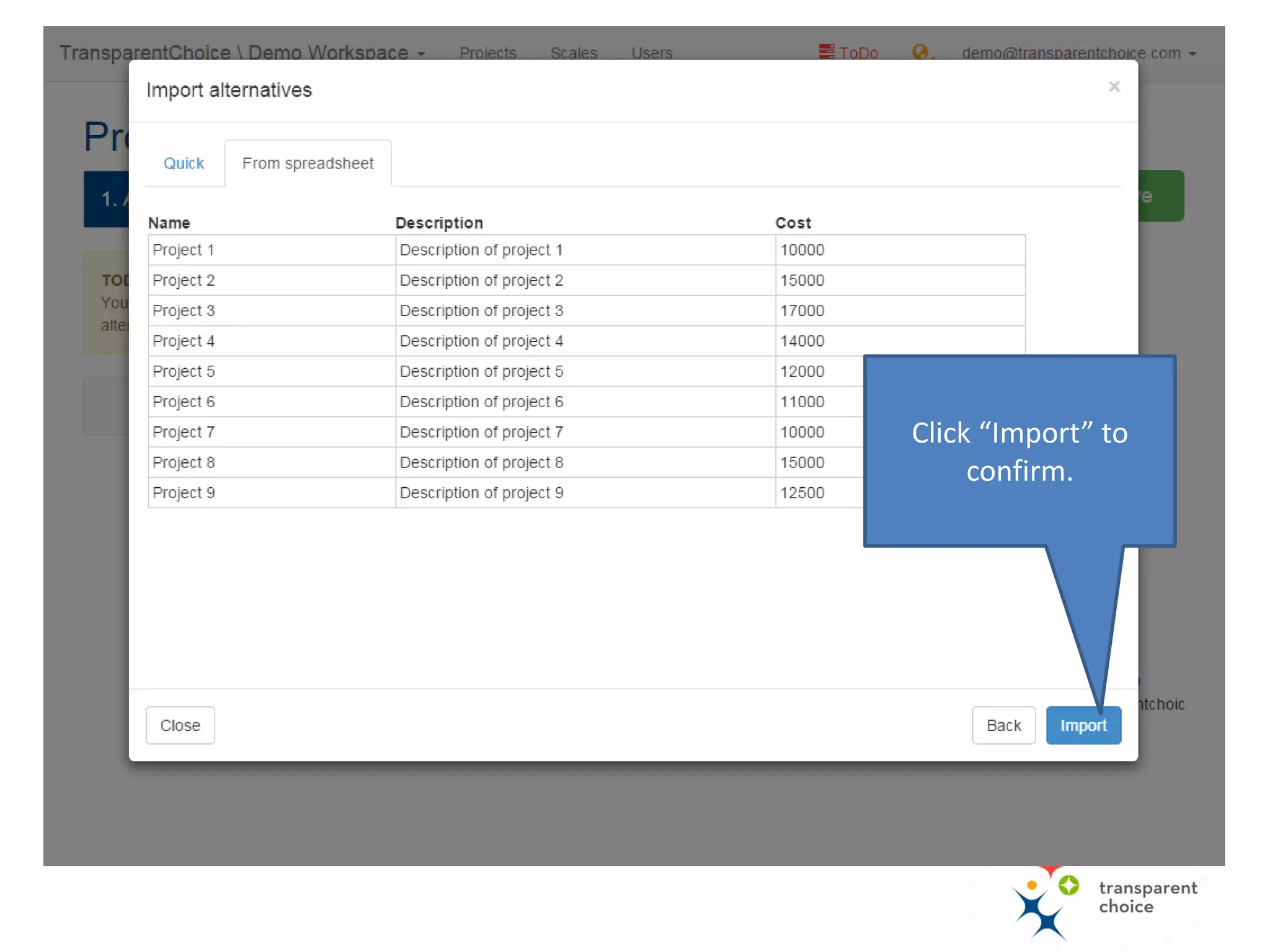
Click “Import” to
confirm.
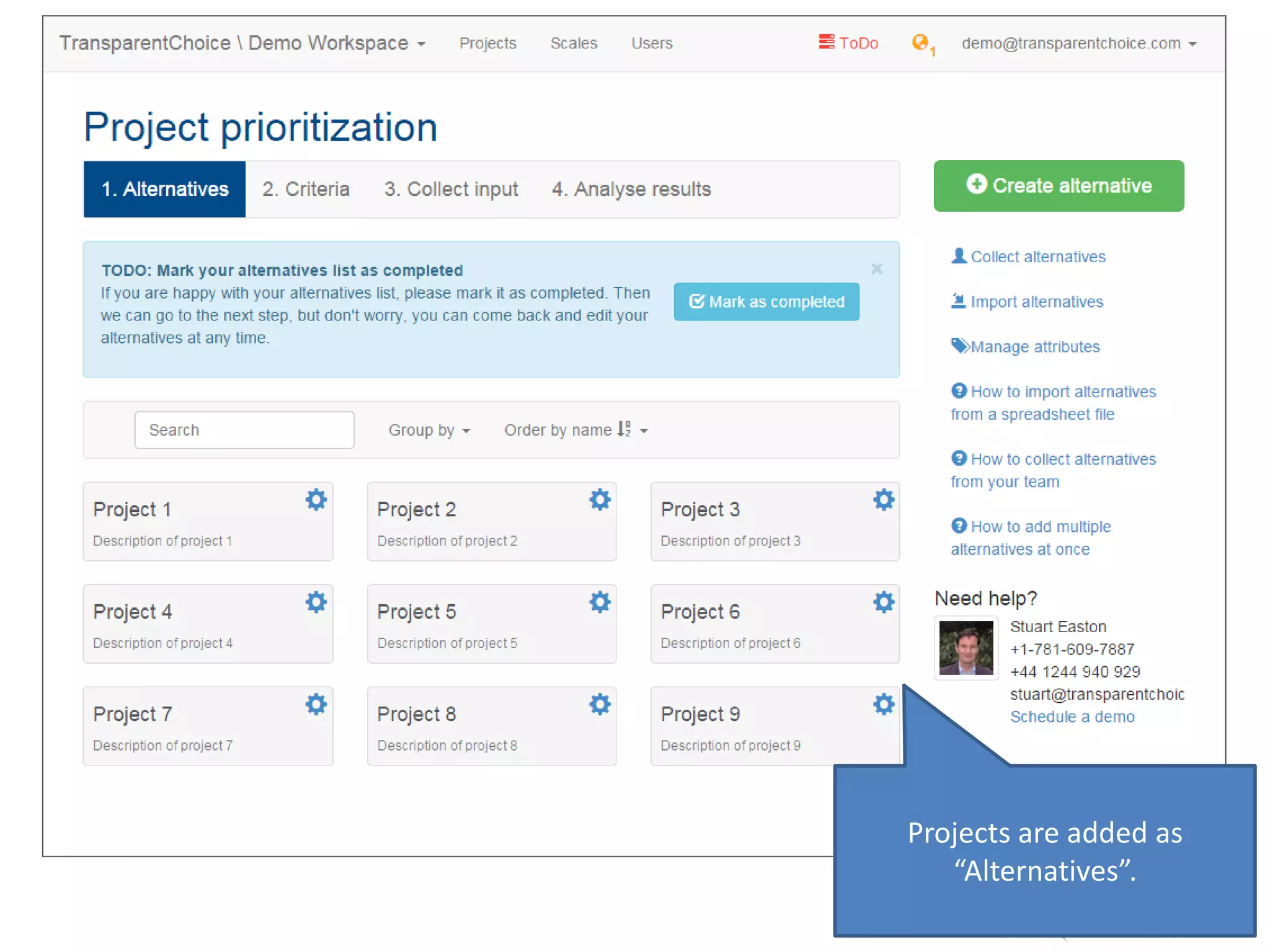
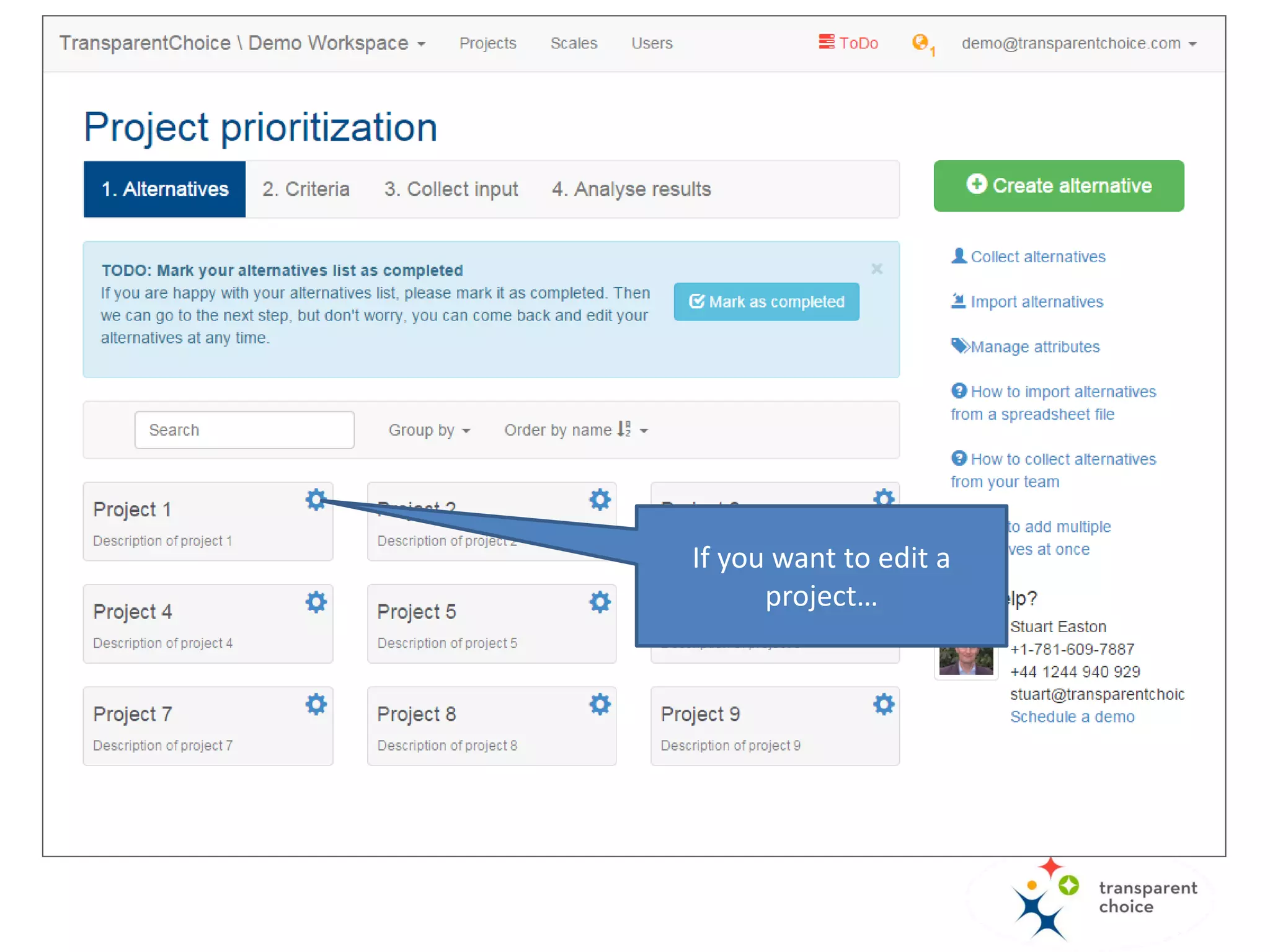
Projects are added as
“Alternatives”.
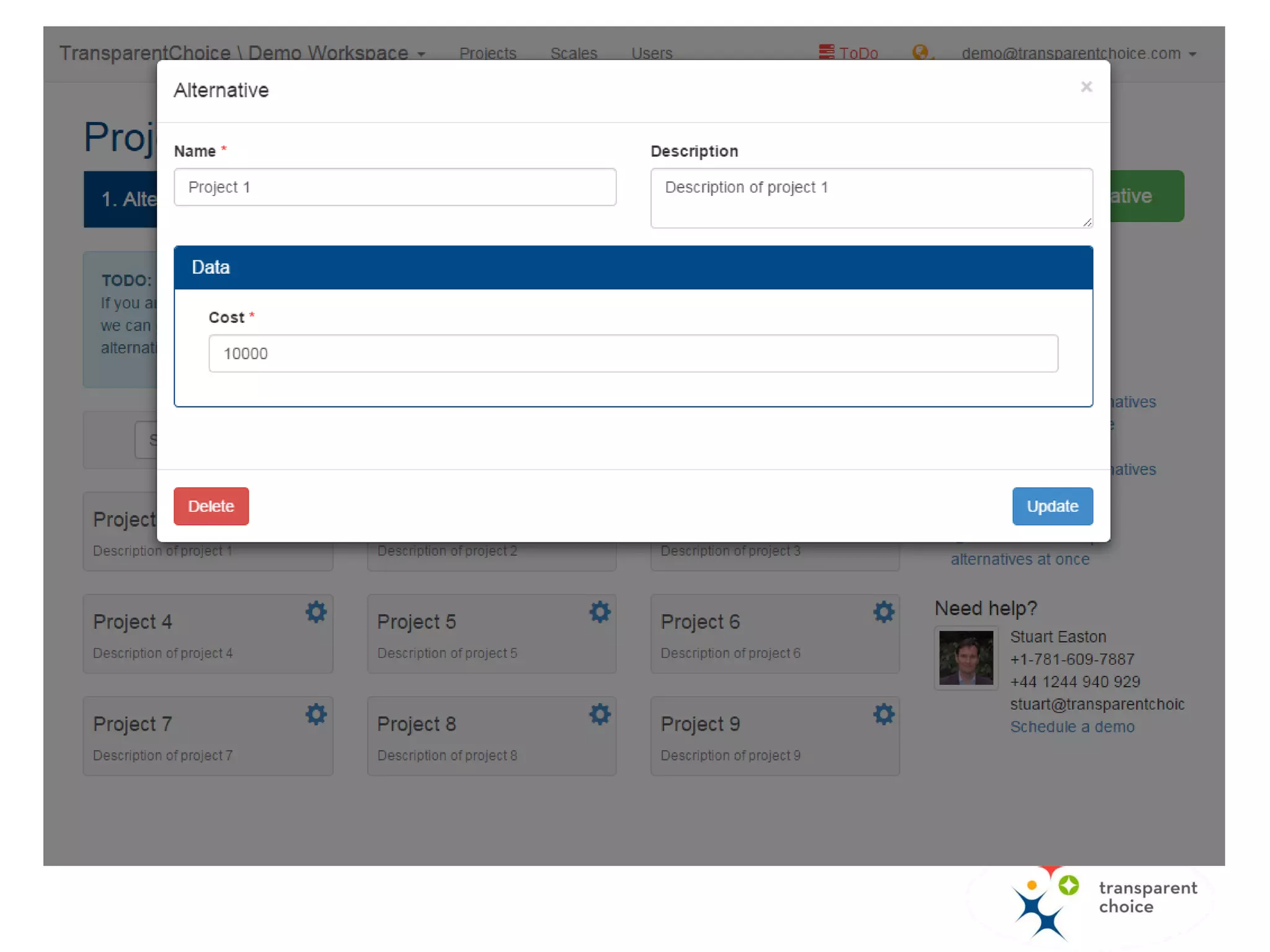
If you want to edit a
project…
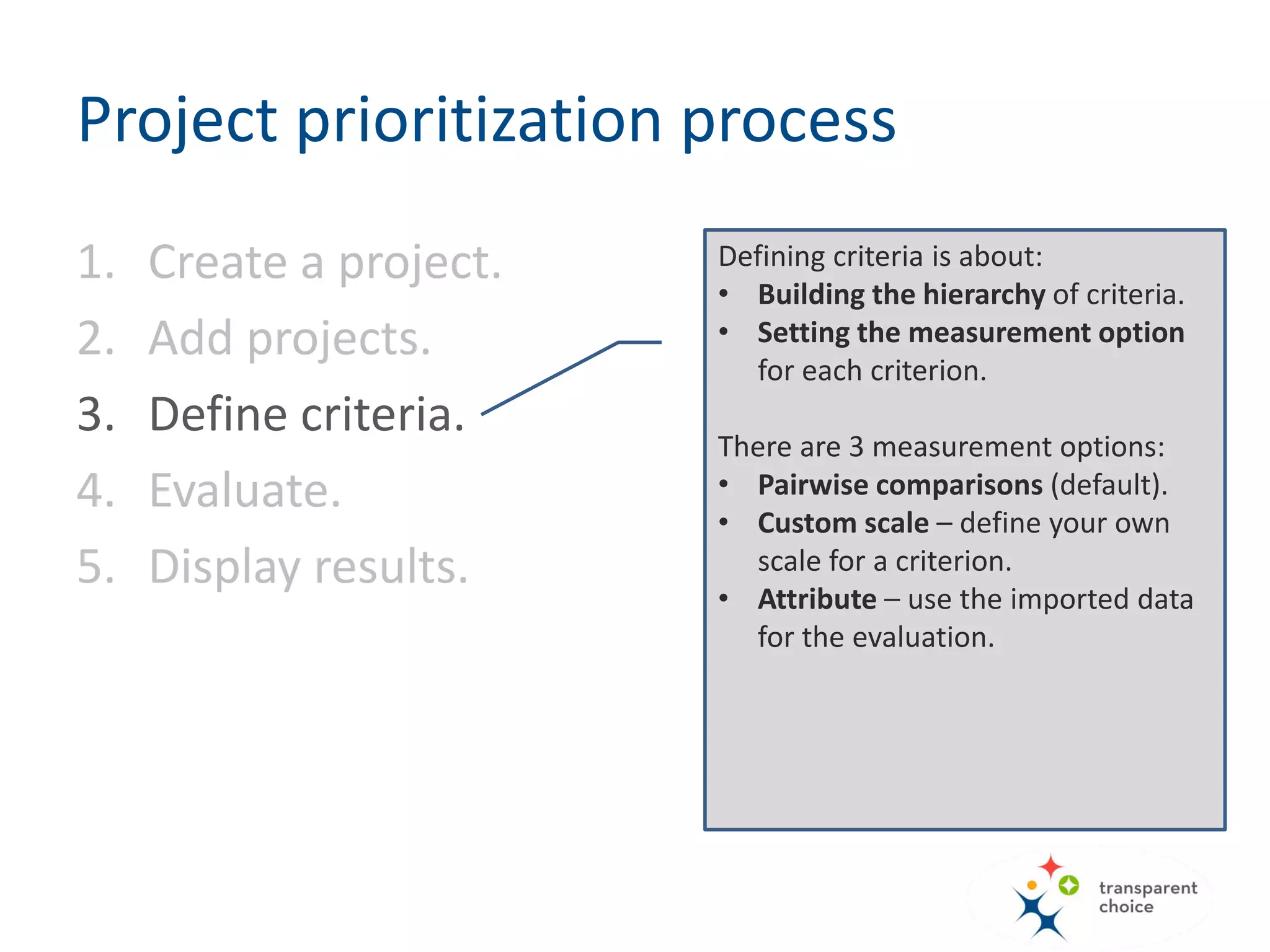
Defining criteria is about:
• Building the hierarchy of criteria.
• Setting the measurement option
for each criterion.
There are 3 measurement options:
• Pairwise comparisons (default).
• Custom scale – define your own
scale for a criterion.
• Attribute – use imported data for
the evaluation.
Project prioritization process
1. Create a project.
2. Add projects.
3. Define criteria.
4. Evaluate.
5. Display results.
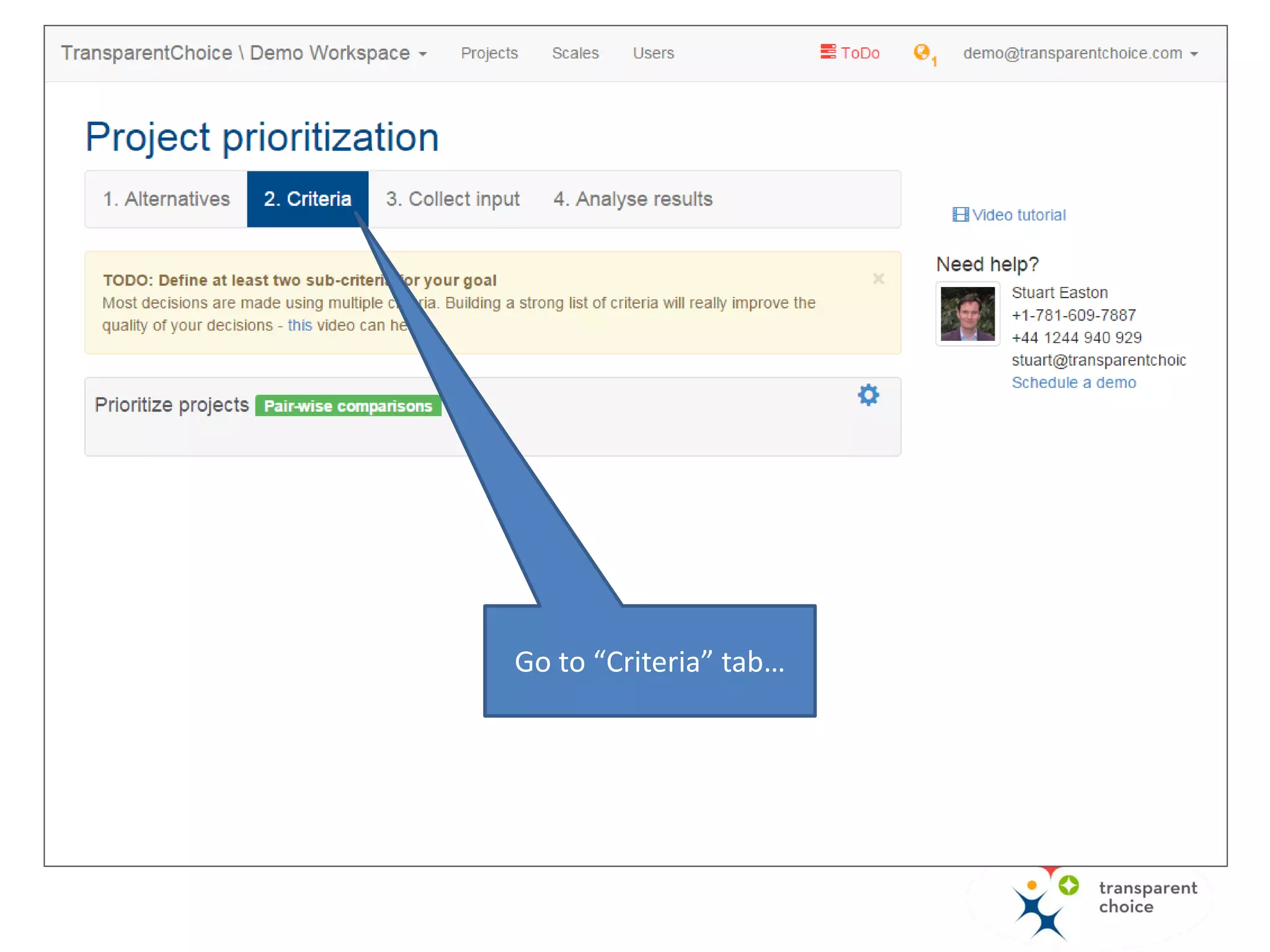
Go to “Criteria” tab…
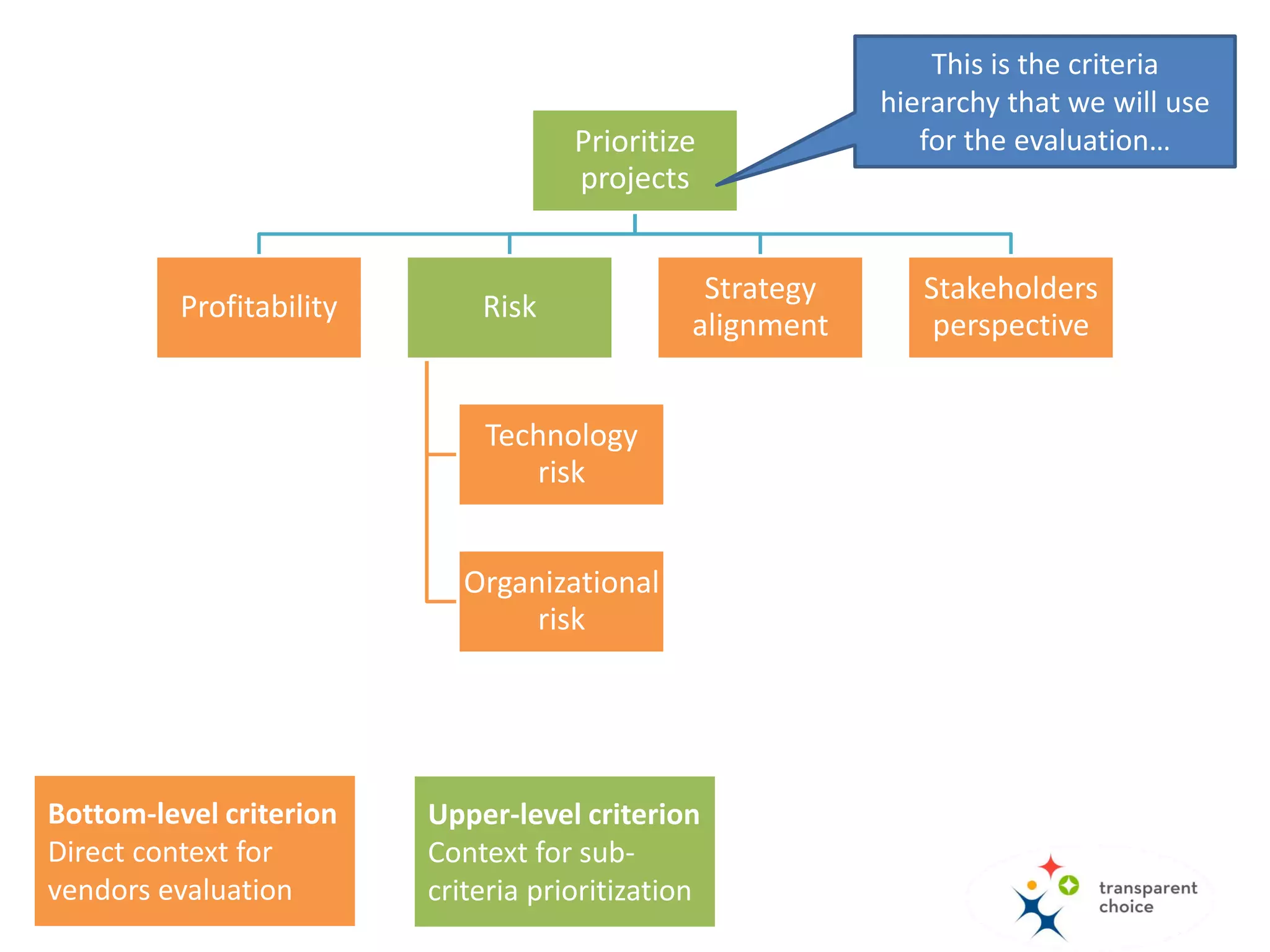
Prioritize
projects
Profitability Risk
Technology
risk
Organizational
risk
Strategy
alignment
Stakeholders
perspective
This is the criteria
hierarchy that we will use
for the evaluation…
Bottom-level criteria
You will use these criteria to
directly "measure" the
alternatives (projects). You will
typically use a scale or attributes
to do this.
Upper-level criteria
These criteria are made up of
sub-criteria. You will typically use
pairwise comparison to work out
the relative importance of the
sub-criteria
Prioritize
projects
Profitability Risk
Technology
risk
Organizational
risk
Strategy
alignment
Stakeholders
perspective
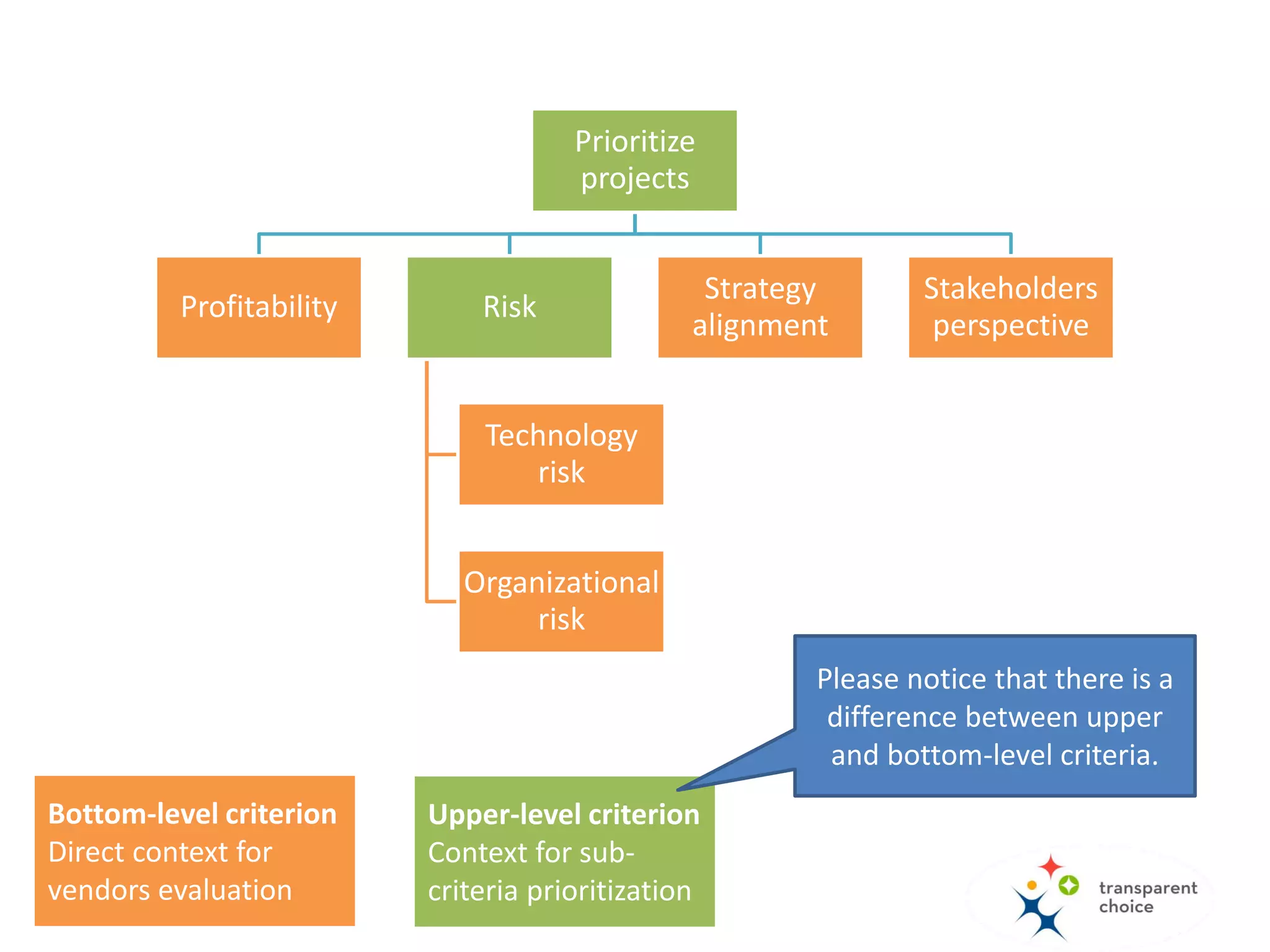
Please notice the difference
between upper and bottom-
level criteria.
Bottom-level criteria
You will use these criteria to
directly "measure" the
alternatives (projects). You will
typically use a scale or attributes
to do this.
Upper-level criteria
These criteria are made up of
sub-criteria. You will typically use
pairwise comparison to work out
the relative importance of the
sub-criteria
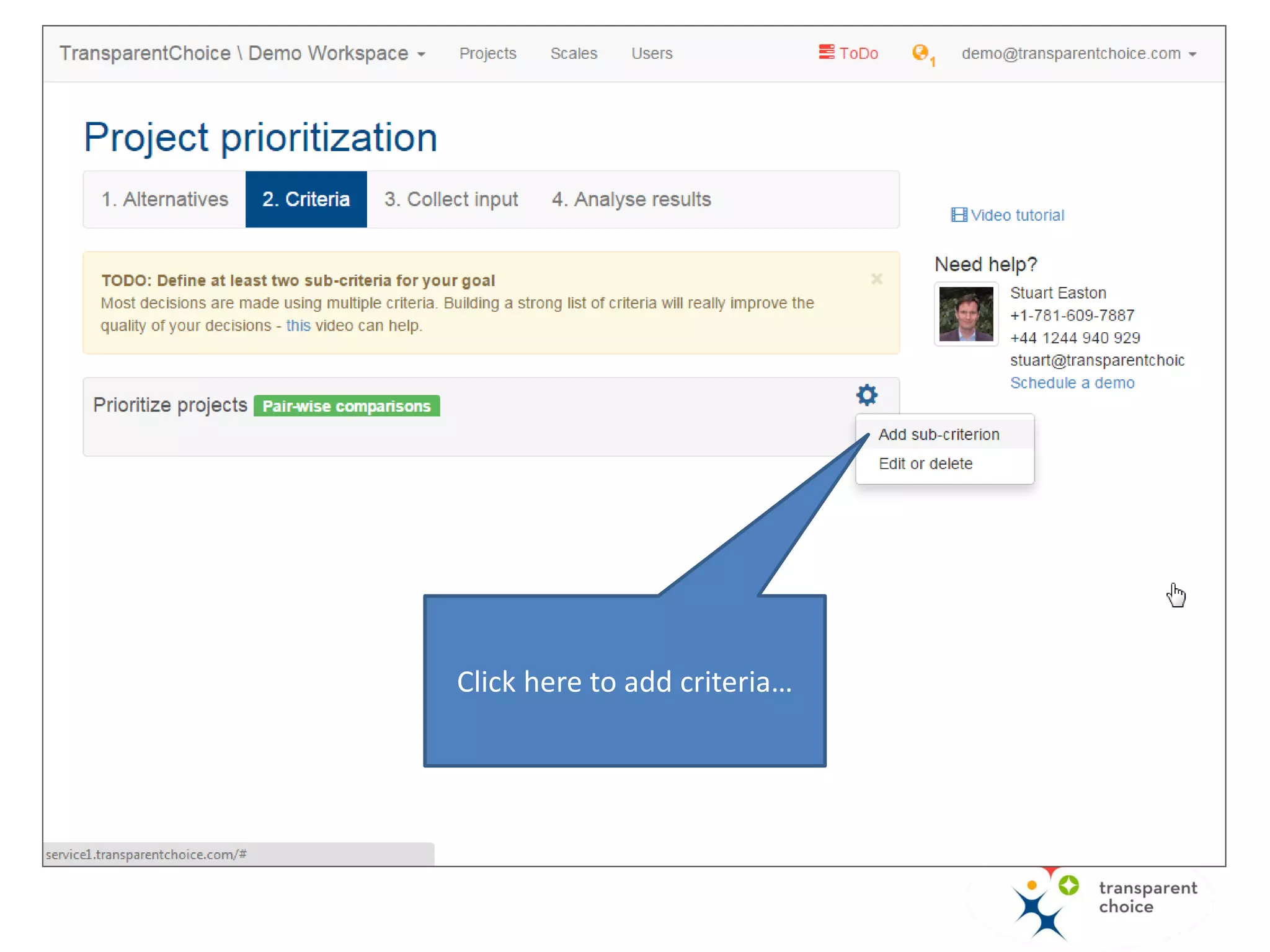
Click here to add criteria…
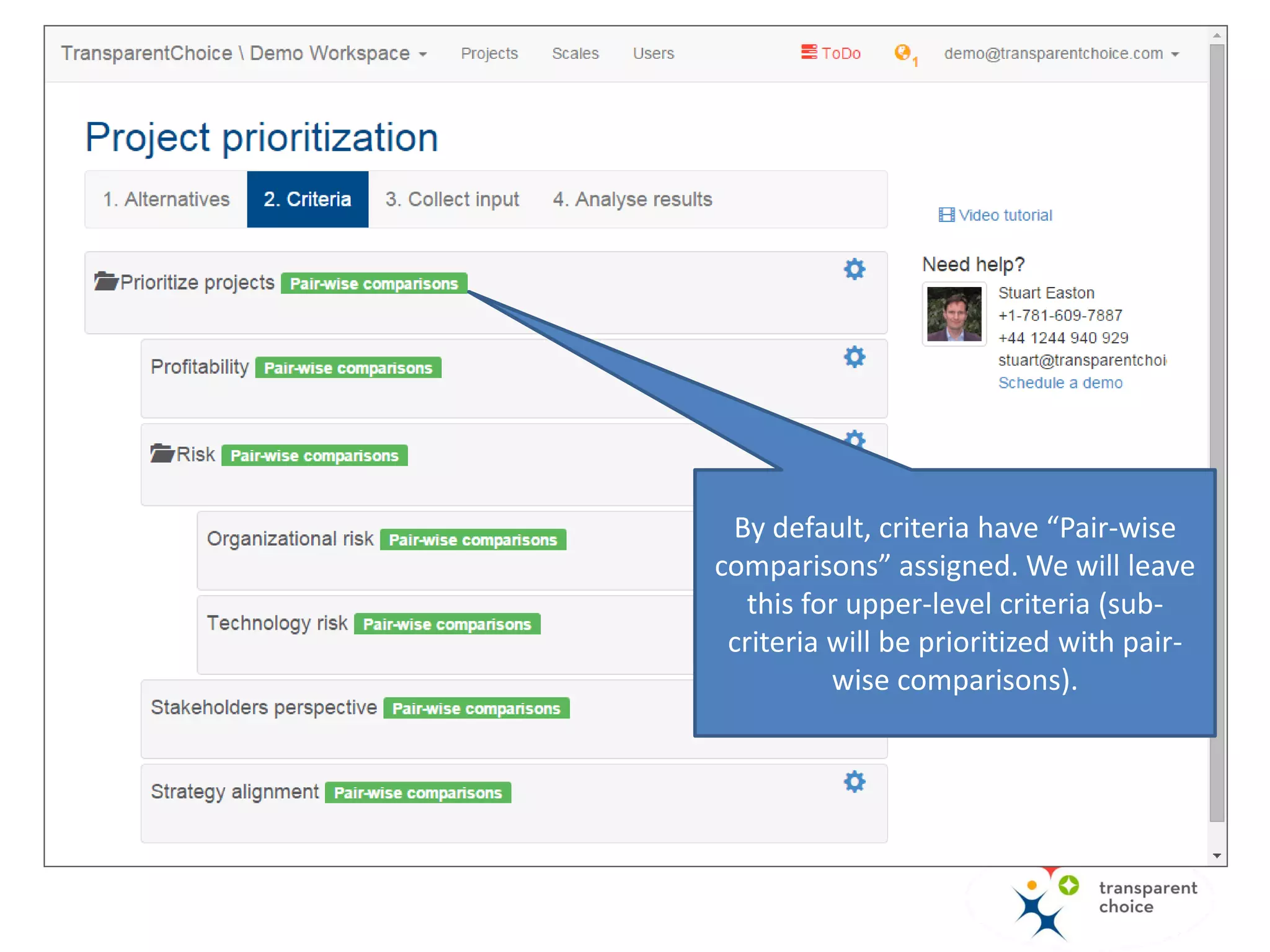
By default, criteria have “Pair-wise
comparisons” assigned. We will leave
this for upper-level criteria (sub-
criteria will be prioritized with pair-
wise comparisons).
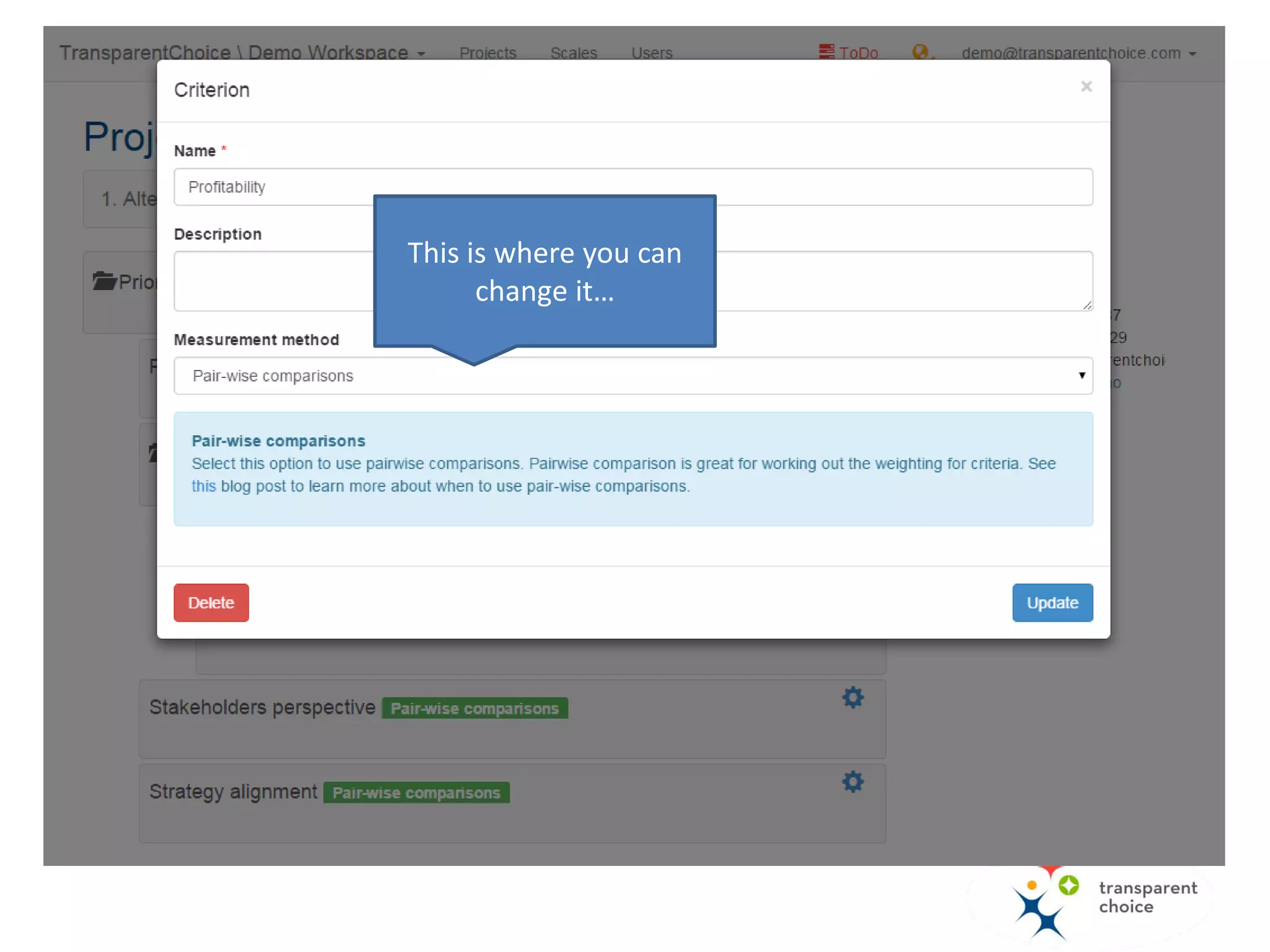
Click “edit” to change
the measurement
option…
This is where you can
change it…
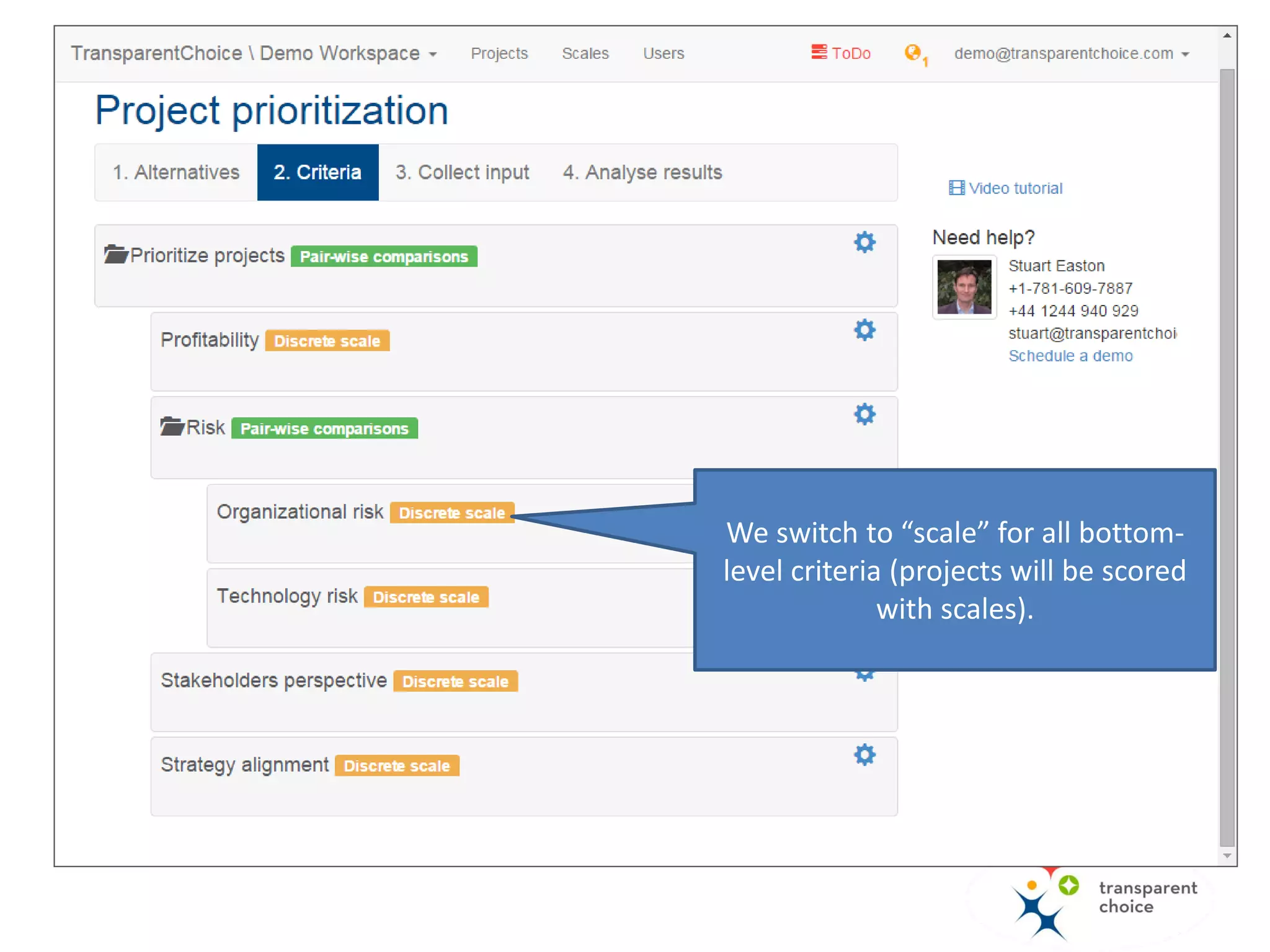
We switch to “scale” for all bottom-
level criteria (projects will be scored
with scales).
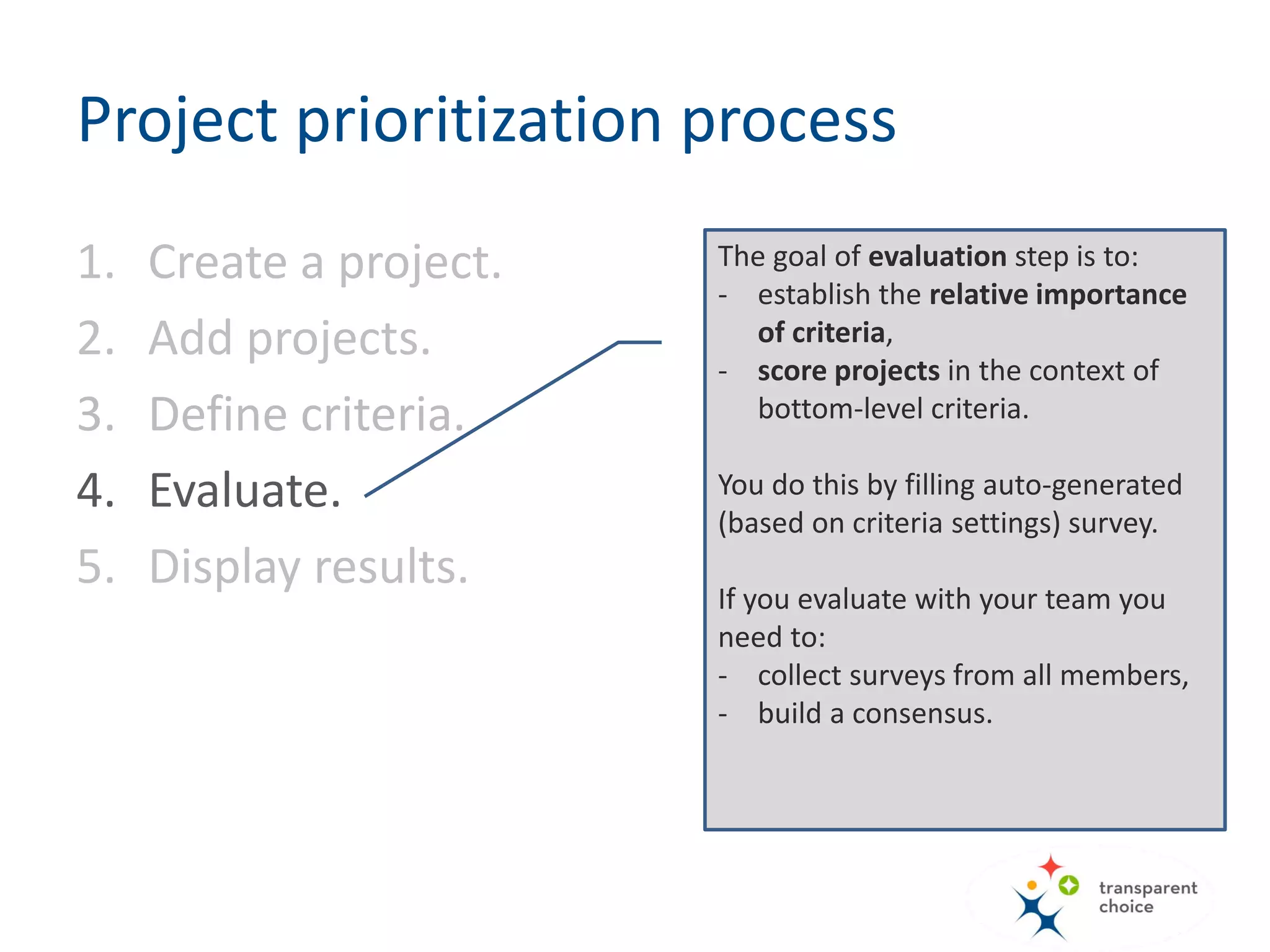
The goal of evaluation step is to:
- establish the relative importance
of criteria,
- score projects in the context of
bottom-level criteria.
You do this by filling auto-generated
(based on criteria settings) survey.
If you evaluate with your team you
need to:
- collect surveys from all members,
- build a consensus.
Project prioritization process
1. Create a project.
2. Add projects.
3. Define criteria.
4. Evaluate.
5. Display results.
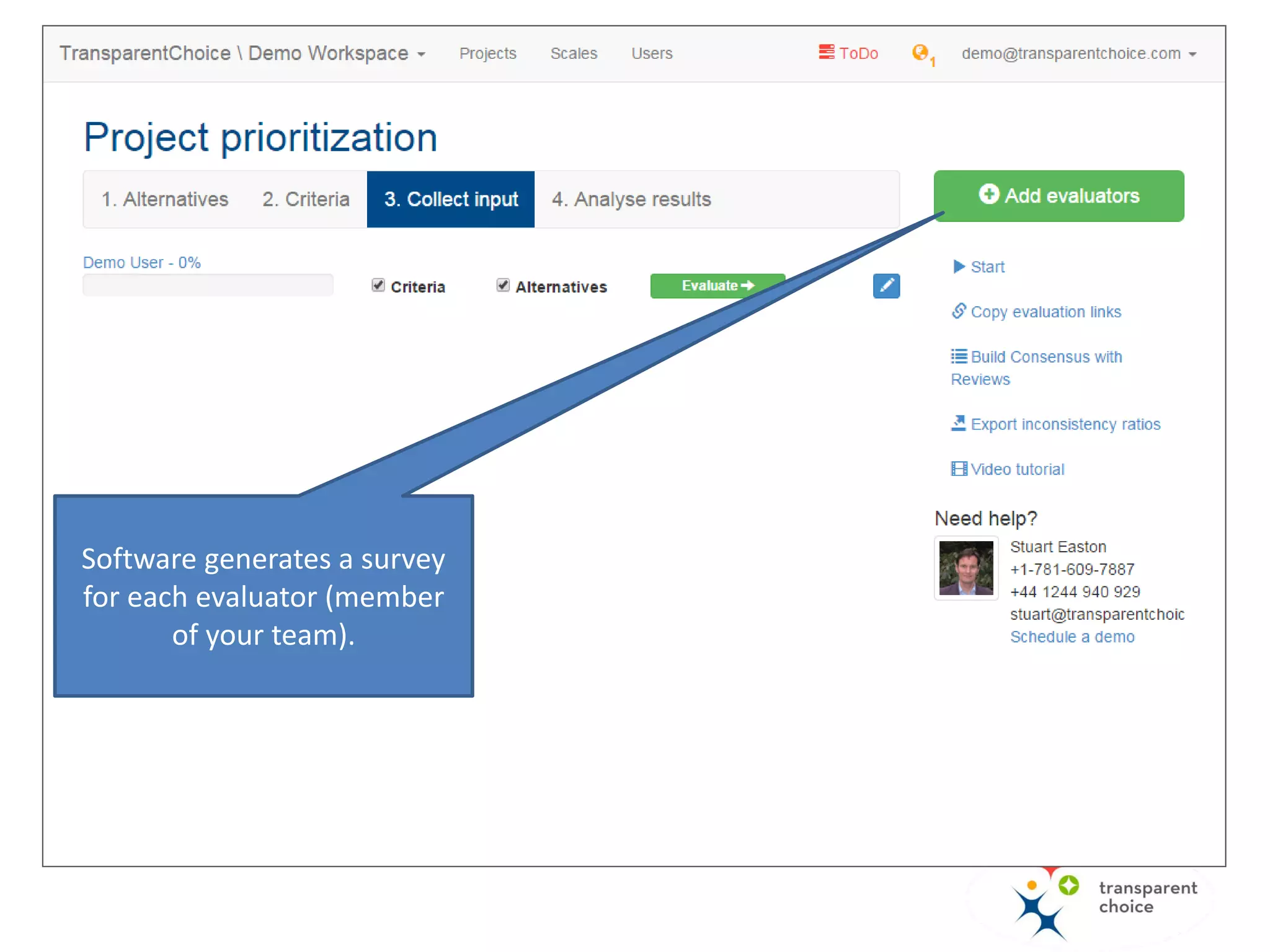
Software generates a survey
for each evaluator (member
of your team).
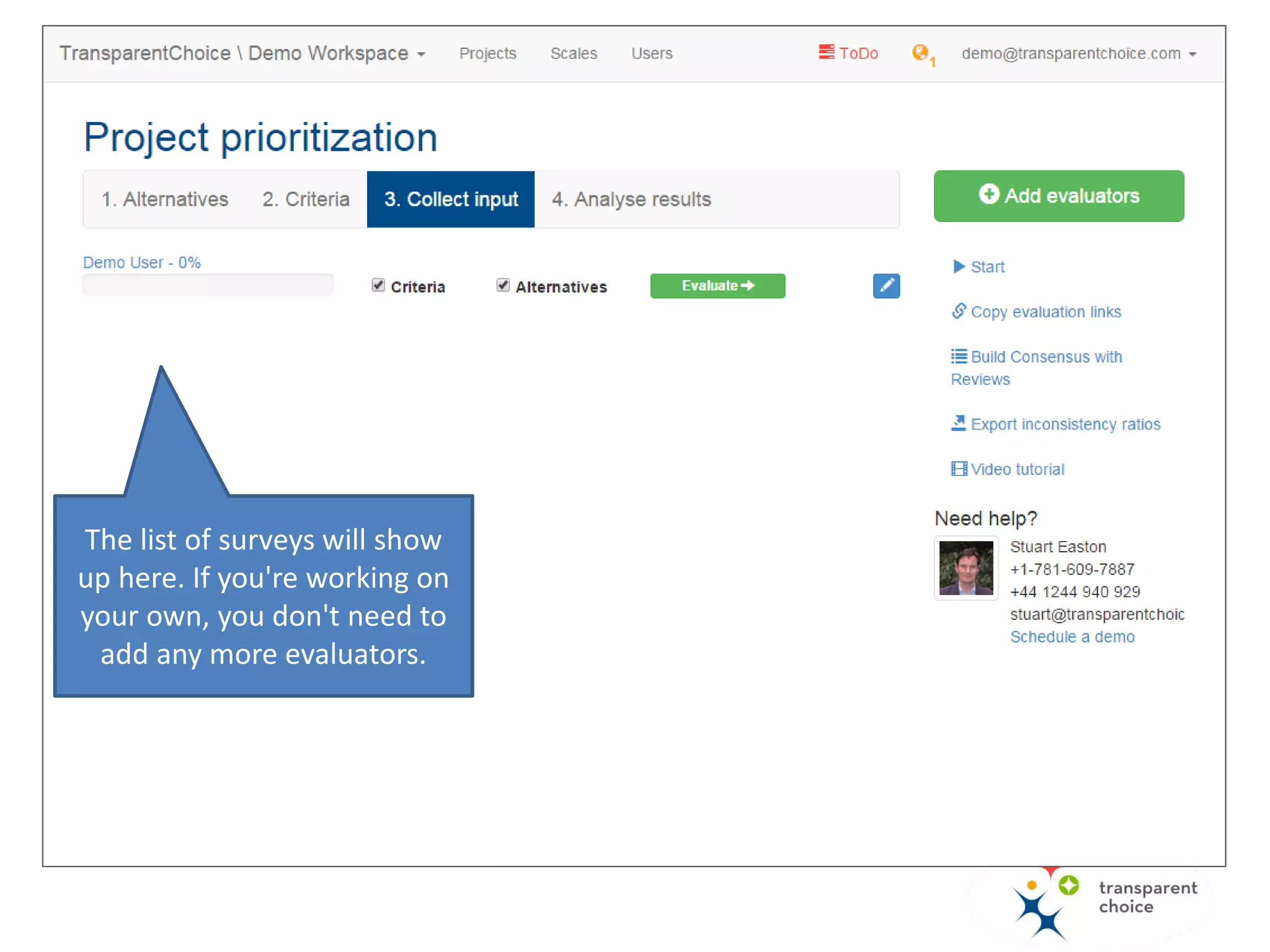
The list of surveys will show
up here. If you're working on
your own, you don't need to
add any more evaluators.
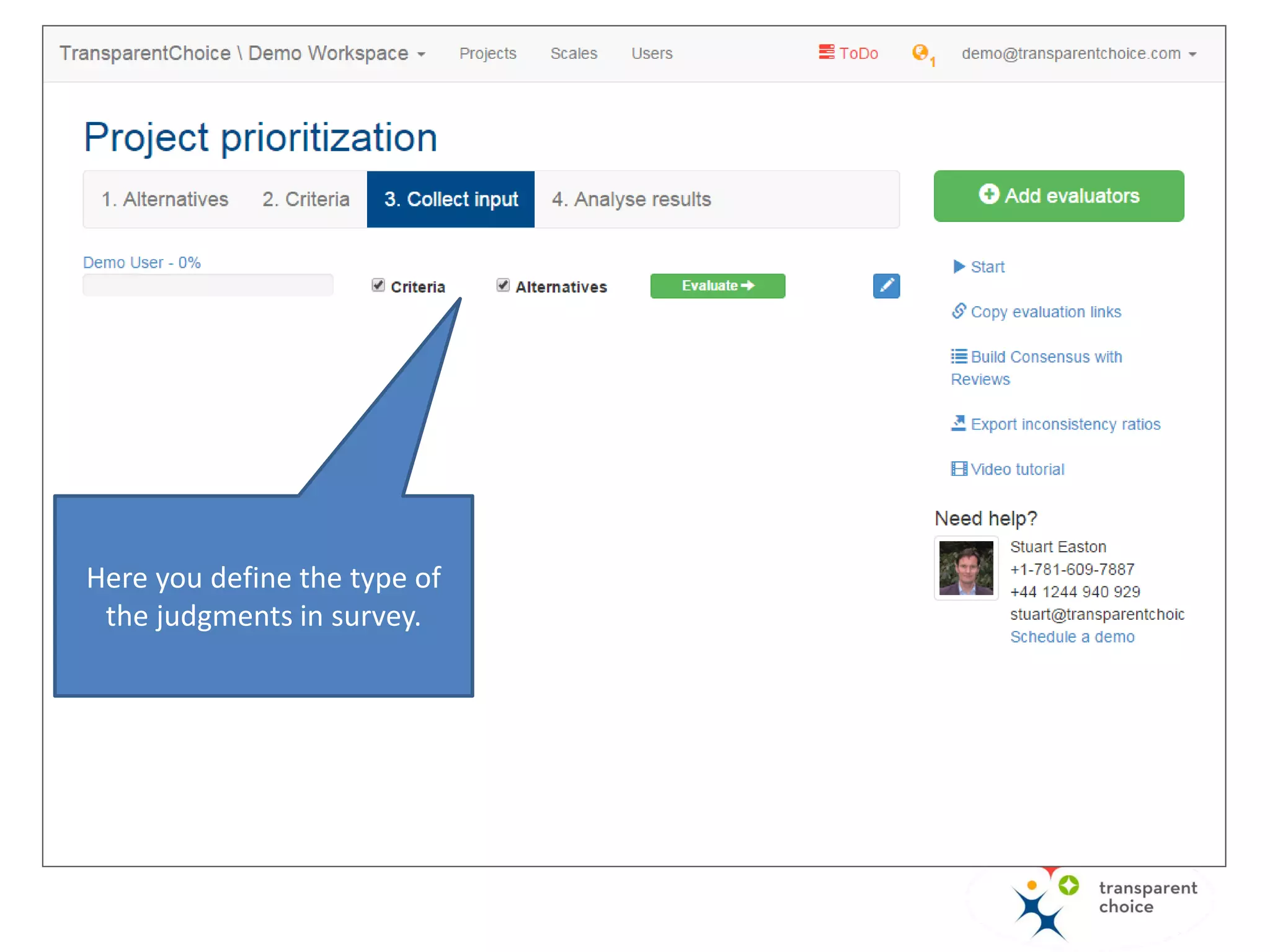
Here you define the type of
the judgments in survey.
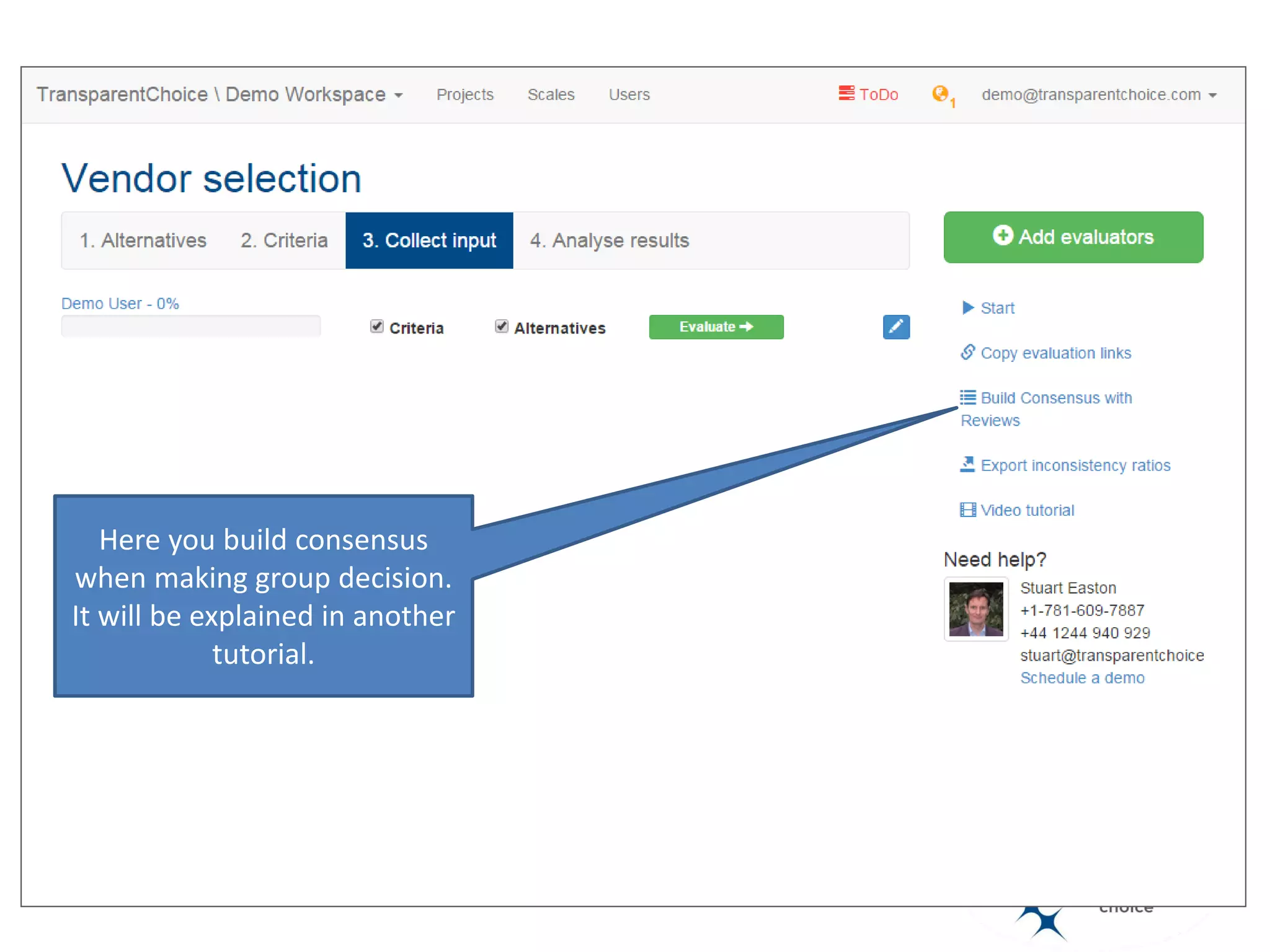
Here you build consensus
when making group decisions.
It will be explained in another
tutorial.
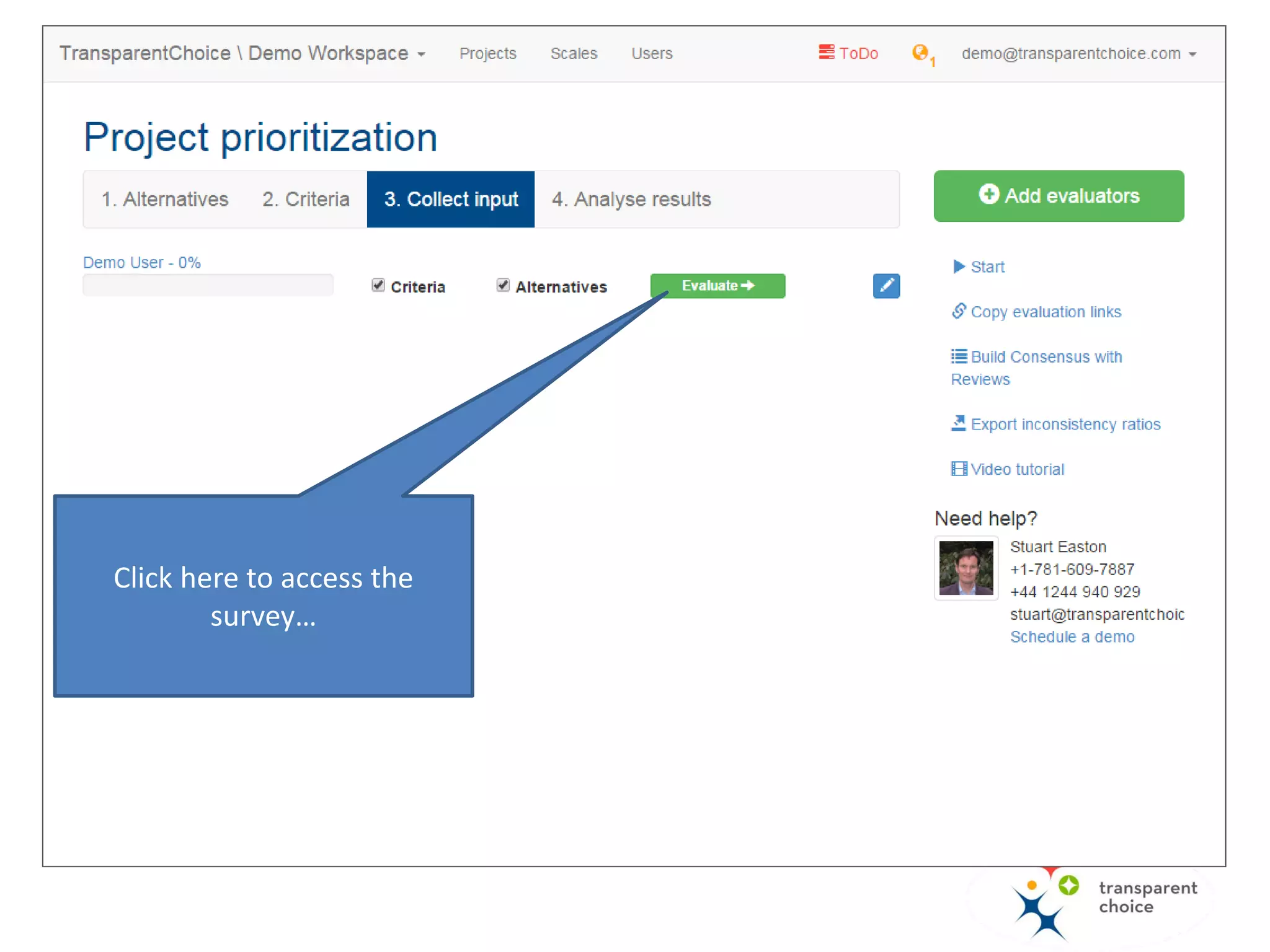
Click here to access the
survey…
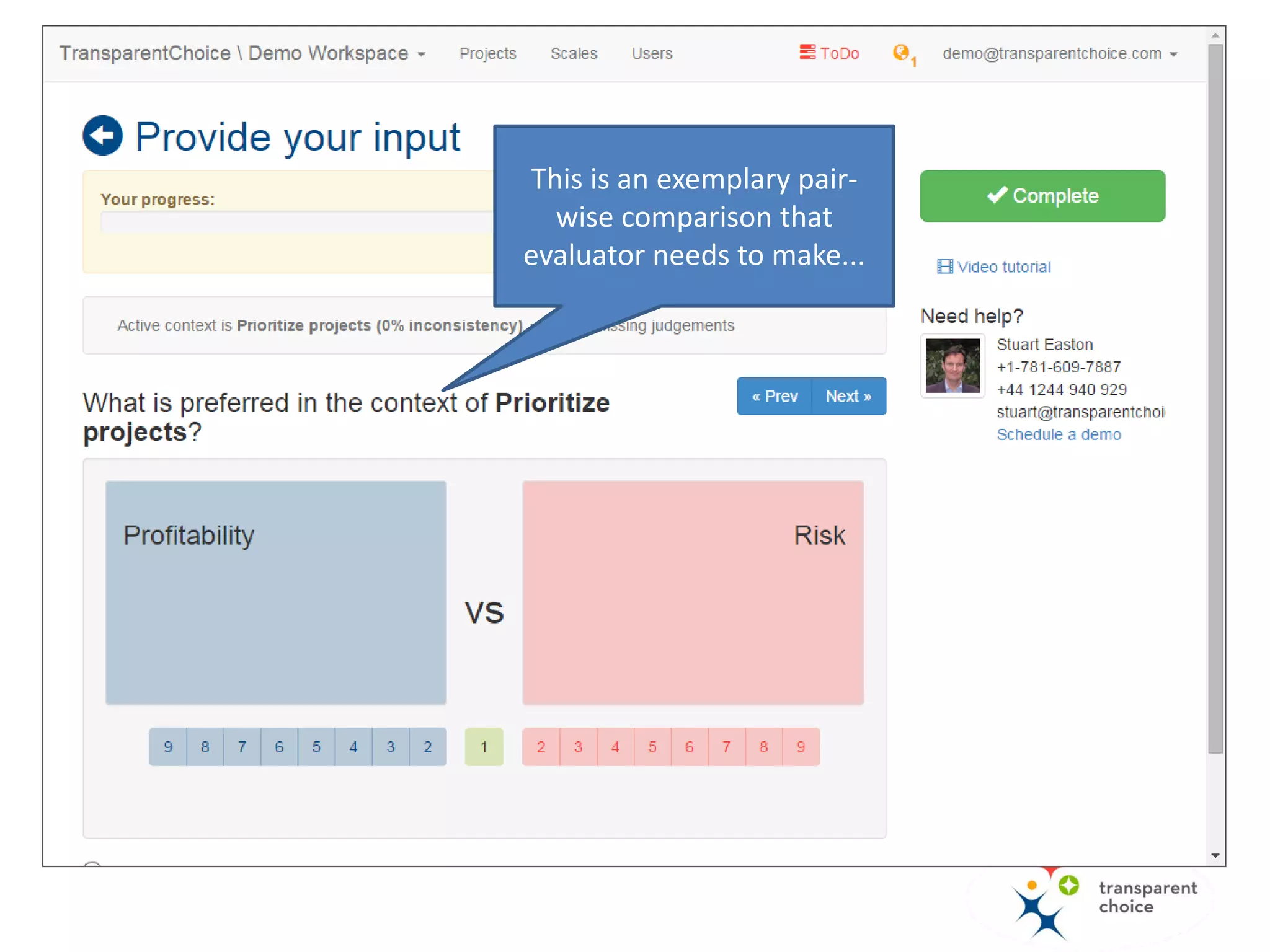
This is an exemplary pair-
wise comparison that
evaluator needs to make...
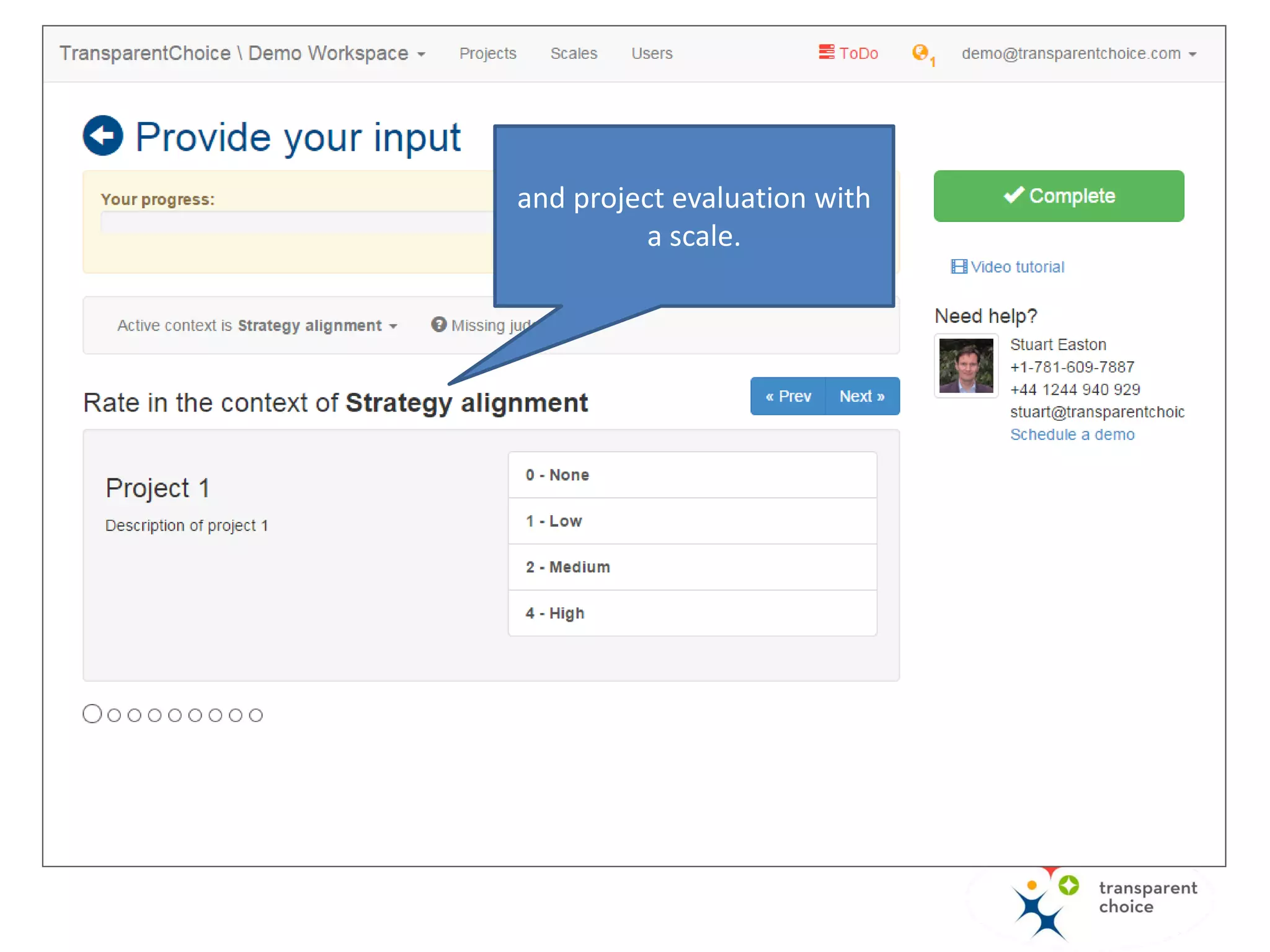
and project evaluation with
a scale.
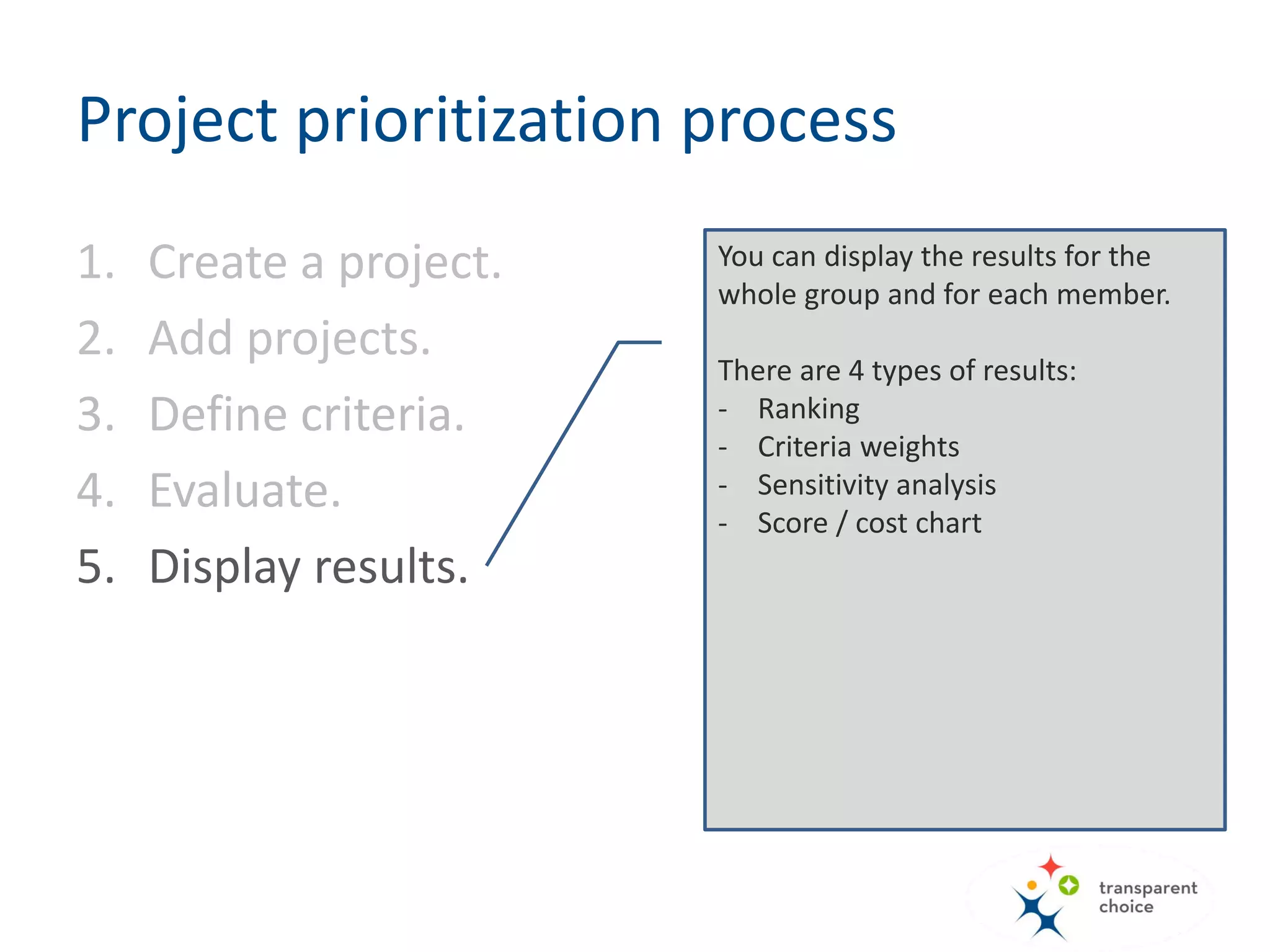
You can display the results for the
whole group and for each member.
There are 4 types of results:
- Ranking
- Criteria weights
- Sensitivity analysis
- Score / cost chart
Project prioritization process
1. Create a project.
2. Add projects.
3. Define criteria.
4. Evaluate.
5. Display results.
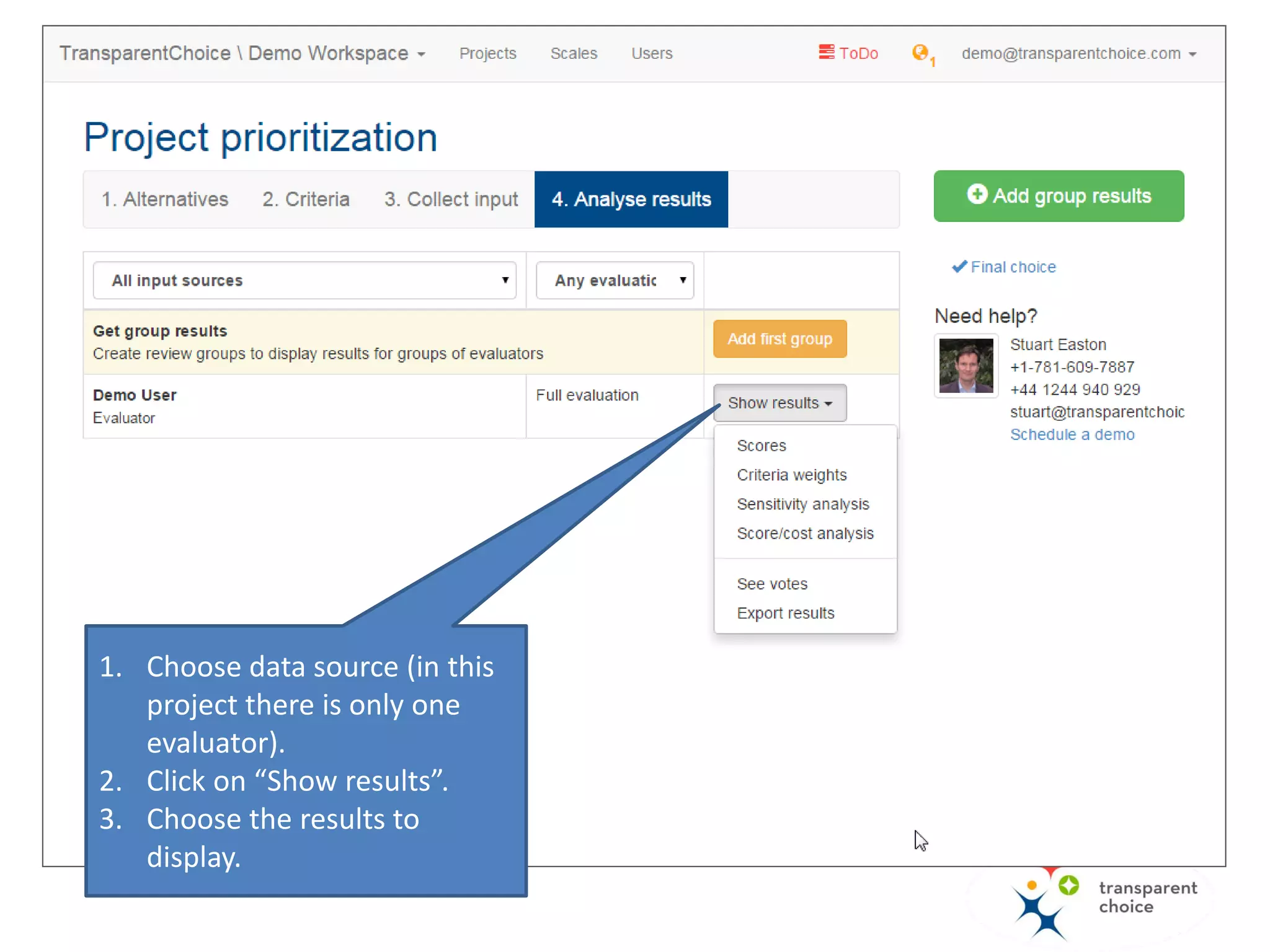
1. Choose data source (in this
project there is only one
evaluator).
2. Click on “Show results”.
3. Choose the results to
display.
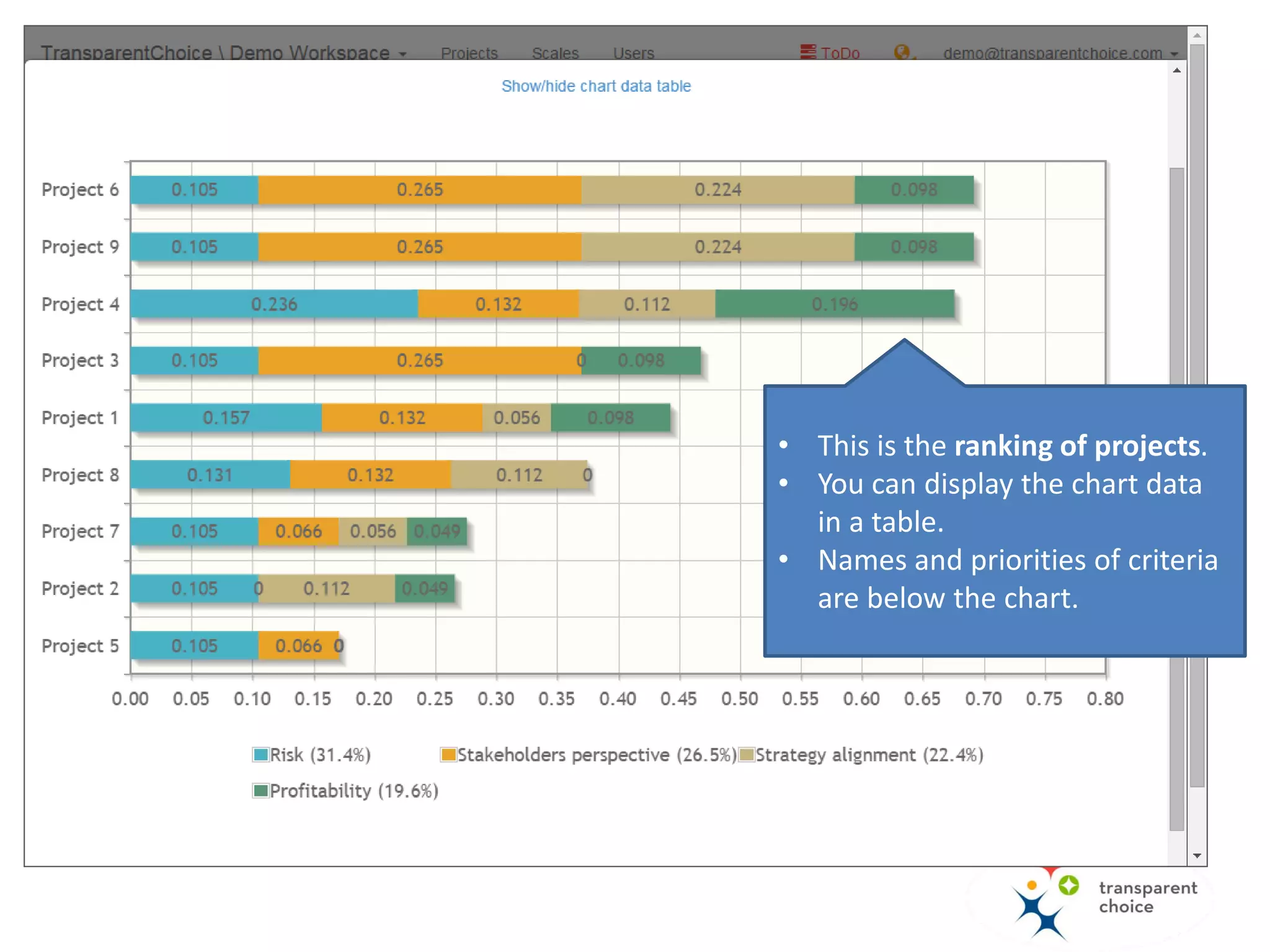
• This is the ranking of projects.
• You can display the chart data
in a table.
• Names and priorities of criteria
are below the chart.
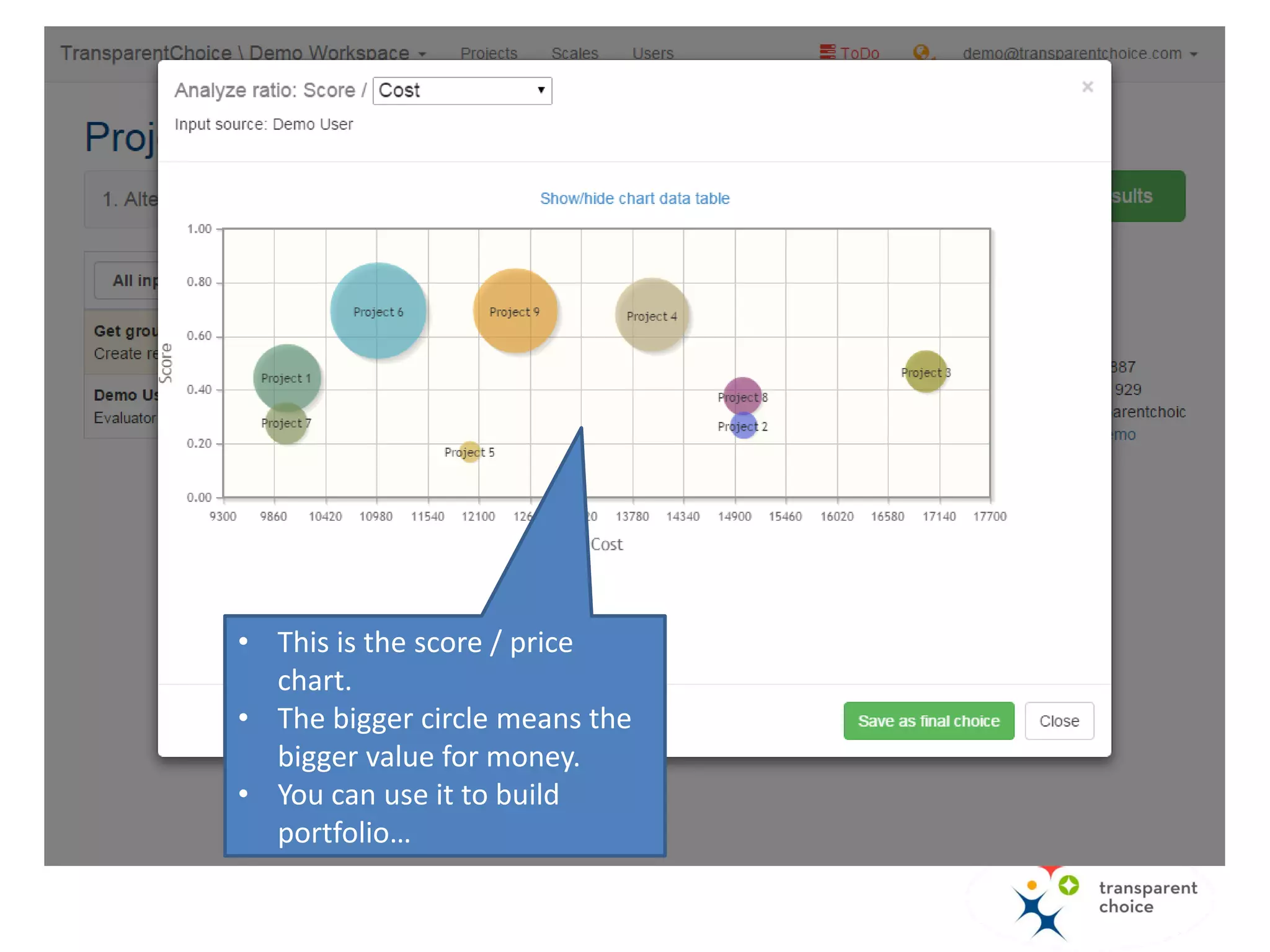
• This is the score / cost chart.
• The bigger circle, the greater
value for money.
• You need to import “cost” as
an “attribute” to display this
chart.
• You can use it to select
portfolio…
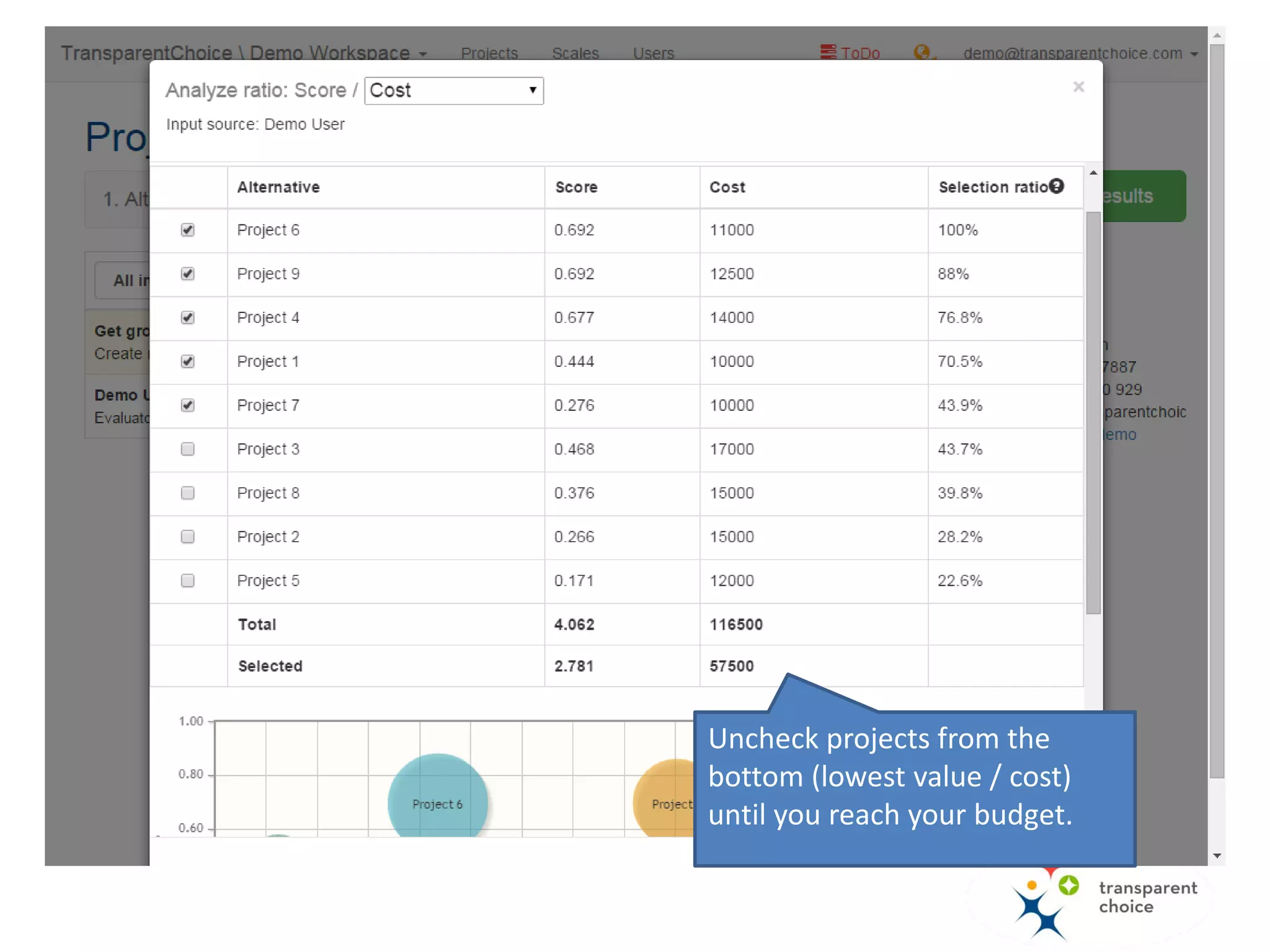
Uncheck projects from the
bottom (lowest value / cost)
until you reach your budget.
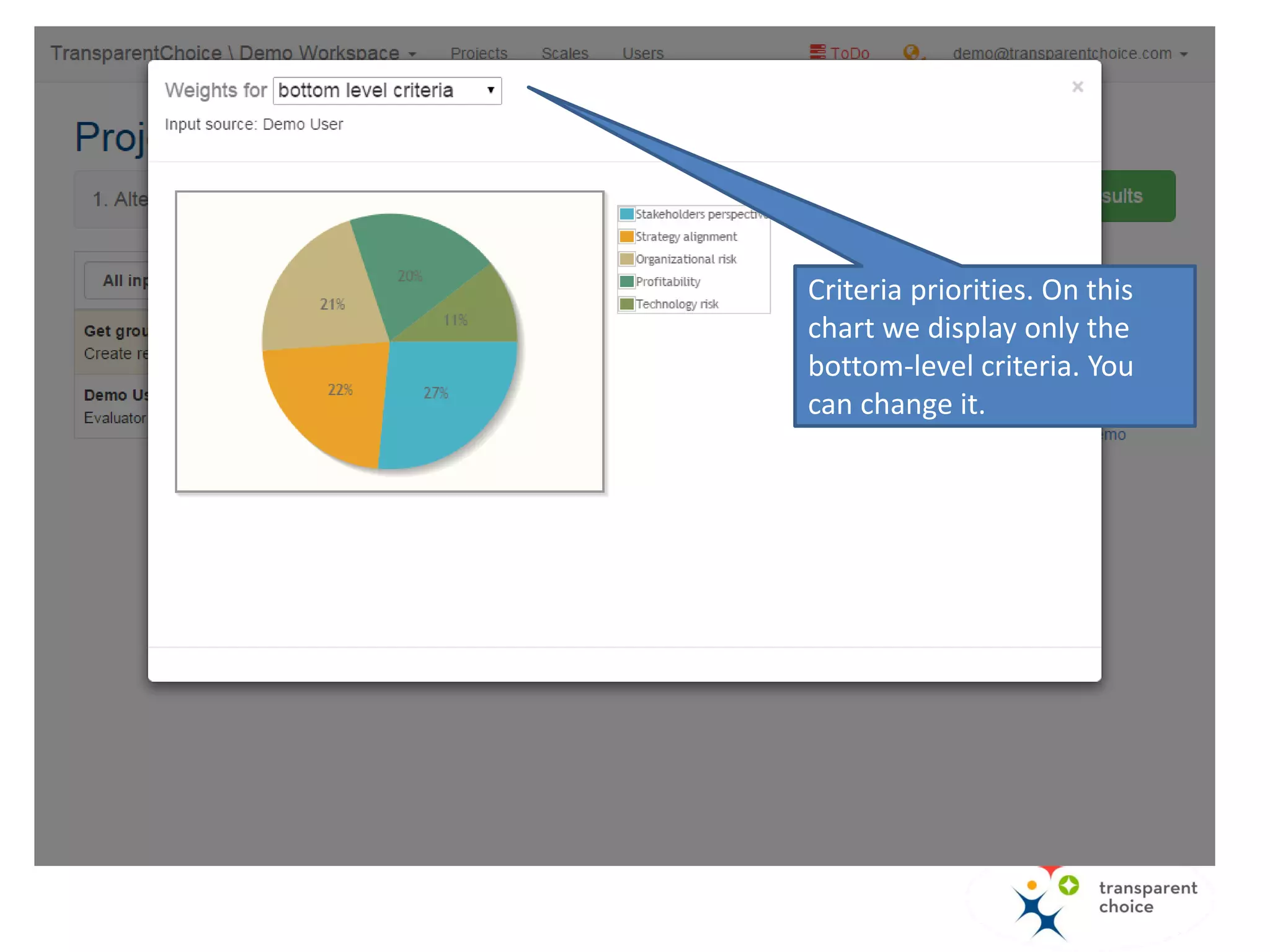
Criteria priorities. On this
chart we display only the
bottom-level criteria. You
can change it.
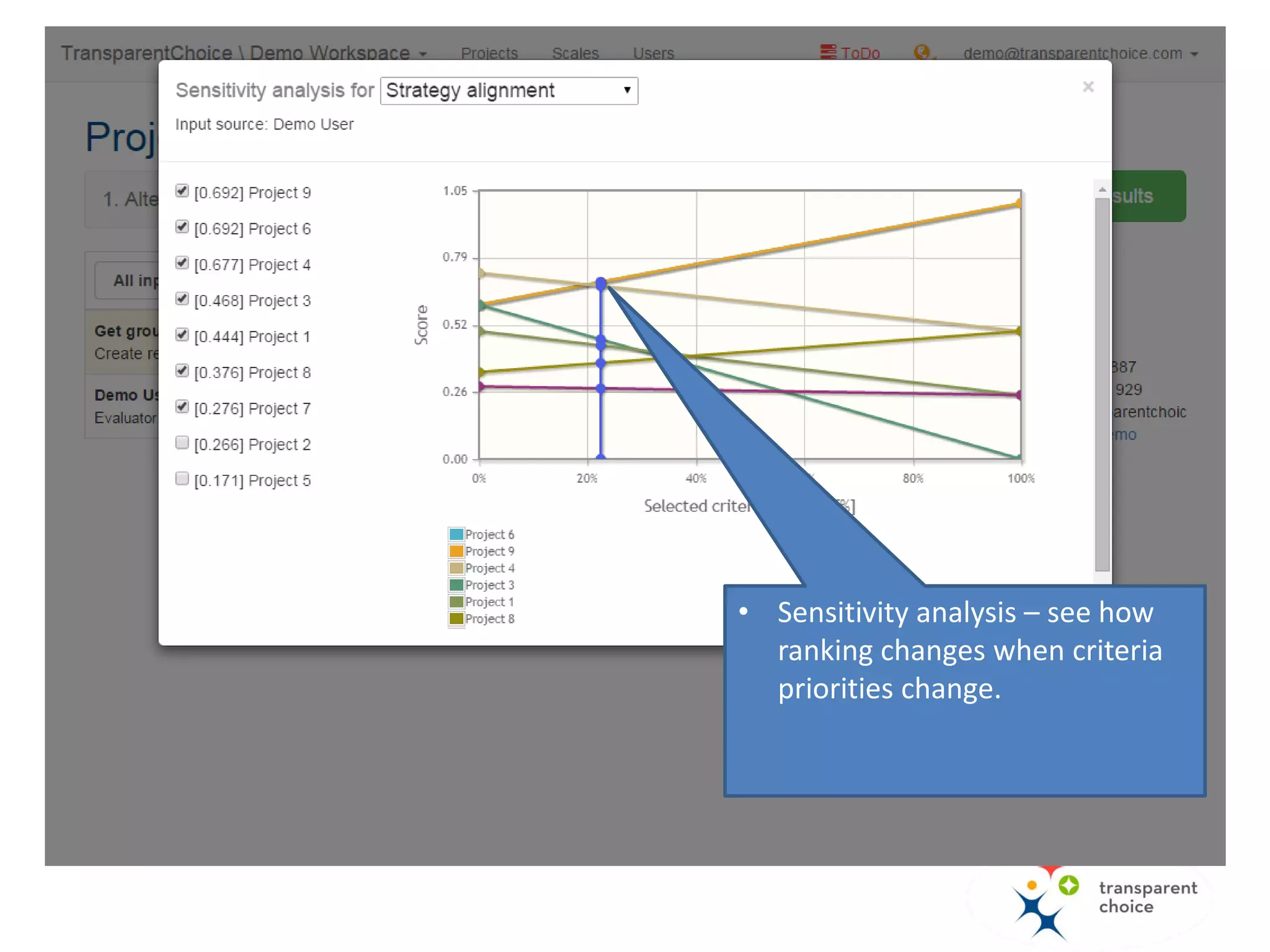
• Sensitivity analysis – see how
ranking changes when criteria
priorities change.
Next steps
• See our other tutorials
• Get the free trial of TransparentChoice software
• Schedule a live demo of TransparentChoice
software
• Request our support for your pilot project

How to prioritize and select projects with TransparentChoice software

  • 1.
    How to prioritizeand select projects TransparentChoice Software Tutorial
  • 2.
    From this presentationyou will learn how to use TransparentChoice software to prioritize projects. See sample results below…
  • 3.
    The first thingyou need to do is to create a project. In order to do that you need to be logged in. If you don’t have an account yet – you can create it here. Project prioritization process 1. Create a project. 2. Add projects. 3. Define criteria. 4. Evaluate. 5. Display results.
  • 4.
    Click here tocreate a project…
  • 6.
    Now it istime to add projects as “Alternatives”. “Alternatives” are things that will be evaluated in your decision project e.g. vendors, technologies, projects or candidates. So in this project Alternative = Project There are 3 ways to add alternatives (projects): • Manual one-by-one. • Collect online – publish a form and invite other people to submit proposals. • Import – from text or a spreadsheet file. Project prioritization process 1. Create a project. 2. Add projects. 3. Define criteria. 4. Evaluate. 5. Display results.
  • 7.
    Use this buttonto add projects manually…
  • 8.
    This option allowsyou to publish a web-form with which people in your organization can nominate projects. It will be explained in another tutorial.
  • 9.
    In this tutorialwe will show you how to import projects…
  • 10.
    You may use“Quick” import and simply paste the list of projects (each in a new line).
  • 11.
    or import vendorsfrom a spreadsheet file.
  • 12.
    This is aspreadsheet that we will use.
  • 13.
    Requirements for thespreadsheet • The file must be saved in xlsx or xls format. • Data for the import must be in the first sheet. • The first row must contain headers (names of imported attributes). • Headers must be unique. • One of the columns must be populated with alternatives’ names. Other columns are optional. • Names of alternatives must be unique.
  • 14.
    The first columncontains the names of projects. “Name” is the only column (attribute) that is required for the import.
  • 15.
    Name (required) andDescription (optional) are default attributes for each alternative (project) you're importing. You can add other attributes (a fancy name for any data you want to attach to a alternative you're evaluating) such as cost, risk, etc.
  • 16.
    Click here andupload your file…
  • 17.
    “Cost” is nota default attribute so if you want to import it, you need to create a new attribute…
  • 18.
    Leave the defaultsettings. “Attributes” will be explained in another tutorial…
  • 19.
    Click here topreview the imported data…
  • 20.
  • 21.
    Projects are addedas “Alternatives”.
  • 22.
    If you wantto edit a project…
  • 24.
    Defining criteria isabout: • Building the hierarchy of criteria. • Setting the measurement option for each criterion. There are 3 measurement options: • Pairwise comparisons (default). • Custom scale – define your own scale for a criterion. • Attribute – use imported data for the evaluation. Project prioritization process 1. Create a project. 2. Add projects. 3. Define criteria. 4. Evaluate. 5. Display results.
  • 25.
  • 26.
    Prioritize projects Profitability Risk Technology risk Organizational risk Strategy alignment Stakeholders perspective This isthe criteria hierarchy that we will use for the evaluation… Bottom-level criteria You will use these criteria to directly "measure" the alternatives (projects). You will typically use a scale or attributes to do this. Upper-level criteria These criteria are made up of sub-criteria. You will typically use pairwise comparison to work out the relative importance of the sub-criteria
  • 27.
    Prioritize projects Profitability Risk Technology risk Organizational risk Strategy alignment Stakeholders perspective Please noticethe difference between upper and bottom- level criteria. Bottom-level criteria You will use these criteria to directly "measure" the alternatives (projects). You will typically use a scale or attributes to do this. Upper-level criteria These criteria are made up of sub-criteria. You will typically use pairwise comparison to work out the relative importance of the sub-criteria
  • 28.
    Click here toadd criteria…
  • 29.
    By default, criteriahave “Pair-wise comparisons” assigned. We will leave this for upper-level criteria (sub- criteria will be prioritized with pair- wise comparisons).
  • 30.
    Click “edit” tochange the measurement option…
  • 31.
    This is whereyou can change it…
  • 32.
    We switch to“scale” for all bottom- level criteria (projects will be scored with scales).
  • 33.
    The goal ofevaluation step is to: - establish the relative importance of criteria, - score projects in the context of bottom-level criteria. You do this by filling auto-generated (based on criteria settings) survey. If you evaluate with your team you need to: - collect surveys from all members, - build a consensus. Project prioritization process 1. Create a project. 2. Add projects. 3. Define criteria. 4. Evaluate. 5. Display results.
  • 34.
    Software generates asurvey for each evaluator (member of your team).
  • 35.
    The list ofsurveys will show up here. If you're working on your own, you don't need to add any more evaluators.
  • 36.
    Here you definethe type of the judgments in survey.
  • 37.
    Here you buildconsensus when making group decisions. It will be explained in another tutorial.
  • 38.
    Click here toaccess the survey…
  • 39.
    This is anexemplary pair- wise comparison that evaluator needs to make...
  • 40.
  • 41.
    You can displaythe results for the whole group and for each member. There are 4 types of results: - Ranking - Criteria weights - Sensitivity analysis - Score / cost chart Project prioritization process 1. Create a project. 2. Add projects. 3. Define criteria. 4. Evaluate. 5. Display results.
  • 42.
    1. Choose datasource (in this project there is only one evaluator). 2. Click on “Show results”. 3. Choose the results to display.
  • 43.
    • This isthe ranking of projects. • You can display the chart data in a table. • Names and priorities of criteria are below the chart.
  • 44.
    • This isthe score / cost chart. • The bigger circle, the greater value for money. • You need to import “cost” as an “attribute” to display this chart. • You can use it to select portfolio…
  • 45.
    Uncheck projects fromthe bottom (lowest value / cost) until you reach your budget.
  • 46.
    Criteria priorities. Onthis chart we display only the bottom-level criteria. You can change it.
  • 47.
    • Sensitivity analysis– see how ranking changes when criteria priorities change.
  • 48.
    Next steps • Seeour other tutorials • Get the free trial of TransparentChoice software • Schedule a live demo of TransparentChoice software • Request our support for your pilot project