Implementation of Excise for Dealers
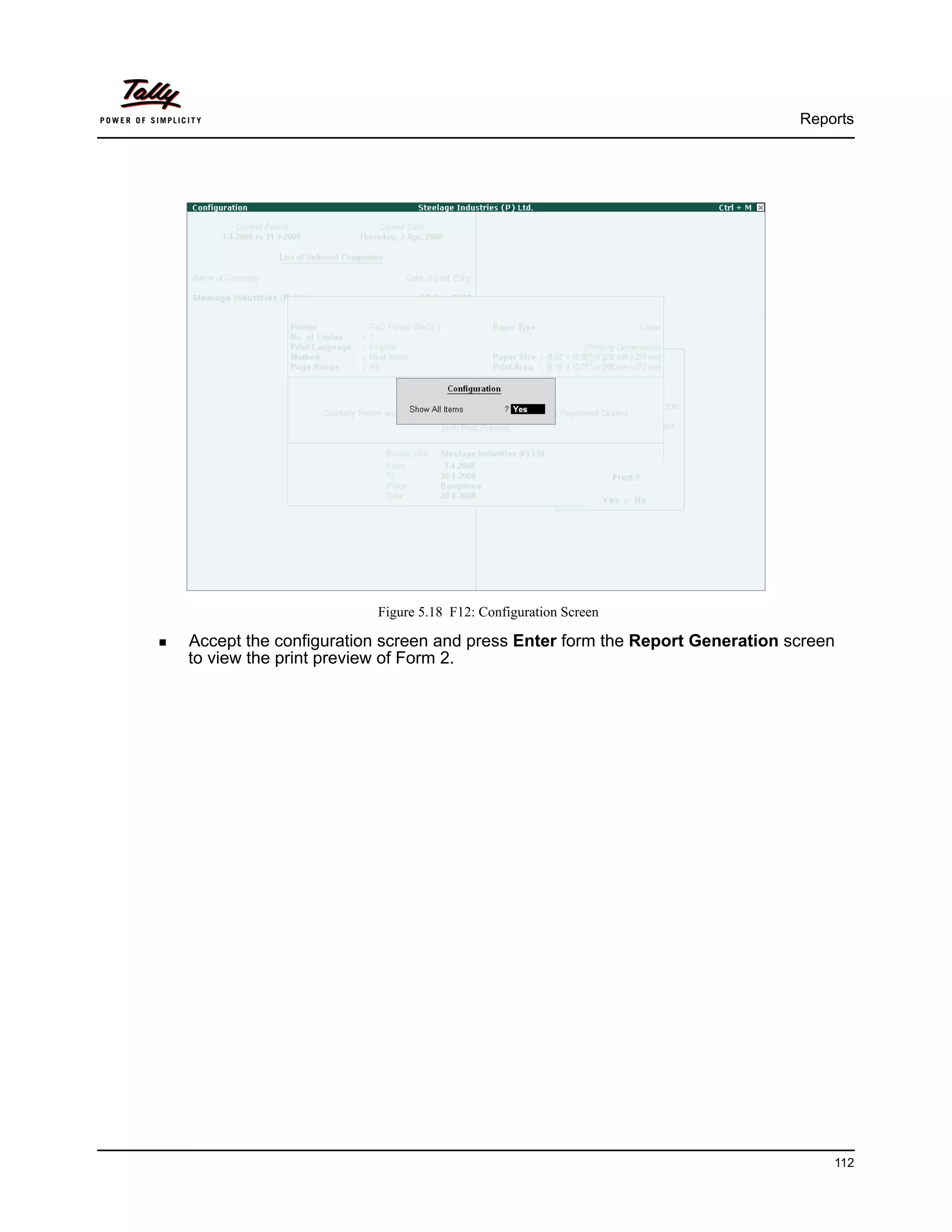
          in Tally.ERP 9
The information contained in this document is current as of the date of publication and subject to change. Because Tally must respond
to changing market conditions, it should not be interpreted to be a commitment on the part of Tally, and Tally cannot guarantee the
accuracy of any information presented after the date of publication. The information provided herein is general, not according to
individual circumstances, and is not intended to substitute for informed professional advice.

This document is for informational purposes only. TALLY MAKES NO WARRANTIES, EXPRESS OR IMPLIED, IN THIS
DOCUMENT AND SHALL NOT BE LIABLE FOR LOSS OR DAMAGE OF WHATEVER NATURE, ARISING OUT OF, OR IN
CONNECTION WITH THE USE OF OR INABILITY TO USE THE CONTENT OF THIS PUBLICATION, AND/OR ANY
CONDUCT UNDERTAKEN BY PLACING RELIANCE ON THE CONTENTS OF THIS PUBLICATION.

Complying with all applicable copyright and other intellectual property laws is the responsibility of the user. All rights including
copyrights, rights of translation, etc., are vested exclusively with TALLY SOLUTIONS PRIVATE LIMITED. No part of this document
may be reproduced, translated, revised, stored in, or introduced into a retrieval system, or transmitted in any form, by any means
(electronic, mechanical, photocopying, recording, or otherwise), or for any purpose, without the express written permission of Tally
Solutions Pvt. Ltd.

Tally may have patents, patent applications, trademarks, copyrights, or other intellectual property rights covering subject matter in this
document. Except as expressly provided in any written licence agreement from Tally, the furnishing of this document does not give you
any licence to these patents, trademarks, copyrights, or other intellectual property.

© 2009 Tally Solutions Pvt. Ltd. All rights reserved.

Tally, Tally 9, Tally9, Tally.ERP, Tally.ERP 9, Shoper, Shoper 9, Shoper POS, Shoper HO, Shoper 9 POS, Shoper 9 HO,
TallyDeveloper, Tally Developer, Tally.Developer 9, Tally.NET, Tally Development Environment, Tally Extender, Tally Integrator,
Tally Integrated Network, Tally Service Partner, TallyAcademy & Power of Simplicity are either registered trademarks or trademarks of
Tally Solutions Pvt. Ltd. in India and/or other countries. All other trademarks are properties of their respective owners.


Version: Implementation of Excise for Dealers in Tally.ERP 9/1.0/June 2009
Contents
Introduction
          Basic Concepts in Excise Duty                         ...........................................................................................................................1
               Excisable Goods              ............................................................................................................................................... 1
          Dealer of Excisable Goods                     ..................................................................................................................................1
          First Stage Dealer              .................................................................................................................................................2
          Second Stage Dealer                 .............................................................................................................................................2
          Registration of Dealers                 .........................................................................................................................................3
          CENVAT Credit        ....................................................................................................................................................3
               Purchases from Manufacturer .......................................................................................................................... 4
               Purchases from a Agent of Manufacturer ......................................................................................................... 5
               Purchases from Importer .................................................................................................................................. 5
               Purchases from First Stage Dealer .................................................................................................................. 6
               Purchases from Second Stage Dealer ............................................................................................................... 6
          Salient Features of Dealer Excise Compliant Tally.ERP 9                                              ...........................................................................7


Lesson 1: Enabling Dealer Excise in Tally.ERP 9
          1.1 Enabling Excise in Tally.ERP 9                  ...............................................................................................................8
               1.1.1 Create Company ..................................................................................................................................... 8
               1.1.2 Enable Excise .......................................................................................................................................... 9
               1.1.3 Enable VAT ........................................................................................................................................... 13

Lesson 2: Creation of Masters
          2.1 Sales and Purchase Ledgers                          ......................................................................................................................15
          2.2 Duties & Taxes Ledger                        .............................................................................................................................18
          2.3 Party Ledgers                 .............................................................................................................................................21
          2.4 Tariff Classification                  ...................................................................................................................................25
          2.5 Stock Items               .................................................................................................................................................26
          2.6 Creating Excise Voucher Type                              ................................................................................................................34


Lesson 3: Transactions
          3.1 Purchase of Excisable Goods           ...................................................................................................................40
               3.1.1    Purchases from a Manufacturer ........................................................................................................... 40
               3.1.2    Purchases from Agent of a Manufacturer ............................................................................................. 48
               3.1.3    Purchase from an Importer ................................................................................................................... 52
               3.1.4    Purchase from First Stage Dealer ........................................................................................................55
               3.1.5    Purchase from Second Stage Dealer .................................................................................................... 61
          3.2 Sale of Excisable Goods            ...........................................................................................................................66
               3.2.1    Excise Sales (Excise Invoice) ................................................................................................................ 67
               3.2.2    Excise Invoice without Supplier Trader Information ........................................................................... 75
               3.2.3    Excise Invoice cum Commercial Invoice .............................................................................................. 77
               3.2.4    Commercial Invoice .............................................................................................................................. 81


                                                                                                                                                                                                i
Contents


              3.2.5 Sale of Goods Purchased from an Importer                        ......................................................................................... 86


Lesson 4: Return of Goods
          4.1 Sales Returns    ...............................................................................................................................................91
          4.2 Purchase Returns       ........................................................................................................................................95


Lesson 5: Reports
          5.1 Excise Stock Register          ................................................................................................................................98
          5.2 Excise Purchase Bill Register                ................................................................................................................102
          5.3 Sales and Purchase Extract              .....................................................................................................................103
          5.4 Form RG 23D       ...........................................................................................................................................105
          5.5 Quarterly Return - Form 2              ......................................................................................................................109


Lesson 6: Dealer Excise Opening Stock
          6.1 Accounting Excise Opening Stock                      ........................................................................................................113
          6.2 Quarterly Return - Form II              .....................................................................................................................125


                                                                                                                                                                                   ii
Introduction


Excise duty or Duty of Excise is a tax on goods produced or manufactured in India and intended
for home consumption i.e, sale in India. The Excise duty is chargeable at the time of production or
manufacturing, but for convenience it is charged at the time of removal.
It is basically an indirect tax on the manufacturer or producer which is passed on to the ultimate
consumer. The levy and collection of duty of Excise is provided under authority of the Central
Excise Act, 1944 at the rates specified under Central Excise Tariff Act, 1985. The duty is
commonly referred to as the Basic Excise Duty. Certain items like fibre, yarn and so on also
attract Additional Excise Duty under Additional Duties of Excise (Textiles and Textile Articles) Act,
1975 in addition to Basic duty of Excise.


Basic Concepts in Excise Duty
The following are some of the basic terms related to Excise.


Excisable Goods
Excisable goods means goods specified in the schedule to the Central Excise Tariff Act, 1985 as
being subject to a duty of excise.
The basic conditions to be satisfied are,
      The goods must be movable
      The goods must be marketable i.e., saleable in the market as such goods. Actual sale of
      goods in the market is not necessary as excise duty is chargeable on manufacture and not
      on sale
      The goods must be specified in the Central Excise Tariff Act


Dealer of Excisable Goods
A dealer of excisable goods is one who is registered under Central Excise Rules.
Any of the following categories would constitute a registered dealer
      Depot of a manufacturer or the premises of the consignment agent of the manufacturer or
      any other premises from where the goods are sold on behalf of the manufacturer
      First stage dealer of excisable goods

                                                                                                        1
Introduction


      Second stage dealer of excisable goods
      Depot of an importer or the premises of the consignment agent of the importer
      First stage dealer of imported goods
      Second stage dealer of imported goods


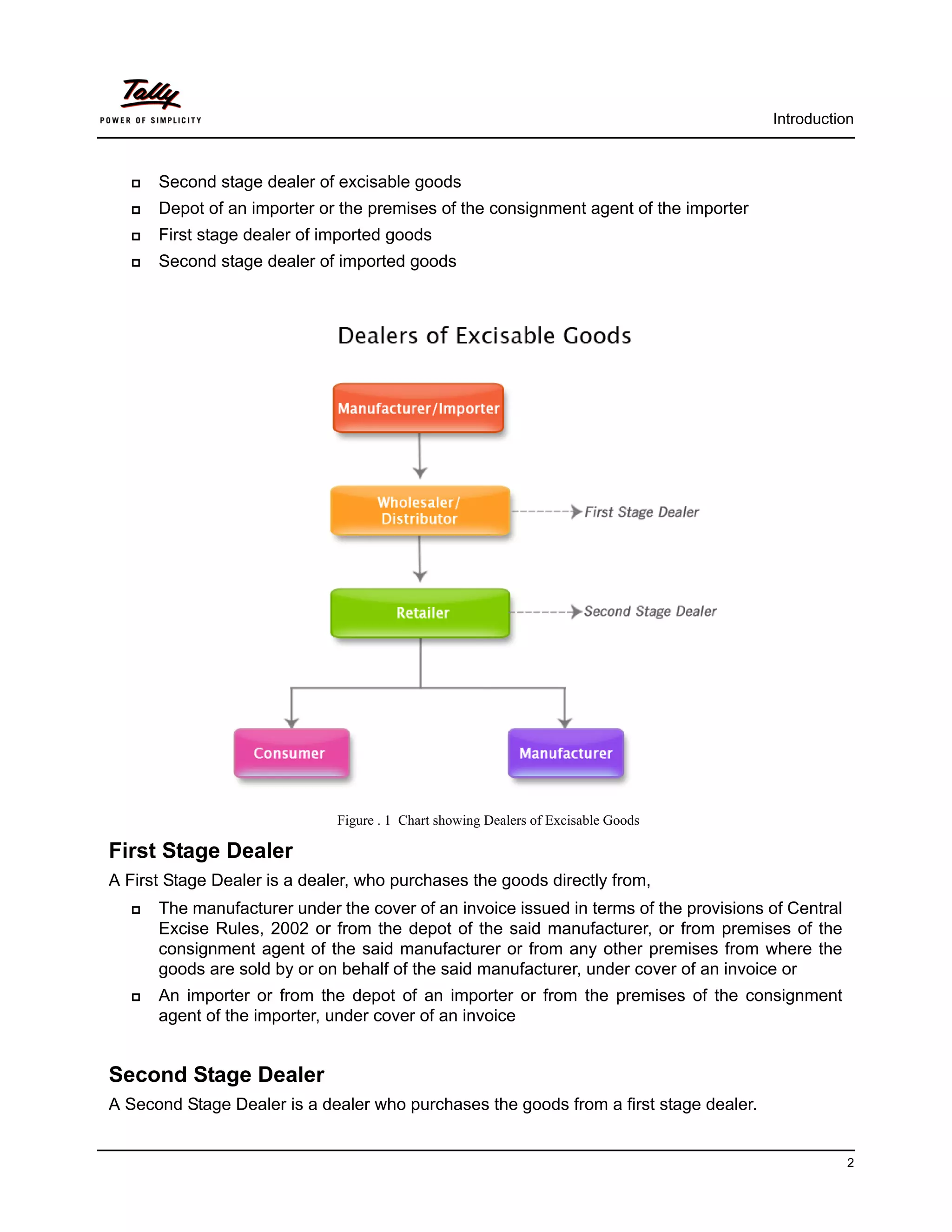
                              Figure . 1 Chart showing Dealers of Excisable Goods

First Stage Dealer
A First Stage Dealer is a dealer, who purchases the goods directly from,
      The manufacturer under the cover of an invoice issued in terms of the provisions of Central
      Excise Rules, 2002 or from the depot of the said manufacturer, or from premises of the
      consignment agent of the said manufacturer or from any other premises from where the
      goods are sold by or on behalf of the said manufacturer, under cover of an invoice or
      An importer or from the depot of an importer or from the premises of the consignment
      agent of the importer, under cover of an invoice


Second Stage Dealer
A Second Stage Dealer is a dealer who purchases the goods from a first stage dealer.


                                                                                                    2
Introduction


Registration of Dealers
Every Dealer or Importer issuing CENVATable Invoices should be registered with the jurisdictional
Range Superintendent as per the procedure prescribed in Rule 9 of Central Excise (No. 2) Rules
2001. The registration is valid only for the premises it is granted. Where the manufacturer or
dealer, has more than one premise it is necessary to obtain a separate registration for each
premises from the respective Range Superintendent having jurisdiction over the premises,
whether it be a factory or a depot / branch office desiring to issue CENVAT invoices.


The registration numbers are PAN based 15 digit alpha numeric numbers. The first part denotes
10 character (alpha numeric) Permanent Account number issued by Income tax authorities and
the second part comprises of a fixed 2 character alpha code which is as follows:


   Sl.No.    Category                           Code
   1.        Central Excise Manufacturers       XM
   2.        Registered Dealers                 XD


This is followed by a three character numeric code - 001, 002, 003 etc., i.e, where a manufacturer
has only one factory / dealer's premise / warehouse, the last three character will be 001. If there
are more than one factories / dealer's premises / warehouses of such a person holding common
PAN for all such premises, the last three character would be 002, 003 etc.


CENVAT Credit
A manufacturer or producer of final products shall be allowed to take credit referred as CENVAT
credit on the following:
        Duty of excise specified in the First and Second Schedule to the Excise Tariff Act (ED).
        Additional duty of Excise leviable under Additional Duties of Excise (Textile and Textile Arti-
        cles) (AED [T and TA]).
        Additional duty of Excise leviable under Additional Duties of Excise (Goods of Special
        Importance) (AED [GSI]).
        The National Calamity Contingent duty (NCCD) leviable under Finance Act.
        Education Cess on excisable goods.
        Additional Duty leviable under Customs Tariff Act.
The Central Government entitles manufacturer of excisable goods to avail CENVAT credit of duty
paid on the inputs purchased from a first stage dealer or a second stage dealer, as the case may
be, in terms of the provisions of Central Excise Rules, 2002.
Eventually, the manufacturer or producer can utilize the CENVAT credit for payment of duty of
excise on any final product.


                                                                                                          3
Introduction


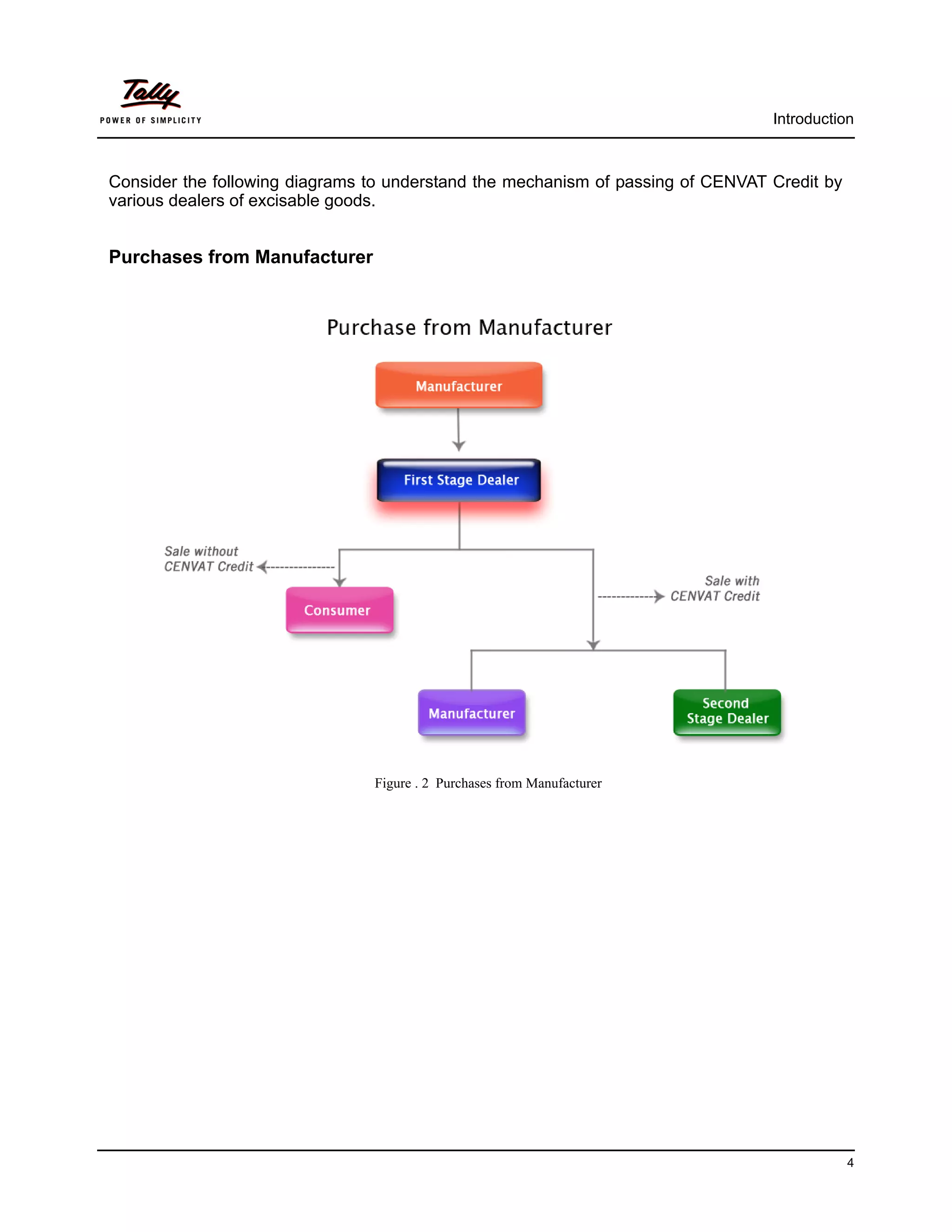
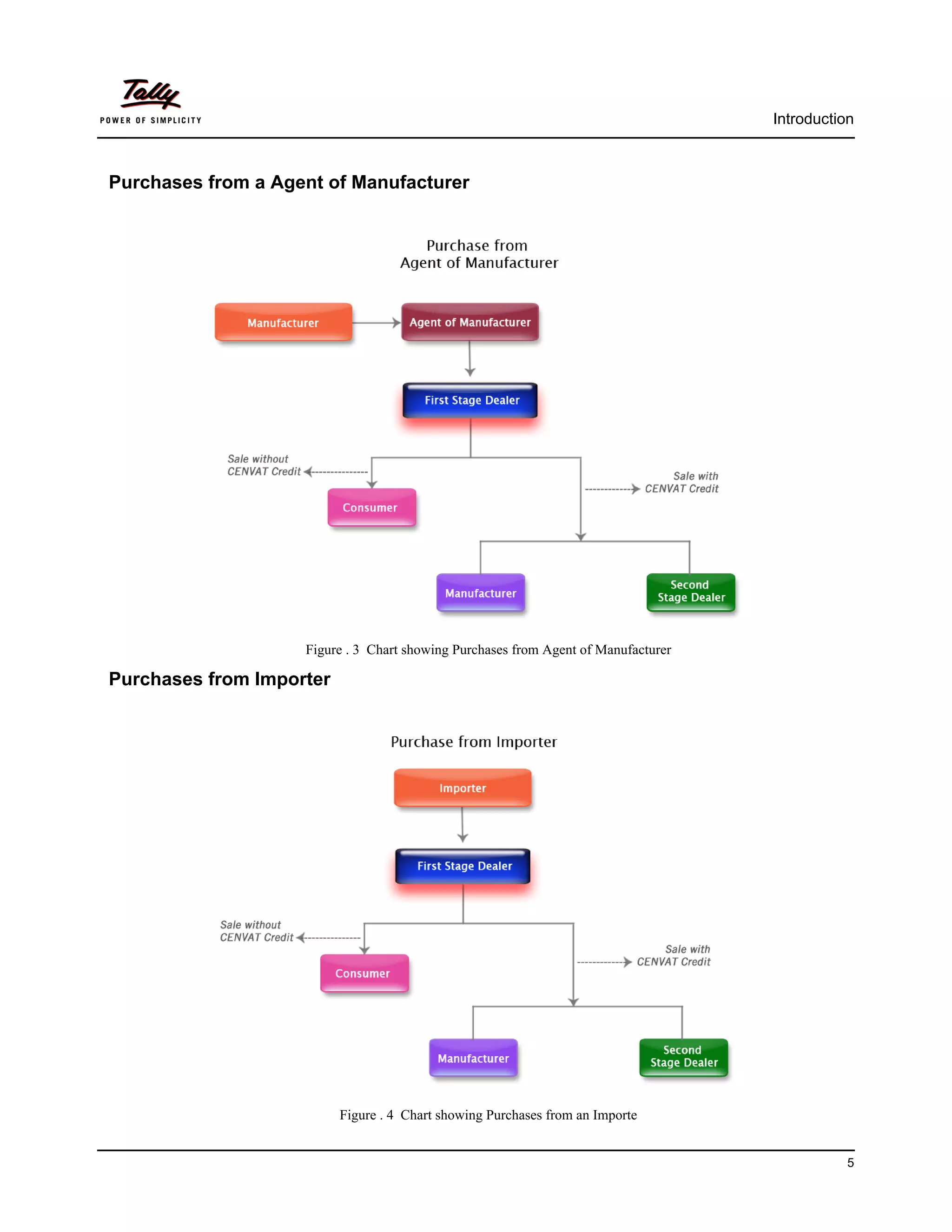
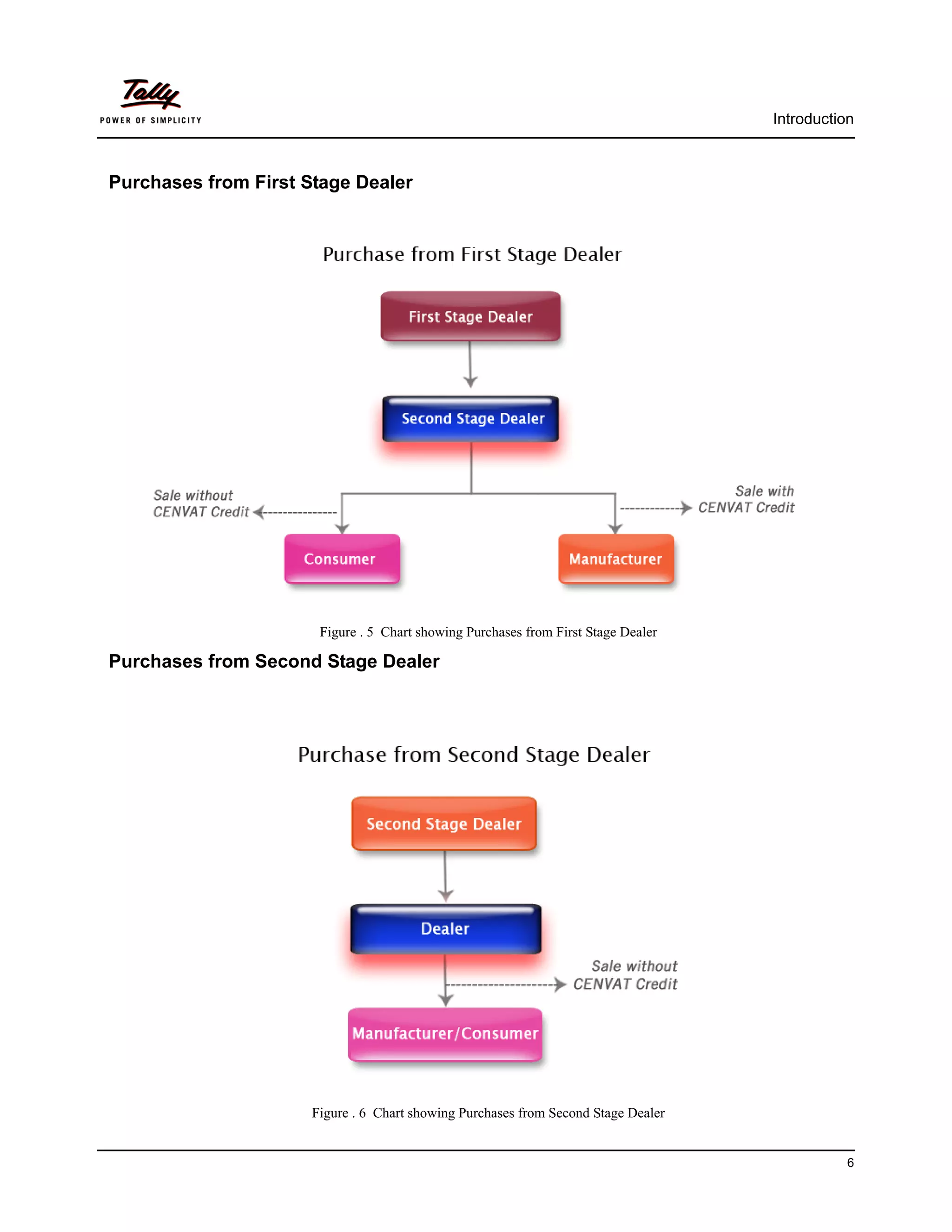
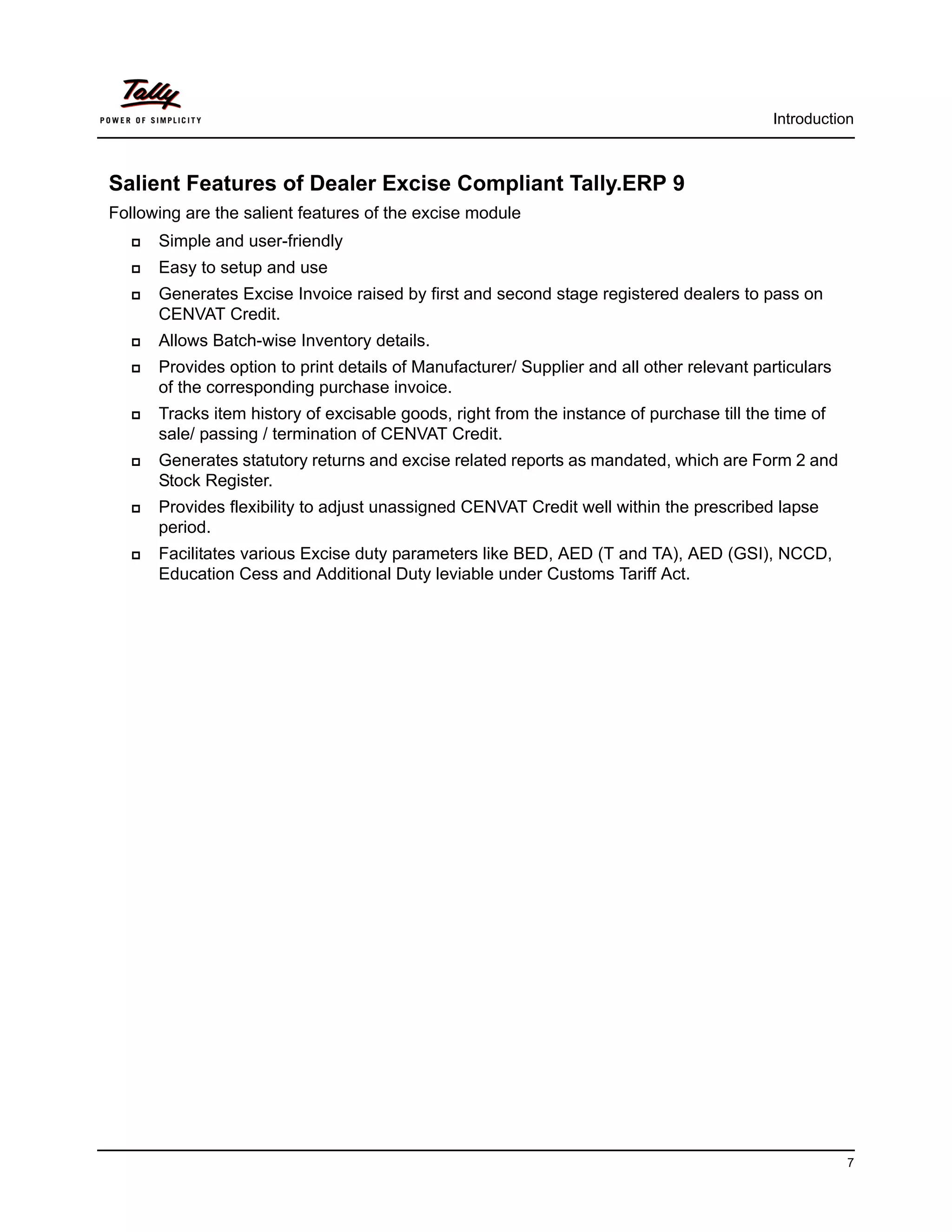
Consider the following diagrams to understand the mechanism of passing of CENVAT Credit by
various dealers of excisable goods.


Purchases from Manufacturer


                                Figure . 2 Purchases from Manufacturer


                                                                                             4
Introduction


Purchases from a Agent of Manufacturer


                    Figure . 3 Chart showing Purchases from Agent of Manufacturer

Purchases from Importer


                          Figure . 4 Chart showing Purchases from an Importe


                                                                                              5
Introduction


Purchases from First Stage Dealer


                       Figure . 5 Chart showing Purchases from First Stage Dealer

Purchases from Second Stage Dealer


                      Figure . 6 Chart showing Purchases from Second Stage Dealer


                                                                                              6
Introduction


Salient Features of Dealer Excise Compliant Tally.ERP 9
Following are the salient features of the excise module
      Simple and user-friendly
      Easy to setup and use
      Generates Excise Invoice raised by first and second stage registered dealers to pass on
      CENVAT Credit.
      Allows Batch-wise Inventory details.
      Provides option to print details of Manufacturer/ Supplier and all other relevant particulars
      of the corresponding purchase invoice.
      Tracks item history of excisable goods, right from the instance of purchase till the time of
      sale/ passing / termination of CENVAT Credit.
      Generates statutory returns and excise related reports as mandated, which are Form 2 and
      Stock Register.
      Provides flexibility to adjust unassigned CENVAT Credit well within the prescribed lapse
      period.
      Facilitates various Excise duty parameters like BED, AED (T and TA), AED (GSI), NCCD,
      Education Cess and Additional Duty leviable under Customs Tariff Act.


                                                                                                      7
Lesson 1: Enabling Dealer Excise in Tally.ERP 9


Tally.ERP 9’s Dealer Excise module facilitates complete Excise Accounting for dealers engaged in
trading of excisable goods and desiring to issue CENVATable invoices. It minimises the possibility
of erroneous data entry and ensures transparency and better levels of compliance with the
statutes. It requires a one-time configuration in Tally.ERP 9 for Dealer Excise features to be acti-
vated.


1.1 Enabling Excise in Tally.ERP 9
It takes a one-time configuration in Tally.ERP 9 for Excise features to be activated. Follow the
steps given below to enable Excise in Tally.ERP 9 for a new company Steelage Industries (P)
Ltd..
1. Create Company
2. Enable Excise
3. Enable VAT


Steelage Industries (P) Ltd., is dealing in Iron & Steel products such as Hot & Cold Rolled Coils,
Sheets etc.


1.1.1 Create Company


Go to Gateway of Tally > Alt + F3: Company Info. > Create Company
In the Company Creation screen,
      Specify Steelage Industries (P) Ltd. as the Company Name and Address details
      Select India in the Statutory Compliance for field
      Specify the State, Pin code & Accounts with Inventory details
      Specify Financial Year From & Books beginning from date as 1-4-2008


                                                                                                       8
Enabling Dealer Excise in Tally.ERP 9


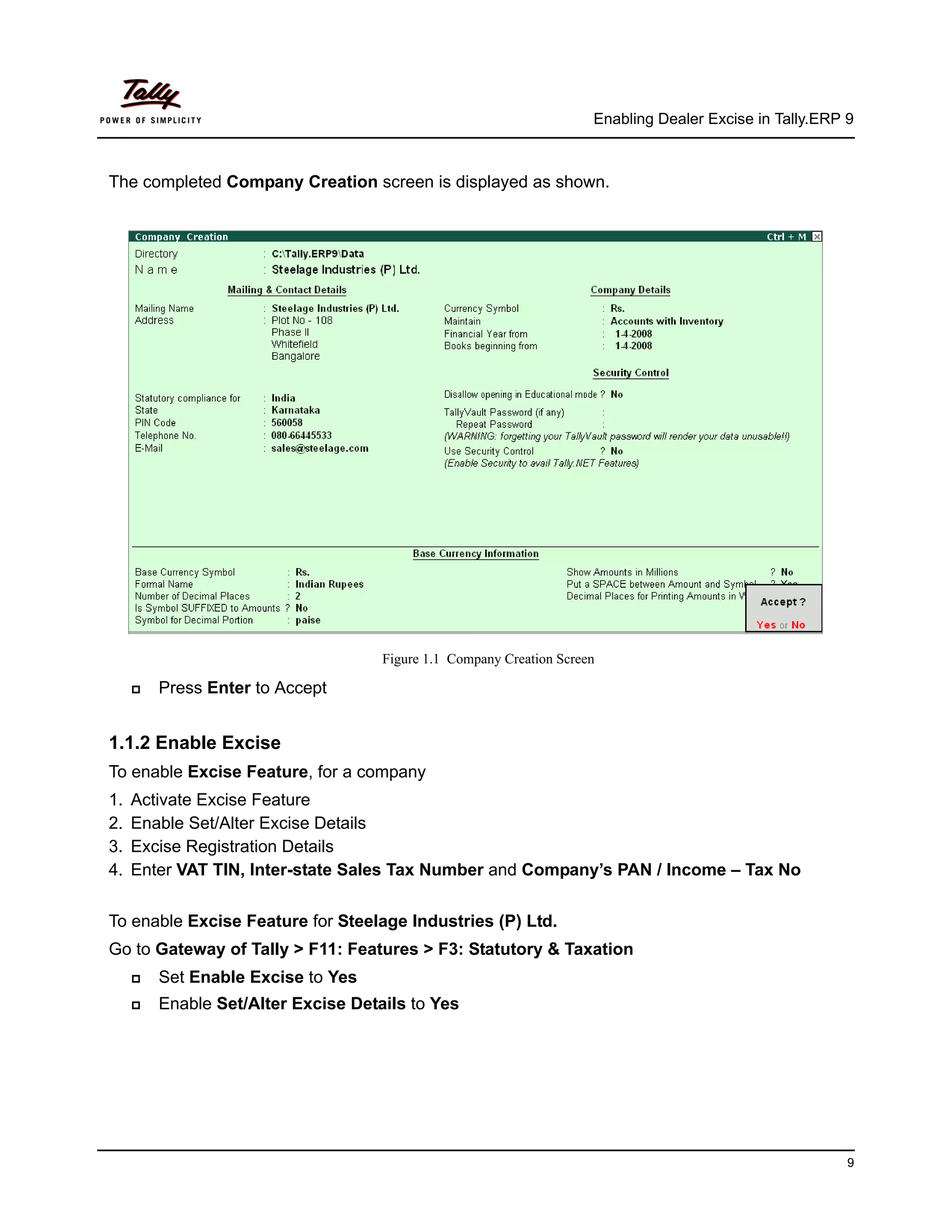
The completed Company Creation screen is displayed as shown.


                                    Figure 1.1 Company Creation Screen

        Press Enter to Accept


1.1.2 Enable Excise
To enable Excise Feature, for a company
1.   Activate Excise Feature
2.   Enable Set/Alter Excise Details
3.   Excise Registration Details
4.   Enter VAT TIN, Inter-state Sales Tax Number and Company’s PAN / Income – Tax No


To enable Excise Feature for Steelage Industries (P) Ltd.
Go to Gateway of Tally > F11: Features > F3: Statutory & Taxation
        Set Enable Excise to Yes
        Enable Set/Alter Excise Details to Yes


                                                                                                         9
Enabling Dealer Excise in Tally.ERP 9


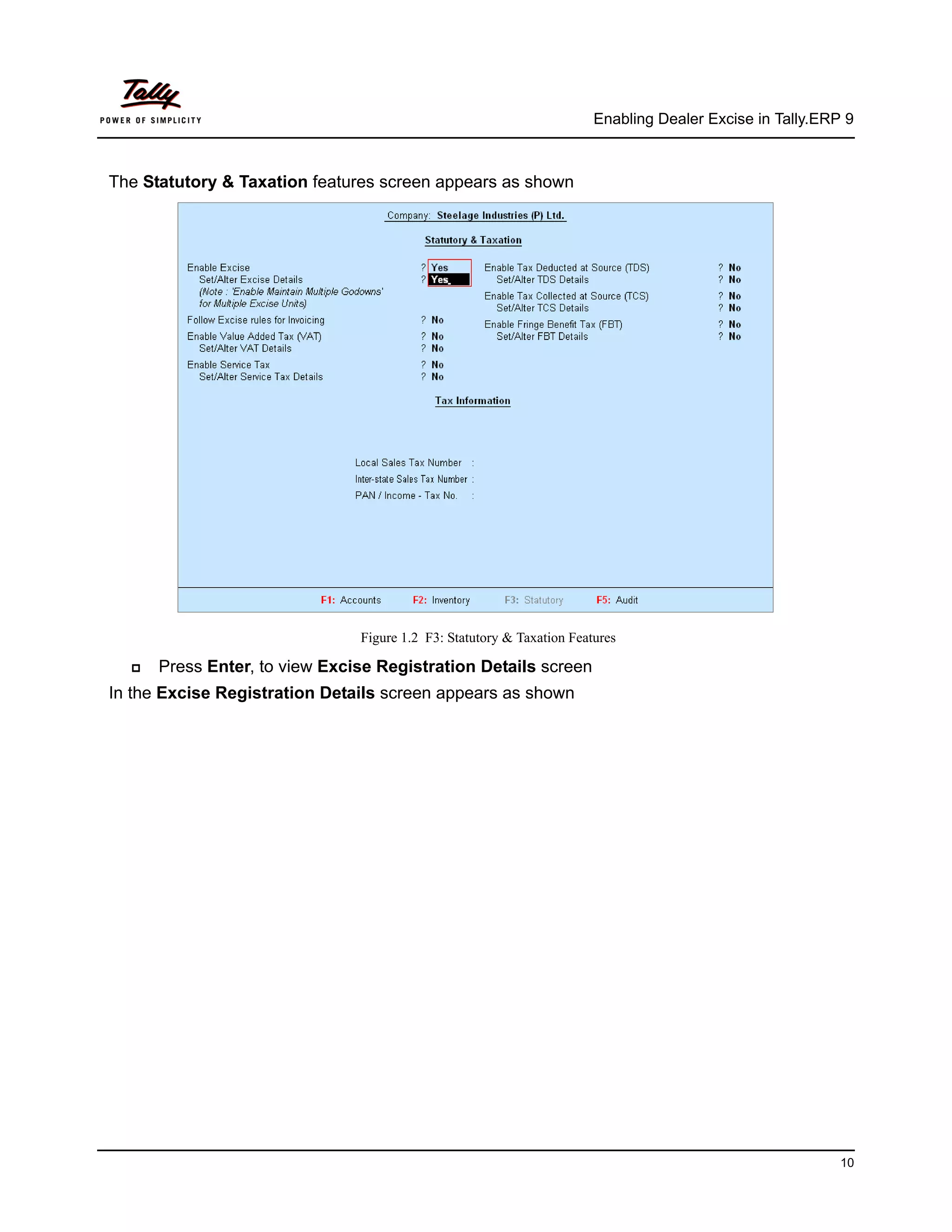
The Statutory & Taxation features screen appears as shown


                               Figure 1.2 F3: Statutory & Taxation Features

      Press Enter, to view Excise Registration Details screen
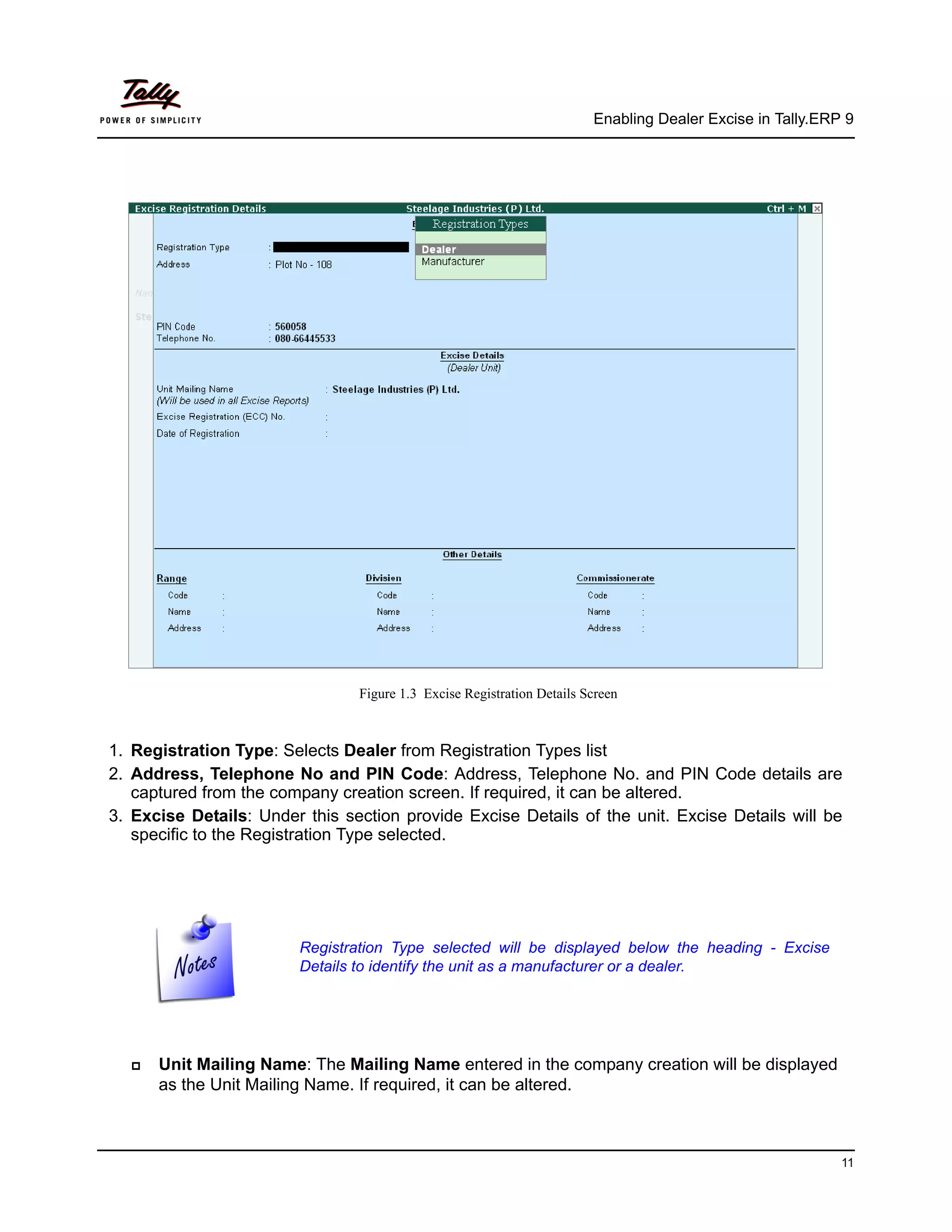
In the Excise Registration Details screen appears as shown


                                                                                                          10
Enabling Dealer Excise in Tally.ERP 9


                                Figure 1.3 Excise Registration Details Screen


1. Registration Type: Selects Dealer from Registration Types list
2. Address, Telephone No and PIN Code: Address, Telephone No. and PIN Code details are
   captured from the company creation screen. If required, it can be altered.
3. Excise Details: Under this section provide Excise Details of the unit. Excise Details will be
   specific to the Registration Type selected.


                        Registration Type selected will be displayed below the heading - Excise
                        Details to identify the unit as a manufacturer or a dealer.


      Unit Mailing Name: The Mailing Name entered in the company creation will be displayed
      as the Unit Mailing Name. If required, it can be altered.


                                                                                                           11
Enabling Dealer Excise in Tally.ERP 9


                        Name entered in the Unit Mailing Name will be used in all Excise Reports.


      Excise Registration (ECC) No.: Enter 15 digits Excise Registration Number (ECC) of the
      Company/Unit, e.g. AAPBF2149RXD001
      Date of Registration: Enter the date of Excise Registration, e.g. 10-4-2000
4. Other Details: In this section enter Range, Division and Commissionerate details
      Range: Enter the code Name and Address of the range under which your company is reg-
      istered.
          Code: Enter Range Code as 090205
          Name: Enter Range Name as Whitefield
          Address: Enter the Range Address
      Division: Enter the code Name and Address of the division under which your company is
      registered.
          Code: Enter Division Code as 0902
          Name: Enter Division Name as Division II
          Address: Enter the Division Address
      Commissionerate: Enter the code Name and Address of the Commissionerate under
      which your company is registered.
         Code: Enter Commissionerate Code as 09
         Name: Enter Commissionerate Name as Bangalore II
         Address: Enter the Commissionerate Address


                                                                                                     12
Enabling Dealer Excise in Tally.ERP 9


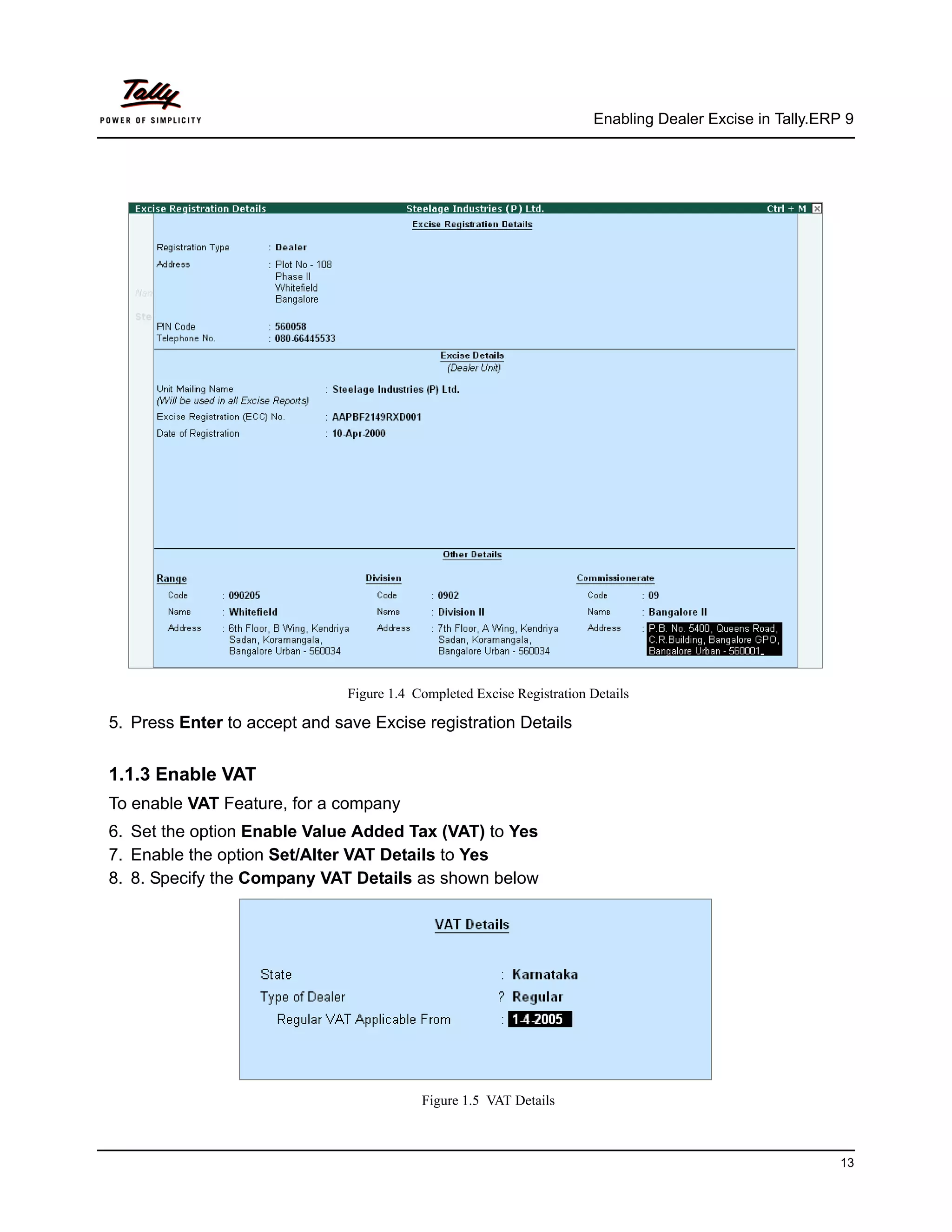
                               Figure 1.4 Completed Excise Registration Details

5. Press Enter to accept and save Excise registration Details


1.1.3 Enable VAT
To enable VAT Feature, for a company
6. Set the option Enable Value Added Tax (VAT) to Yes
7. Enable the option Set/Alter VAT Details to Yes
8. 8. Specify the Company VAT Details as shown below


                                           Figure 1.5 VAT Details


                                                                                                           13
Enabling Dealer Excise in Tally.ERP 9


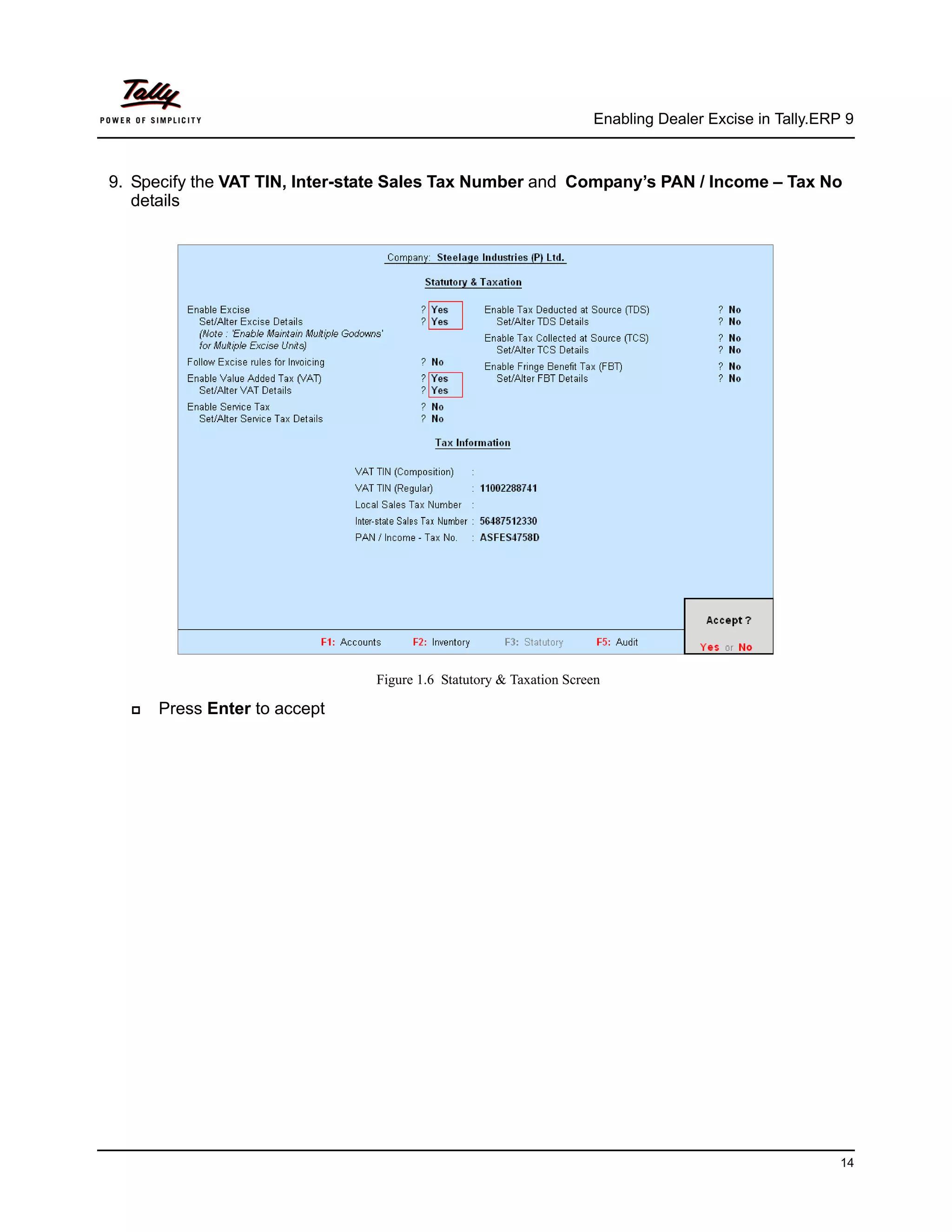
9. Specify the VAT TIN, Inter-state Sales Tax Number and Company’s PAN / Income – Tax No
   details


                                Figure 1.6 Statutory & Taxation Screen

     Press Enter to accept


                                                                                                       14
Lesson 2: Creation of Masters


Once you have enabled Dealer Excise in Tally.ERP 9, the excise option will now be available
during the creation of Excise masters. Create the following masters in Tally.ERP 9:
      Sales & Purchase Ledgers
      Duties & Taxes Ledger
      Party Ledgers
      Stock Items
      Voucher Types


2.1 Sales and Purchase Ledgers
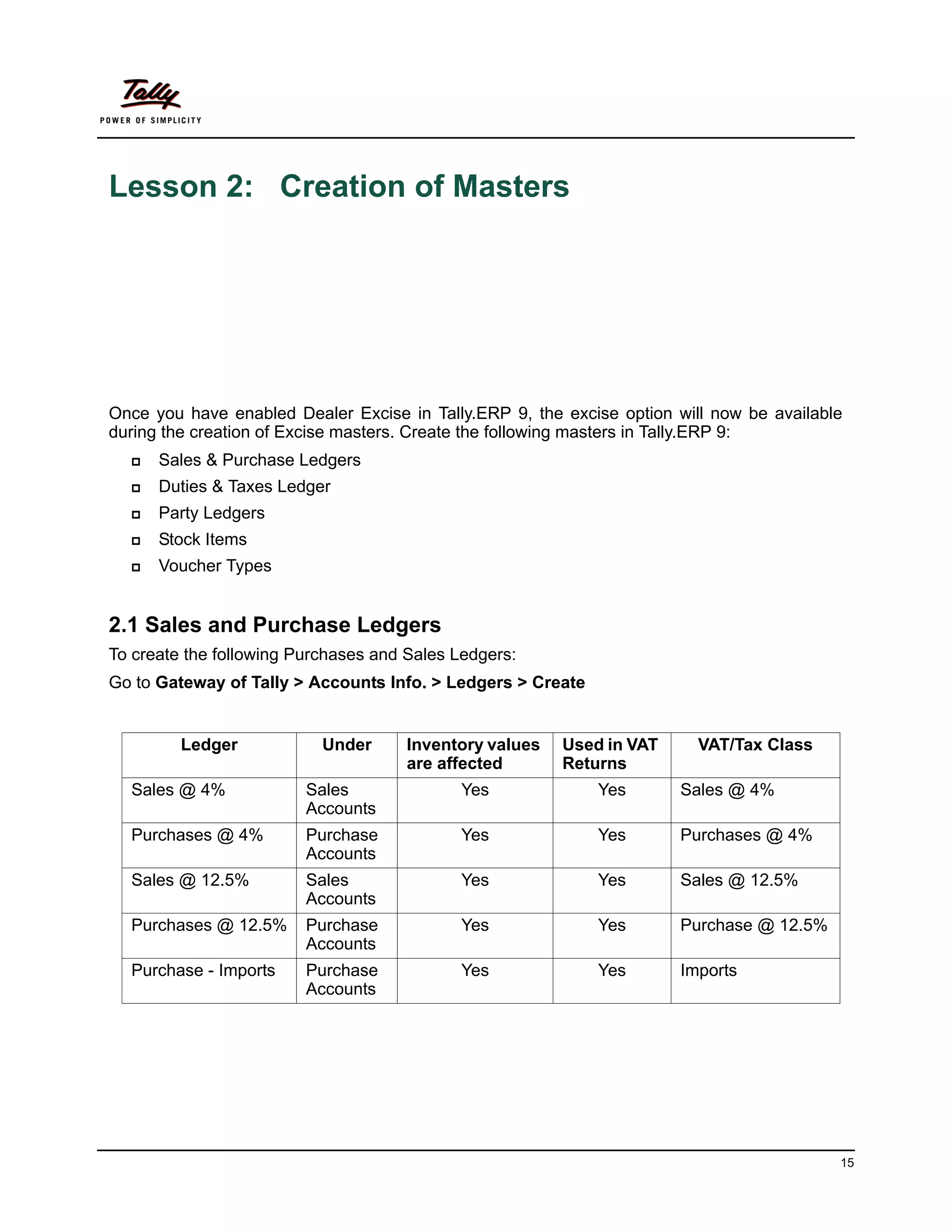
To create the following Purchases and Sales Ledgers:
Go to Gateway of Tally > Accounts Info. > Ledgers > Create


         Ledger            Under      Inventory values   Used in VAT     VAT/Tax Class
                                      are affected       Returns
  Sales @ 4%             Sales              Yes              Yes       Sales @ 4%
                         Accounts
  Purchases @ 4%         Purchase           Yes              Yes       Purchases @ 4%
                         Accounts
  Sales @ 12.5%          Sales              Yes              Yes       Sales @ 12.5%
                         Accounts
  Purchases @ 12.5%      Purchase           Yes              Yes       Purchase @ 12.5%
                         Accounts
  Purchase - Imports     Purchase           Yes              Yes       Imports
                         Accounts


                                                                                          15
Creation of Masters


1. Create Sales Ledger
Go to Gateway of Tally > Accounts Info. > Ledgers > Create
       1. Enter the name of the sales ledger in the Name field e.g. Sales @ 4%
       2. Select Sales Accounts in the Under field
       3. Set Inventory values are affected to Yes
       4. Set Used in VAT Returns to Yes and press Enter to view VAT/Tax Class Screen
       5. In VAT/Tax Class Screen select Sales @ 4% as VAT/Tax Class


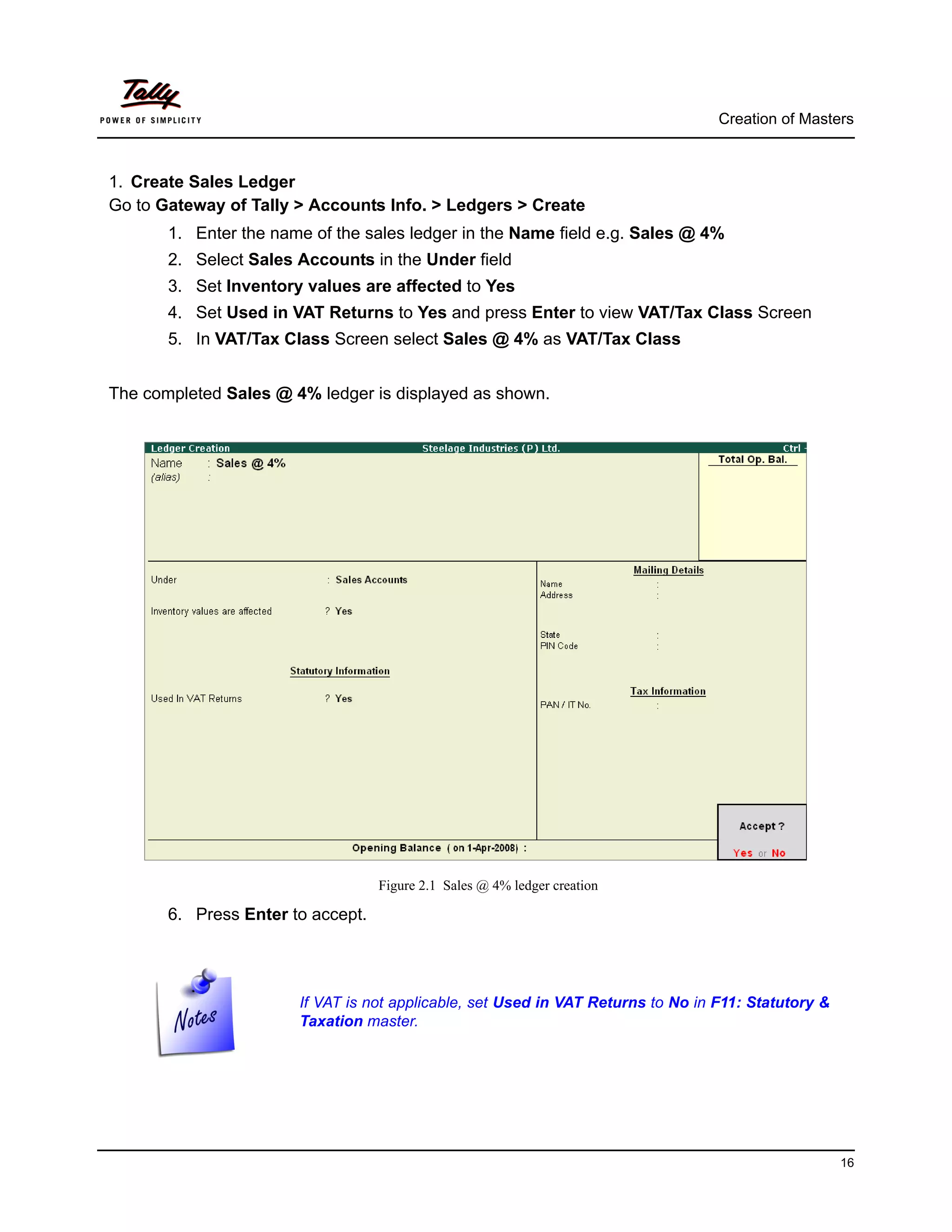
The completed Sales @ 4% ledger is displayed as shown.


                                   Figure 2.1 Sales @ 4% ledger creation

       6. Press Enter to accept.


                       If VAT is not applicable, set Used in VAT Returns to No in F11: Statutory &
                       Taxation master.


                                                                                                     16
Creation of Masters


2. Create Purchase Ledger
Go to Gateway of Tally > Accounts Info. > Ledgers > Create
       1. Enter the name of the purchase ledger in the Name field e.g. Purchases @ 4%
       2. Select Purchase Accounts in the Under field
       3. Set Inventory values are affected to Yes
       4. Set Used in VAT Returns to Yes and press Enter to view VAT/Tax Class Screen
       5. In VAT/Tax Class Screen select Purchases @ 4% as VAT/Tax Class
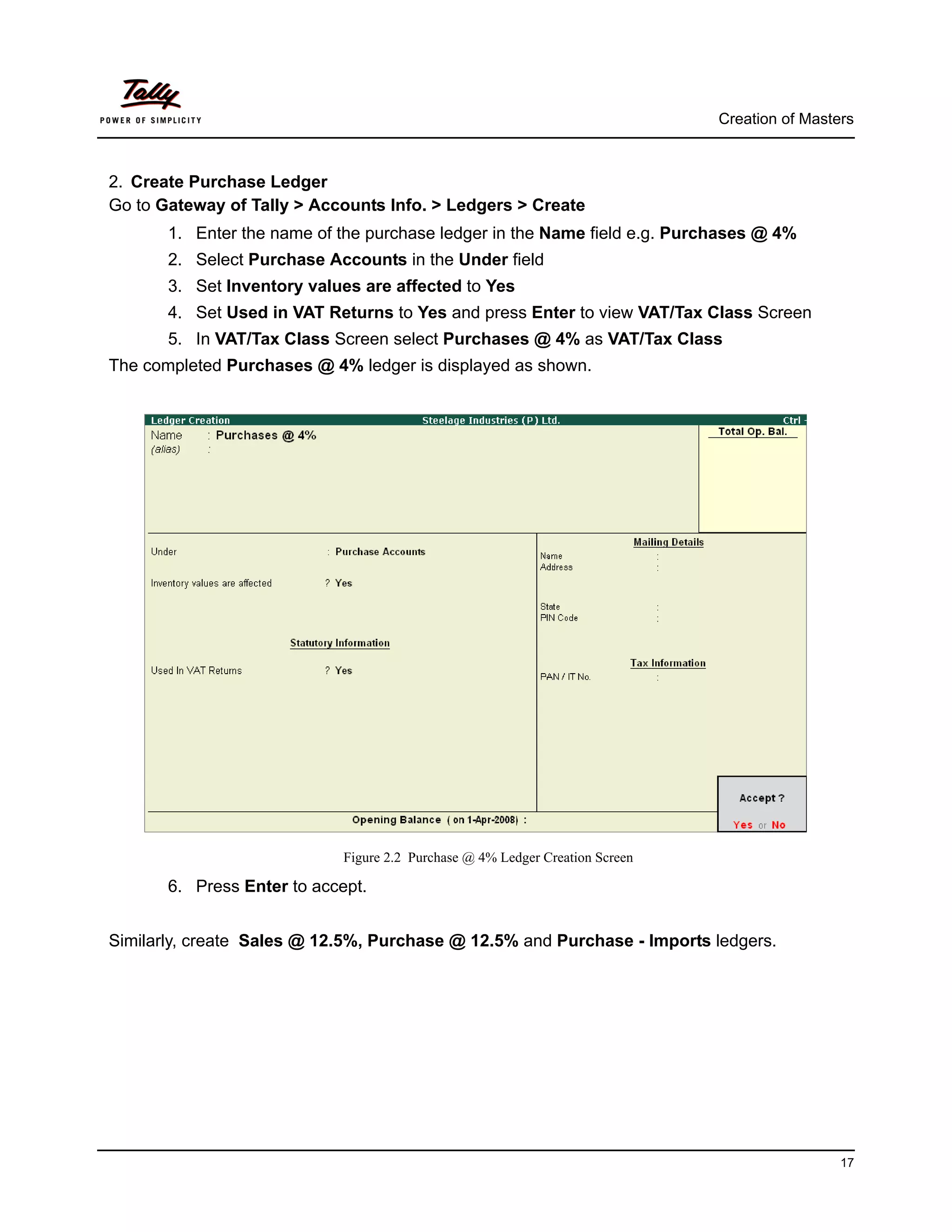
The completed Purchases @ 4% ledger is displayed as shown.


                             Figure 2.2 Purchase @ 4% Ledger Creation Screen

       6. Press Enter to accept.


Similarly, create Sales @ 12.5%, Purchase @ 12.5% and Purchase - Imports ledgers.


                                                                                                17
Creation of Masters


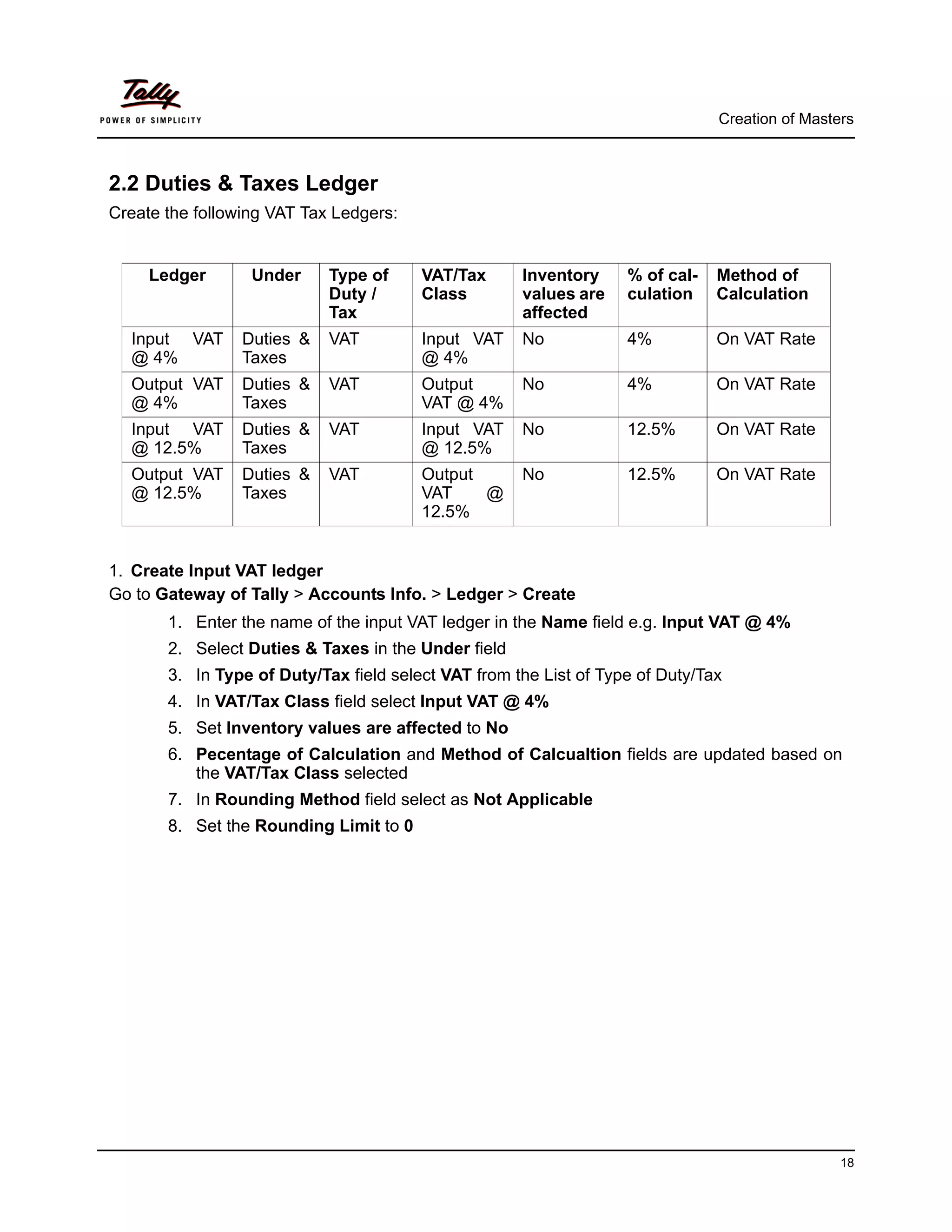
2.2 Duties & Taxes Ledger
Create the following VAT Tax Ledgers:


     Ledger       Under     Type of     VAT/Tax      Inventory     % of cal-   Method of
                            Duty /      Class        values are    culation    Calculation
                            Tax                      affected
  Input VAT      Duties &   VAT         Input VAT    No            4%          On VAT Rate
  @ 4%           Taxes                  @ 4%
  Output VAT     Duties &   VAT         Output       No            4%          On VAT Rate
  @ 4%           Taxes                  VAT @ 4%
  Input VAT      Duties &   VAT         Input VAT    No            12.5%       On VAT Rate
  @ 12.5%        Taxes                  @ 12.5%
  Output VAT     Duties &   VAT         Output       No            12.5%       On VAT Rate
  @ 12.5%        Taxes                  VAT    @
                                        12.5%


1. Create Input VAT ledger
Go to Gateway of Tally > Accounts Info. > Ledger > Create
       1. Enter the name of the input VAT ledger in the Name field e.g. Input VAT @ 4%
       2. Select Duties & Taxes in the Under field
       3. In Type of Duty/Tax field select VAT from the List of Type of Duty/Tax
       4. In VAT/Tax Class field select Input VAT @ 4%
       5. Set Inventory values are affected to No
       6. Pecentage of Calculation and Method of Calcualtion fields are updated based on
          the VAT/Tax Class selected
       7. In Rounding Method field select as Not Applicable
       8. Set the Rounding Limit to 0


                                                                                                18
Creation of Masters


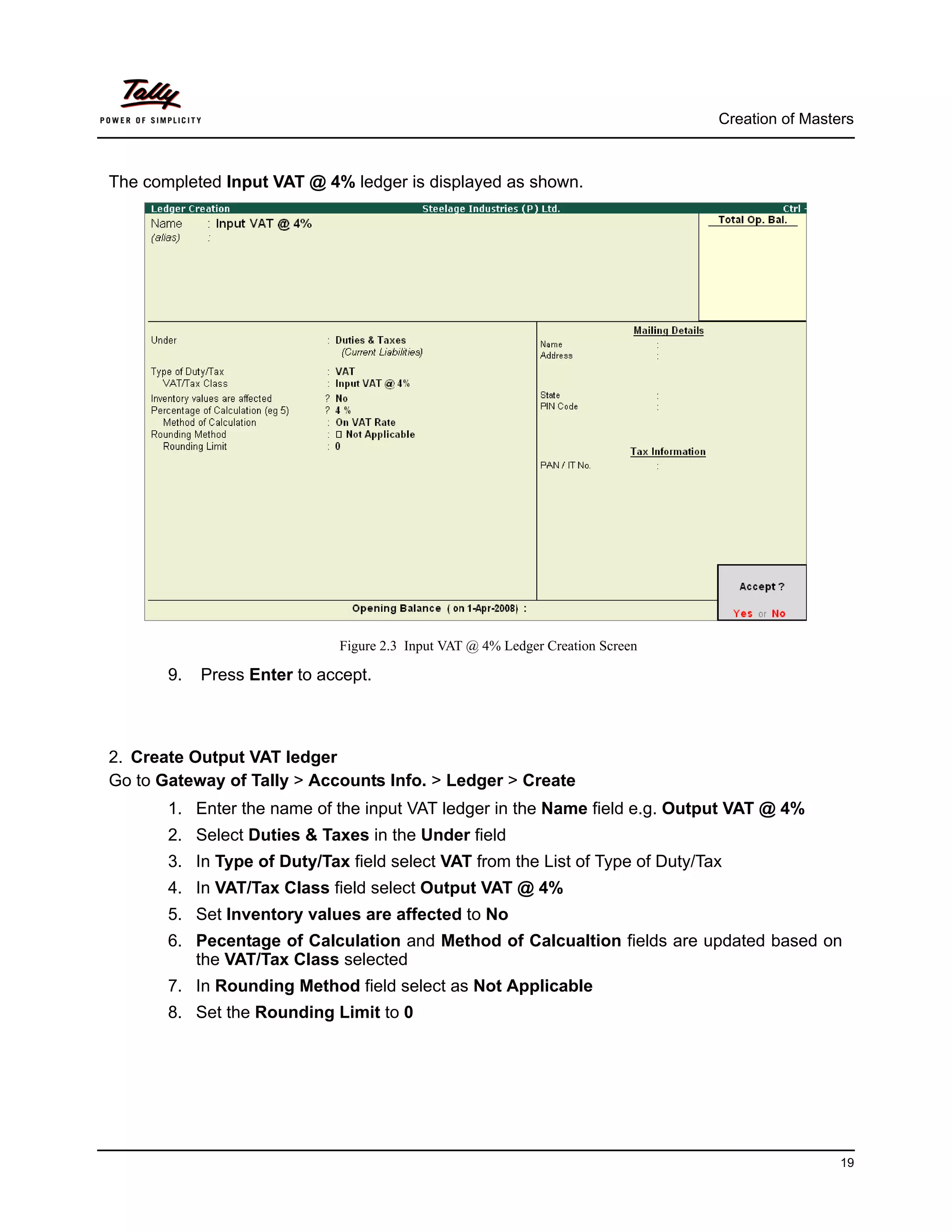
The completed Input VAT @ 4% ledger is displayed as shown.


                             Figure 2.3 Input VAT @ 4% Ledger Creation Screen

       9.   Press Enter to accept.


2. Create Output VAT ledger
Go to Gateway of Tally > Accounts Info. > Ledger > Create
       1. Enter the name of the input VAT ledger in the Name field e.g. Output VAT @ 4%
       2. Select Duties & Taxes in the Under field
       3. In Type of Duty/Tax field select VAT from the List of Type of Duty/Tax
       4. In VAT/Tax Class field select Output VAT @ 4%
       5. Set Inventory values are affected to No
       6. Pecentage of Calculation and Method of Calcualtion fields are updated based on
          the VAT/Tax Class selected
       7. In Rounding Method field select as Not Applicable
       8. Set the Rounding Limit to 0


                                                                                                 19
Creation of Masters


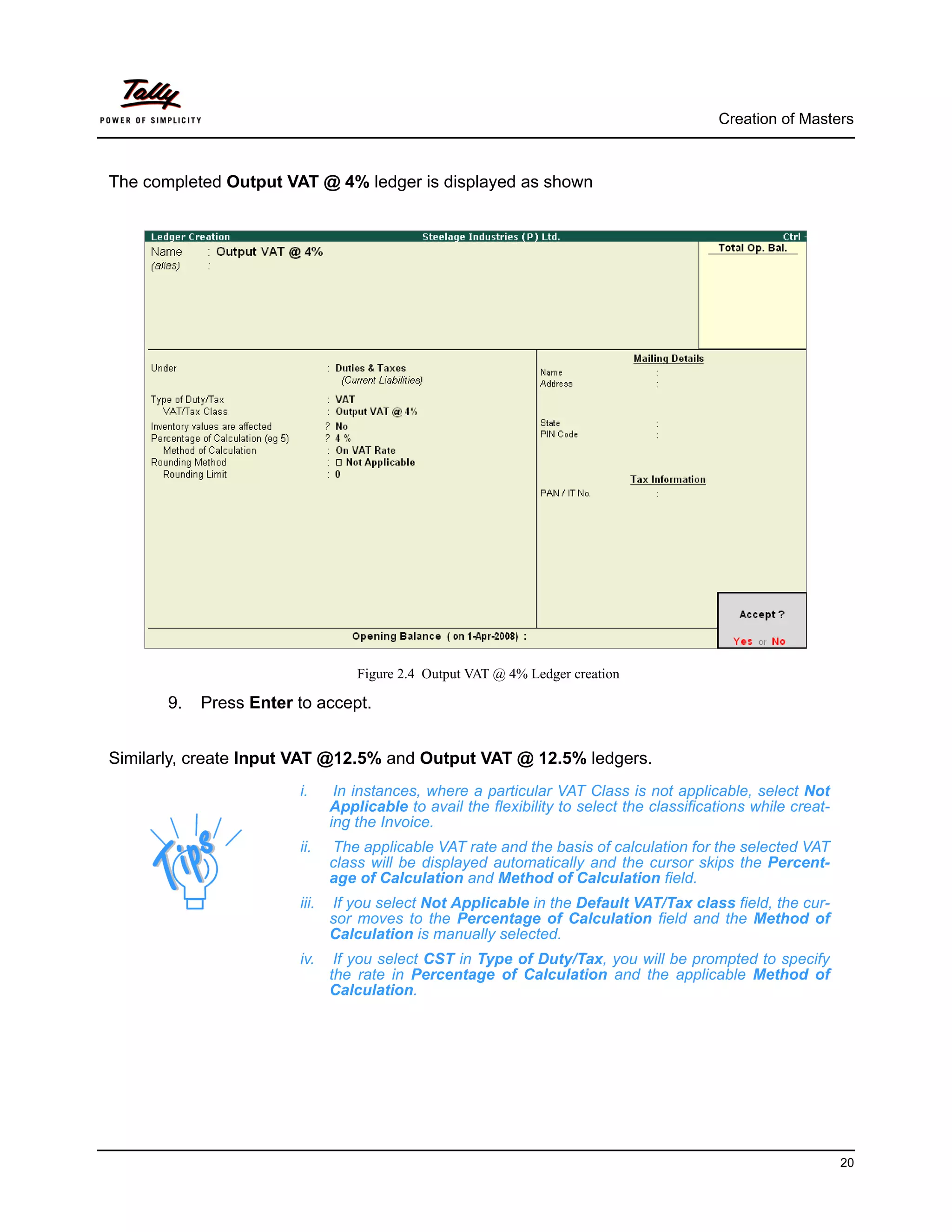
The completed Output VAT @ 4% ledger is displayed as shown


                                   Figure 2.4 Output VAT @ 4% Ledger creation

       9.   Press Enter to accept.


Similarly, create Input VAT @12.5% and Output VAT @ 12.5% ledgers.
                        i.      In instances, where a particular VAT Class is not applicable, select Not
                               Applicable to avail the flexibility to select the classifications while creat-
                               ing the Invoice.
                        ii.    The applicable VAT rate and the basis of calculation for the selected VAT
                               class will be displayed automatically and the cursor skips the Percent-
                               age of Calculation and Method of Calculation field.
                        iii.   If you select Not Applicable in the Default VAT/Tax class field, the cur-
                               sor moves to the Percentage of Calculation field and the Method of
                               Calculation is manually selected.
                        iv.     If you select CST in Type of Duty/Tax, you will be prompted to specify
                               the rate in Percentage of Calculation and the applicable Method of
                               Calculation.


                                                                                                                20
Creation of Masters


2.3 Party Ledgers

Sundry Creditors Ledgers
          Ledger                  Under          Maintain        Excise        Nature of Purchase
                                                 balances        Details
                                                 bill- by-bill
  Sterling Steel Industries   Sundry Creditors   Yes             Yes       Manufacturer
  Globus Steel Traders        Sundry Creditors   Yes             Yes       Agent of Manufacturer
  MM Iron & Steel             Sundry Creditors   Yes             Yes       First Stage Dealer
  SBT Steel Traders           Sundry Creditors   Yes             Yes       Second Stage Dealer
  Excellor Impex (P) Ltd.,    Sundry Creditors   Yes             Yes       Importer


Sundry Debtors Ledgers
          Ledger                  Under          Maintain        Excise    Nature of Purchase
                                                 balances        Details
                                                 bill- by-bill
  Decora Equipments           Sundry Debtors     Yes             Yes       First Stage Dealer
  EMPEE Engineering           Sundry Debtors     Yes             Yes       Second Stage Dealer
  Innova Steel Traders        Sundry Debtor      Yes             Yes       -


1. Sundry Creditors Ledger
Go to Gateway of Tally > Accounts Info. > Ledgers > Create
       1. Enter the name of the sudry creditor ledger in the Name field e.g. Sterling Steel
          Industries
       2. Select Sundry Creditors in the Under field
       3. Set Maintain balances bill-by-bill to Yes
       4. Mention the Default Credit Period, if any
       5. Set Inventory values are affected to No
       6. Enter the Mailing Details and Tax information
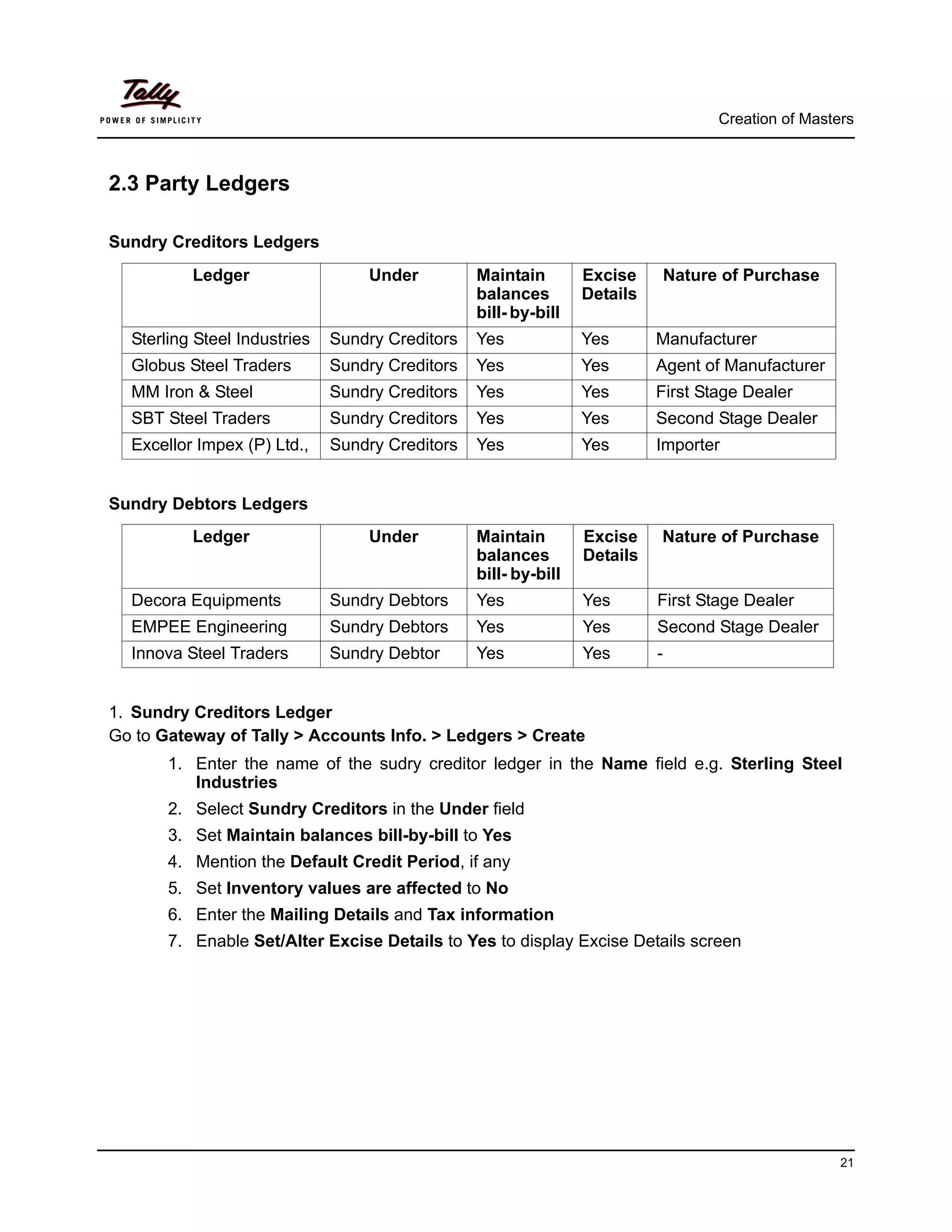
       7. Enable Set/Alter Excise Details to Yes to display Excise Details screen


                                                                                                      21
Creation of Masters


                      Figure 2.5 Sundry Creditor Ledger Creation Screen

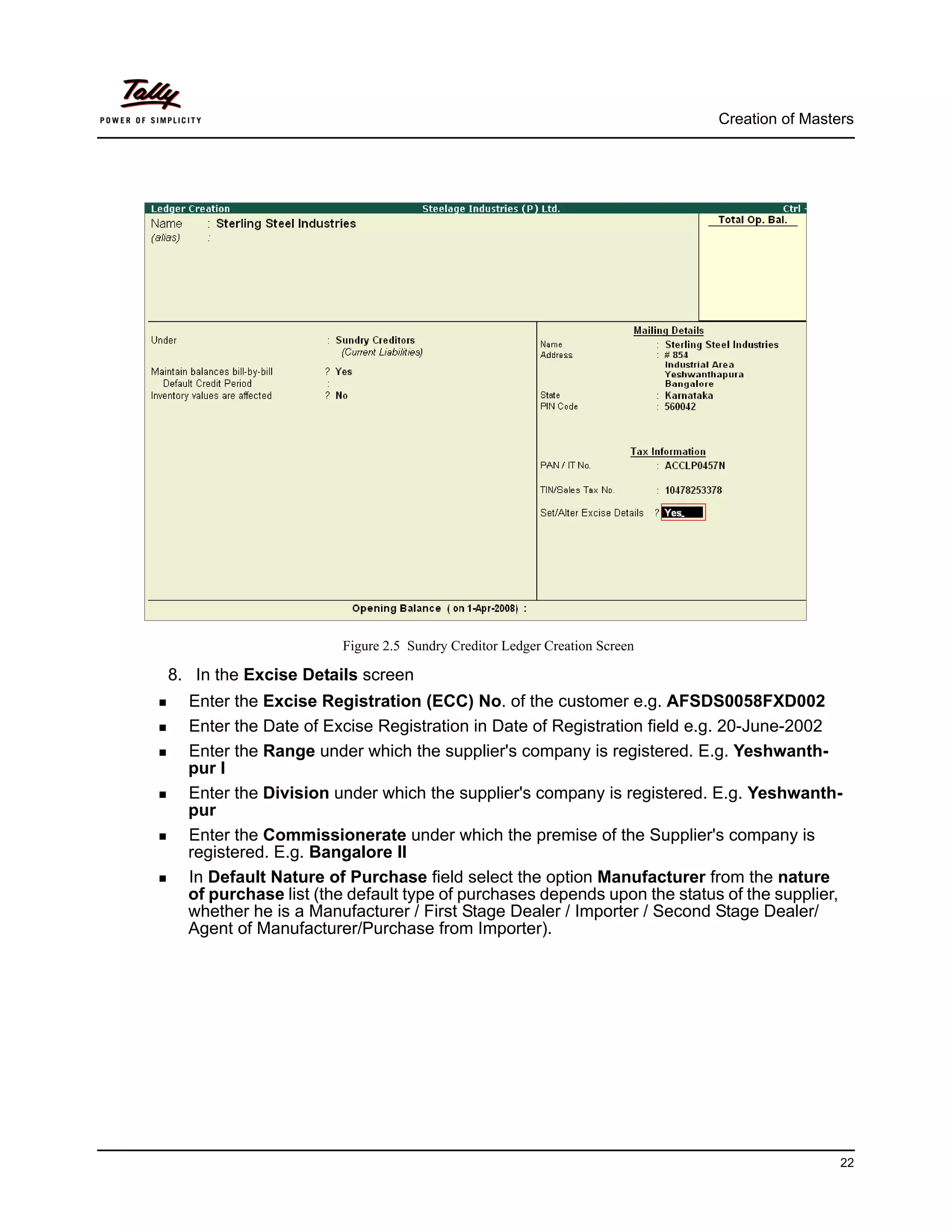
8. In the Excise Details screen
  Enter the Excise Registration (ECC) No. of the customer e.g. AFSDS0058FXD002
  Enter the Date of Excise Registration in Date of Registration field e.g. 20-June-2002
  Enter the Range under which the supplier's company is registered. E.g. Yeshwanth-
  pur I
  Enter the Division under which the supplier's company is registered. E.g. Yeshwanth-
  pur
  Enter the Commissionerate under which the premise of the Supplier's company is
  registered. E.g. Bangalore II
  In Default Nature of Purchase field select the option Manufacturer from the nature
  of purchase list (the default type of purchases depends upon the status of the supplier,
  whether he is a Manufacturer / First Stage Dealer / Importer / Second Stage Dealer/
  Agent of Manufacturer/Purchase from Importer).


                                                                                           22
Creation of Masters


The Excise Details screen appears as shown


                                    Figure 2.6 Excise Details Screen


                       During the normal course of business, the supplier of the goods may not be
                       always the manufacturer of the said goods, he can be a dealer as well. In
                       such cases, Tally.ERP 9 allows you to modify the nature of purchase during
                       voucher entry as required.


                                                                                                    23
Creation of Masters


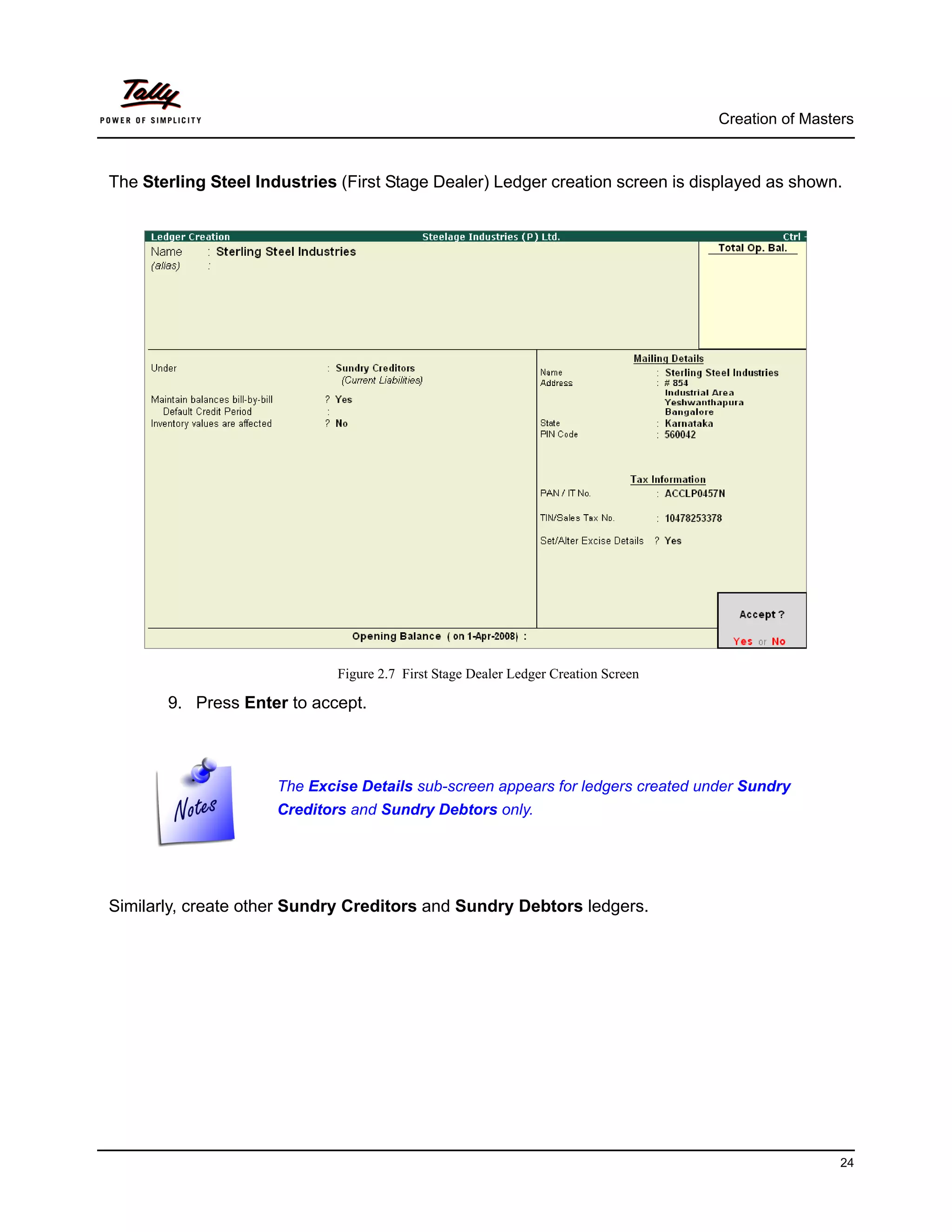
The Sterling Steel Industries (First Stage Dealer) Ledger creation screen is displayed as shown.


                              Figure 2.7 First Stage Dealer Ledger Creation Screen

       9. Press Enter to accept.


                      The Excise Details sub-screen appears for ledgers created under Sundry
                      Creditors and Sundry Debtors only.


Similarly, create other Sundry Creditors and Sundry Debtors ledgers.


                                                                                                      24
Creation of Masters


2.4 Tariff Classification
Each and every goods manufactured or produced have to be classified for finding out the rate of
duty applicable. Accordingly, Central Excise Tariff Act 1985 classifies all the goods under 91
chapters and specific code is assigned to each item. This code is called Tariff Classification code,
which consists of 8 digits. First 4 digits represent Chapter and heading and next 2 digit represents
sub-heading and the last 2 digit represents sub-sub heading.


   Tariff Classifcaication      HSN Code         Used For
   Hot Rolled Coils             72271000        Excise
   Cold Rolled Coils            72271008        Excise
   Engine Valves                72172015        Excise
   Iron Bar                     72571615        Excise
   Copper Alloy Strip           72271004        Excise


To create a Tariff Classification
Go to Gateway of Tally > Inventory Info. > Tariff Classifications > Create
        1. In the Name field enter the name of the Tariff Classification e.g. Hot Rolled Coils
        2. In HSN Code field enter the Tariff Classification Code e.g. 72271000


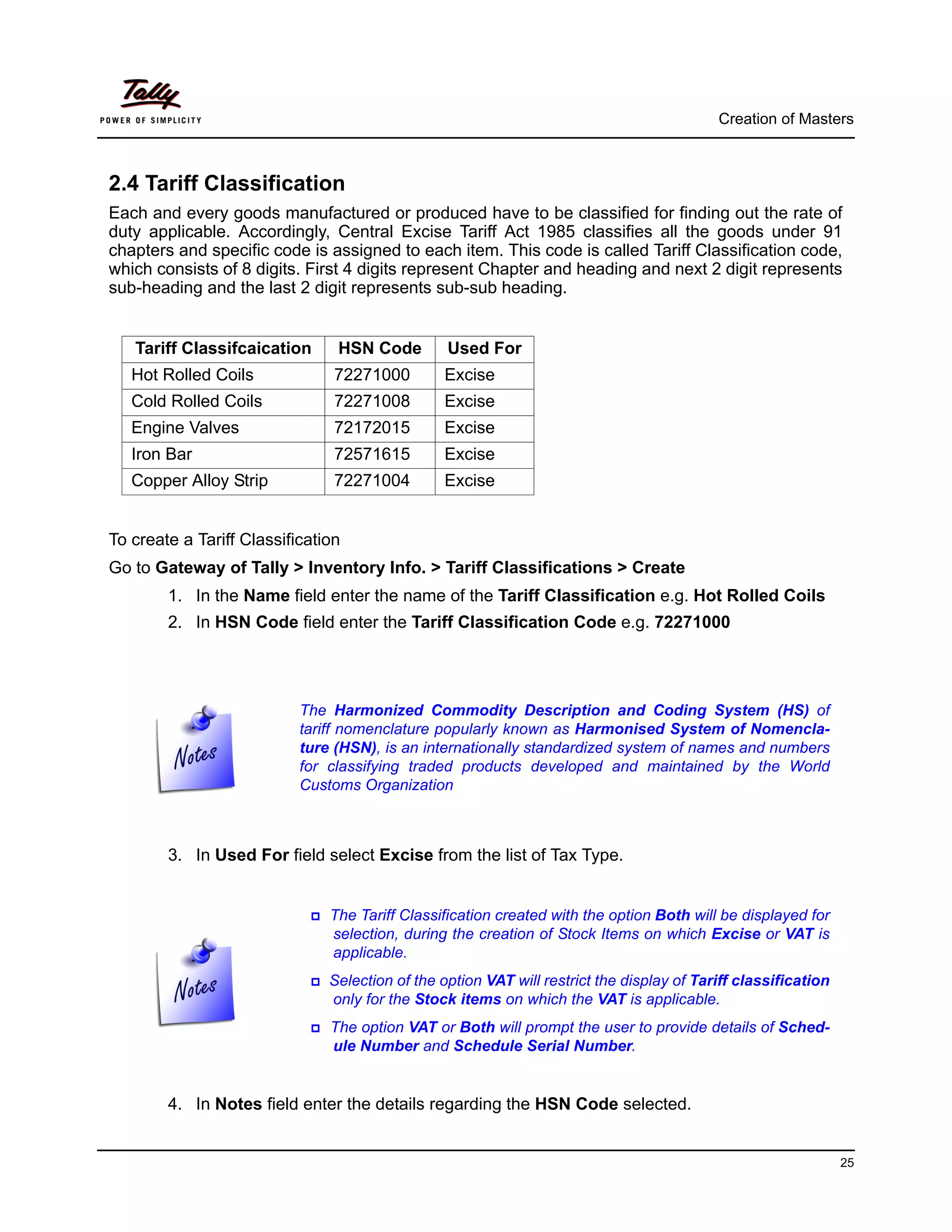
                           The Harmonized Commodity Description and Coding System (HS) of
                           tariff nomenclature popularly known as Harmonised System of Nomencla-
                           ture (HSN), is an internationally standardized system of names and numbers
                           for classifying traded products developed and maintained by the World
                           Customs Organization


        3. In Used For field select Excise from the list of Tax Type.


                               The Tariff Classification created with the option Both will be displayed for
                               selection, during the creation of Stock Items on which Excise or VAT is
                               applicable.
                               Selection of the option VAT will restrict the display of Tariff classification
                               only for the Stock items on which the VAT is applicable.
                               The option VAT or Both will prompt the user to provide details of Sched-
                               ule Number and Schedule Serial Number.


        4. In Notes field enter the details regarding the HSN Code selected.


                                                                                                                25
Creation of Masters


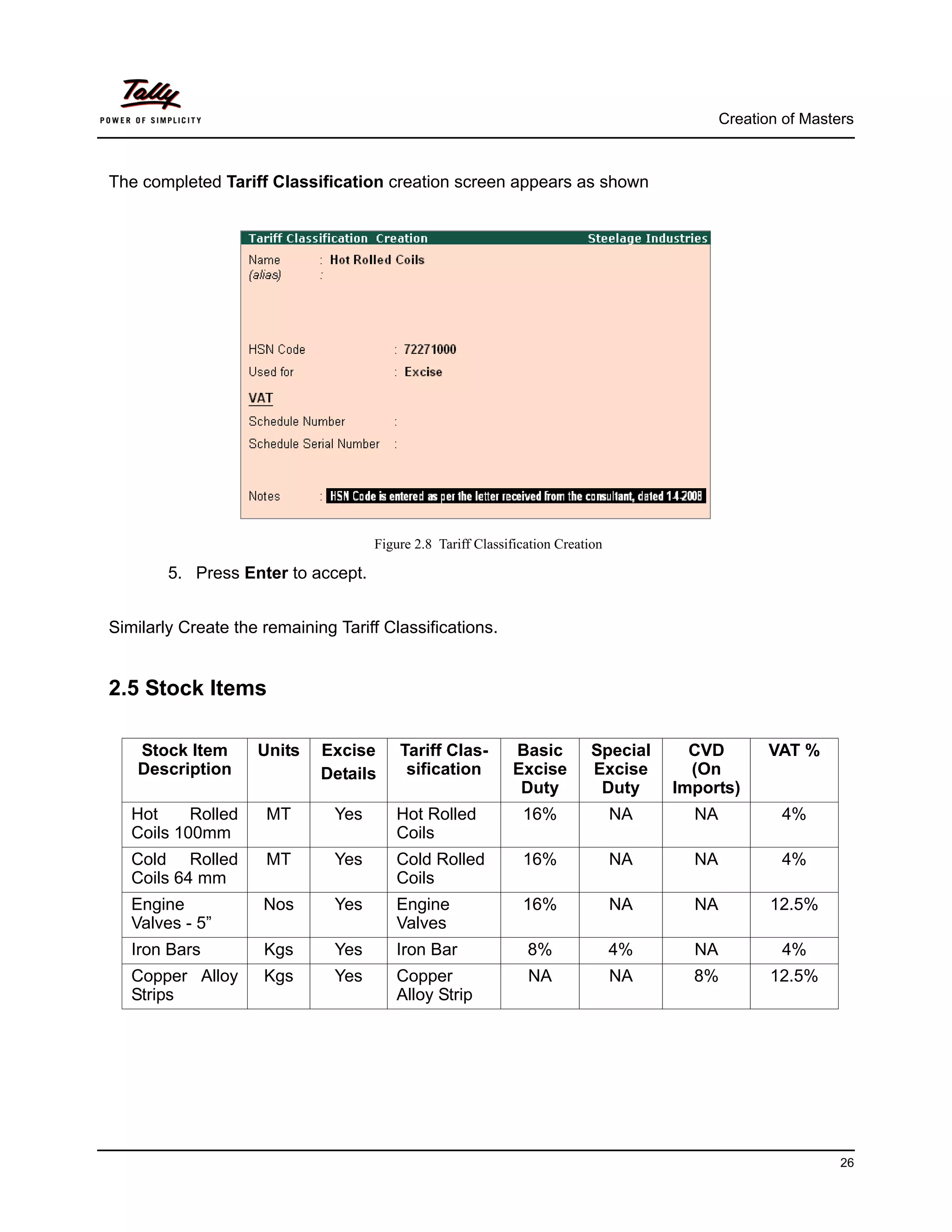
The completed Tariff Classification creation screen appears as shown


                                     Figure 2.8 Tariff Classification Creation

        5. Press Enter to accept.


Similarly Create the remaining Tariff Classifications.


2.5 Stock Items

    Stock Item      Units    Excise      Tariff Clas-        Basic         Special      CVD         VAT %
    Description              Details      sification         Excise        Excise       (On
                                                              Duty          Duty      Imports)
   Hot     Rolled    MT        Yes      Hot Rolled             16%               NA     NA           4%
   Coils 100mm                          Coils
   Cold Rolled       MT        Yes      Cold Rolled            16%               NA     NA           4%
   Coils 64 mm                          Coils
   Engine            Nos       Yes      Engine                 16%               NA     NA          12.5%
   Valves - 5”                          Valves
   Iron Bars         Kgs       Yes      Iron Bar                8%               4%     NA           4%
   Copper Alloy      Kgs       Yes      Copper                  NA               NA     8%          12.5%
   Strips                               Alloy Strip


                                                                                                              26
Creation of Masters


1. Stock Item (Basic Excise Duty)
To Create the Stock Items
Go to Gateway of Tally > Inventory Info. > Stock Items > Create
       1. Enter the Name of the stock item as Hot Rolled Coils – 100mm
       2. Specify the Group as Primary.
       3. Define the Units as MT (Metric Tonnes)
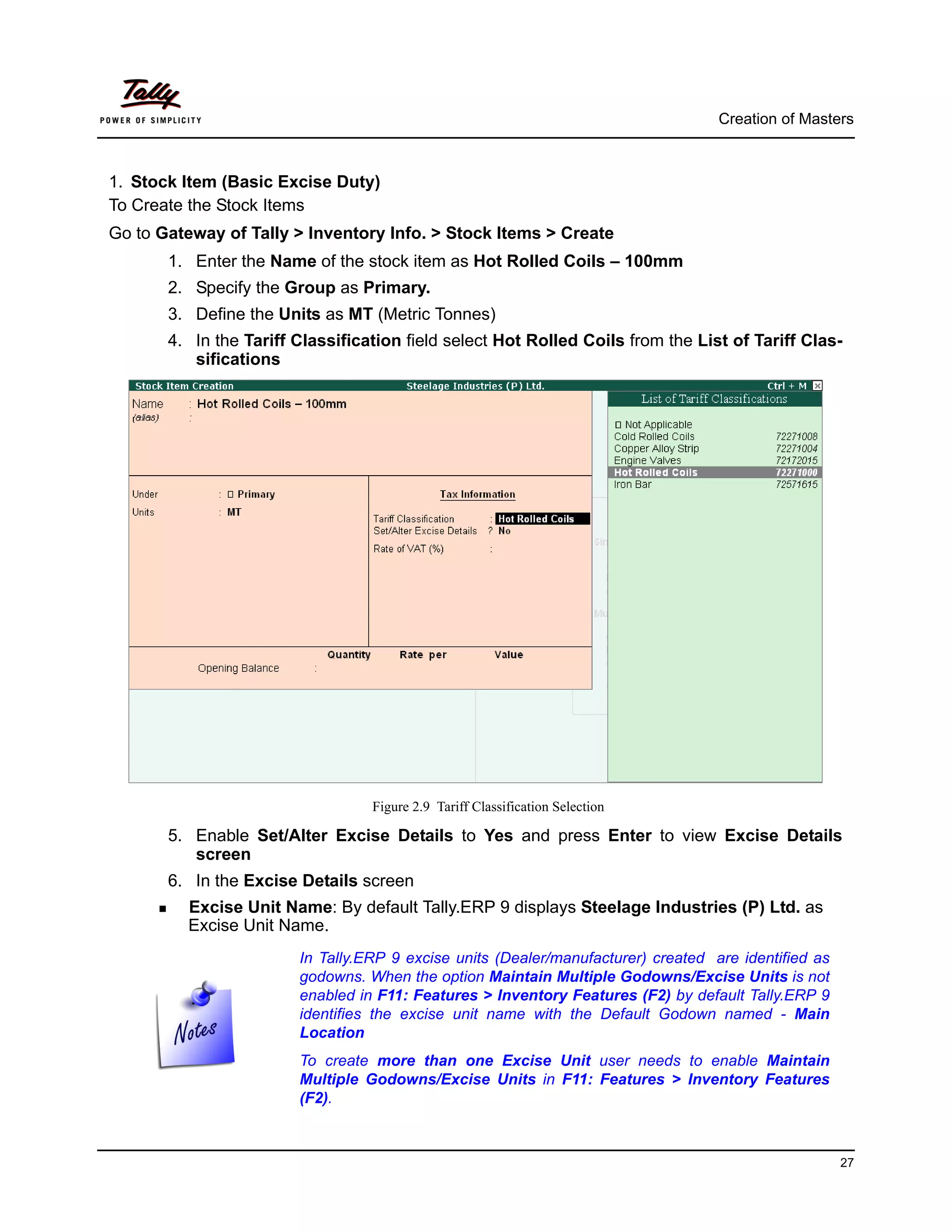
       4. In the Tariff Classification field select Hot Rolled Coils from the List of Tariff Clas-
          sifications


                                  Figure 2.9 Tariff Classification Selection

       5. Enable Set/Alter Excise Details to Yes and press Enter to view Excise Details
          screen
       6. In the Excise Details screen
         Excise Unit Name: By default Tally.ERP 9 displays Steelage Industries (P) Ltd. as
         Excise Unit Name.
                        In Tally.ERP 9 excise units (Dealer/manufacturer) created are identified as
                        godowns. When the option Maintain Multiple Godowns/Excise Units is not
                        enabled in F11: Features > Inventory Features (F2) by default Tally.ERP 9
                        identifies the excise unit name with the Default Godown named - Main
                        Location
                        To create more than one Excise Unit user needs to enable Maintain
                        Multiple Godowns/Excise Units in F11: Features > Inventory Features
                        (F2).


                                                                                                      27
Creation of Masters


  Reporting UOM: By default the unit of Measurement selected under Units will be con-
  sidered as UOM for all the reports.
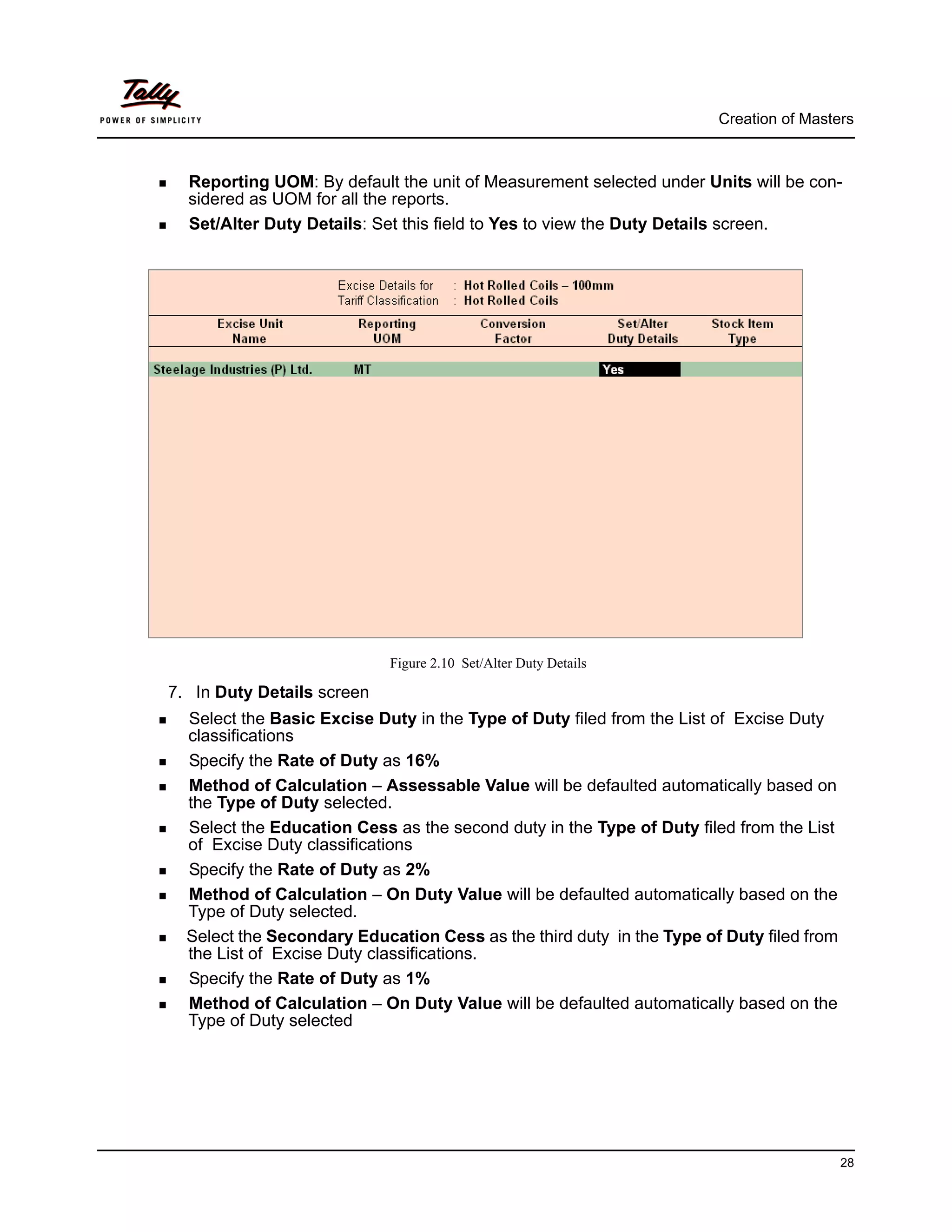
  Set/Alter Duty Details: Set this field to Yes to view the Duty Details screen.


                            Figure 2.10 Set/Alter Duty Details

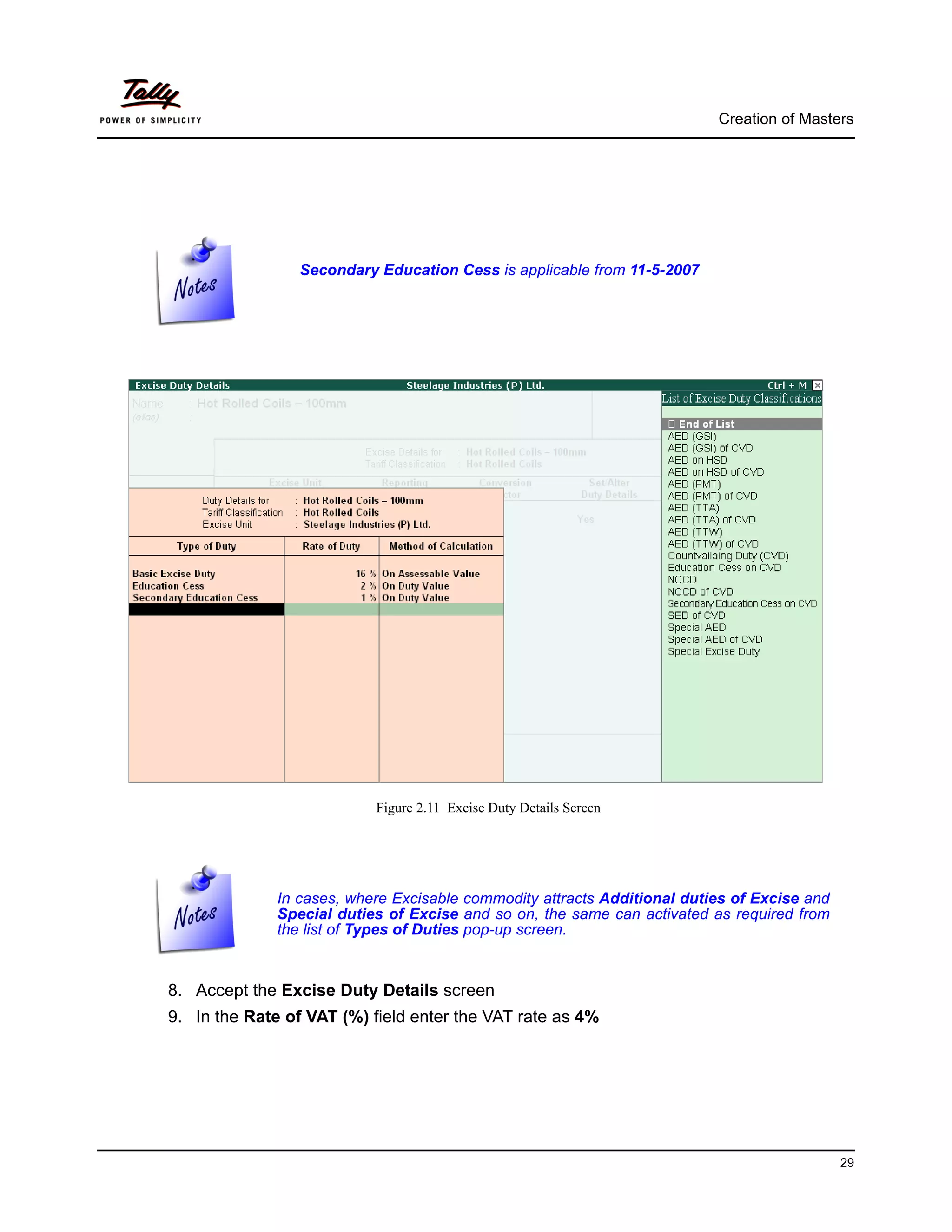
7. In Duty Details screen
  Select the Basic Excise Duty in the Type of Duty filed from the List of Excise Duty
  classifications
  Specify the Rate of Duty as 16%
  Method of Calculation – Assessable Value will be defaulted automatically based on
  the Type of Duty selected.
  Select the Education Cess as the second duty in the Type of Duty filed from the List
  of Excise Duty classifications
  Specify the Rate of Duty as 2%
  Method of Calculation – On Duty Value will be defaulted automatically based on the
  Type of Duty selected.
  Select the Secondary Education Cess as the third duty in the Type of Duty filed from
  the List of Excise Duty classifications.
  Specify the Rate of Duty as 1%
  Method of Calculation – On Duty Value will be defaulted automatically based on the
  Type of Duty selected


                                                                                         28
Creation of Masters


                 Secondary Education Cess is applicable from 11-5-2007


                           Figure 2.11 Excise Duty Details Screen


              In cases, where Excisable commodity attracts Additional duties of Excise and
              Special duties of Excise and so on, the same can activated as required from
              the list of Types of Duties pop-up screen.


8. Accept the Excise Duty Details screen
9. In the Rate of VAT (%) field enter the VAT rate as 4%


                                                                                             29
Creation of Masters


The completed Stock item creation screen appears as shown


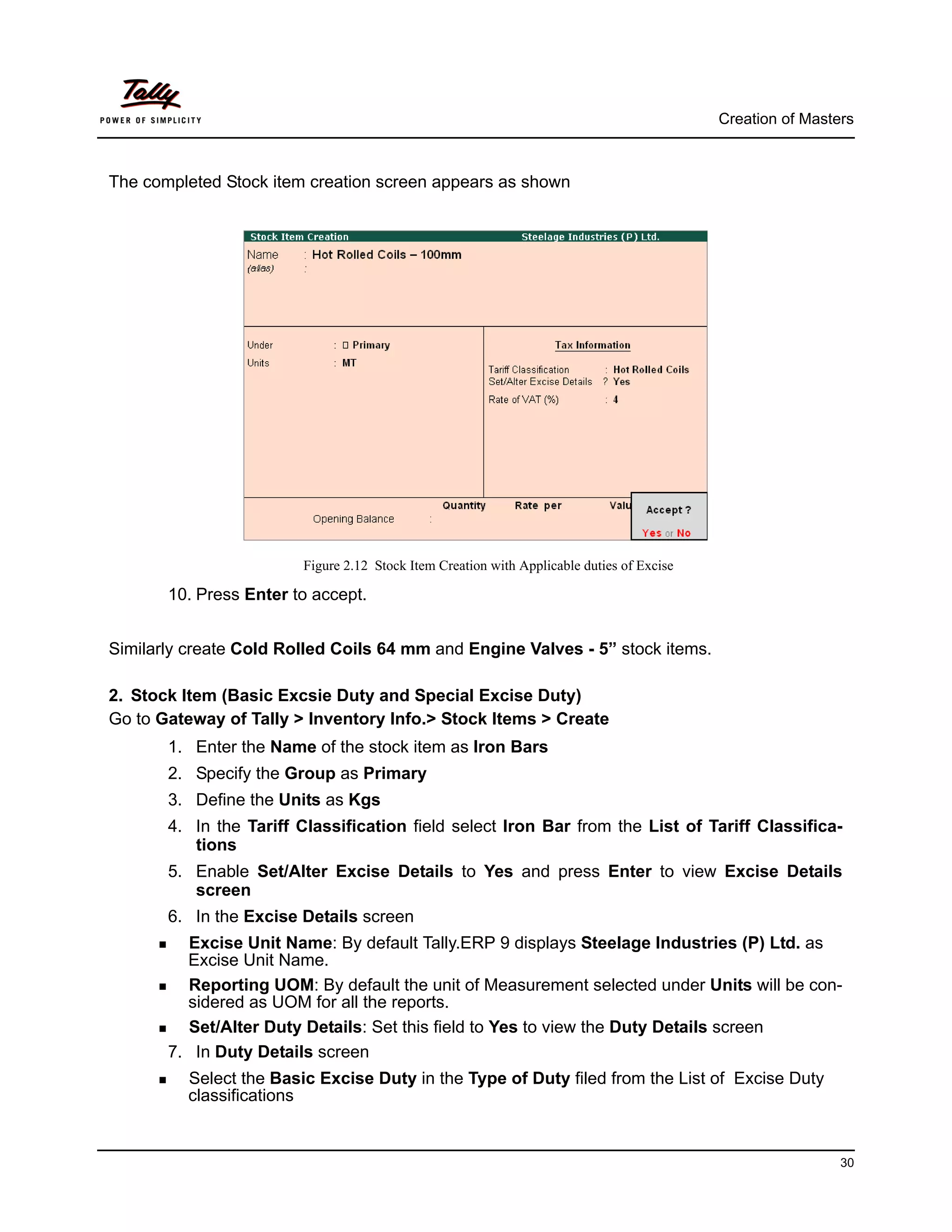
                         Figure 2.12 Stock Item Creation with Applicable duties of Excise

       10. Press Enter to accept.


Similarly create Cold Rolled Coils 64 mm and Engine Valves - 5” stock items.

2. Stock Item (Basic Excsie Duty and Special Excise Duty)
Go to Gateway of Tally > Inventory Info.> Stock Items > Create
       1. Enter the Name of the stock item as Iron Bars
       2. Specify the Group as Primary
       3. Define the Units as Kgs
       4. In the Tariff Classification field select Iron Bar from the List of Tariff Classifica-
          tions
       5. Enable Set/Alter Excise Details to Yes and press Enter to view Excise Details
          screen
       6. In the Excise Details screen
         Excise Unit Name: By default Tally.ERP 9 displays Steelage Industries (P) Ltd. as
         Excise Unit Name.
         Reporting UOM: By default the unit of Measurement selected under Units will be con-
         sidered as UOM for all the reports.
         Set/Alter Duty Details: Set this field to Yes to view the Duty Details screen
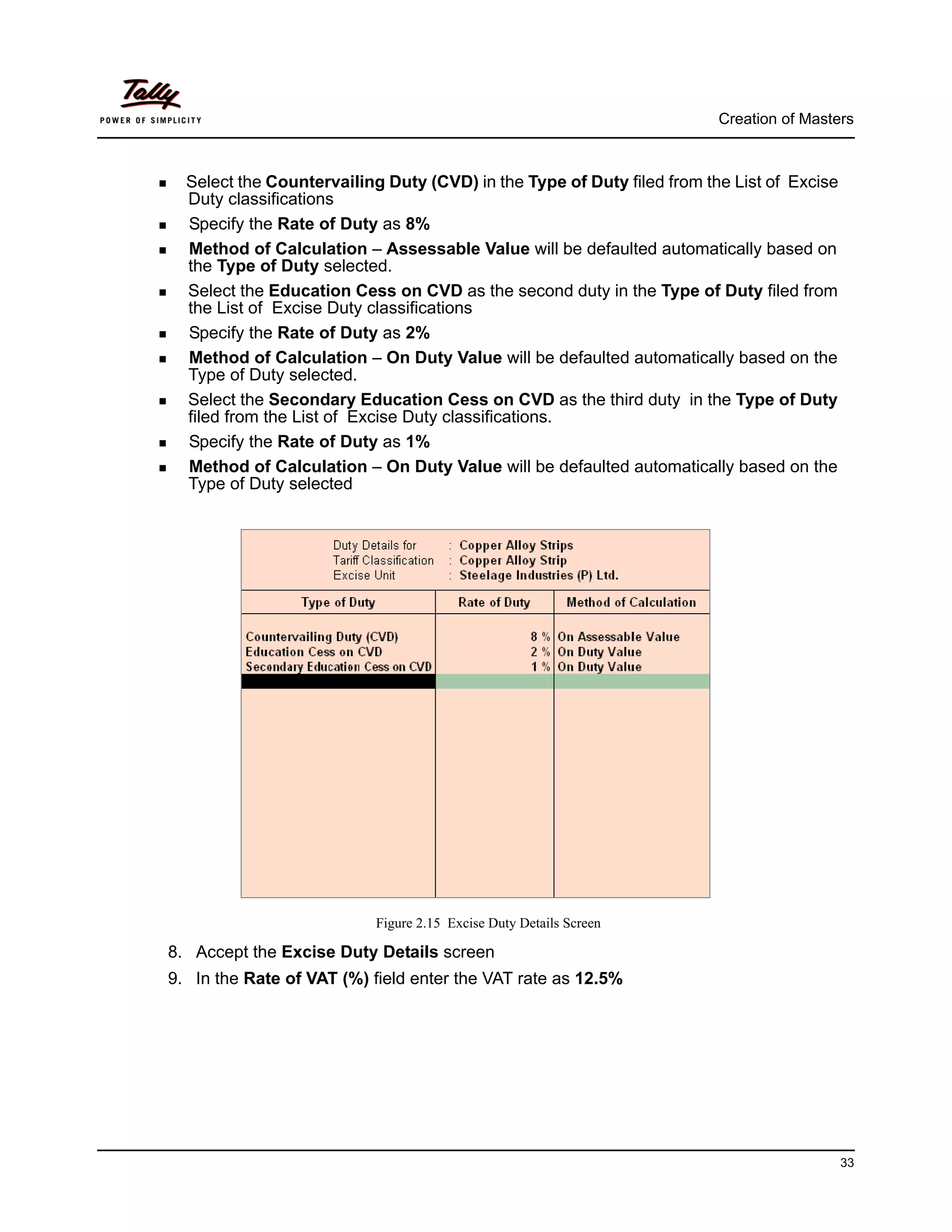
       7. In Duty Details screen
          Select the Basic Excise Duty in the Type of Duty filed from the List of Excise Duty
          classifications


                                                                                                             30
Creation of Masters


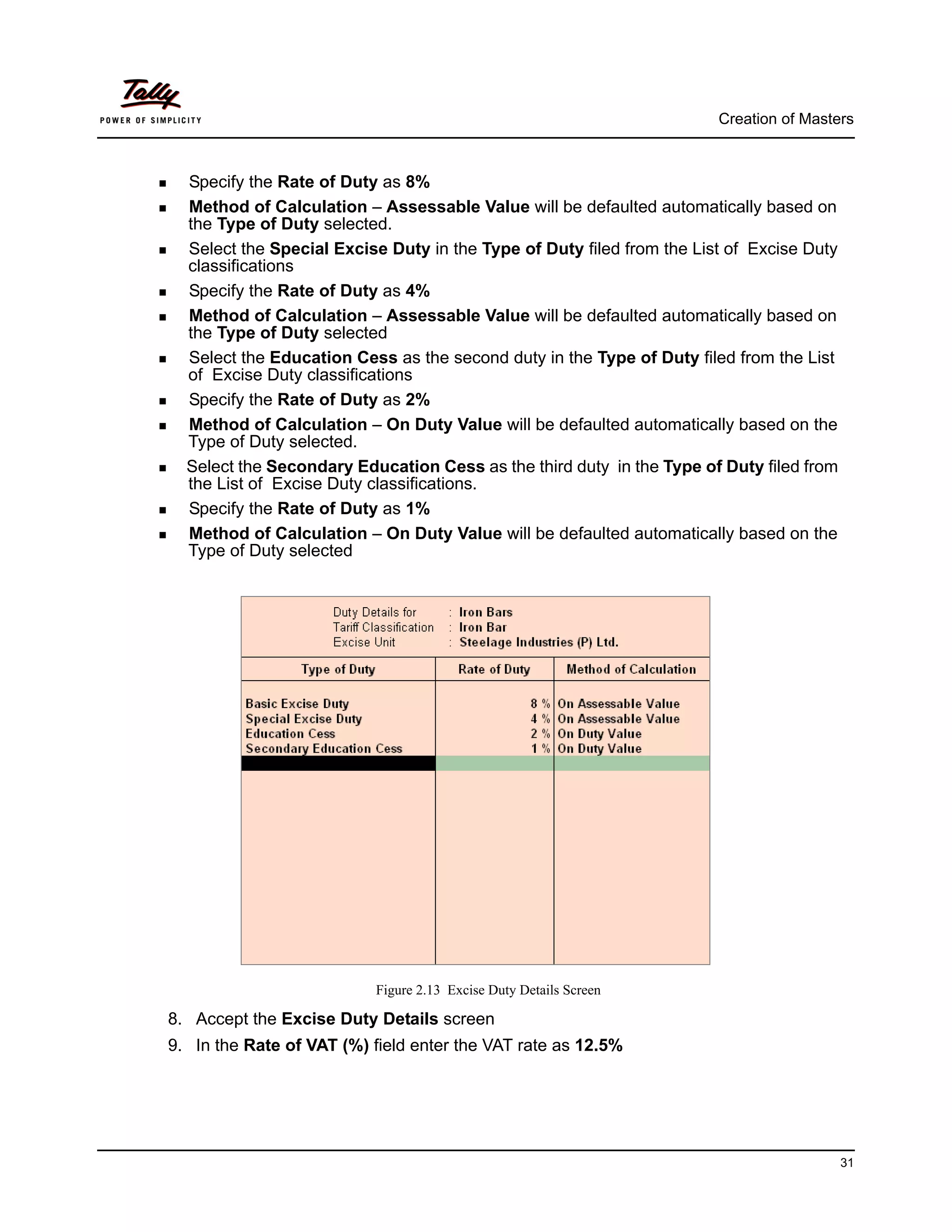
  Specify the Rate of Duty as 8%
  Method of Calculation – Assessable Value will be defaulted automatically based on
  the Type of Duty selected.
  Select the Special Excise Duty in the Type of Duty filed from the List of Excise Duty
  classifications
  Specify the Rate of Duty as 4%
  Method of Calculation – Assessable Value will be defaulted automatically based on
  the Type of Duty selected
  Select the Education Cess as the second duty in the Type of Duty filed from the List
  of Excise Duty classifications
  Specify the Rate of Duty as 2%
  Method of Calculation – On Duty Value will be defaulted automatically based on the
  Type of Duty selected.
  Select the Secondary Education Cess as the third duty in the Type of Duty filed from
  the List of Excise Duty classifications.
  Specify the Rate of Duty as 1%
  Method of Calculation – On Duty Value will be defaulted automatically based on the
  Type of Duty selected


                          Figure 2.13 Excise Duty Details Screen

8. Accept the Excise Duty Details screen
9. In the Rate of VAT (%) field enter the VAT rate as 12.5%


                                                                                          31
Creation of Masters


The completed Stock item creation screen appears as shown


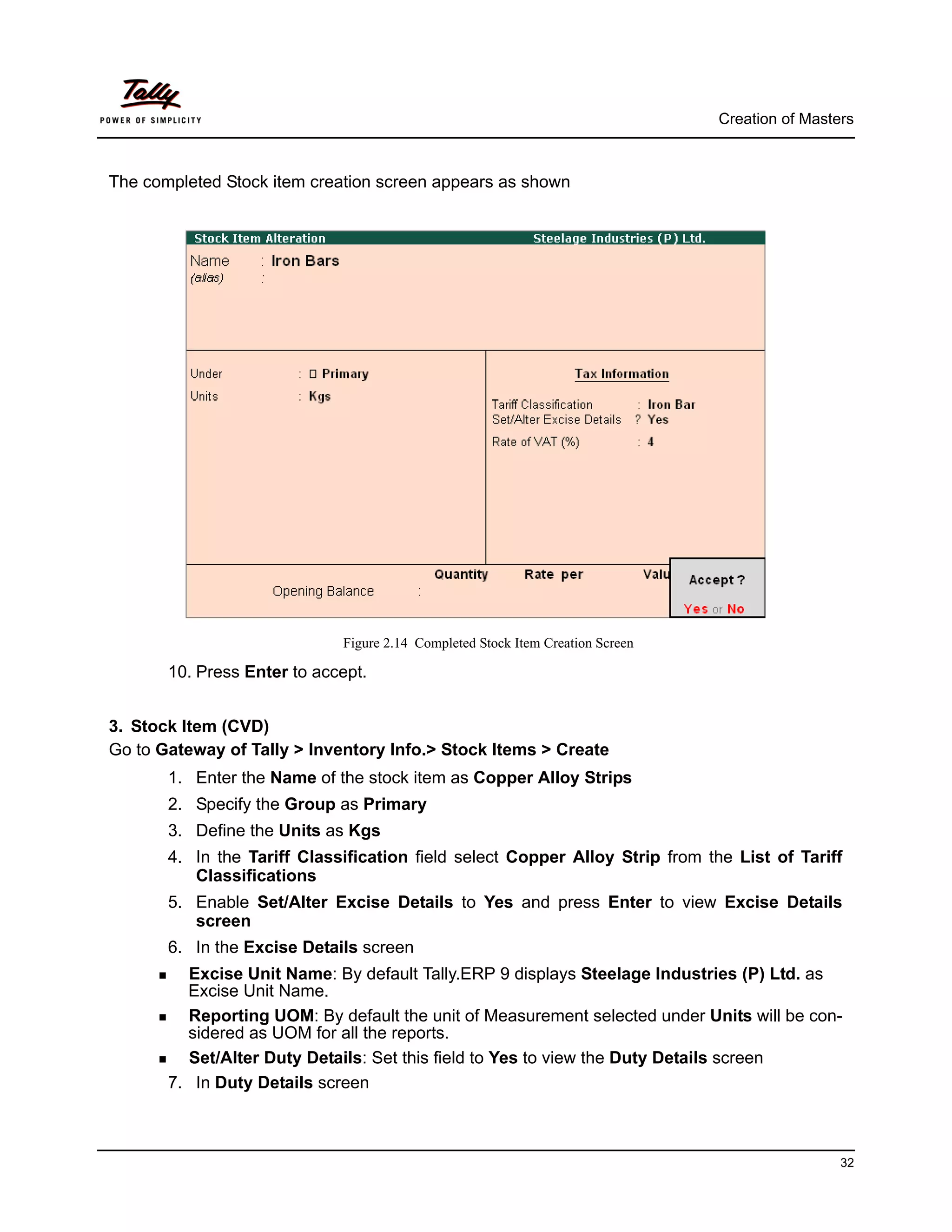
                             Figure 2.14 Completed Stock Item Creation Screen

       10. Press Enter to accept.


3. Stock Item (CVD)
Go to Gateway of Tally > Inventory Info.> Stock Items > Create
       1. Enter the Name of the stock item as Copper Alloy Strips
       2. Specify the Group as Primary
       3. Define the Units as Kgs
       4. In the Tariff Classification field select Copper Alloy Strip from the List of Tariff
          Classifications
       5. Enable Set/Alter Excise Details to Yes and press Enter to view Excise Details
          screen
       6. In the Excise Details screen
         Excise Unit Name: By default Tally.ERP 9 displays Steelage Industries (P) Ltd. as
         Excise Unit Name.
         Reporting UOM: By default the unit of Measurement selected under Units will be con-
         sidered as UOM for all the reports.
         Set/Alter Duty Details: Set this field to Yes to view the Duty Details screen
       7. In Duty Details screen


                                                                                                 32
Creation of Masters


  Select the Countervailing Duty (CVD) in the Type of Duty filed from the List of Excise
  Duty classifications
  Specify the Rate of Duty as 8%
  Method of Calculation – Assessable Value will be defaulted automatically based on
  the Type of Duty selected.
  Select the Education Cess on CVD as the second duty in the Type of Duty filed from
  the List of Excise Duty classifications
  Specify the Rate of Duty as 2%
  Method of Calculation – On Duty Value will be defaulted automatically based on the
  Type of Duty selected.
  Select the Secondary Education Cess on CVD as the third duty in the Type of Duty
  filed from the List of Excise Duty classifications.
  Specify the Rate of Duty as 1%
  Method of Calculation – On Duty Value will be defaulted automatically based on the
  Type of Duty selected


                           Figure 2.15 Excise Duty Details Screen

8. Accept the Excise Duty Details screen
9. In the Rate of VAT (%) field enter the VAT rate as 12.5%


                                                                                           33
Creation of Masters


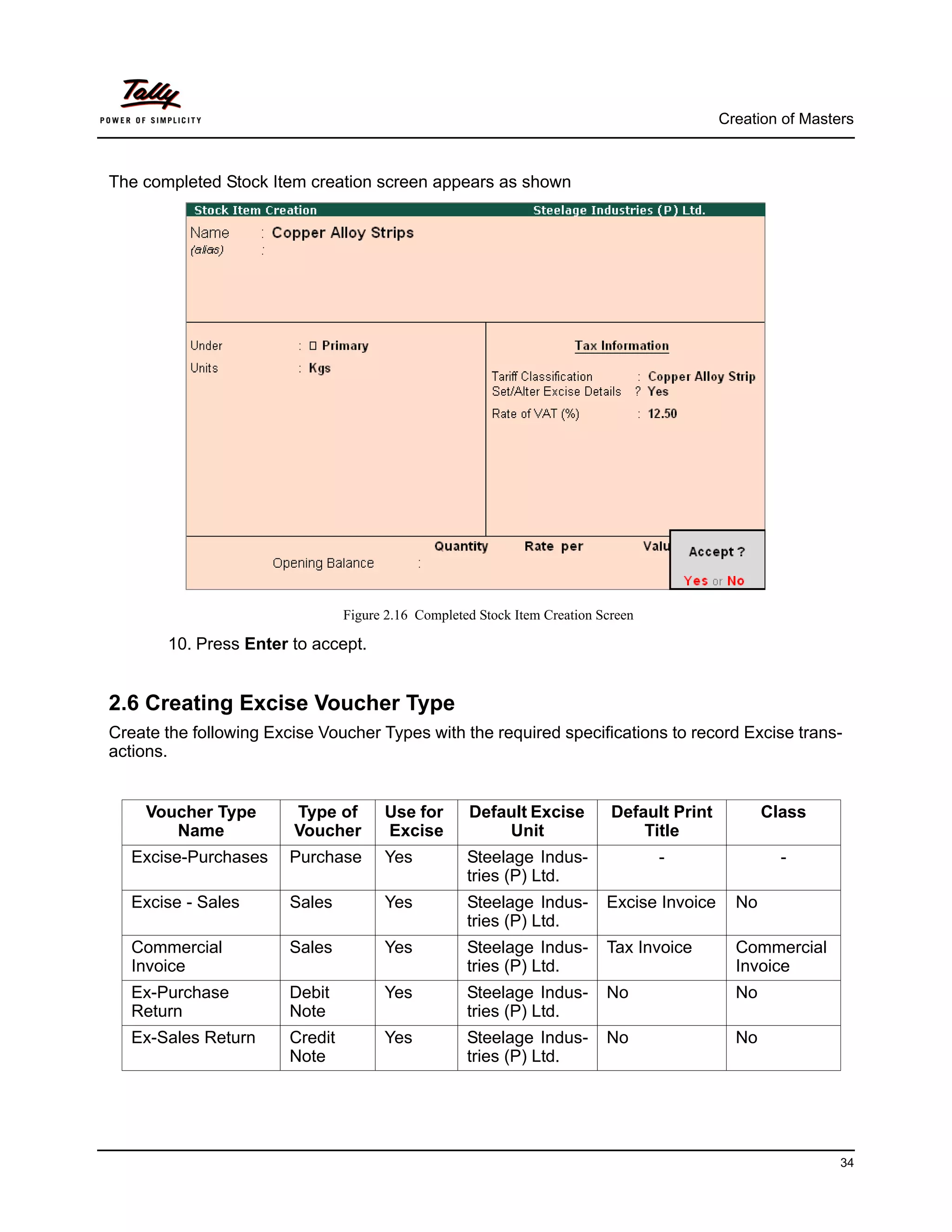
The completed Stock Item creation screen appears as shown


                                 Figure 2.16 Completed Stock Item Creation Screen

       10. Press Enter to accept.


2.6 Creating Excise Voucher Type
Create the following Excise Voucher Types with the required specifications to record Excise trans-
actions.


    Voucher Type        Type of        Use for       Default Excise          Default Print          Class
       Name             Voucher        Excise            Unit                    Title
   Excise-Purchases     Purchase       Yes           Steelage Indus-                -                 -
                                                     tries (P) Ltd.
   Excise - Sales       Sales          Yes           Steelage Indus-        Excise Invoice     No
                                                     tries (P) Ltd.
   Commercial           Sales          Yes           Steelage Indus-        Tax Invoice        Commercial
   Invoice                                           tries (P) Ltd.                            Invoice
   Ex-Purchase          Debit          Yes           Steelage Indus-        No                 No
   Return               Note                         tries (P) Ltd.
   Ex-Sales Return      Credit         Yes           Steelage Indus-        No                 No
                        Note                         tries (P) Ltd.


                                                                                                              34
Creation of Masters


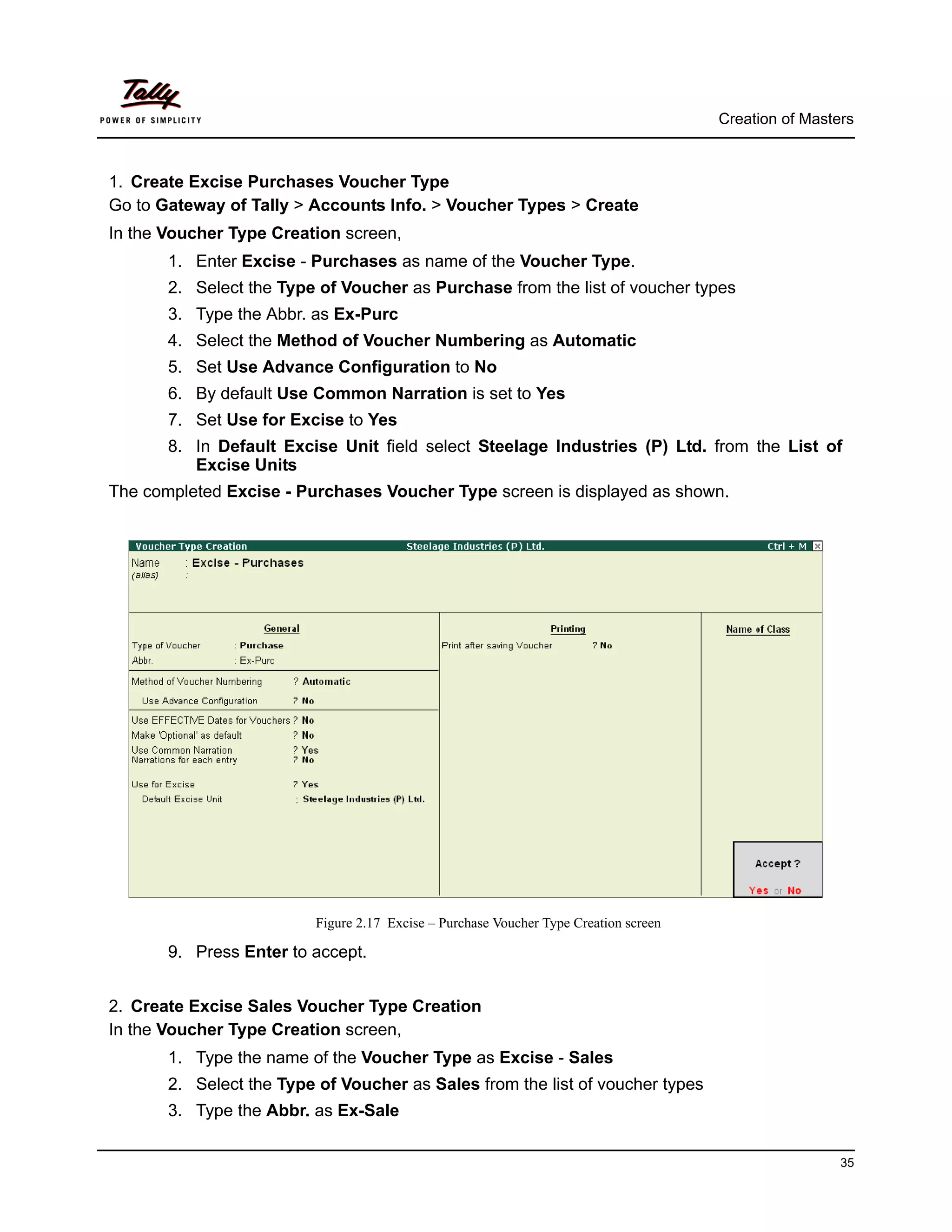
1. Create Excise Purchases Voucher Type
Go to Gateway of Tally > Accounts Info. > Voucher Types > Create
In the Voucher Type Creation screen,
       1. Enter Excise - Purchases as name of the Voucher Type.
       2. Select the Type of Voucher as Purchase from the list of voucher types
       3. Type the Abbr. as Ex-Purc
       4. Select the Method of Voucher Numbering as Automatic
       5. Set Use Advance Configuration to No
       6. By default Use Common Narration is set to Yes
       7. Set Use for Excise to Yes
       8. In Default Excise Unit field select Steelage Industries (P) Ltd. from the List of
          Excise Units
The completed Excise - Purchases Voucher Type screen is displayed as shown.


                          Figure 2.17 Excise – Purchase Voucher Type Creation screen

       9. Press Enter to accept.


2. Create Excise Sales Voucher Type Creation
In the Voucher Type Creation screen,
       1. Type the name of the Voucher Type as Excise - Sales
       2. Select the Type of Voucher as Sales from the list of voucher types
       3. Type the Abbr. as Ex-Sale

                                                                                                        35
Creation of Masters


       4. Select the Method of Voucher Numbering as Automatic
       5. Set Use Advance Configuration to No
       6. By default Use Common Narration is set to Yes
       7. Set Use for Excise to Yes
       8. In Default Excise Unit field select Steelage Industries (P) Ltd. from the List of
          Excise Units
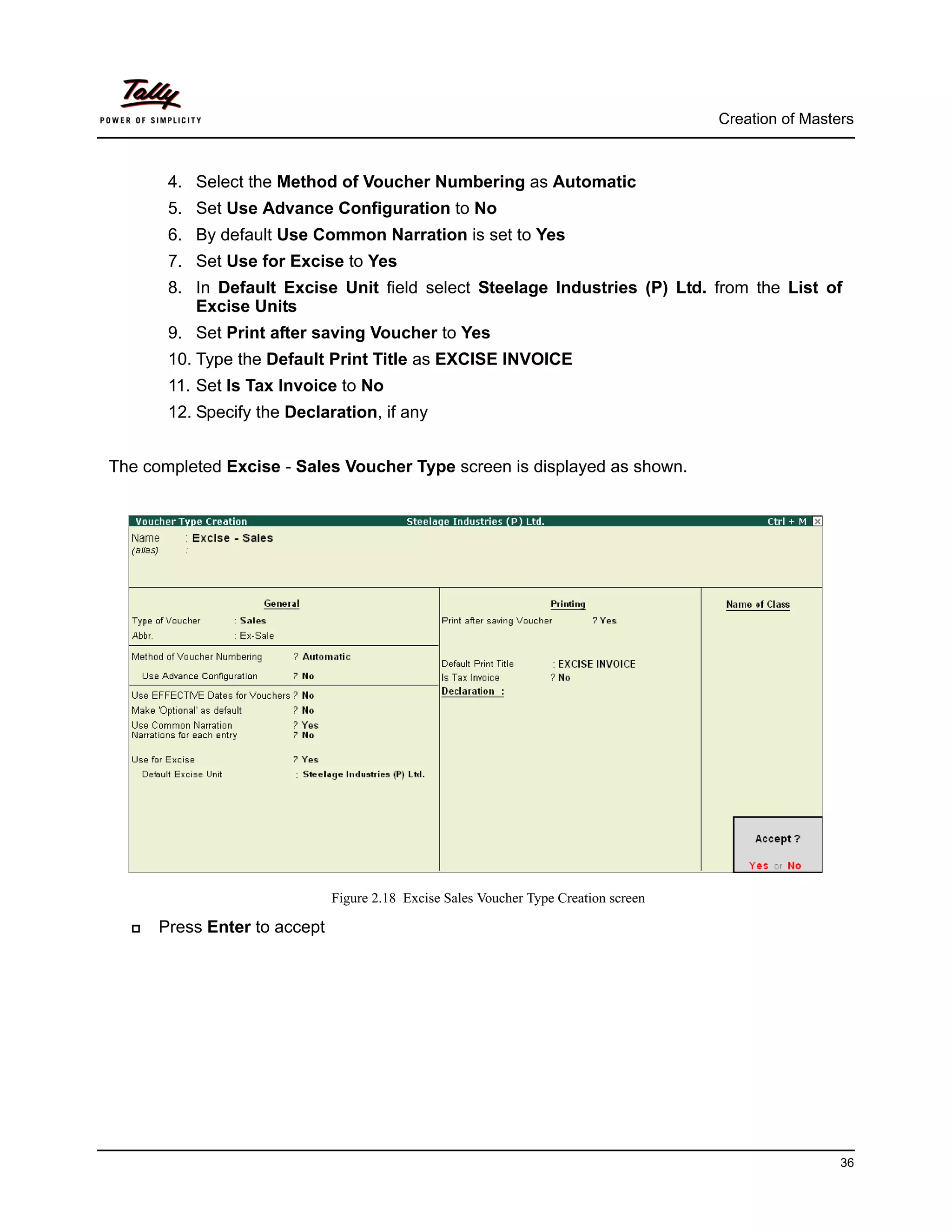
       9. Set Print after saving Voucher to Yes
       10. Type the Default Print Title as EXCISE INVOICE
       11. Set Is Tax Invoice to No
       12. Specify the Declaration, if any


The completed Excise - Sales Voucher Type screen is displayed as shown.


                              Figure 2.18 Excise Sales Voucher Type Creation screen

      Press Enter to accept


                                                                                                       36
Creation of Masters


3. Create Commercial Invoice Voucher Type
In the Voucher Type Creation screen,
      1. Type the name of the Voucher Type as Commercial Invoice
      2. Select the Type of Voucher as Sales from the list of voucher types
      3. Type the Abbr. as Com-Inv.
      4. Select the Method of Voucher Numbering as Automatic
      5. Set Use Advance Configuration to No
      6. By default Use Common Narration is set to Yes
      7. Set Use for Excise to Yes
      8. In Default Excise Unit field select Steelage Industries (P) Ltd. from the List of
         Excise Units
      9. Set Print after saving Voucher to Yes
      10. Type the Default Print Title as TAX INVOICE
      11. Set Is Tax Invoice to Yes
      12. Type the Declaration, if any
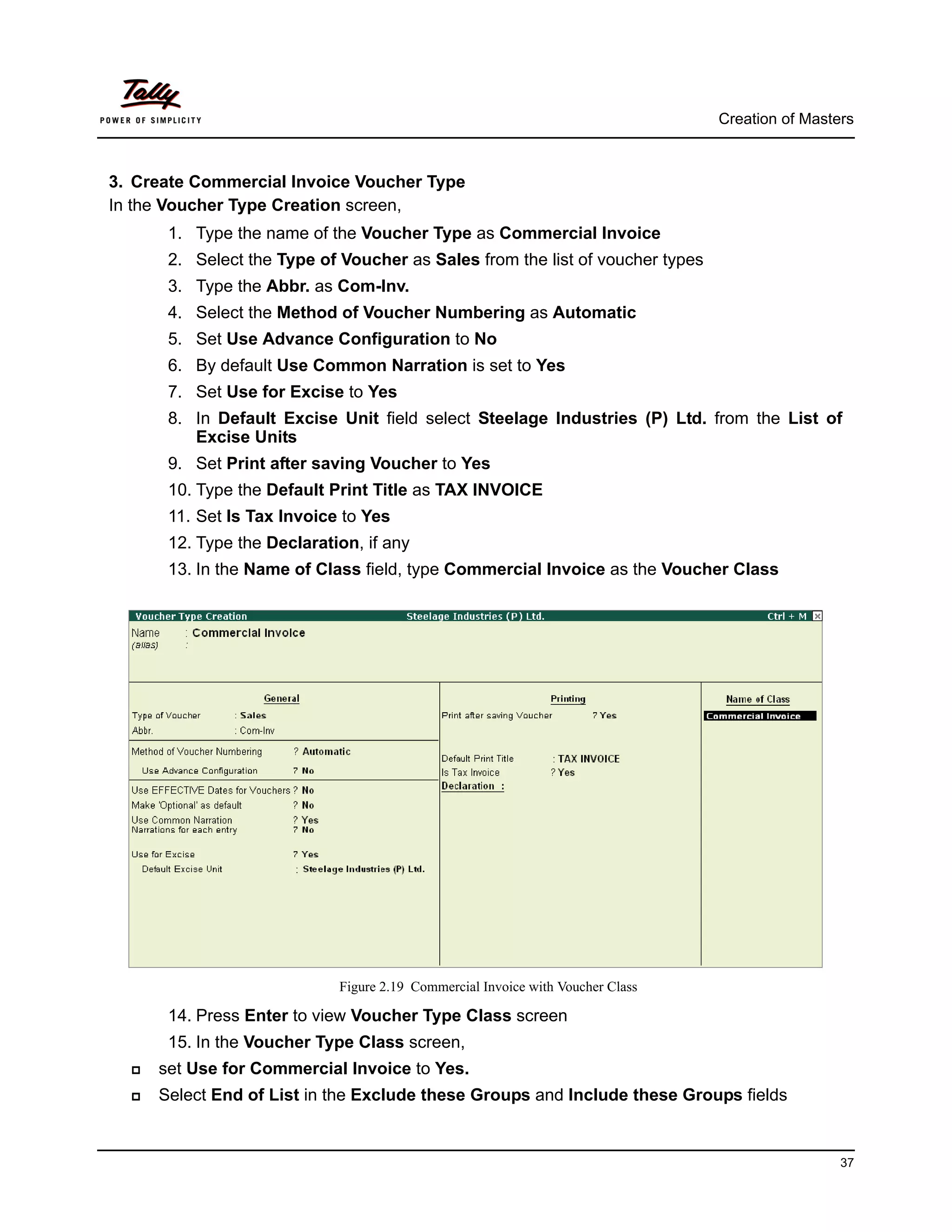
      13. In the Name of Class field, type Commercial Invoice as the Voucher Class


                            Figure 2.19 Commercial Invoice with Voucher Class

      14. Press Enter to view Voucher Type Class screen
      15. In the Voucher Type Class screen,
     set Use for Commercial Invoice to Yes.
     Select End of List in the Exclude these Groups and Include these Groups fields


                                                                                                 37
Creation of Masters


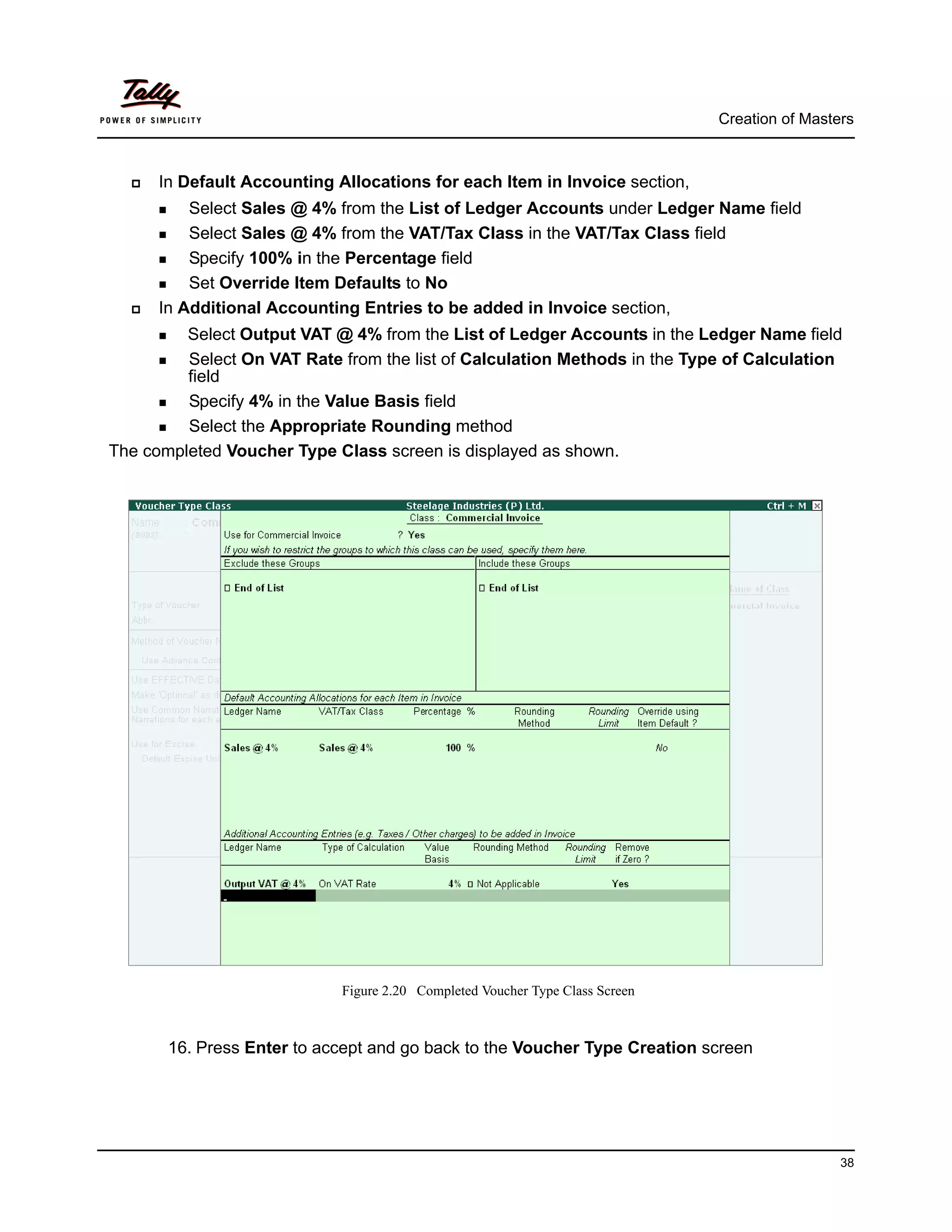
      In Default Accounting Allocations for each Item in Invoice section,
          Select Sales @ 4% from the List of Ledger Accounts under Ledger Name field
          Select Sales @ 4% from the VAT/Tax Class in the VAT/Tax Class field
          Specify 100% in the Percentage field
          Set Override Item Defaults to No
      In Additional Accounting Entries to be added in Invoice section,
         Select Output VAT @ 4% from the List of Ledger Accounts in the Ledger Name field
         Select On VAT Rate from the list of Calculation Methods in the Type of Calculation
         field
         Specify 4% in the Value Basis field
         Select the Appropriate Rounding method
The completed Voucher Type Class screen is displayed as shown.


                             Figure 2.20 Completed Voucher Type Class Screen


       16. Press Enter to accept and go back to the Voucher Type Creation screen


                                                                                                38
Creation of Masters


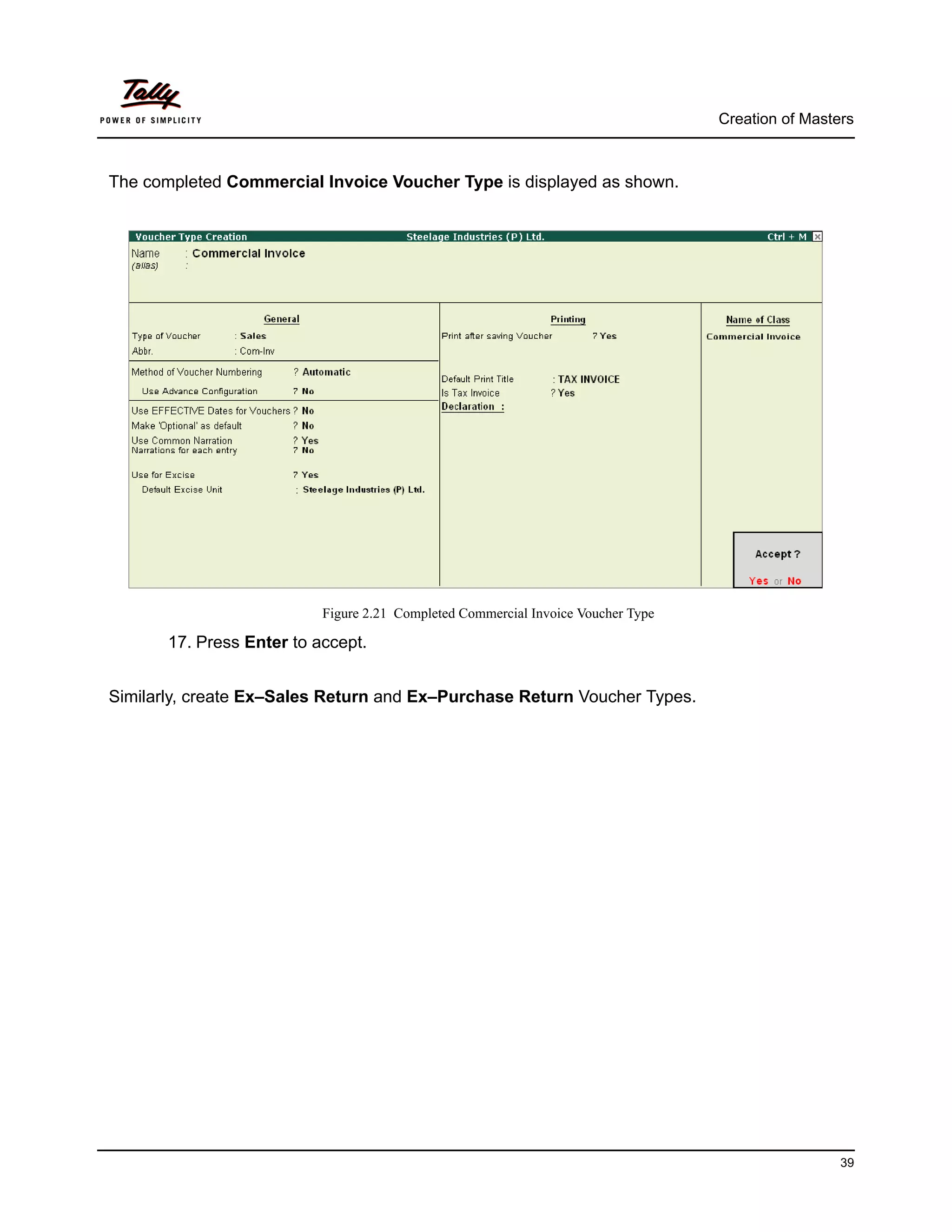
The completed Commercial Invoice Voucher Type is displayed as shown.


                           Figure 2.21 Completed Commercial Invoice Voucher Type

       17. Press Enter to accept.


Similarly, create Ex–Sales Return and Ex–Purchase Return Voucher Types.


                                                                                                    39
Lesson 3: Transactions


As discussed earlier, the manufacturer under the cover of any invoice issued in terms of the provi-
sions of Central Excise Rules, 2002 is entitled to pass the credit to the First Stage dealer. Now, let
us consider the following illustrations to understand, how CENVAT credit is passed to the subse-
quent dealers.


3.1 Purchase of Excisable Goods
Now, let us consider the following scenarios to illustrate Excise Purchase transactions in
Tally.ERP 9:
       Purchase from a Manufacturer
       Purchase from a Agent of a Manufacturer
       Purchase from an Importer
       Purchase from a First Stage Dealer
       Purchase from a Second Stage Dealer


3.1.1 Purchases from a Manufacturer
Example 1:
On 4th April 2008, Steelage Industries purchased the following goods from M/s. Sterling Steel
Industries (Manufacturer) vide B.No. 457.


    Item         Qty   Rate   Assess-    Excise   Educat   Secondar    Total      VAT @       Invoice
   Descrip-     (MT)           able       Duty      ion        y      Amount       4%         Amount
     tion                      Value     @ 16%     Cess    Educatio
                                                  @ 2%     n Cess @
                                                              1%
   Hot          400    500    2,00,000   32,000   640      320        2,32,960   9,318.40    2,42,278.40
   Rolled
   Coils –
   100mm
   Cold         600    450    2,70,000   43,200   864      432        3,14,496   12,579.84   3,27,075.84
   Rolled
   Coils    -
   64mm


                                                                                                           40
Transactions


The same is accounted as shown:
Before passing the purchase entry ensure that you have created the necessary Input VAT ledgers
under Duties & Taxes group with relevant VAT classification.
Step 1: Setup
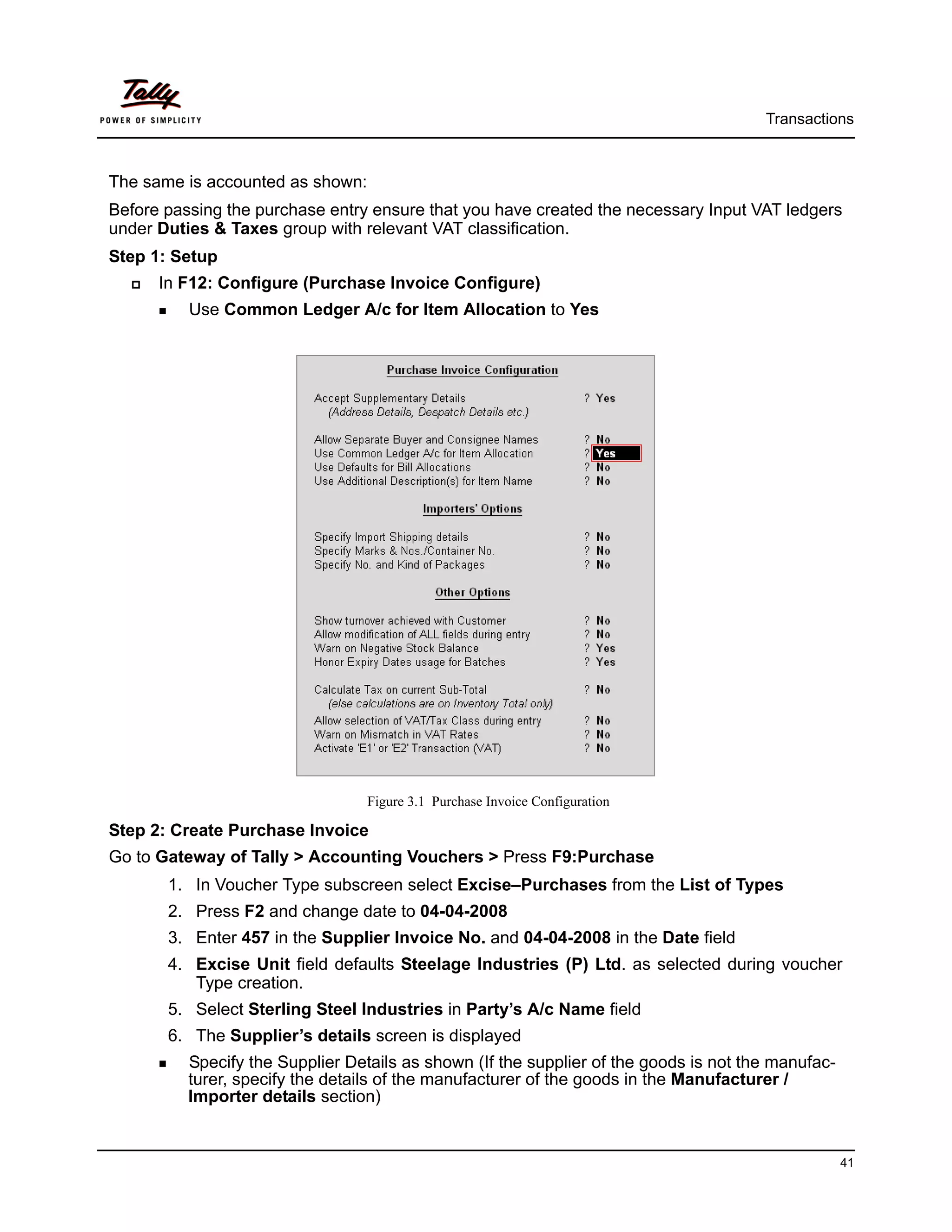
      In F12: Configure (Purchase Invoice Configure)
          Use Common Ledger A/c for Item Allocation to Yes


                                  Figure 3.1 Purchase Invoice Configuration

Step 2: Create Purchase Invoice
Go to Gateway of Tally > Accounting Vouchers > Press F9:Purchase
       1. In Voucher Type subscreen select Excise–Purchases from the List of Types
       2. Press F2 and change date to 04-04-2008
       3. Enter 457 in the Supplier Invoice No. and 04-04-2008 in the Date field
       4. Excise Unit field defaults Steelage Industries (P) Ltd. as selected during voucher
          Type creation.
       5. Select Sterling Steel Industries in Party’s A/c Name field
       6. The Supplier’s details screen is displayed
          Specify the Supplier Details as shown (If the supplier of the goods is not the manufac-
          turer, specify the details of the manufacturer of the goods in the Manufacturer /
          Importer details section)


                                                                                                    41
Transactions


                            Figure 3.2 Supplier's Details Sub-screen

  Press Enter to accept the screen
7. In Nature of Purchase field nature of purchase Manufacturer appears by default
   based on the predefinition in the ledger master. However, you can modify the same
   depending upon the nature of purchase


                Figure 3.3 Excise Purchase Voucher - Nature of Purchase selection


                                                                                              42
Transactions


8. Select Purchases @ 4% in the Purchase Ledger field, the VAT/Tax Class appears
   by default as Purchases @ 4% based on the predefinition in ledger master.
9. Select Hot Rolled Coils – 100mm in the Name of Item field
10. Type the Quantity as 400
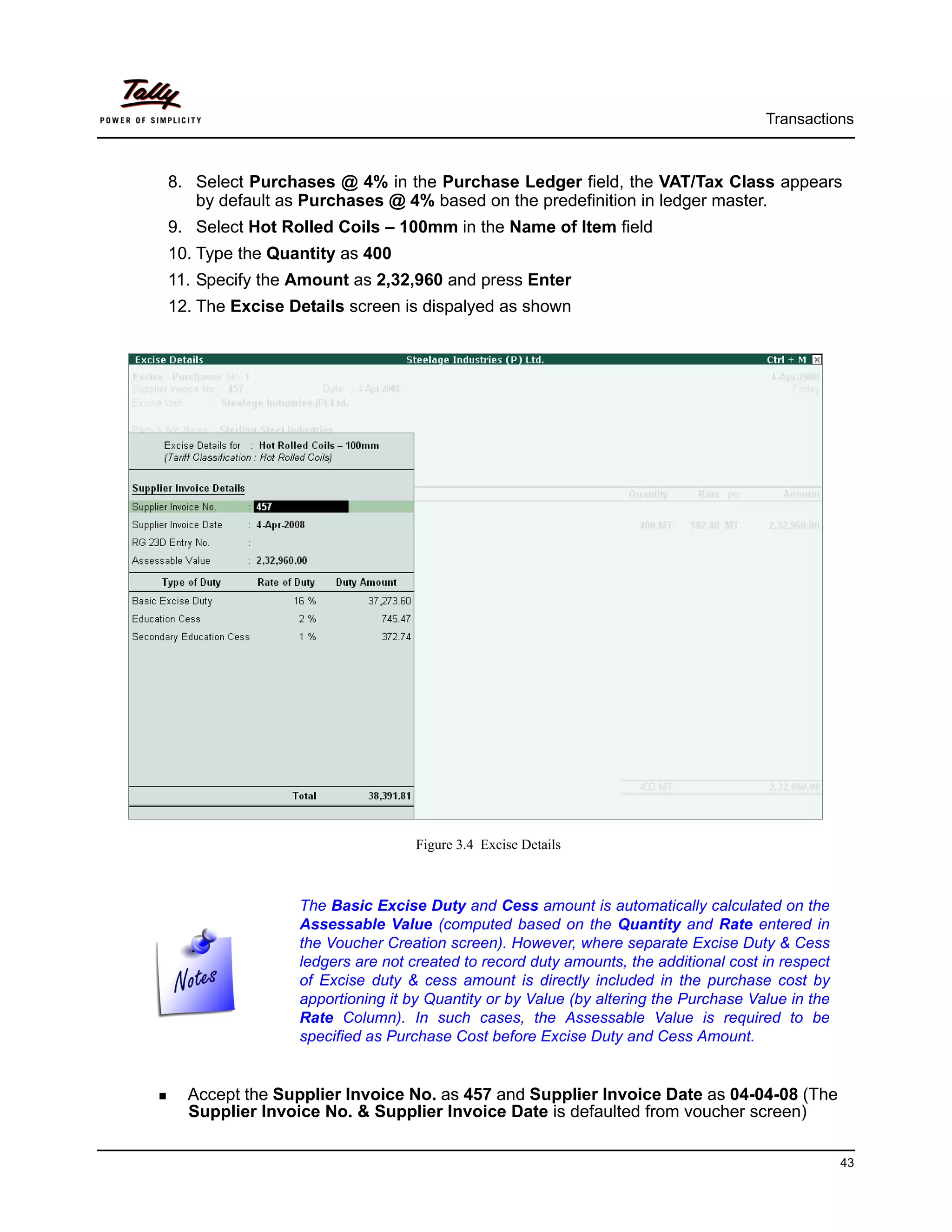
11. Specify the Amount as 2,32,960 and press Enter
12. The Excise Details screen is dispalyed as shown


                                 Figure 3.4 Excise Details


                The Basic Excise Duty and Cess amount is automatically calculated on the
                Assessable Value (computed based on the Quantity and Rate entered in
                the Voucher Creation screen). However, where separate Excise Duty & Cess
                ledgers are not created to record duty amounts, the additional cost in respect
                of Excise duty & cess amount is directly included in the purchase cost by
                apportioning it by Quantity or by Value (by altering the Purchase Value in the
                Rate Column). In such cases, the Assessable Value is required to be
                specified as Purchase Cost before Excise Duty and Cess Amount.


  Accept the Supplier Invoice No. as 457 and Supplier Invoice Date as 04-04-08 (The
  Supplier Invoice No. & Supplier Invoice Date is defaulted from voucher screen)

                                                                                                 43
Transactions


         Specify 1 in the RG 23 Entry No. field (The PLA RG 23 Sl. No. represents the display
         of this particular transaction in the relevant page of RG 23 D Register)
         Type the Assessable Value as Rs. 2,00,000 (Assessable Value [Basic Value of
         Goods] = Qty x Rate i.e, 400MT X Rs. 500) and press Enter
The completed Excise Details subscreen is displayed as shown.


                               Figure 3.5 Completed Excise Details sub-screen

The Excise Duty, Education Cess and Additional Education Cess amounts are automatically
calculated on the basis of configurations in the stock item master.
However, in some cases though the excise duty is chargeable at a specified rate, the net burden
on the buyer may be less than the prescribed percentage, in such cases Tally.ERP 9 provides the
flexibility to modify the amount of tax manually.
       13. Press Enter to accept the Excise Details screen
       14. Similarly, select Cold Rolled Coils - 64mm from the List of Excise Stock Items
       15. Specify the Quantity as 600
       16. Enter the amount as 3,14,496
       17. In the Excise Details subscreen,
          Press Enter to accept the Supplier Invoice No. as 457 and Supplier Invoice Date as
          04-04-08
          Specify 1 in the RG 23 Entry No. field
          Type the Assessable Value as 2,70,000 and press Enter
          The Excise Duty & Educ. Cess Amount is automatically calculated and prefilled


                                                                                                44
Transactions


                                Figure 3.6 Completed Excise Details Screen

       18. Select Input VAT @ 4% ledger, VAT amount of Rs. 21898.24 is defaulted automati-
           cally.
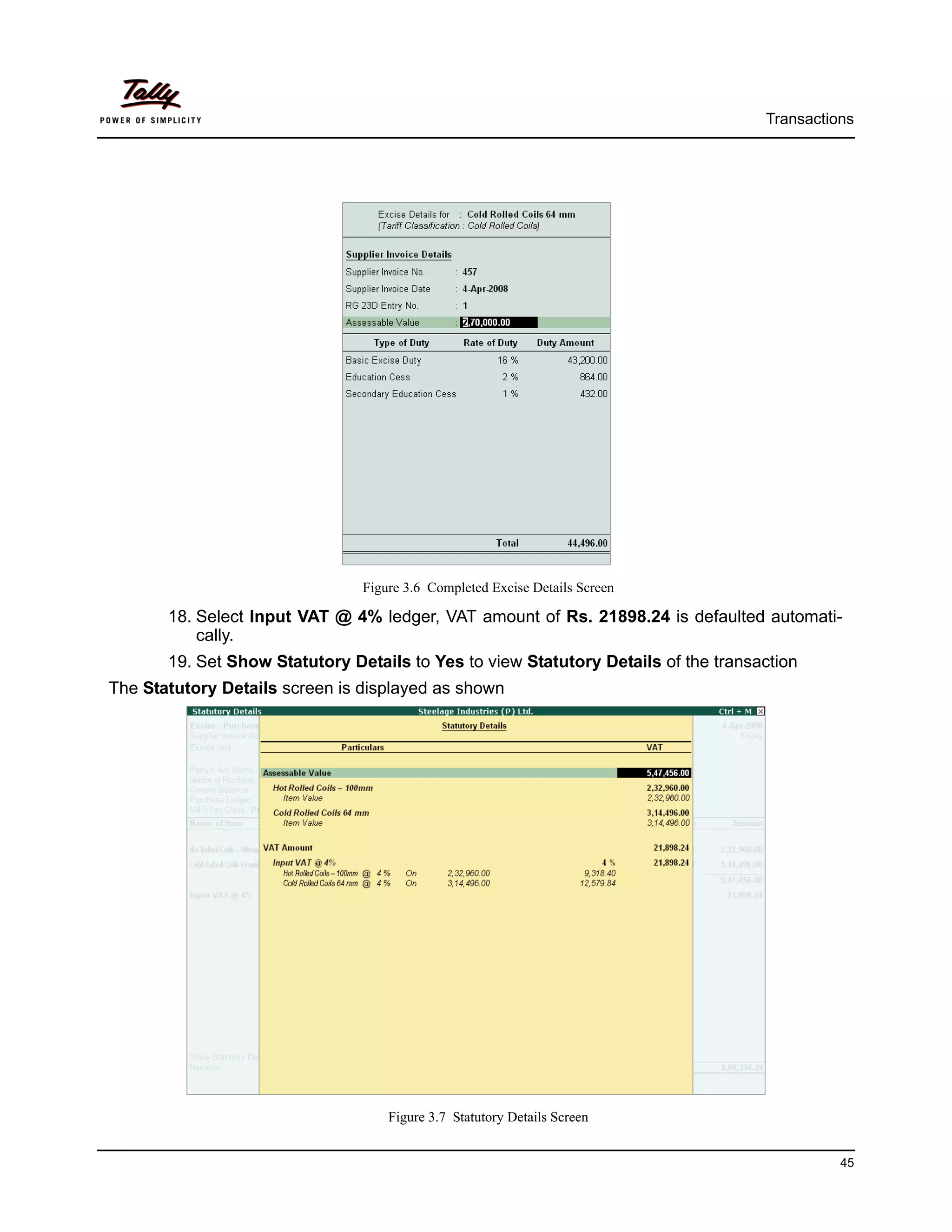
       19. Set Show Statutory Details to Yes to view Statutory Details of the transaction
The Statutory Details screen is displayed as shown


                                    Figure 3.7 Statutory Details Screen


                                                                                              45
Transactions


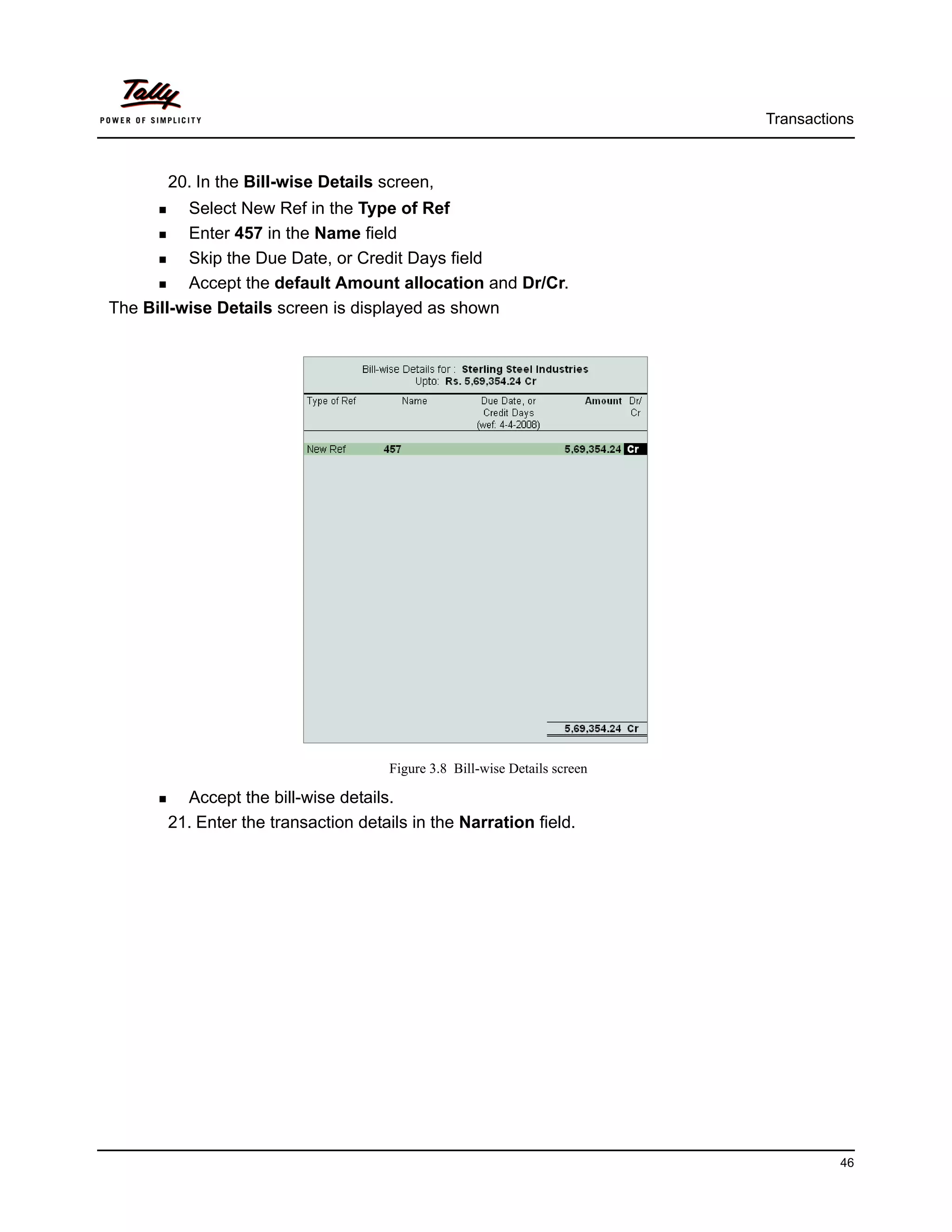
       20. In the Bill-wise Details screen,
          Select New Ref in the Type of Ref
          Enter 457 in the Name field
          Skip the Due Date, or Credit Days field
          Accept the default Amount allocation and Dr/Cr.
The Bill-wise Details screen is displayed as shown


                                     Figure 3.8 Bill-wise Details screen

         Accept the bill-wise details.
       21. Enter the transaction details in the Narration field.


                                                                                     46
Transactions


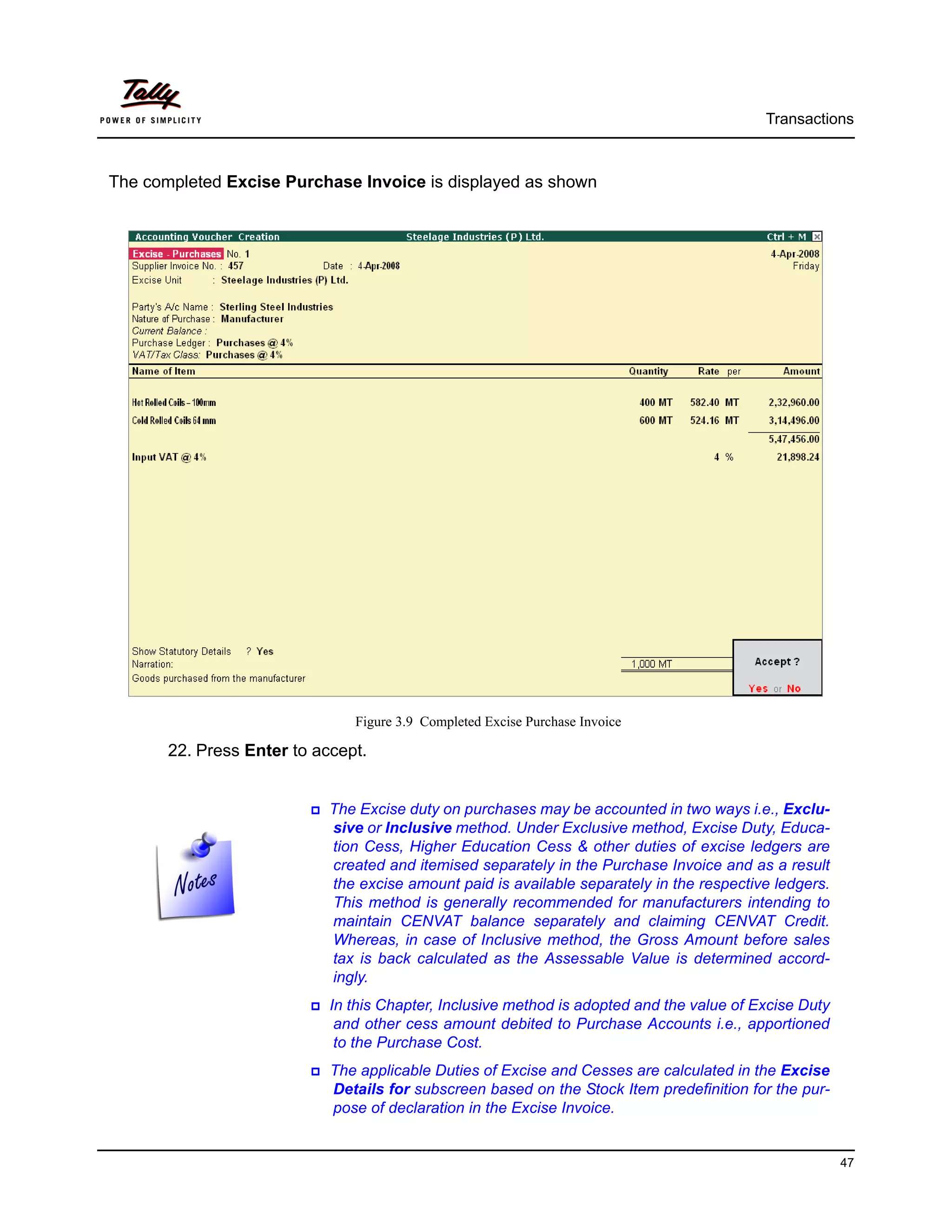
The completed Excise Purchase Invoice is displayed as shown


                               Figure 3.9 Completed Excise Purchase Invoice

       22. Press Enter to accept.


                            The Excise duty on purchases may be accounted in two ways i.e., Exclu-
                            sive or Inclusive method. Under Exclusive method, Excise Duty, Educa-
                            tion Cess, Higher Education Cess & other duties of excise ledgers are
                            created and itemised separately in the Purchase Invoice and as a result
                            the excise amount paid is available separately in the respective ledgers.
                            This method is generally recommended for manufacturers intending to
                            maintain CENVAT balance separately and claiming CENVAT Credit.
                            Whereas, in case of Inclusive method, the Gross Amount before sales
                            tax is back calculated as the Assessable Value is determined accord-
                            ingly.
                            In this Chapter, Inclusive method is adopted and the value of Excise Duty
                             and other cess amount debited to Purchase Accounts i.e., apportioned
                             to the Purchase Cost.
                            The applicable Duties of Excise and Cesses are calculated in the Excise
                            Details for subscreen based on the Stock Item predefinition for the pur-
                            pose of declaration in the Excise Invoice.


                                                                                                        47
Transactions


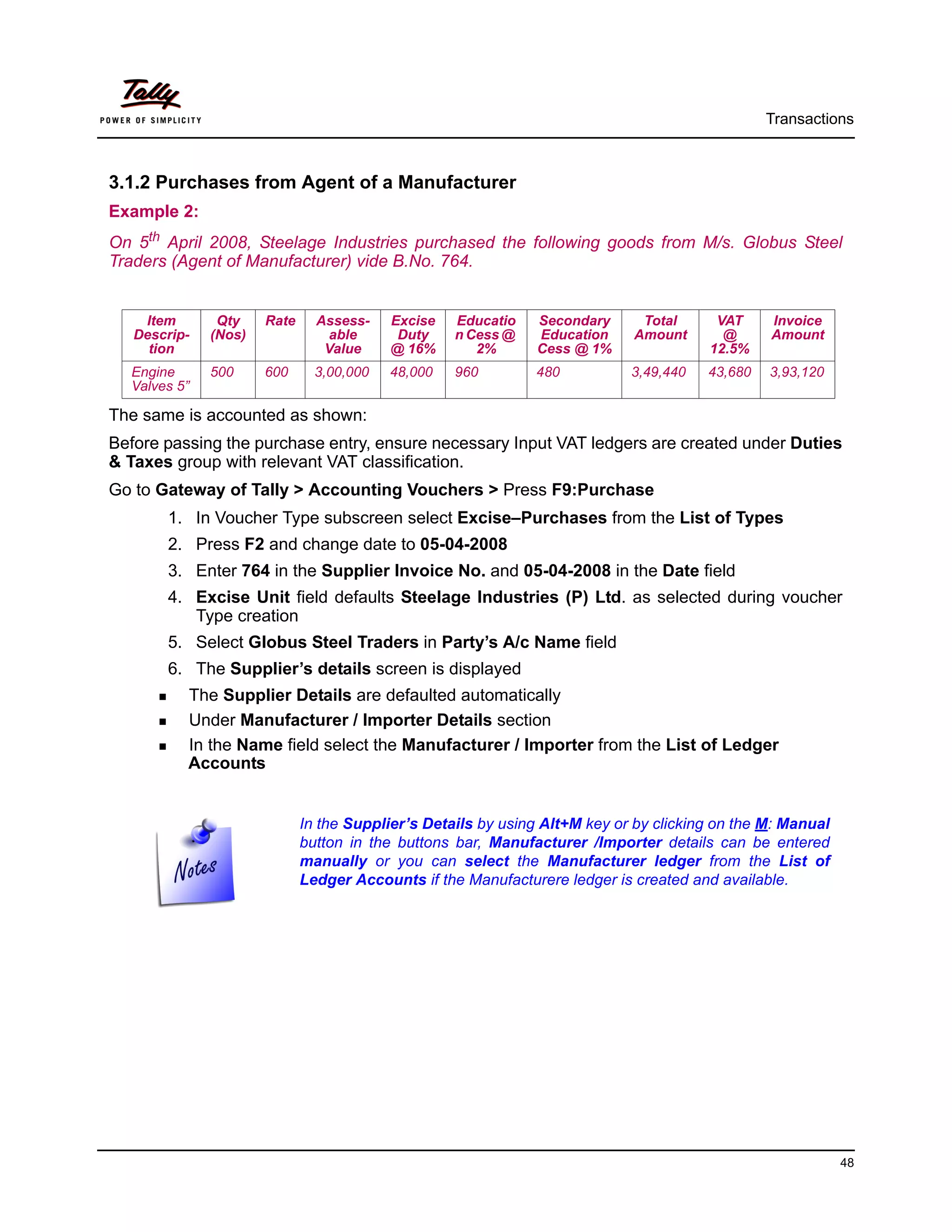
3.1.2 Purchases from Agent of a Manufacturer
Example 2:
On 5th April 2008, Steelage Industries purchased the following goods from M/s. Globus Steel
Traders (Agent of Manufacturer) vide B.No. 764.


    Item       Qty    Rate     Assess-    Excise   Educatio    Secondary     Total      VAT     Invoice
   Descrip-   (Nos)              able      Duty    n Cess @    Education    Amount       @      Amount
     tion                       Value     @ 16%       2%       Cess @ 1%               12.5%
  Engine      500     600      3,00,000   48,000   960        480           3,49,440   43,680   3,93,120
  Valves 5”

The same is accounted as shown:
Before passing the purchase entry, ensure necessary Input VAT ledgers are created under Duties
& Taxes group with relevant VAT classification.
Go to Gateway of Tally > Accounting Vouchers > Press F9:Purchase
       1. In Voucher Type subscreen select Excise–Purchases from the List of Types
       2. Press F2 and change date to 05-04-2008
       3. Enter 764 in the Supplier Invoice No. and 05-04-2008 in the Date field
       4. Excise Unit field defaults Steelage Industries (P) Ltd. as selected during voucher
          Type creation
       5. Select Globus Steel Traders in Party’s A/c Name field
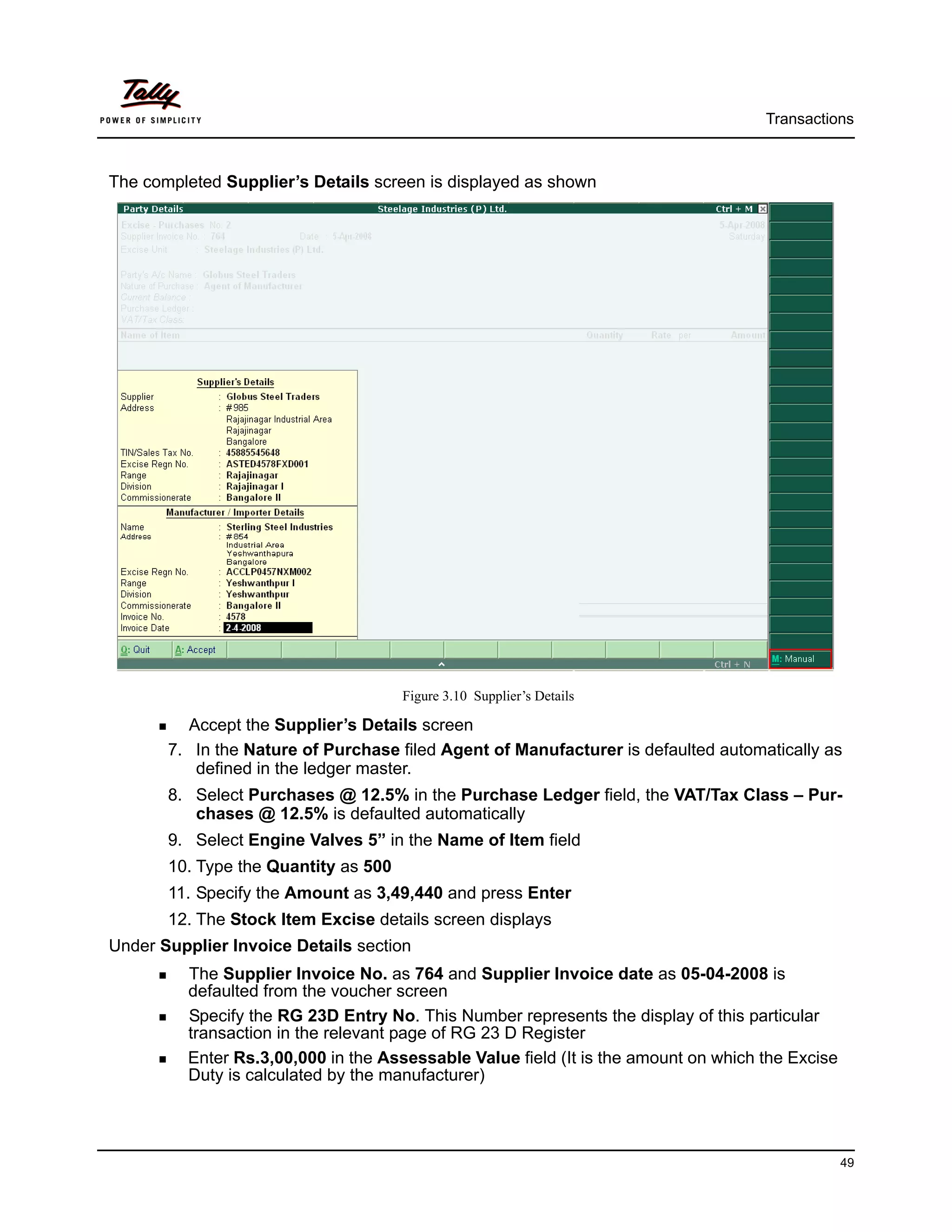
       6. The Supplier’s details screen is displayed
          The Supplier Details are defaulted automatically
          Under Manufacturer / Importer Details section
          In the Name field select the Manufacturer / Importer from the List of Ledger
          Accounts


                             In the Supplier’s Details by using Alt+M key or by clicking on the M: Manual
                             button in the buttons bar, Manufacturer /Importer details can be entered
                             manually or you can select the Manufacturer ledger from the List of
                             Ledger Accounts if the Manufacturere ledger is created and available.


                                                                                                            48
Transactions


The completed Supplier’s Details screen is displayed as shown


                                      Figure 3.10 Supplier’s Details

         Accept the Supplier’s Details screen
       7. In the Nature of Purchase filed Agent of Manufacturer is defaulted automatically as
          defined in the ledger master.
       8. Select Purchases @ 12.5% in the Purchase Ledger field, the VAT/Tax Class – Pur-
          chases @ 12.5% is defaulted automatically
       9. Select Engine Valves 5” in the Name of Item field
       10. Type the Quantity as 500
       11. Specify the Amount as 3,49,440 and press Enter
       12. The Stock Item Excise details screen displays
Under Supplier Invoice Details section
         The Supplier Invoice No. as 764 and Supplier Invoice date as 05-04-2008 is
         defaulted from the voucher screen
         Specify the RG 23D Entry No. This Number represents the display of this particular
         transaction in the relevant page of RG 23 D Register
         Enter Rs.3,00,000 in the Assessable Value field (It is the amount on which the Excise
         Duty is calculated by the manufacturer)


                                                                                                 49
Transactions


Under Manufacturer / Importer Invoice Details section
         In Invoice Number field, by default the invoice number entered in the Supplier’s
         Details screen for Manufacturer/ Importer will be displayed
         The invoice date entered in the Supplier’s Details screen for Manufacturer/
         Importer will be displayed in Invoice Date field.
         Enter the RG 23 D Entry Number of the Manufacturer/ Importer in RG 23 D Entry No.
         field
         In the Billed Quantity field enter the actual Billed Quantity billed to the Agent of the
         manufacturer
         In Assessable Value enter the actual Assessable Value of the stock item


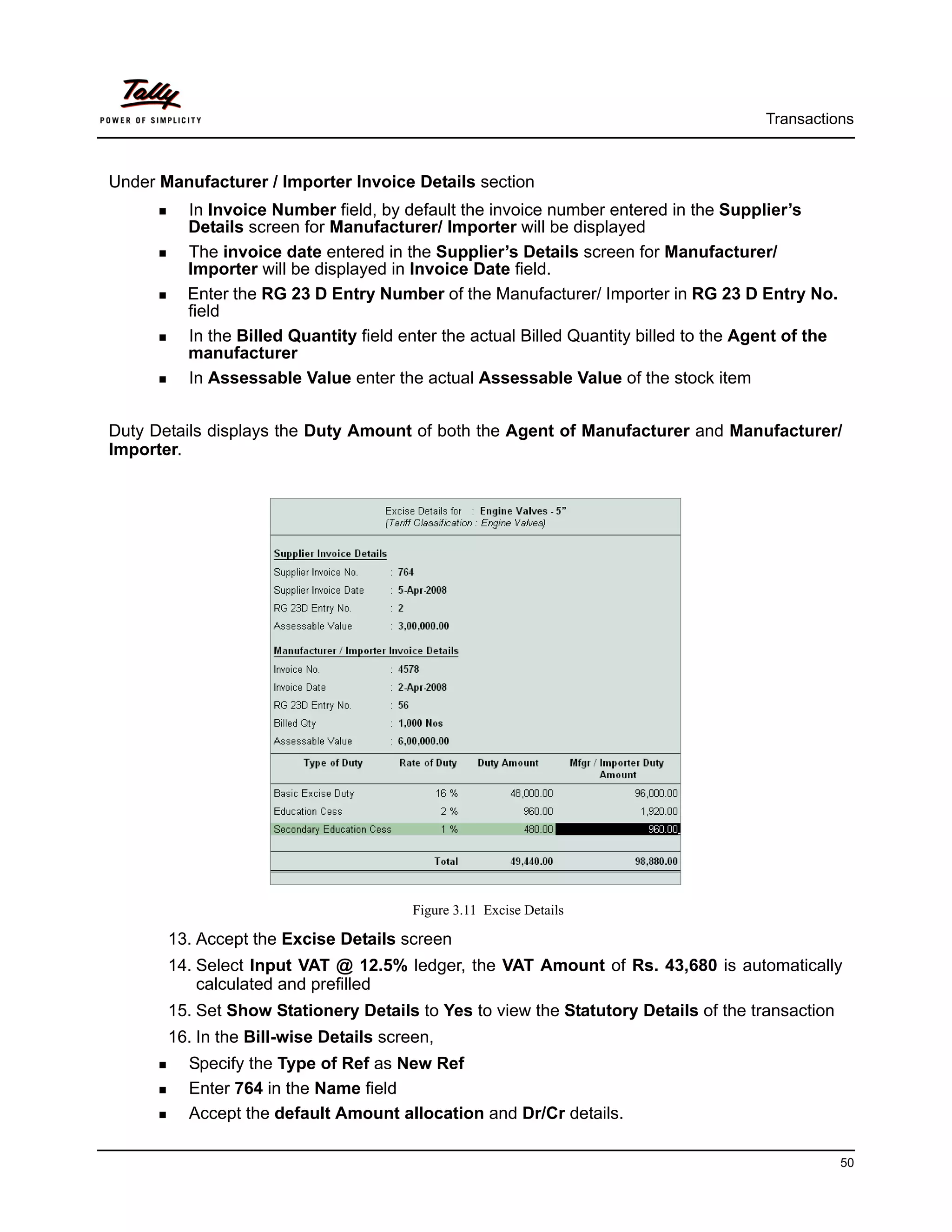
Duty Details displays the Duty Amount of both the Agent of Manufacturer and Manufacturer/
Importer.


                                        Figure 3.11 Excise Details

       13. Accept the Excise Details screen
       14. Select Input VAT @ 12.5% ledger, the VAT Amount of Rs. 43,680 is automatically
           calculated and prefilled
       15. Set Show Stationery Details to Yes to view the Statutory Details of the transaction
       16. In the Bill-wise Details screen,
         Specify the Type of Ref as New Ref
         Enter 764 in the Name field
         Accept the default Amount allocation and Dr/Cr details.

                                                                                                    50
Transactions


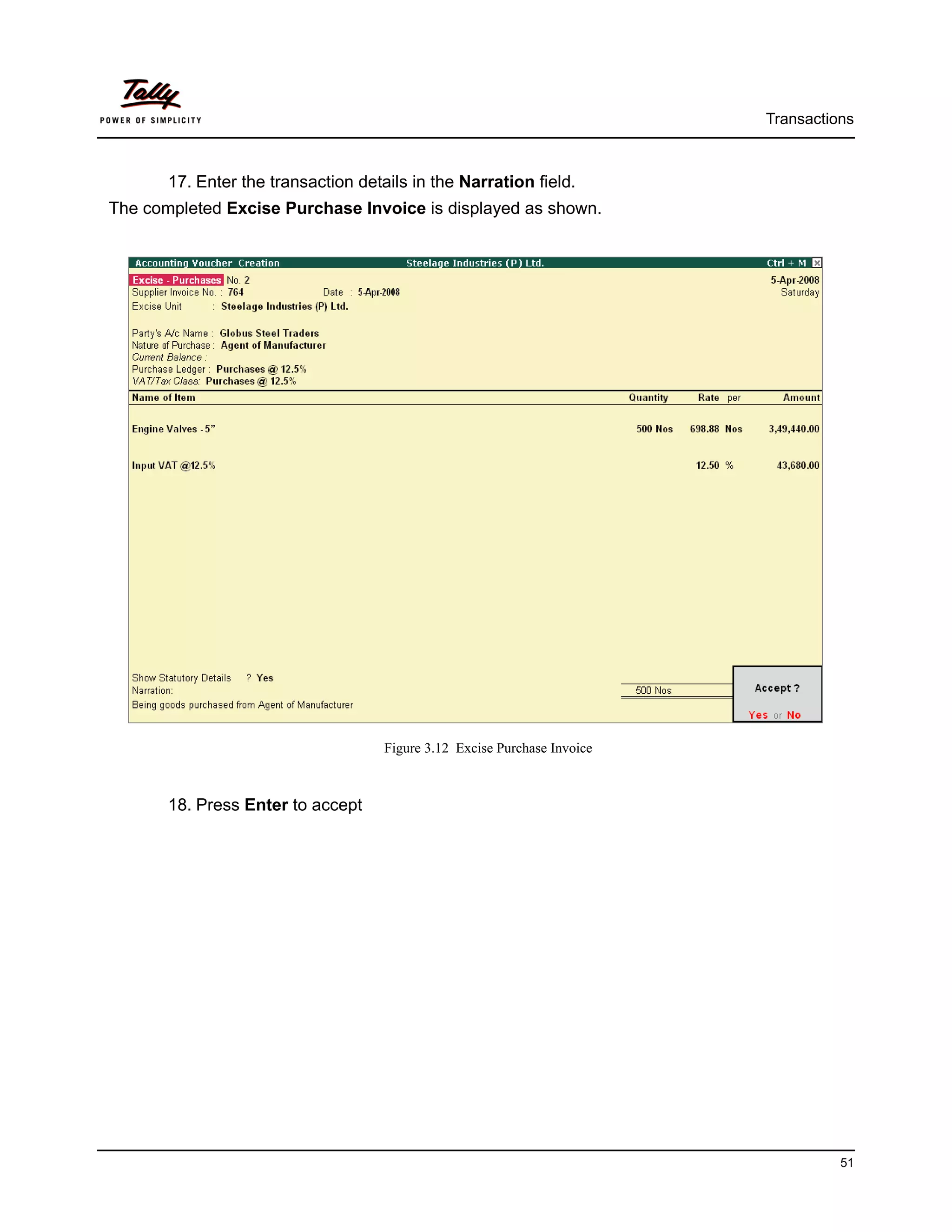
       17. Enter the transaction details in the Narration field.
The completed Excise Purchase Invoice is displayed as shown.


                                     Figure 3.12 Excise Purchase Invoice


       18. Press Enter to accept


                                                                                     51
Transactions


3.1.3 Purchase from an Importer


Example 3:
On 7th April 2008, Steelage Industries purchased the following goods from M/s. Excellor Impex
(P) Ltd., vide B.No. 167
   Item Description      Qty    Rate   Assessa-        CVD (On             Education   Secondary    Invoice
                        (Kgs)          ble Value     Imports) @ 4%         Cess @ 2%   Education    Amount
                                                                                       Cess @ 1%
  Copper Alloy Strips   1000    400    4,00,000      16,000                320         160          4,16,480


The same is accounted as shown:
Go to Gateway of Tally > Accounting Vouchers > Press F9:Purchase
       1. In Voucher Type subscreen select Excise–Purchases from the List of Types
       2. Press F2 and change date to 07-04-2008
       3. Enter 167 in the Supplier Invoice No. and 07-04-2008 in the Date field
       4. Excise Unit field defaults Steelage Industries (P) Ltd. as selected during voucher
          Type creation
       5. Select Excellor Impex (P) Ltd., in Party’s A/c Name field
       6. The Supplier’s details screen is displayed
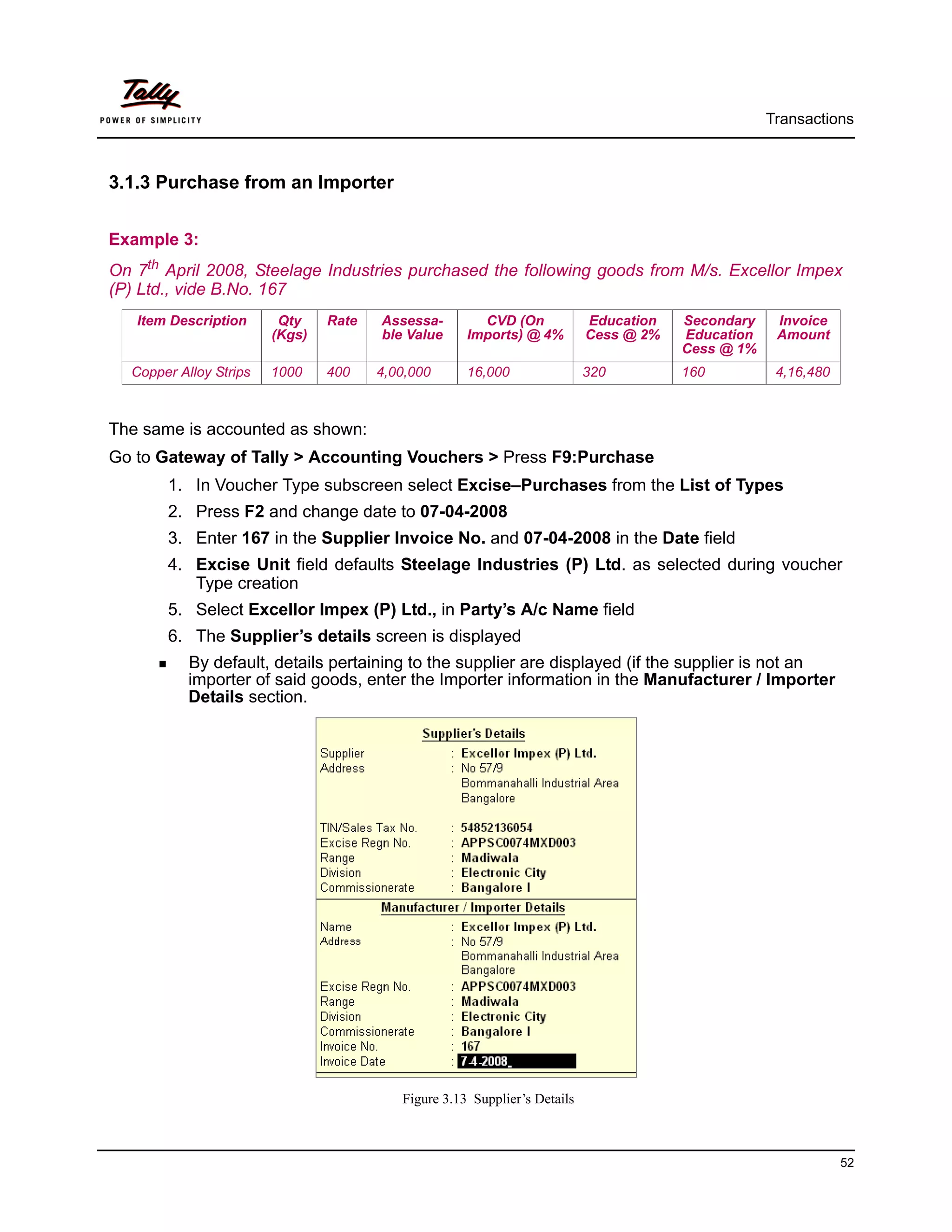
           By default, details pertaining to the supplier are displayed (if the supplier is not an
           importer of said goods, enter the Importer information in the Manufacturer / Importer
           Details section.


                                          Figure 3.13 Supplier’s Details


                                                                                                               52
Transactions


  Accept the Supplier’s Details screen
7. The Nature of Purchase Importer as selected during the ledger master creation is
   defaulted in the Nature of Purchase field
8. Select Purchases - Imports in the Purchase Ledger field, the VAT/Tax Class
   appears by default as Imports
9. In Name of Item field select Copper Alloy Strips
10. Enter the Quantity as 1000
11. Specify the Amount as 4,16,480 and press enter to view the Excise Details screen
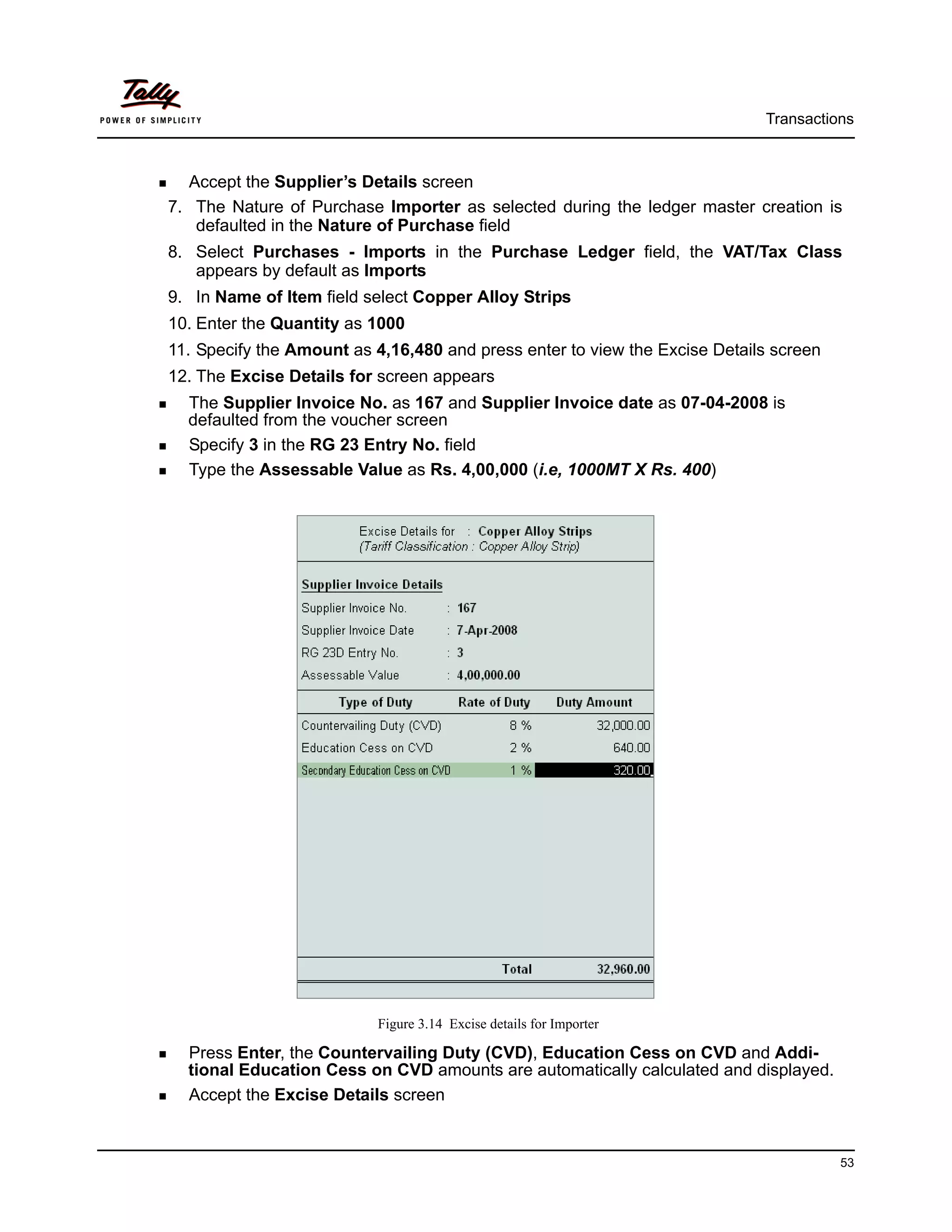
12. The Excise Details for screen appears
  The Supplier Invoice No. as 167 and Supplier Invoice date as 07-04-2008 is
  defaulted from the voucher screen
  Specify 3 in the RG 23 Entry No. field
  Type the Assessable Value as Rs. 4,00,000 (i.e, 1000MT X Rs. 400)


                          Figure 3.14 Excise details for Importer

  Press Enter, the Countervailing Duty (CVD), Education Cess on CVD and Addi-
  tional Education Cess on CVD amounts are automatically calculated and displayed.
  Accept the Excise Details screen


                                                                                       53
Transactions


       13. Set Show Statutory Details to Yes to view the transaction statutory details.
       14. In the Bill-wise Details screen, accept the default details
       15. Enter the transaction details in the Narration field
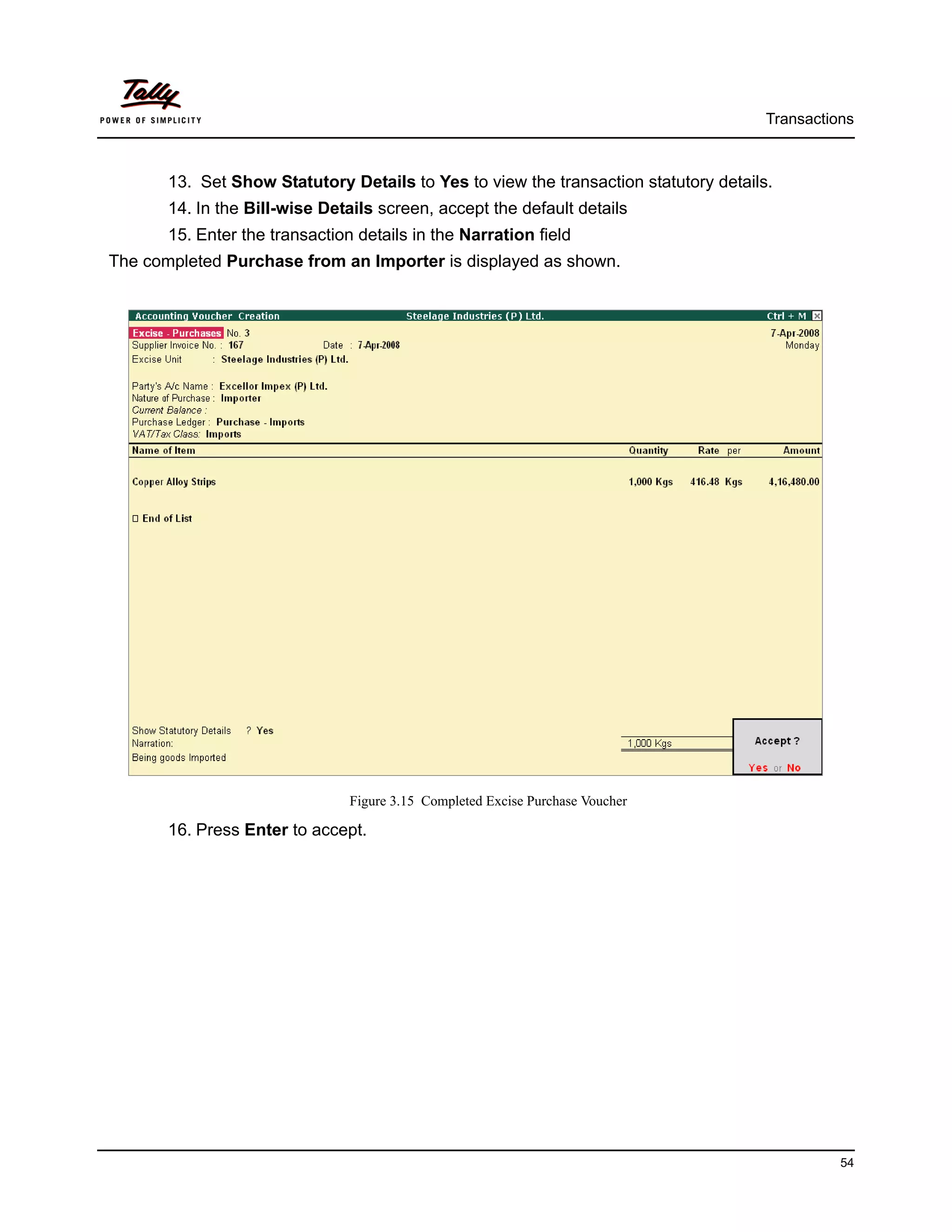
The completed Purchase from an Importer is displayed as shown.


                                Figure 3.15 Completed Excise Purchase Voucher

       16. Press Enter to accept.


                                                                                                54
Transactions


3.1.4 Purchase from First Stage Dealer


Example 4:
On 8th April 2008, Steelage Industries purchased the following goods from M/s. MM Iron & Steel,
vide B.No. 1707.
  Item       Qty   Rate   Asses     BED    SED    Educ   Higher   Total    VAT      VAT      Invoice
 Descrip-                 sable      @      @     Cess   Educ.             Rate    Amount    Amount
   tion                   Value     16%    4%      @      Cess
                                   or 8%           2%    @ 1%
 Engine      200   600    120000   19200   0      384    192      139776   12.5%   17472     157248
 Valves 5”
 Iron Bars   300   500    150000   12000   6000   360    180      168540   4%      6741.6    175281.6


The same is accounted as shown
Setup:
In F12: Configure (Purchase Invoice Configuration)
       Ensure Use Common Ledger A/c for Item Allocation is set to No


Go to Gateway of Tally > Accounting Vouchers > Press F9:Purchase
         1. In Voucher Type subscreen select Excise–Purchases from the List of Types
         2. Press F2 and change date to 08-04-2008
         3. Enter 1707 in the Supplier Invoice No. and 08-04-2008 in the Date field
         4. Excise Unit field defaults Steelage Industries (P) Ltd. as selected during Voucher
            Type creation
         5. Select MM Iron & Steel in Party’s A/c Name field
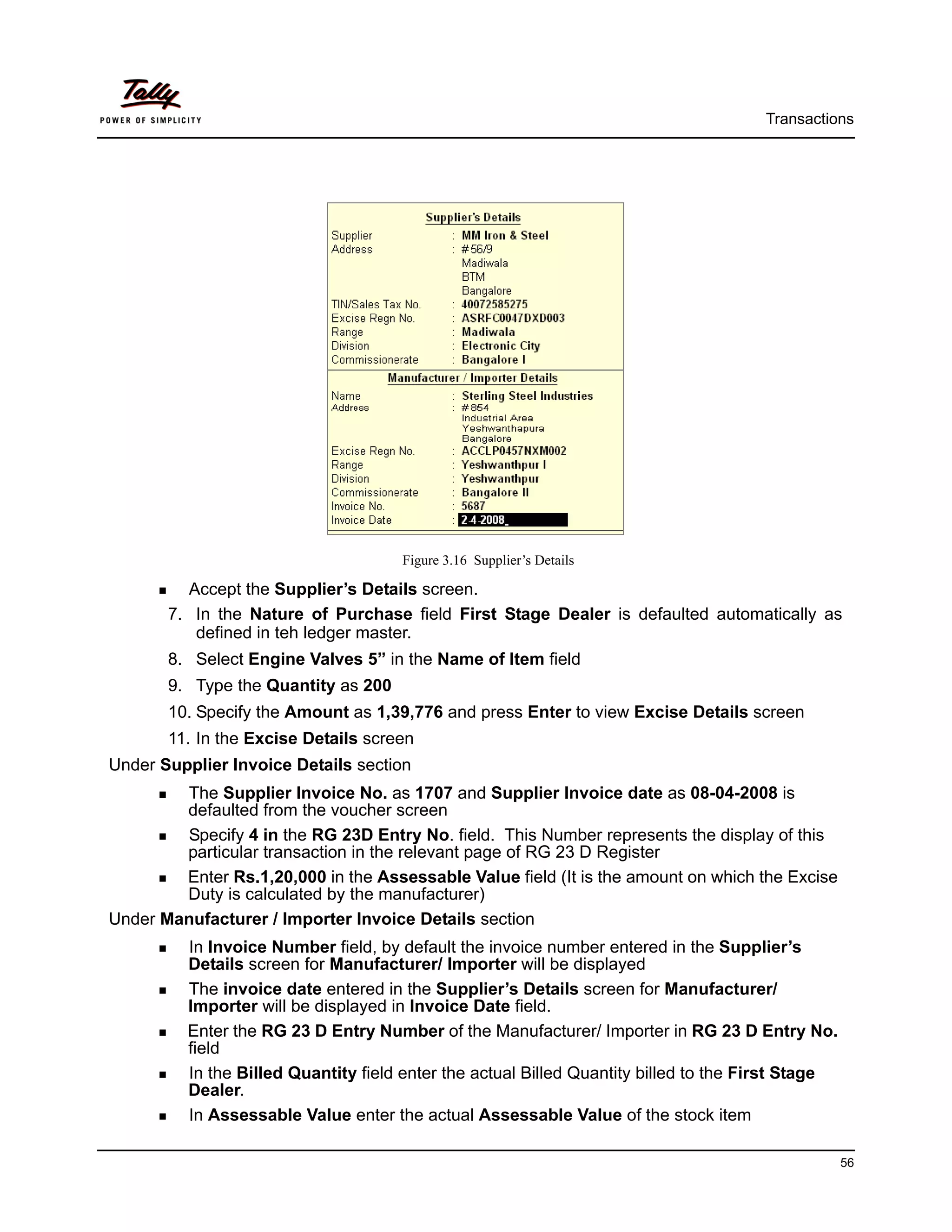
         6. The Supplier’s details screen is displayed
             By default, Supplier details are defaulted automatically
             Under Manufacturer / Importer Details section select Sterling Steel industries from
             the List of Ledger Accounts. The Manufacturer / Importer details are prefilled auto-
             matically from the ledger master


                                                                                                        55
Transactions


                                      Figure 3.16 Supplier’s Details

         Accept the Supplier’s Details screen.
       7. In the Nature of Purchase field First Stage Dealer is defaulted automatically as
          defined in teh ledger master.
       8. Select Engine Valves 5” in the Name of Item field
       9. Type the Quantity as 200
       10. Specify the Amount as 1,39,776 and press Enter to view Excise Details screen
       11. In the Excise Details screen
Under Supplier Invoice Details section
        The Supplier Invoice No. as 1707 and Supplier Invoice date as 08-04-2008 is
        defaulted from the voucher screen
        Specify 4 in the RG 23D Entry No. field. This Number represents the display of this
        particular transaction in the relevant page of RG 23 D Register
        Enter Rs.1,20,000 in the Assessable Value field (It is the amount on which the Excise
        Duty is calculated by the manufacturer)
Under Manufacturer / Importer Invoice Details section
          In Invoice Number field, by default the invoice number entered in the Supplier’s
          Details screen for Manufacturer/ Importer will be displayed
          The invoice date entered in the Supplier’s Details screen for Manufacturer/
          Importer will be displayed in Invoice Date field.
          Enter the RG 23 D Entry Number of the Manufacturer/ Importer in RG 23 D Entry No.
          field
          In the Billed Quantity field enter the actual Billed Quantity billed to the First Stage
          Dealer.
          In Assessable Value enter the actual Assessable Value of the stock item

                                                                                                    56
Transactions


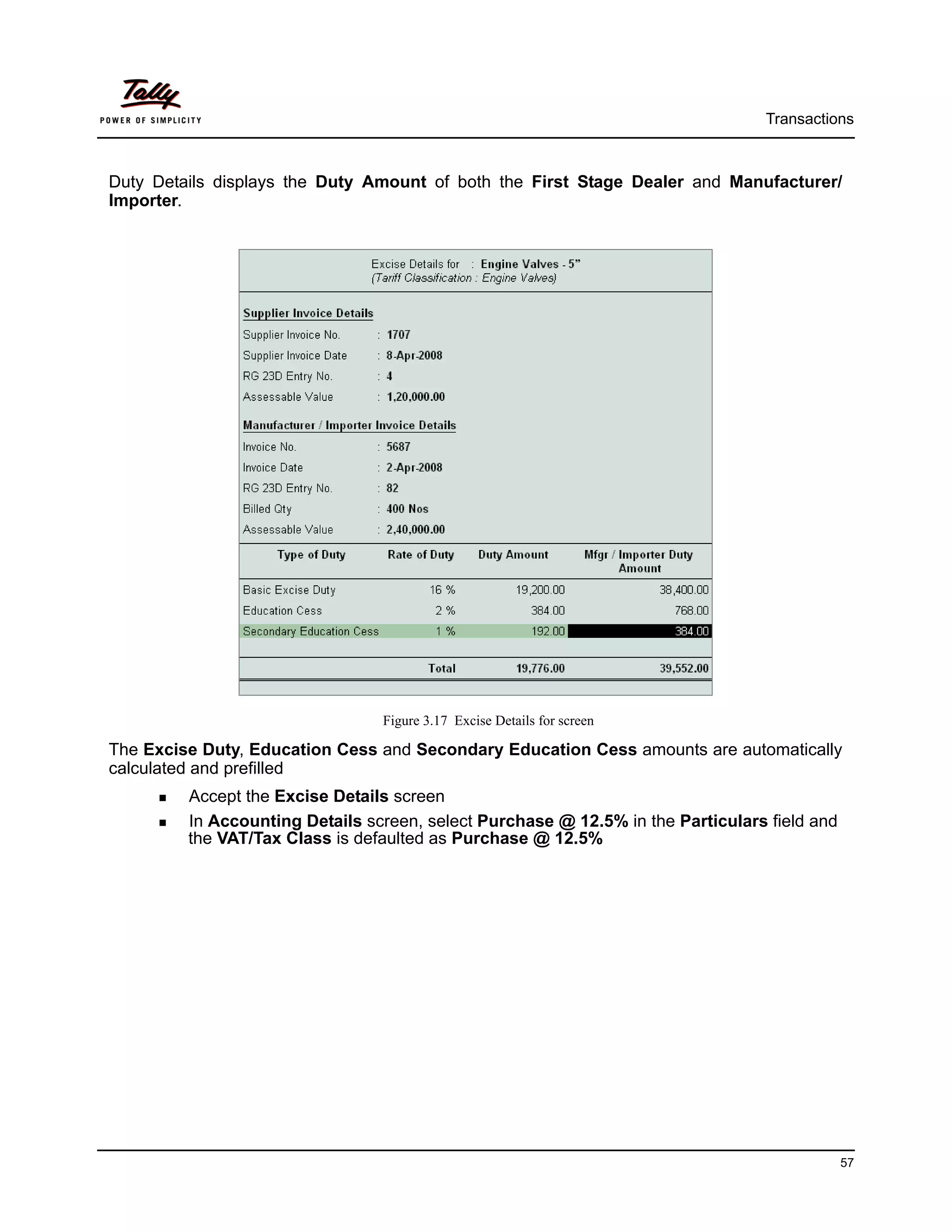
Duty Details displays the Duty Amount of both the First Stage Dealer and Manufacturer/
Importer.


                                 Figure 3.17 Excise Details for screen

The Excise Duty, Education Cess and Secondary Education Cess amounts are automatically
calculated and prefilled
         Accept the Excise Details screen
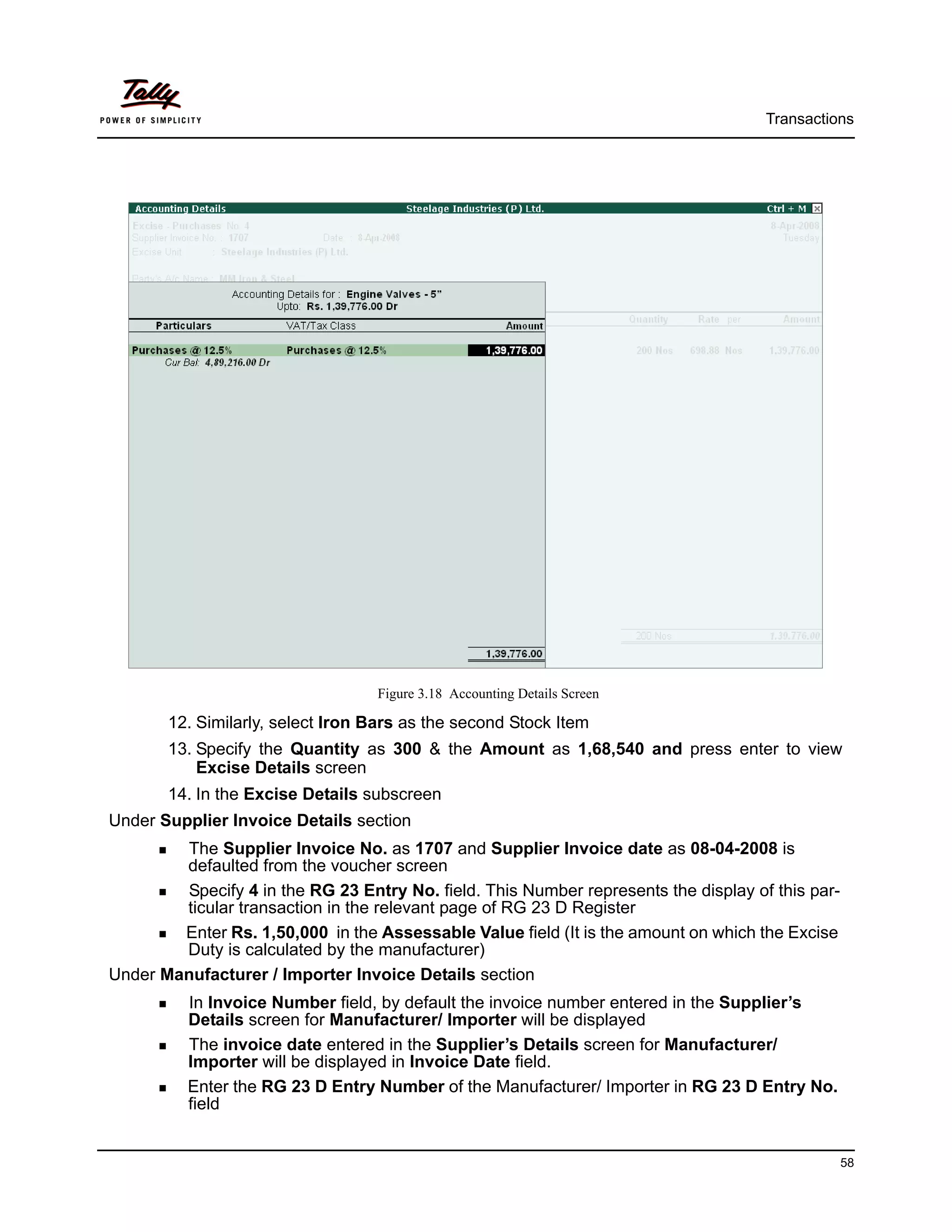
         In Accounting Details screen, select Purchase @ 12.5% in the Particulars field and
         the VAT/Tax Class is defaulted as Purchase @ 12.5%


                                                                                              57
Transactions


                                  Figure 3.18 Accounting Details Screen

       12. Similarly, select Iron Bars as the second Stock Item
       13. Specify the Quantity as 300 & the Amount as 1,68,540 and press enter to view
           Excise Details screen
       14. In the Excise Details subscreen
Under Supplier Invoice Details section
        The Supplier Invoice No. as 1707 and Supplier Invoice date as 08-04-2008 is
        defaulted from the voucher screen
        Specify 4 in the RG 23 Entry No. field. This Number represents the display of this par-
        ticular transaction in the relevant page of RG 23 D Register
        Enter Rs. 1,50,000 in the Assessable Value field (It is the amount on which the Excise
        Duty is calculated by the manufacturer)
Under Manufacturer / Importer Invoice Details section
          In Invoice Number field, by default the invoice number entered in the Supplier’s
          Details screen for Manufacturer/ Importer will be displayed
          The invoice date entered in the Supplier’s Details screen for Manufacturer/
          Importer will be displayed in Invoice Date field.
          Enter the RG 23 D Entry Number of the Manufacturer/ Importer in RG 23 D Entry No.
          field


                                                                                                  58
Transactions


         In the Billed Quantity field enter the actual Billed Quantity billed to the First Stage
         Dealer.
         In Assessable Value enter the actual Assessable Value of the stock item


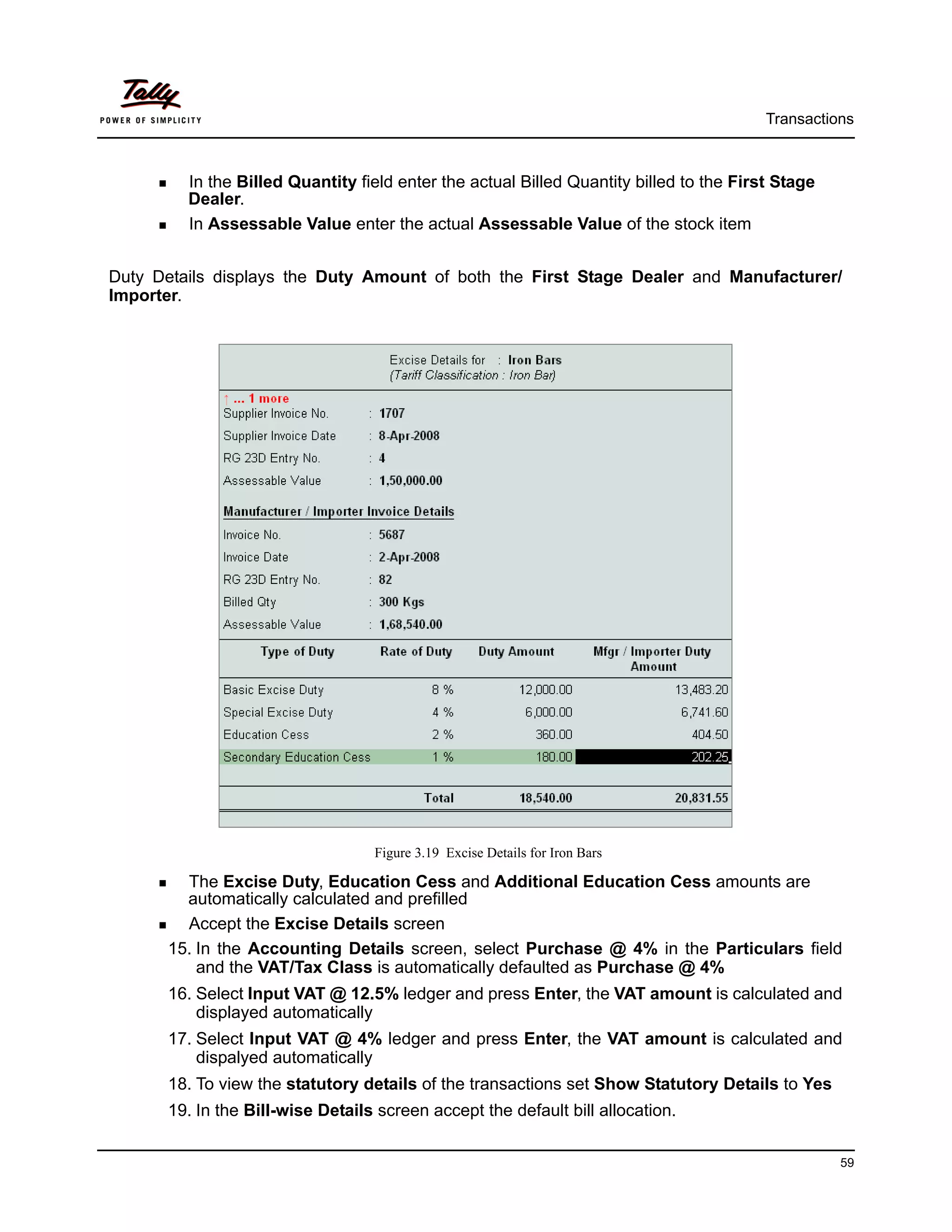
Duty Details displays the Duty Amount of both the First Stage Dealer and Manufacturer/
Importer.


                                  Figure 3.19 Excise Details for Iron Bars

        The Excise Duty, Education Cess and Additional Education Cess amounts are
        automatically calculated and prefilled
        Accept the Excise Details screen
      15. In the Accounting Details screen, select Purchase @ 4% in the Particulars field
          and the VAT/Tax Class is automatically defaulted as Purchase @ 4%
      16. Select Input VAT @ 12.5% ledger and press Enter, the VAT amount is calculated and
          displayed automatically
      17. Select Input VAT @ 4% ledger and press Enter, the VAT amount is calculated and
          dispalyed automatically
      18. To view the statutory details of the transactions set Show Statutory Details to Yes
      19. In the Bill-wise Details screen accept the default bill allocation.

                                                                                                   59
Transactions


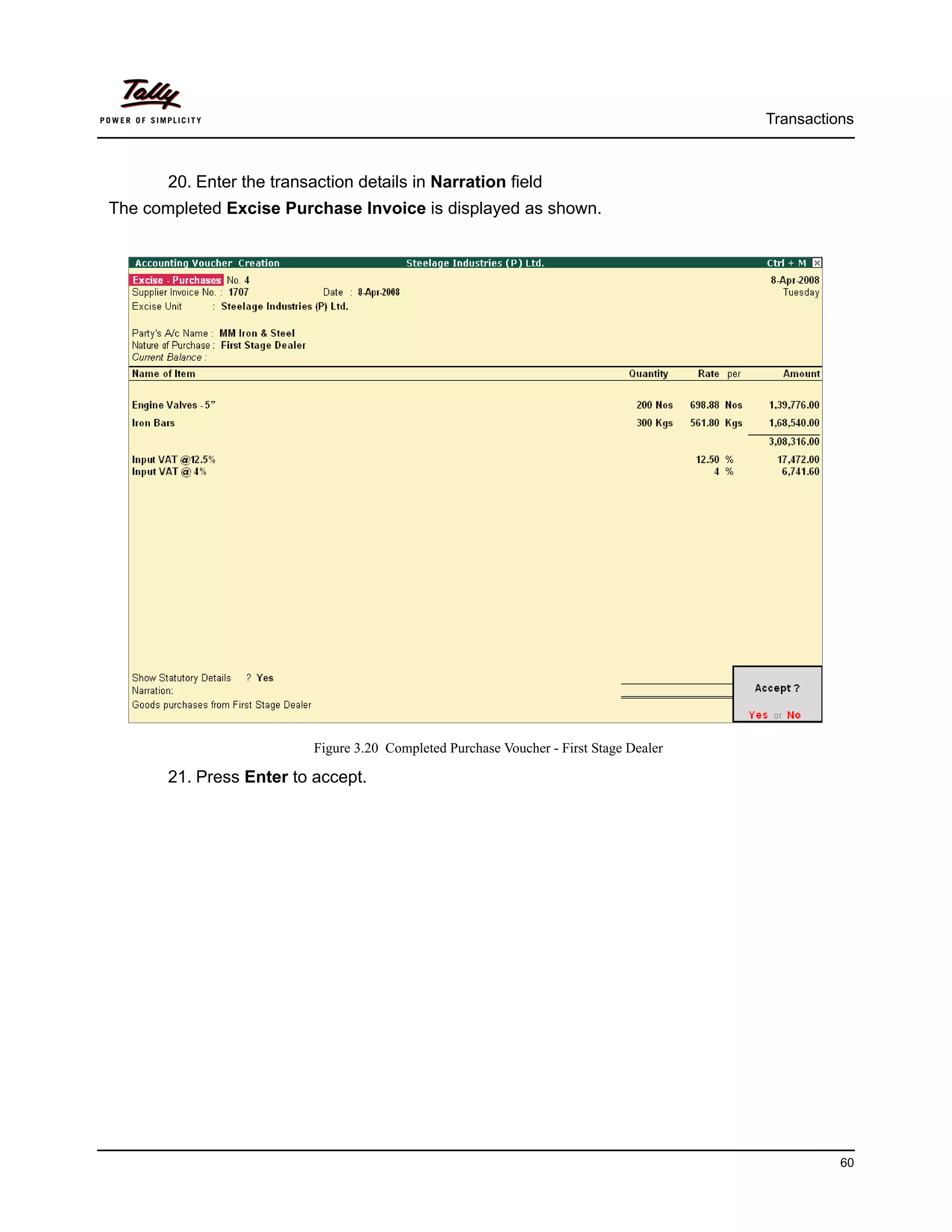
       20. Enter the transaction details in Narration field
The completed Excise Purchase Invoice is displayed as shown.


                           Figure 3.20 Completed Purchase Voucher - First Stage Dealer

       21. Press Enter to accept.


                                                                                                   60
Transactions


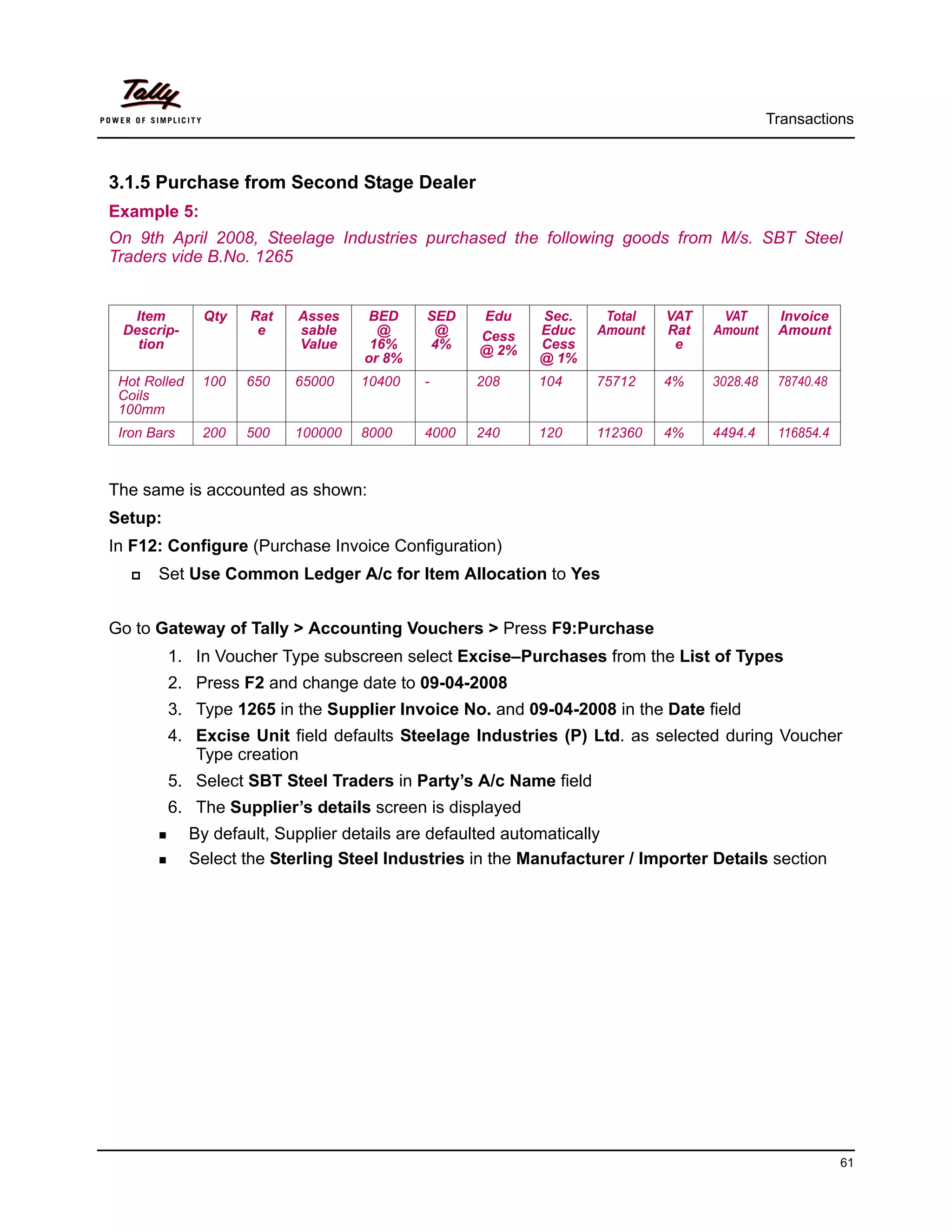
3.1.5 Purchase from Second Stage Dealer
Example 5:
On 9th April 2008, Steelage Industries purchased the following goods from M/s. SBT Steel
Traders vide B.No. 1265


  Item         Qty   Rat    Asses    BED    SED    Edu     Sec.     Total   VAT    VAT       Invoice
 Descrip-             e     sable     @      @     Cess    Educ    Amount   Rat   Amount     Amount
   tion                     Value    16%    4%     @ 2%    Cess              e
                                    or 8%                  @ 1%
 Hot Rolled    100   650   65000    10400   -      208     104     75712    4%    3028.48    78740.48
 Coils
 100mm
 Iron Bars     200   500   100000   8000    4000   240     120     112360   4%    4494.4     116854.4


The same is accounted as shown:
Setup:
In F12: Configure (Purchase Invoice Configuration)
       Set Use Common Ledger A/c for Item Allocation to Yes


Go to Gateway of Tally > Accounting Vouchers > Press F9:Purchase
         1. In Voucher Type subscreen select Excise–Purchases from the List of Types
         2. Press F2 and change date to 09-04-2008
         3. Type 1265 in the Supplier Invoice No. and 09-04-2008 in the Date field
         4. Excise Unit field defaults Steelage Industries (P) Ltd. as selected during Voucher
            Type creation
         5. Select SBT Steel Traders in Party’s A/c Name field
         6. The Supplier’s details screen is displayed
              By default, Supplier details are defaulted automatically
              Select the Sterling Steel Industries in the Manufacturer / Importer Details section


                                                                                                        61
Transactions


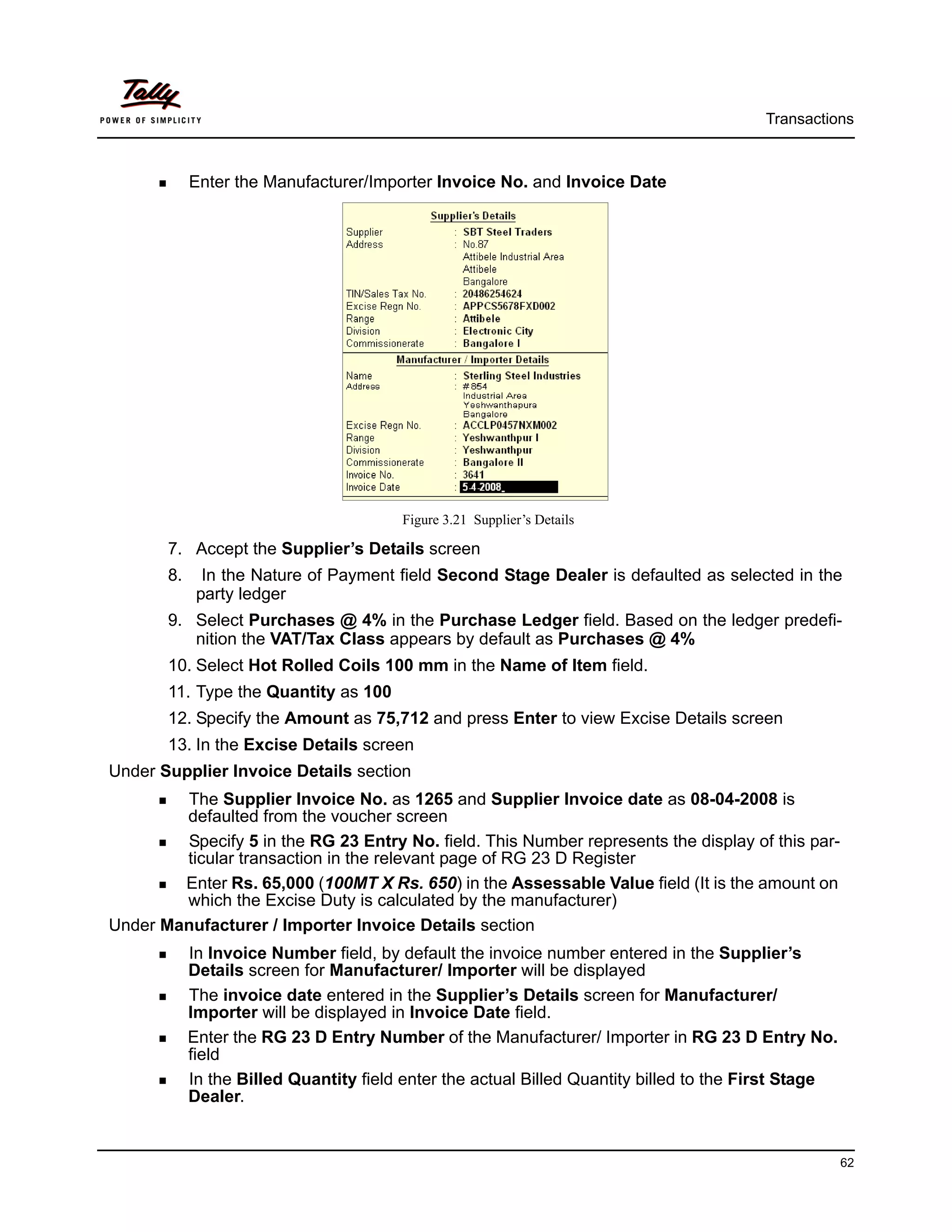
            Enter the Manufacturer/Importer Invoice No. and Invoice Date


                                        Figure 3.21 Supplier’s Details

       7. Accept the Supplier’s Details screen
       8.     In the Nature of Payment field Second Stage Dealer is defaulted as selected in the
             party ledger
       9. Select Purchases @ 4% in the Purchase Ledger field. Based on the ledger predefi-
          nition the VAT/Tax Class appears by default as Purchases @ 4%
       10. Select Hot Rolled Coils 100 mm in the Name of Item field.
       11. Type the Quantity as 100
       12. Specify the Amount as 75,712 and press Enter to view Excise Details screen
       13. In the Excise Details screen
Under Supplier Invoice Details section
        The Supplier Invoice No. as 1265 and Supplier Invoice date as 08-04-2008 is
        defaulted from the voucher screen
        Specify 5 in the RG 23 Entry No. field. This Number represents the display of this par-
        ticular transaction in the relevant page of RG 23 D Register
        Enter Rs. 65,000 (100MT X Rs. 650) in the Assessable Value field (It is the amount on
        which the Excise Duty is calculated by the manufacturer)
Under Manufacturer / Importer Invoice Details section
            In Invoice Number field, by default the invoice number entered in the Supplier’s
            Details screen for Manufacturer/ Importer will be displayed
            The invoice date entered in the Supplier’s Details screen for Manufacturer/
            Importer will be displayed in Invoice Date field.
            Enter the RG 23 D Entry Number of the Manufacturer/ Importer in RG 23 D Entry No.
            field
            In the Billed Quantity field enter the actual Billed Quantity billed to the First Stage
            Dealer.


                                                                                                      62
Transactions


          In Assessable Value enter the actual Assessable Value of the stock item


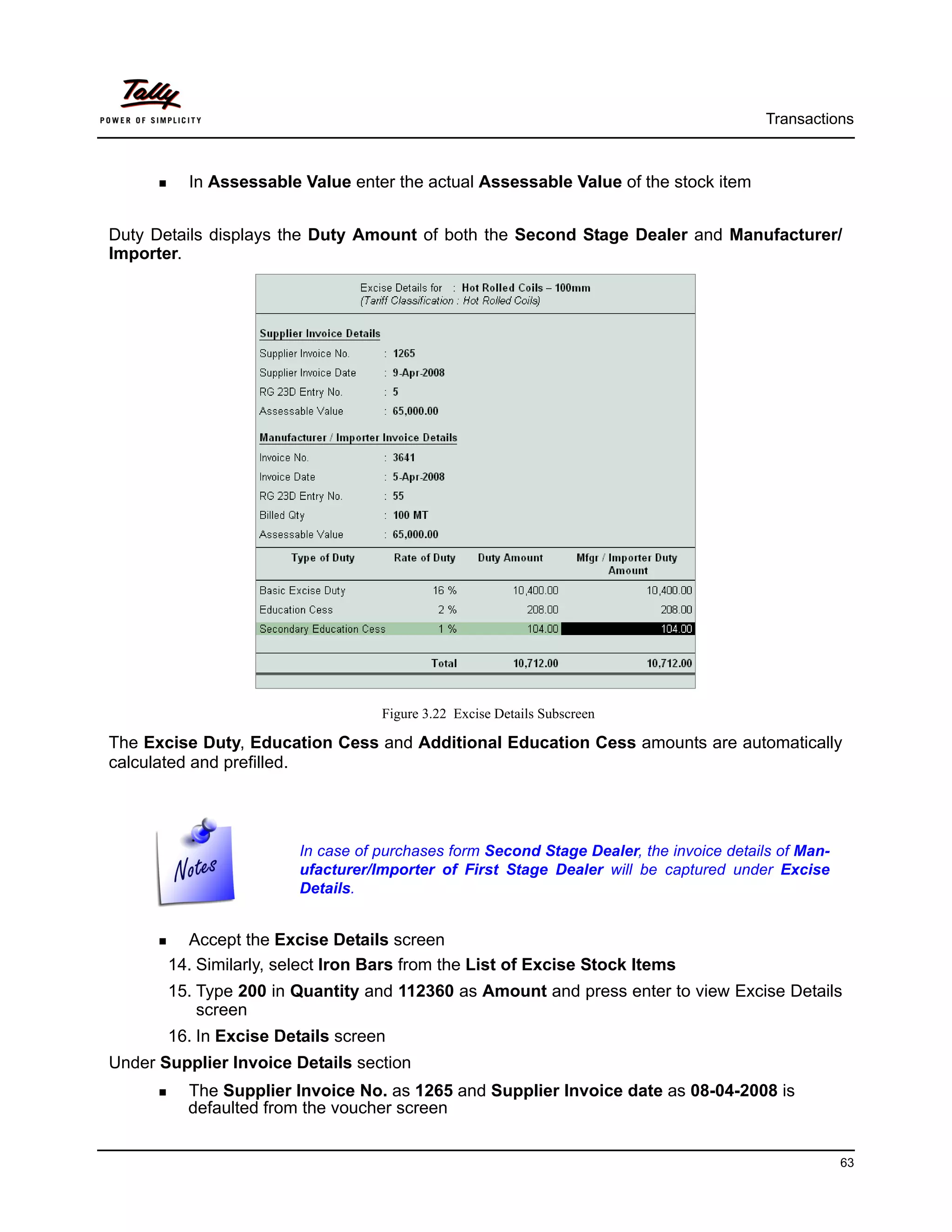
Duty Details displays the Duty Amount of both the Second Stage Dealer and Manufacturer/
Importer.


                                   Figure 3.22 Excise Details Subscreen

The Excise Duty, Education Cess and Additional Education Cess amounts are automatically
calculated and prefilled.


                        In case of purchases form Second Stage Dealer, the invoice details of Man-
                        ufacturer/Importer of First Stage Dealer will be captured under Excise
                        Details.


         Accept the Excise Details screen
       14. Similarly, select Iron Bars from the List of Excise Stock Items
       15. Type 200 in Quantity and 112360 as Amount and press enter to view Excise Details
           screen
       16. In Excise Details screen
Under Supplier Invoice Details section
          The Supplier Invoice No. as 1265 and Supplier Invoice date as 08-04-2008 is
          defaulted from the voucher screen


                                                                                                     63
Transactions


        Specify 5 in the RG 23 Entry No. field. This Number represents the display of this par-
        ticular transaction in the relevant page of RG 23 D Register
        Enter Rs. 1,00,000 (200 Kgs X Rs. 500) in the Assessable Value field (It is the
        amount on which the Excise Duty is calculated by the manufacturer)
Under Manufacturer / Importer Invoice Details section
          In Invoice Number field, by default the invoice number entered in the Supplier’s
          Details screen for Manufacturer/ Importer will be displayed
          The invoice date entered in the Supplier’s Details screen for Manufacturer/
          Importer will be displayed in Invoice Date field.
          Enter the RG 23 D Entry Number of the Manufacturer/ Importer in RG 23 D Entry No.
          field
          In the Billed Quantity field enter the actual Billed Quantity billed to the First Stage
          Dealer.
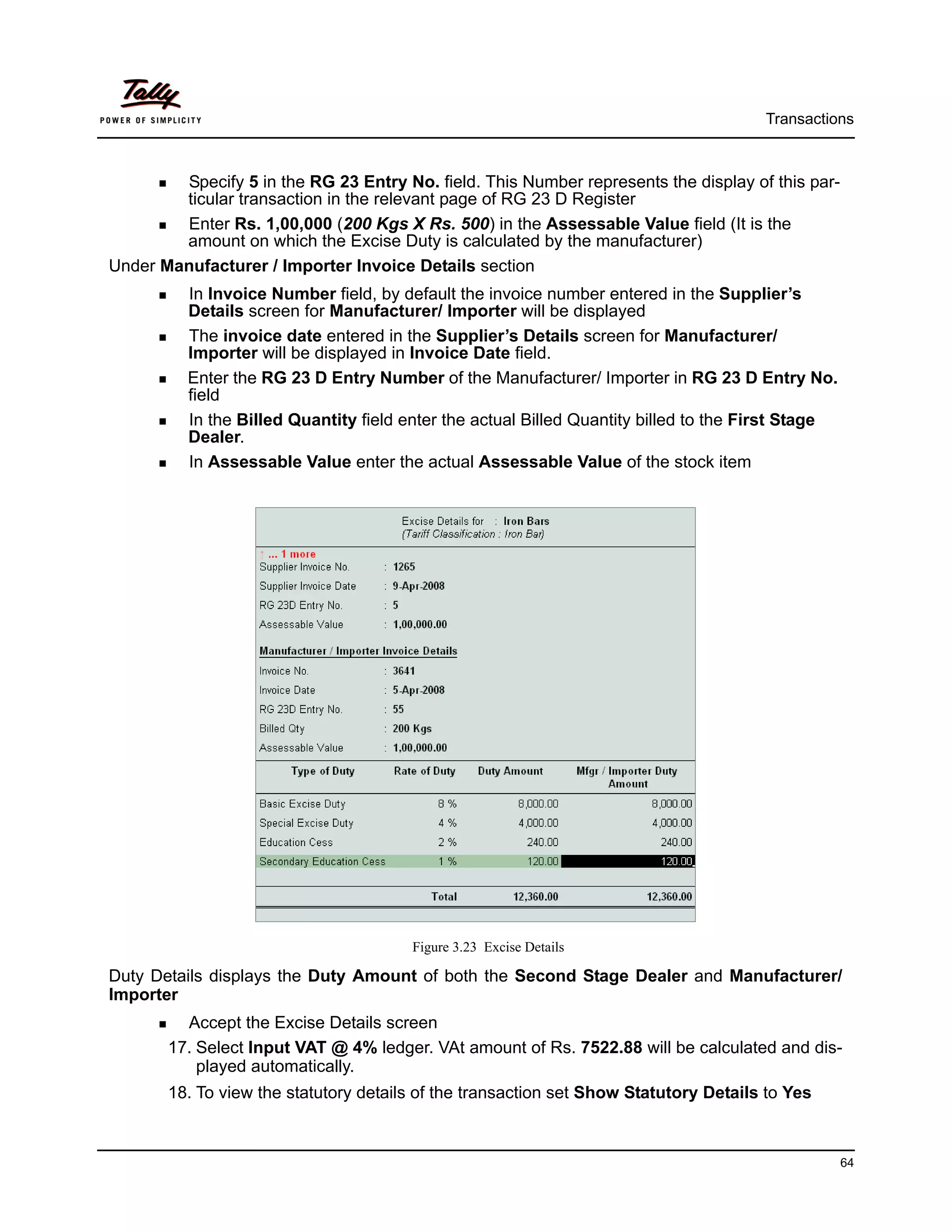
          In Assessable Value enter the actual Assessable Value of the stock item


                                        Figure 3.23 Excise Details

Duty Details displays the Duty Amount of both the Second Stage Dealer and Manufacturer/
Importer
         Accept the Excise Details screen
       17. Select Input VAT @ 4% ledger. VAt amount of Rs. 7522.88 will be calculated and dis-
           played automatically.
       18. To view the statutory details of the transaction set Show Statutory Details to Yes


                                                                                                    64
Transactions


       19. In the Bill-wise Details accept the default bill allocation
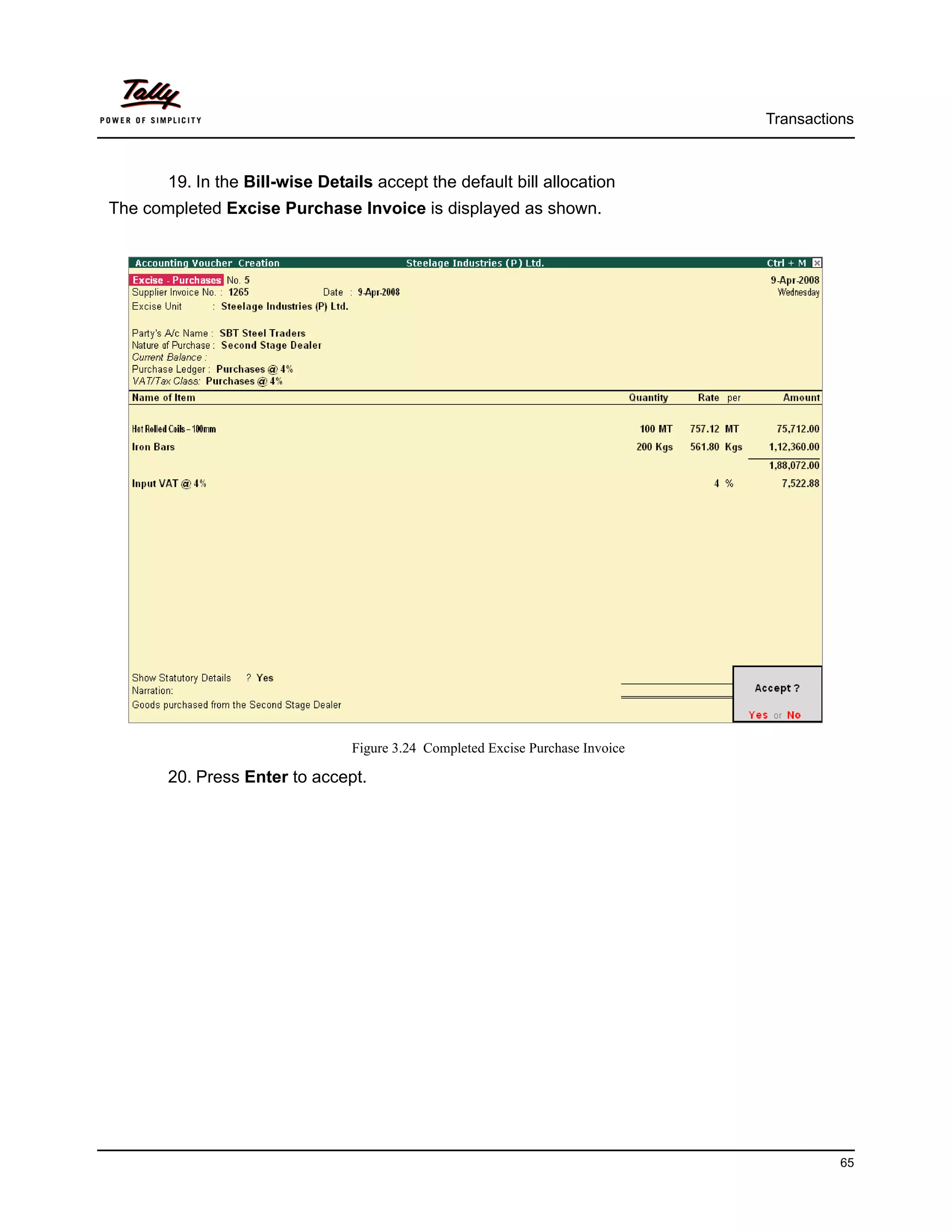
The completed Excise Purchase Invoice is displayed as shown.


                                Figure 3.24 Completed Excise Purchase Invoice

       20. Press Enter to accept.


                                                                                          65
Transactions


3.2 Sale of Excisable Goods
A dealer of excisable goods (First Stage / Second Stage dealer) is required to issue a invoice as
per Rule 11 of the Central Excise Rules 2002, on sale of excisable goods to registered Excise
dealers/ manufacture, in order to pass the CENVAT Credit to the subsequent dealer/ manufac-
turer. However, where there is no provision to pass the CENVAT Credit to the subsequent dealer,
he may issue a Commercial Invoice to the buying dealer/ customer.
Tally.ERP 9 allows you to generate and print Invoice as per Rule 11 for all the sales effected to
CENVAT Customers in the prescribed format besides facilitating generation of Non-CENVATable
Invoice viz., Commercial Invoice where sale is made to dealers other than manufacturers and
thus duty is not passed. The Commercial Invoices are not required to be issued in the prescribed
proforma.


Requirements of Excise Invoice
The Registered Location of the dealer is required to issue invoice in the prescribed format con-
taining the following details:
      Minimum Three copies of Invoice are required to be prepared and the copies of the invoice
      should be marked at the top in the following manner:
          Original copy being marked as Original for Buyer
          Duplicate copy being marked as Duplicate for Transporter
          Triplicate copy being marked as Triplicate for Assessee
      The dealer is required to issue only one invoice in respect of the consignment wherein all
      the packages are dispatched in one lot however, in cases where the consignment is dis-
      patched separately either on the same day or different days or loaded on more than one
      vehicle, a separate invoice shall be made out for each lot or consignment.
      The copies of the invoices issued by a first stage dealer and a second stage dealer shall be
      marked at the top as First Stage Dealer and Second Stage Dealer respectively.
      Name, address and Central Excise Registration number of the registered location issuing
      the invoice, name of the jurisdictional range / Division / Commissionerate and company's
      Income Tax Number and Sales Tax Registration Number should pre-printed on the Invoice.
      Only one invoice book of each type shall be used by the registered location.
      Each CENVAT Invoice issued by the location should bear a printed serial number, begin-
      ning from 1st April of the year.
      The serial numbers of the invoices to be used are to be intimated to the respective jurisdic-
      tional Assistant Commissioner of Central Excise and obtain a dated acknowledgement of
      such intimation.
      Records and Invoice generated through computer are also recognized. In that case, the
      serial number likely to be used in the forthcoming quarter should be intimated to the Asst.
      Commissioner. As soon as the said serial Nos. are exhausted, a revised intimation may be
      sent. Such registered Location should also send details of the software used including the
      format for information of the Asst. Commissioner in case he demands.
      In case of Records and Invoice generated through computer, the serial number likely to be
      used in the forthcoming quarter should be intimated to the jurisdictional Assistant Commis-


                                                                                                  66
Transactions


      sioner of Central Excise. The details of software used including a format used for informa-
      tion, is also required to be sent to the Assistant Commissioner.


Now, let us consider the following scenarios to illustrate Excise Sales transactions in Tally.ERP 9:
      Excise Invoice
      Excise Invoice without Supplier Trader Information
      Excise Invoice cum Commercial Invoice
      Commercial Invoice


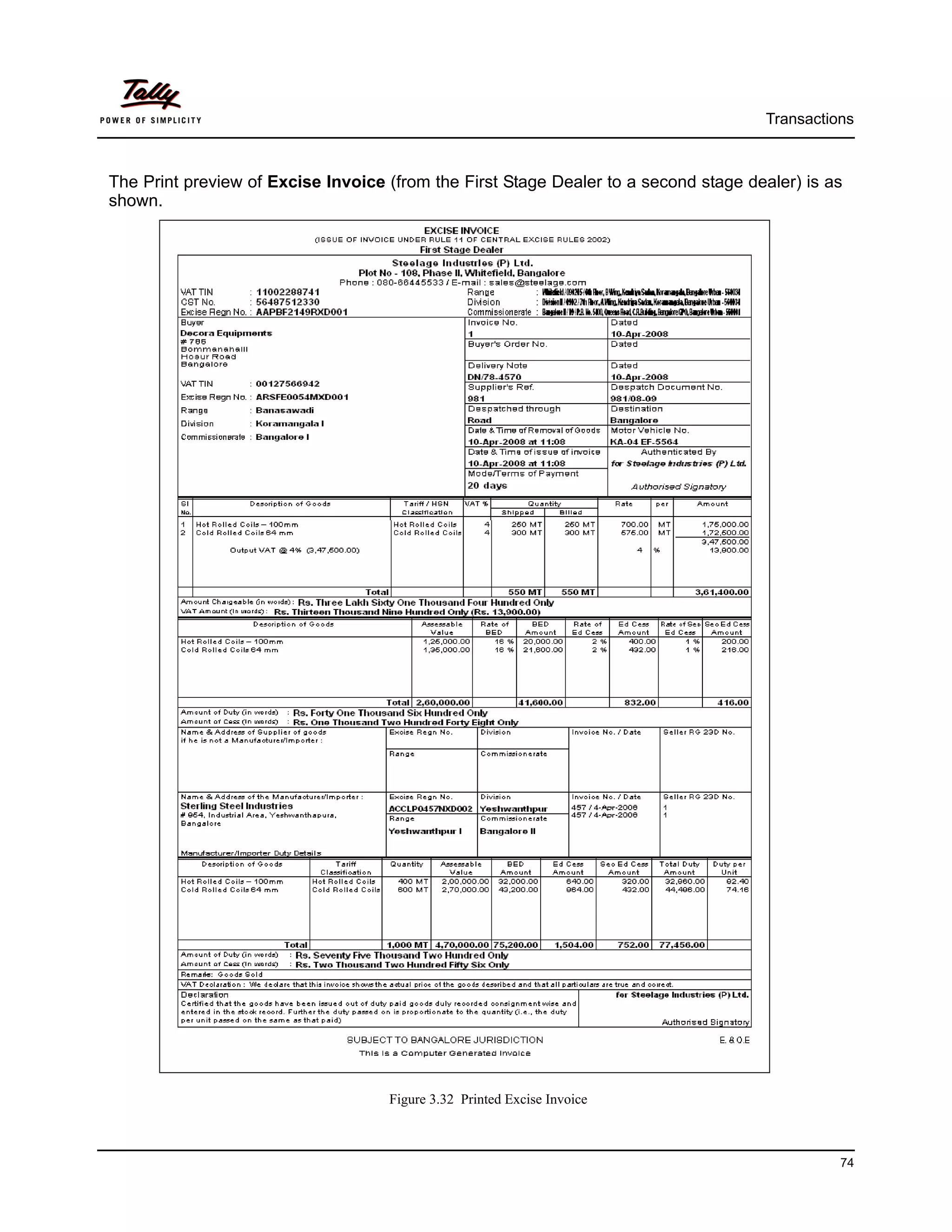
3.2.1 Excise Sales (Excise Invoice)
Example 6:
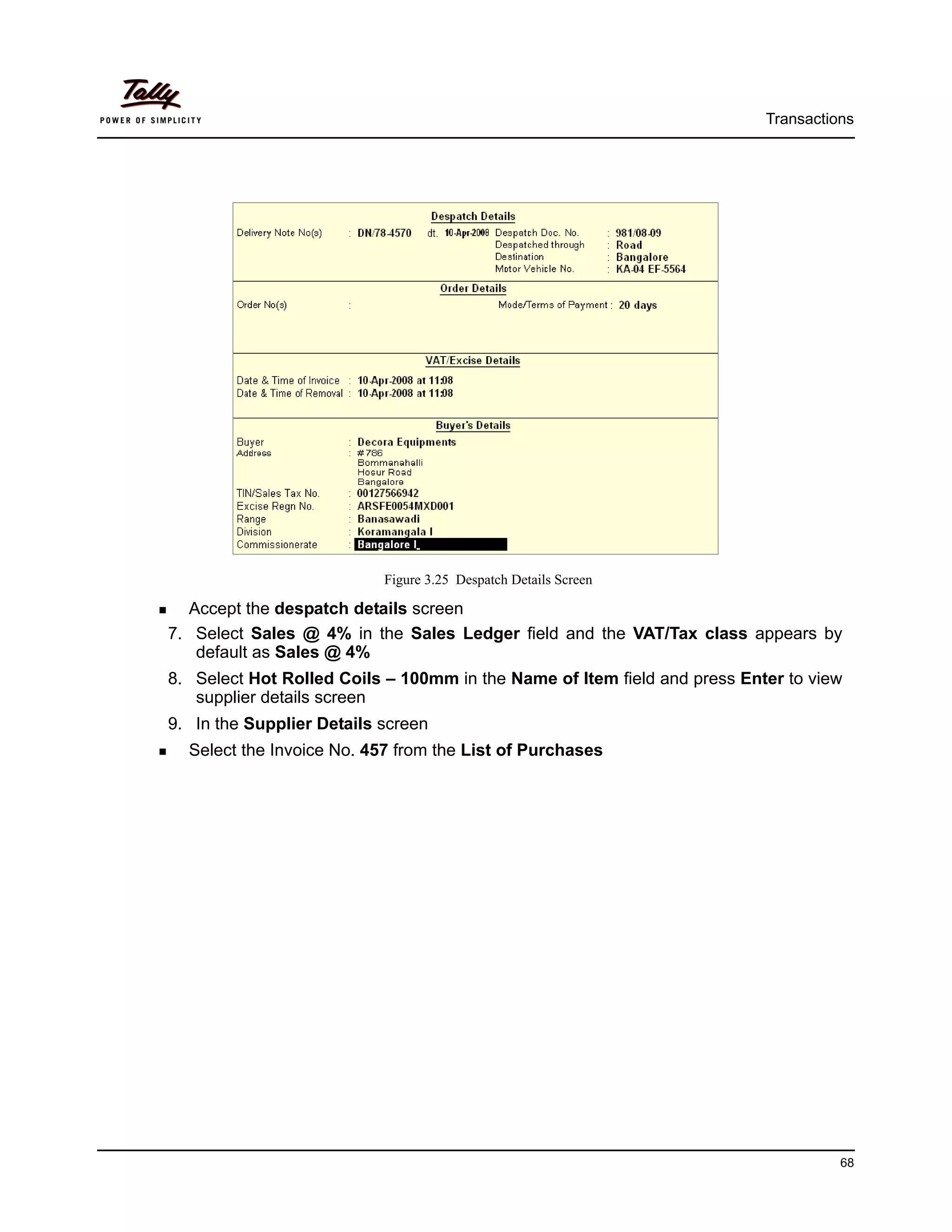
On 10th April 2008, Steelage Industries sold the following goods to M/s. Decora Equipments,
Bangalore


       Item Description              Qty          Rate         VAT
   Hot Rolled Coils – 100mm          250              700       4%
   Cold Rolled Coils - 64 mm         300              575       4%


The same is accounted as shown


Step 1: Create Sales Invoice
Go to Gateway of Tally > Accounting Vouchers > Press F8: Sales
        1. In Voucher Type subscreen select Excise–Sales from the List of Types
        2. Press F2 and change date to 10-04-2008
        3. In Ref field, enter the reference number of the transaction
        4. The Excise Unit field displays Steelage Industries (P) Ltd. as selected during
           voucher type creation.
        5. Select Decora Equipments in Party’s A/c Name field
        6. In the Despatch Details screen
          Specify the Despatch Details and Order Details
          The Date & Time of the consignment is automatically recorded in the Excise details
          column along with the Buyer’s Details.


                                                                                                   67
Transactions


                           Figure 3.25 Despatch Details Screen

  Accept the despatch details screen
7. Select Sales @ 4% in the Sales Ledger field and the VAT/Tax class appears by
   default as Sales @ 4%
8. Select Hot Rolled Coils – 100mm in the Name of Item field and press Enter to view
   supplier details screen
9. In the Supplier Details screen
  Select the Invoice No. 457 from the List of Purchases


                                                                                    68
Transactions


                        Figure 3.26 Supplier Details Subscreen


             The List of Purchases displays the list of purchases made for the selected
             item from different Suppliers (Manufacturer / First Stage Dealer / Second
             Stage Dealer). However, once the goods purchased from a Manufacturer is
             selected for Invoicing, only goods purchased from Manufacturer will be
             displayed and If goods purchased from a First Stage Dealer is selected, only
             purchases from First Stage Dealer will be displayed for Invoicing.


Specify the Quantity as 250


                                                                                            69
Transactions


                    Figure 3.27 Supplier Details sub-screen - Quantity details

  Select End of List and press Enter to accept the screen
10. Specify the Rate as 700. Amount gets calculated and displayed automatically.
11. In the Name of Item field select Cold Rolled Coils - 64mm as the second item
12. In the Supplier Details screen
  Select the Invoice No. 457 from the List of Purchases
  Specify the Quantity as 300


                                                                                           70
Transactions


                              Figure 3.28 Supplier Details screen.


                  Once goods purchased from Manufacturer are selected for Invoicing subse-
                  quently only purchases from Manufacturer will only be displayed for selection
                  under List of Purchases.


  Accept the Suppliers Details.
13. Specify the and Rate as 575 (the Amount is calculated and prefilled automatically)
14. Select Output VAT @ 4% ledger and press Enter, the VAT amount is calculated and
    pre-filled as 13,900.
15. To view the Statutory Details set the option Show Statutory Details to Yes
16. In the Bill-wise Details screen, accept the default bill allocations.
17. Enter the transaction details in the Narration field


                                                                                                  71
Transactions


The completed Sales Invoice is displayed as shown.


                              Figure 3.29 Completed Excise Sales Invoice screen

       18. Press Enter to accept


Step 2: Print Sales Invoice
The Voucher Printing screen appears as shown since, Print after Saving option is enabled in
Excise Sales Voucher Type, if not enabled press Alt+P from the above screen.


                                     Figure 3.30 Voucher Printing Screen


                                                                                            72
Transactions


Press F12: Configure, to view the Invoice Printing Configuration screen.
Set Print Date & Time, Print Trader Supplier Info and Print Supplier Assessable Value
to Yes


                        Figure 3.31 Invoice Printing Configuration screen

After configuration accept the Invoice Printing Configuration screen
Press Enter from the Voucher Printing screen to print Excise Invoice under Rule 11 of
Central Excise Rules 2002


                                                                                        73
Transactions


The Print preview of Excise Invoice (from the First Stage Dealer to a second stage dealer) is as
shown.


                                    Figure 3.32 Printed Excise Invoice


                                                                                               74
Transactions


You will find that the above Invoice precisely displays Excise details of the Buyer, seller and the
Manufacturer in accordance with the Excise rules. It reveals the Item history (i.e, details of
purchases of the transacted goods with their respective Assessable Value, Duty Value & tariff
classification details) of the referred goods which evidences the passing of CENVAT Credit to the
subsequent dealer / manufacturer.
It also comments on the manufacturer's name, address & Excise details besides recording the
date and time of the removal of goods from the dealer's premises. The Invoice is marked as First
Stage Dealer on the top, depicting the position of the selling dealer. The above-generated Invoice
is required to be authenticated by the authorised signatory in the relevant space provided in the
document.


3.2.2 Excise Invoice without Supplier Trader Information
If the dealer does not intend to disclose the Supplier/ Manufacturer Information to the buyer of
excisable goods, in such cases, follow the steps as explained in the illustration.


Consider the above example and generate an Excise Invoice without Supplier Trader information.
      Press Alt+P from the Excise Sales Voucher screen, the Voucher Printing screen
      appears
      In the Voucher Printing screen,
          Press F12: configure and set Print Trader Supplier Info to No as shown


                                Figure 3.33 Invoice Printing Configuration screen


                                                                                                  75
Transactions


      Accept the Invoice Print Configuration screen
      Press Enter from the Voucher Printing screen to view print preview of Sales Invoice
The print preview of Excise Invoice without Supplier information is displayed as shown.


                      Figure 3.34 Print Preview of Excise Invoice without Supplier Information


                                                                                                           76
Transactions


3.2.3 Excise Invoice cum Commercial Invoice
Tally.ERP 9 allows you to generate Commercial Invoice directly from the Excise Invoice Voucher.
To print the commercial invoice follow the steps explained in the illustration.


Example 7:
On April 12th 2008, Steelage Industries sold the following to M/s. EMPEE Engineering.
       Item Description           Quantity       Rate (Rs.)         VAT (%)
                                   (Kgs)
  Hot Rolled Coils – 100mm      90              1150               4%


The same is accounted as shown:
Step 1: Create Sales Invoice


Go to Gateway of Tally > Accounting Vouchers > press F8:Sales
       1. In Voucher Type subscreen select Excise–Sales from the List of Types
       2. Press F2 and change date to 12-04-2008
       3. In Ref field, enter the reference number of the transaction
       4. The Excise Unit field displays Steelage Industries (P) Ltd. as selected during
          voucher type creation.
       5. Select EMPEE Engineering in Party’s A/c Name field
       6. Specify the details of despatch in the Despatch details screen
       7. Select Sales @ 4% in the Sales Ledger field, the VAT/Tax Class field is defaulted
          automatically as Sales @ 4%
       8. Select Hot Rolled Coils – 100mm in the Name of Item field and press Enter to view
          Supplier Details screen
       9. In the Supplier Details screen
         In Supplier Invoice Number / Date field select 1265 from the List of Purchases.
         Specify the 90 as the Quantity Utilised
       10. In the Rate column Specify 1150 as the rate, the Amount gets pre-filled
       11. Select Output VAT @ 4% and VAT Amount is calculated and displayed automatically.
       12. To view the statutory details of the transaction set Show Statutory Details to Yes
       13. In the Bill-wise Details screen accept the default bill allocation.
       14. Enter the transaction details in the Narration field.


                                                                                                  77
Transactions


The completed Excise Sales Invoice is displayed as shown.


                                   Figure 3.35 Excise Sales Voucher

       15. Press Enter to accept


Step 2: Print Excise Invoice as Commercial Invoice


1. Press Alt+P the Voucher Printing screen appears (if Print after is saving is set to Yes in
   Voucher Type master, Voucher Printing is automatically prompted)
2. Press F12: Configure from the Voucher Printing screen
          Type Tax Invoice in the Title of Document field
          Set Print as Commercial Invoice to Yes
          Set Print Trader Supplier Info to No


                                                                                             78
Transactions


                        Figure 3.36 Invoice Printing Configuration screen

Accept the Invoice Printing Configuration screen and press Enter to view the print pre-
view of Commercial Invoice


                                                                                          79
Transactions


The print preview of Commercial Invoice is displayed as shown.


                                 Figure 3.37 Printed Commercial Invoice


                                                                                    80
Transactions


3.2.4 Commercial Invoice
Where the dealer sells excisable goods to consumers or dealers, who does not have any
proposal to claim CENVAT Credit (or dealer does not intend to pass CENVAT credit to subsequent
dealer (Purchasing Dealer), in such cases the sale of excisable goods is required to be recorded
through a Commercial Invoice.


Example 8:
On 13th April 2008, Steelage Industries sold the following goods to M/s. Innova Steel Traders.


   Item Description        Qty        Rate        VAT       Supplier Invoice
                                      (Rs.)                  Number / Date
   Iron Bars             75         700         4%         1707 dt.08/04/08
   Hot Rolled Coils      50         700         4%         457 dt.04/04/08


The same is accounted as shown
Setup:
In F12: Configure (Purchase Invoice Configuration)
      Set Use Common Ledger A/c for Item Allocation to No.


Step 1: Create Sales Invoice
Go to Gateway of Tally > Accounting Vouchers > press F8:Sales
         1. In Voucher Type subscreen select Commercial Invoice from the List of Types
         2. In the Class field select Commercial Invoice from Voucher Class List
         3. Press F2 and change date to 13-04-2008
         4. In Ref field, enter the reference number of the transaction
         5. The Excise Unit field displays Steelage Industries (P) Ltd. as selected during
            voucher type creation.
         6. Select Innova Systems in Party’s A/c Name and press Enter
         7. Specify the details of Despatch in the Despatch details sub-screen and press Enter
         8. In the Name of Item field select Iron Bars
         9. In the Supplier Details screen,
           Select 1707 in the Supplier Invoice Number / Date column


                                                                                                 81
Transactions


                   Figure 3.38 Commercial Invoice - Supplier Details sub-screen

  Specify the Quantity as 75
  Select End of List and press Enter to accept the screen
10. Specify Rate as 700 and press Enter (the Amount is prefilled automatically)
11. Similarly, select Hot Rolled Coils - 100 mm as the second Stock Item and press
    Enter
12. In the Supplier Details screen,
  Select 457as the Supplier Invoice Number / Date,
  Specify 50 as the Quantity Utilised,


                                                                                            82
Transactions


                          Figure 3.39 Completed Supplier Details screen

  Select End of List to return to the Commercial Invoice
13. Specify the Rate as 700 and press Enter (the Amount is prefilled automatically)
14. As per the Voucher Class created for the Commercial Invoice Input VAT amount @
    4% is calculated and displayed automatically.
15. To view the statutory detailsof the transaction set Show Statutory Details to Yes
16. In the Bill-wise Details screen, accept the default Bill Allocations
17. Enter the transaction details in the Narration field.


                                                                                         83
Transactions


The completed Commercial Invoice is displayed as shown


                             Figure 3.40 Completed Commercial Invoice Screen

       18. Press Enter to accept


Step 2: Print Commercial Invoice
     Press Alt+P the Voucher Printing screen appears (if Print after is saving is set to Yes in
     Voucher Type master, Voucher Printing is automatically prompted)


                                   Figure 3.41 Voucher Printing screen

     Press Enter to Print


                                                                                                  84
Transactions


The print preview of Commercial Invoice is displayed as shown.


                              Figure 3.42 Print Preview of Commercial Invoice


                                                                                          85
Transactions


3.2.5 Sale of Goods Purchased from an Importer


Example 9:
On 15th April 2008, Steelage Industries sold the following goods to M/s. Decora Engineering, Ban-
galore.


    Item Description      Supplier Invoice       Qty        Rate        VAT
                           Number / Date                    (Rs.)
  Copper Alloy Strips     167 dt. 07/04/2008   300        600         4%


The same is accounted as shown:


Step 1: Create Sales Invoice
Go to Gateway of Tally > Accounting Vouchers > press F8:Sales
       1. In Voucher Type subscreen select Excise-Sales from the List of Types
       2. Press F2 and change date to 15-04-2008
       3. Select Decora Engineering in Party’s A/c Name and press Enter
       4. Specify the Despatch details in the Despatch details sub-screen and press Enter
       5. In the Name of Item field select Copper Alloys Strips in the Name of Item field
       6. In the Supplier Details screen,
          Select 167 in the Supplier Invoice Number / Date column


                                                                                                86
Transactions


                              Figure 3.43 Supplier Details Screen

  Specify the Quantity as 300
  Select End of List and press Enter to accept the screen
7. Specify Rate as 600 and press Enter (Amount is prefilled automatically)
8. In the Accounting details screen select Sales @ 12.5% in the Particulars column,
   applicable VAT/Tax Class and Amount is displayed automatically.
9. Select Output VAT @ 12.5% from the List of Ledger Accounts (the VAT Amount is
   prefilled Automatically)
10. To view the statutory details of the transaction set Show Statutory Details to Yes
11. In the Bill-wise details screen, accept the default bill allocation.
12. Enter the transaction details in the Narration field.


                                                                                         87
Transactions


The Excise Sales Voucher is displayed as shown


                                    Figure 3.44 Excise Sales Voucher

       13. Press Enter to accept.


Step 2: Print Excise Invoice with Importer Declaration
       14. Press Alt+P the Voucher Printing screen appears (if Print after is saving is set to
           Yes in Voucher Type master, Voucher Printing is automatically prompted)
       15. Press F12:Configure, In Invoice Printing Configuration screen,
         Ensure Print as Commercial Invoice is set to No
         Set Print Trader Importer Declaration to Yes


                                                                                              88
Transactions


                         Figure 3.45 Invoice Printing Configuration.


16. Accept the Invoice Printing Configuration screen
17. Press Enter to print the Excise Invoice.


                                                                                 89
Transactions


The print preview of Excise Invoice with Importer Declaration is displayed as shown.


                       Figure 3.46 Print Preview of Excise Invoice with Importer Declaration


                                                                                                         90
Lesson 4: Return of Goods


In the normal course of business, customers may return goods sold for numerous reasons such
as defect in the product, price differences and so on. In this section, entries for transactions
involving return of excisable goods using Credit Note and Debit Note are examined.


4.1 Sales Returns

Example 1:
On 18th April 2008, Decora Equipments returned the following goods supplied on 09/04/08 vide
B.No.1.
  Item Description             Qty (Mts)     Rate (Rs.)       VAT Charged
  Hot Rolled Coils - 100mm     5             700              4%


Setup:
In F11 Features (Accounting Features)
      Set Use Debit/Credit Notes to Yes
      Set Use Invoice mode for Credit Notes to Yes
      Set Use Invoice mode for Credit Notes to Yes


Go to Gateway of Tally > Accounting Vouchers > Press Ctrl+F8
       1. In Voucher Type subscreen select Ex-Sales Return from the List of Types
       2. Select Alt + I: Item Invoice, if voucher is in Acct Invoice mode
       3. Press F2 and change date to 18-04-08
       4. In the Ref field enter the reference number of the transaction
       5. In the Used for field select Goods sold returned as the type of VAT Adjustments


                                                                                               91
Return of Goods


                   Figure 5.1 Excise Credit Note Voucher - Used for selection

6. In the Excise Unit Name field Steelage industries (P) Ltd. is defaulted as selected
   during the Voucher Type creation
7. Select Decora Equipments in Party's A/c Name and press Enter
8. Press Enter to accept the Receipt Details
9. In the Name of Item field select Hot Rolled Coils - 100mm
10. The Supplier Details screen displays
  Specify the Sales Invoice Number as 1 and the Sales Invoice date is automatically
  displayed as 10-04-08
  Select 457 as the Supplier Invoice No. from the List of Purchases
  Type the returned quantity as 5 in the Quantity Return column.


                                                                                             92
Return of Goods


                     Figure 5.2 Excise Credit Note Voucher - Supplier Details

   Accept the Suppliers Details screen
11. Specify the Rate as 700, Amount is calculated and displayed automatically.
12. In the Accounting Details screen select Sales @ 4% in the Paticulars column. VAT/
    Tax Class and amount is defaulted automatically.
13. Select Output VAT @ 4% ledger, the VAT Amount is automatically calculated and
    pre-filled as Rs. 140
14. To view the statutory details of the transaction set Show Statutory Details to Yes
15. In the Bill-wise Details screen
  Select Agst Ref in the Type of Ref filed
  In the Name field select 981, dated 10-04-2008
  Press Enter, the Amount appears by default.


                                                                                             93
Return of Goods


                                      Figure 5.3 Bill-wise Details Screen

       16. Enter the transaction details in the Narration field.
The completed Excise Sales Returns voucher is displayed as shown.


                               Figure 5.4 Completed Excise Sales Returns Voucher

       17. Press Enter to accept

                                                                                                94
Return of Goods


4.2 Purchase Returns
Example 2:
On 20th April 2008, M/s. Steelage Industries (P) Ltd., returned the following goods to M/s. Sterling
Steel Industries (purchased vide B.No. 457 dt. 04/04/2008).


       Item Description             Qty (MT)          Rate (Rs.)         VAT Charged
   Hot Rolled Coils - 100mm     5                  582.40                4%
The same is accounted as shown
Go to Gateway of Tally > Accounting Vouchers > Press Ctrl+F9
        1. In Voucher Type subscreen select Ex-Purchase Return from the List of Types
        2. Select Alt + I: Item Invoice, if voucher is in Acct Invoice mode
        3. Press F2 and change date to 20-04-08
        4. In the Excise Unit Name field Steelage industries (P) Ltd. is defaulted as selected
           during the Voucher Type creation
        5. Select Sterling Steel Industries in the Party’s A/c Name field
        6. Press Enter to accept the Order details screen
        7. In teh Name of Item field select Hot Rolled Coils – 100mm
        8. The Excise Details for sub-screen appears,
          Select 457 as the Supplier Invoice Number


                               Figure 5.5 Excise Debit Note - Excise Details screen


                                                                                                    95
Return of Goods


  The Supplier Invoice Date, Nature of Purchase and the Quantity Purchased are
  prefilled automatically as 04-04-2008, Manufacturer & 400 MT respectively
  Specify the Quantity Return as 5 MT
  Press Enter to accept the Assessable Value as Rs. 2,500/- (i.e., 5MT X Rs. 500 [before
  Excise Duty])


                             Figure 5.6 Excise Details for subscreen

9. Specify 582.40 in the Rate column and press Enter to accept the amount
10. In the Accounting Details screen select Purchases @ 4% in the particualrs column.
    VAT/Tax Class and Amount is defaulted automatically.
11. Select Input VAT @ 4% ledger and the VAT amount is automatically calculated and
    prefilled as 116.48 - (i.e., 4% of Rs. 2912)
12. To view the starutory details of the transaction set Show Statutory Details to Yes
13. In the Bill-wise Details screen
  Select Agst Ref in the Type of Ref field
  In the Name field select 457 dated 04-04-2008
  Accept the default Amount and Dr/Cr allocation
14. Enter the transaction details in the Narration field


                                                                                           96
Return of Goods


The completed Excise Purchases Returns Voucher is displayed as shown.


                                   Figure 5.7 Excise Purchase Return Voucher

       15. Press Enter to accept


                       In case of Debit Notes/ Credit Notes, same Accounting & VAT ledgers trans-
                       acted during purchases / sales entries should be used, in order to reverse the
                       turnover and the tax amount accordingly.


                                                                                                        97
Lesson 5: Reports


Dealers registered with the Central Excise are required to maintain prescribed registers in the
godown/ store room. The Dealer should ensure proper entry of each consignment received or
issued by them in the prescribed register.
A dealer registered under Excise Rules are required to submit quarterly returns in prescribed
format and other documents namely, Stock Register (RG 23D) and Form II to the Assessing
Authority within the stipulated time.
In Tally.ERP 9, you can generate and print all statutory & excise related forms & reports as
required by a dealer of excisable goods at the end of month or a quarter or annually or at any
point of time. The following Excise reports are available in Tally.ERP 9 :
       1. Excise Stock Register
       2. Excise Purchase Bill Register
       3. Sales and Purchase Extract
       4. Form RG 23D
       5. Form II


5.1 Excise Stock Register
Excise Stock Register is a commodity wise (Stock Item wise) report displaying the details of
purchases (Receipts) and sales (Issues) of excisable goods in a given period. It also shows infor-
mation on the sales transactions, which were sold under Excise Invoice and Commercial Invoice
besides capturing details of the Supplier/ Manufacturer.
It clearly comments on the duty (CENVAT) amount passed, duty amount not passed and the
balance of duty including Cess amount available during the specified period.

Go to Gateway of Tally > Display > Statutory Reports > Excise Reports > Dealer > Excise
Stock Register


In the Selected Excise Unit screen
      In Name of Excise Unit field Tally.ERP 9 displayes Steelage Industries (P) Ltd.
      In case where there are more than one dealer unit select the appropriate Excise Unit from
      the List of Excise Units for which you want to view the Excise Stock Register


                                                                                                 98
Reports


      In Name of Item field select Hot Rolled Coils – 100mm
      Select the appropriate Stock item from the List of Excise Stock Items to view the Excise
      Stock Register
The Selected Excise Unit screen will be displayed as shown


                                  Figure 5.1 Selected Excise Unit Screen


                                                                                             99
Reports


The Excise Stock Register of Steelage Industries (P) Ltd. is displayed as shown


                                        Figure 5.2 Excise Stock Register


      Scroll to the right using Right    arrow button


Tally.ERP 9 also allows you view the above report in detailed mode, by pressing Alt + F1 from the
above screen.


                                                                                               100
Reports


                                  Figure 5.3 Detailed Excise Stock Register

The Excise Stock Register in detailed mode, displays the complete list of Sales transactions per-
taining to the selected Excisable commodity.
      Press Alt+P to print Excise Stock Register
The print preview of Excise Stock Register is displayed as shown


                               Figure 5.4 Print Preview of Excise Stock Register


                                                                                               101
Reports


5.2 Excise Purchase Bill Register
Excise Purchase Bill Register is a Purchase bill wise report displaying the details of purchases
(Receipts) and sales (Issues) of excisable goods in a given period. It precisely shows Receipts
and Issues of Excisable goods alongwith the information on the duty amount passed, duty amount
not passed and the balance of duty including Cess amount available during the specified period.


Go to Gateway of Tally > Display > Statutory Reports > Dealer Excise Reports > Excise
Purchase Bill Register
      In the Selected Excise Unit screen select Steelage Industries (P) Ltd. in the Name of
      Excise Unit field


                                        Figure 5.5 Selected Excise Unit

The Excise Purchase Bill Register of M/s. Steelage Industries (P) Ltd., is as shown.


                           Figure 5.6 Excise Purchase Bill Register - Receipt Column


                                                                                              102
Reports


      Scroll to the right using Right     arrow button


                             Figure 5.7 Excise Purchase Bill Register - Issues Column

You can further scroll down to view the complete report.


5.3 Sales and Purchase Extract
Excise Sales and Purchase Extract report displays the details of purchase and sales transactions
of all excisable goods (Excise Invoice as well as Commercial Invoice).

Go to Gateway of Tally > Display > Statutory Reports > Dealer Excise Reports > Sales and
Purchase Extract


In the Sales and Purchase Extract printing screen,

      Press Backspace and specify the From date as 1-4-2008 and To date as 30-6-2008
      Specify the Place and Date
The completed report printing screen appears as shown


                                                                                              103
Reports


                               Figure 5.8 Report Printing Configuration Screen

          Press Enter to Print
The printed Sales and Purchase Extract of M/s. Steelage Industries (P) Ltd. is as shown.


                               Figure 5.9 Sales and Purchase Extract - Page 1


                                                                                               104
Reports


                                Figure 5.10 Sales and Purchase Extract - Page 2


5.4 Form RG 23D
The registered dealer issuing invoices for CENVATable goods is required to maintain a stock
account as prescribed in form RG – 23D and record details of consignments received under the
cover of any invoice issued in terms of the provisions of Central Excise Rules, 2002. However,
consignments for which it has not proposal to issue CENVATable Invoice need not be entered.
In respect of any consignment, part of which is sold under Centavable invoice, and the other part
under the cover of non-CENVATable invoice, then the details of sales under non-CENVATable
invoices have also to be entered in the prescribed stock register by making a consolidated entry
at the end of the day indication such quantity and invoice numbers.


                                                                                               105
Reports


Whenever, a registered location receives a consignment and in respect of the same, the location
proposes to issue either one or more CENVATable invoices, then the location should keep
complete account of each such consignment and all transactions relating thereto in the stock
register.
The details of excisable goods sold under CENVAT Invoice and the corresponding excise duty
passed to the subsequent dealer / manufacturer, is required to be reported as Duty Passed On in
the Issues column of the Stock Register (formerly RG 23D) and likewise, the details of the
excisable goods sold under Commercial Invoice and the duty to the extent not passed on, is
required to be reported as Duty Not Passed On in the Issues column of the Stock Register,
during the respective financial period.
Go to Gateway of Tally > Display > Statutory Reports > Excise Reports > Dealer > Form RG
23D
In the Selected Excise Unit screen
      In Name of Excise Unit field Tally.ERP 9 displayes Steelage Industries (P) Ltd.
      In case where there are more than one dealer unit select the appropriate Excise Unit from
      the List of Excise Units for which you want to view the Excise Stock Register
      In Name of Item field select Hot Rolled Coils – 100mm
      Select the appropriate Stock item from the List of Excise Stock Items to view the Excise
      Stock Register


                                       Figure 5.11 Form RG 23 D


                                                                                             106
Reports


Form RG 23D displays the details of Receipts and sales (Issues) of excisable goods in a given
period. It precisely shows Receipts and Issues of Excisable goods alongwith the information on
the duty amount passed, duty amount not passed and the balance of duty including Cess amount
available during the specified period.
Press Alt+F1 or click on F1: Detailed button on the buttons bar to view the report in detailed
mode.


Print RG 23D
      Press Alt+P or click on P: Print button to view report printing configuration screen


                                 Figure 5.12 RG 23D Printing Configuration


          Press Enter to Print


                                                                                                 107
Reports


The print preview of Form RG 23D is displayed as shown


                            Figure 5.13 Print Preview of Form RG 23D – Page 1


                                                                                    108
Reports


                                 Figure 5.14 Printed RG 23D Register - Page 2


5.5 Quarterly Return - Form 2
A first stage dealer or a second stage dealer, as the case may be, is required to submit a return in
the form as specified by notification or by the Board within fifteen days from the close of each
quarter of a year to the Superintendent of Central Excise.


Go to Gateway of Tally > Display > Statutory Reports > Excise Reports > Dealer > Form–2
In the Form 2 printing configuration screen
          Press Backspace and specify the From date as 1-4-2008 and To date as 30-6-2008
          Specify Place and Date details


                                                                                                  109
Reports


                              Figure 5.15 Form 2 Printing Configuration Screen

The Print Preview of Form 2 is displayed as shown


                                        Figure 5.16 Form 2 - Page 1


                                                                                     110
Reports


                                         Figure 5.17 Form 2 - Page 2

As discussed above, Form 2 displays the details of the Stock item with the maximum duty value.
However, you may configure Form 2 to show details of all stock items.


To view the details of all the stock items
       Press F12: configure from the Report Generation screen and set Show All Items to Yes


                                                                                             111
Reports


                       Figure 5.18 F12: Configuration Screen

Accept the configuration screen and press Enter form the Report Generation screen
to view the print preview of Form 2.


                                                                                112
Lesson 6: Dealer Excise Opening Stock


6.1 Accounting Excise Opening Stock
When the excisable goods are kept as unsold as at the closing of the financial year (i.e. 31st
March 2007), in such cases, the unutilized or idle credit amount has to be carried forward to the
next financial year (1st April 2007) and the dealer is entitled to pass the CENVAT Credit available
on such unsold stock during the current year (2007-08) or within any prescribed period, to the
eligible dealer / manufacture on quantifying the following required information viz.,


      Supplier Invoice with date and number
      Description of goods
      Total quantity & value of goods purchased
      Balance (unsold stock) quantity & value of goods available
      Amount of Excise duty paid
      Name, address and Central Excise Registration number of supplier /manufacturer of such
      goods
      Name of the jurisdictional range / division / commissionerate
      Company’s Income Tax number and Sales (or VAT) registration number


For this purpose, it is essential to record the above mentioned information in Tally.ERP 9, to facili-
tate passing of CENVAT Credit available on opening stock of excisable goods.
Consider the following example to illustrate the treatment of CENVAT, available on opening stock
of excisable goods.


                                                                                                    113
Dealer Excise Opening Stock


Illustration 12:
On 01/04/08, the following excisable commodities were lying in the godown of M/s. Steelage
Industries (P) Ltd.,


   Item                        Qty. Purchased    Rate    Assessable      Closing-    Supplier
                                                         Value           stock       Invoice No. &
   Description                 (MT)              (Rs.)                               Date
                                                                         (MT)
   Hot Rolled Coils – 100mm    400               500     2,00,000        155         487 dt. 02/03/08


The Excise details of the supplier are as follows:


   Supplier Name      Nature of       Excise Regn. No.         Range      Division    Commision-
   & Address          Purchase                                                        erate
   M/s. Sterling      Manufacturer    ACCLP0457NXM002          Yes-       Yes-        Bangalore -
                                                               hwan-      hwanth-     II
   Steel Industries
                                                               thpur I    pur
   # 854
   Industrial Area,
   Yeshwanthpura
   Bangalore


The same is accounted for as shown.


Excise Opening Stock:


Go to Gateway of Tally > Inventory Info. > Excise Opening Stock


      In the Supplier Invoice No. field enter the invoice number 487
      In Excise Unit field Steelage Industries (P) Ltd. is displayed as default
      In Party’s A/c Name field select Sterling Steel Industries
The Supplier’s Details screen is displayed as shown.
           Address and Excise details are displayed as defined in the ledger master
           If the supplier of the goods is not the manufacturer, specify the manufacturer of the
           goods in the Manufacturer / Importer Details section.


                                                                                                        114
Dealer Excise Opening Stock


                           Figure 6.1 Excise –Suppliers Details Screen

Accept the Supplier’s Details screen
In the Nature of Purchase field Manufacturer is defaulted, as defined in the ledger master
which can be changed.


                           Figure 6.2 Selection of Nature of Purchase


                                                                                                 115
Dealer Excise Opening Stock


In the Purchase Ledger field select Purchases @ 4%
In the Name of Item field select Hot Rolled Coils – 100mm
Enter the Purchase Quantity in the field Quantity, i.e. quantity purchased from the sup-
plier
Specify the purchase rate in the Rate field
Amount is calculated and displayed automatically


                         Figure 6.3 Excise Opening Stock Creation screen


Press Enter to view Excise Detailsscreen
In the Excise Details screen,
    Specify the Supplier Invoice No. as 487 (If the Invoice No. is given in the voucher
    screen, the same is populated automatically)
    Specify the Supplier Invoice Date as 02-03-2008
    Specify the RG 23D Entry No. as 1
    Specify 155 MT as the Excise Opening Stock (the balance unsold stock lying in the
    godown as on 31st March)
    Press Enter to accept the Assessable Value as Rs. 2,00,000 (400 MT X Rs. 500)


                                                                                                   116
Dealer Excise Opening Stock


The Stock Item Excise details screen is displayed as shown.


                                     Figure 6.4 Excise Details for screen

The Excise Duty and Education cess amounts are automatically calculated on the basis of config-
urations defined in the stock item master. However, in some cases, though the excise duty is
chargeable at a specified rate, the net burden on the buyer may be less than such a percentage,
in such cases Tally.ERP 9 provides the flexibility to modify the amount of tax.


         Accept the Excise Details screen
      Enter the transaction details in the Narration field


                                                                                                    117
Dealer Excise Opening Stock


The completed Excise Opening Stock voucher is displayed as shown.


                              Figure 6.5 Completed Excise Opening Stock voucher

      Press Enter to accept


                                                                                                          118
Dealer Excise Opening Stock


                        i. The Excise Opening Stock menu will appear only when the Dealer
                           Excise functionality is enabled in F11: Statutory & Taxation features.
                        ii. The date of the Excise Opening Stock voucher is predefined as 1st
                            April of the financial year. But, if the books beginning from date is differ-
                            ent from the financial year in the Company master, then, the books
                            beginning from date is taken as the voucher date. However, the date can
                            be altered from the Gateway of Tally.ERP 9, by pressing Alt+F2.
                        iii. The Excise Opening Stock Voucher is a type of optional voucher and
                             thus will not affect your books of accounts. In order to update Inventory
                             records, the usual method of recording opening stock quantities and val-
                             ues in the Stock Item master has to be followed. However, the entries
                             passed under Excise Opening Stock voucher type will appear in Day
                             Book display.
                        iv. In cases where the user maintains data for multiple periods in Tally.ERP
                            9 (with respect to Dealer excise), the opening balance of CENVAT
                            Credit on unsold stocks is automatically carried forward to the next
                            financial year. However, in cases where the Company’s data is split, the
                            excise opening balances have to be re-entered with the respective
                            excise details in the Excise Opening Stock menu.
                        v. The unsold stock of non-excisable stock need not be entered through
                           this menu.


Example 13:


On 3rd April 2008, Steelage Industries sold the following goods to M/s. Decora Equipments,
Bangalore


  Item Description             Qty. (Mts)      Rate (Rs.)       VAT
  Hot Rolled Coils – 100mm     100             600              4%


The same is accounted for as shown:


Step 1: Create Sales Invoice
Go to Gateway of Tally > Accounting Vouchers > Press F8: Sales
       1. In Voucher Type subscreen select Excise–Sales from the List of Types
       2. Press F2 and change date to 03-04-2008
       3. Excise Unit field defaults Steelage Industries (P) Ltd. as selected in the Voucher
          Type
       4. In the Party’s A/c Name field select Decora Equipments

                                                                                                            119
Dealer Excise Opening Stock


       5. Specify the details of despatch in the Despatch Details screen
       6. In the Sales Ledger field select Sales @ 4%, in the VAT/Tax Class field Sales @ 4%
          gets defaulted.
       7. Select Hot Rolled Coils – 100mm in the Name of the Item field and press Enter to
          view Supplier Details screen
       8. In the Supplier Details screen
          In Supplier Invoice Number/Date field select 487 from the List of Purchases


                                   Figure 6.6 Suppliers Details Screen

      Specify the Quantity as 100 MT
The Supplier Details screen is displayed as shown.


                                                                                                 120
Dealer Excise Opening Stock


                          Figure 6.7 Supplier Details screen with Quantity

Select End of List and press Enter to accept the screen


                   It is assumed that the opening stock quantities and values are updated in the
                   Stock Item Master separately.


Specify the Rate as 600
Select Output VAT @ 4% ledger and press Enter, the VAT amount is automatically dis-
played
To view the statutory details of the transaction set Show Statutory Details to Yes
In the Bill-wise Details screen accept the default bill allocation.
Enter the transaction details in the Narration field.


                                                                                                     121
Dealer Excise Opening Stock


The completed Excise Sales Invoice screen is displayed as shown.


                              Figure 6.8 Completed Excise Sales Voucher Screen

      Press Enter to accept the voucher


Step 2: Print Sales Invoice
The Voucher Printing screen is displayed as shown.


                                     Figure 6.9 Voucher Printing screen


                                                                                                         122
Dealer Excise Opening Stock


      Press F12: Configure and ensure that Print Date & Time and Print Trader Supplier Info
      is set to Yes
The Invoice Printing Configuration screen is displayed as shown.


                             Figure 6.10 Invoice Printing Configuration screen

      Accept the Invoice Printing Configuration screen
      Press Enter from the Voucher Printing screen to print Excise Invoice under Rule 11 of
      Central Excise Rules 2002


                                                                                                         123
Dealer Excise Opening Stock


The print preview of First Stage Dealer’s Excise sales invoice is displayed as shown


                                    Figure 6.11 Printed Excise Invoice


                                                                                                 124
Dealer Excise Opening Stock


You will find that the above Invoice, precisely displays Excise details of the Buyer, Seller, Manu-
facturer and the Item history (details of Supplier Invoice No. & Date, Excise Duty with their respec-
tive tariff classification) from the Excise Opening Stock Voucher, recorded for the referred goods.
This confirms the passing of CENVAT Credit to the subsequent dealer / manufacturer.


6.2 Quarterly Return - Form II

The above transaction relating to the sale of excisable goods made from the opening stock of
excisable goods will be reflected in the quarterly return of the First Stage Dealer / second stage
dealer, as the case may be.


Go to Gateway of Tally > Display > Statutory Reports > Dealer Excise Reports > Form – 2


In the Printing Configuration screen,
      In Excise Unit field select Steelage Industries (P) Ltd. from the List of Excise Units
      Specify the From and To date of the report (01-04-08 to 30-06-08)
      Specify the Place and Date of generation of report


                                   Figure 6.12 Printing Configuration screen

      Press Enter to print Form 2


                                                                                                       125
Dealer Excise Opening Stock


The print preview of Form 2 of M/s. Steelage Industries for the quarter ended 30th June 2008 is
as dispalyed as shown


                                Figure 6.13 Print Preview of Form 2 - Page 1


                                Figure 6.14 Print Preview of Form 2 – Page 2


                                                                                                       126

Excise For Dealers In Tally Erp 9

  • 1.
    Implementation of Excisefor Dealers in Tally.ERP 9
  • 2.
    The information containedin this document is current as of the date of publication and subject to change. Because Tally must respond to changing market conditions, it should not be interpreted to be a commitment on the part of Tally, and Tally cannot guarantee the accuracy of any information presented after the date of publication. The information provided herein is general, not according to individual circumstances, and is not intended to substitute for informed professional advice. This document is for informational purposes only. TALLY MAKES NO WARRANTIES, EXPRESS OR IMPLIED, IN THIS DOCUMENT AND SHALL NOT BE LIABLE FOR LOSS OR DAMAGE OF WHATEVER NATURE, ARISING OUT OF, OR IN CONNECTION WITH THE USE OF OR INABILITY TO USE THE CONTENT OF THIS PUBLICATION, AND/OR ANY CONDUCT UNDERTAKEN BY PLACING RELIANCE ON THE CONTENTS OF THIS PUBLICATION. Complying with all applicable copyright and other intellectual property laws is the responsibility of the user. All rights including copyrights, rights of translation, etc., are vested exclusively with TALLY SOLUTIONS PRIVATE LIMITED. No part of this document may be reproduced, translated, revised, stored in, or introduced into a retrieval system, or transmitted in any form, by any means (electronic, mechanical, photocopying, recording, or otherwise), or for any purpose, without the express written permission of Tally Solutions Pvt. Ltd. Tally may have patents, patent applications, trademarks, copyrights, or other intellectual property rights covering subject matter in this document. Except as expressly provided in any written licence agreement from Tally, the furnishing of this document does not give you any licence to these patents, trademarks, copyrights, or other intellectual property. © 2009 Tally Solutions Pvt. Ltd. All rights reserved. Tally, Tally 9, Tally9, Tally.ERP, Tally.ERP 9, Shoper, Shoper 9, Shoper POS, Shoper HO, Shoper 9 POS, Shoper 9 HO, TallyDeveloper, Tally Developer, Tally.Developer 9, Tally.NET, Tally Development Environment, Tally Extender, Tally Integrator, Tally Integrated Network, Tally Service Partner, TallyAcademy & Power of Simplicity are either registered trademarks or trademarks of Tally Solutions Pvt. Ltd. in India and/or other countries. All other trademarks are properties of their respective owners. Version: Implementation of Excise for Dealers in Tally.ERP 9/1.0/June 2009
  • 3.
    Contents Introduction Basic Concepts in Excise Duty ...........................................................................................................................1 Excisable Goods ............................................................................................................................................... 1 Dealer of Excisable Goods ..................................................................................................................................1 First Stage Dealer .................................................................................................................................................2 Second Stage Dealer .............................................................................................................................................2 Registration of Dealers .........................................................................................................................................3 CENVAT Credit ....................................................................................................................................................3 Purchases from Manufacturer .......................................................................................................................... 4 Purchases from a Agent of Manufacturer ......................................................................................................... 5 Purchases from Importer .................................................................................................................................. 5 Purchases from First Stage Dealer .................................................................................................................. 6 Purchases from Second Stage Dealer ............................................................................................................... 6 Salient Features of Dealer Excise Compliant Tally.ERP 9 ...........................................................................7 Lesson 1: Enabling Dealer Excise in Tally.ERP 9 1.1 Enabling Excise in Tally.ERP 9 ...............................................................................................................8 1.1.1 Create Company ..................................................................................................................................... 8 1.1.2 Enable Excise .......................................................................................................................................... 9 1.1.3 Enable VAT ........................................................................................................................................... 13 Lesson 2: Creation of Masters 2.1 Sales and Purchase Ledgers ......................................................................................................................15 2.2 Duties & Taxes Ledger .............................................................................................................................18 2.3 Party Ledgers .............................................................................................................................................21 2.4 Tariff Classification ...................................................................................................................................25 2.5 Stock Items .................................................................................................................................................26 2.6 Creating Excise Voucher Type ................................................................................................................34 Lesson 3: Transactions 3.1 Purchase of Excisable Goods ...................................................................................................................40 3.1.1 Purchases from a Manufacturer ........................................................................................................... 40 3.1.2 Purchases from Agent of a Manufacturer ............................................................................................. 48 3.1.3 Purchase from an Importer ................................................................................................................... 52 3.1.4 Purchase from First Stage Dealer ........................................................................................................55 3.1.5 Purchase from Second Stage Dealer .................................................................................................... 61 3.2 Sale of Excisable Goods ...........................................................................................................................66 3.2.1 Excise Sales (Excise Invoice) ................................................................................................................ 67 3.2.2 Excise Invoice without Supplier Trader Information ........................................................................... 75 3.2.3 Excise Invoice cum Commercial Invoice .............................................................................................. 77 3.2.4 Commercial Invoice .............................................................................................................................. 81 i
  • 4.
    Contents 3.2.5 Sale of Goods Purchased from an Importer ......................................................................................... 86 Lesson 4: Return of Goods 4.1 Sales Returns ...............................................................................................................................................91 4.2 Purchase Returns ........................................................................................................................................95 Lesson 5: Reports 5.1 Excise Stock Register ................................................................................................................................98 5.2 Excise Purchase Bill Register ................................................................................................................102 5.3 Sales and Purchase Extract .....................................................................................................................103 5.4 Form RG 23D ...........................................................................................................................................105 5.5 Quarterly Return - Form 2 ......................................................................................................................109 Lesson 6: Dealer Excise Opening Stock 6.1 Accounting Excise Opening Stock ........................................................................................................113 6.2 Quarterly Return - Form II .....................................................................................................................125 ii
  • 5.
    Introduction Excise duty orDuty of Excise is a tax on goods produced or manufactured in India and intended for home consumption i.e, sale in India. The Excise duty is chargeable at the time of production or manufacturing, but for convenience it is charged at the time of removal. It is basically an indirect tax on the manufacturer or producer which is passed on to the ultimate consumer. The levy and collection of duty of Excise is provided under authority of the Central Excise Act, 1944 at the rates specified under Central Excise Tariff Act, 1985. The duty is commonly referred to as the Basic Excise Duty. Certain items like fibre, yarn and so on also attract Additional Excise Duty under Additional Duties of Excise (Textiles and Textile Articles) Act, 1975 in addition to Basic duty of Excise. Basic Concepts in Excise Duty The following are some of the basic terms related to Excise. Excisable Goods Excisable goods means goods specified in the schedule to the Central Excise Tariff Act, 1985 as being subject to a duty of excise. The basic conditions to be satisfied are, The goods must be movable The goods must be marketable i.e., saleable in the market as such goods. Actual sale of goods in the market is not necessary as excise duty is chargeable on manufacture and not on sale The goods must be specified in the Central Excise Tariff Act Dealer of Excisable Goods A dealer of excisable goods is one who is registered under Central Excise Rules. Any of the following categories would constitute a registered dealer Depot of a manufacturer or the premises of the consignment agent of the manufacturer or any other premises from where the goods are sold on behalf of the manufacturer First stage dealer of excisable goods 1
  • 6.
    Introduction Second stage dealer of excisable goods Depot of an importer or the premises of the consignment agent of the importer First stage dealer of imported goods Second stage dealer of imported goods Figure . 1 Chart showing Dealers of Excisable Goods First Stage Dealer A First Stage Dealer is a dealer, who purchases the goods directly from, The manufacturer under the cover of an invoice issued in terms of the provisions of Central Excise Rules, 2002 or from the depot of the said manufacturer, or from premises of the consignment agent of the said manufacturer or from any other premises from where the goods are sold by or on behalf of the said manufacturer, under cover of an invoice or An importer or from the depot of an importer or from the premises of the consignment agent of the importer, under cover of an invoice Second Stage Dealer A Second Stage Dealer is a dealer who purchases the goods from a first stage dealer. 2
  • 7.
    Introduction Registration of Dealers EveryDealer or Importer issuing CENVATable Invoices should be registered with the jurisdictional Range Superintendent as per the procedure prescribed in Rule 9 of Central Excise (No. 2) Rules 2001. The registration is valid only for the premises it is granted. Where the manufacturer or dealer, has more than one premise it is necessary to obtain a separate registration for each premises from the respective Range Superintendent having jurisdiction over the premises, whether it be a factory or a depot / branch office desiring to issue CENVAT invoices. The registration numbers are PAN based 15 digit alpha numeric numbers. The first part denotes 10 character (alpha numeric) Permanent Account number issued by Income tax authorities and the second part comprises of a fixed 2 character alpha code which is as follows: Sl.No. Category Code 1. Central Excise Manufacturers XM 2. Registered Dealers XD This is followed by a three character numeric code - 001, 002, 003 etc., i.e, where a manufacturer has only one factory / dealer's premise / warehouse, the last three character will be 001. If there are more than one factories / dealer's premises / warehouses of such a person holding common PAN for all such premises, the last three character would be 002, 003 etc. CENVAT Credit A manufacturer or producer of final products shall be allowed to take credit referred as CENVAT credit on the following: Duty of excise specified in the First and Second Schedule to the Excise Tariff Act (ED). Additional duty of Excise leviable under Additional Duties of Excise (Textile and Textile Arti- cles) (AED [T and TA]). Additional duty of Excise leviable under Additional Duties of Excise (Goods of Special Importance) (AED [GSI]). The National Calamity Contingent duty (NCCD) leviable under Finance Act. Education Cess on excisable goods. Additional Duty leviable under Customs Tariff Act. The Central Government entitles manufacturer of excisable goods to avail CENVAT credit of duty paid on the inputs purchased from a first stage dealer or a second stage dealer, as the case may be, in terms of the provisions of Central Excise Rules, 2002. Eventually, the manufacturer or producer can utilize the CENVAT credit for payment of duty of excise on any final product. 3
  • 8.
    Introduction Consider the followingdiagrams to understand the mechanism of passing of CENVAT Credit by various dealers of excisable goods. Purchases from Manufacturer Figure . 2 Purchases from Manufacturer 4
  • 9.
    Introduction Purchases from aAgent of Manufacturer Figure . 3 Chart showing Purchases from Agent of Manufacturer Purchases from Importer Figure . 4 Chart showing Purchases from an Importe 5
  • 10.
    Introduction Purchases from FirstStage Dealer Figure . 5 Chart showing Purchases from First Stage Dealer Purchases from Second Stage Dealer Figure . 6 Chart showing Purchases from Second Stage Dealer 6
  • 11.
    Introduction Salient Features ofDealer Excise Compliant Tally.ERP 9 Following are the salient features of the excise module Simple and user-friendly Easy to setup and use Generates Excise Invoice raised by first and second stage registered dealers to pass on CENVAT Credit. Allows Batch-wise Inventory details. Provides option to print details of Manufacturer/ Supplier and all other relevant particulars of the corresponding purchase invoice. Tracks item history of excisable goods, right from the instance of purchase till the time of sale/ passing / termination of CENVAT Credit. Generates statutory returns and excise related reports as mandated, which are Form 2 and Stock Register. Provides flexibility to adjust unassigned CENVAT Credit well within the prescribed lapse period. Facilitates various Excise duty parameters like BED, AED (T and TA), AED (GSI), NCCD, Education Cess and Additional Duty leviable under Customs Tariff Act. 7
  • 12.
    Lesson 1: EnablingDealer Excise in Tally.ERP 9 Tally.ERP 9’s Dealer Excise module facilitates complete Excise Accounting for dealers engaged in trading of excisable goods and desiring to issue CENVATable invoices. It minimises the possibility of erroneous data entry and ensures transparency and better levels of compliance with the statutes. It requires a one-time configuration in Tally.ERP 9 for Dealer Excise features to be acti- vated. 1.1 Enabling Excise in Tally.ERP 9 It takes a one-time configuration in Tally.ERP 9 for Excise features to be activated. Follow the steps given below to enable Excise in Tally.ERP 9 for a new company Steelage Industries (P) Ltd.. 1. Create Company 2. Enable Excise 3. Enable VAT Steelage Industries (P) Ltd., is dealing in Iron & Steel products such as Hot & Cold Rolled Coils, Sheets etc. 1.1.1 Create Company Go to Gateway of Tally > Alt + F3: Company Info. > Create Company In the Company Creation screen, Specify Steelage Industries (P) Ltd. as the Company Name and Address details Select India in the Statutory Compliance for field Specify the State, Pin code & Accounts with Inventory details Specify Financial Year From & Books beginning from date as 1-4-2008 8
  • 13.
    Enabling Dealer Excisein Tally.ERP 9 The completed Company Creation screen is displayed as shown. Figure 1.1 Company Creation Screen Press Enter to Accept 1.1.2 Enable Excise To enable Excise Feature, for a company 1. Activate Excise Feature 2. Enable Set/Alter Excise Details 3. Excise Registration Details 4. Enter VAT TIN, Inter-state Sales Tax Number and Company’s PAN / Income – Tax No To enable Excise Feature for Steelage Industries (P) Ltd. Go to Gateway of Tally > F11: Features > F3: Statutory & Taxation Set Enable Excise to Yes Enable Set/Alter Excise Details to Yes 9
  • 14.
    Enabling Dealer Excisein Tally.ERP 9 The Statutory & Taxation features screen appears as shown Figure 1.2 F3: Statutory & Taxation Features Press Enter, to view Excise Registration Details screen In the Excise Registration Details screen appears as shown 10
  • 15.
    Enabling Dealer Excisein Tally.ERP 9 Figure 1.3 Excise Registration Details Screen 1. Registration Type: Selects Dealer from Registration Types list 2. Address, Telephone No and PIN Code: Address, Telephone No. and PIN Code details are captured from the company creation screen. If required, it can be altered. 3. Excise Details: Under this section provide Excise Details of the unit. Excise Details will be specific to the Registration Type selected. Registration Type selected will be displayed below the heading - Excise Details to identify the unit as a manufacturer or a dealer. Unit Mailing Name: The Mailing Name entered in the company creation will be displayed as the Unit Mailing Name. If required, it can be altered. 11
  • 16.
    Enabling Dealer Excisein Tally.ERP 9 Name entered in the Unit Mailing Name will be used in all Excise Reports. Excise Registration (ECC) No.: Enter 15 digits Excise Registration Number (ECC) of the Company/Unit, e.g. AAPBF2149RXD001 Date of Registration: Enter the date of Excise Registration, e.g. 10-4-2000 4. Other Details: In this section enter Range, Division and Commissionerate details Range: Enter the code Name and Address of the range under which your company is reg- istered. Code: Enter Range Code as 090205 Name: Enter Range Name as Whitefield Address: Enter the Range Address Division: Enter the code Name and Address of the division under which your company is registered. Code: Enter Division Code as 0902 Name: Enter Division Name as Division II Address: Enter the Division Address Commissionerate: Enter the code Name and Address of the Commissionerate under which your company is registered. Code: Enter Commissionerate Code as 09 Name: Enter Commissionerate Name as Bangalore II Address: Enter the Commissionerate Address 12
  • 17.
    Enabling Dealer Excisein Tally.ERP 9 Figure 1.4 Completed Excise Registration Details 5. Press Enter to accept and save Excise registration Details 1.1.3 Enable VAT To enable VAT Feature, for a company 6. Set the option Enable Value Added Tax (VAT) to Yes 7. Enable the option Set/Alter VAT Details to Yes 8. 8. Specify the Company VAT Details as shown below Figure 1.5 VAT Details 13
  • 18.
    Enabling Dealer Excisein Tally.ERP 9 9. Specify the VAT TIN, Inter-state Sales Tax Number and Company’s PAN / Income – Tax No details Figure 1.6 Statutory & Taxation Screen Press Enter to accept 14
  • 19.
    Lesson 2: Creationof Masters Once you have enabled Dealer Excise in Tally.ERP 9, the excise option will now be available during the creation of Excise masters. Create the following masters in Tally.ERP 9: Sales & Purchase Ledgers Duties & Taxes Ledger Party Ledgers Stock Items Voucher Types 2.1 Sales and Purchase Ledgers To create the following Purchases and Sales Ledgers: Go to Gateway of Tally > Accounts Info. > Ledgers > Create Ledger Under Inventory values Used in VAT VAT/Tax Class are affected Returns Sales @ 4% Sales Yes Yes Sales @ 4% Accounts Purchases @ 4% Purchase Yes Yes Purchases @ 4% Accounts Sales @ 12.5% Sales Yes Yes Sales @ 12.5% Accounts Purchases @ 12.5% Purchase Yes Yes Purchase @ 12.5% Accounts Purchase - Imports Purchase Yes Yes Imports Accounts 15
  • 20.
    Creation of Masters 1.Create Sales Ledger Go to Gateway of Tally > Accounts Info. > Ledgers > Create 1. Enter the name of the sales ledger in the Name field e.g. Sales @ 4% 2. Select Sales Accounts in the Under field 3. Set Inventory values are affected to Yes 4. Set Used in VAT Returns to Yes and press Enter to view VAT/Tax Class Screen 5. In VAT/Tax Class Screen select Sales @ 4% as VAT/Tax Class The completed Sales @ 4% ledger is displayed as shown. Figure 2.1 Sales @ 4% ledger creation 6. Press Enter to accept. If VAT is not applicable, set Used in VAT Returns to No in F11: Statutory & Taxation master. 16
  • 21.
    Creation of Masters 2.Create Purchase Ledger Go to Gateway of Tally > Accounts Info. > Ledgers > Create 1. Enter the name of the purchase ledger in the Name field e.g. Purchases @ 4% 2. Select Purchase Accounts in the Under field 3. Set Inventory values are affected to Yes 4. Set Used in VAT Returns to Yes and press Enter to view VAT/Tax Class Screen 5. In VAT/Tax Class Screen select Purchases @ 4% as VAT/Tax Class The completed Purchases @ 4% ledger is displayed as shown. Figure 2.2 Purchase @ 4% Ledger Creation Screen 6. Press Enter to accept. Similarly, create Sales @ 12.5%, Purchase @ 12.5% and Purchase - Imports ledgers. 17
  • 22.
    Creation of Masters 2.2Duties & Taxes Ledger Create the following VAT Tax Ledgers: Ledger Under Type of VAT/Tax Inventory % of cal- Method of Duty / Class values are culation Calculation Tax affected Input VAT Duties & VAT Input VAT No 4% On VAT Rate @ 4% Taxes @ 4% Output VAT Duties & VAT Output No 4% On VAT Rate @ 4% Taxes VAT @ 4% Input VAT Duties & VAT Input VAT No 12.5% On VAT Rate @ 12.5% Taxes @ 12.5% Output VAT Duties & VAT Output No 12.5% On VAT Rate @ 12.5% Taxes VAT @ 12.5% 1. Create Input VAT ledger Go to Gateway of Tally > Accounts Info. > Ledger > Create 1. Enter the name of the input VAT ledger in the Name field e.g. Input VAT @ 4% 2. Select Duties & Taxes in the Under field 3. In Type of Duty/Tax field select VAT from the List of Type of Duty/Tax 4. In VAT/Tax Class field select Input VAT @ 4% 5. Set Inventory values are affected to No 6. Pecentage of Calculation and Method of Calcualtion fields are updated based on the VAT/Tax Class selected 7. In Rounding Method field select as Not Applicable 8. Set the Rounding Limit to 0 18
  • 23.
    Creation of Masters Thecompleted Input VAT @ 4% ledger is displayed as shown. Figure 2.3 Input VAT @ 4% Ledger Creation Screen 9. Press Enter to accept. 2. Create Output VAT ledger Go to Gateway of Tally > Accounts Info. > Ledger > Create 1. Enter the name of the input VAT ledger in the Name field e.g. Output VAT @ 4% 2. Select Duties & Taxes in the Under field 3. In Type of Duty/Tax field select VAT from the List of Type of Duty/Tax 4. In VAT/Tax Class field select Output VAT @ 4% 5. Set Inventory values are affected to No 6. Pecentage of Calculation and Method of Calcualtion fields are updated based on the VAT/Tax Class selected 7. In Rounding Method field select as Not Applicable 8. Set the Rounding Limit to 0 19
  • 24.
    Creation of Masters Thecompleted Output VAT @ 4% ledger is displayed as shown Figure 2.4 Output VAT @ 4% Ledger creation 9. Press Enter to accept. Similarly, create Input VAT @12.5% and Output VAT @ 12.5% ledgers. i. In instances, where a particular VAT Class is not applicable, select Not Applicable to avail the flexibility to select the classifications while creat- ing the Invoice. ii. The applicable VAT rate and the basis of calculation for the selected VAT class will be displayed automatically and the cursor skips the Percent- age of Calculation and Method of Calculation field. iii. If you select Not Applicable in the Default VAT/Tax class field, the cur- sor moves to the Percentage of Calculation field and the Method of Calculation is manually selected. iv. If you select CST in Type of Duty/Tax, you will be prompted to specify the rate in Percentage of Calculation and the applicable Method of Calculation. 20
  • 25.
    Creation of Masters 2.3Party Ledgers Sundry Creditors Ledgers Ledger Under Maintain Excise Nature of Purchase balances Details bill- by-bill Sterling Steel Industries Sundry Creditors Yes Yes Manufacturer Globus Steel Traders Sundry Creditors Yes Yes Agent of Manufacturer MM Iron & Steel Sundry Creditors Yes Yes First Stage Dealer SBT Steel Traders Sundry Creditors Yes Yes Second Stage Dealer Excellor Impex (P) Ltd., Sundry Creditors Yes Yes Importer Sundry Debtors Ledgers Ledger Under Maintain Excise Nature of Purchase balances Details bill- by-bill Decora Equipments Sundry Debtors Yes Yes First Stage Dealer EMPEE Engineering Sundry Debtors Yes Yes Second Stage Dealer Innova Steel Traders Sundry Debtor Yes Yes - 1. Sundry Creditors Ledger Go to Gateway of Tally > Accounts Info. > Ledgers > Create 1. Enter the name of the sudry creditor ledger in the Name field e.g. Sterling Steel Industries 2. Select Sundry Creditors in the Under field 3. Set Maintain balances bill-by-bill to Yes 4. Mention the Default Credit Period, if any 5. Set Inventory values are affected to No 6. Enter the Mailing Details and Tax information 7. Enable Set/Alter Excise Details to Yes to display Excise Details screen 21
  • 26.
    Creation of Masters Figure 2.5 Sundry Creditor Ledger Creation Screen 8. In the Excise Details screen Enter the Excise Registration (ECC) No. of the customer e.g. AFSDS0058FXD002 Enter the Date of Excise Registration in Date of Registration field e.g. 20-June-2002 Enter the Range under which the supplier's company is registered. E.g. Yeshwanth- pur I Enter the Division under which the supplier's company is registered. E.g. Yeshwanth- pur Enter the Commissionerate under which the premise of the Supplier's company is registered. E.g. Bangalore II In Default Nature of Purchase field select the option Manufacturer from the nature of purchase list (the default type of purchases depends upon the status of the supplier, whether he is a Manufacturer / First Stage Dealer / Importer / Second Stage Dealer/ Agent of Manufacturer/Purchase from Importer). 22
  • 27.
    Creation of Masters TheExcise Details screen appears as shown Figure 2.6 Excise Details Screen During the normal course of business, the supplier of the goods may not be always the manufacturer of the said goods, he can be a dealer as well. In such cases, Tally.ERP 9 allows you to modify the nature of purchase during voucher entry as required. 23
  • 28.
    Creation of Masters TheSterling Steel Industries (First Stage Dealer) Ledger creation screen is displayed as shown. Figure 2.7 First Stage Dealer Ledger Creation Screen 9. Press Enter to accept. The Excise Details sub-screen appears for ledgers created under Sundry Creditors and Sundry Debtors only. Similarly, create other Sundry Creditors and Sundry Debtors ledgers. 24
  • 29.
    Creation of Masters 2.4Tariff Classification Each and every goods manufactured or produced have to be classified for finding out the rate of duty applicable. Accordingly, Central Excise Tariff Act 1985 classifies all the goods under 91 chapters and specific code is assigned to each item. This code is called Tariff Classification code, which consists of 8 digits. First 4 digits represent Chapter and heading and next 2 digit represents sub-heading and the last 2 digit represents sub-sub heading. Tariff Classifcaication HSN Code Used For Hot Rolled Coils 72271000 Excise Cold Rolled Coils 72271008 Excise Engine Valves 72172015 Excise Iron Bar 72571615 Excise Copper Alloy Strip 72271004 Excise To create a Tariff Classification Go to Gateway of Tally > Inventory Info. > Tariff Classifications > Create 1. In the Name field enter the name of the Tariff Classification e.g. Hot Rolled Coils 2. In HSN Code field enter the Tariff Classification Code e.g. 72271000 The Harmonized Commodity Description and Coding System (HS) of tariff nomenclature popularly known as Harmonised System of Nomencla- ture (HSN), is an internationally standardized system of names and numbers for classifying traded products developed and maintained by the World Customs Organization 3. In Used For field select Excise from the list of Tax Type. The Tariff Classification created with the option Both will be displayed for selection, during the creation of Stock Items on which Excise or VAT is applicable. Selection of the option VAT will restrict the display of Tariff classification only for the Stock items on which the VAT is applicable. The option VAT or Both will prompt the user to provide details of Sched- ule Number and Schedule Serial Number. 4. In Notes field enter the details regarding the HSN Code selected. 25
  • 30.
    Creation of Masters Thecompleted Tariff Classification creation screen appears as shown Figure 2.8 Tariff Classification Creation 5. Press Enter to accept. Similarly Create the remaining Tariff Classifications. 2.5 Stock Items Stock Item Units Excise Tariff Clas- Basic Special CVD VAT % Description Details sification Excise Excise (On Duty Duty Imports) Hot Rolled MT Yes Hot Rolled 16% NA NA 4% Coils 100mm Coils Cold Rolled MT Yes Cold Rolled 16% NA NA 4% Coils 64 mm Coils Engine Nos Yes Engine 16% NA NA 12.5% Valves - 5” Valves Iron Bars Kgs Yes Iron Bar 8% 4% NA 4% Copper Alloy Kgs Yes Copper NA NA 8% 12.5% Strips Alloy Strip 26
  • 31.
    Creation of Masters 1.Stock Item (Basic Excise Duty) To Create the Stock Items Go to Gateway of Tally > Inventory Info. > Stock Items > Create 1. Enter the Name of the stock item as Hot Rolled Coils – 100mm 2. Specify the Group as Primary. 3. Define the Units as MT (Metric Tonnes) 4. In the Tariff Classification field select Hot Rolled Coils from the List of Tariff Clas- sifications Figure 2.9 Tariff Classification Selection 5. Enable Set/Alter Excise Details to Yes and press Enter to view Excise Details screen 6. In the Excise Details screen Excise Unit Name: By default Tally.ERP 9 displays Steelage Industries (P) Ltd. as Excise Unit Name. In Tally.ERP 9 excise units (Dealer/manufacturer) created are identified as godowns. When the option Maintain Multiple Godowns/Excise Units is not enabled in F11: Features > Inventory Features (F2) by default Tally.ERP 9 identifies the excise unit name with the Default Godown named - Main Location To create more than one Excise Unit user needs to enable Maintain Multiple Godowns/Excise Units in F11: Features > Inventory Features (F2). 27
  • 32.
    Creation of Masters Reporting UOM: By default the unit of Measurement selected under Units will be con- sidered as UOM for all the reports. Set/Alter Duty Details: Set this field to Yes to view the Duty Details screen. Figure 2.10 Set/Alter Duty Details 7. In Duty Details screen Select the Basic Excise Duty in the Type of Duty filed from the List of Excise Duty classifications Specify the Rate of Duty as 16% Method of Calculation – Assessable Value will be defaulted automatically based on the Type of Duty selected. Select the Education Cess as the second duty in the Type of Duty filed from the List of Excise Duty classifications Specify the Rate of Duty as 2% Method of Calculation – On Duty Value will be defaulted automatically based on the Type of Duty selected. Select the Secondary Education Cess as the third duty in the Type of Duty filed from the List of Excise Duty classifications. Specify the Rate of Duty as 1% Method of Calculation – On Duty Value will be defaulted automatically based on the Type of Duty selected 28
  • 33.
    Creation of Masters Secondary Education Cess is applicable from 11-5-2007 Figure 2.11 Excise Duty Details Screen In cases, where Excisable commodity attracts Additional duties of Excise and Special duties of Excise and so on, the same can activated as required from the list of Types of Duties pop-up screen. 8. Accept the Excise Duty Details screen 9. In the Rate of VAT (%) field enter the VAT rate as 4% 29
  • 34.
    Creation of Masters Thecompleted Stock item creation screen appears as shown Figure 2.12 Stock Item Creation with Applicable duties of Excise 10. Press Enter to accept. Similarly create Cold Rolled Coils 64 mm and Engine Valves - 5” stock items. 2. Stock Item (Basic Excsie Duty and Special Excise Duty) Go to Gateway of Tally > Inventory Info.> Stock Items > Create 1. Enter the Name of the stock item as Iron Bars 2. Specify the Group as Primary 3. Define the Units as Kgs 4. In the Tariff Classification field select Iron Bar from the List of Tariff Classifica- tions 5. Enable Set/Alter Excise Details to Yes and press Enter to view Excise Details screen 6. In the Excise Details screen Excise Unit Name: By default Tally.ERP 9 displays Steelage Industries (P) Ltd. as Excise Unit Name. Reporting UOM: By default the unit of Measurement selected under Units will be con- sidered as UOM for all the reports. Set/Alter Duty Details: Set this field to Yes to view the Duty Details screen 7. In Duty Details screen Select the Basic Excise Duty in the Type of Duty filed from the List of Excise Duty classifications 30
  • 35.
    Creation of Masters Specify the Rate of Duty as 8% Method of Calculation – Assessable Value will be defaulted automatically based on the Type of Duty selected. Select the Special Excise Duty in the Type of Duty filed from the List of Excise Duty classifications Specify the Rate of Duty as 4% Method of Calculation – Assessable Value will be defaulted automatically based on the Type of Duty selected Select the Education Cess as the second duty in the Type of Duty filed from the List of Excise Duty classifications Specify the Rate of Duty as 2% Method of Calculation – On Duty Value will be defaulted automatically based on the Type of Duty selected. Select the Secondary Education Cess as the third duty in the Type of Duty filed from the List of Excise Duty classifications. Specify the Rate of Duty as 1% Method of Calculation – On Duty Value will be defaulted automatically based on the Type of Duty selected Figure 2.13 Excise Duty Details Screen 8. Accept the Excise Duty Details screen 9. In the Rate of VAT (%) field enter the VAT rate as 12.5% 31
  • 36.
    Creation of Masters Thecompleted Stock item creation screen appears as shown Figure 2.14 Completed Stock Item Creation Screen 10. Press Enter to accept. 3. Stock Item (CVD) Go to Gateway of Tally > Inventory Info.> Stock Items > Create 1. Enter the Name of the stock item as Copper Alloy Strips 2. Specify the Group as Primary 3. Define the Units as Kgs 4. In the Tariff Classification field select Copper Alloy Strip from the List of Tariff Classifications 5. Enable Set/Alter Excise Details to Yes and press Enter to view Excise Details screen 6. In the Excise Details screen Excise Unit Name: By default Tally.ERP 9 displays Steelage Industries (P) Ltd. as Excise Unit Name. Reporting UOM: By default the unit of Measurement selected under Units will be con- sidered as UOM for all the reports. Set/Alter Duty Details: Set this field to Yes to view the Duty Details screen 7. In Duty Details screen 32
  • 37.
    Creation of Masters Select the Countervailing Duty (CVD) in the Type of Duty filed from the List of Excise Duty classifications Specify the Rate of Duty as 8% Method of Calculation – Assessable Value will be defaulted automatically based on the Type of Duty selected. Select the Education Cess on CVD as the second duty in the Type of Duty filed from the List of Excise Duty classifications Specify the Rate of Duty as 2% Method of Calculation – On Duty Value will be defaulted automatically based on the Type of Duty selected. Select the Secondary Education Cess on CVD as the third duty in the Type of Duty filed from the List of Excise Duty classifications. Specify the Rate of Duty as 1% Method of Calculation – On Duty Value will be defaulted automatically based on the Type of Duty selected Figure 2.15 Excise Duty Details Screen 8. Accept the Excise Duty Details screen 9. In the Rate of VAT (%) field enter the VAT rate as 12.5% 33
  • 38.
    Creation of Masters Thecompleted Stock Item creation screen appears as shown Figure 2.16 Completed Stock Item Creation Screen 10. Press Enter to accept. 2.6 Creating Excise Voucher Type Create the following Excise Voucher Types with the required specifications to record Excise trans- actions. Voucher Type Type of Use for Default Excise Default Print Class Name Voucher Excise Unit Title Excise-Purchases Purchase Yes Steelage Indus- - - tries (P) Ltd. Excise - Sales Sales Yes Steelage Indus- Excise Invoice No tries (P) Ltd. Commercial Sales Yes Steelage Indus- Tax Invoice Commercial Invoice tries (P) Ltd. Invoice Ex-Purchase Debit Yes Steelage Indus- No No Return Note tries (P) Ltd. Ex-Sales Return Credit Yes Steelage Indus- No No Note tries (P) Ltd. 34
  • 39.
    Creation of Masters 1.Create Excise Purchases Voucher Type Go to Gateway of Tally > Accounts Info. > Voucher Types > Create In the Voucher Type Creation screen, 1. Enter Excise - Purchases as name of the Voucher Type. 2. Select the Type of Voucher as Purchase from the list of voucher types 3. Type the Abbr. as Ex-Purc 4. Select the Method of Voucher Numbering as Automatic 5. Set Use Advance Configuration to No 6. By default Use Common Narration is set to Yes 7. Set Use for Excise to Yes 8. In Default Excise Unit field select Steelage Industries (P) Ltd. from the List of Excise Units The completed Excise - Purchases Voucher Type screen is displayed as shown. Figure 2.17 Excise – Purchase Voucher Type Creation screen 9. Press Enter to accept. 2. Create Excise Sales Voucher Type Creation In the Voucher Type Creation screen, 1. Type the name of the Voucher Type as Excise - Sales 2. Select the Type of Voucher as Sales from the list of voucher types 3. Type the Abbr. as Ex-Sale 35
  • 40.
    Creation of Masters 4. Select the Method of Voucher Numbering as Automatic 5. Set Use Advance Configuration to No 6. By default Use Common Narration is set to Yes 7. Set Use for Excise to Yes 8. In Default Excise Unit field select Steelage Industries (P) Ltd. from the List of Excise Units 9. Set Print after saving Voucher to Yes 10. Type the Default Print Title as EXCISE INVOICE 11. Set Is Tax Invoice to No 12. Specify the Declaration, if any The completed Excise - Sales Voucher Type screen is displayed as shown. Figure 2.18 Excise Sales Voucher Type Creation screen Press Enter to accept 36
  • 41.
    Creation of Masters 3.Create Commercial Invoice Voucher Type In the Voucher Type Creation screen, 1. Type the name of the Voucher Type as Commercial Invoice 2. Select the Type of Voucher as Sales from the list of voucher types 3. Type the Abbr. as Com-Inv. 4. Select the Method of Voucher Numbering as Automatic 5. Set Use Advance Configuration to No 6. By default Use Common Narration is set to Yes 7. Set Use for Excise to Yes 8. In Default Excise Unit field select Steelage Industries (P) Ltd. from the List of Excise Units 9. Set Print after saving Voucher to Yes 10. Type the Default Print Title as TAX INVOICE 11. Set Is Tax Invoice to Yes 12. Type the Declaration, if any 13. In the Name of Class field, type Commercial Invoice as the Voucher Class Figure 2.19 Commercial Invoice with Voucher Class 14. Press Enter to view Voucher Type Class screen 15. In the Voucher Type Class screen, set Use for Commercial Invoice to Yes. Select End of List in the Exclude these Groups and Include these Groups fields 37
  • 42.
    Creation of Masters In Default Accounting Allocations for each Item in Invoice section, Select Sales @ 4% from the List of Ledger Accounts under Ledger Name field Select Sales @ 4% from the VAT/Tax Class in the VAT/Tax Class field Specify 100% in the Percentage field Set Override Item Defaults to No In Additional Accounting Entries to be added in Invoice section, Select Output VAT @ 4% from the List of Ledger Accounts in the Ledger Name field Select On VAT Rate from the list of Calculation Methods in the Type of Calculation field Specify 4% in the Value Basis field Select the Appropriate Rounding method The completed Voucher Type Class screen is displayed as shown. Figure 2.20 Completed Voucher Type Class Screen 16. Press Enter to accept and go back to the Voucher Type Creation screen 38
  • 43.
    Creation of Masters Thecompleted Commercial Invoice Voucher Type is displayed as shown. Figure 2.21 Completed Commercial Invoice Voucher Type 17. Press Enter to accept. Similarly, create Ex–Sales Return and Ex–Purchase Return Voucher Types. 39
  • 44.
    Lesson 3: Transactions Asdiscussed earlier, the manufacturer under the cover of any invoice issued in terms of the provi- sions of Central Excise Rules, 2002 is entitled to pass the credit to the First Stage dealer. Now, let us consider the following illustrations to understand, how CENVAT credit is passed to the subse- quent dealers. 3.1 Purchase of Excisable Goods Now, let us consider the following scenarios to illustrate Excise Purchase transactions in Tally.ERP 9: Purchase from a Manufacturer Purchase from a Agent of a Manufacturer Purchase from an Importer Purchase from a First Stage Dealer Purchase from a Second Stage Dealer 3.1.1 Purchases from a Manufacturer Example 1: On 4th April 2008, Steelage Industries purchased the following goods from M/s. Sterling Steel Industries (Manufacturer) vide B.No. 457. Item Qty Rate Assess- Excise Educat Secondar Total VAT @ Invoice Descrip- (MT) able Duty ion y Amount 4% Amount tion Value @ 16% Cess Educatio @ 2% n Cess @ 1% Hot 400 500 2,00,000 32,000 640 320 2,32,960 9,318.40 2,42,278.40 Rolled Coils – 100mm Cold 600 450 2,70,000 43,200 864 432 3,14,496 12,579.84 3,27,075.84 Rolled Coils - 64mm 40
  • 45.
    Transactions The same isaccounted as shown: Before passing the purchase entry ensure that you have created the necessary Input VAT ledgers under Duties & Taxes group with relevant VAT classification. Step 1: Setup In F12: Configure (Purchase Invoice Configure) Use Common Ledger A/c for Item Allocation to Yes Figure 3.1 Purchase Invoice Configuration Step 2: Create Purchase Invoice Go to Gateway of Tally > Accounting Vouchers > Press F9:Purchase 1. In Voucher Type subscreen select Excise–Purchases from the List of Types 2. Press F2 and change date to 04-04-2008 3. Enter 457 in the Supplier Invoice No. and 04-04-2008 in the Date field 4. Excise Unit field defaults Steelage Industries (P) Ltd. as selected during voucher Type creation. 5. Select Sterling Steel Industries in Party’s A/c Name field 6. The Supplier’s details screen is displayed Specify the Supplier Details as shown (If the supplier of the goods is not the manufac- turer, specify the details of the manufacturer of the goods in the Manufacturer / Importer details section) 41
  • 46.
    Transactions Figure 3.2 Supplier's Details Sub-screen Press Enter to accept the screen 7. In Nature of Purchase field nature of purchase Manufacturer appears by default based on the predefinition in the ledger master. However, you can modify the same depending upon the nature of purchase Figure 3.3 Excise Purchase Voucher - Nature of Purchase selection 42
  • 47.
    Transactions 8. Select Purchases@ 4% in the Purchase Ledger field, the VAT/Tax Class appears by default as Purchases @ 4% based on the predefinition in ledger master. 9. Select Hot Rolled Coils – 100mm in the Name of Item field 10. Type the Quantity as 400 11. Specify the Amount as 2,32,960 and press Enter 12. The Excise Details screen is dispalyed as shown Figure 3.4 Excise Details The Basic Excise Duty and Cess amount is automatically calculated on the Assessable Value (computed based on the Quantity and Rate entered in the Voucher Creation screen). However, where separate Excise Duty & Cess ledgers are not created to record duty amounts, the additional cost in respect of Excise duty & cess amount is directly included in the purchase cost by apportioning it by Quantity or by Value (by altering the Purchase Value in the Rate Column). In such cases, the Assessable Value is required to be specified as Purchase Cost before Excise Duty and Cess Amount. Accept the Supplier Invoice No. as 457 and Supplier Invoice Date as 04-04-08 (The Supplier Invoice No. & Supplier Invoice Date is defaulted from voucher screen) 43
  • 48.
    Transactions Specify 1 in the RG 23 Entry No. field (The PLA RG 23 Sl. No. represents the display of this particular transaction in the relevant page of RG 23 D Register) Type the Assessable Value as Rs. 2,00,000 (Assessable Value [Basic Value of Goods] = Qty x Rate i.e, 400MT X Rs. 500) and press Enter The completed Excise Details subscreen is displayed as shown. Figure 3.5 Completed Excise Details sub-screen The Excise Duty, Education Cess and Additional Education Cess amounts are automatically calculated on the basis of configurations in the stock item master. However, in some cases though the excise duty is chargeable at a specified rate, the net burden on the buyer may be less than the prescribed percentage, in such cases Tally.ERP 9 provides the flexibility to modify the amount of tax manually. 13. Press Enter to accept the Excise Details screen 14. Similarly, select Cold Rolled Coils - 64mm from the List of Excise Stock Items 15. Specify the Quantity as 600 16. Enter the amount as 3,14,496 17. In the Excise Details subscreen, Press Enter to accept the Supplier Invoice No. as 457 and Supplier Invoice Date as 04-04-08 Specify 1 in the RG 23 Entry No. field Type the Assessable Value as 2,70,000 and press Enter The Excise Duty & Educ. Cess Amount is automatically calculated and prefilled 44
  • 49.
    Transactions Figure 3.6 Completed Excise Details Screen 18. Select Input VAT @ 4% ledger, VAT amount of Rs. 21898.24 is defaulted automati- cally. 19. Set Show Statutory Details to Yes to view Statutory Details of the transaction The Statutory Details screen is displayed as shown Figure 3.7 Statutory Details Screen 45
  • 50.
    Transactions 20. In the Bill-wise Details screen, Select New Ref in the Type of Ref Enter 457 in the Name field Skip the Due Date, or Credit Days field Accept the default Amount allocation and Dr/Cr. The Bill-wise Details screen is displayed as shown Figure 3.8 Bill-wise Details screen Accept the bill-wise details. 21. Enter the transaction details in the Narration field. 46
  • 51.
    Transactions The completed ExcisePurchase Invoice is displayed as shown Figure 3.9 Completed Excise Purchase Invoice 22. Press Enter to accept. The Excise duty on purchases may be accounted in two ways i.e., Exclu- sive or Inclusive method. Under Exclusive method, Excise Duty, Educa- tion Cess, Higher Education Cess & other duties of excise ledgers are created and itemised separately in the Purchase Invoice and as a result the excise amount paid is available separately in the respective ledgers. This method is generally recommended for manufacturers intending to maintain CENVAT balance separately and claiming CENVAT Credit. Whereas, in case of Inclusive method, the Gross Amount before sales tax is back calculated as the Assessable Value is determined accord- ingly. In this Chapter, Inclusive method is adopted and the value of Excise Duty and other cess amount debited to Purchase Accounts i.e., apportioned to the Purchase Cost. The applicable Duties of Excise and Cesses are calculated in the Excise Details for subscreen based on the Stock Item predefinition for the pur- pose of declaration in the Excise Invoice. 47
  • 52.
    Transactions 3.1.2 Purchases fromAgent of a Manufacturer Example 2: On 5th April 2008, Steelage Industries purchased the following goods from M/s. Globus Steel Traders (Agent of Manufacturer) vide B.No. 764. Item Qty Rate Assess- Excise Educatio Secondary Total VAT Invoice Descrip- (Nos) able Duty n Cess @ Education Amount @ Amount tion Value @ 16% 2% Cess @ 1% 12.5% Engine 500 600 3,00,000 48,000 960 480 3,49,440 43,680 3,93,120 Valves 5” The same is accounted as shown: Before passing the purchase entry, ensure necessary Input VAT ledgers are created under Duties & Taxes group with relevant VAT classification. Go to Gateway of Tally > Accounting Vouchers > Press F9:Purchase 1. In Voucher Type subscreen select Excise–Purchases from the List of Types 2. Press F2 and change date to 05-04-2008 3. Enter 764 in the Supplier Invoice No. and 05-04-2008 in the Date field 4. Excise Unit field defaults Steelage Industries (P) Ltd. as selected during voucher Type creation 5. Select Globus Steel Traders in Party’s A/c Name field 6. The Supplier’s details screen is displayed The Supplier Details are defaulted automatically Under Manufacturer / Importer Details section In the Name field select the Manufacturer / Importer from the List of Ledger Accounts In the Supplier’s Details by using Alt+M key or by clicking on the M: Manual button in the buttons bar, Manufacturer /Importer details can be entered manually or you can select the Manufacturer ledger from the List of Ledger Accounts if the Manufacturere ledger is created and available. 48
  • 53.
    Transactions The completed Supplier’sDetails screen is displayed as shown Figure 3.10 Supplier’s Details Accept the Supplier’s Details screen 7. In the Nature of Purchase filed Agent of Manufacturer is defaulted automatically as defined in the ledger master. 8. Select Purchases @ 12.5% in the Purchase Ledger field, the VAT/Tax Class – Pur- chases @ 12.5% is defaulted automatically 9. Select Engine Valves 5” in the Name of Item field 10. Type the Quantity as 500 11. Specify the Amount as 3,49,440 and press Enter 12. The Stock Item Excise details screen displays Under Supplier Invoice Details section The Supplier Invoice No. as 764 and Supplier Invoice date as 05-04-2008 is defaulted from the voucher screen Specify the RG 23D Entry No. This Number represents the display of this particular transaction in the relevant page of RG 23 D Register Enter Rs.3,00,000 in the Assessable Value field (It is the amount on which the Excise Duty is calculated by the manufacturer) 49
  • 54.
    Transactions Under Manufacturer /Importer Invoice Details section In Invoice Number field, by default the invoice number entered in the Supplier’s Details screen for Manufacturer/ Importer will be displayed The invoice date entered in the Supplier’s Details screen for Manufacturer/ Importer will be displayed in Invoice Date field. Enter the RG 23 D Entry Number of the Manufacturer/ Importer in RG 23 D Entry No. field In the Billed Quantity field enter the actual Billed Quantity billed to the Agent of the manufacturer In Assessable Value enter the actual Assessable Value of the stock item Duty Details displays the Duty Amount of both the Agent of Manufacturer and Manufacturer/ Importer. Figure 3.11 Excise Details 13. Accept the Excise Details screen 14. Select Input VAT @ 12.5% ledger, the VAT Amount of Rs. 43,680 is automatically calculated and prefilled 15. Set Show Stationery Details to Yes to view the Statutory Details of the transaction 16. In the Bill-wise Details screen, Specify the Type of Ref as New Ref Enter 764 in the Name field Accept the default Amount allocation and Dr/Cr details. 50
  • 55.
    Transactions 17. Enter the transaction details in the Narration field. The completed Excise Purchase Invoice is displayed as shown. Figure 3.12 Excise Purchase Invoice 18. Press Enter to accept 51
  • 56.
    Transactions 3.1.3 Purchase froman Importer Example 3: On 7th April 2008, Steelage Industries purchased the following goods from M/s. Excellor Impex (P) Ltd., vide B.No. 167 Item Description Qty Rate Assessa- CVD (On Education Secondary Invoice (Kgs) ble Value Imports) @ 4% Cess @ 2% Education Amount Cess @ 1% Copper Alloy Strips 1000 400 4,00,000 16,000 320 160 4,16,480 The same is accounted as shown: Go to Gateway of Tally > Accounting Vouchers > Press F9:Purchase 1. In Voucher Type subscreen select Excise–Purchases from the List of Types 2. Press F2 and change date to 07-04-2008 3. Enter 167 in the Supplier Invoice No. and 07-04-2008 in the Date field 4. Excise Unit field defaults Steelage Industries (P) Ltd. as selected during voucher Type creation 5. Select Excellor Impex (P) Ltd., in Party’s A/c Name field 6. The Supplier’s details screen is displayed By default, details pertaining to the supplier are displayed (if the supplier is not an importer of said goods, enter the Importer information in the Manufacturer / Importer Details section. Figure 3.13 Supplier’s Details 52
  • 57.
    Transactions Acceptthe Supplier’s Details screen 7. The Nature of Purchase Importer as selected during the ledger master creation is defaulted in the Nature of Purchase field 8. Select Purchases - Imports in the Purchase Ledger field, the VAT/Tax Class appears by default as Imports 9. In Name of Item field select Copper Alloy Strips 10. Enter the Quantity as 1000 11. Specify the Amount as 4,16,480 and press enter to view the Excise Details screen 12. The Excise Details for screen appears The Supplier Invoice No. as 167 and Supplier Invoice date as 07-04-2008 is defaulted from the voucher screen Specify 3 in the RG 23 Entry No. field Type the Assessable Value as Rs. 4,00,000 (i.e, 1000MT X Rs. 400) Figure 3.14 Excise details for Importer Press Enter, the Countervailing Duty (CVD), Education Cess on CVD and Addi- tional Education Cess on CVD amounts are automatically calculated and displayed. Accept the Excise Details screen 53
  • 58.
    Transactions 13. Set Show Statutory Details to Yes to view the transaction statutory details. 14. In the Bill-wise Details screen, accept the default details 15. Enter the transaction details in the Narration field The completed Purchase from an Importer is displayed as shown. Figure 3.15 Completed Excise Purchase Voucher 16. Press Enter to accept. 54
  • 59.
    Transactions 3.1.4 Purchase fromFirst Stage Dealer Example 4: On 8th April 2008, Steelage Industries purchased the following goods from M/s. MM Iron & Steel, vide B.No. 1707. Item Qty Rate Asses BED SED Educ Higher Total VAT VAT Invoice Descrip- sable @ @ Cess Educ. Rate Amount Amount tion Value 16% 4% @ Cess or 8% 2% @ 1% Engine 200 600 120000 19200 0 384 192 139776 12.5% 17472 157248 Valves 5” Iron Bars 300 500 150000 12000 6000 360 180 168540 4% 6741.6 175281.6 The same is accounted as shown Setup: In F12: Configure (Purchase Invoice Configuration) Ensure Use Common Ledger A/c for Item Allocation is set to No Go to Gateway of Tally > Accounting Vouchers > Press F9:Purchase 1. In Voucher Type subscreen select Excise–Purchases from the List of Types 2. Press F2 and change date to 08-04-2008 3. Enter 1707 in the Supplier Invoice No. and 08-04-2008 in the Date field 4. Excise Unit field defaults Steelage Industries (P) Ltd. as selected during Voucher Type creation 5. Select MM Iron & Steel in Party’s A/c Name field 6. The Supplier’s details screen is displayed By default, Supplier details are defaulted automatically Under Manufacturer / Importer Details section select Sterling Steel industries from the List of Ledger Accounts. The Manufacturer / Importer details are prefilled auto- matically from the ledger master 55
  • 60.
    Transactions Figure 3.16 Supplier’s Details Accept the Supplier’s Details screen. 7. In the Nature of Purchase field First Stage Dealer is defaulted automatically as defined in teh ledger master. 8. Select Engine Valves 5” in the Name of Item field 9. Type the Quantity as 200 10. Specify the Amount as 1,39,776 and press Enter to view Excise Details screen 11. In the Excise Details screen Under Supplier Invoice Details section The Supplier Invoice No. as 1707 and Supplier Invoice date as 08-04-2008 is defaulted from the voucher screen Specify 4 in the RG 23D Entry No. field. This Number represents the display of this particular transaction in the relevant page of RG 23 D Register Enter Rs.1,20,000 in the Assessable Value field (It is the amount on which the Excise Duty is calculated by the manufacturer) Under Manufacturer / Importer Invoice Details section In Invoice Number field, by default the invoice number entered in the Supplier’s Details screen for Manufacturer/ Importer will be displayed The invoice date entered in the Supplier’s Details screen for Manufacturer/ Importer will be displayed in Invoice Date field. Enter the RG 23 D Entry Number of the Manufacturer/ Importer in RG 23 D Entry No. field In the Billed Quantity field enter the actual Billed Quantity billed to the First Stage Dealer. In Assessable Value enter the actual Assessable Value of the stock item 56
  • 61.
    Transactions Duty Details displaysthe Duty Amount of both the First Stage Dealer and Manufacturer/ Importer. Figure 3.17 Excise Details for screen The Excise Duty, Education Cess and Secondary Education Cess amounts are automatically calculated and prefilled Accept the Excise Details screen In Accounting Details screen, select Purchase @ 12.5% in the Particulars field and the VAT/Tax Class is defaulted as Purchase @ 12.5% 57
  • 62.
    Transactions Figure 3.18 Accounting Details Screen 12. Similarly, select Iron Bars as the second Stock Item 13. Specify the Quantity as 300 & the Amount as 1,68,540 and press enter to view Excise Details screen 14. In the Excise Details subscreen Under Supplier Invoice Details section The Supplier Invoice No. as 1707 and Supplier Invoice date as 08-04-2008 is defaulted from the voucher screen Specify 4 in the RG 23 Entry No. field. This Number represents the display of this par- ticular transaction in the relevant page of RG 23 D Register Enter Rs. 1,50,000 in the Assessable Value field (It is the amount on which the Excise Duty is calculated by the manufacturer) Under Manufacturer / Importer Invoice Details section In Invoice Number field, by default the invoice number entered in the Supplier’s Details screen for Manufacturer/ Importer will be displayed The invoice date entered in the Supplier’s Details screen for Manufacturer/ Importer will be displayed in Invoice Date field. Enter the RG 23 D Entry Number of the Manufacturer/ Importer in RG 23 D Entry No. field 58
  • 63.
    Transactions In the Billed Quantity field enter the actual Billed Quantity billed to the First Stage Dealer. In Assessable Value enter the actual Assessable Value of the stock item Duty Details displays the Duty Amount of both the First Stage Dealer and Manufacturer/ Importer. Figure 3.19 Excise Details for Iron Bars The Excise Duty, Education Cess and Additional Education Cess amounts are automatically calculated and prefilled Accept the Excise Details screen 15. In the Accounting Details screen, select Purchase @ 4% in the Particulars field and the VAT/Tax Class is automatically defaulted as Purchase @ 4% 16. Select Input VAT @ 12.5% ledger and press Enter, the VAT amount is calculated and displayed automatically 17. Select Input VAT @ 4% ledger and press Enter, the VAT amount is calculated and dispalyed automatically 18. To view the statutory details of the transactions set Show Statutory Details to Yes 19. In the Bill-wise Details screen accept the default bill allocation. 59
  • 64.
    Transactions 20. Enter the transaction details in Narration field The completed Excise Purchase Invoice is displayed as shown. Figure 3.20 Completed Purchase Voucher - First Stage Dealer 21. Press Enter to accept. 60
  • 65.
    Transactions 3.1.5 Purchase fromSecond Stage Dealer Example 5: On 9th April 2008, Steelage Industries purchased the following goods from M/s. SBT Steel Traders vide B.No. 1265 Item Qty Rat Asses BED SED Edu Sec. Total VAT VAT Invoice Descrip- e sable @ @ Cess Educ Amount Rat Amount Amount tion Value 16% 4% @ 2% Cess e or 8% @ 1% Hot Rolled 100 650 65000 10400 - 208 104 75712 4% 3028.48 78740.48 Coils 100mm Iron Bars 200 500 100000 8000 4000 240 120 112360 4% 4494.4 116854.4 The same is accounted as shown: Setup: In F12: Configure (Purchase Invoice Configuration) Set Use Common Ledger A/c for Item Allocation to Yes Go to Gateway of Tally > Accounting Vouchers > Press F9:Purchase 1. In Voucher Type subscreen select Excise–Purchases from the List of Types 2. Press F2 and change date to 09-04-2008 3. Type 1265 in the Supplier Invoice No. and 09-04-2008 in the Date field 4. Excise Unit field defaults Steelage Industries (P) Ltd. as selected during Voucher Type creation 5. Select SBT Steel Traders in Party’s A/c Name field 6. The Supplier’s details screen is displayed By default, Supplier details are defaulted automatically Select the Sterling Steel Industries in the Manufacturer / Importer Details section 61
  • 66.
    Transactions Enter the Manufacturer/Importer Invoice No. and Invoice Date Figure 3.21 Supplier’s Details 7. Accept the Supplier’s Details screen 8. In the Nature of Payment field Second Stage Dealer is defaulted as selected in the party ledger 9. Select Purchases @ 4% in the Purchase Ledger field. Based on the ledger predefi- nition the VAT/Tax Class appears by default as Purchases @ 4% 10. Select Hot Rolled Coils 100 mm in the Name of Item field. 11. Type the Quantity as 100 12. Specify the Amount as 75,712 and press Enter to view Excise Details screen 13. In the Excise Details screen Under Supplier Invoice Details section The Supplier Invoice No. as 1265 and Supplier Invoice date as 08-04-2008 is defaulted from the voucher screen Specify 5 in the RG 23 Entry No. field. This Number represents the display of this par- ticular transaction in the relevant page of RG 23 D Register Enter Rs. 65,000 (100MT X Rs. 650) in the Assessable Value field (It is the amount on which the Excise Duty is calculated by the manufacturer) Under Manufacturer / Importer Invoice Details section In Invoice Number field, by default the invoice number entered in the Supplier’s Details screen for Manufacturer/ Importer will be displayed The invoice date entered in the Supplier’s Details screen for Manufacturer/ Importer will be displayed in Invoice Date field. Enter the RG 23 D Entry Number of the Manufacturer/ Importer in RG 23 D Entry No. field In the Billed Quantity field enter the actual Billed Quantity billed to the First Stage Dealer. 62
  • 67.
    Transactions In Assessable Value enter the actual Assessable Value of the stock item Duty Details displays the Duty Amount of both the Second Stage Dealer and Manufacturer/ Importer. Figure 3.22 Excise Details Subscreen The Excise Duty, Education Cess and Additional Education Cess amounts are automatically calculated and prefilled. In case of purchases form Second Stage Dealer, the invoice details of Man- ufacturer/Importer of First Stage Dealer will be captured under Excise Details. Accept the Excise Details screen 14. Similarly, select Iron Bars from the List of Excise Stock Items 15. Type 200 in Quantity and 112360 as Amount and press enter to view Excise Details screen 16. In Excise Details screen Under Supplier Invoice Details section The Supplier Invoice No. as 1265 and Supplier Invoice date as 08-04-2008 is defaulted from the voucher screen 63
  • 68.
    Transactions Specify 5 in the RG 23 Entry No. field. This Number represents the display of this par- ticular transaction in the relevant page of RG 23 D Register Enter Rs. 1,00,000 (200 Kgs X Rs. 500) in the Assessable Value field (It is the amount on which the Excise Duty is calculated by the manufacturer) Under Manufacturer / Importer Invoice Details section In Invoice Number field, by default the invoice number entered in the Supplier’s Details screen for Manufacturer/ Importer will be displayed The invoice date entered in the Supplier’s Details screen for Manufacturer/ Importer will be displayed in Invoice Date field. Enter the RG 23 D Entry Number of the Manufacturer/ Importer in RG 23 D Entry No. field In the Billed Quantity field enter the actual Billed Quantity billed to the First Stage Dealer. In Assessable Value enter the actual Assessable Value of the stock item Figure 3.23 Excise Details Duty Details displays the Duty Amount of both the Second Stage Dealer and Manufacturer/ Importer Accept the Excise Details screen 17. Select Input VAT @ 4% ledger. VAt amount of Rs. 7522.88 will be calculated and dis- played automatically. 18. To view the statutory details of the transaction set Show Statutory Details to Yes 64
  • 69.
    Transactions 19. In the Bill-wise Details accept the default bill allocation The completed Excise Purchase Invoice is displayed as shown. Figure 3.24 Completed Excise Purchase Invoice 20. Press Enter to accept. 65
  • 70.
    Transactions 3.2 Sale ofExcisable Goods A dealer of excisable goods (First Stage / Second Stage dealer) is required to issue a invoice as per Rule 11 of the Central Excise Rules 2002, on sale of excisable goods to registered Excise dealers/ manufacture, in order to pass the CENVAT Credit to the subsequent dealer/ manufac- turer. However, where there is no provision to pass the CENVAT Credit to the subsequent dealer, he may issue a Commercial Invoice to the buying dealer/ customer. Tally.ERP 9 allows you to generate and print Invoice as per Rule 11 for all the sales effected to CENVAT Customers in the prescribed format besides facilitating generation of Non-CENVATable Invoice viz., Commercial Invoice where sale is made to dealers other than manufacturers and thus duty is not passed. The Commercial Invoices are not required to be issued in the prescribed proforma. Requirements of Excise Invoice The Registered Location of the dealer is required to issue invoice in the prescribed format con- taining the following details: Minimum Three copies of Invoice are required to be prepared and the copies of the invoice should be marked at the top in the following manner: Original copy being marked as Original for Buyer Duplicate copy being marked as Duplicate for Transporter Triplicate copy being marked as Triplicate for Assessee The dealer is required to issue only one invoice in respect of the consignment wherein all the packages are dispatched in one lot however, in cases where the consignment is dis- patched separately either on the same day or different days or loaded on more than one vehicle, a separate invoice shall be made out for each lot or consignment. The copies of the invoices issued by a first stage dealer and a second stage dealer shall be marked at the top as First Stage Dealer and Second Stage Dealer respectively. Name, address and Central Excise Registration number of the registered location issuing the invoice, name of the jurisdictional range / Division / Commissionerate and company's Income Tax Number and Sales Tax Registration Number should pre-printed on the Invoice. Only one invoice book of each type shall be used by the registered location. Each CENVAT Invoice issued by the location should bear a printed serial number, begin- ning from 1st April of the year. The serial numbers of the invoices to be used are to be intimated to the respective jurisdic- tional Assistant Commissioner of Central Excise and obtain a dated acknowledgement of such intimation. Records and Invoice generated through computer are also recognized. In that case, the serial number likely to be used in the forthcoming quarter should be intimated to the Asst. Commissioner. As soon as the said serial Nos. are exhausted, a revised intimation may be sent. Such registered Location should also send details of the software used including the format for information of the Asst. Commissioner in case he demands. In case of Records and Invoice generated through computer, the serial number likely to be used in the forthcoming quarter should be intimated to the jurisdictional Assistant Commis- 66
  • 71.
    Transactions sioner of Central Excise. The details of software used including a format used for informa- tion, is also required to be sent to the Assistant Commissioner. Now, let us consider the following scenarios to illustrate Excise Sales transactions in Tally.ERP 9: Excise Invoice Excise Invoice without Supplier Trader Information Excise Invoice cum Commercial Invoice Commercial Invoice 3.2.1 Excise Sales (Excise Invoice) Example 6: On 10th April 2008, Steelage Industries sold the following goods to M/s. Decora Equipments, Bangalore Item Description Qty Rate VAT Hot Rolled Coils – 100mm 250 700 4% Cold Rolled Coils - 64 mm 300 575 4% The same is accounted as shown Step 1: Create Sales Invoice Go to Gateway of Tally > Accounting Vouchers > Press F8: Sales 1. In Voucher Type subscreen select Excise–Sales from the List of Types 2. Press F2 and change date to 10-04-2008 3. In Ref field, enter the reference number of the transaction 4. The Excise Unit field displays Steelage Industries (P) Ltd. as selected during voucher type creation. 5. Select Decora Equipments in Party’s A/c Name field 6. In the Despatch Details screen Specify the Despatch Details and Order Details The Date & Time of the consignment is automatically recorded in the Excise details column along with the Buyer’s Details. 67
  • 72.
    Transactions Figure 3.25 Despatch Details Screen Accept the despatch details screen 7. Select Sales @ 4% in the Sales Ledger field and the VAT/Tax class appears by default as Sales @ 4% 8. Select Hot Rolled Coils – 100mm in the Name of Item field and press Enter to view supplier details screen 9. In the Supplier Details screen Select the Invoice No. 457 from the List of Purchases 68
  • 73.
    Transactions Figure 3.26 Supplier Details Subscreen The List of Purchases displays the list of purchases made for the selected item from different Suppliers (Manufacturer / First Stage Dealer / Second Stage Dealer). However, once the goods purchased from a Manufacturer is selected for Invoicing, only goods purchased from Manufacturer will be displayed and If goods purchased from a First Stage Dealer is selected, only purchases from First Stage Dealer will be displayed for Invoicing. Specify the Quantity as 250 69
  • 74.
    Transactions Figure 3.27 Supplier Details sub-screen - Quantity details Select End of List and press Enter to accept the screen 10. Specify the Rate as 700. Amount gets calculated and displayed automatically. 11. In the Name of Item field select Cold Rolled Coils - 64mm as the second item 12. In the Supplier Details screen Select the Invoice No. 457 from the List of Purchases Specify the Quantity as 300 70
  • 75.
    Transactions Figure 3.28 Supplier Details screen. Once goods purchased from Manufacturer are selected for Invoicing subse- quently only purchases from Manufacturer will only be displayed for selection under List of Purchases. Accept the Suppliers Details. 13. Specify the and Rate as 575 (the Amount is calculated and prefilled automatically) 14. Select Output VAT @ 4% ledger and press Enter, the VAT amount is calculated and pre-filled as 13,900. 15. To view the Statutory Details set the option Show Statutory Details to Yes 16. In the Bill-wise Details screen, accept the default bill allocations. 17. Enter the transaction details in the Narration field 71
  • 76.
    Transactions The completed SalesInvoice is displayed as shown. Figure 3.29 Completed Excise Sales Invoice screen 18. Press Enter to accept Step 2: Print Sales Invoice The Voucher Printing screen appears as shown since, Print after Saving option is enabled in Excise Sales Voucher Type, if not enabled press Alt+P from the above screen. Figure 3.30 Voucher Printing Screen 72
  • 77.
    Transactions Press F12: Configure,to view the Invoice Printing Configuration screen. Set Print Date & Time, Print Trader Supplier Info and Print Supplier Assessable Value to Yes Figure 3.31 Invoice Printing Configuration screen After configuration accept the Invoice Printing Configuration screen Press Enter from the Voucher Printing screen to print Excise Invoice under Rule 11 of Central Excise Rules 2002 73
  • 78.
    Transactions The Print previewof Excise Invoice (from the First Stage Dealer to a second stage dealer) is as shown. Figure 3.32 Printed Excise Invoice 74
  • 79.
    Transactions You will findthat the above Invoice precisely displays Excise details of the Buyer, seller and the Manufacturer in accordance with the Excise rules. It reveals the Item history (i.e, details of purchases of the transacted goods with their respective Assessable Value, Duty Value & tariff classification details) of the referred goods which evidences the passing of CENVAT Credit to the subsequent dealer / manufacturer. It also comments on the manufacturer's name, address & Excise details besides recording the date and time of the removal of goods from the dealer's premises. The Invoice is marked as First Stage Dealer on the top, depicting the position of the selling dealer. The above-generated Invoice is required to be authenticated by the authorised signatory in the relevant space provided in the document. 3.2.2 Excise Invoice without Supplier Trader Information If the dealer does not intend to disclose the Supplier/ Manufacturer Information to the buyer of excisable goods, in such cases, follow the steps as explained in the illustration. Consider the above example and generate an Excise Invoice without Supplier Trader information. Press Alt+P from the Excise Sales Voucher screen, the Voucher Printing screen appears In the Voucher Printing screen, Press F12: configure and set Print Trader Supplier Info to No as shown Figure 3.33 Invoice Printing Configuration screen 75
  • 80.
    Transactions Accept the Invoice Print Configuration screen Press Enter from the Voucher Printing screen to view print preview of Sales Invoice The print preview of Excise Invoice without Supplier information is displayed as shown. Figure 3.34 Print Preview of Excise Invoice without Supplier Information 76
  • 81.
    Transactions 3.2.3 Excise Invoicecum Commercial Invoice Tally.ERP 9 allows you to generate Commercial Invoice directly from the Excise Invoice Voucher. To print the commercial invoice follow the steps explained in the illustration. Example 7: On April 12th 2008, Steelage Industries sold the following to M/s. EMPEE Engineering. Item Description Quantity Rate (Rs.) VAT (%) (Kgs) Hot Rolled Coils – 100mm 90 1150 4% The same is accounted as shown: Step 1: Create Sales Invoice Go to Gateway of Tally > Accounting Vouchers > press F8:Sales 1. In Voucher Type subscreen select Excise–Sales from the List of Types 2. Press F2 and change date to 12-04-2008 3. In Ref field, enter the reference number of the transaction 4. The Excise Unit field displays Steelage Industries (P) Ltd. as selected during voucher type creation. 5. Select EMPEE Engineering in Party’s A/c Name field 6. Specify the details of despatch in the Despatch details screen 7. Select Sales @ 4% in the Sales Ledger field, the VAT/Tax Class field is defaulted automatically as Sales @ 4% 8. Select Hot Rolled Coils – 100mm in the Name of Item field and press Enter to view Supplier Details screen 9. In the Supplier Details screen In Supplier Invoice Number / Date field select 1265 from the List of Purchases. Specify the 90 as the Quantity Utilised 10. In the Rate column Specify 1150 as the rate, the Amount gets pre-filled 11. Select Output VAT @ 4% and VAT Amount is calculated and displayed automatically. 12. To view the statutory details of the transaction set Show Statutory Details to Yes 13. In the Bill-wise Details screen accept the default bill allocation. 14. Enter the transaction details in the Narration field. 77
  • 82.
    Transactions The completed ExciseSales Invoice is displayed as shown. Figure 3.35 Excise Sales Voucher 15. Press Enter to accept Step 2: Print Excise Invoice as Commercial Invoice 1. Press Alt+P the Voucher Printing screen appears (if Print after is saving is set to Yes in Voucher Type master, Voucher Printing is automatically prompted) 2. Press F12: Configure from the Voucher Printing screen Type Tax Invoice in the Title of Document field Set Print as Commercial Invoice to Yes Set Print Trader Supplier Info to No 78
  • 83.
    Transactions Figure 3.36 Invoice Printing Configuration screen Accept the Invoice Printing Configuration screen and press Enter to view the print pre- view of Commercial Invoice 79
  • 84.
    Transactions The print previewof Commercial Invoice is displayed as shown. Figure 3.37 Printed Commercial Invoice 80
  • 85.
    Transactions 3.2.4 Commercial Invoice Wherethe dealer sells excisable goods to consumers or dealers, who does not have any proposal to claim CENVAT Credit (or dealer does not intend to pass CENVAT credit to subsequent dealer (Purchasing Dealer), in such cases the sale of excisable goods is required to be recorded through a Commercial Invoice. Example 8: On 13th April 2008, Steelage Industries sold the following goods to M/s. Innova Steel Traders. Item Description Qty Rate VAT Supplier Invoice (Rs.) Number / Date Iron Bars 75 700 4% 1707 dt.08/04/08 Hot Rolled Coils 50 700 4% 457 dt.04/04/08 The same is accounted as shown Setup: In F12: Configure (Purchase Invoice Configuration) Set Use Common Ledger A/c for Item Allocation to No. Step 1: Create Sales Invoice Go to Gateway of Tally > Accounting Vouchers > press F8:Sales 1. In Voucher Type subscreen select Commercial Invoice from the List of Types 2. In the Class field select Commercial Invoice from Voucher Class List 3. Press F2 and change date to 13-04-2008 4. In Ref field, enter the reference number of the transaction 5. The Excise Unit field displays Steelage Industries (P) Ltd. as selected during voucher type creation. 6. Select Innova Systems in Party’s A/c Name and press Enter 7. Specify the details of Despatch in the Despatch details sub-screen and press Enter 8. In the Name of Item field select Iron Bars 9. In the Supplier Details screen, Select 1707 in the Supplier Invoice Number / Date column 81
  • 86.
    Transactions Figure 3.38 Commercial Invoice - Supplier Details sub-screen Specify the Quantity as 75 Select End of List and press Enter to accept the screen 10. Specify Rate as 700 and press Enter (the Amount is prefilled automatically) 11. Similarly, select Hot Rolled Coils - 100 mm as the second Stock Item and press Enter 12. In the Supplier Details screen, Select 457as the Supplier Invoice Number / Date, Specify 50 as the Quantity Utilised, 82
  • 87.
    Transactions Figure 3.39 Completed Supplier Details screen Select End of List to return to the Commercial Invoice 13. Specify the Rate as 700 and press Enter (the Amount is prefilled automatically) 14. As per the Voucher Class created for the Commercial Invoice Input VAT amount @ 4% is calculated and displayed automatically. 15. To view the statutory detailsof the transaction set Show Statutory Details to Yes 16. In the Bill-wise Details screen, accept the default Bill Allocations 17. Enter the transaction details in the Narration field. 83
  • 88.
    Transactions The completed CommercialInvoice is displayed as shown Figure 3.40 Completed Commercial Invoice Screen 18. Press Enter to accept Step 2: Print Commercial Invoice Press Alt+P the Voucher Printing screen appears (if Print after is saving is set to Yes in Voucher Type master, Voucher Printing is automatically prompted) Figure 3.41 Voucher Printing screen Press Enter to Print 84
  • 89.
    Transactions The print previewof Commercial Invoice is displayed as shown. Figure 3.42 Print Preview of Commercial Invoice 85
  • 90.
    Transactions 3.2.5 Sale ofGoods Purchased from an Importer Example 9: On 15th April 2008, Steelage Industries sold the following goods to M/s. Decora Engineering, Ban- galore. Item Description Supplier Invoice Qty Rate VAT Number / Date (Rs.) Copper Alloy Strips 167 dt. 07/04/2008 300 600 4% The same is accounted as shown: Step 1: Create Sales Invoice Go to Gateway of Tally > Accounting Vouchers > press F8:Sales 1. In Voucher Type subscreen select Excise-Sales from the List of Types 2. Press F2 and change date to 15-04-2008 3. Select Decora Engineering in Party’s A/c Name and press Enter 4. Specify the Despatch details in the Despatch details sub-screen and press Enter 5. In the Name of Item field select Copper Alloys Strips in the Name of Item field 6. In the Supplier Details screen, Select 167 in the Supplier Invoice Number / Date column 86
  • 91.
    Transactions Figure 3.43 Supplier Details Screen Specify the Quantity as 300 Select End of List and press Enter to accept the screen 7. Specify Rate as 600 and press Enter (Amount is prefilled automatically) 8. In the Accounting details screen select Sales @ 12.5% in the Particulars column, applicable VAT/Tax Class and Amount is displayed automatically. 9. Select Output VAT @ 12.5% from the List of Ledger Accounts (the VAT Amount is prefilled Automatically) 10. To view the statutory details of the transaction set Show Statutory Details to Yes 11. In the Bill-wise details screen, accept the default bill allocation. 12. Enter the transaction details in the Narration field. 87
  • 92.
    Transactions The Excise SalesVoucher is displayed as shown Figure 3.44 Excise Sales Voucher 13. Press Enter to accept. Step 2: Print Excise Invoice with Importer Declaration 14. Press Alt+P the Voucher Printing screen appears (if Print after is saving is set to Yes in Voucher Type master, Voucher Printing is automatically prompted) 15. Press F12:Configure, In Invoice Printing Configuration screen, Ensure Print as Commercial Invoice is set to No Set Print Trader Importer Declaration to Yes 88
  • 93.
    Transactions Figure 3.45 Invoice Printing Configuration. 16. Accept the Invoice Printing Configuration screen 17. Press Enter to print the Excise Invoice. 89
  • 94.
    Transactions The print previewof Excise Invoice with Importer Declaration is displayed as shown. Figure 3.46 Print Preview of Excise Invoice with Importer Declaration 90
  • 95.
    Lesson 4: Returnof Goods In the normal course of business, customers may return goods sold for numerous reasons such as defect in the product, price differences and so on. In this section, entries for transactions involving return of excisable goods using Credit Note and Debit Note are examined. 4.1 Sales Returns Example 1: On 18th April 2008, Decora Equipments returned the following goods supplied on 09/04/08 vide B.No.1. Item Description Qty (Mts) Rate (Rs.) VAT Charged Hot Rolled Coils - 100mm 5 700 4% Setup: In F11 Features (Accounting Features) Set Use Debit/Credit Notes to Yes Set Use Invoice mode for Credit Notes to Yes Set Use Invoice mode for Credit Notes to Yes Go to Gateway of Tally > Accounting Vouchers > Press Ctrl+F8 1. In Voucher Type subscreen select Ex-Sales Return from the List of Types 2. Select Alt + I: Item Invoice, if voucher is in Acct Invoice mode 3. Press F2 and change date to 18-04-08 4. In the Ref field enter the reference number of the transaction 5. In the Used for field select Goods sold returned as the type of VAT Adjustments 91
  • 96.
    Return of Goods Figure 5.1 Excise Credit Note Voucher - Used for selection 6. In the Excise Unit Name field Steelage industries (P) Ltd. is defaulted as selected during the Voucher Type creation 7. Select Decora Equipments in Party's A/c Name and press Enter 8. Press Enter to accept the Receipt Details 9. In the Name of Item field select Hot Rolled Coils - 100mm 10. The Supplier Details screen displays Specify the Sales Invoice Number as 1 and the Sales Invoice date is automatically displayed as 10-04-08 Select 457 as the Supplier Invoice No. from the List of Purchases Type the returned quantity as 5 in the Quantity Return column. 92
  • 97.
    Return of Goods Figure 5.2 Excise Credit Note Voucher - Supplier Details Accept the Suppliers Details screen 11. Specify the Rate as 700, Amount is calculated and displayed automatically. 12. In the Accounting Details screen select Sales @ 4% in the Paticulars column. VAT/ Tax Class and amount is defaulted automatically. 13. Select Output VAT @ 4% ledger, the VAT Amount is automatically calculated and pre-filled as Rs. 140 14. To view the statutory details of the transaction set Show Statutory Details to Yes 15. In the Bill-wise Details screen Select Agst Ref in the Type of Ref filed In the Name field select 981, dated 10-04-2008 Press Enter, the Amount appears by default. 93
  • 98.
    Return of Goods Figure 5.3 Bill-wise Details Screen 16. Enter the transaction details in the Narration field. The completed Excise Sales Returns voucher is displayed as shown. Figure 5.4 Completed Excise Sales Returns Voucher 17. Press Enter to accept 94
  • 99.
    Return of Goods 4.2Purchase Returns Example 2: On 20th April 2008, M/s. Steelage Industries (P) Ltd., returned the following goods to M/s. Sterling Steel Industries (purchased vide B.No. 457 dt. 04/04/2008). Item Description Qty (MT) Rate (Rs.) VAT Charged Hot Rolled Coils - 100mm 5 582.40 4% The same is accounted as shown Go to Gateway of Tally > Accounting Vouchers > Press Ctrl+F9 1. In Voucher Type subscreen select Ex-Purchase Return from the List of Types 2. Select Alt + I: Item Invoice, if voucher is in Acct Invoice mode 3. Press F2 and change date to 20-04-08 4. In the Excise Unit Name field Steelage industries (P) Ltd. is defaulted as selected during the Voucher Type creation 5. Select Sterling Steel Industries in the Party’s A/c Name field 6. Press Enter to accept the Order details screen 7. In teh Name of Item field select Hot Rolled Coils – 100mm 8. The Excise Details for sub-screen appears, Select 457 as the Supplier Invoice Number Figure 5.5 Excise Debit Note - Excise Details screen 95
  • 100.
    Return of Goods The Supplier Invoice Date, Nature of Purchase and the Quantity Purchased are prefilled automatically as 04-04-2008, Manufacturer & 400 MT respectively Specify the Quantity Return as 5 MT Press Enter to accept the Assessable Value as Rs. 2,500/- (i.e., 5MT X Rs. 500 [before Excise Duty]) Figure 5.6 Excise Details for subscreen 9. Specify 582.40 in the Rate column and press Enter to accept the amount 10. In the Accounting Details screen select Purchases @ 4% in the particualrs column. VAT/Tax Class and Amount is defaulted automatically. 11. Select Input VAT @ 4% ledger and the VAT amount is automatically calculated and prefilled as 116.48 - (i.e., 4% of Rs. 2912) 12. To view the starutory details of the transaction set Show Statutory Details to Yes 13. In the Bill-wise Details screen Select Agst Ref in the Type of Ref field In the Name field select 457 dated 04-04-2008 Accept the default Amount and Dr/Cr allocation 14. Enter the transaction details in the Narration field 96
  • 101.
    Return of Goods Thecompleted Excise Purchases Returns Voucher is displayed as shown. Figure 5.7 Excise Purchase Return Voucher 15. Press Enter to accept In case of Debit Notes/ Credit Notes, same Accounting & VAT ledgers trans- acted during purchases / sales entries should be used, in order to reverse the turnover and the tax amount accordingly. 97
  • 102.
    Lesson 5: Reports Dealersregistered with the Central Excise are required to maintain prescribed registers in the godown/ store room. The Dealer should ensure proper entry of each consignment received or issued by them in the prescribed register. A dealer registered under Excise Rules are required to submit quarterly returns in prescribed format and other documents namely, Stock Register (RG 23D) and Form II to the Assessing Authority within the stipulated time. In Tally.ERP 9, you can generate and print all statutory & excise related forms & reports as required by a dealer of excisable goods at the end of month or a quarter or annually or at any point of time. The following Excise reports are available in Tally.ERP 9 : 1. Excise Stock Register 2. Excise Purchase Bill Register 3. Sales and Purchase Extract 4. Form RG 23D 5. Form II 5.1 Excise Stock Register Excise Stock Register is a commodity wise (Stock Item wise) report displaying the details of purchases (Receipts) and sales (Issues) of excisable goods in a given period. It also shows infor- mation on the sales transactions, which were sold under Excise Invoice and Commercial Invoice besides capturing details of the Supplier/ Manufacturer. It clearly comments on the duty (CENVAT) amount passed, duty amount not passed and the balance of duty including Cess amount available during the specified period. Go to Gateway of Tally > Display > Statutory Reports > Excise Reports > Dealer > Excise Stock Register In the Selected Excise Unit screen In Name of Excise Unit field Tally.ERP 9 displayes Steelage Industries (P) Ltd. In case where there are more than one dealer unit select the appropriate Excise Unit from the List of Excise Units for which you want to view the Excise Stock Register 98
  • 103.
    Reports In Name of Item field select Hot Rolled Coils – 100mm Select the appropriate Stock item from the List of Excise Stock Items to view the Excise Stock Register The Selected Excise Unit screen will be displayed as shown Figure 5.1 Selected Excise Unit Screen 99
  • 104.
    Reports The Excise StockRegister of Steelage Industries (P) Ltd. is displayed as shown Figure 5.2 Excise Stock Register Scroll to the right using Right arrow button Tally.ERP 9 also allows you view the above report in detailed mode, by pressing Alt + F1 from the above screen. 100
  • 105.
    Reports Figure 5.3 Detailed Excise Stock Register The Excise Stock Register in detailed mode, displays the complete list of Sales transactions per- taining to the selected Excisable commodity. Press Alt+P to print Excise Stock Register The print preview of Excise Stock Register is displayed as shown Figure 5.4 Print Preview of Excise Stock Register 101
  • 106.
    Reports 5.2 Excise PurchaseBill Register Excise Purchase Bill Register is a Purchase bill wise report displaying the details of purchases (Receipts) and sales (Issues) of excisable goods in a given period. It precisely shows Receipts and Issues of Excisable goods alongwith the information on the duty amount passed, duty amount not passed and the balance of duty including Cess amount available during the specified period. Go to Gateway of Tally > Display > Statutory Reports > Dealer Excise Reports > Excise Purchase Bill Register In the Selected Excise Unit screen select Steelage Industries (P) Ltd. in the Name of Excise Unit field Figure 5.5 Selected Excise Unit The Excise Purchase Bill Register of M/s. Steelage Industries (P) Ltd., is as shown. Figure 5.6 Excise Purchase Bill Register - Receipt Column 102
  • 107.
    Reports Scroll to the right using Right arrow button Figure 5.7 Excise Purchase Bill Register - Issues Column You can further scroll down to view the complete report. 5.3 Sales and Purchase Extract Excise Sales and Purchase Extract report displays the details of purchase and sales transactions of all excisable goods (Excise Invoice as well as Commercial Invoice). Go to Gateway of Tally > Display > Statutory Reports > Dealer Excise Reports > Sales and Purchase Extract In the Sales and Purchase Extract printing screen, Press Backspace and specify the From date as 1-4-2008 and To date as 30-6-2008 Specify the Place and Date The completed report printing screen appears as shown 103
  • 108.
    Reports Figure 5.8 Report Printing Configuration Screen Press Enter to Print The printed Sales and Purchase Extract of M/s. Steelage Industries (P) Ltd. is as shown. Figure 5.9 Sales and Purchase Extract - Page 1 104
  • 109.
    Reports Figure 5.10 Sales and Purchase Extract - Page 2 5.4 Form RG 23D The registered dealer issuing invoices for CENVATable goods is required to maintain a stock account as prescribed in form RG – 23D and record details of consignments received under the cover of any invoice issued in terms of the provisions of Central Excise Rules, 2002. However, consignments for which it has not proposal to issue CENVATable Invoice need not be entered. In respect of any consignment, part of which is sold under Centavable invoice, and the other part under the cover of non-CENVATable invoice, then the details of sales under non-CENVATable invoices have also to be entered in the prescribed stock register by making a consolidated entry at the end of the day indication such quantity and invoice numbers. 105
  • 110.
    Reports Whenever, a registeredlocation receives a consignment and in respect of the same, the location proposes to issue either one or more CENVATable invoices, then the location should keep complete account of each such consignment and all transactions relating thereto in the stock register. The details of excisable goods sold under CENVAT Invoice and the corresponding excise duty passed to the subsequent dealer / manufacturer, is required to be reported as Duty Passed On in the Issues column of the Stock Register (formerly RG 23D) and likewise, the details of the excisable goods sold under Commercial Invoice and the duty to the extent not passed on, is required to be reported as Duty Not Passed On in the Issues column of the Stock Register, during the respective financial period. Go to Gateway of Tally > Display > Statutory Reports > Excise Reports > Dealer > Form RG 23D In the Selected Excise Unit screen In Name of Excise Unit field Tally.ERP 9 displayes Steelage Industries (P) Ltd. In case where there are more than one dealer unit select the appropriate Excise Unit from the List of Excise Units for which you want to view the Excise Stock Register In Name of Item field select Hot Rolled Coils – 100mm Select the appropriate Stock item from the List of Excise Stock Items to view the Excise Stock Register Figure 5.11 Form RG 23 D 106
  • 111.
    Reports Form RG 23Ddisplays the details of Receipts and sales (Issues) of excisable goods in a given period. It precisely shows Receipts and Issues of Excisable goods alongwith the information on the duty amount passed, duty amount not passed and the balance of duty including Cess amount available during the specified period. Press Alt+F1 or click on F1: Detailed button on the buttons bar to view the report in detailed mode. Print RG 23D Press Alt+P or click on P: Print button to view report printing configuration screen Figure 5.12 RG 23D Printing Configuration Press Enter to Print 107
  • 112.
    Reports The print previewof Form RG 23D is displayed as shown Figure 5.13 Print Preview of Form RG 23D – Page 1 108
  • 113.
    Reports Figure 5.14 Printed RG 23D Register - Page 2 5.5 Quarterly Return - Form 2 A first stage dealer or a second stage dealer, as the case may be, is required to submit a return in the form as specified by notification or by the Board within fifteen days from the close of each quarter of a year to the Superintendent of Central Excise. Go to Gateway of Tally > Display > Statutory Reports > Excise Reports > Dealer > Form–2 In the Form 2 printing configuration screen Press Backspace and specify the From date as 1-4-2008 and To date as 30-6-2008 Specify Place and Date details 109
  • 114.
    Reports Figure 5.15 Form 2 Printing Configuration Screen The Print Preview of Form 2 is displayed as shown Figure 5.16 Form 2 - Page 1 110
  • 115.
    Reports Figure 5.17 Form 2 - Page 2 As discussed above, Form 2 displays the details of the Stock item with the maximum duty value. However, you may configure Form 2 to show details of all stock items. To view the details of all the stock items Press F12: configure from the Report Generation screen and set Show All Items to Yes 111
  • 116.
    Reports Figure 5.18 F12: Configuration Screen Accept the configuration screen and press Enter form the Report Generation screen to view the print preview of Form 2. 112
  • 117.
    Lesson 6: DealerExcise Opening Stock 6.1 Accounting Excise Opening Stock When the excisable goods are kept as unsold as at the closing of the financial year (i.e. 31st March 2007), in such cases, the unutilized or idle credit amount has to be carried forward to the next financial year (1st April 2007) and the dealer is entitled to pass the CENVAT Credit available on such unsold stock during the current year (2007-08) or within any prescribed period, to the eligible dealer / manufacture on quantifying the following required information viz., Supplier Invoice with date and number Description of goods Total quantity & value of goods purchased Balance (unsold stock) quantity & value of goods available Amount of Excise duty paid Name, address and Central Excise Registration number of supplier /manufacturer of such goods Name of the jurisdictional range / division / commissionerate Company’s Income Tax number and Sales (or VAT) registration number For this purpose, it is essential to record the above mentioned information in Tally.ERP 9, to facili- tate passing of CENVAT Credit available on opening stock of excisable goods. Consider the following example to illustrate the treatment of CENVAT, available on opening stock of excisable goods. 113
  • 118.
    Dealer Excise OpeningStock Illustration 12: On 01/04/08, the following excisable commodities were lying in the godown of M/s. Steelage Industries (P) Ltd., Item Qty. Purchased Rate Assessable Closing- Supplier Value stock Invoice No. & Description (MT) (Rs.) Date (MT) Hot Rolled Coils – 100mm 400 500 2,00,000 155 487 dt. 02/03/08 The Excise details of the supplier are as follows: Supplier Name Nature of Excise Regn. No. Range Division Commision- & Address Purchase erate M/s. Sterling Manufacturer ACCLP0457NXM002 Yes- Yes- Bangalore - hwan- hwanth- II Steel Industries thpur I pur # 854 Industrial Area, Yeshwanthpura Bangalore The same is accounted for as shown. Excise Opening Stock: Go to Gateway of Tally > Inventory Info. > Excise Opening Stock In the Supplier Invoice No. field enter the invoice number 487 In Excise Unit field Steelage Industries (P) Ltd. is displayed as default In Party’s A/c Name field select Sterling Steel Industries The Supplier’s Details screen is displayed as shown. Address and Excise details are displayed as defined in the ledger master If the supplier of the goods is not the manufacturer, specify the manufacturer of the goods in the Manufacturer / Importer Details section. 114
  • 119.
    Dealer Excise OpeningStock Figure 6.1 Excise –Suppliers Details Screen Accept the Supplier’s Details screen In the Nature of Purchase field Manufacturer is defaulted, as defined in the ledger master which can be changed. Figure 6.2 Selection of Nature of Purchase 115
  • 120.
    Dealer Excise OpeningStock In the Purchase Ledger field select Purchases @ 4% In the Name of Item field select Hot Rolled Coils – 100mm Enter the Purchase Quantity in the field Quantity, i.e. quantity purchased from the sup- plier Specify the purchase rate in the Rate field Amount is calculated and displayed automatically Figure 6.3 Excise Opening Stock Creation screen Press Enter to view Excise Detailsscreen In the Excise Details screen, Specify the Supplier Invoice No. as 487 (If the Invoice No. is given in the voucher screen, the same is populated automatically) Specify the Supplier Invoice Date as 02-03-2008 Specify the RG 23D Entry No. as 1 Specify 155 MT as the Excise Opening Stock (the balance unsold stock lying in the godown as on 31st March) Press Enter to accept the Assessable Value as Rs. 2,00,000 (400 MT X Rs. 500) 116
  • 121.
    Dealer Excise OpeningStock The Stock Item Excise details screen is displayed as shown. Figure 6.4 Excise Details for screen The Excise Duty and Education cess amounts are automatically calculated on the basis of config- urations defined in the stock item master. However, in some cases, though the excise duty is chargeable at a specified rate, the net burden on the buyer may be less than such a percentage, in such cases Tally.ERP 9 provides the flexibility to modify the amount of tax. Accept the Excise Details screen Enter the transaction details in the Narration field 117
  • 122.
    Dealer Excise OpeningStock The completed Excise Opening Stock voucher is displayed as shown. Figure 6.5 Completed Excise Opening Stock voucher Press Enter to accept 118
  • 123.
    Dealer Excise OpeningStock i. The Excise Opening Stock menu will appear only when the Dealer Excise functionality is enabled in F11: Statutory & Taxation features. ii. The date of the Excise Opening Stock voucher is predefined as 1st April of the financial year. But, if the books beginning from date is differ- ent from the financial year in the Company master, then, the books beginning from date is taken as the voucher date. However, the date can be altered from the Gateway of Tally.ERP 9, by pressing Alt+F2. iii. The Excise Opening Stock Voucher is a type of optional voucher and thus will not affect your books of accounts. In order to update Inventory records, the usual method of recording opening stock quantities and val- ues in the Stock Item master has to be followed. However, the entries passed under Excise Opening Stock voucher type will appear in Day Book display. iv. In cases where the user maintains data for multiple periods in Tally.ERP 9 (with respect to Dealer excise), the opening balance of CENVAT Credit on unsold stocks is automatically carried forward to the next financial year. However, in cases where the Company’s data is split, the excise opening balances have to be re-entered with the respective excise details in the Excise Opening Stock menu. v. The unsold stock of non-excisable stock need not be entered through this menu. Example 13: On 3rd April 2008, Steelage Industries sold the following goods to M/s. Decora Equipments, Bangalore Item Description Qty. (Mts) Rate (Rs.) VAT Hot Rolled Coils – 100mm 100 600 4% The same is accounted for as shown: Step 1: Create Sales Invoice Go to Gateway of Tally > Accounting Vouchers > Press F8: Sales 1. In Voucher Type subscreen select Excise–Sales from the List of Types 2. Press F2 and change date to 03-04-2008 3. Excise Unit field defaults Steelage Industries (P) Ltd. as selected in the Voucher Type 4. In the Party’s A/c Name field select Decora Equipments 119
  • 124.
    Dealer Excise OpeningStock 5. Specify the details of despatch in the Despatch Details screen 6. In the Sales Ledger field select Sales @ 4%, in the VAT/Tax Class field Sales @ 4% gets defaulted. 7. Select Hot Rolled Coils – 100mm in the Name of the Item field and press Enter to view Supplier Details screen 8. In the Supplier Details screen In Supplier Invoice Number/Date field select 487 from the List of Purchases Figure 6.6 Suppliers Details Screen Specify the Quantity as 100 MT The Supplier Details screen is displayed as shown. 120
  • 125.
    Dealer Excise OpeningStock Figure 6.7 Supplier Details screen with Quantity Select End of List and press Enter to accept the screen It is assumed that the opening stock quantities and values are updated in the Stock Item Master separately. Specify the Rate as 600 Select Output VAT @ 4% ledger and press Enter, the VAT amount is automatically dis- played To view the statutory details of the transaction set Show Statutory Details to Yes In the Bill-wise Details screen accept the default bill allocation. Enter the transaction details in the Narration field. 121
  • 126.
    Dealer Excise OpeningStock The completed Excise Sales Invoice screen is displayed as shown. Figure 6.8 Completed Excise Sales Voucher Screen Press Enter to accept the voucher Step 2: Print Sales Invoice The Voucher Printing screen is displayed as shown. Figure 6.9 Voucher Printing screen 122
  • 127.
    Dealer Excise OpeningStock Press F12: Configure and ensure that Print Date & Time and Print Trader Supplier Info is set to Yes The Invoice Printing Configuration screen is displayed as shown. Figure 6.10 Invoice Printing Configuration screen Accept the Invoice Printing Configuration screen Press Enter from the Voucher Printing screen to print Excise Invoice under Rule 11 of Central Excise Rules 2002 123
  • 128.
    Dealer Excise OpeningStock The print preview of First Stage Dealer’s Excise sales invoice is displayed as shown Figure 6.11 Printed Excise Invoice 124
  • 129.
    Dealer Excise OpeningStock You will find that the above Invoice, precisely displays Excise details of the Buyer, Seller, Manu- facturer and the Item history (details of Supplier Invoice No. & Date, Excise Duty with their respec- tive tariff classification) from the Excise Opening Stock Voucher, recorded for the referred goods. This confirms the passing of CENVAT Credit to the subsequent dealer / manufacturer. 6.2 Quarterly Return - Form II The above transaction relating to the sale of excisable goods made from the opening stock of excisable goods will be reflected in the quarterly return of the First Stage Dealer / second stage dealer, as the case may be. Go to Gateway of Tally > Display > Statutory Reports > Dealer Excise Reports > Form – 2 In the Printing Configuration screen, In Excise Unit field select Steelage Industries (P) Ltd. from the List of Excise Units Specify the From and To date of the report (01-04-08 to 30-06-08) Specify the Place and Date of generation of report Figure 6.12 Printing Configuration screen Press Enter to print Form 2 125
  • 130.
    Dealer Excise OpeningStock The print preview of Form 2 of M/s. Steelage Industries for the quarter ended 30th June 2008 is as dispalyed as shown Figure 6.13 Print Preview of Form 2 - Page 1 Figure 6.14 Print Preview of Form 2 – Page 2 126