Implementation of TCS in Tally.ERP 9
The information contained in this document is current as of the date of publication and subject to change. Because Tally must respond
to changing market conditions, it should not be interpreted to be a commitment on the part of Tally, and Tally cannot guarantee the
accuracy of any information presented after the date of publication. The information provided herein is general, not according to
individual circumstances, and is not intended to substitute for informed professional advice.
This document is for informational purposes only. TALLY MAKES NO WARRANTIES, EXPRESS OR IMPLIED, IN THIS
DOCUMENT AND SHALL NOT BE LIABLE FOR LOSS OR DAMAGE OF WHATEVER NATURE, ARISING OUT OF, OR IN
CONNECTION WITH THE USE OF OR INABILITY TO USE THE CONTENT OF THIS PUBLICATION, AND/OR ANY
CONDUCT UNDERTAKEN BY PLACING RELIANCE ON THE CONTENTS OF THIS PUBLICATION.
Complying with all applicable copyright and other intellectual property laws is the responsibility of the user. All rights including
copyrights, rights of translation, etc., are vested exclusively with TALLY SOLUTIONS PRIVATE LIMITED. No part of this document
may be reproduced, translated, revised, stored in, or introduced into a retrieval system, or transmitted in any form, by any means
(electronic, mechanical, photocopying, recording, or otherwise), or for any purpose, without the express written permission of Tally
Solutions Pvt. Ltd.
Tally may have patents, patent applications, trademarks, copyrights, or other intellectual property rights covering subject matter in this
document. Except as expressly provided in any written licence agreement from Tally, the furnishing of this document does not give you
any licence to these patents, trademarks, copyrights, or other intellectual property.
© 2009 Tally Solutions Pvt. Ltd. All rights reserved.
Tally, Tally 9, Tally9, Tally.ERP, Tally.ERP 9, Shoper, Shoper 9, Shoper POS, Shoper HO, Shoper 9 POS, Shoper 9 HO,
TallyDeveloper, Tally Developer, Tally.Developer 9, Tally.NET, Tally Development Environment, Tally Extender, Tally Integrator,
Tally Integrated Network, Tally Service Partner, TallyAcademy & Power of Simplicity are either registered trademarks or trademarks of
Tally Solutions Pvt. Ltd. in India and/or other countries. All other trademarks are properties of their respective owners.
Version: Implementation of TCS in Tally.ERP 9/2.0/August 2010
i
Contents
Introduction
Scope & Applicability............................................................................................................................................ 1
TCS Nature of Goods............................................................................................................................................. 1
TCS on Transfer of Right ...................................................................................................................................... 2
Meaning of Seller.................................................................................................................................................... 2
Meaning of Buyer ................................................................................................................................................... 2
Time & Mode of Payment.....................................................................................................................................3
Credit for Tax Collected at Source....................................................................................................................... 3
Issue of TCS Certificate......................................................................................................................................... 3
Returns under TCS ................................................................................................................................................. 3
e-TCS Returns......................................................................................................................................................... 3
Returns & Timelines............................................................................................................................................... 4
TCS Features in Tally.ERP 9................................................................................................................................ 5
Lesson 1: Configuring Tally.ERP 9 for TCS
Enabling TCS in Tally.ERP 9............................................................................................................................... 6
TCS Statutory Masters ................................................................................................................................ 10
Collectee Types ................................................................................................................................................ 10
TCS Nature of Goods ............................................................................................................................. 12
Lesson 2: Creating TCS Masters............................................................................................................................... 13
Creation of TCS Masters ..................................................................................................................................... 13
2.1.1 Ledger Classifications............................................................................................................................ 13
Stock Item Classification..................................................................................................................................... 21
Lesson 3: TCS Transactions
Sale of Goods Subject to TCS............................................................................................................................. 23
Sale of Goods Subject to TCS @ Lower Rate......................................................................................... 29
Sale of Goods Subject to TCS @ Nil Rate........................................................................................................ 33
TCS on Transfer of Right to Use............................................................................................................... 36
Sales Returns................................................................................................................................................. 39
Payment of TCS ........................................................................................................................................... 42
Challan Reconciliation......................................................................................................................................... 48
3.7.1 Form 281 Reconciliation/ TCS Reconciliation...................................................................................... 48
Lesson 4: TCS Reports
TCS Certificate............................................................................................................................................. 50
Form 27D............................................................................................................................................... 51
Form 27D Reconciliation................................................................................................................................. 55
i
eTCS Returns................................................................................................................................................ 57
Form 27EQ............................................................................................................................................. 57
Form 27E ............................................................................................................................................... 60
Form 27B ............................................................................................................................................... 61
1
Introduction
Tax Collected at Source (TCS) refers to the collection of tax at source by the seller (collector) from
the buyer (collectee/payee) on trading of the goods specified u/s 206C of the Income Tax Act,
1961. It is collected when accrued or paid, whichever isearlier.
Example:
If purchase value of goods is Rs.10,000/-, the buyer will pay an amount of Rs.10,000/- + X (X
being the value of TCS as prescribed under Income Tax Act, 1961) to the seller. The seller will
deposit the Tax Collected at Source (TCS) at any of the designated branches of the authorised
banks.
Scope & Applicability
Tax has to be collected at source by the seller, while debiting the amount payable by the buyer to
buyer's account (or) at the time of receipt of such amount from the buyer in cash or by issue of
cheque/draft or by any other mode, whichever is earlier.
TCS Nature of Goods
As per section 206C (1), the list of goods covered under TCS and the Rate of tax is as shown:
Sl.No. Nature of Goods Rate (%)
1 Alcoholic liquor for human consumption 1%
2 Tendu leaves 5%
3 Timber obtained under a forest lease 2.5%
4 Timber obtained by any mode other than under a forest lease 2.5%
5 Any other forest produce not being timber or Tendu leaves 2.5%
6 Scrap 1%
2
Introduction
TCS on Transfer of Right
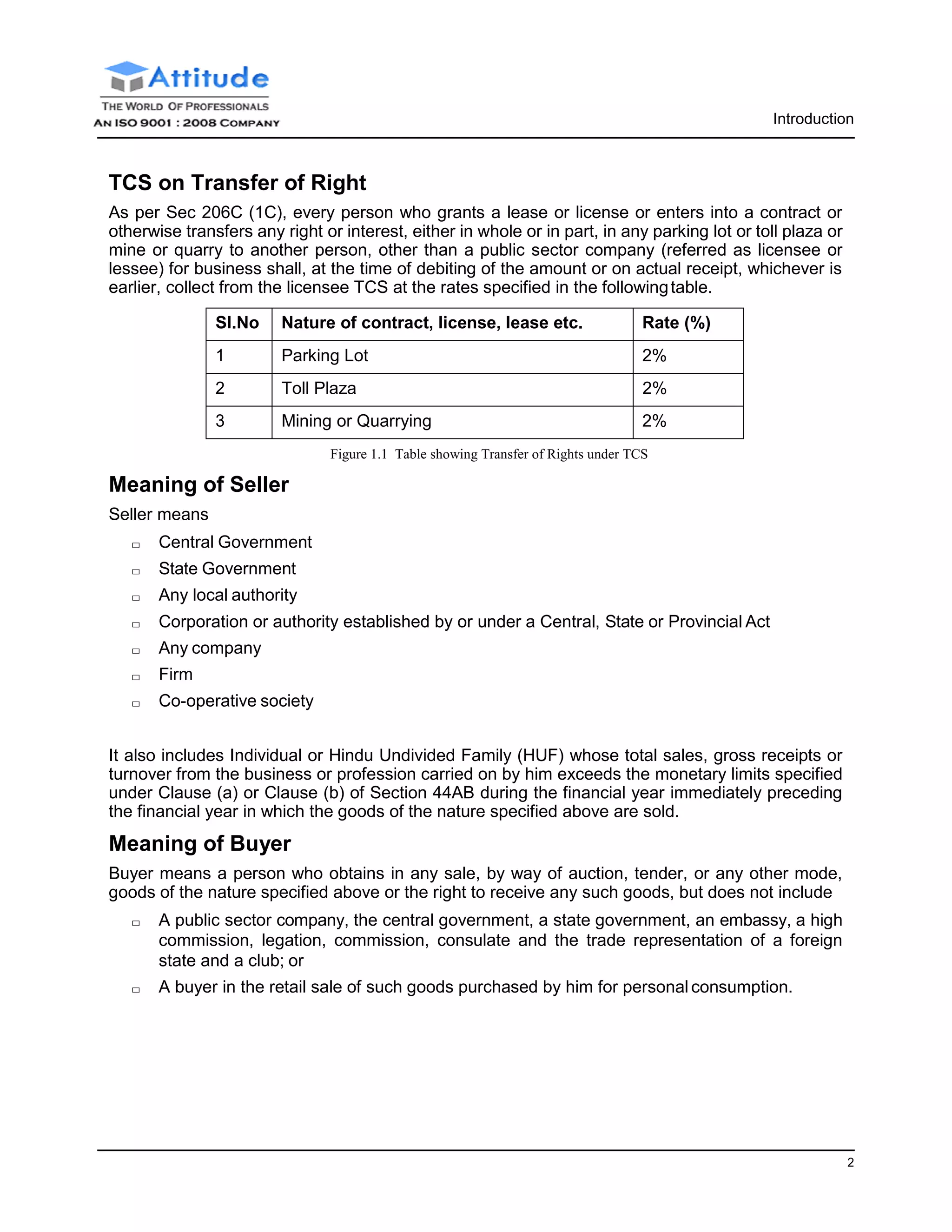
As per Sec 206C (1C), every person who grants a lease or license or enters into a contract or
otherwise transfers any right or interest, either in whole or in part, in any parking lot or toll plaza or
mine or quarry to another person, other than a public sector company (referred as licensee or
lessee) for business shall, at the time of debiting of the amount or on actual receipt, whichever is
earlier, collect from the licensee TCS at the rates specified in the followingtable.
Sl.No Nature of contract, license, lease etc. Rate (%)
1 Parking Lot 2%
2 Toll Plaza 2%
3 Mining or Quarrying 2%
Figure 1.1 Table showing Transfer of Rights under TCS
Meaning of Seller
Seller means
□ Central Government
□ State Government
□ Any local authority
□ Corporation or authority established by or under a Central, State or Provincial Act
□ Any company
□ Firm
□ Co-operative society
It also includes Individual or Hindu Undivided Family (HUF) whose total sales, gross receipts or
turnover from the business or profession carried on by him exceeds the monetary limits specified
under Clause (a) or Clause (b) of Section 44AB during the financial year immediately preceding
the financial year in which the goods of the nature specified above are sold.
Meaning of Buyer
Buyer means a person who obtains in any sale, by way of auction, tender, or any other mode,
goods of the nature specified above or the right to receive any such goods, but does not include
□ A public sector company, the central government, a state government, an embassy, a high
commission, legation, commission, consulate and the trade representation of a foreign
state and a club; or
□ A buyer in the retail sale of such goods purchased by him for personal consumption.
3
Introduction
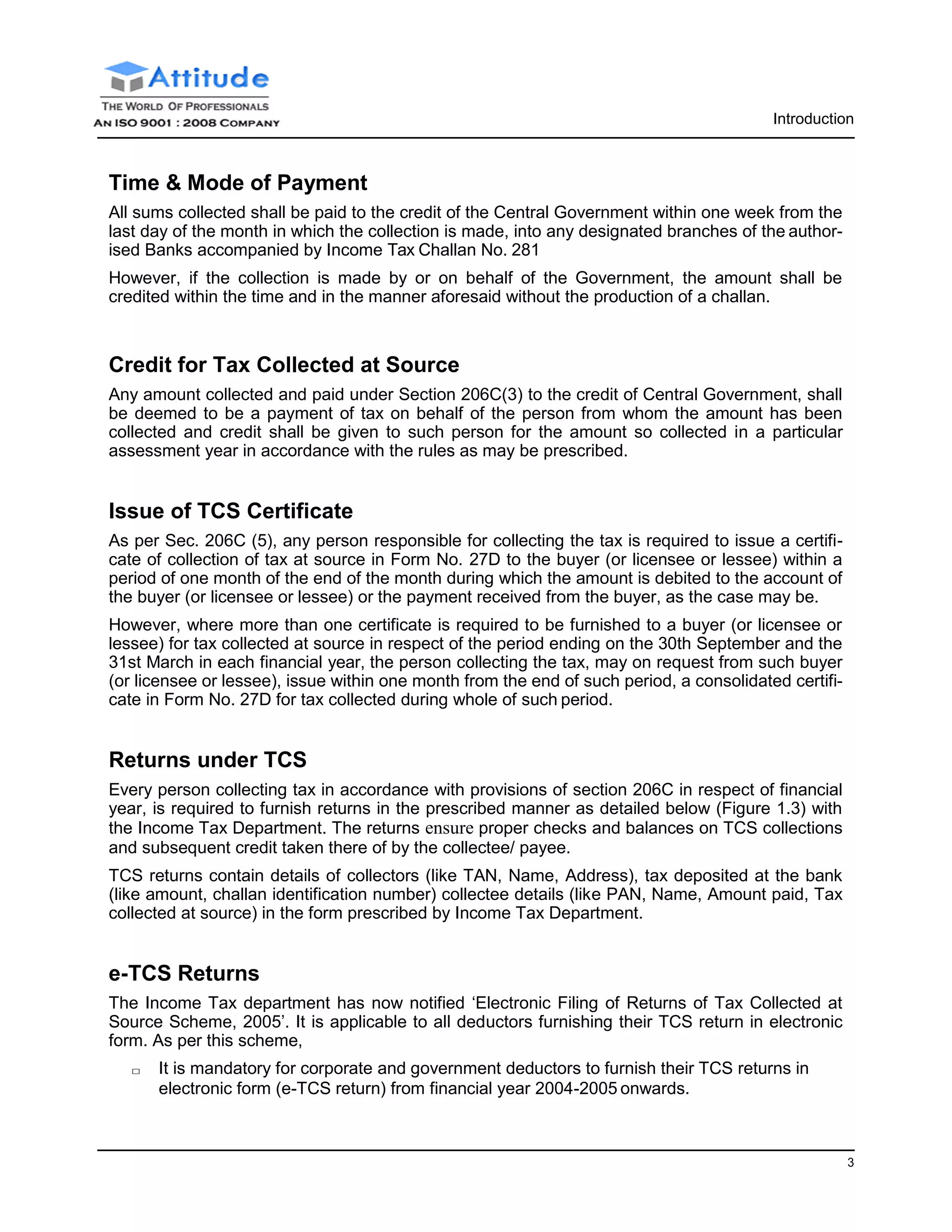
Time & Mode of Payment
All sums collected shall be paid to the credit of the Central Government within one week from the
last day of the month in which the collection is made, into any designated branches of the author-
ised Banks accompanied by Income Tax Challan No. 281
However, if the collection is made by or on behalf of the Government, the amount shall be
credited within the time and in the manner aforesaid without the production of a challan.
Credit for Tax Collected at Source
Any amount collected and paid under Section 206C(3) to the credit of Central Government, shall
be deemed to be a payment of tax on behalf of the person from whom the amount has been
collected and credit shall be given to such person for the amount so collected in a particular
assessment year in accordance with the rules as may be prescribed.
Issue of TCS Certificate
As per Sec. 206C (5), any person responsible for collecting the tax is required to issue a certifi-
cate of collection of tax at source in Form No. 27D to the buyer (or licensee or lessee) within a
period of one month of the end of the month during which the amount is debited to the account of
the buyer (or licensee or lessee) or the payment received from the buyer, as the case may be.
However, where more than one certificate is required to be furnished to a buyer (or licensee or
lessee) for tax collected at source in respect of the period ending on the 30th September and the
31st March in each financial year, the person collecting the tax, may on request from such buyer
(or licensee or lessee), issue within one month from the end of such period, a consolidated certifi-
cate in Form No. 27D for tax collected during whole of such period.
Returns under TCS
Every person collecting tax in accordance with provisions of section 206C in respect of financial
year, is required to furnish returns in the prescribed manner as detailed below (Figure 1.3) with
the Income Tax Department. The returns ensure proper checks and balances on TCS collections
and subsequent credit taken there of by the collectee/ payee.
TCS returns contain details of collectors (like TAN, Name, Address), tax deposited at the bank
(like amount, challan identification number) collectee details (like PAN, Name, Amount paid, Tax
collected at source) in the form prescribed by Income Tax Department.
e-TCS Returns
The Income Tax department has now notified ‘Electronic Filing of Returns of Tax Collected at
Source Scheme, 2005’. It is applicable to all deductors furnishing their TCS return in electronic
form. As per this scheme,
□ It is mandatory for corporate and government deductors to furnish their TCS returns in
electronic form (e-TCS return) from financial year 2004-2005 onwards.
4
Introduction
□ Deductors (other than government and corporates) may file TCS returns in electronic or
physical form.
□ NSDL as the e-TCS intermediary (appointed by ITD) receives, on behalf of ITD, the e-TCS
returns from the deductors.
Deductors furnishing TCS returns in electronic form (e-TCS) have to furnish Form 27B. Form 27B
is a control chart to be furnished in physical form along with CD/ Floppy containing the e-TCS
annual return (Form 27E). Form No 27B is required to be furnished separately for each TCS
return (Form 27E).
Form 27B is a summary of e-TCS returns (Form 27E) which contains control totals of ‘Amount
paid‘ and ‘Income tax collected at source’. The control totals mentioned on Form 27B should
match with the corresponding control totals in e-TCS returns.
Returns & Timelines
The following Returns are required to be filed under TCS:
Financial Year Form No. Particulars Periodicity
2010-11 Form 27E Annual return of collection of tax under
section 206C of Income Tax Act, 1961
Annual
Form 27B Physical control charts containing con-
trol totals mentioned in TCS returns fur-
nished electronically. Form 27B in
physical form to be submitted along
with e-TCS annual return Form 27E.
With each e-TCS
returns Form
27E.
2010-11 Form 27EQ Quarterly return of collection of tax. Quarterly
Form 27B Physical control charts containing con-
trol totals mentioned in TCS returns fur-
nished electronically. Form 27B in
physical form to be submitted along
with e-TCS quarterly return Form
27EQ.
With each e-TCS
returns Form
27EQ.
5
Introduction
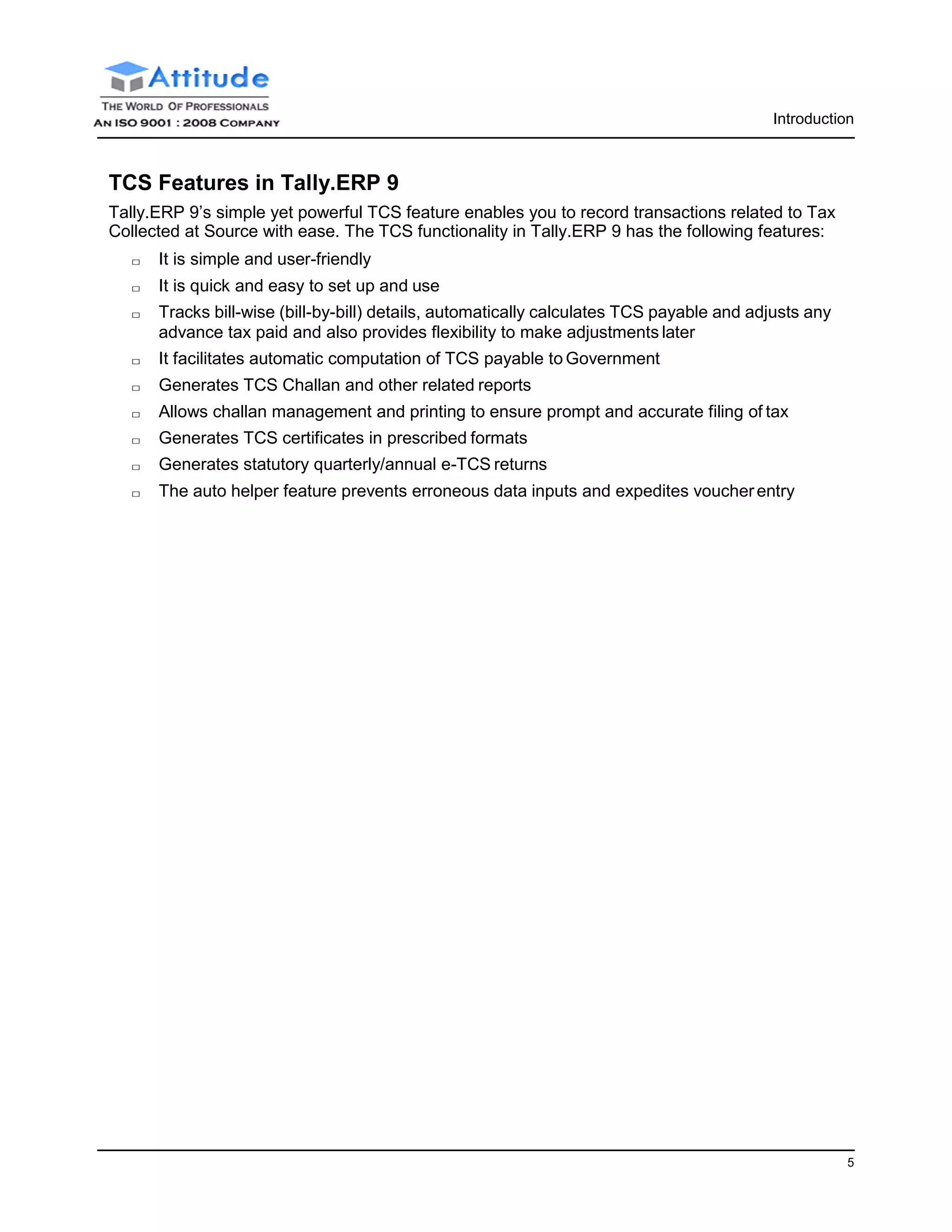
TCS Features in Tally.ERP 9
Tally.ERP 9’s simple yet powerful TCS feature enables you to record transactions related to Tax
Collected at Source with ease. The TCS functionality in Tally.ERP 9 has the following features:
□ It is simple and user-friendly
□ It is quick and easy to set up and use
□ Tracks bill-wise (bill-by-bill) details, automatically calculates TCS payable and adjusts any
advance tax paid and also provides flexibility to make adjustments later
□ It facilitates automatic computation of TCS payable to Government
□ Generates TCS Challan and other related reports
□ Allows challan management and printing to ensure prompt and accurate filing of tax
□ Generates TCS certificates in prescribed formats
□ Generates statutory quarterly/annual e-TCS returns
□ The auto helper feature prevents erroneous data inputs and expedites voucherentry
Introduction
6
Lesson 1: Configuring Tally.ERP 9 for TCS
Lesson Objectives
On completion of this lesson, you will learn to
□ Create TCS masters in Tally.ERP 9
Enabling TCS in Tally.ERP 9
It takes a one-time configuration in Tally.ERP 9 for TCS features to be activated. Follow the steps
given below to enable TCS in Tally.ERP 9 for a new company, M/s. .
M/s. Ganesh Enterprises, is a domestic company, which is engaged in trading of Timber & other
allied products.
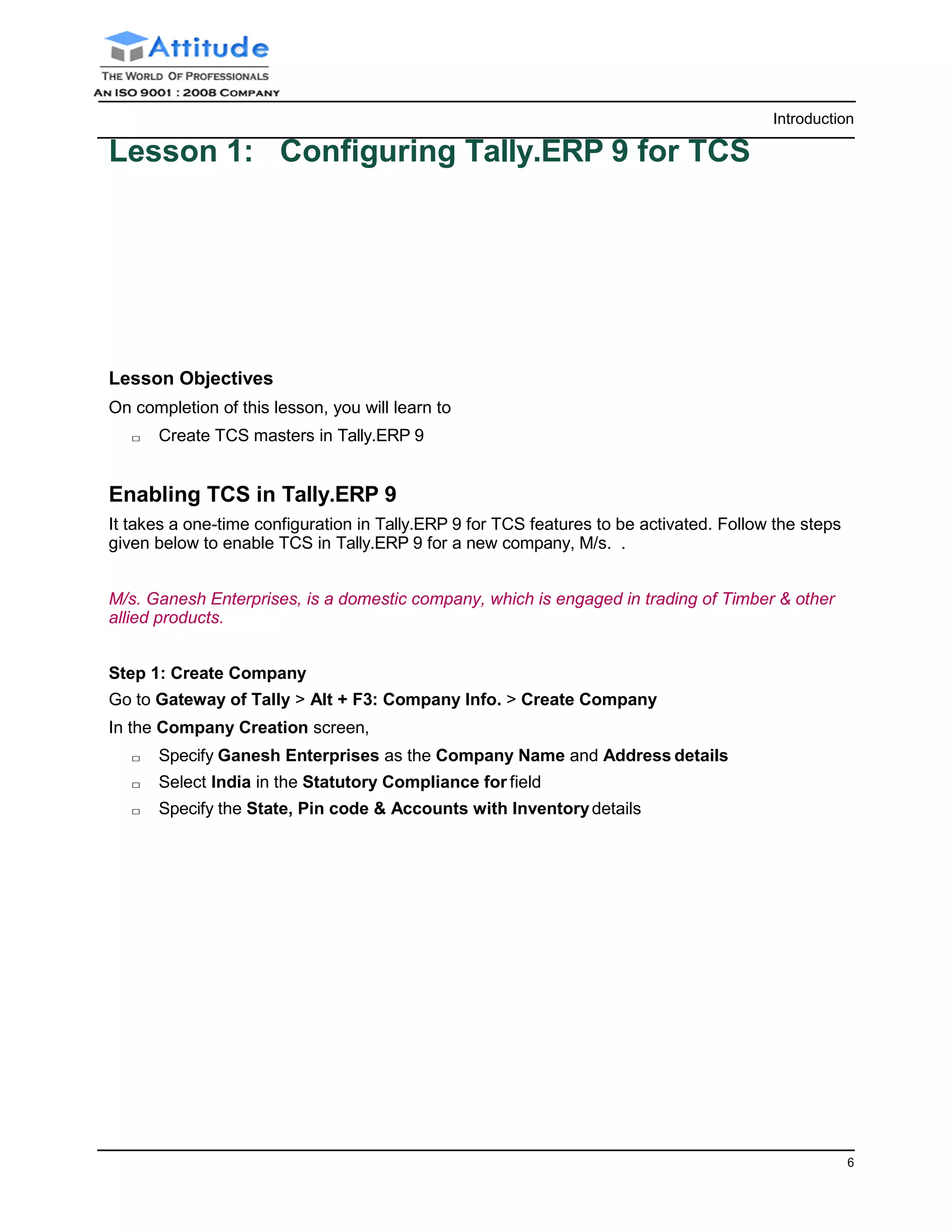
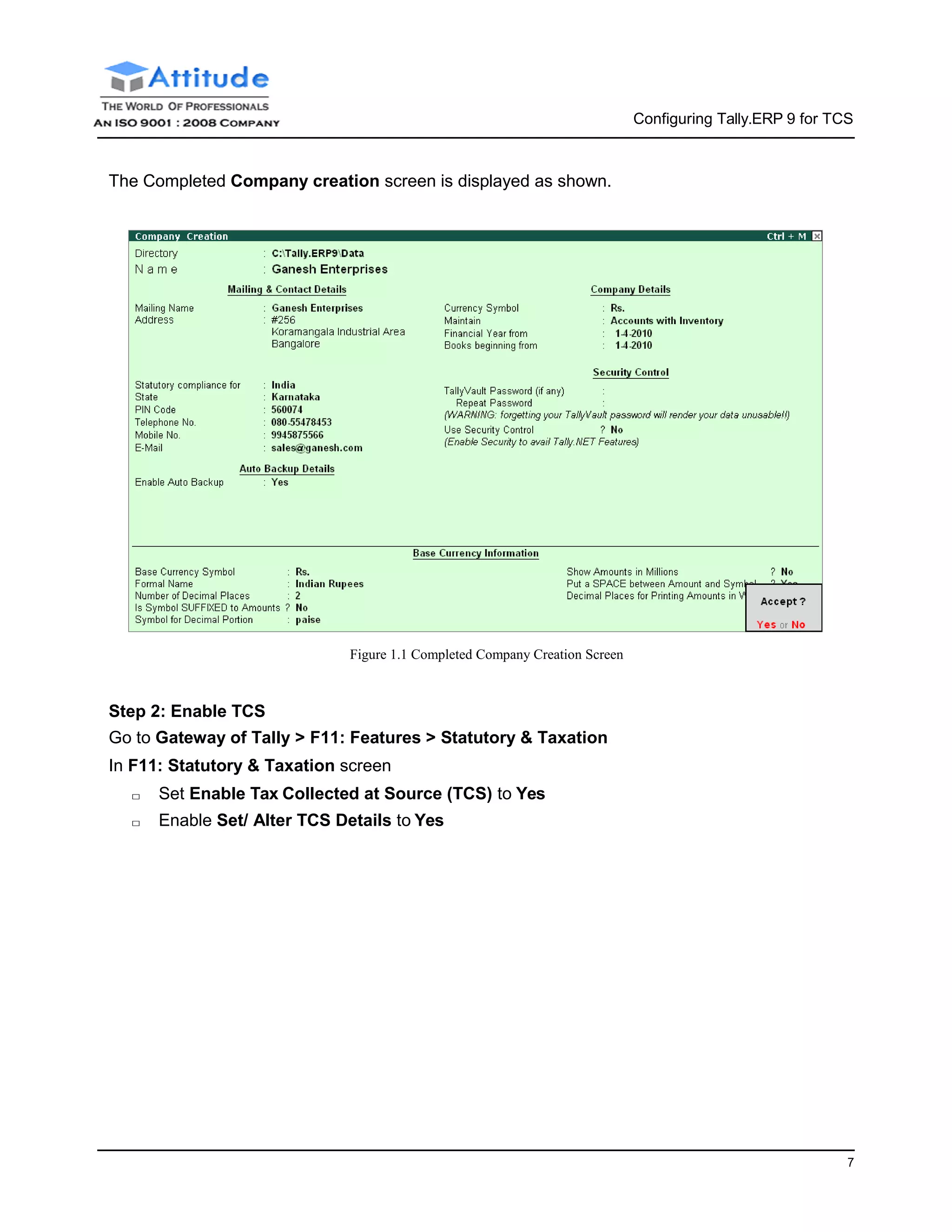
Step 1: Create Company
Go to Gateway of Tally > Alt + F3: Company Info. > Create Company
In the Company Creation screen,
□ Specify Ganesh Enterprises as the Company Name and Address details
□ Select India in the Statutory Compliance for field
□ Specify the State, Pin code & Accounts with Inventorydetails
7
Configuring Tally.ERP 9 for TCS
The Completed Company creation screen is displayed as shown.
Figure 1.1 Completed Company Creation Screen
Step 2: Enable TCS
Go to Gateway of Tally > F11: Features > Statutory & Taxation
In F11: Statutory & Taxation screen
□ Set Enable Tax Collected at Source (TCS) to Yes
□ Enable Set/ Alter TCS Details to Yes
8
Configuring Tally.ERP 9 for TCS
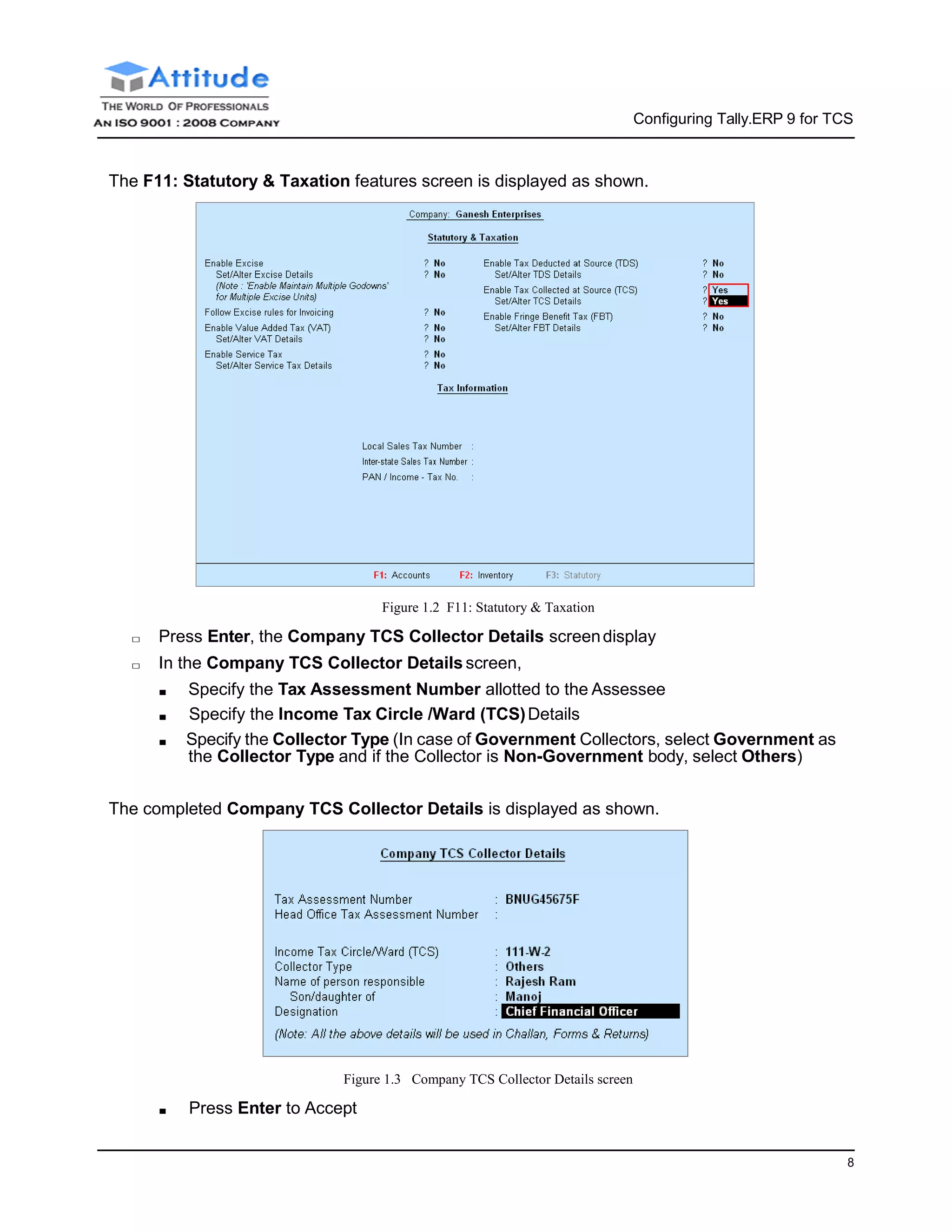
The F11: Statutory & Taxation features screen is displayed as shown.
Figure 1.2 F11: Statutory & Taxation
□ Press Enter, the Company TCS Collector Details screendisplay
□ In the Company TCS Collector Details screen,
■ Specify the Tax Assessment Number allotted to the Assessee
■ Specify the Income Tax Circle /Ward (TCS)Details
■ Specify the Collector Type (In case of Government Collectors, select Government as
the Collector Type and if the Collector is Non-Government body, select Others)
The completed Company TCS Collector Details is displayed as shown.
Figure 1.3 Company TCS Collector Details screen
■ Press Enter to Accept
9
Configuring Tally.ERP 9 for TCS
Step 3: Enable VAT
In F11: Statutory & Taxation Features
□ Set Enable Value Added Tax (VAT) to Yes
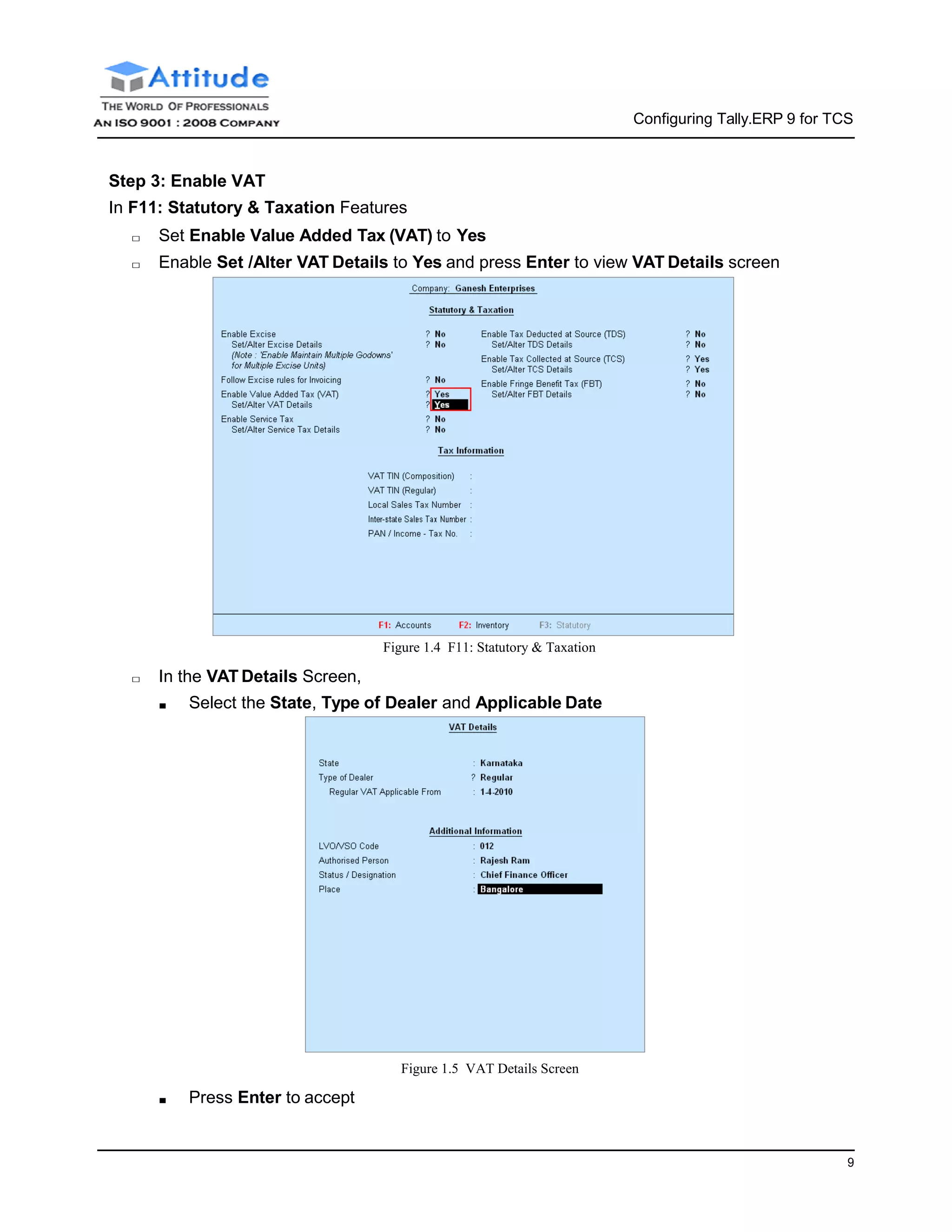
□ Enable Set /Alter VAT Details to Yes and press Enter to view VAT Details screen
□ In the VAT Details Screen,
Figure 1.4 F11: Statutory & Taxation
■ Select the State, Type of Dealer and Applicable Date
■ Press Enter to accept
Figure 1.5 VAT Details Screen
Configuring Tally.ERP 9 for TCS
13
□ Enter the VAT TIN, PAN No. & other details
□ Press Enter to Accept.
TCS Statutory Masters
Before creating Masters, the following Statutory Masters are loaded into Tally.ERP 9
□ Collectee Types
□ TCS Nature of Goods
Collectee Types
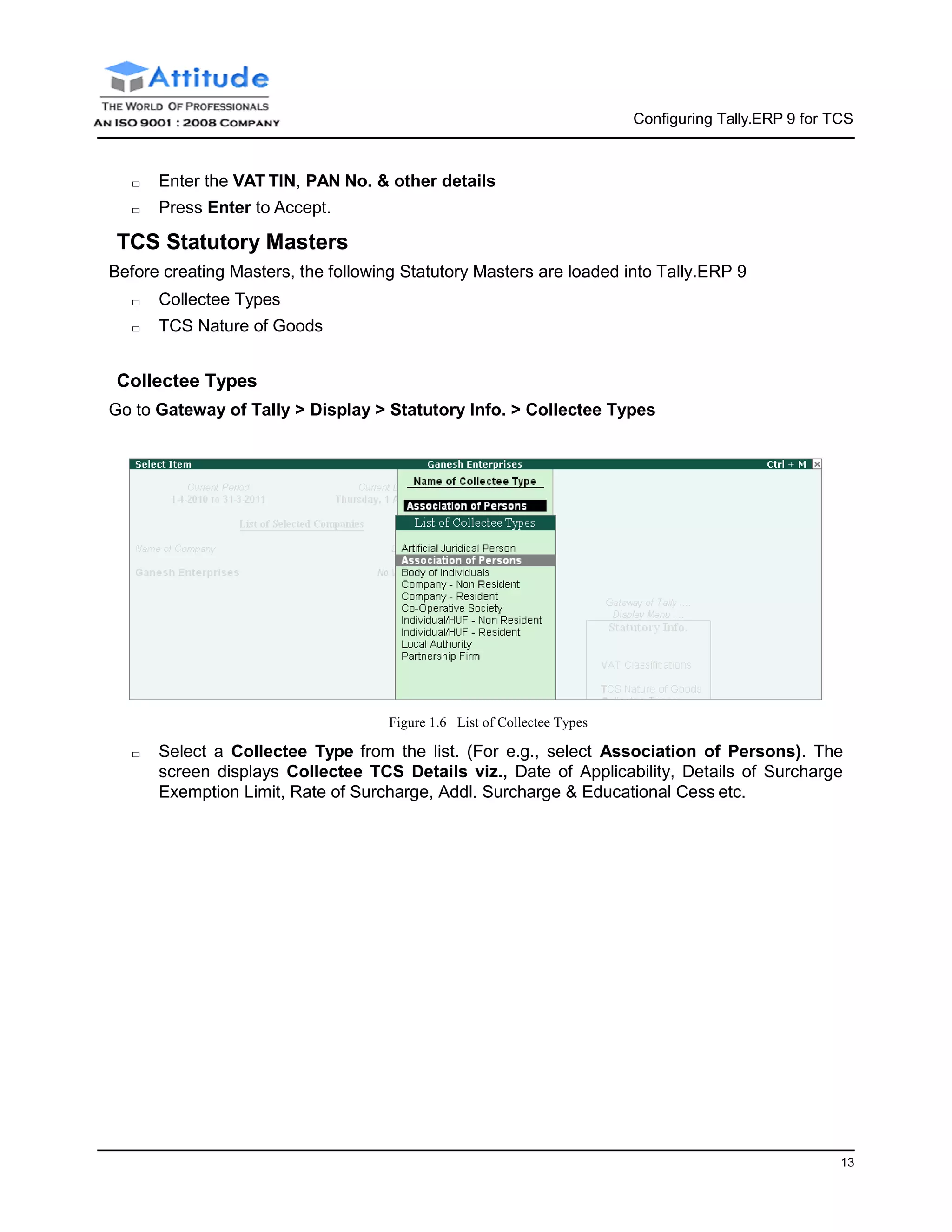
Go to Gateway of Tally > Display > Statutory Info. > Collectee Types
Figure 1.6 List of Collectee Types
□ Select a Collectee Type from the list. (For e.g., select Association of Persons). The
screen displays Collectee TCS Details viz., Date of Applicability, Details of Surcharge
Exemption Limit, Rate of Surcharge, Addl. Surcharge & Educational Cess etc.
Configuring Tally.ERP 9 for TCS
13
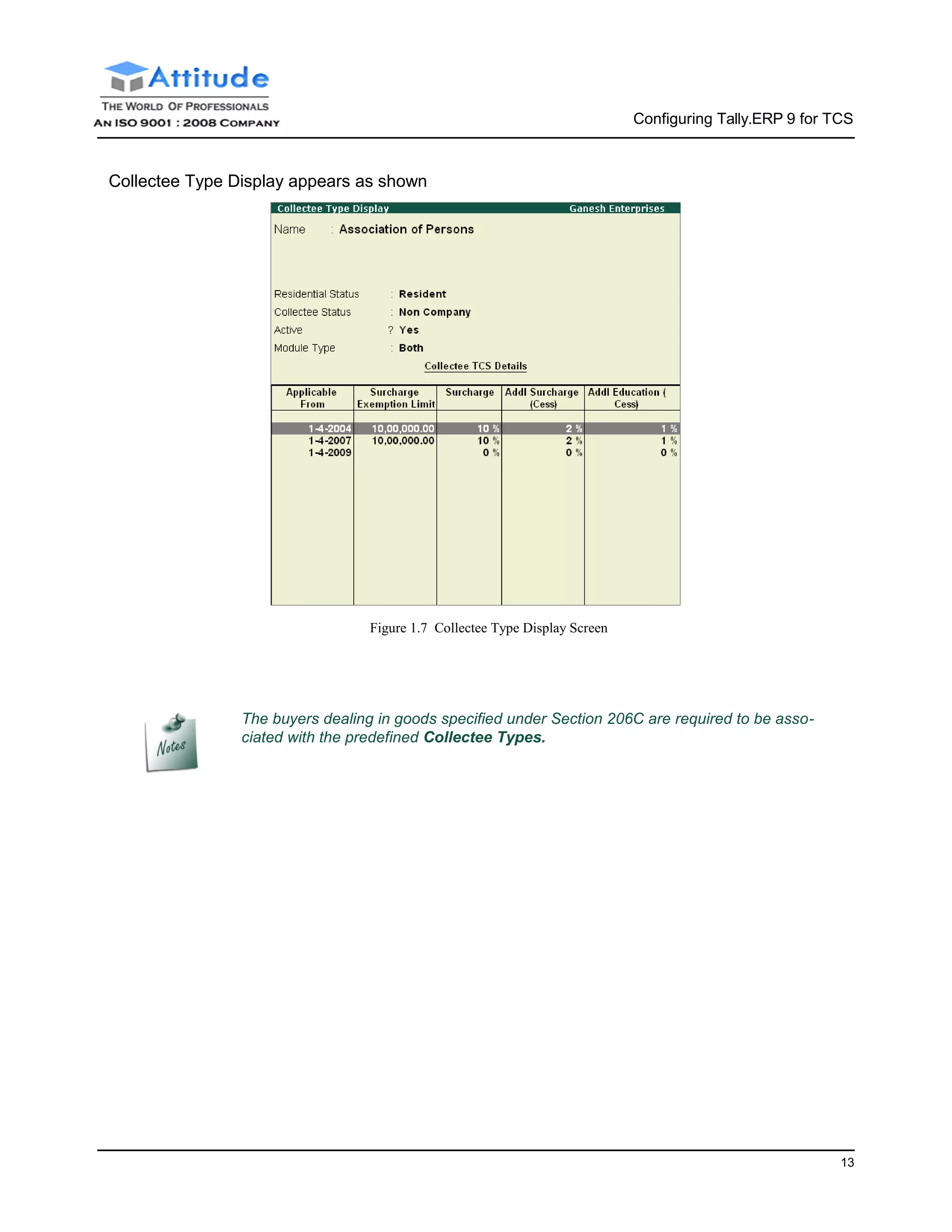
Collectee Type Display appears as shown
Figure 1.7 Collectee Type Display Screen
The buyers dealing in goods specified under Section 206C are required to be asso-
ciated with the predefined Collectee Types.
Configuring Tally.ERP 9 for TCS
12
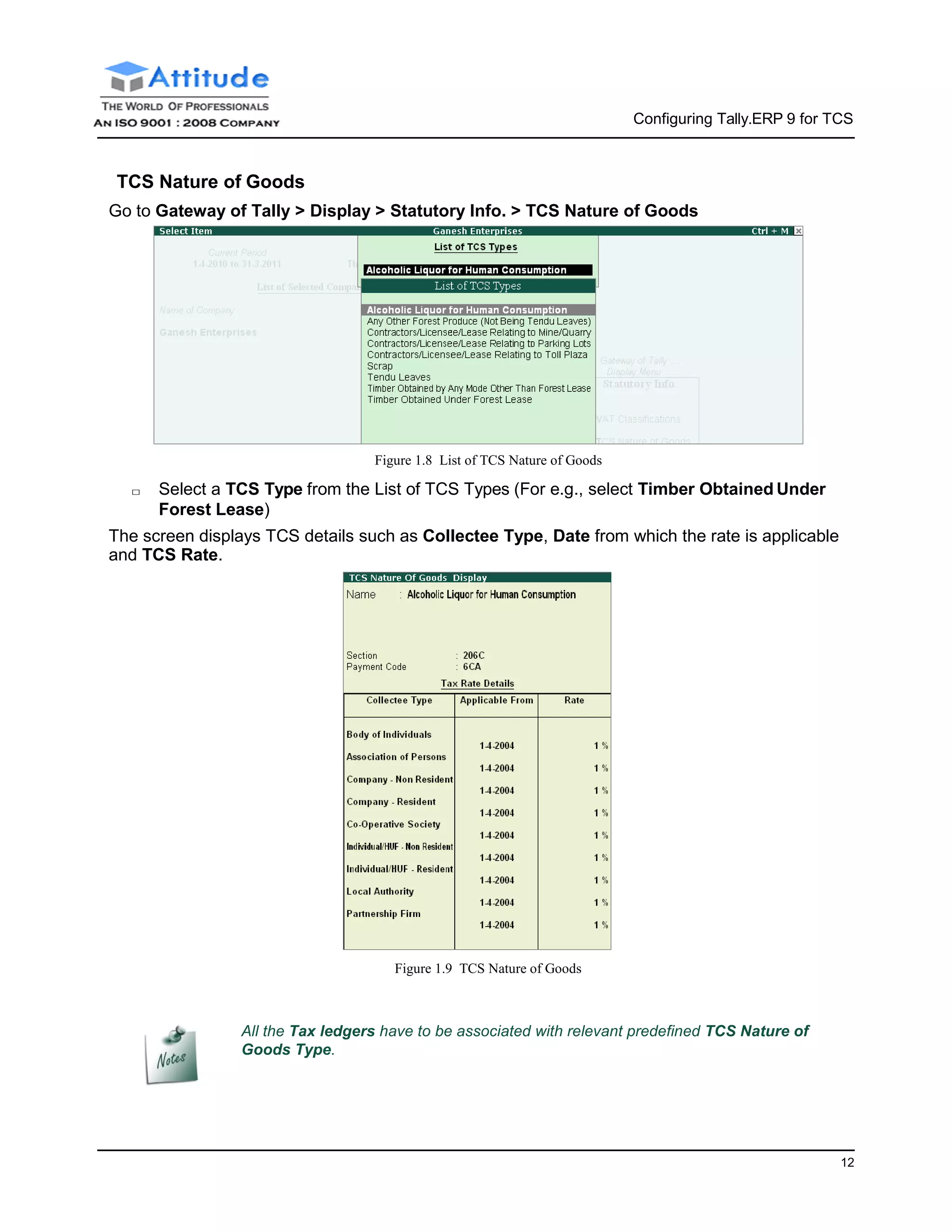
TCS Nature of Goods
Go to Gateway of Tally > Display > Statutory Info. > TCS Nature of Goods
Figure 1.8 List of TCS Nature of Goods
□ Select a TCS Type from the List of TCS Types (For e.g., select Timber Obtained Under
Forest Lease)
The screen displays TCS details such as Collectee Type, Date from which the rate is applicable
and TCS Rate.
Figure 1.9 TCS Nature of Goods
All the Tax ledgers have to be associated with relevant predefined TCS Nature of
Goods Type.
13
Lesson 2: Creating TCS Masters
Creation of TCS Masters
Once the TCS feature is enabled in Tally.ERP 9, TCS options will now be available during creation
of masters and recording transactions.
Ledger Classifications
The following Ledger masters are required to be created with the relevant TCS information
□ Sales Accounts
□ Tax Ledgers
□ Party Ledgers
□ Direct Income Ledgers
□ Bank Ledger
i. Sales Accounts
Ledger Under Inventoryvalues
are affected
Used in VAT
returns
VAT/Tax Class
Sales @ 12.5% Sales Accounts Yes Yes Sales @ 12.5%
Sales @ 20% Sales Accounts Yes Yes Sales @ 20%
Go to Gateway of Tally > Accounts Info. > Ledgers > Create
Create Sales Ledgers
□ Type Sales @ 12.5% as the Ledger Name
□ Select Sales Accounts in the Group field
□ Set Inventory values are affected to Yes
□ Set Used In VAT Returns to Yes and press Enter to view VAT/Tax Class Screen
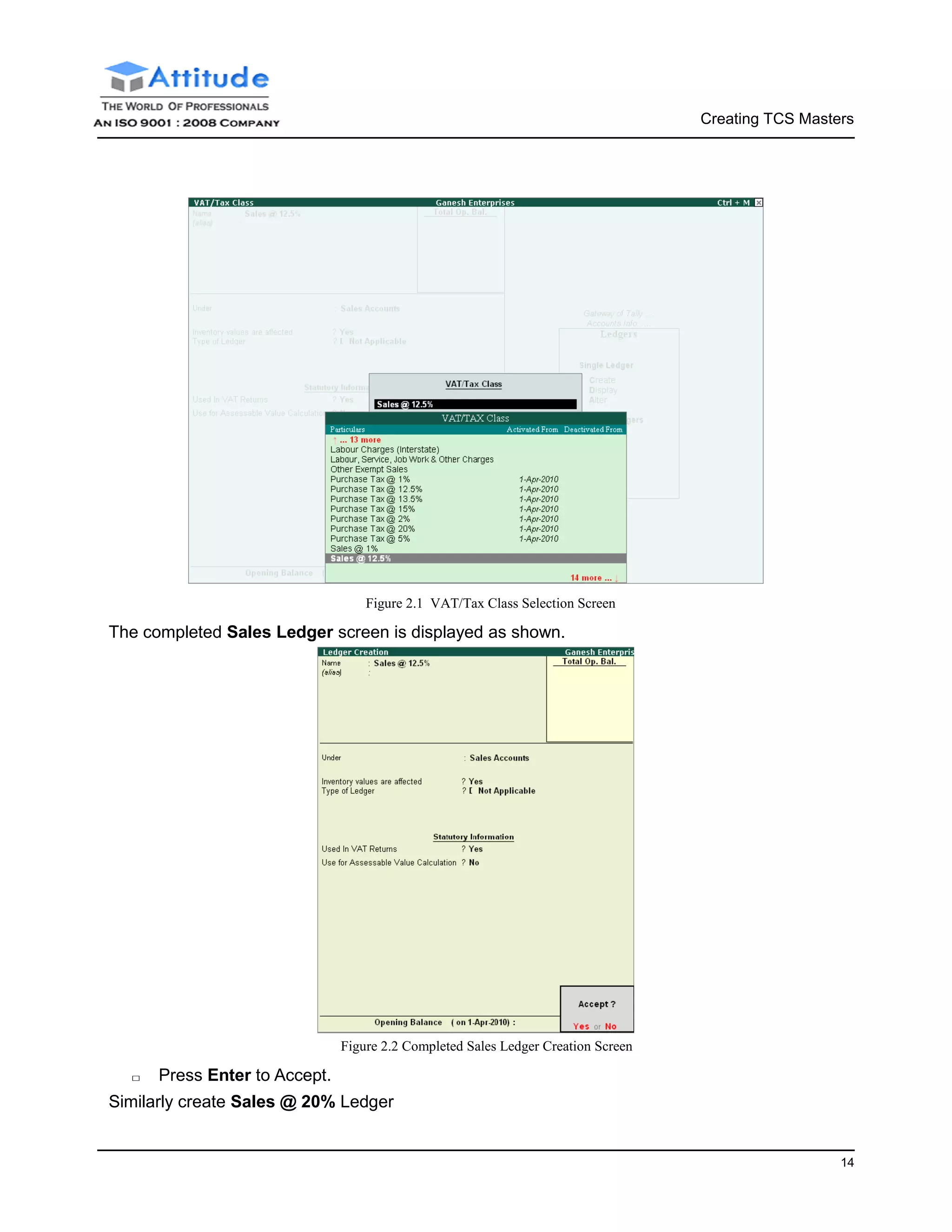
□ In VAT/Tax Class Screen select Sales @ 12.5% as VAT/Tax Class
Creating TCS Masters
14
Figure 2.1 VAT/Tax Class Selection Screen
The completed Sales Ledger screen is displayed as shown.
□ Press Enter to Accept.
Figure 2.2 Completed Sales Ledger Creation Screen
Similarly create Sales @ 20% Ledger
Creating TCS Masters
15
ii. Tax Ledgers
Create the following Tax ledgers:
□ TCS Ledgers
□ VAT Ledgers
TCS Ledgers
Ledger Under Type of
Duty/ Tax
Nature of Goods/Contract/License/
Lease
TCS @ 2.5% Duties and Taxes TCS Timber Obtained Under Forest Lease
TCS @ 0.5% Duties and Taxes TCS Alcoholic Liquor for Human Consumption
TCS @ 2% Duties and Taxes TCS Contractors/Licensee/Lease Relating to
Parking Lots
Go to Gateway of Tally > Accounts Info. > Ledgers > Create
In the Ledger Creation screen,
□ Type TCS @ 2.5% as the Ledger Name
□ Group it under Duties & Taxes group
□ Select TCS as the Type of Duty/Tax
□ Select Timber Obtained Under Forest Lease in the Nature of Goods/Contract/License/
Lease field.
The completed TCS @ 2.5% ledger screen is displayed as shown
□ Press Enter to Accept.
Figure 2.3 Completed TCS Ledger Creation Screen
Creating TCS Masters
16
Similarly, create TCS @ 0.5% and TCS @ 2% ledgers (select the appropriate Nature of Goods/
Contract/License/Lease)
VAT Ledger
Ledger Under Type of
Duty/ Tax
VAT Sub
Type
VAT/Tax Class
Output VAT @ 12.5% Duties & Taxes VAT Output VAT Output VAT @ 12.5%
Output VAT @ 20% Duties & Taxes VAT Output VAT Output VAT @ 20%
Go to Gateway of Tally > Accounts Info. > Ledgers > Create
In the Ledger Creation screen,
□ Type Output VAT @ 12.5% as the Ledger Name
□ Group it under Duties & Taxes group
□ Select Output VAT @ 12.5% as the VAT/Tax Class
□ Set Inventory values are affected to No
□ based on the VAT/Tax Class, Percentage of Calculation and Method of Calculation
fields are updated automatically
□ Select Not Applicable in Rounding Method field.
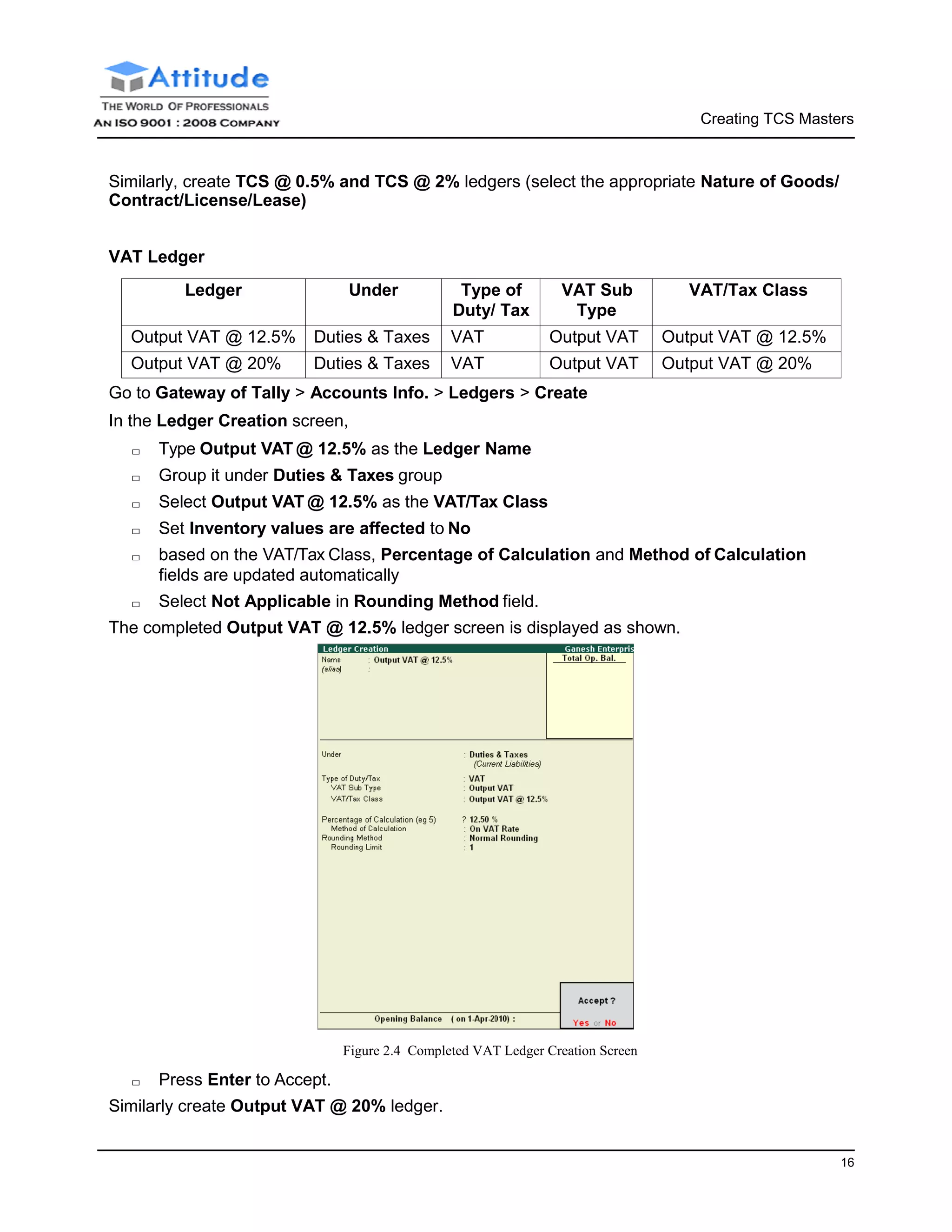
The completed Output VAT @ 12.5% ledger screen is displayed as shown.
□ Press Enter to Accept.
Figure 2.4 Completed VAT Ledger Creation Screen
Similarly create Output VAT @ 20% ledger.
Creating TCS Masters
17
iii. Party Ledger
Ledger Under Maintain balances
bill-by-bill
Is TCS
Applicable
Buyer/Lessee
(Collectee Type)
Chandra
Timbers
Sundry Debtors Yes Yes Association of
Persons
Royal
Liquors
Sundry Debtors Yes Yes Company –
Resident
Prakash
Enterprises
Sundry Debtors Yes Yes Body of Indi-
viduals
Mahesh
Timbers
Sundry Debtors Yes Yes Association of
Persons
Go to Gateway of Tally > Accounts Info. > Ledgers > Create
In the Ledger Creation screen,
Setup:
In F12: Configuration (Ledger Configuration) set the below option to Yes
□ Allow ADVANCED entries in Masters
□ Use ADDRESSES for Ledger Accounts
□ Use Contact Details for Ledger Accounts
In Ledger Creation screen
□ Type Chandra Timbers as the Ledger Name
□ Group it under Sundry Debtors group
□ Set Maintain balances bill-by-bill to Yes
□ Mention the Default Credit Period, if any
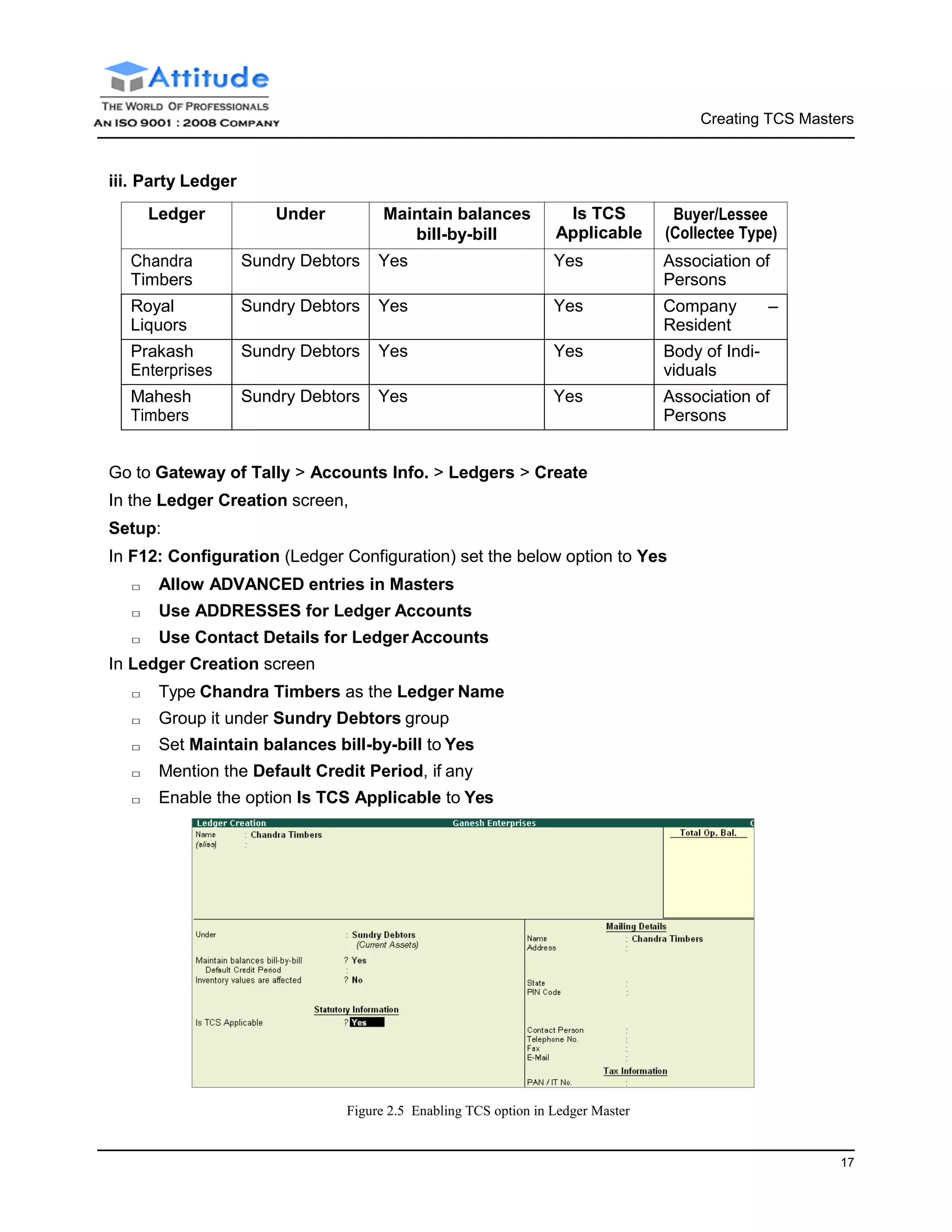
□ Enable the option Is TCS Applicable to Yes
Figure 2.5 Enabling TCS option in Ledger Master
Creating TCS Masters
18
□ Press Enter to view TCS Details Screen
□ In the TCS Details screen
■ Select Association of Persons as the Buyer/Lessee
■ Set Is Lower/ No Collection Applicable to No
■ Set Ignore Surcharge Exemption Limit to No
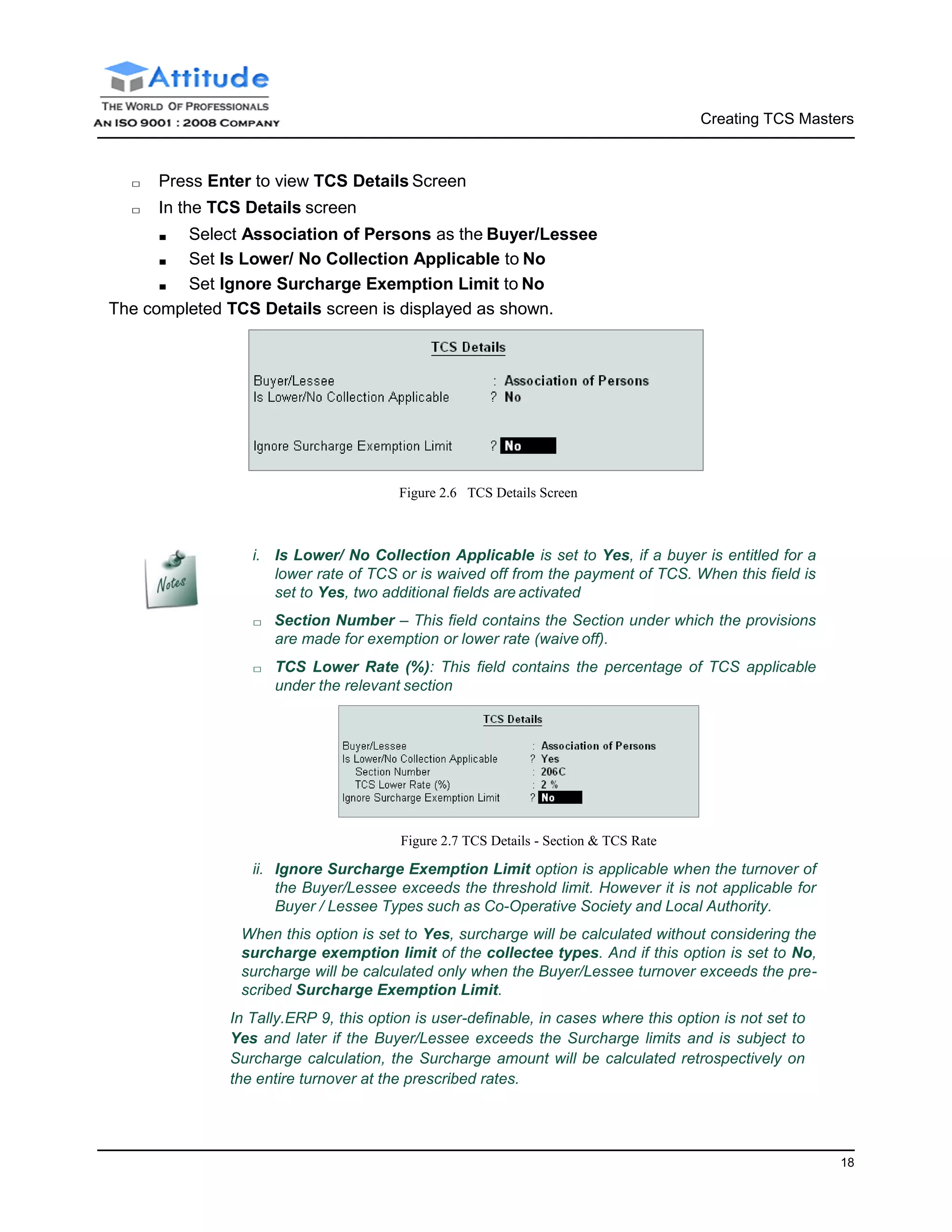
The completed TCS Details screen is displayed as shown.
Figure 2.6 TCS Details Screen
i. Is Lower/ No Collection Applicable is set to Yes, if a buyer is entitled for a
lower rate of TCS or is waived off from the payment of TCS. When this field is
set to Yes, two additional fields are activated
□ Section Number – This field contains the Section under which the provisions
are made for exemption or lower rate (waive off).
□ TCS Lower Rate (%): This field contains the percentage of TCS applicable
under the relevant section
Figure 2.7 TCS Details - Section & TCS Rate
ii. Ignore Surcharge Exemption Limit option is applicable when the turnover of
the Buyer/Lessee exceeds the threshold limit. However it is not applicable for
Buyer / Lessee Types such as Co-Operative Society and Local Authority.
When this option is set to Yes, surcharge will be calculated without considering the
surcharge exemption limit of the collectee types. And if this option is set to No,
surcharge will be calculated only when the Buyer/Lessee turnover exceeds the pre-
scribed Surcharge Exemption Limit.
In Tally.ERP 9, this option is user-definable, in cases where this option is not set to
Yes and later if the Buyer/Lessee exceeds the Surcharge limits and is subject to
Surcharge calculation, the Surcharge amount will be calculated retrospectively on
the entire turnover at the prescribed rates.
Creating TCS Masters
19
□ Enter the Customer’s Mailing Details and Tax Information.
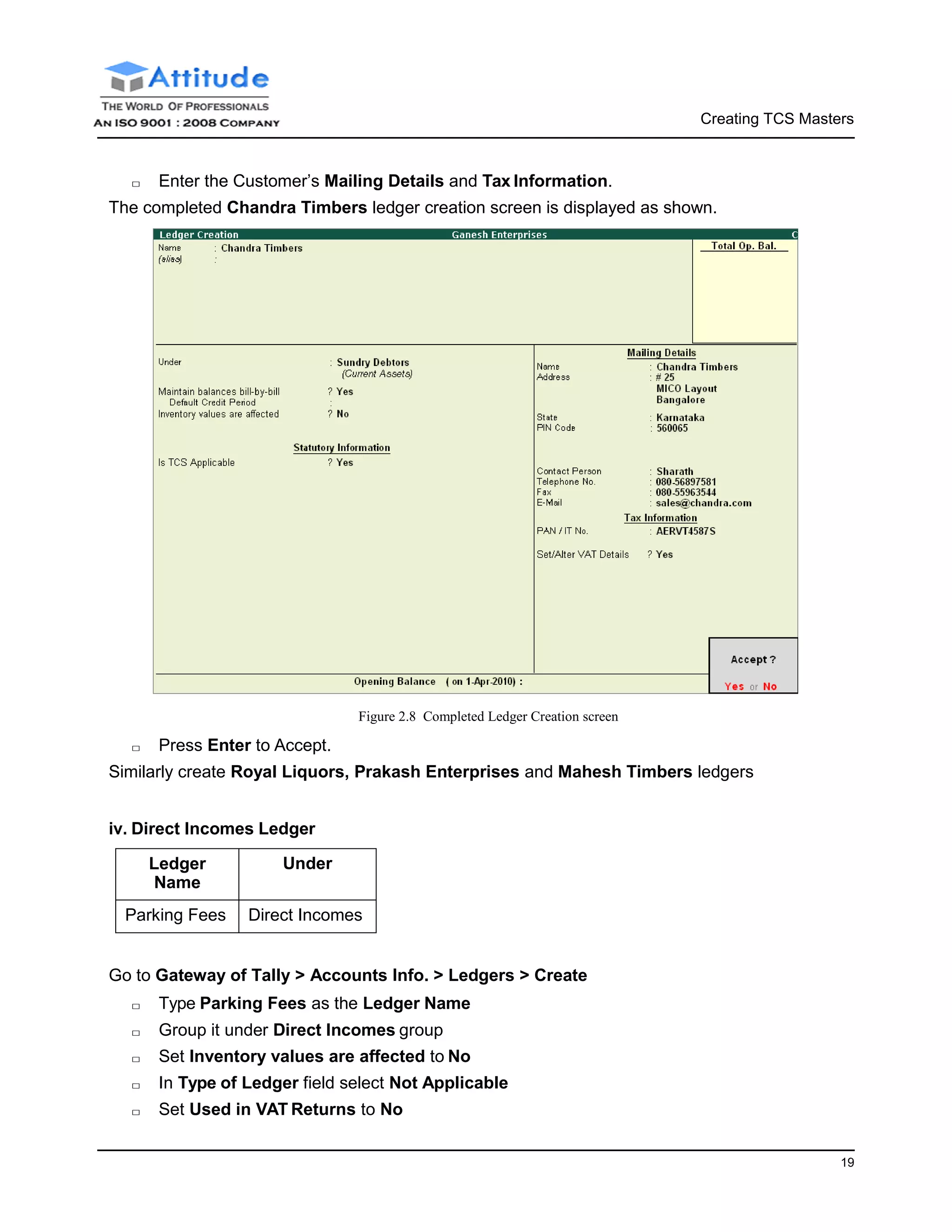
The completed Chandra Timbers ledger creation screen is displayed as shown.
□ Press Enter to Accept.
Figure 2.8 Completed Ledger Creation screen
Similarly create Royal Liquors, Prakash Enterprises and Mahesh Timbers ledgers
iv. Direct Incomes Ledger
Ledger
Name
Under
Parking Fees Direct Incomes
Go to Gateway of Tally > Accounts Info. > Ledgers > Create
□ Type Parking Fees as the Ledger Name
□ Group it under Direct Incomes group
□ Set Inventory values are affected to No
□ In Type of Ledger field select Not Applicable
□ Set Used in VAT Returns to No
Creating TCS Masters
21
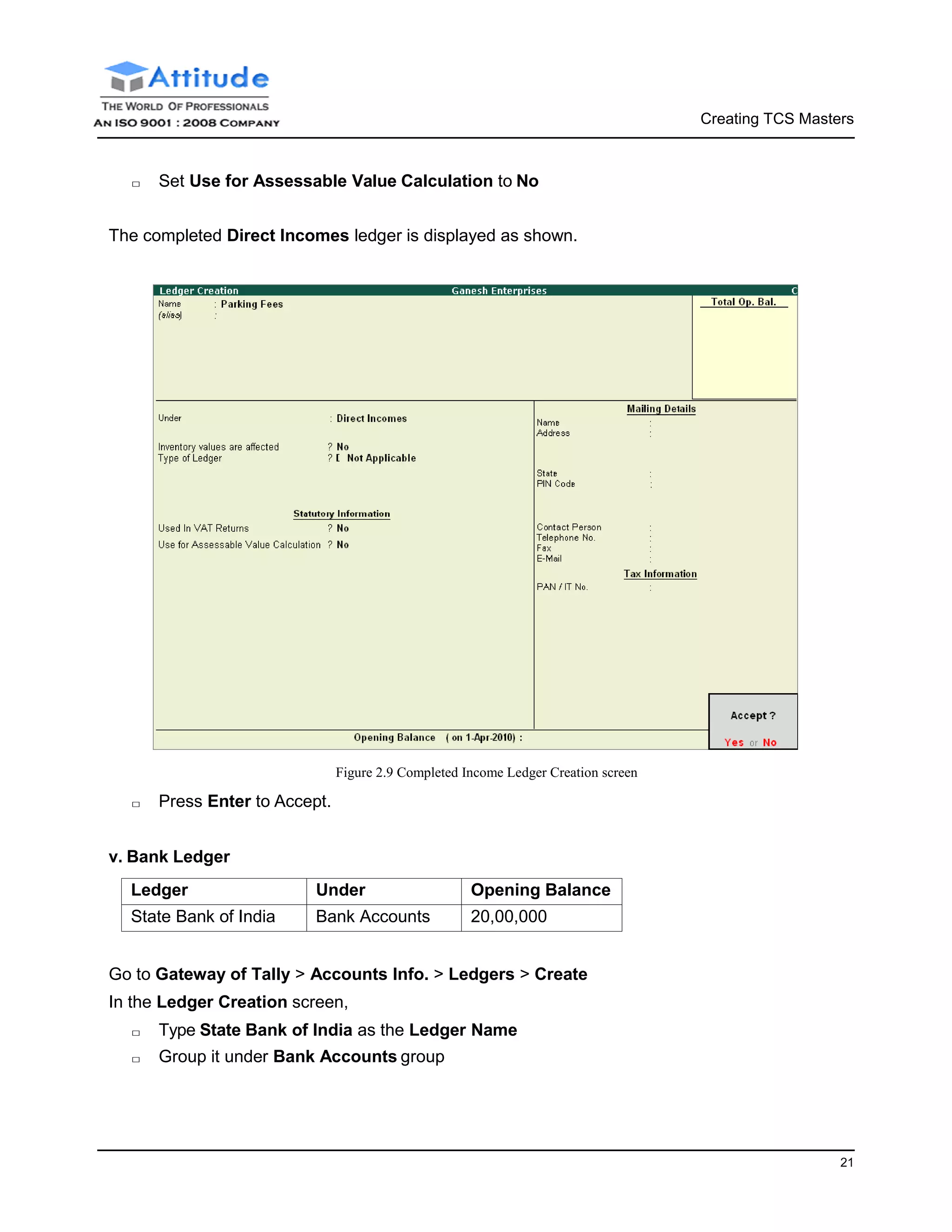
□ Set Use for Assessable Value Calculation to No
The completed Direct Incomes ledger is displayed as shown.
Figure 2.9 Completed Income Ledger Creation screen
□ Press Enter to Accept.
v. Bank Ledger
Ledger Under Opening Balance
State Bank of India Bank Accounts 20,00,000
Go to Gateway of Tally > Accounts Info. > Ledgers > Create
In the Ledger Creation screen,
□ Type State Bank of India as the Ledger Name
□ Group it under Bank Accounts group
Creating TCS Masters
21
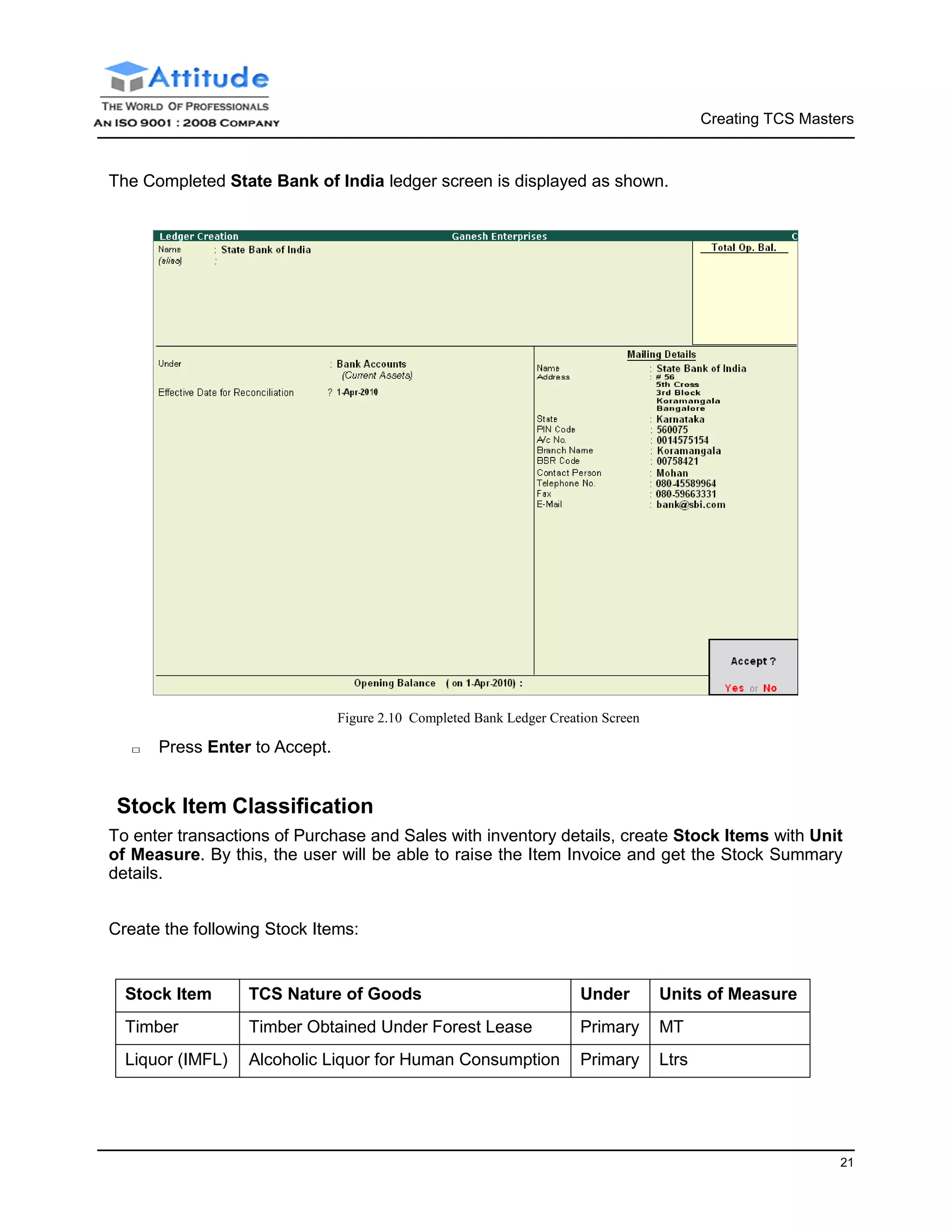
The Completed State Bank of India ledger screen is displayed as shown.
□ Press Enter to Accept.
Figure 2.10 Completed Bank Ledger Creation Screen
Stock Item Classification
To enter transactions of Purchase and Sales with inventory details, create Stock Items with Unit
of Measure. By this, the user will be able to raise the Item Invoice and get the Stock Summary
details.
Create the following Stock Items:
Stock Item TCS Nature of Goods Under Units of Measure
Timber Timber Obtained Under Forest Lease Primary MT
Liquor (IMFL) Alcoholic Liquor for Human Consumption Primary Ltrs
Creating TCS Masters
22
Go to Gateway of Tally > Inventory Info. > Stock Items > Create
□ Type Timber as the Stock Item Name
□ Group it under Primary group
□ In Units field select MT (Metric Tones)
□ In Tariff Classification field select Not Applicable
□ Enter the Rate of Duty, if applicable
□ In TCS Nature of Goods field, select Timber Obtained Under Forest Lease from the List
of TCS Types
□ In Commodity field select Not Applicable
□ In Rate of VAT field, enter 12.5% as the VAT rate.
□ Enter the Opening Balance as 1000 MT in Quantity field
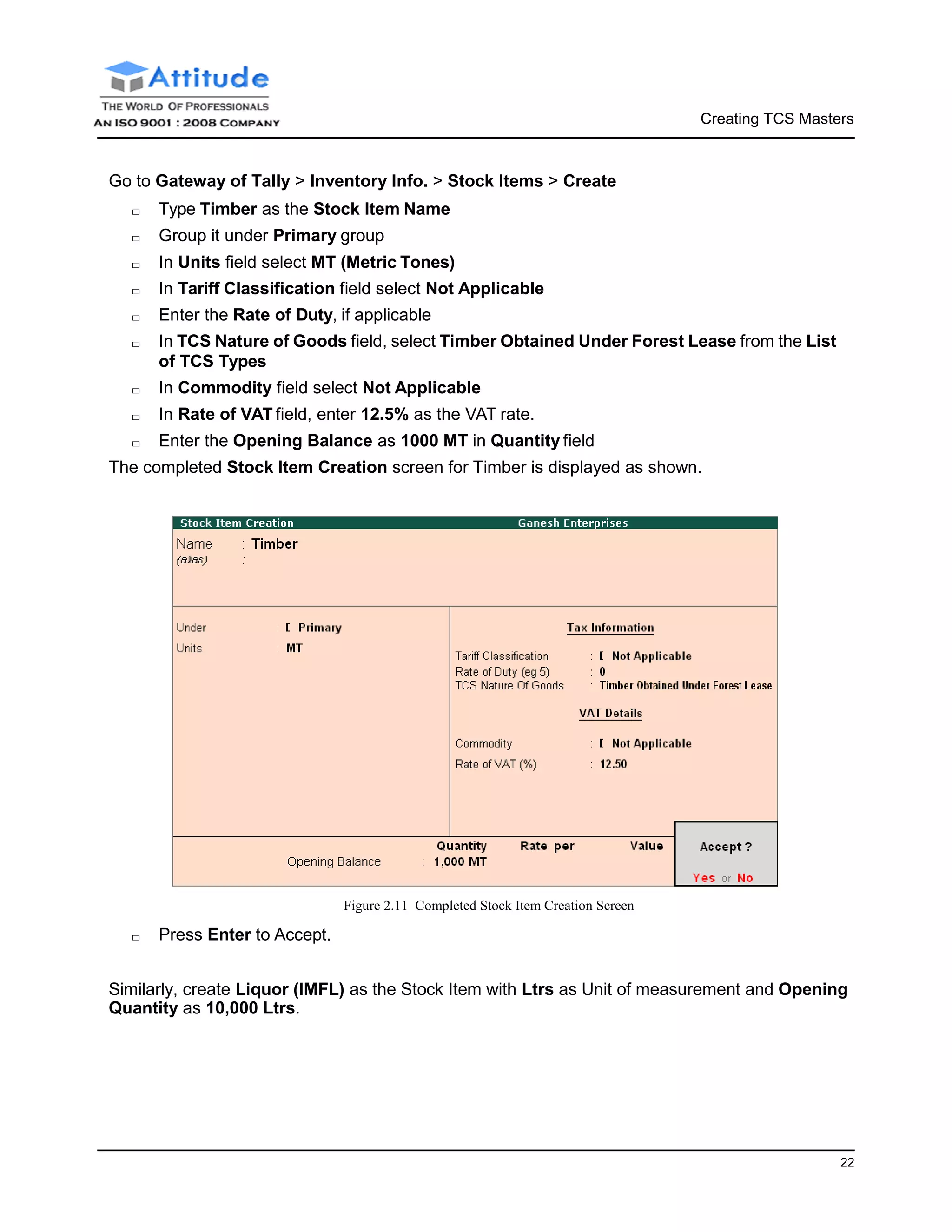
The completed Stock Item Creation screen for Timber is displayed as shown.
□ Press Enter to Accept.
Figure 2.11 Completed Stock Item Creation Screen
Similarly, create Liquor (IMFL) as the Stock Item with Ltrs as Unit of measurement and Opening
Quantity as 10,000 Ltrs.
23
Lesson 3: TCS Transactions
Lesson objectives
On completion of this lesson, you will learn how to
□ Record TCS transactions in Tally.ERP 9
□ Reconcile TCS Challans
As discussed earlier, a seller is liable to collect Tax at source from buyer/licensee, on sale of
goods or transfer of rights under Section 206C(1). Consider the following scenarios to understand
the implementation of TCS in Tally.ERP 9:
□ Sale of Goods subject to TCS
□ Sale of Goods subject to TCS @ Lower Rate
□ Sale of Goods subject to TCS @ Nil Rate
Before recording the above transactions ensure whether all the necessary Purchases, Sales &
Tax ledgers are created as discussed in the earlier chapter.
Sale of Goods Subject to TCS
Example 1:
On 1-4-2010, M/s. Ganesh Enterprises sold the following goods to M/s. Chandra Timbers
Item Description Qty Rate (Rs.) TCS(%) VAT (%)
Timber 100 MT 7500 2.5% 12.5%
The above Timber was obtained under forest lease.
TCS Transactions
24
The same is accounted as shown:
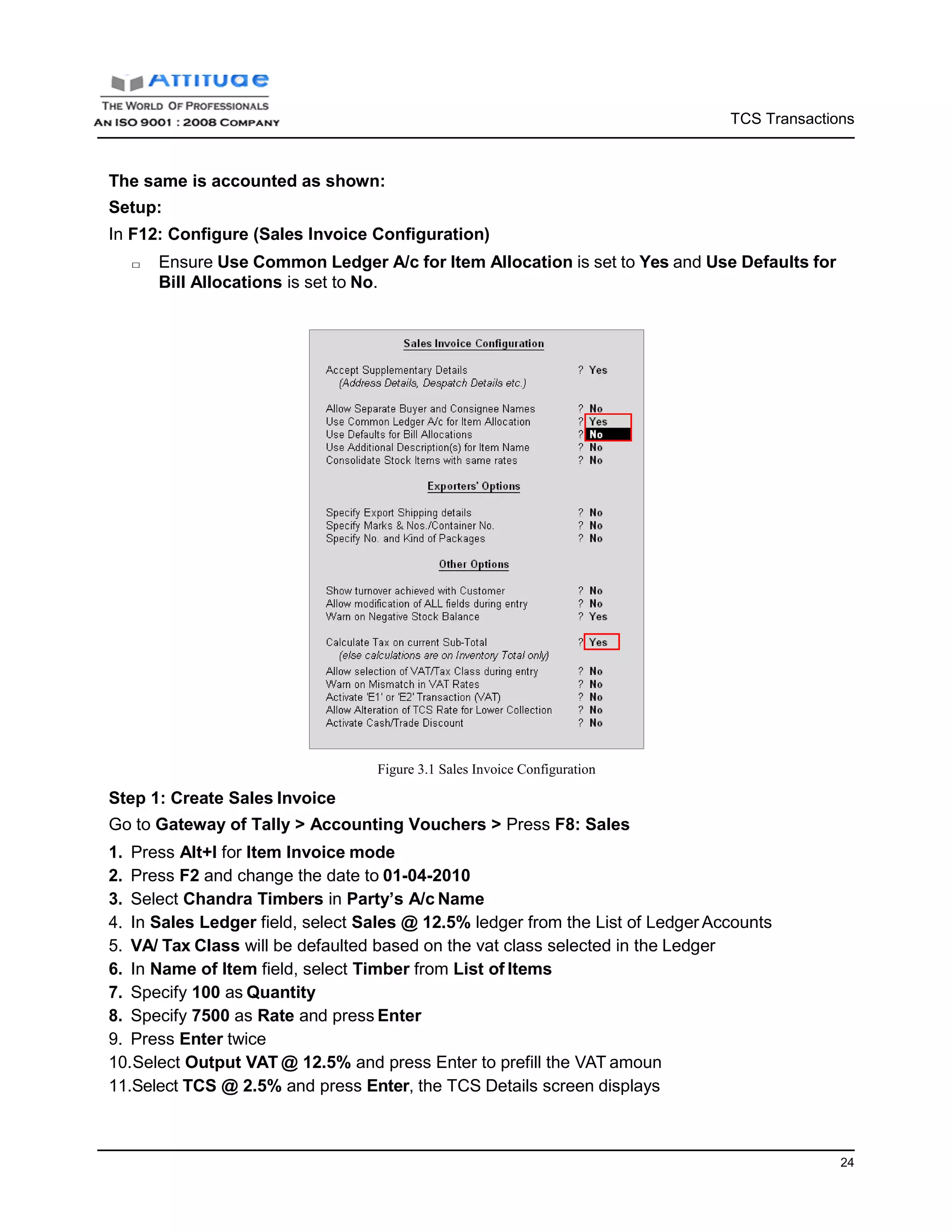
Setup:
In F12: Configure (Sales Invoice Configuration)
□ Ensure Use Common Ledger A/c for Item Allocation is set to Yes and Use Defaults for
Bill Allocations is set to No.
Step 1: Create Sales Invoice
Figure 3.1 Sales Invoice Configuration
Go to Gateway of Tally > Accounting Vouchers > Press F8: Sales
1. Press Alt+I for Item Invoice mode
2. Press F2 and change the date to 01-04-2010
3. Select Chandra Timbers in Party’s A/c Name
4. In Sales Ledger field, select Sales @ 12.5% ledger from the List of Ledger Accounts
5. VA/ Tax Class will be defaulted based on the vat class selected in the Ledger
6. In Name of Item field, select Timber from List of Items
7. Specify 100 as Quantity
8. Specify 7500 as Rate and press Enter
9. Press Enter twice
10.Select Output VAT @ 12.5% and press Enter to prefill the VAT amoun
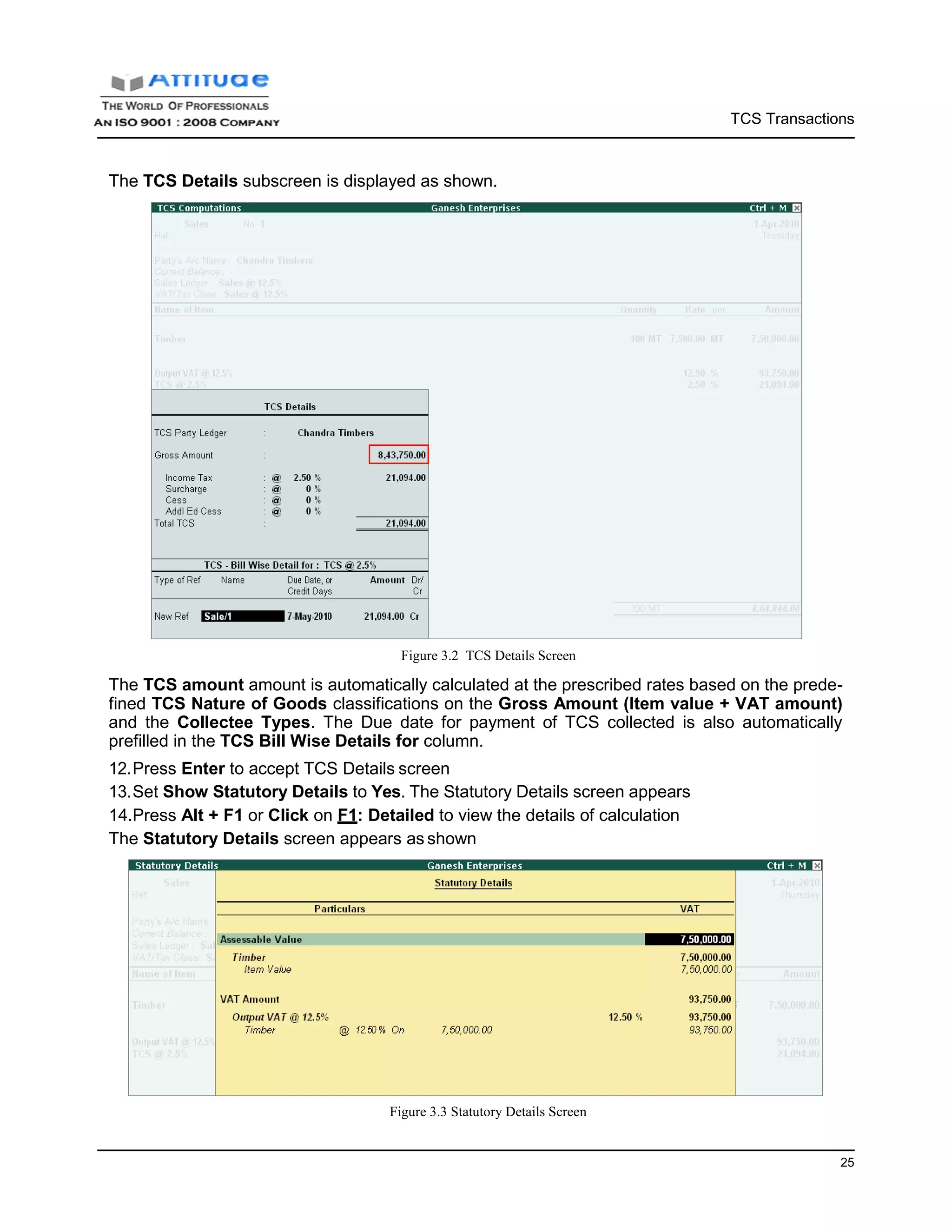
11.Select TCS @ 2.5% and press Enter, the TCS Details screen displays
TCS Transactions
25
The TCS Details subscreen is displayed as shown.
Figure 3.2 TCS Details Screen
The TCS amount amount is automatically calculated at the prescribed rates based on the prede-
fined TCS Nature of Goods classifications on the Gross Amount (Item value + VAT amount)
and the Collectee Types. The Due date for payment of TCS collected is also automatically
prefilled in the TCS Bill Wise Details for column.
12.Press Enter to accept TCS Details screen
13.Set Show Statutory Details to Yes. The Statutory Details screen appears
14.Press Alt + F1 or Click on F1: Detailed to view the details of calculation
The Statutory Details screen appears as shown
Figure 3.3 Statutory Details Screen
TCS Transactions
26
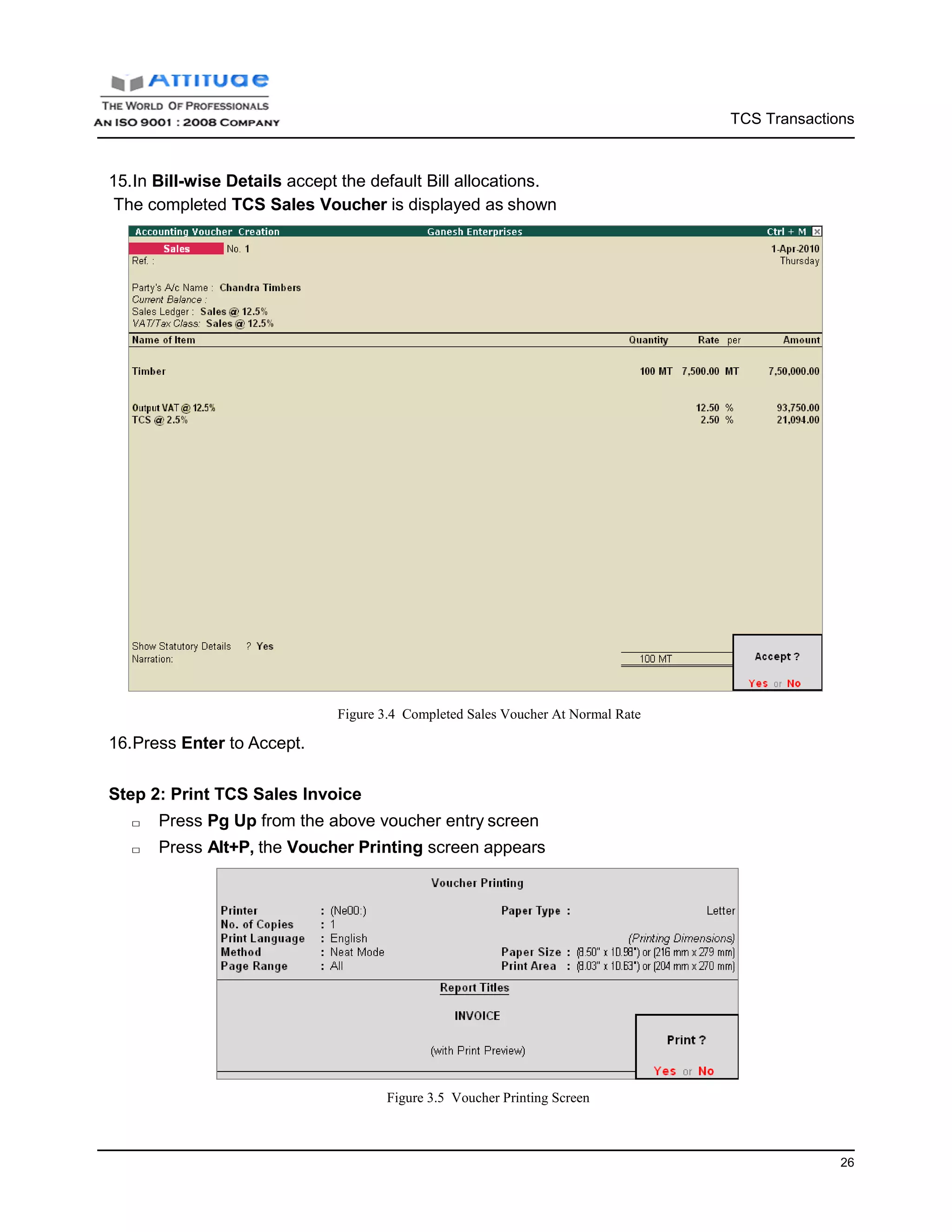
15.In Bill-wise Details accept the default Bill allocations.
The completed TCS Sales Voucher is displayed as shown
16.Press Enter to Accept.
Figure 3.4 Completed Sales Voucher At Normal Rate
Step 2: Print TCS Sales Invoice
□ Press Pg Up from the above voucher entry screen
□ Press Alt+P, the Voucher Printing screen appears
Figure 3.5 Voucher Printing Screen
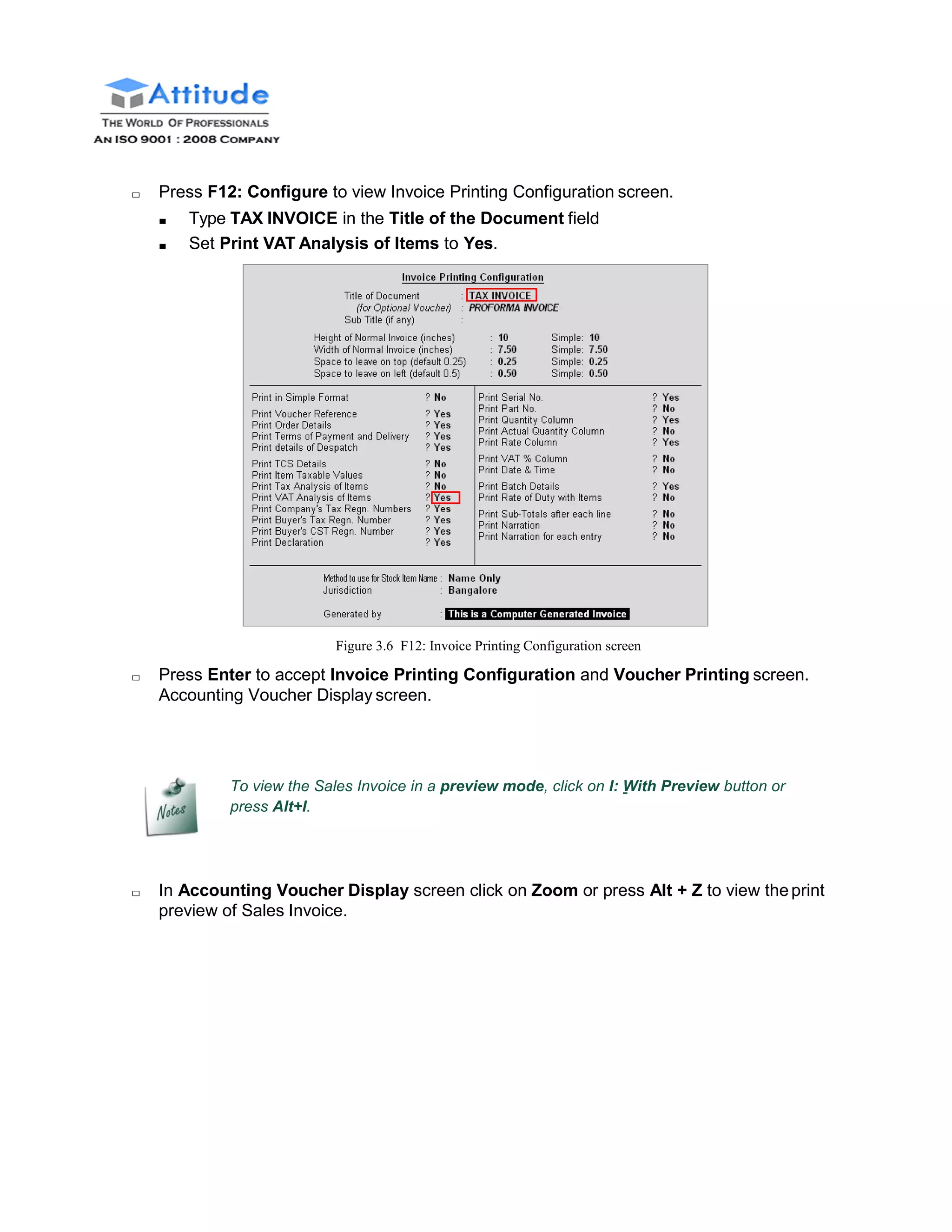
□ Press F12: Configure to view Invoice Printing Configuration screen.
■ Type TAX INVOICE in the Title of the Document field
■ Set Print VAT Analysis of Items to Yes.
Figure 3.6 F12: Invoice Printing Configuration screen
□ Press Enter to accept Invoice Printing Configuration and Voucher Printing screen.
Accounting Voucher Display screen.
To view the Sales Invoice in a preview mode, click on I: With Preview button or
press Alt+I.
□ In Accounting Voucher Display screen click on Zoom or press Alt + Z to view theprint
preview of Sales Invoice.
TCS Transactions
28
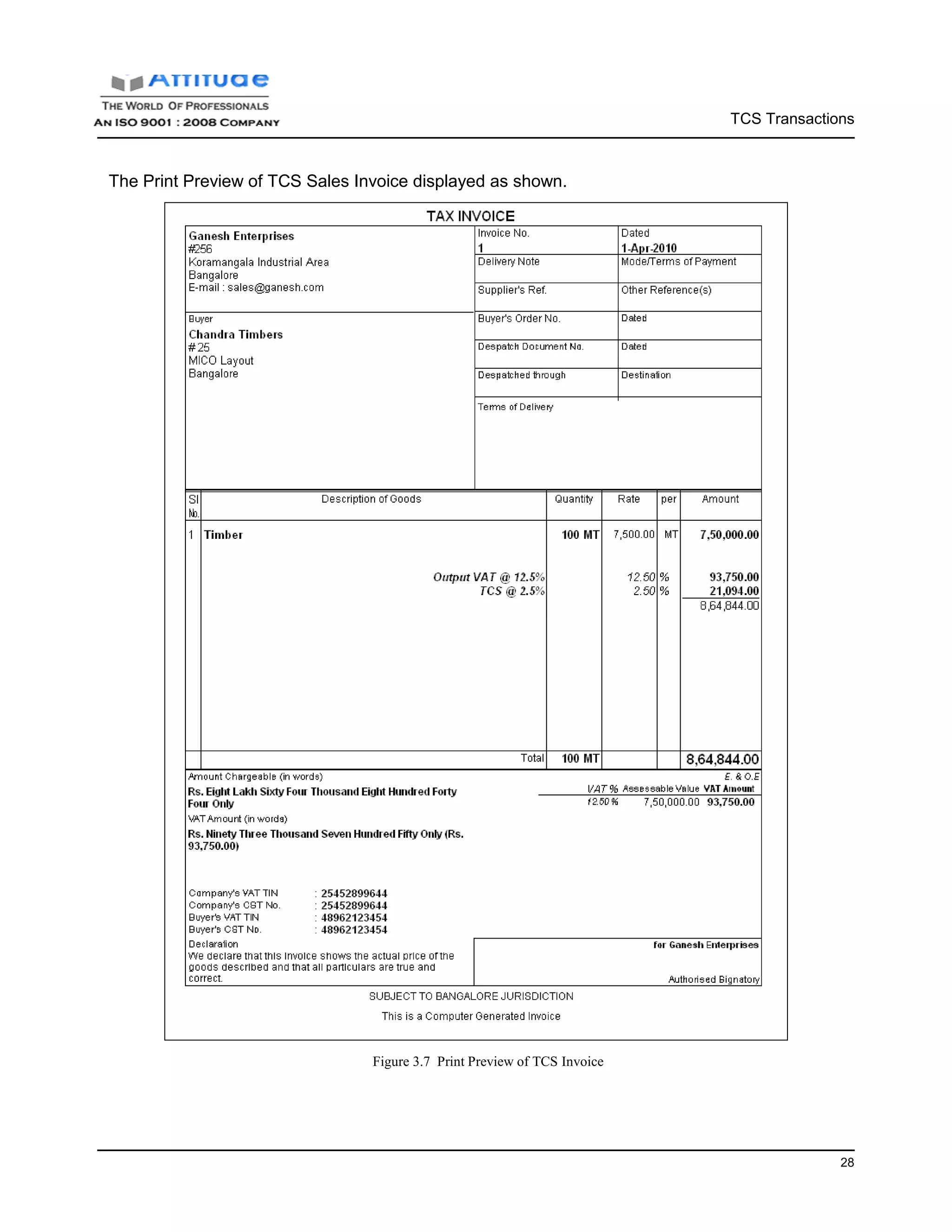
The Print Preview of TCS Sales Invoice displayed as shown.
Figure 3.7 Print Preview of TCS Invoice
TCS Transactions
29
Sale of Goods Subject to TCS @ Lower Rate
Where the Assessing Office is satisfied that the total income of the buyer (or licensee or lessee)
justifies the collection of tax at any lower rate than the relevant rate specified in section 206C (1)
shall, on an application made by the buyer (or licensee or lessee) under sub-section (9) of section
206 C in Form No.13, for collection of tax at such lower rate than the relevant rate specified in
sub-section (1) of that section. The certificate granted shall be valid for the assessment year
specified and is valid only for the person named therein.
Example 2:
On 10-4-2010, M/s. Ganesh Enterprises sold the following goods to M/s. Royal Liquors
Item Description Qty Rate (As.) TCS(%) VAT (%)
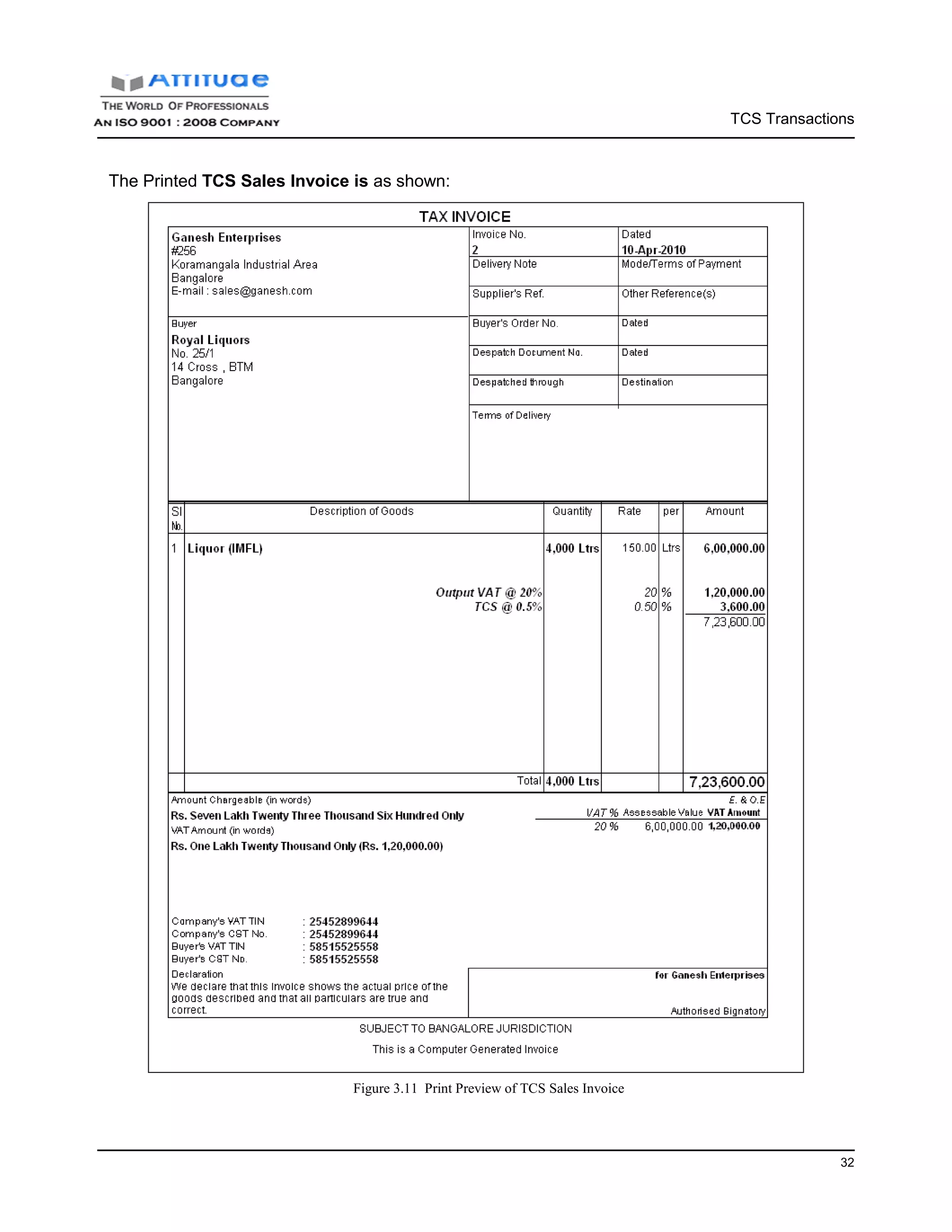
Liquor (IMFL) 4000 Litres 150 0.5% 20%
M/s. Royal Liquors is granted TCS collection at lower rate of 0.5%.
The same is accounted as shown:
In order to configer Lower Rate of TCS for M/s. Royal Liquors, follow the steps given below:
Setup:
Go to Gateway of Tally > Accounts Into.> Ledgers > Alter > Select Royal Liquors
In the Ledger Alteration screen,
1. Tab down to Is TCS Applicable field and press Enter to view TCS Details screen
2. In the TCS Details screen
□ Select Company - Resident in the Buyer/Lessee field
□ Set Is Lower/ No Collection Applicable to Yes
□ In Section Number field, 206 C is displayed automatically
□ Specify 0.5% in TCS Lower Rate (%) field
□ Set Ignore Surcharge Exemption Limit to No
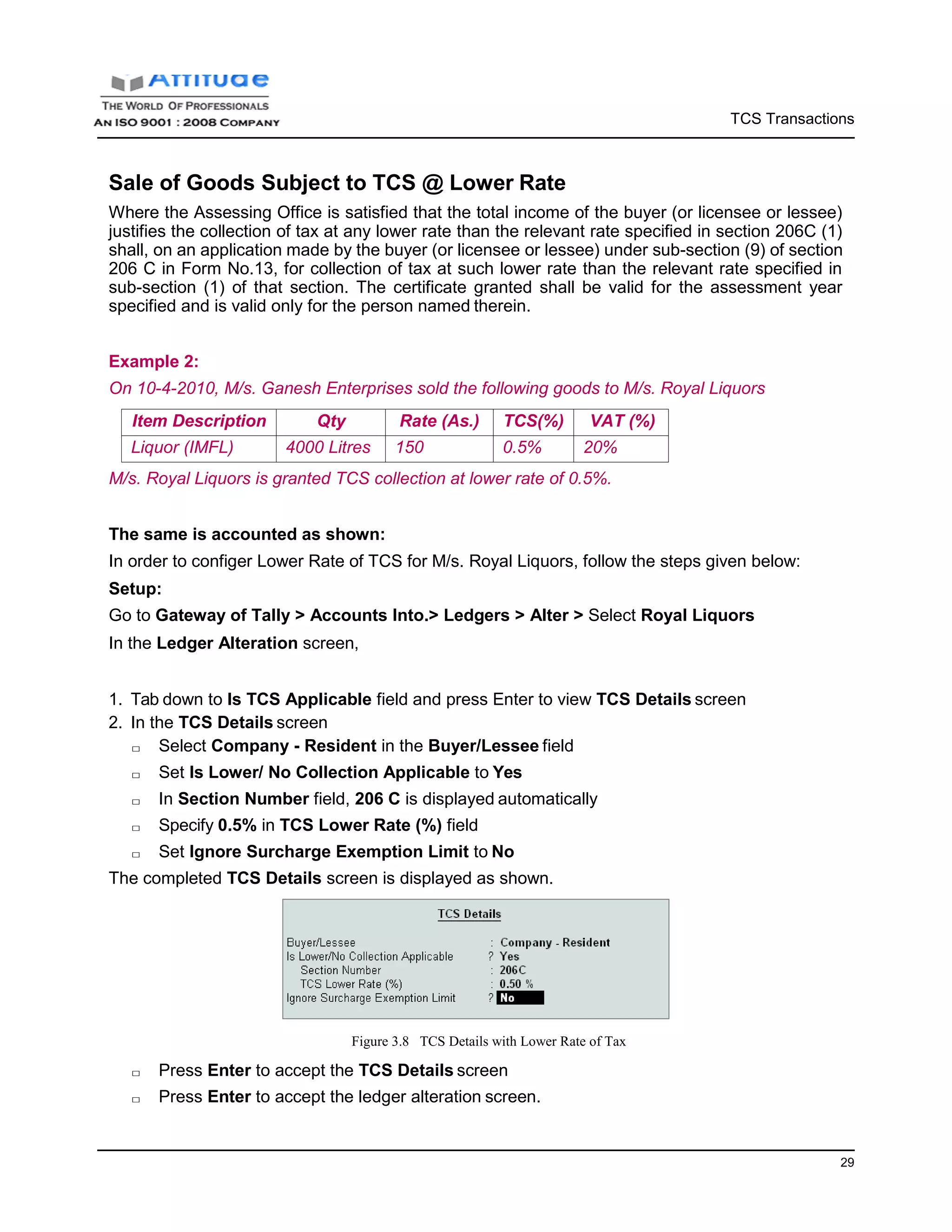
The completed TCS Details screen is displayed as shown.
Figure 3.8 TCS Details with Lower Rate of Tax
□ Press Enter to accept the TCS Details screen
□ Press Enter to accept the ledger alteration screen.
TCS Transactions
31
Step 1: Create Sales Voucher
Setup:
In F12: Configure (Sales Invoice Configuration)
□ Set Use Common Ledger A/c for Item Allocation to Yes
Go to Gateway of Tally > Accounting Vouchers > Press F8: Sales
1. Press Alt + I for Item Invoice mode
2. Press F2 and change date to 10-04-2010
3. Select Royal Liquors in Party’s A/c Name field
4. In Sales Ledger field select Sales @ 20%
5. The VAT/Tax Class is defaulted automatically as Sales @ 20%
6. In Name of Item field select Liquor (IMFL) from List of Items
7. Specify 4000 as Quantity
8. Specify 150 as Rate and press Enter. Amount will be calculated and displayed automatically.
9. Select the VAT Ledger - Output VAT @ 20% to account the VAT amount on the transaction.
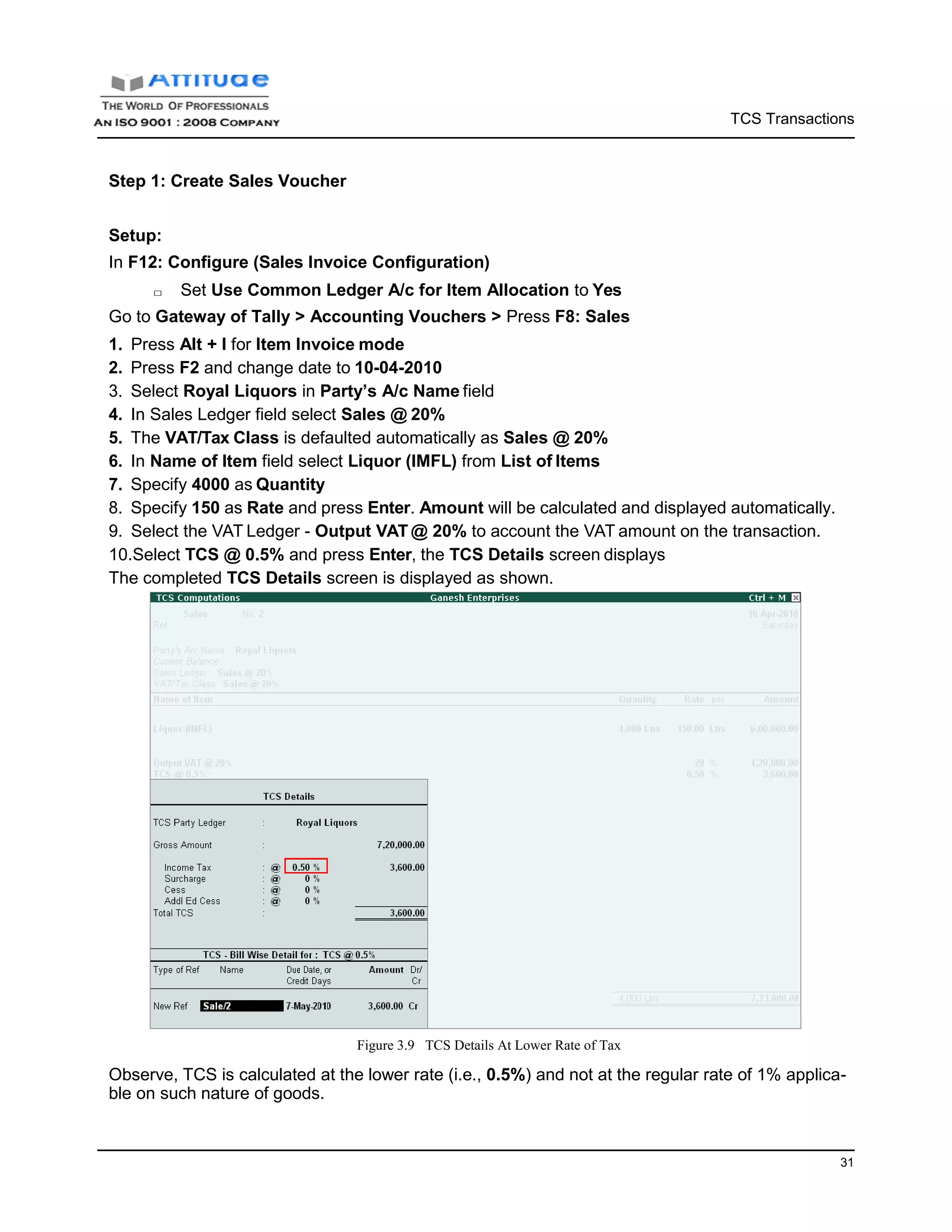
10.Select TCS @ 0.5% and press Enter, the TCS Details screen displays
The completed TCS Details screen is displayed as shown.
Figure 3.9 TCS Details At Lower Rate of Tax
Observe, TCS is calculated at the lower rate (i.e., 0.5%) and not at the regular rate of 1% applica-
ble on such nature of goods.
TCS Transactions
31
11.Press Enter to accept the screen
12. Set Show Statutory Details to Yes to view StatutoryDetails
13.In Bill-wise Details accept the default Bill allocations
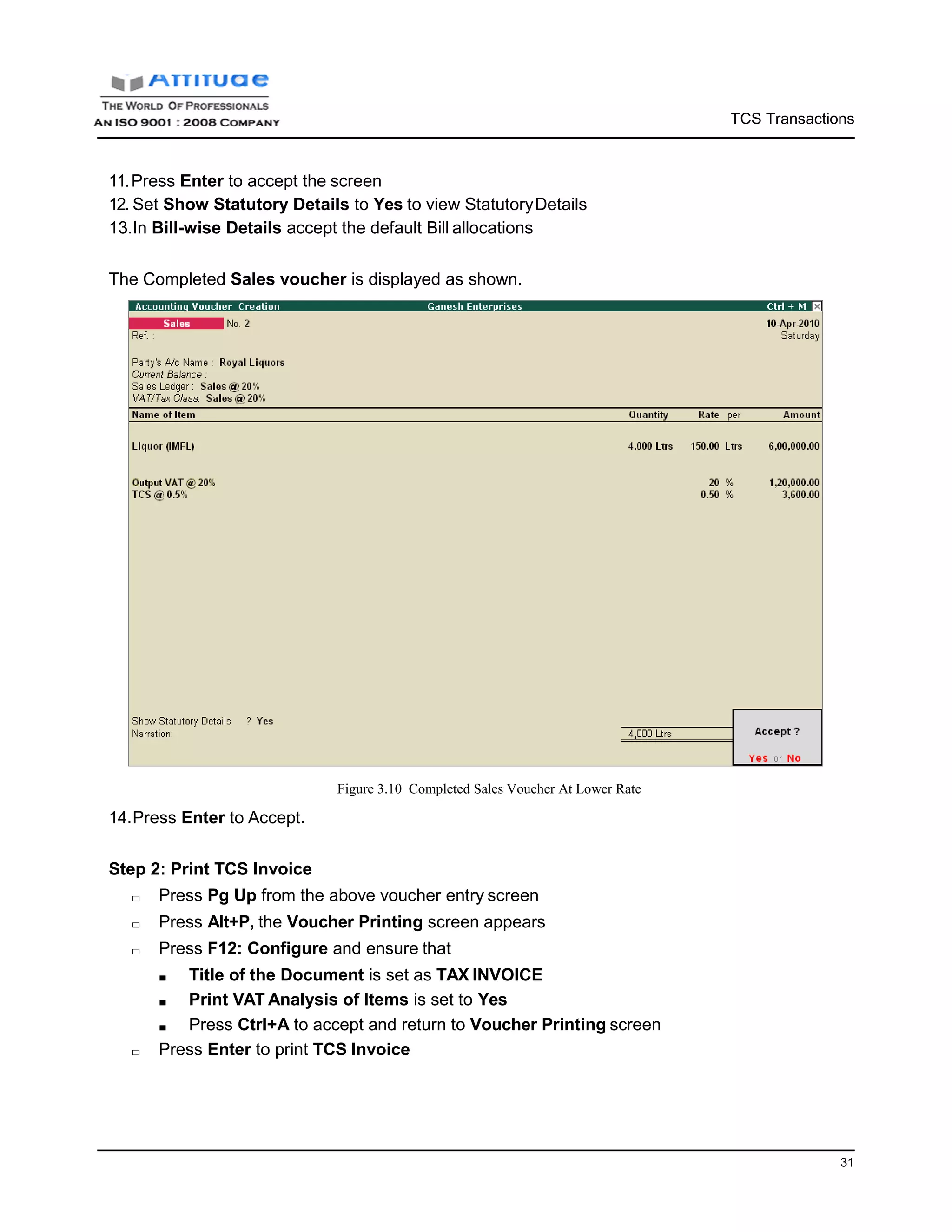
The Completed Sales voucher is displayed as shown.
14.Press Enter to Accept.
Figure 3.10 Completed Sales Voucher At Lower Rate
Step 2: Print TCS Invoice
□ Press Pg Up from the above voucher entry screen
□ Press Alt+P, the Voucher Printing screen appears
□ Press F12: Configure and ensure that
■ Title of the Document is set as TAX INVOICE
■ Print VAT Analysis of Items is set to Yes
■ Press Ctrl+A to accept and return to Voucher Printing screen
□ Press Enter to print TCS Invoice
TCS Transactions
32
The Printed TCS Sales Invoice is as shown:
Figure 3.11 Print Preview of TCS Sales Invoice
TCS Transactions
33
Sale of Goods Subject to TCS @ Nil Rate
In case, if the goods referred in Section 206C(1) are to be utilized for the purposes of manufactur-
ing, processing or producing articles or things and not for trading purposes, the buyer is required
to submit a declaration in Form No. 27C. The duplicate of the declaration should be furnished to
the person responsible for collecting tax. Such certificate shall be valid only for the person named
therein.
In Tally.ERP 9, the user can record transactions subject to TCS at Nil Rate. Consider the following
example.
Example 3:
On 12-4-2010, M/s. Ganesh Enterprises sold the following goods to M/s. Mahesh Timbers
Item Description Qty. Rate (Rs.) TCS(%) VAT (%)
Timber 50 7600 Nil 12.5%
M/s. Mahesh Timbers is granted TCS collected @ Nil Rate.
The same is accounted as shown:
In order to configure Nil Rate of TCS for M/s. Mahesh Timbers, follow the steps given below:
Setup:
Go to Gateway of Tally > Accounts Info.> Ledgers > Alter > Select Mahesh Timbers
In the Ledger Alteration screen,
□ Tab down to Is TCS Applicable field and press Enter to view TCS Details screen
□ In the TCS Details screen
■ Select Association of Persons in the Buyer/Lessee field
■ Set Is Lower/ No Collection Applicable to Yes
■ In Section Number field, 206 C is displayed automatically
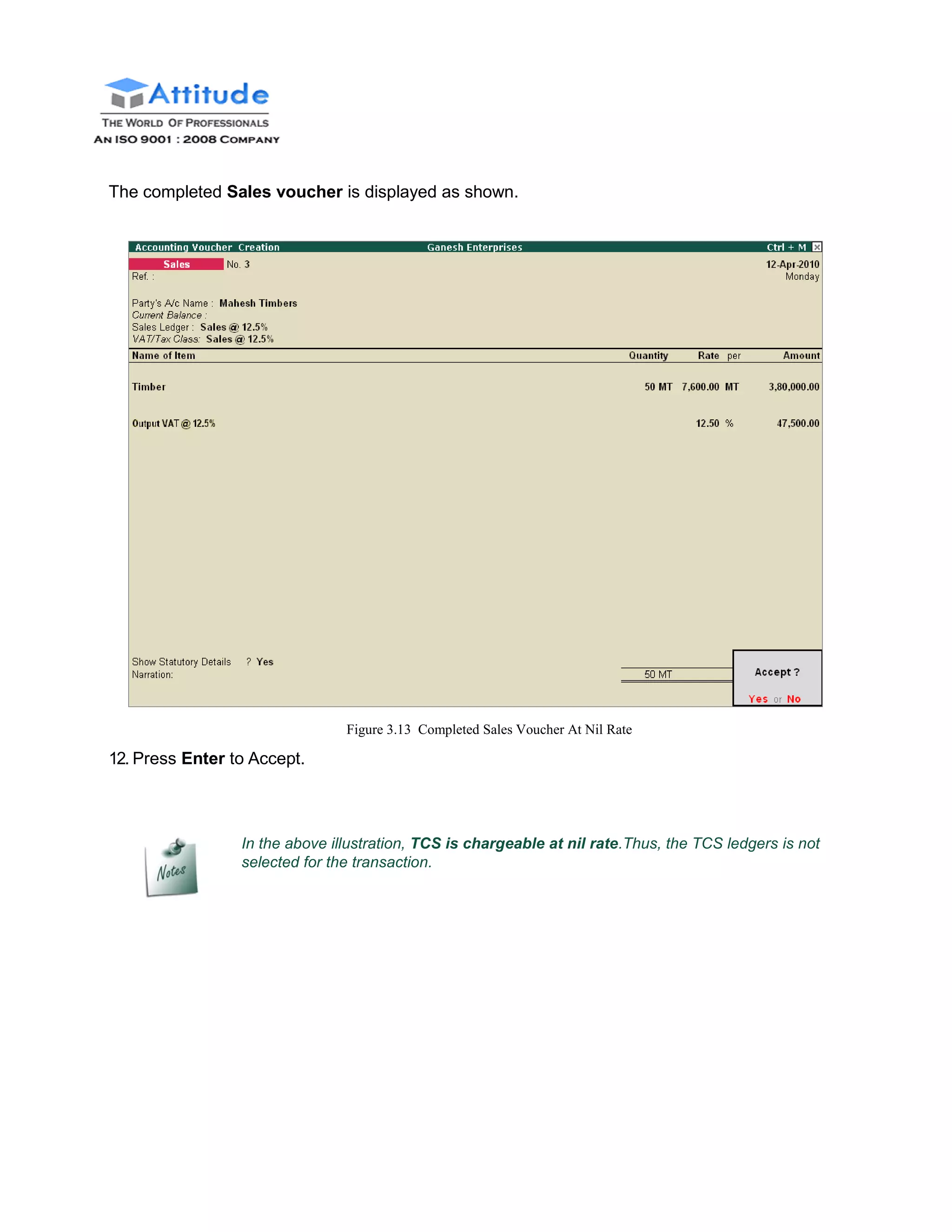
■ Specify 0% in TCS Lower Rate (%) field
■ Set Ignore Surcharge Exemption Limit to No
TCS Transactions
34
The completed TCS Details screen is displayed as shown.
Figure 3.12 TCS Details with Lower Rate of Tax
□ Press Enter to accept the TCS Details screen
□ Press Enter to accept the ledger alteration screen.
Step 1: Create Sales Voucher
Go to Gateway of Tally > Accounting Vouchers > Press F8: Sales
1. Press Alt+I for Item Invoice mode
2. Press F2 and change date to 12-04-2010
3. Select Mahesh Timbers in Party’s A/c Namefield
4. Select Sales @ 12.5% in the Sales Ledger field, the VAT/Tax Class is defaulted automatically
as Sales @ 12.5%
5. Select Timber from List of Items in Name of Item field
6. Specify 50 as Quantity
7. Specify 7600 as Rate and press Enter
8. Press Enter twice
9. Select Output VAT @ 12.5% and press Enter, the VAT amount is prefilled automatically
10.Set the option Show Statutory Details to Yes to view Statutory Details
11.In Bill-wise Details accept the default Bill allocations.
The completed Sales voucher is displayed as shown.
12. Press Enter to Accept.
Figure 3.13 Completed Sales Voucher At Nil Rate
In the above illustration, TCS is chargeable at nil rate.Thus, the TCS ledgers is not
selected for the transaction.
TCS Transactions
36
TCS on Transfer of Right to Use
Every person, who grants lease or a license or enters into a contract or otherwise transfers any
right or interest (in any parking lot or toll plaza or mine or quarry) either in whole or in part to
another person for the purpose of business, is liable to collect tax at source from the licensee or
lessee of any such license, contract or lease at the prescribed percentage. Consider the following
example.
Example 4:
On 14-4-2010 M/s. Ganesh Enterprises leased out the parking lot located at M.G. Road,
Bangalore to M/s. Prakash Enterprises
Nature of Contract/Lease/license Amount TCS(%)
Parking Fees 10,00,000 2%
The same is accounted as shown:
Step 1: Create Sales Voucher
Go to Gateway of Tally > Accounting Vouchers > Press F8: Sales
1. Press Alt+I for Acct Invoice mode
2. Press F2 and change date to 14-04-2010
3. Select Prakash Enterprises in Party’s A/c Name field
4. Select Parking Fees from List of Ledger Accounts in Particularsfield
5. Specify 10,00,000 in the Amount field and pressEnter
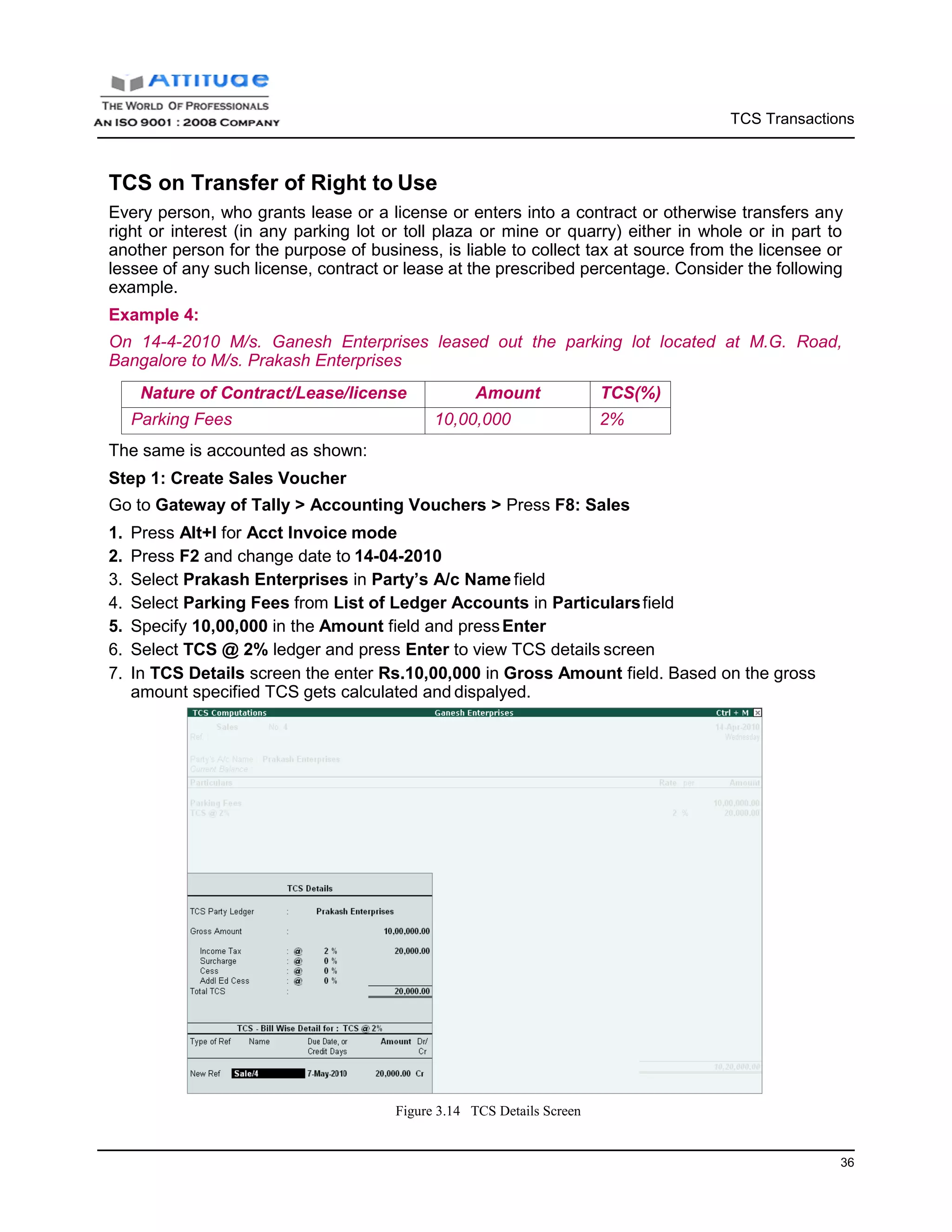
6. Select TCS @ 2% ledger and press Enter to view TCS details screen
7. In TCS Details screen the enter Rs.10,00,000 in Gross Amount field. Based on the gross
amount specified TCS gets calculated and dispalyed.
Figure 3.14 TCS Details Screen
TCS Transactions
37
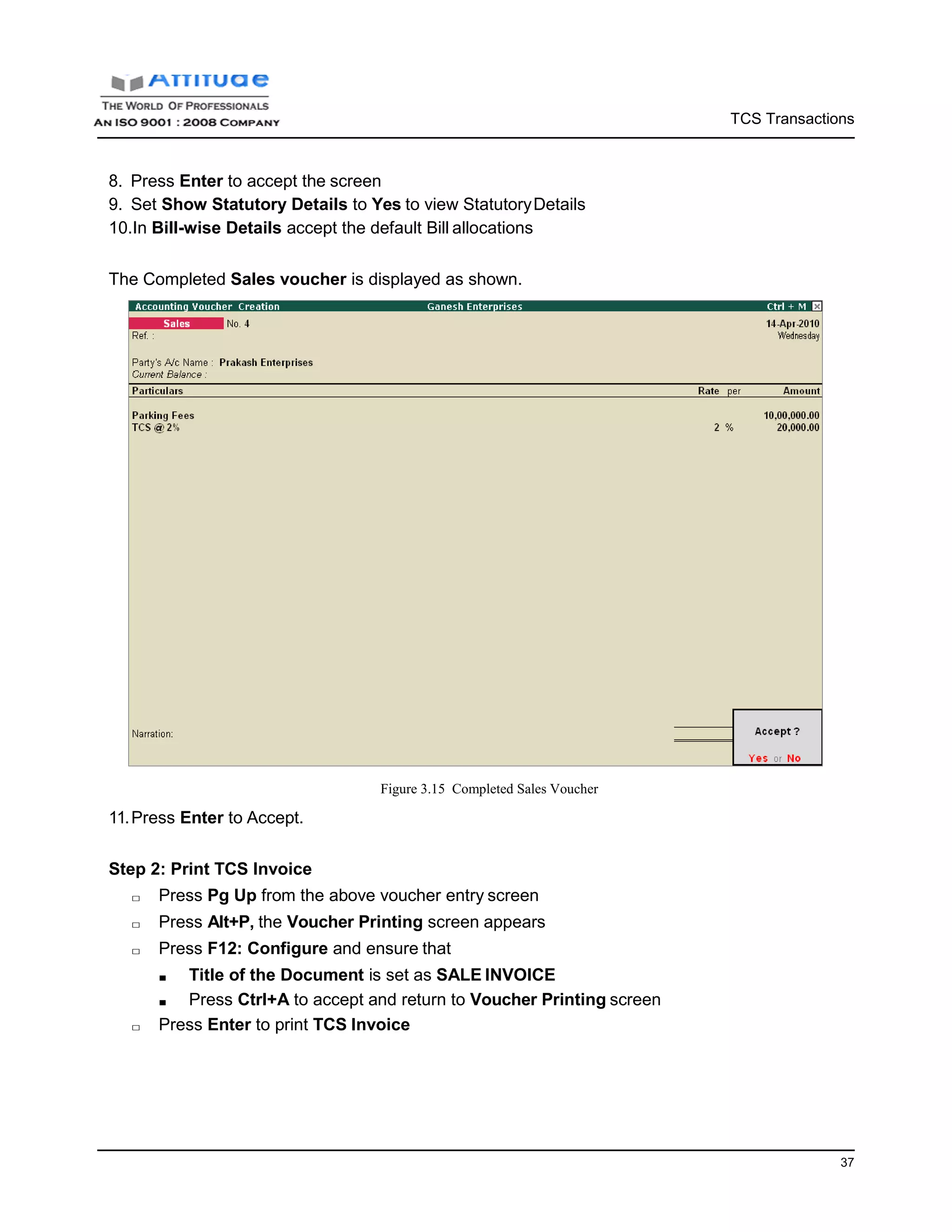
8. Press Enter to accept the screen
9. Set Show Statutory Details to Yes to view StatutoryDetails
10.In Bill-wise Details accept the default Bill allocations
The Completed Sales voucher is displayed as shown.
11.Press Enter to Accept.
Figure 3.15 Completed Sales Voucher
Step 2: Print TCS Invoice
□ Press Pg Up from the above voucher entry screen
□ Press Alt+P, the Voucher Printing screen appears
□ Press F12: Configure and ensure that
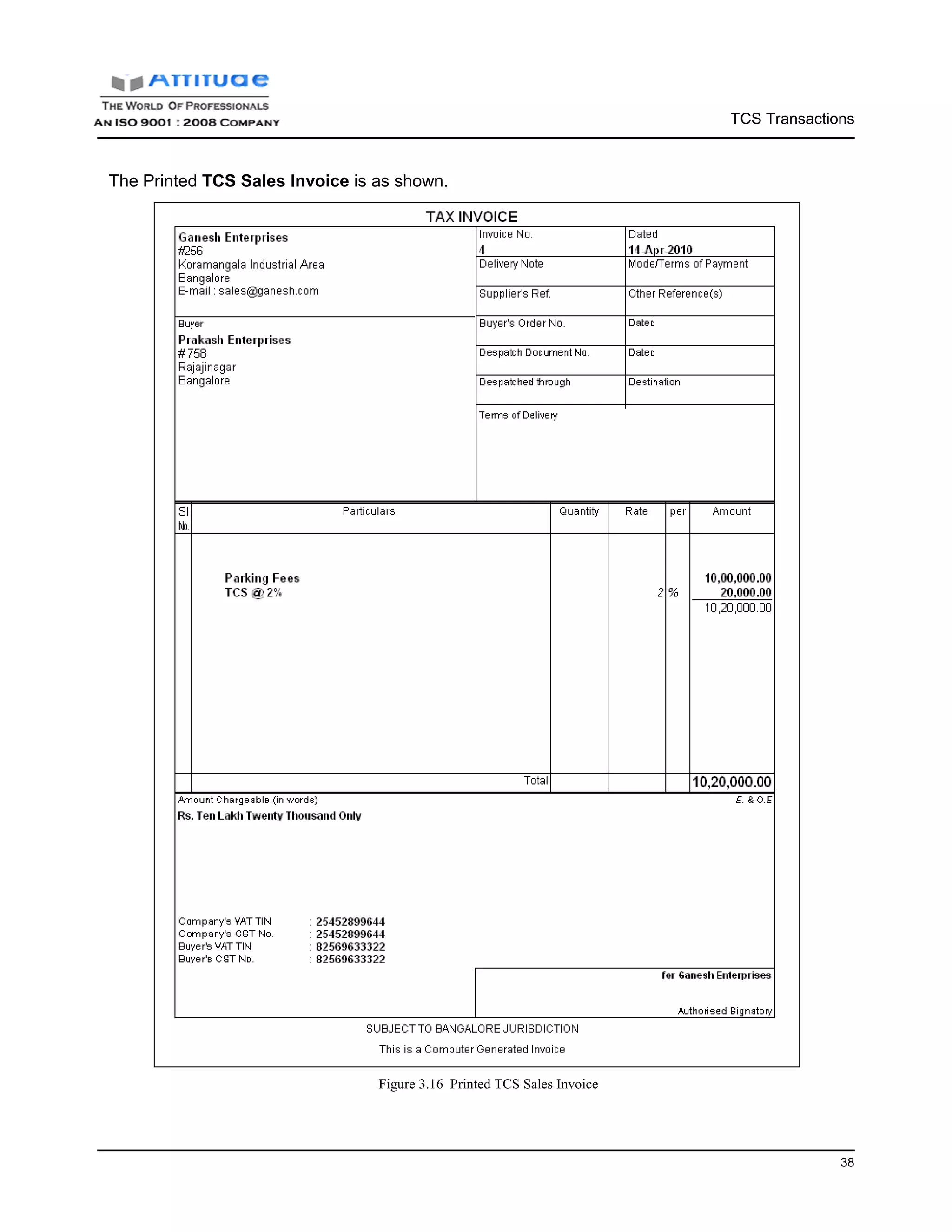
■ Title of the Document is set as SALE INVOICE
■ Press Ctrl+A to accept and return to Voucher Printing screen
□ Press Enter to print TCS Invoice
TCS Transactions
38
The Printed TCS Sales Invoice is as shown.
Figure 3.16 Printed TCS Sales Invoice
TCS Transactions
39
Sales Returns
Example 5:
On 20-4-2010 M/s. Chandra Timbers Returned the following goods to M/s. Ganesh Enterprises
against the sales made on 1-4-2010
Item Description Qty Rate (Rs.) TCS(%) VAT (%)
Timber 2 MT 7500 2.5% 12.5%
Setup:
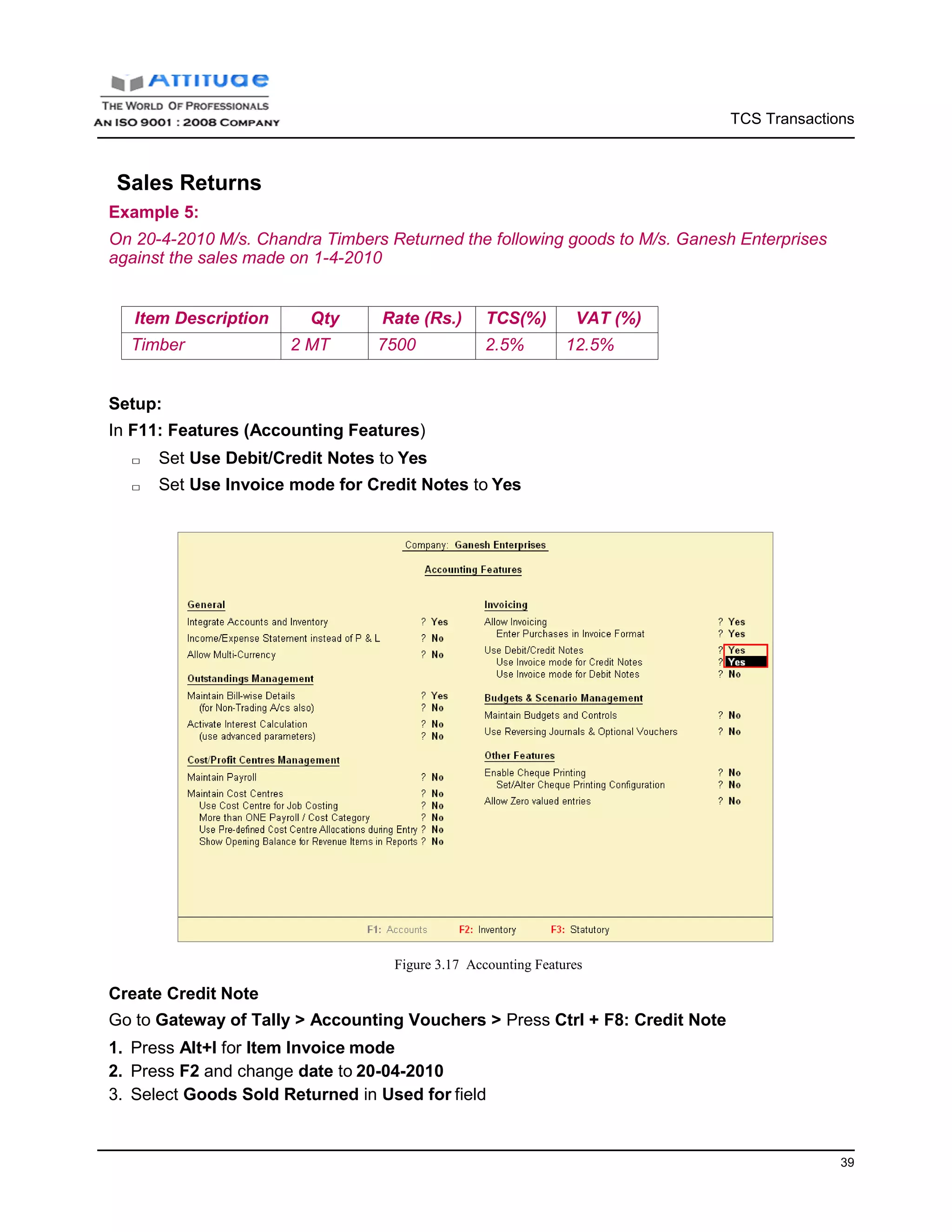
In F11: Features (Accounting Features)
□ Set Use Debit/Credit Notes to Yes
□ Set Use Invoice mode for Credit Notes to Yes
Create Credit Note
Figure 3.17 Accounting Features
Go to Gateway of Tally > Accounting Vouchers > Press Ctrl + F8: Credit Note
1. Press Alt+I for Item Invoice mode
2. Press F2 and change date to 20-04-2010
3. Select Goods Sold Returned in Used for field
TCS Transactions
41
Figure 3.18 Selection of VAT Adjustments
4. Select Chandra Timbers in Party’s A/c Name field
5. Select Sales @ 12.5% in the Sales Ledger field, the VAT/Tax Class is defaulted automatically
as Sales @ 12.5%
6. Select Timber from List of Items in the Name of Item field
7. Enter 2 as Quantity
8. Enter 7500 as Rate and press Enter
9. Press Enter twice and select Select Output VAT @ 12.5% and press Enter, the VAT amount is
prefilled automatically
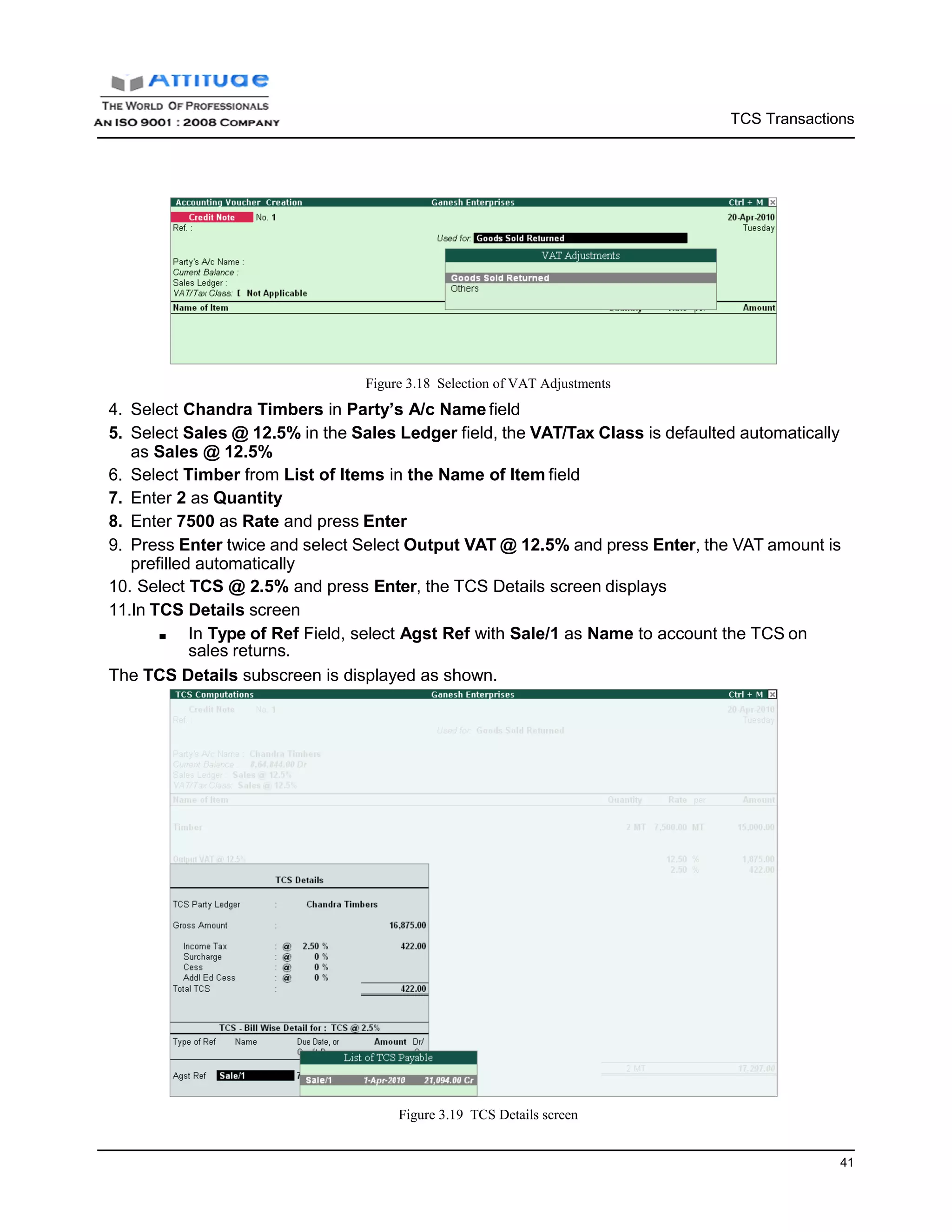
10. Select TCS @ 2.5% and press Enter, the TCS Details screen displays
11.In TCS Details screen
■ In Type of Ref Field, select Agst Ref with Sale/1 as Name to account the TCS on
sales returns.
The TCS Details subscreen is displayed as shown.
Figure 3.19 TCS Details screen
TCS Transactions
41
12.Press Enter to accept TCS Details screen
13.Set Show Statutory Details to Yes to view Statutory Details
14.Press Alt + F1 or Click on F1: Detailed to view the statutorydetails
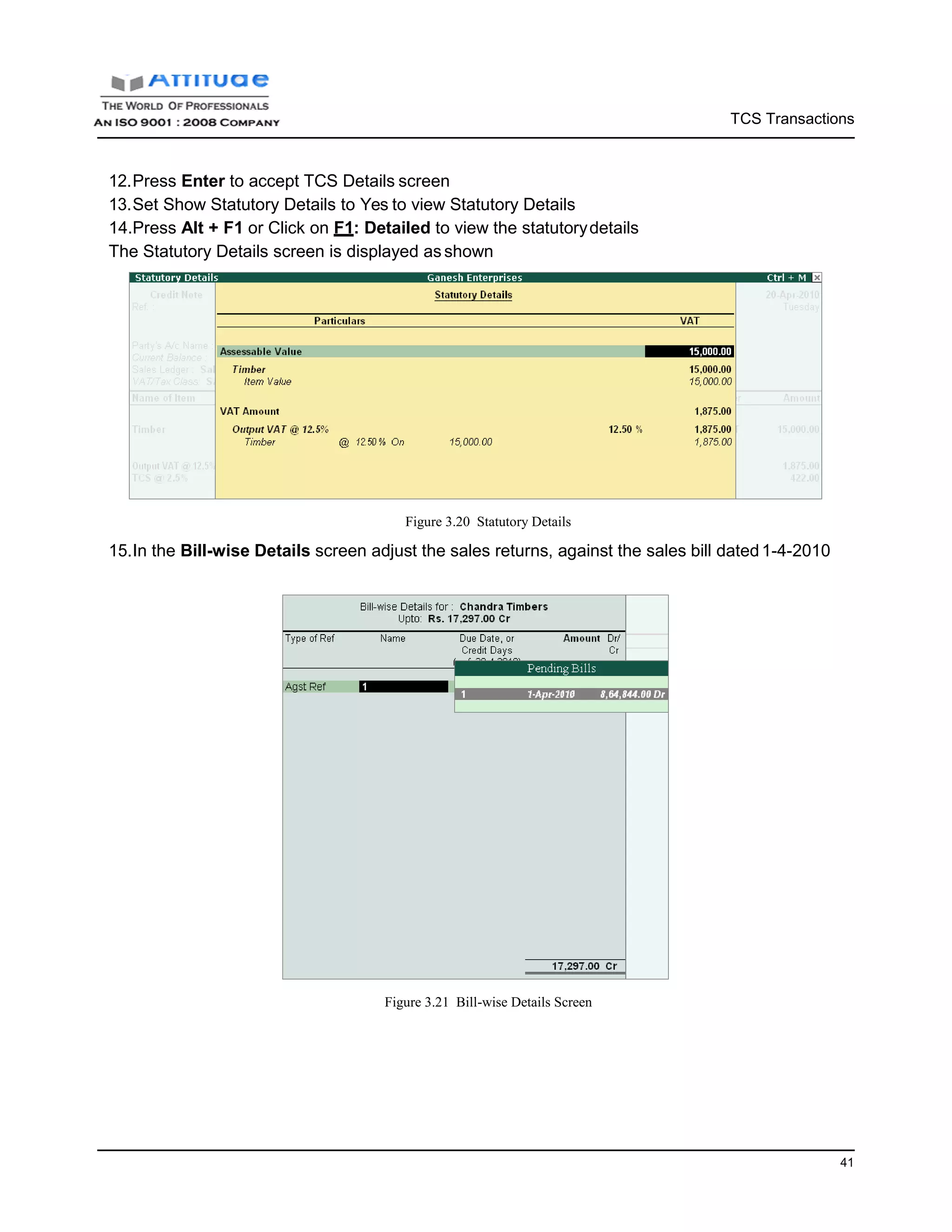
The Statutory Details screen is displayed asshown
Figure 3.20 Statutory Details
15.In the Bill-wise Details screen adjust the sales returns, against the sales bill dated1-4-2010
Figure 3.21 Bill-wise Details Screen
TCS Transactions
42
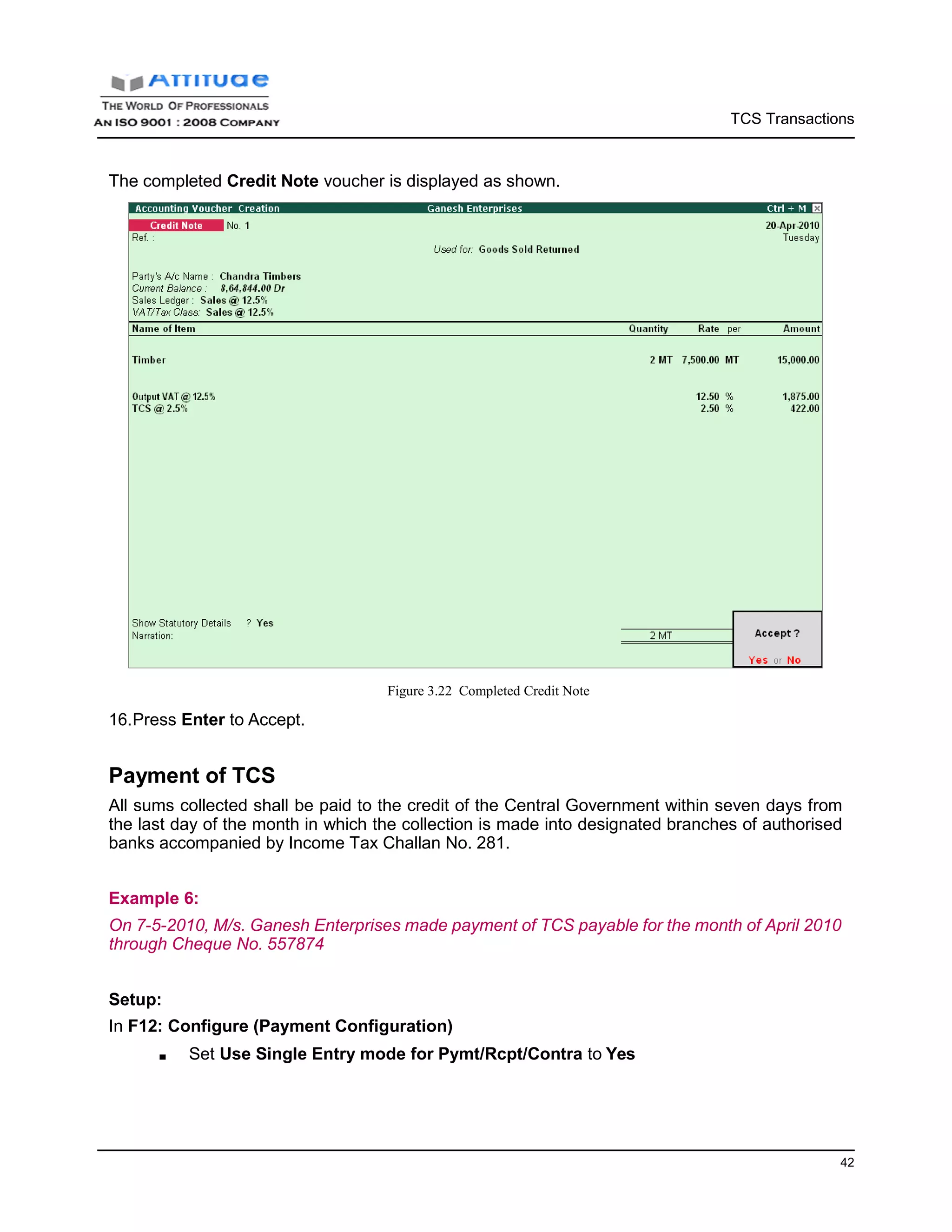
The completed Credit Note voucher is displayed as shown.
16.Press Enter to Accept.
Figure 3.22 Completed Credit Note
Payment of TCS
All sums collected shall be paid to the credit of the Central Government within seven days from
the last day of the month in which the collection is made into designated branches of authorised
banks accompanied by Income Tax Challan No. 281.
Example 6:
On 7-5-2010, M/s. Ganesh Enterprises made payment of TCS payable for the month of April 2010
through Cheque No. 557874
Setup:
In F12: Configure (Payment Configuration)
■ Set Use Single Entry mode for Pymt/Rcpt/Contra to Yes
TCS Transactions
43
Step 1: Create Payment Voucher
Go to Gateway of Tally > Accounting Vouchers > Press F5: Payment
1. Press F2 and change date to 07-05-2010
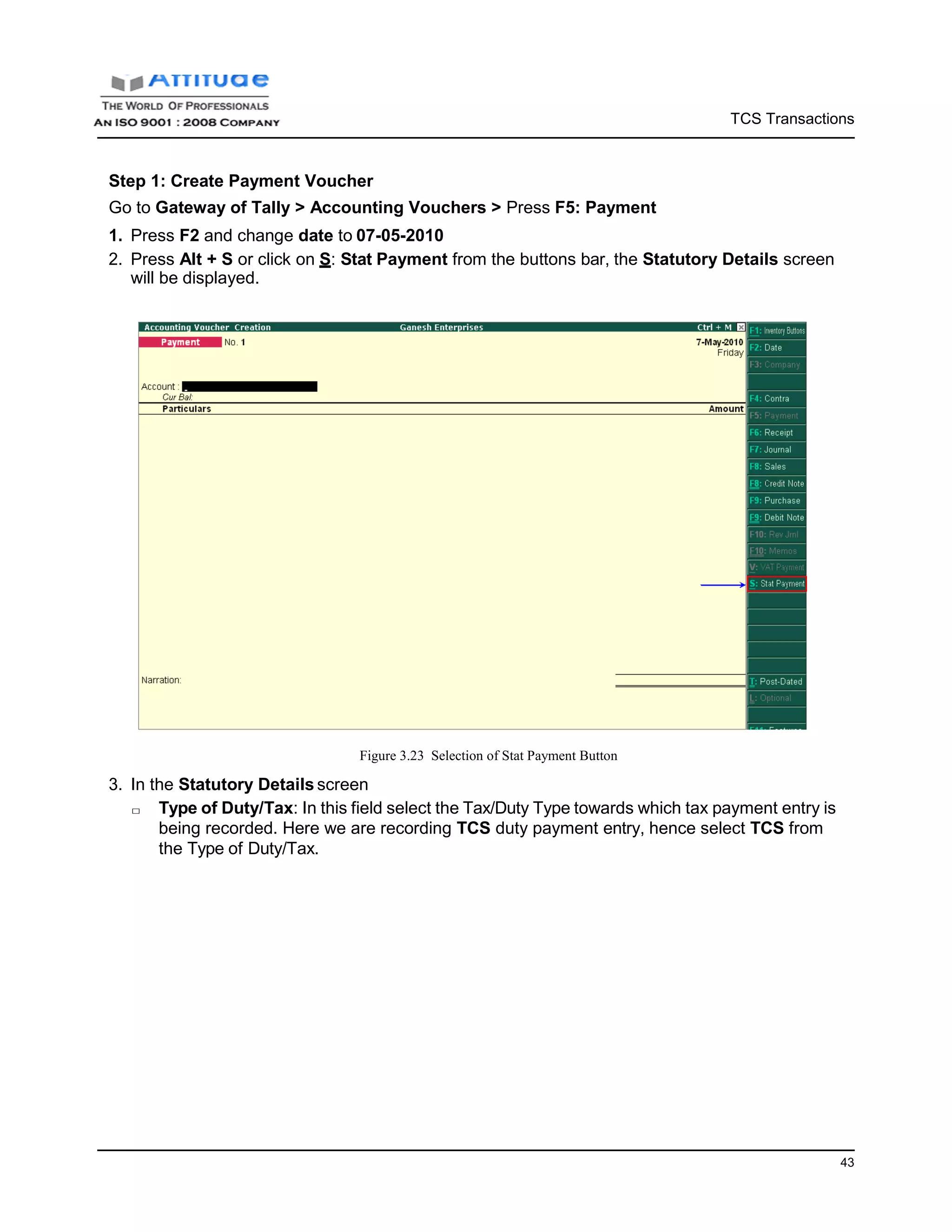
2. Press Alt + S or click on S: Stat Payment from the buttons bar, the Statutory Details screen
will be displayed.
Figure 3.23 Selection of Stat Payment Button
3. In the Statutory Details screen
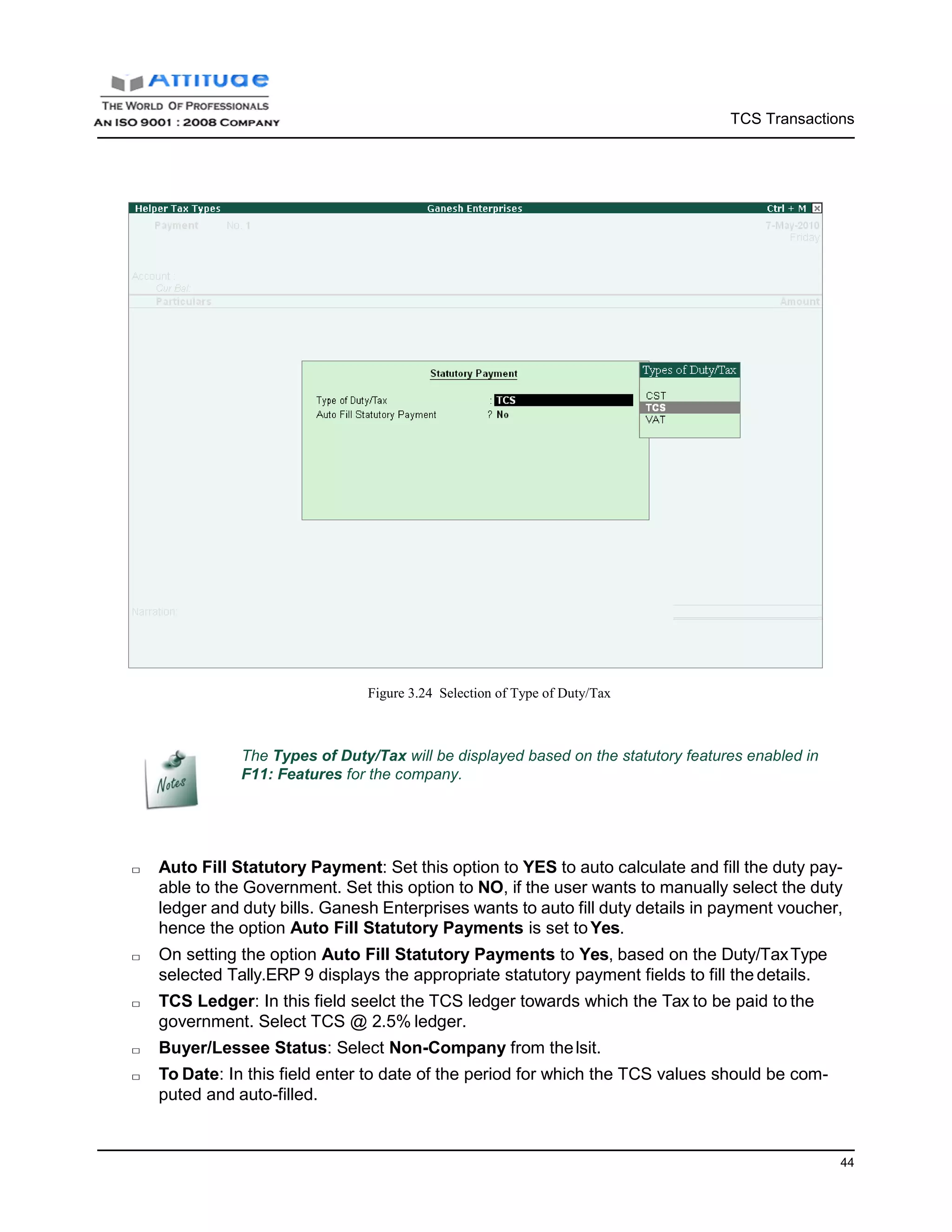
□ Type of Duty/Tax: In this field select the Tax/Duty Type towards which tax payment entry is
being recorded. Here we are recording TCS duty payment entry, hence select TCS from
the Type of Duty/Tax.
TCS Transactions
44
Figure 3.24 Selection of Type of Duty/Tax
The Types of Duty/Tax will be displayed based on the statutory features enabled in
F11: Features for the company.
□ Auto Fill Statutory Payment: Set this option to YES to auto calculate and fill the duty pay-
able to the Government. Set this option to NO, if the user wants to manually select the duty
ledger and duty bills. Ganesh Enterprises wants to auto fill duty details in payment voucher,
hence the option Auto Fill Statutory Payments is set toYes.
□ On setting the option Auto Fill Statutory Payments to Yes, based on the Duty/TaxType
selected Tally.ERP 9 displays the appropriate statutory payment fields to fill the details.
□ TCS Ledger: In this field seelct the TCS ledger towards which the Tax to be paid to the
government. Select TCS @ 2.5% ledger.
□ Buyer/Lessee Status: Select Non-Company from thelsit.
□ To Date: In this field enter to date of the period for which the TCS values should be com-
puted and auto-filled.
TCS Transactions
45
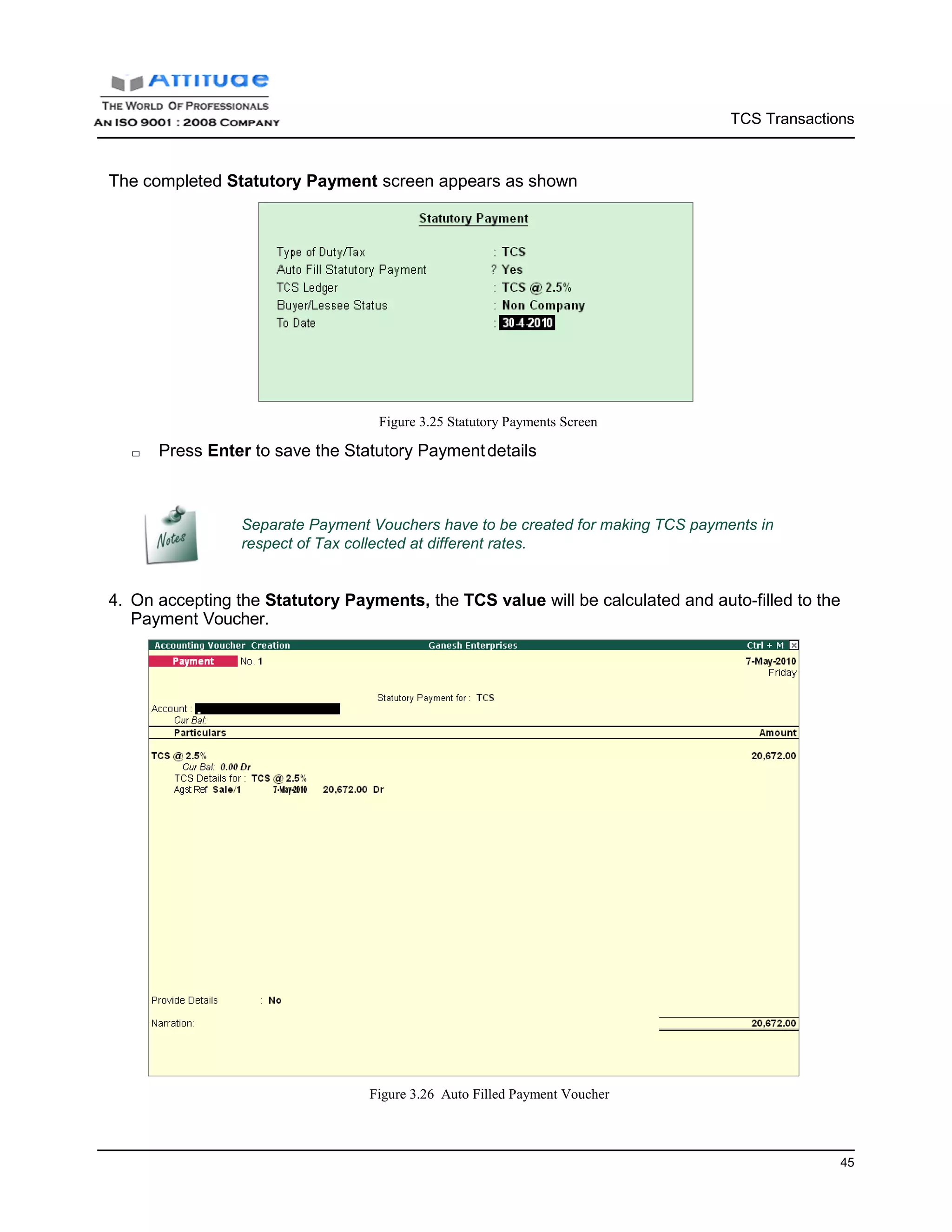
The completed Statutory Payment screen appears as shown
Figure 3.25 Statutory Payments Screen
□ Press Enter to save the Statutory Paymentdetails
Separate Payment Vouchers have to be created for making TCS payments in
respect of Tax collected at different rates.
4. On accepting the Statutory Payments, the TCS value will be calculated and auto-filled to the
Payment Voucher.
Figure 3.26 Auto Filled Payment Voucher
TCS Transactions
46
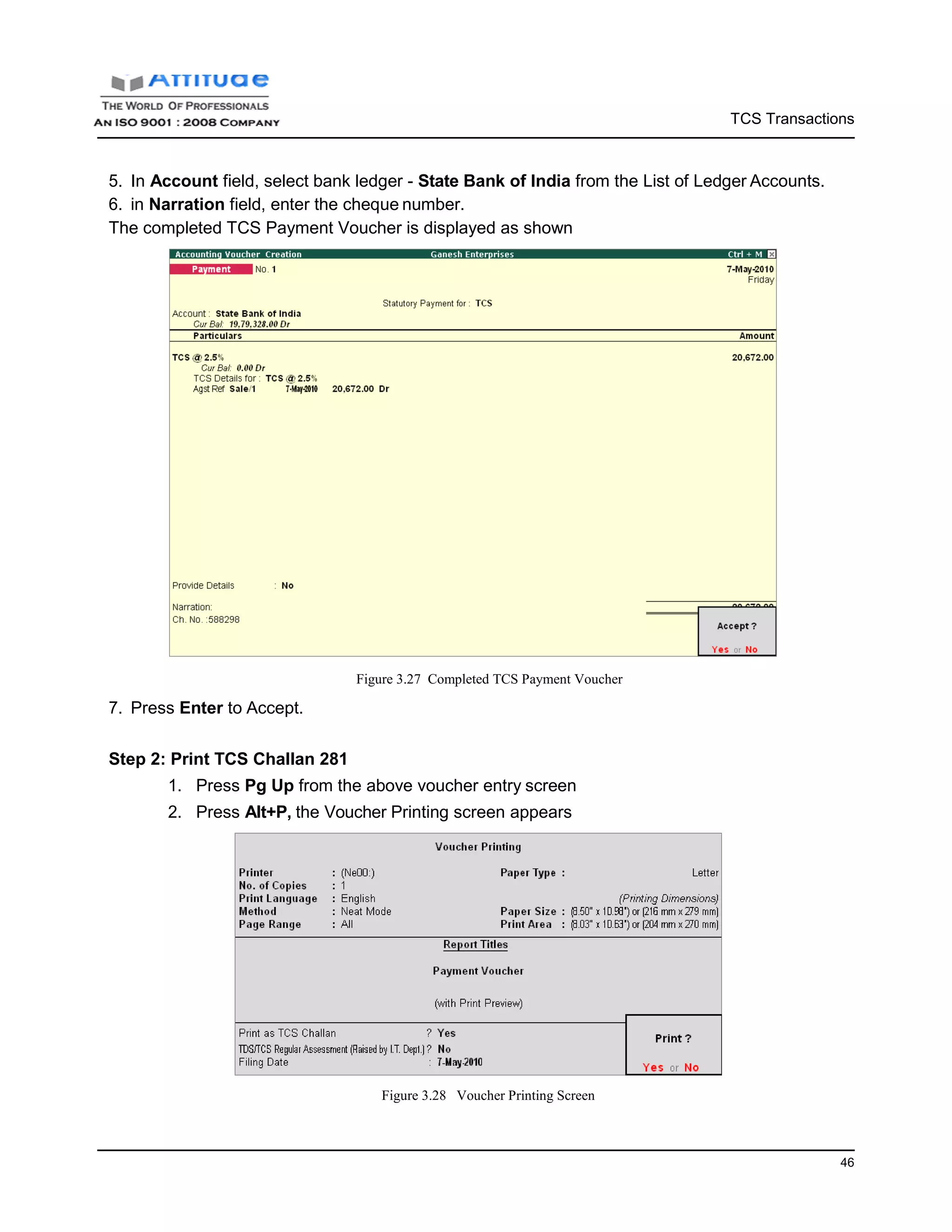
5. In Account field, select bank ledger - State Bank of India from the List of Ledger Accounts.
6. in Narration field, enter the cheque number.
The completed TCS Payment Voucher is displayed as shown
7. Press Enter to Accept.
Figure 3.27 Completed TCS Payment Voucher
Step 2: Print TCS Challan 281
1. Press Pg Up from the above voucher entry screen
2. Press Alt+P, the Voucher Printing screen appears
Figure 3.28 Voucher Printing Screen
3. Ensure Alt + I: With Preview option is selected to view the print preview of the TCS
Challan
4. Press Enter to print.
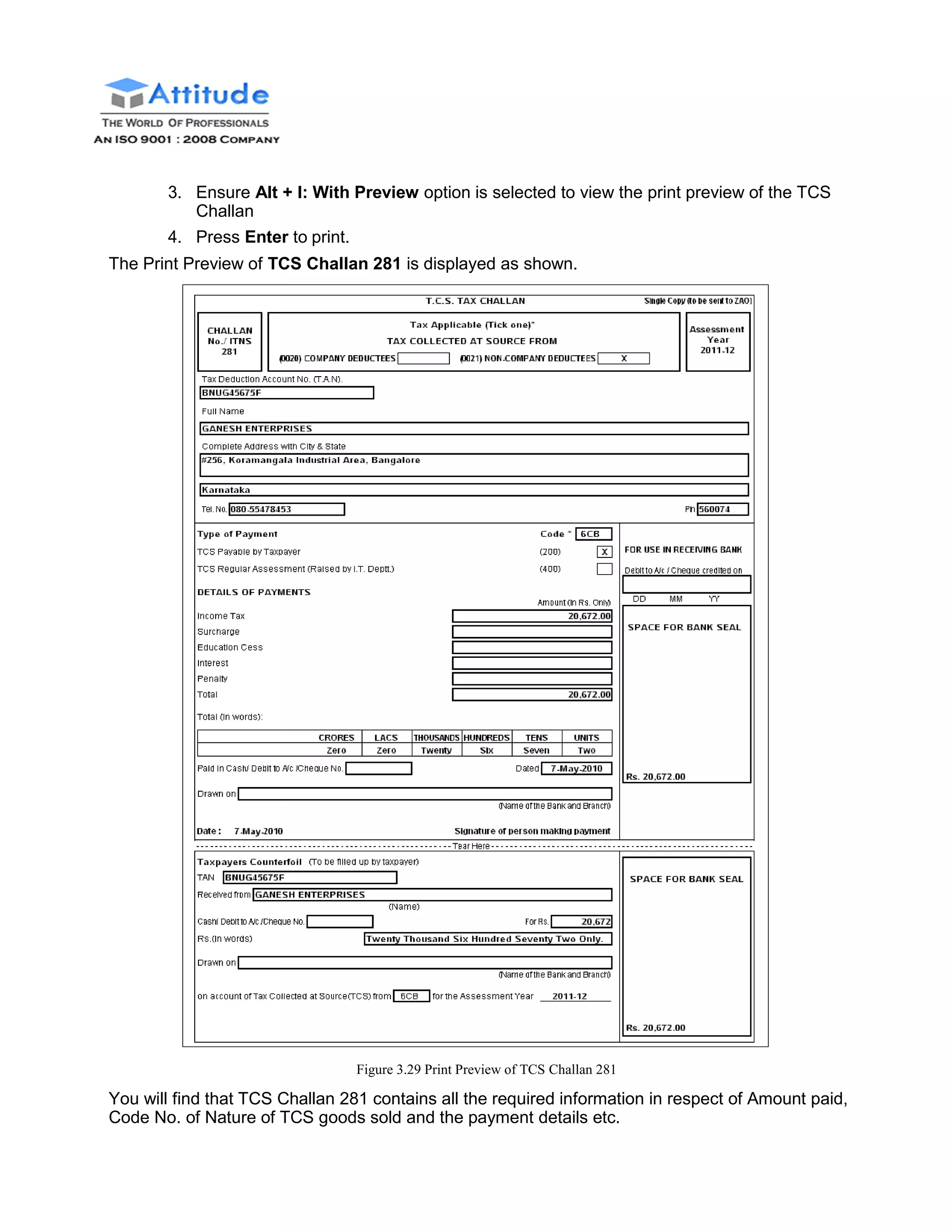
The Print Preview of TCS Challan 281 is displayed as shown.
Figure 3.29 Print Preview of TCS Challan 281
You will find that TCS Challan 281 contains all the required information in respect of Amount paid,
Code No. of Nature of TCS goods sold and the payment details etc.
TCS Transactions
48
Challan Reconciliation
As per Income Tax Act, the details of payment of Tax collected at Source by the Seller are
required to be furnished in the TDS certificate issued to the Buyer / Lessee / Licensee. For this
purpose, the Challan details containing the information in respect of Bank Challan No. & Date,
Bank Name, BSR Code etc., are required to be specified. Tally.ERP 9 allows to enter all the
required information as specified by the statutes, by using the Challan Reconciliation facility.
Form 281 Reconciliation/ TCS Reconciliation
The TCS challan reconciliation is generally done depending upon the nature of TCS ledger (i.e.,
rate of Tax collected at source). For each TCS ledger, the TCS Challan reconciliation is required
to be done separately. To reconcile TCS Challan details, follow the steps given below.
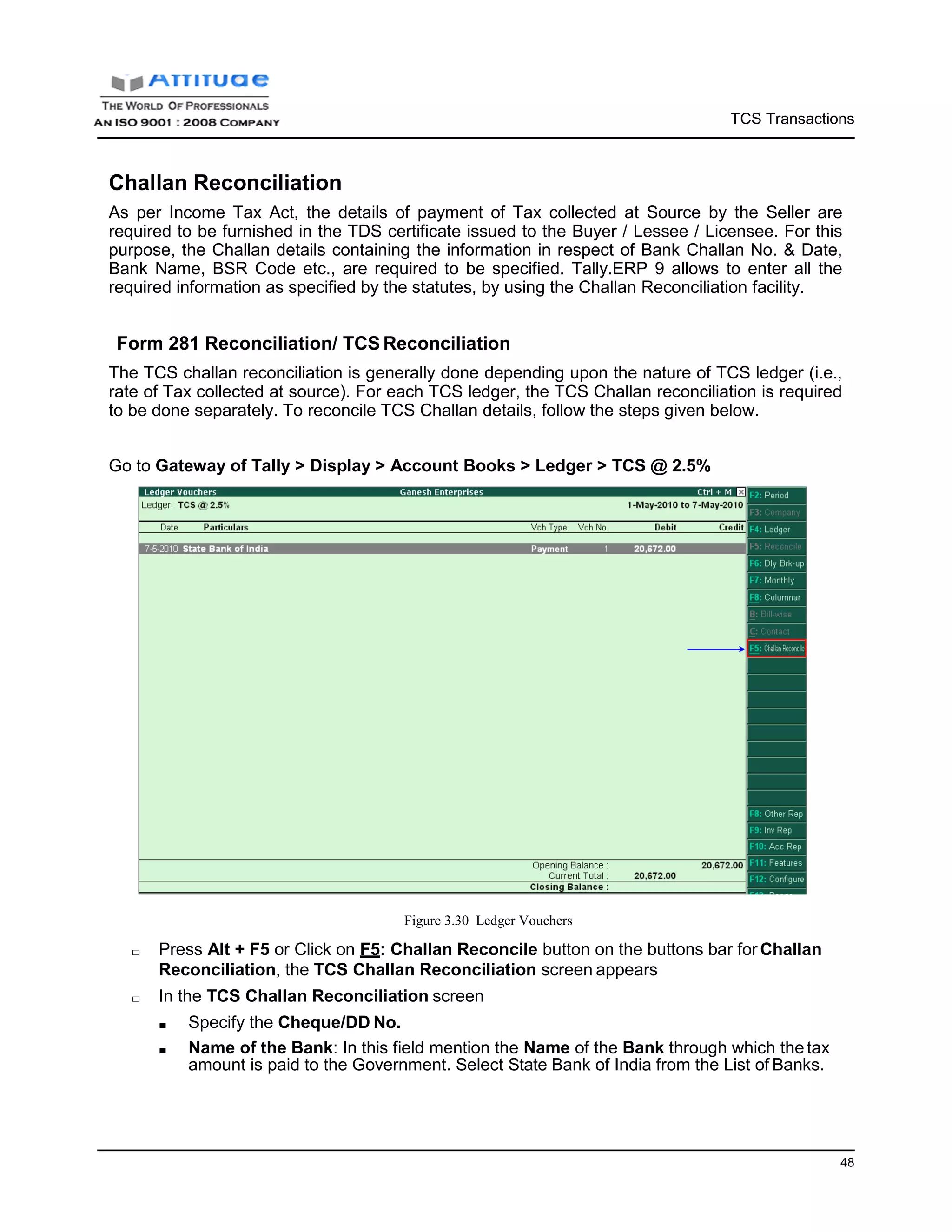
Go to Gateway of Tally > Display > Account Books > Ledger > TCS @ 2.5%
Figure 3.30 Ledger Vouchers
□ Press Alt + F5 or Click on F5: Challan Reconcile button on the buttons bar forChallan
Reconciliation, the TCS Challan Reconciliation screen appears
□ In the TCS Challan Reconciliation screen
■ Specify the Cheque/DD No.
■ Name of the Bank: In this field mention the Name of the Bank through which thetax
amount is paid to the Government. Select State Bank of India from the List of Banks.
In this field Tally.ERP 9 displays the List of Banks which lists all the banks which are already
created to carry out the regular business, option (New Name) to create new Bank and the option
Not applicable if the payment is made by Cash.
New Name will be selected when the authorised bank through which the payment
is made is different from the regular bank where the deposit account is main-
tained. The Bank name created here will not be available under the List of
Ledgers.
■ BSR Code: Enter the BSR Code of the branch. BSR code is a 7 digit number allotted
by Reserve Bank of India (RBI) to bank branch
BSR code details will be defaulted automatically, if the user selects the bank which
is already created to carry out the regular business (with branch name and BSR
code) in the Name of Bank field. User can change such defaulted details.
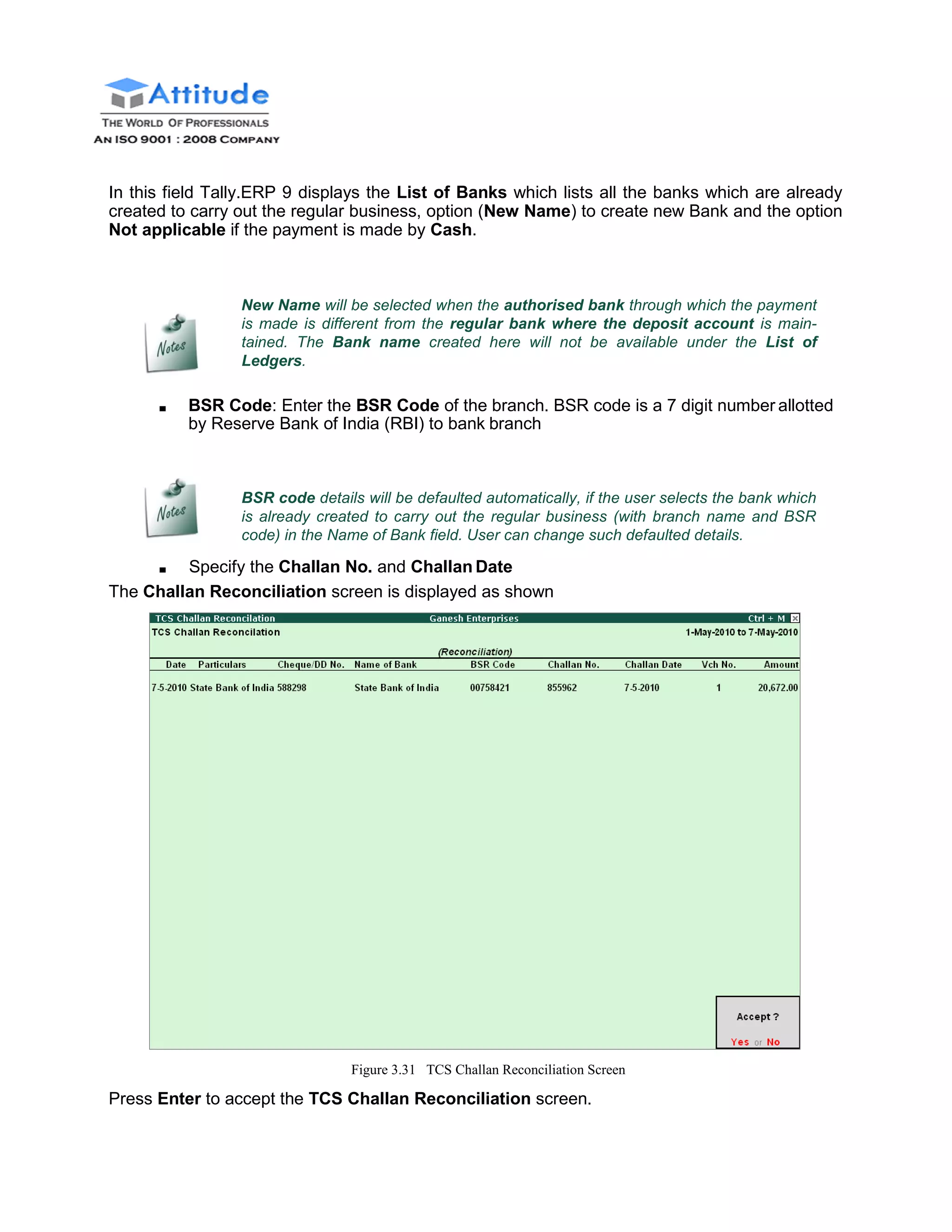
■ Specify the Challan No. and Challan Date
The Challan Reconciliation screen is displayed as shown
Figure 3.31 TCS Challan Reconciliation Screen
Press Enter to accept the TCS Challan Reconciliation screen.
Lesson 4: TCS Reports
Lesson Objectives
On completion of this lesson, you will learn to
□ Generate and file eTCS Returns
□ Generate TCS Reports & Certificates
□ Reconcile TCS Certificates
Tally.ERP 9 provides all the required TCS reports viz., TCS Challans, Certificates, Reports and
also facilitates generation of Statutory eTCS returns in the prescribed forms.
TCS Certificate
The Tax collected at Source in respect of sale of goods specified in Section 206C by the Seller
from the Buyer / Lessee / License and paid to the credit of the Central Government shall be
deemed to be a payment of tax on behalf of the person from whom the amount has been collected
and credit shall be given to such person for the amount so collected in a particular assessment
year.
The person collecting tax at source in accordance with provisions of Section 206C, is required to
issue a certificate of collection of tax at source in Form No. 27D to the Buyer (or lessee or
licensee) from whom the tax is collected. Such certificate shall be furnished within one month from
the end of the month during which the amount is debited to the account of the buyer (or licensee
or lessee) or payment is received from the buyer (or licensee or lessee).
However, where more than one certificate is required to be furnished to a buyer (or licensee or
lessee) for the period ending 30th September or 31st March in a financial year, the person collect-
ing the tax on request from such buyer issue a consolidated certificate in Form 27D for tax
collected during whole of such period.
51
Reports
Form 27D
Form 27D can be printed for a party selecting the party Ledger or for multiple parties using Multi
account Printing.
To print Form 27D for a Party selecting the Party Ledger
Go to Gateway of Tally > Display > Statutory Reports > TCS Reports > Print Form 27D
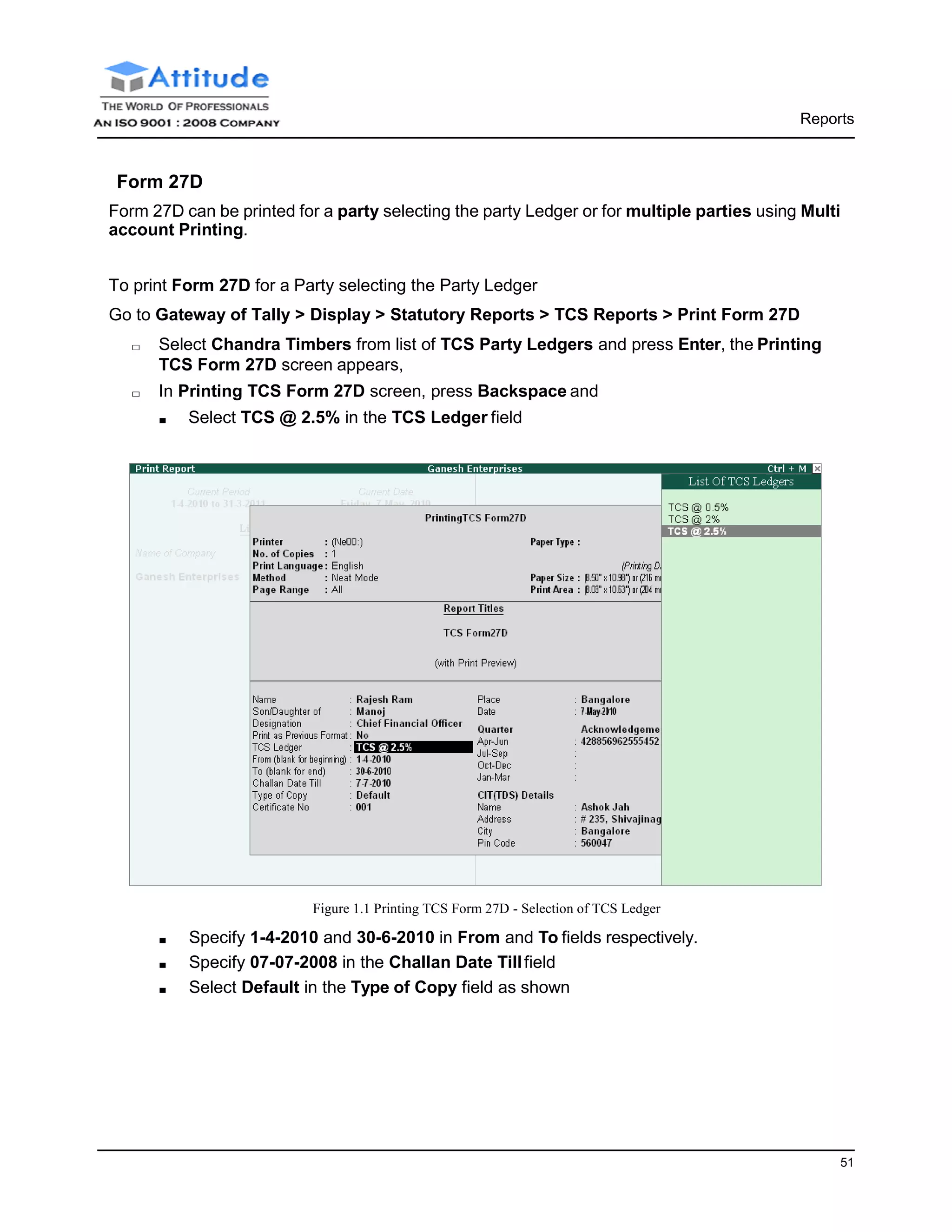
□ Select Chandra Timbers from list of TCS Party Ledgers and press Enter, the Printing
TCS Form 27D screen appears,
□ In Printing TCS Form 27D screen, press Backspace and
■ Select TCS @ 2.5% in the TCS Ledger field
Figure 1.1 Printing TCS Form 27D - Selection of TCS Ledger
■ Specify 1-4-2010 and 30-6-2010 in From and To fields respectively.
■ Specify 07-07-2008 in the Challan Date Tillfield
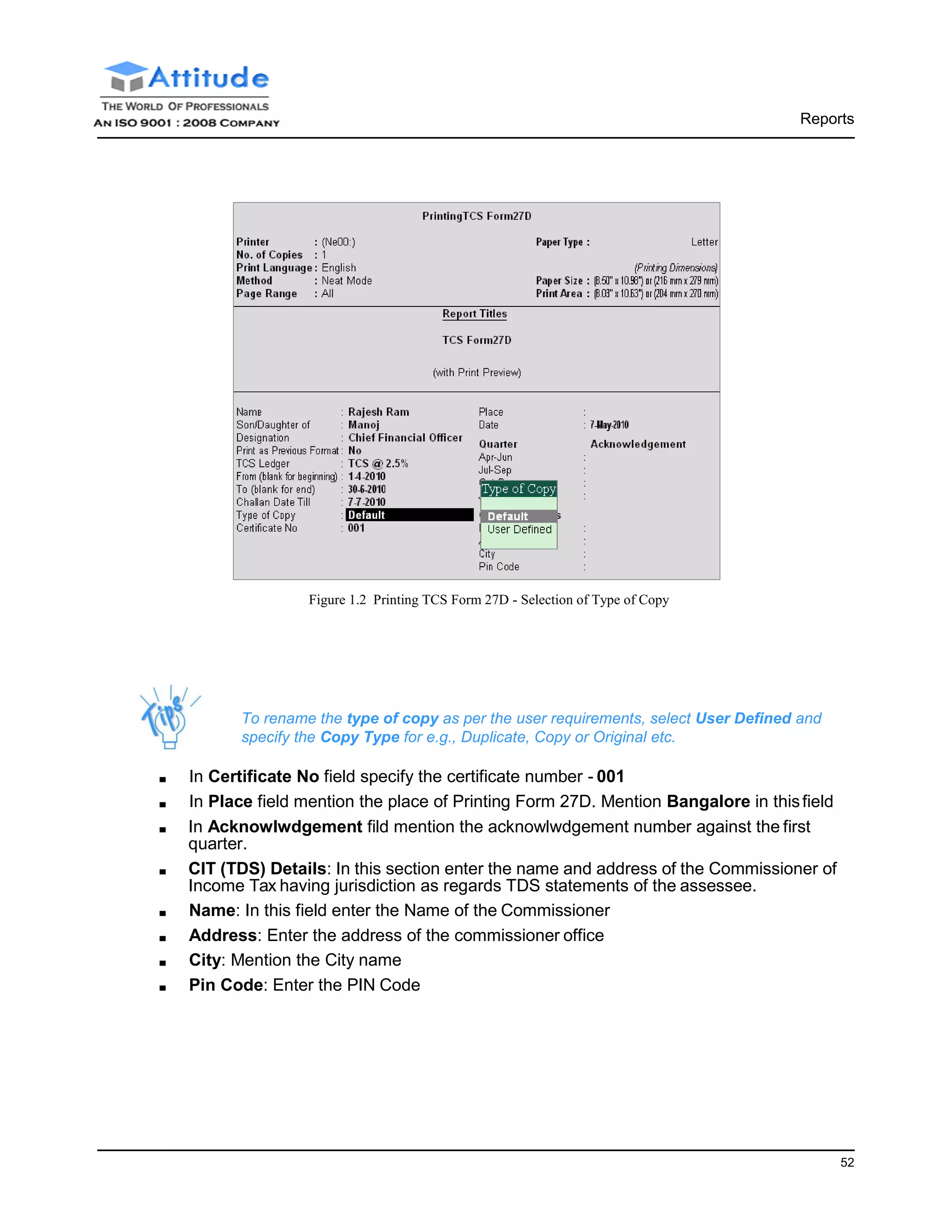
■ Select Default in the Type of Copy field as shown
Reports
52
Figure 1.2 Printing TCS Form 27D - Selection of Type of Copy
To rename the type of copy as per the user requirements, select User Defined and
specify the Copy Type for e.g., Duplicate, Copy or Original etc.
■ In Certificate No field specify the certificate number - 001
■ In Place field mention the place of Printing Form 27D. Mention Bangalore in thisfield
■ In Acknowlwdgement fild mention the acknowlwdgement number against the first
quarter.
■ CIT (TDS) Details: In this section enter the name and address of the Commissioner of
Income Tax having jurisdiction as regards TDS statements of the assessee.
■ Name: In this field enter the Name of the Commissioner
■ Address: Enter the address of the commissioner office
■ City: Mention the City name
■ Pin Code: Enter the PIN Code
Reports
53
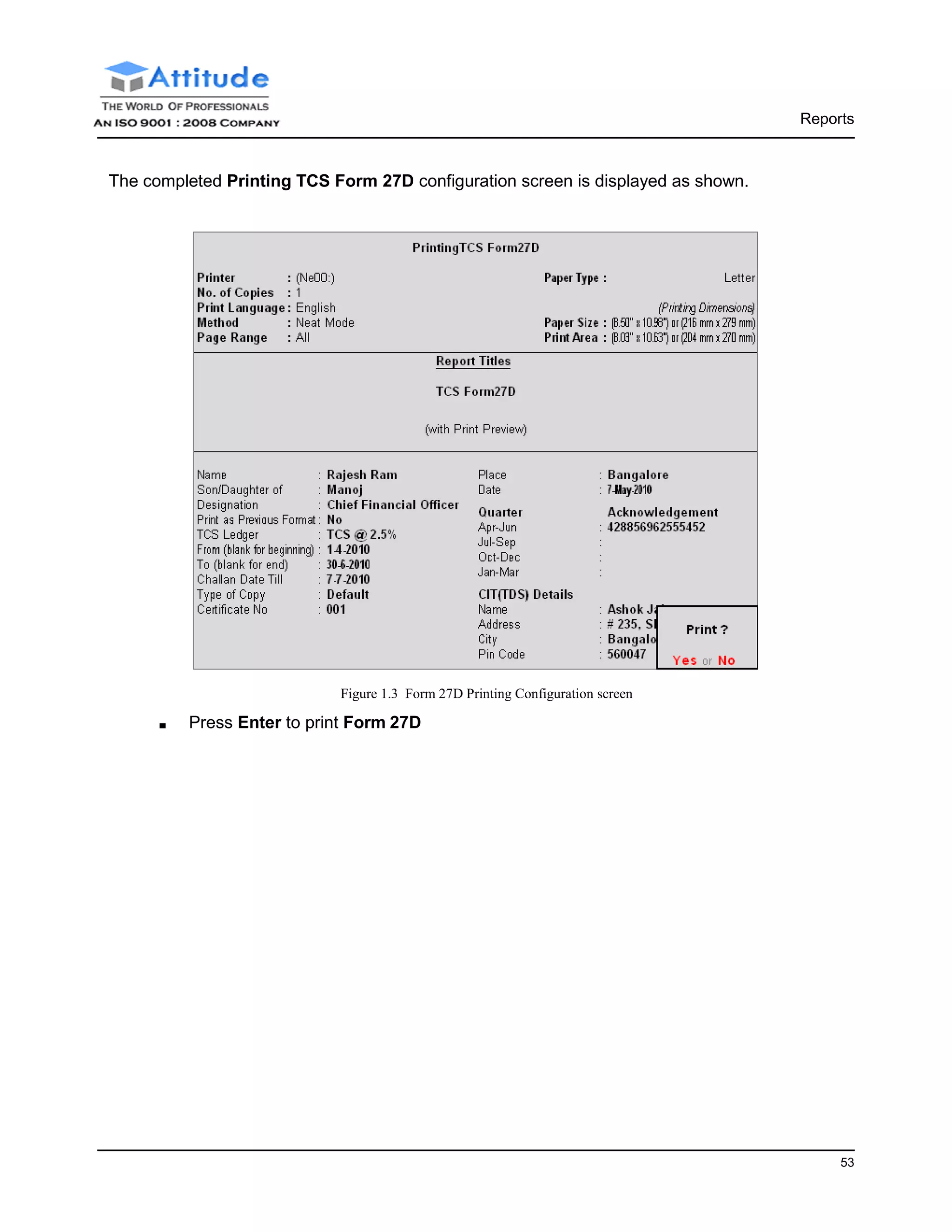
The completed Printing TCS Form 27D configuration screen is displayed as shown.
Figure 1.3 Form 27D Printing Configuration screen
■ Press Enter to print Form 27D
Reports
54
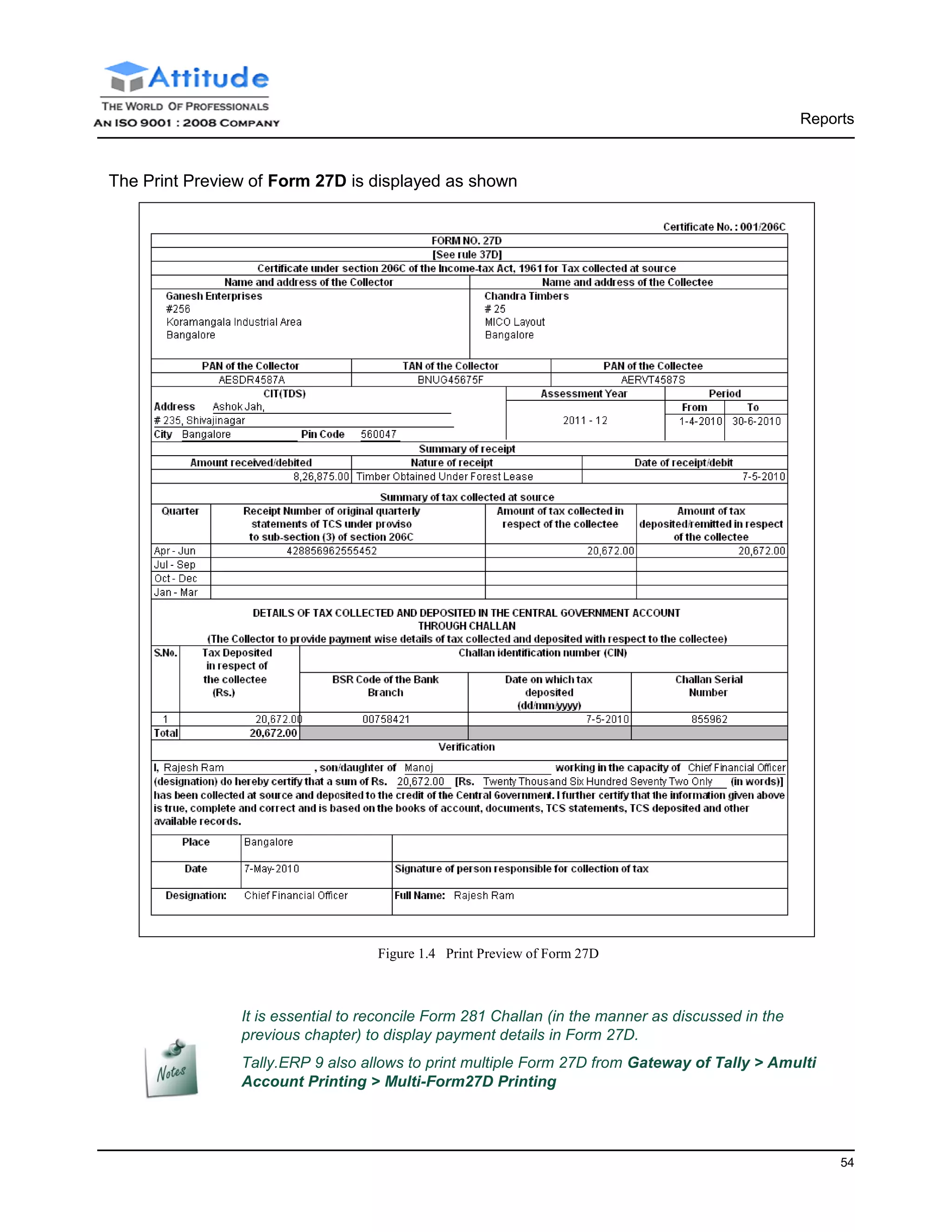
The Print Preview of Form 27D is displayed as shown
Figure 1.4 Print Preview of Form 27D
It is essential to reconcile Form 281 Challan (in the manner as discussed in the
previous chapter) to display payment details in Form 27D.
Tally.ERP 9 also allows to print multiple Form 27D from Gateway of Tally > Amulti
Account Printing > Multi-Form27D Printing
Reports
55
Form 27D Reconciliation
The information regarding the number of certificates issued by the Seller in Form 27D to the
Buyer (or Lessee or Licensee) for tax collected at source for any financial year is required to be
maintained for the purpose of verification and scrutiny by the department. In Tally.ERP 9, you can
record information pertaining to TCS certificates issued to the buyers with issue date using Rec-
onciliation facility.
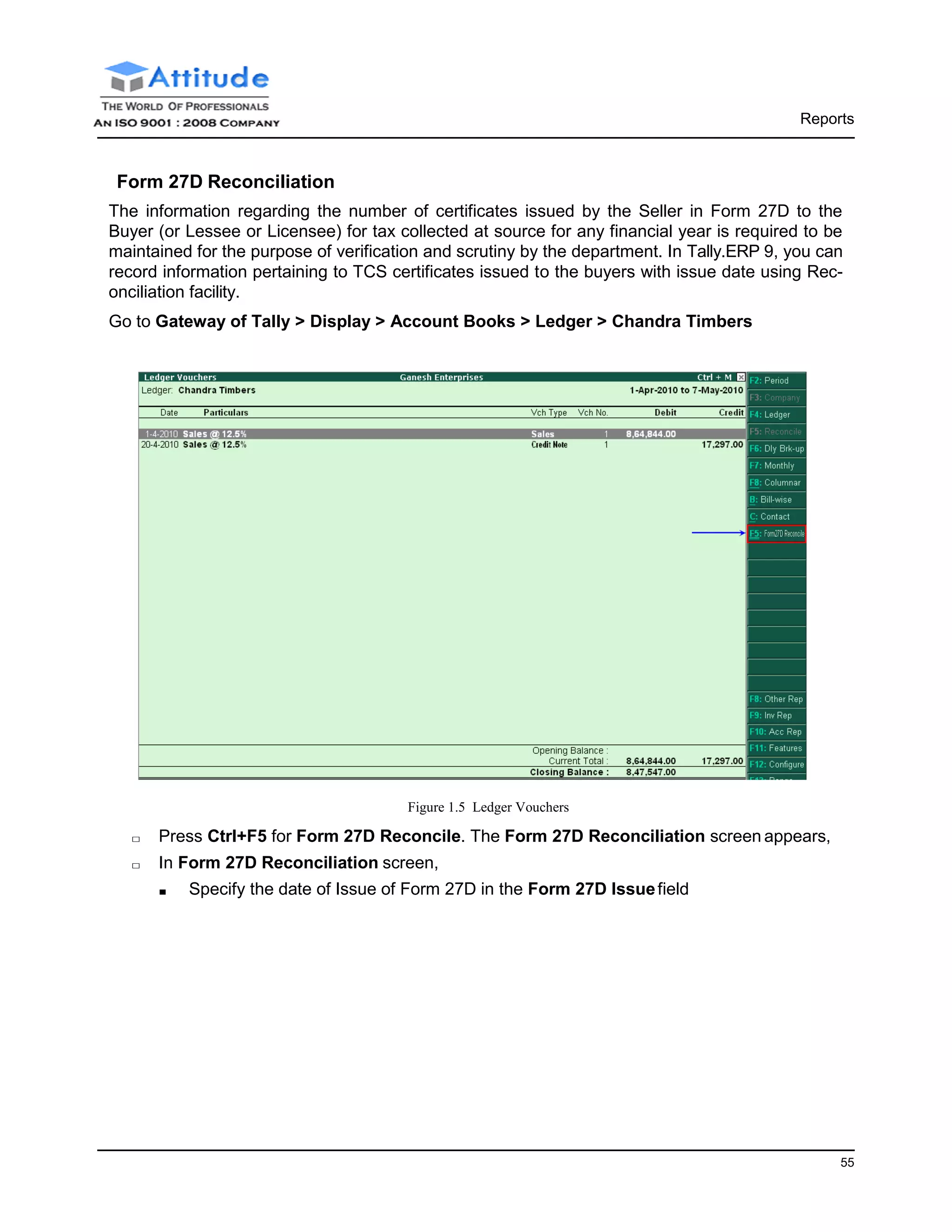
Go to Gateway of Tally > Display > Account Books > Ledger > Chandra Timbers
Figure 1.5 Ledger Vouchers
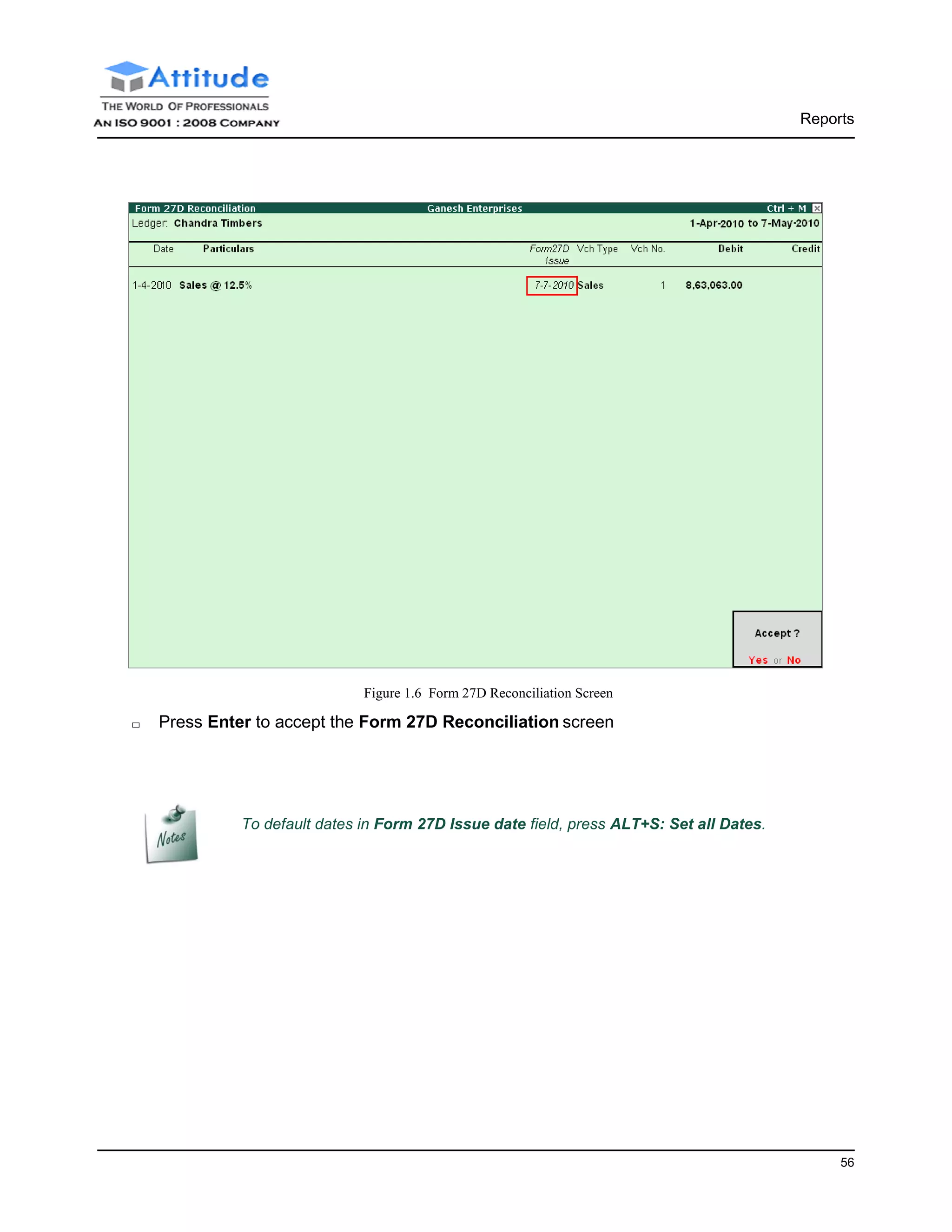
□ Press Ctrl+F5 for Form 27D Reconcile. The Form 27D Reconciliation screen appears,
□ In Form 27D Reconciliation screen,
■ Specify the date of Issue of Form 27D in the Form 27D Issuefield
Reports
56
Figure 1.6 Form 27D Reconciliation Screen
□ Press Enter to accept the Form 27D Reconciliation screen
To default dates in Form 27D Issue date field, press ALT+S: Set all Dates.
Reports
57
eTCS Returns
Following the automation of TDS returns in 2003, ITD notified an ‘electronic filing of returns of tax
Collected at source scheme, 2005. It is applicable to all deductors furnishing their TCS return in
electronic form. As per this scheme:
□ It is mandatory for corporate and government deductors to furnish their TCS returns in
electronic form (e-TCS return) from F.Y.2004-2005 onwards.
□ Deductors (other than government and corporates’) may file TCS return in electronic or
physical form.
□ NSDL as the e-TCS intermediary (appointed by ITD) receives, on behalf of ITD, the e-TCS
returns from the deductors.
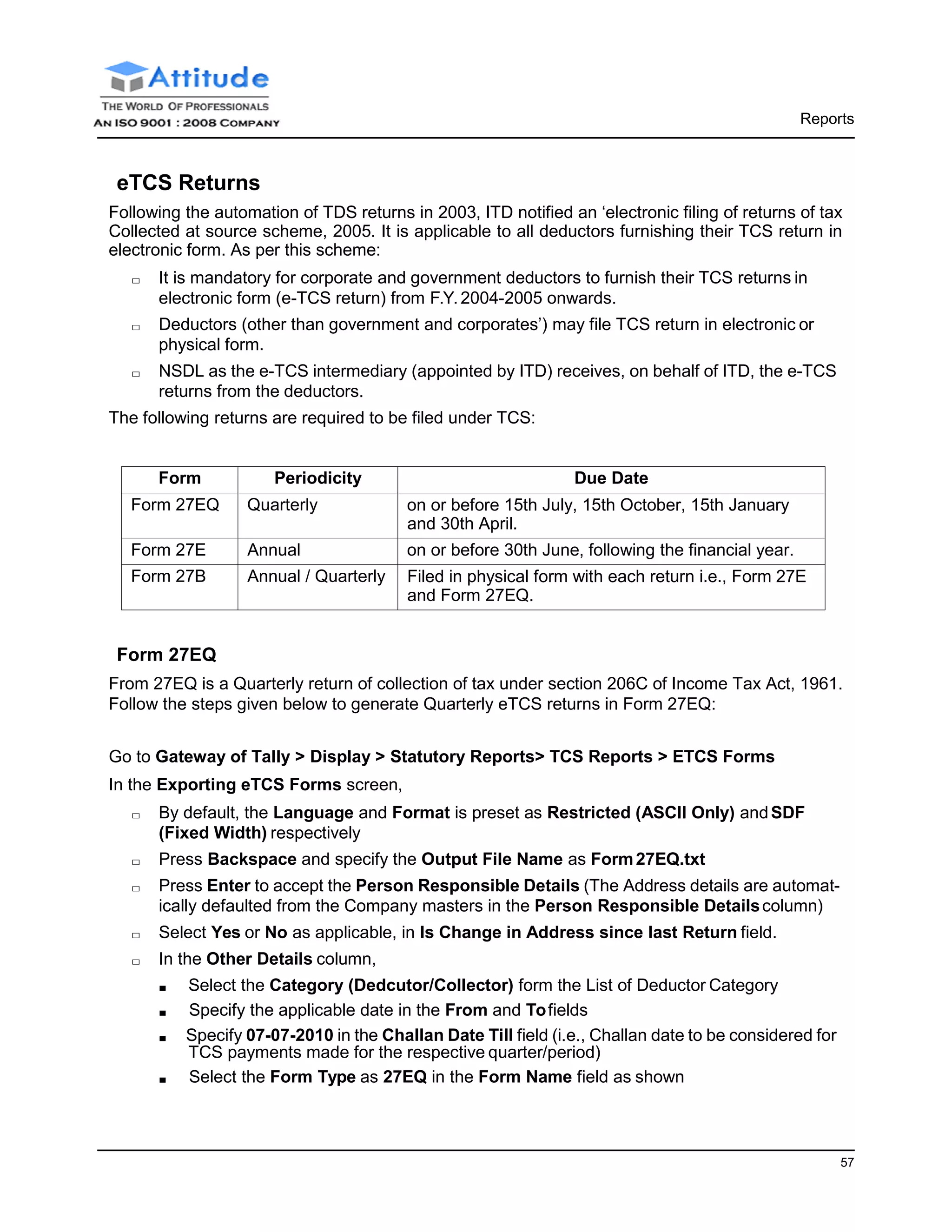
The following returns are required to be filed under TCS:
Form Periodicity Due Date
Form 27EQ Quarterly on or before 15th July, 15th October, 15th January
and 30th April.
Form 27E Annual on or before 30th June, following the financial year.
Form 27B Annual / Quarterly Filed in physical form with each return i.e., Form 27E
and Form 27EQ.
Form 27EQ
From 27EQ is a Quarterly return of collection of tax under section 206C of Income Tax Act, 1961.
Follow the steps given below to generate Quarterly eTCS returns in Form 27EQ:
Go to Gateway of Tally > Display > Statutory Reports> TCS Reports > ETCS Forms
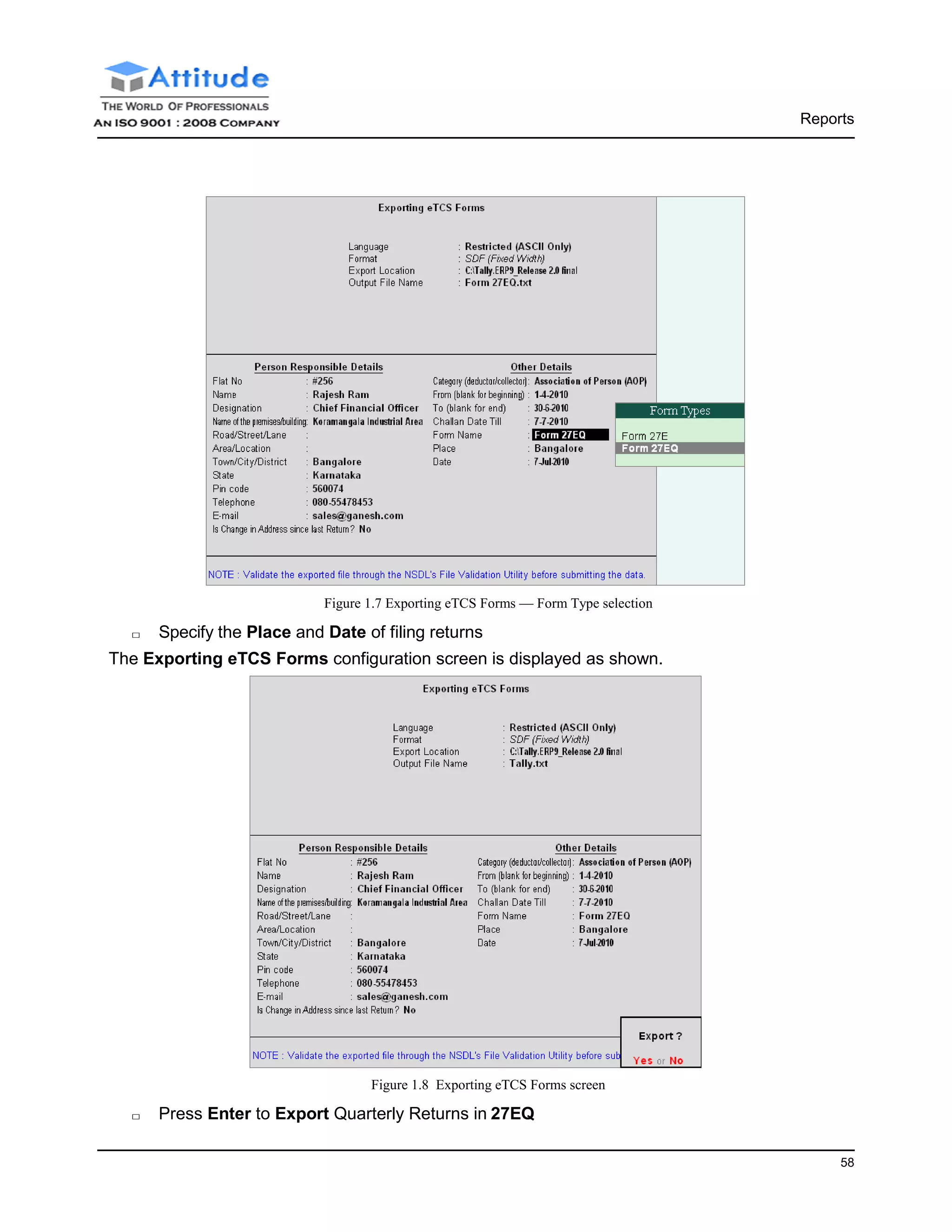
In the Exporting eTCS Forms screen,
□ By default, the Language and Format is preset as Restricted (ASCII Only) andSDF
(Fixed Width) respectively
□ Press Backspace and specify the Output File Name as Form27EQ.txt
□ Press Enter to accept the Person Responsible Details (The Address details are automat-
ically defaulted from the Company masters in the Person Responsible Detailscolumn)
□ Select Yes or No as applicable, in Is Change in Address since last Return field.
□ In the Other Details column,
■ Select the Category (Dedcutor/Collector) form the List of Deductor Category
■ Specify the applicable date in the From and Tofields
■ Specify 07-07-2010 in the Challan Date Till field (i.e., Challan date to be considered for
TCS payments made for the respective quarter/period)
■ Select the Form Type as 27EQ in the Form Name field as shown
Reports
58
Figure 1.7 Exporting eTCS Forms — Form Type selection
□ Specify the Place and Date of filing returns
The Exporting eTCS Forms configuration screen is displayed as shown.
Figure 1.8 Exporting eTCS Forms screen
□ Press Enter to Export Quarterly Returns in 27EQ
Reports
59
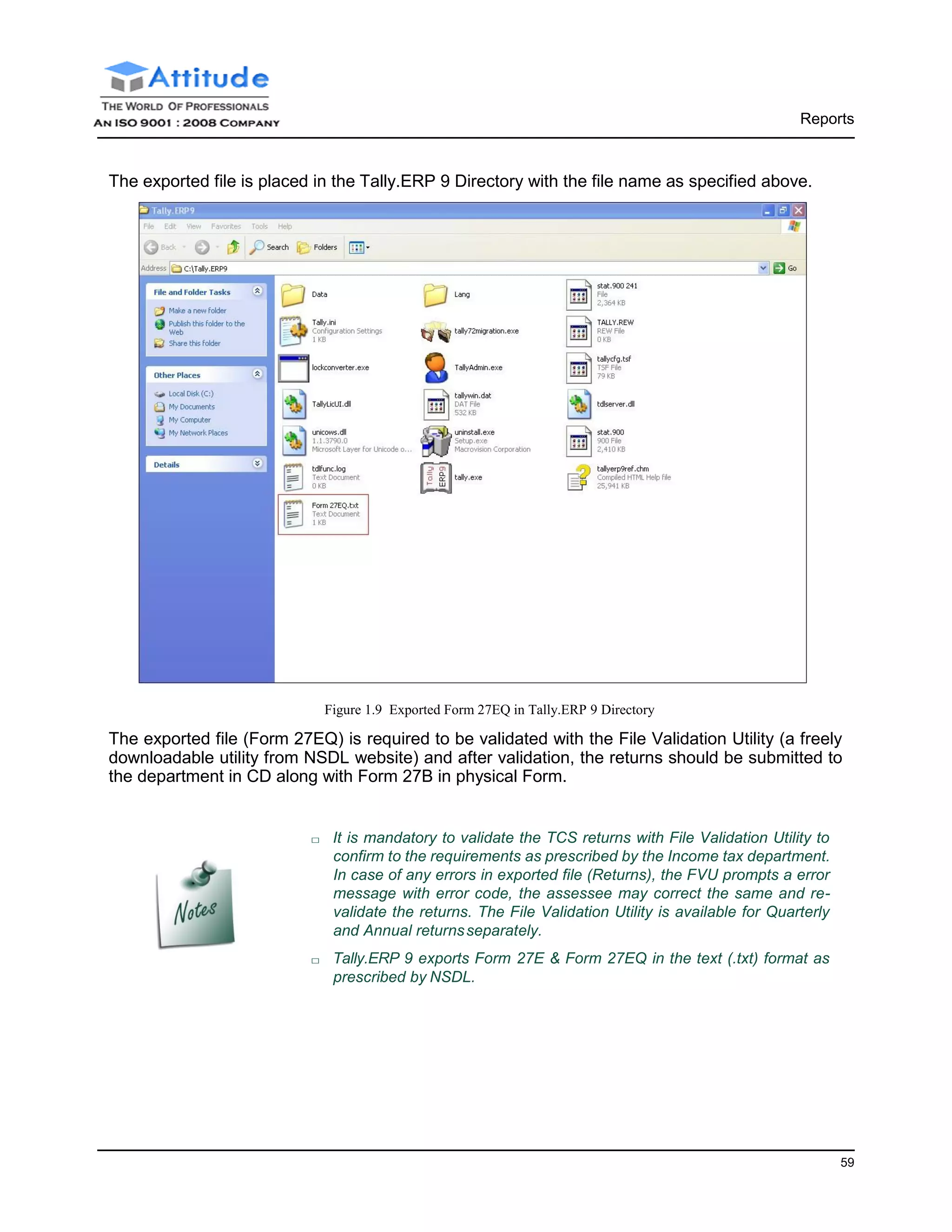
The exported file is placed in the Tally.ERP 9 Directory with the file name as specified above.
Figure 1.9 Exported Form 27EQ in Tally.ERP 9 Directory
The exported file (Form 27EQ) is required to be validated with the File Validation Utility (a freely
downloadable utility from NSDL website) and after validation, the returns should be submitted to
the department in CD along with Form 27B in physical Form.
□ It is mandatory to validate the TCS returns with File Validation Utility to
confirm to the requirements as prescribed by the Income tax department.
In case of any errors in exported file (Returns), the FVU prompts a error
message with error code, the assessee may correct the same and re-
validate the returns. The File Validation Utility is available for Quarterly
and Annual returnsseparately.
□ Tally.ERP 9 exports Form 27E & Form 27EQ in the text (.txt) format as
prescribed by NSDL.
Reports
61
Form 27E
Form 27E is a Annual return of collection of tax under section 206C of Income Tax Act, 1961. Fol-
low the steps given below to generate Annual eTCS returns in Form 27E:
Go to Gateway of Tally > Display > Statutory Reports> TCS Reports > ETCS Forms
In the Exporting eTCS Forms screen,
□ By default, the Language and Format is preset as Restricted (ASCII Only) andSDF
(Fixed Width) respectively
□ Press Backspace and specify the Output File Name as Form27E.txt
□ Press Enter to accept the Person Responsible Details (The Address details are automat-
ically defaulted from the Company masters in the Person Responsible Detailscolumn)
□ Select Yes or No as applicable, in Is Change in Address since last Return field.
□ In the Other Details column,
■ Specify the applicable date in the From and Tofields
■ Specify 07-03-2010 in the Challan Date Till field (i.e., Challan date to be considered for
TCS payments made for the respective quarter/period)
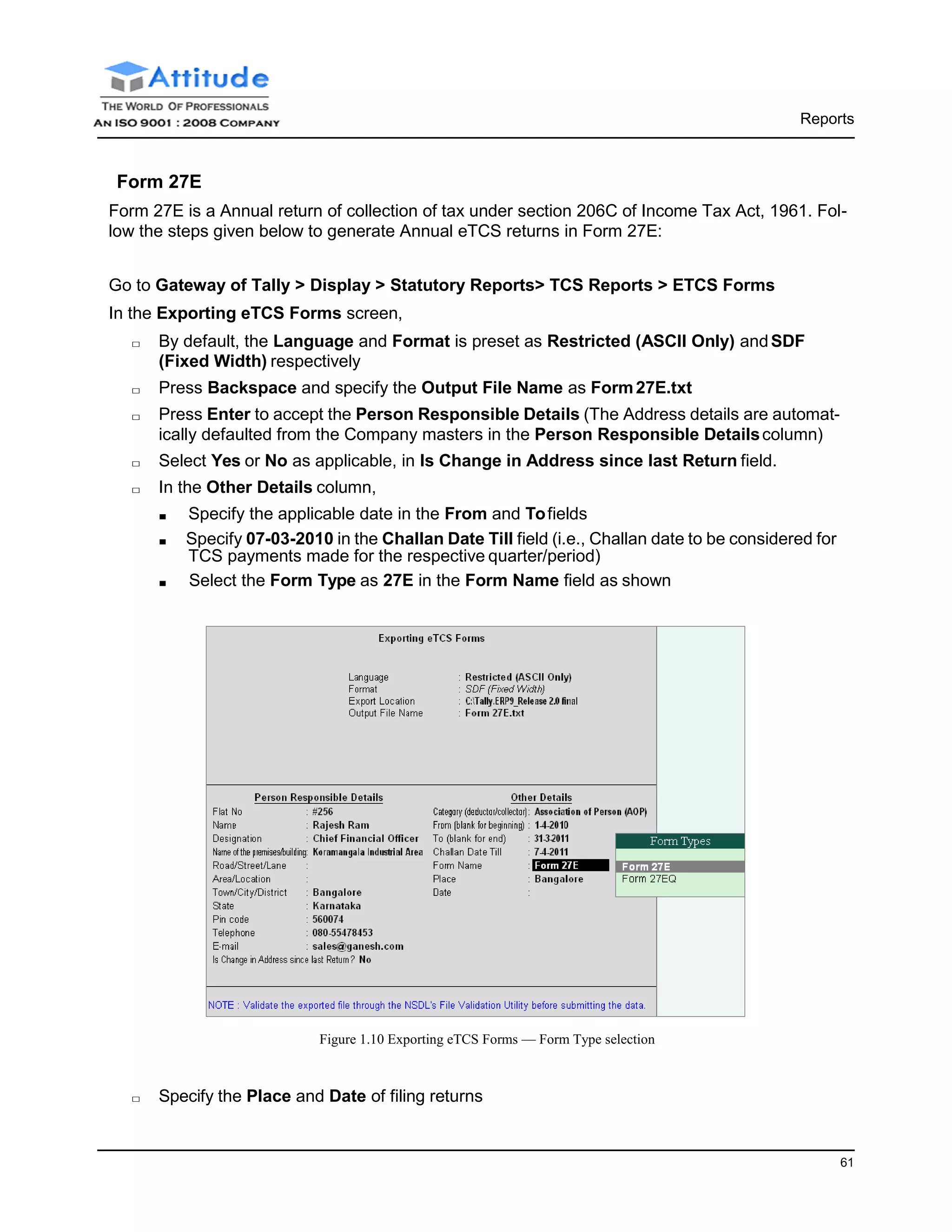
■ Select the Form Type as 27E in the Form Name field as shown
Figure 1.10 Exporting eTCS Forms — Form Type selection
□ Specify the Place and Date of filing returns
Reports
61
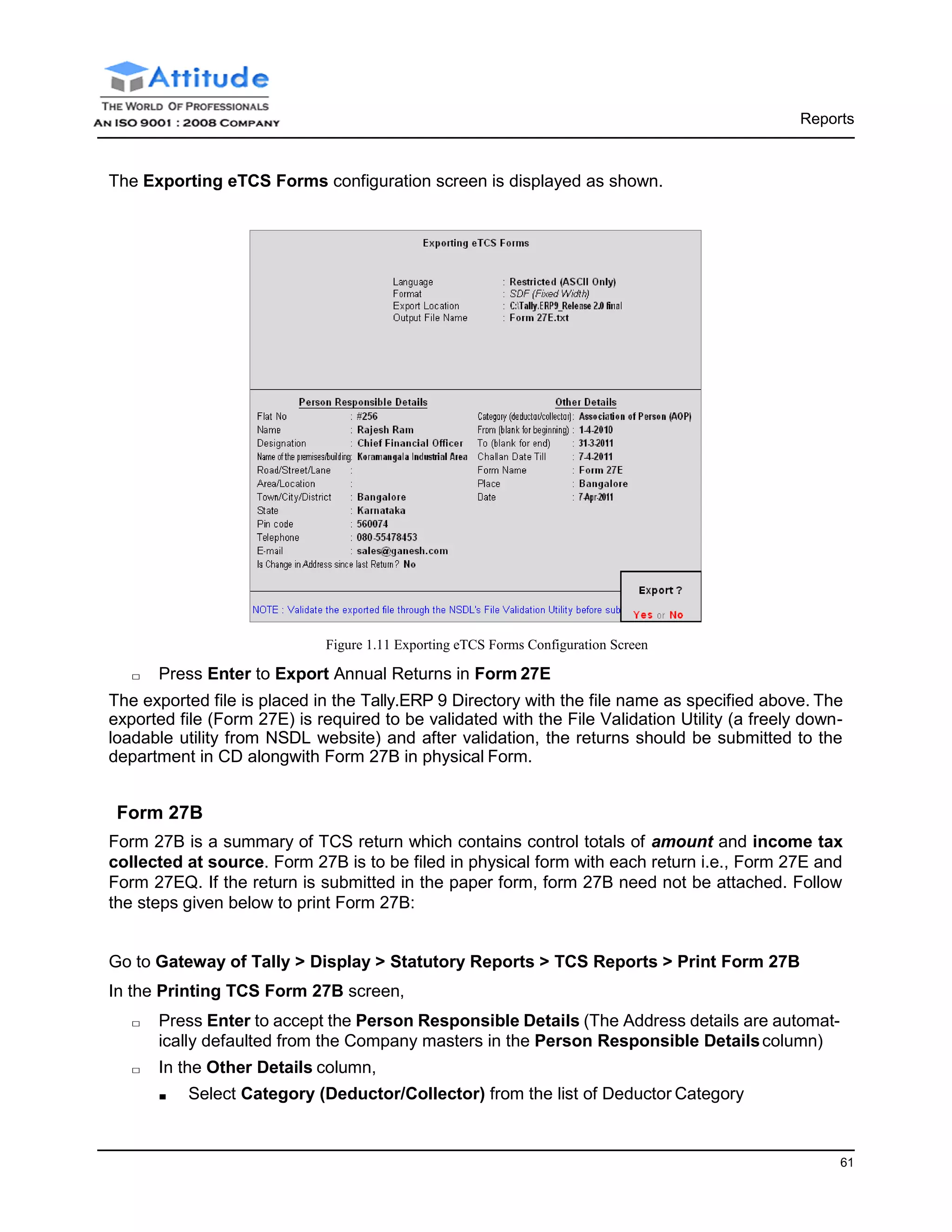
The Exporting eTCS Forms configuration screen is displayed as shown.
Figure 1.11 Exporting eTCS Forms Configuration Screen
□ Press Enter to Export Annual Returns in Form 27E
The exported file is placed in the Tally.ERP 9 Directory with the file name as specified above. The
exported file (Form 27E) is required to be validated with the File Validation Utility (a freely down-
loadable utility from NSDL website) and after validation, the returns should be submitted to the
department in CD alongwith Form 27B in physical Form.
Form 27B
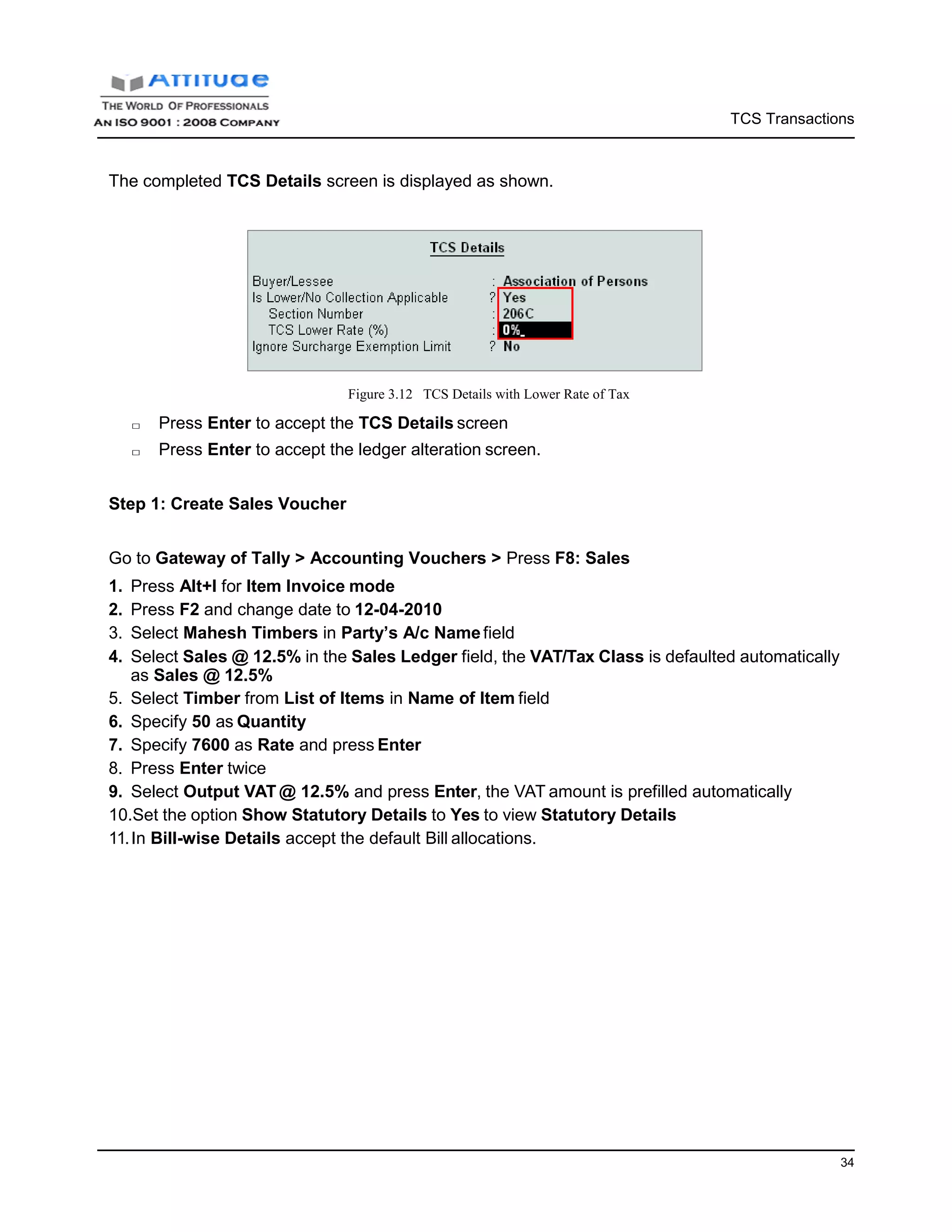
Form 27B is a summary of TCS return which contains control totals of amount and income tax
collected at source. Form 27B is to be filed in physical form with each return i.e., Form 27E and
Form 27EQ. If the return is submitted in the paper form, form 27B need not be attached. Follow
the steps given below to print Form 27B:
Go to Gateway of Tally > Display > Statutory Reports > TCS Reports > Print Form 27B
In the Printing TCS Form 27B screen,
□ Press Enter to accept the Person Responsible Details (The Address details are automat-
ically defaulted from the Company masters in the Person Responsible Detailscolumn)
□ In the Other Details column,
■ Select Category (Deductor/Collector) from the list of Deductor Category
Reports
63
■ Specify the applicable date in the From and Tofields
■ Specify 07-07-2010 in the Challan Date Till field (i.e., Challan date to be considered for
TCS payments made for the respective quarter/period)
■ Select the Enclosed Form Type as 27EQ as shown
■ Specify Previous Receipt No., if any
■ Specify 2 CD’s in the No. of Annexures enclosed field
■ Specify Other information, if any
■ Specify the Place and Date of filing returns
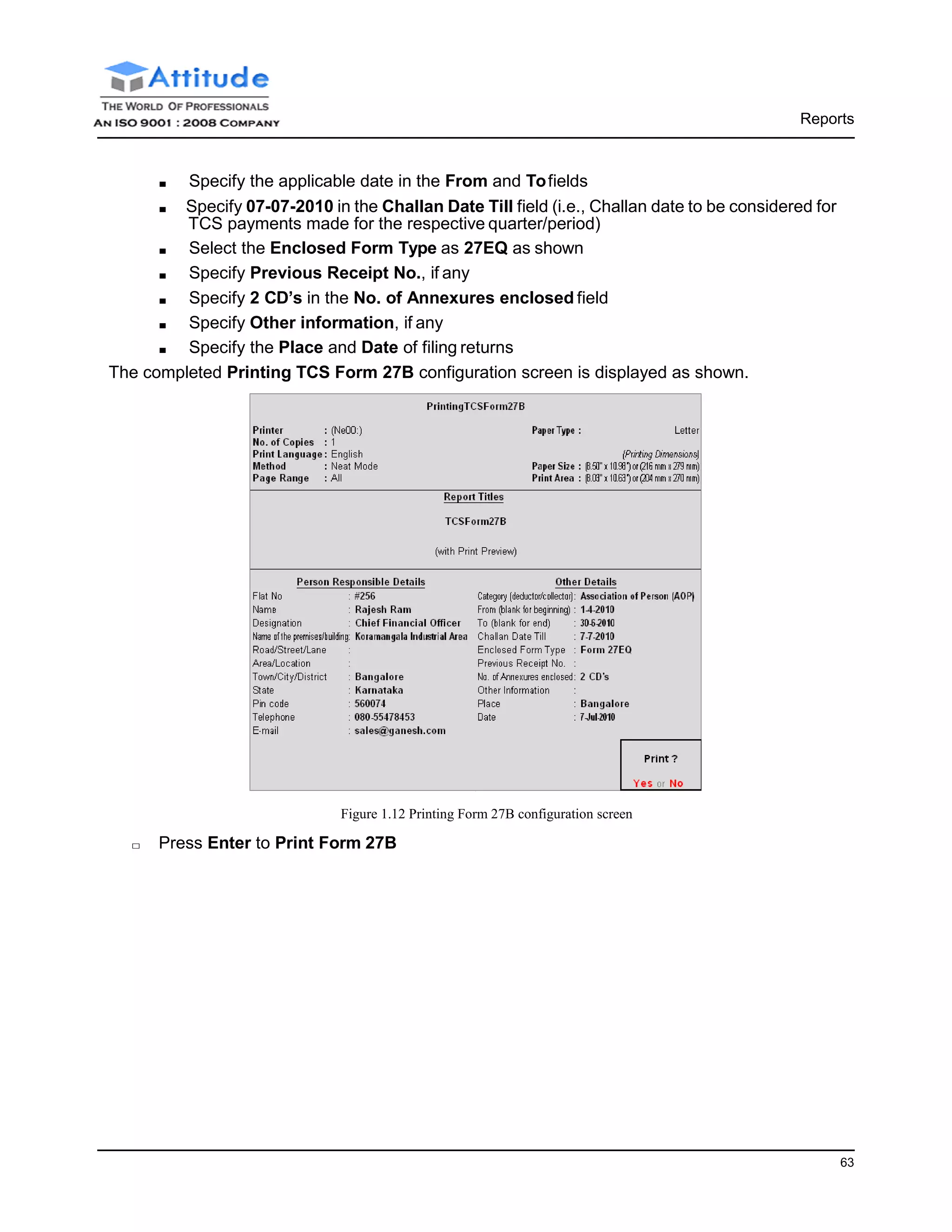
The completed Printing TCS Form 27B configuration screen is displayed as shown.
Figure 1.12 Printing Form 27B configuration screen
□ Press Enter to Print Form 27B
Reports
63
The print preview of Form 27B is as shown.
Figure 1.13 Print Preview of Form 27B

TCS at Lower Rate in Tally ERP9

  • 1.
    Implementation of TCSin Tally.ERP 9
  • 2.
    The information containedin this document is current as of the date of publication and subject to change. Because Tally must respond to changing market conditions, it should not be interpreted to be a commitment on the part of Tally, and Tally cannot guarantee the accuracy of any information presented after the date of publication. The information provided herein is general, not according to individual circumstances, and is not intended to substitute for informed professional advice. This document is for informational purposes only. TALLY MAKES NO WARRANTIES, EXPRESS OR IMPLIED, IN THIS DOCUMENT AND SHALL NOT BE LIABLE FOR LOSS OR DAMAGE OF WHATEVER NATURE, ARISING OUT OF, OR IN CONNECTION WITH THE USE OF OR INABILITY TO USE THE CONTENT OF THIS PUBLICATION, AND/OR ANY CONDUCT UNDERTAKEN BY PLACING RELIANCE ON THE CONTENTS OF THIS PUBLICATION. Complying with all applicable copyright and other intellectual property laws is the responsibility of the user. All rights including copyrights, rights of translation, etc., are vested exclusively with TALLY SOLUTIONS PRIVATE LIMITED. No part of this document may be reproduced, translated, revised, stored in, or introduced into a retrieval system, or transmitted in any form, by any means (electronic, mechanical, photocopying, recording, or otherwise), or for any purpose, without the express written permission of Tally Solutions Pvt. Ltd. Tally may have patents, patent applications, trademarks, copyrights, or other intellectual property rights covering subject matter in this document. Except as expressly provided in any written licence agreement from Tally, the furnishing of this document does not give you any licence to these patents, trademarks, copyrights, or other intellectual property. © 2009 Tally Solutions Pvt. Ltd. All rights reserved. Tally, Tally 9, Tally9, Tally.ERP, Tally.ERP 9, Shoper, Shoper 9, Shoper POS, Shoper HO, Shoper 9 POS, Shoper 9 HO, TallyDeveloper, Tally Developer, Tally.Developer 9, Tally.NET, Tally Development Environment, Tally Extender, Tally Integrator, Tally Integrated Network, Tally Service Partner, TallyAcademy & Power of Simplicity are either registered trademarks or trademarks of Tally Solutions Pvt. Ltd. in India and/or other countries. All other trademarks are properties of their respective owners. Version: Implementation of TCS in Tally.ERP 9/2.0/August 2010
  • 3.
    i Contents Introduction Scope & Applicability............................................................................................................................................1 TCS Nature of Goods............................................................................................................................................. 1 TCS on Transfer of Right ...................................................................................................................................... 2 Meaning of Seller.................................................................................................................................................... 2 Meaning of Buyer ................................................................................................................................................... 2 Time & Mode of Payment.....................................................................................................................................3 Credit for Tax Collected at Source....................................................................................................................... 3 Issue of TCS Certificate......................................................................................................................................... 3 Returns under TCS ................................................................................................................................................. 3 e-TCS Returns......................................................................................................................................................... 3 Returns & Timelines............................................................................................................................................... 4 TCS Features in Tally.ERP 9................................................................................................................................ 5 Lesson 1: Configuring Tally.ERP 9 for TCS Enabling TCS in Tally.ERP 9............................................................................................................................... 6 TCS Statutory Masters ................................................................................................................................ 10 Collectee Types ................................................................................................................................................ 10 TCS Nature of Goods ............................................................................................................................. 12 Lesson 2: Creating TCS Masters............................................................................................................................... 13 Creation of TCS Masters ..................................................................................................................................... 13 2.1.1 Ledger Classifications............................................................................................................................ 13 Stock Item Classification..................................................................................................................................... 21 Lesson 3: TCS Transactions Sale of Goods Subject to TCS............................................................................................................................. 23 Sale of Goods Subject to TCS @ Lower Rate......................................................................................... 29 Sale of Goods Subject to TCS @ Nil Rate........................................................................................................ 33 TCS on Transfer of Right to Use............................................................................................................... 36 Sales Returns................................................................................................................................................. 39 Payment of TCS ........................................................................................................................................... 42 Challan Reconciliation......................................................................................................................................... 48 3.7.1 Form 281 Reconciliation/ TCS Reconciliation...................................................................................... 48 Lesson 4: TCS Reports TCS Certificate............................................................................................................................................. 50 Form 27D............................................................................................................................................... 51 Form 27D Reconciliation................................................................................................................................. 55
  • 4.
    i eTCS Returns................................................................................................................................................ 57 Form27EQ............................................................................................................................................. 57 Form 27E ............................................................................................................................................... 60 Form 27B ............................................................................................................................................... 61
  • 5.
    1 Introduction Tax Collected atSource (TCS) refers to the collection of tax at source by the seller (collector) from the buyer (collectee/payee) on trading of the goods specified u/s 206C of the Income Tax Act, 1961. It is collected when accrued or paid, whichever isearlier. Example: If purchase value of goods is Rs.10,000/-, the buyer will pay an amount of Rs.10,000/- + X (X being the value of TCS as prescribed under Income Tax Act, 1961) to the seller. The seller will deposit the Tax Collected at Source (TCS) at any of the designated branches of the authorised banks. Scope & Applicability Tax has to be collected at source by the seller, while debiting the amount payable by the buyer to buyer's account (or) at the time of receipt of such amount from the buyer in cash or by issue of cheque/draft or by any other mode, whichever is earlier. TCS Nature of Goods As per section 206C (1), the list of goods covered under TCS and the Rate of tax is as shown: Sl.No. Nature of Goods Rate (%) 1 Alcoholic liquor for human consumption 1% 2 Tendu leaves 5% 3 Timber obtained under a forest lease 2.5% 4 Timber obtained by any mode other than under a forest lease 2.5% 5 Any other forest produce not being timber or Tendu leaves 2.5% 6 Scrap 1%
  • 6.
    2 Introduction TCS on Transferof Right As per Sec 206C (1C), every person who grants a lease or license or enters into a contract or otherwise transfers any right or interest, either in whole or in part, in any parking lot or toll plaza or mine or quarry to another person, other than a public sector company (referred as licensee or lessee) for business shall, at the time of debiting of the amount or on actual receipt, whichever is earlier, collect from the licensee TCS at the rates specified in the followingtable. Sl.No Nature of contract, license, lease etc. Rate (%) 1 Parking Lot 2% 2 Toll Plaza 2% 3 Mining or Quarrying 2% Figure 1.1 Table showing Transfer of Rights under TCS Meaning of Seller Seller means □ Central Government □ State Government □ Any local authority □ Corporation or authority established by or under a Central, State or Provincial Act □ Any company □ Firm □ Co-operative society It also includes Individual or Hindu Undivided Family (HUF) whose total sales, gross receipts or turnover from the business or profession carried on by him exceeds the monetary limits specified under Clause (a) or Clause (b) of Section 44AB during the financial year immediately preceding the financial year in which the goods of the nature specified above are sold. Meaning of Buyer Buyer means a person who obtains in any sale, by way of auction, tender, or any other mode, goods of the nature specified above or the right to receive any such goods, but does not include □ A public sector company, the central government, a state government, an embassy, a high commission, legation, commission, consulate and the trade representation of a foreign state and a club; or □ A buyer in the retail sale of such goods purchased by him for personal consumption.
  • 7.
    3 Introduction Time & Modeof Payment All sums collected shall be paid to the credit of the Central Government within one week from the last day of the month in which the collection is made, into any designated branches of the author- ised Banks accompanied by Income Tax Challan No. 281 However, if the collection is made by or on behalf of the Government, the amount shall be credited within the time and in the manner aforesaid without the production of a challan. Credit for Tax Collected at Source Any amount collected and paid under Section 206C(3) to the credit of Central Government, shall be deemed to be a payment of tax on behalf of the person from whom the amount has been collected and credit shall be given to such person for the amount so collected in a particular assessment year in accordance with the rules as may be prescribed. Issue of TCS Certificate As per Sec. 206C (5), any person responsible for collecting the tax is required to issue a certifi- cate of collection of tax at source in Form No. 27D to the buyer (or licensee or lessee) within a period of one month of the end of the month during which the amount is debited to the account of the buyer (or licensee or lessee) or the payment received from the buyer, as the case may be. However, where more than one certificate is required to be furnished to a buyer (or licensee or lessee) for tax collected at source in respect of the period ending on the 30th September and the 31st March in each financial year, the person collecting the tax, may on request from such buyer (or licensee or lessee), issue within one month from the end of such period, a consolidated certifi- cate in Form No. 27D for tax collected during whole of such period. Returns under TCS Every person collecting tax in accordance with provisions of section 206C in respect of financial year, is required to furnish returns in the prescribed manner as detailed below (Figure 1.3) with the Income Tax Department. The returns ensure proper checks and balances on TCS collections and subsequent credit taken there of by the collectee/ payee. TCS returns contain details of collectors (like TAN, Name, Address), tax deposited at the bank (like amount, challan identification number) collectee details (like PAN, Name, Amount paid, Tax collected at source) in the form prescribed by Income Tax Department. e-TCS Returns The Income Tax department has now notified ‘Electronic Filing of Returns of Tax Collected at Source Scheme, 2005’. It is applicable to all deductors furnishing their TCS return in electronic form. As per this scheme, □ It is mandatory for corporate and government deductors to furnish their TCS returns in electronic form (e-TCS return) from financial year 2004-2005 onwards.
  • 8.
    4 Introduction □ Deductors (otherthan government and corporates) may file TCS returns in electronic or physical form. □ NSDL as the e-TCS intermediary (appointed by ITD) receives, on behalf of ITD, the e-TCS returns from the deductors. Deductors furnishing TCS returns in electronic form (e-TCS) have to furnish Form 27B. Form 27B is a control chart to be furnished in physical form along with CD/ Floppy containing the e-TCS annual return (Form 27E). Form No 27B is required to be furnished separately for each TCS return (Form 27E). Form 27B is a summary of e-TCS returns (Form 27E) which contains control totals of ‘Amount paid‘ and ‘Income tax collected at source’. The control totals mentioned on Form 27B should match with the corresponding control totals in e-TCS returns. Returns & Timelines The following Returns are required to be filed under TCS: Financial Year Form No. Particulars Periodicity 2010-11 Form 27E Annual return of collection of tax under section 206C of Income Tax Act, 1961 Annual Form 27B Physical control charts containing con- trol totals mentioned in TCS returns fur- nished electronically. Form 27B in physical form to be submitted along with e-TCS annual return Form 27E. With each e-TCS returns Form 27E. 2010-11 Form 27EQ Quarterly return of collection of tax. Quarterly Form 27B Physical control charts containing con- trol totals mentioned in TCS returns fur- nished electronically. Form 27B in physical form to be submitted along with e-TCS quarterly return Form 27EQ. With each e-TCS returns Form 27EQ.
  • 9.
    5 Introduction TCS Features inTally.ERP 9 Tally.ERP 9’s simple yet powerful TCS feature enables you to record transactions related to Tax Collected at Source with ease. The TCS functionality in Tally.ERP 9 has the following features: □ It is simple and user-friendly □ It is quick and easy to set up and use □ Tracks bill-wise (bill-by-bill) details, automatically calculates TCS payable and adjusts any advance tax paid and also provides flexibility to make adjustments later □ It facilitates automatic computation of TCS payable to Government □ Generates TCS Challan and other related reports □ Allows challan management and printing to ensure prompt and accurate filing of tax □ Generates TCS certificates in prescribed formats □ Generates statutory quarterly/annual e-TCS returns □ The auto helper feature prevents erroneous data inputs and expedites voucherentry
  • 10.
    Introduction 6 Lesson 1: ConfiguringTally.ERP 9 for TCS Lesson Objectives On completion of this lesson, you will learn to □ Create TCS masters in Tally.ERP 9 Enabling TCS in Tally.ERP 9 It takes a one-time configuration in Tally.ERP 9 for TCS features to be activated. Follow the steps given below to enable TCS in Tally.ERP 9 for a new company, M/s. . M/s. Ganesh Enterprises, is a domestic company, which is engaged in trading of Timber & other allied products. Step 1: Create Company Go to Gateway of Tally > Alt + F3: Company Info. > Create Company In the Company Creation screen, □ Specify Ganesh Enterprises as the Company Name and Address details □ Select India in the Statutory Compliance for field □ Specify the State, Pin code & Accounts with Inventorydetails
  • 11.
    7 Configuring Tally.ERP 9for TCS The Completed Company creation screen is displayed as shown. Figure 1.1 Completed Company Creation Screen Step 2: Enable TCS Go to Gateway of Tally > F11: Features > Statutory & Taxation In F11: Statutory & Taxation screen □ Set Enable Tax Collected at Source (TCS) to Yes □ Enable Set/ Alter TCS Details to Yes
  • 12.
    8 Configuring Tally.ERP 9for TCS The F11: Statutory & Taxation features screen is displayed as shown. Figure 1.2 F11: Statutory & Taxation □ Press Enter, the Company TCS Collector Details screendisplay □ In the Company TCS Collector Details screen, ■ Specify the Tax Assessment Number allotted to the Assessee ■ Specify the Income Tax Circle /Ward (TCS)Details ■ Specify the Collector Type (In case of Government Collectors, select Government as the Collector Type and if the Collector is Non-Government body, select Others) The completed Company TCS Collector Details is displayed as shown. Figure 1.3 Company TCS Collector Details screen ■ Press Enter to Accept
  • 13.
    9 Configuring Tally.ERP 9for TCS Step 3: Enable VAT In F11: Statutory & Taxation Features □ Set Enable Value Added Tax (VAT) to Yes □ Enable Set /Alter VAT Details to Yes and press Enter to view VAT Details screen □ In the VAT Details Screen, Figure 1.4 F11: Statutory & Taxation ■ Select the State, Type of Dealer and Applicable Date ■ Press Enter to accept Figure 1.5 VAT Details Screen
  • 14.
    Configuring Tally.ERP 9for TCS 13 □ Enter the VAT TIN, PAN No. & other details □ Press Enter to Accept. TCS Statutory Masters Before creating Masters, the following Statutory Masters are loaded into Tally.ERP 9 □ Collectee Types □ TCS Nature of Goods Collectee Types Go to Gateway of Tally > Display > Statutory Info. > Collectee Types Figure 1.6 List of Collectee Types □ Select a Collectee Type from the list. (For e.g., select Association of Persons). The screen displays Collectee TCS Details viz., Date of Applicability, Details of Surcharge Exemption Limit, Rate of Surcharge, Addl. Surcharge & Educational Cess etc.
  • 15.
    Configuring Tally.ERP 9for TCS 13 Collectee Type Display appears as shown Figure 1.7 Collectee Type Display Screen The buyers dealing in goods specified under Section 206C are required to be asso- ciated with the predefined Collectee Types.
  • 16.
    Configuring Tally.ERP 9for TCS 12 TCS Nature of Goods Go to Gateway of Tally > Display > Statutory Info. > TCS Nature of Goods Figure 1.8 List of TCS Nature of Goods □ Select a TCS Type from the List of TCS Types (For e.g., select Timber Obtained Under Forest Lease) The screen displays TCS details such as Collectee Type, Date from which the rate is applicable and TCS Rate. Figure 1.9 TCS Nature of Goods All the Tax ledgers have to be associated with relevant predefined TCS Nature of Goods Type.
  • 17.
    13 Lesson 2: CreatingTCS Masters Creation of TCS Masters Once the TCS feature is enabled in Tally.ERP 9, TCS options will now be available during creation of masters and recording transactions. Ledger Classifications The following Ledger masters are required to be created with the relevant TCS information □ Sales Accounts □ Tax Ledgers □ Party Ledgers □ Direct Income Ledgers □ Bank Ledger i. Sales Accounts Ledger Under Inventoryvalues are affected Used in VAT returns VAT/Tax Class Sales @ 12.5% Sales Accounts Yes Yes Sales @ 12.5% Sales @ 20% Sales Accounts Yes Yes Sales @ 20% Go to Gateway of Tally > Accounts Info. > Ledgers > Create Create Sales Ledgers □ Type Sales @ 12.5% as the Ledger Name □ Select Sales Accounts in the Group field □ Set Inventory values are affected to Yes □ Set Used In VAT Returns to Yes and press Enter to view VAT/Tax Class Screen □ In VAT/Tax Class Screen select Sales @ 12.5% as VAT/Tax Class
  • 18.
    Creating TCS Masters 14 Figure2.1 VAT/Tax Class Selection Screen The completed Sales Ledger screen is displayed as shown. □ Press Enter to Accept. Figure 2.2 Completed Sales Ledger Creation Screen Similarly create Sales @ 20% Ledger
  • 19.
    Creating TCS Masters 15 ii.Tax Ledgers Create the following Tax ledgers: □ TCS Ledgers □ VAT Ledgers TCS Ledgers Ledger Under Type of Duty/ Tax Nature of Goods/Contract/License/ Lease TCS @ 2.5% Duties and Taxes TCS Timber Obtained Under Forest Lease TCS @ 0.5% Duties and Taxes TCS Alcoholic Liquor for Human Consumption TCS @ 2% Duties and Taxes TCS Contractors/Licensee/Lease Relating to Parking Lots Go to Gateway of Tally > Accounts Info. > Ledgers > Create In the Ledger Creation screen, □ Type TCS @ 2.5% as the Ledger Name □ Group it under Duties & Taxes group □ Select TCS as the Type of Duty/Tax □ Select Timber Obtained Under Forest Lease in the Nature of Goods/Contract/License/ Lease field. The completed TCS @ 2.5% ledger screen is displayed as shown □ Press Enter to Accept. Figure 2.3 Completed TCS Ledger Creation Screen
  • 20.
    Creating TCS Masters 16 Similarly,create TCS @ 0.5% and TCS @ 2% ledgers (select the appropriate Nature of Goods/ Contract/License/Lease) VAT Ledger Ledger Under Type of Duty/ Tax VAT Sub Type VAT/Tax Class Output VAT @ 12.5% Duties & Taxes VAT Output VAT Output VAT @ 12.5% Output VAT @ 20% Duties & Taxes VAT Output VAT Output VAT @ 20% Go to Gateway of Tally > Accounts Info. > Ledgers > Create In the Ledger Creation screen, □ Type Output VAT @ 12.5% as the Ledger Name □ Group it under Duties & Taxes group □ Select Output VAT @ 12.5% as the VAT/Tax Class □ Set Inventory values are affected to No □ based on the VAT/Tax Class, Percentage of Calculation and Method of Calculation fields are updated automatically □ Select Not Applicable in Rounding Method field. The completed Output VAT @ 12.5% ledger screen is displayed as shown. □ Press Enter to Accept. Figure 2.4 Completed VAT Ledger Creation Screen Similarly create Output VAT @ 20% ledger.
  • 21.
    Creating TCS Masters 17 iii.Party Ledger Ledger Under Maintain balances bill-by-bill Is TCS Applicable Buyer/Lessee (Collectee Type) Chandra Timbers Sundry Debtors Yes Yes Association of Persons Royal Liquors Sundry Debtors Yes Yes Company – Resident Prakash Enterprises Sundry Debtors Yes Yes Body of Indi- viduals Mahesh Timbers Sundry Debtors Yes Yes Association of Persons Go to Gateway of Tally > Accounts Info. > Ledgers > Create In the Ledger Creation screen, Setup: In F12: Configuration (Ledger Configuration) set the below option to Yes □ Allow ADVANCED entries in Masters □ Use ADDRESSES for Ledger Accounts □ Use Contact Details for Ledger Accounts In Ledger Creation screen □ Type Chandra Timbers as the Ledger Name □ Group it under Sundry Debtors group □ Set Maintain balances bill-by-bill to Yes □ Mention the Default Credit Period, if any □ Enable the option Is TCS Applicable to Yes Figure 2.5 Enabling TCS option in Ledger Master
  • 22.
    Creating TCS Masters 18 □Press Enter to view TCS Details Screen □ In the TCS Details screen ■ Select Association of Persons as the Buyer/Lessee ■ Set Is Lower/ No Collection Applicable to No ■ Set Ignore Surcharge Exemption Limit to No The completed TCS Details screen is displayed as shown. Figure 2.6 TCS Details Screen i. Is Lower/ No Collection Applicable is set to Yes, if a buyer is entitled for a lower rate of TCS or is waived off from the payment of TCS. When this field is set to Yes, two additional fields are activated □ Section Number – This field contains the Section under which the provisions are made for exemption or lower rate (waive off). □ TCS Lower Rate (%): This field contains the percentage of TCS applicable under the relevant section Figure 2.7 TCS Details - Section & TCS Rate ii. Ignore Surcharge Exemption Limit option is applicable when the turnover of the Buyer/Lessee exceeds the threshold limit. However it is not applicable for Buyer / Lessee Types such as Co-Operative Society and Local Authority. When this option is set to Yes, surcharge will be calculated without considering the surcharge exemption limit of the collectee types. And if this option is set to No, surcharge will be calculated only when the Buyer/Lessee turnover exceeds the pre- scribed Surcharge Exemption Limit. In Tally.ERP 9, this option is user-definable, in cases where this option is not set to Yes and later if the Buyer/Lessee exceeds the Surcharge limits and is subject to Surcharge calculation, the Surcharge amount will be calculated retrospectively on the entire turnover at the prescribed rates.
  • 23.
    Creating TCS Masters 19 □Enter the Customer’s Mailing Details and Tax Information. The completed Chandra Timbers ledger creation screen is displayed as shown. □ Press Enter to Accept. Figure 2.8 Completed Ledger Creation screen Similarly create Royal Liquors, Prakash Enterprises and Mahesh Timbers ledgers iv. Direct Incomes Ledger Ledger Name Under Parking Fees Direct Incomes Go to Gateway of Tally > Accounts Info. > Ledgers > Create □ Type Parking Fees as the Ledger Name □ Group it under Direct Incomes group □ Set Inventory values are affected to No □ In Type of Ledger field select Not Applicable □ Set Used in VAT Returns to No
  • 24.
    Creating TCS Masters 21 □Set Use for Assessable Value Calculation to No The completed Direct Incomes ledger is displayed as shown. Figure 2.9 Completed Income Ledger Creation screen □ Press Enter to Accept. v. Bank Ledger Ledger Under Opening Balance State Bank of India Bank Accounts 20,00,000 Go to Gateway of Tally > Accounts Info. > Ledgers > Create In the Ledger Creation screen, □ Type State Bank of India as the Ledger Name □ Group it under Bank Accounts group
  • 25.
    Creating TCS Masters 21 TheCompleted State Bank of India ledger screen is displayed as shown. □ Press Enter to Accept. Figure 2.10 Completed Bank Ledger Creation Screen Stock Item Classification To enter transactions of Purchase and Sales with inventory details, create Stock Items with Unit of Measure. By this, the user will be able to raise the Item Invoice and get the Stock Summary details. Create the following Stock Items: Stock Item TCS Nature of Goods Under Units of Measure Timber Timber Obtained Under Forest Lease Primary MT Liquor (IMFL) Alcoholic Liquor for Human Consumption Primary Ltrs
  • 26.
    Creating TCS Masters 22 Goto Gateway of Tally > Inventory Info. > Stock Items > Create □ Type Timber as the Stock Item Name □ Group it under Primary group □ In Units field select MT (Metric Tones) □ In Tariff Classification field select Not Applicable □ Enter the Rate of Duty, if applicable □ In TCS Nature of Goods field, select Timber Obtained Under Forest Lease from the List of TCS Types □ In Commodity field select Not Applicable □ In Rate of VAT field, enter 12.5% as the VAT rate. □ Enter the Opening Balance as 1000 MT in Quantity field The completed Stock Item Creation screen for Timber is displayed as shown. □ Press Enter to Accept. Figure 2.11 Completed Stock Item Creation Screen Similarly, create Liquor (IMFL) as the Stock Item with Ltrs as Unit of measurement and Opening Quantity as 10,000 Ltrs.
  • 27.
    23 Lesson 3: TCSTransactions Lesson objectives On completion of this lesson, you will learn how to □ Record TCS transactions in Tally.ERP 9 □ Reconcile TCS Challans As discussed earlier, a seller is liable to collect Tax at source from buyer/licensee, on sale of goods or transfer of rights under Section 206C(1). Consider the following scenarios to understand the implementation of TCS in Tally.ERP 9: □ Sale of Goods subject to TCS □ Sale of Goods subject to TCS @ Lower Rate □ Sale of Goods subject to TCS @ Nil Rate Before recording the above transactions ensure whether all the necessary Purchases, Sales & Tax ledgers are created as discussed in the earlier chapter. Sale of Goods Subject to TCS Example 1: On 1-4-2010, M/s. Ganesh Enterprises sold the following goods to M/s. Chandra Timbers Item Description Qty Rate (Rs.) TCS(%) VAT (%) Timber 100 MT 7500 2.5% 12.5% The above Timber was obtained under forest lease.
  • 28.
    TCS Transactions 24 The sameis accounted as shown: Setup: In F12: Configure (Sales Invoice Configuration) □ Ensure Use Common Ledger A/c for Item Allocation is set to Yes and Use Defaults for Bill Allocations is set to No. Step 1: Create Sales Invoice Figure 3.1 Sales Invoice Configuration Go to Gateway of Tally > Accounting Vouchers > Press F8: Sales 1. Press Alt+I for Item Invoice mode 2. Press F2 and change the date to 01-04-2010 3. Select Chandra Timbers in Party’s A/c Name 4. In Sales Ledger field, select Sales @ 12.5% ledger from the List of Ledger Accounts 5. VA/ Tax Class will be defaulted based on the vat class selected in the Ledger 6. In Name of Item field, select Timber from List of Items 7. Specify 100 as Quantity 8. Specify 7500 as Rate and press Enter 9. Press Enter twice 10.Select Output VAT @ 12.5% and press Enter to prefill the VAT amoun 11.Select TCS @ 2.5% and press Enter, the TCS Details screen displays
  • 29.
    TCS Transactions 25 The TCSDetails subscreen is displayed as shown. Figure 3.2 TCS Details Screen The TCS amount amount is automatically calculated at the prescribed rates based on the prede- fined TCS Nature of Goods classifications on the Gross Amount (Item value + VAT amount) and the Collectee Types. The Due date for payment of TCS collected is also automatically prefilled in the TCS Bill Wise Details for column. 12.Press Enter to accept TCS Details screen 13.Set Show Statutory Details to Yes. The Statutory Details screen appears 14.Press Alt + F1 or Click on F1: Detailed to view the details of calculation The Statutory Details screen appears as shown Figure 3.3 Statutory Details Screen
  • 30.
    TCS Transactions 26 15.In Bill-wiseDetails accept the default Bill allocations. The completed TCS Sales Voucher is displayed as shown 16.Press Enter to Accept. Figure 3.4 Completed Sales Voucher At Normal Rate Step 2: Print TCS Sales Invoice □ Press Pg Up from the above voucher entry screen □ Press Alt+P, the Voucher Printing screen appears Figure 3.5 Voucher Printing Screen
  • 31.
    □ Press F12:Configure to view Invoice Printing Configuration screen. ■ Type TAX INVOICE in the Title of the Document field ■ Set Print VAT Analysis of Items to Yes. Figure 3.6 F12: Invoice Printing Configuration screen □ Press Enter to accept Invoice Printing Configuration and Voucher Printing screen. Accounting Voucher Display screen. To view the Sales Invoice in a preview mode, click on I: With Preview button or press Alt+I. □ In Accounting Voucher Display screen click on Zoom or press Alt + Z to view theprint preview of Sales Invoice.
  • 32.
    TCS Transactions 28 The PrintPreview of TCS Sales Invoice displayed as shown. Figure 3.7 Print Preview of TCS Invoice
  • 33.
    TCS Transactions 29 Sale ofGoods Subject to TCS @ Lower Rate Where the Assessing Office is satisfied that the total income of the buyer (or licensee or lessee) justifies the collection of tax at any lower rate than the relevant rate specified in section 206C (1) shall, on an application made by the buyer (or licensee or lessee) under sub-section (9) of section 206 C in Form No.13, for collection of tax at such lower rate than the relevant rate specified in sub-section (1) of that section. The certificate granted shall be valid for the assessment year specified and is valid only for the person named therein. Example 2: On 10-4-2010, M/s. Ganesh Enterprises sold the following goods to M/s. Royal Liquors Item Description Qty Rate (As.) TCS(%) VAT (%) Liquor (IMFL) 4000 Litres 150 0.5% 20% M/s. Royal Liquors is granted TCS collection at lower rate of 0.5%. The same is accounted as shown: In order to configer Lower Rate of TCS for M/s. Royal Liquors, follow the steps given below: Setup: Go to Gateway of Tally > Accounts Into.> Ledgers > Alter > Select Royal Liquors In the Ledger Alteration screen, 1. Tab down to Is TCS Applicable field and press Enter to view TCS Details screen 2. In the TCS Details screen □ Select Company - Resident in the Buyer/Lessee field □ Set Is Lower/ No Collection Applicable to Yes □ In Section Number field, 206 C is displayed automatically □ Specify 0.5% in TCS Lower Rate (%) field □ Set Ignore Surcharge Exemption Limit to No The completed TCS Details screen is displayed as shown. Figure 3.8 TCS Details with Lower Rate of Tax □ Press Enter to accept the TCS Details screen □ Press Enter to accept the ledger alteration screen.
  • 34.
    TCS Transactions 31 Step 1:Create Sales Voucher Setup: In F12: Configure (Sales Invoice Configuration) □ Set Use Common Ledger A/c for Item Allocation to Yes Go to Gateway of Tally > Accounting Vouchers > Press F8: Sales 1. Press Alt + I for Item Invoice mode 2. Press F2 and change date to 10-04-2010 3. Select Royal Liquors in Party’s A/c Name field 4. In Sales Ledger field select Sales @ 20% 5. The VAT/Tax Class is defaulted automatically as Sales @ 20% 6. In Name of Item field select Liquor (IMFL) from List of Items 7. Specify 4000 as Quantity 8. Specify 150 as Rate and press Enter. Amount will be calculated and displayed automatically. 9. Select the VAT Ledger - Output VAT @ 20% to account the VAT amount on the transaction. 10.Select TCS @ 0.5% and press Enter, the TCS Details screen displays The completed TCS Details screen is displayed as shown. Figure 3.9 TCS Details At Lower Rate of Tax Observe, TCS is calculated at the lower rate (i.e., 0.5%) and not at the regular rate of 1% applica- ble on such nature of goods.
  • 35.
    TCS Transactions 31 11.Press Enterto accept the screen 12. Set Show Statutory Details to Yes to view StatutoryDetails 13.In Bill-wise Details accept the default Bill allocations The Completed Sales voucher is displayed as shown. 14.Press Enter to Accept. Figure 3.10 Completed Sales Voucher At Lower Rate Step 2: Print TCS Invoice □ Press Pg Up from the above voucher entry screen □ Press Alt+P, the Voucher Printing screen appears □ Press F12: Configure and ensure that ■ Title of the Document is set as TAX INVOICE ■ Print VAT Analysis of Items is set to Yes ■ Press Ctrl+A to accept and return to Voucher Printing screen □ Press Enter to print TCS Invoice
  • 36.
    TCS Transactions 32 The PrintedTCS Sales Invoice is as shown: Figure 3.11 Print Preview of TCS Sales Invoice
  • 37.
    TCS Transactions 33 Sale ofGoods Subject to TCS @ Nil Rate In case, if the goods referred in Section 206C(1) are to be utilized for the purposes of manufactur- ing, processing or producing articles or things and not for trading purposes, the buyer is required to submit a declaration in Form No. 27C. The duplicate of the declaration should be furnished to the person responsible for collecting tax. Such certificate shall be valid only for the person named therein. In Tally.ERP 9, the user can record transactions subject to TCS at Nil Rate. Consider the following example. Example 3: On 12-4-2010, M/s. Ganesh Enterprises sold the following goods to M/s. Mahesh Timbers Item Description Qty. Rate (Rs.) TCS(%) VAT (%) Timber 50 7600 Nil 12.5% M/s. Mahesh Timbers is granted TCS collected @ Nil Rate. The same is accounted as shown: In order to configure Nil Rate of TCS for M/s. Mahesh Timbers, follow the steps given below: Setup: Go to Gateway of Tally > Accounts Info.> Ledgers > Alter > Select Mahesh Timbers In the Ledger Alteration screen, □ Tab down to Is TCS Applicable field and press Enter to view TCS Details screen □ In the TCS Details screen ■ Select Association of Persons in the Buyer/Lessee field ■ Set Is Lower/ No Collection Applicable to Yes ■ In Section Number field, 206 C is displayed automatically ■ Specify 0% in TCS Lower Rate (%) field ■ Set Ignore Surcharge Exemption Limit to No
  • 38.
    TCS Transactions 34 The completedTCS Details screen is displayed as shown. Figure 3.12 TCS Details with Lower Rate of Tax □ Press Enter to accept the TCS Details screen □ Press Enter to accept the ledger alteration screen. Step 1: Create Sales Voucher Go to Gateway of Tally > Accounting Vouchers > Press F8: Sales 1. Press Alt+I for Item Invoice mode 2. Press F2 and change date to 12-04-2010 3. Select Mahesh Timbers in Party’s A/c Namefield 4. Select Sales @ 12.5% in the Sales Ledger field, the VAT/Tax Class is defaulted automatically as Sales @ 12.5% 5. Select Timber from List of Items in Name of Item field 6. Specify 50 as Quantity 7. Specify 7600 as Rate and press Enter 8. Press Enter twice 9. Select Output VAT @ 12.5% and press Enter, the VAT amount is prefilled automatically 10.Set the option Show Statutory Details to Yes to view Statutory Details 11.In Bill-wise Details accept the default Bill allocations.
  • 39.
    The completed Salesvoucher is displayed as shown. 12. Press Enter to Accept. Figure 3.13 Completed Sales Voucher At Nil Rate In the above illustration, TCS is chargeable at nil rate.Thus, the TCS ledgers is not selected for the transaction.
  • 40.
    TCS Transactions 36 TCS onTransfer of Right to Use Every person, who grants lease or a license or enters into a contract or otherwise transfers any right or interest (in any parking lot or toll plaza or mine or quarry) either in whole or in part to another person for the purpose of business, is liable to collect tax at source from the licensee or lessee of any such license, contract or lease at the prescribed percentage. Consider the following example. Example 4: On 14-4-2010 M/s. Ganesh Enterprises leased out the parking lot located at M.G. Road, Bangalore to M/s. Prakash Enterprises Nature of Contract/Lease/license Amount TCS(%) Parking Fees 10,00,000 2% The same is accounted as shown: Step 1: Create Sales Voucher Go to Gateway of Tally > Accounting Vouchers > Press F8: Sales 1. Press Alt+I for Acct Invoice mode 2. Press F2 and change date to 14-04-2010 3. Select Prakash Enterprises in Party’s A/c Name field 4. Select Parking Fees from List of Ledger Accounts in Particularsfield 5. Specify 10,00,000 in the Amount field and pressEnter 6. Select TCS @ 2% ledger and press Enter to view TCS details screen 7. In TCS Details screen the enter Rs.10,00,000 in Gross Amount field. Based on the gross amount specified TCS gets calculated and dispalyed. Figure 3.14 TCS Details Screen
  • 41.
    TCS Transactions 37 8. PressEnter to accept the screen 9. Set Show Statutory Details to Yes to view StatutoryDetails 10.In Bill-wise Details accept the default Bill allocations The Completed Sales voucher is displayed as shown. 11.Press Enter to Accept. Figure 3.15 Completed Sales Voucher Step 2: Print TCS Invoice □ Press Pg Up from the above voucher entry screen □ Press Alt+P, the Voucher Printing screen appears □ Press F12: Configure and ensure that ■ Title of the Document is set as SALE INVOICE ■ Press Ctrl+A to accept and return to Voucher Printing screen □ Press Enter to print TCS Invoice
  • 42.
    TCS Transactions 38 The PrintedTCS Sales Invoice is as shown. Figure 3.16 Printed TCS Sales Invoice
  • 43.
    TCS Transactions 39 Sales Returns Example5: On 20-4-2010 M/s. Chandra Timbers Returned the following goods to M/s. Ganesh Enterprises against the sales made on 1-4-2010 Item Description Qty Rate (Rs.) TCS(%) VAT (%) Timber 2 MT 7500 2.5% 12.5% Setup: In F11: Features (Accounting Features) □ Set Use Debit/Credit Notes to Yes □ Set Use Invoice mode for Credit Notes to Yes Create Credit Note Figure 3.17 Accounting Features Go to Gateway of Tally > Accounting Vouchers > Press Ctrl + F8: Credit Note 1. Press Alt+I for Item Invoice mode 2. Press F2 and change date to 20-04-2010 3. Select Goods Sold Returned in Used for field
  • 44.
    TCS Transactions 41 Figure 3.18Selection of VAT Adjustments 4. Select Chandra Timbers in Party’s A/c Name field 5. Select Sales @ 12.5% in the Sales Ledger field, the VAT/Tax Class is defaulted automatically as Sales @ 12.5% 6. Select Timber from List of Items in the Name of Item field 7. Enter 2 as Quantity 8. Enter 7500 as Rate and press Enter 9. Press Enter twice and select Select Output VAT @ 12.5% and press Enter, the VAT amount is prefilled automatically 10. Select TCS @ 2.5% and press Enter, the TCS Details screen displays 11.In TCS Details screen ■ In Type of Ref Field, select Agst Ref with Sale/1 as Name to account the TCS on sales returns. The TCS Details subscreen is displayed as shown. Figure 3.19 TCS Details screen
  • 45.
    TCS Transactions 41 12.Press Enterto accept TCS Details screen 13.Set Show Statutory Details to Yes to view Statutory Details 14.Press Alt + F1 or Click on F1: Detailed to view the statutorydetails The Statutory Details screen is displayed asshown Figure 3.20 Statutory Details 15.In the Bill-wise Details screen adjust the sales returns, against the sales bill dated1-4-2010 Figure 3.21 Bill-wise Details Screen
  • 46.
    TCS Transactions 42 The completedCredit Note voucher is displayed as shown. 16.Press Enter to Accept. Figure 3.22 Completed Credit Note Payment of TCS All sums collected shall be paid to the credit of the Central Government within seven days from the last day of the month in which the collection is made into designated branches of authorised banks accompanied by Income Tax Challan No. 281. Example 6: On 7-5-2010, M/s. Ganesh Enterprises made payment of TCS payable for the month of April 2010 through Cheque No. 557874 Setup: In F12: Configure (Payment Configuration) ■ Set Use Single Entry mode for Pymt/Rcpt/Contra to Yes
  • 47.
    TCS Transactions 43 Step 1:Create Payment Voucher Go to Gateway of Tally > Accounting Vouchers > Press F5: Payment 1. Press F2 and change date to 07-05-2010 2. Press Alt + S or click on S: Stat Payment from the buttons bar, the Statutory Details screen will be displayed. Figure 3.23 Selection of Stat Payment Button 3. In the Statutory Details screen □ Type of Duty/Tax: In this field select the Tax/Duty Type towards which tax payment entry is being recorded. Here we are recording TCS duty payment entry, hence select TCS from the Type of Duty/Tax.
  • 48.
    TCS Transactions 44 Figure 3.24Selection of Type of Duty/Tax The Types of Duty/Tax will be displayed based on the statutory features enabled in F11: Features for the company. □ Auto Fill Statutory Payment: Set this option to YES to auto calculate and fill the duty pay- able to the Government. Set this option to NO, if the user wants to manually select the duty ledger and duty bills. Ganesh Enterprises wants to auto fill duty details in payment voucher, hence the option Auto Fill Statutory Payments is set toYes. □ On setting the option Auto Fill Statutory Payments to Yes, based on the Duty/TaxType selected Tally.ERP 9 displays the appropriate statutory payment fields to fill the details. □ TCS Ledger: In this field seelct the TCS ledger towards which the Tax to be paid to the government. Select TCS @ 2.5% ledger. □ Buyer/Lessee Status: Select Non-Company from thelsit. □ To Date: In this field enter to date of the period for which the TCS values should be com- puted and auto-filled.
  • 49.
    TCS Transactions 45 The completedStatutory Payment screen appears as shown Figure 3.25 Statutory Payments Screen □ Press Enter to save the Statutory Paymentdetails Separate Payment Vouchers have to be created for making TCS payments in respect of Tax collected at different rates. 4. On accepting the Statutory Payments, the TCS value will be calculated and auto-filled to the Payment Voucher. Figure 3.26 Auto Filled Payment Voucher
  • 50.
    TCS Transactions 46 5. InAccount field, select bank ledger - State Bank of India from the List of Ledger Accounts. 6. in Narration field, enter the cheque number. The completed TCS Payment Voucher is displayed as shown 7. Press Enter to Accept. Figure 3.27 Completed TCS Payment Voucher Step 2: Print TCS Challan 281 1. Press Pg Up from the above voucher entry screen 2. Press Alt+P, the Voucher Printing screen appears Figure 3.28 Voucher Printing Screen
  • 51.
    3. Ensure Alt+ I: With Preview option is selected to view the print preview of the TCS Challan 4. Press Enter to print. The Print Preview of TCS Challan 281 is displayed as shown. Figure 3.29 Print Preview of TCS Challan 281 You will find that TCS Challan 281 contains all the required information in respect of Amount paid, Code No. of Nature of TCS goods sold and the payment details etc.
  • 52.
    TCS Transactions 48 Challan Reconciliation Asper Income Tax Act, the details of payment of Tax collected at Source by the Seller are required to be furnished in the TDS certificate issued to the Buyer / Lessee / Licensee. For this purpose, the Challan details containing the information in respect of Bank Challan No. & Date, Bank Name, BSR Code etc., are required to be specified. Tally.ERP 9 allows to enter all the required information as specified by the statutes, by using the Challan Reconciliation facility. Form 281 Reconciliation/ TCS Reconciliation The TCS challan reconciliation is generally done depending upon the nature of TCS ledger (i.e., rate of Tax collected at source). For each TCS ledger, the TCS Challan reconciliation is required to be done separately. To reconcile TCS Challan details, follow the steps given below. Go to Gateway of Tally > Display > Account Books > Ledger > TCS @ 2.5% Figure 3.30 Ledger Vouchers □ Press Alt + F5 or Click on F5: Challan Reconcile button on the buttons bar forChallan Reconciliation, the TCS Challan Reconciliation screen appears □ In the TCS Challan Reconciliation screen ■ Specify the Cheque/DD No. ■ Name of the Bank: In this field mention the Name of the Bank through which thetax amount is paid to the Government. Select State Bank of India from the List of Banks.
  • 53.
    In this fieldTally.ERP 9 displays the List of Banks which lists all the banks which are already created to carry out the regular business, option (New Name) to create new Bank and the option Not applicable if the payment is made by Cash. New Name will be selected when the authorised bank through which the payment is made is different from the regular bank where the deposit account is main- tained. The Bank name created here will not be available under the List of Ledgers. ■ BSR Code: Enter the BSR Code of the branch. BSR code is a 7 digit number allotted by Reserve Bank of India (RBI) to bank branch BSR code details will be defaulted automatically, if the user selects the bank which is already created to carry out the regular business (with branch name and BSR code) in the Name of Bank field. User can change such defaulted details. ■ Specify the Challan No. and Challan Date The Challan Reconciliation screen is displayed as shown Figure 3.31 TCS Challan Reconciliation Screen Press Enter to accept the TCS Challan Reconciliation screen.
  • 54.
    Lesson 4: TCSReports Lesson Objectives On completion of this lesson, you will learn to □ Generate and file eTCS Returns □ Generate TCS Reports & Certificates □ Reconcile TCS Certificates Tally.ERP 9 provides all the required TCS reports viz., TCS Challans, Certificates, Reports and also facilitates generation of Statutory eTCS returns in the prescribed forms. TCS Certificate The Tax collected at Source in respect of sale of goods specified in Section 206C by the Seller from the Buyer / Lessee / License and paid to the credit of the Central Government shall be deemed to be a payment of tax on behalf of the person from whom the amount has been collected and credit shall be given to such person for the amount so collected in a particular assessment year. The person collecting tax at source in accordance with provisions of Section 206C, is required to issue a certificate of collection of tax at source in Form No. 27D to the Buyer (or lessee or licensee) from whom the tax is collected. Such certificate shall be furnished within one month from the end of the month during which the amount is debited to the account of the buyer (or licensee or lessee) or payment is received from the buyer (or licensee or lessee). However, where more than one certificate is required to be furnished to a buyer (or licensee or lessee) for the period ending 30th September or 31st March in a financial year, the person collect- ing the tax on request from such buyer issue a consolidated certificate in Form 27D for tax collected during whole of such period.
  • 55.
    51 Reports Form 27D Form 27Dcan be printed for a party selecting the party Ledger or for multiple parties using Multi account Printing. To print Form 27D for a Party selecting the Party Ledger Go to Gateway of Tally > Display > Statutory Reports > TCS Reports > Print Form 27D □ Select Chandra Timbers from list of TCS Party Ledgers and press Enter, the Printing TCS Form 27D screen appears, □ In Printing TCS Form 27D screen, press Backspace and ■ Select TCS @ 2.5% in the TCS Ledger field Figure 1.1 Printing TCS Form 27D - Selection of TCS Ledger ■ Specify 1-4-2010 and 30-6-2010 in From and To fields respectively. ■ Specify 07-07-2008 in the Challan Date Tillfield ■ Select Default in the Type of Copy field as shown
  • 56.
    Reports 52 Figure 1.2 PrintingTCS Form 27D - Selection of Type of Copy To rename the type of copy as per the user requirements, select User Defined and specify the Copy Type for e.g., Duplicate, Copy or Original etc. ■ In Certificate No field specify the certificate number - 001 ■ In Place field mention the place of Printing Form 27D. Mention Bangalore in thisfield ■ In Acknowlwdgement fild mention the acknowlwdgement number against the first quarter. ■ CIT (TDS) Details: In this section enter the name and address of the Commissioner of Income Tax having jurisdiction as regards TDS statements of the assessee. ■ Name: In this field enter the Name of the Commissioner ■ Address: Enter the address of the commissioner office ■ City: Mention the City name ■ Pin Code: Enter the PIN Code
  • 57.
    Reports 53 The completed PrintingTCS Form 27D configuration screen is displayed as shown. Figure 1.3 Form 27D Printing Configuration screen ■ Press Enter to print Form 27D
  • 58.
    Reports 54 The Print Previewof Form 27D is displayed as shown Figure 1.4 Print Preview of Form 27D It is essential to reconcile Form 281 Challan (in the manner as discussed in the previous chapter) to display payment details in Form 27D. Tally.ERP 9 also allows to print multiple Form 27D from Gateway of Tally > Amulti Account Printing > Multi-Form27D Printing
  • 59.
    Reports 55 Form 27D Reconciliation Theinformation regarding the number of certificates issued by the Seller in Form 27D to the Buyer (or Lessee or Licensee) for tax collected at source for any financial year is required to be maintained for the purpose of verification and scrutiny by the department. In Tally.ERP 9, you can record information pertaining to TCS certificates issued to the buyers with issue date using Rec- onciliation facility. Go to Gateway of Tally > Display > Account Books > Ledger > Chandra Timbers Figure 1.5 Ledger Vouchers □ Press Ctrl+F5 for Form 27D Reconcile. The Form 27D Reconciliation screen appears, □ In Form 27D Reconciliation screen, ■ Specify the date of Issue of Form 27D in the Form 27D Issuefield
  • 60.
    Reports 56 Figure 1.6 Form27D Reconciliation Screen □ Press Enter to accept the Form 27D Reconciliation screen To default dates in Form 27D Issue date field, press ALT+S: Set all Dates.
  • 61.
    Reports 57 eTCS Returns Following theautomation of TDS returns in 2003, ITD notified an ‘electronic filing of returns of tax Collected at source scheme, 2005. It is applicable to all deductors furnishing their TCS return in electronic form. As per this scheme: □ It is mandatory for corporate and government deductors to furnish their TCS returns in electronic form (e-TCS return) from F.Y.2004-2005 onwards. □ Deductors (other than government and corporates’) may file TCS return in electronic or physical form. □ NSDL as the e-TCS intermediary (appointed by ITD) receives, on behalf of ITD, the e-TCS returns from the deductors. The following returns are required to be filed under TCS: Form Periodicity Due Date Form 27EQ Quarterly on or before 15th July, 15th October, 15th January and 30th April. Form 27E Annual on or before 30th June, following the financial year. Form 27B Annual / Quarterly Filed in physical form with each return i.e., Form 27E and Form 27EQ. Form 27EQ From 27EQ is a Quarterly return of collection of tax under section 206C of Income Tax Act, 1961. Follow the steps given below to generate Quarterly eTCS returns in Form 27EQ: Go to Gateway of Tally > Display > Statutory Reports> TCS Reports > ETCS Forms In the Exporting eTCS Forms screen, □ By default, the Language and Format is preset as Restricted (ASCII Only) andSDF (Fixed Width) respectively □ Press Backspace and specify the Output File Name as Form27EQ.txt □ Press Enter to accept the Person Responsible Details (The Address details are automat- ically defaulted from the Company masters in the Person Responsible Detailscolumn) □ Select Yes or No as applicable, in Is Change in Address since last Return field. □ In the Other Details column, ■ Select the Category (Dedcutor/Collector) form the List of Deductor Category ■ Specify the applicable date in the From and Tofields ■ Specify 07-07-2010 in the Challan Date Till field (i.e., Challan date to be considered for TCS payments made for the respective quarter/period) ■ Select the Form Type as 27EQ in the Form Name field as shown
  • 62.
    Reports 58 Figure 1.7 ExportingeTCS Forms — Form Type selection □ Specify the Place and Date of filing returns The Exporting eTCS Forms configuration screen is displayed as shown. Figure 1.8 Exporting eTCS Forms screen □ Press Enter to Export Quarterly Returns in 27EQ
  • 63.
    Reports 59 The exported fileis placed in the Tally.ERP 9 Directory with the file name as specified above. Figure 1.9 Exported Form 27EQ in Tally.ERP 9 Directory The exported file (Form 27EQ) is required to be validated with the File Validation Utility (a freely downloadable utility from NSDL website) and after validation, the returns should be submitted to the department in CD along with Form 27B in physical Form. □ It is mandatory to validate the TCS returns with File Validation Utility to confirm to the requirements as prescribed by the Income tax department. In case of any errors in exported file (Returns), the FVU prompts a error message with error code, the assessee may correct the same and re- validate the returns. The File Validation Utility is available for Quarterly and Annual returnsseparately. □ Tally.ERP 9 exports Form 27E & Form 27EQ in the text (.txt) format as prescribed by NSDL.
  • 64.
    Reports 61 Form 27E Form 27Eis a Annual return of collection of tax under section 206C of Income Tax Act, 1961. Fol- low the steps given below to generate Annual eTCS returns in Form 27E: Go to Gateway of Tally > Display > Statutory Reports> TCS Reports > ETCS Forms In the Exporting eTCS Forms screen, □ By default, the Language and Format is preset as Restricted (ASCII Only) andSDF (Fixed Width) respectively □ Press Backspace and specify the Output File Name as Form27E.txt □ Press Enter to accept the Person Responsible Details (The Address details are automat- ically defaulted from the Company masters in the Person Responsible Detailscolumn) □ Select Yes or No as applicable, in Is Change in Address since last Return field. □ In the Other Details column, ■ Specify the applicable date in the From and Tofields ■ Specify 07-03-2010 in the Challan Date Till field (i.e., Challan date to be considered for TCS payments made for the respective quarter/period) ■ Select the Form Type as 27E in the Form Name field as shown Figure 1.10 Exporting eTCS Forms — Form Type selection □ Specify the Place and Date of filing returns
  • 65.
    Reports 61 The Exporting eTCSForms configuration screen is displayed as shown. Figure 1.11 Exporting eTCS Forms Configuration Screen □ Press Enter to Export Annual Returns in Form 27E The exported file is placed in the Tally.ERP 9 Directory with the file name as specified above. The exported file (Form 27E) is required to be validated with the File Validation Utility (a freely down- loadable utility from NSDL website) and after validation, the returns should be submitted to the department in CD alongwith Form 27B in physical Form. Form 27B Form 27B is a summary of TCS return which contains control totals of amount and income tax collected at source. Form 27B is to be filed in physical form with each return i.e., Form 27E and Form 27EQ. If the return is submitted in the paper form, form 27B need not be attached. Follow the steps given below to print Form 27B: Go to Gateway of Tally > Display > Statutory Reports > TCS Reports > Print Form 27B In the Printing TCS Form 27B screen, □ Press Enter to accept the Person Responsible Details (The Address details are automat- ically defaulted from the Company masters in the Person Responsible Detailscolumn) □ In the Other Details column, ■ Select Category (Deductor/Collector) from the list of Deductor Category
  • 66.
    Reports 63 ■ Specify theapplicable date in the From and Tofields ■ Specify 07-07-2010 in the Challan Date Till field (i.e., Challan date to be considered for TCS payments made for the respective quarter/period) ■ Select the Enclosed Form Type as 27EQ as shown ■ Specify Previous Receipt No., if any ■ Specify 2 CD’s in the No. of Annexures enclosed field ■ Specify Other information, if any ■ Specify the Place and Date of filing returns The completed Printing TCS Form 27B configuration screen is displayed as shown. Figure 1.12 Printing Form 27B configuration screen □ Press Enter to Print Form 27B
  • 67.
    Reports 63 The print previewof Form 27B is as shown. Figure 1.13 Print Preview of Form 27B