Implementation of TDS
    in Tally.ERP 9
The information contained in this document is current as of the date of publication and subject to change. Because Tally must respond
to changing market conditions, it should not be interpreted to be a commitment on the part of Tally, and Tally cannot guarantee the
accuracy of any information presented after the date of publication. The information provided herein is general, not according to
individual circumstances, and is not intended to substitute for informed professional advice.

This document is for informational purposes only. TALLY MAKES NO WARRANTIES, EXPRESS OR IMPLIED, IN THIS
DOCUMENT AND SHALL NOT BE LIABLE FOR LOSS OR DAMAGE OF WHATEVER NATURE, ARISING OUT OF, OR IN
CONNECTION WITH THE USE OF OR INABILITY TO USE THE CONTENT OF THIS PUBLICATION, AND/OR ANY
CONDUCT UNDERTAKEN BY PLACING RELIANCE ON THE CONTENTS OF THIS PUBLICATION.

Complying with all applicable copyright and other intellectual property laws is the responsibility of the user. All rights including
copyrights, rights of translation, etc., are vested exclusively with TALLY SOLUTIONS PRIVATE LIMITED. No part of this document
may be reproduced, translated, revised, stored in, or introduced into a retrieval system, or transmitted in any form, by any means
(electronic, mechanical, photocopying, recording, or otherwise), or for any purpose, without the express written permission of Tally
Solutions Pvt. Ltd.

Tally may have patents, patent applications, trademarks, copyrights, or other intellectual property rights covering subject matter in this
document. Except as expressly provided in any written licence agreement from Tally, the furnishing of this document does not give you
any licence to these patents, trademarks, copyrights, or other intellectual property.

© 2009 Tally Solutions Pvt. Ltd. All rights reserved.

Tally, Tally 9, Tally9, Tally.ERP, Tally.ERP 9, Shoper, Shoper 9, Shoper POS, Shoper HO, Shoper 9 POS, Shoper 9 HO,
TallyDeveloper, Tally Developer, Tally.Developer 9, Tally.NET, Tally Development Environment, Tally Extender, Tally Integrator,
Tally Integrated Network, Tally Service Partner, TallyAcademy & Power of Simplicity are either registered trademarks or trademarks of
Tally Solutions Pvt. Ltd. in India and/or other countries. All other trademarks are properties of their respective owners.


Version: Implementation of TDS in Tally.ERP 9/4.0/October 2010
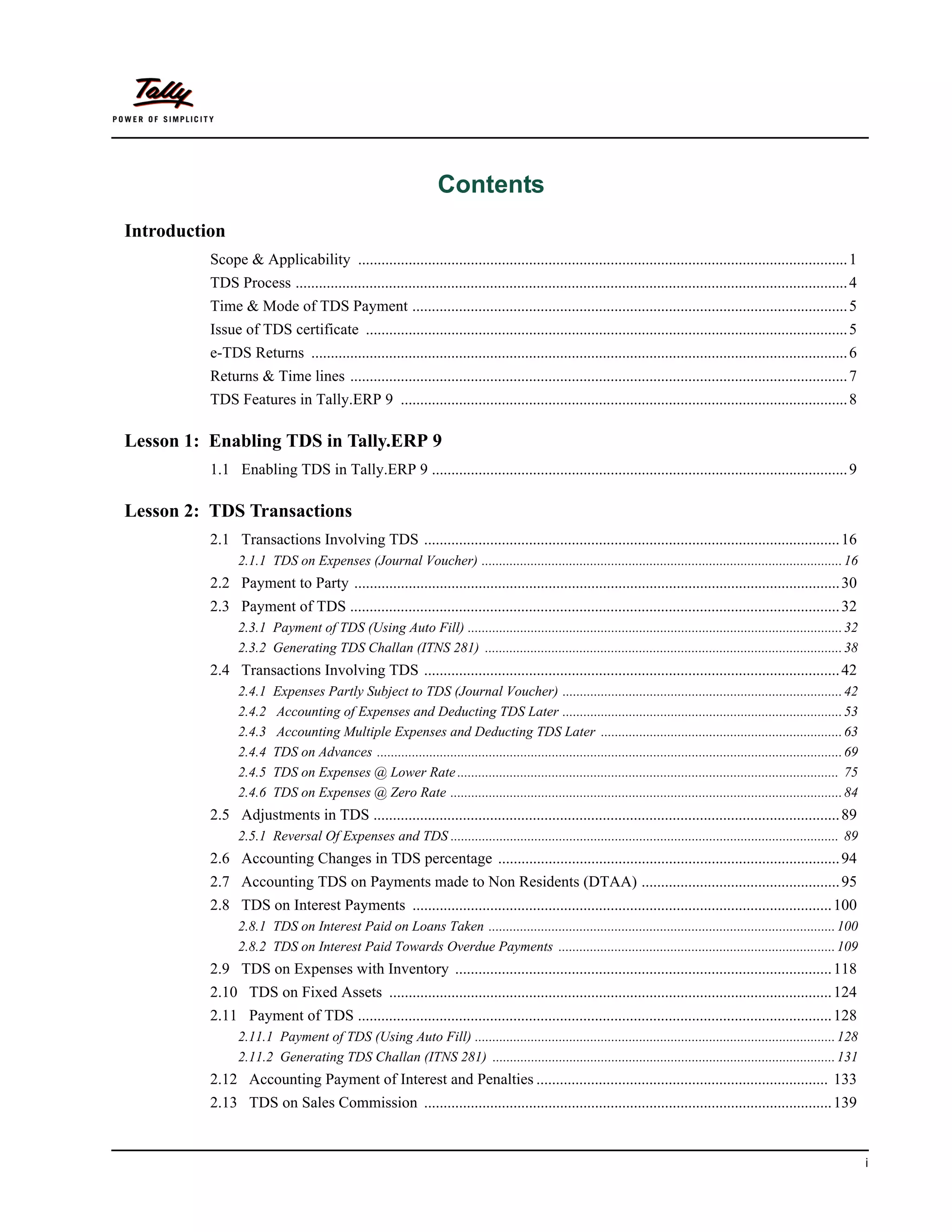
Contents
Introduction
          Scope & Applicability .............................................................................................................................. 1
          TDS Process .............................................................................................................................................. 4
          Time & Mode of TDS Payment ................................................................................................................ 5
          Issue of TDS certificate ............................................................................................................................ 5
          e-TDS Returns .......................................................................................................................................... 6
          Returns & Time lines ................................................................................................................................ 7
          TDS Features in Tally.ERP 9 ................................................................................................................... 8

Lesson 1: Enabling TDS in Tally.ERP 9
          1.1 Enabling TDS in Tally.ERP 9 ........................................................................................................... 9

Lesson 2: TDS Transactions
          2.1 Transactions Involving TDS ........................................................................................................... 16
                2.1.1 TDS on Expenses (Journal Voucher) ....................................................................................................... 16
          2.2 Payment to Party ............................................................................................................................. 30
          2.3 Payment of TDS .............................................................................................................................. 32
                2.3.1 Payment of TDS (Using Auto Fill) ........................................................................................................... 32
                2.3.2 Generating TDS Challan (ITNS 281) ...................................................................................................... 38
          2.4 Transactions Involving TDS ........................................................................................................... 42
                2.4.1    Expenses Partly Subject to TDS (Journal Voucher) ................................................................................ 42
                2.4.2    Accounting of Expenses and Deducting TDS Later ................................................................................ 53
                2.4.3    Accounting Multiple Expenses and Deducting TDS Later ..................................................................... 63
                2.4.4    TDS on Advances ..................................................................................................................................... 69
                2.4.5    TDS on Expenses @ Lower Rate ............................................................................................................. 75
                2.4.6    TDS on Expenses @ Zero Rate ................................................................................................................ 84
          2.5 Adjustments in TDS ........................................................................................................................ 89
                2.5.1 Reversal Of Expenses and TDS ............................................................................................................... 89
          2.6 Accounting Changes in TDS percentage ........................................................................................ 94
          2.7 Accounting TDS on Payments made to Non Residents (DTAA) ................................................... 95
          2.8 TDS on Interest Payments ............................................................................................................ 100
                2.8.1 TDS on Interest Paid on Loans Taken ................................................................................................... 100
                2.8.2 TDS on Interest Paid Towards Overdue Payments ............................................................................... 109
          2.9 TDS on Expenses with Inventory ................................................................................................. 118
          2.10 TDS on Fixed Assets .................................................................................................................. 124
          2.11 Payment of TDS .......................................................................................................................... 128
                2.11.1 Payment of TDS (Using Auto Fill) ....................................................................................................... 128
                2.11.2 Generating TDS Challan (ITNS 281) .................................................................................................. 131
          2.12 Accounting Payment of Interest and Penalties ........................................................................... 133
          2.13 TDS on Sales Commission ......................................................................................................... 139


                                                                                                                                                                                    i
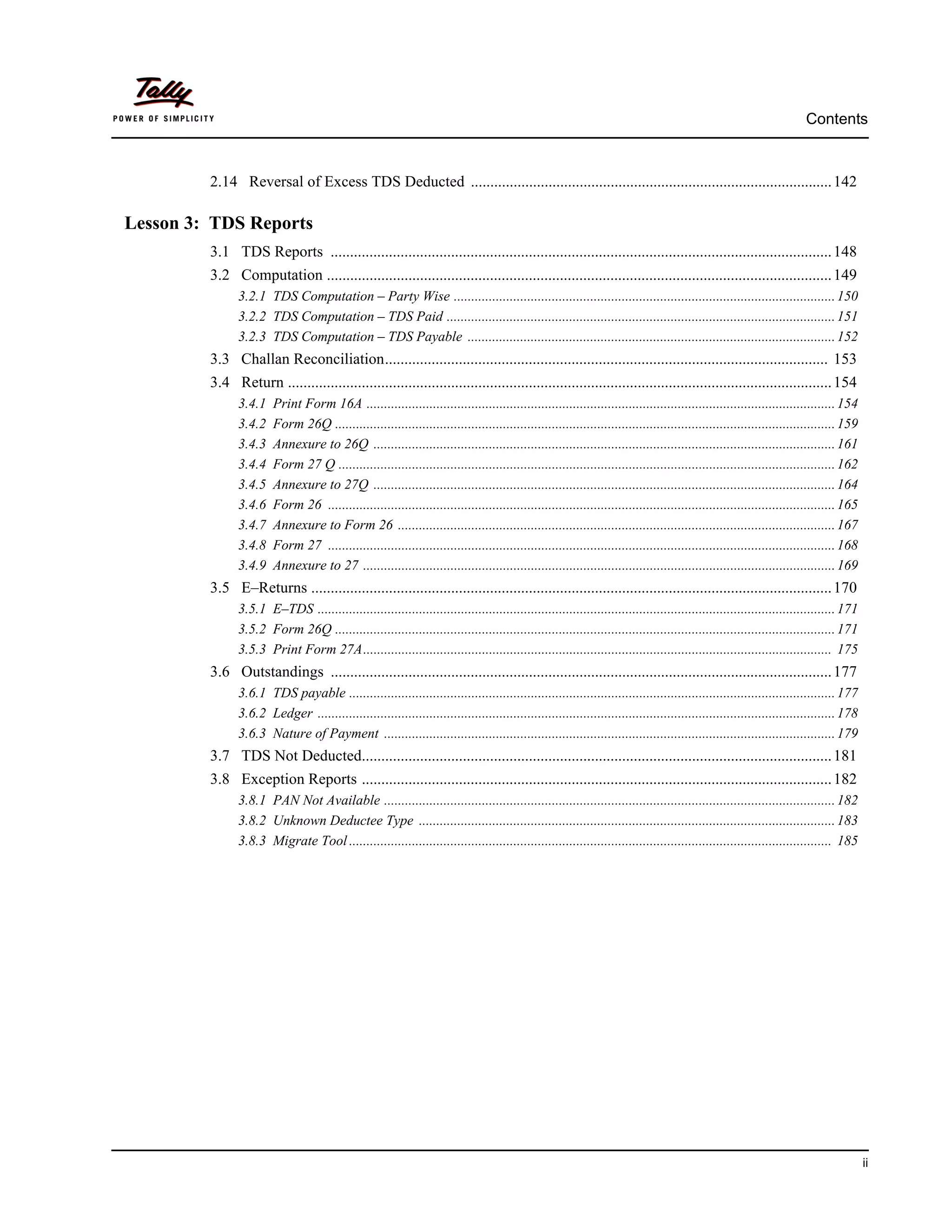
Contents


         2.14 Reversal of Excess TDS Deducted ............................................................................................. 142

Lesson 3: TDS Reports
         3.1 TDS Reports ................................................................................................................................. 148
         3.2 Computation .................................................................................................................................. 149
               3.2.1 TDS Computation – Party Wise ............................................................................................................. 150
               3.2.2 TDS Computation – TDS Paid ............................................................................................................... 151
               3.2.3 TDS Computation – TDS Payable ......................................................................................................... 152
         3.3 Challan Reconciliation.................................................................................................................. 153
         3.4 Return ............................................................................................................................................ 154
               3.4.1    Print Form 16A ...................................................................................................................................... 154
               3.4.2    Form 26Q ............................................................................................................................................... 159
               3.4.3    Annexure to 26Q .................................................................................................................................... 161
               3.4.4    Form 27 Q .............................................................................................................................................. 162
               3.4.5    Annexure to 27Q .................................................................................................................................... 164
               3.4.6    Form 26 ................................................................................................................................................. 165
               3.4.7    Annexure to Form 26 ............................................................................................................................. 167
               3.4.8    Form 27 ................................................................................................................................................. 168
               3.4.9    Annexure to 27 ....................................................................................................................................... 169
         3.5 E–Returns ...................................................................................................................................... 170
               3.5.1 E–TDS .................................................................................................................................................... 171
               3.5.2 Form 26Q ............................................................................................................................................... 171
               3.5.3 Print Form 27A...................................................................................................................................... 175
         3.6 Outstandings ................................................................................................................................. 177
               3.6.1 TDS payable ........................................................................................................................................... 177
               3.6.2 Ledger .................................................................................................................................................... 178
               3.6.3 Nature of Payment ................................................................................................................................. 179
         3.7 TDS Not Deducted......................................................................................................................... 181
         3.8 Exception Reports ......................................................................................................................... 182
               3.8.1 PAN Not Available ................................................................................................................................. 182
               3.8.2 Unknown Deductee Type ....................................................................................................................... 183
               3.8.3 Migrate Tool .......................................................................................................................................... 185


                                                                                                                                                                                        ii
Introduction


TDS means Tax Deducted at Source. The concept of TDS was introduced in the Income Tax Act,
1961, with the objective of deducting the tax on an income, at the source of income. It is one of
the methods of collecting Income Tax, which ensures regular flow of income to the Government.

Example: Universal Infotech is making the payment towards Rent to the owner of the building, it
is required to deduct the tax on the income (i.e. before payment to the owner), at the source of
income.


Scope & Applicability
Scope
Tax deduction at source means the tax required to be paid by the assessee, is deducted by the
person paying the income to him. Thus, the tax is deducted at the source of income itself. The
income tax act enjoins on the payer of such income to deduct the given percentage of income as
income tax and pay the balance amount to the recipient of such income. The tax so deducted at
source by the payer is to be deposited in the income tax department account. The tax so
deducted from the income of the recipient is deemed payment of income tax by the recipient at
the time of his assessment.
For example: Person responsible for paying any income which is chargeable to tax under the
head 'Salaries' is required to compute the tax liability in respect of such income and deduct tax at
source at the time of payment. If the employee has any other income, he needs to inform the
employer so that employer can take that income into consideration while computing his tax liability
but he will not take into account losses except loss from house property.
Similarly, person responsible for paying any income by way of 'interest on securities' or any other
interests are required to deduct tax at source at the prescribed rates at the time of credit of such
income to the account of the payee or at the time of payment, whichever is earlier.


                                                                                                       1
Introduction


Applicability
Tax will be deducted at source based on the rate defined in the Act, only on the fulfilment of the
below mentioned conditions.

1. The Assessees (includes individual & HUF as covered U/S 44AB) carrying on business is
   deducting the tax at the Time of Payment or Credit, (whichever is earlier) against following type
   of Recipient (Deductee)
      Individual
      Hindu undivided Family (HUF)
      Body of Individual (BOI)
      Association of person (AOP)
      Co-Operative society
      Local Authority
      Partnership firm
      Domestic company (Indian company)
      Foreign company
      Artificial Judicial Person
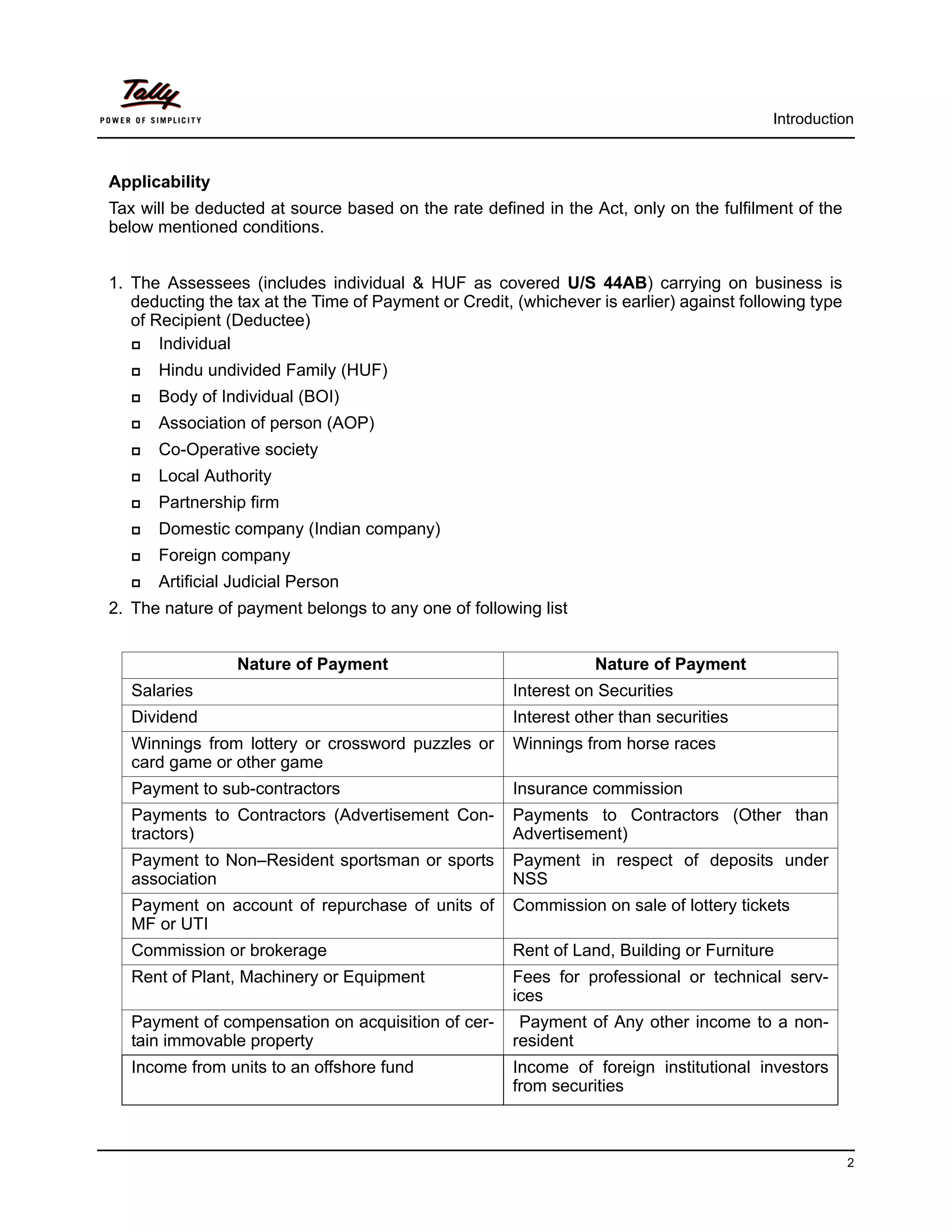
2. The nature of payment belongs to any one of following list


                  Nature of Payment                               Nature of Payment
   Salaries                                            Interest on Securities
   Dividend                                            Interest other than securities
   Winnings from lottery or crossword puzzles or       Winnings from horse races
   card game or other game
   Payment to sub-contractors                          Insurance commission
   Payments to Contractors (Advertisement Con-         Payments to Contractors (Other than
   tractors)                                           Advertisement)
   Payment to Non–Resident sportsman or sports         Payment in respect of deposits under
   association                                         NSS
   Payment on account of repurchase of units of        Commission on sale of lottery tickets
   MF or UTI
   Commission or brokerage                             Rent of Land, Building or Furniture
   Rent of Plant, Machinery or Equipment               Fees for professional or technical serv-
                                                       ices
   Payment of compensation on acquisition of cer-       Payment of Any other income to a non-
   tain immovable property                             resident
   Income from units to an offshore fund               Income of foreign institutional investors
                                                       from securities


                                                                                                       2
Introduction


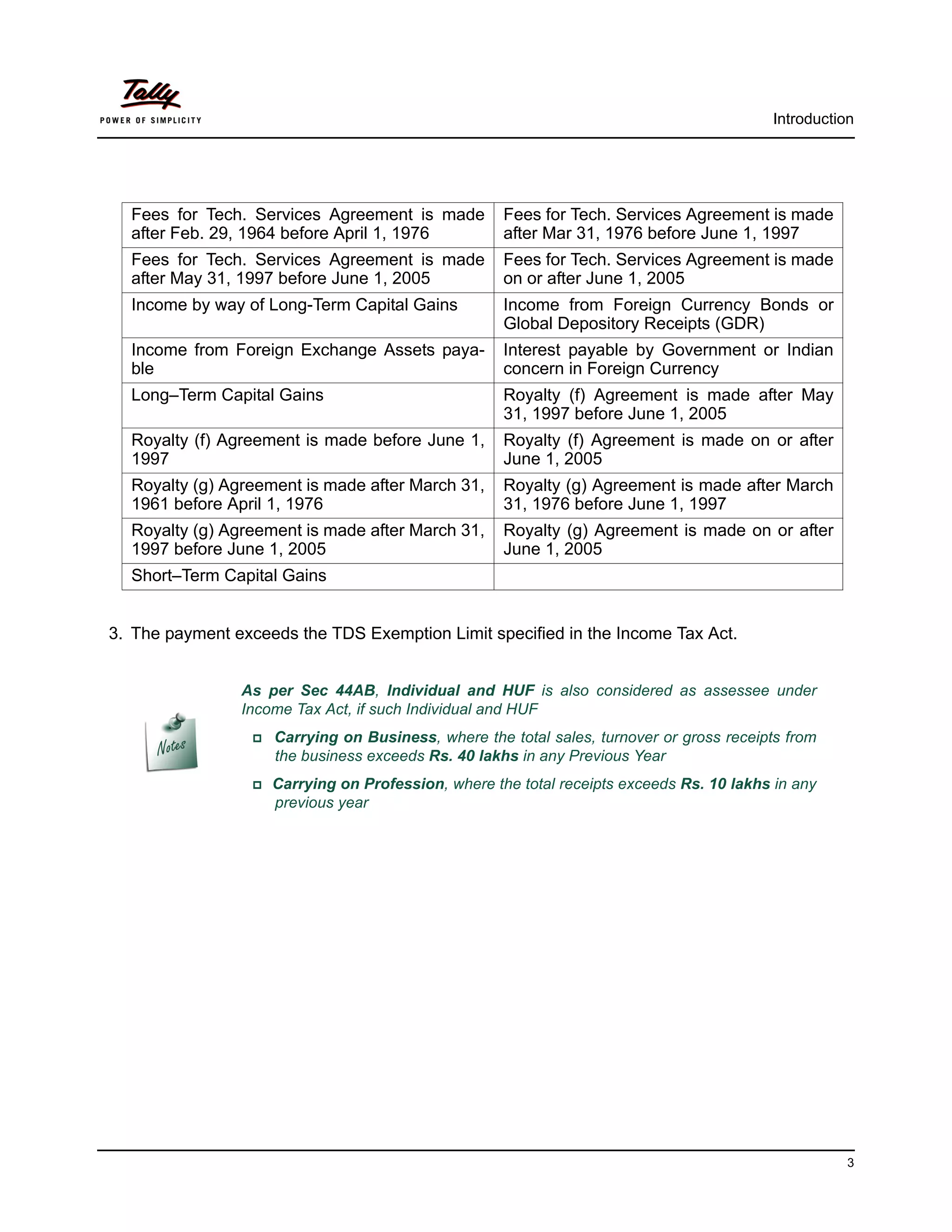
  Fees for Tech. Services Agreement is made         Fees for Tech. Services Agreement is made
  after Feb. 29, 1964 before April 1, 1976          after Mar 31, 1976 before June 1, 1997
  Fees for Tech. Services Agreement is made         Fees for Tech. Services Agreement is made
  after May 31, 1997 before June 1, 2005            on or after June 1, 2005
  Income by way of Long-Term Capital Gains          Income from Foreign Currency Bonds or
                                                    Global Depository Receipts (GDR)
  Income from Foreign Exchange Assets paya-         Interest payable by Government or Indian
  ble                                               concern in Foreign Currency
  Long–Term Capital Gains                           Royalty (f) Agreement is made after May
                                                    31, 1997 before June 1, 2005
  Royalty (f) Agreement is made before June 1,      Royalty (f) Agreement is made on or after
  1997                                              June 1, 2005
  Royalty (g) Agreement is made after March 31,     Royalty (g) Agreement is made after March
  1961 before April 1, 1976                         31, 1976 before June 1, 1997
  Royalty (g) Agreement is made after March 31,     Royalty (g) Agreement is made on or after
  1997 before June 1, 2005                          June 1, 2005
  Short–Term Capital Gains


3. The payment exceeds the TDS Exemption Limit specified in the Income Tax Act.


                As per Sec 44AB, Individual and HUF is also considered as assessee under
                Income Tax Act, if such Individual and HUF
                   Carrying on Business, where the total sales, turnover or gross receipts from
                    the business exceeds Rs. 40 lakhs in any Previous Year
                  Carrying on Profession, where the total receipts exceeds Rs. 10 lakhs in any
                    previous year


                                                                                                    3
Introduction


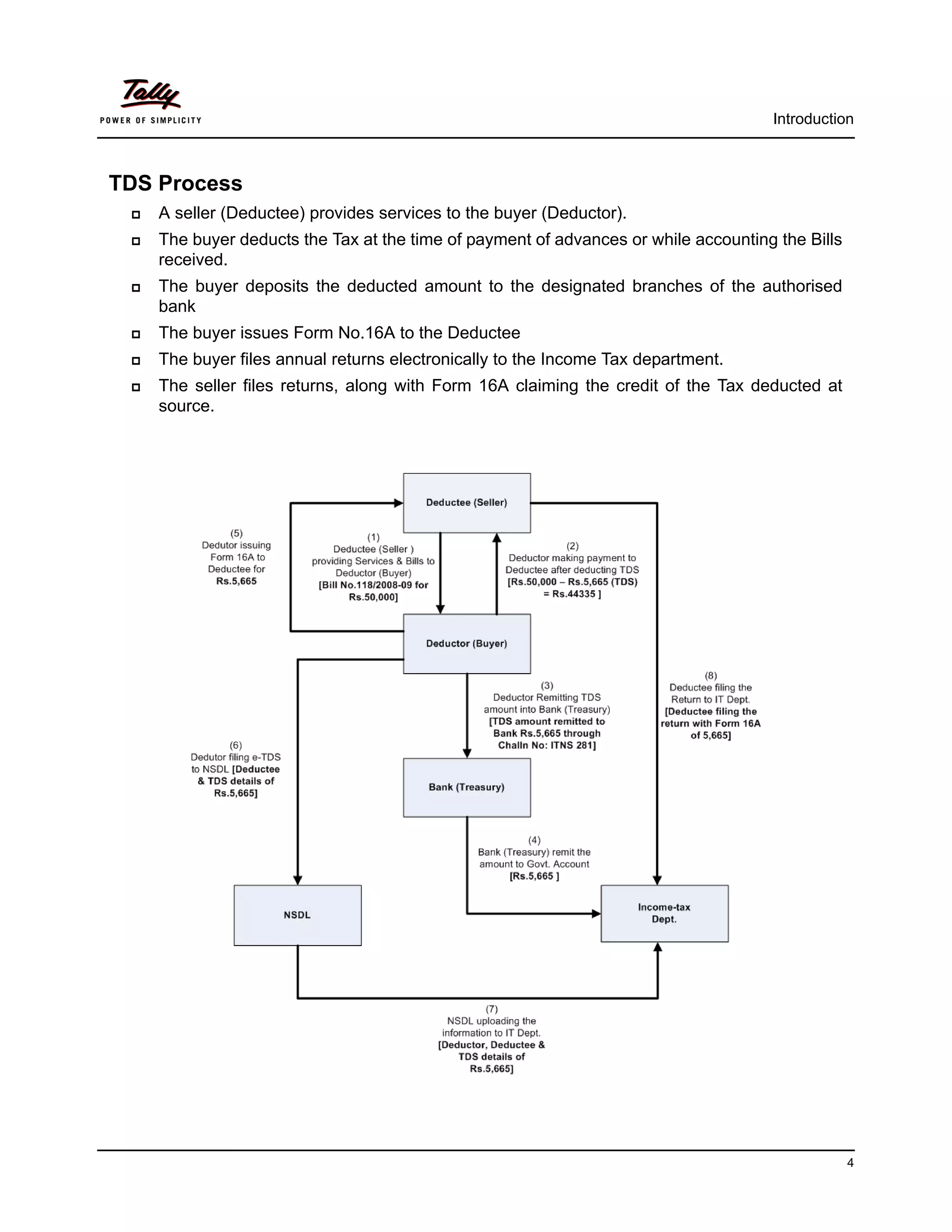
TDS Process
    A seller (Deductee) provides services to the buyer (Deductor).
    The buyer deducts the Tax at the time of payment of advances or while accounting the Bills
     received.
    The buyer deposits the deducted amount to the designated branches of the authorised
     bank
    The buyer issues Form No.16A to the Deductee
    The buyer files annual returns electronically to the Income Tax department.
    The seller files returns, along with Form 16A claiming the credit of the Tax deducted at
     source.


                                                                                                  4
Introduction


Time & Mode of TDS Payment
      All the Tax deducted during a month are to be paid to the credit of Government on or before
       7th of the next month. In case 7th of the month happens to be a sunday or a bank holiday
       payment can be made on the next working day
      TDS amount shall be paid to the government account through any designated branches of
       the authorised banks, along with Income Tax Challan No.281.
      In case of collections made by or on behalf of the Government, the amount shall be cred-
       ited within the time and in the manner aforesaid without the production of a challan.


Issue of TDS certificate
TDS certificate is a proof that deductor has deducted the tax and paid the same to the govern-
ment. This proof is essential to the deductee to claim the credit of tax in his Income Tax returns.
U/s 203 of Income Tax Act, any person deducting the tax as per the provisions of
      *Section 192 (Salary) shall furnish a certificate of Deduction of tax in Form 16 or Form
       16AA within one month from the close of Financial year in which such deduction was
       made.
       Example: For the Financial Year 2009-20010, the TDS certificate must be issued on or 
       before 30th April, 2010
      *Section 193, 194, 194A, 194B, 194BB, 194C, 194D,194E, 194EE,194F, 194G, 194-I,
       194J, 194K, 194LA, 195, 196A, 196B, 196C and 196D shall furnish a certificate of Deduc-
       tion of tax in Form 16A with in one month from the end of the month during which the credit
       has been given or the payment has been made, as the case may be.
       Example: For deductions in May 2009, TDS certificate must be issued on or before 30th 
       June, 2009
        In  case of deductee to whom more than one TDS certificate was issued for the deduc-
           tions made during the year, may on request from such deductee, a consolidated cer-
           tificate in Form 16A may be issued within a period of one month from the close of
           such financial year.


                                                                                                      5
Introduction


e-TDS Returns
The Income Tax department has now notified ‘Electronic Filing of Returns of Tax Deducted at
Source Scheme, 2003’. It is applicable to all deductors furnishing their TDS return in electronic
form. As per this scheme,
     It is mandatory for corporate deductors to furnish their TDS returns in electronic form (e-
      TDS return) with effect from June 1, 2003.
      For government deductors it is mandatory to furnish their TDS returns in electronic form
      (e-TDS return) from financial year 2004-2005 onwards.
     Deductors (other than government and corporates) may file TDS return in electronic or
      physical form.


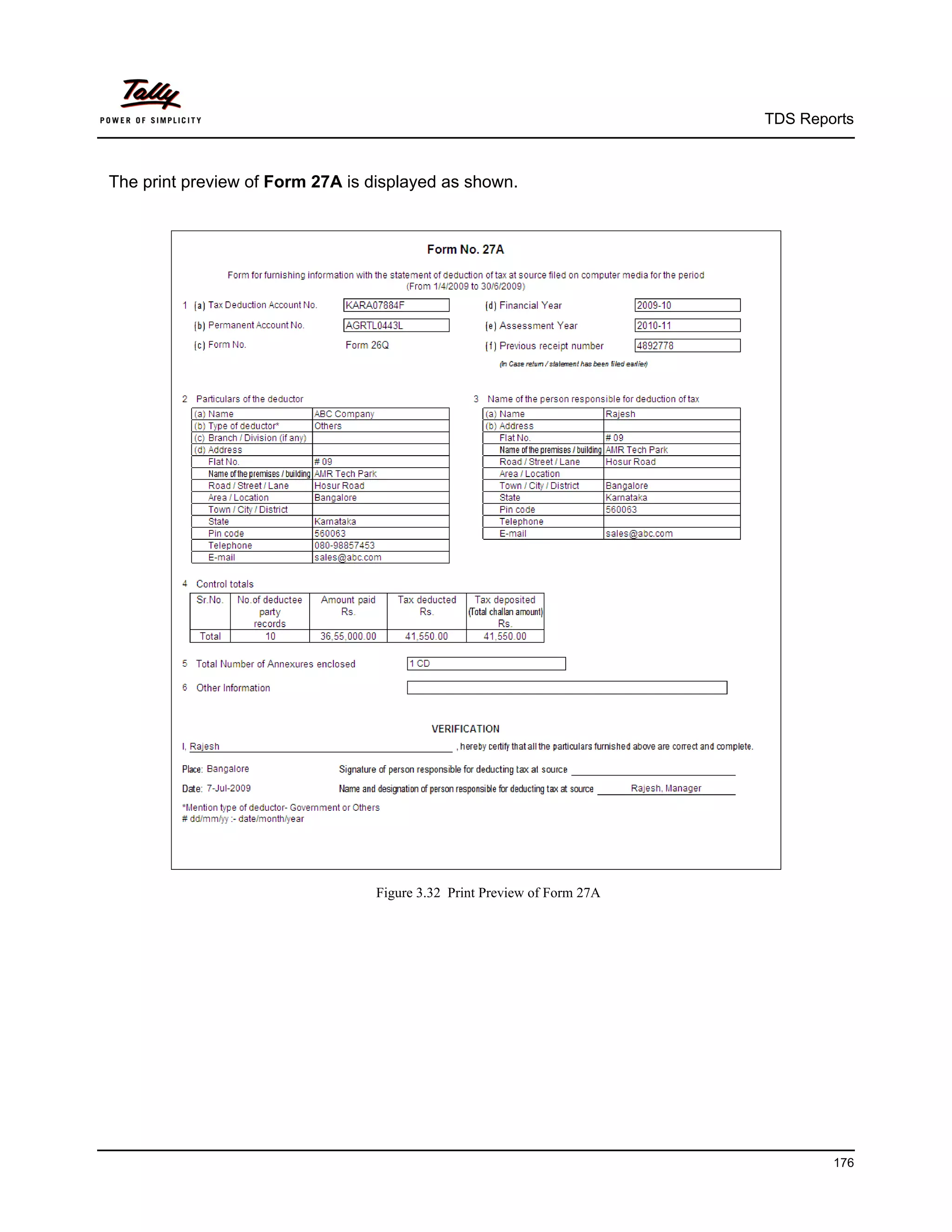
Deductors furnishing TDS returns in electronic form (e-TDS) have to furnish Form 27A. Form 27A
is a control chart to be furnished in physical form along with CD/ Floppy containing the e-TDS
returns. Form No 27A is required to be furnished separately for each TDS return.

Form 27A is a summary of e-TDS returns which contains control totals of ‘Amount paid‘ and
‘Income tax deducted at source’. The control totals mentioned on Form 27A should match with the
corresponding control totals in e-TDS returns.


                 Electronic Filing of Returns of Tax Deducted at Source (e-TDS), is explained in
                 detail in Reports chapter.


                                                                                                    6
Introduction


Returns & Time lines
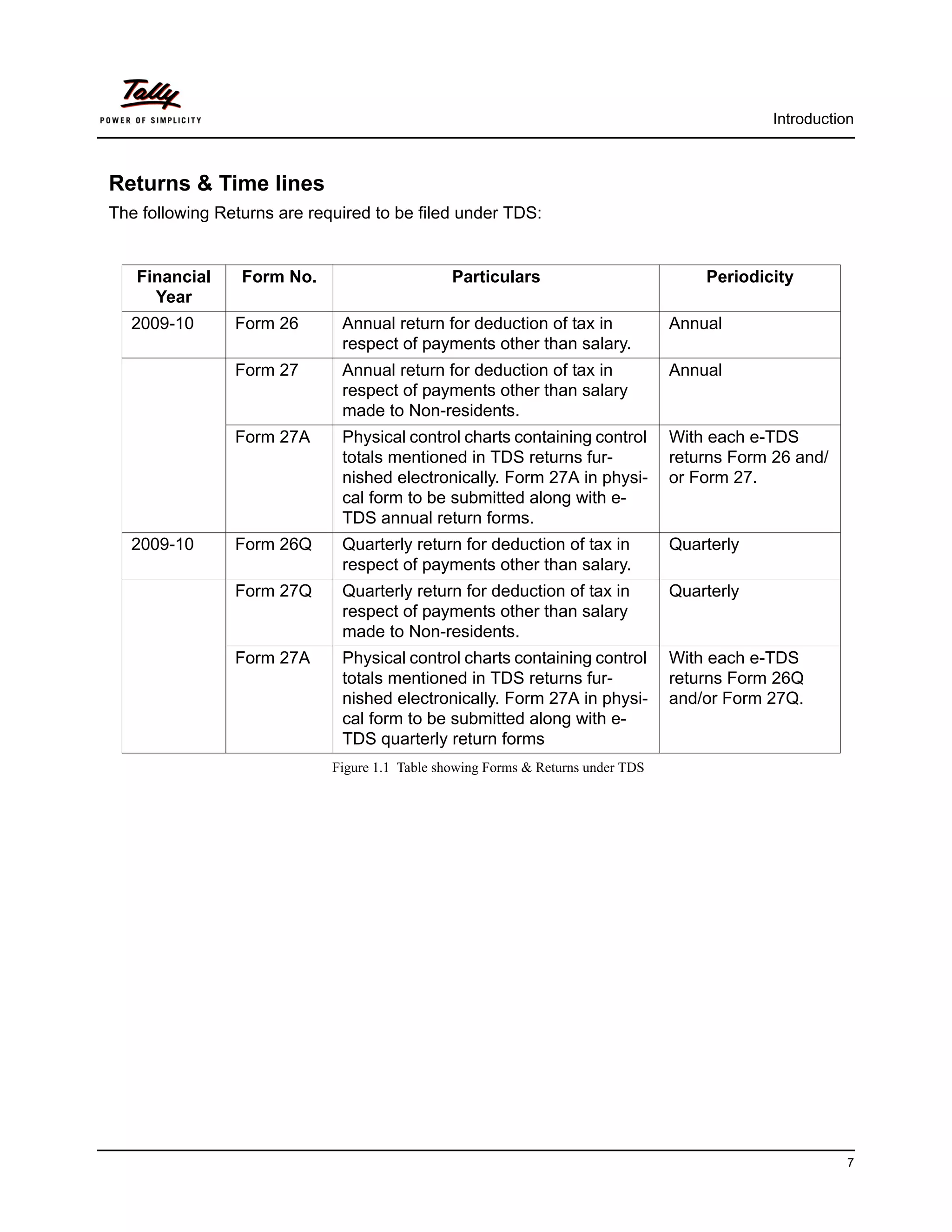
The following Returns are required to be filed under TDS:


   Financial     Form No.                       Particulars                           Periodicity
     Year
  2009-10       Form 26       Annual return for deduction of tax in               Annual
                              respect of payments other than salary.
                Form 27       Annual return for deduction of tax in               Annual
                              respect of payments other than salary
                              made to Non-residents.
                Form 27A      Physical control charts containing control          With each e-TDS
                              totals mentioned in TDS returns fur-                returns Form 26 and/
                              nished electronically. Form 27A in physi-           or Form 27.
                              cal form to be submitted along with e-
                              TDS annual return forms.
  2009-10       Form 26Q      Quarterly return for deduction of tax in            Quarterly
                              respect of payments other than salary.
                Form 27Q      Quarterly return for deduction of tax in            Quarterly
                              respect of payments other than salary
                              made to Non-residents.
                Form 27A      Physical control charts containing control          With each e-TDS
                              totals mentioned in TDS returns fur-                returns Form 26Q
                              nished electronically. Form 27A in physi-           and/or Form 27Q.
                              cal form to be submitted along with e-
                              TDS quarterly return forms
                             Figure 1.1 Table showing Forms & Returns under TDS


                                                                                                         7
Introduction


TDS Features in Tally.ERP 9
Tally.ERP 9’s TDS Feature enables you to handle all the functional, accounting and statutory
requirements of your business in an accurate and simplified manner. The TDS functionality in
Tally.ERP 9 has the following features
     Simple and user-friendly
     Quick and easy to set up and use
     Create single Expenses Ledger for Multiple Nature of Payment
     Create single TDS Duty Ledger for Multiple Nature of Payment
     Book & Deduct TDS in the same voucher
     Single TDS deduction for multiple vouchers
     Single TDS deduction for Multiple Nature of Payments
     TDS deduction on partial applicable value
     Retrospective Surcharge Deduction
     Party wise configuration for Lower / Zero rate
     Party wise configuration to Ignore IT / Surcharge exemption Limit
     Deduction of TDS on advance payments
     TDS deduction on Non-Resident (Sec.195) payments
     Reversal of TDS
     Print TDS Challan (ITNS 281)
     Print Form 16A
     Generate E-TDS Returns
     Print Form 27A
     Print Form 26, 26Q, 27, 27Q with Annexure(s)
     TDS Computation Report
     Generate TDS Outstanding and TDS Exception Reports


                                                                                               8
Lesson 1:                    Enabling TDS in Tally.ERP 9


             Lesson Objectives
             On completion of this lesson, you will learn to

                    Create Company in Tally.ERP 9
                    Enable TDS in F11: Features


1.1 Enabling TDS in Tally.ERP 9
It takes a one-time configuration in Tally.ERP 9 for TDS features to be activated. Follow the steps
given below to enable TDS in Tally.ERP 9 for a new company, M/s. Universal Infotech.
1. Create Company
2. Enable TDS


                    To enable TDS for Companies which are already created in Tally.ERP 9, follow the
                    instruction provided under the head Enable TDS.


M/s. Universal Infotech, is a Company – Resident, which is engaged in Software Develop-
ment.


Step 1: Create Company
Go to Gateway of Tally > Alt + F3: Company Info. > Create Company
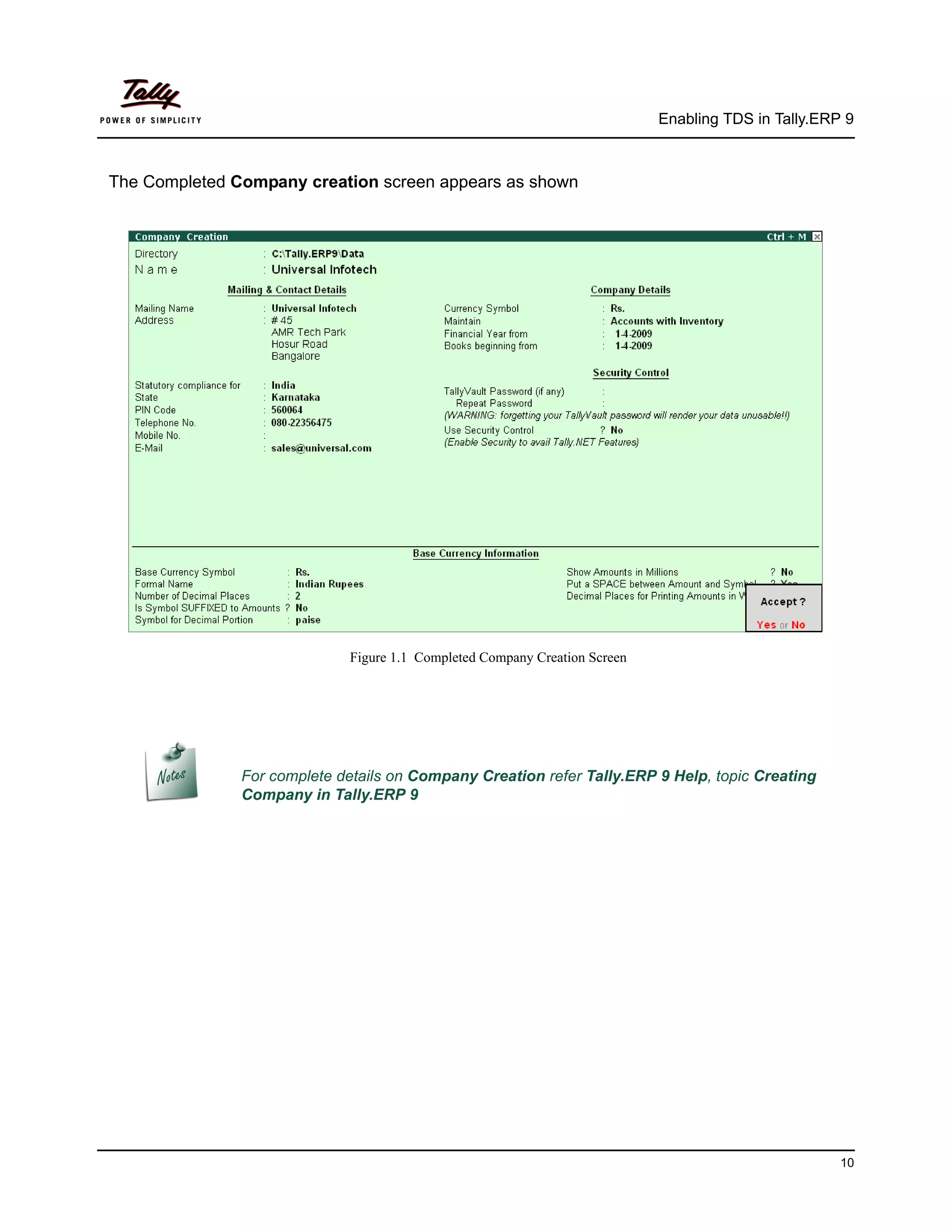
In the Company Creation screen,
      Specify Universal Infotech as the Company Name and Address details
      Select India in the Statutory Compliance for field
      Specify the State, Pin code & Accounts with Inventory details


                                                                                                       9
Enabling TDS in Tally.ERP 9


The Completed Company creation screen appears as shown


                             Figure 1.1 Completed Company Creation Screen


               For complete details on Company Creation refer Tally.ERP 9 Help, topic Creating
               Company in Tally.ERP 9


                                                                                                     10
Enabling TDS in Tally.ERP 9


Step 2: Enable TDS
To enable TDS Feature, for a company
1.   Activate TDS Feature
2.   Enable Set/Alter TDS Details
3.   Specify the Company TDS Deductor Details
4.   Enter Company’s PAN / Income – Tax No


To enable TDS Feature for universal Infotech
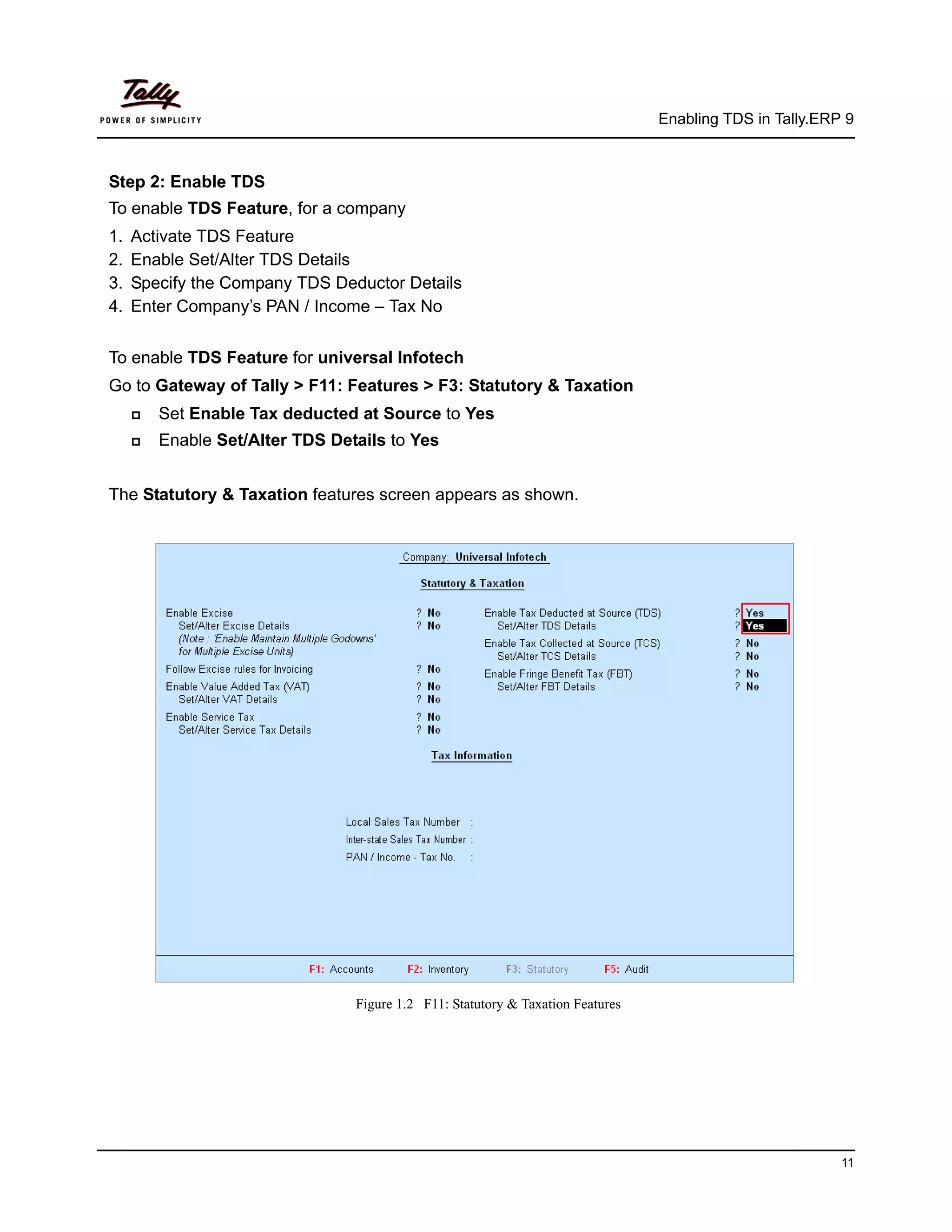
Go to Gateway of Tally > F11: Features > F3: Statutory & Taxation
        Set Enable Tax deducted at Source to Yes
        Enable Set/Alter TDS Details to Yes


The Statutory & Taxation features screen appears as shown.


                                 Figure 1.2 F11: Statutory & Taxation Features


                                                                                                          11
Enabling TDS in Tally.ERP 9


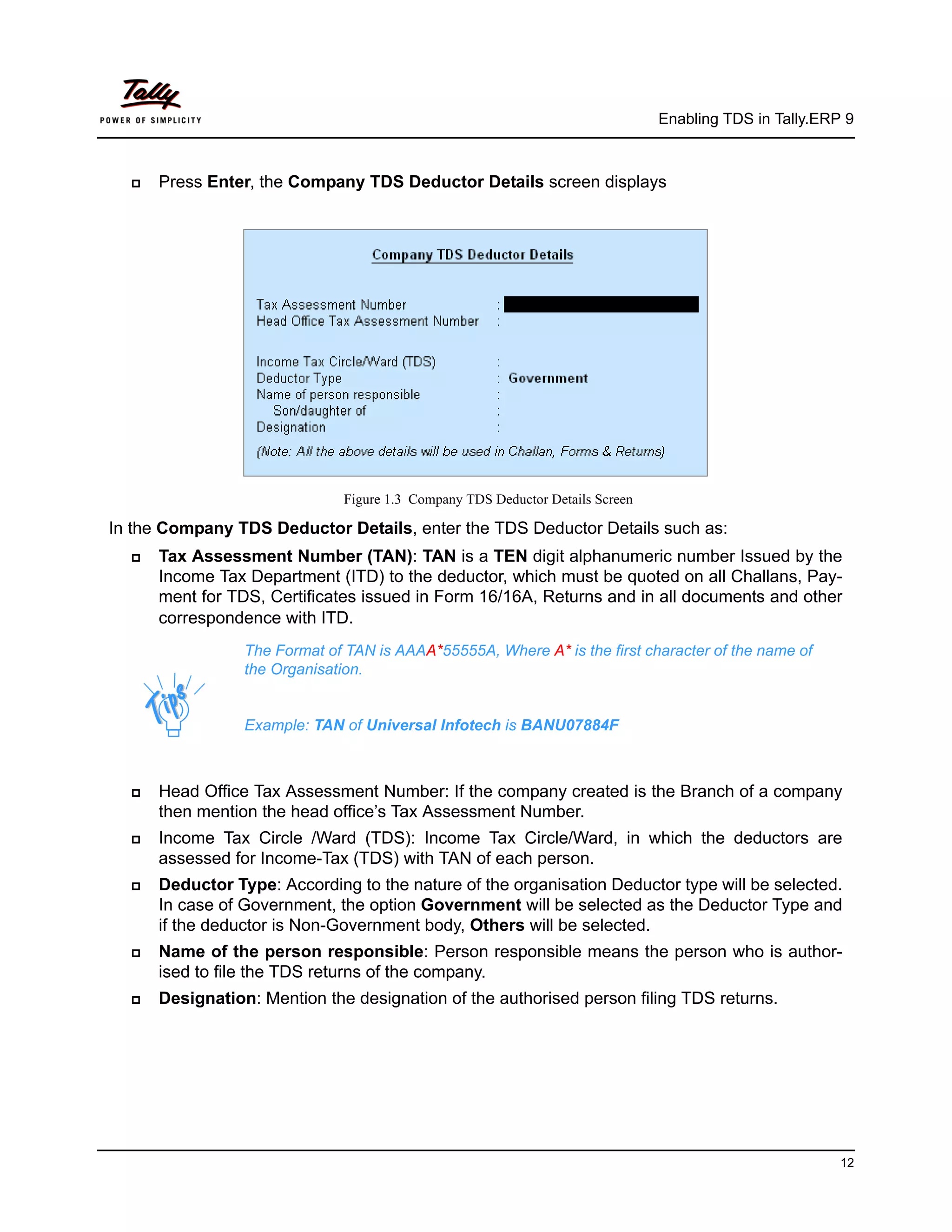
     Press Enter, the Company TDS Deductor Details screen displays


                               Figure 1.3 Company TDS Deductor Details Screen

In the Company TDS Deductor Details, enter the TDS Deductor Details such as:
     Tax Assessment Number (TAN): TAN is a TEN digit alphanumeric number Issued by the
      Income Tax Department (ITD) to the deductor, which must be quoted on all Challans, Pay-
      ment for TDS, Certificates issued in Form 16/16A, Returns and in all documents and other
      correspondence with ITD.
                 The Format of TAN is AAAA*55555A, Where A* is the first character of the name of
                 the Organisation.


                 Example: TAN of Universal Infotech is BANU07884F


     Head Office Tax Assessment Number: If the company created is the Branch of a company
      then mention the head office’s Tax Assessment Number.
     Income Tax Circle /Ward (TDS): Income Tax Circle/Ward, in which the deductors are
      assessed for Income-Tax (TDS) with TAN of each person.
     Deductor Type: According to the nature of the organisation Deductor type will be selected.
      In case of Government, the option Government will be selected as the Deductor Type and
      if the deductor is Non-Government body, Others will be selected.
     Name of the person responsible: Person responsible means the person who is author-
      ised to file the TDS returns of the company.
     Designation: Mention the designation of the authorised person filing TDS returns.


                                                                                                         12
Enabling TDS in Tally.ERP 9


The completed Company TDS Deductor Details screen appears as shown


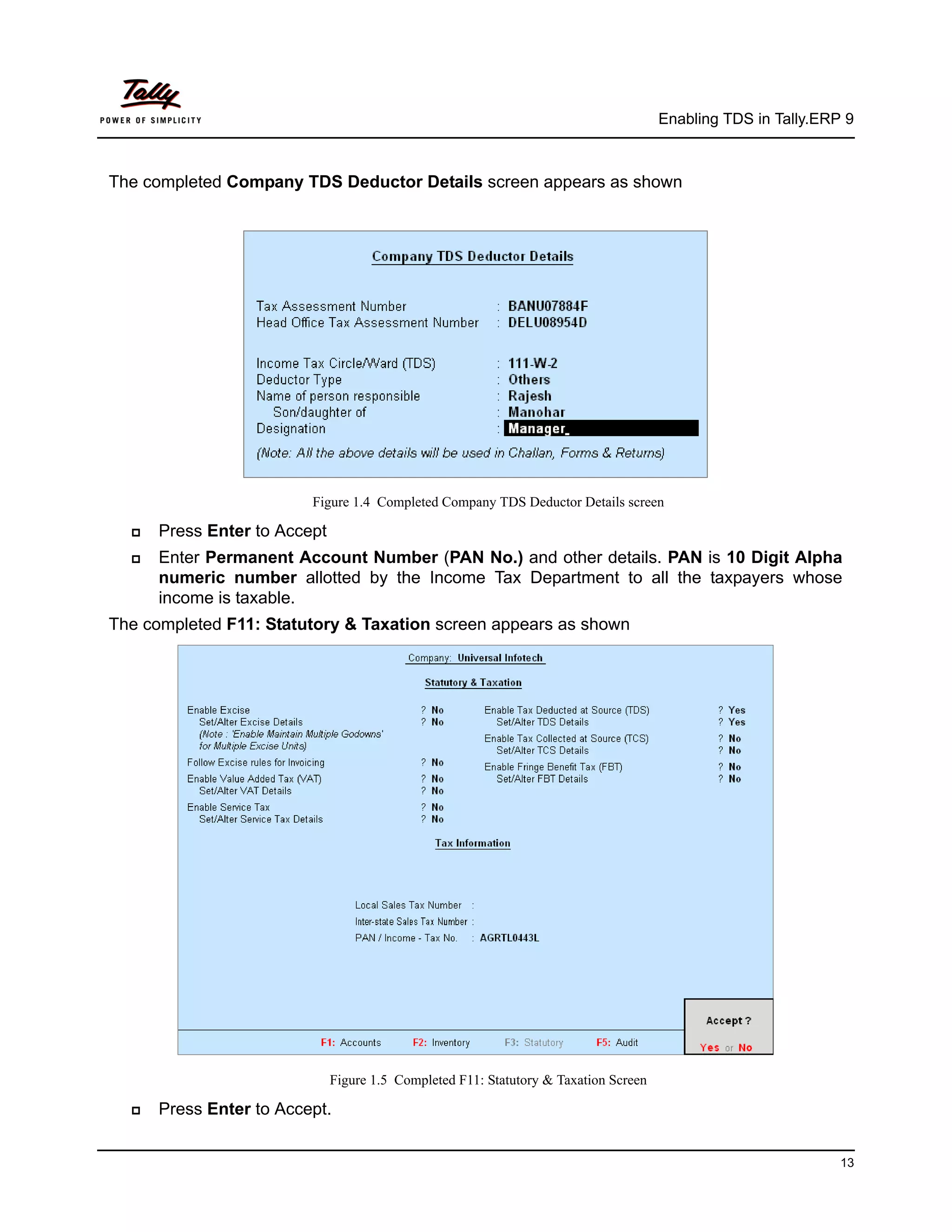
                         Figure 1.4 Completed Company TDS Deductor Details screen

     Press Enter to Accept
     Enter Permanent Account Number (PAN No.) and other details. PAN is 10 Digit Alpha
      numeric number allotted by the Income Tax Department to all the taxpayers whose
      income is taxable.
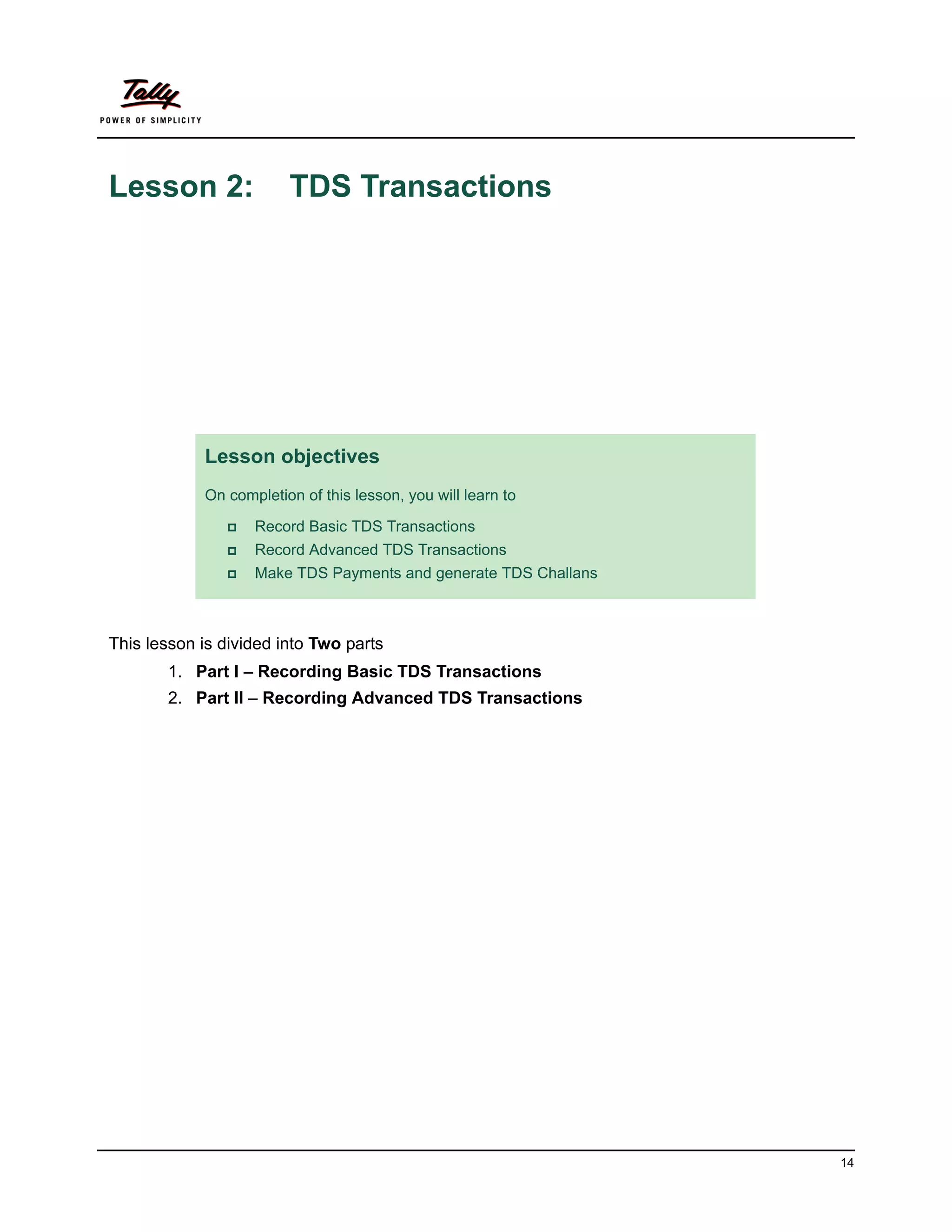
The completed F11: Statutory & Taxation screen appears as shown


                              Figure 1.5 Completed F11: Statutory & Taxation Screen

     Press Enter to Accept.


                                                                                                               13
Lesson 2:               TDS Transactions


            Lesson objectives
            On completion of this lesson, you will learn to

                  Record Basic TDS Transactions
                  Record Advanced TDS Transactions
                  Make TDS Payments and generate TDS Challans


This lesson is divided into Two parts
       1. Part I – Recording Basic TDS Transactions
       2. Part II – Recording Advanced TDS Transactions


                                                                 14
Part – I
TDS Transactions


Recording Basic TDS Transactions
In this section we shall emphasis on understanding how Tally.ERP 9’s TDS feature can be effec-
tively used to record basic TDS transactions to generate TDS Challan.
Let us take the example of Universal Infotech (Created and TDS enabled, as discussed in the
earlier chapter) to record TDS transactions such as
      TDS on Expenses
      Payment to Party
      Payment of TDS
      Generating ITNS 281 Challan


In Tally.ERP 9, you can account for expenses implying TDS with the help of Payment Voucher,
Journal Voucher or Purchase Voucher, as required.


2.1 Transactions Involving TDS

2.1.1 TDS on Expenses (Journal Voucher)
Under this, we will learn to Account expenses and deduct tax at source to arrive at the Net
balance payable to the party.


Example 1:
On 1st April, 2009 Universal Infotech received a Bill (vide No. 001) from Pheonix Agencies for Rs.
5,00,000 towards the Advertisement services rendered.


To account the above transaction follow the steps given below
1. Create Masters
i. Expense Ledger
ii. Party Ledger
iii. Tax Ledger
iv. Bank Ledger
2. Record the Transaction in Journal Voucher


                                                                                                 16
TDS Transactions


1. Create Masters


i. Expenses Ledger
           Ledger                      Under             IS TDS            Default Nature of Payment
                                                        Applicable
  Advertisement Expenses         Indirect Expenses      Yes                Payment    to   Contractors
                                                                           (Advertisement Contractors)
Create Expenses Ledger
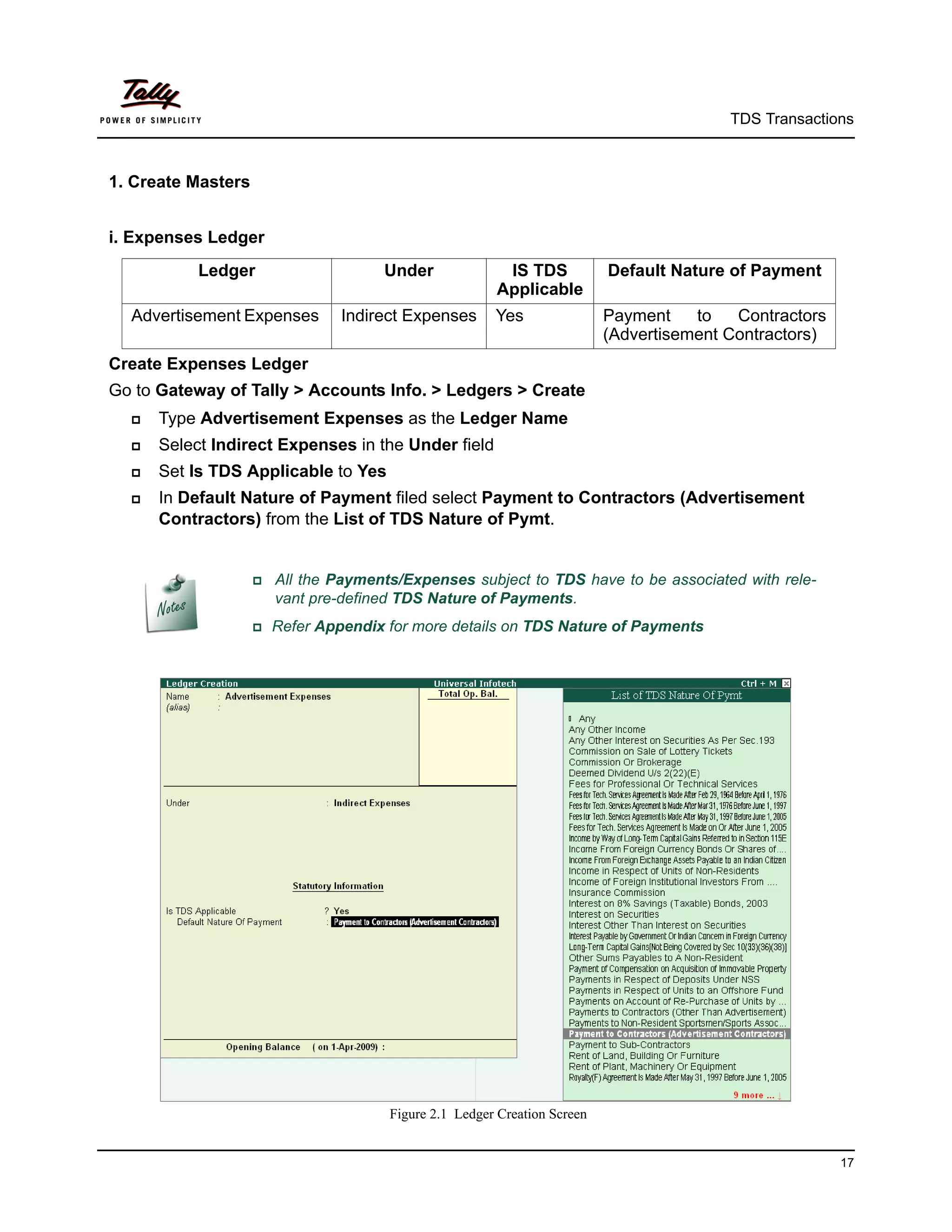
Go to Gateway of Tally > Accounts Info. > Ledgers > Create
     Type Advertisement Expenses as the Ledger Name
     Select Indirect Expenses in the Under field
     Set Is TDS Applicable to Yes
     In Default Nature of Payment filed select Payment to Contractors (Advertisement
      Contractors) from the List of TDS Nature of Pymt.


                     Allthe Payments/Expenses subject to TDS have to be associated with rele-
                       vant pre-defined TDS Nature of Payments.
                    Refer   Appendix for more details on TDS Nature of Payments


                                       Figure 2.1 Ledger Creation Screen


                                                                                                         17
TDS Transactions


                The Option Any can be selected from the List of TDS Nature of Pymt, where the
                user doesn’t want to define the TDS Nature of payment during Ledger creation.
                This allows the user to use an Expense Ledger (as a common ledger) to account
                multiple TDS Nature of Payments.


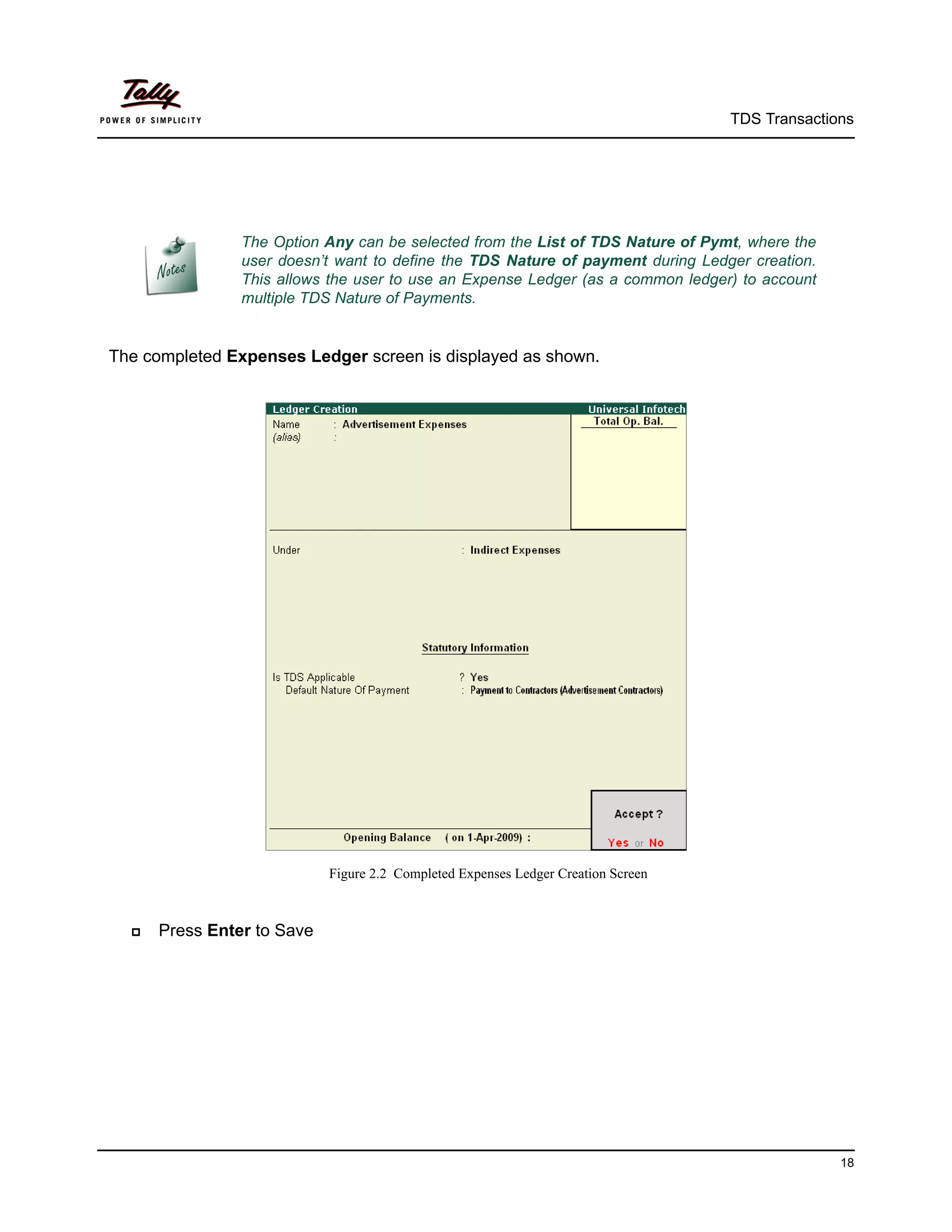
The completed Expenses Ledger screen is displayed as shown.


                            Figure 2.2 Completed Expenses Ledger Creation Screen


     Press Enter to Save


                                                                                                 18
TDS Transactions


ii. Party Ledger


         Ledger             Under            Maintain          Is TDS        Deductee Type
                                            balances         Deductable
                                            bill-by-bill
  Pheonix Agencies     Sundry Creditors     Yes             Yes           Association of Persons


Create Party Ledger
Go to Gateway of Tally > Accounts Info. > Ledgers > Create


Setup:
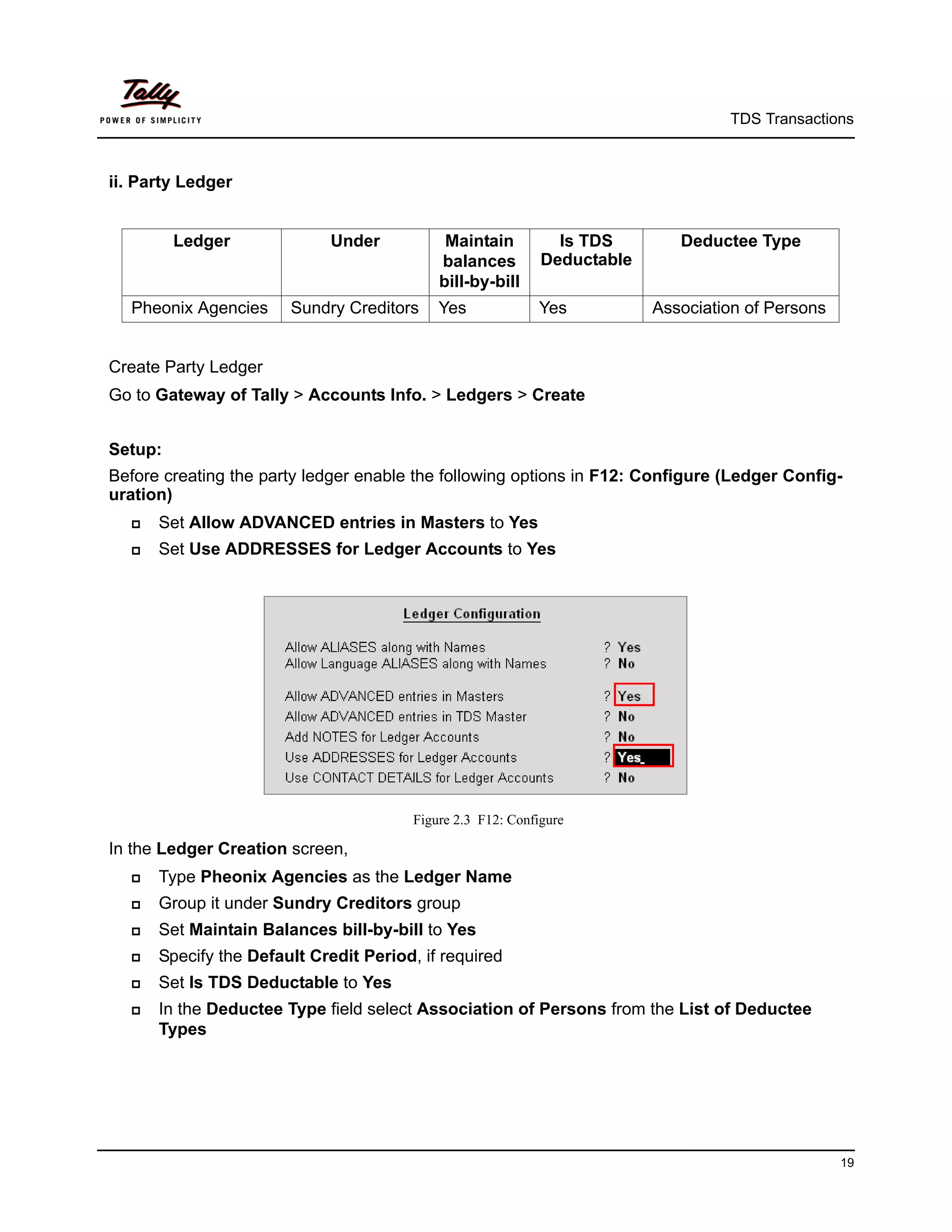
Before creating the party ledger enable the following options in F12: Configure (Ledger Config-
uration)
     Set Allow ADVANCED entries in Masters to Yes
     Set Use ADDRESSES for Ledger Accounts to Yes


                                        Figure 2.3 F12: Configure

In the Ledger Creation screen,
     Type Pheonix Agencies as the Ledger Name
     Group it under Sundry Creditors group
     Set Maintain Balances bill-by-bill to Yes
     Specify the Default Credit Period, if required
     Set Is TDS Deductable to Yes
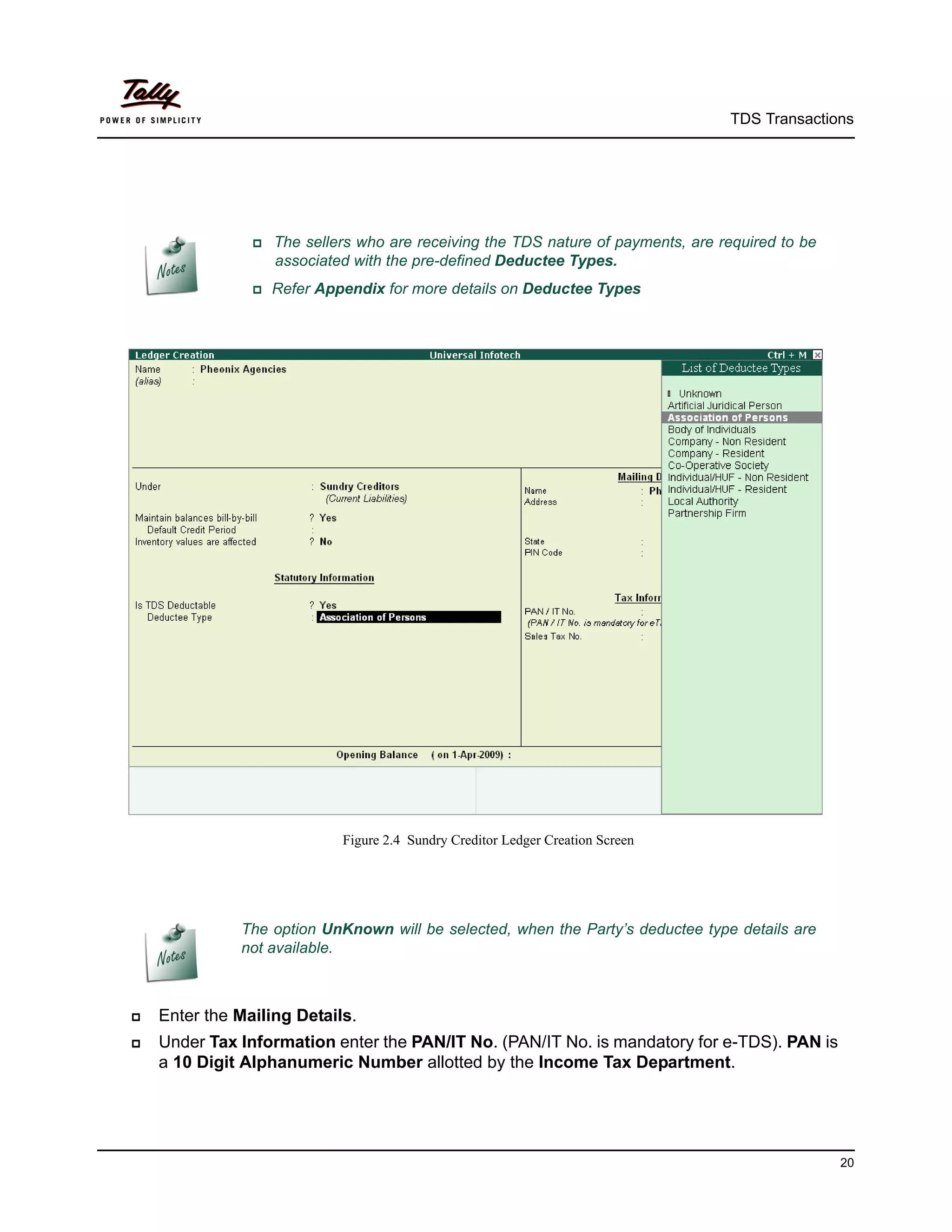
     In the Deductee Type field select Association of Persons from the List of Deductee
      Types


                                                                                                   19
TDS Transactions


                 The sellers who are receiving the TDS nature of payments, are required to be
                   associated with the pre-defined Deductee Types.
                Refer   Appendix for more details on Deductee Types


                             Figure 2.4 Sundry Creditor Ledger Creation Screen


              The option UnKnown will be selected, when the Party’s deductee type details are
              not available.


   Enter the Mailing Details.
   Under Tax Information enter the PAN/IT No. (PAN/IT No. is mandatory for e-TDS). PAN is
    a 10 Digit Alphanumeric Number allotted by the Income Tax Department.


                                                                                                  20
TDS Transactions


                  PAN/IT No. field is restricted to 10 digits, user can enter any ten Numbers or
                    Alphabets or alphanumeric.
                  The  details provided in the PAN/IT No. field must be equal to ten Numbers or
                    Alphabets or alphanumeric. Tally.ERP 9 won’t accept any details less than 10
                    digits.
                 In case, where the PAN is not Available or Applied For, such details can also
                    be provided in the PAN/IT No field in the format, as specified by the Income tax
                    Department.
                    For PAN not available – enter as PANNOTAVBL
                    For PAN Applied - enter as APPLIEDFOR
                Under Exception Report – PAN Not Available, Tally.ERP 9 displays all the ledgers
                in which PAN/IT No is not mentioned. Before e-TDS validation user can check this
                report to make necessary changes in the ledger.
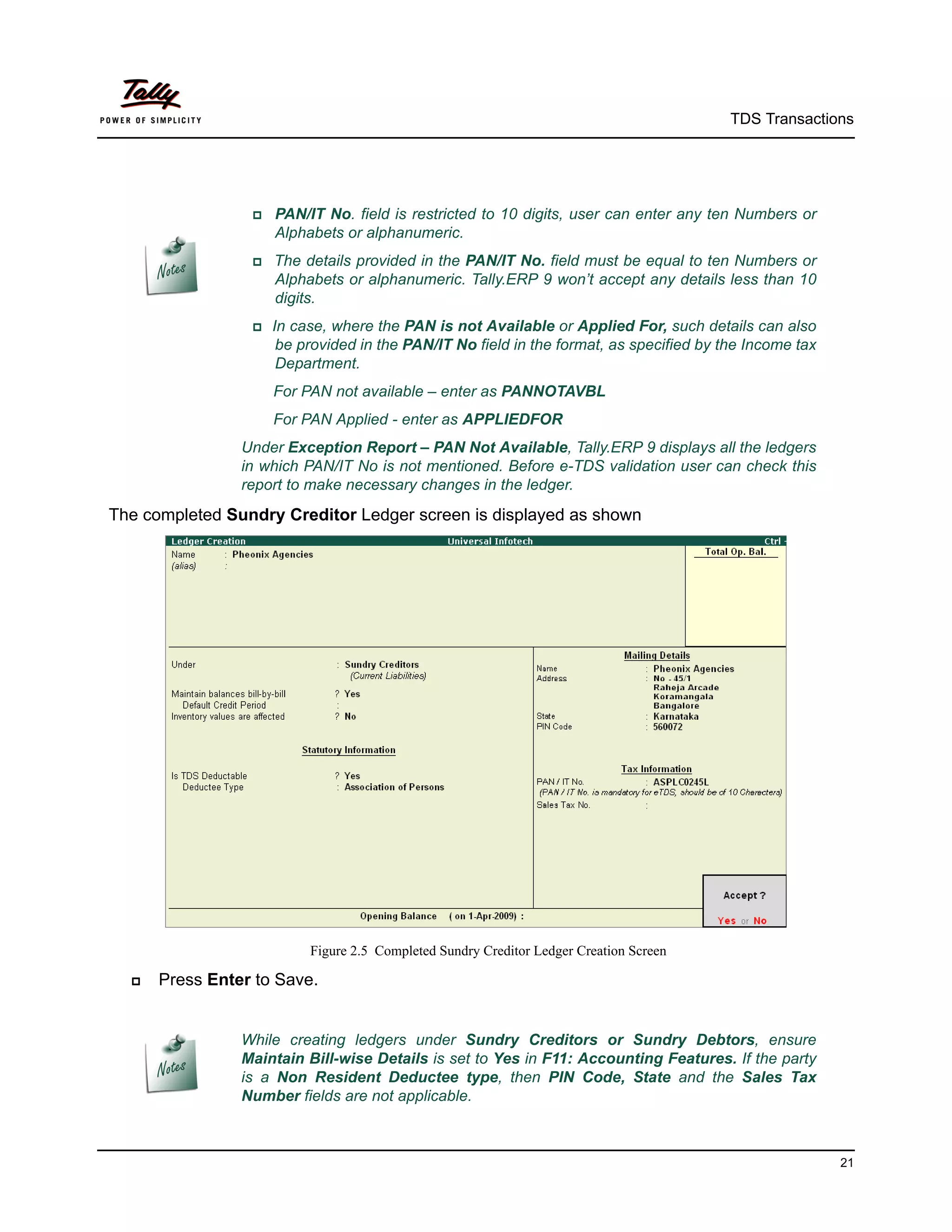
The completed Sundry Creditor Ledger screen is displayed as shown


                          Figure 2.5 Completed Sundry Creditor Ledger Creation Screen

     Press Enter to Save.


                While creating ledgers under Sundry Creditors or Sundry Debtors, ensure
                Maintain Bill-wise Details is set to Yes in F11: Accounting Features. If the party
                is a Non Resident Deductee type, then PIN Code, State and the Sales Tax
                Number fields are not applicable.


                                                                                                       21
TDS Transactions


iii. Tax Ledger
        Ledger               Under          Type of          Nature of Payment      Inventory
                                           Duty/ Tax                                values are
                                                                                     affected
  TDS – Contractors    Duties & Taxes      TDS            Payment to Contractors    No
                                                          (Advertisement Contrac-
                                                          tors)


Create Tax Ledger
Go to Gateway of Tally > Accounts Info. > Ledgers > Create


In the Ledger Creation screen,
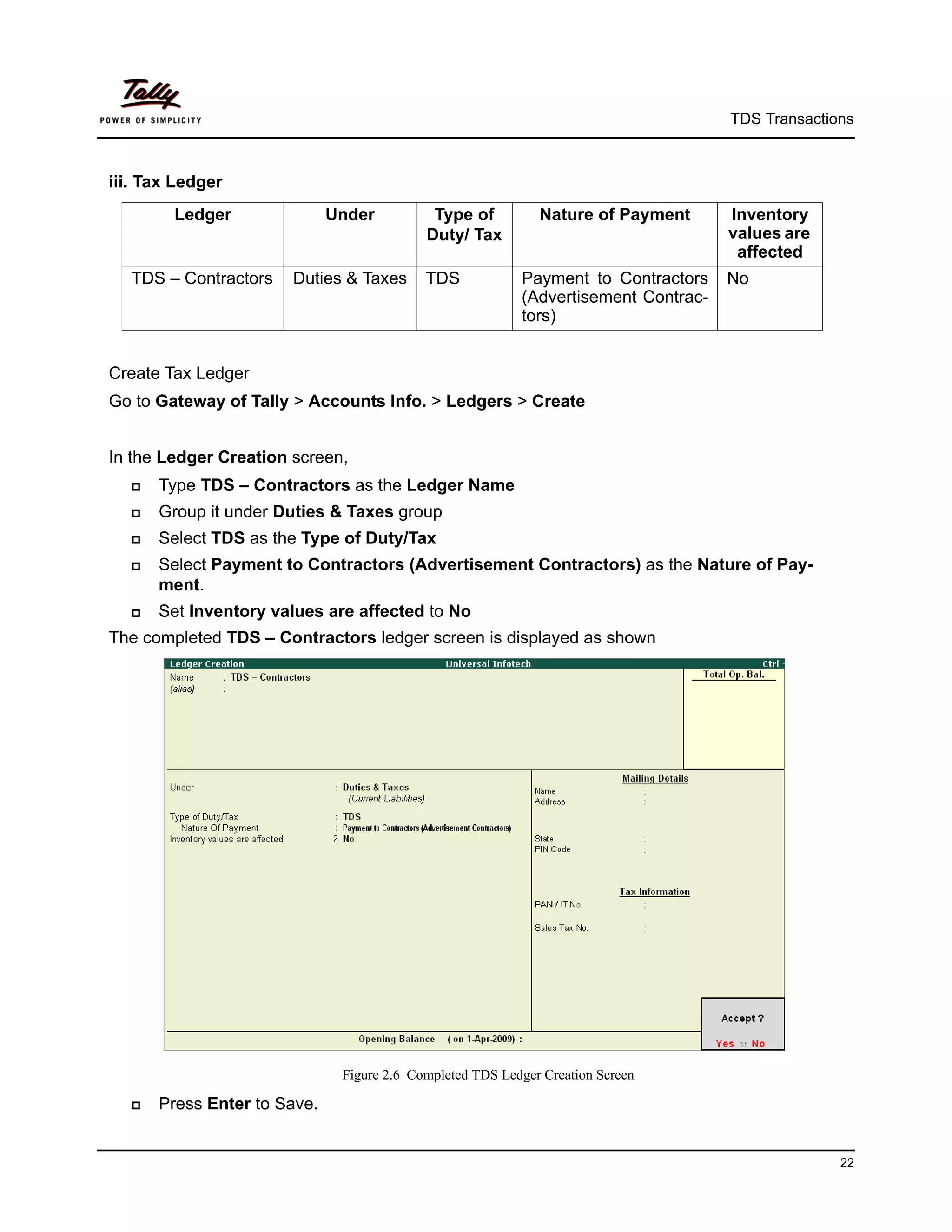
     Type TDS – Contractors as the Ledger Name
     Group it under Duties & Taxes group
     Select TDS as the Type of Duty/Tax
     Select Payment to Contractors (Advertisement Contractors) as the Nature of Pay-
      ment.
     Set Inventory values are affected to No
The completed TDS – Contractors ledger screen is displayed as shown


                              Figure 2.6 Completed TDS Ledger Creation Screen

     Press Enter to Save.


                                                                                                  22
TDS Transactions


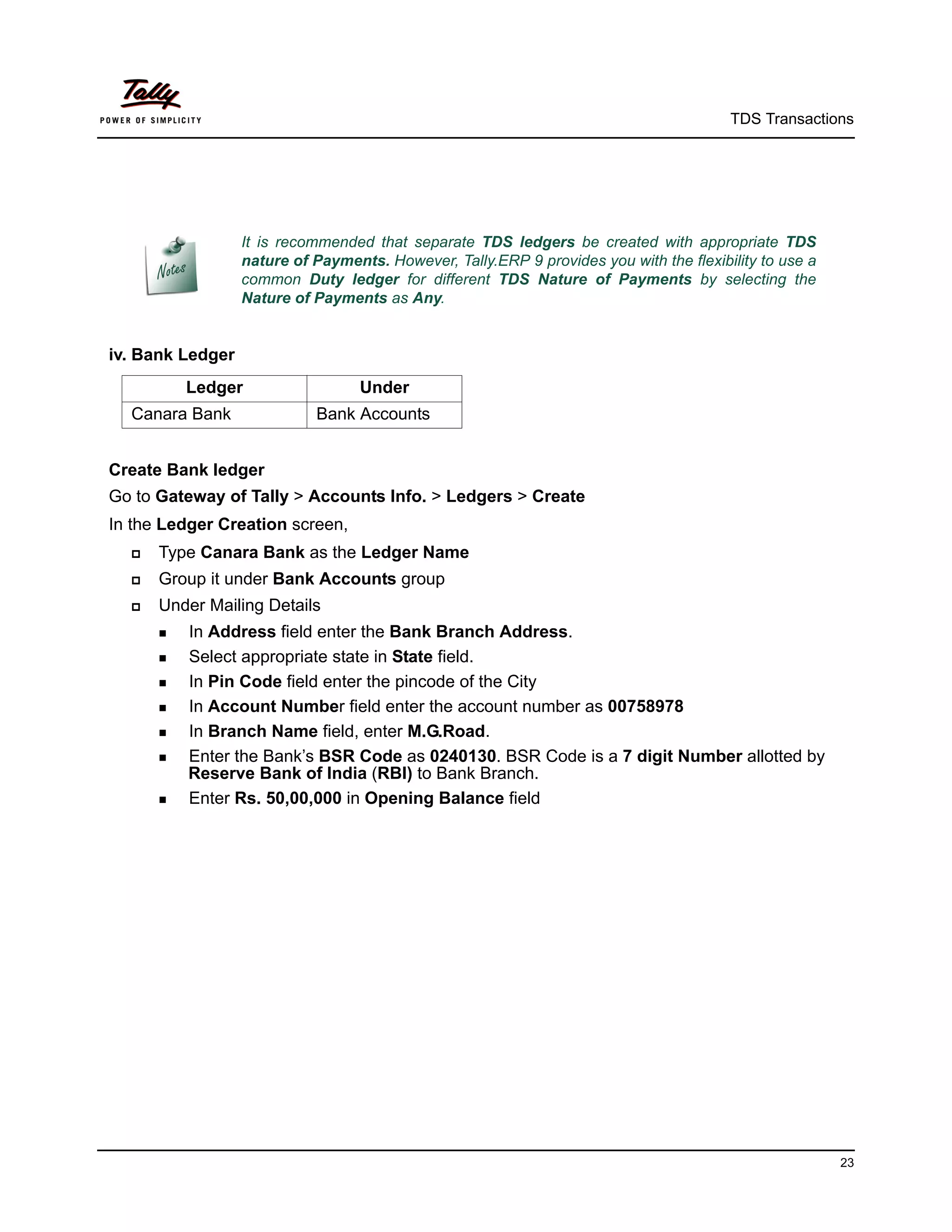
                  It is recommended that separate TDS ledgers be created with appropriate TDS
                  nature of Payments. However, Tally.ERP 9 provides you with the flexibility to use a
                  common Duty ledger for different TDS Nature of Payments by selecting the
                  Nature of Payments as Any.


iv. Bank Ledger
         Ledger                    Under
  Canara Bank               Bank Accounts


Create Bank ledger
Go to Gateway of Tally > Accounts Info. > Ledgers > Create
In the Ledger Creation screen,
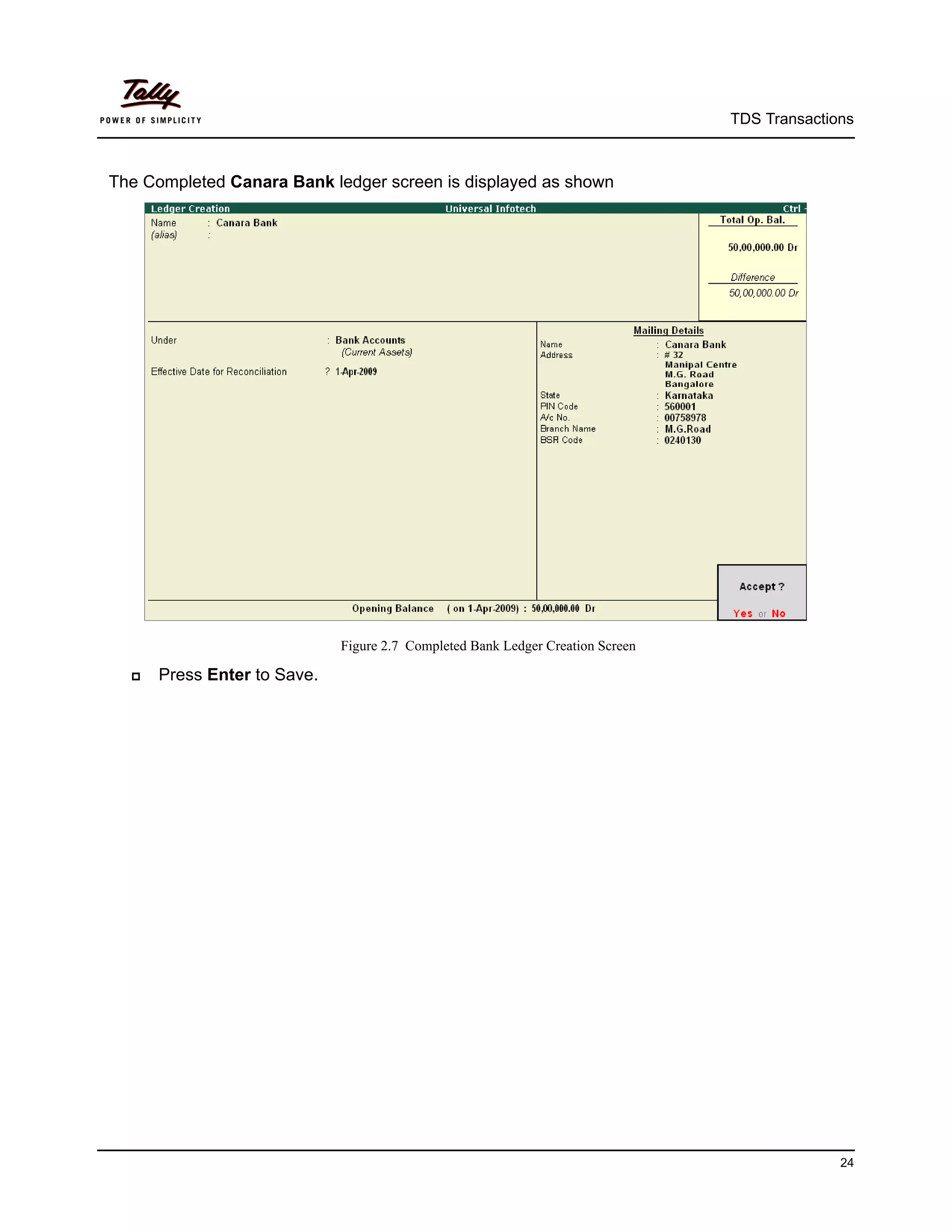
     Type Canara Bank as the Ledger Name
     Group it under Bank Accounts group
     Under Mailing Details
       In Address field enter the Bank Branch Address.
       Select appropriate state in State field.

       In Pin Code field enter the pincode of the City

       In Account Number field enter the account number as 00758978

       In Branch Name field, enter M.G.Road.

       Enter the Bank’s BSR Code as 0240130. BSR Code is a 7 digit Number allotted by
          Reserve Bank of India (RBI) to Bank Branch.
       Enter Rs. 50,00,000 in Opening Balance field


                                                                                                        23
TDS Transactions


The Completed Canara Bank ledger screen is displayed as shown


                             Figure 2.7 Completed Bank Ledger Creation Screen

     Press Enter to Save.


                                                                                              24
TDS Transactions


2. Record the Transaction in Journal Voucher


Go to Gateway of Tally > Accounting Vouchers > Press F7: Journal
1.   Press F2 and change the date to 01-04-2009
2.   Select Advertisement Expenses in the Debit field and press Enter
3.   Enter 5,00,000 in the Amount field.
4.   Select Pheonix Agencies in the Credit field and press Enter.


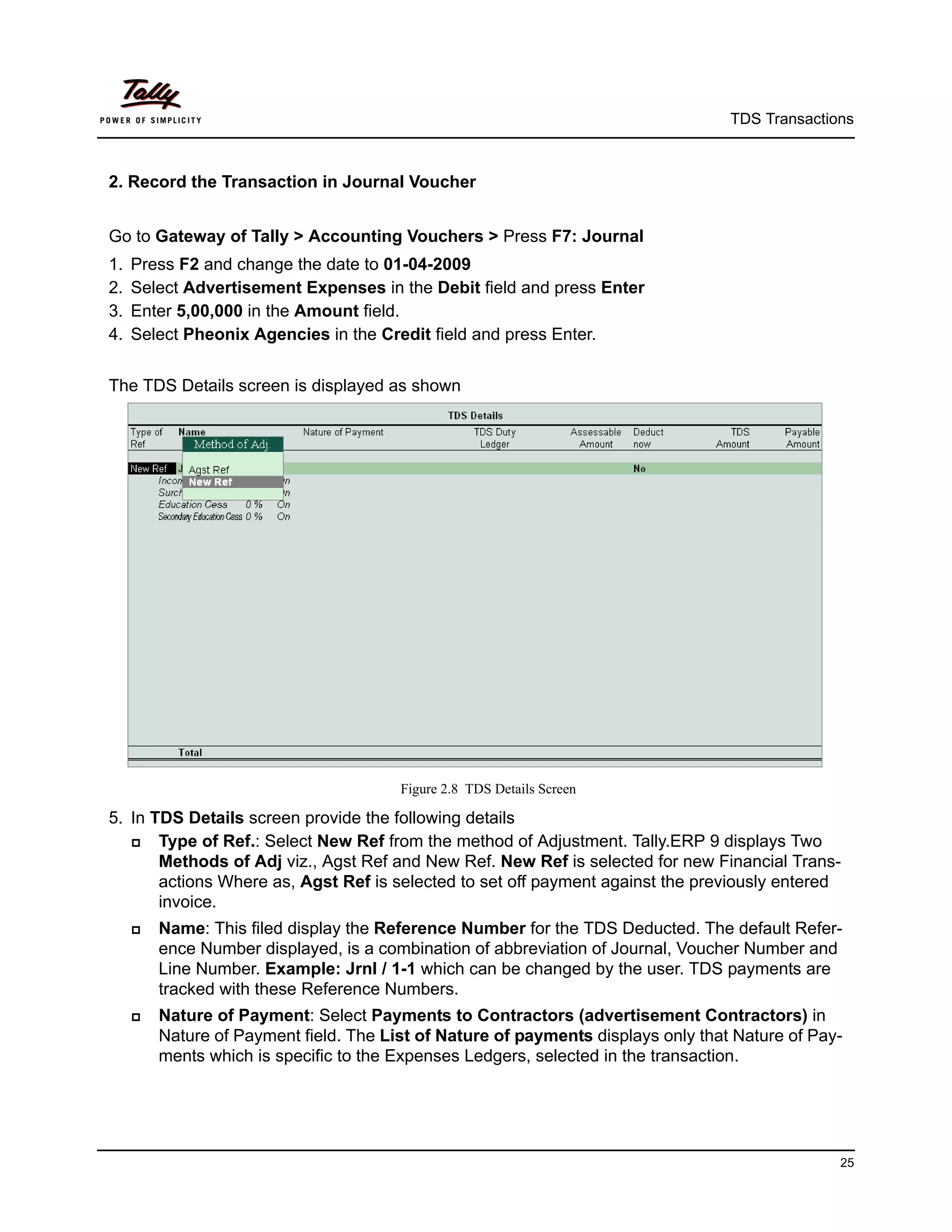
The TDS Details screen is displayed as shown


                                        Figure 2.8 TDS Details Screen

5. In TDS Details screen provide the following details
      Type of Ref.: Select New Ref from the method of Adjustment. Tally.ERP 9 displays Two
       Methods of Adj viz., Agst Ref and New Ref. New Ref is selected for new Financial Trans-
       actions Where as, Agst Ref is selected to set off payment against the previously entered
       invoice.
        Name: This filed display the Reference Number for the TDS Deducted. The default Refer-
         ence Number displayed, is a combination of abbreviation of Journal, Voucher Number and
         Line Number. Example: Jrnl / 1-1 which can be changed by the user. TDS payments are
         tracked with these Reference Numbers.
        Nature of Payment: Select Payments to Contractors (advertisement Contractors) in
         Nature of Payment field. The List of Nature of payments displays only that Nature of Pay-
         ments which is specific to the Expenses Ledgers, selected in the transaction.


                                                                                                 25
TDS Transactions


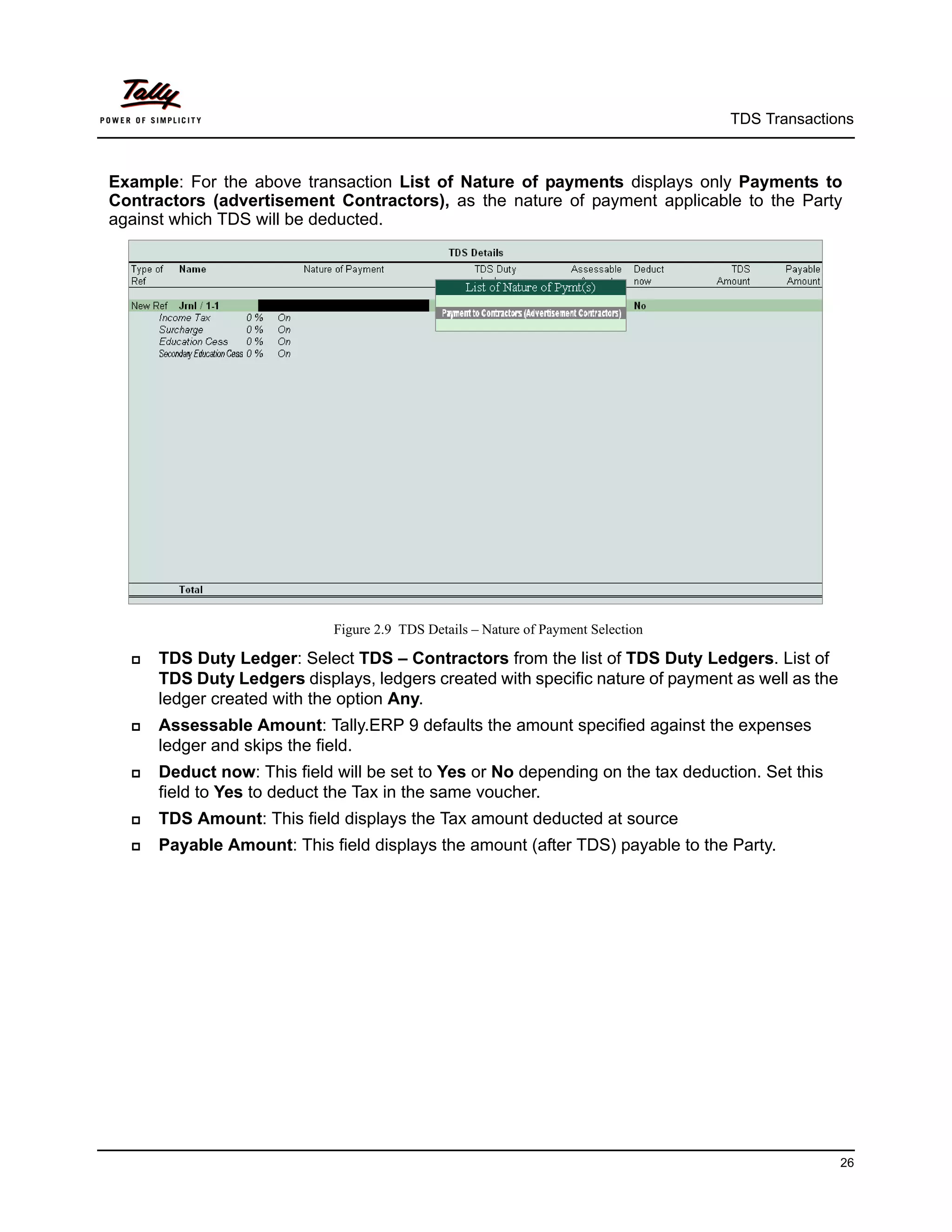
Example: For the above transaction List of Nature of payments displays only Payments to
Contractors (advertisement Contractors), as the nature of payment applicable to the Party
against which TDS will be deducted.


                             Figure 2.9 TDS Details – Nature of Payment Selection

     TDS Duty Ledger: Select TDS – Contractors from the list of TDS Duty Ledgers. List of
      TDS Duty Ledgers displays, ledgers created with specific nature of payment as well as the
      ledger created with the option Any.
     Assessable Amount: Tally.ERP 9 defaults the amount specified against the expenses
      ledger and skips the field.
     Deduct now: This field will be set to Yes or No depending on the tax deduction. Set this
      field to Yes to deduct the Tax in the same voucher.
     TDS Amount: This field displays the Tax amount deducted at source
     Payable Amount: This field displays the amount (after TDS) payable to the Party.


                                                                                                  26
TDS Transactions


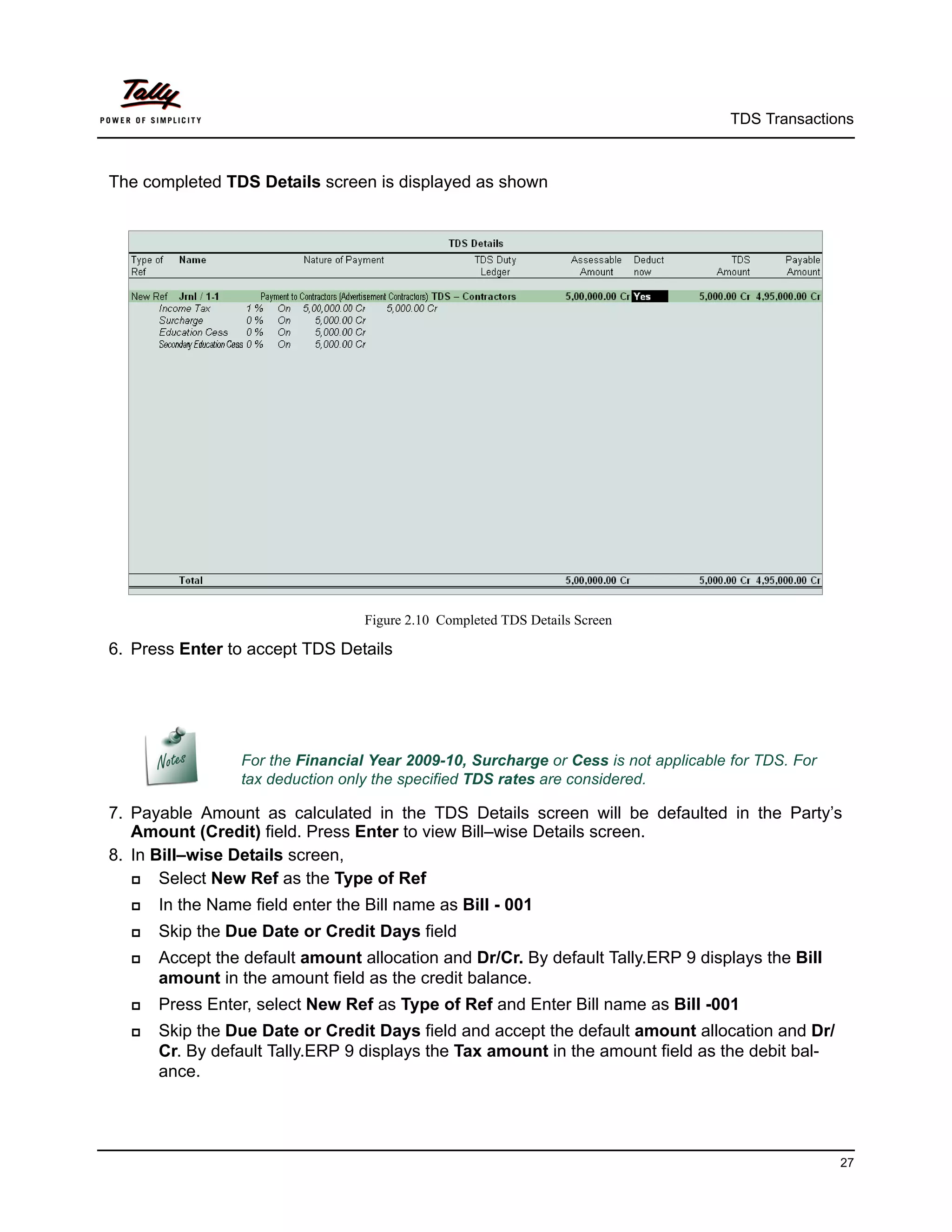
The completed TDS Details screen is displayed as shown


                                  Figure 2.10 Completed TDS Details Screen

6. Press Enter to accept TDS Details


                 For the Financial Year 2009-10, Surcharge or Cess is not applicable for TDS. For
                 tax deduction only the specified TDS rates are considered.

7. Payable Amount as calculated in the TDS Details screen will be defaulted in the Party’s
   Amount (Credit) field. Press Enter to view Bill–wise Details screen.
8. In Bill–wise Details screen,
      Select New Ref as the Type of Ref
     In the Name field enter the Bill name as Bill - 001
     Skip the Due Date or Credit Days field
     Accept the default amount allocation and Dr/Cr. By default Tally.ERP 9 displays the Bill
      amount in the amount field as the credit balance.
     Press Enter, select New Ref as Type of Ref and Enter Bill name as Bill -001
     Skip the Due Date or Credit Days field and accept the default amount allocation and Dr/
      Cr. By default Tally.ERP 9 displays the Tax amount in the amount field as the debit bal-
      ance.


                                                                                                    27
TDS Transactions


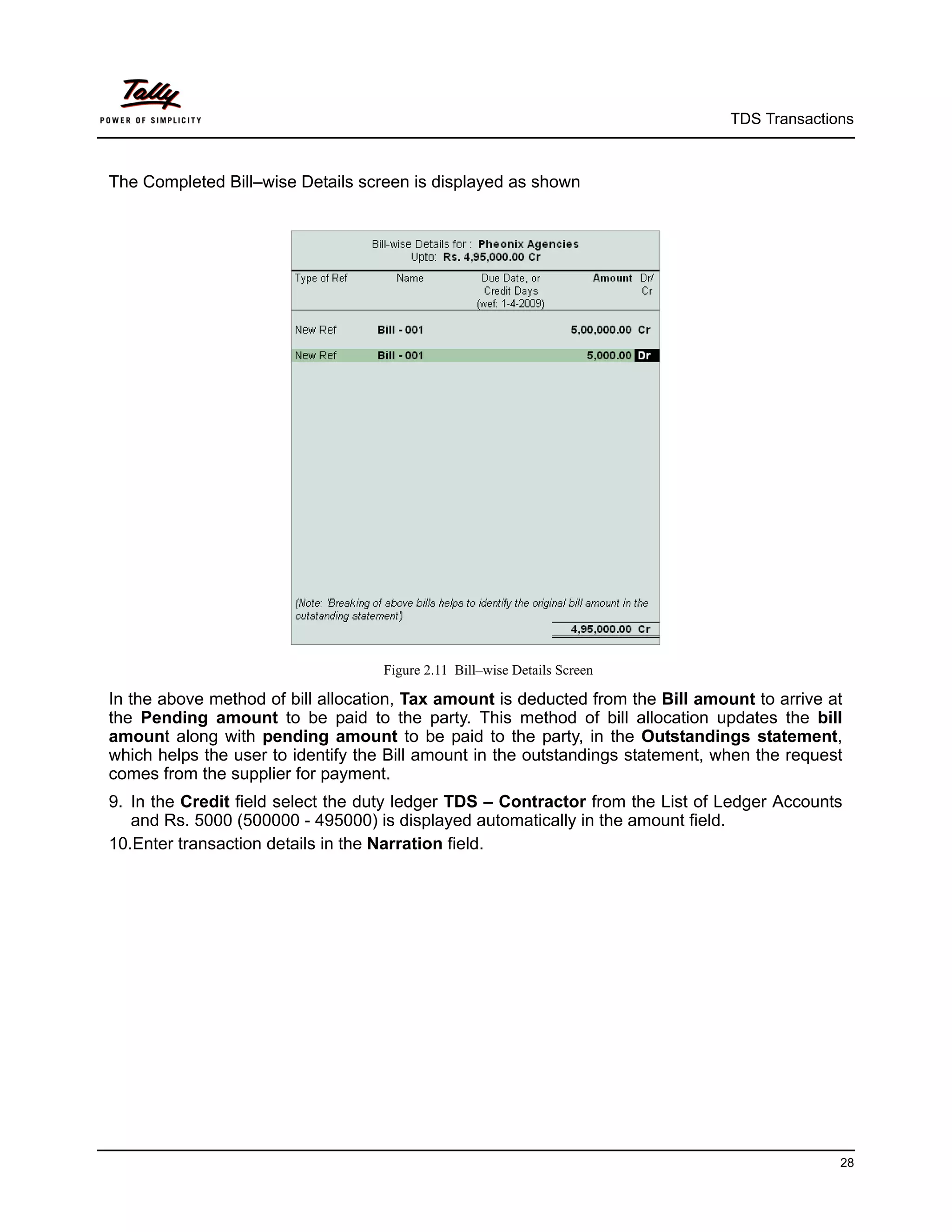
The Completed Bill–wise Details screen is displayed as shown


                                   Figure 2.11 Bill–wise Details Screen

In the above method of bill allocation, Tax amount is deducted from the Bill amount to arrive at
the Pending amount to be paid to the party. This method of bill allocation updates the bill
amount along with pending amount to be paid to the party, in the Outstandings statement,
which helps the user to identify the Bill amount in the outstandings statement, when the request
comes from the supplier for payment.
9. In the Credit field select the duty ledger TDS – Contractor from the List of Ledger Accounts
   and Rs. 5000 (500000 - 495000) is displayed automatically in the amount field.
10.Enter transaction details in the Narration field.


                                                                                               28
TDS Transactions


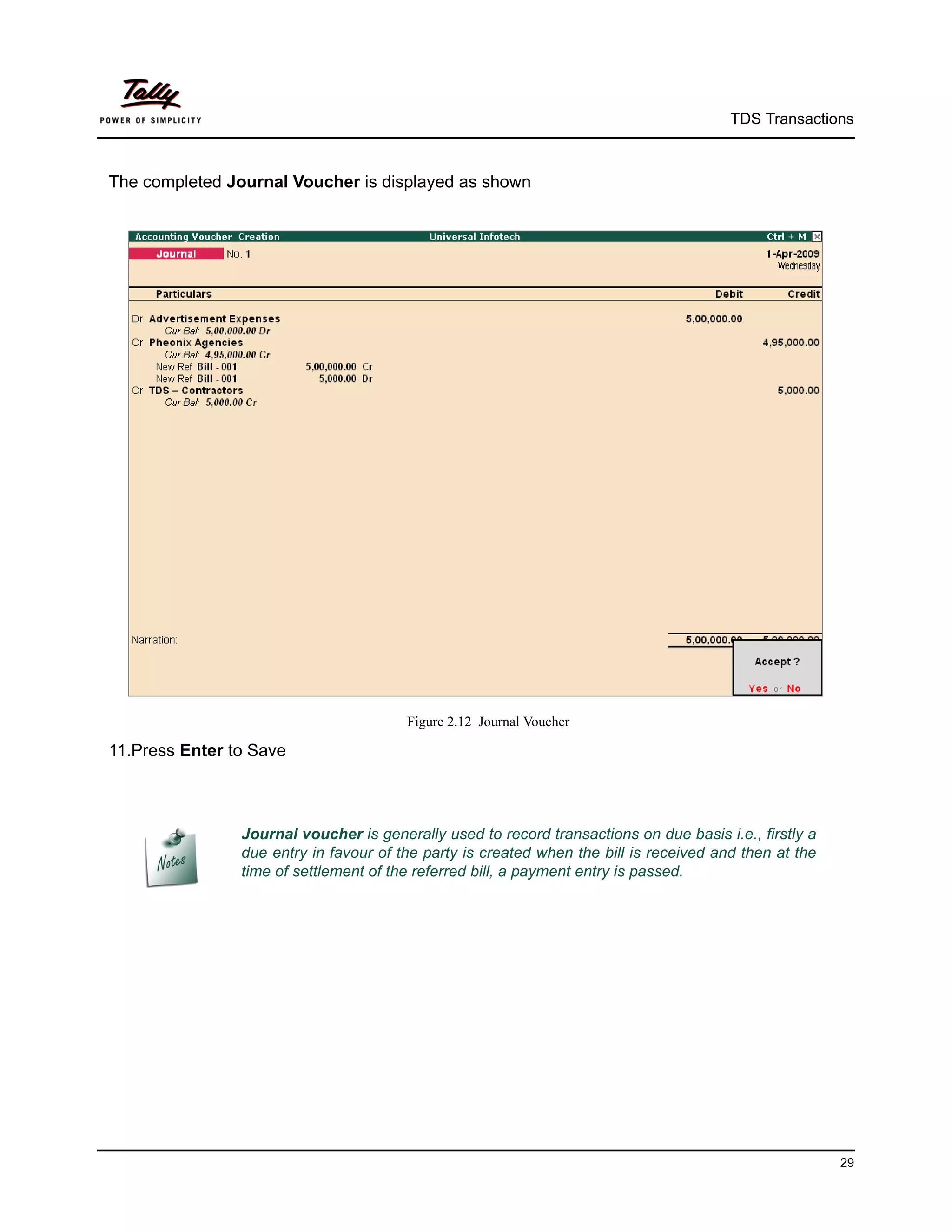
The completed Journal Voucher is displayed as shown


                                        Figure 2.12 Journal Voucher

11.Press Enter to Save


                Journal voucher is generally used to record transactions on due basis i.e., firstly a
                due entry in favour of the party is created when the bill is received and then at the
                time of settlement of the referred bill, a payment entry is passed.


                                                                                                        29
TDS Transactions


2.2 Payment to Party

Example 2:
On April 8, 2009, payment of Rs. 4,95,000 is made towards bill no. Bill-001 to Pheonix Agencies
for the purchase of Advertisement services, vide cheque no. 254781


The same is accounted as follows


Record the transaction in Payment Voucher
Go to Gateway of Tally > Accounting Vouchers > Press F5: Payment
1.   Press F2 and change date to 08/04/2009
2.   In Debit field select Pheonix Agencies from the List of Ledger Accounts
3.   Enter Rs. 4,95,000 in Amount field and press enter to view Bill-wise Details screen
4.   In Bill-wise Details screen
        Select Agst Ref in the Type of Ref
        Select Bill-001 from the List of Pending Bills in Name field, Amount is defaulted auto-
         matically.
Completed Bill-wise Details screen is displayed as shown.


                                      Figure 2.13 Bill–wise Details Screen

5. Press Enter to accept the bill adjustment.


                                                                                                   30
TDS Transactions


6. In Credit field select Canara Bank from the List of Ledger Accounts, Amount is defaulted
   automatically
7. Enter Cheque No. 254781 in Narration field.
The completed Payment Voucher is displayed as shown


                                Figure 2.14 Completed Payment Voucher

8. Press Enter to Save.


                                                                                           31
TDS Transactions


2.3 Payment of TDS

2.3.1 Payment of TDS (Using Auto Fill)
All the Tax deducted during a month is to be paid to the credit of Government on or before 7th of
the next month. In case 7th of the month happens to be a sunday or a bank holiday payment can
be made on the next working day
TDS amount shall be paid to the government account through any designated branches of the
authorised banks, along with Income Tax Challan No.281.
Example 3:
On May 6, 2009, Universal Infotech, paid TDS of Rs. 5,000 towards Advertisement Expenses,
vide cheque no. 056330 for the month of April, 2009.
The same is accounted as follows
Setup:
In F12: Configure (Payment Configuration)
     Set Use Single Entry mode for Pymt/Rcpt/Contra to Yes


Record the transaction in Payment Voucher
Go to Gateway of Tally > Accounting Vouchers > Press F5: Payment
1. Press F2 and change date to 06/05/2009
2. Press Alt+S or click S: Stat Payment button on the Buttons Bar to view Statutory Payment
   screen.


                                 Figure 2.15 Selection of Stat Payment Button


                                                                                                32
TDS Transactions


                  The Stat Payment button will be available in payment voucher only if the option Use
                  Single Entry mode for Pymt/Rcpt/Contra? is enabled in the F12: Configure
                  (Voucher Configuration).


3. In the Statutory Payment screen
      Type of Duty/Tax: In this field select the Tax/Duty Type towards which tax payment entry is
       being recorded. Here we are recording TDS payment entry, hence select TDS from the
       Type of Duty/Tax


                                    Figure 2.16 Selection of Type of Duty/Tax

      Auto Fill Statutory Payment: Set this option to YES to auto calculate and fill the duty pay-
       able to the Government. Set this option to NO, if the user wants to manually select the duty
       ledger and duty bills. Universal Infotech wants to auto fill tax details in payment voucher,
       hence the option Auto Fill Statutory Payments is set to Yes.
      On setting the option Auto Fill Statutory Payments to Yes, based on the Duty/Tax Type
       selected Tally.ERP 9 displays the appropriate statutory payment fields to fill the details.


                                                                                                        33
TDS Transactions


    Deducted Till Date: In this field user may enter, till date of the period for which the TDS
     values should be computed and auto-filled.
     Enter 30/04/2009 as the Till Date.
    Section: As per the Act, separate TDS challans to be submitted for the payment of tax
     under each section. In this field, Tally.ERP 9 displays all the Sections under which, Tax
     deducted is pending for payment.
     Select Section 194C from the list of section.


                Payment Code of the Section selected for TDS payment will be printed on the TDS
                Challan.

    Nature of Payments: Based on the section selected in the Section field, Tally.ERP 9 dis-
     plays the section related nature of payments under which, Tax deducted is pending for
     payment.
    Select Payment to Contractors (Advertisement Contractors) as the Nature of Payment
    Deductee Status: Select the Deductee Status as Non Company.


                The TDS transactions in a payment voucher can be entered for a particular
                Deductee Status, using the Stat Payment button.

    Cash/ Bank: Depending on the mode of payment (Cash or Cheque) Cash or Bank ledger
     will be selected.
     Select Canara Bank from the List of Ledger Accounts.


                                                                                                   34
TDS Transactions


The completed Statutory Payment screen is displayed as shown


                            Figure 2.17 Completed Statutory Payment Screen

4. Press Enter to accept the Statutory Payment
5. The Bank Name through which the payment is made and TDS payable amount (with the
   respective bill details) will be auto-filled.


                               Figure 2.18 Auto Filled Payment Voucher


                                                                                           35
TDS Transactions


6. Set the option Provide Details to Yes to enter TDS payment details
7. In the Payment Details Screen
      From Date: In this field enter the From date of the period for which the payment is made
     To Date: In this field enter the To date of the period for which the payment is made
     Cheque/DD No: In this field user can enter either the cheque or the DD No through which
      the TDS payment is made. In this transaction payment is made through cheque no.
      056330.
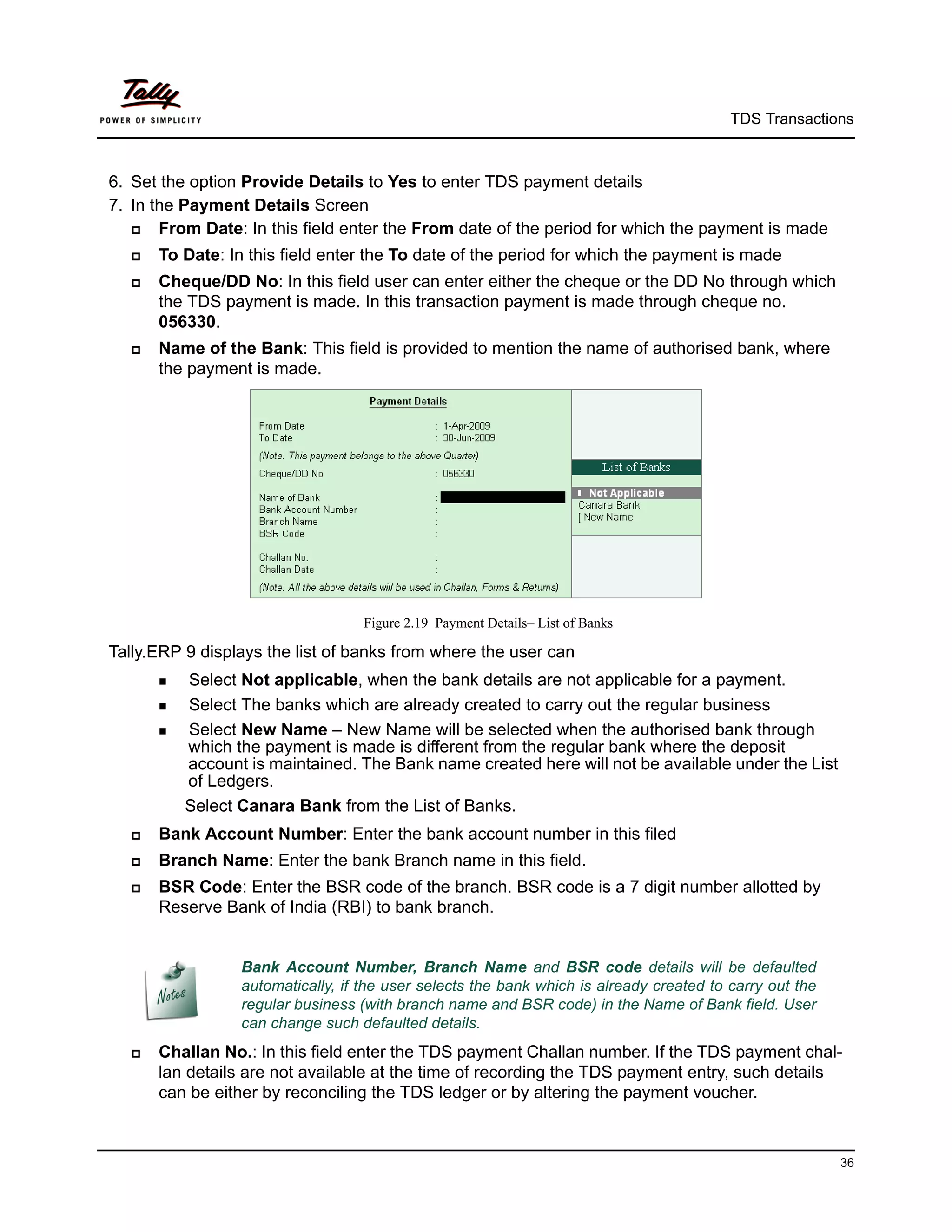
     Name of the Bank: This field is provided to mention the name of authorised bank, where
      the payment is made.


                                     Figure 2.19 Payment Details– List of Banks

Tally.ERP 9 displays the list of banks from where the user can
       Select Not applicable, when the bank details are not applicable for a payment.
       Select The banks which are already created to carry out the regular business

       Select New Name – New Name will be selected when the authorised bank through
          which the payment is made is different from the regular bank where the deposit
          account is maintained. The Bank name created here will not be available under the List
          of Ledgers.
          Select Canara Bank from the List of Banks.
     Bank Account Number: Enter the bank account number in this filed
     Branch Name: Enter the bank Branch name in this field.
     BSR Code: Enter the BSR code of the branch. BSR code is a 7 digit number allotted by
      Reserve Bank of India (RBI) to bank branch.


                   Bank Account Number, Branch Name and BSR code details will be defaulted
                   automatically, if the user selects the bank which is already created to carry out the
                   regular business (with branch name and BSR code) in the Name of Bank field. User
                   can change such defaulted details.
     Challan No.: In this field enter the TDS payment Challan number. If the TDS payment chal-
      lan details are not available at the time of recording the TDS payment entry, such details
      can be either by reconciling the TDS ledger or by altering the payment voucher.


                                                                                                           36
TDS Transactions


     Challan Date: Enter the Challan Date.
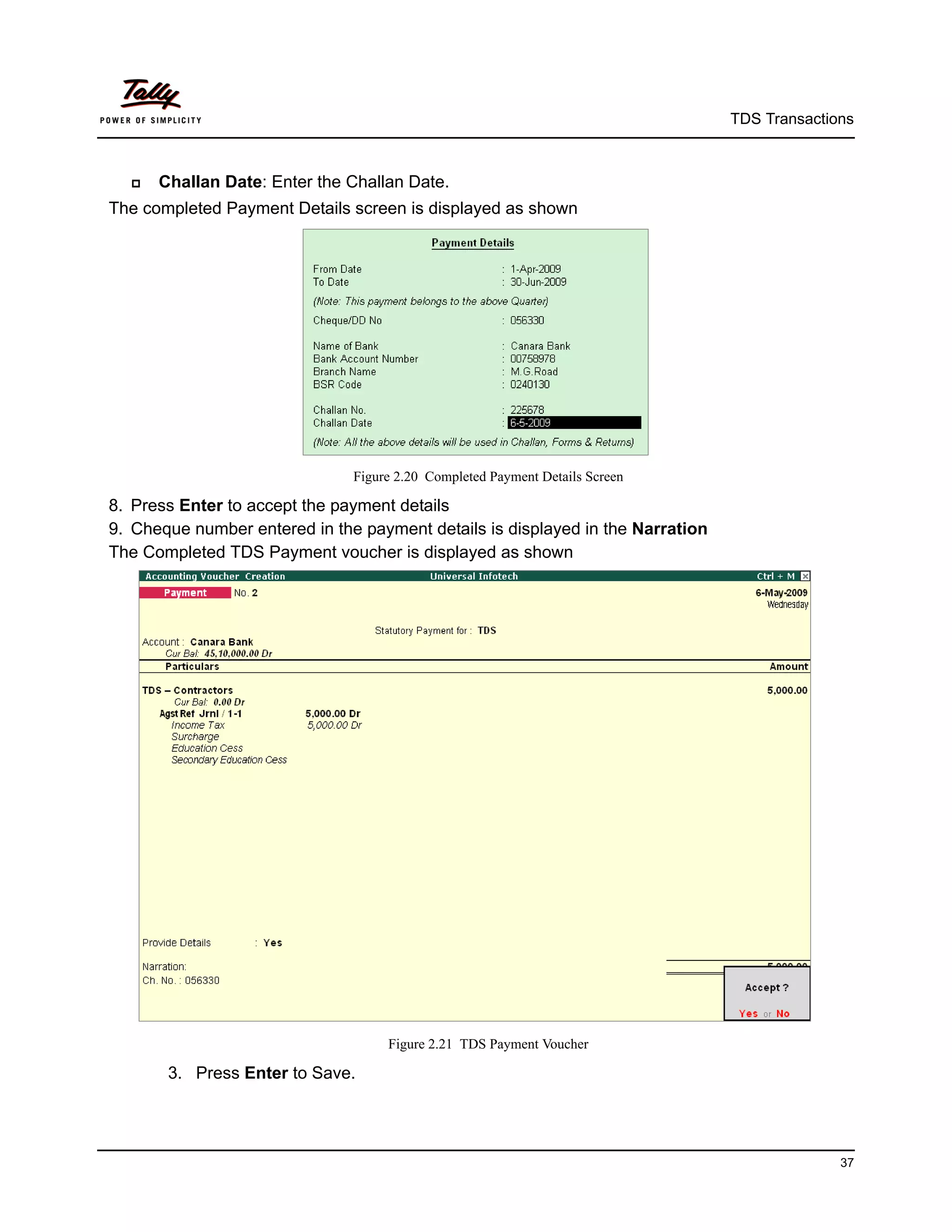
The completed Payment Details screen is displayed as shown


                               Figure 2.20 Completed Payment Details Screen

8. Press Enter to accept the payment details
9. Cheque number entered in the payment details is displayed in the Narration
The Completed TDS Payment voucher is displayed as shown


                                    Figure 2.21 TDS Payment Voucher

       3. Press Enter to Save.


                                                                                              37
TDS Transactions


              Tally.ERP 9 also allows the user to enter TDS payment entry
                     Using Stat Payment option by manually selecting the Tax ledgers and tax
                       bills.
                  In   Double Entry Mode


2.3.2 Generating TDS Challan (ITNS 281)
Tax is remitted to the government account through Challans. For making the TDS payment,
Challan No. 281 is used.
In Tally.ERP 9 TDS Challan (ITNS 281) will be printed from the TDS payment voucher.


To print the TDS Challan for the transaction entered on 06-05-2009


1. Press PageUp to go back to payment voucher entry
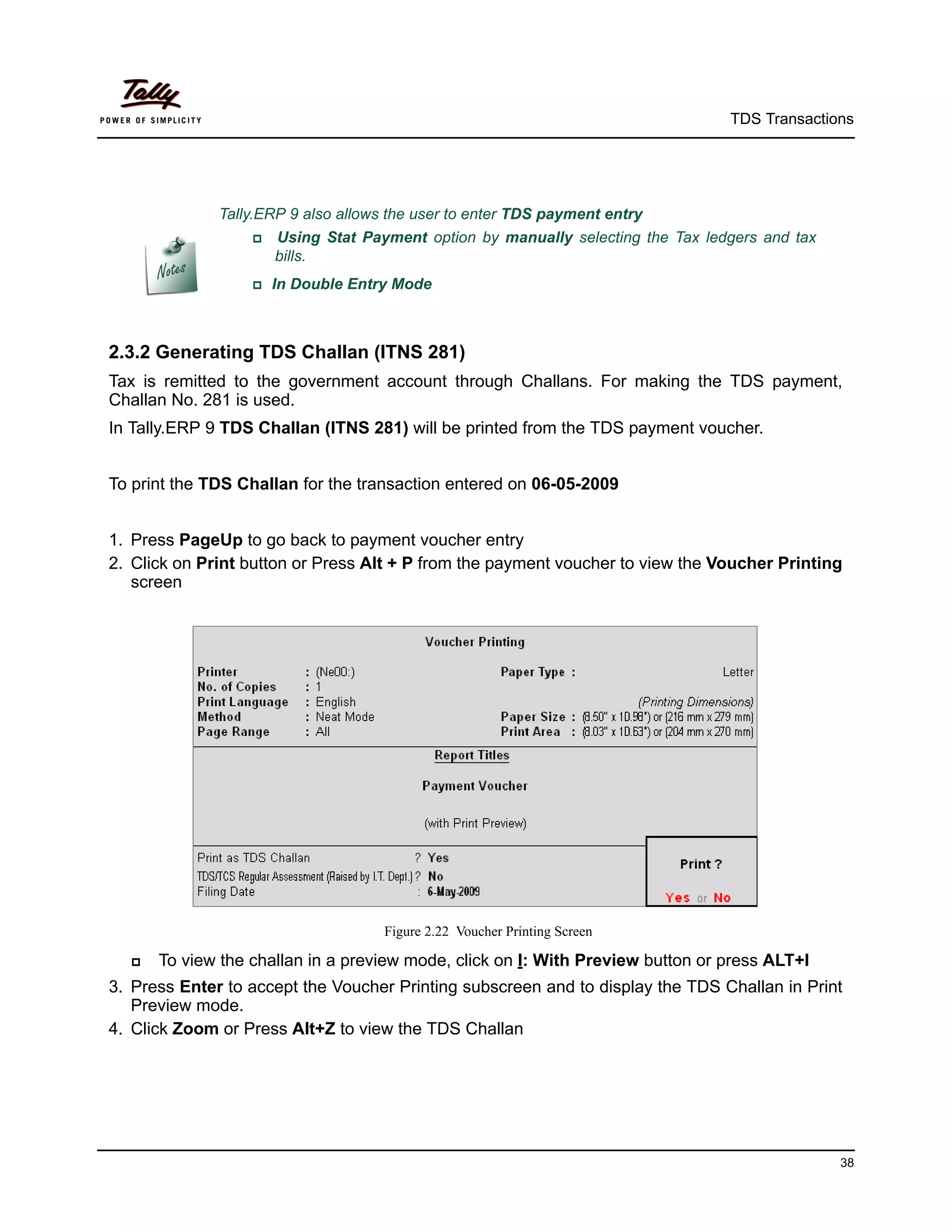
2. Click on Print button or Press Alt + P from the payment voucher to view the Voucher Printing
   screen


                                     Figure 2.22 Voucher Printing Screen

     To view the challan in a preview mode, click on I: With Preview button or press ALT+I
3. Press Enter to accept the Voucher Printing subscreen and to display the TDS Challan in Print
   Preview mode.
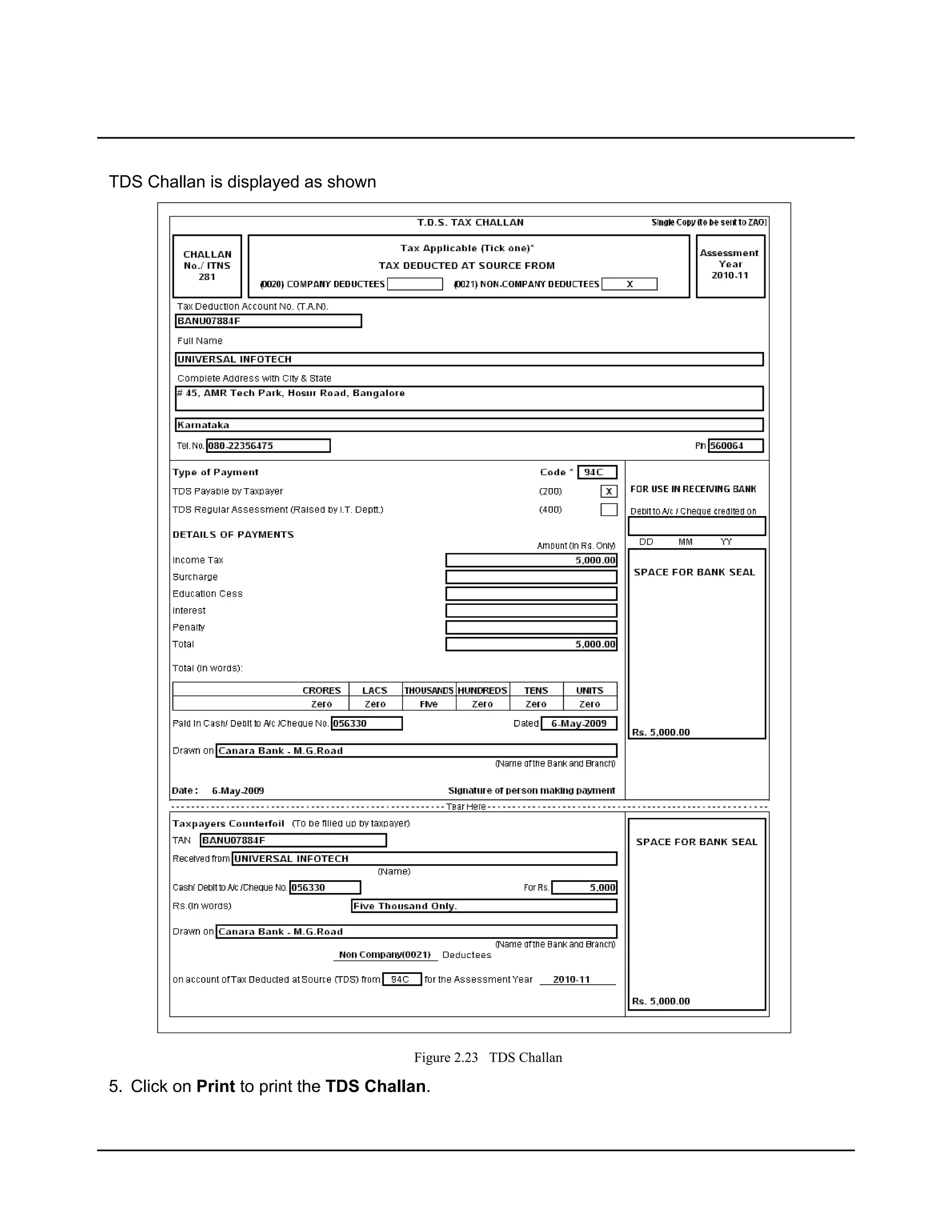
4. Click Zoom or Press Alt+Z to view the TDS Challan


                                                                                                 38
TDS Challan is displayed as shown


                                        Figure 2.23 TDS Challan

5. Click on Print to print the TDS Challan.
Part - II
TDS Transactions


Recording Advanced TDS Transactions
In this section we shall understand how Tally.ERP 9’s TDS feature can be used to process
advanced TDS transactions.

We shall learn to record advanced TDS transactions such as
      Expenses partly Subject to TDS
      Accounting of expenses and deducting TDS later
      Accounting multiple expenses and deducting TDS later
      TDS on Advances
      TDS on expenses @ lower rate
      TDS on expenses @ zero rate
      Reversal of expenses with TDS and Reversal of TDS
      Accounting changes in TDS percentage
      Accounting TDS on payments made to non–residents
      TDS on Interest Payments
      TDS on Expenses with Inventory
      TDS on Fixed Assets
      Payment of TDS
      Payment of Interest and Penalties
      TDS on Sales Commission
      Reversal of Excess TDS Deducted


Record all the transactions in the books of Universal Infotech.


                                                                                        41
TDS Transactions


2.4 Transactions Involving TDS

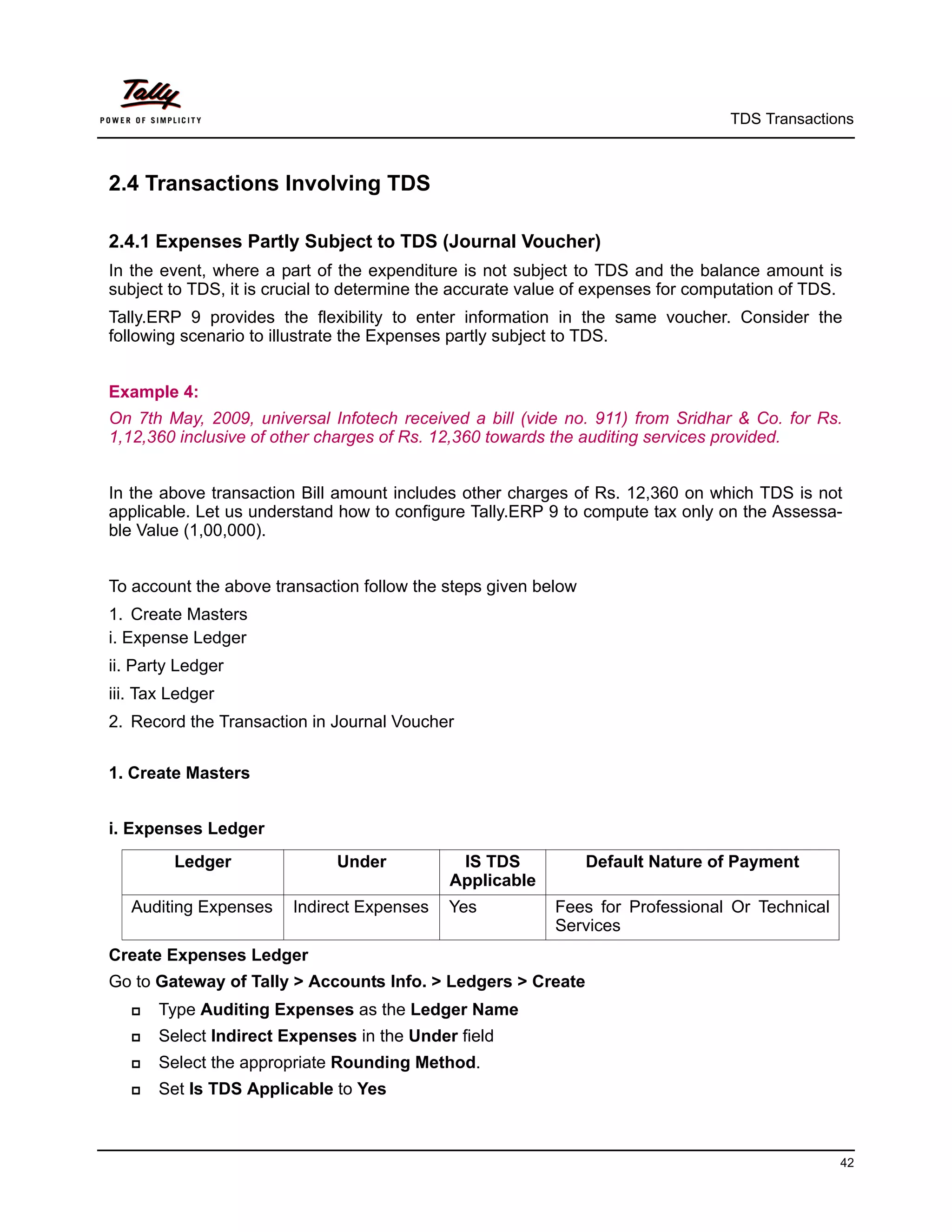
2.4.1 Expenses Partly Subject to TDS (Journal Voucher)
In the event, where a part of the expenditure is not subject to TDS and the balance amount is
subject to TDS, it is crucial to determine the accurate value of expenses for computation of TDS.
Tally.ERP 9 provides the flexibility to enter information in the same voucher. Consider the
following scenario to illustrate the Expenses partly subject to TDS.


Example 4:
On 7th May, 2009, universal Infotech received a bill (vide no. 911) from Sridhar & Co. for Rs.
1,12,360 inclusive of other charges of Rs. 12,360 towards the auditing services provided.


In the above transaction Bill amount includes other charges of Rs. 12,360 on which TDS is not
applicable. Let us understand how to configure Tally.ERP 9 to compute tax only on the Assessa-
ble Value (1,00,000).


To account the above transaction follow the steps given below
1. Create Masters
i. Expense Ledger
ii. Party Ledger
iii. Tax Ledger
2. Record the Transaction in Journal Voucher


1. Create Masters


i. Expenses Ledger
         Ledger               Under           IS TDS            Default Nature of Payment
                                             Applicable
   Auditing Expenses    Indirect Expenses   Yes            Fees for Professional Or Technical
                                                           Services
Create Expenses Ledger
Go to Gateway of Tally > Accounts Info. > Ledgers > Create
      Type Auditing Expenses as the Ledger Name
      Select Indirect Expenses in the Under field
      Select the appropriate Rounding Method.
      Set Is TDS Applicable to Yes


                                                                                                42
TDS Transactions


     In Default Nature of Payment filed select Fees for Professional Or Technical Services
      from the List of TDS Nature of Pymt.
                  Allthe Payments/Expenses subject to TDS have to be associated with rele-
                    vant pre-defined TDS Nature of Payments.
                 Refer    Appendix for more details on TDS Nature of Payments
                 The   Option Any can be selected from the TDS Nature of Payment, where the
                    user doesn’t want to define the TDS Nature of payment during Ledger crea-
                    tion. This allows the user to use a Expense Ledger (as a common ledger) to
                    account multiple TDS Nature of Payments.


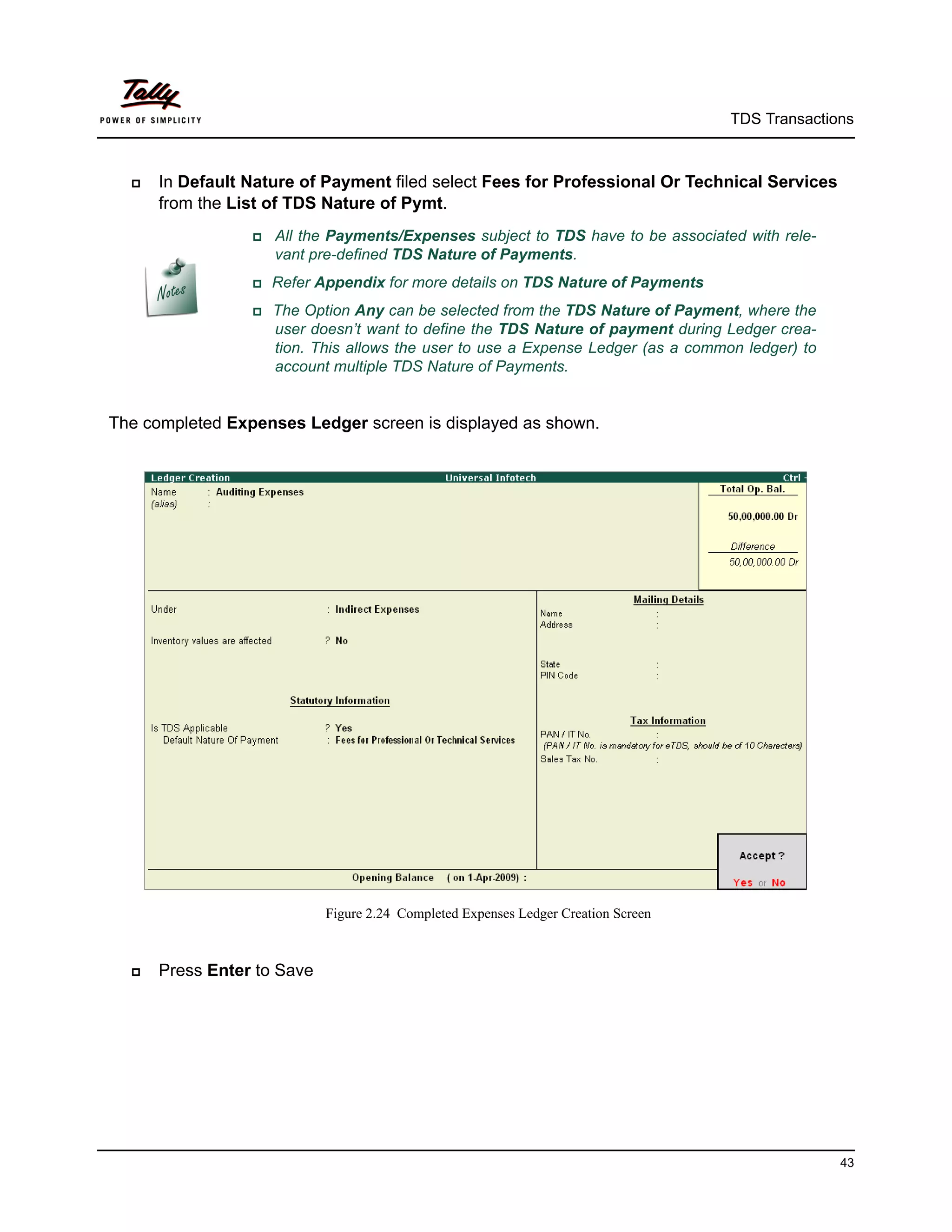
The completed Expenses Ledger screen is displayed as shown.


                             Figure 2.24 Completed Expenses Ledger Creation Screen


     Press Enter to Save


                                                                                                   43
TDS Transactions


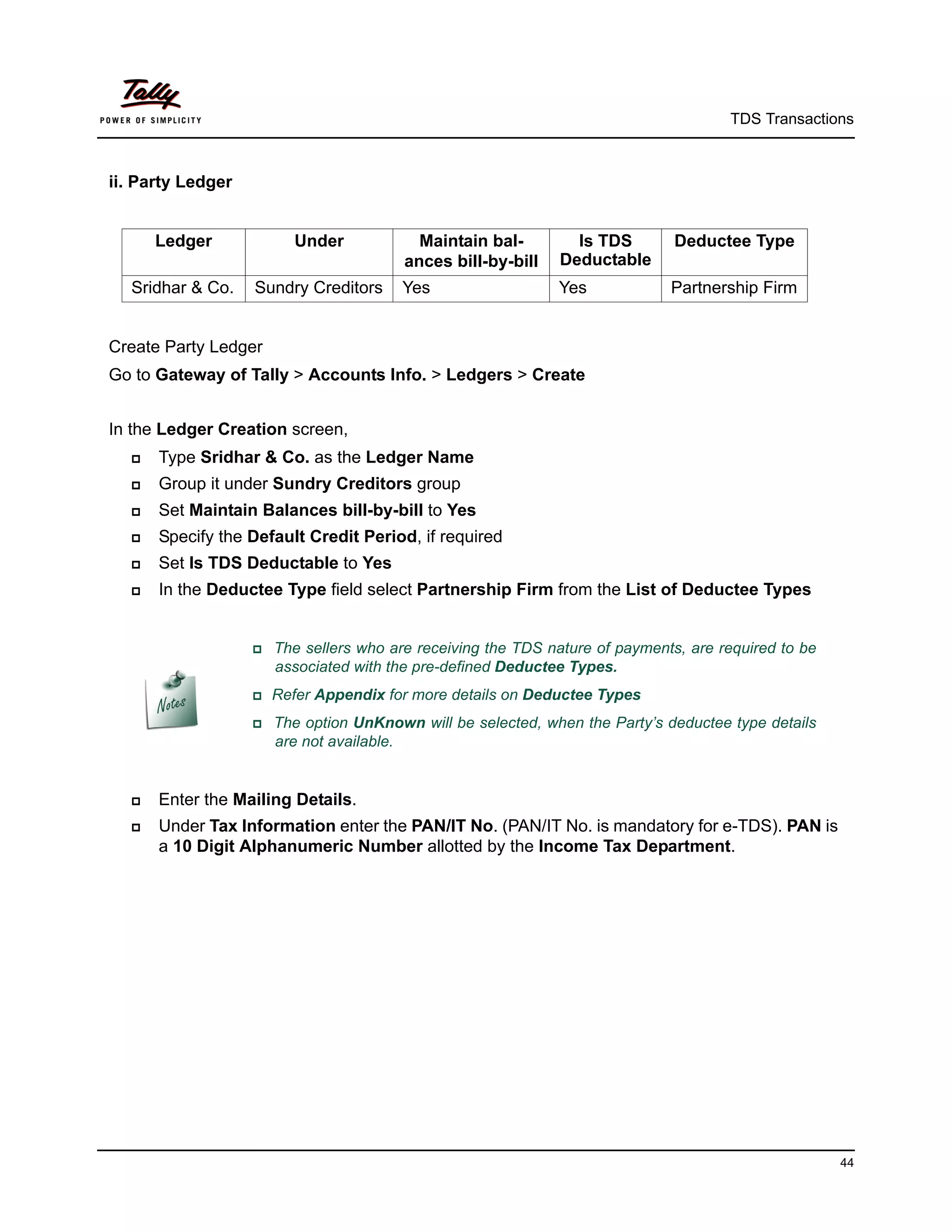
ii. Party Ledger


      Ledger            Under             Maintain bal-        Is TDS         Deductee Type
                                        ances bill-by-bill   Deductable
  Sridhar & Co.    Sundry Creditors     Yes                  Yes             Partnership Firm


Create Party Ledger
Go to Gateway of Tally > Accounts Info. > Ledgers > Create


In the Ledger Creation screen,
     Type Sridhar & Co. as the Ledger Name
     Group it under Sundry Creditors group
     Set Maintain Balances bill-by-bill to Yes
     Specify the Default Credit Period, if required
     Set Is TDS Deductable to Yes
     In the Deductee Type field select Partnership Firm from the List of Deductee Types


                    The sellers who are receiving the TDS nature of payments, are required to be
                      associated with the pre-defined Deductee Types.
                   Refer   Appendix for more details on Deductee Types
                    The option UnKnown will be selected, when the Party’s deductee type details
                      are not available.


     Enter the Mailing Details.
     Under Tax Information enter the PAN/IT No. (PAN/IT No. is mandatory for e-TDS). PAN is
      a 10 Digit Alphanumeric Number allotted by the Income Tax Department.


                                                                                                     44
TDS Transactions


                  PAN/IT   No. field is restricted to 10 digits, user can enter any ten Numbers or
                      Alphabets or alphanumeric.
                  The    details provided in the PAN/IT No. field must be equal to ten Numbers or
                      Alphabets or alphanumeric. Tally.ERP 9 won’t accept any details less than 10
                      digits.
                 In   case, where the PAN is not Available or Applied For, such details can also
                      be provided in the PAN/IT No field in the format, as specified by the Income tax
                      Department.
                      i. For PAN not available – enter as PANNOTAVBL
                      ii. For PAN Applied - enter as APPLIEDFOR
                    Under Exception Report – PAN Not Available, Tally.ERP 9 displays all the
                      ledgers in which PAN/IT No is not mentioned. Before e-TDS validation user can
                      check this report to make necessary changes in the ledger
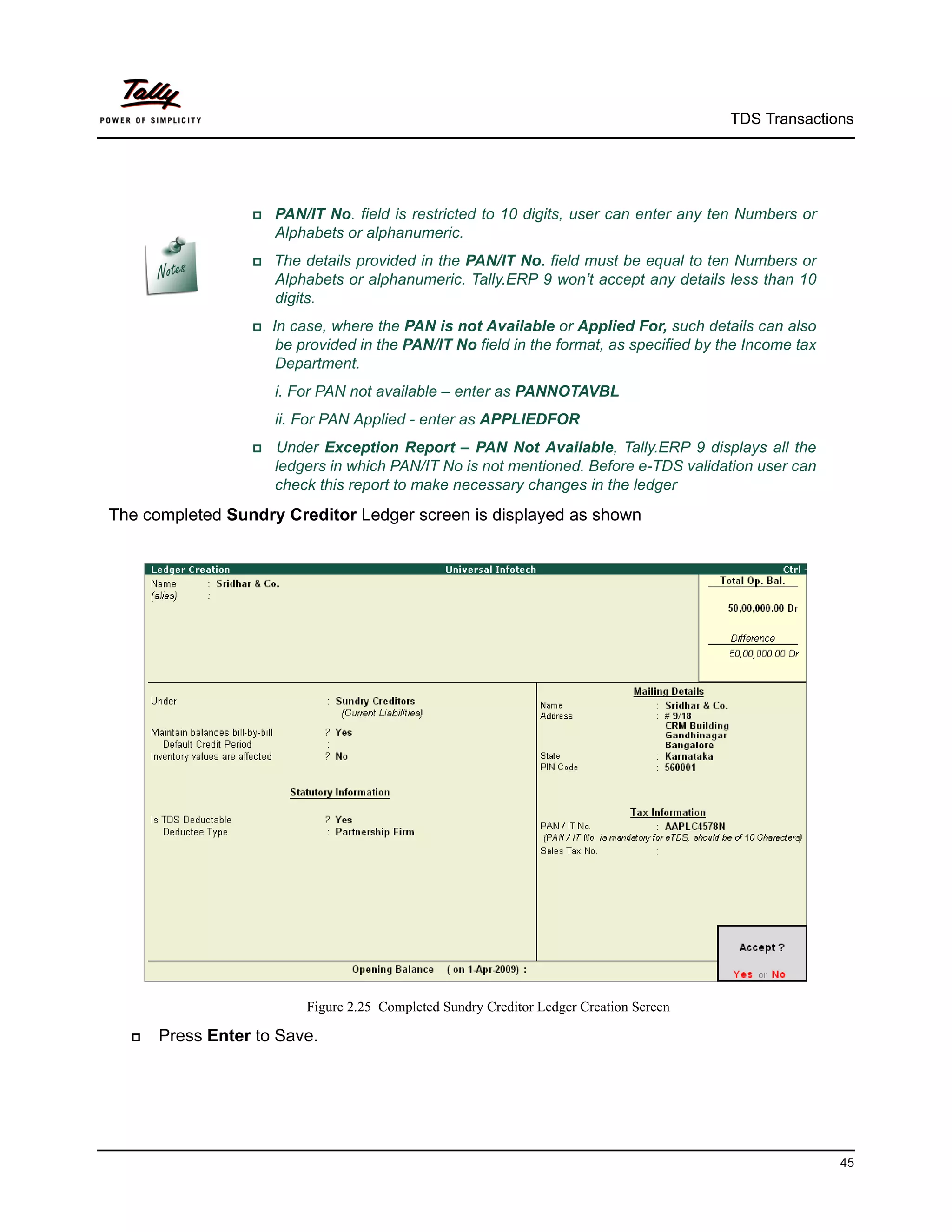
The completed Sundry Creditor Ledger screen is displayed as shown


                          Figure 2.25 Completed Sundry Creditor Ledger Creation Screen

     Press Enter to Save.


                                                                                                         45
TDS Transactions


iii. Tax Ledger

         Ledger               Under            Type of        Nature of Payment      Inventory
                                              Duty/ Tax                              values are
                                                                                      affected
  TDS - Professional      Duties & Taxes      TDS            Fees for Professional   No
  or Technical Services                                      or Technical Services


Create Tax Ledger
Go to Gateway of Tally > Accounts Info. > Ledgers > Create
In the Ledger Creation screen,
     Type TDS - Professional or Technical Services as the Ledger Name
     Group it under Duties & Taxes group
     Select TDS as the Type of Duty/Tax
     Select Fees for Professional or Technical Services as the Nature of Payment.
     Set Inventory values are affected to No
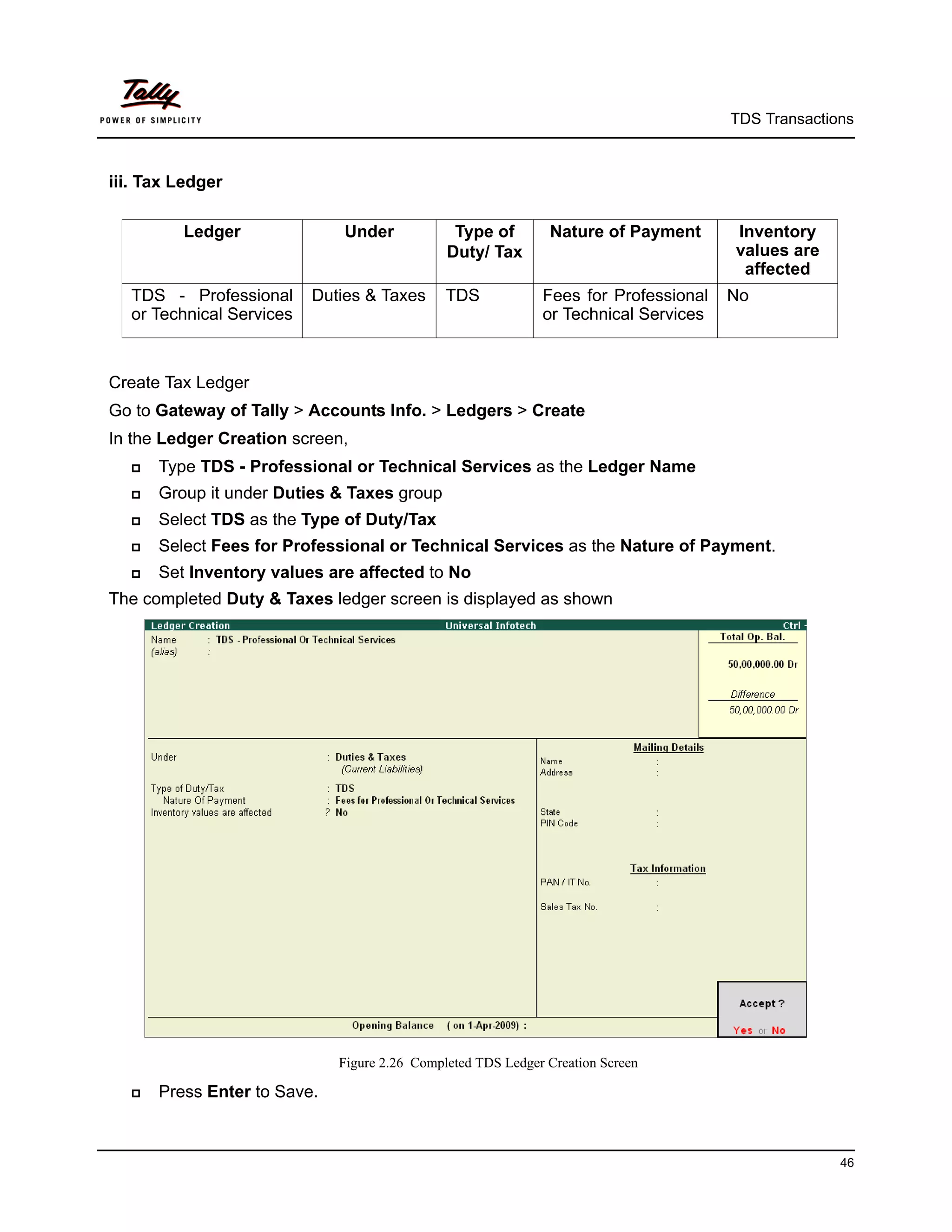
The completed Duty & Taxes ledger screen is displayed as shown


                             Figure 2.26 Completed TDS Ledger Creation Screen

     Press Enter to Save.


                                                                                                   46
TDS Transactions


2. Record the Transaction in Journal Voucher
Set Up:
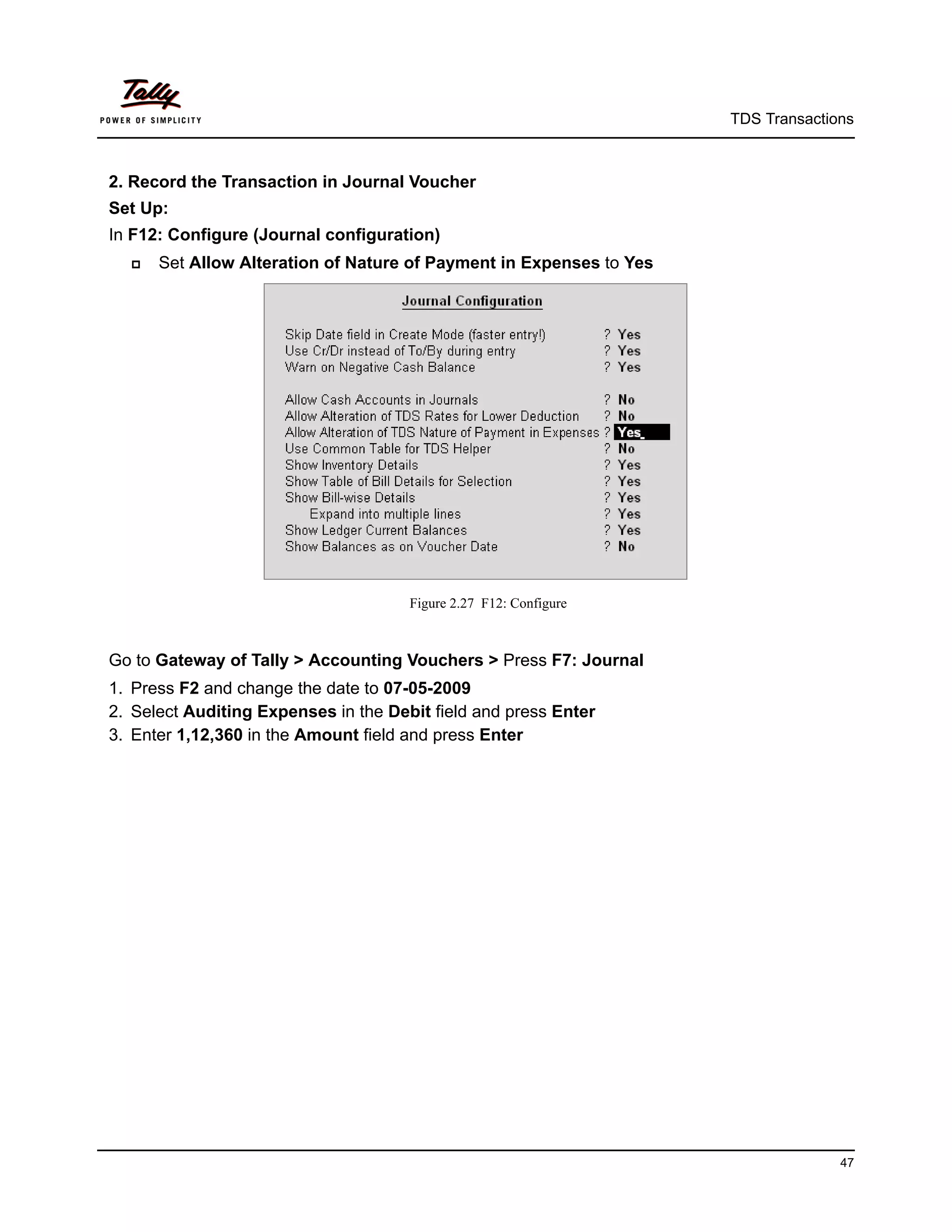
In F12: Configure (Journal configuration)
     Set Allow Alteration of Nature of Payment in Expenses to Yes


                                      Figure 2.27 F12: Configure


Go to Gateway of Tally > Accounting Vouchers > Press F7: Journal
1. Press F2 and change the date to 07-05-2009
2. Select Auditing Expenses in the Debit field and press Enter
3. Enter 1,12,360 in the Amount field and press Enter


                                                                                   47
TDS Transactions


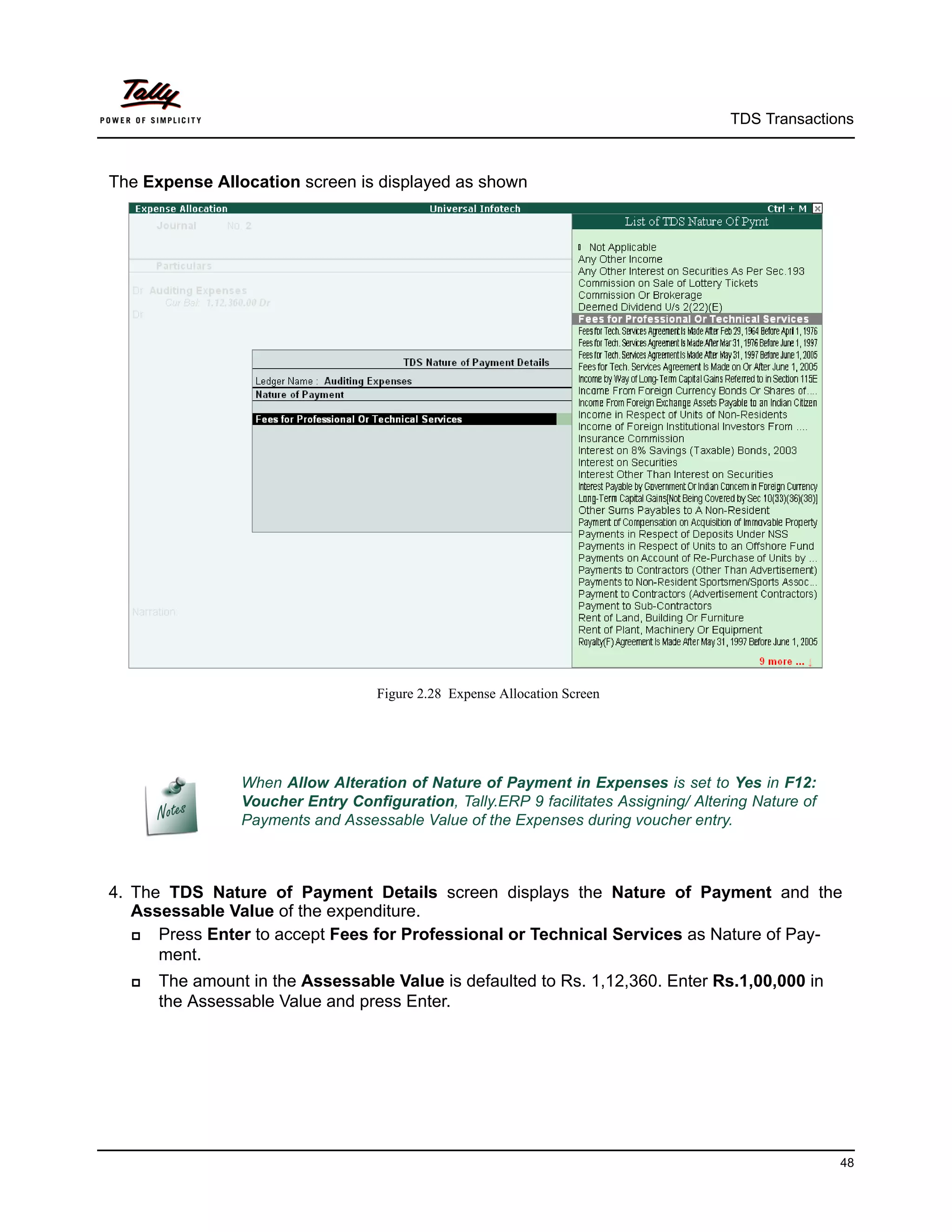
The Expense Allocation screen is displayed as shown


                                   Figure 2.28 Expense Allocation Screen


                When Allow Alteration of Nature of Payment in Expenses is set to Yes in F12:
                Voucher Entry Configuration, Tally.ERP 9 facilitates Assigning/ Altering Nature of
                Payments and Assessable Value of the Expenses during voucher entry.


4. The TDS Nature of Payment Details screen displays the Nature of Payment and the
   Assessable Value of the expenditure.
     Press Enter to accept Fees for Professional or Technical Services as Nature of Pay-
      ment.
     The amount in the Assessable Value is defaulted to Rs. 1,12,360. Enter Rs.1,00,000 in
      the Assessable Value and press Enter.


                                                                                                     48
TDS Transactions


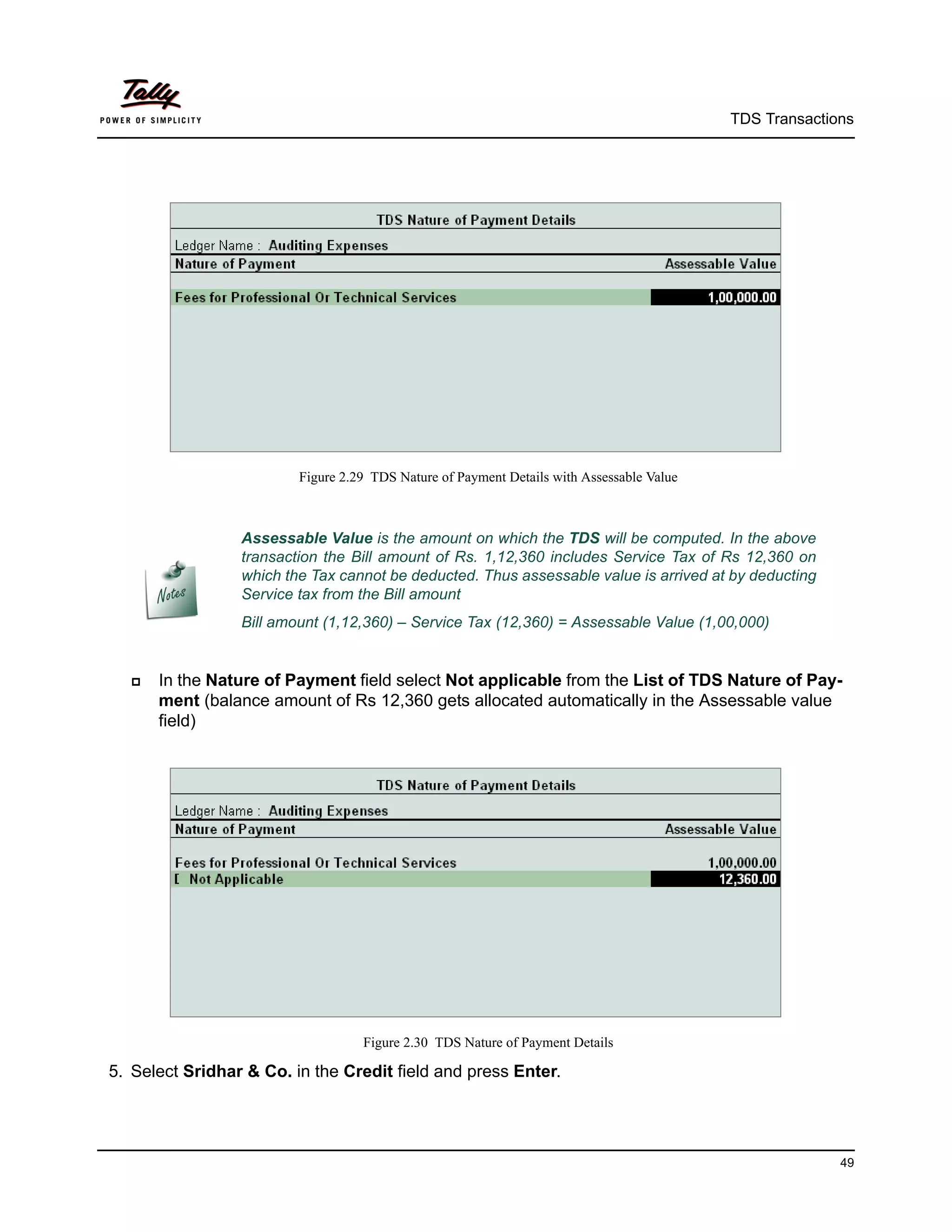
                         Figure 2.29 TDS Nature of Payment Details with Assessable Value


                 Assessable Value is the amount on which the TDS will be computed. In the above
                 transaction the Bill amount of Rs. 1,12,360 includes Service Tax of Rs 12,360 on
                 which the Tax cannot be deducted. Thus assessable value is arrived at by deducting
                 Service tax from the Bill amount
                 Bill amount (1,12,360) – Service Tax (12,360) = Assessable Value (1,00,000)


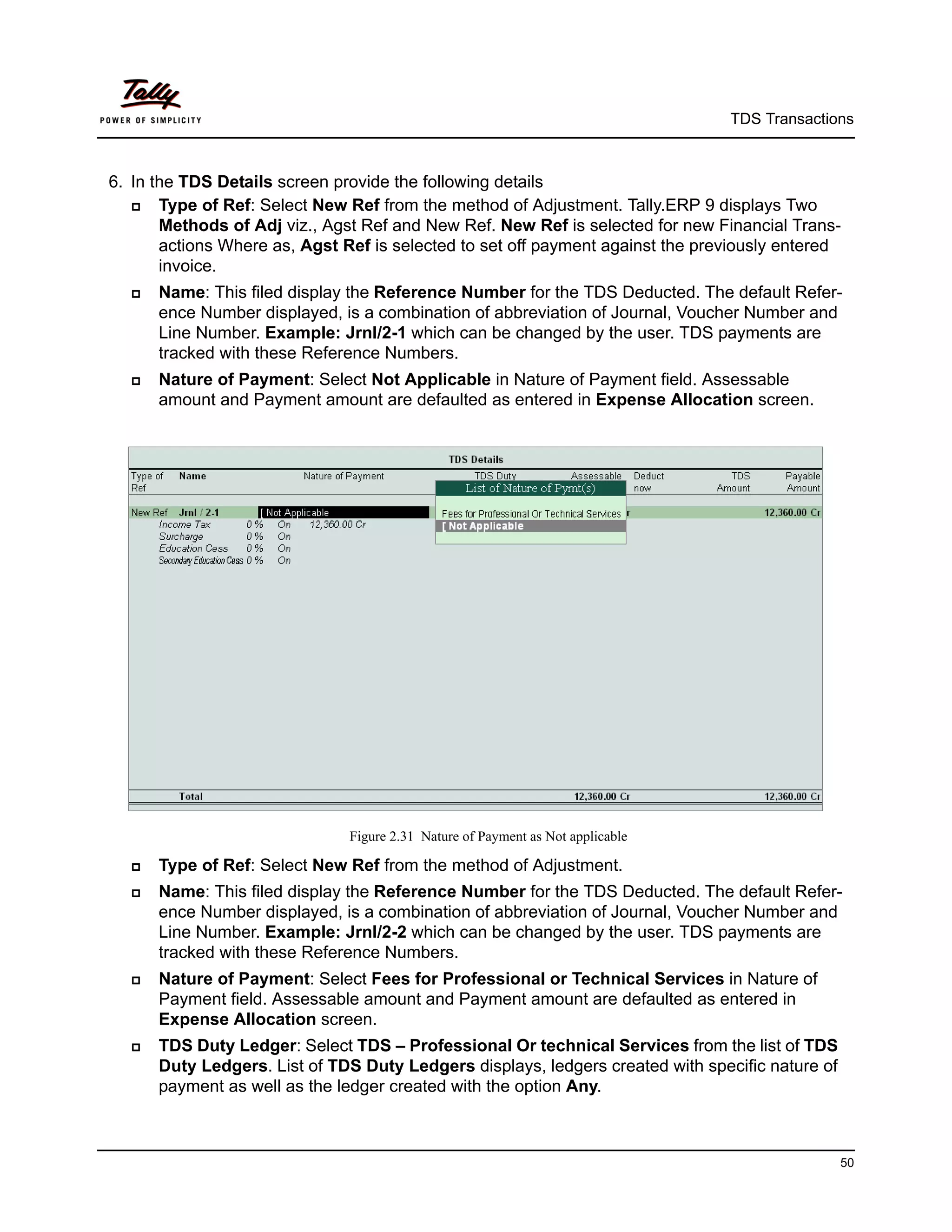
     In the Nature of Payment field select Not applicable from the List of TDS Nature of Pay-
      ment (balance amount of Rs 12,360 gets allocated automatically in the Assessable value
      field)


                                   Figure 2.30 TDS Nature of Payment Details

5. Select Sridhar & Co. in the Credit field and press Enter.


                                                                                                         49
TDS Transactions


6. In the TDS Details screen provide the following details
      Type of Ref: Select New Ref from the method of Adjustment. Tally.ERP 9 displays Two
       Methods of Adj viz., Agst Ref and New Ref. New Ref is selected for new Financial Trans-
       actions Where as, Agst Ref is selected to set off payment against the previously entered
       invoice.
     Name: This filed display the Reference Number for the TDS Deducted. The default Refer-
      ence Number displayed, is a combination of abbreviation of Journal, Voucher Number and
      Line Number. Example: Jrnl/2-1 which can be changed by the user. TDS payments are
      tracked with these Reference Numbers.
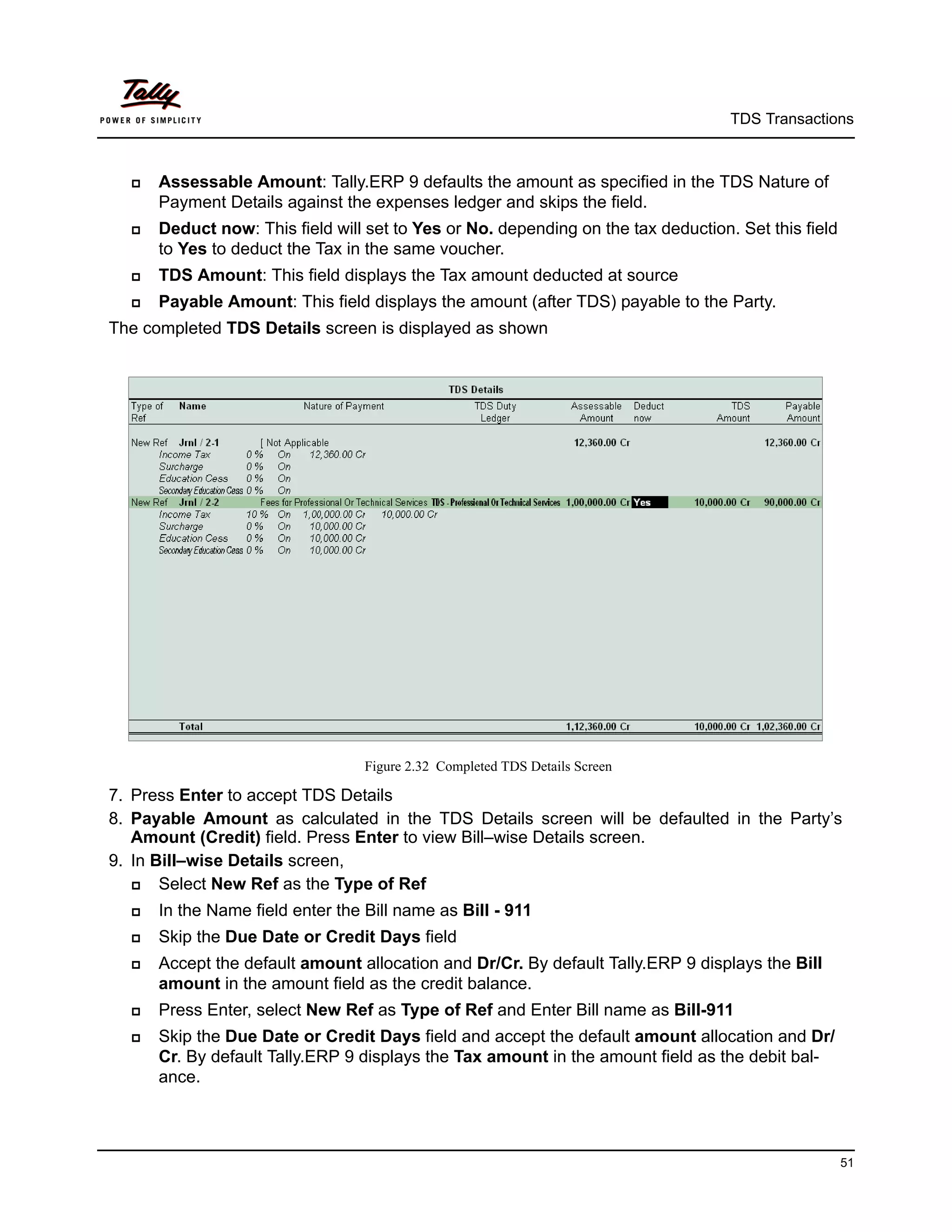
     Nature of Payment: Select Not Applicable in Nature of Payment field. Assessable
      amount and Payment amount are defaulted as entered in Expense Allocation screen.


                               Figure 2.31 Nature of Payment as Not applicable

     Type of Ref: Select New Ref from the method of Adjustment.
     Name: This filed display the Reference Number for the TDS Deducted. The default Refer-
      ence Number displayed, is a combination of abbreviation of Journal, Voucher Number and
      Line Number. Example: Jrnl/2-2 which can be changed by the user. TDS payments are
      tracked with these Reference Numbers.
     Nature of Payment: Select Fees for Professional or Technical Services in Nature of
      Payment field. Assessable amount and Payment amount are defaulted as entered in
      Expense Allocation screen.
     TDS Duty Ledger: Select TDS – Professional Or technical Services from the list of TDS
      Duty Ledgers. List of TDS Duty Ledgers displays, ledgers created with specific nature of
      payment as well as the ledger created with the option Any.


                                                                                                 50
TDS Transactions


     Assessable Amount: Tally.ERP 9 defaults the amount as specified in the TDS Nature of
      Payment Details against the expenses ledger and skips the field.
     Deduct now: This field will set to Yes or No. depending on the tax deduction. Set this field
      to Yes to deduct the Tax in the same voucher.
     TDS Amount: This field displays the Tax amount deducted at source
     Payable Amount: This field displays the amount (after TDS) payable to the Party.
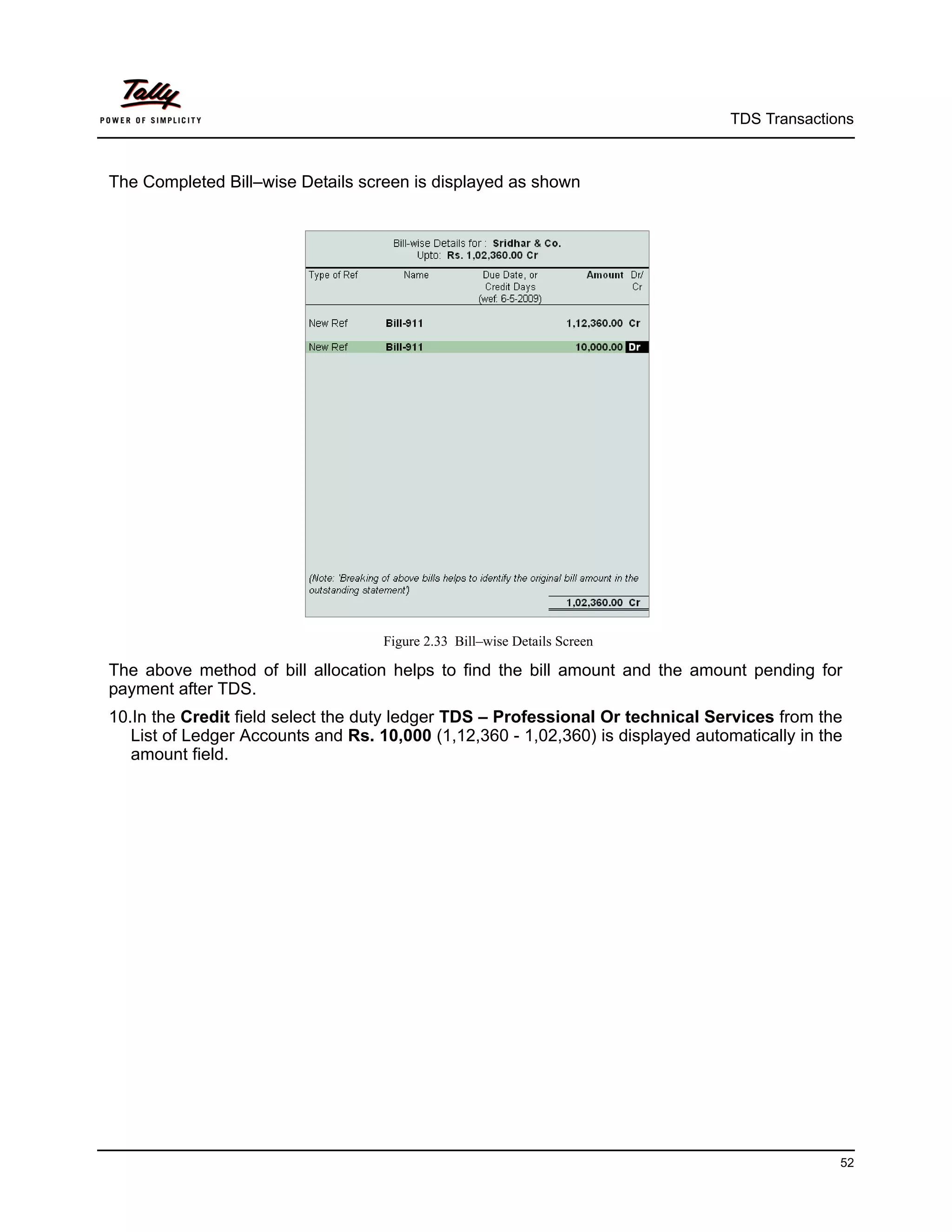
The completed TDS Details screen is displayed as shown


                                  Figure 2.32 Completed TDS Details Screen

7. Press Enter to accept TDS Details
8. Payable Amount as calculated in the TDS Details screen will be defaulted in the Party’s
   Amount (Credit) field. Press Enter to view Bill–wise Details screen.
9. In Bill–wise Details screen,
      Select New Ref as the Type of Ref
     In the Name field enter the Bill name as Bill - 911
     Skip the Due Date or Credit Days field
     Accept the default amount allocation and Dr/Cr. By default Tally.ERP 9 displays the Bill
      amount in the amount field as the credit balance.
     Press Enter, select New Ref as Type of Ref and Enter Bill name as Bill-911
     Skip the Due Date or Credit Days field and accept the default amount allocation and Dr/
      Cr. By default Tally.ERP 9 displays the Tax amount in the amount field as the debit bal-
      ance.


                                                                                                     51
TDS Transactions


The Completed Bill–wise Details screen is displayed as shown


                                    Figure 2.33 Bill–wise Details Screen

The above method of bill allocation helps to find the bill amount and the amount pending for
payment after TDS.
10.In the Credit field select the duty ledger TDS – Professional Or technical Services from the
   List of Ledger Accounts and Rs. 10,000 (1,12,360 - 1,02,360) is displayed automatically in the
   amount field.


                                                                                                52
TDS Transactions


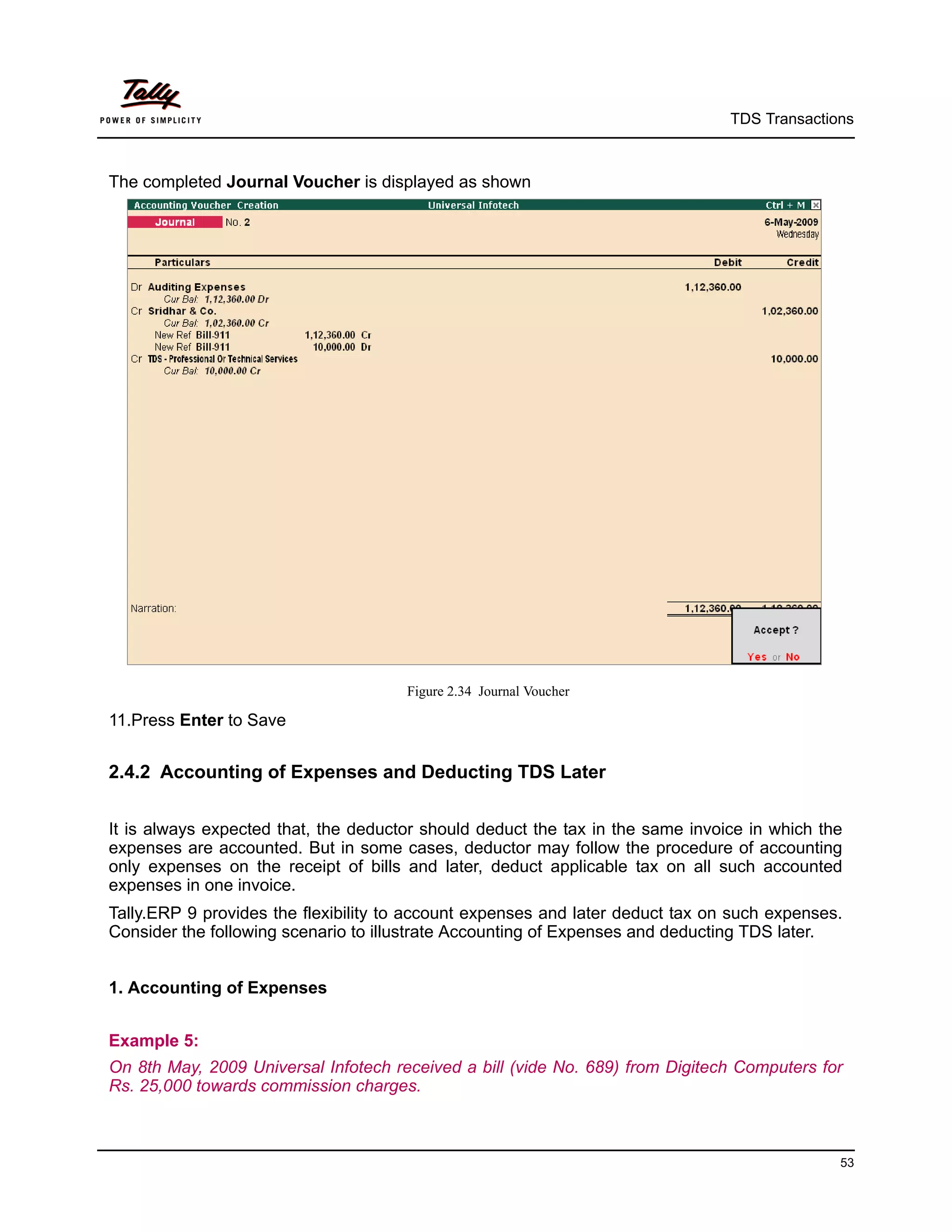
The completed Journal Voucher is displayed as shown


                                      Figure 2.34 Journal Voucher

11.Press Enter to Save


2.4.2 Accounting of Expenses and Deducting TDS Later


It is always expected that, the deductor should deduct the tax in the same invoice in which the
expenses are accounted. But in some cases, deductor may follow the procedure of accounting
only expenses on the receipt of bills and later, deduct applicable tax on all such accounted
expenses in one invoice.
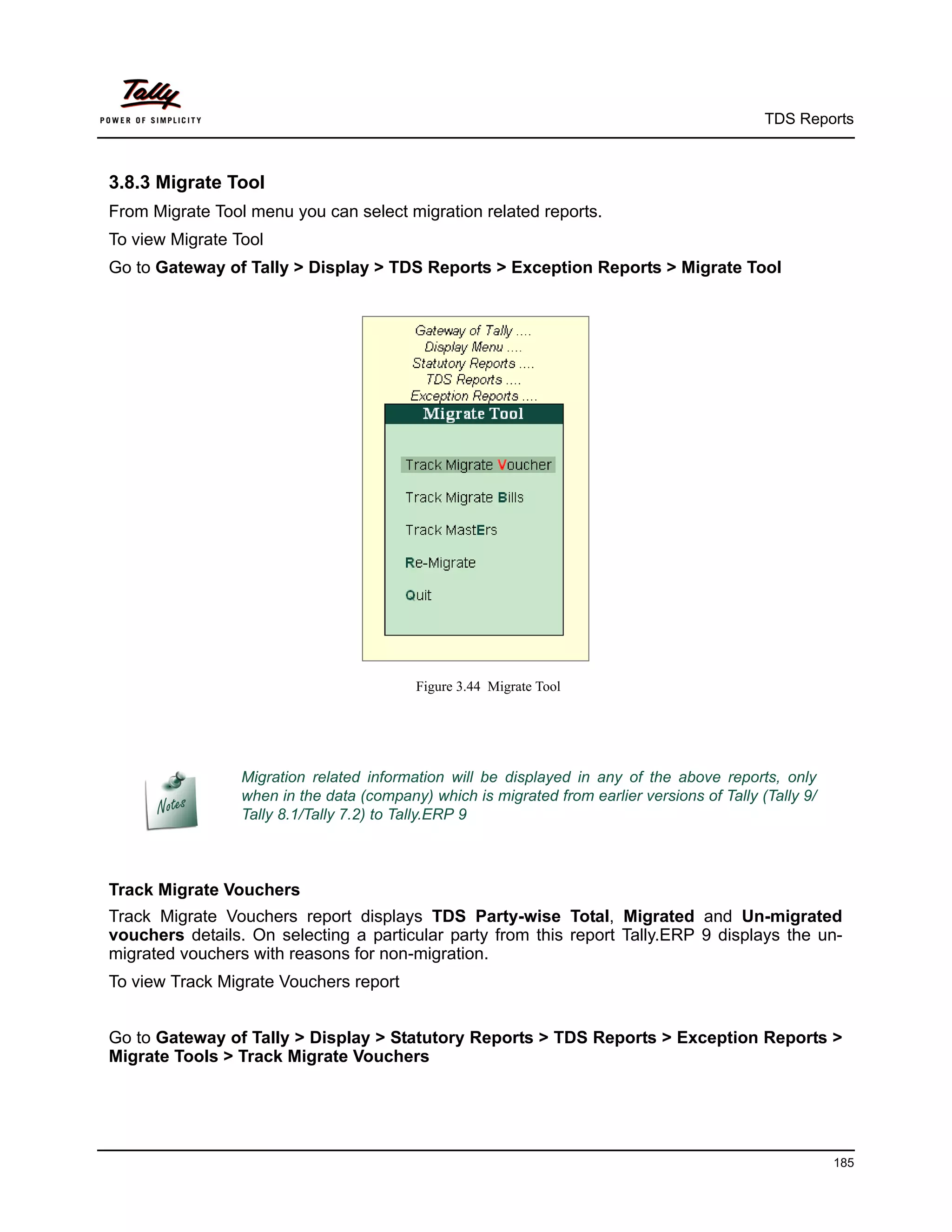
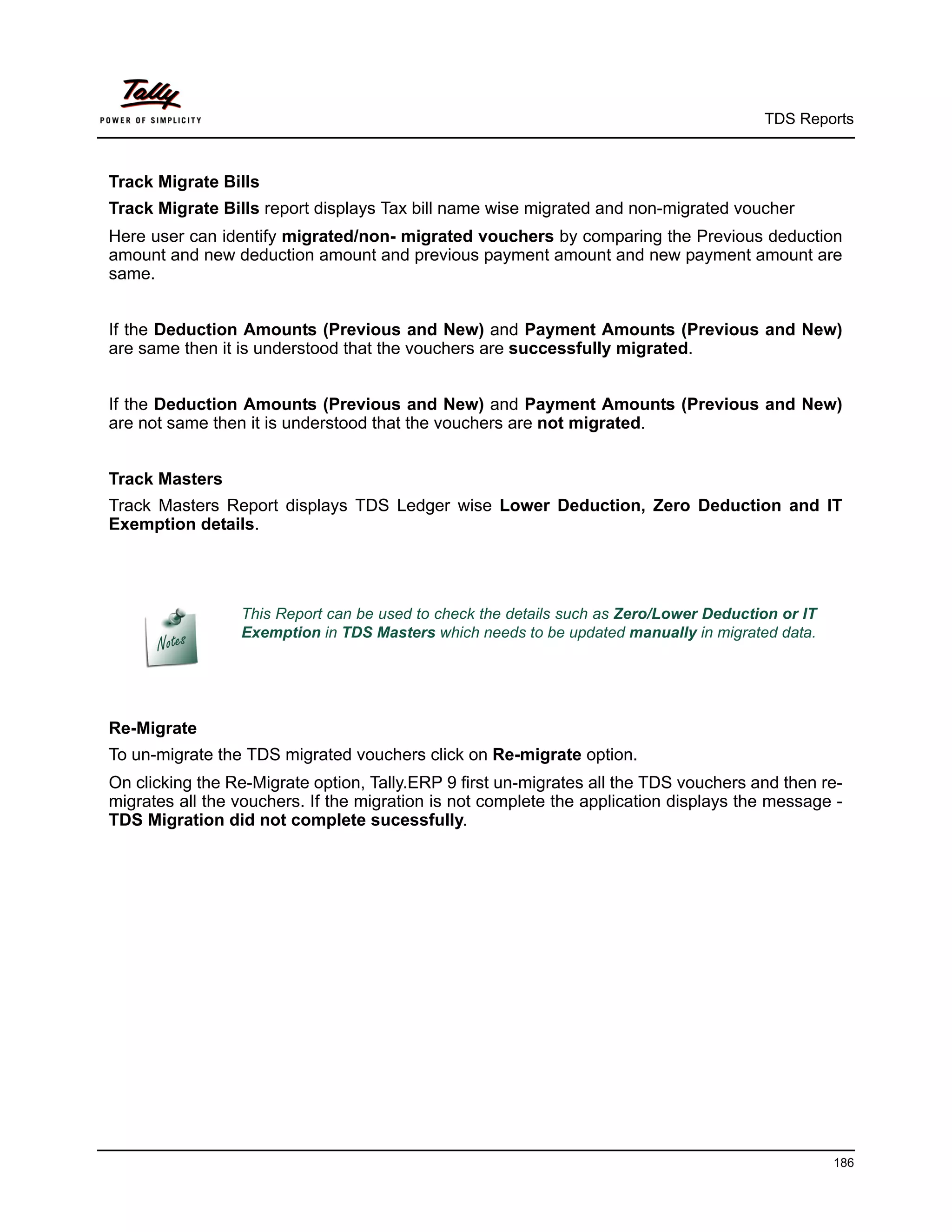
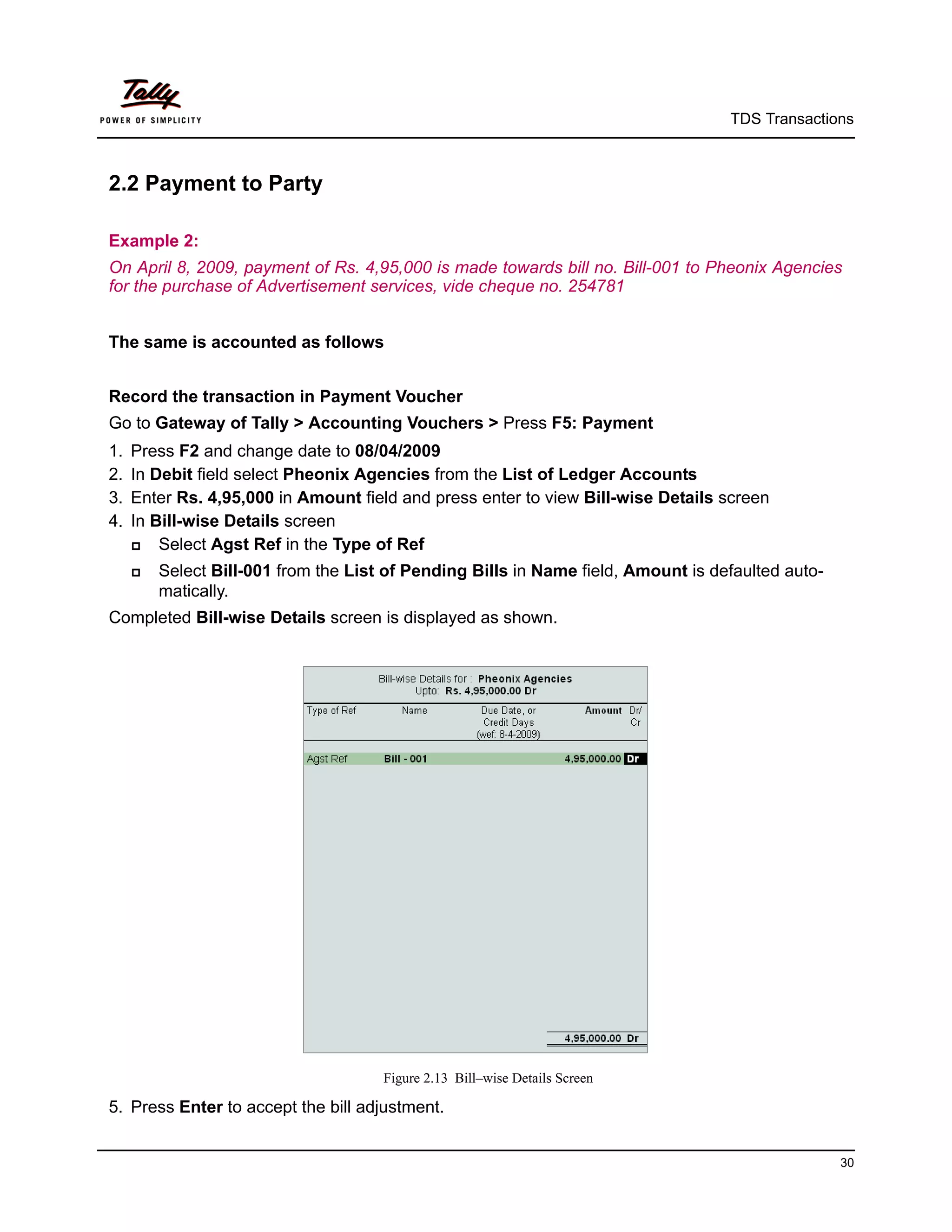
Tally.ERP 9 provides the flexibility to account expenses and later deduct tax on such expenses.
Consider the following scenario to illustrate Accounting of Expenses and deducting TDS later.


1. Accounting of Expenses


Example 5:
On 8th May, 2009 Universal Infotech received a bill (vide No. 689) from Digitech Computers for
Rs. 25,000 towards commission charges.


                                                                                              53
TDS Transactions


The following example illustrates TDS transaction using a Purchase Voucher. Before recording
the above transaction, create the following required ledgers.
To account the above transaction follow the steps given below
1. Create Masters
i. Expense Ledger
ii. Party Ledger
iii. Tax Ledger
2. Record the Transaction in Purchase Voucher

1. Create Masters
As per the given information create masters.
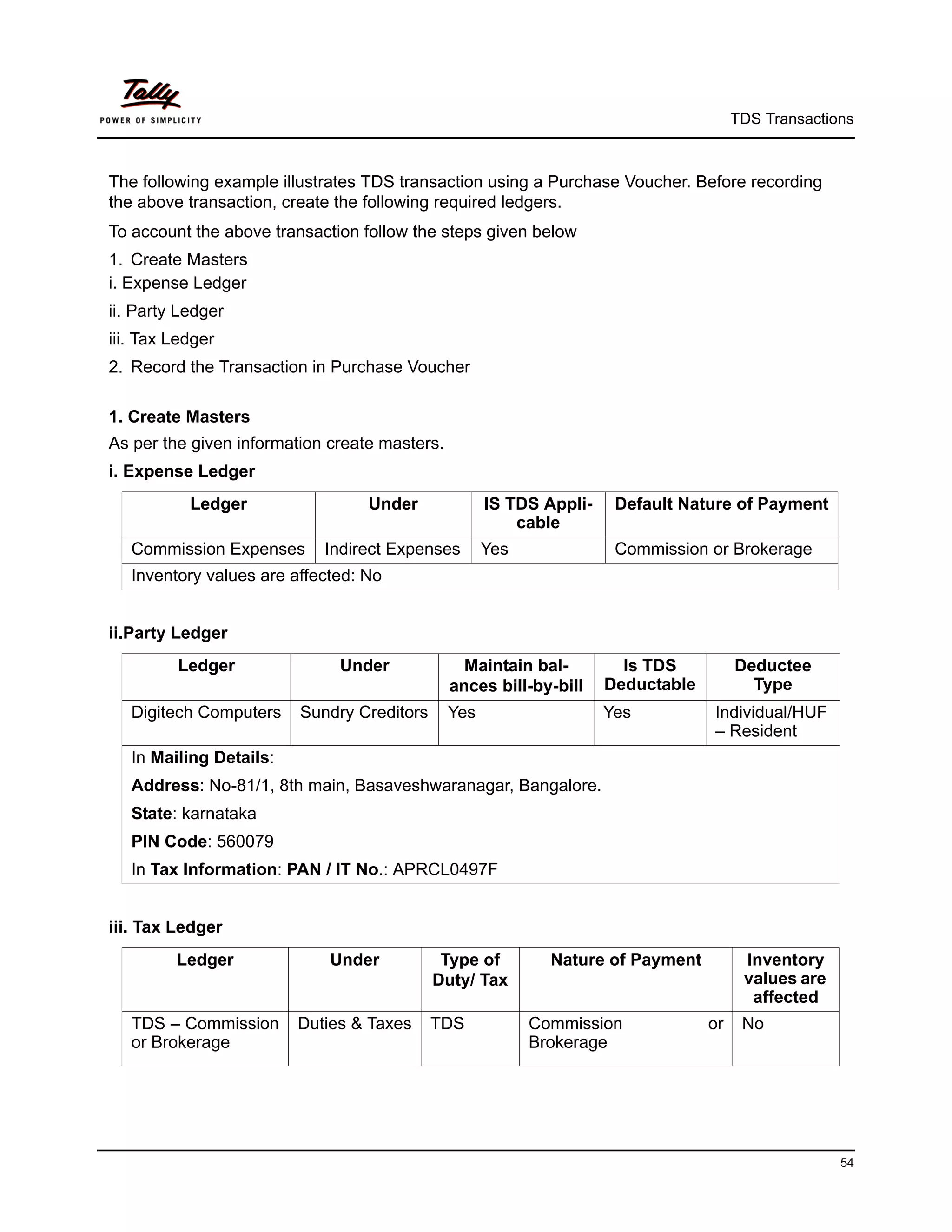
i. Expense Ledger
           Ledger                 Under              IS TDS Appli-    Default Nature of Payment
                                                         cable
   Commission Expenses      Indirect Expenses        Yes              Commission or Brokerage
   Inventory values are affected: No


ii.Party Ledger
         Ledger               Under              Maintain bal-         Is TDS          Deductee
                                               ances bill-by-bill    Deductable          Type
   Digitech Computers    Sundry Creditors      Yes                   Yes          Individual/HUF
                                                                                  – Resident
   In Mailing Details:
   Address: No-81/1, 8th main, Basaveshwaranagar, Bangalore.
   State: karnataka
   PIN Code: 560079
   In Tax Information: PAN / IT No.: APRCL0497F


iii. Tax Ledger
         Ledger              Under           Type of         Nature of Payment          Inventory
                                            Duty/ Tax                                   values are
                                                                                         affected
   TDS – Commission      Duties & Taxes     TDS            Commission             or    No
   or Brokerage                                            Brokerage


                                                                                                     54
TDS Transactions


2. Record the Transaction in Purchase Voucher (Accounting Invoice Mode)


Set Up:
In F12: Configure (Purchase Invoice Configuration)
        Set Use Common Ledger A/c for Item Allocation to No
        Set Use Defaults for Bill Allocations to No


Go to Gateway of Tally > Accounting Vouchers > Press F9: Purchase
1. Press Alt + I for Account Invoice mode
2. Press F2 and change the date to 08-05-2009
3. In Party’s A/c Name field select Digitech Computers from the List of Ledger Accounts
4.  Under Particulars select Commission Expenses and press Enter
5. Enter Rs. 25000 in the Amount field
6. Press Enter to view TDS Nature of Payment Details screen and accept the default details in
   the screen.
7. Press Enter twice to view TDS details screen. In TDS Details provide the following informa-
   tion.
      In Type of Ref field select New Ref
        Name filed display the Reference Number for the TDS to be Deducted. The default Refer-
         ence Number displayed, is a combination of abbreviation of Purchase, Voucher Number
         and Line Number. Example: Purc / 1-1 which can be changed by the user. TDS deduc-
         tions are tracked with these Reference Numbers.
        In Nature of Payment field select Commission or Brokerage from the List of Nature of
         Pymt(s)
        In TDS Duty Ledger field select TDS – Commission or Brokerage
        Assessable Amount is defaulted to Rs. 25000


                                                                                                55
TDS Transactions


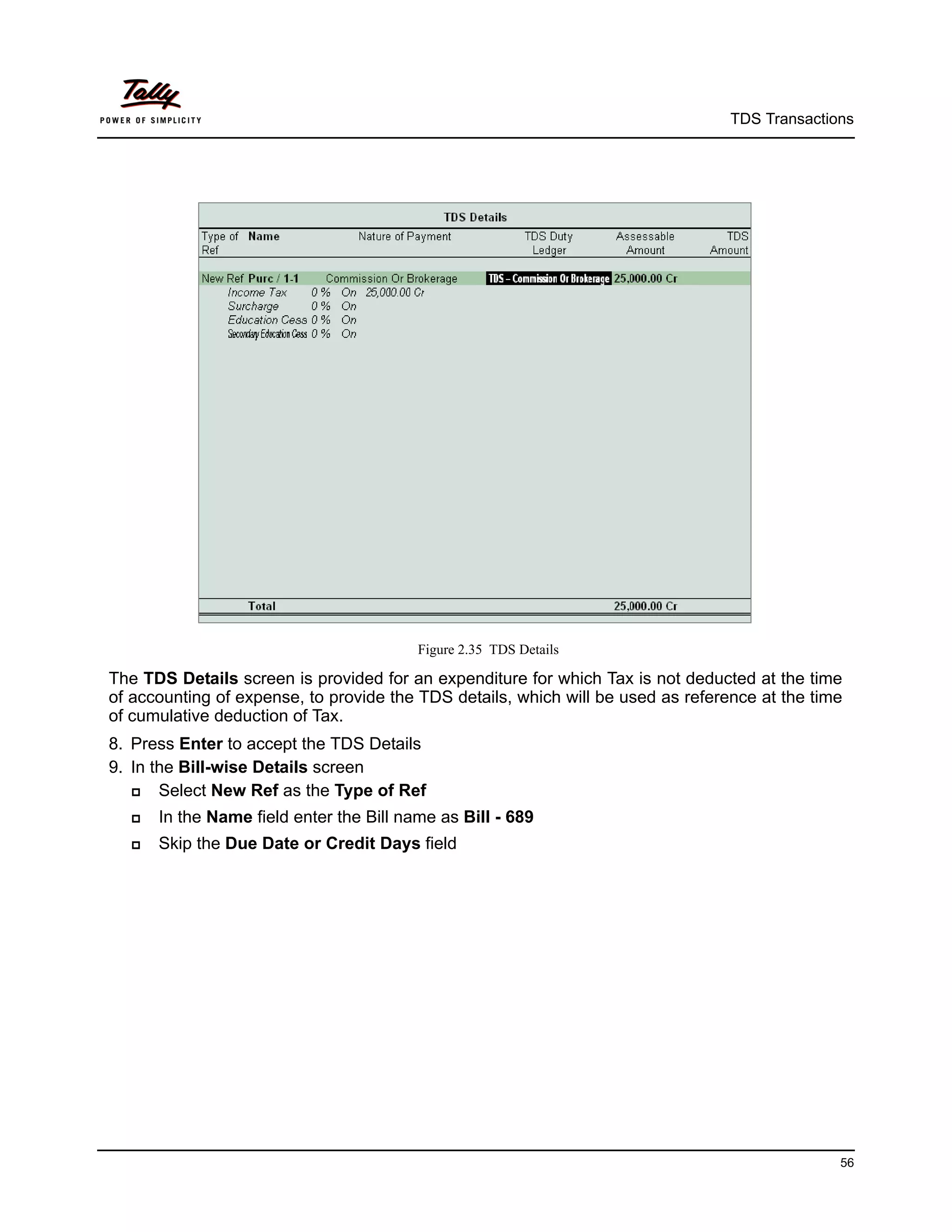
                                         Figure 2.35 TDS Details

The TDS Details screen is provided for an expenditure for which Tax is not deducted at the time
of accounting of expense, to provide the TDS details, which will be used as reference at the time
of cumulative deduction of Tax.
8. Press Enter to accept the TDS Details
9. In the Bill-wise Details screen
      Select New Ref as the Type of Ref
     In the Name field enter the Bill name as Bill - 689
     Skip the Due Date or Credit Days field


                                                                                                56
TDS Transactions


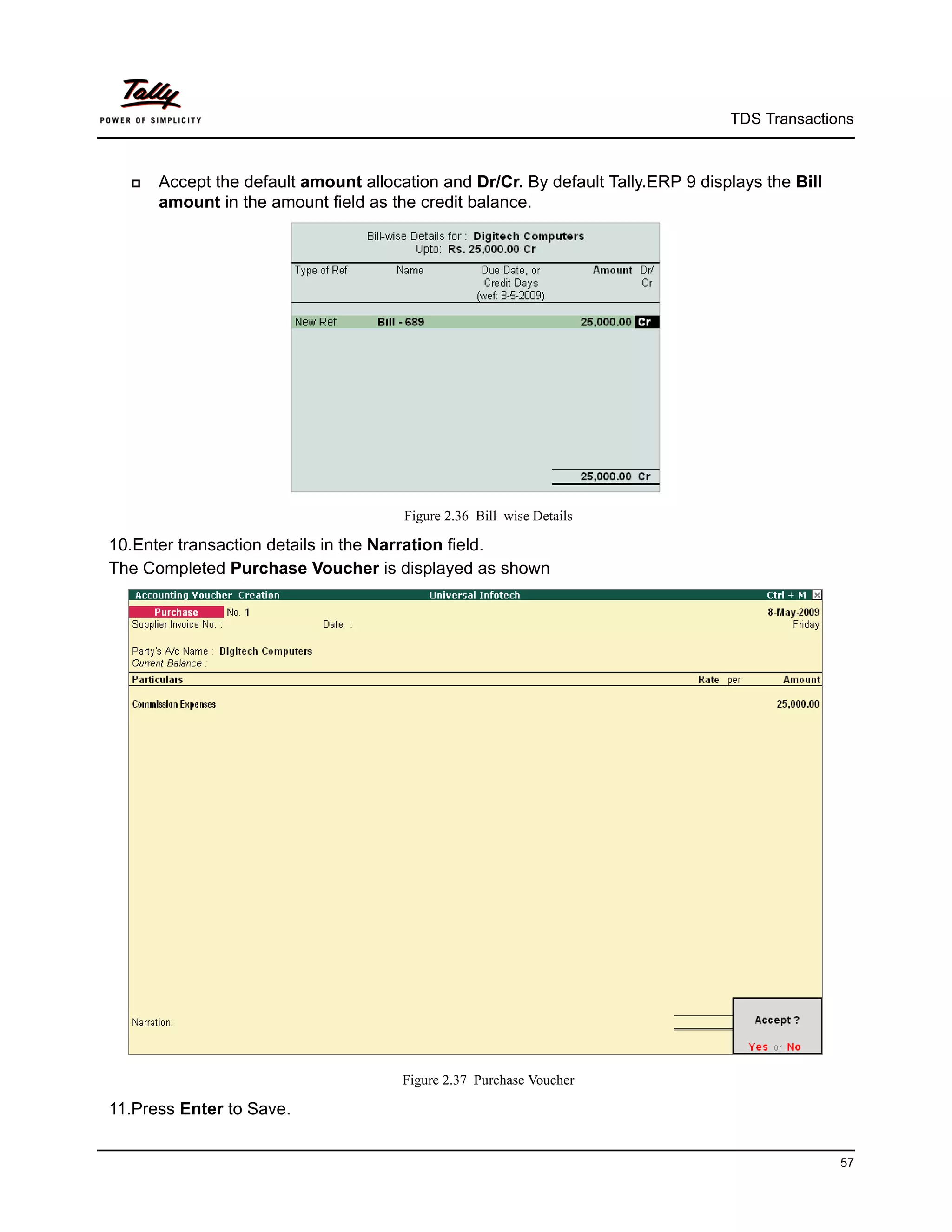
     Accept the default amount allocation and Dr/Cr. By default Tally.ERP 9 displays the Bill
      amount in the amount field as the credit balance.


                                      Figure 2.36 Bill–wise Details

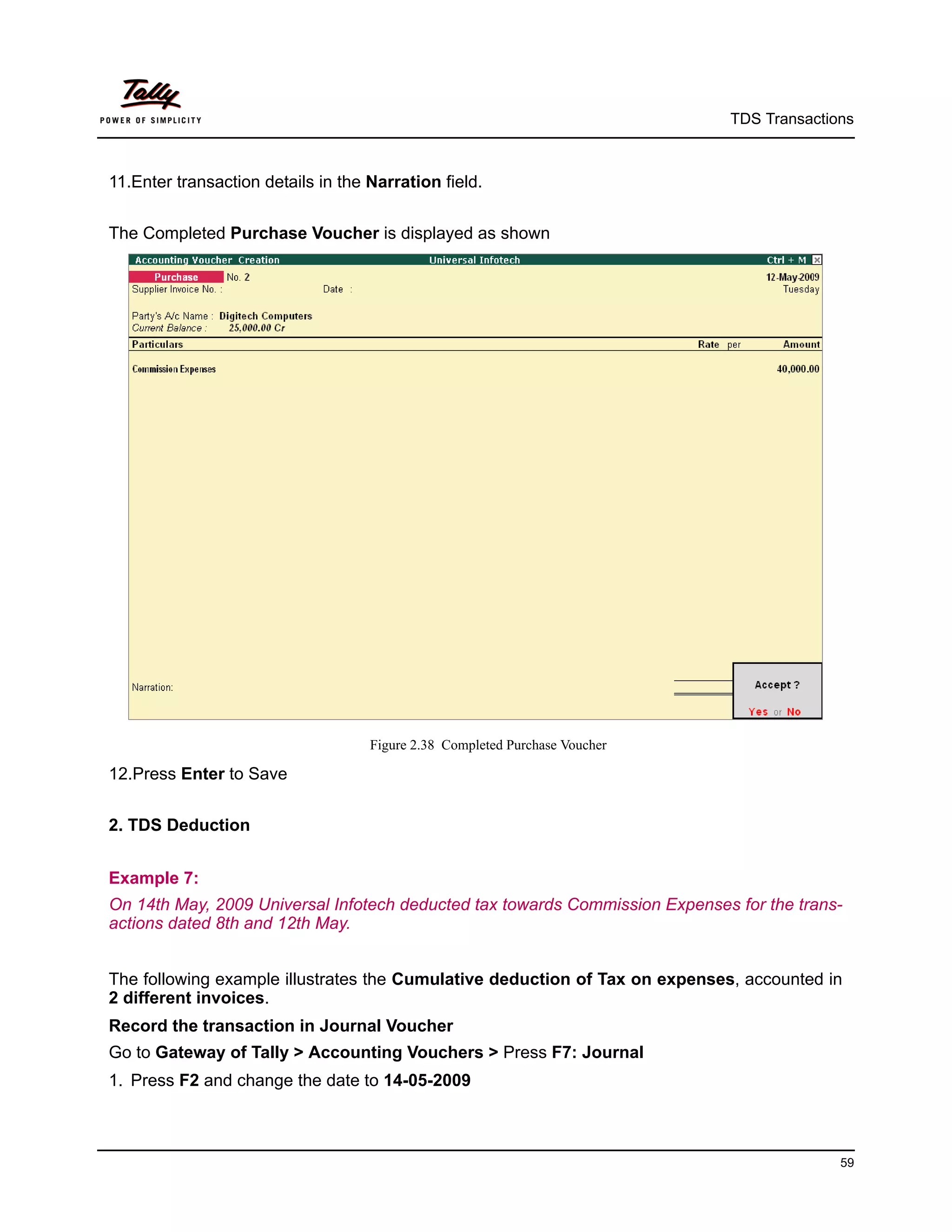
10.Enter transaction details in the Narration field.
The Completed Purchase Voucher is displayed as shown


                                      Figure 2.37 Purchase Voucher

11.Press Enter to Save.


                                                                                                 57
TDS Transactions


In Tally.ERP 9, all the transactions in which TDS is not deducted are displayed in TDS not
Deducted Report under Exception Reports.


                     The   above transaction can also be accounted using Journal Voucher.
                        For more details on TDS Not Deducted report refer Reports Chapter.


Example 6:
On 12th May, 2009 Universal Infotech received a bill (vide No. 874) from Digitech Computers for
Rs. 40,000 towards commission charges.


Record the transaction in Purchase Voucher (Accounting Invoice Mode)


Go to Gateway of Tally > Accounting Vouchers > Press F9: Purchase
1. Press Alt + I for Account Invoice mode
2. Press F2 and change the date to 12-05-2009
3. In Party’s A/c Name field select Digitech Computers from the List of Ledger Accounts
4. Under Particulars select Commission Expenses and press Enter
5. Enter Rs. 40000 in the Amount field
6. Press Enter to view TDS Nature of Payment Details screen and accept the default details in
   the screen.
7. Press Enter twice to view TDS details screen.
8. In TDS Details provide the following information.
      In Type of Ref field select New Ref
        In the Name field, Tally.ERP 9 displays Purc / 2-1 as the reference number
        In Nature of Payment field select Commission or Brokerage from the List of Nature of
         Pymt(s)
        In TDS Duty Ledger field select TDS – Commission or Brokerage
        Assessable Amount is defaulted to Rs. 40000
The above Details provided in the TDS Details screen will be used as reference at the time of
cumulative deduction of Tax.
9. Press Enter to accept the TDS Details
10.In the Bill-wise Details screen
      Select New Ref as the Type of Ref
        In the Name field enter the Bill name as Bill - 874
        Skip the Due Date or Credit Days field
        Accept the default amount allocation and Dr/Cr. By default Tally.ERP 9 displays the Bill
         amount in the amount field as the credit balance.


                                                                                                     58
TDS Transactions


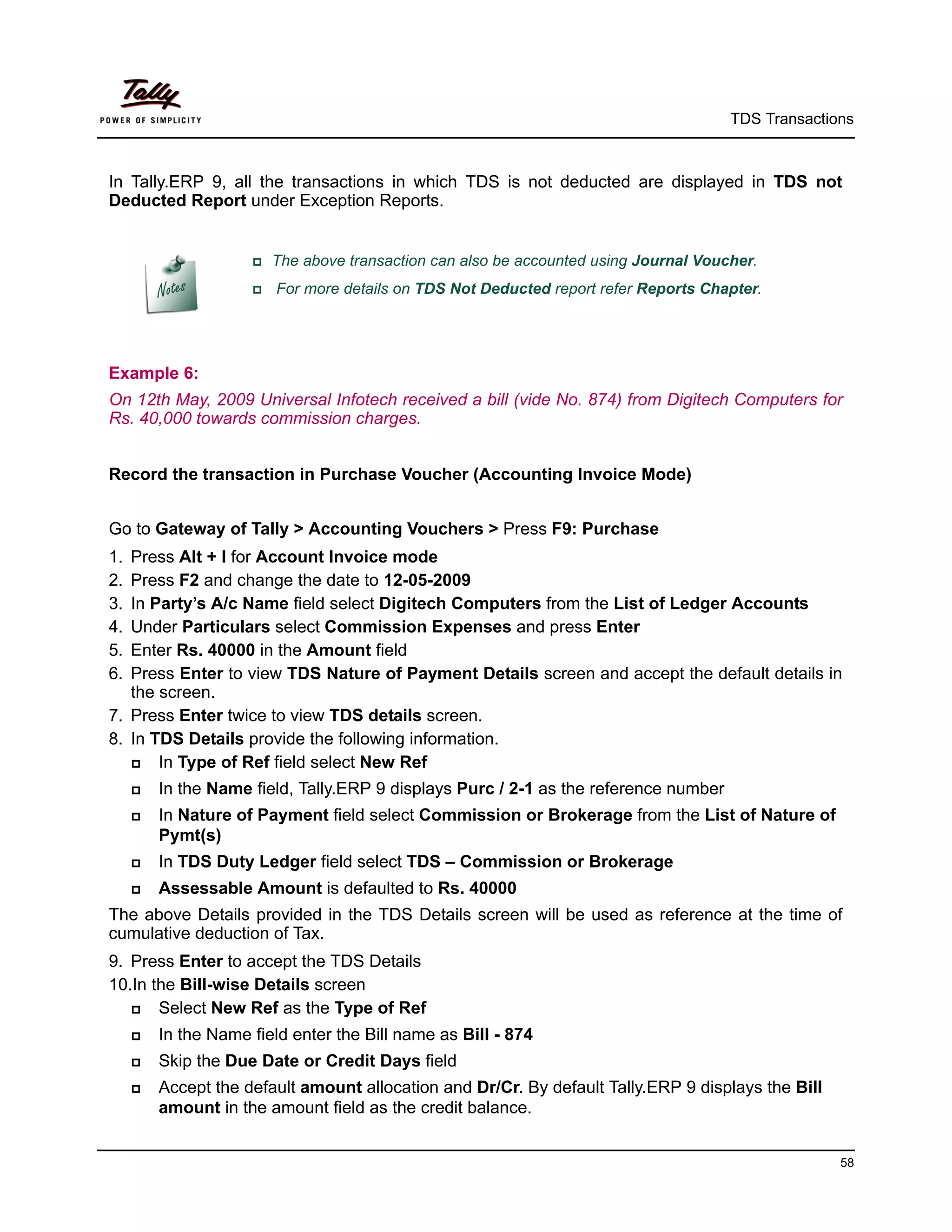
11.Enter transaction details in the Narration field.


The Completed Purchase Voucher is displayed as shown


                                    Figure 2.38 Completed Purchase Voucher

12.Press Enter to Save


2. TDS Deduction


Example 7:
On 14th May, 2009 Universal Infotech deducted tax towards Commission Expenses for the trans-
actions dated 8th and 12th May.


The following example illustrates the Cumulative deduction of Tax on expenses, accounted in
2 different invoices.
Record the transaction in Journal Voucher
Go to Gateway of Tally > Accounting Vouchers > Press F7: Journal
1. Press F2 and change the date to 14-05-2009


                                                                                           59
TDS Transactions


2. Press Alt +S or click on S: TDS Deduction button on the buttons bar to view TDS Deductions
   screen.
3. In TDS Deduction screen
      Till Date: In this field user may enter till date of the period for which the TDS to be
       deducted and auto–filled.
       Enter 14-05-2009 as the Till Date.
      Party: In this field Tally.ERP 9 displays the List of Party ledgers against whom the TDS
       deduction is Due.
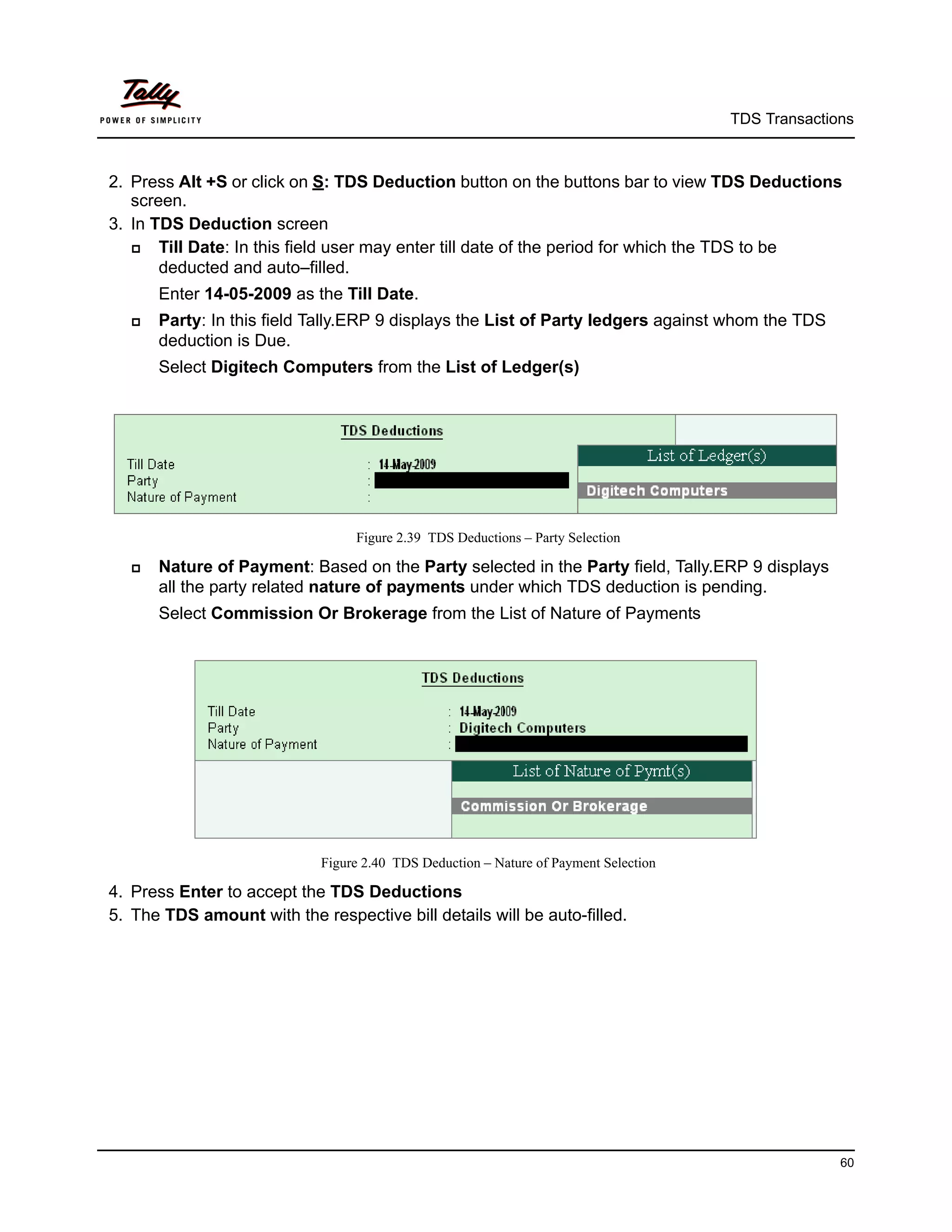
       Select Digitech Computers from the List of Ledger(s)


                                  Figure 2.39 TDS Deductions – Party Selection

      Nature of Payment: Based on the Party selected in the Party field, Tally.ERP 9 displays
       all the party related nature of payments under which TDS deduction is pending.
       Select Commission Or Brokerage from the List of Nature of Payments


                             Figure 2.40 TDS Deduction – Nature of Payment Selection

4. Press Enter to accept the TDS Deductions
5. The TDS amount with the respective bill details will be auto-filled.


                                                                                                     60
TDS Transactions


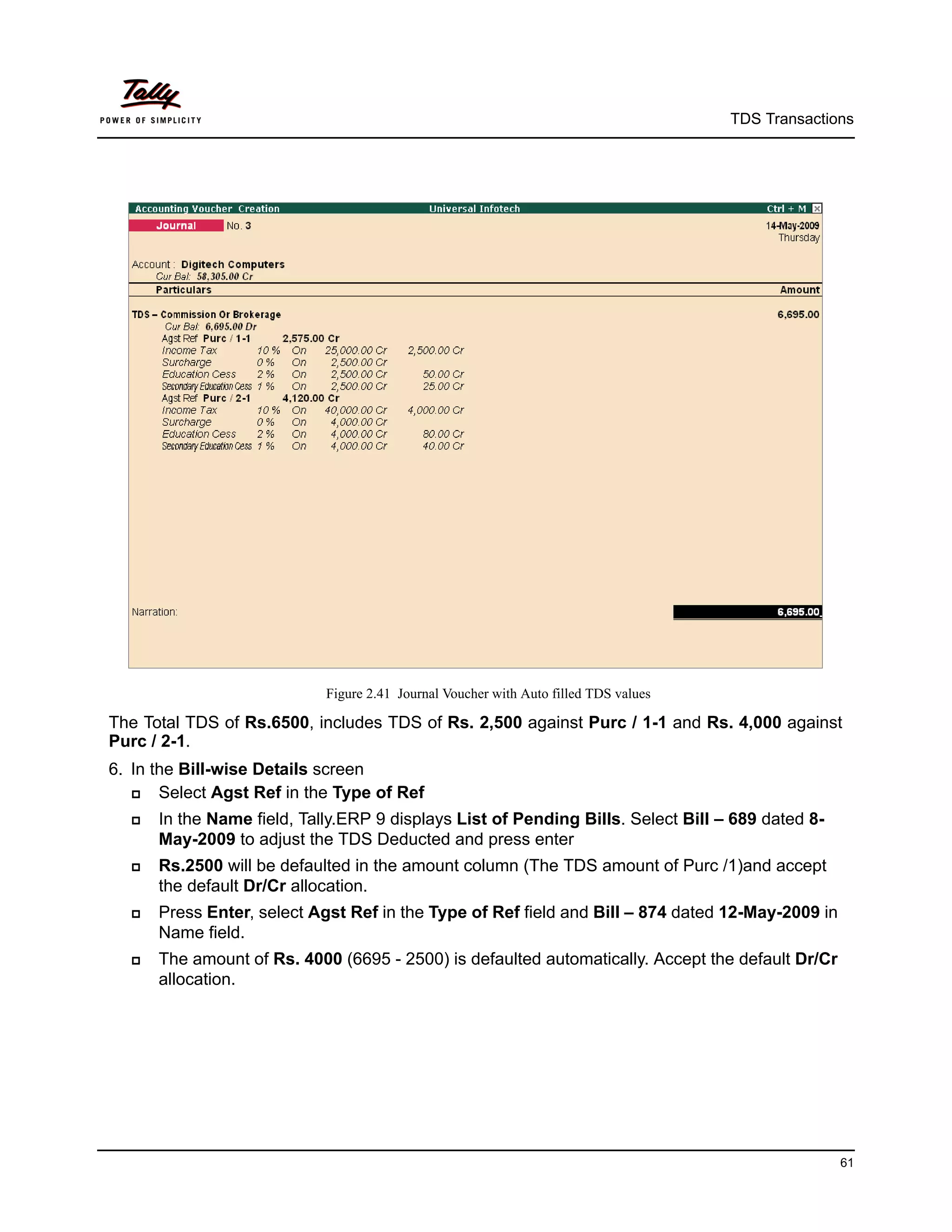
                            Figure 2.41 Journal Voucher with Auto filled TDS values

The Total TDS of Rs.6500, includes TDS of Rs. 2,500 against Purc / 1-1 and Rs. 4,000 against
Purc / 2-1.
6. In the Bill-wise Details screen
      Select Agst Ref in the Type of Ref
     In the Name field, Tally.ERP 9 displays List of Pending Bills. Select Bill – 689 dated 8-
      May-2009 to adjust the TDS Deducted and press enter
     Rs.2500 will be defaulted in the amount column (The TDS amount of Purc /1)and accept
      the default Dr/Cr allocation.
     Press Enter, select Agst Ref in the Type of Ref field and Bill – 874 dated 12-May-2009 in
      Name field.
     The amount of Rs. 4000 (6695 - 2500) is defaulted automatically. Accept the default Dr/Cr
      allocation.


                                                                                                    61
TDS Transactions


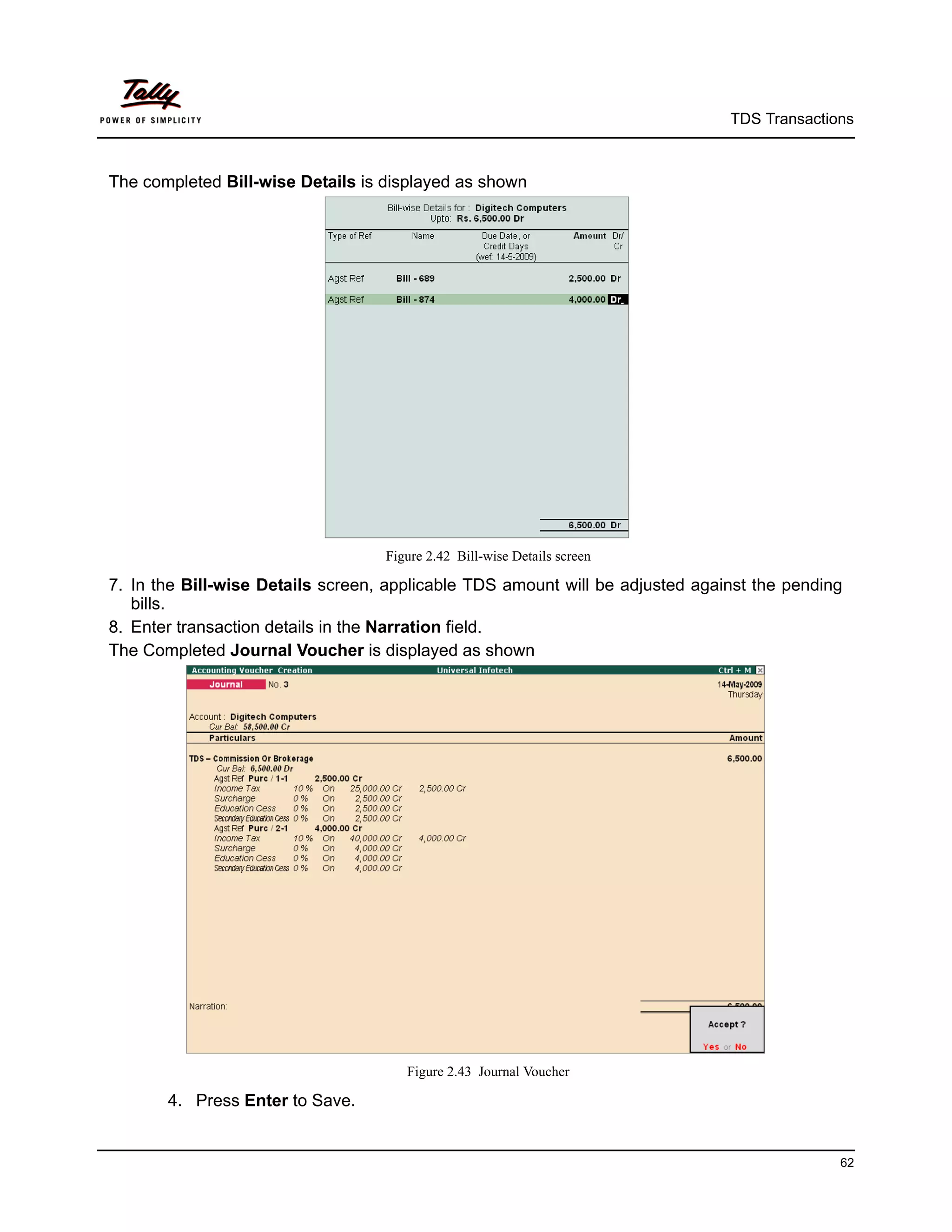
The completed Bill-wise Details is displayed as shown


                                   Figure 2.42 Bill-wise Details screen

7. In the Bill-wise Details screen, applicable TDS amount will be adjusted against the pending
   bills.
8. Enter transaction details in the Narration field.
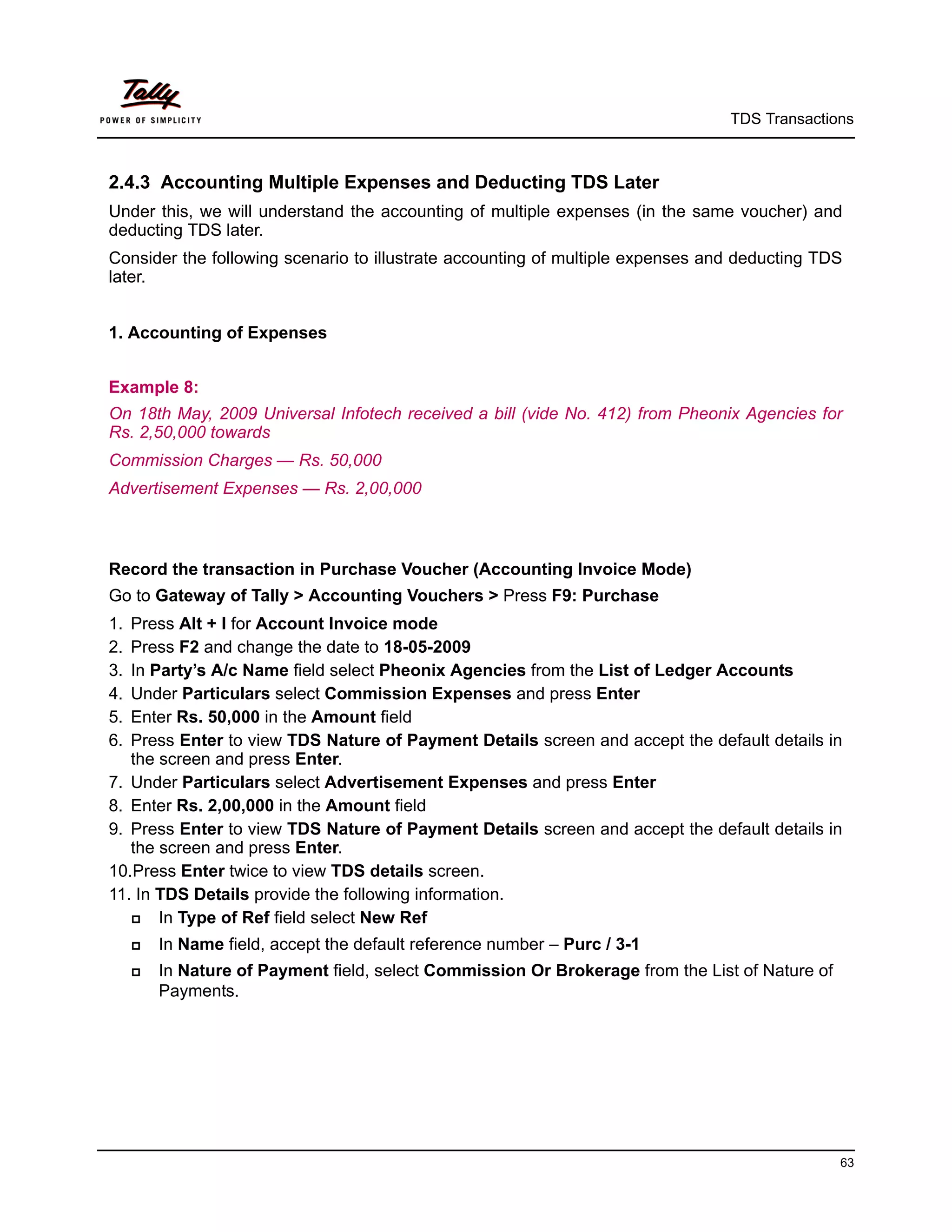
The Completed Journal Voucher is displayed as shown


                                      Figure 2.43 Journal Voucher

       4. Press Enter to Save.


                                                                                             62
TDS Transactions


2.4.3 Accounting Multiple Expenses and Deducting TDS Later
Under this, we will understand the accounting of multiple expenses (in the same voucher) and
deducting TDS later.
Consider the following scenario to illustrate accounting of multiple expenses and deducting TDS
later.


1. Accounting of Expenses


Example 8:
On 18th May, 2009 Universal Infotech received a bill (vide No. 412) from Pheonix Agencies for
Rs. 2,50,000 towards
Commission Charges — Rs. 50,000
Advertisement Expenses — Rs. 2,00,000


Record the transaction in Purchase Voucher (Accounting Invoice Mode)
Go to Gateway of Tally > Accounting Vouchers > Press F9: Purchase
1. Press Alt + I for Account Invoice mode
2. Press F2 and change the date to 18-05-2009
3. In Party’s A/c Name field select Pheonix Agencies from the List of Ledger Accounts
4. Under Particulars select Commission Expenses and press Enter
5. Enter Rs. 50,000 in the Amount field
6. Press Enter to view TDS Nature of Payment Details screen and accept the default details in
   the screen and press Enter.
7. Under Particulars select Advertisement Expenses and press Enter
8. Enter Rs. 2,00,000 in the Amount field
9. Press Enter to view TDS Nature of Payment Details screen and accept the default details in
   the screen and press Enter.
10.Press Enter twice to view TDS details screen.
11. In TDS Details provide the following information.
      In Type of Ref field select New Ref
        In Name field, accept the default reference number – Purc / 3-1
        In Nature of Payment field, select Commission Or Brokerage from the List of Nature of
         Payments.


                                                                                                 63
TDS Transactions


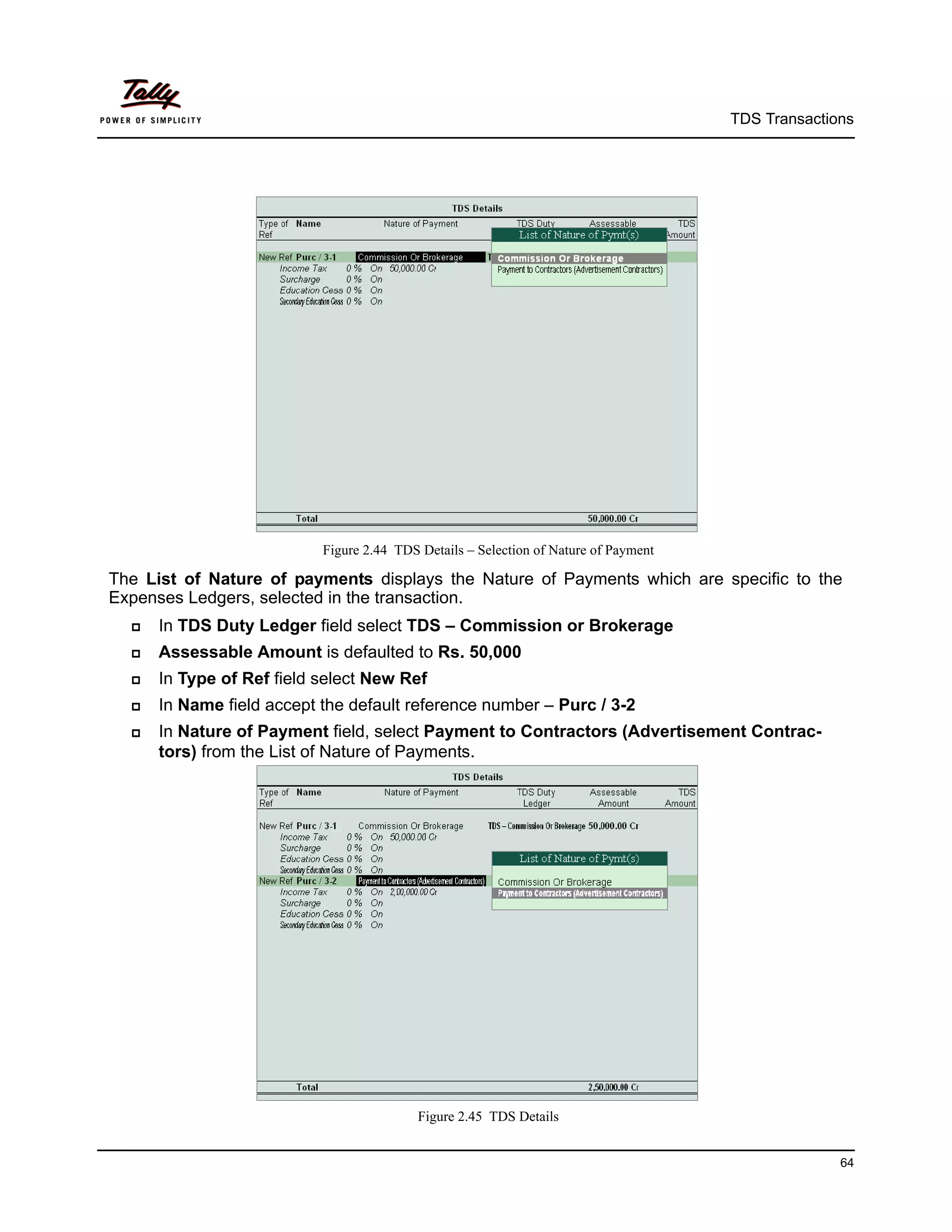
                           Figure 2.44 TDS Details – Selection of Nature of Payment

The List of Nature of payments displays the Nature of Payments which are specific to the
Expenses Ledgers, selected in the transaction.
     In TDS Duty Ledger field select TDS – Commission or Brokerage
     Assessable Amount is defaulted to Rs. 50,000
     In Type of Ref field select New Ref
     In Name field accept the default reference number – Purc / 3-2
     In Nature of Payment field, select Payment to Contractors (Advertisement Contrac-
      tors) from the List of Nature of Payments.


                                           Figure 2.45 TDS Details


                                                                                                    64
TDS Transactions


Here, the List of Nature of Payments displays only those nature of payments which are pending
for selection.
      In TDS Duty Ledger field select TDS – Contractors
      Assessable Amount is defaulted to Rs. 2,00,000
12.Press Enter to accept the TDS Details
13.In the Bill-wise Details screen
      Select New Ref as the Type of Ref
      In the Name field enter the Bill name as Bill - 412
      Skip the Due Date or Credit Days field
      Accept the default amount allocation and Dr/Cr. By default Tally.ERP 9 displays the Bill
       amount in the amount field as the credit balance.
14.Enter transaction details in the Narration field.


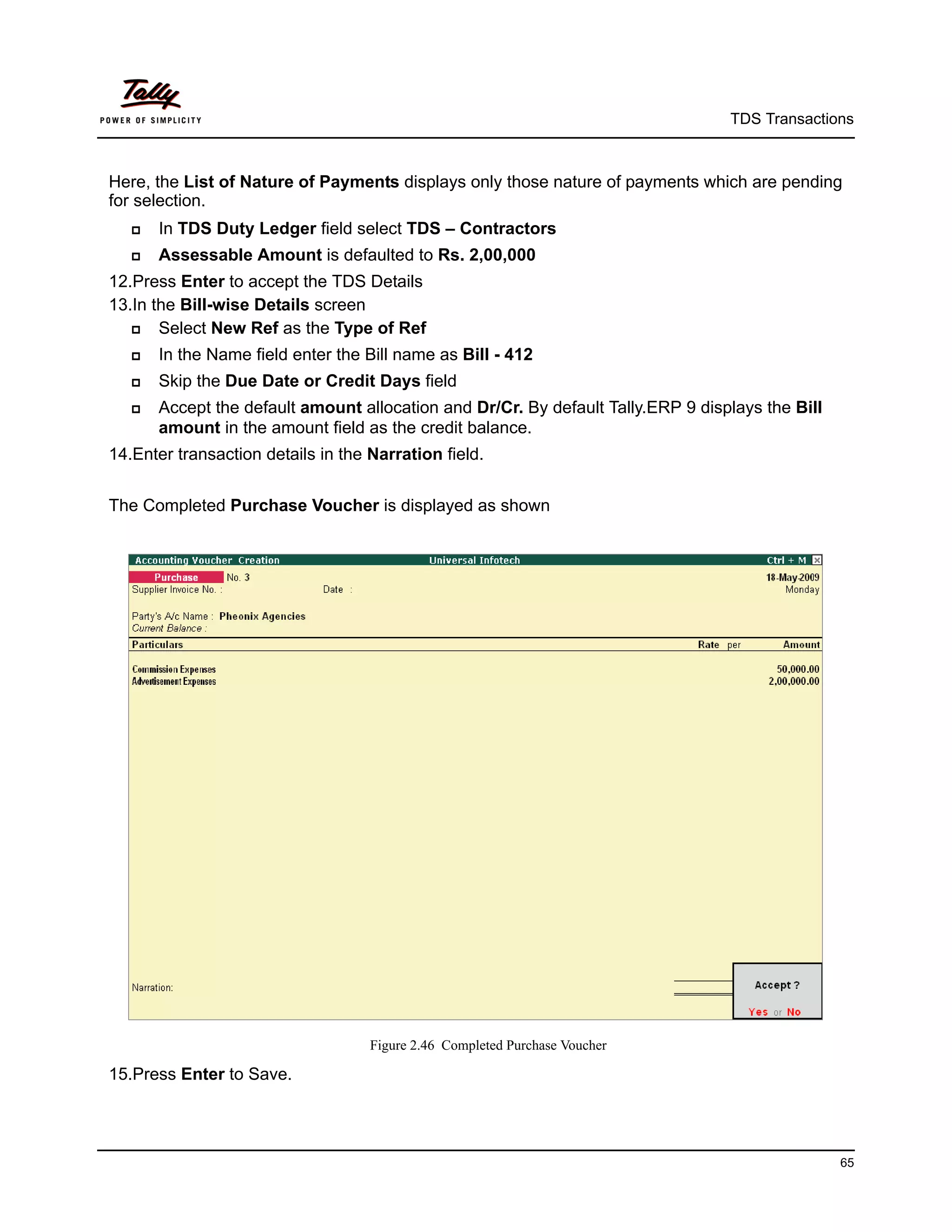
The Completed Purchase Voucher is displayed as shown


                                    Figure 2.46 Completed Purchase Voucher

15.Press Enter to Save.


                                                                                                  65
TDS Transactions


2. TDS Deduction


Example 9:
On 21st May, 2009 Universal Infotech deducted tax towards Commission and Advertisement
Expenses for the transaction dated 18th May, 2009.


Record the transaction in Journal Voucher


Go to Gateway of Tally > Accounting Vouchers > Press F7: Journal
1. Press F2 and change the date to 21-05-2009
2. Press Alt +S or click on S: TDS Deduction button on the buttons bar to view TDS Deductions
   screen.


In TDS Deduction screen
      Till Date: In this field user may enter till date of the period for which the TDS to be
       deducted and auto–filled.
       Enter 21-05-2009 as the Till Date.
      Party: In this field Tally.ERP 9 displays the List of Party ledgers against whom the TDS
       deduction is Due.
       Select Pheonix Agencies from the List of Ledger(s)
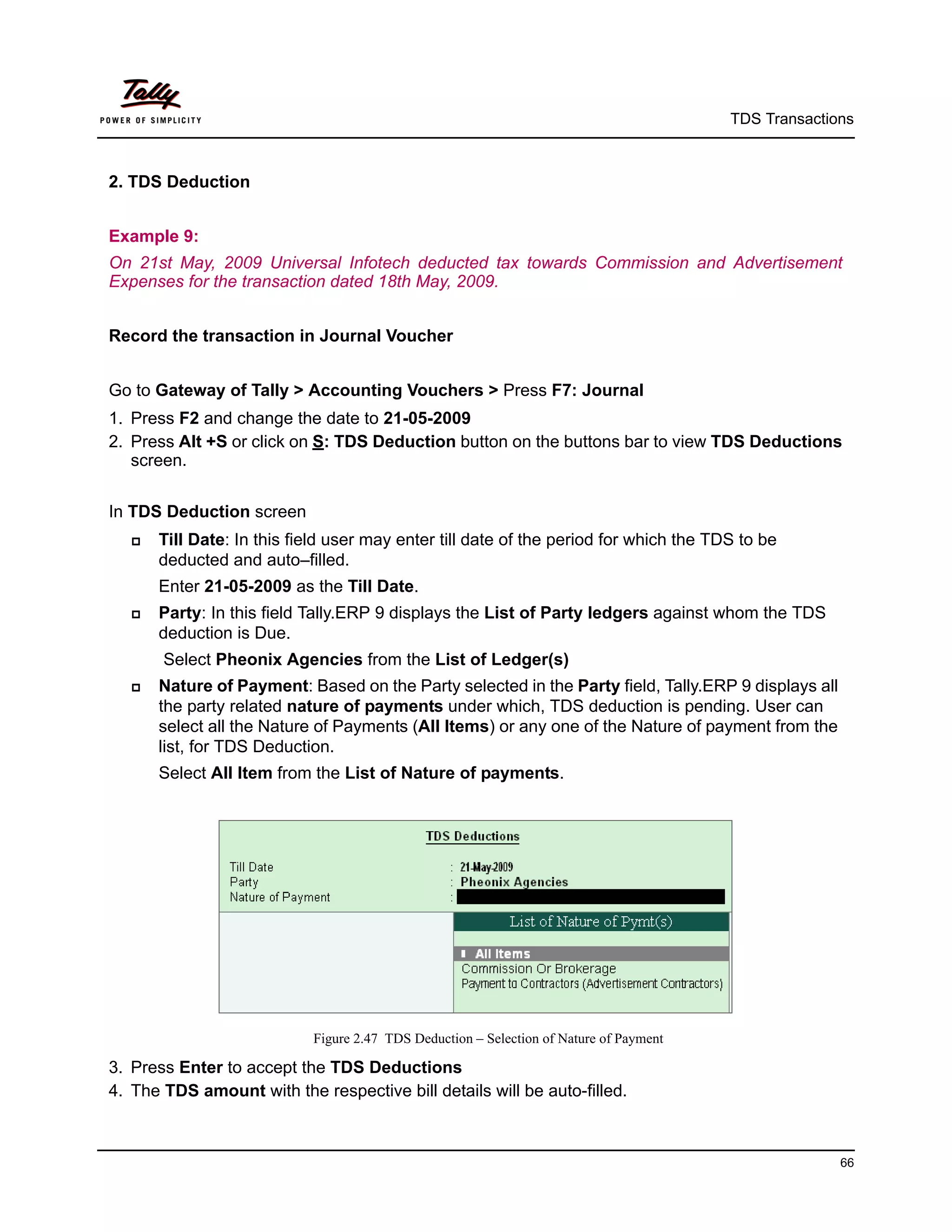
      Nature of Payment: Based on the Party selected in the Party field, Tally.ERP 9 displays all
       the party related nature of payments under which, TDS deduction is pending. User can
       select all the Nature of Payments (All Items) or any one of the Nature of payment from the
       list, for TDS Deduction.
       Select All Item from the List of Nature of payments.


                            Figure 2.47 TDS Deduction – Selection of Nature of Payment

3. Press Enter to accept the TDS Deductions
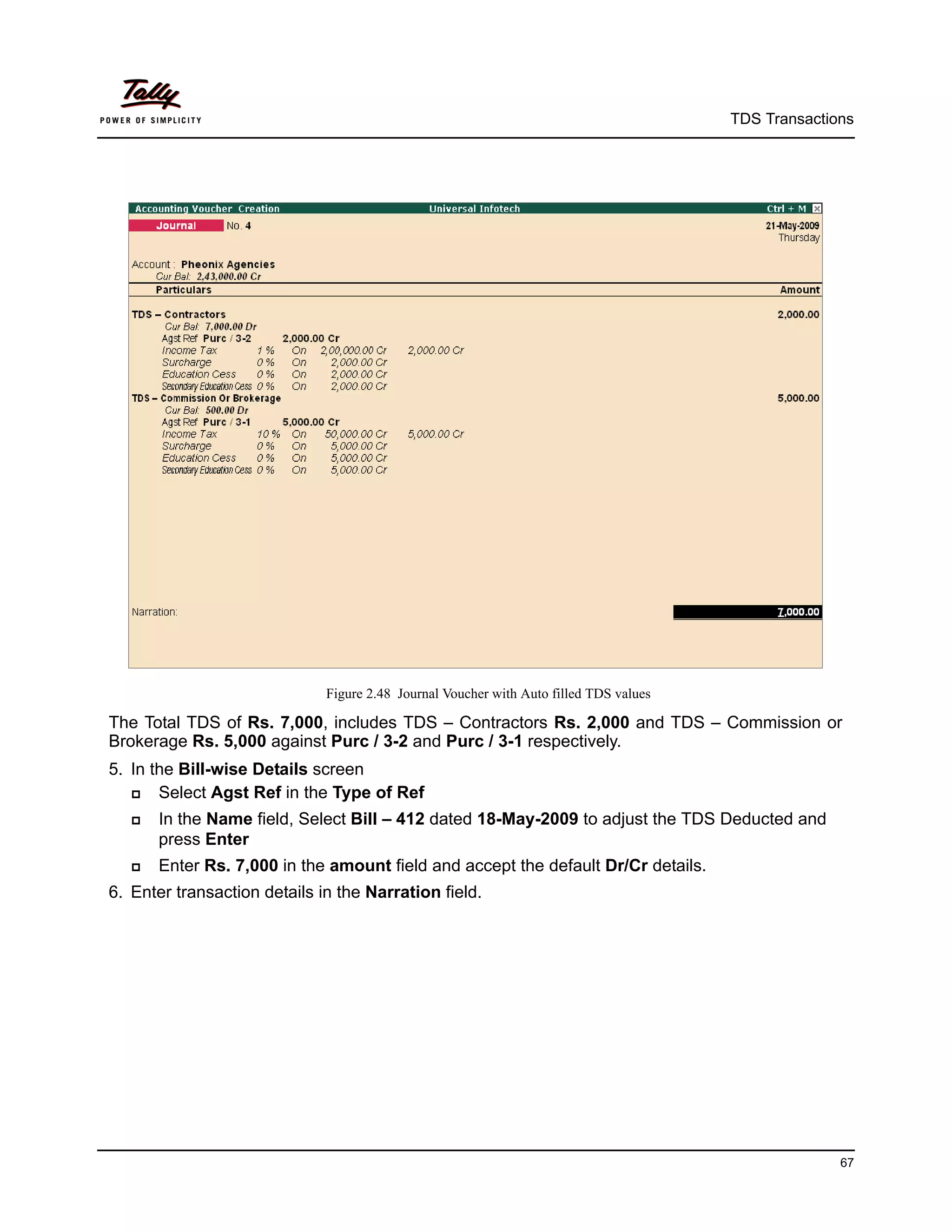
4. The TDS amount with the respective bill details will be auto-filled.


                                                                                                       66
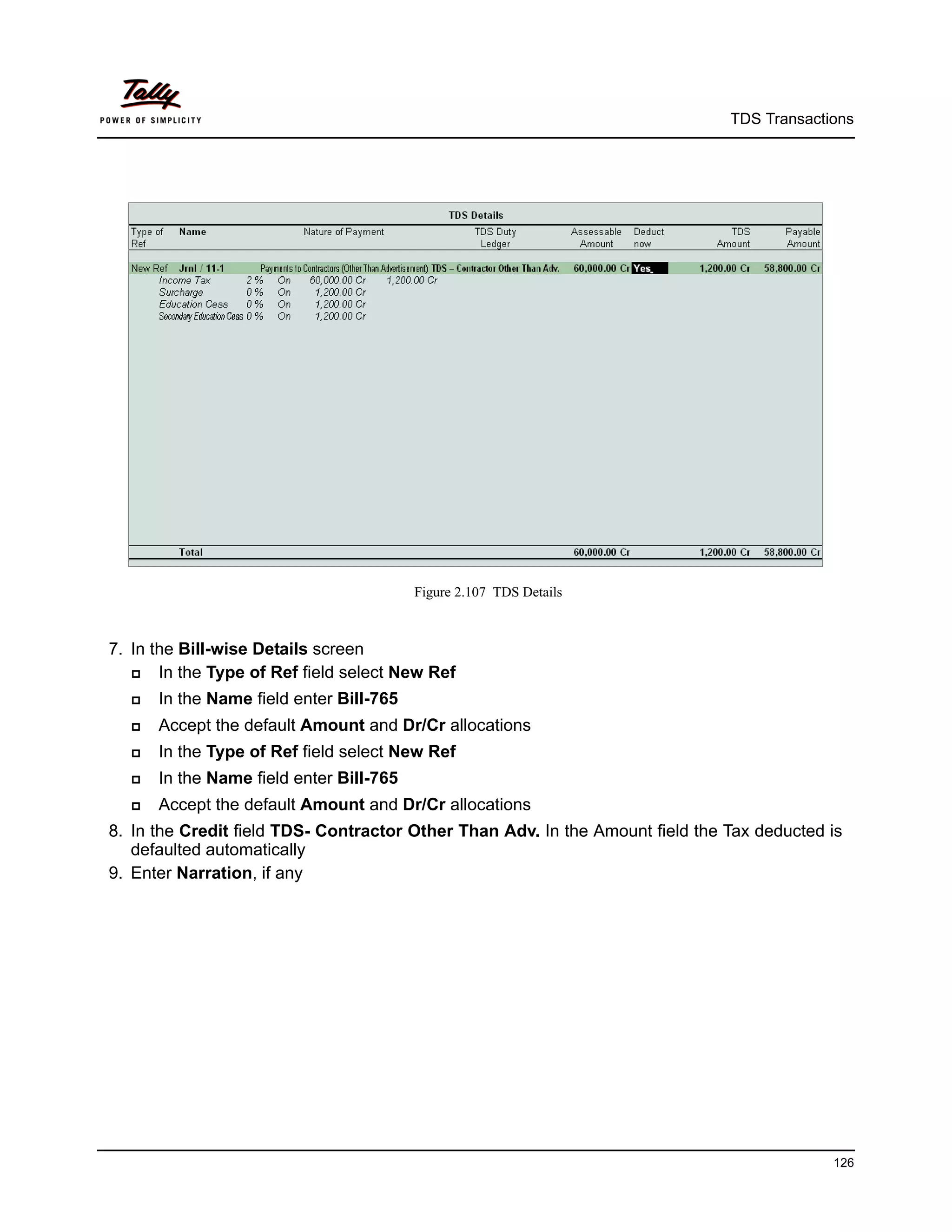
TDS Transactions


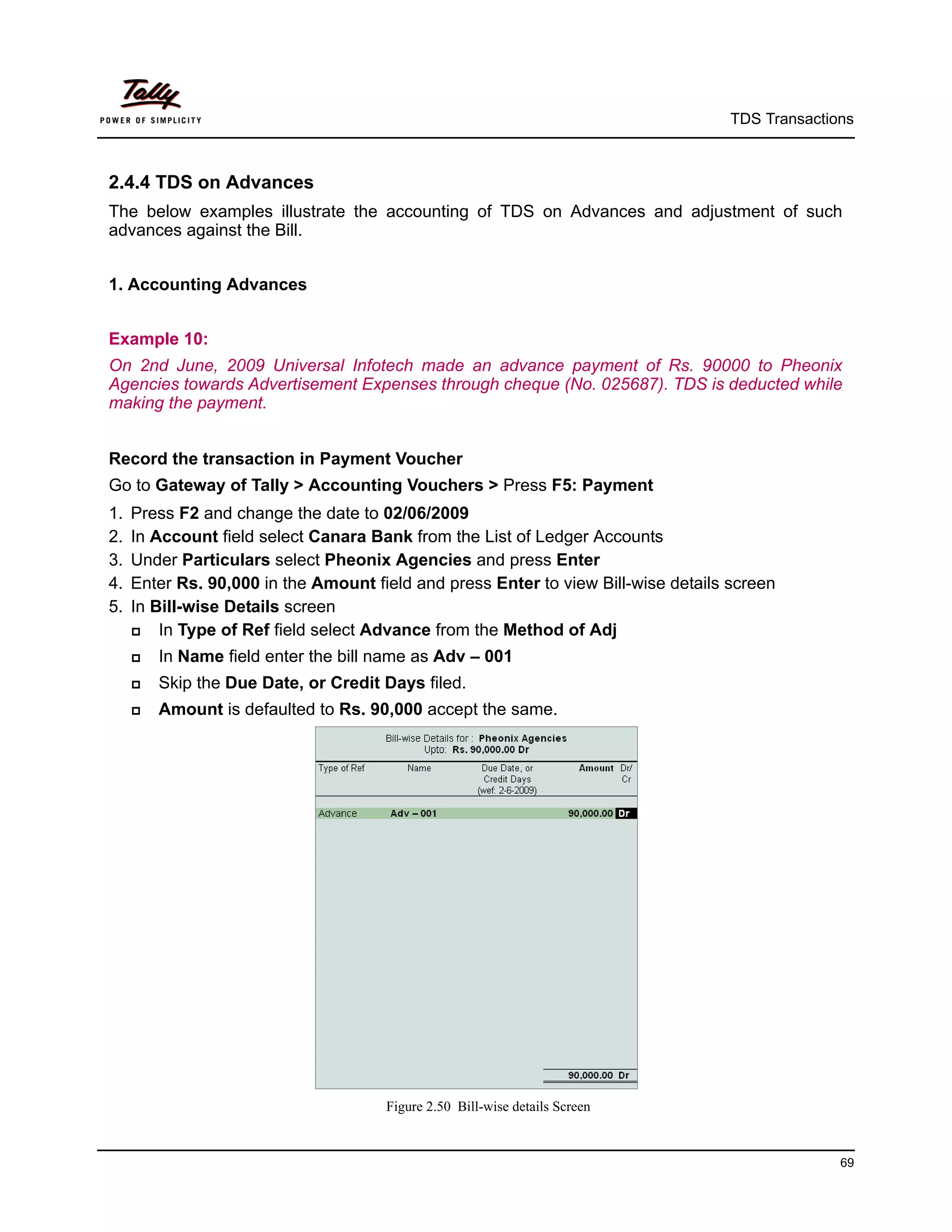
                              Figure 2.48 Journal Voucher with Auto filled TDS values

The Total TDS of Rs. 7,000, includes TDS – Contractors Rs. 2,000 and TDS – Commission or
Brokerage Rs. 5,000 against Purc / 3-2 and Purc / 3-1 respectively.
5. In the Bill-wise Details screen
      Select Agst Ref in the Type of Ref
      In the Name field, Select Bill – 412 dated 18-May-2009 to adjust the TDS Deducted and
       press Enter
      Enter Rs. 7,000 in the amount field and accept the default Dr/Cr details.
6. Enter transaction details in the Narration field.


                                                                                                      67
TDS Transactions


The completed Journal Voucher is displayed as shown


                                    Figure 2.49 Journal Voucher

7. Press Enter to Save.


                                                                                68
TDS Transactions


2.4.4 TDS on Advances
The below examples illustrate the accounting of TDS on Advances and adjustment of such
advances against the Bill.


1. Accounting Advances


Example 10:
On 2nd June, 2009 Universal Infotech made an advance payment of Rs. 90000 to Pheonix
Agencies towards Advertisement Expenses through cheque (No. 025687). TDS is deducted while
making the payment.


Record the transaction in Payment Voucher
Go to Gateway of Tally > Accounting Vouchers > Press F5: Payment
1.   Press F2 and change the date to 02/06/2009
2.   In Account field select Canara Bank from the List of Ledger Accounts
3.   Under Particulars select Pheonix Agencies and press Enter
4.   Enter Rs. 90,000 in the Amount field and press Enter to view Bill-wise details screen
5.   In Bill-wise Details screen
        In Type of Ref field select Advance from the Method of Adj
        In Name field enter the bill name as Adv – 001
        Skip the Due Date, or Credit Days filed.
        Amount is defaulted to Rs. 90,000 accept the same.


                                      Figure 2.50 Bill-wise details Screen


                                                                                                  69
TDS Transactions


6. Press Enter to accept the Bill-wise Details
7. Under Particulars select TDS – Contractors (to deduct Tax) and press Enter
8. In TDS Details screen
      In the Type of Ref field select New Ref
     Name filed display the Reference Number for the TDS Deducted. The default Reference
      Number displayed, is a combination of abbreviation of Payment, Voucher Number and Line
      Number. Example: Pymt / 3-1 which can be changed by the user. TDS payments are
      tracked with these Reference Numbers.
      Accept the default Reference Number (Pymt / 3-1) and press Enter.
      In Nature of Payment field select Payment to Contractors (Advertisement Contrac-
      tors) as the Nature of Payment.


The completed TDS Details screen is displayed as shown


                                    Figure 2.51 TDS Details Screen

9. Press Enter to accept the TDS Details
10.In the Amount field the TDS amount (Rs. 900) is displayed with negative sign
11.Enter 025687 in the Narration field.


                                                                                                70
TDS Transactions


The completed Payment Voucher is displayed as shown


                                       Figure 2.52 Payment Voucher

12.Press Enter to Save.


2. Adjusting Advance against the Bill


Example 11:
On 15th June, 2009 Universal Infotech received a Bill (vide no. 982) from Pheonix Agencies for
Rs. 1,50,000 towards the Advertisement services rendered.


Record the transaction in Journal Voucher


Go to Gateway of Tally > Accounting Vouchers > Press F7: Journal
1.   Press F2 and change the date to 15-06-2009
2.   Select Advertisement Expenses in the Debit field and press Enter
3.   Enter 1,50,000 in the Amount field and press Enter
4.   In the TDS Nature of Payment Details, accept the default details.


                                                                                             71
TDS Transactions


5. Select Pheonix Agencies in the Credit field and press Enter.
6. In the TDS Details screen provide the following details
      In Type of Ref select Agst Ref from the method of Adjustment, to adjust the advance (on
       which TDS is deducted) against the Bill amount.
     In the Name field Tally.ERP 9 displays the party related Pending Tax bills for selection.
      Select Pymt / 3-1 from the List.
     Based on the Tax Bill selected, the details in the Nature of Payment, TDS Duty Ledger,
      Assessable Amount and Payable Amount field will be defaulted automatically.
     In Type of Ref select New Ref to account the Balance Amount (60,000 = 1,50,000 -
      90,000) payable to the party, to deduct the TDS.
     In the Name field accept the default TDS reference number – Jrnl / 5-2
     In Nature of Payment field select Payment to Contractors (Advertisement Contrac-
      tors) from the List of nature of Payment(s)
     Select TDS – Contractors in the TDS Duty Ledger field.
     Set Deduct now field to Yes to deduct the Tax in the same voucher.
     The TDS Amount field displays the Tax amount deducted at source
     The Payable Amount field displays the amount (after TDS) payable to the Party.


The completed TDS Details screen is displayed as shown


                                      Figure 2.53 TDS Details Screen

7. Press Enter to accept the TDS details


                                                                                                  72
TDS Transactions


8. Payable Amount as calculated in the TDS Details screen will be defaulted in the Party’s
   Amount (Credit) field. Press Enter to view Bill–wise Details screen.
9. In Bill–wise Details screen,
      Select Agst Ref in Type of Ref, to adjust the Advance against the Bill amount.
      In the Name field select Adv - 001 from the Pending Bills
      In the Amount field, Tally.ERP 9 displays Rs. 90,000, accept the default allocation and
       press Enter.
      Select New Ref in the Type of Ref field to adjust the Balance amount payable to the party.
      In the Name field enter the Bill name as Bill - 982
      Skip the Due Date or Credit Days field
      In the amount field enter the balance Bill amount Rs. 60,000[1,50,000 – Advance (90,000)]
       in the amount field as the credit balance.
      Press Enter, select New Ref as Type of Ref and enter Bill name as Bill -982
      Skip the Due Date or Credit Days field and accept the default amount allocation and Dr/
       Cr. By default Tally.ERP 9 displays the Tax amount in the amount field as the debit bal-
       ance.


The completed Bill-wise Details is displayed as shown


                                     Figure 2.54 Bill-wise Details Screen

10.Press Enter to accept Bill-wise Details.


                                                                                                   73
TDS Transactions


11.In the Credit field select the duty ledger TDS – Contractor from the List of Ledger Accounts
   and Rs. 600 (1,50,000 - 1,49,400) is displayed automatically in the amount field.
12.Enter transaction details in the Narration field.
The completed Journal Voucher is displayed as shown


                                      Figure 2.55 Journal Voucher

13.Press Enter to Save.


                                                                                              74
TDS Transactions


2.4.5 TDS on Expenses @ Lower Rate
Assessing Officer shall issue a certificate for deduction of Tax at Lower rate than the relevant rate
specified under the section, Where the assessing officer is satisfied that the total income of the
recipient (Assessee) justifies the deduction of income tax at any lower rates than the rate
specified under sections specified under the Act and has received an application in Form 13 from
the assessee under sub-section (1) of section 197.
The certificate granted shall be valid for the assessment year specified and is valid only for the
person named therein.
In Tally.ERP 9, the user can record and compute TDS on transactions, on which lower rate of
deduction is applicable. Consider the following example.


Example 12:
On 25th June, 2009 Universal Infotech received a Bill (vide No. 260) from ACE Computers for Rs.
80,000 towards commission charges.
ACE Computers has a certificate for deduction of Income tax at Lower rate @ 5%, on Commis-
sion.


To account the above transaction
1. Create Masters
   i. Party Ledger
2. Record the Transaction in Journal voucher


1. Create Masters


i Party Ledger


         Ledger             Under            Maintain bal-        Is TDS        Deductee Type
                                           ances bill-by-bill   Deductable
   ACE Computers      Sundry Creditors    Yes                   Yes            Partnership Firm


Create Party Ledger
Go to Gateway of Tally > Accounts Info. > Ledgers > Create


Setup:
Before creating the party ledger enable the following Configurations in F12: Configure (Ledger
Configuration)


                                                                                                    75
TDS Transactions


     Set Allow Advanced entries in TDS Masters to Yes.


                                         Figure 2.56 F12: Configure

In the Ledger Creation screen,
     Type ACE Computers as the Ledger Name
     Group it under Sundry Creditors group
     Set Maintain Balances bill-by-bill to Yes
     Specify the Default Credit Period, if required
     Set Is TDS Deductable to Yes
     In the Deductee Type field select Partnership Firm from the List of Deductee Types
     Set Use Advanced TDS Entries to Yes and press Enter


                         Figure 2.57 Ledger Creation – Enabling Advanced TDS Entries


                                                                                                     76
TDS Transactions


                Use Advanced TDS Entries field will be enabled in the ledger creation screen only
                When Allow Advanced entries in TDS Masters is set to Yes in F12: Voucher
                Entry Configuration.

The Advanced TDS Entries screen is displayed as shown


                                 Figure 2.58 Advanced TDS Entries Screen

     In the Advanced TDS Entries screen
       Set  Zero / Lower Deduction: This field will be enabled when the Deductee has a cer-
         tificate issued by the assessing officer to Deduct Income tax at Lower Rate.
         Enable Set Zero / Lower Deduction to Yes (ACE Computer has submitted the Certifi-
         cate to deduct income tax at Lower rate) and press Enter.


                                                                                                    77
TDS Transactions


The Zero / Lower Deduction Details screen is displayed as shown


                               Figure 2.59 Zero / Lower Deduction Details Screen

In the Zero / Lower Deduction Details provide the following details
       Nature  of Payment: In this field, select the Nature of payment for which the lower rate
          of income tax is allowed.
            Select Commission Or Brokerage from the List of Nature of Payment(s)
       Section  Number: In this field, Tally.ERP 9 displays the Sections, under which an appli-
          cation for lower rate or Zero rate are approved.
            Select 197 as the Section Number
       CertificateNo./ Date: In this field, enter certificate number and the date of issue.
             Enter ADIT-17(1)/2009-10 in certificate No./ Date field.
       Applicable   From: In this field, mention the date (as per the certificate) from when the
          lower rate is approved.
             Enter 12-05-2009 in Applicable From field
       Applicable  To: In this field mention the date till when the certificate of Lower rate will
          remain in force.
             Enter 31-3-2010 in Applicable To field
       TDS:  In this field mention the Rate of Income Tax
             Enter 5% in the TDS field.


                                                                                                        78
TDS Transactions


       In   Surcharge, Ed Cess and Sec Ed Cess fields Zero will be defaulted automatically.


                           Figure 2.60 Completed Zero / Lower Deduction Details Screen

       Press   Enter to accept Zero/Lower Deduction Details.


     Under Advanced TDS Entries, set Deduct TDS in Same Voucher if applicable to Yes.
      Deduct TDS in Same Voucher if applicable is enabled only when, the income tax will be
      deducted in the same voucher where the Due/ Payment is accounted for the party.
The Deduct TDS in Same Voucher if applicable screen is displayed as shown


                              Figure 2.61 Deduct TDS in Same Voucher if applicable


                                                                                                       79
TDS Transactions


         In Deduct TDS in same Voucher if applicable screen, user can select all the nature
            of payments or any specific nature of payment (applicable to the party) on which Tax to
            be deducted in the same voucher.
               Select Commission Or Brokerage from the List of nature of payment(s)
         Press
                Enter to accept the details in the Deduct TDS in same Voucher if applicable
          screen
14.Enter Address, State and PIN Code under Mailing Details
15.Enter PAN/IT No. under Tax Information


The completed ledger creation screen is displayed as shown


                           Figure 2.62 Completed Sundry Creditor Ledger Creation Screen

16.Press Enter to Save.


2. Record the Transaction in Journal voucher


Go to Gateway of Tally > Accounting Vouchers > Press F7:Journal
1.   Press F2 and change the date to 25-06-2009
2.   Select Commission Expenses in the Debit field and press Enter
3.   Enter 80,000 in the Amount field and press Enter
4.   In the TDS Nature of Payment Details, accept the default details.
5.   Select ACE Computers in the Credit field and press Enter.


                                                                                                        80
TDS Transactions


6. In the TDS Details screen provide the following details
      In Type of Ref select New Ref
     In the Name field accept the default TDS reference number – Jrnl / 6-1
     In Nature of Payment field select Commission Or Brokerage from the List of nature of
      Payment(s)
     In Is Zero / Lower Rate, Tally.ERP 9 displays the Sections, under which an application for
      lower rate or Zero rate are approved. Select 197 from the List.
     Select TDS – Commission Or Brokerage in the TDS Duty Ledger field.
     Deduct now field will be defaulted to Yes and Tally.ERP 9 won’t allow the user to alter the
      setting.


                 Deduct now filed will be defaulted to Yes, when the option Deduct TDS in Same
                 Voucher if applicable is enabled in the Party Ledger for the Nature of Payment
                 (selected in the transaction).

     The TDS Amount field displays the Tax amount deducted at source
     The Payable Amount field displays the amount (after TDS) payable to the Party.


The completed TDS Details screen is displayed as shown


                                      Figure 2.63 TDS Details Screen

7. Press Enter to accept the TDS details


                                                                                                    81
TDS Transactions


8. Payable Amount as calculated in the TDS Details screen will be defaulted in the Party’s
   Amount (Credit) field. Press Enter to view Bill–wise Details screen.
9. In Bill–wise Details screen,
      Select New Ref as the Type of Ref
     In the Name field enter the Bill name as Bill - 260
     Skip the Due Date or Credit Days field
     Accept the default amount allocation and Dr/Cr. By default Tally.ERP 9 displays the Bill
      amount in the amount field as the credit balance.
     Press Enter, select New Ref as Type of Ref and Enter Bill name as Bill - 260
     Skip the Due Date or Credit Days field and accept the default amount allocation and Dr/
      Cr. By default Tally.ERP 9 displays the Tax amount in the amount field as the debit bal-
      ance.
The completed Bill-wise Details is displayed as shown


                                    Figure 2.64 Bill-wise Details Screen

10.Press Enter to accept Bill-wise Details.
11.In the Credit field select the duty ledger TDS – Commission Or Brokerage from the List of
   Ledger Accounts and Rs. 4,000 (80,000 – 76,000) is displayed automatically in the amount
   field.
12.Enter transaction details in the Narration field.


                                                                                                 82
TDS Transactions


The completed Journal Voucher is displayed as shown


                                    Figure 2.65 Journal Voucher

13.Press Enter to Save.


                                                                                83
TDS Transactions


2.4.6 TDS on Expenses @ Zero Rate
A Deductee (other than Company or Firm) can submit a declaration in Form 15G under sub
section (1) of section 197A, for TDS deduction at Zero Rate. Declarations can be given only by
those deductees whose income is below the taxable limit and the income falls under section 193,
194, 194A, 194EE and 194K.
The certificate granted shall be valid for the assessment year specified and is valid only for the
person named therein.


Example 13:
On 30th June, 2009 Universal Infotech received a Bill (Vide No. 452) from Gokul Co-operative
Building Society for Rs. 10,00,000 towards Rent on Building and Furniture.
Gokul Co-operative Building Society has a certificate for non-deduction (zero rate) of Income tax
on Rent.


To account the above transaction
1. Create Masters
   i. Expense Ledger
  ii. Party Ledger
2. Record the transaction in Journal Voucher
1. Create Masters


i. Expense Ledger


       Ledger               Under            IS TDS Appli-          Default Nature of Payment
                                                 cable
   Rent Expenses       Indirect Expenses   Yes                Rent of Land, Building Or Furniture
   Set Inventory values are affected to No
As per the given information, create the above ledger
iii. Party Ledger
         Ledger                Under             Maintain bal-         Is TDS       Deductee
                                               ances bill-by-bill    Deductable       Type
   Gokul Co-operative     Sundry Creditors     Yes                   Yes          Co–Operative
   Building Society                                                               Society


To Create Party Ledger
Go to Gateway of Tally > Accounts Info. > Ledgers > Create
In the Ledger Creation screen,

                                                                                                    84
TDS Transactions


   Type Gokul Co-operative Building Society as the Ledger Name
   Group it under Sundry Creditors group
   Set Maintain Balances bill-by-bill to Yes
   Specify the Default Credit Period, if required
   Set Is TDS Deductable to Yes
   In the Deductee Type field select Co–Operative Society from the List of Deductee
    Types
   Set Use Advanced TDS Entries to Yes and press Enter
   In the Advanced TDS Entries screen
     Enable  Set Zero / Lower Deduction to Yes (Gokul Co-operative Building Society
         has submitted the Certificate for non-deduction (zero rate) of income tax) and press
         Enter
   In the Zero / Lower Deduction Details provide the following details
     In Nature of Payment field select Rent of Land, Building Or Furniture from the List
        of Nature of Payment(s)
     Section Number: In this field, Tally.ERP 9 displays the Sections, under which an appli-
        cation for lower rate or Zero rate are approved.
           Select 197A as the Section Number
     Enter ADIT-2(5)/2009-10 in certificate No./ Date field.
     Enter 01-06- 2009 in Applicable From field

     Enter 31-12-2010 in Applicable To field

     TDS, Surcharge, Ed Cess and Sec Ed Cess fields will be defaulted to 0%.


                        Figure 2.66 Completed Zero / Lower Deduction Details Screen

     Press Enter to accept Zero/Lower Deduction Details.
   Deduct TDS in Same Voucher if applicable is enabled, when the income tax will be
    deducted in the same voucher where the Due/ Payment is accounted for the party.
    Set Deduct TDS in Same Voucher if applicable to Yes and Press Enter


                                                                                                    85
TDS Transactions


          InDeduct TDS in same Voucher if applicable screen, select Rent of Land, Building
             Or Furniture from the List of nature of payment(s)
          Press Enter to accept the details in the Deduct TDS in same Voucher if applicable
             screen
        Enter Address, State and PIN Code under Mailing Details
        Enter PAN/IT No. under Tax Information


The completed Ledger Creation screen is displayed as shown


                           Figure 2.67 Completed Sundry Creditor Ledger Creation Screen

        Press Enter to Save.


2. Record the Transaction in Journal voucher
Go to Gateway of Tally > Accounting Vouchers > Press F7:Journal
1.   Press F2 and change the date to 30-06-2009
2.   Select Rent Expenses in the Debit field and press Enter
3.   Enter 10,00,000 in the Amount field and press Enter
4.   In the TDS Nature of Payment Details, accept the default details.
5.   Select Gokul Co-operative Building Society in the Credit field and press Enter.
6.   In the TDS Details screen provide the following details
        In Type of Ref select New Ref

                                                                                                        86
TDS Transactions


     In the Name field accept the default TDS reference number – Jrnl / 7-1
     In Nature of Payment field select Rent of Land, Building Or Furniture from the List of
      nature of Payment(s)
     In Is Zero / Lower Rate, Tally.ERP 9 displays the Sections, under which an application for
      lower rate or Zero rate are approved. Select 197A from the List.
The completed TDS Details screen is displayed as shown


                                      Figure 2.68 TDS Details Screen


                 In TDS Details screen, Tally.ERP 9 won’t prompt the user to select the TDS Duty
                 ledger or to deduct the tax in the same voucher, as the section (197A) selected
                 indicates the Non deduction (Zero Rate) of Income tax


7. Payable Amount as displayed in the TDS Details screen will be defaulted in the Party’s
   Amount (Credit) field. Press Enter to view Bill–wise Details screen.
8. In Bill–wise Details screen,
      Select New Ref as the Type of Ref
     In the Name field enter the Bill name as Bill - 452
     Skip the Due Date or Credit Days field
     Accept the default amount allocation and Dr/Cr. By default Tally.ERP 9 displays the Bill
      amount in the amount field as the credit balance.


                                                                                                   87
TDS Transactions


The completed Bill-wise Details is displayed as shown


                                   Figure 2.69 Bill-wise Details Screen

9. Press Enter to accept Bill-wise Details.
10.Enter transaction details in the Narration field.
The completed Journal Voucher is displayed as shown


                                      Figure 2.70 Journal Voucher

11.Press Enter to Save.


                                                                                        88
TDS Transactions


2.5 Adjustments in TDS

2.5.1 Reversal Of Expenses and TDS
In case of Cancellation of transaction(s), the expenses and TDS deducted needs to be reversed.
In Tally.ERP 9, such reversal of expenses and TDS is possible only when the cancellation is made
before the payment of TDS to the Government.
Tally.ERP 9 provides the flexibility to account expenses and later reverse the expenses and TDS
on cancelled transaction(s). In Tally.ERP 9, you can account the reversal of expenses and TDS
using Debit Note.
1. Accounting Expenses
2. Reversal of Expenses and TDS


Consider the following scenario to illustrate the Reversal of Expesnes and TDS


1. Accounting Expenses
Example 14:
On 18th July, 2009 Universal Infotech received a bill (vide No. 631) from Pheonix Agencies for Rs.
80,000 towards advertisement services.


Record the Transaction in Journal voucher


Go to Gateway of Tally > Accounting Vouchers > Press F7:Journal
1.   Press F2 and change the date to 18-07-2009
2.   Select Advertisement Expenses in the Debit field and press Enter
3.   Enter 80,000 in the Amount field and press Enter
4.   In the TDS Nature of Payment Details, accept the default details.
5.   Select Pheonix Agencies in the Credit field and press Enter.
6.   In the TDS Details screen provide the following details
        In Type of Ref select New Ref
        In the Name field accept the default TDS reference number – Jrnl / 8-1
        In Nature of Payment field select Payment to Contractors (Advertisement Contrac-
         tors) from the List of nature of Payment(s)
        Select TDS – Contractors in the TDS Duty Ledger field.
        Set Deduct Now to Yes to deduct the income tax in the same voucher.
        The TDS Amount field displays the Tax amount deducted at source
        The Payable Amount field displays the amount (after TDS) payable to the Party.
7. Press Enter to accept the TDS details


                                                                                                 89
TDS Transactions


8. Payable Amount as calculated in the TDS Details screen will be defaulted in the Party’s
   Amount (Credit) field. Press Enter to view Bill–wise Details screen.
9. In Bill–wise Details screen,
      Select New Ref as the Type of Ref
     In the Name field enter the Bill name as Bill - 631
     Skip the Due Date or Credit Days field
     Accept the default amount allocation and Dr/Cr. By default Tally.ERP 9 displays the Bill
      amount in the amount field as the credit balance.
     Press Enter, select New Ref as Type of Ref and Enter Bill name as Bill - 631
     Skip the Due Date or Credit Days field and accept the default amount allocation and Dr/
      Cr. By default Tally.ERP 9 displays the Tax amount in the amount field as the debit bal-
      ance.
10.Press Enter to accept Bill-wise Details.
11.In the Credit field select the duty ledger TDS – Contractors from the List of Ledger Accounts
   and Rs. 800 (80,000 – 79,200) is displayed automatically in the amount field.
12.Enter transaction details in the Narration field.


                                   Figure 2.71 Completed Journal Voucher

13.Press Enter to Save.


                                                                                                 90
TDS Transactions


2. Reversal of expenses and TDS


Example 15:
On 25th July, 2009 Pheonix agencies cancelled the transaction dated 18th July, 2009 for Rs.
80,000 (bill – 631) because of the non-availability of resources to carry out the contract.


Set Up:
In F11: Features (Accounting Features)
        Set Use Debit/Credit Notes to Yes
        Set Use Invoice mode for Debit Notes to Yes


                                Figure 2.72 F11:Features — Accounting Features


Record the transaction in Debit Note (Accounting Invoice Mode)
Go to Gateway of Tally > Accounting Vouchers > Press Ctrl + F9: Debit Note
1.   Press Alt + I for Account Invoice mode
2.   Press F2 and change the date to 25-07-2009
3.   In Party’s A/c Name field select Pheonix Agencies from the List of Ledger Accounts
4.   Under Particulars select Advertisement Expenses and press Enter
5.   Enter Rs. 80,000 in the Amount field


                                                                                               91
TDS Transactions


6. Press Enter to view TDS Nature of Payment Details screen and accept the default details in
   the screen and press Enter.
7. Under Particulars select TDS – Contractors and press Enter to view TDS Details screen.
8. In the TDS Details screen provide the following details
      In Type of Ref select Agst Ref
     In Name field, Tally.ERP 9 displays the Tax Details, based on the party and the nature of
      payment selected in the transaction. From Tax Details select the Tax Reference Number
      against which the TDS to be reversed.
      Select Jurl /8-1 from the Tax details
      In Nature of Payment field select Payment to Contractors (Advertisement Contrac-
      tors) from the List of nature of Payment(s)
     Based on the tax reference number selected,Tally.ERP 9 defaults the details in TDS Duty
      Ledger, Assessable Amount and TDS Amount fields.


                                         Figure 2.73 TDS Details

9. Press Enter to accept the TDS Details
10.TDS Amount as displayed in the TDS Details screen will be defaulted in the tax ledger
   Amount field with negative sign. Press Enter to view Bill–wise Details screen.
11.In Bill–wise Details screen,
      Select Agst Ref as the Type of Ref
     In the Name field select Bill - 631 from the Pending Bills to reverse the expenses.
     Skip the Due Date or Credit Days field
     Accept the default amount allocation and Dr/Cr.


                                                                                                  92
TDS Transactions


The completed Bill–wise Details screen is displayed as shown


                                        Figure 2.74 Bill–wise Details

12.Press Enter to accept Bill-wise Details.
13.Enter transaction details in the Narration field.
The completed Debit Note is displayed as shown


                                           Figure 2.75 Debit Note

14.Press Enter to Save.


                                                                                      93
TDS Transactions


2.6 Accounting Changes in TDS percentage
Whenever a Cess is made applicable or Tax rate is changed, the same is affected through finance
Bill. Finance Bill will be presented on 28th February and is generally passed and becomes Act
around mid May.


Example: In the Finance Bill, rate of income tax on Fees for Professional and Technical services
is changed from 5% to 10%. Before the finance bill is passed, the deductor accounted the trans-
actions in April month against professional fees and deducted tax at 5%. Then the finance bill is
passed in the month of May and the effective date for the change in rate of income tax on Fees for
Professional and Technical services is mentioned as 1st April. In this case deductor has deducted
the tax at a lower rate on the transactions booked before the Finance act and is expected to
deduct the difference.


Changes in the TDS Percentages are updated in the Deductee Type statutory masters.


In Tally.ERP 9 such difference Income Tax amount can be deducted for all the transactions
booked (at lower rate) before the change in the TDS rates by recording an adjustment entry in
Journal Voucher (using TDS Deduction).


                 To account Changes in TDS Percentage user can follow the procedure as
                 explained under the head Surcharge calculation on Prior Period Expenses
                 (record a adjustment entry in Journal using S: TDS Deduction.


                                                                                                 94
TDS Transactions


2.7 Accounting TDS on Payments made to Non Residents (DTAA)
For the servcies provided under section 195 to Non Residents (NRIs) of a country with which
India has Double Taxation Avoidance Agreement, TDS will be deducted at a flat rate without
surcharge and education cess. TDS as per DTAA can be accounted in Tally.ERP 9.


Example 16:
On 26th July, 2009 Universal Infotech paid Royalty of Rs. 15,00,000 to Alexon Group.
paid royalty of Rs.15,00,000 to Alexon Group
To account the above transaction follow the steps given below
1. Create Masters
     i. Expense Ledger
     ii. Tax Ledger
    iii. Party Ledger
2. Record the transaction in Journal Voucher


1. Create Masters

i. Expense Ledger
        Ledger                  Under             IS TDS           Default Nature of Payment
                                                 Applicable
  Royalty Expenses        Indirect Expenses      Yes             Royalty(F) Agreement Is Made on
                                                                 Or After June 1, 2005
  Set Inventory values are affected to No

ii. Tax Ledger
        Ledger                Under         Type of           Nature of Payment         Inventory
                                             Duty/                                      values are
                                              Tax                                        affected
  TDS – Payments          Duties & Taxes   TDS            Royalty(F) Agreement Is      No
  to Non–Residents                                        Made on Or After June 1,
                                                          2005
As per the given information, create the above ledgers.
iii. Party Ledger
       Ledger               Under           Maintain         Is TDS           Deductee Type
                                           balances        Deductable
                                           bill-by-bill
  Alexon Group          Sundry Creditors   Yes             Yes           Company – Non Resident


                                                                                                     95
TDS Transactions


To Create Party ledger
Go to Gateway of Tally > Accounts Info. > Ledgers > Create
     Type Alexon Group as the Ledger Name
     Group it under Sundry Creditors group
     Set Maintain Balances bill-by-bill to Yes
     Specify the Default Credit Period, if required
     Set Is TDS Deductable to Yes
     In the Deductee Type field select Company – Non Resident from the List of Deductee
      Types
     Set Use Advanced TDS Entries to Yes
     In the Advanced TDS Entries screen
       Enable  the option Set Zero/Lower Deduction/ DTAA to Yes to view Zero/Lower
           Deduction details screen
     In the Zero/Lower Deduction details screen
       select Royalty(F) Agreement Is Made on Or After June 1, 2005
       In Section Number field select the option DTAA

       In the Certificate No./Date enter the certificate number

       In the Applicable From and To filed enter the period of applicability

       In the TDS field 10% will be defaulted automatically.

       Surcharge, Education Cess and Secondary Education Cess fields will be set to 0%


                                    Figure 2.76 Deduction as per DTAA

     Enter Address, State and PIN Code under Mailing Details
     Under Tax Information, PAN /IT No. is not mandatory as party is a non-resident.


                                                                                            96
TDS Transactions


The completed Ledger Creation screen is displayed as shown


                                      Figure 2.77 Ledger Creation Screen

        Press Enter to Save.


2. Record the transaction in Journal Voucher


Go to Gateway of Tally > Accounting Vouchers > Press F7:Journal
1.   Press F2 and change the date to 26-07-2009
2.   Select Royalty Expenses in the Debit field and press Enter
3.   Enter 15,00,000 in the Amount field and press Enter
4.   In the TDS Nature of Payment Details, accept the default details.
5.   Select Alexon Group in the Credit field and press Enter.
6.   In the TDS Details screen enter the following details
        In Type of Ref select New Ref
        In the Name field accept the default TDS reference number – Jrnl / 9-1
        In Nature of Payment field select Royalty(F) Agreement Is Made on Or After June 1,
         2005 from the List of nature of Payment(s)
        Select TDS – Payments to Non–Residents in the TDS Duty Ledger field
        Set Deduct Now to Yes to deduct the income tax in the same voucher.
        The TDS Amount field displays the Tax amount deducted at source


                                                                                                97
TDS Transactions


     The Payable Amount field displays the amount (after TDS) payable to the Party.


The completed TDS Details screen is displayed as shown


                                        Figure 2.78 TDS Details

7. Press Enter to accept the TDS Details
8. Payable Amount as calculated in the TDS Details screen will be defaulted in the Party’s
   Amount (Credit) field. Press Enter to view Bill–wise Details screen.
9. In Bill–wise Details screen,
      Select New Ref as the Type of Ref
     In the Name field enter the Bill name as AG/01457
     Skip the Due Date or Credit Days field
     Accept the default amount allocation and Dr/Cr. By default Tally.ERP 9 displays the Bill
      amount in the amount field as the credit balance.
     Press Enter, select New Ref as Type of Ref and Enter Bill name as AG/01457
     Skip the Due Date or Credit Days field and accept the default amount allocation and Dr/
      Cr. By default Tally.ERP 9 displays the Tax amount in the amount field as the debit bal-
      ance.


                                                                                                 98
TDS Transactions


                                  Figure 2.79 Bill–wise Details Screen

10.Press Enter to accept Bill-wise Details.
11.In the Credit field select the duty ledger TDS – Payment to Non–Residents from the List of
   Ledger Accounts and Rs. 1,50,000 (15,00,000 – 13,50,000) is displayed automatically in the
   amount field.
The completed Journal Voucher is displayed as shown


                                 Figure 2.80 Completed Journal Voucher

12.Press Enter to Save.


                                                                                            99
TDS Transactions


2.8 TDS on Interest Payments
As per Section 194A of the Indian Income Tax Act TDS to be deducted on the any payment made
as interest towards:
1. Loan taken from Parties
2. Overdue Payments


2.8.1 TDS on Interest Paid on Loans Taken
Example 17:
On 1st August, 2009 Universal Infotech took a loan of Rs. 18,00,000 from Smart Agencies @ 18%
p.a for a period of 1 year on a condition that the Interest to be paid monthly after deducting TDS
on Interest.
On 1st September, 2009 Interest of Rs. 24,765.81 (after deducting TDS) paid for the month of
September.


To account the above transaction follow the steps given below
Set Up:
In F11: Features (Accounting Features)
      Set Activate Interest Calculation to Yes
      Enable use advanced parameters to Yes


1. Create Masters
       i. Expense Ledger
      ii. Tax Ledger
      iii. Party Ledger
2. Record a Receipt Voucher (to account the receipt of loan amount)
3. Create Voucher Class for Credit Note
4. Record a Credit Note (to account interest on loan)
5. Record a Journal Voucher (to deduct TDS)
6. Record a Payment Voucher (payment of interest)
1. Create Masters
i. Expense Ledger
        Ledger                 Under           IS TDS           Default Nature of Payment
                                              Applicable
  Interest Payable        Indirect Expenses   Yes          Interest Other Than Interest on
                                                           Securities
  Set Inventory values are affected to No


                                                                                                100
TDS Transactions


ii. Tax Ledger
       Ledger           Under          Type of                       Nature of Payment
                                      Duty/ Tax
   TDS–Interest     Duties & Taxes    TDS              Interest Other Than Interest on Securities
   Set Inventory values are affected to No
As per the given information, create the above ledgers.


iii. Party Ledger
        Ledger               Under               IS TDS               Deductee Type
                                                Applicable
   Smart Agencies      Sundry Creditors        Yes                 Company - Resident
   Set Activate Interest Calculation to Yes


To create the party ledger
Go to Gateway of Tally > Accounts Info. > Ledgers > Create
      In the Name field enter the Ledger Name e.g. Smart Agencies
      In the Under field select Sundry Creditors group
      Set Maintain balances bill-by-bill to Yes. Enter the Default Credit Period, if any
      Set Activate Interest Calculation to Yes
      In the Interest Parameters screen ensure the options selected are as shown


                                     Figure 2.81 Interest Parameters screen

      Set the option Is TDS Deductable to Yes
      In the Deductee Type screen select Company – Resident from the List of Deductee
       Types


                                                                                                      101
TDS Transactions


        Enter the Mailing Details and Tax Information.


                                     Figure 2.82 Party Ledger Creation screen

        Press Enter to save.


2. Record a Receipt Voucher (to account the receipt of loan amount)
Go to Gateway of Tally > Accounting Vouchers > F6: Receipt


1.   Press F2 and change the date to 01-8-2009
2.   In Credit field select Smart Agencies from the List of Ledger Accounts
3.   Enter 18,00,000 in the Amount field.
4.   In the Bill-wise Details screen
        In the Type of Ref field select New Ref
        In the Name field enter the Loan -001
        In the Amount field the loan amount is defaulted automatically.
        In the Interest Parameters screen ensure the settings are as shown


                                                                                             102
TDS Transactions


                                    Figure 2.83 Interest Parameters

5. In the Debit field select Canara Bank
The completed Receipt Voucher is displayed as shown.


                                     Figure 2.84 Receipt Voucher

6. Press Enter to Save.

                                                                                   103
TDS Transactions


3. Create Voucher Class for Credit Note
Go to Gateway of Tally > Accounts Info. > Voucher Types > Alter > Select Credit Note
     In the Voucher Type Alteration screen tab down to Name of Class field
     Enter Interest in the Name of Class field and press enter to view the Voucher Type Class
      screen
     In the Voucher Type Class screen
       Set   Use Class for Interest Accounting to Yes


                                   Figure 2.85 Voucher Type Class screen

     Press enter to save the Voucher Type Class screen and Voucher Type Alteration.


                                                                                             104
TDS Transactions


4. Record a Credit Note (to account interest on loan)
Go to Gateway of Tally > Accounting Vouchers > Ctrl + F8: Credit Note
1. In the Change Voucher Type screen, in the Class field select Interest from the Voucher Class
   List
2. Press F2 and change the date to 1-9-2009
3. In the Credit field select Smart Agencies from the List of Ledgers to view the Interest Details
   screen
4. In the Interest Details screen select Loan - 001 from the List of Interest Bills


                                     Figure 2.86 Interest Details screen

5. In the Credit Amount field Rs. 27517.81 will be displayed automatically.
6. In the Bill-wise Details screen
      In Type of Ref field select New Ref as the Method of Adjustment
     In Name field enter CN/001
     Skip Due Date, or Credit Days field
     In the Amount field accept the default amount allocation
7. In the Interest Parameters screen define Zero in Rate field
8. In the Debit field select Interest Payable ledger to view TDS Details screen
9. In the TDS Details screen
      In Type of Ref field select New Ref as the Method of Adjustment
     In the Name field CNote /1-1 will be defaulted as the Reference Number


                                                                                                105
TDS Transactions


     In the Nature of Payment field select Interest other than Interest on Securities
     In the TDS Duty Ledger field select TDS – Interest from the TDS Duty Ledgers list


                                     Figure 2.87 TDS Details screen

The completed Credit Note Voucher is displayed as shown


                                    Figure 2.88 Credit Note Voucher

10.Press Enter to save.

                                                                                             106
TDS Transactions


5. Record a Journal Voucher (to deduct TDS)


Go to Gateway of Tally > Accounting Vouchers > F7: Journal
1. Press F2 and change the date to 1-9-2009
2. Press Alt + S or S: TDS Deduction to view TDS Deductions screen
3. In the TDS Deductions screen
      In the Till Date field 1-Sep-2009 will be defaulted
      In Party field select Smart Agencies form the List of Ledgers
      In Nature of Payment field select Interest Other Than Interest on Securities
4. Accept the TDS Deductions to auto-fill the TDS amount with the respective bill details
5. In the Bill-wise Details screen, select the bills as shown
      In the Type of Ref field select Agst Ref
      In the Name field select CN/001 dated 1-Sep-2009
      Accept the default Amount allocation
6. Enter Narration, if required.


                                       Figure 2.89 Journal Voucher

7. Press Enter to save.


                                                                                              107
TDS Transactions


6. Record a Payment Voucher (payment of interest)


Go to Gateway of Tally > Accounting Vouchers > F5: Payment
1.   Press F2 and change the date to 1-9-2009
2.   In the Account field select Canara Bank
3.   Under Particulars select Smart Agencies
4.   Enter Rs. 24,765.81 in the Amount field
5.   In the Bill-wise Details screen
        In Type of Ref field select Agst Ref
        In the Name field select CN/001
        In the Amount field accept the default bill allocation
6. Enter Narration, if required


                                    Figure 2.90 Payment Voucher – Interest Paid

7. Press Enter to save.


                                                                                               108
TDS Transactions


2.8.2 TDS on Interest Paid Towards Overdue Payments


Example 18:
On 2nd August, 2009 Universal Infotech received bill (No- 1025) from Pheonix Agencies for Rs.
5,00,000 towards Advertising services with a credit period of 20days from the date of receipt of
bill. In case of delay in payment of bill interest @ 12% to be paid on the pending amount.
On 25th October, 2009 Interest of Rs. 9373.34 (after deducting TDS) paid along with the bill
amount of Rs. 4,95,000


To account the above transaction follow the steps given below


1. Alter Master
2. Record the transaction in Journal Voucher (to book the expenses)
3. Record a Credit Note (to accounting interest on over due payment)
4. Record a Journal Voucher (to deduct TDS)
5. Record a Payment Voucher (payment of bill amount with interest)


1. Alter Masters
Go to Gateway of Tally > Accounts Info. > Ledgers > Alter > Select Pheonix Agencies
In the Ledger Alteration screen
      Set the option Activate Interest Calculation to Yes to view Interest Parameters screen
      In the Interest Parameters screen set the options as shown below


                                    Figure 2.91 Interest Parameters screen

      Press Enter to save the Ledger alteration.


                                                                                                109
TDS Transactions


2. Record the transaction in Journal Voucher (to book the expenses)


Go to Gateway of Tally > Accounting Vouchers > F7: Journal
1.   Press F2 and change the date to 2-8-2009
2.   In Debit field select Advertisement Expenses from the List of Ledger Accounts
3.   Enter 5,00,000 in the Amount field.
4.   In the TDS Nature of Payment Details accept the default allocation
5.   In the Credit field select Phoenix Agencies and press enter to view TDS Details screen
6.   In the TDS Details screen
        In Type of Ref field select New Ref
        In Name field Tally.ERP 9 displays the reference number e.g. Jurl /10-1
        In Nature of Payment field select Payment to Contracts (Advertisements Contracts)
         from the List of Nature of Payments.
        In the TDS Duty Ledger field select TDS – Contractors
        Set Deduct Now field to Yes to deduct TDS


                                         Figure 2.92 Tax Details screen

7. Press Enter to accept the TDS Details.
8. Payable Amount as calculated in the TDS Details screen will be defaulted in the Party’s
   Amount (Credit) field.
9. In Bill-wise Details screen
      Select New Ref as the Type of Ref
        In the Name field enter the Bill name as Bill - 1025

                                                                                                110
TDS Transactions


     In the Due Date or Credit Days field enter the 20 days as the credit days
     Accept the default amount allocation and Dr/Cr. By default Tally.ERP 9 displays the Bill
      amount in the amount field as the credit balance.
     Press Enter to view Interest Parameters screen
In the Interest Parameters screen ensure the options selected are as shown


                                   Figure 2.93 Interest Parameters screen

     Select New Ref as the Type of Ref
     In the Name field enter the Bill name as Bill - 1025
     Skip Due Date or Credit Days field
     Accept the default amount allocation and Dr/Cr. By default Tally.ERP 9 displays the Bill
      amount in the amount field as the credit balance


                                                                                                 111
TDS Transactions


                                     Figure 2.94 Bill-wise Details screen

     In the Interest Parameters screen mention the rate of interest as 0% in Rate filed, as Inter-
      est is not applicable on TDS.
10.In the Credit field select TDS - Contractors, tax amount of Rs. 5000 (5,00,000 - 4,95,000) will
   be displayed automatically.


                                        Figure 2.95 Journal Voucher

11.Press enter to save.

                                                                                                  112
TDS Transactions


3. Record a Credit Note (to accounting interest on over due payment)
Before making the payment to the party ascertain the amount of interest to be paid along wiht the
pending Amount.
Account the interest amount by recording a Credit Note Voucher.


Go to Gateway of Tally > Accounting Vouchers > Ctrl + F8: Credit Note
1. In the Change Voucher Type screen, in the Class field select Interest from the Voucher
   Class List
2. Press F2 and change the date to 25-10-2009
3. In the Credit field select Pheonix Agencies from the List of Ledgers to view the Interest
   Details screen
4. In the Interest Details screen select Bill – 1025 from the List of Interest Bills


                                     Figure 2.96 Interest Details screen

5. In the Credit Amount field Rs. 10415.34 will be displayed automatically.
6. In the Bill-wise Details screen
      In the Type of Ref field select New Ref as the Method of Adjustment
     In Name field enter CN/002
     Skip Due Date, or Credit Days field
     In the Amount field accept the default allocation
7. In the Interest Parameters screen in rate field define Zero
8. In the Debit field select Interest Payable ledger to view TDS Details screen


                                                                                               113
TDS Transactions


9. In the TDS Details screen
      In Type of Ref field select New Ref as the Method of Adjustment
      In the Name field CNote /2-1 will be defaulted as the Reference Number
      In the Nature of Payment field select Interest other than Interest on Securities
      In the TDS Duty Ledger field select TDS–Interest from the TDS Duty Ledgers list
10.Enter Narration, if required
Completed Credit Note voucher is displayed as shown


                                         Figure 2.97 Credit Note

11. Press Enter to save.


4. Record a Journal Voucher (to deduct TDS)
Go to Gateway of Tally > Accounting Vouchers > F7: Journal
1. Press Alt + S or S: TDS Deduction to view TDS Deductions screen
2. In the TDS Deductions screen
      In the Till Date field 25-Oct-2009 will be defaulted
      In Party field select Pheonix Agencies form the List of Ledgers
      In Nature of Payment field select Interest Other Than Interest on Securities
      Accept the TDS Deductions screen to auto-fill the TDS amount with the respective bill
       details
3. In the Bill-wise Details screen
      In the Type of Ref field select Agst Ref

                                                                                               114
TDS Transactions


      In Name field select bill - CN/002
      Amount will be defaulted automatically.


                                      Figure 2.98 Bill-wise Details screen

4. Enter Narration, if any.


                                  Figure 2.99 TDS Deduction–Journal Voucher

5. Press Enter to save.


                                                                                           115
TDS Transactions


5. Record a Payment Voucher (payment of bill amount with interest)


Go to Gateway of Tally > Accounting Vouchers > F5: Payment
1.   Press F2 and change the date to 25-10-2009
2.   In the Account field select Canara Bank
3.   Under Particulars select Pheonix Agencies
4.   Enter Rs. 504373.34 [495000 + 9373.34 (10415.34 - 1042)] in the Amount field


In the Bill-wise Details screen select the bills as shown below


                                    Figure 2.100 Bill-wise Details screen

5. Enter Narration, if required


                                                                                             116
TDS Transactions


Completed Payment Voucher is displayed as shown


                                  Figure 2.101 Payment Voucher

6. Press Enter to save.


                                                                              117
TDS Transactions


2.9 TDS on Expenses with Inventory
TDS on Expenses with the inventory details can be accounted in Purchase Voucher (in Item
Invoice mode) and Journal Voucher.
Example 19:
On 4-8-2009 universal Infotech received the bill for Rs. 52000 (for the supply of 1000 cartons @
50 per carton and VAT @ 4%) from AK Manufacturers. Cartons are printed with the company logo
and other information as required on which (including the VAT amount) TDS is applicable.


To account the above transaction follow the steps given below
1. Create Stock Item
2 Create Masters
   i. Party Ledger
   ii. Purchase Ledger
  iii. VAT Duty Ledger
  iv. TDS Duty Ledger
3. Record a Purchase Voucher to account the Expenses with Inventory and Deduct TDS.


1. Create Stock Item
   Stock Item        Under       Units
  Cartons          Primary    Nos


2. Create Masters
   i. Party Ledger
         Ledger              Under          Maintain        Is TDS        Deductee Type
                                           balances       Deductable
                                           bill-by-bill
  AK Manufacturers       Sundry            Yes            Yes          Company-Resident
                         Creditors
  In Mailing Details:
  Address: No-4/B, 21st Main, J.P.Nagar, Bangalore.
  State: karnataka
  PIN Code: 560063
  In Tax Information: PAN / IT No.: APPLR4586H


                                                                                              118
TDS Transactions


ii. Purchase Ledger
      Ledger          Under    Used in      VAT/Tax Class          Is TDS   Default TDS Nature
                                VAT                                Deduct      of Payment
                               Returns                              able
 Purchase @ 4%     Purchase   Yes           Purchases        @     Yes      Payment to Contrac-
                   Accounts                 4%                              tors (Other Than
                                                                            Advertisement)
 Set Inventory values are affected to Yes


Set Up:
In F11: Features > F3: Statutory & Taxation
     Set the option Enable Value Added Tax (VAT) to Yes
     Enable Set/Alter VAT Details to Yes
The completed Purchase Ledger is displayed as shown


                                 Figure 2.102 Purchase Ledger Creation


                                                                                                  119
TDS Transactions


iii. VAT Duty Ledger
  Ledger     Under      Type of      VAT/Tax       VAT Sub         Is TDS        Default Nature of
                        Duty/Tax      Class         Type          Applicable         Payment
 Input VAT   Duties     VAT         Input VAT      Input VAT      Yes          Payments to con-
 @ 4%        & Taxes                @ 4%                                       tractors (Other Than
                                                                               Advertisement)

 Set Inventory values are affected to No


The Completed VAT Duty Ledger is displayed as shown


                                   Figure 2.103 VAT Duty Ledger Creation


iv. TDS Duty Ledger
               Ledger                         Under           Type of        Nature of Payment
                                                              Duty/Tax
  TDS – Contractor Other Than Adv.       Duties & Taxes       TDS          Payments to contractors
                                                                           (Other Than Advertise-
                                                                           ment)


                                                                                                      120
TDS Transactions


3. Record a Purchase Voucher to account the Expenses(with Inventory) and Deduct TDS.


Go to Gateway of Tally > Accounting Vouchers > F9: Purchase
1. Ensure the Purchase Voucher is in Item Invoice Mode
2. Press F2 and change the date to 04-08-2009
3. In the Supplier Invoice No. field enter the reference number as 705
4. In Party A/c Name field select AK Manufacturers
5. In the Purchase Ledger field select Purchase @ 4%
6. In the VAT/Tax Class field Purchases @ 4% will be defaulted automatically as defined in the
   ledger master
7. In the Name of Item field select Cartons from the List of Items
8. Enter 1000 in the Quantity field
9. In Rate field enter the Rs.50
10.Rs.50000 will be automatically updated in the Amount filed
11.In the TDS Nature of Payment Details screen accept the default details


                  The TDS Nature of Payment screen will be displayed to only when the option
                  Allow Alteration of TDS Nature of Payment in Expenses in F12: Configure
                  (Voucher Entry Configuration)

12.Select Input VAT @ 4% ledger from the List of Ledger Accounts.
13.VAT amount of Rs.2000 will be updated automatically in the Amount filed and press enter to
   view the TDS Nature of Payment Details screen. Accept the default allocation.


                  TDS Nature of Payment Details screen is displayed even for the VAT ledger as
                  the Vat amount is also considered for TDS calculation.

14.Select TDS – Contractor Other Than Adv ledger and press enter to view TDS Details screen
15.In the TDS Details screen
      In Type of Ref field select New Ref
        In the Name field the reference number is defaulted as Purc / 4-1
        In the Nature of Payment select Payments to Contractors (Other Than Advertisement)
        Assessable Amount and TDS Amount is defaulted automatically


                                                                                                 121
TDS Transactions


                                       Figure 2.104 TDS Details screen


                The TDS amount of Rs. 1040 will be displayed with negative sign.


16.Set Show Statutory Details to Yes to view the duty calculation
17.In the Bill-wise Details screen
      In Type of Ref field select the New Ref as the Method of Adjustment
      In the Name field enter Bill-705
      In the Amount and Dr/Cr field retain the default allocation
      In the Type of Ref field select New Ref
      In the Name field enter Bill-705
      In the Amount and Dr/Cr filed retain the default allocation
18.Enter the Narration, if required


                                                                                                122
TDS Transactions


Completed Purchase Voucher is displayed as shown


                                  Figure 2.105 Purchase Voucher

19.Press Enter to save.


                                                                               123
TDS Transactions


2.10 TDS on Fixed Assets
Tax to be deducted at source (TDS) on Expenses incurred to bring any fixed assets to usable
state.
Example 20:
Universal Infotech purchased a machinery for Rs 5,00,000. To use this machine company
requires a platform, pipe connections, electrical connections, fabrication works etc. at the cost of
Rs. 1,00,000. On the expense of Rs. 1,00,000 tax to be deducted at source.
Universal Infotech made a contract with Arun Contractors for electrical and fabrication work. On
10-8-2009 Universal Infotech received bill for Rs. 60,000 from Arun contractors towards electrical
and fabrication work
To account the above transaction follow the steps given below
1. Create Masters
     i. Fixed Asset Ledger
    ii. Party Ledger
2. Create Journal Voucher to account expenses and deduct TDS
1. Create Masters
i. Fixed Asset Ledger
         Ledger              Under       Is TDS         Treat as TDS     Default TDS Nature of
                                       Deductable        Expenses              Payment
   Capital Work In        Fixed       Yes               Yes             Payment to Contractors
   Progress (Machine)     Assets                                        (Other Than Advertise-
                                                                        ment)


                                      Figure 2.106 Fixed Asset Ledger


                                                                                                  124
TDS Transactions


ii. Party Ledger


          Ledger               Under           Maintain        Is TDS        Deductee Type
                                              balances       Deductable
                                              bill-by-bill
     Arun Contractors     Sundry Creditors    Yes            Yes          Association of Persons
     Enter Mailing Details
     Address: No-45, T.R. Complex, Vijayanagar, Bangalore-560040
     Enter Tax Information
     PAN/IT No.: ADSCD5560L


2. Create Journal Voucher to account expenses and deduct TDS


Go to Gateway of Tally > Accounting Vouchers > F7: Journal
1.   Press F2 and change the date to 10-08-2009
2.   In Debit field select Capital Work In Progress (Machine) from the List of Ledger Accounts
3.   Enter 60,000 in the Amount field and press enter to view Expense Allocation screen
4.   In TDS Nature of Payments Details screen accept the default details
5.   In Credit field select Arun Contractors to view TDS Details screen
6.   In the TDS Details screen
        In Type of Ref field select New Ref
        In the Name field Jrnl /11-1 is defaulted
        In the Nature of Payment field select Payments to Contractors (Other Than Advertise-
         ment)
        In the TDS Duty Ledger field select TDS – Contractor Other Than Adv.
        Assessable Amount defaults the amount specified against the expenses ledger and skips
         the field.
        Set Deduct Now field to Yes
        TDS Amount field displays the Tax amount deducted at source
        Payable Amount field displays the displays the amount (after TDS) payable to the Party


                                                                                                   125
TDS Transactions


                                         Figure 2.107 TDS Details


7. In the Bill-wise Details screen
      In the Type of Ref field select New Ref
     In the Name field enter Bill-765
     Accept the default Amount and Dr/Cr allocations
     In the Type of Ref field select New Ref
     In the Name field enter Bill-765
     Accept the default Amount and Dr/Cr allocations
8. In the Credit field TDS- Contractor Other Than Adv. In the Amount field the Tax deducted is
   defaulted automatically
9. Enter Narration, if any


                                                                                            126
TDS Transactions


Completed Journal Voucher is displayed as shown


                                   Figure 2.108 Journal Voucher

10.Press Enter to Save.


                                                                               127
TDS Transactions


2.11 Payment of TDS

2.11.1 Payment of TDS (Using Auto Fill)
All the Tax deducted during a month is to be paid to the credit of Government on or before 7th of
the next month. In case 7th of the month happens to be a sunday or a bank holiday payment can
be made on the next working day
TDS amount shall be paid to the government account through any designated branches of the
authorised banks, along with Income Tax Challan No.281.


Example 21:
On June 4, 2009, Universal Infotech, paid TDS of Rs. 11,500 towards Commission Expenses,
vide cheque no. 325478 for the month of May, 2009.


The same is accounted as follows
Setup:
In F12: Configure (Payment Configuration)
     Ensure Use Single Entry mode for Pymt/Rcpt/Contra to Yes


Record the transaction in Payment Voucher
Go to Gateway of Tally > Accounting Vouchers > Press F5: Payment
1. Press F2 and change date to 04/06/2009
2. Press Alt+S or click S: Stat Payment button on the Buttons Bar to view Stat Payment screen.
3. In the Statutory Payment Screen
      Type of Duty/Tax: In this field select the Tax/Duty Type towards which tax payment entry is
       being recorded. Here we are recording TDS payment entry, hence select TDS from the
       Type of Duty/Tax
     Auto Fill Statutory Payment: Set this option to YES to auto calculate and fill the duty pay-
      able to the Government. Set this option to NO, if the user wants to manually select the duty
      ledger and duty bills. Universal Infotech wants to auto fill tax details in payment voucher,
      hence the option Auto Fill Statutory Payments is set to Yes.
     On setting the option Auto Fill Statutory Payments to Yes, based on the Duty/Tax Type
      selected Tally.ERP 9 displays the appropriate statutory payment fields to fill the details.
     Deducted Till Date: In this field user may enter, till date of the period for which the TDS
      values should be computed and auto-filled.
      Enter 31/05/2009 as the Till Date.
     Section: As per the Act, separate TDS challans to be submitted for the payment of tax
      under each section. In this field, Tally.ERP 9 displays all the Sections under which, Tax
      deducted is pending for payment.
      Select Section 194C from the list of section.


                                                                                                    128
TDS Transactions


                 Payment Code of the Section selected for TDS payment will be printed on the TDS
                 Challan.

      Nature of Payments: Based on the section selected in the Section field, Tally.ERP 9 dis-
       plays the section related nature of payments under which, Tax deducted is pending for
       payment.
      Select Payment to Contractors (Advertisement Contractors) as the Nature of Payment
      Deductee Status: Select the Deductee Status as Non Company.


                 The TDS transactions in a payment voucher can be entered for a particular
                 Deductee Status, using the Stat Payment button.

      Cash/ Bank: Depending on the mode of payment (Cash or Cheque) Cash or Bank ledger
       will be selected.
       Select Canara Bank from the List of Ledger Accounts.
The completed Statutory Payment screen is displayed as shown


                               Figure 2.109 Completed Statutory Payment Screen

4. Press Enter to accept the Statutory Payment screen.


                                                                                                   129
TDS Transactions


5. The Bank Name through which the payment is made and TDS payable amount (with the
   respective bill details) will be auto-filled.
6. Set the option Provide Details to Yes to enter TDS payment details
7. In the Payment Details Screen
      From Date: In this field enter the From date of the period for which the payment is made
     To Date: In this field enter the To date of the period for which the payment is made
     Cheque/DD No: In this field user can enter either the cheque or the DD No through which
      the TDS payment is made. In this transaction payment is made through cheque no. 345478


                               Figure 2.110 Completed Payment Details Screen


               Observe in the Provide Details screen Name of Bank, Challan No. and Challan
               Date information are not specified, as those details are not available during
               recording transaction in Tally.ERP 9. To update the Challan details you can use
               Challan Reconciliation option available in Tally.ERP 9


8. Press Enter to accept the payment details
9. Cheque number entered in the payment details is displayed in the Narration


                                                                                                 130
TDS Transactions


The Completed TDS Payment voucher is displayed as shown


                                   Figure 2.111 TDS Payment Voucher

10. Press Enter to Save.
Similarly record the TDS payment entry for the month of July, August, September and October.


2.11.2 Generating TDS Challan (ITNS 281)
Tax is remitted to the government account through Challans. For making the TDS payment,
Challan No. 281 is used.
In Tally.ERP 9 TDS Challan (ITNS 28) will be printed from the TDS payment voucher.
To print the TDS Challan for the transaction entered on 04-06-2009
1. Press PageUp to go back to payment voucher entry
2. Click on Print button or Press Alt + P from the payment voucher to view the Voucher Printing
   screen
3. To view the challan in a preview mode, click on I: With Preview button or press ALT+I
4. Press Enter to accept the Voucher Printing subscreen and to display the TDS Challan in Print
   Preview mode.
5. Click Zoom or Press Alt+Z to view the TDS Challan


                                                                                             131
TDS Transactions


TDS Challan is displayed as shown


                                        Figure 2.112 TDS Challan

6. Click on Print to print the TDS Challan.


                                                                                132
TDS Transactions


2.12 Accounting Payment of Interest and Penalties
In the event of failure to pay tax deducted at source to government, interest @ 1% will be charged
on the unpaid tax amount for the month or the part of the month during which the tax remained
unpaid.
In Tally.ERP 9, interest and penalties paid/payable to government can be accounted.
Example 22:
On 11-8- 2009 ABC Company received a bill (658) from Phoenix Agencies for Rs. 3,00,000
towards Advertising services. ABC Company deducted TDS of Rs. 3,000.
On 7-10-2009 ABC Company paid the TDS of Rs. 3,000 to the government along with the Interest
of Rs. 60 and Penalty of Rs. 50 (TDS deducted for the above transaction was due to be paid as
on 7-9-2009)


To Account the above transaction follow the steps given below
1. Create Masters
       i. Interest Ledger
       ii. Penalty Ledger
2. Create Journal Voucher to book the Expenses and deduct TDS
3. Payment Voucher to account TDS payment with Interest and Penalty.


1. Create Masters
i. Interest Ledger
     Ledger           Under              Inventory values are affected     Is TDS Applicable
     Interest   Indirect Expenses   No                                     No


ii. Penalty Ledger
     Ledger           Under              Inventory values are affected     Is TDS Applicable
     Penalty    Indirect Expenses   No                                     No


2. Create Journal Voucher to book the Expenses and deduct TDS


Go to Gateway of Tally > Accounting Vouchers > Press F7: Journal
1.   Press F2 and change the date to 11-08-2009
2.   Select Advertisement Expenses in Debit field
3.   Enter 3,00,000 in Amount field
4.   In the TDS Nature of Payment Details screen, accept the default details.
5.   In Credit field select Phoenix Agencies

                                                                                                133
TDS Transactions


6. In TDS Details Screen select the ledgers as shown


                                         Figure 2.113 TDS Details

7. Payable Amount as calculated in the TDS Details screen will be defaulted in the Party’s
   Amount (Credit) field.
8. In Bill–wise Details screen
      Select New Ref in Type of Ref field
     In the Name field enter the Bill - 658
     Skip Due Date or Credit Days field
     Accept the default amount allocation and Dr/Cr. By default Tally.ERP 9 displays the Bill
      amount in the amount field as the credit balance.
     In the Interest parameters screen specify the Rate of Interest as Zero (0%)
     In Type of Ref field, select New Ref and in Name field enter the Bill name - Bill - 658
     Skip Due Date or Credit Days field and accept the default amount allocation and Dr/Cr.
      By default Tally.ERP 9 displays the Tax amount in the amount field as the debit balance.
     In the Interest parameters screen specify the Rate of Interest as Zero (0%)
9. In the Credit field select TDS – Contractors from the List of Ledger Accounts and Rs. 3000
   (3,00,000 – 2,97,000) is displayed automatically in the Amount field.
10.Enter Narration, if required


                                                                                                 134
TDS Transactions


                                       Figure 2.114 Journal Voucher

11.Press Enter to save.


3. Payment Voucher to account TDS payment with Interest and Penalty (without Auto Fill).


Go to Gateway of Tally > Accounting Vouchers > F5: Payment
1. Press F2 and change date to 07-10-2009.
2. Press Alt+S or click S: Stat Payment button on the Buttons Bar to view Stat Payment screen.
3. In the Statutory Payment Screen
      Type of Duty/Tax: In this field select the Tax/Duty Type towards which tax payment entry is
       being recorded. Here we are recording TDS payment entry, hence select TDS from the
       Type of Duty/Tax
     Auto Fill Statutory Payment: Set this option to YES to auto calculate and fill the duty pay-
      able to the Government. Set this option to NO, if the user wants to manually select the duty
      ledger and duty bills. Universal Infotech does not want to auto fill tax details in payment
      voucher, hence the option Auto Fill Statutory Payments is set to No.


                                                                                                135
TDS Transactions


                                  Figure 2.115 Statutory Payments Screen

4. Press Enter to accept the Statutory Payments screen.
5. In Account field select bank ledger - Canara Bank from the List of Ledger Accounts
6. Under Particular field select TDS – Contractors from the List of Ledger Accounts and press
   enter to view TDS Details screen
7. In the TDS Details screen
      In Type of Ref field select Agst Ref
     In the Name field select Jrnl/12-1 (dated 11-8-2009) from the Tax Details
     Rs. 3000 will be defaulted automatically in the Paid Amount field


                                     Figure 2.116 TDS Details screen

8. Under Particulars field select Interest from the List of Ledger Accounts and press enter to
   view Payment Type screen


                                                                                               136
TDS Transactions


9. In the Payment Type screen, select Interest from the Payment Type list


                               Figure 2.117 Payment Type Selection – Interest

10.Enter Rs. 60 in the Amount field
11.Under Particulars field select Penalty from the List of Ledger Accounts and press enter to
   view Payment Type screen
12.In the Payment Type screen, select Penalty from the Payment Type list


                               Figure 2.118 Payment Type Selection – Penalty

13.Enter Rs. 50 in the Amount field
14.Set Provide Details to Yes to view Payment Details screen. In the Payment Details screen
     Enter From and To date
     Enter the Cheque Number 556487
     In the Name of Bank field select Canara Bank. Branch Name and BSR Code will be dis-
      played automatically


                                                                                              137
TDS Transactions


     In the Challan Number and Challan Date field enter the challan number and date of pay-
      ment of tax.


                                       Figure 2.119 Payment Details

15.Enter Narration, if required
The completed Payment Voucher is displayed as shown


                            Figure 2.120 Payment Voucher with Interest & Penalty

16.Press Enter to save.


                                                                                                138
TDS Transactions


                  TDS Payments with Interest and Penalty can also be recorded without using S:
                  Stat Payment option in Single Entry Mode or in Double Entry Mode.


2.13 TDS on Sales Commission
In practice, most businesses follow the system of selling the goods to partners on a condition that,
on each sale of a product/service/software certain amount or a percentage on the price will be
paid as sales commission and while accounting the sales commission separate expense entry is
not booked in Journal but directly a credit note is raised in favour of the partner (to reduce party
outstandings) and TDS is deducted on commission.
In Tally.ERP 9, from release 1.8 you can record sales commission transactions in Credit Note and
Deduct TDS on Commission


Example 23:
On 10th October, 2009 Universal Infotech accounts commission (sales) of Rs. 50,000 payable to
partner Mark IT Solutions.
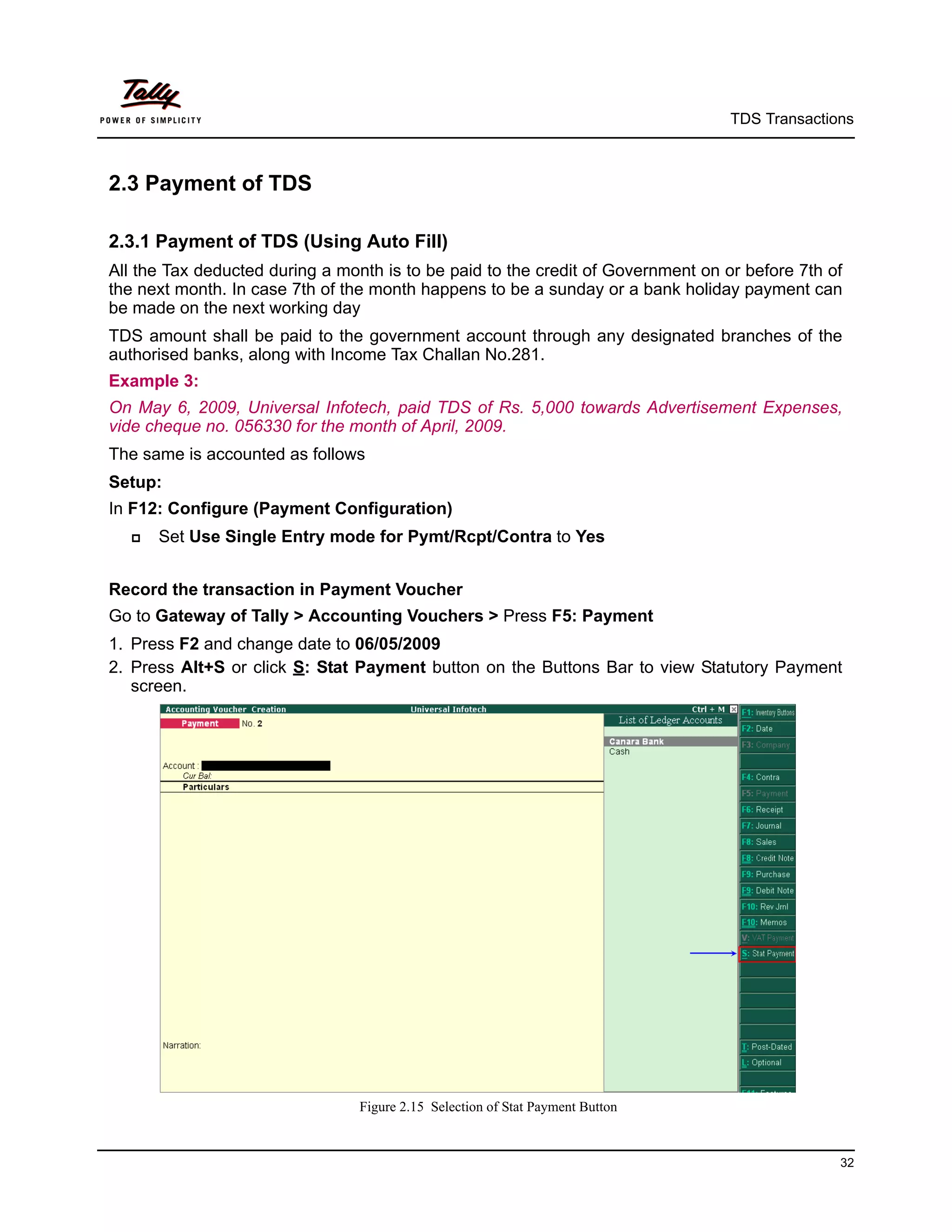

1. Record the transaction in Credit Note
Set up:
Ensure in F11: Features (F1: Accounting Features) following options are set to Yes
      Use Debit/Credit Notes
      Use Invoice mode for Credit Notes


Go to Gateway of Tally > Accounting Vouchers > Ctrl + F8: Credit Note (Account Invoice
Mode)
1. Press F2 to change the Date to 10-10-2009
2. In Party A/c Name field select Mark IT Solutions
3. Under Particulars field select Commission Expenses Ledger to account commission
   expenses
4. In Amount field enter Rs.50,000 (total commission due for the party)
5. Under Particulars select TDS - Commission Or Brokerage ledger to deduct TDS on the pay-
   ment of commission. Press enter to view TDS Details screen
6. In TDS Details screen
      In Type of Ref field select New Ref
      In Name field accept the default Reference Number – CNote/ 2-1


                                                                                                  139
TDS Transactions


     In Nature of Payment field select Commission Or Brokerage will be defaulted automati-
      cally
     Assessable Amount and TDS Amount field details are defaulted automatically, based on
      the information provided in the voucher.


                                      Figure 2.121 TDS Details Screen

     Press Enter to save TDS Details screen.
7. TDS Deducted on Commission Rs. 5000 will be displayed with Negative sign
8. In Bill-wise Details screen
      In Type of Ref field select New Ref (if Required you can select Agst Ref to adjust against
       the sales bill)
     In Name field enter the Bill Reference Number as CN/001
     Skip the Due Date or Credit Days field
     Accept the default amount allocation and Dr/Cr. By default Tally.ERP 9 displays the Bill
      amount in the amount field as the credit balance.
     Press Enter, select New Ref as Type of Ref and enter Bill name as CN/001
     Skip the Due Date or Credit Days field and accept the default amount allocation and Dr/
      Cr. By default Tally.ERP 9 displays the Tax amount in the amount field as the debit balance.


                                                                                                 140
TDS Transactions


Completed Credit Note voucher is displayed as shown


                               Figure 2.122 Completed Credit Note Voucher

9. Press Enter to Save.


                                                                                         141
TDS Transactions


2.14 Reversal of Excess TDS Deducted
In case of partial cancellation of transaction (s), the expenses and excess TDS deducted needs to
be reversed. In Tally.ERP 9, such reversal of expenses and TDS is possible only when the cancel-
lation of transaction is made before the payment of TDS to the Government.
In Tally.ERP 9, reversal of expenses can be accounted using Debit Note and reversal of TDS
deducted can be accounted using Credit Note.


Example 24:
On 20th October, 2009 Universal Infotech received bill from Pheonix Agencies for Rs. 75,000
towards Advertising Expenses.
On 22nd October, 2009 Universal Infotech cancelled the advertisement services to the extent of
Rs.25,000 and Expenses and TDS deducted are reversed.


To account the above transaction follow the steps given below
1. Record the Expenses in Journal Voucher
2. Reversal of Expenses (Debit Note)
3. Reversal of TDS (Credit Note)


1. Record the Expenses in Journal Voucher
Go to Gateway of Tally > Accounting Vouchers > F7: Journal
1.   Press F2 and change the date to 20-10-2009
2.   In Debit field select Advertisement Expenses from the List of Ledger Accounts
3.   Enter 75,000 in the Amount field.
4.   In Credit field select Phoenix Agencies and press enter to view TDS Details screen
5.   In TDS Details screen
        In Type of Ref field select New Ref from the Method of Adjustment.
        In Name field accept the default reference number displayed (example: Jrnl / 18-1)
        In Nature of Payment select Payments to Contractors (Advertisement Contractors)
         from the List of Nature of Pymt(s).
        In TDS Duty Ledger field select TDS – Contractors from the list of TDS Duty Ledgers.
        Amount specified against the expenses ledger will be displayed as the Assessable Amount
        Set the option Deduct now to Yes.
        TDS Amount field displays the Tax amount deducted at source
        Payable Amount field displays the amount (after TDS) payable to the Party.
        Press Enter to accept the TDS Details.
6. Payable Amount as calculated in the TDS Details screen will be defaulted in the Party’s
   Amount (Credit) field.


                                                                                                142
TDS Transactions


7. In Bill-wise Details screen specify the bill details as shown


                                     Figure 2.123 Bill-wise Details Screen

8. In Credit field select TDS ledger TDS – Contractors. Amount will be defaulted automatically.
Completed Journal Voucher is displayed as shown


                                   Figure 2.124 Completed Journal Voucher

9. Press Enter to Save.

                                                                                              143
TDS Transactions


2. Reversal of Expenses (Debit Note)
Go to Gateway of Tally > Accounting Vouchers > Ctrl+F9: Debit Note (Account Invoice
Mode)
1.   Press F2 and change the date to 22-10-2009.
2.   In Party’s A/c Name field select Pheonix Agencies from the List of Ledger Accounts.
3.   Under Particulars select Advertisement Expenses.
4.   Enter Rs. 25,000 in the Amount field.
5.   In TDS Nature of Payment Details screen, accept the default details.
6.   In TDS Details screen
        In Type of Ref select Agst Ref
        In Name field, select Jurl/18-1 to adjust the reversal of expenses
        In Nature of Payment field select Payments to Contractors (advertisement Contrac-
         tors)
        Based on the Tax Reference Number selected, Tally.ERP 9 defaults TDS Duty Ledger.
        In Assessable Value field Rs. 25000 will be displayed indicating that Rs.25000 is reversed
         against the expenses booked on 20-10-2009


                                        Figure 2.125 Reversal of Expenses


                    Observe, TDS Amount is not displayed as we are not reversing TDS in Debit Note


7. In Bill–wise Details screen


                                                                                                     144
TDS Transactions


        Select Agst Ref as the Type of Ref.
        In the Name field select Bill-869 dated 20-10-2009 from the Pending Bills to reverse the
         expenses.
        Skip the Due Date or Credit Days field.
        Accept the default amount allocation and Dr/Cr.


Completed Debit Note is displayed as shown


                                       Figure 2.126 Completed Debit Note

8. Press Enter to Save.


3. Reverse the excess TDS Deducted (Credit Note)
Go to Gateway of Tally > Accounting Vouchers > Ctrl+F8: Credit Note (Account Invoice
mode).
1.   Press F2 and change the date to 22-10-2009.
2.   In Party’s A/c Name field select Pheonix Agencies from the List of Ledger Accounts.
3.   Under Particulars select TDS - Contractor and press enter to view TDS Details screen
4.   In TDS Details screen
        In Type of Ref select Agst Ref


                                                                                                    145
TDS Transactions


     In Name field, select Jurl/18-1 to adjust the reversal of TDS
     Based on the Tax Reference Number selected, Tally.ERP 9 defaults Nature of Payment
      and TDS Amount


                                     Figure 2.127 TDS Details Screen

5. In Bill–wise Details screen
      Select Agst Ref as the Type of Ref.
     In the Name field select Bill-869 dated 20-10-2009 from the Pending Bills to reverse TDS.
     Skip the Due Date or Credit Days field.
     Accept the default amount allocation and Dr/Cr.


                                                                                              146
TDS Transactions


Completed Credit Note is displayed as shown


                                  Figure 2.128 Completed Credit Note

6. Press Enter to Save.


                                                                                    147
Lesson 3:               TDS Reports


            Lesson objectives
            On completion of this lesson, you will learn to

                  View TDS Computation
                  Reconcile TDS Challans
                  Generate TDS Forms & Certificates
                  View TDS Outstandings
                  View Exception Reports


3.1 TDS Reports
Tally.ERP 9 helps the user to generate the TDS Computation Report, Statutory Returns,
Reconcile TDS Challans and view other related reports at the end of a month, quarter or year, as
prescribed under the Act.
To view the TDS Reports
Go to Gateway of Tally > Display > Statutory Reports > TDS Reports


                                            Figure 3.1 TDS Reports


                                                                                              148
TDS Reports


3.2 Computation
TDS Computation report displays information about TDS transactions. It includes information
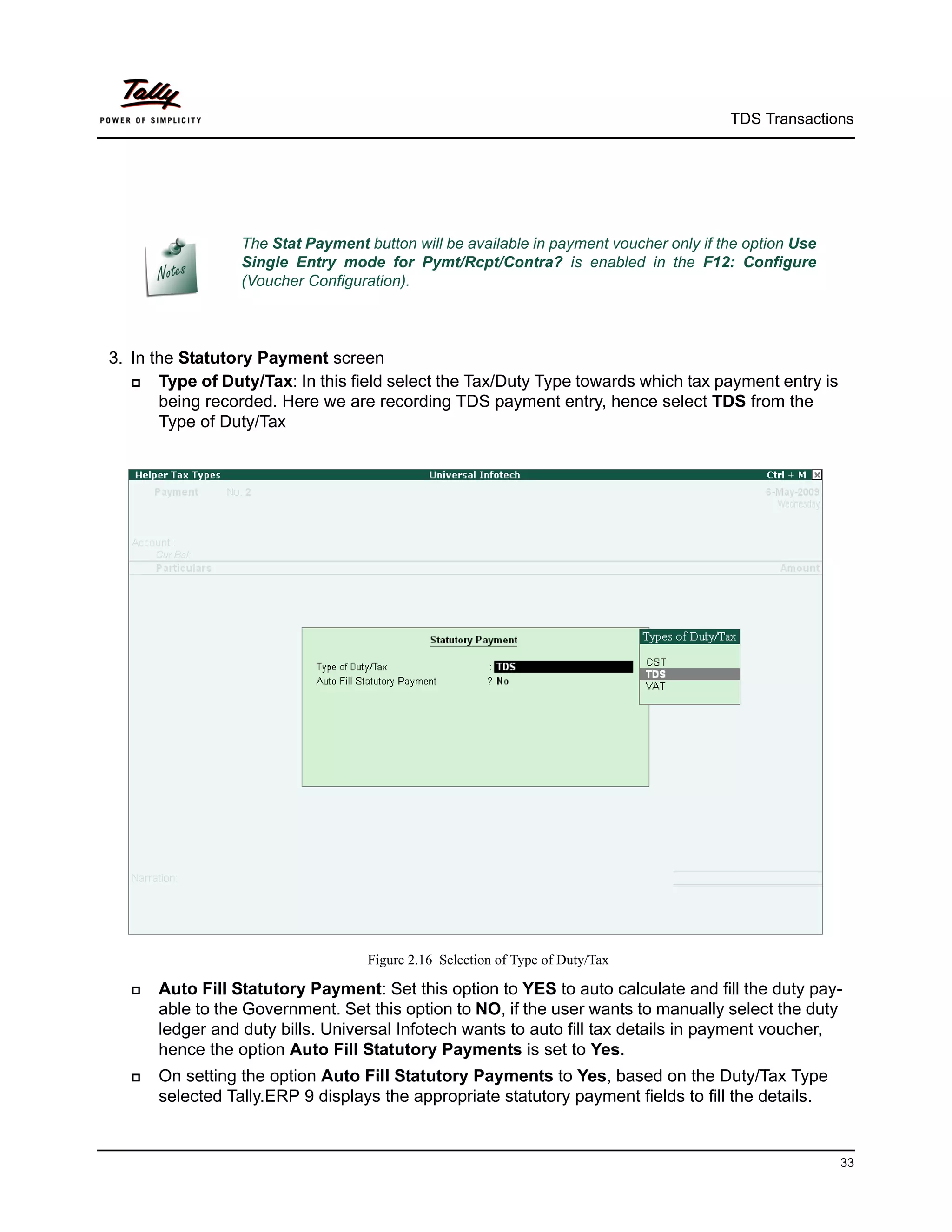
about the total expenses and advances on which TDS is applicable, TDS amount deducted,
balance TDS amount deductible, TDS amount paid and TDS amount pending for payment.
To view TDS Computation report
Go to Gateway of Tally > Display > Statutory Reports > TDS Reports > Computation


                                      Figure 3.2 TDS Computation

TDS Computation report is divided into 2 sections
1. Deduction Details: This section displays the details of Expenses & Advances, TDS
   Deducted and the Balance Deductible.
     Expenses & Advances: This displays the total expenses amount and total tax amount of
      all the TDS applicable expenses and advances made to parties.
       TDS  Not Applicable: This filed displays the total amount of Expenses on which TDS is
          not applicable
       Under Exemption Limit: This field displays the total amount of Expenses which have
          not crossed the TDS Exemption Limit.
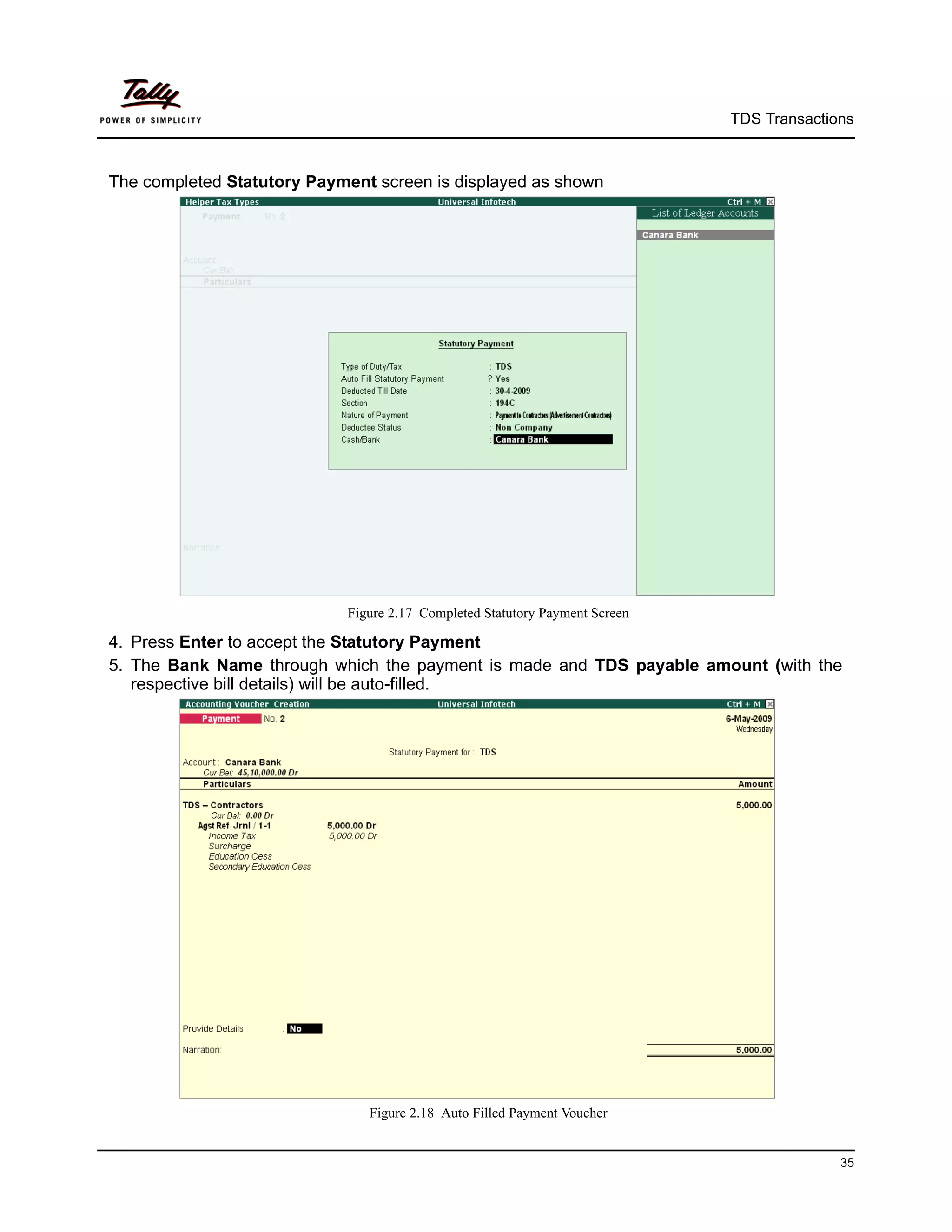
       Zero Rated: This field displays the total amount of expenses on which TDS is deducted
          at Zero Rate
       Exempt in lieu of PAN available: This field displays the total amount of expenses
          which are exempted from TDS on lieu of availability of PAN.
          Example: Transport services are purchased. The service provider - Contractor or Sub
          contractor of transport business has furnished his PAN. As per law in case where Con-

                                                                                             149
TDS Reports


           tractor or Sub contractor of transport business has furnished the PAN, NIL (0%) Rate
           will be applicable. Exempted expenses of this nature will be displayed in Exempt in lieu
           of PAN available filed.
        Taxable Expenses & Advances: This field displays the total amount of taxable
           expenses and total tax amount
      Deducted: This section displays the total amount of tax deducted at Normal Rate, at
       Lower Rate and at Higher Rate (in case of non-availability of PAN) till Date.
      Balance Deductable: This section displays the balance tax amount to be deducted either
       at normal rate or at lower rate.
      Excess Deducted: This section displays the excess tax deducted at Normal Rate, Lower
       rate and Higher rate (in case of non-availability of PAN)
2. Payment Details: This section displays the details of tax paid and tax Payable.
     Paid: This section displays the details of total tax paid in the previous month(s) and current
      month
      Balance Payable: This section displays the details of total tax payable in the previous
       month(s) and current month


3.2.1 TDS Computation – Party Wise
To view Party wise - TDS Computation press Enter on any particular Deduction Details to drill
down to a report that displays all the expenses marked with respective deduction details.
Select Expenses & Advances to drill down to Party Wise report


                                   Figure 3.3 TDS Computation – Party Wise


                                                                                                   150
TDS Reports


You can configure the Party wise report using F12: Configure
The options Show Tax Deductible, Show Balance to be deducted and Show Balance Payable
to Government are by default set to Yes


                                       Figure 3.4 F12: Configure


3.2.2 TDS Computation – TDS Paid
TDS Paid report displays details of Tax paid along with Date, Ref No. Nature of Payment.
To view TDS Paid - TDS Computation press Enter on any particular Paid details to drill down to
TDS Paid report. Select Paid
The TDS Paid report is displayed as shown


                                      Figure 3.5 TDS Paid Report


                                                                                            151
TDS Reports


3.2.3 TDS Computation – TDS Payable
To view TDS Payable report from TDS Computation press Enter on any particular Balance
Payable details. Select Balance Payable
The TDS Payable report is displayed as shown


                                   Figure 3.6 TDS Payable Report


                                                                                   152
TDS Reports


3.3 Challan Reconciliation
Reconciliation of Challan Payments made towards TDS accounts through bank can be done in
Challan reconciliation.
To view Challn Reconciliation report
Go to Gateway of Tally > Display > Statutory Reports > TDS Reports > Challan Reconcilia-
tion
The Challan Reconciliation report is displayed as shown


                                       Figure 3.7 Challan Reconciliation

TDS Challan Reconciliation screen displays all the vouchers for the period selected. Challan rec-
onciliation is done only for those vouchers for which the payment details are not provided during
voucher entry.
TDS Challans can be reconciled either by updating the E-TDS Quarter Period (From & To)
Cheque/DD No., Name of Bank, BSR Code, Challan No., and Challan Date in the reconcilia-
tion screen OR by using Set Challan Details (Alt +S) button from the Buttons Bar to reconcile
challans.
To Reconcile the TDS Challan Press F5 key or click the button F5: Challan Reconcile


                                                                                               153
TDS Reports


Select the voucher dated 4-6-2009, which needs to be reconciled and enter E-TDS Quarter
Period (From & To) Cheque/DD No., Name of Bank, BSR Code, Challan No., and Challan
Date.


                                Figure 3.8 TDS Challan Reconciliation Screen

Press Enter to accept TDS Challan Reconciliation.


3.4 Return
Tally.ERP 9 allows the user to print Form 16 A and all the Quarterly and Annual TDS Return
Forms and Annexures.


3.4.1 Print Form 16A
Form 16A is a certificate of proof that deductor has deducted the tax and paid the same to the
government. This proof is essential to the deductee to claim the credit of tax in his Income Tax
returns.
To print Form 16A
Go to Gateway of Tally > Display > Statutory Reports > TDS Reports > Return > Print Form
16A


                                                                                              154
TDS Reports


In Select Item screen
     Select the party – Pheonix Agencies from the List of TDS Party Ledgers


                                        Figure 3.9 Select Item Screen

     The Printing TDS Form 16A screen appears as shown


                                  Figure 3.10 Printing TDS Form 16A screen

Press Backspace key to navigate to the fields in the Printing TDS Form 16A screen.
     Name: By default displays the name of the person entered in Company TDS Deductor
      Details as the Person Responsible. This name can be changed.
     Son/Daughter of: This field displays the Parent Name mentioned in Company TDS
      Deductor Details
     Designation: By default displays the designation of the person entered in Company TDS
      Deductor Details in designation field. This can be changed.
     Print as Previous Format: By default this field is set to No. Set this filed to Yes to print
      Form 16 A in Previous format.

                                                                                                     155
TDS Reports


   Nature of Payment: Based on the Party selected in the Select Item screen, Tally.ERP 9
    displays all the party related nature of payments under which TDS is deducted. User can
    select all the Nature of Payments (All Items) or any one of the Nature of Payment from
    the list, for printing Form 16A.


                                  Figure 3.11 Selection of Nature of Payment

   From: By default displays 1-4-2009 which can be changed.
   To: Enter the To date
   Challan Till Date: In this field enter the date to consider the challan payments made.
   Type of Copy: From Type of Copy select the option Default or User Defined
   Print Total: Set this option to print the total of tax paid.


              Cursor will move to Print Total field only when the option Print as Previous Format
              is set to Yes.

   Place: Enter the Place
   Date: Mention the Date of issue of Form 16A
   Quarter/Acknowledgement: Mention the Receipt Number of the TDS returns filed
    against the appropriate Quarter.


                                                                                                    156
TDS Reports


               Receipt Number is a 8 digit Alpha Number. This number to be mentioned on the
               Form 16A to be issued to the parties on behalf of whom the tax is deducted at
               Source and paid to the Govenment.
               The Receipt Number to be mentioned on the Form 16A issued for the Financial
               Year 2010-11.

     CIT (TDS) Details: In this section enter the name and address of the Commissioner of
      Income Tax having jurisdiction as regards TDS statements of the assessee.
       Name:  In this field enter the Name of the Commissioner
       Address: Enter the address of the commissioner office

       City: Mention the City name

       Pin Code: Enter the PIN Code.

The completed Printing TDS Form 16A appears as shown


                               Figure 3.12 Completed Printing TDS Form 16A

     Press Enter to view TDS Form 16A screen. Click on Zoom or press Alt +Z to view the Print
      Preview of Form 16A


                                                                                               157
TDS Reports


The print preview of Form 16A is displayed as shown


                                       Figure 3.13 Form 16A


                                                                      158
TDS Reports


3.4.2 Form 26Q
Form 26Q is a Quarterly return for deduction of tax in respect of payments made to residents
other than salary.


To print Form 26Q
Go to Gateway of Tally > Display > Statutory Reports > TDS Reports > Return > Form 26Q
In Printing TDS Form 26Q press Backspace to make changes in Person Responsible Details
or Other Details fields.


                                  Figure 3.14 Printing TDS Form 26Q


                                                                                          159
TDS Reports


The print preview of Form 26Q is displayed as shown


                                  Figure 3.15 Form No. 26Q – Page 1


                                  Figure 3.16 Form No. 26Q – Page 2


                                                                              160
TDS Reports


3.4.3 Annexure to 26Q
Annexure to Form 26 Q gives the deductee wise break-up of TDS.
To print Annexure to Form 26 Q
Go to Gateway of Tally > Display > Statutory Reports > TDS Reports > Return > Annexure to
Form 26Q
In Printing TDS Form 26Q press Backspace to make changes in Person Responsible Details or
Other Details fields.
Press Enter to view the print preview of Annexure to Form 26 Q


                                  Figure 3.17 Annexure to 26Q - Page 1


                                  Figure 3.18 Annexure to 26Q - Page 2


                                                                                       161
TDS Reports


                 As per requirement of the IT department for the payment made towards different
                 Nature of Payment separate annexure should be printed in the prescribed Proforma.
                 Tally.ERP 9 prints separate annexure for different Nature of Payment.


3.4.4 Form 27 Q
Form 27Q is a Quarterly return for deduction of tax in respect of payments made to non-residents
other than salary.
To print Form 27Q
Go to Gateway of Tally > Display > Statutory Reports > TDS Reports > Return > Form 27Q
In Printing TDS Form 27Q press Backspace to make changes in Person Responsible Details or
Other Details fields.
The Print preview of Form 27Q appears as shown


                                       Figure 3.19 Form 27Q – Page 1


                                                                                                     162
TDS Reports


Figure 3.20 Form 27Q – Page 2


                                        163
TDS Reports


3.4.5 Annexure to 27Q
Annexure to Form 27 Q gives the deductee wise break-up of TDS.
To Print Annexure to Form 27 Q
Go to Gateway of Tally > Display > Statutory Reports > TDS Reports > Return > Annexure to
Form 27Q
In Printing TDS Form 27Q press Backspace to make changes in Person Responsible Details or
Other Details fields.
Print preview of Annexure to Form 27 Q is displayed as shown


                                    Figure 3.21 Annexure to 27Q


                                                                                       164
TDS Reports


3.4.6 Form 26
Form 26 is an Annual return for deduction of tax in respect of payments made to residents other
than salary.


To print Form 26
Go to Gateway of Tally > Display > Statutory Reports > TDS Reports > Return > Form 26
     In Printing TDS Form 26 press Backspace to make changes in Person Responsible
      Details or Other Details fields.


                                    Figure 3.22 Printing TDS Form 26

     Press enter to view print preview of Form 26


                                                                                             165
TDS Reports


The print preview of Form 26 appears as shown


                                       Figure 3.23 Form 26


                                                                     166
TDS Reports


3.4.7 Annexure to Form 26
To Print Annexure to Form 26
Go to Gateway of Tally > Display > Statutory Reports > TDS Reports > Return > Annexure to
Form 26
In Printing TDS Form 26 press Backspace to make changes in Person Responsible Details or
Other Details fields.


                                     Figure 3.24 Annexure to Form 26


                As per requirement of the IT department for each type of payment separate
                annexure will be printed in the prescribed Proforma.
                Tally.ERP 9 prints separate annexure for each type of payment


                                                                                            167
TDS Reports


3.4.8 Form 27
Form 27 is an annual return for deduction of tax in respect of payments other than salary made to
Non-residents.
To print Form 27
Go to Gateway of Tally > Display > Statutory Reports > TDS Reports > Return > Form 27
In Printing TDS Form 27 press Backspace to make changes in Person Responsible Details or
Other Details fields. Press enter to view print preview of Form 27
The print preview of Form 27 appears as shown


                                          Figure 3.25 Form 27


                                                                                               168
TDS Reports


3.4.9 Annexure to 27
To print Annexure to 27
Go to Gateway of Tally > Display > Statutory Reports > TDS Reports > Return > Annexure to
Form 27


In Printing TDS Form 27 press Backspace to make changes in Person Responsible Details or
Other Details fields. Press Enter to view Annexure to 27.
The print preview of Annexure to 27 appears as shown


                                   Figure 3.26 Annexure to Form 27


                                                                                       169
TDS Reports


3.5 E–Returns
The Income Tax department has now notified ‘Electronic Filing of Returns of Tax Deducted at
Source Scheme, 2003’. It is applicable to all deductors furnishing their TDS return in electronic
form. As per this scheme,
     It is mandatory for corporate deductors to furnish their TDS returns in electronic form (e-
      TDS return) with effect from June 1, 2003.
      For government deductors it is mandatory to furnish their TDS returns in electronic form
      (e-TDS return) from financial year 2004-2005 onwards.
     Deductors (other than government and corporates) may file TDS return in electronic or
      physical form.


Deductors furnishing TDS returns in electronic form (e-TDS) have to furnish Form 27A. Form 27A
is a control chart to be furnished in physical form along with CD/ Floppy containing the e-TDS
returns. Form No 27A is required to be furnished separately for each TDS return.
Form 27A is a summary of e-TDS returns which contains control totals of ‘Amount paid‘ and
‘Income tax deducted at source’. The control totals mentioned on Form 27A should match with the
corresponding control totals in e-TDS returns.
      Forms          Periodicity                               Due Date
  Form 26Q        Quarterly            On or before 15th July, 15th October, 15th January and
                                       5th June
  Form 27Q        Quarterly            On or before 14the July, 14th October, 14the January
                                       and 14th April or 14th June
  Form 26         Annual               On or before 30th June, following the financial year.
  Form 27         Annual               On or before 30th June, following the financial year.
  Form 27A        Annual/Quarterly     Filed in physical form with each return i.e. Form 26Q,
                                       Form 27Q, Form 26 and Form 27.


                                                                                                    170
TDS Reports


3.5.1 E–TDS
E-TDS menu displays the eTDS Quarterly and Annual Forms, which can be exported from
Tally.ERP 9 and validated using TDS/TCS File Validation Utility.
To view the E-TDS Forms
Go to Gateway of Tally > Display > Statutory Reports > TDS Reports > E–Return > E–TDS


                                        Figure 3.27 E-TDS Forms


3.5.2 Form 26Q
Form 26Q is a Quarterly return for deduction of tax in respect of payments made to residents
other than salary.


To export Form 26Q
Go to Gateway of Tally > Display > Statutory Reports > TDS Reports > E-Returns > E-TDS >
Form 26Q
In Exporting eTDS Form press Backspace to make changes in Person Responsible Details or
Other Details fields.


     By default, the Language and Format is preset as Restricted (ASCII Only) and SDF
      (Fixed Width) respectively.
     By default the Export Location is preset the Tally.ERP 9 folder as the location to export the
      file which can be changed by the user.
     In the Output File Name field specify the file name as Form 26Q.txt
     Press Enter to accept the Person Responsible Details (The Address details are automat-
      ically defaulted from the Company masters in the Person Responsible Details column)


                                                                                                  171
TDS Reports


   As per the new E-TDS structure introduced Mobile Number or STD Code with Telephone
    number have to be provided to generate E-TDS forms. To meet the requirement below
    fields are introduced
     MobileNumber: This field is provided to specify the mobile number of the assessee
     STD Code: This field is provided to enter the STD code

     Telephone: This filed is provided to enter the telephone number of the assessee


              As per the new Data Structure either the Mobile Number or STD Code with
              Telephone number is must be specified in the E-TDS file.
                 Ifthe user tries to navigate without specifying the Mobile number or STD Code
                    or Telephone number application will not allow the user to move further.


   Select Yes or No as applicable, in Is Change in Address since last Return field.
   Under Other Details,
     InCategory (Deductor/Collector) field select the applicable Deductor Category from
        the list. E.g. Company


                                   Figure 3.28 Exporting eTDS Forms


                                                                                                   172
TDS Reports


       Specify the applicable date in the From and To fields
       Specify 07-07-2009 in the Challan Date Till field (i.e., Challan date to be considered for
          TDS payments made for the respective quarter/period)
     In Form Name field Tally.ERP 9 by default displays Form 26Q.
     Specify the Place and Date of Filing Returns


The Exporting eTDS Forms configuration screen appears as shown


                                   Figure 3.29 Expoting eTDS Forms Screen

     Press Enter to Export Quarterly Return in 26Q


                                                                                                   173
TDS Reports


The exported file can be located in the path specified in the File Location field of the Exporting
eTDS Forms screen with the file name as specified above


                           Figure 3.30 Exported Form 26Q in the File Location Specified


The exported file (form 26Q) is required to be validated with the File Validation Utility (a freely
down load able utility from NSDL website) and after validation, the returns should be submitted to
the department in CD along with Form 27A in Physical Form.


                   Similarly   user can export Form 27Q, Form 26 and Form 27 from Tally.ERP 9.
                   It is mandatory to validate the TDS returns with File Validation Utility to confirm
                      to the requirements as prescribed by the Income tax department. In case of any
                      errors in exported file (Returns), the FVU prompts a error message with error
                      code, the assessee may correct the same and re-validate the returns. The File
                      Validation Utility is available for Quarterly and Annual returns separately.
                    Tally.ERP   9 exports Form 26Q, Form 27Q, Form 26 and Form 27 in the text
                      (.txt) format as prescribed by NSDL.


                                                                                                           174
TDS Reports


3.5.3 Print Form 27A
Form 27A is a summary of TDS return which contains control totals of Amount paid and Income
tax deducted at source. Form 27A is to be filed in physical form with each return i.e., Form 26Q
Form 27 Q, Form 26 and Form 27.
In case of returns submitted in the paper form, form 27A need not be attached. Follow the steps
given below to print Form 27A
To print Form 27A
Go to Gateway of Tally> Display >Statutory Reports > TDS Reports > E–Return > Print Form
27A.
The completed Printing TDS Form 27A configuration screen is displayed as shown.


                                    Figure 3.31 Printing TDS Form 27A

     Press Enter to print Form 27A


                                                                                              175
TDS Reports


The print preview of Form 27A is displayed as shown.


                                 Figure 3.32 Print Preview of Form 27A


                                                                                 176
TDS Reports


3.6 Outstandings

3.6.1 TDS payable
TDS Payable report gives you information on the status of TDS payable (pending) to Govern-
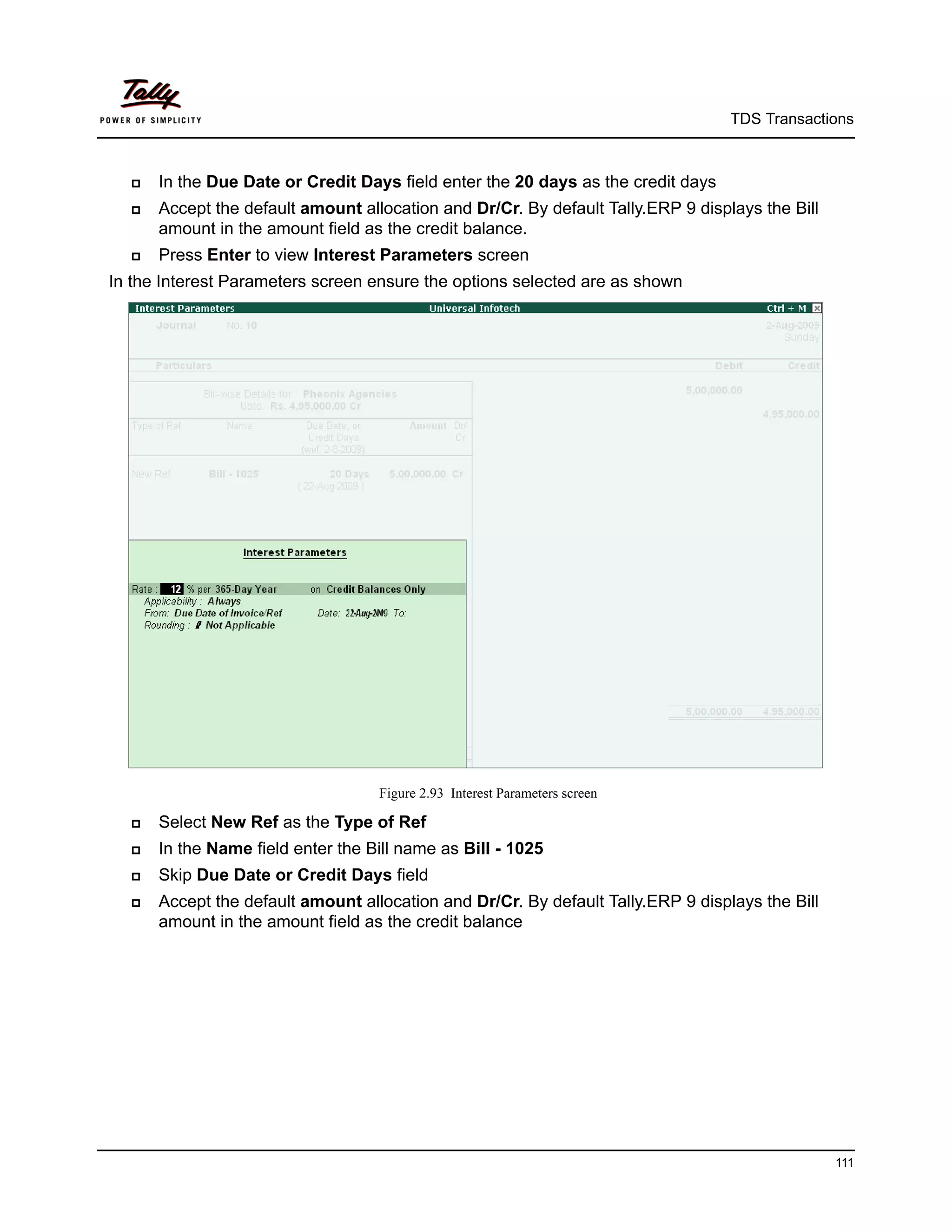
ment amounts for a particular Nature of Payment.


To view TDS Payable report
Go to Gateway of Tally > Display > TDS Reports > Outstanding > TDS Payables


                                      Figure 3.33 TDS Payable Report

Press Alt+F1 or click on F1: Detailed to view the details of the transactions


                                                                                        177
TDS Reports


3.6.2 Ledger
TDS Ledger Outstandings report displays ledger wise TDS outstandings. This report can be
viewed for all the ledgers or for one ledger.


                                            Figure 3.34 Ledger

To view Ledger Outstandings for all the ledgers select All Items
The TDS Ledger Outstandings report appears as shown


                               Figure 3.35 TDS Ledger Outstandings – All Item


                                                                                        178
TDS Reports


To view TDS Ledger Outstandings for particular ledger select One ITem
From the List of TDS Party Ledgers select Pheonix Agencies and press Enter to view TDS
Ledger Outstandings report.


                             Figure 3.36 TDS Ledger Outstandings – One Item

3.6.3 Nature of Payment
TDS Nature of Payment Outstandings report displays Nature of Payment wise TDS outstand-
ings. This report can be viewed for all the Nature of Payment or for one Nature of Payments.


                                     Figure 3.37 Nature of Payment


                                                                                          179
TDS Reports


To view Nature of Payment Outstandings for all the Nature of Payment select All Items
The TDS Nature of Payment Outstandings report is displayed as shown


                          Figure 3.38 TDS Nature of Payment Outstandings – All Item

To view TDS Nature of Payment Outstandings for Particular Nature of Payment select One
ITem
From the List of TDS Nature of Payments select Commission Or Brokerage and press Enter
to view TDS Nature of Payment Outstandings report


                          Figure 3.39 TDS Nature of Payment Outstanding – One Item


                                                                                              180
TDS Reports


3.7 TDS Not Deducted
TDS Not Deducted report displays party wise TDS not deducted details.
To view the TDS Not Deducted report
Go to Gateway of Tally > Display > TDS Reports > Outstandings > TDS Not Deducted


                                  Figure 3.40 TDS Not Deducted Report


                                                                                     181
TDS Reports


3.8 Exception Reports
Exception Reports user can view the reports related Migrate Tools, TDS Masters without PAN
Details and deductee Type.
To view TDS Exception Reports
Go to Gateway of Tally > Display> Statutory Reports > TDS Reports > Exception Reports


                                       Figure 3.41 Exception Reports


The Exception Reports are
     PAN Not Available
     Unknown Deductee Type
     Migrate Tools


3.8.1 PAN Not Available
PAN Not Available report displays all the Party Ledgers for whom the PAN details is not availa-
ble.
To view the PAN Not Available report
Go to Gateway of Tally > Display > Statutory Reports > TDS Reports > Exception Reports >
PAN Not Available
Example: Create ledger SYS Image without providing PAN / IT No.


                                                                                             182
TDS Reports


The PAN Not Available report is displayed as shown


                                    Figure 3.42 PAN Not Available Report

PAN Details of the Party can be updated from this screen. Once you update PAN details, such
party ledgers will not be displayed further in the PAN Not Available report.


This Report is useful to trace the party ledgers for which the PAN Details are not available before
filing the e-returns.


3.8.2 Unknown Deductee Type
Unknown Deductee Type report displays all the Party Ledgers for whom the Deductee Type is
not defined.


To view the Unknown Deductee Type report
Go to Gateway of Tally > Display > Statutory Reports > TDS Reports> Exception Reports >
Unknown Deductee Type
Example: Create ledger Attra Infotech without selecting Deductee Type


                                                                                                 183
TDS Reports


                                  Figure 3.43 Unknown Deductee Type

Deductee Type Details of the Party can be updated from this screen. Once you update Deductee
Type details, such party ledgers will not be displayed further in the Unknown Deductee Type
report.


This Report is useful to trace the party ledgers for which the Deductee Type Details are not
available before filing the e-returns.


                                                                                          184
TDS Reports


3.8.3 Migrate Tool
From Migrate Tool menu you can select migration related reports.
To view Migrate Tool
Go to Gateway of Tally > Display > TDS Reports > Exception Reports > Migrate Tool


                                          Figure 3.44 Migrate Tool


                 Migration related information will be displayed in any of the above reports, only
                 when in the data (company) which is migrated from earlier versions of Tally (Tally 9/
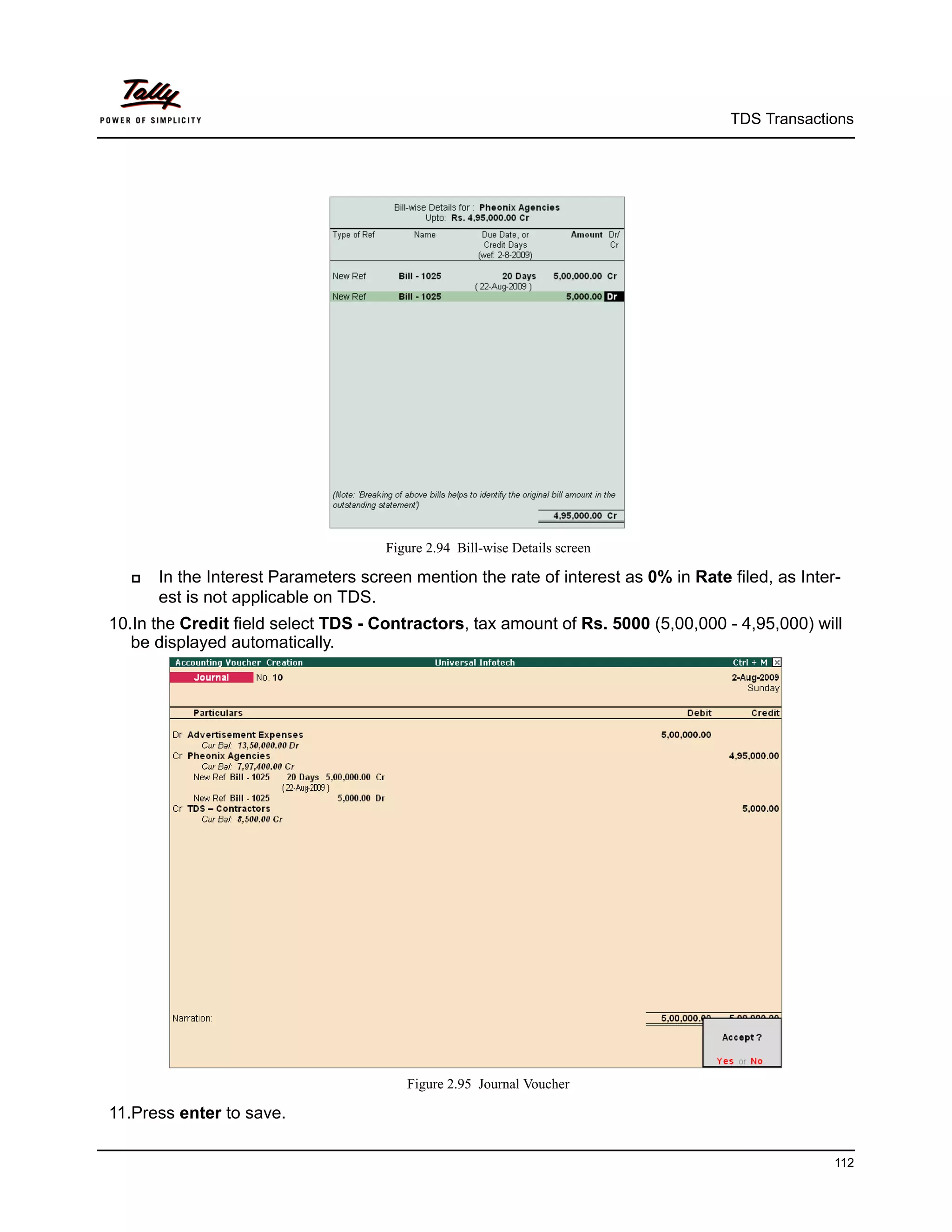
                 Tally 8.1/Tally 7.2) to Tally.ERP 9


Track Migrate Vouchers
Track Migrate Vouchers report displays TDS Party-wise Total, Migrated and Un-migrated
vouchers details. On selecting a particular party from this report Tally.ERP 9 displays the un-
migrated vouchers with reasons for non-migration.
To view Track Migrate Vouchers report


Go to Gateway of Tally > Display > Statutory Reports > TDS Reports > Exception Reports >
Migrate Tools > Track Migrate Vouchers


                                                                                                         185
TDS Reports


Track Migrate Bills
Track Migrate Bills report displays Tax bill name wise migrated and non-migrated voucher
Here user can identify migrated/non- migrated vouchers by comparing the Previous deduction
amount and new deduction amount and previous payment amount and new payment amount are
same.


If the Deduction Amounts (Previous and New) and Payment Amounts (Previous and New)
are same then it is understood that the vouchers are successfully migrated.


If the Deduction Amounts (Previous and New) and Payment Amounts (Previous and New)
are not same then it is understood that the vouchers are not migrated.


Track Masters
Track Masters Report displays TDS Ledger wise Lower Deduction, Zero Deduction and IT
Exemption details.


                 This Report can be used to check the details such as Zero/Lower Deduction or IT
                 Exemption in TDS Masters which needs to be updated manually in migrated data.


Re-Migrate
To un-migrate the TDS migrated vouchers click on Re-migrate option.
On clicking the Re-Migrate option, Tally.ERP 9 first un-migrates all the TDS vouchers and then re-
migrates all the vouchers. If the migration is not complete the application displays the message -
TDS Migration did not complete sucessfully.


                                                                                                   186

tally erp 9

  • 1.
    Implementation of TDS in Tally.ERP 9
  • 2.
    The information containedin this document is current as of the date of publication and subject to change. Because Tally must respond to changing market conditions, it should not be interpreted to be a commitment on the part of Tally, and Tally cannot guarantee the accuracy of any information presented after the date of publication. The information provided herein is general, not according to individual circumstances, and is not intended to substitute for informed professional advice. This document is for informational purposes only. TALLY MAKES NO WARRANTIES, EXPRESS OR IMPLIED, IN THIS DOCUMENT AND SHALL NOT BE LIABLE FOR LOSS OR DAMAGE OF WHATEVER NATURE, ARISING OUT OF, OR IN CONNECTION WITH THE USE OF OR INABILITY TO USE THE CONTENT OF THIS PUBLICATION, AND/OR ANY CONDUCT UNDERTAKEN BY PLACING RELIANCE ON THE CONTENTS OF THIS PUBLICATION. Complying with all applicable copyright and other intellectual property laws is the responsibility of the user. All rights including copyrights, rights of translation, etc., are vested exclusively with TALLY SOLUTIONS PRIVATE LIMITED. No part of this document may be reproduced, translated, revised, stored in, or introduced into a retrieval system, or transmitted in any form, by any means (electronic, mechanical, photocopying, recording, or otherwise), or for any purpose, without the express written permission of Tally Solutions Pvt. Ltd. Tally may have patents, patent applications, trademarks, copyrights, or other intellectual property rights covering subject matter in this document. Except as expressly provided in any written licence agreement from Tally, the furnishing of this document does not give you any licence to these patents, trademarks, copyrights, or other intellectual property. © 2009 Tally Solutions Pvt. Ltd. All rights reserved. Tally, Tally 9, Tally9, Tally.ERP, Tally.ERP 9, Shoper, Shoper 9, Shoper POS, Shoper HO, Shoper 9 POS, Shoper 9 HO, TallyDeveloper, Tally Developer, Tally.Developer 9, Tally.NET, Tally Development Environment, Tally Extender, Tally Integrator, Tally Integrated Network, Tally Service Partner, TallyAcademy & Power of Simplicity are either registered trademarks or trademarks of Tally Solutions Pvt. Ltd. in India and/or other countries. All other trademarks are properties of their respective owners. Version: Implementation of TDS in Tally.ERP 9/4.0/October 2010
  • 3.
    Contents Introduction Scope & Applicability .............................................................................................................................. 1 TDS Process .............................................................................................................................................. 4 Time & Mode of TDS Payment ................................................................................................................ 5 Issue of TDS certificate ............................................................................................................................ 5 e-TDS Returns .......................................................................................................................................... 6 Returns & Time lines ................................................................................................................................ 7 TDS Features in Tally.ERP 9 ................................................................................................................... 8 Lesson 1: Enabling TDS in Tally.ERP 9 1.1 Enabling TDS in Tally.ERP 9 ........................................................................................................... 9 Lesson 2: TDS Transactions 2.1 Transactions Involving TDS ........................................................................................................... 16 2.1.1 TDS on Expenses (Journal Voucher) ....................................................................................................... 16 2.2 Payment to Party ............................................................................................................................. 30 2.3 Payment of TDS .............................................................................................................................. 32 2.3.1 Payment of TDS (Using Auto Fill) ........................................................................................................... 32 2.3.2 Generating TDS Challan (ITNS 281) ...................................................................................................... 38 2.4 Transactions Involving TDS ........................................................................................................... 42 2.4.1 Expenses Partly Subject to TDS (Journal Voucher) ................................................................................ 42 2.4.2 Accounting of Expenses and Deducting TDS Later ................................................................................ 53 2.4.3 Accounting Multiple Expenses and Deducting TDS Later ..................................................................... 63 2.4.4 TDS on Advances ..................................................................................................................................... 69 2.4.5 TDS on Expenses @ Lower Rate ............................................................................................................. 75 2.4.6 TDS on Expenses @ Zero Rate ................................................................................................................ 84 2.5 Adjustments in TDS ........................................................................................................................ 89 2.5.1 Reversal Of Expenses and TDS ............................................................................................................... 89 2.6 Accounting Changes in TDS percentage ........................................................................................ 94 2.7 Accounting TDS on Payments made to Non Residents (DTAA) ................................................... 95 2.8 TDS on Interest Payments ............................................................................................................ 100 2.8.1 TDS on Interest Paid on Loans Taken ................................................................................................... 100 2.8.2 TDS on Interest Paid Towards Overdue Payments ............................................................................... 109 2.9 TDS on Expenses with Inventory ................................................................................................. 118 2.10 TDS on Fixed Assets .................................................................................................................. 124 2.11 Payment of TDS .......................................................................................................................... 128 2.11.1 Payment of TDS (Using Auto Fill) ....................................................................................................... 128 2.11.2 Generating TDS Challan (ITNS 281) .................................................................................................. 131 2.12 Accounting Payment of Interest and Penalties ........................................................................... 133 2.13 TDS on Sales Commission ......................................................................................................... 139 i
  • 4.
    Contents 2.14 Reversal of Excess TDS Deducted ............................................................................................. 142 Lesson 3: TDS Reports 3.1 TDS Reports ................................................................................................................................. 148 3.2 Computation .................................................................................................................................. 149 3.2.1 TDS Computation – Party Wise ............................................................................................................. 150 3.2.2 TDS Computation – TDS Paid ............................................................................................................... 151 3.2.3 TDS Computation – TDS Payable ......................................................................................................... 152 3.3 Challan Reconciliation.................................................................................................................. 153 3.4 Return ............................................................................................................................................ 154 3.4.1 Print Form 16A ...................................................................................................................................... 154 3.4.2 Form 26Q ............................................................................................................................................... 159 3.4.3 Annexure to 26Q .................................................................................................................................... 161 3.4.4 Form 27 Q .............................................................................................................................................. 162 3.4.5 Annexure to 27Q .................................................................................................................................... 164 3.4.6 Form 26 ................................................................................................................................................. 165 3.4.7 Annexure to Form 26 ............................................................................................................................. 167 3.4.8 Form 27 ................................................................................................................................................. 168 3.4.9 Annexure to 27 ....................................................................................................................................... 169 3.5 E–Returns ...................................................................................................................................... 170 3.5.1 E–TDS .................................................................................................................................................... 171 3.5.2 Form 26Q ............................................................................................................................................... 171 3.5.3 Print Form 27A...................................................................................................................................... 175 3.6 Outstandings ................................................................................................................................. 177 3.6.1 TDS payable ........................................................................................................................................... 177 3.6.2 Ledger .................................................................................................................................................... 178 3.6.3 Nature of Payment ................................................................................................................................. 179 3.7 TDS Not Deducted......................................................................................................................... 181 3.8 Exception Reports ......................................................................................................................... 182 3.8.1 PAN Not Available ................................................................................................................................. 182 3.8.2 Unknown Deductee Type ....................................................................................................................... 183 3.8.3 Migrate Tool .......................................................................................................................................... 185 ii
  • 5.
    Introduction TDS means TaxDeducted at Source. The concept of TDS was introduced in the Income Tax Act, 1961, with the objective of deducting the tax on an income, at the source of income. It is one of the methods of collecting Income Tax, which ensures regular flow of income to the Government. Example: Universal Infotech is making the payment towards Rent to the owner of the building, it is required to deduct the tax on the income (i.e. before payment to the owner), at the source of income. Scope & Applicability Scope Tax deduction at source means the tax required to be paid by the assessee, is deducted by the person paying the income to him. Thus, the tax is deducted at the source of income itself. The income tax act enjoins on the payer of such income to deduct the given percentage of income as income tax and pay the balance amount to the recipient of such income. The tax so deducted at source by the payer is to be deposited in the income tax department account. The tax so deducted from the income of the recipient is deemed payment of income tax by the recipient at the time of his assessment. For example: Person responsible for paying any income which is chargeable to tax under the head 'Salaries' is required to compute the tax liability in respect of such income and deduct tax at source at the time of payment. If the employee has any other income, he needs to inform the employer so that employer can take that income into consideration while computing his tax liability but he will not take into account losses except loss from house property. Similarly, person responsible for paying any income by way of 'interest on securities' or any other interests are required to deduct tax at source at the prescribed rates at the time of credit of such income to the account of the payee or at the time of payment, whichever is earlier. 1
  • 6.
    Introduction Applicability Tax will bededucted at source based on the rate defined in the Act, only on the fulfilment of the below mentioned conditions. 1. The Assessees (includes individual & HUF as covered U/S 44AB) carrying on business is deducting the tax at the Time of Payment or Credit, (whichever is earlier) against following type of Recipient (Deductee)  Individual  Hindu undivided Family (HUF)  Body of Individual (BOI)  Association of person (AOP)  Co-Operative society  Local Authority  Partnership firm  Domestic company (Indian company)  Foreign company  Artificial Judicial Person 2. The nature of payment belongs to any one of following list Nature of Payment Nature of Payment Salaries Interest on Securities Dividend Interest other than securities Winnings from lottery or crossword puzzles or Winnings from horse races card game or other game Payment to sub-contractors Insurance commission Payments to Contractors (Advertisement Con- Payments to Contractors (Other than tractors) Advertisement) Payment to Non–Resident sportsman or sports Payment in respect of deposits under association NSS Payment on account of repurchase of units of Commission on sale of lottery tickets MF or UTI Commission or brokerage Rent of Land, Building or Furniture Rent of Plant, Machinery or Equipment Fees for professional or technical serv- ices Payment of compensation on acquisition of cer- Payment of Any other income to a non- tain immovable property resident Income from units to an offshore fund Income of foreign institutional investors from securities 2
  • 7.
    Introduction Feesfor Tech. Services Agreement is made Fees for Tech. Services Agreement is made after Feb. 29, 1964 before April 1, 1976 after Mar 31, 1976 before June 1, 1997 Fees for Tech. Services Agreement is made Fees for Tech. Services Agreement is made after May 31, 1997 before June 1, 2005 on or after June 1, 2005 Income by way of Long-Term Capital Gains Income from Foreign Currency Bonds or Global Depository Receipts (GDR) Income from Foreign Exchange Assets paya- Interest payable by Government or Indian ble concern in Foreign Currency Long–Term Capital Gains Royalty (f) Agreement is made after May 31, 1997 before June 1, 2005 Royalty (f) Agreement is made before June 1, Royalty (f) Agreement is made on or after 1997 June 1, 2005 Royalty (g) Agreement is made after March 31, Royalty (g) Agreement is made after March 1961 before April 1, 1976 31, 1976 before June 1, 1997 Royalty (g) Agreement is made after March 31, Royalty (g) Agreement is made on or after 1997 before June 1, 2005 June 1, 2005 Short–Term Capital Gains 3. The payment exceeds the TDS Exemption Limit specified in the Income Tax Act. As per Sec 44AB, Individual and HUF is also considered as assessee under Income Tax Act, if such Individual and HUF  Carrying on Business, where the total sales, turnover or gross receipts from the business exceeds Rs. 40 lakhs in any Previous Year Carrying on Profession, where the total receipts exceeds Rs. 10 lakhs in any previous year 3
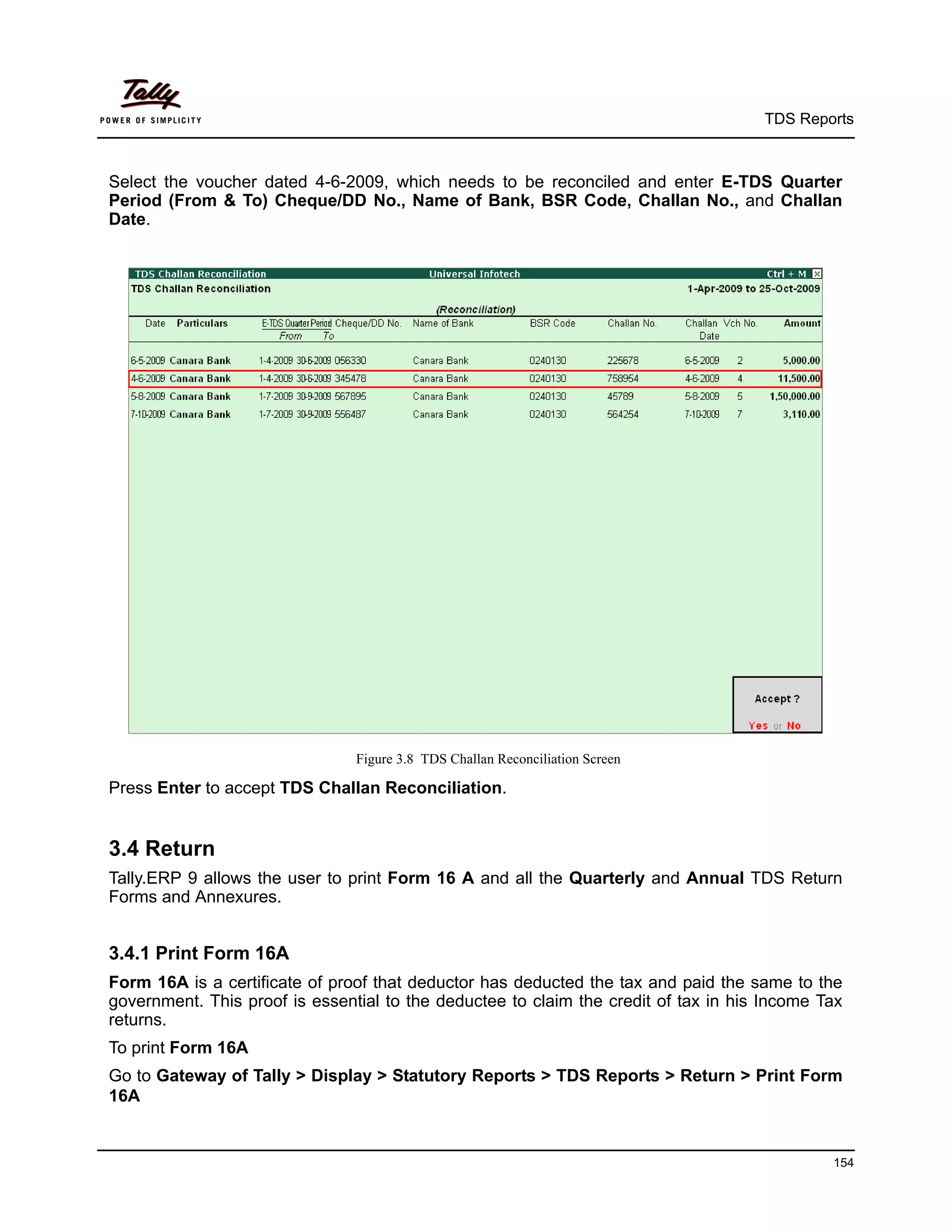
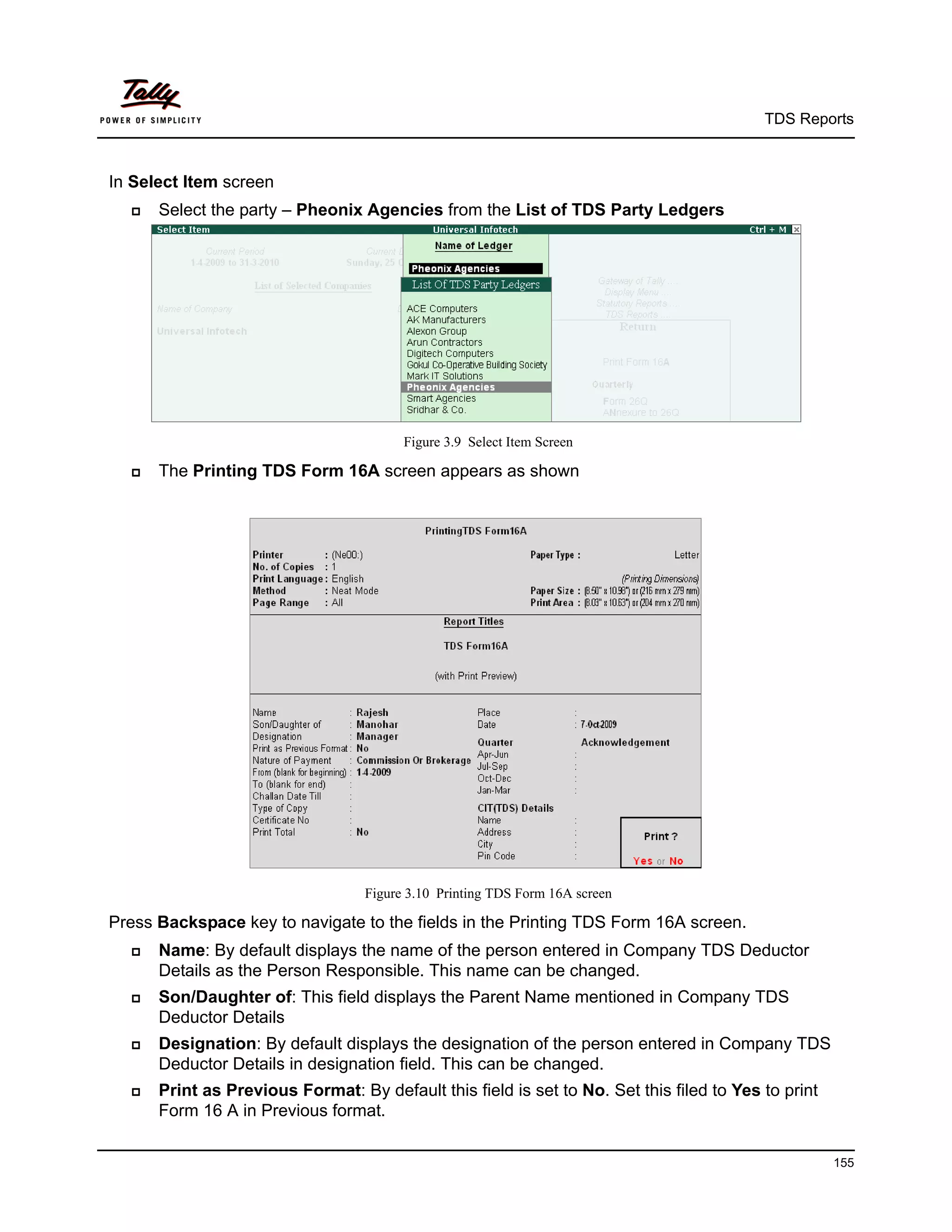
  • 8.
    Introduction TDS Process  A seller (Deductee) provides services to the buyer (Deductor).  The buyer deducts the Tax at the time of payment of advances or while accounting the Bills received.  The buyer deposits the deducted amount to the designated branches of the authorised bank  The buyer issues Form No.16A to the Deductee  The buyer files annual returns electronically to the Income Tax department.  The seller files returns, along with Form 16A claiming the credit of the Tax deducted at source. 4
  • 9.
    Introduction Time & Modeof TDS Payment  All the Tax deducted during a month are to be paid to the credit of Government on or before 7th of the next month. In case 7th of the month happens to be a sunday or a bank holiday payment can be made on the next working day  TDS amount shall be paid to the government account through any designated branches of the authorised banks, along with Income Tax Challan No.281.  In case of collections made by or on behalf of the Government, the amount shall be cred- ited within the time and in the manner aforesaid without the production of a challan. Issue of TDS certificate TDS certificate is a proof that deductor has deducted the tax and paid the same to the govern- ment. This proof is essential to the deductee to claim the credit of tax in his Income Tax returns. U/s 203 of Income Tax Act, any person deducting the tax as per the provisions of  *Section 192 (Salary) shall furnish a certificate of Deduction of tax in Form 16 or Form 16AA within one month from the close of Financial year in which such deduction was made. Example: For the Financial Year 2009-20010, the TDS certificate must be issued on or  before 30th April, 2010  *Section 193, 194, 194A, 194B, 194BB, 194C, 194D,194E, 194EE,194F, 194G, 194-I, 194J, 194K, 194LA, 195, 196A, 196B, 196C and 196D shall furnish a certificate of Deduc- tion of tax in Form 16A with in one month from the end of the month during which the credit has been given or the payment has been made, as the case may be. Example: For deductions in May 2009, TDS certificate must be issued on or before 30th  June, 2009  In case of deductee to whom more than one TDS certificate was issued for the deduc- tions made during the year, may on request from such deductee, a consolidated cer- tificate in Form 16A may be issued within a period of one month from the close of such financial year. 5
  • 10.
    Introduction e-TDS Returns The IncomeTax department has now notified ‘Electronic Filing of Returns of Tax Deducted at Source Scheme, 2003’. It is applicable to all deductors furnishing their TDS return in electronic form. As per this scheme,  It is mandatory for corporate deductors to furnish their TDS returns in electronic form (e- TDS return) with effect from June 1, 2003.  For government deductors it is mandatory to furnish their TDS returns in electronic form (e-TDS return) from financial year 2004-2005 onwards.  Deductors (other than government and corporates) may file TDS return in electronic or physical form. Deductors furnishing TDS returns in electronic form (e-TDS) have to furnish Form 27A. Form 27A is a control chart to be furnished in physical form along with CD/ Floppy containing the e-TDS returns. Form No 27A is required to be furnished separately for each TDS return. Form 27A is a summary of e-TDS returns which contains control totals of ‘Amount paid‘ and ‘Income tax deducted at source’. The control totals mentioned on Form 27A should match with the corresponding control totals in e-TDS returns. Electronic Filing of Returns of Tax Deducted at Source (e-TDS), is explained in detail in Reports chapter. 6
  • 11.
    Introduction Returns & Timelines The following Returns are required to be filed under TDS: Financial Form No. Particulars Periodicity Year 2009-10 Form 26 Annual return for deduction of tax in Annual respect of payments other than salary. Form 27 Annual return for deduction of tax in Annual respect of payments other than salary made to Non-residents. Form 27A Physical control charts containing control With each e-TDS totals mentioned in TDS returns fur- returns Form 26 and/ nished electronically. Form 27A in physi- or Form 27. cal form to be submitted along with e- TDS annual return forms. 2009-10 Form 26Q Quarterly return for deduction of tax in Quarterly respect of payments other than salary. Form 27Q Quarterly return for deduction of tax in Quarterly respect of payments other than salary made to Non-residents. Form 27A Physical control charts containing control With each e-TDS totals mentioned in TDS returns fur- returns Form 26Q nished electronically. Form 27A in physi- and/or Form 27Q. cal form to be submitted along with e- TDS quarterly return forms Figure 1.1 Table showing Forms & Returns under TDS 7
  • 12.
    Introduction TDS Features inTally.ERP 9 Tally.ERP 9’s TDS Feature enables you to handle all the functional, accounting and statutory requirements of your business in an accurate and simplified manner. The TDS functionality in Tally.ERP 9 has the following features  Simple and user-friendly  Quick and easy to set up and use  Create single Expenses Ledger for Multiple Nature of Payment  Create single TDS Duty Ledger for Multiple Nature of Payment  Book & Deduct TDS in the same voucher  Single TDS deduction for multiple vouchers  Single TDS deduction for Multiple Nature of Payments  TDS deduction on partial applicable value  Retrospective Surcharge Deduction  Party wise configuration for Lower / Zero rate  Party wise configuration to Ignore IT / Surcharge exemption Limit  Deduction of TDS on advance payments  TDS deduction on Non-Resident (Sec.195) payments  Reversal of TDS  Print TDS Challan (ITNS 281)  Print Form 16A  Generate E-TDS Returns  Print Form 27A  Print Form 26, 26Q, 27, 27Q with Annexure(s)  TDS Computation Report  Generate TDS Outstanding and TDS Exception Reports 8
  • 13.
    Lesson 1: Enabling TDS in Tally.ERP 9 Lesson Objectives On completion of this lesson, you will learn to  Create Company in Tally.ERP 9  Enable TDS in F11: Features 1.1 Enabling TDS in Tally.ERP 9 It takes a one-time configuration in Tally.ERP 9 for TDS features to be activated. Follow the steps given below to enable TDS in Tally.ERP 9 for a new company, M/s. Universal Infotech. 1. Create Company 2. Enable TDS To enable TDS for Companies which are already created in Tally.ERP 9, follow the instruction provided under the head Enable TDS. M/s. Universal Infotech, is a Company – Resident, which is engaged in Software Develop- ment. Step 1: Create Company Go to Gateway of Tally > Alt + F3: Company Info. > Create Company In the Company Creation screen,  Specify Universal Infotech as the Company Name and Address details  Select India in the Statutory Compliance for field  Specify the State, Pin code & Accounts with Inventory details 9
  • 14.
    Enabling TDS inTally.ERP 9 The Completed Company creation screen appears as shown Figure 1.1 Completed Company Creation Screen For complete details on Company Creation refer Tally.ERP 9 Help, topic Creating Company in Tally.ERP 9 10
  • 15.
    Enabling TDS inTally.ERP 9 Step 2: Enable TDS To enable TDS Feature, for a company 1. Activate TDS Feature 2. Enable Set/Alter TDS Details 3. Specify the Company TDS Deductor Details 4. Enter Company’s PAN / Income – Tax No To enable TDS Feature for universal Infotech Go to Gateway of Tally > F11: Features > F3: Statutory & Taxation  Set Enable Tax deducted at Source to Yes  Enable Set/Alter TDS Details to Yes The Statutory & Taxation features screen appears as shown. Figure 1.2 F11: Statutory & Taxation Features 11
  • 16.
    Enabling TDS inTally.ERP 9  Press Enter, the Company TDS Deductor Details screen displays Figure 1.3 Company TDS Deductor Details Screen In the Company TDS Deductor Details, enter the TDS Deductor Details such as:  Tax Assessment Number (TAN): TAN is a TEN digit alphanumeric number Issued by the Income Tax Department (ITD) to the deductor, which must be quoted on all Challans, Pay- ment for TDS, Certificates issued in Form 16/16A, Returns and in all documents and other correspondence with ITD. The Format of TAN is AAAA*55555A, Where A* is the first character of the name of the Organisation. Example: TAN of Universal Infotech is BANU07884F  Head Office Tax Assessment Number: If the company created is the Branch of a company then mention the head office’s Tax Assessment Number.  Income Tax Circle /Ward (TDS): Income Tax Circle/Ward, in which the deductors are assessed for Income-Tax (TDS) with TAN of each person.  Deductor Type: According to the nature of the organisation Deductor type will be selected. In case of Government, the option Government will be selected as the Deductor Type and if the deductor is Non-Government body, Others will be selected.  Name of the person responsible: Person responsible means the person who is author- ised to file the TDS returns of the company.  Designation: Mention the designation of the authorised person filing TDS returns. 12
  • 17.
    Enabling TDS inTally.ERP 9 The completed Company TDS Deductor Details screen appears as shown Figure 1.4 Completed Company TDS Deductor Details screen  Press Enter to Accept  Enter Permanent Account Number (PAN No.) and other details. PAN is 10 Digit Alpha numeric number allotted by the Income Tax Department to all the taxpayers whose income is taxable. The completed F11: Statutory & Taxation screen appears as shown Figure 1.5 Completed F11: Statutory & Taxation Screen  Press Enter to Accept. 13
  • 18.
    Lesson 2: TDS Transactions Lesson objectives On completion of this lesson, you will learn to  Record Basic TDS Transactions  Record Advanced TDS Transactions  Make TDS Payments and generate TDS Challans This lesson is divided into Two parts 1. Part I – Recording Basic TDS Transactions 2. Part II – Recording Advanced TDS Transactions 14
  • 19.
  • 20.
    TDS Transactions Recording BasicTDS Transactions In this section we shall emphasis on understanding how Tally.ERP 9’s TDS feature can be effec- tively used to record basic TDS transactions to generate TDS Challan. Let us take the example of Universal Infotech (Created and TDS enabled, as discussed in the earlier chapter) to record TDS transactions such as  TDS on Expenses  Payment to Party  Payment of TDS  Generating ITNS 281 Challan In Tally.ERP 9, you can account for expenses implying TDS with the help of Payment Voucher, Journal Voucher or Purchase Voucher, as required. 2.1 Transactions Involving TDS 2.1.1 TDS on Expenses (Journal Voucher) Under this, we will learn to Account expenses and deduct tax at source to arrive at the Net balance payable to the party. Example 1: On 1st April, 2009 Universal Infotech received a Bill (vide No. 001) from Pheonix Agencies for Rs. 5,00,000 towards the Advertisement services rendered. To account the above transaction follow the steps given below 1. Create Masters i. Expense Ledger ii. Party Ledger iii. Tax Ledger iv. Bank Ledger 2. Record the Transaction in Journal Voucher 16
  • 21.
    TDS Transactions 1. CreateMasters i. Expenses Ledger Ledger Under IS TDS Default Nature of Payment Applicable Advertisement Expenses Indirect Expenses Yes Payment to Contractors (Advertisement Contractors) Create Expenses Ledger Go to Gateway of Tally > Accounts Info. > Ledgers > Create  Type Advertisement Expenses as the Ledger Name  Select Indirect Expenses in the Under field  Set Is TDS Applicable to Yes  In Default Nature of Payment filed select Payment to Contractors (Advertisement Contractors) from the List of TDS Nature of Pymt.  Allthe Payments/Expenses subject to TDS have to be associated with rele- vant pre-defined TDS Nature of Payments. Refer Appendix for more details on TDS Nature of Payments Figure 2.1 Ledger Creation Screen 17
  • 22.
    TDS Transactions The Option Any can be selected from the List of TDS Nature of Pymt, where the user doesn’t want to define the TDS Nature of payment during Ledger creation. This allows the user to use an Expense Ledger (as a common ledger) to account multiple TDS Nature of Payments. The completed Expenses Ledger screen is displayed as shown. Figure 2.2 Completed Expenses Ledger Creation Screen  Press Enter to Save 18
  • 23.
    TDS Transactions ii. PartyLedger Ledger Under Maintain Is TDS Deductee Type balances Deductable bill-by-bill Pheonix Agencies Sundry Creditors Yes Yes Association of Persons Create Party Ledger Go to Gateway of Tally > Accounts Info. > Ledgers > Create Setup: Before creating the party ledger enable the following options in F12: Configure (Ledger Config- uration)  Set Allow ADVANCED entries in Masters to Yes  Set Use ADDRESSES for Ledger Accounts to Yes Figure 2.3 F12: Configure In the Ledger Creation screen,  Type Pheonix Agencies as the Ledger Name  Group it under Sundry Creditors group  Set Maintain Balances bill-by-bill to Yes  Specify the Default Credit Period, if required  Set Is TDS Deductable to Yes  In the Deductee Type field select Association of Persons from the List of Deductee Types 19
  • 24.
    TDS Transactions  The sellers who are receiving the TDS nature of payments, are required to be associated with the pre-defined Deductee Types. Refer Appendix for more details on Deductee Types Figure 2.4 Sundry Creditor Ledger Creation Screen The option UnKnown will be selected, when the Party’s deductee type details are not available.  Enter the Mailing Details.  Under Tax Information enter the PAN/IT No. (PAN/IT No. is mandatory for e-TDS). PAN is a 10 Digit Alphanumeric Number allotted by the Income Tax Department. 20
  • 25.
    TDS Transactions  PAN/IT No. field is restricted to 10 digits, user can enter any ten Numbers or Alphabets or alphanumeric.  The details provided in the PAN/IT No. field must be equal to ten Numbers or Alphabets or alphanumeric. Tally.ERP 9 won’t accept any details less than 10 digits. In case, where the PAN is not Available or Applied For, such details can also be provided in the PAN/IT No field in the format, as specified by the Income tax Department. For PAN not available – enter as PANNOTAVBL For PAN Applied - enter as APPLIEDFOR Under Exception Report – PAN Not Available, Tally.ERP 9 displays all the ledgers in which PAN/IT No is not mentioned. Before e-TDS validation user can check this report to make necessary changes in the ledger. The completed Sundry Creditor Ledger screen is displayed as shown Figure 2.5 Completed Sundry Creditor Ledger Creation Screen  Press Enter to Save. While creating ledgers under Sundry Creditors or Sundry Debtors, ensure Maintain Bill-wise Details is set to Yes in F11: Accounting Features. If the party is a Non Resident Deductee type, then PIN Code, State and the Sales Tax Number fields are not applicable. 21
  • 26.
    TDS Transactions iii. TaxLedger Ledger Under Type of Nature of Payment Inventory Duty/ Tax values are affected TDS – Contractors Duties & Taxes TDS Payment to Contractors No (Advertisement Contrac- tors) Create Tax Ledger Go to Gateway of Tally > Accounts Info. > Ledgers > Create In the Ledger Creation screen,  Type TDS – Contractors as the Ledger Name  Group it under Duties & Taxes group  Select TDS as the Type of Duty/Tax  Select Payment to Contractors (Advertisement Contractors) as the Nature of Pay- ment.  Set Inventory values are affected to No The completed TDS – Contractors ledger screen is displayed as shown Figure 2.6 Completed TDS Ledger Creation Screen  Press Enter to Save. 22
  • 27.
    TDS Transactions It is recommended that separate TDS ledgers be created with appropriate TDS nature of Payments. However, Tally.ERP 9 provides you with the flexibility to use a common Duty ledger for different TDS Nature of Payments by selecting the Nature of Payments as Any. iv. Bank Ledger Ledger Under Canara Bank Bank Accounts Create Bank ledger Go to Gateway of Tally > Accounts Info. > Ledgers > Create In the Ledger Creation screen,  Type Canara Bank as the Ledger Name  Group it under Bank Accounts group  Under Mailing Details  In Address field enter the Bank Branch Address.  Select appropriate state in State field.  In Pin Code field enter the pincode of the City  In Account Number field enter the account number as 00758978  In Branch Name field, enter M.G.Road.  Enter the Bank’s BSR Code as 0240130. BSR Code is a 7 digit Number allotted by Reserve Bank of India (RBI) to Bank Branch.  Enter Rs. 50,00,000 in Opening Balance field 23
  • 28.
    TDS Transactions The CompletedCanara Bank ledger screen is displayed as shown Figure 2.7 Completed Bank Ledger Creation Screen  Press Enter to Save. 24
  • 29.
    TDS Transactions 2. Recordthe Transaction in Journal Voucher Go to Gateway of Tally > Accounting Vouchers > Press F7: Journal 1. Press F2 and change the date to 01-04-2009 2. Select Advertisement Expenses in the Debit field and press Enter 3. Enter 5,00,000 in the Amount field. 4. Select Pheonix Agencies in the Credit field and press Enter. The TDS Details screen is displayed as shown Figure 2.8 TDS Details Screen 5. In TDS Details screen provide the following details  Type of Ref.: Select New Ref from the method of Adjustment. Tally.ERP 9 displays Two Methods of Adj viz., Agst Ref and New Ref. New Ref is selected for new Financial Trans- actions Where as, Agst Ref is selected to set off payment against the previously entered invoice.  Name: This filed display the Reference Number for the TDS Deducted. The default Refer- ence Number displayed, is a combination of abbreviation of Journal, Voucher Number and Line Number. Example: Jrnl / 1-1 which can be changed by the user. TDS payments are tracked with these Reference Numbers.  Nature of Payment: Select Payments to Contractors (advertisement Contractors) in Nature of Payment field. The List of Nature of payments displays only that Nature of Pay- ments which is specific to the Expenses Ledgers, selected in the transaction. 25
  • 30.
    TDS Transactions Example: Forthe above transaction List of Nature of payments displays only Payments to Contractors (advertisement Contractors), as the nature of payment applicable to the Party against which TDS will be deducted. Figure 2.9 TDS Details – Nature of Payment Selection  TDS Duty Ledger: Select TDS – Contractors from the list of TDS Duty Ledgers. List of TDS Duty Ledgers displays, ledgers created with specific nature of payment as well as the ledger created with the option Any.  Assessable Amount: Tally.ERP 9 defaults the amount specified against the expenses ledger and skips the field.  Deduct now: This field will be set to Yes or No depending on the tax deduction. Set this field to Yes to deduct the Tax in the same voucher.  TDS Amount: This field displays the Tax amount deducted at source  Payable Amount: This field displays the amount (after TDS) payable to the Party. 26
  • 31.
    TDS Transactions The completedTDS Details screen is displayed as shown Figure 2.10 Completed TDS Details Screen 6. Press Enter to accept TDS Details For the Financial Year 2009-10, Surcharge or Cess is not applicable for TDS. For tax deduction only the specified TDS rates are considered. 7. Payable Amount as calculated in the TDS Details screen will be defaulted in the Party’s Amount (Credit) field. Press Enter to view Bill–wise Details screen. 8. In Bill–wise Details screen,  Select New Ref as the Type of Ref  In the Name field enter the Bill name as Bill - 001  Skip the Due Date or Credit Days field  Accept the default amount allocation and Dr/Cr. By default Tally.ERP 9 displays the Bill amount in the amount field as the credit balance.  Press Enter, select New Ref as Type of Ref and Enter Bill name as Bill -001  Skip the Due Date or Credit Days field and accept the default amount allocation and Dr/ Cr. By default Tally.ERP 9 displays the Tax amount in the amount field as the debit bal- ance. 27
  • 32.
    TDS Transactions The CompletedBill–wise Details screen is displayed as shown Figure 2.11 Bill–wise Details Screen In the above method of bill allocation, Tax amount is deducted from the Bill amount to arrive at the Pending amount to be paid to the party. This method of bill allocation updates the bill amount along with pending amount to be paid to the party, in the Outstandings statement, which helps the user to identify the Bill amount in the outstandings statement, when the request comes from the supplier for payment. 9. In the Credit field select the duty ledger TDS – Contractor from the List of Ledger Accounts and Rs. 5000 (500000 - 495000) is displayed automatically in the amount field. 10.Enter transaction details in the Narration field. 28
  • 33.
    TDS Transactions The completedJournal Voucher is displayed as shown Figure 2.12 Journal Voucher 11.Press Enter to Save Journal voucher is generally used to record transactions on due basis i.e., firstly a due entry in favour of the party is created when the bill is received and then at the time of settlement of the referred bill, a payment entry is passed. 29
  • 34.
    TDS Transactions 2.2 Paymentto Party Example 2: On April 8, 2009, payment of Rs. 4,95,000 is made towards bill no. Bill-001 to Pheonix Agencies for the purchase of Advertisement services, vide cheque no. 254781 The same is accounted as follows Record the transaction in Payment Voucher Go to Gateway of Tally > Accounting Vouchers > Press F5: Payment 1. Press F2 and change date to 08/04/2009 2. In Debit field select Pheonix Agencies from the List of Ledger Accounts 3. Enter Rs. 4,95,000 in Amount field and press enter to view Bill-wise Details screen 4. In Bill-wise Details screen  Select Agst Ref in the Type of Ref  Select Bill-001 from the List of Pending Bills in Name field, Amount is defaulted auto- matically. Completed Bill-wise Details screen is displayed as shown. Figure 2.13 Bill–wise Details Screen 5. Press Enter to accept the bill adjustment. 30
  • 35.
    TDS Transactions 6. InCredit field select Canara Bank from the List of Ledger Accounts, Amount is defaulted automatically 7. Enter Cheque No. 254781 in Narration field. The completed Payment Voucher is displayed as shown Figure 2.14 Completed Payment Voucher 8. Press Enter to Save. 31
  • 36.
    TDS Transactions 2.3 Paymentof TDS 2.3.1 Payment of TDS (Using Auto Fill) All the Tax deducted during a month is to be paid to the credit of Government on or before 7th of the next month. In case 7th of the month happens to be a sunday or a bank holiday payment can be made on the next working day TDS amount shall be paid to the government account through any designated branches of the authorised banks, along with Income Tax Challan No.281. Example 3: On May 6, 2009, Universal Infotech, paid TDS of Rs. 5,000 towards Advertisement Expenses, vide cheque no. 056330 for the month of April, 2009. The same is accounted as follows Setup: In F12: Configure (Payment Configuration)  Set Use Single Entry mode for Pymt/Rcpt/Contra to Yes Record the transaction in Payment Voucher Go to Gateway of Tally > Accounting Vouchers > Press F5: Payment 1. Press F2 and change date to 06/05/2009 2. Press Alt+S or click S: Stat Payment button on the Buttons Bar to view Statutory Payment screen. Figure 2.15 Selection of Stat Payment Button 32
  • 37.
    TDS Transactions The Stat Payment button will be available in payment voucher only if the option Use Single Entry mode for Pymt/Rcpt/Contra? is enabled in the F12: Configure (Voucher Configuration). 3. In the Statutory Payment screen  Type of Duty/Tax: In this field select the Tax/Duty Type towards which tax payment entry is being recorded. Here we are recording TDS payment entry, hence select TDS from the Type of Duty/Tax Figure 2.16 Selection of Type of Duty/Tax  Auto Fill Statutory Payment: Set this option to YES to auto calculate and fill the duty pay- able to the Government. Set this option to NO, if the user wants to manually select the duty ledger and duty bills. Universal Infotech wants to auto fill tax details in payment voucher, hence the option Auto Fill Statutory Payments is set to Yes.  On setting the option Auto Fill Statutory Payments to Yes, based on the Duty/Tax Type selected Tally.ERP 9 displays the appropriate statutory payment fields to fill the details. 33
  • 38.
    TDS Transactions  Deducted Till Date: In this field user may enter, till date of the period for which the TDS values should be computed and auto-filled. Enter 30/04/2009 as the Till Date.  Section: As per the Act, separate TDS challans to be submitted for the payment of tax under each section. In this field, Tally.ERP 9 displays all the Sections under which, Tax deducted is pending for payment. Select Section 194C from the list of section. Payment Code of the Section selected for TDS payment will be printed on the TDS Challan.  Nature of Payments: Based on the section selected in the Section field, Tally.ERP 9 dis- plays the section related nature of payments under which, Tax deducted is pending for payment. Select Payment to Contractors (Advertisement Contractors) as the Nature of Payment  Deductee Status: Select the Deductee Status as Non Company. The TDS transactions in a payment voucher can be entered for a particular Deductee Status, using the Stat Payment button.  Cash/ Bank: Depending on the mode of payment (Cash or Cheque) Cash or Bank ledger will be selected. Select Canara Bank from the List of Ledger Accounts. 34
  • 39.
    TDS Transactions The completedStatutory Payment screen is displayed as shown Figure 2.17 Completed Statutory Payment Screen 4. Press Enter to accept the Statutory Payment 5. The Bank Name through which the payment is made and TDS payable amount (with the respective bill details) will be auto-filled. Figure 2.18 Auto Filled Payment Voucher 35
  • 40.
    TDS Transactions 6. Setthe option Provide Details to Yes to enter TDS payment details 7. In the Payment Details Screen  From Date: In this field enter the From date of the period for which the payment is made  To Date: In this field enter the To date of the period for which the payment is made  Cheque/DD No: In this field user can enter either the cheque or the DD No through which the TDS payment is made. In this transaction payment is made through cheque no. 056330.  Name of the Bank: This field is provided to mention the name of authorised bank, where the payment is made. Figure 2.19 Payment Details– List of Banks Tally.ERP 9 displays the list of banks from where the user can  Select Not applicable, when the bank details are not applicable for a payment.  Select The banks which are already created to carry out the regular business  Select New Name – New Name will be selected when the authorised bank through which the payment is made is different from the regular bank where the deposit account is maintained. The Bank name created here will not be available under the List of Ledgers. Select Canara Bank from the List of Banks.  Bank Account Number: Enter the bank account number in this filed  Branch Name: Enter the bank Branch name in this field.  BSR Code: Enter the BSR code of the branch. BSR code is a 7 digit number allotted by Reserve Bank of India (RBI) to bank branch. Bank Account Number, Branch Name and BSR code details will be defaulted automatically, if the user selects the bank which is already created to carry out the regular business (with branch name and BSR code) in the Name of Bank field. User can change such defaulted details.  Challan No.: In this field enter the TDS payment Challan number. If the TDS payment chal- lan details are not available at the time of recording the TDS payment entry, such details can be either by reconciling the TDS ledger or by altering the payment voucher. 36
  • 41.
    TDS Transactions  Challan Date: Enter the Challan Date. The completed Payment Details screen is displayed as shown Figure 2.20 Completed Payment Details Screen 8. Press Enter to accept the payment details 9. Cheque number entered in the payment details is displayed in the Narration The Completed TDS Payment voucher is displayed as shown Figure 2.21 TDS Payment Voucher 3. Press Enter to Save. 37
  • 42.
    TDS Transactions Tally.ERP 9 also allows the user to enter TDS payment entry  Using Stat Payment option by manually selecting the Tax ledgers and tax bills. In Double Entry Mode 2.3.2 Generating TDS Challan (ITNS 281) Tax is remitted to the government account through Challans. For making the TDS payment, Challan No. 281 is used. In Tally.ERP 9 TDS Challan (ITNS 281) will be printed from the TDS payment voucher. To print the TDS Challan for the transaction entered on 06-05-2009 1. Press PageUp to go back to payment voucher entry 2. Click on Print button or Press Alt + P from the payment voucher to view the Voucher Printing screen Figure 2.22 Voucher Printing Screen  To view the challan in a preview mode, click on I: With Preview button or press ALT+I 3. Press Enter to accept the Voucher Printing subscreen and to display the TDS Challan in Print Preview mode. 4. Click Zoom or Press Alt+Z to view the TDS Challan 38
  • 43.
    TDS Challan isdisplayed as shown Figure 2.23 TDS Challan 5. Click on Print to print the TDS Challan.
  • 44.
  • 45.
    TDS Transactions Recording AdvancedTDS Transactions In this section we shall understand how Tally.ERP 9’s TDS feature can be used to process advanced TDS transactions. We shall learn to record advanced TDS transactions such as  Expenses partly Subject to TDS  Accounting of expenses and deducting TDS later  Accounting multiple expenses and deducting TDS later  TDS on Advances  TDS on expenses @ lower rate  TDS on expenses @ zero rate  Reversal of expenses with TDS and Reversal of TDS  Accounting changes in TDS percentage  Accounting TDS on payments made to non–residents  TDS on Interest Payments  TDS on Expenses with Inventory  TDS on Fixed Assets  Payment of TDS  Payment of Interest and Penalties  TDS on Sales Commission  Reversal of Excess TDS Deducted Record all the transactions in the books of Universal Infotech. 41
  • 46.
    TDS Transactions 2.4 TransactionsInvolving TDS 2.4.1 Expenses Partly Subject to TDS (Journal Voucher) In the event, where a part of the expenditure is not subject to TDS and the balance amount is subject to TDS, it is crucial to determine the accurate value of expenses for computation of TDS. Tally.ERP 9 provides the flexibility to enter information in the same voucher. Consider the following scenario to illustrate the Expenses partly subject to TDS. Example 4: On 7th May, 2009, universal Infotech received a bill (vide no. 911) from Sridhar & Co. for Rs. 1,12,360 inclusive of other charges of Rs. 12,360 towards the auditing services provided. In the above transaction Bill amount includes other charges of Rs. 12,360 on which TDS is not applicable. Let us understand how to configure Tally.ERP 9 to compute tax only on the Assessa- ble Value (1,00,000). To account the above transaction follow the steps given below 1. Create Masters i. Expense Ledger ii. Party Ledger iii. Tax Ledger 2. Record the Transaction in Journal Voucher 1. Create Masters i. Expenses Ledger Ledger Under IS TDS Default Nature of Payment Applicable Auditing Expenses Indirect Expenses Yes Fees for Professional Or Technical Services Create Expenses Ledger Go to Gateway of Tally > Accounts Info. > Ledgers > Create  Type Auditing Expenses as the Ledger Name  Select Indirect Expenses in the Under field  Select the appropriate Rounding Method.  Set Is TDS Applicable to Yes 42
  • 47.
    TDS Transactions  In Default Nature of Payment filed select Fees for Professional Or Technical Services from the List of TDS Nature of Pymt.  Allthe Payments/Expenses subject to TDS have to be associated with rele- vant pre-defined TDS Nature of Payments. Refer Appendix for more details on TDS Nature of Payments The Option Any can be selected from the TDS Nature of Payment, where the user doesn’t want to define the TDS Nature of payment during Ledger crea- tion. This allows the user to use a Expense Ledger (as a common ledger) to account multiple TDS Nature of Payments. The completed Expenses Ledger screen is displayed as shown. Figure 2.24 Completed Expenses Ledger Creation Screen  Press Enter to Save 43
  • 48.
    TDS Transactions ii. PartyLedger Ledger Under Maintain bal- Is TDS Deductee Type ances bill-by-bill Deductable Sridhar & Co. Sundry Creditors Yes Yes Partnership Firm Create Party Ledger Go to Gateway of Tally > Accounts Info. > Ledgers > Create In the Ledger Creation screen,  Type Sridhar & Co. as the Ledger Name  Group it under Sundry Creditors group  Set Maintain Balances bill-by-bill to Yes  Specify the Default Credit Period, if required  Set Is TDS Deductable to Yes  In the Deductee Type field select Partnership Firm from the List of Deductee Types  The sellers who are receiving the TDS nature of payments, are required to be associated with the pre-defined Deductee Types. Refer Appendix for more details on Deductee Types  The option UnKnown will be selected, when the Party’s deductee type details are not available.  Enter the Mailing Details.  Under Tax Information enter the PAN/IT No. (PAN/IT No. is mandatory for e-TDS). PAN is a 10 Digit Alphanumeric Number allotted by the Income Tax Department. 44
  • 49.
    TDS Transactions  PAN/IT No. field is restricted to 10 digits, user can enter any ten Numbers or Alphabets or alphanumeric.  The details provided in the PAN/IT No. field must be equal to ten Numbers or Alphabets or alphanumeric. Tally.ERP 9 won’t accept any details less than 10 digits. In case, where the PAN is not Available or Applied For, such details can also be provided in the PAN/IT No field in the format, as specified by the Income tax Department. i. For PAN not available – enter as PANNOTAVBL ii. For PAN Applied - enter as APPLIEDFOR  Under Exception Report – PAN Not Available, Tally.ERP 9 displays all the ledgers in which PAN/IT No is not mentioned. Before e-TDS validation user can check this report to make necessary changes in the ledger The completed Sundry Creditor Ledger screen is displayed as shown Figure 2.25 Completed Sundry Creditor Ledger Creation Screen  Press Enter to Save. 45
  • 50.
    TDS Transactions iii. TaxLedger Ledger Under Type of Nature of Payment Inventory Duty/ Tax values are affected TDS - Professional Duties & Taxes TDS Fees for Professional No or Technical Services or Technical Services Create Tax Ledger Go to Gateway of Tally > Accounts Info. > Ledgers > Create In the Ledger Creation screen,  Type TDS - Professional or Technical Services as the Ledger Name  Group it under Duties & Taxes group  Select TDS as the Type of Duty/Tax  Select Fees for Professional or Technical Services as the Nature of Payment.  Set Inventory values are affected to No The completed Duty & Taxes ledger screen is displayed as shown Figure 2.26 Completed TDS Ledger Creation Screen  Press Enter to Save. 46
  • 51.
    TDS Transactions 2. Recordthe Transaction in Journal Voucher Set Up: In F12: Configure (Journal configuration)  Set Allow Alteration of Nature of Payment in Expenses to Yes Figure 2.27 F12: Configure Go to Gateway of Tally > Accounting Vouchers > Press F7: Journal 1. Press F2 and change the date to 07-05-2009 2. Select Auditing Expenses in the Debit field and press Enter 3. Enter 1,12,360 in the Amount field and press Enter 47
  • 52.
    TDS Transactions The ExpenseAllocation screen is displayed as shown Figure 2.28 Expense Allocation Screen When Allow Alteration of Nature of Payment in Expenses is set to Yes in F12: Voucher Entry Configuration, Tally.ERP 9 facilitates Assigning/ Altering Nature of Payments and Assessable Value of the Expenses during voucher entry. 4. The TDS Nature of Payment Details screen displays the Nature of Payment and the Assessable Value of the expenditure.  Press Enter to accept Fees for Professional or Technical Services as Nature of Pay- ment.  The amount in the Assessable Value is defaulted to Rs. 1,12,360. Enter Rs.1,00,000 in the Assessable Value and press Enter. 48
  • 53.
    TDS Transactions Figure 2.29 TDS Nature of Payment Details with Assessable Value Assessable Value is the amount on which the TDS will be computed. In the above transaction the Bill amount of Rs. 1,12,360 includes Service Tax of Rs 12,360 on which the Tax cannot be deducted. Thus assessable value is arrived at by deducting Service tax from the Bill amount Bill amount (1,12,360) – Service Tax (12,360) = Assessable Value (1,00,000)  In the Nature of Payment field select Not applicable from the List of TDS Nature of Pay- ment (balance amount of Rs 12,360 gets allocated automatically in the Assessable value field) Figure 2.30 TDS Nature of Payment Details 5. Select Sridhar & Co. in the Credit field and press Enter. 49
  • 54.
    TDS Transactions 6. Inthe TDS Details screen provide the following details  Type of Ref: Select New Ref from the method of Adjustment. Tally.ERP 9 displays Two Methods of Adj viz., Agst Ref and New Ref. New Ref is selected for new Financial Trans- actions Where as, Agst Ref is selected to set off payment against the previously entered invoice.  Name: This filed display the Reference Number for the TDS Deducted. The default Refer- ence Number displayed, is a combination of abbreviation of Journal, Voucher Number and Line Number. Example: Jrnl/2-1 which can be changed by the user. TDS payments are tracked with these Reference Numbers.  Nature of Payment: Select Not Applicable in Nature of Payment field. Assessable amount and Payment amount are defaulted as entered in Expense Allocation screen. Figure 2.31 Nature of Payment as Not applicable  Type of Ref: Select New Ref from the method of Adjustment.  Name: This filed display the Reference Number for the TDS Deducted. The default Refer- ence Number displayed, is a combination of abbreviation of Journal, Voucher Number and Line Number. Example: Jrnl/2-2 which can be changed by the user. TDS payments are tracked with these Reference Numbers.  Nature of Payment: Select Fees for Professional or Technical Services in Nature of Payment field. Assessable amount and Payment amount are defaulted as entered in Expense Allocation screen.  TDS Duty Ledger: Select TDS – Professional Or technical Services from the list of TDS Duty Ledgers. List of TDS Duty Ledgers displays, ledgers created with specific nature of payment as well as the ledger created with the option Any. 50
  • 55.
    TDS Transactions  Assessable Amount: Tally.ERP 9 defaults the amount as specified in the TDS Nature of Payment Details against the expenses ledger and skips the field.  Deduct now: This field will set to Yes or No. depending on the tax deduction. Set this field to Yes to deduct the Tax in the same voucher.  TDS Amount: This field displays the Tax amount deducted at source  Payable Amount: This field displays the amount (after TDS) payable to the Party. The completed TDS Details screen is displayed as shown Figure 2.32 Completed TDS Details Screen 7. Press Enter to accept TDS Details 8. Payable Amount as calculated in the TDS Details screen will be defaulted in the Party’s Amount (Credit) field. Press Enter to view Bill–wise Details screen. 9. In Bill–wise Details screen,  Select New Ref as the Type of Ref  In the Name field enter the Bill name as Bill - 911  Skip the Due Date or Credit Days field  Accept the default amount allocation and Dr/Cr. By default Tally.ERP 9 displays the Bill amount in the amount field as the credit balance.  Press Enter, select New Ref as Type of Ref and Enter Bill name as Bill-911  Skip the Due Date or Credit Days field and accept the default amount allocation and Dr/ Cr. By default Tally.ERP 9 displays the Tax amount in the amount field as the debit bal- ance. 51
  • 56.
    TDS Transactions The CompletedBill–wise Details screen is displayed as shown Figure 2.33 Bill–wise Details Screen The above method of bill allocation helps to find the bill amount and the amount pending for payment after TDS. 10.In the Credit field select the duty ledger TDS – Professional Or technical Services from the List of Ledger Accounts and Rs. 10,000 (1,12,360 - 1,02,360) is displayed automatically in the amount field. 52
  • 57.
    TDS Transactions The completedJournal Voucher is displayed as shown Figure 2.34 Journal Voucher 11.Press Enter to Save 2.4.2 Accounting of Expenses and Deducting TDS Later It is always expected that, the deductor should deduct the tax in the same invoice in which the expenses are accounted. But in some cases, deductor may follow the procedure of accounting only expenses on the receipt of bills and later, deduct applicable tax on all such accounted expenses in one invoice. Tally.ERP 9 provides the flexibility to account expenses and later deduct tax on such expenses. Consider the following scenario to illustrate Accounting of Expenses and deducting TDS later. 1. Accounting of Expenses Example 5: On 8th May, 2009 Universal Infotech received a bill (vide No. 689) from Digitech Computers for Rs. 25,000 towards commission charges. 53
  • 58.
    TDS Transactions The followingexample illustrates TDS transaction using a Purchase Voucher. Before recording the above transaction, create the following required ledgers. To account the above transaction follow the steps given below 1. Create Masters i. Expense Ledger ii. Party Ledger iii. Tax Ledger 2. Record the Transaction in Purchase Voucher 1. Create Masters As per the given information create masters. i. Expense Ledger Ledger Under IS TDS Appli- Default Nature of Payment cable Commission Expenses Indirect Expenses Yes Commission or Brokerage Inventory values are affected: No ii.Party Ledger Ledger Under Maintain bal- Is TDS Deductee ances bill-by-bill Deductable Type Digitech Computers Sundry Creditors Yes Yes Individual/HUF – Resident In Mailing Details: Address: No-81/1, 8th main, Basaveshwaranagar, Bangalore. State: karnataka PIN Code: 560079 In Tax Information: PAN / IT No.: APRCL0497F iii. Tax Ledger Ledger Under Type of Nature of Payment Inventory Duty/ Tax values are affected TDS – Commission Duties & Taxes TDS Commission or No or Brokerage Brokerage 54
  • 59.
    TDS Transactions 2. Recordthe Transaction in Purchase Voucher (Accounting Invoice Mode) Set Up: In F12: Configure (Purchase Invoice Configuration)  Set Use Common Ledger A/c for Item Allocation to No  Set Use Defaults for Bill Allocations to No Go to Gateway of Tally > Accounting Vouchers > Press F9: Purchase 1. Press Alt + I for Account Invoice mode 2. Press F2 and change the date to 08-05-2009 3. In Party’s A/c Name field select Digitech Computers from the List of Ledger Accounts 4. Under Particulars select Commission Expenses and press Enter 5. Enter Rs. 25000 in the Amount field 6. Press Enter to view TDS Nature of Payment Details screen and accept the default details in the screen. 7. Press Enter twice to view TDS details screen. In TDS Details provide the following informa- tion.  In Type of Ref field select New Ref  Name filed display the Reference Number for the TDS to be Deducted. The default Refer- ence Number displayed, is a combination of abbreviation of Purchase, Voucher Number and Line Number. Example: Purc / 1-1 which can be changed by the user. TDS deduc- tions are tracked with these Reference Numbers.  In Nature of Payment field select Commission or Brokerage from the List of Nature of Pymt(s)  In TDS Duty Ledger field select TDS – Commission or Brokerage  Assessable Amount is defaulted to Rs. 25000 55
  • 60.
    TDS Transactions Figure 2.35 TDS Details The TDS Details screen is provided for an expenditure for which Tax is not deducted at the time of accounting of expense, to provide the TDS details, which will be used as reference at the time of cumulative deduction of Tax. 8. Press Enter to accept the TDS Details 9. In the Bill-wise Details screen  Select New Ref as the Type of Ref  In the Name field enter the Bill name as Bill - 689  Skip the Due Date or Credit Days field 56
  • 61.
    TDS Transactions  Accept the default amount allocation and Dr/Cr. By default Tally.ERP 9 displays the Bill amount in the amount field as the credit balance. Figure 2.36 Bill–wise Details 10.Enter transaction details in the Narration field. The Completed Purchase Voucher is displayed as shown Figure 2.37 Purchase Voucher 11.Press Enter to Save. 57
  • 62.
    TDS Transactions In Tally.ERP9, all the transactions in which TDS is not deducted are displayed in TDS not Deducted Report under Exception Reports. The above transaction can also be accounted using Journal Voucher.  For more details on TDS Not Deducted report refer Reports Chapter. Example 6: On 12th May, 2009 Universal Infotech received a bill (vide No. 874) from Digitech Computers for Rs. 40,000 towards commission charges. Record the transaction in Purchase Voucher (Accounting Invoice Mode) Go to Gateway of Tally > Accounting Vouchers > Press F9: Purchase 1. Press Alt + I for Account Invoice mode 2. Press F2 and change the date to 12-05-2009 3. In Party’s A/c Name field select Digitech Computers from the List of Ledger Accounts 4. Under Particulars select Commission Expenses and press Enter 5. Enter Rs. 40000 in the Amount field 6. Press Enter to view TDS Nature of Payment Details screen and accept the default details in the screen. 7. Press Enter twice to view TDS details screen. 8. In TDS Details provide the following information.  In Type of Ref field select New Ref  In the Name field, Tally.ERP 9 displays Purc / 2-1 as the reference number  In Nature of Payment field select Commission or Brokerage from the List of Nature of Pymt(s)  In TDS Duty Ledger field select TDS – Commission or Brokerage  Assessable Amount is defaulted to Rs. 40000 The above Details provided in the TDS Details screen will be used as reference at the time of cumulative deduction of Tax. 9. Press Enter to accept the TDS Details 10.In the Bill-wise Details screen  Select New Ref as the Type of Ref  In the Name field enter the Bill name as Bill - 874  Skip the Due Date or Credit Days field  Accept the default amount allocation and Dr/Cr. By default Tally.ERP 9 displays the Bill amount in the amount field as the credit balance. 58
  • 63.
    TDS Transactions 11.Enter transactiondetails in the Narration field. The Completed Purchase Voucher is displayed as shown Figure 2.38 Completed Purchase Voucher 12.Press Enter to Save 2. TDS Deduction Example 7: On 14th May, 2009 Universal Infotech deducted tax towards Commission Expenses for the trans- actions dated 8th and 12th May. The following example illustrates the Cumulative deduction of Tax on expenses, accounted in 2 different invoices. Record the transaction in Journal Voucher Go to Gateway of Tally > Accounting Vouchers > Press F7: Journal 1. Press F2 and change the date to 14-05-2009 59
  • 64.
    TDS Transactions 2. PressAlt +S or click on S: TDS Deduction button on the buttons bar to view TDS Deductions screen. 3. In TDS Deduction screen  Till Date: In this field user may enter till date of the period for which the TDS to be deducted and auto–filled. Enter 14-05-2009 as the Till Date.  Party: In this field Tally.ERP 9 displays the List of Party ledgers against whom the TDS deduction is Due. Select Digitech Computers from the List of Ledger(s) Figure 2.39 TDS Deductions – Party Selection  Nature of Payment: Based on the Party selected in the Party field, Tally.ERP 9 displays all the party related nature of payments under which TDS deduction is pending. Select Commission Or Brokerage from the List of Nature of Payments Figure 2.40 TDS Deduction – Nature of Payment Selection 4. Press Enter to accept the TDS Deductions 5. The TDS amount with the respective bill details will be auto-filled. 60
  • 65.
    TDS Transactions Figure 2.41 Journal Voucher with Auto filled TDS values The Total TDS of Rs.6500, includes TDS of Rs. 2,500 against Purc / 1-1 and Rs. 4,000 against Purc / 2-1. 6. In the Bill-wise Details screen  Select Agst Ref in the Type of Ref  In the Name field, Tally.ERP 9 displays List of Pending Bills. Select Bill – 689 dated 8- May-2009 to adjust the TDS Deducted and press enter  Rs.2500 will be defaulted in the amount column (The TDS amount of Purc /1)and accept the default Dr/Cr allocation.  Press Enter, select Agst Ref in the Type of Ref field and Bill – 874 dated 12-May-2009 in Name field.  The amount of Rs. 4000 (6695 - 2500) is defaulted automatically. Accept the default Dr/Cr allocation. 61
  • 66.
    TDS Transactions The completedBill-wise Details is displayed as shown Figure 2.42 Bill-wise Details screen 7. In the Bill-wise Details screen, applicable TDS amount will be adjusted against the pending bills. 8. Enter transaction details in the Narration field. The Completed Journal Voucher is displayed as shown Figure 2.43 Journal Voucher 4. Press Enter to Save. 62
  • 67.
    TDS Transactions 2.4.3 AccountingMultiple Expenses and Deducting TDS Later Under this, we will understand the accounting of multiple expenses (in the same voucher) and deducting TDS later. Consider the following scenario to illustrate accounting of multiple expenses and deducting TDS later. 1. Accounting of Expenses Example 8: On 18th May, 2009 Universal Infotech received a bill (vide No. 412) from Pheonix Agencies for Rs. 2,50,000 towards Commission Charges — Rs. 50,000 Advertisement Expenses — Rs. 2,00,000 Record the transaction in Purchase Voucher (Accounting Invoice Mode) Go to Gateway of Tally > Accounting Vouchers > Press F9: Purchase 1. Press Alt + I for Account Invoice mode 2. Press F2 and change the date to 18-05-2009 3. In Party’s A/c Name field select Pheonix Agencies from the List of Ledger Accounts 4. Under Particulars select Commission Expenses and press Enter 5. Enter Rs. 50,000 in the Amount field 6. Press Enter to view TDS Nature of Payment Details screen and accept the default details in the screen and press Enter. 7. Under Particulars select Advertisement Expenses and press Enter 8. Enter Rs. 2,00,000 in the Amount field 9. Press Enter to view TDS Nature of Payment Details screen and accept the default details in the screen and press Enter. 10.Press Enter twice to view TDS details screen. 11. In TDS Details provide the following information.  In Type of Ref field select New Ref  In Name field, accept the default reference number – Purc / 3-1  In Nature of Payment field, select Commission Or Brokerage from the List of Nature of Payments. 63
  • 68.
    TDS Transactions Figure 2.44 TDS Details – Selection of Nature of Payment The List of Nature of payments displays the Nature of Payments which are specific to the Expenses Ledgers, selected in the transaction.  In TDS Duty Ledger field select TDS – Commission or Brokerage  Assessable Amount is defaulted to Rs. 50,000  In Type of Ref field select New Ref  In Name field accept the default reference number – Purc / 3-2  In Nature of Payment field, select Payment to Contractors (Advertisement Contrac- tors) from the List of Nature of Payments. Figure 2.45 TDS Details 64
  • 69.
    TDS Transactions Here, theList of Nature of Payments displays only those nature of payments which are pending for selection.  In TDS Duty Ledger field select TDS – Contractors  Assessable Amount is defaulted to Rs. 2,00,000 12.Press Enter to accept the TDS Details 13.In the Bill-wise Details screen  Select New Ref as the Type of Ref  In the Name field enter the Bill name as Bill - 412  Skip the Due Date or Credit Days field  Accept the default amount allocation and Dr/Cr. By default Tally.ERP 9 displays the Bill amount in the amount field as the credit balance. 14.Enter transaction details in the Narration field. The Completed Purchase Voucher is displayed as shown Figure 2.46 Completed Purchase Voucher 15.Press Enter to Save. 65
  • 70.
    TDS Transactions 2. TDSDeduction Example 9: On 21st May, 2009 Universal Infotech deducted tax towards Commission and Advertisement Expenses for the transaction dated 18th May, 2009. Record the transaction in Journal Voucher Go to Gateway of Tally > Accounting Vouchers > Press F7: Journal 1. Press F2 and change the date to 21-05-2009 2. Press Alt +S or click on S: TDS Deduction button on the buttons bar to view TDS Deductions screen. In TDS Deduction screen  Till Date: In this field user may enter till date of the period for which the TDS to be deducted and auto–filled. Enter 21-05-2009 as the Till Date.  Party: In this field Tally.ERP 9 displays the List of Party ledgers against whom the TDS deduction is Due. Select Pheonix Agencies from the List of Ledger(s)  Nature of Payment: Based on the Party selected in the Party field, Tally.ERP 9 displays all the party related nature of payments under which, TDS deduction is pending. User can select all the Nature of Payments (All Items) or any one of the Nature of payment from the list, for TDS Deduction. Select All Item from the List of Nature of payments. Figure 2.47 TDS Deduction – Selection of Nature of Payment 3. Press Enter to accept the TDS Deductions 4. The TDS amount with the respective bill details will be auto-filled. 66
  • 71.
    TDS Transactions Figure 2.48 Journal Voucher with Auto filled TDS values The Total TDS of Rs. 7,000, includes TDS – Contractors Rs. 2,000 and TDS – Commission or Brokerage Rs. 5,000 against Purc / 3-2 and Purc / 3-1 respectively. 5. In the Bill-wise Details screen  Select Agst Ref in the Type of Ref  In the Name field, Select Bill – 412 dated 18-May-2009 to adjust the TDS Deducted and press Enter  Enter Rs. 7,000 in the amount field and accept the default Dr/Cr details. 6. Enter transaction details in the Narration field. 67
  • 72.
    TDS Transactions The completedJournal Voucher is displayed as shown Figure 2.49 Journal Voucher 7. Press Enter to Save. 68
  • 73.
    TDS Transactions 2.4.4 TDSon Advances The below examples illustrate the accounting of TDS on Advances and adjustment of such advances against the Bill. 1. Accounting Advances Example 10: On 2nd June, 2009 Universal Infotech made an advance payment of Rs. 90000 to Pheonix Agencies towards Advertisement Expenses through cheque (No. 025687). TDS is deducted while making the payment. Record the transaction in Payment Voucher Go to Gateway of Tally > Accounting Vouchers > Press F5: Payment 1. Press F2 and change the date to 02/06/2009 2. In Account field select Canara Bank from the List of Ledger Accounts 3. Under Particulars select Pheonix Agencies and press Enter 4. Enter Rs. 90,000 in the Amount field and press Enter to view Bill-wise details screen 5. In Bill-wise Details screen  In Type of Ref field select Advance from the Method of Adj  In Name field enter the bill name as Adv – 001  Skip the Due Date, or Credit Days filed.  Amount is defaulted to Rs. 90,000 accept the same. Figure 2.50 Bill-wise details Screen 69
  • 74.
    TDS Transactions 6. PressEnter to accept the Bill-wise Details 7. Under Particulars select TDS – Contractors (to deduct Tax) and press Enter 8. In TDS Details screen  In the Type of Ref field select New Ref  Name filed display the Reference Number for the TDS Deducted. The default Reference Number displayed, is a combination of abbreviation of Payment, Voucher Number and Line Number. Example: Pymt / 3-1 which can be changed by the user. TDS payments are tracked with these Reference Numbers. Accept the default Reference Number (Pymt / 3-1) and press Enter.  In Nature of Payment field select Payment to Contractors (Advertisement Contrac- tors) as the Nature of Payment. The completed TDS Details screen is displayed as shown Figure 2.51 TDS Details Screen 9. Press Enter to accept the TDS Details 10.In the Amount field the TDS amount (Rs. 900) is displayed with negative sign 11.Enter 025687 in the Narration field. 70
  • 75.
    TDS Transactions The completedPayment Voucher is displayed as shown Figure 2.52 Payment Voucher 12.Press Enter to Save. 2. Adjusting Advance against the Bill Example 11: On 15th June, 2009 Universal Infotech received a Bill (vide no. 982) from Pheonix Agencies for Rs. 1,50,000 towards the Advertisement services rendered. Record the transaction in Journal Voucher Go to Gateway of Tally > Accounting Vouchers > Press F7: Journal 1. Press F2 and change the date to 15-06-2009 2. Select Advertisement Expenses in the Debit field and press Enter 3. Enter 1,50,000 in the Amount field and press Enter 4. In the TDS Nature of Payment Details, accept the default details. 71
  • 76.
    TDS Transactions 5. SelectPheonix Agencies in the Credit field and press Enter. 6. In the TDS Details screen provide the following details  In Type of Ref select Agst Ref from the method of Adjustment, to adjust the advance (on which TDS is deducted) against the Bill amount.  In the Name field Tally.ERP 9 displays the party related Pending Tax bills for selection. Select Pymt / 3-1 from the List.  Based on the Tax Bill selected, the details in the Nature of Payment, TDS Duty Ledger, Assessable Amount and Payable Amount field will be defaulted automatically.  In Type of Ref select New Ref to account the Balance Amount (60,000 = 1,50,000 - 90,000) payable to the party, to deduct the TDS.  In the Name field accept the default TDS reference number – Jrnl / 5-2  In Nature of Payment field select Payment to Contractors (Advertisement Contrac- tors) from the List of nature of Payment(s)  Select TDS – Contractors in the TDS Duty Ledger field.  Set Deduct now field to Yes to deduct the Tax in the same voucher.  The TDS Amount field displays the Tax amount deducted at source  The Payable Amount field displays the amount (after TDS) payable to the Party. The completed TDS Details screen is displayed as shown Figure 2.53 TDS Details Screen 7. Press Enter to accept the TDS details 72
  • 77.
    TDS Transactions 8. PayableAmount as calculated in the TDS Details screen will be defaulted in the Party’s Amount (Credit) field. Press Enter to view Bill–wise Details screen. 9. In Bill–wise Details screen,  Select Agst Ref in Type of Ref, to adjust the Advance against the Bill amount.  In the Name field select Adv - 001 from the Pending Bills  In the Amount field, Tally.ERP 9 displays Rs. 90,000, accept the default allocation and press Enter.  Select New Ref in the Type of Ref field to adjust the Balance amount payable to the party.  In the Name field enter the Bill name as Bill - 982  Skip the Due Date or Credit Days field  In the amount field enter the balance Bill amount Rs. 60,000[1,50,000 – Advance (90,000)] in the amount field as the credit balance.  Press Enter, select New Ref as Type of Ref and enter Bill name as Bill -982  Skip the Due Date or Credit Days field and accept the default amount allocation and Dr/ Cr. By default Tally.ERP 9 displays the Tax amount in the amount field as the debit bal- ance. The completed Bill-wise Details is displayed as shown Figure 2.54 Bill-wise Details Screen 10.Press Enter to accept Bill-wise Details. 73
  • 78.
    TDS Transactions 11.In theCredit field select the duty ledger TDS – Contractor from the List of Ledger Accounts and Rs. 600 (1,50,000 - 1,49,400) is displayed automatically in the amount field. 12.Enter transaction details in the Narration field. The completed Journal Voucher is displayed as shown Figure 2.55 Journal Voucher 13.Press Enter to Save. 74
  • 79.
    TDS Transactions 2.4.5 TDSon Expenses @ Lower Rate Assessing Officer shall issue a certificate for deduction of Tax at Lower rate than the relevant rate specified under the section, Where the assessing officer is satisfied that the total income of the recipient (Assessee) justifies the deduction of income tax at any lower rates than the rate specified under sections specified under the Act and has received an application in Form 13 from the assessee under sub-section (1) of section 197. The certificate granted shall be valid for the assessment year specified and is valid only for the person named therein. In Tally.ERP 9, the user can record and compute TDS on transactions, on which lower rate of deduction is applicable. Consider the following example. Example 12: On 25th June, 2009 Universal Infotech received a Bill (vide No. 260) from ACE Computers for Rs. 80,000 towards commission charges. ACE Computers has a certificate for deduction of Income tax at Lower rate @ 5%, on Commis- sion. To account the above transaction 1. Create Masters i. Party Ledger 2. Record the Transaction in Journal voucher 1. Create Masters i Party Ledger Ledger Under Maintain bal- Is TDS Deductee Type ances bill-by-bill Deductable ACE Computers Sundry Creditors Yes Yes Partnership Firm Create Party Ledger Go to Gateway of Tally > Accounts Info. > Ledgers > Create Setup: Before creating the party ledger enable the following Configurations in F12: Configure (Ledger Configuration) 75
  • 80.
    TDS Transactions  Set Allow Advanced entries in TDS Masters to Yes. Figure 2.56 F12: Configure In the Ledger Creation screen,  Type ACE Computers as the Ledger Name  Group it under Sundry Creditors group  Set Maintain Balances bill-by-bill to Yes  Specify the Default Credit Period, if required  Set Is TDS Deductable to Yes  In the Deductee Type field select Partnership Firm from the List of Deductee Types  Set Use Advanced TDS Entries to Yes and press Enter Figure 2.57 Ledger Creation – Enabling Advanced TDS Entries 76
  • 81.
    TDS Transactions Use Advanced TDS Entries field will be enabled in the ledger creation screen only When Allow Advanced entries in TDS Masters is set to Yes in F12: Voucher Entry Configuration. The Advanced TDS Entries screen is displayed as shown Figure 2.58 Advanced TDS Entries Screen  In the Advanced TDS Entries screen  Set Zero / Lower Deduction: This field will be enabled when the Deductee has a cer- tificate issued by the assessing officer to Deduct Income tax at Lower Rate. Enable Set Zero / Lower Deduction to Yes (ACE Computer has submitted the Certifi- cate to deduct income tax at Lower rate) and press Enter. 77
  • 82.
    TDS Transactions The Zero/ Lower Deduction Details screen is displayed as shown Figure 2.59 Zero / Lower Deduction Details Screen In the Zero / Lower Deduction Details provide the following details  Nature of Payment: In this field, select the Nature of payment for which the lower rate of income tax is allowed. Select Commission Or Brokerage from the List of Nature of Payment(s)  Section Number: In this field, Tally.ERP 9 displays the Sections, under which an appli- cation for lower rate or Zero rate are approved. Select 197 as the Section Number  CertificateNo./ Date: In this field, enter certificate number and the date of issue. Enter ADIT-17(1)/2009-10 in certificate No./ Date field.  Applicable From: In this field, mention the date (as per the certificate) from when the lower rate is approved. Enter 12-05-2009 in Applicable From field  Applicable To: In this field mention the date till when the certificate of Lower rate will remain in force. Enter 31-3-2010 in Applicable To field  TDS: In this field mention the Rate of Income Tax Enter 5% in the TDS field. 78
  • 83.
    TDS Transactions  In Surcharge, Ed Cess and Sec Ed Cess fields Zero will be defaulted automatically. Figure 2.60 Completed Zero / Lower Deduction Details Screen  Press Enter to accept Zero/Lower Deduction Details.  Under Advanced TDS Entries, set Deduct TDS in Same Voucher if applicable to Yes. Deduct TDS in Same Voucher if applicable is enabled only when, the income tax will be deducted in the same voucher where the Due/ Payment is accounted for the party. The Deduct TDS in Same Voucher if applicable screen is displayed as shown Figure 2.61 Deduct TDS in Same Voucher if applicable 79
  • 84.
    TDS Transactions  In Deduct TDS in same Voucher if applicable screen, user can select all the nature of payments or any specific nature of payment (applicable to the party) on which Tax to be deducted in the same voucher. Select Commission Or Brokerage from the List of nature of payment(s)  Press Enter to accept the details in the Deduct TDS in same Voucher if applicable screen 14.Enter Address, State and PIN Code under Mailing Details 15.Enter PAN/IT No. under Tax Information The completed ledger creation screen is displayed as shown Figure 2.62 Completed Sundry Creditor Ledger Creation Screen 16.Press Enter to Save. 2. Record the Transaction in Journal voucher Go to Gateway of Tally > Accounting Vouchers > Press F7:Journal 1. Press F2 and change the date to 25-06-2009 2. Select Commission Expenses in the Debit field and press Enter 3. Enter 80,000 in the Amount field and press Enter 4. In the TDS Nature of Payment Details, accept the default details. 5. Select ACE Computers in the Credit field and press Enter. 80
  • 85.
    TDS Transactions 6. Inthe TDS Details screen provide the following details  In Type of Ref select New Ref  In the Name field accept the default TDS reference number – Jrnl / 6-1  In Nature of Payment field select Commission Or Brokerage from the List of nature of Payment(s)  In Is Zero / Lower Rate, Tally.ERP 9 displays the Sections, under which an application for lower rate or Zero rate are approved. Select 197 from the List.  Select TDS – Commission Or Brokerage in the TDS Duty Ledger field.  Deduct now field will be defaulted to Yes and Tally.ERP 9 won’t allow the user to alter the setting. Deduct now filed will be defaulted to Yes, when the option Deduct TDS in Same Voucher if applicable is enabled in the Party Ledger for the Nature of Payment (selected in the transaction).  The TDS Amount field displays the Tax amount deducted at source  The Payable Amount field displays the amount (after TDS) payable to the Party. The completed TDS Details screen is displayed as shown Figure 2.63 TDS Details Screen 7. Press Enter to accept the TDS details 81
  • 86.
    TDS Transactions 8. PayableAmount as calculated in the TDS Details screen will be defaulted in the Party’s Amount (Credit) field. Press Enter to view Bill–wise Details screen. 9. In Bill–wise Details screen,  Select New Ref as the Type of Ref  In the Name field enter the Bill name as Bill - 260  Skip the Due Date or Credit Days field  Accept the default amount allocation and Dr/Cr. By default Tally.ERP 9 displays the Bill amount in the amount field as the credit balance.  Press Enter, select New Ref as Type of Ref and Enter Bill name as Bill - 260  Skip the Due Date or Credit Days field and accept the default amount allocation and Dr/ Cr. By default Tally.ERP 9 displays the Tax amount in the amount field as the debit bal- ance. The completed Bill-wise Details is displayed as shown Figure 2.64 Bill-wise Details Screen 10.Press Enter to accept Bill-wise Details. 11.In the Credit field select the duty ledger TDS – Commission Or Brokerage from the List of Ledger Accounts and Rs. 4,000 (80,000 – 76,000) is displayed automatically in the amount field. 12.Enter transaction details in the Narration field. 82
  • 87.
    TDS Transactions The completedJournal Voucher is displayed as shown Figure 2.65 Journal Voucher 13.Press Enter to Save. 83
  • 88.
    TDS Transactions 2.4.6 TDSon Expenses @ Zero Rate A Deductee (other than Company or Firm) can submit a declaration in Form 15G under sub section (1) of section 197A, for TDS deduction at Zero Rate. Declarations can be given only by those deductees whose income is below the taxable limit and the income falls under section 193, 194, 194A, 194EE and 194K. The certificate granted shall be valid for the assessment year specified and is valid only for the person named therein. Example 13: On 30th June, 2009 Universal Infotech received a Bill (Vide No. 452) from Gokul Co-operative Building Society for Rs. 10,00,000 towards Rent on Building and Furniture. Gokul Co-operative Building Society has a certificate for non-deduction (zero rate) of Income tax on Rent. To account the above transaction 1. Create Masters i. Expense Ledger ii. Party Ledger 2. Record the transaction in Journal Voucher 1. Create Masters i. Expense Ledger Ledger Under IS TDS Appli- Default Nature of Payment cable Rent Expenses Indirect Expenses Yes Rent of Land, Building Or Furniture Set Inventory values are affected to No As per the given information, create the above ledger iii. Party Ledger Ledger Under Maintain bal- Is TDS Deductee ances bill-by-bill Deductable Type Gokul Co-operative Sundry Creditors Yes Yes Co–Operative Building Society Society To Create Party Ledger Go to Gateway of Tally > Accounts Info. > Ledgers > Create In the Ledger Creation screen, 84
  • 89.
    TDS Transactions  Type Gokul Co-operative Building Society as the Ledger Name  Group it under Sundry Creditors group  Set Maintain Balances bill-by-bill to Yes  Specify the Default Credit Period, if required  Set Is TDS Deductable to Yes  In the Deductee Type field select Co–Operative Society from the List of Deductee Types  Set Use Advanced TDS Entries to Yes and press Enter  In the Advanced TDS Entries screen  Enable Set Zero / Lower Deduction to Yes (Gokul Co-operative Building Society has submitted the Certificate for non-deduction (zero rate) of income tax) and press Enter  In the Zero / Lower Deduction Details provide the following details  In Nature of Payment field select Rent of Land, Building Or Furniture from the List of Nature of Payment(s)  Section Number: In this field, Tally.ERP 9 displays the Sections, under which an appli- cation for lower rate or Zero rate are approved. Select 197A as the Section Number  Enter ADIT-2(5)/2009-10 in certificate No./ Date field.  Enter 01-06- 2009 in Applicable From field  Enter 31-12-2010 in Applicable To field  TDS, Surcharge, Ed Cess and Sec Ed Cess fields will be defaulted to 0%. Figure 2.66 Completed Zero / Lower Deduction Details Screen  Press Enter to accept Zero/Lower Deduction Details.  Deduct TDS in Same Voucher if applicable is enabled, when the income tax will be deducted in the same voucher where the Due/ Payment is accounted for the party. Set Deduct TDS in Same Voucher if applicable to Yes and Press Enter 85
  • 90.
    TDS Transactions  InDeduct TDS in same Voucher if applicable screen, select Rent of Land, Building Or Furniture from the List of nature of payment(s)  Press Enter to accept the details in the Deduct TDS in same Voucher if applicable screen  Enter Address, State and PIN Code under Mailing Details  Enter PAN/IT No. under Tax Information The completed Ledger Creation screen is displayed as shown Figure 2.67 Completed Sundry Creditor Ledger Creation Screen  Press Enter to Save. 2. Record the Transaction in Journal voucher Go to Gateway of Tally > Accounting Vouchers > Press F7:Journal 1. Press F2 and change the date to 30-06-2009 2. Select Rent Expenses in the Debit field and press Enter 3. Enter 10,00,000 in the Amount field and press Enter 4. In the TDS Nature of Payment Details, accept the default details. 5. Select Gokul Co-operative Building Society in the Credit field and press Enter. 6. In the TDS Details screen provide the following details  In Type of Ref select New Ref 86
  • 91.
    TDS Transactions  In the Name field accept the default TDS reference number – Jrnl / 7-1  In Nature of Payment field select Rent of Land, Building Or Furniture from the List of nature of Payment(s)  In Is Zero / Lower Rate, Tally.ERP 9 displays the Sections, under which an application for lower rate or Zero rate are approved. Select 197A from the List. The completed TDS Details screen is displayed as shown Figure 2.68 TDS Details Screen In TDS Details screen, Tally.ERP 9 won’t prompt the user to select the TDS Duty ledger or to deduct the tax in the same voucher, as the section (197A) selected indicates the Non deduction (Zero Rate) of Income tax 7. Payable Amount as displayed in the TDS Details screen will be defaulted in the Party’s Amount (Credit) field. Press Enter to view Bill–wise Details screen. 8. In Bill–wise Details screen,  Select New Ref as the Type of Ref  In the Name field enter the Bill name as Bill - 452  Skip the Due Date or Credit Days field  Accept the default amount allocation and Dr/Cr. By default Tally.ERP 9 displays the Bill amount in the amount field as the credit balance. 87
  • 92.
    TDS Transactions The completedBill-wise Details is displayed as shown Figure 2.69 Bill-wise Details Screen 9. Press Enter to accept Bill-wise Details. 10.Enter transaction details in the Narration field. The completed Journal Voucher is displayed as shown Figure 2.70 Journal Voucher 11.Press Enter to Save. 88
  • 93.
    TDS Transactions 2.5 Adjustmentsin TDS 2.5.1 Reversal Of Expenses and TDS In case of Cancellation of transaction(s), the expenses and TDS deducted needs to be reversed. In Tally.ERP 9, such reversal of expenses and TDS is possible only when the cancellation is made before the payment of TDS to the Government. Tally.ERP 9 provides the flexibility to account expenses and later reverse the expenses and TDS on cancelled transaction(s). In Tally.ERP 9, you can account the reversal of expenses and TDS using Debit Note. 1. Accounting Expenses 2. Reversal of Expenses and TDS Consider the following scenario to illustrate the Reversal of Expesnes and TDS 1. Accounting Expenses Example 14: On 18th July, 2009 Universal Infotech received a bill (vide No. 631) from Pheonix Agencies for Rs. 80,000 towards advertisement services. Record the Transaction in Journal voucher Go to Gateway of Tally > Accounting Vouchers > Press F7:Journal 1. Press F2 and change the date to 18-07-2009 2. Select Advertisement Expenses in the Debit field and press Enter 3. Enter 80,000 in the Amount field and press Enter 4. In the TDS Nature of Payment Details, accept the default details. 5. Select Pheonix Agencies in the Credit field and press Enter. 6. In the TDS Details screen provide the following details  In Type of Ref select New Ref  In the Name field accept the default TDS reference number – Jrnl / 8-1  In Nature of Payment field select Payment to Contractors (Advertisement Contrac- tors) from the List of nature of Payment(s)  Select TDS – Contractors in the TDS Duty Ledger field.  Set Deduct Now to Yes to deduct the income tax in the same voucher.  The TDS Amount field displays the Tax amount deducted at source  The Payable Amount field displays the amount (after TDS) payable to the Party. 7. Press Enter to accept the TDS details 89
  • 94.
    TDS Transactions 8. PayableAmount as calculated in the TDS Details screen will be defaulted in the Party’s Amount (Credit) field. Press Enter to view Bill–wise Details screen. 9. In Bill–wise Details screen,  Select New Ref as the Type of Ref  In the Name field enter the Bill name as Bill - 631  Skip the Due Date or Credit Days field  Accept the default amount allocation and Dr/Cr. By default Tally.ERP 9 displays the Bill amount in the amount field as the credit balance.  Press Enter, select New Ref as Type of Ref and Enter Bill name as Bill - 631  Skip the Due Date or Credit Days field and accept the default amount allocation and Dr/ Cr. By default Tally.ERP 9 displays the Tax amount in the amount field as the debit bal- ance. 10.Press Enter to accept Bill-wise Details. 11.In the Credit field select the duty ledger TDS – Contractors from the List of Ledger Accounts and Rs. 800 (80,000 – 79,200) is displayed automatically in the amount field. 12.Enter transaction details in the Narration field. Figure 2.71 Completed Journal Voucher 13.Press Enter to Save. 90
  • 95.
    TDS Transactions 2. Reversalof expenses and TDS Example 15: On 25th July, 2009 Pheonix agencies cancelled the transaction dated 18th July, 2009 for Rs. 80,000 (bill – 631) because of the non-availability of resources to carry out the contract. Set Up: In F11: Features (Accounting Features)  Set Use Debit/Credit Notes to Yes  Set Use Invoice mode for Debit Notes to Yes Figure 2.72 F11:Features — Accounting Features Record the transaction in Debit Note (Accounting Invoice Mode) Go to Gateway of Tally > Accounting Vouchers > Press Ctrl + F9: Debit Note 1. Press Alt + I for Account Invoice mode 2. Press F2 and change the date to 25-07-2009 3. In Party’s A/c Name field select Pheonix Agencies from the List of Ledger Accounts 4. Under Particulars select Advertisement Expenses and press Enter 5. Enter Rs. 80,000 in the Amount field 91
  • 96.
    TDS Transactions 6. PressEnter to view TDS Nature of Payment Details screen and accept the default details in the screen and press Enter. 7. Under Particulars select TDS – Contractors and press Enter to view TDS Details screen. 8. In the TDS Details screen provide the following details  In Type of Ref select Agst Ref  In Name field, Tally.ERP 9 displays the Tax Details, based on the party and the nature of payment selected in the transaction. From Tax Details select the Tax Reference Number against which the TDS to be reversed. Select Jurl /8-1 from the Tax details  In Nature of Payment field select Payment to Contractors (Advertisement Contrac- tors) from the List of nature of Payment(s)  Based on the tax reference number selected,Tally.ERP 9 defaults the details in TDS Duty Ledger, Assessable Amount and TDS Amount fields. Figure 2.73 TDS Details 9. Press Enter to accept the TDS Details 10.TDS Amount as displayed in the TDS Details screen will be defaulted in the tax ledger Amount field with negative sign. Press Enter to view Bill–wise Details screen. 11.In Bill–wise Details screen,  Select Agst Ref as the Type of Ref  In the Name field select Bill - 631 from the Pending Bills to reverse the expenses.  Skip the Due Date or Credit Days field  Accept the default amount allocation and Dr/Cr. 92
  • 97.
    TDS Transactions The completedBill–wise Details screen is displayed as shown Figure 2.74 Bill–wise Details 12.Press Enter to accept Bill-wise Details. 13.Enter transaction details in the Narration field. The completed Debit Note is displayed as shown Figure 2.75 Debit Note 14.Press Enter to Save. 93
  • 98.
    TDS Transactions 2.6 AccountingChanges in TDS percentage Whenever a Cess is made applicable or Tax rate is changed, the same is affected through finance Bill. Finance Bill will be presented on 28th February and is generally passed and becomes Act around mid May. Example: In the Finance Bill, rate of income tax on Fees for Professional and Technical services is changed from 5% to 10%. Before the finance bill is passed, the deductor accounted the trans- actions in April month against professional fees and deducted tax at 5%. Then the finance bill is passed in the month of May and the effective date for the change in rate of income tax on Fees for Professional and Technical services is mentioned as 1st April. In this case deductor has deducted the tax at a lower rate on the transactions booked before the Finance act and is expected to deduct the difference. Changes in the TDS Percentages are updated in the Deductee Type statutory masters. In Tally.ERP 9 such difference Income Tax amount can be deducted for all the transactions booked (at lower rate) before the change in the TDS rates by recording an adjustment entry in Journal Voucher (using TDS Deduction). To account Changes in TDS Percentage user can follow the procedure as explained under the head Surcharge calculation on Prior Period Expenses (record a adjustment entry in Journal using S: TDS Deduction. 94
  • 99.
    TDS Transactions 2.7 AccountingTDS on Payments made to Non Residents (DTAA) For the servcies provided under section 195 to Non Residents (NRIs) of a country with which India has Double Taxation Avoidance Agreement, TDS will be deducted at a flat rate without surcharge and education cess. TDS as per DTAA can be accounted in Tally.ERP 9. Example 16: On 26th July, 2009 Universal Infotech paid Royalty of Rs. 15,00,000 to Alexon Group. paid royalty of Rs.15,00,000 to Alexon Group To account the above transaction follow the steps given below 1. Create Masters i. Expense Ledger ii. Tax Ledger iii. Party Ledger 2. Record the transaction in Journal Voucher 1. Create Masters i. Expense Ledger Ledger Under IS TDS Default Nature of Payment Applicable Royalty Expenses Indirect Expenses Yes Royalty(F) Agreement Is Made on Or After June 1, 2005 Set Inventory values are affected to No ii. Tax Ledger Ledger Under Type of Nature of Payment Inventory Duty/ values are Tax affected TDS – Payments Duties & Taxes TDS Royalty(F) Agreement Is No to Non–Residents Made on Or After June 1, 2005 As per the given information, create the above ledgers. iii. Party Ledger Ledger Under Maintain Is TDS Deductee Type balances Deductable bill-by-bill Alexon Group Sundry Creditors Yes Yes Company – Non Resident 95
  • 100.
    TDS Transactions To CreateParty ledger Go to Gateway of Tally > Accounts Info. > Ledgers > Create  Type Alexon Group as the Ledger Name  Group it under Sundry Creditors group  Set Maintain Balances bill-by-bill to Yes  Specify the Default Credit Period, if required  Set Is TDS Deductable to Yes  In the Deductee Type field select Company – Non Resident from the List of Deductee Types  Set Use Advanced TDS Entries to Yes  In the Advanced TDS Entries screen  Enable the option Set Zero/Lower Deduction/ DTAA to Yes to view Zero/Lower Deduction details screen  In the Zero/Lower Deduction details screen  select Royalty(F) Agreement Is Made on Or After June 1, 2005  In Section Number field select the option DTAA  In the Certificate No./Date enter the certificate number  In the Applicable From and To filed enter the period of applicability  In the TDS field 10% will be defaulted automatically.  Surcharge, Education Cess and Secondary Education Cess fields will be set to 0% Figure 2.76 Deduction as per DTAA  Enter Address, State and PIN Code under Mailing Details  Under Tax Information, PAN /IT No. is not mandatory as party is a non-resident. 96
  • 101.
    TDS Transactions The completedLedger Creation screen is displayed as shown Figure 2.77 Ledger Creation Screen  Press Enter to Save. 2. Record the transaction in Journal Voucher Go to Gateway of Tally > Accounting Vouchers > Press F7:Journal 1. Press F2 and change the date to 26-07-2009 2. Select Royalty Expenses in the Debit field and press Enter 3. Enter 15,00,000 in the Amount field and press Enter 4. In the TDS Nature of Payment Details, accept the default details. 5. Select Alexon Group in the Credit field and press Enter. 6. In the TDS Details screen enter the following details  In Type of Ref select New Ref  In the Name field accept the default TDS reference number – Jrnl / 9-1  In Nature of Payment field select Royalty(F) Agreement Is Made on Or After June 1, 2005 from the List of nature of Payment(s)  Select TDS – Payments to Non–Residents in the TDS Duty Ledger field  Set Deduct Now to Yes to deduct the income tax in the same voucher.  The TDS Amount field displays the Tax amount deducted at source 97
  • 102.
    TDS Transactions  The Payable Amount field displays the amount (after TDS) payable to the Party. The completed TDS Details screen is displayed as shown Figure 2.78 TDS Details 7. Press Enter to accept the TDS Details 8. Payable Amount as calculated in the TDS Details screen will be defaulted in the Party’s Amount (Credit) field. Press Enter to view Bill–wise Details screen. 9. In Bill–wise Details screen,  Select New Ref as the Type of Ref  In the Name field enter the Bill name as AG/01457  Skip the Due Date or Credit Days field  Accept the default amount allocation and Dr/Cr. By default Tally.ERP 9 displays the Bill amount in the amount field as the credit balance.  Press Enter, select New Ref as Type of Ref and Enter Bill name as AG/01457  Skip the Due Date or Credit Days field and accept the default amount allocation and Dr/ Cr. By default Tally.ERP 9 displays the Tax amount in the amount field as the debit bal- ance. 98
  • 103.
    TDS Transactions Figure 2.79 Bill–wise Details Screen 10.Press Enter to accept Bill-wise Details. 11.In the Credit field select the duty ledger TDS – Payment to Non–Residents from the List of Ledger Accounts and Rs. 1,50,000 (15,00,000 – 13,50,000) is displayed automatically in the amount field. The completed Journal Voucher is displayed as shown Figure 2.80 Completed Journal Voucher 12.Press Enter to Save. 99
  • 104.
    TDS Transactions 2.8 TDSon Interest Payments As per Section 194A of the Indian Income Tax Act TDS to be deducted on the any payment made as interest towards: 1. Loan taken from Parties 2. Overdue Payments 2.8.1 TDS on Interest Paid on Loans Taken Example 17: On 1st August, 2009 Universal Infotech took a loan of Rs. 18,00,000 from Smart Agencies @ 18% p.a for a period of 1 year on a condition that the Interest to be paid monthly after deducting TDS on Interest. On 1st September, 2009 Interest of Rs. 24,765.81 (after deducting TDS) paid for the month of September. To account the above transaction follow the steps given below Set Up: In F11: Features (Accounting Features)  Set Activate Interest Calculation to Yes  Enable use advanced parameters to Yes 1. Create Masters i. Expense Ledger ii. Tax Ledger iii. Party Ledger 2. Record a Receipt Voucher (to account the receipt of loan amount) 3. Create Voucher Class for Credit Note 4. Record a Credit Note (to account interest on loan) 5. Record a Journal Voucher (to deduct TDS) 6. Record a Payment Voucher (payment of interest) 1. Create Masters i. Expense Ledger Ledger Under IS TDS Default Nature of Payment Applicable Interest Payable Indirect Expenses Yes Interest Other Than Interest on Securities Set Inventory values are affected to No 100
  • 105.
    TDS Transactions ii. TaxLedger Ledger Under Type of Nature of Payment Duty/ Tax TDS–Interest Duties & Taxes TDS Interest Other Than Interest on Securities Set Inventory values are affected to No As per the given information, create the above ledgers. iii. Party Ledger Ledger Under IS TDS Deductee Type Applicable Smart Agencies Sundry Creditors Yes Company - Resident Set Activate Interest Calculation to Yes To create the party ledger Go to Gateway of Tally > Accounts Info. > Ledgers > Create  In the Name field enter the Ledger Name e.g. Smart Agencies  In the Under field select Sundry Creditors group  Set Maintain balances bill-by-bill to Yes. Enter the Default Credit Period, if any  Set Activate Interest Calculation to Yes  In the Interest Parameters screen ensure the options selected are as shown Figure 2.81 Interest Parameters screen  Set the option Is TDS Deductable to Yes  In the Deductee Type screen select Company – Resident from the List of Deductee Types 101
  • 106.
    TDS Transactions  Enter the Mailing Details and Tax Information. Figure 2.82 Party Ledger Creation screen  Press Enter to save. 2. Record a Receipt Voucher (to account the receipt of loan amount) Go to Gateway of Tally > Accounting Vouchers > F6: Receipt 1. Press F2 and change the date to 01-8-2009 2. In Credit field select Smart Agencies from the List of Ledger Accounts 3. Enter 18,00,000 in the Amount field. 4. In the Bill-wise Details screen  In the Type of Ref field select New Ref  In the Name field enter the Loan -001  In the Amount field the loan amount is defaulted automatically.  In the Interest Parameters screen ensure the settings are as shown 102
  • 107.
    TDS Transactions Figure 2.83 Interest Parameters 5. In the Debit field select Canara Bank The completed Receipt Voucher is displayed as shown. Figure 2.84 Receipt Voucher 6. Press Enter to Save. 103
  • 108.
    TDS Transactions 3. CreateVoucher Class for Credit Note Go to Gateway of Tally > Accounts Info. > Voucher Types > Alter > Select Credit Note  In the Voucher Type Alteration screen tab down to Name of Class field  Enter Interest in the Name of Class field and press enter to view the Voucher Type Class screen  In the Voucher Type Class screen  Set Use Class for Interest Accounting to Yes Figure 2.85 Voucher Type Class screen  Press enter to save the Voucher Type Class screen and Voucher Type Alteration. 104
  • 109.
    TDS Transactions 4. Recorda Credit Note (to account interest on loan) Go to Gateway of Tally > Accounting Vouchers > Ctrl + F8: Credit Note 1. In the Change Voucher Type screen, in the Class field select Interest from the Voucher Class List 2. Press F2 and change the date to 1-9-2009 3. In the Credit field select Smart Agencies from the List of Ledgers to view the Interest Details screen 4. In the Interest Details screen select Loan - 001 from the List of Interest Bills Figure 2.86 Interest Details screen 5. In the Credit Amount field Rs. 27517.81 will be displayed automatically. 6. In the Bill-wise Details screen  In Type of Ref field select New Ref as the Method of Adjustment  In Name field enter CN/001  Skip Due Date, or Credit Days field  In the Amount field accept the default amount allocation 7. In the Interest Parameters screen define Zero in Rate field 8. In the Debit field select Interest Payable ledger to view TDS Details screen 9. In the TDS Details screen  In Type of Ref field select New Ref as the Method of Adjustment  In the Name field CNote /1-1 will be defaulted as the Reference Number 105
  • 110.
    TDS Transactions  In the Nature of Payment field select Interest other than Interest on Securities  In the TDS Duty Ledger field select TDS – Interest from the TDS Duty Ledgers list Figure 2.87 TDS Details screen The completed Credit Note Voucher is displayed as shown Figure 2.88 Credit Note Voucher 10.Press Enter to save. 106
  • 111.
    TDS Transactions 5. Recorda Journal Voucher (to deduct TDS) Go to Gateway of Tally > Accounting Vouchers > F7: Journal 1. Press F2 and change the date to 1-9-2009 2. Press Alt + S or S: TDS Deduction to view TDS Deductions screen 3. In the TDS Deductions screen  In the Till Date field 1-Sep-2009 will be defaulted  In Party field select Smart Agencies form the List of Ledgers  In Nature of Payment field select Interest Other Than Interest on Securities 4. Accept the TDS Deductions to auto-fill the TDS amount with the respective bill details 5. In the Bill-wise Details screen, select the bills as shown  In the Type of Ref field select Agst Ref  In the Name field select CN/001 dated 1-Sep-2009  Accept the default Amount allocation 6. Enter Narration, if required. Figure 2.89 Journal Voucher 7. Press Enter to save. 107
  • 112.
    TDS Transactions 6. Recorda Payment Voucher (payment of interest) Go to Gateway of Tally > Accounting Vouchers > F5: Payment 1. Press F2 and change the date to 1-9-2009 2. In the Account field select Canara Bank 3. Under Particulars select Smart Agencies 4. Enter Rs. 24,765.81 in the Amount field 5. In the Bill-wise Details screen  In Type of Ref field select Agst Ref  In the Name field select CN/001  In the Amount field accept the default bill allocation 6. Enter Narration, if required Figure 2.90 Payment Voucher – Interest Paid 7. Press Enter to save. 108
  • 113.
    TDS Transactions 2.8.2 TDSon Interest Paid Towards Overdue Payments Example 18: On 2nd August, 2009 Universal Infotech received bill (No- 1025) from Pheonix Agencies for Rs. 5,00,000 towards Advertising services with a credit period of 20days from the date of receipt of bill. In case of delay in payment of bill interest @ 12% to be paid on the pending amount. On 25th October, 2009 Interest of Rs. 9373.34 (after deducting TDS) paid along with the bill amount of Rs. 4,95,000 To account the above transaction follow the steps given below 1. Alter Master 2. Record the transaction in Journal Voucher (to book the expenses) 3. Record a Credit Note (to accounting interest on over due payment) 4. Record a Journal Voucher (to deduct TDS) 5. Record a Payment Voucher (payment of bill amount with interest) 1. Alter Masters Go to Gateway of Tally > Accounts Info. > Ledgers > Alter > Select Pheonix Agencies In the Ledger Alteration screen  Set the option Activate Interest Calculation to Yes to view Interest Parameters screen  In the Interest Parameters screen set the options as shown below Figure 2.91 Interest Parameters screen  Press Enter to save the Ledger alteration. 109
  • 114.
    TDS Transactions 2. Recordthe transaction in Journal Voucher (to book the expenses) Go to Gateway of Tally > Accounting Vouchers > F7: Journal 1. Press F2 and change the date to 2-8-2009 2. In Debit field select Advertisement Expenses from the List of Ledger Accounts 3. Enter 5,00,000 in the Amount field. 4. In the TDS Nature of Payment Details accept the default allocation 5. In the Credit field select Phoenix Agencies and press enter to view TDS Details screen 6. In the TDS Details screen  In Type of Ref field select New Ref  In Name field Tally.ERP 9 displays the reference number e.g. Jurl /10-1  In Nature of Payment field select Payment to Contracts (Advertisements Contracts) from the List of Nature of Payments.  In the TDS Duty Ledger field select TDS – Contractors  Set Deduct Now field to Yes to deduct TDS Figure 2.92 Tax Details screen 7. Press Enter to accept the TDS Details. 8. Payable Amount as calculated in the TDS Details screen will be defaulted in the Party’s Amount (Credit) field. 9. In Bill-wise Details screen  Select New Ref as the Type of Ref  In the Name field enter the Bill name as Bill - 1025 110
  • 115.
    TDS Transactions  In the Due Date or Credit Days field enter the 20 days as the credit days  Accept the default amount allocation and Dr/Cr. By default Tally.ERP 9 displays the Bill amount in the amount field as the credit balance.  Press Enter to view Interest Parameters screen In the Interest Parameters screen ensure the options selected are as shown Figure 2.93 Interest Parameters screen  Select New Ref as the Type of Ref  In the Name field enter the Bill name as Bill - 1025  Skip Due Date or Credit Days field  Accept the default amount allocation and Dr/Cr. By default Tally.ERP 9 displays the Bill amount in the amount field as the credit balance 111
  • 116.
    TDS Transactions Figure 2.94 Bill-wise Details screen  In the Interest Parameters screen mention the rate of interest as 0% in Rate filed, as Inter- est is not applicable on TDS. 10.In the Credit field select TDS - Contractors, tax amount of Rs. 5000 (5,00,000 - 4,95,000) will be displayed automatically. Figure 2.95 Journal Voucher 11.Press enter to save. 112
  • 117.
    TDS Transactions 3. Recorda Credit Note (to accounting interest on over due payment) Before making the payment to the party ascertain the amount of interest to be paid along wiht the pending Amount. Account the interest amount by recording a Credit Note Voucher. Go to Gateway of Tally > Accounting Vouchers > Ctrl + F8: Credit Note 1. In the Change Voucher Type screen, in the Class field select Interest from the Voucher Class List 2. Press F2 and change the date to 25-10-2009 3. In the Credit field select Pheonix Agencies from the List of Ledgers to view the Interest Details screen 4. In the Interest Details screen select Bill – 1025 from the List of Interest Bills Figure 2.96 Interest Details screen 5. In the Credit Amount field Rs. 10415.34 will be displayed automatically. 6. In the Bill-wise Details screen  In the Type of Ref field select New Ref as the Method of Adjustment  In Name field enter CN/002  Skip Due Date, or Credit Days field  In the Amount field accept the default allocation 7. In the Interest Parameters screen in rate field define Zero 8. In the Debit field select Interest Payable ledger to view TDS Details screen 113
  • 118.
    TDS Transactions 9. Inthe TDS Details screen  In Type of Ref field select New Ref as the Method of Adjustment  In the Name field CNote /2-1 will be defaulted as the Reference Number  In the Nature of Payment field select Interest other than Interest on Securities  In the TDS Duty Ledger field select TDS–Interest from the TDS Duty Ledgers list 10.Enter Narration, if required Completed Credit Note voucher is displayed as shown Figure 2.97 Credit Note 11. Press Enter to save. 4. Record a Journal Voucher (to deduct TDS) Go to Gateway of Tally > Accounting Vouchers > F7: Journal 1. Press Alt + S or S: TDS Deduction to view TDS Deductions screen 2. In the TDS Deductions screen  In the Till Date field 25-Oct-2009 will be defaulted  In Party field select Pheonix Agencies form the List of Ledgers  In Nature of Payment field select Interest Other Than Interest on Securities  Accept the TDS Deductions screen to auto-fill the TDS amount with the respective bill details 3. In the Bill-wise Details screen  In the Type of Ref field select Agst Ref 114
  • 119.
    TDS Transactions  In Name field select bill - CN/002  Amount will be defaulted automatically. Figure 2.98 Bill-wise Details screen 4. Enter Narration, if any. Figure 2.99 TDS Deduction–Journal Voucher 5. Press Enter to save. 115
  • 120.
    TDS Transactions 5. Recorda Payment Voucher (payment of bill amount with interest) Go to Gateway of Tally > Accounting Vouchers > F5: Payment 1. Press F2 and change the date to 25-10-2009 2. In the Account field select Canara Bank 3. Under Particulars select Pheonix Agencies 4. Enter Rs. 504373.34 [495000 + 9373.34 (10415.34 - 1042)] in the Amount field In the Bill-wise Details screen select the bills as shown below Figure 2.100 Bill-wise Details screen 5. Enter Narration, if required 116
  • 121.
    TDS Transactions Completed PaymentVoucher is displayed as shown Figure 2.101 Payment Voucher 6. Press Enter to save. 117
  • 122.
    TDS Transactions 2.9 TDSon Expenses with Inventory TDS on Expenses with the inventory details can be accounted in Purchase Voucher (in Item Invoice mode) and Journal Voucher. Example 19: On 4-8-2009 universal Infotech received the bill for Rs. 52000 (for the supply of 1000 cartons @ 50 per carton and VAT @ 4%) from AK Manufacturers. Cartons are printed with the company logo and other information as required on which (including the VAT amount) TDS is applicable. To account the above transaction follow the steps given below 1. Create Stock Item 2 Create Masters i. Party Ledger ii. Purchase Ledger iii. VAT Duty Ledger iv. TDS Duty Ledger 3. Record a Purchase Voucher to account the Expenses with Inventory and Deduct TDS. 1. Create Stock Item Stock Item Under Units Cartons Primary Nos 2. Create Masters i. Party Ledger Ledger Under Maintain Is TDS Deductee Type balances Deductable bill-by-bill AK Manufacturers Sundry Yes Yes Company-Resident Creditors In Mailing Details: Address: No-4/B, 21st Main, J.P.Nagar, Bangalore. State: karnataka PIN Code: 560063 In Tax Information: PAN / IT No.: APPLR4586H 118
  • 123.
    TDS Transactions ii. PurchaseLedger Ledger Under Used in VAT/Tax Class Is TDS Default TDS Nature VAT Deduct of Payment Returns able Purchase @ 4% Purchase Yes Purchases @ Yes Payment to Contrac- Accounts 4% tors (Other Than Advertisement) Set Inventory values are affected to Yes Set Up: In F11: Features > F3: Statutory & Taxation  Set the option Enable Value Added Tax (VAT) to Yes  Enable Set/Alter VAT Details to Yes The completed Purchase Ledger is displayed as shown Figure 2.102 Purchase Ledger Creation 119
  • 124.
    TDS Transactions iii. VATDuty Ledger Ledger Under Type of VAT/Tax VAT Sub Is TDS Default Nature of Duty/Tax Class Type Applicable Payment Input VAT Duties VAT Input VAT Input VAT Yes Payments to con- @ 4% & Taxes @ 4% tractors (Other Than Advertisement) Set Inventory values are affected to No The Completed VAT Duty Ledger is displayed as shown Figure 2.103 VAT Duty Ledger Creation iv. TDS Duty Ledger Ledger Under Type of Nature of Payment Duty/Tax TDS – Contractor Other Than Adv. Duties & Taxes TDS Payments to contractors (Other Than Advertise- ment) 120
  • 125.
    TDS Transactions 3. Recorda Purchase Voucher to account the Expenses(with Inventory) and Deduct TDS. Go to Gateway of Tally > Accounting Vouchers > F9: Purchase 1. Ensure the Purchase Voucher is in Item Invoice Mode 2. Press F2 and change the date to 04-08-2009 3. In the Supplier Invoice No. field enter the reference number as 705 4. In Party A/c Name field select AK Manufacturers 5. In the Purchase Ledger field select Purchase @ 4% 6. In the VAT/Tax Class field Purchases @ 4% will be defaulted automatically as defined in the ledger master 7. In the Name of Item field select Cartons from the List of Items 8. Enter 1000 in the Quantity field 9. In Rate field enter the Rs.50 10.Rs.50000 will be automatically updated in the Amount filed 11.In the TDS Nature of Payment Details screen accept the default details The TDS Nature of Payment screen will be displayed to only when the option Allow Alteration of TDS Nature of Payment in Expenses in F12: Configure (Voucher Entry Configuration) 12.Select Input VAT @ 4% ledger from the List of Ledger Accounts. 13.VAT amount of Rs.2000 will be updated automatically in the Amount filed and press enter to view the TDS Nature of Payment Details screen. Accept the default allocation. TDS Nature of Payment Details screen is displayed even for the VAT ledger as the Vat amount is also considered for TDS calculation. 14.Select TDS – Contractor Other Than Adv ledger and press enter to view TDS Details screen 15.In the TDS Details screen  In Type of Ref field select New Ref  In the Name field the reference number is defaulted as Purc / 4-1  In the Nature of Payment select Payments to Contractors (Other Than Advertisement)  Assessable Amount and TDS Amount is defaulted automatically 121
  • 126.
    TDS Transactions Figure 2.104 TDS Details screen The TDS amount of Rs. 1040 will be displayed with negative sign. 16.Set Show Statutory Details to Yes to view the duty calculation 17.In the Bill-wise Details screen  In Type of Ref field select the New Ref as the Method of Adjustment  In the Name field enter Bill-705  In the Amount and Dr/Cr field retain the default allocation  In the Type of Ref field select New Ref  In the Name field enter Bill-705  In the Amount and Dr/Cr filed retain the default allocation 18.Enter the Narration, if required 122
  • 127.
    TDS Transactions Completed PurchaseVoucher is displayed as shown Figure 2.105 Purchase Voucher 19.Press Enter to save. 123
  • 128.
    TDS Transactions 2.10 TDSon Fixed Assets Tax to be deducted at source (TDS) on Expenses incurred to bring any fixed assets to usable state. Example 20: Universal Infotech purchased a machinery for Rs 5,00,000. To use this machine company requires a platform, pipe connections, electrical connections, fabrication works etc. at the cost of Rs. 1,00,000. On the expense of Rs. 1,00,000 tax to be deducted at source. Universal Infotech made a contract with Arun Contractors for electrical and fabrication work. On 10-8-2009 Universal Infotech received bill for Rs. 60,000 from Arun contractors towards electrical and fabrication work To account the above transaction follow the steps given below 1. Create Masters i. Fixed Asset Ledger ii. Party Ledger 2. Create Journal Voucher to account expenses and deduct TDS 1. Create Masters i. Fixed Asset Ledger Ledger Under Is TDS Treat as TDS Default TDS Nature of Deductable Expenses Payment Capital Work In Fixed Yes Yes Payment to Contractors Progress (Machine) Assets (Other Than Advertise- ment) Figure 2.106 Fixed Asset Ledger 124
  • 129.
    TDS Transactions ii. PartyLedger Ledger Under Maintain Is TDS Deductee Type balances Deductable bill-by-bill Arun Contractors Sundry Creditors Yes Yes Association of Persons Enter Mailing Details Address: No-45, T.R. Complex, Vijayanagar, Bangalore-560040 Enter Tax Information PAN/IT No.: ADSCD5560L 2. Create Journal Voucher to account expenses and deduct TDS Go to Gateway of Tally > Accounting Vouchers > F7: Journal 1. Press F2 and change the date to 10-08-2009 2. In Debit field select Capital Work In Progress (Machine) from the List of Ledger Accounts 3. Enter 60,000 in the Amount field and press enter to view Expense Allocation screen 4. In TDS Nature of Payments Details screen accept the default details 5. In Credit field select Arun Contractors to view TDS Details screen 6. In the TDS Details screen  In Type of Ref field select New Ref  In the Name field Jrnl /11-1 is defaulted  In the Nature of Payment field select Payments to Contractors (Other Than Advertise- ment)  In the TDS Duty Ledger field select TDS – Contractor Other Than Adv.  Assessable Amount defaults the amount specified against the expenses ledger and skips the field.  Set Deduct Now field to Yes  TDS Amount field displays the Tax amount deducted at source  Payable Amount field displays the displays the amount (after TDS) payable to the Party 125
  • 130.
    TDS Transactions Figure 2.107 TDS Details 7. In the Bill-wise Details screen  In the Type of Ref field select New Ref  In the Name field enter Bill-765  Accept the default Amount and Dr/Cr allocations  In the Type of Ref field select New Ref  In the Name field enter Bill-765  Accept the default Amount and Dr/Cr allocations 8. In the Credit field TDS- Contractor Other Than Adv. In the Amount field the Tax deducted is defaulted automatically 9. Enter Narration, if any 126
  • 131.
    TDS Transactions Completed JournalVoucher is displayed as shown Figure 2.108 Journal Voucher 10.Press Enter to Save. 127
  • 132.
    TDS Transactions 2.11 Paymentof TDS 2.11.1 Payment of TDS (Using Auto Fill) All the Tax deducted during a month is to be paid to the credit of Government on or before 7th of the next month. In case 7th of the month happens to be a sunday or a bank holiday payment can be made on the next working day TDS amount shall be paid to the government account through any designated branches of the authorised banks, along with Income Tax Challan No.281. Example 21: On June 4, 2009, Universal Infotech, paid TDS of Rs. 11,500 towards Commission Expenses, vide cheque no. 325478 for the month of May, 2009. The same is accounted as follows Setup: In F12: Configure (Payment Configuration)  Ensure Use Single Entry mode for Pymt/Rcpt/Contra to Yes Record the transaction in Payment Voucher Go to Gateway of Tally > Accounting Vouchers > Press F5: Payment 1. Press F2 and change date to 04/06/2009 2. Press Alt+S or click S: Stat Payment button on the Buttons Bar to view Stat Payment screen. 3. In the Statutory Payment Screen  Type of Duty/Tax: In this field select the Tax/Duty Type towards which tax payment entry is being recorded. Here we are recording TDS payment entry, hence select TDS from the Type of Duty/Tax  Auto Fill Statutory Payment: Set this option to YES to auto calculate and fill the duty pay- able to the Government. Set this option to NO, if the user wants to manually select the duty ledger and duty bills. Universal Infotech wants to auto fill tax details in payment voucher, hence the option Auto Fill Statutory Payments is set to Yes.  On setting the option Auto Fill Statutory Payments to Yes, based on the Duty/Tax Type selected Tally.ERP 9 displays the appropriate statutory payment fields to fill the details.  Deducted Till Date: In this field user may enter, till date of the period for which the TDS values should be computed and auto-filled. Enter 31/05/2009 as the Till Date.  Section: As per the Act, separate TDS challans to be submitted for the payment of tax under each section. In this field, Tally.ERP 9 displays all the Sections under which, Tax deducted is pending for payment. Select Section 194C from the list of section. 128
  • 133.
    TDS Transactions Payment Code of the Section selected for TDS payment will be printed on the TDS Challan.  Nature of Payments: Based on the section selected in the Section field, Tally.ERP 9 dis- plays the section related nature of payments under which, Tax deducted is pending for payment. Select Payment to Contractors (Advertisement Contractors) as the Nature of Payment  Deductee Status: Select the Deductee Status as Non Company. The TDS transactions in a payment voucher can be entered for a particular Deductee Status, using the Stat Payment button.  Cash/ Bank: Depending on the mode of payment (Cash or Cheque) Cash or Bank ledger will be selected. Select Canara Bank from the List of Ledger Accounts. The completed Statutory Payment screen is displayed as shown Figure 2.109 Completed Statutory Payment Screen 4. Press Enter to accept the Statutory Payment screen. 129
  • 134.
    TDS Transactions 5. TheBank Name through which the payment is made and TDS payable amount (with the respective bill details) will be auto-filled. 6. Set the option Provide Details to Yes to enter TDS payment details 7. In the Payment Details Screen  From Date: In this field enter the From date of the period for which the payment is made  To Date: In this field enter the To date of the period for which the payment is made  Cheque/DD No: In this field user can enter either the cheque or the DD No through which the TDS payment is made. In this transaction payment is made through cheque no. 345478 Figure 2.110 Completed Payment Details Screen Observe in the Provide Details screen Name of Bank, Challan No. and Challan Date information are not specified, as those details are not available during recording transaction in Tally.ERP 9. To update the Challan details you can use Challan Reconciliation option available in Tally.ERP 9 8. Press Enter to accept the payment details 9. Cheque number entered in the payment details is displayed in the Narration 130
  • 135.
    TDS Transactions The CompletedTDS Payment voucher is displayed as shown Figure 2.111 TDS Payment Voucher 10. Press Enter to Save. Similarly record the TDS payment entry for the month of July, August, September and October. 2.11.2 Generating TDS Challan (ITNS 281) Tax is remitted to the government account through Challans. For making the TDS payment, Challan No. 281 is used. In Tally.ERP 9 TDS Challan (ITNS 28) will be printed from the TDS payment voucher. To print the TDS Challan for the transaction entered on 04-06-2009 1. Press PageUp to go back to payment voucher entry 2. Click on Print button or Press Alt + P from the payment voucher to view the Voucher Printing screen 3. To view the challan in a preview mode, click on I: With Preview button or press ALT+I 4. Press Enter to accept the Voucher Printing subscreen and to display the TDS Challan in Print Preview mode. 5. Click Zoom or Press Alt+Z to view the TDS Challan 131
  • 136.
    TDS Transactions TDS Challanis displayed as shown Figure 2.112 TDS Challan 6. Click on Print to print the TDS Challan. 132
  • 137.
    TDS Transactions 2.12 AccountingPayment of Interest and Penalties In the event of failure to pay tax deducted at source to government, interest @ 1% will be charged on the unpaid tax amount for the month or the part of the month during which the tax remained unpaid. In Tally.ERP 9, interest and penalties paid/payable to government can be accounted. Example 22: On 11-8- 2009 ABC Company received a bill (658) from Phoenix Agencies for Rs. 3,00,000 towards Advertising services. ABC Company deducted TDS of Rs. 3,000. On 7-10-2009 ABC Company paid the TDS of Rs. 3,000 to the government along with the Interest of Rs. 60 and Penalty of Rs. 50 (TDS deducted for the above transaction was due to be paid as on 7-9-2009) To Account the above transaction follow the steps given below 1. Create Masters i. Interest Ledger ii. Penalty Ledger 2. Create Journal Voucher to book the Expenses and deduct TDS 3. Payment Voucher to account TDS payment with Interest and Penalty. 1. Create Masters i. Interest Ledger Ledger Under Inventory values are affected Is TDS Applicable Interest Indirect Expenses No No ii. Penalty Ledger Ledger Under Inventory values are affected Is TDS Applicable Penalty Indirect Expenses No No 2. Create Journal Voucher to book the Expenses and deduct TDS Go to Gateway of Tally > Accounting Vouchers > Press F7: Journal 1. Press F2 and change the date to 11-08-2009 2. Select Advertisement Expenses in Debit field 3. Enter 3,00,000 in Amount field 4. In the TDS Nature of Payment Details screen, accept the default details. 5. In Credit field select Phoenix Agencies 133
  • 138.
    TDS Transactions 6. InTDS Details Screen select the ledgers as shown Figure 2.113 TDS Details 7. Payable Amount as calculated in the TDS Details screen will be defaulted in the Party’s Amount (Credit) field. 8. In Bill–wise Details screen  Select New Ref in Type of Ref field  In the Name field enter the Bill - 658  Skip Due Date or Credit Days field  Accept the default amount allocation and Dr/Cr. By default Tally.ERP 9 displays the Bill amount in the amount field as the credit balance.  In the Interest parameters screen specify the Rate of Interest as Zero (0%)  In Type of Ref field, select New Ref and in Name field enter the Bill name - Bill - 658  Skip Due Date or Credit Days field and accept the default amount allocation and Dr/Cr. By default Tally.ERP 9 displays the Tax amount in the amount field as the debit balance.  In the Interest parameters screen specify the Rate of Interest as Zero (0%) 9. In the Credit field select TDS – Contractors from the List of Ledger Accounts and Rs. 3000 (3,00,000 – 2,97,000) is displayed automatically in the Amount field. 10.Enter Narration, if required 134
  • 139.
    TDS Transactions Figure 2.114 Journal Voucher 11.Press Enter to save. 3. Payment Voucher to account TDS payment with Interest and Penalty (without Auto Fill). Go to Gateway of Tally > Accounting Vouchers > F5: Payment 1. Press F2 and change date to 07-10-2009. 2. Press Alt+S or click S: Stat Payment button on the Buttons Bar to view Stat Payment screen. 3. In the Statutory Payment Screen  Type of Duty/Tax: In this field select the Tax/Duty Type towards which tax payment entry is being recorded. Here we are recording TDS payment entry, hence select TDS from the Type of Duty/Tax  Auto Fill Statutory Payment: Set this option to YES to auto calculate and fill the duty pay- able to the Government. Set this option to NO, if the user wants to manually select the duty ledger and duty bills. Universal Infotech does not want to auto fill tax details in payment voucher, hence the option Auto Fill Statutory Payments is set to No. 135
  • 140.
    TDS Transactions Figure 2.115 Statutory Payments Screen 4. Press Enter to accept the Statutory Payments screen. 5. In Account field select bank ledger - Canara Bank from the List of Ledger Accounts 6. Under Particular field select TDS – Contractors from the List of Ledger Accounts and press enter to view TDS Details screen 7. In the TDS Details screen  In Type of Ref field select Agst Ref  In the Name field select Jrnl/12-1 (dated 11-8-2009) from the Tax Details  Rs. 3000 will be defaulted automatically in the Paid Amount field Figure 2.116 TDS Details screen 8. Under Particulars field select Interest from the List of Ledger Accounts and press enter to view Payment Type screen 136
  • 141.
    TDS Transactions 9. Inthe Payment Type screen, select Interest from the Payment Type list Figure 2.117 Payment Type Selection – Interest 10.Enter Rs. 60 in the Amount field 11.Under Particulars field select Penalty from the List of Ledger Accounts and press enter to view Payment Type screen 12.In the Payment Type screen, select Penalty from the Payment Type list Figure 2.118 Payment Type Selection – Penalty 13.Enter Rs. 50 in the Amount field 14.Set Provide Details to Yes to view Payment Details screen. In the Payment Details screen  Enter From and To date  Enter the Cheque Number 556487  In the Name of Bank field select Canara Bank. Branch Name and BSR Code will be dis- played automatically 137
  • 142.
    TDS Transactions  In the Challan Number and Challan Date field enter the challan number and date of pay- ment of tax. Figure 2.119 Payment Details 15.Enter Narration, if required The completed Payment Voucher is displayed as shown Figure 2.120 Payment Voucher with Interest & Penalty 16.Press Enter to save. 138
  • 143.
    TDS Transactions TDS Payments with Interest and Penalty can also be recorded without using S: Stat Payment option in Single Entry Mode or in Double Entry Mode. 2.13 TDS on Sales Commission In practice, most businesses follow the system of selling the goods to partners on a condition that, on each sale of a product/service/software certain amount or a percentage on the price will be paid as sales commission and while accounting the sales commission separate expense entry is not booked in Journal but directly a credit note is raised in favour of the partner (to reduce party outstandings) and TDS is deducted on commission. In Tally.ERP 9, from release 1.8 you can record sales commission transactions in Credit Note and Deduct TDS on Commission Example 23: On 10th October, 2009 Universal Infotech accounts commission (sales) of Rs. 50,000 payable to partner Mark IT Solutions. 1. Record the transaction in Credit Note Set up: Ensure in F11: Features (F1: Accounting Features) following options are set to Yes  Use Debit/Credit Notes  Use Invoice mode for Credit Notes Go to Gateway of Tally > Accounting Vouchers > Ctrl + F8: Credit Note (Account Invoice Mode) 1. Press F2 to change the Date to 10-10-2009 2. In Party A/c Name field select Mark IT Solutions 3. Under Particulars field select Commission Expenses Ledger to account commission expenses 4. In Amount field enter Rs.50,000 (total commission due for the party) 5. Under Particulars select TDS - Commission Or Brokerage ledger to deduct TDS on the pay- ment of commission. Press enter to view TDS Details screen 6. In TDS Details screen  In Type of Ref field select New Ref  In Name field accept the default Reference Number – CNote/ 2-1 139
  • 144.
    TDS Transactions  In Nature of Payment field select Commission Or Brokerage will be defaulted automati- cally  Assessable Amount and TDS Amount field details are defaulted automatically, based on the information provided in the voucher. Figure 2.121 TDS Details Screen  Press Enter to save TDS Details screen. 7. TDS Deducted on Commission Rs. 5000 will be displayed with Negative sign 8. In Bill-wise Details screen  In Type of Ref field select New Ref (if Required you can select Agst Ref to adjust against the sales bill)  In Name field enter the Bill Reference Number as CN/001  Skip the Due Date or Credit Days field  Accept the default amount allocation and Dr/Cr. By default Tally.ERP 9 displays the Bill amount in the amount field as the credit balance.  Press Enter, select New Ref as Type of Ref and enter Bill name as CN/001  Skip the Due Date or Credit Days field and accept the default amount allocation and Dr/ Cr. By default Tally.ERP 9 displays the Tax amount in the amount field as the debit balance. 140
  • 145.
    TDS Transactions Completed CreditNote voucher is displayed as shown Figure 2.122 Completed Credit Note Voucher 9. Press Enter to Save. 141
  • 146.
    TDS Transactions 2.14 Reversalof Excess TDS Deducted In case of partial cancellation of transaction (s), the expenses and excess TDS deducted needs to be reversed. In Tally.ERP 9, such reversal of expenses and TDS is possible only when the cancel- lation of transaction is made before the payment of TDS to the Government. In Tally.ERP 9, reversal of expenses can be accounted using Debit Note and reversal of TDS deducted can be accounted using Credit Note. Example 24: On 20th October, 2009 Universal Infotech received bill from Pheonix Agencies for Rs. 75,000 towards Advertising Expenses. On 22nd October, 2009 Universal Infotech cancelled the advertisement services to the extent of Rs.25,000 and Expenses and TDS deducted are reversed. To account the above transaction follow the steps given below 1. Record the Expenses in Journal Voucher 2. Reversal of Expenses (Debit Note) 3. Reversal of TDS (Credit Note) 1. Record the Expenses in Journal Voucher Go to Gateway of Tally > Accounting Vouchers > F7: Journal 1. Press F2 and change the date to 20-10-2009 2. In Debit field select Advertisement Expenses from the List of Ledger Accounts 3. Enter 75,000 in the Amount field. 4. In Credit field select Phoenix Agencies and press enter to view TDS Details screen 5. In TDS Details screen  In Type of Ref field select New Ref from the Method of Adjustment.  In Name field accept the default reference number displayed (example: Jrnl / 18-1)  In Nature of Payment select Payments to Contractors (Advertisement Contractors) from the List of Nature of Pymt(s).  In TDS Duty Ledger field select TDS – Contractors from the list of TDS Duty Ledgers.  Amount specified against the expenses ledger will be displayed as the Assessable Amount  Set the option Deduct now to Yes.  TDS Amount field displays the Tax amount deducted at source  Payable Amount field displays the amount (after TDS) payable to the Party.  Press Enter to accept the TDS Details. 6. Payable Amount as calculated in the TDS Details screen will be defaulted in the Party’s Amount (Credit) field. 142
  • 147.
    TDS Transactions 7. InBill-wise Details screen specify the bill details as shown Figure 2.123 Bill-wise Details Screen 8. In Credit field select TDS ledger TDS – Contractors. Amount will be defaulted automatically. Completed Journal Voucher is displayed as shown Figure 2.124 Completed Journal Voucher 9. Press Enter to Save. 143
  • 148.
    TDS Transactions 2. Reversalof Expenses (Debit Note) Go to Gateway of Tally > Accounting Vouchers > Ctrl+F9: Debit Note (Account Invoice Mode) 1. Press F2 and change the date to 22-10-2009. 2. In Party’s A/c Name field select Pheonix Agencies from the List of Ledger Accounts. 3. Under Particulars select Advertisement Expenses. 4. Enter Rs. 25,000 in the Amount field. 5. In TDS Nature of Payment Details screen, accept the default details. 6. In TDS Details screen  In Type of Ref select Agst Ref  In Name field, select Jurl/18-1 to adjust the reversal of expenses  In Nature of Payment field select Payments to Contractors (advertisement Contrac- tors)  Based on the Tax Reference Number selected, Tally.ERP 9 defaults TDS Duty Ledger.  In Assessable Value field Rs. 25000 will be displayed indicating that Rs.25000 is reversed against the expenses booked on 20-10-2009 Figure 2.125 Reversal of Expenses Observe, TDS Amount is not displayed as we are not reversing TDS in Debit Note 7. In Bill–wise Details screen 144
  • 149.
    TDS Transactions  Select Agst Ref as the Type of Ref.  In the Name field select Bill-869 dated 20-10-2009 from the Pending Bills to reverse the expenses.  Skip the Due Date or Credit Days field.  Accept the default amount allocation and Dr/Cr. Completed Debit Note is displayed as shown Figure 2.126 Completed Debit Note 8. Press Enter to Save. 3. Reverse the excess TDS Deducted (Credit Note) Go to Gateway of Tally > Accounting Vouchers > Ctrl+F8: Credit Note (Account Invoice mode). 1. Press F2 and change the date to 22-10-2009. 2. In Party’s A/c Name field select Pheonix Agencies from the List of Ledger Accounts. 3. Under Particulars select TDS - Contractor and press enter to view TDS Details screen 4. In TDS Details screen  In Type of Ref select Agst Ref 145
  • 150.
    TDS Transactions  In Name field, select Jurl/18-1 to adjust the reversal of TDS  Based on the Tax Reference Number selected, Tally.ERP 9 defaults Nature of Payment and TDS Amount Figure 2.127 TDS Details Screen 5. In Bill–wise Details screen  Select Agst Ref as the Type of Ref.  In the Name field select Bill-869 dated 20-10-2009 from the Pending Bills to reverse TDS.  Skip the Due Date or Credit Days field.  Accept the default amount allocation and Dr/Cr. 146
  • 151.
    TDS Transactions Completed CreditNote is displayed as shown Figure 2.128 Completed Credit Note 6. Press Enter to Save. 147
  • 152.
    Lesson 3: TDS Reports Lesson objectives On completion of this lesson, you will learn to  View TDS Computation  Reconcile TDS Challans  Generate TDS Forms & Certificates  View TDS Outstandings  View Exception Reports 3.1 TDS Reports Tally.ERP 9 helps the user to generate the TDS Computation Report, Statutory Returns, Reconcile TDS Challans and view other related reports at the end of a month, quarter or year, as prescribed under the Act. To view the TDS Reports Go to Gateway of Tally > Display > Statutory Reports > TDS Reports Figure 3.1 TDS Reports 148
  • 153.
    TDS Reports 3.2 Computation TDSComputation report displays information about TDS transactions. It includes information about the total expenses and advances on which TDS is applicable, TDS amount deducted, balance TDS amount deductible, TDS amount paid and TDS amount pending for payment. To view TDS Computation report Go to Gateway of Tally > Display > Statutory Reports > TDS Reports > Computation Figure 3.2 TDS Computation TDS Computation report is divided into 2 sections 1. Deduction Details: This section displays the details of Expenses & Advances, TDS Deducted and the Balance Deductible.  Expenses & Advances: This displays the total expenses amount and total tax amount of all the TDS applicable expenses and advances made to parties.  TDS Not Applicable: This filed displays the total amount of Expenses on which TDS is not applicable  Under Exemption Limit: This field displays the total amount of Expenses which have not crossed the TDS Exemption Limit.  Zero Rated: This field displays the total amount of expenses on which TDS is deducted at Zero Rate  Exempt in lieu of PAN available: This field displays the total amount of expenses which are exempted from TDS on lieu of availability of PAN. Example: Transport services are purchased. The service provider - Contractor or Sub contractor of transport business has furnished his PAN. As per law in case where Con- 149
  • 154.
    TDS Reports tractor or Sub contractor of transport business has furnished the PAN, NIL (0%) Rate will be applicable. Exempted expenses of this nature will be displayed in Exempt in lieu of PAN available filed.  Taxable Expenses & Advances: This field displays the total amount of taxable expenses and total tax amount  Deducted: This section displays the total amount of tax deducted at Normal Rate, at Lower Rate and at Higher Rate (in case of non-availability of PAN) till Date.  Balance Deductable: This section displays the balance tax amount to be deducted either at normal rate or at lower rate.  Excess Deducted: This section displays the excess tax deducted at Normal Rate, Lower rate and Higher rate (in case of non-availability of PAN) 2. Payment Details: This section displays the details of tax paid and tax Payable.  Paid: This section displays the details of total tax paid in the previous month(s) and current month  Balance Payable: This section displays the details of total tax payable in the previous month(s) and current month 3.2.1 TDS Computation – Party Wise To view Party wise - TDS Computation press Enter on any particular Deduction Details to drill down to a report that displays all the expenses marked with respective deduction details. Select Expenses & Advances to drill down to Party Wise report Figure 3.3 TDS Computation – Party Wise 150
  • 155.
    TDS Reports You canconfigure the Party wise report using F12: Configure The options Show Tax Deductible, Show Balance to be deducted and Show Balance Payable to Government are by default set to Yes Figure 3.4 F12: Configure 3.2.2 TDS Computation – TDS Paid TDS Paid report displays details of Tax paid along with Date, Ref No. Nature of Payment. To view TDS Paid - TDS Computation press Enter on any particular Paid details to drill down to TDS Paid report. Select Paid The TDS Paid report is displayed as shown Figure 3.5 TDS Paid Report 151
  • 156.
    TDS Reports 3.2.3 TDSComputation – TDS Payable To view TDS Payable report from TDS Computation press Enter on any particular Balance Payable details. Select Balance Payable The TDS Payable report is displayed as shown Figure 3.6 TDS Payable Report 152
  • 157.
    TDS Reports 3.3 ChallanReconciliation Reconciliation of Challan Payments made towards TDS accounts through bank can be done in Challan reconciliation. To view Challn Reconciliation report Go to Gateway of Tally > Display > Statutory Reports > TDS Reports > Challan Reconcilia- tion The Challan Reconciliation report is displayed as shown Figure 3.7 Challan Reconciliation TDS Challan Reconciliation screen displays all the vouchers for the period selected. Challan rec- onciliation is done only for those vouchers for which the payment details are not provided during voucher entry. TDS Challans can be reconciled either by updating the E-TDS Quarter Period (From & To) Cheque/DD No., Name of Bank, BSR Code, Challan No., and Challan Date in the reconcilia- tion screen OR by using Set Challan Details (Alt +S) button from the Buttons Bar to reconcile challans. To Reconcile the TDS Challan Press F5 key or click the button F5: Challan Reconcile 153
  • 158.
    TDS Reports Select thevoucher dated 4-6-2009, which needs to be reconciled and enter E-TDS Quarter Period (From & To) Cheque/DD No., Name of Bank, BSR Code, Challan No., and Challan Date. Figure 3.8 TDS Challan Reconciliation Screen Press Enter to accept TDS Challan Reconciliation. 3.4 Return Tally.ERP 9 allows the user to print Form 16 A and all the Quarterly and Annual TDS Return Forms and Annexures. 3.4.1 Print Form 16A Form 16A is a certificate of proof that deductor has deducted the tax and paid the same to the government. This proof is essential to the deductee to claim the credit of tax in his Income Tax returns. To print Form 16A Go to Gateway of Tally > Display > Statutory Reports > TDS Reports > Return > Print Form 16A 154
  • 159.
    TDS Reports In SelectItem screen  Select the party – Pheonix Agencies from the List of TDS Party Ledgers Figure 3.9 Select Item Screen  The Printing TDS Form 16A screen appears as shown Figure 3.10 Printing TDS Form 16A screen Press Backspace key to navigate to the fields in the Printing TDS Form 16A screen.  Name: By default displays the name of the person entered in Company TDS Deductor Details as the Person Responsible. This name can be changed.  Son/Daughter of: This field displays the Parent Name mentioned in Company TDS Deductor Details  Designation: By default displays the designation of the person entered in Company TDS Deductor Details in designation field. This can be changed.  Print as Previous Format: By default this field is set to No. Set this filed to Yes to print Form 16 A in Previous format. 155
  • 160.
    TDS Reports  Nature of Payment: Based on the Party selected in the Select Item screen, Tally.ERP 9 displays all the party related nature of payments under which TDS is deducted. User can select all the Nature of Payments (All Items) or any one of the Nature of Payment from the list, for printing Form 16A. Figure 3.11 Selection of Nature of Payment  From: By default displays 1-4-2009 which can be changed.  To: Enter the To date  Challan Till Date: In this field enter the date to consider the challan payments made.  Type of Copy: From Type of Copy select the option Default or User Defined  Print Total: Set this option to print the total of tax paid. Cursor will move to Print Total field only when the option Print as Previous Format is set to Yes.  Place: Enter the Place  Date: Mention the Date of issue of Form 16A  Quarter/Acknowledgement: Mention the Receipt Number of the TDS returns filed against the appropriate Quarter. 156
  • 161.
    TDS Reports Receipt Number is a 8 digit Alpha Number. This number to be mentioned on the Form 16A to be issued to the parties on behalf of whom the tax is deducted at Source and paid to the Govenment. The Receipt Number to be mentioned on the Form 16A issued for the Financial Year 2010-11.  CIT (TDS) Details: In this section enter the name and address of the Commissioner of Income Tax having jurisdiction as regards TDS statements of the assessee.  Name: In this field enter the Name of the Commissioner  Address: Enter the address of the commissioner office  City: Mention the City name  Pin Code: Enter the PIN Code. The completed Printing TDS Form 16A appears as shown Figure 3.12 Completed Printing TDS Form 16A  Press Enter to view TDS Form 16A screen. Click on Zoom or press Alt +Z to view the Print Preview of Form 16A 157
  • 162.
    TDS Reports The printpreview of Form 16A is displayed as shown Figure 3.13 Form 16A 158
  • 163.
    TDS Reports 3.4.2 Form26Q Form 26Q is a Quarterly return for deduction of tax in respect of payments made to residents other than salary. To print Form 26Q Go to Gateway of Tally > Display > Statutory Reports > TDS Reports > Return > Form 26Q In Printing TDS Form 26Q press Backspace to make changes in Person Responsible Details or Other Details fields. Figure 3.14 Printing TDS Form 26Q 159
  • 164.
    TDS Reports The printpreview of Form 26Q is displayed as shown Figure 3.15 Form No. 26Q – Page 1 Figure 3.16 Form No. 26Q – Page 2 160
  • 165.
    TDS Reports 3.4.3 Annexureto 26Q Annexure to Form 26 Q gives the deductee wise break-up of TDS. To print Annexure to Form 26 Q Go to Gateway of Tally > Display > Statutory Reports > TDS Reports > Return > Annexure to Form 26Q In Printing TDS Form 26Q press Backspace to make changes in Person Responsible Details or Other Details fields. Press Enter to view the print preview of Annexure to Form 26 Q Figure 3.17 Annexure to 26Q - Page 1 Figure 3.18 Annexure to 26Q - Page 2 161
  • 166.
    TDS Reports As per requirement of the IT department for the payment made towards different Nature of Payment separate annexure should be printed in the prescribed Proforma. Tally.ERP 9 prints separate annexure for different Nature of Payment. 3.4.4 Form 27 Q Form 27Q is a Quarterly return for deduction of tax in respect of payments made to non-residents other than salary. To print Form 27Q Go to Gateway of Tally > Display > Statutory Reports > TDS Reports > Return > Form 27Q In Printing TDS Form 27Q press Backspace to make changes in Person Responsible Details or Other Details fields. The Print preview of Form 27Q appears as shown Figure 3.19 Form 27Q – Page 1 162
  • 167.
    TDS Reports Figure 3.20Form 27Q – Page 2 163
  • 168.
    TDS Reports 3.4.5 Annexureto 27Q Annexure to Form 27 Q gives the deductee wise break-up of TDS. To Print Annexure to Form 27 Q Go to Gateway of Tally > Display > Statutory Reports > TDS Reports > Return > Annexure to Form 27Q In Printing TDS Form 27Q press Backspace to make changes in Person Responsible Details or Other Details fields. Print preview of Annexure to Form 27 Q is displayed as shown Figure 3.21 Annexure to 27Q 164
  • 169.
    TDS Reports 3.4.6 Form26 Form 26 is an Annual return for deduction of tax in respect of payments made to residents other than salary. To print Form 26 Go to Gateway of Tally > Display > Statutory Reports > TDS Reports > Return > Form 26  In Printing TDS Form 26 press Backspace to make changes in Person Responsible Details or Other Details fields. Figure 3.22 Printing TDS Form 26  Press enter to view print preview of Form 26 165
  • 170.
    TDS Reports The printpreview of Form 26 appears as shown Figure 3.23 Form 26 166
  • 171.
    TDS Reports 3.4.7 Annexureto Form 26 To Print Annexure to Form 26 Go to Gateway of Tally > Display > Statutory Reports > TDS Reports > Return > Annexure to Form 26 In Printing TDS Form 26 press Backspace to make changes in Person Responsible Details or Other Details fields. Figure 3.24 Annexure to Form 26 As per requirement of the IT department for each type of payment separate annexure will be printed in the prescribed Proforma. Tally.ERP 9 prints separate annexure for each type of payment 167
  • 172.
    TDS Reports 3.4.8 Form27 Form 27 is an annual return for deduction of tax in respect of payments other than salary made to Non-residents. To print Form 27 Go to Gateway of Tally > Display > Statutory Reports > TDS Reports > Return > Form 27 In Printing TDS Form 27 press Backspace to make changes in Person Responsible Details or Other Details fields. Press enter to view print preview of Form 27 The print preview of Form 27 appears as shown Figure 3.25 Form 27 168
  • 173.
    TDS Reports 3.4.9 Annexureto 27 To print Annexure to 27 Go to Gateway of Tally > Display > Statutory Reports > TDS Reports > Return > Annexure to Form 27 In Printing TDS Form 27 press Backspace to make changes in Person Responsible Details or Other Details fields. Press Enter to view Annexure to 27. The print preview of Annexure to 27 appears as shown Figure 3.26 Annexure to Form 27 169
  • 174.
    TDS Reports 3.5 E–Returns TheIncome Tax department has now notified ‘Electronic Filing of Returns of Tax Deducted at Source Scheme, 2003’. It is applicable to all deductors furnishing their TDS return in electronic form. As per this scheme,  It is mandatory for corporate deductors to furnish their TDS returns in electronic form (e- TDS return) with effect from June 1, 2003.  For government deductors it is mandatory to furnish their TDS returns in electronic form (e-TDS return) from financial year 2004-2005 onwards.  Deductors (other than government and corporates) may file TDS return in electronic or physical form. Deductors furnishing TDS returns in electronic form (e-TDS) have to furnish Form 27A. Form 27A is a control chart to be furnished in physical form along with CD/ Floppy containing the e-TDS returns. Form No 27A is required to be furnished separately for each TDS return. Form 27A is a summary of e-TDS returns which contains control totals of ‘Amount paid‘ and ‘Income tax deducted at source’. The control totals mentioned on Form 27A should match with the corresponding control totals in e-TDS returns. Forms Periodicity Due Date Form 26Q Quarterly On or before 15th July, 15th October, 15th January and 5th June Form 27Q Quarterly On or before 14the July, 14th October, 14the January and 14th April or 14th June Form 26 Annual On or before 30th June, following the financial year. Form 27 Annual On or before 30th June, following the financial year. Form 27A Annual/Quarterly Filed in physical form with each return i.e. Form 26Q, Form 27Q, Form 26 and Form 27. 170
  • 175.
    TDS Reports 3.5.1 E–TDS E-TDSmenu displays the eTDS Quarterly and Annual Forms, which can be exported from Tally.ERP 9 and validated using TDS/TCS File Validation Utility. To view the E-TDS Forms Go to Gateway of Tally > Display > Statutory Reports > TDS Reports > E–Return > E–TDS Figure 3.27 E-TDS Forms 3.5.2 Form 26Q Form 26Q is a Quarterly return for deduction of tax in respect of payments made to residents other than salary. To export Form 26Q Go to Gateway of Tally > Display > Statutory Reports > TDS Reports > E-Returns > E-TDS > Form 26Q In Exporting eTDS Form press Backspace to make changes in Person Responsible Details or Other Details fields.  By default, the Language and Format is preset as Restricted (ASCII Only) and SDF (Fixed Width) respectively.  By default the Export Location is preset the Tally.ERP 9 folder as the location to export the file which can be changed by the user.  In the Output File Name field specify the file name as Form 26Q.txt  Press Enter to accept the Person Responsible Details (The Address details are automat- ically defaulted from the Company masters in the Person Responsible Details column) 171
  • 176.
    TDS Reports  As per the new E-TDS structure introduced Mobile Number or STD Code with Telephone number have to be provided to generate E-TDS forms. To meet the requirement below fields are introduced  MobileNumber: This field is provided to specify the mobile number of the assessee  STD Code: This field is provided to enter the STD code  Telephone: This filed is provided to enter the telephone number of the assessee As per the new Data Structure either the Mobile Number or STD Code with Telephone number is must be specified in the E-TDS file. Ifthe user tries to navigate without specifying the Mobile number or STD Code or Telephone number application will not allow the user to move further.  Select Yes or No as applicable, in Is Change in Address since last Return field.  Under Other Details,  InCategory (Deductor/Collector) field select the applicable Deductor Category from the list. E.g. Company Figure 3.28 Exporting eTDS Forms 172
  • 177.
    TDS Reports  Specify the applicable date in the From and To fields  Specify 07-07-2009 in the Challan Date Till field (i.e., Challan date to be considered for TDS payments made for the respective quarter/period)  In Form Name field Tally.ERP 9 by default displays Form 26Q.  Specify the Place and Date of Filing Returns The Exporting eTDS Forms configuration screen appears as shown Figure 3.29 Expoting eTDS Forms Screen  Press Enter to Export Quarterly Return in 26Q 173
  • 178.
    TDS Reports The exportedfile can be located in the path specified in the File Location field of the Exporting eTDS Forms screen with the file name as specified above Figure 3.30 Exported Form 26Q in the File Location Specified The exported file (form 26Q) is required to be validated with the File Validation Utility (a freely down load able utility from NSDL website) and after validation, the returns should be submitted to the department in CD along with Form 27A in Physical Form. Similarly user can export Form 27Q, Form 26 and Form 27 from Tally.ERP 9. It is mandatory to validate the TDS returns with File Validation Utility to confirm to the requirements as prescribed by the Income tax department. In case of any errors in exported file (Returns), the FVU prompts a error message with error code, the assessee may correct the same and re-validate the returns. The File Validation Utility is available for Quarterly and Annual returns separately.  Tally.ERP 9 exports Form 26Q, Form 27Q, Form 26 and Form 27 in the text (.txt) format as prescribed by NSDL. 174
  • 179.
    TDS Reports 3.5.3 PrintForm 27A Form 27A is a summary of TDS return which contains control totals of Amount paid and Income tax deducted at source. Form 27A is to be filed in physical form with each return i.e., Form 26Q Form 27 Q, Form 26 and Form 27. In case of returns submitted in the paper form, form 27A need not be attached. Follow the steps given below to print Form 27A To print Form 27A Go to Gateway of Tally> Display >Statutory Reports > TDS Reports > E–Return > Print Form 27A. The completed Printing TDS Form 27A configuration screen is displayed as shown. Figure 3.31 Printing TDS Form 27A  Press Enter to print Form 27A 175
  • 180.
    TDS Reports The printpreview of Form 27A is displayed as shown. Figure 3.32 Print Preview of Form 27A 176
  • 181.
    TDS Reports 3.6 Outstandings 3.6.1TDS payable TDS Payable report gives you information on the status of TDS payable (pending) to Govern- ment amounts for a particular Nature of Payment. To view TDS Payable report Go to Gateway of Tally > Display > TDS Reports > Outstanding > TDS Payables Figure 3.33 TDS Payable Report Press Alt+F1 or click on F1: Detailed to view the details of the transactions 177
  • 182.
    TDS Reports 3.6.2 Ledger TDSLedger Outstandings report displays ledger wise TDS outstandings. This report can be viewed for all the ledgers or for one ledger. Figure 3.34 Ledger To view Ledger Outstandings for all the ledgers select All Items The TDS Ledger Outstandings report appears as shown Figure 3.35 TDS Ledger Outstandings – All Item 178
  • 183.
    TDS Reports To viewTDS Ledger Outstandings for particular ledger select One ITem From the List of TDS Party Ledgers select Pheonix Agencies and press Enter to view TDS Ledger Outstandings report. Figure 3.36 TDS Ledger Outstandings – One Item 3.6.3 Nature of Payment TDS Nature of Payment Outstandings report displays Nature of Payment wise TDS outstand- ings. This report can be viewed for all the Nature of Payment or for one Nature of Payments. Figure 3.37 Nature of Payment 179
  • 184.
    TDS Reports To viewNature of Payment Outstandings for all the Nature of Payment select All Items The TDS Nature of Payment Outstandings report is displayed as shown Figure 3.38 TDS Nature of Payment Outstandings – All Item To view TDS Nature of Payment Outstandings for Particular Nature of Payment select One ITem From the List of TDS Nature of Payments select Commission Or Brokerage and press Enter to view TDS Nature of Payment Outstandings report Figure 3.39 TDS Nature of Payment Outstanding – One Item 180
  • 185.
    TDS Reports 3.7 TDSNot Deducted TDS Not Deducted report displays party wise TDS not deducted details. To view the TDS Not Deducted report Go to Gateway of Tally > Display > TDS Reports > Outstandings > TDS Not Deducted Figure 3.40 TDS Not Deducted Report 181
  • 186.
    TDS Reports 3.8 ExceptionReports Exception Reports user can view the reports related Migrate Tools, TDS Masters without PAN Details and deductee Type. To view TDS Exception Reports Go to Gateway of Tally > Display> Statutory Reports > TDS Reports > Exception Reports Figure 3.41 Exception Reports The Exception Reports are  PAN Not Available  Unknown Deductee Type  Migrate Tools 3.8.1 PAN Not Available PAN Not Available report displays all the Party Ledgers for whom the PAN details is not availa- ble. To view the PAN Not Available report Go to Gateway of Tally > Display > Statutory Reports > TDS Reports > Exception Reports > PAN Not Available Example: Create ledger SYS Image without providing PAN / IT No. 182
  • 187.
    TDS Reports The PANNot Available report is displayed as shown Figure 3.42 PAN Not Available Report PAN Details of the Party can be updated from this screen. Once you update PAN details, such party ledgers will not be displayed further in the PAN Not Available report. This Report is useful to trace the party ledgers for which the PAN Details are not available before filing the e-returns. 3.8.2 Unknown Deductee Type Unknown Deductee Type report displays all the Party Ledgers for whom the Deductee Type is not defined. To view the Unknown Deductee Type report Go to Gateway of Tally > Display > Statutory Reports > TDS Reports> Exception Reports > Unknown Deductee Type Example: Create ledger Attra Infotech without selecting Deductee Type 183
  • 188.
    TDS Reports Figure 3.43 Unknown Deductee Type Deductee Type Details of the Party can be updated from this screen. Once you update Deductee Type details, such party ledgers will not be displayed further in the Unknown Deductee Type report. This Report is useful to trace the party ledgers for which the Deductee Type Details are not available before filing the e-returns. 184
  • 189.
    TDS Reports 3.8.3 MigrateTool From Migrate Tool menu you can select migration related reports. To view Migrate Tool Go to Gateway of Tally > Display > TDS Reports > Exception Reports > Migrate Tool Figure 3.44 Migrate Tool Migration related information will be displayed in any of the above reports, only when in the data (company) which is migrated from earlier versions of Tally (Tally 9/ Tally 8.1/Tally 7.2) to Tally.ERP 9 Track Migrate Vouchers Track Migrate Vouchers report displays TDS Party-wise Total, Migrated and Un-migrated vouchers details. On selecting a particular party from this report Tally.ERP 9 displays the un- migrated vouchers with reasons for non-migration. To view Track Migrate Vouchers report Go to Gateway of Tally > Display > Statutory Reports > TDS Reports > Exception Reports > Migrate Tools > Track Migrate Vouchers 185
  • 190.
    TDS Reports Track MigrateBills Track Migrate Bills report displays Tax bill name wise migrated and non-migrated voucher Here user can identify migrated/non- migrated vouchers by comparing the Previous deduction amount and new deduction amount and previous payment amount and new payment amount are same. If the Deduction Amounts (Previous and New) and Payment Amounts (Previous and New) are same then it is understood that the vouchers are successfully migrated. If the Deduction Amounts (Previous and New) and Payment Amounts (Previous and New) are not same then it is understood that the vouchers are not migrated. Track Masters Track Masters Report displays TDS Ledger wise Lower Deduction, Zero Deduction and IT Exemption details. This Report can be used to check the details such as Zero/Lower Deduction or IT Exemption in TDS Masters which needs to be updated manually in migrated data. Re-Migrate To un-migrate the TDS migrated vouchers click on Re-migrate option. On clicking the Re-Migrate option, Tally.ERP 9 first un-migrates all the TDS vouchers and then re- migrates all the vouchers. If the migration is not complete the application displays the message - TDS Migration did not complete sucessfully. 186