Email Management
Kevin R. Thomas
Manager, Training & Development
x3542
Kevin.R.Thomas@williams.edu
Michael Richardson
Desktop Systems Specialist
x4516
Michael.Richardson@williams.edu
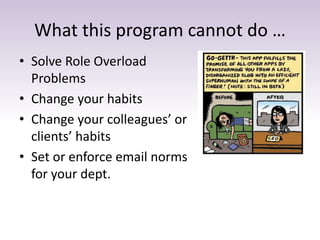
What this program cannot do …
• Solve Role Overload
Problems
• Change your habits
• Change your colleagues’ or
clients’ habits
• Set or enforce email norms
for your dept.
What we can do …
• Orient you to features of gmail that are useful
in managing email
• Introduce a method for processing email as
part of a task management system
• Offer some general email tips
Outline
1. Michael: Gmail
techniques
2. Kevin: Michael
Allen’s Getting
Things Done
Processing System
3. Kevin:
Miscellaneous email
management tips
Outline
1. Michael: Gmail
techniques
2. Kevin: Michael
Allen’s Getting
Things Done
Processing System
3. Kevin:
Miscellaneous email
management tips
Outline
1. Michael: Gmail
techniques
2. Kevin: Michael
Allen’s Getting
Things Done
Processing System
3. Kevin:
Miscellaneous email
management tips
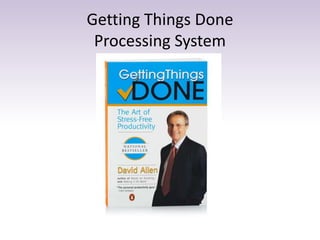
Getting Things Done
Processing System
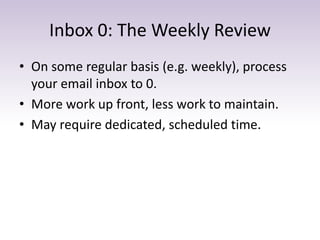
Inbox 0: The Weekly Review
• On some regular basis (e.g. weekly), process
your email inbox to 0.
• More work up front, less work to maintain.
• May require dedicated, scheduled time.
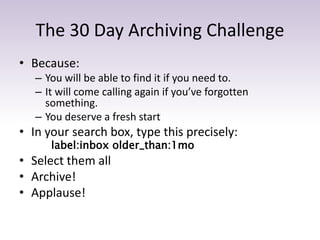
The 30 Day Archiving Challenge
• Because:
– You will be able to find it if you need to.
– It will come calling again if you’ve forgotten
something.
– You deserve a fresh start
• In your search box, type this precisely:
label:inbox older_than:1mo
• Select them all
• Archive!
• Applause!
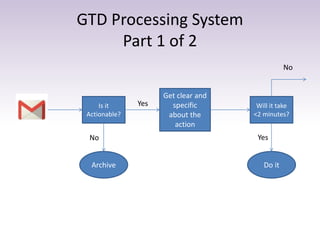
GTD Processing System
Part 1 of 2
Is it
Actionable?
Do it
Get clear and
specific
about the
action
Will it take
<2 minutes?
Archive
No
Yes
Yes
No
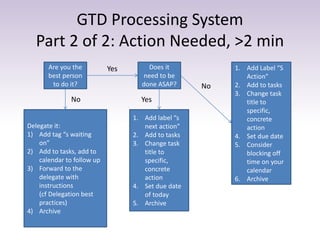
GTD Processing System
Part 2 of 2: Action Needed, >2 min
Are you the
best person
to do it?
Delegate it:
1) Add tag “s waiting
on”
2) Add to tasks, add to
calendar to follow up
3) Forward to the
delegate with
instructions
(cf Delegation best
practices)
4) Archive
Does it
need to be
done ASAP?
1. Add label “s
next action”
2. Add to tasks
3. Change task
title to
specific,
concrete
action
4. Set due date
of today
5. Archive
1. Add Label “S
Action”
2. Add to tasks
3. Change task
title to
specific,
concrete
action
4. Set due date
5. Consider
blocking off
time on your
calendar
6. Archive
YesNo
Yes
No
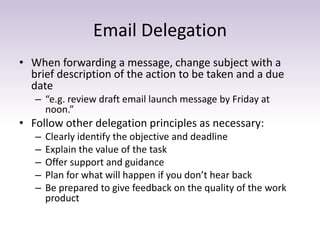
Email Delegation
• When forwarding a message, change subject with a
brief description of the action to be taken and a due
date
– “e.g. review draft email launch message by Friday at
noon.”
• Follow other delegation principles as necessary:
– Clearly identify the objective and deadline
– Explain the value of the task
– Offer support and guidance
– Plan for what will happen if you don’t hear back
– Be prepared to give feedback on the quality of the work
product
Try It!
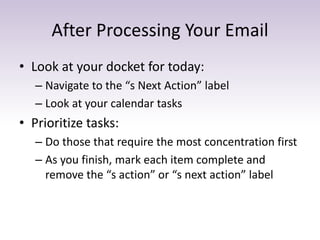
After Processing Your Email
• Look at your docket for today:
– Navigate to the “s Next Action” label
– Look at your calendar tasks
• Prioritize tasks:
– Do those that require the most concentration first
– As you finish, mark each item complete and
remove the “s action” or “s next action” label
Outline
1. Michael: Gmail
techniques
2. Kevin: Michael Allen’s
Getting Things Done
Processing System
3. Kevin: Miscellaneous
email management
tips
Try to Avoid CC/BCC
• Cc’ing produces a lot of wasted email
• It is a poor form of “borrowed authority”.
• It won’t CYA.
• Before, cc’ing, consider what action the cc’d person may
take as a result of this email.
• If none, don’t cc.
• If it’s a project update, use the next project team meeting.
• Otherwise, after sending, forward the email and delegate
them the task:
– “If you have any concerns about how I handled this inquiry from
a potential donor, let me know.”
– “Be advised donor Hooty-Hoot will be at the office on this day
and time if you want to drop by and say hello.”
Email and Management
• If you are a manager, communicate your
expectations about email as clearly as your
other expectations:
– Response time
– Availability
– Email volume
Other Email Tips
• Don’t respond to ANY emails immediately
• Close your email during scheduled work
periods
• If something hasn’t been resolved after 2
email volleys, pick up the phone.
• Don’t send emails between 11pm and 7am
• Remember: every email you send creates
more work and more email.
Email expectations management
• Be prepared to communicate the changes
you’re making in how you handle email:
– “I’m trying to get in the habit of reducing the
number of times I check email so that I can
concentrate on projects.”
– “I use the weekends to recharge so that I’m
refreshed on Monday, and I’m often somewhere
where I can’t easily answer work emails.”
Change Strategies
More to Come
• Productivity Boosters:
Theories, Tools, and
Practices
– Monday, October 27
10:00 a.m. – 12:00 p.m.
Faculty House Lounge
Kevin R. Thomas
Manager, Training & Development
x3542
Kevin.R.Thomas@williams.edu
• Program evaluation link will be sent by email.
• You’ll get a link to a course page with all the materials.
Michael Richardson
Desktop Systems Specialist
x4516
Kevin.R.Thomas@williams.edu

Email Management

  • 1.
    Email Management Kevin R.Thomas Manager, Training & Development x3542 Kevin.R.Thomas@williams.edu Michael Richardson Desktop Systems Specialist x4516 Michael.Richardson@williams.edu
  • 2.
    What this programcannot do … • Solve Role Overload Problems • Change your habits • Change your colleagues’ or clients’ habits • Set or enforce email norms for your dept.
  • 3.
    What we cando … • Orient you to features of gmail that are useful in managing email • Introduce a method for processing email as part of a task management system • Offer some general email tips
  • 4.
    Outline 1. Michael: Gmail techniques 2.Kevin: Michael Allen’s Getting Things Done Processing System 3. Kevin: Miscellaneous email management tips
  • 5.
    Outline 1. Michael: Gmail techniques 2.Kevin: Michael Allen’s Getting Things Done Processing System 3. Kevin: Miscellaneous email management tips
  • 6.
    Outline 1. Michael: Gmail techniques 2.Kevin: Michael Allen’s Getting Things Done Processing System 3. Kevin: Miscellaneous email management tips
  • 7.
  • 8.
    Inbox 0: TheWeekly Review • On some regular basis (e.g. weekly), process your email inbox to 0. • More work up front, less work to maintain. • May require dedicated, scheduled time.
  • 9.
    The 30 DayArchiving Challenge • Because: – You will be able to find it if you need to. – It will come calling again if you’ve forgotten something. – You deserve a fresh start • In your search box, type this precisely: label:inbox older_than:1mo • Select them all • Archive! • Applause!
  • 10.
    GTD Processing System Part1 of 2 Is it Actionable? Do it Get clear and specific about the action Will it take <2 minutes? Archive No Yes Yes No
  • 11.
    GTD Processing System Part2 of 2: Action Needed, >2 min Are you the best person to do it? Delegate it: 1) Add tag “s waiting on” 2) Add to tasks, add to calendar to follow up 3) Forward to the delegate with instructions (cf Delegation best practices) 4) Archive Does it need to be done ASAP? 1. Add label “s next action” 2. Add to tasks 3. Change task title to specific, concrete action 4. Set due date of today 5. Archive 1. Add Label “S Action” 2. Add to tasks 3. Change task title to specific, concrete action 4. Set due date 5. Consider blocking off time on your calendar 6. Archive YesNo Yes No
  • 12.
    Email Delegation • Whenforwarding a message, change subject with a brief description of the action to be taken and a due date – “e.g. review draft email launch message by Friday at noon.” • Follow other delegation principles as necessary: – Clearly identify the objective and deadline – Explain the value of the task – Offer support and guidance – Plan for what will happen if you don’t hear back – Be prepared to give feedback on the quality of the work product
  • 13.
  • 14.
    After Processing YourEmail • Look at your docket for today: – Navigate to the “s Next Action” label – Look at your calendar tasks • Prioritize tasks: – Do those that require the most concentration first – As you finish, mark each item complete and remove the “s action” or “s next action” label
  • 15.
    Outline 1. Michael: Gmail techniques 2.Kevin: Michael Allen’s Getting Things Done Processing System 3. Kevin: Miscellaneous email management tips
  • 16.
    Try to AvoidCC/BCC • Cc’ing produces a lot of wasted email • It is a poor form of “borrowed authority”. • It won’t CYA. • Before, cc’ing, consider what action the cc’d person may take as a result of this email. • If none, don’t cc. • If it’s a project update, use the next project team meeting. • Otherwise, after sending, forward the email and delegate them the task: – “If you have any concerns about how I handled this inquiry from a potential donor, let me know.” – “Be advised donor Hooty-Hoot will be at the office on this day and time if you want to drop by and say hello.”
  • 17.
    Email and Management •If you are a manager, communicate your expectations about email as clearly as your other expectations: – Response time – Availability – Email volume
  • 18.
    Other Email Tips •Don’t respond to ANY emails immediately • Close your email during scheduled work periods • If something hasn’t been resolved after 2 email volleys, pick up the phone. • Don’t send emails between 11pm and 7am • Remember: every email you send creates more work and more email.
  • 19.
    Email expectations management •Be prepared to communicate the changes you’re making in how you handle email: – “I’m trying to get in the habit of reducing the number of times I check email so that I can concentrate on projects.” – “I use the weekends to recharge so that I’m refreshed on Monday, and I’m often somewhere where I can’t easily answer work emails.”
  • 20.
  • 21.
    More to Come •Productivity Boosters: Theories, Tools, and Practices – Monday, October 27 10:00 a.m. – 12:00 p.m. Faculty House Lounge
  • 22.
    Kevin R. Thomas Manager,Training & Development x3542 Kevin.R.Thomas@williams.edu • Program evaluation link will be sent by email. • You’ll get a link to a course page with all the materials. Michael Richardson Desktop Systems Specialist x4516 Kevin.R.Thomas@williams.edu