Component 3
Activity 3.2:
Quality through improving
trainers’ performance
Expert Mission Feb 8 – 14, 2014

Timo Rainio,
Tampere, Finland
Hermia Group
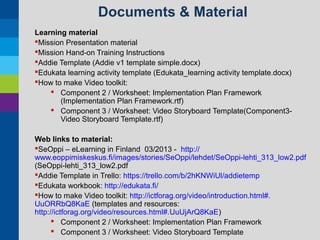
Documents & Material
Learning material
Mission Presentation material
Mission Hand-on Training Instructions
Addie Template (Addie v1 template simple.docx)
Edukata learning activity template (Edukata_learning activity template.docx)
How to make Video toolkit:
 Component 2 / Worksheet: Implementation Plan Framework
(Implementation Plan Framework.rtf)
 Component 3 / Worksheet: Video Storyboard Template(Component3Video Storyboard Template.rtf)
Web links to material:
SeOppi – eLearning in Finland 03/2013 - http://
www.eoppimiskeskus.fi/images/stories/SeOppi/lehdet/SeOppi-lehti_313_low2.pdf
(SeOppi-lehti_313_low2.pdf
Addie Template in Trello: https://trello.com/b/2hKNWiUl/addietemp
Edukata workbook: http://edukata.fi/
How to make Video toolkit: http://ictforag.org/video/introduction.html#.
UuORRbQ8KaE (templates and resources:
http://ictforag.org/video/resources.html#.UuUjArQ8KaE)
 Component 2 / Worksheet: Implementation Plan Framework
 Component 3 / Worksheet: Video Storyboard Template
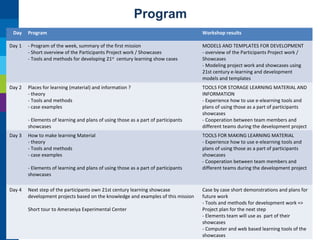
Program
Day

Program

Workshop results

Day 1

- Program of the week, summary of the first mission
- Short overview of the Participants Project work / Showcases
- Tools and methods for developing 21st century learning show cases

MODELS AND TEMPLATES FOR DEVELOPMENT
- overview of the Participants Project work /
Showcases
- Modeling project work and showcases using
21st century e-learning and development
models and templates

Day 2

Places for learning (material) and information ?
- theory
- Tools and methods
- case examples

TOOLS FOR STORAGE LEARNING MATERIAL AND
INFORMATION
- Experience how to use e-elearning tools and
plans of using those as a part of participants
showcases
- Cooperation between team members and
different teams during the development project

- Elements of learning and plans of using those as a part of participants
showcases
Day 3

How to make learning Material
- theory
- Tools and methods
- case examples
- Elements of learning and plans of using those as a part of participants
showcases

Day 4

Next step of the participants own 21st century learning showcase
development projects based on the knowledge and examples of this mission
Short tour to Ameraeiya Experimental Center

TOOLS FOR MAKING LEARNING MATERIAL
- Experience how to use e-elearning tools and
plans of using those as a part of participants
showcases
- Cooperation between team members and
different teams during the development project

Case by case short demonstrations and plans for
future work
- Tools and methods for development work =>
Project plan for the next step
- Elements team will use as part of their
showcases
- Computer and web based learning tools of the
showcases
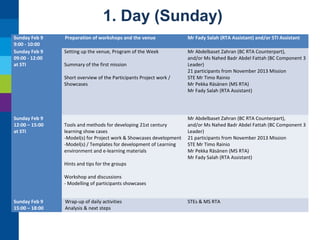
1. Day (Sunday)
Sunday Feb 9
9:00 - 10:00
Sunday Feb 9
09:00 - 12:00
at STI

Preparation of workshops and the venue

Mr Fady Salah (RTA Assistant) and/or STI Assistant

Setting up the venue, Program of the Week

Mr Abdelbaset Zahran (BC RTA Counterpart),
and/or Ms Nahed Badr Abdel Fattah (BC Component 3
Leader)
21 participants from November 2013 Mission
STE Mr Timo Rainio
Mr Pekka Räsänen (MS RTA)
Mr Fady Salah (RTA Assistant)

Summary of the first mission
Short overview of the Participants Project work /
Showcases

Sunday Feb 9
12:00 – 15:00
at STI

Tools and methods for developing 21st century
learning show cases
-Model(s) for Project work & Showcases development
-Model(s) / Templates for development of Learning
environment and e-learning materials
Hints and tips for the groups

Mr Abdelbaset Zahran (BC RTA Counterpart),
and/or Ms Nahed Badr Abdel Fattah (BC Component 3
Leader)
21 participants from November 2013 Mission
STE Mr Timo Rainio
Mr Pekka Räsänen (MS RTA)
Mr Fady Salah (RTA Assistant)

Workshop and discussions
- Modelling of participants showcases
Sunday Feb 9
15:00 – 18:00

Wrap-up of daily activities
Analysis & next steps

STEs & MS RTA
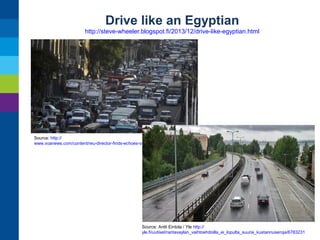
Drive like an Egyptian
http://steve-wheeler.blogspot.fi/2013/12/drive-like-egyptian.html

Source: http://
www.voanews.com/content/reu-director-finds-echoes-of-egypt-in-cairo-traffic-chaos/1780126.html

Source: Antti Eintola / Yle http://
yle.fi/uutiset/rantavaylan_vaihtoehdoilla_ei_lopulta_suuria_kustannuseroja/6783231
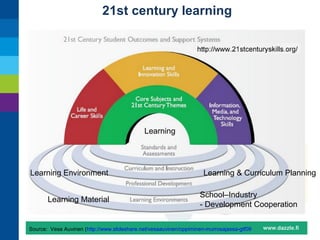
21st century learning

Learning

Learning Environment
Learning Material

Learning & Curriculum Planning
School–Industry
- Development Cooperation

Source: Vesa Auvinen (http://www.slideshare.net/vesaauvinen/oppiminen-murrosajassa-gtf09
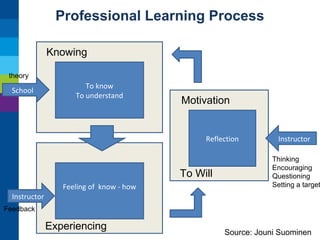
Professional Learning Process
Knowing
theory

School

To know
To understand

Motivation

Reflection

To Will
Feeling of know - how

Instructor

Thinking
Encouraging
Questioning
Setting a target

Instructor
Feedback

Experiencing

Source: Jouni Suominen
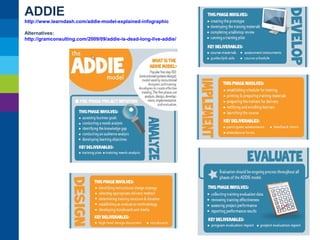
ADDIE
http://www.learndash.com/addie-model-explained-infographic
Alternatives:
http://gramconsulting.com/2009/09/addie-is-dead-long-live-addie/
Workshop 1: MODELS AND TEMPLATES
FOR DEVELOPMENT
1. Demo presentation: how to use MS Word, GoogleDocs and Trello
for making ADDIE –model of 21St Learning Showcase – 30 minutes
2. Making ADDIE models of participants showcase by groups – 60
minutes

 Work in Showcase development groups (Shared document)
 Concentrate your group point of view to the most important
parts of the model
 Tools and Templates:
 https://drive.google.com
 https://trello.com/
1. Presentations of the results: max 5 minutes / group
Overview of the Participants Project work / Showcases using
these ADDIE models – 30 minutes
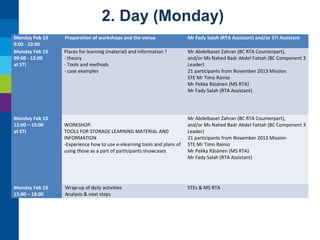
2. Day (Monday)
Monday Feb 10
9:00 - 10:00
Monday Feb 10
09:00 - 12:00
at STI

Monday Feb 10
12:00 – 15:00
at STI

Monday Feb 10
15:00 – 18:00

Preparation of workshops and the venue

Mr Fady Salah (RTA Assistant) and/or STI Assistant

Places for learning (material) and information ?
- theory
- Tools and methods
- case examples

Mr Abdelbaset Zahran (BC RTA Counterpart),
and/or Ms Nahed Badr Abdel Fattah (BC Component 3
Leader)
21 participants from November 2013 Mission
STE Mr Timo Rainio
Mr Pekka Räsänen (MS RTA)
Mr Fady Salah (RTA Assistant)

WORKSHOP:
TOOLS FOR STORAGE LEARNING MATERIAL AND
INFORMATION
-Experience how to use e-elearning tools and plans of
using those as a part of participants showcases

Wrap-up of daily activities
Analysis & next steps

Mr Abdelbaset Zahran (BC RTA Counterpart),
and/or Ms Nahed Badr Abdel Fattah (BC Component 3
Leader)
21 participants from November 2013 Mission
STE Mr Timo Rainio
Mr Pekka Räsänen (MS RTA)
Mr Fady Salah (RTA Assistant)

STEs & MS RTA
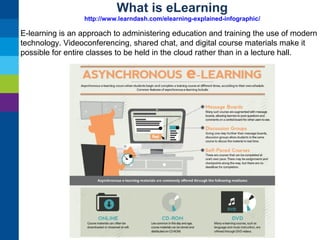
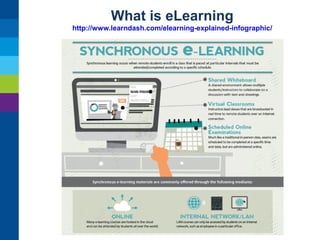
What is eLearning
http://www.learndash.com/elearning-explained-infographic/

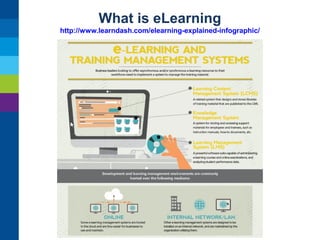
E-learning is an approach to administering education and training the use of modern
technology. Videoconferencing, shared chat, and digital course materials make it
possible for entire classes to be held in the cloud rather than in a lecture hall.
What is eLearning
http://www.learndash.com/elearning-explained-infographic/
What is eLearning
http://www.learndash.com/elearning-explained-infographic/
E-Learning, 7 Awesome Advantages of
Elearning (Educator point of view)
(http://www.learndash.com/7-awesome-advantages-of-elearning/)
1. Scalable - Elearning enables us to quickly create and communicate new policies, training, ideas, and
concepts. Be it for entertainment or formal education, elearning is nimble!
2. Capacity and Consistency - Using elearning allows educators to achieve a great degree of coverage
for their target audience, and it ensures that the message is communicated in a consistent fashion. This
results in all learners receiving the same training.
3. High Learning Retention - Blended learning approaches result in a higher knowledge retention rate. It
also helps that coursework can be refreshed and updated whenever needed.
4. Time and Money Savings - This one is pretty well known, and a staple of any well-done elearning
program. Elearning reduces time away from the workplace, eliminates the need for travel, and removes
the need for classroom-based training.
5. Activity and ROI Measurements - If you are using a learning management system to deliver your
elearning, then tracking learner progress is a piece-of-cake, and reporting on this activity is just as
simple.
6. Reduction of the Carbon Footprint - By leveraging elearning for online testing and quizzing, the need
for printing out paper-based assessments is reduced, in fact it’s practically eliminated altogether!
7. Flexible - Using elearning, you can give employees and students the freedom to learn at their own
convenience, and at a pace that is right for them. Staff can be trained in remote locations and in a
consistent fashion as anyone receiving on-site training.
E-Learning, 6 Reasons to be Grateful for
Elearning (Student point of view)
(http://www.learndash.com/6-reasons-to-be-grateful-for-elearning/)
1. Gives Us Mobility
Elearning technology has given us the ability to be mobile with our learning. Be it on a train, plane, or car,
elearning enables us to take formal learning courses on the move!
2. Freedom to Mess-Up
Elearning often uses game and scenario-based exercises which gives us permission to try something new, and
more importantly, permission to fail. Having a safe environment in which we can fail is a great way to develop our
skills.
3. Earn while Learning
With the abundance of formal online courses, elearning has enabled us to pursue learning while maintaining our
full-time careers – letting professionals to keep building their real-world experience while supplementing their
resume with relevant skills.
4. It can be Fun
Let’s face it, sometimes sitting in a classroom or seminar can be boring. Elearning makes it easy to implement
games, quizzes, graphics, stories, and simulations along with the learning content. With the flexibility in today’s
technology, these games can be quite involved!
5. Makes Education Affordable
Elearning provides an overall reduction to formal instructional costs, be it in the education setting or corporate
world. This greater accessibility is causing people of all ages to more readily seek out learning opportunities.
6. Makes us More Productive
Elearning has been shown to make us more productive by making valuable content available at our fingertips. It’s
on-demand nature is a powerful resource in any situation!.
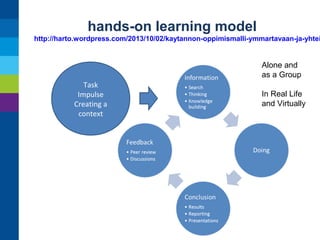
hands-on learning model

http://harto.wordpress.com/2013/10/02/kaytannon-oppimismalli-ymmartavaan-ja-yhtei

Alone and
as a Group
Task
Impulse
Creating a
context

In Real Life
and Virtually
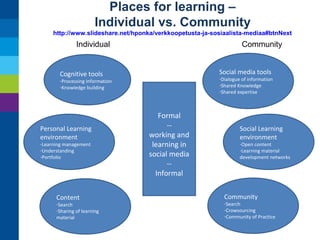
Places for learning –
Individual vs. Community
http://www.slideshare.net/hponka/verkkoopetusta-ja-sosiaalista-mediaa#btnNext

Individual

Community
Social media tools

Cognitive tools

-Dialogue of information
-Shared Knowledge
-Shared expertise

-Processing Information
-Knowledge building

Personal Learning
environment
-Learning management
-Understanding
-Portfolio

Content

-Search
-Sharing of learning
material

Formal
-working and
learning in
social media
-Informal

Social Learning
environment

-Open content
-Learning material
development networks

Community

-Search
-Crowsourcing
-Community of Practice
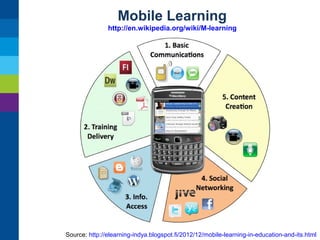
Mobile Learning
http://en.wikipedia.org/wiki/M-learning

Source: http://elearning-indya.blogspot.fi/2012/12/mobile-learning-in-education-and-its.html
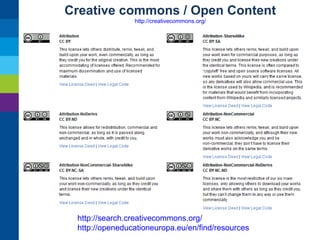
Creative commons / Open Content
http://creativecommons.org/

http://search.creativecommons.org/
http://openeducationeuropa.eu/en/find/resources
Hands-on Training
1. Social media Accounts (like Google)
2. Testing basic eLearning tools
 LMS examples (Moodle)
 Blog (Blogger, Wordpress)
 Wiki (Wikispaces)
 Presentations (SlideShare, Prezi)

1. Searching information for learning
 Basic Web search, Google Trends (http://
lifehacker.com/google-tips-and-tricks-every-student-should-know-1
)
 Picture Search
1. Wikipedia
2. Video (Youtube)
3. Moocs and other learning material archives
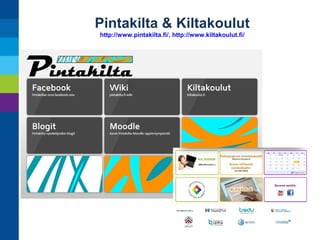
Pintakilta & Kiltakoulut
http://www.pintakilta.fi/, http://www.kiltakoulut.fi/
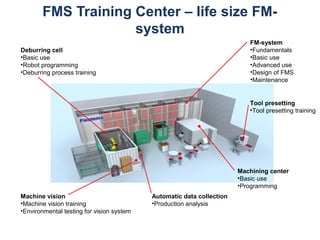
FMS Training Center – life size FMsystem
FM-system
•Fundamentals
•Basic use
•Advanced use
•Design of FMS
•Maintenance

Deburring cell
•Basic use
•Robot programming
•Deburring process training

Tool presetting
•Tool presetting training

Machining center
•Basic use
•Programming
Machine vision
•Machine vision training
•Environmental testing for vision system

Automatic data collection
•Production analysis
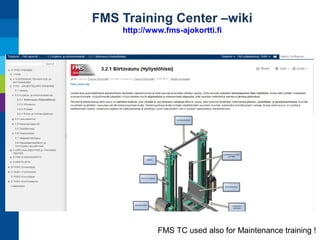
FMS Training Center –wiki
http://www.fms-ajokortti.fi

FMS TC used also for Maintenance training !
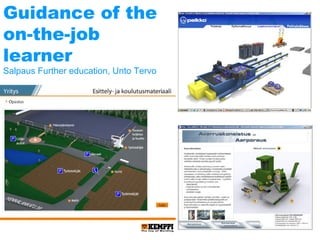
Guidance of the
on-the-job
learner
Salpaus Further education, Unto Tervo
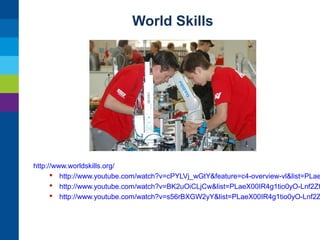
World Skills

http://www.worldskills.org/
 http://www.youtube.com/watch?v=cPYLVj_wGtY&feature=c4-overview-vl&list=PLae
 http://www.youtube.com/watch?v=BK2uOiCLjCw&list=PLaeX00IR4g1tio0yO-Lnf2Zt
 http://www.youtube.com/watch?v=s56rBXGW2yY&list=PLaeX00IR4g1tio0yO-Lnf2Z
Workshop 2: PLACES OF LEARNING
- LEARNING ENVIRONMENT
1. Group discussions how to use different “places of learning” and make
plans of using those as a part of your group Showcase => report
group results to your Addie plan
- 30 minutes

 Concentrate your group point of view to the most important parts
of the model
 Discuss Development cooperation with other groups
1. Make more focused plan how to use one chosen “place of learning” as
a part of your Showcase about– 60 minutes

§

 Write implementation plan of that topic to your ADDIE –report
(what, who, when, needed resources, etc. )
Presentations of the results: max 5 minutes / group
Overview of the Participants Project work / Showcases using ADDIE
models – 30 minutes – 30 minutes
Workshop 2: PLACES OF LEARNING
- LEARNING ENVIRONMENT
1. Go to your learning development showcase group (from the last
mission) or new one from this mission
1. Group discussions how to use different “places of learning” and make
plans of using those as a part of your group Showcase
2. Make “cards” of the most important activities needed in your showcase
in its “DESIGN” part
 If needed use questions you have in the paper you get => Think
about what kind of activities you need to do for answering the
questionS
1. Presentations of the results: max 5 minutes / group
Overview of the Participants Project work / Showcases using ADDIE
models
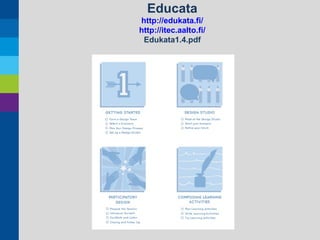
Educata
http://edukata.fi/
http://itec.aalto.fi/
Edukata1.4.pdf
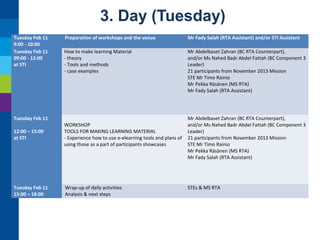
3. Day (Tuesday)
Tuesday Feb 11
9:00 - 10:00
Tuesday Feb 11
09:00 - 12:00
at STI

Preparation of workshops and the venue

Mr Fady Salah (RTA Assistant) and/or STI Assistant

How to make learning Material
- theory
- Tools and methods
- case examples

Mr Abdelbaset Zahran (BC RTA Counterpart),
and/or Ms Nahed Badr Abdel Fattah (BC Component 3
Leader)
21 participants from November 2013 Mission
STE Mr Timo Rainio
Mr Pekka Räsänen (MS RTA)
Mr Fady Salah (RTA Assistant)

Tuesday Feb 11
12:00 – 15:00
at STI

WORKSHOP
TOOLS FOR MAKING LEARNING MATERIAL
- Experience how to use e-elearning tools and plans of
using those as a part of participants showcases

Tuesday Feb 11
15:00 – 18:00

Wrap-up of daily activities
Analysis & next steps

Mr Abdelbaset Zahran (BC RTA Counterpart),
and/or Ms Nahed Badr Abdel Fattah (BC Component 3
Leader)
21 participants from November 2013 Mission
STE Mr Timo Rainio
Mr Pekka Räsänen (MS RTA)
Mr Fady Salah (RTA Assistant)

STEs & MS RTA
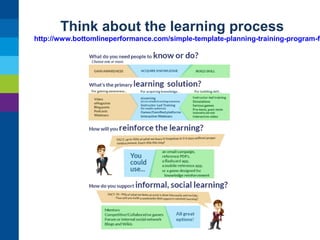
Think about the learning process

http://www.bottomlineperformance.com/simple-template-planning-training-program-fr
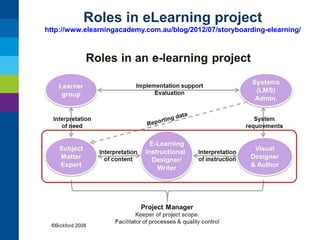
Roles in eLearning project
http://www.elearningacademy.com.au/blog/2012/07/storyboarding-elearning/
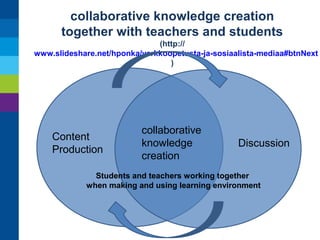
collaborative knowledge creation
together with teachers and students
(http://
www.slideshare.net/hponka/verkkoopetusta-ja-sosiaalista-mediaa#btnNext
)

Content
Production

collaborative
knowledge
creation

Discussion

Students and teachers working together
when making and using learning environment
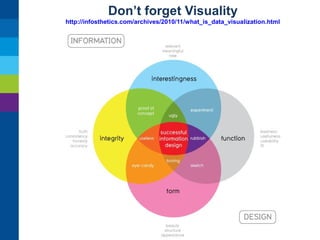
Don’t forget Visuality
http://infosthetics.com/archives/2010/11/what_is_data_visualization.html
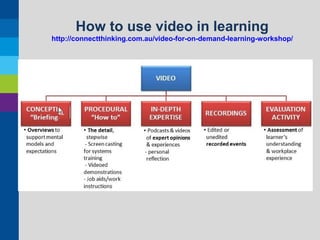
How to use video in learning
http://connectthinking.com.au/video-for-on-demand-learning-workshop/
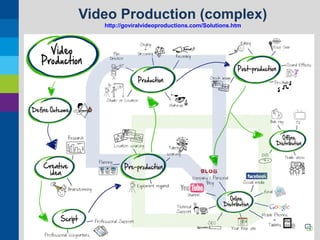
Video Production (complex)
http://goviralvideoproductions.com/Solutions.htm
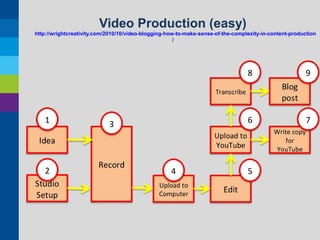
Video Production (easy)
http://wrightcreativity.com/2010/10/video-blogging-how-to-make-sense-of-the-complexity-in-content-production
/
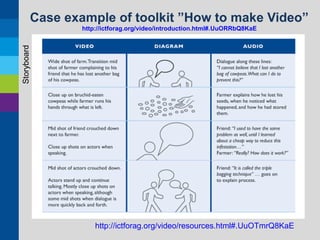
Case example of toolkit ”How to make Video”
Storyboard

http://ictforag.org/video/introduction.html#.UuORRbQ8KaE

http://ictforag.org/video/resources.html#.UuOTmrQ8KaE
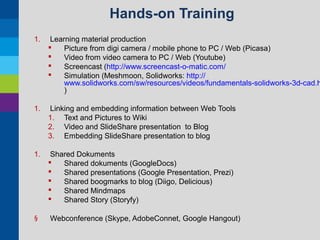
Hands-on Training
1.

Learning material production

Picture from digi camera / mobile phone to PC / Web (Picasa)

Video from video camera to PC / Web (Youtube)

Screencast (http://www.screencast-o-matic.com/

Simulation (Meshmoon, Solidworks: http://
www.solidworks.com/sw/resources/videos/fundamentals-solidworks-3d-cad.h
)

1.

Linking and embedding information between Web Tools
1. Text and Pictures to Wiki
2. Video and SlideShare presentation to Blog
3. Embedding SlideShare presentation to blog

1.

Shared Dokuments

Shared dokuments (GoogleDocs)

Shared presentations (Google Presentation, Prezi)

Shared boogmarks to blog (Diigo, Delicious)

Shared Mindmaps

Shared Story (Storyfy)

§

Webconference (Skype, AdobeConnet, Google Hangout)
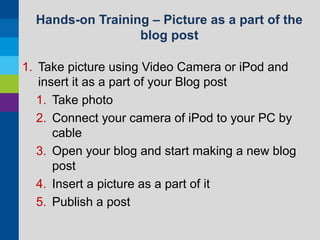
Hands-on Training – Picture as a part of the
blog post
1. Take picture using Video Camera or iPod and
insert it as a part of your Blog post
1. Take photo
2. Connect your camera of iPod to your PC by
cable
3. Open your blog and start making a new blog
post
4. Insert a picture as a part of it
5. Publish a post
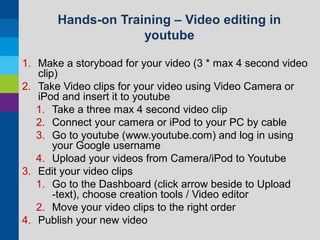
Hands-on Training – Video editing in
youtube
1. Make a storyboad for your video (3 * max 4 second video
clip)
2. Take Video clips for your video using Video Camera or
iPod and insert it to youtube
1. Take a three max 4 second video clip
2. Connect your camera or iPod to your PC by cable
3. Go to youtube (www.youtube.com) and log in using
your Google username
4. Upload your videos from Camera/iPod to Youtube
3. Edit your video clips
1. Go to the Dashboard (click arrow beside to Upload
-text), choose creation tools / Video editor
2. Move your video clips to the right order
4. Publish your new video
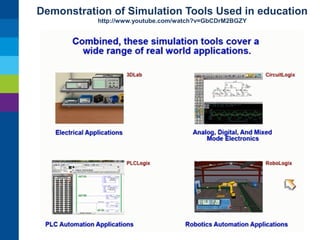
Demonstration of Simulation Tools Used in education
http://www.youtube.com/watch?v=GbCDrM2BGZY
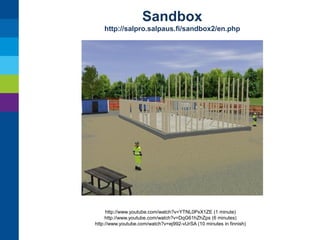
Sandbox
http://salpro.salpaus.fi/sandbox2/en.php

http://www.youtube.com/watch?v=YTNL0PxX1ZE (1 minute)
http://www.youtube.com/watch?v=DqG61hZhZps (6 minutes)
http://www.youtube.com/watch?v=ej992-vUrSA (10 minutes in finnish)
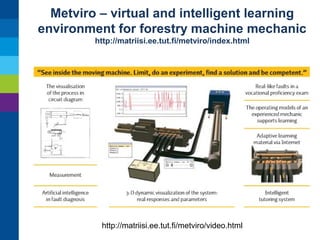
Metviro – virtual and intelligent learning
environment for forestry machine mechanic
http://matriisi.ee.tut.fi/metviro/index.html

http://matriisi.ee.tut.fi/metviro/video.html
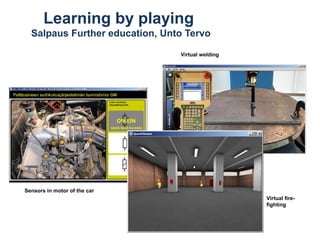
Learning by playing
Salpaus Further education, Unto Tervo
Virtual welding

Sensors in motor of the car
Virtual firefighting
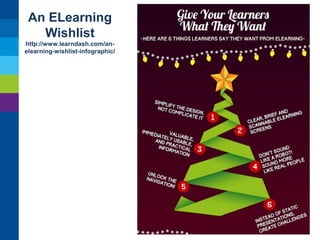
An ELearning
Wishlist
http://www.learndash.com/anelearning-wishlist-infographic/
Workshop 3: TOOLS FOR ELEARNING
1. Hands-on Training from yesterday continues
2. Group discussions how to use different Learning material
Development tools and make plans of using those as a part of your
group Showcase => report group results to your Addie plan
- 60 minutes

 Concentrate your group point of view to the most important parts
of the model
1. Make a demo of using One material development tools as a part of
your Showcase – 2 hours

 Use eLearning tools you have seen demonstrated today:
1. Presentations of the results: max 10 minutes / group
Overview of the Participants Project work / Showcases using ADDIE
models – 60 minutes
4. Day (Wednesday)
Wednesday Feb 12
9:00 - 10:00
Wednesday Feb 12
09:00 - 12:00
at STI

Preparation of workshops and the venue

Mr Fady Salah (RTA Assistant) and/or STI Assistant

Next step of the participants own 21st century
learning showcase development projects based on
the knowledge and examples of this mission

Mr Abdelbaset Zahran (BC RTA Counterpart),
and/or Ms Nahed Badr Abdel Fattah (BC Component 3
Leader)
21 participants from November 2013 Mission
STE Mr Timo Rainio
Mr Pekka Räsänen (MS RTA)
Mr Fady Salah (RTA Assistant)

Prepearring to make group demonstrations and plans
for future work
- Tools and methods for development work => Project
plan for the next step
- Elements team will use as part of their showcases
- Computer and web based learning tools of the
showcases
Wednesday Feb 12
12:00 – 15:00
at STI

Wednesday Feb 12
15:00 – 18:00

Case by case short demonstrations and plans for
future work
- Tools and methods for development work => Project
plan for the next step
- Elements team will use as part of their showcases
- Computer and web based learning tools of the
showcases

Wrap-up of daily activities
Analysis & next steps

Mr Abdelbaset Zahran (BC RTA Counterpart),
and/or Ms Nahed Badr Abdel Fattah (BC Component 3
Leader)
21 participants from November 2013 Mission
STE Mr Timo Rainio
Mr Pekka Räsänen (MS RTA)
Mr Fady Salah (RTA Assistant)

STEs & MS RTA
Demos – Google Search
 www.google.com (https://www.google.com.eg/)
 maps
 Pictures
 Videos
 Books
 Search tools
 country
 language
 time
 Based on location
 More information: http://lifehacker.com/google-tips-and-tricks-everystudent-should-know-1508121671
 Remember CTRL+F (Other shortcuts: CTRL + C, X, V, ALT+TAB,
etc.)
Other demos
 Picasa (picasaweb.google.com)
 Screencast (http://www.screencast-o-matic.com/)
Hands–On training:
 Go to Goole (www.google.com) and search information about
yourself, your school, your city, your technology area, about
education, learning, etc.
 www.google.com (https://www.google.com.eg/)
 Search information from other medias
 wikis,
 blogs (blogger)
 videos (youtube)
 Photos (google photo search)
 Slideshare (presentationsetc)
Showcases
 First mission
 CNC Technology centre
 Computer Maintenance
 Automotive and Car Maintenance
 Automation and PLC
 Mathematics
 Not present / left out?
 Air Conditioning
 Home Appliances Maintenance
 Carpentry
Workshop 4: Case by case short
demonstrations and plans for future work
1. Making plans for the future work (ADDIE –model, etc.) and finalizing
demostrations – 2 hours
2. Discussions of resourcing and cooperation inside development groups
and between groups – 30 minutues
3. Presentations of project plans: to be implemented before next mission
– 60 minutes

4. Tools and methods for development work => Project plan for the
next step
5. Elements of learning, that team will use as part of their showcases
6. Computer and web based learning tools of the showcases +
Demonstration of one of those
7. Resourcing of the work and cooperation with other groups
Workshop : Modelling your showcase
1.

Go to your learning development showcase group (from the last mission)
or decide new topic for you/your team 21st learning showcase
development project
2. Create a new Trello board for your showcase and write your next step
plans to there
 Add Addie steps to your board (all addies steps has an own “list”, just
like in ADDIEtemp –example)
 Invite your group members to your board
 Make “cards” of the most important activities needed in your
showcase
 If needed use questions you have in the paper you get first day =>
Think about what kind of activities you need to do for answering
the question
 Send Mr Timo, Mr Fady and Mr Pekka (timo.rainio@gmail.com,
fadysalahbm@gmail.com) invitation to your board
3. Presentations of the results: => Project plan for the next step (using
ADDIE model)
1. Tools and methods, that team will use as part of their showcases
2. Resourcing of the work and cooperation with other groups (what, who
and when)
3. Computer and web based learning tools of the showcases +
Demonstration of one of those
Homework, between mission 2 and 3
 Go to your Trello account and check status of
the board of your showcase
 Complete there the tasks, your think is needed
to do before the third mission and decide who is
responsible for that (what, who and when)
 Do the tasks that you are responsible before the
third mission and when you have made it inform
it to the card of the task
Timo Rainio
Hermia Group
timo.rainio@hermiagroup.fi
+358 500 7366 05
http://www.hermiagroup.fi
http://www.slideshare.net/timorainio

http://www.dooid.com/timorainio

Strengthening the Institutional Capacity of the Productivity and Vocational Training Department PVTD within the Vocational Training System in Egypt - Mission 2, Elearning

  • 1.
    Component 3 Activity 3.2: Qualitythrough improving trainers’ performance Expert Mission Feb 8 – 14, 2014 Timo Rainio, Tampere, Finland Hermia Group
  • 2.
    Documents & Material Learningmaterial Mission Presentation material Mission Hand-on Training Instructions Addie Template (Addie v1 template simple.docx) Edukata learning activity template (Edukata_learning activity template.docx) How to make Video toolkit:  Component 2 / Worksheet: Implementation Plan Framework (Implementation Plan Framework.rtf)  Component 3 / Worksheet: Video Storyboard Template(Component3Video Storyboard Template.rtf) Web links to material: SeOppi – eLearning in Finland 03/2013 - http:// www.eoppimiskeskus.fi/images/stories/SeOppi/lehdet/SeOppi-lehti_313_low2.pdf (SeOppi-lehti_313_low2.pdf Addie Template in Trello: https://trello.com/b/2hKNWiUl/addietemp Edukata workbook: http://edukata.fi/ How to make Video toolkit: http://ictforag.org/video/introduction.html#. UuORRbQ8KaE (templates and resources: http://ictforag.org/video/resources.html#.UuUjArQ8KaE)  Component 2 / Worksheet: Implementation Plan Framework  Component 3 / Worksheet: Video Storyboard Template
  • 3.
    Program Day Program Workshop results Day 1 -Program of the week, summary of the first mission - Short overview of the Participants Project work / Showcases - Tools and methods for developing 21st century learning show cases MODELS AND TEMPLATES FOR DEVELOPMENT - overview of the Participants Project work / Showcases - Modeling project work and showcases using 21st century e-learning and development models and templates Day 2 Places for learning (material) and information ? - theory - Tools and methods - case examples TOOLS FOR STORAGE LEARNING MATERIAL AND INFORMATION - Experience how to use e-elearning tools and plans of using those as a part of participants showcases - Cooperation between team members and different teams during the development project - Elements of learning and plans of using those as a part of participants showcases Day 3 How to make learning Material - theory - Tools and methods - case examples - Elements of learning and plans of using those as a part of participants showcases Day 4 Next step of the participants own 21st century learning showcase development projects based on the knowledge and examples of this mission Short tour to Ameraeiya Experimental Center TOOLS FOR MAKING LEARNING MATERIAL - Experience how to use e-elearning tools and plans of using those as a part of participants showcases - Cooperation between team members and different teams during the development project Case by case short demonstrations and plans for future work - Tools and methods for development work => Project plan for the next step - Elements team will use as part of their showcases - Computer and web based learning tools of the showcases
  • 4.
    1. Day (Sunday) SundayFeb 9 9:00 - 10:00 Sunday Feb 9 09:00 - 12:00 at STI Preparation of workshops and the venue Mr Fady Salah (RTA Assistant) and/or STI Assistant Setting up the venue, Program of the Week Mr Abdelbaset Zahran (BC RTA Counterpart), and/or Ms Nahed Badr Abdel Fattah (BC Component 3 Leader) 21 participants from November 2013 Mission STE Mr Timo Rainio Mr Pekka Räsänen (MS RTA) Mr Fady Salah (RTA Assistant) Summary of the first mission Short overview of the Participants Project work / Showcases Sunday Feb 9 12:00 – 15:00 at STI Tools and methods for developing 21st century learning show cases -Model(s) for Project work & Showcases development -Model(s) / Templates for development of Learning environment and e-learning materials Hints and tips for the groups Mr Abdelbaset Zahran (BC RTA Counterpart), and/or Ms Nahed Badr Abdel Fattah (BC Component 3 Leader) 21 participants from November 2013 Mission STE Mr Timo Rainio Mr Pekka Räsänen (MS RTA) Mr Fady Salah (RTA Assistant) Workshop and discussions - Modelling of participants showcases Sunday Feb 9 15:00 – 18:00 Wrap-up of daily activities Analysis & next steps STEs & MS RTA
  • 5.
    Drive like anEgyptian http://steve-wheeler.blogspot.fi/2013/12/drive-like-egyptian.html Source: http:// www.voanews.com/content/reu-director-finds-echoes-of-egypt-in-cairo-traffic-chaos/1780126.html Source: Antti Eintola / Yle http:// yle.fi/uutiset/rantavaylan_vaihtoehdoilla_ei_lopulta_suuria_kustannuseroja/6783231
  • 6.
    21st century learning Learning LearningEnvironment Learning Material Learning & Curriculum Planning School–Industry - Development Cooperation Source: Vesa Auvinen (http://www.slideshare.net/vesaauvinen/oppiminen-murrosajassa-gtf09
  • 7.
    Professional Learning Process Knowing theory School Toknow To understand Motivation Reflection To Will Feeling of know - how Instructor Thinking Encouraging Questioning Setting a target Instructor Feedback Experiencing Source: Jouni Suominen
  • 8.
  • 9.
    Workshop 1: MODELSAND TEMPLATES FOR DEVELOPMENT 1. Demo presentation: how to use MS Word, GoogleDocs and Trello for making ADDIE –model of 21St Learning Showcase – 30 minutes 2. Making ADDIE models of participants showcase by groups – 60 minutes  Work in Showcase development groups (Shared document)  Concentrate your group point of view to the most important parts of the model  Tools and Templates:  https://drive.google.com  https://trello.com/ 1. Presentations of the results: max 5 minutes / group Overview of the Participants Project work / Showcases using these ADDIE models – 30 minutes
  • 10.
    2. Day (Monday) MondayFeb 10 9:00 - 10:00 Monday Feb 10 09:00 - 12:00 at STI Monday Feb 10 12:00 – 15:00 at STI Monday Feb 10 15:00 – 18:00 Preparation of workshops and the venue Mr Fady Salah (RTA Assistant) and/or STI Assistant Places for learning (material) and information ? - theory - Tools and methods - case examples Mr Abdelbaset Zahran (BC RTA Counterpart), and/or Ms Nahed Badr Abdel Fattah (BC Component 3 Leader) 21 participants from November 2013 Mission STE Mr Timo Rainio Mr Pekka Räsänen (MS RTA) Mr Fady Salah (RTA Assistant) WORKSHOP: TOOLS FOR STORAGE LEARNING MATERIAL AND INFORMATION -Experience how to use e-elearning tools and plans of using those as a part of participants showcases Wrap-up of daily activities Analysis & next steps Mr Abdelbaset Zahran (BC RTA Counterpart), and/or Ms Nahed Badr Abdel Fattah (BC Component 3 Leader) 21 participants from November 2013 Mission STE Mr Timo Rainio Mr Pekka Räsänen (MS RTA) Mr Fady Salah (RTA Assistant) STEs & MS RTA
  • 11.
    What is eLearning http://www.learndash.com/elearning-explained-infographic/ E-learningis an approach to administering education and training the use of modern technology. Videoconferencing, shared chat, and digital course materials make it possible for entire classes to be held in the cloud rather than in a lecture hall.
  • 12.
  • 13.
  • 14.
    E-Learning, 7 AwesomeAdvantages of Elearning (Educator point of view) (http://www.learndash.com/7-awesome-advantages-of-elearning/) 1. Scalable - Elearning enables us to quickly create and communicate new policies, training, ideas, and concepts. Be it for entertainment or formal education, elearning is nimble! 2. Capacity and Consistency - Using elearning allows educators to achieve a great degree of coverage for their target audience, and it ensures that the message is communicated in a consistent fashion. This results in all learners receiving the same training. 3. High Learning Retention - Blended learning approaches result in a higher knowledge retention rate. It also helps that coursework can be refreshed and updated whenever needed. 4. Time and Money Savings - This one is pretty well known, and a staple of any well-done elearning program. Elearning reduces time away from the workplace, eliminates the need for travel, and removes the need for classroom-based training. 5. Activity and ROI Measurements - If you are using a learning management system to deliver your elearning, then tracking learner progress is a piece-of-cake, and reporting on this activity is just as simple. 6. Reduction of the Carbon Footprint - By leveraging elearning for online testing and quizzing, the need for printing out paper-based assessments is reduced, in fact it’s practically eliminated altogether! 7. Flexible - Using elearning, you can give employees and students the freedom to learn at their own convenience, and at a pace that is right for them. Staff can be trained in remote locations and in a consistent fashion as anyone receiving on-site training.
  • 15.
    E-Learning, 6 Reasonsto be Grateful for Elearning (Student point of view) (http://www.learndash.com/6-reasons-to-be-grateful-for-elearning/) 1. Gives Us Mobility Elearning technology has given us the ability to be mobile with our learning. Be it on a train, plane, or car, elearning enables us to take formal learning courses on the move! 2. Freedom to Mess-Up Elearning often uses game and scenario-based exercises which gives us permission to try something new, and more importantly, permission to fail. Having a safe environment in which we can fail is a great way to develop our skills. 3. Earn while Learning With the abundance of formal online courses, elearning has enabled us to pursue learning while maintaining our full-time careers – letting professionals to keep building their real-world experience while supplementing their resume with relevant skills. 4. It can be Fun Let’s face it, sometimes sitting in a classroom or seminar can be boring. Elearning makes it easy to implement games, quizzes, graphics, stories, and simulations along with the learning content. With the flexibility in today’s technology, these games can be quite involved! 5. Makes Education Affordable Elearning provides an overall reduction to formal instructional costs, be it in the education setting or corporate world. This greater accessibility is causing people of all ages to more readily seek out learning opportunities. 6. Makes us More Productive Elearning has been shown to make us more productive by making valuable content available at our fingertips. It’s on-demand nature is a powerful resource in any situation!.
  • 16.
    hands-on learning model http://harto.wordpress.com/2013/10/02/kaytannon-oppimismalli-ymmartavaan-ja-yhtei Aloneand as a Group Task Impulse Creating a context In Real Life and Virtually
  • 17.
    Places for learning– Individual vs. Community http://www.slideshare.net/hponka/verkkoopetusta-ja-sosiaalista-mediaa#btnNext Individual Community Social media tools Cognitive tools -Dialogue of information -Shared Knowledge -Shared expertise -Processing Information -Knowledge building Personal Learning environment -Learning management -Understanding -Portfolio Content -Search -Sharing of learning material Formal -working and learning in social media -Informal Social Learning environment -Open content -Learning material development networks Community -Search -Crowsourcing -Community of Practice
  • 18.
  • 19.
    Creative commons /Open Content http://creativecommons.org/ http://search.creativecommons.org/ http://openeducationeuropa.eu/en/find/resources
  • 20.
    Hands-on Training 1. Socialmedia Accounts (like Google) 2. Testing basic eLearning tools  LMS examples (Moodle)  Blog (Blogger, Wordpress)  Wiki (Wikispaces)  Presentations (SlideShare, Prezi) 1. Searching information for learning  Basic Web search, Google Trends (http:// lifehacker.com/google-tips-and-tricks-every-student-should-know-1 )  Picture Search 1. Wikipedia 2. Video (Youtube) 3. Moocs and other learning material archives
  • 21.
  • 22.
    FMS Training Center– life size FMsystem FM-system •Fundamentals •Basic use •Advanced use •Design of FMS •Maintenance Deburring cell •Basic use •Robot programming •Deburring process training Tool presetting •Tool presetting training Machining center •Basic use •Programming Machine vision •Machine vision training •Environmental testing for vision system Automatic data collection •Production analysis
  • 23.
    FMS Training Center–wiki http://www.fms-ajokortti.fi FMS TC used also for Maintenance training !
  • 24.
    Guidance of the on-the-job learner SalpausFurther education, Unto Tervo
  • 25.
    World Skills http://www.worldskills.org/  http://www.youtube.com/watch?v=cPYLVj_wGtY&feature=c4-overview-vl&list=PLae http://www.youtube.com/watch?v=BK2uOiCLjCw&list=PLaeX00IR4g1tio0yO-Lnf2Zt  http://www.youtube.com/watch?v=s56rBXGW2yY&list=PLaeX00IR4g1tio0yO-Lnf2Z
  • 26.
    Workshop 2: PLACESOF LEARNING - LEARNING ENVIRONMENT 1. Group discussions how to use different “places of learning” and make plans of using those as a part of your group Showcase => report group results to your Addie plan - 30 minutes  Concentrate your group point of view to the most important parts of the model  Discuss Development cooperation with other groups 1. Make more focused plan how to use one chosen “place of learning” as a part of your Showcase about– 60 minutes §  Write implementation plan of that topic to your ADDIE –report (what, who, when, needed resources, etc. ) Presentations of the results: max 5 minutes / group Overview of the Participants Project work / Showcases using ADDIE models – 30 minutes – 30 minutes
  • 27.
    Workshop 2: PLACESOF LEARNING - LEARNING ENVIRONMENT 1. Go to your learning development showcase group (from the last mission) or new one from this mission 1. Group discussions how to use different “places of learning” and make plans of using those as a part of your group Showcase 2. Make “cards” of the most important activities needed in your showcase in its “DESIGN” part  If needed use questions you have in the paper you get => Think about what kind of activities you need to do for answering the questionS 1. Presentations of the results: max 5 minutes / group Overview of the Participants Project work / Showcases using ADDIE models
  • 28.
  • 29.
    3. Day (Tuesday) TuesdayFeb 11 9:00 - 10:00 Tuesday Feb 11 09:00 - 12:00 at STI Preparation of workshops and the venue Mr Fady Salah (RTA Assistant) and/or STI Assistant How to make learning Material - theory - Tools and methods - case examples Mr Abdelbaset Zahran (BC RTA Counterpart), and/or Ms Nahed Badr Abdel Fattah (BC Component 3 Leader) 21 participants from November 2013 Mission STE Mr Timo Rainio Mr Pekka Räsänen (MS RTA) Mr Fady Salah (RTA Assistant) Tuesday Feb 11 12:00 – 15:00 at STI WORKSHOP TOOLS FOR MAKING LEARNING MATERIAL - Experience how to use e-elearning tools and plans of using those as a part of participants showcases Tuesday Feb 11 15:00 – 18:00 Wrap-up of daily activities Analysis & next steps Mr Abdelbaset Zahran (BC RTA Counterpart), and/or Ms Nahed Badr Abdel Fattah (BC Component 3 Leader) 21 participants from November 2013 Mission STE Mr Timo Rainio Mr Pekka Räsänen (MS RTA) Mr Fady Salah (RTA Assistant) STEs & MS RTA
  • 30.
    Think about thelearning process http://www.bottomlineperformance.com/simple-template-planning-training-program-fr
  • 31.
    Roles in eLearningproject http://www.elearningacademy.com.au/blog/2012/07/storyboarding-elearning/
  • 32.
    collaborative knowledge creation togetherwith teachers and students (http:// www.slideshare.net/hponka/verkkoopetusta-ja-sosiaalista-mediaa#btnNext ) Content Production collaborative knowledge creation Discussion Students and teachers working together when making and using learning environment
  • 33.
  • 34.
    How to usevideo in learning http://connectthinking.com.au/video-for-on-demand-learning-workshop/
  • 35.
  • 36.
  • 37.
    Case example oftoolkit ”How to make Video” Storyboard http://ictforag.org/video/introduction.html#.UuORRbQ8KaE http://ictforag.org/video/resources.html#.UuOTmrQ8KaE
  • 38.
    Hands-on Training 1. Learning materialproduction  Picture from digi camera / mobile phone to PC / Web (Picasa)  Video from video camera to PC / Web (Youtube)  Screencast (http://www.screencast-o-matic.com/  Simulation (Meshmoon, Solidworks: http:// www.solidworks.com/sw/resources/videos/fundamentals-solidworks-3d-cad.h ) 1. Linking and embedding information between Web Tools 1. Text and Pictures to Wiki 2. Video and SlideShare presentation to Blog 3. Embedding SlideShare presentation to blog 1. Shared Dokuments  Shared dokuments (GoogleDocs)  Shared presentations (Google Presentation, Prezi)  Shared boogmarks to blog (Diigo, Delicious)  Shared Mindmaps  Shared Story (Storyfy) § Webconference (Skype, AdobeConnet, Google Hangout)
  • 39.
    Hands-on Training –Picture as a part of the blog post 1. Take picture using Video Camera or iPod and insert it as a part of your Blog post 1. Take photo 2. Connect your camera of iPod to your PC by cable 3. Open your blog and start making a new blog post 4. Insert a picture as a part of it 5. Publish a post
  • 40.
    Hands-on Training –Video editing in youtube 1. Make a storyboad for your video (3 * max 4 second video clip) 2. Take Video clips for your video using Video Camera or iPod and insert it to youtube 1. Take a three max 4 second video clip 2. Connect your camera or iPod to your PC by cable 3. Go to youtube (www.youtube.com) and log in using your Google username 4. Upload your videos from Camera/iPod to Youtube 3. Edit your video clips 1. Go to the Dashboard (click arrow beside to Upload -text), choose creation tools / Video editor 2. Move your video clips to the right order 4. Publish your new video
  • 41.
    Demonstration of SimulationTools Used in education http://www.youtube.com/watch?v=GbCDrM2BGZY
  • 42.
  • 43.
    Metviro – virtualand intelligent learning environment for forestry machine mechanic http://matriisi.ee.tut.fi/metviro/index.html http://matriisi.ee.tut.fi/metviro/video.html
  • 44.
    Learning by playing SalpausFurther education, Unto Tervo Virtual welding Sensors in motor of the car Virtual firefighting
  • 45.
  • 46.
    Workshop 3: TOOLSFOR ELEARNING 1. Hands-on Training from yesterday continues 2. Group discussions how to use different Learning material Development tools and make plans of using those as a part of your group Showcase => report group results to your Addie plan - 60 minutes  Concentrate your group point of view to the most important parts of the model 1. Make a demo of using One material development tools as a part of your Showcase – 2 hours  Use eLearning tools you have seen demonstrated today: 1. Presentations of the results: max 10 minutes / group Overview of the Participants Project work / Showcases using ADDIE models – 60 minutes
  • 47.
    4. Day (Wednesday) WednesdayFeb 12 9:00 - 10:00 Wednesday Feb 12 09:00 - 12:00 at STI Preparation of workshops and the venue Mr Fady Salah (RTA Assistant) and/or STI Assistant Next step of the participants own 21st century learning showcase development projects based on the knowledge and examples of this mission Mr Abdelbaset Zahran (BC RTA Counterpart), and/or Ms Nahed Badr Abdel Fattah (BC Component 3 Leader) 21 participants from November 2013 Mission STE Mr Timo Rainio Mr Pekka Räsänen (MS RTA) Mr Fady Salah (RTA Assistant) Prepearring to make group demonstrations and plans for future work - Tools and methods for development work => Project plan for the next step - Elements team will use as part of their showcases - Computer and web based learning tools of the showcases Wednesday Feb 12 12:00 – 15:00 at STI Wednesday Feb 12 15:00 – 18:00 Case by case short demonstrations and plans for future work - Tools and methods for development work => Project plan for the next step - Elements team will use as part of their showcases - Computer and web based learning tools of the showcases Wrap-up of daily activities Analysis & next steps Mr Abdelbaset Zahran (BC RTA Counterpart), and/or Ms Nahed Badr Abdel Fattah (BC Component 3 Leader) 21 participants from November 2013 Mission STE Mr Timo Rainio Mr Pekka Räsänen (MS RTA) Mr Fady Salah (RTA Assistant) STEs & MS RTA
  • 48.
    Demos – GoogleSearch  www.google.com (https://www.google.com.eg/)  maps  Pictures  Videos  Books  Search tools  country  language  time  Based on location  More information: http://lifehacker.com/google-tips-and-tricks-everystudent-should-know-1508121671  Remember CTRL+F (Other shortcuts: CTRL + C, X, V, ALT+TAB, etc.)
  • 49.
    Other demos  Picasa(picasaweb.google.com)  Screencast (http://www.screencast-o-matic.com/)
  • 50.
    Hands–On training:  Goto Goole (www.google.com) and search information about yourself, your school, your city, your technology area, about education, learning, etc.  www.google.com (https://www.google.com.eg/)  Search information from other medias  wikis,  blogs (blogger)  videos (youtube)  Photos (google photo search)  Slideshare (presentationsetc)
  • 51.
    Showcases  First mission CNC Technology centre  Computer Maintenance  Automotive and Car Maintenance  Automation and PLC  Mathematics  Not present / left out?  Air Conditioning  Home Appliances Maintenance  Carpentry
  • 52.
    Workshop 4: Caseby case short demonstrations and plans for future work 1. Making plans for the future work (ADDIE –model, etc.) and finalizing demostrations – 2 hours 2. Discussions of resourcing and cooperation inside development groups and between groups – 30 minutues 3. Presentations of project plans: to be implemented before next mission – 60 minutes 4. Tools and methods for development work => Project plan for the next step 5. Elements of learning, that team will use as part of their showcases 6. Computer and web based learning tools of the showcases + Demonstration of one of those 7. Resourcing of the work and cooperation with other groups
  • 53.
    Workshop : Modellingyour showcase 1. Go to your learning development showcase group (from the last mission) or decide new topic for you/your team 21st learning showcase development project 2. Create a new Trello board for your showcase and write your next step plans to there  Add Addie steps to your board (all addies steps has an own “list”, just like in ADDIEtemp –example)  Invite your group members to your board  Make “cards” of the most important activities needed in your showcase  If needed use questions you have in the paper you get first day => Think about what kind of activities you need to do for answering the question  Send Mr Timo, Mr Fady and Mr Pekka (timo.rainio@gmail.com, fadysalahbm@gmail.com) invitation to your board 3. Presentations of the results: => Project plan for the next step (using ADDIE model) 1. Tools and methods, that team will use as part of their showcases 2. Resourcing of the work and cooperation with other groups (what, who and when) 3. Computer and web based learning tools of the showcases + Demonstration of one of those
  • 54.
    Homework, between mission2 and 3  Go to your Trello account and check status of the board of your showcase  Complete there the tasks, your think is needed to do before the third mission and decide who is responsible for that (what, who and when)  Do the tasks that you are responsible before the third mission and when you have made it inform it to the card of the task
  • 55.
    Timo Rainio Hermia Group timo.rainio@hermiagroup.fi +358500 7366 05 http://www.hermiagroup.fi http://www.slideshare.net/timorainio http://www.dooid.com/timorainio