Introduction to
Tricia Stokes
tstokes@bcps.org
Presentation Adapted from James Matamoros
Today we will explore Edmodo essentials,
including utilizing the notes, groups, and
assignment features to plan a lesson that
integrates Edmodo with state standards and
objectives.
Objective
• What is Edmodo?
• Wiki vs. Edmodo
• Site Login and Account Creation
• BCPS Policy
• Account Types
– Teacher
– Groups
– Parent
– Student
• Notes
• Assignments
• Your Assignment
• Conclusion
Overview
http://www.youtube.com/watch?v=nHtwgZEHzNs
http://www.youtube.com/watch?v=4-KBwriCO-Q
What is ?
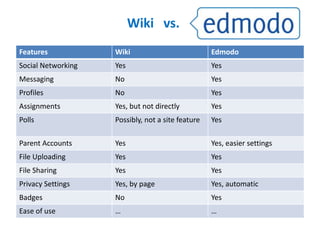
Features Wiki Edmodo
Social Networking Yes Yes
Messaging No Yes
Profiles No Yes
Assignments Yes, but not directly Yes
Polls Possibly, not a site feature Yes
Parent Accounts Yes Yes, easier settings
File Uploading Yes Yes
File Sharing Yes Yes
Privacy Settings Yes, by page Yes, automatic
Badges No Yes
Ease of use … …
Wiki vs.
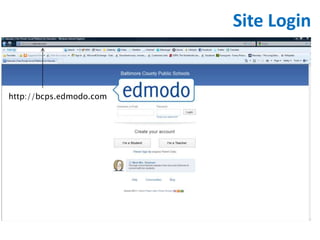
Site Login
http://bcps.edmodo.com
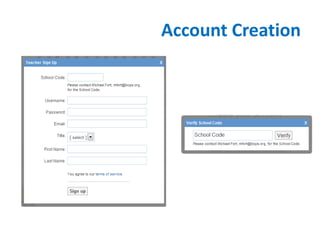
Account Creation
 Introduction

Baltimore County Public Schools recognizes that telecommunications and other new technologies
change the ways that information may be accessed, communicated, and transferred by members of
society. Technological changes will have a direct impact on instruction and student learning. Using
online tools in teaching and learning allow teachers, students, administrators, central office staff,
and the school community to work together with a common purpose in an online collaborative
environment. Online collaborative tools allow for learning at all times and in all places; in addition,
they allow multiple users to be active contributors to discussions, to be active problem solvers, to
share information, and to create products.
 Benefits include but are not limited to:
 An environment designed to complement traditional instruction that promotes a student-centered
approach to learning, encourages collaborative problem solving, and improves student
achievement.
 Communication tools that enhance collaboration through discussion, shared documents, and
shared tools.
 Online access to shared resources for curriculum and professional development available from
home or work.
 The most successful collaborative online tools are those in which:
 The goals, purposes, and expectations are understood by all.
 The administrator of the collaborative online tool understands and is dedicated to ensuring
success.
BCPS Policy
 Level I: District-Level Administrators
 The Department of Technology, the Office of Library Information Services, and the
Office of Instructional Technology will provide leadership and supervision to
schools and offices for the use of online collaborative tools by:
 Following BCPS procedures for reviewing, selecting, and purchasing instructional
materials as set forth in Baltimore County Public Schools Policy and Rule 6002.
 Coordinating and assisting school and office-based staff in understanding the
purpose and use of the tool.
 Ensuring that school and office-based staff have received training in the use of the
online collaborative tools through an identified process.
 Providing on-going support to administrators and office heads.
 Responding promptly to concerns and questions expressed by stakeholders.
 Providing routine oversight of the use of the program and feedback to the
Curriculum & Instruction Technology and Learning Steering Committee.
 Monitoring the use of security features and level of access.
 Communicating problems and collaborating on solutions with the Department of
Technology.
BCPS Policy
 Level II: School or Office Director (other than the overall district
administrators)
 The principal or office head is responsible for overseeing the
implementation of all collaborative online tools. He/she will:
 Ensure the compliance with the Baltimore County Public Schools
Telecommunications Policies and Rules including but not limited to:
Policy and Rule 6202, Policy and Rule
 4104, Policy and Rule 5580, and Policy and Rule 5590.
 Determine the most appropriate collaborative online tools to
achieve the goals identified in the School Improvement Plan and/or
Office Action Plans.
 Ensure that security features within the tool are enabled to protect
student and teacher privacy.
BCPS Policy
 Level III: The School or Office Manager (creator/owner of the collaborative tool)
designee of principal or office head)
 The Administrator is responsible for designing, organizing, and implementing the
online environment tool. He/she must be highly-engaged and visible to all users of
the collaborative online environment. Each Administrator under the supervision of
the School or Office Head will will:
 Ensure compliance with the Baltimore County Public Schools Telecommunications
Policies and Rules including but not limited to: Policy and Rule 6202, Policy and
Rule 4104, Policy and Rule 5580, and Policy and Rule 5590.
 Ensure that participants receive direct instruction on the ethical and responsible
use of technology and respect for intellectual property as identified in the
Baltimore County Public Schools Copyright and Intellectual Property Rule 1110.1.
 Design and/or organize the collaborative tool.
 Provide training and support for participants in the use of the collaborative tool
tools.
 Ensure that security features within the tool are enabled to protect student and
teacher privacy.
 Monitor and respond in a timely manner to the implementation of this tool.
BCPS Policy
 Level IV: Participant
 Employees and students are expected to maintain a high level of
involvement under the direction of the administrator and utilize the
tool for the designated purpose(s) only. Participants are expected
to:
 Comply with the Baltimore County Public Schools
Telecommunications Policies and Rules including but not limited to:
Policy and Rule 6202, Policy and Rule 4104, Policy and Rule 5580,
and Policy and Rule 5590.
 Regularly interact in discussion topics.
 Introduce new ideas and resources that can be shared with all
members of the community.
 Utilize tools and resources to enhance academic or professional
growth.
BCPS Policy
• As the teacher, you are the one who dictates the
way your Edmodo is used
• You must monitor student input
• Teachers can remove or edit student posts
• Unlike parents or students, teachers can directly
message other teachers, parents, or students
• Teachers can give assignments, ask polls, and
create different groups based on the content they
teach.
Teacher Accounts
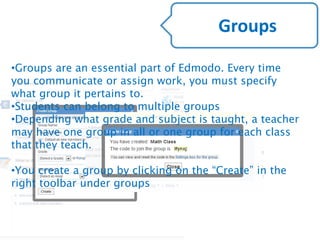
•Groups are an essential part of Edmodo. Every time
you communicate or assign work, you must specify
what group it pertains to.
•Students can belong to multiple groups
•Depending what grade and subject is taught, a teacher
may have one group in all or one group for each class
that they teach.
•You create a group by clicking on the “Create” in the
right toolbar under groups
Groups
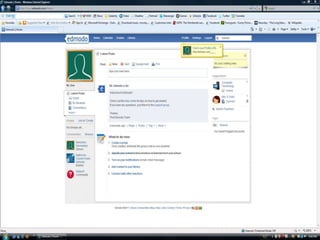
Watch as a group is created
and then join the group.
Groups
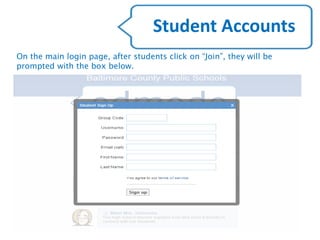
On the main login page, after students click on “Join”, they will be
prompted with the box below.
Student Accounts
• One parent account can be generated for
every student account
• For teachers just getting started with Edmodo,
wait until you are comfortable with the
features and using Edmodo with your students
before you invite parents
• Parents can see their students grades, posts,
and communicate with the teacher
Parent Accounts
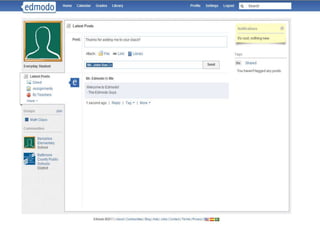
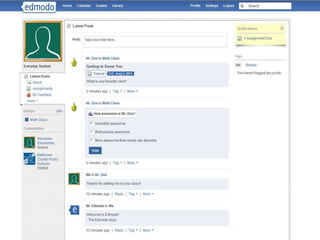
• Similar to “posting” on Facebook
• Teachers can post notes to groups or
individuals (other teachers, students, and
parents)
• Students can post notes to a teacher or to an
entire group
– Students can NOT “message” their friends
• Let’s practice replying to a note
Notes
• One of the greatest features of Edmodo is
“assignments”
• An instruction can give an assignment to a
particular group
– Words, Attachments, or a Link
• Students will receive a notification that an
assignment is due
• Let’s practice completing an assignment……
Assignments
Please complete the assignment that is given to
you on Edmodo and submit it electronically.
Your Assignment
• Play to students strengths – technology
• Communication and Collaboration
• With great power, comes great responsibility
• Be creative and have fun!
Closing thoughts about

Edmodo pt1

  • 1.
  • 2.
    Today we willexplore Edmodo essentials, including utilizing the notes, groups, and assignment features to plan a lesson that integrates Edmodo with state standards and objectives. Objective
  • 3.
    • What isEdmodo? • Wiki vs. Edmodo • Site Login and Account Creation • BCPS Policy • Account Types – Teacher – Groups – Parent – Student • Notes • Assignments • Your Assignment • Conclusion Overview
  • 4.
  • 5.
    Features Wiki Edmodo SocialNetworking Yes Yes Messaging No Yes Profiles No Yes Assignments Yes, but not directly Yes Polls Possibly, not a site feature Yes Parent Accounts Yes Yes, easier settings File Uploading Yes Yes File Sharing Yes Yes Privacy Settings Yes, by page Yes, automatic Badges No Yes Ease of use … … Wiki vs.
  • 6.
  • 7.
  • 9.
     Introduction  Baltimore CountyPublic Schools recognizes that telecommunications and other new technologies change the ways that information may be accessed, communicated, and transferred by members of society. Technological changes will have a direct impact on instruction and student learning. Using online tools in teaching and learning allow teachers, students, administrators, central office staff, and the school community to work together with a common purpose in an online collaborative environment. Online collaborative tools allow for learning at all times and in all places; in addition, they allow multiple users to be active contributors to discussions, to be active problem solvers, to share information, and to create products.  Benefits include but are not limited to:  An environment designed to complement traditional instruction that promotes a student-centered approach to learning, encourages collaborative problem solving, and improves student achievement.  Communication tools that enhance collaboration through discussion, shared documents, and shared tools.  Online access to shared resources for curriculum and professional development available from home or work.  The most successful collaborative online tools are those in which:  The goals, purposes, and expectations are understood by all.  The administrator of the collaborative online tool understands and is dedicated to ensuring success. BCPS Policy
  • 10.
     Level I:District-Level Administrators  The Department of Technology, the Office of Library Information Services, and the Office of Instructional Technology will provide leadership and supervision to schools and offices for the use of online collaborative tools by:  Following BCPS procedures for reviewing, selecting, and purchasing instructional materials as set forth in Baltimore County Public Schools Policy and Rule 6002.  Coordinating and assisting school and office-based staff in understanding the purpose and use of the tool.  Ensuring that school and office-based staff have received training in the use of the online collaborative tools through an identified process.  Providing on-going support to administrators and office heads.  Responding promptly to concerns and questions expressed by stakeholders.  Providing routine oversight of the use of the program and feedback to the Curriculum & Instruction Technology and Learning Steering Committee.  Monitoring the use of security features and level of access.  Communicating problems and collaborating on solutions with the Department of Technology. BCPS Policy
  • 11.
     Level II:School or Office Director (other than the overall district administrators)  The principal or office head is responsible for overseeing the implementation of all collaborative online tools. He/she will:  Ensure the compliance with the Baltimore County Public Schools Telecommunications Policies and Rules including but not limited to: Policy and Rule 6202, Policy and Rule  4104, Policy and Rule 5580, and Policy and Rule 5590.  Determine the most appropriate collaborative online tools to achieve the goals identified in the School Improvement Plan and/or Office Action Plans.  Ensure that security features within the tool are enabled to protect student and teacher privacy. BCPS Policy
  • 12.
     Level III:The School or Office Manager (creator/owner of the collaborative tool) designee of principal or office head)  The Administrator is responsible for designing, organizing, and implementing the online environment tool. He/she must be highly-engaged and visible to all users of the collaborative online environment. Each Administrator under the supervision of the School or Office Head will will:  Ensure compliance with the Baltimore County Public Schools Telecommunications Policies and Rules including but not limited to: Policy and Rule 6202, Policy and Rule 4104, Policy and Rule 5580, and Policy and Rule 5590.  Ensure that participants receive direct instruction on the ethical and responsible use of technology and respect for intellectual property as identified in the Baltimore County Public Schools Copyright and Intellectual Property Rule 1110.1.  Design and/or organize the collaborative tool.  Provide training and support for participants in the use of the collaborative tool tools.  Ensure that security features within the tool are enabled to protect student and teacher privacy.  Monitor and respond in a timely manner to the implementation of this tool. BCPS Policy
  • 13.
     Level IV:Participant  Employees and students are expected to maintain a high level of involvement under the direction of the administrator and utilize the tool for the designated purpose(s) only. Participants are expected to:  Comply with the Baltimore County Public Schools Telecommunications Policies and Rules including but not limited to: Policy and Rule 6202, Policy and Rule 4104, Policy and Rule 5580, and Policy and Rule 5590.  Regularly interact in discussion topics.  Introduce new ideas and resources that can be shared with all members of the community.  Utilize tools and resources to enhance academic or professional growth. BCPS Policy
  • 14.
    • As theteacher, you are the one who dictates the way your Edmodo is used • You must monitor student input • Teachers can remove or edit student posts • Unlike parents or students, teachers can directly message other teachers, parents, or students • Teachers can give assignments, ask polls, and create different groups based on the content they teach. Teacher Accounts
  • 15.
    •Groups are anessential part of Edmodo. Every time you communicate or assign work, you must specify what group it pertains to. •Students can belong to multiple groups •Depending what grade and subject is taught, a teacher may have one group in all or one group for each class that they teach. •You create a group by clicking on the “Create” in the right toolbar under groups Groups
  • 16.
    Watch as agroup is created and then join the group. Groups
  • 17.
    On the mainlogin page, after students click on “Join”, they will be prompted with the box below. Student Accounts
  • 20.
    • One parentaccount can be generated for every student account • For teachers just getting started with Edmodo, wait until you are comfortable with the features and using Edmodo with your students before you invite parents • Parents can see their students grades, posts, and communicate with the teacher Parent Accounts
  • 21.
    • Similar to“posting” on Facebook • Teachers can post notes to groups or individuals (other teachers, students, and parents) • Students can post notes to a teacher or to an entire group – Students can NOT “message” their friends • Let’s practice replying to a note Notes
  • 22.
    • One ofthe greatest features of Edmodo is “assignments” • An instruction can give an assignment to a particular group – Words, Attachments, or a Link • Students will receive a notification that an assignment is due • Let’s practice completing an assignment…… Assignments
  • 23.
    Please complete theassignment that is given to you on Edmodo and submit it electronically. Your Assignment
  • 24.
    • Play tostudents strengths – technology • Communication and Collaboration • With great power, comes great responsibility • Be creative and have fun! Closing thoughts about