A Guide to Getting Started
BCPS – Office of Instructional Technology
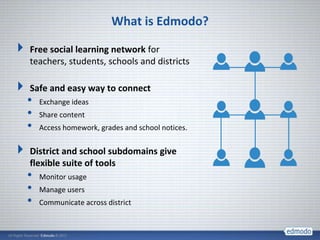
What is Edmodo?

Free social learning network for
teachers, students, schools and districts

Safe and easy way to connect
•   Exchange ideas
•   Share content
•   Access homework, grades and school notices.


District and school subdomains give
flexible suite of tools
•   Monitor usage
•   Manage users
•   Communicate across district
Secure Platform Ensures Student Safety and Privacy

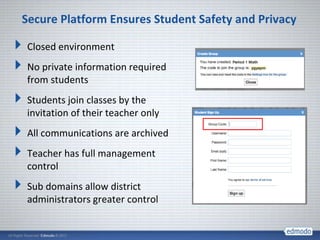
Closed environment
No private information required
from students
Students join classes by the
invitation of their teacher only
All communications are archived
Teacher has full management
control
Sub domains allow district
administrators greater control
PROTOCOLS FOR THE USE OF
ONLINE COLLABORATION TOOLS
FOR TEACHING AND LEARNING

https://intranet.bcps.org/offices/oit/online.htm
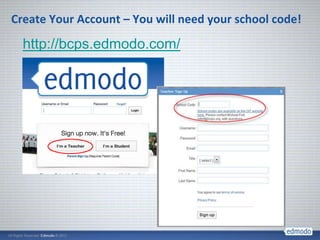
Create Your Account – You will need your school code!
  http://bcps.edmodo.com/
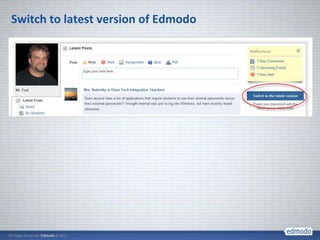
Switch to latest version of Edmodo
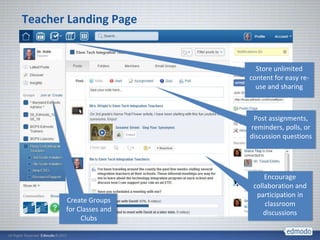
Teacher Landing Page


                           Store unlimited
                         content for easy re-
                           use and sharing


                          Post assignments,
                         reminders, polls, or
                         discussion questions


                              Encourage
                          collaboration and
                           participation in
       Create Groups          classroom
       for Classes and        discussions
            Clubs
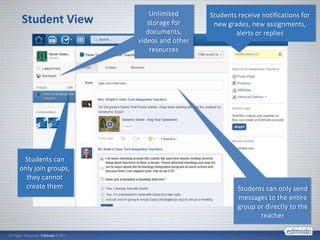
Unlimited      Students receive notifications for
Student View           storage for      new grades, new assignments,
                       documents,              alerts or replies
                    videos and other
                        resources


 Students can
only join groups,
  they cannot
  create them                                   Students can only send
                                                messages to the entire
                                                group or directly to the
                                                       teacher
Edmodo in the Classroom
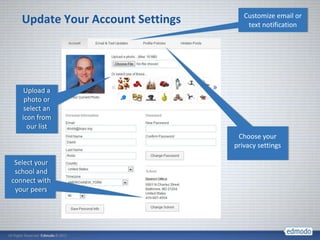
Customize email or
   Update Your Account Settings       text notification


    Upload a
    photo or
    select an
   icon from
     our list
                                   Choose your
                                  privacy settings

 Select your
 school and
connect with
 your peers
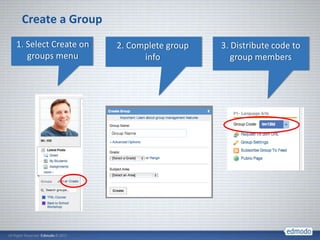
Create a Group
1. Select Create on   2. Complete group   3. Distribute code to
   groups menu              info             group members
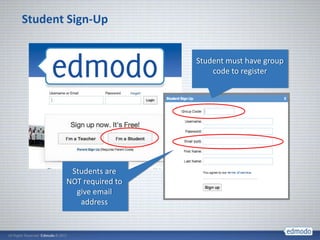
Student Sign-Up


                         Student must have group
                             code to register


        Students are
       NOT required to
         give email
          address
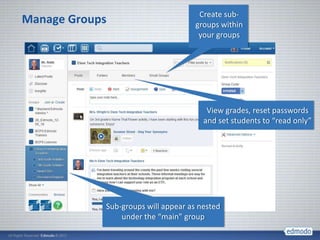
Create sub-
Manage Groups                        groups within
                                      your groups


                                        View grades, reset passwords
                                       and set students to “read only”


            Sub-groups will appear as nested
                under the “main” group
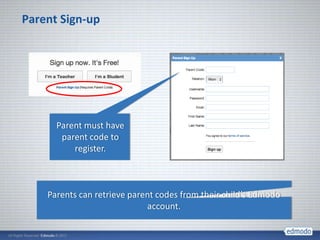
Parent Sign-up


      Parent must have
       parent code to
          register.


    Parents can retrieve parent codes from their child’s Edmodo
                             account.
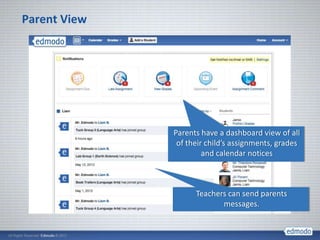
Parent View


              Parents have a dashboard view of all
               of their child’s assignments, grades
                       and calendar notices


                    Teachers can send parents
                           messages.
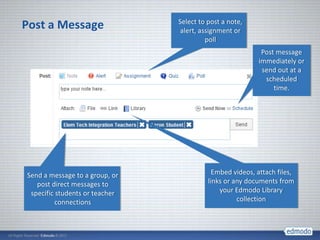
Select to post a note,
Post a Message                   alert, assignment or
                                          poll
                                                            Post message
                                                           immediately or
                                                            send out at a
                                                             scheduled
                                                                time.


Send a message to a group, or               Embed videos, attach files,
   post direct messages to                links or any documents from
 specific students or teacher                 your Edmodo Library
          connections                               collection
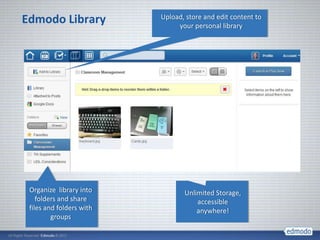
Edmodo Library            Upload, store and edit content to
                               your personal library


 Organize library into           Unlimited Storage,
    folders and share                accessible
 files and folders with              anywhere!
         groups
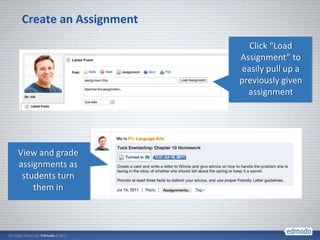
Create an Assignment
                          Click “Load
                       Assignment” to
                        easily pull up a
                       previously given
                         assignment


View and grade
assignments as
 students turn
    them in
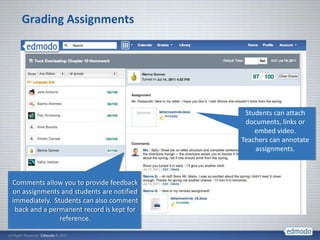
Grading Assignments


                                            Students can attach
                                            documents, links or
                                               embed video.
                                           Teachers can annotate
                                               assignments.


Comments allow you to provide feedback
on assignments and students are notified
immediately. Students can also comment
 back and a permanent record is kept for
               reference.
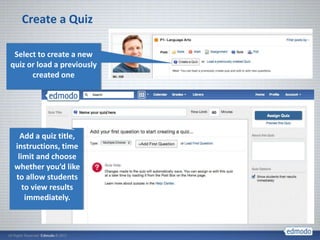
Create a Quiz

 Select to create a new
quiz or load a previously
      created one


   Add a quiz title,
 instructions, time
  limit and choose
 whether you’d like
 to allow students
    to view results
     immediately.
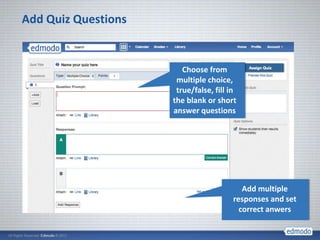
Add Quiz Questions


                        Choose from
                      multiple choice,
                      true/false, fill in
                     the blank or short
                     answer questions


                                           Add multiple
                                        responses and set
                                          correct anwers
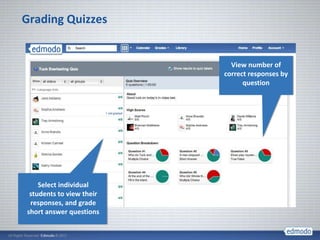
Grading Quizzes


                            View number of
                          correct responses by
                                question


    Select individual
 students to view their
 responses, and grade
short answer questions
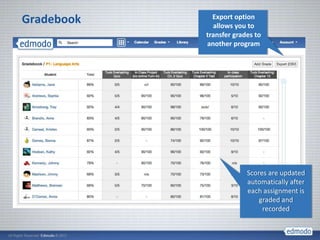
Gradebook     Export option
              allows you to
            transfer grades to
            another program


                         Scores are updated
                         automatically after
                         each assignment is
                             graded and
                              recorded
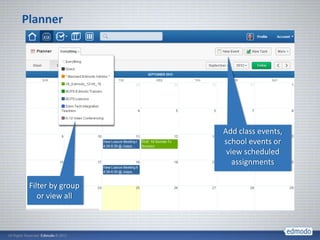
Planner


                   Add class events,
                   school events or
                    view scheduled
                      assignments

 Filter by group
    or view all
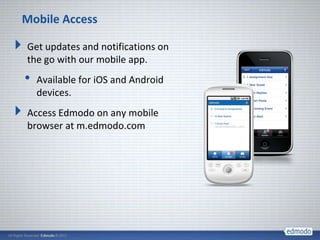
Mobile Access

Get updates and notifications on
the go with our mobile app.
•   Available for iOS and Android
    devices.
Access Edmodo on any mobile
browser at m.edmodo.com
Best Practices for Safe Social Networking

 Encourage students to create their own accounts to ensure
 password safety
 After all students join your group, lock the group code to
 prevent others from joining
 Monitor group membership to ensure only students in your
 group have joined
 Educate students on proper online etiquette
 Use “Read-Only” status to curb inappropriate behavior
 Always log in though your subdomain
 Use BCPS AD username and external password
Training and Support Resources


1   View an Edmodo Webinar:
    help.edmodo.com/webinars


2   Explore resources in the Help Center:
    help.edmodo.com


3   Follow the Edmodo Support Community:
    edmodo.com/community/support

Edmodo training

  • 1.
    A Guide toGetting Started BCPS – Office of Instructional Technology
  • 2.
    What is Edmodo? Freesocial learning network for teachers, students, schools and districts Safe and easy way to connect • Exchange ideas • Share content • Access homework, grades and school notices. District and school subdomains give flexible suite of tools • Monitor usage • Manage users • Communicate across district
  • 3.
    Secure Platform EnsuresStudent Safety and Privacy Closed environment No private information required from students Students join classes by the invitation of their teacher only All communications are archived Teacher has full management control Sub domains allow district administrators greater control
  • 4.
    PROTOCOLS FOR THEUSE OF ONLINE COLLABORATION TOOLS FOR TEACHING AND LEARNING https://intranet.bcps.org/offices/oit/online.htm
  • 5.
    Create Your Account– You will need your school code! http://bcps.edmodo.com/
  • 6.
    Switch to latestversion of Edmodo
  • 7.
    Teacher Landing Page Store unlimited content for easy re- use and sharing Post assignments, reminders, polls, or discussion questions Encourage collaboration and participation in Create Groups classroom for Classes and discussions Clubs
  • 8.
    Unlimited Students receive notifications for Student View storage for new grades, new assignments, documents, alerts or replies videos and other resources Students can only join groups, they cannot create them Students can only send messages to the entire group or directly to the teacher
  • 9.
    Edmodo in theClassroom
  • 10.
    Customize email or Update Your Account Settings text notification Upload a photo or select an icon from our list Choose your privacy settings Select your school and connect with your peers
  • 11.
    Create a Group 1.Select Create on 2. Complete group 3. Distribute code to groups menu info group members
  • 12.
    Student Sign-Up Student must have group code to register Students are NOT required to give email address
  • 13.
    Create sub- Manage Groups groups within your groups View grades, reset passwords and set students to “read only” Sub-groups will appear as nested under the “main” group
  • 14.
    Parent Sign-up Parent must have parent code to register. Parents can retrieve parent codes from their child’s Edmodo account.
  • 15.
    Parent View Parents have a dashboard view of all of their child’s assignments, grades and calendar notices Teachers can send parents messages.
  • 16.
    Select to posta note, Post a Message alert, assignment or poll Post message immediately or send out at a scheduled time. Send a message to a group, or Embed videos, attach files, post direct messages to links or any documents from specific students or teacher your Edmodo Library connections collection
  • 17.
    Edmodo Library Upload, store and edit content to your personal library Organize library into Unlimited Storage, folders and share accessible files and folders with anywhere! groups
  • 18.
    Create an Assignment Click “Load Assignment” to easily pull up a previously given assignment View and grade assignments as students turn them in
  • 19.
    Grading Assignments Students can attach documents, links or embed video. Teachers can annotate assignments. Comments allow you to provide feedback on assignments and students are notified immediately. Students can also comment back and a permanent record is kept for reference.
  • 20.
    Create a Quiz Select to create a new quiz or load a previously created one Add a quiz title, instructions, time limit and choose whether you’d like to allow students to view results immediately.
  • 21.
    Add Quiz Questions Choose from multiple choice, true/false, fill in the blank or short answer questions Add multiple responses and set correct anwers
  • 22.
    Grading Quizzes View number of correct responses by question Select individual students to view their responses, and grade short answer questions
  • 23.
    Gradebook Export option allows you to transfer grades to another program Scores are updated automatically after each assignment is graded and recorded
  • 24.
    Planner Add class events, school events or view scheduled assignments Filter by group or view all
  • 25.
    Mobile Access Get updatesand notifications on the go with our mobile app. • Available for iOS and Android devices. Access Edmodo on any mobile browser at m.edmodo.com
  • 26.
    Best Practices forSafe Social Networking Encourage students to create their own accounts to ensure password safety After all students join your group, lock the group code to prevent others from joining Monitor group membership to ensure only students in your group have joined Educate students on proper online etiquette Use “Read-Only” status to curb inappropriate behavior Always log in though your subdomain Use BCPS AD username and external password
  • 27.
    Training and SupportResources 1 View an Edmodo Webinar: help.edmodo.com/webinars 2 Explore resources in the Help Center: help.edmodo.com 3 Follow the Edmodo Support Community: edmodo.com/community/support

Editor's Notes

  • #5 Inform principal before using with studentsGo from Online Collaborative page and discuss how it’s their responsibility to be familiar with the policies.
  • #8 Fill out profilePollAssignment