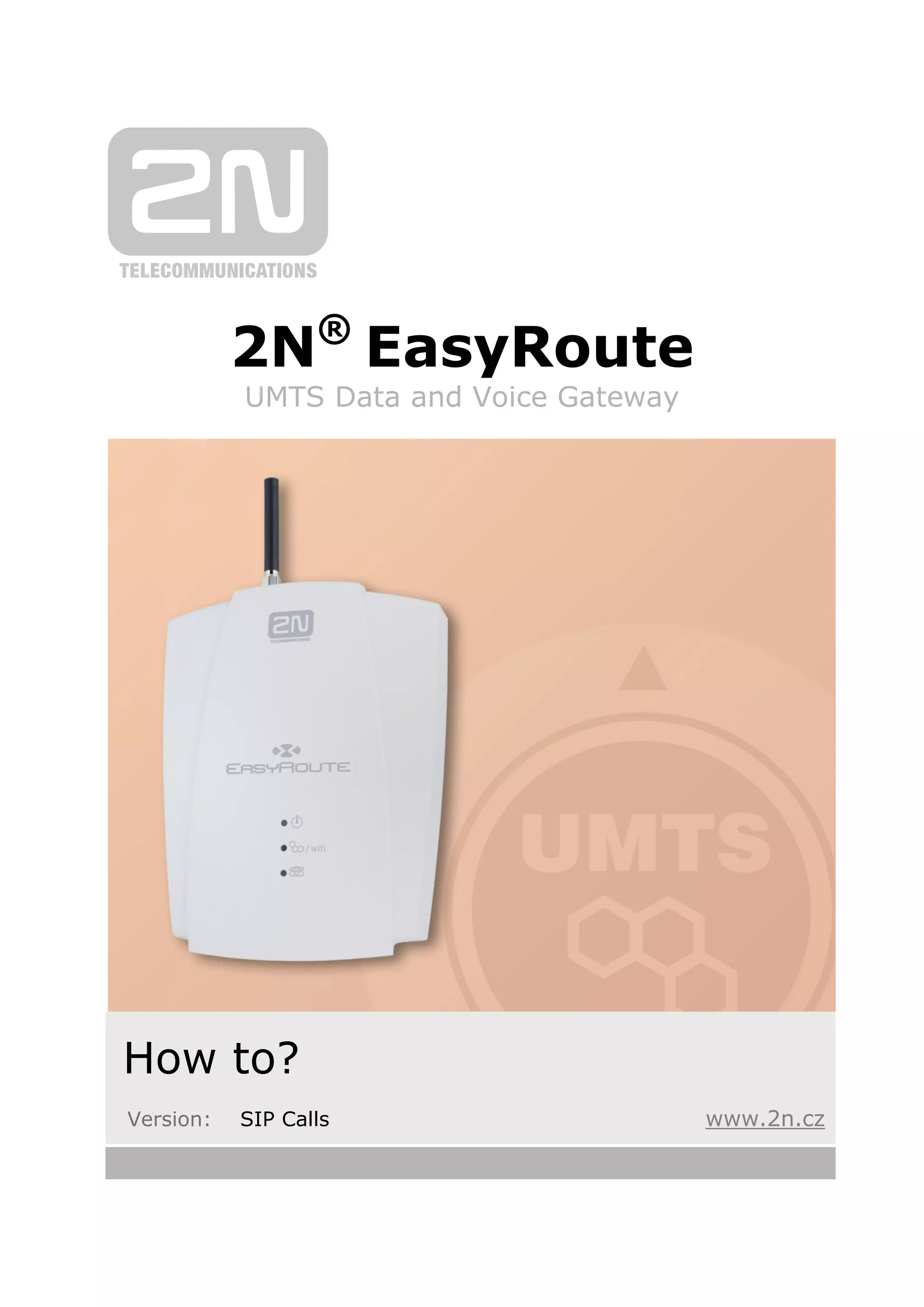
2N®
EasyRoute
UMTS Data and Voice Gateway
How to?
Version: SIP Calls www.2n.cz
3
1. SIP Calls
Here you will be shown how to set a SIP account easily in 2N®
EasyRoute.
Here is what you can find in this section:
 How to Set a SIP Account
 Basic Settings
 Flood Function
 Description of Parameters
How to Set a SIP Account 1.1
4
1.1 How to Set a SIP Account
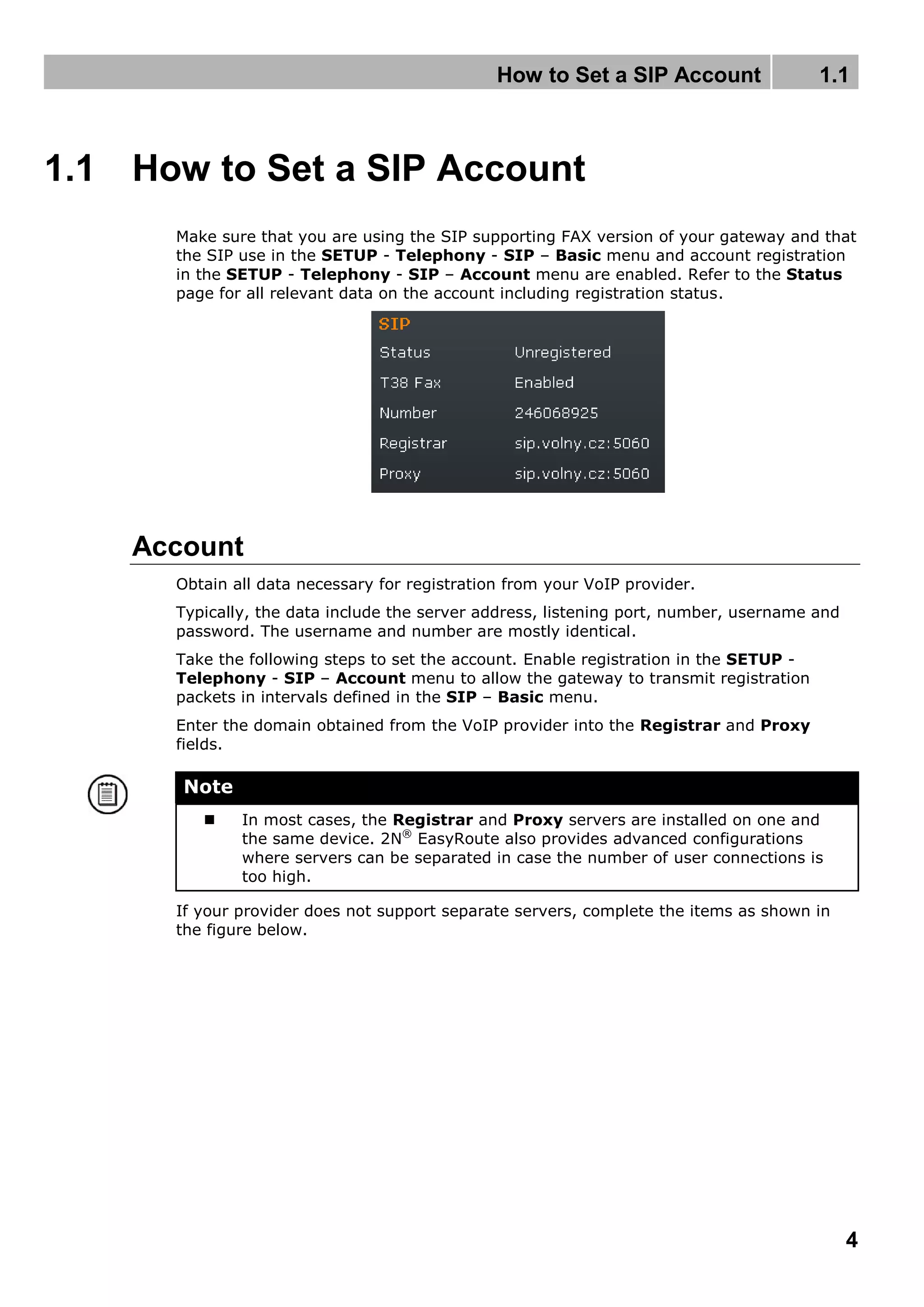
Make sure that you are using the SIP supporting FAX version of your gateway and that
the SIP use in the SETUP - Telephony - SIP – Basic menu and account registration
in the SETUP - Telephony - SIP – Account menu are enabled. Refer to the Status
page for all relevant data on the account including registration status.
Account
Obtain all data necessary for registration from your VoIP provider.
Typically, the data include the server address, listening port, number, username and
password. The username and number are mostly identical.
Take the following steps to set the account. Enable registration in the SETUP -
Telephony - SIP – Account menu to allow the gateway to transmit registration
packets in intervals defined in the SIP – Basic menu.
Enter the domain obtained from the VoIP provider into the Registrar and Proxy
fields.
Note
 In most cases, the Registrar and Proxy servers are installed on one and
the same device. 2N®
EasyRoute also provides advanced configurations
where servers can be separated in case the number of user connections is
too high.
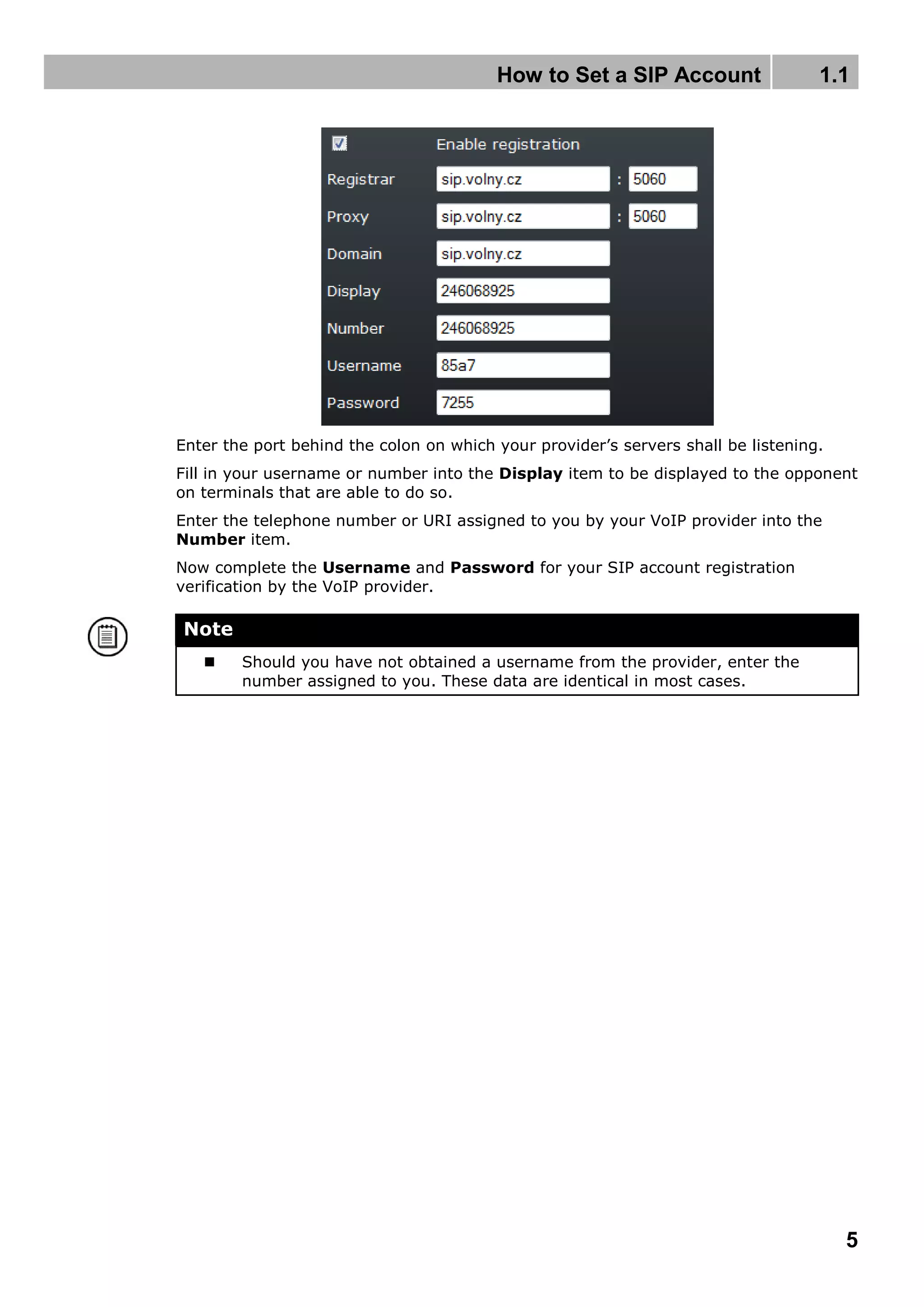
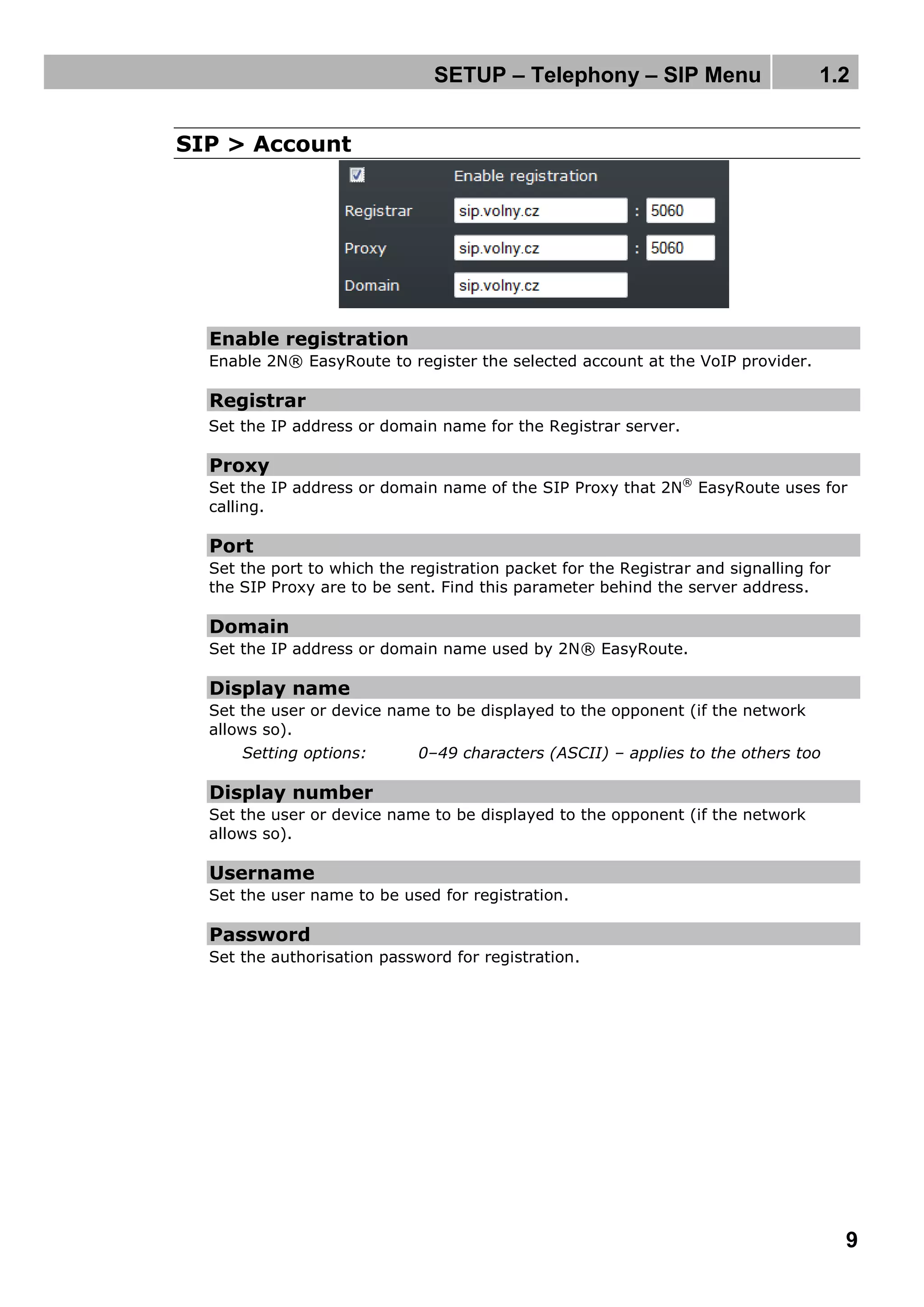
If your provider does not support separate servers, complete the items as shown in
the figure below.
How to Set a SIP Account 1.1
5
Enter the port behind the colon on which your provider’s servers shall be listening.
Fill in your username or number into the Display item to be displayed to the opponent
on terminals that are able to do so.
Enter the telephone number or URI assigned to you by your VoIP provider into the
Number item.
Now complete the Username and Password for your SIP account registration
verification by the VoIP provider.
Note
 Should you have not obtained a username from the provider, enter the
number assigned to you. These data are identical in most cases.
How to Set a SIP Account 1.1
6
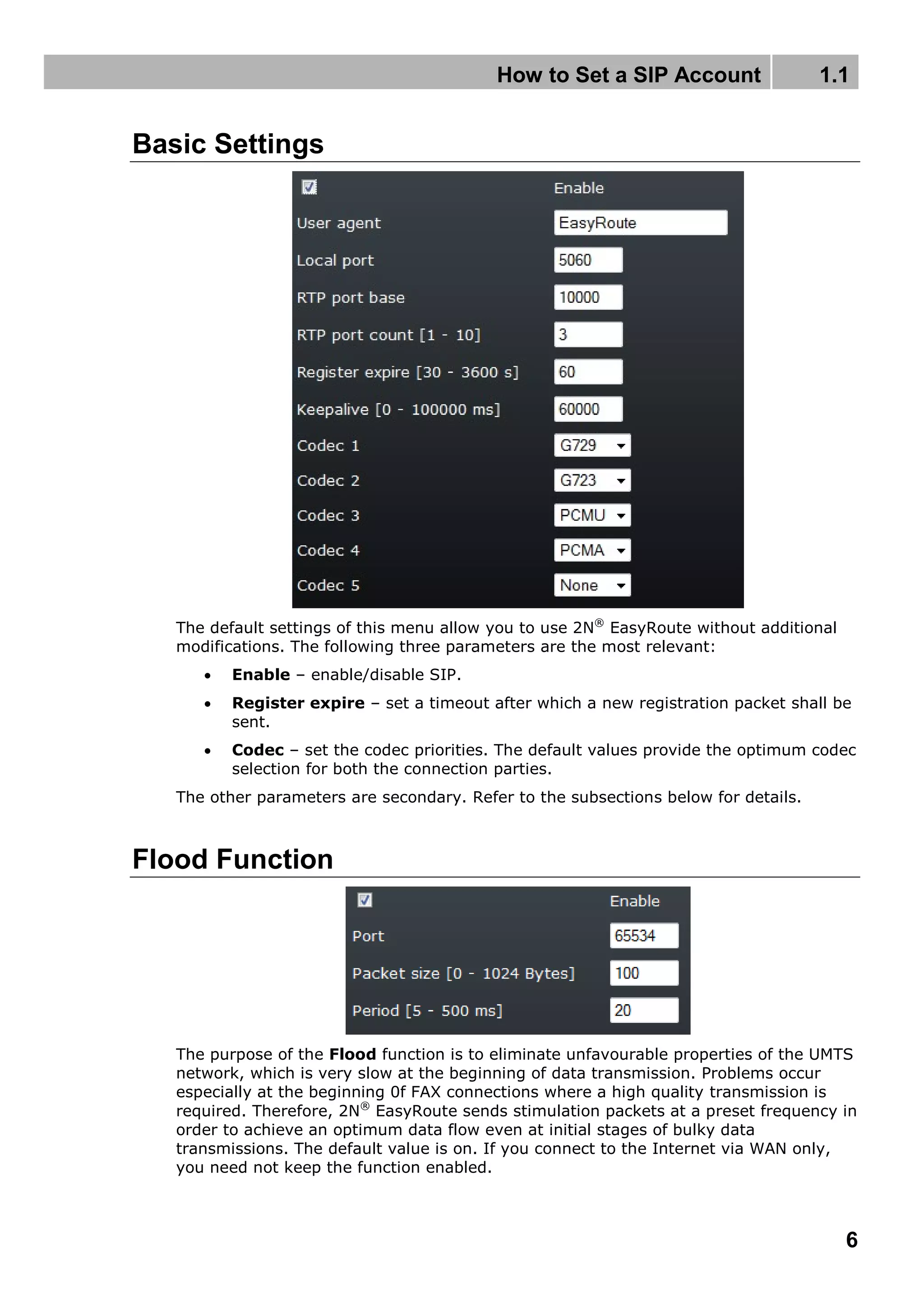
Basic Settings
The default settings of this menu allow you to use 2N®
EasyRoute without additional
modifications. The following three parameters are the most relevant:
 Enable – enable/disable SIP.
 Register expire – set a timeout after which a new registration packet shall be
sent.
 Codec – set the codec priorities. The default values provide the optimum codec
selection for both the connection parties.
The other parameters are secondary. Refer to the subsections below for details.
Flood Function
The purpose of the Flood function is to eliminate unfavourable properties of the UMTS
network, which is very slow at the beginning of data transmission. Problems occur
especially at the beginning 0f FAX connections where a high quality transmission is
required. Therefore, 2N®
EasyRoute sends stimulation packets at a preset frequency in
order to achieve an optimum data flow even at initial stages of bulky data
transmissions. The default value is on. If you connect to the Internet via WAN only,
you need not keep the function enabled.
SETUP – Telephony – SIP Menu 1.2
7
1.2 SETUP – Telephony – SIP Menu
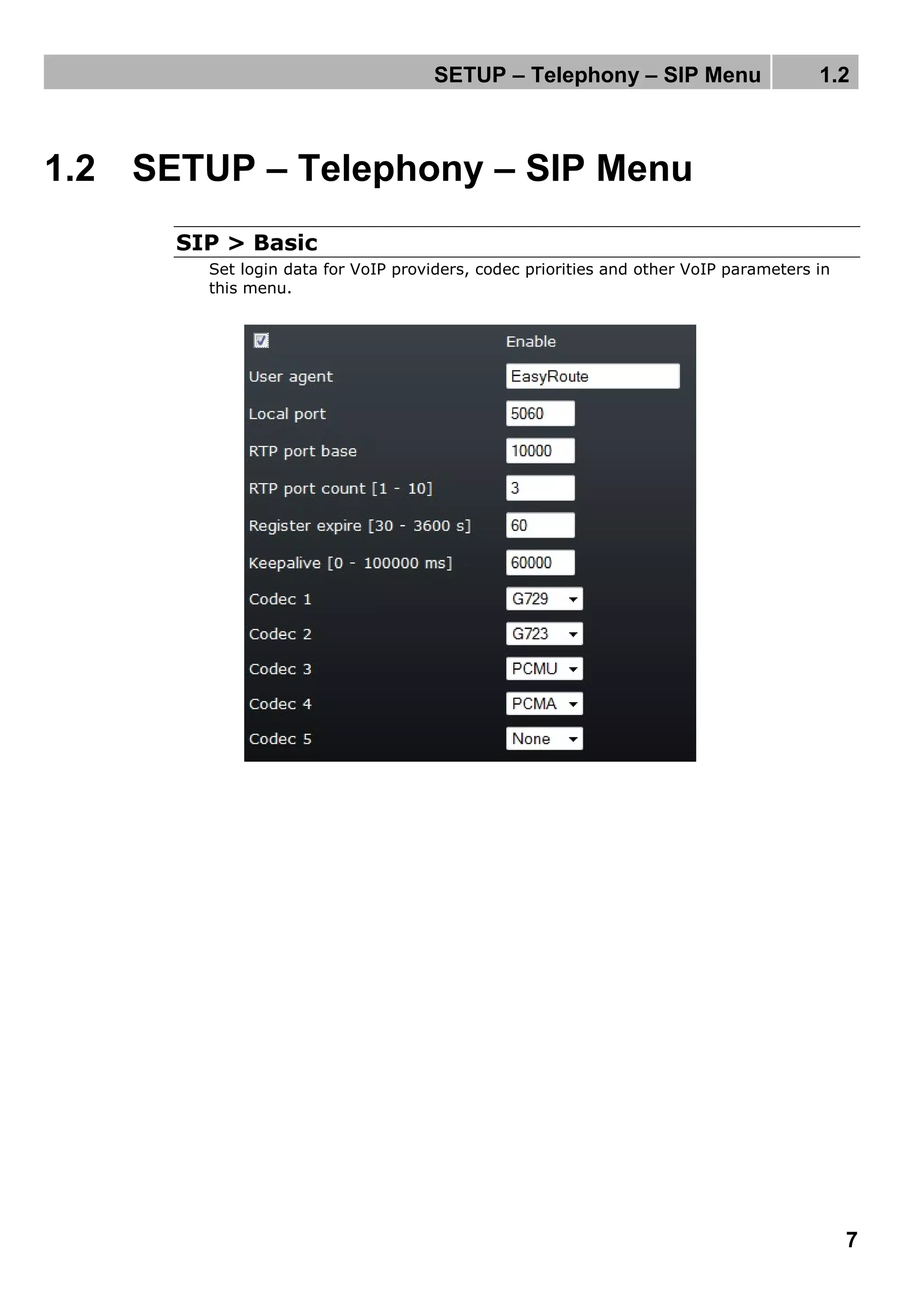
SIP > Basic
Set login data for VoIP providers, codec priorities and other VoIP parameters in
this menu.
SETUP – Telephony – SIP Menu 1.2
8
Enable
Enable the use of the SIP account and VoIP routing.
User agent
Set the name to be displayed to the called subscriber.
Local port
Set the port to be used for SIP signalling communication by 2N®
EasyRoute.
Local port for RTP
Set the port for RTP stream sending.
RTP port count
Set the range of the RTP ports to be used.
Register expire
When the preset time interval elapses, the gateway sends a new registration
packet to the SIP Proxy as defined in the SIP > Account menu.
KeepAlive period
When the preset time interval elapses, the gateway sends a KeepAlive packet to
restore the gateway path storing time in the NAT router tables.
Codecs 1 to 5
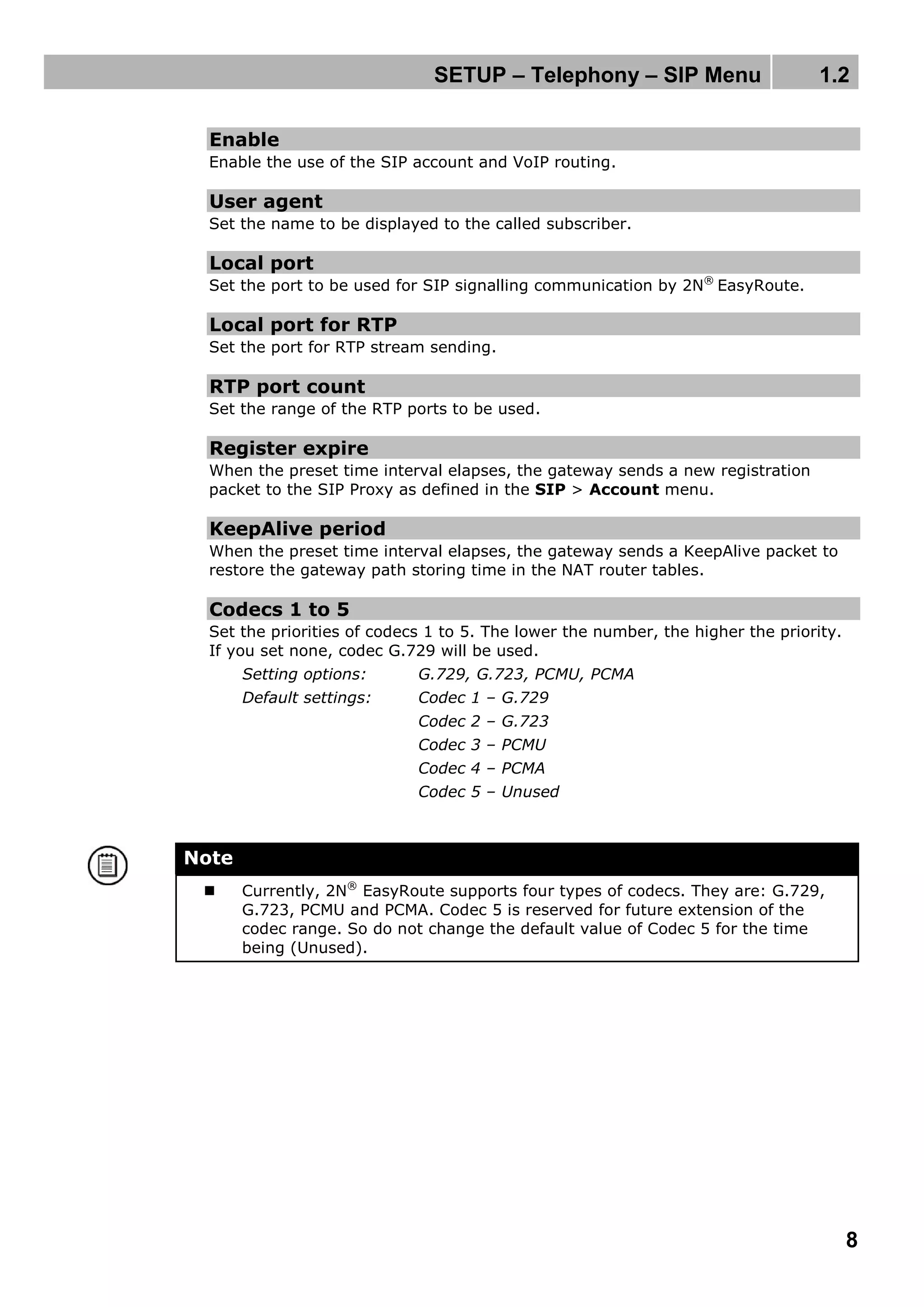
Set the priorities of codecs 1 to 5. The lower the number, the higher the priority.
If you set none, codec G.729 will be used.
Setting options: G.729, G.723, PCMU, PCMA
Default settings: Codec 1 – G.729
Codec 2 – G.723
Codec 3 – PCMU
Codec 4 – PCMA
Codec 5 – Unused
Note
 Currently, 2N®
EasyRoute supports four types of codecs. They are: G.729,
G.723, PCMU and PCMA. Codec 5 is reserved for future extension of the
codec range. So do not change the default value of Codec 5 for the time
being (Unused).
SETUP – Telephony – SIP Menu 1.2
9
SIP > Account
Enable registration
Enable 2N® EasyRoute to register the selected account at the VoIP provider.
Registrar
Set the IP address or domain name for the Registrar server.
Proxy
Set the IP address or domain name of the SIP Proxy that 2N®
EasyRoute uses for
calling.
Port
Set the port to which the registration packet for the Registrar and signalling for
the SIP Proxy are to be sent. Find this parameter behind the server address.
Domain
Set the IP address or domain name used by 2N® EasyRoute.
Display name
Set the user or device name to be displayed to the opponent (if the network
allows so).
Setting options: 0–49 characters (ASCII) – applies to the others too
Display number
Set the user or device name to be displayed to the opponent (if the network
allows so).
Username
Set the user name to be used for registration.
Password
Set the authorisation password for registration.
SETUP – Telephony – SIP Menu 1.2
10
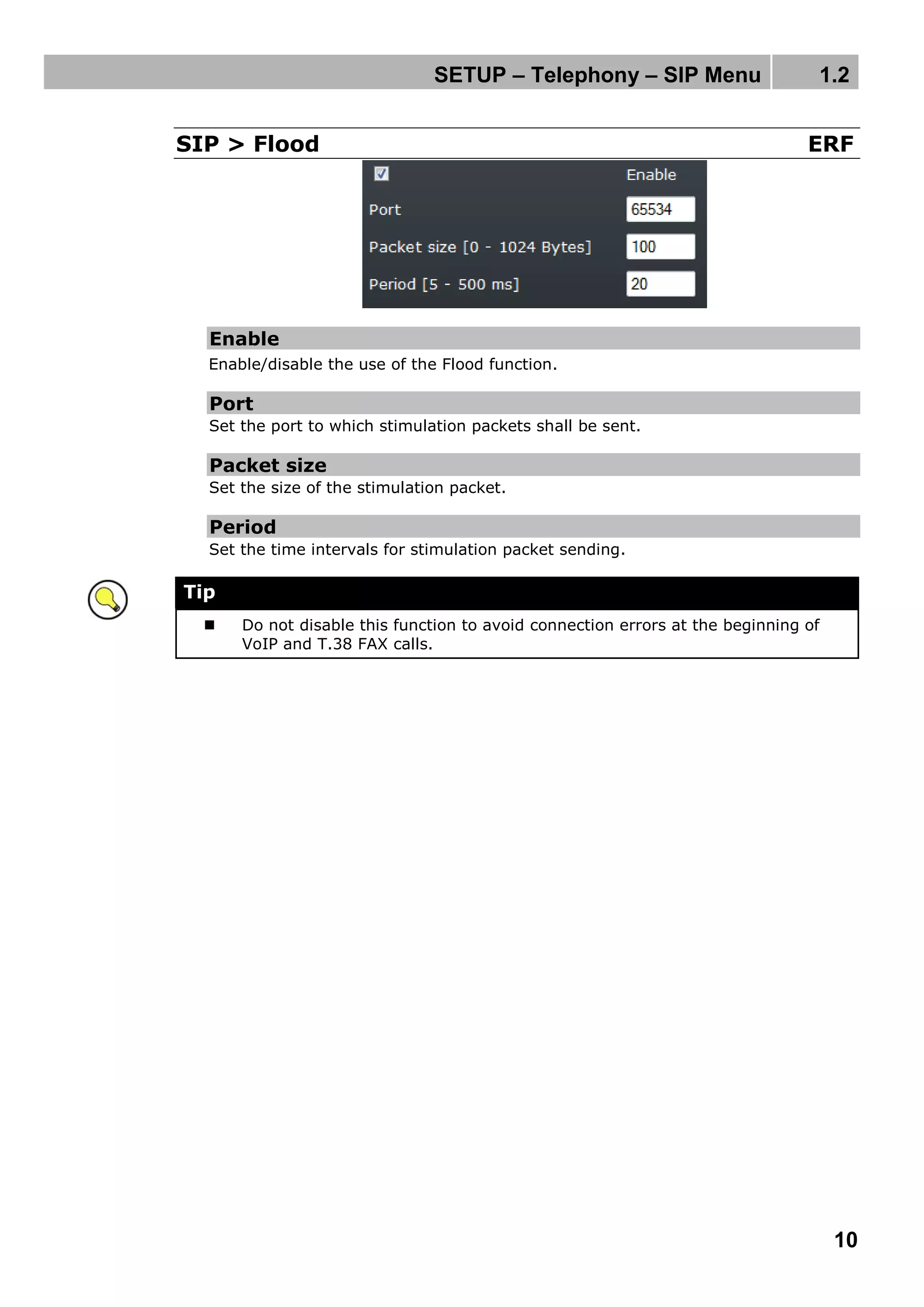
SIP > Flood ERF
Enable
Enable/disable the use of the Flood function.
Port
Set the port to which stimulation packets shall be sent.
Packet size
Set the size of the stimulation packet.
Period
Set the time intervals for stimulation packet sending.
Tip
 Do not disable this function to avoid connection errors at the beginning of
VoIP and T.38 FAX calls.
2N TELEKOMUNIKACE a.s.
Modřanská 621, 143 01 Prague 4, Czech Republic
Tel.: +420 261 301 500, Fax: +420 261 301 599
E-mail: sales@2n.cz
Web: www.2n.cz
1724v1

Easyroute how to_sip_calls_en

  • 1.
    2N® EasyRoute UMTS Data andVoice Gateway How to? Version: SIP Calls www.2n.cz
  • 3.
    3 1. SIP Calls Hereyou will be shown how to set a SIP account easily in 2N® EasyRoute. Here is what you can find in this section:  How to Set a SIP Account  Basic Settings  Flood Function  Description of Parameters
  • 4.
    How to Seta SIP Account 1.1 4 1.1 How to Set a SIP Account Make sure that you are using the SIP supporting FAX version of your gateway and that the SIP use in the SETUP - Telephony - SIP – Basic menu and account registration in the SETUP - Telephony - SIP – Account menu are enabled. Refer to the Status page for all relevant data on the account including registration status. Account Obtain all data necessary for registration from your VoIP provider. Typically, the data include the server address, listening port, number, username and password. The username and number are mostly identical. Take the following steps to set the account. Enable registration in the SETUP - Telephony - SIP – Account menu to allow the gateway to transmit registration packets in intervals defined in the SIP – Basic menu. Enter the domain obtained from the VoIP provider into the Registrar and Proxy fields. Note  In most cases, the Registrar and Proxy servers are installed on one and the same device. 2N® EasyRoute also provides advanced configurations where servers can be separated in case the number of user connections is too high. If your provider does not support separate servers, complete the items as shown in the figure below.
  • 5.
    How to Seta SIP Account 1.1 5 Enter the port behind the colon on which your provider’s servers shall be listening. Fill in your username or number into the Display item to be displayed to the opponent on terminals that are able to do so. Enter the telephone number or URI assigned to you by your VoIP provider into the Number item. Now complete the Username and Password for your SIP account registration verification by the VoIP provider. Note  Should you have not obtained a username from the provider, enter the number assigned to you. These data are identical in most cases.
  • 6.
    How to Seta SIP Account 1.1 6 Basic Settings The default settings of this menu allow you to use 2N® EasyRoute without additional modifications. The following three parameters are the most relevant:  Enable – enable/disable SIP.  Register expire – set a timeout after which a new registration packet shall be sent.  Codec – set the codec priorities. The default values provide the optimum codec selection for both the connection parties. The other parameters are secondary. Refer to the subsections below for details. Flood Function The purpose of the Flood function is to eliminate unfavourable properties of the UMTS network, which is very slow at the beginning of data transmission. Problems occur especially at the beginning 0f FAX connections where a high quality transmission is required. Therefore, 2N® EasyRoute sends stimulation packets at a preset frequency in order to achieve an optimum data flow even at initial stages of bulky data transmissions. The default value is on. If you connect to the Internet via WAN only, you need not keep the function enabled.
  • 7.
    SETUP – Telephony– SIP Menu 1.2 7 1.2 SETUP – Telephony – SIP Menu SIP > Basic Set login data for VoIP providers, codec priorities and other VoIP parameters in this menu.
  • 8.
    SETUP – Telephony– SIP Menu 1.2 8 Enable Enable the use of the SIP account and VoIP routing. User agent Set the name to be displayed to the called subscriber. Local port Set the port to be used for SIP signalling communication by 2N® EasyRoute. Local port for RTP Set the port for RTP stream sending. RTP port count Set the range of the RTP ports to be used. Register expire When the preset time interval elapses, the gateway sends a new registration packet to the SIP Proxy as defined in the SIP > Account menu. KeepAlive period When the preset time interval elapses, the gateway sends a KeepAlive packet to restore the gateway path storing time in the NAT router tables. Codecs 1 to 5 Set the priorities of codecs 1 to 5. The lower the number, the higher the priority. If you set none, codec G.729 will be used. Setting options: G.729, G.723, PCMU, PCMA Default settings: Codec 1 – G.729 Codec 2 – G.723 Codec 3 – PCMU Codec 4 – PCMA Codec 5 – Unused Note  Currently, 2N® EasyRoute supports four types of codecs. They are: G.729, G.723, PCMU and PCMA. Codec 5 is reserved for future extension of the codec range. So do not change the default value of Codec 5 for the time being (Unused).
  • 9.
    SETUP – Telephony– SIP Menu 1.2 9 SIP > Account Enable registration Enable 2N® EasyRoute to register the selected account at the VoIP provider. Registrar Set the IP address or domain name for the Registrar server. Proxy Set the IP address or domain name of the SIP Proxy that 2N® EasyRoute uses for calling. Port Set the port to which the registration packet for the Registrar and signalling for the SIP Proxy are to be sent. Find this parameter behind the server address. Domain Set the IP address or domain name used by 2N® EasyRoute. Display name Set the user or device name to be displayed to the opponent (if the network allows so). Setting options: 0–49 characters (ASCII) – applies to the others too Display number Set the user or device name to be displayed to the opponent (if the network allows so). Username Set the user name to be used for registration. Password Set the authorisation password for registration.
  • 10.
    SETUP – Telephony– SIP Menu 1.2 10 SIP > Flood ERF Enable Enable/disable the use of the Flood function. Port Set the port to which stimulation packets shall be sent. Packet size Set the size of the stimulation packet. Period Set the time intervals for stimulation packet sending. Tip  Do not disable this function to avoid connection errors at the beginning of VoIP and T.38 FAX calls.
  • 11.
    2N TELEKOMUNIKACE a.s. Modřanská621, 143 01 Prague 4, Czech Republic Tel.: +420 261 301 500, Fax: +420 261 301 599 E-mail: sales@2n.cz Web: www.2n.cz 1724v1