Welcome to the Dynamics GP Users’ Group
             Year-End Processing
Introduction

   Charles Allen
     Managing Consultant
     More than 20 years experience
     Microsoft MVP
Year-End Closing Agenda

   8:30 – 8:45     Introductions and Opening Remarks
   8:45 – 9:15     General Ledger
   9:15 – 9:45     Receivables Management
   9:45 – 10:15    Payables Management
   10:15 – 10:30   Break
   10:30 – 10:45   Fixed Assets
   10:45 – 11:15   Inventory
   11:15 – 12:00   Payroll
General Ledger Year-End Closing

Pre-Close
Because the year-end close moves data from one
set of data to another by using temporary tables,
make sure you have enough hard drive space. You
must have free disk space that is equal to the size
of the GL20000 table.
Your database administrator can aid you with this
item.
General Ledger Year-end Closing Procedures


   Close all other modules
   Post final adjustments
   Print GL Account List to verify Posting Type     (Balance
    Sheet vs. Profit Loss) or use Accounts SmartList
   Close the last fiscal period of the year, but not if using FRx.
   Make sure Maintain History is marked in Setup >> Financial
    >> GL
   Print a Trial Balance Detail report
General Ledger Year-end Closing Procedures

   Print final financial reports
   Set up a new fiscal year
   Close the fiscal year
   Leave the last period open in the
    Financial Series when using FRx
   Make a BACKUP
Year-end closing – General Ledger


What will the General Ledger closing
 process accomplish?
Year end closing – General Ledger

   Transfers amounts to transaction and account history
   Reconciles and summarizes General Ledger balances
   Closes P&L accounts to Retained Earnings
   Clears all profit and loss account balances for new year
   Summarizes year end balance sheet accounts to bring
    balances forward to new fiscal year
   Removes inactive accounts that have zero balances
   Prints Year-End Closing Report
General Ledger Closing Tip
Run a smart list for GL Accounts and
  review the Posting Type for accuracy!!!

Remember:
   Balance Sheet Type accounts will have
    a balance forward in the new year
   Profit and Loss Type accounts will be
    closed to retained earnings and have a
    zero balance in the new year
General Ledger Closing Question


Question: Once I close GL for a year, can I reopen
it to post new transactions?
Answer: Yes. You can post into the most recently-
closed fiscal year.
Make sure Allow Posting to History is marked in
General Ledger Setup.
General Ledger Closing Question

Question: I need to print financial reports and
trial balance reports for the new year prior to
closing the old year. Can I do this?
Answer: Yes. With FRx or Management Reporter,
you can create provisional reports to print new
year reports prior to closing the old year.
General Ledger Closing

For more information, review your General
Ledger User Guide and KB Article 888003 “Year-
end Closing Procedures for General Ledger in
Microsoft Dynamics GP”
General Ledger Year-End Closing Procedures


                 End General Ledger
Receivables Year-end Closing Procedures


   Post all transactions for the year
   Make a backup
   Close the Calendar Year
   Close the Fiscal Year
   Close the Tax Year
Calendar Year for Receivables
Clears the Following Fields
   Finance Charges Current YTD
   Total # Finance Charges YTD
   Total Finance Charges YTD
   Total Waived FC YTD
   Unpaid Finance Charges YTD
Updates the Following Fields
   Finance Charges LYR Calendar
   Total # FC LYR
Fiscal Year for Receivables

   Summary amounts transferred from
    Year-to-date column to Last Year column
     Only transfers amounts from fiscal year
      being closed
     New fiscal year amounts remain in the
      Year-to-Date column
Receivables Closing

Areas Not Date-Sensitive
   Amounts Since Last Close
   Customer Finance Charge Summary Window
   SmartList objects
Receivables Closing

Why close Receivables Management?


Produce reports for each year’s summary data
rather than calculating it each time.
Receivables Closing

   For more information consult the Receivables
    Management User Guide or KB article 857444
    “Year-end closing procedures for Receivables
    Management in Microsoft Dynamics GP”
Receivables Year-End Closing Procedures


           End Receivables Management
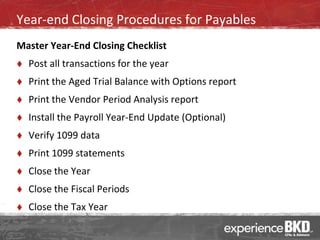
Year-end Closing Procedures for Payables
Master Year-End Closing Checklist
   Post all transactions for the year
   Print the Aged Trial Balance with Options report
   Print the Vendor Period Analysis report
   Install the Payroll Year-End Update (Optional)
   Verify 1099 data
   Print 1099 statements
   Close the Year
   Close the Fiscal Periods
   Close the Tax Year
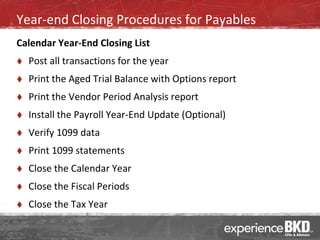
Year-end Closing Procedures for Payables
Calendar Year-End Closing List
   Post all transactions for the year
   Print the Aged Trial Balance with Options report
   Print the Vendor Period Analysis report
   Install the Payroll Year-End Update (Optional)
   Verify 1099 data
   Print 1099 statements
   Close the Calendar Year
   Close the Fiscal Periods
   Close the Tax Year
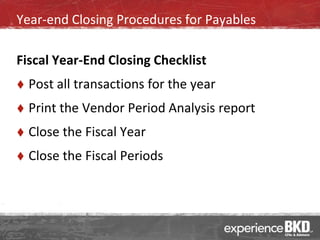
Year-end Closing Procedures for Payables

Fiscal Year-End Closing Checklist
   Post all transactions for the year
   Print the Vendor Period Analysis report
   Close the Fiscal Year
   Close the Fiscal Periods
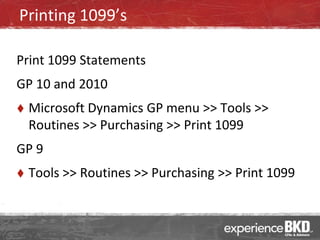
Printing 1099’s

Print 1099 Statements
GP 10 and 2010
   Microsoft Dynamics GP menu >> Tools >>
    Routines >> Purchasing >> Print 1099
GP 9
   Tools >> Routines >> Purchasing >> Print 1099
Closing the Year for Payables

Electronic Filing of 1099
   GP does not support electronic filing of state
    1099’s
   Greenshades Software provides a product to
    electronically submit 1099’s
Payables Closing Tip
We recommend:
   Posting all payables transactions for the
    calendar year before closing the year.
   Entering future-period payables transactions
    prior to closing the year:
     Enter new year transactions in a separate batch.
     Post new year batch after closing the year.
Payables Closing Questions

Question: Can I remove inactive vendors?


Answer: If the vendor has no 1099 amounts for
the year and has no documents in work or
history. You will need to purge historical data for
a vendor to remove it.
Payables Closing

For more information consult the Payables
Management User Guide or KB article 875169
“Year-end closing procedures for the Payables
Management module in Microsoft Dynamics GP”
Payables Year-End Closing Procedures


             End Payables Management
Fixed Assets Year-End Closing

   Perform all year-end closing for Payables
   Enter all fixed asset transactions for the year
   Depreciate all assets through the end of the year
   Perform the GL Posting through the end of the year
   Run year-end reports
   Verify the Fixed Asset calendar is built correctly
   Verify the quarters are set up correctly
   Perform the year-end closing routine
Fixed Assets Year-End Closing
Reports to Print
   Annual Activity
   Additions
   Retirements
   Transfers
   Depreciation Ledger
   Property Ledger
   Fixed Asset to General Ledger Reconciliation
   Book to Book Reconciliation
   Book to Book YTD Depreciation Comparison
Fixed Assets Year-End Closing
Items Updated During Close
   Updates the Begin Quantity on the Asset General Information
   Clears the YTD Maintenance amount
   Clears the YTD Depreciation amount
   Copies Cost Basis amount to Begin Year Cost
   Copies LTD Depreciation to Begin Reserve
   Copies Salvage Value to Begin Salvage
   Increases the Current Fiscal Year by 1 on Book Setup
Fixed Assets Year-End Closing

For more information consult the Fixed Assets
User Guide or KB article 865653 “The year-end
closing procedures for the Fixed Asset
Management module in Microsoft Dynamics GP”
Fixed Assets Year-End Closing


             End Fixed Assets
Inventory Year End Closing Procedures
      Post all transactions for the year
      Reconcile Inventory Quantities
      Complete a Physical Inventory count and post
       any adjustments
      Print additional reports
      Make a BACKUP
      Close the year
      Close the fiscal periods for the Inventory series
       (optional – but recommended)
      Make a final BACKUP
Physical Inventory

   Create a Stock Count Schedule
   Start the count – this “freezes the
    inventory”
   The Stock Print Options allows you to
    print the count sheet
   Physically count the inventory
   Enter stock count results
Physical inventory – other options

 ABC analysis


 Physical inventory   without
 Dynamics GP
Close the year for Inventory

Closing the year for Inventory-

   Updates each Item's Beginning
    Quantity to be the Quantity on Hand
    at each Site

   Quantity Sold field for each item is
    reset to zero
Inventory Year End Closing Tips

   The year-end close must be
    completed before any transactions
    for the new year have been posted.


   You have the option of removing
    Discontinued Items, Sold Receipts or
    Sold Lot Attributes.
Inventory Year End Closing Tips

   If you mark Update Item's Standard Cost, the
    Standard Cost for any Items that have been
    assigned the FIFO periodic or LIFO periodic
    Valuation Method will be adjusted automatically to
    reflect each Item's current Cost. Current Cost is the
    amount you most recently paid for the Item.


   Inventory has no Year End Closing report.
Inventory Year-End Closing

For more information consult the Inventory User
Guide or KB article 872713 “Inventory year-end
closing procedures in Inventory Control in
Microsoft Dynamics GP” and document
“Information on the Inventory Year-End Closing
Procedures in Inventory Control Module in
Microsoft Dynamics GP”
Inventory Year-End Closing Procedures


                    End Inventory
Payroll Year-End Closing Procedures

    (Required) Verify the version of GP you are using
    (Required) Complete all pay runs for 2010
    (Optional) Complete all monthly and quarterly procedures for
     Payroll
    Make a backup of your Dynamics and company databases
    Install the year-end update on ALL GP workstations
 • https://mbs.microsoft.com/partnersource/downloads/taxupdates/
   usgpye10.htm?printpage=false
 • https://mbs.microsoft.com/partnersource/downloads/taxupdates/
   usgpye9.htm?printpage=false
Payroll Year-End Closing Procedures
    (Required) Close the Payroll Year (Tools >> Routines >> Payroll >>
     Year-End Closing
    (Recommended) Make a backup of the post close data
    (Recommended) Verify W-2 and 1099-R statement information.
    (Required) Print the W-2 statements and W-3 transmittal form.
    (Required) Print the 1099-R forms and the 1096 Transmittal form.
    (Required) File your taxes
    (Optional) Archive inactive employee HR Information
Payroll Year-End Closing Procedures

    (Required) Set up fiscal periods for 2011
    (Optional) Close fiscal periods for payroll series in 2010
    (Required) Install the payroll tax update for 2011
 • GP 2010 and 10 - Maintenance >> U.S. Payroll Updates >> Check
   for Tax Updates
 • GP 9 - Help >> U.S. Payroll Updates >> Check for Tax Updates
 • You will need your authorization number – this is usually your
   main phone number with area code.
 • You can also download the latest tax updates from
   CustomerSource
Verify the data is installed

   Version 2010 or 10 – Open the Payroll Setup
    window (Microsoft Dynamics GP >> Tools >>
    Setup >> Payroll >> Payroll) and check the Last
    Year-end Update date. It should be
    11/19/2010.
   Version 9 – Open the Payroll Setup window
    (Tools >> Setup >> Payroll >> Payroll) and check
    the Last Year-end Update date. It should be
    11/19/2010.
Payroll Year-End Closing Procedures

 Magnetic Media Filers Take Note
    Make sure you are registered with the SSA.
    Complete all pay runs in 2010
    Create the Year End Wage File
    Verify W-2 amounts
    Be sure nobody updates the W-2 data while the
     electronic filing is in process.
Payroll Year-End Closing Procedures

   Dynamics GP does not support electronic filing
    of 1099-R, SUTA forms, or state W-2 forms
   Two third parties provide solutions
     Greenshades
     MasterTax
Payroll Year-End Closing Procedures

For more information consult the Payroll User
Guide or KB article 850663 “Year-end Closing
Procedures for Microsoft Dynamics GP Payroll”
Payroll Year-End Closing Procedures


                      End Payroll
Installing the Year-End Update

What the year-end update includes:
   W3 form changes
   W2 Electronic changes (EFW2)
   Hire Act ending 12/31/2010
   1099-INT form changes (Payables)
   Luxury Auto Depreciation changes for
    Automobiles, Trucks and Vans (Fixed Assets)
Going Paperless In Dynamics GP Webinar

    Going Paperless In Dynamics GP
    Day: January 20, 2010
    Register at:
     www.bkdtechnologies.com/attend
BKD Technologies Help Desk


   Microsoft Dynamics GP – 877.253.7778
    Gpsupport@bkd.com


   Monday - Friday, 8 a.m. - 5 p.m.
    Support Center toll free
Contact Information


             Charles Allen
             713.499.4629
            callen@bkd.com

Dynamics GP Year End Closing Procedures 2010

  • 1.
    Welcome to theDynamics GP Users’ Group Year-End Processing
  • 2.
    Introduction  Charles Allen  Managing Consultant  More than 20 years experience  Microsoft MVP
  • 3.
    Year-End Closing Agenda  8:30 – 8:45 Introductions and Opening Remarks  8:45 – 9:15 General Ledger  9:15 – 9:45 Receivables Management  9:45 – 10:15 Payables Management  10:15 – 10:30 Break  10:30 – 10:45 Fixed Assets  10:45 – 11:15 Inventory  11:15 – 12:00 Payroll
  • 4.
    General Ledger Year-EndClosing Pre-Close Because the year-end close moves data from one set of data to another by using temporary tables, make sure you have enough hard drive space. You must have free disk space that is equal to the size of the GL20000 table. Your database administrator can aid you with this item.
  • 5.
    General Ledger Year-endClosing Procedures  Close all other modules  Post final adjustments  Print GL Account List to verify Posting Type (Balance Sheet vs. Profit Loss) or use Accounts SmartList  Close the last fiscal period of the year, but not if using FRx.  Make sure Maintain History is marked in Setup >> Financial >> GL  Print a Trial Balance Detail report
  • 6.
    General Ledger Year-endClosing Procedures  Print final financial reports  Set up a new fiscal year  Close the fiscal year  Leave the last period open in the Financial Series when using FRx  Make a BACKUP
  • 7.
    Year-end closing –General Ledger What will the General Ledger closing process accomplish?
  • 8.
    Year end closing– General Ledger  Transfers amounts to transaction and account history  Reconciles and summarizes General Ledger balances  Closes P&L accounts to Retained Earnings  Clears all profit and loss account balances for new year  Summarizes year end balance sheet accounts to bring balances forward to new fiscal year  Removes inactive accounts that have zero balances  Prints Year-End Closing Report
  • 9.
    General Ledger ClosingTip Run a smart list for GL Accounts and review the Posting Type for accuracy!!! Remember:  Balance Sheet Type accounts will have a balance forward in the new year  Profit and Loss Type accounts will be closed to retained earnings and have a zero balance in the new year
  • 10.
    General Ledger ClosingQuestion Question: Once I close GL for a year, can I reopen it to post new transactions? Answer: Yes. You can post into the most recently- closed fiscal year. Make sure Allow Posting to History is marked in General Ledger Setup.
  • 11.
    General Ledger ClosingQuestion Question: I need to print financial reports and trial balance reports for the new year prior to closing the old year. Can I do this? Answer: Yes. With FRx or Management Reporter, you can create provisional reports to print new year reports prior to closing the old year.
  • 12.
    General Ledger Closing Formore information, review your General Ledger User Guide and KB Article 888003 “Year- end Closing Procedures for General Ledger in Microsoft Dynamics GP”
  • 13.
    General Ledger Year-EndClosing Procedures End General Ledger
  • 14.
    Receivables Year-end ClosingProcedures  Post all transactions for the year  Make a backup  Close the Calendar Year  Close the Fiscal Year  Close the Tax Year
  • 15.
    Calendar Year forReceivables Clears the Following Fields  Finance Charges Current YTD  Total # Finance Charges YTD  Total Finance Charges YTD  Total Waived FC YTD  Unpaid Finance Charges YTD Updates the Following Fields  Finance Charges LYR Calendar  Total # FC LYR
  • 16.
    Fiscal Year forReceivables  Summary amounts transferred from Year-to-date column to Last Year column  Only transfers amounts from fiscal year being closed  New fiscal year amounts remain in the Year-to-Date column
  • 17.
    Receivables Closing Areas NotDate-Sensitive  Amounts Since Last Close  Customer Finance Charge Summary Window  SmartList objects
  • 18.
    Receivables Closing Why closeReceivables Management? Produce reports for each year’s summary data rather than calculating it each time.
  • 19.
    Receivables Closing  For more information consult the Receivables Management User Guide or KB article 857444 “Year-end closing procedures for Receivables Management in Microsoft Dynamics GP”
  • 20.
    Receivables Year-End ClosingProcedures End Receivables Management
  • 21.
    Year-end Closing Proceduresfor Payables Master Year-End Closing Checklist  Post all transactions for the year  Print the Aged Trial Balance with Options report  Print the Vendor Period Analysis report  Install the Payroll Year-End Update (Optional)  Verify 1099 data  Print 1099 statements  Close the Year  Close the Fiscal Periods  Close the Tax Year
  • 22.
    Year-end Closing Proceduresfor Payables Calendar Year-End Closing List  Post all transactions for the year  Print the Aged Trial Balance with Options report  Print the Vendor Period Analysis report  Install the Payroll Year-End Update (Optional)  Verify 1099 data  Print 1099 statements  Close the Calendar Year  Close the Fiscal Periods  Close the Tax Year
  • 23.
    Year-end Closing Proceduresfor Payables Fiscal Year-End Closing Checklist  Post all transactions for the year  Print the Vendor Period Analysis report  Close the Fiscal Year  Close the Fiscal Periods
  • 24.
    Printing 1099’s Print 1099Statements GP 10 and 2010  Microsoft Dynamics GP menu >> Tools >> Routines >> Purchasing >> Print 1099 GP 9  Tools >> Routines >> Purchasing >> Print 1099
  • 25.
    Closing the Yearfor Payables Electronic Filing of 1099  GP does not support electronic filing of state 1099’s  Greenshades Software provides a product to electronically submit 1099’s
  • 26.
    Payables Closing Tip Werecommend:  Posting all payables transactions for the calendar year before closing the year.  Entering future-period payables transactions prior to closing the year:  Enter new year transactions in a separate batch.  Post new year batch after closing the year.
  • 27.
    Payables Closing Questions Question:Can I remove inactive vendors? Answer: If the vendor has no 1099 amounts for the year and has no documents in work or history. You will need to purge historical data for a vendor to remove it.
  • 28.
    Payables Closing For moreinformation consult the Payables Management User Guide or KB article 875169 “Year-end closing procedures for the Payables Management module in Microsoft Dynamics GP”
  • 29.
    Payables Year-End ClosingProcedures End Payables Management
  • 30.
    Fixed Assets Year-EndClosing  Perform all year-end closing for Payables  Enter all fixed asset transactions for the year  Depreciate all assets through the end of the year  Perform the GL Posting through the end of the year  Run year-end reports  Verify the Fixed Asset calendar is built correctly  Verify the quarters are set up correctly  Perform the year-end closing routine
  • 31.
    Fixed Assets Year-EndClosing Reports to Print  Annual Activity  Additions  Retirements  Transfers  Depreciation Ledger  Property Ledger  Fixed Asset to General Ledger Reconciliation  Book to Book Reconciliation  Book to Book YTD Depreciation Comparison
  • 32.
    Fixed Assets Year-EndClosing Items Updated During Close  Updates the Begin Quantity on the Asset General Information  Clears the YTD Maintenance amount  Clears the YTD Depreciation amount  Copies Cost Basis amount to Begin Year Cost  Copies LTD Depreciation to Begin Reserve  Copies Salvage Value to Begin Salvage  Increases the Current Fiscal Year by 1 on Book Setup
  • 33.
    Fixed Assets Year-EndClosing For more information consult the Fixed Assets User Guide or KB article 865653 “The year-end closing procedures for the Fixed Asset Management module in Microsoft Dynamics GP”
  • 34.
    Fixed Assets Year-EndClosing End Fixed Assets
  • 35.
    Inventory Year EndClosing Procedures  Post all transactions for the year  Reconcile Inventory Quantities  Complete a Physical Inventory count and post any adjustments  Print additional reports  Make a BACKUP  Close the year  Close the fiscal periods for the Inventory series (optional – but recommended)  Make a final BACKUP
  • 36.
    Physical Inventory  Create a Stock Count Schedule  Start the count – this “freezes the inventory”  The Stock Print Options allows you to print the count sheet  Physically count the inventory  Enter stock count results
  • 37.
    Physical inventory –other options  ABC analysis  Physical inventory without Dynamics GP
  • 38.
    Close the yearfor Inventory Closing the year for Inventory-  Updates each Item's Beginning Quantity to be the Quantity on Hand at each Site  Quantity Sold field for each item is reset to zero
  • 39.
    Inventory Year EndClosing Tips  The year-end close must be completed before any transactions for the new year have been posted.  You have the option of removing Discontinued Items, Sold Receipts or Sold Lot Attributes.
  • 40.
    Inventory Year EndClosing Tips  If you mark Update Item's Standard Cost, the Standard Cost for any Items that have been assigned the FIFO periodic or LIFO periodic Valuation Method will be adjusted automatically to reflect each Item's current Cost. Current Cost is the amount you most recently paid for the Item.  Inventory has no Year End Closing report.
  • 41.
    Inventory Year-End Closing Formore information consult the Inventory User Guide or KB article 872713 “Inventory year-end closing procedures in Inventory Control in Microsoft Dynamics GP” and document “Information on the Inventory Year-End Closing Procedures in Inventory Control Module in Microsoft Dynamics GP”
  • 42.
    Inventory Year-End ClosingProcedures End Inventory
  • 43.
    Payroll Year-End ClosingProcedures  (Required) Verify the version of GP you are using  (Required) Complete all pay runs for 2010  (Optional) Complete all monthly and quarterly procedures for Payroll  Make a backup of your Dynamics and company databases  Install the year-end update on ALL GP workstations • https://mbs.microsoft.com/partnersource/downloads/taxupdates/ usgpye10.htm?printpage=false • https://mbs.microsoft.com/partnersource/downloads/taxupdates/ usgpye9.htm?printpage=false
  • 44.
    Payroll Year-End ClosingProcedures  (Required) Close the Payroll Year (Tools >> Routines >> Payroll >> Year-End Closing  (Recommended) Make a backup of the post close data  (Recommended) Verify W-2 and 1099-R statement information.  (Required) Print the W-2 statements and W-3 transmittal form.  (Required) Print the 1099-R forms and the 1096 Transmittal form.  (Required) File your taxes  (Optional) Archive inactive employee HR Information
  • 45.
    Payroll Year-End ClosingProcedures  (Required) Set up fiscal periods for 2011  (Optional) Close fiscal periods for payroll series in 2010  (Required) Install the payroll tax update for 2011 • GP 2010 and 10 - Maintenance >> U.S. Payroll Updates >> Check for Tax Updates • GP 9 - Help >> U.S. Payroll Updates >> Check for Tax Updates • You will need your authorization number – this is usually your main phone number with area code. • You can also download the latest tax updates from CustomerSource
  • 46.
    Verify the datais installed  Version 2010 or 10 – Open the Payroll Setup window (Microsoft Dynamics GP >> Tools >> Setup >> Payroll >> Payroll) and check the Last Year-end Update date. It should be 11/19/2010.  Version 9 – Open the Payroll Setup window (Tools >> Setup >> Payroll >> Payroll) and check the Last Year-end Update date. It should be 11/19/2010.
  • 47.
    Payroll Year-End ClosingProcedures Magnetic Media Filers Take Note  Make sure you are registered with the SSA.  Complete all pay runs in 2010  Create the Year End Wage File  Verify W-2 amounts  Be sure nobody updates the W-2 data while the electronic filing is in process.
  • 48.
    Payroll Year-End ClosingProcedures  Dynamics GP does not support electronic filing of 1099-R, SUTA forms, or state W-2 forms  Two third parties provide solutions  Greenshades  MasterTax
  • 49.
    Payroll Year-End ClosingProcedures For more information consult the Payroll User Guide or KB article 850663 “Year-end Closing Procedures for Microsoft Dynamics GP Payroll”
  • 50.
    Payroll Year-End ClosingProcedures End Payroll
  • 51.
    Installing the Year-EndUpdate What the year-end update includes:  W3 form changes  W2 Electronic changes (EFW2)  Hire Act ending 12/31/2010  1099-INT form changes (Payables)  Luxury Auto Depreciation changes for Automobiles, Trucks and Vans (Fixed Assets)
  • 53.
    Going Paperless InDynamics GP Webinar  Going Paperless In Dynamics GP  Day: January 20, 2010  Register at: www.bkdtechnologies.com/attend
  • 54.
    BKD Technologies HelpDesk  Microsoft Dynamics GP – 877.253.7778 Gpsupport@bkd.com  Monday - Friday, 8 a.m. - 5 p.m. Support Center toll free
  • 55.
    Contact Information Charles Allen 713.499.4629 callen@bkd.com