Microsoft
Dynamics GP
Year-End Close
Troy Minor - Senior Consultant
January 6, 2015
Thrive. Grow. Achieve.
Page 2
AGENDA
• 1099 & Review FAQ
• Inventory Year-end Close
• Receivable Year-end Close
• Payables Year-end Close
• Fixed Asset Year-end Close
• General Ledger Year-end Close
• FAQ For YE Close
• 1099 & Review FAQ
Page 3
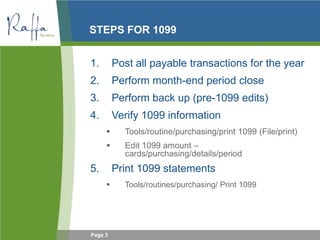
STEPS FOR 1099
1. Post all payable transactions for the year
2. Perform month-end period close
3. Perform back up (pre-1099 edits)
4. Verify 1099 information
 Tools/routine/purchasing/print 1099 (File/print)
 Edit 1099 amount –
cards/purchasing/details/period
5. Print 1099 statements
 Tools/routines/purchasing/ Print 1099
•
Page 4
REVIEW FAQ FOR 1099
Refer to your FAQ 1099 document
Page 5
1099 NEW FEATURES IN GP10
Greater control over 1099 box
• Vendor maintenance screen
• Payables Transaction Entry screen
• Vendor Summary
• Print 1099 screen
Page 6
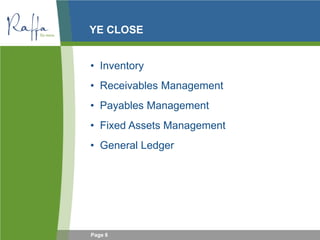
YE CLOSE
• Inventory
• Receivables Management
• Payables Management
• Fixed Assets Management
• General Ledger
Page 7
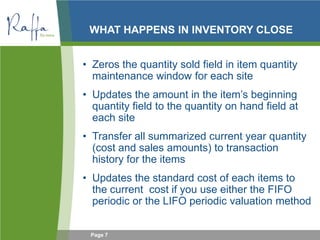
WHAT HAPPENS IN INVENTORY CLOSE
• Zeros the quantity sold field in item quantity
maintenance window for each site
• Updates the amount in the item’s beginning
quantity field to the quantity on hand field at
each site
• Transfer all summarized current year quantity
(cost and sales amounts) to transaction
history for the items
• Updates the standard cost of each items to
the current cost if you use either the FIFO
periodic or the LIFO periodic valuation method
Page 8
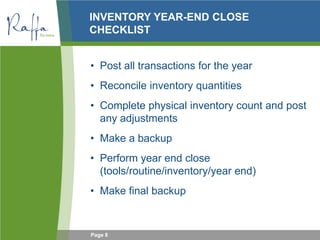
INVENTORY YEAR-END CLOSE
CHECKLIST
• Post all transactions for the year
• Reconcile inventory quantities
• Complete physical inventory count and post
any adjustments
• Make a backup
• Perform year end close
(tools/routine/inventory/year end)
• Make final backup
Page 9
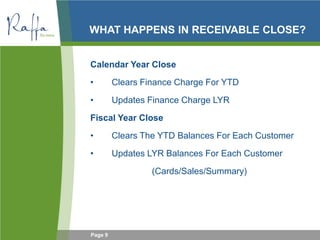
WHAT HAPPENS IN RECEIVABLE CLOSE?
Calendar Year Close
• Clears Finance Charge For YTD
• Updates Finance Charge LYR
Fiscal Year Close
• Clears The YTD Balances For Each Customer
• Updates LYR Balances For Each Customer
(Cards/Sales/Summary)
Page 10
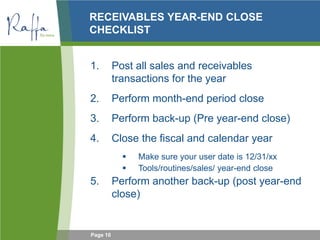
RECEIVABLES YEAR-END CLOSE
CHECKLIST
1. Post all sales and receivables
transactions for the year
2. Perform month-end period close
3. Perform back-up (Pre year-end close)
4. Close the fiscal and calendar year
 Make sure your user date is 12/31/xx
 Tools/routines/sales/ year-end close
5. Perform another back-up (post year-end
close)
Page 11
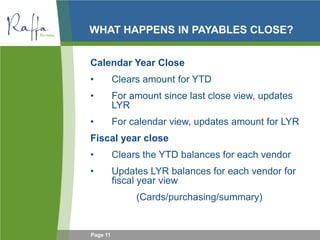
WHAT HAPPENS IN PAYABLES CLOSE?
Calendar Year Close
• Clears amount for YTD
• For amount since last close view, updates
LYR
• For calendar view, updates amount for LYR
Fiscal year close
• Clears the YTD balances for each vendor
• Updates LYR balances for each vendor for
fiscal year view
(Cards/purchasing/summary)
Page 12
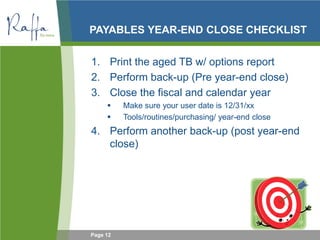
PAYABLES YEAR-END CLOSE CHECKLIST
1. Print the aged TB w/ options report
2. Perform back-up (Pre year-end close)
3. Close the fiscal and calendar year
 Make sure your user date is 12/31/xx
 Tools/routines/purchasing/ year-end close
4. Perform another back-up (post year-end
close)
Page 13
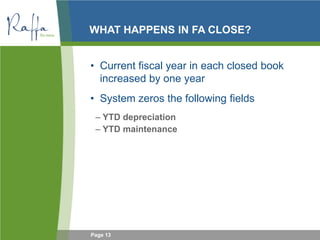
WHAT HAPPENS IN FA CLOSE?
• Current fiscal year in each closed book
increased by one year
• System zeros the following fields
– YTD depreciation
– YTD maintenance
Page 14
FIXED ASSET YE CLOSE CHECKLIST
1. Enter all FA transactions
2. Depreciate all assets through the last day
of the year
3. Build FA calendar if necessary
4. Create backup
5. Run FA YE close routine
(tools/routine/FA/YE)
6. Create final backup
Page 15
WHAT HAPPENS DURING GL YEAR-END
CLOSE?
• Transfers all current year information for each
account to account history
• Reconciles and summarizes the GL balances that
accumulates throughout the year
• Removes all accounts that are marked as inactive if
the accounts matches criteria for deleting
• Removes all P&L account balances to RE
• Summarizes balance sheet accounts and brings the
balance forward as the beginning balance of the
account in the new year
• Prints the year-end closing report
Page 16
PREPARING FOR GL CLOSE
1. Verify disk space availability (must have
free disk space = to GL20000
2. Close all sub-ledger
• Inventory
• Receivables Management
• Payables Management
• Fixed Assets Management
Page 17
GENERAL LEDGER YEAR-END CLOSE
CHECKLIST
1. Post all outstanding entries in GL
2. Print an account list to verify the posting type
of each account (reports/financial/accounts/ all
accounts (include inactive accounts)
3. Perform month-end period close
4. Verify setting in the GL setup window
5. Perform pre-close backup
6. Print detailed TB report and Financial
Statement (to file) Setup new fiscal year
7. Close the fiscal and calendar year
 Make sure your user date is 12/31/xx
 Tools/routines/financial/ year-end close
8. Perform another back-up (post year-end close)
Page 18
FAQ – YEAR-END CLOSE
Refer To Your Year-end Close FAQ Document
Page 19
PAYROLL W2
1. Create YE file (tools/routine/payroll/YE
close)
• Information is from employee summary records
• Generate the file as of 12.31.xx date.
• MS recommends generating the YE file prior to
payroll run in new calendar year
• Pay runs can be processed in new year before
W2 statements are printed
2. Review YE wage report and verify W-2
(tools/routine/payroll/YE wage report)
3. Print W2 & W3 forms using the print W2
window (tools/routine/payroll/print W2)
Page 20
PRINT W2 FORM
• Print and review the validation report
• Print the W2 forms
– Print for both active and inactive employees
– W2 forms are printed for each employee that has
worked during the year
– You can print W2 for any year that a YE wage
file exists
• Print the W3 form
Page 21
VALIDATION REPORT
Validates the following information:
• Social security numbers
• Social security wage limits
• Social security tax amounts
• Medicare tax amount
• Blank wage fields
Page 22
ADDITIONAL INFO ON W2
• You can process payroll in new year w/o
printing W2
• You can reprint W2 as many time and for
any year as long as the YE file exists
• YE file can be deleted and recreated as
needed.
• You should verify the information on the ye
wage report before processing payroll in the
new year.
Page 23
ADDITIONAL W2 INFORMATION
• If you’ve already process payroll in new
year and you need to make edits to W2,
you can edit the specific W2 record and not
affect the master record.
• If you edit ss wages to be higher than the
tax table limit, the edited w2 information
window will display the edited amount but
w2 will only print up to the limit.
Page 24
QUESTIONS?

2015-01-06 Microsoft Dynamics GP Year End Closing Procedures

  • 1.
    Microsoft Dynamics GP Year-End Close TroyMinor - Senior Consultant January 6, 2015 Thrive. Grow. Achieve.
  • 2.
    Page 2 AGENDA • 1099& Review FAQ • Inventory Year-end Close • Receivable Year-end Close • Payables Year-end Close • Fixed Asset Year-end Close • General Ledger Year-end Close • FAQ For YE Close • 1099 & Review FAQ
  • 3.
    Page 3 STEPS FOR1099 1. Post all payable transactions for the year 2. Perform month-end period close 3. Perform back up (pre-1099 edits) 4. Verify 1099 information  Tools/routine/purchasing/print 1099 (File/print)  Edit 1099 amount – cards/purchasing/details/period 5. Print 1099 statements  Tools/routines/purchasing/ Print 1099 •
  • 4.
    Page 4 REVIEW FAQFOR 1099 Refer to your FAQ 1099 document
  • 5.
    Page 5 1099 NEWFEATURES IN GP10 Greater control over 1099 box • Vendor maintenance screen • Payables Transaction Entry screen • Vendor Summary • Print 1099 screen
  • 6.
    Page 6 YE CLOSE •Inventory • Receivables Management • Payables Management • Fixed Assets Management • General Ledger
  • 7.
    Page 7 WHAT HAPPENSIN INVENTORY CLOSE • Zeros the quantity sold field in item quantity maintenance window for each site • Updates the amount in the item’s beginning quantity field to the quantity on hand field at each site • Transfer all summarized current year quantity (cost and sales amounts) to transaction history for the items • Updates the standard cost of each items to the current cost if you use either the FIFO periodic or the LIFO periodic valuation method
  • 8.
    Page 8 INVENTORY YEAR-ENDCLOSE CHECKLIST • Post all transactions for the year • Reconcile inventory quantities • Complete physical inventory count and post any adjustments • Make a backup • Perform year end close (tools/routine/inventory/year end) • Make final backup
  • 9.
    Page 9 WHAT HAPPENSIN RECEIVABLE CLOSE? Calendar Year Close • Clears Finance Charge For YTD • Updates Finance Charge LYR Fiscal Year Close • Clears The YTD Balances For Each Customer • Updates LYR Balances For Each Customer (Cards/Sales/Summary)
  • 10.
    Page 10 RECEIVABLES YEAR-ENDCLOSE CHECKLIST 1. Post all sales and receivables transactions for the year 2. Perform month-end period close 3. Perform back-up (Pre year-end close) 4. Close the fiscal and calendar year  Make sure your user date is 12/31/xx  Tools/routines/sales/ year-end close 5. Perform another back-up (post year-end close)
  • 11.
    Page 11 WHAT HAPPENSIN PAYABLES CLOSE? Calendar Year Close • Clears amount for YTD • For amount since last close view, updates LYR • For calendar view, updates amount for LYR Fiscal year close • Clears the YTD balances for each vendor • Updates LYR balances for each vendor for fiscal year view (Cards/purchasing/summary)
  • 12.
    Page 12 PAYABLES YEAR-ENDCLOSE CHECKLIST 1. Print the aged TB w/ options report 2. Perform back-up (Pre year-end close) 3. Close the fiscal and calendar year  Make sure your user date is 12/31/xx  Tools/routines/purchasing/ year-end close 4. Perform another back-up (post year-end close)
  • 13.
    Page 13 WHAT HAPPENSIN FA CLOSE? • Current fiscal year in each closed book increased by one year • System zeros the following fields – YTD depreciation – YTD maintenance
  • 14.
    Page 14 FIXED ASSETYE CLOSE CHECKLIST 1. Enter all FA transactions 2. Depreciate all assets through the last day of the year 3. Build FA calendar if necessary 4. Create backup 5. Run FA YE close routine (tools/routine/FA/YE) 6. Create final backup
  • 15.
    Page 15 WHAT HAPPENSDURING GL YEAR-END CLOSE? • Transfers all current year information for each account to account history • Reconciles and summarizes the GL balances that accumulates throughout the year • Removes all accounts that are marked as inactive if the accounts matches criteria for deleting • Removes all P&L account balances to RE • Summarizes balance sheet accounts and brings the balance forward as the beginning balance of the account in the new year • Prints the year-end closing report
  • 16.
    Page 16 PREPARING FORGL CLOSE 1. Verify disk space availability (must have free disk space = to GL20000 2. Close all sub-ledger • Inventory • Receivables Management • Payables Management • Fixed Assets Management
  • 17.
    Page 17 GENERAL LEDGERYEAR-END CLOSE CHECKLIST 1. Post all outstanding entries in GL 2. Print an account list to verify the posting type of each account (reports/financial/accounts/ all accounts (include inactive accounts) 3. Perform month-end period close 4. Verify setting in the GL setup window 5. Perform pre-close backup 6. Print detailed TB report and Financial Statement (to file) Setup new fiscal year 7. Close the fiscal and calendar year  Make sure your user date is 12/31/xx  Tools/routines/financial/ year-end close 8. Perform another back-up (post year-end close)
  • 18.
    Page 18 FAQ –YEAR-END CLOSE Refer To Your Year-end Close FAQ Document
  • 19.
    Page 19 PAYROLL W2 1.Create YE file (tools/routine/payroll/YE close) • Information is from employee summary records • Generate the file as of 12.31.xx date. • MS recommends generating the YE file prior to payroll run in new calendar year • Pay runs can be processed in new year before W2 statements are printed 2. Review YE wage report and verify W-2 (tools/routine/payroll/YE wage report) 3. Print W2 & W3 forms using the print W2 window (tools/routine/payroll/print W2)
  • 20.
    Page 20 PRINT W2FORM • Print and review the validation report • Print the W2 forms – Print for both active and inactive employees – W2 forms are printed for each employee that has worked during the year – You can print W2 for any year that a YE wage file exists • Print the W3 form
  • 21.
    Page 21 VALIDATION REPORT Validatesthe following information: • Social security numbers • Social security wage limits • Social security tax amounts • Medicare tax amount • Blank wage fields
  • 22.
    Page 22 ADDITIONAL INFOON W2 • You can process payroll in new year w/o printing W2 • You can reprint W2 as many time and for any year as long as the YE file exists • YE file can be deleted and recreated as needed. • You should verify the information on the ye wage report before processing payroll in the new year.
  • 23.
    Page 23 ADDITIONAL W2INFORMATION • If you’ve already process payroll in new year and you need to make edits to W2, you can edit the specific W2 record and not affect the master record. • If you edit ss wages to be higher than the tax table limit, the edited w2 information window will display the edited amount but w2 will only print up to the limit.
  • 24.