Dropbox
SIGN UP FOR DROPBOX AND SET UP YOUR DESKTOP
FOLDER.
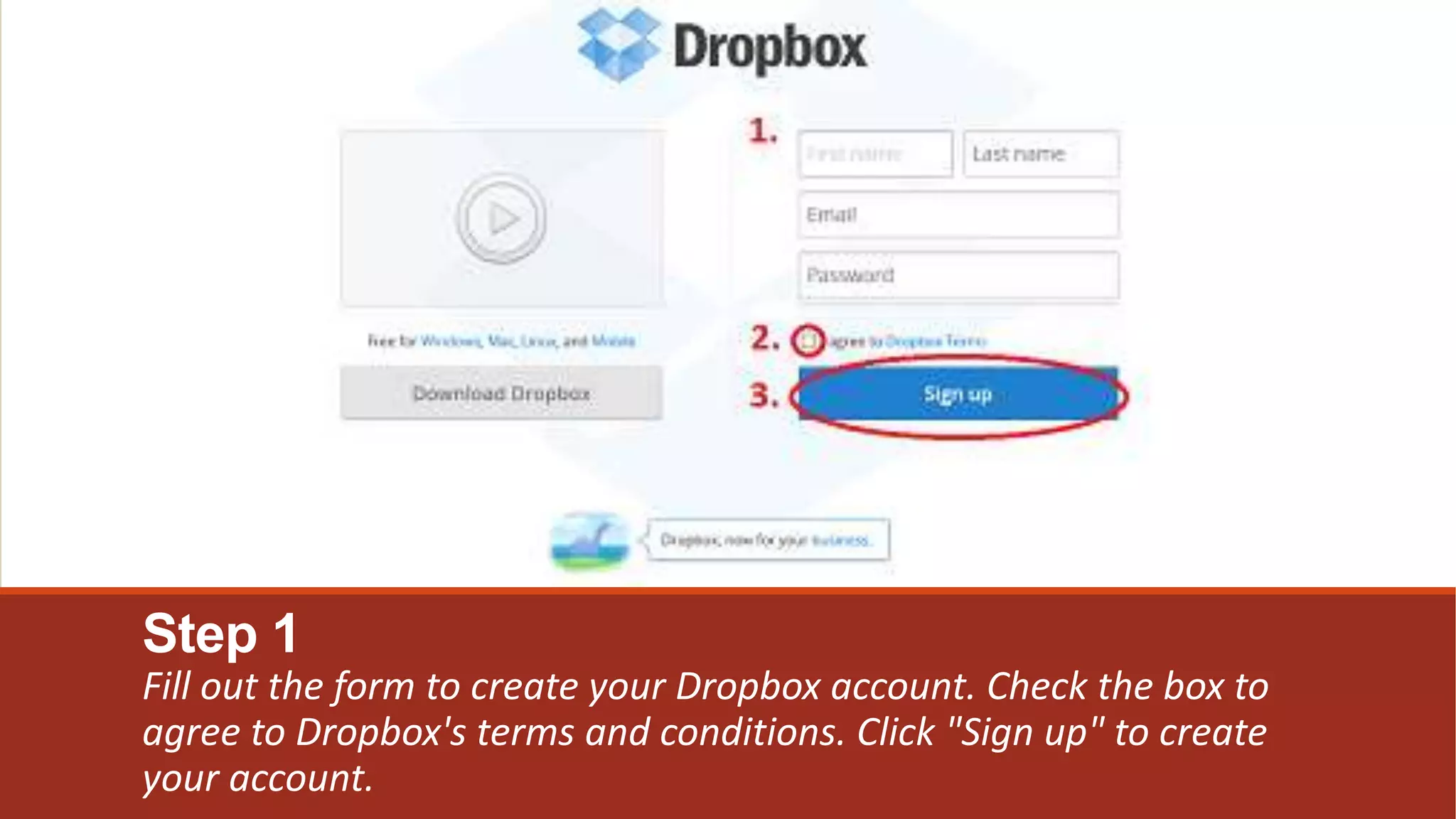
Step 1
Fill out the form to create your Dropbox account. Check the box to
agree to Dropbox's terms and conditions. Click "Sign up" to create
your account.
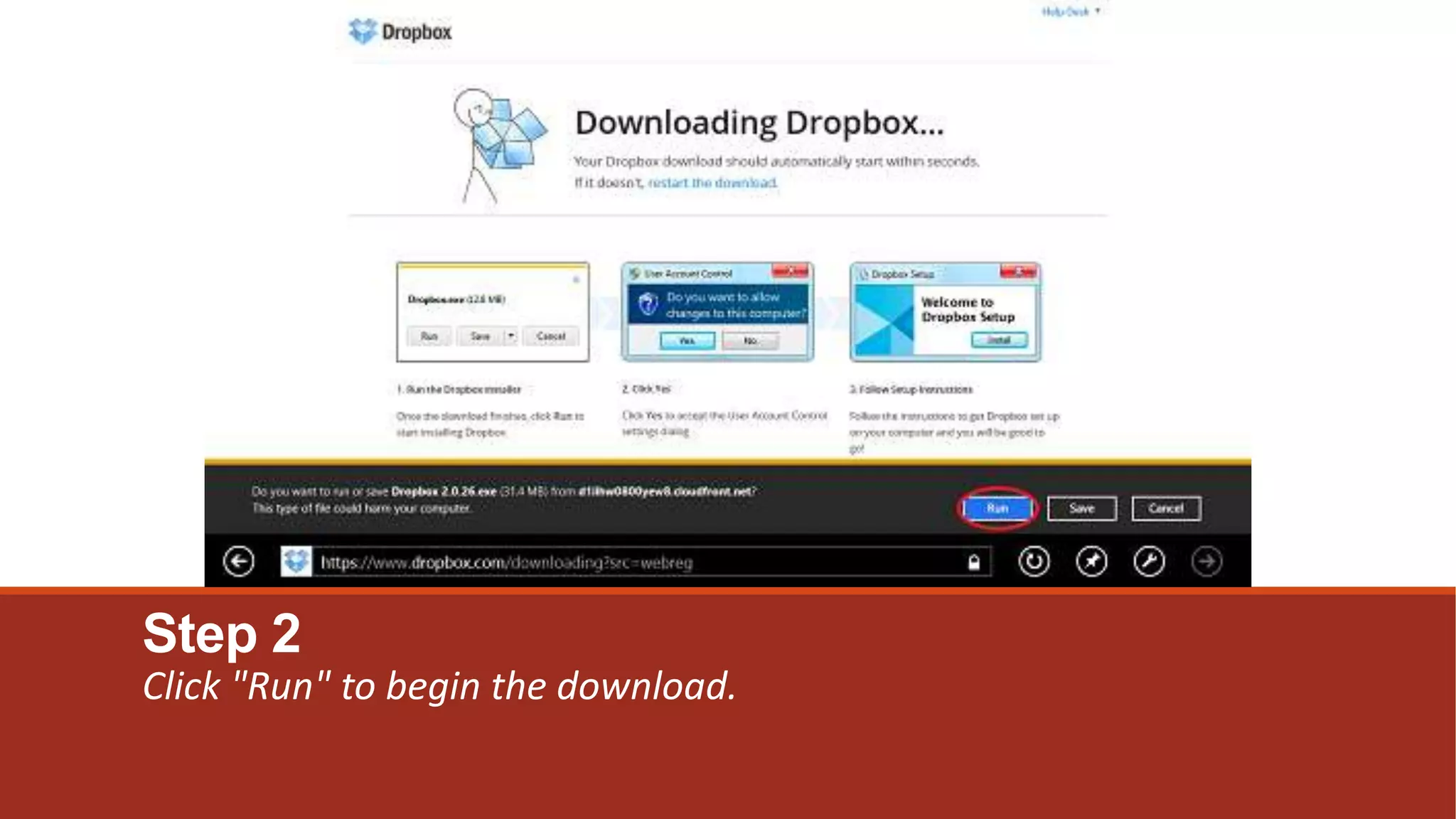
Step 2
Click "Run" to begin the download.
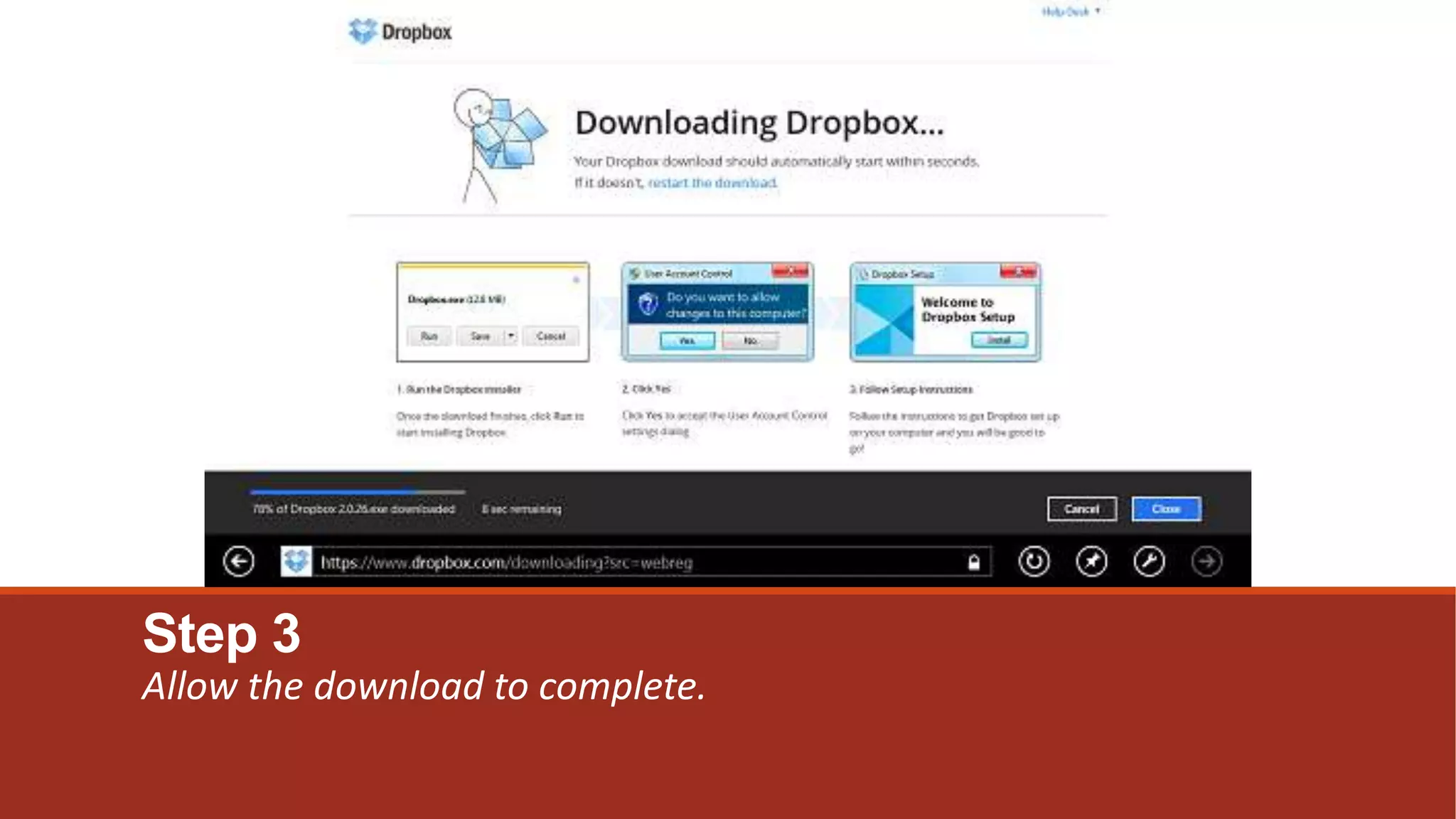
Step 3
Allow the download to complete.
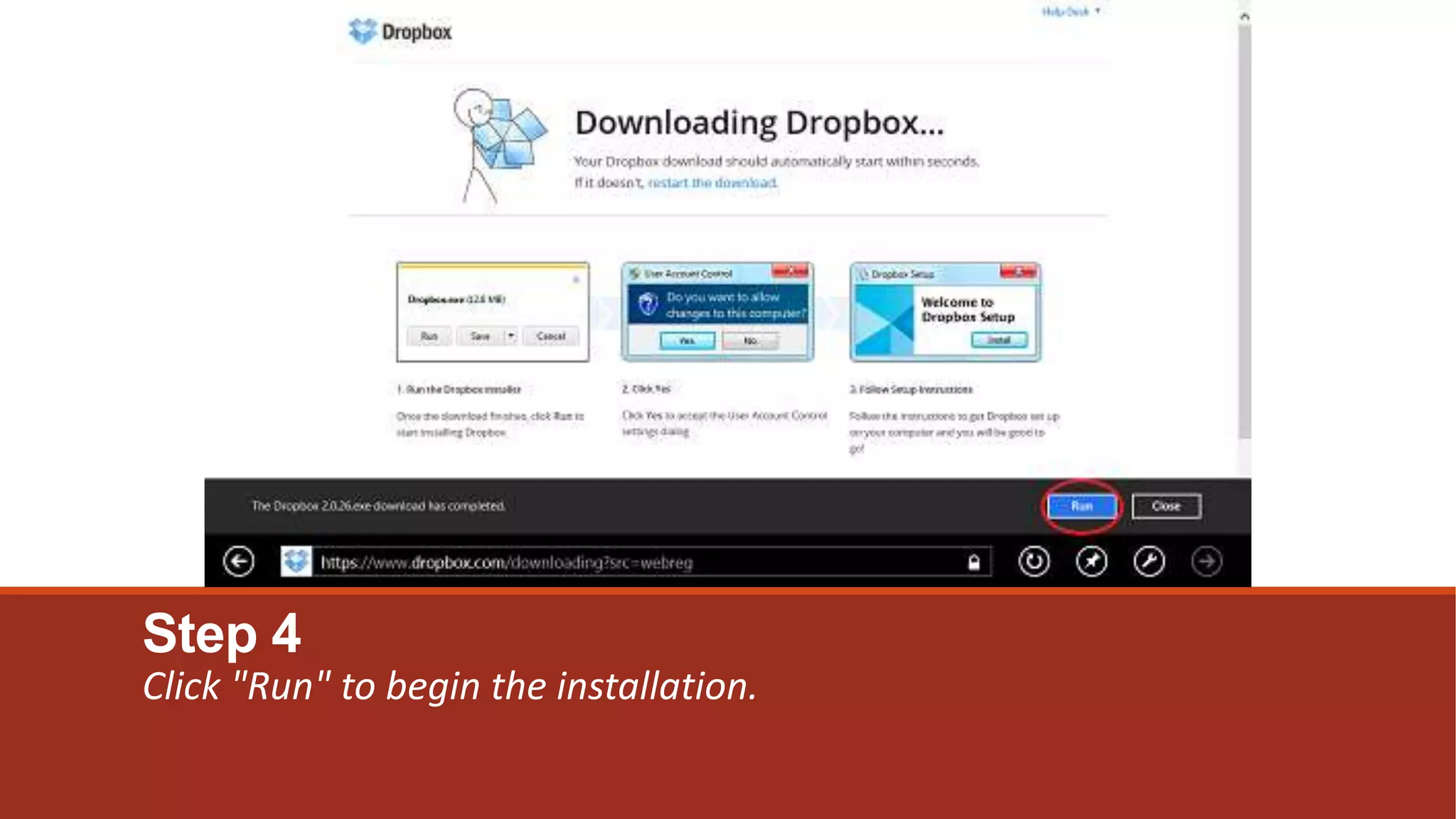
Step 4
Click "Run" to begin the installation.
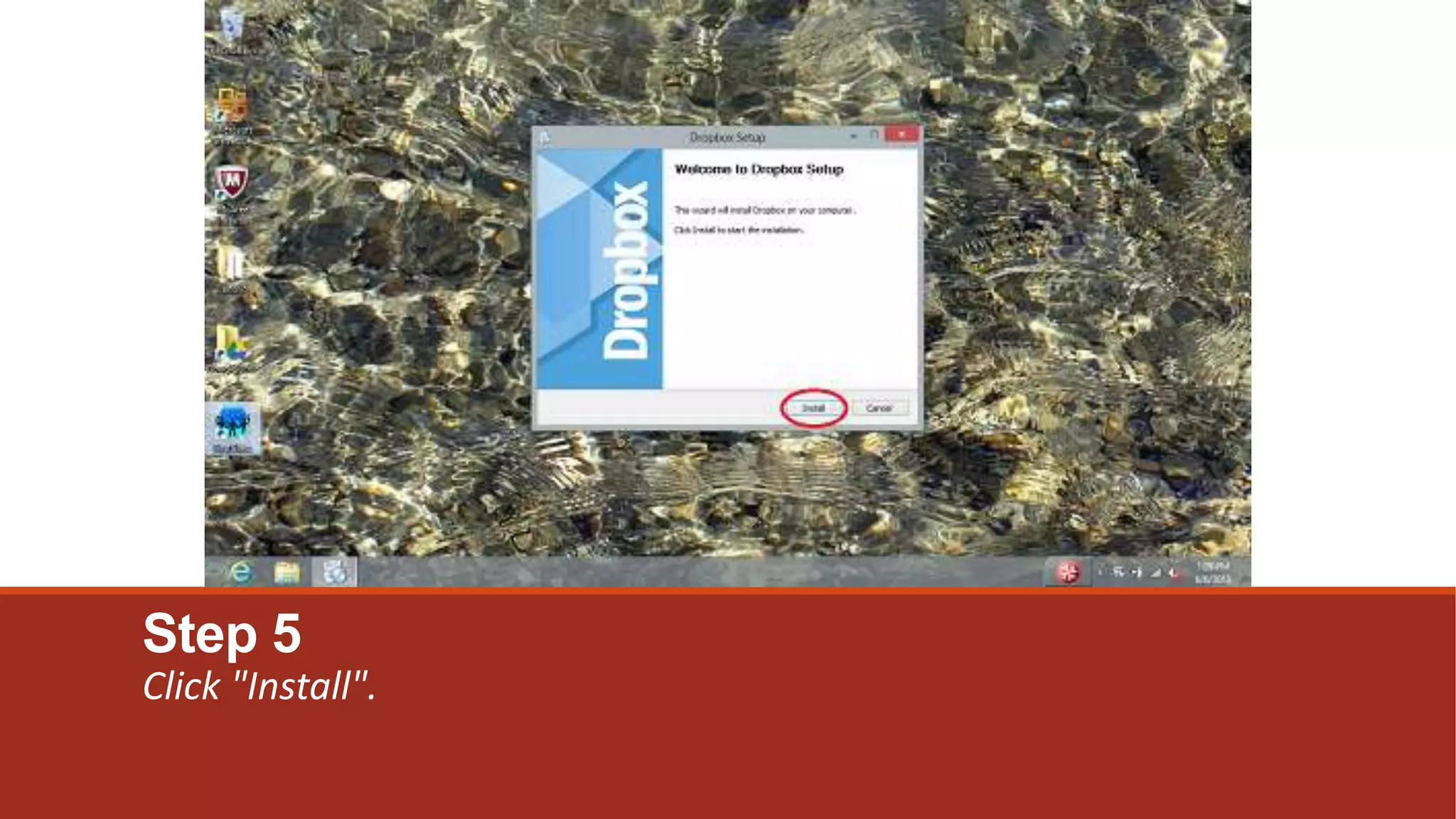
Step 5
Click "Install".
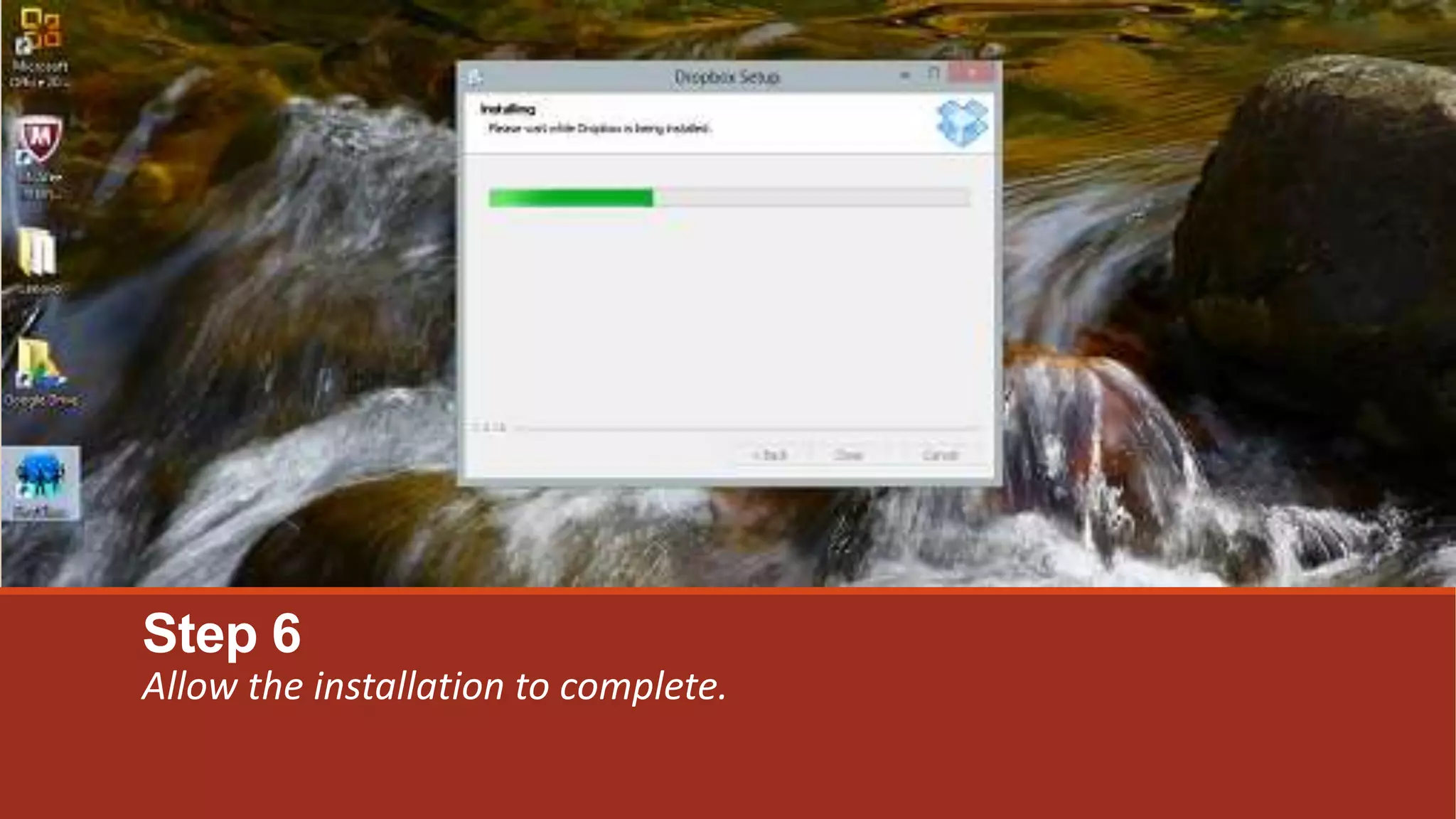
Step 6
Allow the installation to complete.
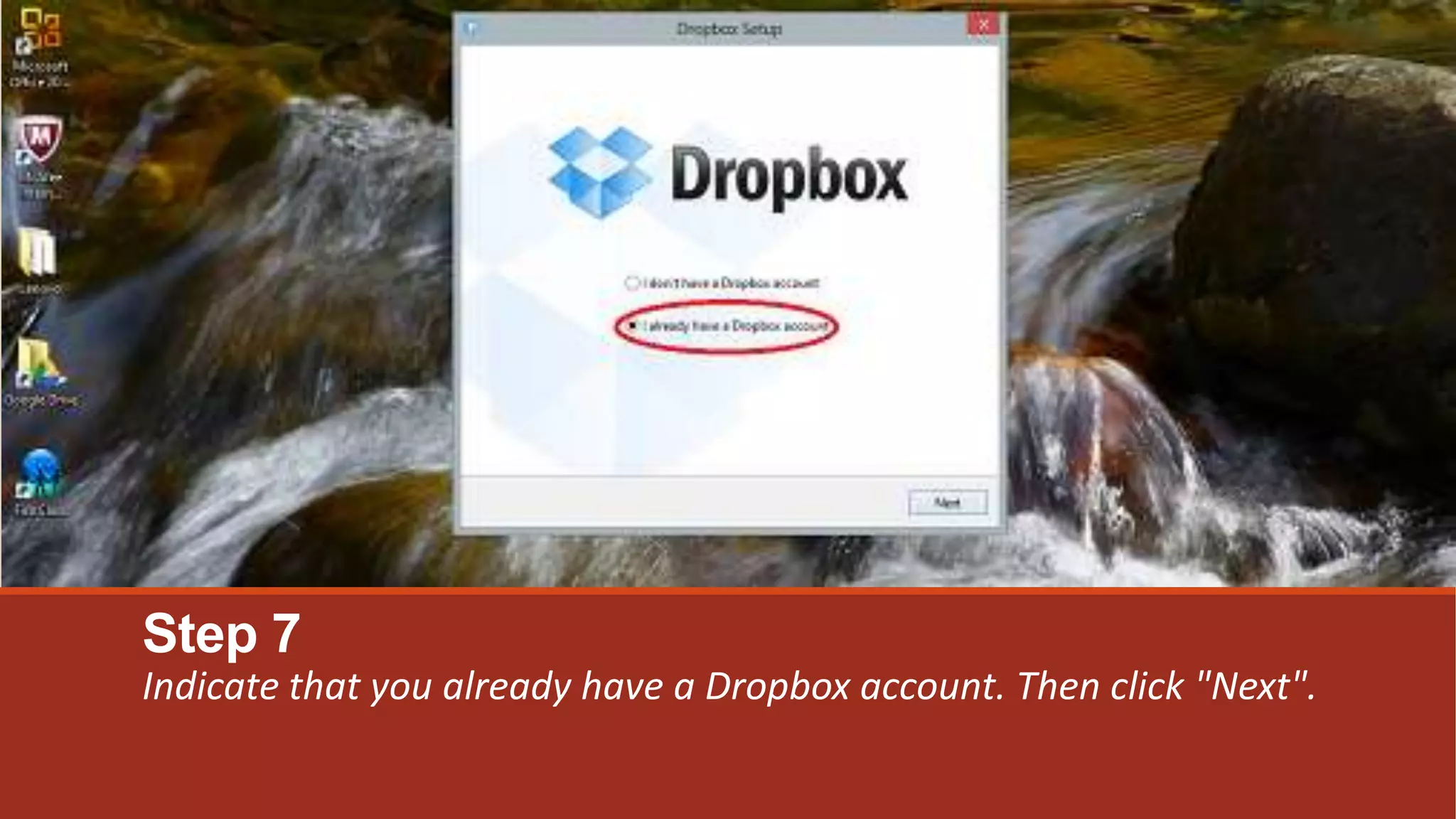
Step 7
Indicate that you already have a Dropbox account. Then click "Next".
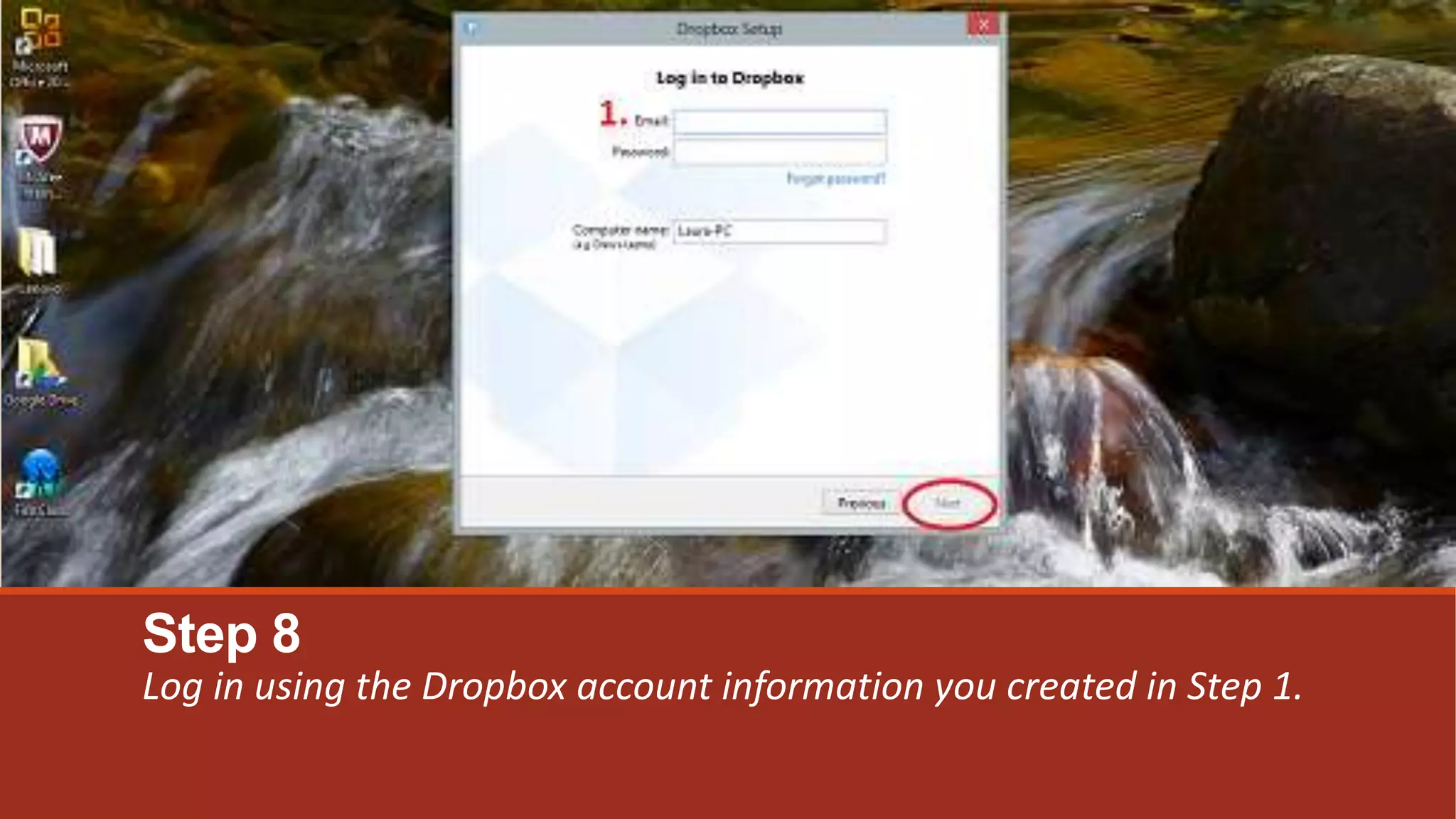
Step 8
Log in using the Dropbox account information you created in Step 1.
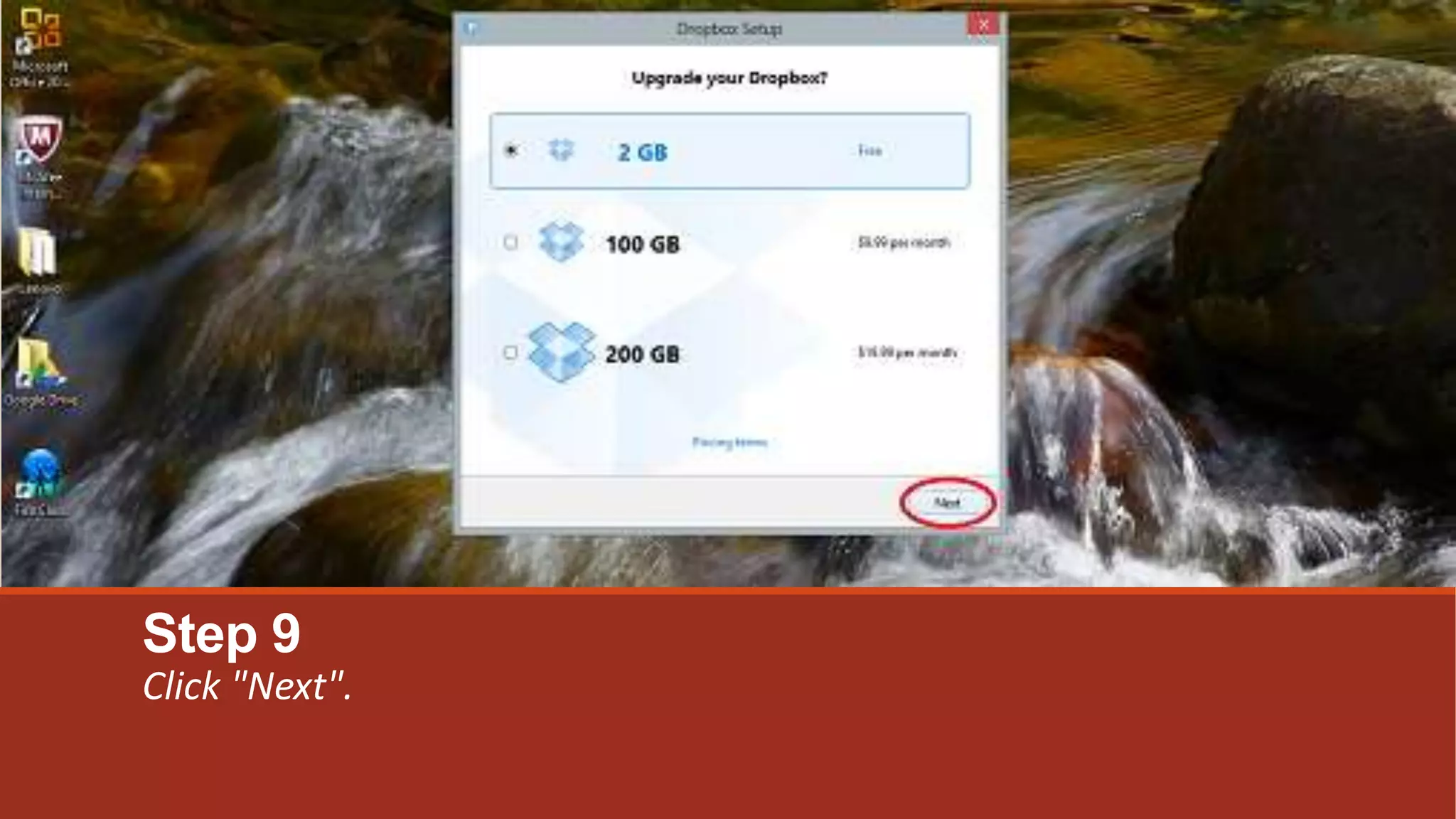
Step 9
Click "Next".
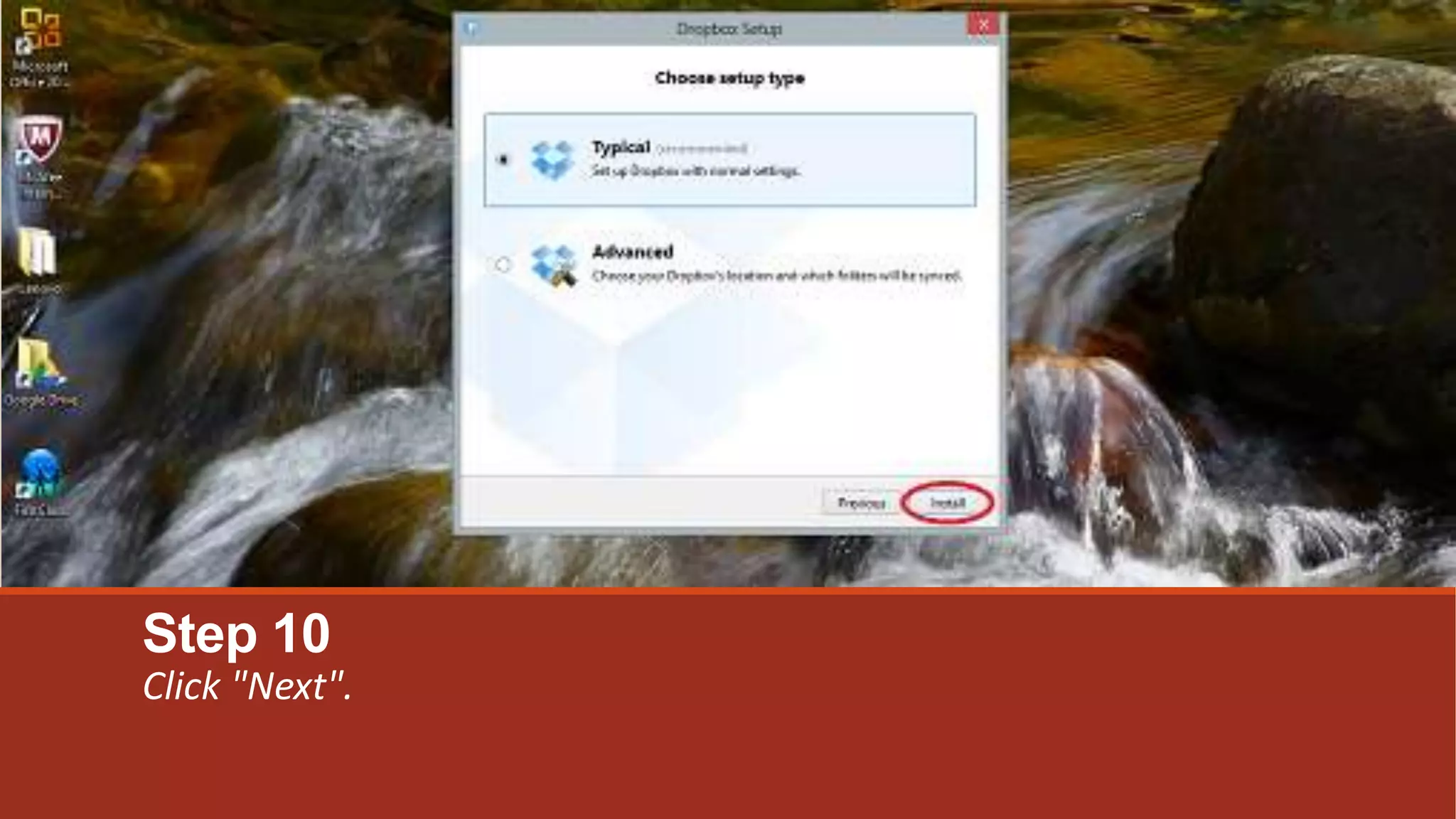
Step 10
Click "Next".
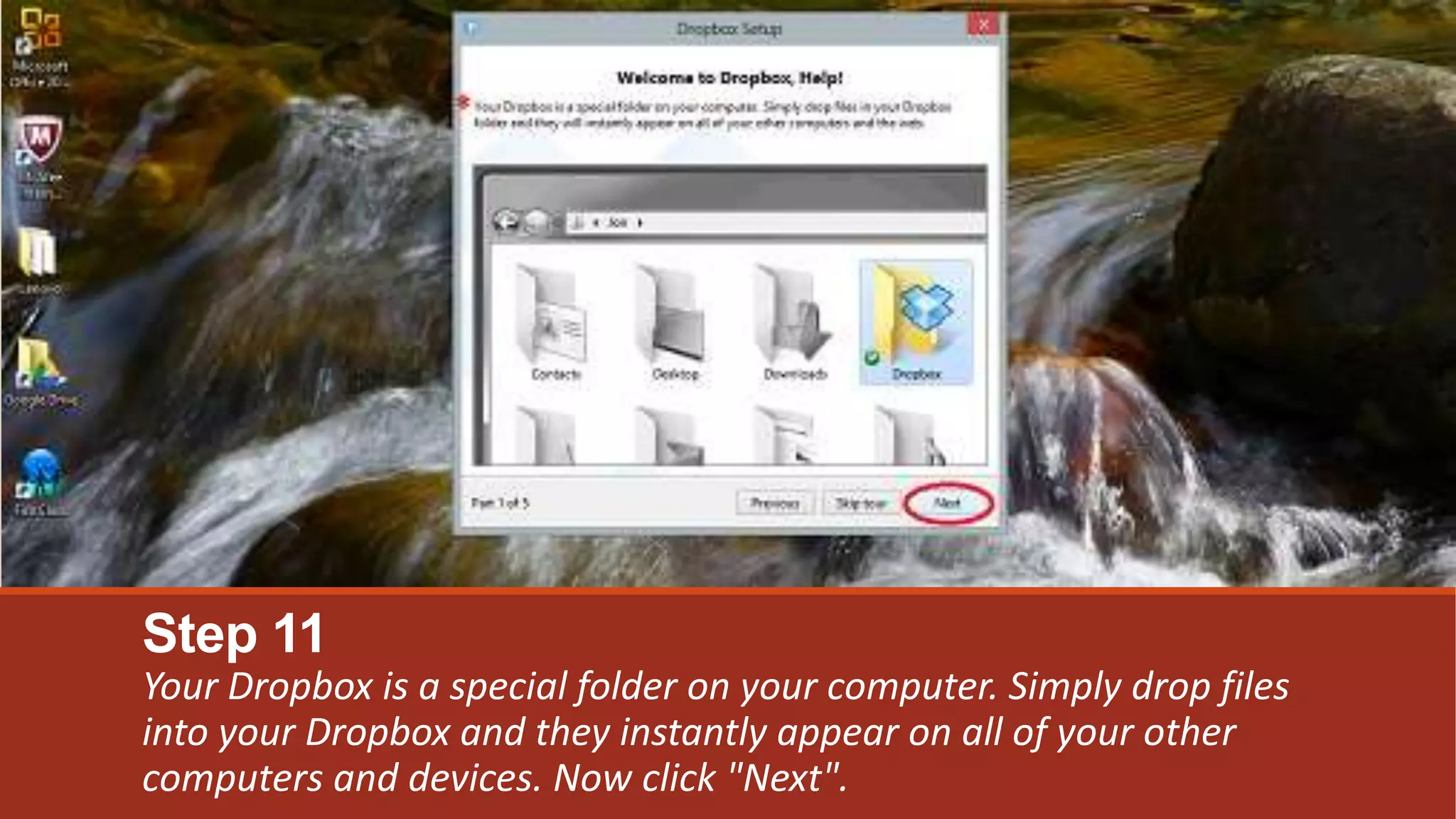
Step 11
Your Dropbox is a special folder on your computer. Simply drop files
into your Dropbox and they instantly appear on all of your other
computers and devices. Now click "Next".
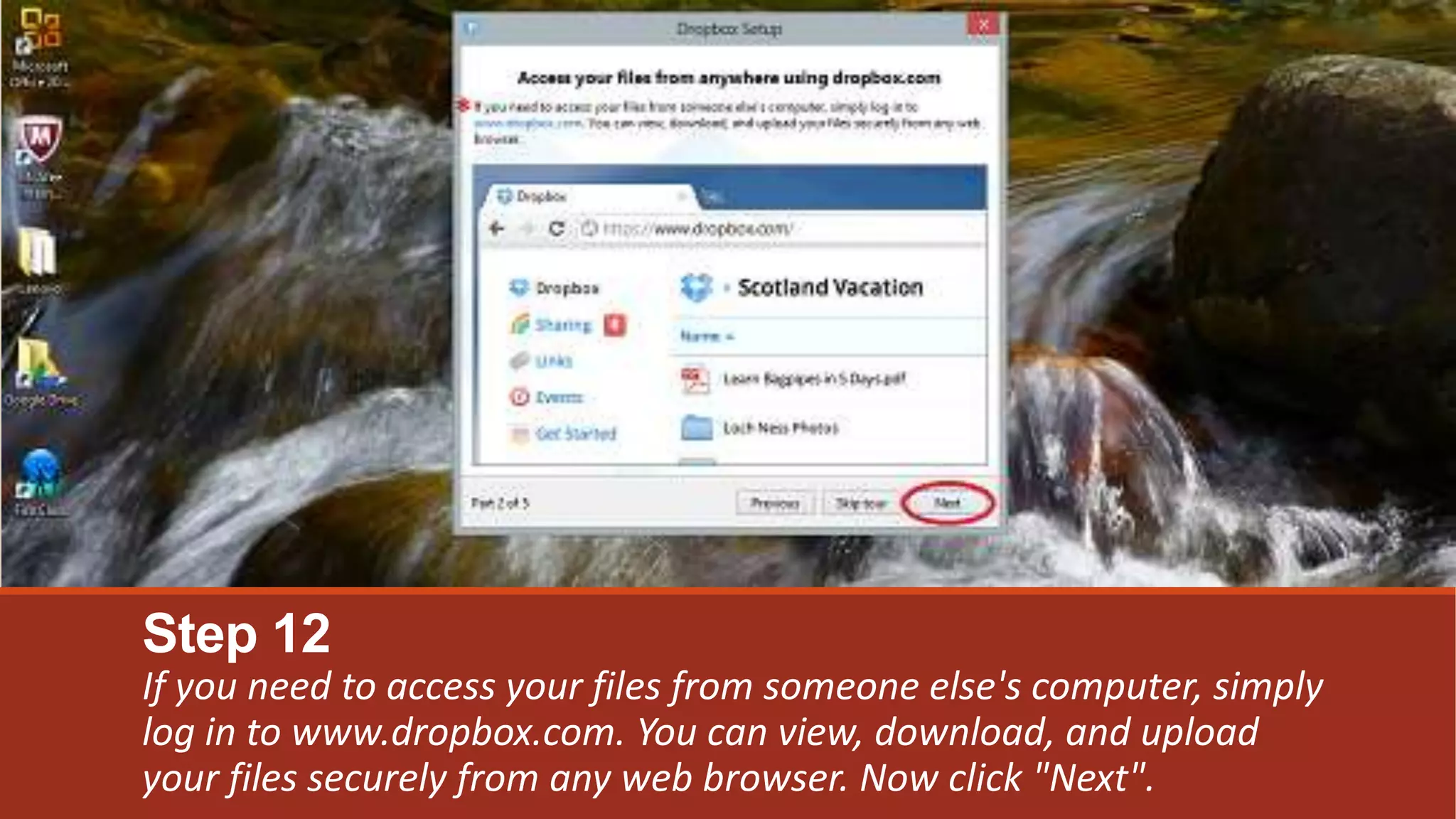
Step 12
If you need to access your files from someone else's computer, simply
log in to www.dropbox.com. You can view, download, and upload
your files securely from any web browser. Now click "Next".
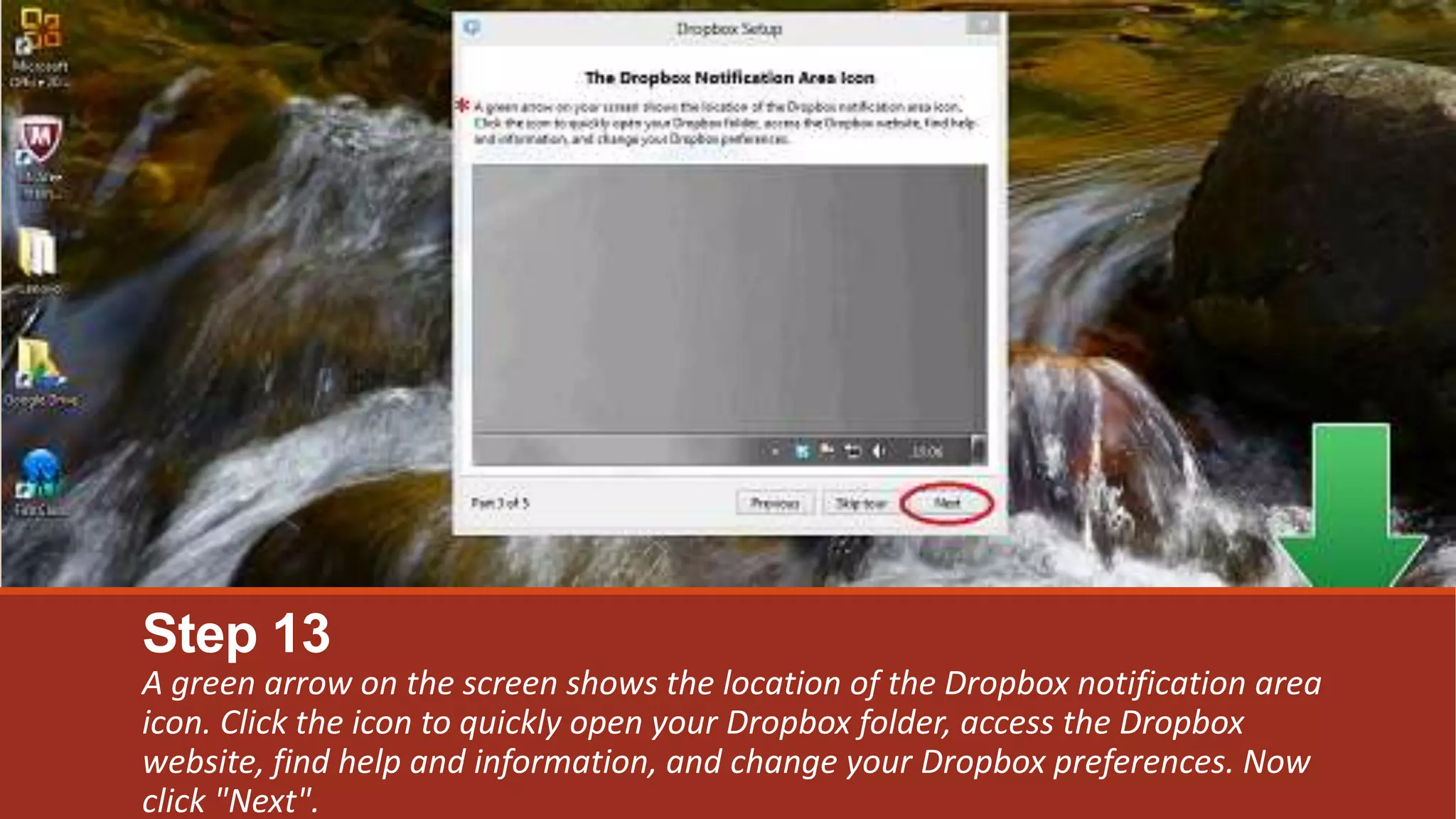
Step 13
A green arrow on the screen shows the location of the Dropbox notification area
icon. Click the icon to quickly open your Dropbox folder, access the Dropbox
website, find help and information, and change your Dropbox preferences. Now
click "Next".
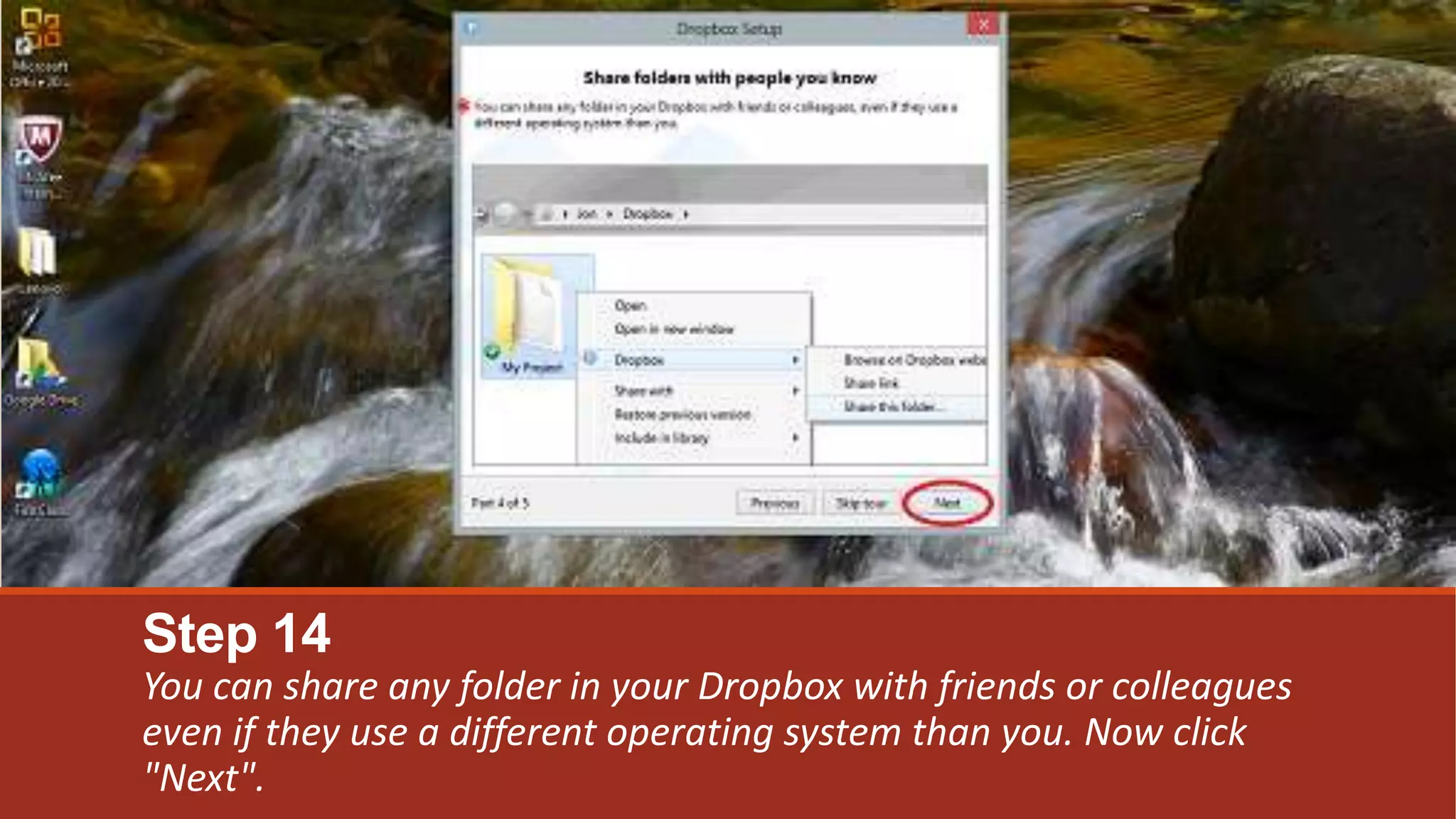
Step 14
You can share any folder in your Dropbox with friends or colleagues
even if they use a different operating system than you. Now click
"Next".
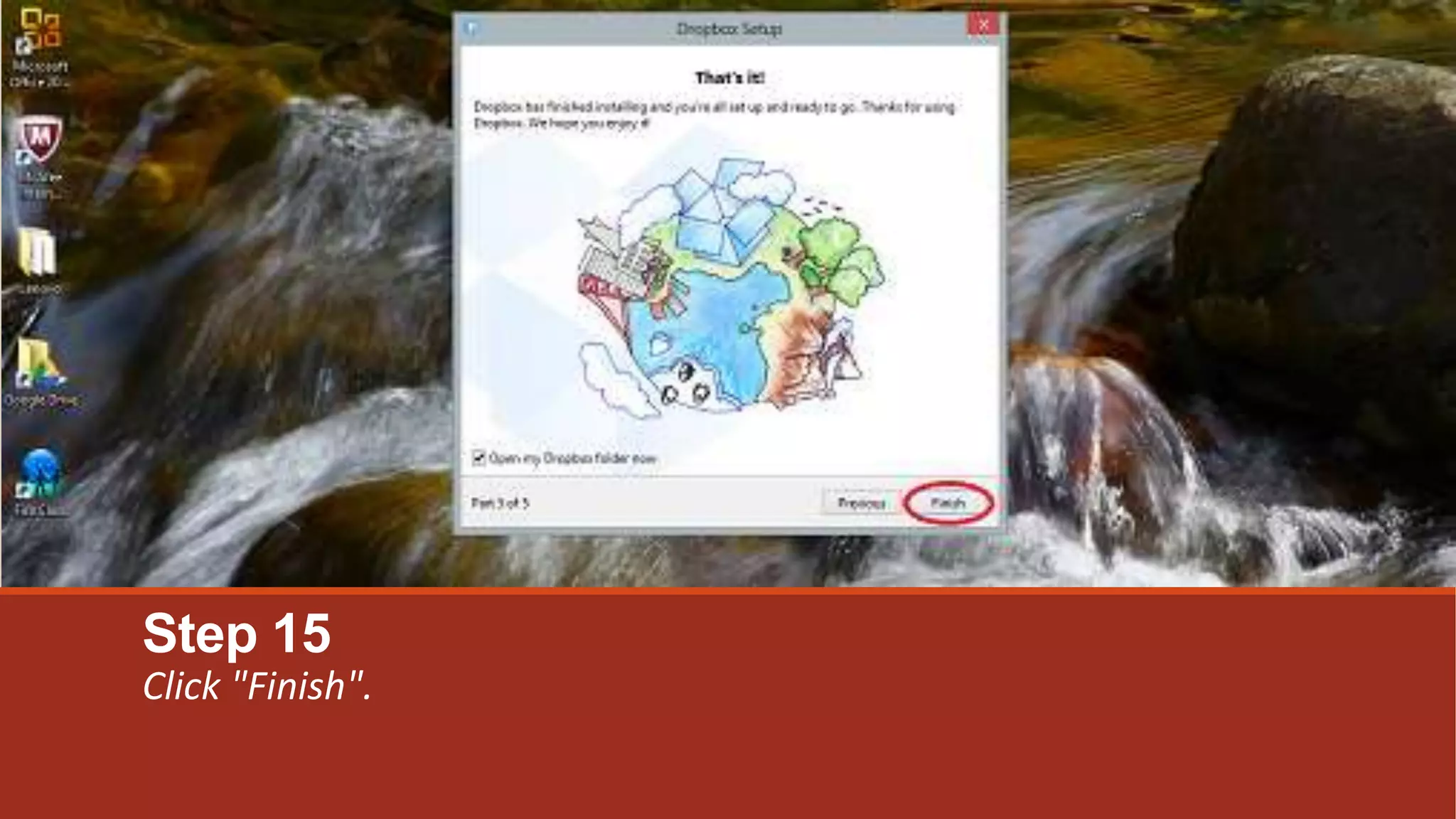
Step 15
Click "Finish".
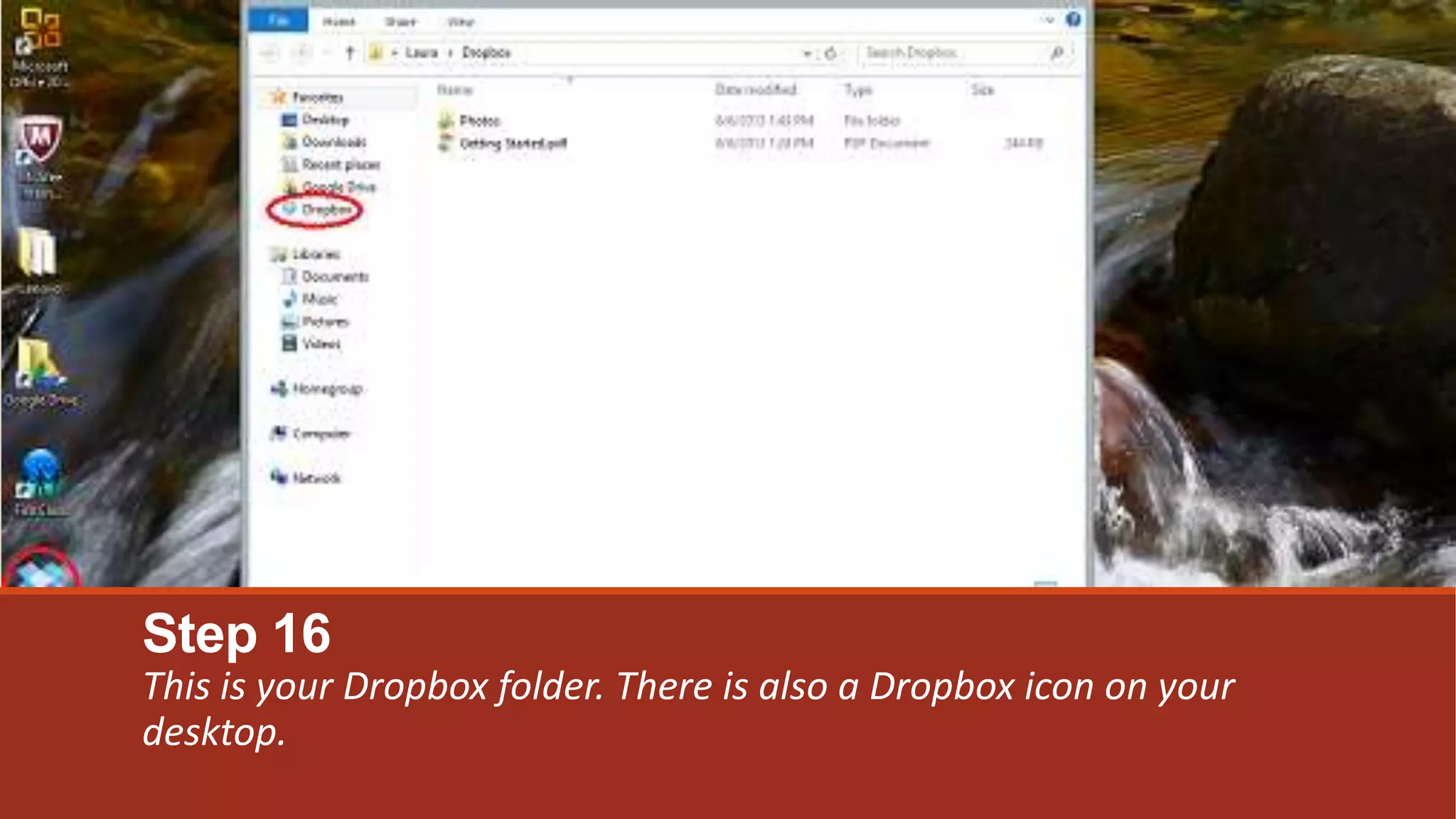
Step 16
This is your Dropbox folder. There is also a Dropbox icon on your
desktop.
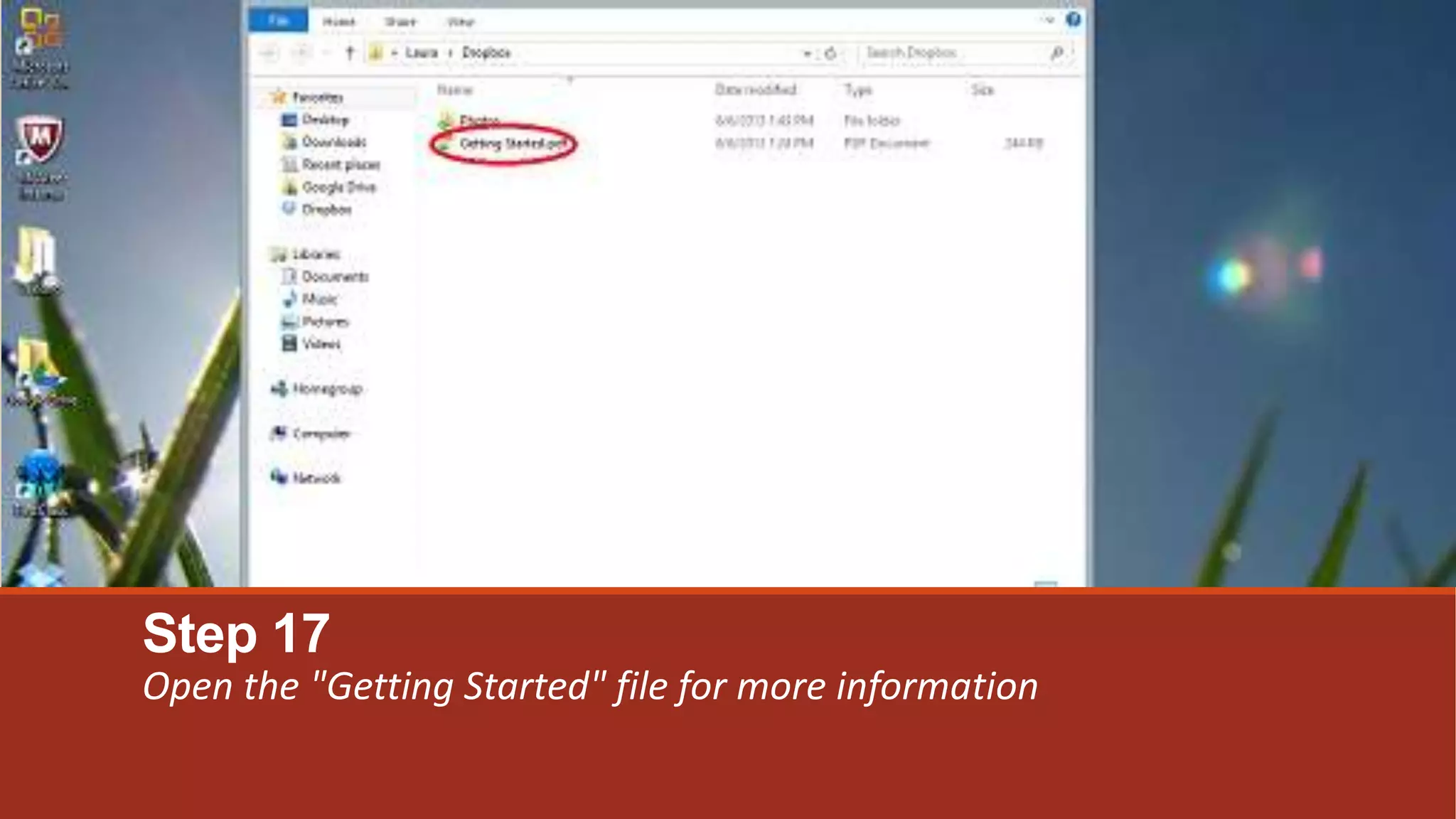
Step 17
Open the "Getting Started" file for more information
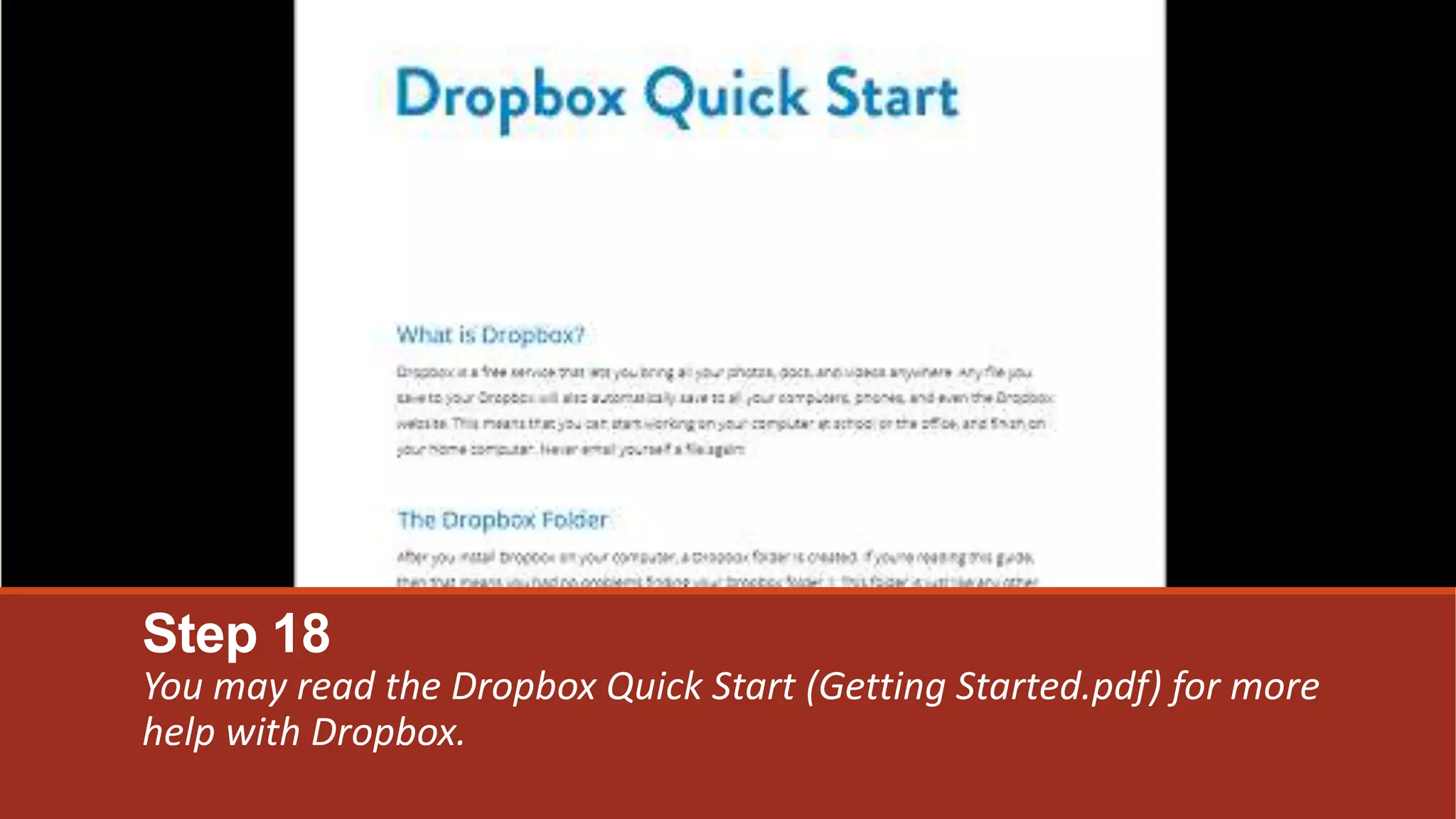
Step 18
You may read the Dropbox Quick Start (Getting Started.pdf) for more
help with Dropbox.

Dropbox

  • 1.
    Dropbox SIGN UP FORDROPBOX AND SET UP YOUR DESKTOP FOLDER.
  • 2.
    Step 1 Fill outthe form to create your Dropbox account. Check the box to agree to Dropbox's terms and conditions. Click "Sign up" to create your account.
  • 3.
    Step 2 Click "Run"to begin the download.
  • 4.
    Step 3 Allow thedownload to complete.
  • 5.
    Step 4 Click "Run"to begin the installation.
  • 6.
  • 7.
    Step 6 Allow theinstallation to complete.
  • 8.
    Step 7 Indicate thatyou already have a Dropbox account. Then click "Next".
  • 9.
    Step 8 Log inusing the Dropbox account information you created in Step 1.
  • 10.
  • 11.
  • 12.
    Step 11 Your Dropboxis a special folder on your computer. Simply drop files into your Dropbox and they instantly appear on all of your other computers and devices. Now click "Next".
  • 13.
    Step 12 If youneed to access your files from someone else's computer, simply log in to www.dropbox.com. You can view, download, and upload your files securely from any web browser. Now click "Next".
  • 14.
    Step 13 A greenarrow on the screen shows the location of the Dropbox notification area icon. Click the icon to quickly open your Dropbox folder, access the Dropbox website, find help and information, and change your Dropbox preferences. Now click "Next".
  • 15.
    Step 14 You canshare any folder in your Dropbox with friends or colleagues even if they use a different operating system than you. Now click "Next".
  • 16.
  • 17.
    Step 16 This isyour Dropbox folder. There is also a Dropbox icon on your desktop.
  • 18.
    Step 17 Open the"Getting Started" file for more information
  • 19.
    Step 18 You mayread the Dropbox Quick Start (Getting Started.pdf) for more help with Dropbox.