


























BY: IRIENE INVENCION
HOW TO USE DROPBOX
Quick
Tutorial
1
WHAT IS DROPBOX?
DROPBOX
IS AN APP
WHERE
YOU CAN
STORE.
3
4
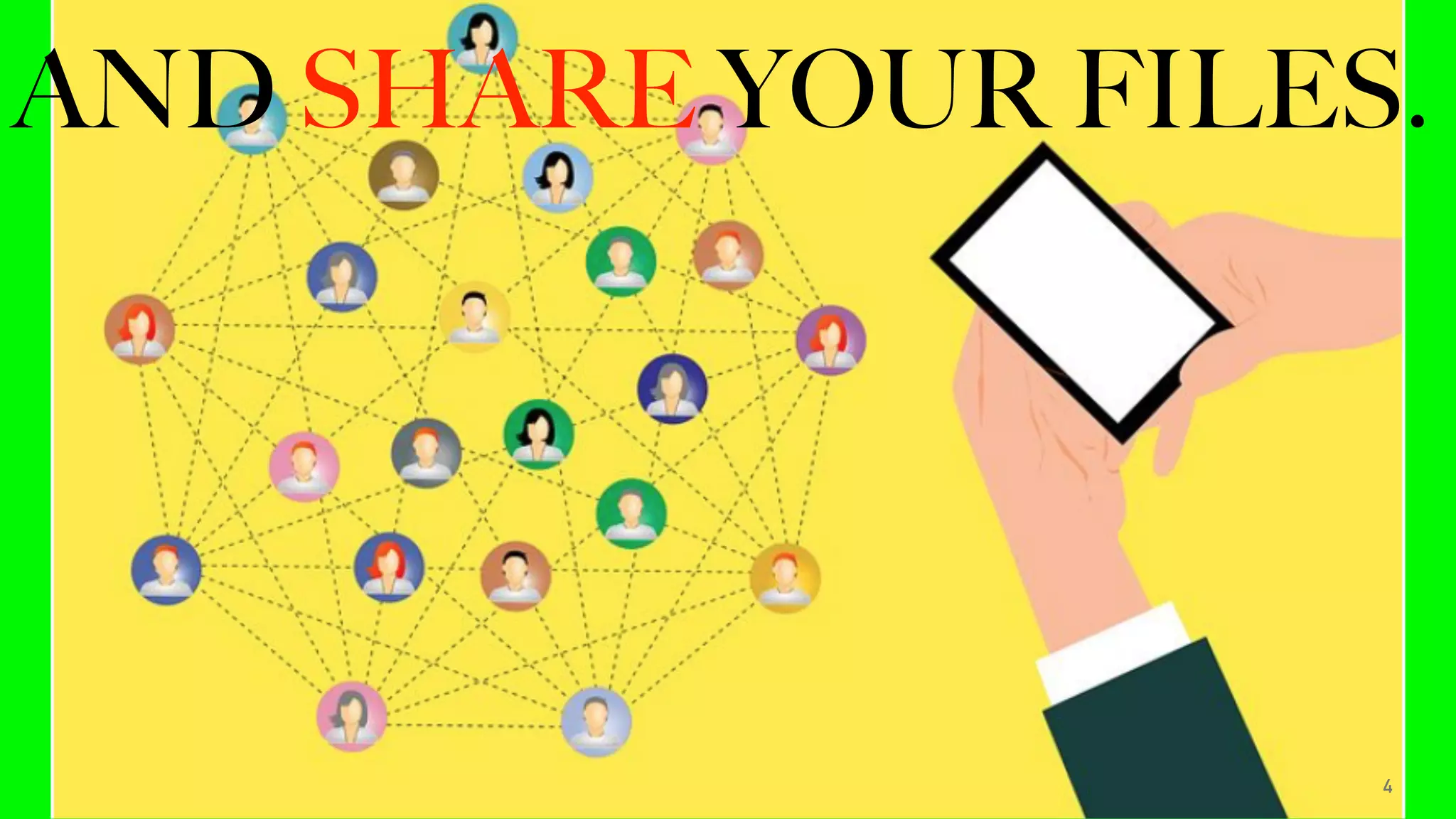
AND SHARE YOUR FILES.
5
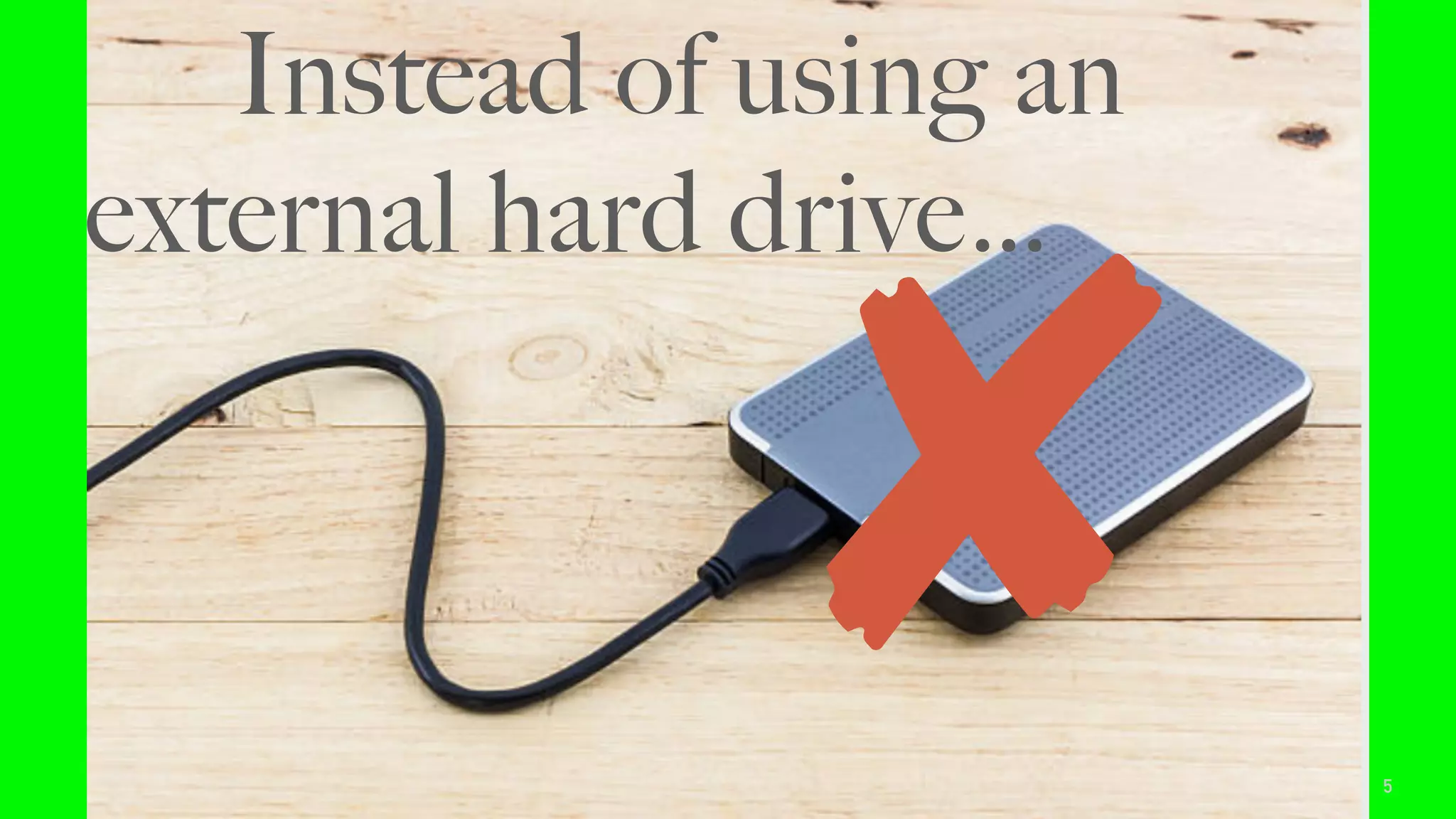
Instead of using an
external hard drive…
6
You can save all your files
into DROPBOX.
AND BECAUSE
DROPBOX IS CLOUD
BACKUP SERVICE
PROVIDER.
{Meaning online}
7
8
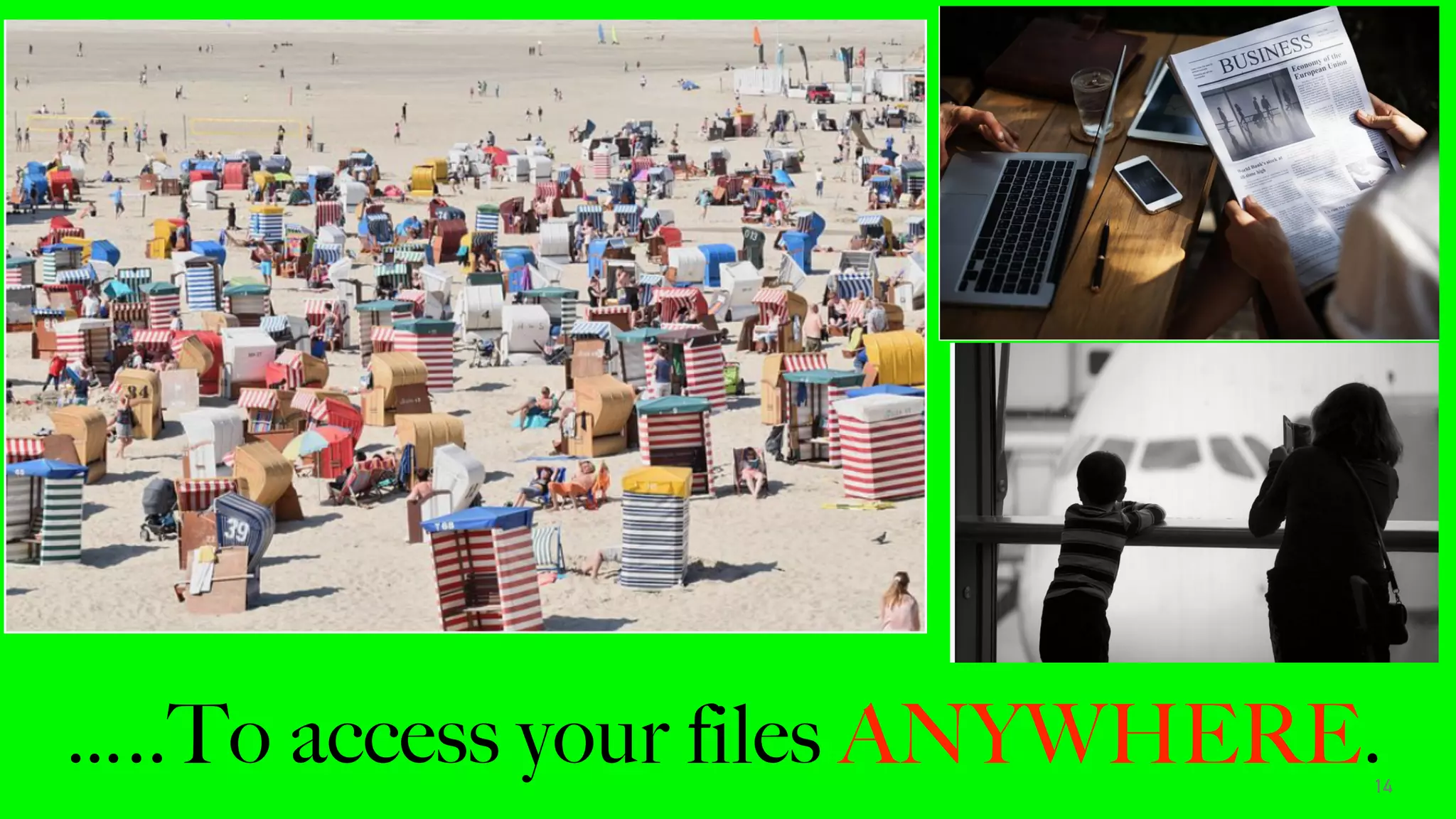
You can use it when
you’re on a business trip..
9
On Vacation….
10
Or just hanging out….
WHY USE DROPBOX?
11
#1 DROPBOX IS VERY
CONVENIENT.
12
13
You only need the Dropbox
app and an internet
connection..
…..To access your files ANYWHERE.14
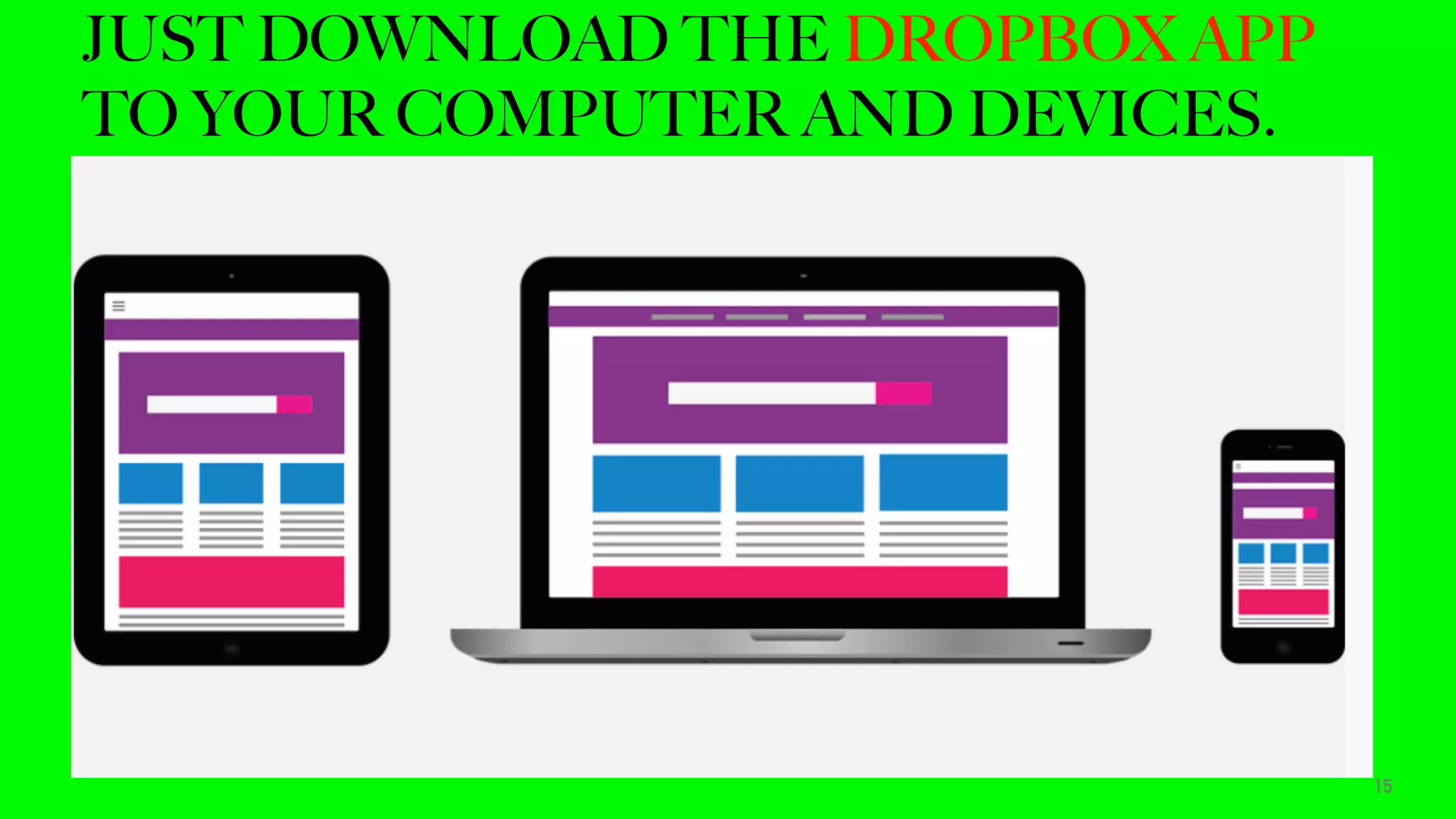
JUST DOWNLOAD THE DROPBOX APP
TO YOUR COMPUTER AND DEVICES.
15
16
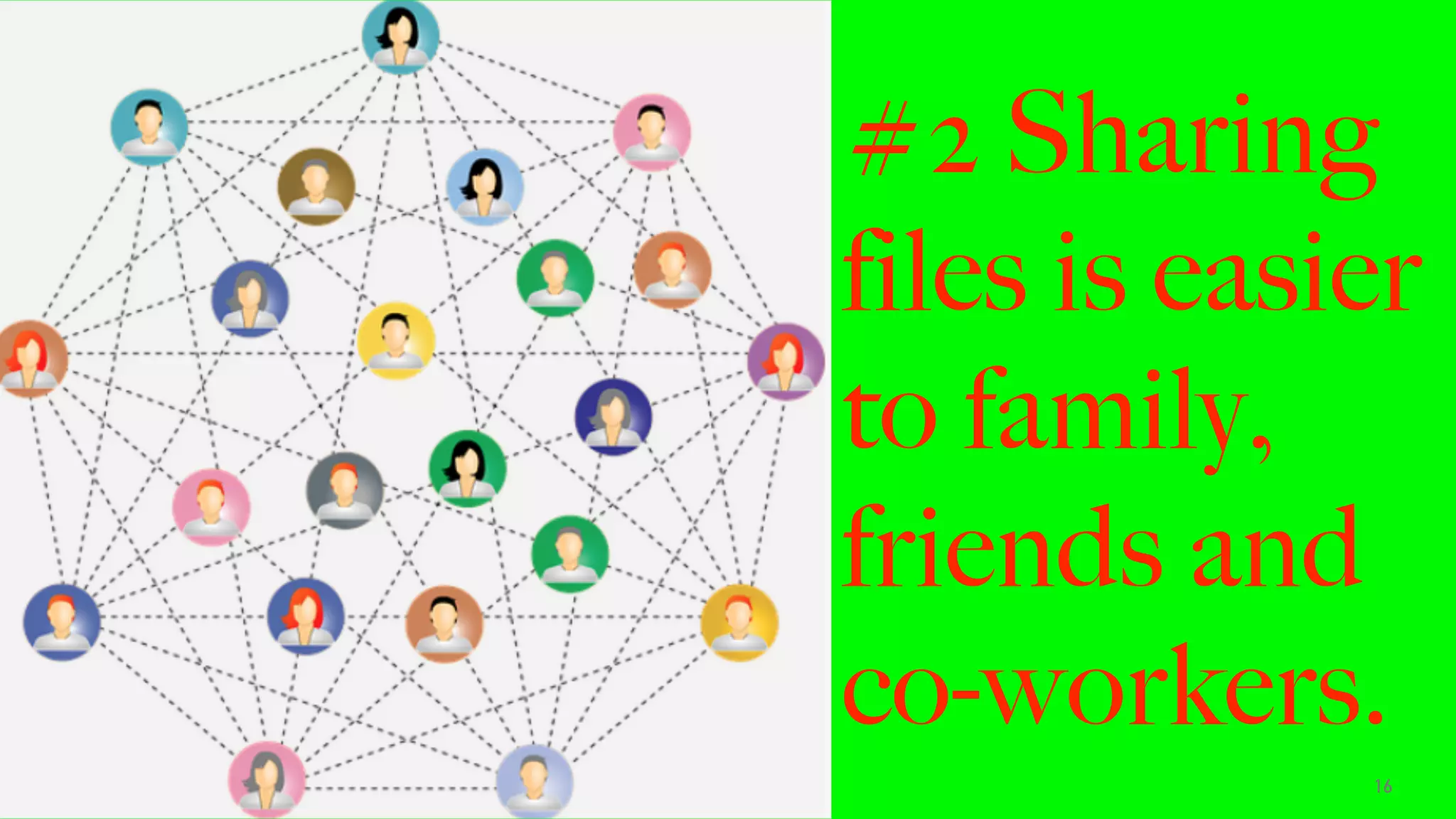
#2 Sharing
files is easier
to family,
friends and
co-workers.
17
#3 Don’t worry!
Because your files
kept in Dropbox
are safe online.
SIGN UP FOR A FREE BASIC ACCOUNT
WITH 2GB STORAGE SPACE.
18
LET’S GET STARTED.
19
HOW TO CREATE A
DROPBOX ACCOUNT.
20
Go to Google Search.
21
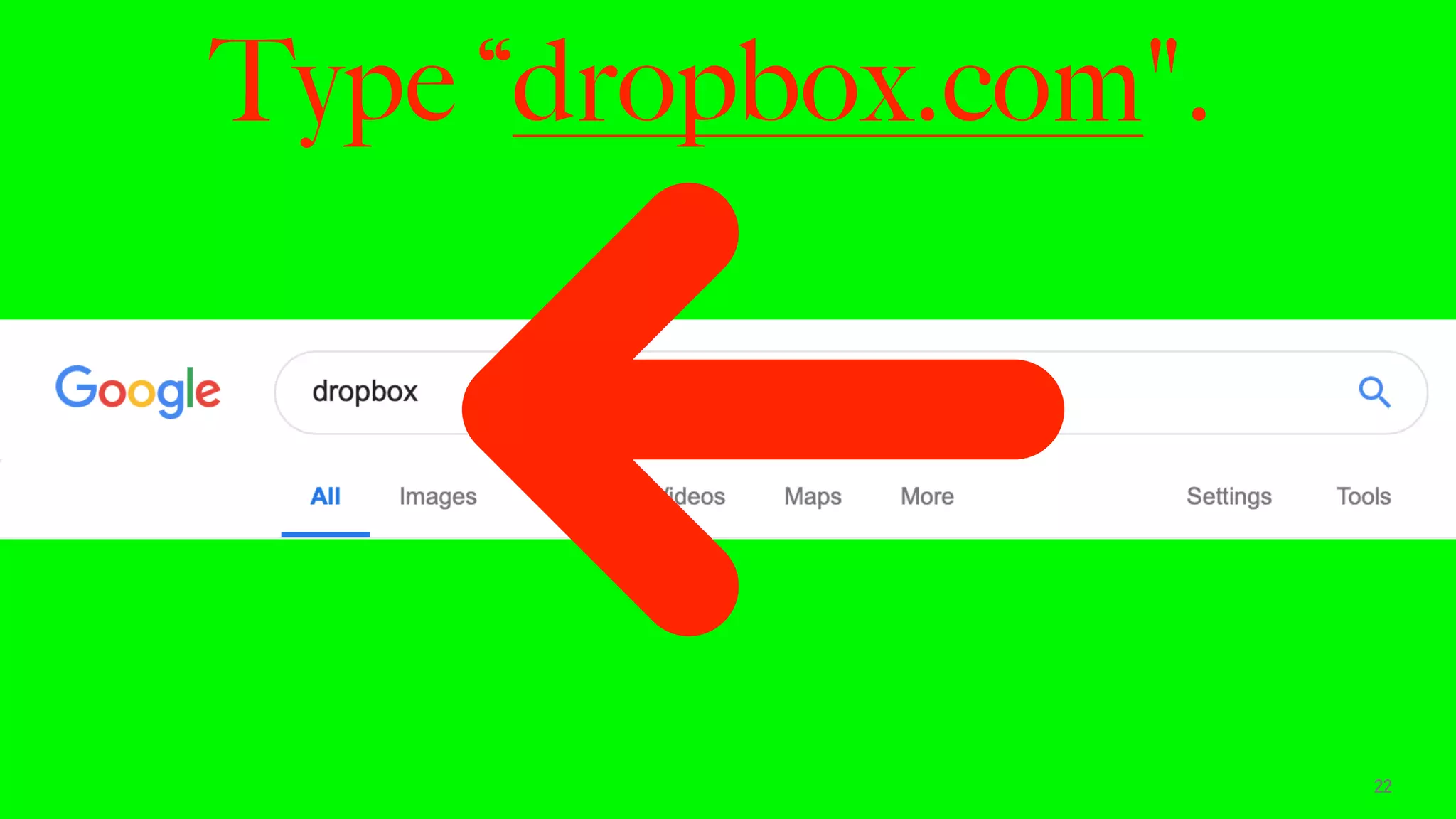
Type “dropbox.com".
22
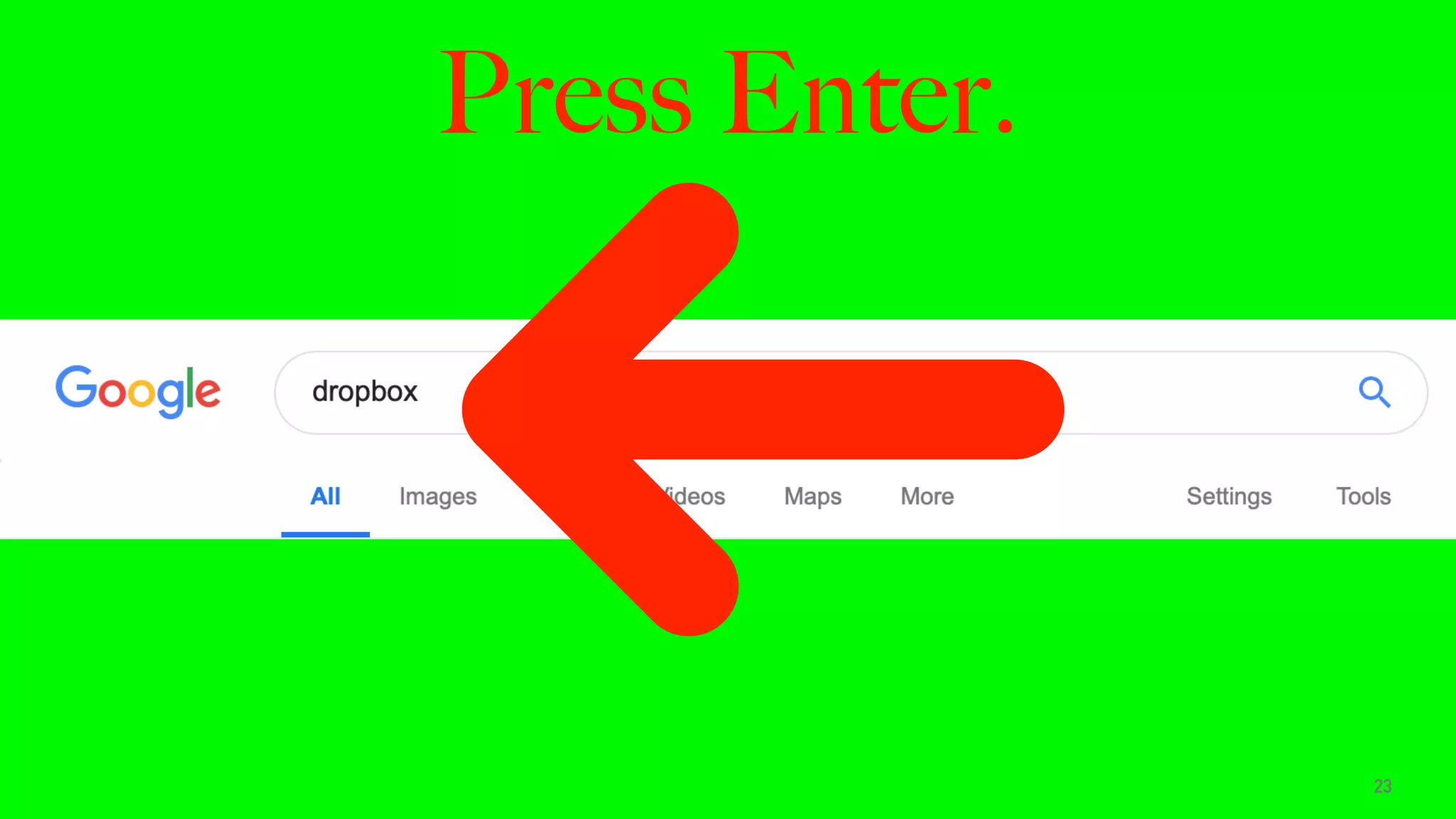
Press Enter.
23
This is the Dropbox website.
24
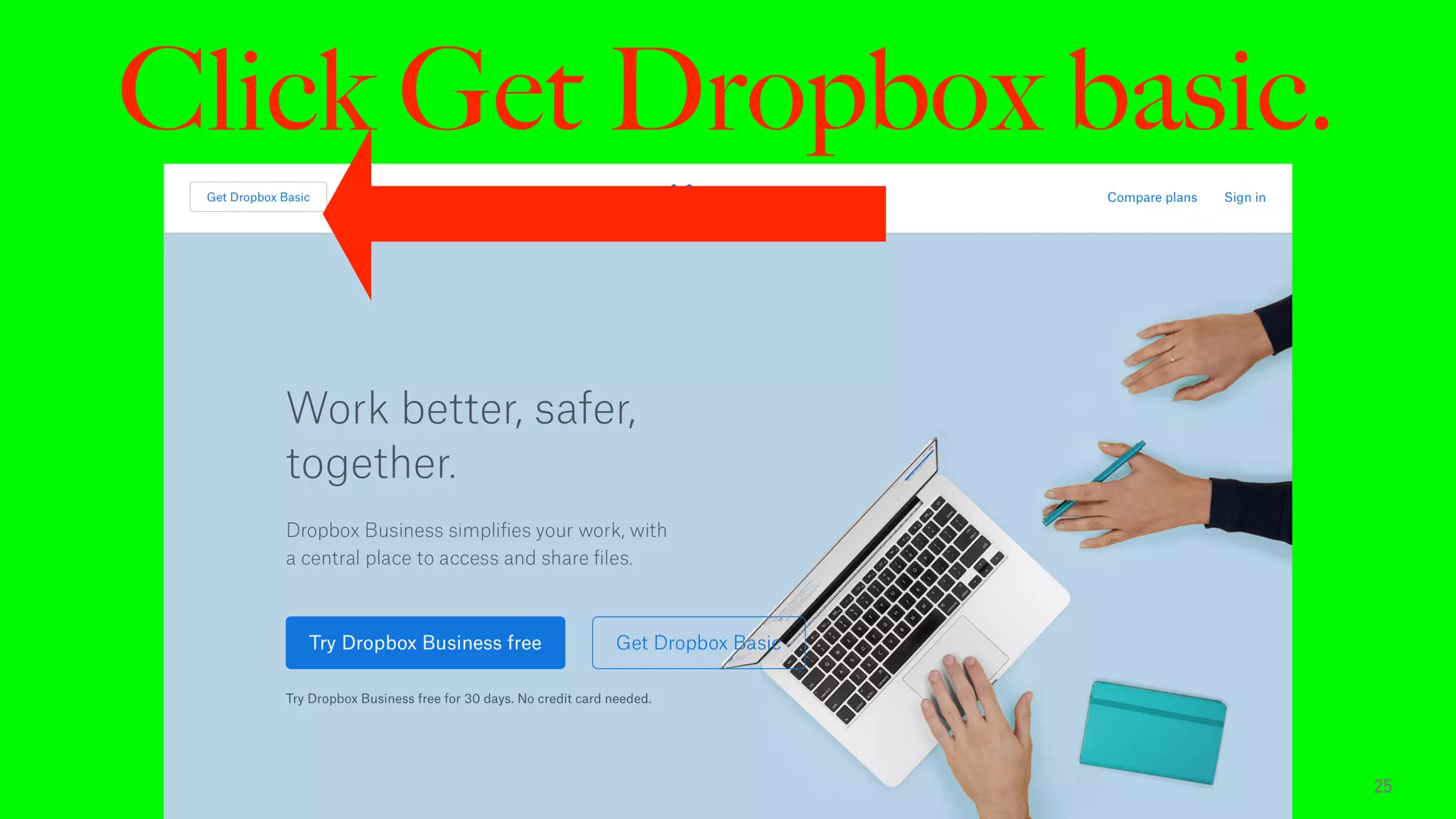
Click Get Dropbox basic.
25
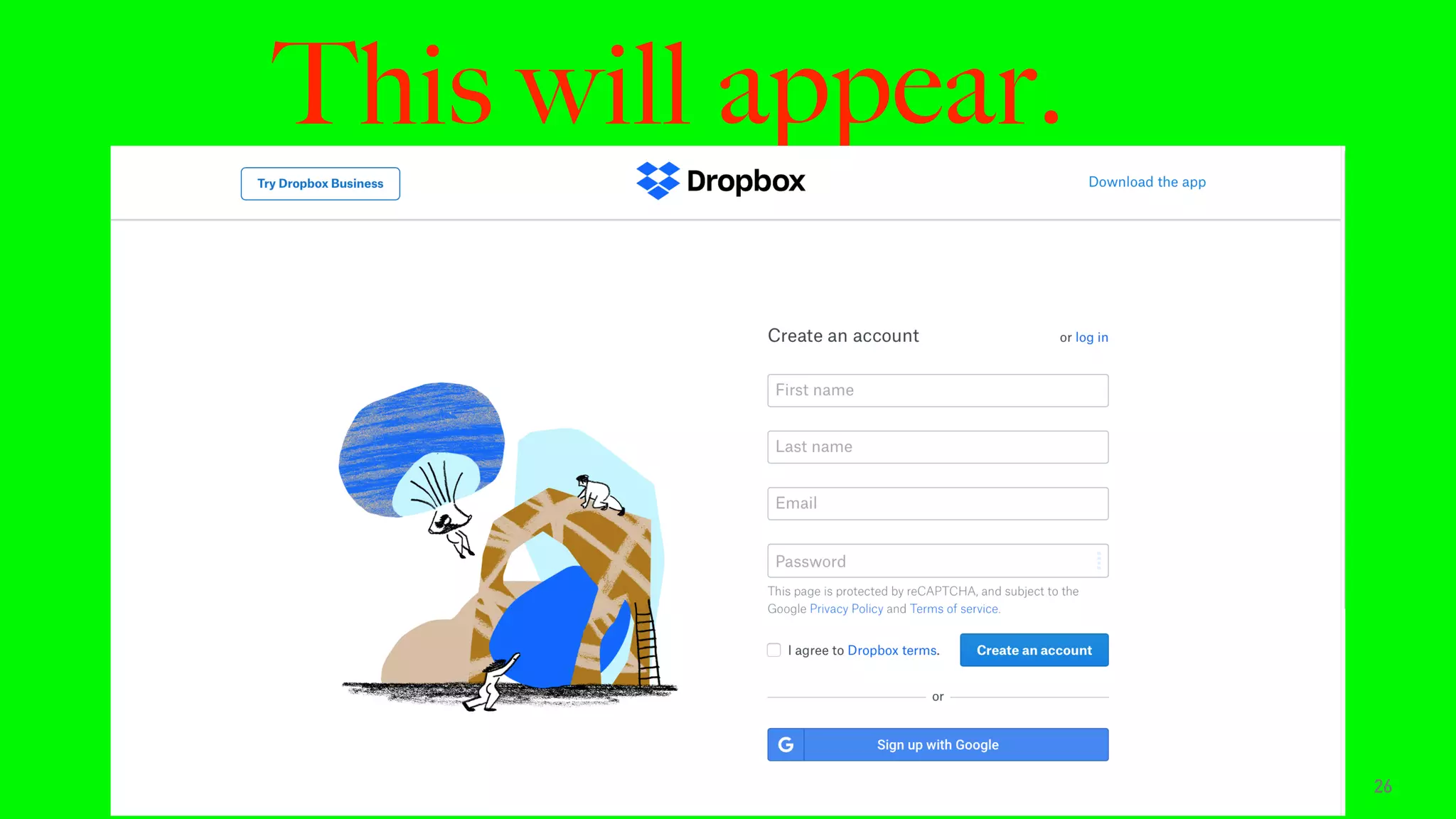
This will appear.
26
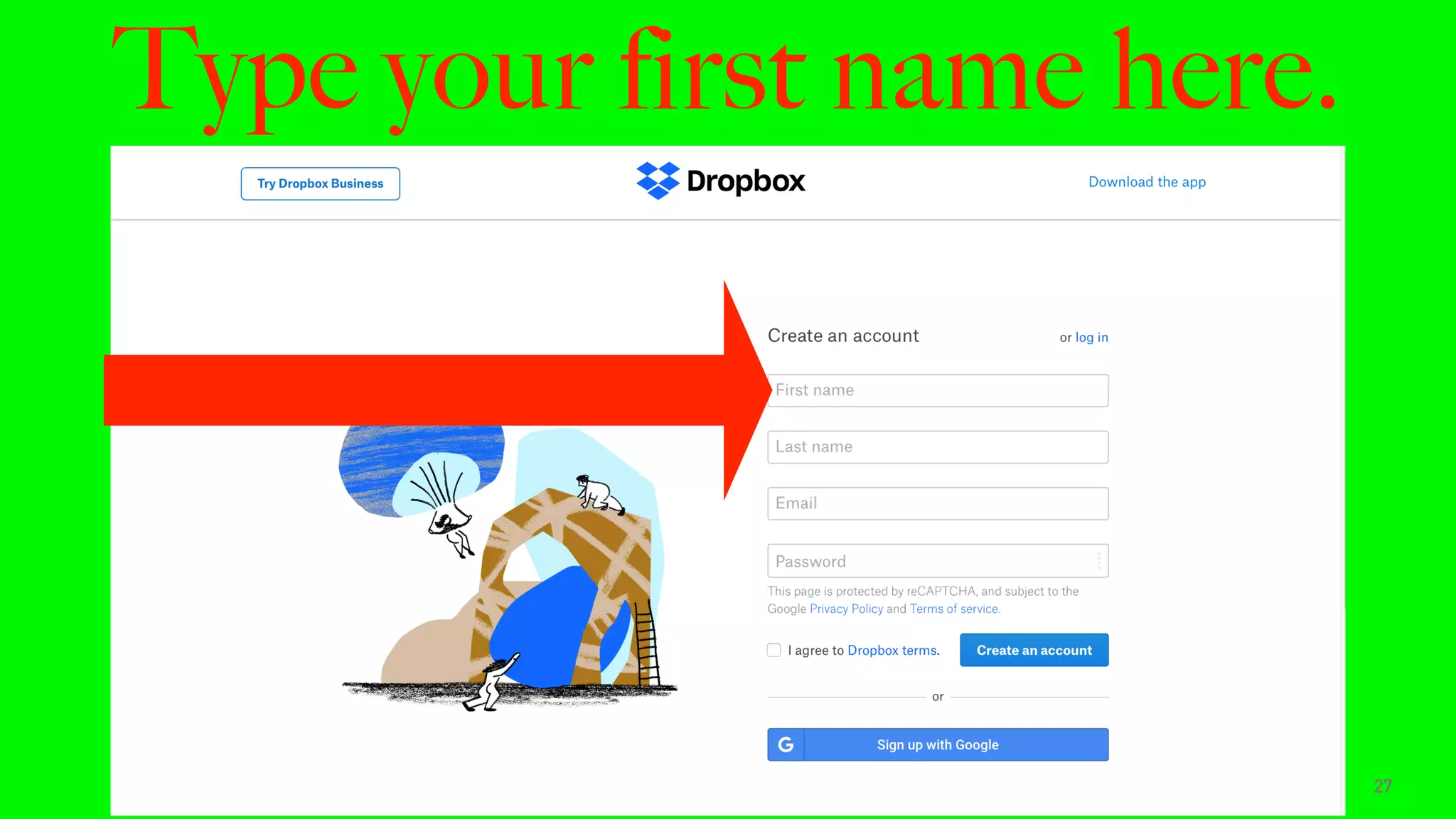
Type your first name here.
27
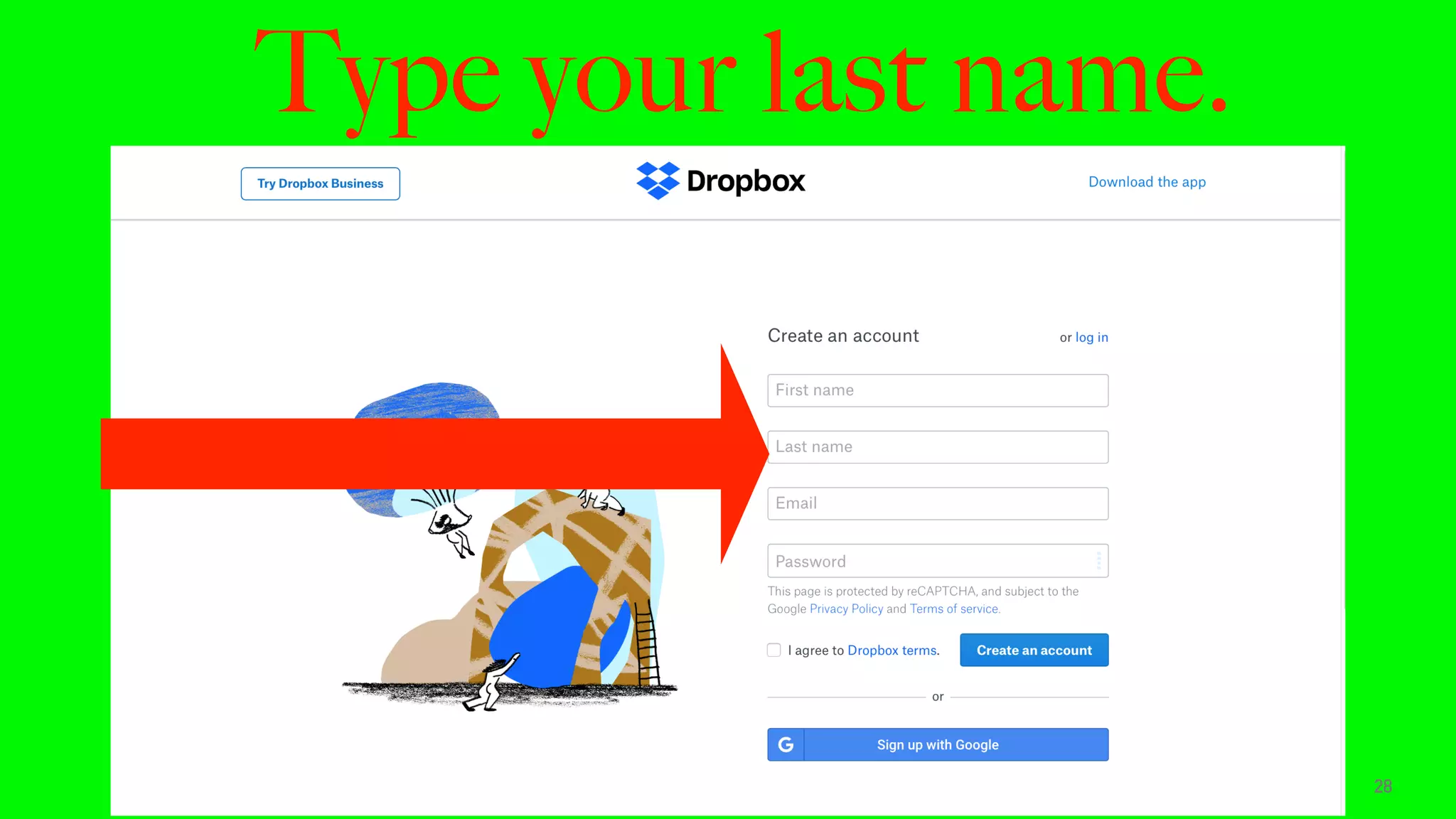
Type your last name.
28
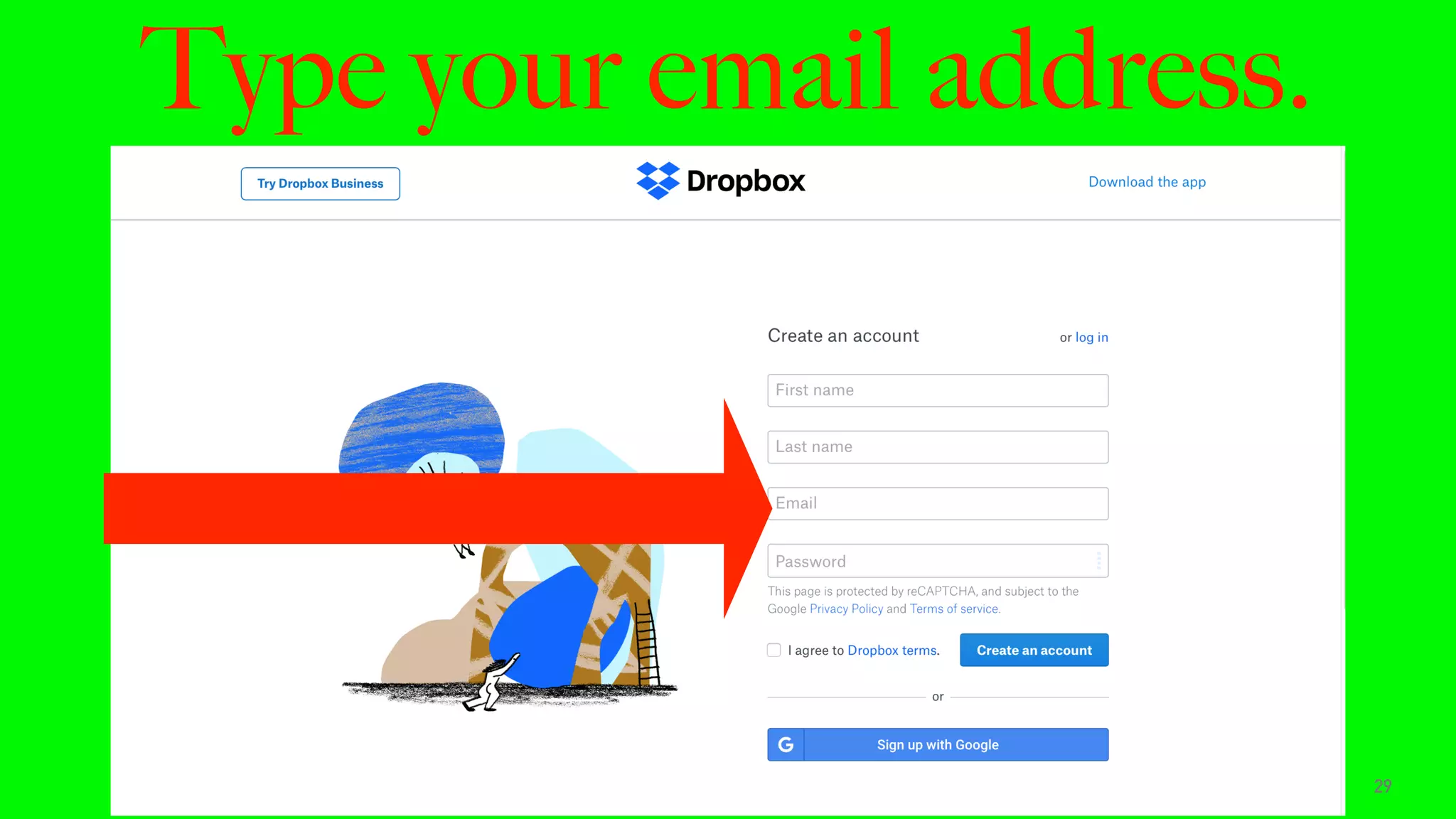
Type your email address.
29
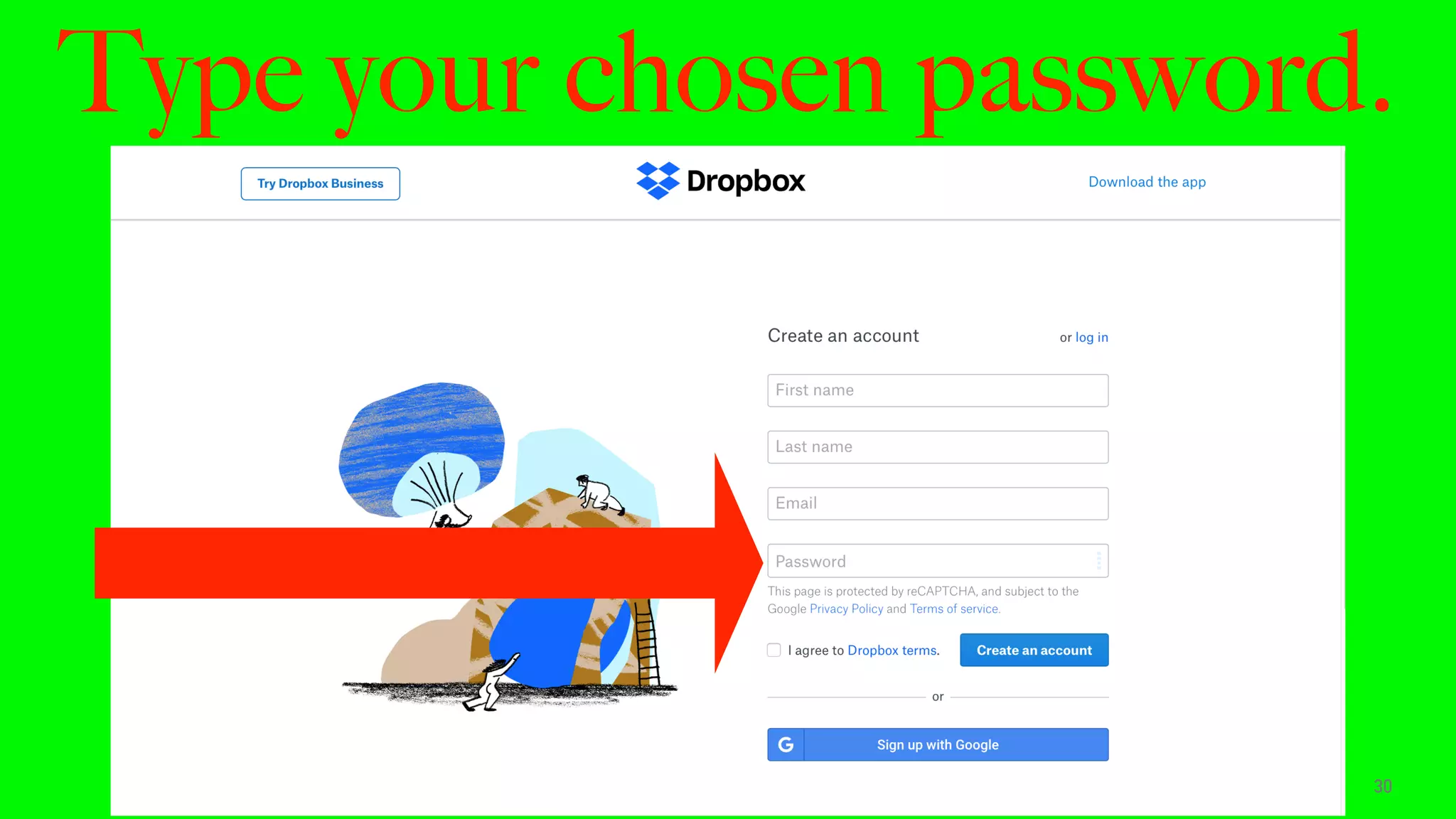
Type your chosen password.
30
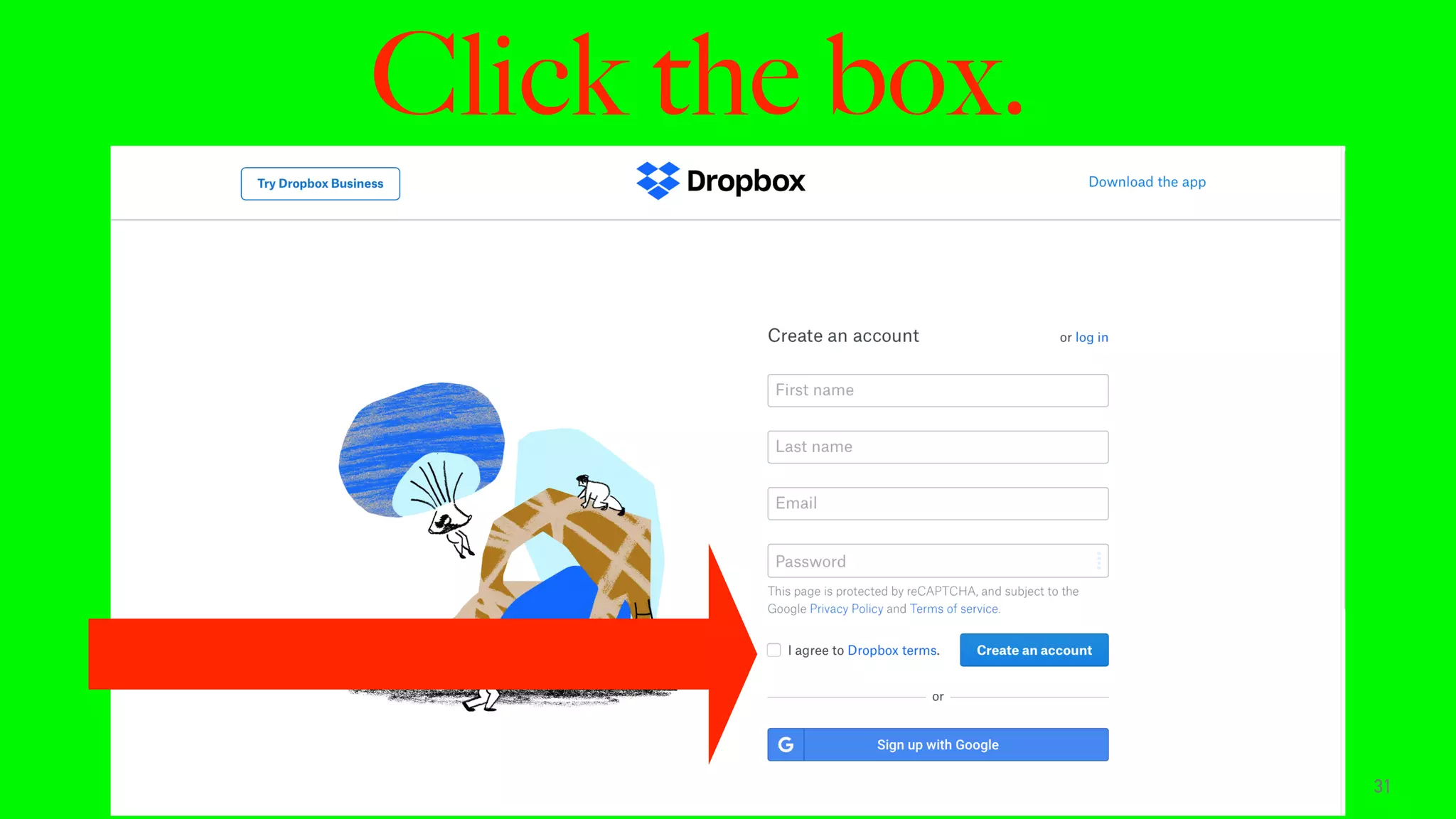
Click the box.
31
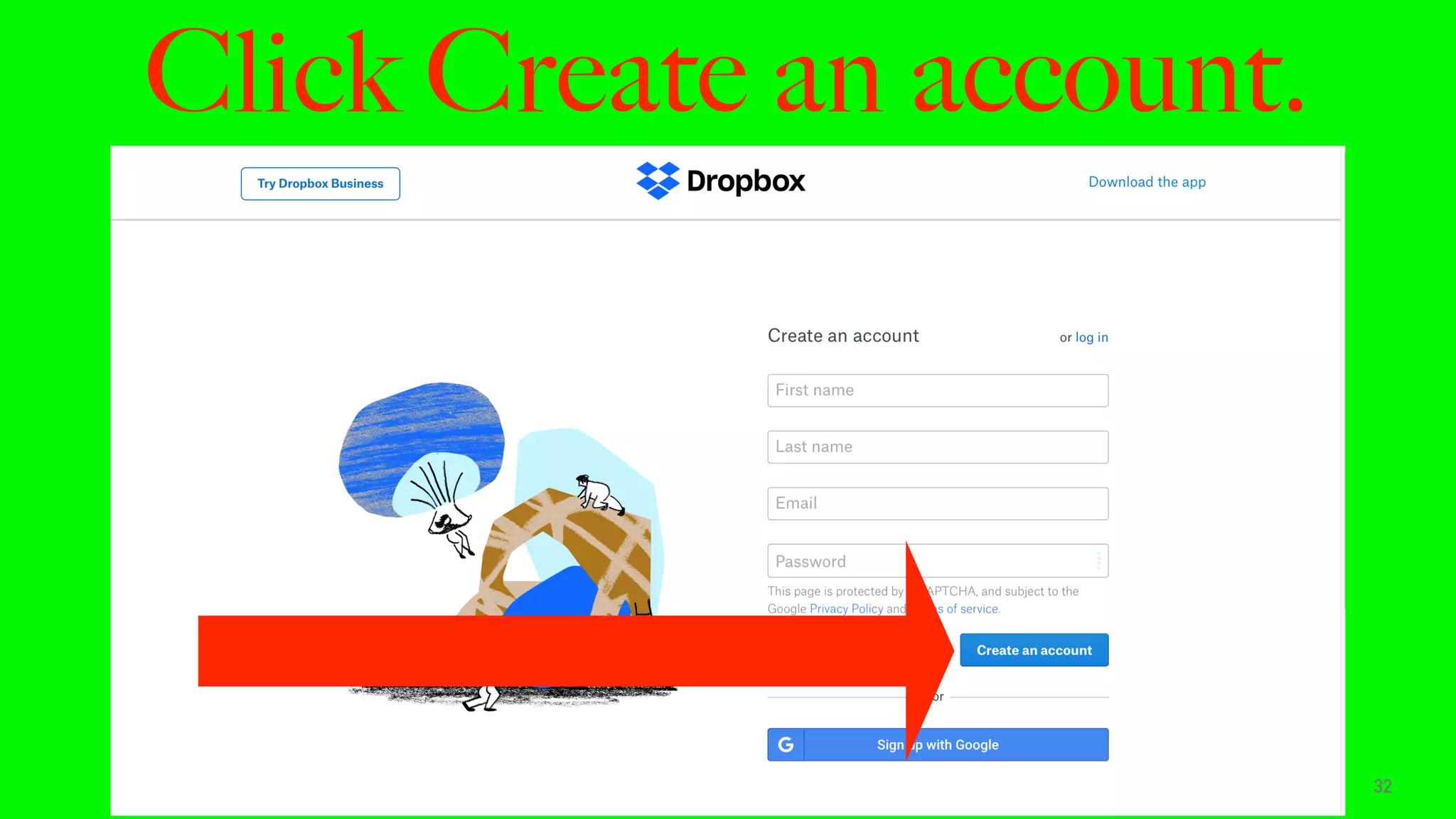
Click Create an account.
32
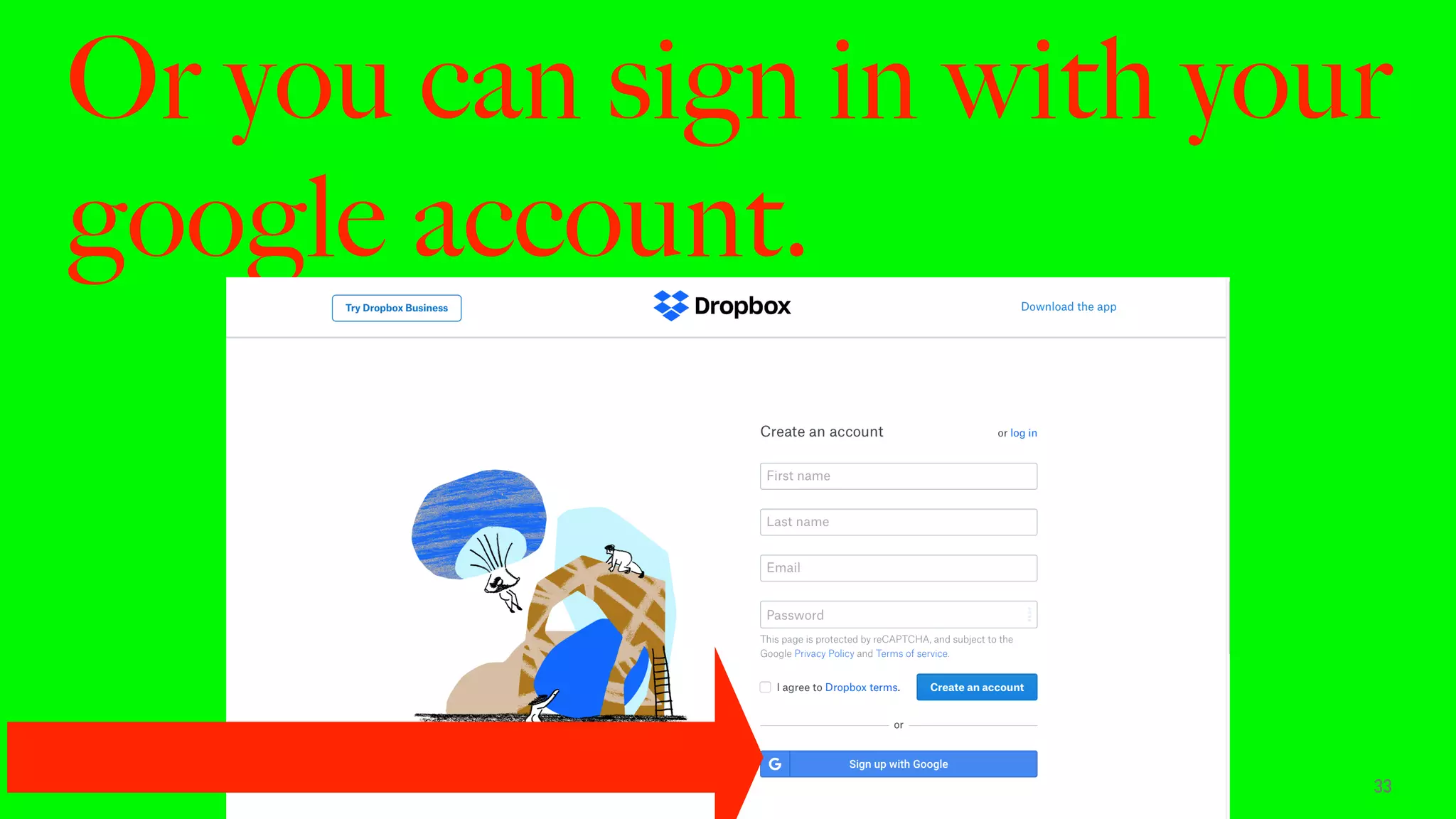
Or you can sign in with your
google account.
33
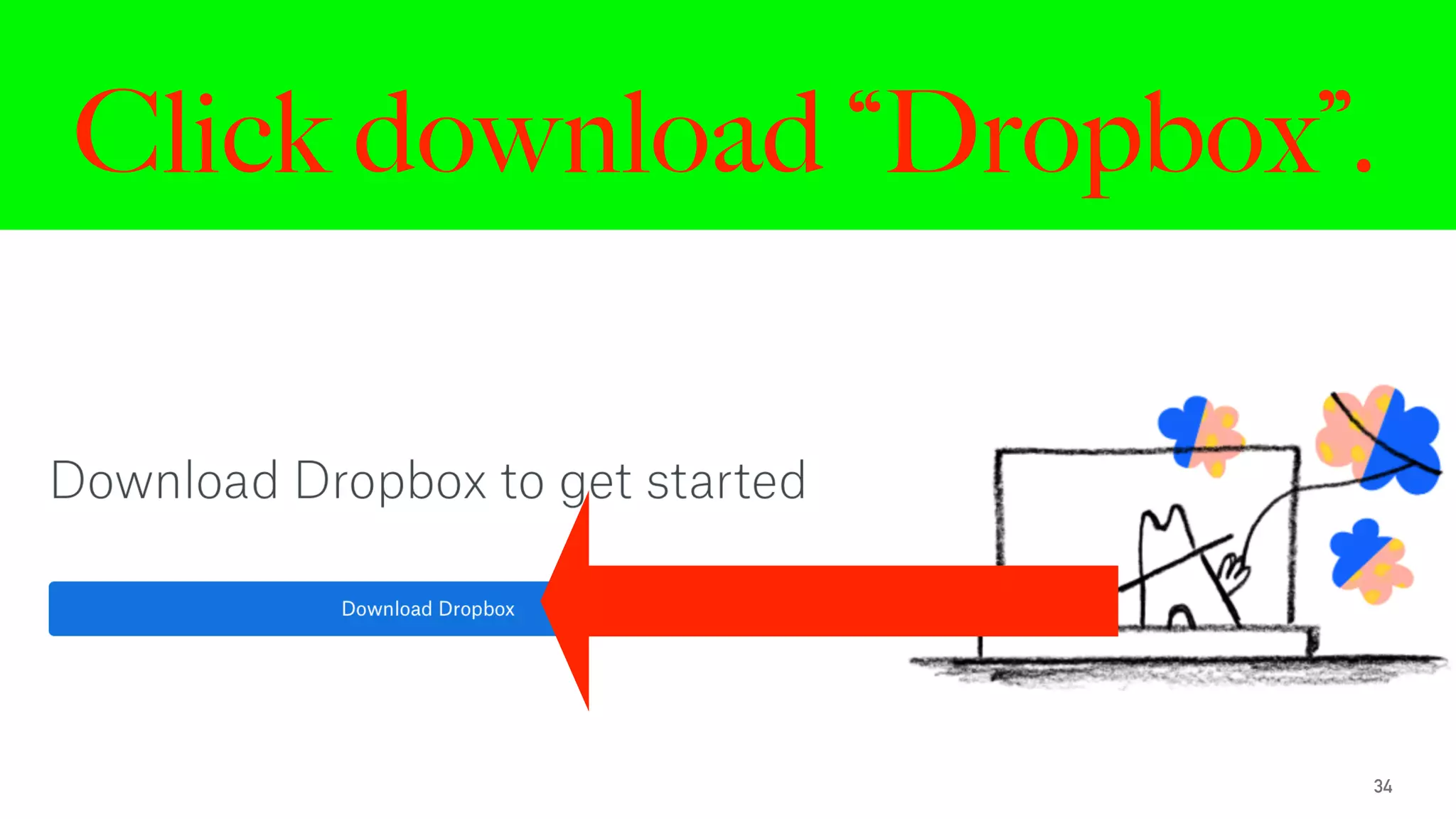
Click download “Dropbox”.
34
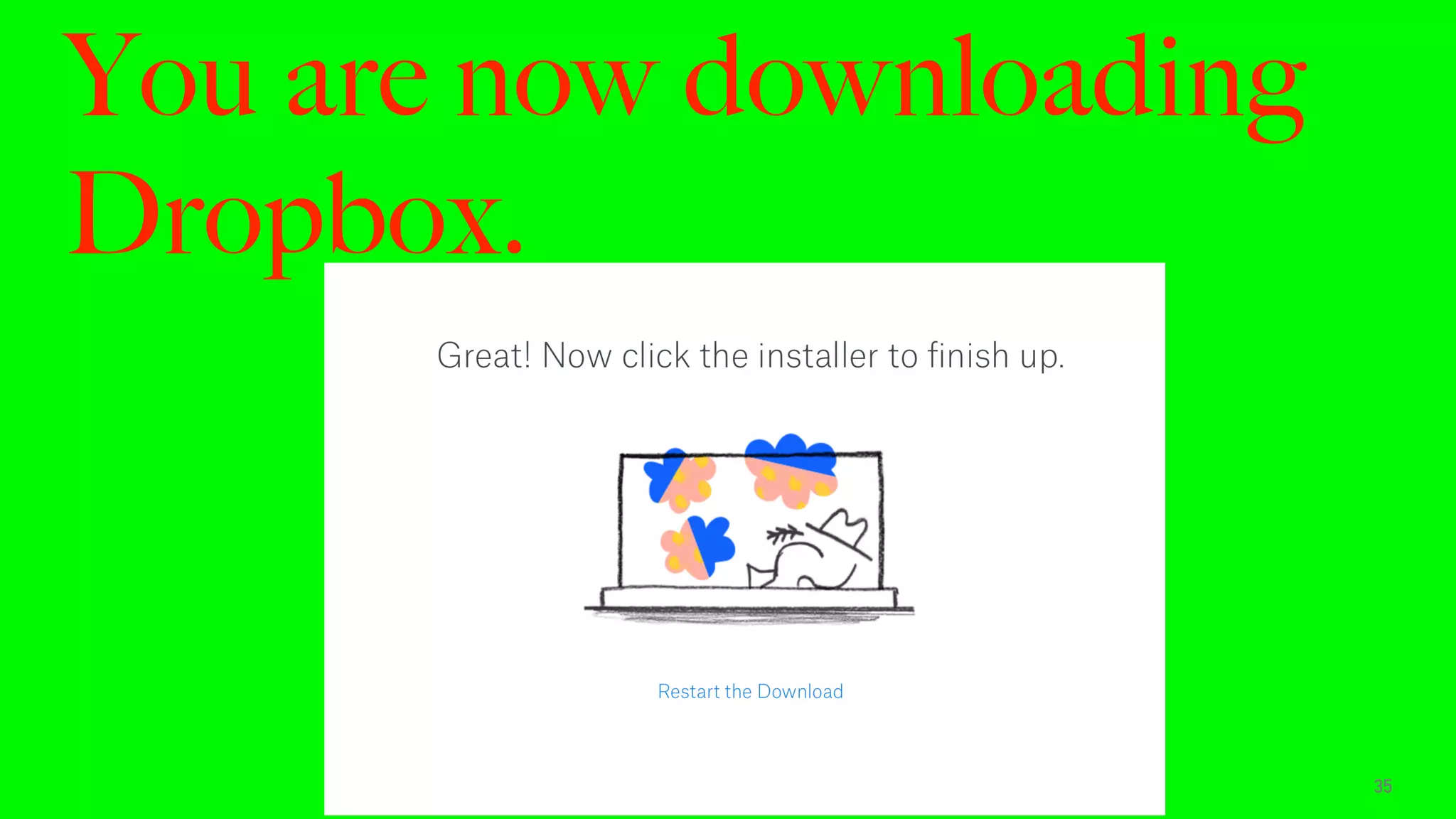
You are now downloading
Dropbox.
35
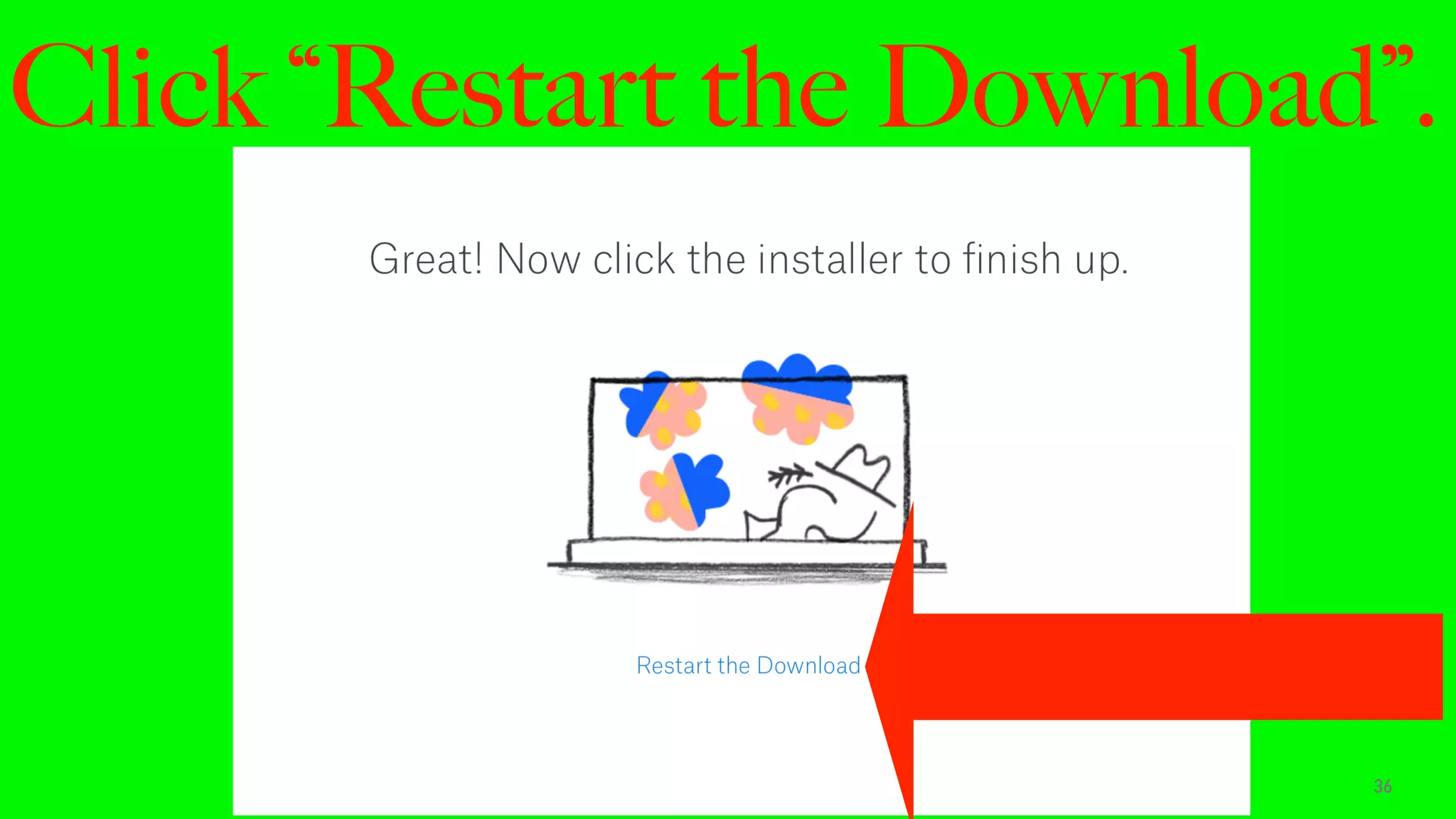
Click “Restart the Download”.
36
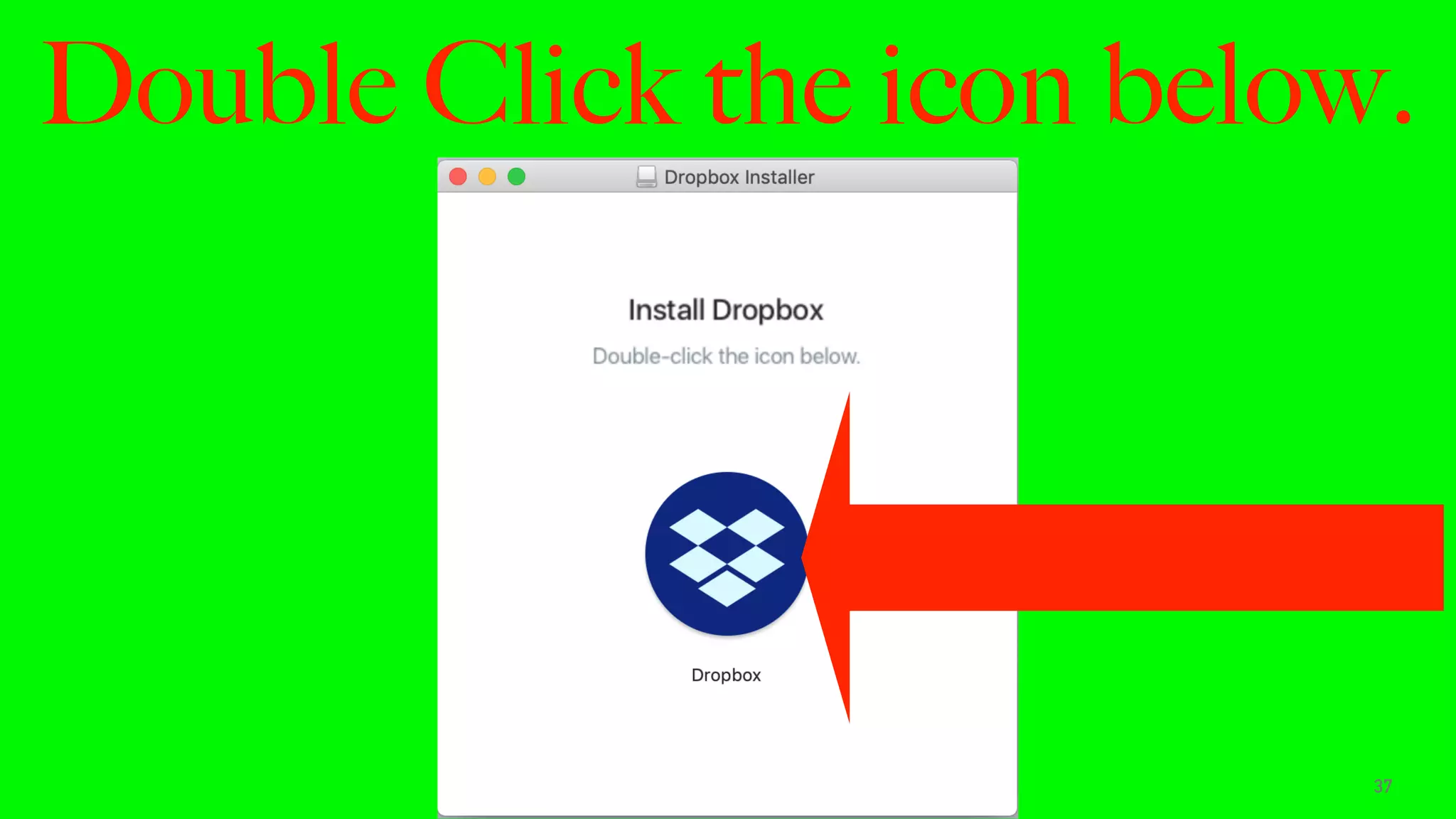
Double Click the icon below.
37
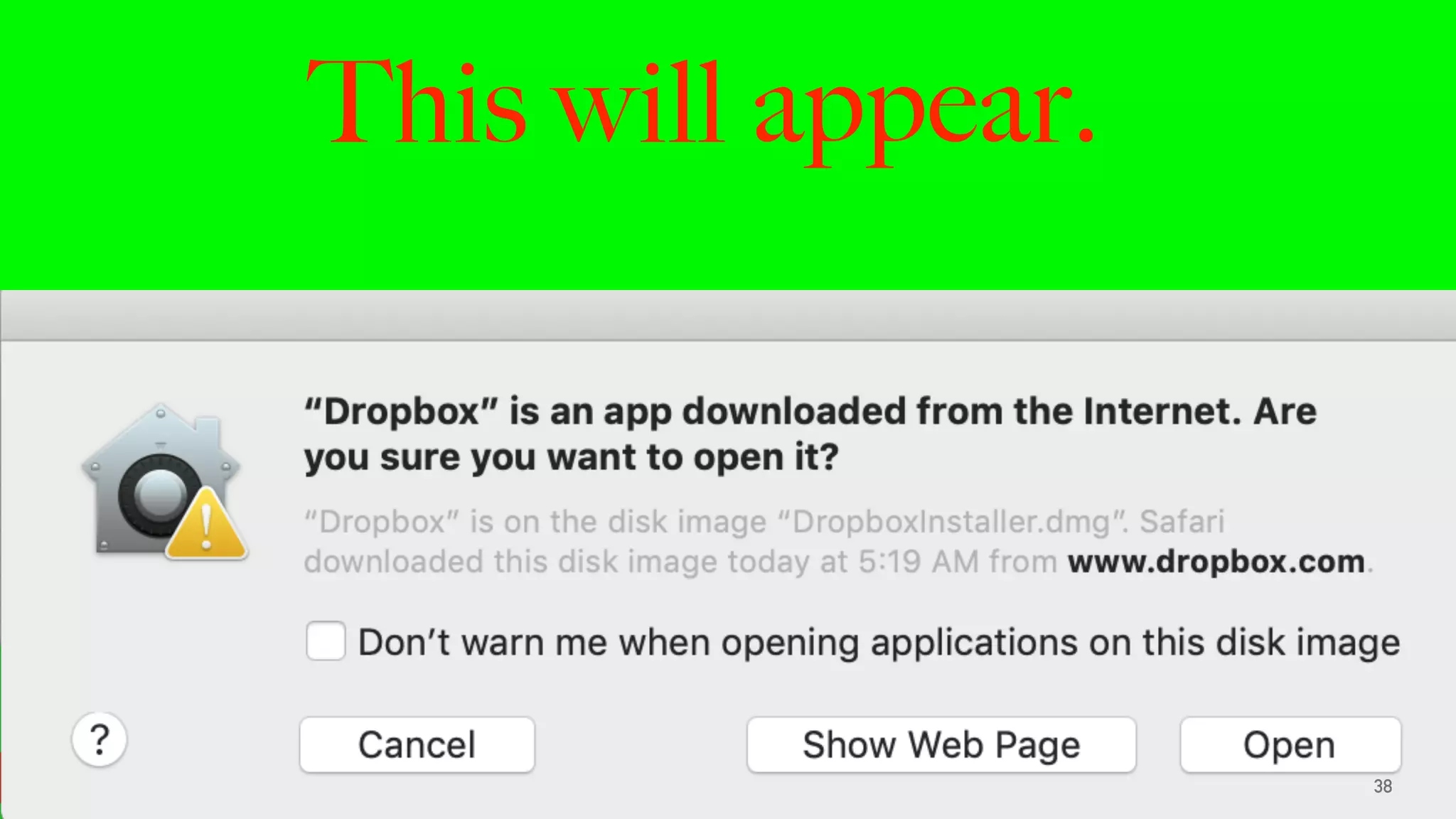
This will appear.
38
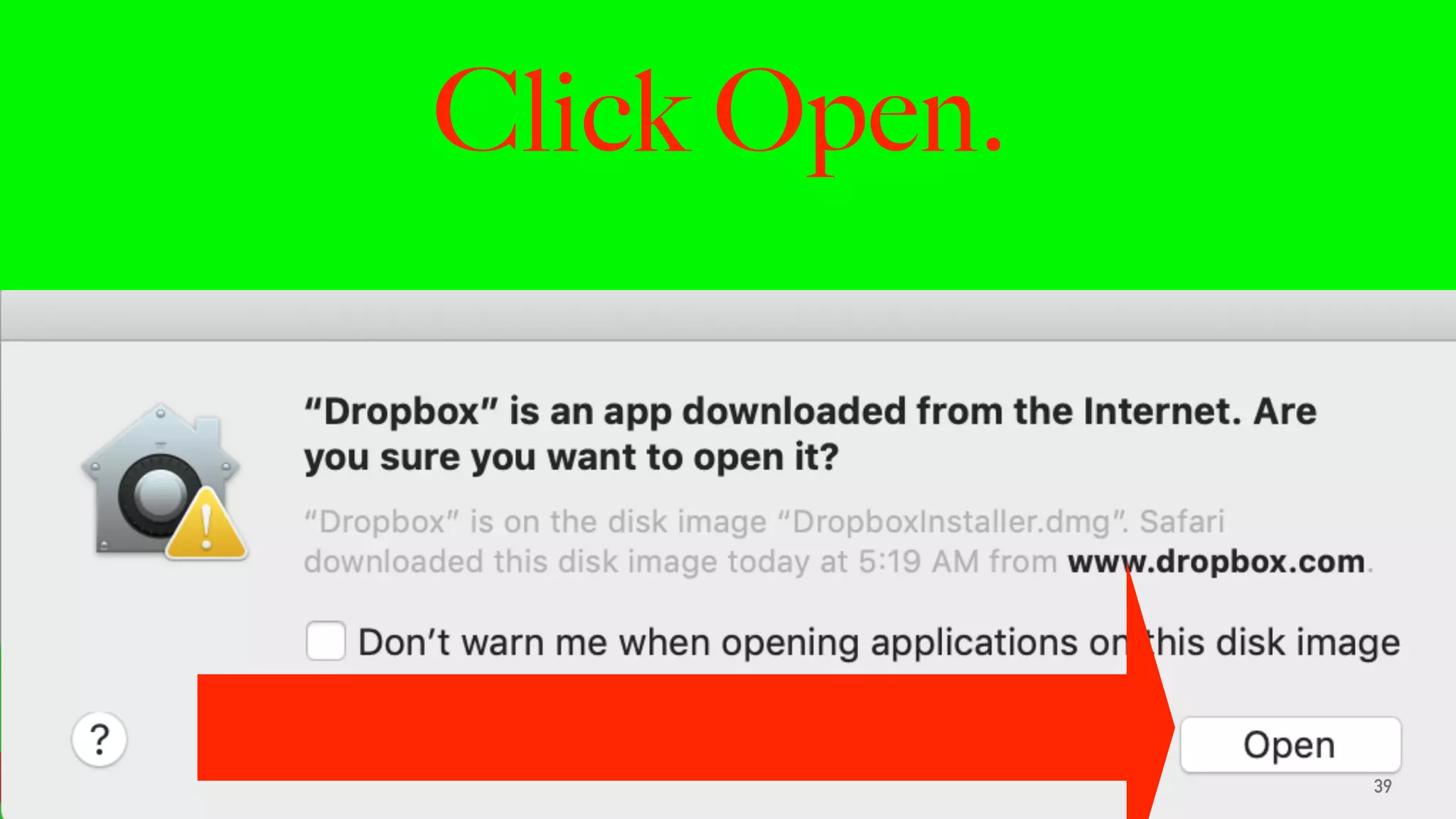
Click Open.
39
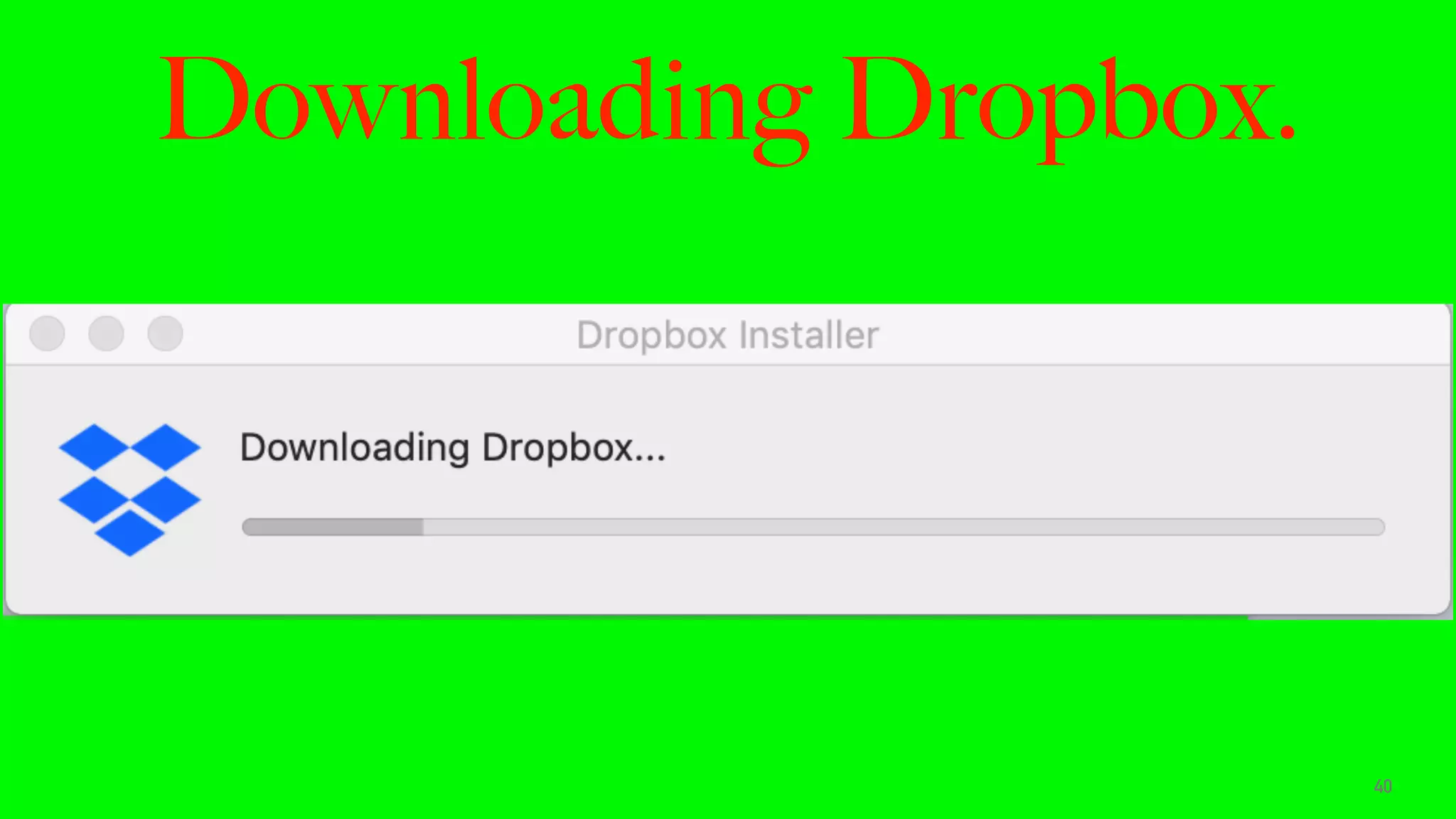
Downloading Dropbox.
40
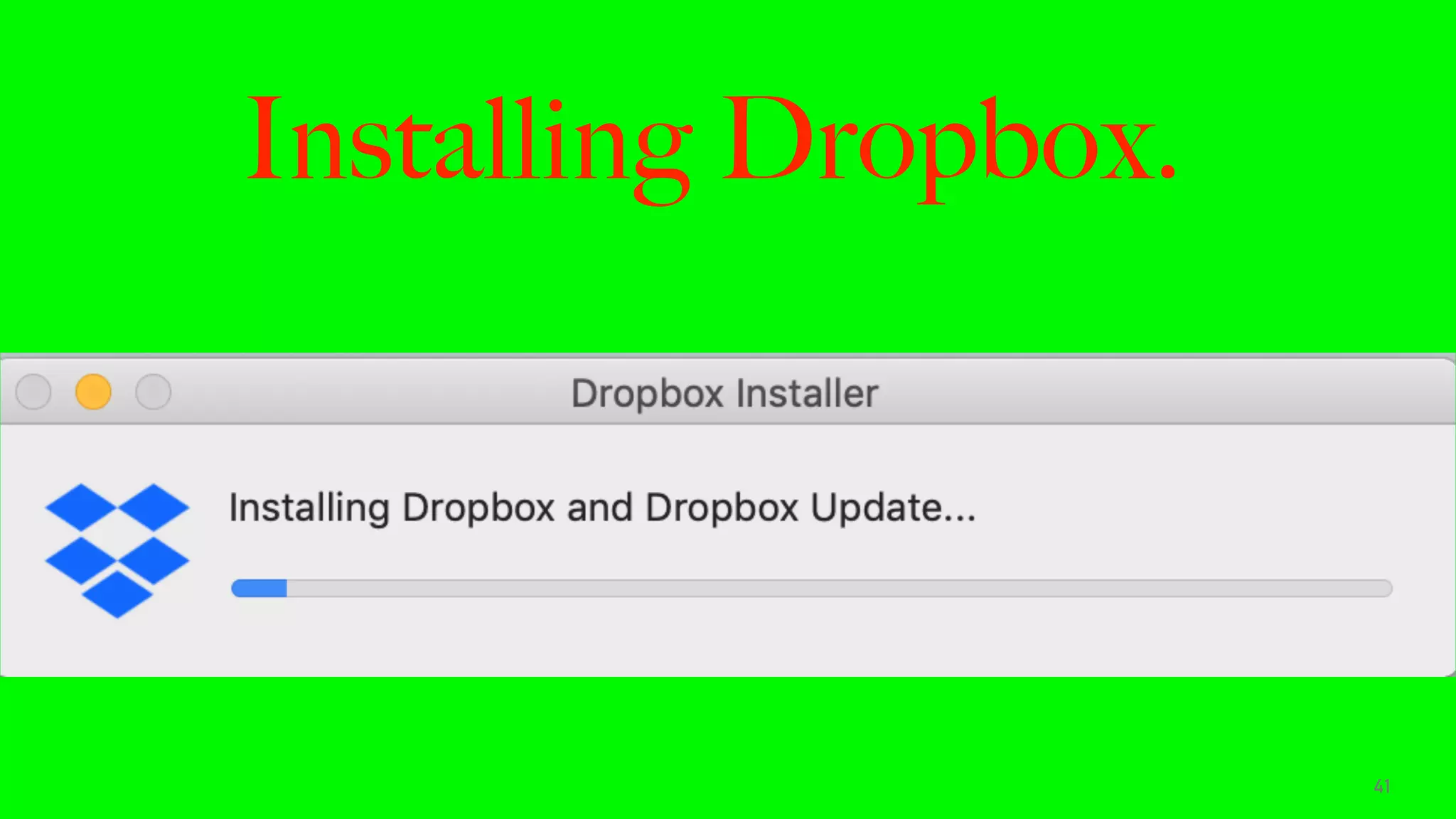
Installing Dropbox.
41
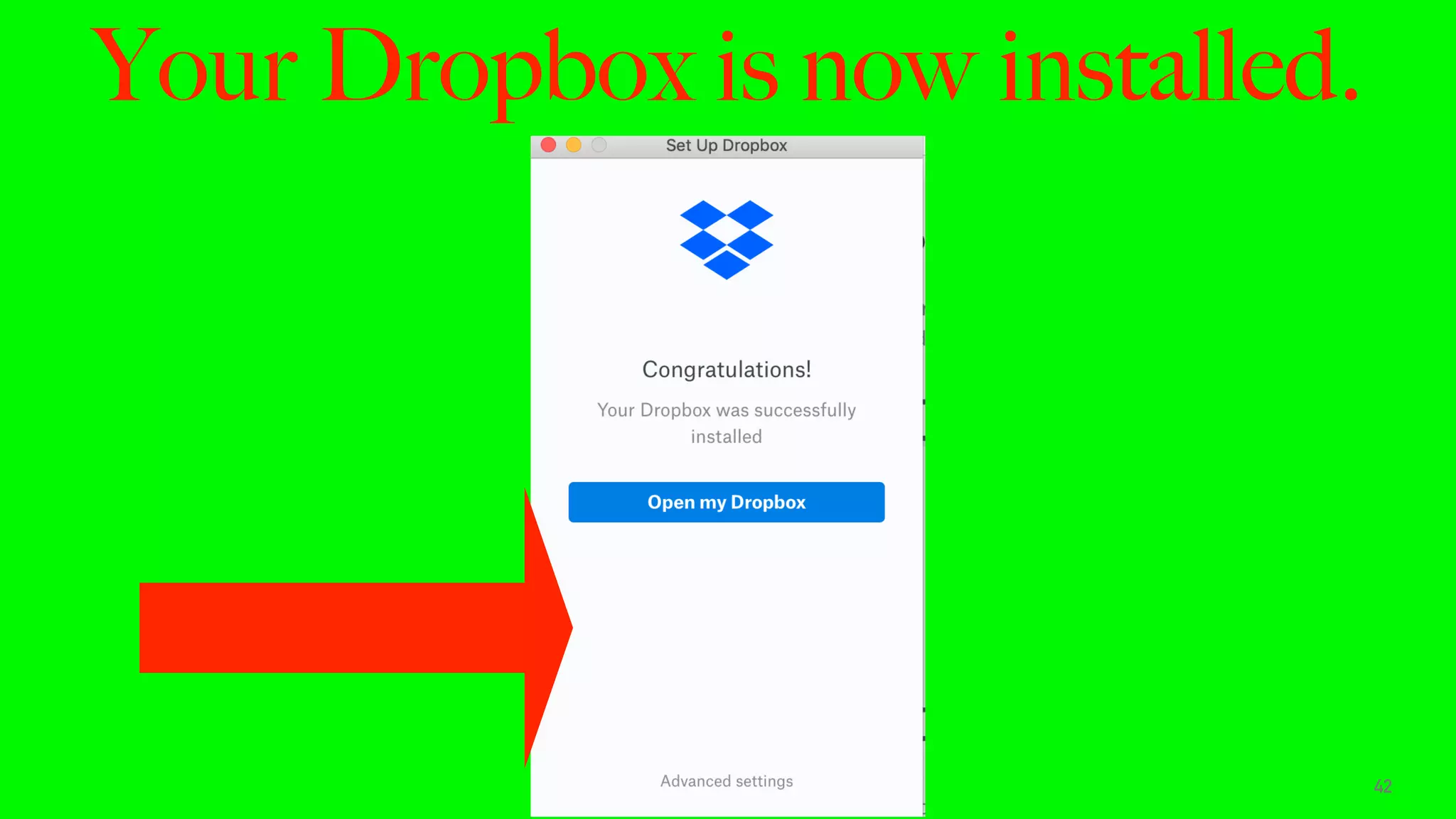
Your Dropbox is now installed.
42
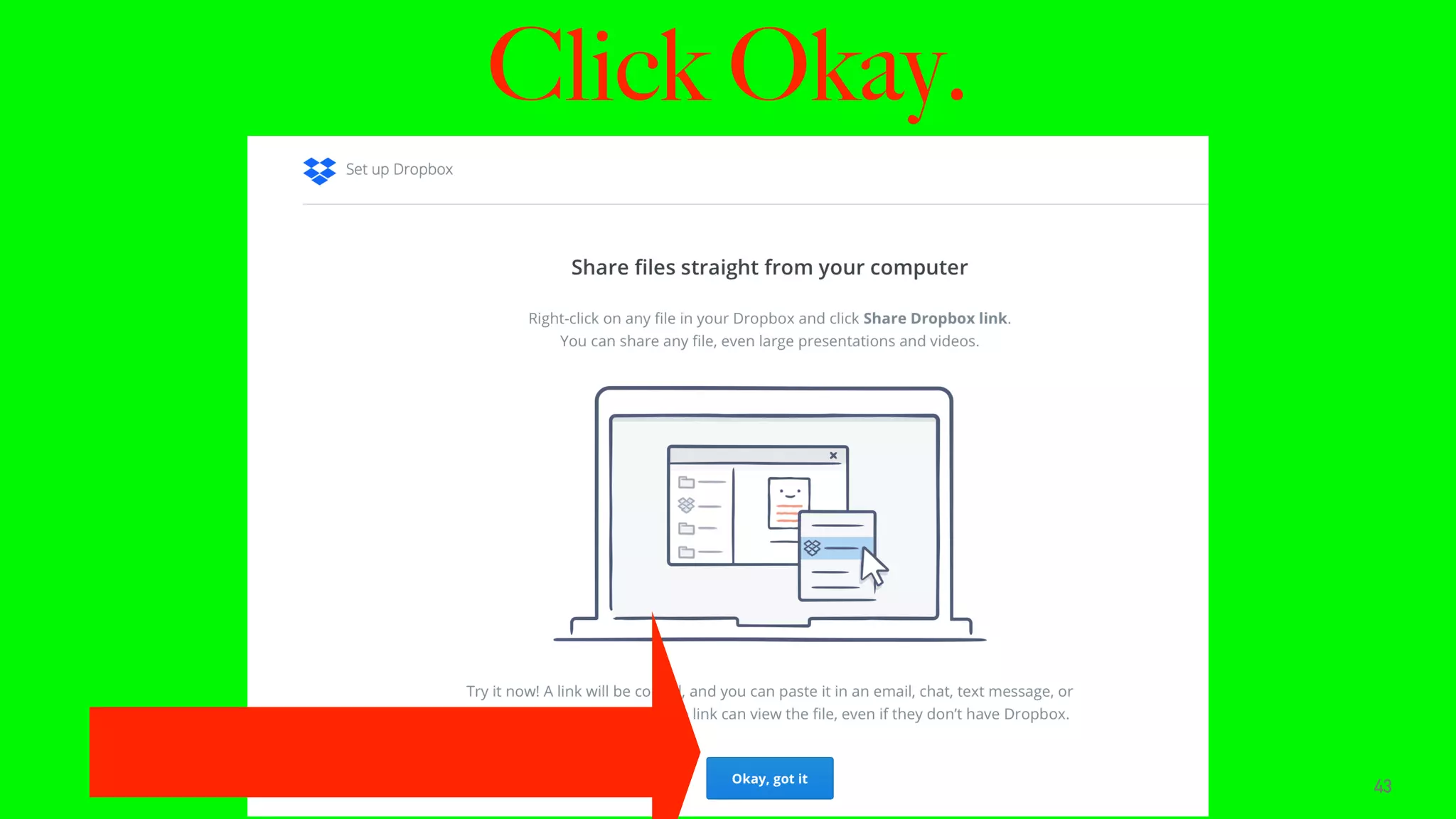
Click Okay.
43
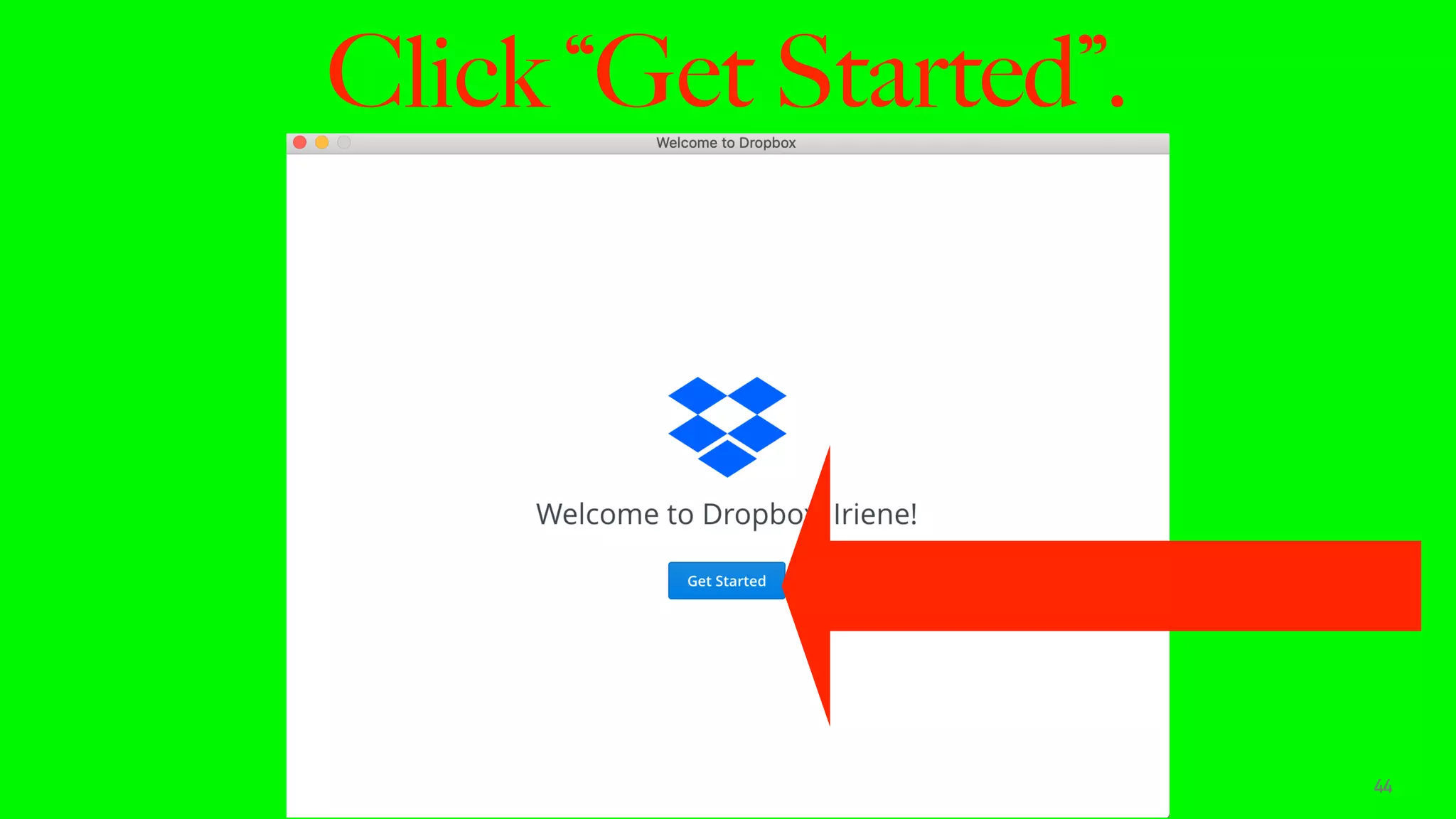
Click “Get Started”.
44
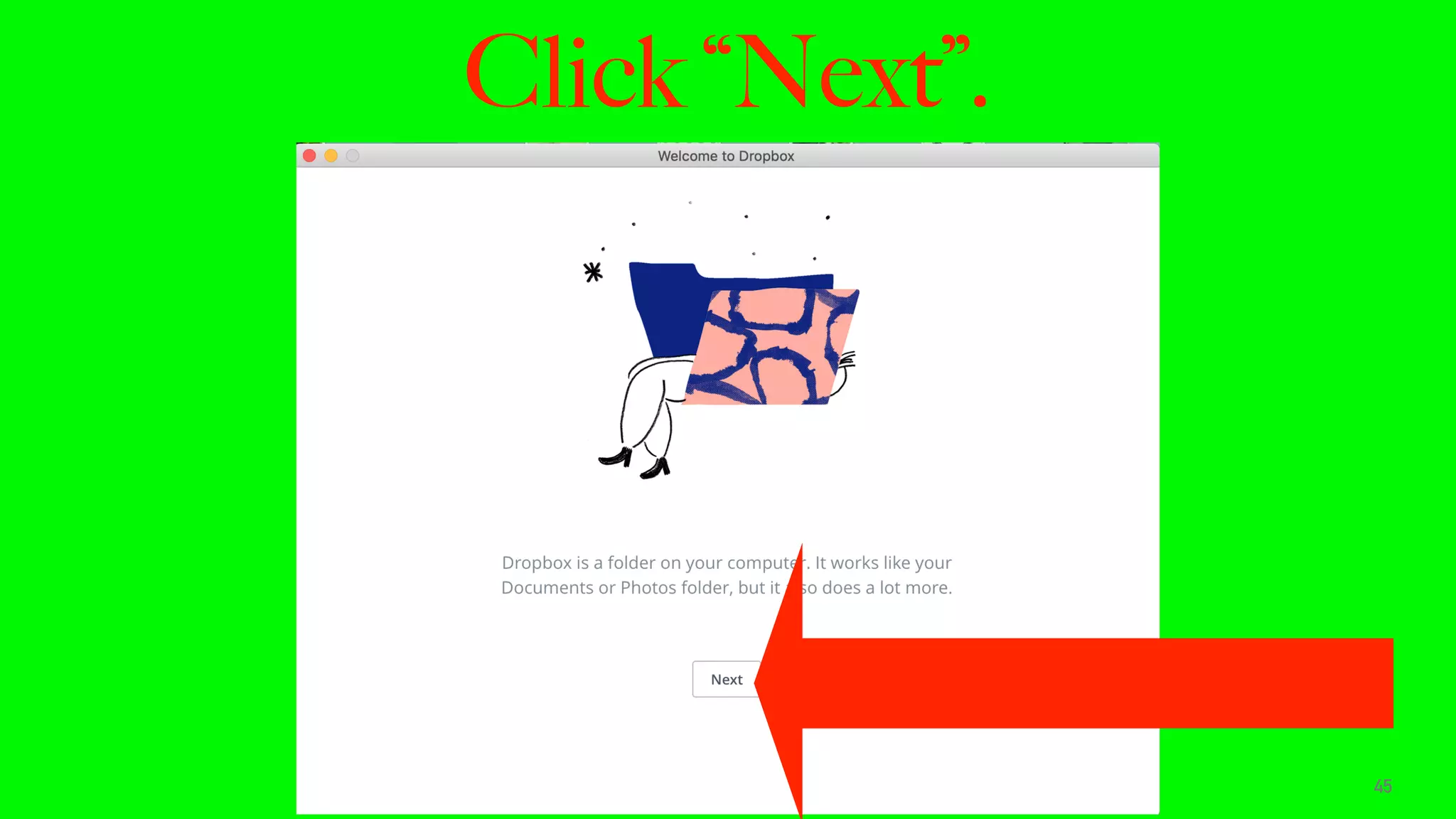
Click “Next”.
45
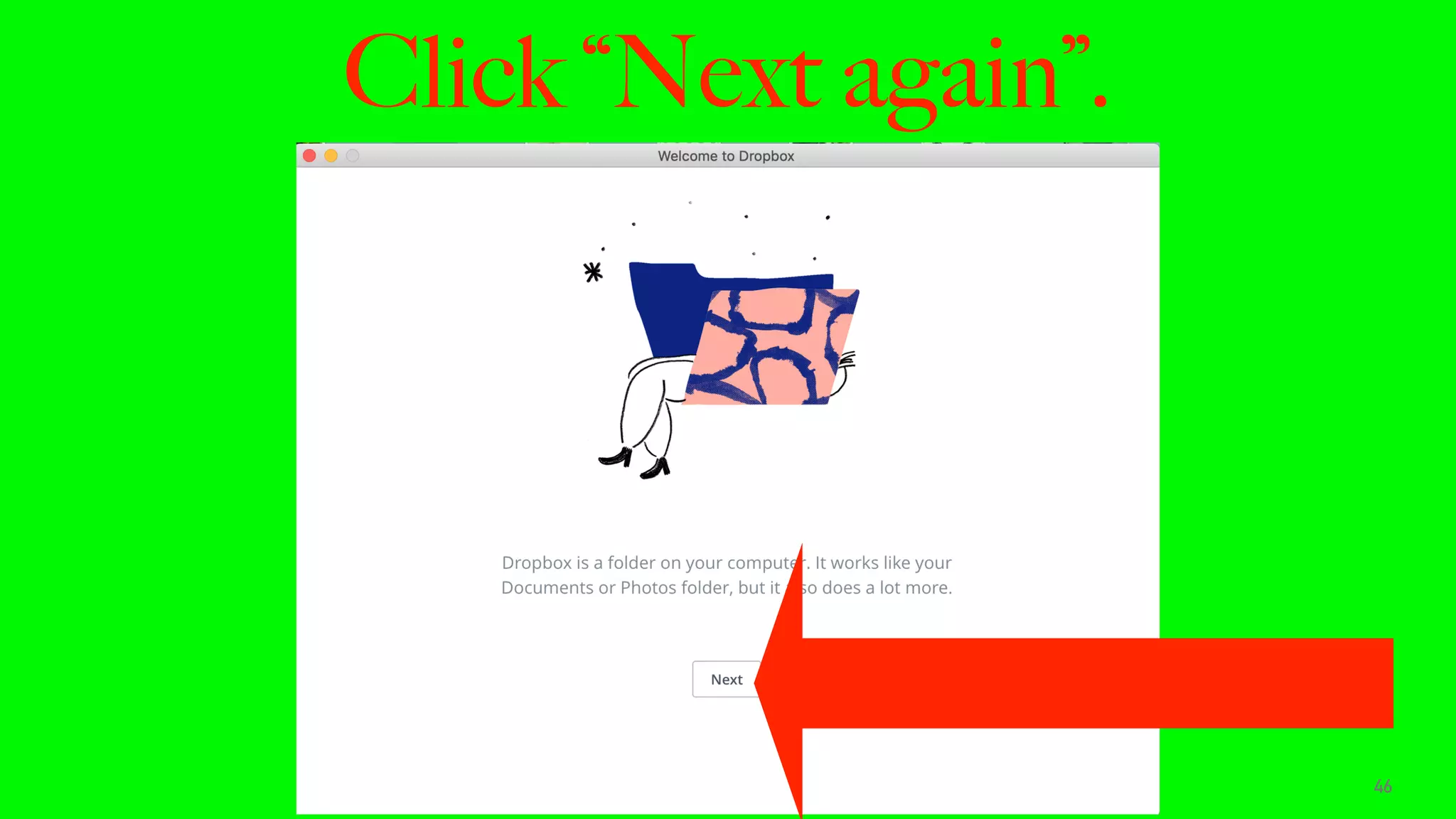
Click “Next again”.
46
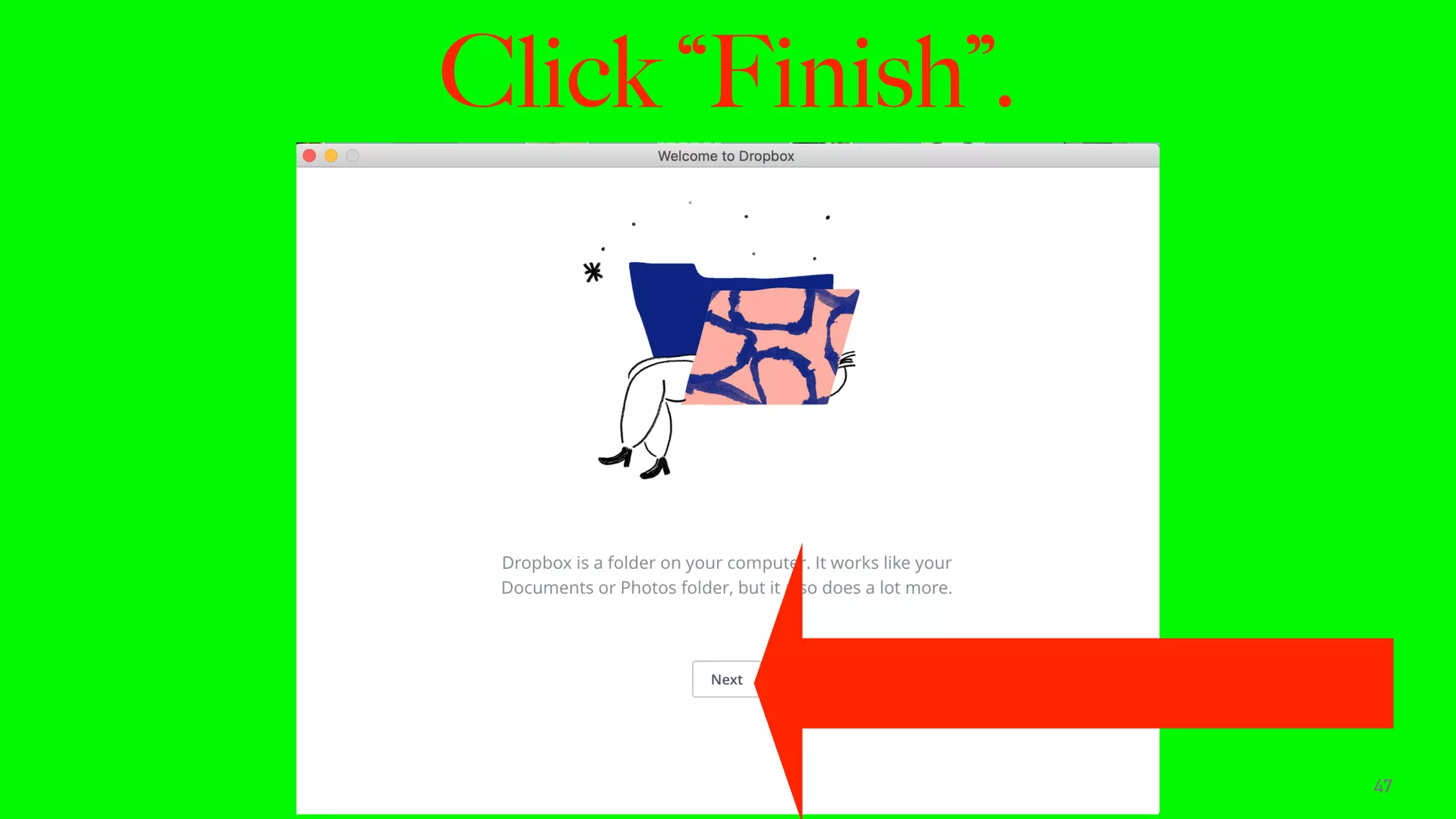
Click “Finish”.
47
You will see the Dropbox icon.
48
HOW TO SAVE FILES TO
THE DROPBOX FOLDER
IN YOUR DESKTOP.
49
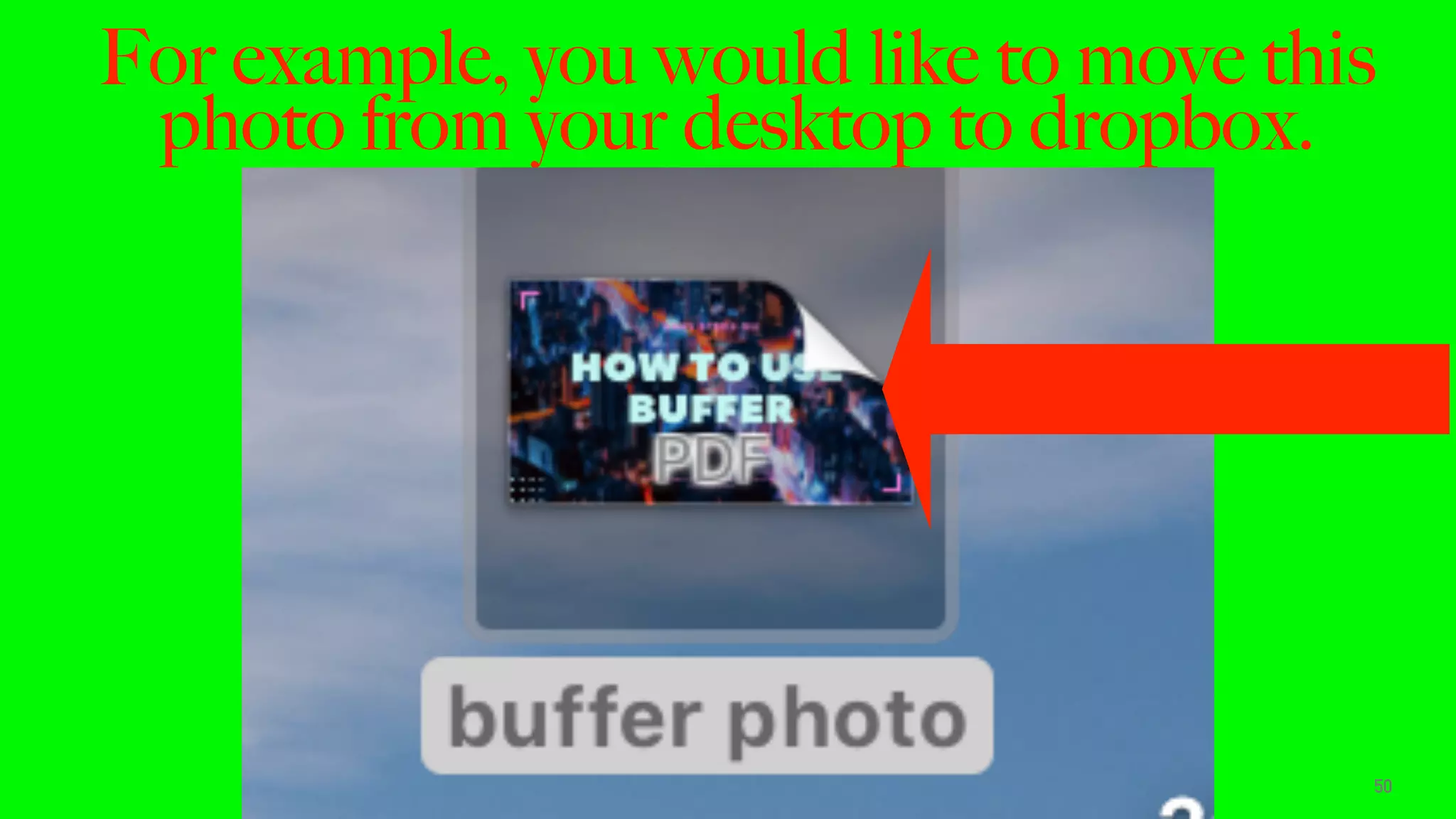
For example, you would like to move this
photo from your desktop to dropbox.
50
Double click on the photo.
51
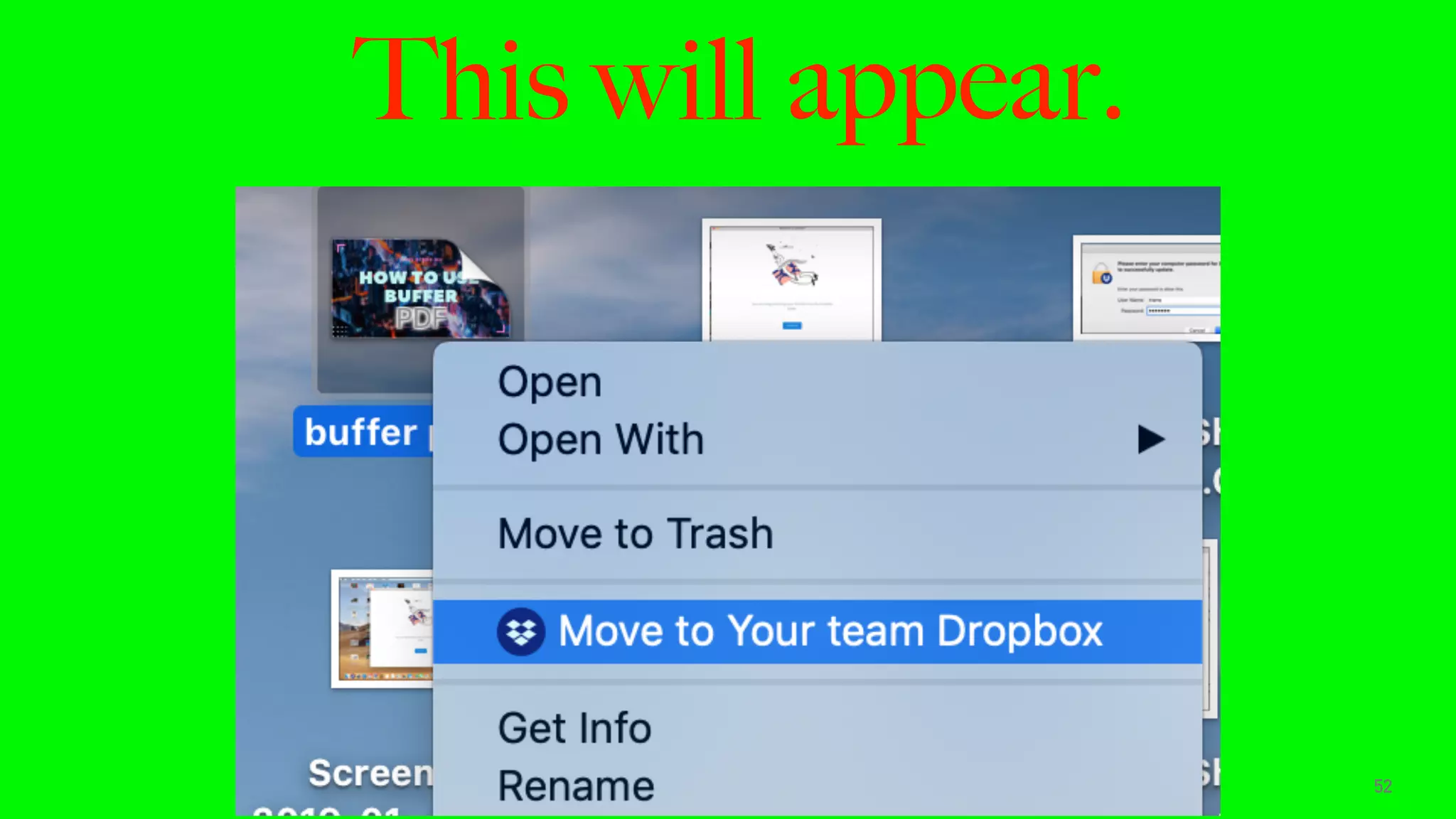
This will appear.
52
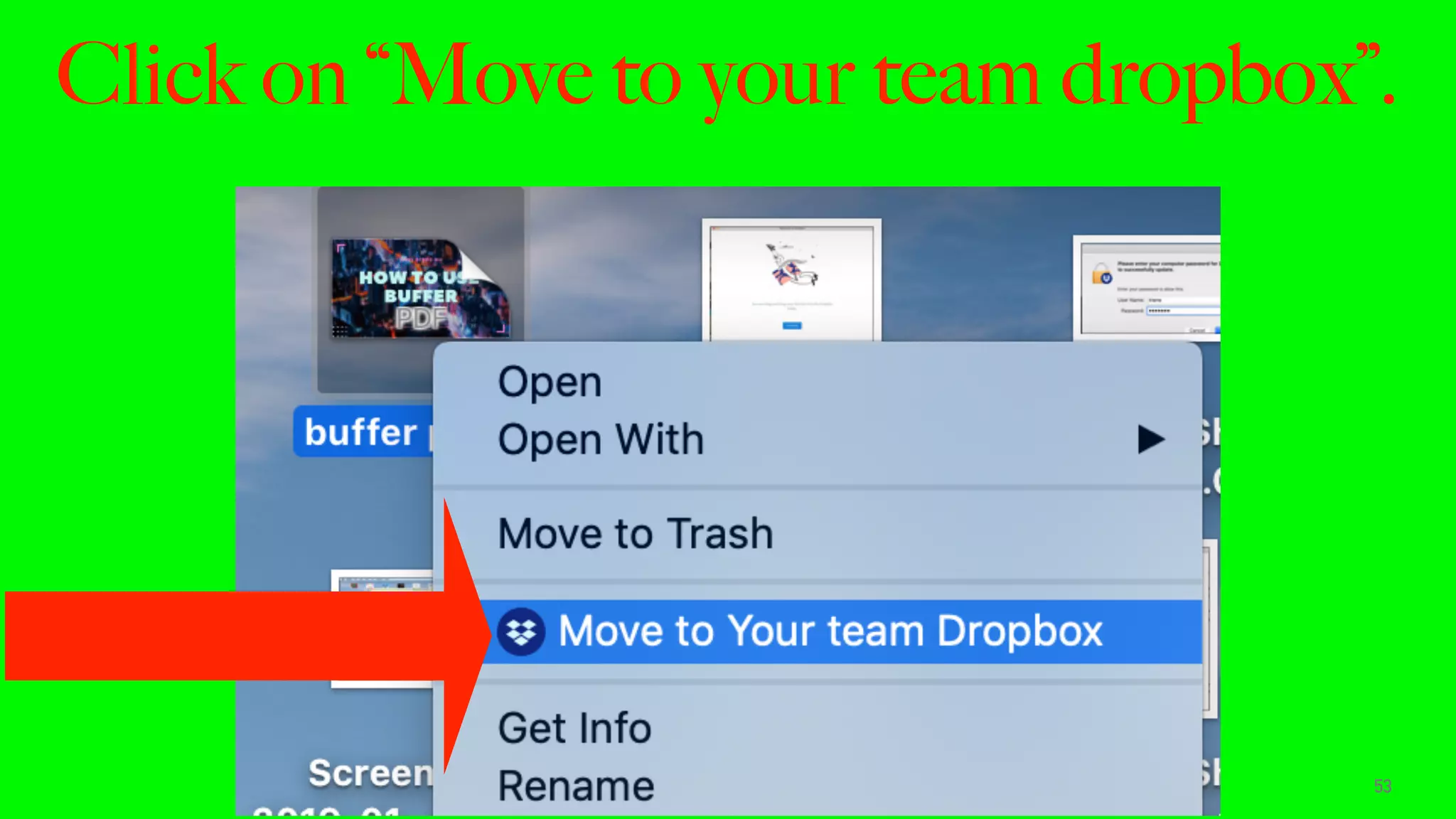
Click on “Move to your team dropbox”.
53
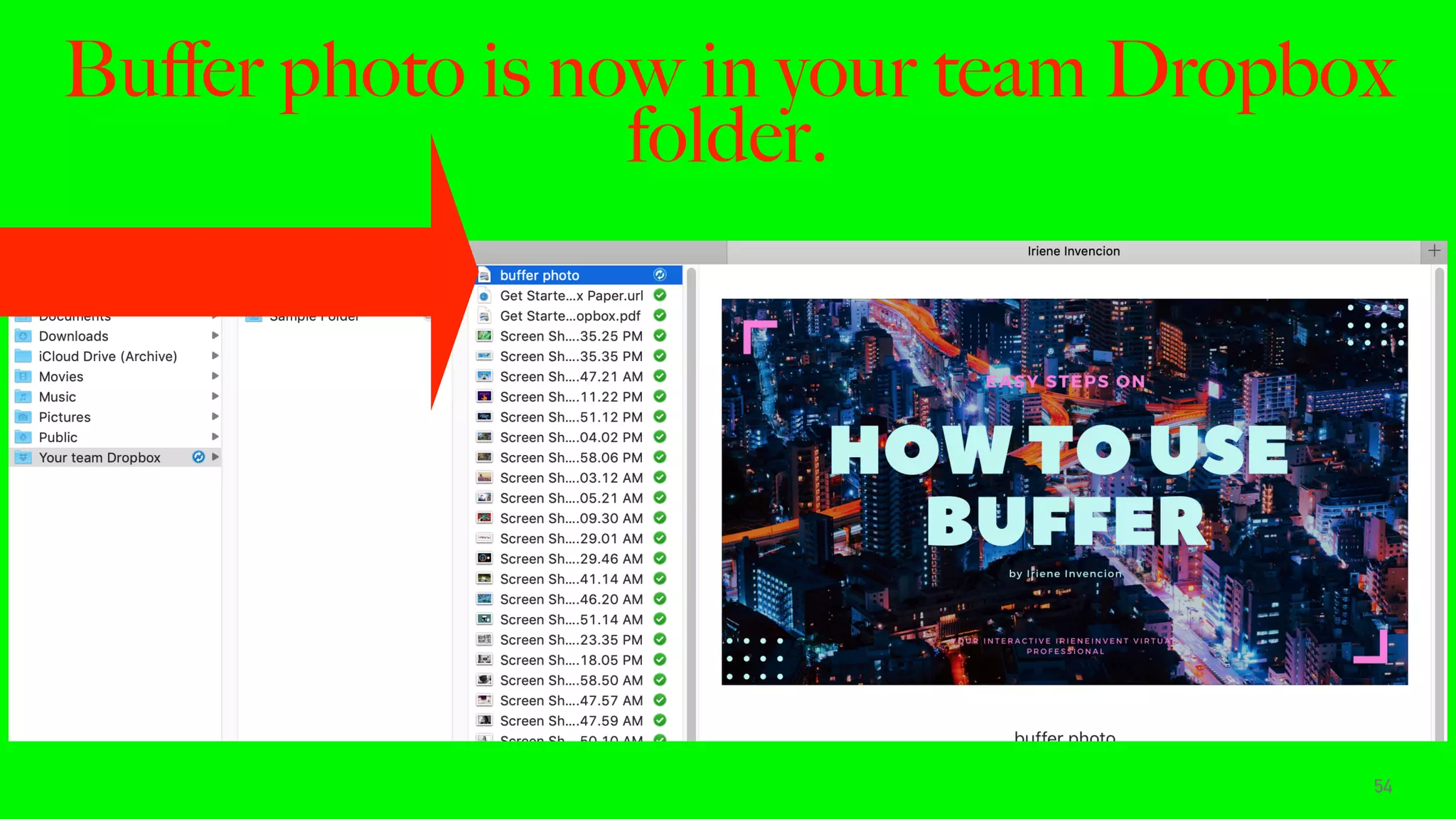
Buffer photo is now in your team Dropbox
folder.
54
HOW TO CREATE A
DROPBOX ACCOUNT.
55
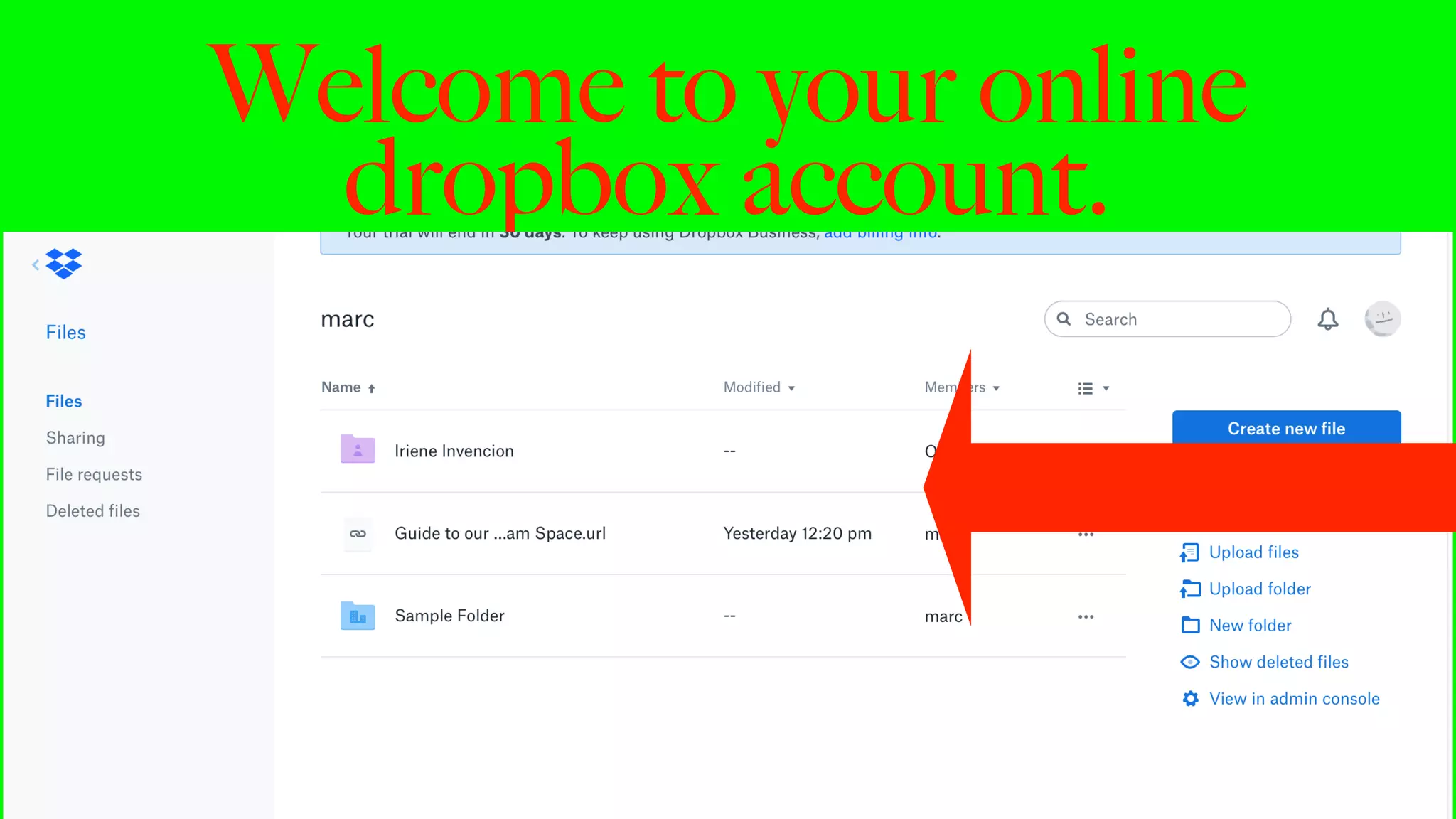
Click this to open your online
dropbox account.
56
Welcome to your online
dropbox account.
57
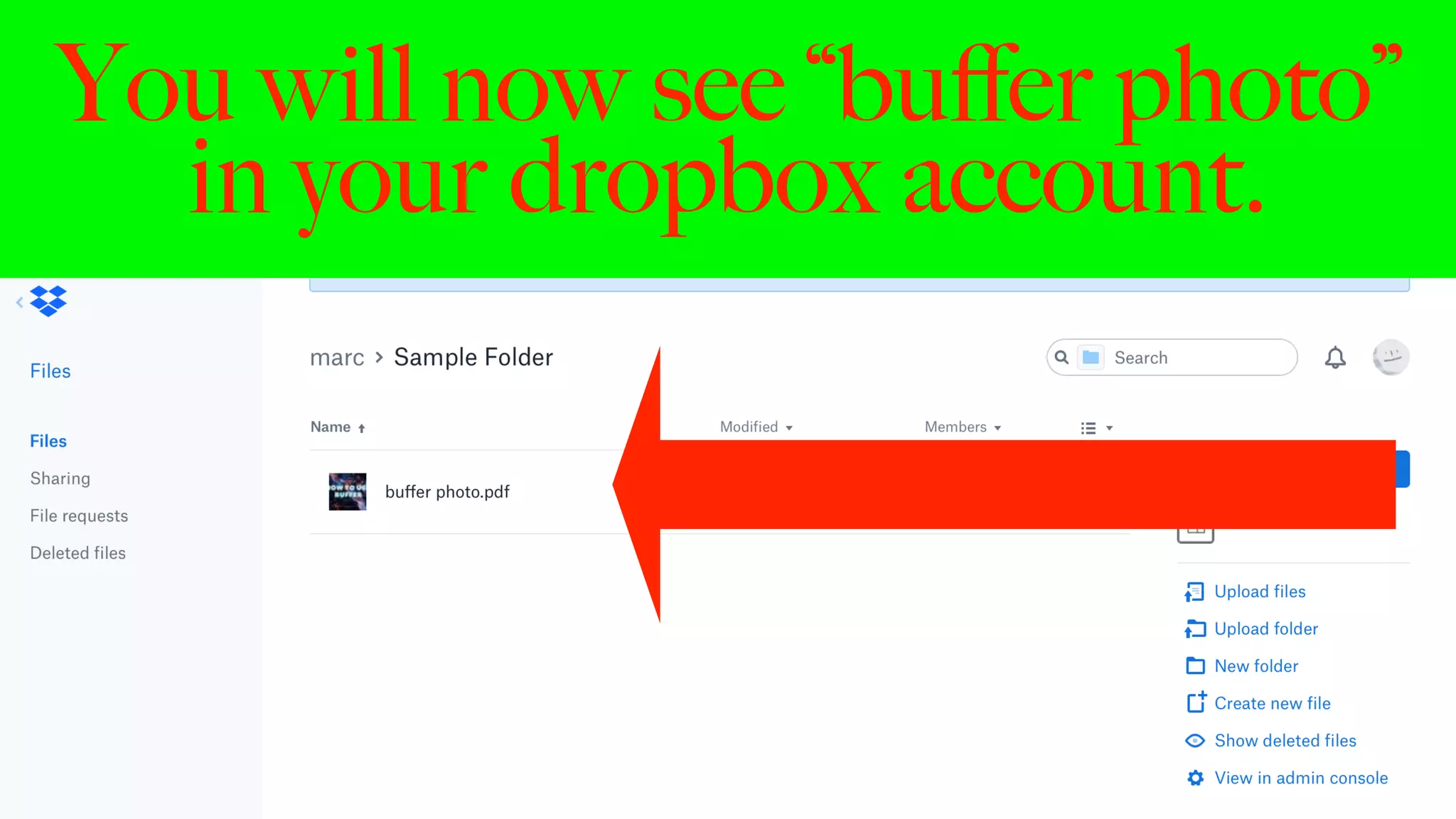
You will now see “buffer photo”
in your dropbox account.
58
HOW TO SHARE FILES
USING DROPBOX.
59
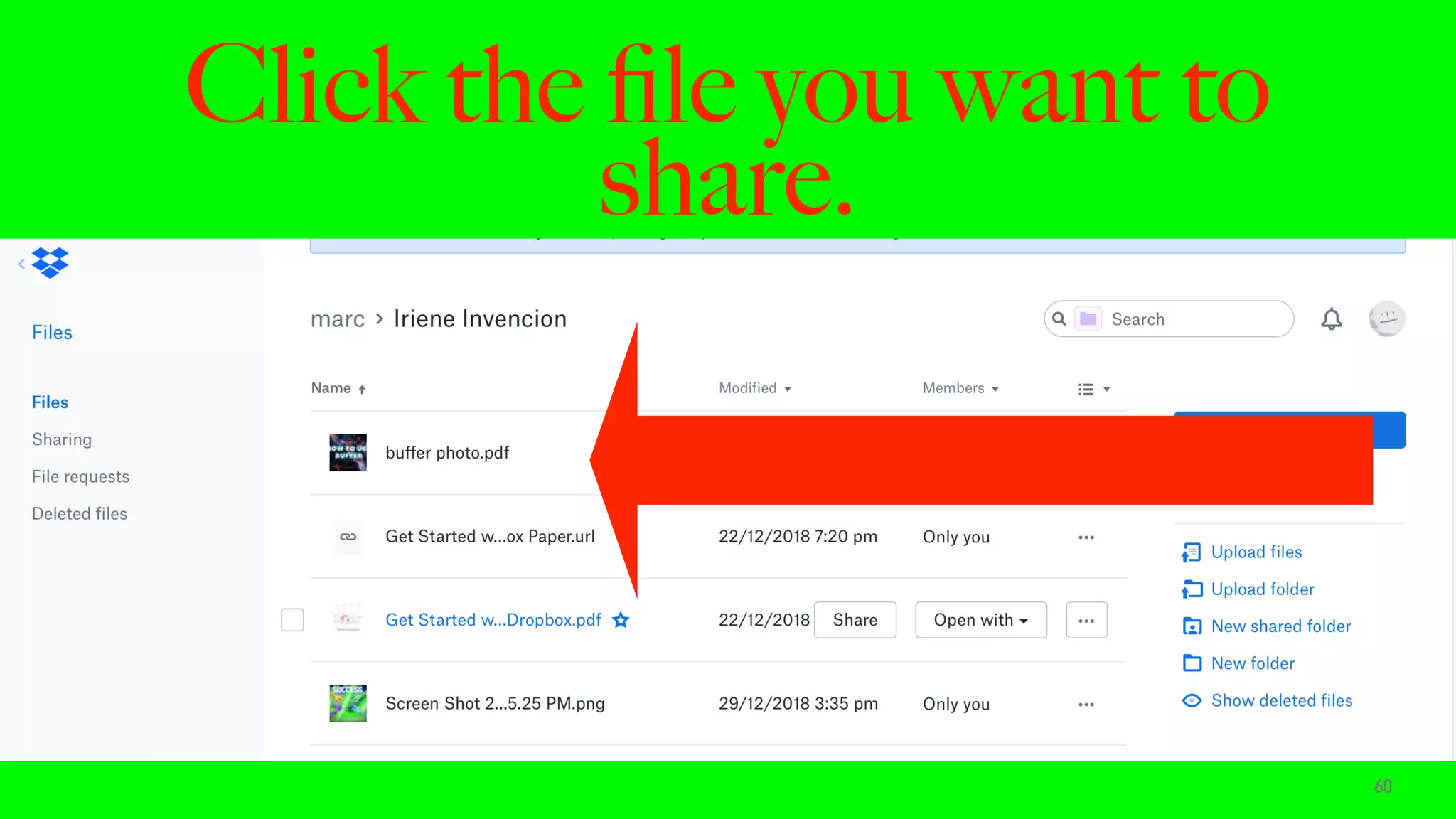
Click the file you want to
share.
60
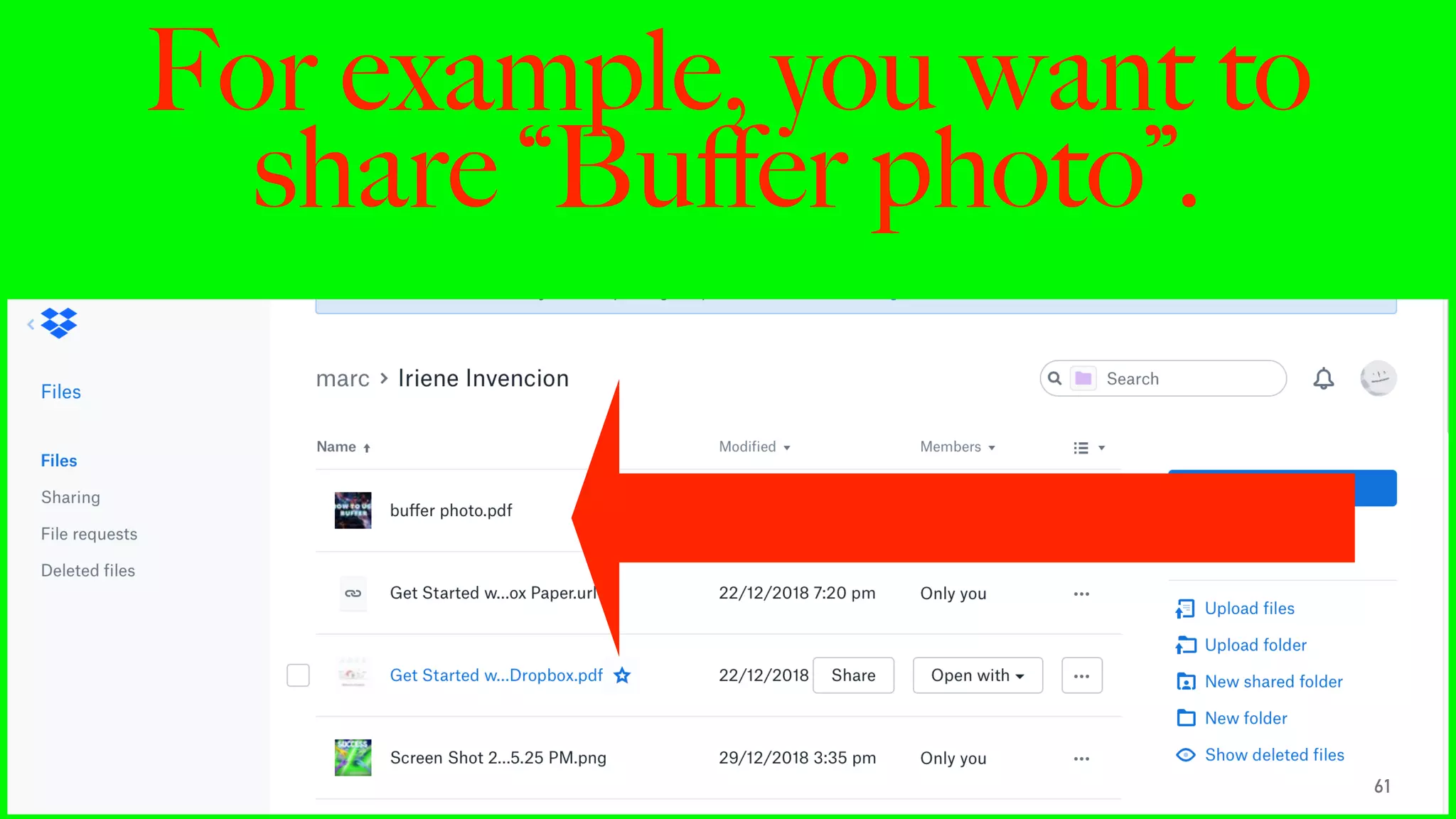
For example, you want to
share “Buffer photo”.
61
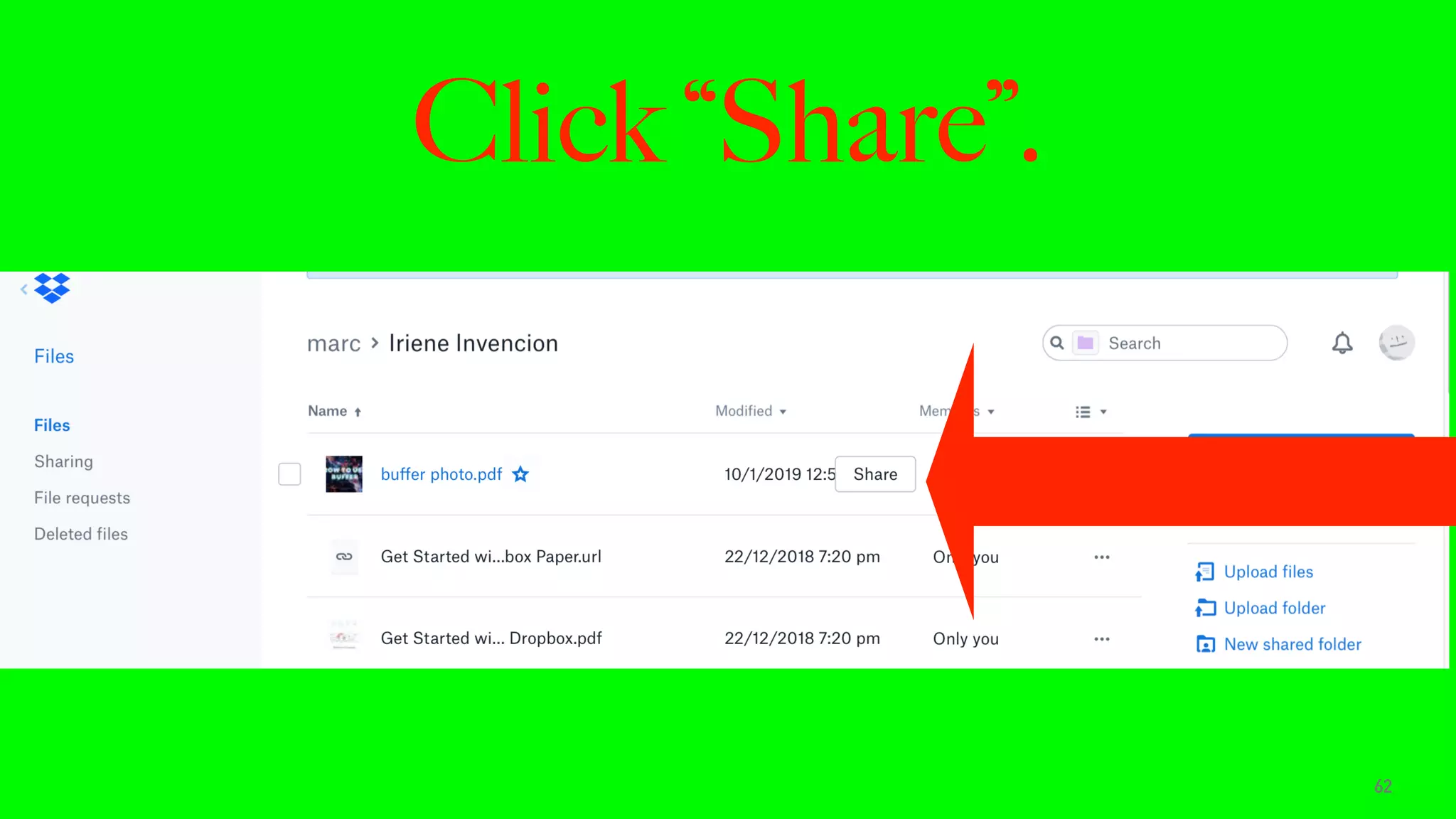
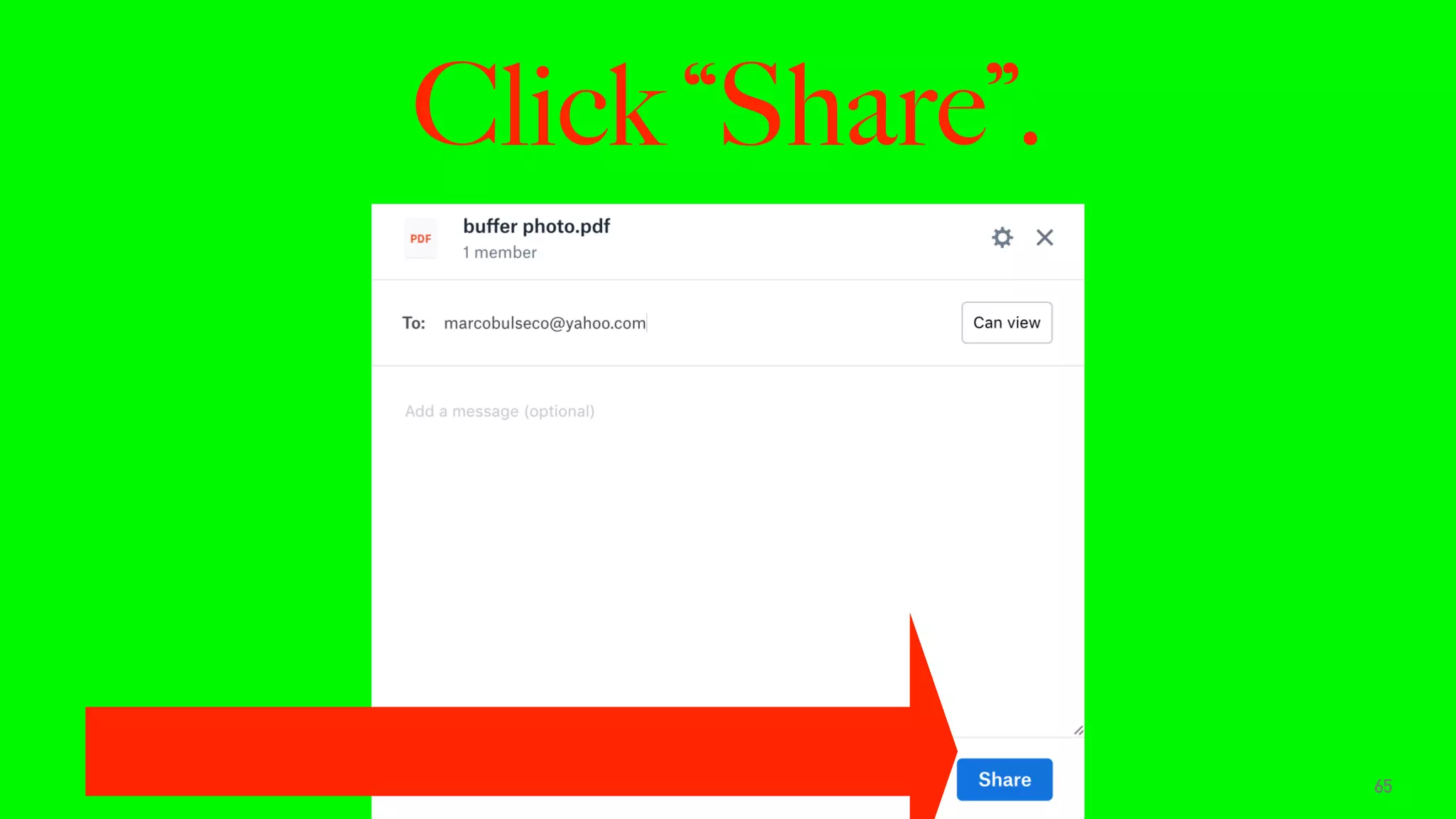
Click “Share”.
62
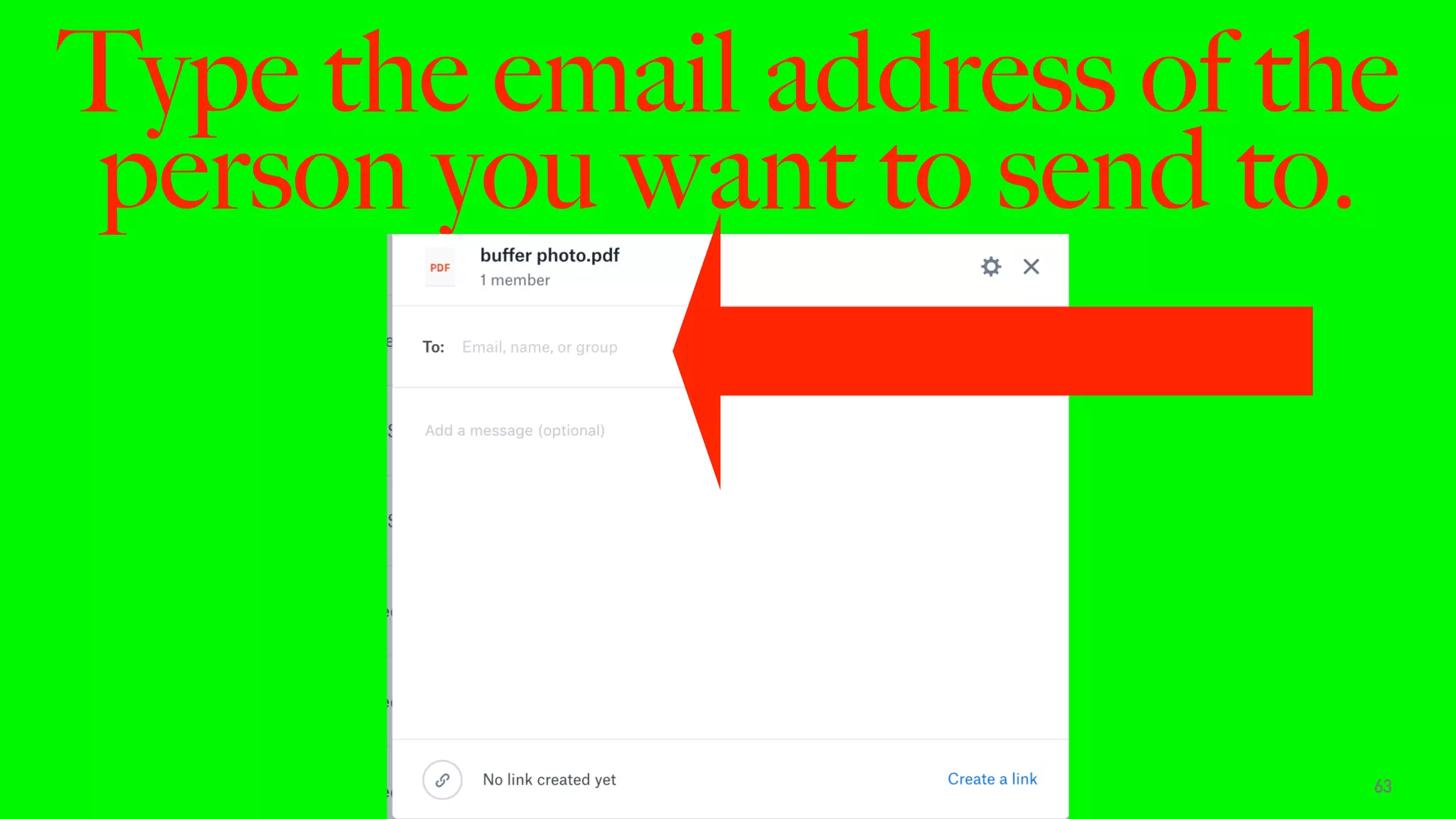
Type the email address of the
person you want to send to.
63
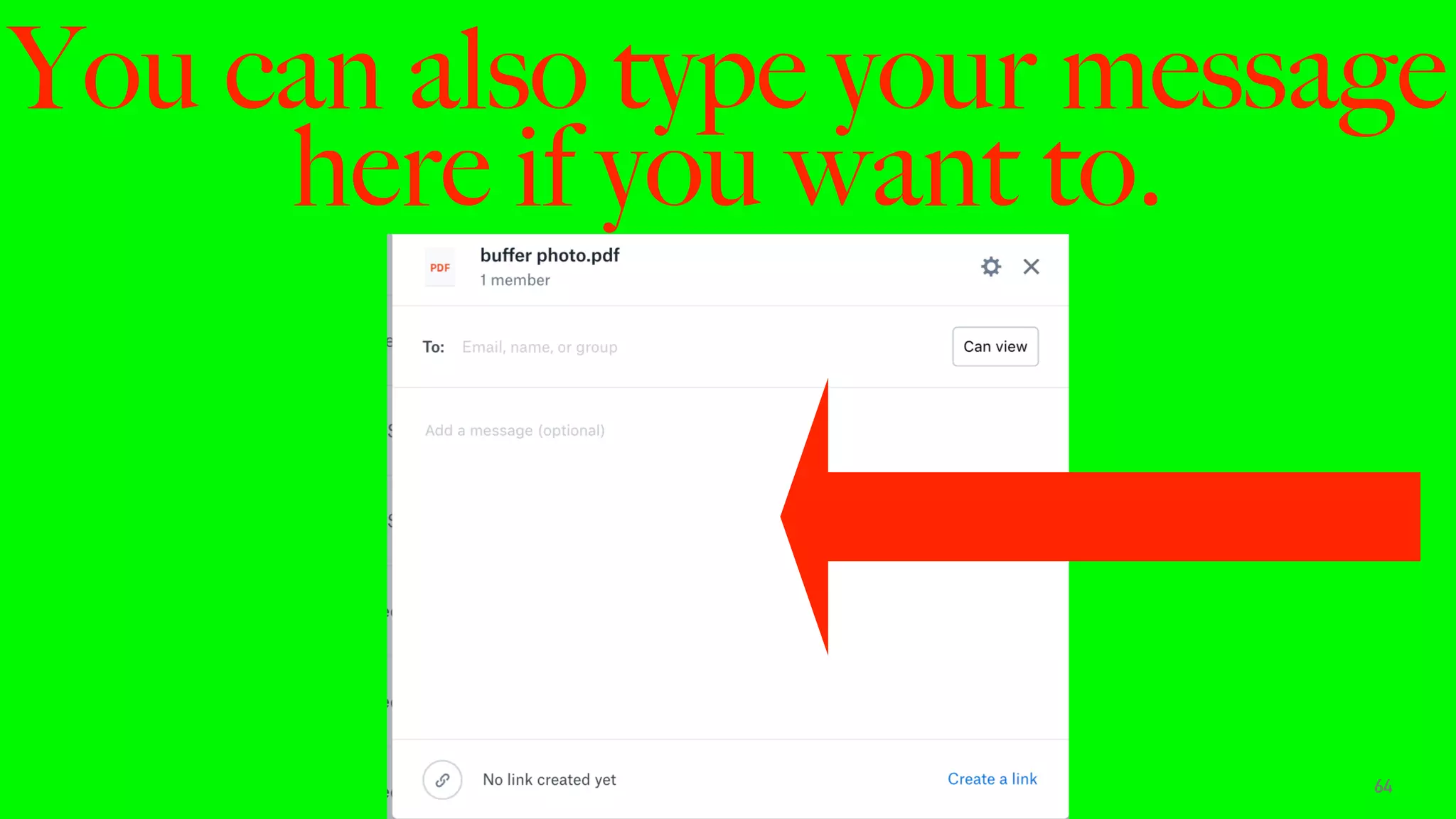
You can also type your message
here if you want to.
64
Click “Share”.
65
HOW TO CREATE A
DROPBOX FOLDER.
66
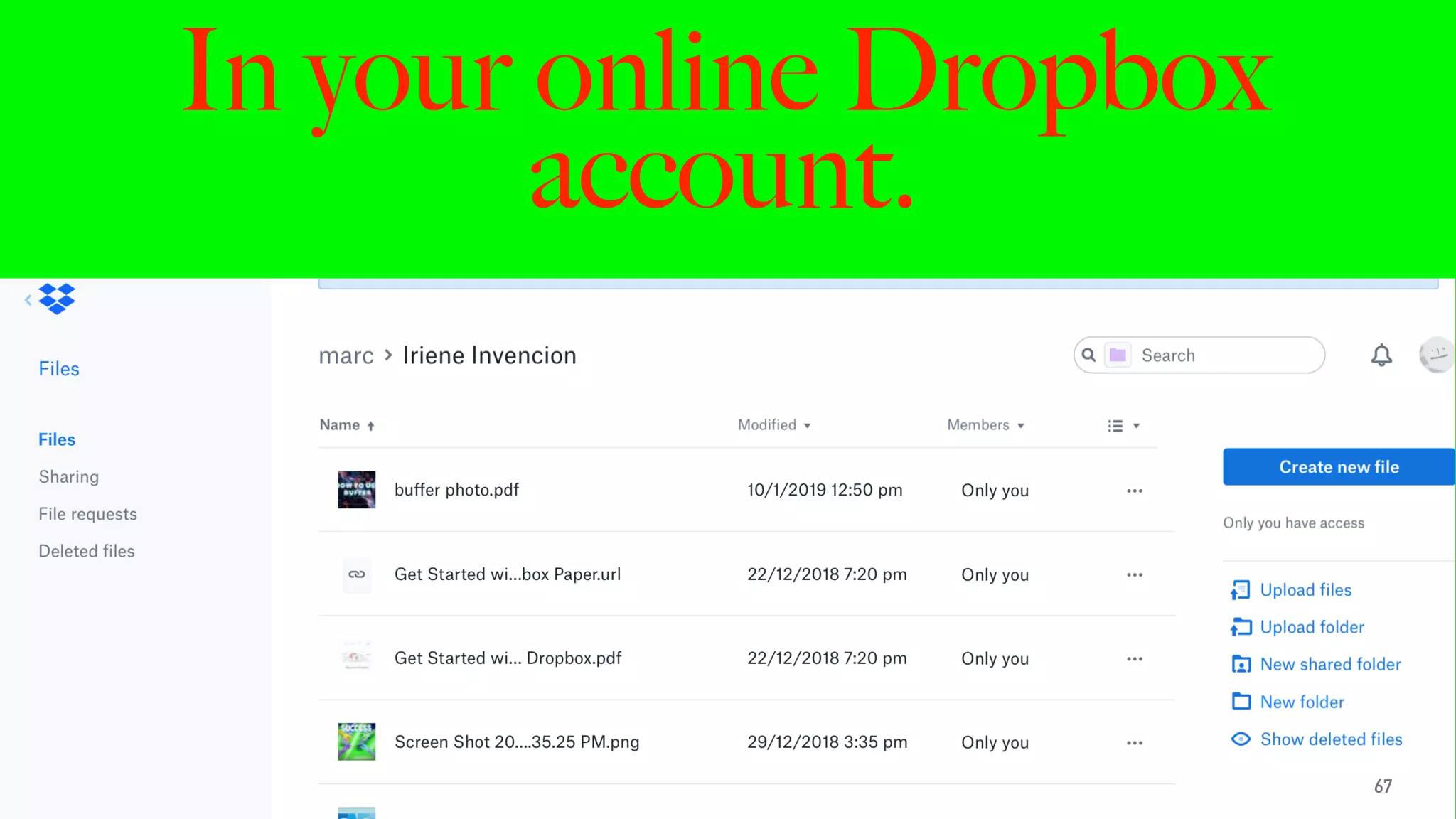
In your online Dropbox
account.
67
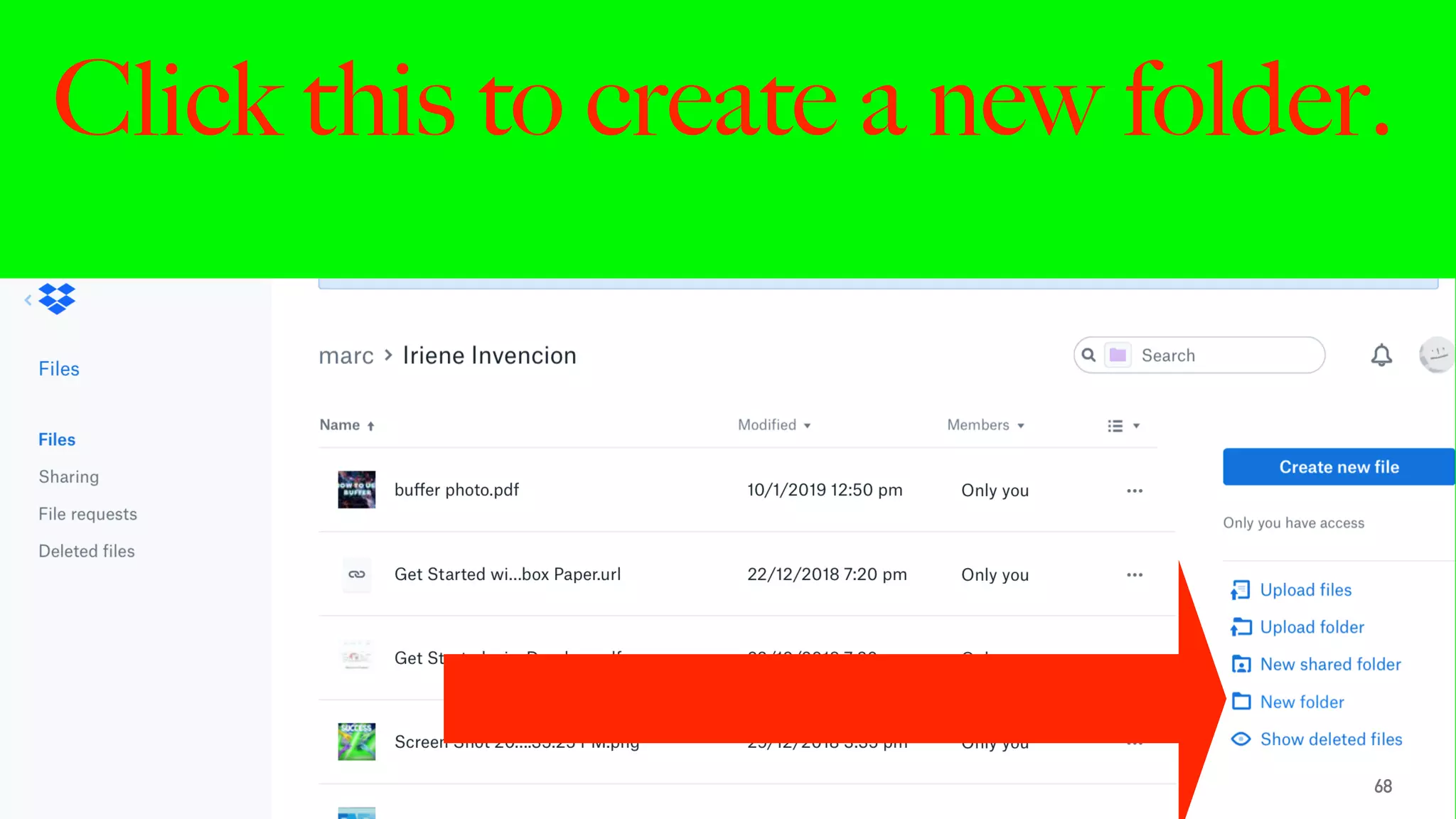
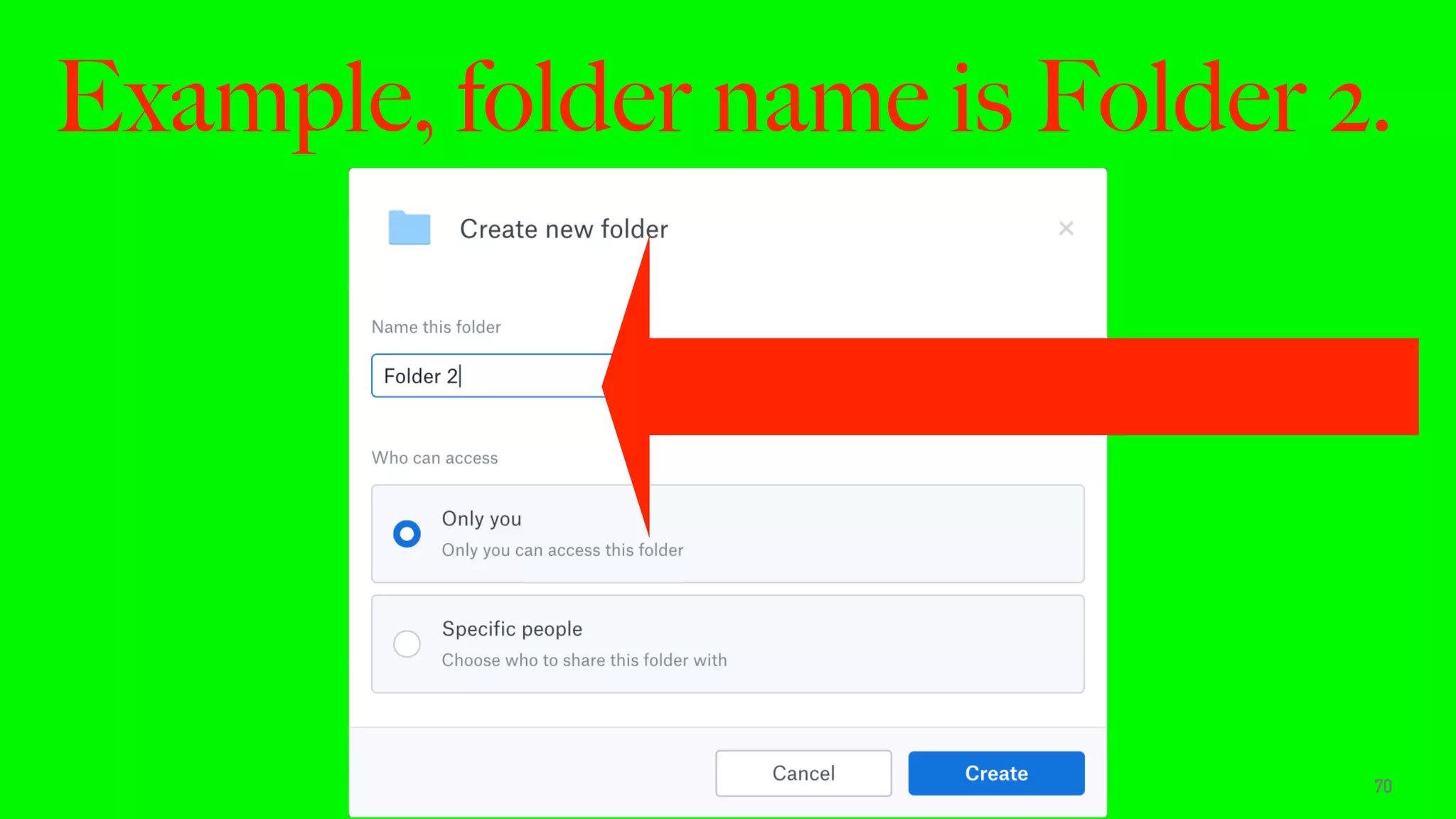
Click this to create a new folder.
68
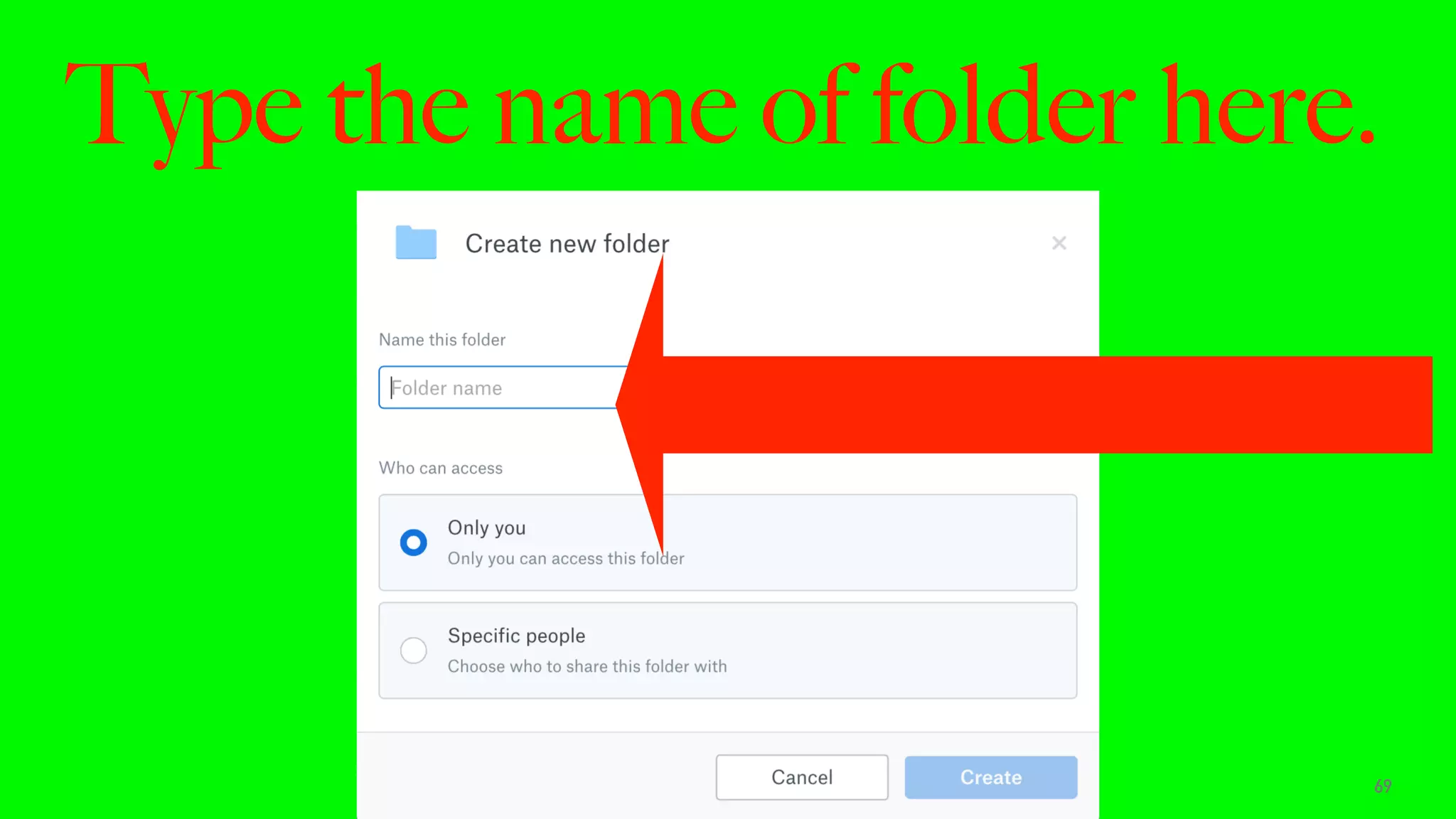
Type the name of folder here.
69
Example, folder name is Folder 2.
70
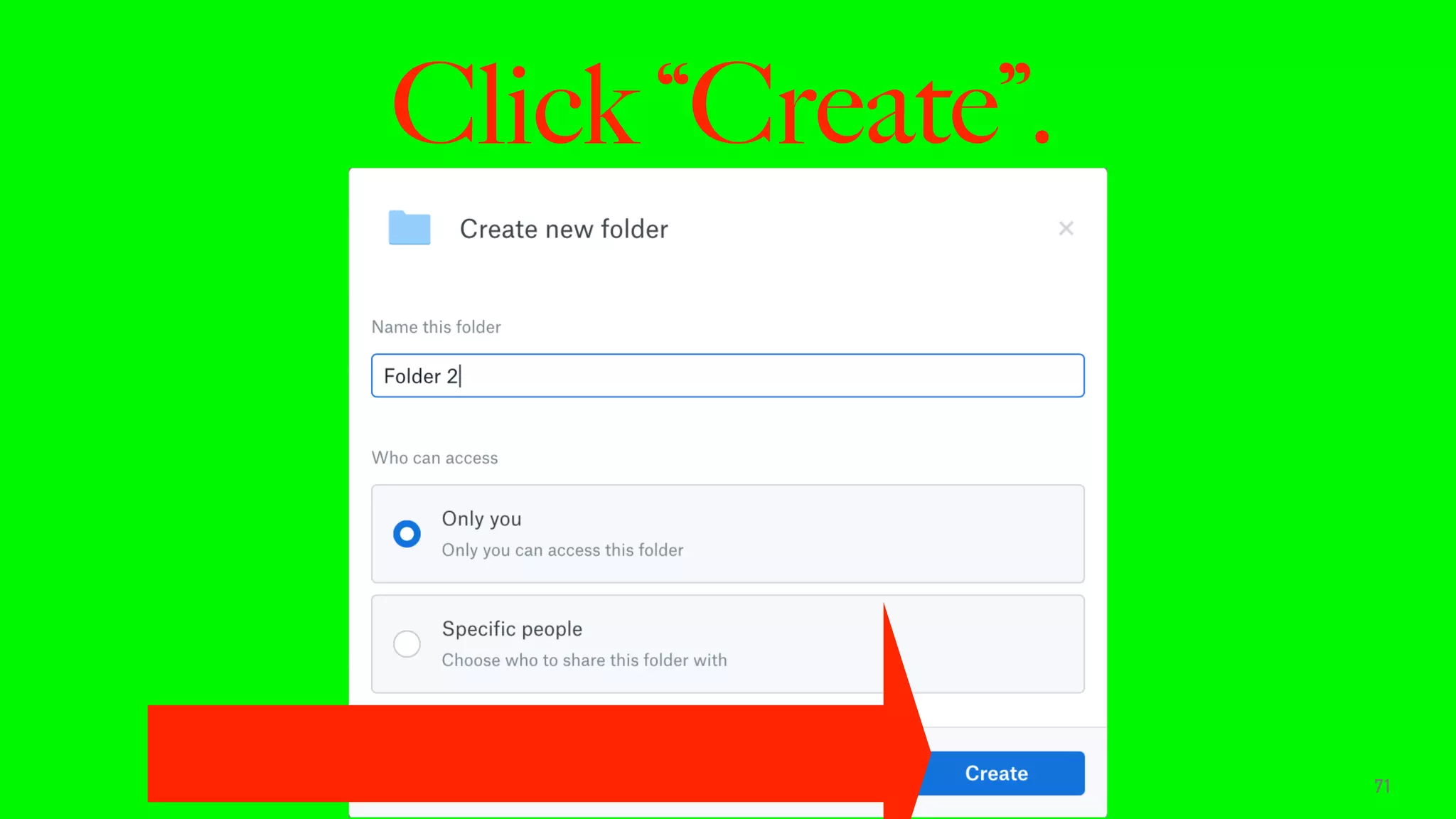
Click “Create”.
71
HOW TO SAVE FILES
TO DROPBOX FOLDER.
72
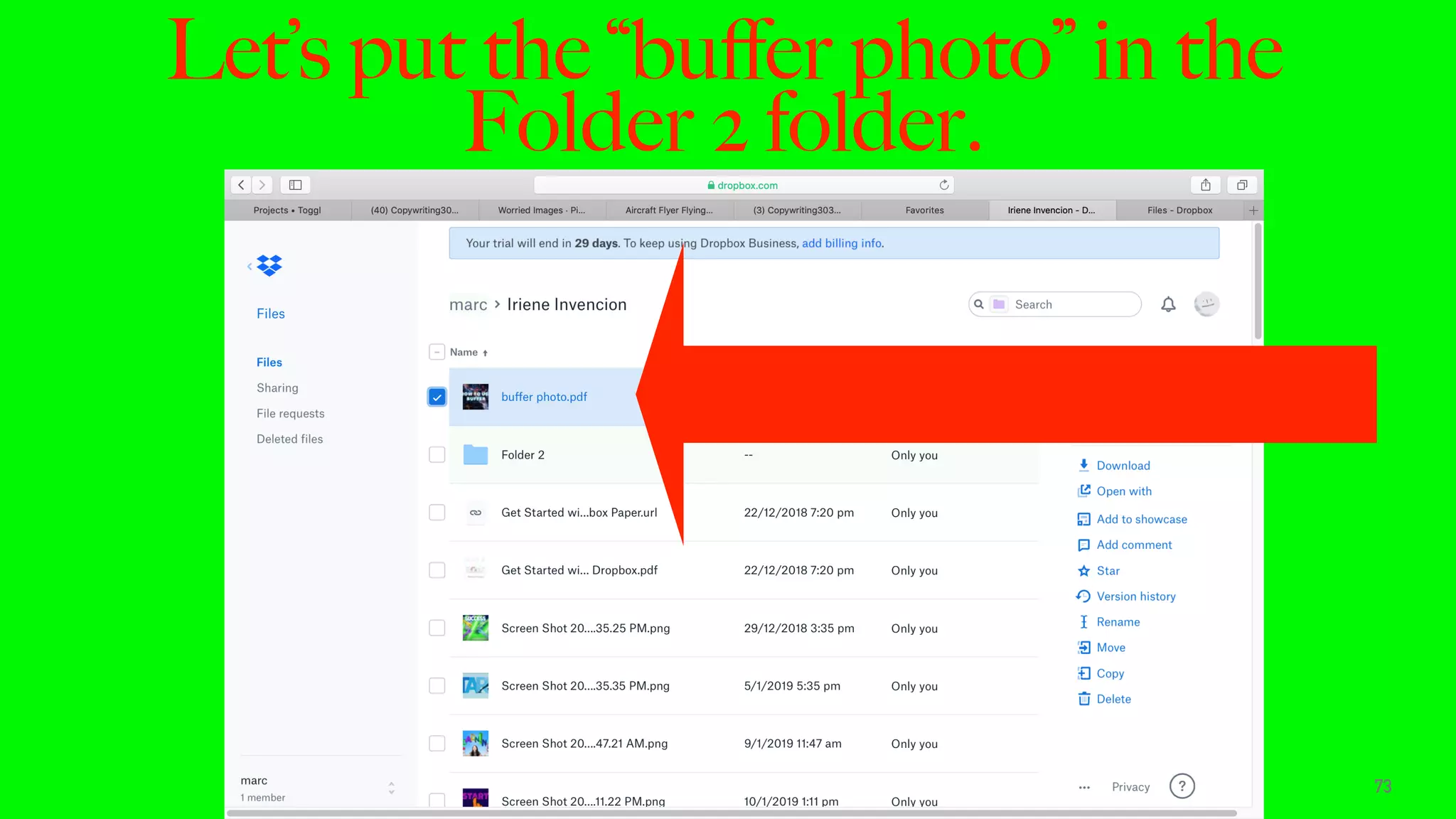
Let’s put the “buffer photo” in the
Folder 2 folder.
73
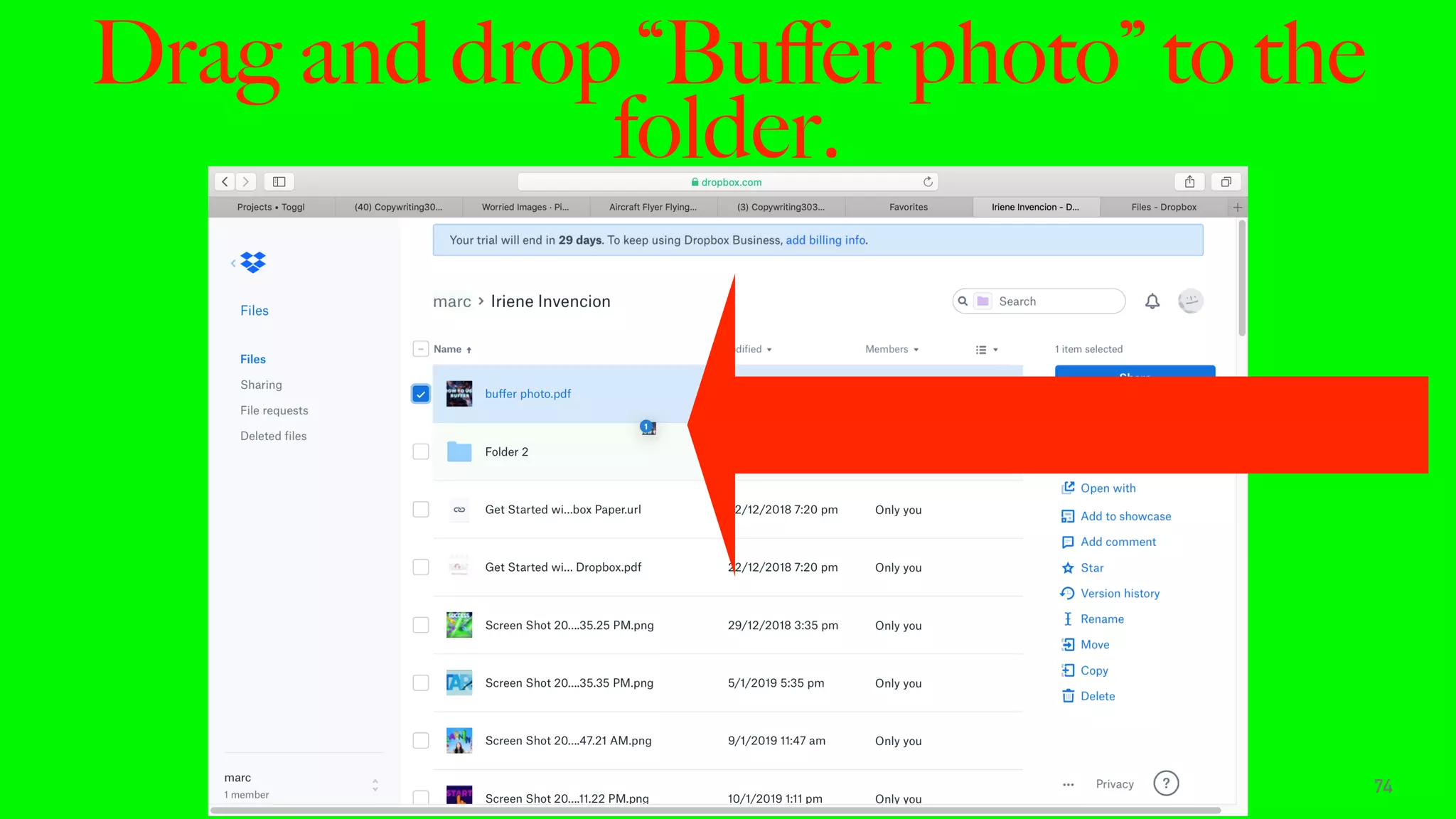
Drag and drop “Buffer photo” to the
folder.
74
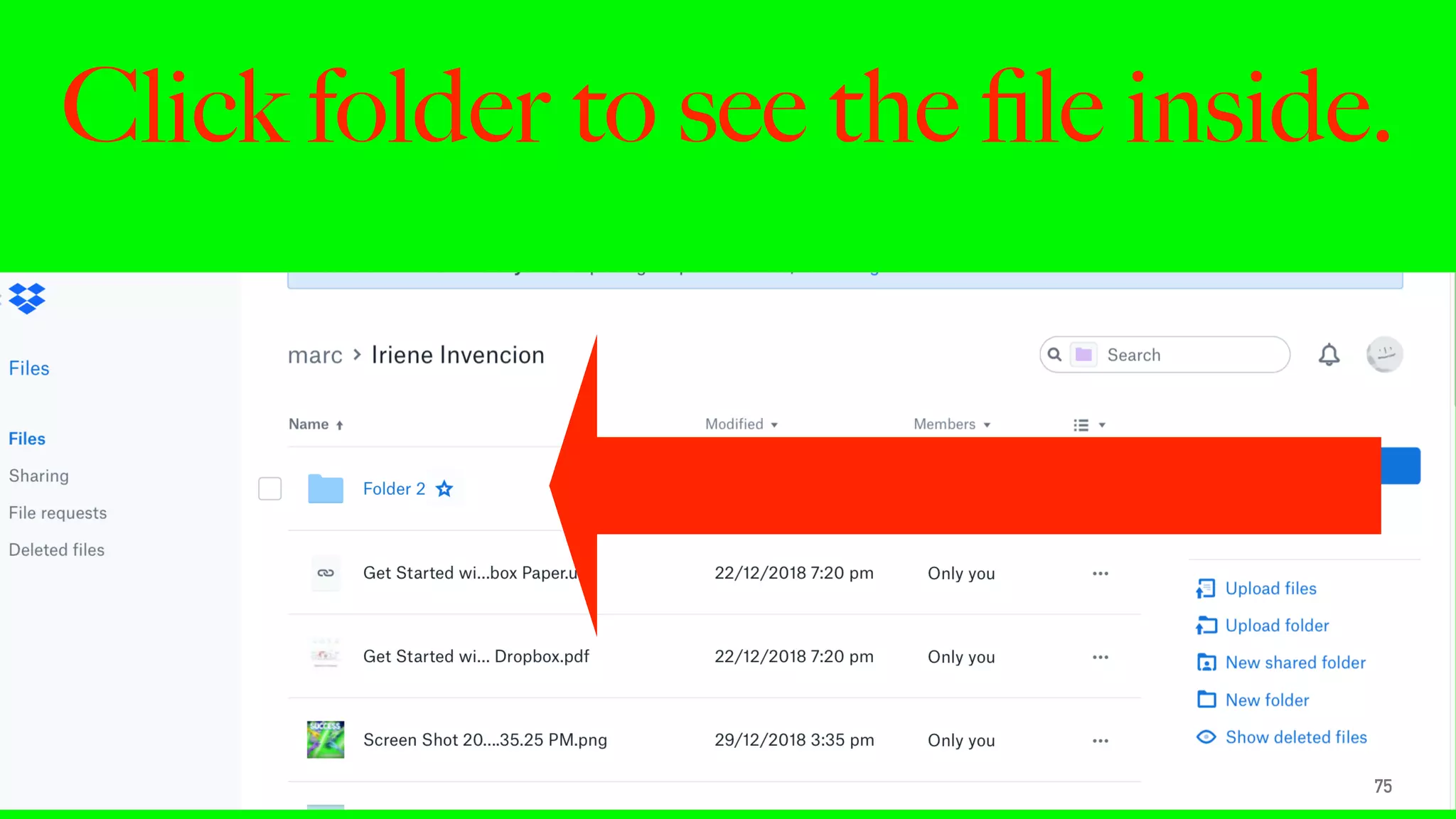
Click folder to see the file inside.
75
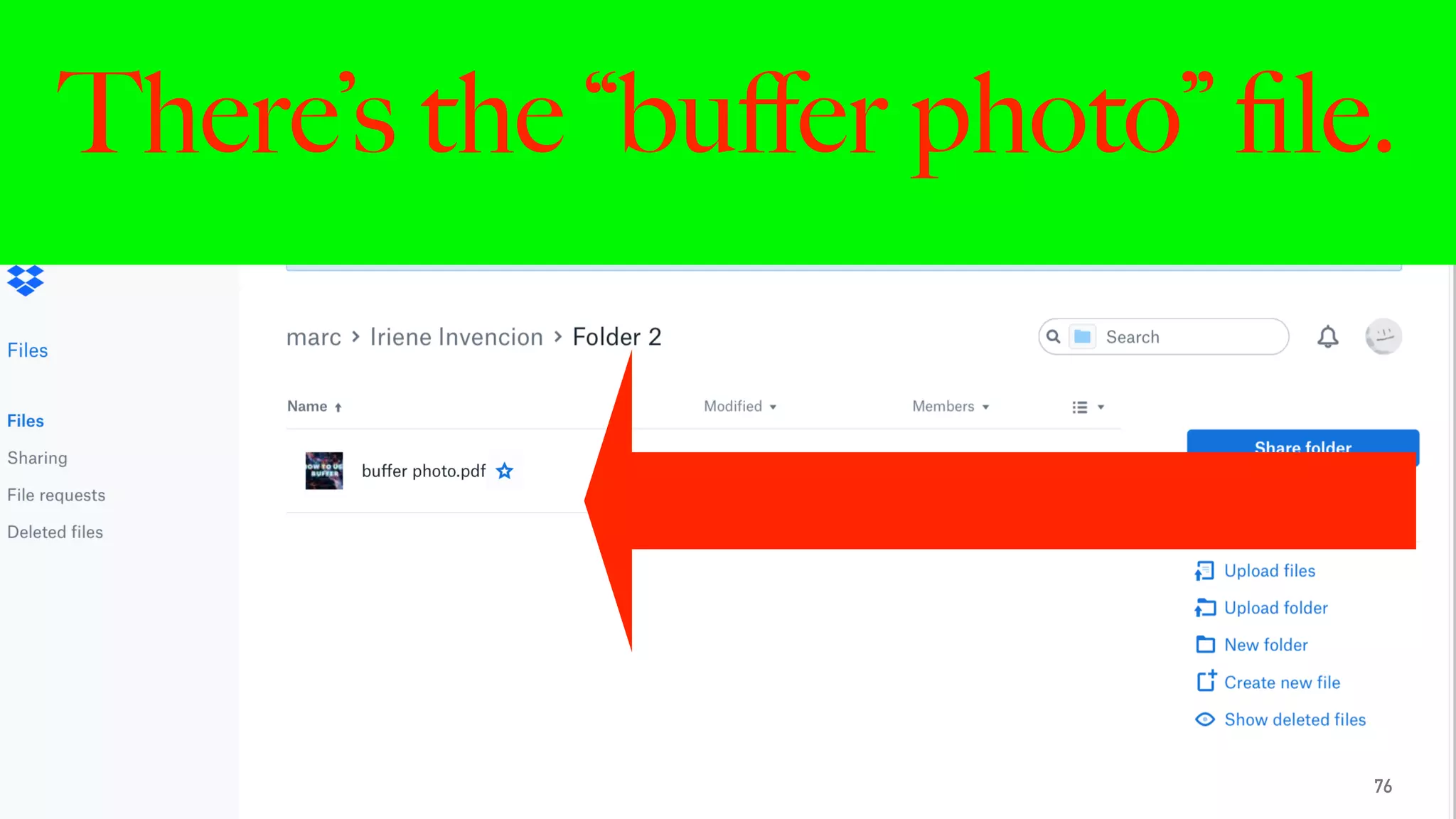
There’s the “buffer photo” file.
76
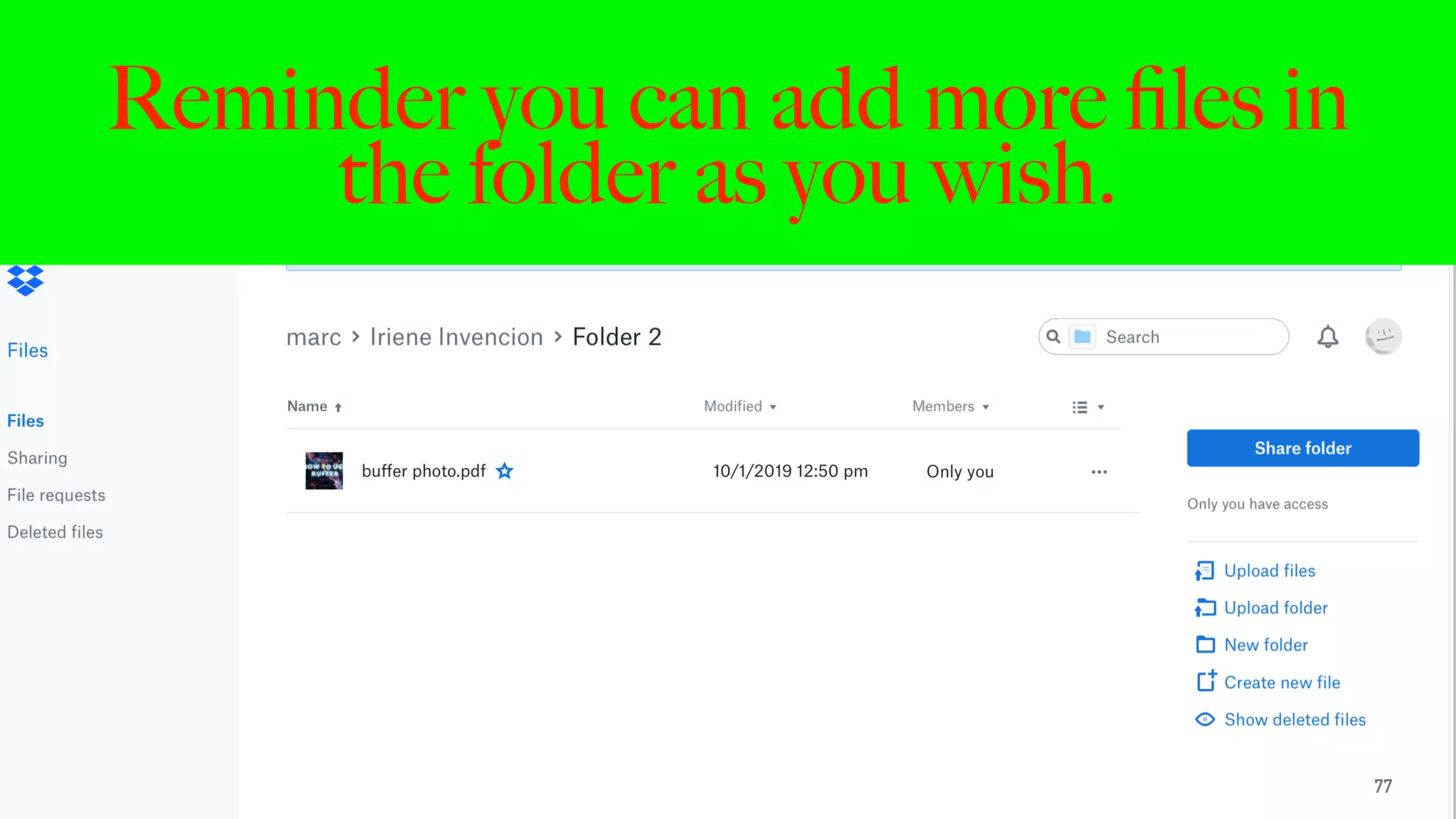
Reminder you can add more files in
the folder as you wish.
77
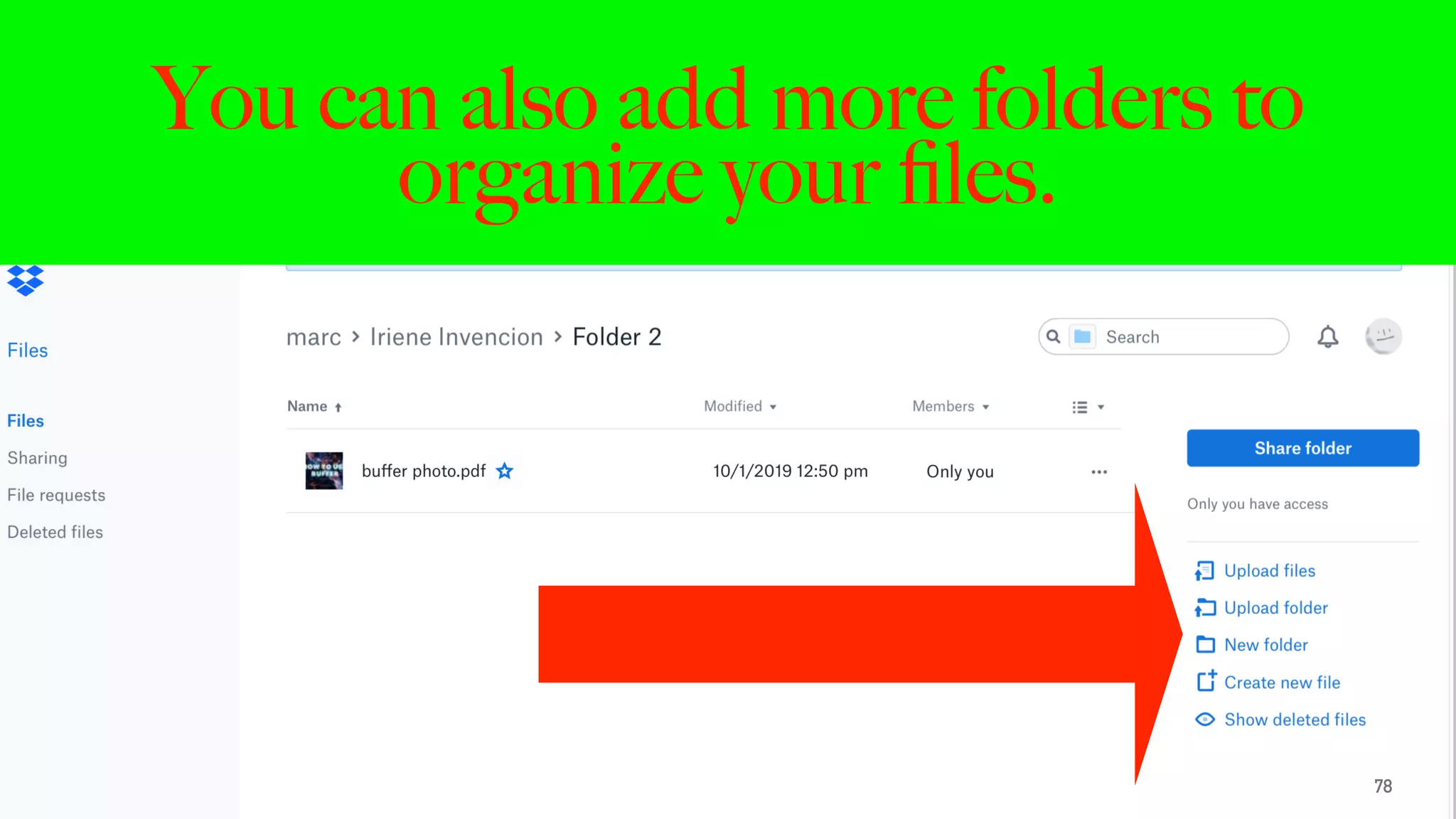
You can also add more folders to
organize your files.
78
HOW TO SHARE A
DROPBOX FOLDER.
79
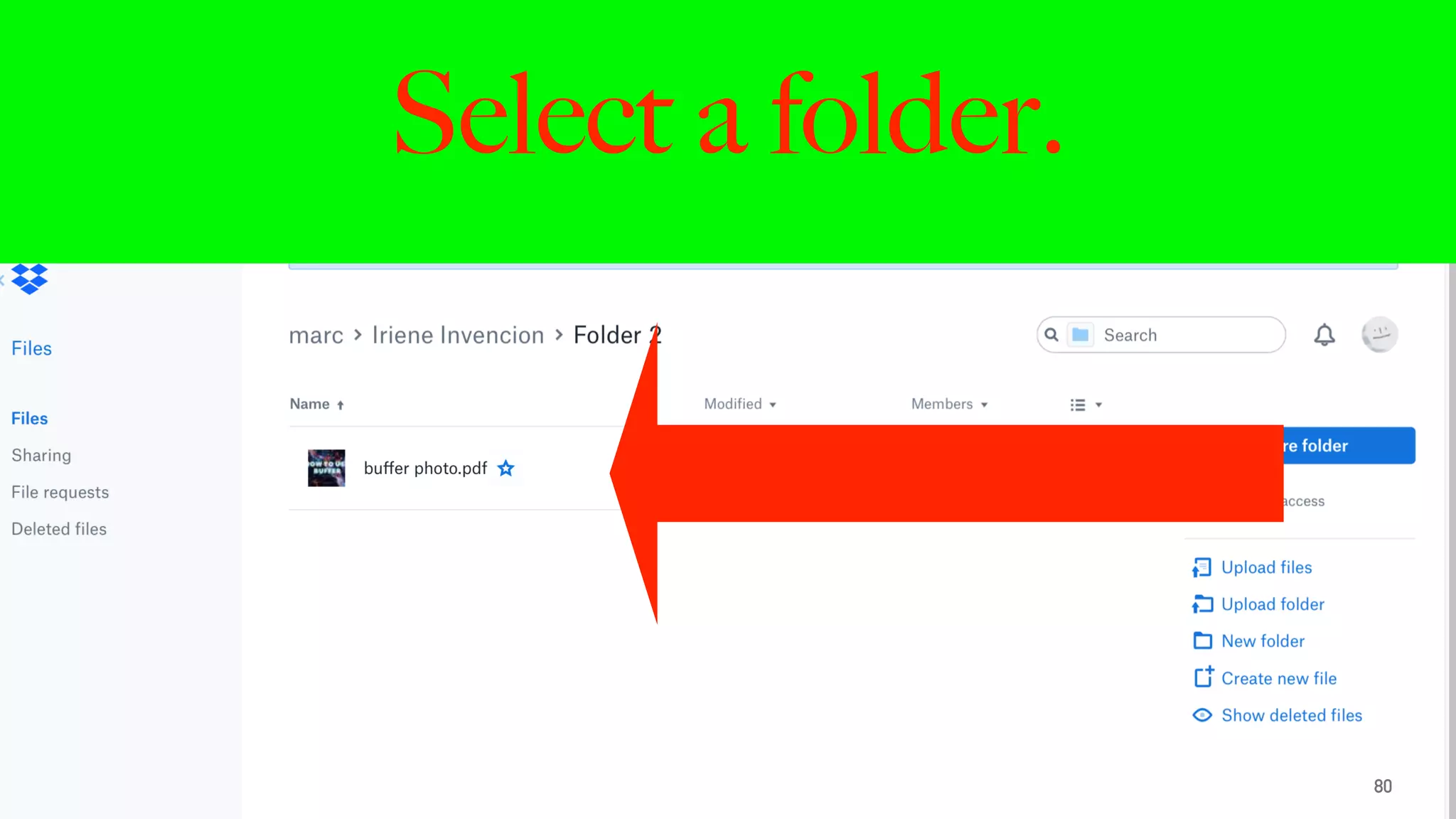
Select a folder.
80
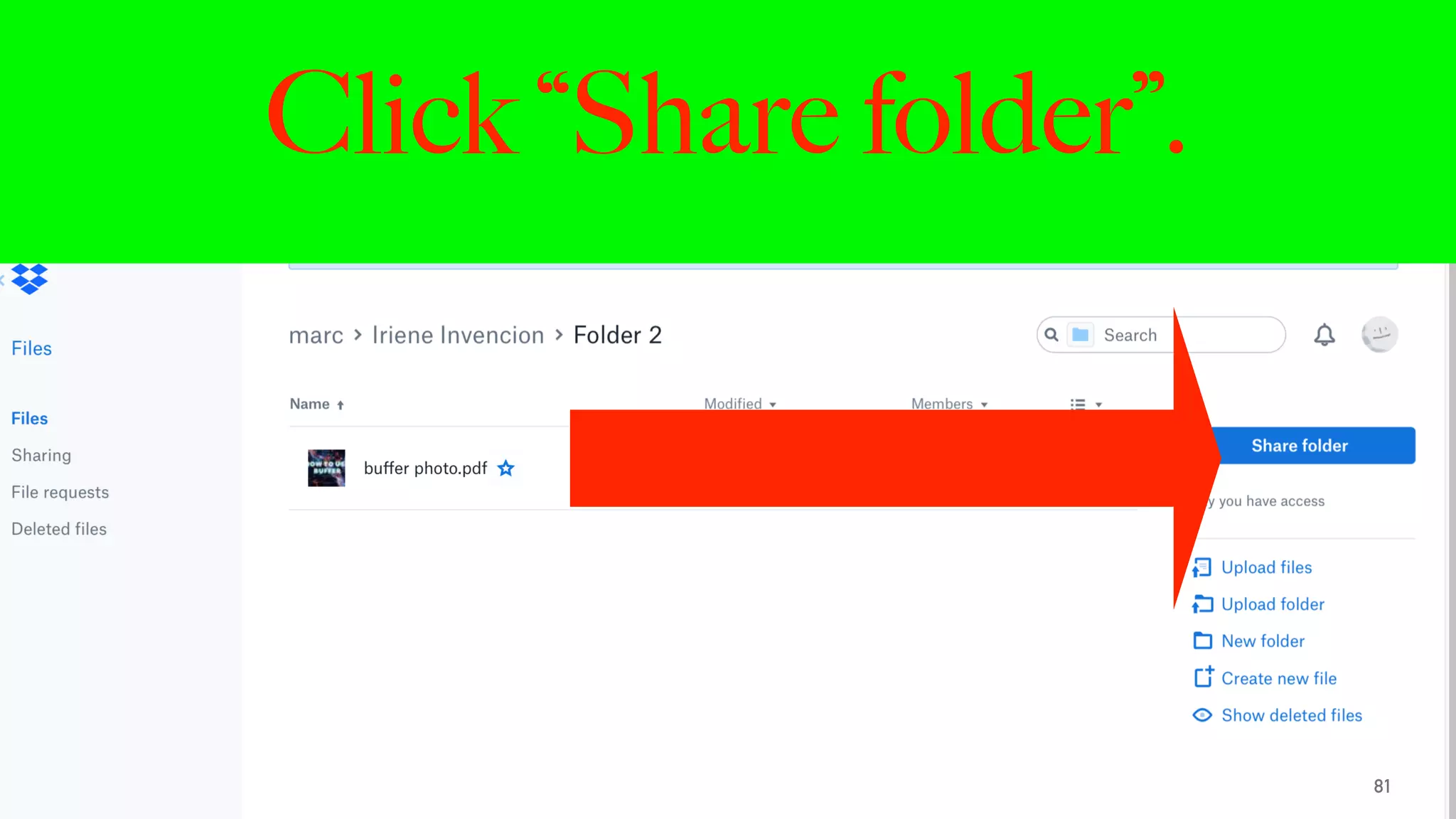
Click “Share folder”.
81
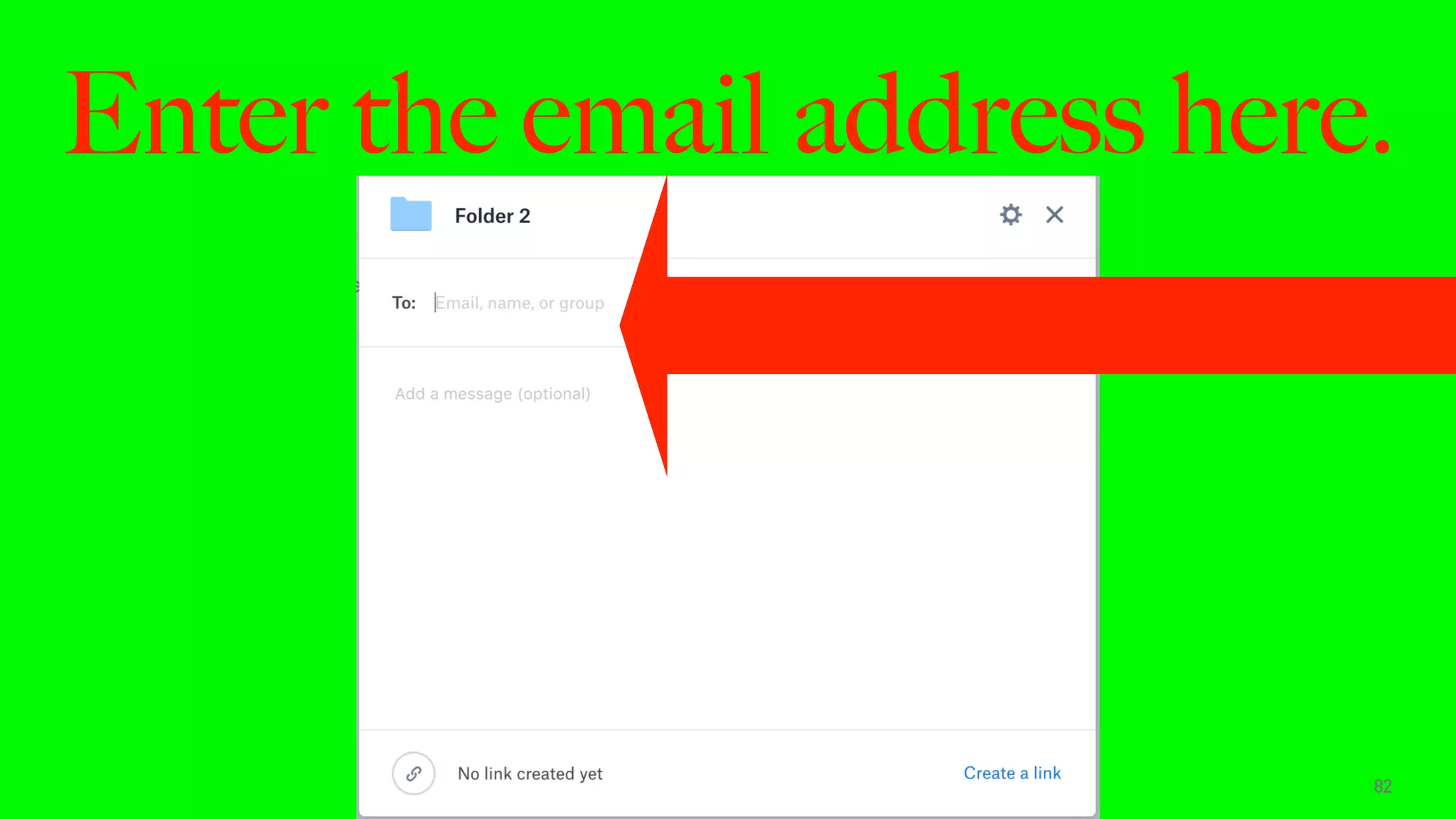
Enter the email address here.
82
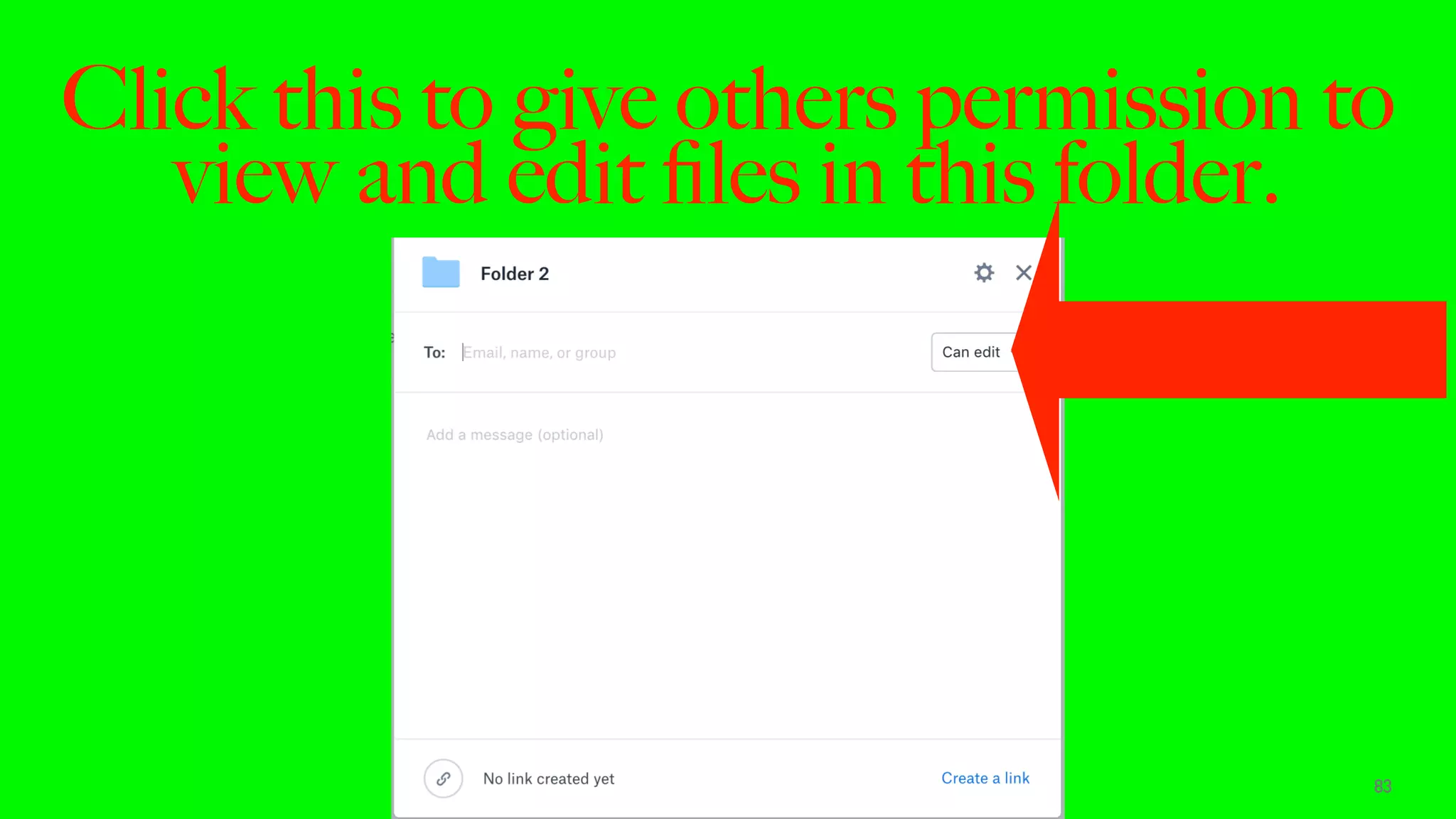
Click this to give others permission to
view and edit files in this folder.
83
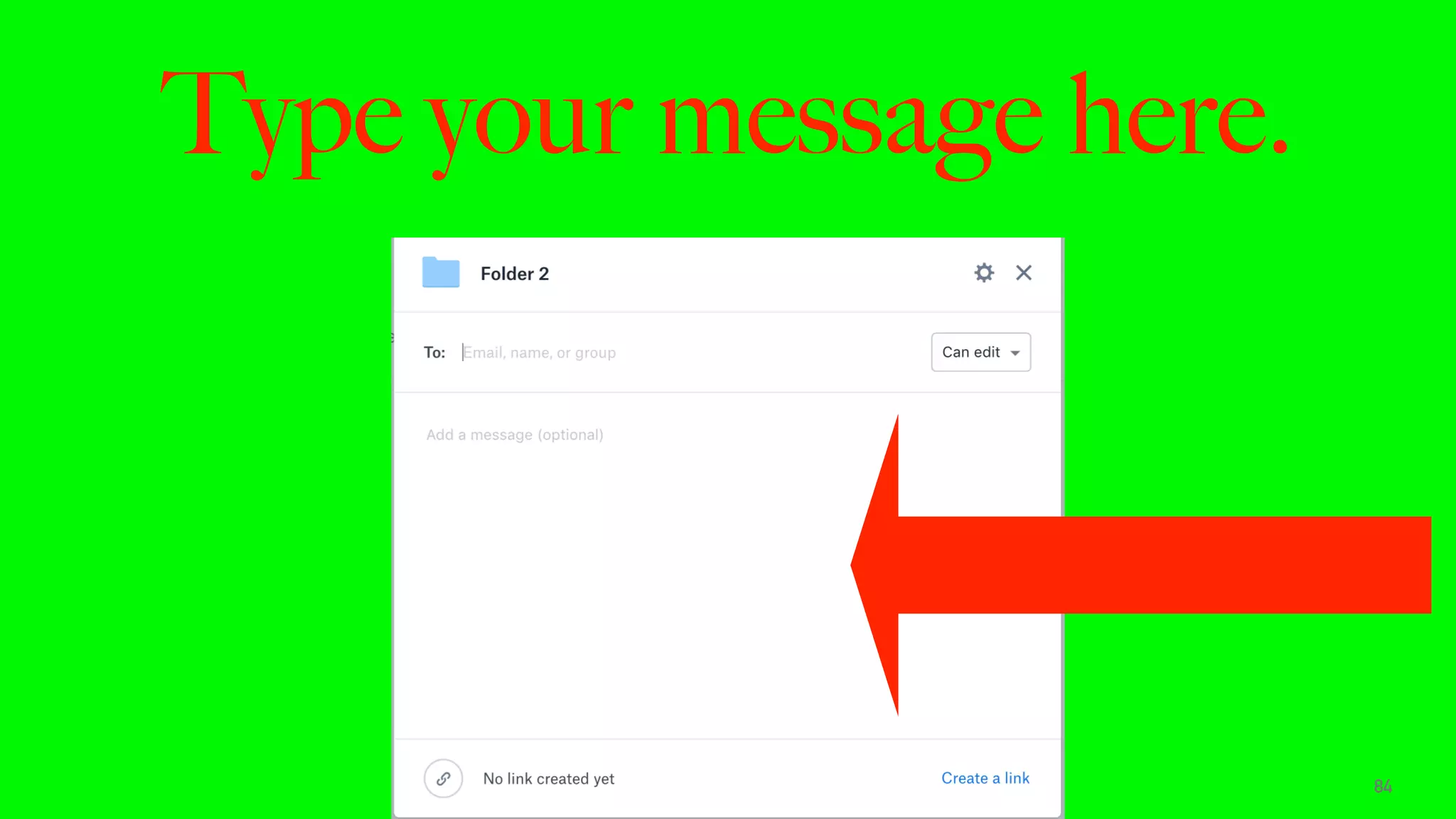
Type your message here.
84
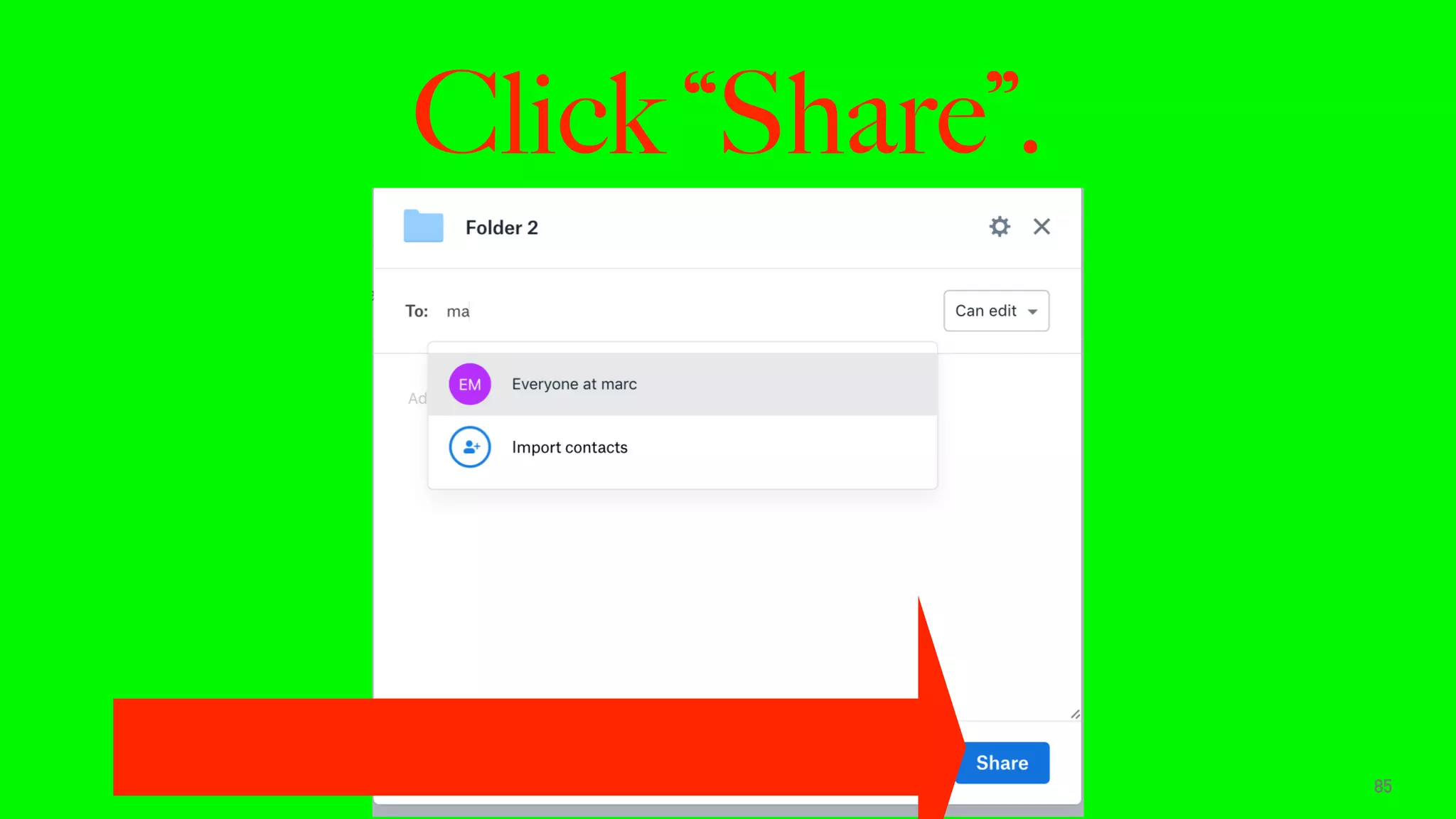
Click “Share”.
85
HOW TO ACCESS, EDIT, AND
DOWNLOAD YOUR FILES USING
DROPBOX.
86
Go to dropbox.com and click enter.
87
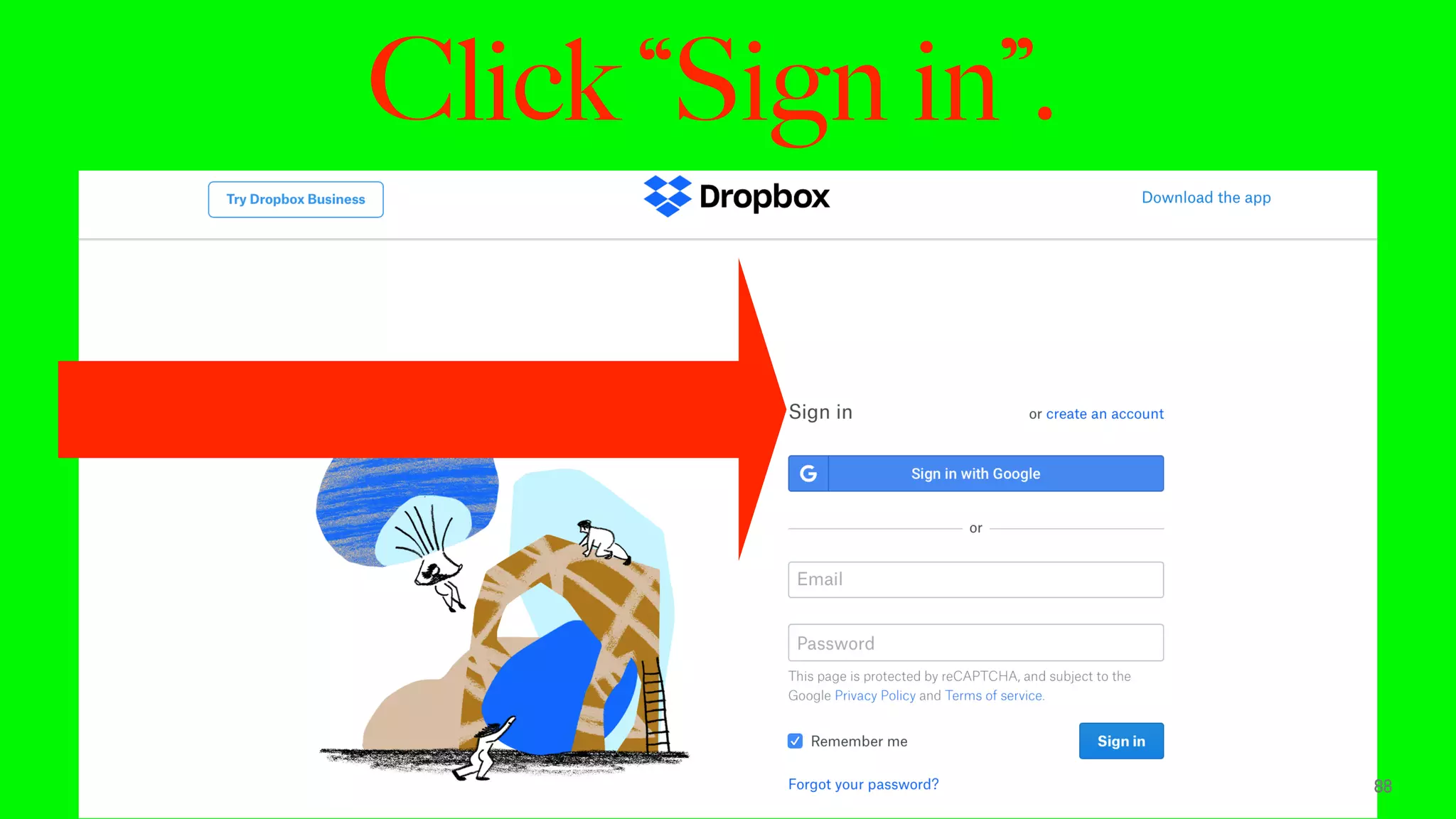
Click “Sign in”.
88
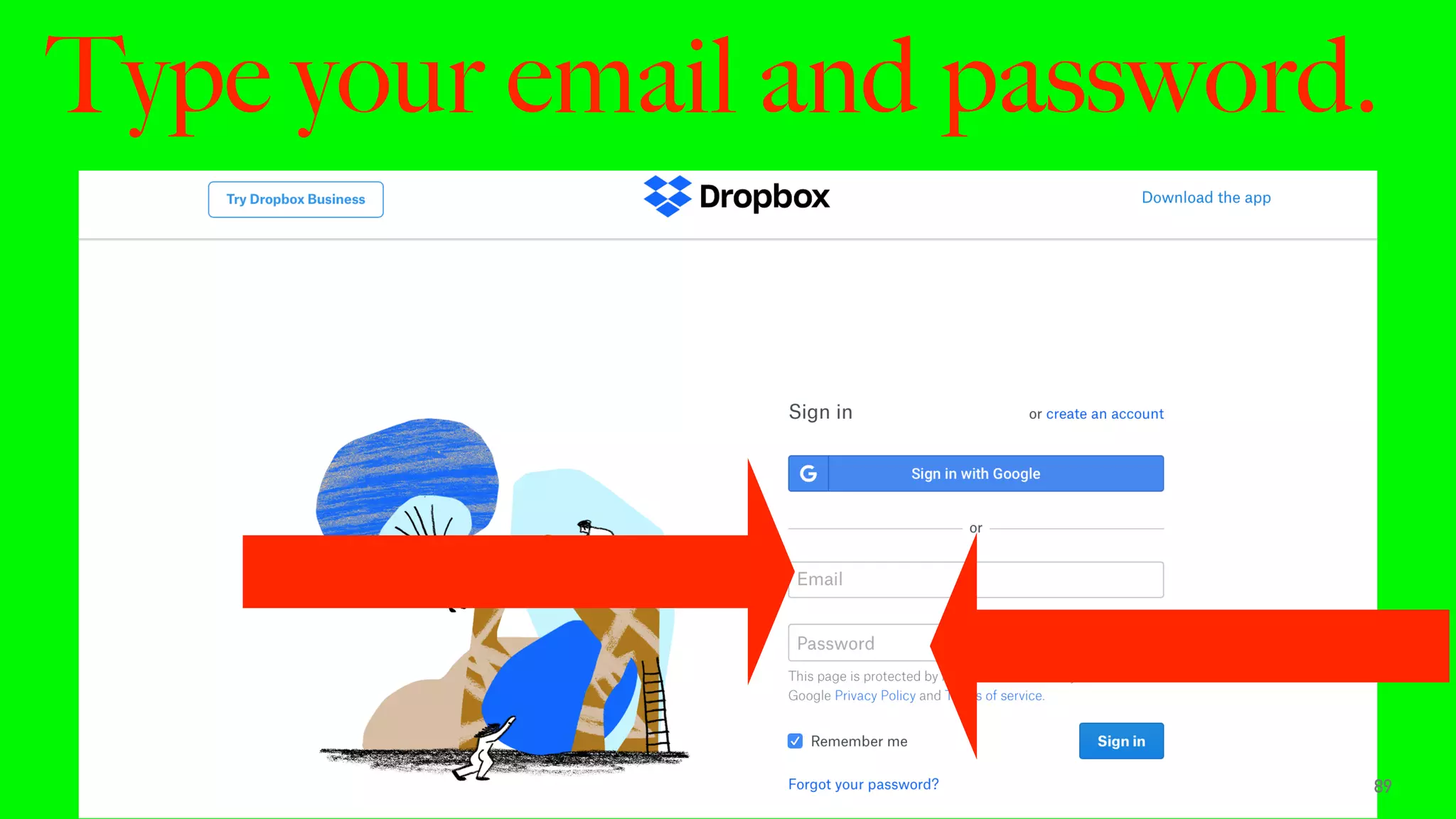
Type your email and password.
89
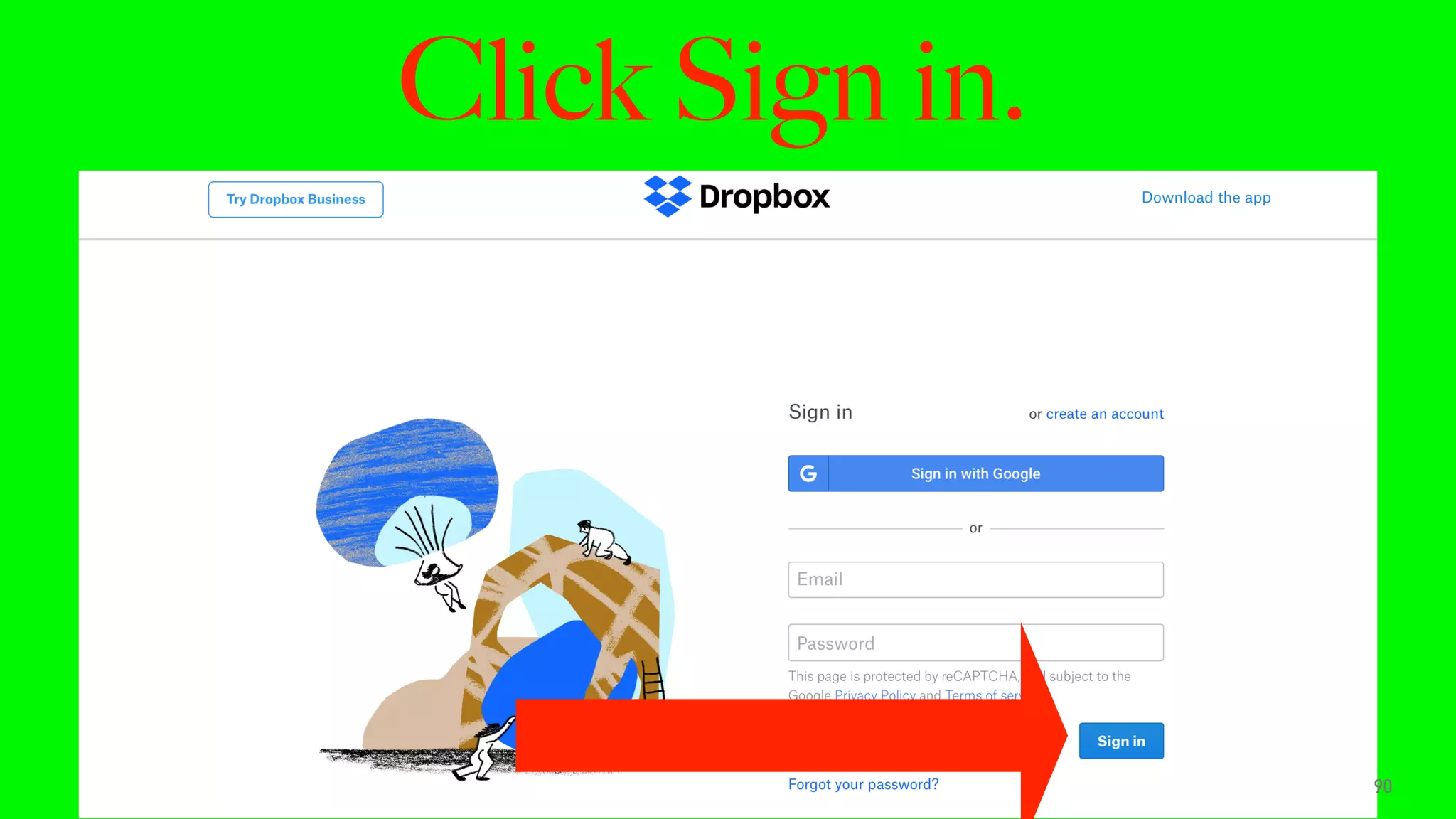
Click Sign in.
90
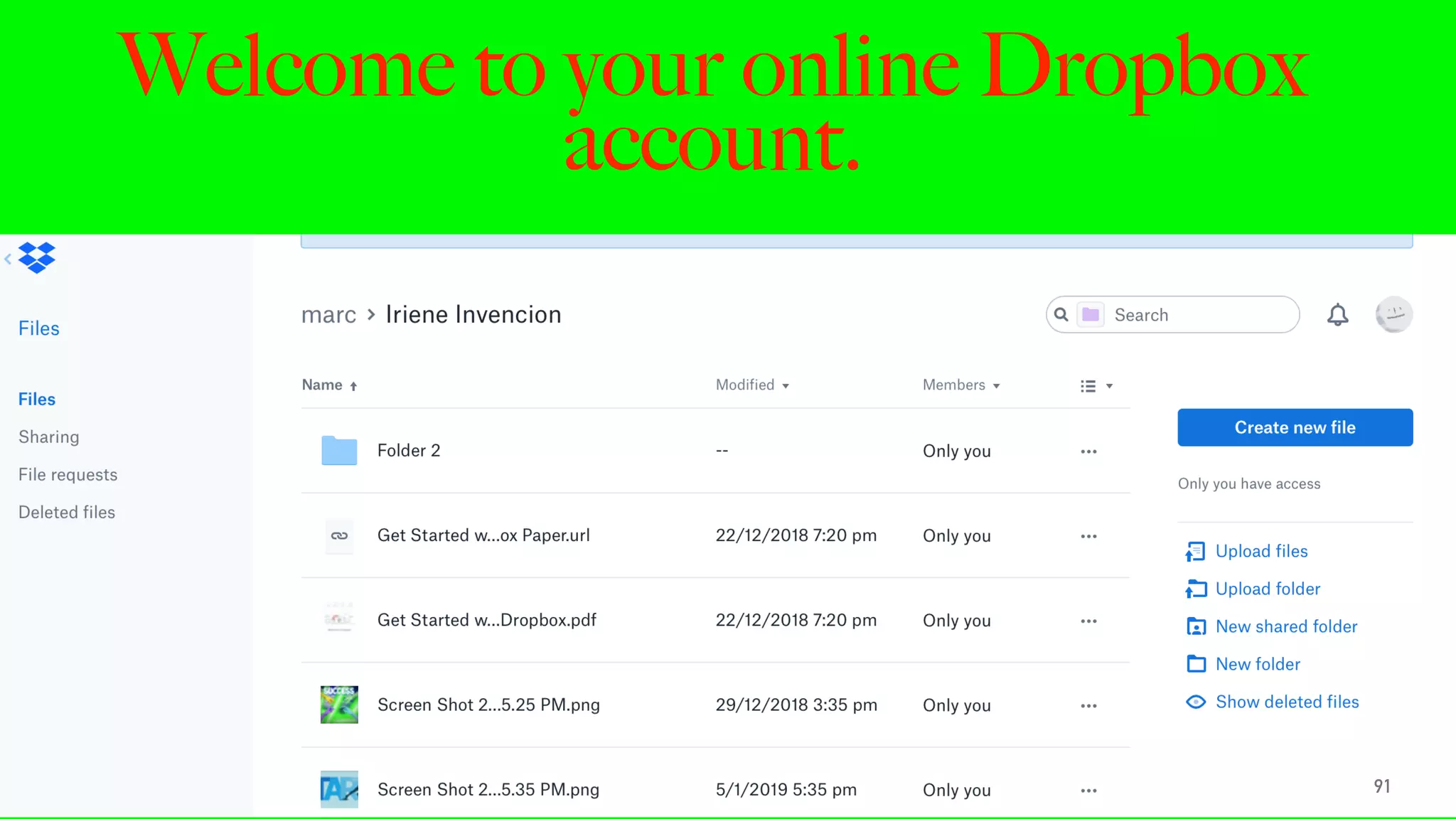
Welcome to your online Dropbox
account.
91
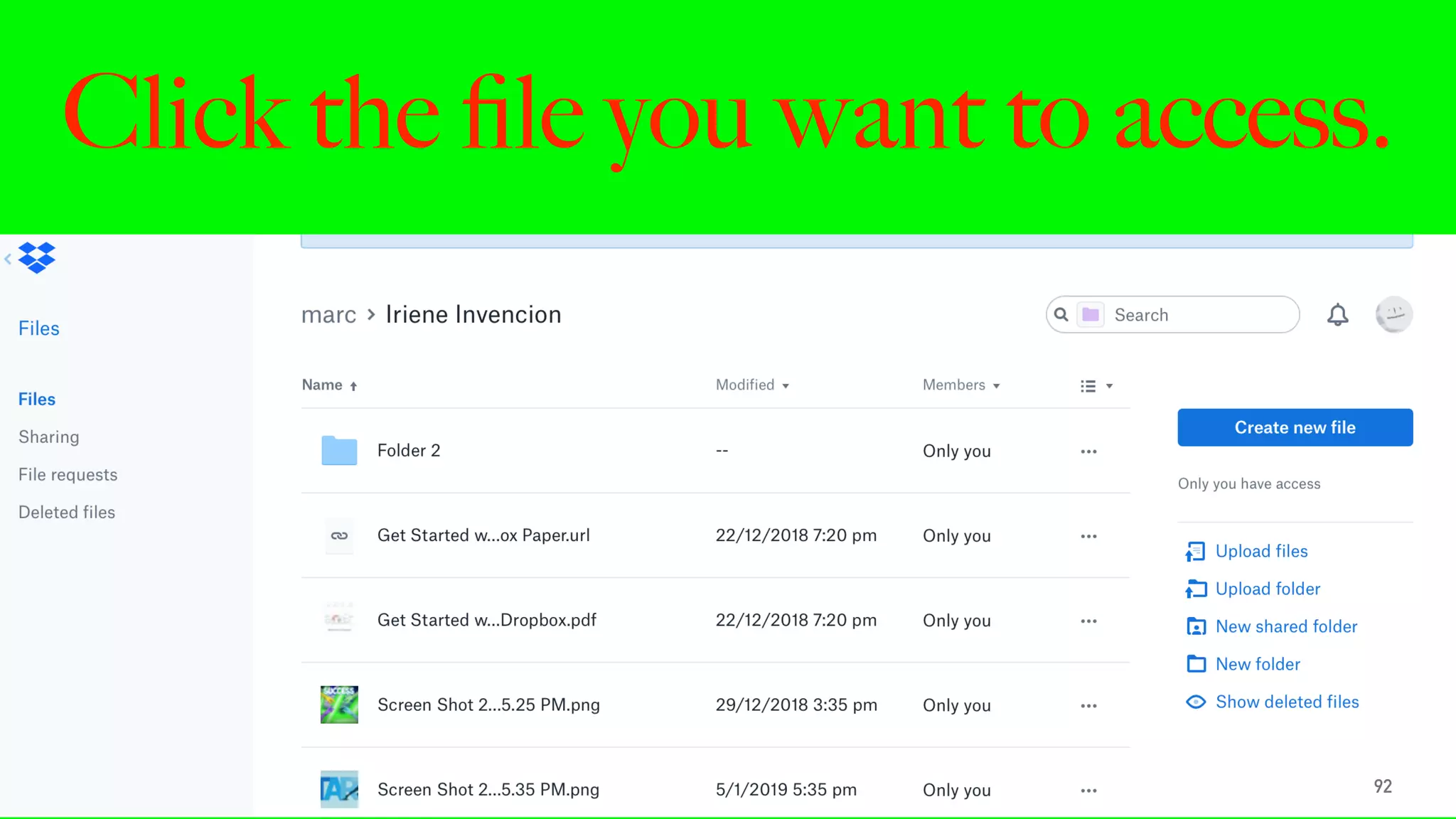
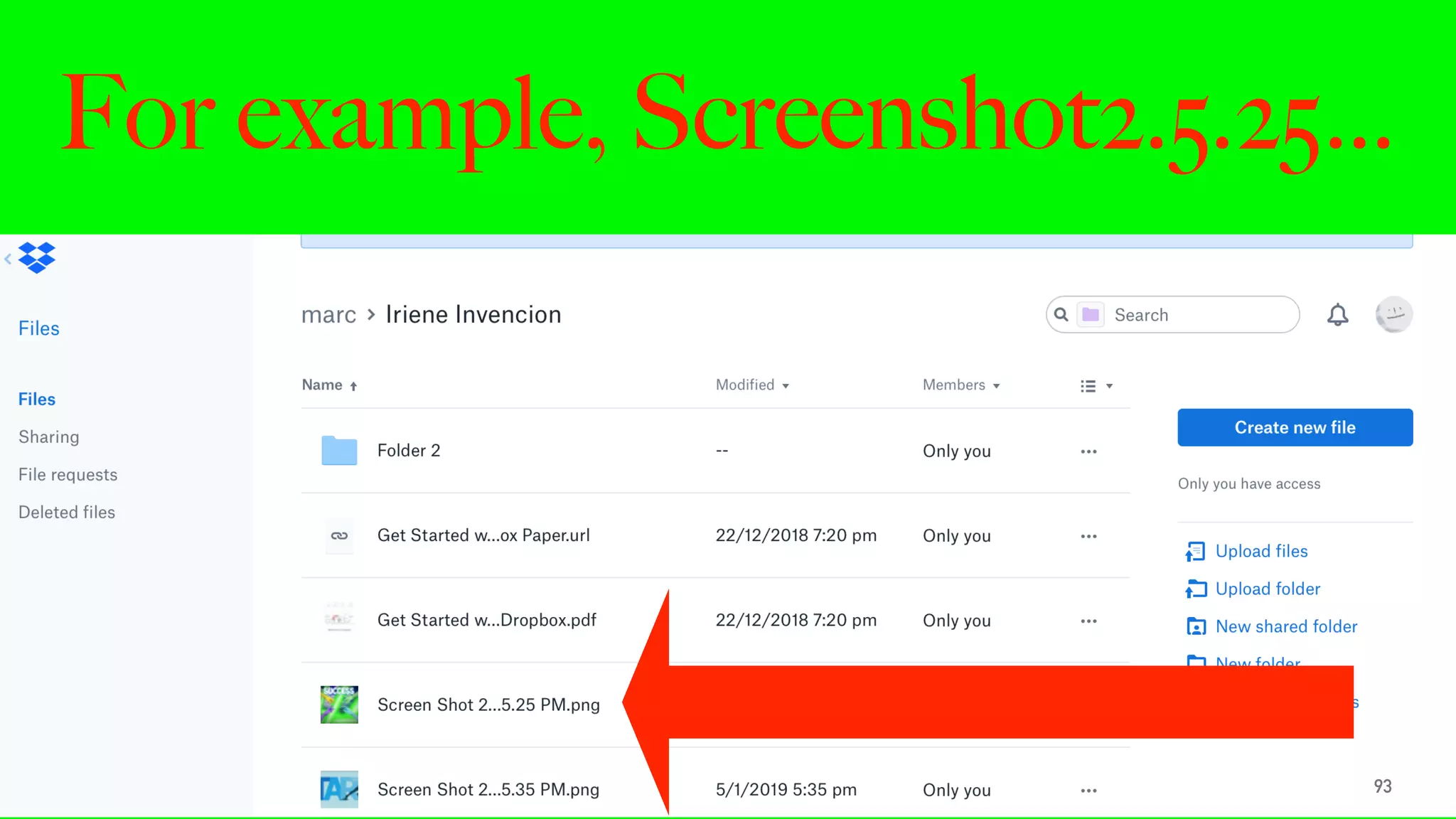
Click the file you want to access.
92
For example, Screenshot2.5.25…
93
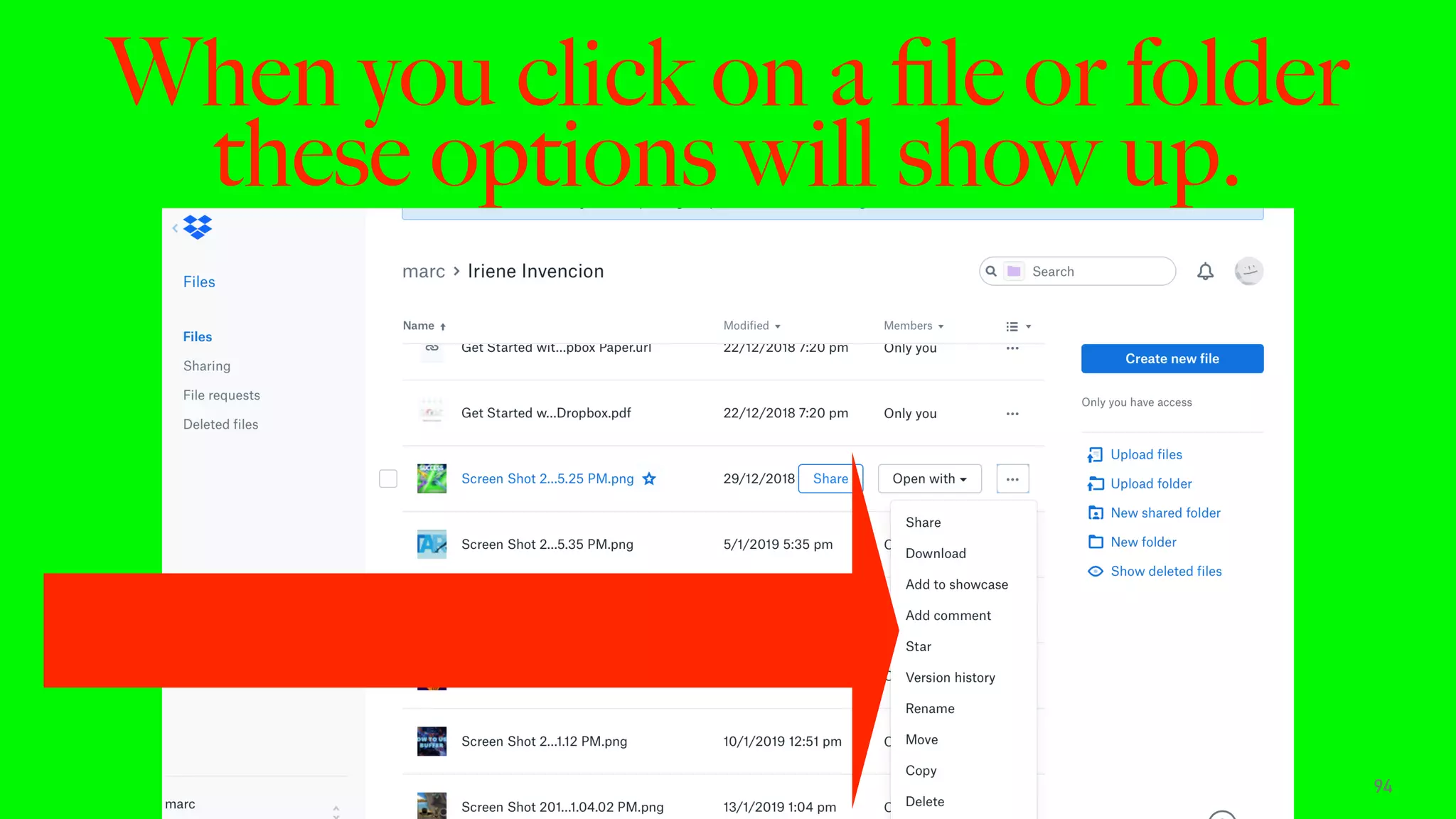
When you click on a file or folder
these options will show up.
94
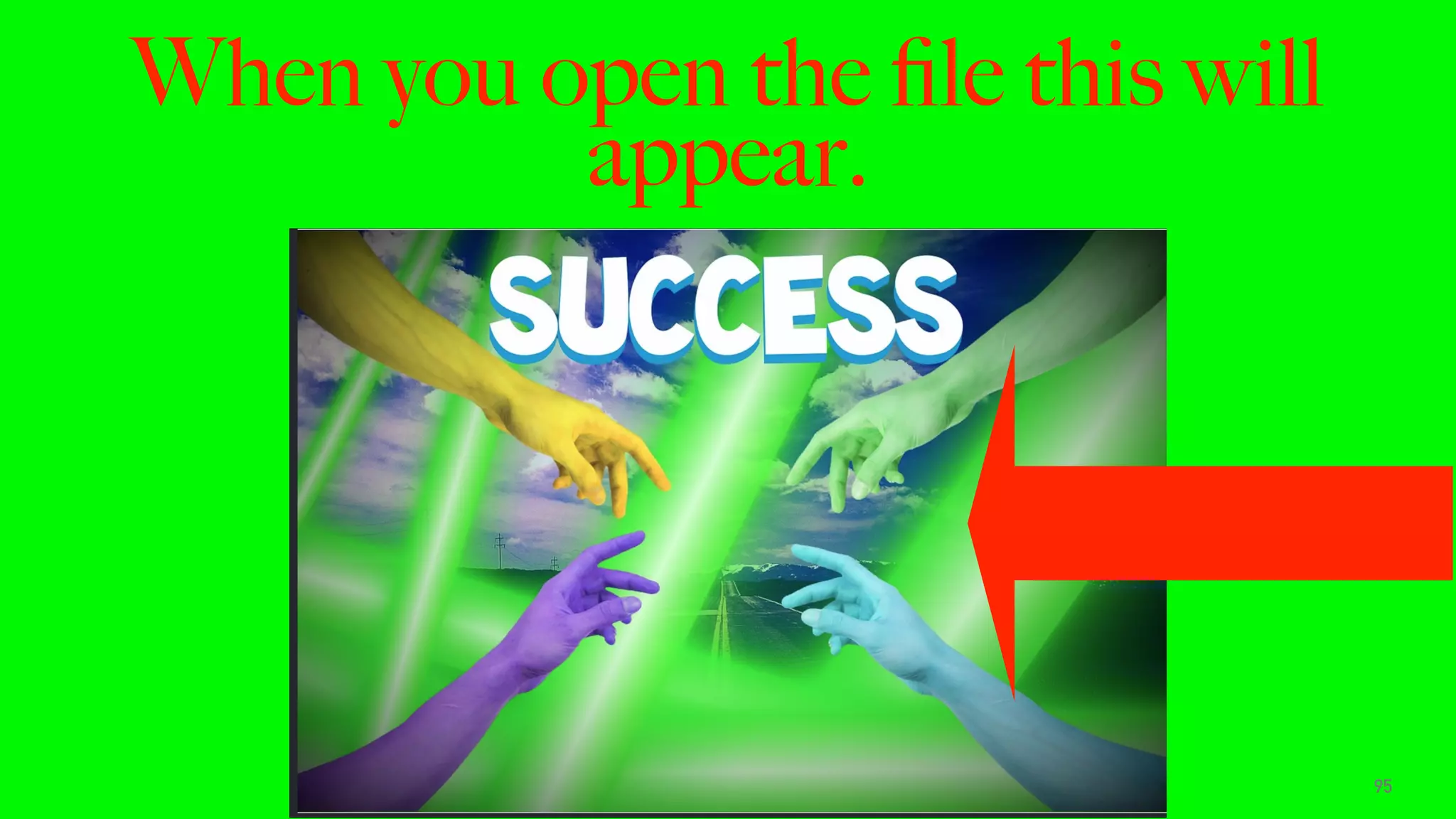
When you open the file this will
appear.
95
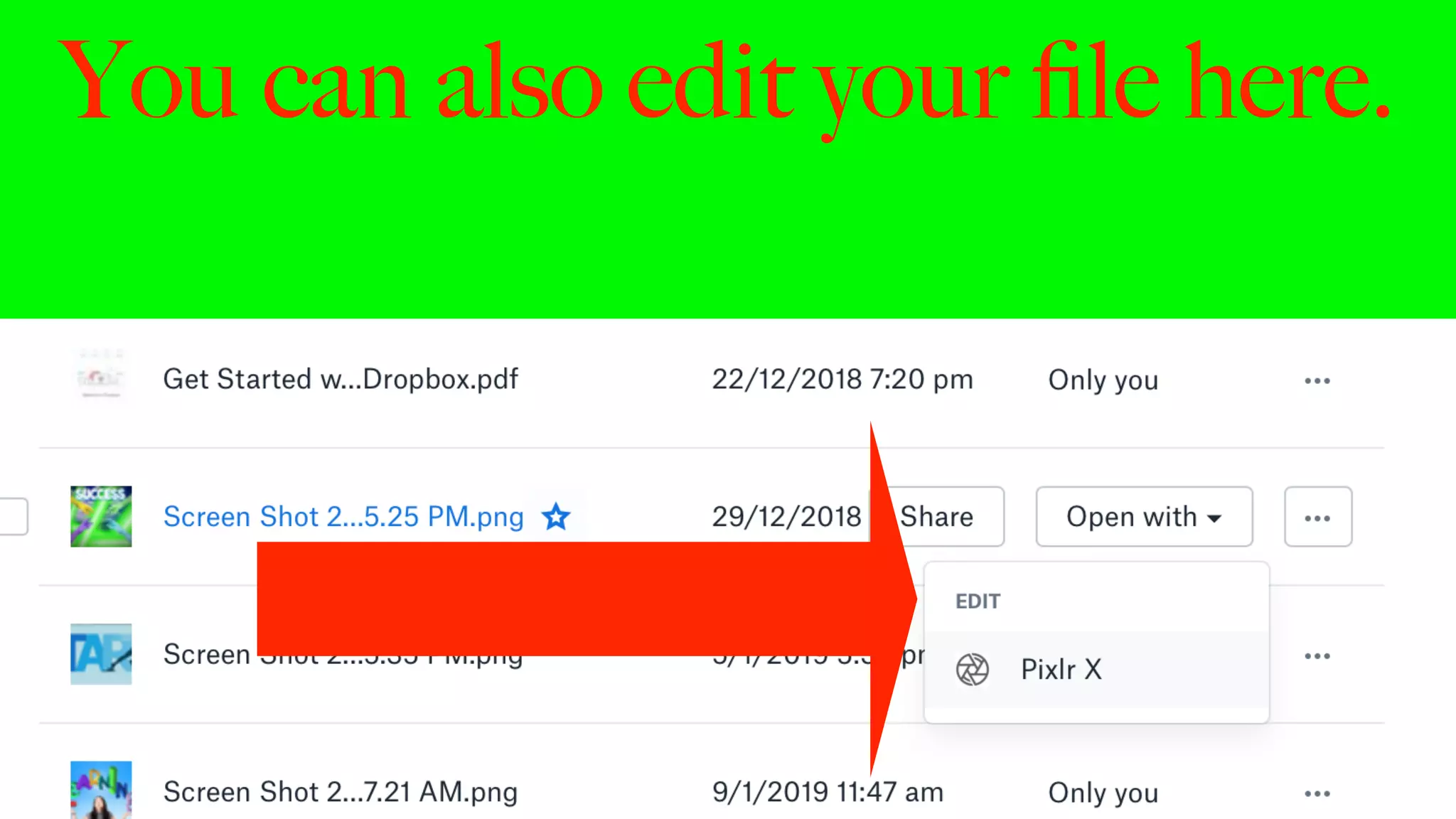
You can also edit your file here.
96
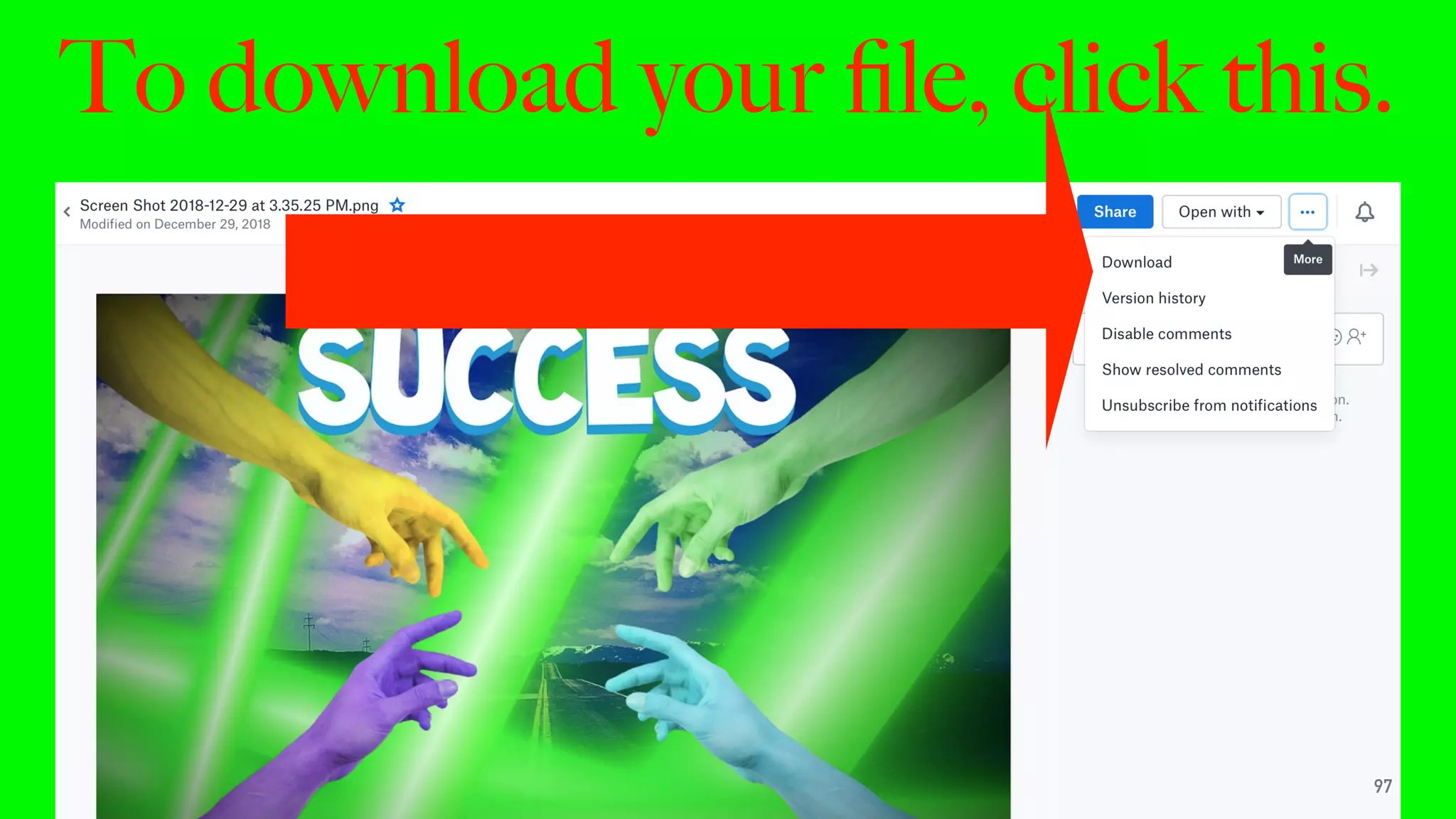
To download your file, click this.
97
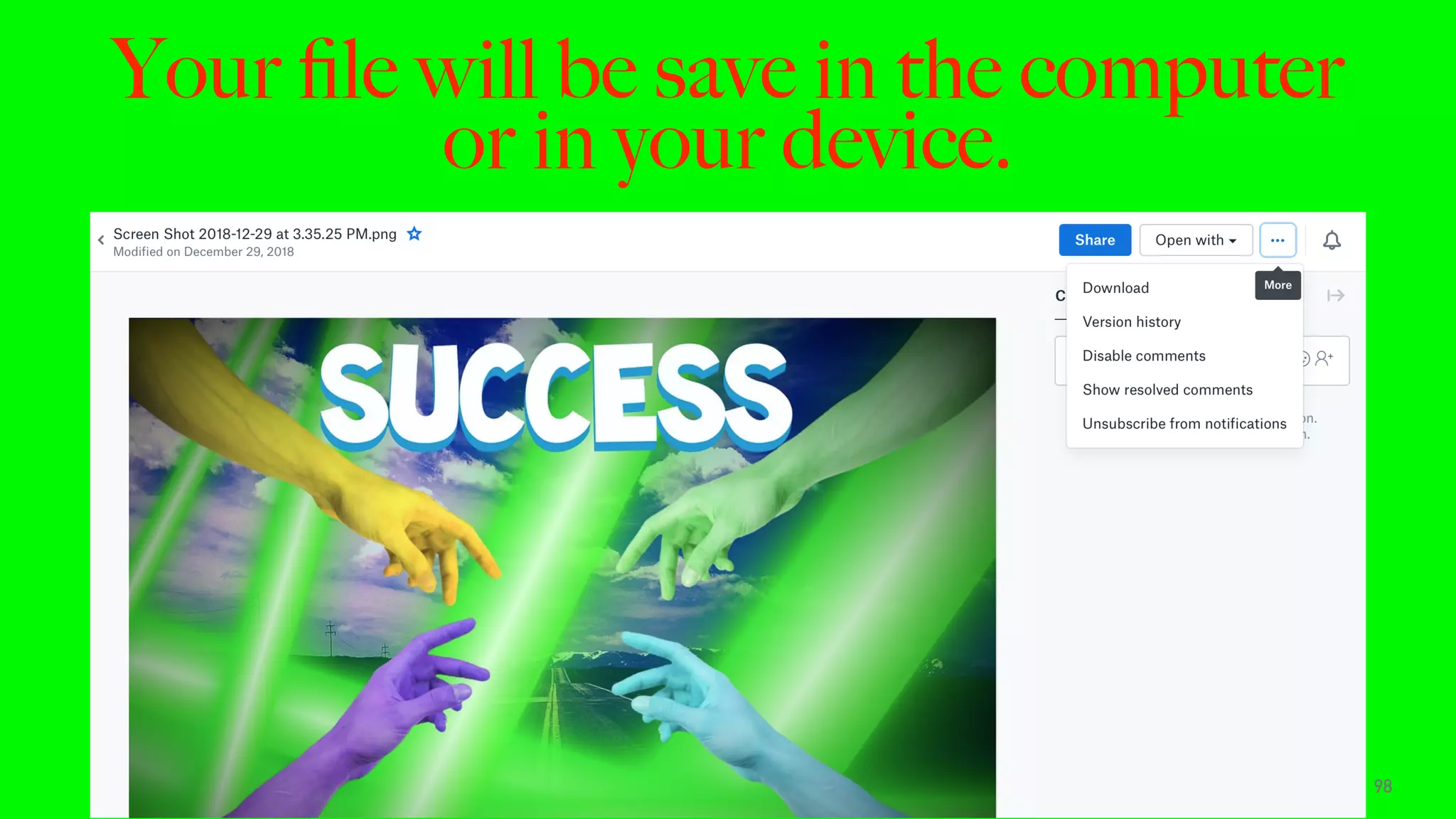
Your file will be save in the computer
or in your device.
98
99
YOUR INTERACTIVE VIRTUAL
PROFESSIONAL
IRIENEINVENT
IRIENEINV@GMAIL.COM
100
101
“IF YOU SET GOALS AND GO
AFTER THEMM WITH ALL THE
DETERMINATION YOU CAN
MUSTER, YOUR GIFTS WILL
TAKE YOU PLACES THAT WILL
AMAZE YOU”.
LES BROWN

How to use dropbox