ABOUT ME
VinothKumar Pitchaimani
 System Engg @ Epro Technology


Vinoth’s Contact:
vinothkumarp@eprocorp.com
Skype: thevino
Agenda
 About DNN
 How DNN works
 DNN Architecture
 DNN Features
 Modules & Skins
 Working with DotNetNuke
About DNN
DotNetNuke
• …is Open Source
• …runs on Microsoft .NET Technology
• ...has advanced web content management features
• …makes web application development efficient
• …is highly extensible
About DNN
Different DNN Versions:
1.   DotNetNuke 3.x – 4.2 supports .Net framework 1.1
2.   DotNetNuke 4.4 – 4.6 supports .Net framework 2.0
3.   DotNetNuke 4.09 – 5.1 supports .Net framework 3.5
4.   DotNetNuke 6.2(current) supports .Net framework 4
DNN Supports:
1.   Web 2.0 Concepts
2.   Ajax
3.   Sliverlight
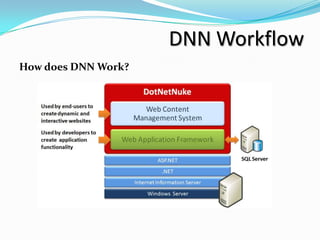
DNN Workflow
How does DNN Work?
DNN Architecture
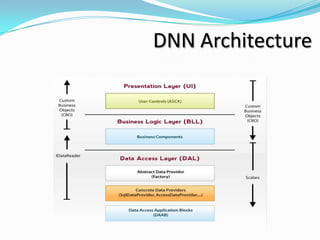
- 3-tier architecture model with a core framework providing
  support to the extensible modular structure.
  • Presentation Layer
  • Business Layer
  • Data Access Layer


- DotNetNuke can be extended using 3rd-party modules and
  providers that add additional functionality.
DNN Architecture
DNN Architecture
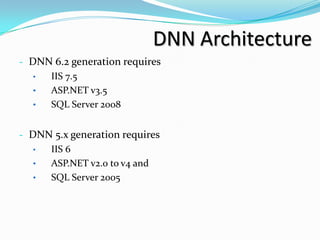
- DNN 6.2 generation requires
   • IIS 7.5
   • ASP.NET v3.5
   • SQL Server 2008


- DNN 5.x generation requires
   • IIS 6
   • ASP.NET v2.0 to v4 and
   • SQL Server 2005
DNN Features
Some of the DNN feature listed below:
• Easy to Install
• Easy to Use
• Powerful
• Feature-rich
• Localized
• Flexible and Extensible
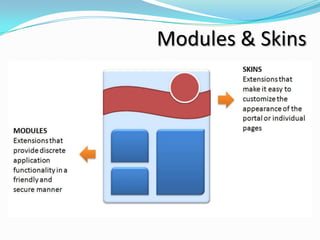
Modules & Skins
Modules
• Written in .NET code (usually C# or VB.NET)
• Third party modules can purchased for out of the box
  solutions
• Core modules are included in DNN for basic functionality
• Modules allows to extend DNN by adding third-party
  modules or through in-house development of custom
  functionality
• Reusability
Modules
• The DNN framework provides basic functionality such as
  security, user administration and content management,
  while modules are used to tailor the web site for specific
  deployment needs
• Automatically installed
Skins
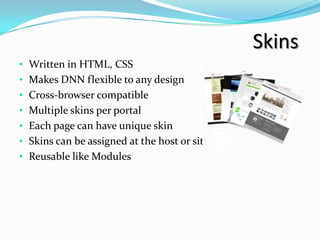
• Written in HTML, CSS
• Makes DNN flexible to any design
• Cross-browser compatible
• Multiple skins per portal
• Each page can have unique skin
• Skins can be assigned at the host or site level
• Reusable like Modules
Skins
• Separation between design and content
• Skins consist of basic HTML files with placeholders
  (tokens) for content, menus and other functionality
• Skins, can be automatically installed through the
  administration pages
Working with DNN
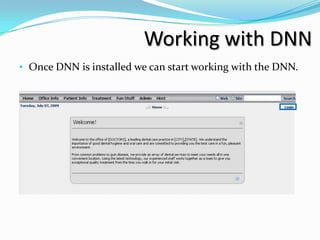
• Once DNN is installed we can start working with the DNN.
Working with DNN
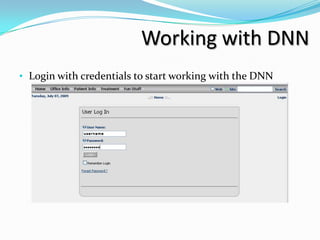
• Login with credentials to start working with the DNN
Working with DNN
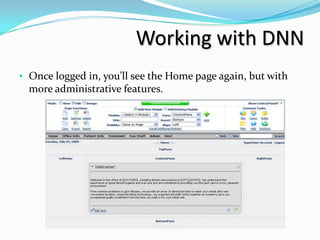
• Once logged in, you’ll see the Home page again, but with
  more administrative features.
Working with DNN
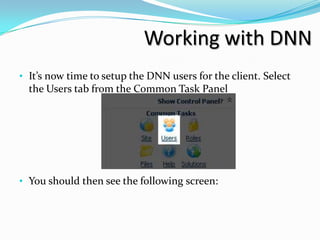
• It’s now time to setup the DNN users for the client. Select
  the Users tab from the Common Task Panel


• You should then see the following screen:
Working with DNN
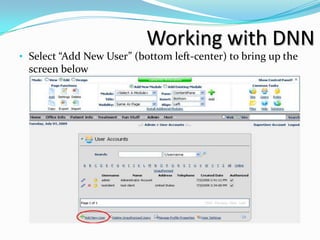
• Select “Add New User” (bottom left-center) to bring up the
  screen below
Working with DNN
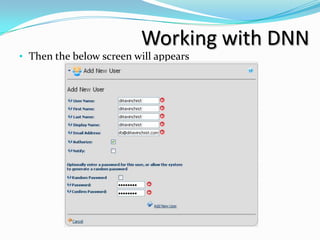
• Then the below screen will appears
Working with DNN
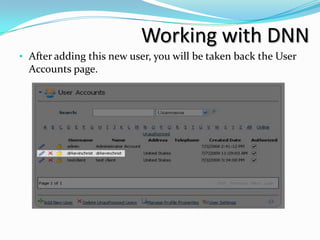
• After adding this new user, you will be taken back the User
  Accounts page.
Working with DNN
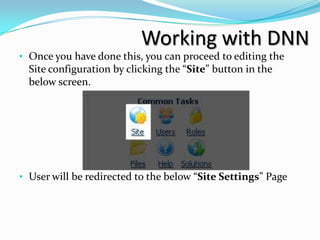
• Once you have done this, you can proceed to editing the
  Site configuration by clicking the “Site” button in the
  below screen.


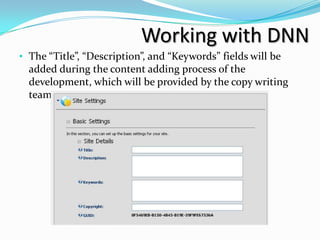
• User will be redirected to the below “Site Settings” Page
Working with DNN
• The “Title”, “Description”, and “Keywords” fields will be
  added during the content adding process of the
  development, which will be provided by the copy writing
  team.
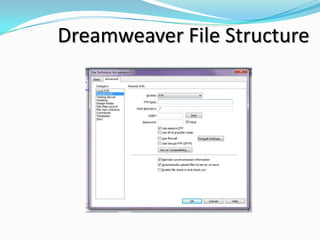
Dreamweaver File Structure
Local File Structure
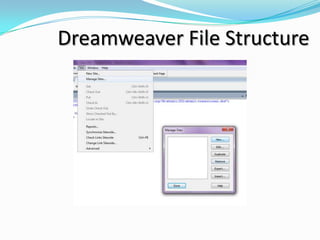
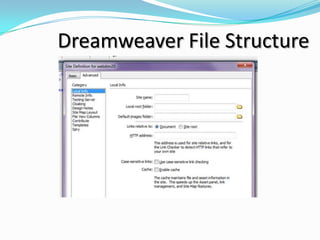
• We now will setup our local machine to reflect the file
  structure from the server that we need.
• In Dreamweaver, we will connect to the server through
  our remote view and then find the folder named after our
  domain name.
Dreamweaver File Structure
Working with DNN
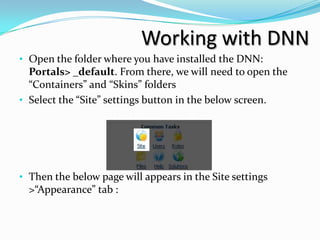
• Open the folder where you have installed the DNN:
  Portals> _default. From there, we will need to open the
  “Containers” and “Skins” folders
• Select the “Site” settings button in the below screen.


• Then the below page will appears in the Site settings
  >“Appearance” tab :
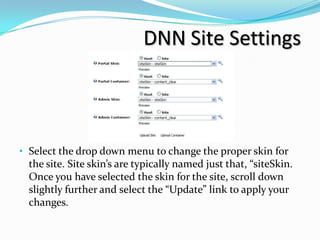
DNN Site Settings


• Select the drop down menu to change the proper skin for
  the site. Site skin’s are typically named just that, “siteSkin.
  Once you have selected the skin for the site, scroll down
  slightly further and select the “Update” link to apply your
  changes.
Changing Our Skin
• Now we can see the skin applied to the site and can thus
  pull the Cascading Stylesheet (CSS) to represent the
  information .
• Now we can start changing the width of the structural
  elements (such as the shell, header, or content divs), the
  font-family being used throughout the site, the position of
  some elements such as content and any inner-content,
  navigation, and others.
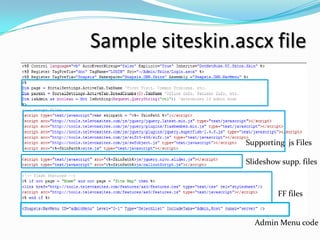
• The siteSkin.ascx file may have to be modified depending
  on the screenshot and your chosen template to begin with.
• Now our page will look like this
Sample siteskin.ascx file


                  Supporting js Files

                  Slideshow supp. files


                           FF files


                    Admin Menu code
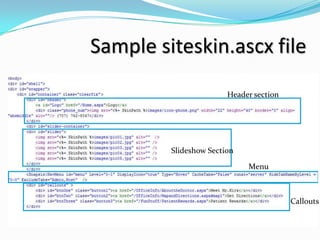
Sample siteskin.ascx file
                        Header section


         Slideshow Section

                             Menu


                                         Callouts
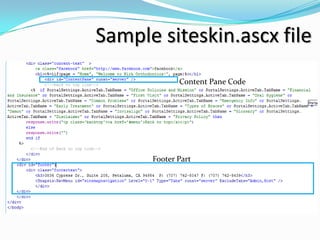
Sample siteskin.ascx file
             Content Pane Code


      Footer Part
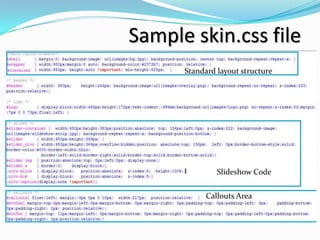
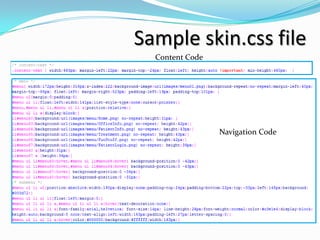
Sample skin.css file
      Standard layout structure


               Slideshow Code


            Callouts Area
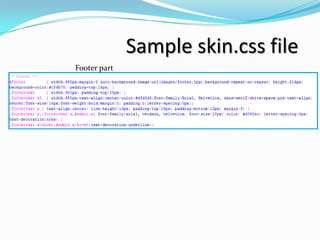
Sample skin.css file
  Content Code


                 Navigation Code
Sample skin.css file
Footer part
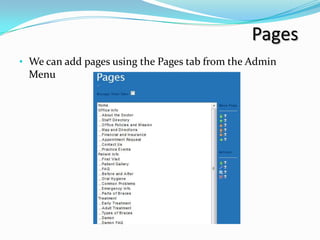
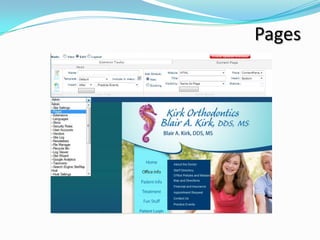
Pages
Pages
• We can add pages using the Pages tab from the Admin
 Menu
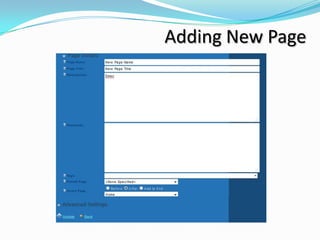
Adding New Page
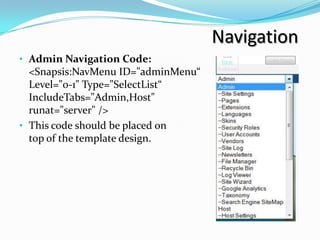
Navigation
• Admin Navigation Code:
  <Snapsis:NavMenu ID="adminMenu“
  Level="0-1" Type="SelectList“
  IncludeTabs="Admin,Host"
  runat="server" />
• This code should be placed on
  top of the template design.
Navigation
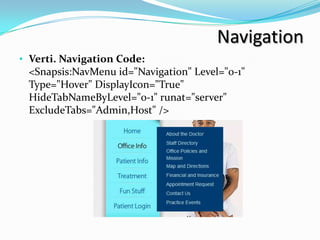
• Verti. Navigation Code:
 <Snapsis:NavMenu id="Navigation" Level="0-1"
 Type="Hover" DisplayIcon="True"
 HideTabNameByLevel="0-1" runat="server"
 ExcludeTabs="Admin,Host" />
Navigation
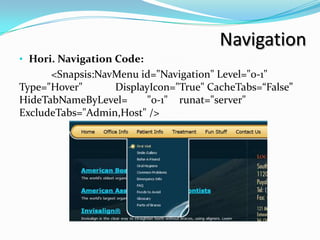
• Hori. Navigation Code:
      <Snapsis:NavMenu id="Navigation" Level="0-1"
Type="Hover"      DisplayIcon="True" CacheTabs=“False”
HideTabNameByLevel=      "0-1" runat="server"
ExcludeTabs="Admin,Host" />
Content Pane
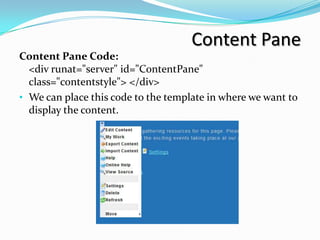
Content Pane Code:
  <div runat="server" id="ContentPane"
  class="contentstyle"> </div>
• We can place this code to the template in where we want to
  display the content.
Module Demo

    How to Install
     a Module
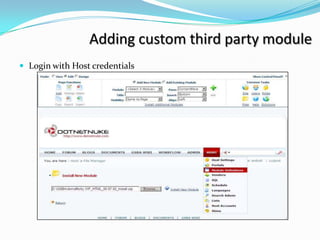
Adding custom third party module
 Login with Host credentials
Adding custom third party module
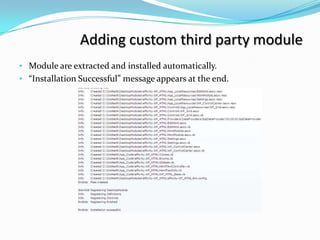
• Module are extracted and installed automatically.
• “Installation Successful” message appears at the end.
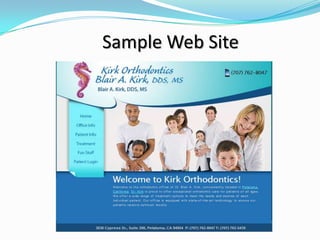
Sample Web Site

Dnn for beginners

  • 2.
    ABOUT ME VinothKumar Pitchaimani System Engg @ Epro Technology Vinoth’s Contact: vinothkumarp@eprocorp.com Skype: thevino
  • 3.
    Agenda  About DNN How DNN works  DNN Architecture  DNN Features  Modules & Skins  Working with DotNetNuke
  • 4.
    About DNN DotNetNuke • …isOpen Source • …runs on Microsoft .NET Technology • ...has advanced web content management features • …makes web application development efficient • …is highly extensible
  • 5.
    About DNN Different DNNVersions: 1. DotNetNuke 3.x – 4.2 supports .Net framework 1.1 2. DotNetNuke 4.4 – 4.6 supports .Net framework 2.0 3. DotNetNuke 4.09 – 5.1 supports .Net framework 3.5 4. DotNetNuke 6.2(current) supports .Net framework 4 DNN Supports: 1. Web 2.0 Concepts 2. Ajax 3. Sliverlight
  • 6.
  • 7.
    DNN Architecture - 3-tierarchitecture model with a core framework providing support to the extensible modular structure. • Presentation Layer • Business Layer • Data Access Layer - DotNetNuke can be extended using 3rd-party modules and providers that add additional functionality.
  • 8.
  • 9.
    DNN Architecture - DNN6.2 generation requires • IIS 7.5 • ASP.NET v3.5 • SQL Server 2008 - DNN 5.x generation requires • IIS 6 • ASP.NET v2.0 to v4 and • SQL Server 2005
  • 10.
    DNN Features Some ofthe DNN feature listed below: • Easy to Install • Easy to Use • Powerful • Feature-rich • Localized • Flexible and Extensible
  • 11.
  • 12.
    Modules • Written in.NET code (usually C# or VB.NET) • Third party modules can purchased for out of the box solutions • Core modules are included in DNN for basic functionality • Modules allows to extend DNN by adding third-party modules or through in-house development of custom functionality • Reusability
  • 13.
    Modules • The DNNframework provides basic functionality such as security, user administration and content management, while modules are used to tailor the web site for specific deployment needs • Automatically installed
  • 14.
    Skins • Written inHTML, CSS • Makes DNN flexible to any design • Cross-browser compatible • Multiple skins per portal • Each page can have unique skin • Skins can be assigned at the host or site level • Reusable like Modules
  • 15.
    Skins • Separation betweendesign and content • Skins consist of basic HTML files with placeholders (tokens) for content, menus and other functionality • Skins, can be automatically installed through the administration pages
  • 16.
    Working with DNN •Once DNN is installed we can start working with the DNN.
  • 17.
    Working with DNN •Login with credentials to start working with the DNN
  • 18.
    Working with DNN •Once logged in, you’ll see the Home page again, but with more administrative features.
  • 19.
    Working with DNN •It’s now time to setup the DNN users for the client. Select the Users tab from the Common Task Panel • You should then see the following screen:
  • 20.
    Working with DNN •Select “Add New User” (bottom left-center) to bring up the screen below
  • 21.
    Working with DNN •Then the below screen will appears
  • 22.
    Working with DNN •After adding this new user, you will be taken back the User Accounts page.
  • 23.
    Working with DNN •Once you have done this, you can proceed to editing the Site configuration by clicking the “Site” button in the below screen. • User will be redirected to the below “Site Settings” Page
  • 24.
    Working with DNN •The “Title”, “Description”, and “Keywords” fields will be added during the content adding process of the development, which will be provided by the copy writing team.
  • 25.
    Dreamweaver File Structure LocalFile Structure • We now will setup our local machine to reflect the file structure from the server that we need. • In Dreamweaver, we will connect to the server through our remote view and then find the folder named after our domain name.
  • 26.
  • 27.
  • 28.
  • 29.
    Working with DNN •Open the folder where you have installed the DNN: Portals> _default. From there, we will need to open the “Containers” and “Skins” folders • Select the “Site” settings button in the below screen. • Then the below page will appears in the Site settings >“Appearance” tab :
  • 30.
    DNN Site Settings •Select the drop down menu to change the proper skin for the site. Site skin’s are typically named just that, “siteSkin. Once you have selected the skin for the site, scroll down slightly further and select the “Update” link to apply your changes.
  • 31.
    Changing Our Skin •Now we can see the skin applied to the site and can thus pull the Cascading Stylesheet (CSS) to represent the information . • Now we can start changing the width of the structural elements (such as the shell, header, or content divs), the font-family being used throughout the site, the position of some elements such as content and any inner-content, navigation, and others. • The siteSkin.ascx file may have to be modified depending on the screenshot and your chosen template to begin with. • Now our page will look like this
  • 32.
    Sample siteskin.ascx file Supporting js Files Slideshow supp. files FF files Admin Menu code
  • 33.
    Sample siteskin.ascx file Header section Slideshow Section Menu Callouts
  • 34.
    Sample siteskin.ascx file Content Pane Code Footer Part
  • 35.
    Sample skin.css file Standard layout structure Slideshow Code Callouts Area
  • 36.
    Sample skin.css file Content Code Navigation Code
  • 37.
  • 38.
  • 39.
    Pages • We canadd pages using the Pages tab from the Admin Menu
  • 40.
  • 41.
    Navigation • Admin NavigationCode: <Snapsis:NavMenu ID="adminMenu“ Level="0-1" Type="SelectList“ IncludeTabs="Admin,Host" runat="server" /> • This code should be placed on top of the template design.
  • 42.
    Navigation • Verti. NavigationCode: <Snapsis:NavMenu id="Navigation" Level="0-1" Type="Hover" DisplayIcon="True" HideTabNameByLevel="0-1" runat="server" ExcludeTabs="Admin,Host" />
  • 43.
    Navigation • Hori. NavigationCode: <Snapsis:NavMenu id="Navigation" Level="0-1" Type="Hover" DisplayIcon="True" CacheTabs=“False” HideTabNameByLevel= "0-1" runat="server" ExcludeTabs="Admin,Host" />
  • 44.
    Content Pane Content PaneCode: <div runat="server" id="ContentPane" class="contentstyle"> </div> • We can place this code to the template in where we want to display the content.
  • 45.
    Module Demo How to Install  a Module
  • 46.
    Adding custom thirdparty module  Login with Host credentials
  • 47.
    Adding custom thirdparty module • Module are extracted and installed automatically. • “Installation Successful” message appears at the end.
  • 48.