Nashoba Regional School District   Technology Professional Development Day November 4, 2008 www.diigo.com http://docs.googledocs.com
What is social bookmarking? Social book marking allows you to book mark web-sites and access them from any computer. With traditional book marking, the bookmarks reside only on the computer you used.
21 st  Century Skills With the overwhelming amount of information available to our students, the are required to select, evaluate, and use information appropriately and effectively.  In addition, they need the skills to share information and collaborate in both face to face situations and through technology.
www.diigo.com Participants will use Diigo using a student account. Participants will be able to add notes to the sticky notes and highlight text.
What is Diigo? Diigo is a social book marking tool that enables the user to not only book mark a web-site, but to highlight and add notes to it.  “ Diigo enables effective collaborative research.  You can easily share your findings, compete with your highlights and stick notes, with friends and colleagues. A project team, a class, or a club can create a group on Diigo to pool relevant resources, findings, and thoughts together.” www.diigo.com
Benefits of Diigo With traditional bookmarks, they reside on your computer; you can not access them from a different computer. With Diigo, your bookmarks can be accessed from any computer.  There are groups you can join, or you can create your own group.  By joining, you can see what others with similar interest are bookmarking. It’s a resource sharing tool. Groups are specific as teacher-librarian and modern war, or a general as education.
Benefits continued Users can conduct a search for a research topic using Diigo.  In theory, the sites have been evaluated and  bookmarked because of accuracy and educational value. Users can create lists of useful websites for specific classes or assignments.
How to Go to  http:// www.diigo.com Click on the sign in button on the top of the screen.  Sign in with the student account. Go to ‘my groups’ and click on the library technology group. Scroll down and you will see the bookmarks for the group.  Select a bookmark and see what is highlighted and noted.  Add a note to a sticky note by clicking on the conversation bubble.
How to continued Open another window, and find a favorite website. Either click on the bookmark icon on the toolbar, or right click and select bookmark on diigo.  Highlight text and select the highlight icon on the toolbar.
Googledocs http://googledocs.com Use Googledocs to create documents, presentation and spreadsheets.  You can: Create a document, and invite people to view and edit the document.  Documents can then be saved and uploaded as Word, PowerPoint and Excel.  All members of the group can edit at the same time.  (This is helpful in a classroom, as well as in a distance learning situation.)
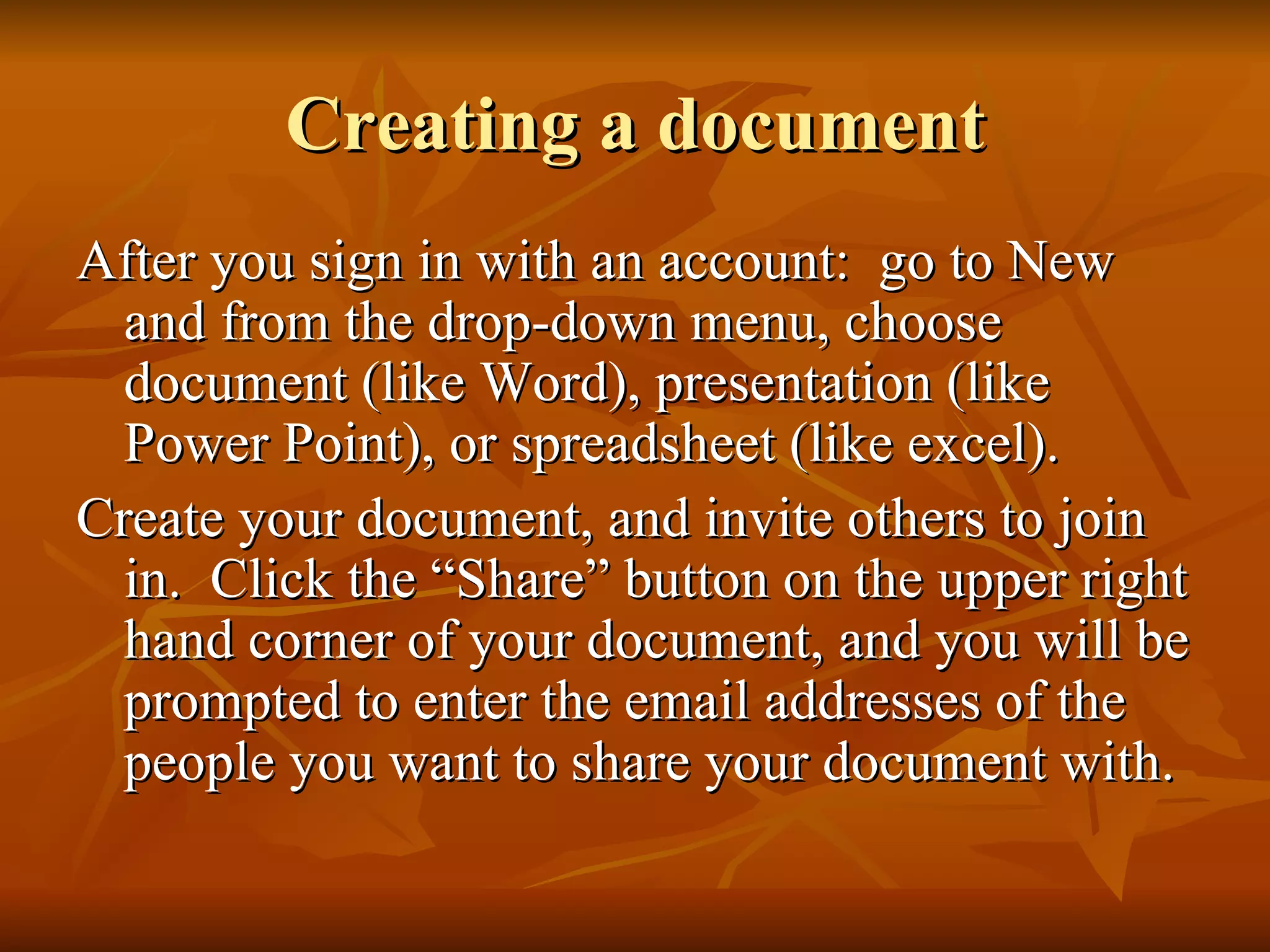
Create an account
Creating a document After you sign in with an account:  go to New and from the drop-down menu, choose document (like Word), presentation (like Power Point), or spreadsheet (like excel). Create your document, and invite others to join in.  Click the “Share” button on the upper right hand corner of your document, and you will be prompted to enter the email addresses of the people you want to share your document with.
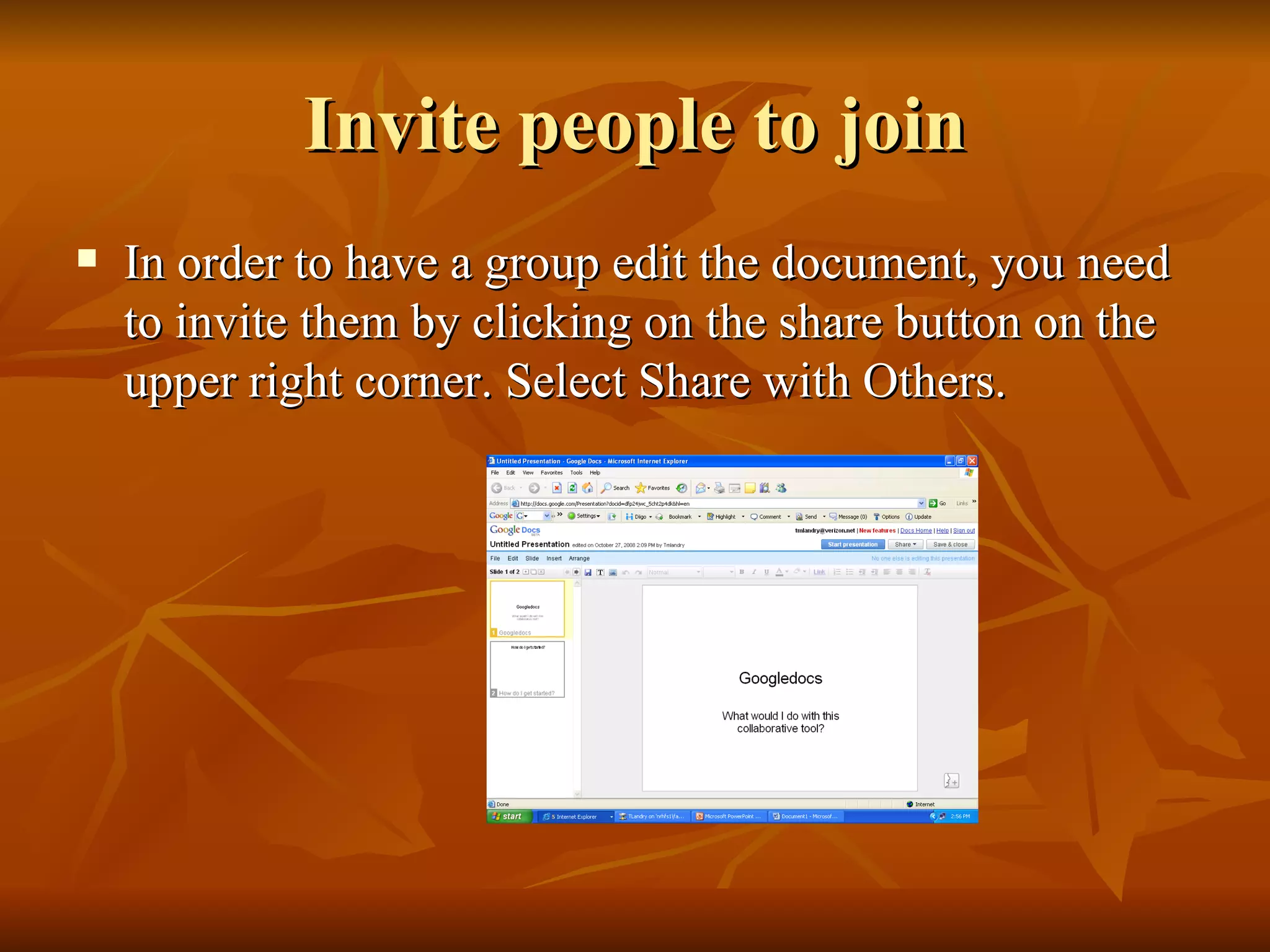
Invite people to join In order to have a group edit the document, you need to invite them by clicking on the share button on the upper right corner. Select Share with Others.
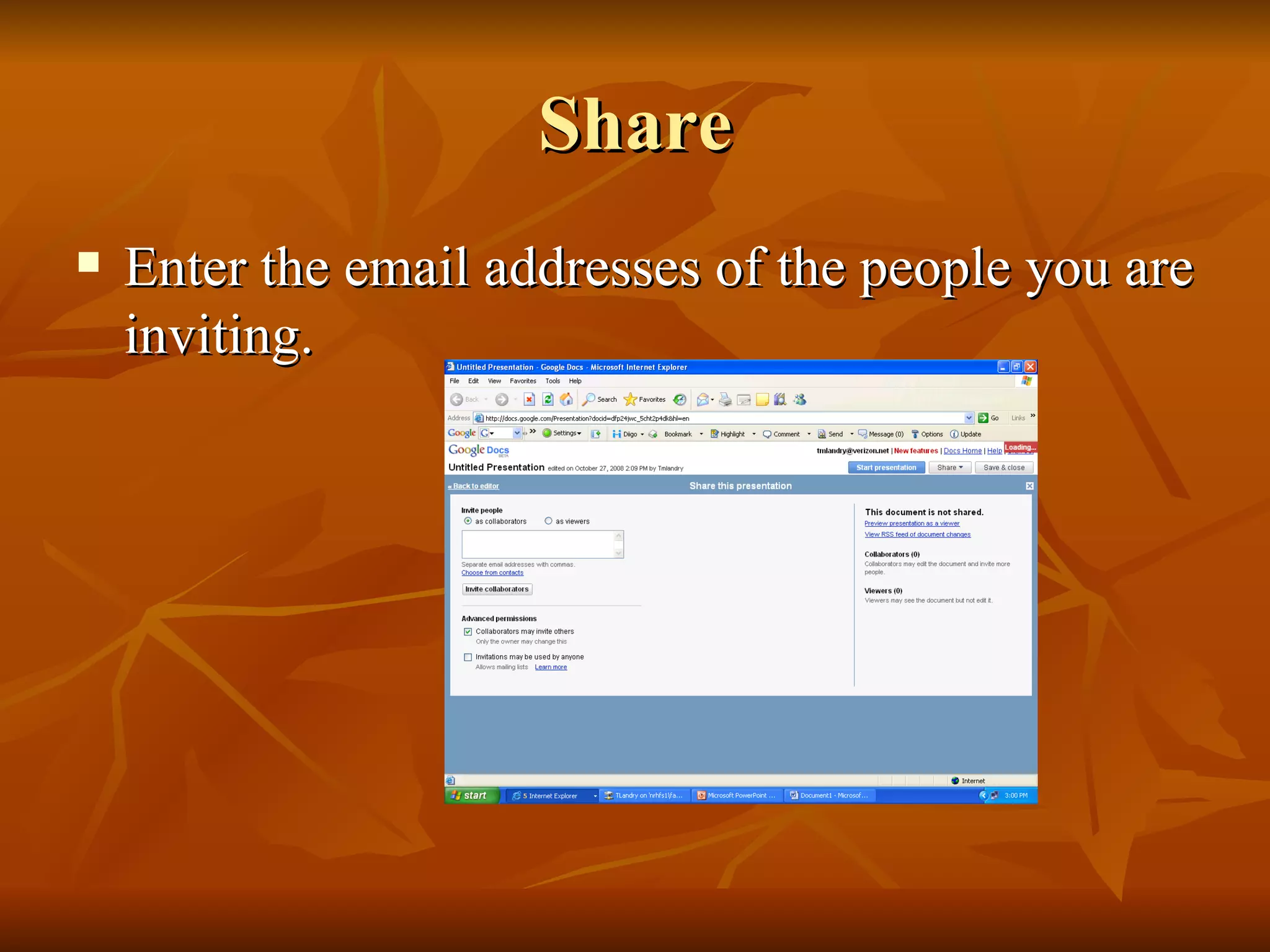
Share Enter the email addresses of the people you are inviting.
Share The collaborators will receive an email with a link to the document.  They simply click on the link and enter their Google username and password.   This tool is useful for group projects, particularly when students can’t physically get together.
Tips. When I have used this tool,  each member of the group chooses a color to use to identify themselves.  When we all agree on a section, we change the font to black.  You can upload your document as a Word, PowerPoint or Excel document.

Diigo and GoogleDocs Presentation

  • 1.
    Nashoba Regional SchoolDistrict Technology Professional Development Day November 4, 2008 www.diigo.com http://docs.googledocs.com
  • 2.
    What is socialbookmarking? Social book marking allows you to book mark web-sites and access them from any computer. With traditional book marking, the bookmarks reside only on the computer you used.
  • 3.
    21 st Century Skills With the overwhelming amount of information available to our students, the are required to select, evaluate, and use information appropriately and effectively. In addition, they need the skills to share information and collaborate in both face to face situations and through technology.
  • 4.
    www.diigo.com Participants willuse Diigo using a student account. Participants will be able to add notes to the sticky notes and highlight text.
  • 5.
    What is Diigo?Diigo is a social book marking tool that enables the user to not only book mark a web-site, but to highlight and add notes to it. “ Diigo enables effective collaborative research. You can easily share your findings, compete with your highlights and stick notes, with friends and colleagues. A project team, a class, or a club can create a group on Diigo to pool relevant resources, findings, and thoughts together.” www.diigo.com
  • 6.
    Benefits of DiigoWith traditional bookmarks, they reside on your computer; you can not access them from a different computer. With Diigo, your bookmarks can be accessed from any computer. There are groups you can join, or you can create your own group. By joining, you can see what others with similar interest are bookmarking. It’s a resource sharing tool. Groups are specific as teacher-librarian and modern war, or a general as education.
  • 7.
    Benefits continued Userscan conduct a search for a research topic using Diigo. In theory, the sites have been evaluated and bookmarked because of accuracy and educational value. Users can create lists of useful websites for specific classes or assignments.
  • 8.
    How to Goto http:// www.diigo.com Click on the sign in button on the top of the screen. Sign in with the student account. Go to ‘my groups’ and click on the library technology group. Scroll down and you will see the bookmarks for the group. Select a bookmark and see what is highlighted and noted. Add a note to a sticky note by clicking on the conversation bubble.
  • 9.
    How to continuedOpen another window, and find a favorite website. Either click on the bookmark icon on the toolbar, or right click and select bookmark on diigo. Highlight text and select the highlight icon on the toolbar.
  • 10.
    Googledocs http://googledocs.com UseGoogledocs to create documents, presentation and spreadsheets. You can: Create a document, and invite people to view and edit the document. Documents can then be saved and uploaded as Word, PowerPoint and Excel. All members of the group can edit at the same time. (This is helpful in a classroom, as well as in a distance learning situation.)
  • 11.
  • 12.
    Creating a documentAfter you sign in with an account: go to New and from the drop-down menu, choose document (like Word), presentation (like Power Point), or spreadsheet (like excel). Create your document, and invite others to join in. Click the “Share” button on the upper right hand corner of your document, and you will be prompted to enter the email addresses of the people you want to share your document with.
  • 13.
    Invite people tojoin In order to have a group edit the document, you need to invite them by clicking on the share button on the upper right corner. Select Share with Others.
  • 14.
    Share Enter theemail addresses of the people you are inviting.
  • 15.
    Share The collaboratorswill receive an email with a link to the document. They simply click on the link and enter their Google username and password. This tool is useful for group projects, particularly when students can’t physically get together.
  • 16.
    Tips. When Ihave used this tool, each member of the group chooses a color to use to identify themselves. When we all agree on a section, we change the font to black. You can upload your document as a Word, PowerPoint or Excel document.