Digital Stories   Using Microsoft Photo Story 3 for Windows  Carrie Roth [email_address] (248) 865-6643
Digital  Stories This is the part that will take your team the longest, so reserve the majority of your time for planning.  Once you have this prepared, digitizing should go very quickly! You will want to get yourself prepared before diving into Digital Stories. Here are some helpful tips! Call Neil if you are going to use your teacher computer, he will come and download the program for you! Place all of your evidence, pictures and images/scans of your documents, into one folder.  Take the time to name them exactly what they are.  (Example:  students working on mission statements, 3 rd  grade student samples of personal narrative writing…) Create a simple story board of how you want your story to flow.  What will come first, and then so on and so on. If you are going to have narration, write out a script! If you are going to use music, think about the mood you want to set. Prior to downloading the program, you will need to install Windows Media Player 10  (also a free download from the same website)
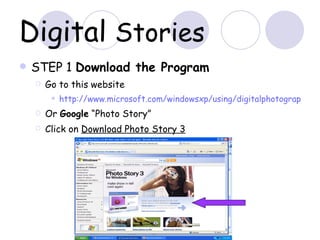
Digital  Stories STEP 1  Download the Program  Go to this website  http://www.microsoft.com/windowsxp/using/digitalphotography/PhotoStory/default.mspx Or  Google  “Photo Story” Click on  Download Photo Story 3
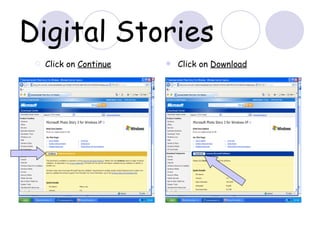
Digital Stories Click on  Continue Click on  Download
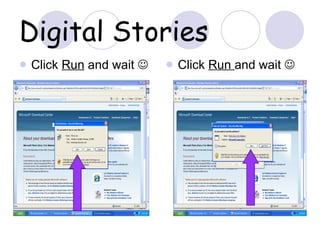
Digital Stories Click  Run  and wait   Click  Run  and wait  
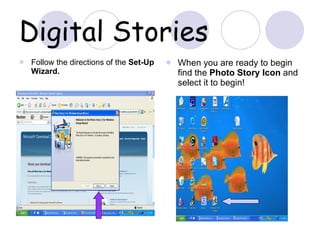
Digital Stories Follow the directions of the  Set-Up Wizard. When you are ready to begin find the  Photo Story Icon  and select it to begin!
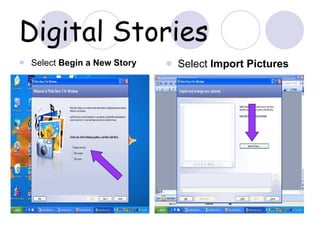
Digital Stories Select  Begin a New Story Select  Import Pictures
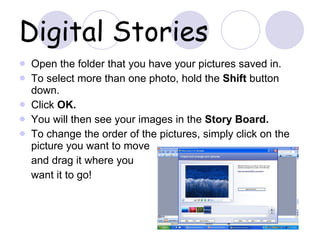
Digital Stories Open the folder that you have your pictures saved in.  To select more than one photo, hold the  Shift  button down. Click  OK. You will then see your images in the  Story Board. To change the order of the pictures, simply click on the picture you want to move  and drag it where you  want it to go!
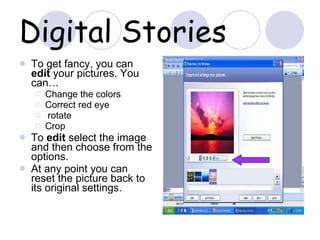
Digital Stories To get fancy, you can  edit  your pictures. You can… Change the colors Correct red eye rotate Crop To  edit  select the image and then choose from the options. At any point you can reset the picture back to its original settings.
Digital Stories Then continue to click  Next  to add more to the story.  You can add  Titles  on top of your images. Adding something special! Save blank power point slides with simple backgrounds (your school photo as a watermark, simple solid colors…) to add more text rich slides.
Digital Stories The next option is to add  Narration  to your story.  I suggest you save this until the very end.  So skip to the next option. You can also customize the motion of your slides.  This take a little bit of finesse and time.  It can add a lot of pizzazz to your story, but is very time consuming.
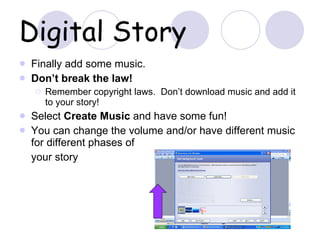
Digital Story Finally add some music. Don’t break the law! Remember copyright laws.  Don’t download music and add it to your story! Select  Create Music  and have some fun! You can change the volume and/or have different music for different phases of  your story
Digital Stories Either go back and add narration to your story or SAVE!!!!! This takes a while, so be sure not to work on anything else while it is running!  Enjoy a cup of coffee…don’t touch your computer! Enjoy your java while you watch  your story play before your eyes! Call me if something did not work!  

Digital Stories

  • 1.
    Digital Stories Using Microsoft Photo Story 3 for Windows Carrie Roth [email_address] (248) 865-6643
  • 2.
    Digital StoriesThis is the part that will take your team the longest, so reserve the majority of your time for planning. Once you have this prepared, digitizing should go very quickly! You will want to get yourself prepared before diving into Digital Stories. Here are some helpful tips! Call Neil if you are going to use your teacher computer, he will come and download the program for you! Place all of your evidence, pictures and images/scans of your documents, into one folder. Take the time to name them exactly what they are. (Example: students working on mission statements, 3 rd grade student samples of personal narrative writing…) Create a simple story board of how you want your story to flow. What will come first, and then so on and so on. If you are going to have narration, write out a script! If you are going to use music, think about the mood you want to set. Prior to downloading the program, you will need to install Windows Media Player 10 (also a free download from the same website)
  • 3.
    Digital StoriesSTEP 1 Download the Program Go to this website http://www.microsoft.com/windowsxp/using/digitalphotography/PhotoStory/default.mspx Or Google “Photo Story” Click on Download Photo Story 3
  • 4.
    Digital Stories Clickon Continue Click on Download
  • 5.
    Digital Stories Click Run and wait  Click Run and wait 
  • 6.
    Digital Stories Followthe directions of the Set-Up Wizard. When you are ready to begin find the Photo Story Icon and select it to begin!
  • 7.
    Digital Stories Select Begin a New Story Select Import Pictures
  • 8.
    Digital Stories Openthe folder that you have your pictures saved in. To select more than one photo, hold the Shift button down. Click OK. You will then see your images in the Story Board. To change the order of the pictures, simply click on the picture you want to move and drag it where you want it to go!
  • 9.
    Digital Stories Toget fancy, you can edit your pictures. You can… Change the colors Correct red eye rotate Crop To edit select the image and then choose from the options. At any point you can reset the picture back to its original settings.
  • 10.
    Digital Stories Thencontinue to click Next to add more to the story. You can add Titles on top of your images. Adding something special! Save blank power point slides with simple backgrounds (your school photo as a watermark, simple solid colors…) to add more text rich slides.
  • 11.
    Digital Stories Thenext option is to add Narration to your story. I suggest you save this until the very end. So skip to the next option. You can also customize the motion of your slides. This take a little bit of finesse and time. It can add a lot of pizzazz to your story, but is very time consuming.
  • 12.
    Digital Story Finallyadd some music. Don’t break the law! Remember copyright laws. Don’t download music and add it to your story! Select Create Music and have some fun! You can change the volume and/or have different music for different phases of your story
  • 13.
    Digital Stories Eithergo back and add narration to your story or SAVE!!!!! This takes a while, so be sure not to work on anything else while it is running! Enjoy a cup of coffee…don’t touch your computer! Enjoy your java while you watch your story play before your eyes! Call me if something did not work! 