Developing online resources Martin Bazley Fleet Air Arm Museum 18 Oct 2010
Martin Bazley Previously Teaching (7 yrs) Science Museum, London,  Internet Projects (7yrs) E-Learning Officer, MLA South East (3yrs) Currently Vice Chair, DLNet (was E-Learning Group for Museums, Lib, Archives) Consultancy, websites, training, user testing, evaluation … Martin Bazley & Associates www.martinbazley.com   Slides and notes available afterwards
 
www.martinbazley.com
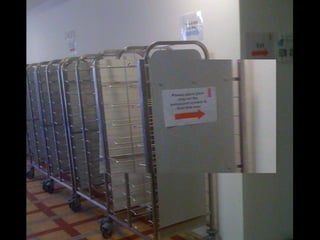
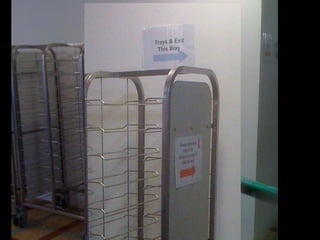
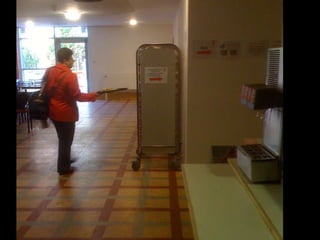
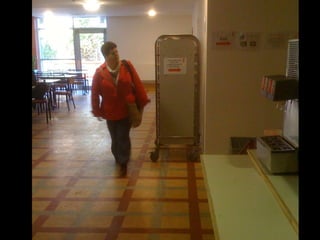
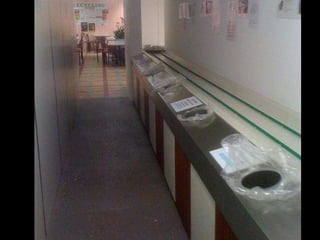
Users don’t always ‘get’ what we are offering: a real–world analogy
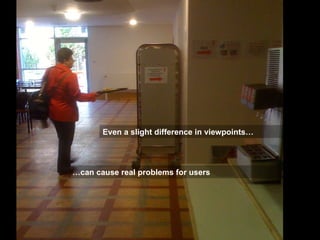
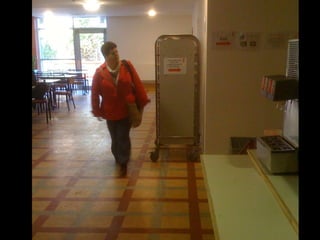
Even a slight difference in viewpoints… … can cause real problems for users


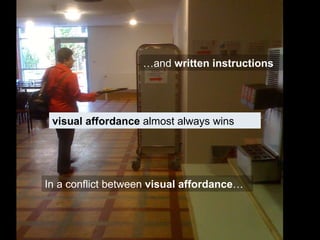
In a conflict between  visual affordance … … and  written instructions visual affordance  almost always wins
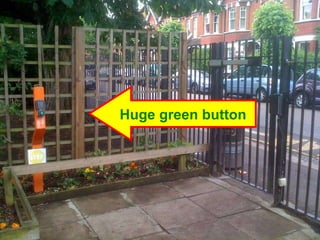
Another example
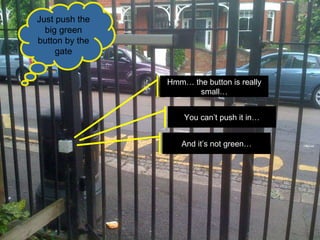
Hmm… the button is really small… And it’s not green… You can’t push it in… Just push the big green button by the gate
Huge green button
So what is the point of all this?
The web is different
People use the web differently…
…  from the way they use books, object labels, magazines, newspapers, information screens, etc
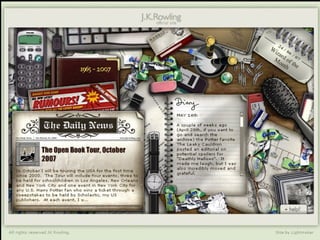
For most people the web is a predominantly  visual  medium


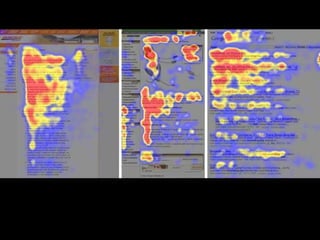
We are all different and some people like to read all the text on a web page before deciding what to do next, even though a lot of it might be pretty redundant but  most   people   – or at least most regular users of the web –   scan  ( as opposed to reading through them in detail)   the   web pages   they are using, or at least the ones where they are still trying to work out where to go next
 
Users won't read your text thoroughly  word-by-word.  Exhaustive reading is rare, especially when browsing.  Yes, some people will read more, but most won't.
The first two paragraphs must state the most important information . There's some hope that users will actually read this material – though they'll probably read more of the first paragraph than the second.
Start subheadings, paragraphs, and bullet points with information-carrying words  that users will notice when scanning down the left side of your content in the final stem of their F-behaviour.  They'll read the third word on a line much less often than the first two words.
If they have to work at it   for example if they cannot see what they are looking for, or if it doesn’t make sense to them at first glance then  most   people   – or at least many people who do a lot of searching or browsing on the web   just   decide that this particular site is not for them, and anyway they have a long list of other search results or ideas to try and so they  go elsewhere
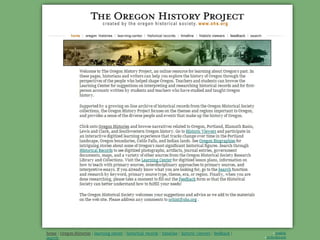
Exercise: Make this web page better
 
About website structure,  ways people use the web and implications for writing for the web
Certain types of websites impose  linear user journeys:  TheTrainline.com Cinema ticket bookings Self assessment tax return online
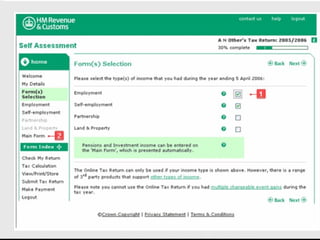
 
In most websites, although there are some linear elements …
 
…  people like to have other pathways available to them…
…  and most journeys are  very non-linear
Also, most people reach your website via Google Only 20% arrive at your website on the home page
Most may not have had your site in mind when searching
30% of them go to home page to ‘try and work out what this site is about’
So each page on the site must quickly:  engage users  and   give sense of what site is about –  otherwise most will leave
‘ Writing for the web’ is not just about text…
…  but also choosing the right images …  layouts …  graphical look and feel … website structure etc etc
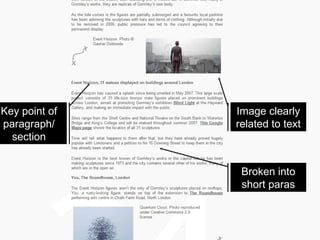
Key point of paragraph/ section Image clearly related to text Broken into short paras
Short video guides http://www.mediabistro.com/guidelines-for-writing-online-12-ondemandvideo.html  (sample) http://www.youtube.com/watch?v=AoU2yANNxRs&eurl=http://inside.123-reg.co.uk/archives/video-writing-your-web-copy   http://www.youtube.com/watch?v=2C3lDeY6uWc&feature=related  (good advice but v slow) Writing web headlines  http://www.youtube.com/watch?v=zBg7dJIfHM0
Home page: key functions Offer overview:  Show user what the site offers them Show user what is in the site: The structure at a glance Content highlights or samples Engagement: make user want to continue browsing
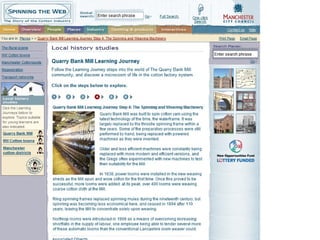
Article page: key functions Engage the user – make them want to consume the article Signposting:  Show user what else is nearby in the site The structure at a glance Show user what else the site offers them www.mylearning.org/overview.asp?journeyid=73 www.manchestergalleries.org/
More information: Well presented advice on usability including writing for the web, with a useful little self test option http://usability.coi.gov.uk/     A one page structured set of advice:  http://www.webdesignfromscratch.com/copywriting/writing-for-the-web/
More information (2) Simple to follow good practice list: http://www.jisc.ac.uk/aboutus/whoweare/brand/webwriting.aspx Articles to read and help you develop skills http://www.writingfortheweb.co.uk/artwrite.html     Classic advice from usability guru Jakob Nielsen http://www.useit.com/papers/webwriting/
Short writing exercises
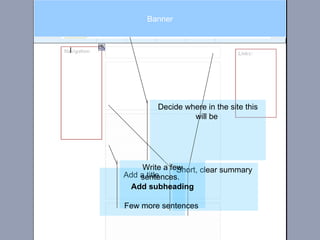
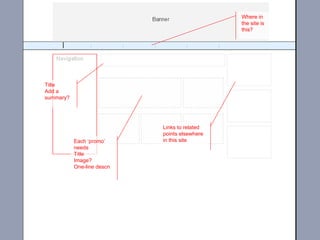
Decide where in the site this will be  Add a title  Short, clear summary  Write a few sentences.  Add subheading Few more sentences  Banner
Title Add a summary? Each ‘promo’ needs  Title  Image? One-line descn Links to related points elsewhere in this site Where in the site is this?
Website users
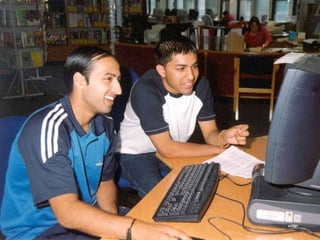
Website users Who uses your website?  Why would they want to use it?  How would they find it?  What do they get out of it?  What do they dislike about it?


How do you get it right for everyone? Answer: You can’t get it right for everyone. You have to make choices, and stick to them: Who is it for?  What.. How…
Who for…? What for? How will they use it?
Who for what for ... Who for?   (audience) Need to be clear from start mum + 2 children looking for something to do this weekend teachers of yr5/6 in local area with whiteboards men interested in gadgets
Who for what for ... What ‘real-world’ outcomes?   What will they do as a result of using the site?  make a donation plan a visit to a museum buy a train ticket think differently about learning disability
Who for what for ... How will they use it?   (user experience) What do they actually  do  on the site?  browse and read articles working alone or in pairs? (learning resources) lean forward or sit back? Browsing, following, searching… Also  Where, When  and  Why ?
Who for what for ... Website appraisal For each example note first impressions Who   is it for? What   does it offer them? How   will they use it?
Websites for different audiences
Websites for different audiences The following tips are based on  numerous evaluation sessions numerous user testing sessions talking to other people who use websites talking to other people who make websites
‘ General users’ There is no such thing as a general user Are you a general user?
Adults/families with general interest What does the site tell me at a glance? genuine enthusiasts = interested whatever the website looks like, and will spend some time looking around it or phone up for more information if required.
Adults/families with general interest But most will not bother unless something engages them within a few seconds The questions people might like answered within a few seconds of arriving on a museum site probably include:
Adults/families with general interest Where is it?  Further down the home page it says ‘alongside Middle Wallop airfield’ but I have no idea where that is.  a schematic map on every page, or at least on the home page and visit info, would really help in attracting visitors who don’t know the area
Adults/families with general interest What’s the rough cost and roughly how long might I/we want to spend there? This would give me an idea of whether to view it as a place to pop into on the way somewhere or combine it with another attraction; or whether it requires more serious investment of time or money
Adults/families with general interest What kind of experience will I get? I know there will be ‘displays’ – it is a museum!  but will there be people around to help bring the place alive for me, my spouse, my children or friends? –  or are there events, or things to do like dressing up in a pilot’s uniform, or games to play, etc?
Websites for schools ‘ Serve the National Curriculum’ or  ‘extend or enhance’? ‘ enhance’ sounds good but   most  teachers want : curriculum specific  – by all means cross-curricular but with one scheme of work or topic as ‘headline’ (think ‘product byline’) ready-to-use  – teachers may want to adapt to their own situation (esp second time round), but most will not have time – offer at least one ready to use version minimal preparation  and with time commitment (preparation time and class time) clearly specified flexible/adaptable/extensible  where possible
Foundation and KS1 (3-7yrs) Production of materials for this age range is particularly tricky: aim at teachers not children, so… good bank of images, videos or other mainly  visual  assets  think of interactive whiteboards
Key Stage 2 ( 7 to 11 years old) keep no of words on each page to a minimum, say 50 in total illustrate key ideas visually as well as verbally and use audio if possible do not assume that the teacher can be over their shoulder at all points – so keep the instructions and processes simple try to use language, images, ideas, and settings that will appeal to the target audience
Key Stage 3  ( 11 to 14 years old) For KS2 a cross-curricular approach is OK (for example they may use the same site for Geography and Science) but: At KS3 cater for a single subject (and scheme of work) (Can offer suggestions for cross-curricular working, but remember generally each teacher teachers only one subject each.)
‘ Lifelong learners’ for (non-specialist) interest level  think of  12 yr olds Identify a particular audience with  specific  interests/motivations for using your site then focus on constraints to allow successful design to proceed.  (In a formal learning setting constraints often implicit in the course, physical set up etc.)
Specialist researchers Fact-oriented, less graphics and design, more text and specifically relevant images, with good search facility Examples of specialist researchers:  HE students and staff experts or enthusiasts in this subject area
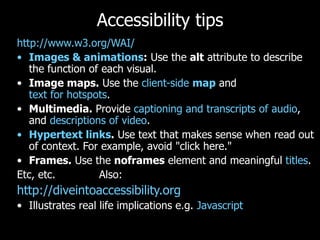
Accessibility tips http://www.w3.org/WAI/ Images & animations :  Use the  alt  attribute to describe the function of each visual.  Image maps.  Use the  client-side  map  and  text for hotspots .  Multimedia.  Provide  captioning and transcripts of audio , and  descriptions of video .  Hypertext links .  Use text that makes sense when read out of context. For example, avoid "click here."  Frames.  Use the  noframes  element and meaningful  titles .  Etc, etc.  Also: http://diveintoaccessibility.org   Illustrates real life implications e.g.  Javascript
Short video guides http://www.mediabistro.com/guidelines-for-writing-online-12-ondemandvideo.html  (sample) http://www.youtube.com/watch?v=AoU2yANNxRs&eurl=http://inside.123-reg.co.uk/archives/video-writing-your-web-copy   http://www.youtube.com/watch?v=2C3lDeY6uWc&feature=related  (good advice but v slow) Writing web headlines  http://www.youtube.com/watch?v=zBg7dJIfHM0
Creating resources for use on whiteboards
Using whiteboards http://www.teachers.tv/ict/whiteboardtips   http://smarttech.com/trainingcenter/tutorials.asp#   http://www.prometheanplanet.com
Roles of IWB …  at different points in the lesson / learning cycle Starter Main  Plenary
Interactive ” means “ lots of things moving on screen, clickable, automatic response, quizzes etc interaction between students, teacher and screen – activities, conversation, cognitive engagement, etc first meaning used mainly by companies trying to market whiteboards, software etc as ‘interactive’ second used mainly by educators
Resources for use on whiteboards - examples  Ford Madox Brown MAG Tate Tools Museum Network  Artworks Museum Network Myths National Portrait Gallery Mary Seacole National Gallery Museum of London Fire of London
Resources for use on whiteboards - examples Britons at War Wartime in Bedford  http://www.movinghere.org.uk/schools/default.htm   www.mylearning.org/overview.asp?journeyid=409   www.mylearning.org/overview.asp?journeyid=441
Some examples http://www.nhm.ac.uk/nature-online/british-natural-history/index.html   http://www.manchestergalleries.org/the-collections/highlights-of-the-collection/narrativeobject.php?irn=876   www.seayourhistory.org.uk/content/view/39/77/   http://www.portsmouth.gov.uk/business/2781.html
Whiteboard resource exercise We are using Powerpoint (or Word if you prefer) just to summarise your ideas on the board.  Don’t spend too long formatting / designing – just focus on  what items, text and links would be on screen, and What teacher / pupils would  do  with them
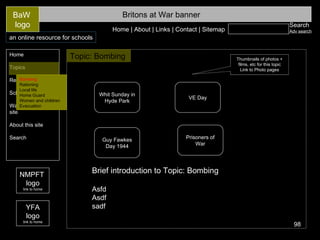
‘ templates’ The following slide (Britons at War) is a sample web page – think about how people would get to your whiteboard page(s) The next slide is an outline template for a whiteboard page – edit or ignore this completely.  Make sure you have at least  something to show on screen
Search Adv search Britons at War banner Home Topics Resources Schools area Ways to use this site About this site Search BaW  logo Home | About | Links | Contact | Sitemap an online resource for schools NMPFT  logo link to home YFA logo link to home Topic: Bombing   Thumbnails of photos + films, etc for this topic Link to Photo pages Bombing Rationing Local life Home Guard Women and children Evacuation Guy Fawkes Day 1944 Prisoners of War Whit Sunday in Hyde Park VE Day Brief introduction to Topic: Bombing Asfd Asdf sadf
About this image (caption, copyright, etc) Also key question? Title / heading if needed – otherwise delete this box.
Making websites - CMSs http://wordpress.com   - free website creation service (pay extra for features like own domain name etc, but all hosting and upgrading etc is done for you
Making websites - CMSs http://wordpress.org   - free website creation service – like .com except you have to install it on your server and you are responsible for updating, hosting costs, etc
Making websites - CMSs www.cmsmadesimple.org  - free website creation service – you install it on your server and you are responsible for updating, hosting costs, etc  - very similar to wordpress.org
More information / advice / ideas Martin Bazley 0780 3580 737 www.martinbazley.com

Developing online resources fleet air arm museum 18 oct 2010

  • 1.
    Developing online resourcesMartin Bazley Fleet Air Arm Museum 18 Oct 2010
  • 2.
    Martin Bazley PreviouslyTeaching (7 yrs) Science Museum, London, Internet Projects (7yrs) E-Learning Officer, MLA South East (3yrs) Currently Vice Chair, DLNet (was E-Learning Group for Museums, Lib, Archives) Consultancy, websites, training, user testing, evaluation … Martin Bazley & Associates www.martinbazley.com Slides and notes available afterwards
  • 3.
  • 4.
  • 5.
    Users don’t always‘get’ what we are offering: a real–world analogy
  • 6.
    Even a slightdifference in viewpoints… … can cause real problems for users
  • 7.
  • 8.
  • 9.
  • 10.
  • 11.
  • 12.
  • 13.
    In a conflictbetween visual affordance … … and written instructions visual affordance almost always wins
  • 14.
  • 15.
    Hmm… the buttonis really small… And it’s not green… You can’t push it in… Just push the big green button by the gate
  • 16.
  • 17.
    So what isthe point of all this?
  • 18.
    The web isdifferent
  • 19.
    People use theweb differently…
  • 20.
    … fromthe way they use books, object labels, magazines, newspapers, information screens, etc
  • 21.
    For most peoplethe web is a predominantly visual medium
  • 22.
  • 23.
  • 24.
  • 25.
  • 26.
  • 27.
    We are alldifferent and some people like to read all the text on a web page before deciding what to do next, even though a lot of it might be pretty redundant but most people – or at least most regular users of the web – scan ( as opposed to reading through them in detail) the web pages they are using, or at least the ones where they are still trying to work out where to go next
  • 28.
  • 29.
    Users won't readyour text thoroughly word-by-word. Exhaustive reading is rare, especially when browsing. Yes, some people will read more, but most won't.
  • 30.
    The first twoparagraphs must state the most important information . There's some hope that users will actually read this material – though they'll probably read more of the first paragraph than the second.
  • 31.
    Start subheadings, paragraphs,and bullet points with information-carrying words that users will notice when scanning down the left side of your content in the final stem of their F-behaviour. They'll read the third word on a line much less often than the first two words.
  • 32.
    If they haveto work at it for example if they cannot see what they are looking for, or if it doesn’t make sense to them at first glance then most people – or at least many people who do a lot of searching or browsing on the web just decide that this particular site is not for them, and anyway they have a long list of other search results or ideas to try and so they go elsewhere
  • 33.
    Exercise: Make thisweb page better
  • 34.
  • 35.
    About website structure, ways people use the web and implications for writing for the web
  • 36.
    Certain types ofwebsites impose linear user journeys: TheTrainline.com Cinema ticket bookings Self assessment tax return online
  • 37.
  • 38.
    In most websites,although there are some linear elements …
  • 39.
  • 40.
    … peoplelike to have other pathways available to them…
  • 41.
    … andmost journeys are very non-linear
  • 42.
    Also, most peoplereach your website via Google Only 20% arrive at your website on the home page
  • 43.
    Most may nothave had your site in mind when searching
  • 44.
    30% of themgo to home page to ‘try and work out what this site is about’
  • 45.
    So each pageon the site must quickly: engage users and give sense of what site is about – otherwise most will leave
  • 46.
    ‘ Writing forthe web’ is not just about text…
  • 47.
    … butalso choosing the right images … layouts … graphical look and feel … website structure etc etc
  • 48.
    Key point ofparagraph/ section Image clearly related to text Broken into short paras
  • 49.
    Short video guideshttp://www.mediabistro.com/guidelines-for-writing-online-12-ondemandvideo.html (sample) http://www.youtube.com/watch?v=AoU2yANNxRs&eurl=http://inside.123-reg.co.uk/archives/video-writing-your-web-copy http://www.youtube.com/watch?v=2C3lDeY6uWc&feature=related (good advice but v slow) Writing web headlines http://www.youtube.com/watch?v=zBg7dJIfHM0
  • 50.
    Home page: keyfunctions Offer overview: Show user what the site offers them Show user what is in the site: The structure at a glance Content highlights or samples Engagement: make user want to continue browsing
  • 51.
    Article page: keyfunctions Engage the user – make them want to consume the article Signposting: Show user what else is nearby in the site The structure at a glance Show user what else the site offers them www.mylearning.org/overview.asp?journeyid=73 www.manchestergalleries.org/
  • 52.
    More information: Wellpresented advice on usability including writing for the web, with a useful little self test option http://usability.coi.gov.uk/   A one page structured set of advice: http://www.webdesignfromscratch.com/copywriting/writing-for-the-web/
  • 53.
    More information (2)Simple to follow good practice list: http://www.jisc.ac.uk/aboutus/whoweare/brand/webwriting.aspx Articles to read and help you develop skills http://www.writingfortheweb.co.uk/artwrite.html   Classic advice from usability guru Jakob Nielsen http://www.useit.com/papers/webwriting/
  • 54.
  • 55.
    Decide where inthe site this will be Add a title Short, clear summary Write a few sentences. Add subheading Few more sentences Banner
  • 56.
    Title Add asummary? Each ‘promo’ needs Title Image? One-line descn Links to related points elsewhere in this site Where in the site is this?
  • 57.
  • 58.
    Website users Whouses your website? Why would they want to use it? How would they find it? What do they get out of it? What do they dislike about it?
  • 59.
  • 60.
  • 61.
  • 62.
  • 63.
  • 64.
  • 65.
  • 66.
  • 67.
    How do youget it right for everyone? Answer: You can’t get it right for everyone. You have to make choices, and stick to them: Who is it for? What.. How…
  • 68.
    Who for…? Whatfor? How will they use it?
  • 69.
    Who for whatfor ... Who for? (audience) Need to be clear from start mum + 2 children looking for something to do this weekend teachers of yr5/6 in local area with whiteboards men interested in gadgets
  • 70.
    Who for whatfor ... What ‘real-world’ outcomes? What will they do as a result of using the site? make a donation plan a visit to a museum buy a train ticket think differently about learning disability
  • 71.
    Who for whatfor ... How will they use it? (user experience) What do they actually do on the site? browse and read articles working alone or in pairs? (learning resources) lean forward or sit back? Browsing, following, searching… Also Where, When and Why ?
  • 72.
    Who for whatfor ... Website appraisal For each example note first impressions Who is it for? What does it offer them? How will they use it?
  • 73.
  • 74.
    Websites for differentaudiences The following tips are based on numerous evaluation sessions numerous user testing sessions talking to other people who use websites talking to other people who make websites
  • 75.
    ‘ General users’There is no such thing as a general user Are you a general user?
  • 76.
    Adults/families with generalinterest What does the site tell me at a glance? genuine enthusiasts = interested whatever the website looks like, and will spend some time looking around it or phone up for more information if required.
  • 77.
    Adults/families with generalinterest But most will not bother unless something engages them within a few seconds The questions people might like answered within a few seconds of arriving on a museum site probably include:
  • 78.
    Adults/families with generalinterest Where is it? Further down the home page it says ‘alongside Middle Wallop airfield’ but I have no idea where that is. a schematic map on every page, or at least on the home page and visit info, would really help in attracting visitors who don’t know the area
  • 79.
    Adults/families with generalinterest What’s the rough cost and roughly how long might I/we want to spend there? This would give me an idea of whether to view it as a place to pop into on the way somewhere or combine it with another attraction; or whether it requires more serious investment of time or money
  • 80.
    Adults/families with generalinterest What kind of experience will I get? I know there will be ‘displays’ – it is a museum! but will there be people around to help bring the place alive for me, my spouse, my children or friends? – or are there events, or things to do like dressing up in a pilot’s uniform, or games to play, etc?
  • 81.
    Websites for schools‘ Serve the National Curriculum’ or ‘extend or enhance’? ‘ enhance’ sounds good but most teachers want : curriculum specific – by all means cross-curricular but with one scheme of work or topic as ‘headline’ (think ‘product byline’) ready-to-use – teachers may want to adapt to their own situation (esp second time round), but most will not have time – offer at least one ready to use version minimal preparation and with time commitment (preparation time and class time) clearly specified flexible/adaptable/extensible where possible
  • 82.
    Foundation and KS1(3-7yrs) Production of materials for this age range is particularly tricky: aim at teachers not children, so… good bank of images, videos or other mainly visual assets think of interactive whiteboards
  • 83.
    Key Stage 2( 7 to 11 years old) keep no of words on each page to a minimum, say 50 in total illustrate key ideas visually as well as verbally and use audio if possible do not assume that the teacher can be over their shoulder at all points – so keep the instructions and processes simple try to use language, images, ideas, and settings that will appeal to the target audience
  • 84.
    Key Stage 3 ( 11 to 14 years old) For KS2 a cross-curricular approach is OK (for example they may use the same site for Geography and Science) but: At KS3 cater for a single subject (and scheme of work) (Can offer suggestions for cross-curricular working, but remember generally each teacher teachers only one subject each.)
  • 85.
    ‘ Lifelong learners’for (non-specialist) interest level think of 12 yr olds Identify a particular audience with specific interests/motivations for using your site then focus on constraints to allow successful design to proceed. (In a formal learning setting constraints often implicit in the course, physical set up etc.)
  • 86.
    Specialist researchers Fact-oriented,less graphics and design, more text and specifically relevant images, with good search facility Examples of specialist researchers: HE students and staff experts or enthusiasts in this subject area
  • 87.
    Accessibility tips http://www.w3.org/WAI/Images & animations : Use the alt attribute to describe the function of each visual. Image maps. Use the client-side map and text for hotspots . Multimedia. Provide captioning and transcripts of audio , and descriptions of video . Hypertext links . Use text that makes sense when read out of context. For example, avoid "click here." Frames. Use the noframes element and meaningful titles . Etc, etc. Also: http://diveintoaccessibility.org Illustrates real life implications e.g. Javascript
  • 88.
    Short video guideshttp://www.mediabistro.com/guidelines-for-writing-online-12-ondemandvideo.html (sample) http://www.youtube.com/watch?v=AoU2yANNxRs&eurl=http://inside.123-reg.co.uk/archives/video-writing-your-web-copy http://www.youtube.com/watch?v=2C3lDeY6uWc&feature=related (good advice but v slow) Writing web headlines http://www.youtube.com/watch?v=zBg7dJIfHM0
  • 89.
    Creating resources foruse on whiteboards
  • 90.
    Using whiteboards http://www.teachers.tv/ict/whiteboardtips http://smarttech.com/trainingcenter/tutorials.asp# http://www.prometheanplanet.com
  • 91.
    Roles of IWB… at different points in the lesson / learning cycle Starter Main Plenary
  • 92.
    Interactive ” means“ lots of things moving on screen, clickable, automatic response, quizzes etc interaction between students, teacher and screen – activities, conversation, cognitive engagement, etc first meaning used mainly by companies trying to market whiteboards, software etc as ‘interactive’ second used mainly by educators
  • 93.
    Resources for useon whiteboards - examples Ford Madox Brown MAG Tate Tools Museum Network Artworks Museum Network Myths National Portrait Gallery Mary Seacole National Gallery Museum of London Fire of London
  • 94.
    Resources for useon whiteboards - examples Britons at War Wartime in Bedford http://www.movinghere.org.uk/schools/default.htm www.mylearning.org/overview.asp?journeyid=409 www.mylearning.org/overview.asp?journeyid=441
  • 95.
    Some examples http://www.nhm.ac.uk/nature-online/british-natural-history/index.html http://www.manchestergalleries.org/the-collections/highlights-of-the-collection/narrativeobject.php?irn=876 www.seayourhistory.org.uk/content/view/39/77/ http://www.portsmouth.gov.uk/business/2781.html
  • 96.
    Whiteboard resource exerciseWe are using Powerpoint (or Word if you prefer) just to summarise your ideas on the board. Don’t spend too long formatting / designing – just focus on what items, text and links would be on screen, and What teacher / pupils would do with them
  • 97.
    ‘ templates’ Thefollowing slide (Britons at War) is a sample web page – think about how people would get to your whiteboard page(s) The next slide is an outline template for a whiteboard page – edit or ignore this completely. Make sure you have at least something to show on screen
  • 98.
    Search Adv searchBritons at War banner Home Topics Resources Schools area Ways to use this site About this site Search BaW logo Home | About | Links | Contact | Sitemap an online resource for schools NMPFT logo link to home YFA logo link to home Topic: Bombing Thumbnails of photos + films, etc for this topic Link to Photo pages Bombing Rationing Local life Home Guard Women and children Evacuation Guy Fawkes Day 1944 Prisoners of War Whit Sunday in Hyde Park VE Day Brief introduction to Topic: Bombing Asfd Asdf sadf
  • 99.
    About this image(caption, copyright, etc) Also key question? Title / heading if needed – otherwise delete this box.
  • 100.
    Making websites -CMSs http://wordpress.com - free website creation service (pay extra for features like own domain name etc, but all hosting and upgrading etc is done for you
  • 101.
    Making websites -CMSs http://wordpress.org - free website creation service – like .com except you have to install it on your server and you are responsible for updating, hosting costs, etc
  • 102.
    Making websites -CMSs www.cmsmadesimple.org - free website creation service – you install it on your server and you are responsible for updating, hosting costs, etc - very similar to wordpress.org
  • 103.
    More information /advice / ideas Martin Bazley 0780 3580 737 www.martinbazley.com

Editor's Notes

  • #70 Instead of What will they do, used to say how will they useit: - nicer symmetry but too easy to dismiss using answer to What for question. Answering one question often helps clarify in respect of another, e.g. sometimes find multiple uses envisaged, which can lead to improved audience definition
  • #71 Instead of What will they do, used to say how will they useit: - nicer symmetry but too easy to dismiss using answer to What for question. Answering one question often helps clarify in respect of another, e.g. sometimes find multiple uses envisaged, which can lead to improved audience definition
  • #72 Instead of What will they do, used to say how will they useit: - nicer symmetry but too easy to dismiss using answer to What for question. Answering one question often helps clarify in respect of another, e.g. sometimes find multiple uses envisaged, which can lead to improved audience definition