Design Your CD Cover step by step in CorelDraw
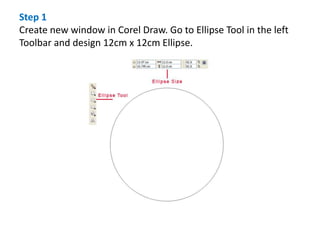
Step 1
Create new window in Corel Draw. Go to Ellipse Tool in the left
Toolbar and design 12cm x 12cm Ellipse.
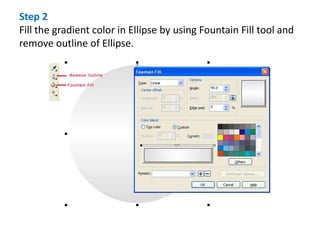
Step 2
Fill the gradient color in Ellipse by using Fountain Fill tool and
remove outline of Ellipse.
Step 3
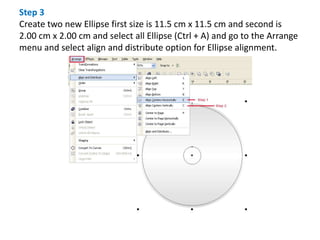
Create two new Ellipse first size is 11.5 cm x 11.5 cm and second is
2.00 cm x 2.00 cm and select all Ellipse (Ctrl + A) and go to the Arrange
menu and select align and distribute option for Ellipse alignment.
Step 4
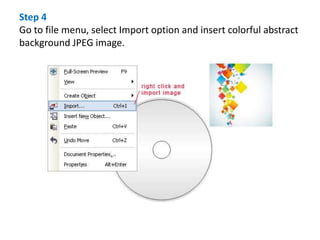
Go to file menu, select Import option and insert colorful abstract
background JPEG image.
Step 5
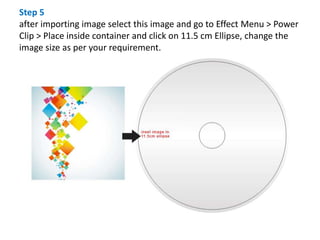
after importing image select this image and go to Effect Menu > Power
Clip > Place inside container and click on 11.5 cm Ellipse, change the
image size as per your requirement.
Step 6
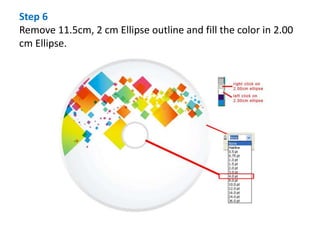
Remove 11.5cm, 2 cm Ellipse outline and fill the color in 2.00
cm Ellipse.
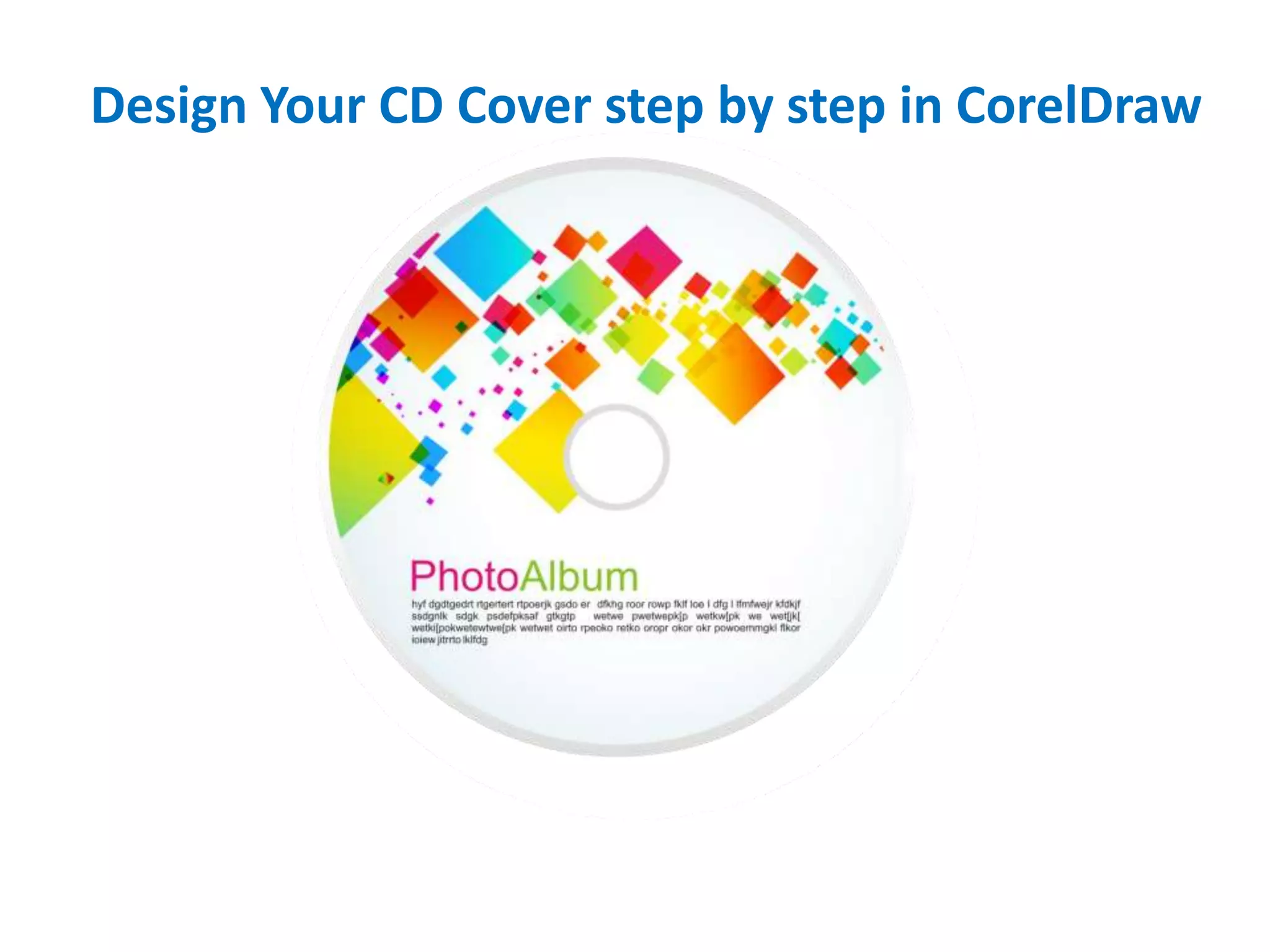
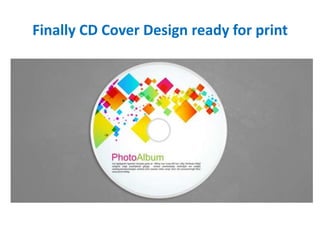
Finally CD Cover Design ready for print

Design your cd cover step by step in corel draw

  • 1.
    Design Your CDCover step by step in CorelDraw
  • 2.
    Step 1 Create newwindow in Corel Draw. Go to Ellipse Tool in the left Toolbar and design 12cm x 12cm Ellipse.
  • 3.
    Step 2 Fill thegradient color in Ellipse by using Fountain Fill tool and remove outline of Ellipse.
  • 4.
    Step 3 Create twonew Ellipse first size is 11.5 cm x 11.5 cm and second is 2.00 cm x 2.00 cm and select all Ellipse (Ctrl + A) and go to the Arrange menu and select align and distribute option for Ellipse alignment.
  • 5.
    Step 4 Go tofile menu, select Import option and insert colorful abstract background JPEG image.
  • 6.
    Step 5 after importingimage select this image and go to Effect Menu > Power Clip > Place inside container and click on 11.5 cm Ellipse, change the image size as per your requirement.
  • 7.
    Step 6 Remove 11.5cm,2 cm Ellipse outline and fill the color in 2.00 cm Ellipse.
  • 8.
    Finally CD CoverDesign ready for print