Deploying the XenMobile Solution
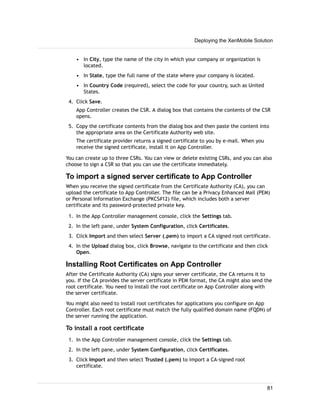
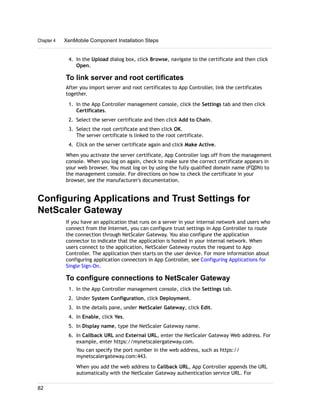
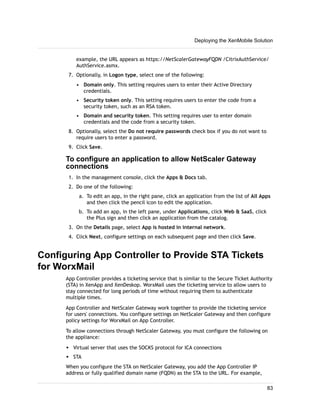
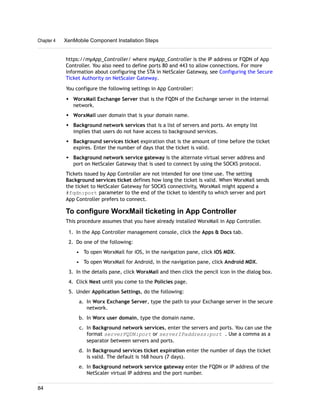
XenMobile™ Deployment Guide
Copyright and Trademarks
Information in this document is subject to change without notice. Companies, names, and data used in examples herein
are fictitious unless otherwise noted. No part of this document may be reproduced or transmitted in any form or by any
means, electronic or mechanical, for any purpose, without the express written permission of Citrix Systems, Inc.
© 2013 Citrix, Inc. All rights reserved.
The following are trademarks of Citrix, Inc. and/or one or more of its subsidiaries, and may be registered in the United
States Patent and Trademark Office and in other countries:
Branch Repeater™, Citrix®, Citrix Access Essentials™, Citrix Access Gateway™, Citrix Access Suite™, Citrix
Application Firewall™, Citrix Application Gateway™, Citrix Communication Gateway™, Citrix Desktop Receiver™, Citrix
Desktop Server™, Citrix EasyCall™, Citrix Essentials™, Citrix Merchandising Server™, Citrix NetScaler™, Citrix
NetScaler Gateway™, Citrix Password Manager™, Citrix Presentation Server™, Citrix Provisioning Services™, Citrix
Receiver™, Citrix Repeater™, Citrix SmoothRoaming™, Citrix Streaming Server™, Citrix Subscription Advantage™,
Citrix Workflow Studio™, Citrix XenApp™, EdgeSight®, GoToAssist®, GoToMyPC®, GoToMeeting®, GoToWebinar®,
HDX™, ICA®, MPX™, nCore™, NetScaler®, NetworkLink™, Program Neighborhood®, Request Switching®,
SpeedScreen™, StorageLink™, VPX™, WANScaler™, Xen®, XenDesktop™, XenMobile™, XenServer™, Xen Data
Center™, Xen Source™
Document code: September 30 2013 15:12:29
Contents
Copyright and Trademarks................................................................................ ii
1 Deploying the XenMobile Solution...................................................................7
About the XenMobile Solution.................................................................9
2 Building Your XenMobile Solution.................................................................. 11
Deploying XenMobile Components.......................................................... 12
Deploying NetScaler Gateway with App Controller and StoreFront........................ 13
Allowing Access to MDX Apps Through NetScaler Gateway..........................14
Deploying Device Manager.................................................................. 15
Deploying the MDX Toolkit................................................................... 16
How the MDX Toolkit Works............................................................ 16
Deploying the Entire XenMobile Solution....................................................17
3 XenMobile Deployment Prerequisites.............................................................. 19
Prerequisite List.............................................................................. 20
Opening Ports for the XenMobile Solution...................................................20
Opening Ports for NetScaler Gateway and App Controller............................ 20
Opening XenMobile MDM Ports........................................................ 22
Gathering Network Information.............................................................. 24
Obtaining and Installing Licenses............................................................24
Obtaining and Installing Certificates......................................................... 24
Configuring Client Certificates for Authentication...................................... 25
Determining Your Hardware, Hypervisor, and Sizing Requirements........................26
NetScaler Gateway Requirements..................................................... 26
Device Manager System Requirements................................................27
Windows Server....................................................................27
Java Requirements................................................................ 27
Server Hardware Requirements...................................................27
Device Manager Database Requirements........................................ 28
iii
Windows Service Account Requirements.........................................28
Installation Requirements..........................................................28
App Controller System Requirements.................................................. 28
XenServer and VMware ESXi Requirements..................................... 29
Microsoft Hyper-V Requirements..................................................29
Active Directory.................................................................... 29
System Requirements for Wrapping Mobile Apps...........................................30
Operating System....................................................................... 30
Tools for Wrapping iOS Mobile Apps................................................... 30
Tools for Wrapping Android Mobile Apps...............................................30
XenMobile Solution Pre-Installation Checklist...............................................31
Basic Network Connectivity.............................................................31
Licensing................................................................................ 34
Certificates.............................................................................. 34
Ports..................................................................................... 35
Active Directory Settings................................................................35
Database Requirements for Device Manager..........................................37
Connections Between App Controller, Device Manager, and NetScaler Gateway....38
User Connections: Access to XenDesktop, XenApp, the Web Interface, or
StoreFront............................................................................... 39
Devices.................................................................................. 40
4 XenMobile Component Installation Steps..........................................................41
Downloading XenMobile Product Software..................................................42
To download the software for NetScaler Gateway..................................... 43
To download the software for Device Manager........................................ 43
To download the software for App Controller...........................................44
To download the MDX Toolkit...........................................................44
Installing NetScaler Gateway 10.1 in Your Network.........................................45
Configuring IP Addresses on NetScaler Gateway..................................... 45
Configuring the Host Name and FQDN on NetScaler Gateway....................... 45
To view the FQDN of a certificate................................................. 46
Configuring the Initial Settings on the NetScaler Gateway Appliance.................46
To configure the NetScaler Gateway by using the serial console................ 46
Configuring the Initial Settings on the NetScaler VPX................................. 47
Creating a Certificate Signing Request on NetScaler Gateway....................... 48
To configure a CSR by using the NetScaler Gateway Wizard....................50
Installing the Signed Certificate on NetScaler Gateway.......................... 50
To install a license on NetScaler Gateway............................................. 51
Configuring NetScaler Gateway by Using Wizards.................................... 52
Contents
iv
How the First-time Setup Wizard Works.......................................... 52
How the Quick Configuration Wizard Works...................................... 52
Configuring NetScaler Gateway with the First-time Setup Wizard............... 53
Configuring Settings with the Quick Configuration Wizard....................... 54
To set the credential index.........................................................59
Configuring Intranet Applications..................................................60
Supporting DNS Queries by Using DNS Suffixes for Android Devices.......... 61
Configuring a DNS Suffix.......................................................... 63
Installing Device Manager....................................................................63
Installing Device Manager.............................................................. 63
To select Device Manager components........................................... 64
To install the license on Device Manager......................................... 65
To test the connection to the database from Device Manager................... 66
To configure and register Crystal Reports.........................................66
To configure the server connectors................................................67
To configure root and server certificates in Device Manager..................... 69
To install an APNS certificate in Device Manager................................ 70
Allowing Remote Support to Connect to Mobile Devices.........................71
To designate the Device Manager administrator..................................72
Configuring Active Directory on Device Manager...................................... 73
Installing App Controller 2.8..................................................................74
Setting the App Controller IP Address for the First Time.............................. 74
To change the IP address for App Controller in XenCenter...................... 76
Configuring App Controller for the First Time in the Management Console...........76
Configuring Certificates in App Controller.............................................. 78
Installing a Signed Server Certificate and Private Key on App Controller....... 78
To create a CSR................................................................... 79
To import a signed server certificate to App Controller........................... 81
Installing Root Certificates on App Controller.....................................81
To link server and root certificates.................................................82
Configuring Applications and Trust Settings for NetScaler Gateway..................82
To configure connections to NetScaler Gateway................................. 82
To configure an application to allow NetScaler Gateway connections........... 83
Configuring App Controller to Provide STA Tickets for WorxMail......................83
To configure WorxMail ticketing in App Controller................................ 84
Enabling Access to Windows-Based Apps from Worx Home or Receiver............ 85
To configure Windows App settings in App Controller............................ 85
Configuring Connections Between Device Manager and App Controller...................86
To configure Device Manager to connect to App Controller........................... 87
To configure App Controller to connect to Device Manager...................... 87
Deploying the XenMobile Solution
v
Installing the MDX Toolkit.................................................................... 88
To install the MDX Toolkit............................................................... 88
Upgrading the MDX Toolkit............................................................. 88
To remove the App Preparation Tool.............................................. 88
Wrapping Android and iOS Mobile Applications....................................... 89
Wrapping Android Mobile Apps................................................... 89
Wrapping iOS Mobile Apps........................................................89
Wrapping Android Mobile Apps................................................... 89
Wrapping iOS Mobile Apps........................................................91
5 XenMobile Configuration Tests and Troubleshooting............................................ 95
Testing Your NetScaler Gateway Configuration............................................. 96
Contents
vi
Chapter 1
Deploying the XenMobile Solution
Topics:
• About the XenMobile
Solution
XenMobile Enterprise Edition includes the following Citrix
products:
w NetScaler or NetScaler Gateway (user licenses for
NetScaler Gateway included, but hardware or virtual
appliance(s) must be purchased separately)
w XenMobile MDM Edition (with XenMobile Device Manager)
w XenMobile App Edition (with App Controller)
w MDX Toolkit
w Worx Home
You can deploy other Citrix products, such as Receiver,
StoreFront, and the Web Interface to work with XenMobile.
XenMobile allows you to manage the following:
w Android, iOS, Windows 8 phones, tablets and Symbian
mobile devices with Device Manager
w Access to web, Software as a Service (SaaS), and mobile
apps through App Controller
w Provisioning access to ShareFile data and documents
through App Controller
w Access to Windows-based apps and virtual desktops
through StoreFront or the Web Interface
Users connect from mobile devices by using Worx Home. When
users install Worx Home on their mobile device, they can use
WorxMail to access their email and use WorxWeb to access
web sites.
To allow access to email, calendar, and contacts from mobile
devices through NetScaler, you can deploy the XenMobile
NetScaler Connector (XNC). The connector allows you to send
a list of compliant devices from Device Manager to NetScaler,
which in turn controls which mobile devices are allowed to
synchronize with the Exchange Server.
This section contains details about the features in each
component, and information about integrating the XenMobile
7
Enterprise Edition products to deploy a complete solution to
meet your users' needs.
Chapter 1 Deploying the XenMobile Solution
8
About the XenMobile Solution
Citrix XenMobile is a comprehensive solution that allows you to manage mobile devices,
apps, and data. Users can access all of their mobile, SaaS, Web, and Windows-based
apps from a unified app store, including seamlessly integrated email, browser, data
sharing, and support apps. XenMobile allows you to control mobile devices with full
configuration, security, provisioning and support capabilities. In addition, XenMobile
securely delivers Worx mobile apps that are built for businesses by using the Worx App
SDK and found through the Worx App Gallery. With XenMobile, you can meet your
compliance and control needs while giving users the freedom to experience work and
life their way.
The XenMobile solution consists of the following components:
w NetScaler Gateway.NetScaler Gateway allows remote users to securely access
internal network resources. Users can connect with any device to access their
applications, email, and file shares in the internal network.
w XenMobile MDM Edition. XenMobile MDM includes Device Manager that allows you to
manage mobile devices, set mobile policies and compliance rules, gain visibility to
the mobile network, provide control over mobile apps and data, and shield your
network from mobile threats. Device Manager simplifies the management of mobile
devices.
w XenMobile App Edition. XenMobile App Edition includes App Controller 2.8, the
industry's first unified service broker that aggregates, controls, and securely delivers
Windows, web, and SaaS applications, iOS and Android apps, integrated ShareFile-
based data, and virtual desktops to any device, anywhere. XenMobile App Edition
gives users an intuitive single point of access and self-service for all of their
business applications on any device anywhere.
w MDX Toolkit. The MDX Toolkit is a software application that you can install on Mac
OS X computers and use to convert unsigned iOS or Android mobile apps (.ipa
or .apk) into signed MDX files. In the process of this conversion, Citrix embeds a
policy framework and default set of policies that enable you to configure, securely
distribute, and manage each prepared application by using App Controller.
w Worx apps. Mobile users can connect with Worx Home to access their mobile apps
from App Controller. Users can enroll their device in Device Manager by using Worx
Enroll. Users can connect to the Worx Store and download Worx Home, WorxMail,
and WorxWeb.
w ShareFile. ShareFile is a cloud-based file sharing service that enables users to easily
and securely exchange documents. ShareFile enables users to send large documents
by email, securely handle document transfers to third parties, and access a
collaboration space from desktops or mobile devices. ShareFile provides users with a
variety of ways to work, including a web-based interface, desktop tools, and
integration with Microsoft Outlook.
Deploying the XenMobile Solution
9
Chapter 1 Deploying the XenMobile Solution
10
Chapter 2
Building Your XenMobile Solution
Topics:
• Deploying XenMobile
Components
• Deploying NetScaler Gateway
with App Controller and
StoreFront
• Deploying Device Manager
• Deploying the MDX Toolkit
• Deploying the Entire
XenMobile Solution
The XenMobile components you deploy are based on the
device or app management requirements of your organization.
The components of XenMobile are modular and build on each
other. For example, you want to give users in your
organization remote access to mobile apps and you need to
track the device types with which users connect. In this
scenario, you would deploy NetScaler Gateway, XenMobile
Device Manager, and App Controller.
This section discusses this and additional scenarios for
deploying the XenMobile components in your network, as well
as for the NetScaler appliance. The topics include
architectural diagrams, information about the Citrix products
you can integrate into your deployment, a recommended
order in which to deploy the components, and the ways users
connect depending on the deployment scenario you
implement.
11
Deploying XenMobile Components
You can deploy XenMobile components to enable users to connect to resources in your
internal network in the following ways:
w Connections to the internal network. If your users are remote, they can connect
by using a VPN or Micro VPN connection through NetScaler Gateway to access apps
and desktops in the internal network.
w Device enrollment in Device Manager. Users can enroll mobile devices in Device
Manager so you can manage the devices that connect to network resources.
w Web, SaaS, and mobile apps from App Controller. Users can access their web,
SaaS, and mobile apps from AppController by using Worx Home or Receiver.
w Windows-based apps and virtual desktops. Users can connect with Citrix Receiver
or a web browser to access Windows-based apps and virtual desktops from
StoreFront or the Web Interface.
To achieve some or all of these capabilities, Citrix recommends deploying XenMobile
components in the following order:
w NetScaler Gateway. You can configure settings in NetScaler Gateway to enable
communication with App Controller, StoreFront, or the Web Interface by using the
Quick Configuration wizard. You must install App Controller, StoreFront, or the Web
Interface before using the Quick Configuration wizard in NetScaler Gateway.
w Device Manager. After you install Device Manager, you can configure policies and
settings that allow users to enroll their mobile devices.
w App Controller. After you install App Controller, you can configure mobile, web, and
SaaS apps. Mobile apps can include apps from the Apple App Store or Google Play.
Users can also connect to mobile apps you wrap with the MDX Toolkit and upload to
App Controller.
w MDX Toolkit. You can wrap .ipa or .apk apps and Worx apps with the MDX Toolkit.
After you wrap the apps, you can upload the apps to App Controller.
w StoreFront (optional). You can provide access to Windows-based apps and virtual
desktops from StoreFront through connections with Receiver.
w ShareFile Enterprise (optional). If you deploy ShareFile, you enable enterprise
directory integration through App Controller or Security Assertion Markup Language
(SAML). For more information about ShareFile, see ShareFile Enterprise in Citrix
eDocs.
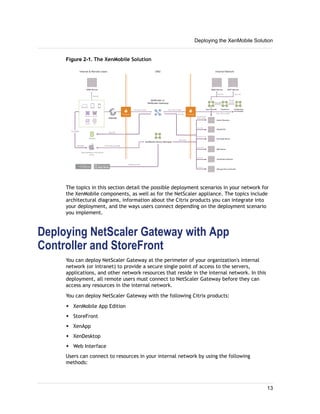
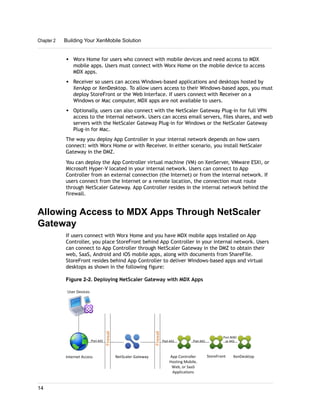
If you install all of the XenMobile components in your network, the deployment may
look like the following figure:
Chapter 2 Building Your XenMobile Solution
12
Figure 2-1. The XenMobile Solution
The topics in this section detail the possible deployment scenarios in your network for
the XenMobile components, as well as for the NetScaler appliance. The topics include
architectural diagrams, information about the Citrix products you can integrate into
your deployment, and the ways users connect depending on the deployment scenario
you implement.
Deploying NetScaler Gateway with App
Controller and StoreFront
You can deploy NetScaler Gateway at the perimeter of your organization's internal
network (or intranet) to provide a secure single point of access to the servers,
applications, and other network resources that reside in the internal network. In this
deployment, all remote users must connect to NetScaler Gateway before they can
access any resources in the internal network.
You can deploy NetScaler Gateway with the following Citrix products:
w XenMobile App Edition
w StoreFront
w XenApp
w XenDesktop
w Web Interface
Users can connect to resources in your internal network by using the following
methods:
Deploying the XenMobile Solution
13
w Worx Home for users who connect with mobile devices and need access to MDX
mobile apps. Users must connect with Worx Home on the mobile device to access
MDX apps.
w Receiver so users can access Windows-based applications and desktops hosted by
XenApp or XenDesktop. To allow users access to their Windows-based apps, you must
deploy StoreFront or the Web Interface. If users connect with Receiver on a
Windows or Mac computer, MDX apps are not available to users.
w Optionally, users can also connect with the NetScaler Gateway Plug-in for full VPN
access to the internal network. Users can access email servers, files shares, and web
servers with the NetScaler Gateway Plug-in for Windows or the NetScaler Gateway
Plug-in for Mac.
The way you deploy App Controller in your internal network depends on how users
connect: with Worx Home or with Receiver. In either scenario, you install NetScaler
Gateway in the DMZ.
You can deploy the App Controller virtual machine (VM) on XenServer, VMware ESXi, or
Microsoft Hyper-V located in your internal network. Users can connect to App
Controller from an external connection (the Internet) or from the internal network. If
users connect from the Internet or a remote location, the connection must route
through NetScaler Gateway. App Controller resides in the internal network behind the
firewall.
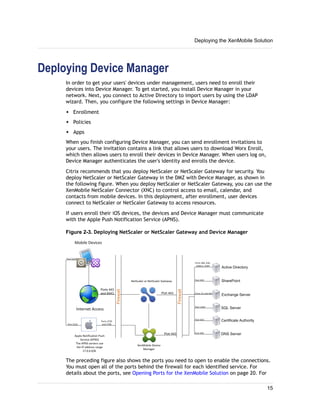
Allowing Access to MDX Apps Through NetScaler
Gateway
If users connect with Worx Home and you have MDX mobile apps installed on App
Controller, you place StoreFront behind App Controller in your internal network. Users
can connect to App Controller through NetScaler Gateway in the DMZ to obtain their
web, SaaS, Android and iOS mobile apps, along with documents from ShareFile.
StoreFront resides behind App Controller to deliver Windows-based apps and virtual
desktops as shown in the following figure:
Figure 2-2. Deploying NetScaler Gateway with MDX Apps
Chapter 2 Building Your XenMobile Solution
14
Deploying Device Manager
In order to get your users' devices under management, users need to enroll their
devices into Device Manager. To get started, you install Device Manager in your
network. Next, you connect to Active Directory to import users by using the LDAP
wizard. Then, you configure the following settings in Device Manager:
w Enrollment
w Policies
w Apps
When you finish configuring Device Manager, you can send enrollment invitations to
your users. The invitation contains a link that allows users to download Worx Enroll,
which then allows users to enroll their devices in Device Manager. When users log on,
Device Manager authenticates the user's identity and enrolls the device.
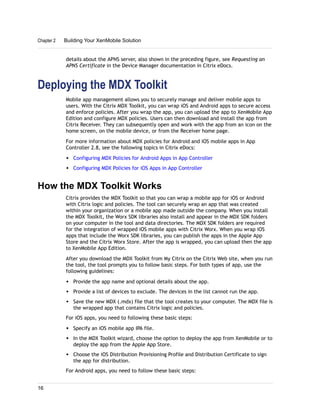
Citrix recommends that you deploy NetScaler or NetScaler Gateway for security. You
deploy NetScaler or NetScaler Gateway in the DMZ with Device Manager, as shown in
the following figure. When you deploy NetScaler or NetScaler Gateway, you can use the
XenMobile NetScaler Connector (XNC) to control access to email, calendar, and
contacts from mobile devices. In this deployment, after enrollment, user devices
connect to NetScaler or NetScaler Gateway to access resources.
If users enroll their iOS devices, the devices and Device Manager must communicate
with the Apple Push Notification Service (APNS).
Figure 2-3. Deploying NetScaler or NetScaler Gateway and Device Manager
The preceding figure also shows the ports you need to open to enable the connections.
You must open all of the ports behind the firewall for each identified service. For
details about the ports, see Opening Ports for the XenMobile Solution on page 20. For
Deploying the XenMobile Solution
15
details about the APNS server, also shown in the preceding figure, see Requesting an
APNS Certificate in the Device Manager documentation in Citrix eDocs.
Deploying the MDX Toolkit
Mobile app management allows you to securely manage and deliver mobile apps to
users. With the Citrix MDX Toolkit, you can wrap iOS and Android apps to secure access
and enforce policies. After you wrap the app, you can upload the app to XenMobile App
Edition and configure MDX policies. Users can then download and install the app from
Citrix Receiver. They can subsequently open and work with the app from an icon on the
home screen, on the mobile device, or from the Receiver home page.
For more information about MDX policies for Android and iOS mobile apps in App
Controller 2.8, see the following topics in Citrix eDocs:
w Configuring MDX Policies for Android Apps in App Controller
w Configuring MDX Policies for iOS Apps in App Controller
How the MDX Toolkit Works
Citrix provides the MDX Toolkit so that you can wrap a mobile app for iOS or Android
with Citrix logic and policies. The tool can securely wrap an app that was created
within your organization or a mobile app made outside the company. When you install
the MDX Toolkit, the Worx SDK libraries also install and appear in the MDX SDK folders
on your computer in the tool and data directories. The MDX SDK folders are required
for the integration of wrapped iOS mobile apps with Citrix Worx. When you wrap iOS
apps that include the Worx SDK libraries, you can publish the apps in the Apple App
Store and the Citrix Worx Store. After the app is wrapped, you can upload then the app
to XenMobile App Edition.
After you download the MDX Toolkit from My Citrix on the Citrix Web site, when you run
the tool, the tool prompts you to follow basic steps. For both types of app, use the
following guidelines:
w Provide the app name and optional details about the app.
w Provide a list of devices to exclude. The devices in the list cannot run the app.
w Save the new MDX (.mdx) file that the tool creates to your computer. The MDX file is
the wrapped app that contains Citrix logic and policies.
For iOS apps, you need to following these basic steps:
w Specify an iOS mobile app IPA file.
w In the MDX Toolkit wizard, choose the option to deploy the app from XenMobile or to
deploy the app from the Apple App Store.
w Choose the iOS Distribution Provisioning Profile and Distribution Certificate to sign
the app for distribution.
For Android apps, you need to follow these basic steps:
Chapter 2 Building Your XenMobile Solution
16
w Specify an Android mobile app APK file.
w Choose the Java Development Kit (JDK) on your computer for wrapping Android
mobile apps.
w Choose the Android Software Development Kit (SDK) on your computer for wrapping
Android mobile apps.
w Choose the Android APK Tool.
w Choose the keystore for signing Android mobile apps.
When you run the MDX Toolkit, the app determines the application type and version.
You can select the minimum and maximum operating system versions.
After you complete wrapping the app, you then upload the MDX file to XenMobile App
Edition. You use the App Controller management console to configure specific
application details and policy settings that Citrix Receiver enforces. When users log on
by using Receiver, the app appears in the store. Users can then subscribe, download
and install the app on their device. For more information about configuring the app
details and policy settings in App Controller, see Mobile Apps.
Deploying the Entire XenMobile Solution
If you deploy all of the components of the XenMobile solution, you have successfully
completed the following tasks:
w Opened the required ports for communication between each component.
w Installed each component in your network.
w Successfully tested connections from user devices.
The next section discusses the deployment prerequisites and includes a checklist for
you to use to get ready for your deployment. The subsequent sections contain
component installation steps, and configuration tests you can carry out.
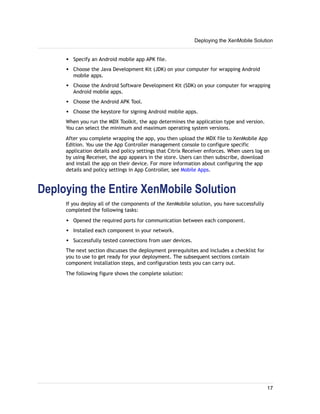
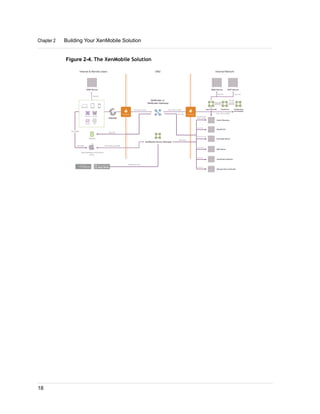
The following figure shows the complete solution:
Deploying the XenMobile Solution
17
Figure 2-4. The XenMobile Solution
Chapter 2 Building Your XenMobile Solution
18
Chapter 3
XenMobile Deployment Prerequisites
Topics:
• Prerequisite List
• Opening Ports for the
XenMobile Solution
• Gathering Network
Information
• Obtaining and Installing
Licenses
• Obtaining and Installing
Certificates
• Determining Your Hardware,
Hypervisor, and Sizing
Requirements
• System Requirements for
Wrapping Mobile Apps
• XenMobile Solution Pre-
Installation Checklist
Before you deploy the XenMobile solution and install the
components, make sure you have the right prerequisites and
system requirements. This effort will prepare you to configure
the network settings, open ports in your firewall, install
certificates and licenses, and configure authentication.
This section details the deployment information you need to
gather and includes the XenMobile Solution Pre-Installation
Checklist to guide you through the recommended settings.
19
Prerequisite List
w Network settings. These settings include IP addresses, ports, DNS, Network Time
Protocol (NTP) and SMTP servers, and the IP address or fully qualified domain name
(FQDN) of a load balancer.
w Hardware and sizing requirements. These include Windows Servers, hypervisors,
and NetScaler Gateway requirements. The NetScaler Gateway appliance you select
(VPX, MDX, or SDX) determines the maximum number of user connections to your
XenMobile deployment.
w Certificates. These include server, root, intermediate, Apple Push Notification
Service (APNS), and certificates for wrapping mobile apps with the MDX Toolkit.
w Licenses. Licenses are required for XenMobile MDM Edition and NetScaler Gateway.
w Active Directory settings. These settings are required for XenMobile MDM Edition
and for XenMobile App Edition.
w Authentication for NetScaler Gateway. These settings can enable LDAP, RADIUS,
one-time passwords, and two-factor (double-source) authentication. If users
connect to internal web sites, you need to configure authentication for NetScaler
Gateway and SharePoint to allow single sign-on (SSO) to work.
w Load balancers. Load balancers manage connections to your XenMobile deployment.
You might also need to plan for packet inspection appliances to monitor network
traffic entering your internal network.
w Email server and data synchronization settings These settings include Exchange
Server and ActiveSync configurations for XenMobile MDM Edition and WorxMail.
w Databases. These databases include either Microsoft SQL Server or Postgres for
XenMobile MDM Edition. The Postgres database comes with XenMobile MDM Edition
and installs when you install Device Manager.
Note: Citrix recommends that you use Microsoft SQL Server. You should only use
PostgreSQL in test deployments.
Opening Ports for the XenMobile Solution
To allow devices and apps to communicate with each XenMobile component, you need
to open ports in your firewall. The following tables define the ports you need to open.
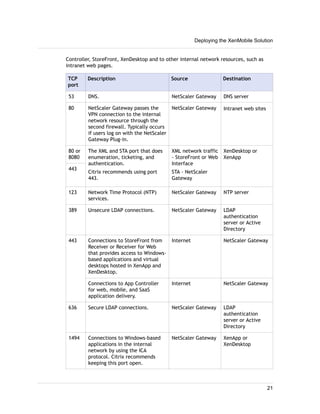
Opening Ports for NetScaler Gateway and App
Controller
You need to open the following ports to allow user connections from Worx Home,
Receiver, or the NetScaler Gateway Plug-in through NetScaler Gateway to App
Chapter 3 XenMobile Deployment Prerequisites
20
Controller, StoreFront, XenDesktop and to other internal network resources, such as
intranet web pages.
TCP
port
Description Source Destination
53 DNS. NetScaler Gateway DNS server
80 NetScaler Gateway passes the
VPN connection to the internal
network resource through the
second firewall. Typically occurs
if users log on with the NetScaler
Gateway Plug-in.
NetScaler Gateway Intranet web sites
80 or
8080
The XML and STA port that does
enumeration, ticketing, and
authentication.
Citrix recommends using port
443.
XML network traffic
- StoreFront or Web
Interface
STA - NetScaler
Gateway
XenDesktop or
XenApp
443
123 Network Time Protocol (NTP)
services.
NetScaler Gateway NTP server
389 Unsecure LDAP connections. NetScaler Gateway LDAP
authentication
server or Active
Directory
443 Connections to StoreFront from
Receiver or Receiver for Web
that provides access to Windows-
based applications and virtual
desktops hosted in XenApp and
XenDesktop.
Internet NetScaler Gateway
Connections to App Controller
for web, mobile, and SaaS
application delivery.
Internet NetScaler Gateway
636 Secure LDAP connections. NetScaler Gateway LDAP
authentication
server or Active
Directory
1494 Connections to Windows-based
applications in the internal
network by using the ICA
protocol. Citrix recommends
keeping this port open.
NetScaler Gateway XenApp or
XenDesktop
Deploying the XenMobile Solution
21
TCP
port
Description Source Destination
1812 RADIUS connection. NetScaler Gateway RADIUS
authentication
server
2598 Connections to Windows-based
applications in the internal
network by using session
reliability. Citrix recommends
keeping this port open.
NetScaler Gateway XenApp or
XenDesktop
3268 Microsoft Global Catalog
unsecure LDAP connections.
NetScaler Gateway LDAP
authentication
server or Active
Directory
3269 Microsoft Global Catalog secure
LDAP connections.
NetScaler Gateway LDAP
authentication
server or Active
Directory
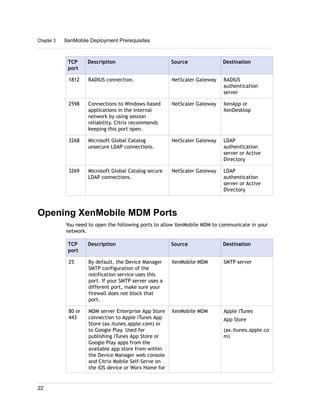
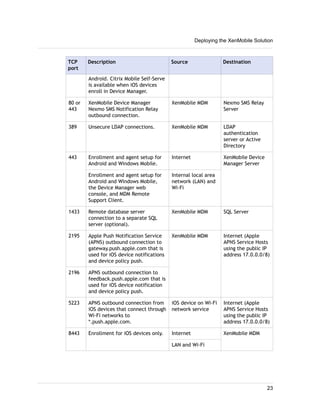
Opening XenMobile MDM Ports
You need to open the following ports to allow XenMobile MDM to communicate in your
network.
TCP
port
Description Source Destination
25 By default, the Device Manager
SMTP configuration of the
notification service uses this
port. If your SMTP server uses a
different port, make sure your
firewall does not block that
port.
XenMobile MDM SMTP server
80 or
443
MDM server Enterprise App Store
connection to Apple iTunes App
Store (ax.itunes.apple.com) or
to Google Play. Used for
publishing iTunes App Store or
Google Play apps from the
available app store from within
the Device Manager web console
and Citrix Mobile Self-Serve on
the iOS device or Worx Home for
XenMobile MDM Apple iTunes
App Store
(ax.itunes.apple.co
m)
Chapter 3 XenMobile Deployment Prerequisites
22
TCP
port
Description Source Destination
Android. Citrix Mobile Self-Serve
is available when iOS devices
enroll in Device Manager.
80 or
443
XenMobile Device Manager
Nexmo SMS Notification Relay
outbound connection.
XenMobile MDM Nexmo SMS Relay
Server
389 Unsecure LDAP connections. XenMobile MDM LDAP
authentication
server or Active
Directory
443 Enrollment and agent setup for
Android and Windows Mobile.
Internet XenMobile Device
Manager Server
Enrollment and agent setup for
Android and Windows Mobile,
the Device Manager web
console, and MDM Remote
Support Client.
Internal local area
network (LAN) and
Wi-Fi
1433 Remote database server
connection to a separate SQL
server (optional).
XenMobile MDM SQL Server
2195 Apple Push Notification Service
(APNS) outbound connection to
gateway.push.apple.com that is
used for iOS device notifications
and device policy push.
XenMobile MDM Internet (Apple
APNS Service Hosts
using the public IP
address 17.0.0.0/8)
2196 APNS outbound connection to
feedback.push.apple.com that is
used for iOS device notification
and device policy push.
5223 APNS outbound connection from
iOS devices that connect through
Wi-Fi networks to
*.push.apple.com.
iOS device on Wi-Fi
network service
Internet (Apple
APNS Service Hosts
using the public IP
address 17.0.0.0/8)
8443 Enrollment for iOS devices only. Internet XenMobile MDM
LAN and Wi-Fi
Deploying the XenMobile Solution
23
Gathering Network Information
You need to identify the following network settings and configure appropriate server
settings before you install the XenMobile components in your network:
w IP addresses for each XenMobile component. For example, for NetScaler Gateway,
you need the system IP (NSIP) and the subnet IP (SNIP) addresses.
w Opening the appropriate ports in your firewall to allow network traffic to
communicate with each component.
w Domain Name Servers (DNS) for name resolution with users inside your network and
users who connect from remote locations. You might need different IP addresses for
each DNS server.
w Network Time Protocol (NTP) server. The NTP server synchronizes the time between
all of your network components. Citrix recommends that you use an NTP server for
your XenMobile deployment.
w MTP server for email. When you configure an SMTP server, you need the fully
qualified domain name (FQDN) of the email server, such as mail.mycompany.com.
You also need to identify the port, the email addresses used for the send function,
and user email addresses and passwords.
The XenMobile Pre-Installation checklist includes a section where you can write down
all of your network settings. You might need to coordinate with other team members to
configure the ports and servers you need for the XenMobile deployment. For more
information about ports and to print the checklist, see:
w XenMobile Solution Pre-Installation Checklist
w Opening Ports for the XenMobile Solution on page 20
Obtaining and Installing Licenses
XenMobile MDM Edition and NetScaler Gateway require licenses. When you purchase a
Citrix product, you receive an email that contains a link for your licenses. You obtain
your licenses by logging on to the Citrix web site and then downloading your licenses.
Important: Citrix recommends that you retain a local copy of all license files you
receive. When you save a backup copy of the configuration file, all uploaded licenses
files are included in the backup. If you need to reinstall XenMobile MDM Edition or
NetScaler Gateway appliance software and do not have a backup of the configuration,
you will need the original license files.
For more information about NetScaler Gateway and Device Manager licenses, see
XenMobile Licensing on the Citrix web site.
Obtaining and Installing Certificates
Certificates are used to create secure connections and authenticate users.
Chapter 3 XenMobile Deployment Prerequisites
24
XenMobile MDM requires a certificate from the Apple Push Notification Service (APNS).
XenMobile MDM also uses its own PKI service or obtains certificates from the Microsoft
Certificate Authority (CA) for client certificates.
All Citrix products support wildcard and SAN certificates. For most deployments, you
only need two wildcard or SAN certificates. You can use the following formats:
w External - *.mycompany.com
w Internal - *.myinternaldomain.net
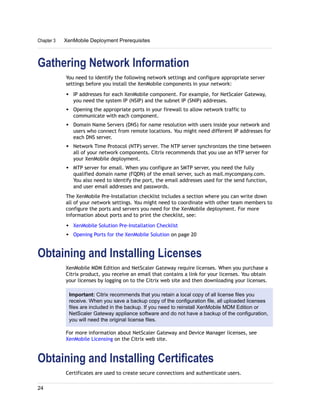
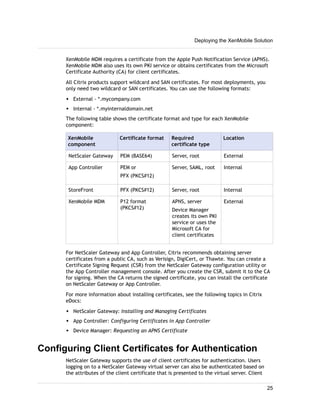
The following table shows the certificate format and type for each XenMobile
component:
XenMobile
component
Certificate format Required
certificate type
Location
NetScaler Gateway PEM (BASE64) Server, root External
App Controller PEM or
PFX (PKCS#12)
Server, SAML, root Internal
StoreFront PFX (PKCS#12) Server, root Internal
XenMobile MDM P12 format
(PKCS#12)
APNS, server
Device Manager
creates its own PKI
service or uses the
Microsoft CA for
client certificates
External
For NetScaler Gateway and App Controller, Citrix recommends obtaining server
certificates from a public CA, such as Verisign, DigiCert, or Thawte. You can create a
Certificate Signing Request (CSR) from the NetScaler Gateway configuration utility or
the App Controller management console. After you create the CSR, submit it to the CA
for signing. When the CA returns the signed certificate, you can install the certificate
on NetScaler Gateway or App Controller.
For more information about installing certificates, see the following topics in Citrix
eDocs:
w NetScaler Gateway: Installing and Managing Certificates
w App Controller: Configuring Certificates in App Controller
w Device Manager: Requesting an APNS Certificate
Configuring Client Certificates for Authentication
NetScaler Gateway supports the use of client certificates for authentication. Users
logging on to a NetScaler Gateway virtual server can also be authenticated based on
the attributes of the client certificate that is presented to the virtual server. Client
Deploying the XenMobile Solution
25
certificate authentication can also be used with another authentication type, such as
LDAP or RADIUS, to provide two-factor authentication.
To authenticate users based on the client-side certificate attributes, client
authentication should be enabled on the virtual server and the client certificate should
be requested. You must bind a root certificate to the virtual server on NetScaler
Gateway.
When users log on to the NetScaler Gateway virtual server, after authentication, the
user name information is extracted from the specified field of the certificate. Typically,
this field is Subject:CN. If the user name is extracted successfully, the user is then
authenticated. If the user does not provide a valid certificate during the Secure Sockets
Layer (SSL) handshake or if the user name extraction fails, authentication fails.
You can authenticate users based on the client certificate by setting the default
authentication type to use the client certificate. You can also create a certificate
action that defines what is to be done during the authentication based on a client SSL
certificate.
Determining Your Hardware, Hypervisor, and
Sizing Requirements
Each XenMobile component has specific hardware, hypervisor, or sizing requirements:
w User devices. This hardware requirement includes the number and types of devices
that enroll when you deploy Device Manager, such as iPads or Android phones.
w Hardware or hypervisor. These requirements include the hardware resources to
support your number of users and devices. You install App Controller and NetScaler
VPX on a hypervisor, such as XenServer. You can also deploy the physical NetScaler
or NetScaler Gateway appliance. The number of users who connect determines the
NetScaler Gateway appliance model you select, or the number of App Controller
instances you install on the hypervisor.
Your hypervisor, such as XenServer, must contain enough disk space and memory to
support multiple instances of App Controller or NetScaler VPX.
w Sizing. The number of devices that connect to XenMobile components. For example,
if Device Manager supports 5,000 devices, the Device Manager server needs from 2
through 4 CPUs, a minimum of 4 gigabytes (GB) of memory, and 24 GB of disk space.
This section describes detailed hardware or hypervisor requirements for each
XenMobile component.
NetScaler Gateway Requirements
To determine which of the following NetScaler Gateway models suit the needs of your
organization, you need to consider how many users will connect. You can use the
following guidelines:
w NetScaler SDX - a hardware platform on which virtual instances on NetScaler and
NetScaler Gateway can run. NetScaler SDX can handle up to 62,500 user
Chapter 3 XenMobile Deployment Prerequisites
26
connections. For more information, see the NetScaler documentation in Citrix
eDocs.
w NetScaler Gateway MPX - a physical appliance that can handle up to 7,500 user
connections.
w NetScaler Gateway VPX - a virtual machine that can handle up to 875 user
connections.
Device Manager System Requirements
You can refer to the following system requirements for installing Device Manager.
Windows Server
w Microsoft Windows Server 2012 64-bit Standard or Enterprise Edition
w Microsoft Windows Server 2008 R2 Standard or Enterprise Edition
Note: If you plan to use device certificate templates with Microsoft Certificate Services,
the Windows Server running the Active Directory Certificate Services must be running
Microsoft Windows Server 2008 R2 SP1, Standard or Enterprise Edition.
If you plan to use the SharePoint access management feature, you must have Microsoft
Windows Server 2008 R2 Standard or Enterprise Edition with Service Pack 1 or with fix
KB976217 installed on the server.
Java Requirements
w Oracle Java SE 7 JDK (JDK Download Edition) with a minimum of update 11
w Java Cryptography Extension (JCE) Unlimited Strength Jurisdiction Policy Files 7
The Java Cryptography Extension (JCE) is an officially released Standard Extension to
the Java Platform. JCE provides a framework and implementation for encryption, key
generation and key agreement, and Message Authentication Code (MAC) algorithms. For
more information, see Java Cryptography Extension (JCE) Unlimited Strength
Jurisdiction Policy Files 7 on the Oracle web site.
Note: Oracle Java components all must be downloaded separately from the download
web site. The JCE components must be installed in the JDK's Java Runtime
Environment in order to properly support enrollment of iOS devices. Please follow the
installation Read Me instructions that accompany the Java JCE download package
Java SE Downloads on the Oracle web site.
After you download and extract the JCE package, copy the files local_policy.jar and
US_export_policy.jar to the <java-home>jrelibsecurity folder and overwrite the
existing files.
Server Hardware Requirements
w Physical or virtual server host environment
Deploying the XenMobile Solution
27
w Intel Xeon 3Ghz or AMD Opteron-1.8Ghz server class
w 4-GB RAM minimum recommended for 64-bit operating system
w 500-MB free disk space minimum
The Windows Server hardware needs to support the number devices that connect. You
can use the following table for guidance:
Number of
devices
Windows Server SQL Server
5,000 2 vCPU and 4GB of memory 2 vCPU and 6 GB memory
10,000 4 vCPU and 8 GB of memory 4 vCPU and 16 GB memory
20,000 8 vCPU and 16 GB of memory 16 vCPU and 24 GB
memory
40,000 16 vCPU and 32 GB of memory 32 vCPU and 64 GB
memory
Device Manager Database Requirements
The Device Manager Server repository requires one of the following databases:
w Microsoft SQL Server 2005
w SQL Server 2008
w SQL Server 2008 R2
User Account Needed: For the database server, you will need a service account that
has administrator rights to SQL server, including the following access rights: Creator,
Owner, and Read/Write permissions.
Windows Service Account Requirements
The Windows service accounts for the Device Manager Server and the database must be
a Local Administrator of the computer on which the Device Manager Server is installed.
Installation Requirements
When you install XenMobile, use the following guidelines:
Note: Domain membership is not required for the Device Manager server.
w Do not install a new version of IIS, and uninstall IIS if it exists on this server.
w Create an external DNS record for the Device Manager server, such
mobile.yourcompany.com.
App Controller System Requirements
You can install App Controller on the following:
Chapter 3 XenMobile Deployment Prerequisites
28
w XenServer 5.6 with a minimum of Service Pack 1
w XenServer 6.0
w XenServer 6.1
w Microsoft Server 2012 with Hyper-V enabled
w Microsoft Hyper-V Server 2012
w VMware ESXi 4.x
w VMware ESXi 5.0.1
w VMware ESXi 5.1
XenServer, Hyper-V, and VMware ESXi must provide adequate virtual computing
resources to App Controller as listed in the following table.
XenServer and VMware ESXi Requirements
XenServer and VMware ESXi must provide adequate virtual computing resources to App
Controller as listed in the following table.
Memory 4 GB
Virtual CPU (VCPU) 2 VCPUs
Virtual Network Interfaces 1
Microsoft Hyper-V Requirements
Microsoft Hyper-V must provide adequate virtual computing resources to App Controller
as listed in the following table.
Disk space (this is maximum disk size to
which the App Controller disk can
increase)
50 GB
Memory 4 GB
VCPU 2
Virtual Network interfaces (available for
each App Controller VM)
1
Active Directory
When you add users to Active Directory, you must enter the first name, last name, and
email in the user properties. If you do not configure users in Active Directory with this
information, App Controller cannot synchronize these individuals. When users attempt
to start an app, users receive a message that they are not authorized to use the app.
Deploying the XenMobile Solution
29
System Requirements for Wrapping Mobile
Apps
The following are system requirements for wrapping iOS and Android mobile apps.
Operating System
You can run the MDX Toolkit for wrapping iOS and Android apps on Mac OS X Version
10.7 (Lion) or Version 10.8 (Mountain Lion).
Tools for Wrapping iOS Mobile Apps
You must obtain the iOS Distribution Provisioning Profile from Apple that allows Apple
to sign the app. For more information about obtaining provisioning profiles, see the
Apple Web site.
Any app that runs on a physical iOS device (other than apps in the Apple App Store)
needs to be signed with a provisioning profile and a corresponding certificate. There
are two kinds of profiles: Enterprise and Ad Hoc.
w The Enterprise profile allows you to run the app on unlimited devices
w The Ad Hoc profile allows you to run the app on up to about 100 devices
To wrap apps, Citrix recommends using the Enterprise profile. You can purchase the
profile from the Apple web site.
Note: If you are running Apple Xcode 4.5 or later versions, you also need to install the
Xcode command-line tools from the Xcode Apple Developer web site.
Tools for Wrapping Android Mobile Apps
To wrap Android mobile apps, you must install the following on your computer before
running the MDX Toolkit:
w Java Development Kit (JDK) Version 1.7.
w Android Software Development Kit (SDK).
w Digitally signed certificate whose private key is held by the application's developer.
For more information about the certificate, see Signing Your Applications on the
Android Developers web site.
You must sign your applications with a key that meets the following guidelines:
w 1024 bit keysize
w DSA key algorithm (keyalg)
Chapter 3 XenMobile Deployment Prerequisites
30
w SHA1with DSA signing algorithm (sigalg)
You need to add the Android SDK path in the PATH environment variable on your
computer. You can also provide the PATH variable in the MDX Toolkit during the
wrapping process. You also need to add the APK Tool installation path in the PATH
environment variable.
XenMobile Solution Pre-Installation Checklist
This checklist lists the tasks you should complete and the configuration values you
should note before you install the following three XenMobile components: NetScaler
Gateway, Device Manager, and App Controller. Each task or note includes a column
indicating the component or components for which the requirement applies.
Citrix recommends that you print and complete this checklist. The checklist has an
extra column that you can use to check off each task as you complete it and to record
information.
For installation instructions of XenMobile components, see the following:
w Installing NetScaler Gateway 10.1 in Your Network
w Installing Device Manager
w Installing App Controller
Basic Network Connectivity
The following are the network settings you need for the XenMobile Solution.
Prerequisite description Configure on
component
Note the setting
Note the fully qualified domain name
(FQDN) to which remote users
connect.
NetScaler
Gateway
Device
Manager
Note the public and local IP address.
You need these IP addresses to
configure the firewall to set up
network address translation (NAT).
Device
Manager
NetScaler
Gateway
App
Controller
Note the subnet mask. Device
Manager
Deploying the XenMobile Solution
31
Prerequisite description Configure on
component
Note the setting
NetScaler
Gateway
App
Controller
Note the DNS IP addresses. Device
Manager
NetScaler
Gateway
App
Controller
Write down the WINS server IP
addresses (if applicable).
NetScaler
Gateway
Identify and write down the
NetScaler Gateway host name.
Note: This is not the FQDN. The
FQDN is contained in the signed
server certificate that is bound to
the virtual server and to which
users connect. You can configure
the host name by using the Setup
Wizard in NetScaler Gateway.
NetScaler
Gateway
Note the App Controller FQDN. App
Controller
Note the IP address of App
Controller.
Reserve one IP address if you install
one instance of App Controller.
Reserve three IP addresses if you
configure high availability on App
Controller. There is one virtual IP
address and an IP address for each
node. If you configure a cluster, note
all of the IP addresses you need.
App
Controller
Chapter 3 XenMobile Deployment Prerequisites
32
Prerequisite description Configure on
component
Note the setting
Note the IP address or FQDN of the
Network Time Protocol (NTP) server.
NetScaler
Gateway
App
Controller
w One public IP address configured
on NetScaler Gateway
w One external DNS entry for
NetScaler Gateway
NetScaler
Gateway
Note the web proxy server IP
address, port, proxy host list, and
the administrator user name and
password. These settings are
optional if you deploy a proxy server
in your network (if applicable).
Note: You can user either the
sAMAccountName or the User
Principal Name (UPN) when
configuring the user name for the
web proxy.
App
Controller
NetScaler
Gateway
Write down the default gateway IP
address.
App
Controller
NetScaler
Gateway
Device
Manager
Write down the system IP (NSIP)
address and subnet mask.
NetScaler
Gateway
Write down the subnet IP (SNIP)
address and subnet mask.
NetScaler
Gateway
Write down the NetScaler Gateway
virtual server IP address and FQDN
from the certificate.
NetScaler
Gateway
Deploying the XenMobile Solution
33
Prerequisite description Configure on
component
Note the setting
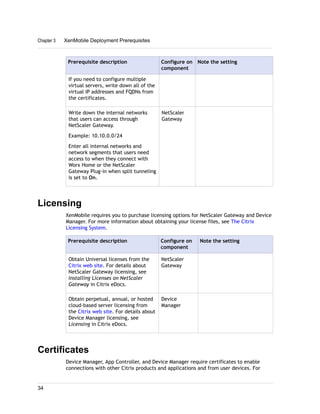
If you need to configure multiple
virtual servers, write down all of the
virtual IP addresses and FQDNs from
the certificates.
Write down the internal networks
that users can access through
NetScaler Gateway.
Example: 10.10.0.0/24
Enter all internal networks and
network segments that users need
access to when they connect with
Worx Home or the NetScaler
Gateway Plug-in when split tunneling
is set to On.
NetScaler
Gateway
Licensing
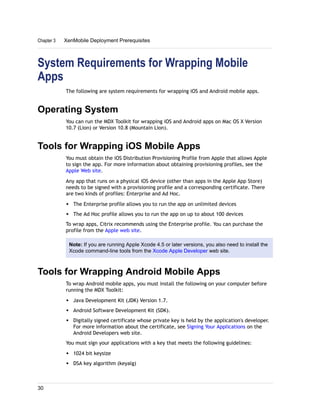
XenMobile requires you to purchase licensing options for NetScaler Gateway and Device
Manager. For more information about obtaining your license files, see The Citrix
Licensing System.
Prerequisite description Configure on
component
Note the setting
Obtain Universal licenses from the
Citrix web site. For details about
NetScaler Gateway licensing, see
Installing Licenses on NetScaler
Gateway in Citrix eDocs.
NetScaler
Gateway
Obtain perpetual, annual, or hosted
cloud-based server licensing from
the Citrix web site. For details about
Device Manager licensing, see
Licensing in Citrix eDocs.
Device
Manager
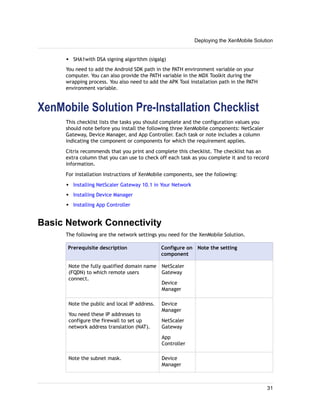
Certificates
Device Manager, App Controller, and Device Manager require certificates to enable
connections with other Citrix products and applications and from user devices. For
Chapter 3 XenMobile Deployment Prerequisites
34
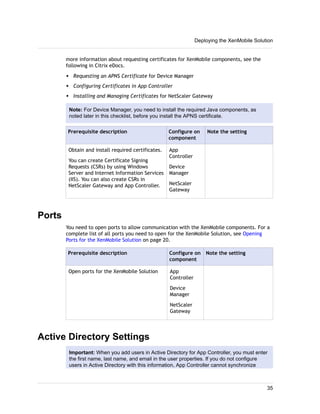
more information about requesting certificates for XenMobile components, see the
following in Citrix eDocs.
w Requesting an APNS Certificate for Device Manager
w Configuring Certificates in App Controller
w Installing and Managing Certificates for NetScaler Gateway
Note: For Device Manager, you need to install the required Java components, as
noted later in this checklist, before you install the APNS certificate.
Prerequisite description Configure on
component
Note the setting
Obtain and install required certificates.
You can create Certificate Signing
Requests (CSRs) by using Windows
Server and Internet Information Services
(IIS). You can also create CSRs in
NetScaler Gateway and App Controller.
App
Controller
Device
Manager
NetScaler
Gateway
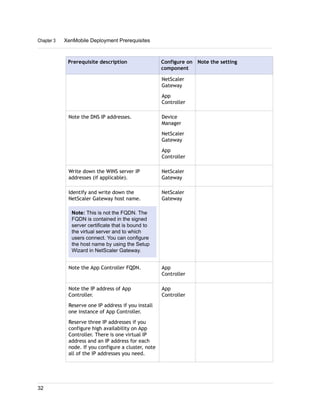
Ports
You need to open ports to allow communication with the XenMobile components. For a
complete list of all ports you need to open for the XenMobile Solution, see Opening
Ports for the XenMobile Solution on page 20.
Prerequisite description Configure on
component
Note the setting
Open ports for the XenMobile Solution App
Controller
Device
Manager
NetScaler
Gateway
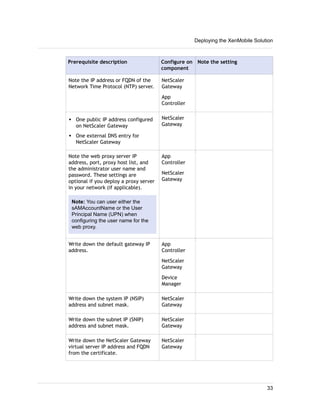
Active Directory Settings
Important: When you add users in Active Directory for App Controller, you must enter
the first name, last name, and email in the user properties. If you do not configure
users in Active Directory with this information, App Controller cannot synchronize
Deploying the XenMobile Solution
35
these individuals. When users attempt to start an app, users receive a message that
they are not authorized to use the app.
Prerequisite description Configure on
component
Note the setting
Note the Active Directory IP address and
port.
If you use port 636, install a root certificate
from a CA on Device Manager.
If you use port 636, install a root certificate
from a CA on App Controller.
App
Controller
Device
Manager
NetScaler
Gateway
Note the Active Directory domain name. App
Controller
Device
Manager
NetScaler
Gateway
Note the Active Directory service account.
The Active Directory service account is the
account that App Controller and Device
Manager uses to query Active Directory.
App
Controller
Device
Manager
NetScaler
Gateway
Note the Base DN.
This is the directory level under which users
are located; for example,
cn=users,dc=ace,dc=com. NetScaler
Gateway, App Controller, and Device
Manager use this to query Active Directory.
Note: If your Active Directory database is
large, you can configure multiple Base DNs
to which App Controller or Device Manager
binds and in which the server searches to
find user objects. For example, you can
use the following:
ou=Finance,dc=ace,dc=com;
ou=Sales,dc=ace,dc=com
App
Controller
Device
Manager
NetScaler
Gateway
Chapter 3 XenMobile Deployment Prerequisites
36
Prerequisite description Configure on
component
Note the setting
Note the Group Base DN.
This is the directory level under which users
are located. You can use the same value that
you used for Base DN.
NetScaler Gateway, App Controller, and
Device Manager use this to query Active
Directory.
App
Controller
Device
Manager
NetScaler
Gateway
Note a user account for testing.
This is an Active Directory account that you
can use to log on and test single sign-on
(SSO).
App
Controller
Device
Manager
NetScaler
Gateway
Database Requirements for Device Manager
Prerequisite description Configure
on
component
Note the setting
Note the SQL Server user accounts.
Configure a service account with
administrator rights to SQL Server,
including the following access rights:
Creator, Owner, and Read/Write
permissions.
Device
Manager
Note the Windows Service Account.
This account is for the Device
Manager Server and the database.
The account must be a Local
Administrator of the computer on
which you install Device Manager
Server.
Device
Manager
Note the SQL Server FQDN or IP
address.
Device
Manager
Deploying the XenMobile Solution
37
Connections Between App Controller, Device
Manager, and NetScaler Gateway
You can configure Device Manager and App Controller to connect. Complete the
following tasks that are indicated for Device Manager if you deploy App Controller in
your internal network. If users connect to App Controller from an external network,
such as the Internet, users must connect to NetScaler Gateway before accessing
mobile, web, and SaaS apps. If that is the case, complete the following tasks that are
indicated for NetScaler Gateway.
Note: Configure App Controller settings on Device Manager first. Then, you can
configure Device Manager settings in App Controller.
Prerequisite description Configure on
component
Note the setting
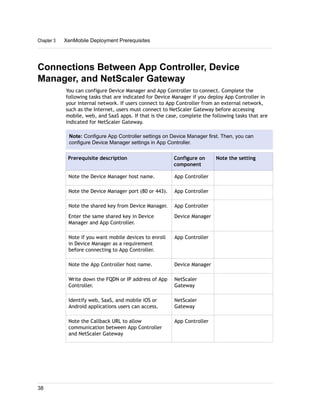
Note the Device Manager host name. App Controller
Note the Device Manager port (80 or 443). App Controller
Note the shared key from Device Manager.
Enter the same shared key in Device
Manager and App Controller.
App Controller
Device Manager
Note if you want mobile devices to enroll
in Device Manager as a requirement
before connecting to App Controller.
App Controller
Note the App Controller host name. Device Manager
Write down the FQDN or IP address of App
Controller.
NetScaler
Gateway
Identify web, SaaS, and mobile iOS or
Android applications users can access.
NetScaler
Gateway
Note the Callback URL to allow
communication between App Controller
and NetScaler Gateway
App Controller
Chapter 3 XenMobile Deployment Prerequisites
38
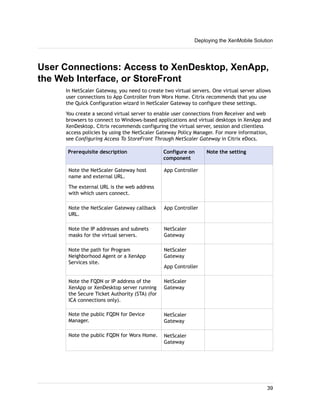
User Connections: Access to XenDesktop, XenApp,
the Web Interface, or StoreFront
In NetScaler Gateway, you need to create two virtual servers. One virtual server allows
user connections to App Controller from Worx Home. Citrix recommends that you use
the Quick Configuration wizard in NetScaler Gateway to configure these settings.
You create a second virtual server to enable user connections from Receiver and web
browsers to connect to Windows-based applications and virtual desktops in XenApp and
XenDesktop. Citrix recommends configuring the virtual server, session and clientless
access policies by using the NetScaler Gateway Policy Manager. For more information,
see Configuring Access To StoreFront Through NetScaler Gateway in Citrix eDocs.
Prerequisite description Configure on
component
Note the setting
Note the NetScaler Gateway host
name and external URL.
The external URL is the web address
with which users connect.
App Controller
Note the NetScaler Gateway callback
URL.
App Controller
Note the IP addresses and subnets
masks for the virtual servers.
NetScaler
Gateway
Note the path for Program
Neighborhood Agent or a XenApp
Services site.
NetScaler
Gateway
App Controller
Note the FQDN or IP address of the
XenApp or XenDesktop server running
the Secure Ticket Authority (STA) (for
ICA connections only).
NetScaler
Gateway
Note the public FQDN for Device
Manager.
NetScaler
Gateway
Note the public FQDN for Worx Home. NetScaler
Gateway
Deploying the XenMobile Solution
39
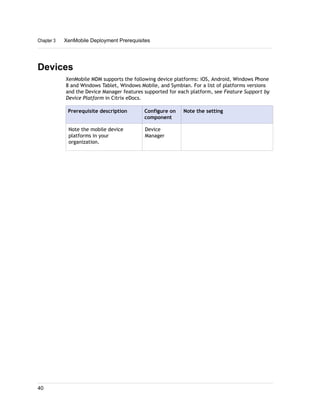
Devices
XenMobile MDM supports the following device platforms: iOS, Android, Windows Phone
8 and Windows Tablet, Windows Mobile, and Symbian. For a list of platforms versions
and the Device Manager features supported for each platform, see Feature Support by
Device Platform in Citrix eDocs.
Prerequisite description Configure on
component
Note the setting
Note the mobile device
platforms in your
organization.
Device
Manager
Chapter 3 XenMobile Deployment Prerequisites
40
Chapter 4
XenMobile Component Installation Steps
Topics:
• Downloading XenMobile
Product Software
• Installing NetScaler Gateway
10.1 in Your Network
• Installing Device Manager
• Installing App Controller 2.8
• Configuring Connections
Between Device Manager and
App Controller
• Installing the MDX Toolkit
Citrix recommends that you install XenMobile components in
the following order:
w NetScaler or NetScaler Gateway
w Device Manager
w XenMobile NetScaler Connector (XNC)
w App Controller
w StoreFront (optional)
w ShareFile (optional)
In addition to installing these components, you also need to
configure each component to communicate with other
components.
After you install the XenMobile components, you can use the
MDX Toolkit to wrap .ipa and .apk files. Then, you can upload
the MDX files to App Controller for users to download and
install.
This section includes installation and configuration steps for
each XenMobile component, as well as the MDX Toolkit.
41
Downloading XenMobile Product Software
You can download product software from the Citrix web site. You need to log on to the
site and then click the Downloads link on the Citrix web page. You can then select the
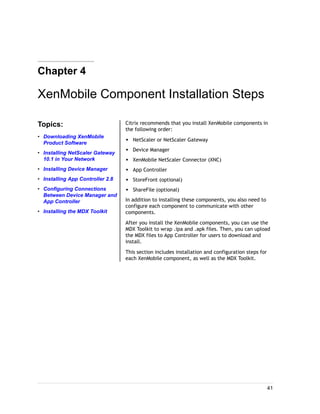
product and type you want to download. For example, the following figure shows
XenMobile product software drop-down list:
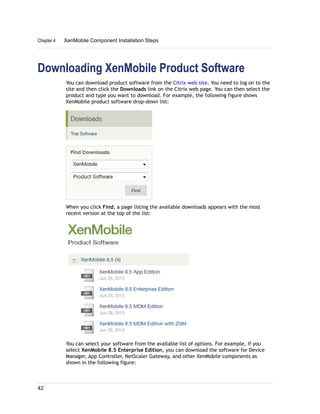
When you click Find, a page listing the available downloads appears with the most
recent version at the top of the list:
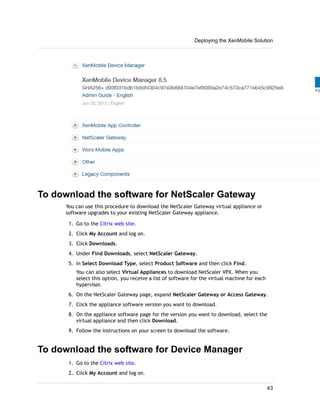
You can select your software from the available list of options. For example, if you
select XenMobile 8.5 Enterprise Edition, you can download the software for Device
Manager, App Controller, NetScaler Gateway, and other XenMobile components as
shown in the following figure:
Chapter 4 XenMobile Component Installation Steps
42
To download the software for NetScaler Gateway
You can use this procedure to download the NetScaler Gateway virtual appliance or
software upgrades to your existing NetScaler Gateway appliance.
1. Go to the Citrix web site.
2. Click My Account and log on.
3. Click Downloads.
4. Under Find Downloads, select NetScaler Gateway.
5. In Select Download Type, select Product Software and then click Find.
You can also select Virtual Appliances to download NetScaler VPX. When you
select this option, you receive a list of software for the virtual machine for each
hypervisor.
6. On the NetScaler Gateway page, expand NetScaler Gateway or Access Gateway.
7. Click the appliance software version you want to download.
8. On the appliance software page for the version you want to download, select the
virtual appliance and then click Download.
9. Follow the instructions on your screen to download the software.
To download the software for Device Manager
1. Go to the Citrix web site.
2. Click My Account and log on.
Deploying the XenMobile Solution
43
3. Click Downloads.
4. Under Find Downloads, select XenMobile.
5. In Select Download Type, select Product Software and then click Find.
6. On the XenMobile Product Software page, click XenMobile 8.5 MDM Edition.
7. Under XenMobile Device Manager, click Download next to XenMobile Device
Manager 8.5.
8. Follow the instructions on your screen to download the software.
To download the software for App Controller
1. Go to the Citrix web site.
2. Click My Account and log on.
3. Click Downloads.
4. Under Find Downloads, select XenMobile.
5. In Select Download Type, select Product Software and then click Find.
6. On the XenMobile Product Software page, click XenMobile 8.5 App Edition.
7. On the XenMobile 8.5 App Edition page, click the appropriate App Controller
virtual image in order to install App Controller on XenServer, VMware, or Hyper-V.
8. Follow the instructions on your screen to download the software.
To download the MDX Toolkit
You can run the MDX Toolkit for wrapping iOS and Android apps on Mac OS X Version
10.7 (Lion) or Version 10.8 (Mountain Lion).
1. Go to the Citrix web site.
2. Click My Account and log on.
3. Click Downloads.
4. Under Find Downloads, select XenMobile.
5. In Select Download Type, select Product Software and then click Find.
6. On the XenMobile Product Software page, click XenMobile 8.5 App Edition.
7. On the XenMobile 8.5 App Edition page, expand Worx Mobile Apps.
8. Locate MDX Toolkit for iOS and Android Build <number> where <number> is the
toolkit build number, such as 2.0-149.
9. Click Download.
10. Follow the instructions on your screen to download the software.
Chapter 4 XenMobile Component Installation Steps
44
Installing NetScaler Gateway 10.1 in Your
Network
This section discusses the installation of the NetScaler Gateway MDX physical appliance
and NetScaler VPX in your network. Before you install either the physical appliance or
the virtual appliance, complete the NetScaler information in the XenMobile Solution
Pre-Installation Checklist. After you install the physical appliance by following the
instructions in Installing the Model MPX Appliance in Citrix eDocs, you turn on the
appliance and perform the initial configuration. This includes configuring:
w NetScaler Gateway IP address (NSIP)
w Subnet IP address (SNIP)
w Default gateway
w DNS servers
w Host name
w Licenses
w Certificates that include the fully qualified domain name (FQDN)
Configuring IP Addresses on NetScaler Gateway
You can configure IP addresses to log on to the configuration utility and for user
connections. NetScaler Gateway is configured with a default IP address of
192.168.100.1 and subnet mask of 255.255.0.0 for management access. The default IP
address is used whenever a user-configured value for the NetScaler Gateway system IP
(NSIP) address is absent.
w NSIP address. The management IP address for NetScaler Gateway that is used for all
management-related access to the appliance. NetScaler Gateway also uses the NSIP
address for authentication.
w Default gateway. The router that forwards traffic from outside the secure network
to NetScaler Gateway.
w Subnet IP (SNIP) address. The IP address that represents the user device by
communicating with a server on a secondary network.
The SNIP address use ports 1024 through 64000.
Configuring the Host Name and FQDN on NetScaler
Gateway
The host name is the name of the NetScaler Gateway appliance that is associated with
the license file. The host name is unique to the appliance and is used when you
download the Universal license. You define the host name when you run the Setup
Wizard to configure NetScaler Gateway for the first time.
Deploying the XenMobile Solution
45
The fully qualified domain name (FQDN) is included in the signed certificate that is
bound to a virtual server. You do not configure the FQDN on NetScaler Gateway. One
appliance can have a unique FQDN assigned to each virtual server that is configured on
NetScaler Gateway by using certificates.
You can find the FQDN of a certificate by viewing the details of the certificate. The
FQDN is located in the subject field of the certificate.
To view the FQDN of a certificate
1. In the configuration utility, on the Configuration tab, in the navigation pane, click
SSL.
2. In the details pane, select a certificate, click Actions and then click Details.
3. In the Certificate Details dialog box, click Subject.
The FQDN of the certificate appears in the list.
Configuring the Initial Settings on the NetScaler
Gateway Appliance
The way you configure the initial settings on NetScaler Gateway depends on if you
install the physical appliance or the virtual image.
To perform the initial configuration on the physical appliance, you can use the LCD
keypad on the front panel of the appliance, the serial console, or the Setup Wizard.
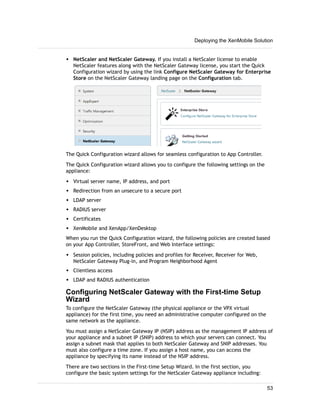
You can access the Setup Wizard from any computer that is on the same network as the
new NetScaler Gateway appliance. However, because this method uses the default IP
address for NetScaler Gateway, you must install and configure one appliance at a time.
To configure the virtual appliance, see Configuring the Initial Settings on the NetScaler
VPX on page 47.
If you want to configure a new NetScaler Gateway appliance from a remote network, or
if you want to install multiple appliances and then configure them without using the
console port, you can use Dynamic Host Configuration Protocol (DHCP) to assign each
new appliance an IP address at which you can access the appliance for remote
configuration.
Citrix recommends configuring the appliance by using the serial console.
To configure the NetScaler Gateway by using the serial
console
Note: To locate the serial console port on your appliance, see Configuring the MPX
Appliance by Using the LCD Keyboard in the NetScaler Gateway Appliances section in
Citrix eDocs.
1. Connect the Ethernet cable into your appliance.
For more information, see Connecting the Cables to the MPX Appliance in the
NetScaler Gateway Appliances section in Citrix eDocs.
Chapter 4 XenMobile Component Installation Steps
46
2. In a Secure Shell (SSH) application, such as PuTTY, log on to the appliance by using
the administrator credentials.
The default user name and password is nsroot.
3. At the command prompt, type config ns to run the configuration script.
4. To complete the initial configuration of your appliance, follow the prompts.
Instead of step 2 and 3, you can directly enter the commands for the initial
configuration. Log on to the appliance with an SSH application and at the command
prompt, type:
set ns config -ipAddress <IPAddress> -netmask <Netmask>
add ns ip <IPAddress> <Netmask> -type <Type>
add route <Network> <Netmask> <Gateway>
set system user nsroot <Password>
save ns config
reboot
Example
set ns config -ipAddress 10.102.29.60 -netmask 255.255.255.0
add ns ip 10.102.29.61 255.255.255.0 -type nsip
add route 0.0.0.0 0.0.0.0 10.102.29.1
set system user nsroot administrator
save ns config
reboot
The initial configuration of your physical NetScaler Gateway appliance is complete. You
can now log on to the configuration utility to configure additional settings and run the
Quick Configuration wizard to set up connections between NetScaler Gateway and App
Controller.
Configuring the Initial Settings on the NetScaler
VPX
When you install NetScaler VPX on your hypervisor, you configure the initial settings by
using the command line. For example, if you install NetScaler VPX on XenServer, you
use the Console tab to configure the initial settings.
You are prompted to configure the following:
w IPv4 address
w Subnet mask
w Default gateway
The following figure shows the settings configured on the Console tab in XenCenter.
Deploying the XenMobile Solution
47
When you press 4 to save the settings, the appliance restarts. When the appliance is in
an UP state, you then log on to the command-line console by using a Secure Shell (SSH)
application, such as PuTTY. Configure the subnet IP (SNIP) address by using the
following commands:
set ns config -ipAddress <IPAddress> -netmask <Netmask>
add ns ip <IPAddress> <Netmask> -type <Type>
save ns config
reboot
Example
set ns config -ipAddress 10.102.29.60 -netmask 255.255.255.0
add ns ip 10.102.29.61 255.255.255.0 -type snip
save ns config
reboot
You must set the SNIP address. When you set this address, you can then log on to the
configuration utility by using the IP address you configured on the Console tab. For
example, as shown in the preceding figure, you can use the format http://
10.199.242.67 in a web browser to log on to the configuration utility.
Creating a Certificate Signing Request on NetScaler
Gateway
On NetScaler Gateway, you use certificates to create secure connections and to
authenticate users. To establish a secure connection, a server certificate is required at
Chapter 4 XenMobile Component Installation Steps
48
one end of the connection. A root certificate of the Certificate Authority (CA) that
issued the server certificate is required at the other end of the connection. Typically,
you install the server certificate on NetScaler Gateway and the root certificate is
installed on the user device.
Citrix recommends creating a Certificate Signing Request (CSR) to create the server
certificate and private key. You can send the certificate to a public Certificate
Authority (CA) such as VeriSign, Digi-Cert, or Thawte for signing. The private key
remains on the NetScaler Gateway appliance and is password protected. When you
receive the certificate from the CA, you install the certificate on NetScaler Gateway
and pair the certificate with the private key.
You use the Create Certificate Request included in the NetScaler Gateway wizard to
create the CSR.
Important: When you use the NetScaler Gateway wizard to create the CSR, you must
exit the wizard and wait for the CA to send you the signed certificate. When you
receive the certificate, you can run the NetScaler Gateway wizard again to create the
settings and install the certificate. For more information about the NetScaler Gateway
wizard, see Configuring Settings by Using the NetScaler Gateway Wizard in the
NetScaler Gateway 10.1 documentation in Citrix eDocs.
On the Specify a server certificate page in the wizard, you click Create a Certificate
Signing Request as shown in the following figure:
The Certificate Signing Request dialog box appears. You complete the fields as
described in the following procedure.
Deploying the XenMobile Solution
49
To configure a CSR by using the NetScaler Gateway Wizard
1. In the configuration utility, click the Configuration tab and then in the navigation
pane, click NetScaler Gateway.
2. In the details pane, under Getting Started, click NetScaler Gateway wizard.
3. Follow the directions in the wizard until you come to the Specify a server
certificate page.
4. Click Create a Certificate Signing Request and then complete the fields.
Note: The Common Name is the fully qualified domain name (FQDN), which
does not need to be the same as the NetScaler Gateway host name. The FQDN
is used for user logon.
5. Click Create to save the certificate on your computer and then click Close.
6. Exit the NetScaler Gateway wizard without saving your settings.
After you create the certificate and private key, email the CSR to the CA, such as
Thawte, Digi-Cert, or VeriSign.
Installing the Signed Certificate on NetScaler Gateway
When you receive the signed certificate from the Certificate Authority (CA), you install
the certificate on NetScaler Gateway and then you pair it with the private key.
To pair the signed certificate with a private key
1. In the configuration utility, on the Configuration tab, in the navigation pane,
expand SSL and then click Certificates.
Chapter 4 XenMobile Component Installation Steps
50
2. In the details pane, click Install.
The Install Certificate dialog box opens.
3. In Certificate-Key Pair Name, type the name of the certificate.
4. In Certificate File Name, select the drop-down box in Browse and then click
Local.
5. Navigate to the certificate, select the certificate and then click Open.
6. In Key File Name, select the drop-down box in Browse and then click Appliance.
The name of the private key is the same name as the Certificate Signing Request
(CSR). The private key is located on NetScaler Gateway in the directory nsconfig
ssl.
7. Choose the private key and then click Open.
8. If the certificate is PEM format, in Password, type the password for the private
key.
9. If you want to configure notification for when the certificate expires, in Notifies
When Expires, click ENABLED.
10. In Notification Period, type the number of days, click Create and then click Close.
To install a license on NetScaler Gateway
After you successfully download the license file to your computer, you can then install
the license on NetScaler Gateway. The license is installed in the /nsconfig/license
directory.
If you used the Setup Wizard to configure the initial settings on NetScaler Gateway, the
license file is installed when you run the wizard. If you allocate part of your licenses
Deploying the XenMobile Solution
51
and then at a later date, you allocate an additional number of licenses, you can install
the licenses without using the Setup Wizard.
1. In the configuration utility, on the Configuration tab, in the navigation pane,
expand System and then click Licenses.
2. In the details pane, click Manage Licenses.
3. Under Update Licenses, click Browse, navigate to the license file and then click
OK.
A message appears in the configuration utility stating that you need to restart
NetScaler Gateway. Click Restart.
Configuring NetScaler Gateway by Using Wizards
To deploy NetScaler Gateway as part of the XenMobile solution, you use the First-time
Setup Wizard and the Quick Configuration wizard.
How the First-time Setup Wizard Works
When you finish installing and configuring the initial settings on the NetScaler Gateway
appliance, when you log on to the configuration utility for the first time, the First-time
Setup wizard appears if you still need to configure the following settings:
w Install a license on the appliance.
w Configure a subnet IP (SNIP) address.
w Change the default IP address of the appliance from 192.168.100.1.
How the Quick Configuration Wizard Works
The Quick Configuration wizard allows you to configure multiple virtual servers on
NetScaler Gateway. With the wizard, you can add, edit, and remove virtual servers.
How you start this wizard depends on how you have the appliance licensed:
w NetScaler Gateway only. If you install a license for NetScaler Gateway only, the
Home tab appears. On this tab you can click Create NetScaler Gateway to
configure the virtual server.
Chapter 4 XenMobile Component Installation Steps
52
w NetScaler and NetScaler Gateway. If you install a NetScaler license to enable
NetScaler features along with the NetScaler Gateway license, you start the Quick
Configuration wizard by using the link Configure NetScaler Gateway for Enterprise
Store on the NetScaler Gateway landing page on the Configuration tab.
The Quick Configuration wizard allows for seamless configuration to App Controller.
The Quick Configuration wizard allows you to configure the following settings on the
appliance:
w Virtual server name, IP address, and port
w Redirection from an unsecure to a secure port
w LDAP server
w RADIUS server
w Certificates
w XenMobile and XenApp/XenDesktop
When you run the Quick Configuration wizard, the following policies are created based
on your App Controller, StoreFront, and Web Interface settings:
w Session policies, including policies and profiles for Receiver, Receiver for Web,
NetScaler Gateway Plug-in, and Program Neighborhood Agent
w Clientless access
w LDAP and RADIUS authentication
Configuring NetScaler Gateway with the First-time Setup
Wizard
To configure the NetScaler Gateway (the physical appliance or the VPX virtual
appliance) for the first time, you need an administrative computer configured on the
same network as the appliance.
You must assign a NetScaler Gateway IP (NSIP) address as the management IP address of
your appliance and a subnet IP (SNIP) address to which your servers can connect. You
assign a subnet mask that applies to both NetScaler Gateway and SNIP addresses. You
must also configure a time zone. If you assign a host name, you can access the
appliance by specifying its name instead of the NSIP address.
There are two sections in the First-time Setup Wizard. In the first section, you
configure the basic system settings for the NetScaler Gateway appliance including:
Deploying the XenMobile Solution
53
w NSIP address, SNIP address, and subnet mask
w Appliance host name
w DNS servers
w Time zone
w Administrator password
In the second section, you install licenses. If you specify the address of a DNS server,
you can use the hardware serial number (HSN) or license activation code (LAC) to
allocate your licenses, instead of uploading your licenses from a local computer to the
appliance.
Note: Citrix recommends saving your licenses to your local computer.
When you finish configuring these settings, NetScaler Gateway prompts you to restart
the appliance. When you log on to the appliance again, you can use other wizards and
the configuration utility to configure additional settings.
Configuring Settings with the Quick Configuration Wizard
You can configure settings in NetScaler Gateway to enable communication with App
Controller, StoreFront, or Web Interface by using the Quick Configuration wizard. When
you complete the configuration, the wizard creates the correct policies for
communication between NetScaler Gateway, App Controller, StoreFront, or the Web
Interface. These policies include authentication, session, and clientless access policies.
When the wizard completes, the policies are bound to the virtual server.
During the wizard, you configure the following settings:
w Virtual server name, IP address, and port
w Redirection from an unsecure to a secure port
w Certificates
w LDAP server
w RADIUS server
w Client certificate for authentication (only for double-source authentication)
w App Controller, StoreFront, or Web Interface
The Quick Configuration wizard supports LDAP and RADIUS authentication. You can
configure two-factor authentication in the wizard by following these guidelines:
w If you select LDAP as your primary authentication type, you can configure RADIUS as
the secondary authentication type.
w If you select RADIUS as your primary authentication type, you can configure LDAP as
the secondary authentication type.
Important: You can only configure one LDAP authentication policy by using the Quick
Configuration wizard. The wizard does not allow you to configure multiple LDAP
Chapter 4 XenMobile Component Installation Steps
54
authentication policies. If you run the wizard more than one time and want to use a
different LDAP policy, you must configure the additional policies manually by using the
NetScaler Gateway Policy Manager. For more information about configuring NetScaler
Gateway to authenticate user access with one or more LDAP servers, see Configuring
LDAP Authentication.
After you initially run the wizard, you can run the wizard again to create additional
virtual servers and settings. Each additional virtual server must have a unique IP
address and port number.
This procedure assumes you have already obtained and installed a secure server
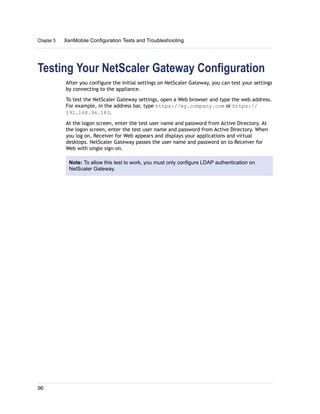
certificate on NetScaler Gateway. For more information, see the following topics: and
w Creating a Certificate Signing Request on NetScaler Gateway on page 48
w To pair the signed certificate with a private key on page 50
How you start the Quick Configuration wizard depends what you select when you log
on.
w If you select NetScaler Gateway, the Home tab appears from which you can
configure settings to App Controller.
w If you select NetScaler ADC, the Home tab does not appear. You configure the
settings to App Controller by using the link Configure NetScaler Gateway for
Enterprise Store on the NetScaler Gateway logon page.
To configure settings with the Quick Configuration wizard
1. In the configuration utility, do one of the following:
a. If you select NetScaler Gateway when you log on, click the Home tab and
then click Create New NetScaler Gateway.
b. If you select NetScaler ADC when you log on, on the Configuration tab, in the
navigation pane, click NetScaler Gateway and then in the details pane, under
Getting Started, click Configure NetScaler Gateway for Enterprise Store.
2. In NetScaler Gateway Settings, configure the following:
a. In Name, type a name for the virtual server.
b. In IP address, type the IP address for the virtual server.
Deploying the XenMobile Solution
55
c. In Port, type the port number. The default port number is 443.
d. Select Redirect requests from port 80 to secure port to allow user
connections from port 80 to go to port 443.
e. If you select Redirect requests from port 80 to secure port, Gateway FQDN
appears. Enter the fully qualified domain name (FQDN) that is contained in the
certificate you bind to this virtual server.
3. Click Continue.
4. On the Certificate page, do one of the following:
a. Click Choose Certificate and then in Certificate, select the certificate.
b. Click Install Certificate and then in Choose Certificate and in Choose Key,
click Browse to navigate to the certificate and private key.
c. Click Use Test Certificate and then in Certificate FQDN enter the FQDN
contained in the test certificate.
5. Click Continue.
6. In Authentication Settings, do the following:
a. In Primary Authentication, select LDAP or RADIUS.
b. Select an authentication server or configure the settings for the
authentication type you selected in the previous step.
c. If you are using two-factor authentication, in Secondary Authentication,
select the authentication type and then configure the authentication server
settings.
Configure the RADIUS policy as the primary authentication type and LDAP as
the secondary. When users log on, they receive a prompt for their LDAP
credentials and then their RADIUS credentials.
7. Click Continue.
When you finish configuring the network and authentication settings, you can then
configure XenMobile (App Controller) or XenApp / XenDesktop (StoreFront or Web
Interface) settings.
To configure LDAP authentication settings in the Quick Configuration
wizard
1. In Primary Authentication, select LDAP and then click Configure New.
2. In IP Address and Port, type the IP address and port number of the LDAP server.
3. In Base DN (location of users), type the base DN under which users are located.
The base DN is usually derived from the Bind DN by removing the user name and
specifying the group where users are located. Examples of syntax for base DN are:
ou=users,dc=ace,dc=com
cn=Users,dc=ace,dc=com
Chapter 4 XenMobile Component Installation Steps
56
4. In Administrator Bind DN, type the administrator bind DN for queries to the LDAP
directory.
Examples for syntax of bind DN are:
domain/user name
ou=administrator,dc=ace,dc=com
user@domain.name (for Active Directory)
cn=Administrator,cn=Users,dc=ace,dc=com
For Active Directory, the group name specified as cn=groupname is required. The
group name that you define in NetScaler Gateway and the group name on the LDAP
server must be identical.
For other LDAP directories, the group name either is not required or, if required, is
specified as ou=groupname.
NetScaler Gateway binds to the LDAP server using the administrator credentials
and then searches for the user. After locating the user, NetScaler Gateway unbinds
the administrator credentials and rebinds with the user credentials.
5. In Server Logon Name Attribute, type the attribute under which NetScaler
Gateway should look for user logon names for the LDAP server that you are
configuring. You can use either samAccountName or userPrincipleName.
6. In Password and Confirm Password, type the administrator password for the LDAP
server and then click Continue.
To configure RADIUS authentication settings in the Quick
Configuration wizard
You can configure NetScaler Gateway to authenticate user access with one or more
RADIUS servers. If you are using RSA SecurID, SafeWord, or Gemalto Protiva products,
each of these is configured by using a RADIUS server.
Your configuration might require using a network access server IP address (NAS IP) or a
network access server identifier (NAS ID). When configuring NetScaler Gateway to use a
RADIUS authentication server, use the following guidelines:
w If you enable use of the NAS IP, the appliance sends its configured IP address to the
RADIUS server, rather than the source IP address used in establishing the RADIUS
connection.
w If you configure the NAS ID, the appliance sends the identifier to the RADIUS server.
If you do not configure the NAS ID, the appliance sends its host name to the RADIUS
server.
w When you enable the NAS IP, the appliance ignores any NAS ID that is configured
using the NAS IP to communicate with the RADIUS server.
1. In Primary Authentication, select RADIUS and then click Configure New.
2. In IP Address and Port, type the IP address and port number of the RADIUS server.
The default port is 1812.
Deploying the XenMobile Solution
57
3. In Secret Key and Confirm Secret Key, type the RADIUS server secret and then
click Continue.
Configuring Enterprise Store Settings
After you configure authentication settings, you can configure the connection to App
Controller. NetScaler Gateway supports user access to web, SaaS, and mobile apps and
ShareFile only through App Controller.
When you click Continue from the preceding procedure, you can then configure the
App Controller FQDN.
After you create the virtual server, editing the virtual server in the Quick Configuration
wizard does not allow you to change XenMobile or XenApp/XenDesktop settings.
For example, if you cancel the configuration of a virtual server at any stage before
configuring the Citrix Enterprise Store settings, the wizard automatically selects the
Web interface without configuring any settings. When this situation occurs, you can
edit the virtual server details for configuring the Web Interface, but you cannot switch
to XenMobile. To switch, you must create a new virtual server and must not cancel the
wizard at any time during the configuration. If you do not need the Web Interface
virtual server, you can delete it by using the Quick Configuration wizard.
To configure settings for App Controller only
1. Click XenMobile.
2. In App Controller FQDN, enter the FQDN for App Controller.
3. Click Done.
To configure Web Interface settings
1. In the Quick Configuration wizard, click XenApp / XenDesktop.
2. In Deployment Type, select Web Interface and then configure the following:
a. In XenApp Site URL, type the complete IP address or FQDN of the Web
Interface.
b. In XenApp Services Site URL, type the complete IP address or FQDN of the
Web Interface with the PNAgent Path. You can enter the default path or enter
your own path.
c. In Single Sign-on Domain, enter the domain to use.
d. In STA URL, type the complete IP address or FQDN of the server running the
STA.
3. Click Done.
After you run the Quick Configuration Wizard, you need to do the following:
w If you configure a RADIUS authentication policy, you need to set the Credential
Index to SECONDARY on the Client Experience tab in the operation system profile.
For more information, see To set the credential index on page 59.
Chapter 4 XenMobile Component Installation Steps
58
w Configure an intranet application and set it to transparent. For more information,
see Configuring Intranet Applications on page 60.
w Configure DNS suffixes. For more information, see Configuring a DNS Suffix on page
63.
w Configure split DNS settings for Android devices. For more information, see
Supporting DNS Queries by Using DNS Suffixes for Android Devices on page 61.
To set the credential index
If you configure two-factor authentication with LDAP and RADIUS authentication
policies, you need to set the credential index in the operating system session profile to
make the RADIUS authentication policy secondary.
1. In the configuration utility, on the Configuration tab, in the navigation pane,
expand NetScaler Gateway > Policies and then click Session.
2. In the details pane, on the Profiles tab, select the operation system profile and
then click Open.
For example, in the following figure, select ACT_OS_10.199.242.65.
3. In the session profile, click the Client Experience tab.
4. In Credential Index, click Override Global, select SECONDARY and then click OK
as shown in the following figure.
Deploying the XenMobile Solution
59
Configuring Intranet Applications
You create intranet applications for user access to resources by defining the following:
w Access to one IP address and subnet mask
w Access to a range of IP addresses
When you define an intranet application on NetScaler Gateway, the NetScaler Gateway
Plug-in for Windows intercepts user traffic that is destined to the resource and sends
the traffic through NetScaler Gateway.
Intranet applications do not need to be defined if the following conditions are met:
w Interception mode is set to transparent
w Users are connecting to NetScaler Gateway with the NetScaler Gateway Plug-in for
Windows
w Split tunneling is disabled
When configuring an intranet application, you must select an interception mode that
corresponds to the type of plug-in software used to make connections.
Note: You cannot configure an intranet application for both proxy and transparent
interception. To configure a network resource to be used by both the NetScaler
Gateway Plug-in for Windows and NetScaler Gateway Plug-in for Java, configure two
intranet application policies and bind the policies to the user, group, virtual server, or
NetScaler Gateway global.
To create an intranet application for one IP address
1. In the configuration utility, click the Configuration tab and then in the navigation
pane, click NetScaler Gateway.
Chapter 4 XenMobile Component Installation Steps
60
2. In the details pane, under Policy Manager, click Change group settings and user
permissions.
3. In the NetScaler Policy Manager, under Available Policies / Resources, click
Intranet Applications.
4. Under Related Tasks, click Create new intranet application.
5. In Name, type a name for the profile.
6. Under Options, next to Interception Mode, select Transparent.
7. In Protocol, select the protocol that applies to the network resource.
8. Under Destination, click Specify an IP Address and Netmask.
9. In IP Address, type the IP address and in Netmask, type the subnet mask, click
Create and then click Close.
To configure an IP address range
If you have multiple servers in your network, such as web, email, and file shares, you
can configure a network resource that includes the IP range for network resources. This
setting allows users access to the network resources contained in the IP address range.
1. In the configuration utility, click the Configuration tab and then in the navigation
pane, click NetScaler Gateway.
2. In the details pane, under Policy Manager, click Change group settings and user
permissions.
3. In the NetScaler Policy Manager, under Available Policies / Resources, click
Intranet Applications.
4. Under Related Tasks, click Create new intranet application.
5. In Name, type a name for the profile.
6. Under Options, next to Interception Mode, select Transparent.
7. In Protocol, select the protocol that applies to the network resource.
8. Under Destination, click Specify an IP Address Range.
9. In IP Start, type the starting IP address and in IP End, type the ending IP address,
click Create and then click Close.
Supporting DNS Queries by Using DNS Suffixes for Android
Devices
When users establish a Micro VPN connection from an Android device, NetScaler
Gateway sends split DNS settings to the user device. NetScaler Gateway supports split
DNS queries based on the split DNS settings you configure. NetScaler Gateway can also
support split DNS queries based on DNS suffixes you configure on the appliance. If users
connect from an Android device, you must configure DNS settings on NetScaler
Gateway.
Split DNS works in the following manner:
Deploying the XenMobile Solution
61
w If you set split DNS to Local, the Android device sends all DNS requests to the local
DNS server.
w If you set split DNS to either Remote or Both, the Android device sends the DNS
request based on the DNS suffixes. The setting Both is the default setting. If the
DNS request ends with one of the configured DNS suffixes, the request is sent to
NetScaler Gateway for resolution; otherwise, the request is sent to the local DNS
server. For this reason, you must configure the DNS suffix when you set split DNS to
Remote or Both.
w If a DNS A record query matches the NetScaler Gateway fully qualified domain name
(FQDN) to which users connect with a VPN connection, the user device replies with
a cached local DNS server response. For example, if users establish a VPN
connection to mycompany.ng.com and if the user device makes a DNS request for
mycompany.ng.com, the DNS response comes from the cached DNS response. This is
true even if the NetScaler Gateway FQDN matches the configured DNS suffix.
If the DNS query does not contain a domain name, DNS requests are sent to
NetScaler Gateway for resolution. For example, a user is connecting to an internal
web site, such as mycompany and the DNS query is sent to NetScaler Gateway for
resolution. If you configure split DNS to either Both or Remote, if users enter the
full FQDN, mycompany.nginternal.com, the DNS resolution occurs based on the DNS
suffix.
w If the DNS query is not a DNS A record, the DNS query strictly follows the NetScaler
Gateway split DNS setting.
For more information about configure DNS suffixes, see Configuring a DNS Suffix on
page 63.
To configure split DNS globally on NetScaler Gateway
1. In the configuration utility, on the Configuration tab, in the navigation pane,
expand NetScaler Gateway and then click Global Settings.
2. In the details pane, under Settings, click Change global settings.
3. On the Client Experience tab, click Advanced Settings.
4. On the General tab, in Split DNS, select Both, Remote, or Local and then click
OK.
To configure split DNS in a session policy on NetScaler Gateway
1. In the configuration utility, click the Configuration tab and then in the navigation
pane, click NetScaler Gateway.
2. In the details pane, under Policy Manager, click Change group settings and user
permissions.
3. In the NetScaler Gateway Policy Manager, under Available Policies / Resources,
click Session Policies.
4. Under Related Tasks, click Create new session policy.
5. In Name, type a name for the policy.
Chapter 4 XenMobile Component Installation Steps
62
6. Next to Request Profile, click New.
7. In Name, type a name for the profile.
8. On the Client Experience tab, click Advanced.
9. On the General tab, next to Split DNS, click Override Global, select Both,
Remote, or Local and then click OK.
10. In the Create Session Policy dialog box, next to Named Expressions, select
General, select True value, click Add Expression, click Create and then click
Close.
Configuring a DNS Suffix
When a user logs on to NetScaler Gateway and is assigned an IP address, a DNS record
for the user name and IP address combination is added to the NetScaler Gateway DNS
cache. You can configure a DNS suffix to append to the user name when the DNS record
is added to the cache. This allows users to be referenced by the DNS name, which can
be easier to remember than an IP address. When the user logs off from NetScaler
Gateway, the record is removed from the DNS cache.
To configure a DNS suffix
1. In the configuration utility, click the Configuration tab and then in the navigation
pane, click NetScaler Gateway.
2. In the details pane, under Policy Manager, click Change group settings and user
permissions.
3. In the NetScaler Gateway Policy Manager, under Available Policies / Resources,
click Session Policies.
4. Under Related Tasks, click Modify session policy.
5. Next to Request Profile, click Modify.
6. On the Network Configuration tab, click Advanced.
7. Next to Intranet IP DNS Suffix, click Override Global, type the DNS suffix and
then click OK three times.
Installing Device Manager
Before you install Device Manager, make sure you do the following:
w Disable TCP/IP6 on the network adapter and in the registry. For more information,
see How to disable IP version 6 or its specific components in Windows on the
Microsoft web site.
w Disable the User Account Control setting in Control Panel.
Deploying the XenMobile Solution
63
Caution: Using Registry Editor incorrectly can cause serious problems that may
require you to reinstall your operating system. Citrix cannot guarantee that problems
resulting from the incorrect use of Registry Editor can be solved. Use Registry Editor
at your own risk.
The setup wizard includes several discrete tasks. You need to complete the all of the
tasks in this topic in consecutive order to complete the entire wizard. The installation
tasks include:
w Device Manager components
w Installation location
w PostgreSQL database installation
w Database cluster settings
w Licenses
w Device Manager and database communication
w Crystal Reports keycode
w HTTP and HTTPS connectors
w Root and server certificates
w Apple Push Notification Service (APNS) certificates
w Remote support settings
w Active Directory service account for managing users
To select Device Manager components
After you download the software package to your computer, navigate to the folder and
then double-click the Device Manager executable installation file to start the Setup
Wizard.
When the wizard starts, you set the language and then read and accept the End User
License Agreement. After these two steps, on the Choose Components page, click to
clear Database server to disable installation of the PostgreSQL database.
Important: Citrix recommends that you use Microsoft SQL Server instead of the
PostgreSQL database that comes with Device Manager. The PostgreSQL database
should be used for demonstration purposes only.
Chapter 4 XenMobile Component Installation Steps
64
After you select your components, on the Choose Install Location page, leave the
default install location and then click Install. Citrix recommends that you use the
default location to install Device Manager.
To install the license on Device Manager
Device Manager requires a license. For more information about licenses for Device
Manager, see Obtaining and Installing Licenses on page 24. You upload the .crt license
from your computer. When the upload is complete, the license details appear in the
XenMobile Device Manager License dialog box.
Deploying the XenMobile Solution
65
To test the connection to the database from Device
Manager
You need to configure the Device Manager settings to connect to your database. In the
Confgure database connection dialog box, you select the SQL Server database. You
provide the database name or use the default value. You need to complete the
following information, as shown in the following figure:
w In Host name or IP address, enter the fully qualified domain name (FQDN) or IP
address of SQL Server.
w In Port, enter the port number. The default port number for SQL Server is 1433.
w In User name, enter a user name for the database.
w In Password, enter the password to connect to the SQL Server database.
w In Database name, enter the database name or leave the default value.
After you configure the database connection, you then enter the keycode for Crystal
Reports.
To configure and register Crystal Reports
With Crystal Reports, you can process the mobile device connection and session logs to
generate activity reports online by using the Device Manager web console, or offline
from the Device Manager repository database. The reports include a watermark with
registration information. To remove the watermark, you need a Crystal Reports
Developer Edition license and a keycode for the product. If you did not enter a license
serial number during installation, you can define it later by following these steps:
1. Open the crconfig.xml configuration file located at in the Device Manager setup
folder, which is typically %systemroot%Program FilesXenmobiletomcatwebapps
Device ManagerWEBINFclassescrconfig.xml on a Windows Server.
Chapter 4 XenMobile Component Installation Steps
66
2. Add your serial number by editing the <keycode></keycode> element. For
example, if your serial number is XXXX-YYYY-ZZZZ, modify the line as follows:
<keycode>XXXX-YYYY-ZZZZ</keycode>
On the Crystal Report Java Reporting Components configuration page, to leave a
watermark on the reports, leave the keycode blank. Or, to remove the watermark,
enter your keycode for the product.
To configure the server connectors
When you configure the connection between the Device Manager agent and the Device
Manager server, you can configure the following connectors, which require the same
information but serve different purposes:
w If you manage IOS devices, select Enable iOS. When you select the checkbox, the
authentication code appears automatically. In Authentication code for
applications/tunnels, enter a prefix that Device Manager uses to create
authentication keys used by the software. Use a simple alphanumeric word or
passphrase. Use mixed case, numbers, and letters only. Then, record this value for
use later when you configure the system.
Important: You can only select Enable iOS during installation. If you do not select
this option and you want to enable the mode in the future, you must reinstall the
application server.
w HTTP connector that allows unsecure connections over port 80. You can configure
this connector if NetScaler Gateway is installed between the Device Manager server
and mobile devices.
w HTTPS connector for secure connections over port 443 with a certificate.
Deploying the XenMobile Solution
67
w HTTPS connector that allows secure connections over port 8443 for device
enrollment.
When you configure connectors, you set the following parameters:
w Protocol for secure and unsecure connections (HTTP or HTTPS).
w IP addresses.
w Port settings for the connector. To allow connections over HTTPS and that use
certificates for authentication, you use port 443. For secure connections without
certificates, use port 8443. For unsecure connections use port 80.
Chapter 4 XenMobile Component Installation Steps
68
w Maximum concurrent connections defines the total amount of user connections that
are allowed for each connector.
To configure root and server certificates in Device Manager
Device Manager supports root, server, and APNS certificates. Root certificates enable
Device Manager to communicate with other XenMobile components. Server certificates
enabler secure communication between Device Manager and devices.
The installation wizard prompts you to install a root certificate from a Certificate
Authority (CA) first and then the server certificate. For each certificate, you provide
the following information:
w Keystore file path is the certificate location on your computer. Do not change the
default path. The server configuration provides the file path automatically.
w Keystore password and Confirm keystore password is for the private key. Enter the
private password used for each component of the local CA. Although you can use the
same password for each CA keystore component, Citrix recommends using separate
passwords for the root, server, device, and Web Service certificates. Passwords must
have at least eight characters, and can consist of alphanumeric and ASCII symbol
values. Passwords are case sensitive.
w Organizational unit is an optional parameter. Enter a value typically given to the
entity or group that has management authority over the certificate.
w Organization is an optional parameter. Enter a value typically given to the entity or
organization that is the parent that owns the certificate and its rights.
For root certificates, you need to provide the common name for the CA that issued the
root certificate. Leave the default name to associate it with the creation of the CA
component and certificate. If you change this field, your devices may not receive the
proper chain of certificates and will not be able to enroll.
Note: The root certificate is used to issue and sign certificates for intermediate server
and client-device certificates. The root certificate is also used to regenerate
intermediate certificates in the event of compromise. You can install root certificates in
the operating system as a trusted CA root certificate.
Deploying the XenMobile Solution
69
For secure server certificates, you need to include the IP address or FQDN that is in the
certificate. Users connect by using the IP address or FQDN contained within the
certificate.
To install an APNS certificate in Device Manager
To allow users to connect from iOS devices, you must install an APNS certificate from
Apple. When you install the certificate on Device Manager, you enter the associated
private key password used to generate the original Certificate Signing Request (CSR) in
the field in Private key password.
Chapter 4 XenMobile Component Installation Steps
70
In Certificate file path, specify the file system location of a pre-authenticated APNS
certificate file that you download and convert to PKCS#12 format from the Apple iOS
Developer for Enterprise portal.
Note: APNS certificates are provisioned by Apple, Inc. To obtain an APNS certificate,
sign in to the Apple Push Certificates Portal. When you log on, you can compare the
information on the Apple web site with the values shown in the following figure:
area.
Allowing Remote Support to Connect to Mobile Devices
On the Configure tunnel port(s) used by remote support page, define the port range
used by remote support for Android and Windows Mobile devices. The default is port
8081.
Deploying the XenMobile Solution
71
To designate the Device Manager administrator
To connect to the Device Manager web console, you need to configure an account with
the administrator role.
On the Extended management of the users page, you enter the administrator's name
and password. After you enter the values, you can check the user name in Active
Directory.
After you configure the administrator user and password, you can finish the installation
wizard.
Chapter 4 XenMobile Component Installation Steps
72
After you finish the wizard, you should do the following:
w Log on to the administration console at https://serverfqdn/zdm to configure Device
Manager.
w On the console, user the first-time use wizard to configure LDAP and your first
deployment package.
Note: If you want to add your own server certificate instead of the self-signed
server certificate that is issued during the installation, follow the steps in this topic,
Configuring an External Certificate Authority by Using SSL.
Configuring Active Directory on Device Manager
You use Active Directory with Device Manager to manage groups of users, not individual
user accounts. Device Manager supports the following sources of user account
information:
w LDAP directory. You can configure Device Manager to read an LDAP-compliant
directory, such as Active Directory to import groups, user accounts, and related
properties.
w Manual entry. You can use group maintenance forms in Device Manager to quickly
create user accounts.
w Provisioning file. You can develop a file outside of Device Manager containing user
accounts and properties and then import the file. Device Manager automatically
creates objects and sets properties values.
You can perform the following actions in Device Manager for LDAP connections:
w Create a new LDAP connection.
w Edit an existing connection.
w Set the default LDAP connection.
w Activate or deactivate an LDAP connection.
When you create a new LDAP connection, you configure the LDAP directory settings and
then you import a signed secure certificate. When you define the connection
parameters, you need to grant the following rights to the Search User service account:
READALLUSERINFORMATION
READALLNETWORKPERSON
Note: In the Lockout Limit field, the default is set to zero. However, Citrix
recommends using a higher value, as well as a value that is slightly lower than the
lockout limit set on your LDAP server. For example, if your LDAP server is configured
to a limit of five attempts before lockout, Citrix suggests that you enter a 3 or 4 in this
field.
You can also map the LDAP directory attributes to the Device Manager Repository
database. If you do not modify the default settings, Device Manager binds
Deploying the XenMobile Solution
73
automatically to the LDAP directory. You can specify the base DN that defines the LDAP
directory groups that are imported to Device Manager.
Installing App Controller 2.8
The App Controller virtual machine (VM) runs on Citrix XenServer, Microsoft Hyper-V, or
VMware ESXi. You can use XenCenter or vSphere management consoles to install App
Controller 2.8.
You install App Controller on the hypervisor and then configure initial settings by using
the command line. Then, you log on to the App Controller management console and
configure settings with the Configure wizard.
For information about installing App Controller on your hypervisor, see the following
topics in the App Controller 2.8 documentation in Citrix eDocs:
w Installing App Controller on XenServer
w Installing App Controller by Using VMware ESXi
w Installing App Controller on Microsoft Hyper-V
This section discusses configuring App Controller for the first time by using the
command-line console and the management console.
Setting the App Controller IP Address for the First
Time
After you import the App Controller software to your hypervisor, you use the Express
Setup command line to configure the App Controller initial settings as shown in the
following figure:
Chapter 4 XenMobile Component Installation Steps
74
The initial settings include:
w IP address and subnet mask, which is the management address to connect to the
management console
w Default gateway IP addresses
w DNS servers
w Network Time Protocol (NTP) server
The default IP address for App Controller is 10.20.30.40.
Deploying the XenMobile Solution
75
To change the IP address for App Controller in XenCenter
1. In XenCenter, select the App Controller virtual machine and then click the Console
tab.
2. At the console logon prompt, enter the administrator credentials.
The default user name for the console is admin and the default password is
password.
3. At a command prompt, type 0 to select Express Setup.
4. Select the appropriate number to change the IP address, subnet mask, default
gateway, DNS servers, and NTP server.
Note: Citrix recommends using an NTP server to set the date and time on App
Controller.
5. Press 5 to commit the changes.
When you commit the changes, you are prompted to restart App Controller. Review
your settings and then type y to commit the changes. After App Controller restarts, you
can then access the management console by using the new IP address in a web browser.
To open the management console, type https://App ControllerIPaddress:4443/
ControlPoint in the address bar of the web browser. For example, type https://
10.20.30.40:4443/ControlPoint. The user name is administrator and the password is
password.
When you connect to App Controller, you must use HTTPS. If you attempt to connect
with HTTP, the connection fails.
Configuring App Controller for the First Time in the
Management Console
After you install the App Controller virtual machine (VM) and configure the initial
settings by using the command-line console, you can configure additional App
Controller network settings in the App Controller management console. When you log
on to the management console for the first time, the Configure wizard appears.
Chapter 4 XenMobile Component Installation Steps
76
The wizard prompts you to configure settings that include the following:
w Administrator password
w App Controller host name, IP address, subnet mask, and default gateway
Note: You can also configure an IP address for App Controller if you want a
different IP address than what you configured by using the command-line console.
w Active Directory settings
w Certificates
Note: In the Configure wizard, you can add, create, or remove certificates on the
Active Directory page. The option to configure certificates from the Active Directory
page appears only when you configure App Controller for the first time in the
management console. After you run the Configure wizard for the first time, you can
then manage certificates from the Settings tab in the management console.
w Network Time Protocol (NTP) server and time zone
w DNS server settings
w Workflow email settings
Important: For workflows to work correctly, when you add users to Active Directory,
you must enter the first name, last name, and email in the user properties. If you do
not configure users in Active Directory with this information, App Controller cannot
synchronize these individuals. When users attempt to start an app, users receive a
message that they are not authorized to use the app.
Deploying the XenMobile Solution
77
After you configure and save the remaining network settings in the management
console, App Controller retrieves users from Active Directory and then logs off. If you
changed the password, log on again with the new password.
Important: If you have a large number of users or groups, it might take a few hours for
App Controller to retrieve users. You cannot make any changes to App Controller until
this process is complete. If you close the browser, interrupt the synchronization and
then restart the Configure wizard in another web browser, your settings are not saved.
Citrix recommends that you allow the Active Directory synchronization to complete.
When you configure the App Controller settings for the first time, you can enter a
group domain name (DN) that speeds the synchronization of Active Directory
membership with App Controller.
Configuring Certificates in App Controller
App Controller requires root and server certificates to communicate in the following
ways:
w Between App Controller and the App Controller management console
w Between applications and App Controller
w Between App Controller and StoreFront
Note: You can only install Privacy Enhanced Mail (PEM) and Personal Information
Exchange (.pfx) certificate files on App Controller.
You need to install multiple certificates on App Controller to facilitate secure
communication. Each certificate serves a specific communication purpose.
App Controller requires the following three certificates:
w Secure SSL server certificate that is used for secure connections to the management
console and for communicating with StoreFront
w Secure SSL server certificate for communicating between App Controller and
applications that require an SSL certificate for user account management
w Secure SSL certificate for communication between App Controller and SAML
applications that require an SSL certificate
If you configure a SAML application in App Controller, such as Google Apps, you might
need to upload a SAML certificate to App Controller. For more information about SAML
certificates, see the application documentation.
Installing a Signed Server Certificate and Private Key on
App Controller
App Controller includes a server certificate that is not signed by a trusted Certificate
Authority (CA). You need to install on App Controller a digital X.509 server certificate
that belongs to your company and is signed by a CA. Your company can operate as its
own CA, or you can obtain a digital signed server certificate from a commercial CA,
such as VeriSign or Thawte.
Chapter 4 XenMobile Component Installation Steps
78
App Controller accepts a Privacy Enhanced Mail (PEM) format certificate file. PEM is a
text format that is the Base-64 encoding of the Distinguished Encoding Rules (DER)
binary format. The PEM format specifies the use of text BEGIN and END lines that
indicate the type of content that is being encoded.
You can install a secure digital certificate and private key on App Controller in the
following two ways:
w Generate a Certificate Signing Request (CSR) by using the App Controller
management console. When App Controller generates the CSR, App Controller
creates a certificate and private key. The private key remains on App Controller and
the certificate contents are copied and submitted to a CA web site for signing.
When the signed certificate is returned, you install the certificate on App
Controller. During installation, the signed certificate is paired with the password-
protected private key. Citrix recommends that you use this method to create and
install secure certificates.
w Install a PEM certificate and private key from a Windows-based computer. By
using this method, you upload a signed certificate and private key together. The
certificate is signed by a CA and is paired with the private key.
To create a CSR
To provide secure communication by using SSL or TLS, a server certificate is required
on App Controller. Before you can upload a certificate to App Controller, you need to
generate a CSR and private key. You configure settings as shown in the following figure.
Deploying the XenMobile Solution
79
1. In the App Controller management console, click the Settings tab.
2. In the left panel, under System Configuration, click Certificates.
3. In the Certificates panel, click New and in Certificate Signing Request, type the
required information:
• In Key Length (required), select the encryption strength.
• In Common name (required), type the host name or the fully qualified domain
name (FQDN) of App Controller as it appears on the Network Connectivity
panel.
• In Email, type the email address for the contact person at your company.
• In Description, type a description for the CSR.
• In Company name, type the name of your company or organization.
• In Department name, type the name of the department that will use the
certificate.
Chapter 4 XenMobile Component Installation Steps
80
• In City, type the name of the city in which your company or organization is
located.
• In State, type the full name of the state where your company is located.
• In Country Code (required), select the code for your country, such as United
States.
4. Click Save.
App Controller creates the CSR. A dialog box that contains the contents of the CSR
opens.
5. Copy the certificate contents from the dialog box and then paste the content into
the appropriate area on the Certificate Authority web site.
The certificate provider returns a signed certificate to you by e-mail. When you
receive the signed certificate, install it on App Controller.
You can create up to three CSRs. You can view or delete existing CSRs, and you can also
choose to sign a CSR so that you can use the certificate immediately.
To import a signed server certificate to App Controller
When you receive the signed certificate from the Certificate Authority (CA), you can
upload the certificate to App Controller. The file can be a Privacy Enhanced Mail (PEM)
or Personal Information Exchange (PKCS#12) file, which includes both a server
certificate and its password-protected private key.
1. In the App Controller management console, click the Settings tab.
2. In the left pane, under System Configuration, click Certificates.
3. Click Import and then select Server (.pem) to import a CA signed root certificate.
4. In the Upload dialog box, click Browse, navigate to the certificate and then click
Open.
Installing Root Certificates on App Controller
After the Certificate Authority (CA) signs your server certificate, the CA returns it to
you. If the CA provides the server certificate in PEM format, the CA might also send the
root certificate. You need to install the root certificate on App Controller along with
the server certificate.
You might also need to install root certificates for applications you configure on App
Controller. Each root certificate must match the fully qualified domain name (FQDN) of
the server running the application.
To install a root certificate
1. In the App Controller management console, click the Settings tab.
2. In the left pane, under System Configuration, click Certificates.
3. Click Import and then select Trusted (.pem) to import a CA-signed root
certificate.
Deploying the XenMobile Solution
81
4. In the Upload dialog box, click Browse, navigate to the certificate and then click
Open.
To link server and root certificates
After you import server and root certificates to App Controller, link the certificates
together.
1. In the App Controller management console, click the Settings tab and then click
Certificates.
2. Select the server certificate and then click Add to Chain.
3. Select the root certificate and then click OK.
The server certificate is linked to the root certificate.
4. Click on the server certificate again and click Make Active.
When you activate the server certificate, App Controller logs off from the management
console. When you log on again, check to make sure the correct certificate appears in
your web browser. You must log on by using the fully qualified domain name (FQDN) to
the management console. For directions on how to check the certificate in your
browser, see the manufacturer's documentation.
Configuring Applications and Trust Settings for
NetScaler Gateway
If you have an application that runs on a server in your internal network and users who
connect from the Internet, you can configure trust settings in App Controller to route
the connection through NetScaler Gateway. You also configure the application
connector to indicate that the application is hosted in your internal network. When
users connect to the application, NetScaler Gateway routes the request to App
Controller. The application then starts on the user device. For more information about
configuring application connectors in App Controller, see Configuring Applications for
Single Sign-On.
To configure connections to NetScaler Gateway
1. In the App Controller management console, click the Settings tab.
2. Under System Configuration, click Deployment.
3. In the details pane, under NetScaler Gateway, click Edit.
4. In Enable, click Yes.
5. In Display name, type the NetScaler Gateway name.
6. In Callback URL and External URL, enter the NetScaler Gateway Web address. For
example, enter https://mynetscalergateway.com.
You can specify the port number in the web address, such as https://
mynetscalergateway.com:443.
When you add the web address to Callback URL, App Controller appends the URL
automatically with the NetScaler Gateway authentication service URL. For
Chapter 4 XenMobile Component Installation Steps
82
example, the URL appears as https://NetScalerGatewayFQDN /CitrixAuthService/
AuthService.asmx.
7. Optionally, in Logon type, select one of the following:
• Domain only. This setting requires users to enter their Active Directory
credentials.
• Security token only. This setting requires users to enter the code from a
security token, such as an RSA token.
• Domain and security token. This setting requires user to enter domain
credentials and the code from a security token.
8. Optionally, select the Do not require passwords check box if you do not want to
require users to enter a password.
9. Click Save.
To configure an application to allow NetScaler Gateway
connections
1. In the management console, click the Apps & Docs tab.
2. Do one of the following:
a. To edit an app, in the right pane, click an application from the list of All Apps
and then click the pencil icon to edit the application.
b. To add an app, in the left pane, under Applications, click Web & SaaS, click
the Plus sign and then click an application from the catalog.
3. On the Details page, select App is hosted in internal network.
4. Click Next, configure settings on each subsequent page and then click Save.
Configuring App Controller to Provide STA Tickets
for WorxMail
App Controller provides a ticketing service that is similar to the Secure Ticket Authority
(STA) in XenApp and XenDeskop. WorxMail uses the ticketing service to allow users to
stay connected for long periods of time without requiring them to authenticate
multiple times.
App Controller and NetScaler Gateway work together to provide the ticketing service
for users' connections. You configure settings on NetScaler Gateway and then configure
policy settings for WorxMail on App Controller.
To allow connections through NetScaler Gateway, you must configure the following on
the appliance:
w Virtual server that uses the SOCKS protocol for ICA connections
w STA
When you configure the STA on NetScaler Gateway, you add the App Controller IP
address or fully qualified domain name (FQDN) as the STA to the URL. For example,
Deploying the XenMobile Solution
83
https://myApp_Controller/ where myApp_Controller is the IP address or FQDN of App
Controller. You also need to define ports 80 and 443 to allow connections. For more
information about configuring the STA in NetScaler Gateway, see Configuring the Secure
Ticket Authority on NetScaler Gateway.
You configure the following settings in App Controller:
w WorxMail Exchange Server that is the FQDN of the Exchange server in the internal
network.
w WorxMail user domain that is your domain name.
w Background network services that is a list of servers and ports. An empty list
implies that users do not have access to background services.
w Background services ticket expiration that is the amount of time before the ticket
expires. Enter the number of days that the ticket is valid.
w Background network service gateway is the alternate virtual server address and
port on NetScaler Gateway that is used to connect by using the SOCKS protocol.
Tickets issued by App Controller are not intended for one time use. The setting
Background services ticket defines how long the ticket is valid. When WorxMail sends
the ticket to NetScaler Gateway for SOCKS connectivity, WorxMail might append a
#fqdn:port parameter to the end of the ticket to identify to which server and port
App Controller prefers to connect.
To configure WorxMail ticketing in App Controller
This procedure assumes that you have already installed WorxMail in App Controller.
1. In the App Controller management console, click the Apps & Docs tab.
2. Do one of the following:
• To open WorxMail for iOS, in the navigation pane, click iOS MDX.
• To open WorxMail for Android, in the navigation pane, click Android MDX.
3. In the details pane, click WorxMail and then click the pencil icon in the dialog box.
4. Click Next until you come to the Policies page.
5. Under Application Settings, do the following:
a. In Worx Exchange Server, type the path to your Exchange server in the secure
network.
b. In Worx user domain, type the domain name.
c. In Background network services, enter the servers and ports. You can use the
format serverFQDN:port or serverIPaddress:port . Use a comma as a
separator between servers and ports.
d. In Background services ticket expiration enter the number of days the ticket
is valid. The default is 168 hours (7 days).
e. In Background network service gateway enter the FQDN or IP address of the
NetScaler virtual IP address and the port number.
Chapter 4 XenMobile Component Installation Steps
84
6. Click Save.
Enabling Access to Windows-Based Apps from
Worx Home or Receiver
You can configure trust settings in App Controller 2.8 to allow users to access their
mobile, web, SaaS and Windows-based apps through Receiver or Worx Home. For more
information about configuring the trust settings, see To configure App Controller to
connect to StoreFront.
To configure Windows App settings in App Controller
1. In the management console, click the Apps & Docs tab.
2. In the left pane, under XenApp/XenDesktop, click Windows Apps.
3. Next to Win Apps Configuration, click Edit.
4. In Host, type the PNA site of the Web Interface or the fully qualified domain name
(FQDN) or IP address of StoreFront.
For example, enter storefront.johndoe.local.
5. In Port, enter the port of the Web Interface or for the server running StoreFront.
The default port number is 443.
6. In Relative Path, enter the path to the Web Interface or StoreFront.
For example, for the Web Interface, enter /Citrix/PNAgent/config.xml. For
StoreFront, enter /Citrix/Store/PNagent/config.xml.
7. Select Allow secure access to specify an HTTPS connection.
Keep in the mind the following scenarios that occur when you configure the preceding
settings and deploy StoreFront on the Settings tab in the management console:
w If you enable StoreFront, disable authentication in App Controller and then provide
the StoreFront web address in App Controller, users can connect to their Windows-
based apps. On the Apps & Docs tab, you configure Windows App settings by
following the procedure in this topic. In this scenario, users can connect to App
Controller with Worx Home and access mobile, web, SaaS, and Windows-based apps.
If users connect with Receiver for Windows or Receiver for Mac, they can access
apps in either StoreFront or App Controller.
Note: If you have users who connect from a remote location and you disable
StoreFront authentication as in the first scenario, NetScaler Gateway authenticates
users. To allow NetScaler Gateway to authenticate users, you need to configure
authentication settings on NetScaler Gateway and configure App Controller to
connect to NetScaler Gateway. For details, see Configuring Authentication on
NetScaler Gateway and Configuring Connections to Enterprise Web Applications
Through NetScaler Gateway.
w If you enable StoreFront and enable authentication in App Controller, you cannot
configure Windows-based apps on the Apps & Docs tab. In this scenario, users
Deploying the XenMobile Solution
85
cannot access Windows-based apps. When users connect, StoreFront authenticates
users. If users connect with Worx Home to App Controller, they have access to
mobile, web, and SaaS apps only. Users who connect with Worx Home do not have
access to Windows-based apps in StoreFront. Users who connect with Receiver must
connect to StoreFront directly to access Windows-based apps.
w If you disable StoreFront and disable authentication in App Controller, and you
configure Windows App settings, users can access HDX apps when they connect with
Worx Home and Receiver.
Configuring Connections Between Device
Manager and App Controller
If you are using Device Manager with App Controller to provide apps to your Worx Home
users, you will need to configure the Device Manager server and App Controller to
communicate.
For secure communication between Device Manager and App Controller, install secure
signed certificates. App Controller needs to initiate communication with Device
Manager and App Controller must validate the server certificate from Device Manager.
When Device Manager initiates communication with App Controller, it needs to validate
the server certificate from App Controller. This handshake fails if the issuer of the
certificate is not trusted on both systems.
If you select Allow Secure Communication in the App Controller management console,
Device Manager communicates with App Controller on a secure port (for example: 443).
This secure communication requires public certificates on both servers, and requires
that the ports are open in both directions.
The communication between Device Manager and App Controller are RESTful API calls if
the traffic occurs over port 80. The typical communication is App Controller
communicating with Device Manager that the user needs an application from Worx
Home. Device Manager could also contact App Controller to find out if App Controller
exists and if the user is part of an Active Directory group that synchronized with App
Controller.
Note: To allow users to connect to Windows-based apps or virtual desktops, users
must have Citrix Receiver installed on their devices.
After you configure Device Manager and App Controller to communicate, you can then
test the connection.
Chapter 4 XenMobile Component Installation Steps
86
To configure Device Manager to connect to App
Controller
Important: You must configure settings in Device Manager before configuring settings
in App Controller.
1. Log in to the XenMobile Device Manager web console.
2. Click Options.
3. In the Options dialog box, in select Modules Configuration > AppC Webservice
API, enter the App Controller fully qualified domain name (FQDN) and a shared
key.
You will enter the same shared key in App Controller.
4. Select Enable App Controller.
Note: Do not click Test Connectivity until you have configure Device Manager
settings in the App Controller management console.
5. Click Save.
To configure App Controller to connect to Device Manager
1. In the App Controller management console, click the Settings tab.
2. In the navigation pane, click XenMobile MDM.
3. In the details pane, next to XenMobile Device Manager Configuration, click Edit.
4. In Host, enter the Device Manager IP address or FQDN.
5. In Port, leave the default of 80 or enter your own.
6. In Shared Key, enter the key you configured on Device Manager.
7. Select Allow secure access to secure the connection between App Controller and
Device Manager.
8. Select Require Device Manager enrollment to require that all user devices are
enrolled and managed by Device Manager.
9. Click Test Connection to test the connection to Device Manager.
If the test fails, make sure your settings in App Controller and Device Manager
match.
10. Click Save.
To test the connection between Device Manager and App Controller
1. In the Device Manager web console, in the Options dialog box, select Modules
Configuration > AppC Webservice API, and then click Check connection to test
communication between Device Manager and App Controller.
Deploying the XenMobile Solution
87
2. When Device Manager establishes the connection, click Close.
Installing the MDX Toolkit
The Citrix MDX Toolkit is available from the Citrix web site. The MDX Toolkit runs on a
computer running Mac OS X Version 10.7 (Lion). The tool is not supported on a
Windows-based computer.
After you download the tool from the Citrix web site, you install the tool on your
computer. When you install the tool, you are prompted for licensing, the location
where you want to install the tool, and installation information.
The installation package includes a small utility for removing the MDX Toolkit. You can
find the utility at the following location on your computer: /Applications/Citrix/
CGAppPrepTool/Uninstaller.app/Contents. Double-click the utility to start the
uninstaller app and then follow the prompts. When you remove the tool, you receive a
message prompting you for your user name and password.
To install the MDX Toolkit
1. Click the installation package that you downloaded to your computer to start the
installation and then click Continue.
2. Read and accept the End User License Agreement and then click Continue.
3. Follow the prompts to install the MDX Toolkit.
Upgrading the MDX Toolkit
To upgrade the MDX Toolkit, you must first remove earlier versions of the tool from
your computer. Then, you can install the latest version.
To remove the App Preparation Tool
1. On your Mac OS X computer, navigate to the directory Go > Application > Citrix >
CGAppPrepTool > Uninstaller.app.
2. Double-click the Uninstaller icon.
A message prompts you to confirm the removal of the MDX Toolkit.
3. Click Continue.
4. Enter your user name and password, click OK and then click Done.
After you remove the earlier version of the tool, you can then install the new version of
the tool.
Chapter 4 XenMobile Component Installation Steps
88
Wrapping Android and iOS Mobile Applications
You can use the MDX Toolkit to wrap iOS and Android applications. Before you wrap the
applications, install the correct provisioning tools on your computer as described in
System Requirements for Wrapping Mobile Apps on page 30.
Wrapping Android Mobile Apps
To wrap an Android mobile app, you select an APK file. When you click Next, the MDX
Toolkit validates the Android SDK path. If the tool cannot validate the path, you can
browse to the SDK on your computer. If the Java Development Kit (JDK) is not installed
on your computer, the tool prompts you to install the tool. When you click Install, the
tool locates the tool on the Web and then installs the JDK on your computer.
When you wrap the app, you must provide the keystore that was created when the app
was developed. The Android operating system requires that all installed mobile apps be
digitally signed with a certificate with a private key that is held by the developer. The
certificate does not need to be signed by a Certificate Authority. Android mobile apps
can use self-signed certificates. For more information about signing Android mobile
apps, see the Android developers web site.
When you wrap the mobile app with the MDX Toolkit, you can select the option Use
debug keystore. This option allows you to sign the mobile app if the release keystore is
not available during development. To create an Android app that users install on their
devices, you must create a retail build of the app and disable Use debug keystore so
you can sign the package with a real key.
A keystore can contain multiple private keys, in most cases it will be only one key. If
the keystore contains multiple private keys, when you wrap the app, you can select the
key alias.
When the MDX Toolkit finishes wrapping the app, the app file name includes _andr. The
file type is .mdx.
Wrapping iOS Mobile Apps
Before you wrap an iOS app, download and install the iOS Distribution Provisioning
Profile and Distribution Certificate to your computer. The provisioning profile signs the
app for distribution.
When the MDX Toolkit finishes wrapping the app, the app file name includes _iOS. The
file type is .mdx.
Wrapping Android Mobile Apps
Before you wrap an Android mobile app, download and install the following items:
w Java Development Kit (JDK) Version 1.7
w Android Software Development Kit (SDK)
w Android APK Tool
If you do not install the JDK on your computer, when you attempt to wrap an app, you
receive a message prompting you to install or enable the JDK.
Deploying the XenMobile Solution
89
To wrap Android mobile apps
1. In your computer, open Applications > Citrix > MDXToolkit and then click the
MDXToolkit icon to open the MDX Toolkit.
2. On the Deployment page, choose one of the following options and then click Next.
• For IT administrators. Deploy from XenMobile to upload a .mdx file intended
for IT administrators to manage with XenMobile App Edition.
• For Independent Software Vendors (ISVs). Deploy app from App Store to
upload an .apk file intended for inclusion as unmanaged apps in an app store.
3. If you chose to deploy the app from the app store, on the Deploy from App Store
page, browse to a file on your computer depending on the following conditions and
then click Next.
• Browse to an .apk file if you want to deploy the app from Google Play Store.
• Browse to an .mpx file if you are running the tool to change the app URL in the
MDX package metadata.
If you do not have the JDK and the Android SDK or APK tool installed, you are
prompted to install or enable these tools before the next screen appears.
4. On the User Settings page, under App Transition, choose one of the following
options and then click Next.
• MDX apps to automatically manage apps without notifying users.
• App Store apps to prompt users before transitioning an unmanaged app to a
managed app.
5. On the Verify Apps Details page, complete the following fields:
a. In App Name, type a name for the mobile app. This step is required.
b. (Optional) In Description, type a description.
c. (Optional) In Minimum OS version, view the minimum operating system
version on which the app can run.
Important: Citrix recommends that you leave the value as it appears in the
tool. If you change the value to a lower number, for example, the app may not
function correctly.
d. (Optional) In Maximum OS version, type the maximum operating system
version on which you want to allow the app to run.
e. (Optional) In Excluded devices, type the devices on which you do not want to
allow the app to run.
For Android devices, enter the manufacturer and model name, such as
Samsung Galaxy Tab. The tool does not support version numbers for these
devices. Separate device names by using a comma, such as Samsung Galaxy
Tab, Motorola HTC.
Chapter 4 XenMobile Component Installation Steps
90
6. Click Next.
7. On the Keystore selection page, do one of the following:
• Select Use debug keystore and then click Create.
• In Location, click Browse and then navigate to the keystore file on your
computer.
8. On the Key alias selection page, in Alias, select the key and then click Create.
9. In Key password, enter the password for the keystore and then click Create.
10. In Save MDX, enter the name of the mobile app and in Where, select the location
on your computer to save the wrapped app.
The MDX Toolkit appends the name of the app automatically with _andr. Citrix
recommends that you leave this designation for the app.
11. Click Create and then click Finish when the app is wrapped successfully.
A status bar appears that shows the tool is signing the app. The MDX Toolkit
generates the wrapped MDX (.mdx) file. You can then upload the file to XenMobile
App Edition and configure settings in the App Controller management console. For
details, see Adding Mobile Apps to App Controller.
Important: If an error appears, you can identify the error by viewing the logs.
Wrapping iOS Mobile Apps
Before you wrap an iOS app, download and install the iOS Distribution Provisioning
Profile and Distribution Certificate to your computer.
When you use the MDX Toolkit wizard to generate an MDX app, you need to supply your
profile and certificate in the wizard. This process generates an MDX file that you can
upload to XenMobile App Edition.
Any device on which you want to install the MDX app needs to have the purchased
profile on device. You can be distribute the profile to user devices by using an email
attachment. Users can add the profile on their iOS device by clicking the attachment.
To wrap an iOS app with the MDX Toolkit
1. In your computer, open Applications > Citrix > MDXToolkit and then click the
MDXToolkit icon to open the MDX Toolkit.
2. On the Deployment page, choose one of the following options and then click Next.
• For IT administrators. Deploy from XenMobile to upload an .mdx file intended
for IT administrators to manage with XenMobile App Edition.
• For Independent Software Vendors (ISVs). Deploy app from App Store to
upload a file intended for inclusion as an unmanaged app in an app store. These
app extensions can be an .app or .ipa file for iOS devices that have the Worx
SDK embedded.
Deploying the XenMobile Solution
91
3. If you chose to deploy the app from the app store, on the Deploy from App Store
page, browse to a file on your computer depending on the following conditions and
then click Next.
• Browse to an .app or .ipa file that has the embedded Worx App SDK if you want
to deploy the app from the Apple App Store.
• Browse to an .mpx file if you are running the tool to change the app URL in the
MPX package metadata.
4. On the User Settings page, under App Transition, choose one of the following
options and then click Next.
• MDX apps to automatically manage apps without notifying users.
• App Store apps to prompt users before transitioning an unmanaged app to a
managed app.
5. On the Verify Apps Details page, complete the following fields:
a. In App Name, type a name for the mobile app. This step is required.
b. (Optional) In Description, type a description.
c. (Optional) In Minimum OS version, view the minimum operating system
version on which the app can run.
Important: Citrix recommends that you leave the value as it appears in the
tool. If you change the value to a lower number, for example, the app may not
function correctly.
d. (Optional) In Maximum OS version, type the maximum operating system
version on which you want to allow the app to run.
e. (Optional) In Excluded devices, type the devices on which you do not want to
allow the app to run.
If you enter iOS devices, use iPad or iPhone. The tool does not support version
numbers for these devices. Separate device names by using a comma, such as
iPad, iPhone.
6. Click Next.
7. On the Create Citrix Mobile App page, choose an iOS Distribution Provisioning
Profile and Distribution Certificate from your computer that is used in the signing
by the MDX Toolkit in order to authorize you to distribute the app.
Provisioning files and certificates may differ depending on the app. For details
about the kinds of profiles and certificates Apple may require for a particular app,
see the Apple Web site.
8. Click Create.
9. In Save MDX, choose a file name for the wrapped mobile app, specify a location on
your computer where you want to create the app and then click Create.
The MDX Toolkit generates the wrapped MDX (.mdx) file. You can then upload the
file to XenMobile App Edition and configure settings in the App Controller
management console. For details, see Adding Mobile Apps to App Controller.
Chapter 4 XenMobile Component Installation Steps
92
Important: If an error appears, you can identify the error by viewing the logs.
Selecting the Correct Provisioning Profile
When you wrap a mobile iOS app, you might receive a warning indicating that the app
was wrapped successfully, but may contain errors. Errors might occur if the provisioning
profile you choose is different than the provisioning profile the app originally used.
The MDX Toolkit can alert you about certain provisioning profile issues. For example,
your app may require one or more of the following functions:
w iCloud app that enables the use of iCloud data storage for your iOS app
w Push notification that uses the Apple push notification service to deliver messages
to the iOS device
w Special keychain-access-groups entitlement to access the keychain item for another
app
App errors appear in the MDX Toolkit logs. To understand the error, you may need to
refer to the app requirements.
The logs show the missing key and value pairs for the app. For each key and value pair,
you can decide if you want to fix the error or not. If you do not fix the error, the app
may not function correctly. Also, depending on the key and value pair, you need to
check if you can fix your provisioning profile. Occasionally, you might not be able to fix
the provisioning profile and can release the app with the defect.
Note: You must have administrator rights to view the MDX Toolkit logs.
For more information about provisioning profiles, see the Apple Developer Web site.
To identify iOS app wrapping errors
If you encounter an error when wrapping an iOS application, you can use the MDX
Toolkit logs to identify the error.
When you run the MDX Toolkit, the tool automatically saves a log file to the following
location: Applications > Citrix > MDXToolkit > Logs > Citrix.log. By default, the tool
saves warnings and errors in the log. If an error occurs, a command line with arguments
appears at the end of the log. You can copy the command line and run it in Terminal.
When you use the command-line tool to run the wrapping process, you can specify the
log file location, log display level, and log write level in the command line. You can
also specify verbose logging level and a different log file in the command line. The
command line provides more troubleshooting options than the MDX Toolkit.
Note: The command-line tool supports iOS apps only.
You can use the following steps to look for and resolve problems with wrapping iOS
apps.
1. In Applications > Citrix > MDXToolkit > Logs, click Citrix.log.
Deploying the XenMobile Solution
93
2. In Applications > Utilities, click Terminal to use the Mac command-line interface
to evaluate the command.
You may need to refer to the app requirements to evaluate the error.
Chapter 4 XenMobile Component Installation Steps
94
Chapter 5
XenMobile Configuration Tests and
Troubleshooting
Topics:
• Testing Your NetScaler
Gateway Configuration
After you install and configure each component in your
XenMobile deployment, you can test your configuration:
w You can test your NetScaler Gateway settings by
connecting to the appliance.
w You can install applications that connect to each XenMobile
component. For example, you can deploy Worx Enroll to
register user devices with Device Manager.
w You can configure Device Manager and AppController to
communicate with each other and then test the
connection.
w You can also test to make sure users can use Worx Home to
connect from their mobile devices through NetScaler
Gateway by using Micro VPN, and then open and install
mobile apps from App Controller.
This section describes the configuration tests you can carry
out, and what to do if you experience problems.
95
Testing Your NetScaler Gateway Configuration
After you configure the initial settings on NetScaler Gateway, you can test your settings
by connecting to the appliance.
To test the NetScaler Gateway settings, open a Web browser and type the web address.
For example, in the address bar, type https://my.company.com or https://
192.168.96.183.
At the logon screen, enter the test user name and password from Active Directory. At
the logon screen, enter the test user name and password from Active Directory. When
you log on, Receiver for Web appears and displays your applications and virtual
desktops. NetScaler Gateway passes the user name and password on to Receiver for
Web with single sign-on.
Note: To allow this test to work, you must only configure LDAP authentication on
NetScaler Gateway.
Chapter 5 XenMobile Configuration Tests and Troubleshooting
96

Deploying the XenMobile 8.5 Solution

  • 1.
    Deploying the XenMobileSolution XenMobile™ Deployment Guide
  • 2.
    Copyright and Trademarks Informationin this document is subject to change without notice. Companies, names, and data used in examples herein are fictitious unless otherwise noted. No part of this document may be reproduced or transmitted in any form or by any means, electronic or mechanical, for any purpose, without the express written permission of Citrix Systems, Inc. © 2013 Citrix, Inc. All rights reserved. The following are trademarks of Citrix, Inc. and/or one or more of its subsidiaries, and may be registered in the United States Patent and Trademark Office and in other countries: Branch Repeater™, Citrix®, Citrix Access Essentials™, Citrix Access Gateway™, Citrix Access Suite™, Citrix Application Firewall™, Citrix Application Gateway™, Citrix Communication Gateway™, Citrix Desktop Receiver™, Citrix Desktop Server™, Citrix EasyCall™, Citrix Essentials™, Citrix Merchandising Server™, Citrix NetScaler™, Citrix NetScaler Gateway™, Citrix Password Manager™, Citrix Presentation Server™, Citrix Provisioning Services™, Citrix Receiver™, Citrix Repeater™, Citrix SmoothRoaming™, Citrix Streaming Server™, Citrix Subscription Advantage™, Citrix Workflow Studio™, Citrix XenApp™, EdgeSight®, GoToAssist®, GoToMyPC®, GoToMeeting®, GoToWebinar®, HDX™, ICA®, MPX™, nCore™, NetScaler®, NetworkLink™, Program Neighborhood®, Request Switching®, SpeedScreen™, StorageLink™, VPX™, WANScaler™, Xen®, XenDesktop™, XenMobile™, XenServer™, Xen Data Center™, Xen Source™ Document code: September 30 2013 15:12:29
  • 3.
    Contents Copyright and Trademarks................................................................................ii 1 Deploying the XenMobile Solution...................................................................7 About the XenMobile Solution.................................................................9 2 Building Your XenMobile Solution.................................................................. 11 Deploying XenMobile Components.......................................................... 12 Deploying NetScaler Gateway with App Controller and StoreFront........................ 13 Allowing Access to MDX Apps Through NetScaler Gateway..........................14 Deploying Device Manager.................................................................. 15 Deploying the MDX Toolkit................................................................... 16 How the MDX Toolkit Works............................................................ 16 Deploying the Entire XenMobile Solution....................................................17 3 XenMobile Deployment Prerequisites.............................................................. 19 Prerequisite List.............................................................................. 20 Opening Ports for the XenMobile Solution...................................................20 Opening Ports for NetScaler Gateway and App Controller............................ 20 Opening XenMobile MDM Ports........................................................ 22 Gathering Network Information.............................................................. 24 Obtaining and Installing Licenses............................................................24 Obtaining and Installing Certificates......................................................... 24 Configuring Client Certificates for Authentication...................................... 25 Determining Your Hardware, Hypervisor, and Sizing Requirements........................26 NetScaler Gateway Requirements..................................................... 26 Device Manager System Requirements................................................27 Windows Server....................................................................27 Java Requirements................................................................ 27 Server Hardware Requirements...................................................27 Device Manager Database Requirements........................................ 28 iii
  • 4.
    Windows Service AccountRequirements.........................................28 Installation Requirements..........................................................28 App Controller System Requirements.................................................. 28 XenServer and VMware ESXi Requirements..................................... 29 Microsoft Hyper-V Requirements..................................................29 Active Directory.................................................................... 29 System Requirements for Wrapping Mobile Apps...........................................30 Operating System....................................................................... 30 Tools for Wrapping iOS Mobile Apps................................................... 30 Tools for Wrapping Android Mobile Apps...............................................30 XenMobile Solution Pre-Installation Checklist...............................................31 Basic Network Connectivity.............................................................31 Licensing................................................................................ 34 Certificates.............................................................................. 34 Ports..................................................................................... 35 Active Directory Settings................................................................35 Database Requirements for Device Manager..........................................37 Connections Between App Controller, Device Manager, and NetScaler Gateway....38 User Connections: Access to XenDesktop, XenApp, the Web Interface, or StoreFront............................................................................... 39 Devices.................................................................................. 40 4 XenMobile Component Installation Steps..........................................................41 Downloading XenMobile Product Software..................................................42 To download the software for NetScaler Gateway..................................... 43 To download the software for Device Manager........................................ 43 To download the software for App Controller...........................................44 To download the MDX Toolkit...........................................................44 Installing NetScaler Gateway 10.1 in Your Network.........................................45 Configuring IP Addresses on NetScaler Gateway..................................... 45 Configuring the Host Name and FQDN on NetScaler Gateway....................... 45 To view the FQDN of a certificate................................................. 46 Configuring the Initial Settings on the NetScaler Gateway Appliance.................46 To configure the NetScaler Gateway by using the serial console................ 46 Configuring the Initial Settings on the NetScaler VPX................................. 47 Creating a Certificate Signing Request on NetScaler Gateway....................... 48 To configure a CSR by using the NetScaler Gateway Wizard....................50 Installing the Signed Certificate on NetScaler Gateway.......................... 50 To install a license on NetScaler Gateway............................................. 51 Configuring NetScaler Gateway by Using Wizards.................................... 52 Contents iv
  • 5.
    How the First-timeSetup Wizard Works.......................................... 52 How the Quick Configuration Wizard Works...................................... 52 Configuring NetScaler Gateway with the First-time Setup Wizard............... 53 Configuring Settings with the Quick Configuration Wizard....................... 54 To set the credential index.........................................................59 Configuring Intranet Applications..................................................60 Supporting DNS Queries by Using DNS Suffixes for Android Devices.......... 61 Configuring a DNS Suffix.......................................................... 63 Installing Device Manager....................................................................63 Installing Device Manager.............................................................. 63 To select Device Manager components........................................... 64 To install the license on Device Manager......................................... 65 To test the connection to the database from Device Manager................... 66 To configure and register Crystal Reports.........................................66 To configure the server connectors................................................67 To configure root and server certificates in Device Manager..................... 69 To install an APNS certificate in Device Manager................................ 70 Allowing Remote Support to Connect to Mobile Devices.........................71 To designate the Device Manager administrator..................................72 Configuring Active Directory on Device Manager...................................... 73 Installing App Controller 2.8..................................................................74 Setting the App Controller IP Address for the First Time.............................. 74 To change the IP address for App Controller in XenCenter...................... 76 Configuring App Controller for the First Time in the Management Console...........76 Configuring Certificates in App Controller.............................................. 78 Installing a Signed Server Certificate and Private Key on App Controller....... 78 To create a CSR................................................................... 79 To import a signed server certificate to App Controller........................... 81 Installing Root Certificates on App Controller.....................................81 To link server and root certificates.................................................82 Configuring Applications and Trust Settings for NetScaler Gateway..................82 To configure connections to NetScaler Gateway................................. 82 To configure an application to allow NetScaler Gateway connections........... 83 Configuring App Controller to Provide STA Tickets for WorxMail......................83 To configure WorxMail ticketing in App Controller................................ 84 Enabling Access to Windows-Based Apps from Worx Home or Receiver............ 85 To configure Windows App settings in App Controller............................ 85 Configuring Connections Between Device Manager and App Controller...................86 To configure Device Manager to connect to App Controller........................... 87 To configure App Controller to connect to Device Manager...................... 87 Deploying the XenMobile Solution v
  • 6.
    Installing the MDXToolkit.................................................................... 88 To install the MDX Toolkit............................................................... 88 Upgrading the MDX Toolkit............................................................. 88 To remove the App Preparation Tool.............................................. 88 Wrapping Android and iOS Mobile Applications....................................... 89 Wrapping Android Mobile Apps................................................... 89 Wrapping iOS Mobile Apps........................................................89 Wrapping Android Mobile Apps................................................... 89 Wrapping iOS Mobile Apps........................................................91 5 XenMobile Configuration Tests and Troubleshooting............................................ 95 Testing Your NetScaler Gateway Configuration............................................. 96 Contents vi
  • 7.
    Chapter 1 Deploying theXenMobile Solution Topics: • About the XenMobile Solution XenMobile Enterprise Edition includes the following Citrix products: w NetScaler or NetScaler Gateway (user licenses for NetScaler Gateway included, but hardware or virtual appliance(s) must be purchased separately) w XenMobile MDM Edition (with XenMobile Device Manager) w XenMobile App Edition (with App Controller) w MDX Toolkit w Worx Home You can deploy other Citrix products, such as Receiver, StoreFront, and the Web Interface to work with XenMobile. XenMobile allows you to manage the following: w Android, iOS, Windows 8 phones, tablets and Symbian mobile devices with Device Manager w Access to web, Software as a Service (SaaS), and mobile apps through App Controller w Provisioning access to ShareFile data and documents through App Controller w Access to Windows-based apps and virtual desktops through StoreFront or the Web Interface Users connect from mobile devices by using Worx Home. When users install Worx Home on their mobile device, they can use WorxMail to access their email and use WorxWeb to access web sites. To allow access to email, calendar, and contacts from mobile devices through NetScaler, you can deploy the XenMobile NetScaler Connector (XNC). The connector allows you to send a list of compliant devices from Device Manager to NetScaler, which in turn controls which mobile devices are allowed to synchronize with the Exchange Server. This section contains details about the features in each component, and information about integrating the XenMobile 7
  • 8.
    Enterprise Edition productsto deploy a complete solution to meet your users' needs. Chapter 1 Deploying the XenMobile Solution 8
  • 9.
    About the XenMobileSolution Citrix XenMobile is a comprehensive solution that allows you to manage mobile devices, apps, and data. Users can access all of their mobile, SaaS, Web, and Windows-based apps from a unified app store, including seamlessly integrated email, browser, data sharing, and support apps. XenMobile allows you to control mobile devices with full configuration, security, provisioning and support capabilities. In addition, XenMobile securely delivers Worx mobile apps that are built for businesses by using the Worx App SDK and found through the Worx App Gallery. With XenMobile, you can meet your compliance and control needs while giving users the freedom to experience work and life their way. The XenMobile solution consists of the following components: w NetScaler Gateway.NetScaler Gateway allows remote users to securely access internal network resources. Users can connect with any device to access their applications, email, and file shares in the internal network. w XenMobile MDM Edition. XenMobile MDM includes Device Manager that allows you to manage mobile devices, set mobile policies and compliance rules, gain visibility to the mobile network, provide control over mobile apps and data, and shield your network from mobile threats. Device Manager simplifies the management of mobile devices. w XenMobile App Edition. XenMobile App Edition includes App Controller 2.8, the industry's first unified service broker that aggregates, controls, and securely delivers Windows, web, and SaaS applications, iOS and Android apps, integrated ShareFile- based data, and virtual desktops to any device, anywhere. XenMobile App Edition gives users an intuitive single point of access and self-service for all of their business applications on any device anywhere. w MDX Toolkit. The MDX Toolkit is a software application that you can install on Mac OS X computers and use to convert unsigned iOS or Android mobile apps (.ipa or .apk) into signed MDX files. In the process of this conversion, Citrix embeds a policy framework and default set of policies that enable you to configure, securely distribute, and manage each prepared application by using App Controller. w Worx apps. Mobile users can connect with Worx Home to access their mobile apps from App Controller. Users can enroll their device in Device Manager by using Worx Enroll. Users can connect to the Worx Store and download Worx Home, WorxMail, and WorxWeb. w ShareFile. ShareFile is a cloud-based file sharing service that enables users to easily and securely exchange documents. ShareFile enables users to send large documents by email, securely handle document transfers to third parties, and access a collaboration space from desktops or mobile devices. ShareFile provides users with a variety of ways to work, including a web-based interface, desktop tools, and integration with Microsoft Outlook. Deploying the XenMobile Solution 9
  • 10.
    Chapter 1 Deployingthe XenMobile Solution 10
  • 11.
    Chapter 2 Building YourXenMobile Solution Topics: • Deploying XenMobile Components • Deploying NetScaler Gateway with App Controller and StoreFront • Deploying Device Manager • Deploying the MDX Toolkit • Deploying the Entire XenMobile Solution The XenMobile components you deploy are based on the device or app management requirements of your organization. The components of XenMobile are modular and build on each other. For example, you want to give users in your organization remote access to mobile apps and you need to track the device types with which users connect. In this scenario, you would deploy NetScaler Gateway, XenMobile Device Manager, and App Controller. This section discusses this and additional scenarios for deploying the XenMobile components in your network, as well as for the NetScaler appliance. The topics include architectural diagrams, information about the Citrix products you can integrate into your deployment, a recommended order in which to deploy the components, and the ways users connect depending on the deployment scenario you implement. 11
  • 12.
    Deploying XenMobile Components Youcan deploy XenMobile components to enable users to connect to resources in your internal network in the following ways: w Connections to the internal network. If your users are remote, they can connect by using a VPN or Micro VPN connection through NetScaler Gateway to access apps and desktops in the internal network. w Device enrollment in Device Manager. Users can enroll mobile devices in Device Manager so you can manage the devices that connect to network resources. w Web, SaaS, and mobile apps from App Controller. Users can access their web, SaaS, and mobile apps from AppController by using Worx Home or Receiver. w Windows-based apps and virtual desktops. Users can connect with Citrix Receiver or a web browser to access Windows-based apps and virtual desktops from StoreFront or the Web Interface. To achieve some or all of these capabilities, Citrix recommends deploying XenMobile components in the following order: w NetScaler Gateway. You can configure settings in NetScaler Gateway to enable communication with App Controller, StoreFront, or the Web Interface by using the Quick Configuration wizard. You must install App Controller, StoreFront, or the Web Interface before using the Quick Configuration wizard in NetScaler Gateway. w Device Manager. After you install Device Manager, you can configure policies and settings that allow users to enroll their mobile devices. w App Controller. After you install App Controller, you can configure mobile, web, and SaaS apps. Mobile apps can include apps from the Apple App Store or Google Play. Users can also connect to mobile apps you wrap with the MDX Toolkit and upload to App Controller. w MDX Toolkit. You can wrap .ipa or .apk apps and Worx apps with the MDX Toolkit. After you wrap the apps, you can upload the apps to App Controller. w StoreFront (optional). You can provide access to Windows-based apps and virtual desktops from StoreFront through connections with Receiver. w ShareFile Enterprise (optional). If you deploy ShareFile, you enable enterprise directory integration through App Controller or Security Assertion Markup Language (SAML). For more information about ShareFile, see ShareFile Enterprise in Citrix eDocs. If you install all of the XenMobile components in your network, the deployment may look like the following figure: Chapter 2 Building Your XenMobile Solution 12
  • 13.
    Figure 2-1. TheXenMobile Solution The topics in this section detail the possible deployment scenarios in your network for the XenMobile components, as well as for the NetScaler appliance. The topics include architectural diagrams, information about the Citrix products you can integrate into your deployment, and the ways users connect depending on the deployment scenario you implement. Deploying NetScaler Gateway with App Controller and StoreFront You can deploy NetScaler Gateway at the perimeter of your organization's internal network (or intranet) to provide a secure single point of access to the servers, applications, and other network resources that reside in the internal network. In this deployment, all remote users must connect to NetScaler Gateway before they can access any resources in the internal network. You can deploy NetScaler Gateway with the following Citrix products: w XenMobile App Edition w StoreFront w XenApp w XenDesktop w Web Interface Users can connect to resources in your internal network by using the following methods: Deploying the XenMobile Solution 13
  • 14.
    w Worx Homefor users who connect with mobile devices and need access to MDX mobile apps. Users must connect with Worx Home on the mobile device to access MDX apps. w Receiver so users can access Windows-based applications and desktops hosted by XenApp or XenDesktop. To allow users access to their Windows-based apps, you must deploy StoreFront or the Web Interface. If users connect with Receiver on a Windows or Mac computer, MDX apps are not available to users. w Optionally, users can also connect with the NetScaler Gateway Plug-in for full VPN access to the internal network. Users can access email servers, files shares, and web servers with the NetScaler Gateway Plug-in for Windows or the NetScaler Gateway Plug-in for Mac. The way you deploy App Controller in your internal network depends on how users connect: with Worx Home or with Receiver. In either scenario, you install NetScaler Gateway in the DMZ. You can deploy the App Controller virtual machine (VM) on XenServer, VMware ESXi, or Microsoft Hyper-V located in your internal network. Users can connect to App Controller from an external connection (the Internet) or from the internal network. If users connect from the Internet or a remote location, the connection must route through NetScaler Gateway. App Controller resides in the internal network behind the firewall. Allowing Access to MDX Apps Through NetScaler Gateway If users connect with Worx Home and you have MDX mobile apps installed on App Controller, you place StoreFront behind App Controller in your internal network. Users can connect to App Controller through NetScaler Gateway in the DMZ to obtain their web, SaaS, Android and iOS mobile apps, along with documents from ShareFile. StoreFront resides behind App Controller to deliver Windows-based apps and virtual desktops as shown in the following figure: Figure 2-2. Deploying NetScaler Gateway with MDX Apps Chapter 2 Building Your XenMobile Solution 14
  • 15.
    Deploying Device Manager Inorder to get your users' devices under management, users need to enroll their devices into Device Manager. To get started, you install Device Manager in your network. Next, you connect to Active Directory to import users by using the LDAP wizard. Then, you configure the following settings in Device Manager: w Enrollment w Policies w Apps When you finish configuring Device Manager, you can send enrollment invitations to your users. The invitation contains a link that allows users to download Worx Enroll, which then allows users to enroll their devices in Device Manager. When users log on, Device Manager authenticates the user's identity and enrolls the device. Citrix recommends that you deploy NetScaler or NetScaler Gateway for security. You deploy NetScaler or NetScaler Gateway in the DMZ with Device Manager, as shown in the following figure. When you deploy NetScaler or NetScaler Gateway, you can use the XenMobile NetScaler Connector (XNC) to control access to email, calendar, and contacts from mobile devices. In this deployment, after enrollment, user devices connect to NetScaler or NetScaler Gateway to access resources. If users enroll their iOS devices, the devices and Device Manager must communicate with the Apple Push Notification Service (APNS). Figure 2-3. Deploying NetScaler or NetScaler Gateway and Device Manager The preceding figure also shows the ports you need to open to enable the connections. You must open all of the ports behind the firewall for each identified service. For details about the ports, see Opening Ports for the XenMobile Solution on page 20. For Deploying the XenMobile Solution 15
  • 16.
    details about theAPNS server, also shown in the preceding figure, see Requesting an APNS Certificate in the Device Manager documentation in Citrix eDocs. Deploying the MDX Toolkit Mobile app management allows you to securely manage and deliver mobile apps to users. With the Citrix MDX Toolkit, you can wrap iOS and Android apps to secure access and enforce policies. After you wrap the app, you can upload the app to XenMobile App Edition and configure MDX policies. Users can then download and install the app from Citrix Receiver. They can subsequently open and work with the app from an icon on the home screen, on the mobile device, or from the Receiver home page. For more information about MDX policies for Android and iOS mobile apps in App Controller 2.8, see the following topics in Citrix eDocs: w Configuring MDX Policies for Android Apps in App Controller w Configuring MDX Policies for iOS Apps in App Controller How the MDX Toolkit Works Citrix provides the MDX Toolkit so that you can wrap a mobile app for iOS or Android with Citrix logic and policies. The tool can securely wrap an app that was created within your organization or a mobile app made outside the company. When you install the MDX Toolkit, the Worx SDK libraries also install and appear in the MDX SDK folders on your computer in the tool and data directories. The MDX SDK folders are required for the integration of wrapped iOS mobile apps with Citrix Worx. When you wrap iOS apps that include the Worx SDK libraries, you can publish the apps in the Apple App Store and the Citrix Worx Store. After the app is wrapped, you can upload then the app to XenMobile App Edition. After you download the MDX Toolkit from My Citrix on the Citrix Web site, when you run the tool, the tool prompts you to follow basic steps. For both types of app, use the following guidelines: w Provide the app name and optional details about the app. w Provide a list of devices to exclude. The devices in the list cannot run the app. w Save the new MDX (.mdx) file that the tool creates to your computer. The MDX file is the wrapped app that contains Citrix logic and policies. For iOS apps, you need to following these basic steps: w Specify an iOS mobile app IPA file. w In the MDX Toolkit wizard, choose the option to deploy the app from XenMobile or to deploy the app from the Apple App Store. w Choose the iOS Distribution Provisioning Profile and Distribution Certificate to sign the app for distribution. For Android apps, you need to follow these basic steps: Chapter 2 Building Your XenMobile Solution 16
  • 17.
    w Specify anAndroid mobile app APK file. w Choose the Java Development Kit (JDK) on your computer for wrapping Android mobile apps. w Choose the Android Software Development Kit (SDK) on your computer for wrapping Android mobile apps. w Choose the Android APK Tool. w Choose the keystore for signing Android mobile apps. When you run the MDX Toolkit, the app determines the application type and version. You can select the minimum and maximum operating system versions. After you complete wrapping the app, you then upload the MDX file to XenMobile App Edition. You use the App Controller management console to configure specific application details and policy settings that Citrix Receiver enforces. When users log on by using Receiver, the app appears in the store. Users can then subscribe, download and install the app on their device. For more information about configuring the app details and policy settings in App Controller, see Mobile Apps. Deploying the Entire XenMobile Solution If you deploy all of the components of the XenMobile solution, you have successfully completed the following tasks: w Opened the required ports for communication between each component. w Installed each component in your network. w Successfully tested connections from user devices. The next section discusses the deployment prerequisites and includes a checklist for you to use to get ready for your deployment. The subsequent sections contain component installation steps, and configuration tests you can carry out. The following figure shows the complete solution: Deploying the XenMobile Solution 17
  • 18.
    Figure 2-4. TheXenMobile Solution Chapter 2 Building Your XenMobile Solution 18
  • 19.
    Chapter 3 XenMobile DeploymentPrerequisites Topics: • Prerequisite List • Opening Ports for the XenMobile Solution • Gathering Network Information • Obtaining and Installing Licenses • Obtaining and Installing Certificates • Determining Your Hardware, Hypervisor, and Sizing Requirements • System Requirements for Wrapping Mobile Apps • XenMobile Solution Pre- Installation Checklist Before you deploy the XenMobile solution and install the components, make sure you have the right prerequisites and system requirements. This effort will prepare you to configure the network settings, open ports in your firewall, install certificates and licenses, and configure authentication. This section details the deployment information you need to gather and includes the XenMobile Solution Pre-Installation Checklist to guide you through the recommended settings. 19
  • 20.
    Prerequisite List w Networksettings. These settings include IP addresses, ports, DNS, Network Time Protocol (NTP) and SMTP servers, and the IP address or fully qualified domain name (FQDN) of a load balancer. w Hardware and sizing requirements. These include Windows Servers, hypervisors, and NetScaler Gateway requirements. The NetScaler Gateway appliance you select (VPX, MDX, or SDX) determines the maximum number of user connections to your XenMobile deployment. w Certificates. These include server, root, intermediate, Apple Push Notification Service (APNS), and certificates for wrapping mobile apps with the MDX Toolkit. w Licenses. Licenses are required for XenMobile MDM Edition and NetScaler Gateway. w Active Directory settings. These settings are required for XenMobile MDM Edition and for XenMobile App Edition. w Authentication for NetScaler Gateway. These settings can enable LDAP, RADIUS, one-time passwords, and two-factor (double-source) authentication. If users connect to internal web sites, you need to configure authentication for NetScaler Gateway and SharePoint to allow single sign-on (SSO) to work. w Load balancers. Load balancers manage connections to your XenMobile deployment. You might also need to plan for packet inspection appliances to monitor network traffic entering your internal network. w Email server and data synchronization settings These settings include Exchange Server and ActiveSync configurations for XenMobile MDM Edition and WorxMail. w Databases. These databases include either Microsoft SQL Server or Postgres for XenMobile MDM Edition. The Postgres database comes with XenMobile MDM Edition and installs when you install Device Manager. Note: Citrix recommends that you use Microsoft SQL Server. You should only use PostgreSQL in test deployments. Opening Ports for the XenMobile Solution To allow devices and apps to communicate with each XenMobile component, you need to open ports in your firewall. The following tables define the ports you need to open. Opening Ports for NetScaler Gateway and App Controller You need to open the following ports to allow user connections from Worx Home, Receiver, or the NetScaler Gateway Plug-in through NetScaler Gateway to App Chapter 3 XenMobile Deployment Prerequisites 20
  • 21.
    Controller, StoreFront, XenDesktopand to other internal network resources, such as intranet web pages. TCP port Description Source Destination 53 DNS. NetScaler Gateway DNS server 80 NetScaler Gateway passes the VPN connection to the internal network resource through the second firewall. Typically occurs if users log on with the NetScaler Gateway Plug-in. NetScaler Gateway Intranet web sites 80 or 8080 The XML and STA port that does enumeration, ticketing, and authentication. Citrix recommends using port 443. XML network traffic - StoreFront or Web Interface STA - NetScaler Gateway XenDesktop or XenApp 443 123 Network Time Protocol (NTP) services. NetScaler Gateway NTP server 389 Unsecure LDAP connections. NetScaler Gateway LDAP authentication server or Active Directory 443 Connections to StoreFront from Receiver or Receiver for Web that provides access to Windows- based applications and virtual desktops hosted in XenApp and XenDesktop. Internet NetScaler Gateway Connections to App Controller for web, mobile, and SaaS application delivery. Internet NetScaler Gateway 636 Secure LDAP connections. NetScaler Gateway LDAP authentication server or Active Directory 1494 Connections to Windows-based applications in the internal network by using the ICA protocol. Citrix recommends keeping this port open. NetScaler Gateway XenApp or XenDesktop Deploying the XenMobile Solution 21
  • 22.
    TCP port Description Source Destination 1812RADIUS connection. NetScaler Gateway RADIUS authentication server 2598 Connections to Windows-based applications in the internal network by using session reliability. Citrix recommends keeping this port open. NetScaler Gateway XenApp or XenDesktop 3268 Microsoft Global Catalog unsecure LDAP connections. NetScaler Gateway LDAP authentication server or Active Directory 3269 Microsoft Global Catalog secure LDAP connections. NetScaler Gateway LDAP authentication server or Active Directory Opening XenMobile MDM Ports You need to open the following ports to allow XenMobile MDM to communicate in your network. TCP port Description Source Destination 25 By default, the Device Manager SMTP configuration of the notification service uses this port. If your SMTP server uses a different port, make sure your firewall does not block that port. XenMobile MDM SMTP server 80 or 443 MDM server Enterprise App Store connection to Apple iTunes App Store (ax.itunes.apple.com) or to Google Play. Used for publishing iTunes App Store or Google Play apps from the available app store from within the Device Manager web console and Citrix Mobile Self-Serve on the iOS device or Worx Home for XenMobile MDM Apple iTunes App Store (ax.itunes.apple.co m) Chapter 3 XenMobile Deployment Prerequisites 22
  • 23.
    TCP port Description Source Destination Android.Citrix Mobile Self-Serve is available when iOS devices enroll in Device Manager. 80 or 443 XenMobile Device Manager Nexmo SMS Notification Relay outbound connection. XenMobile MDM Nexmo SMS Relay Server 389 Unsecure LDAP connections. XenMobile MDM LDAP authentication server or Active Directory 443 Enrollment and agent setup for Android and Windows Mobile. Internet XenMobile Device Manager Server Enrollment and agent setup for Android and Windows Mobile, the Device Manager web console, and MDM Remote Support Client. Internal local area network (LAN) and Wi-Fi 1433 Remote database server connection to a separate SQL server (optional). XenMobile MDM SQL Server 2195 Apple Push Notification Service (APNS) outbound connection to gateway.push.apple.com that is used for iOS device notifications and device policy push. XenMobile MDM Internet (Apple APNS Service Hosts using the public IP address 17.0.0.0/8) 2196 APNS outbound connection to feedback.push.apple.com that is used for iOS device notification and device policy push. 5223 APNS outbound connection from iOS devices that connect through Wi-Fi networks to *.push.apple.com. iOS device on Wi-Fi network service Internet (Apple APNS Service Hosts using the public IP address 17.0.0.0/8) 8443 Enrollment for iOS devices only. Internet XenMobile MDM LAN and Wi-Fi Deploying the XenMobile Solution 23
  • 24.
    Gathering Network Information Youneed to identify the following network settings and configure appropriate server settings before you install the XenMobile components in your network: w IP addresses for each XenMobile component. For example, for NetScaler Gateway, you need the system IP (NSIP) and the subnet IP (SNIP) addresses. w Opening the appropriate ports in your firewall to allow network traffic to communicate with each component. w Domain Name Servers (DNS) for name resolution with users inside your network and users who connect from remote locations. You might need different IP addresses for each DNS server. w Network Time Protocol (NTP) server. The NTP server synchronizes the time between all of your network components. Citrix recommends that you use an NTP server for your XenMobile deployment. w MTP server for email. When you configure an SMTP server, you need the fully qualified domain name (FQDN) of the email server, such as mail.mycompany.com. You also need to identify the port, the email addresses used for the send function, and user email addresses and passwords. The XenMobile Pre-Installation checklist includes a section where you can write down all of your network settings. You might need to coordinate with other team members to configure the ports and servers you need for the XenMobile deployment. For more information about ports and to print the checklist, see: w XenMobile Solution Pre-Installation Checklist w Opening Ports for the XenMobile Solution on page 20 Obtaining and Installing Licenses XenMobile MDM Edition and NetScaler Gateway require licenses. When you purchase a Citrix product, you receive an email that contains a link for your licenses. You obtain your licenses by logging on to the Citrix web site and then downloading your licenses. Important: Citrix recommends that you retain a local copy of all license files you receive. When you save a backup copy of the configuration file, all uploaded licenses files are included in the backup. If you need to reinstall XenMobile MDM Edition or NetScaler Gateway appliance software and do not have a backup of the configuration, you will need the original license files. For more information about NetScaler Gateway and Device Manager licenses, see XenMobile Licensing on the Citrix web site. Obtaining and Installing Certificates Certificates are used to create secure connections and authenticate users. Chapter 3 XenMobile Deployment Prerequisites 24
  • 25.
    XenMobile MDM requiresa certificate from the Apple Push Notification Service (APNS). XenMobile MDM also uses its own PKI service or obtains certificates from the Microsoft Certificate Authority (CA) for client certificates. All Citrix products support wildcard and SAN certificates. For most deployments, you only need two wildcard or SAN certificates. You can use the following formats: w External - *.mycompany.com w Internal - *.myinternaldomain.net The following table shows the certificate format and type for each XenMobile component: XenMobile component Certificate format Required certificate type Location NetScaler Gateway PEM (BASE64) Server, root External App Controller PEM or PFX (PKCS#12) Server, SAML, root Internal StoreFront PFX (PKCS#12) Server, root Internal XenMobile MDM P12 format (PKCS#12) APNS, server Device Manager creates its own PKI service or uses the Microsoft CA for client certificates External For NetScaler Gateway and App Controller, Citrix recommends obtaining server certificates from a public CA, such as Verisign, DigiCert, or Thawte. You can create a Certificate Signing Request (CSR) from the NetScaler Gateway configuration utility or the App Controller management console. After you create the CSR, submit it to the CA for signing. When the CA returns the signed certificate, you can install the certificate on NetScaler Gateway or App Controller. For more information about installing certificates, see the following topics in Citrix eDocs: w NetScaler Gateway: Installing and Managing Certificates w App Controller: Configuring Certificates in App Controller w Device Manager: Requesting an APNS Certificate Configuring Client Certificates for Authentication NetScaler Gateway supports the use of client certificates for authentication. Users logging on to a NetScaler Gateway virtual server can also be authenticated based on the attributes of the client certificate that is presented to the virtual server. Client Deploying the XenMobile Solution 25
  • 26.
    certificate authentication canalso be used with another authentication type, such as LDAP or RADIUS, to provide two-factor authentication. To authenticate users based on the client-side certificate attributes, client authentication should be enabled on the virtual server and the client certificate should be requested. You must bind a root certificate to the virtual server on NetScaler Gateway. When users log on to the NetScaler Gateway virtual server, after authentication, the user name information is extracted from the specified field of the certificate. Typically, this field is Subject:CN. If the user name is extracted successfully, the user is then authenticated. If the user does not provide a valid certificate during the Secure Sockets Layer (SSL) handshake or if the user name extraction fails, authentication fails. You can authenticate users based on the client certificate by setting the default authentication type to use the client certificate. You can also create a certificate action that defines what is to be done during the authentication based on a client SSL certificate. Determining Your Hardware, Hypervisor, and Sizing Requirements Each XenMobile component has specific hardware, hypervisor, or sizing requirements: w User devices. This hardware requirement includes the number and types of devices that enroll when you deploy Device Manager, such as iPads or Android phones. w Hardware or hypervisor. These requirements include the hardware resources to support your number of users and devices. You install App Controller and NetScaler VPX on a hypervisor, such as XenServer. You can also deploy the physical NetScaler or NetScaler Gateway appliance. The number of users who connect determines the NetScaler Gateway appliance model you select, or the number of App Controller instances you install on the hypervisor. Your hypervisor, such as XenServer, must contain enough disk space and memory to support multiple instances of App Controller or NetScaler VPX. w Sizing. The number of devices that connect to XenMobile components. For example, if Device Manager supports 5,000 devices, the Device Manager server needs from 2 through 4 CPUs, a minimum of 4 gigabytes (GB) of memory, and 24 GB of disk space. This section describes detailed hardware or hypervisor requirements for each XenMobile component. NetScaler Gateway Requirements To determine which of the following NetScaler Gateway models suit the needs of your organization, you need to consider how many users will connect. You can use the following guidelines: w NetScaler SDX - a hardware platform on which virtual instances on NetScaler and NetScaler Gateway can run. NetScaler SDX can handle up to 62,500 user Chapter 3 XenMobile Deployment Prerequisites 26
  • 27.
    connections. For moreinformation, see the NetScaler documentation in Citrix eDocs. w NetScaler Gateway MPX - a physical appliance that can handle up to 7,500 user connections. w NetScaler Gateway VPX - a virtual machine that can handle up to 875 user connections. Device Manager System Requirements You can refer to the following system requirements for installing Device Manager. Windows Server w Microsoft Windows Server 2012 64-bit Standard or Enterprise Edition w Microsoft Windows Server 2008 R2 Standard or Enterprise Edition Note: If you plan to use device certificate templates with Microsoft Certificate Services, the Windows Server running the Active Directory Certificate Services must be running Microsoft Windows Server 2008 R2 SP1, Standard or Enterprise Edition. If you plan to use the SharePoint access management feature, you must have Microsoft Windows Server 2008 R2 Standard or Enterprise Edition with Service Pack 1 or with fix KB976217 installed on the server. Java Requirements w Oracle Java SE 7 JDK (JDK Download Edition) with a minimum of update 11 w Java Cryptography Extension (JCE) Unlimited Strength Jurisdiction Policy Files 7 The Java Cryptography Extension (JCE) is an officially released Standard Extension to the Java Platform. JCE provides a framework and implementation for encryption, key generation and key agreement, and Message Authentication Code (MAC) algorithms. For more information, see Java Cryptography Extension (JCE) Unlimited Strength Jurisdiction Policy Files 7 on the Oracle web site. Note: Oracle Java components all must be downloaded separately from the download web site. The JCE components must be installed in the JDK's Java Runtime Environment in order to properly support enrollment of iOS devices. Please follow the installation Read Me instructions that accompany the Java JCE download package Java SE Downloads on the Oracle web site. After you download and extract the JCE package, copy the files local_policy.jar and US_export_policy.jar to the <java-home>jrelibsecurity folder and overwrite the existing files. Server Hardware Requirements w Physical or virtual server host environment Deploying the XenMobile Solution 27
  • 28.
    w Intel Xeon3Ghz or AMD Opteron-1.8Ghz server class w 4-GB RAM minimum recommended for 64-bit operating system w 500-MB free disk space minimum The Windows Server hardware needs to support the number devices that connect. You can use the following table for guidance: Number of devices Windows Server SQL Server 5,000 2 vCPU and 4GB of memory 2 vCPU and 6 GB memory 10,000 4 vCPU and 8 GB of memory 4 vCPU and 16 GB memory 20,000 8 vCPU and 16 GB of memory 16 vCPU and 24 GB memory 40,000 16 vCPU and 32 GB of memory 32 vCPU and 64 GB memory Device Manager Database Requirements The Device Manager Server repository requires one of the following databases: w Microsoft SQL Server 2005 w SQL Server 2008 w SQL Server 2008 R2 User Account Needed: For the database server, you will need a service account that has administrator rights to SQL server, including the following access rights: Creator, Owner, and Read/Write permissions. Windows Service Account Requirements The Windows service accounts for the Device Manager Server and the database must be a Local Administrator of the computer on which the Device Manager Server is installed. Installation Requirements When you install XenMobile, use the following guidelines: Note: Domain membership is not required for the Device Manager server. w Do not install a new version of IIS, and uninstall IIS if it exists on this server. w Create an external DNS record for the Device Manager server, such mobile.yourcompany.com. App Controller System Requirements You can install App Controller on the following: Chapter 3 XenMobile Deployment Prerequisites 28
  • 29.
    w XenServer 5.6with a minimum of Service Pack 1 w XenServer 6.0 w XenServer 6.1 w Microsoft Server 2012 with Hyper-V enabled w Microsoft Hyper-V Server 2012 w VMware ESXi 4.x w VMware ESXi 5.0.1 w VMware ESXi 5.1 XenServer, Hyper-V, and VMware ESXi must provide adequate virtual computing resources to App Controller as listed in the following table. XenServer and VMware ESXi Requirements XenServer and VMware ESXi must provide adequate virtual computing resources to App Controller as listed in the following table. Memory 4 GB Virtual CPU (VCPU) 2 VCPUs Virtual Network Interfaces 1 Microsoft Hyper-V Requirements Microsoft Hyper-V must provide adequate virtual computing resources to App Controller as listed in the following table. Disk space (this is maximum disk size to which the App Controller disk can increase) 50 GB Memory 4 GB VCPU 2 Virtual Network interfaces (available for each App Controller VM) 1 Active Directory When you add users to Active Directory, you must enter the first name, last name, and email in the user properties. If you do not configure users in Active Directory with this information, App Controller cannot synchronize these individuals. When users attempt to start an app, users receive a message that they are not authorized to use the app. Deploying the XenMobile Solution 29
  • 30.
    System Requirements forWrapping Mobile Apps The following are system requirements for wrapping iOS and Android mobile apps. Operating System You can run the MDX Toolkit for wrapping iOS and Android apps on Mac OS X Version 10.7 (Lion) or Version 10.8 (Mountain Lion). Tools for Wrapping iOS Mobile Apps You must obtain the iOS Distribution Provisioning Profile from Apple that allows Apple to sign the app. For more information about obtaining provisioning profiles, see the Apple Web site. Any app that runs on a physical iOS device (other than apps in the Apple App Store) needs to be signed with a provisioning profile and a corresponding certificate. There are two kinds of profiles: Enterprise and Ad Hoc. w The Enterprise profile allows you to run the app on unlimited devices w The Ad Hoc profile allows you to run the app on up to about 100 devices To wrap apps, Citrix recommends using the Enterprise profile. You can purchase the profile from the Apple web site. Note: If you are running Apple Xcode 4.5 or later versions, you also need to install the Xcode command-line tools from the Xcode Apple Developer web site. Tools for Wrapping Android Mobile Apps To wrap Android mobile apps, you must install the following on your computer before running the MDX Toolkit: w Java Development Kit (JDK) Version 1.7. w Android Software Development Kit (SDK). w Digitally signed certificate whose private key is held by the application's developer. For more information about the certificate, see Signing Your Applications on the Android Developers web site. You must sign your applications with a key that meets the following guidelines: w 1024 bit keysize w DSA key algorithm (keyalg) Chapter 3 XenMobile Deployment Prerequisites 30
  • 31.
    w SHA1with DSAsigning algorithm (sigalg) You need to add the Android SDK path in the PATH environment variable on your computer. You can also provide the PATH variable in the MDX Toolkit during the wrapping process. You also need to add the APK Tool installation path in the PATH environment variable. XenMobile Solution Pre-Installation Checklist This checklist lists the tasks you should complete and the configuration values you should note before you install the following three XenMobile components: NetScaler Gateway, Device Manager, and App Controller. Each task or note includes a column indicating the component or components for which the requirement applies. Citrix recommends that you print and complete this checklist. The checklist has an extra column that you can use to check off each task as you complete it and to record information. For installation instructions of XenMobile components, see the following: w Installing NetScaler Gateway 10.1 in Your Network w Installing Device Manager w Installing App Controller Basic Network Connectivity The following are the network settings you need for the XenMobile Solution. Prerequisite description Configure on component Note the setting Note the fully qualified domain name (FQDN) to which remote users connect. NetScaler Gateway Device Manager Note the public and local IP address. You need these IP addresses to configure the firewall to set up network address translation (NAT). Device Manager NetScaler Gateway App Controller Note the subnet mask. Device Manager Deploying the XenMobile Solution 31
  • 32.
    Prerequisite description Configureon component Note the setting NetScaler Gateway App Controller Note the DNS IP addresses. Device Manager NetScaler Gateway App Controller Write down the WINS server IP addresses (if applicable). NetScaler Gateway Identify and write down the NetScaler Gateway host name. Note: This is not the FQDN. The FQDN is contained in the signed server certificate that is bound to the virtual server and to which users connect. You can configure the host name by using the Setup Wizard in NetScaler Gateway. NetScaler Gateway Note the App Controller FQDN. App Controller Note the IP address of App Controller. Reserve one IP address if you install one instance of App Controller. Reserve three IP addresses if you configure high availability on App Controller. There is one virtual IP address and an IP address for each node. If you configure a cluster, note all of the IP addresses you need. App Controller Chapter 3 XenMobile Deployment Prerequisites 32
  • 33.
    Prerequisite description Configureon component Note the setting Note the IP address or FQDN of the Network Time Protocol (NTP) server. NetScaler Gateway App Controller w One public IP address configured on NetScaler Gateway w One external DNS entry for NetScaler Gateway NetScaler Gateway Note the web proxy server IP address, port, proxy host list, and the administrator user name and password. These settings are optional if you deploy a proxy server in your network (if applicable). Note: You can user either the sAMAccountName or the User Principal Name (UPN) when configuring the user name for the web proxy. App Controller NetScaler Gateway Write down the default gateway IP address. App Controller NetScaler Gateway Device Manager Write down the system IP (NSIP) address and subnet mask. NetScaler Gateway Write down the subnet IP (SNIP) address and subnet mask. NetScaler Gateway Write down the NetScaler Gateway virtual server IP address and FQDN from the certificate. NetScaler Gateway Deploying the XenMobile Solution 33
  • 34.
    Prerequisite description Configureon component Note the setting If you need to configure multiple virtual servers, write down all of the virtual IP addresses and FQDNs from the certificates. Write down the internal networks that users can access through NetScaler Gateway. Example: 10.10.0.0/24 Enter all internal networks and network segments that users need access to when they connect with Worx Home or the NetScaler Gateway Plug-in when split tunneling is set to On. NetScaler Gateway Licensing XenMobile requires you to purchase licensing options for NetScaler Gateway and Device Manager. For more information about obtaining your license files, see The Citrix Licensing System. Prerequisite description Configure on component Note the setting Obtain Universal licenses from the Citrix web site. For details about NetScaler Gateway licensing, see Installing Licenses on NetScaler Gateway in Citrix eDocs. NetScaler Gateway Obtain perpetual, annual, or hosted cloud-based server licensing from the Citrix web site. For details about Device Manager licensing, see Licensing in Citrix eDocs. Device Manager Certificates Device Manager, App Controller, and Device Manager require certificates to enable connections with other Citrix products and applications and from user devices. For Chapter 3 XenMobile Deployment Prerequisites 34
  • 35.
    more information aboutrequesting certificates for XenMobile components, see the following in Citrix eDocs. w Requesting an APNS Certificate for Device Manager w Configuring Certificates in App Controller w Installing and Managing Certificates for NetScaler Gateway Note: For Device Manager, you need to install the required Java components, as noted later in this checklist, before you install the APNS certificate. Prerequisite description Configure on component Note the setting Obtain and install required certificates. You can create Certificate Signing Requests (CSRs) by using Windows Server and Internet Information Services (IIS). You can also create CSRs in NetScaler Gateway and App Controller. App Controller Device Manager NetScaler Gateway Ports You need to open ports to allow communication with the XenMobile components. For a complete list of all ports you need to open for the XenMobile Solution, see Opening Ports for the XenMobile Solution on page 20. Prerequisite description Configure on component Note the setting Open ports for the XenMobile Solution App Controller Device Manager NetScaler Gateway Active Directory Settings Important: When you add users in Active Directory for App Controller, you must enter the first name, last name, and email in the user properties. If you do not configure users in Active Directory with this information, App Controller cannot synchronize Deploying the XenMobile Solution 35
  • 36.
    these individuals. Whenusers attempt to start an app, users receive a message that they are not authorized to use the app. Prerequisite description Configure on component Note the setting Note the Active Directory IP address and port. If you use port 636, install a root certificate from a CA on Device Manager. If you use port 636, install a root certificate from a CA on App Controller. App Controller Device Manager NetScaler Gateway Note the Active Directory domain name. App Controller Device Manager NetScaler Gateway Note the Active Directory service account. The Active Directory service account is the account that App Controller and Device Manager uses to query Active Directory. App Controller Device Manager NetScaler Gateway Note the Base DN. This is the directory level under which users are located; for example, cn=users,dc=ace,dc=com. NetScaler Gateway, App Controller, and Device Manager use this to query Active Directory. Note: If your Active Directory database is large, you can configure multiple Base DNs to which App Controller or Device Manager binds and in which the server searches to find user objects. For example, you can use the following: ou=Finance,dc=ace,dc=com; ou=Sales,dc=ace,dc=com App Controller Device Manager NetScaler Gateway Chapter 3 XenMobile Deployment Prerequisites 36
  • 37.
    Prerequisite description Configureon component Note the setting Note the Group Base DN. This is the directory level under which users are located. You can use the same value that you used for Base DN. NetScaler Gateway, App Controller, and Device Manager use this to query Active Directory. App Controller Device Manager NetScaler Gateway Note a user account for testing. This is an Active Directory account that you can use to log on and test single sign-on (SSO). App Controller Device Manager NetScaler Gateway Database Requirements for Device Manager Prerequisite description Configure on component Note the setting Note the SQL Server user accounts. Configure a service account with administrator rights to SQL Server, including the following access rights: Creator, Owner, and Read/Write permissions. Device Manager Note the Windows Service Account. This account is for the Device Manager Server and the database. The account must be a Local Administrator of the computer on which you install Device Manager Server. Device Manager Note the SQL Server FQDN or IP address. Device Manager Deploying the XenMobile Solution 37
  • 38.
    Connections Between AppController, Device Manager, and NetScaler Gateway You can configure Device Manager and App Controller to connect. Complete the following tasks that are indicated for Device Manager if you deploy App Controller in your internal network. If users connect to App Controller from an external network, such as the Internet, users must connect to NetScaler Gateway before accessing mobile, web, and SaaS apps. If that is the case, complete the following tasks that are indicated for NetScaler Gateway. Note: Configure App Controller settings on Device Manager first. Then, you can configure Device Manager settings in App Controller. Prerequisite description Configure on component Note the setting Note the Device Manager host name. App Controller Note the Device Manager port (80 or 443). App Controller Note the shared key from Device Manager. Enter the same shared key in Device Manager and App Controller. App Controller Device Manager Note if you want mobile devices to enroll in Device Manager as a requirement before connecting to App Controller. App Controller Note the App Controller host name. Device Manager Write down the FQDN or IP address of App Controller. NetScaler Gateway Identify web, SaaS, and mobile iOS or Android applications users can access. NetScaler Gateway Note the Callback URL to allow communication between App Controller and NetScaler Gateway App Controller Chapter 3 XenMobile Deployment Prerequisites 38
  • 39.
    User Connections: Accessto XenDesktop, XenApp, the Web Interface, or StoreFront In NetScaler Gateway, you need to create two virtual servers. One virtual server allows user connections to App Controller from Worx Home. Citrix recommends that you use the Quick Configuration wizard in NetScaler Gateway to configure these settings. You create a second virtual server to enable user connections from Receiver and web browsers to connect to Windows-based applications and virtual desktops in XenApp and XenDesktop. Citrix recommends configuring the virtual server, session and clientless access policies by using the NetScaler Gateway Policy Manager. For more information, see Configuring Access To StoreFront Through NetScaler Gateway in Citrix eDocs. Prerequisite description Configure on component Note the setting Note the NetScaler Gateway host name and external URL. The external URL is the web address with which users connect. App Controller Note the NetScaler Gateway callback URL. App Controller Note the IP addresses and subnets masks for the virtual servers. NetScaler Gateway Note the path for Program Neighborhood Agent or a XenApp Services site. NetScaler Gateway App Controller Note the FQDN or IP address of the XenApp or XenDesktop server running the Secure Ticket Authority (STA) (for ICA connections only). NetScaler Gateway Note the public FQDN for Device Manager. NetScaler Gateway Note the public FQDN for Worx Home. NetScaler Gateway Deploying the XenMobile Solution 39
  • 40.
    Devices XenMobile MDM supportsthe following device platforms: iOS, Android, Windows Phone 8 and Windows Tablet, Windows Mobile, and Symbian. For a list of platforms versions and the Device Manager features supported for each platform, see Feature Support by Device Platform in Citrix eDocs. Prerequisite description Configure on component Note the setting Note the mobile device platforms in your organization. Device Manager Chapter 3 XenMobile Deployment Prerequisites 40
  • 41.
    Chapter 4 XenMobile ComponentInstallation Steps Topics: • Downloading XenMobile Product Software • Installing NetScaler Gateway 10.1 in Your Network • Installing Device Manager • Installing App Controller 2.8 • Configuring Connections Between Device Manager and App Controller • Installing the MDX Toolkit Citrix recommends that you install XenMobile components in the following order: w NetScaler or NetScaler Gateway w Device Manager w XenMobile NetScaler Connector (XNC) w App Controller w StoreFront (optional) w ShareFile (optional) In addition to installing these components, you also need to configure each component to communicate with other components. After you install the XenMobile components, you can use the MDX Toolkit to wrap .ipa and .apk files. Then, you can upload the MDX files to App Controller for users to download and install. This section includes installation and configuration steps for each XenMobile component, as well as the MDX Toolkit. 41
  • 42.
    Downloading XenMobile ProductSoftware You can download product software from the Citrix web site. You need to log on to the site and then click the Downloads link on the Citrix web page. You can then select the product and type you want to download. For example, the following figure shows XenMobile product software drop-down list: When you click Find, a page listing the available downloads appears with the most recent version at the top of the list: You can select your software from the available list of options. For example, if you select XenMobile 8.5 Enterprise Edition, you can download the software for Device Manager, App Controller, NetScaler Gateway, and other XenMobile components as shown in the following figure: Chapter 4 XenMobile Component Installation Steps 42
  • 43.
    To download thesoftware for NetScaler Gateway You can use this procedure to download the NetScaler Gateway virtual appliance or software upgrades to your existing NetScaler Gateway appliance. 1. Go to the Citrix web site. 2. Click My Account and log on. 3. Click Downloads. 4. Under Find Downloads, select NetScaler Gateway. 5. In Select Download Type, select Product Software and then click Find. You can also select Virtual Appliances to download NetScaler VPX. When you select this option, you receive a list of software for the virtual machine for each hypervisor. 6. On the NetScaler Gateway page, expand NetScaler Gateway or Access Gateway. 7. Click the appliance software version you want to download. 8. On the appliance software page for the version you want to download, select the virtual appliance and then click Download. 9. Follow the instructions on your screen to download the software. To download the software for Device Manager 1. Go to the Citrix web site. 2. Click My Account and log on. Deploying the XenMobile Solution 43
  • 44.
    3. Click Downloads. 4.Under Find Downloads, select XenMobile. 5. In Select Download Type, select Product Software and then click Find. 6. On the XenMobile Product Software page, click XenMobile 8.5 MDM Edition. 7. Under XenMobile Device Manager, click Download next to XenMobile Device Manager 8.5. 8. Follow the instructions on your screen to download the software. To download the software for App Controller 1. Go to the Citrix web site. 2. Click My Account and log on. 3. Click Downloads. 4. Under Find Downloads, select XenMobile. 5. In Select Download Type, select Product Software and then click Find. 6. On the XenMobile Product Software page, click XenMobile 8.5 App Edition. 7. On the XenMobile 8.5 App Edition page, click the appropriate App Controller virtual image in order to install App Controller on XenServer, VMware, or Hyper-V. 8. Follow the instructions on your screen to download the software. To download the MDX Toolkit You can run the MDX Toolkit for wrapping iOS and Android apps on Mac OS X Version 10.7 (Lion) or Version 10.8 (Mountain Lion). 1. Go to the Citrix web site. 2. Click My Account and log on. 3. Click Downloads. 4. Under Find Downloads, select XenMobile. 5. In Select Download Type, select Product Software and then click Find. 6. On the XenMobile Product Software page, click XenMobile 8.5 App Edition. 7. On the XenMobile 8.5 App Edition page, expand Worx Mobile Apps. 8. Locate MDX Toolkit for iOS and Android Build <number> where <number> is the toolkit build number, such as 2.0-149. 9. Click Download. 10. Follow the instructions on your screen to download the software. Chapter 4 XenMobile Component Installation Steps 44
  • 45.
    Installing NetScaler Gateway10.1 in Your Network This section discusses the installation of the NetScaler Gateway MDX physical appliance and NetScaler VPX in your network. Before you install either the physical appliance or the virtual appliance, complete the NetScaler information in the XenMobile Solution Pre-Installation Checklist. After you install the physical appliance by following the instructions in Installing the Model MPX Appliance in Citrix eDocs, you turn on the appliance and perform the initial configuration. This includes configuring: w NetScaler Gateway IP address (NSIP) w Subnet IP address (SNIP) w Default gateway w DNS servers w Host name w Licenses w Certificates that include the fully qualified domain name (FQDN) Configuring IP Addresses on NetScaler Gateway You can configure IP addresses to log on to the configuration utility and for user connections. NetScaler Gateway is configured with a default IP address of 192.168.100.1 and subnet mask of 255.255.0.0 for management access. The default IP address is used whenever a user-configured value for the NetScaler Gateway system IP (NSIP) address is absent. w NSIP address. The management IP address for NetScaler Gateway that is used for all management-related access to the appliance. NetScaler Gateway also uses the NSIP address for authentication. w Default gateway. The router that forwards traffic from outside the secure network to NetScaler Gateway. w Subnet IP (SNIP) address. The IP address that represents the user device by communicating with a server on a secondary network. The SNIP address use ports 1024 through 64000. Configuring the Host Name and FQDN on NetScaler Gateway The host name is the name of the NetScaler Gateway appliance that is associated with the license file. The host name is unique to the appliance and is used when you download the Universal license. You define the host name when you run the Setup Wizard to configure NetScaler Gateway for the first time. Deploying the XenMobile Solution 45
  • 46.
    The fully qualifieddomain name (FQDN) is included in the signed certificate that is bound to a virtual server. You do not configure the FQDN on NetScaler Gateway. One appliance can have a unique FQDN assigned to each virtual server that is configured on NetScaler Gateway by using certificates. You can find the FQDN of a certificate by viewing the details of the certificate. The FQDN is located in the subject field of the certificate. To view the FQDN of a certificate 1. In the configuration utility, on the Configuration tab, in the navigation pane, click SSL. 2. In the details pane, select a certificate, click Actions and then click Details. 3. In the Certificate Details dialog box, click Subject. The FQDN of the certificate appears in the list. Configuring the Initial Settings on the NetScaler Gateway Appliance The way you configure the initial settings on NetScaler Gateway depends on if you install the physical appliance or the virtual image. To perform the initial configuration on the physical appliance, you can use the LCD keypad on the front panel of the appliance, the serial console, or the Setup Wizard. You can access the Setup Wizard from any computer that is on the same network as the new NetScaler Gateway appliance. However, because this method uses the default IP address for NetScaler Gateway, you must install and configure one appliance at a time. To configure the virtual appliance, see Configuring the Initial Settings on the NetScaler VPX on page 47. If you want to configure a new NetScaler Gateway appliance from a remote network, or if you want to install multiple appliances and then configure them without using the console port, you can use Dynamic Host Configuration Protocol (DHCP) to assign each new appliance an IP address at which you can access the appliance for remote configuration. Citrix recommends configuring the appliance by using the serial console. To configure the NetScaler Gateway by using the serial console Note: To locate the serial console port on your appliance, see Configuring the MPX Appliance by Using the LCD Keyboard in the NetScaler Gateway Appliances section in Citrix eDocs. 1. Connect the Ethernet cable into your appliance. For more information, see Connecting the Cables to the MPX Appliance in the NetScaler Gateway Appliances section in Citrix eDocs. Chapter 4 XenMobile Component Installation Steps 46
  • 47.
    2. In aSecure Shell (SSH) application, such as PuTTY, log on to the appliance by using the administrator credentials. The default user name and password is nsroot. 3. At the command prompt, type config ns to run the configuration script. 4. To complete the initial configuration of your appliance, follow the prompts. Instead of step 2 and 3, you can directly enter the commands for the initial configuration. Log on to the appliance with an SSH application and at the command prompt, type: set ns config -ipAddress <IPAddress> -netmask <Netmask> add ns ip <IPAddress> <Netmask> -type <Type> add route <Network> <Netmask> <Gateway> set system user nsroot <Password> save ns config reboot Example set ns config -ipAddress 10.102.29.60 -netmask 255.255.255.0 add ns ip 10.102.29.61 255.255.255.0 -type nsip add route 0.0.0.0 0.0.0.0 10.102.29.1 set system user nsroot administrator save ns config reboot The initial configuration of your physical NetScaler Gateway appliance is complete. You can now log on to the configuration utility to configure additional settings and run the Quick Configuration wizard to set up connections between NetScaler Gateway and App Controller. Configuring the Initial Settings on the NetScaler VPX When you install NetScaler VPX on your hypervisor, you configure the initial settings by using the command line. For example, if you install NetScaler VPX on XenServer, you use the Console tab to configure the initial settings. You are prompted to configure the following: w IPv4 address w Subnet mask w Default gateway The following figure shows the settings configured on the Console tab in XenCenter. Deploying the XenMobile Solution 47
  • 48.
    When you press4 to save the settings, the appliance restarts. When the appliance is in an UP state, you then log on to the command-line console by using a Secure Shell (SSH) application, such as PuTTY. Configure the subnet IP (SNIP) address by using the following commands: set ns config -ipAddress <IPAddress> -netmask <Netmask> add ns ip <IPAddress> <Netmask> -type <Type> save ns config reboot Example set ns config -ipAddress 10.102.29.60 -netmask 255.255.255.0 add ns ip 10.102.29.61 255.255.255.0 -type snip save ns config reboot You must set the SNIP address. When you set this address, you can then log on to the configuration utility by using the IP address you configured on the Console tab. For example, as shown in the preceding figure, you can use the format http:// 10.199.242.67 in a web browser to log on to the configuration utility. Creating a Certificate Signing Request on NetScaler Gateway On NetScaler Gateway, you use certificates to create secure connections and to authenticate users. To establish a secure connection, a server certificate is required at Chapter 4 XenMobile Component Installation Steps 48
  • 49.
    one end ofthe connection. A root certificate of the Certificate Authority (CA) that issued the server certificate is required at the other end of the connection. Typically, you install the server certificate on NetScaler Gateway and the root certificate is installed on the user device. Citrix recommends creating a Certificate Signing Request (CSR) to create the server certificate and private key. You can send the certificate to a public Certificate Authority (CA) such as VeriSign, Digi-Cert, or Thawte for signing. The private key remains on the NetScaler Gateway appliance and is password protected. When you receive the certificate from the CA, you install the certificate on NetScaler Gateway and pair the certificate with the private key. You use the Create Certificate Request included in the NetScaler Gateway wizard to create the CSR. Important: When you use the NetScaler Gateway wizard to create the CSR, you must exit the wizard and wait for the CA to send you the signed certificate. When you receive the certificate, you can run the NetScaler Gateway wizard again to create the settings and install the certificate. For more information about the NetScaler Gateway wizard, see Configuring Settings by Using the NetScaler Gateway Wizard in the NetScaler Gateway 10.1 documentation in Citrix eDocs. On the Specify a server certificate page in the wizard, you click Create a Certificate Signing Request as shown in the following figure: The Certificate Signing Request dialog box appears. You complete the fields as described in the following procedure. Deploying the XenMobile Solution 49
  • 50.
    To configure aCSR by using the NetScaler Gateway Wizard 1. In the configuration utility, click the Configuration tab and then in the navigation pane, click NetScaler Gateway. 2. In the details pane, under Getting Started, click NetScaler Gateway wizard. 3. Follow the directions in the wizard until you come to the Specify a server certificate page. 4. Click Create a Certificate Signing Request and then complete the fields. Note: The Common Name is the fully qualified domain name (FQDN), which does not need to be the same as the NetScaler Gateway host name. The FQDN is used for user logon. 5. Click Create to save the certificate on your computer and then click Close. 6. Exit the NetScaler Gateway wizard without saving your settings. After you create the certificate and private key, email the CSR to the CA, such as Thawte, Digi-Cert, or VeriSign. Installing the Signed Certificate on NetScaler Gateway When you receive the signed certificate from the Certificate Authority (CA), you install the certificate on NetScaler Gateway and then you pair it with the private key. To pair the signed certificate with a private key 1. In the configuration utility, on the Configuration tab, in the navigation pane, expand SSL and then click Certificates. Chapter 4 XenMobile Component Installation Steps 50
  • 51.
    2. In thedetails pane, click Install. The Install Certificate dialog box opens. 3. In Certificate-Key Pair Name, type the name of the certificate. 4. In Certificate File Name, select the drop-down box in Browse and then click Local. 5. Navigate to the certificate, select the certificate and then click Open. 6. In Key File Name, select the drop-down box in Browse and then click Appliance. The name of the private key is the same name as the Certificate Signing Request (CSR). The private key is located on NetScaler Gateway in the directory nsconfig ssl. 7. Choose the private key and then click Open. 8. If the certificate is PEM format, in Password, type the password for the private key. 9. If you want to configure notification for when the certificate expires, in Notifies When Expires, click ENABLED. 10. In Notification Period, type the number of days, click Create and then click Close. To install a license on NetScaler Gateway After you successfully download the license file to your computer, you can then install the license on NetScaler Gateway. The license is installed in the /nsconfig/license directory. If you used the Setup Wizard to configure the initial settings on NetScaler Gateway, the license file is installed when you run the wizard. If you allocate part of your licenses Deploying the XenMobile Solution 51
  • 52.
    and then ata later date, you allocate an additional number of licenses, you can install the licenses without using the Setup Wizard. 1. In the configuration utility, on the Configuration tab, in the navigation pane, expand System and then click Licenses. 2. In the details pane, click Manage Licenses. 3. Under Update Licenses, click Browse, navigate to the license file and then click OK. A message appears in the configuration utility stating that you need to restart NetScaler Gateway. Click Restart. Configuring NetScaler Gateway by Using Wizards To deploy NetScaler Gateway as part of the XenMobile solution, you use the First-time Setup Wizard and the Quick Configuration wizard. How the First-time Setup Wizard Works When you finish installing and configuring the initial settings on the NetScaler Gateway appliance, when you log on to the configuration utility for the first time, the First-time Setup wizard appears if you still need to configure the following settings: w Install a license on the appliance. w Configure a subnet IP (SNIP) address. w Change the default IP address of the appliance from 192.168.100.1. How the Quick Configuration Wizard Works The Quick Configuration wizard allows you to configure multiple virtual servers on NetScaler Gateway. With the wizard, you can add, edit, and remove virtual servers. How you start this wizard depends on how you have the appliance licensed: w NetScaler Gateway only. If you install a license for NetScaler Gateway only, the Home tab appears. On this tab you can click Create NetScaler Gateway to configure the virtual server. Chapter 4 XenMobile Component Installation Steps 52
  • 53.
    w NetScaler andNetScaler Gateway. If you install a NetScaler license to enable NetScaler features along with the NetScaler Gateway license, you start the Quick Configuration wizard by using the link Configure NetScaler Gateway for Enterprise Store on the NetScaler Gateway landing page on the Configuration tab. The Quick Configuration wizard allows for seamless configuration to App Controller. The Quick Configuration wizard allows you to configure the following settings on the appliance: w Virtual server name, IP address, and port w Redirection from an unsecure to a secure port w LDAP server w RADIUS server w Certificates w XenMobile and XenApp/XenDesktop When you run the Quick Configuration wizard, the following policies are created based on your App Controller, StoreFront, and Web Interface settings: w Session policies, including policies and profiles for Receiver, Receiver for Web, NetScaler Gateway Plug-in, and Program Neighborhood Agent w Clientless access w LDAP and RADIUS authentication Configuring NetScaler Gateway with the First-time Setup Wizard To configure the NetScaler Gateway (the physical appliance or the VPX virtual appliance) for the first time, you need an administrative computer configured on the same network as the appliance. You must assign a NetScaler Gateway IP (NSIP) address as the management IP address of your appliance and a subnet IP (SNIP) address to which your servers can connect. You assign a subnet mask that applies to both NetScaler Gateway and SNIP addresses. You must also configure a time zone. If you assign a host name, you can access the appliance by specifying its name instead of the NSIP address. There are two sections in the First-time Setup Wizard. In the first section, you configure the basic system settings for the NetScaler Gateway appliance including: Deploying the XenMobile Solution 53
  • 54.
    w NSIP address,SNIP address, and subnet mask w Appliance host name w DNS servers w Time zone w Administrator password In the second section, you install licenses. If you specify the address of a DNS server, you can use the hardware serial number (HSN) or license activation code (LAC) to allocate your licenses, instead of uploading your licenses from a local computer to the appliance. Note: Citrix recommends saving your licenses to your local computer. When you finish configuring these settings, NetScaler Gateway prompts you to restart the appliance. When you log on to the appliance again, you can use other wizards and the configuration utility to configure additional settings. Configuring Settings with the Quick Configuration Wizard You can configure settings in NetScaler Gateway to enable communication with App Controller, StoreFront, or Web Interface by using the Quick Configuration wizard. When you complete the configuration, the wizard creates the correct policies for communication between NetScaler Gateway, App Controller, StoreFront, or the Web Interface. These policies include authentication, session, and clientless access policies. When the wizard completes, the policies are bound to the virtual server. During the wizard, you configure the following settings: w Virtual server name, IP address, and port w Redirection from an unsecure to a secure port w Certificates w LDAP server w RADIUS server w Client certificate for authentication (only for double-source authentication) w App Controller, StoreFront, or Web Interface The Quick Configuration wizard supports LDAP and RADIUS authentication. You can configure two-factor authentication in the wizard by following these guidelines: w If you select LDAP as your primary authentication type, you can configure RADIUS as the secondary authentication type. w If you select RADIUS as your primary authentication type, you can configure LDAP as the secondary authentication type. Important: You can only configure one LDAP authentication policy by using the Quick Configuration wizard. The wizard does not allow you to configure multiple LDAP Chapter 4 XenMobile Component Installation Steps 54
  • 55.
    authentication policies. Ifyou run the wizard more than one time and want to use a different LDAP policy, you must configure the additional policies manually by using the NetScaler Gateway Policy Manager. For more information about configuring NetScaler Gateway to authenticate user access with one or more LDAP servers, see Configuring LDAP Authentication. After you initially run the wizard, you can run the wizard again to create additional virtual servers and settings. Each additional virtual server must have a unique IP address and port number. This procedure assumes you have already obtained and installed a secure server certificate on NetScaler Gateway. For more information, see the following topics: and w Creating a Certificate Signing Request on NetScaler Gateway on page 48 w To pair the signed certificate with a private key on page 50 How you start the Quick Configuration wizard depends what you select when you log on. w If you select NetScaler Gateway, the Home tab appears from which you can configure settings to App Controller. w If you select NetScaler ADC, the Home tab does not appear. You configure the settings to App Controller by using the link Configure NetScaler Gateway for Enterprise Store on the NetScaler Gateway logon page. To configure settings with the Quick Configuration wizard 1. In the configuration utility, do one of the following: a. If you select NetScaler Gateway when you log on, click the Home tab and then click Create New NetScaler Gateway. b. If you select NetScaler ADC when you log on, on the Configuration tab, in the navigation pane, click NetScaler Gateway and then in the details pane, under Getting Started, click Configure NetScaler Gateway for Enterprise Store. 2. In NetScaler Gateway Settings, configure the following: a. In Name, type a name for the virtual server. b. In IP address, type the IP address for the virtual server. Deploying the XenMobile Solution 55
  • 56.
    c. In Port,type the port number. The default port number is 443. d. Select Redirect requests from port 80 to secure port to allow user connections from port 80 to go to port 443. e. If you select Redirect requests from port 80 to secure port, Gateway FQDN appears. Enter the fully qualified domain name (FQDN) that is contained in the certificate you bind to this virtual server. 3. Click Continue. 4. On the Certificate page, do one of the following: a. Click Choose Certificate and then in Certificate, select the certificate. b. Click Install Certificate and then in Choose Certificate and in Choose Key, click Browse to navigate to the certificate and private key. c. Click Use Test Certificate and then in Certificate FQDN enter the FQDN contained in the test certificate. 5. Click Continue. 6. In Authentication Settings, do the following: a. In Primary Authentication, select LDAP or RADIUS. b. Select an authentication server or configure the settings for the authentication type you selected in the previous step. c. If you are using two-factor authentication, in Secondary Authentication, select the authentication type and then configure the authentication server settings. Configure the RADIUS policy as the primary authentication type and LDAP as the secondary. When users log on, they receive a prompt for their LDAP credentials and then their RADIUS credentials. 7. Click Continue. When you finish configuring the network and authentication settings, you can then configure XenMobile (App Controller) or XenApp / XenDesktop (StoreFront or Web Interface) settings. To configure LDAP authentication settings in the Quick Configuration wizard 1. In Primary Authentication, select LDAP and then click Configure New. 2. In IP Address and Port, type the IP address and port number of the LDAP server. 3. In Base DN (location of users), type the base DN under which users are located. The base DN is usually derived from the Bind DN by removing the user name and specifying the group where users are located. Examples of syntax for base DN are: ou=users,dc=ace,dc=com cn=Users,dc=ace,dc=com Chapter 4 XenMobile Component Installation Steps 56
  • 57.
    4. In AdministratorBind DN, type the administrator bind DN for queries to the LDAP directory. Examples for syntax of bind DN are: domain/user name ou=administrator,dc=ace,dc=com user@domain.name (for Active Directory) cn=Administrator,cn=Users,dc=ace,dc=com For Active Directory, the group name specified as cn=groupname is required. The group name that you define in NetScaler Gateway and the group name on the LDAP server must be identical. For other LDAP directories, the group name either is not required or, if required, is specified as ou=groupname. NetScaler Gateway binds to the LDAP server using the administrator credentials and then searches for the user. After locating the user, NetScaler Gateway unbinds the administrator credentials and rebinds with the user credentials. 5. In Server Logon Name Attribute, type the attribute under which NetScaler Gateway should look for user logon names for the LDAP server that you are configuring. You can use either samAccountName or userPrincipleName. 6. In Password and Confirm Password, type the administrator password for the LDAP server and then click Continue. To configure RADIUS authentication settings in the Quick Configuration wizard You can configure NetScaler Gateway to authenticate user access with one or more RADIUS servers. If you are using RSA SecurID, SafeWord, or Gemalto Protiva products, each of these is configured by using a RADIUS server. Your configuration might require using a network access server IP address (NAS IP) or a network access server identifier (NAS ID). When configuring NetScaler Gateway to use a RADIUS authentication server, use the following guidelines: w If you enable use of the NAS IP, the appliance sends its configured IP address to the RADIUS server, rather than the source IP address used in establishing the RADIUS connection. w If you configure the NAS ID, the appliance sends the identifier to the RADIUS server. If you do not configure the NAS ID, the appliance sends its host name to the RADIUS server. w When you enable the NAS IP, the appliance ignores any NAS ID that is configured using the NAS IP to communicate with the RADIUS server. 1. In Primary Authentication, select RADIUS and then click Configure New. 2. In IP Address and Port, type the IP address and port number of the RADIUS server. The default port is 1812. Deploying the XenMobile Solution 57
  • 58.
    3. In SecretKey and Confirm Secret Key, type the RADIUS server secret and then click Continue. Configuring Enterprise Store Settings After you configure authentication settings, you can configure the connection to App Controller. NetScaler Gateway supports user access to web, SaaS, and mobile apps and ShareFile only through App Controller. When you click Continue from the preceding procedure, you can then configure the App Controller FQDN. After you create the virtual server, editing the virtual server in the Quick Configuration wizard does not allow you to change XenMobile or XenApp/XenDesktop settings. For example, if you cancel the configuration of a virtual server at any stage before configuring the Citrix Enterprise Store settings, the wizard automatically selects the Web interface without configuring any settings. When this situation occurs, you can edit the virtual server details for configuring the Web Interface, but you cannot switch to XenMobile. To switch, you must create a new virtual server and must not cancel the wizard at any time during the configuration. If you do not need the Web Interface virtual server, you can delete it by using the Quick Configuration wizard. To configure settings for App Controller only 1. Click XenMobile. 2. In App Controller FQDN, enter the FQDN for App Controller. 3. Click Done. To configure Web Interface settings 1. In the Quick Configuration wizard, click XenApp / XenDesktop. 2. In Deployment Type, select Web Interface and then configure the following: a. In XenApp Site URL, type the complete IP address or FQDN of the Web Interface. b. In XenApp Services Site URL, type the complete IP address or FQDN of the Web Interface with the PNAgent Path. You can enter the default path or enter your own path. c. In Single Sign-on Domain, enter the domain to use. d. In STA URL, type the complete IP address or FQDN of the server running the STA. 3. Click Done. After you run the Quick Configuration Wizard, you need to do the following: w If you configure a RADIUS authentication policy, you need to set the Credential Index to SECONDARY on the Client Experience tab in the operation system profile. For more information, see To set the credential index on page 59. Chapter 4 XenMobile Component Installation Steps 58
  • 59.
    w Configure anintranet application and set it to transparent. For more information, see Configuring Intranet Applications on page 60. w Configure DNS suffixes. For more information, see Configuring a DNS Suffix on page 63. w Configure split DNS settings for Android devices. For more information, see Supporting DNS Queries by Using DNS Suffixes for Android Devices on page 61. To set the credential index If you configure two-factor authentication with LDAP and RADIUS authentication policies, you need to set the credential index in the operating system session profile to make the RADIUS authentication policy secondary. 1. In the configuration utility, on the Configuration tab, in the navigation pane, expand NetScaler Gateway > Policies and then click Session. 2. In the details pane, on the Profiles tab, select the operation system profile and then click Open. For example, in the following figure, select ACT_OS_10.199.242.65. 3. In the session profile, click the Client Experience tab. 4. In Credential Index, click Override Global, select SECONDARY and then click OK as shown in the following figure. Deploying the XenMobile Solution 59
  • 60.
    Configuring Intranet Applications Youcreate intranet applications for user access to resources by defining the following: w Access to one IP address and subnet mask w Access to a range of IP addresses When you define an intranet application on NetScaler Gateway, the NetScaler Gateway Plug-in for Windows intercepts user traffic that is destined to the resource and sends the traffic through NetScaler Gateway. Intranet applications do not need to be defined if the following conditions are met: w Interception mode is set to transparent w Users are connecting to NetScaler Gateway with the NetScaler Gateway Plug-in for Windows w Split tunneling is disabled When configuring an intranet application, you must select an interception mode that corresponds to the type of plug-in software used to make connections. Note: You cannot configure an intranet application for both proxy and transparent interception. To configure a network resource to be used by both the NetScaler Gateway Plug-in for Windows and NetScaler Gateway Plug-in for Java, configure two intranet application policies and bind the policies to the user, group, virtual server, or NetScaler Gateway global. To create an intranet application for one IP address 1. In the configuration utility, click the Configuration tab and then in the navigation pane, click NetScaler Gateway. Chapter 4 XenMobile Component Installation Steps 60
  • 61.
    2. In thedetails pane, under Policy Manager, click Change group settings and user permissions. 3. In the NetScaler Policy Manager, under Available Policies / Resources, click Intranet Applications. 4. Under Related Tasks, click Create new intranet application. 5. In Name, type a name for the profile. 6. Under Options, next to Interception Mode, select Transparent. 7. In Protocol, select the protocol that applies to the network resource. 8. Under Destination, click Specify an IP Address and Netmask. 9. In IP Address, type the IP address and in Netmask, type the subnet mask, click Create and then click Close. To configure an IP address range If you have multiple servers in your network, such as web, email, and file shares, you can configure a network resource that includes the IP range for network resources. This setting allows users access to the network resources contained in the IP address range. 1. In the configuration utility, click the Configuration tab and then in the navigation pane, click NetScaler Gateway. 2. In the details pane, under Policy Manager, click Change group settings and user permissions. 3. In the NetScaler Policy Manager, under Available Policies / Resources, click Intranet Applications. 4. Under Related Tasks, click Create new intranet application. 5. In Name, type a name for the profile. 6. Under Options, next to Interception Mode, select Transparent. 7. In Protocol, select the protocol that applies to the network resource. 8. Under Destination, click Specify an IP Address Range. 9. In IP Start, type the starting IP address and in IP End, type the ending IP address, click Create and then click Close. Supporting DNS Queries by Using DNS Suffixes for Android Devices When users establish a Micro VPN connection from an Android device, NetScaler Gateway sends split DNS settings to the user device. NetScaler Gateway supports split DNS queries based on the split DNS settings you configure. NetScaler Gateway can also support split DNS queries based on DNS suffixes you configure on the appliance. If users connect from an Android device, you must configure DNS settings on NetScaler Gateway. Split DNS works in the following manner: Deploying the XenMobile Solution 61
  • 62.
    w If youset split DNS to Local, the Android device sends all DNS requests to the local DNS server. w If you set split DNS to either Remote or Both, the Android device sends the DNS request based on the DNS suffixes. The setting Both is the default setting. If the DNS request ends with one of the configured DNS suffixes, the request is sent to NetScaler Gateway for resolution; otherwise, the request is sent to the local DNS server. For this reason, you must configure the DNS suffix when you set split DNS to Remote or Both. w If a DNS A record query matches the NetScaler Gateway fully qualified domain name (FQDN) to which users connect with a VPN connection, the user device replies with a cached local DNS server response. For example, if users establish a VPN connection to mycompany.ng.com and if the user device makes a DNS request for mycompany.ng.com, the DNS response comes from the cached DNS response. This is true even if the NetScaler Gateway FQDN matches the configured DNS suffix. If the DNS query does not contain a domain name, DNS requests are sent to NetScaler Gateway for resolution. For example, a user is connecting to an internal web site, such as mycompany and the DNS query is sent to NetScaler Gateway for resolution. If you configure split DNS to either Both or Remote, if users enter the full FQDN, mycompany.nginternal.com, the DNS resolution occurs based on the DNS suffix. w If the DNS query is not a DNS A record, the DNS query strictly follows the NetScaler Gateway split DNS setting. For more information about configure DNS suffixes, see Configuring a DNS Suffix on page 63. To configure split DNS globally on NetScaler Gateway 1. In the configuration utility, on the Configuration tab, in the navigation pane, expand NetScaler Gateway and then click Global Settings. 2. In the details pane, under Settings, click Change global settings. 3. On the Client Experience tab, click Advanced Settings. 4. On the General tab, in Split DNS, select Both, Remote, or Local and then click OK. To configure split DNS in a session policy on NetScaler Gateway 1. In the configuration utility, click the Configuration tab and then in the navigation pane, click NetScaler Gateway. 2. In the details pane, under Policy Manager, click Change group settings and user permissions. 3. In the NetScaler Gateway Policy Manager, under Available Policies / Resources, click Session Policies. 4. Under Related Tasks, click Create new session policy. 5. In Name, type a name for the policy. Chapter 4 XenMobile Component Installation Steps 62
  • 63.
    6. Next toRequest Profile, click New. 7. In Name, type a name for the profile. 8. On the Client Experience tab, click Advanced. 9. On the General tab, next to Split DNS, click Override Global, select Both, Remote, or Local and then click OK. 10. In the Create Session Policy dialog box, next to Named Expressions, select General, select True value, click Add Expression, click Create and then click Close. Configuring a DNS Suffix When a user logs on to NetScaler Gateway and is assigned an IP address, a DNS record for the user name and IP address combination is added to the NetScaler Gateway DNS cache. You can configure a DNS suffix to append to the user name when the DNS record is added to the cache. This allows users to be referenced by the DNS name, which can be easier to remember than an IP address. When the user logs off from NetScaler Gateway, the record is removed from the DNS cache. To configure a DNS suffix 1. In the configuration utility, click the Configuration tab and then in the navigation pane, click NetScaler Gateway. 2. In the details pane, under Policy Manager, click Change group settings and user permissions. 3. In the NetScaler Gateway Policy Manager, under Available Policies / Resources, click Session Policies. 4. Under Related Tasks, click Modify session policy. 5. Next to Request Profile, click Modify. 6. On the Network Configuration tab, click Advanced. 7. Next to Intranet IP DNS Suffix, click Override Global, type the DNS suffix and then click OK three times. Installing Device Manager Installing Device Manager Before you install Device Manager, make sure you do the following: w Disable TCP/IP6 on the network adapter and in the registry. For more information, see How to disable IP version 6 or its specific components in Windows on the Microsoft web site. w Disable the User Account Control setting in Control Panel. Deploying the XenMobile Solution 63
  • 64.
    Caution: Using RegistryEditor incorrectly can cause serious problems that may require you to reinstall your operating system. Citrix cannot guarantee that problems resulting from the incorrect use of Registry Editor can be solved. Use Registry Editor at your own risk. The setup wizard includes several discrete tasks. You need to complete the all of the tasks in this topic in consecutive order to complete the entire wizard. The installation tasks include: w Device Manager components w Installation location w PostgreSQL database installation w Database cluster settings w Licenses w Device Manager and database communication w Crystal Reports keycode w HTTP and HTTPS connectors w Root and server certificates w Apple Push Notification Service (APNS) certificates w Remote support settings w Active Directory service account for managing users To select Device Manager components After you download the software package to your computer, navigate to the folder and then double-click the Device Manager executable installation file to start the Setup Wizard. When the wizard starts, you set the language and then read and accept the End User License Agreement. After these two steps, on the Choose Components page, click to clear Database server to disable installation of the PostgreSQL database. Important: Citrix recommends that you use Microsoft SQL Server instead of the PostgreSQL database that comes with Device Manager. The PostgreSQL database should be used for demonstration purposes only. Chapter 4 XenMobile Component Installation Steps 64
  • 65.
    After you selectyour components, on the Choose Install Location page, leave the default install location and then click Install. Citrix recommends that you use the default location to install Device Manager. To install the license on Device Manager Device Manager requires a license. For more information about licenses for Device Manager, see Obtaining and Installing Licenses on page 24. You upload the .crt license from your computer. When the upload is complete, the license details appear in the XenMobile Device Manager License dialog box. Deploying the XenMobile Solution 65
  • 66.
    To test theconnection to the database from Device Manager You need to configure the Device Manager settings to connect to your database. In the Confgure database connection dialog box, you select the SQL Server database. You provide the database name or use the default value. You need to complete the following information, as shown in the following figure: w In Host name or IP address, enter the fully qualified domain name (FQDN) or IP address of SQL Server. w In Port, enter the port number. The default port number for SQL Server is 1433. w In User name, enter a user name for the database. w In Password, enter the password to connect to the SQL Server database. w In Database name, enter the database name or leave the default value. After you configure the database connection, you then enter the keycode for Crystal Reports. To configure and register Crystal Reports With Crystal Reports, you can process the mobile device connection and session logs to generate activity reports online by using the Device Manager web console, or offline from the Device Manager repository database. The reports include a watermark with registration information. To remove the watermark, you need a Crystal Reports Developer Edition license and a keycode for the product. If you did not enter a license serial number during installation, you can define it later by following these steps: 1. Open the crconfig.xml configuration file located at in the Device Manager setup folder, which is typically %systemroot%Program FilesXenmobiletomcatwebapps Device ManagerWEBINFclassescrconfig.xml on a Windows Server. Chapter 4 XenMobile Component Installation Steps 66
  • 67.
    2. Add yourserial number by editing the <keycode></keycode> element. For example, if your serial number is XXXX-YYYY-ZZZZ, modify the line as follows: <keycode>XXXX-YYYY-ZZZZ</keycode> On the Crystal Report Java Reporting Components configuration page, to leave a watermark on the reports, leave the keycode blank. Or, to remove the watermark, enter your keycode for the product. To configure the server connectors When you configure the connection between the Device Manager agent and the Device Manager server, you can configure the following connectors, which require the same information but serve different purposes: w If you manage IOS devices, select Enable iOS. When you select the checkbox, the authentication code appears automatically. In Authentication code for applications/tunnels, enter a prefix that Device Manager uses to create authentication keys used by the software. Use a simple alphanumeric word or passphrase. Use mixed case, numbers, and letters only. Then, record this value for use later when you configure the system. Important: You can only select Enable iOS during installation. If you do not select this option and you want to enable the mode in the future, you must reinstall the application server. w HTTP connector that allows unsecure connections over port 80. You can configure this connector if NetScaler Gateway is installed between the Device Manager server and mobile devices. w HTTPS connector for secure connections over port 443 with a certificate. Deploying the XenMobile Solution 67
  • 68.
    w HTTPS connectorthat allows secure connections over port 8443 for device enrollment. When you configure connectors, you set the following parameters: w Protocol for secure and unsecure connections (HTTP or HTTPS). w IP addresses. w Port settings for the connector. To allow connections over HTTPS and that use certificates for authentication, you use port 443. For secure connections without certificates, use port 8443. For unsecure connections use port 80. Chapter 4 XenMobile Component Installation Steps 68
  • 69.
    w Maximum concurrentconnections defines the total amount of user connections that are allowed for each connector. To configure root and server certificates in Device Manager Device Manager supports root, server, and APNS certificates. Root certificates enable Device Manager to communicate with other XenMobile components. Server certificates enabler secure communication between Device Manager and devices. The installation wizard prompts you to install a root certificate from a Certificate Authority (CA) first and then the server certificate. For each certificate, you provide the following information: w Keystore file path is the certificate location on your computer. Do not change the default path. The server configuration provides the file path automatically. w Keystore password and Confirm keystore password is for the private key. Enter the private password used for each component of the local CA. Although you can use the same password for each CA keystore component, Citrix recommends using separate passwords for the root, server, device, and Web Service certificates. Passwords must have at least eight characters, and can consist of alphanumeric and ASCII symbol values. Passwords are case sensitive. w Organizational unit is an optional parameter. Enter a value typically given to the entity or group that has management authority over the certificate. w Organization is an optional parameter. Enter a value typically given to the entity or organization that is the parent that owns the certificate and its rights. For root certificates, you need to provide the common name for the CA that issued the root certificate. Leave the default name to associate it with the creation of the CA component and certificate. If you change this field, your devices may not receive the proper chain of certificates and will not be able to enroll. Note: The root certificate is used to issue and sign certificates for intermediate server and client-device certificates. The root certificate is also used to regenerate intermediate certificates in the event of compromise. You can install root certificates in the operating system as a trusted CA root certificate. Deploying the XenMobile Solution 69
  • 70.
    For secure servercertificates, you need to include the IP address or FQDN that is in the certificate. Users connect by using the IP address or FQDN contained within the certificate. To install an APNS certificate in Device Manager To allow users to connect from iOS devices, you must install an APNS certificate from Apple. When you install the certificate on Device Manager, you enter the associated private key password used to generate the original Certificate Signing Request (CSR) in the field in Private key password. Chapter 4 XenMobile Component Installation Steps 70
  • 71.
    In Certificate filepath, specify the file system location of a pre-authenticated APNS certificate file that you download and convert to PKCS#12 format from the Apple iOS Developer for Enterprise portal. Note: APNS certificates are provisioned by Apple, Inc. To obtain an APNS certificate, sign in to the Apple Push Certificates Portal. When you log on, you can compare the information on the Apple web site with the values shown in the following figure: area. Allowing Remote Support to Connect to Mobile Devices On the Configure tunnel port(s) used by remote support page, define the port range used by remote support for Android and Windows Mobile devices. The default is port 8081. Deploying the XenMobile Solution 71
  • 72.
    To designate theDevice Manager administrator To connect to the Device Manager web console, you need to configure an account with the administrator role. On the Extended management of the users page, you enter the administrator's name and password. After you enter the values, you can check the user name in Active Directory. After you configure the administrator user and password, you can finish the installation wizard. Chapter 4 XenMobile Component Installation Steps 72
  • 73.
    After you finishthe wizard, you should do the following: w Log on to the administration console at https://serverfqdn/zdm to configure Device Manager. w On the console, user the first-time use wizard to configure LDAP and your first deployment package. Note: If you want to add your own server certificate instead of the self-signed server certificate that is issued during the installation, follow the steps in this topic, Configuring an External Certificate Authority by Using SSL. Configuring Active Directory on Device Manager You use Active Directory with Device Manager to manage groups of users, not individual user accounts. Device Manager supports the following sources of user account information: w LDAP directory. You can configure Device Manager to read an LDAP-compliant directory, such as Active Directory to import groups, user accounts, and related properties. w Manual entry. You can use group maintenance forms in Device Manager to quickly create user accounts. w Provisioning file. You can develop a file outside of Device Manager containing user accounts and properties and then import the file. Device Manager automatically creates objects and sets properties values. You can perform the following actions in Device Manager for LDAP connections: w Create a new LDAP connection. w Edit an existing connection. w Set the default LDAP connection. w Activate or deactivate an LDAP connection. When you create a new LDAP connection, you configure the LDAP directory settings and then you import a signed secure certificate. When you define the connection parameters, you need to grant the following rights to the Search User service account: READALLUSERINFORMATION READALLNETWORKPERSON Note: In the Lockout Limit field, the default is set to zero. However, Citrix recommends using a higher value, as well as a value that is slightly lower than the lockout limit set on your LDAP server. For example, if your LDAP server is configured to a limit of five attempts before lockout, Citrix suggests that you enter a 3 or 4 in this field. You can also map the LDAP directory attributes to the Device Manager Repository database. If you do not modify the default settings, Device Manager binds Deploying the XenMobile Solution 73
  • 74.
    automatically to theLDAP directory. You can specify the base DN that defines the LDAP directory groups that are imported to Device Manager. Installing App Controller 2.8 The App Controller virtual machine (VM) runs on Citrix XenServer, Microsoft Hyper-V, or VMware ESXi. You can use XenCenter or vSphere management consoles to install App Controller 2.8. You install App Controller on the hypervisor and then configure initial settings by using the command line. Then, you log on to the App Controller management console and configure settings with the Configure wizard. For information about installing App Controller on your hypervisor, see the following topics in the App Controller 2.8 documentation in Citrix eDocs: w Installing App Controller on XenServer w Installing App Controller by Using VMware ESXi w Installing App Controller on Microsoft Hyper-V This section discusses configuring App Controller for the first time by using the command-line console and the management console. Setting the App Controller IP Address for the First Time After you import the App Controller software to your hypervisor, you use the Express Setup command line to configure the App Controller initial settings as shown in the following figure: Chapter 4 XenMobile Component Installation Steps 74
  • 75.
    The initial settingsinclude: w IP address and subnet mask, which is the management address to connect to the management console w Default gateway IP addresses w DNS servers w Network Time Protocol (NTP) server The default IP address for App Controller is 10.20.30.40. Deploying the XenMobile Solution 75
  • 76.
    To change theIP address for App Controller in XenCenter 1. In XenCenter, select the App Controller virtual machine and then click the Console tab. 2. At the console logon prompt, enter the administrator credentials. The default user name for the console is admin and the default password is password. 3. At a command prompt, type 0 to select Express Setup. 4. Select the appropriate number to change the IP address, subnet mask, default gateway, DNS servers, and NTP server. Note: Citrix recommends using an NTP server to set the date and time on App Controller. 5. Press 5 to commit the changes. When you commit the changes, you are prompted to restart App Controller. Review your settings and then type y to commit the changes. After App Controller restarts, you can then access the management console by using the new IP address in a web browser. To open the management console, type https://App ControllerIPaddress:4443/ ControlPoint in the address bar of the web browser. For example, type https:// 10.20.30.40:4443/ControlPoint. The user name is administrator and the password is password. When you connect to App Controller, you must use HTTPS. If you attempt to connect with HTTP, the connection fails. Configuring App Controller for the First Time in the Management Console After you install the App Controller virtual machine (VM) and configure the initial settings by using the command-line console, you can configure additional App Controller network settings in the App Controller management console. When you log on to the management console for the first time, the Configure wizard appears. Chapter 4 XenMobile Component Installation Steps 76
  • 77.
    The wizard promptsyou to configure settings that include the following: w Administrator password w App Controller host name, IP address, subnet mask, and default gateway Note: You can also configure an IP address for App Controller if you want a different IP address than what you configured by using the command-line console. w Active Directory settings w Certificates Note: In the Configure wizard, you can add, create, or remove certificates on the Active Directory page. The option to configure certificates from the Active Directory page appears only when you configure App Controller for the first time in the management console. After you run the Configure wizard for the first time, you can then manage certificates from the Settings tab in the management console. w Network Time Protocol (NTP) server and time zone w DNS server settings w Workflow email settings Important: For workflows to work correctly, when you add users to Active Directory, you must enter the first name, last name, and email in the user properties. If you do not configure users in Active Directory with this information, App Controller cannot synchronize these individuals. When users attempt to start an app, users receive a message that they are not authorized to use the app. Deploying the XenMobile Solution 77
  • 78.
    After you configureand save the remaining network settings in the management console, App Controller retrieves users from Active Directory and then logs off. If you changed the password, log on again with the new password. Important: If you have a large number of users or groups, it might take a few hours for App Controller to retrieve users. You cannot make any changes to App Controller until this process is complete. If you close the browser, interrupt the synchronization and then restart the Configure wizard in another web browser, your settings are not saved. Citrix recommends that you allow the Active Directory synchronization to complete. When you configure the App Controller settings for the first time, you can enter a group domain name (DN) that speeds the synchronization of Active Directory membership with App Controller. Configuring Certificates in App Controller App Controller requires root and server certificates to communicate in the following ways: w Between App Controller and the App Controller management console w Between applications and App Controller w Between App Controller and StoreFront Note: You can only install Privacy Enhanced Mail (PEM) and Personal Information Exchange (.pfx) certificate files on App Controller. You need to install multiple certificates on App Controller to facilitate secure communication. Each certificate serves a specific communication purpose. App Controller requires the following three certificates: w Secure SSL server certificate that is used for secure connections to the management console and for communicating with StoreFront w Secure SSL server certificate for communicating between App Controller and applications that require an SSL certificate for user account management w Secure SSL certificate for communication between App Controller and SAML applications that require an SSL certificate If you configure a SAML application in App Controller, such as Google Apps, you might need to upload a SAML certificate to App Controller. For more information about SAML certificates, see the application documentation. Installing a Signed Server Certificate and Private Key on App Controller App Controller includes a server certificate that is not signed by a trusted Certificate Authority (CA). You need to install on App Controller a digital X.509 server certificate that belongs to your company and is signed by a CA. Your company can operate as its own CA, or you can obtain a digital signed server certificate from a commercial CA, such as VeriSign or Thawte. Chapter 4 XenMobile Component Installation Steps 78
  • 79.
    App Controller acceptsa Privacy Enhanced Mail (PEM) format certificate file. PEM is a text format that is the Base-64 encoding of the Distinguished Encoding Rules (DER) binary format. The PEM format specifies the use of text BEGIN and END lines that indicate the type of content that is being encoded. You can install a secure digital certificate and private key on App Controller in the following two ways: w Generate a Certificate Signing Request (CSR) by using the App Controller management console. When App Controller generates the CSR, App Controller creates a certificate and private key. The private key remains on App Controller and the certificate contents are copied and submitted to a CA web site for signing. When the signed certificate is returned, you install the certificate on App Controller. During installation, the signed certificate is paired with the password- protected private key. Citrix recommends that you use this method to create and install secure certificates. w Install a PEM certificate and private key from a Windows-based computer. By using this method, you upload a signed certificate and private key together. The certificate is signed by a CA and is paired with the private key. To create a CSR To provide secure communication by using SSL or TLS, a server certificate is required on App Controller. Before you can upload a certificate to App Controller, you need to generate a CSR and private key. You configure settings as shown in the following figure. Deploying the XenMobile Solution 79
  • 80.
    1. In theApp Controller management console, click the Settings tab. 2. In the left panel, under System Configuration, click Certificates. 3. In the Certificates panel, click New and in Certificate Signing Request, type the required information: • In Key Length (required), select the encryption strength. • In Common name (required), type the host name or the fully qualified domain name (FQDN) of App Controller as it appears on the Network Connectivity panel. • In Email, type the email address for the contact person at your company. • In Description, type a description for the CSR. • In Company name, type the name of your company or organization. • In Department name, type the name of the department that will use the certificate. Chapter 4 XenMobile Component Installation Steps 80
  • 81.
    • In City,type the name of the city in which your company or organization is located. • In State, type the full name of the state where your company is located. • In Country Code (required), select the code for your country, such as United States. 4. Click Save. App Controller creates the CSR. A dialog box that contains the contents of the CSR opens. 5. Copy the certificate contents from the dialog box and then paste the content into the appropriate area on the Certificate Authority web site. The certificate provider returns a signed certificate to you by e-mail. When you receive the signed certificate, install it on App Controller. You can create up to three CSRs. You can view or delete existing CSRs, and you can also choose to sign a CSR so that you can use the certificate immediately. To import a signed server certificate to App Controller When you receive the signed certificate from the Certificate Authority (CA), you can upload the certificate to App Controller. The file can be a Privacy Enhanced Mail (PEM) or Personal Information Exchange (PKCS#12) file, which includes both a server certificate and its password-protected private key. 1. In the App Controller management console, click the Settings tab. 2. In the left pane, under System Configuration, click Certificates. 3. Click Import and then select Server (.pem) to import a CA signed root certificate. 4. In the Upload dialog box, click Browse, navigate to the certificate and then click Open. Installing Root Certificates on App Controller After the Certificate Authority (CA) signs your server certificate, the CA returns it to you. If the CA provides the server certificate in PEM format, the CA might also send the root certificate. You need to install the root certificate on App Controller along with the server certificate. You might also need to install root certificates for applications you configure on App Controller. Each root certificate must match the fully qualified domain name (FQDN) of the server running the application. To install a root certificate 1. In the App Controller management console, click the Settings tab. 2. In the left pane, under System Configuration, click Certificates. 3. Click Import and then select Trusted (.pem) to import a CA-signed root certificate. Deploying the XenMobile Solution 81
  • 82.
    4. In theUpload dialog box, click Browse, navigate to the certificate and then click Open. To link server and root certificates After you import server and root certificates to App Controller, link the certificates together. 1. In the App Controller management console, click the Settings tab and then click Certificates. 2. Select the server certificate and then click Add to Chain. 3. Select the root certificate and then click OK. The server certificate is linked to the root certificate. 4. Click on the server certificate again and click Make Active. When you activate the server certificate, App Controller logs off from the management console. When you log on again, check to make sure the correct certificate appears in your web browser. You must log on by using the fully qualified domain name (FQDN) to the management console. For directions on how to check the certificate in your browser, see the manufacturer's documentation. Configuring Applications and Trust Settings for NetScaler Gateway If you have an application that runs on a server in your internal network and users who connect from the Internet, you can configure trust settings in App Controller to route the connection through NetScaler Gateway. You also configure the application connector to indicate that the application is hosted in your internal network. When users connect to the application, NetScaler Gateway routes the request to App Controller. The application then starts on the user device. For more information about configuring application connectors in App Controller, see Configuring Applications for Single Sign-On. To configure connections to NetScaler Gateway 1. In the App Controller management console, click the Settings tab. 2. Under System Configuration, click Deployment. 3. In the details pane, under NetScaler Gateway, click Edit. 4. In Enable, click Yes. 5. In Display name, type the NetScaler Gateway name. 6. In Callback URL and External URL, enter the NetScaler Gateway Web address. For example, enter https://mynetscalergateway.com. You can specify the port number in the web address, such as https:// mynetscalergateway.com:443. When you add the web address to Callback URL, App Controller appends the URL automatically with the NetScaler Gateway authentication service URL. For Chapter 4 XenMobile Component Installation Steps 82
  • 83.
    example, the URLappears as https://NetScalerGatewayFQDN /CitrixAuthService/ AuthService.asmx. 7. Optionally, in Logon type, select one of the following: • Domain only. This setting requires users to enter their Active Directory credentials. • Security token only. This setting requires users to enter the code from a security token, such as an RSA token. • Domain and security token. This setting requires user to enter domain credentials and the code from a security token. 8. Optionally, select the Do not require passwords check box if you do not want to require users to enter a password. 9. Click Save. To configure an application to allow NetScaler Gateway connections 1. In the management console, click the Apps & Docs tab. 2. Do one of the following: a. To edit an app, in the right pane, click an application from the list of All Apps and then click the pencil icon to edit the application. b. To add an app, in the left pane, under Applications, click Web & SaaS, click the Plus sign and then click an application from the catalog. 3. On the Details page, select App is hosted in internal network. 4. Click Next, configure settings on each subsequent page and then click Save. Configuring App Controller to Provide STA Tickets for WorxMail App Controller provides a ticketing service that is similar to the Secure Ticket Authority (STA) in XenApp and XenDeskop. WorxMail uses the ticketing service to allow users to stay connected for long periods of time without requiring them to authenticate multiple times. App Controller and NetScaler Gateway work together to provide the ticketing service for users' connections. You configure settings on NetScaler Gateway and then configure policy settings for WorxMail on App Controller. To allow connections through NetScaler Gateway, you must configure the following on the appliance: w Virtual server that uses the SOCKS protocol for ICA connections w STA When you configure the STA on NetScaler Gateway, you add the App Controller IP address or fully qualified domain name (FQDN) as the STA to the URL. For example, Deploying the XenMobile Solution 83
  • 84.
    https://myApp_Controller/ where myApp_Controlleris the IP address or FQDN of App Controller. You also need to define ports 80 and 443 to allow connections. For more information about configuring the STA in NetScaler Gateway, see Configuring the Secure Ticket Authority on NetScaler Gateway. You configure the following settings in App Controller: w WorxMail Exchange Server that is the FQDN of the Exchange server in the internal network. w WorxMail user domain that is your domain name. w Background network services that is a list of servers and ports. An empty list implies that users do not have access to background services. w Background services ticket expiration that is the amount of time before the ticket expires. Enter the number of days that the ticket is valid. w Background network service gateway is the alternate virtual server address and port on NetScaler Gateway that is used to connect by using the SOCKS protocol. Tickets issued by App Controller are not intended for one time use. The setting Background services ticket defines how long the ticket is valid. When WorxMail sends the ticket to NetScaler Gateway for SOCKS connectivity, WorxMail might append a #fqdn:port parameter to the end of the ticket to identify to which server and port App Controller prefers to connect. To configure WorxMail ticketing in App Controller This procedure assumes that you have already installed WorxMail in App Controller. 1. In the App Controller management console, click the Apps & Docs tab. 2. Do one of the following: • To open WorxMail for iOS, in the navigation pane, click iOS MDX. • To open WorxMail for Android, in the navigation pane, click Android MDX. 3. In the details pane, click WorxMail and then click the pencil icon in the dialog box. 4. Click Next until you come to the Policies page. 5. Under Application Settings, do the following: a. In Worx Exchange Server, type the path to your Exchange server in the secure network. b. In Worx user domain, type the domain name. c. In Background network services, enter the servers and ports. You can use the format serverFQDN:port or serverIPaddress:port . Use a comma as a separator between servers and ports. d. In Background services ticket expiration enter the number of days the ticket is valid. The default is 168 hours (7 days). e. In Background network service gateway enter the FQDN or IP address of the NetScaler virtual IP address and the port number. Chapter 4 XenMobile Component Installation Steps 84
  • 85.
    6. Click Save. EnablingAccess to Windows-Based Apps from Worx Home or Receiver You can configure trust settings in App Controller 2.8 to allow users to access their mobile, web, SaaS and Windows-based apps through Receiver or Worx Home. For more information about configuring the trust settings, see To configure App Controller to connect to StoreFront. To configure Windows App settings in App Controller 1. In the management console, click the Apps & Docs tab. 2. In the left pane, under XenApp/XenDesktop, click Windows Apps. 3. Next to Win Apps Configuration, click Edit. 4. In Host, type the PNA site of the Web Interface or the fully qualified domain name (FQDN) or IP address of StoreFront. For example, enter storefront.johndoe.local. 5. In Port, enter the port of the Web Interface or for the server running StoreFront. The default port number is 443. 6. In Relative Path, enter the path to the Web Interface or StoreFront. For example, for the Web Interface, enter /Citrix/PNAgent/config.xml. For StoreFront, enter /Citrix/Store/PNagent/config.xml. 7. Select Allow secure access to specify an HTTPS connection. Keep in the mind the following scenarios that occur when you configure the preceding settings and deploy StoreFront on the Settings tab in the management console: w If you enable StoreFront, disable authentication in App Controller and then provide the StoreFront web address in App Controller, users can connect to their Windows- based apps. On the Apps & Docs tab, you configure Windows App settings by following the procedure in this topic. In this scenario, users can connect to App Controller with Worx Home and access mobile, web, SaaS, and Windows-based apps. If users connect with Receiver for Windows or Receiver for Mac, they can access apps in either StoreFront or App Controller. Note: If you have users who connect from a remote location and you disable StoreFront authentication as in the first scenario, NetScaler Gateway authenticates users. To allow NetScaler Gateway to authenticate users, you need to configure authentication settings on NetScaler Gateway and configure App Controller to connect to NetScaler Gateway. For details, see Configuring Authentication on NetScaler Gateway and Configuring Connections to Enterprise Web Applications Through NetScaler Gateway. w If you enable StoreFront and enable authentication in App Controller, you cannot configure Windows-based apps on the Apps & Docs tab. In this scenario, users Deploying the XenMobile Solution 85
  • 86.
    cannot access Windows-basedapps. When users connect, StoreFront authenticates users. If users connect with Worx Home to App Controller, they have access to mobile, web, and SaaS apps only. Users who connect with Worx Home do not have access to Windows-based apps in StoreFront. Users who connect with Receiver must connect to StoreFront directly to access Windows-based apps. w If you disable StoreFront and disable authentication in App Controller, and you configure Windows App settings, users can access HDX apps when they connect with Worx Home and Receiver. Configuring Connections Between Device Manager and App Controller If you are using Device Manager with App Controller to provide apps to your Worx Home users, you will need to configure the Device Manager server and App Controller to communicate. For secure communication between Device Manager and App Controller, install secure signed certificates. App Controller needs to initiate communication with Device Manager and App Controller must validate the server certificate from Device Manager. When Device Manager initiates communication with App Controller, it needs to validate the server certificate from App Controller. This handshake fails if the issuer of the certificate is not trusted on both systems. If you select Allow Secure Communication in the App Controller management console, Device Manager communicates with App Controller on a secure port (for example: 443). This secure communication requires public certificates on both servers, and requires that the ports are open in both directions. The communication between Device Manager and App Controller are RESTful API calls if the traffic occurs over port 80. The typical communication is App Controller communicating with Device Manager that the user needs an application from Worx Home. Device Manager could also contact App Controller to find out if App Controller exists and if the user is part of an Active Directory group that synchronized with App Controller. Note: To allow users to connect to Windows-based apps or virtual desktops, users must have Citrix Receiver installed on their devices. After you configure Device Manager and App Controller to communicate, you can then test the connection. Chapter 4 XenMobile Component Installation Steps 86
  • 87.
    To configure DeviceManager to connect to App Controller Important: You must configure settings in Device Manager before configuring settings in App Controller. 1. Log in to the XenMobile Device Manager web console. 2. Click Options. 3. In the Options dialog box, in select Modules Configuration > AppC Webservice API, enter the App Controller fully qualified domain name (FQDN) and a shared key. You will enter the same shared key in App Controller. 4. Select Enable App Controller. Note: Do not click Test Connectivity until you have configure Device Manager settings in the App Controller management console. 5. Click Save. To configure App Controller to connect to Device Manager 1. In the App Controller management console, click the Settings tab. 2. In the navigation pane, click XenMobile MDM. 3. In the details pane, next to XenMobile Device Manager Configuration, click Edit. 4. In Host, enter the Device Manager IP address or FQDN. 5. In Port, leave the default of 80 or enter your own. 6. In Shared Key, enter the key you configured on Device Manager. 7. Select Allow secure access to secure the connection between App Controller and Device Manager. 8. Select Require Device Manager enrollment to require that all user devices are enrolled and managed by Device Manager. 9. Click Test Connection to test the connection to Device Manager. If the test fails, make sure your settings in App Controller and Device Manager match. 10. Click Save. To test the connection between Device Manager and App Controller 1. In the Device Manager web console, in the Options dialog box, select Modules Configuration > AppC Webservice API, and then click Check connection to test communication between Device Manager and App Controller. Deploying the XenMobile Solution 87
  • 88.
    2. When DeviceManager establishes the connection, click Close. Installing the MDX Toolkit The Citrix MDX Toolkit is available from the Citrix web site. The MDX Toolkit runs on a computer running Mac OS X Version 10.7 (Lion). The tool is not supported on a Windows-based computer. After you download the tool from the Citrix web site, you install the tool on your computer. When you install the tool, you are prompted for licensing, the location where you want to install the tool, and installation information. The installation package includes a small utility for removing the MDX Toolkit. You can find the utility at the following location on your computer: /Applications/Citrix/ CGAppPrepTool/Uninstaller.app/Contents. Double-click the utility to start the uninstaller app and then follow the prompts. When you remove the tool, you receive a message prompting you for your user name and password. To install the MDX Toolkit 1. Click the installation package that you downloaded to your computer to start the installation and then click Continue. 2. Read and accept the End User License Agreement and then click Continue. 3. Follow the prompts to install the MDX Toolkit. Upgrading the MDX Toolkit To upgrade the MDX Toolkit, you must first remove earlier versions of the tool from your computer. Then, you can install the latest version. To remove the App Preparation Tool 1. On your Mac OS X computer, navigate to the directory Go > Application > Citrix > CGAppPrepTool > Uninstaller.app. 2. Double-click the Uninstaller icon. A message prompts you to confirm the removal of the MDX Toolkit. 3. Click Continue. 4. Enter your user name and password, click OK and then click Done. After you remove the earlier version of the tool, you can then install the new version of the tool. Chapter 4 XenMobile Component Installation Steps 88
  • 89.
    Wrapping Android andiOS Mobile Applications You can use the MDX Toolkit to wrap iOS and Android applications. Before you wrap the applications, install the correct provisioning tools on your computer as described in System Requirements for Wrapping Mobile Apps on page 30. Wrapping Android Mobile Apps To wrap an Android mobile app, you select an APK file. When you click Next, the MDX Toolkit validates the Android SDK path. If the tool cannot validate the path, you can browse to the SDK on your computer. If the Java Development Kit (JDK) is not installed on your computer, the tool prompts you to install the tool. When you click Install, the tool locates the tool on the Web and then installs the JDK on your computer. When you wrap the app, you must provide the keystore that was created when the app was developed. The Android operating system requires that all installed mobile apps be digitally signed with a certificate with a private key that is held by the developer. The certificate does not need to be signed by a Certificate Authority. Android mobile apps can use self-signed certificates. For more information about signing Android mobile apps, see the Android developers web site. When you wrap the mobile app with the MDX Toolkit, you can select the option Use debug keystore. This option allows you to sign the mobile app if the release keystore is not available during development. To create an Android app that users install on their devices, you must create a retail build of the app and disable Use debug keystore so you can sign the package with a real key. A keystore can contain multiple private keys, in most cases it will be only one key. If the keystore contains multiple private keys, when you wrap the app, you can select the key alias. When the MDX Toolkit finishes wrapping the app, the app file name includes _andr. The file type is .mdx. Wrapping iOS Mobile Apps Before you wrap an iOS app, download and install the iOS Distribution Provisioning Profile and Distribution Certificate to your computer. The provisioning profile signs the app for distribution. When the MDX Toolkit finishes wrapping the app, the app file name includes _iOS. The file type is .mdx. Wrapping Android Mobile Apps Before you wrap an Android mobile app, download and install the following items: w Java Development Kit (JDK) Version 1.7 w Android Software Development Kit (SDK) w Android APK Tool If you do not install the JDK on your computer, when you attempt to wrap an app, you receive a message prompting you to install or enable the JDK. Deploying the XenMobile Solution 89
  • 90.
    To wrap Androidmobile apps 1. In your computer, open Applications > Citrix > MDXToolkit and then click the MDXToolkit icon to open the MDX Toolkit. 2. On the Deployment page, choose one of the following options and then click Next. • For IT administrators. Deploy from XenMobile to upload a .mdx file intended for IT administrators to manage with XenMobile App Edition. • For Independent Software Vendors (ISVs). Deploy app from App Store to upload an .apk file intended for inclusion as unmanaged apps in an app store. 3. If you chose to deploy the app from the app store, on the Deploy from App Store page, browse to a file on your computer depending on the following conditions and then click Next. • Browse to an .apk file if you want to deploy the app from Google Play Store. • Browse to an .mpx file if you are running the tool to change the app URL in the MDX package metadata. If you do not have the JDK and the Android SDK or APK tool installed, you are prompted to install or enable these tools before the next screen appears. 4. On the User Settings page, under App Transition, choose one of the following options and then click Next. • MDX apps to automatically manage apps without notifying users. • App Store apps to prompt users before transitioning an unmanaged app to a managed app. 5. On the Verify Apps Details page, complete the following fields: a. In App Name, type a name for the mobile app. This step is required. b. (Optional) In Description, type a description. c. (Optional) In Minimum OS version, view the minimum operating system version on which the app can run. Important: Citrix recommends that you leave the value as it appears in the tool. If you change the value to a lower number, for example, the app may not function correctly. d. (Optional) In Maximum OS version, type the maximum operating system version on which you want to allow the app to run. e. (Optional) In Excluded devices, type the devices on which you do not want to allow the app to run. For Android devices, enter the manufacturer and model name, such as Samsung Galaxy Tab. The tool does not support version numbers for these devices. Separate device names by using a comma, such as Samsung Galaxy Tab, Motorola HTC. Chapter 4 XenMobile Component Installation Steps 90
  • 91.
    6. Click Next. 7.On the Keystore selection page, do one of the following: • Select Use debug keystore and then click Create. • In Location, click Browse and then navigate to the keystore file on your computer. 8. On the Key alias selection page, in Alias, select the key and then click Create. 9. In Key password, enter the password for the keystore and then click Create. 10. In Save MDX, enter the name of the mobile app and in Where, select the location on your computer to save the wrapped app. The MDX Toolkit appends the name of the app automatically with _andr. Citrix recommends that you leave this designation for the app. 11. Click Create and then click Finish when the app is wrapped successfully. A status bar appears that shows the tool is signing the app. The MDX Toolkit generates the wrapped MDX (.mdx) file. You can then upload the file to XenMobile App Edition and configure settings in the App Controller management console. For details, see Adding Mobile Apps to App Controller. Important: If an error appears, you can identify the error by viewing the logs. Wrapping iOS Mobile Apps Before you wrap an iOS app, download and install the iOS Distribution Provisioning Profile and Distribution Certificate to your computer. When you use the MDX Toolkit wizard to generate an MDX app, you need to supply your profile and certificate in the wizard. This process generates an MDX file that you can upload to XenMobile App Edition. Any device on which you want to install the MDX app needs to have the purchased profile on device. You can be distribute the profile to user devices by using an email attachment. Users can add the profile on their iOS device by clicking the attachment. To wrap an iOS app with the MDX Toolkit 1. In your computer, open Applications > Citrix > MDXToolkit and then click the MDXToolkit icon to open the MDX Toolkit. 2. On the Deployment page, choose one of the following options and then click Next. • For IT administrators. Deploy from XenMobile to upload an .mdx file intended for IT administrators to manage with XenMobile App Edition. • For Independent Software Vendors (ISVs). Deploy app from App Store to upload a file intended for inclusion as an unmanaged app in an app store. These app extensions can be an .app or .ipa file for iOS devices that have the Worx SDK embedded. Deploying the XenMobile Solution 91
  • 92.
    3. If youchose to deploy the app from the app store, on the Deploy from App Store page, browse to a file on your computer depending on the following conditions and then click Next. • Browse to an .app or .ipa file that has the embedded Worx App SDK if you want to deploy the app from the Apple App Store. • Browse to an .mpx file if you are running the tool to change the app URL in the MPX package metadata. 4. On the User Settings page, under App Transition, choose one of the following options and then click Next. • MDX apps to automatically manage apps without notifying users. • App Store apps to prompt users before transitioning an unmanaged app to a managed app. 5. On the Verify Apps Details page, complete the following fields: a. In App Name, type a name for the mobile app. This step is required. b. (Optional) In Description, type a description. c. (Optional) In Minimum OS version, view the minimum operating system version on which the app can run. Important: Citrix recommends that you leave the value as it appears in the tool. If you change the value to a lower number, for example, the app may not function correctly. d. (Optional) In Maximum OS version, type the maximum operating system version on which you want to allow the app to run. e. (Optional) In Excluded devices, type the devices on which you do not want to allow the app to run. If you enter iOS devices, use iPad or iPhone. The tool does not support version numbers for these devices. Separate device names by using a comma, such as iPad, iPhone. 6. Click Next. 7. On the Create Citrix Mobile App page, choose an iOS Distribution Provisioning Profile and Distribution Certificate from your computer that is used in the signing by the MDX Toolkit in order to authorize you to distribute the app. Provisioning files and certificates may differ depending on the app. For details about the kinds of profiles and certificates Apple may require for a particular app, see the Apple Web site. 8. Click Create. 9. In Save MDX, choose a file name for the wrapped mobile app, specify a location on your computer where you want to create the app and then click Create. The MDX Toolkit generates the wrapped MDX (.mdx) file. You can then upload the file to XenMobile App Edition and configure settings in the App Controller management console. For details, see Adding Mobile Apps to App Controller. Chapter 4 XenMobile Component Installation Steps 92
  • 93.
    Important: If anerror appears, you can identify the error by viewing the logs. Selecting the Correct Provisioning Profile When you wrap a mobile iOS app, you might receive a warning indicating that the app was wrapped successfully, but may contain errors. Errors might occur if the provisioning profile you choose is different than the provisioning profile the app originally used. The MDX Toolkit can alert you about certain provisioning profile issues. For example, your app may require one or more of the following functions: w iCloud app that enables the use of iCloud data storage for your iOS app w Push notification that uses the Apple push notification service to deliver messages to the iOS device w Special keychain-access-groups entitlement to access the keychain item for another app App errors appear in the MDX Toolkit logs. To understand the error, you may need to refer to the app requirements. The logs show the missing key and value pairs for the app. For each key and value pair, you can decide if you want to fix the error or not. If you do not fix the error, the app may not function correctly. Also, depending on the key and value pair, you need to check if you can fix your provisioning profile. Occasionally, you might not be able to fix the provisioning profile and can release the app with the defect. Note: You must have administrator rights to view the MDX Toolkit logs. For more information about provisioning profiles, see the Apple Developer Web site. To identify iOS app wrapping errors If you encounter an error when wrapping an iOS application, you can use the MDX Toolkit logs to identify the error. When you run the MDX Toolkit, the tool automatically saves a log file to the following location: Applications > Citrix > MDXToolkit > Logs > Citrix.log. By default, the tool saves warnings and errors in the log. If an error occurs, a command line with arguments appears at the end of the log. You can copy the command line and run it in Terminal. When you use the command-line tool to run the wrapping process, you can specify the log file location, log display level, and log write level in the command line. You can also specify verbose logging level and a different log file in the command line. The command line provides more troubleshooting options than the MDX Toolkit. Note: The command-line tool supports iOS apps only. You can use the following steps to look for and resolve problems with wrapping iOS apps. 1. In Applications > Citrix > MDXToolkit > Logs, click Citrix.log. Deploying the XenMobile Solution 93
  • 94.
    2. In Applications> Utilities, click Terminal to use the Mac command-line interface to evaluate the command. You may need to refer to the app requirements to evaluate the error. Chapter 4 XenMobile Component Installation Steps 94
  • 95.
    Chapter 5 XenMobile ConfigurationTests and Troubleshooting Topics: • Testing Your NetScaler Gateway Configuration After you install and configure each component in your XenMobile deployment, you can test your configuration: w You can test your NetScaler Gateway settings by connecting to the appliance. w You can install applications that connect to each XenMobile component. For example, you can deploy Worx Enroll to register user devices with Device Manager. w You can configure Device Manager and AppController to communicate with each other and then test the connection. w You can also test to make sure users can use Worx Home to connect from their mobile devices through NetScaler Gateway by using Micro VPN, and then open and install mobile apps from App Controller. This section describes the configuration tests you can carry out, and what to do if you experience problems. 95
  • 96.
    Testing Your NetScalerGateway Configuration After you configure the initial settings on NetScaler Gateway, you can test your settings by connecting to the appliance. To test the NetScaler Gateway settings, open a Web browser and type the web address. For example, in the address bar, type https://my.company.com or https:// 192.168.96.183. At the logon screen, enter the test user name and password from Active Directory. At the logon screen, enter the test user name and password from Active Directory. When you log on, Receiver for Web appears and displays your applications and virtual desktops. NetScaler Gateway passes the user name and password on to Receiver for Web with single sign-on. Note: To allow this test to work, you must only configure LDAP authentication on NetScaler Gateway. Chapter 5 XenMobile Configuration Tests and Troubleshooting 96